Windows 10 IoT Core Cognitive Services Custom Vision API

This application was inspired by one of teachers I work with wanting to count ducks in the stream on the school grounds. The school was having problems with water quality and the they wanted to see if the number of ducks was a factor. (Manually counting the ducks several times a day would be impractical).

I didn’t have a source of training images so built an image classifier using my son’s Lego for testing. In a future post I will build an object detection model once I have some sample images of the stream captured by my Windows 10 IoT Core time lapse camera application.

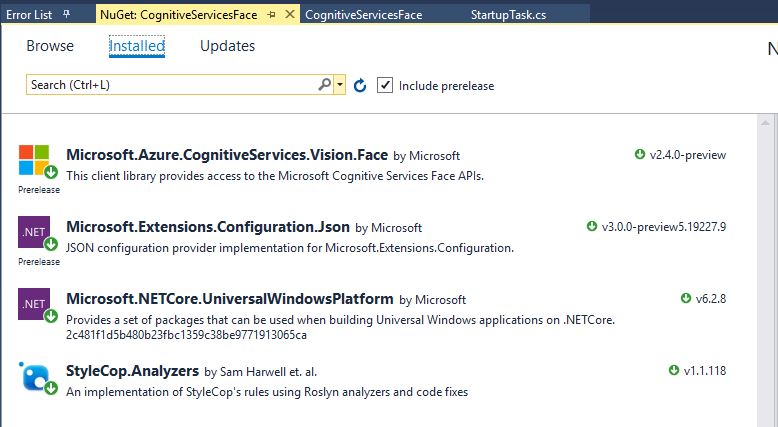
To start with I added the Azure Cognitive Services Custom Vision API NuGet packages to a new Visual Studio 2017 Windows IoT Core project.
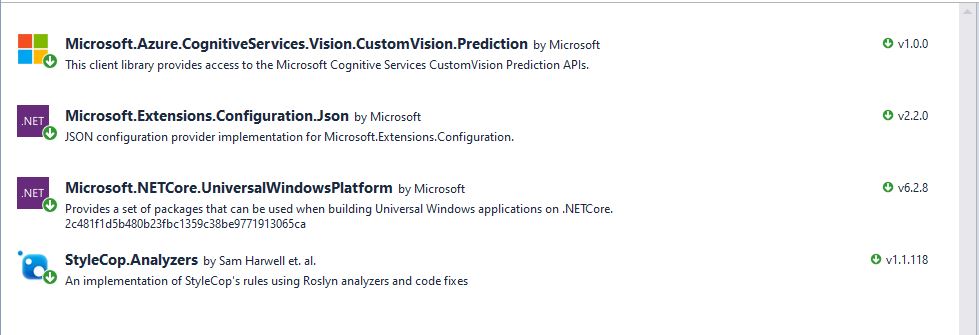
Azure Custom Vision Service NuGet packacges

Then I initialised the Computer Vision API client

try
{
	this.customVisionClient = new CustomVisionPredictionClient(new System.Net.Http.DelegatingHandler[] { })
	{
		ApiKey = this.azureCognitiveServicesSubscriptionKey,
		Endpoint = this.azureCognitiveServicesEndpoint,
	};
}
catch (Exception ex)
{
	this.logging.LogMessage("Azure Cognitive Services Custom Vision Client configuration failed " + ex.Message, LoggingLevel.Error);
	return;
}

Every time the digital input is strobed by the infra red proximity sensor or touch button an image is captured, uploaded for processing, and results displayed in the debug output.

For testing I have used a simple multiclass classifier that I trained with a selection of my son’s Lego. I tagged the brick size height x width x length (1x2x3, smallest of width/height first) and colour (red, green, blue etc.)
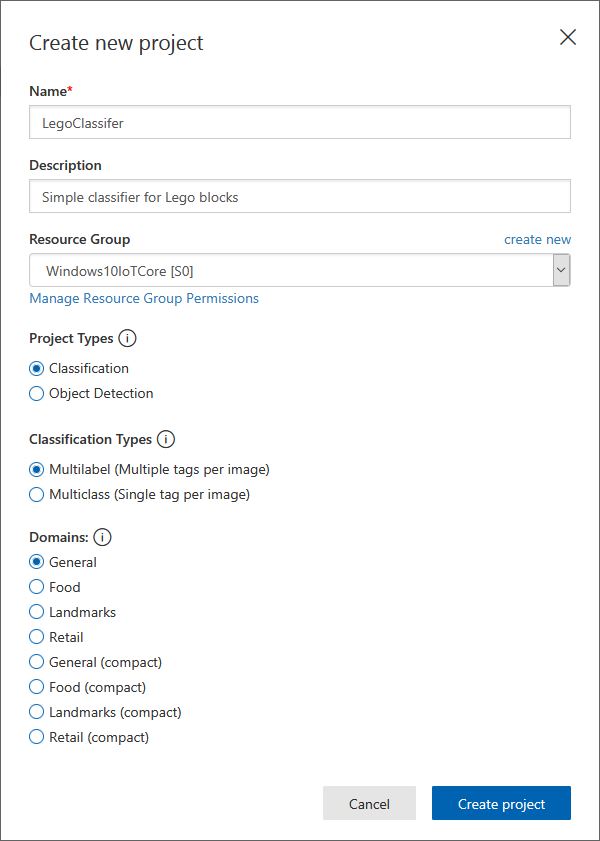
Azure Cognitive Services Classifier project creation
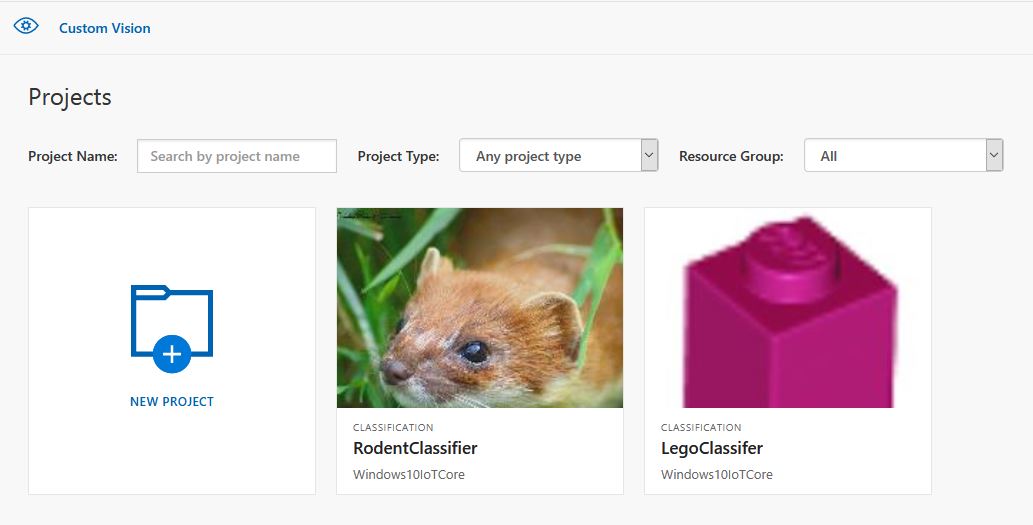
Custom vision projects
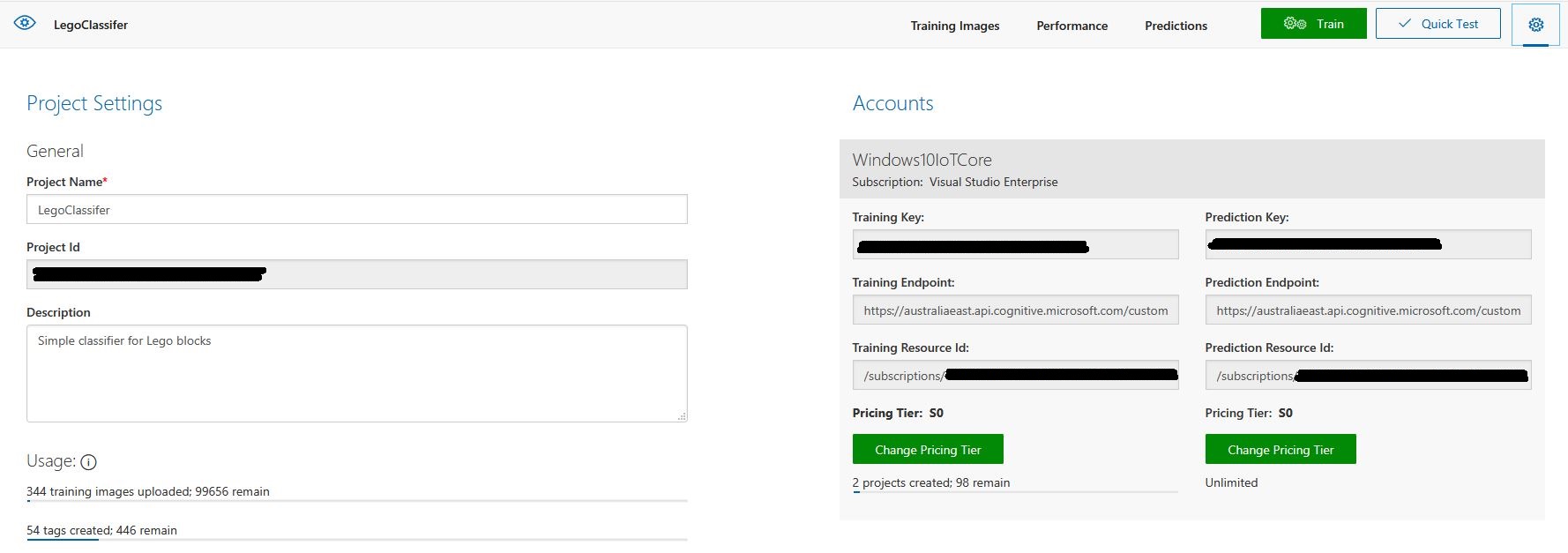
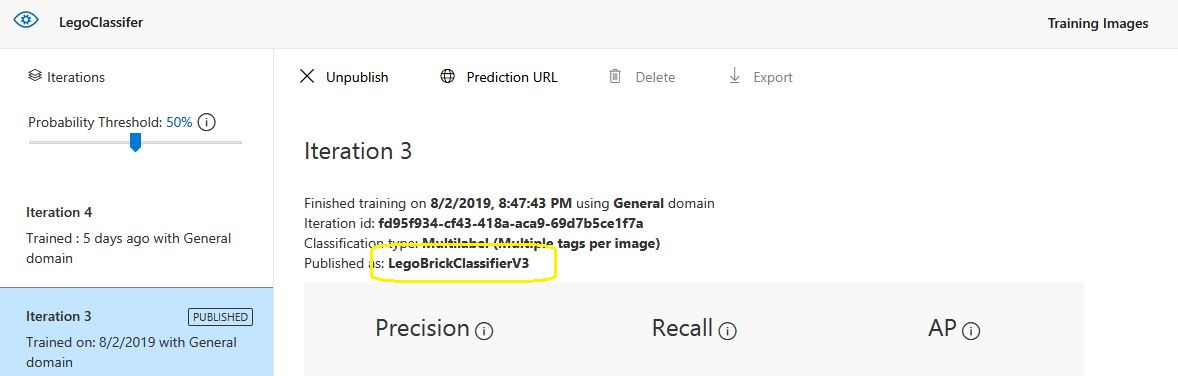
Lego classifier project properties

The projectID, AzureCognitiveServicesSubscriptionKey (PredictionKey) and PublishedName (From the Performance tab in project) in the app.settings file come from the custom vision project properties.
{
  "InterruptPinNumber": 24,
  "interruptTriggerOn": "RisingEdge",
  "DisplayPinNumber": 35,
  "AzureCognitiveServicesEndpoint": "https://australiaeast.api.cognitive.microsoft.com",
  "AzureCognitiveServicesSubscriptionKey": "41234567890123456789012345678901s,
  "DebounceTimeout": "00:00:30",
  "PublishedName": "LegoBrickClassifierV3",
  "TriggerTag": "1x2x4",
  "TriggerThreshold": "0.4",
  "ProjectID": "c1234567-abcdefghijklmn-1234567890ab"
} 

The sample application only supports one trigger tag + probability and if this condition satisfied the Light Emitting Diode (LED) is turned on for 5 seconds. If an image is being processed or the minimum period between images has not passed the LED is illuminated for 5 milliseconds .

private async void InterruptGpioPin_ValueChanged(GpioPin sender, GpioPinValueChangedEventArgs args)
{
	DateTime currentTime = DateTime.UtcNow;
	Debug.WriteLine($"Digital Input Interrupt {sender.PinNumber} triggered {args.Edge}");

	if (args.Edge != this.interruptTriggerOn)
	{
		return;
	}

	// Check that enough time has passed for picture to be taken
	if ((currentTime - this.imageLastCapturedAtUtc) < this.debounceTimeout)
	{
		this.displayGpioPin.Write(GpioPinValue.High);
		this.displayOffTimer.Change(this.timerPeriodDetectIlluminated, this.timerPeriodInfinite);
		return;
	}

	this.imageLastCapturedAtUtc = currentTime;

	// Just incase - stop code being called while photo already in progress
	if (this.cameraBusy)
	{
		this.displayGpioPin.Write(GpioPinValue.High);
		this.displayOffTimer.Change(this.timerPeriodDetectIlluminated, this.timerPeriodInfinite);
		return;
	}

	this.cameraBusy = true;

	try
	{
		using (Windows.Storage.Streams.InMemoryRandomAccessStream captureStream = new Windows.Storage.Streams.InMemoryRandomAccessStream())
		{
			this.mediaCapture.CapturePhotoToStreamAsync(ImageEncodingProperties.CreateJpeg(), captureStream).AsTask().Wait();
			captureStream.FlushAsync().AsTask().Wait();
			captureStream.Seek(0);

			IStorageFile photoFile = await KnownFolders.PicturesLibrary.CreateFileAsync(ImageFilename, CreationCollisionOption.ReplaceExisting);
			ImageEncodingProperties imageProperties = ImageEncodingProperties.CreateJpeg();
			await this.mediaCapture.CapturePhotoToStorageFileAsync(imageProperties, photoFile);

			ImageAnalysis imageAnalysis = await this.computerVisionClient.AnalyzeImageInStreamAsync(captureStream.AsStreamForRead());

			Debug.WriteLine($"Tag count {imageAnalysis.Categories.Count}");

			if (imageAnalysis.Categories.Intersect(this.categoryList, new CategoryComparer()).Any())
			{
				this.displayGpioPin.Write(GpioPinValue.High);

				// Start the timer to turn the LED off
				this.displayOffTimer.Change(this.timerPeriodFaceIlluminated, this.timerPeriodInfinite);
					}

					LoggingFields imageInformation = new LoggingFields();

					imageInformation.AddDateTime("TakenAtUTC", currentTime);
					imageInformation.AddInt32("Pin", sender.PinNumber);
					Debug.WriteLine($"Categories:{imageAnalysis.Categories.Count}");
					imageInformation.AddInt32("Categories", imageAnalysis.Categories.Count);
					foreach (Category category in imageAnalysis.Categories)
					{
						Debug.WriteLine($" Category:{category.Name} {category.Score}");
						imageInformation.AddDouble($"Category:{category.Name}", category.Score);
					}

					this.logging.LogEvent("Captured image processed by Cognitive Services", imageInformation);
				}
			}
			catch (Exception ex)
			{
				this.logging.LogMessage("Camera photo or save failed " + ex.Message, LoggingLevel.Error);
			}
			finally
			{
				this.cameraBusy = false;
			}
		}

		private void TimerCallback(object state)
		{
			this.displayGpioPin.Write(GpioPinValue.Low);
		}

		internal class CategoryComparer : IEqualityComparer<Category>
		{
			public bool Equals(Category x, Category y)
			{
				if (string.Equals(x.Name, y.Name, StringComparison.OrdinalIgnoreCase))
				{
					return true;
				}

				return false;
			}

			public int GetHashCode(Category obj)
			{
				return obj.Name.GetHashCode();
			}
		}

I found my small model was pretty good at tagging images of Lego bricks as long as the ambient lighting was consistent and the background fairly plain.

When tagging many bricks my ability to distinguish pearl light grey, light grey, sand blue and grey bricks was a problem. I should have started with a limited palette (red, green, blue) of colours and shapes for my models while evaluating different tagging approaches.
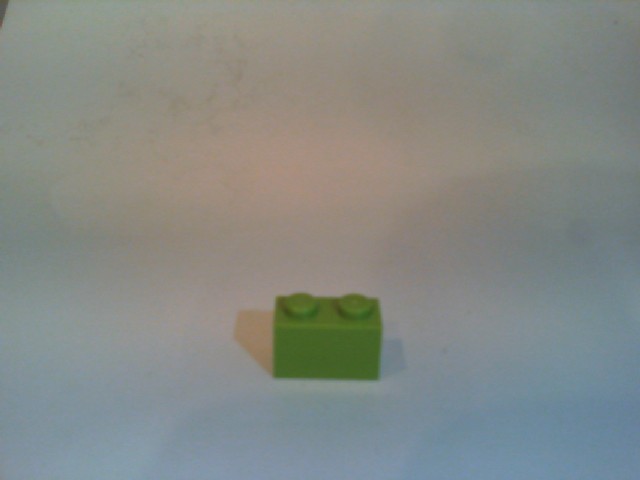
The debugging output of the application includes the different categories identified in the captured image.

Digital Input Interrupt 24 triggered RisingEdge
Digital Input Interrupt 24 triggered FallingEdge
Prediction count 54
 Tag:Lime 0.529844046
 Tag:1x1x2 0.4441353
 Tag:Green 0.252290249
 Tag:1x1x3 0.1790101
 Tag:1x2x3 0.132092983
 Tag:Turquoise 0.128928885
 Tag:DarkGreen 0.09383947
 Tag:DarkTurquoise 0.08993266
 Tag:1x2x2 0.08145093
 Tag:1x2x4 0.060960535
 Tag:LightBlue 0.0525473
 Tag:MediumAzure 0.04958712
 Tag:Violet 0.04894981
 Tag:SandGreen 0.048463434
 Tag:LightOrange 0.044860106
 Tag:1X1X1 0.0426577441
 Tag:Azure 0.0416654423
 Tag:Aqua 0.0400410332
 Tag:OliveGreen 0.0387720577
 Tag:Blue 0.035169173
 Tag:White 0.03497391
 Tag:Pink 0.0321456343
 Tag:Transparent 0.0246597622
 Tag:MediumBlue 0.0245670844
 Tag:BrightPink 0.0223842952
 Tag:Flesh 0.0221406389
 Tag:Magenta 0.0208457354
 Tag:Purple 0.0188888311
 Tag:DarkPurple 0.0187285
 Tag:MaerskBlue 0.017609369
 Tag:DarkPink 0.0173041821
 Tag:Lavender 0.0162359159
 Tag:PearlLightGrey 0.0152829709
 Tag:1x1x4 0.0133710662
 Tag:Red 0.0122602312
 Tag:Yellow 0.0118704
 Tag:Clear 0.0114340987
 Tag:LightYellow 0.009903331
 Tag:Black 0.00877647
 Tag:BrightLightYellow 0.00871937349
 Tag:Mediumorange 0.0078356415
 Tag:Tan 0.00738664949
 Tag:Sand 0.00713921571
 Tag:Grey 0.00710422
 Tag:Orange 0.00624707434
 Tag:SandBlue 0.006215865
 Tag:DarkGrey 0.00613187673
 Tag:DarkBlue 0.00578308525
 Tag:DarkOrange 0.003790971
 Tag:DarkTan 0.00348462746
 Tag:LightGrey 0.00321317
 Tag:ReddishBrown 0.00304117263
 Tag:LightBluishGrey 0.00273489812
 Tag:Brown 0.00199119

I’m going to run this application repeatedly, adding more images and retraining the model to see how it performs. Once the model is working wll I’ll try downloading it and running it on a device
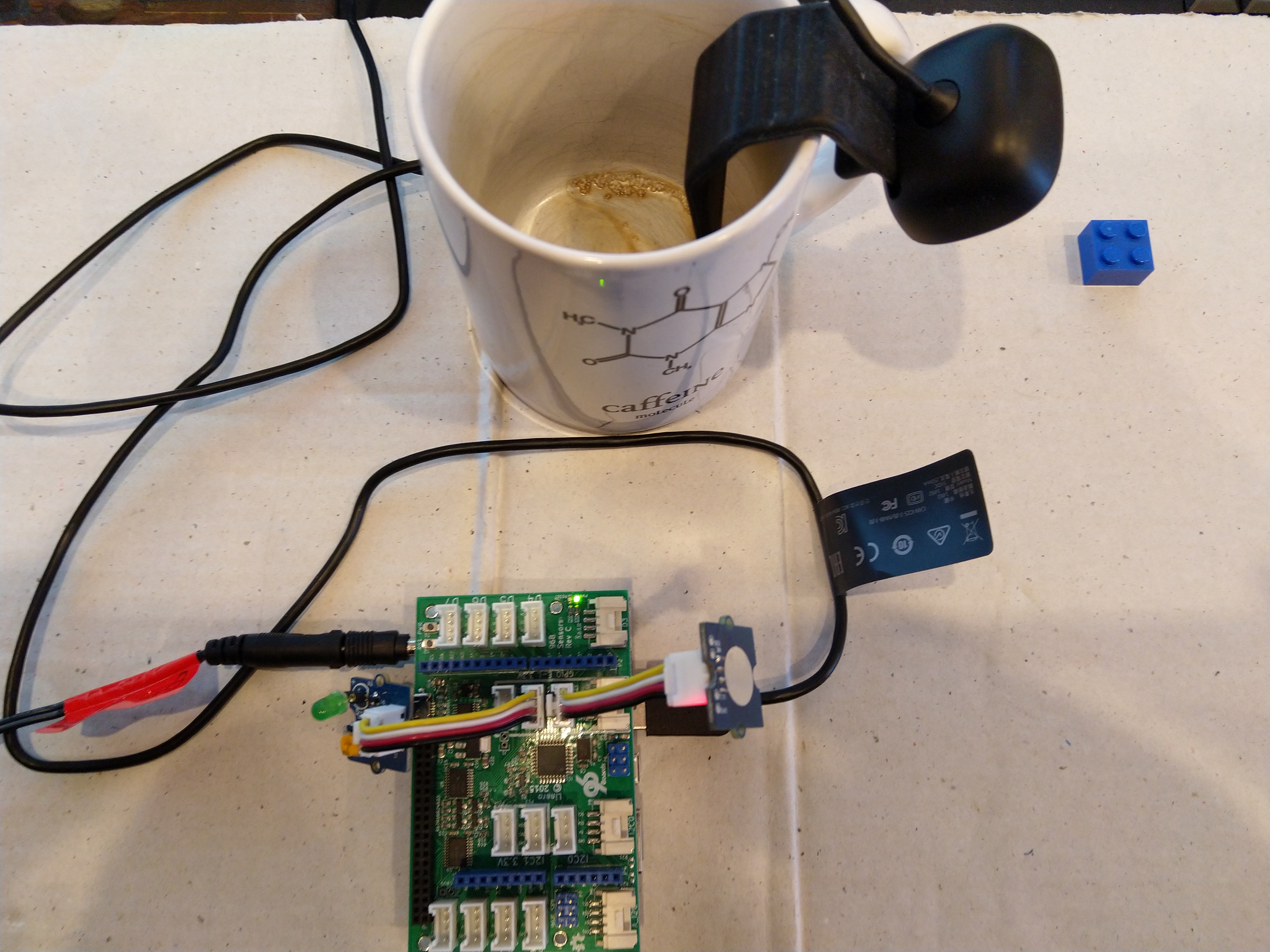
Custom Vision Test Harness running on my desk

This sample could be used as a basis for projects like this cat door which stops your pet bringing in dead or wounded animals. The model could be trained with tags to indicate whether the cat is carrying a “present” for their human and locking the door if it is.

STM32 Blue Pill LoRaWAN node

A few weeks ago I ordered an STM32 Blue Pill LoRaWAN node from the M2M Shop on Tindie for evaluation. I have bought a few M2M client devices including a Low power LoRaWan Node Model A328, and Low power LoRaWan Node Model B1284 for projects and they have worked well. This one looked interesting as I had never used a maple like device before.

Bill of materials (Prices as at July 2019)

  • STM32 Blue Pill LoRaWAN node USD21
  • Grove – Temperature&Humidity Sensor USD11.5
  • Grove – 4 pin Female Jumper to Grove 4 pin Conversion Cable USD3.90

The two sockets on the main board aren’t Grove compatible so I used the 4 pin female to Grove 4 pin conversion cable to connect the temperature and humidity sensor.

STM32 Blue Pill LoRaWAN node test rig

I used a modified version of my Arduino client code which worked after I got the pin reset pin sorted and the female sockets in the right order.

/*
  Copyright ® 2019 July devMobile Software, All Rights Reserved

  THIS CODE AND INFORMATION IS PROVIDED "AS IS" WITHOUT WARRANTY OF ANY
  KIND, EITHER EXPRESSED OR IMPLIED, INCLUDING BUT NOT LIMITED TO THE
  IMPLIED WARRANTIES OF MERCHANTABILITY AND/OR FITNESS FOR A PARTICULAR
  PURPOSE.
  
  Adapted from LoRa Duplex communication with Sync Word

  Sends temperature & humidity data from Seeedstudio 

  https://www.seeedstudio.com/Grove-Temperature-Humidity-Sensor-High-Accuracy-Min-p-1921.html

  To my Windows 10 IoT Core RFM 9X library

  https://blog.devmobile.co.nz/2018/09/03/rfm9x-iotcore-payload-addressing/
*/
#include <itoa.h>     
#include <SPI.h>     
#include <LoRa.h>

#include <TH02_dev.h>

#define DEBUG
//#define DEBUG_TELEMETRY
//#define DEBUG_LORA

// LoRa field gateway configuration (these settings must match your field gateway)
const char DeviceAddress[] = {"BLUEPILL"};

// Azure IoT Hub FieldGateway
const char FieldGatewayAddress[] = {"LoRaIoT1"}; 
const float FieldGatewayFrequency =  915000000.0;
const byte FieldGatewaySyncWord = 0x12 ;

// Bluepill hardware configuration
const int ChipSelectPin = PA4;
const int InterruptPin = PA0;
const int ResetPin = -1;

// LoRa radio payload configuration
const byte SensorIdValueSeperator = ' ' ;
const byte SensorReadingSeperator = ',' ;
const byte PayloadSizeMaximum = 64 ;
byte payload[PayloadSizeMaximum];
byte payloadLength = 0 ;

const int LoopDelaySeconds = 300 ;

// Sensor configuration
const char SensorIdTemperature[] = {"t"};
const char SensorIdHumidity[] = {"h"};


void setup()
{
  Serial.begin(9600);
#ifdef DEBUG
  while (!Serial);
#endif
  Serial.println("Setup called");

  Serial.println("LoRa setup start");

  // override the default chip select and reset pins
  LoRa.setPins(ChipSelectPin, ResetPin, InterruptPin);
  if (!LoRa.begin(FieldGatewayFrequency))
  {
    Serial.println("LoRa begin failed");
    while (true); // Drop into endless loop requiring restart
  }

  // Need to do this so field gateways pays attention to messsages from this device
  LoRa.enableCrc();
  LoRa.setSyncWord(FieldGatewaySyncWord);

#ifdef DEBUG_LORA
  LoRa.dumpRegisters(Serial);
#endif
  Serial.println("LoRa setup done.");

  PayloadHeader((byte*)FieldGatewayAddress, strlen(FieldGatewayAddress), (byte*)DeviceAddress, strlen(DeviceAddress));

 // Configure the Seeedstudio TH02 temperature & humidity sensor
  Serial.println("TH02 setup");
  TH02.begin();
  delay(100);
  Serial.println("TH02 Setup done");  

  Serial.println("Setup done");
}

void loop() {
  // read the value from the sensor:
  double temperature = TH02.ReadTemperature();
  double humidity = TH02.ReadHumidity();

  Serial.print("Humidity: ");
  Serial.print(humidity, 0);
  Serial.print(" %\t");
  Serial.print("Temperature: ");
  Serial.print(temperature, 1);
  Serial.println(" *C");

  PayloadReset();

  PayloadAdd(SensorIdHumidity, humidity, 0) ;
  PayloadAdd(SensorIdTemperature, temperature, 1) ;

  LoRa.beginPacket();
  LoRa.write(payload, payloadLength);
  LoRa.endPacket();

  Serial.println("Loop done");

  delay(LoopDelaySeconds * 1000);
}


void PayloadHeader( byte *to, byte toAddressLength, byte *from, byte fromAddressLength)
{
  byte addressesLength = toAddressLength + fromAddressLength ;

#ifdef DEBUG_TELEMETRY
  Serial.println("PayloadHeader- ");
  Serial.print( "To Address len:");
  Serial.print( toAddressLength );
  Serial.print( " From Address len:");
  Serial.print( fromAddressLength );
  Serial.print( " Addresses length:");
  Serial.print( addressesLength );
  Serial.println( );
#endif

  payloadLength = 0 ;

  // prepare the payload header with "To" Address length (top nibble) and "From" address length (bottom nibble)
  payload[payloadLength] = (toAddressLength << 4) | fromAddressLength ;
  payloadLength += 1;

  // Copy the "To" address into payload
  memcpy(&payload[payloadLength], to, toAddressLength);
  payloadLength += toAddressLength ;

  // Copy the "From" into payload
  memcpy(&payload[payloadLength], from, fromAddressLength);
  payloadLength += fromAddressLength ;
}


void PayloadAdd( const char *sensorId, float value, byte decimalPlaces)
{
  byte sensorIdLength = strlen( sensorId ) ;

#ifdef DEBUG_TELEMETRY
  Serial.println("PayloadAdd-float ");
  Serial.print( "SensorId:");
  Serial.print( sensorId );
  Serial.print( " sensorIdLen:");
  Serial.print( sensorIdLength );
  Serial.print( " Value:");
  Serial.print( value, decimalPlaces );
  Serial.print( " payloadLength:");
  Serial.print( payloadLength);
#endif

  memcpy( &payload[payloadLength], sensorId,  sensorIdLength) ;
  payloadLength += sensorIdLength ;
  payload[ payloadLength] = SensorIdValueSeperator;
  payloadLength += 1 ;
  payloadLength += strlen( dtostrf(value, -1, decimalPlaces, (char *)&payload[payloadLength]));
  payload[ payloadLength] = SensorReadingSeperator;
  payloadLength += 1 ;

#ifdef DEBUG_TELEMETRY
  Serial.print( " payloadLength:");
  Serial.print( payloadLength);
  Serial.println( );
#endif
}


void PayloadAdd( const char *sensorId, int value )
{
  byte sensorIdLength = strlen( sensorId ) ;

#ifdef DEBUG_TELEMETRY
  Serial.println("PayloadAdd-int ");
  Serial.print( "SensorId:");
  Serial.print( sensorId );
  Serial.print( " sensorIdLen:");
  Serial.print( sensorIdLength );
  Serial.print( " Value:");
  Serial.print( value );
  Serial.print( " payloadLength:");
  Serial.print( payloadLength);
#endif

  memcpy( &payload[payloadLength], sensorId,  sensorIdLength) ;
  payloadLength += sensorIdLength ;
  payload[ payloadLength] = SensorIdValueSeperator;
  payloadLength += 1 ;
  payloadLength += strlen( itoa( value, (char *)&payload[payloadLength], 10));
  payload[ payloadLength] = SensorReadingSeperator;
  payloadLength += 1 ;

#ifdef DEBUG_TELEMETRY
  Serial.print( " payloadLength:");
  Serial.print( payloadLength);
  Serial.println( );
#endif
}

void PayloadAdd( const char *sensorId, unsigned int value )
{
  byte sensorIdLength = strlen( sensorId ) ;

#ifdef DEBUG_TELEMETRY
  Serial.println("PayloadAdd-unsigned int ");
  Serial.print( "SensorId:");
  Serial.print( sensorId );
  Serial.print( " sensorIdLen:");
  Serial.print( sensorIdLength );
  Serial.print( " Value:");
  Serial.print( value );
  Serial.print( " payloadLength:");
  Serial.print( payloadLength);
#endif

  memcpy( &payload[payloadLength], sensorId,  sensorIdLength) ;
  payloadLength += sensorIdLength ;
  payload[ payloadLength] = SensorIdValueSeperator;
  payloadLength += 1 ;
  payloadLength += strlen( utoa( value, (char *)&payload[payloadLength], 10));
  payload[ payloadLength] = SensorReadingSeperator;
  payloadLength += 1 ;

#ifdef DEBUG_TELEMETRY
  Serial.print( " payloadLength:");
  Serial.print( payloadLength);
  Serial.println( );
#endif
}


void PayloadReset()
{
  byte fromAddressLength = payload[0] & 0xf ;
  byte toAddressLength = payload[0] >> 4 ;
  byte addressesLength = toAddressLength + fromAddressLength ;

  payloadLength = addressesLength + 1;

#ifdef DEBUG_TELEMETRY
  Serial.println("PayloadReset- ");
  Serial.print( "To Address len:");
  Serial.print( toAddressLength );
  Serial.print( " From Address len:");
  Serial.print( fromAddressLength );
  Serial.print( " Addresses length:");
  Serial.print( addressesLength );
  Serial.println( );
#endif
}

To get the application to compile I also had to include itoa.h rather than stdlib.h.

maple_loader v0.1
Resetting to bootloader via DTR pulse
[Reset via USB Serial Failed! Did you select the right serial port?]
Searching for DFU device [1EAF:0003]...
Assuming the board is in perpetual bootloader mode and continuing to attempt dfu programming...

dfu-util - (C) 2007-2008 by OpenMoko Inc.

Initially I had some problems deploying my software because I hadn’t followed the instructions and run the installation batch file.

14:03:56.946 -> Setup called
14:03:56.946 -> LoRa setup start
14:03:56.946 -> LoRa setup done.
14:03:56.946 -> TH02 setup
14:03:57.046 -> TH02 Setup done
14:03:57.046 -> Setup done
14:03:57.115 -> Humidity: 76 %	Temperature: 18.9 *C
14:03:57.182 -> Loop done
14:08:57.226 -> Humidity: 74 %	Temperature: 18.7 *C
14:08:57.295 -> Loop done
14:13:57.360 -> Humidity: 76 %	Temperature: 18.3 *C
14:13:57.430 -> Loop done
14:18:57.475 -> Humidity: 74 %	Temperature: 18.2 *C
14:18:57.544 -> Loop done
14:23:57.593 -> Humidity: 70 %	Temperature: 17.8 *C
14:23:57.662 -> Loop done
14:28:57.733 -> Humidity: 71 %	Temperature: 17.8 *C
14:28:57.802 -> Loop done
14:33:57.883 -> Humidity: 73 %	Temperature: 17.9 *C
14:33:57.952 -> Loop done
14:38:57.997 -> Humidity: 73 %	Temperature: 18.0 *C
14:38:58.066 -> Loop done
14:43:58.138 -> Humidity: 73 %	Temperature: 18.1 *C
14:43:58.208 -> Loop done
14:48:58.262 -> Humidity: 73 %	Temperature: 18.3 *C
14:48:58.331 -> Loop done
14:53:58.374 -> Humidity: 73 %	Temperature: 18.2 *C
14:53:58.444 -> Loop done
14:58:58.509 -> Humidity: 73 %	Temperature: 18.3 *C
14:58:58.578 -> Loop done
15:03:58.624 -> Humidity: 65 %	Temperature: 16.5 *C
15:03:58.694 -> Loop done
15:08:58.766 -> Humidity: 71 %	Temperature: 18.8 *C
15:08:58.836 -> Loop done
15:13:58.893 -> Humidity: 75 %	Temperature: 19.1 *C
15:13:58.963 -> Loop done

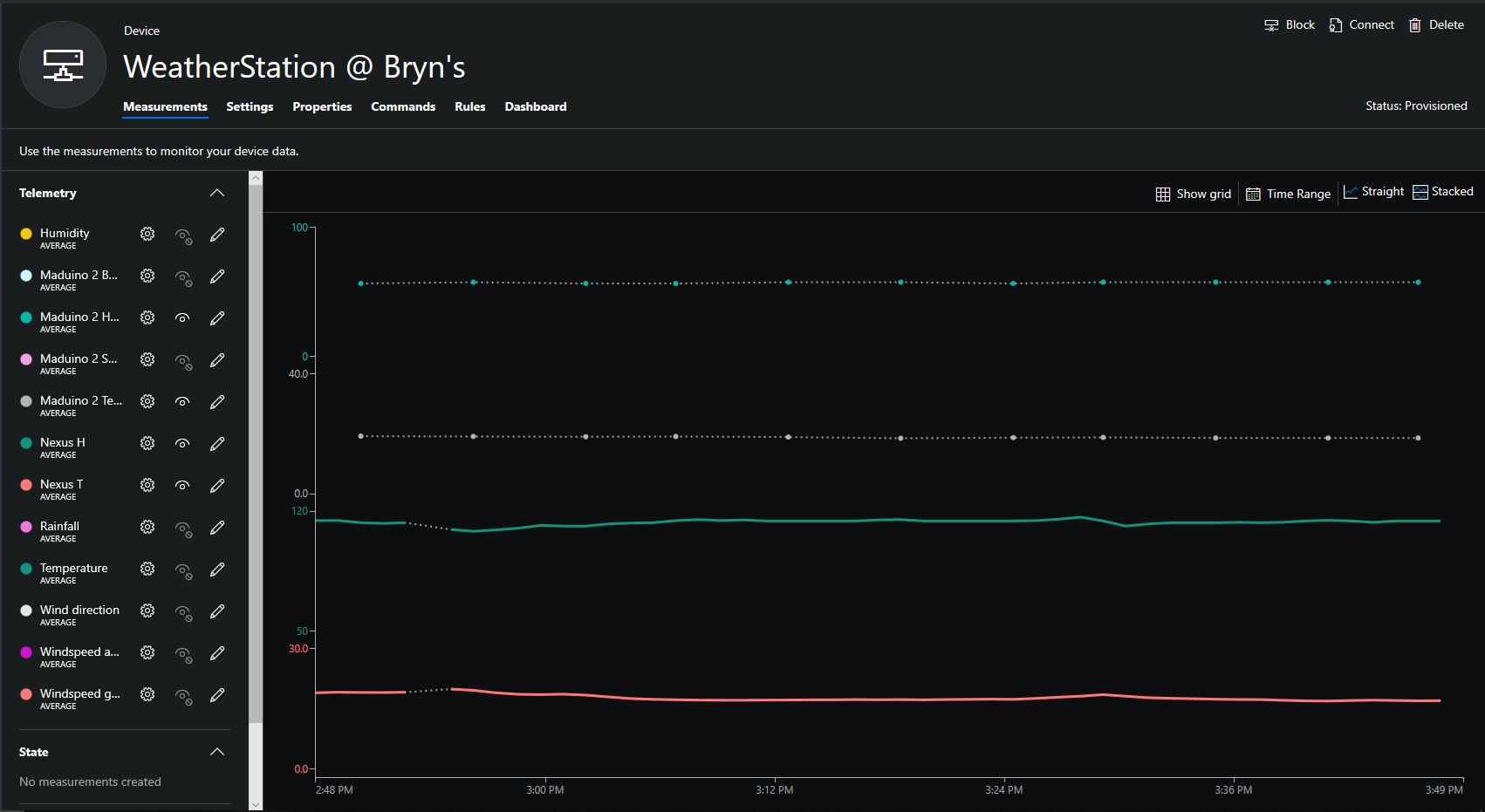
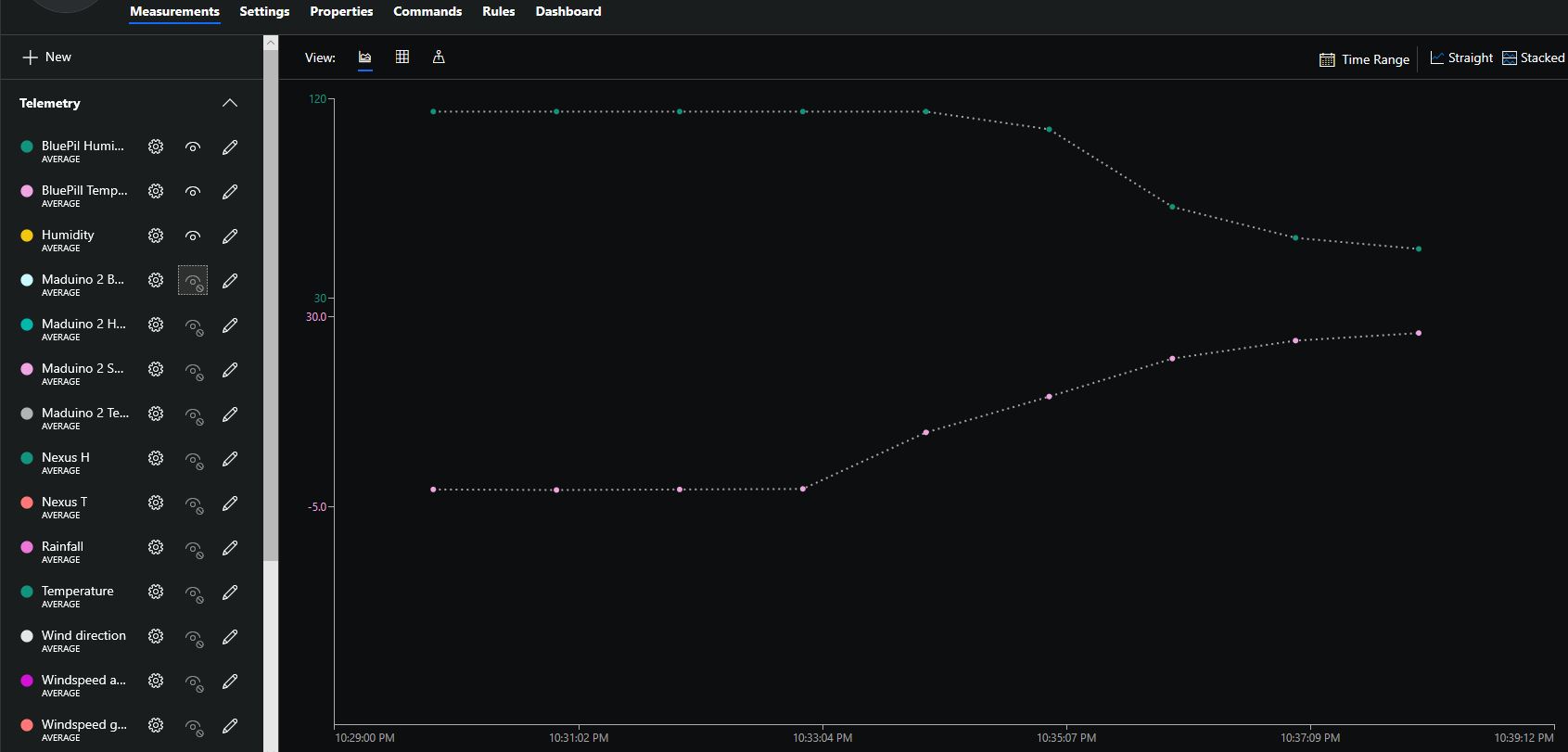
I configured the device to upload to my Azure IoT Hub/Azure IoT Central gateway and after getting the device name configuration right it has been running reliably for a couple of days

Azure IoT Central Temperature and humidity

The device was sitting outside on the deck and rapid increase in temperature is me bringing it inside.

Nexus LoRa Radio 915 MHz Payload Addressing client

This is a demo Ingenuity Micro Nexus client (based on the Netduino example for my RFM9XLoRaNetMF library) that uploads temperature and humidity data to my Azure IoT Hubs/Central or AdaFruit.IO on Raspberry PI field gateways

Bill of materials (Prices June 2019).

// <copyright file="client.cs" company="devMobile Software">
// Copyright ® 2019 Feb devMobile Software, All Rights Reserved
//
//  MIT License
//
//  Permission is hereby granted, free of charge, to any person obtaining a copy
// of this software and associated documentation files (the "Software"), to deal
// in the Software without restriction, including without limitation the rights
// to use, copy, modify, merge, publish, distribute, sublicense, and/or sell
// copies of the Software, and to permit persons to whom the Software is
// furnished to do so, subject to the following conditions:
//
// The above copyright notice and this permission notice shall be included in all copies or substantial portions of the Software.
//
// THE SOFTWARE IS PROVIDED "AS IS", WITHOUT WARRANTY OF ANY KIND, EXPRESS OR
// IMPLIED, INCLUDING BUT NOT LIMITED TO THE WARRANTIES OF MERCHANTABILITY,
// FITNESS FOR A PARTICULAR PURPOSE AND NONINFRINGEMENT. IN NO EVENT SHALL THE
// AUTHORS OR COPYRIGHT HOLDERS BE LIABLE FOR ANY CLAIM, DAMAGES OR OTHER
// LIABILITY, WHETHER IN AN ACTION OF CONTRACT, TORT OR OTHERWISE, ARISING FROM,
// OUT OF OR IN CONNECTION WITH THE SOFTWARE OR THE USE OR OTHER DEALINGS IN THE
// SOFTWARE"
//
// </copyright>
namespace devMobile.IoT.Nexus.FieldGateway
{
	using System;
	using System.Text;
	using System.Threading;
	using Microsoft.SPOT;
	using Microsoft.SPOT.Hardware;

	using devMobile.IoT.NetMF.ISM;
	using devMobile.NetMF.Sensor;
	using IngenuityMicro.Nexus;

	class NexusClient
	{
		private Rfm9XDevice rfm9XDevice;
		private readonly TimeSpan dueTime = new TimeSpan(0, 0, 15);
		private readonly TimeSpan periodTime = new TimeSpan(0, 0, 60);
		private readonly SiliconLabsSI7005 sensor = new SiliconLabsSI7005();
		private readonly Led _led = new Led();
		private readonly byte[] fieldGatewayAddress = Encoding.UTF8.GetBytes("LoRaIoT1");
		private readonly byte[] deviceAddress = Encoding.UTF8.GetBytes("Nexus915");

		public NexusClient()
		{
			rfm9XDevice = new Rfm9XDevice(SPI.SPI_module.SPI3, (Cpu.Pin)28, (Cpu.Pin)15, (Cpu.Pin)26);
			_led.Set(0, 0, 0);
		}

		public void Run()
		{

			rfm9XDevice.Initialise(frequency: 915000000, paBoost: true, rxPayloadCrcOn: true);
			rfm9XDevice.Receive(deviceAddress);

			rfm9XDevice.OnDataReceived += rfm9XDevice_OnDataReceived;
			rfm9XDevice.OnTransmit += rfm9XDevice_OnTransmit;

			Timer humidityAndtemperatureUpdates = new Timer(HumidityAndTemperatureTimerProc, null, dueTime, periodTime);

			Thread.Sleep(Timeout.Infinite);
		}


		private void HumidityAndTemperatureTimerProc(object state)
		{
			_led.Set(0, 128, 0);

			double humidity = sensor.Humidity();
			double temperature = sensor.Temperature();

			Debug.Print(DateTime.UtcNow.ToString("hh:mm:ss") + " H:" + humidity.ToString("F1") + " T:" + temperature.ToString("F1"));

			rfm9XDevice.Send(fieldGatewayAddress, Encoding.UTF8.GetBytes("t " + temperature.ToString("F1") + ",H " + humidity.ToString("F0")));
		}

		void rfm9XDevice_OnTransmit()
		{
			_led.Set(0, 0, 0);

			Debug.Print("Transmit-Done");
		}

		void rfm9XDevice_OnDataReceived(byte[] address, float packetSnr, int packetRssi, int rssi, byte[] data)
		{
			try
			{
				string messageText = new string(UTF8Encoding.UTF8.GetChars(data));
				string addressText = new string(UTF8Encoding.UTF8.GetChars(address));

				Debug.Print(DateTime.UtcNow.ToString("HH:MM:ss") + "-Rfm9X PacketSnr " + packetSnr.ToString("F1") + " Packet RSSI " + packetRssi + "dBm RSSI " + rssi + "dBm = " + data.Length + " byte message " + @"""" + messageText + @"""");
			}
			catch (Exception ex)
			{
				Debug.Print(ex.Message);
			}
		}
	}
}

Overall the development process was good with no modifications to my RFM9X.NetMF library or SI7005 library (bar removing a Netduino I2C work around) required

Nexus device with Seeedstudio Temperature & Humidity Sensors
Nexus Sensor data in Azure IoT Hub Field Gateway ETW Logging
Nexus temperature & humidity data displayed in Azure IoT Central

Grove Base Hat for Raspberry PI Zero Windows 10 IoT Core

During the week a package arrived from Seeedstudio with a Grove Base Hat for RPI Zero. So I have modified my Grove Base Hat for RPI Windows 10 IoT Core library to add support for the new shield.

Grove Base Hat for Raspberry PI Zero on Raspberry PI 3

The Raspberry PI Zero hat has a two less analog ports and a different device id so some conditional compile options were necessary

namespace devMobile.Windows10IoTCore.GroveBaseHatRPI
{
#if (!GROVE_BASE_HAT_RPI && !GROVE_BASE_HAT_RPI_ZERO)
#error Library must have at least one of GROVE_BASE_HAT_RPI or GROVE_BASE_HAT_RPI_ZERO defined
#endif

#if (GROVE_BASE_HAT_RPI && GROVE_BASE_HAT_RPI_ZERO)
#error Library must have at most one of GROVE_BASE_HAT_RPI or GROVE_BASE_HAT_RPI_ZERO defined
#endif

	public class AnalogPorts : IDisposable
	{
		private const int I2CAddress = 0x04;
		private const byte RegisterDeviceId = 0x0;
		private const byte RegisterVersion = 0x02;
		private const byte RegisterPowerSupplyVoltage = 0x29;
		private const byte RegisterRawBase = 0x10;
		private const byte RegisterVoltageBase = 0x20;
		private const byte RegisterValueBase = 0x30;
#if GROVE_BASE_HAT_RPI
		private const byte DeviceId = 0x0004;
#endif
#if GROVE_BASE_HAT_RPI_ZERO
		private const byte DeviceId = 0x0005;
#endif
		private I2cDevice Device= null;
		private bool Disposed = false;

		public enum AnalogPort
		{
			A0 = 0,
			A1 = 1,
			A2 = 2,
			A3 = 3,
			A4 = 4,
			A5 = 5,
#if GROVE_BASE_HAT_RPI
			A6 = 6,
			A7 = 7,
#endif
		};

The code updates have been “smoke” tested and I have updated the GitHub repository.

Windows 10 IoT Core Cognitive Services Computer Vision API

This application was inspired by one of teachers I work with wanting to check occupancy of different areas in the school library. I had been using the Computer Vision service to try and identify objects around my home and office which had been moderately successful but not terribly useful or accurate.

I added the Azure Cognitive Services Computer Vision API NuGet packages to my Visual Studio 2017 Windows IoT Core project.

Azure Cognitive Services Computer Vision API library

Then I initialised the Computer Vision API client

try
{
	this.computerVisionClient = new ComputerVisionClient(
			 new Microsoft.Azure.CognitiveServices.Vision.ComputerVision.ApiKeyServiceClientCredentials(this.azureCognitiveServicesSubscriptionKey),
			 new System.Net.Http.DelegatingHandler[] { })
	{
		Endpoint = this.azureCognitiveServicesEndpoint,
	};
}
catch (Exception ex)
{
	this.logging.LogMessage("Azure Cognitive Services Computer Vision client configuration failed " + ex.Message, LoggingLevel.Error);
	return;
}

Every time the digital input is strobed by the passive infra red motion detector an image is captured, then uploaded for processing, and finally results displayed. For this sample I’m looking for categories which indicate the image is of a group of people (The categories are configured in the appsettings file)

{
  "InterruptPinNumber": 24,
  "interruptTriggerOn": "RisingEdge",
  "DisplayPinNumber": 35,
  "AzureCognitiveServicesEndpoint": "https://australiaeast.api.cognitive.microsoft.com/",
  "AzureCognitiveServicesSubscriptionKey": "1234567890abcdefghijklmnopqrstuv",
  "ComputerVisionCategoryNames":"people_group,people_many",
  "LocalImageFilenameFormatLatest": "{0}.jpg",
  "LocalImageFilenameFormatHistoric": "{1:yyMMddHHmmss}.jpg",
  "DebounceTimeout": "00:00:30"
} 

If any of the specified categories are identified in the image I illuminate a Light Emitting Diode (LED) for 5 seconds, if an image is being processed or the minimum period between images has not passed the LED is illuminated for 5 milliseconds .

		private async void InterruptGpioPin_ValueChanged(GpioPin sender, GpioPinValueChangedEventArgs args)
		{
			DateTime currentTime = DateTime.UtcNow;
			Debug.WriteLine($"Digital Input Interrupt {sender.PinNumber} triggered {args.Edge}");

			if (args.Edge != this.interruptTriggerOn)
			{
				return;
			}

			// Check that enough time has passed for picture to be taken
			if ((currentTime - this.imageLastCapturedAtUtc) < this.debounceTimeout)
			{
				this.displayGpioPin.Write(GpioPinValue.High);
				this.displayOffTimer.Change(this.timerPeriodDetectIlluminated, this.timerPeriodInfinite);
				return;
			}

			this.imageLastCapturedAtUtc = currentTime;

			// Just incase - stop code being called while photo already in progress
			if (this.cameraBusy)
			{
				this.displayGpioPin.Write(GpioPinValue.High);
				this.displayOffTimer.Change(this.timerPeriodDetectIlluminated, this.timerPeriodInfinite);
				return;
			}

			this.cameraBusy = true;

			try
			{
				using (Windows.Storage.Streams.InMemoryRandomAccessStream captureStream = new Windows.Storage.Streams.InMemoryRandomAccessStream())
				{
					this.mediaCapture.CapturePhotoToStreamAsync(ImageEncodingProperties.CreateJpeg(), captureStream).AsTask().Wait();
					captureStream.FlushAsync().AsTask().Wait();
					captureStream.Seek(0);

					IStorageFile photoFile = await KnownFolders.PicturesLibrary.CreateFileAsync(ImageFilename, CreationCollisionOption.ReplaceExisting);
					ImageEncodingProperties imageProperties = ImageEncodingProperties.CreateJpeg();
					await this.mediaCapture.CapturePhotoToStorageFileAsync(imageProperties, photoFile);

					ImageAnalysis imageAnalysis = await this.computerVisionClient.AnalyzeImageInStreamAsync(captureStream.AsStreamForRead());

					Debug.WriteLine($"Tag count {imageAnalysis.Categories.Count}");

					if (imageAnalysis.Categories.Intersect(this.categoryList, new CategoryComparer()).Any())
					{
						this.displayGpioPin.Write(GpioPinValue.High);

						// Start the timer to turn the LED off
						this.displayOffTimer.Change(this.timerPeriodFaceIlluminated, this.timerPeriodInfinite);
					}

					LoggingFields imageInformation = new LoggingFields();

					imageInformation.AddDateTime("TakenAtUTC", currentTime);
					imageInformation.AddInt32("Pin", sender.PinNumber);
					Debug.WriteLine($"Categories:{imageAnalysis.Categories.Count}");
					imageInformation.AddInt32("Categories", imageAnalysis.Categories.Count);
					foreach (Category category in imageAnalysis.Categories)
					{
						Debug.WriteLine($" Category:{category.Name} {category.Score}");
						imageInformation.AddDouble($"Category:{category.Name}", category.Score);
					}

					this.logging.LogEvent("Captured image processed by Cognitive Services", imageInformation);
				}
			}
			catch (Exception ex)
			{
				this.logging.LogMessage("Camera photo or save failed " + ex.Message, LoggingLevel.Error);
			}
			finally
			{
				this.cameraBusy = false;
			}
		}

		private void TimerCallback(object state)
		{
			this.displayGpioPin.Write(GpioPinValue.Low);
		}

		internal class CategoryComparer : IEqualityComparer<Category>
		{
			public bool Equals(Category x, Category y)
			{
				if (string.Equals(x.Name, y.Name, StringComparison.OrdinalIgnoreCase))
				{
					return true;
				}

				return false;
			}

			public int GetHashCode(Category obj)
			{
				return obj.Name.GetHashCode();
			}
		}

I found that the Computer vision service was pretty good at categorising photos of images like this displayed on my second monitor as containing a group of people.

The debugging output of the application includes the different categories identified in the captured image.

Digital Input Interrupt 24 triggered RisingEdge
Digital Input Interrupt 24 triggered FallingEdge
'backgroundTaskHost.exe' (CoreCLR: CoreCLR_UWP_Domain): Loaded 'C:\Data\Programs\WindowsApps\Microsoft.NET.CoreFramework.Debug.2.2_2.2.27505.2_arm__8wekyb3d8bbwe\System.Diagnostics.DiagnosticSource.dll'. Skipped loading symbols. Module is optimized and the debugger option 'Just My Code' is enabled.
'backgroundTaskHost.exe' (CoreCLR: CoreCLR_UWP_Domain): Loaded 'C:\Data\Programs\WindowsApps\Microsoft.NET.CoreFramework.Debug.2.2_2.2.27505.2_arm__8wekyb3d8bbwe\System.Collections.NonGeneric.dll'. Skipped loading symbols. Module is optimized and the debugger option 'Just My Code' is enabled.
'backgroundTaskHost.exe' (CoreCLR: CoreCLR_UWP_Domain): Loaded 'C:\Data\Programs\WindowsApps\Microsoft.NET.CoreFramework.Debug.2.2_2.2.27505.2_arm__8wekyb3d8bbwe\System.Runtime.Serialization.Formatters.dll'. Skipped loading symbols. Module is optimized and the debugger option 'Just My Code' is enabled.
'backgroundTaskHost.exe' (CoreCLR: CoreCLR_UWP_Domain): Loaded 'C:\Data\Programs\WindowsApps\Microsoft.NET.CoreFramework.Debug.2.2_2.2.27505.2_arm__8wekyb3d8bbwe\System.Diagnostics.TraceSource.dll'. Skipped loading symbols. Module is optimized and the debugger option 'Just My Code' is enabled.
'backgroundTaskHost.exe' (CoreCLR: CoreCLR_UWP_Domain): Loaded 'C:\Data\Programs\WindowsApps\Microsoft.NET.CoreFramework.Debug.2.2_2.2.27505.2_arm__8wekyb3d8bbwe\System.Collections.Specialized.dll'. Skipped loading symbols. Module is optimized and the debugger option 'Just My Code' is enabled.
'backgroundTaskHost.exe' (CoreCLR: CoreCLR_UWP_Domain): Loaded 'C:\Data\Programs\WindowsApps\Microsoft.NET.CoreFramework.Debug.2.2_2.2.27505.2_arm__8wekyb3d8bbwe\System.Drawing.Primitives.dll'. Skipped loading symbols. Module is optimized and the debugger option 'Just My Code' is enabled.
'backgroundTaskHost.exe' (CoreCLR: CoreCLR_UWP_Domain): Loaded 'C:\Data\Programs\WindowsApps\Microsoft.NET.CoreFramework.Debug.2.2_2.2.27505.2_arm__8wekyb3d8bbwe\System.Runtime.Serialization.Primitives.dll'. Skipped loading symbols. Module is optimized and the debugger option 'Just My Code' is enabled.
'backgroundTaskHost.exe' (CoreCLR: CoreCLR_UWP_Domain): Loaded 'C:\Data\Programs\WindowsApps\Microsoft.NET.CoreFramework.Debug.2.2_2.2.27505.2_arm__8wekyb3d8bbwe\System.Data.Common.dll'. Skipped loading symbols. Module is optimized and the debugger option 'Just My Code' is enabled.
'backgroundTaskHost.exe' (CoreCLR: CoreCLR_UWP_Domain): Loaded 'C:\Data\Programs\WindowsApps\Microsoft.NET.CoreFramework.Debug.2.2_2.2.27505.2_arm__8wekyb3d8bbwe\System.Xml.ReaderWriter.dll'. Skipped loading symbols. Module is optimized and the debugger option 'Just My Code' is enabled.
'backgroundTaskHost.exe' (CoreCLR: CoreCLR_UWP_Domain): Loaded 'C:\Data\Programs\WindowsApps\Microsoft.NET.CoreFramework.Debug.2.2_2.2.27505.2_arm__8wekyb3d8bbwe\System.Private.Xml.dll'. Skipped loading symbols. Module is optimized and the debugger option 'Just My Code' is enabled.
'backgroundTaskHost.exe' (CoreCLR: CoreCLR_UWP_Domain): Loaded 'Anonymously Hosted DynamicMethods Assembly'. 
Tag count 1
Categories:1
 Category:people_group 0.8671875
The thread 0x634 has exited with code 0 (0x0).

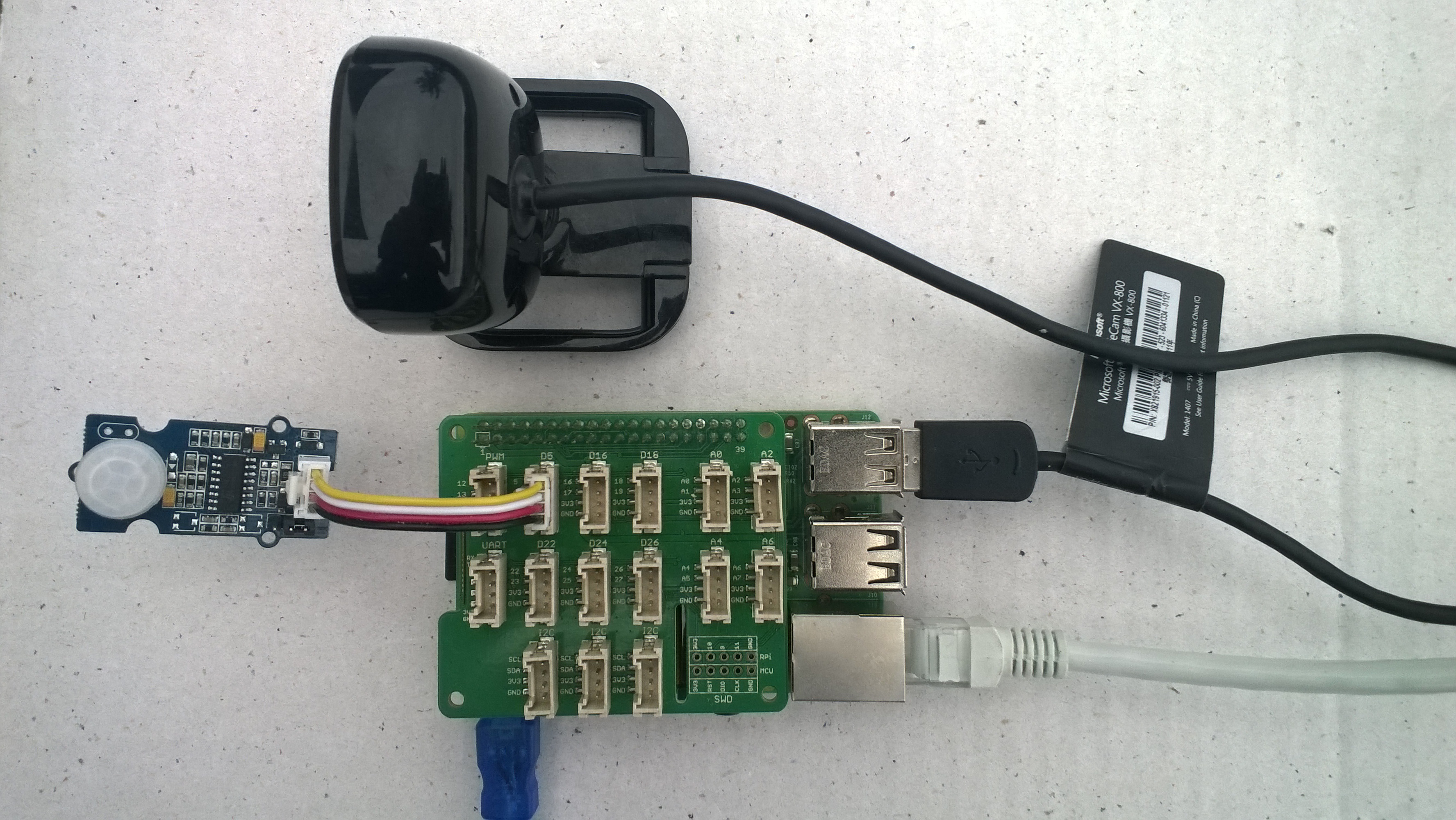
I used an infrared motion sensor to trigger capture and processing of an image to simulate a application for detecting if there is a group of people in an area of the school library.

I’m going to run this application alongside one of my time-lapse applications to record a days worth of images and manually check the accuracy of the image categorisation. I think that camera location maybe important as well so I’ll try a selection of different USB cameras and locations.

Trial PIR triggered computer vision client

I also found the small PIR motion detector didn’t work very well in a larger space so I’m going to trial a configurable sensor and a repurposed burglar alarm sensor.

Windows 10 IoT Core Cognitive Services Face API

After building a series of Windows 10 IoT Core applications to capture images and store them

I figured some sample applications which used Azure Cognitive Services Vision Services to process captured images would be interesting.

This application was inspired by one of my students who has been looking at an Arduino based LoRa wireless connected sensor for monitoring Ultraviolet(UV) light levels and wanted to check that juniors at the school were wearing their hats on sunny days before going outside.

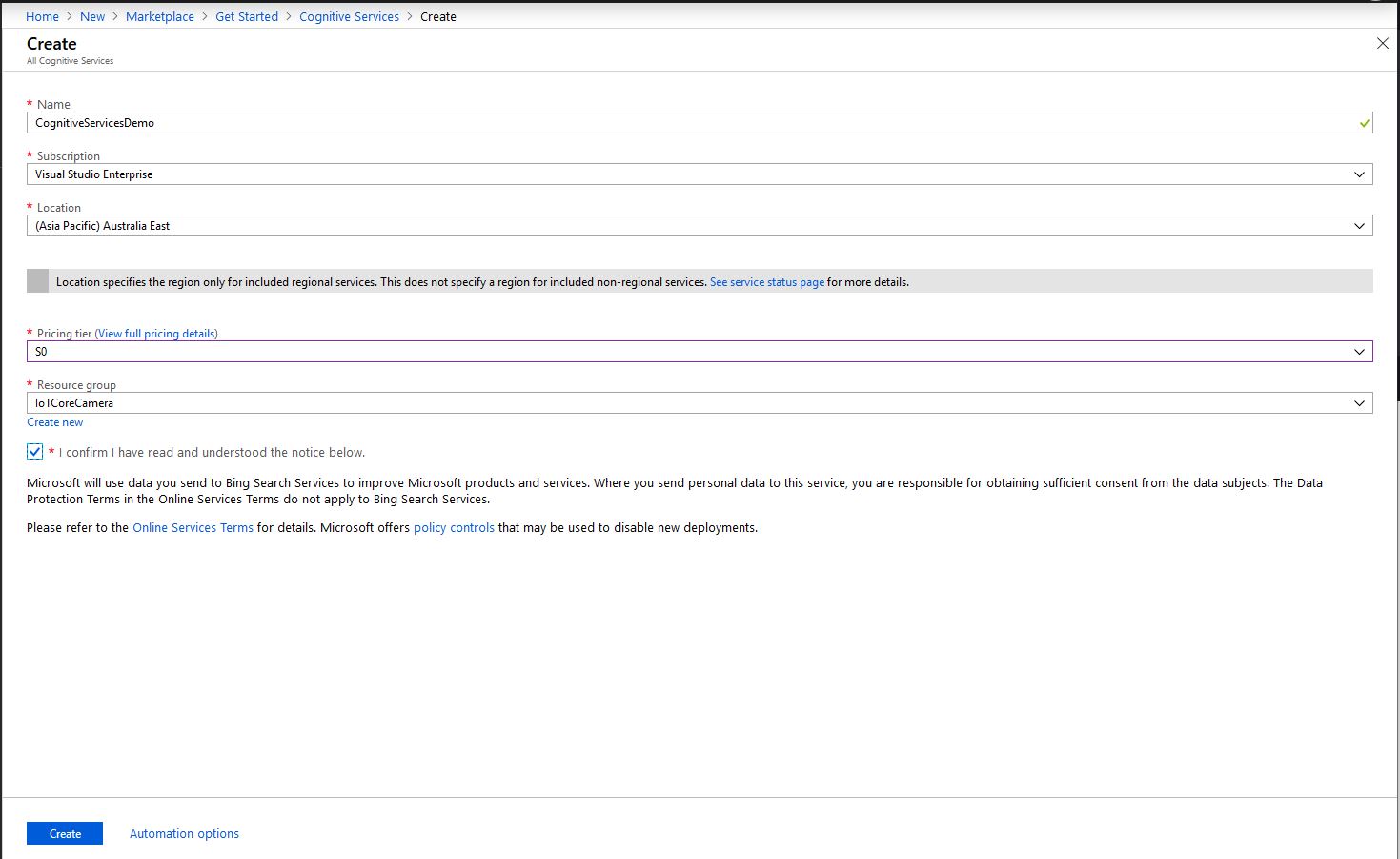
First I needed create a Cognitive Services instance and get the subscription key and endpoint.

Azure Cognitive Services Instance Creation

Then I added the Azure Cognitive Services Face API NuGet packages into my Visual Studio Windows IoT Core project

Azure Cognitive Services Vision Face API library

Then initialise the Face API client

try
{
	this.faceClient = new FaceClient(
			 new Microsoft.Azure.CognitiveServices.Vision.Face.ApiKeyServiceClientCredentials(this.azureCognitiveServicesSubscriptionKey),
											 new System.Net.Http.DelegatingHandler[] { })
	{
		Endpoint = this.azureCognitiveServicesEndpoint,
	};
}
catch (Exception ex)
{
	this.logging.LogMessage("Azure Cognitive Services Face Client configuration failed " + ex.Message, LoggingLevel.Error);
	return;
}

Then every time a digital input is strobed and image is captured, then uploaded for processing, and finally results displayed. The interrupt handler has code to stop re-entrancy and contactor bounce causing issues. I also requested that the Face service include age and gender attributes with associated confidence values.

If a face is found in the image I illuminate a Light Emitting Diode (LED) for 5 seconds, if an image is being processed or the minimum period between images has not passed the LED is illuminated for 5 milliseconds .

private async void InterruptGpioPin_ValueChanged(GpioPin sender, GpioPinValueChangedEventArgs args)
{
	DateTime currentTime = DateTime.UtcNow;
	Debug.WriteLine($"Digital Input Interrupt {sender.PinNumber} triggered {args.Edge}");

	if (args.Edge != this.interruptTriggerOn)
	{
		return;
	}

	// Check that enough time has passed for picture to be taken
	if ((currentTime - this.imageLastCapturedAtUtc) < this.debounceTimeout)
	{
		this.displayGpioPin.Write(GpioPinValue.High);
		this.displayOffTimer.Change(this.timerPeriodDetectIlluminated, this.timerPeriodInfinite);
		return;
	}

	this.imageLastCapturedAtUtc = currentTime;

	// Just incase - stop code being called while photo already in progress
	if (this.cameraBusy)
	{
		this.displayGpioPin.Write(GpioPinValue.High);
		this.displayOffTimer.Change(this.timerPeriodDetectIlluminated, this.timerPeriodInfinite);
		return;
	}

	this.cameraBusy = true;

	try
	{
		using (Windows.Storage.Streams.InMemoryRandomAccessStream captureStream = new Windows.Storage.Streams.InMemoryRandomAccessStream())
		{
			this.mediaCapture.CapturePhotoToStreamAsync(ImageEncodingProperties.CreateJpeg(), captureStream).AsTask().Wait();
			captureStream.FlushAsync().AsTask().Wait();
			captureStream.Seek(0);
			IStorageFile photoFile = await KnownFolders.PicturesLibrary.CreateFileAsync(ImageFilename, CreationCollisionOption.ReplaceExisting);
			ImageEncodingProperties imageProperties = ImageEncodingProperties.CreateJpeg();
			await this.mediaCapture.CapturePhotoToStorageFileAsync(imageProperties, photoFile);

			IList<FaceAttributeType> returnfaceAttributes = new List<FaceAttributeType>();
			returnfaceAttributes.Add(FaceAttributeType.Gender);
			returnfaceAttributes.Add(FaceAttributeType.Age);

			IList<DetectedFace> detectedFaces = await this.faceClient.Face.DetectWithStreamAsync(captureStream.AsStreamForRead(), returnFaceAttributes: returnfaceAttributes);

			Debug.WriteLine($"Count {detectedFaces.Count}");

			if (detectedFaces.Count > 0)
			{
				this.displayGpioPin.Write(GpioPinValue.High);

						// Start the timer to turn the LED off
				this.displayOffTimer.Change(this.timerPeriodFaceIlluminated, this.timerPeriodInfinite);
			}

			LoggingFields imageInformation = new LoggingFields();
			imageInformation.AddDateTime("TakenAtUTC", currentTime);
			imageInformation.AddInt32("Pin", sender.PinNumber);
			imageInformation.AddInt32("Faces", detectedFaces.Count);
			foreach (DetectedFace detectedFace in detectedFaces)
			{
				Debug.WriteLine("Face");
				if (detectedFace.FaceId.HasValue)
				{
					imageInformation.AddGuid("FaceId", detectedFace.FaceId.Value);
					Debug.WriteLine($" Id:{detectedFace.FaceId.Value}");
				}
				imageInformation.AddInt32("Left", detectedFace.FaceRectangle.Left);
				imageInformation.AddInt32("Width", detectedFace.FaceRectangle.Width);
				imageInformation.AddInt32("Top", detectedFace.FaceRectangle.Top);
				imageInformation.AddInt32("Height", detectedFace.FaceRectangle.Height);
				Debug.WriteLine($" L:{detectedFace.FaceRectangle.Left} W:{detectedFace.FaceRectangle.Width} T:{detectedFace.FaceRectangle.Top} H:{detectedFace.FaceRectangle.Height}");
				if (detectedFace.FaceAttributes != null)
				{
					if (detectedFace.FaceAttributes.Gender.HasValue)
					{
						imageInformation.AddString("Gender", detectedFace.FaceAttributes.Gender.Value.ToString());
						Debug.WriteLine($" Gender:{detectedFace.FaceAttributes.Gender.ToString()}");
					}

					if (detectedFace.FaceAttributes.Age.HasValue)
					{
						imageInformation.AddDouble("Age", detectedFace.FaceAttributes.Age.Value);
						Debug.WriteLine($" Age:{detectedFace.FaceAttributes.Age.Value.ToString("F1")}");
					}
				}
			}

			this.logging.LogEvent("Captured image processed by Cognitive Services", imageInformation);
		}
	}
	catch (Exception ex)
	{
		this.logging.LogMessage("Camera photo or save failed " + ex.Message, LoggingLevel.Error);
	}
	finally
	{
		this.cameraBusy = false;
	}
}

private void TimerCallback(object state)
{
	this.displayGpioPin.Write(GpioPinValue.Low);
}

This is the image uploaded to the Cognitive Services Vision Face API from my DragonBoard 410C

Which was a photo of this sample image displayed on my second monitor

The debugging output of the application includes the bounding box, gender, age and unique identifier of each detected face.

Digital Input Interrupt 24 triggered RisingEdge
Digital Input Interrupt 24 triggered FallingEdge
Count 13
Face
 Id:41ab8a38-180e-4b63-ab47-d502b8534467
 L:12 W:51 T:129 H:51
 Gender:Female
 Age:24.0
Face
 Id:554f7557-2b78-4392-9c73-5e51fedf0300
 L:115 W:48 T:146 H:48
 Gender:Female
 Age:19.0
Face
 Id:f67ae4cc-1129-46a8-8c5b-0e79f350cbaa
 L:547 W:46 T:162 H:46
 Gender:Female
 Age:56.0
Face
 Id:fad453fb-0923-4ae2-8c9d-73c9d89eaaf4
 L:585 W:45 T:116 H:45
 Gender:Female
 Age:25.0
Face
 Id:c2d2ca4e-faa6-49e8-8cd9-8d21abfc374c
 L:410 W:44 T:154 H:44
 Gender:Female
 Age:23.0
Face
 Id:6fb75edb-654c-47ff-baf0-847a31d2fd85
 L:70 W:44 T:57 H:44
 Gender:Male
 Age:37.0
Face
 Id:d6c97a9a-c49f-4d9c-8eac-eb2fbc03abc1
 L:469 W:44 T:122 H:44
 Gender:Female
 Age:38.0
Face
 Id:e193bf15-6d8c-4c30-adb5-4ca5fb0f0271
 L:206 W:44 T:117 H:44
 Gender:Male
 Age:33.0
Face
 Id:d1ba5a42-0475-4b65-afc8-0651439e1f1e
 L:293 W:44 T:74 H:44
 Gender:Male
 Age:59.0
Face
 Id:b6a7c551-bdad-4e38-8976-923b568d2721
 L:282 W:43 T:144 H:43
 Gender:Female
 Age:28.0
Face
 Id:8be87f6d-7350-4bc3-87f5-3415894b8fac
 L:513 W:42 T:78 H:42
 Gender:Male
 Age:36.0
Face
 Id:e73bd4d7-81a4-403c-aa73-1408ae1068c0
 L:163 W:36 T:94 H:36
 Gender:Female
 Age:44.0
Face
 Id:462a6948-a05e-4fea-918d-23d8289e0401
 L:407 W:36 T:73 H:36
 Gender:Male
 Age:27.0
The thread 0x8e0 has exited with code 0 (0x0).

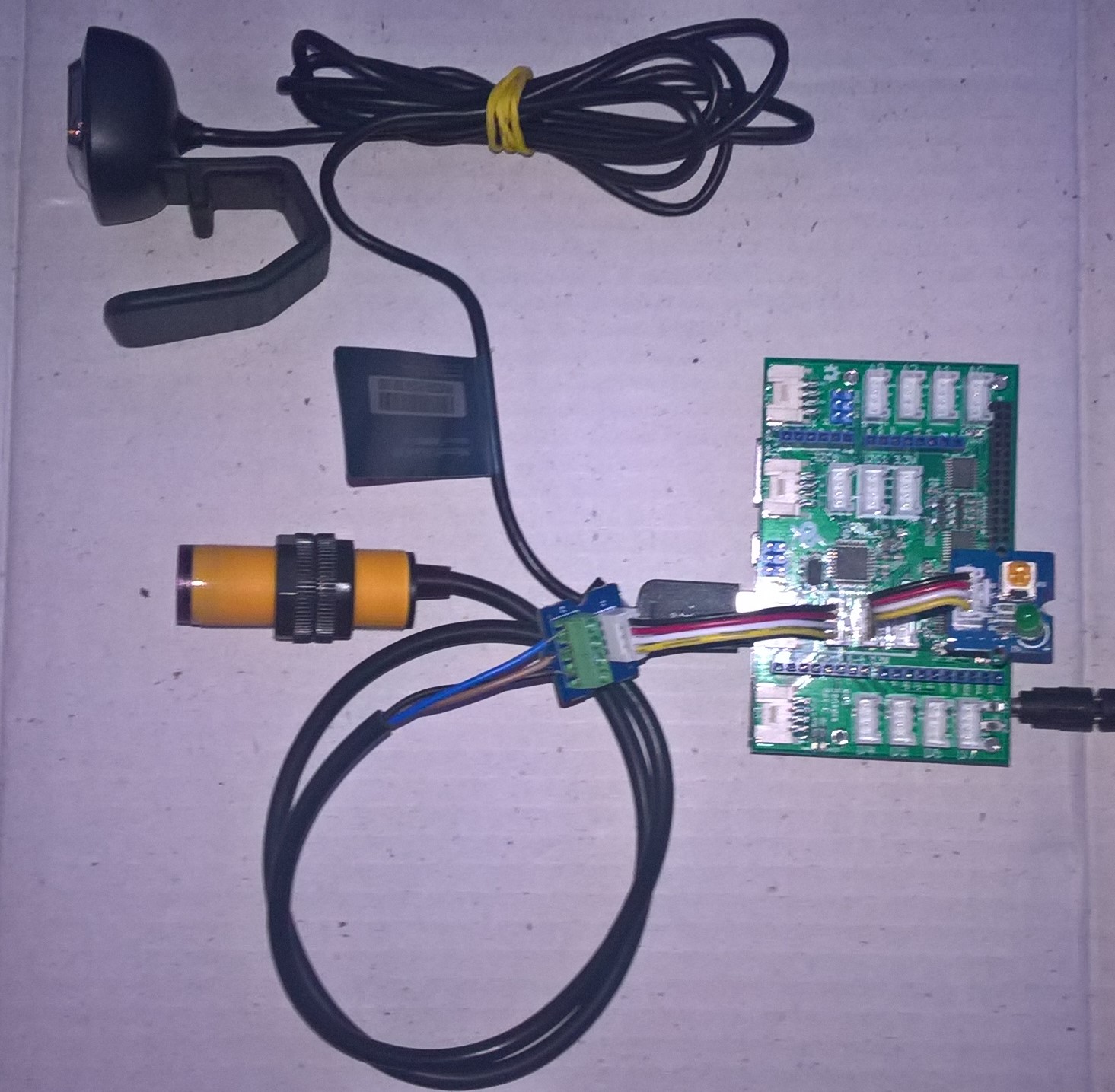
I used a simple infrared proximity sensor trigger the image capture to simulate an application for monitoring the number of people in or people entering a room.

Infrared Proximity Sensor triggered Face API test client

Overall I found that with not a lot of code I could capture an image, upload it to Azure Cognitive Services Face API for processing and the algorithm would reasonably reliably detect faces and features.

Windows 10 IoT Core triggered image upload to Azure Blob storage revisited

After getting web camera images reliably uploading to Azure Storage I trialed the application and added some functionality to make it easier to use.

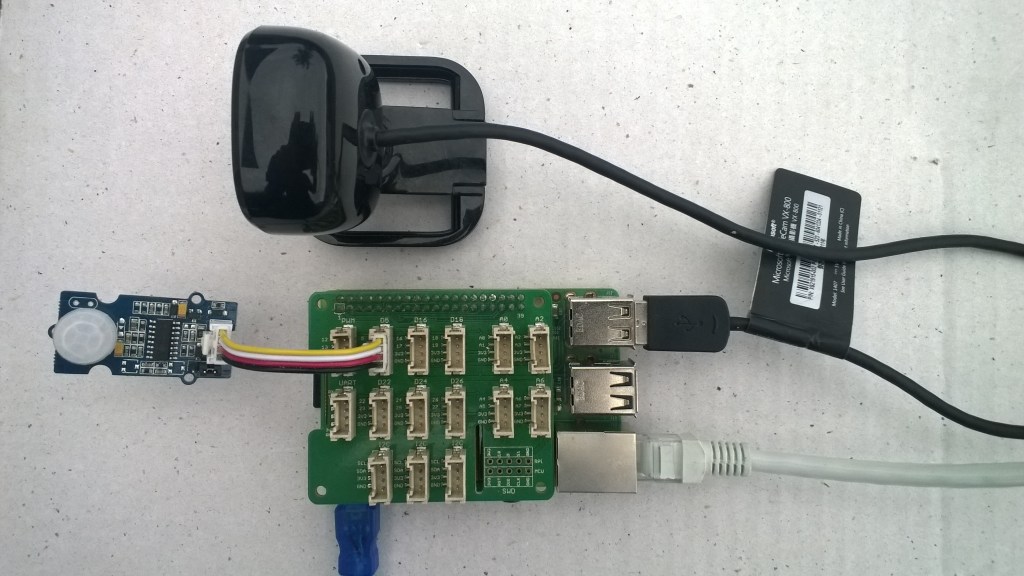
PIR Sensor trigger

For my test harness (in addition to a RaspberryPI & generic USB Web camera) I’m using some Seeedstudio Grove devices

  • Grove Base Hat for Raspberry PI USD9.90
  • Grove – PIR Motion Sensor USD7.90

I found that the application was taking too many photos, plus the way it was storing them in Azure storage was awkward and creating to many BlobTrigger events.

I split the Azure blob storage configuration settings into latest and historic images. This meant the trigger for the image emailer could be more selective.

public static class ImageEmailer
{
	[FunctionName("ImageEmailer")]
	public async static Task Run(
			[BlobTrigger("current/{name}")]
			Stream inputBlob,
			string name,
			[SendGrid(ApiKey = "")]
			IAsyncCollector<SendGridMessage> messageCollector,
			TraceWriter log)
	{
		log.Info($"C# Blob trigger function Processed blob Name:{name} Size: {inputBlob.Length} Bytes");

I also found that the positioning of the PIR sensor in relation to the camera field of view was important and required a bit of trial and error.

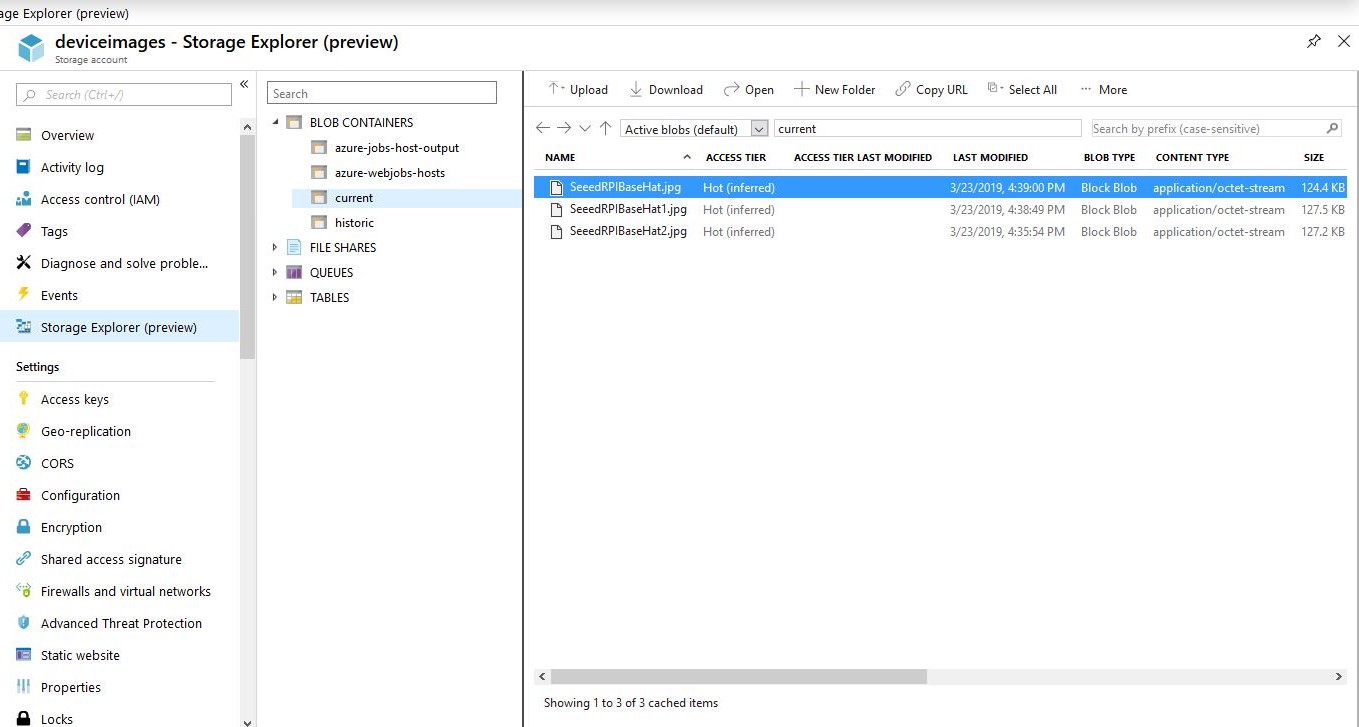
In this sample configuration the stored images are split into two containers one with the latest image for each device, the other container had a series of folders for each device which contained a historic timestamped pictures

Latest image for each device
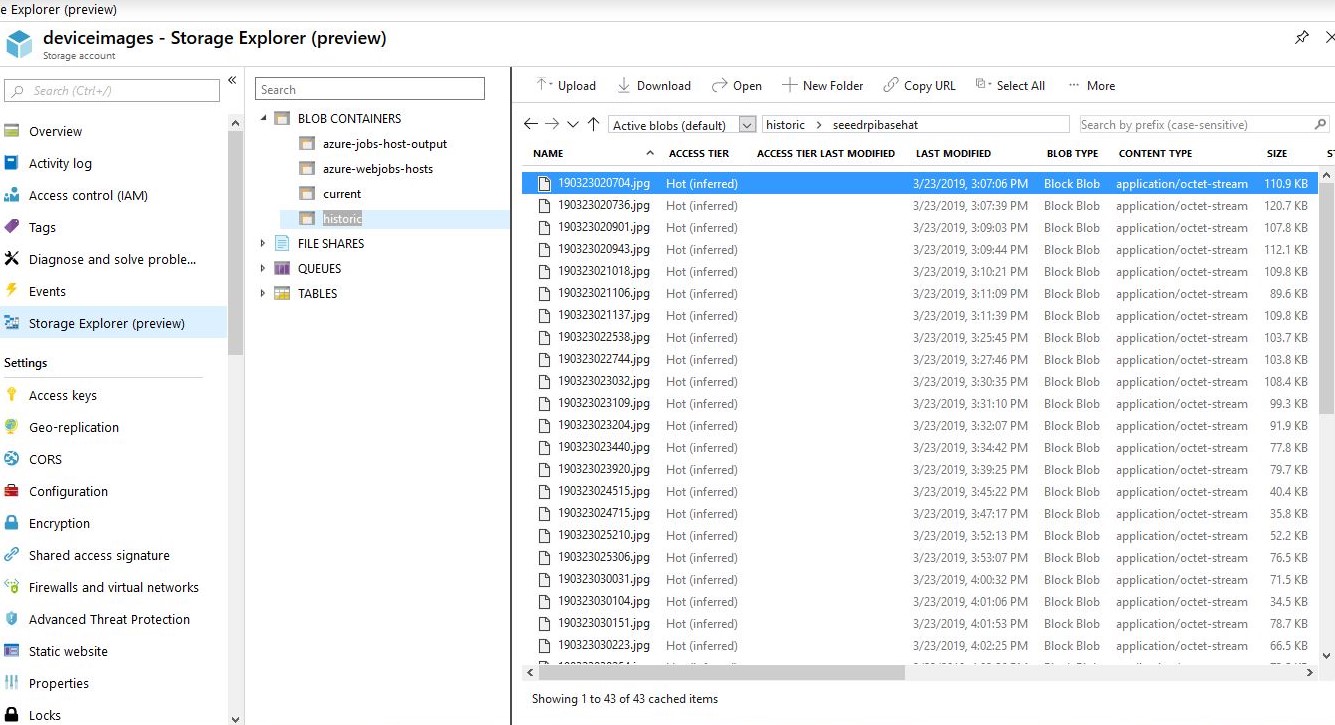
Historic images for a device

I also added configuration settings for the digital input edge (RisingEdge vs. FallingEdge) which triggered the taking of a photo (the output of one my sensors went low when it detected motion). I also added the device MAC address as a parameter for the format configuration options as I had a couple of cloned devices with the same network name (on different physical networks) which where difficult to distinguish.

  • {0} machine name
  • {1} Device MAC Address
  • {2} UTC request timestamp
{
  "AzureStorageConnectionString": "",
  "InterruptPinNumber": 5,
  "interruptTriggerOn": "RisingEdge",
  "AzureContainerNameFormatLatest": "Current",
  "AzureImageFilenameFormatLatest": "{0}.jpg",
  "AzureContainerNameFormatHistory": "Historic",
  "AzureImageFilenameFormatHistory": "{0}/{1:yyMMddHHmmss}.jpg",
  "DebounceTimeout": "00:00:30"
} 

I also force azure storage file configuration to lower case to stop failures, but I have not validated the strings for other invalid characters and formatting issues.

/*
    Copyright ® 2019 March devMobile Software, All Rights Reserved
 
    MIT License
 ...
*/
namespace devMobile.Windows10IotCore.IoT.PhotoTimerInputTriggerAzureStorage
{
	using System;
	using System.IO;
	using System.Diagnostics;
	using System.Linq;
	using System.Net.NetworkInformation;
	using System.Threading;

	using Microsoft.Extensions.Configuration;
	using Microsoft.WindowsAzure.Storage;
	using Microsoft.WindowsAzure.Storage.Blob;

	using Windows.ApplicationModel;
	using Windows.ApplicationModel.Background;
	using Windows.Foundation.Diagnostics;
	using Windows.Media.Capture;
	using Windows.Media.MediaProperties;
	using Windows.Storage;
	using Windows.System;

	public sealed class StartupTask : IBackgroundTask
	{
		private BackgroundTaskDeferral backgroundTaskDeferral = null;
		private readonly LoggingChannel logging = new LoggingChannel("devMobile Photo Timer Trigger Azure Storage demo", null, new Guid("4bd2826e-54a1-4ba9-bf63-92b73ea1ac4a"));
		private const string ConfigurationFilename = "appsettings.json";
		private Timer ImageUpdatetimer;
		private MediaCapture mediaCapture;
		private string deviceMacAddress;
		private string azureStorageConnectionString;
		private string azureStorageContainerNameLatestFormat;
		private string azureStorageimageFilenameLatestFormat;
		private string azureStorageContainerNameHistoryFormat;
		private string azureStorageImageFilenameHistoryFormat;
		private const string ImageFilenameLocal = "latest.jpg";
		private volatile bool cameraBusy = false;

		public void Run(IBackgroundTaskInstance taskInstance)
		{
			StorageFolder localFolder = ApplicationData.Current.LocalFolder;
			int imageUpdateDueSeconds;
			int imageUpdatePeriodSeconds;

			this.logging.LogEvent("Application starting");

			// Log the Application build, shield information etc.
			LoggingFields startupInformation = new LoggingFields();
			startupInformation.AddString("Timezone", TimeZoneSettings.CurrentTimeZoneDisplayName);
			startupInformation.AddString("OSVersion", Environment.OSVersion.VersionString);
			startupInformation.AddString("MachineName", Environment.MachineName);

			// This is from the application manifest 
			Package package = Package.Current;
			PackageId packageId = package.Id;
			PackageVersion version = packageId.Version;
			startupInformation.AddString("ApplicationVersion", string.Format($"{version.Major}.{version.Minor}.{version.Build}.{version.Revision}"));

			// ethernet mac address
			deviceMacAddress = NetworkInterface.GetAllNetworkInterfaces()
				 .Where(i => i.NetworkInterfaceType.ToString().ToLower().Contains("ethernet"))
				 .FirstOrDefault()
				 ?.GetPhysicalAddress().ToString();

			// remove unsupported charachers from MacAddress
			deviceMacAddress = deviceMacAddress.Replace("-", "").Replace(" ", "").Replace(":", "");
			startupInformation.AddString("MacAddress", deviceMacAddress);

			try
			{
				// see if the configuration file is present if not copy minimal sample one from application directory
				if (localFolder.TryGetItemAsync(ConfigurationFilename).AsTask().Result == null)
				{
					StorageFile templateConfigurationfile = Package.Current.InstalledLocation.GetFileAsync(ConfigurationFilename).AsTask().Result;
					templateConfigurationfile.CopyAsync(localFolder, ConfigurationFilename).AsTask();
					this.logging.LogMessage("JSON configuration file missing, templated created", LoggingLevel.Warning);
					return;
				}

				IConfiguration configuration = new ConfigurationBuilder().AddJsonFile(Path.Combine(localFolder.Path, ConfigurationFilename), false, true).Build();

				azureStorageConnectionString = configuration.GetSection("AzureStorageConnectionString").Value;
				startupInformation.AddString("AzureStorageConnectionString", azureStorageConnectionString);

				azureStorageContainerNameLatestFormat = configuration.GetSection("AzureContainerNameFormatLatest").Value;
				startupInformation.AddString("ContainerNameLatestFormat", azureStorageContainerNameLatestFormat);

				azureStorageimageFilenameLatestFormat = configuration.GetSection("AzureImageFilenameFormatLatest").Value;
				startupInformation.AddString("ImageFilenameLatestFormat", azureStorageimageFilenameLatestFormat);

				azureStorageContainerNameHistoryFormat = configuration.GetSection("AzureContainerNameFormatHistory").Value;
				startupInformation.AddString("ContainerNameHistoryFormat", azureStorageContainerNameHistoryFormat);

				azureStorageImageFilenameHistoryFormat = configuration.GetSection("AzureImageFilenameFormatHistory").Value;
				startupInformation.AddString("ImageFilenameHistoryFormat", azureStorageImageFilenameHistoryFormat);

				imageUpdateDueSeconds = int.Parse(configuration.GetSection("ImageUpdateDueSeconds").Value);
				startupInformation.AddInt32("ImageUpdateDueSeconds", imageUpdateDueSeconds);

				imageUpdatePeriodSeconds = int.Parse(configuration.GetSection("ImageUpdatePeriodSeconds").Value);
				startupInformation.AddInt32("ImageUpdatePeriodSeconds", imageUpdatePeriodSeconds);
			}
			catch (Exception ex)
			{
				this.logging.LogMessage("JSON configuration file load or settings retrieval failed " + ex.Message, LoggingLevel.Error);
				return;
			}

			try
			{
				mediaCapture = new MediaCapture();
				mediaCapture.InitializeAsync().AsTask().Wait();
			}
			catch (Exception ex)
			{
				this.logging.LogMessage("Camera configuration failed " + ex.Message, LoggingLevel.Error);
				return;
			}

			ImageUpdatetimer = new Timer(ImageUpdateTimerCallback, null, new TimeSpan(0,0, imageUpdateDueSeconds), new TimeSpan(0, 0, imageUpdatePeriodSeconds));

			this.logging.LogEvent("Application started", startupInformation);

			//enable task to continue running in background
			backgroundTaskDeferral = taskInstance.GetDeferral();
		}

		private async void ImageUpdateTimerCallback(object state)
		{
			DateTime currentTime = DateTime.UtcNow;
			Debug.WriteLine($"{DateTime.UtcNow.ToLongTimeString()} Timer triggered");

			// Just incase - stop code being called while photo already in progress
			if (cameraBusy)
			{
				return;
			}
			cameraBusy = true;

			try
			{
				StorageFile photoFile = await KnownFolders.PicturesLibrary.CreateFileAsync(ImageFilenameLocal, CreationCollisionOption.ReplaceExisting);
				ImageEncodingProperties imageProperties = ImageEncodingProperties.CreateJpeg();
				await mediaCapture.CapturePhotoToStorageFileAsync(imageProperties, photoFile);

				string azureContainernameLatest = string.Format(azureStorageContainerNameLatestFormat, Environment.MachineName, deviceMacAddress, currentTime).ToLower();
				string azureFilenameLatest = string.Format(azureStorageimageFilenameLatestFormat, Environment.MachineName, deviceMacAddress, currentTime);
				string azureContainerNameHistory = string.Format(azureStorageContainerNameHistoryFormat, Environment.MachineName, deviceMacAddress, currentTime).ToLower();
				string azureFilenameHistory = string.Format(azureStorageImageFilenameHistoryFormat, Environment.MachineName.ToLower(), deviceMacAddress, currentTime);

				LoggingFields imageInformation = new LoggingFields();
				imageInformation.AddDateTime("TakenAtUTC", currentTime);
				imageInformation.AddString("LocalFilename", photoFile.Path);
				imageInformation.AddString("AzureContainerNameLatest", azureContainernameLatest);
				imageInformation.AddString("AzureFilenameLatest", azureFilenameLatest);
				imageInformation.AddString("AzureContainerNameHistory", azureContainerNameHistory);
				imageInformation.AddString("AzureFilenameHistory", azureFilenameHistory);
				this.logging.LogEvent("Saving image(s) to Azure storage", imageInformation);

				CloudStorageAccount storageAccount = CloudStorageAccount.Parse(azureStorageConnectionString);
				CloudBlobClient blobClient = storageAccount.CreateCloudBlobClient();

				// Update the latest image in storage
				if (!string.IsNullOrWhiteSpace(azureContainernameLatest) && !string.IsNullOrWhiteSpace(azureFilenameLatest))
				{
					CloudBlobContainer containerLatest = blobClient.GetContainerReference(azureContainernameLatest);
					await containerLatest.CreateIfNotExistsAsync();

					CloudBlockBlob blockBlobLatest = containerLatest.GetBlockBlobReference(azureFilenameLatest);
					await blockBlobLatest.UploadFromFileAsync(photoFile);

					this.logging.LogEvent("Image latest saved to Azure storage");
				}

				// Upload the historic image to storage
				if (!string.IsNullOrWhiteSpace(azureContainerNameHistory) && !string.IsNullOrWhiteSpace(azureFilenameHistory))
				{
					CloudBlobContainer containerHistory = blobClient.GetContainerReference(azureContainerNameHistory);
					await containerHistory.CreateIfNotExistsAsync();

					CloudBlockBlob blockBlob = containerHistory.GetBlockBlobReference(azureFilenameHistory);
					await blockBlob.UploadFromFileAsync(photoFile);

					this.logging.LogEvent("Image historic saved to Azure storage");
				}
			}
			catch (Exception ex)
			{
				this.logging.LogMessage("Camera photo save or upload failed " + ex.Message, LoggingLevel.Error);
			}
			finally
			{
				cameraBusy = false;
			}
		}
	}
}

The code is still pretty short at roughly 200 lines and is all available on GitHub.

Azure Blob storage BlobTrigger .Net Webjob

With the Windows 10 IoT Core application now reliably uploading images to Azure Blob Storage I wanted a simple test application to email the images to me as they arrived. So I hacked up an Azure Webjob using the SendGrid extension and a BlobTrigger

PIR Sensor trigger

After a couple of failed attempts (due to NuGet package versioning mismatches) this was the smallest, reliable enough application I could come up with. Beware BlobTriggers are not really intended for solutions requiring high throughput and/or reliability.

/*
    Copyright ® 2019 March devMobile Software, All Rights Reserved
 
    MIT License
...
*/
namespace devMobile.Azure.Storage
{
	using System.IO;
	using System.Configuration;
	using System.Threading.Tasks;
	using Microsoft.Azure.WebJobs;
	using Microsoft.Azure.WebJobs.Host;
	using SendGrid.Helpers.Mail;

	public static class ImageEmailer
	{
		[FunctionName("ImageEmailer")]
		public async static Task Run(
				[BlobTrigger("seeedrpibasehat190321/{name}")]
				Stream inputBlob,
				string name,
				[SendGrid(ApiKey = "")]
				IAsyncCollector<SendGridMessage> messageCollector,
				TraceWriter log)
		{
			log.Info($"C# Blob trigger function Processed blob Name:{name} Size: {inputBlob.Length} Bytes");

			SendGridMessage message = new SendGridMessage();
			message.AddTo(new EmailAddress(ConfigurationManager.AppSettings["EmailAddressTo"]));
			message.From = new EmailAddress(ConfigurationManager.AppSettings["EmailAddressFrom"]);
			message.SetSubject("RPI Web camera Image attached");
			message.AddContent("text/plain", $"{name} {inputBlob.Length} bytes" );

			await message.AddAttachmentAsync(name, inputBlob, "image/jpeg");

			await messageCollector.AddAsync(message);
		}
	}
}
Blob container and naming issues

This application highlighted a number of issues with my Windows 10 IoT Core client. They were

  • Configurable minimum period between images as PIR sensor would trigger multiple times as someone moved across my office.
  • Configurable Azure Blob Storage container for latest image as my BlobTrigger fired twice (for latest and timestamped images).
  • Configurable Azure Blob Storage container for image history as my BlobTrigger fired twice (for latest and timestamped images).
  • Include a unique device identifier (possibly MAC address) with image as I had two machines with the same device name on different networks.
  • Additional Blob metadata would be useful.
  • Additional logging would be useful for diagnosing problems.

I’ll look fix these issues in my next couple of posts

Windows 10 IoT Core triggered image upload to Azure Blob storage

Uploading the web camera images to Azure Storage was the next step.

PIR Sensor trigger

For my test harness (in addition to a RaspberryPI & generic USB Web camera) I’m using some Seeedstudio Grove devices

While working on this code I realised I had made some invalid assumptions about the stream and the image properties so I refactored the code (which also made it simpler).

The Windows 10 IoT Core application has support for a JSON configuration file using Microsoft.Extensions.Configuration namespace functionality which took a bit of trial and error to get going.

IConfiguration configuration = new ConfigurationBuilder().
   AddJsonFile(localFolder.Path + @"\" + ConfigurationFilename, 
   false, 
   true).Build();

This gets the configuration subsystem to use the specified file in the application’s localstate folder. If there is no configuration file present i.e. the application has just been deployed for the first time or installed a template file is copied from the application install directory.

In the application configuration file you can specify the azure storage connection string, digital input port number, azure container name format (formatted machine name + Universal Coordinated Time(UTC)), the azure storage file name (formatted machine name + UTC) and the name of the file with the most recently uploaded image. These configuration settings are provided so that the image files can stored in “buckets” best suited to the way they are going to be processed.

{
  "AzureStorageConnectionString": "",
  "InterruptPinNumber": 5,
  "AzureContainerNameFormat": "{0}{1:yyMMdd}",
  "AzureImageFilenameFormat": "image{1:yyMMddHHmmss}.jpg",
  "AzureImageFilenameLatest": "latest.jpg"
} 

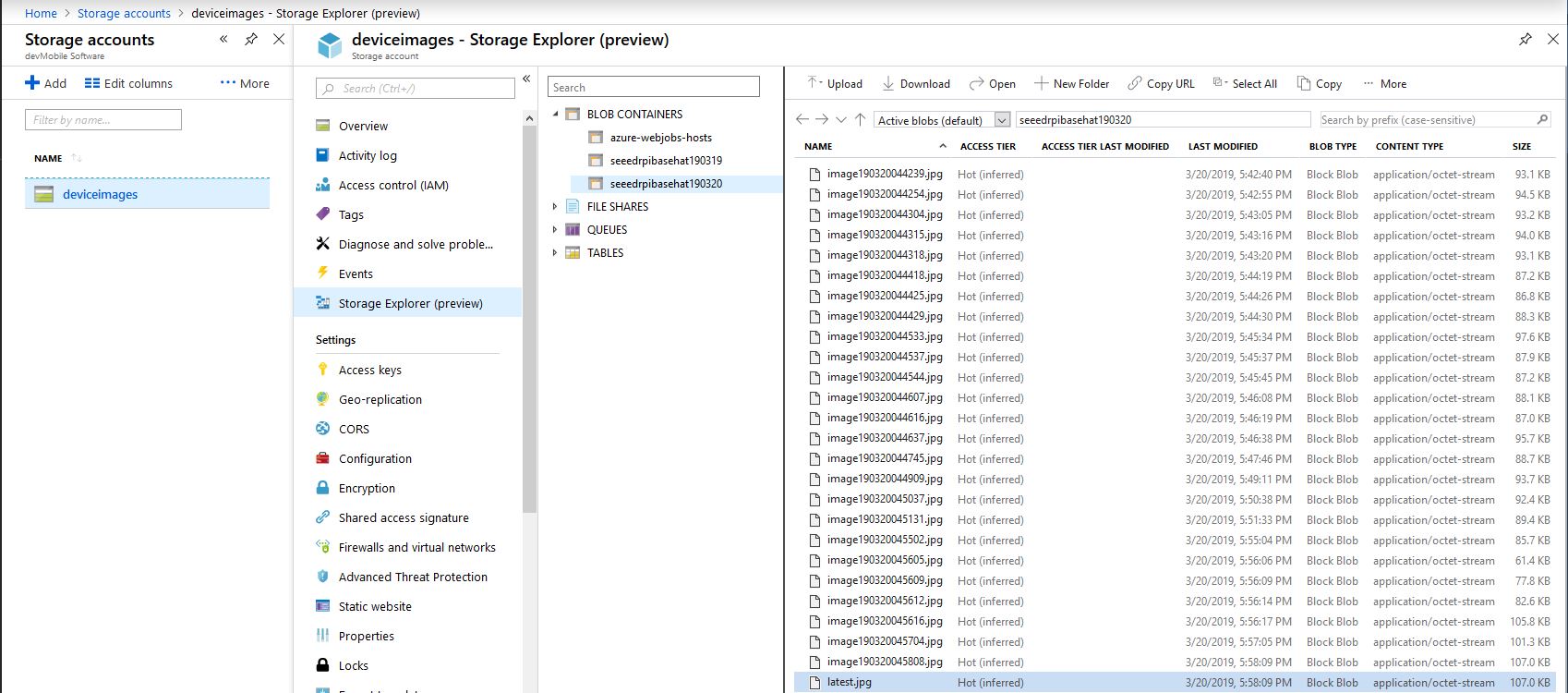
In my testing the pictures were stored in folders for each device/day and each image file had a timestamp in its name.

Azure Storage Explorer
/*
    Copyright ® 2019 March devMobile Software, All Rights Reserved
 
    MIT License
    ...
*/
namespace devMobile.Windows10IotCore.IoT.PhotoDigitalInputTriggerAzureStorage
{
	using System;
	using System.Diagnostics;

	using Microsoft.Extensions.Configuration;
	using Microsoft.WindowsAzure.Storage;
	using Microsoft.WindowsAzure.Storage.Blob;

	using Windows.ApplicationModel;
	using Windows.ApplicationModel.Background;
	using Windows.Devices.Gpio;
	using Windows.Foundation.Diagnostics;
	using Windows.Media.Capture;
	using Windows.Media.MediaProperties;
	using Windows.Storage;
	using Windows.System;

	public sealed class StartupTask : IBackgroundTask
	{
		private BackgroundTaskDeferral backgroundTaskDeferral = null;
		private readonly LoggingChannel logging = new LoggingChannel("devMobile Photo Digital Input Trigger Azure Storage demo", null, new Guid("4bd2826e-54a1-4ba9-bf63-92b73ea1ac4a"));
		private const string ConfigurationFilename = "appsettings.json";
		private GpioPin interruptGpioPin = null;
		private int interruptPinNumber;
		private MediaCapture mediaCapture;
		private string azureStorageConnectionString;
		private string azureStorageContainerNameFormat;
		private string azureStorageimageFilenameLatest;
		private string azureStorageImageFilenameFormat;
		private const string ImageFilenameLocal = "latest.jpg";
		private volatile bool cameraBusy = false;

		public void Run(IBackgroundTaskInstance taskInstance)
		{
			StorageFolder localFolder = ApplicationData.Current.LocalFolder;

			this.logging.LogEvent("Application starting");

			// Log the Application build, shield information etc.
			LoggingFields startupInformation = new LoggingFields();
			startupInformation.AddString("Timezone", TimeZoneSettings.CurrentTimeZoneDisplayName);
			startupInformation.AddString("OSVersion", Environment.OSVersion.VersionString);
			startupInformation.AddString("MachineName", Environment.MachineName);

			// This is from the application manifest 
			Package package = Package.Current;
			PackageId packageId = package.Id;
			PackageVersion version = packageId.Version;
			startupInformation.AddString("ApplicationVersion", string.Format($"{version.Major}.{version.Minor}.{version.Build}.{version.Revision}"));

			try
			{
				// see if the configuration file is present if not copy minimal sample one from application directory
				if (localFolder.TryGetItemAsync(ConfigurationFilename).AsTask().Result == null)
				{
					StorageFile templateConfigurationfile = Package.Current.InstalledLocation.GetFileAsync(ConfigurationFilename).AsTask().Result;
					templateConfigurationfile.CopyAsync(localFolder, ConfigurationFilename).AsTask();
					this.logging.LogMessage("JSON configuration file missing, templated created", LoggingLevel.Warning);
					return;
				}

				IConfiguration configuration = new ConfigurationBuilder().AddJsonFile(localFolder.Path + @"\" + ConfigurationFilename, false, true).Build();

				azureStorageConnectionString = configuration.GetSection("AzureStorageConnectionString").Value;
				startupInformation.AddString("AzureStorageConnectionString", azureStorageConnectionString);

				azureStorageContainerNameFormat = configuration.GetSection("AzureContainerNameFormat").Value;
				startupInformation.AddString("ContainerNameFormat", azureStorageContainerNameFormat);

				azureStorageImageFilenameFormat = configuration.GetSection("AzureImageFilenameFormat").Value;
				startupInformation.AddString("ImageFilenameFormat", azureStorageImageFilenameFormat);

				azureStorageimageFilenameLatest = configuration.GetSection("AzureImageFilenameLatest").Value;
				startupInformation.AddString("ImageFilenameLatest", azureStorageimageFilenameLatest);

				interruptPinNumber = int.Parse( configuration.GetSection("InterruptPinNumber").Value);
				startupInformation.AddInt32("Interrupt pin", interruptPinNumber);
			}
			catch (Exception ex)
			{
				this.logging.LogMessage("JSON configuration file load or settings retrieval failed " + ex.Message, LoggingLevel.Error);
				return;
			}

			try
			{
				mediaCapture = new MediaCapture();
				mediaCapture.InitializeAsync().AsTask().Wait();
			}
			catch (Exception ex)
			{
				this.logging.LogMessage("Camera configuration failed " + ex.Message, LoggingLevel.Error);
				return;
			}

			try
			{
				GpioController gpioController = GpioController.GetDefault();
				interruptGpioPin = gpioController.OpenPin(interruptPinNumber);
				interruptGpioPin.SetDriveMode(GpioPinDriveMode.InputPullUp);
				interruptGpioPin.ValueChanged += InterruptGpioPin_ValueChanged;
			}
			catch (Exception ex)
			{
				this.logging.LogMessage("Digital input configuration failed " + ex.Message, LoggingLevel.Error);
				return;
			}

			this.logging.LogEvent("Application started", startupInformation);

			//enable task to continue running in background
			backgroundTaskDeferral = taskInstance.GetDeferral();
		}

		private async void InterruptGpioPin_ValueChanged(GpioPin sender, GpioPinValueChangedEventArgs args)
		{
			DateTime currentTime = DateTime.UtcNow;
			Debug.WriteLine($"{DateTime.UtcNow.ToLongTimeString()} Digital Input Interrupt {sender.PinNumber} triggered {args.Edge}");

			if (args.Edge == GpioPinEdge.RisingEdge)
			{
				return;
			}

			// Just incase - stop code being called while photo already in progress
			if (cameraBusy)
			{
				return;
			}
			cameraBusy = true;

			try
			{
				StorageFile photoFile = await KnownFolders.PicturesLibrary.CreateFileAsync(ImageFilenameLocal, CreationCollisionOption.ReplaceExisting);
				ImageEncodingProperties imageProperties = ImageEncodingProperties.CreateJpeg();
				await mediaCapture.CapturePhotoToStorageFileAsync(imageProperties, photoFile);

				string azureContainername = string.Format(azureStorageContainerNameFormat, Environment.MachineName.ToLower(), currentTime);
				string azureStoragefilename = string.Format(azureStorageImageFilenameFormat, Environment.MachineName.ToLower(), currentTime);

				LoggingFields imageInformation = new LoggingFields();
				imageInformation.AddDateTime("TakenAtUTC", currentTime);
				imageInformation.AddString("LocalFilename", photoFile.Path);
				imageInformation.AddString("AzureContainerName", azureContainername);
				imageInformation.AddString("AzureStorageFilename", azureStoragefilename);
				imageInformation.AddString("AzureStorageFilenameLatest", azureStorageimageFilenameLatest);
				this.logging.LogEvent("Image saving to Azure storage", imageInformation);

				CloudStorageAccount storageAccount = CloudStorageAccount.Parse(azureStorageConnectionString);
				CloudBlobClient blobClient = storageAccount.CreateCloudBlobClient();

				CloudBlobContainer container = blobClient.GetContainerReference(azureContainername);
				await container.CreateIfNotExistsAsync();

				CloudBlockBlob blockBlob = container.GetBlockBlobReference(azureStoragefilename);
				await blockBlob.UploadFromFileAsync(photoFile);

				blockBlob = container.GetBlockBlobReference(azureStorageimageFilenameLatest);
				await blockBlob.UploadFromFileAsync(photoFile);

				this.logging.LogEvent("Image saved to Azure storage");
			}
			catch (Exception ex)
			{
				this.logging.LogMessage("Camera photo save or upload failed " + ex.Message, LoggingLevel.Error);
			}
			finally
			{
				cameraBusy = false;
			}
		}
	}
}

I need to add some code to ensure there is a minimum gap between photos and trial some different sensors. For example, an Adjustable Infrared Switch has proved to be a better option for some of my projects.

The code is available on GitHub and is a bit of a work in progress.

Windows 10 IoT Core image capture

Initiating image capture in response to a trigger was the next step, my plan is to use a button, or a proximity sensor like the passive infrared (PIR) module in the second image to trigger a photo.

Simple mechanical button trigger
PIR Sensor trigger

For my test rig (in addition to a RaspberryPI & generic USB Web camera) I’m using some Seeedstudio gear

The first step was to write an interrupt handler for the digital input, I figured triggering on the button push rather than release would make device more responsive.

/*
    Copyright ® 2019 Feb devMobile Software, All Rights Reserved
 
    MIT License
...
*/
namespace devMobile.Windows10IotCore.IoT.DigitalInputTrigger
{
	using System;
	using System.Diagnostics;
	using Windows.ApplicationModel.Background;
	using Windows.Devices.Gpio;

	public sealed class StartupTask : IBackgroundTask
	{
		private BackgroundTaskDeferral backgroundTaskDeferral = null;
		private GpioPin InterruptGpioPin = null;
		private const int InterruptPinNumber = 5;

		public void Run(IBackgroundTaskInstance taskInstance)
		{
			Debug.WriteLine("Application startup");

			try
			{
				GpioController gpioController = GpioController.GetDefault();

				InterruptGpioPin = gpioController.OpenPin(InterruptPinNumber);
				InterruptGpioPin.SetDriveMode(GpioPinDriveMode.InputPullUp);
				InterruptGpioPin.ValueChanged += InterruptGpioPin_ValueChanged;

				Debug.WriteLine("Digital Input Interrupt configuration success");
			}
			catch (Exception ex)
			{
				Debug.WriteLine($"Digital Input Interrupt configuration failed " + ex.Message);
				return;
			}

			//enable task to continue running in background
			backgroundTaskDeferral = taskInstance.GetDeferral();
		}

		private void InterruptGpioPin_ValueChanged(GpioPin sender, GpioPinValueChangedEventArgs args)
		{
			Debug.WriteLine($"{DateTime.UtcNow.ToLongTimeString()} Digital Input Interrupt {sender.PinNumber} triggered {args.Edge}");
		}
	}
}

Then I added in the camera functionality and made the interrupt handler async and await the camera and file system calls.

/*
    Copyright ® 2019 Feb devMobile Software, All Rights Reserved
 
    MIT License
...
*/
namespace devMobile.Windows10IotCore.IoT.PhotoDigitalInputTrigger
{
	using System;
	using System.Diagnostics;
	using Windows.ApplicationModel.Background;
	using Windows.Devices.Gpio;
	using Windows.Foundation.Diagnostics;
	using Windows.Media.Capture;
	using Windows.Media.MediaProperties;
	using Windows.Storage;

	public sealed class StartupTask : IBackgroundTask
	{
		private readonly LoggingChannel logging = new LoggingChannel("devMobile Photo Digital Input Trigger demo", null, new Guid("4bd2826e-54a1-4ba9-bf63-92b73ea1ac4a"));
		private BackgroundTaskDeferral backgroundTaskDeferral = null;
		private GpioPin InterruptGpioPin = null;
		private const int InterruptPinNumber = 5;
		private MediaCapture mediaCapture;
		private const string ImageFilenameFormat = "Image{0:yyMMddhhmmss}.jpg";
		private volatile bool CameraBusy = false;

		public void Run(IBackgroundTaskInstance taskInstance)
		{
			LoggingFields startupInformation = new LoggingFields();

			this.logging.LogEvent("Application starting");

			try
			{
				mediaCapture = new MediaCapture();
				mediaCapture.InitializeAsync().AsTask().Wait();
				Debug.WriteLine("Camera configuration success");

				GpioController gpioController = GpioController.GetDefault();

				InterruptGpioPin = gpioController.OpenPin(InterruptPinNumber);
				InterruptGpioPin.SetDriveMode(GpioPinDriveMode.InputPullUp);
				InterruptGpioPin.ValueChanged += InterruptGpioPin_ValueChanged;
				Debug.WriteLine("Digital Input Interrupt configuration success");
			}
			catch (Exception ex)
			{
				this.logging.LogMessage("Camera or digital input configuration failed " + ex.Message, LoggingLevel.Error);
				return;
			}

			startupInformation.AddString("PrimaryUse", mediaCapture.VideoDeviceController.PrimaryUse.ToString());
			startupInformation.AddInt32("Interrupt pin", InterruptPinNumber);

			this.logging.LogEvent("Application started", startupInformation);

			//enable task to continue running in background
			backgroundTaskDeferral = taskInstance.GetDeferral();
		}

		private async void InterruptGpioPin_ValueChanged(GpioPin sender, GpioPinValueChangedEventArgs args)
		{
			DateTime currentTime = DateTime.UtcNow;
			Debug.WriteLine($"{DateTime.UtcNow.ToLongTimeString()} Digital Input Interrupt {sender.PinNumber} triggered {args.Edge}");

			if (args.Edge == GpioPinEdge.RisingEdge)
			{
				return;
			}

			// Just incase - stop code being called while photo already in progress
			if (CameraBusy)
			{
				return;
			}
			CameraBusy = true;

			try
			{
				string filename = string.Format(ImageFilenameFormat, currentTime);

				IStorageFile photoFile = await KnownFolders.PicturesLibrary.CreateFileAsync(filename, CreationCollisionOption.ReplaceExisting);
				ImageEncodingProperties imageProperties = ImageEncodingProperties.CreateJpeg();
				await mediaCapture.CapturePhotoToStorageFileAsync(imageProperties, photoFile);

				LoggingFields imageInformation = new LoggingFields();

				imageInformation.AddDateTime("TakenAtUTC", currentTime);
				imageInformation.AddString("Filename", filename);
				imageInformation.AddString("Path", photoFile.Path);

				this.logging.LogEvent("Captured image saved to storage", imageInformation);
			}
			catch (Exception ex)
			{
				this.logging.LogMessage("Camera photo or save failed " + ex.Message, LoggingLevel.Error);
			}
			CameraBusy = false;
		}
	}
}

I found that contactor bounce was an issue (Grove- Touch Sensor OK) with larger mechanical buttons so I added the CameraBusy boolean flag to try and prevent re-entrancy problems. I’ll trial some other types of proximity and beam based on real-world student projects.

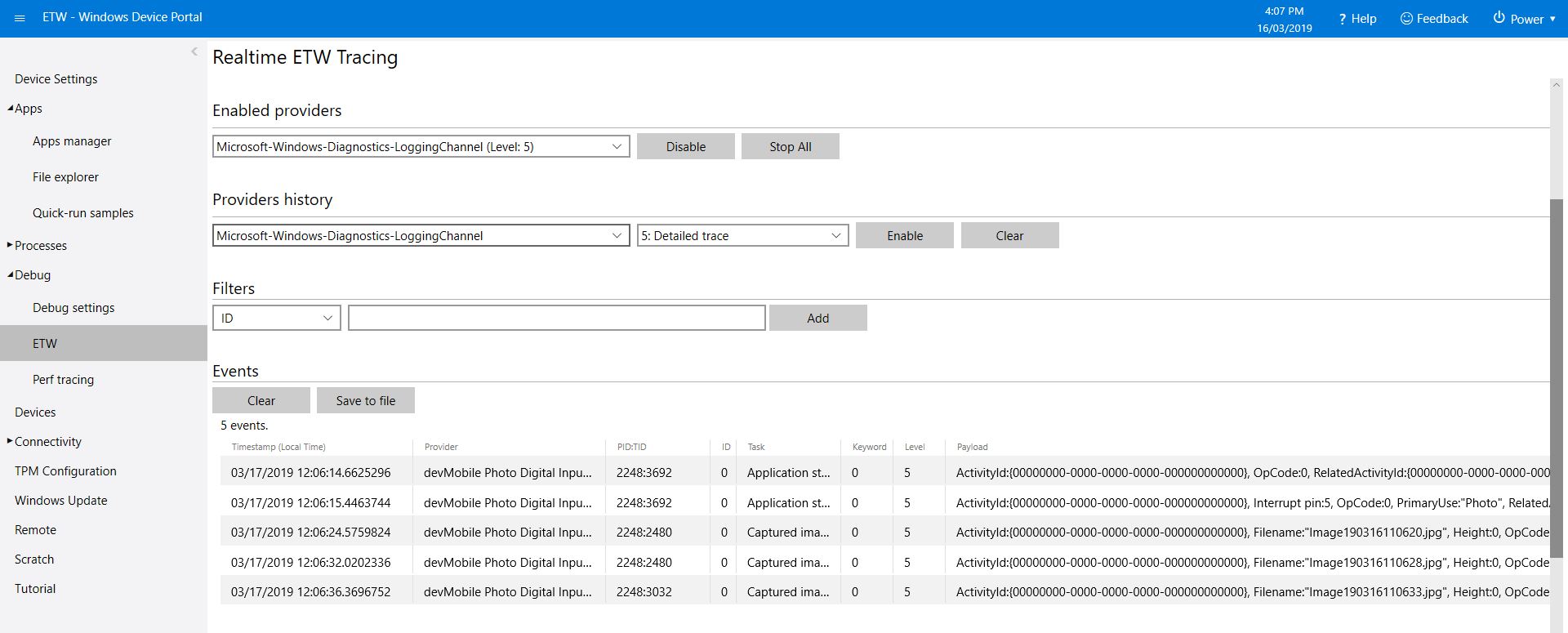
ETW logging or PIR triggered image capture

The code is available on GitHub and is a bit of a work in progress.