Random wanderings through Microsoft Azure esp. PaaS plumbing, the IoT bits, AI on Micro controllers, AI on Edge Devices, .NET nanoFramework, .NET Core on *nix and ML.NET+ONNX
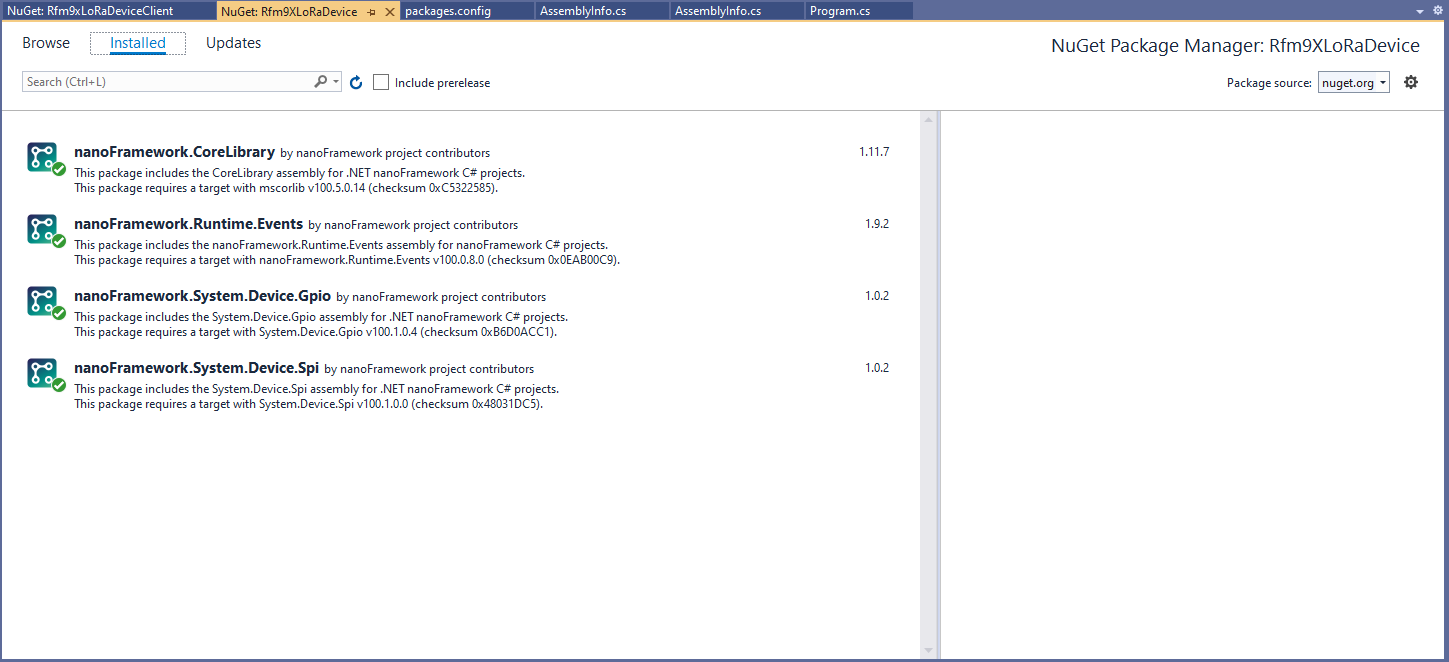
I then fixed all the breaking changes (For the initial versions I have not updated the code to use SpanByte etc.).
public Rfm9XDevice(int spiBusId, int chipSelectPin, int resetPin, int interruptPin)
{
   //...

   // Interrupt pin for RX message & TX done notification
   InterruptGpioPin = gpioController.OpenPin(interruptPin);
   InterruptGpioPin.SetPinMode(PinMode.Input);

   InterruptGpioPin.ValueChanged += InterruptGpioPin_ValueChanged;
}

private void InterruptGpioPin_ValueChanged(object sender, PinValueChangedEventArgs e)
{
   if (e.ChangeType != PinEventTypes.Rising)
   {
      return;
   }

   byte irqFlags = this.RegisterReadByte(0x12); // RegIrqFlags
   //...
}
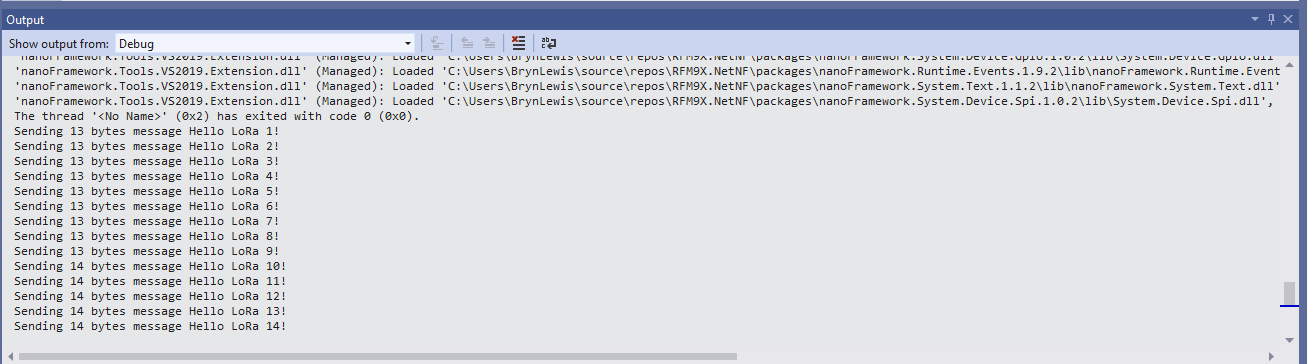
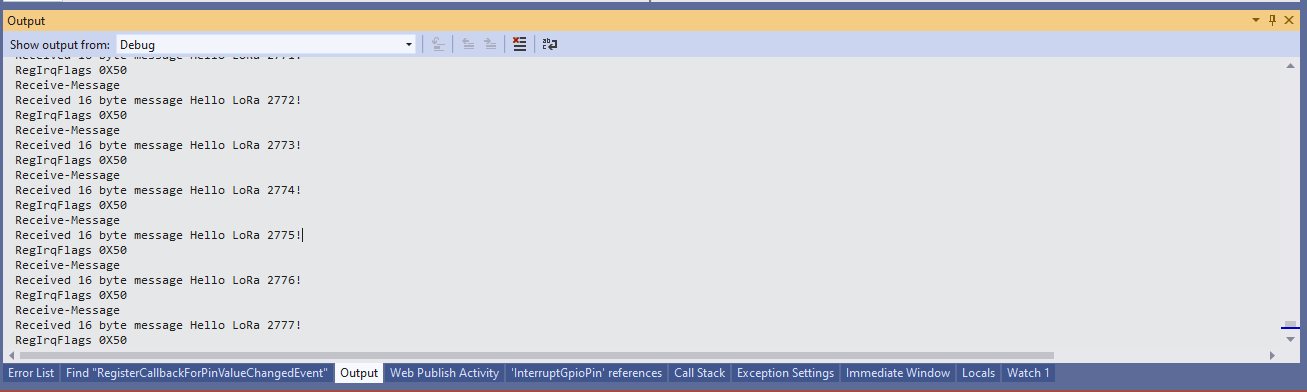
While “soak testing” the ReceiveInterrupt application I noticed that sometimes when I started the application interrupts were not processed or processing stopped after a while.
Visual Studio Debugger output showing intermittent calling of InterruptGpioPin_ValueChanged
Sometimes there is no easy way to build a “list of lists” using the contents of multiple database tables. I have run into this problem a few times especially when building webby services which query the database of a “legacy” (aka. production) system.
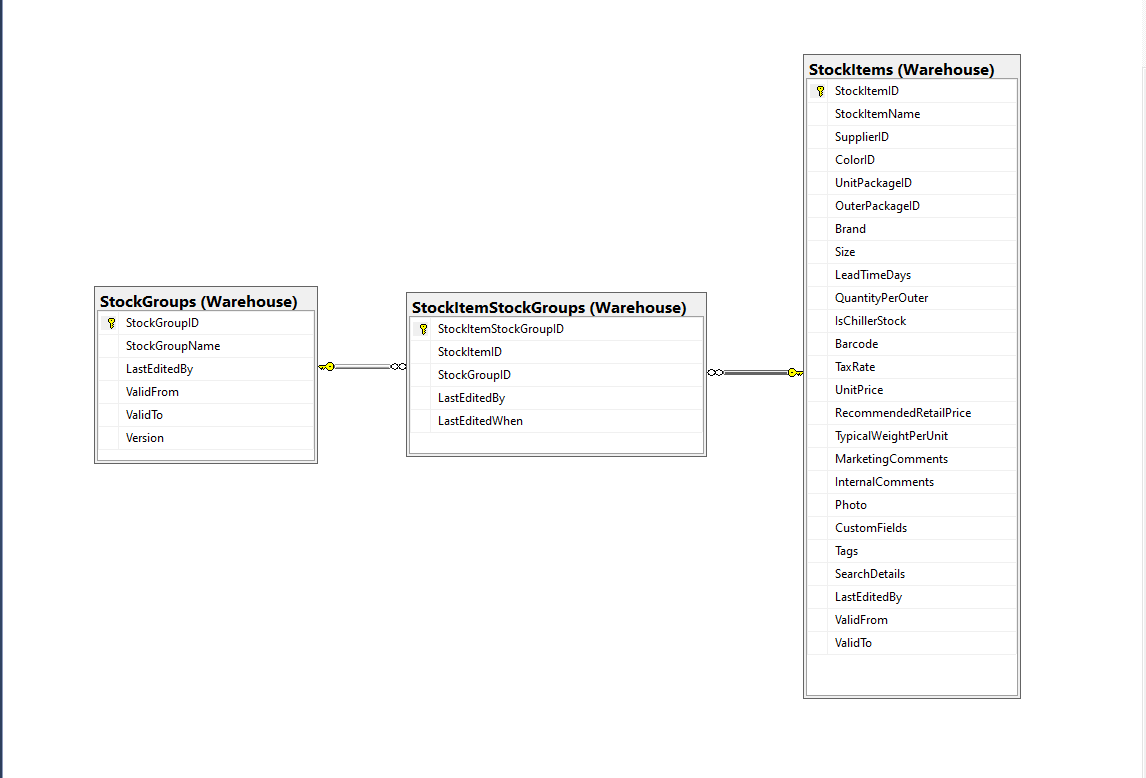
Retrieving a list of StockGroups and their StockItems from the World Wide Importers database was one of the better “real world” examples I could come up with.
SQL Server Management Studio Diagram showing relationships of tables
There is a fair bit of duplication (StockGroupID, StockGroupName) in the results set
SQL Server Management Studio StockItems-StockItemStockGroups-StockGroups query and results
There were 442 rows in the results set and 227 StockItems in the database so I ordered the query results by StockItemID and confirmed that there were many StockItems in several StockGroups.
public class StockItemListDtoV1
{
	public int Id { get; set; }

	public string Name { get; set; }

	public decimal RecommendedRetailPrice { get; set; }

	public decimal TaxRate { get; set; }
}

public class StockGroupStockItemsListDto
{
	StockGroupStockItemsListDto()
	{
		StockItems = new List<StockItemListDto>();
	}

	public int StockGroupID { get; set; }

	public string StockGroupName { get; set; }

	public List<StockItemListDto> StockItems { get; set; }
}
My initial version uses a Generic List for a StockGroup’s StockItems which is most probably not a good idea.
[Route("api/[controller]")]
[ApiController]
public class InvoiceQuerySplitOnController : ControllerBase
{
	private readonly string connectionString;
	private readonly ILogger<InvoiceQuerySplitOnController> logger;

	public InvoiceQuerySplitOnController(IConfiguration configuration, ILogger<InvoiceQuerySplitOnController> logger)
	{
		this.connectionString = configuration.GetConnectionString("WorldWideImportersDatabase");

		this.logger = logger;
	}

	[HttpGet]
	public async Task<ActionResult<IEnumerable<StockGroupStockItemsListDto>>> Get()
	{
		IEnumerable<StockGroupStockItemsListDto> response = null;

		try
		{
			using (SqlConnection db = new SqlConnection(this.connectionString))
			{
				var stockGroups = await db.QueryAsync<StockGroupStockItemsListDto, StockItemListDto, StockGroupStockItemsListDto>(
					sql: @"SELECT [StockGroups].[StockGroupID] as 'StockGroupID'" +
								",[StockGroups].[StockGroupName]" +
								",[StockItems].StockItemID as 'ID'" +
								",[StockItems].StockItemName as 'Name'" +
								",[StockItems].TaxRate" +
								",[StockItems].RecommendedRetailPrice " +
							"FROM [Warehouse].[StockGroups] " +
							"INNER JOIN[Warehouse].[StockItemStockGroups] ON ([StockGroups].[StockGroupID] = [StockItemStockGroups].[StockGroupID])" +
							"INNER JOIN[Warehouse].[StockItems] ON ([Warehouse].[StockItemStockGroups].[StockItemID] = [StockItems].[StockItemID])",
					(stockGroup, stockItem) =>
					{
						// Not certain I think using a List<> here is a good idea...
						stockGroup.StockItems.Add(stockItem);
						return stockGroup;
					},
				splitOn: "ID",
				commandType: CommandType.Text);

			response = stockGroups.GroupBy(p => p.StockGroupID).Select(g =>
			{
				var groupedStockGroup = g.First();
				groupedStockGroup.StockItems = g.Select(p => p.StockItems.Single()).ToList();
				return groupedStockGroup;
			});
		}
	}
	catch (SqlException ex)
	{
		logger.LogError(ex, "Retrieving S, Invoice Lines or Stock Item Transactions");

		return this.StatusCode(StatusCodes.Status500InternalServerError);
	}

	return this.Ok(response);
}
The MultiMapper syntax always trips me up and it usually takes a couple of attempts to get it to work.
List of StockGroups with StockItems
I have extended my DapperTransient module adding WithRetry versions of the 14 MultiMapper methods.
My current “day job” is building applications for managing portfolios of foreign currency instruments. A portfolio can contain many different types of instrument (Forwards, Options, Swaps etc.). One of the “optimisations” we use is retrieving all the different types of instruments in a portfolio with one stored procedure call.
SQL Server Management Studio Dependency viewer
The closest scenario I could come up with using the World Wide Importers database was retrieving a summary of all the information associated with an Invoice for display on a single screen.
CREATE PROCEDURE [Sales].[InvoiceSummaryGetV1](@InvoiceID as int)
AS
BEGIN

SELECT [InvoiceID]
--        ,[CustomerID]
--        ,[BillToCustomerID]
		,[OrderID]
		,[Invoices].[DeliveryMethodID]
		,[DeliveryMethodName]
--        ,[ContactPersonID]
--        ,[AccountsPersonID]
		,[SalespersonPersonID] as SalesPersonID
		,[SalesPerson].[PreferredName] as SalesPersonName
--        ,[PackedByPersonID]
		,[InvoiceDate]
		,[CustomerPurchaseOrderNumber]
		,[IsCreditNote]
		,[CreditNoteReason]
		,[Comments]
		,[DeliveryInstructions]
--        ,[InternalComments]
--        ,[TotalDryItems]
--        ,[TotalChillerItems]
		,[DeliveryRun]
		,[RunPosition] as DeliveryRunPosition
		,[ReturnedDeliveryData] as DeliveryData
		,[ConfirmedDeliveryTime] as DeliveredAt
		,[ConfirmedReceivedBy] as DeliveredTo
--        ,[LastEditedBy]
--        ,[LastEditedWhen]
	FROM [Sales].[Invoices]
	INNER JOIN [Application].[People] as SalesPerson ON (Invoices.[SalespersonPersonID] = [SalesPerson].[PersonID])
	INNER JOIN [Application].[DeliveryMethods] as DeliveryMethod ON (Invoices.[DeliveryMethodID] = DeliveryMethod.[DeliveryMethodID])
WHERE ([Invoices].[InvoiceID] = @InvoiceID)

SELECT [InvoiceLineID]
      ,[InvoiceID]
      ,[StockItemID]
      ,[Description] as StockItemDescription
      ,[InvoiceLines].[PackageTypeID]
	  ,[PackageType].[PackageTypeName]
      ,[Quantity]
      ,[UnitPrice]
      ,[TaxRate]
      ,[TaxAmount]
--      ,[LineProfit]
      ,[ExtendedPrice]
--      ,[LastEditedBy]
--      ,[LastEditedWhen]
	FROM [Sales].[InvoiceLines]
		INNER JOIN [Warehouse].[PackageTypes] as PackageType ON ([PackageType].[PackageTypeID] = [InvoiceLines].[PackageTypeID])
WHERE ([InvoiceLines].[InvoiceID] = @InvoiceID)

SELECT [StockItemTransactionID]
      ,[StockItemTransactions].[StockItemID]
      ,StockItem.[StockItemName] as StockItemName
      ,[StockItemTransactions].[TransactionTypeID]
      ,[TransactionType].[TransactionTypeName]
--      ,[CustomerID]
--      ,[InvoiceID]
--      ,[SupplierID]
--      ,[PurchaseOrderID]
      ,[TransactionOccurredWhen] as TransactionAt
      ,[Quantity]
--      ,[LastEditedBy]
--      ,[LastEditedWhen]
	FROM [Warehouse].[StockItemTransactions]
	INNER JOIN [Warehouse].[StockItems] as StockItem ON ([StockItemTransactions].StockItemID = [StockItem].StockItemID)
	INNER JOIN [Application].[TransactionTypes] as TransactionType ON ([StockItemTransactions].[TransactionTypeID] = TransactionType.[TransactionTypeID])
	WHERE ([StockItemTransactions].[InvoiceID] = @InvoiceID)

END
The stored procedure returns 3 recordsets, a “summary” of the Order, a summary of the associated OrderLines and a summary of the associated StockItemTransactions.
public async Task<ActionResult<Model.InvoiceSummaryGetDtoV1>>Get([Range(1, int.MaxValue, ErrorMessage = "Invoice id must greater than 0")] int id)
{
	Model.InvoiceSummaryGetDtoV1 response = null;

	try
	{
		using (SqlConnection db = new SqlConnection(this.connectionString))
		{
			var invoiceSummary = await db.QueryMultipleWithRetryAsync("[Sales].[InvoiceSummaryGetV1]", param: new { InvoiceId = id }, commandType: CommandType.StoredProcedure);

			response = await invoiceSummary.ReadSingleOrDefaultWithRetryAsync<Model.InvoiceSummaryGetDtoV1>();
			if (response == default)
			{
				logger.LogInformation("Invoice:{0} not found", id);

				return this.NotFound($"Invoice:{id} not found");
			}

			response.InvoiceLines = (await invoiceSummary.ReadWithRetryAsync<Model.InvoiceLineSummaryListDtoV1>()).ToArray();

			response.StockItemTransactions = (await invoiceSummary.ReadWithRetryAsync<Model.StockItemTransactionSummaryListDtoV1>()).ToArray();
		}
	}
	catch (SqlException ex)
	{
		logger.LogError(ex, "Retrieving Invoice, Invoice Lines or Stock Item Transactions");

		return this.StatusCode(StatusCodes.Status500InternalServerError);
	}

	return this.Ok(response);
}
The application can be compiled with Raspberry PI V2 Camera or Unv Security Camera (The security camera configuration may work for other cameras/vendors).
private async void ImageUpdateTimerCallback(object state)
{
	DateTime requestAtUtc = DateTime.UtcNow;

	// Just incase - stop code being called while photo already in progress
	if (_cameraBusy)
	{
		return;
	}
	_cameraBusy = true;

	_logger.LogInformation("Image processing start");

	try
	{
#if CAMERA_RASPBERRY_PI
		RaspberryPIImageCapture();
#endif
#if CAMERA_SECURITY
		SecurityCameraImageCapture();
#endif
		if (_applicationSettings.ImageCameraUpload)
		{
					await AzureStorageImageUpload(requestAtUtc, _applicationSettings.ImageCameraFilepath,
 azureStorageSettings.ImageCameraFilenameFormat);
		}

		List<YoloPrediction> predictions;

		using (Image image = Image.FromFile(_applicationSettings.ImageCameraFilepath))
		{
			_logger.LogTrace("Prediction start");
			predictions = _scorer.Predict(image);
			_logger.LogTrace("Prediction done");

			OutputImageMarkup(image, predictions, _applicationSettings.ImageMarkedUpFilepath);
		}

		if (_logger.IsEnabled(LogLevel.Trace))
		{
			_logger.LogTrace("Predictions {0}", predictions.Select(p => new { p.Label.Name, p.Score }));
		}

		var predictionsOfInterest = predictions.Where(p => p.Score > _applicationSettings.PredicitionScoreThreshold).Select(c => c.Label.Name).Intersect(_applicationSettings.PredictionLabelsOfInterest, StringComparer.OrdinalIgnoreCase);
		if (_logger.IsEnabled(LogLevel.Trace))
		{
			_logger.LogTrace("Predictions of interest {0}", predictionsOfInterest.ToList());
		}

		if (_applicationSettings.ImageMarkedupUpload && predictionsOfInterest.Any())
		{
			await AzureStorageImageUpload(requestAtUtc, _applicationSettings.ImageMarkedUpFilepath, _azureStorageSettings.ImageMarkedUpFilenameFormat);
		}

		var predictionsTally = predictions.Where(p => p.Score >= _applicationSettings.PredicitionScoreThreshold)
									.GroupBy(p => p.Label.Name)
									.Select(p => new
									{
										Label = p.Key,
										Count = p.Count()
									});

		if (_logger.IsEnabled(LogLevel.Information))
		{
			_logger.LogInformation("Predictions tally {0}", predictionsTally.ToList());
		}
	}
	catch (Exception ex)
	{
		_logger.LogError(ex, "Camera image download, post procesing, image upload, or telemetry failed");
	}
	finally
	{
		_cameraBusy = false;
	}

	TimeSpan duration = DateTime.UtcNow - requestAtUtc;

	_logger.LogInformation("Image processing done {0:f2} sec", duration.TotalSeconds);
}
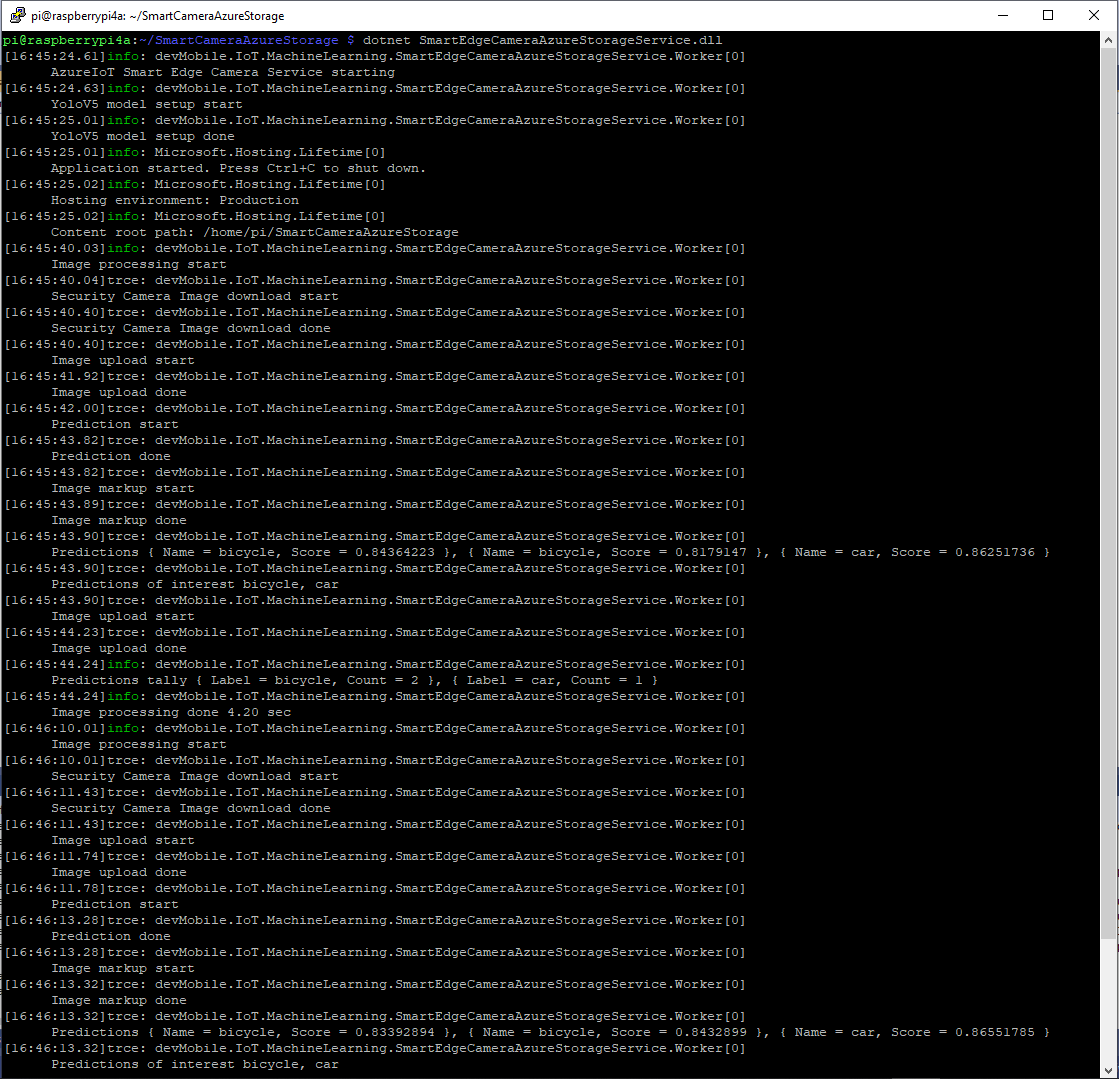
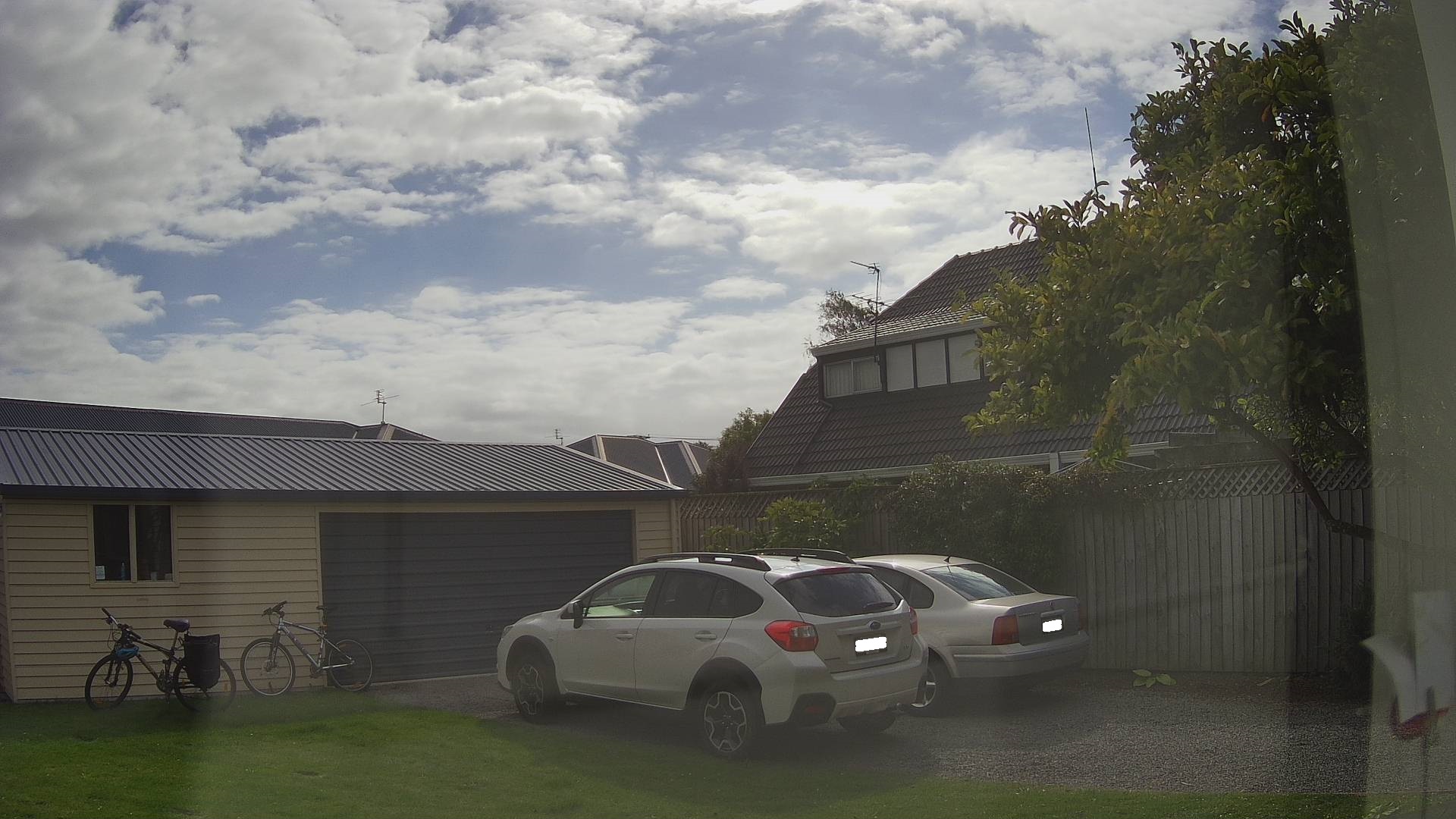
In the ImageUpdateTimerCallback method a camera image is captured (by my Raspberry Pi Camera Module 2 or IPC675LFW Security Camera) and written to the local file system.
Raspberry PI4B console displaying image processing and uploading
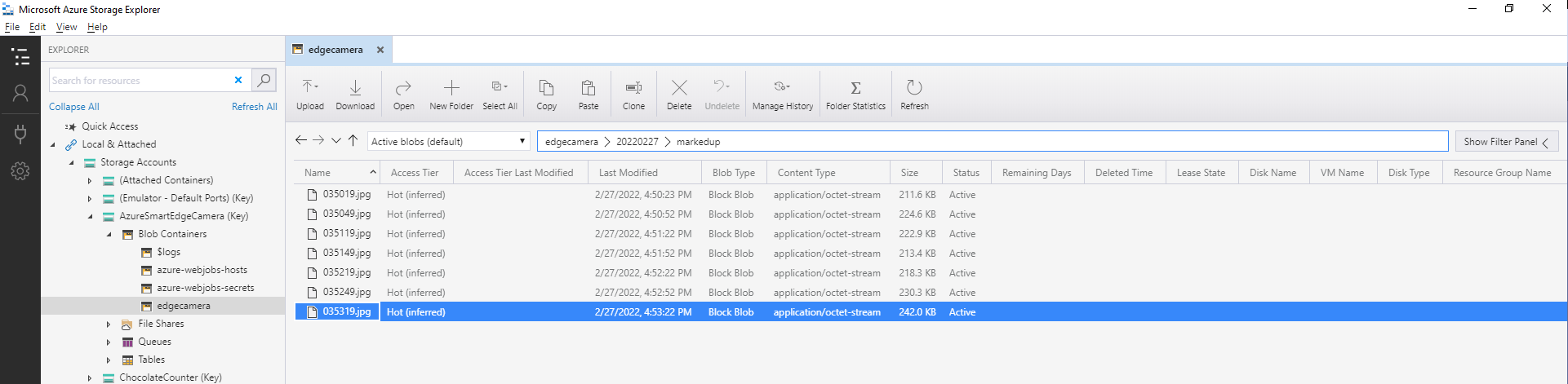
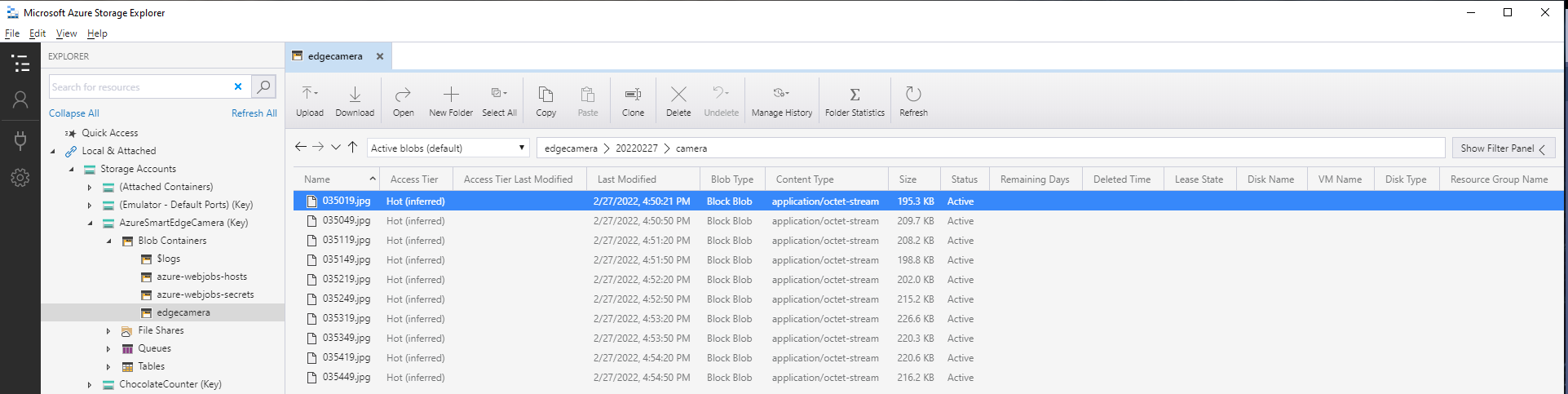
Azure IoT Storage Explorer displaying list of camera images
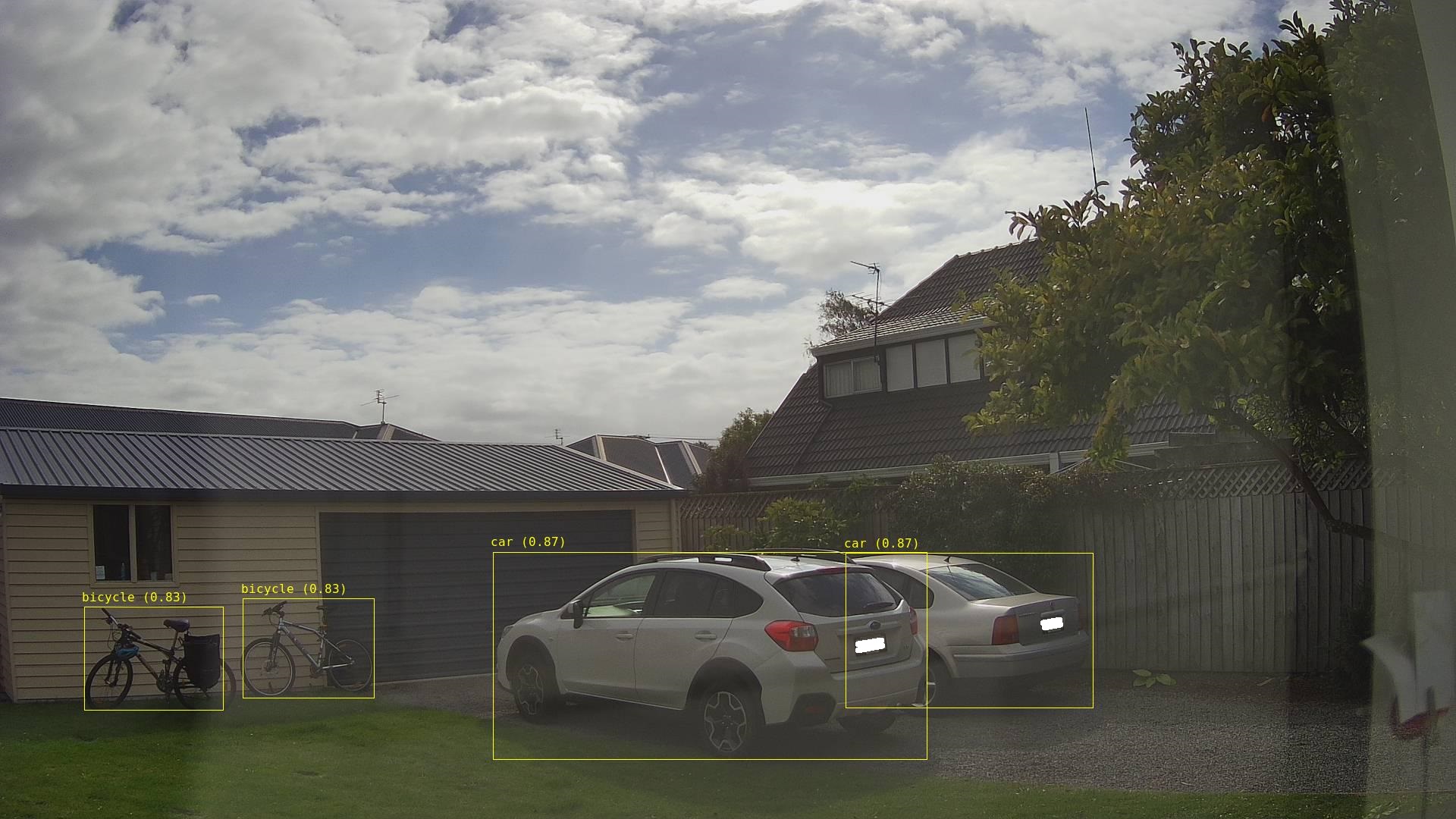
The list of predictions is post processed with a Language Integrated Query(LINQ) which filters out predictions with a score below a configurable threshold(PredicitionScoreThreshold) and returns a count of each class. If this list intersects with the configurable PredictionLabelsOfInterest a marked up image is uploaded to Azure Storage.
Image from security camera marked up with Minimum Bounding Boxes(MBRs)
Azure IoT Storage Explorer displaying list of marked up camera images
The current implementation is quite limited, the camera image upload, object detection and image upload if there are objects of interest is implemented in a single timer callback. I’m considering implementing two timers one for the uploading of camera images (time lapse camera) and the other for running the object detection process and uploading marked up images.
Marked up images are uploaded if any of the objects detected (with a score greater than PredicitionScoreThreshold) is in the PredictionLabelsOfInterest. I’m considering adding a PredicitionScoreThreshold and minimum count for individual prediction classes, and optionally marked up image upload only when the list of objects detected has changed.
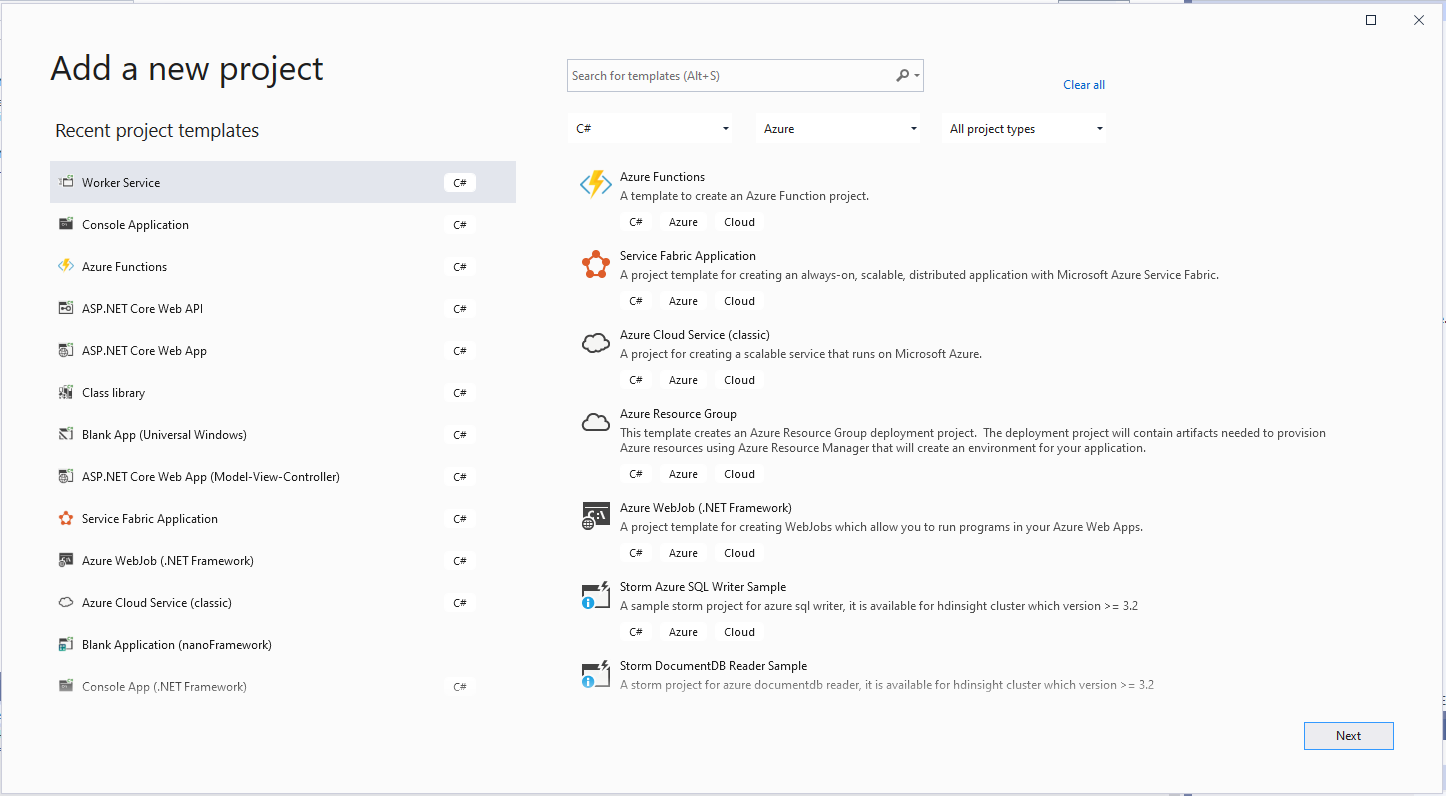
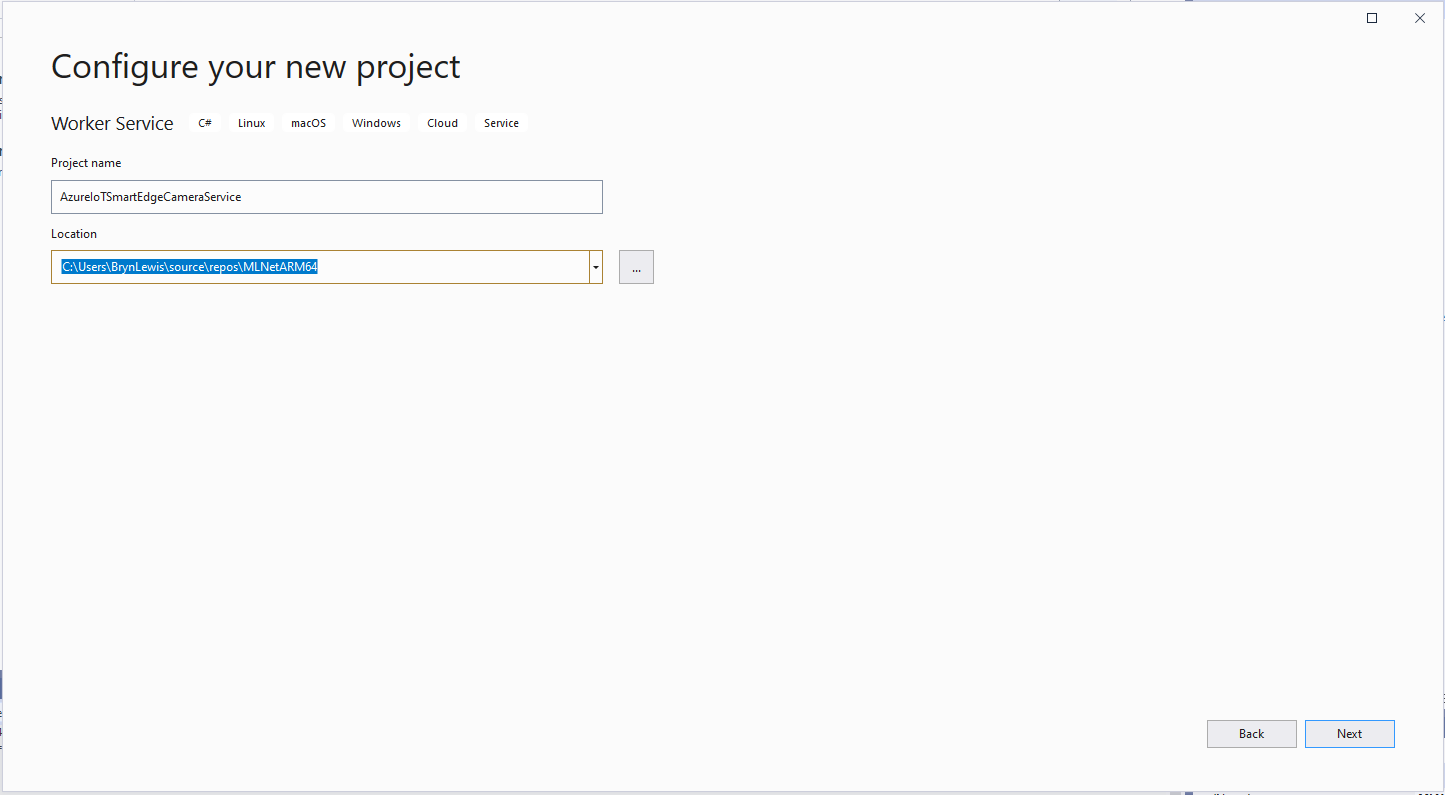
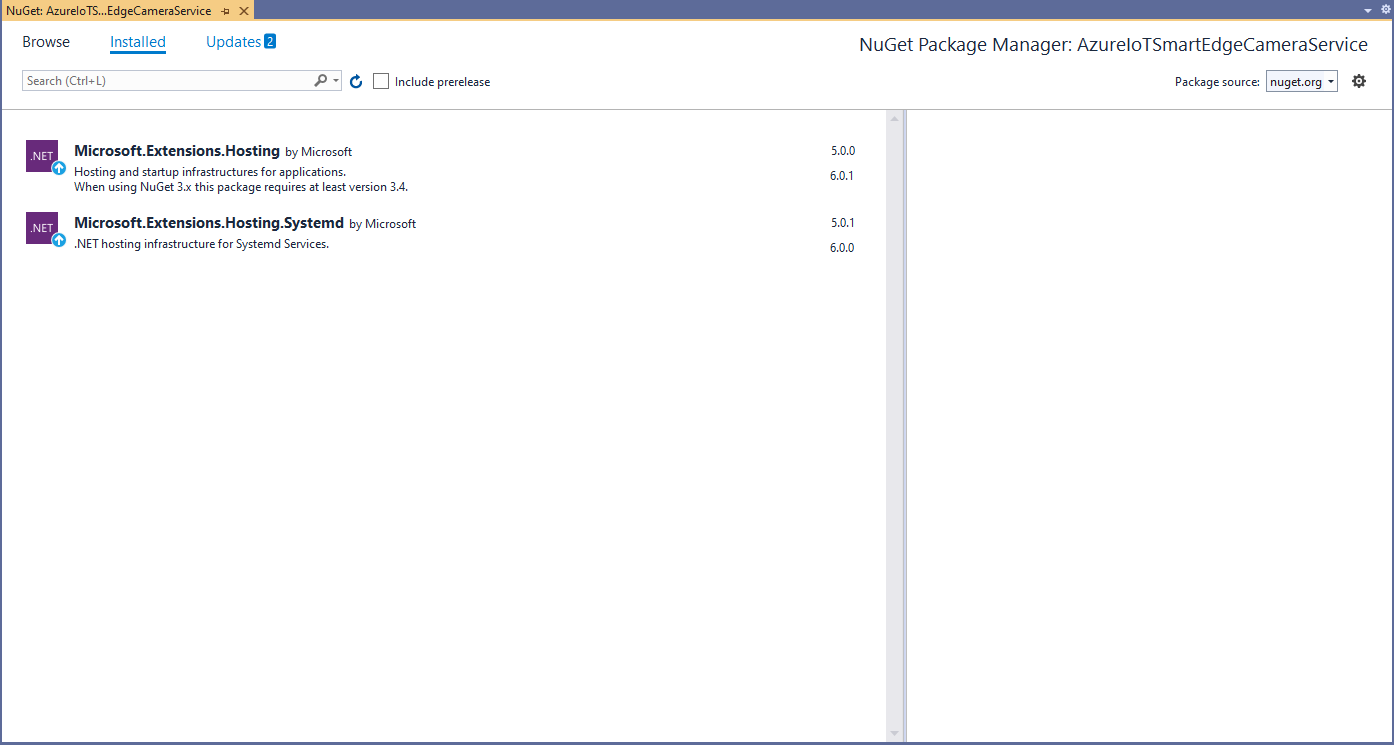
This is a “note to self” post about deploying a .NET CoreWorker Service to a Raspberry PI 4B 8G running Raspberry PI OS (Bullseye). After reading many posts, then a lot of trial and error this approach appeared to work reliably for my system configuration.(Though YMMV with other distros etc.)
using Microsoft.Extensions.DependencyInjection;
using Microsoft.Extensions.Hosting;

namespace devMobile.IoT.MachineLearning.AzureIoTSmartEdgeCameraService
{
	public class Program
	{
		public static void Main(string[] args)
		{
			CreateHostBuilder(args).Build().Run();
		}

		public static IHostBuilder CreateHostBuilder(string[] args) =>
			 Host.CreateDefaultBuilder(args)
					.UseSystemd()
				  .ConfigureServices((hostContext, services) =>
				  {
					  services.AddHostedService<Worker>();
				  });
	}
}
program.cs
using System;
using System.Threading;
using System.Threading.Tasks;

using Microsoft.Extensions.Hosting;
using Microsoft.Extensions.Logging;

namespace devMobile.IoT.MachineLearning.AzureIoTSmartEdgeCameraService
{
	public class Worker : BackgroundService
	{
		private readonly ILogger<Worker> _logger;

		public Worker(ILogger<Worker> logger)
		{
			_logger = logger;
		}

		protected override async Task ExecuteAsync(CancellationToken stoppingToken)
		{
			while (!stoppingToken.IsCancellationRequested)
			{
				_logger.LogInformation("Worker running at: {time}", DateTimeOffset.Now);

				await Task.Delay(1000, stoppingToken);
			}
		}
	}
}
Worker.cs
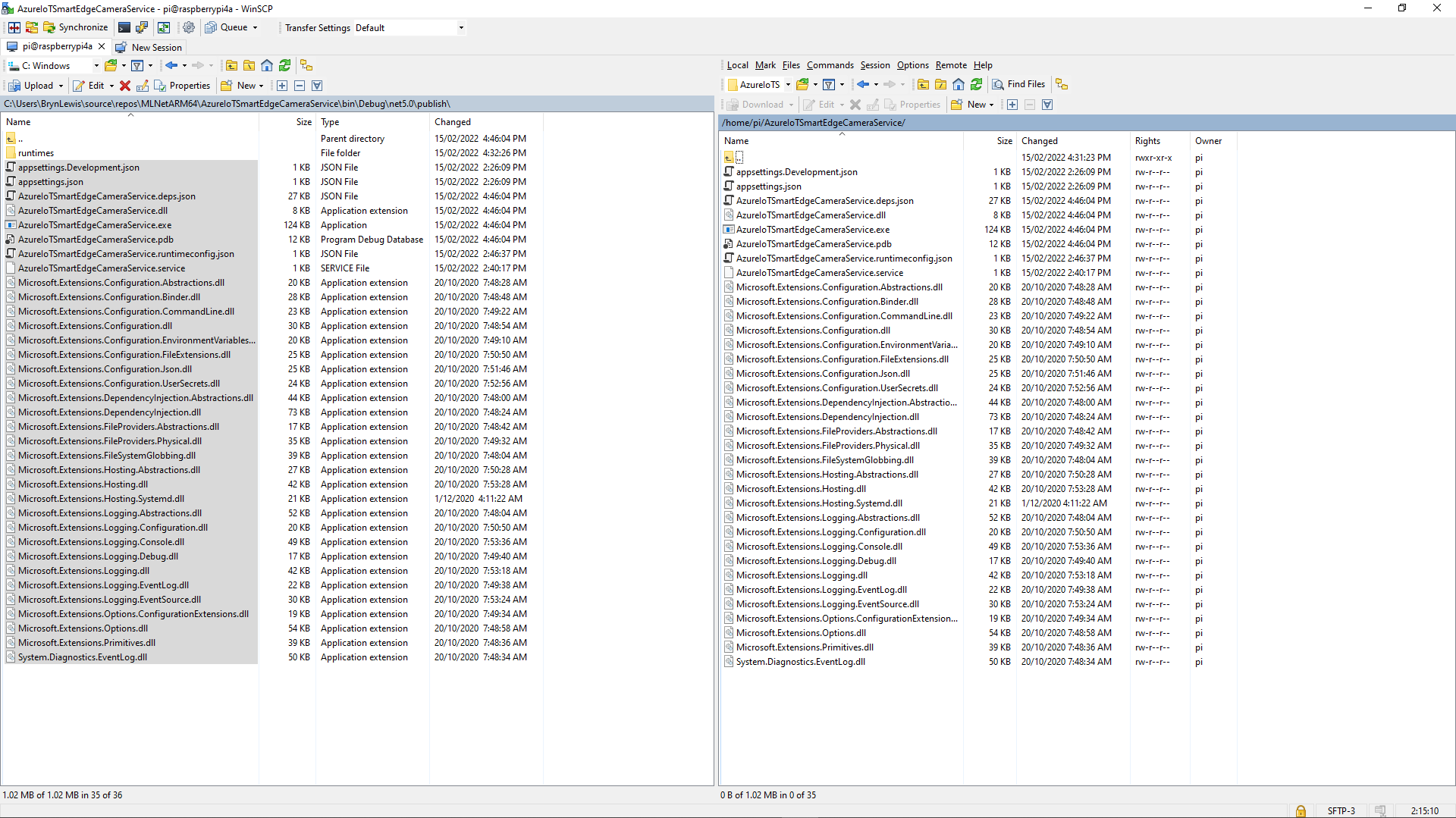
The first step was to create a new directory (AzureIoTSmartEdgeCameraService) on the device. In Visual Studio 2019 I “published” my application and copied the contents of the “publish” folder to the Raspberry PI with Winscp. (This intermediary folder was to avoid issues with the permissions of the /usr/sbin/ & etc/systemd/system folders)
Using Winscp to copy files to AzureIoTSmartEdgeCameraService folder on my device
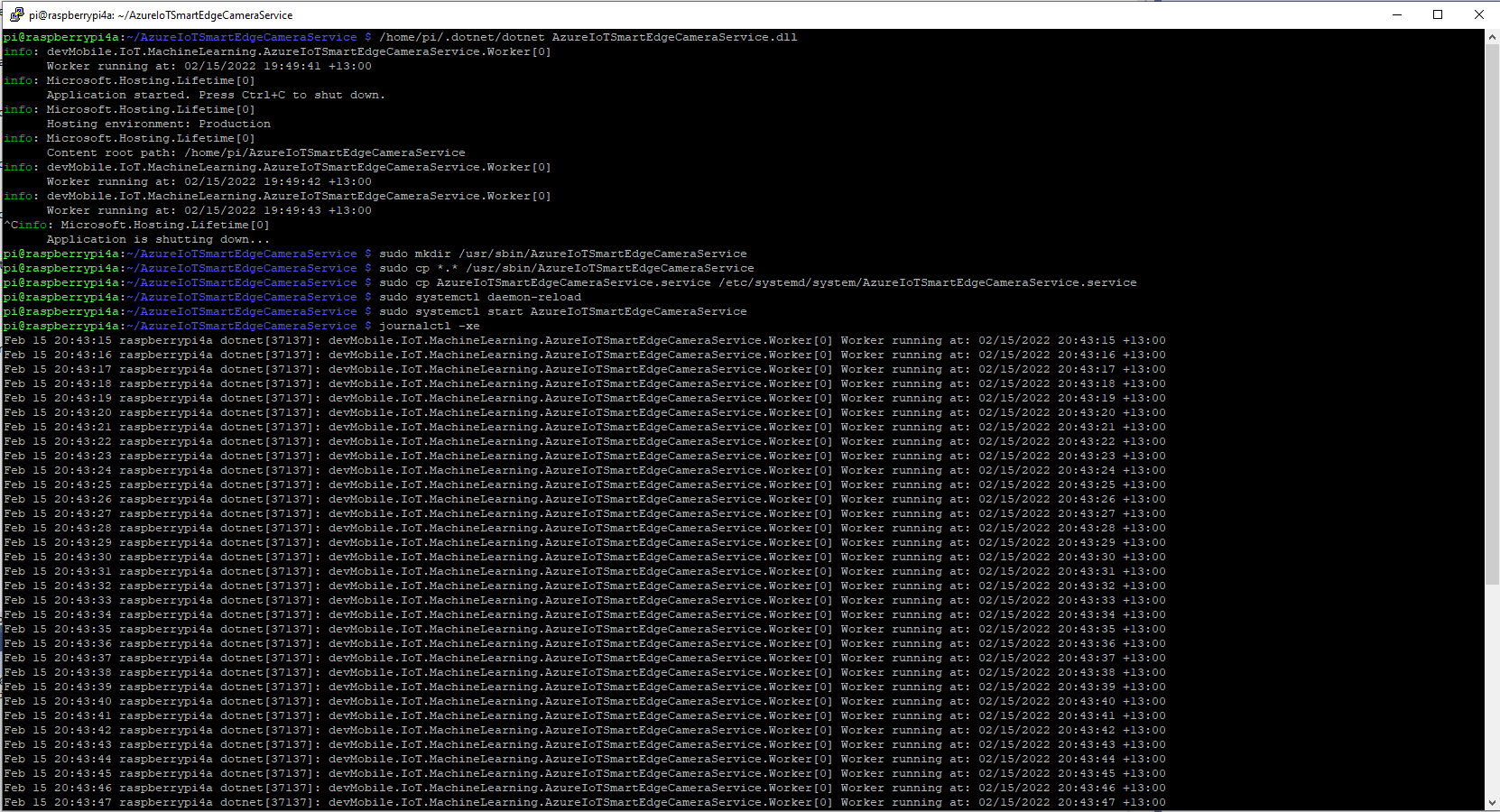
Install service

Test in application directory
	/home/pi/.dotnet/dotnet AzureIoTSmartEdgeCameraService.dll

Make service directory
	sudo mkdir /usr/sbin/AzureIoTSmartEdgeCameraService

Copy files to service directory
	sudo cp *.* /usr/sbin/AzureIoTSmartEdgeCameraService

Copy .service file to systemd folderclear
	sudo cp AzureIoTSmartEdgeCameraService.service /etc/systemd/system/AzureIoTSmartEdgeCameraService.service

Force reload of systemd configuration
	sudo systemctl daemon-reload

Start the Azure IoT SmartEdge Camera service
	sudo systemctl start AzureIoTSmartEdgeCameraService
Installing and starting the AzureIoTSmartEdgeCameraService
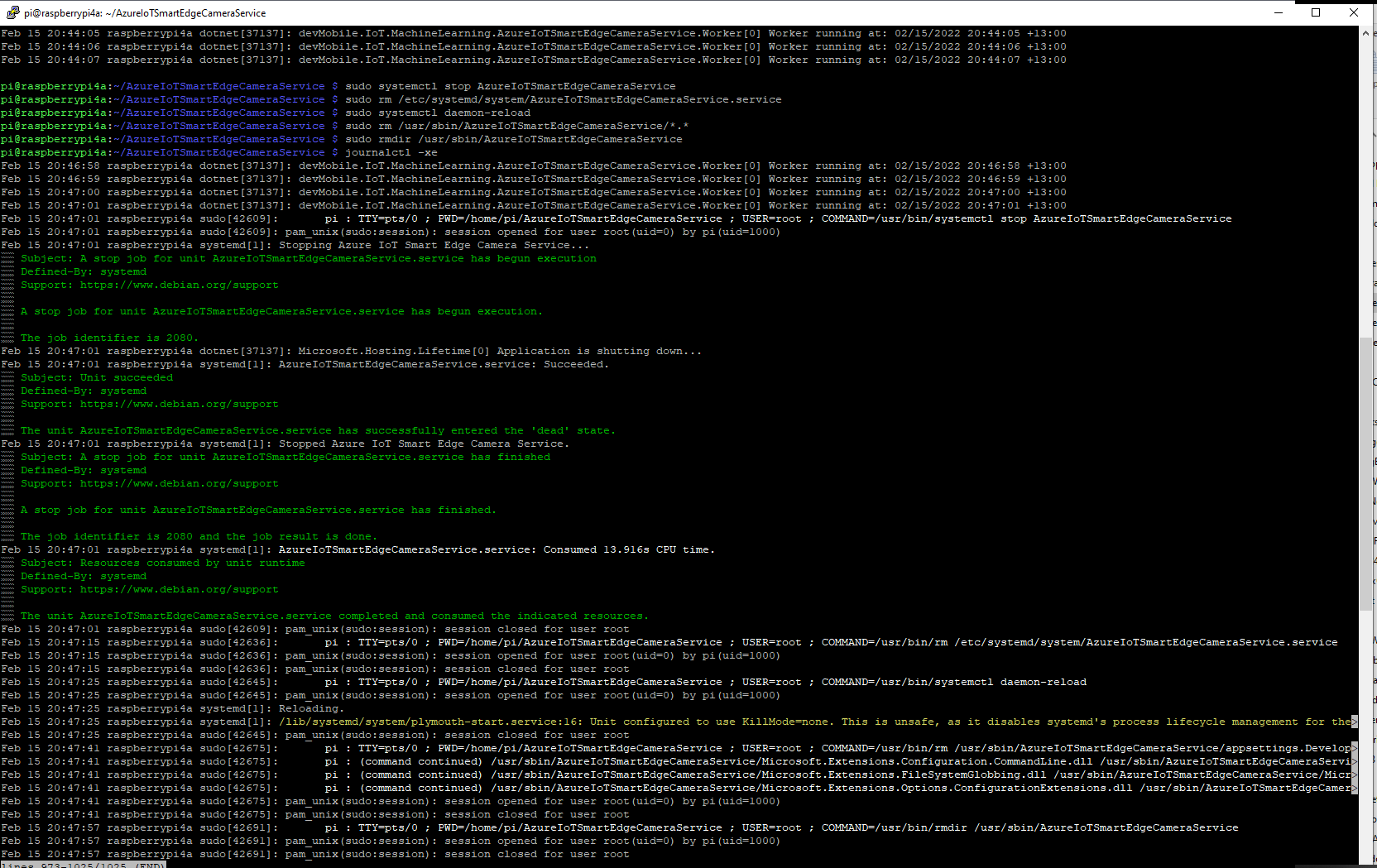
Uninstall service
	sudo systemctl stop AzureIoTSmartEdgeCameraService

	sudo rm /etc/systemd/system/AzureIoTSmartEdgeCameraService.service

	sudo systemctl daemon-reload

	sudo rm /usr/sbin/AzureIoTSmartEdgeCameraService/*.*

	sudo rmdir /usr/sbin/AzureIoTSmartEdgeCameraService

	See what is happening
	journalctl -xe
Stopping and removing the AzureIoTSmartEdgeCameraService
It took a lot of attempts to get a clean install then uninstall for the screen captures.
I started again, but kept the first section as it covers one of the simplest possible approaches to caching using the [ResponseCache] attribute and VaryByQueryKeys.
[HttpGet("Response")]
[ResponseCache(Duration = StockItemsListResponseCacheDuration)]
public async Task<ActionResult<IEnumerable<Model.StockItemListDtoV1>>> GetResponse()
{
	IEnumerable<Model.StockItemListDtoV1> response = null;

	logger.LogInformation("Response cache load");

	try
	{
		response = await dapper.QueryAsync<Model.StockItemListDtoV1>(sql: @"SELECT [StockItemID] as ""ID"", [StockItemName] as ""Name"", [RecommendedRetailPrice], [TaxRate] FROM [Warehouse].[StockItems]", commandType: CommandType.Text);
	}
	catch (SqlException ex)
	{
		logger.LogError(ex, "Retrieving list of StockItems");

		return this.StatusCode(StatusCodes.Status500InternalServerError);
	}

	return this.Ok(response);
}

[HttpGet("ResponseVarying")]
[ResponseCache(Duration = StockItemsListResponseCacheDuration, VaryByQueryKeys = new string[] { "id" })]
public async Task<ActionResult<Model.StockItemGetDtoV1>> Get([FromQuery(Name = "id"), Range(1, int.MaxValue, ErrorMessage = "Stock item id must greater than 0")] int id)
{
	Model.StockItemGetDtoV1 response = null;

	logger.LogInformation("Response cache varying load id:{0}", id);

	try
	{
		response = await dapper.QuerySingleOrDefaultAsync<Model.StockItemGetDtoV1>(sql: "[Warehouse].[StockItemsStockItemLookupV1]", param: new { stockItemId = id }, commandType: CommandType.StoredProcedure);
		if (response == default)
		{
			logger.LogInformation("StockItem:{0} not found", id);

			return this.NotFound($"StockItem:{id} not found");
		}
	}
	catch (SqlException ex)
	{
		logger.LogError(ex, "Looking up StockItem with Id:{0}", id);

		return this.StatusCode(StatusCodes.Status500InternalServerError);
	}

	return this.Ok(response);
}
All the browsers appeared to respect the cache control headers but Firefox was the only one which did not initiate a new request when I pressed return in the Uniform Resource Locator(URL) field.
[HttpGet("DapperMemory")]
public async Task<ActionResult<IEnumerable<Model.StockItemListDtoV1>>> GetDapper()
{
	List<Model.StockItemListDtoV1> response;

	logger.LogInformation("Dapper cache load");

	try
	{
		response = await dapper.QueryAsync<Model.StockItemListDtoV1>(
							sql: @"SELECT [StockItemID] as ""ID"", [StockItemName] as ""Name"", [RecommendedRetailPrice], [TaxRate] FROM [Warehouse].[StockItems]",
							commandType: CommandType.Text,
							enableCache: true,
							cacheExpire: TimeSpan.Parse(this.Configuration.GetValue<string>("DapperCachingDuration"))
					);

	}
	catch (SqlException ex)
	{
		logger.LogError(ex, "Retrieving list of StockItems");

		return this.StatusCode(StatusCodes.Status500InternalServerError);
	}

	return this.Ok(response);
}

[HttpGet("DapperMemoryVarying")]
public async Task<ActionResult<Model.StockItemGetDtoV1>> GetDapperVarying([FromQuery(Name = "id"), Range(1, int.MaxValue, ErrorMessage = "Stock item id must greater than 0")] int id)
{
	Model.StockItemGetDtoV1 response = null;

	logger.LogInformation("Dapper cache varying load id:{0}", id);

	try
	{
		response = await dapper.QuerySingleOrDefaultAsync<Model.StockItemGetDtoV1>(
					sql: "[Warehouse].[StockItemsStockItemLookupV1]",
					param: new { stockItemId = id },
					commandType: CommandType.StoredProcedure,
					cacheKey: $"StockItem:{id}",
					enableCache: true,
					cacheExpire: TimeSpan.Parse(this.Configuration.GetValue<string>("DapperCachingDuration"))
							);
		if (response == default)
		{
			logger.LogInformation("StockItem:{0} not found", id);

			return this.NotFound($"StockItem:{id} not found");
		}
	}
	catch (SqlException ex)
	{
		logger.LogError(ex, "Looking up StockItem with Id:{0}", id);

		return this.StatusCode(StatusCodes.Status500InternalServerError);
	}

	return this.Ok(response);
}
Both the Dapper.Extensions In-Memory and Redis cache reduced the number of database requests to the bare minimum. In a larger application the formatting of the cacheKey (cacheKey: “StockItems” & cacheKey: $”StockItem:{id}”) would be important to stop database query result collisions.
SQL Server Profiler displaying the list and single record requests.
Memurai running as a Windows Service on my development machine
When the Web API project was restarted the contents in-memory cache were lost. The Redis cache contents survive a restart and can be access from multiple clients.
The name of the digital output pin, input image, output image and yoloV5 model file names are configured in the appsettings.json file.
Mountain bike leaning against garage
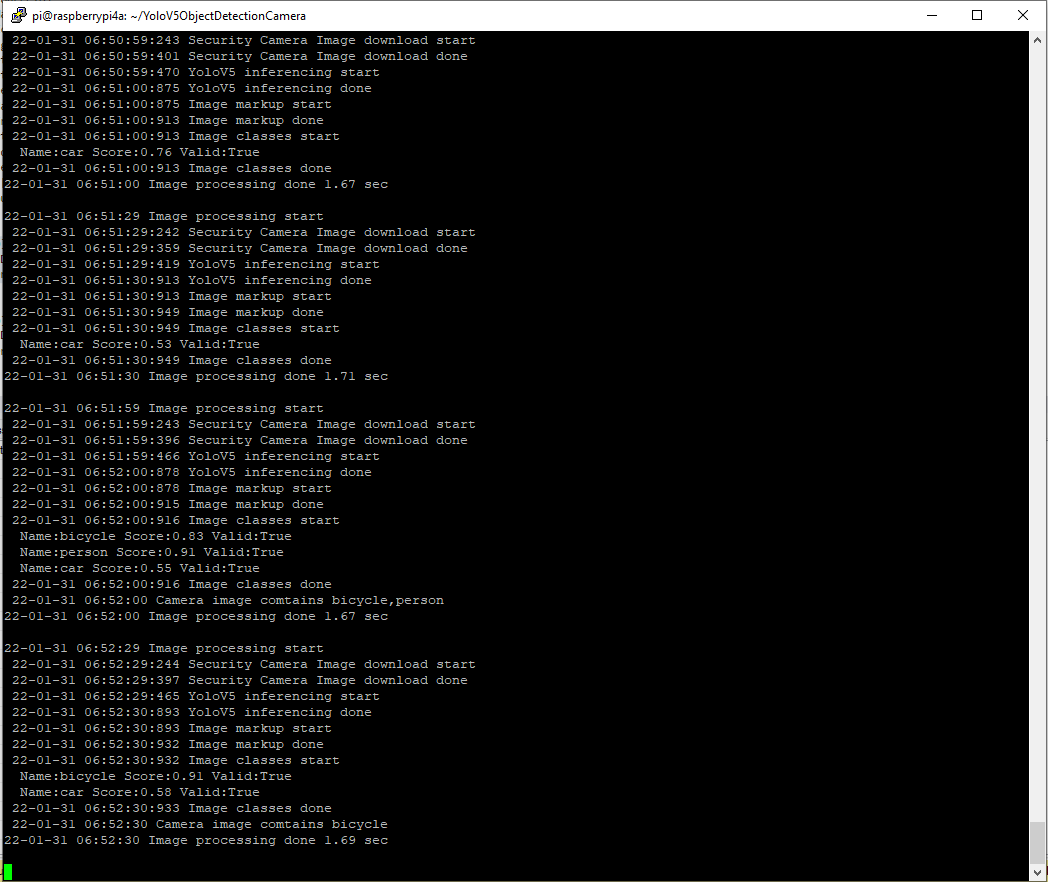
YoloV5 based application console
The 22-01-31 06:52 “person” detection is me moving the mountain bike into position.
Marked up image of my mountain bike leaning against the garage
Summary
Once the YoloV5s model was loaded, inferencing was taking roughly 1.45 seconds. The application is starting to get a bit “nasty” so for the next version I’ll need to do some refactoring.
namespace devMobile.IoT.MachineLearning.ObjectDetectionCamera
{
	class Program
	{
		private static Model.ApplicationSettings _applicationSettings;
		private static YoloScorer<YoloCocoP5Model> _scorer = null;
		private static bool _cameraBusy = false;

		static async Task Main(string[] args)
		{
			Console.WriteLine($"{DateTime.UtcNow:yy-MM-dd HH:mm:ss} ObjectDetectionCamera starting");

			try
			{
				// load the app settings into configuration
				var configuration = new ConfigurationBuilder()
					 .AddJsonFile("appsettings.json", false, true)
					 .Build();

				_applicationSettings = configuration.GetSection("ApplicationSettings").Get<Model.ApplicationSettings>();

				_scorer = new YoloScorer<YoloCocoP5Model>(_applicationSettings.YoloV5ModelPath);

				Timer imageUpdatetimer = new Timer(ImageUpdateTimerCallback, null, _applicationSettings.ImageImageTimerDue, _applicationSettings.ImageTimerPeriod);

				Console.WriteLine($" {DateTime.UtcNow:yy-MM-dd HH:mm:ss} press <ctrl^c> to exit");

				try
				{
					await Task.Delay(Timeout.Infinite);
				}
				catch (TaskCanceledException)
				{
					Console.WriteLine($"{DateTime.UtcNow:yy-MM-dd HH:mm:ss} Application shutown requested");
				}
			}
			catch (Exception ex)
			{
				Console.WriteLine($"{DateTime.UtcNow:yy-MM-dd HH:mm:ss} Application shutown failure {ex.Message}", ex);
			}
		}

		private static async void ImageUpdateTimerCallback(object state)
		{
			DateTime requestAtUtc = DateTime.UtcNow;

			// Just incase - stop code being called while photo already in progress
			if (_cameraBusy)
			{
				return;
			}
			_cameraBusy = true;

			try
			{
#if SECURITY_CAMERA
				Console.WriteLine($" {DateTime.UtcNow:yy-MM-dd HH:mm:ss} Security Camera Image download start");

				NetworkCredential networkCredential = new NetworkCredential()
				{
					UserName = _applicationSettings.CameraUserName,
					Password = _applicationSettings.CameraUserPassword,
				};

				using (WebClient client = new WebClient())
				{
					client.Credentials = networkCredential;

					client.DownloadFile(_applicationSettings.CameraUrl, _applicationSettings.InputImageFilenameLocal);
				}
				Console.WriteLine($" {DateTime.UtcNow:yy-MM-dd HH:mm:ss} Security Camera Image download done");
#endif

#if RASPBERRY_PI_CAMERA
				Console.WriteLine($" {DateTime.UtcNow:yy-MM-dd HH:mm:ss} Raspberry PI Image capture start");

				using (Process process = new Process())
				{
					process.StartInfo.FileName = @"libcamera-jpeg";
					process.StartInfo.Arguments = $"-o {_applicationSettings.InputImageFilenameLocal} --nopreview -t1 --rotation 180";
					process.StartInfo.RedirectStandardError = true;

					process.Start();

					if (!process.WaitForExit(_applicationSettings.ProcessWaitForExit) || (process.ExitCode != 0))
					{
						Console.WriteLine($"{DateTime.UtcNow:yy-MM-dd HH:mm:ss} Image update failure {process.ExitCode}");
					}
				}

				Console.WriteLine($" {DateTime.UtcNow:yy-MM-dd HH:mm:ss} Raspberry PI Image capture done");
#endif

				// Process the image on local file system
				using (Image image = Image.FromFile(_applicationSettings.InputImageFilenameLocal))
				{
					Console.WriteLine($" {DateTime.UtcNow:yy-MM-dd HH:mm:ss} YoloV5 inferencing start");
					System.Collections.Generic.List<YoloPrediction> predictions = _scorer.Predict(image);
					Console.WriteLine($" {DateTime.UtcNow:yy-MM-dd HH:mm:ss} YoloV5 inferencing done");

					using (Graphics graphics = Graphics.FromImage(image))
					{
						foreach (var prediction in predictions) // iterate predictions to draw results
						{
							double score = Math.Round(prediction.Score, 2);

							graphics.DrawRectangles(new Pen(prediction.Label.Color, 1), new[] { prediction.Rectangle });

							var (x, y) = (prediction.Rectangle.X - 3, prediction.Rectangle.Y - 23);

							graphics.DrawString($"{prediction.Label.Name} ({score})", new Font("Consolas", 16, GraphicsUnit.Pixel), new SolidBrush(prediction.Label.Color), new PointF(x, y));

							Console.WriteLine($"  {prediction.Label.Name} {score:f1}");

						}

						image.Save(_applicationSettings.OutputImageFilenameLocal);
					}
				}
				Console.WriteLine($" {DateTime.UtcNow:yy-MM-dd HH:mm:ss} YoloV5 inferencing done");
			}
			catch (Exception ex)
			{
				Console.WriteLine($"{DateTime.UtcNow:yy-MM-dd HH:mm:ss} Camera image download, upload or post procesing failed {ex.Message}");
			}
			finally
			{
				_cameraBusy = false;
			}

			TimeSpan duration = DateTime.UtcNow - requestAtUtc;

			Console.WriteLine($"{DateTime.UtcNow:yy-MM-dd HH:mm:ss} Image Update done {duration.TotalSeconds:f1} sec");
		}
	}
}
The name of the input image, output image and yoloV5 model file names are configured in the appsettings.json file.
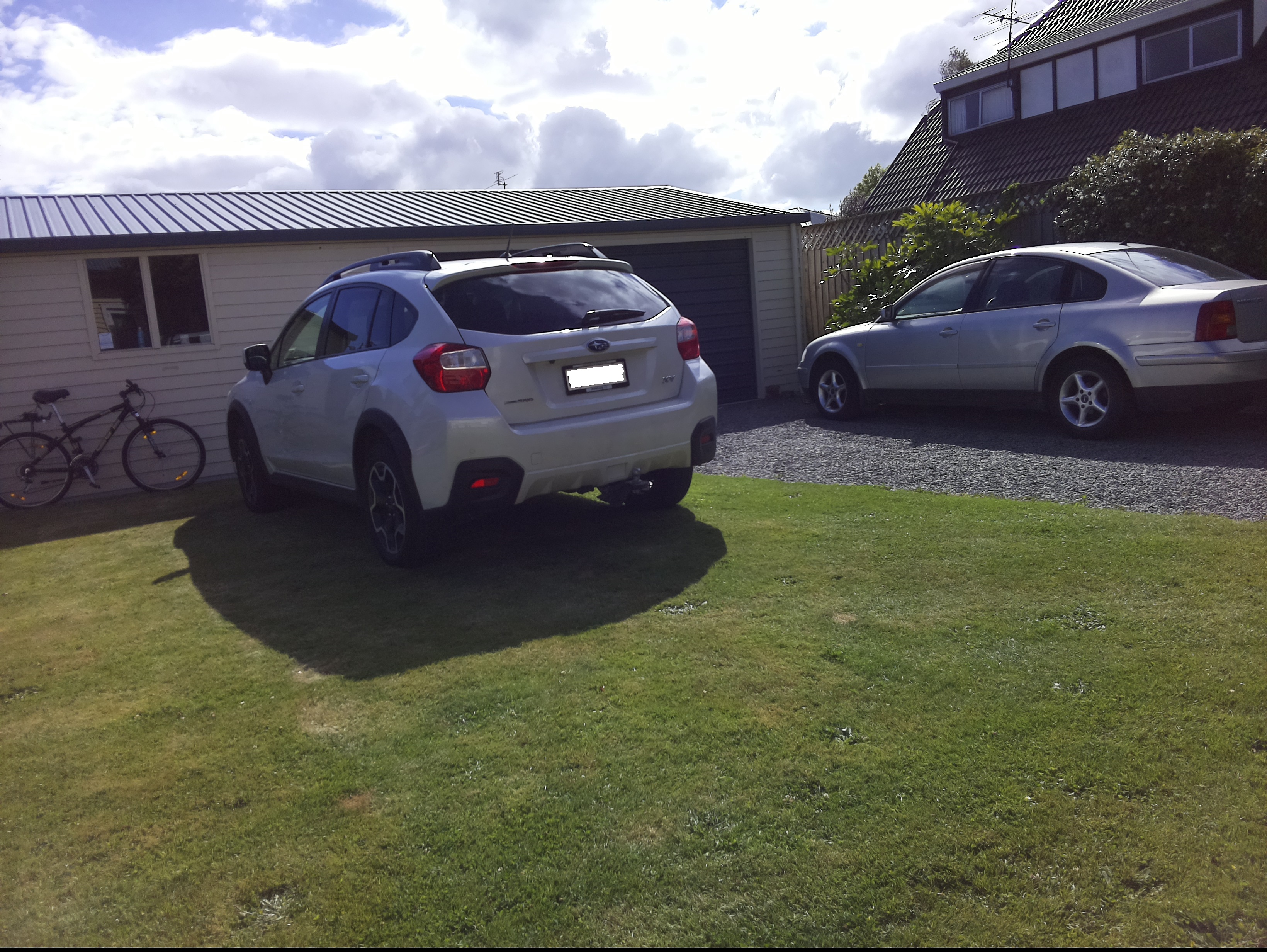
Raspberry PI Camera V2 Results
Raspberry PI Camera V2 source image
ObjectDectionCamera application running on my RaspberryPI4
Raspberry PI Camera V2 image with MBRs
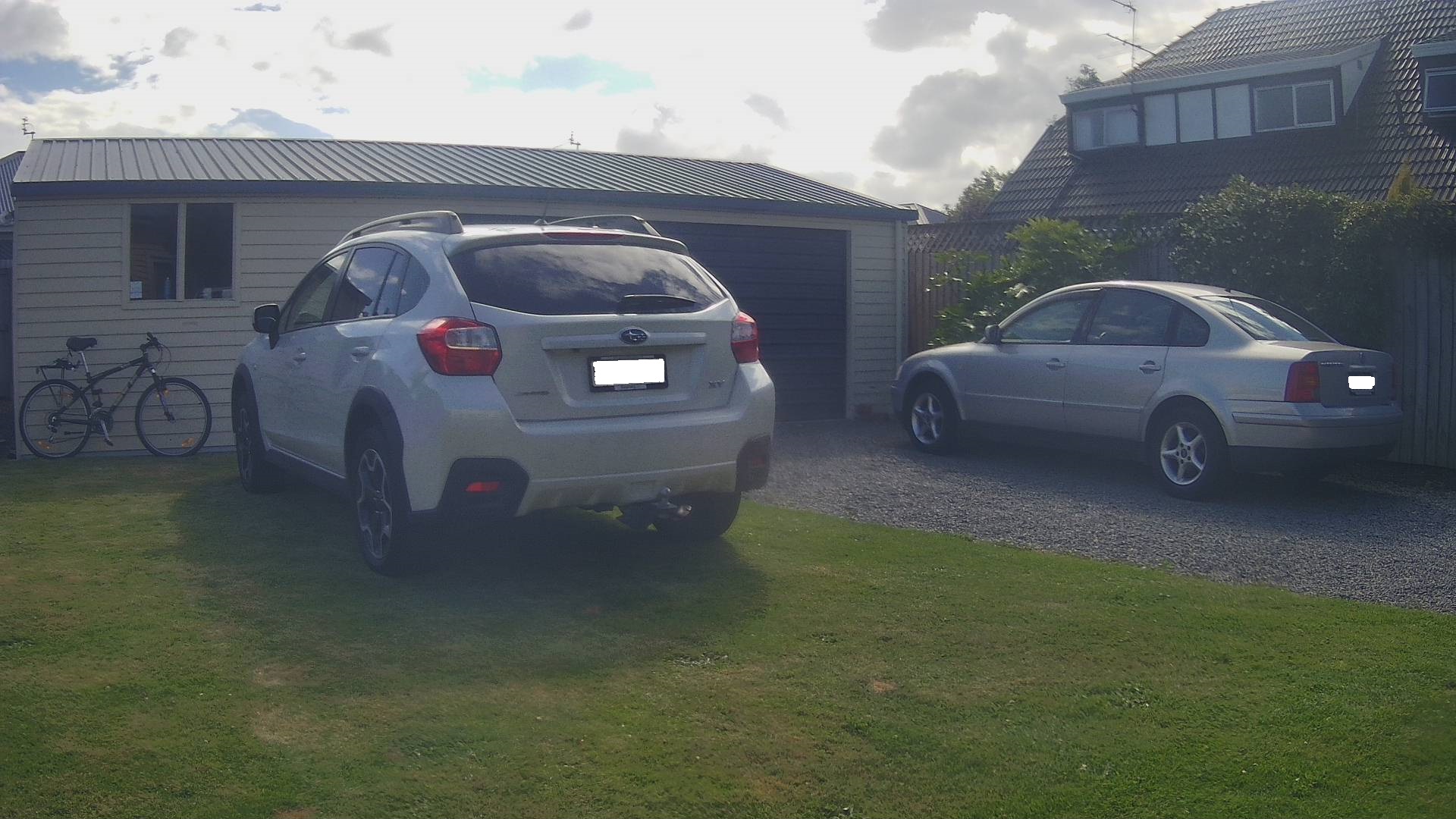
Security camera Results
Security Camera source image
ObjectDetectionCamera application running on RaspberryPI 8G 4B
Security Camera image with MBRs
Summary
The RaspberryPI Camera V2 images were 3280×2464 2.04M and the security camera images were 1920 x1080 464K so there was a significant quality and size difference.
When I ran the YoloV5s model application on my development box (Intel(R) Core(TM) i7-8700T CPU @ 2.40GHz) a security camera image took less than a second to process.
ObjectDetectionCamera application running on my development box
The libcamera-jpeg program has a lot of command line parameters.
pi@raspberrypi4a:~ $ libcamera-jpeg --help
Valid options are:
  -h [ --help ] [=arg(=1)] (=0)         Print this help message
  --version [=arg(=1)] (=0)             Displays the build version number
  -v [ --verbose ] [=arg(=1)] (=0)      Output extra debug and diagnostics
  -c [ --config ] [=arg(=config.txt)]   Read the options from a file. If no filename is specified, default to
                                        config.txt. In case of duplicate options, the ones provided on the command line
                                        will be used. Note that the config file must only contain the long form
                                        options.
  --info-text arg (=#%frame (%fps fps) exp %exp ag %ag dg %dg)
                                        Sets the information string on the titlebar. Available values:
                                        %frame (frame number)
                                        %fps (framerate)
                                        %exp (shutter speed)
                                        %ag (analogue gain)
                                        %dg (digital gain)
                                        %rg (red colour gain)
                                        %bg (blue colour gain)
                                        %focus (focus FoM value)
                                        %aelock (AE locked status)
  --width arg (=0)                      Set the output image width (0 = use default value)
  --height arg (=0)                     Set the output image height (0 = use default value)
  -t [ --timeout ] arg (=5000)          Time (in ms) for which program runs
  -o [ --output ] arg                   Set the output file name
  --post-process-file arg               Set the file name for configuring the post-processing
  --rawfull [=arg(=1)] (=0)             Force use of full resolution raw frames
  -n [ --nopreview ] [=arg(=1)] (=0)    Do not show a preview window
  -p [ --preview ] arg (=0,0,0,0)       Set the preview window dimensions, given as x,y,width,height e.g. 0,0,640,480
  -f [ --fullscreen ] [=arg(=1)] (=0)   Use a fullscreen preview window
  --qt-preview [=arg(=1)] (=0)          Use Qt-based preview window (WARNING: causes heavy CPU load, fullscreen not
                                        supported)
  --hflip [=arg(=1)] (=0)               Request a horizontal flip transform
  --vflip [=arg(=1)] (=0)               Request a vertical flip transform
  --rotation arg (=0)                   Request an image rotation, 0 or 180
  --roi arg (=0,0,0,0)                  Set region of interest (digital zoom) e.g. 0.25,0.25,0.5,0.5
  --shutter arg (=0)                    Set a fixed shutter speed
  --analoggain arg (=0)                 Set a fixed gain value (synonym for 'gain' option)
  --gain arg                            Set a fixed gain value
  --metering arg (=centre)              Set the metering mode (centre, spot, average, custom)
  --exposure arg (=normal)              Set the exposure mode (normal, sport)
  --ev arg (=0)                         Set the EV exposure compensation, where 0 = no change
  --awb arg (=auto)                     Set the AWB mode (auto, incandescent, tungsten, fluorescent, indoor, daylight,
                                        cloudy, custom)
  --awbgains arg (=0,0)                 Set explict red and blue gains (disable the automatic AWB algorithm)
  --flush [=arg(=1)] (=0)               Flush output data as soon as possible
  --wrap arg (=0)                       When writing multiple output files, reset the counter when it reaches this
                                        number
  --brightness arg (=0)                 Adjust the brightness of the output images, in the range -1.0 to 1.0
  --contrast arg (=1)                   Adjust the contrast of the output image, where 1.0 = normal contrast
  --saturation arg (=1)                 Adjust the colour saturation of the output, where 1.0 = normal and 0.0 =
                                        greyscale
  --sharpness arg (=1)                  Adjust the sharpness of the output image, where 1.0 = normal sharpening
  --framerate arg (=30)                 Set the fixed framerate for preview and video modes
  --denoise arg (=auto)                 Sets the Denoise operating mode: auto, off, cdn_off, cdn_fast, cdn_hq
  --viewfinder-width arg (=0)           Width of viewfinder frames from the camera (distinct from the preview window
                                        size
  --viewfinder-height arg (=0)          Height of viewfinder frames from the camera (distinct from the preview window
                                        size)
  --tuning-file arg (=-)                Name of camera tuning file to use, omit this option for libcamera default
                                        behaviour
  --lores-width arg (=0)                Width of low resolution frames (use 0 to omit low resolution stream
  --lores-height arg (=0)               Height of low resolution frames (use 0 to omit low resolution stream
  -q [ --quality ] arg (=93)            Set the JPEG quality parameter
  -x [ --exif ] arg                     Add these extra EXIF tags to the output file
  --timelapse arg (=0)                  Time interval (in ms) between timelapse captures
  --framestart arg (=0)                 Initial frame counter value for timelapse captures
  --datetime [=arg(=1)] (=0)            Use date format for output file names
  --timestamp [=arg(=1)] (=0)           Use system timestamps for output file names
  --restart arg (=0)                    Set JPEG restart interval
  -k [ --keypress ] [=arg(=1)] (=0)     Perform capture when ENTER pressed
  -s [ --signal ] [=arg(=1)] (=0)       Perform capture when signal received
  --thumb arg (=320:240:70)             Set thumbnail parameters as width:height:quality
  -e [ --encoding ] arg (=jpg)          Set the desired output encoding, either jpg, png, rgb, bmp or yuv420
  -r [ --raw ] [=arg(=1)] (=0)          Also save raw file in DNG format
  --latest arg                          Create a symbolic link with this name to most recent saved file
  --immediate [=arg(=1)] (=0)           Perform first capture immediately, with no preview phase
pi@raspberrypi4a:~ $
My libcamera-jpeg application is run “headless” so I tried turning off the image preview functionality.
When I ran libcamera-jpeg in a console windows or my application this didn’t appear to make any noticeable difference.
libcamera-jpeg run from the command line with –nopreview
libcamera-jpeg run by my application with –nopreview
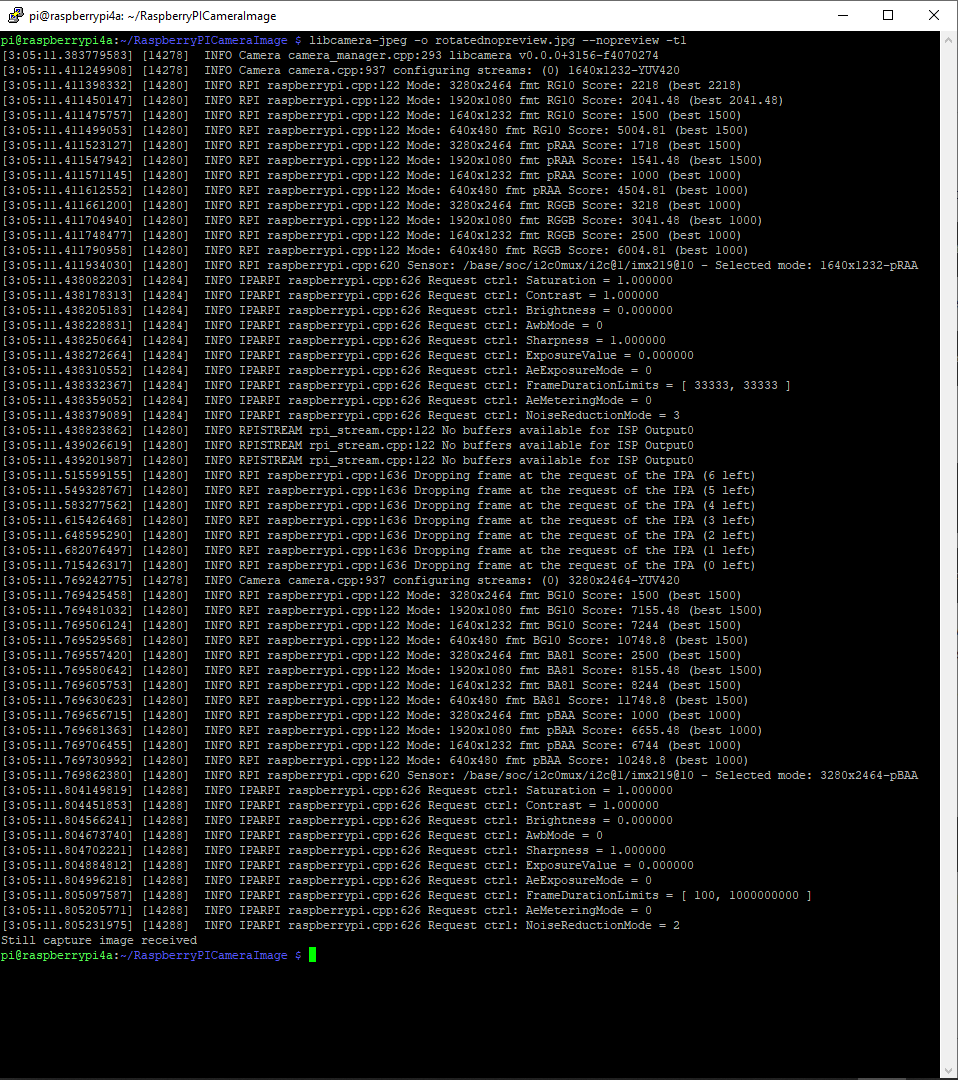
I then had another look at the libcamera-jpeg command line parameters to see if any looked useful for reducing the time that it took to take a save an image and this one caught my attention.
I had assumed the delay was related to how long the preview window was displayed.
libcamera-jpeg run from the command line with –nopreview –t1
I modified the application (V5) then ran it from the command line and the time reduced to less than a second.
private static void ImageUpdateTimerCallback(object state)
{
	try
	{
		Console.WriteLine($"{DateTime.UtcNow:yy-MM-dd HH:mm:ss} Image update start");

		// Just incase - stop code being called while photo already in progress
		if (_cameraBusy)
		{
			return;
		}

		Console.WriteLine($" {DateTime.UtcNow:yy-MM-dd HH:mm:ss} Image capture start");

		using (Process process = new Process())
		{
			process.StartInfo.FileName = @"libcamera-jpeg";
			// V1 it works
			//process.StartInfo.Arguments = $"-o {_applicationSettings.ImageFilenameLocal}";
			// V3a Image right way up
			//process.StartInfo.Arguments = $"-o {_applicationSettings.ImageFilenameLocal} --vflip --hflip";
			// V3b Image right way up
			//process.StartInfo.Arguments = $"-o {_applicationSettings.ImageFilenameLocal} --rotation 180";
			// V4 Image no preview
			//process.StartInfo.Arguments = $"-o {_applicationSettings.ImageFilenameLocal} --rotation 180 --nopreview";
			// V5 Image no preview, no timeout
			process.StartInfo.Arguments = $"-o {_applicationSettings.ImageFilenameLocal} --nopreview -t1 --rotation 180";
			//process.StartInfo.RedirectStandardOutput = true;
			// V2 No diagnostics
			process.StartInfo.RedirectStandardError = true;
			//process.StartInfo.UseShellExecute = false;
			//process.StartInfo.CreateNoWindow = true;

			process.Start();

			if (!process.WaitForExit(10000) || (process.ExitCode != 0))
			{
				Console.WriteLine($"{DateTime.UtcNow:yy-MM-dd HH:mm:ss} Image update failure {process.ExitCode}");
			}
		}

		Console.WriteLine($" {DateTime.UtcNow:yy-MM-dd HH:mm:ss} Image capture done");
	}
	catch (Exception ex)
	{
		Console.WriteLine($"{DateTime.UtcNow:yy-MM-dd HH:mm:ss} Image update error {ex.Message}");
	}
	finally
	{
		_cameraBusy = false;
	}
}
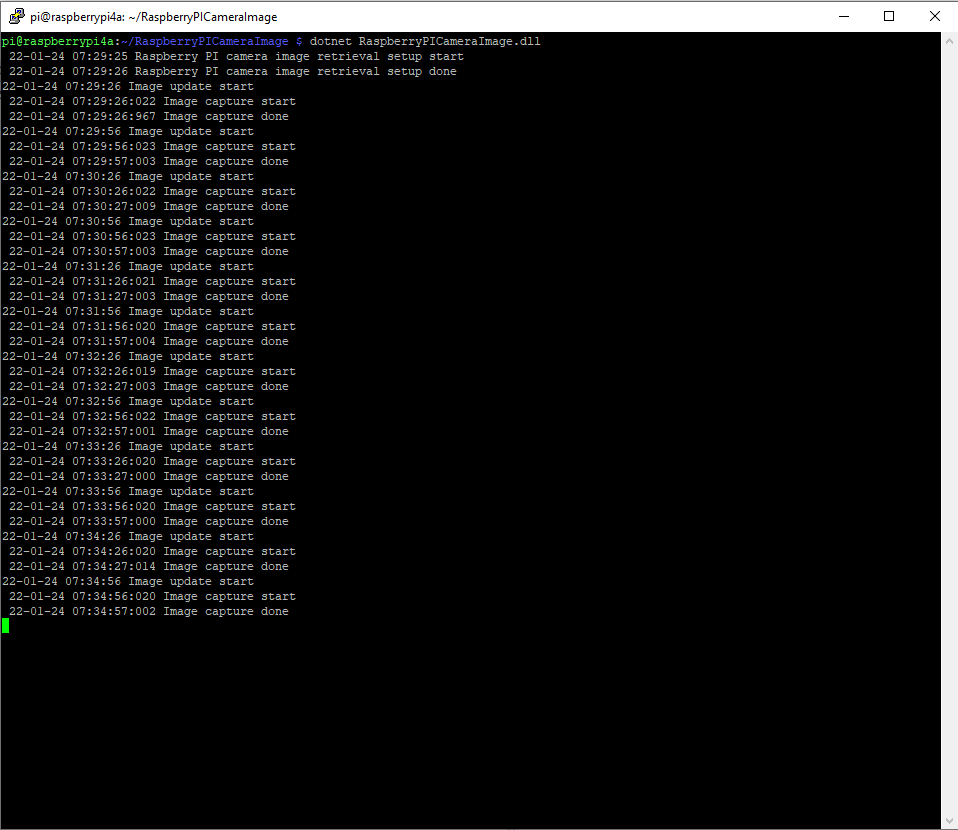
libcamera-jpeg run by my application with –nopreview -t1
The image capture process now takes less that a second which is much better (but not a lot less than retrieving an image from one of my security cameras).
I wanted one of my ML.Net demos to use the Raspberry PI Camera rather than a security camera (so it was more portable) but it took a bit more work than I expected.
Version 1 used Process.Start to launch the libcamera-jpeg application with a command line to store an image to the local file system.
libcamera-jpeg -o latest.jpg
libcamera-jpeg with diagnostic information displayed
There was a lot of diagnostic information which I didn’t want displayed so after reading many stackoverflow posts (lots of different approaches none of which worked in my scenario), then some trial and error I found that I only had to enable RedirectStandardError.
libcamera-jpeg without diagnostic information displayed
At this point there was a lot less noise but the image was upside down.
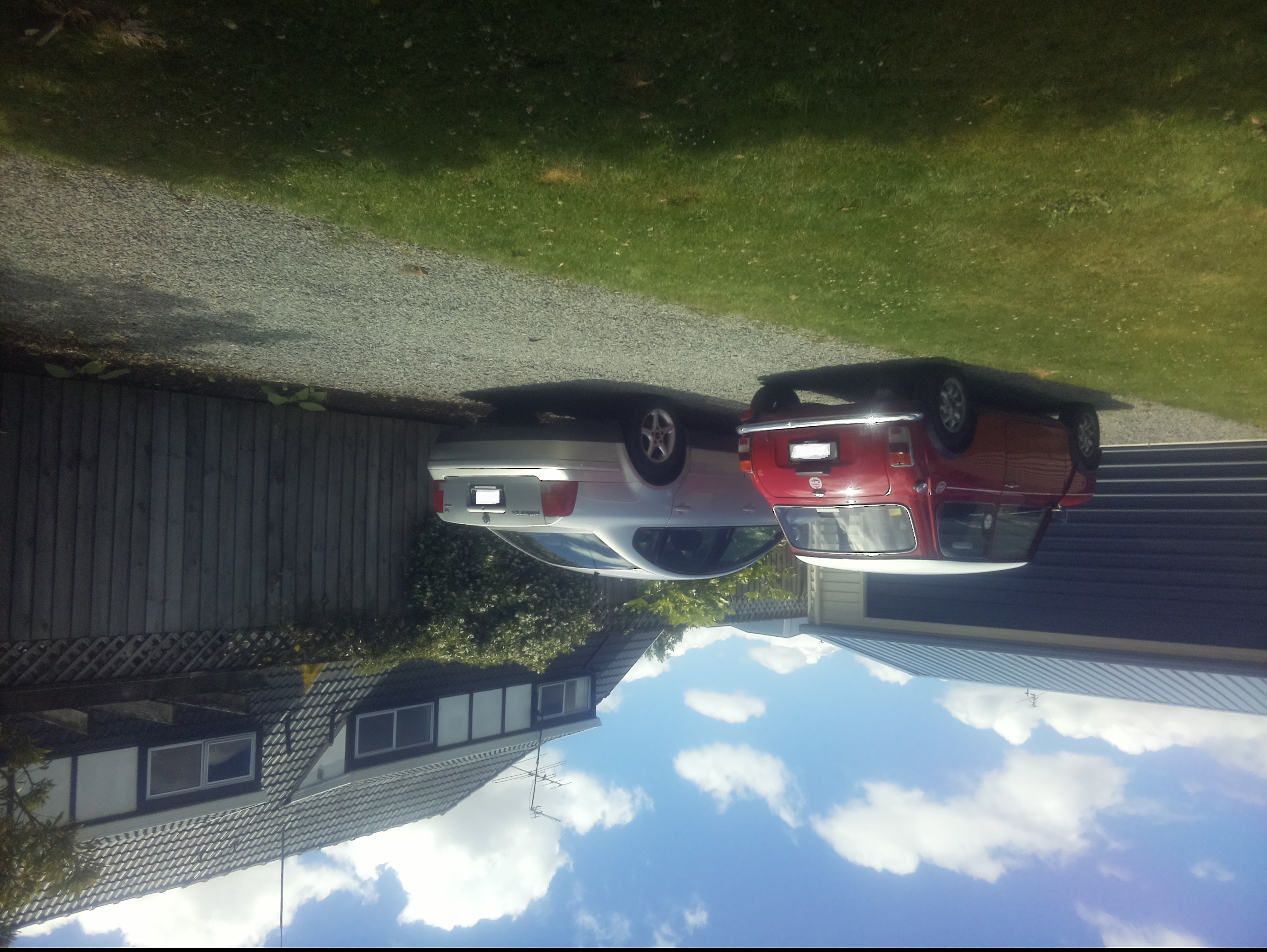
Inverted picture of my 30th anniversary Mini Cooper in the backyard
I then added a vertical flip to the command line parameters
libcamera-jpeg -o latest.jpg --vflip
My 30th anniversary Mini Cooper in the backyard
The image was backwards so I added a horizontal flip to the commandline parameters
libcamera-jpeg -o latest.jpg --vflip --hflip
or
libcamera-jpeg -o latest.jpg --rotation 180
My 30th anniversary Mini Cooper in the backyard with the correct orientation
The libcamera code is in a Timer callback so I added the _cameraBusy boolean flag to stop reentrancy problems.
private static void ImageUpdateTimerCallback(object state)
{
	try
	{
		Console.WriteLine($"{DateTime.UtcNow:yy-MM-dd HH:mm:ss} Image update start");

		// Just incase - stop code being called while photo already in progress
		if (_cameraBusy)
		{
			return;
		}

		Console.WriteLine($" {DateTime.UtcNow:yy-MM-dd HH:mm:ss} Image capture start");

		using (Process process = new Process())
		{
			process.StartInfo.FileName = @"libcamera-jpeg";
			// V1 it works
			//process.StartInfo.Arguments = $"-o {_applicationSettings.ImageFilenameLocal}";
			// V3 Image right way up
			//process.StartInfo.Arguments = $"-o {_applicationSettings.ImageFilenameLocal} --vflip";
			// V3 Image right way round
			process.StartInfo.Arguments = $"-o {_applicationSettings.ImageFilenameLocal} --vflip --hflip";
			//process.StartInfo.RedirectStandardOutput = true;
			// V2 No diagnostics
			process.StartInfo.RedirectStandardError = true;
			//process.StartInfo.UseShellExecute = false;
			//process.StartInfo.CreateNoWindow = true;

			process.Start();

			if (!process.WaitForExit(10000) || (process.ExitCode != 0))
			{
				Console.WriteLine($"{DateTime.UtcNow:yy-MM-dd HH:mm:ss} Image update failure {process.ExitCode}");
			}
		}

		Console.WriteLine($" {DateTime.UtcNow:yy-MM-dd HH:mm:ss} Image capture done");
	}
	catch (Exception ex)
	{
		Console.WriteLine($"{DateTime.UtcNow:yy-MM-dd HH:mm:ss} Image update error {ex.Message}");
	}
	finally
	{
		_cameraBusy = false;
	}
}
This was the simplest way I could get an image onto the local file system without lots of dependencies on third party libraries. The image capture process takes about 5 seconds which a bit longer than I was expecting.













 devMobile's blog