Grove Base Hat for Raspberry PI Zero Windows 10 IoT Core

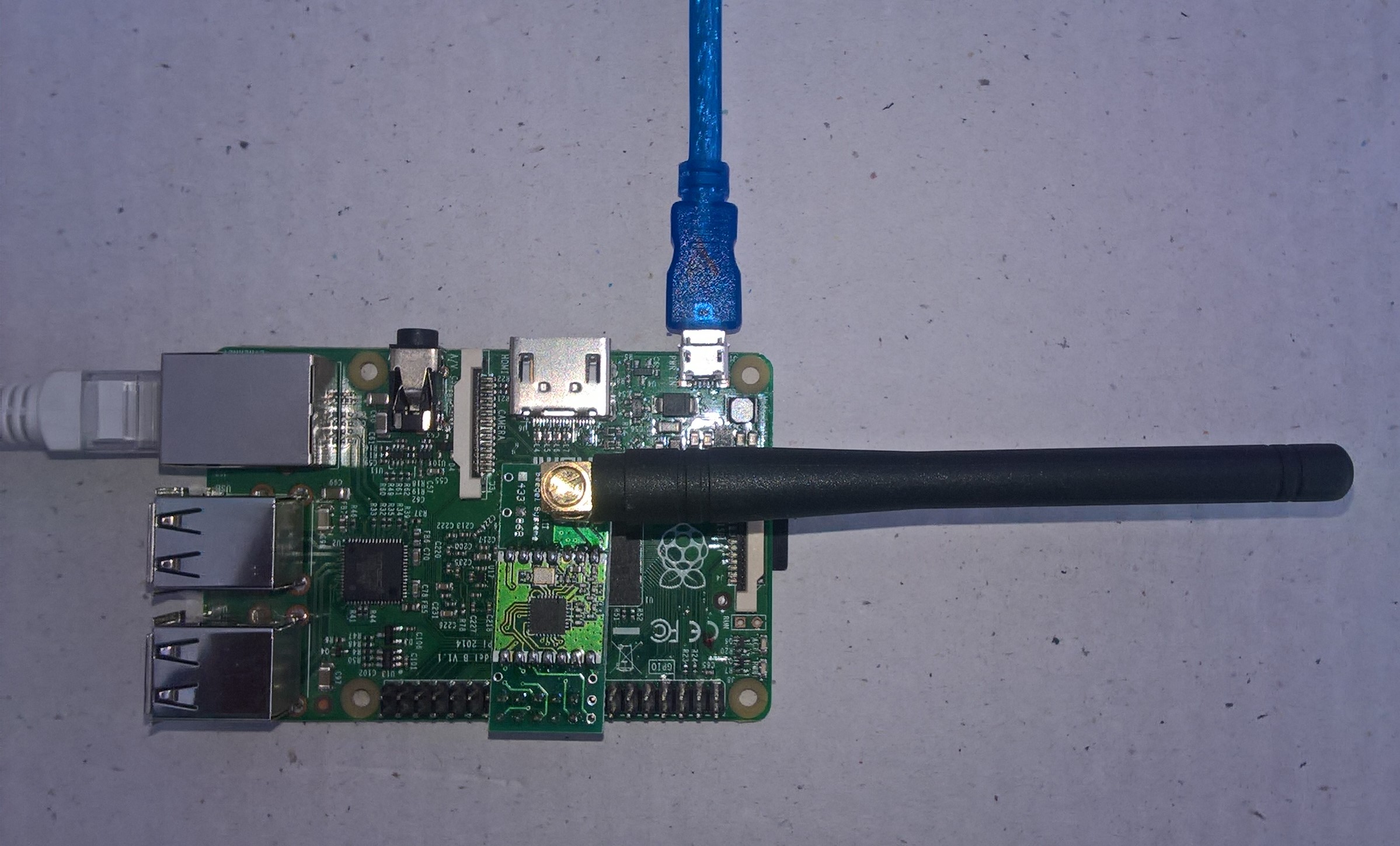
During the week a package arrived from Seeedstudio with a Grove Base Hat for RPI Zero. So I have modified my Grove Base Hat for RPI Windows 10 IoT Core library to add support for the new shield.

Grove Base Hat for Raspberry PI Zero on Raspberry PI 3

The Raspberry PI Zero hat has a two less analog ports and a different device id so some conditional compile options were necessary

namespace devMobile.Windows10IoTCore.GroveBaseHatRPI
{
#if (!GROVE_BASE_HAT_RPI && !GROVE_BASE_HAT_RPI_ZERO)
#error Library must have at least one of GROVE_BASE_HAT_RPI or GROVE_BASE_HAT_RPI_ZERO defined
#endif

#if (GROVE_BASE_HAT_RPI && GROVE_BASE_HAT_RPI_ZERO)
#error Library must have at most one of GROVE_BASE_HAT_RPI or GROVE_BASE_HAT_RPI_ZERO defined
#endif

	public class AnalogPorts : IDisposable
	{
		private const int I2CAddress = 0x04;
		private const byte RegisterDeviceId = 0x0;
		private const byte RegisterVersion = 0x02;
		private const byte RegisterPowerSupplyVoltage = 0x29;
		private const byte RegisterRawBase = 0x10;
		private const byte RegisterVoltageBase = 0x20;
		private const byte RegisterValueBase = 0x30;
#if GROVE_BASE_HAT_RPI
		private const byte DeviceId = 0x0004;
#endif
#if GROVE_BASE_HAT_RPI_ZERO
		private const byte DeviceId = 0x0005;
#endif
		private I2cDevice Device= null;
		private bool Disposed = false;

		public enum AnalogPort
		{
			A0 = 0,
			A1 = 1,
			A2 = 2,
			A3 = 3,
			A4 = 4,
			A5 = 5,
#if GROVE_BASE_HAT_RPI
			A6 = 6,
			A7 = 7,
#endif
		};

The code updates have been “smoke” tested and I have updated the GitHub repository.

Windows 10 IoT Core Cognitive Services Computer Vision API

This application was inspired by one of teachers I work with wanting to check occupancy of different areas in the school library. I had been using the Computer Vision service to try and identify objects around my home and office which had been moderately successful but not terribly useful or accurate.

I added the Azure Cognitive Services Computer Vision API NuGet packages to my Visual Studio 2017 Windows IoT Core project.

Azure Cognitive Services Computer Vision API library

Then I initialised the Computer Vision API client

try
{
	this.computerVisionClient = new ComputerVisionClient(
			 new Microsoft.Azure.CognitiveServices.Vision.ComputerVision.ApiKeyServiceClientCredentials(this.azureCognitiveServicesSubscriptionKey),
			 new System.Net.Http.DelegatingHandler[] { })
	{
		Endpoint = this.azureCognitiveServicesEndpoint,
	};
}
catch (Exception ex)
{
	this.logging.LogMessage("Azure Cognitive Services Computer Vision client configuration failed " + ex.Message, LoggingLevel.Error);
	return;
}

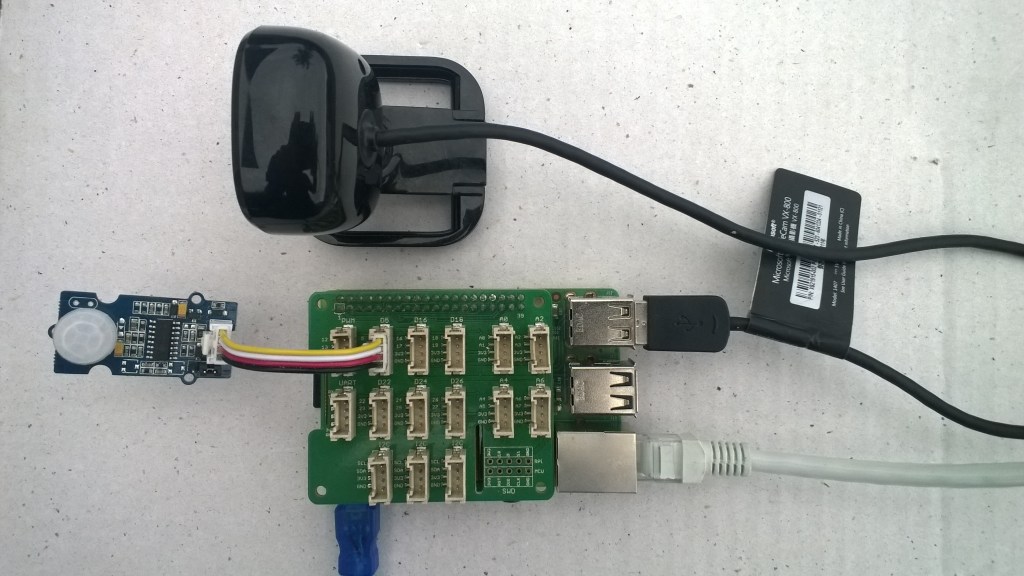
Every time the digital input is strobed by the passive infra red motion detector an image is captured, then uploaded for processing, and finally results displayed. For this sample I’m looking for categories which indicate the image is of a group of people (The categories are configured in the appsettings file)

{
  "InterruptPinNumber": 24,
  "interruptTriggerOn": "RisingEdge",
  "DisplayPinNumber": 35,
  "AzureCognitiveServicesEndpoint": "https://australiaeast.api.cognitive.microsoft.com/",
  "AzureCognitiveServicesSubscriptionKey": "1234567890abcdefghijklmnopqrstuv",
  "ComputerVisionCategoryNames":"people_group,people_many",
  "LocalImageFilenameFormatLatest": "{0}.jpg",
  "LocalImageFilenameFormatHistoric": "{1:yyMMddHHmmss}.jpg",
  "DebounceTimeout": "00:00:30"
} 

If any of the specified categories are identified in the image I illuminate a Light Emitting Diode (LED) for 5 seconds, if an image is being processed or the minimum period between images has not passed the LED is illuminated for 5 milliseconds .

		private async void InterruptGpioPin_ValueChanged(GpioPin sender, GpioPinValueChangedEventArgs args)
		{
			DateTime currentTime = DateTime.UtcNow;
			Debug.WriteLine($"Digital Input Interrupt {sender.PinNumber} triggered {args.Edge}");

			if (args.Edge != this.interruptTriggerOn)
			{
				return;
			}

			// Check that enough time has passed for picture to be taken
			if ((currentTime - this.imageLastCapturedAtUtc) < this.debounceTimeout)
			{
				this.displayGpioPin.Write(GpioPinValue.High);
				this.displayOffTimer.Change(this.timerPeriodDetectIlluminated, this.timerPeriodInfinite);
				return;
			}

			this.imageLastCapturedAtUtc = currentTime;

			// Just incase - stop code being called while photo already in progress
			if (this.cameraBusy)
			{
				this.displayGpioPin.Write(GpioPinValue.High);
				this.displayOffTimer.Change(this.timerPeriodDetectIlluminated, this.timerPeriodInfinite);
				return;
			}

			this.cameraBusy = true;

			try
			{
				using (Windows.Storage.Streams.InMemoryRandomAccessStream captureStream = new Windows.Storage.Streams.InMemoryRandomAccessStream())
				{
					this.mediaCapture.CapturePhotoToStreamAsync(ImageEncodingProperties.CreateJpeg(), captureStream).AsTask().Wait();
					captureStream.FlushAsync().AsTask().Wait();
					captureStream.Seek(0);

					IStorageFile photoFile = await KnownFolders.PicturesLibrary.CreateFileAsync(ImageFilename, CreationCollisionOption.ReplaceExisting);
					ImageEncodingProperties imageProperties = ImageEncodingProperties.CreateJpeg();
					await this.mediaCapture.CapturePhotoToStorageFileAsync(imageProperties, photoFile);

					ImageAnalysis imageAnalysis = await this.computerVisionClient.AnalyzeImageInStreamAsync(captureStream.AsStreamForRead());

					Debug.WriteLine($"Tag count {imageAnalysis.Categories.Count}");

					if (imageAnalysis.Categories.Intersect(this.categoryList, new CategoryComparer()).Any())
					{
						this.displayGpioPin.Write(GpioPinValue.High);

						// Start the timer to turn the LED off
						this.displayOffTimer.Change(this.timerPeriodFaceIlluminated, this.timerPeriodInfinite);
					}

					LoggingFields imageInformation = new LoggingFields();

					imageInformation.AddDateTime("TakenAtUTC", currentTime);
					imageInformation.AddInt32("Pin", sender.PinNumber);
					Debug.WriteLine($"Categories:{imageAnalysis.Categories.Count}");
					imageInformation.AddInt32("Categories", imageAnalysis.Categories.Count);
					foreach (Category category in imageAnalysis.Categories)
					{
						Debug.WriteLine($" Category:{category.Name} {category.Score}");
						imageInformation.AddDouble($"Category:{category.Name}", category.Score);
					}

					this.logging.LogEvent("Captured image processed by Cognitive Services", imageInformation);
				}
			}
			catch (Exception ex)
			{
				this.logging.LogMessage("Camera photo or save failed " + ex.Message, LoggingLevel.Error);
			}
			finally
			{
				this.cameraBusy = false;
			}
		}

		private void TimerCallback(object state)
		{
			this.displayGpioPin.Write(GpioPinValue.Low);
		}

		internal class CategoryComparer : IEqualityComparer<Category>
		{
			public bool Equals(Category x, Category y)
			{
				if (string.Equals(x.Name, y.Name, StringComparison.OrdinalIgnoreCase))
				{
					return true;
				}

				return false;
			}

			public int GetHashCode(Category obj)
			{
				return obj.Name.GetHashCode();
			}
		}

I found that the Computer vision service was pretty good at categorising photos of images like this displayed on my second monitor as containing a group of people.

The debugging output of the application includes the different categories identified in the captured image.

Digital Input Interrupt 24 triggered RisingEdge
Digital Input Interrupt 24 triggered FallingEdge
'backgroundTaskHost.exe' (CoreCLR: CoreCLR_UWP_Domain): Loaded 'C:\Data\Programs\WindowsApps\Microsoft.NET.CoreFramework.Debug.2.2_2.2.27505.2_arm__8wekyb3d8bbwe\System.Diagnostics.DiagnosticSource.dll'. Skipped loading symbols. Module is optimized and the debugger option 'Just My Code' is enabled.
'backgroundTaskHost.exe' (CoreCLR: CoreCLR_UWP_Domain): Loaded 'C:\Data\Programs\WindowsApps\Microsoft.NET.CoreFramework.Debug.2.2_2.2.27505.2_arm__8wekyb3d8bbwe\System.Collections.NonGeneric.dll'. Skipped loading symbols. Module is optimized and the debugger option 'Just My Code' is enabled.
'backgroundTaskHost.exe' (CoreCLR: CoreCLR_UWP_Domain): Loaded 'C:\Data\Programs\WindowsApps\Microsoft.NET.CoreFramework.Debug.2.2_2.2.27505.2_arm__8wekyb3d8bbwe\System.Runtime.Serialization.Formatters.dll'. Skipped loading symbols. Module is optimized and the debugger option 'Just My Code' is enabled.
'backgroundTaskHost.exe' (CoreCLR: CoreCLR_UWP_Domain): Loaded 'C:\Data\Programs\WindowsApps\Microsoft.NET.CoreFramework.Debug.2.2_2.2.27505.2_arm__8wekyb3d8bbwe\System.Diagnostics.TraceSource.dll'. Skipped loading symbols. Module is optimized and the debugger option 'Just My Code' is enabled.
'backgroundTaskHost.exe' (CoreCLR: CoreCLR_UWP_Domain): Loaded 'C:\Data\Programs\WindowsApps\Microsoft.NET.CoreFramework.Debug.2.2_2.2.27505.2_arm__8wekyb3d8bbwe\System.Collections.Specialized.dll'. Skipped loading symbols. Module is optimized and the debugger option 'Just My Code' is enabled.
'backgroundTaskHost.exe' (CoreCLR: CoreCLR_UWP_Domain): Loaded 'C:\Data\Programs\WindowsApps\Microsoft.NET.CoreFramework.Debug.2.2_2.2.27505.2_arm__8wekyb3d8bbwe\System.Drawing.Primitives.dll'. Skipped loading symbols. Module is optimized and the debugger option 'Just My Code' is enabled.
'backgroundTaskHost.exe' (CoreCLR: CoreCLR_UWP_Domain): Loaded 'C:\Data\Programs\WindowsApps\Microsoft.NET.CoreFramework.Debug.2.2_2.2.27505.2_arm__8wekyb3d8bbwe\System.Runtime.Serialization.Primitives.dll'. Skipped loading symbols. Module is optimized and the debugger option 'Just My Code' is enabled.
'backgroundTaskHost.exe' (CoreCLR: CoreCLR_UWP_Domain): Loaded 'C:\Data\Programs\WindowsApps\Microsoft.NET.CoreFramework.Debug.2.2_2.2.27505.2_arm__8wekyb3d8bbwe\System.Data.Common.dll'. Skipped loading symbols. Module is optimized and the debugger option 'Just My Code' is enabled.
'backgroundTaskHost.exe' (CoreCLR: CoreCLR_UWP_Domain): Loaded 'C:\Data\Programs\WindowsApps\Microsoft.NET.CoreFramework.Debug.2.2_2.2.27505.2_arm__8wekyb3d8bbwe\System.Xml.ReaderWriter.dll'. Skipped loading symbols. Module is optimized and the debugger option 'Just My Code' is enabled.
'backgroundTaskHost.exe' (CoreCLR: CoreCLR_UWP_Domain): Loaded 'C:\Data\Programs\WindowsApps\Microsoft.NET.CoreFramework.Debug.2.2_2.2.27505.2_arm__8wekyb3d8bbwe\System.Private.Xml.dll'. Skipped loading symbols. Module is optimized and the debugger option 'Just My Code' is enabled.
'backgroundTaskHost.exe' (CoreCLR: CoreCLR_UWP_Domain): Loaded 'Anonymously Hosted DynamicMethods Assembly'. 
Tag count 1
Categories:1
 Category:people_group 0.8671875
The thread 0x634 has exited with code 0 (0x0).

I used an infrared motion sensor to trigger capture and processing of an image to simulate a application for detecting if there is a group of people in an area of the school library.

I’m going to run this application alongside one of my time-lapse applications to record a days worth of images and manually check the accuracy of the image categorisation. I think that camera location maybe important as well so I’ll try a selection of different USB cameras and locations.

Trial PIR triggered computer vision client

I also found the small PIR motion detector didn’t work very well in a larger space so I’m going to trial a configurable sensor and a repurposed burglar alarm sensor.

Windows 10 IoT Core Cognitive Services Face API

After building a series of Windows 10 IoT Core applications to capture images and store them

I figured some sample applications which used Azure Cognitive Services Vision Services to process captured images would be interesting.

This application was inspired by one of my students who has been looking at an Arduino based LoRa wireless connected sensor for monitoring Ultraviolet(UV) light levels and wanted to check that juniors at the school were wearing their hats on sunny days before going outside.

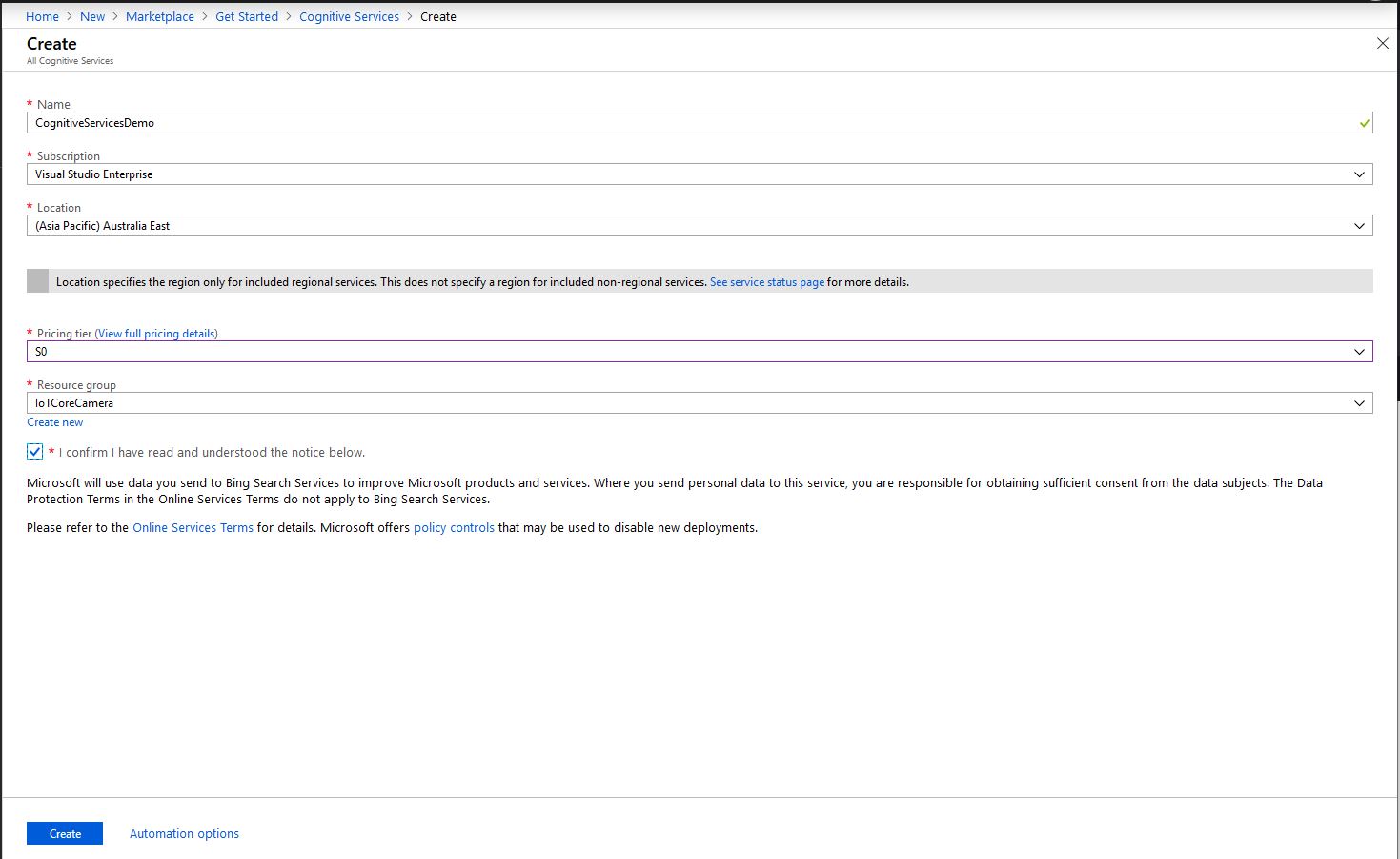
First I needed create a Cognitive Services instance and get the subscription key and endpoint.

Azure Cognitive Services Instance Creation

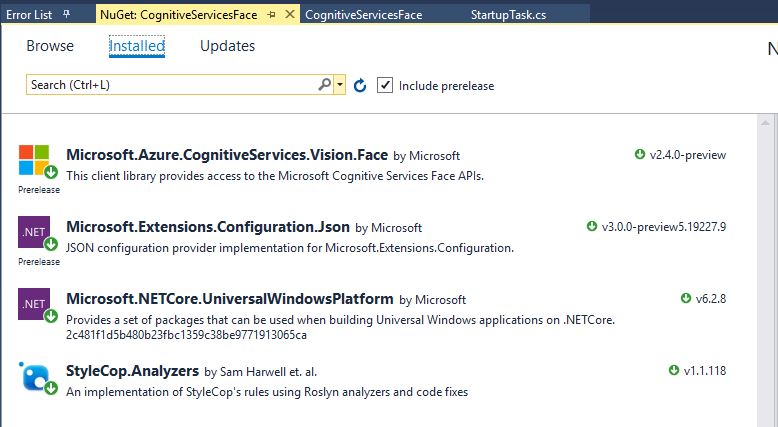
Then I added the Azure Cognitive Services Face API NuGet packages into my Visual Studio Windows IoT Core project

Azure Cognitive Services Vision Face API library

Then initialise the Face API client

try
{
	this.faceClient = new FaceClient(
			 new Microsoft.Azure.CognitiveServices.Vision.Face.ApiKeyServiceClientCredentials(this.azureCognitiveServicesSubscriptionKey),
											 new System.Net.Http.DelegatingHandler[] { })
	{
		Endpoint = this.azureCognitiveServicesEndpoint,
	};
}
catch (Exception ex)
{
	this.logging.LogMessage("Azure Cognitive Services Face Client configuration failed " + ex.Message, LoggingLevel.Error);
	return;
}

Then every time a digital input is strobed and image is captured, then uploaded for processing, and finally results displayed. The interrupt handler has code to stop re-entrancy and contactor bounce causing issues. I also requested that the Face service include age and gender attributes with associated confidence values.

If a face is found in the image I illuminate a Light Emitting Diode (LED) for 5 seconds, if an image is being processed or the minimum period between images has not passed the LED is illuminated for 5 milliseconds .

private async void InterruptGpioPin_ValueChanged(GpioPin sender, GpioPinValueChangedEventArgs args)
{
	DateTime currentTime = DateTime.UtcNow;
	Debug.WriteLine($"Digital Input Interrupt {sender.PinNumber} triggered {args.Edge}");

	if (args.Edge != this.interruptTriggerOn)
	{
		return;
	}

	// Check that enough time has passed for picture to be taken
	if ((currentTime - this.imageLastCapturedAtUtc) < this.debounceTimeout)
	{
		this.displayGpioPin.Write(GpioPinValue.High);
		this.displayOffTimer.Change(this.timerPeriodDetectIlluminated, this.timerPeriodInfinite);
		return;
	}

	this.imageLastCapturedAtUtc = currentTime;

	// Just incase - stop code being called while photo already in progress
	if (this.cameraBusy)
	{
		this.displayGpioPin.Write(GpioPinValue.High);
		this.displayOffTimer.Change(this.timerPeriodDetectIlluminated, this.timerPeriodInfinite);
		return;
	}

	this.cameraBusy = true;

	try
	{
		using (Windows.Storage.Streams.InMemoryRandomAccessStream captureStream = new Windows.Storage.Streams.InMemoryRandomAccessStream())
		{
			this.mediaCapture.CapturePhotoToStreamAsync(ImageEncodingProperties.CreateJpeg(), captureStream).AsTask().Wait();
			captureStream.FlushAsync().AsTask().Wait();
			captureStream.Seek(0);
			IStorageFile photoFile = await KnownFolders.PicturesLibrary.CreateFileAsync(ImageFilename, CreationCollisionOption.ReplaceExisting);
			ImageEncodingProperties imageProperties = ImageEncodingProperties.CreateJpeg();
			await this.mediaCapture.CapturePhotoToStorageFileAsync(imageProperties, photoFile);

			IList<FaceAttributeType> returnfaceAttributes = new List<FaceAttributeType>();
			returnfaceAttributes.Add(FaceAttributeType.Gender);
			returnfaceAttributes.Add(FaceAttributeType.Age);

			IList<DetectedFace> detectedFaces = await this.faceClient.Face.DetectWithStreamAsync(captureStream.AsStreamForRead(), returnFaceAttributes: returnfaceAttributes);

			Debug.WriteLine($"Count {detectedFaces.Count}");

			if (detectedFaces.Count > 0)
			{
				this.displayGpioPin.Write(GpioPinValue.High);

						// Start the timer to turn the LED off
				this.displayOffTimer.Change(this.timerPeriodFaceIlluminated, this.timerPeriodInfinite);
			}

			LoggingFields imageInformation = new LoggingFields();
			imageInformation.AddDateTime("TakenAtUTC", currentTime);
			imageInformation.AddInt32("Pin", sender.PinNumber);
			imageInformation.AddInt32("Faces", detectedFaces.Count);
			foreach (DetectedFace detectedFace in detectedFaces)
			{
				Debug.WriteLine("Face");
				if (detectedFace.FaceId.HasValue)
				{
					imageInformation.AddGuid("FaceId", detectedFace.FaceId.Value);
					Debug.WriteLine($" Id:{detectedFace.FaceId.Value}");
				}
				imageInformation.AddInt32("Left", detectedFace.FaceRectangle.Left);
				imageInformation.AddInt32("Width", detectedFace.FaceRectangle.Width);
				imageInformation.AddInt32("Top", detectedFace.FaceRectangle.Top);
				imageInformation.AddInt32("Height", detectedFace.FaceRectangle.Height);
				Debug.WriteLine($" L:{detectedFace.FaceRectangle.Left} W:{detectedFace.FaceRectangle.Width} T:{detectedFace.FaceRectangle.Top} H:{detectedFace.FaceRectangle.Height}");
				if (detectedFace.FaceAttributes != null)
				{
					if (detectedFace.FaceAttributes.Gender.HasValue)
					{
						imageInformation.AddString("Gender", detectedFace.FaceAttributes.Gender.Value.ToString());
						Debug.WriteLine($" Gender:{detectedFace.FaceAttributes.Gender.ToString()}");
					}

					if (detectedFace.FaceAttributes.Age.HasValue)
					{
						imageInformation.AddDouble("Age", detectedFace.FaceAttributes.Age.Value);
						Debug.WriteLine($" Age:{detectedFace.FaceAttributes.Age.Value.ToString("F1")}");
					}
				}
			}

			this.logging.LogEvent("Captured image processed by Cognitive Services", imageInformation);
		}
	}
	catch (Exception ex)
	{
		this.logging.LogMessage("Camera photo or save failed " + ex.Message, LoggingLevel.Error);
	}
	finally
	{
		this.cameraBusy = false;
	}
}

private void TimerCallback(object state)
{
	this.displayGpioPin.Write(GpioPinValue.Low);
}

This is the image uploaded to the Cognitive Services Vision Face API from my DragonBoard 410C

Which was a photo of this sample image displayed on my second monitor

The debugging output of the application includes the bounding box, gender, age and unique identifier of each detected face.

Digital Input Interrupt 24 triggered RisingEdge
Digital Input Interrupt 24 triggered FallingEdge
Count 13
Face
 Id:41ab8a38-180e-4b63-ab47-d502b8534467
 L:12 W:51 T:129 H:51
 Gender:Female
 Age:24.0
Face
 Id:554f7557-2b78-4392-9c73-5e51fedf0300
 L:115 W:48 T:146 H:48
 Gender:Female
 Age:19.0
Face
 Id:f67ae4cc-1129-46a8-8c5b-0e79f350cbaa
 L:547 W:46 T:162 H:46
 Gender:Female
 Age:56.0
Face
 Id:fad453fb-0923-4ae2-8c9d-73c9d89eaaf4
 L:585 W:45 T:116 H:45
 Gender:Female
 Age:25.0
Face
 Id:c2d2ca4e-faa6-49e8-8cd9-8d21abfc374c
 L:410 W:44 T:154 H:44
 Gender:Female
 Age:23.0
Face
 Id:6fb75edb-654c-47ff-baf0-847a31d2fd85
 L:70 W:44 T:57 H:44
 Gender:Male
 Age:37.0
Face
 Id:d6c97a9a-c49f-4d9c-8eac-eb2fbc03abc1
 L:469 W:44 T:122 H:44
 Gender:Female
 Age:38.0
Face
 Id:e193bf15-6d8c-4c30-adb5-4ca5fb0f0271
 L:206 W:44 T:117 H:44
 Gender:Male
 Age:33.0
Face
 Id:d1ba5a42-0475-4b65-afc8-0651439e1f1e
 L:293 W:44 T:74 H:44
 Gender:Male
 Age:59.0
Face
 Id:b6a7c551-bdad-4e38-8976-923b568d2721
 L:282 W:43 T:144 H:43
 Gender:Female
 Age:28.0
Face
 Id:8be87f6d-7350-4bc3-87f5-3415894b8fac
 L:513 W:42 T:78 H:42
 Gender:Male
 Age:36.0
Face
 Id:e73bd4d7-81a4-403c-aa73-1408ae1068c0
 L:163 W:36 T:94 H:36
 Gender:Female
 Age:44.0
Face
 Id:462a6948-a05e-4fea-918d-23d8289e0401
 L:407 W:36 T:73 H:36
 Gender:Male
 Age:27.0
The thread 0x8e0 has exited with code 0 (0x0).

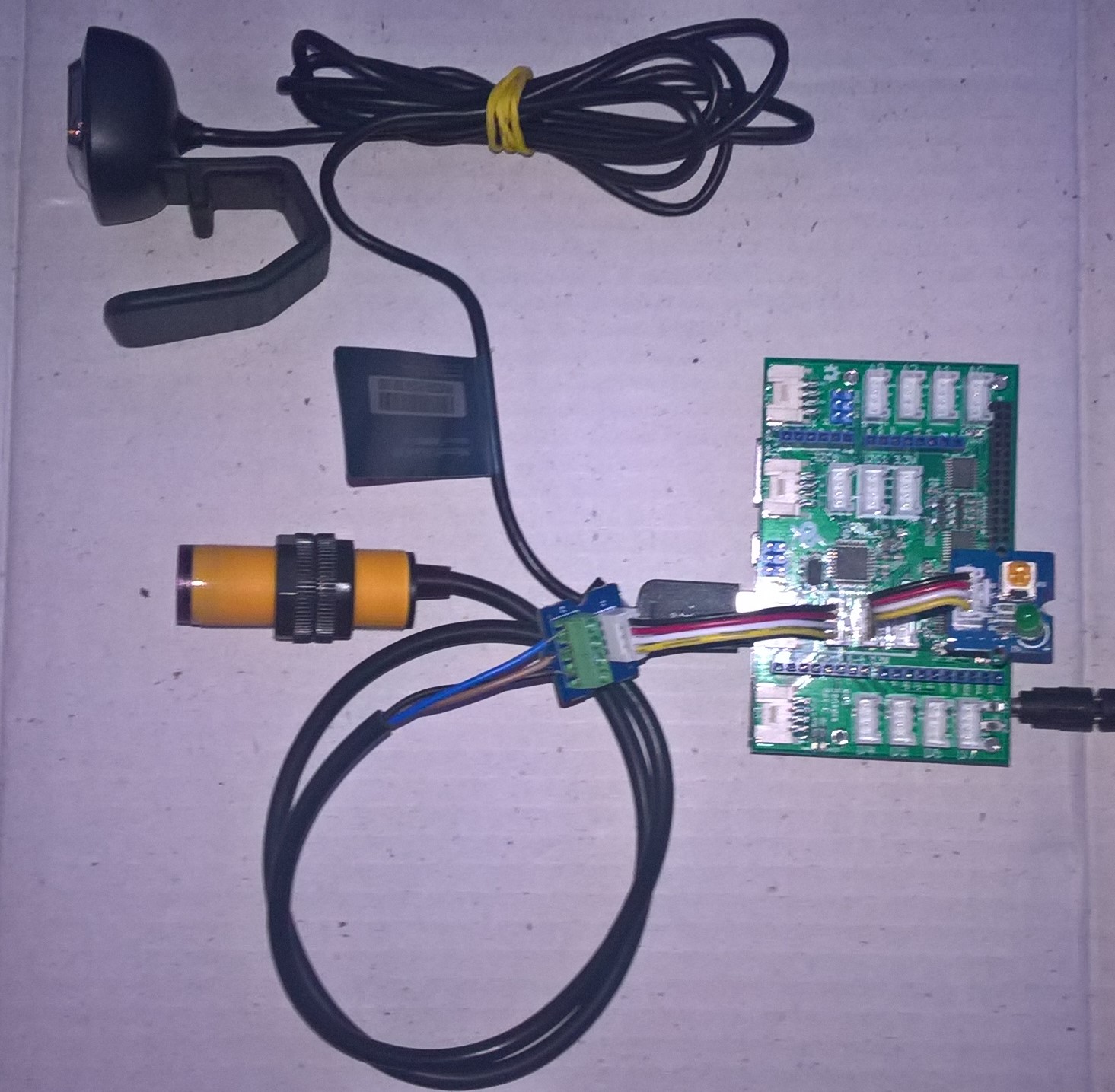
I used a simple infrared proximity sensor trigger the image capture to simulate an application for monitoring the number of people in or people entering a room.

Infrared Proximity Sensor triggered Face API test client

Overall I found that with not a lot of code I could capture an image, upload it to Azure Cognitive Services Face API for processing and the algorithm would reasonably reliably detect faces and features.

Ubidots with MQTTnet

As I’m testing my Message Queue Telemetry Transport(MQTT) LoRa gateway I’m building a proof of concept(PoC) .Net core console application for each IoT platform I would like to support.

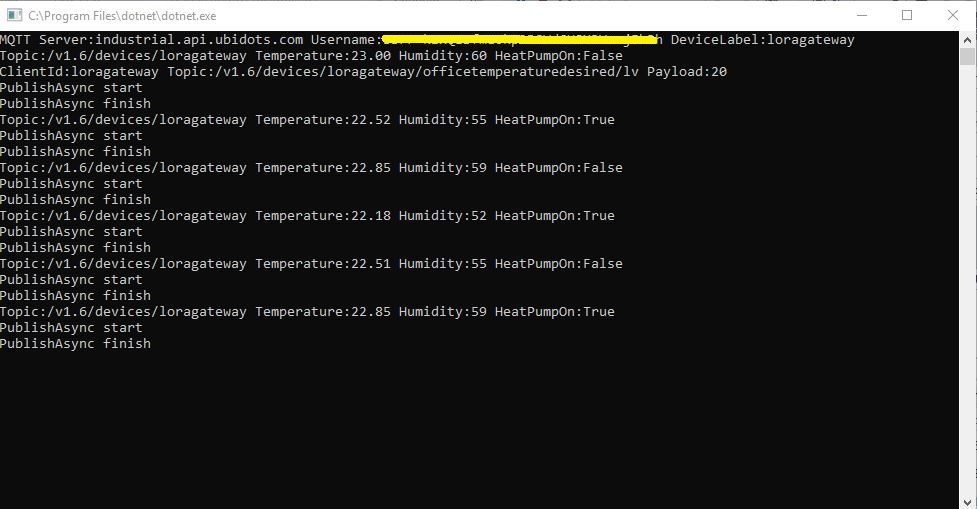
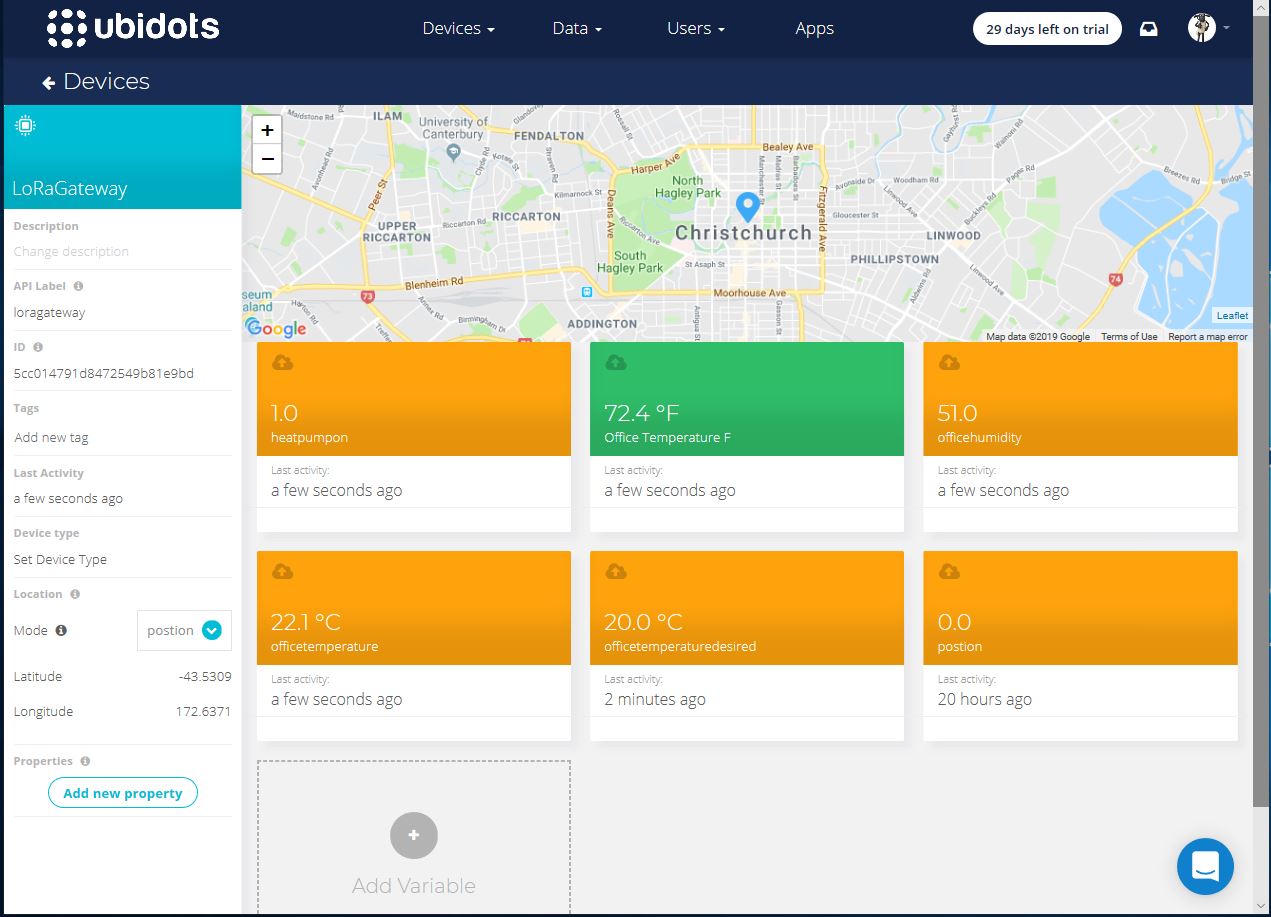
This PoC was to confirm that I could connect to the ubidots MQTT API then format the topics and payloads correctly. The ubidots screen designer has “variables” (both actual sensors & synthetic calculated ones) which present as topics so I built a client which could subscribe to these.

.Net Core V2 MQTTnet client

The MQTT broker, username, password, and client ID are command line options.

class Program
{
	private static IMqttClient mqttClient = null;
	private static IMqttClientOptions mqttOptions = null;
	private static string server;
	private static string username;
	private static string deviceLabel;

	static void Main(string[] args)
	{
		MqttFactory factory = new MqttFactory();
		mqttClient = factory.CreateMqttClient();
		bool heatPumpOn = false;

		if (args.Length != 3)
		{
			Console.WriteLine("[MQTT Server] [UserName] [Password] [ClientID]");
			Console.WriteLine("Press <enter> to exit");
			Console.ReadLine();
			return;
		}

		server = args[0];
		username = args[1];
		deviceLabel = args[2];

		Console.WriteLine($"MQTT Server:{server} Username:{username} DeviceLabel:{deviceLabel}");

		mqttOptions = new MqttClientOptionsBuilder()
			.WithTcpServer(server)
			.WithCredentials(username, "NotVerySecret")
			.WithClientId(deviceLabel)
			.WithTls()
			.Build();

		mqttClient.ApplicationMessageReceived += MqttClient_ApplicationMessageReceived;
		mqttClient.Disconnected += MqttClient_Disconnected;
		mqttClient.ConnectAsync(mqttOptions).Wait();

		// Setup a subscription for commands sent to client
		string commandTopic = $"/v1.6/devices/{deviceLabel}/officetemperaturedesired/lv";
		mqttClient.SubscribeAsync(commandTopic).GetAwaiter().GetResult();

		//// Ubidots formatted client state update topic
		string stateTopic = $"/v1.6/devices/{deviceLabel}";

		while (true)
		{
			string payloadText;
			double temperature = 22.0 + (DateTime.UtcNow.Millisecond / 1000.0);
			double humidity = 50 + (DateTime.UtcNow.Millisecond / 100.0);
			double speed = 10 + (DateTime.UtcNow.Millisecond / 100.0);
			Console.WriteLine($"Topic:{stateTopic} Temperature:{temperature:0.00} Humidity:{humidity:0} HeatPumpOn:{heatPumpOn}");

			// First attempt which worked
			//payloadText = @"{""OfficeTemperature"":22.5}";

			// Second attempt to work out data format with "real" values injected
			//payloadText = @"{ ""officetemperature"":"+ temperature.ToString("F2") + @",""officehumidity"":" + humidity.ToString("F0") + @"}";

			// Third attempt with Jobject which sort of worked but number serialisation was sub optimal
			JObject payloadJObject = new JObject(); 
			payloadJObject.Add("OfficeTemperature", temperature.ToString("F2"));
			payloadJObject.Add("OfficeHumidity", humidity.ToString("F0"));

			if (heatPumpOn)
			{
				payloadJObject.Add("HeatPumpOn", 1);
			}
			else
			{
				payloadJObject.Add("HeatPumpOn", 0);
			}
			heatPumpOn = !heatPumpOn;
			payloadText = JsonConvert.SerializeObject(payloadJObject);

			/*
			// Forth attempt with JOBject, timestamps and gps 
			JObject payloadJObject = new JObject();
			JObject context = new JObject();
			context.Add("lat", "-43.5309325");
			context.Add("lng", "172.637119");// Christchurch Cathederal
			//context.Add("timestamp", ((DateTimeOffset)(DateTime.UtcNow)).ToUnixTimeSeconds()); // This field is optional and can be commented out
			JObject position = new JObject();
			position.Add("context", context);
			position.Add("value", "0");
			payloadJObject.Add("postion", position);
			payloadText = JsonConvert.SerializeObject(payloadJObject);
			*/

			var message = new MqttApplicationMessageBuilder()
				.WithTopic(stateTopic)
				.WithPayload(payloadText)
				.WithQualityOfServiceLevel(global::MQTTnet.Protocol.MqttQualityOfServiceLevel.AtLeastOnce)
			//.WithExactlyOnceQoS()// With ubidots this caused the publish to hang
			.WithAtLeastOnceQoS()
			.WithRetainFlag() 
			.Build();

			Console.WriteLine("PublishAsync start");
			mqttClient.PublishAsync(message).Wait();
			Console.WriteLine("PublishAsync finish");

			Thread.Sleep(30100);
		}
	}

	private static void MqttClient_ApplicationMessageReceived(object sender, MqttApplicationMessageReceivedEventArgs e)
	{
		Console.WriteLine($"ClientId:{e.ClientId} Topic:{e.ApplicationMessage.Topic} Payload:{e.ApplicationMessage.ConvertPayloadToString()}");
	}

	private static async void MqttClient_Disconnected(object sender, MqttClientDisconnectedEventArgs e)
	{
		Debug.WriteLine("Disconnected");
		await Task.Delay(TimeSpan.FromSeconds(5));

		try
		{
			await mqttClient.ConnectAsync(mqttOptions);
		}
		catch (Exception ex)
		{
			Debug.WriteLine("Reconnect failed {0}", ex.Message);
		}
	}
}

For this PoC I used the MQTTnet package which is available via NuGet. It appeared to be reasonably well supported and has had recent updates.

Variable configuration with device location map

Overall the initial configuration went smoothly, I found the dragging of blocks onto the dashboard and configuring them worked as expected.

The configuration of a “synthetic” variable (converting a temperature to Fahrenheit for readers from the Unites States of America, Myanmar & Liberia ) took a couple of goes to get right.

I may have missed something (April 2019) but the lack of boolean datatype variables was a bit odd.

Synthetic (calculated) variable configuration

I put a slider control on my test dashboard, associated it with a variable and my client reliably received messages when the slider was moved.

Dashboard with slider for desired temperature

Overall the Ubidots experience was pretty good and I’m going to spend some more time working with the device, data, users configurations to see how well it works for a “real-world” project.

I found (April 2019) that to get MQTTS going I had to install a Ubidots provided certificate

MQTT with TLS guidance and certificate download link

When my .Net Core application didn’t work I tried one my MQTT debugging tools and they didn’t work either with the Ubitdots MQTT brokers. The Ubidots forum people were quite helpful, but making it not necessary to install a certificate or making it really obvious in the documentation that this was required would be a good thing.

Losant IoT with MQTTnet

As I’m testing my Message Queue Telemetry Transport(MQTT) LoRa gateway I’m building a proof of concept(PoC) .Net core console application for each IoT platform I would like to support.

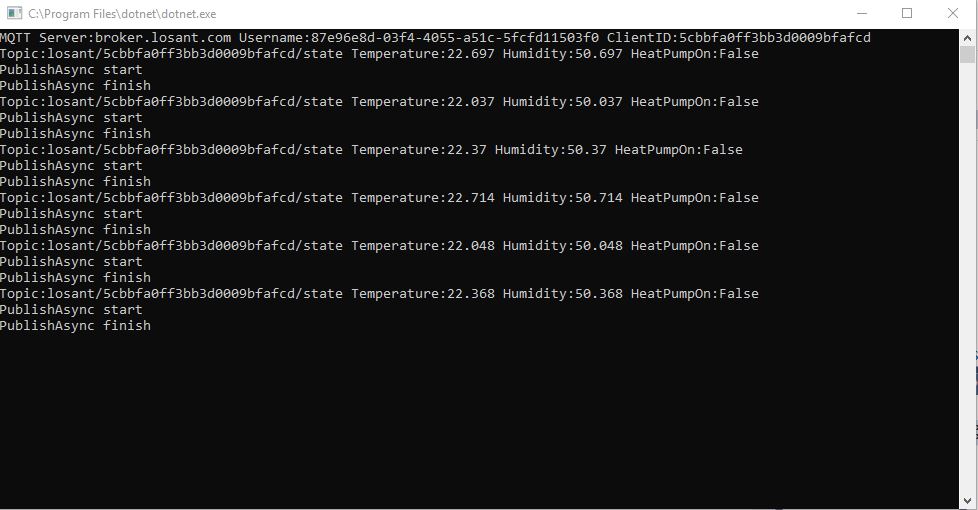
This PoC was to confirm that I could connect to the Losant MQTT API then format the topics and payloads correctly. The Losant screen designer has “Blocks” which generate commands for devices so I extended the test client to see how well this worked.

The MQTT broker, username, password, and client ID are command line options.

class Program
{
	private static IMqttClient mqttClient = null;
	private static IMqttClientOptions mqttOptions = null;
	private static string server;
	private static string username;
	private static string password;
	private static string clientId;

	static void Main(string[] args)
	{
		MqttFactory factory = new MqttFactory();
		mqttClient = factory.CreateMqttClient();
		bool heatPumpOn = false;

		if (args.Length != 4)
		{
			Console.WriteLine("[MQTT Server] [UserName] [Password] [ClientID]");
			Console.WriteLine("Press <enter> to exit");
			Console.ReadLine();
		}

		server = args[0];
		username = args[1];
		password = args[2];
		clientId = args[3];

		Console.WriteLine($"MQTT Server:{server} Username:{username} ClientID:{clientId}");

		mqttOptions = new MqttClientOptionsBuilder()
			.WithTcpServer(server)
			.WithCredentials(username, password)
			.WithClientId(clientId)
			.WithTls()
			.Build();

		mqttClient.ApplicationMessageReceived += MqttClient_ApplicationMessageReceived;
		mqttClient.Disconnected += MqttClient_Disconnected;
		mqttClient.ConnectAsync(mqttOptions).Wait();

		// Setup a subscription for commands sent to client
		string commandTopic = $"losant/{clientId}/command";
		mqttClient.SubscribeAsync(commandTopic);

		// Losant formatted client state update topic
		string stateTopic = $"losant/{clientId}/state";

		while (true)
		{
			string payloadText;
			double temperature = 22.0 + +(DateTime.UtcNow.Millisecond / 1000.0);
			double humidity = 50 + +(DateTime.UtcNow.Millisecond / 1000.0);
			Console.WriteLine($"Topic:{stateTopic} Temperature:{temperature} Humidity:{humidity} HeatPumpOn:{heatPumpOn}");

			// First attempt which worked
			//payloadText = @"{""data"":{ ""OfficeTemperature"":22.5}}";

			// Second attempt to work out data format with "real" values injected
			payloadText = @"{""data"":{ ""OfficeTemperature"":"+ temperature.ToString("f1") + @",""OfficeHumidity"":" + humidity.ToString("F0") + @"}}";

			// Third attempt with Jobject which sort of worked but number serialisation is sub optimal
			//JObject payloadJObject = new JObject(); 
			//payloadJObject.Add("time", DateTime.UtcNow.ToString("u")); // This field is optional and can be commented out

			//JObject data = new JObject();
			//data.Add("OfficeTemperature", temperature.ToString("F1"));
			//data.Add("OfficeHumidity", humidity.ToString("F0"));

			//data.Add("HeatPumpOn", heatPumpOn);
			//heatPumpOn = !heatPumpOn;
			//payloadJObject.Add( "data", data);

			//payloadText = JsonConvert.SerializeObject(payloadJObject);

			// Forth attempt with JOBject and gps info https://docs.losant.com/devices/state/
			//JObject payloadJObject = new JObject(); 
			//payloadJObject.Add("time", DateTime.UtcNow.ToString("u")); // This field is optional and can be commented out
			//JObject data = new JObject();
			//data.Add("GPS", "-43.5309325, 172.637119"); // Christchurch Cathederal
			//payloadJObject.Add("data", data);
			//payloadText = JsonConvert.SerializeObject(payloadJObject);

			var message = new MqttApplicationMessageBuilder()
				.WithTopic(stateTopic)
				.WithPayload(payloadText)
				.WithQualityOfServiceLevel(global::MQTTnet.Protocol.MqttQualityOfServiceLevel.AtLeastOnce)
				//.WithExactlyOnceQoS() With Losant this caused the publish to hang
				.WithAtLeastOnceQoS()
				//.WithRetainFlag() Losant doesn't allow this flag
				.Build();

			Console.WriteLine("PublishAsync start");
				mqttClient.PublishAsync(message).Wait();
			Console.WriteLine("PublishAsync finish");

			Thread.Sleep(30100);
		}
	}

	private static void MqttClient_ApplicationMessageReceived(object sender, MqttApplicationMessageReceivedEventArgs e)
	{
		Console.WriteLine($"ClientId:{e.ClientId} Topic:{e.ApplicationMessage.Topic} Payload:{e.ApplicationMessage.ConvertPayloadToString()}");
	}

	private static async void MqttClient_Disconnected(object sender, MqttClientDisconnectedEventArgs e)
	{
		Debug.WriteLine("Disconnected");
		await Task.Delay(TimeSpan.FromSeconds(5));

		try
		{
			await mqttClient.ConnectAsync(mqttOptions);
		}
		catch (Exception ex)
		{
			Debug.WriteLine("Reconnect failed {0}", ex.Message);
		}
	}
}

For this PoC I used the MQTTnet package which is available via NuGet. It appeared to be reasonably well supported and has had recent updates.

Overall the initial configuration went really smoothly, I found the dragging of blocks onto the dashboard and configuring them worked well.

Losant device configuration screen with trace logging

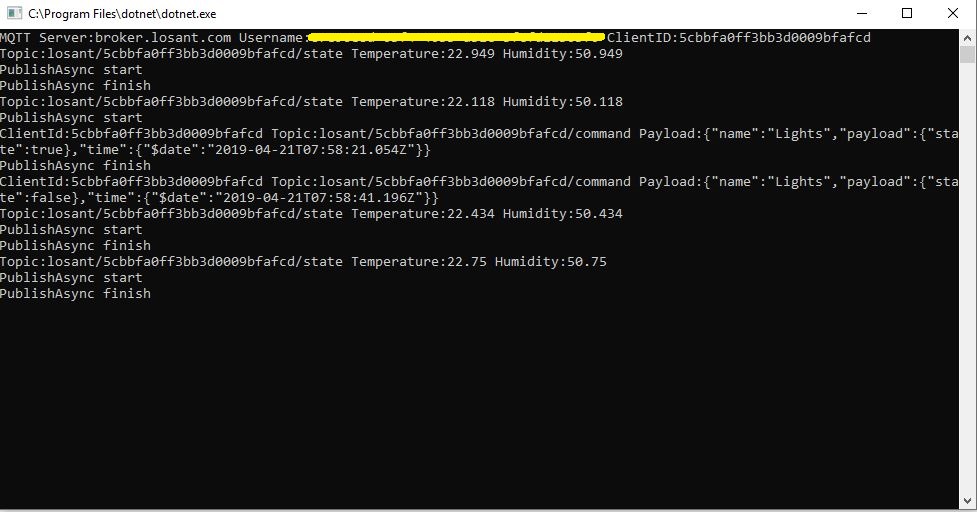
Losant .Net Core V2 client uploading simulated sensor readings

The device log made bringing up a new device easy and the error messages displayed when I had badly formatted payloads were helpful (unlike many other packages I have used).

I put a button block on the overview screen, associated it with a command publication and my client reliably received messages when the button was pressed

Losant .Net Core V2 client processing command

Overall the Losant experience was pretty good and I’m going to spend some more time working with the application designer, devices recipes, webhooks, integrations and workflows etc. to see how well it works for a “real-world” project.

Adafruit MQTT with MQTTnet

Before building the Message Queue Telemetry Transport(MQTT) gateway I built a proof of concept(PoC) .Net core console application. This was to confirm that I could connect to the Adafruit.IO MQTT broker and format the topic (with and without group name) and payload correctly. The Adafruit IO MQTT documentation suggests an approach for naming topics which allows a bit more structure for feed names than the REST API.

The MQTT broker, username, API key, client ID, optional group name (to keep MQTT aligned with REST API terminology) and feed name are command line options.

class Program
{
	private static IMqttClient mqttClient = null;
	private static IMqttClientOptions mqttOptions = null;
	private static string server;
	private static string username;
	private static string password;
	private static string clientId;
	private static string groupname;
	private static string feedname;

	static void Main(string[] args)
	{
		MqttFactory factory = new MqttFactory();
		mqttClient = factory.CreateMqttClient();

		if ((args.Length != 5) && (args.Length != 6))
		{
			Console.WriteLine("[MQTT Server] [UserName] [Password] [ClientID] [GroupName] [FeedName]");
			Console.WriteLine("[MQTT Server] [UserName] [Password] [ClientID] [FeedName]");
			Console.WriteLine("Press <enter> to exit");
			Console.ReadLine();
			return;
		}

		server = args[0];
		username = args[1];
		password = args[2];
		clientId = args[3];
		if (args.Length == 5)
		{
			feedname = args[4].ToLower();
			Console.WriteLine($"MQTT Server:{server} Username:{username} ClientID:{clientId} Feedname:{feedname}");
		}

		if (args.Length == 6)
		{
			groupname = args[4].ToLower();
			feedname = args[5].ToLower();
			Console.WriteLine($"MQTT Server:{server} Username:{username} ClientID:{clientId} Groupname:{groupname} Feedname:{feedname}");
		}

		mqttOptions = new MqttClientOptionsBuilder()
			.WithTcpServer(server)
			.WithCredentials(username, password)
			.WithClientId(clientId)
			.WithTls()
			.Build();

		mqttClient.Disconnected += MqttClient_Disconnected;
		mqttClient.ConnectAsync(mqttOptions).Wait();

		// Adafruit.IO format for topics which are called feeds
		string topic = string.Empty;

		if (args.Length == 5)
		{
			topic = $"{args[1]}/feeds/{feedname}";
		}

		if (args.Length == 6)
		{
			topic = $"{args[1]}/feeds/{groupname}.{feedname}";
		}

		while (true)
		{
			string value = "22." + DateTime.UtcNow.Millisecond.ToString();
			Console.WriteLine($"Topic:{topic} Value:{value}");

			var message = new MqttApplicationMessageBuilder()
				.WithTopic(topic)
				.WithPayload(value)
				.WithQualityOfServiceLevel(MQTTnet.Protocol.MqttQualityOfServiceLevel.AtLeastOnce)
				.WithRetainFlag()
				.Build();

			Console.WriteLine("PublishAsync start");
			mqttClient.PublishAsync(message).Wait();
			Console.WriteLine("PublishAsync finish");

			Thread.Sleep(30100);
		}
	}

	private static async void MqttClient_Disconnected(object sender, MqttClientDisconnectedEventArgs e)
	{
		Debug.WriteLine("Disconnected");
		await Task.Delay(TimeSpan.FromSeconds(5));

		try
		{
			await mqttClient.ConnectAsync(mqttOptions);
		}
		catch (Exception ex)
		{
			Debug.WriteLine("Reconnect failed {0}", ex.Message);
		}
	}
}

For this PoC I used the MQTTnet package which is available via NuGet. It appeared to be reasonably well supported and has had recent updates.

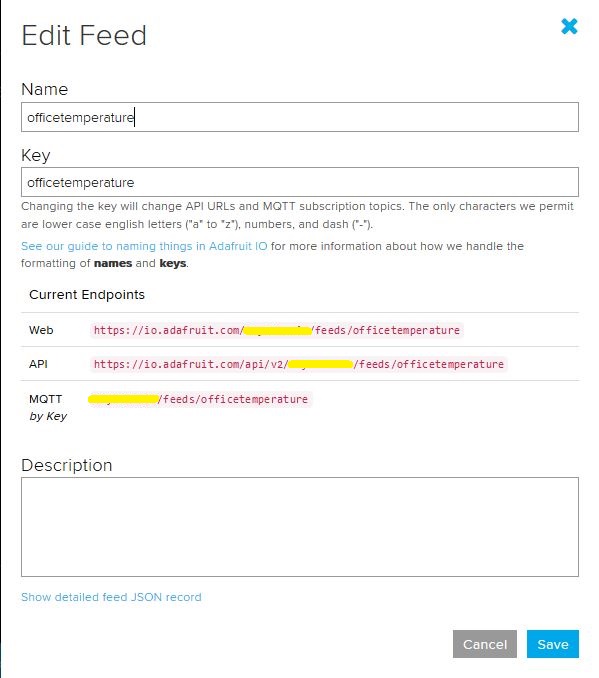
Overall the process went pretty well, I found that looking at the topic names in the Adafruit IO feed setup screens helped a lot. A couple of times I was tripped up by mixed case in my text fields.

.Net Core 2 client with group name
Adafruit IO feed setup with group name
Console client without group name
Adafruit IO feed setup without group name

I am also going to try building some clients with the Eclipse Paho project .net client so I can compare a couple of different libraries.

MQTT LoRa Windows 10 IoT Core Field Gateway

After building platform specific gateways I have built an MQ Telemetry Transport(MQTT) Field Gateway. The application is a Windows IoT Core background task and uses the MQTTnet client. The first supported cloud Internet of Things (IoT) application API is the AdaFruit.IO MQTT interface.

This client implementation is not complete and currently only supports basic topic formatting (setup in the config.json file) and device to cloud (D2C messaging). The source code and a selection of prebuilt installers are available on GitHub.com.

Included with the field gateway application are number of console applications that I am using to debug connectivity with the different cloud platforms.

There also sample Arduino with Dragino LoRa Shield for Arduino, MakerFabs Maduino, Dragino LoRa Mini Dev, M2M Low power Node and Netduino with Elecrow LoRa RFM95 Shield etc. clients

AdaFruit.IO dashboard for Arduino Sensor Node
Arduino device with AM2302 temperature sensor

When the application is first started it creates a minimal configuration file which should be downloaded, the missing information filled out, then uploaded using the File explorer in the Windows device portal.

{
  "MQTTUserName": "",
  "MQTTPassword": "",
  "MqttTopicFormat": "{0}/feeds/{1}{2}",
  "MQTTClientID": "",
  "MQTTServer": "",
  "Address": "LoRaIoT2",
  "Frequency": 433000000.0
}

The application logs debugging information to the Windows 10 IoT Core ETW logging Microsoft-Windows-Diagnostics-LoggingChannel

The application currently only supports comma separated value(CSV) payloads. I am working on JavaScript Object Notation(JSON) and Low Power Payload(LPP) support.

Over time I will upload pre-built application packages to the gihub repo to make it easier to install. The installation process is exactly the same as my AdaFruit.IO and Azure IoT Hubs/Central field gateways.

Azure IOT Hub nRF24L01 Windows 10 IoT Core Field Gateway with BorosRF2

A couple of BorosRF2 Dual nRF24L01 Hats arrived earlier in the week. After some testing with my nRF24L01 Test application I have added compile-time configuration options for the two nRF24L01 sockets to my Azure IoT Hub nRF24L01 Field Gateway.

Boros RF2 with Dual nRF24L01 devices
public sealed class StartupTask : IBackgroundTask
{
   private const string ConfigurationFilename = "config.json";

   private const byte MessageHeaderPosition = 0;
   private const byte MessageHeaderLength = 1;

   // nRF24 Hardware interface configuration
#if CEECH_NRF24L01P_SHIELD
   private const byte RF24ModuleChipEnablePin = 25;
   private const byte RF24ModuleChipSelectPin = 0;
   private const byte RF24ModuleInterruptPin = 17;
#endif

#if BOROS_RF2_SHIELD_RADIO_0
   private const byte RF24ModuleChipEnablePin = 24;
   private const byte RF24ModuleChipSelectPin = 0;
   private const byte RF24ModuleInterruptPin = 27;
#endif

#if BOROS_RF2_SHIELD_RADIO_1
   private const byte RF24ModuleChipEnablePin = 25;
   private const byte RF24ModuleChipSelectPin = 1;
   private const byte RF24ModuleInterruptPin = 22;
#endif

private readonly LoggingChannel logging = new LoggingChannel("devMobile Azure IotHub nRF24L01 Field Gateway", null, new Guid("4bd2826e-54a1-4ba9-bf63-92b73ea1ac4a"));
private readonly RF24 rf24 = new RF24();

This version supports one nRF24L01 device socket active at a time.

Enabling both nRF24L01 device sockets broke outbound message routing in a prototype branch with cloud to device(C2D) messaging support. This functionality is part of an Over The Air(OTA) device provisioning implementation I’m working o.

Adafruit.IO nRF24L01 Windows 10 IoT Core Field Gateway with BorosRF2

A couple of BorosRF2 Dual nRF24L01 Hats arrived earlier in the week. After some testing with my nRF24L01 Test application I have added compile-time configuration options for the two nRF24L01 sockets to my Adafruit.IO nRF24L01 Field Gateway.

Boros RF2 with Dual nRF24L01 devices
public sealed class StartupTask : IBackgroundTask
{
   private const string ConfigurationFilename = "config.json";

   private const byte MessageHeaderPosition = 0;
   private const byte MessageHeaderLength = 1;

   // nRF24 Hardware interface configuration
#if CEECH_NRF24L01P_SHIELD
   private const byte RF24ModuleChipEnablePin = 25;
   private const byte RF24ModuleChipSelectPin = 0;
   private const byte RF24ModuleInterruptPin = 17;
#endif

#if BOROS_RF2_SHIELD_RADIO_0
   private const byte RF24ModuleChipEnablePin = 24;
   private const byte RF24ModuleChipSelectPin = 0;
   private const byte RF24ModuleInterruptPin = 27;
#endif

#if BOROS_RF2_SHIELD_RADIO_1
   private const byte RF24ModuleChipEnablePin = 25;
   private const byte RF24ModuleChipSelectPin = 1;
   private const byte RF24ModuleInterruptPin = 22;
#endif

private readonly LoggingChannel loggingChannel = new LoggingChannel("devMobile AdaFruit.IO nRF24L01 Field Gateway", null, new Guid("4bd2826e-54a1-4ba9-bf63-92b73ea1ac4a"));
private readonly RF24 rf24 = new RF24();

For this initial version only one nRF24L01 device socket active at a time is supported.

Windows 10 IoT Core BorosRf2 – Dual nRF24L01 pHat/Hat

I have a couple of nRF24L01P Raspberry PI projects (primarily my Adafruit.IO and Azure IoT Hubs/Central Windows 10 IoT Core telemetry field gateways) and recently Boros Lab a vendor of suitable Raspberry PI Hats opened a store on Tindie.com.

I ordered a couple of BorosRf2 – Dual nRF24L01 pHat/Hat + RTC for Pis (mine were without the Real-time clock(RTC)) for testing. The vendor’s github repository had details of the GPIO pins used so it was relatively quick and easy to modify my Windows 10 IoT nRF24L01 test harness to work with a single port on the hat.

Single port configuration

By setting a conditional compile option (CEECH_NRF24L01P_SHIELD, BOROS_RF2_SHIELD_RADIO_0 or BOROS_RF2_SHIELD_RADIO_1) my test application could be configured to support the Boros or Ceech (with a modification detailed here) shields.

namespace devmobile.IoTCore.nRF24L01BackGroundTask
{
	public sealed class StartupTask : IBackgroundTask
	{
		// nRF24 Hardware interface configuration
#if CEECH_NRF24L01P_SHIELD
      private const byte ChipEnablePin = 25;
      private const byte ChipSelectPin = 0;
      private const byte InterruptPin = 17;
#endif
#if BOROS_RF2_SHIELD_RADIO_0
      private const byte ChipEnablePin = 24;
      private const byte ChipSelectPin = 0;
      private const byte InterruptPin = 27;
#endif
#if BOROS_RF2_SHIELD_RADIO_1
      private const byte ChipEnablePin = 25;
      private const byte ChipSelectPin = 1;
      private const byte InterruptPin = 22;
#endif
      private const string BaseStationAddress = "Node1";
      private const byte nRF24Channel = 20;
      private RF24 Radio = new RF24();
      private BackgroundTaskDeferral deferral;
      private ThreadPoolTimer timer;


Both vendors’ shields worked well with my test application, the ceech shield (USD9.90 April 2019) is a little bit cheaper, but the Boros shield (USD15.90 April 2019 ) doesn’t require any modification and has a socket for a second nRF24 device.