Random wanderings through Microsoft Azure esp. PaaS plumbing, the IoT bits, AI on Micro controllers, AI on Edge Devices, .NET nanoFramework, .NET Core on *nix and ML.NET+ONNX
After getting MQ Telemetry Transport (MQTT) Device to Cloud (D2C) messaging working for AdaFruit.IO I have also got Cloud to Device (C2D) messaging working as well.
The MQTT broker, username, API key, client ID, optional group name (to keep MQTT aligned with REST API terminology), command topic and feed name are command line options.
The Adafruit IO MQTT documentation suggests an approach for naming topics which allows a bit more structure for feed (D2C and C2D) names than the RESTAPI (which only does D2C).
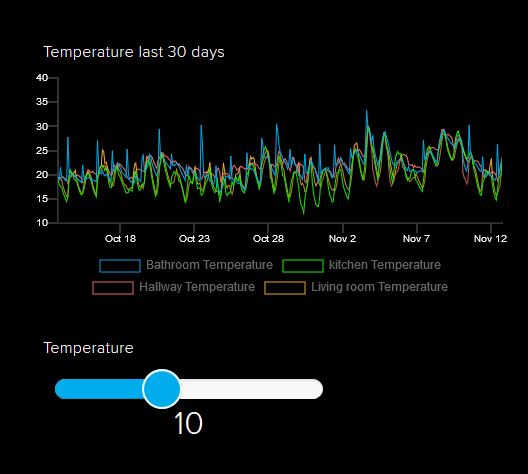
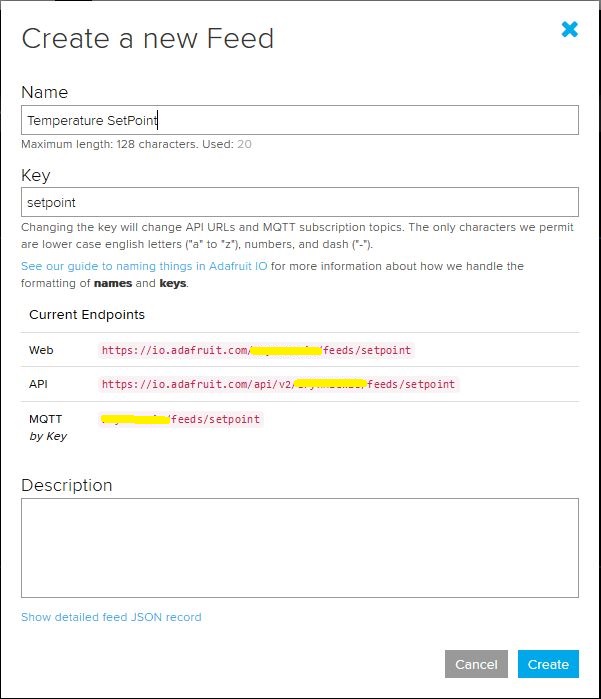
I configured a slider on the dashboard for my home called “setpoint” (yet again I was tripped up “automatically” camel casing the name because I’m a C# developer) which my MQTT client subscribed to.
AdaFruit.IO Home monitoring dashboardsetpoint feed configuration
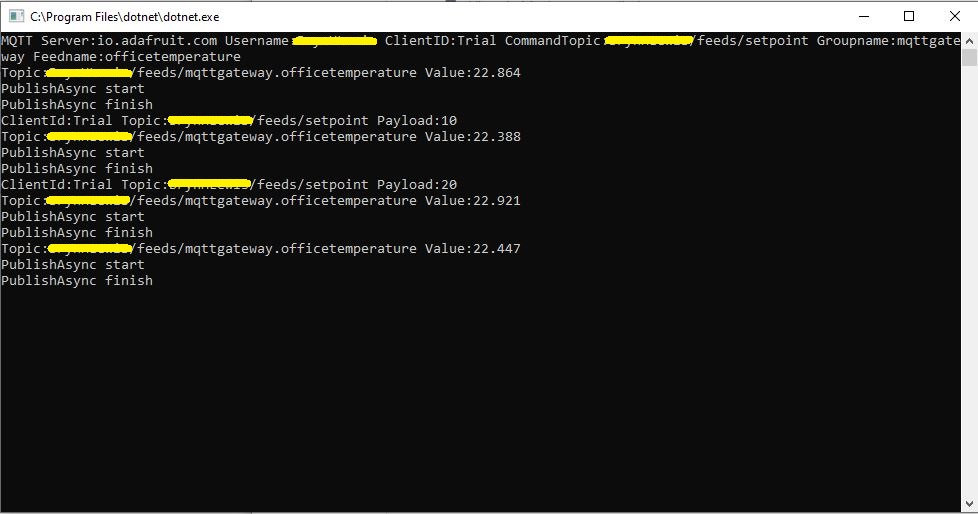
After figuring out the format of the command topic I found that when the slider was moved the MQTT client subscription event fired reliably.
AdaFruit Client showing the setpoint value change notifications
Overall the process went pretty well, though the manual configuration of the subscriptions to AdaFruit.IO feeds could become a bit of a problem at scale.
After a 6 month pause I’m back working on my Message Queue Telemetry Transport(MQTT) LoRa gateway.
As I’m testing my Message Queue Telemetry Transport(MQTT) LoRa gateway I’m building a proof of concept(PoC) .Net core console application for each IoT platform I would like to support.
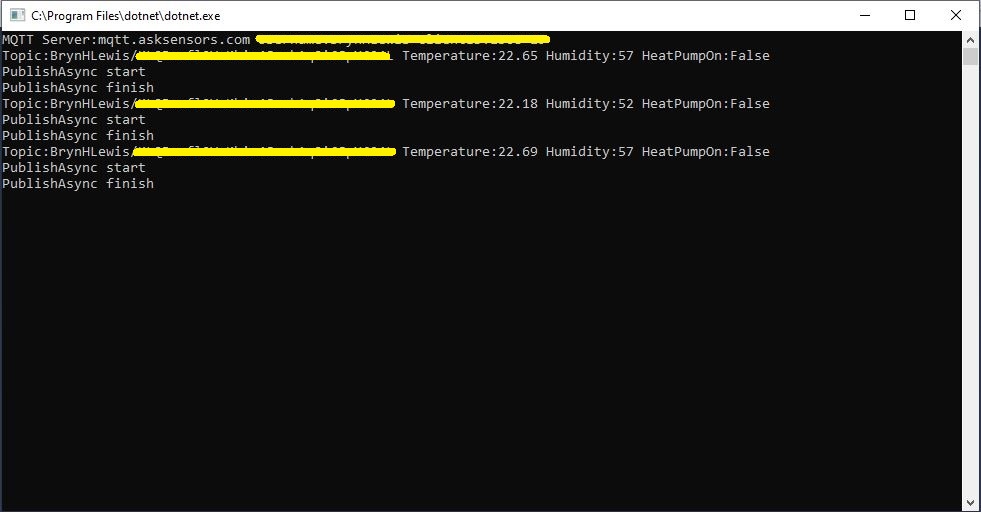
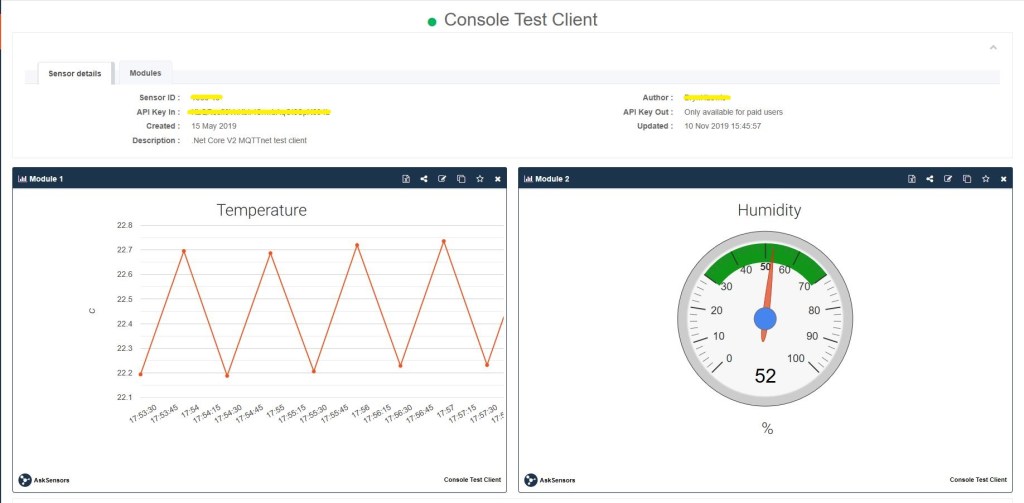
This PoC was to confirm that I could connect to the Ask SensorsMQTT API then format topics and payloads correctly.
Console test application
The MQTT broker, username, password, and client ID are command line options.
class Program
{
	private static IMqttClient mqttClient = null;
	private static IMqttClientOptions mqttOptions = null;
	private static string server;
	private static string username;
	private static string apiKey;
	private static string clientID;

	static void Main(string[] args)
	{
		MqttFactory factory = new MqttFactory();
		mqttClient = factory.CreateMqttClient();
		bool heatPumpOn = false;

		if (args.Length != 4)
		{
			Console.WriteLine("[MQTT Server] [UserName] [APIKey] [ClientID]");
			Console.WriteLine("Press <enter> to exit");
			Console.ReadLine();
			return;
		}

		server = args[0];
		username = args[1];
		apiKey = args[2];
		clientID = args[3];

		Console.WriteLine($"MQTT Server:{server} Username:{username} ClientID:{clientID}");

		mqttOptions = new MqttClientOptionsBuilder()
			.WithTcpServer(server)
			.WithCredentials(username, "")
			.WithClientId(clientID)
			//.WithTls() // This is a bit of a worry
			.Build();

		mqttClient.ApplicationMessageReceived += MqttClient_ApplicationMessageReceived;
		mqttClient.Disconnected += MqttClient_Disconnected;
		mqttClient.ConnectAsync(mqttOptions).Wait();

		// AskSensors formatted client state update topic
		string stateTopic = $"{username}/{apiKey}";

		while (true)
		{
			string payloadText;
			double temperature = 22.0 + (DateTime.UtcNow.Millisecond / 1000.0);
			double humidity = 50 + (DateTime.UtcNow.Millisecond / 100.0);
			double speed = 10 + (DateTime.UtcNow.Millisecond / 100.0);
			Console.WriteLine($"Topic:{stateTopic} Temperature:{temperature:0.00} Humidity:{humidity:0} HeatPumpOn:{heatPumpOn}");

			// First JSON attempt didn't work
			payloadText = @"{""Humidity"":55}";

            // Second attempt worked
            payloadText = $"module1=22";

            // Third attempt with "real" values injected
            payloadText = $"module1={temperature}&m2={humidity}";

            var message = new MqttApplicationMessageBuilder()
					.WithTopic(stateTopic)
					.WithPayload(payloadText)
					.WithQualityOfServiceLevel(global::MQTTnet.Protocol.MqttQualityOfServiceLevel.AtLeastOnce)
				   .WithExactlyOnceQoS()
				   //.WithAtLeastOnceQoS()
				   //.WithRetainFlag()
				   .Build();

				Console.WriteLine("PublishAsync start");
				mqttClient.PublishAsync(message).Wait();
				Console.WriteLine("PublishAsync finish");

				Thread.Sleep(30100);
			}
		}

	private static async void MqttClient_Disconnected(object sender, MqttClientDisconnectedEventArgs e)
	{
		Debug.WriteLine("Disconnected");
		await Task.Delay(TimeSpan.FromSeconds(5));

		try
		{
			await mqttClient.ConnectAsync(mqttOptions);
		}
		catch (Exception ex)
		{
			Debug.WriteLine("Reconnect failed {0}", ex.Message);
		}
	}
The Ask Sensors screen designer has 8 different types of Graph (line, bar, scatter, gauge, table, binary. digital, map)
Ask sensors dashboard configuration was fairly simple, though sequential numbering of inputs (modules) might require some mapping code.
Overall the initial configuration went smoothly after I figured out the payload format (not JSON), though the functionality (of a free subscription) did appear to be quite limited.
Since I first started building my MQTT gateway there have been several breaking updates to the MQTTNet API which so I will have to refresh all the applications in my solution.
While trying to debug a deadlock in my RFM69 library I noticed in the logging that I was getting a receive interrupt while putting bytes in the FIFO for transmission.
Register 0x49 - Value 0X00 - Bits 00000000
Register 0x4a - Value 0X00 - Bits 00000000
Register 0x4b - Value 0X00 - Bits 00000000
Register 0x4c - Value 0X00 - Bits 00000000
Register 0x4d - Value 0X00 - Bits 00000000
...
22:58:47.192 Received To 0X22 a 33 byte message hello world RFM69-915-02 10-58-47 CRC Ok True
The thread 0x6a8 has exited with code 0 (0x0).
22:58:48.334 Send-hello world RFM69-915-01 10-58-48
22:58:48.351 Send-Done
22:58:48.388 Received To 0X22 a 33 byte message hello world RFM69-915-02 10-58-52 CRC Ok True
22:58:48.462 Transmit-Done
The thread 0xde4 has exited with code 0 (0x0).
22:58:53.427 Send-hello world RFM69-915-01 10-58-53
22:58:53.445 Send-Done
22:58:53.556 Transmit-Done
22:58:57.382 Received To 0X22 a 33 byte message hello world RFM69-915-02 10-58-57 CRC Ok True
The thread 0x17c has exited with code 0 (0x0).
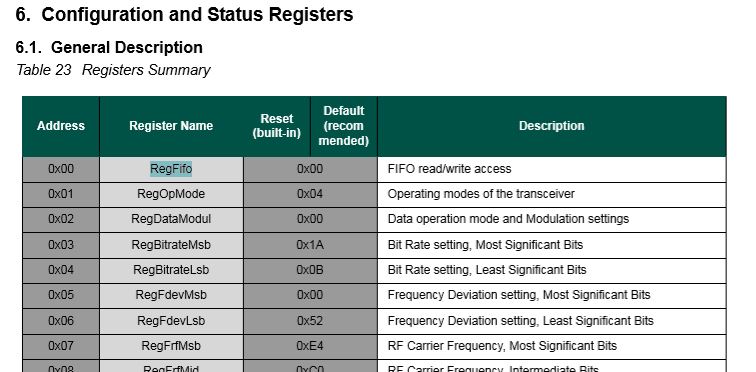
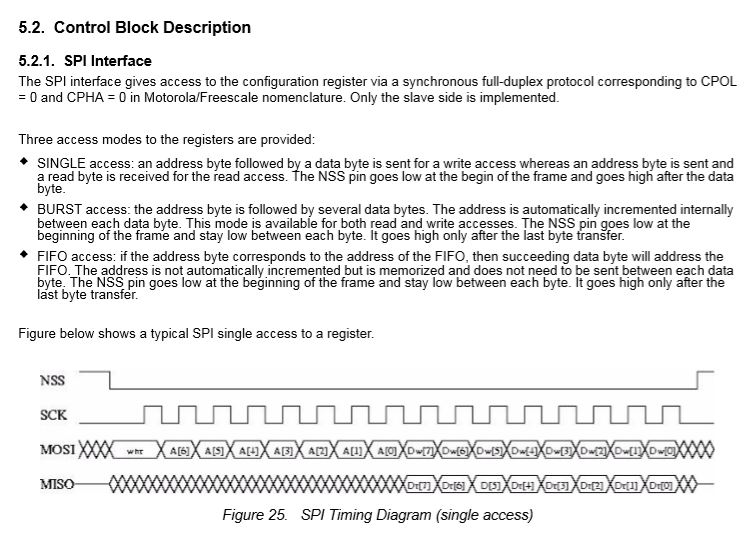
After re-reading the RFM69CW/RFM69HCW module datasheet (based on the Semtech SX1231/SX1231H) I realised my code for loading the FIFO could be more efficient.
SX1231 Register map FIFO
Based on the timing diagram I could remove the loop which loads bytes in the FIFO for transmission.
After stress testing with several client devices this appears to have reduced the scope of a receive interrupt to occur while a packet was being loaded into the FIFO for transmission. I now need to dig deeper into the timing around entering different operational modes and selectively enabling event interrupts.
After problems with interleaved interrupt handling in my Windows 10 IoT Core client I figured the AutoMode used by the plainRFM69 library might be worth investigation. My first Arduino client was based on the plainRFM69 library but had Interoperability issues.
For this attempt I also started with the minimal sample and modified the code to send and receive text messages.
/*
    Copyright (c) 2014, Ivor Wanders, Bryn Lewis 2019
    MIT License, see the LICENSE.md file in the root folder.
*/

#include <SPI.h>
#include <plainRFM69.h>

// slave select pin.
#define SLAVE_SELECT_PIN 10

// connected to the reset pin of the RFM69.
#define RESET_PIN 9

// tie this pin down on the receiver.
#define SENDER_DETECT_PIN A0

const uint8_t tx_buffer[] = "ABCDEFGHIJKLMNOPQRSTURWXYZ1234567890";
//const uint8_t tx_buffer[] = "abcdefghijklmnopqrstuvwxyz1234567890";
uint8_t rx_buffer[sizeof(tx_buffer)] = "";

plainRFM69 rfm = plainRFM69(SLAVE_SELECT_PIN);


void sender() {

  uint32_t start_time = millis();

  uint32_t counter = 1; // the counter which we are going to send.

  while (true) {
    rfm.poll(); // run poll as often as possible.

    if (!rfm.canSend()) {
      continue; // sending is not possible, already sending.
    }

    if ((millis() - start_time) > 1000) { // every 500 ms.
      start_time = millis();

      // be a little bit verbose.
      Serial.print("Send:"); Serial.println(counter);

      // send the number of bytes equal to that set with setPacketLength.
      // read those bytes from memory where counter starts.
      rfm.sendVariable(tx_buffer, counter);

      counter++; // increase the counter.

      if ( counter > strlen(tx_buffer))
      {
        counter = 1;
      }
    }
  }
}

void receiver() {
  uint32_t counter = 0; // to count the messages.

  while (true) {

    rfm.poll(); // poll as often as possible.

    while (rfm.available())
    {
      uint8_t len = rfm.read(rx_buffer); // read the packet into the new_counter.

      // print verbose output.
      Serial.print("Packet Len:");
      Serial.print( len );
      Serial.print(" : ");
      Serial.println((char*)rx_buffer);
    }
  }
}

void setup() {
  Serial.begin(9600);
  SPI.begin();

  bareRFM69::reset(RESET_PIN); // sent the RFM69 a hard-reset.

  //rfm.setRecommended(); // set recommended paramters in RFM69.
  rfm.setPacketType(true, false); // set the used packet type.

  rfm.setBufferSize(2);   // set the internal buffer size.
  rfm.setPacketLength(sizeof(rx_buffer)); // set the packet length.

  rfm.setFrequency((uint32_t)909560000); // set the frequency.

  rfm.setLNA(RFM69_LNA_IMP_200OHM, RFM69_LNA_GAIN_AGC_LOOP);

  // p71, 3 preamble bytes.
  rfm.setPreambleSize(16);

  // p71, 4 bytes sync of 0x01, only start listening when sync is matched.
  //uint8_t syncthing[] = {0xaa, 0x2d, 0xd4};
  uint8_t syncthing[] = {0xd4, 0x2d, 0xaa};
  rfm.setSyncConfig(true, false, sizeof(syncthing), 0);
  rfm.setSyncValue(&syncthing, sizeof(syncthing));

  rfm.dumpRegisters(Serial);

  // baudrate is default, 4800 bps now.

  rfm.receive();
  // set it to receiving mode.

  pinMode(SENDER_DETECT_PIN, INPUT_PULLUP);
  delay(5);
}

void loop() {
  if (digitalRead(SENDER_DETECT_PIN) == LOW) {
    Serial.println("Going Receiver!");
    receiver();
    // this function never returns and contains an infinite loop.
  } else {
    Serial.println("Going sender!");
    sender();
    // idem.
  }
}
I took the list register values and loaded them into a Excel spreadsheet alongside the values from my Windows 10 IoT Core application
First thing I noticed was the order of the three sync byes (Registers 0x2F, 0x30, 0x31) was reversed. I then modified the run method in the Windows 10 code so the registers settings on both devices matched. (I removed the PlainRFM69 SetRecommended call so as many of the default options as possible were used).
I also found an error with the declaration of the RegPacketConfig1DcFree enumeration (Whitening = 0b0100000 vs. Whitening = 0b01000000) which wouldn’t have helped.
Register 0x4c - Value 0X00 - Bits 00000000
Register 0x4d - Value 0X00 - Bits 00000000
...
17:55:53.559 Received 1 byte message A CRC Ok True
.17:55:54.441 Received 2 byte message AB CRC Ok True
.17:55:55.444 Received 3 byte message ABC CRC Ok True
.17:55:56.447 Received 4 byte message ABCD CRC Ok True
.17:55:57.449 Received 5 byte message ABCDE CRC Ok True
.17:55:58.453 Received 6 byte message ABCDEF CRC Ok True
The thread 0x578 has exited with code 0 (0x0).
.17:55:59.622 Received 7 byte message ABCDEFG CRC Ok True
.17:56:00.457 Received 8 byte message ABCDEFGH CRC Ok True
.17:56:01.460 Received 9 byte message ABCDEFGHI CRC Ok True
.17:56:02.463 Received 10 byte message ABCDEFGHIJ CRC Ok True
..17:56:03.955 Received 11 byte message ABCDEFGHIJK CRC Ok True
17:56:04.583 Received 12 byte message ABCDEFGHIJKL CRC Ok True
I did some investigation into that the plainRMF69 code and found the ReadMultiple and WriteMuliple methods reverse the byte order
void bareRFM69::writeMultiple(uint8_t reg, void* data, uint8_t len){
    SPI.beginTransaction(SPISettings(10000000, MSBFIRST, SPI_MODE0));  // gain control of SPI bus
    this->chipSelect(true); // assert chip select
    SPI.transfer(RFM69_WRITE_REG_MASK | (reg & RFM69_READ_REG_MASK));
    uint8_t* r = reinterpret_cast<uint8_t*>(data);
    for (uint8_t i=0; i < len ; i++){
        SPI.transfer(r[len - i - 1]);
    }
    this->chipSelect(false);// deassert chip select
    SPI.endTransaction();    // release the SPI bus
}

void bareRFM69::readMultiple(uint8_t reg, void* data, uint8_t len){
    SPI.beginTransaction(SPISettings(10000000, MSBFIRST, SPI_MODE0));  // gain control of SPI bus
    this->chipSelect(true); // assert chip select

    SPI.transfer((reg % RFM69_READ_REG_MASK));
    uint8_t* r = reinterpret_cast<uint8_t*>(data);
    for (uint8_t i=0; i < len ; i++){
        r[len - i - 1] = SPI.transfer(0);
    }
    this->chipSelect(false);// deassert chip select
    SPI.endTransaction();    // release the SPI bus
}
I won’t be able to use interrupt AutoMode clients with the EasySensors shields as the DIO2 pin is not connected but on the AdaFruit RFM69HCW Radio Bonnet 433MHz or 915MHz it is connected to GPIO24.
While doing yet more stress testing I noticed a couple of odd message go past and a long pause every so often when sending a message in the Visual Studio output window.
I have two Arduino devices sending addressed messages every (both individual and broadcast) to the Adafruit RFM69 HCW Radio Bonnet, on my two Windows 10 IoT Core devices every 100mSec. At the same time the windows 10 devices are sending each other a message every 5 seconds.
To help spot the pauses I added some code to mark any events where there was a significant gap. In this case ” is ASCII character for 0x22 the device address
21:10:30.746 Received To 34 a 23 byte message Hello World ---0x22:236 CRC Ok True
21:10:30.918 Received To 153 a 23 byte message Hello World ---0x99:236 CRC Ok True
21:10:31.399 Received To 34 a 23 byte message Hello World ---0x22:237 CRC Ok True
21:10:31.568 Send-hello world RFM69-915-01 09-10-31
21:10:31.580 Send-Done
21:10:31.592 Received To 34 a 33 byte message """"""""""""""""""""""""""""""""" CRC Ok True
RC-------------------------------------------
21:10:32.052 Received To 34 a 23 byte message Hello World ---0x22:238 CRC Ok True
21:10:32.225 Received To 153 a 23 byte message Hello World ---0x99:238 CRC Ok True
21:10:32.705 Received To 34 a 23 byte message Hello World ---0x22:239 CRC Ok True
There were also still some corrupted messages
21:10:30.746 Received To 34 a 23 byte message Hello World ---0x22:236 CRC Ok True
21:10:30.918 Received To 153 a 23 byte message Hello World ---0x99:236 CRC Ok True
21:10:31.399 Received To 34 a 23 byte message Hello World ---0x22:237 CRC Ok True
21:10:31.568 Send-hello world RFM69-915-01 09-10-31
21:10:31.580 Send-Done
21:10:31.592 Received To 34 a 33 byte message """"""""""""""""""""""""""""""""" CRC Ok True
RC-------------------------------------------
21:10:32.052 Received To 34 a 23 byte message Hello World ---0x22:238 CRC Ok True
21:10:32.225 Received To 153 a 23 byte message Hello World ---0x99:238 CRC Ok True
21:10:32.705 Received To 34 a 23 byte message Hello World ---0x22:239 CRC Ok True
It looks like if the base station receives a message as it is about to send a message the Rfm69Device_OnTransmit never gets called.
It also looks like every so often the transmitter gets stuck on one of Windows 10 devices effectively jamming the frequency.
Transmit stuck on
16:12:10.193 Received To 34 a 22 byte message Hello World ---0x22:65 CRC Ok True
16:12:10.360 Received To 153 a 22 byte message Hello World ---0x99:65 CRC Ok True
16:12:10.831 Received To 34 a 22 byte message Hello World ---0x22:66 CRC Ok True
16:12:10.998 Received To 153 a 22 byte message Hello World ---0x99:66 CRC Ok True
The thread 0x570 has exited with code 0 (0x0).
16:12:11.484 Send-hello world RFM69-915-01 04-12-11
16:12:11.494 Received To 34 a 22 byte message Hello World ---0x22:67 CRC Ok True
16:12:11.504 Send-Done
The thread 0x3a8 has exited with code 0 (0x0).
16:12:16.554 Send-hello world RFM69-915-01 04-12-16
16:12:16.566 Send-Done
16:12:16.660 Transmit-Done
T--------------------------------------------
16:12:16.736 Received To 153 a 22 byte message Hello World ---0x99:75 CRC Ok True
16:12:17.206 Received To 34 a 22 byte message Hello World ---0x22:76 CRC Ok True
16:12:17.374 Received To 153 a 22 byte message Hello World ---0x99:76 CRC Ok True
16:12:18.011 Received To 153 a 22 byte message Hello World ---0x99:77 CRC Ok True


Transmit stuck
16:12:07.591 Transmit-Done
16:12:07.880 Received To 153 a 23 byte message Hello World ---0x99:137 CRC Ok True
16:12:08.533 Received To 153 a 23 byte message Hello World ---0x99:138 CRC Ok True
16:12:08.839 Received To 17 a 24 byte message Hello World ----0x11:139 CRC Ok True
16:12:09.186 Received To 153 a 23 byte message Hello World ---0x99:139 CRC Ok True
16:12:09.493 Received To 17 a 24 byte message Hello World ----0x11:140 CRC Ok True
16:12:10.799 Received To 17 a 24 byte message Hello World ----0x11:142 CRC Ok True
The thread 0xc8 has exited with code 0 (0x0).
16:12:12.567 Send-hello world RFM69-915-02 04-12-12
16:12:12.589 Send-Done
16:12:12.681 Transmit-Done
16:12:16.510 Received To 17 a 33 byte message hello world RFM69-915-01 04-12-16 CRC Ok True
16:12:16.576 Received To 153 a 22 byte message Hello World ---0x99:75 CRC Ok True
16:12:17.025 Received To 153 a 23 byte message Hello World ---0x99:151 CRC Ok True
16:12:17.214 Received To 153 a 22 byte message Hello World ---0x99:76 CRC Ok True
16:12:17.331 Received To 17 a 24 byte message Hello World ----0x11:152 CRC Ok True
The thread 0xfa0 has exited with code 0 (0x0).
16:12:17.661 Send-hello world RFM69-915-02 04-12-17
16:12:17.680 Send-Done
16:12:17.772 Transmit-Done
16:12:17.851 Received To 153 a 22 byte message Hello World ---0x99:77 CRC Ok True
16:12:18.331 Received To 153 a 23 byte message Hello World ---0x99:153 CRC Ok True
16:12:18.489 Received To 153 a 22 byte message Hello World ---0x99:78 CRC Ok True
16:12:18.638 Received To 17 a 24 byte message Hello World ----0x11:154 CRC Ok True
16:12:18.985 Received To 153 a 23 byte message Hello World ---0x99:154 CRC Ok True
16:12:19.291 Received To 17 a 24 byte message Hello World ----0x11:155 CRC Ok True
16:12:19.638 Received To 153 a 23 byte message Hello World ---0x99:155 CRC Ok True
16:12:19.944 Received To 17 a 24 byte message Hello World ----0x11:156 CRC Ok True
16:12:20.291 Received To 153 a 23 byte message Hello World ---0x99:156 CRC Ok True
16:12:20.597 Received To 17 a 24 byte message Hello World ----0x11:157 CRC Ok True
Then as rfm69Device.SetMode(Rfm69HcwDevice.RegOpModeMode.Receive) hasn’t been called no messages are received until another message is sent.
It looks like a timing issue around access to the message fifo (I have that in a critical section) so I need todo some more debugging. Maybe purging the receive buffer
Again, while doing some stress testing I noticed an odd message go past in the Visual Studio output window. I had multiple devices sending addressed messages (both individual and broadcast) to the Adafruit RFM69 HCW Radio Bonnet, on my Windows 10 IoT Core device while it was sending a message every 5 seconds.
Received From 102 a 15 byte message Hello World:161
23:42:33.343 RegIrqFlags2 01100110
23:42:33.356 RegIrqFlags1 11011001
23:42:33.374 Address 0X99 10011001
Received From 153 a 15 byte message Hello World:106
23:42:33.761 RegIrqFlags2 01100110
23:42:33.774 RegIrqFlags1 11011001
23:42:33.791 Address 0X66 01100110
Received From 102 a 15 byte message Hello World:162
The thread 0xd20 has exited with code 0 (0x0).
23:42:34.500 RegIrqFlags2 01100110
23:42:34.501 Send-hello world 11:42:34 PM
23:42:34.520 RegIrqFlags1 11011001
23:42:34.545 Send-Done
23:42:34.551 Address 0X10 00010000
Received From 16 a 15 byte message h    WWWWWWWWoo
23:42:34.686 RegIrqFlags2 00001000
23:42:34.701 RegIrqFlags1 10110000
23:42:34.715 Transmit-Done
Transmit-Done
23:42:34.902 RegIrqFlags2 01100110
23:42:34.915 RegIrqFlags1 11011001
23:42:34.931 Address 0X66 01100110
Received From 102 a 15 byte message Hello World:163
23:42:35.626 RegIrqFlags2 01100110
23:42:35.640 RegIrqFlags1 11011001
23:42:35.659 Address 0X99 10011001
Received From 153 a 15 byte message Hello World:108
23:42:36.042 RegIrqFlags2 01100110
23:42:36.055 RegIrqFlags1 11011001
23:42:36.073 Address 0X66 01100110
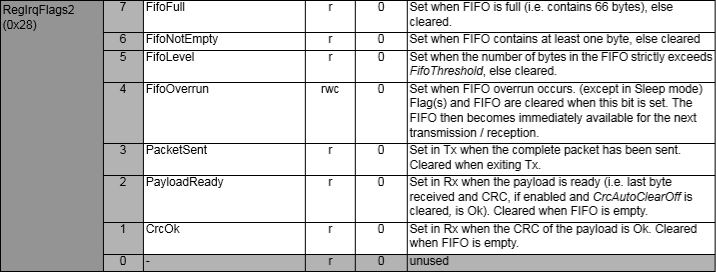
The RegIrqFlags2 CrcOk (bit 1) was set and the message was corrupt.
RegIrqFlags2 bit flags from SX1231 datasheet
I have added code to check the CRC on inbound messages if this functionality is enabled. So the library can be used with CRCs disabled I have added a flag to the OnDataReceivedEventArgs class to indicate whether the CRC on the inbound message was OK.
private readonly Object Rfm9XRegFifoLock = new object();
...
private void ProcessPayloadReady(RegIrqFlags1 irqFlags1, RegIrqFlags2 irqFlags2)
{
	byte? address = null;
	byte numberOfBytes;
	byte[] messageBytes;

	lock (Rfm9XRegFifoLock)
	{
		// Read the length of the buffer if variable length packets
		if (PacketFormat == RegPacketConfig1PacketFormat.VariableLength)
		{
			numberOfBytes = RegisterManager.ReadByte((byte)Rfm69HcwDevice.Registers.RegFifo);
		}
		else
		{
			numberOfBytes = PayloadLength;
		}

		// Remove the address from start of the payload
		if (AddressingEnabled)
		{
			address = RegisterManager.ReadByte((byte)Rfm69HcwDevice.Registers.RegFifo);

			Debug.WriteLine("{0:HH:mm:ss.fff} Address 0X{1:X2} {2}", DateTime.Now, address, Convert.ToString((byte)address, 2).PadLeft(8, '0'));
			numberOfBytes--;
		}

		// Allocate a buffer for the payload and read characters from the Fifo
		messageBytes = new byte[numberOfBytes];

		for (int i = 0; i < numberOfBytes; i++)
		{
			messageBytes[i] = RegisterManager.ReadByte((byte)Rfm69HcwDevice.Registers.RegFifo);
		}
	}
...
public void SendMessage(byte[] messageBytes)
{
#region Guard conditions
#endregion

	lock (Rfm9XRegFifoLock)
	{
		SetMode(RegOpModeMode.StandBy);

		if (PacketFormat == RegPacketConfig1PacketFormat.VariableLength)
		{
			RegisterManager.WriteByte((byte)Registers.RegFifo, (byte)messageBytes.Length);
		}

		foreach (byte b in messageBytes)
		{
			this.RegisterManager.WriteByte((byte)Registers.RegFifo, b);
		}

		SetMode(RegOpModeMode.Transmit);
	}
}
I can most probably reduce the duration which I hold the lock for but that will require some more stress testing.
While doing some stress testing I noticed an odd message go past in the Visual Studio output window. I had multiple devices sending addressed messages (both individual and broadcast) to the Adafruit RFM69 HCW Radio Bonnet, on my Windows 10 IoT Core device while it was sending a message every 5 seconds.
Received From 153 a 13 byte message Hello World:7
18:43:56.544 RegIrqFlags2 01100110
18:43:56.558 RegIrqFlags1 11011001
18:43:56.575 Address 0X66 01100110
Received From 102 a 15 byte message Hello World:162
The thread 0x254 has exited with code 0 (0x0).
18:43:57.699 Send-hello world 6:43:57 PM
18:43:57.699 RegIrqFlags2 01100110
18:43:57.731 RegIrqFlags1 10000000
18:43:57.747 Address 0X66 01100110
18:43:57.765 Send-Done
Received From 102 a 15 byte message Hello Woooooooo
18:43:57.987 RegIrqFlags2 00001000
18:43:58.003 RegIrqFlags1 10110000
18:43:58.017 Transmit-Done
Transmit-Done
18:43:58.825 RegIrqFlags2 01100110
18:43:58.838 RegIrqFlags1 11011001
18:43:58.857 Address 0X66 01100110
Received From 102 a 15 byte message Hello World:164
18:43:59.966 RegIrqFlags2 01100110
18:43:59.979 RegIrqFlags1 11011001
18:43:59.998 Address 0X66 01100110
The odd thing was that the RegIrqFlags2 CrcOk (bit 1) was set but the message was still corrupt.
RegIrqFlags2 bit flags from SX1231 datasheet
After looking at the code I think the problem was the reading of the received message bytes from the device FIFO and the writing of bytes of message to be transmitted into the device FIFO overlapped. To stop this occurring again I have added code to synchronise access (using a Lock) to the FIFO.
private readonly Object Rfm9XRegFifoLock = new object();
...
private void ProcessPayloadReady(RegIrqFlags1 irqFlags1, RegIrqFlags2 irqFlags2)
{
	byte? address = null;
	byte numberOfBytes;
	byte[] messageBytes;

	lock (Rfm9XRegFifoLock)
	{
		// Read the length of the buffer if variable length packets
		if (PacketFormat == RegPacketConfig1PacketFormat.VariableLength)
		{
			numberOfBytes = RegisterManager.ReadByte((byte)Rfm69HcwDevice.Registers.RegFifo);
		}
		else
		{
			numberOfBytes = PayloadLength;
		}

		// Remove the address from start of the payload
		if (AddressingEnabled)
		{
			address = RegisterManager.ReadByte((byte)Rfm69HcwDevice.Registers.RegFifo);

			Debug.WriteLine("{0:HH:mm:ss.fff} Address 0X{1:X2} {2}", DateTime.Now, address, Convert.ToString((byte)address, 2).PadLeft(8, '0'));
			numberOfBytes--;
		}

		// Allocate a buffer for the payload and read characters from the Fifo
		messageBytes = new byte[numberOfBytes];

		for (int i = 0; i < numberOfBytes; i++)
		{
			messageBytes[i] = RegisterManager.ReadByte((byte)Rfm69HcwDevice.Registers.RegFifo);
		}
	}
...
public void SendMessage(byte[] messageBytes)
{
#region Guard conditions
#endregion

	lock (Rfm9XRegFifoLock)
	{
		SetMode(RegOpModeMode.StandBy);

		if (PacketFormat == RegPacketConfig1PacketFormat.VariableLength)
		{
			RegisterManager.WriteByte((byte)Registers.RegFifo, (byte)messageBytes.Length);
		}

		foreach (byte b in messageBytes)
		{
			this.RegisterManager.WriteByte((byte)Registers.RegFifo, b);
		}

		SetMode(RegOpModeMode.Transmit);
	}
}
The code has been running for a day without any corrupted messages so the lock appears to be working. I can most probably reduce the duration which I hold the lock for but that will require some more stress testing.
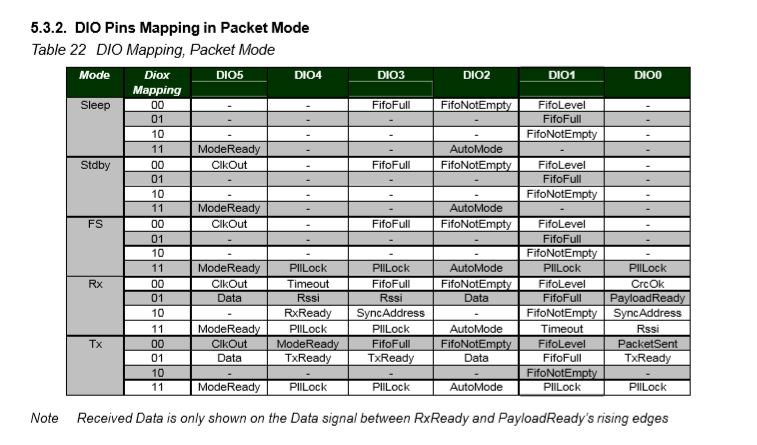
The RFM69CW/RFM69HCW module (based on the Semtech SX1231/SX1231H) has configurable digital outputs (RegDIOMapping1 & RegDIOMapping2) . Which I use to trigger interrupts on my Windows 10 IoT Core or Arduino devices. Currently (Sep 2019) the library only supports the mapping of the digital outputs D0 & D1 when the RFM69 is in Packet Mode.
RegiDIOMapping0 & RegDIOMapping2 settings for DIO thru DIO5
I added some additional constants and enumerations for the other settings configured in RegDioMapping1 & RegDioMapping2.
I had several failed attempts at defining suitable enumerations for configuring the RegDioMapping1 & RegDioMapping2 registers. I initially started with an enumeration for each Mode (Sleep, StandBy etc.) but the implementation was quite complex. The initial version only supports DIO0 & DIO1 as most of the shields I have, only DIO0 adn/or DIO1 are connected.
try
{
	this.azureIoTHubClient = DeviceClient.CreateFromConnectionString(this.azureIoTHubConnectionString, this.transportType);
}
catch (Exception ex)
{
	this.logging.LogMessage("AzureIOT Hub DeviceClient.CreateFromConnectionString failed " + ex.Message, LoggingLevel.Error);
	return;
}

try
{
	TwinCollection reportedProperties = new TwinCollection();

	// This is from the OS
	reportedProperties["Timezone"] = TimeZoneSettings.CurrentTimeZoneDisplayName;
	reportedProperties["OSVersion"] = Environment.OSVersion.VersionString;
	reportedProperties["MachineName"] = Environment.MachineName;

	reportedProperties["ApplicationDisplayName"] = package.DisplayName;
	reportedProperties["ApplicationName"] = packageId.Name;
	reportedProperties["ApplicationVersion"] = string.Format($"{version.Major}.{version.Minor}.{version.Build}.{version.Revision}");

	// Unique identifier from the hardware
	SystemIdentificationInfo systemIdentificationInfo = SystemIdentification.GetSystemIdForPublisher();
	using (DataReader reader = DataReader.FromBuffer(systemIdentificationInfo.Id))
	{
		byte[] bytes = new byte[systemIdentificationInfo.Id.Length];
		reader.ReadBytes(bytes);
		reportedProperties["SystemId"] = BitConverter.ToString(bytes);
	}
	this.azureIoTHubClient.UpdateReportedPropertiesAsync(reportedProperties).Wait();
}
catch (Exception ex)
{
	this.logging.LogMessage("Azure IoT Hub client UpdateReportedPropertiesAsync failed " + ex.Message, LoggingLevel.Error);
	return;
}

try
{
	LoggingFields configurationInformation = new LoggingFields();

	Twin deviceTwin = this.azureIoTHubClient.GetTwinAsync().GetAwaiter().GetResult();

	if (!deviceTwin.Properties.Desired.Contains("ImageUpdateDue") || !TimeSpan.TryParse(deviceTwin.Properties.Desired["ImageUpdateDue"].value.ToString(), out imageUpdateDue))
	{
		this.logging.LogMessage("DeviceTwin.Properties ImageUpdateDue setting missing or invalid format", LoggingLevel.Warning);
		return;
	}
	configurationInformation.AddTimeSpan("ImageUpdateDue", imageUpdateDue);

	if (!deviceTwin.Properties.Desired.Contains("ImageUpdatePeriod") || !TimeSpan.TryParse(deviceTwin.Properties.Desired["ImageUpdatePeriod"].value.ToString(), out imageUpdatePeriod))
	{
		this.logging.LogMessage("DeviceTwin.Properties ImageUpdatePeriod setting missing or invalid format", LoggingLevel.Warning);
		return;
	}
…
	if (!deviceTwin.Properties.Desired.Contains("DebounceTimeout") || !TimeSpan.TryParse(deviceTwin.Properties.Desired["DebounceTimeout"].value.ToString(), out debounceTimeout))
	{
		this.logging.LogMessage("DeviceTwin.Properties DebounceTimeout setting missing or invalid format", LoggingLevel.Warning);
		return;
	}
				configurationInformation.AddTimeSpan("DebounceTimeout", debounceTimeout);

	this.logging.LogEvent("Configuration settings", configurationInformation);
}
catch (Exception ex)
{
	this.logging.LogMessage("Azure IoT Hub client GetTwinAsync failed or property missing/invalid" + ex.Message, LoggingLevel.Error);
	return;
}
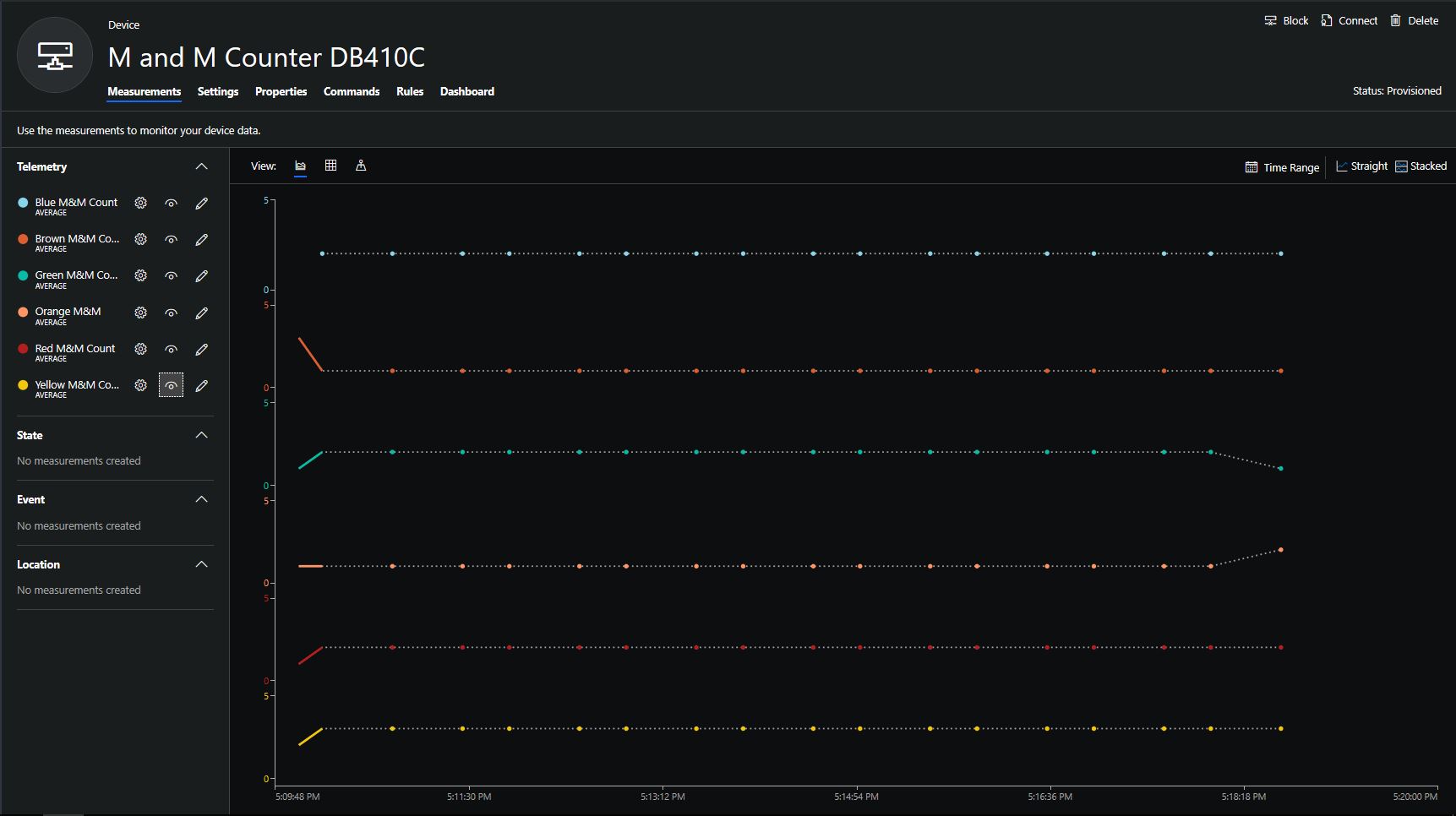
When the digital input (configured in the app.settings file) is strobed or the timer fires (configured in the device properties) an image is captured, uploaded to Azure Cognitive Services Custom Vision for processing.
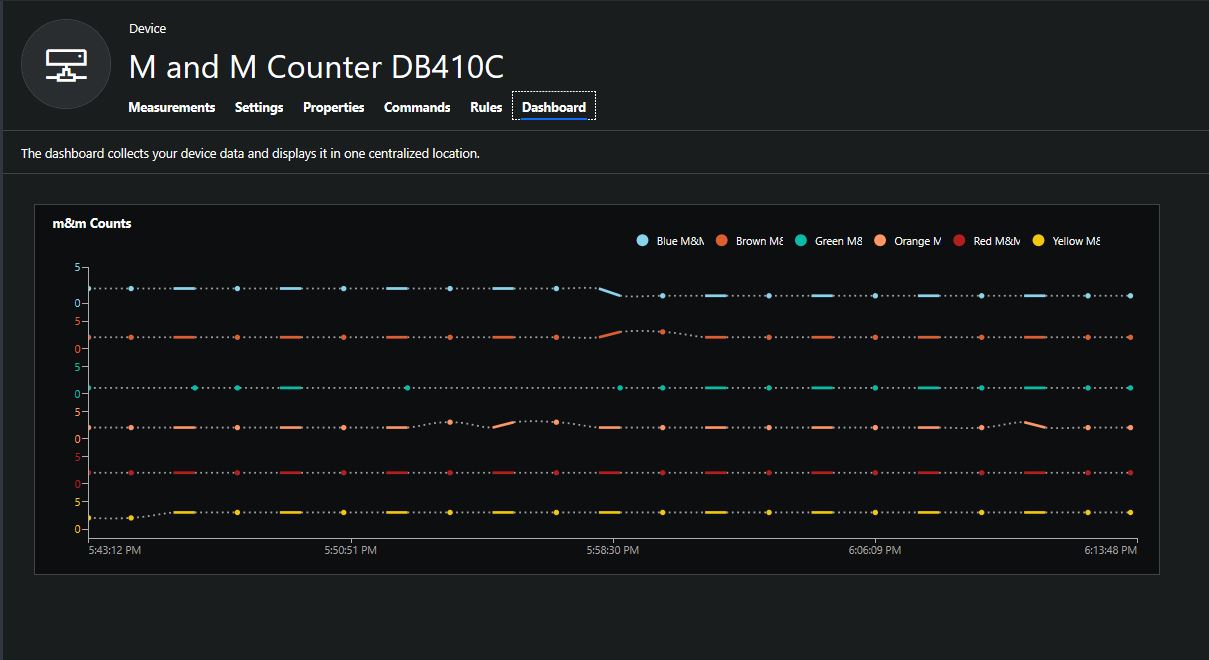
The returned results are then post processed to make them Azure IoT Central friendly, and finally uploaded to an Azure IoT Hub.
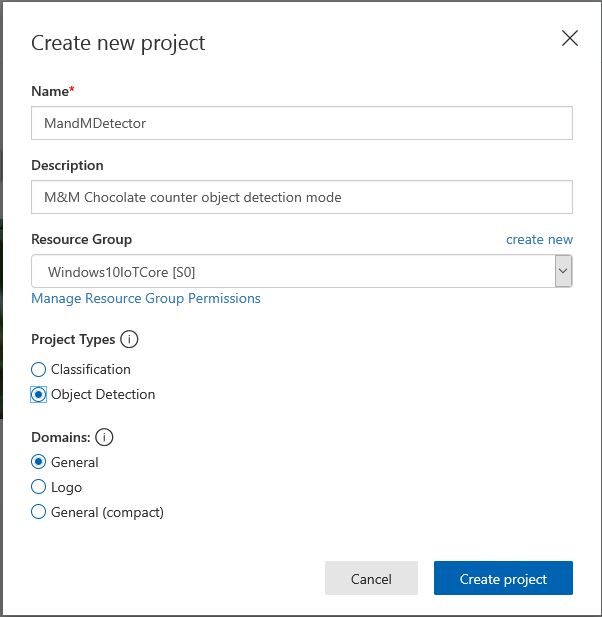
For testing I have used a simple object detection model.
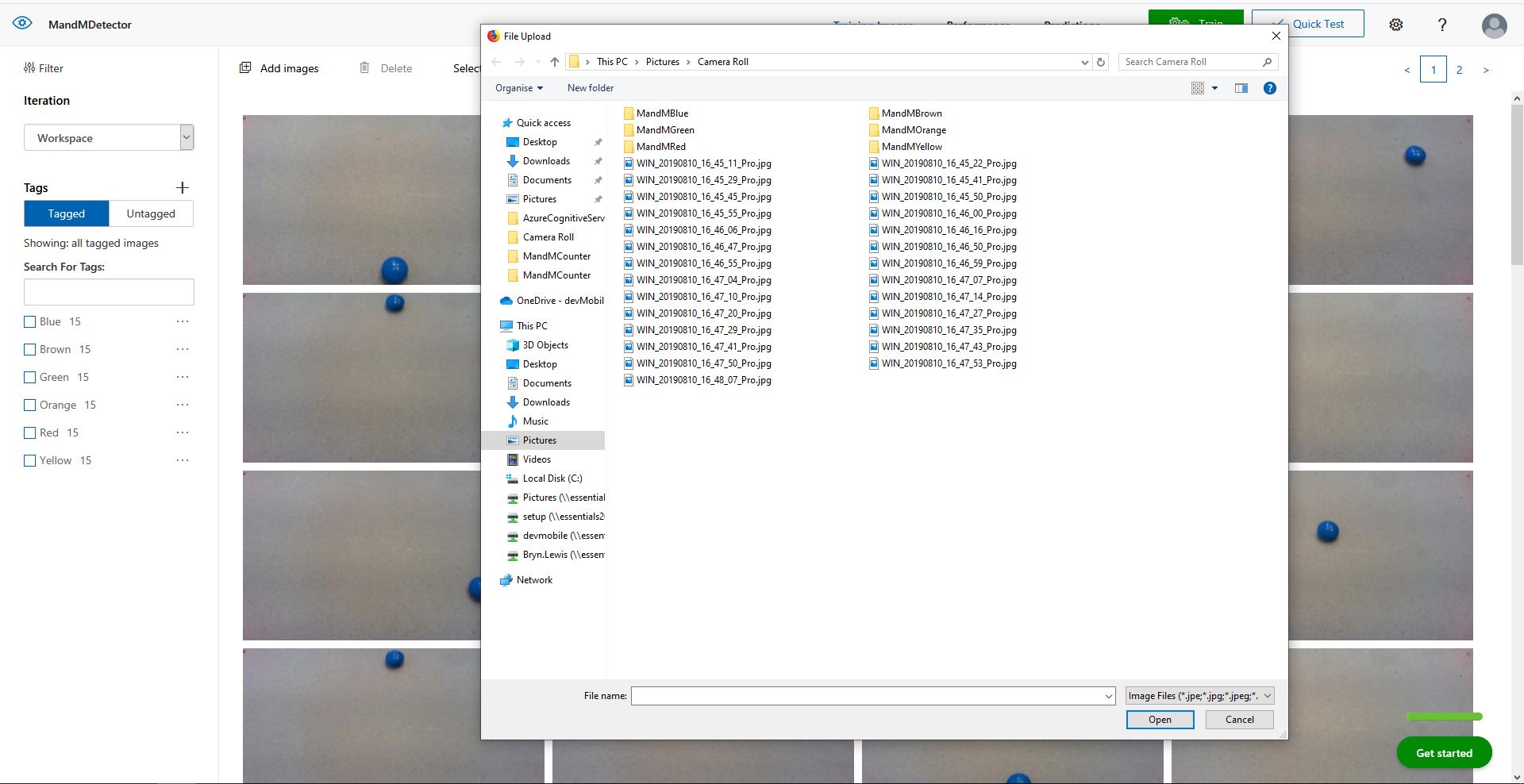
I trained the model with images of 6 different colours of m&m’s.
For my first dataset I tagged the location of a single m&m of each of the colour in 15 images.
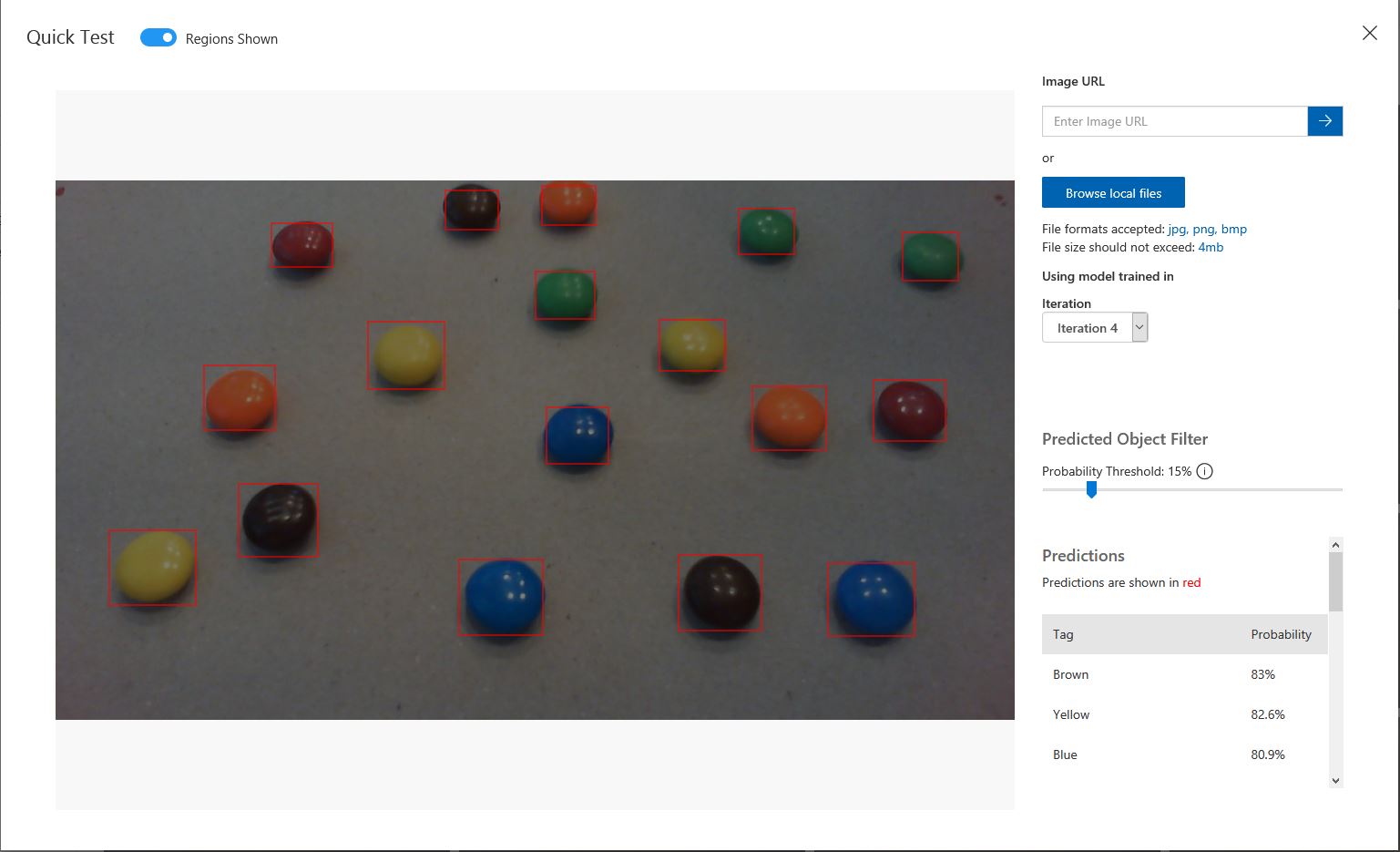
Testing the training of the model
I then trained the model multiple times adding additional images where the model was having trouble distiguishing colours.
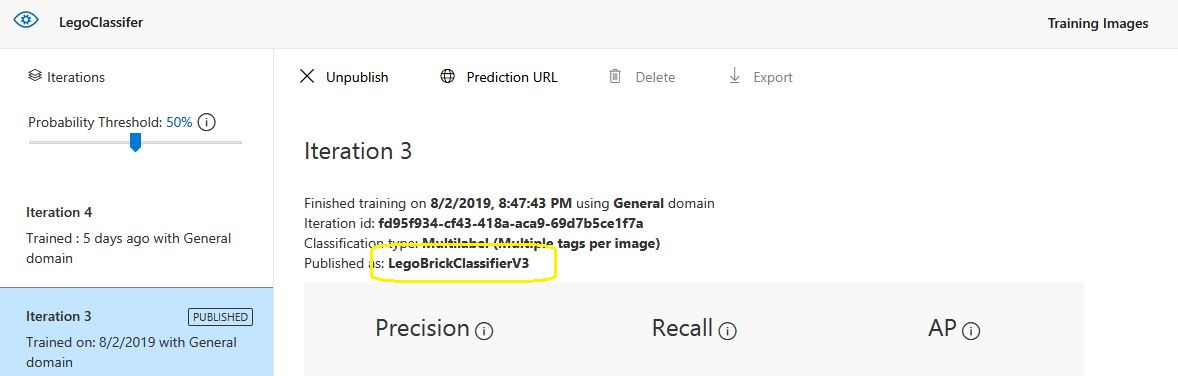
The published name comes from the training performance tab
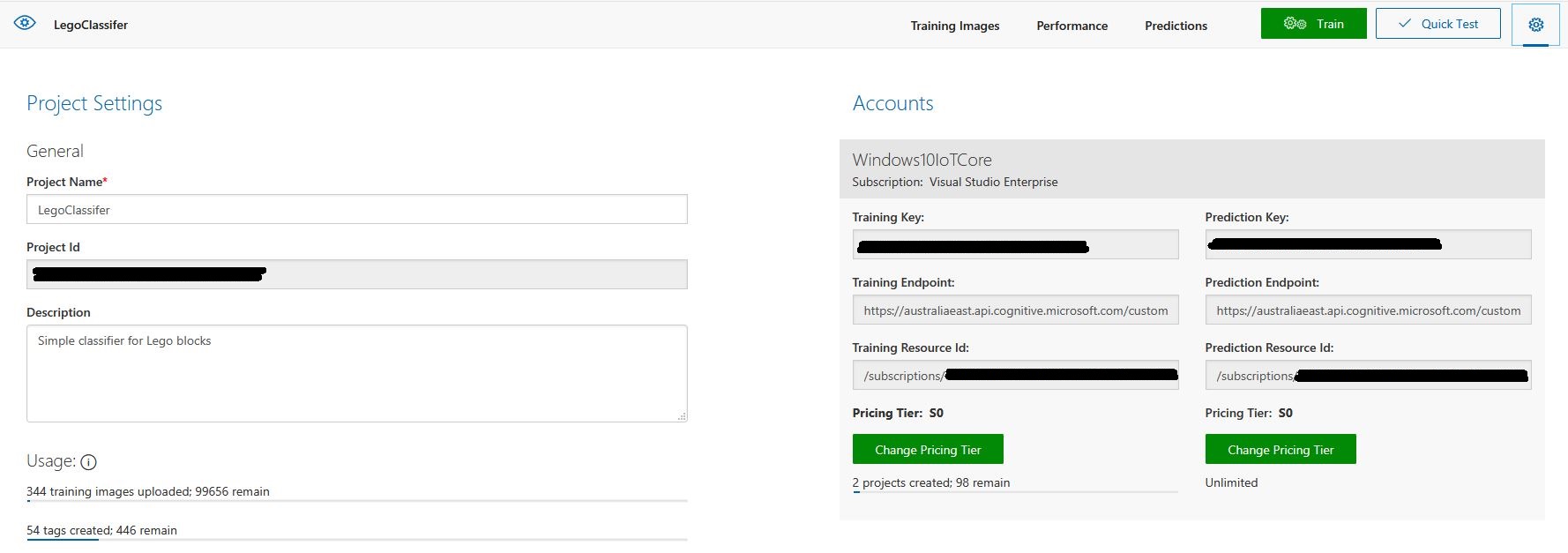
Project settings
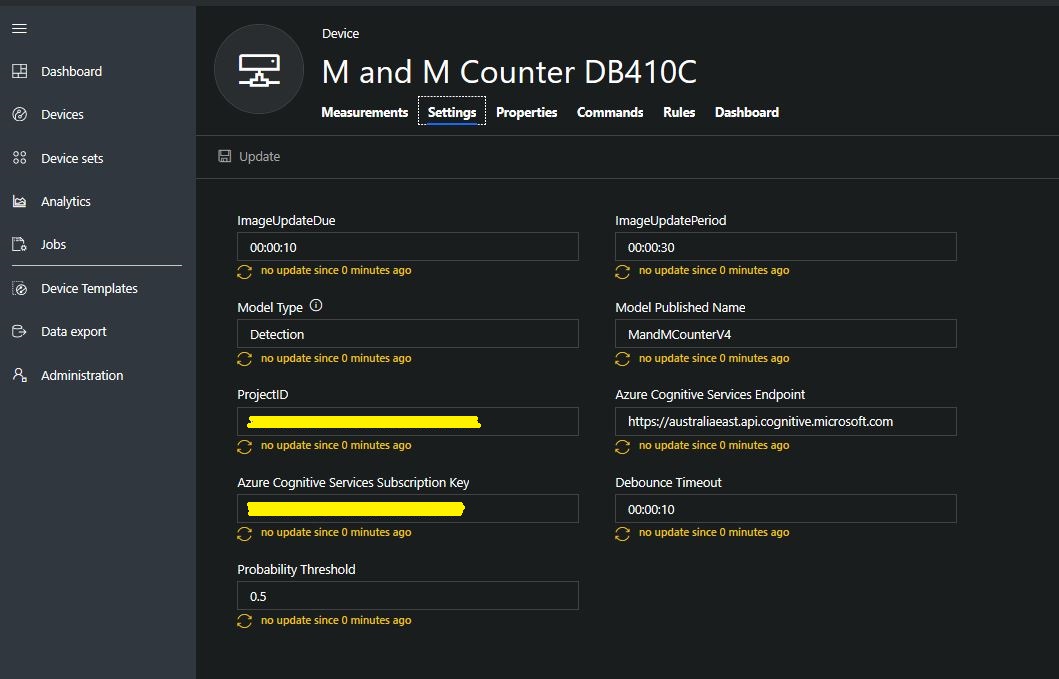
The projectID, AzureCognitiveServicesSubscriptionKey (PredictionKey) and PublishedName (From the Performance tab in project) are from the custom vision project properties.
All of the Custom Vision model settings are configured in the Azure IoT Hub device properties.
The app.settings file contains only the hardware configuration settings and the Azure IoT Hub connection string.
The LED connected to the display pin is illuminated while an image is being processed or briefly flashed if the insufficient time between image captures has passed.
The image data is post processed differently based on the model.
// Post process the predictions based on the type of model
switch (modelType)
{
	case ModelType.Classification:
		// Use only the tags above the specified minimum probability
		foreach (var prediction in imagePrediction.Predictions)
		{
			if (prediction.Probability >= probabilityThreshold)
			{
				// Display and log the individual tag probabilities
				Debug.WriteLine($" Tag valid:{prediction.TagName} {prediction.Probability:0.00}");
				imageInformation.AddDouble($"Tag valid:{prediction.TagName}", prediction.Probability);
					telemetryDataPoint.Add(prediction.TagName, prediction.Probability);
			}
		}
		break;

	case ModelType.Detection:
		// Group the tags to get the count, include only the predictions above the specified minimum probability
		var groupedPredictions = from prediction in imagePrediction.Predictions
										 where prediction.Probability >= probabilityThreshold
										 group prediction by new { prediction.TagName }
				into newGroup
										 select new
										 {
											 TagName = newGroup.Key.TagName,
											 Count = newGroup.Count(),
										 };

		// Display and log the agregated predictions
		foreach (var prediction in groupedPredictions)
		{
			Debug.WriteLine($" Tag valid:{prediction.TagName} {prediction.Count}");
			imageInformation.AddInt32($"Tag valid:{prediction.TagName}", prediction.Count);
			telemetryDataPoint.Add(prediction.TagName, prediction.Count);
		}
		break;
	default:
		throw new ArgumentException("ModelType Invalid");
}
For a classifier only the tags with a probability greater than or equal the specified threshold are uploaded.
For a detection model the instances of each tag are counted. Only the tags with a prediction value greater than the specified threshold are included in the count.
The debugging output of the application includes the different categories identified in the captured image.
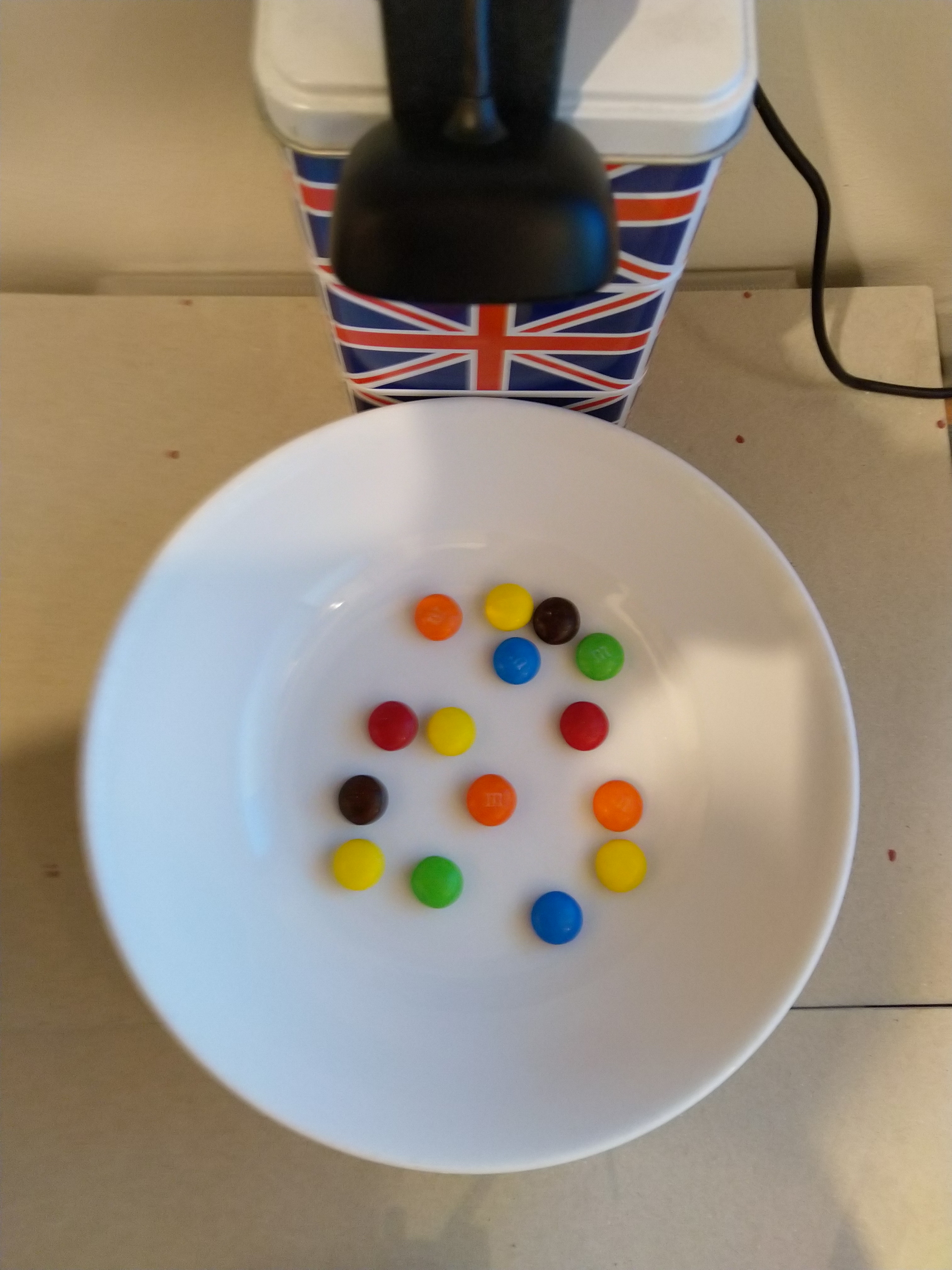
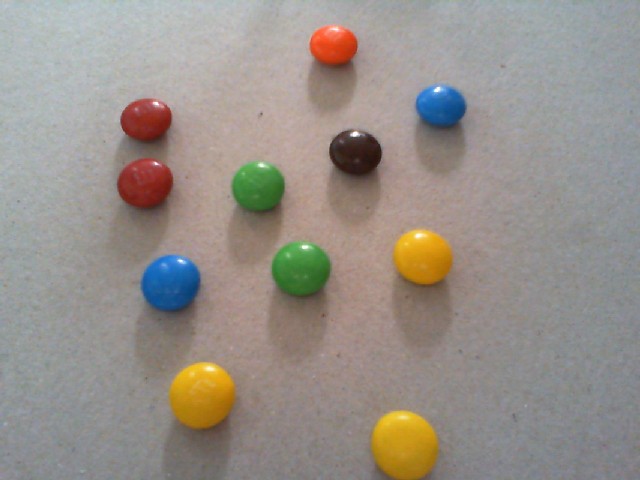
I found my small model was pretty good at detection of individual m&m as long as the ambient lighting was consistent, and the background fairly plain.
Sample image from test rig
Every so often the camera contrast setting went bad and could only be restored by restarting the device which needs further investigation.
Image with contrast problem
This application could be the basis for projects which need to run an Azure Cognitive Services model to count or classify then upload the results to an Azure IoT Hub or Azure IoT Central for presentation.
With a suitable model this application could be used to count the number of people in a room, which could be displayed along with the ambient temperature, humidity, CO2, and noise levels in Azure IoT Central.
The code for this application is available In on GitHub.
This application was inspired by one of teachers I work with wanting to count ducks in the stream on the school grounds. The school was having problems with water quality and the they wanted to see if the number of ducks was a factor. (Manually counting the ducks several times a day would be impractical).
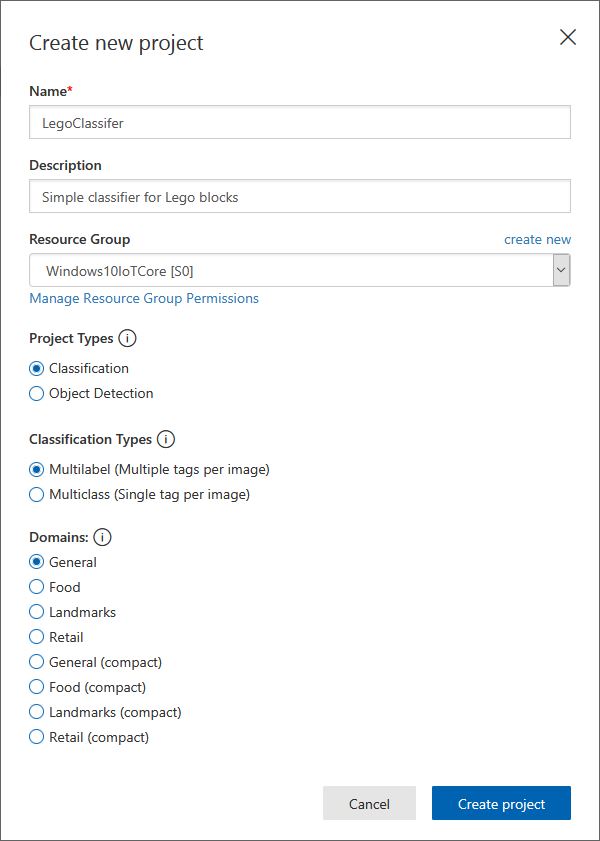
I didn’t have a source of training images so built an image classifier using my son’s Lego for testing. In a future post I will build an object detection model once I have some sample images of the stream captured by my Windows 10 IoT Core time lapse camera application.
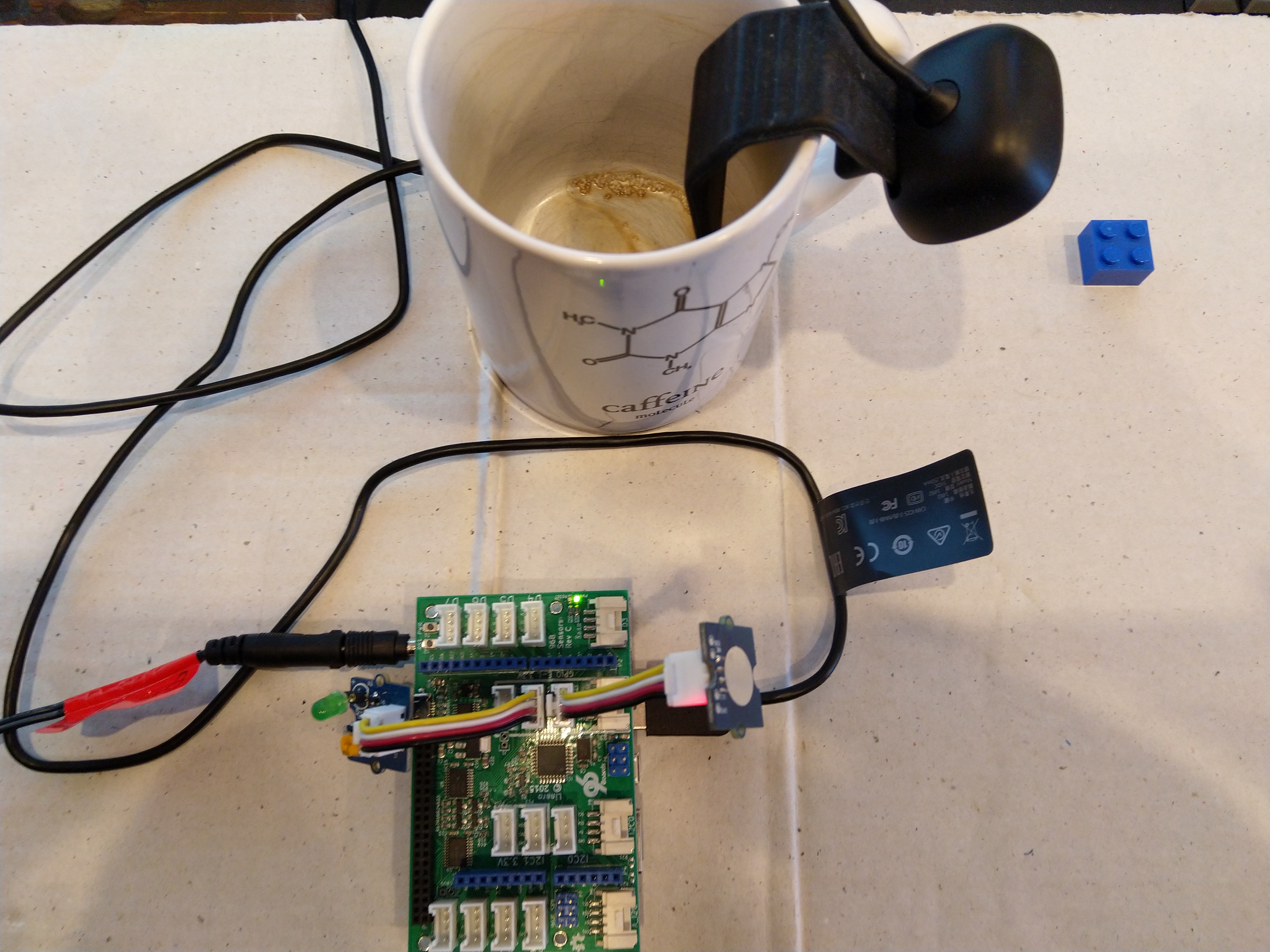
Every time the digital input is strobed by the infra red proximity sensor or touch button an image is captured, uploaded for processing, and results displayed in the debug output.
For testing I have used a simple multiclass classifier that I trained with a selection of my son’s Lego. I tagged the brick size height x width x length (1x2x3, smallest of width/height first) and colour (red, green, blue etc.)
The projectID, AzureCognitiveServicesSubscriptionKey (PredictionKey) and PublishedName (From the Performance tab in project) in the app.settings file come from the custom vision project properties.
The sample application only supports one trigger tag + probability and if this condition satisfied the Light Emitting Diode (LED) is turned on for 5 seconds. If an image is being processed or the minimum period between images has not passed the LED is illuminated for 5 milliseconds .
private async void InterruptGpioPin_ValueChanged(GpioPin sender, GpioPinValueChangedEventArgs args)
{
	DateTime currentTime = DateTime.UtcNow;
	Debug.WriteLine($"Digital Input Interrupt {sender.PinNumber} triggered {args.Edge}");

	if (args.Edge != this.interruptTriggerOn)
	{
		return;
	}

	// Check that enough time has passed for picture to be taken
	if ((currentTime - this.imageLastCapturedAtUtc) < this.debounceTimeout)
	{
		this.displayGpioPin.Write(GpioPinValue.High);
		this.displayOffTimer.Change(this.timerPeriodDetectIlluminated, this.timerPeriodInfinite);
		return;
	}

	this.imageLastCapturedAtUtc = currentTime;

	// Just incase - stop code being called while photo already in progress
	if (this.cameraBusy)
	{
		this.displayGpioPin.Write(GpioPinValue.High);
		this.displayOffTimer.Change(this.timerPeriodDetectIlluminated, this.timerPeriodInfinite);
		return;
	}

	this.cameraBusy = true;

	try
	{
		using (Windows.Storage.Streams.InMemoryRandomAccessStream captureStream = new Windows.Storage.Streams.InMemoryRandomAccessStream())
		{
			this.mediaCapture.CapturePhotoToStreamAsync(ImageEncodingProperties.CreateJpeg(), captureStream).AsTask().Wait();
			captureStream.FlushAsync().AsTask().Wait();
			captureStream.Seek(0);

			IStorageFile photoFile = await KnownFolders.PicturesLibrary.CreateFileAsync(ImageFilename, CreationCollisionOption.ReplaceExisting);
			ImageEncodingProperties imageProperties = ImageEncodingProperties.CreateJpeg();
			await this.mediaCapture.CapturePhotoToStorageFileAsync(imageProperties, photoFile);

			ImageAnalysis imageAnalysis = await this.computerVisionClient.AnalyzeImageInStreamAsync(captureStream.AsStreamForRead());

			Debug.WriteLine($"Tag count {imageAnalysis.Categories.Count}");

			if (imageAnalysis.Categories.Intersect(this.categoryList, new CategoryComparer()).Any())
			{
				this.displayGpioPin.Write(GpioPinValue.High);

				// Start the timer to turn the LED off
				this.displayOffTimer.Change(this.timerPeriodFaceIlluminated, this.timerPeriodInfinite);
					}

					LoggingFields imageInformation = new LoggingFields();

					imageInformation.AddDateTime("TakenAtUTC", currentTime);
					imageInformation.AddInt32("Pin", sender.PinNumber);
					Debug.WriteLine($"Categories:{imageAnalysis.Categories.Count}");
					imageInformation.AddInt32("Categories", imageAnalysis.Categories.Count);
					foreach (Category category in imageAnalysis.Categories)
					{
						Debug.WriteLine($" Category:{category.Name} {category.Score}");
						imageInformation.AddDouble($"Category:{category.Name}", category.Score);
					}

					this.logging.LogEvent("Captured image processed by Cognitive Services", imageInformation);
				}
			}
			catch (Exception ex)
			{
				this.logging.LogMessage("Camera photo or save failed " + ex.Message, LoggingLevel.Error);
			}
			finally
			{
				this.cameraBusy = false;
			}
		}

		private void TimerCallback(object state)
		{
			this.displayGpioPin.Write(GpioPinValue.Low);
		}

		internal class CategoryComparer : IEqualityComparer<Category>
		{
			public bool Equals(Category x, Category y)
			{
				if (string.Equals(x.Name, y.Name, StringComparison.OrdinalIgnoreCase))
				{
					return true;
				}

				return false;
			}

			public int GetHashCode(Category obj)
			{
				return obj.Name.GetHashCode();
			}
		}
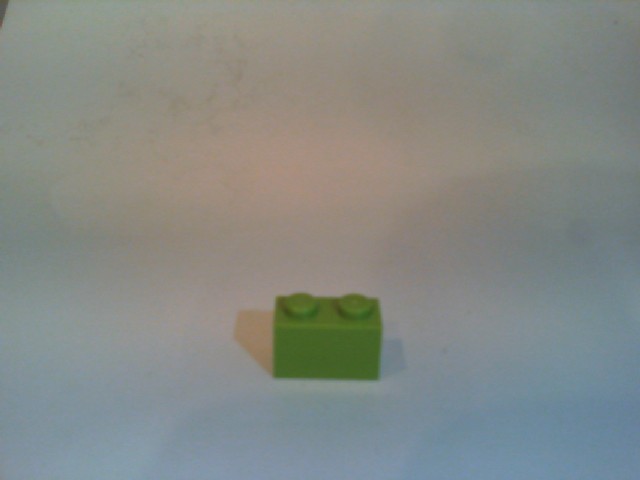
I found my small model was pretty good at tagging images of Lego bricks as long as the ambient lighting was consistent and the background fairly plain.
When tagging many bricks my ability to distinguish pearl light grey, light grey, sand blue and grey bricks was a problem. I should have started with a limited palette (red, green, blue) of colours and shapes for my models while evaluating different tagging approaches.
The debugging output of the application includes the different categories identified in the captured image.
I’m going to run this application repeatedly, adding more images and retraining the model to see how it performs. Once the model is working wll I’ll try downloading it and running it on a device
Custom Vision Test Harness running on my desk
This sample could be used as a basis for projects like this cat door which stops your pet bringing in dead or wounded animals. The model could be trained with tags to indicate whether the cat is carrying a “present” for their human and locking the door if it is.