Azure IoT Central Connectivity Part2

Basic Commands

I have been struggling with making The Things Network(TTN) and The Things Industries(TTI) uplink/downlink messages work well Azure IoT Central. To explore different messaging approaches I have built a proof of Concept(PoC) application which simulates TTN/TTI connectivity to an Azure IoT Hub, or Azure IoT Central.

This blog post is about queued and non queued Cloud to Device(C2D) commands without request or response parameters. I have mostly used non queued commands in other projects (my Azure IoT Hub LoRa and RF24L01 gateways) to “Restart” devices etc..

The first step was to create an Azure IoT Central Device Template with command and telemetry device capabilities.
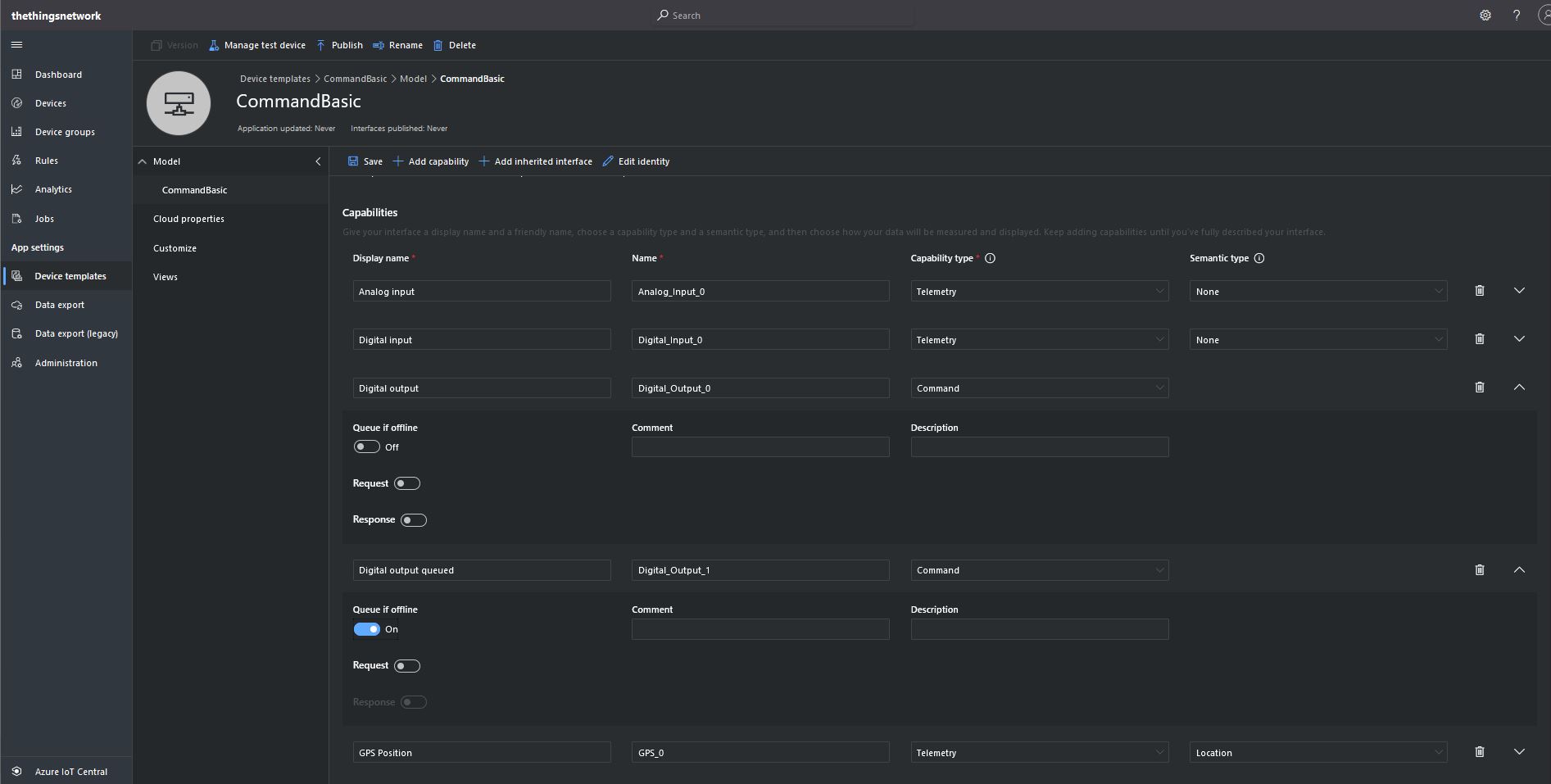
CommandBasic device template device with command & telemetry capabilities

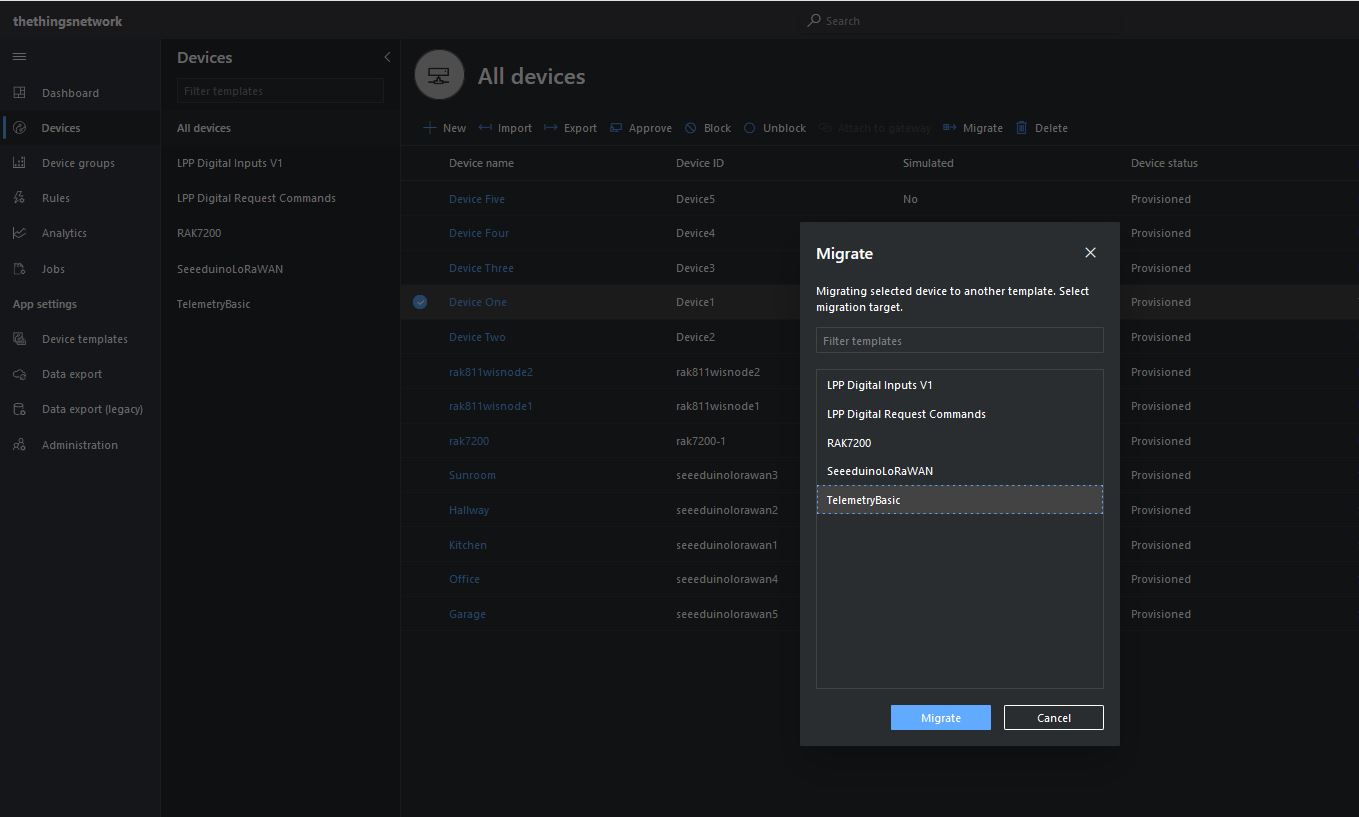
I then “migrated” my second preconfigured device to the CommandBasic template.
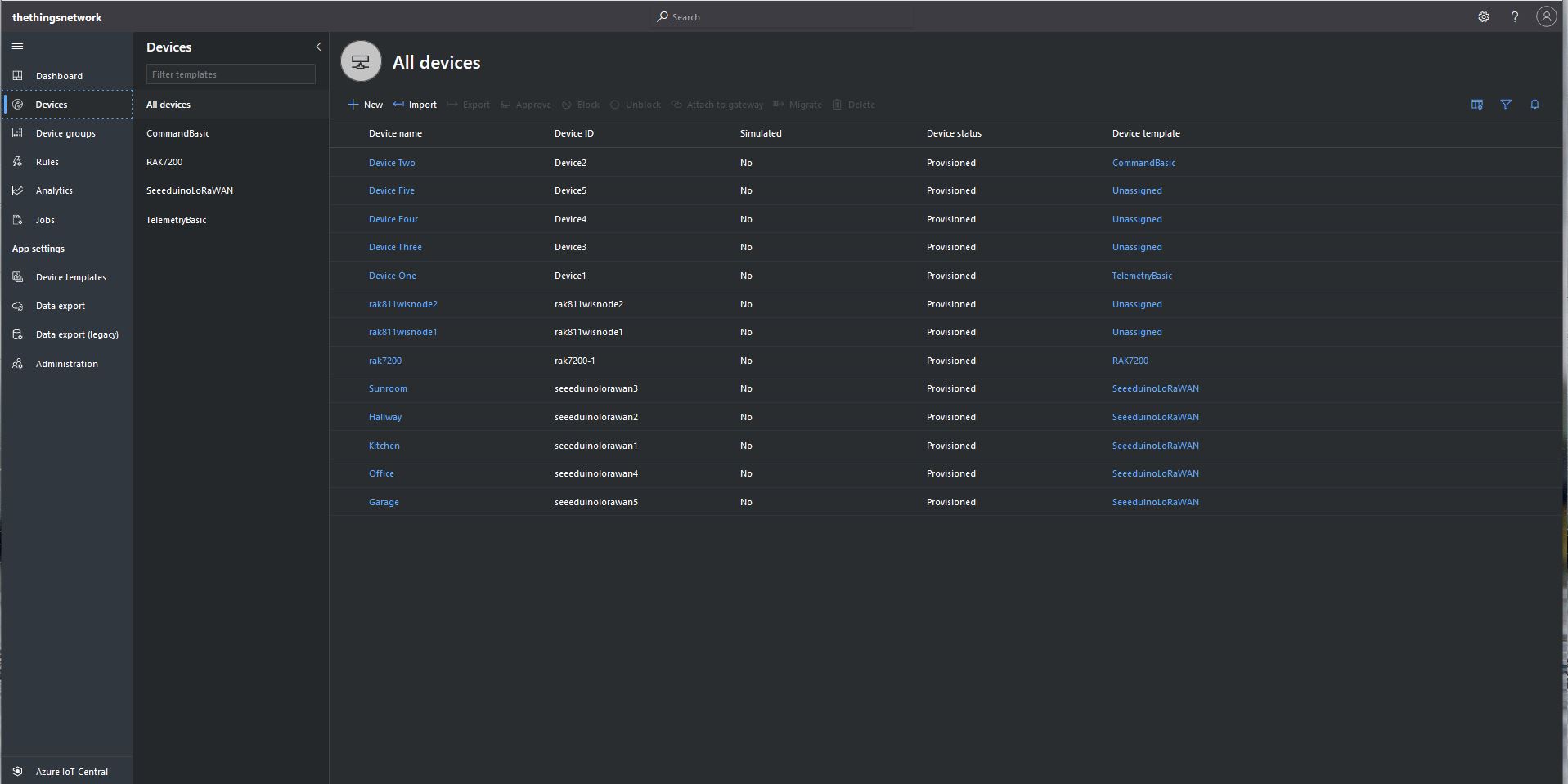
Migrating a device to TelemetryBasic template

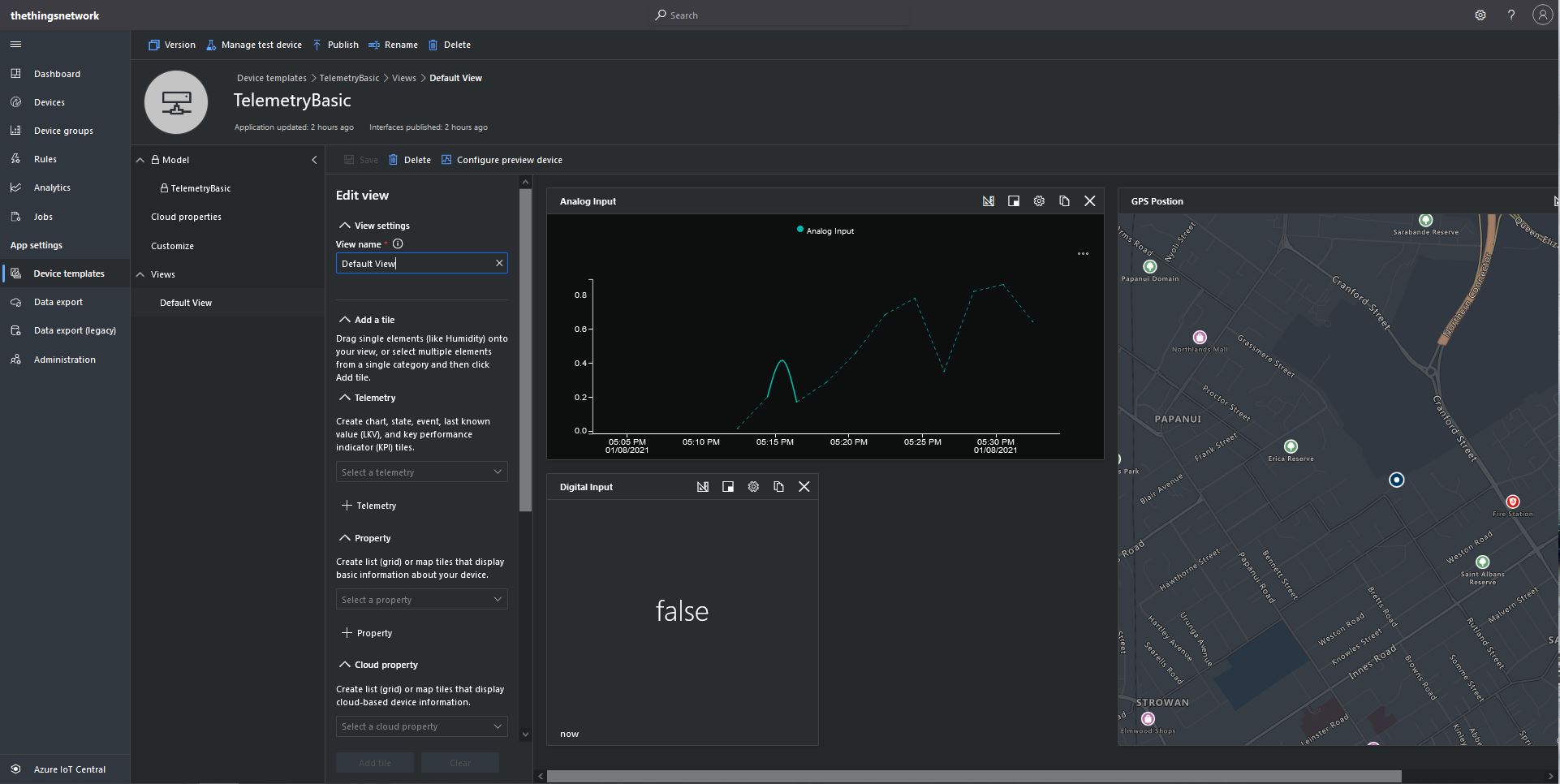
I then went back and created a Template view to visualise the telemetry from my console application and initiate commands.
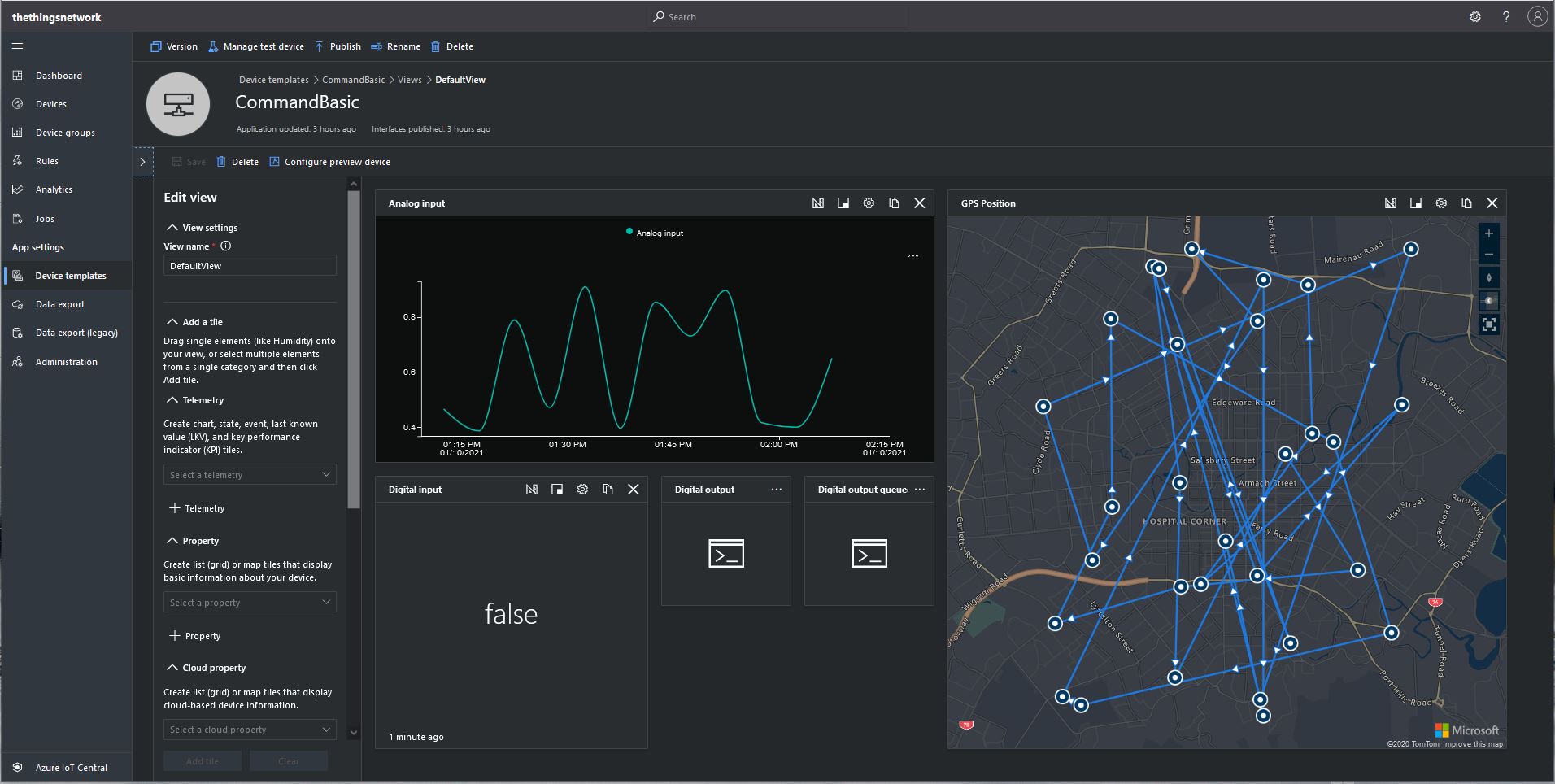
CommandBasic device template default view

I modified the PoC application adding handlers for Methods (SetMethodDefaultHandlerAsync) and Messages (SetReceiveMessageHandlerAsync).

private static async Task ApplicationCore(CommandLineOptions options)
{
   DeviceClient azureIoTHubClient;
   Timer MessageSender;

   try
   {
      // Open up the connection
      azureIoTHubClient = DeviceClient.CreateFromConnectionString(options.AzureIoTHubconnectionString, TransportType.Amqp_Tcp_Only);

      await azureIoTHubClient.OpenAsync();
      await azureIoTHubClient.SetReceiveMessageHandlerAsync(ReceiveMessageHandler, azureIoTHubClient);
      await azureIoTHubClient.SetMethodHandlerAsync("Named", MethodCallbackNamedHandler, null);
      await azureIoTHubClient.SetMethodDefaultHandlerAsync(MethodCallbackDefaultHandler, null);

      MessageSender = new Timer(TimerCallbackAsync, azureIoTHubClient, new TimeSpan(0, 0, 10), new TimeSpan(0, 2, 0));

      Console.WriteLine("Press any key to exit");
      while (!Console.KeyAvailable)
      {
         await Task.Delay(100);
      }
   }
   catch (Exception ex)
   {
      Console.WriteLine($"Main {ex.Message}");
      Console.WriteLine("Press <enter> to exit");
      Console.ReadLine();
   }
}

The method handler displays the method name and the message payload.

private static async Task<MethodResponse> MethodCallbackDefaultHandler(MethodRequest methodRequest, object userContext)
{
   Console.WriteLine($"Default handler method {methodRequest.Name} was called.");

   Console.WriteLine($"Payload:{methodRequest.DataAsJson}");
   Console.WriteLine();

   //return new MethodResponse(400);
   //return new MethodResponse(404);
   return new MethodResponse(200);
}

The message handler displays a selection the message properties, any attributes and the message payload.

 private async static Task ReceiveMessageHandler(Message message, object userContext)
{
   DeviceClient azureIoTHubClient = (DeviceClient)userContext;

   Console.WriteLine($"ReceiveMessageHandler handler method was called.");

   Console.WriteLine($" Message ID:{message.MessageId}");
   Console.WriteLine($" Message Schema:{message.MessageSchema}");
   Console.WriteLine($" Correlation ID:{message.CorrelationId}");
   Console.WriteLine($" Component name:{message.ComponentName}");
   Console.WriteLine($" To:{message.To}");
   Console.WriteLine($" Module ID:{message.ConnectionModuleId}");
   Console.WriteLine($" Device ID:{message.ConnectionDeviceId}");
   Console.WriteLine($" CreatedAt:{message.CreationTimeUtc}");
   Console.WriteLine($" EnqueuedAt:{message.EnqueuedTimeUtc}");
   Console.WriteLine($" ExpiresAt:{message.ExpiryTimeUtc}");
   Console.WriteLine($" Delivery count:{message.DeliveryCount}");
   Console.WriteLine($" InputName:{message.InputName}");
   Console.WriteLine($" SequenceNumber:{message.SequenceNumber}");

   foreach (var property in message.Properties)
   {
     Console.WriteLine($"   Key:{property.Key} Value:{property.Value}");
   }

   Console.WriteLine($" Content encoding:{message.ContentEncoding}");
   Console.WriteLine($" Content type:{message.ContentType}");
   Console.WriteLine($" Content:{Encoding.UTF8.GetString(message.GetBytes())}");
   Console.WriteLine();

   //await azureIoTHubClient.AbandonAsync(message); // message retries
   await azureIoTHubClient.CompleteAsync(message);
   //await azureIoTHubClient.RejectAsync(message); // message gone no retry
}

From the Device Commands tab I can could non queued and a queued commands
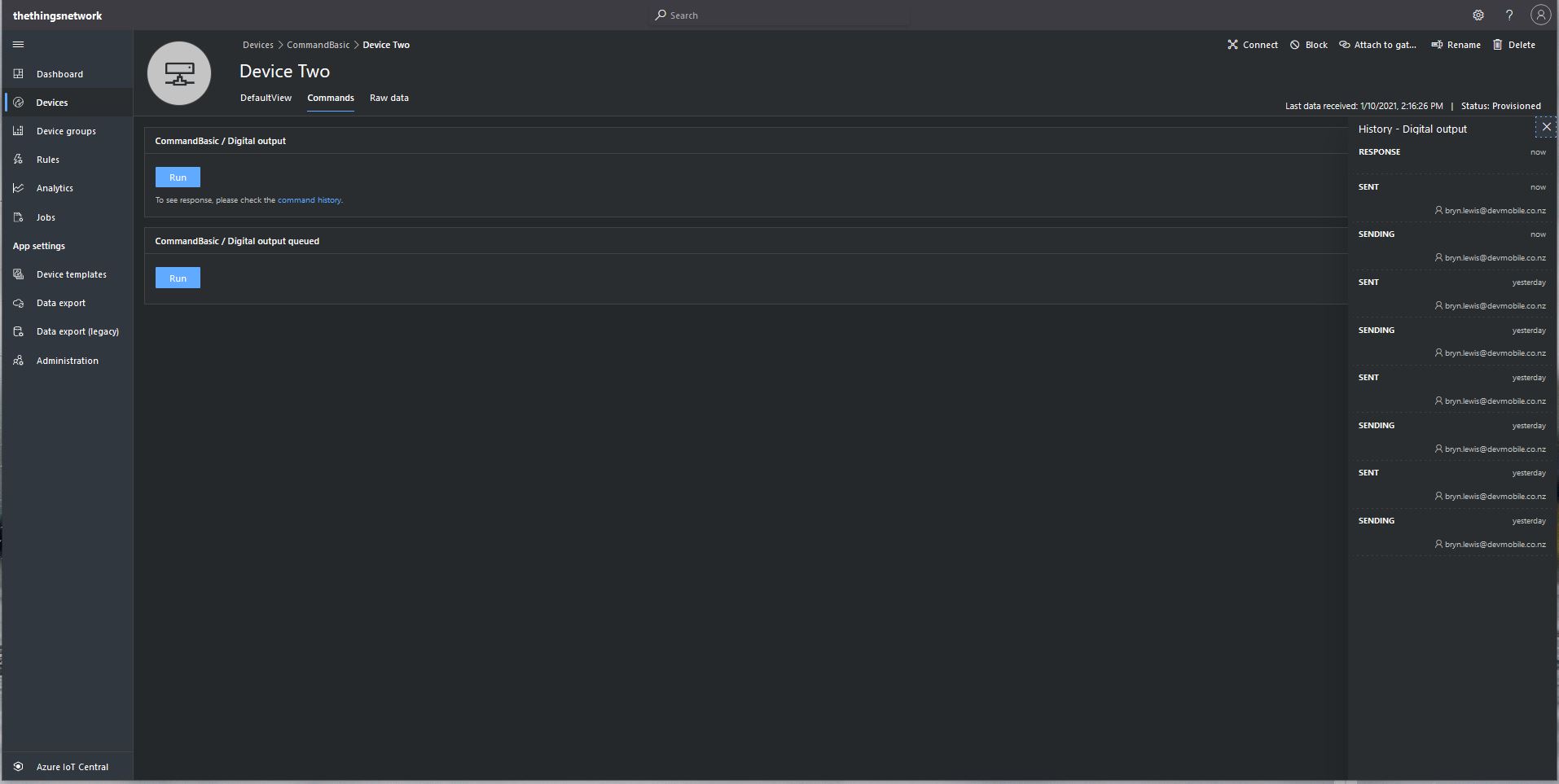
Device Two Commands tab

When I sent a non-queued command the default method handler was invoked with the name of the command capability (Digital_Output_0) as the method name and an empty payload. In the Azure IoT Central interface I couldn’t see any difference for successful (HTTP 200 OK) or failure (HTTP 400 Bad Request or HTTP 404 Not Found) responses. If the application was not running the command failed immediately.
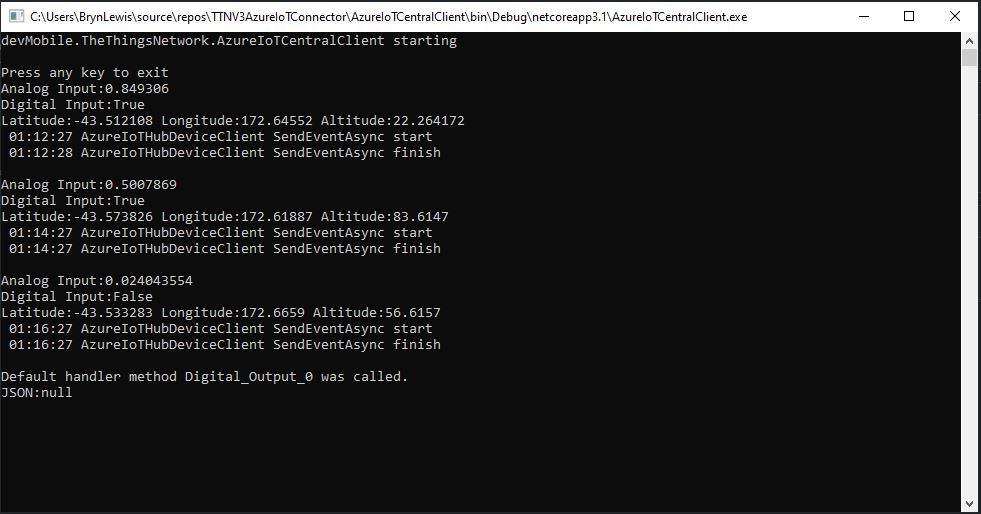
Console application displaying non-queued call

With Azure IoT Explorer failure responses were visible.
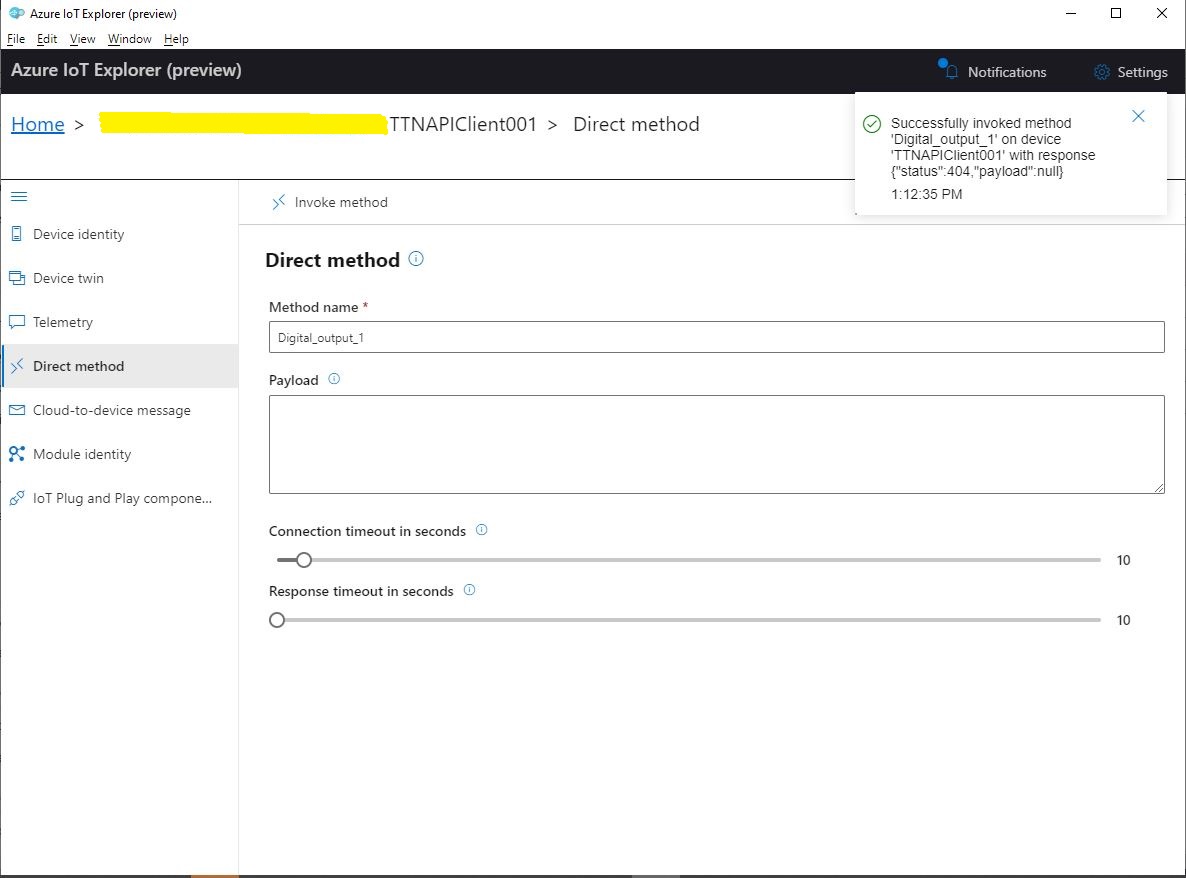
Azure IoT Explorer show message with 404 response

When I sent a queued command the message handler was invoked with the name of the command capability(Digital_Output_1) in a message property called “method-name” and the payload contained only an “@” character.
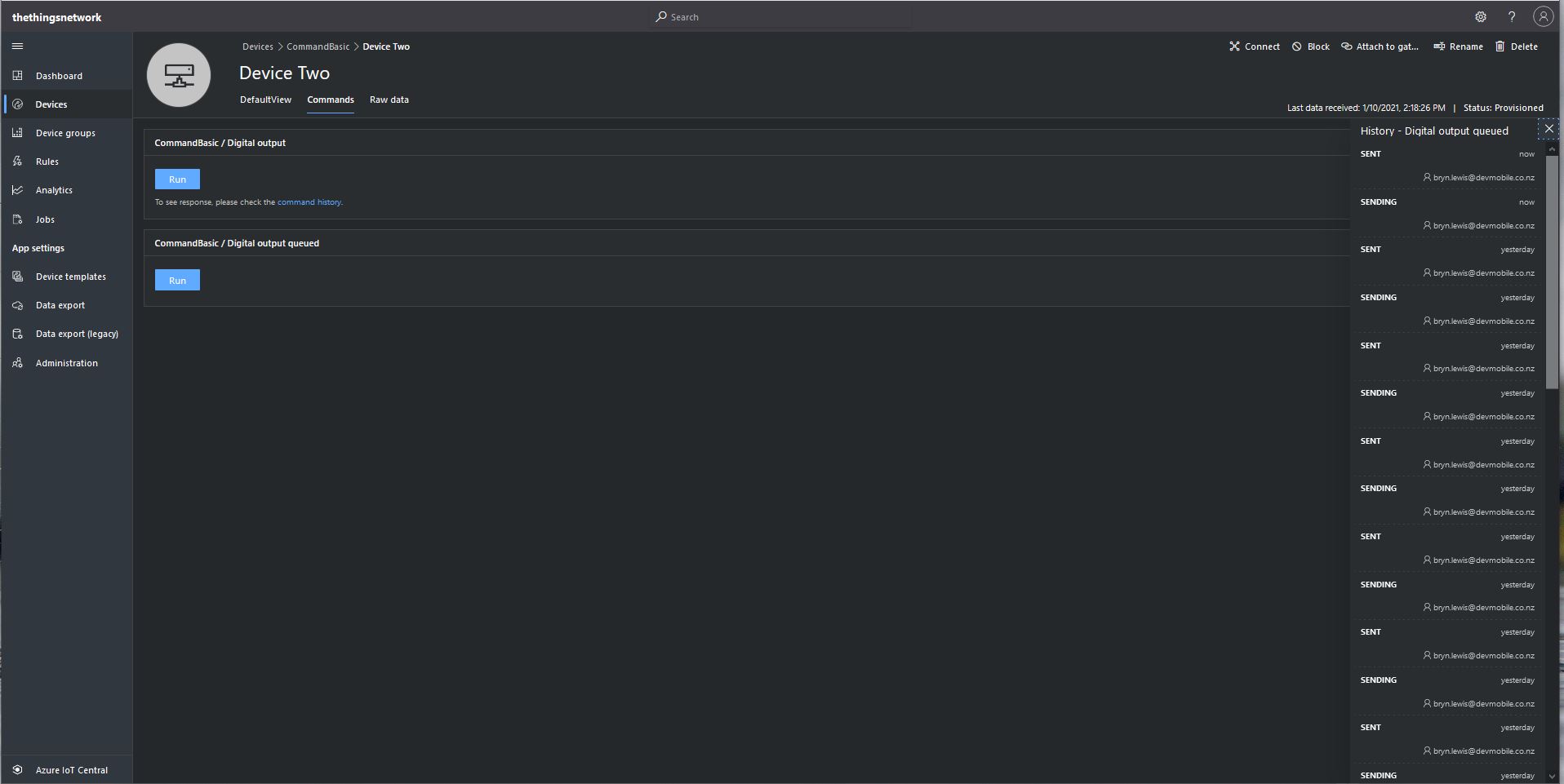
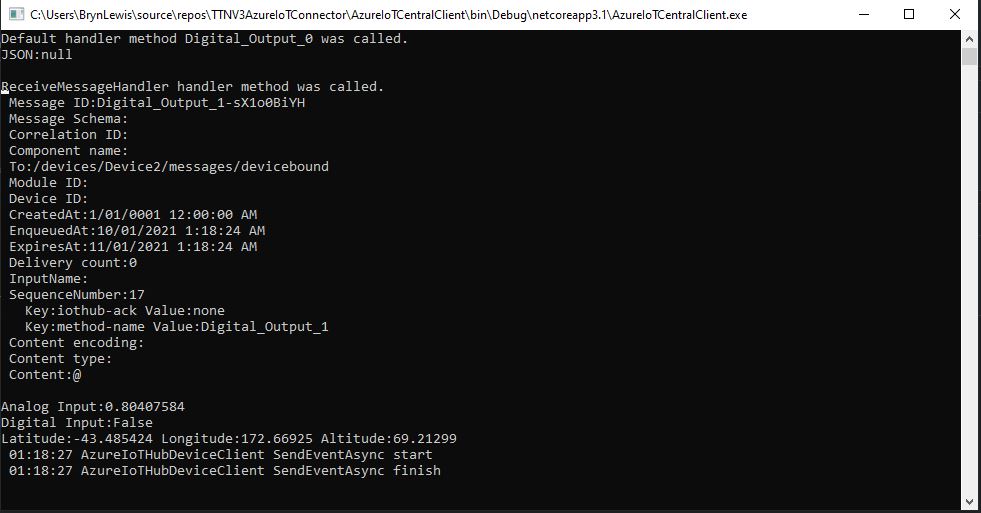
Console application displaying queued call

If the application was not running the command was queued until the Console application was started. When the console application was running and AbandonAsync was called rather than CompleteAsync the message was retried 10 times. If RejectAsync was called rather than CompleteAsync the message was deleted from the queue and not retried. There didn’t appear to be any difference for the displayed Azure IoT Central or Azure IoT Hub explorer results when AbandonAsync or RejectAsync were called.

I also created a personal dashboard to visualise the telemetry data and initiate commands. The way the two commands were presented on the dashboard was quite limited so I will go back to the documentation and see what I missed
Azure IoT Central Connectivity Part1

Basic Telemetry

I have been struggling with making The Things Network(TTN) and The Things Industries(TTI) uplink/downlink messages Azure IoT Central compatible. To explore the messaging approaches used I have built a proof of Concept(PoC) application which simulates TTN/TTI connectivity to an Azure IoT Hub, or Azure IoT Central.

My “nasty” console application uses the Azure DeviceClient library (Advanced Message Queuing Protocol(AMQP) connectivity) to explore how to interface with Azure IoT Central. This first blog post is about to Device Cloud(D2C) telemetry

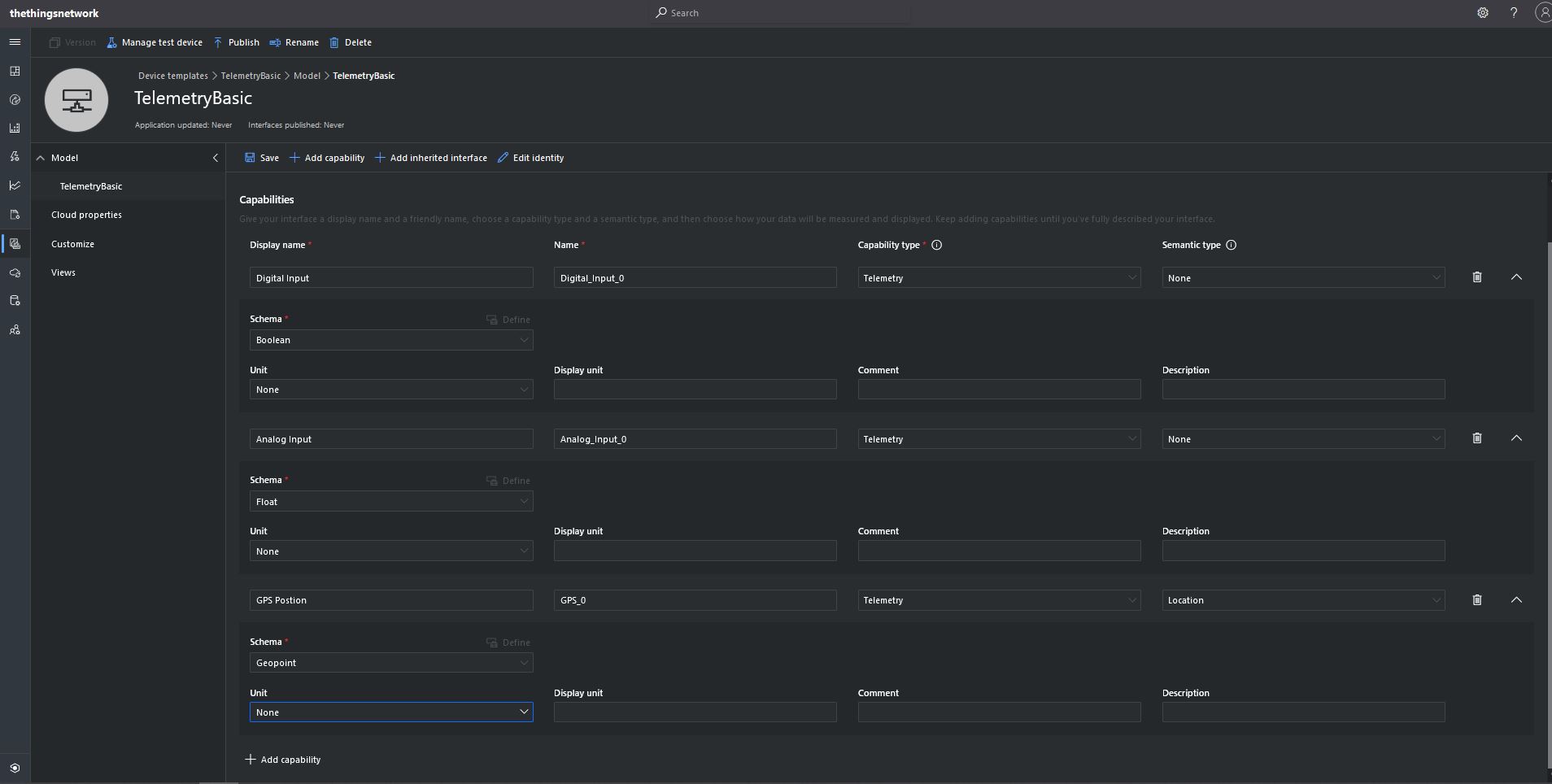
The first step was to create an Azure IoT Central Device Template with a selection of telemetry capabilities.

TelemetryBasic device template device capabilities

I then created a Plain old Common Language Runtime(CLR) object(PoCo) with Newtonsoft JSON library attributes to fine tune the serialisation/deserialation.

public class GPSPosition
{    
   [JsonProperty("lat")]
   public float Latitude { get; set; }
   [JsonProperty("lon")]
   public float Longitude { get; set; }
   [JsonProperty("alt")]
   public float Altitude { get; set; }
}

public class DigitialTelemetryPayload
{
   [JsonProperty("Digital_Input_0")]
   public bool DigitalInput { get; set; }

   [JsonProperty("Analog_Input_0")]
   public float AnalogInput { get; set; }

   [JsonProperty("GPS_0")]
   public GPSPosition GPSPosition { get; set; }
 }

I created five devices and generated their connection strings using the DPS individual enrollment functionality of one my other sample applications.

I then “migrated” the first device to my BasicTelemetry template

Migrating a device to TelemetryBasic template

I then went back and created a Template view to visualise the telemetry from my console application.

TelemetryBasic device template default view

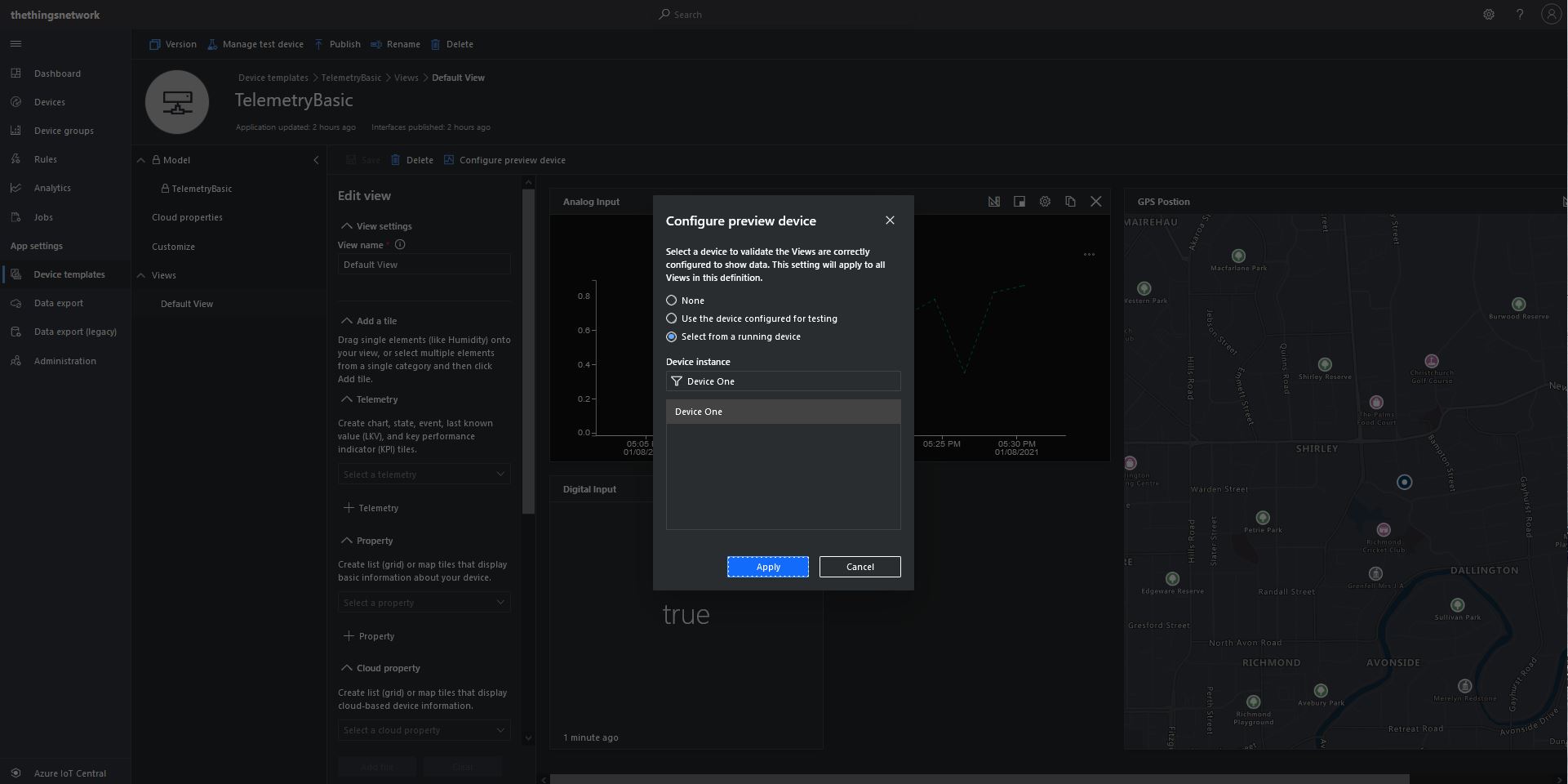
Then I configured a preview device so the template view was populated with “realistic” data.

TelemetryBasic device template default view configuring a device as data source

The console application simulates a digital input (random true/false), analog input (random value between 0.0 and 1.0) and a Global Positioning System(GPS) location (Christchurch Anglican Cathedral with a random latitude, longitude and altitude offset) .

Basic Telemetry Console Application

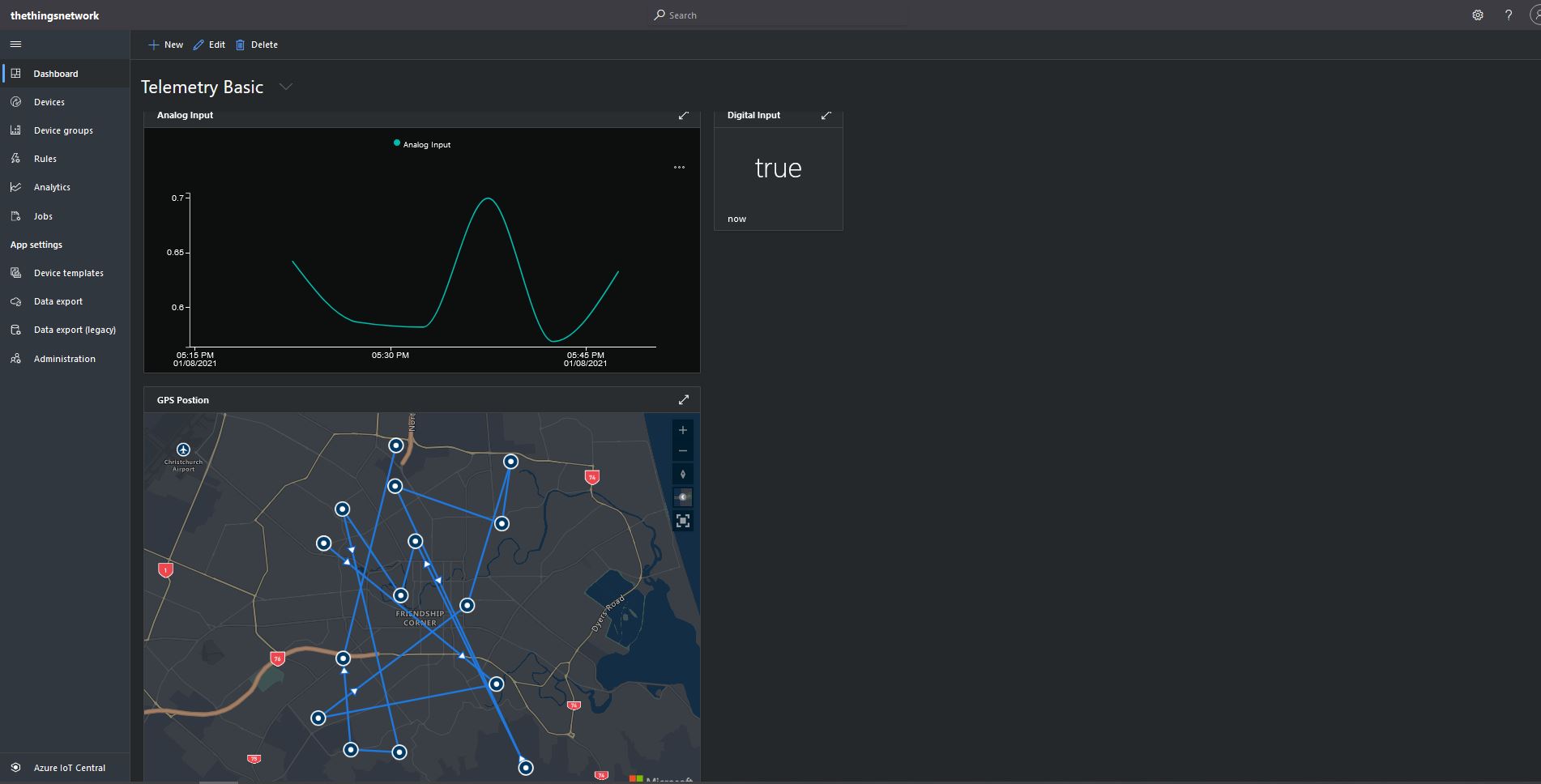
The final step was to create an Azure IoT Central Personal dashboard to visualise the data from my simulated device.

Basic Telemetry Dashboard

Connecting a Device, creating a Device Template, Migrating the Device, and then displaying telemetry on a personal dashboard was a good introduction to interfacing with and configuring Azure IoT Central devices.

In other applications I have mapped “payload_fields” to an Azure IoT Central telemetry payload with minimal code.

{
   "app_id": "rak811wisnodetest",
   "dev_id": "seeeduinolorawan4",
   "hardware_serial": "1234567890123456",
   "port": 10,
   "counter": 1,
   "is_retry": true,
   "payload_raw": "AWcBEAFlAGQBAAEBAgAyAYgAqYgGIxgBJuw=",
   "payload_fields": {
      "analog_in_1": 0.5,
      "digital_in_1": 1,
      "gps_1": {
         "altitude": 755,
         "latitude": 4.34,
         "longitude": 40.22
      },
      "luminosity_1": 100,
      "temperature_1": 27.2
   },
   "metadata": {
      "time": "2020-08-28T10:41:04.496594225Z",
      "frequency": 923.4,
      "modulation": "LORA",
      "data_rate": "SF12BW125",
      "coding_rate": "4/5",
      "gateways": [
         {
            "gtw_id": "eui-b827ebfffe6c279d",
            "timestamp": 3971612260,
            "time": "2020-08-28T10:41:03.313471Z",
            "channel": 1,
            "rssi": -53,
            "snr": 11.2,
            "rf_chain": 0,
            "latitude": -43.49885,
            "longitude": 172.60095,
            "altitude": 25
         }
      ]
   },
   "downlink_url": "https://integrations.thethingsnetwork.org/ttn-eu/api/v2/down/rak811wisnodetest/azure-webapi-endpoint?key=ttn-account-v2.12345678901234567_12345_1234567-dduo"
}

This was a longish post with lots of screen shots so I don’t have to repeat core setup instructions in future posts.

The Things Network MQTT & Azure IoT Part3A

Cloud to Device with frm_payload no confirmation

An Azure IoT Hub supports three kinds for Cloud to Device(C2D) messaging and my gateway will initially support only Direct Methods and Cloud-to-device messages.

The first step was to add the The Things Network(TTN) V3 Tennant ID to the context information as it is required for the downlink Message Queue Telemetry Transport (MQTT) publish topic.

namespace devMobile.TheThingsNetwork.Models
{
   public class AzureIoTHubReceiveMessageHandlerContext
   {
      public string TenantId { get; set; }
      public string DeviceId { get; set; }
      public string ApplicationId { get; set; }
   }
}

The object is passed as the context parameter of the SetReceiveMessageHandlerAsync method.

try
{
	DeviceClient deviceClient = DeviceClient.CreateFromConnectionString(
		options.AzureIoTHubconnectionString,
		endDevice.Ids.Device_id,
		TransportType.Amqp_Tcp_Only);

	await deviceClient.OpenAsync();

	AzureIoTHubReceiveMessageHandlerContext context = new AzureIoTHubReceiveMessageHandlerContext()
	{
		TenantId = options.Tenant,
		DeviceId = endDevice.Ids.Device_id,
		ApplicationId = options.ApiApplicationID,
	};

	await deviceClient.SetReceiveMessageHandlerAsync(AzureIoTHubClientReceiveMessageHandler, context);
	
	DeviceClients.Add(endDevice.Ids.Device_id, deviceClient, cacheItemPolicy);
}
catch( Exception ex)
{
	Console.WriteLine($"Azure IoT Hub OpenAsync failed {ex.Message}");
}

To send a message to a LoRaWAN device in addition to the payload, TTN needs the port number and optionally a confirmation required flag, message priority, queueing type and correlation ids.

With my implementation the confirmation required flag, message priority, and queueing type are Azure IoT Hub message properties and the messageid is used as a correlation id.

private async static Task AzureIoTHubClientReceiveMessageHandler(Message message, object userContext)
{
	bool confirmed;
	byte port;
	DownlinkPriority priority;
	string downlinktopic;

	try
	{
		AzureIoTHubReceiveMessageHandlerContext receiveMessageHandlerConext = (AzureIoTHubReceiveMessageHandlerContext)userContext;

		DeviceClient deviceClient = (DeviceClient)DeviceClients.Get(receiveMessageHandlerConext.DeviceId);
		if (deviceClient == null)
		{
			Console.WriteLine($" UplinkMessageReceived unknown DeviceID: {receiveMessageHandlerConext.DeviceId}");
			await deviceClient.RejectAsync(message);
			return;
		}

		using (message)
		{
			Console.WriteLine();
			Console.WriteLine();
			Console.WriteLine($"{DateTime.UtcNow:HH:mm:ss} Azure IoT Hub downlink message");
			Console.WriteLine($" ApplicationID: {receiveMessageHandlerConext.ApplicationId}");
			Console.WriteLine($" DeviceID: {receiveMessageHandlerConext.DeviceId}");
#if DIAGNOSTICS_AZURE_IOT_HUB
			Console.WriteLine($" Cached: {DeviceClients.Contains(receiveMessageHandlerConext.DeviceId)}");
			Console.WriteLine($" MessageID: {message.MessageId}");
			Console.WriteLine($" DeliveryCount: {message.DeliveryCount}");
			Console.WriteLine($" EnqueuedTimeUtc: {message.EnqueuedTimeUtc}");
			Console.WriteLine($" SequenceNumber: {message.SequenceNumber}");
			Console.WriteLine($" To: {message.To}");
#endif
			string messageBody = Encoding.UTF8.GetString(message.GetBytes());
			Console.WriteLine($" Body: {messageBody}");
#if DOWNLINK_MESSAGE_PROPERTIES_DISPLAY
			foreach (var property in message.Properties)
			{
				Console.WriteLine($"   Key:{property.Key} Value:{property.Value}");
			}
#endif
			if (!message.Properties.ContainsKey("Confirmed"))
			{
				Console.WriteLine(" UplinkMessageReceived missing confirmed property");
				await deviceClient.RejectAsync(message);
				return;
			}

			if (!bool.TryParse(message.Properties["Confirmed"], out confirmed))
			{
				Console.WriteLine(" UplinkMessageReceived confirmed property invalid");
				await deviceClient.RejectAsync(message);
				return;
			}

			if (!message.Properties.ContainsKey("Priority"))
			{
				Console.WriteLine(" UplinkMessageReceived missing priority property");
				await deviceClient.RejectAsync(message);
				return;
			}

			if (!Enum.TryParse(message.Properties["Priority"], true, out priority))
			{
				Console.WriteLine(" UplinkMessageReceived priority property invalid");
				await deviceClient.RejectAsync(message);
				return;
			}

			if (priority == DownlinkPriority.Undefined)
			{
				Console.WriteLine(" UplinkMessageReceived priority property undefined value invalid");
				await deviceClient.RejectAsync(message);
				return;
			}

			if (!message.Properties.ContainsKey("Port"))
			{
				Console.WriteLine(" UplinkMessageReceived missing port number property");
				await deviceClient.RejectAsync(message);
				return;
			}

			if (!byte.TryParse( message.Properties["Port"], out port))
			{
				Console.WriteLine(" UplinkMessageReceived port number property invalid");
				await deviceClient.RejectAsync(message);
				return;
			}

			if ((port < Constants.PortNumberMinimum) || port > (Constants.PortNumberMaximum))
			{
				Console.WriteLine($" UplinkMessageReceived port number property invalid value must be between {Constants.PortNumberMinimum} and {Constants.PortNumberMaximum}");
				await deviceClient.RejectAsync(message);
				return;
			}

			if (!message.Properties.ContainsKey("Queue"))
			{
				Console.WriteLine(" UplinkMessageReceived missing queue property");
				await deviceClient.RejectAsync(message);
				return;
			}

			switch(message.Properties["Queue"].ToLower())
			{
				case "push":
					downlinktopic = $"v3/{receiveMessageHandlerConext.ApplicationId}@{receiveMessageHandlerConext.TenantId}/devices/{receiveMessageHandlerConext.DeviceId}/down/push";
					break;
				case "replace":
					downlinktopic = $"v3/{receiveMessageHandlerConext.ApplicationId}@{receiveMessageHandlerConext.TenantId}/devices/{receiveMessageHandlerConext.DeviceId}/down/replace";
					break;
				default:
					Console.WriteLine(" UplinkMessageReceived missing queue property invalid value");
					await deviceClient.RejectAsync(message);
					return;
               }

			DownlinkPayload Payload = new DownlinkPayload()
			{
				Downlinks = new List<Downlink>()
				{ 
					new Downlink()
					{
						Confirmed = confirmed,
						PayloadRaw = messageBody,
						Priority = priority,
						Port = port,
						CorrelationIds = new List<string>()
						{
							message.MessageId
						}
					}
				}
			};

			var mqttMessage = new MqttApplicationMessageBuilder()
					.WithTopic(downlinktopic)
					.WithPayload(JsonConvert.SerializeObject(Payload))
					.WithAtLeastOnceQoS()
					.Build();

			await mqttClient.PublishAsync(mqttMessage);

			// Need to look at confirmation requirement ack, nack maybe failed & sent
			await deviceClient.CompleteAsync(message);

			Console.WriteLine();
		}
	}
	catch (Exception ex)
	{
		Debug.WriteLine("UplinkMessageReceived failed: {0}", ex.Message);
	}
}

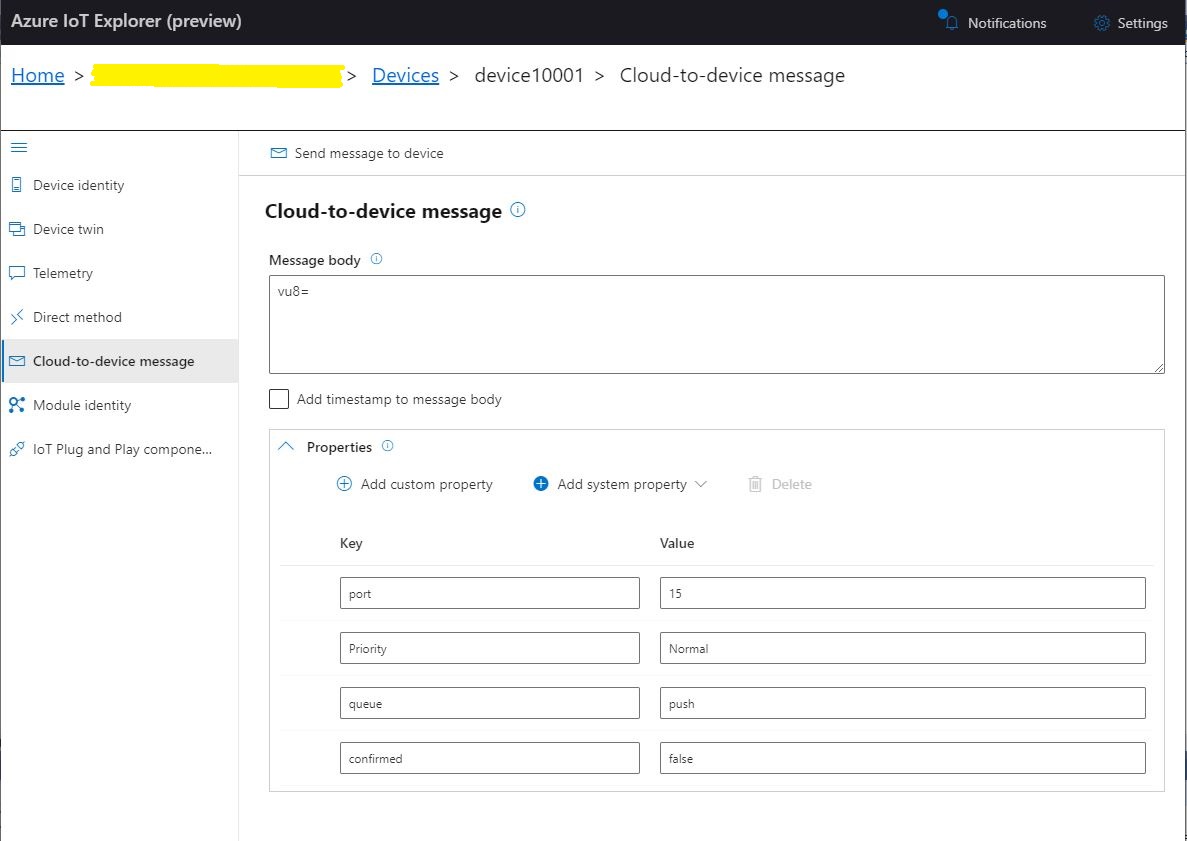
To “smoke test”” my implementation I used Azure IoT Explorer to send a C2D telemetry message

Azure IoT Hub Explorer send message form with payload and message properties

The PoC console application then forwarded the message to TTN using MQTT to be sent(which fails)

PoC application sending message then displaying result

The TTN live data display shows the message couldn’t be delivered because my test LoRaWAN device has not been activiated.

TTN Live Data display with message delivery failure

Now that my PoC application can receive and transmit message to devices I need to reconfigure my RAK Wisgate Developer D+ gateway and Seeeduino LoRaWAN and RAK Wisnode 7200 Track Lite devices on The Things Industries Network so I can test my approach with more realistic setup.

The Things Network MQTT & Azure IoT Part2

Uplink with decoded_payload & frm_payload

The next functionality added to my Proof of Concept(PoC) Azure IoT Hub, The Things Network(TTN) V3 Hypertext Transfer Protocol(HTTP) client API Integration, and Message Queue Telemetry Transport (MQTT) Data API Integration is sending of raw and decoded uplink messages to an Azure IoT Hub.

// At this point all the AzureIoT Hub deviceClients setup and ready to go so can enable MQTT receive
mqttClient.UseApplicationMessageReceivedHandler(new MqttApplicationMessageReceivedHandlerDelegate(e => MqttClientApplicationMessageReceived(e)));

// This may shift to individual device subscriptions
string uplinkTopic = $"v3/{options.MqttApplicationID}/devices/+/up";
await mqttClient.SubscribeAsync(uplinkTopic, MQTTnet.Protocol.MqttQualityOfServiceLevel.AtLeastOnce);

//string queuedTopic = $"v3/{options.MqttApplicationID}/devices/+/queued";
//await mqttClient.SubscribeAsync(queuedTopic, MQTTnet.Protocol.MqttQualityOfServiceLevel.AtLeastOnce);

The additional commented out subscriptions are for the processing of downlink messages

The MQTTNet received message handler uses the last segment of the topic to route messages to a method for processing

private static async void MqttClientApplicationMessageReceived(MqttApplicationMessageReceivedEventArgs e)
{
	if (e.ApplicationMessage.Topic.EndsWith("/up", StringComparison.InvariantCultureIgnoreCase))
	{
		await UplinkMessageReceived(e);
	}

	/*
	if (e.ApplicationMessage.Topic.EndsWith("/queued", StringComparison.InvariantCultureIgnoreCase))
	{
		await DownlinkMessageQueued(e);
	}
	...			
	*/
}

The UplinkMessageReceived method deserialises the message payload, retrieves device context information from the local ObjectCache, adds relevant uplink messages fields (including the raw payload), then if the message has been unpacked by a TTN Decoder, the message fields are added as well.

static async Task UplinkMessageReceived(MqttApplicationMessageReceivedEventArgs e)
{
	try
	{
		PayloadUplinkV3 payload = JsonConvert.DeserializeObject<PayloadUplinkV3>(e.ApplicationMessage.ConvertPayloadToString());
		string applicationId = payload.EndDeviceIds.ApplicationIds.ApplicationId;
		string deviceId = payload.EndDeviceIds.DeviceId;
		int port = payload.UplinkMessage.Port;
...
		DeviceClient deviceClient = (DeviceClient)DeviceClients.Get(deviceId);
		if (deviceClient == null)
		{
			Console.WriteLine($" UplinkMessageReceived unknown DeviceID: {deviceId}");
			return;
		}

		JObject telemetryEvent = new JObject();
		telemetryEvent.Add("DeviceID", deviceId);
		telemetryEvent.Add("ApplicationID", applicationId);
		telemetryEvent.Add("Port", port);
		telemetryEvent.Add("PayloadRaw", payload.UplinkMessage.PayloadRaw);

		// If the payload has been unpacked in TTN backend add fields to telemetry event payload
		if (payload.UplinkMessage.PayloadDecoded != null)
		{
			EnumerateChildren(telemetryEvent, payload.UplinkMessage.PayloadDecoded);
		}

		// Send the message to Azure IoT Hub/Azure IoT Central
		using (Message ioTHubmessage = new Message(Encoding.ASCII.GetBytes(JsonConvert.SerializeObject(telemetryEvent))))
		{
			// Ensure the displayed time is the acquired time rather than the uploaded time. 
			//ioTHubmessage.Properties.Add("iothub-creation-time-utc", payloadObject.Metadata.ReceivedAtUtc.ToString("s", CultureInfo.InvariantCulture));
			ioTHubmessage.Properties.Add("ApplicationId", applicationId);
			ioTHubmessage.Properties.Add("DeviceId", deviceId);
			ioTHubmessage.Properties.Add("port", port.ToString());

			await deviceClient.SendEventAsync(ioTHubmessage);
		}
	}
	catch( Exception ex)
	{
		Debug.WriteLine("UplinkMessageReceived failed: {0}", ex.Message);
	}
}

private static void EnumerateChildren(JObject jobject, JToken token)
{
	if (token is JProperty property)
	{
		if (token.First is JValue)
		{
			// Temporary dirty hack for Azure IoT Central compatibility
			if (token.Parent is JObject possibleGpsProperty)
			{
				if (possibleGpsProperty.Path.StartsWith("GPS_", StringComparison.OrdinalIgnoreCase))
				{
					if (string.Compare(property.Name, "Latitude", true) == 0)
					{
						jobject.Add("lat", property.Value);
					}
					if (string.Compare(property.Name, "Longitude", true) == 0)
					{
						jobject.Add("lon", property.Value);
					}
					if (string.Compare(property.Name, "Altitude", true) == 0)
					{
						jobject.Add("alt", property.Value);
					}
				}
			}
			jobject.Add(property.Name, property.Value);
		}
		else
		{
			JObject parentObject = new JObject();
			foreach (JToken token2 in token.Children())
			{
				EnumerateChildren(parentObject, token2);
				jobject.Add(property.Name, parentObject);
			}
		}
	}
	else
	{
		foreach (JToken token2 in token.Children())
		{
			EnumerateChildren(jobject, token2);
		}
	}
}

There is also some basic reformatting of the messages for Azure IoT Central

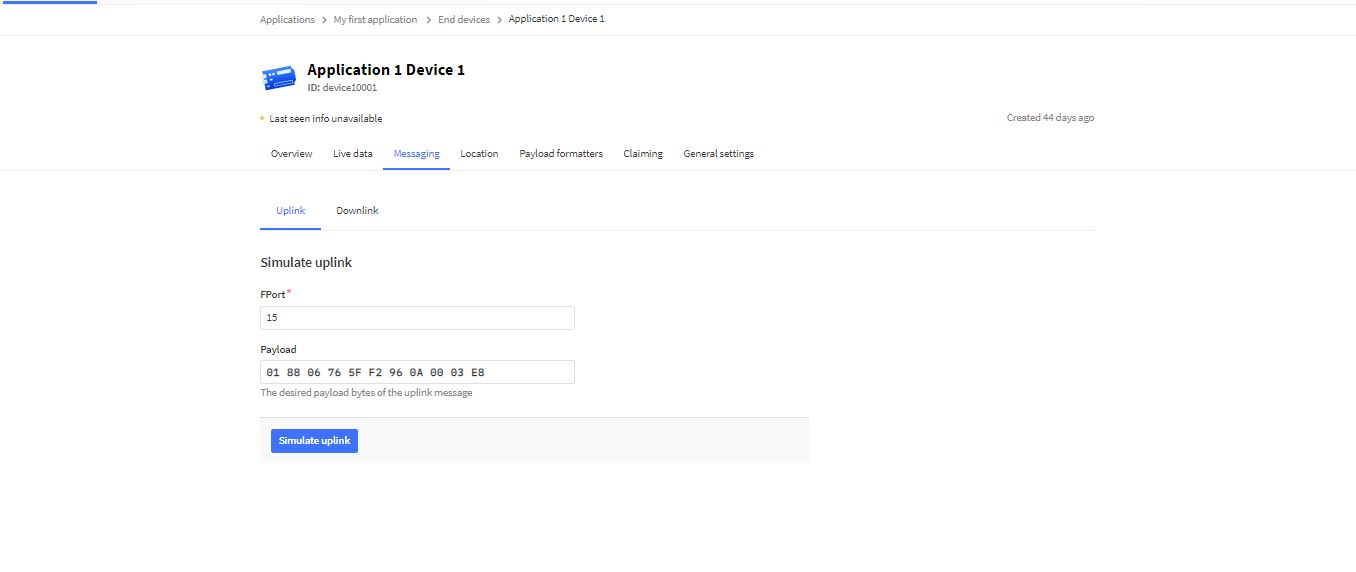
TTN Simulate uplink message with GPS location payload.
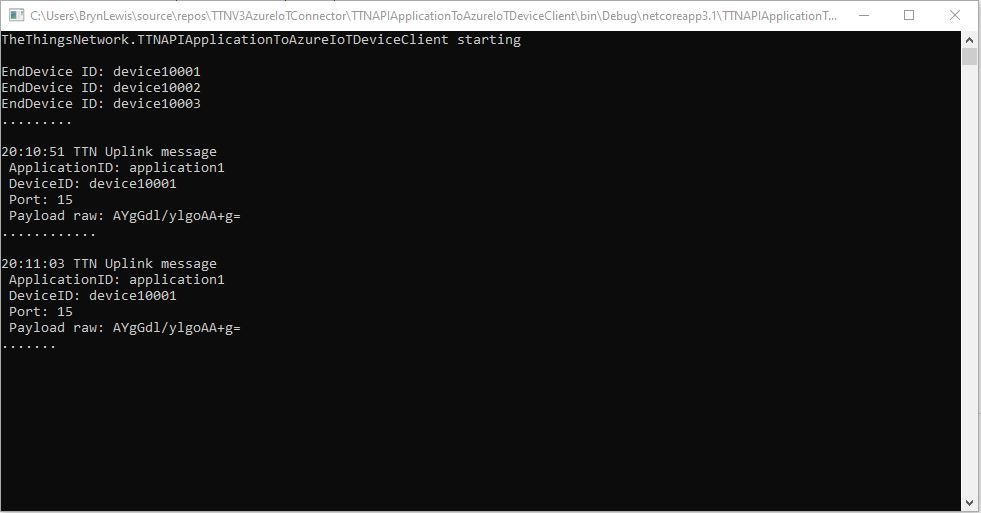
Nasty console application processing uplink message
Message from LoRaWAN device displayed in Azure IoT Explorer

Currently the code has a lots of diagnostic Console.Writeline statements, doesn’t support Uplink messages, has no Advanced Message Queuing Protocol(AMQP) client connection pooling, can’t run as an Azure Webjob, and a number of other features which I plan on adding in future blog posts.

Low Power Payload (LPP) Encoder

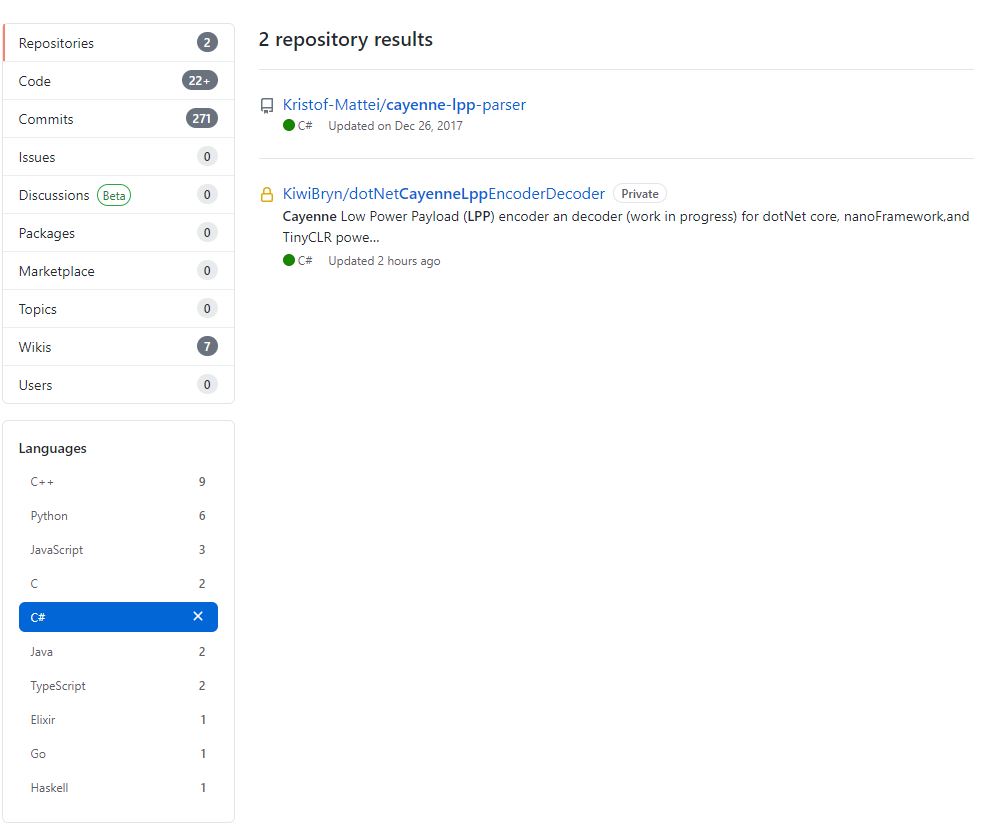
I originally started building my own Low Power Protocol(LPP) encoder because I could only find one other Github repository with a C# implementation. There hadn’t been any updates for a while and I wasn’t confident that I could make the code work on my nanoFramework and TinyCLR devices.

I started with the sample Mbed C code and did a largely mechanical conversion to C#. I then revisited some of the mathematics where floating point values were converted to an integer.

The original C++ code (understandably) had some language specific approaches which didn’t map well into C#. I then translated the code to C#

public void TemperatureAdd(byte channel, float celsius)
{
   if ((index + TemperatureSize) > buffer.Length)
   {
      throw new ApplicationException("TemperatureAdd insufficent buffer capacity");
   }

   short val = (short)(celsius * 10);

   buffer[index++] = channel;
   buffer[index++] = (byte)DataType.Temperature;
   buffer[index++] = (byte)(val >> 8);
   buffer[index++] = (byte)val;
}

One of my sensors was sending values with more decimal places than LPP supported and I noticed the value was not getting rounded e.g. 2.99 ->2.9 not 3.0 etc. So I revised my implementation to use Math.Round (which is supported by the nanoFramework and TinyCLR).

public void DigitalInputAdd(byte channel, bool value)
{
   #region Guard conditions
   if ((channel < Constants.ChannelMinimum) || (channel > Constants.ChannelMaximum))
   {
      throw new ArgumentException($"channel must be between {Constants.ChannelMinimum} and {Constants.ChannelMaximum}", "channel");
   }

   if ((index + Constants.DigitalInputSize) > buffer.Length)
   {
      throw new ApplicationException($"Datatype DigitalInput insufficent buffer capacity, {buffer.Length - index} bytes available");
   }
   #endregion

   buffer[index++] = channel;
   buffer[index++] = (byte)Enumerations.DataType.DigitalInput;

   // I know this is fugly but it works on all platforms
   if (value)
   {
      buffer[index++] = 1;
   }
   else
   {
     buffer[index++] = 0;
   }
 }

I then extracted out the channel and buffer size validation but I’m not certain this makes the code anymore readable/understandable

public void DigitalInputAdd(byte channel, bool value)
{
   IsChannelNumberValid(channel);
   IsBufferSizeSufficient(Enumerations.DataType.DigitalInput);

   buffer[index++] = channel;
   buffer[index++] = (byte)Enumerations.DataType.DigitalInput;

   // I know this is fugly but it works on all platforms
   if (value)
   {
      buffer[index++] = 1;
   }
   else
   {
      buffer[index++] = 0;
   }
}

The code runs on netCore, nanoFramework, and TinyCLRV2 just needs a few more unit tests and it will be ready for production. I started with an LPP encoder which I needed for one of my applications. I’m also working an approach for a decoder which will run on all my target platforms with minimal modification or compile time directives.

The Things Network V2 MQTT SQL Connector

This code was written to solve a problem I had debugging and testing an application which processed data from sensors attached to The Things Network(TTN) and I figured others might find it useful.

As part of my series of TTN projects I wanted to verify that the data from a number of LoRaWAN sensors connected to TTN was reasonable and complete. I’m familiar with Microsoft SQL Server so I built a .Net Core console application which uses the TTN Message Queue Telemetry Transport(MQTT) Data API (so it can run alongside my existing TTN integration) to receive messages from the all devices in a TTN application and store them in a database for post processing.

The console application uses MQTTNet to connect to TTN MQTT Data API. It subscribes to an application device uplink topic, then uses a combination of Stackoverflow Dapper with Microsoft SQL Server tables and stored procedures to store the device data points. I re-generated the classes I had used in my other projects, added any obvious missing fields and fine tuned the data types by delving into the TTN V2 GO code.

The core of the application is in the MQTTNet application message received handler.

private static void MqttClient_ApplicationMessageReceived(MqttApplicationMessageReceivedEventArgs e)
{
   PayloadUplinkV2 payload;

   log.InfoFormat($"Receive Start Topic:{e.ApplicationMessage.Topic}");

   string connectionString = configuration.GetSection("TTNDatabase").Value;

   try
   {
      payload = JsonConvert.DeserializeObject<PayloadUplinkV2>(e.ApplicationMessage.ConvertPayloadToString());
   }
   catch (Exception ex)
   {
      log.Error("DeserializeObject failed", ex);
      return;
   }

   try
   {
      if (payload.PayloadFields != null)
      {
         var parameters = new DynamicParameters();

         EnumerateChildren(parameters, payload.PayloadFields);

         log.Debug($"Parameters:{parameters.ParameterNames.Aggregate((i, j) => i + ',' + j)}");

         foreach (string storedProcedure in storedProcedureMappings.Keys)
         {
            if (Enumerable.SequenceEqual(parameters.ParameterNames, storedProcedureMappings[storedProcedure].Split(',', StringSplitOptions.RemoveEmptyEntries), StringComparer.InvariantCultureIgnoreCase))
            {
               log.Info($"Payload fields processing with:{storedProcedure}");

               using (SqlConnection db = new SqlConnection(connectionString))
               {
                  parameters.Add("@ReceivedAtUtc", payload.Metadata.ReceivedAtUtc);
                  parameters.Add("@DeviceID", payload.DeviceId);
                  parameters.Add("@DeviceEui", payload.DeviceEui);
                  parameters.Add("@ApplicationID", payload.ApplicationId);
                  parameters.Add("@IsConfirmed", payload.IsConfirmed);
                  parameters.Add("@IsRetry", payload.IsRetry);
                  parameters.Add("@Port", payload.Port);

                  db.Execute(sql: storedProcedure, param: parameters, commandType: CommandType.StoredProcedure);
               }
            }
         }
      }
      else
      {
         foreach (string storedProcedure in storedProcedureMappings.Keys)
         {
            if (string.Compare(storedProcedureMappings[storedProcedure], "payload_raw", true) == 0)
            {
               log.Info($"Payload raw processing with:{storedProcedure}");

               using (SqlConnection db = new SqlConnection(connectionString))
               {
                  var parameters = new DynamicParameters();

                  parameters.Add("@ReceivedAtUtc", payload.Metadata.ReceivedAtUtc);
                  parameters.Add("@DeviceID", payload.DeviceId);
                  parameters.Add("@DeviceEui", payload.DeviceEui);
                  parameters.Add("@ApplicationID", payload.ApplicationId);
                  parameters.Add("@IsConfirmed", payload.IsConfirmed);
                  parameters.Add("@IsRetry", payload.IsRetry);
                  parameters.Add("@Port", payload.Port);
                  parameters.Add("@Payload", payload.PayloadRaw);

                  db.Execute(sql: storedProcedure, param: parameters, commandType: CommandType.StoredProcedure);
               }
            }
         }
      }
   }
   catch (Exception ex)
   {
      log.Error("Message processing failed", ex);
   }
}

For messages with payload fields the code attempts to match the list of field names (there maybe more than one match) with the parameter list for stored procedures in the AppSettings.json file. The Enumerable.SequenceEqual uses a case insensitive comparison but order is important. I did consider sorting the two lists of parameters but wasn’t certain the added complexity was worth it.

{
   "TTNDatabase": "Server=DESKTOP-1234567;Initial Catalog=Rak7200TrackerTest;Persist Security Info=False;User ID=TopSecret;Password=TopSecret;Connection Timeout=30",
   "MqttServer": "eu.thethings.network",
   "MqttPassword": "ttn-account-TopSecret",
   "ApplicationId": "rak811wisnodetest",
   "MqttClientId": "TTNSQLClient",
   "StoredProcedureMappings": {
      "EnvironmentalSensorProcess": "relative_humidity_0,temperature_0",
      "PayloadRawProcess": "payload_raw",
      "WeatherSensorProcess": "barometric_pressure_0,temperature_0",
      "PositionReportProcess": "accelerometer_3x,accelerometer_3y,accelerometer_3z,analog_in_10,analog_in_11,analog_in_8,analog_in_9,gps_1altitude,gps_1latitude,gps_1longitude,gyrometer_5x,gyrometer_5y,gyrometer_5z"
   }
}

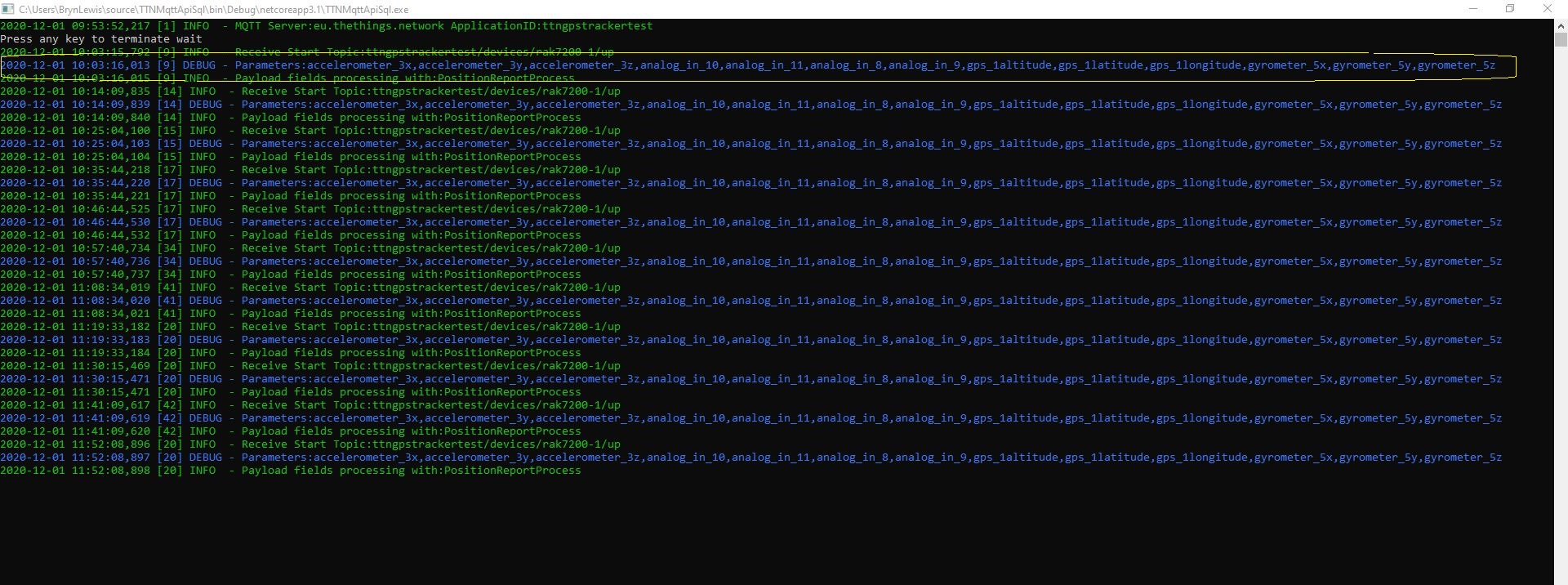
To reduce the scope for mistakes (especially with longer parameter lists) I usually copy them from the Log4Net RollingFileAppender file or ManagedColoredConsoleAppender console output.

Environmental sensor output with flat data format

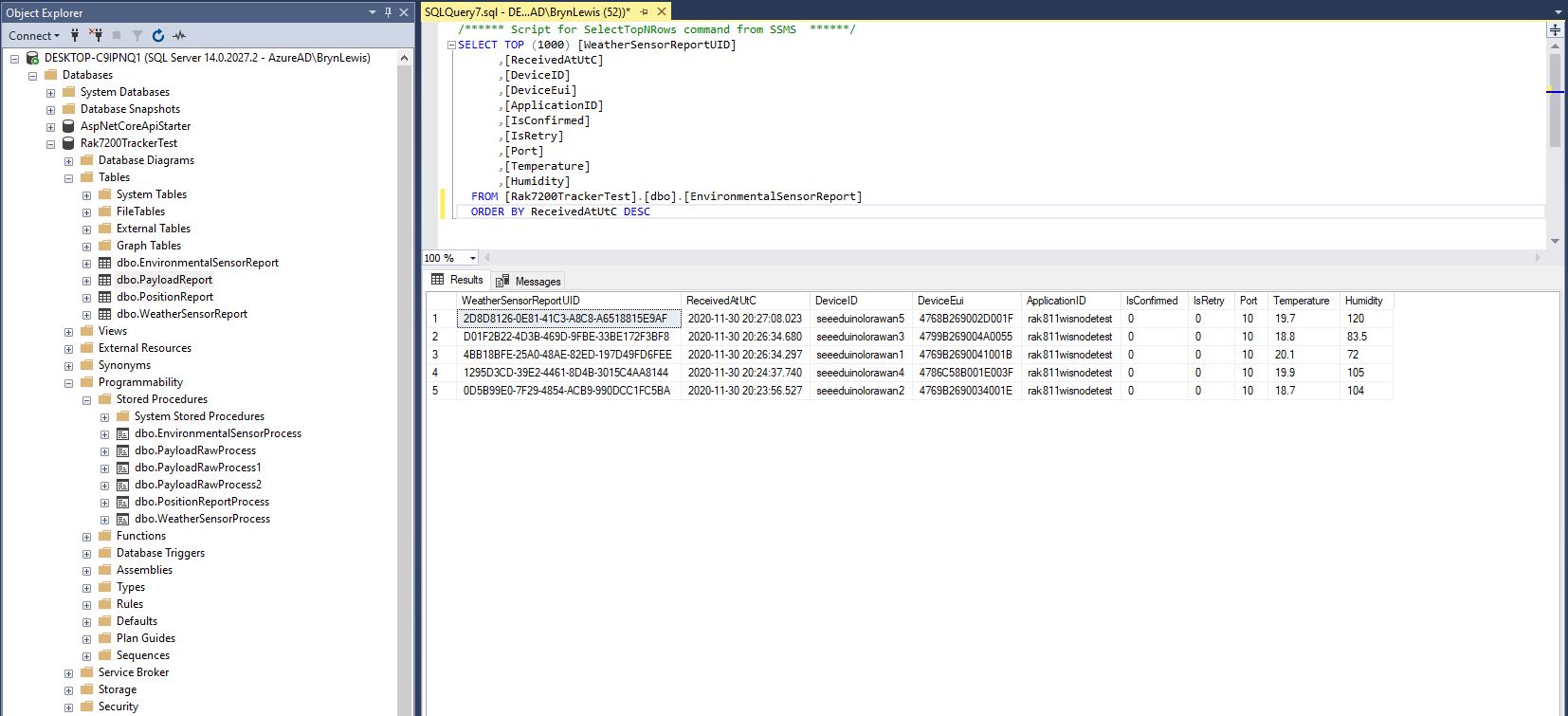
I created a database table to store the temperature and humidity values.

CREATE TABLE [dbo].[EnvironmentalSensorReport](
	[WeatherSensorReportUID] [UNIQUEIDENTIFIER] NOT NULL,
	[ReceivedAtUtC] [DATETIME] NOT NULL,
	[DeviceID] [NVARCHAR](32) NOT NULL,
	[DeviceEui] [NVARCHAR](32) NOT NULL,
	[ApplicationID] [NVARCHAR](32) NOT NULL,
	[IsConfirmed] [BIT] NOT NULL,
	[IsRetry] [BIT] NOT NULL,
	[Port] [SMALLINT] NOT NULL,
	[Temperature] [FLOAT] NOT NULL,
	[Humidity] [FLOAT] NOT NULL,
CONSTRAINT [PK_EnvironmentalSensorReport] PRIMARY KEY CLUSTERED 
(
	[WeatherSensorReportUID] ASC
)WITH (PAD_INDEX = OFF, STATISTICS_NORECOMPUTE = OFF, IGNORE_DUP_KEY = OFF, ALLOW_ROW_LOCKS = ON, ALLOW_PAGE_LOCKS = ON) ON [PRIMARY]
) ON [PRIMARY]
GO

ALTER TABLE [dbo].[EnvironmentalSensorReport] ADD  CONSTRAINT [DF_EnvironmentalSensorReport_EnvironmentalSensorReporttUID]  DEFAULT (NEWID()) FOR [WeatherSensorReportUID]
GO

The stored procedure must have the parameters @ReceivedAtUtc, @DeviceID, @DeviceEui, @ApplicationID, @IsRetry, @IsConfirmed and @Port. In this example the payload specific fields generated by the Low Power Protocol(LPP) decoder are @Temperature_0 and @relative_humidity_0

CREATE PROCEDURE [dbo].[EnvironmentalSensorProcess]
   @ReceivedAtUtc AS DATETIME,
   @DeviceID AS NVARCHAR(32),
   @DeviceEui AS NVARCHAR(32),
   @ApplicationID AS NVARCHAR(32),
   @IsRetry AS BIT,
   @IsConfirmed AS BIT,
   @Port AS SMALLINT,
   @Temperature_0 AS FLOAT,
   @relative_humidity_0 AS FLOAT
AS
BEGIN
   SET NOCOUNT ON;
 
   INSERT INTO [dbo].[EnvironmentalSensorReport]
           ([PositionReportUID]
	   .[ReceivedAtUtc]
           ,[DeviceID]
           ,[DeviceEui]
           ,[ApplicationID]
           ,[IsConfirmed]
           ,[IsRetry]
           ,[Port]
	   ,Temperature
	   ,Humidity)
   VALUES
   (
      @ReceivedAtUtc,
      @DeviceID,
      @DeviceEui,
      @ApplicationID,
      @IsConfirmed,
      @IsRetry,
      @port,
      @Temperature_0,
      @relative_humidity_0)
END
Environmental sensor data displayed in SQL Server Management Studio(SSMS)

To store more complex nest payload fields (e.g. latitude, longitude and altitude values), I flattened the the hierarchy.

private static void EnumerateChildren(DynamicParameters parameters, JToken token, string prefix ="")
{
   if (token is JProperty)
      if (token.First is JValue)
      {
         JProperty property = (JProperty)token;
         parameters.Add($"@{prefix}{property.Name}", property.Value.ToString());
      }
      else
      {
         JProperty property = (JProperty)token;
         prefix += property.Name;
      }

   foreach (JToken token2 in token.Children())
   {
      EnumerateChildren(parameters,token2, prefix);
   }
}
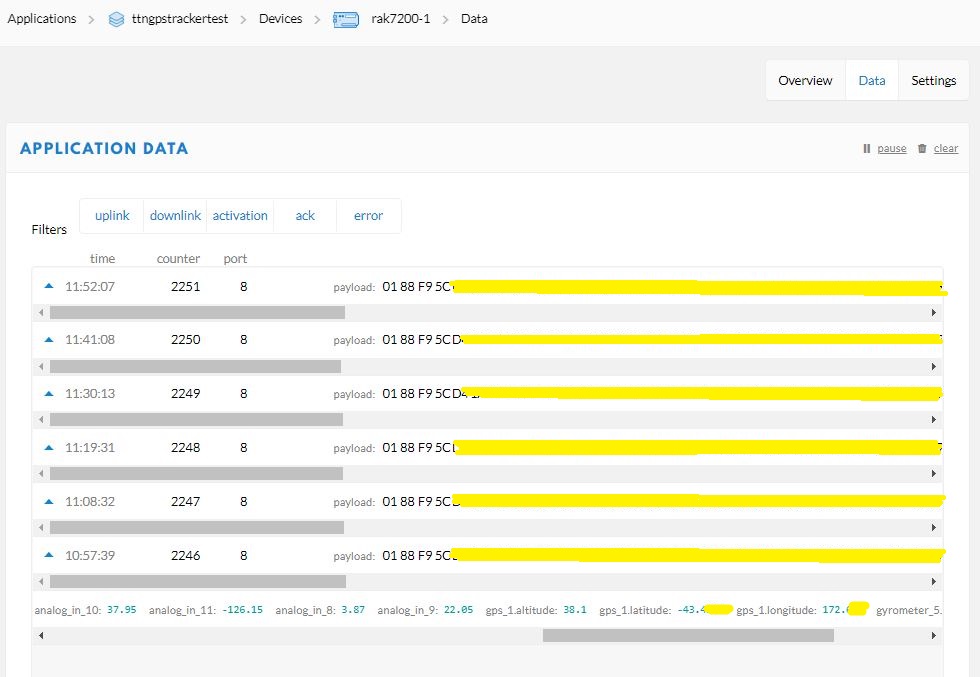
Unpacked LPP payload from GPS tracker displayed in TTN application data view
Flattened location, acceleration and rotation information
CREATE TABLE [dbo].[PositionReport](
      [PositionReportUID] [UNIQUEIDENTIFIER] NOT NULL,
      [ReceivedAtUtC] [DATETIME] NOT NULL,
      [DeviceID] [NVARCHAR](32) NOT NULL,
      [DeviceEui] [NVARCHAR](32) NOT NULL,
      [ApplicationID] [NVARCHAR](32) NOT NULL,
      [IsConfirmed] [BIT] NOT NULL,
      [IsRetry] [BIT] NOT NULL,
      [Port] [SMALLINT] NOT NULL,
      [Latitude] [FLOAT] NOT NULL,
      [Longitude] [FLOAT] NOT NULL,
      [Altitude] [FLOAT] NOT NULL,
 CONSTRAINT [PK_PositionReport] PRIMARY KEY CLUSTERED 
(
	[PositionReportUID] ASC
)WITH (PAD_INDEX = OFF, STATISTICS_NORECOMPUTE = OFF, IGNORE_DUP_KEY = OFF, ALLOW_ROW_LOCKS = ON, ALLOW_PAGE_LOCKS = ON) ON [PRIMARY]
) ON [PRIMARY]
GO

I created a database table to store values of only the fields I cared about.

CREATE PROCEDURE [dbo].[PositionReportProcess]
      @ReceivedAtUtc AS DATETIME,
      @DeviceID AS NVARCHAR(32),
      @DeviceEui AS NVARCHAR(32),
      @ApplicationID AS NVARCHAR(32),
      @IsRetry AS Bit,
      @IsConfirmed AS BIT,
      @Port AS SMALLINT,
      @accelerometer_3x AS FLOAT,
      @accelerometer_3y AS FLOAT,
      @accelerometer_3z AS FLOAT,
      @analog_in_8 AS FLOAT,
      @analog_in_9 AS FLOAT,
      @analog_in_10 AS FLOAT,
      @analog_in_11 AS FLOAT,
      @gps_1Latitude AS FLOAT,
      @gps_1Longitude AS FLOAT,
      @gps_1Altitude AS FLOAT,
      @gyrometer_5x  AS FLOAT, 
      @gyrometer_5y  AS FLOAT, 
      @gyrometer_5z  AS FLOAT 
AS
BEGIN
   SET NOCOUNT ON;

   INSERT INTO [dbo].[PositionReport]
      ([PositionReportUID]
      .[ReceivedAtUtc]
      ,[DeviceID]
      ,[DeviceEui]
      ,[ApplicationID]
      ,[IsConfirmed]
      ,[IsRetry]
      ,[Port]
      ,Latitude
      ,Longitude
      ,Altitude)
   VALUES
   (
      @ReceivedAtUtc,
      @DeviceID,
      @DeviceEui,
      @ApplicationID,
      @IsConfirmed,
      @IsRetry,
      @port,
      @gps_1Latitude,
      @gps_1Longitude,
      @gps_1Altitude)
END

The stored procedure for storing the GPS tracker payload has to have parameters matching each payload field but some of the fields are not used.

Location data displayed in SQL Server Management Studio(SSMS)

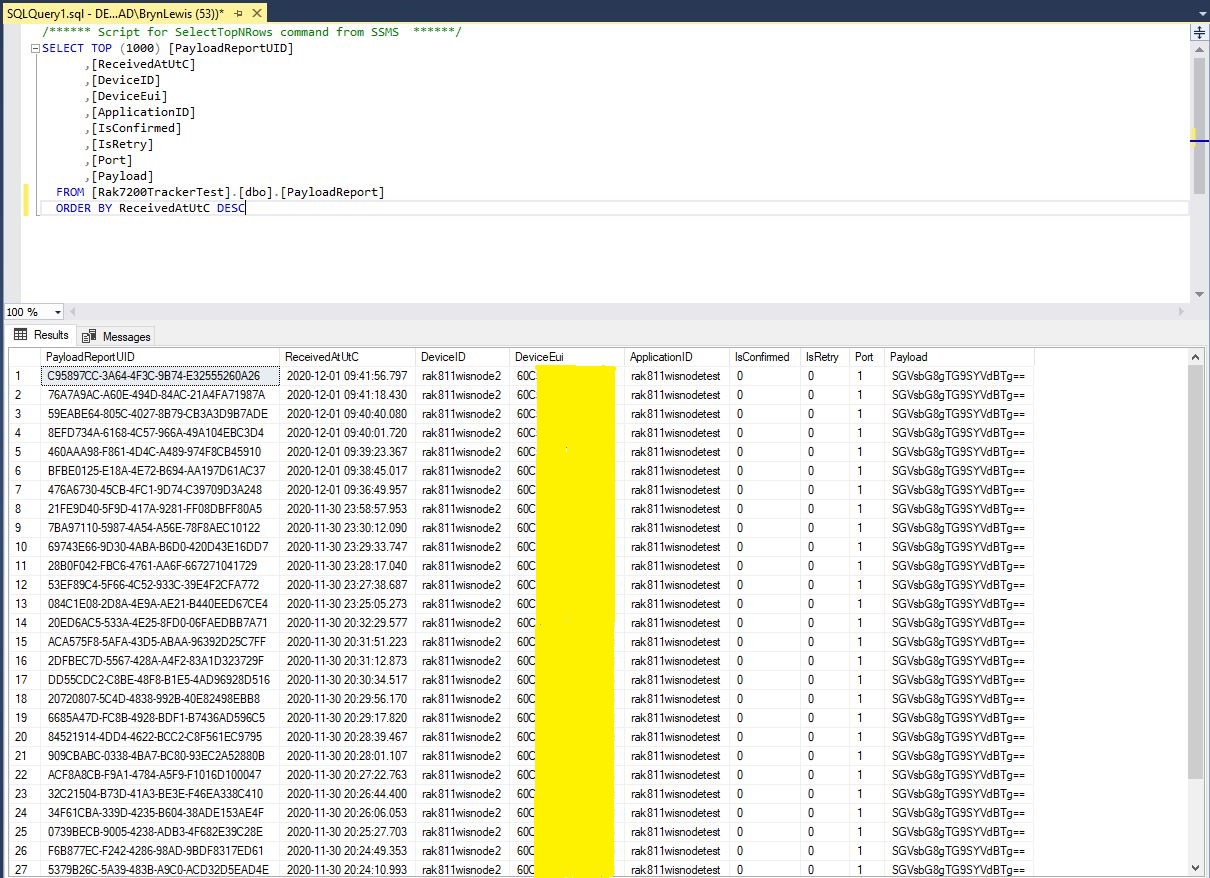
For uplink messages with no payload fields the message processor looks for a stored procedure with a single parameter called “payload_raw”.(there maybe more than one match)

CREATE TABLE [dbo].[PayloadReport](
      [PayloadReportUID] [UNIQUEIDENTIFIER] NOT NULL,
      [ReceivedAtUtC] [DATETIME] NOT NULL,
      [DeviceID] [NVARCHAR](32) NOT NULL,
      [DeviceEui] [NVARCHAR](32) NOT NULL,
      [ApplicationID] [NVARCHAR](32) NOT NULL,
      [IsConfirmed] [BIT] NOT NULL,
      [IsRetry] [BIT] NOT NULL,
      [Port] [SMALLINT] NOT NULL,
      [Payload] [NVARCHAR](128) NOT NULL,
CONSTRAINT [PK_PayloadReport] PRIMARY KEY CLUSTERED 
(
      [PayloadReportUID] ASC
)WITH (PAD_INDEX = OFF, STATISTICS_NORECOMPUTE = OFF, IGNORE_DUP_KEY = OFF, ALLOW_ROW_LOCKS = ON, ALLOW_PAGE_LOCKS = ON) ON [PRIMARY]
) ON [PRIMARY]
GO

ALTER TABLE [dbo].[PayloadReport] ADD  CONSTRAINT [DF_PayloadReport_PositionReportUID]  DEFAULT (NEWID()) FOR [PayloadReportUID]
GO
ALTER PROCEDURE [dbo].[PayloadRawProcess]
      @ReceivedAtUtc AS DATETIME,
      @DeviceID AS NVARCHAR(32),
      @DeviceEui AS NVARCHAR(32),
      @ApplicationID AS NVARCHAR(32),
      @IsRetry AS Bit,
      @IsConfirmed AS BIT,
      @Port AS SMALLINT,
      @Payload AS NVARCHAR(128)
AS
BEGIN
      SET NOCOUNT ON;

      INSERT INTO [dbo].[PayloadReport]
         ([PositionReportUID]
         .[ReceivedAtUtc]
         ,[DeviceID]
         ,[DeviceEui]
         ,[ApplicationID]
         ,[IsConfirmed]
         ,[IsRetry]
         ,[Port]
         ,[Payload])
     VALUES(@ReceivedAtUtc,
         @DeviceID,
         @DeviceEui,
         @ApplicationID,
         @IsConfirmed,
         @IsRetry,
         @port,
         @Payload)
END
Raw payload data displayed in SQL Server Management Studio(SSMS)

Initially the application just used Console.Writeline for logging, then I added Log4Net because it would be useful to persist information about failures and so I could copy n paste parameter lists to the appSettings.json file.

To make the application more robust adding a retries with the Enterprise Library Transient Fault Handling and Configuration blocks or Polly on the Dapper Execute would be a good idea. It also would take much work to get the application to run in Microsoft Azure as a “headless” webapp.

Dapper supports a number of database platforms so in theory this application (with a little bit of effort) should be platform portable.

Azure IoT Hub MQTT/AMQP oddness

This is a long post which covers some oddness I noticed when changing the protocol used by an Azure IoT Hub client from Message Queuing Telemetry Transport(MQTT) to Advanced Message Queuing Protocol (AMQP). I want to build a console application to test the pooling of AMQP connections so I started with an MQTT client written for another post.

class Program
{
   private static string payload;

   static async Task Main(string[] args)
   {
      string filename;
      string azureIoTHubconnectionString;
      DeviceClient azureIoTHubClient;

      if (args.Length != 2)
      {
         Console.WriteLine("[JOSN file] [AzureIoTHubConnectionString]");
         Console.WriteLine("Press <enter> to exit");
         Console.ReadLine();
         return;
      }

      filename = args[0];
      azureIoTHubconnectionString = args[1];

      try
      {
         payload = File.ReadAllText(filename);

         // Open up the connection
         azureIoTHubClient = DeviceClient.CreateFromConnectionString(azureIoTHubconnectionString, TransportType.Mqtt);
         //azureIoTHubClient = DeviceClient.CreateFromConnectionString(azureIoTHubconnectionString, TransportType.Mqtt_Tcp_Only);
         //azureIoTHubClient = DeviceClient.CreateFromConnectionString(azureIoTHubconnectionString, TransportType.Mqtt_WebSocket_Only);

         await azureIoTHubClient.OpenAsync();

         await azureIoTHubClient.SetMethodDefaultHandlerAsync(MethodCallbackDefault, null);

         Timer MessageSender = new Timer(TimerCallback, azureIoTHubClient, new TimeSpan(0, 0, 10), new TimeSpan(0, 0, 10));


         Console.WriteLine("Press <enter> to exit");
         Console.ReadLine();
      }
      catch (Exception ex)
      {
         Console.WriteLine(ex.Message);
         Console.WriteLine("Press <enter> to exit");
         Console.ReadLine();
      }
   }

   public static async void TimerCallback(object state)
   {
      DeviceClient azureIoTHubClient = (DeviceClient)state;

      try
      {
         // I know having the payload as a global is a bit nasty but this is a demo..
         using (Message message = new Message(Encoding.ASCII.GetBytes(JsonConvert.SerializeObject(payload))))
         {
            Console.WriteLine(" {0:HH:mm:ss} AzureIoTHubDeviceClient SendEventAsync start", DateTime.UtcNow);
            await azureIoTHubClient.SendEventAsync(message);
            Console.WriteLine(" {0:HH:mm:ss} AzureIoTHubDeviceClient SendEventAsync finish", DateTime.UtcNow);
         }
      }
      catch (Exception ex)
      {
         Console.WriteLine(ex.Message);
      }
   }

   private static async Task<MethodResponse> MethodCallbackDefault(MethodRequest methodRequest, object userContext)
   {
      Console.WriteLine($"Default handler method {methodRequest.Name} was called.");

      return new MethodResponse(200);
   }
}

I configured an Azure IoT hub then used Azure IoT explorer to create a device and get the connections string for my application. After fixing up the application’s command line parameters I could see the timer code was successfully sending telemetry messages to my Azure IoT Hub. I also explored the different MQTT connections options TransportType.Mqtt, TransportType.Mqtt_Tcp_Only, and TransportType.Mqtt_WebSocket_Only which worked as expected.

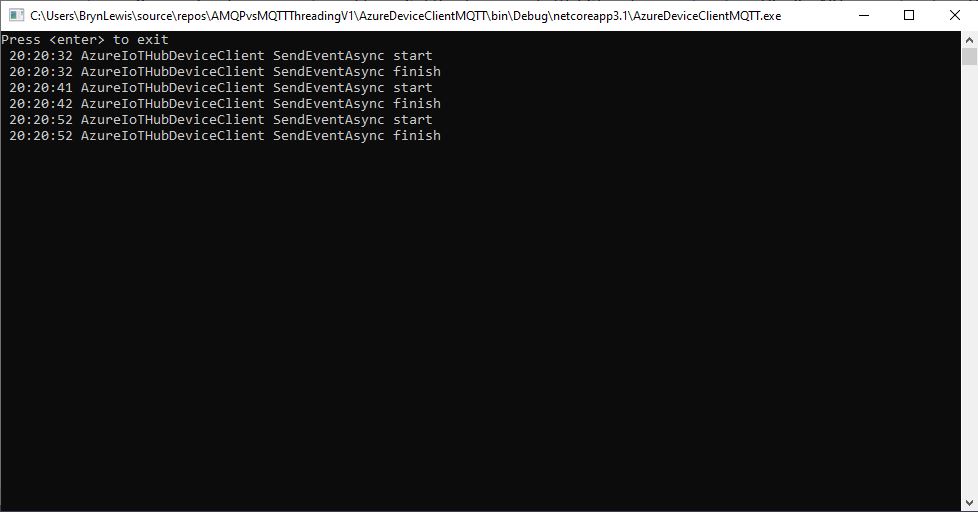
MQTT Console application displaying sent telemetry
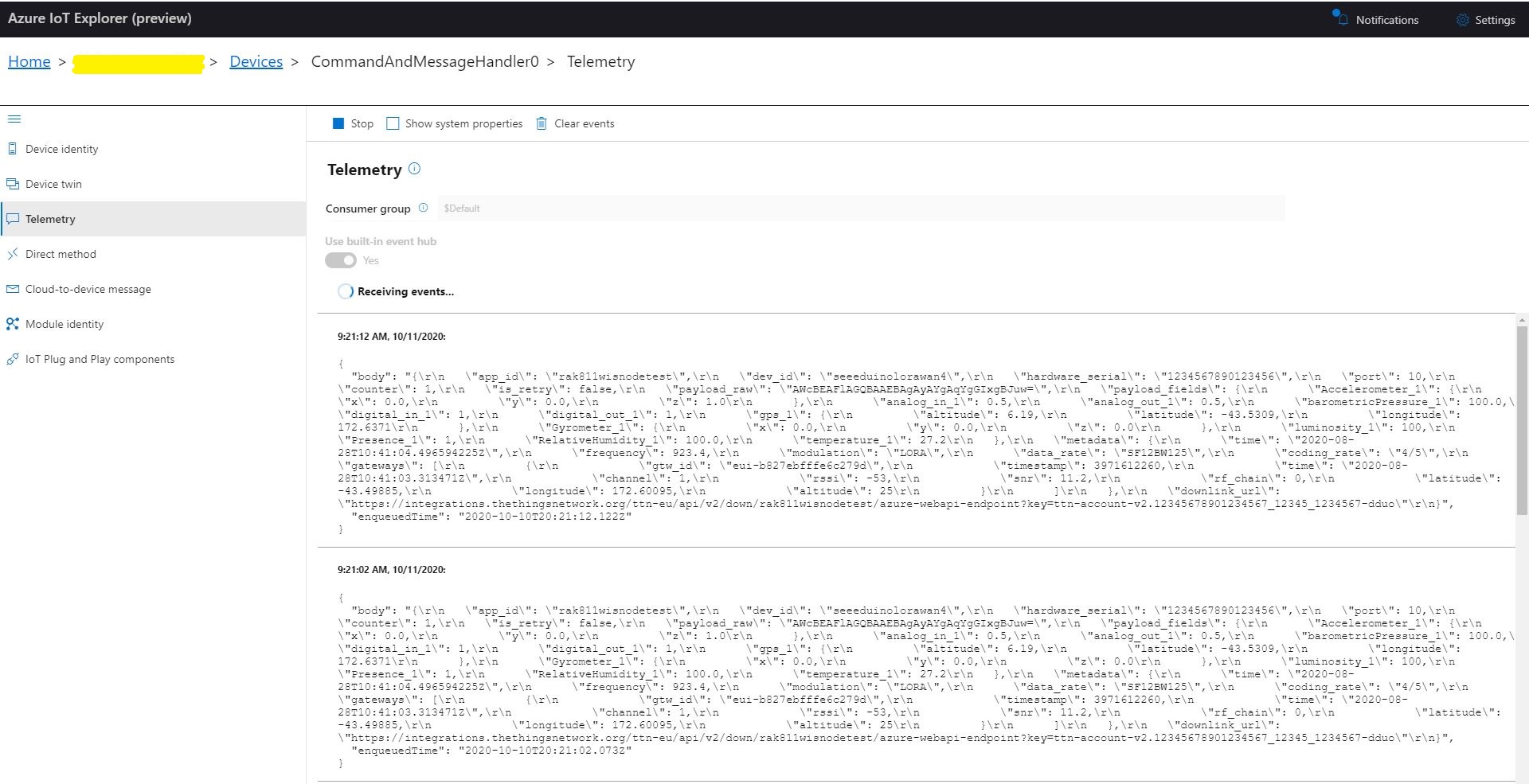
Azure IoT Hub displaying received telemetry

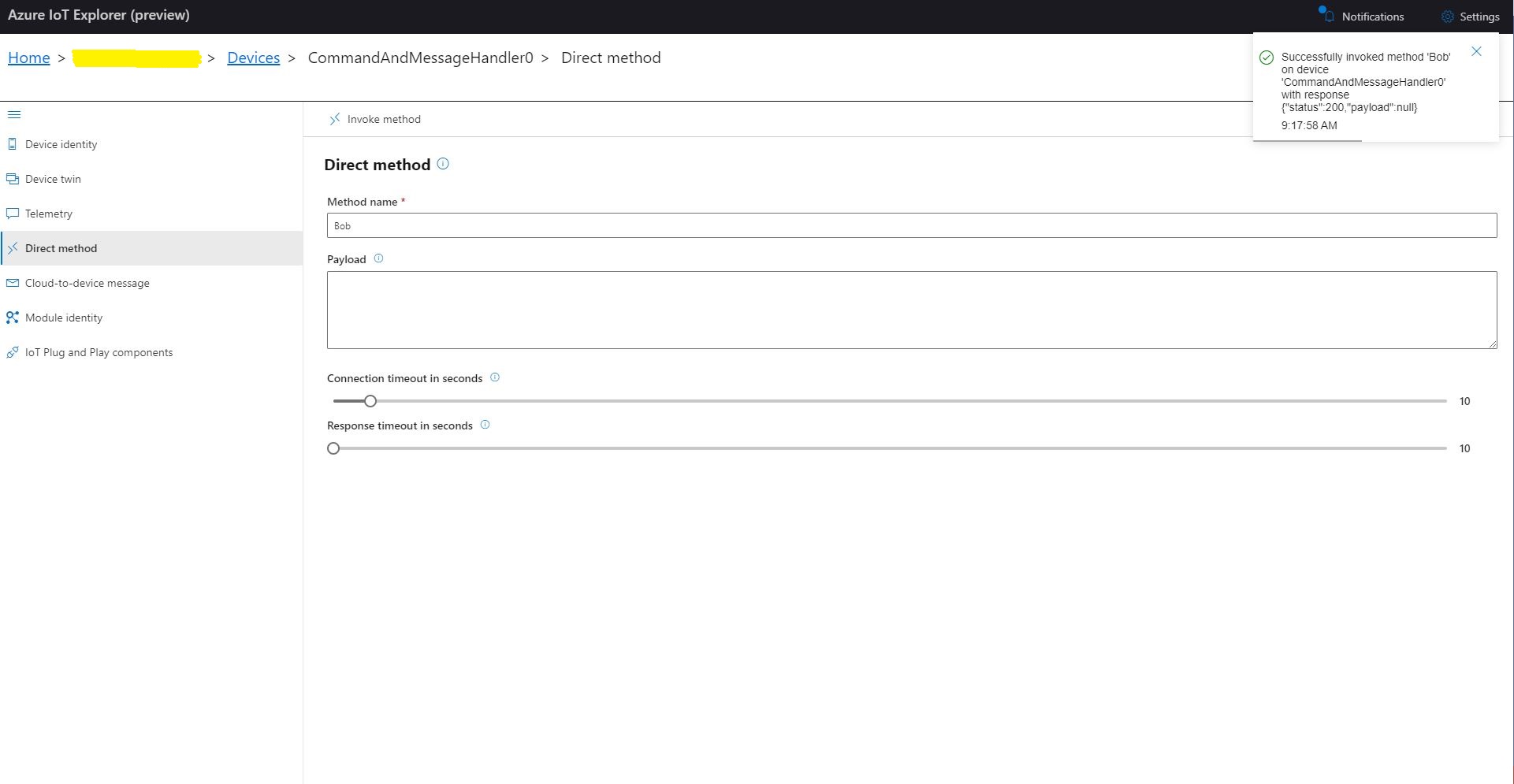
I could also initiate Direct Method calls to my console application from Azure IoT explorer.

Azure IoT Explorer initiating a Direct Method
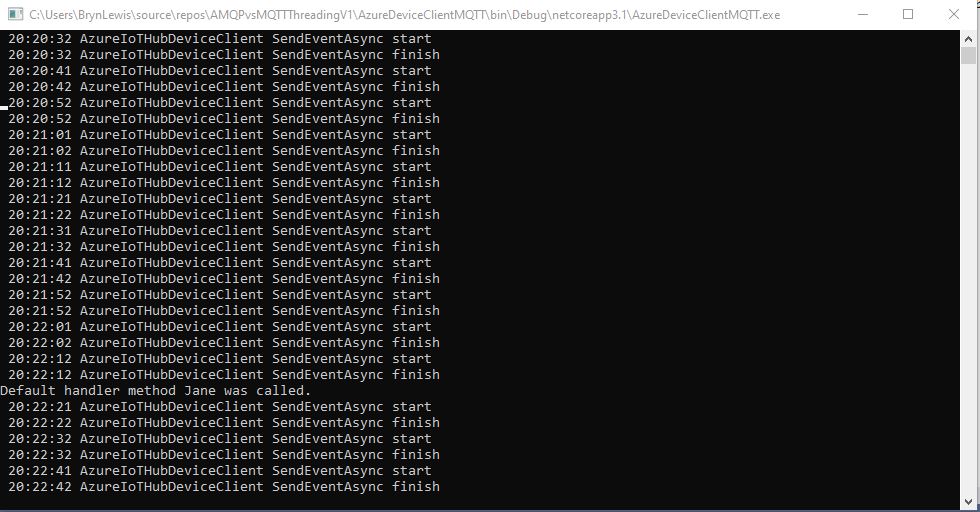
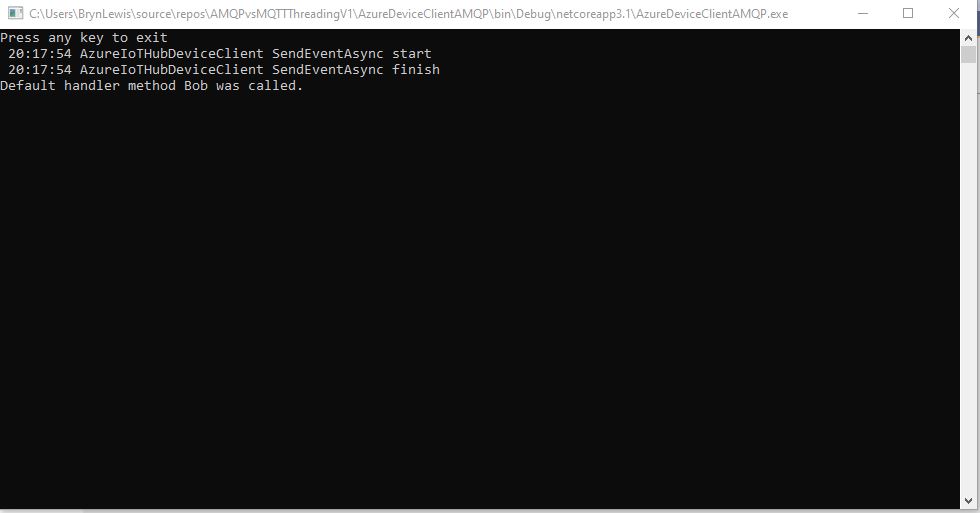
MQTT console application displaying direct method call.

I then changed the protocol to AMQP

class Program
{
   private static string payload;

   static async Task Main(string[] args)
   {
      string filename;
      string azureIoTHubconnectionString;
      DeviceClient azureIoTHubClient;
      Timer MessageSender;

      if (args.Length != 2)
      {
         Console.WriteLine("[JOSN file] [AzureIoTHubConnectionString]");
         Console.WriteLine("Press <enter> to exit");
         Console.ReadLine();
         return;
      }

      filename = args[0];
      azureIoTHubconnectionString = args[1];

      try
      {
         payload = File.ReadAllText(filename);

         // Open up the connection
         azureIoTHubClient = DeviceClient.CreateFromConnectionString(azureIoTHubconnectionString, TransportType.Amqp);
         //azureIoTHubClient = DeviceClient.CreateFromConnectionString(azureIoTHubconnectionString, TransportType.Amqp_Tcp_Only);
         //azureIoTHubClient = DeviceClient.CreateFromConnectionString(azureIoTHubconnectionString, TransportType.Amqp_WebSocket_Only);

         await azureIoTHubClient.OpenAsync();

         await azureIoTHubClient.SetMethodDefaultHandlerAsync(MethodCallbackDefault, null);

         //MessageSender = new Timer(TimerCallbackAsync, azureIoTHubClient, new TimeSpan(0, 0, 10), new TimeSpan(0, 0, 10));
         MessageSender = new Timer(TimerCallbackSync, azureIoTHubClient, new TimeSpan(0, 0, 10), new TimeSpan(0, 0, 10));

#if MESSAGE_PUMP
         Console.WriteLine("Press any key to exit");
         while (!Console.KeyAvailable)
         {
            await Task.Delay(100);
         }
#else
         Console.WriteLine("Press <enter> to exit");
         Console.ReadLine();
#endif
      }
      catch (Exception ex)
      {
         Console.WriteLine(ex.Message);
         Console.WriteLine("Press <enter> to exit");
         Console.ReadLine();
      }
   }

   public static async void TimerCallbackAsync(object state)
   {
      DeviceClient azureIoTHubClient = (DeviceClient)state;

      try
      {
         // I know having the payload as a global is a bit nasty but this is a demo..
         using (Message message = new Message(Encoding.ASCII.GetBytes(JsonConvert.SerializeObject(payload))))
         {
            Console.WriteLine(" {0:HH:mm:ss} AzureIoTHubDeviceClient SendEventAsync start", DateTime.UtcNow);
            await azureIoTHubClient.SendEventAsync(message);
            Console.WriteLine(" {0:HH:mm:ss} AzureIoTHubDeviceClient SendEventAsync finish", DateTime.UtcNow);
         }
      }
      catch (Exception ex)
      {
         Console.WriteLine(ex.Message);
      }
   }

   public static void TimerCallbackSync(object state)
   {
      DeviceClient azureIoTHubClient = (DeviceClient)state;

      try
      {
         // I know having the payload as a global is a bit nasty but this is a demo..
         using (Message message = new Message(Encoding.ASCII.GetBytes(JsonConvert.SerializeObject(payload))))
         {
            Console.WriteLine(" {0:HH:mm:ss} AzureIoTHubDeviceClient SendEventAsync start", DateTime.UtcNow);
            azureIoTHubClient.SendEventAsync(message).GetAwaiter();
            Console.WriteLine(" {0:HH:mm:ss} AzureIoTHubDeviceClient SendEventAsync finish", DateTime.UtcNow);
         }
      }
      catch (Exception ex)
      {
         Console.WriteLine(ex.Message);
      }
   }


   private static async Task<MethodResponse> MethodCallbackDefault(MethodRequest methodRequest, object userContext)
   {
      Console.WriteLine($"Default handler method {methodRequest.Name} was called.");

      return new MethodResponse(200);
   }
}

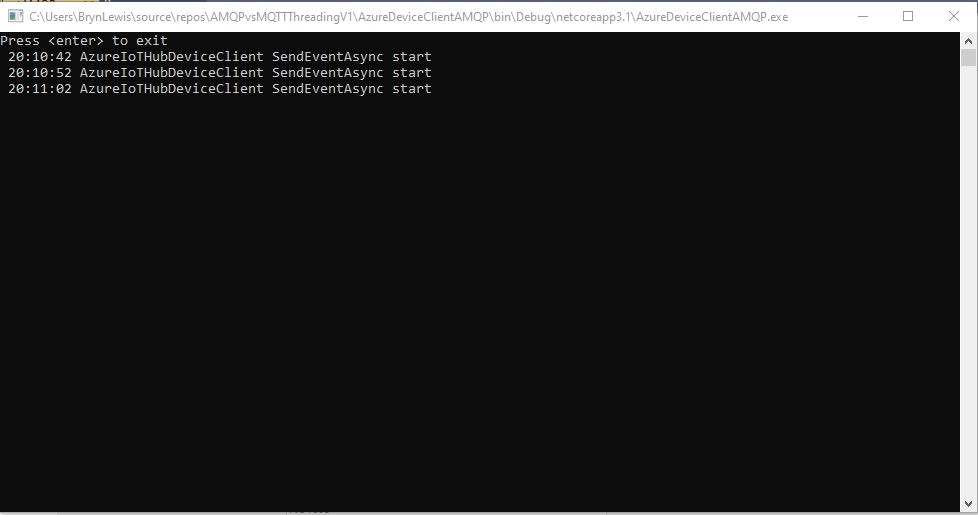
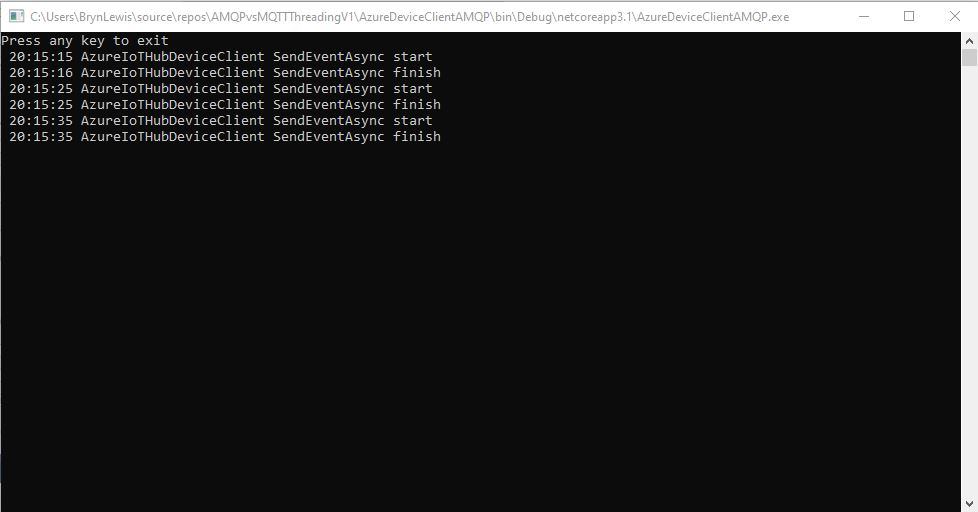
In the first version of my console application I could see the SendEventAsync method was getting called but was not returning

AMQP Console application displaying sent telemetry failure

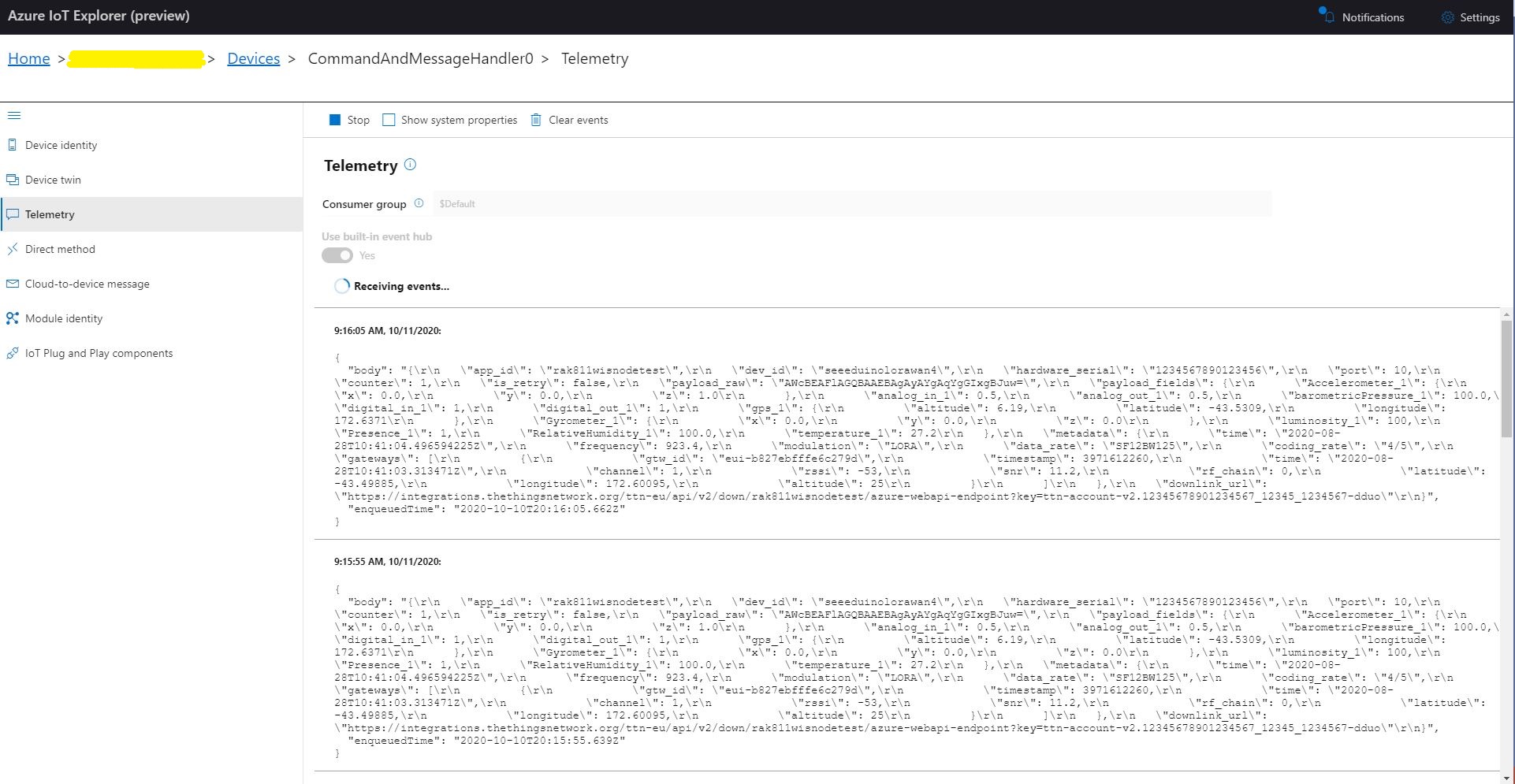
Even though the SendEventAsync call was not returning the telemetry messages were making it to my Azure IoT Hub.

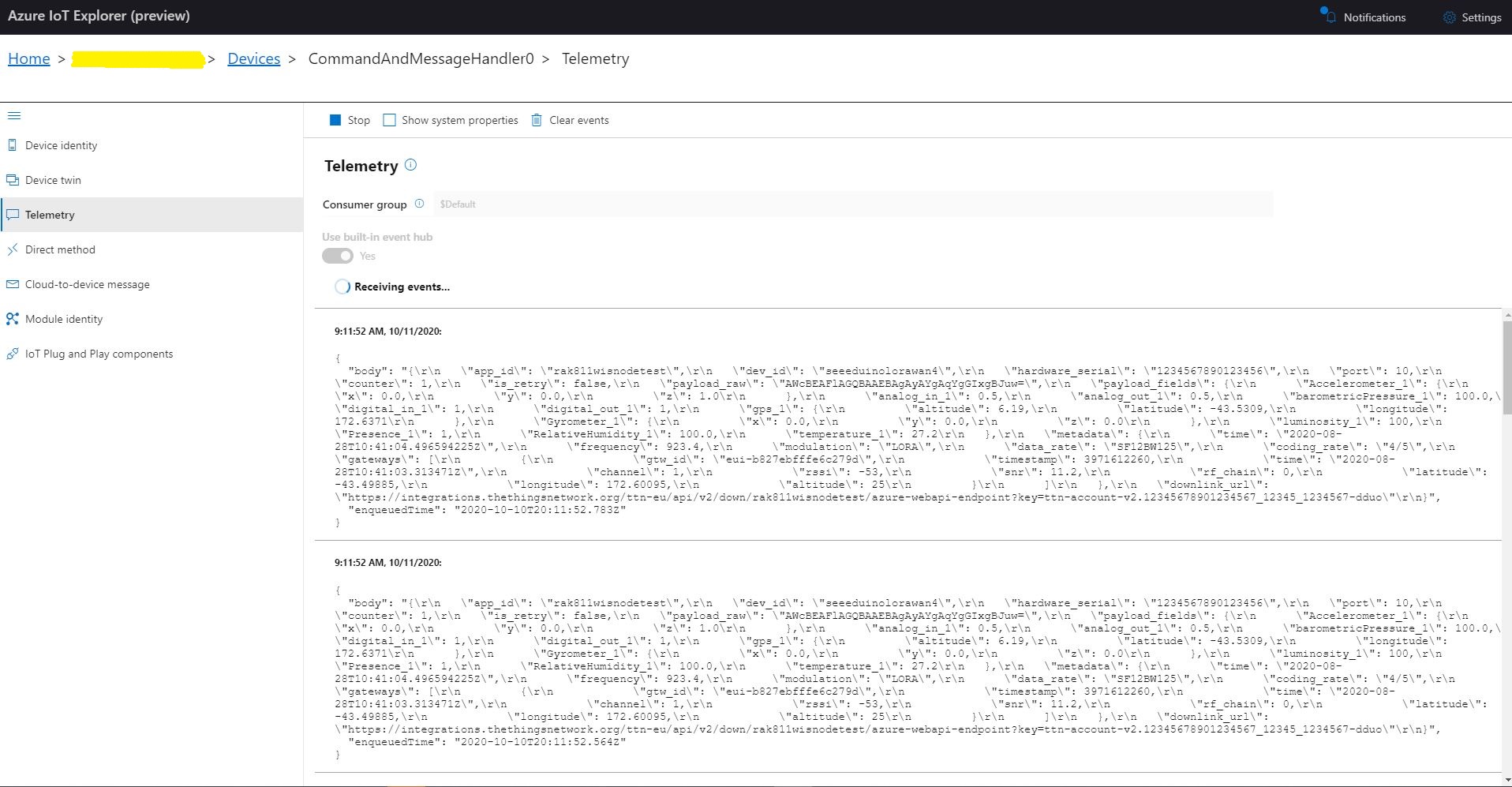
Azure IoT Hub displaying AMQP telemetry

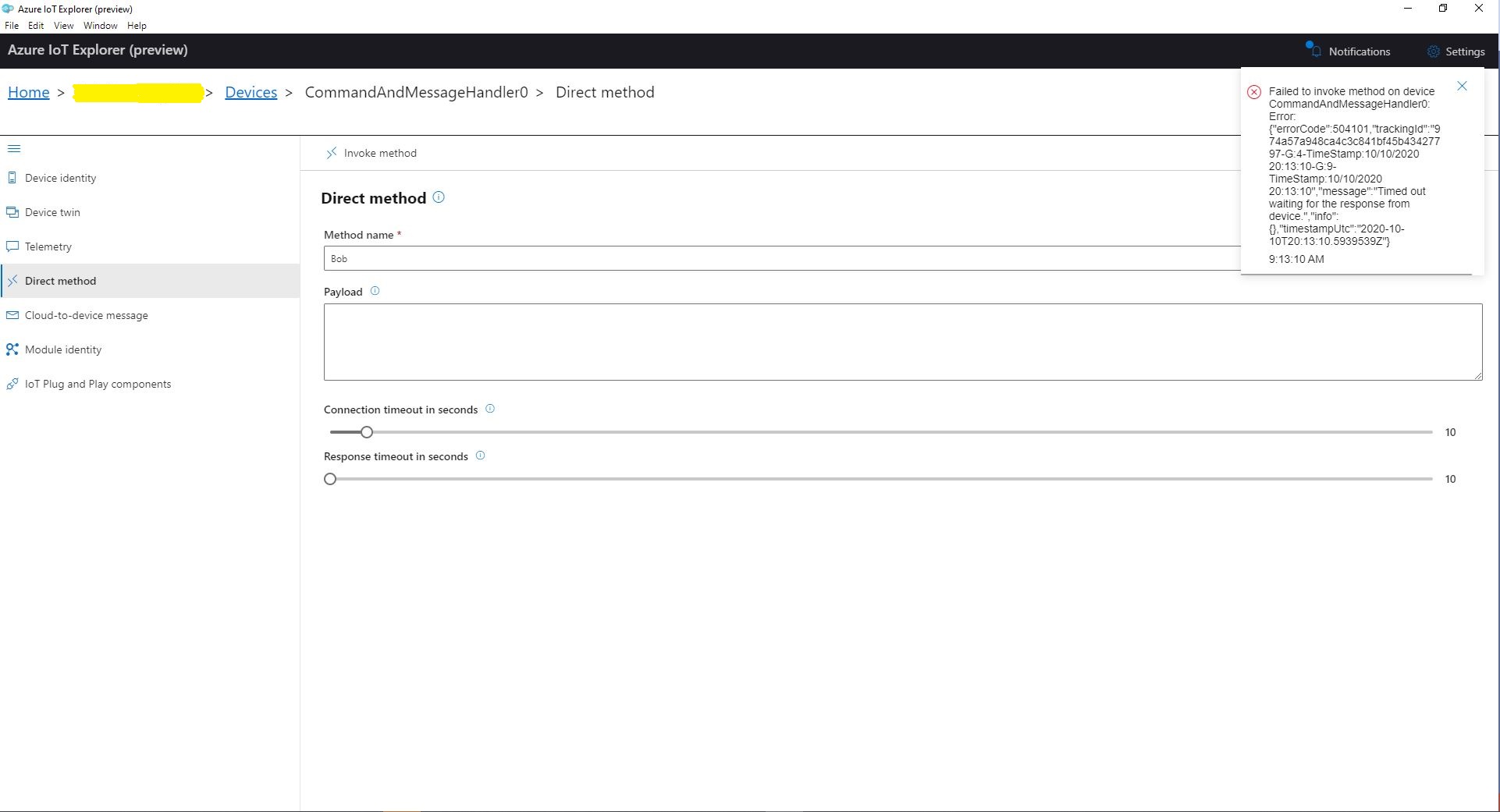
When I tried to initiate a Direct Method call from Azure IoT Explorer it failed after a while with a timeout.

Azure IoT Explorer initiating a Direct Method

The first successful approach I tried was to change the Console.Readline to a “message pump” (flashbacks to Win32 API programming).

Console.WriteLine("Press any key to exit");
while (!Console.KeyAvailable)
{
   await Task.Delay(100);
}

After some more experimentation I found that changing the timer method from asynchronous to synchronous also worked.

public static void TimerCallbackSync(object state)
{
   DeviceClient azureIoTHubClient = (DeviceClient)state;

   try
   {
      // I know having the payload as a global is a bit nasty but this is a demo..
      using (Message message = new Message(Encoding.ASCII.GetBytes(JsonConvert.SerializeObject(payload))))
      {
         Console.WriteLine(" {0:HH:mm:ss} AzureIoTHubDeviceClient SendEventAsync start", DateTime.UtcNow);
         azureIoTHubClient.SendEventAsync(message).GetAwaiter();
         Console.WriteLine(" {0:HH:mm:ss} AzureIoTHubDeviceClient SendEventAsync finish", DateTime.UtcNow);
      }
   }
   catch (Exception ex)
   {
      Console.WriteLine(ex.Message);
   }
}

I also had to change the method declaration and modify the SendEventAsync call to use a GetAwaiter.

AMQP Console application displaying sent telemetry
Azure IoT Hub displaying received telemetry
Azure IoT Explorer initiating a Direct Method
MQTT console application displaying direct method call.

It took a while to figure out enough about what was going on so I could do a search with the right keywords (DeviceClient AMQP async await SendEventAsync) to confirm my suspicion that MQTT and AMQP clients did behave differently.

For anyone who reads this post, I think this Github issue about task handling and blocking calls is most probably the answer (October 2020).

Low Power Payload (LPP) Encoder

Reducing the size of message payloads is important for LoRa/LoRaWAN communications, as it reduces power consumption and bandwidth usage. One of the more common formats is Low Power Payload(LPP) which is based on the IPSO Alliance Smart Objects Guidelines and is natively supported by The Things Network(TTN).

 private enum DataType : byte
{
   DigitalInput = 0, // 1 byte
   DigitialOutput = 1, // 1 byte
   AnalogInput = 2, // 2 bytes, 0.01 signed
   AnalogOutput = 3, // 2 bytes, 0.01 signed
   Luminosity = 101, // 2 bytes, 1 lux unsigned
   Presence = 102, // 1 byte, 1
   Temperature = 103, // 2 bytes, 0.1°C signed
   RelativeHumidity = 104, // 1 byte, 0.5% unsigned
   Accelerometer = 113, // 2 bytes per axis, 0.001G
   BarometricPressure = 115, // 2 bytes 0.1 hPa Unsigned
   Gyrometer = 134, // 2 bytes per axis, 0.01 °/s
   Gps = 136, // 3 byte lon/lat 0.0001 °, 3 bytes alt 0.01m
}

My implementation was “inspired” by some C/C++ sample code. The first step was to allocate a buffer to store the byte encoded values. I pre allocated the buffer to try and reduce the impacts of garbage collection. The code uses a manually incremented index into the buffer for performance reasons, plus the inconsistent support of System.Collections.Generic and Language Integrated Query(LINQ) on my three embedded platforms. The maximum length message that can be sent is limited by coding rate, duty cycle and bandwidth of the LoRa channel.

public Encoder(byte bufferSize)
{
   if ((bufferSize < BufferSizeMinimum) || ( bufferSize > BufferSizeMaximum))
   {
      throw new ArgumentException($"BufferSize must be between {BufferSizeMinimum} and {BufferSizeMaximum}", "bufferSize");
   }

   buffer = new byte[bufferSize];
}

For a simple data types like a digital input a single byte (True or False ) is used. The channel parameter is included so that multiple values of the same data type can be included in a message.

public void DigitalInputAdd(byte channel, bool value)
{
   if ((index + DigitalInputSize) > buffer.Length)
   {
     throw new ApplicationException("DigitalInputAdd insufficent buffer capacity");
   }

   buffer[index++] = channel;
   buffer[index++] = (byte)DataType.DigitalInput;
   // I know this is fugly but it works on all platforms
   if (value)
   {
      buffer[index++] = 1;
   }
   else
   {
      buffer[index++] = 0;
   }
}

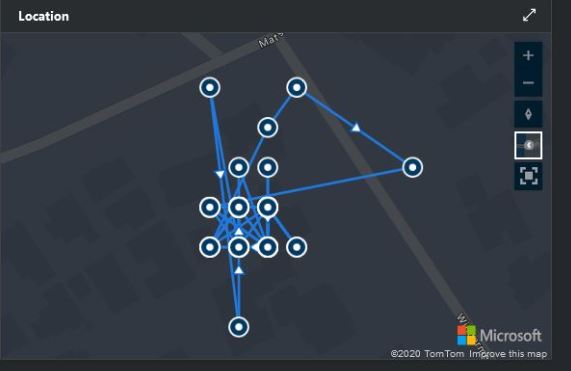
For more complex data types like a Global Positioning System(GPS) location (Latitude, Longitude and Altitude) the values are converted to 32bit signed integers and only 3 of the 4 bytes are used.

public void GpsAdd(byte channel, float latitude, float longitude, float meters)
{
   if ((index + GpsSize) > buffer.Length)
   {
     throw new ApplicationException("GpsAdd insufficent buffer capacity");
   }

   int lat = (int)(latitude * 10000);
   int lon = (int)(longitude * 10000);
   int alt = (int)(meters * 100);

   buffer[index++] = channel;
   buffer[index++] = (byte)DataType.Gps;

   buffer[index++] = (byte)(lat >> 16);
   buffer[index++] = (byte)(lat >> 8);
   buffer[index++] = (byte)lat;
   buffer[index++] = (byte)(lon >> 16);
   buffer[index++] = (byte)(lon >> 8);
   buffer[index++] = (byte)lon;
   buffer[index++] = (byte)(alt >> 16);
   buffer[index++] = (byte)(alt >> 8);
   buffer[index++] = (byte)alt;
}
Azure IoT Central map position granularity

Before the message can be sent it needs to be converted to its Binary Coded Decimal(BCD) representation and all formatting characters removed.

public string Bcd()
{
   StringBuilder payloadBcd = new StringBuilder(BitConverter.ToString(buffer, 0, index));

   payloadBcd = payloadBcd.Replace("-", "");

   return payloadBcd.ToString();
}

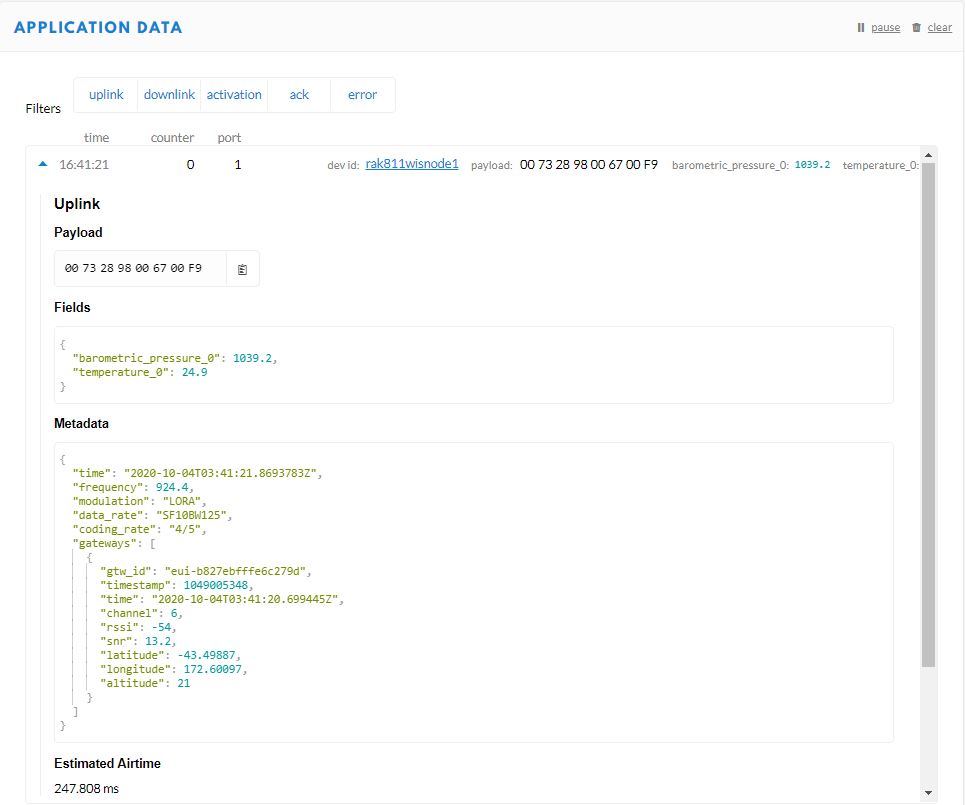
TTN Device Data Display
Visual Studio 2019 Debug output

The implementation had to be revised a couple of times so It would work with desktop and GHI Electronics TinyCLRV2 powered devices. There maybe some modifications required as I port it to nanoFramework and Wilderness Labs Meadow devices.

nanoFramework nRF24L01 library Part2

After sorting out Serial Peripheral Interface(SPI) connectivity the next step porting my GHI Electronics TinyCLR V2 library to the nanoFramework was rewriting the initialisation code. Overall changes were minimal as the nanoFramework similar methods to the TinyCLR V2 ones.

The Tiny CLR SPI and interrupt port configuration (note the slightly different interrupt port configuration)

if (gpio == null)
{
   Debug.WriteLine("GPIO Initialization failed.");
}
else
{
   _cePin = gpio.OpenPin(chipEnablePin);
   _cePin.SetDriveMode(GpioPinDriveMode.Output);
   _cePin.Write(GpioPinValue.Low);

   _irqPin = gpio.OpenPin((byte)interruptPin);
   _irqPin.SetDriveMode(GpioPinDriveMode.InputPullUp);
   _irqPin.Write(GpioPinValue.High);
   _irqPin.ValueChanged += _irqPin_ValueChanged;
}

try
{
   var settings = new SpiConnectionSettings()
   {
      ChipSelectType = SpiChipSelectType.Gpio,
      ChipSelectLine = gpio.OpenPin(chipSelectPin),
      Mode = SpiMode.Mode0,
      ClockFrequency = clockFrequency,
      ChipSelectActiveState = false,
   };

   SpiController controller = SpiController.FromName(spiPortName);
   _spiPort = controller.GetDevice(settings);
}
catch (Exception ex)
{
   Debug.WriteLine("SPI Initialization failed. Exception: " + ex.Message);
   return;
}

The nanoFramework SPI and interrupt port configuration (note the slightly different SPI port configuration)

public void Initialize(string spiPortName, int chipEnablePin, int chipSelectPin, int interruptPin, int clockFrequency = 2000000)
{
   var gpio = GpioController.GetDefault();

   if (gpio == null)
   {
      Debug.WriteLine("GPIO Initialization failed.");
   }
   else
   {
      _cePin = gpio.OpenPin(chipEnablePin);
      _cePin.SetDriveMode(GpioPinDriveMode.Output);
      _cePin.Write(GpioPinValue.Low);

      _irqPin = gpio.OpenPin((byte)interruptPin);
      _irqPin.SetDriveMode(GpioPinDriveMode.InputPullUp);
      _irqPin.ValueChanged += irqPin_ValueChanged;
   }

   try
   {
      var settings = new SpiConnectionSettings(chipSelectPin)
      {
         ClockFrequency = clockFrequency,
         Mode = SpiMode.Mode0,
         SharingMode = SpiSharingMode.Shared,
      };

      _spiPort = SpiDevice.FromId(spiPortName, settings);
   }
   catch (Exception ex)
   {
      Debug.WriteLine("SPI Initialization failed. Exception: " + ex.Message);
   return;
   }

The error handling of the initialise method is broken. If the some of the GPIO or SPI port configuration fails a message is displayed in the Debug output but the caller is not notified.

I’m using a Netduino 3 Wifi as the SPI port configuration means I can use a standard Arduino shield to connect up the NRF24L01 wireless module without any jumpers

Netduino 3 Wifi and embedded coolness shield

I have applied the PowerLevel fix from the TinyCLR and Meadow libraries but worry that there maybe other issues.

The thread '<No Name>' (0x2) has exited with code 0 (0x0).
Address: Dev01
PowerLevel: 2
IsAutoAcknowledge: True
Channel: 15
DataRate: 2
IsDynamicAcknowledge: False
IsDynamicPayload: True
IsEnabled: False
Frequency: 2415
IsInitialized: True
IsPowered: True
00:00:15-TX 9 byte message hello 255
Data Sent!
00:00:15-TX Succeeded!

Based on my experiences porting the library to three similar platforms and debugging it on two others I’m considering writing my own compile-time platform portable library.

nanoFramework nRF24L01 library Part1

After porting then debugging Windows 10 IoT Core, .NetMF, Wilderness Labs Meadow and GHI Electronics TinyCLR nRF24L01P libraries I figured yet another port, this time to a nanoFramework powered devices should be low risk.

My initial test rig uses a Netduino 3 Wifi and an Embedded Coolness nRF24 shield as I didn’t need to use jumper wires.

//---------------------------------------------------------------------------------
// Copyright (c) July 2020, devMobile Software
//
// Licensed under the Apache License, Version 2.0 (the "License");
// you may not use this file except in compliance with the License.
// You may obtain a copy of the License at
//
//     http://www.apache.org/licenses/LICENSE-2.0
//
// Unless required by applicable law or agreed to in writing, software
// distributed under the License is distributed on an "AS IS" BASIS,
// WITHOUT WARRANTIES OR CONDITIONS OF ANY KIND, either express or implied.
// See the License for the specific language governing permissions and
// limitations under the License.
//
//---------------------------------------------------------------------------------
#define NETDUINO3_WIFI   // nanoff --target NETDUINO3_WIFI --update

namespace devMobile.IoT.nRf24L01.ModuleSPI
{
   using System;
   using System.Threading;
   using System.Diagnostics;
   using System.Text;
   using Windows.Devices.Gpio;
   using Windows.Devices.Spi;

   public class Program
   {
      const byte SETUP_AW = 0x03;
      const byte RF_CH = 0x05;
      const byte RX_ADDR_P0 = 0x0A;
      const byte R_REGISTER = 0b00000000;
      const byte W_REGISTER = 0b00100000;
      const string P0_Address = "ZYXWV";

#if NETDUINO3_WIFI
      private const string SpiBusId = "SPI2";
#endif

      public static void Main()
      {
#if NETDUINO3_WIFI
         // Arduino D7->PD7
         int chipSelectPinNumber = PinNumber('A', 1);
#endif
         Debug.WriteLine("devMobile.IoT.nRf24L01.ModuleSPI starting");

         Debug.WriteLine(Windows.Devices.Spi.SpiDevice.GetDeviceSelector());

         try
         {
            GpioController gpioController = GpioController.GetDefault();

            var settings = new SpiConnectionSettings(chipSelectPinNumber)
            {
               ClockFrequency = 2000000,
               Mode = SpiMode.Mode0,
               SharingMode = SpiSharingMode.Shared,
            };

            using (SpiDevice device = SpiDevice.FromId(SpiBusId, settings))
            {
               Debug.WriteLine("nrf24L01Device Device...");
               if (device == null)
               {
                  Debug.WriteLine("nrf24L01Device == null");
               }

               Thread.Sleep(100);

               Debug.WriteLine("ConfigureSpiPort Done...");
               Debug.WriteLine("");

               Thread.Sleep(500);
               try
               {
                  // Read the Address width
                  Debug.WriteLine("Read address width");
                  byte[] txBuffer1 = new byte[] { SETUP_AW | R_REGISTER, 0x0 };
                  byte[] rxBuffer1 = new byte[txBuffer1.Length];

                  Debug.WriteLine(" nrf24L01Device.TransferFullDuplex...SETUP_AW");
                  Debug.WriteLine(" txBuffer:" + BitConverter.ToString(txBuffer1));
                  device.TransferFullDuplex(txBuffer1, rxBuffer1);
                  Debug.WriteLine(" rxBuffer:" + BitConverter.ToString(rxBuffer1));

                  // Extract then adjust the address width
                  byte addressWidthValue = rxBuffer1[1];
                  addressWidthValue &= 0b00000011;
                  addressWidthValue += 2;
                  Debug.WriteLine($"Address width 0x{SETUP_AW:x2} - Value 0X{rxBuffer1[1]:x2} Value adjusted {addressWidthValue}");
                  Debug.WriteLine("");

                  // Write Pipe0 Receive address
                  Debug.WriteLine($"Write Pipe0 Receive Address {P0_Address}");
                  byte[] txBuffer2 = new byte[addressWidthValue + 1];
                  byte[] rxBuffer2 = new byte[txBuffer2.Length];
                  txBuffer2[0] = RX_ADDR_P0 | W_REGISTER;
                  Array.Copy(Encoding.UTF8.GetBytes(P0_Address), 0, txBuffer2, 1, addressWidthValue);

                  Debug.WriteLine(" nrf24L01Device.Write...RX_ADDR_P0");
                  Debug.WriteLine(" txBuffer:" + BitConverter.ToString(txBuffer2));
                  device.TransferFullDuplex(txBuffer2, rxBuffer2);
                  Debug.WriteLine("");

                  // Read Pipe0 Receive address
                  Debug.WriteLine("Read Pipe0 Receive address");
                  byte[] txBuffer3 = new byte[addressWidthValue + 1];
                  txBuffer3[0] = RX_ADDR_P0 | R_REGISTER;
                  byte[] rxBuffer3 = new byte[txBuffer3.Length];

                  Debug.WriteLine(" nrf24L01Device.TransferFullDuplex...RX_ADDR_P0");
                  Debug.WriteLine(" txBuffer:" + BitConverter.ToString(txBuffer3));
                  device.TransferFullDuplex(txBuffer3, rxBuffer3);
                  Debug.WriteLine(" rxBuffer:" + BitConverter.ToString(rxBuffer3));
                  Debug.WriteLine($"Address 0x{RX_ADDR_P0:x2} Address {UTF8Encoding.UTF8.GetString(rxBuffer3, 1, addressWidthValue)}");
                  Debug.WriteLine("");

                  // Read the RF Channel
                  Debug.WriteLine("RF Channel read 1");
                  byte[] txBuffer4 = new byte[] { RF_CH | R_REGISTER, 0x0 };
                  byte[] rxBuffer4 = new byte[txBuffer4.Length];

                  Debug.WriteLine(" nrf24L01Device.TransferFullDuplex...RF_CH");
                  Debug.WriteLine(" txBuffer:" + BitConverter.ToString(txBuffer4));
                  device.TransferFullDuplex(txBuffer4, rxBuffer4);
                  Debug.WriteLine(" rxBuffer:" + BitConverter.ToString(rxBuffer4));

                  byte rfChannel1 = rxBuffer4[1];
                  Debug.WriteLine($"RF Channel 1 0x{RF_CH:x2} - Value 0X{rxBuffer4[1]:x2} - Value adjusted {rfChannel1+2400}");
                  Debug.WriteLine("");

                  // Write the RF Channel
                  Debug.WriteLine("RF Channel write");
                  byte[] txBuffer5 = new byte[] { RF_CH | W_REGISTER, rfChannel1+=1};
                  byte[] rxBuffer5 = new byte[txBuffer5.Length];

                  Debug.WriteLine(" nrf24L01Device.Write...RF_CH");
                  Debug.WriteLine(" txBuffer:" + BitConverter.ToString(txBuffer5));
                  //device.Write(txBuffer5);
                  device.TransferFullDuplex(txBuffer5, rxBuffer5);
                  Debug.WriteLine("");

                  // Read the RF Channel
                  Debug.WriteLine("RF Channel read 2");
                  byte[] txBuffer6 = new byte[] { RF_CH | R_REGISTER, 0x0 };
                  byte[] rxBuffer6 = new byte[txBuffer6.Length];

                  Debug.WriteLine(" nrf24L01Device.TransferFullDuplex...RF_CH");
                  Debug.WriteLine(" txBuffer:" + BitConverter.ToString(txBuffer6));
                  device.TransferFullDuplex(txBuffer6, rxBuffer6);
                  Debug.WriteLine(" rxBuffer:" + BitConverter.ToString(rxBuffer6));

                  byte rfChannel2 = rxBuffer6[1];
                  Debug.WriteLine($"RF Channel 2 0x{RF_CH:x2} - Value 0X{rxBuffer6[1]:x2} - Value adjusted {rfChannel2+2400}");
                  Debug.WriteLine("");
               }
               catch (Exception ex)
               {
                  Debug.WriteLine("Configure Port0 " + ex.Message);
               }
            }
         }
         catch (Exception ex)
         {
            Debug.WriteLine(ex.Message);
         }
      }

#if NETDUINO3_WIFI
      static int PinNumber(char port, byte pin)
      {
         if (port < 'A' || port > 'J')
            throw new ArgumentException();

         return ((port - 'A') * 16) + pin;
      }
#endif
   }
}

After bit of tinkering with SPI configuration options and checking device.Write vs. device.TransferFullDuplex usage. I can reliably read and write my nRF24L01 device’s receive port address and channel configuration.

devMobile.IoT.nRf24L01.ModuleSPI starting
SPI1,SPI2,SPI3,SPI4
nrf24L01Device Device...
ConfigureSpiPort Done...

Read address width
 nrf24L01Device.TransferFullDuplex...SETUP_AW
 txBuffer:03-00
 rxBuffer:0E-03
Address width 0x03 - Value 0X03 Value adjusted 5

Write Pipe0 Receive Address ZYXWV
 nrf24L01Device.Write...RX_ADDR_P0
 txBuffer:2A-5A-59-58-57-56

Read Pipe0 Receive address
 nrf24L01Device.TransferFullDuplex...RX_ADDR_P0
 txBuffer:0A-00-00-00-00-00
 rxBuffer:0E-5A-59-58-57-56
Address 0x0A Address ZYXWV

RF Channel read 1
 nrf24L01Device.TransferFullDuplex...RF_CH
 txBuffer:05-00
 rxBuffer:0E-02
RF Channel 1 0x05 - Value 0X02 - Value adjusted 2402

RF Channel write
 nrf24L01Device.Write...RF_CH
 txBuffer:25-03

RF Channel read 2
 nrf24L01Device.TransferFullDuplex...RF_CH
 txBuffer:05-00
 rxBuffer:0E-03
RF Channel 2 0x05 - Value 0X03 - Value adjusted 2403

The thread '<No Name>' (0x1) has exited with code 0 (0x0).
Done.

Next step is to port my TinyCLR nRF24L01 library which is based on the Techfoonina Windows 10 IoT Core port which is based on .NetMF library by Gralin.