Random wanderings through Microsoft Azure esp. PaaS plumbing, the IoT bits, AI on Micro controllers, AI on Edge Devices, .NET nanoFramework, .NET Core on *nix and ML.NET+ONNX
   class Program
   {
      static void Main(string[] args)
      {
#if INSTRUMENTATION_KEY_TELEMETRY_CONFIGURATION
         if (args.Length != 1)
         {
            Console.WriteLine("Usage AzureApplicationInsightsClientConsole <instrumentationKey>");
            return;
         }

         TelemetryConfiguration telemetryConfiguration = new TelemetryConfiguration(args[0]);
         TelemetryClient telemetryClient = new TelemetryClient(telemetryConfiguration);
         telemetryClient.TrackTrace("INSTRUMENTATION_KEY_TELEMETRY_CONFIGURATION", SeverityLevel.Information);
#endif
#if INSTRUMENTATION_KEY_APPLICATION_INSIGHTS_CONFIG
         TelemetryConfiguration telemetryConfiguration = TelemetryConfiguration.CreateDefault();
         TelemetryClient telemetryClient = new TelemetryClient(telemetryConfiguration);
         telemetryClient.TrackTrace("INSTRUMENTATION_KEY_APPLICATION_INSIGHTS_CONFIG", SeverityLevel.Information);
#endif
         telemetryClient.Context.User.Id = Environment.UserName;
         telemetryClient.Context.Device.Id = Environment.MachineName;
         telemetryClient.Context.Operation.Name = "Test harness";

         telemetryClient.TrackTrace("This is a .Net Core AI API Verbose message", SeverityLevel.Verbose);
         telemetryClient.TrackTrace("This is a .Net Core AI API Information message", SeverityLevel.Information);
         telemetryClient.TrackTrace("This is a .Net Core AI API Warning message", SeverityLevel.Warning);
         telemetryClient.TrackTrace("This is a .Net Core AI API Error message", SeverityLevel.Error);
         telemetryClient.TrackTrace("This is a .Net Core AI API Critical message", SeverityLevel.Critical);

         telemetryClient.Flush();

         telemetryConfiguration.Dispose(); // In real-world use a using or similar approach to ensure cleaned up

         Console.WriteLine("Press <enter> to exit");
         Console.ReadLine();
      }
   }
I modified the code to allow the Instrumentation Key input via a command line parameter or from the ApplicationInsights.config file.
class Program
{
   private static ILog log = log4net.LogManager.GetLogger(System.Reflection.MethodBase.GetCurrentMethod().DeclaringType);

   static void Main(string[] args)
   {
      if (( args.Length != 0) && (args.Length != 1 ))
      {
         Console.WriteLine("Usage AzureApplicationInsightsClientConsole");
         Console.WriteLine("      AzureApplicationInsightsClientConsole <instrumentationKey>");
         return;
      }

      if (args.Length == 1)
      {
         TelemetryConfiguration.Active.InstrumentationKey = args[0];
      }

      log.Debug("This is a Log4Net Debug message");
      log.Info("This is a Log4Net Info message");
      log.Warn("This is a Log4Net Warning message");
      log.Error("This is an Log4Net Error message");
      log.Fatal("This is a Log4Net Fatal message");

      TelemetryConfiguration.Active.TelemetryChannel.Flush();

      Console.WriteLine("Press <enter> to exit>");
      Console.ReadLine();
   }
}
I updated the Log4Net setup to use the ManagedColoredConsoleAppender which required a couple of modifications to the Log4Net.config file. (I had to remove HighIntensity)
This post revisits a previous post “Don’t forget to flush” Application insights and shows how to configure the instrumentation key in code or via the ApplicationInsights.config file.
 class Program
   {
      static void Main(string[] args)
      {
#if INSTRUMENTATION_KEY_TELEMETRY_CONFIGURATION
         if (args.Length != 1)
         {
            Console.WriteLine("Usage AzureApplicationInsightsClientConsole <instrumentationKey>");
            return;
         }

         TelemetryConfiguration telemetryConfiguration = new TelemetryConfiguration(args[0]);
         TelemetryClient telemetryClient = new TelemetryClient(telemetryConfiguration);
         telemetryClient.TrackTrace("INSTRUMENTATION_KEY_TELEMETRY_CONFIGURATION", SeverityLevel.Information);
#endif
#if INSTRUMENTATION_KEY_APPLICATION_INSIGHTS_CONFIG
         TelemetryClient telemetryClient = new TelemetryClient();
         telemetryClient.TrackTrace("INSTRUMENTATION_KEY_APPLICATION_INSIGHTS_CONFIG", SeverityLevel.Information);
#endif
         telemetryClient.TrackTrace("This is an AI API Verbose message", SeverityLevel.Verbose);
         telemetryClient.TrackTrace("This is an AI API Information message", SeverityLevel.Information);
         telemetryClient.TrackTrace("This is an AI API Warning message", SeverityLevel.Warning);
         telemetryClient.TrackTrace("This is an AI API Error message", SeverityLevel.Error);
         telemetryClient.TrackTrace("This is an AI API Critical message", SeverityLevel.Critical);

         telemetryClient.Flush();

         Console.WriteLine("Press <enter> to exit");
         Console.ReadLine();
      }
This sample client is an Wilderness Labs Meadow with a Sensiron SHT31 Temperature & humidity sensor (supported by meadow foundation), and a generic nRF24L01 device connected with jumper cables.
After sorting out power to the SHT31 (I had to push the jumper cable further into the back of the jumper cable plug). I could see temperature and humidity values getting uploaded to Adafruit.IO.
Visual Studio 2019 debug output
Adafruit.IO “automagically” provisions new feeds which is helpful when building a proof of concept (PoC)
Adafruit.IO feed with default feed IDs
I then modified the feed configuration to give it a user friendly name.
Application Insights logging with message unpackingApplication Insights logging message payload
Then in the last log entry the decoded message payload
/*
    Copyright ® 2020 Feb devMobile Software, All Rights Reserved

    MIT License

    Permission is hereby granted, free of charge, to any person obtaining a copy
    of this software and associated documentation files (the "Software"), to deal
    in the Software without restriction, including without limitation the rights
    to use, copy, modify, merge, publish, distribute, sublicense, and/or sell
    copies of the Software, and to permit persons to whom the Software is
    furnished to do so, subject to the following conditions:

    The above copyright notice and this permission notice shall be included in all
    copies or substantial portions of the Software.

    THE SOFTWARE IS PROVIDED "AS IS", WITHOUT WARRANTY OF ANY KIND, EXPRESS OR
    IMPLIED, INCLUDING BUT NOT LIMITED TO THE WARRANTIES OF MERCHANTABILITY,
    FITNESS FOR A PARTICULAR PURPOSE AND NONINFRINGEMENT. IN NO EVENT SHALL THE
    AUTHORS OR COPYRIGHT HOLDERS BE LIABLE FOR ANY CLAIM, DAMAGES OR OTHER
    LIABILITY, WHETHER IN AN ACTION OF CONTRACT, TORT OR OTHERWISE, ARISING FROM,
    OUT OF OR IN CONNECTION WITH THE SOFTWARE OR THE USE OR OTHER DEALINGS IN THE
    SOFTWARE

    Default URL for triggering event grid function in the local environment.
    http://localhost:7071/runtime/webhooks/EventGrid?functionName=functionname
 */
namespace EventGridProcessorAzureIotHub
{
   using System;
   using System.IO;
   using System.Reflection;

   using Microsoft.Azure.WebJobs;
   using Microsoft.Azure.EventGrid.Models;
   using Microsoft.Azure.WebJobs.Extensions.EventGrid;

   using log4net;
   using log4net.Config;
   using Newtonsoft.Json;

   public static class Telemetry
    {
        [FunctionName("Telemetry")]
        public static void Run([EventGridTrigger]Microsoft.Azure.EventGrid.Models.EventGridEvent eventGridEvent, ExecutionContext executionContext )//, TelemetryClient telemetryClient)
        {
			ILog log = log4net.LogManager.GetLogger(System.Reflection.MethodBase.GetCurrentMethod().DeclaringType);

		   var logRepository = LogManager.GetRepository(Assembly.GetEntryAssembly());
			XmlConfigurator.Configure(logRepository, new FileInfo(Path.Combine(executionContext.FunctionAppDirectory, "log4net.config")));

         log.Info($"eventGridEvent.Data-{eventGridEvent}");

         log.Info($"eventGridEvent.Data.ToString()-{eventGridEvent.Data.ToString()}");

        IotHubDeviceTelemetryEventData iOThubDeviceTelemetryEventData = (IotHubDeviceTelemetryEventData)JsonConvert.DeserializeObject(eventGridEvent.Data.ToString(), typeof(IotHubDeviceTelemetryEventData));

         log.Info($"iOThubDeviceTelemetryEventData.Body.ToString()-{iOThubDeviceTelemetryEventData.Body.ToString()}");

         byte[] base64EncodedBytes = System.Convert.FromBase64String(iOThubDeviceTelemetryEventData.Body.ToString());

         log.Info($"System.Text.Encoding.UTF8.GetString(-{System.Text.Encoding.UTF8.GetString(base64EncodedBytes)}");
      }
	}
}
Overall it took roughly half a page of code (mainly generated by a tool) to unpack and log the contents of an Azure IoT Hub EventGrid payload to Application Insights.
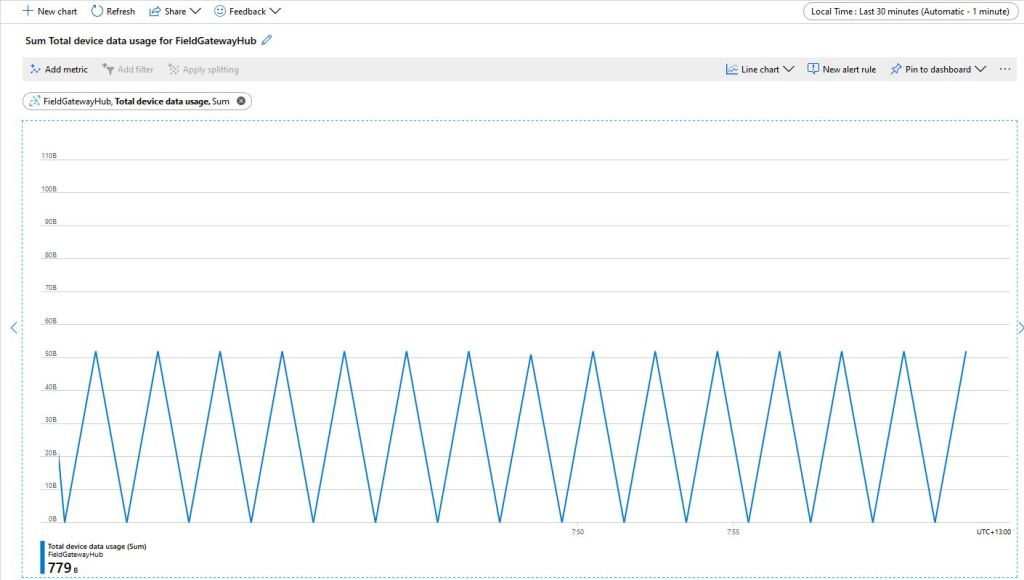
The size of the packets sent and the total device data appeared to map pretty well but I was also interested in the Transport Layer Security (TLS) and Messaging Queuing Telemetry Transport (MQTT) overheads.
Azure IoT Hub Metrics
To get an idea of the overheads I fired up LiveTcpUdpWatch by Nirsoft and noted down the traffic measure on port 8883.
Conenction LiveTcpUdpWatch main screen
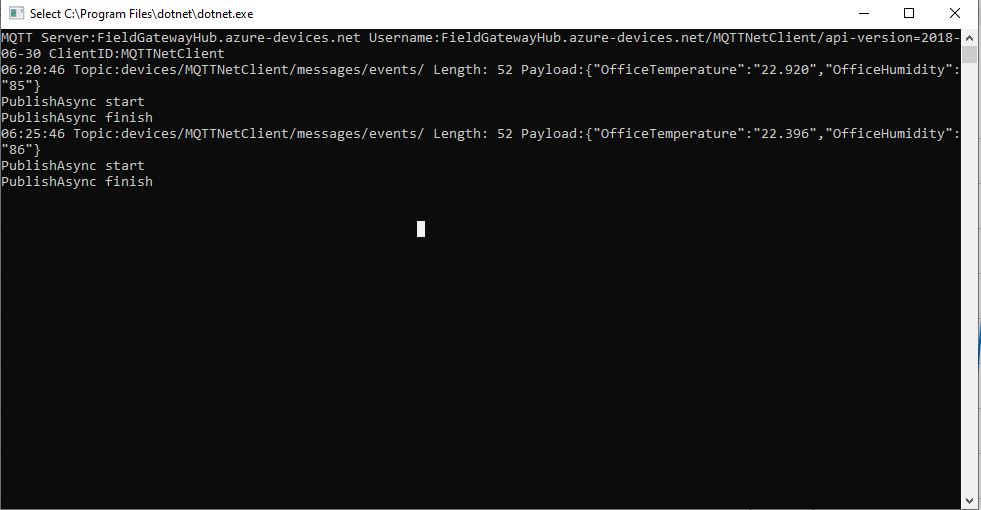
Launching the MQTTNet client sending every 30 seconds resulted in traffic like this
So it looks like my very rough numbers are close to the numbers discussed in the above article. I need to explore the impact of keep-alive messages and other background operations.
I did notice that the .DeviceConnected and .DeviceDisconnected events did take a while to arrive. When I started the field gateway application on the Windows 10 IoT Core device I would get several DeviceTelemetry events before the DeviceConnected event arrived.
I was using Advanced Message Queueing Protocol (AMQP) so I modified the configuration file so I could try all the available options.
C# TransportType enumeration
namespace Microsoft.Azure.Devices.Client
{
	//
	// Summary:
	//     Transport types supported by DeviceClient - AMQP/TCP, HTTP 1.1, MQTT/TCP, AMQP/WS,
	//     MQTT/WS
	public enum TransportType
	{
		//
		// Summary:
		//     Advanced Message Queuing Protocol transport. Try Amqp over TCP first and fallback
		//     to Amqp over WebSocket if that fails
		Amqp = 0,
		//
		// Summary:
		//     HyperText Transfer Protocol version 1 transport.
		Http1 = 1,
		//
		// Summary:
		//     Advanced Message Queuing Protocol transport over WebSocket only.
		Amqp_WebSocket_Only = 2,
		//
		// Summary:
		//     Advanced Message Queuing Protocol transport over native TCP only
		Amqp_Tcp_Only = 3,
		//
		// Summary:
		//     Message Queuing Telemetry Transport. Try Mqtt over TCP first and fallback to
		//     Mqtt over WebSocket if that fails
		Mqtt = 4,
		//
		// Summary:
		//     Message Queuing Telemetry Transport over Websocket only.
		Mqtt_WebSocket_Only = 5,
		//
		// Summary:
		//     Message Queuing Telemetry Transport over native TCP only
		Mqtt_Tcp_Only = 6
	}
}
The first telemetry data arrived 00:57:18, the DeviceConnected arrived 01:01:28 so approximately a 4 minute delay, the DeviceDisconnected arrived within a minute of me shutting the device down.
The first telemetry data arrived 04:16:48, the DeviceConnected arrived 04:20:39 so approximately a 4 minute delay, the DeviceDisconnected arrived within a minute of me shutting the device down.
The first telemetry data arrived 04:05:36, DeviceConnected arrived 04:09:52 so approximately a 4 minute delay, the DeviceDisconnected arrived within a minute of me shutting the device down.
HTTP
I waited for 20 minutes and there wasn’t a DeviceConnected message which I sort of expected as HTTP is a connectionless protocol.
The first telemetry data arrived 01:11:33, the DeviceConnected arrived 01:11:25 so they arrived in order and within 10 seconds, the DeviceDisconnected arrived within a 15 seconds of me shutting the device down.
The first telemetry data arrived 04:42:15, the DeviceConnected arrived 04:42:06 so they arrived in order and within 10 seconds, the DeviceDisconnected arrived within a 20 seconds of me shutting device down.
The first telemetry data arrived 04:36:08, the DeviceConnected arrived 04:36:03 so they arrived in order and within 10 seconds, the DeviceDisconnected arrived within a 30 seconds of me shutting device down.
Summary
My LoRa sensors nodes are sending data roughly every minute which reduces the precision of the times.
It looks like for AMQP based messaging it can take 4-5 minutes for a Devices.DeviceConnected message to arrive, for based MQTT messaging it’s 5-10 seconds.
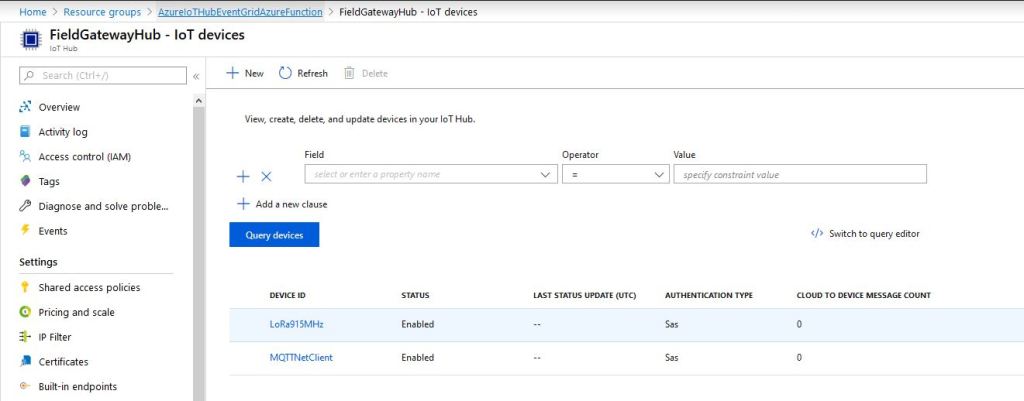
I have one an Azure IoT HubLoRa Telemetry Field Gateway running in my office and I wanted to process the data collected by the sensors around my property without using a Software as a Service(SaaS) Internet of Things (IoT) package.
Rather than lots of screen grabs of my configuration steps I figured people reading this series of posts would be able to figure the details out themselves.
I downloaded the JSON configuration file template from my Windows 10 device (which is created on first startup after installation) and configured the Azure IoT Hub connection string.
I then uploaded this to my Windows 10 IoT Core device and restarted the Azure IoT Hub Field gateway so it picked up the new settings.
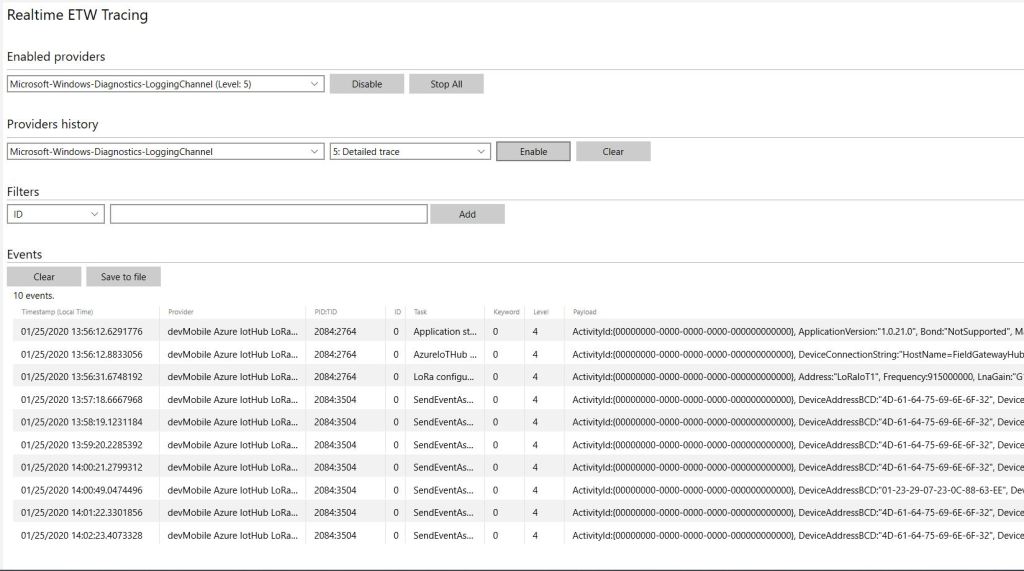
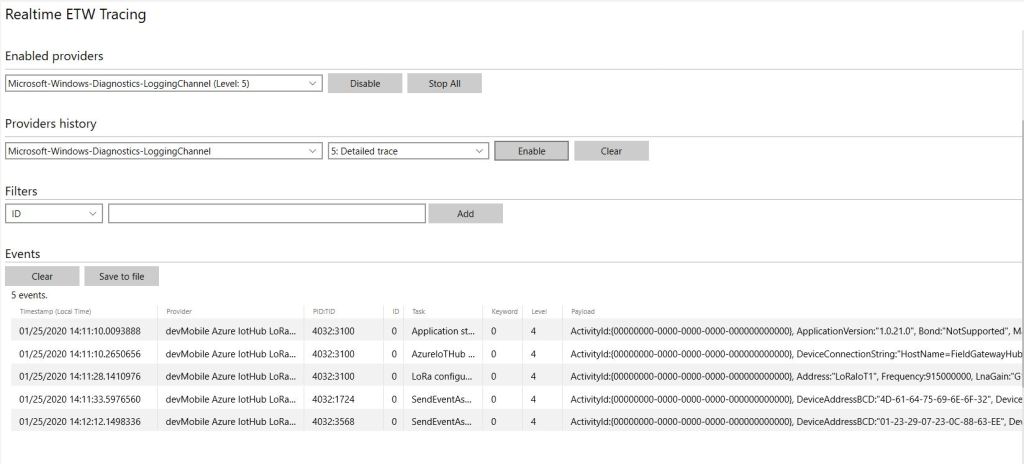
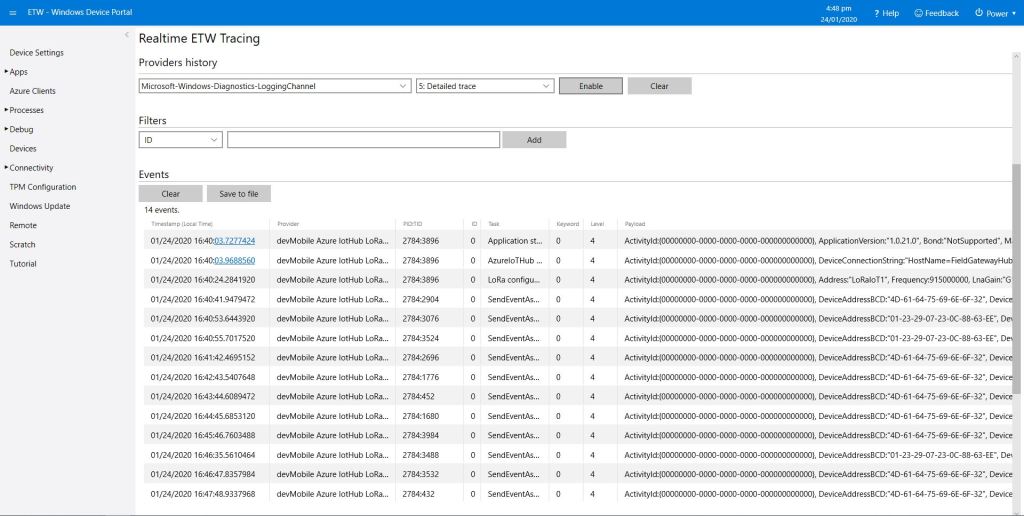
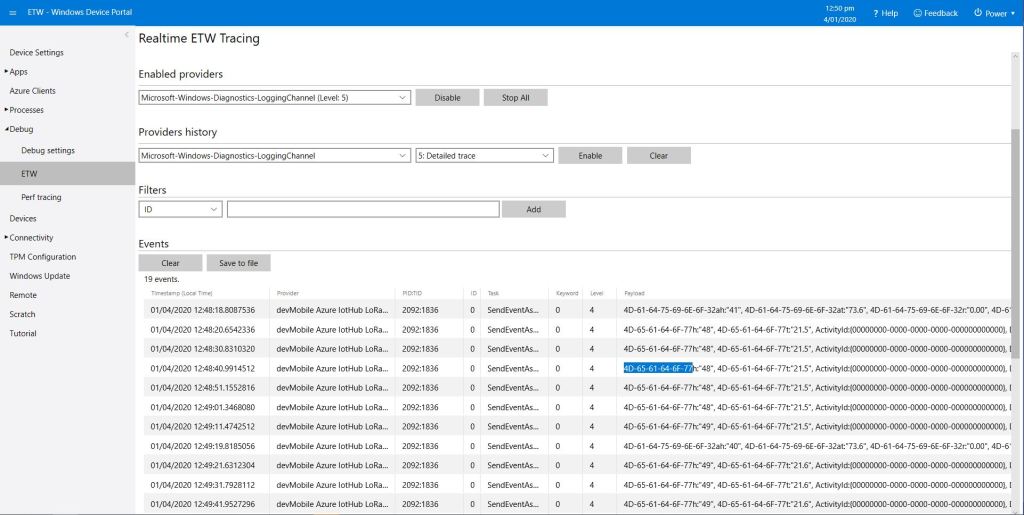
I could then see on the device messages from sensor nodes being unpacked and uploaded to my Azure IoT Hub.
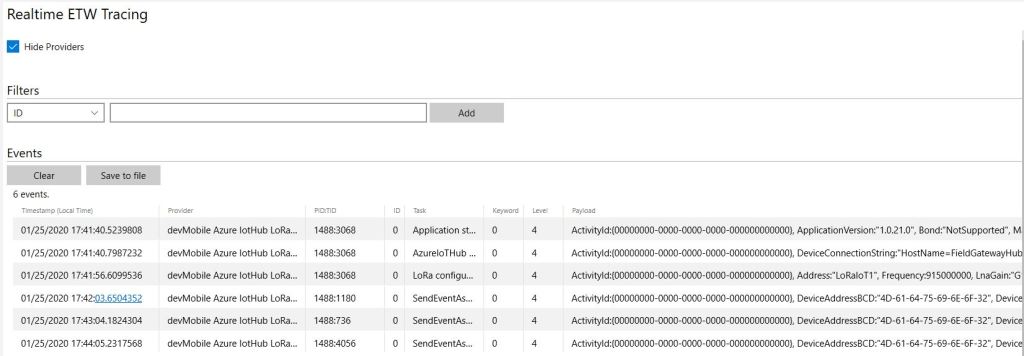
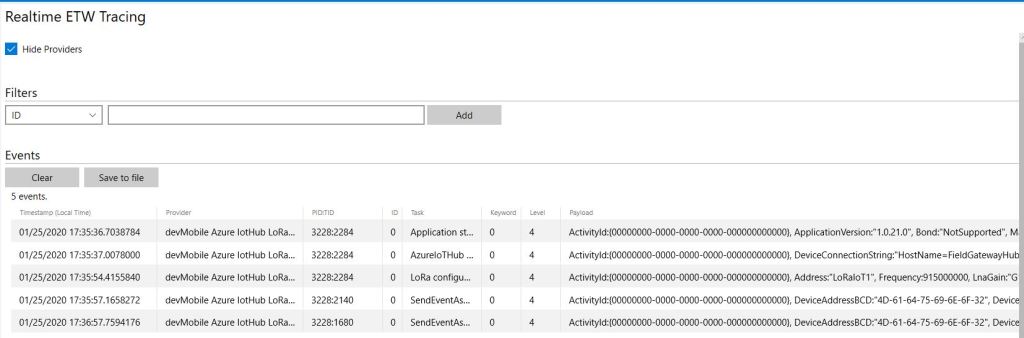
ETW logging on device
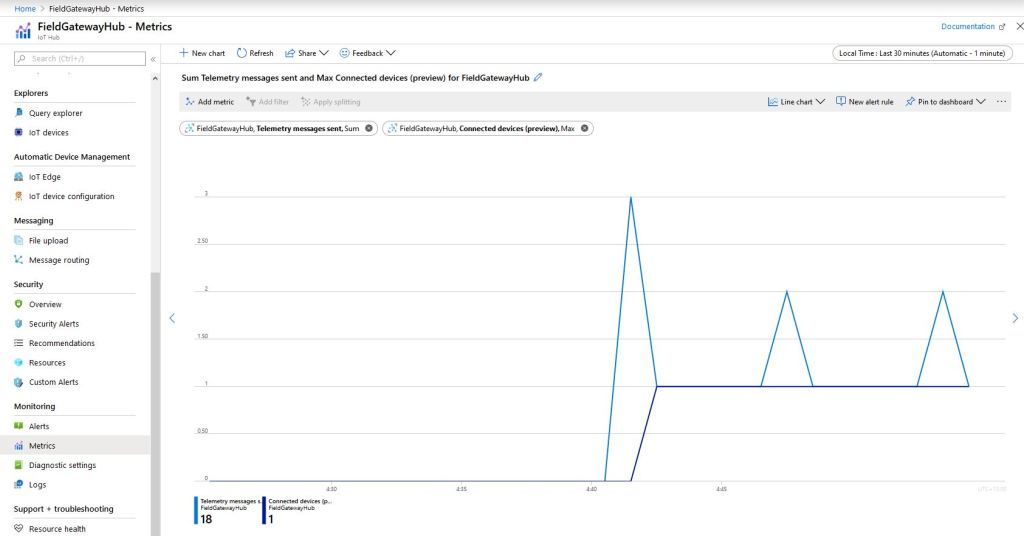
In the Azure IoT Hub metrics I graphed the number of devices connected and the number of telemetry messages sent and could see my device connect then start uploading telemetry.
Azure IoT Hub metrics
One of my customers uses Azure Event Grid for application integration and I wanted to explore using it in an IoT solution. The first step was to create an Event Grid Domain.
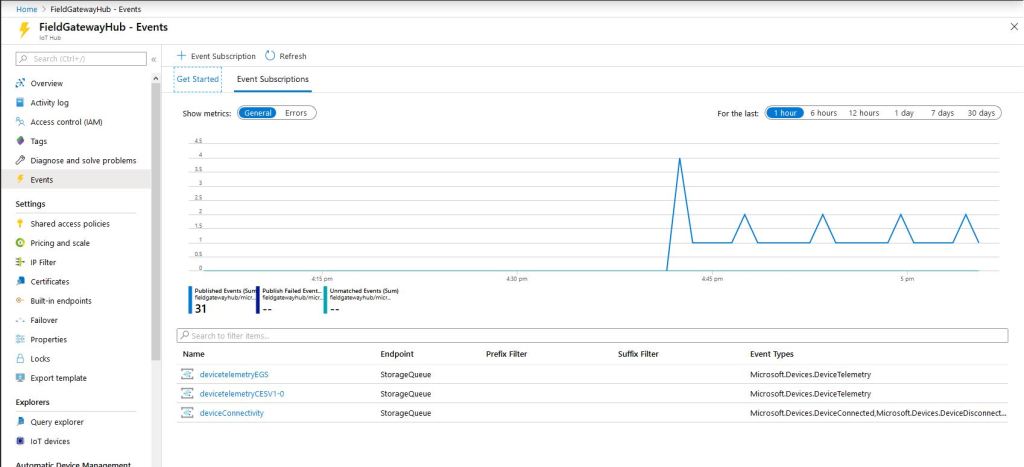
To confirm my event subscriptions were successful I previously found the “simplest” approach was to use an Azure storage queue endpoint. I had to create an Azure Storage Account with two Azure Storage Queues one for device connectivity (.DeviceConnected & .DeviceDisconnected) events and the other for device telemetry (.DeviceTelemetry) events.
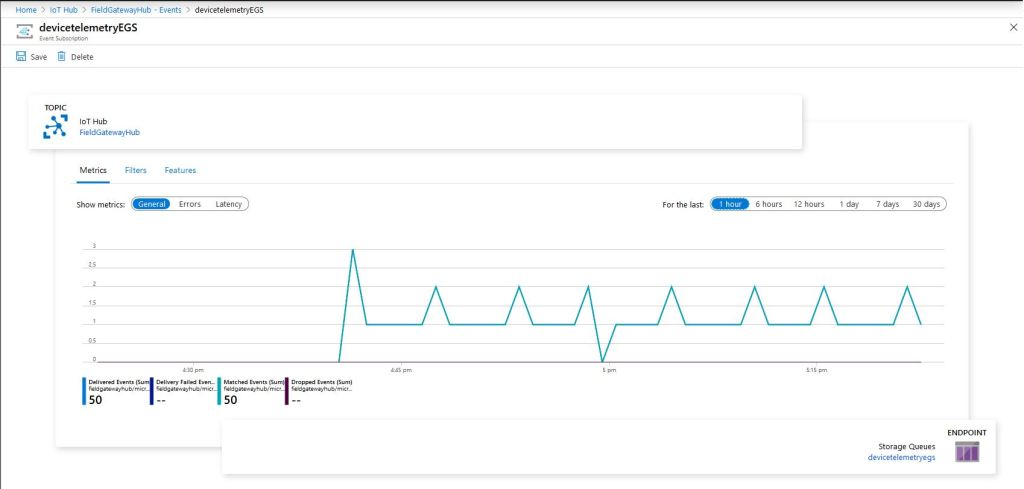
I created a couple of other subscriptions so I could compare the different Event schemas (Event Grid Schema & Cloud Event Schema v1.0). At this stage I didn’t configure any Filters or Additional Features.
Azure IoT Hub Telemetry Event Metrics
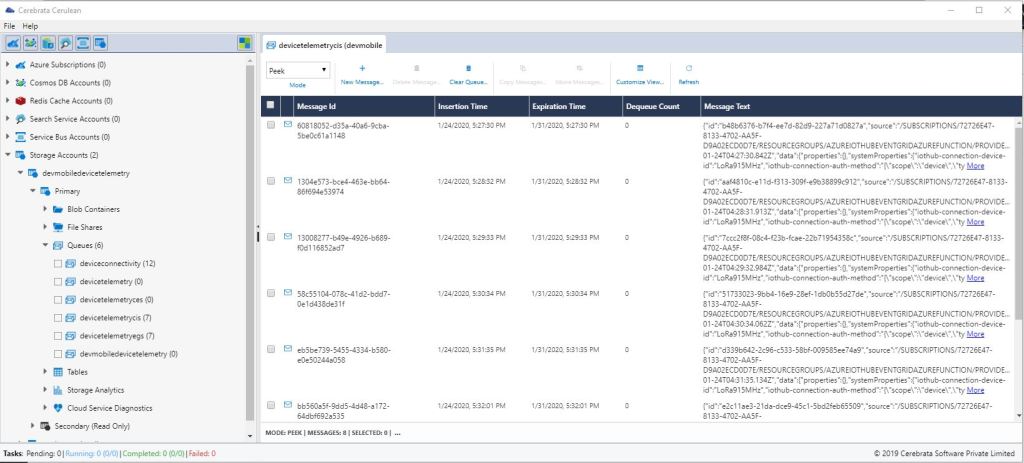
I use Cerebrate Cerculean for monitoring and managing a couple of other customer projects so I used it to inspect the messages in the storage queues.
Without writing any code (I will script the configuration) I could upload sensor data to an Azure IoT Hub, subscribe to a selection of events the Azure IoT Hub publishes and then inspect them in an Azure Storage Queue.
I did notice that the .DeviceConnected and .DeviceDisconnected events did take a while to arrive. When I started the field gateway application on the device I would get several DeviceTelemetry events before the DeviceConnected event arrived.
//---------------------------------------------------------------------------------
// Copyright (c) January 2020, devMobile Software
//
// Licensed under the Apache License, Version 2.0 (the "License");
// you may not use this file except in compliance with the License.
// You may obtain a copy of the License at
//
//     http://www.apache.org/licenses/LICENSE-2.0
//
// Unless required by applicable law or agreed to in writing, software
// distributed under the License is distributed on an "AS IS" BASIS,
// WITHOUT WARRANTIES OR CONDITIONS OF ANY KIND, either express or implied.
// See the License for the specific language governing permissions and
// limitations under the License.
//
//---------------------------------------------------------------------------------
namespace devMobile.IoT.FieldGateway.Client
{
   using System;
   using System.Text;
   using System.Threading;

   using devMobile.IoT.Rfm9x;

   using Meadow;
   using Meadow.Devices;
   using Meadow.Foundation.Leds;
   using Meadow.Foundation.Sensors.Atmospheric;
   using Meadow.Hardware;
   using Meadow.Peripherals.Leds;

   public class MeadowClient : App<F7Micro, MeadowClient>
   {
      private const double Frequency = 915000000.0;
      private readonly byte[] fieldGatewayAddress = Encoding.UTF8.GetBytes("LoRaIoT1");
      private readonly byte[] deviceAddress = Encoding.UTF8.GetBytes("Meadow");
      private readonly Rfm9XDevice rfm9XDevice;
      private readonly TimeSpan periodTime = new TimeSpan(0, 0, 60);
      private readonly Sht31D sensor;
      private readonly ILed Led;

      public MeadowClient()
      {
         Led = new Led(Device, Device.Pins.OnboardLedGreen);

         try
         {
            sensor = new Sht31D(Device.CreateI2cBus());

            ISpiBus spiBus = Device.CreateSpiBus(500);

            rfm9XDevice = new Rfm9XDevice(Device, spiBus, Device.Pins.D09, Device.Pins.D10, Device.Pins.D12);

            rfm9XDevice.Initialise(Frequency, paBoost: true, rxPayloadCrcOn: true);
#if DEBUG
            rfm9XDevice.RegisterDump();
#endif
            rfm9XDevice.OnReceive += Rfm9XDevice_OnReceive;
            rfm9XDevice.Receive(deviceAddress);
            rfm9XDevice.OnTransmit += Rfm9XDevice_OnTransmit;
         }
         catch (Exception ex)
         {
            Console.WriteLine(ex.Message);
         }

         while (true)
         {
            sensor.Update();

            Console.WriteLine($"{DateTime.UtcNow:HH:mm:ss}-TX T:{sensor.Temperature:0.0}C H:{sensor.Humidity:0}%");

            string payload = $"t {sensor.Temperature:0.0},h {sensor.Humidity:0}";

            Led.IsOn = true;

            rfm9XDevice.Send(fieldGatewayAddress, Encoding.UTF8.GetBytes(payload));

            Thread.Sleep(periodTime);
         }
      }

      private void Rfm9XDevice_OnReceive(object sender, Rfm9XDevice.OnDataReceivedEventArgs e)
      {
         try
         {
            string addressText = UTF8Encoding.UTF8.GetString(e.Address);
            string addressHex = BitConverter.ToString(e.Address);
            string messageText = UTF8Encoding.UTF8.GetString(e.Data);

            Console.WriteLine($"{DateTime.UtcNow:HH:mm:ss}-RX PacketSnr {e.PacketSnr:0.0} Packet RSSI {e.PacketRssi}dBm RSSI {e.Rssi}dBm = {e.Data.Length} byte message {messageText}");
         }
         catch (Exception ex)
         {
            Console.WriteLine(ex.Message);
         }
      }

      private void Rfm9XDevice_OnTransmit(object sender, Rfm9XDevice.OnDataTransmitedEventArgs e)
      {
         Led.IsOn = false;

         Console.WriteLine("{0:HH:mm:ss}-TX Done", DateTime.Now);
      }
   }
}
The Meadow platform is a work in progress (Jan 2020) so I haven’t put any effort into minimising power consumption but will revisit this in a future post.
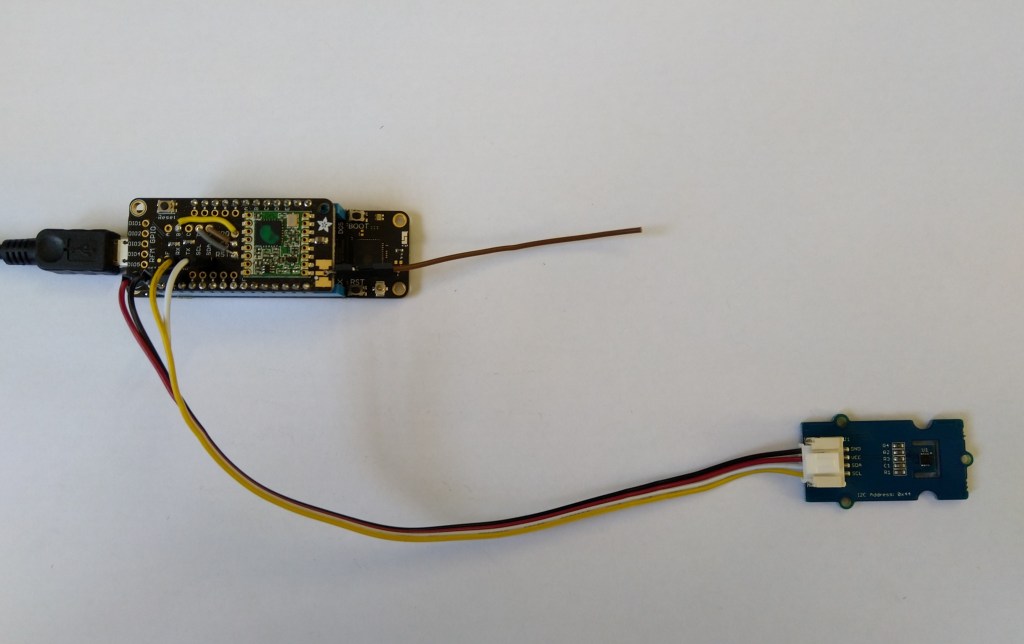
Meadow device with Seeedstudio SHT31 temperature & humidity sensorMeadow sensor data in Field Gateway ETW loggingMeadow Sensor data in Azure IoT Central
Grove – 4 pin Female Jumper to Grove 4 pin Conversion Cable USD3.90
Armtronix device with Seeedstudio temperature & humidity sensor
I used a modified version of my Arduino client code which worked after I got the pins sorted and the female jumper sockets in the right order.
/*
  Copyright ® 2019 December devMobile Software, All Rights Reserved

  THIS CODE AND INFORMATION IS PROVIDED "AS IS" WITHOUT WARRANTY OF ANY
  KIND, EITHER EXPRESSED OR IMPLIED, INCLUDING BUT NOT LIMITED TO THE
  IMPLIED WARRANTIES OF MERCHANTABILITY AND/OR FITNESS FOR A PARTICULAR
  PURPOSE.

  You can do what you want with this code, acknowledgment would be nice.

  http://www.devmobile.co.nz

*/
#include <stdlib.h>
#include <LoRa.h>
#include <TH02_dev.h>

//#define DEBUG
//#define DEBUG_TELEMETRY
//#define DEBUG_LORA

// LoRa field gateway configuration (these settings must match your field gateway)
const char FieldGatewayAddress[] = {"LoRaIoT1"};
const char DeviceAddress[] = {"ArmTronix01"};
const float FieldGatewayFrequency =  915000000.0;
const byte FieldGatewaySyncWord = 0x12 ;

// Payload configuration
const int ChipSelectPin = PA4;
const int InterruptPin = PA11;
const int ResetPin = PC13;

// LoRa radio payload configuration
const byte SensorIdValueSeperator = ' ' ;
const byte SensorReadingSeperator = ',' ;
const int LoopSleepDelaySeconds = 30 ;

const byte PayloadSizeMaximum = 64 ;
byte payload[PayloadSizeMaximum];
byte payloadLength = 0 ;


void setup()
{
  Serial.begin(9600);
#ifdef DEBUG
  while (!Serial);
#endif
  Serial.println("Setup called");

  Serial.println("LoRa setup start");

  // override the default chip select and reset pins
  LoRa.setPins(ChipSelectPin, ResetPin, InterruptPin);
  if (!LoRa.begin(FieldGatewayFrequency))
  {
    Serial.println("LoRa begin failed");
    while (true); // Drop into endless loop requiring restart
  }

  // Need to do this so field gateways pays attention to messsages from this device
  LoRa.enableCrc();
  LoRa.setSyncWord(FieldGatewaySyncWord);

#ifdef DEBUG_LORA
  LoRa.dumpRegisters(Serial);
#endif
  Serial.println("LoRa Setup done.");

  // Configure the Seeedstudio TH02 temperature & humidity sensor
  Serial.println("TH02 setup start");
  TH02.begin();
  delay(100);
  Serial.println("TH02 setup done");

  PayloadHeader((byte*)FieldGatewayAddress,strlen(FieldGatewayAddress), (byte*)DeviceAddress, strlen(DeviceAddress));

  Serial.println("Setup done");
  Serial.println();
}


void loop()
{
  float temperature ;
  float humidity ;

  Serial.println("Loop called");

  PayloadReset();

  // Read the temperature & humidity & battery voltage values then display nicely
  temperature = TH02.ReadTemperature();
  Serial.print("T:");
  Serial.print( temperature, 1 ) ;
  Serial.println( "C " ) ;

  PayloadAdd( "T", temperature, 1);

  humidity = TH02.ReadHumidity();
  Serial.print("H:");
  Serial.print( humidity, 0 ) ;
  Serial.println( "% " ) ;

  PayloadAdd( "H", humidity, 0) ;

#ifdef DEBUG_TELEMETRY
  Serial.print( "RFM9X/SX127X Payload len:");
  Serial.print( payloadLength );
  Serial.println( " bytes" );
#endif

  LoRa.beginPacket();
  LoRa.write( payload, payloadLength );
  LoRa.endPacket();

  Serial.println("Loop done");
  Serial.println();
  delay(LoopSleepDelaySeconds * 1000l);
}


void PayloadHeader( byte *to, byte toAddressLength, byte *from, byte fromAddressLength)
{
  byte addressesLength = toAddressLength + fromAddressLength ;

#ifdef DEBUG_TELEMETRY
  Serial.print("PayloadHeader- ");
  Serial.print( "To len:");
  Serial.print( toAddressLength );
  Serial.print( " From len:");
  Serial.print( fromAddressLength );
  Serial.print( " Header len:");
  Serial.print( addressesLength );
  Serial.println( );
#endif

  payloadLength = 0 ;

  // prepare the payload header with "To" Address length (top nibble) and "From" address length (bottom nibble)
  payload[payloadLength] = (toAddressLength << 4) | fromAddressLength ;
  payloadLength += 1;

  // Copy the "To" address into payload
  memcpy(&payload[payloadLength], to, toAddressLength);
  payloadLength += toAddressLength ;

  // Copy the "From" into payload
  memcpy(&payload[payloadLength], from, fromAddressLength);
  payloadLength += fromAddressLength ;
}


void PayloadAdd( const char *sensorId, float value, byte decimalPlaces)
{
  byte sensorIdLength = strlen( sensorId ) ;

#ifdef DEBUG_TELEMETRY
  Serial.print("PayloadAdd-float ");
  Serial.print( "SensorId:");
  Serial.print( sensorId );
  Serial.print( " Len:");
  Serial.print( sensorIdLength );
  Serial.print( " Value:");
  Serial.print( value, decimalPlaces );
  Serial.print( " payloadLen:");
  Serial.print( payloadLength);
#endif

  memcpy( &payload[payloadLength], sensorId,  sensorIdLength) ;
  payloadLength += sensorIdLength ;
  payload[ payloadLength] = SensorIdValueSeperator;
  payloadLength += 1 ;
  payloadLength += strlen( dtostrf(value, -1, decimalPlaces, (char *)&payload[payloadLength]));
  payload[ payloadLength] = SensorReadingSeperator;
  payloadLength += 1 ;

#ifdef DEBUG_TELEMETRY
  Serial.print( " payloadLen:");
  Serial.println( payloadLength);
#endif
}


void PayloadAdd( const char *sensorId, int value )
{
  byte sensorIdLength = strlen( sensorId ) ;

#ifdef DEBUG_TELEMETRY
  Serial.print("PayloadAdd-int ");
  Serial.print( "SensorId:");
  Serial.print( sensorId );
  Serial.print( " Len:");
  Serial.print( sensorIdLength );
  Serial.print( " Value:");
  Serial.print( value );
  Serial.print( " payloadLen:");
  Serial.print( payloadLength);
#endif

  memcpy( &payload[payloadLength], sensorId,  sensorIdLength) ;
  payloadLength += sensorIdLength ;
  payload[ payloadLength] = SensorIdValueSeperator;
  payloadLength += 1 ;
  payloadLength += strlen( itoa( value,(char *)&payload[payloadLength],10));
  payload[ payloadLength] = SensorReadingSeperator;
  payloadLength += 1 ;

#ifdef DEBUG_TELEMETRY
  Serial.print( " payloadLen:");
  Serial.println( payloadLength);
#endif
}


void PayloadAdd( const char *sensorId, unsigned int value )
{
  byte sensorIdLength = strlen( sensorId ) ;

#ifdef DEBUG_TELEMETRY
  Serial.print("PayloadAdd-unsigned int ");
  Serial.print( "SensorId:");
  Serial.print( sensorId );
  Serial.print( " Len:");
  Serial.print( sensorIdLength );
  Serial.print( " Value:");
  Serial.print( value );
  Serial.print( " payloadLen:");
  Serial.print( payloadLength);
#endif

  memcpy( &payload[payloadLength], sensorId,  sensorIdLength) ;
  payloadLength += sensorIdLength ;
  payload[ payloadLength] = SensorIdValueSeperator;
  payloadLength += 1 ;
  payloadLength += strlen( utoa( value,(char *)&payload[payloadLength],10));
  payload[ payloadLength] = SensorReadingSeperator;
  payloadLength += 1 ;

#ifdef DEBUG_TELEMETRY
  Serial.print( " payloadLen:");
  Serial.println( payloadLength);
#endif
}


void PayloadReset()
{
  byte fromAddressLength = payload[0] & 0xf ;
  byte toAddressLength = payload[0] >> 4 ;
  byte addressesLength = toAddressLength + fromAddressLength ;

  payloadLength = addressesLength + 1;

#ifdef DEBUG_TELEMETRY
  Serial.print("PayloadReset- ");
  Serial.print( "To len:");
  Serial.print( toAddressLength );
  Serial.print( " From len:");
  Serial.print( fromAddressLength );
  Serial.print( " Header len:");
  Serial.println( addressesLength );
#endif
}
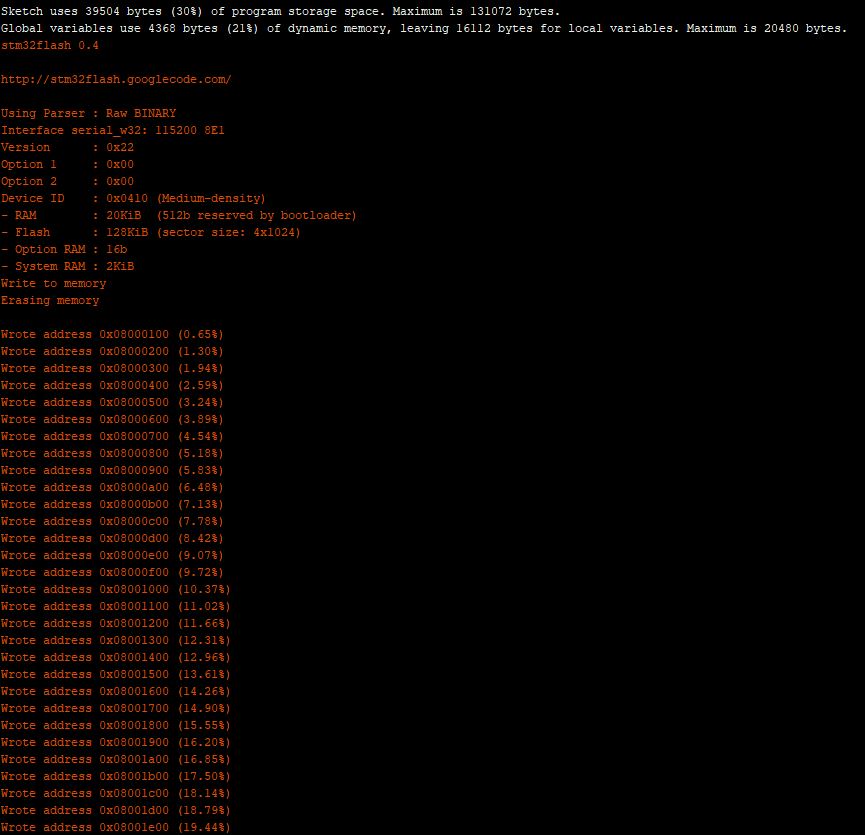
To get the application to download I had to configure the board in the Arduino IDE
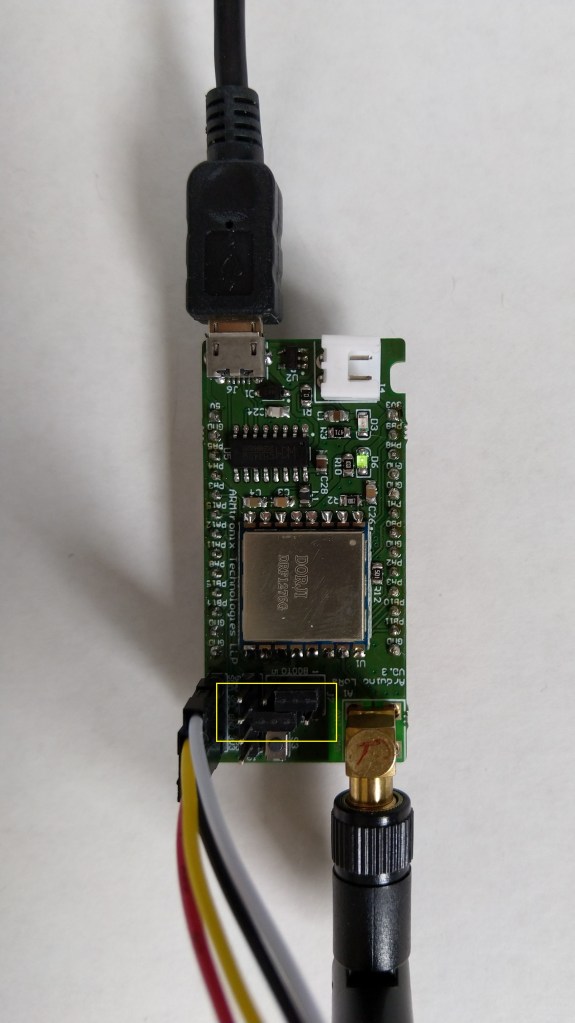
Then change the jumpers
Initially I had some problems deploying my software because I hadn’t followed the instructions (the wiki everyone referred to appeared to be offline) and run the installation batch file (New dev machine since my previous maple based project).
I configured the device to upload to my Azure IoT Hub/Azure IoT Central gateway and it has been running reliably for a couple of days.
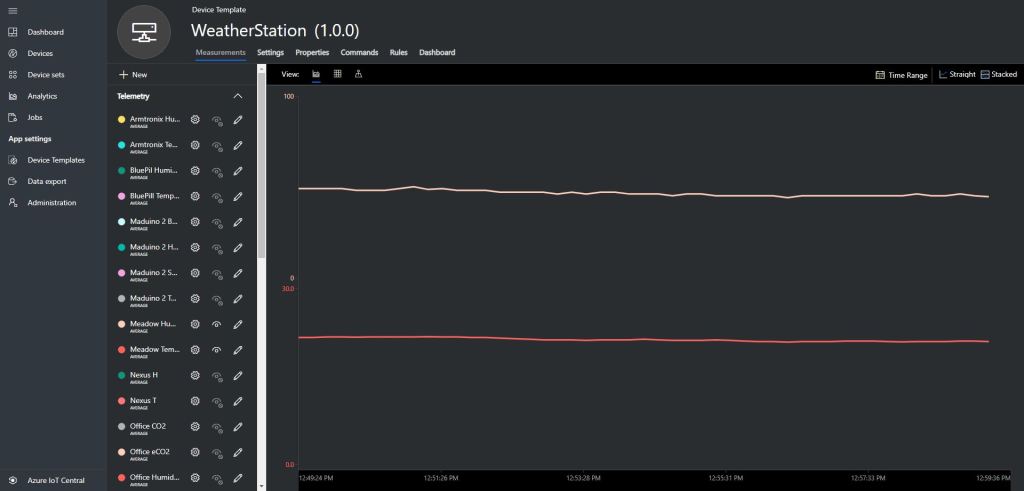
Azure IoT Central temperature and humidity values
Initially I had some configuration problems but I contacted Armtronix support and they promptly provided a couple of updated links for product and device documentation.







 devMobile's blog