Random wanderings through Microsoft Azure esp. PaaS plumbing, the IoT bits, AI on Micro controllers, AI on Edge Devices, .NET nanoFramework, .NET Core on *nix and ML.NET+ONNX
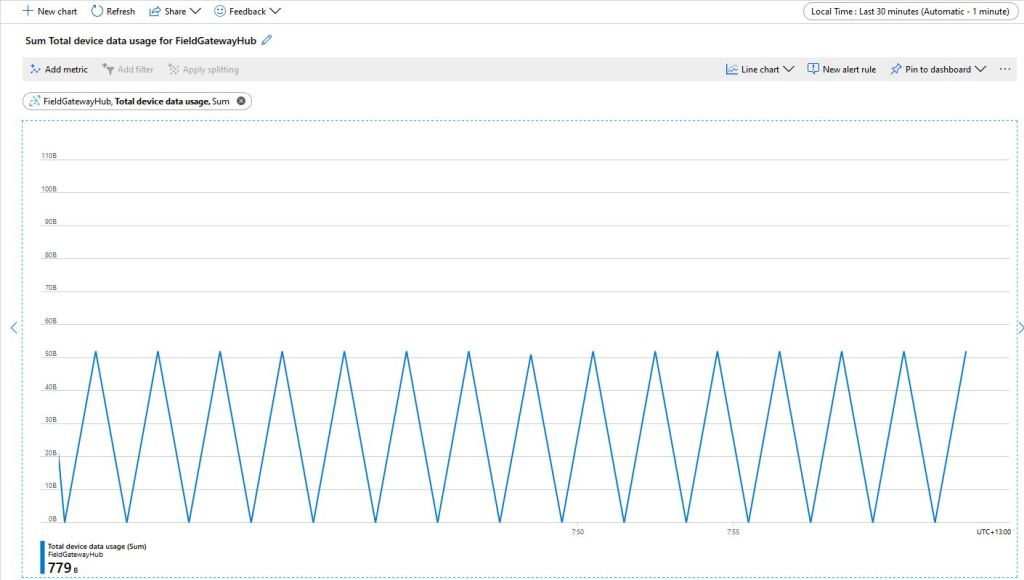
The size of the packets sent and the total device data appeared to map pretty well but I was also interested in the Transport Layer Security (TLS) and Messaging Queuing Telemetry Transport (MQTT) overheads.
Azure IoT Hub Metrics
To get an idea of the overheads I fired up LiveTcpUdpWatch by Nirsoft and noted down the traffic measure on port 8883.
Conenction LiveTcpUdpWatch main screen
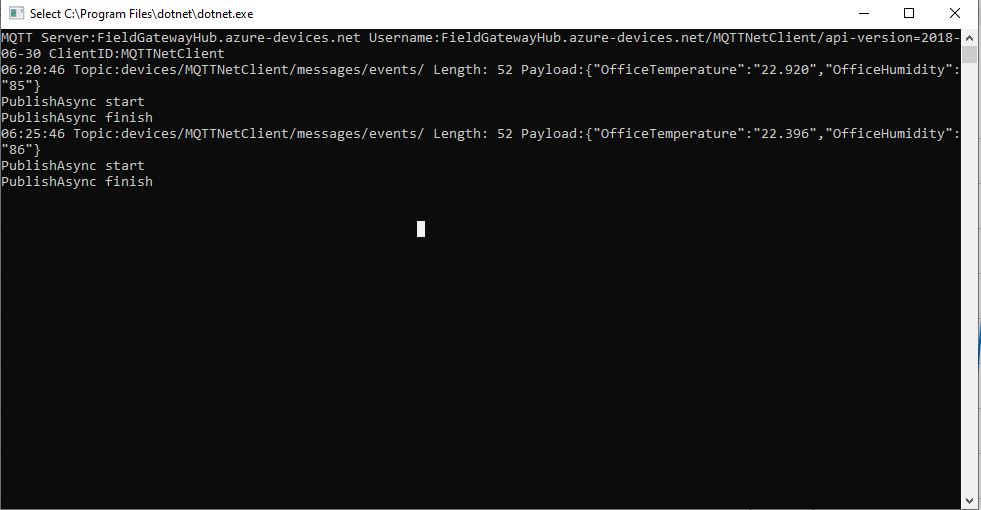
Launching the MQTTNet client sending every 30 seconds resulted in traffic like this
So it looks like my very rough numbers are close to the numbers discussed in the above article. I need to explore the impact of keep-alive messages and other background operations.
I did notice that the .DeviceConnected and .DeviceDisconnected events did take a while to arrive. When I started the field gateway application on the Windows 10 IoT Core device I would get several DeviceTelemetry events before the DeviceConnected event arrived.
I was using Advanced Message Queueing Protocol (AMQP) so I modified the configuration file so I could try all the available options.
C# TransportType enumeration
namespace Microsoft.Azure.Devices.Client
{
	//
	// Summary:
	//     Transport types supported by DeviceClient - AMQP/TCP, HTTP 1.1, MQTT/TCP, AMQP/WS,
	//     MQTT/WS
	public enum TransportType
	{
		//
		// Summary:
		//     Advanced Message Queuing Protocol transport. Try Amqp over TCP first and fallback
		//     to Amqp over WebSocket if that fails
		Amqp = 0,
		//
		// Summary:
		//     HyperText Transfer Protocol version 1 transport.
		Http1 = 1,
		//
		// Summary:
		//     Advanced Message Queuing Protocol transport over WebSocket only.
		Amqp_WebSocket_Only = 2,
		//
		// Summary:
		//     Advanced Message Queuing Protocol transport over native TCP only
		Amqp_Tcp_Only = 3,
		//
		// Summary:
		//     Message Queuing Telemetry Transport. Try Mqtt over TCP first and fallback to
		//     Mqtt over WebSocket if that fails
		Mqtt = 4,
		//
		// Summary:
		//     Message Queuing Telemetry Transport over Websocket only.
		Mqtt_WebSocket_Only = 5,
		//
		// Summary:
		//     Message Queuing Telemetry Transport over native TCP only
		Mqtt_Tcp_Only = 6
	}
}
The first telemetry data arrived 00:57:18, the DeviceConnected arrived 01:01:28 so approximately a 4 minute delay, the DeviceDisconnected arrived within a minute of me shutting the device down.
The first telemetry data arrived 04:16:48, the DeviceConnected arrived 04:20:39 so approximately a 4 minute delay, the DeviceDisconnected arrived within a minute of me shutting the device down.
The first telemetry data arrived 04:05:36, DeviceConnected arrived 04:09:52 so approximately a 4 minute delay, the DeviceDisconnected arrived within a minute of me shutting the device down.
HTTP
I waited for 20 minutes and there wasn’t a DeviceConnected message which I sort of expected as HTTP is a connectionless protocol.
The first telemetry data arrived 01:11:33, the DeviceConnected arrived 01:11:25 so they arrived in order and within 10 seconds, the DeviceDisconnected arrived within a 15 seconds of me shutting the device down.
The first telemetry data arrived 04:42:15, the DeviceConnected arrived 04:42:06 so they arrived in order and within 10 seconds, the DeviceDisconnected arrived within a 20 seconds of me shutting device down.
The first telemetry data arrived 04:36:08, the DeviceConnected arrived 04:36:03 so they arrived in order and within 10 seconds, the DeviceDisconnected arrived within a 30 seconds of me shutting device down.
Summary
My LoRa sensors nodes are sending data roughly every minute which reduces the precision of the times.
It looks like for AMQP based messaging it can take 4-5 minutes for a Devices.DeviceConnected message to arrive, for based MQTT messaging it’s 5-10 seconds.
I have one an Azure IoT HubLoRa Telemetry Field Gateway running in my office and I wanted to process the data collected by the sensors around my property without using a Software as a Service(SaaS) Internet of Things (IoT) package.
Rather than lots of screen grabs of my configuration steps I figured people reading this series of posts would be able to figure the details out themselves.
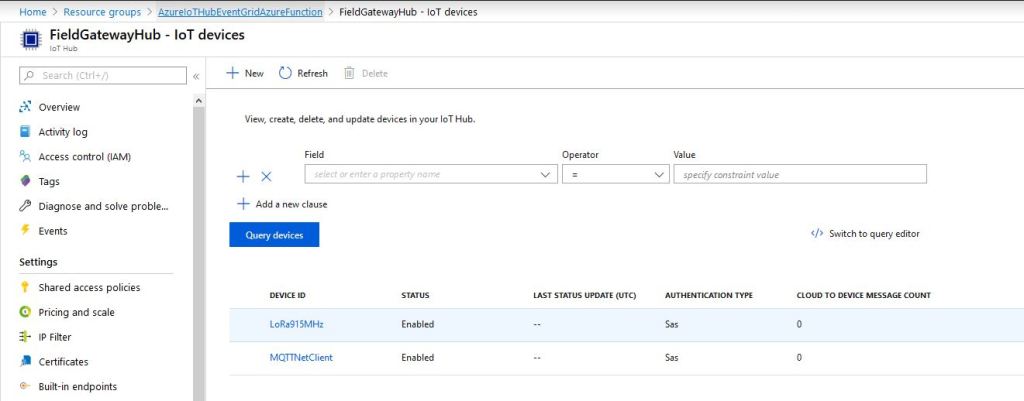
I downloaded the JSON configuration file template from my Windows 10 device (which is created on first startup after installation) and configured the Azure IoT Hub connection string.
I then uploaded this to my Windows 10 IoT Core device and restarted the Azure IoT Hub Field gateway so it picked up the new settings.
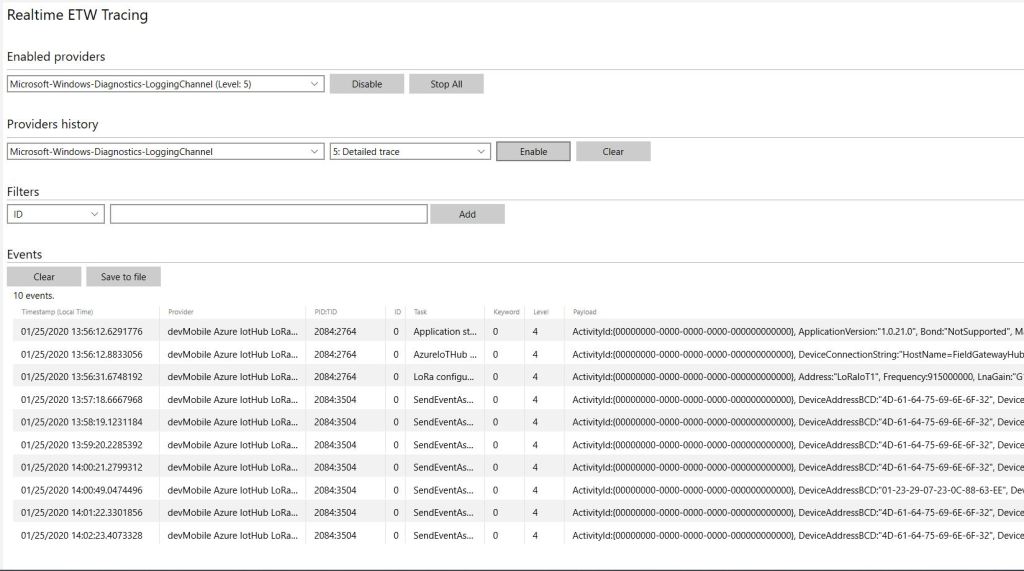
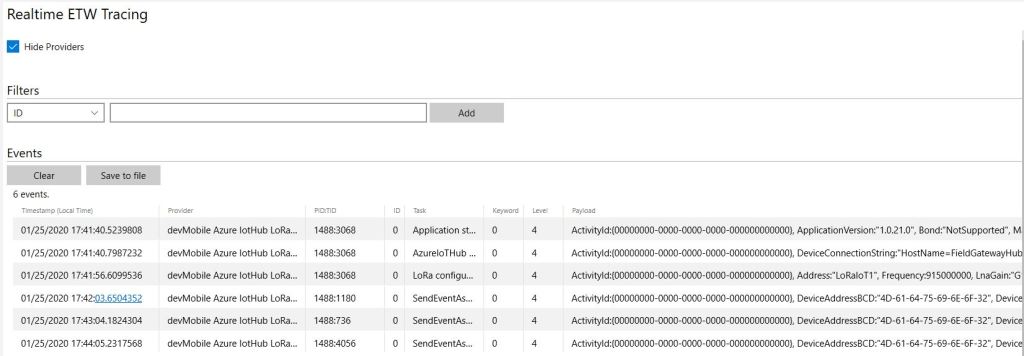
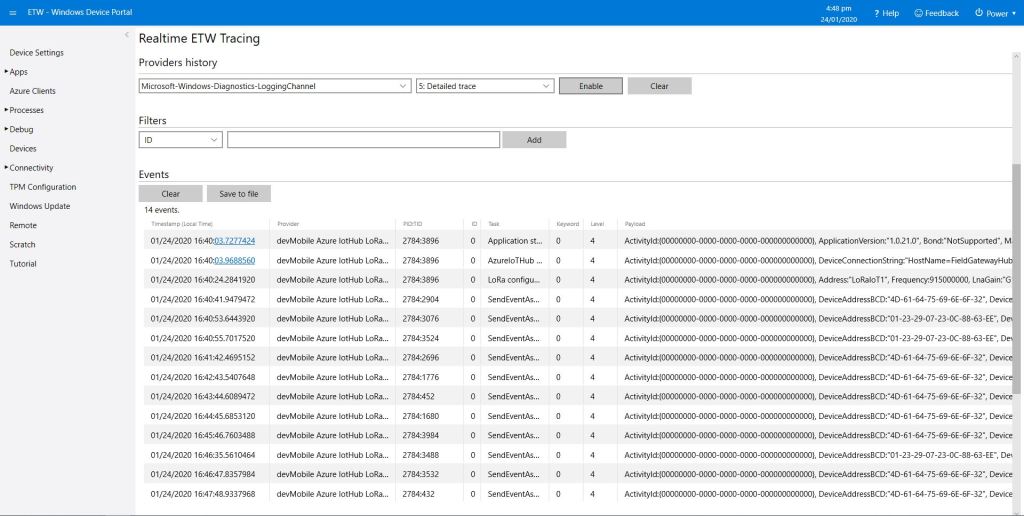
I could then see on the device messages from sensor nodes being unpacked and uploaded to my Azure IoT Hub.
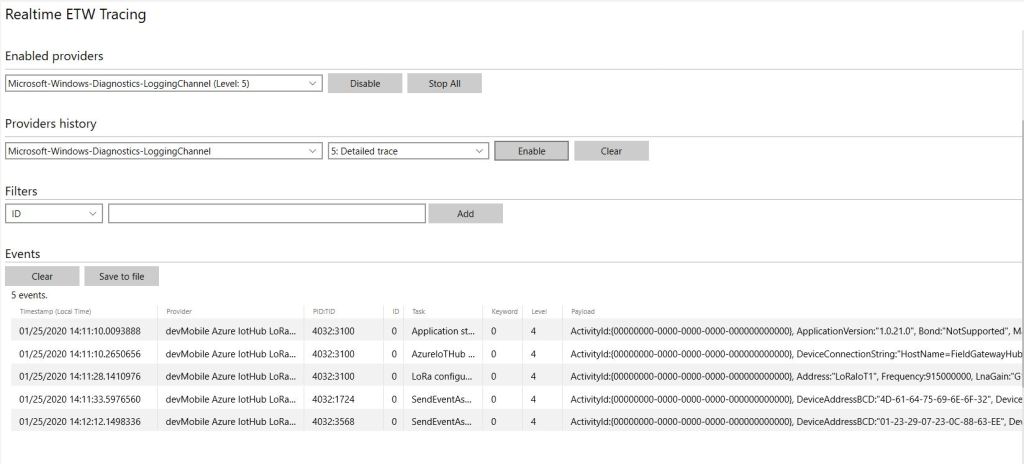
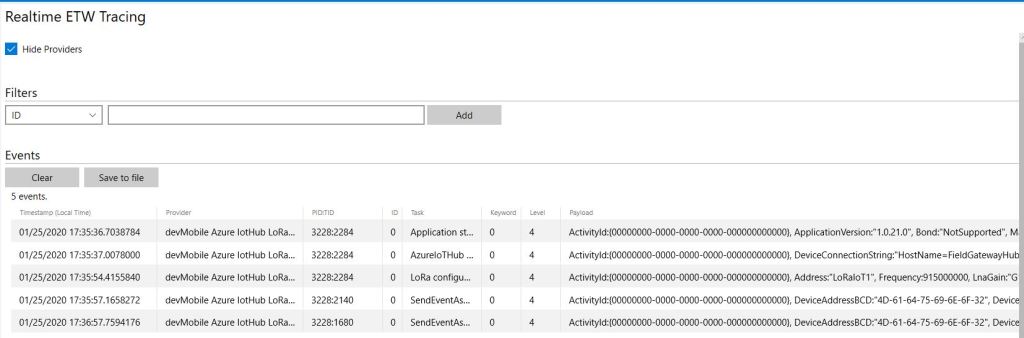
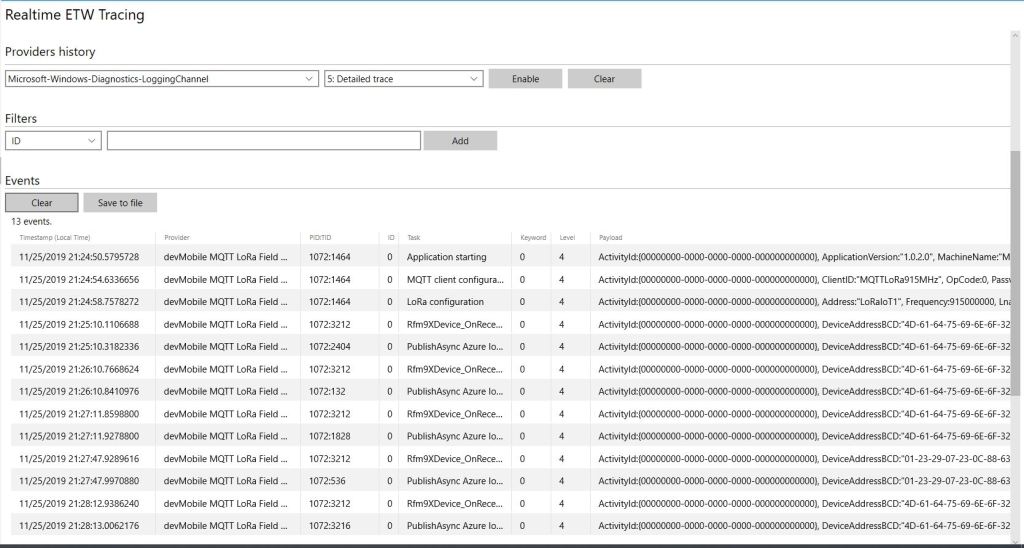
ETW logging on device
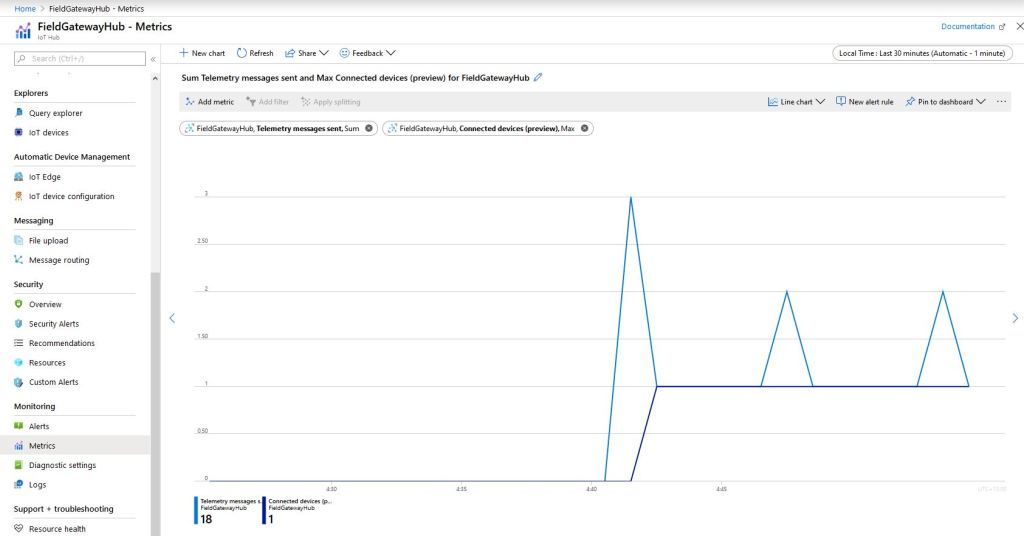
In the Azure IoT Hub metrics I graphed the number of devices connected and the number of telemetry messages sent and could see my device connect then start uploading telemetry.
Azure IoT Hub metrics
One of my customers uses Azure Event Grid for application integration and I wanted to explore using it in an IoT solution. The first step was to create an Event Grid Domain.
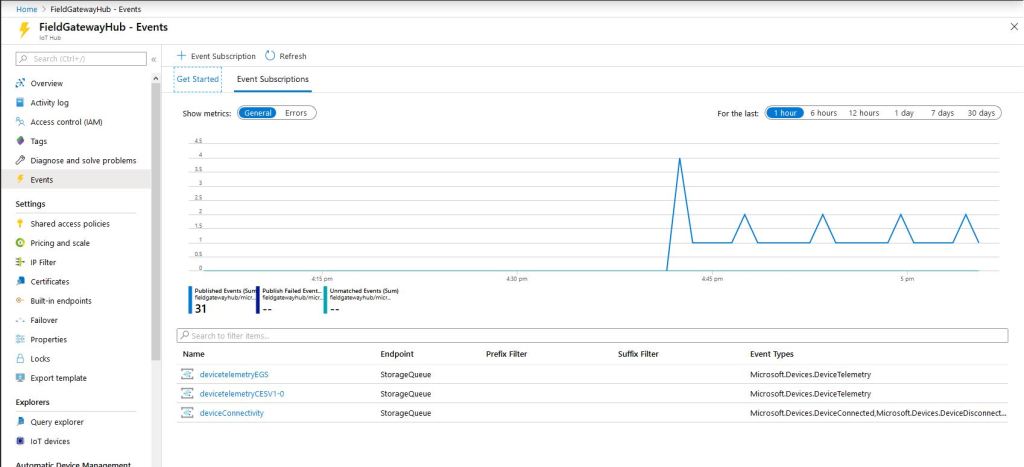
To confirm my event subscriptions were successful I previously found the “simplest” approach was to use an Azure storage queue endpoint. I had to create an Azure Storage Account with two Azure Storage Queues one for device connectivity (.DeviceConnected & .DeviceDisconnected) events and the other for device telemetry (.DeviceTelemetry) events.
I created a couple of other subscriptions so I could compare the different Event schemas (Event Grid Schema & Cloud Event Schema v1.0). At this stage I didn’t configure any Filters or Additional Features.
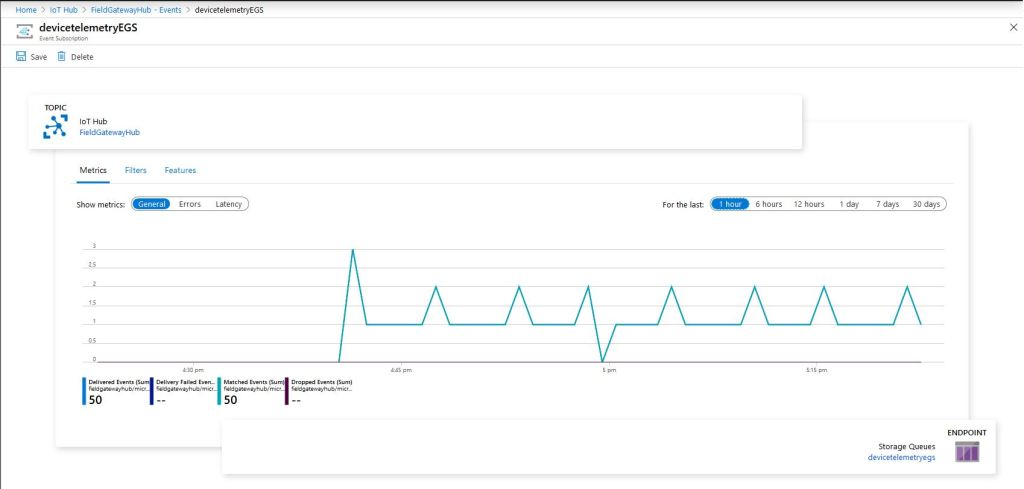
Azure IoT Hub Telemetry Event Metrics
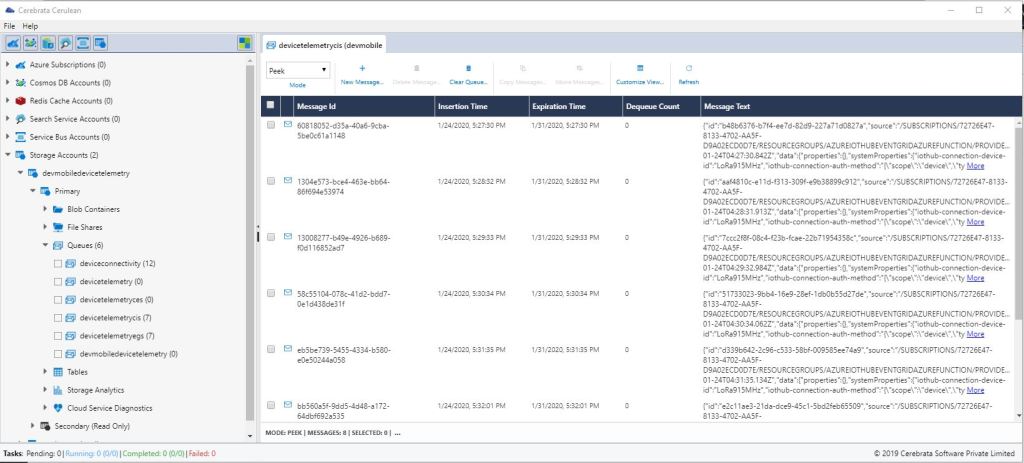
I use Cerebrate Cerculean for monitoring and managing a couple of other customer projects so I used it to inspect the messages in the storage queues.
Without writing any code (I will script the configuration) I could upload sensor data to an Azure IoT Hub, subscribe to a selection of events the Azure IoT Hub publishes and then inspect them in an Azure Storage Queue.
I did notice that the .DeviceConnected and .DeviceDisconnected events did take a while to arrive. When I started the field gateway application on the device I would get several DeviceTelemetry events before the DeviceConnected event arrived.
Grove – 4 pin Female Jumper to Grove 4 pin Conversion Cable USD3.90
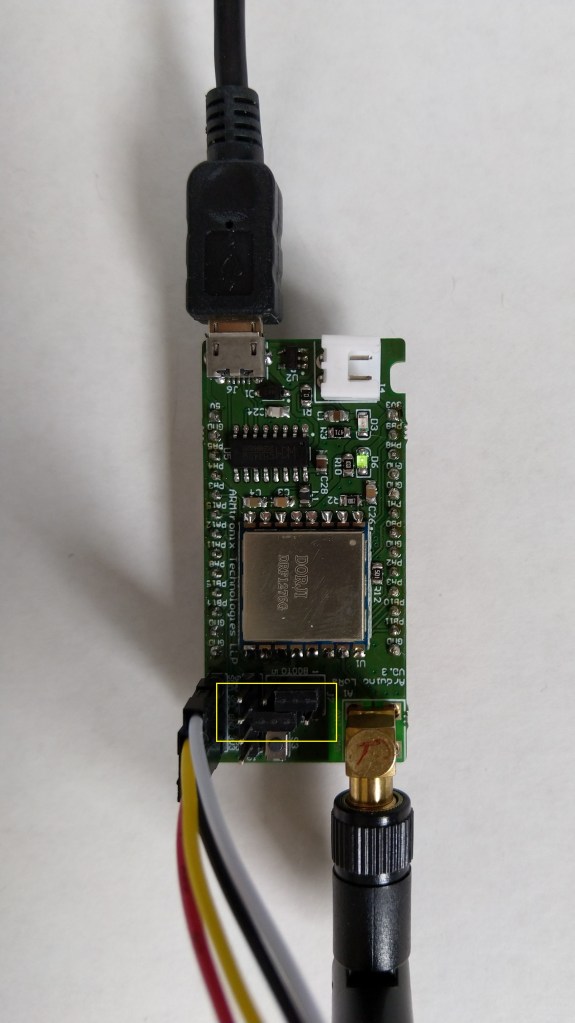
Armtronix device with Seeedstudio temperature & humidity sensor
I used a modified version of my Arduino client code which worked after I got the pins sorted and the female jumper sockets in the right order.
/*
  Copyright ® 2019 December devMobile Software, All Rights Reserved

  THIS CODE AND INFORMATION IS PROVIDED "AS IS" WITHOUT WARRANTY OF ANY
  KIND, EITHER EXPRESSED OR IMPLIED, INCLUDING BUT NOT LIMITED TO THE
  IMPLIED WARRANTIES OF MERCHANTABILITY AND/OR FITNESS FOR A PARTICULAR
  PURPOSE.

  You can do what you want with this code, acknowledgment would be nice.

  http://www.devmobile.co.nz

*/
#include <stdlib.h>
#include <LoRa.h>
#include <TH02_dev.h>

//#define DEBUG
//#define DEBUG_TELEMETRY
//#define DEBUG_LORA

// LoRa field gateway configuration (these settings must match your field gateway)
const char FieldGatewayAddress[] = {"LoRaIoT1"};
const char DeviceAddress[] = {"ArmTronix01"};
const float FieldGatewayFrequency =  915000000.0;
const byte FieldGatewaySyncWord = 0x12 ;

// Payload configuration
const int ChipSelectPin = PA4;
const int InterruptPin = PA11;
const int ResetPin = PC13;

// LoRa radio payload configuration
const byte SensorIdValueSeperator = ' ' ;
const byte SensorReadingSeperator = ',' ;
const int LoopSleepDelaySeconds = 30 ;

const byte PayloadSizeMaximum = 64 ;
byte payload[PayloadSizeMaximum];
byte payloadLength = 0 ;


void setup()
{
  Serial.begin(9600);
#ifdef DEBUG
  while (!Serial);
#endif
  Serial.println("Setup called");

  Serial.println("LoRa setup start");

  // override the default chip select and reset pins
  LoRa.setPins(ChipSelectPin, ResetPin, InterruptPin);
  if (!LoRa.begin(FieldGatewayFrequency))
  {
    Serial.println("LoRa begin failed");
    while (true); // Drop into endless loop requiring restart
  }

  // Need to do this so field gateways pays attention to messsages from this device
  LoRa.enableCrc();
  LoRa.setSyncWord(FieldGatewaySyncWord);

#ifdef DEBUG_LORA
  LoRa.dumpRegisters(Serial);
#endif
  Serial.println("LoRa Setup done.");

  // Configure the Seeedstudio TH02 temperature & humidity sensor
  Serial.println("TH02 setup start");
  TH02.begin();
  delay(100);
  Serial.println("TH02 setup done");

  PayloadHeader((byte*)FieldGatewayAddress,strlen(FieldGatewayAddress), (byte*)DeviceAddress, strlen(DeviceAddress));

  Serial.println("Setup done");
  Serial.println();
}


void loop()
{
  float temperature ;
  float humidity ;

  Serial.println("Loop called");

  PayloadReset();

  // Read the temperature & humidity & battery voltage values then display nicely
  temperature = TH02.ReadTemperature();
  Serial.print("T:");
  Serial.print( temperature, 1 ) ;
  Serial.println( "C " ) ;

  PayloadAdd( "T", temperature, 1);

  humidity = TH02.ReadHumidity();
  Serial.print("H:");
  Serial.print( humidity, 0 ) ;
  Serial.println( "% " ) ;

  PayloadAdd( "H", humidity, 0) ;

#ifdef DEBUG_TELEMETRY
  Serial.print( "RFM9X/SX127X Payload len:");
  Serial.print( payloadLength );
  Serial.println( " bytes" );
#endif

  LoRa.beginPacket();
  LoRa.write( payload, payloadLength );
  LoRa.endPacket();

  Serial.println("Loop done");
  Serial.println();
  delay(LoopSleepDelaySeconds * 1000l);
}


void PayloadHeader( byte *to, byte toAddressLength, byte *from, byte fromAddressLength)
{
  byte addressesLength = toAddressLength + fromAddressLength ;

#ifdef DEBUG_TELEMETRY
  Serial.print("PayloadHeader- ");
  Serial.print( "To len:");
  Serial.print( toAddressLength );
  Serial.print( " From len:");
  Serial.print( fromAddressLength );
  Serial.print( " Header len:");
  Serial.print( addressesLength );
  Serial.println( );
#endif

  payloadLength = 0 ;

  // prepare the payload header with "To" Address length (top nibble) and "From" address length (bottom nibble)
  payload[payloadLength] = (toAddressLength << 4) | fromAddressLength ;
  payloadLength += 1;

  // Copy the "To" address into payload
  memcpy(&payload[payloadLength], to, toAddressLength);
  payloadLength += toAddressLength ;

  // Copy the "From" into payload
  memcpy(&payload[payloadLength], from, fromAddressLength);
  payloadLength += fromAddressLength ;
}


void PayloadAdd( const char *sensorId, float value, byte decimalPlaces)
{
  byte sensorIdLength = strlen( sensorId ) ;

#ifdef DEBUG_TELEMETRY
  Serial.print("PayloadAdd-float ");
  Serial.print( "SensorId:");
  Serial.print( sensorId );
  Serial.print( " Len:");
  Serial.print( sensorIdLength );
  Serial.print( " Value:");
  Serial.print( value, decimalPlaces );
  Serial.print( " payloadLen:");
  Serial.print( payloadLength);
#endif

  memcpy( &payload[payloadLength], sensorId,  sensorIdLength) ;
  payloadLength += sensorIdLength ;
  payload[ payloadLength] = SensorIdValueSeperator;
  payloadLength += 1 ;
  payloadLength += strlen( dtostrf(value, -1, decimalPlaces, (char *)&payload[payloadLength]));
  payload[ payloadLength] = SensorReadingSeperator;
  payloadLength += 1 ;

#ifdef DEBUG_TELEMETRY
  Serial.print( " payloadLen:");
  Serial.println( payloadLength);
#endif
}


void PayloadAdd( const char *sensorId, int value )
{
  byte sensorIdLength = strlen( sensorId ) ;

#ifdef DEBUG_TELEMETRY
  Serial.print("PayloadAdd-int ");
  Serial.print( "SensorId:");
  Serial.print( sensorId );
  Serial.print( " Len:");
  Serial.print( sensorIdLength );
  Serial.print( " Value:");
  Serial.print( value );
  Serial.print( " payloadLen:");
  Serial.print( payloadLength);
#endif

  memcpy( &payload[payloadLength], sensorId,  sensorIdLength) ;
  payloadLength += sensorIdLength ;
  payload[ payloadLength] = SensorIdValueSeperator;
  payloadLength += 1 ;
  payloadLength += strlen( itoa( value,(char *)&payload[payloadLength],10));
  payload[ payloadLength] = SensorReadingSeperator;
  payloadLength += 1 ;

#ifdef DEBUG_TELEMETRY
  Serial.print( " payloadLen:");
  Serial.println( payloadLength);
#endif
}


void PayloadAdd( const char *sensorId, unsigned int value )
{
  byte sensorIdLength = strlen( sensorId ) ;

#ifdef DEBUG_TELEMETRY
  Serial.print("PayloadAdd-unsigned int ");
  Serial.print( "SensorId:");
  Serial.print( sensorId );
  Serial.print( " Len:");
  Serial.print( sensorIdLength );
  Serial.print( " Value:");
  Serial.print( value );
  Serial.print( " payloadLen:");
  Serial.print( payloadLength);
#endif

  memcpy( &payload[payloadLength], sensorId,  sensorIdLength) ;
  payloadLength += sensorIdLength ;
  payload[ payloadLength] = SensorIdValueSeperator;
  payloadLength += 1 ;
  payloadLength += strlen( utoa( value,(char *)&payload[payloadLength],10));
  payload[ payloadLength] = SensorReadingSeperator;
  payloadLength += 1 ;

#ifdef DEBUG_TELEMETRY
  Serial.print( " payloadLen:");
  Serial.println( payloadLength);
#endif
}


void PayloadReset()
{
  byte fromAddressLength = payload[0] & 0xf ;
  byte toAddressLength = payload[0] >> 4 ;
  byte addressesLength = toAddressLength + fromAddressLength ;

  payloadLength = addressesLength + 1;

#ifdef DEBUG_TELEMETRY
  Serial.print("PayloadReset- ");
  Serial.print( "To len:");
  Serial.print( toAddressLength );
  Serial.print( " From len:");
  Serial.print( fromAddressLength );
  Serial.print( " Header len:");
  Serial.println( addressesLength );
#endif
}
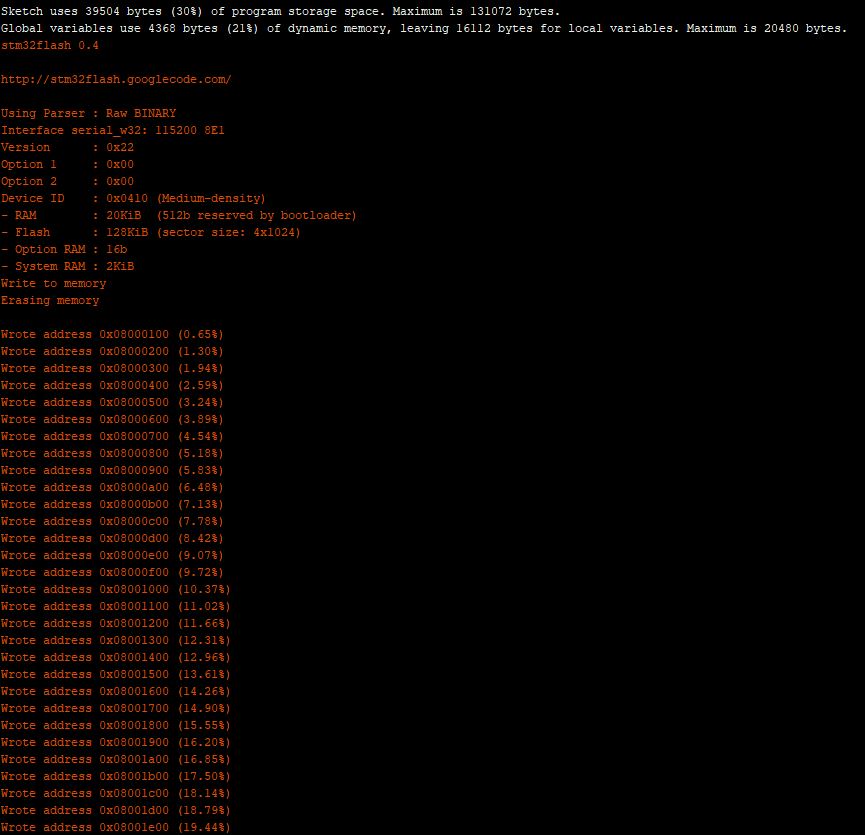
To get the application to download I had to configure the board in the Arduino IDE
Then change the jumpers
Initially I had some problems deploying my software because I hadn’t followed the instructions (the wiki everyone referred to appeared to be offline) and run the installation batch file (New dev machine since my previous maple based project).
I configured the device to upload to my Azure IoT Hub/Azure IoT Central gateway and it has been running reliably for a couple of days.
Azure IoT Central temperature and humidity values
Initially I had some configuration problems but I contacted Armtronix support and they promptly provided a couple of updated links for product and device documentation.
I now have a working Azure IoT Hub plug-in (Azure IoT Central support as planned as well) with the first iteration focused on Device to Cloud (D2C) messaging. In a future iteration I will add Cloud to Device messaging(C2D).
My applications use a lightweight, easy to implemented protocol which is intended for hobbyist and educational use rather than commercial applications (I have been working on a more secure version as yet another side project)
When the application is first started it creates a minimal configuration file which should be downloaded, the missing information filled out, then uploaded using the File explorer in the Windows device portal.
The application logs debugging information to the Windows 10 IoT Core ETW logging Microsoft-Windows-Diagnostics-LoggingChannel
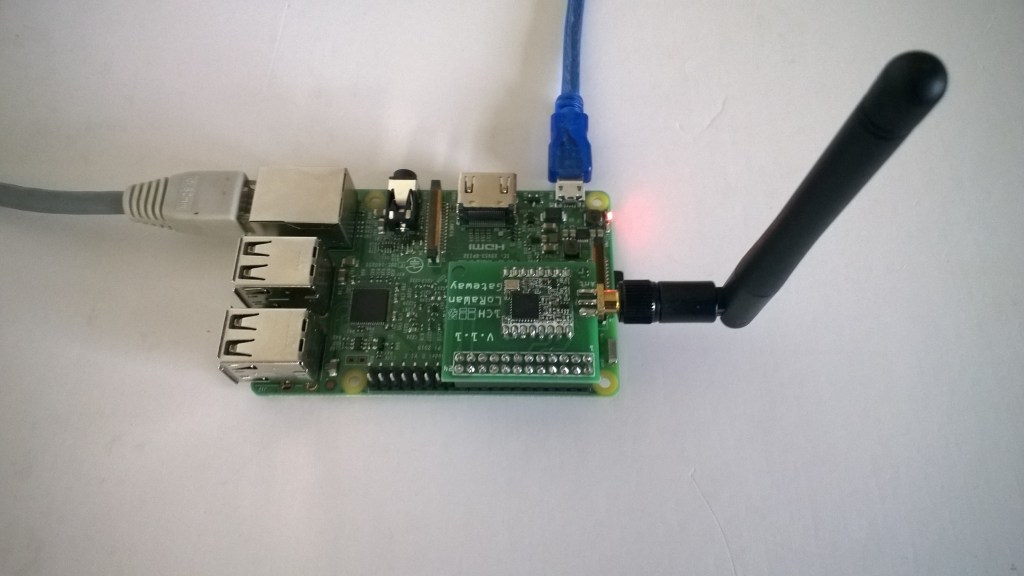
MQTT LoRa Gateway with Azure IoT Hub plug-in
The message handler uploads all values in an inbound messages in one MQTT message.
namespace devMobile.Mqtt.IoTCore.FieldGateway
{
   using System;
   using System.Diagnostics;
   using System.Text;
   using Windows.Foundation.Diagnostics;

   using devMobile.IoT.Rfm9x;
   using MQTTnet;
   using MQTTnet.Client;
   using Newtonsoft.Json.Linq;
   using Newtonsoft.Json;

   public class MessageHandler : IMessageHandler
   {
      private LoggingChannel Logging { get; set; }
      private IMqttClient MqttClient { get; set; }
      private Rfm9XDevice Rfm9XDevice { get; set; }
      private string PlatformSpecificConfiguration { get; set; }

      void IMessageHandler.Initialise(LoggingChannel logging, IMqttClient mqttClient, Rfm9XDevice rfm9XDevice, string platformSpecificConfiguration)
      {
         LoggingFields processInitialiseLoggingFields = new LoggingFields();

         this.Logging = logging;
         this.MqttClient = mqttClient;
         this.Rfm9XDevice = rfm9XDevice;
         this.PlatformSpecificConfiguration = platformSpecificConfiguration;
      }

      async void IMessageHandler.Rfm9XOnReceive(Rfm9XDevice.OnDataReceivedEventArgs e)
      {
         LoggingFields processReceiveLoggingFields = new LoggingFields();
         char[] sensorReadingSeparators = { ',' };
         char[] sensorIdAndValueSeparators = { ' ' };

         processReceiveLoggingFields.AddString("PacketSNR", e.PacketSnr.ToString("F1"));
         processReceiveLoggingFields.AddInt32("PacketRSSI", e.PacketRssi);
         processReceiveLoggingFields.AddInt32("RSSI", e.Rssi);

         string addressBcdText = BitConverter.ToString(e.Address);
         processReceiveLoggingFields.AddInt32("DeviceAddressLength", e.Address.Length);
         processReceiveLoggingFields.AddString("DeviceAddressBCD", addressBcdText);

         string messageText;
         try
         {
            messageText = UTF8Encoding.UTF8.GetString(e.Data);
            processReceiveLoggingFields.AddString("MessageText", messageText);
         }
         catch (Exception ex)
         {
            processReceiveLoggingFields.AddString("Exception", ex.ToString());
            this.Logging.LogEvent("PayloadProcess failure converting payload to text", processReceiveLoggingFields, LoggingLevel.Warning);
            return;
         }

         // Chop up the CSV text
         string[] sensorReadings = messageText.Split(sensorReadingSeparators, StringSplitOptions.RemoveEmptyEntries);
         if (sensorReadings.Length < 1)
         {
            this.Logging.LogEvent("PayloadProcess payload contains no sensor readings", processReceiveLoggingFields, LoggingLevel.Warning);
            return;
         }

         JObject payloadJObject = new JObject();

         JObject feeds = new JObject();

         // Chop up each sensor read into an ID & value
         foreach (string sensorReading in sensorReadings)
         {
            string[] sensorIdAndValue = sensorReading.Split(sensorIdAndValueSeparators, StringSplitOptions.RemoveEmptyEntries);

            // Check that there is an id & value
            if (sensorIdAndValue.Length != 2)
            {
               this.Logging.LogEvent("PayloadProcess payload invalid format", processReceiveLoggingFields, LoggingLevel.Warning);
               return;
            }

            string sensorId = string.Concat(addressBcdText, sensorIdAndValue[0]);
            string value = sensorIdAndValue[1];

            feeds.Add(sensorId.ToLower(), value);
         }
         payloadJObject.Add("feeds", feeds);

         string topic = $"devices/{MqttClient.Options.ClientId}/messages/events/";

         try
         {
            var message = new MqttApplicationMessageBuilder()
               .WithTopic(topic)
               .WithPayload(JsonConvert.SerializeObject(payloadJObject))
               .WithAtLeastOnceQoS()
               .Build();
            Debug.WriteLine(" {0:HH:mm:ss} MQTT Client PublishAsync start", DateTime.UtcNow);
            await MqttClient.PublishAsync(message);
            Debug.WriteLine(" {0:HH:mm:ss} MQTT Client PublishAsync finish", DateTime.UtcNow);

            this.Logging.LogEvent("PublishAsync Azure IoTHub payload", processReceiveLoggingFields, LoggingLevel.Information);
         }
         catch (Exception ex)
         {
            processReceiveLoggingFields.AddString("Exception", ex.ToString());
            this.Logging.LogEvent("PublishAsync Azure IoTHub payload", processReceiveLoggingFields, LoggingLevel.Error);
         }
      }

      void IMessageHandler.MqttApplicationMessageReceived(MqttApplicationMessageReceivedEventArgs e)
      {
         LoggingFields processReceiveLoggingFields = new LoggingFields();

         processReceiveLoggingFields.AddString("ClientId", e.ClientId);
#if DEBUG
         processReceiveLoggingFields.AddString("Payload", e.ApplicationMessage.ConvertPayloadToString());
#endif
         processReceiveLoggingFields.AddString("QualityOfServiceLevel", e.ApplicationMessage.QualityOfServiceLevel.ToString());
         processReceiveLoggingFields.AddBoolean("Retain", e.ApplicationMessage.Retain);
         processReceiveLoggingFields.AddString("Topic", e.ApplicationMessage.Topic);

         this.Logging.LogEvent("MqttApplicationMessageReceived topic not processed", processReceiveLoggingFields, LoggingLevel.Error);
      }

      void IMessageHandler.Rfm9xOnTransmit(Rfm9XDevice.OnDataTransmitedEventArgs e)
      {
      }
   }
}
The formatting of the username and generation of password are password are a bit awkward and will be fixed in a future refactoring. Along with regenerating the SAS connection token just before it is due to expire.
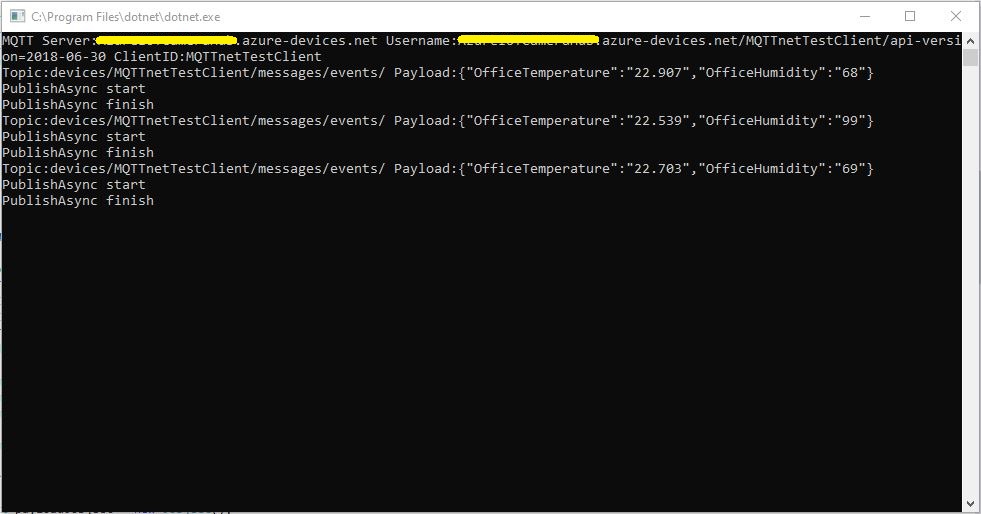
As I’m testing my Message Queue Telemetry Transport(MQTT) LoRa gateway I’m building a proof of concept(PoC) .Net core console application for each IoT platform I would like to support.
This PoC was to confirm that my device could connect to the Microsoft Azure IoT HubMQTT API then format topics and payloads correctly.
Azure IoT Hub MQTT Console Client
I had tried with a couple of different MQTT libraries from micro controllers and embedded devices without success. With the benefit of hindsight (plus this article) I think I had the SAS key format wrong.
The Azure IoT Hub MQTT broker requires only a server name (fully resolved CName), device ID and SAS Key.
Overall the initial configuration went smoothly after I figured out the required Quality of Service (QoS) settings, and the SAS Key format.
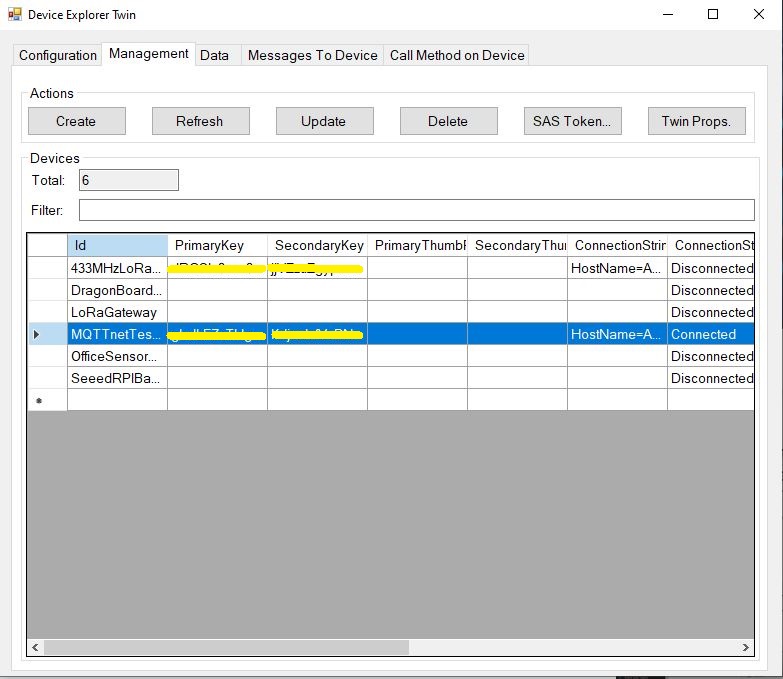
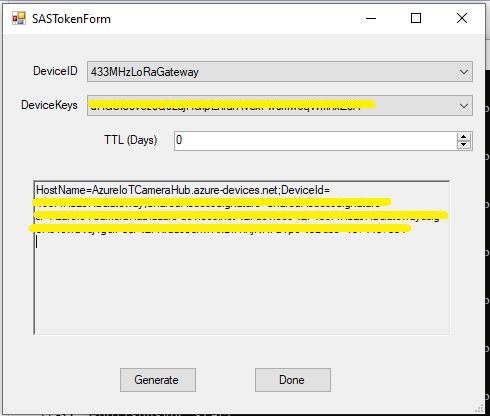
Using the approach described in the Microsoft documentation I manually generated the SAS Key.(In my Netduino samples I have code for generating a SAS Key in my HTTPSAzure IoT Hub Client)
Azure Device Explorer Device ManagementAzure Device Explorer SAS Key Generator
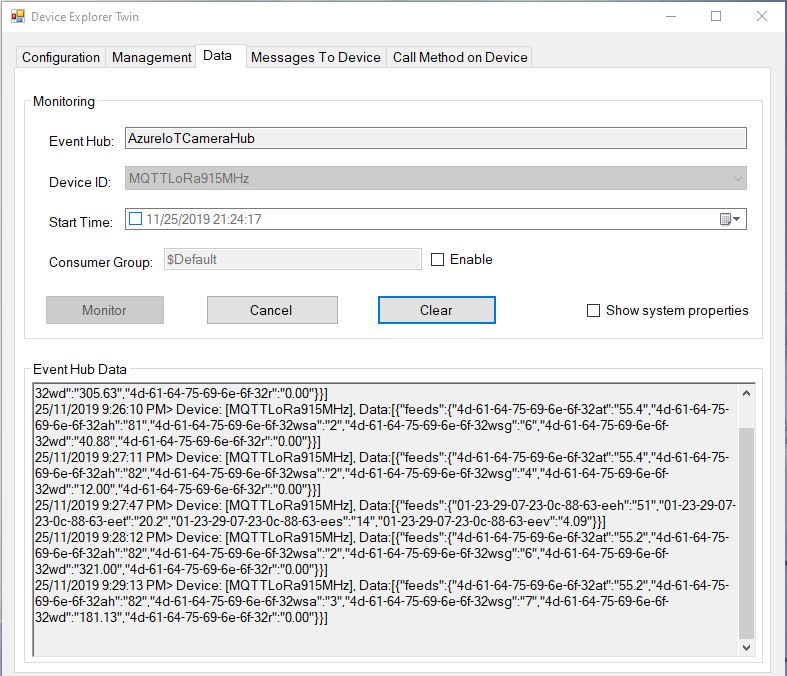
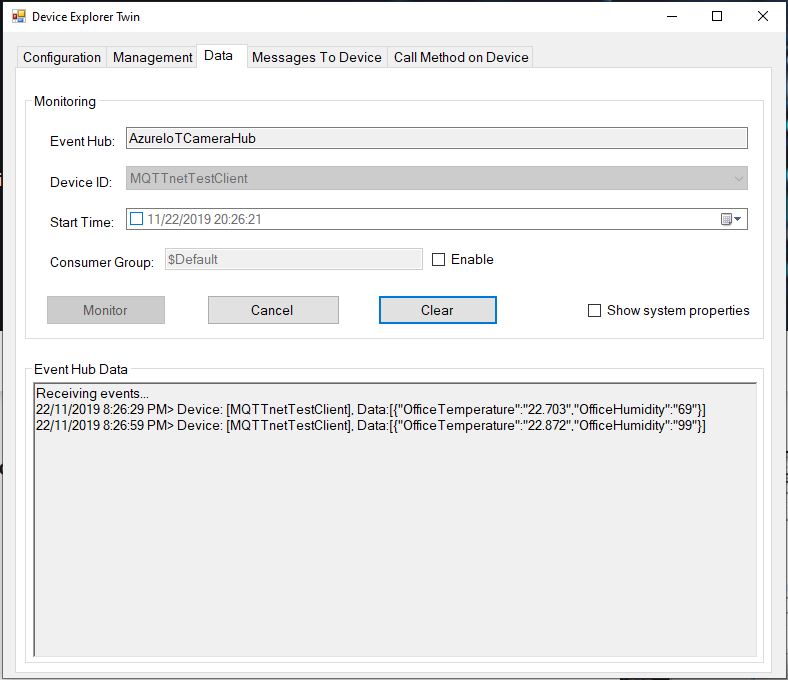
Once I had the configuration correct I could see telemetry from the device and send it messages.
Azure Device Explorer Data View
In a future post I will upload data to the Azure IoT Central for display. Then explore using a “module” attached to a device which maybe useful for my field gateway.
Grove – 4 pin Female Jumper to Grove 4 pin Conversion Cable USD3.90
The two sockets on the main board aren’t Grove compatible so I used the 4 pin female to Grove 4 pin conversion cable to connect the temperature and humidity sensor.
STM32 Blue Pill LoRaWAN node test rig
I used a modified version of my Arduino client code which worked after I got the pin reset pin sorted and the female sockets in the right order.
/*
  Copyright ® 2019 July devMobile Software, All Rights Reserved

  THIS CODE AND INFORMATION IS PROVIDED "AS IS" WITHOUT WARRANTY OF ANY
  KIND, EITHER EXPRESSED OR IMPLIED, INCLUDING BUT NOT LIMITED TO THE
  IMPLIED WARRANTIES OF MERCHANTABILITY AND/OR FITNESS FOR A PARTICULAR
  PURPOSE.

  Adapted from LoRa Duplex communication with Sync Word

  Sends temperature & humidity data from Seeedstudio

  https://www.seeedstudio.com/Grove-Temperature-Humidity-Sensor-High-Accuracy-Min-p-1921.html

  To my Windows 10 IoT Core RFM 9X library

  https://blog.devmobile.co.nz/2018/09/03/rfm9x-iotcore-payload-addressing/
*/
#include <itoa.h>
#include <SPI.h>
#include <LoRa.h>

#include <TH02_dev.h>

#define DEBUG
//#define DEBUG_TELEMETRY
//#define DEBUG_LORA

// LoRa field gateway configuration (these settings must match your field gateway)
const char DeviceAddress[] = {"BLUEPILL"};

// Azure IoT Hub FieldGateway
const char FieldGatewayAddress[] = {"LoRaIoT1"};
const float FieldGatewayFrequency =  915000000.0;
const byte FieldGatewaySyncWord = 0x12 ;

// Bluepill hardware configuration
const int ChipSelectPin = PA4;
const int InterruptPin = PA0;
const int ResetPin = -1;

// LoRa radio payload configuration
const byte SensorIdValueSeperator = ' ' ;
const byte SensorReadingSeperator = ',' ;
const byte PayloadSizeMaximum = 64 ;
byte payload[PayloadSizeMaximum];
byte payloadLength = 0 ;

const int LoopDelaySeconds = 300 ;

// Sensor configuration
const char SensorIdTemperature[] = {"t"};
const char SensorIdHumidity[] = {"h"};


void setup()
{
  Serial.begin(9600);
#ifdef DEBUG
  while (!Serial);
#endif
  Serial.println("Setup called");

  Serial.println("LoRa setup start");

  // override the default chip select and reset pins
  LoRa.setPins(ChipSelectPin, ResetPin, InterruptPin);
  if (!LoRa.begin(FieldGatewayFrequency))
  {
    Serial.println("LoRa begin failed");
    while (true); // Drop into endless loop requiring restart
  }

  // Need to do this so field gateways pays attention to messsages from this device
  LoRa.enableCrc();
  LoRa.setSyncWord(FieldGatewaySyncWord);

#ifdef DEBUG_LORA
  LoRa.dumpRegisters(Serial);
#endif
  Serial.println("LoRa setup done.");

  PayloadHeader((byte*)FieldGatewayAddress, strlen(FieldGatewayAddress), (byte*)DeviceAddress, strlen(DeviceAddress));

 // Configure the Seeedstudio TH02 temperature & humidity sensor
  Serial.println("TH02 setup");
  TH02.begin();
  delay(100);
  Serial.println("TH02 Setup done");

  Serial.println("Setup done");
}

void loop() {
  // read the value from the sensor:
  double temperature = TH02.ReadTemperature();
  double humidity = TH02.ReadHumidity();

  Serial.print("Humidity: ");
  Serial.print(humidity, 0);
  Serial.print(" %\t");
  Serial.print("Temperature: ");
  Serial.print(temperature, 1);
  Serial.println(" *C");

  PayloadReset();

  PayloadAdd(SensorIdHumidity, humidity, 0) ;
  PayloadAdd(SensorIdTemperature, temperature, 1) ;

  LoRa.beginPacket();
  LoRa.write(payload, payloadLength);
  LoRa.endPacket();

  Serial.println("Loop done");

  delay(LoopDelaySeconds * 1000);
}


void PayloadHeader( byte *to, byte toAddressLength, byte *from, byte fromAddressLength)
{
  byte addressesLength = toAddressLength + fromAddressLength ;

#ifdef DEBUG_TELEMETRY
  Serial.println("PayloadHeader- ");
  Serial.print( "To Address len:");
  Serial.print( toAddressLength );
  Serial.print( " From Address len:");
  Serial.print( fromAddressLength );
  Serial.print( " Addresses length:");
  Serial.print( addressesLength );
  Serial.println( );
#endif

  payloadLength = 0 ;

  // prepare the payload header with "To" Address length (top nibble) and "From" address length (bottom nibble)
  payload[payloadLength] = (toAddressLength << 4) | fromAddressLength ;
  payloadLength += 1;

  // Copy the "To" address into payload
  memcpy(&payload[payloadLength], to, toAddressLength);
  payloadLength += toAddressLength ;

  // Copy the "From" into payload
  memcpy(&payload[payloadLength], from, fromAddressLength);
  payloadLength += fromAddressLength ;
}


void PayloadAdd( const char *sensorId, float value, byte decimalPlaces)
{
  byte sensorIdLength = strlen( sensorId ) ;

#ifdef DEBUG_TELEMETRY
  Serial.println("PayloadAdd-float ");
  Serial.print( "SensorId:");
  Serial.print( sensorId );
  Serial.print( " sensorIdLen:");
  Serial.print( sensorIdLength );
  Serial.print( " Value:");
  Serial.print( value, decimalPlaces );
  Serial.print( " payloadLength:");
  Serial.print( payloadLength);
#endif

  memcpy( &payload[payloadLength], sensorId,  sensorIdLength) ;
  payloadLength += sensorIdLength ;
  payload[ payloadLength] = SensorIdValueSeperator;
  payloadLength += 1 ;
  payloadLength += strlen( dtostrf(value, -1, decimalPlaces, (char *)&payload[payloadLength]));
  payload[ payloadLength] = SensorReadingSeperator;
  payloadLength += 1 ;

#ifdef DEBUG_TELEMETRY
  Serial.print( " payloadLength:");
  Serial.print( payloadLength);
  Serial.println( );
#endif
}


void PayloadAdd( const char *sensorId, int value )
{
  byte sensorIdLength = strlen( sensorId ) ;

#ifdef DEBUG_TELEMETRY
  Serial.println("PayloadAdd-int ");
  Serial.print( "SensorId:");
  Serial.print( sensorId );
  Serial.print( " sensorIdLen:");
  Serial.print( sensorIdLength );
  Serial.print( " Value:");
  Serial.print( value );
  Serial.print( " payloadLength:");
  Serial.print( payloadLength);
#endif

  memcpy( &payload[payloadLength], sensorId,  sensorIdLength) ;
  payloadLength += sensorIdLength ;
  payload[ payloadLength] = SensorIdValueSeperator;
  payloadLength += 1 ;
  payloadLength += strlen( itoa( value, (char *)&payload[payloadLength], 10));
  payload[ payloadLength] = SensorReadingSeperator;
  payloadLength += 1 ;

#ifdef DEBUG_TELEMETRY
  Serial.print( " payloadLength:");
  Serial.print( payloadLength);
  Serial.println( );
#endif
}

void PayloadAdd( const char *sensorId, unsigned int value )
{
  byte sensorIdLength = strlen( sensorId ) ;

#ifdef DEBUG_TELEMETRY
  Serial.println("PayloadAdd-unsigned int ");
  Serial.print( "SensorId:");
  Serial.print( sensorId );
  Serial.print( " sensorIdLen:");
  Serial.print( sensorIdLength );
  Serial.print( " Value:");
  Serial.print( value );
  Serial.print( " payloadLength:");
  Serial.print( payloadLength);
#endif

  memcpy( &payload[payloadLength], sensorId,  sensorIdLength) ;
  payloadLength += sensorIdLength ;
  payload[ payloadLength] = SensorIdValueSeperator;
  payloadLength += 1 ;
  payloadLength += strlen( utoa( value, (char *)&payload[payloadLength], 10));
  payload[ payloadLength] = SensorReadingSeperator;
  payloadLength += 1 ;

#ifdef DEBUG_TELEMETRY
  Serial.print( " payloadLength:");
  Serial.print( payloadLength);
  Serial.println( );
#endif
}


void PayloadReset()
{
  byte fromAddressLength = payload[0] & 0xf ;
  byte toAddressLength = payload[0] >> 4 ;
  byte addressesLength = toAddressLength + fromAddressLength ;

  payloadLength = addressesLength + 1;

#ifdef DEBUG_TELEMETRY
  Serial.println("PayloadReset- ");
  Serial.print( "To Address len:");
  Serial.print( toAddressLength );
  Serial.print( " From Address len:");
  Serial.print( fromAddressLength );
  Serial.print( " Addresses length:");
  Serial.print( addressesLength );
  Serial.println( );
#endif
}
To get the application to compile I also had to include itoa.h rather than stdlib.h.
maple_loader v0.1
Resetting to bootloader via DTR pulse
[Reset via USB Serial Failed! Did you select the right serial port?]
Searching for DFU device [1EAF:0003]...
Assuming the board is in perpetual bootloader mode and continuing to attempt dfu programming...

dfu-util - (C) 2007-2008 by OpenMoko Inc.
Initially I had some problems deploying my software because I hadn’t followed the instructions and run the installation batch file.
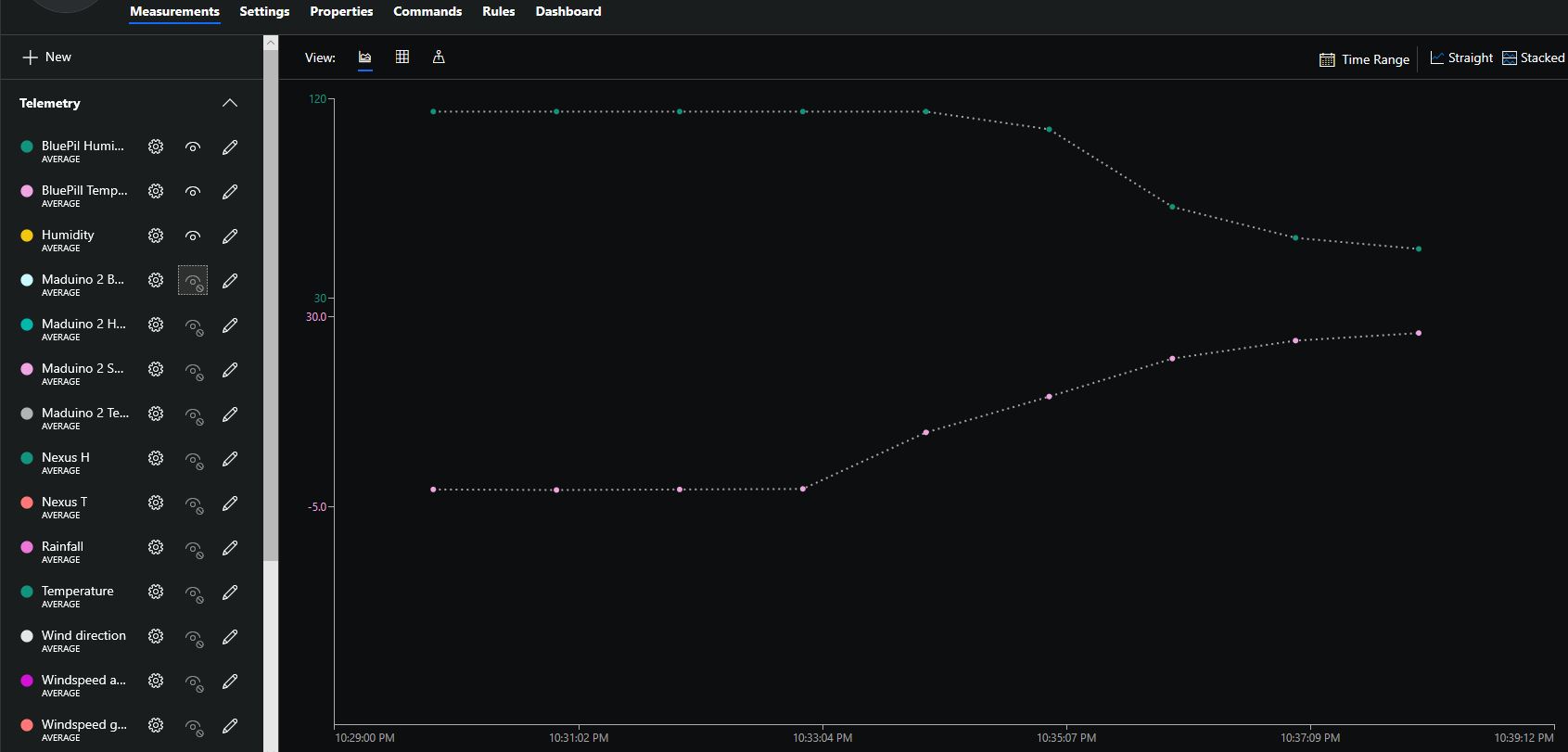
I configured the device to upload to my Azure IoT Hub/Azure IoT Central gateway and after getting the device name configuration right it has been running reliably for a couple of days
Azure IoT Central Temperature and humidity
The device was sitting outside on the deck and rapid increase in temperature is me bringing it inside.
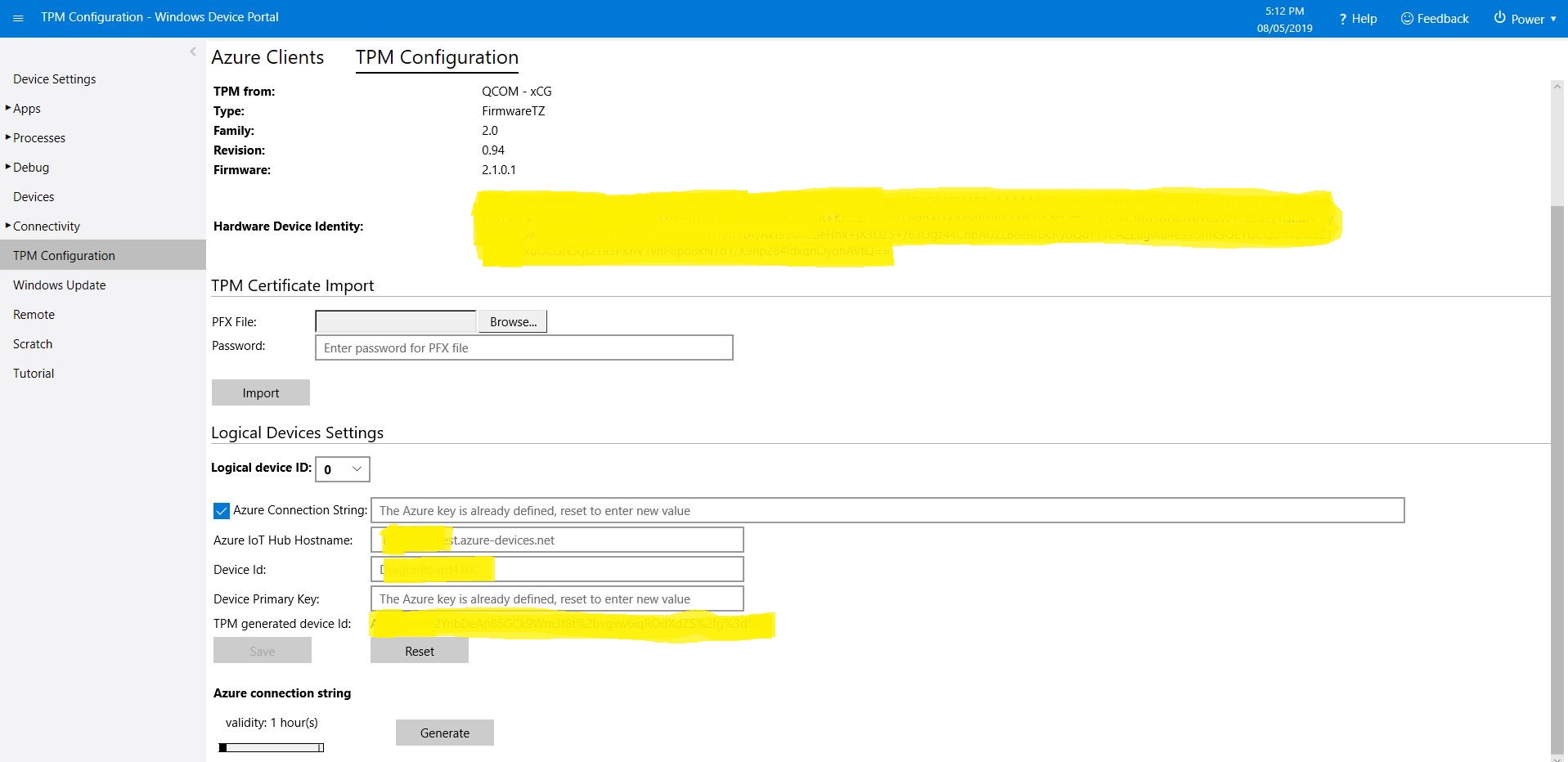
This is for people who were searching for why the SAS token issued by the TPM on their Windows 10 IoT Core device is expiring much quicker than expected or might have noticed that something isn’t quite right with the “validity” period. (as at early May 2019). If you want to “follow along at home” the code I used is available on GitHub.
I found the SAS key was expiring in roughly 5 minutes and the validity period in the configuration didn’t appear to have any effect on how long the SAS token was valid.
10:04:16 Application started
...
10:04:27 SAS token needs renewing
10:04:30 SAS token renewed
 10:04:30.984 AzureIoTHubClient SendEventAsync starting
 10:04:36.709 AzureIoTHubClient SendEventAsync starting
The thread 0x1464 has exited with code 0 (0x0).
 10:04:37.808 AzureIoTHubClient SendEventAsync finished
 10:04:37.808 AzureIoTHubClient SendEventAsync finished
The thread 0xb88 has exited with code 0 (0x0).
The thread 0x1208 has exited with code 0 (0x0).
The thread 0x448 has exited with code 0 (0x0).
The thread 0x540 has exited with code 0 (0x0).
 10:04:46.763 AzureIoTHubClient SendEventAsync starting
 10:04:47.051 AzureIoTHubClient SendEventAsync finished
The thread 0x10d8 has exited with code 0 (0x0).
The thread 0x6e0 has exited with code 0 (0x0).
The thread 0xf7c has exited with code 0 (0x0).
 10:04:56.808 AzureIoTHubClient SendEventAsync starting
 10:04:57.103 AzureIoTHubClient SendEventAsync finished
The thread 0xb8c has exited with code 0 (0x0).
The thread 0xc60 has exited with code 0 (0x0).
 10:05:06.784 AzureIoTHubClient SendEventAsync starting
 10:05:07.057 AzureIoTHubClient SendEventAsync finished
...
The thread 0x4f4 has exited with code 0 (0x0).
The thread 0xe10 has exited with code 0 (0x0).
The thread 0x3c8 has exited with code 0 (0x0).
 10:09:06.773 AzureIoTHubClient SendEventAsync starting
 10:09:07.044 AzureIoTHubClient SendEventAsync finished
The thread 0xf70 has exited with code 0 (0x0).
The thread 0x1214 has exited with code 0 (0x0).
 10:09:16.819 AzureIoTHubClient SendEventAsync starting
 10:09:17.104 AzureIoTHubClient SendEventAsync finished
The thread 0x1358 has exited with code 0 (0x0).
The thread 0x400 has exited with code 0 (0x0).
 10:09:26.802 AzureIoTHubClient SendEventAsync starting
 10:09:27.064 AzureIoTHubClient SendEventAsync finished
The thread 0x920 has exited with code 0 (0x0).
The thread 0x1684 has exited with code 0 (0x0).
The thread 0x4ec has exited with code 0 (0x0).
 10:09:36.759 AzureIoTHubClient SendEventAsync starting
'backgroundTaskHost.exe' (CoreCLR: CoreCLR_UWP_Domain): Loaded 'C:\Data\Programs\WindowsApps\Microsoft.NET.CoreFramework.Debug.2.2_2.2.27505.2_arm__8wekyb3d8bbwe\System.Net.Requests.dll'. Skipped loading symbols. Module is optimized and the debugger option 'Just My Code' is enabled.
'backgroundTaskHost.exe' (CoreCLR: CoreCLR_UWP_Domain): Loaded 'C:\Data\Programs\WindowsApps\Microsoft.NET.CoreFramework.Debug.2.2_2.2.27505.2_arm__8wekyb3d8bbwe\System.Net.WebSockets.dll'. Skipped loading symbols. Module is optimized and the debugger option 'Just My Code' is enabled.
Sending payload to AzureIoTHub failed:CONNECT failed: RefusedNotAuthorized
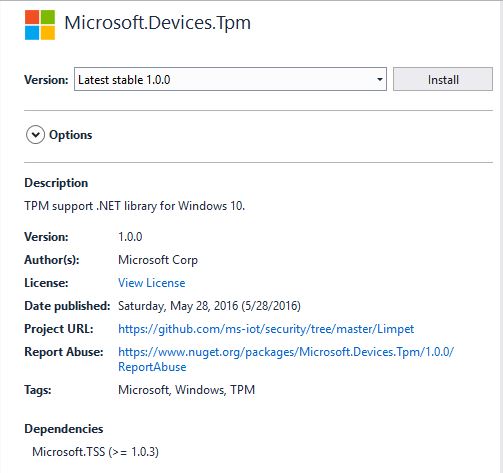
I went and looked at the NuGet package details and it seemed a bit old.
I have the RedGate Reflector plugin installed on my development box so I quickly disassembled the Microsoft.Devices.TPM assembly to see what was going on. The Reflector code is pretty readable and it wouldn’t take much “refactoring” to get it looking like “human” generated code.
public string GetSASToken(uint validity = 0xe10)
{
    string deviceId = this.GetDeviceId();
    string hostName = this.GetHostName();
    long num = (DateTime.get_Now().ToUniversalTime().ToFileTime() / 0x98_9680L) - 0x2_b610_9100L;
    string str3 = "";
    if ((hostName.Length > 0) && (deviceId.Length > 0))
    {
        object[] objArray1 = new object[] { hostName, "/devices/", deviceId, "\n", (long) num };
        byte[] bytes = new UTF8Encoding().GetBytes(string.Concat((object[]) objArray1));
        byte[] buffer2 = this.SignHmac(bytes);
        if (buffer2.Length != 0)
        {
            string str5 = this.AzureUrlEncode(Convert.ToBase64String(buffer2));
            object[] objArray2 = new object[] { "SharedAccessSignature sr=", hostName, "/devices/", deviceId, "&sig=", str5, "&se=", (long) num };
            str3 = string.Concat((object[]) objArray2);
        }
    }
    return str3;
}
The validity parameter appears to not used. Below is the current code from the Azure IoT CSharp SDK on GitHub repository and they are different, the validity is used.
public string GetSASToken(uint validity = 3600)
{
   const long WINDOWS_TICKS_PER_SEC = 10000000;
   const long EPOCH_DIFFERNECE = 11644473600;
   string deviceId = GetDeviceId();
   string hostName = GetHostName();
   long expirationTime = (DateTime.Now.ToUniversalTime().ToFileTime() / WINDOWS_TICKS_PER_SEC) - EPOCH_DIFFERNECE;
   expirationTime += validity;
   string sasToken = "";
   if ((hostName.Length > 0) && (deviceId.Length > 0))
   {
      // Encode the message to sign with the TPM
      UTF8Encoding utf8 = new UTF8Encoding();
      string tokenContent = hostName + "/devices/" + deviceId + "\n" + expirationTime;
      Byte[] encodedBytes = utf8.GetBytes(tokenContent);

      // Sign the message
      Byte[] hmac = SignHmac(encodedBytes);

      // if we got a signature foramt it
      if (hmac.Length > 0)
      {
         // Encode the output and assemble the connection string
         string hmacString = AzureUrlEncode(System.Convert.ToBase64String(hmac));
         sasToken = "SharedAccessSignature sr=" + hostName + "/devices/" + deviceId + "&sig=" + hmacString + "&se=" + expirationTime;
         }
   }
   return sasToken;
}
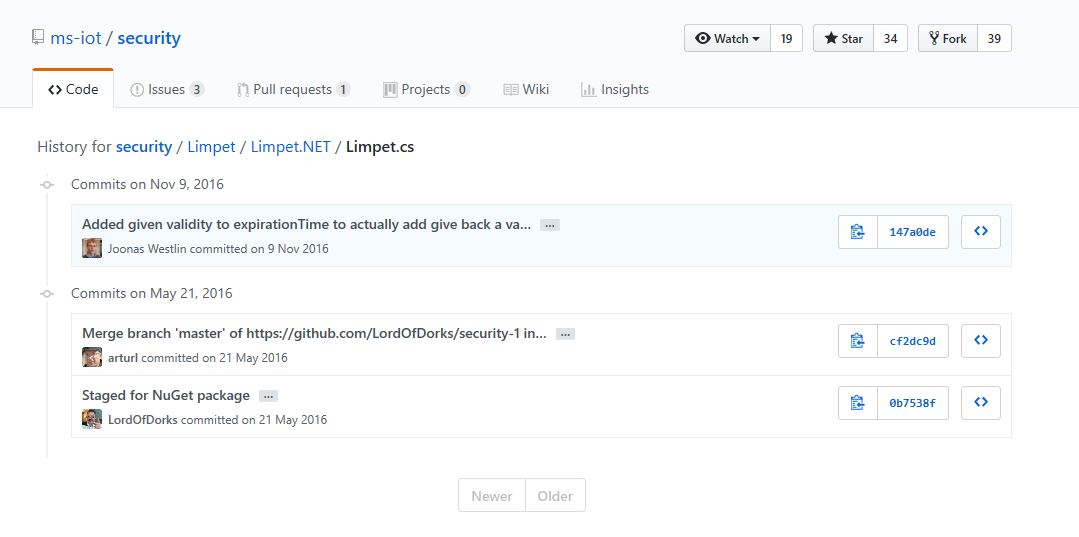
I went back and look at the Github history and it looks like a patch was applied after the NuGet packages were released in May 2016.
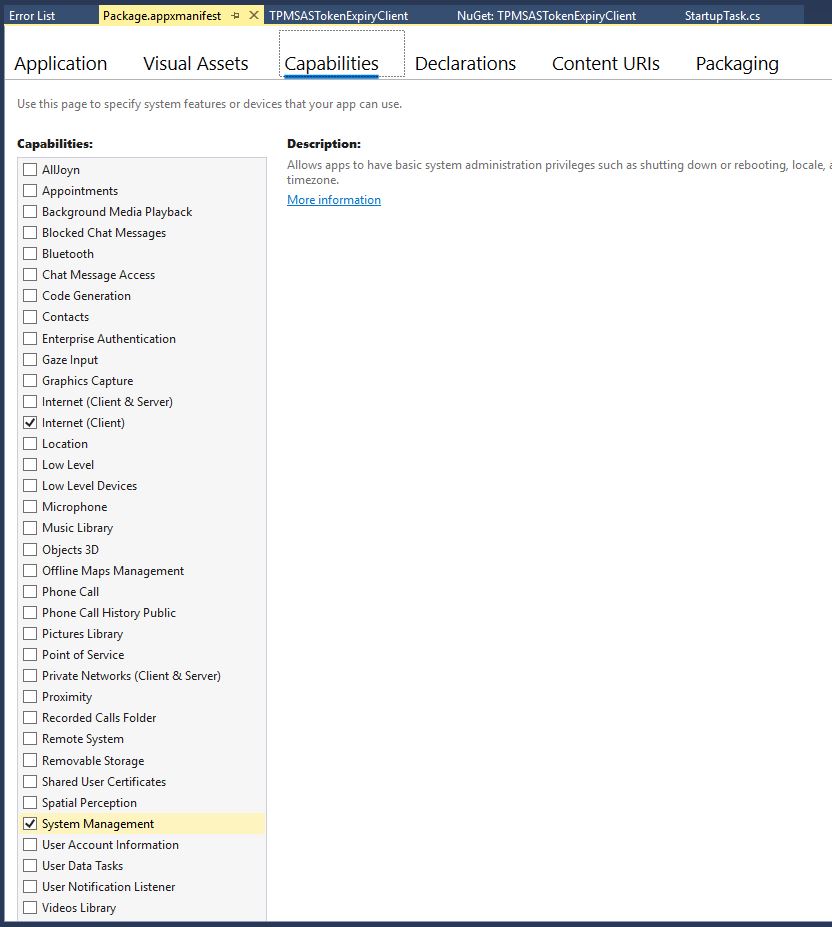
If you read from the TPM and get nothing make sure you’re using the right TPM slot number and have “System Management” checked in the capabilities tab of the application manifest.
I’m still not certain the validity is being applied correctly and will dig into in a future post.
This version supports one nRF24L01 device socket active at a time.
Enabling both nRF24L01 device sockets broke outbound message routing in a prototype branch with cloud to device(C2D) messaging support. This functionality is part of an Over The Air(OTA) device provisioning implementation I’m working o.
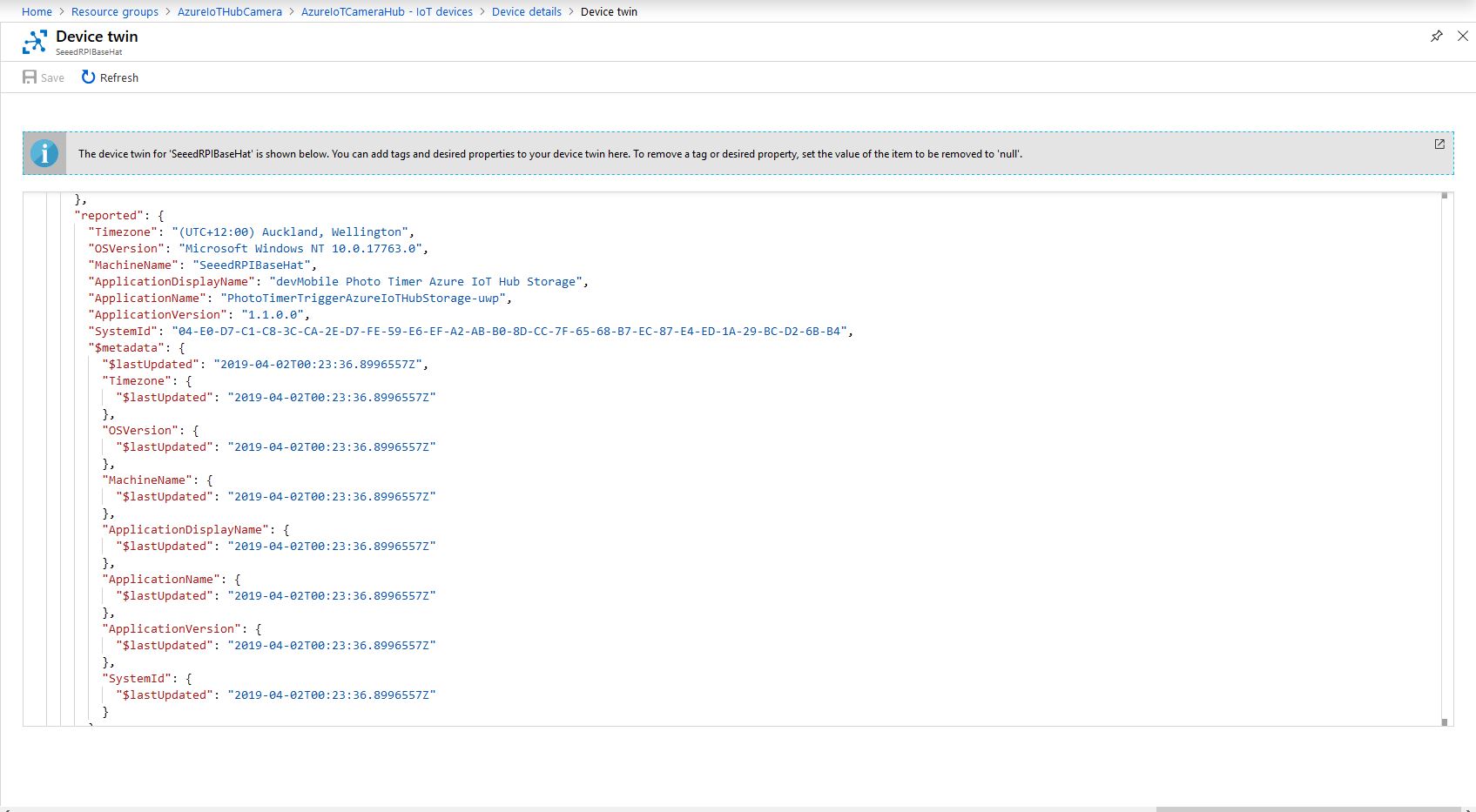
On startup the application uploads a selection of properties to the Azure IoT Hub to assist with support, fault finding etc.
// This is from the OS
reportedProperties["Timezone"] = TimeZoneSettings.CurrentTimeZoneDisplayName;
reportedProperties["OSVersion"] = Environment.OSVersion.VersionString;
reportedProperties["MachineName"] = Environment.MachineName;
reportedProperties["ApplicationDisplayName"] = package.DisplayName;
reportedProperties["ApplicationName"] = packageId.Name;
reportedProperties["ApplicationVersion"] = string.Format($"{version.Major}.{version.Minor}.{version.Build}.{version.Revision}");

// Unique identifier from the hardware
SystemIdentificationInfo systemIdentificationInfo = SystemIdentification.GetSystemIdForPublisher();
using (DataReader reader = DataReader.FromBuffer(systemIdentificationInfo.Id))
{
   byte[] bytes = new byte[systemIdentificationInfo.Id.Length];
   reader.ReadBytes(bytes);
   reportedProperties["SystemId"] = BitConverter.ToString(bytes);
}
Azure Portal Device Properties
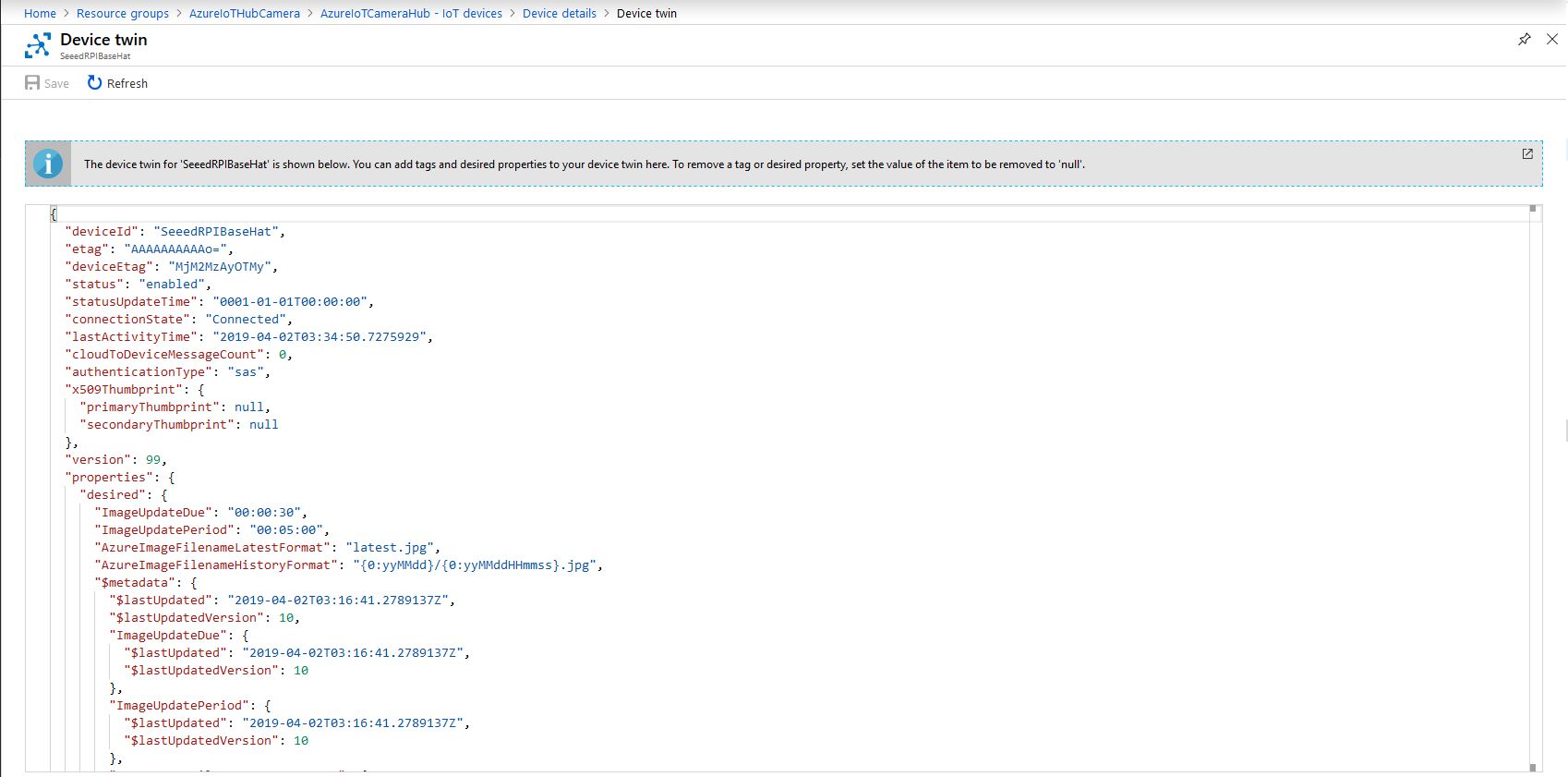
The Azure Storage file and folder name formats along with the image capture due and update periods are configured in the DeviceTwin properties. Initially I had some problems with the dynamic property types so had to .ToString and then Timespan.TryParse the periods.
Twin deviceTwin= azureIoTHubClient.GetTwinAsync().Result;

if (!deviceTwin.Properties.Desired.Contains("AzureImageFilenameLatestFormat"))
{
   this.logging.LogMessage("DeviceTwin.Properties AzureImageFilenameLatestFormat setting missing", LoggingLevel.Warning);
   return;
}
…
if (!deviceTwin.Properties.Desired.Contains("ImageUpdateDue") || !TimeSpan.TryParse(deviceTwin.Properties.Desired["ImageUpdateDue"].Value.ToString(), out imageUpdateDue))
{
   this.logging.LogMessage("DeviceTwin.Properties ImageUpdateDue setting missing or invalid format", LoggingLevel.Warning);
   return;
}
Azure Portal Device Settings
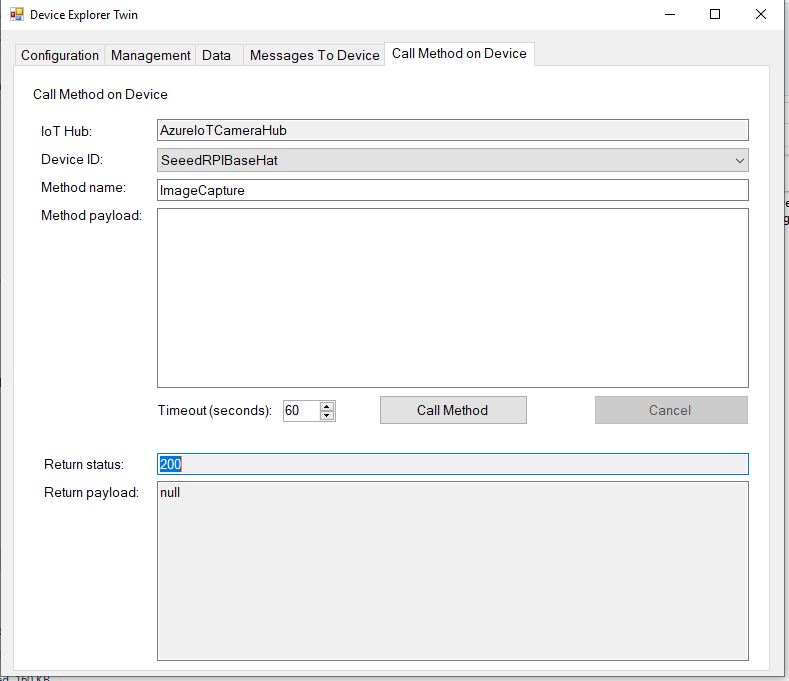
The application also supports two commands “ImageCapture’ and “DeviceReboot”. For testing I used Azure Device Explorer
After running the installer (available from GitHub) the application will create a default configuration file in
Which can be downloaded, modified then uploaded using the portal file explorer application. If you want to make the application run on device start-up the radio button below needs to be selected.








 devMobile's blog