Building Edge AI with Github Copilot- Security Camera HTTP

I use GitHub Copilot with Visual Studio 2020 and I wanted to see if I could write a simple application only using “Ask Copilot”. Retrieving a static image from a security camera (like my HiLook IPC-T250H) felt like a reasonable challenge.

please write a console application that uses an HttpClient to retrieve an image from a security camera

static async Task Main(string[] args)
{
   string cameraUrl = "http://your-security-camera-url/image.jpg";
   string savePath = "downloaded_image.jpg";

   using (HttpClient client = new HttpClient())
   {
      try
      {
         HttpResponseMessage response = await client.GetAsync(cameraUrl);
         response.EnsureSuccessStatusCode();

         byte[] imageBytes = await response.Content.ReadAsByteArrayAsync();
         await File.WriteAllBytesAsync(savePath, imageBytes);

         Console.WriteLine("Image downloaded successfully.");
      }
      catch (Exception ex)
      {
         Console.WriteLine($"An error occurred: {ex.Message}");
      }
   }
}
}

The Github Copilot generated code compiled first time and looked reasonable for a Proof of Concept (PoC). After changing the “cameraUrl” the program could retrieve an image from one of my cameras when I disabled authentication.

please write a console application that uses an httpclient to retrieve an image from a security camera. The security camera needs a username and password

static async Task Main(string[] args)
{
   string cameraUrl = "http://your-security-camera-url/image";
   string username = "your-username";
   string password = "your-password";

   using (HttpClient client = new HttpClient())
   {
      var byteArray = new System.Text.ASCIIEncoding().GetBytes($"{username}:{password}");
      client.DefaultRequestHeaders.Authorization = new AuthenticationHeaderValue("Basic", Convert.ToBase64String(byteArray));

      HttpResponseMessage response = await client.GetAsync(cameraUrl);
      response.EnsureSuccessStatusCode();

      byte[] imageBytes = await response.Content.ReadAsByteArrayAsync();
      File.WriteAllBytes("camera_image.jpg", imageBytes);

      Console.WriteLine("Image retrieved and saved as camera_image.jpg");
   }

Github Copilot had taken my request literally and implemented Hypertext Transfer Protocol (HTTP/1.1): Authentication (RFC7235). My HiLook IPC-T250H only supports Digest Authentication(RFC2617) so I tried

please modify the security code to support Digest authentication

static async Task Main(string[] args)
{
   string cameraUrl = "http://your-security-camera-url/image";
   string username = "your-username";
   string password = "your-password";

   using (HttpClient client = new HttpClient())
   {
      HttpResponseMessage response = await client.GetAsync(cameraUrl);

      if (response.StatusCode == System.Net.HttpStatusCode.Unauthorized)
      {
         var wwwAuthenticateHeader = response.Headers.WwwAuthenticate.FirstOrDefault();
         if (wwwAuthenticateHeader != null && wwwAuthenticateHeader.Scheme == "Digest")
         {
            var digestHeader = wwwAuthenticateHeader.Parameter;
            var digestResponse = CreateDigestHeader(digestHeader, cameraUrl, username, password, "GET");

            client.DefaultRequestHeaders.Authorization = new AuthenticationHeaderValue("Digest", digestResponse);

            response = await client.GetAsync(cameraUrl);
            response.EnsureSuccessStatusCode();

            byte[] imageBytes = await response.Content.ReadAsByteArrayAsync();
            File.WriteAllBytes("camera_image.jpg", imageBytes);

            Console.WriteLine("Image retrieved and saved as camera_image.jpg");
         }
      }
   }
}

private static string CreateDigestHeader(string digestHeader, string url, string username, string password, string method)
{
   var headerValues = digestHeader.Split(',').Select(v => v.Trim().Split('=')).ToDictionary(v => v[0], v => v[1].Trim('"'));

   string ha1 = CalculateMD5Hash($"{username}:{headerValues["realm"]}:{password}");
   string ha2 = CalculateMD5Hash($"{method}:{url}");
   string response = CalculateMD5Hash($"{ha1}:{headerValues["nonce"]}:{headerValues["nc"]}:{headerValues["cnonce"]}:{headerValues["qop"]}:{ha2}");

   return $"username=\"{username}\", realm=\"{headerValues["realm"]}\", nonce=\"{headerValues["nonce"]}\", uri=\"{url}\", qop={headerValues["qop"]}, nc={headerValues["nc"]}, cnonce=\"{headerValues["cnonce"]}\", response=\"{response}\", opaque=\"{headerValues["opaque"]}\"";
}

private static string CalculateMD5Hash(string input)
{
   using (MD5 md5 = MD5.Create())
   {
      byte[] inputBytes = Encoding.ASCII.GetBytes(input);
      byte[] hashBytes = md5.ComputeHash(inputBytes);
      return BitConverter.ToString(hashBytes).Replace("-", "").ToLower();
   }
}

Github Copilot had taken my request literally and implemented Digest Authentication(RFC2617) so I did some “research”. The Copilot desktop application suggested using NetworkCredential which supports Basic, and digest (also NTLM, and Kerberos) authentication.

modify the code to use a NetworkCredential to authenticate with the security camera

using System.Net;

namespace SecurityCameraClient
{
   internal class Program
   {
      static async Task Main(string[] args)
      {
         string cameraUrl = "http://your-security-camera-url/image.jpg";
         string savePath = "downloaded_image.jpg";
         string username = "your-username";
         string password = "your-password";

         using (HttpClientHandler handler = new HttpClientHandler { Credentials = new NetworkCredential(username, password) })
         using (HttpClient client = new HttpClient(handler))
         {
            try
            {
               HttpResponseMessage response = await client.GetAsync(cameraUrl);
               response.EnsureSuccessStatusCode();

               byte[] imageBytes = await response.Content.ReadAsByteArrayAsync();
               await File.WriteAllBytesAsync(savePath, imageBytes);

               Console.WriteLine("Image downloaded successfully.");
            }
            catch (Exception ex)
            {
               Console.WriteLine($"An error occurred: {ex.Message}");
            }
         }
      }
   }
}

The Github Copilot generated code compiled and after changing the “cameraUrl”, “username” and “password” the program could retrieve an image from each of my cameras.

I wanted the application to retrieve images regularly, but the first Github Copilot generated code was pretty ugly (it used a System.Timers.Timer). After “consulting” the Copilot desktop application

modify the code to use a System.Threading Timer so an image is retrieved every 1000mSec

using System.Net;

namespace SecurityCameraClient
{
   internal class Program
   {
      private static Timer _timer;
      private static HttpClient _client;
      private static string _cameraUrl = "http://your-security-camera-url/image.jpg";
      string savePath = "downloaded_image.jpg";

      static void Main(string[] args)
      {
         string username = "your-username";
         string password = "your-password";

         HttpClientHandler handler = new HttpClientHandler { Credentials = new NetworkCredential(username, password) };
         _client = new HttpClient(handler, disposeHandler: true);

         _timer = new Timer(async _ => await RetrieveImageAsync(), null, 0, 1000);

         Console.WriteLine("Press any key to exit...");
         Console.ReadKey();

         _timer.Dispose();
         _client.Dispose();
      }

      private static async Task RetrieveImageAsync()
      {
         try
         {
            HttpResponseMessage response = await _client.GetAsync(_cameraUrl);
            response.EnsureSuccessStatusCode();

            byte[] imageBytes = await response.Content.ReadAsByteArrayAsync();
            await File.WriteAllBytesAsync(_savePath, imageBytes);

            Console.WriteLine("Image downloaded successfully.");
         }
         catch (Exception ex)
         {
            Console.WriteLine($"An error occurred: {ex.Message}");
         }
      }
   }
}

By this stage I was an elite “prompt engineer” and after a couple of revisions of my Github Copilot prompt to released unmanaged resources (the initial version used .Dispose and was a bit ugly).

modify the code to dispose of the HttpClientHandler, HttpClient and Timer with “using” statements

The application had a reentrancy issue when retrieving an image from a camera took too long

modify the code to stop RetrieveImageAsync getting called while an image is already being retrieved

I then decided to try a “cosmetic” change

modify the code _timer does not have to be class level variable

The savePath was a constant and I wanted to store a series of images

modify the code to use String.Format to generate the savepath

For the final version I modified the program adding a Console.Writeline to display the build type, retrieving the SavePath, dueTime, and period from the appsettings.json. The Microsoft.Configuration.UserSecrets configuration source was used for the CameraUrl, UserName, and Password.

using System.Net;

using Microsoft.Extensions.Configuration;

namespace SecurityCameraClient
{
   internal class Program
   {
      private static HttpClient _client;
      private static bool _isRetrievingImage = false;
      private static ApplicationSettings _applicationSettings;

      static void Main(string[] args)
      {
         Console.WriteLine($"{DateTime.UtcNow:yy-MM-dd HH:mm:ss} SecurityCameraClient starting");
#if RELEASE
         Console.WriteLine("RELEASE");
#else
         Console.WriteLine("DEBUG");
#endif

         var configuration = new ConfigurationBuilder()
              .AddJsonFile("appsettings.json", false, true)
         .AddUserSecrets<Program>()
         .Build();

         _applicationSettings = configuration.GetSection("ApplicationSettings").Get<ApplicationSettings>();

         using (HttpClientHandler handler = new HttpClientHandler { Credentials = new NetworkCredential(_applicationSettings.Username, _applicationSettings.Password) })
         using (_client = new HttpClient(handler))
         using (var timer = new Timer(async _ => await RetrieveImageAsync(), null, _applicationSettings.TimerDue, _applicationSettings.TimerPeriod))
         {
            Console.WriteLine("Press any key to exit...");
            Console.ReadKey();
         }
      }

      private static async Task RetrieveImageAsync()
      {
         if (_isRetrievingImage) return;

         _isRetrievingImage = true;
         try
         {
            HttpResponseMessage response = await _client.GetAsync(_applicationSettings.CameraUrl);
            response.EnsureSuccessStatusCode();

            byte[] imageBytes = await response.Content.ReadAsByteArrayAsync();
            string savePath = string.Format(_applicationSettings.SavePath, DateTime.UtcNow);
            await File.WriteAllBytesAsync(savePath, imageBytes);

            Console.WriteLine("Image downloaded successfully.");
         }
         catch (Exception ex)
         {
            Console.WriteLine($"An error occurred: {ex.Message}");
         }
         finally
         {
            _isRetrievingImage = false;
         }
      }
   }

   public class ApplicationSettings
   {
      public string CameraUrl { get; set; } = "";

      public string SavePath { get; set; } = "";

      public string Username { get; set; } = "";

      public string Password { get; set; } = "";

      public TimeSpan TimerDue { get; set; } = TimeSpan.Zero;

      public TimeSpan TimerPeriod { get; set; } = TimeSpan.Zero;
   }
}

Overall, my Github Copilot experience was pretty good, and got better as my “prompt engineering” improved.

The Github Copilot “decision” to implement Hypertext Transfer Protocol (HTTP/1.1): Authentication (RFC7235) and Digest Authentication(RFC2617) was “sub optimal”

IoT and AI Building Edge AI with AI- Introduction

Introduction

Recently, there have been mainstream media articles (Forbes, Wired-Video games , Wired-Copilot, BBC, The Guardian etc.), about how Artificial Intelligence (AI) could soon replace developers.

I have been using Github Copilot, mainly for “enhanced” Visual Studio IntelliSense, code snippets, and refactoring. I have also found Github Copilot generated code samples and more context aware searching of documentation really useful. Overall, the experience has been positive with limited hallucinations and my productivity has got better as my “prompt engineer” skills improved.

Initially, I started building “hobbyist” AI applications for the edge with an Azure Percept and for customer projects use Ultralytics Yolo, Azure Machine Learning, Azure Cognitive Services, ML.Net, Open Neural Network Exchange (ONNX), Nvidia Jeston Modules, Seeedstudio reComputer Industrial J3011 – Fanless Edge AI Devices etc.

After some discussion with my co-workers I decided to explore how much Github Copilot helped building a “non-trivial” computer vision Proof of Concept (PoC). In previous blog posts I have written about capturing still images from a Security Camera so figured that was a good place to start.

Even though I have been using Copilot for a while I still say please.

using System;
using System.IO;
using System.Net.Http;
using System.Threading.Tasks;

class Program
{
    static async Task Main(string[] args)
    {
        string cameraUrl = "http://your-security-camera-url/image.jpg"; // Replace with your security camera URL
        string savePath = "C:\\path\\to\\save\\image.jpg"; // Replace with the path where you want to save the image

        using (HttpClient client = new HttpClient())
        {
            try
            {
                HttpResponseMessage response = await client.GetAsync(cameraUrl);
                response.EnsureSuccessStatusCode();

                byte[] imageBytes = await response.Content.ReadAsByteArrayAsync();
                await File.WriteAllBytesAsync(savePath, imageBytes);

                Console.WriteLine("Image retrieved and saved successfully.");
            }
            catch (Exception ex)
            {
                Console.WriteLine($"An error occurred: {ex.Message}");
            }
        }
    }
}

The generated code compiled first time, looked “ok” and worked with some of my security cameras when the cameraurl and save path were modified

I then modified the code so “sensitive” information was not stored in code or configuration files.

//using System;
//using System.IO;
//using System.Net.Http;
//using System.Reflection;
//using System.Threading.Tasks;

using Microsoft.Extensions.Configuration;

class Program
{
   static async Task Main(string[] args)
   {
      //string cameraUrl = "http://your-security-camera-url/image.jpg"; // Replace with your security camera URL
      //string savePath = "C:\\path\\to\\save\\image.jpg"; // Replace with the path where you want to save the image
      Model.ApplicationSettings applicationSettings;

   Console.WriteLine($"{DateTime.UtcNow:yy-MM-dd HH:mm:ss} 0.2.CameraHTTPClient starting");
#if RELEASE
         Console.WriteLine("RELEASE");
#else
      Console.WriteLine("DEBUG");
#endif
      // load the app settings into configuration
      var configuration = new ConfigurationBuilder()
           .AddJsonFile("appsettings.json", false, true)
      .AddUserSecrets<Program>()
      .Build();

      applicationSettings = configuration.GetSection("ApplicationSettings").Get<Model.ApplicationSettings>();

      using (HttpClient client = new HttpClient())
      {
         try
         {
            HttpResponseMessage response = await client.GetAsync(applicationSettings.CameraUrl);
            response.EnsureSuccessStatusCode();

            byte[] imageBytes = await response.Content.ReadAsByteArrayAsync();
            await File.WriteAllBytesAsync(applicationSettings.SavePath, imageBytes);

            Console.WriteLine("Image retrieved and saved successfully.");
         }
         catch (Exception ex)
         {
            Console.WriteLine($"An error occurred: {ex.Message}");
         }
      }
   }
}

namespace Model
{
   public class ApplicationSettings
   {
      public string CameraUrl { get; set; } = "";

      public string SavePath { get; set; } = "Images";
   }
}

Several of my security cameras (e.g. HILook T250H) required client to authentication so I added NetworkCredential my Copilot prompt.

// please write c# console application that uses httpclient and an httpget to retrieve image from security camera with NetworkCredential security
//
// Sure! Here's a C# console application that uses HttpClient and HttpGet to retrieve an image from a security camera with NetworkCredential security: 
// In this example:
//
// Replace http://your-security-camera-url/image.jpg with the actual URL of your security camera's image.
//
// Replace C:\\path\\to\\save\\image.jpg with the path where you want to save the retrieved image.
//
// Replace your-username and your-password with your actual credentials.
//
// This application uses HttpClient with NetworkCredential to authenticate the request, retrieves the image as a byte array, and saves it to the specified path. If there's an error during the process, it will be caught and displayed in the console.
//
// Happy coding! 🚀
//using System;
//using System.IO;
using System.Net;
//using System.Net.Http;
//using System.Threading.Tasks;

using Microsoft.Extensions.Configuration;

class Program
{
   static async Task Main(string[] args)
   {
      //string cameraUrl = "http://your-security-camera-url/image.jpg"; // Replace with your security camera URL
      //string savePath = "C:\\path\\to\\save\\image.jpg"; // Replace with the path where you want to save the image
      //string username = "your-username"; // Replace with your username
      //string password = "your-password"; // Replace with your password
      Model.ApplicationSettings applicationSettings;

      Console.WriteLine($"{DateTime.UtcNow:yy-MM-dd HH:mm:ss} 0.3.CameraHTTPClient starting");
#if RELEASE
         Console.WriteLine("RELEASE");
#else
      Console.WriteLine("DEBUG");
#endif
      // load the app settings into configuration
      var configuration = new ConfigurationBuilder()
           .AddJsonFile("appsettings.json", false, true)
      .AddUserSecrets<Program>()
      .Build();

      applicationSettings = configuration.GetSection("ApplicationSettings").Get<Model.ApplicationSettings>();

      using (HttpClientHandler handler = new HttpClientHandler { Credentials = new NetworkCredential(applicationSettings.Username, applicationSettings.Password) })
      using (HttpClient client = new HttpClient(handler))
      {
         try
         {
            HttpResponseMessage response = await client.GetAsync(applicationSettings.CameraUrl);
            response.EnsureSuccessStatusCode();

            byte[] imageBytes = await response.Content.ReadAsByteArrayAsync();
            await File.WriteAllBytesAsync(applicationSettings.SavePath, imageBytes);

            Console.WriteLine("Image retrieved and saved successfully.");
         }
         catch (Exception ex)
         {
            Console.WriteLine($"An error occurred: {ex.Message}");
         }
      }
   }
}

namespace Model
{
   public class ApplicationSettings
   {
      public string CameraUrl { get; set; } = "";

      public string SavePath { get; set; } = "Images";

      public string Username { get; set; } = "";

      public string Password { get; set; } = "";
   }
}

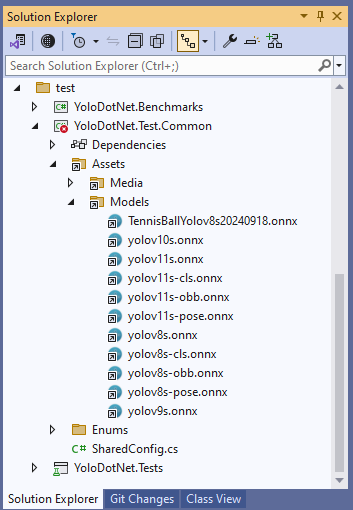
My Visual Studio 2022 solution with a project for each Copilot generated sample.

Summary

The Copilot generated code for my three “trivial” PoC applications compiled and worked with minimal modifications.

The Copilot generated code in this post is not suitable for production

RTSP Camera Nager.VideoStream Startup Latency

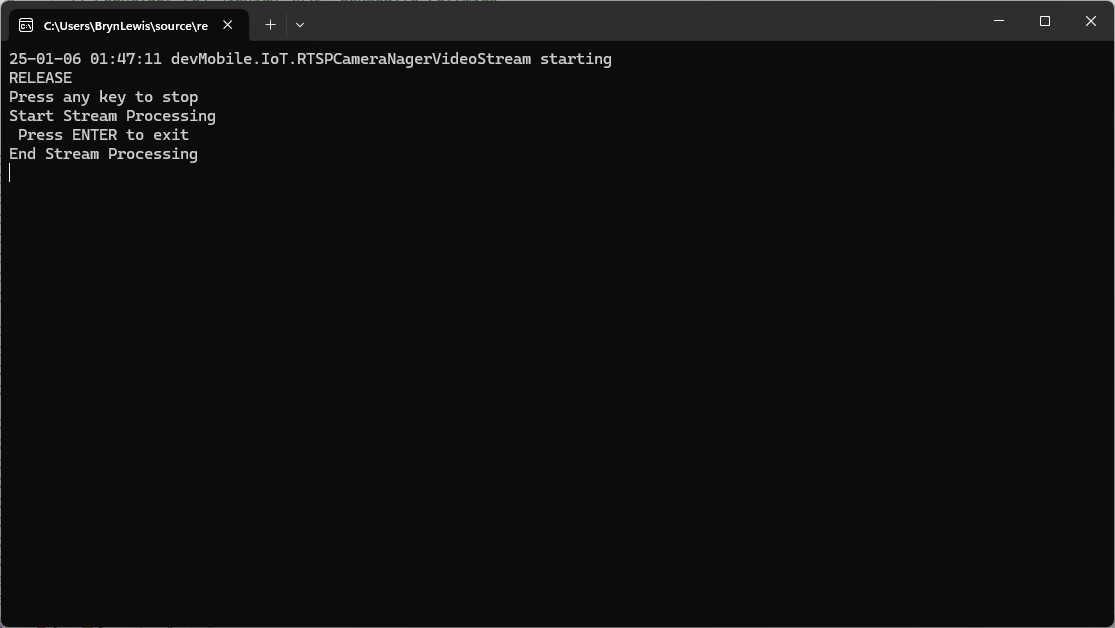
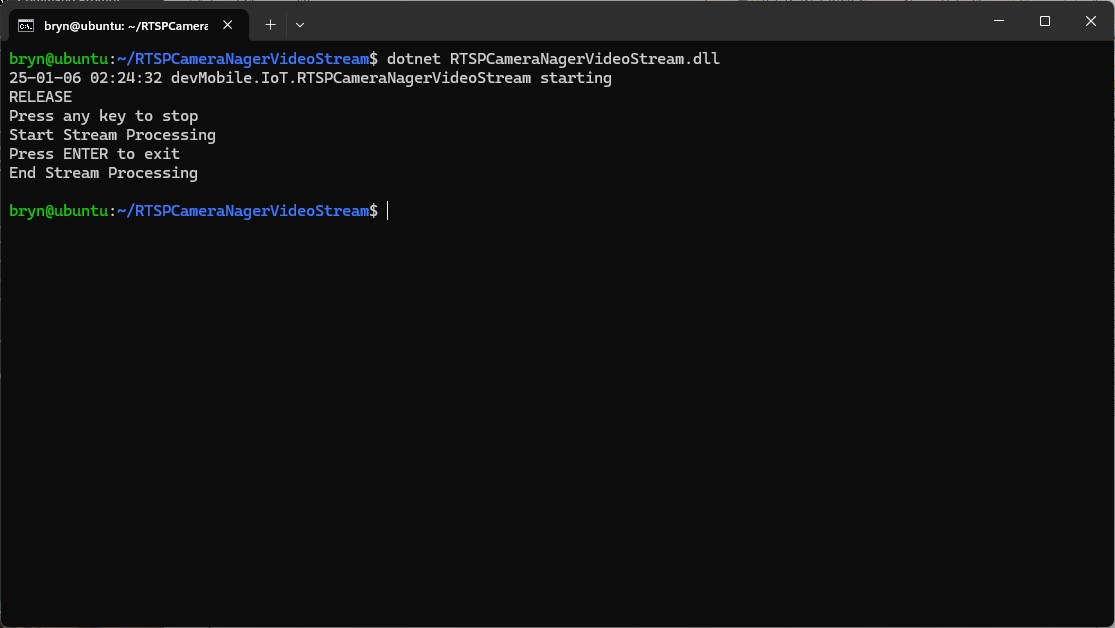
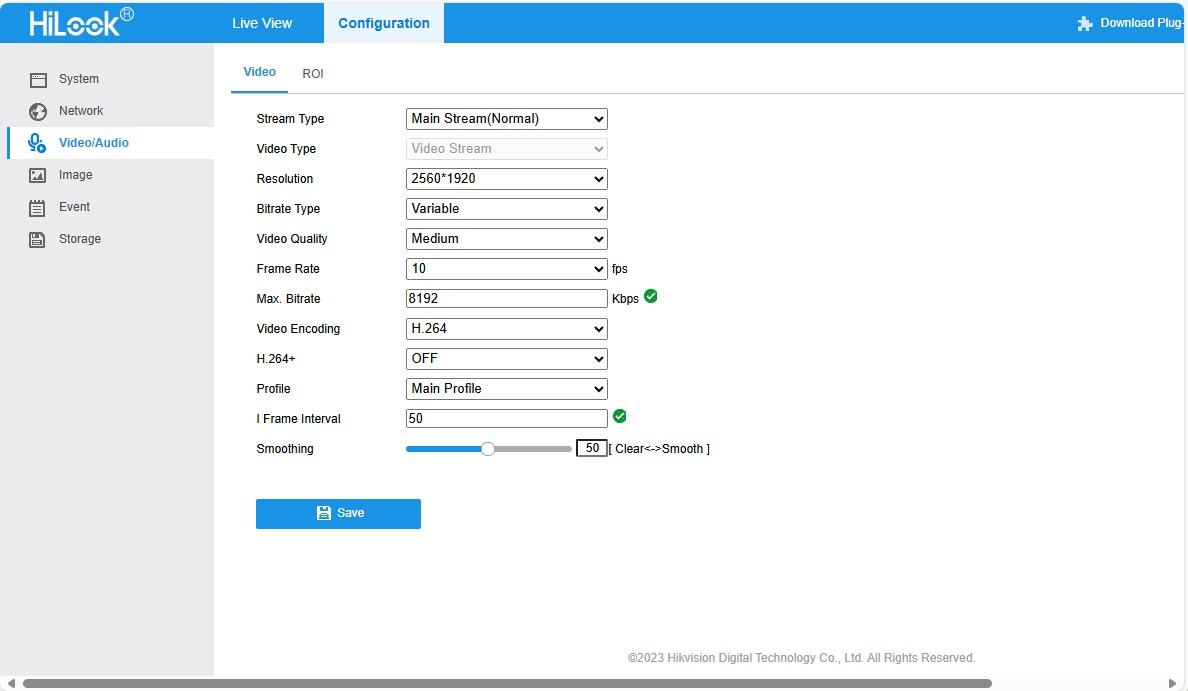
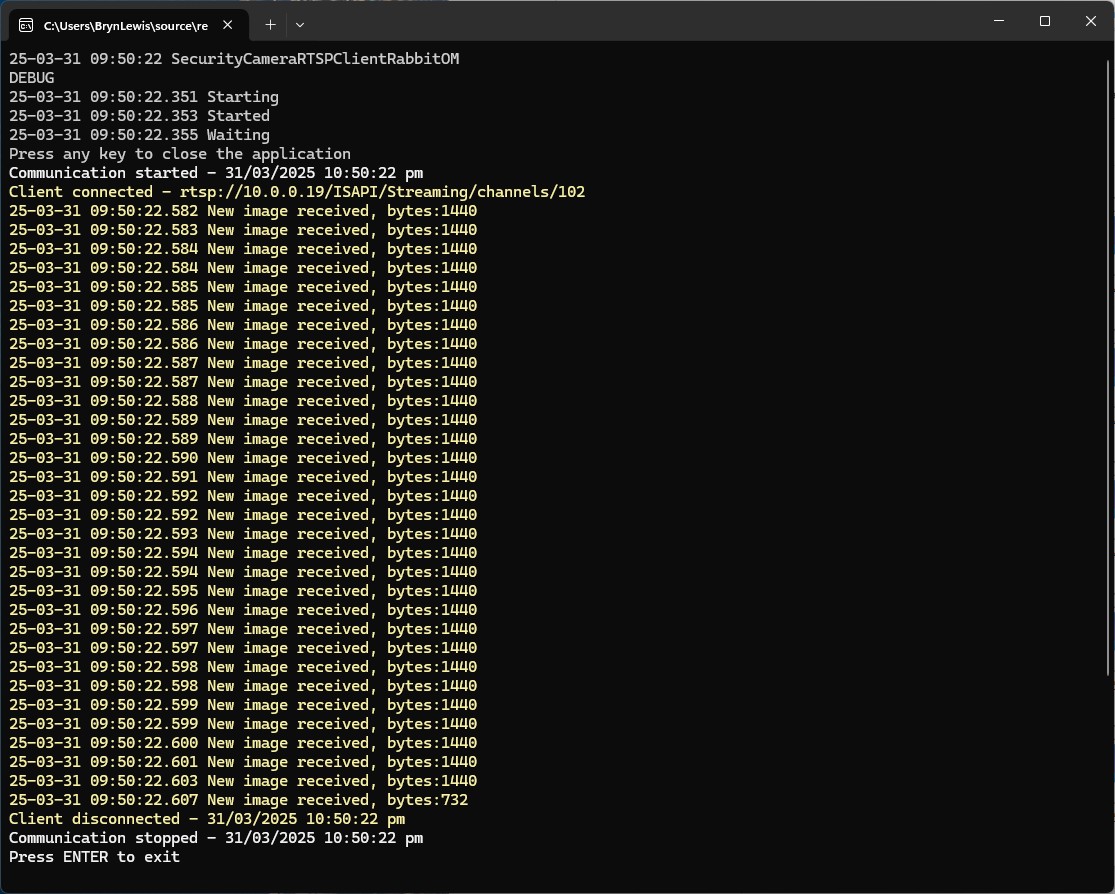
While working on my RTSPCameraNagerVideoStream project I noticed that after opening the Realtime Streaming Protocol(RTSP) connection with my HiLook IPCT250H Security Camera it took a while for the application to start writing image files.

HiLook IPCT250H Camera configuration

My test harness code was “inspired” by the Nager.VideoStream.TestConsole application with a slightly different file format for the start-stop marker text and camera images files.

private static async Task StartStreamProcessingAsync(InputSource inputSource, CancellationToken cancellationToken = default)
{
   Console.WriteLine("Start Stream Processing");
   try
   {
      var client = new VideoStreamClient();

      client.NewImageReceived += NewImageReceived;
#if FFMPEG_INFO_DISPLAY
      client.FFmpegInfoReceived += FFmpegInfoReceived;
#endif
      File.WriteAllText(Path.Combine(_applicationSettings.ImageFilepathLocal, $"{DateTime.UtcNow:yyyyMMdd-HHmmss.fff}.txt"), "Start");

      await client.StartFrameReaderAsync(inputSource, OutputImageFormat.Png, cancellationToken: cancellationToken);

      File.WriteAllText(Path.Combine(_applicationSettings.ImageFilepathLocal, $"{DateTime.UtcNow:yyyyMMdd-HHmmss.fff}.txt"), "Finish");

      client.NewImageReceived -= NewImageReceived;
#if FFMPEG_INFO_DISPLAY
      client.FFmpegInfoReceived -= FFmpegInfoReceived;
#endif
      Console.WriteLine("End Stream Processing");
   }
   catch (Exception exception)
   {
      Console.WriteLine($"{exception}");
   }
}

private static void NewImageReceived(byte[] imageData)
{
   Debug.WriteLine($"{DateTime.UtcNow:yy-MM-dd HH:mm:ss.fff} NewImageReceived");

   File.WriteAllBytes( Path.Combine(_applicationSettings.ImageFilepathLocal, $"{DateTime.UtcNow:yyyyMMdd-HHmmss.fff}.png"), imageData);
}

I used Path.Combine so no code or configuration changes were required when the application was run on different operating systems (still need to ensure ImageFilepathLocal in the appsettings.json is the correct format).

Developer Desktop

I used my desktop computer a 13th Gen Intel(R) Core(TM) i7-13700 2.10 GHz with 32.0 GB running Windows 11 Pro 24H2.

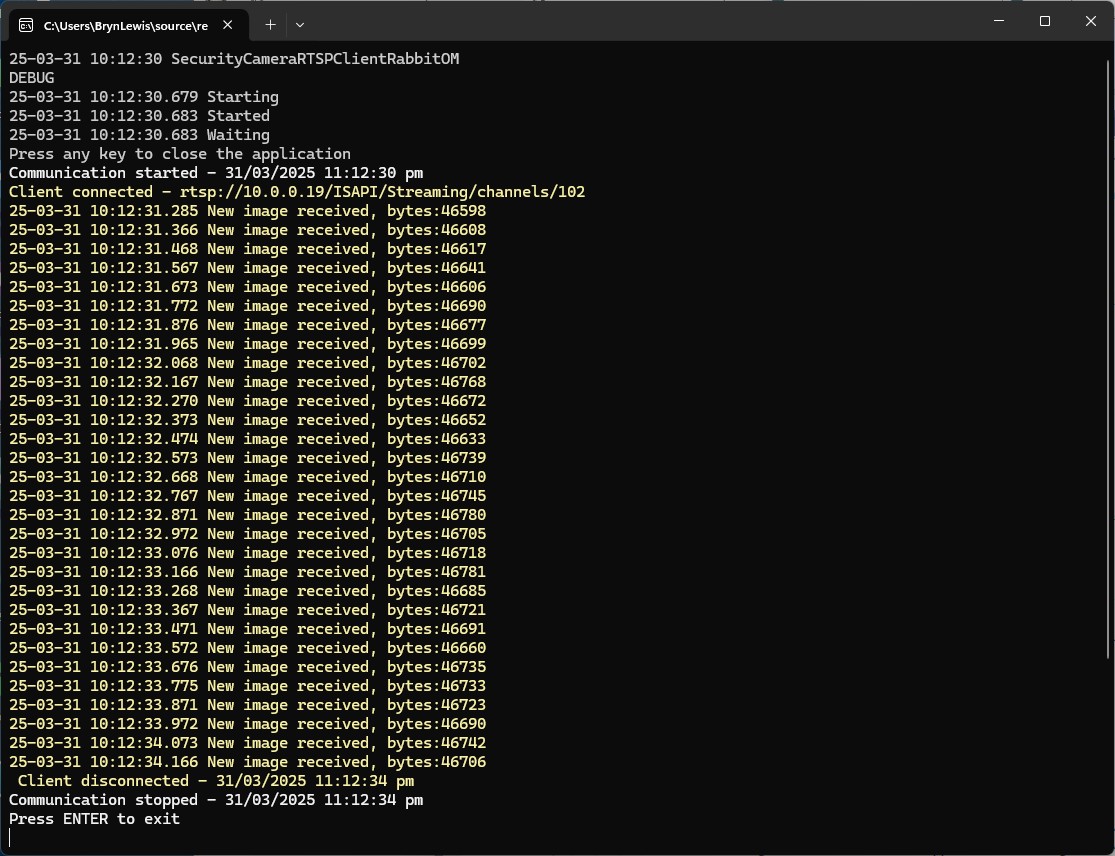
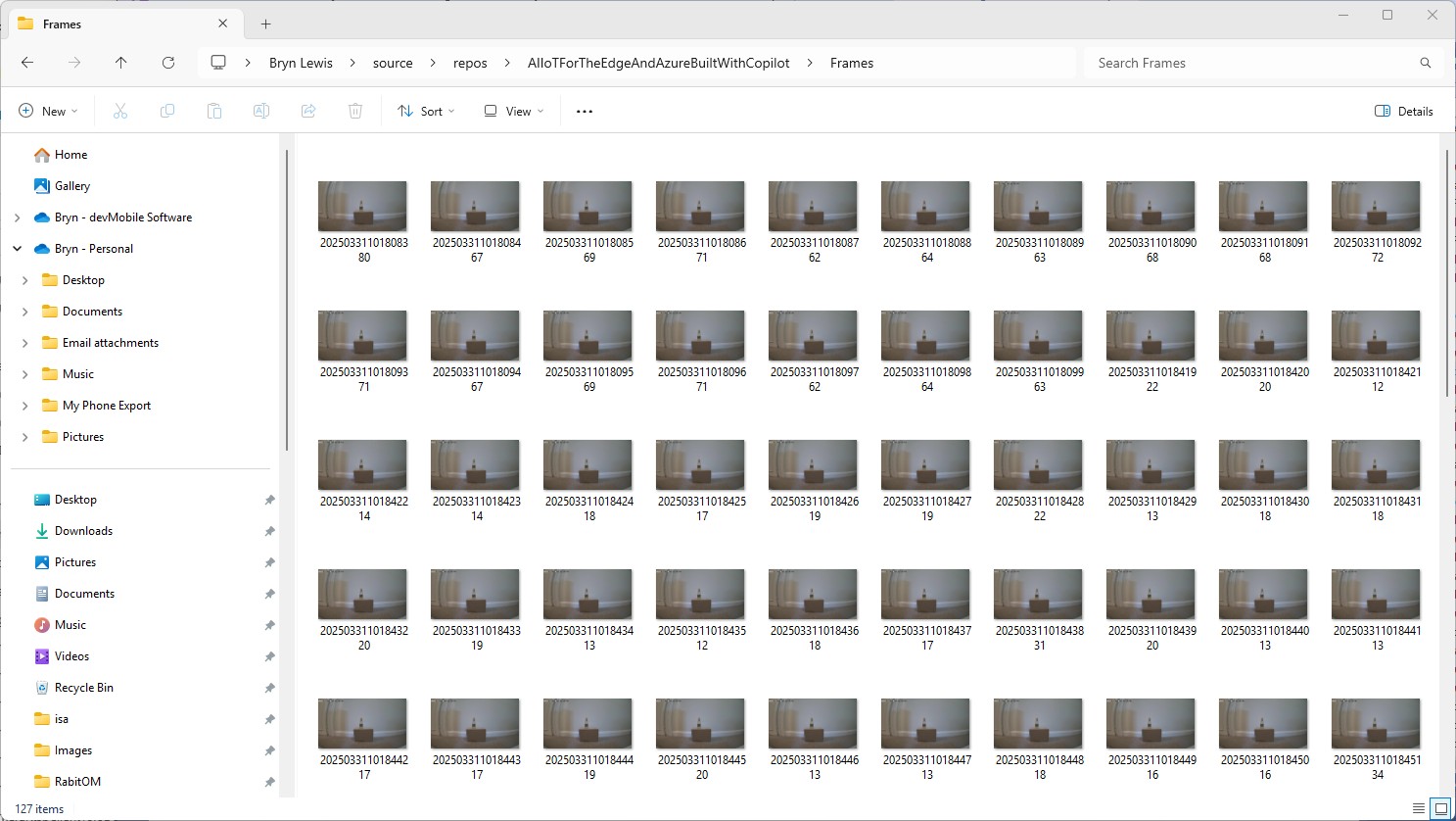
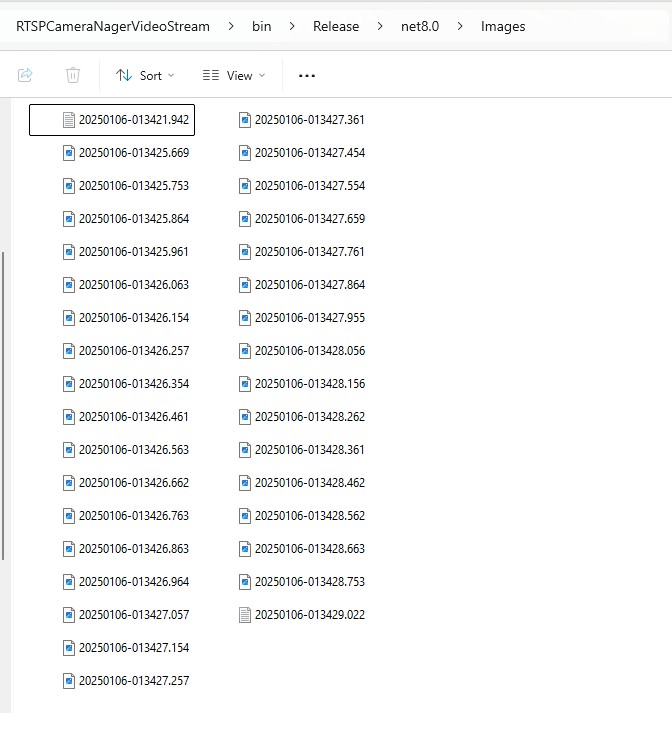
In the test results below (representative of multiple runs while testing) the delay between starting streaming and the first image file was on average 3.7 seconds with the gap between the images roughly 100mSec.

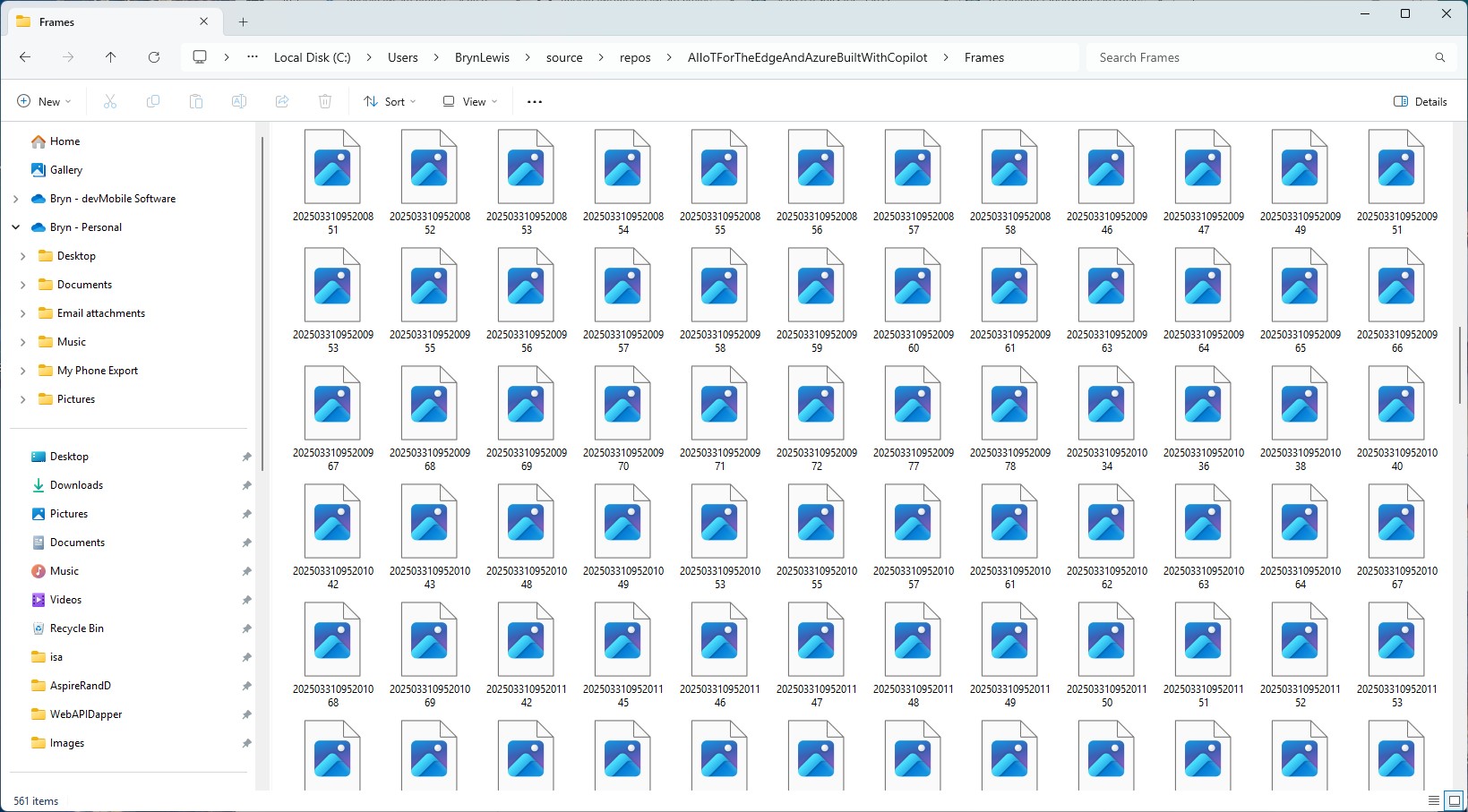
Files written by NagerVideoStream timestamps roughly 100mSec apart, but 3

Industrial Computer

I used a reComputer J3011 – Edge AI Computer with NVIDIA® Jetson™ Orin™ Nano 8GB running Ubuntu 22.04.5 LTS (Jammy Jellyfish)

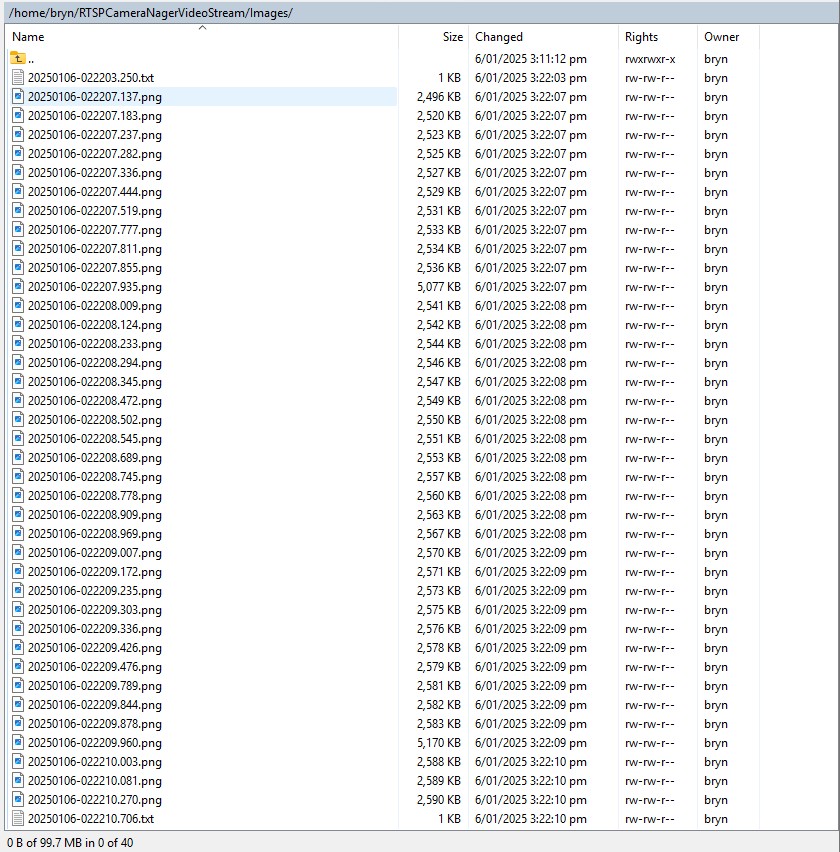
In the test results below (representative of multiple runs while testing) the delay between starting streaming and the first image file was on average roughly 3.7 seconds but the time between images varied a lot from 30mSec to >300mSec.

At 10FPS the results for my developer desktop were more consistent, and the reComputer J3011 had significantly more “jitter”. Both could cope with 1oFPS so the next step is to integrate YoloDotNet library to process the video frames.

NickSwardh NuGet Nvidia Jetson Orin Nano™ GPU CUDA Inferencing

My Seeedstudio reComputer J3011 has two processors an ARM64 CPU and an Nividia Jetson Orin 8G coprocessor. YoloDotNet by NickSwardh V2 (uses SkiaSharp) was significantly faster when run on the ARM64 CPU so I wanted to try inferencing with the Nividia Jetson Orin 8G coprocessor.

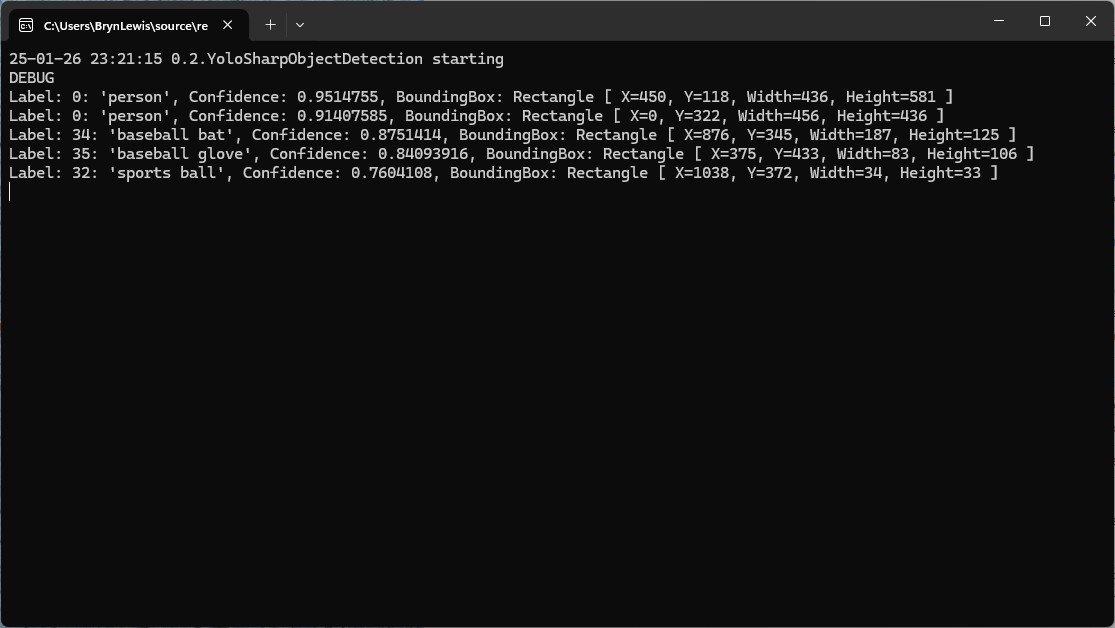
Performance of YoloDotNet by NickSwardh V2 running on the ARM64 CPU

Performance of YoloDotNet by NickSwardh V2 running on the Nividia Jetson Orin 8G with Compute Unified Device Architecture (CUDA) enabled.

Enabling CUDA reduced the total image scaling, pre-processing, inferencing, and post processing time from 115mSec to 36mSec which is a significant improvement.

Timer, using, Garbage Collection & Await

Initially my Ultralytics YoloV8 based unicorn/not unicorn classification model test application would run overnight processing images retrieved from a Security Camera using an HTTP GET.

A unicorn with 86% confidence
Test Application DEBUG build

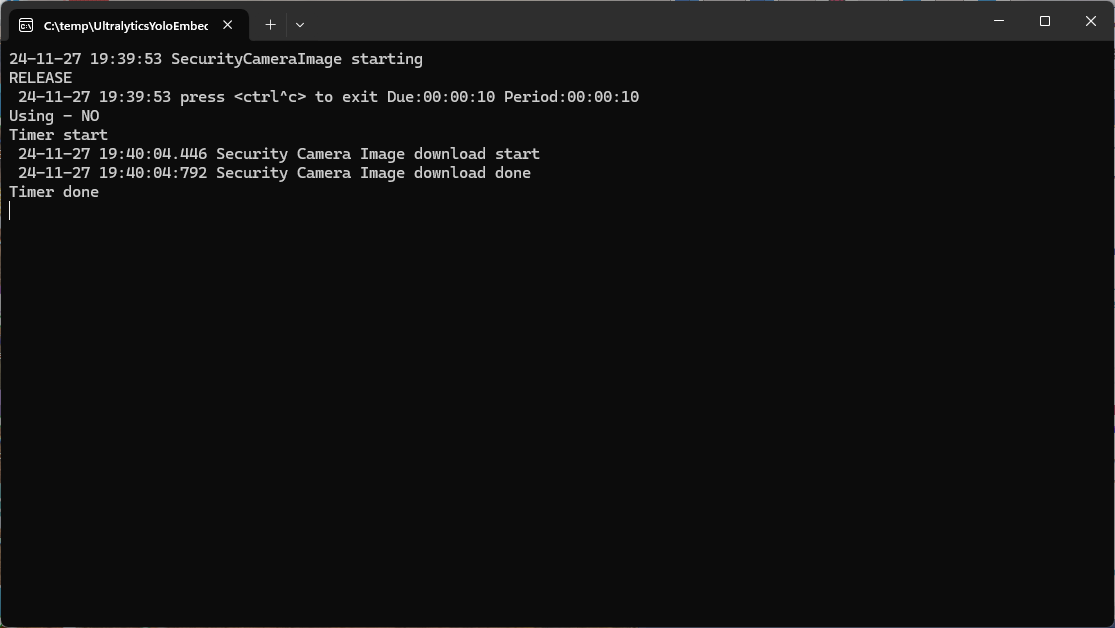
When I changed to a release build the System.Threading.Timer TimerCallback would only be called once

Test Application RELEASE build failure

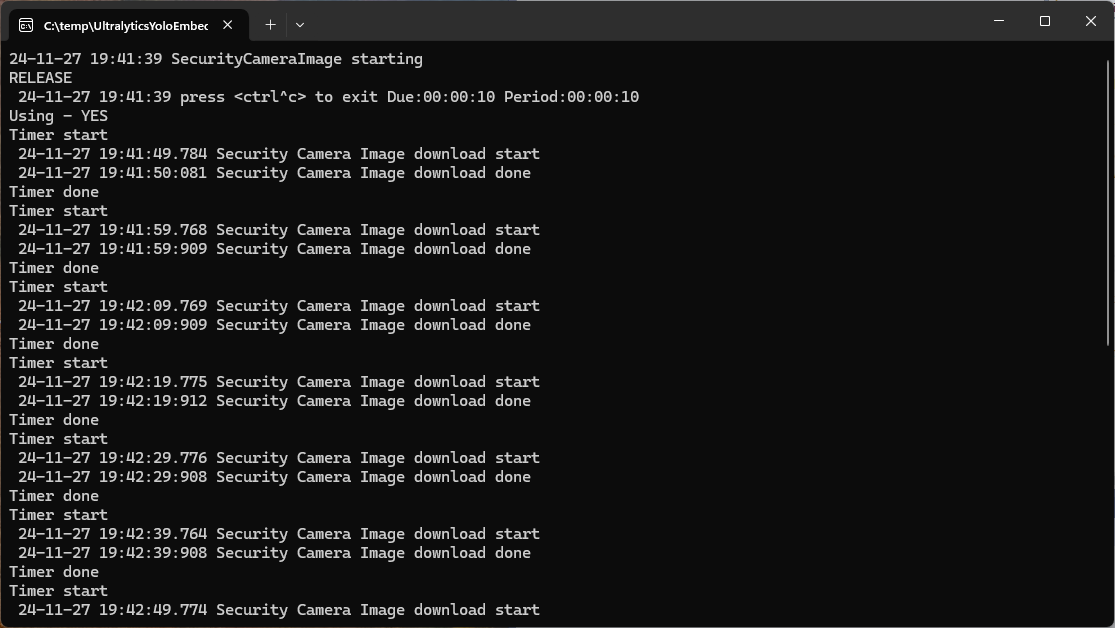
After some debugging I found that if I added a using statement the TimerCallback was called reliably.

static async Task Main()
{
   Console.WriteLine($"{DateTime.UtcNow:yy-MM-dd HH:mm:ss} SecurityCameraImage starting");
#if RELEASE
   Console.WriteLine("RELEASE");
#else
   Console.WriteLine("DEBUG");
#endif
   try
   {
      // load the app settings into configuration
      var configuration = new ConfigurationBuilder()
            .AddJsonFile("appsettings.json", false, true)
      .AddUserSecrets<Program>()
      .Build();

      _applicationSettings = configuration.GetSection("ApplicationSettings").Get<Model.ApplicationSettings>();

      Console.WriteLine($" {DateTime.UtcNow:yy-MM-dd HH:mm:ss} press <ctrl^c> to exit Due:{_applicationSettings.ImageTimerDue} Period:{_applicationSettings.ImageTimerPeriod}");

      NetworkCredential networkCredential = new(_applicationSettings.CameraUserName, _applicationSettings.CameraUserPassword);

      using (_httpClient = new HttpClient(new HttpClientHandler { PreAuthenticate = true, Credentials = networkCredential }))
      {
#if true
         Console.WriteLine("Using - NO");
         Timer imageUpdatetimer = new(ImageUpdateTimerCallback, null, _applicationSettings.ImageTimerDue, _applicationSettings.ImageTimerPeriod); // Debug only
#else
         Console.WriteLine("Using - YES");
         using Timer imageUpdatetimer = new(ImageUpdateTimerCallback,null, _applicationSettings.ImageTimerDue, _applicationSettings.ImageTimerPeriod); // Release works
#endif
         {
            try
            {
               await Task.Delay(Timeout.Infinite);
            }
            catch (TaskCanceledException)
            {
               Console.WriteLine($"{DateTime.UtcNow:yy-MM-dd HH:mm:ss} Application shutown requested");
            }
         }
      }
   }
   catch (Exception ex)
   {
      Console.WriteLine($"{DateTime.UtcNow:yy-MM-dd HH:mm:ss} Application shutown failure {ex.Message}", ex);
   }
}

private static async void ImageUpdateTimerCallback(object? state)
{
   Console.WriteLine("Timer start");

   // Just incase - stop code being called while photo already in progress
   if (_cameraBusy)
   {
      return;
   }
   _cameraBusy = true;

   try
   {
      Console.WriteLine($" {DateTime.UtcNow:yy-MM-dd HH:mm:ss.fff} Security Camera Image download start");

      using (Stream cameraStream = await _httpClient.GetStreamAsync(_applicationSettings.CameraUrl))
      using (FileStream fileStream = File.Open(_applicationSettings.ImageInputPath, FileMode.Create))
      {
         await cameraStream.CopyToAsync(fileStream);
      }

      Console.WriteLine($" {DateTime.UtcNow:yy-MM-dd HH:mm:ss:fff} Security Camera Image download done");
   }
   catch (Exception ex)
   {
      Console.WriteLine($"{DateTime.UtcNow:yy-MM-dd HH:mm:ss} Security camera image download failed {ex.Message}");
   }
   finally
   {
      _cameraBusy = false;
   }
   Console.WriteLine("Timer done");
}

I assume that in release build the code was “optimised” and the Garbage Collector(GC) was more aggressively freeing resources.

Test Application RELEASE Build running

YoloV8 NuGet on a diet – Part 1

Recently most of my YoloV8 projects inference on edge devices or in Azure and do not use Graphics Processing Unit(GPU) hardware. Most of my projects use the dme-compunet YoloV8 NuGet and for compatibility (Removal of extended CUDA & TensorRT configuration functionality) reasons this post uses version 4.2 of the source.

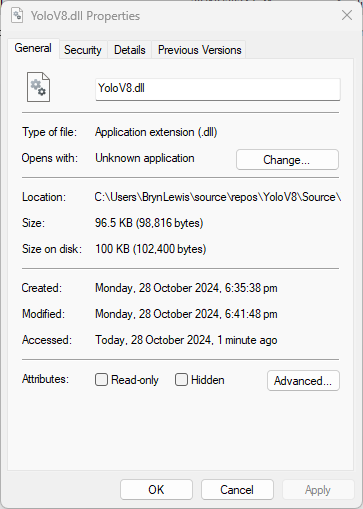
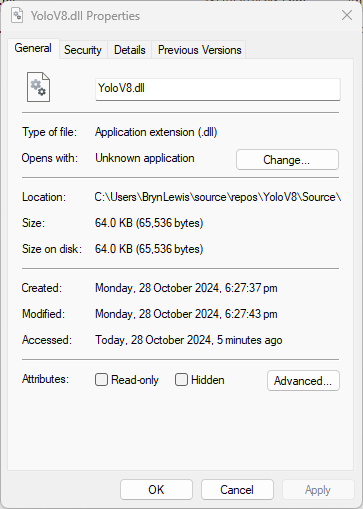
The initial version of the YoloV8.dll in the version 4.2 of the NuGet was 96.5KB. Most of my applications deployed to edge devices and Azure do not require plotting functionality so I started by commenting out (not terribly subtle).

The intermediate version of the YoloV8.dll in the version 4.2 of the NuGet on a “diet” with the plotting functionality “commented out” also meant the SixLabors.ImageSharp.Drawing NuGet could be removed.

The final release version of the YoloV8.dll in the version 4.2 of the NuGet was 64.0 KB. The main purpose of this process was to remove any unnecessary functionality to see how hard it would be to replace the SixLabors.ImageSharp and SixLabors.ImageSharp.Drawing with libraries that have better performance.

Azure Function SendGrid Binding Fail

This post is for Azure Function developers having issues with the SendGrid binding throwing exceptions like the one below.

System.Private.CoreLib: Exception while executing function: Functions.AzureBlobFileUploadEmailer. Microsoft.Azure.WebJobs.Extensions.SendGrid: A 'To' address must be specified for the message

My Azure BlobTrigger Function sends an email (with SendGrid) when a file is uploaded to an Azure Blob Storage Container(a couple of times a day).

public class FileUploadEmailer(ILogger<FileUploadEmailer> logger, IOptions<EmailSettings> emailSettings)
{
   private readonly ILogger<FileUploadEmailer> _logger = logger;
   private readonly EmailSettings _emailSettings = emailSettings.Value;

   [Function(nameof(AzureBlobFileUploadEmailer))]
   [SendGridOutput(ApiKey = "SendGridAPIKey")]
   public string Run([BlobTrigger("filestobeprocesed/{name}", Connection = "upload-file-storage")] Stream stream, string name)
   {
      _logger.LogInformation("FileUploadEmailer Blob trigger function Processed blob Name:{0} start", name);

      try
      {
         var message = new SendGridMessage();

         message.SetFrom(_emailSettings.From);
         message.AddTo(_emailSettings.To);
         message.Subject = _emailSettings.Subject;

         message.AddContent(MimeType.Html, string.Format(_emailSettings.BodyFormat, name, DateTime.UtcNow));

         // WARNING - Use Newtonsoft JSON serializer to produce JSON string. System.Text.Json won't work because property annotations are different
         var messageJson = Newtonsoft.Json.JsonConvert.SerializeObject(message);

         _logger.LogInformation("FileUploadEmailer Blob trigger function Processed blob Name:{0} finish", name);

         return messageJson;
      }
      catch (Exception ex)
      {
         _logger.LogError(ex, "FileUploadEmailer Blob trigger function Processed blob Name: {0}", name);

         throw;
      }
   }
}

I missed the first clue when I looked at the JSON and missed the Tos, Ccs, Bccs property names.

{
"From":{"Name":"Foo","Email":"bryn.lewis@devmobile.co.nz"},
"Subject":"Hi 30/09/2024 1:27:49 pm",
"Personalizations":[{"Tos":[{"Name":"Bar","Email":"bryn.lewis@devmobile.co.nz"}],
"Ccs":null,
"Bccs":null,
"From":null,
"Subject":null,
"Headers":null,
"Substitutions":null,
"CustomArgs":null,
"SendAt":null,
"TemplateData":null}],
"Contents":[{"Type":"text/html","Value":"\u003Ch2\u003EHello AssemblyInfo.cs\u003C/h2\u003E"}],
"PlainTextContent":null,
"HtmlContent":null,
"Attachments":null,
"TemplateId":null,
"Headers":null,
"Sections":null,
"Categories":null,
"CustomArgs":null,
"SendAt":null,
"Asm":null,
"BatchId":null,
"IpPoolName":null,
"MailSettings":null,
"TrackingSettings":null,
"ReplyTo":null,
"ReplyTos":null
}

I wasn’t paying close enough attention to the sample code and used the System.Text.Json rather than Newtonsoft.Json to serialize the SendGridMessage object. They use different attributes for property names etc. so the JSON generated was wrong.

Initially, I tried adding System.Text.Json attributes to the SendGridMessage class

namespace SendGrid.Helpers.Mail
{
   /// <summary>
   /// Class SendGridMessage builds an object that sends an email through Twilio SendGrid.
   /// </summary>
   [JsonObject(IsReference = false)]
   public class SendGridMessage
   {
      /// <summary>
      /// Gets or sets an email object containing the email address and name of the sender. Unicode encoding is not supported for the from field.
      /// </summary>
      //[JsonProperty(PropertyName = "from")]
      [JsonPropertyName("from")]
      public EmailAddress From { get; set; }

      /// <summary>
      /// Gets or sets the subject of your email. This may be overridden by personalizations[x].subject.
      /// </summary>
      //[JsonProperty(PropertyName = "subject")]
      [JsonPropertyName("subject")]
      public string Subject { get; set; }

      /// <summary>
      /// Gets or sets a list of messages and their metadata. Each object within personalizations can be thought of as an envelope - it defines who should receive an individual message and how that message should be handled. For more information, please see our documentation on Personalizations. Parameters in personalizations will override the parameters of the same name from the message level.
      /// https://sendgrid.com/docs/Classroom/Send/v3_Mail_Send/personalizations.html.
      /// </summary>
      //[JsonProperty(PropertyName = "personalizations", IsReference = false)]
      [JsonPropertyName("personalizations")]
      public List<Personalization> Personalizations { get; set; }
...
}

SendGridMessage uses other classes like EmailAddress which worked because the property names matched the JSON

namespace SendGrid.Helpers.Mail
{
    /// <summary>
    /// An email object containing the email address and name of the sender or recipient.
    /// </summary>
    [JsonObject(IsReference = false)]
    public class EmailAddress : IEquatable<EmailAddress>
    {
        /// <summary>
        /// Initializes a new instance of the <see cref="EmailAddress"/> class.
        /// </summary>
        public EmailAddress()
        {
        }

        /// <summary>
        /// Initializes a new instance of the <see cref="EmailAddress"/> class.
        /// </summary>
        /// <param name="email">The email address of the sender or recipient.</param>
        /// <param name="name">The name of the sender or recipient.</param>
        public EmailAddress(string email, string name = null)
        {
            this.Email = email;
            this.Name = name;
        }

        /// <summary>
        /// Gets or sets the name of the sender or recipient.
        /// </summary>
        [JsonProperty(PropertyName = "name")]
        public string Name { get; set; }

        /// <summary>
        /// Gets or sets the email address of the sender or recipient.
        /// </summary>
        [JsonProperty(PropertyName = "email")]
        public string Email { get; set; }
...
}

Many of the property name “mismatch” issues were in the Personalization class with the Toos, Ccs, bccs etc. properties

namespace SendGrid.Helpers.Mail
{
    /// <summary>
    /// An array of messages and their metadata. Each object within personalizations can be thought of as an envelope - it defines who should receive an individual message and how that message should be handled. For more information, please see our documentation on Personalizations. Parameters in personalizations will override the parameters of the same name from the message level.
    /// https://sendgrid.com/docs/Classroom/Send/v3_Mail_Send/personalizations.html.
    /// </summary>
    [JsonObject(IsReference = false)]
    public class Personalization
    {
        /// <summary>
        /// Gets or sets an array of recipients. Each email object within this array may contain the recipient’s name, but must always contain the recipient’s email.
        /// </summary>
        [JsonProperty(PropertyName = "to", IsReference = false)]
        [JsonConverter(typeof(RemoveDuplicatesConverter<EmailAddress>))]
        public List<EmailAddress> Tos { get; set; }

        /// <summary>
        /// Gets or sets an array of recipients who will receive a copy of your email. Each email object within this array may contain the recipient’s name, but must always contain the recipient’s email.
        /// </summary>
        [JsonProperty(PropertyName = "cc", IsReference = false)]
        [JsonConverter(typeof(RemoveDuplicatesConverter<EmailAddress>))]
        public List<EmailAddress> Ccs { get; set; }

        /// <summary>
        /// Gets or sets an array of recipients who will receive a blind carbon copy of your email. Each email object within this array may contain the recipient’s name, but must always contain the recipient’s email.
        /// </summary>
        [JsonProperty(PropertyName = "bcc", IsReference = false)]
        [JsonConverter(typeof(RemoveDuplicatesConverter<EmailAddress>))]
        public List<EmailAddress> Bccs { get; set; }

        /// <summary>
        /// Gets or sets the from email address. The domain must match the domain of the from email property specified at root level of the request body.
        /// </summary>
        [JsonProperty(PropertyName = "from")]
        public EmailAddress From { get; set; }

        /// <summary>
        /// Gets or sets the subject line of your email.
        /// </summary>
        [JsonProperty(PropertyName = "subject")]
        public string Subject { get; set; }
...
}

After a couple of failed attempts at decorating the SendGrid SendGridMessage, EmailAddress, Personalization etc. classes I gave up and reverted to the Newtonsoft.Json serialiser.

Note to self – pay closer attention to the samples.

Myriota Connector – Azure IoT Central Downlink Methods

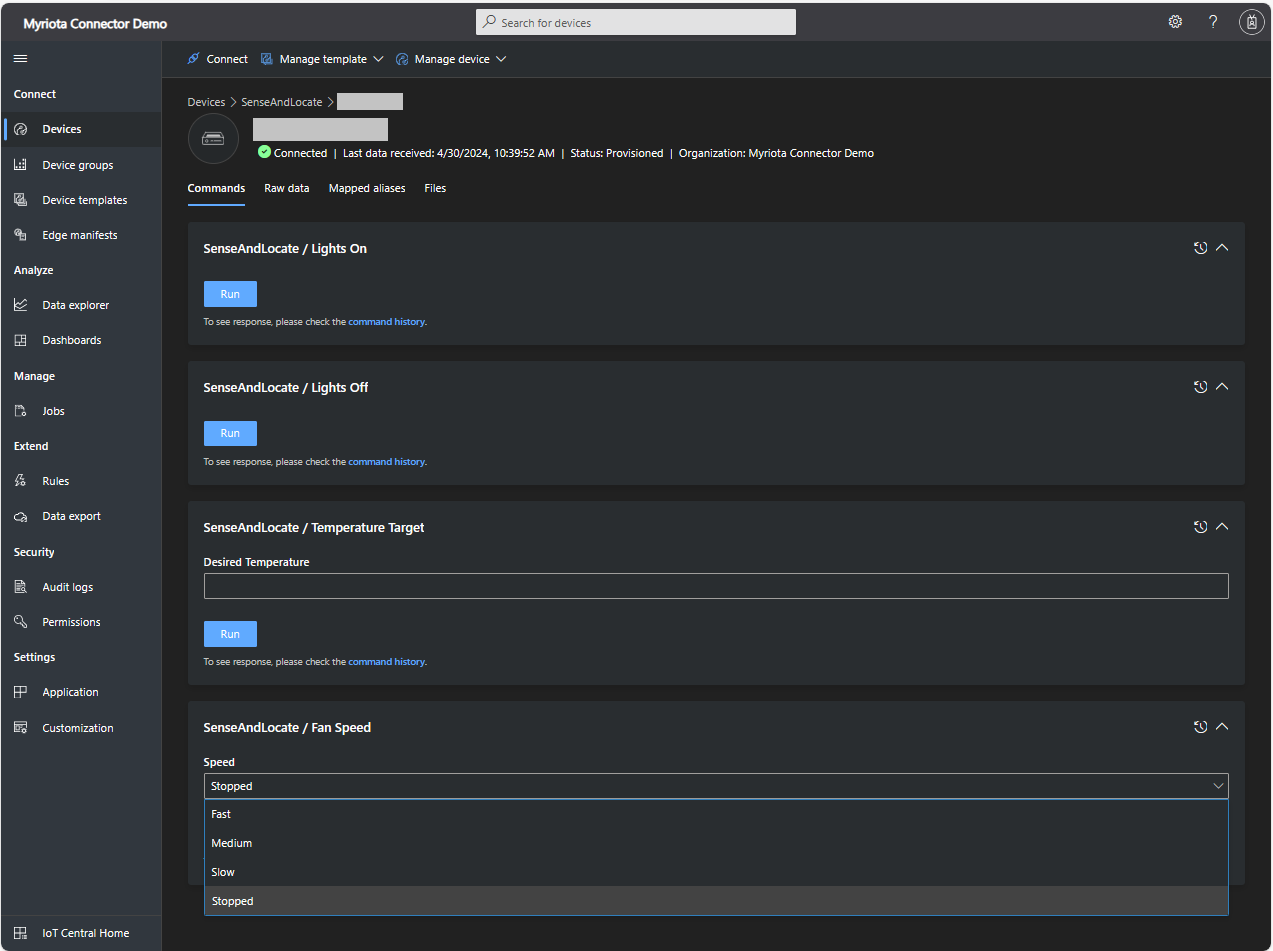
This post is about Azure IoT Central downlink methods and should be read in conjunction with the Myriota Connector – Azure IoT Central Downlink Methods post. My Myriota Sense and Locate template has 4 commands and in this post, I have focused on the fan speed command.

Sense and Locate Azure IoT Central Template

The Myriota Connector only supports Direct Methods which provide immediate confirmation of the result being queued by the Myriota Cloud API. The Myriota (API) control message send method responds with 400 Bad Request if there is already a message being sent to a device.

Myriota Azure Function Environment Variable configuration

The fan speed downlink payload formatter is specified in the Azure Function Environment Variables.

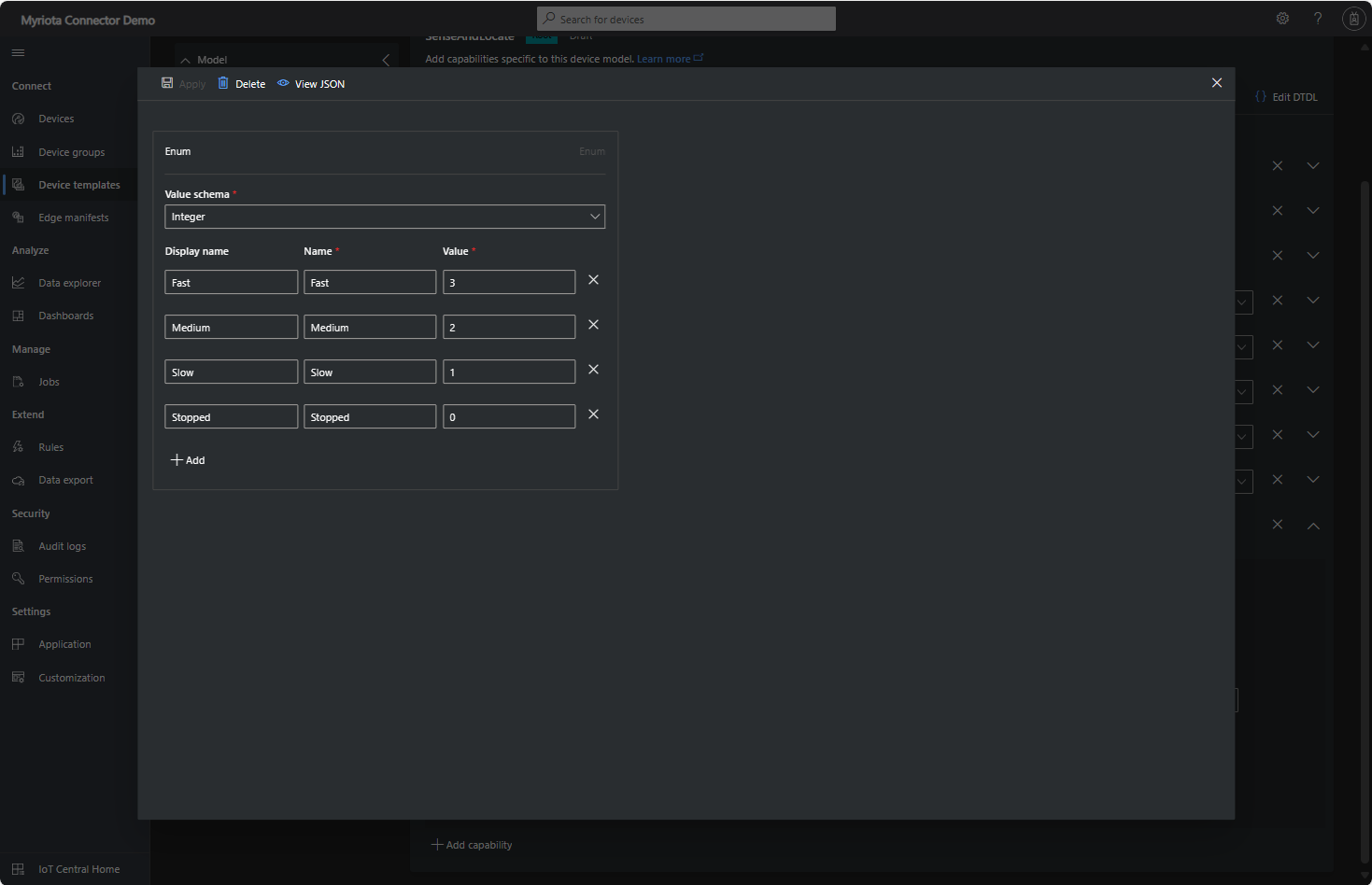
Sense and Locate Azure IoT Central Template Fan Speed Enumeration

The fan speed value in the message payload is configured in the fan speed enumeration.

Sense and Locate Azure IoT Central Command Fan Speed Selection

The FanSpeed.cs payload formatter extracts the FanSpeed value from the Javascript Object Notation(JSON) payload and returns a two-byte array containing the message type and speed of the fan.

using System;
using System.Collections.Generic;

using Newtonsoft.Json;
using Newtonsoft.Json.Linq;

public class FormatterDownlink : PayloadFormatter.IFormatterDownlink
{
   public byte[] Evaluate(string terminalId, string methodName, JObject payloadJson, byte[] payloadBytes)
   {
      byte? status = payloadJson.Value<byte?>("FanSpeed");

      if (!status.HasValue)
      {
         return new byte[] { };
      }

      return new byte[] { 1, status.Value };
   }
}

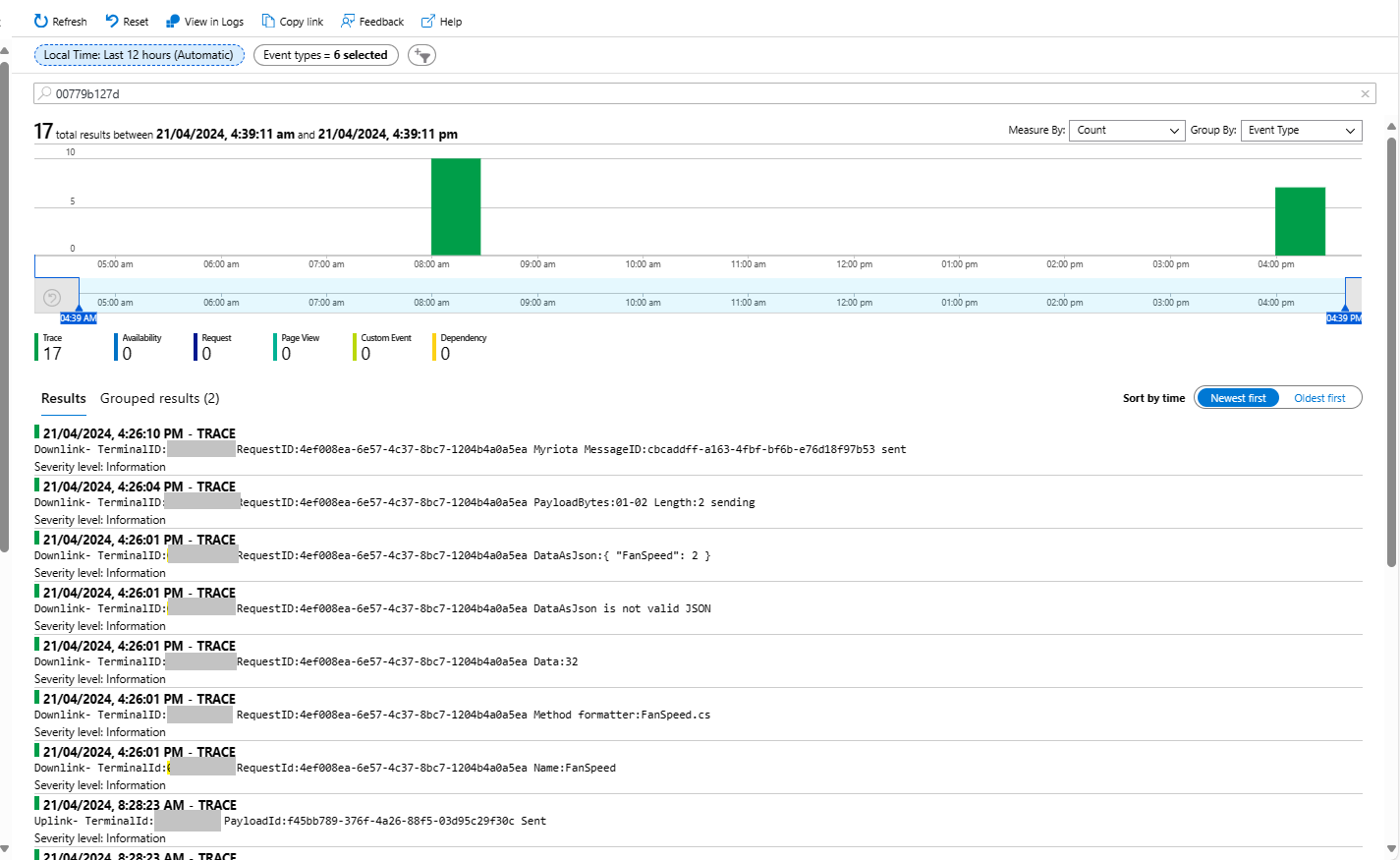
Sense and Locate Azure IoT Central Command Fan Speed History

Each Azure Application Insights log entry starts with the TerminalID (to simplify searching for all the messages related to device) and the requestId a Globally Unique Identifier (GUID) to simplify searching for all the “steps” associated with sending/receiving a message) with the rest of the logging message containing “step” specific diagnostic information.

Sense and Locate Azure IoT Central Command Fan Speed Application Insights

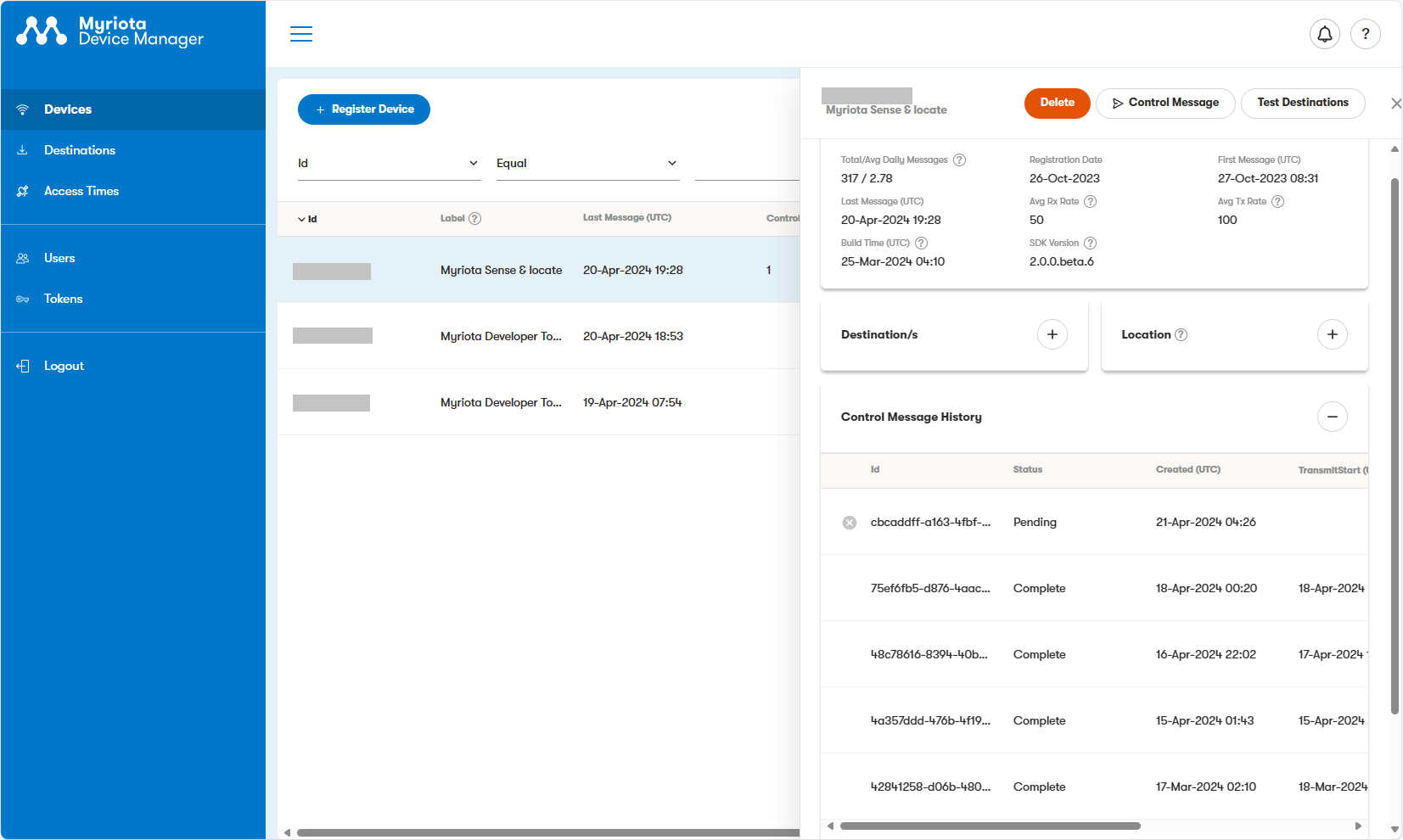
In the Myriota Device Manager the status of Control Messages can be tracked and they can be cancelled if in the “pending” state.

Myriota Control Message status Pending

A Control Message can take up to 24hrs to be delivered and confirmation of delivery has to be implemented by the application developer.
Airbnb Dataset – NetTopologySuite spatial searching

I have used Entity Framework Core a “full fat” Object Relational Mapper (ORM) for a couple of projects, and it supports mapping to spatial data types using the NetTopologySuite library. On Stackoverflow there was some discussion about Dapper’s spatial support so I thought I would try it out.

The DapperSpatialNetTopologySuite project has Dapper SQLMapper TypeHandler, Microsoft SQL Server stored procedure name and ASP.NET Core Minimal API for each location column handler implementation.

app.MapGet("/Spatial/NearbyGeography", async (double latitude, double longitude, int distance, [FromServices] IDapperContext dapperContext) =>
{
   var origin = new Point(longitude, latitude) { SRID = 4326 };

   using (var connection = dapperContext.ConnectionCreate())
   {
      var results = await connection.QueryWithRetryAsync<Model.ListingNearbyListGeographyDto>("ListingsSpatialNearbyNTS_____", new { origin, distance }, commandType: CommandType.StoredProcedure);

      return results;
   }
})
.Produces<IList<Model.ListingNearbyListGeographyDto>>(StatusCodes.Status200OK)
.Produces<ProblemDetails>(StatusCodes.Status400BadRequest)
.WithOpenApi();

After adding the NetTopologySuite spatial library to the project the schemas list got a lot bigger.
NetTopology Suite additional schemas

My first attempt inspired by a really old Marc Gravell post and the NetTopologySuite.IO.SqlServerBytes documentation didn’t work.
CREATE PROCEDURE [dbo].[ListingsSpatialNearbyNTSLocation]
	@Origin AS GEOGRAPHY,
	@distance AS INTEGER
AS
BEGIN
DECLARE @Circle AS GEOGRAPHY = @Origin.STBuffer(@distance); 

SELECT TOP(50) UID AS ListingUID
	,[Name]
	,listing_url as ListingUrl
	,Listing.Location.STDistance(@Origin) as Distance
	,Listing.Location
FROM Listing
WHERE (Listing.Location.STWithin(@Circle) = 1) 
ORDER BY Distance
END
NetTopology Suite Microsoft.SqlServer.Types library load exception

I could see the Dapper SQLMapper TypeHandler for the @origin parameter getting called but the not locations

NetTopology Suite @Origin parameter typehandler in Visual Studio 2022 Debugger

Then found a Brice Lambson post about how to use the NetTopologySuite.IO.SqlServerBytes library to read and write geography and geometry columns.

CREATE PROCEDURE [dbo].[ListingsSpatialNearbyNTSSerialize]
	@Origin AS GEOGRAPHY,
	@distance AS INTEGER
AS
BEGIN
DECLARE @Circle AS GEOGRAPHY = @Origin.STBuffer(@distance); 

SELECT TOP(50) UID AS ListingUID
	,[Name]
	,listing_url as ListingUrl
	,Listing.Location.STDistance(@Origin) as Distance
	,Location.Serialize() as Location
FROM [listing] 
WHERE (Location.STWithin(@Circle) = 1) 
ORDER BY Distance
END
class PointHandlerSerialise : SqlMapper.TypeHandler<Point>
{
   public override Point Parse(object value)
   {
      var reader = new SqlServerBytesReader { IsGeography = true };

      return (Point)reader.Read((byte[])value);
   }

   public override void SetValue(IDbDataParameter parameter, Point? value)
   {
      ((SqlParameter)parameter).SqlDbType = SqlDbType.Udt;  // @Origin parameter?
      ((SqlParameter)parameter).UdtTypeName = "GEOGRAPHY";

      var writer = new SqlServerBytesWriter { IsGeography = true };

      parameter.Value = writer.Write(value);
   }
}

Once the location column serialisation was working (I could see a valid response in the debugger) the generation of the response was failing with a “System.Text.Json.JsonException: A possible object cycle was detected. This can either be due to a cycle or if the object depth is larger than the maximum allowed depth of 64″.

NetTopology Suite serialisation “possible object cycle detection” exception

After fixing that issue the response generation failed with “System.ArgumentException: .NET number values such as positive and negative infinity cannot be written as valid JSON.”

NetTopology Suite serialisation “possible object cycle detection” exception

Fixing these two issues required adjustment of two HttpJsonOptions

//...
builder.Services.ConfigureHttpJsonOptions(options =>
{
   options.SerializerOptions.ReferenceHandler = ReferenceHandler.IgnoreCycles;
   options.SerializerOptions.NumberHandling = JsonNumberHandling.AllowNamedFloatingPointLiterals;
});

var app = builder.Build();
//...
Swagger NetTopology Suite location serialisation response

After digging into the Dapper source code I wondered how ADO.Net handled loading Microsoft.SQLServer.Types library

app.MapGet("/Listing/Search/Ado", async (double latitude, double longitude, int distance, [FromServices] IDapperContext dapperContext) =>
{
   var origin = new Point(longitude, latitude) { SRID = 4326 };

   using (SqlConnection connection = (SqlConnection)dapperContext.ConnectionCreate())
   {
      await connection.OpenAsync();

      var geographyWriter = new SqlServerBytesWriter { IsGeography = true };

      using (SqlCommand command = connection.CreateCommand())
      {
         command.CommandText = "ListingsSpatialNearbyNTSLocation";
         command.CommandType = CommandType.StoredProcedure;

         var originParameter = command.CreateParameter();
         originParameter.ParameterName = "Origin";
         originParameter.Value = new SqlBytes(geographyWriter.Write(origin));
         originParameter.SqlDbType = SqlDbType.Udt;
         originParameter.UdtTypeName = "GEOGRAPHY";
         command.Parameters.Add(originParameter);

         var distanceParameter = command.CreateParameter();
         distanceParameter.ParameterName = "Distance";
         distanceParameter.Value = distance;
         distanceParameter.DbType = DbType.Int32;
         command.Parameters.Add(distanceParameter);

         var geographyReader = new SqlServerBytesReader { IsGeography = true };

         using (var dbDataReader = await command.ExecuteReaderAsync())
         {
            List<Model.ListingNearbyListGeographyDto> listings = new List<Model.ListingNearbyListGeographyDto>();

            int listingUIDColumn = dbDataReader.GetOrdinal("ListingUID");
            int nameColumn = dbDataReader.GetOrdinal("Name");
            int listingUrlColumn = dbDataReader.GetOrdinal("ListingUrl");
            int distanceColumn = dbDataReader.GetOrdinal("Distance");
            int LocationColumn = dbDataReader.GetOrdinal("Location");

            while (await dbDataReader.ReadAsync())
            {
               listings.Add(new Model.ListingNearbyListGeographyDto
               {
                  ListingUID = dbDataReader.GetGuid(listingUIDColumn),
                  Name = dbDataReader.GetString(nameColumn),
                  ListingUrl = dbDataReader.GetString(listingUrlColumn),
                  Distance = (int)dbDataReader.GetDouble(distanceColumn),
                  Location = (Point)geographyReader.Read(dbDataReader.GetSqlBytes(LocationColumn).Value)
               });
            }

            return listings;
         }
      }
   }
})
.Produces<IList<Model.ListingNearbyListGeographyDto>>(StatusCodes.Status200OK)
.Produces<ProblemDetails>(StatusCodes.Status400BadRequest)
.WithOpenApi();

The ADO.Net implementation worked and didn’t produce any exceptions.

Swagger ADO.Net location serialisation response

In the Visual Studio 2022 debugger I could see the Microsoft.SQLServer.Types exception but this wasn’t “bubbling” up to the response generation code.

ADO.Net location serialisation Microsoft.SqlServer.Types load failure

The location columns could also be returned as Open Geospatial Consortium (OGC) Well-Known Binary (WKB) format using the STAsBinary method.

CREATE PROCEDURE [dbo].[ListingsSpatialNearbyNTSWkb]
	@Origin AS GEOGRAPHY,
	@distance AS INTEGER
AS
BEGIN
DECLARE @Circle AS GEOGRAPHY = @Origin.STBuffer(@distance); 

SELECT TOP(50) UID AS ListingUID
	,[Name]
	,listing_url as ListingUrl
	,Listing.Location.STDistance(@Origin) as Distance
	,Location.STAsBinary() as Location
FROM [listing] 
WHERE (Location.STWithin(@Circle) = 1) 
ORDER BY Distance
END

Then converted to and from NTS Point values using WKBReader and SqlServerBytesWriter

SqlMapper.AddTypeHandler(new PointHandlerWkb());
//...
class PointHandlerWkb : SqlMapper.TypeHandler<Point>
{
   public override Point Parse(object value)
   {
      var reader = new WKBReader();

      return (Point)reader.Read((byte[])value);
   }

   public override void SetValue(IDbDataParameter parameter, Point? value)
   {
      ((SqlParameter)parameter).SqlDbType = SqlDbType.Udt;  // @Origin parameter?
      ((SqlParameter)parameter).UdtTypeName = "GEOGRAPHY";

      var geometryWriter = new SqlServerBytesWriter { IsGeography = true };

      parameter.Value = geometryWriter.Write(value);
   }
}
Successful Location processing with WKBReader

The location columns could also be returned as Open Geospatial Consortium (OGC) Well Known Text(WKT) format using the STAsText and SqlServerBytesWriter;

CREATE PROCEDURE [dbo].[ListingsSpatialNearbyNTSWkt]
	@Origin AS GEOGRAPHY,
	@distance AS INTEGER
AS
BEGIN
DECLARE @Circle AS GEOGRAPHY = @Origin.STBuffer(@distance); 

SELECT TOP(50) UID AS ListingUID
	,[Name]
	,listing_url as ListingUrl
	,Listing.Location.STDistance(@Origin) as Distance
	,Location.STAsText() as Location
FROM [listing] 
WHERE (Location.STWithin(@Circle) = 1) 
ORDER BY Distance
END

Then converted to and from NTS Point values using WKTReader and SqlServerBytesWriter

class PointHandlerWkt : SqlMapper.TypeHandler<Point>
{
   public override Point Parse(object value)
   {
      WKTReader wktReader = new WKTReader();

      return (Point)wktReader.Read(value.ToString());
   }

   public override void SetValue(IDbDataParameter parameter, Point? value)
   {
      ((SqlParameter)parameter).SqlDbType = SqlDbType.Udt;  // @Origin parameter?
      ((SqlParameter)parameter).UdtTypeName = "GEOGRAPHY";

      parameter.Value = new SqlServerBytesWriter() { IsGeography = true }.Write(value);
   }
}
Successful Location processing with WKBReader

I have focused on getting the spatial queries to work and will stress/performance test my implementations in a future post. I will also revisit the /Spatial/NearbyGeography method to see if I can get it to work without “Location.Serialize() as Location”.

Downloaded Microsoft.Data.SqlClient source code and in SqlConnection.cs this doesn’t help….

  // UDT SUPPORT
  private Assembly ResolveTypeAssembly(AssemblyName asmRef, bool throwOnError)
  {
      Debug.Assert(TypeSystemAssemblyVersion != null, "TypeSystemAssembly should be set !");
      if (string.Equals(asmRef.Name, "Microsoft.SqlServer.Types", StringComparison.OrdinalIgnoreCase))
      {
          if (asmRef.Version != TypeSystemAssemblyVersion && SqlClientEventSource.Log.IsTraceEnabled())
          {
              SqlClientEventSource.Log.TryTraceEvent("SqlConnection.ResolveTypeAssembly | SQL CLR type version change: Server sent {0}, client will instantiate {1}", asmRef.Version, TypeSystemAssemblyVersion);
          }
          asmRef.Version = TypeSystemAssemblyVersion;
      }
      try
      {
          return Assembly.Load(asmRef);
      }
      catch (Exception e)
      {
          if (throwOnError || !ADP.IsCatchableExceptionType(e))
          {
              throw;
          }
          else
          {
              return null;
          }
      }
  }