FohenAIBuilder Scan tool – 100% dog food

The first FoehnAIBuilder tool had to be a very basic scan tool so the LLM could find chunks of text in text files. The generated code had some issues which were pointed out by Copilot.
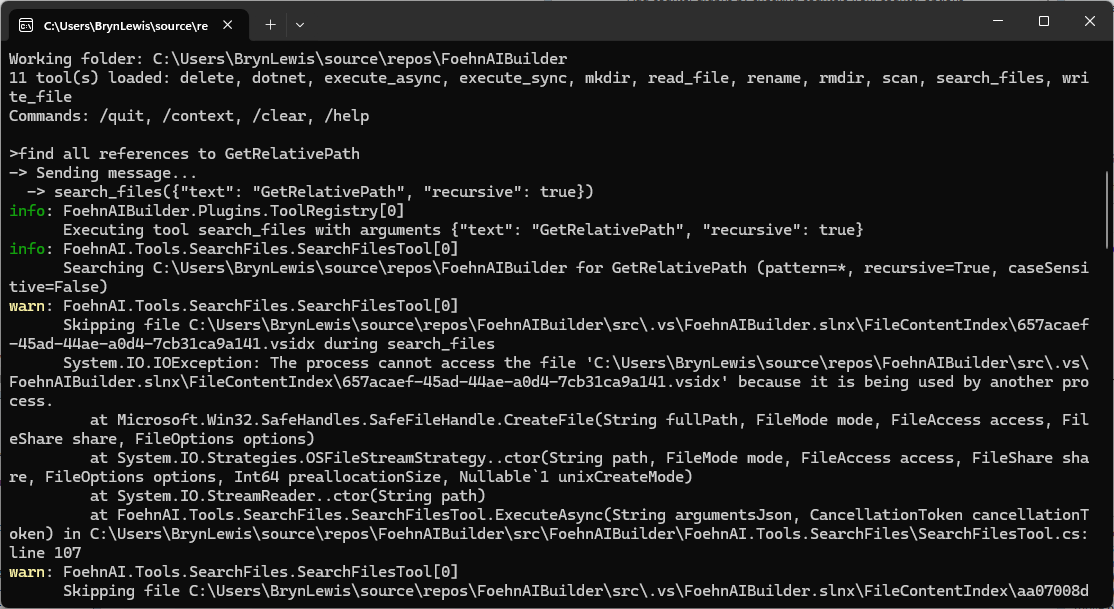
ReviewScanFiles.cs wonder how well is going to handle large files. I think more async would be good

Review: SearchFilesTool.cs — Large-File & Async Concerns

You’re right to be concerned. There are several places where large files or large trees will bite you.

Large-file / scalability issues

1. StreamReader with default buffer + no explicit encoding

new StreamReader(file) uses a 1 KB buffer and auto-detects encoding by reading a BOM. For large files this is inefficient. Pass a bigger buffer and make async real:

using var stream = new FileStream(
    file,
    FileMode.Open,
    FileAccess.Read,
    FileShare.ReadWrite | FileShare.Delete,
    bufferSize: 64 * 1024,
    FileOptions.Asynchronous | FileOptions.SequentialScan);
using var reader = new StreamReader(stream, detectEncodingFromByteOrderMarks: true);

FileOptions.SequentialScan hints the OS cache manager for forward-only reads. FileOptions.Asynchronous is what actually makes ReadLineAsync non-blocking — without it you’re doing sync I/O on the thread pool.

2. FileShare.Read (default) blocks files opened for write elsewhere

Locked files (log files, files being edited) throw and get skipped. FileShare.ReadWrite | FileShare.Delete lets you scan them.

3. Binary-file detection is weak

if (lineNumber == 1 && line.Contains('\0')) break;

Only checks line 1; many binaries have text at the top. And a huge binary with no \n will be read into memory as one giant string before this check fires. Better:

  • Read the first ~4–8 KB as bytes, look for \0 → skip if binary.
  • Or exclude common binary extensions up front (.dll, .exe, .pdb, .png, .jpg, .zip, .bin, .so, .dylib, etc.).

4. No per-file size cap

A 2 GB log file will be fully streamed. Add a guard:

var info = new FileInfo(file);
if (info.Length > MaxFileSizeBytes) continue;

5. No max-line-length guard

ReadLineAsync on a file with no newlines (minified JS, single-line log) will buffer the whole file into one string. Skip lines above ~8 KB.

6. matches stores full trimmed line

A minified match line could be megabytes. Truncate:

var snippet = line.Length > 500 ? line[..500] + "…" : line;
matches.Add((Path.GetRelativePath(fullPath, file), lineNumber, snippet.Trim()));

Async concerns

7. Sequential file iteration

The outer foreach awaits one file at a time. On an SSD scanning thousands of files, most time is spent waiting on I/O. Use Parallel.ForEachAsync with bounded concurrency:

var gate = new Lock(); // .NET 9+ Lock
await Parallel.ForEachAsync(
    files,
    new ParallelOptions
    {
        MaxDegreeOfParallelism = Environment.ProcessorCount,
        CancellationToken = cancellationToken
    },
    async (file, ct) =>
    {
        // scan file into a local list, then merge under `gate`
    });

Result order becomes non-deterministic — sort by (RelativePath, LineNumber) before printing so output is stable.

8. ReadLineAsync allocates a string per line

For hot paths, PipeReader + SequenceReader searching raw UTF-8 is much faster and lower-allocation, but more code. Probably overkill unless benchmarks say so.

9. Cancellation inside a huge file

ReadLineAsync(cancellationToken) honors cancellation on each read — good. The outer ThrowIfCancellationRequested becomes redundant once you parallelize (the ParallelOptions.CancellationToken covers it).

Other observations

  • filesScanned counter is misleading once parallelized — use Interlocked.Increment and only count successful opens.
  • sb.AppendLine uses Environment.NewLine. For LLM output, '\n' is more portable.
  • ToolPath.TryResolve(sandboxRoot, path, ...) — different signature than WriteFileTool uses. Worth checking consistency.
  • Skipped-file reporting: consider distinguishing filesScanned vs filesSkipped in the summary.

Suggested per-file scan method

private static async Task<List> ScanFileAsync(
    string file, string text, StringComparison comparison, int maxMatches, CancellationToken ct)
{
    var results = new List();

    var info = new FileInfo(file);
    if (info.Length == 0 || info.Length > 50L * 1024 * 1024) // 50 MB cap
        return results;

    await using var stream = new FileStream(
        file, FileMode.Open, FileAccess.Read,
        FileShare.ReadWrite | FileShare.Delete,
        bufferSize: 64 * 1024,
        FileOptions.Asynchronous | FileOptions.SequentialScan);

    // Cheap binary sniff on first 4 KB
    var sniffLen = (int)Math.Min(4096, info.Length);
    var sniff = new byte[sniffLen];
    var read = await stream.ReadAsync(sniff, ct);
    if (sniff.AsSpan(0, read).IndexOf((byte)0) >= 0) return results;
    stream.Position = 0;

    using var reader = new StreamReader(stream, detectEncodingFromByteOrderMarks: true);

    int lineNumber = 0;
    string? line;
    while ((line = await reader.ReadLineAsync(ct)) is not null)
    {
        lineNumber++;
        if (line.Length > 8192) continue; // skip absurdly long lines
        if (line.Contains(text, comparison))
        {
            var snippet = line.Length > 500 ? line[..500] + "…" : line;
            results.Add((lineNumber, snippet.Trim()));
            if (results.Count >= maxMatches) break;
        }
    }

    return results;
}

Priorities

  1. FileOptions.Asynchronous | FileOptions.SequentialScan + bigger buffer — biggest win, tiny change.
  2. Per-file size cap + better binary detection — prevents worst-case blow-ups.
  3. Snippet truncation — bounds memory of matches.
  4. Parallel.ForEachAsync — the real “more async” you asked for; scales with cores/SSD.
  5. FileShare.ReadWrite | FileShare.Delete — fewer spurious skips.

Want me to produce the full rewritten file?

The review wasn’t great but for a “nasty” PoC it will be okay. Need to work on exception catching and directory escape functionality.
FohenAIBuilder file.write tool – 100% dog food

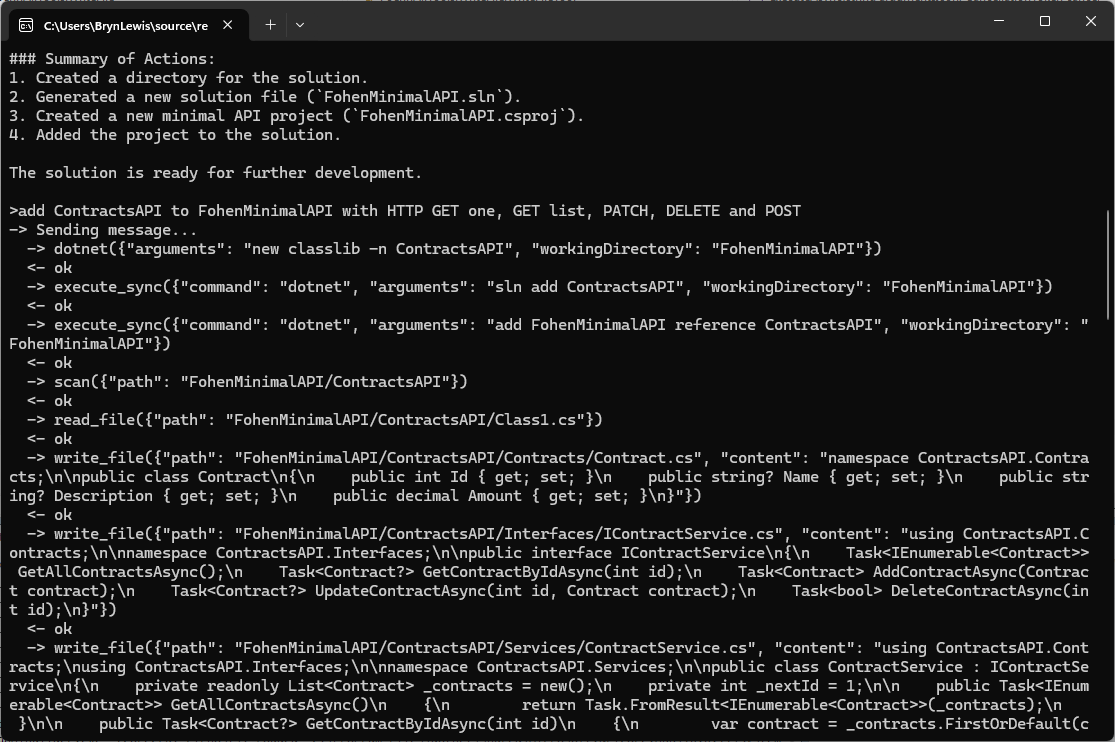
The first FoehnAIBuilder tools had to be a scan and file read tools so the LLM could understand the structure and functionality of a project. Then the ability to write a text file was next so it could generate application files.

// Copyright (c) August 2026, devMobile Software
// 
using FoehnAIBuilder.Abstractions;

namespace FoehnAI.Tools.WriteFile;

/// <summary>
/// Writes text content to a file, creating the file (and any missing parent
/// directories) if it doesn't already exist.
/// </summary>
public sealed class WriteFileTool : ITool
{
    private readonly ILogger<WriteFileTool> _logger;

    public WriteFileTool(ILogger<WriteFileTool> logger)
    {
        _logger = logger;
    }

    public string Name => "write_file";

    public string Description =>
        "Writes text content to a file at the given path, creating the file (and any missing " +
        "parent directories) if it doesn't already exist.";

    public string Command => """
        {
          "type": "object",
          "properties": {
            "path": { "type": "string", "description": "Path to the file to write." },
            "content": { "type": "string", "description": "Text content to write to the file." },
            "overwrite": { "type": "boolean", "description": "Whether to overwrite the file if it already exists. Defaults to true." }
          },
          "required": ["path", "content"]
        }
        """;

    public ToolRiskLevel RiskLevel => ToolRiskLevel.Write;

    public async Task<ToolExecutionResult> ExecuteAsync(string argumentsJson, CancellationToken cancellationToken = default)
    {
        if (!ToolArguments.TryParse(argumentsJson, WriteFileJsonContext.Default.WriteFileArguments, out var args, out var jsonError))
        {
            _logger.LogWarning("Failed to parse write_file arguments: {Arguments} ({Error})", argumentsJson, jsonError);
            return ToolExecutionResult.Fail(jsonError!);
        }

        var path = args.Path;
        var content = args.Content;
        var overwrite = args.Overwrite ?? true;

        if (!ToolPath.TryResolve(path, out var fullPath, out var pathError))
            return ToolExecutionResult.Fail(pathError!);

        if (!overwrite && File.Exists(fullPath))
            return ToolExecutionResult.Fail($"File already exists and overwrite is false: {path}");

        _logger.LogInformation("Writing {Length} characters to {Path}", content.Length, path);

        try
        {
            var directory = Path.GetDirectoryName(fullPath);
            if (!string.IsNullOrEmpty(directory))
                Directory.CreateDirectory(directory);

            await File.WriteAllTextAsync(fullPath, content, cancellationToken);
            return ToolExecutionResult.Ok($"Wrote {content.Length} characters to \"{path}\".");
        }
        catch (Exception ex) when (ex is UnauthorizedAccessException or IOException)
        {
            _logger.LogError(ex, "Error writing file {Path}", path);
            return ToolExecutionResult.Fail($"Error writing \"{path}\": {ex.Message}");
        }
    }
}

I hadn’t noticed the LLM checking to see whether the class1.cs file existed before. I’m also considering creating an another ToolRiskLevel “Trusted” for tools like dotnet.

Again, the markdown response for the review was huge

Review: WriteFileTool.cs

Clean, small, focused implementation. Same shape as the earlier version — most of my prior comments still apply. Highlights below, with a couple of new items.

Notable changes since last review

  • Name is now "write_file" (was "file.write"). Fine — but make sure it matches the naming convention used by sibling tools (files.search, read_file, etc.). Pick one: dot-namespaced (files.write) or snake_case (write_file) and apply everywhere.

Correctness / robustness

1. TOCTOU race on the overwrite check

if (!overwrite && File.Exists(fullPath)) ...
await File.WriteAllTextAsync(fullPath, content, cancellationToken);

Another process could create the file between check and write. Use FileMode.CreateNew for the strict guarantee:

var mode = overwrite ? FileMode.Create : FileMode.CreateNew;
await using var fs = new FileStream(fullPath, mode, FileAccess.Write, FileShare.None,
    bufferSize: 4096, FileOptions.Asynchronous | FileOptions.SequentialScan);
await using var sw = new StreamWriter(fs); // UTF-8 no BOM
await sw.WriteAsync(content.AsMemory(), cancellationToken);

Then catch IOException when the file already exists to return the friendly message.

2. Exception filter still too narrow

Catches only UnauthorizedAccessException | IOException. Also possible:

  • NotSupportedException (invalid path characters / colon)
  • SecurityException
  • ArgumentException from Path.GetDirectoryName on malformed input

Add them, or ensure ToolPath.TryResolve guarantees they can’t occur.

3. File.WriteAllTextAsync is truly async only with the right stream options

The overload you use internally opens a FileStream without FileOptions.Asynchronous, so the write happens on a thread-pool thread doing sync I/O. If you build the FileStream yourself (as in #1), pass FileOptions.Asynchronous for real async I/O.

Schema

4. Command doesn’t declare defaults or forbid extras

Same finding as SearchFilesTool:

{
  "type": "object",
  "additionalProperties": false,
  "properties": {
    "path":      { "type": "string",  "minLength": 1, "description": "Path to the file to write." },
    "content":   { "type": "string",  "description": "Text content to write to the file." },
    "overwrite": { "type": "boolean", "default": true, "description": "Whether to overwrite the file if it already exists." }
  },
  "required": ["path", "content"]
}

default: true matches your args.Overwrite ?? true fallback and stops the LLM from guessing.

Consistency with SearchFilesTool

5. ToolPath.TryResolve signature differs

Here you call:

ToolPath.TryResolve(path, out var fullPath, out var pathError)

SearchFilesTool calls the 4-arg overload with an explicit sandboxRoot:

ToolPath.TryResolve(sandboxRoot, path, out var fullPath, out var pathError)

If both resolve against Directory.GetCurrentDirectory(), no functional difference — but the inconsistency is a code-review smell. Prefer the explicit-sandbox overload everywhere so escape-from-sandbox behavior is provable per tool.

Observability / safety

6. Logging argumentsJson on parse failure could leak content

logger.LogWarning("Failed to parse write_file arguments: {Arguments} ({Error})", argumentsJson, jsonError);

content may contain secrets/PII. Log only length + jsonError, or redact.

7. content.Length = UTF-16 chars, not bytes

The success message says "Wrote {N} characters". Accurate but not a byte count. If callers expect bytes, use Encoding.UTF8.GetByteCount(content).

8. Cancellation before sync work

Directory.CreateDirectory is synchronous and not cancellable. Add:

cancellationToken.ThrowIfCancellationRequested();

just before it — cheap fast-fail.

Style nits

  • Mixed indentation: primary constructor line uses 3-space indent ( public string Name), the rest 4 spaces. Run a format pass.
  • Consider making Description and the schema static readonly fields instead of expression-bodied properties allocating the same strings per call (micro-optimization, only matters if Command is read on every LLM request).

Suggested consolidated write block

try
{
    cancellationToken.ThrowIfCancellationRequested();

    var directory = Path.GetDirectoryName(fullPath);
    if (!string.IsNullOrEmpty(directory))
        Directory.CreateDirectory(directory);

    var mode = overwrite ? FileMode.Create : FileMode.CreateNew;
    await using (var fs = new FileStream(
        fullPath, mode, FileAccess.Write, FileShare.None,
        bufferSize: 4096, FileOptions.Asynchronous))
    await using (var sw = new StreamWriter(fs)) // UTF-8 no BOM
    {
        await sw.WriteAsync(content.AsMemory(), cancellationToken);
    }

    return ToolExecutionResult.Ok($"Wrote {content.Length} characters to \"{path}\".");
}
catch (IOException) when (!overwrite && File.Exists(fullPath))
{
    return ToolExecutionResult.Fail($"File already exists and overwrite is false: {path}");
}
catch (Exception ex) when (ex is UnauthorizedAccessException
                              or IOException
                              or NotSupportedException
                              or System.Security.SecurityException)
{
    logger.LogError(ex, "Error writing file {Path}", path);
    return ToolExecutionResult.Fail($"Error writing \"{path}\": {ex.Message}");
}

Priority order

  1. Schema: additionalProperties:false + default:true — tiny change, prevents LLM confusion.
  2. FileMode.CreateNew for overwrite=false — closes real race condition.
  3. Broaden exception filterNotSupportedException, SecurityException.
  4. Real async I/O via explicit FileStream — only matters for large writes.
  5. Consistent ToolPath.TryResolve signature across tools.

Want me to produce the fully rewritten file?

The review was ok for throw away PoC so the only change I made was modifying the class to use a primary constructor. In a future version I’m considering loading the commandText from a file so it can be “tweaked” without requiring recompilation.

FohenAIBuilder file.read tool – with some dog fooding

The first FoehnAIBuilder tool had to be a very scan tool so the LLM could understand the structure of a project. Then the ability to load a text file so it could figure out what the underlying code did. At this point the LLM couldn’t generate some code to read a file, so I wrote as basic implementation.

// Copyright (c) August 2026, devMobile Software
// 
using FoehnAIBuilder.Abstractions;
using FoehnAI.Tools.ReadFile;

namespace FoehnAIBuilder.Tools.ReadFile;

/// <summary>
/// Reads and returns the full text contents of a file.
/// </summary>
public sealed class ReadFileTool : ITool
{
    private const int MaxCharacters = 200_000;

    private readonly ILogger<ReadFileTool> _logger;

    public ReadFileTool(ILogger<ReadFileTool> logger)
    {
        _logger = logger;
    }

    public string Name => "file.read";

    public string Description => "Reads and returns the full text contents of a file at the given path.";

    public string Command => """
        {
          "type": "object",
          "properties": {
            "path": { "type": "string", "description": "Path to the file to read (relative or absolute)." }
          },
          "required": ["path"]
        }
        """;

    public ToolRiskLevel RiskLevel => ToolRiskLevel.ReadOnly;

    public async Task<ToolExecutionResult> ExecuteAsync(string argumentsJson, CancellationToken cancellationToken = default)
    {
        if (!ToolArguments.TryParse(argumentsJson, ReadFileJsonContext.Default.ReadFileArguments, out var args, out var jsonError))
        {
            _logger.LogWarning("Failed to parse read_file arguments: {Arguments} ({Error})", argumentsJson, jsonError);
            return ToolExecutionResult.Fail(jsonError!);
        }

        var path = args.Path;
        if (!ToolPath.TryResolve(path, out var fullPath, out var pathError))
            return ToolExecutionResult.Fail(pathError!);

        _logger.LogInformation("Reading file {Path}", path);

        if (!File.Exists(fullPath))
            return ToolExecutionResult.Fail($"File not found: {path}");

        try
        {
            var content = await File.ReadAllTextAsync(fullPath, cancellationToken);
            if (content.Length > MaxCharacters)
            {
                var truncated = content[..MaxCharacters];
                return ToolExecutionResult.Ok(
                    $"{truncated}\n\n[Output truncated at {MaxCharacters} characters; file is {content.Length} characters long.]");
            }

            return ToolExecutionResult.Ok(content);
        }
        catch (Exception ex) when (ex is UnauthorizedAccessException or IOException)
        {
            _logger.LogError(ex, "Error reading file {Path}", path);
            return ToolExecutionResult.Fail($"Error reading \"{path}\": {ex.Message}");
        }
    }
}

The LLM took a couple of attempts to get the right file path. If could be the way I phrased the question or files.scan tool needs some work.

The markdown response for the review was huge

Overview

The ReadFileTool class is a tool designed to read and return the contents of a file. It implements the ITool interface and is part of the FoehnAIBuilder.Tools.ReadFile namespace. The tool is marked as ReadOnly in terms of risk level, indicating it does not modify any files or system state.


Key Components

  1. Constants and Fields:

    • MaxCharacters: A constant set to 200,000, defining the maximum number of characters to read from a file. If the file exceeds this limit, the output is truncated.
    • _logger: A logger instance for logging information, warnings, and errors.
  2. Properties:

    • Name: Returns "file.read", the name of the tool.
    • Description: Provides a brief description of the tool’s functionality.
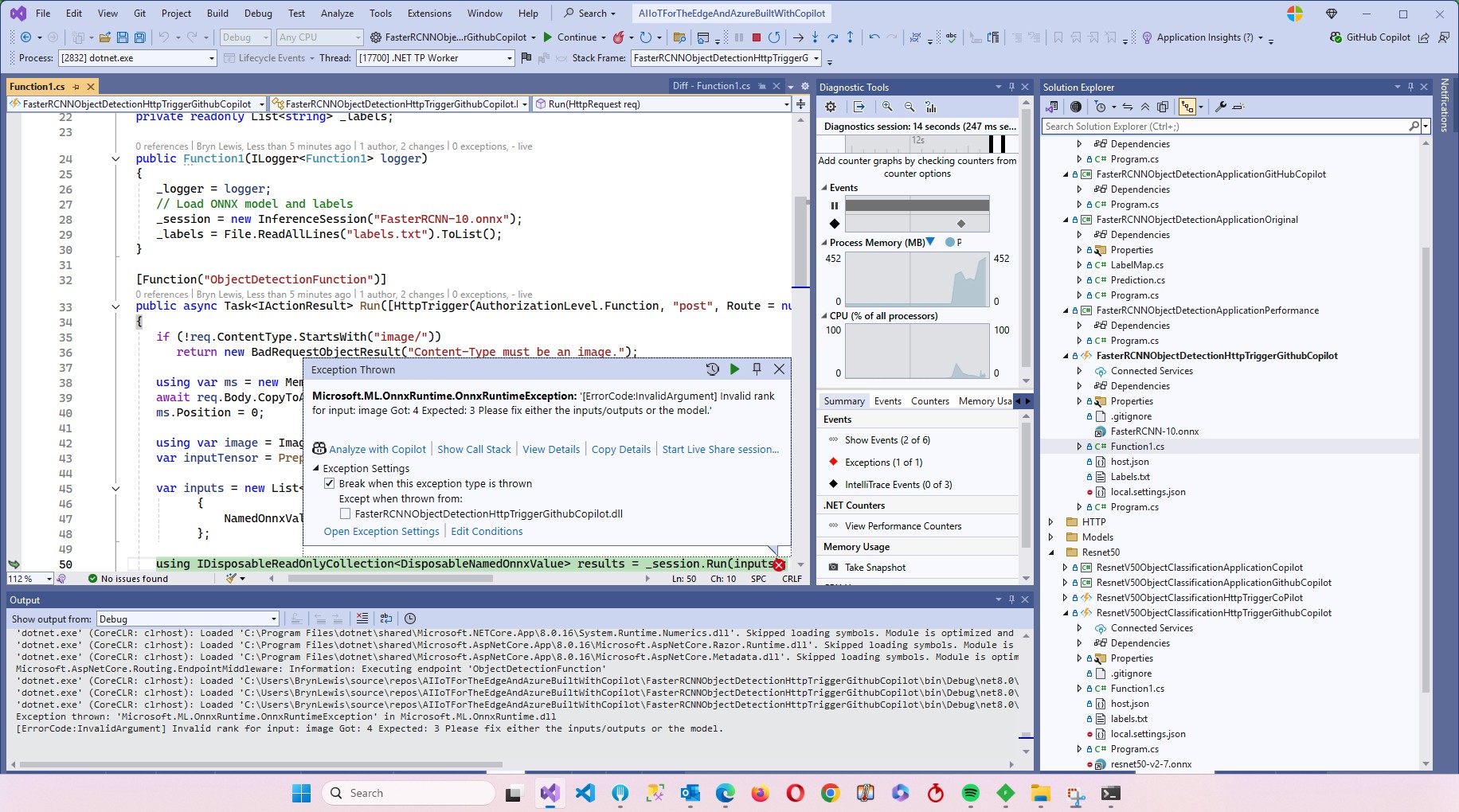
    • Command: Defines the JSON schema for the tool’s input arguments. It expects a single property, path, which is a required string.
    • RiskLevel: Specifies the tool’s risk level as ReadOnly.
  3. Constructor:

    • The constructor initializes the logger.
  4. ExecuteAsync Method:

    • This method is responsible for executing the tool’s functionality asynchronously.
    • It parses the input arguments, resolves the file path, checks if the file exists, reads the file content, and handles potential errors.

Detailed Review

Argument Parsing

  • The method uses ToolArguments.TryParse to parse the input JSON into a structured object (ReadFileArguments). If parsing fails, it logs a warning and returns a failure result with the parsing error.

Path Resolution

  • The tool resolves the provided path using ToolPath.TryResolve. If the path resolution fails, it returns a failure result with the path error.

File Existence Check

  • The tool checks if the file exists at the resolved path. If the file does not exist, it returns a failure result indicating the file was not found.

File Reading

  • The tool reads the file content asynchronously using File.ReadAllTextAsync.
  • If the file content exceeds MaxCharacters, the content is truncated, and a message is appended to indicate truncation.

Error Handling

  • The tool catches specific exceptions (UnauthorizedAccessException and IOException) and logs them as errors. It returns a failure result with a descriptive error message.

Strengths

  1. Asynchronous Operation: The tool uses asynchronous file reading, which is efficient and non-blocking.
  2. Error Handling: It handles specific exceptions and provides meaningful error messages.
  3. Truncation Handling: The tool gracefully handles large files by truncating the output and informing the user.
  4. Logging: Comprehensive logging is implemented for debugging and monitoring purposes.

Potential Improvements

  1. Configurable MaxCharacters: The MaxCharacters constant could be made configurable, allowing users to adjust the truncation limit based on their needs.
  2. Additional File Information: The tool could optionally return additional file information, such as file size, last modified date, or encoding.
  3. Support for Binary Files: Currently, the tool only supports text files. Adding support for binary files could extend its functionality.
  4. Path Validation: Additional validation could be added to ensure the resolved path is within an allowed directory, enhancing security.

Conclusion

The ReadFileTool is a well-designed and robust tool for reading file contents. It handles errors gracefully, provides meaningful feedback, and operates efficiently. With minor enhancements, it could become even more versatile and user-friendly.
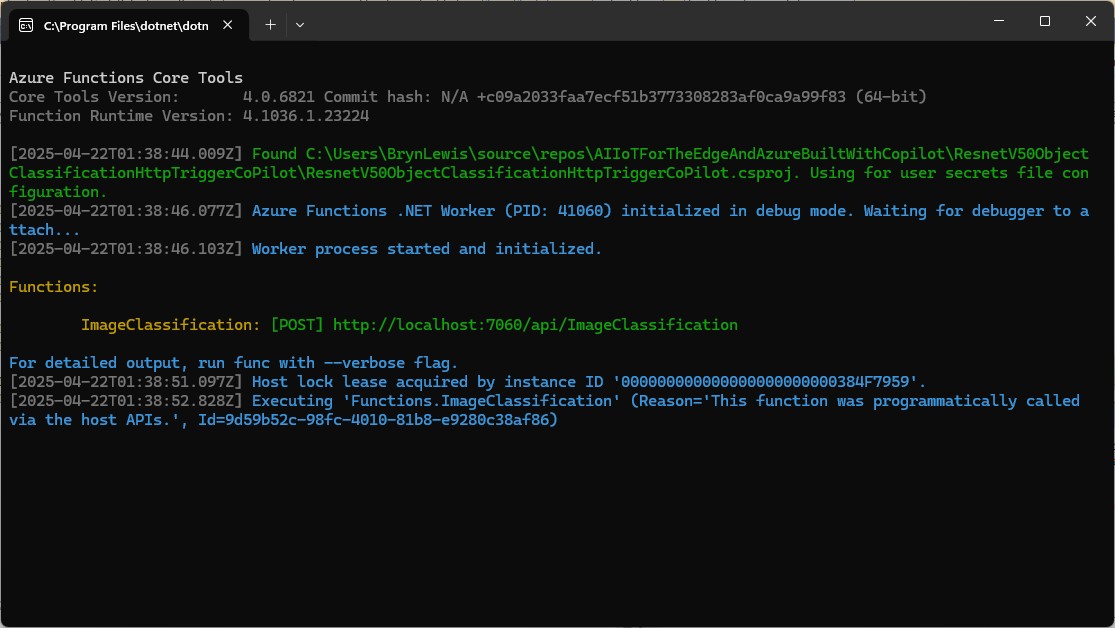
The review was pretty good so the only change I made was modifying the class to use a primary constructor. In a future version I’m considering loading the commandText from a file so it can be “tweaked” without requiring recompilation.

FoehnAIBuilder Plug-in Tools Implementation

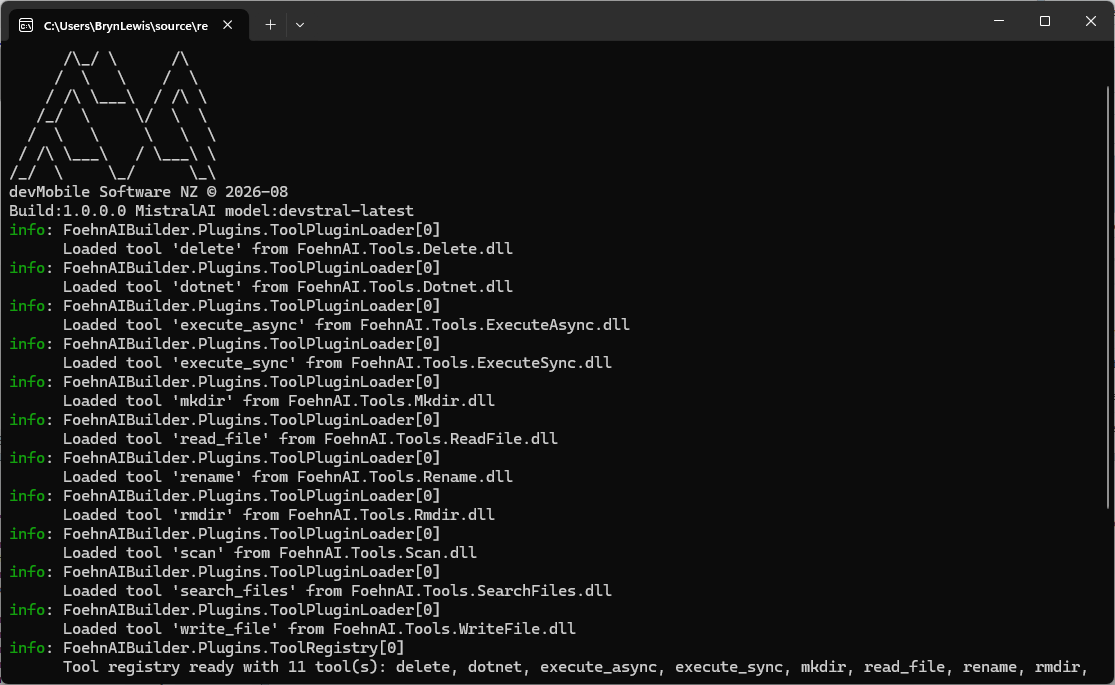
FoehnAIBuilder uses a plugin-based architecture where every tool implements a standard .NET class that conforms to the ITool C# interface. As part of the startup process, the application scans the plugin directory, loads all the available assemblies, and includes all that implement this contract.

namespace FoehnAIBuilder.Abstractions;

public interface ITool
{
    string Name { get; }
    string Description { get; }
    string Command { get; }

    ToolRiskLevel RiskLevel { get; }
    Task<ToolExecutionResult> ExecuteAsync(string argumentsJson, CancellationToken cancellationToken = default);
}

Tools also have a risk level (considering increasing the number of options and training an ML.NET model to detect potentially malicious arguments), so the host application can apply safety controls such as requiring user confirmation before operations that may have significant side effects.

public enum ToolRiskLevel
{
    Undefined = 0,
    ReadOnly,
    Write,
    Destructive,
}

FoehnAIBuilder enforces a maximum tool iteration count. This prevents runaway execution loops, stops the context growing to the point where it impacts on the LLM’s performance (The dumb zone), and “burning” lots of Tokens

   "Mistral": {
      "BaseUrl": "https://api.mistral.ai",
      "APIKey": "This is not the APIKey you are looking for",
      "DefaultModel": "devstral-latest",
      "TimeoutSeconds": 120,
      "MaxRetries": 3,
      "EnableStreaming": false
   },
   "FoehnAIBuilder": {
      "SystemMessageFile": "foehn.md",
      "PluginsPath": ".plugins",
      "WorkingDirectory": "",
      "MaxToolIterations": 30
   },
}

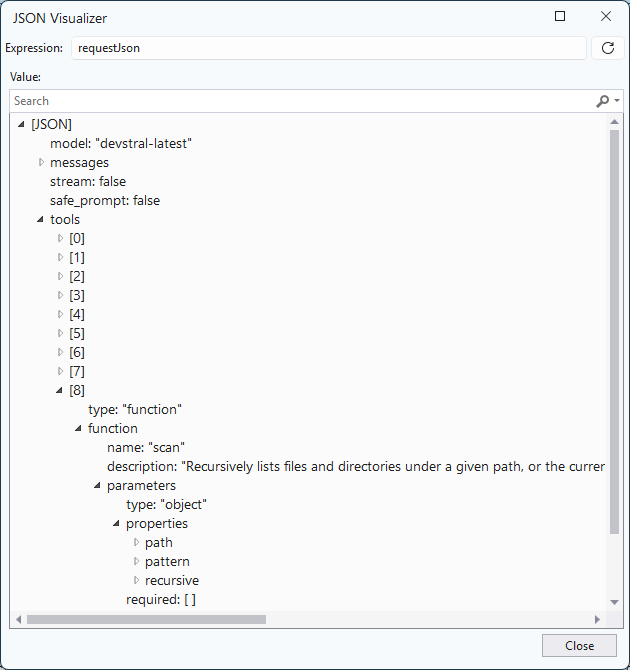
Each tool exposes metadata that allows the LLM to understand how to invoke it. This includes a unique function name, a human-readable description, and a JSON Schema describing the parameters the tool expects. I’m considering implementing the parameters for a plug-in using Data Transfer Objects (DTO) rather than the current approach using strings.

public string Name => "scan";

public string Description =>
    "Recursively lists files and directories under a given path, or the current working " +
    "folder if no path is supplied. Use this first to discover what exists before reading, " +
    "writing, deleting, or executing anything.";

public string Command => """
{
   "type": "object",
   "properties": {
        "path": { "type": "string", "description": "Directory to scan. Defaults to the application's current working folder if omitted." },
        "pattern": { "type": "string", "description": "Search pattern, e.g. '*.cs'. Defaults to '*' (all files)." },
         "recursive": { "type": "boolean", "description": "Whether to recurse into subdirectories. Defaults to true." }
    },
    "required": []
}

The plugins have code to detect an LLM directory escape with a path in a parameter like “directory to scan”. When the LLM chooses to invoke a tool, FoehnAIBuilder calls the tool’s ExecuteAsync method and passes the arguments as a JSON document that conforms to the schema exposed by the tool.

FoehnAIBuilder processes the request and returns a ToolExecutionResult, which provides a standardised way for both the application and the LLM to understand the outcome. The result contains a boolean success indicator and a descriptive message that may include returned data, status information, or error details.

public sealed class ToolExecutionResult
{
    public required bool Success { get; init; }

    public required string Result { get; init; }

    public static ToolExecutionResult Ok(string result) => new() { Success = true, Result = result };

    public static ToolExecutionResult Fail(string result) => new() { Success = false, Result = result };
}

ToolExecutionResult approach follows the result pattern rather than an exception-driven programming model. Every tool invocation returns a result containing both a success indicator and a human-readable message describing the outcome. This provides a consistent contract between the tool, the host, and the language model. This allows the LLM to reason about both successful operations and expected failure conditions such as validation errors, missing resources, or access restrictions.

The plug-in implementations handle and translate all anticipated error conditions into a ToolExecutionResult.Fail response rather than allowing exceptions to propagate to the FoehnAIBuilder host (this would be bad). Returning structured failure information enables the language model to understand what went wrong and potentially adjust its behaviour and retry with different inputs.

try
{
   var searchOption = recursive ? SearchOption.AllDirectories : SearchOption.TopDirectoryOnly;

   ...

   return Task.FromResult(ToolExecutionResult.Ok(sb.ToString()));
}
catch (Exception ex) when (ex is UnauthorizedAccessException or IOException)
{
   _logger.LogError(ex, "Error scanning {Path}", path);
   return Task.FromResult(ToolExecutionResult.Fail($"Error scanning \"{path}\": {ex.Message}"));
}

Exceptions are reserved for genuinely unexpected conditions such as programming errors, infrastructure failures, or unrecoverable runtime errors. As a general rule, no exception in a tool plug-in should be returned to FoehnAIBuilder for business logic or user-correctable error, these should always be represented as a failed ToolExecutionResult containing a clear and actionable explanation of the problem.

The next couple of posts will explore progressively more capable (read dangerous) operations. First, file and directory tools, where path traversal, deletion, and privilege boundaries (file and directory permissions) introduce real risk.

Cloud AI with Copilot – Faster R-CNN Azure HTTP Function Performance Setup

Introduction

The Faster R-CNN Azure HTTP Trigger function performed (not unexpectedly) differently when invoked with Fiddler Classic in the Azure Functions emulator vs. when deployed in an Azure App Plan.

The code used is a “tidied” up version of the version of the code from the Building Cloud AI with Copilot – Faster R-CNN Azure HTTP Function “Dog Food” post

public class Function1
{
   private readonly ILogger<Function1> _logger;
   private readonly List<string> _labels;
   private readonly InferenceSession _session;

   public Function1(ILogger<Function1> logger)
   {
      _logger = logger;
      _labels = File.ReadAllLines(Path.Combine(AppContext.BaseDirectory, "labels.txt")).ToList();
      _session = new InferenceSession(Path.Combine(AppContext.BaseDirectory, "FasterRCNN-10.onnx"));
   }

   [Function("ObjectDetectionFunction")]
   public async Task<IActionResult> Run([HttpTrigger(AuthorizationLevel.Function, "post", Route = null)] HttpRequest req, ExecutionContext context)
   {
      if (!req.ContentType.StartsWith("image/"))
         return new BadRequestObjectResult("Content-Type must be an image.");

      using var ms = new MemoryStream();
      await req.Body.CopyToAsync(ms);
      ms.Position = 0;

      using var image = Image.Load<Rgb24>(ms);
      var inputTensor = PreprocessImage(image);

      var inputs = new List<NamedOnnxValue>
                  {
                      NamedOnnxValue.CreateFromTensor("image", inputTensor)
                  };

      using IDisposableReadOnlyCollection<DisposableNamedOnnxValue> results = _session.Run(inputs);
      var output = results.ToDictionary(x => x.Name, x => x.Value);

      var boxes = (DenseTensor<float>)output["6379"];
      var labels = (DenseTensor<long>)output["6381"];
      var scores = (DenseTensor<float>)output["6383"];

      var detections = new List<object>();
      for (int i = 0; i < scores.Length; i++)
      {
         if (scores[i] > 0.5)
         {
            detections.Add(new
            {
               label = _labels[(int)labels[i]],
               score = scores[i],
               box = new
               {
                  x1 = boxes[i, 0],
                  y1 = boxes[i, 1],
                  x2 = boxes[i, 2],
                  y2 = boxes[i, 3]
               }
            });
         }
      }
      return new OkObjectResult(detections);
   }

   private static DenseTensor<float> PreprocessImage(Image<Rgb24> image)
   {
      // Step 1: Resize so that min(H, W) = 800, max(H, W) <= 1333, keeping aspect ratio
      int origWidth = image.Width;
      int origHeight = image.Height;
      int minSize = 800;
      int maxSize = 1333;

      float scale = Math.Min((float)minSize / Math.Min(origWidth, origHeight),
                             (float)maxSize / Math.Max(origWidth, origHeight));

      int resizedWidth = (int)Math.Round(origWidth * scale);
      int resizedHeight = (int)Math.Round(origHeight * scale);

      image.Mutate(x => x.Resize(resizedWidth, resizedHeight));

      // Step 2: Pad so that both dimensions are divisible by 32
      int padWidth = ((resizedWidth + 31) / 32) * 32;
      int padHeight = ((resizedHeight + 31) / 32) * 32;

      var paddedImage = new Image<Rgb24>(padWidth, padHeight);
      paddedImage.Mutate(ctx => ctx.DrawImage(image, new Point(0, 0), 1f));

      // Step 3: Convert to BGR and normalize
      float[] mean = { 102.9801f, 115.9465f, 122.7717f };
      var tensor = new DenseTensor<float>(new[] { 3, padHeight, padWidth });

      for (int y = 0; y < padHeight; y++)
      {
         for (int x = 0; x < padWidth; x++)
         {
            Rgb24 pixel = default;
            if (x < resizedWidth && y < resizedHeight)
               pixel = paddedImage[x, y];

            tensor[0, y, x] = pixel.B - mean[0];
            tensor[1, y, x] = pixel.G - mean[1];
            tensor[2, y, x] = pixel.R - mean[2];
         }
      }

      paddedImage.Dispose();

      return tensor;
   }
}

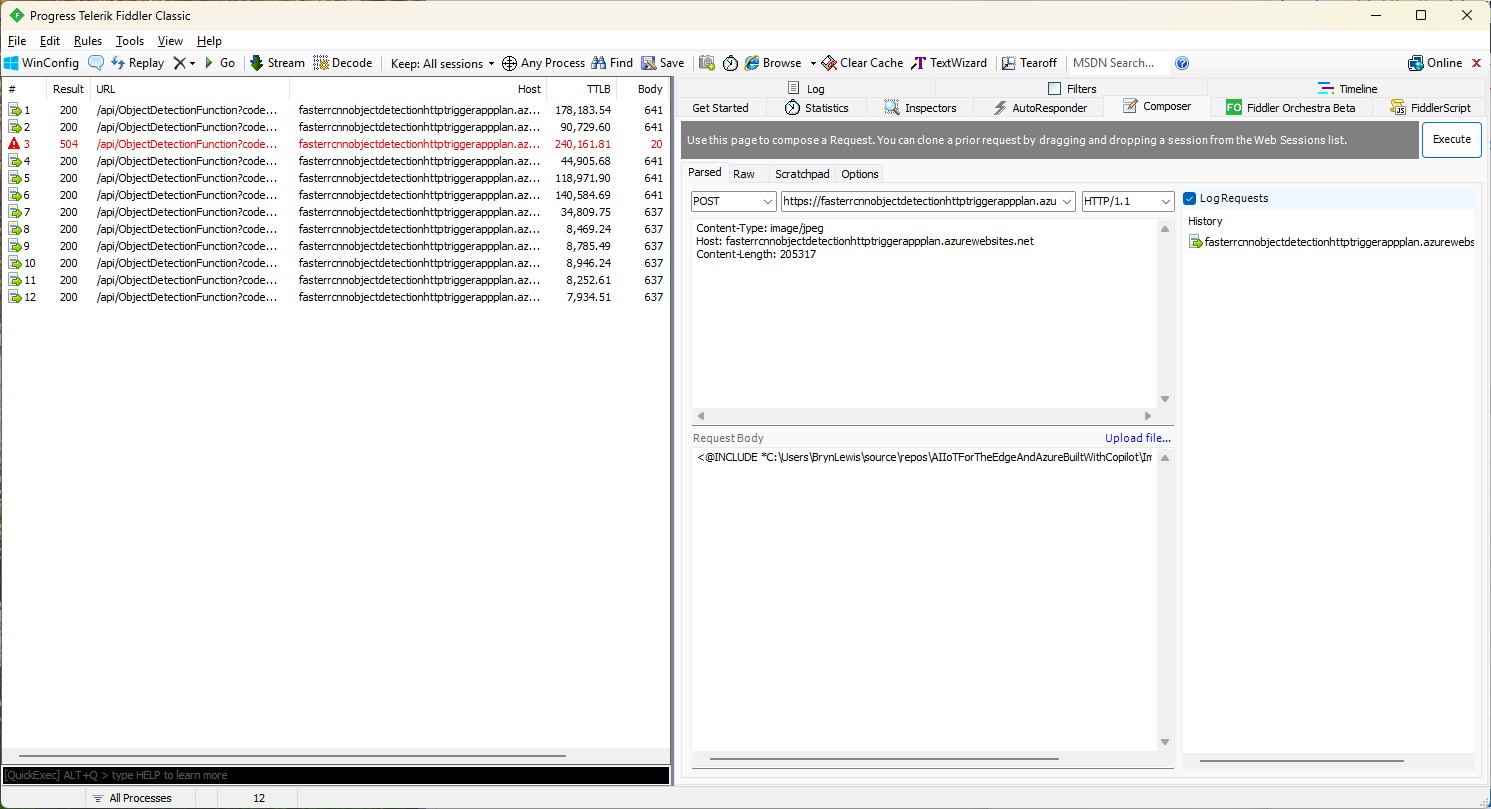
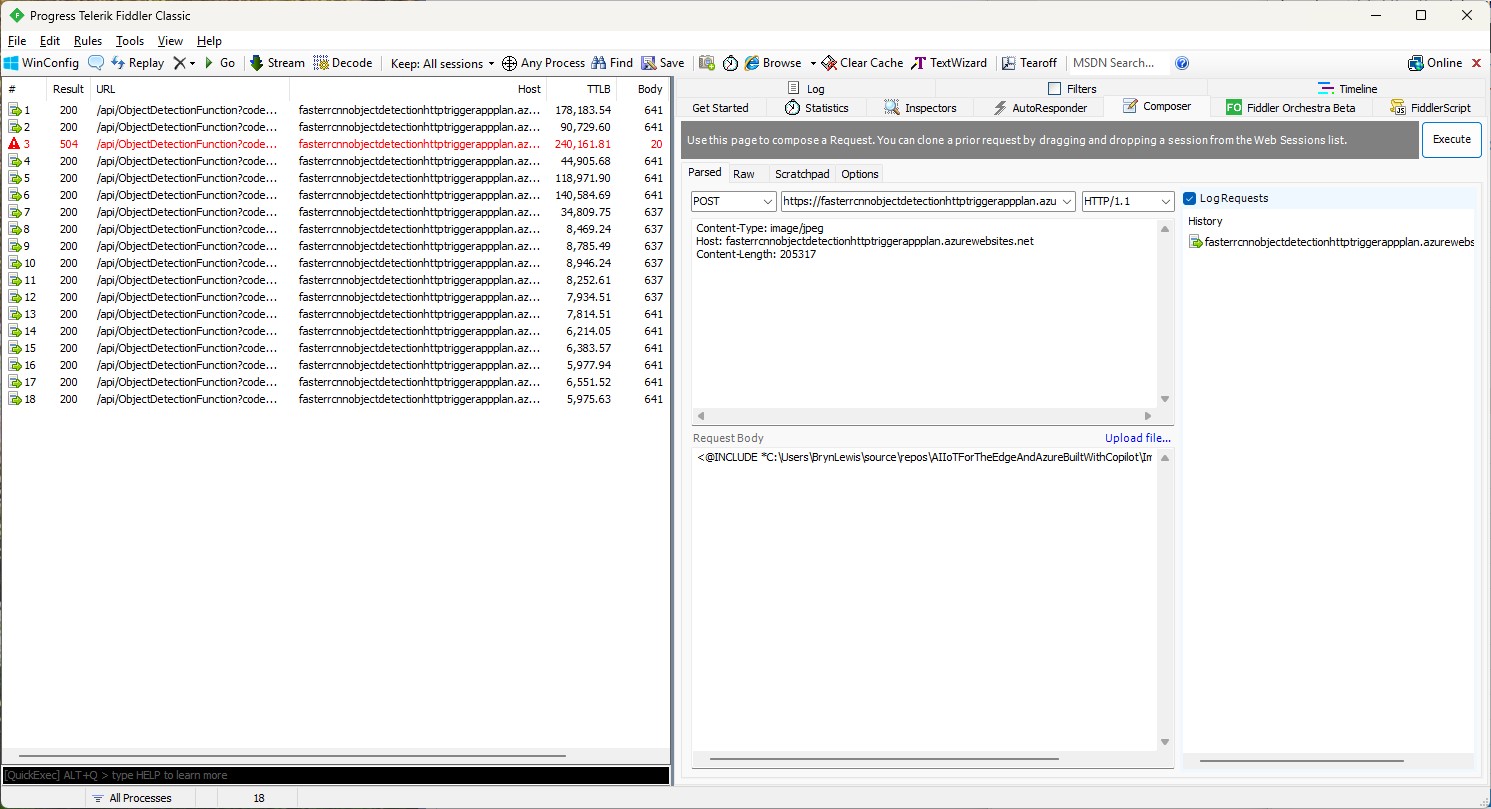
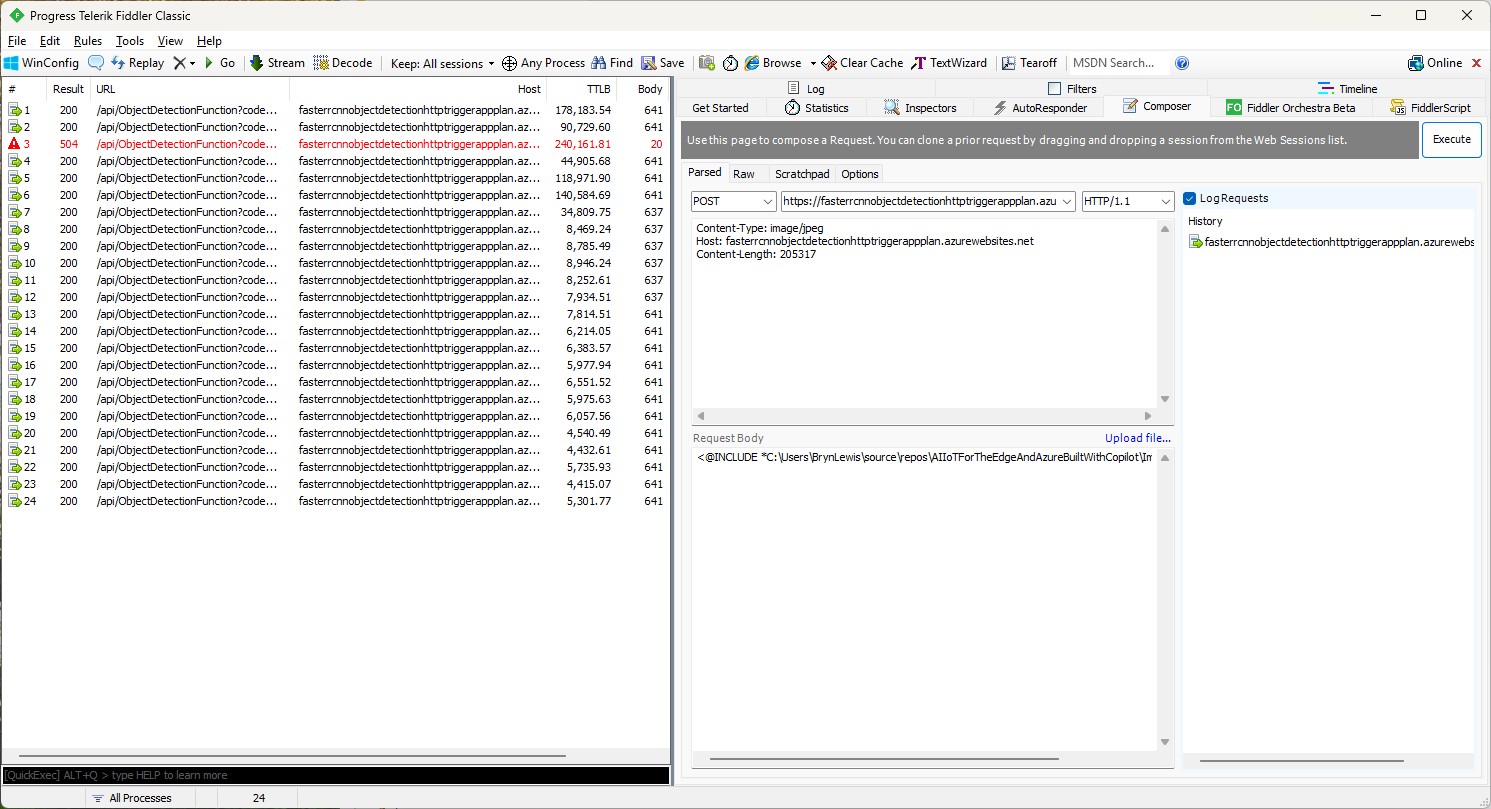
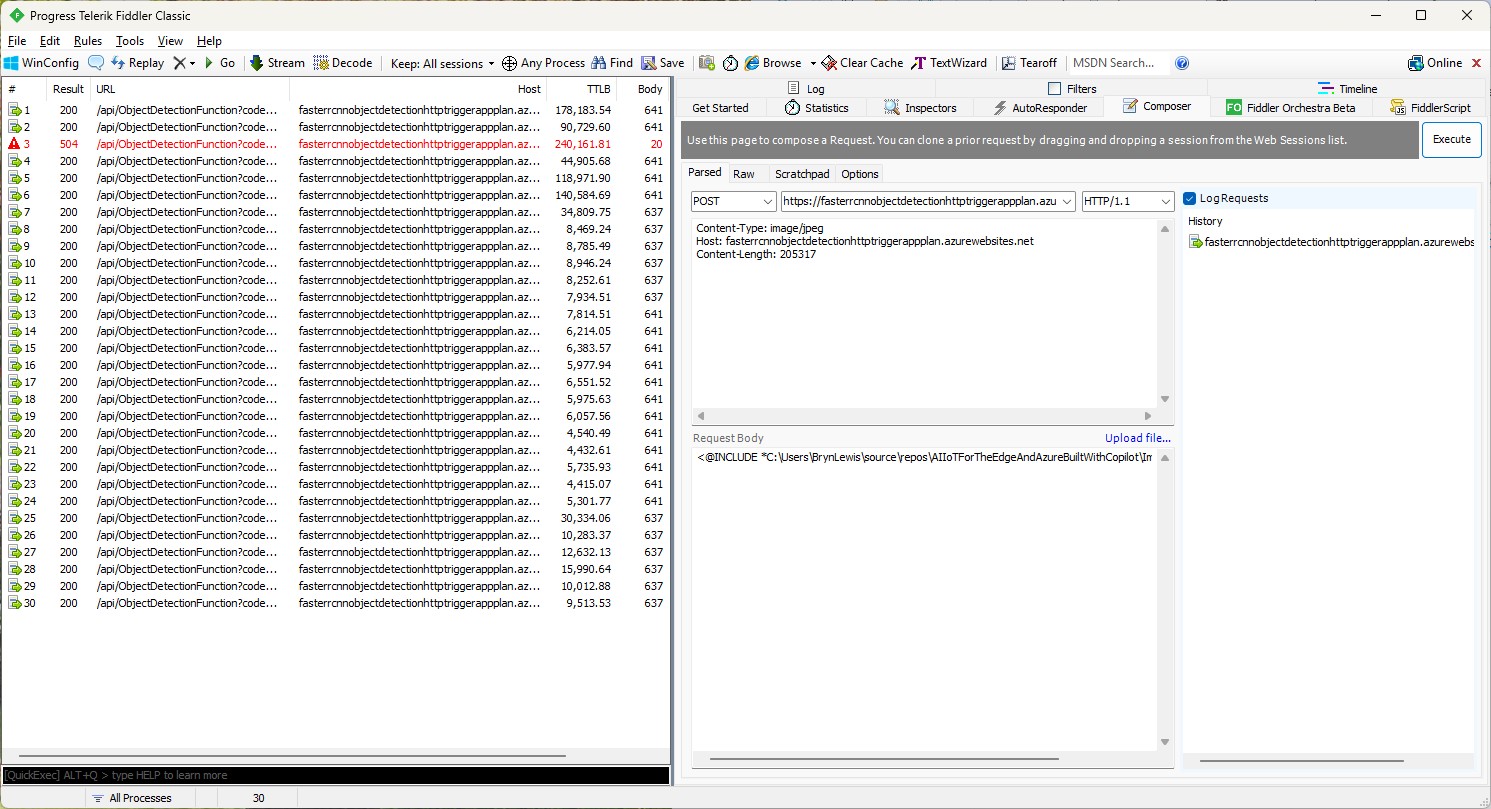
For my initial testing in the Azure Functions emulator using Fiddler Classic I manually generated 10 requests, then replayed them sequentially, and then finally concurrently.

The results for the manual, then sequential results were fairly consistent but the 10 concurrent requests each to took more than 10x longer. In addition, the CPU was at 100% usage while the concurrently executed functions were running.

Cloud Deployment

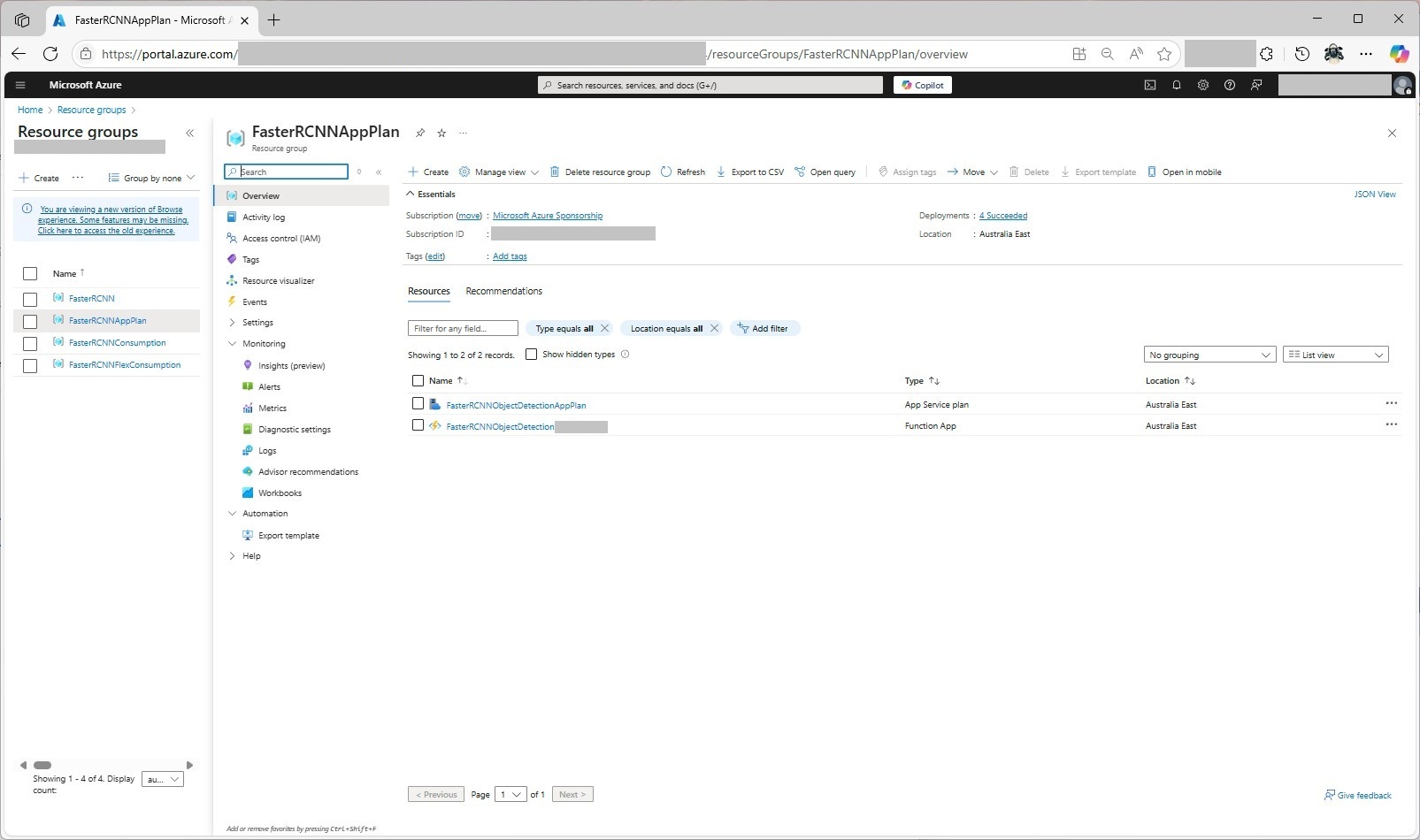
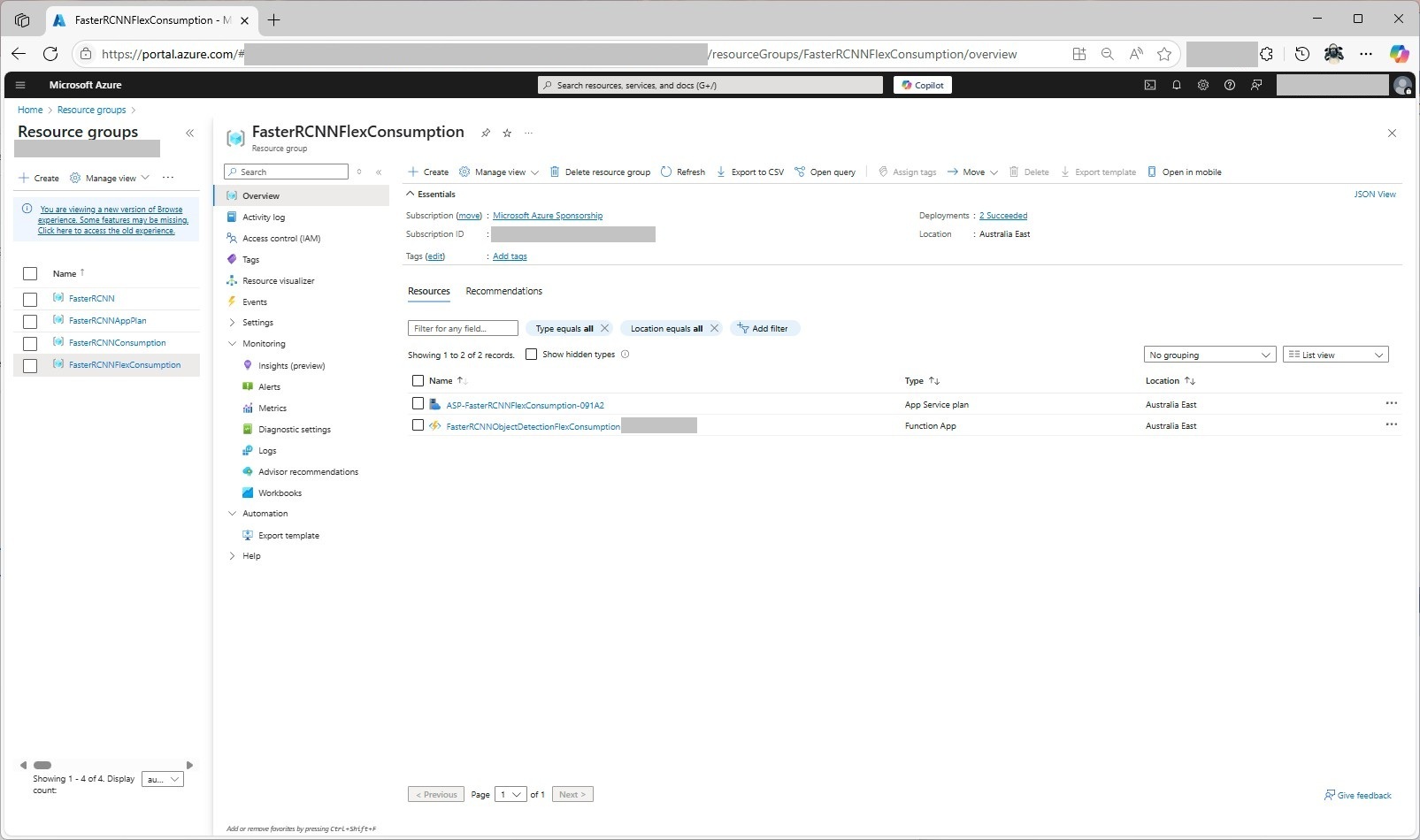
To see how the Faster R-CNN Azure HTTP Trigger function performed I created four resource groups.

The first contained resources used by the three different deployment models being tested

The second resource group was for testing a Dedicated hosting plan deployment.

The third resource group was for testing an Azure Functions Consumption plan hosting.

The fourth resource group was for testing Azure Functions Flex Consumption plan hosting.

Summary

The next couple of posts will compare and look at options for improving the “performance” (scalability, execution duration, latency, jitter, billing etc.) of the Github Copilot generated code.

Building Cloud AI with Copilot – Faster R-CNN Azure HTTP Function SKU Results

Introduction

While testing the FasterRCNNObjectDetectionHttpTrigger function with Telerik Fiddler Classic and my “standard” test image I noticed the response bodies were different sizes.

Initially the application plan was an S1 SKU (1 vCPU 1.75G RAM)

The output JSON was 641 bytes

[
  {
    "label": "person",
    "score": 0.9998331,
    "box": {
      "x1": 445.9223, "y1": 124.11987, "x2": 891.18915, "y2": 696.37164
    }
  },
  {
    "label": "person",
    "score": 0.9994991,
    "box": {
      "x1": 0, "y1": 330.16595, "x2": 471.0475, "y2": 761.35846
    }
  },
  {
    "label": "baseball bat",
    "score": 0.9952342,
    "box": { "x1": 869.8053, "y1": 336.96188, "x2": 1063.2261, "y2": 467.74136
    }
  },
  {
    "label": "sports ball",
    "score": 0.9945949,
    "box": { "x1": 1040.916, "y1": 372.41507, "x2": 1071.8958, "y2": 402.50424
    }
  },
  {
    "label": "baseball glove",
    "score": 0.9943546,
    "box": {
      "x1": 377.8922, "y1": 431.95053, "x2": 458.4937, "y2": 536.52124
    }
  },
  {
    "label": "person",
    "score": 0.51779467,
    "box": {
      "x1": 0, "y1": 239.91418, "x2": 60.342667, "y2": 397.17004
    }
  }
]

The application plan was scaled to a Premium v3 P0V3 (1 vCPU 4G RAM)

The output JSON was 637 bytes

[
  {
    "label": "person",
    "score": 0.9998332,
    "box": {
      "x1": 445.9223, "y1": 124.1199, "x2": 891.18915, "y2": 696.3716
    }
  },
  {
    "label": "person",
    "score": 0.9994991,
    "box": { "x1": 0, "y1": 330.16595, "x2": 471.0475, "y2": 761.35846
    }
  },
  {
    "label": "baseball bat",
    "score": 0.9952342,
    "box": {
      "x1": 869.8053, "y1": 336.9619, "x2": 1063.2261, "y2": 467.74133
    }
  },
  {
    "label": "sports ball",
    "score": 0.994595,
    "box": {
      "x1": 1040.916, "y1": 372.41507, "x2": 1071.8958, "y2": 402.50424
    }
  },
  {
    "label": "baseball glove",
    "score": 0.9943546,
    "box": {
      "x1": 377.8922, "y1": 431.95053, "x2": 458.4937, "y2": 536.52124
    }
  },
  {
    "label": "person",
    "score": 0.51779467,
    "box": {
      "x1": 0, "y1": 239.91418, "x2": 60.342667, "y2": 397.17004
    }
  }
]

The application plan was scaled to Premium v3 P1V3 (2 vCPU 8G RAM)

The output JSON was 641 bytes

[
  {
    "label": "person",
    "score": 0.9998331,
    "box": {
      "x1": 445.9223, "y1": 124.11987, "x2": 891.18915, "y2": 696.37164
    }
  },
  {
    "label": "person",
    "score": 0.9994991,
    "box": {
      "x1": 0, "y1": 330.16595, "x2": 471.0475, "y2": 761.35846
    }
  },
  {
    "label": "baseball bat",
    "score": 0.9952342,
    "box": {
      "x1": 869.8053, "y1": 336.96188, "x2": 1063.2261, "y2": 467.74136
    }
  },
  {
    "label": "sports ball",
    "score": 0.9945949,
    "box": {
      "x1": 1040.916, "y1": 372.41507, "x2": 1071.8958, "y2": 402.50424
    }
  },
  {
    "label": "baseball glove",
    "score": 0.9943546,
    "box": {
      "x1": 377.8922, "y1": 431.95053, "x2": 458.4937, "y2": 536.52124
    }
  },
  {
    "label": "person",
    "score": 0.51779467,
    "box": {
      "x1": 0, "y1": 239.91418, "x2": 60.342667, "y2": 397.17004
    }
  }
]

The application plan was scaled to a Premium v3 P2V3 (4 vCPU 16G RAM)

The output JSON was 641 bytes

[
  {
    "label": "person",
    "score": 0.9998331,
    "box": {
      "x1": 445.9223, "y1": 124.11987, "x2": 891.18915, "y2": 696.37164
    }
  },
  {
    "label": "person",
    "score": 0.9994991,
    "box": {
      "x1": 0, "y1": 330.16595, "x2": 471.0475, "y2": 761.35846
    }
  },
  {
    "label": "baseball bat",
    "score": 0.9952342,
    "box": {
      "x1": 869.8053, "y1": 336.96188, "x2": 1063.2261, "y2": 467.74136
    }
  },
  {
    "label": "sports ball",
    "score": 0.9945949,
    "box": {
      "x1": 1040.916, "y1": 372.41507, "x2": 1071.8958, "y2": 402.50424
    }
  },
  {
    "label": "baseball glove",
    "score": 0.9943546,
    "box": {
      "x1": 377.8922, "y1": 431.95053, "x2": 458.4937, "y2": 536.52124 }
  },
  {
    "label": "person",
    "score": 0.51779467,
    "box": {
      "x1": 0, "y1": 239.91418, "x2": 60.342667, "y2": 397.17004
    }
  }
]

The application plan was scaled to a Premium v2 P1V2 (1vCPU 3.5G)

The output JSON was 637 bytes

[
  {
    "label": "person",
    "score": 0.9998332,
    "box": {
      "x1": 445.9223, "y1": 124.1199, "x2": 891.18915, "y2": 696.3716
    }
  },
  {
    "label": "person",
    "score": 0.9994991,
    "box": {
      "x1": 0, "y1": 330.16595, "x2": 471.0475, "y2": 761.35846
    }
  },
  {
    "label": "baseball bat",
    "score": 0.9952342,
    "box": {
      "x1": 869.8053, "y1": 336.9619, "x2": 1063.2261, "y2": 467.74133
    }
  },
  {
    "label": "sports ball",
    "score": 0.994595,
    "box": {
      "x1": 1040.916, "y1": 372.41507, "x2": 1071.8958, "y2": 402.50424
    }
  },
  {
    "label": "baseball glove",
    "score": 0.9943546,
    "box": {
      "x1": 377.8922, "y1": 431.95053, "x2": 458.4937, "y2": 536.52124
    }
  },
  {
    "label": "person",
    "score": 0.51779467,
    "box": {
      "x1": 0, "y1": 239.91418, "x2": 60.342667, "y2": 397.17004
    }
  }
]

Summary

The differences between the 637 & 641were small

Not certain why this could happen currently best guess is memory pressure.

Building Cloud AI with Copilot – Faster R-CNN Azure HTTP Function “Dog Food”

Introduction

A couple of months ago a web crawler visited every page on my website (would be interesting to know if my Github repositories were crawled as well) and I wondered if this might impact my Copilot or Github Copilot experiments. My blogging about The Azure HTTP Trigger functions with Ultralytics Yolo, YoloSharp, Resnet, Faster R-CNN, with Open Neural Network Exchange(ONNX) etc. is fairly “niche” so any improvements in the understanding of the problems and generated code might be visible.

please write an httpTrigger azure function that uses Faster RCNN and ONNX to detect the object in an image uploaded in the body of an HTTP Post

Github Copilot had used Sixlabors ImageSharp, the ILogger was injected into the constructor, the code checked that the image was in the body of the HTTP POST and the object classes were loaded from a text file. I had to manually add some Nugets and using directives before the code compiled and ran in the emulator, but this was a definite improvement.

To test the implementation, I was using Telerik Fiddler Classic to HTTP POST my “standard” test image to function.

Github Copilot had generated code that checked that the image was in the body of the HTTP POST so I had to modify the Telerik Fiddler Classic request.

I also had to fix up the content-type header

The path to the onnx file was wrong and I had to create a labels.txt file from Python code.

The Azure HTTP Trigger function ran but failed because the preprocessing of the image didn’t implement the specified preprocess steps.

Change DenseTensor to BGR (based on https://github.com/onnx/models/tree/main/validated/vision/object_detection_segmentation/faster-rcnn#preprocessing-steps)

Normalise colour values with mean = [102.9801, 115.9465, 122.7717]

The Azure HTTP Trigger function ran but failed because the output tensor names were incorrect

I used Netron to inspect the model properties to get the correct names for the output tensors

I had a couple of attempts at resizing the image to see what impact this had on the accuracy of the confidence and minimum bounding rectangles.

resize the image such that both height and width are within the range of [800, 1333], and then pad the image with zeros such that both height and width are divisible by 32.

modify the code to resize the image such that both height and width are within the range of [800, 1333], and then pad the image with zeros such that both height and width are divisible by 32 and the aspect ratio is not changed.

The final version of the image processing code scaled then right padded the image to keep the aspect ratio and MBR coordinates correct.

As a final test I deployed the code to Azure and the first time I ran the function it failed because the labels file couldn’t be found because Unix file paths are case sensitive (labels.txt vs. Labels.txt).

The inferencing time was a bit longer than I expected.

// please write an httpTrigger azure function that uses Faster RCNN and ONNX to detect the object in an image uploaded in the body of an HTTP Post
//    manually added the ML.Net ONNX NuGet + using directives
//    manually added the ImageSharp NuGet + using directives
//    Used Copilot to add Microsoft.ML.OnnxRuntime.Tensors using directive
//    Manually added ONNX FIle + labels file sorted out paths
//    Used Netron to fixup output tensor names
// Change DenseTensor to BGR (based on https://github.com/onnx/models/tree/main/validated/vision/object_detection_segmentation/faster-rcnn#preprocessing-steps)
// Normalise colour values with mean = [102.9801, 115.9465, 122.7717]
// resize the image such that both height and width are within the range of [800, 1333], and then pad the image with zeros such that both height and width are divisible by 32.
// modify the code to resize the image such that both height and width are within the range of [800, 1333], and then pad the image with zeros such that both height and width are divisible by 32 and the aspect ratio is not changed.
using Microsoft.AspNetCore.Http;
using Microsoft.AspNetCore.Mvc;
using Microsoft.Azure.Functions.Worker;
using Microsoft.Extensions.Logging;
using Microsoft.ML.OnnxRuntime;
using Microsoft.ML.OnnxRuntime.Tensors;
using SixLabors.ImageSharp; // Couldn't get inteliisense after adding NuGet package
using SixLabors.ImageSharp.PixelFormats; // Couldn't get inteliisense after adding NuGet package
using SixLabors.ImageSharp.Processing; // Couldn't get inteliisense after adding NuGet package


namespace FasterRCNNObjectDetectionHttpTriggerGithubCopilot
{
   public class Function1
   {
      private readonly ILogger<Function1> _logger;
      private readonly InferenceSession _session;
      private readonly List<string> _labels;

      public Function1(ILogger<Function1> logger)
      {
         _logger = logger;
         _session = new InferenceSession("FasterRCNN-10.onnx");
         _labels = File.ReadAllLines("labels.txt").ToList();
      }

      [Function("ObjectDetectionFunction")]
      public async Task<IActionResult> Run([HttpTrigger(AuthorizationLevel.Function, "post", Route = null)] HttpRequest req)
      {
         if (!req.ContentType.StartsWith("image/"))
            return new BadRequestObjectResult("Content-Type must be an image.");

         using var ms = new MemoryStream();
         await req.Body.CopyToAsync(ms);
         ms.Position = 0;

         using var image = Image.Load<Rgb24>(ms);
         var inputTensor = PreprocessImage(image);

         var inputs = new List<NamedOnnxValue>
                  {
                      NamedOnnxValue.CreateFromTensor("image", inputTensor)
                  };

         using IDisposableReadOnlyCollection<DisposableNamedOnnxValue> results = _session.Run(inputs);
         var output = results.ToDictionary(x => x.Name, x => x.Value);

         var boxes = (DenseTensor<float>)output["6379"];
         var labels = (DenseTensor<long>)output["6381"];
         var scores = (DenseTensor<float>)output["6383"];

         var detections = new List<object>();
         for (int i = 0; i < scores.Length; i++)
         {
            if (scores[i] > 0.5)
            {
               detections.Add(new
               {
                  label = _labels[(int)labels[i]],
                  score = scores[i],
                  box = new
                  {
                     x1 = boxes[i, 0],
                     y1 = boxes[i, 1],
                     x2 = boxes[i, 2],
                     y2 = boxes[i, 3]
                  }
               });
            }
         }

         return new OkObjectResult(detections);
      }

      private static DenseTensor<float> PreprocessImage( Image<Rgb24> image)
      {
         // Step 1: Resize so that min(H, W) = 800, max(H, W) <= 1333, keeping aspect ratio
         int origWidth = image.Width;
         int origHeight = image.Height;
         int minSize = 800;
         int maxSize = 1333;

         float scale = Math.Min((float)minSize / Math.Min(origWidth, origHeight),
                                (float)maxSize / Math.Max(origWidth, origHeight));
         /*
         float scale = 1.0f;

         // If either dimension is less than 800, scale up so the smaller is 800
         if (origWidth < minSize || origHeight < minSize)
         {
            scale = Math.Max((float)minSize / origWidth, (float)minSize / origHeight);
         }
         // If either dimension is greater than 1333, scale down so the larger is 1333
         if (origWidth * scale > maxSize || origHeight * scale > maxSize)
         {
            scale = Math.Min((float)maxSize / origWidth, (float)maxSize / origHeight);
         }
         */

         int resizedWidth = (int)Math.Round(origWidth * scale);
         int resizedHeight = (int)Math.Round(origHeight * scale);

         image.Mutate(x => x.Resize(resizedWidth, resizedHeight));

         // Step 2: Pad so that both dimensions are divisible by 32
         int padWidth = ((resizedWidth + 31) / 32) * 32;
         int padHeight = ((resizedHeight + 31) / 32) * 32;

         var paddedImage = new Image<Rgb24>(padWidth, padHeight);
         paddedImage.Mutate(ctx => ctx.DrawImage(image, new Point(0, 0), 1f));

         // Step 3: Convert to BGR and normalize
         float[] mean = { 102.9801f, 115.9465f, 122.7717f };
         var tensor = new DenseTensor<float>(new[] { 3, padHeight, padWidth });

         for (int y = 0; y < padHeight; y++)
         {
            for (int x = 0; x < padWidth; x++)
            {
               Rgb24 pixel = default;
               if (x < resizedWidth && y < resizedHeight)
                  pixel = paddedImage[x, y];

               tensor[0, y, x] = pixel.B - mean[0];
               tensor[1, y, x] = pixel.G - mean[1];
               tensor[2, y, x] = pixel.R - mean[2];
            }
         }

         paddedImage.Dispose();
         return tensor;
      }
   }
}

It took roughly an hour to “vibe code” the function, but it would have taken much longer for someone not familiar with the problem domain.

Summary

The Github Copilot generated code was okay but would be fragile, performance would suck and not scale terribly well.

The Copilot generated code in this post is not suitable for production

Building Cloud AI with Copilot – ResNet50 Azure HTTP Function

Introduction

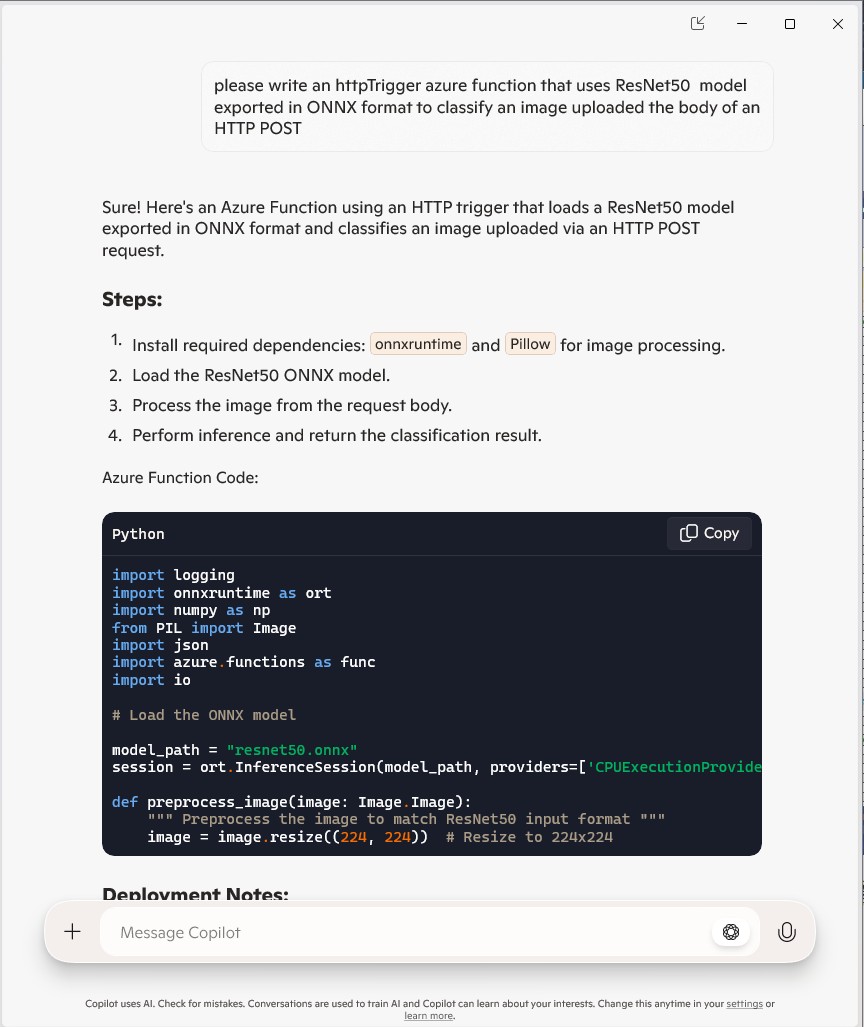
This is another awfully long post about my experience using Copilot to write an Azure HTTP Trigger function that runs a resnet50 V2.7 Open Neural Network Exchange model(ONNX) on an image in the body of the HTTP POST.

For testing I was uploading the images with Telerik Fiddler Classic.

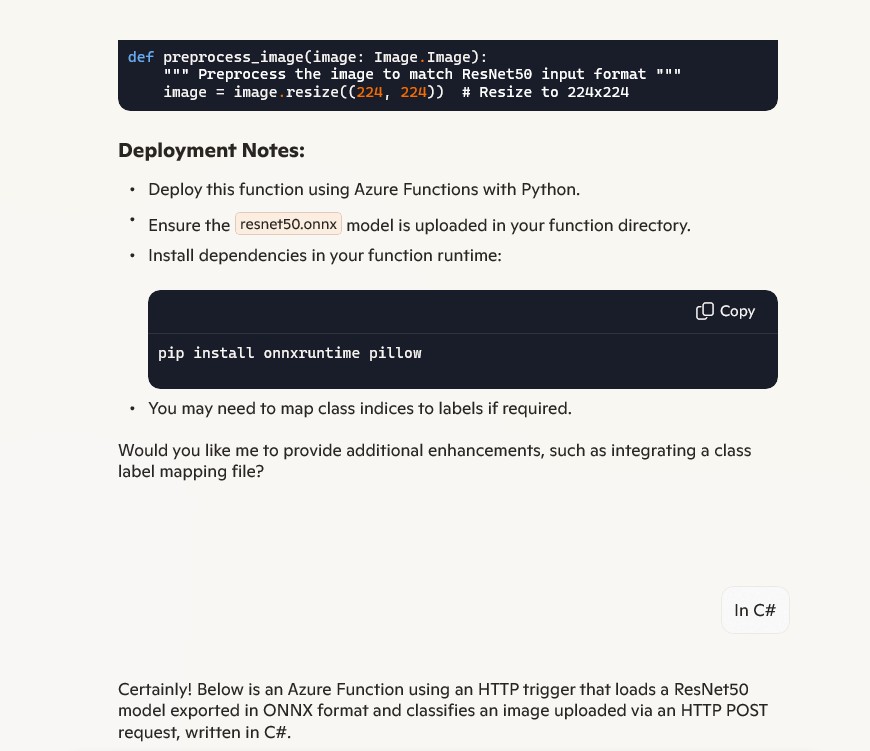
I forgot to specify language, so Copilot assumed (reasonably) that I wanted a Python Azure HTTP Trigger function.

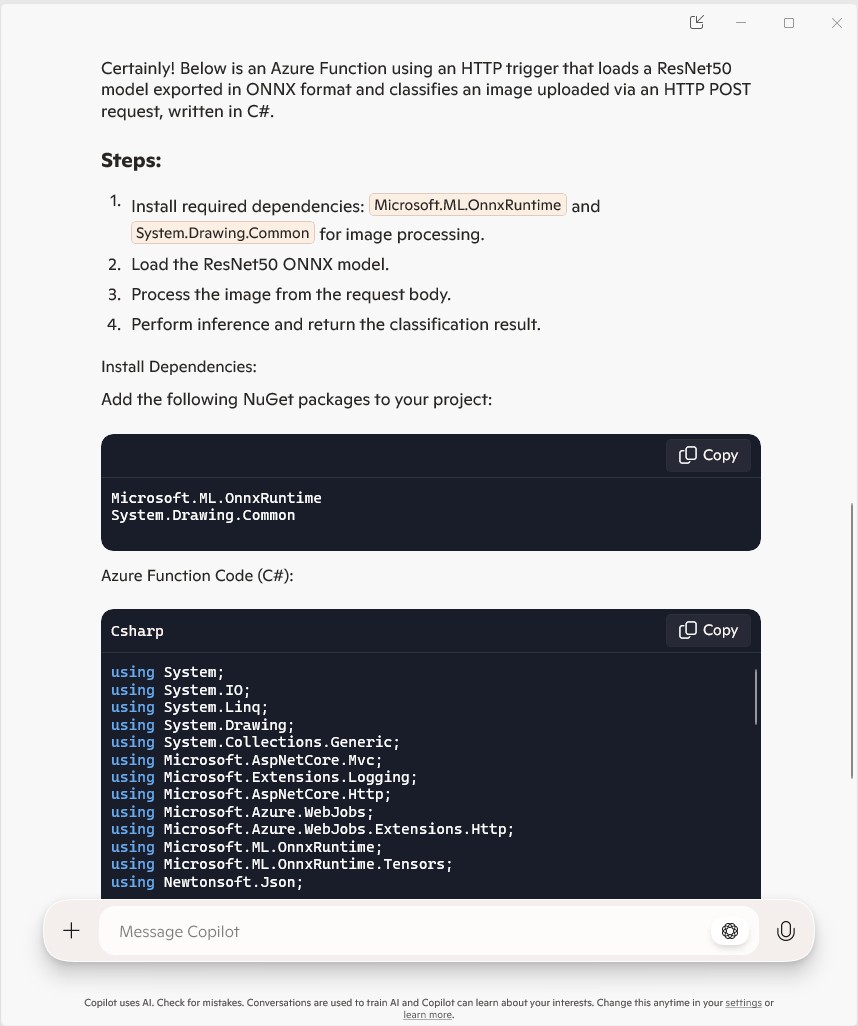
The initial C# version wouldn’t compile because of the FunctionName attribute which is used for in-process Azure Functions. It did seem a bit odd that Copilot would generate code that support will end for November 10, 2026

public static class Function1
{
   private static readonly InferenceSession session = new InferenceSession("resnet50.onnx");

   [FunctionName("ImageClassification")]
   public static IActionResult Run(
       [HttpTrigger(AuthorizationLevel.Function, "post")] HttpRequest req,
       ILogger log)
   {
      log.LogInformation("Processing image classification request...");

      try
      {
         using var ms = new MemoryStream();
         req.Body.CopyTo(ms);
         using var image = Image.FromStream(ms);

         var inputTensor = PreprocessImage(image);

         var inputName = session.InputMetadata.Keys.First();
         var outputName = session.OutputMetadata.Keys.First();
         var result = session.Run(new Dictionary<string, NamedOnnxValue>
            {
                { inputName, NamedOnnxValue.CreateFromTensor(inputName, inputTensor) }
            });

         var predictions = result.First().AsTensor<float>().ToArray();

         return new JsonResult(new { predictions });
      }
      catch (Exception ex)
      {
         log.LogError($"Error: {ex.Message}");
         return new BadRequestObjectResult("Invalid image or request.");
      }
   }
...
}

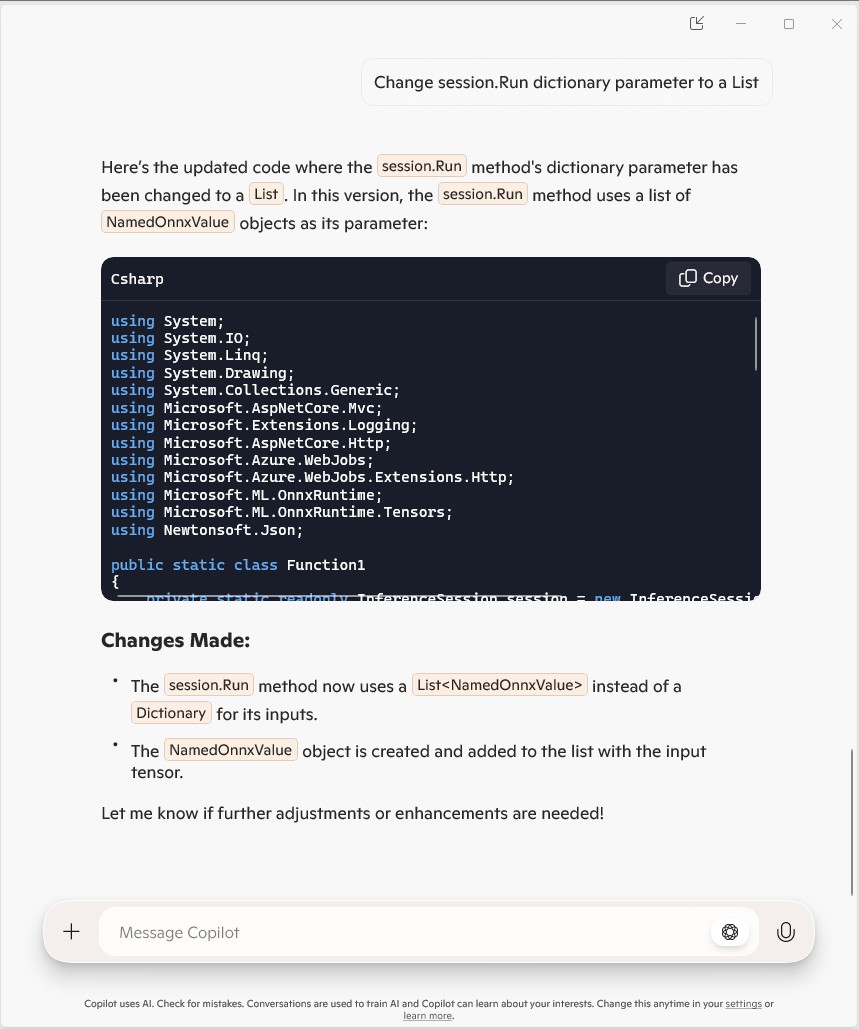
It was just easier to change the FunctionName attribute manually.

public static class Function1
{
   private static readonly InferenceSession session = new InferenceSession("resnet50.onnx");

   [Function("ImageClassification")]
   public static IActionResult Run(
       [HttpTrigger(AuthorizationLevel.Function, "post")] HttpRequest req,
       ILogger log)
   {
      log.LogInformation("Processing image classification request...");

      try
      {
         using var ms = new MemoryStream();
         req.Body.CopyTo(ms);
         using var image = Image.FromStream(ms);

         var inputTensor = PreprocessImage(image);

         var inputName = session.InputMetadata.Keys.First();
         var outputName = session.OutputMetadata.Keys.First();
         var inputList = new List<NamedOnnxValue>
            {
                NamedOnnxValue.CreateFromTensor(inputName, inputTensor)
            };

         var result = session.Run(inputList);

         var predictions = result.First().AsTensor<float>().ToArray();

         return new JsonResult(new { predictions });
      }
      catch (Exception ex)
      {
         log.LogError($"Error: {ex.Message}");
         return new BadRequestObjectResult("Invalid image or request.");
      }
   }

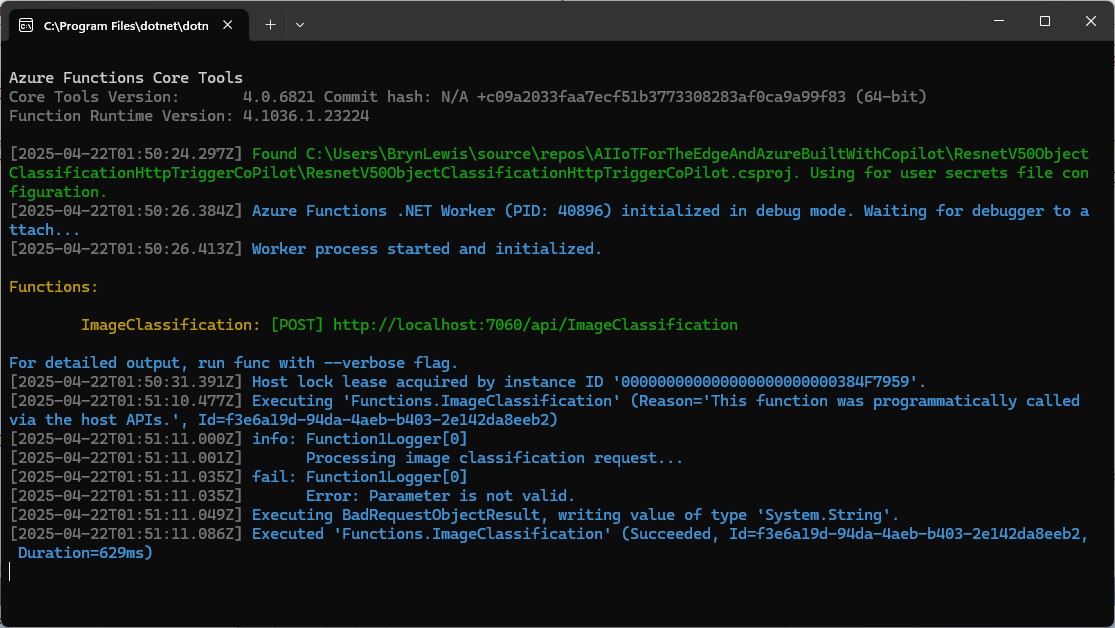
The Azure HTTP Trigger function ran but failed when I tried to classify an image

The initialisation of the ILogger injected into the Run method was broken so I used Copilot to update the code to use constructor Dependency Injection (DI).

public static class Function1
{
   private static readonly ILogger logger;
   private static readonly InferenceSession session = new InferenceSession("resnet50-v2-7.onnx");

   // Static constructor to initialize logger
   static Function1()
   {
      var loggerFactory = LoggerFactory.Create(builder =>
      {
         builder.AddConsole();
      });
      logger = loggerFactory.CreateLogger("Function1Logger");
   }

   [Function("ImageClassification")]
   public static IActionResult Run([HttpTrigger(AuthorizationLevel.Function, "post")] HttpRequest req)
   {
      logger.LogInformation("Processing image classification request...");

      try
      {
         using var ms = new MemoryStream();
         req.Body.CopyTo(ms);
         using var image = Image.FromStream(ms);

         var inputTensor = PreprocessImage(image);

         var inputName = session.InputMetadata.Keys.First();
         var outputName = session.OutputMetadata.Keys.First();
         var inputList = new List<NamedOnnxValue>
            {
                NamedOnnxValue.CreateFromTensor(inputName, inputTensor)
            };

         var result = session.Run(inputList);

         var predictions = result.First().AsTensor<float>().ToArray();

         return new JsonResult(new { predictions });
      }
      catch (Exception ex)
      {
         logger.LogError($"Error: {ex.Message}");
         return new BadRequestObjectResult("Invalid image or request.");
      }
   }
...
}

It was a bit odd that Copilot generated a static function and constructor unlike the equivalent YoloSharp Azure HTTP Trigger.

The Azure HTTP Trigger function ran but failed when I tried to classify an image

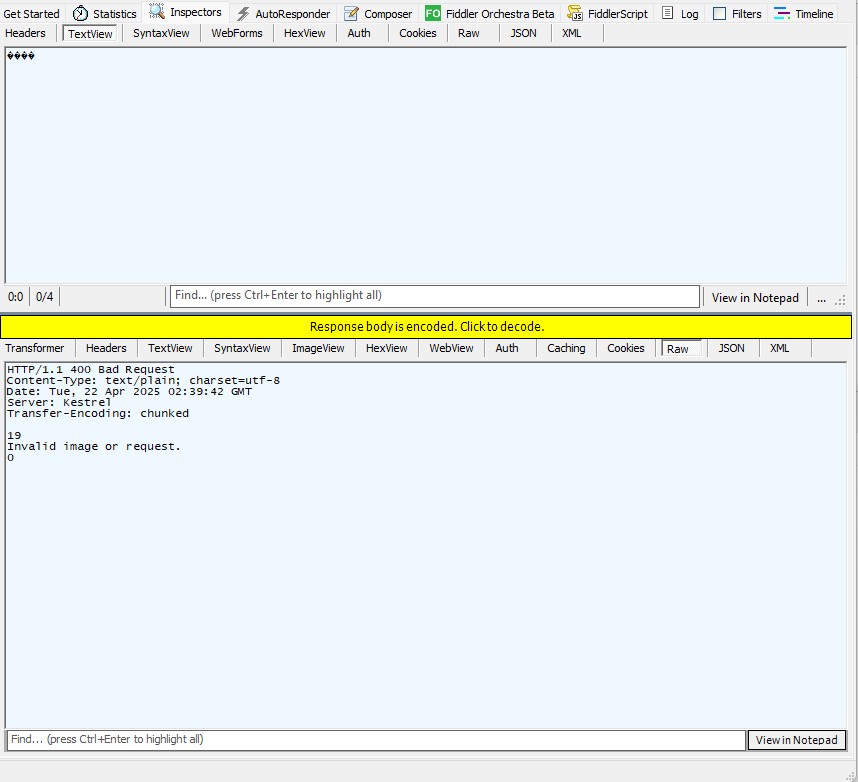
The Azure HTTP Trigger function ran but failed with a 400 Bad Request when I tried to classify an image

After some debugging I realised that Telerik Fiddle Classic was sending the image as form data so I modified the “composer” payload configuration.

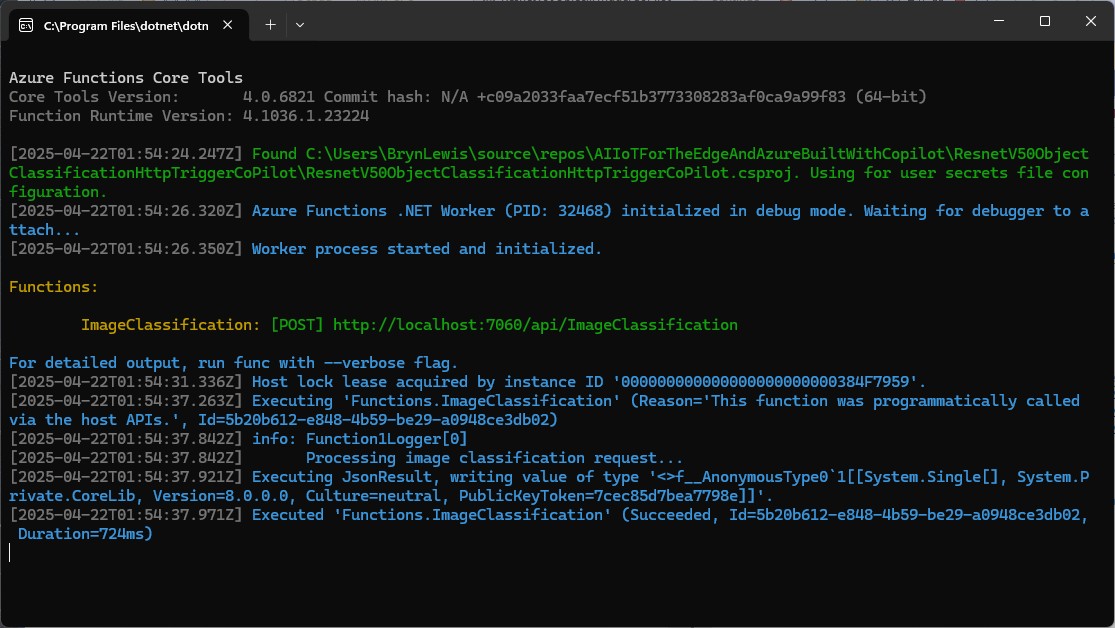
Then the Azure HTTP Trigger function ran but the confidence values were wrong.

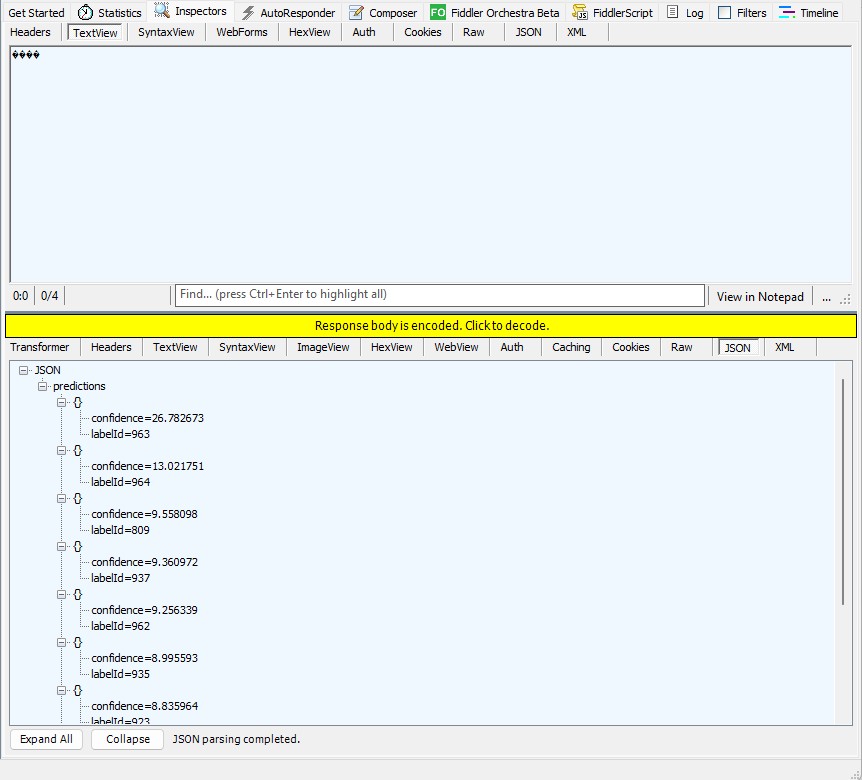
The confidence values were incorrect, so I checked the ResNet50 pre-processing instructions

The image needs to be preprocessed before fed to the network. The first step is to extract a 224x224 crop from the center of the image. For this, the image is first scaled to a minimum size of 256x256, while keeping aspect ratio. That is, the shortest side of the image is resized to 256 and the other side is scaled accordingly to maintain the original aspect ratio. After that, the image is normalized with mean = 255*[0.485, 0.456, 0.406] and std = 255*[0.229, 0.224, 0.225]. Last step is to transpose it from HWC to CHW layout.
 private static Tensor<float> PreprocessImage(Image image)
 {
    var resized = new Bitmap(image, new Size(224, 224));
    var tensorData = new float[1 * 3 * 224 * 224];

    float[] mean = { 0.485f, 0.456f, 0.406f };
    float[] std = { 0.229f, 0.224f, 0.225f };

    for (int y = 0; y < 224; y++)
    {
       for (int x = 0; x < 224; x++)
       {
          var pixel = resized.GetPixel(x, y);

          tensorData[(0 * 3 * 224 * 224) + (0 * 224 * 224) + (y * 224) + x] = (pixel.R / 255.0f - mean[0]) / std[0];
          tensorData[(0 * 3 * 224 * 224) + (1 * 224 * 224) + (y * 224) + x] = (pixel.G / 255.0f - mean[1]) / std[1];
          tensorData[(0 * 3 * 224 * 224) + (2 * 224 * 224) + (y * 224) + x] = (pixel.B / 255.0f - mean[2]) / std[2];
       }
    }

    return new DenseTensor<float>(tensorData, new[] { 1, 3, 224, 224 });
 }

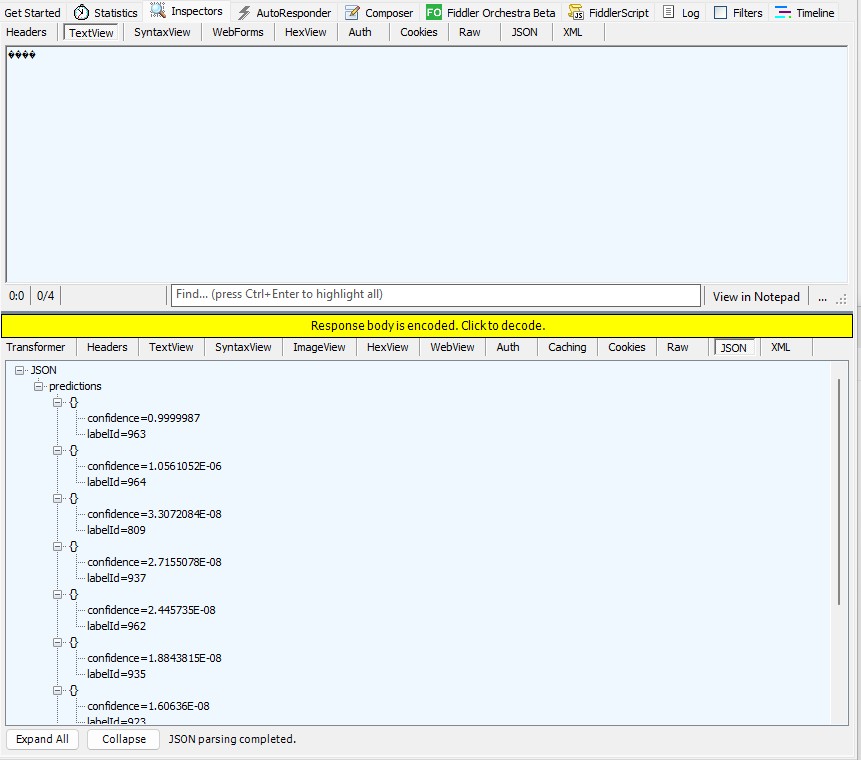
When the “normalisation” code was implemented and the Azure HTTP Trigger function run the confidence values were still incorrect.

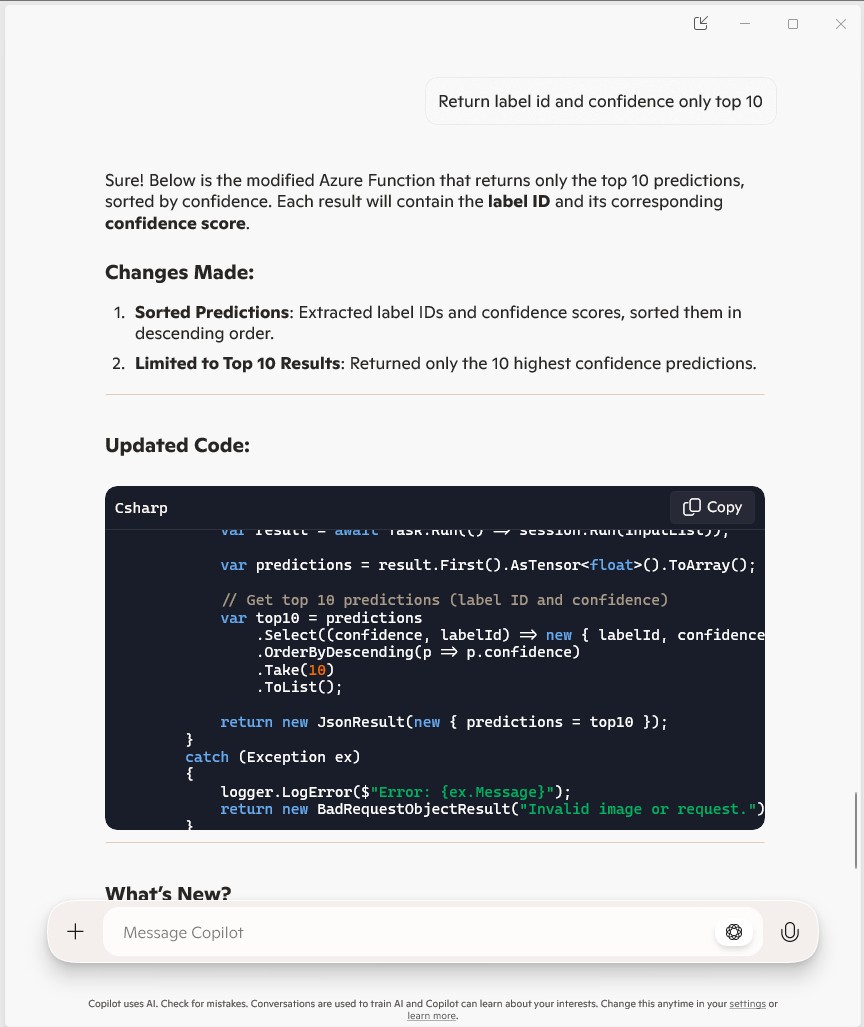
The Azure HTTP Trigger function was working reliably but the number of results and size response payload was unnecessary.

The Azure HTTP Trigger function ran but the confidence values were still incorrect, so I again checked the ResNet50 post-processing instructions

Postprocessing
The post-processing involves calculating the softmax probability scores for each class. You can also sort them to report the most probable classes. Check imagenet_postprocess.py for code.
 // Compute exponentials for all scores
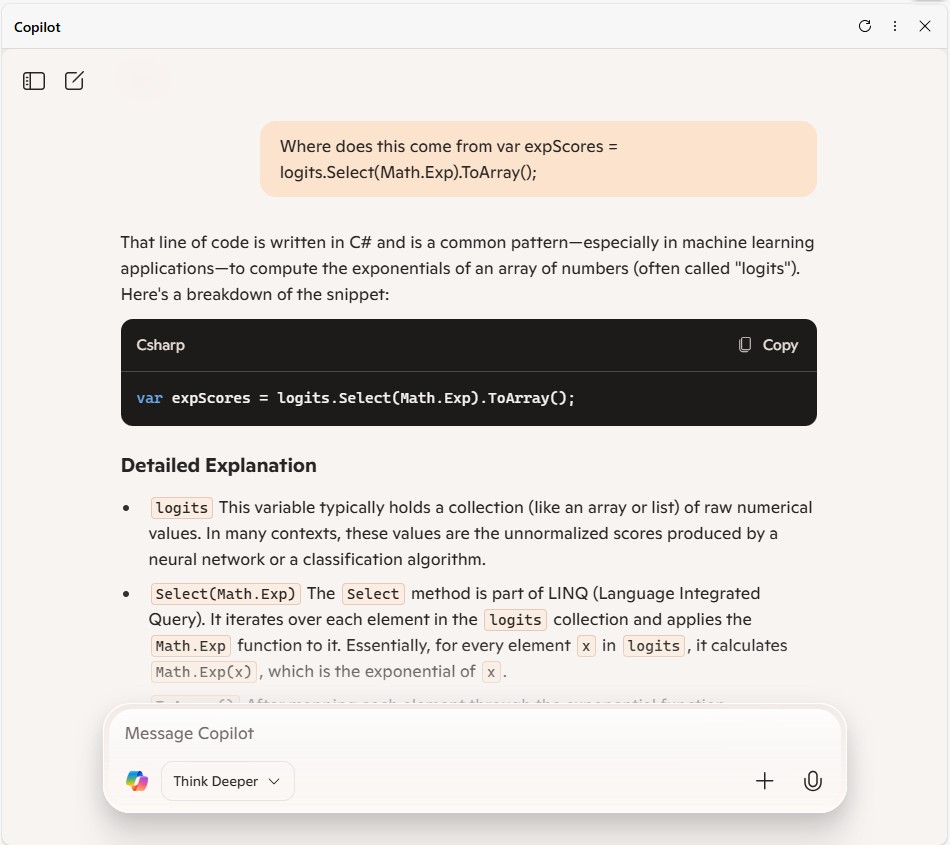
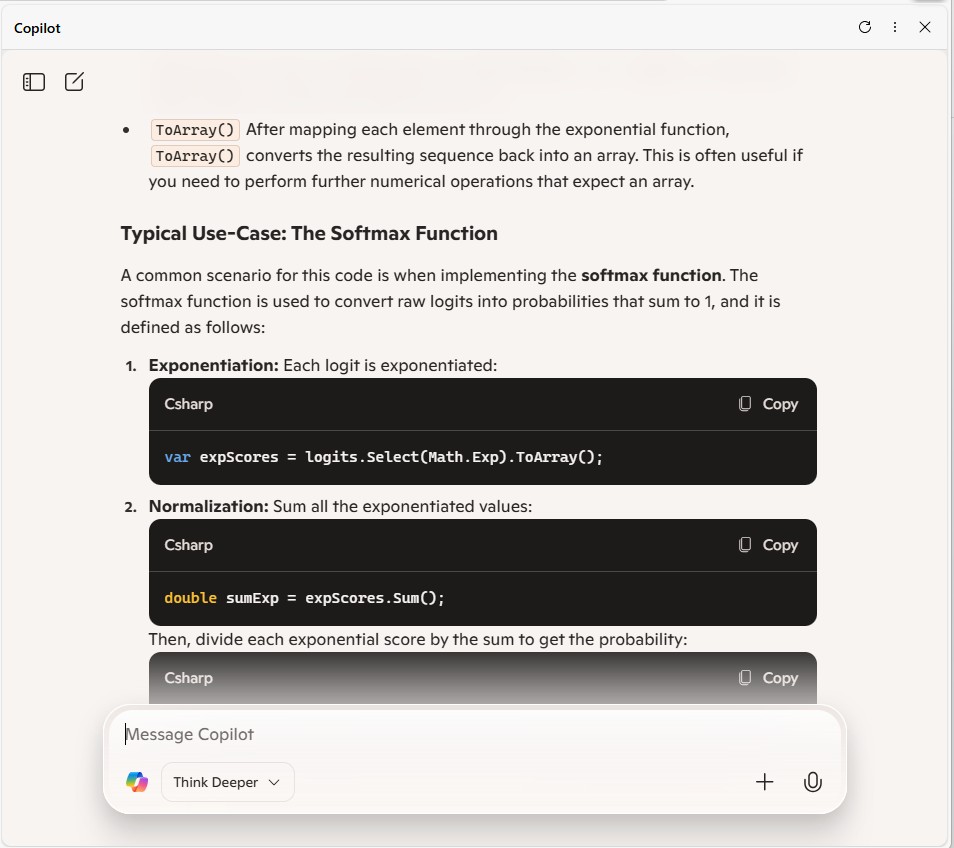
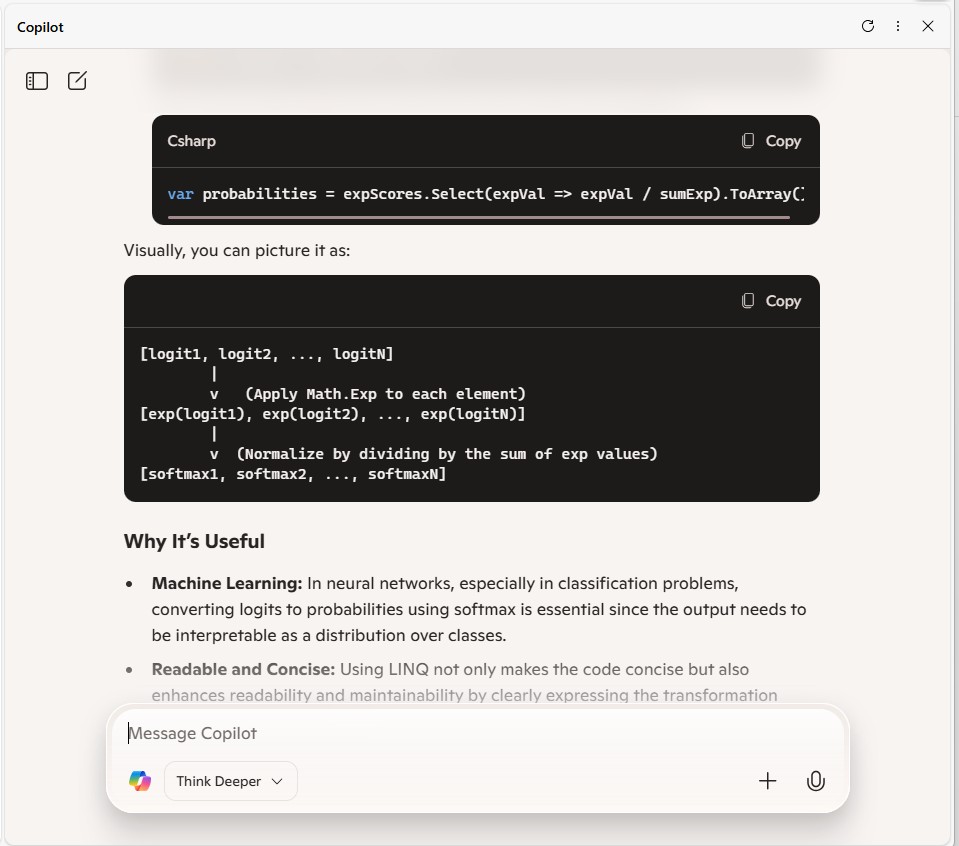
 var expScores = predictions.Select(MathF.Exp).ToArray();

 // Compute sum of exponentials
 float sumExpScores = expScores.Sum();

 // Normalize scores into probabilities
 var softmaxResults = expScores.Select(score => score / sumExpScores).ToArray();

 // Get top 10 predictions (label ID and confidence)
 var top10 = softmaxResults
     .Select((confidence, labelId) => new { labelId, confidence, label = labelId < labels.Count ? labels[labelId] : $"Unknown-{labelId}" })
     .OrderByDescending(p => p.confidence)
     .Take(10)
     .ToList();

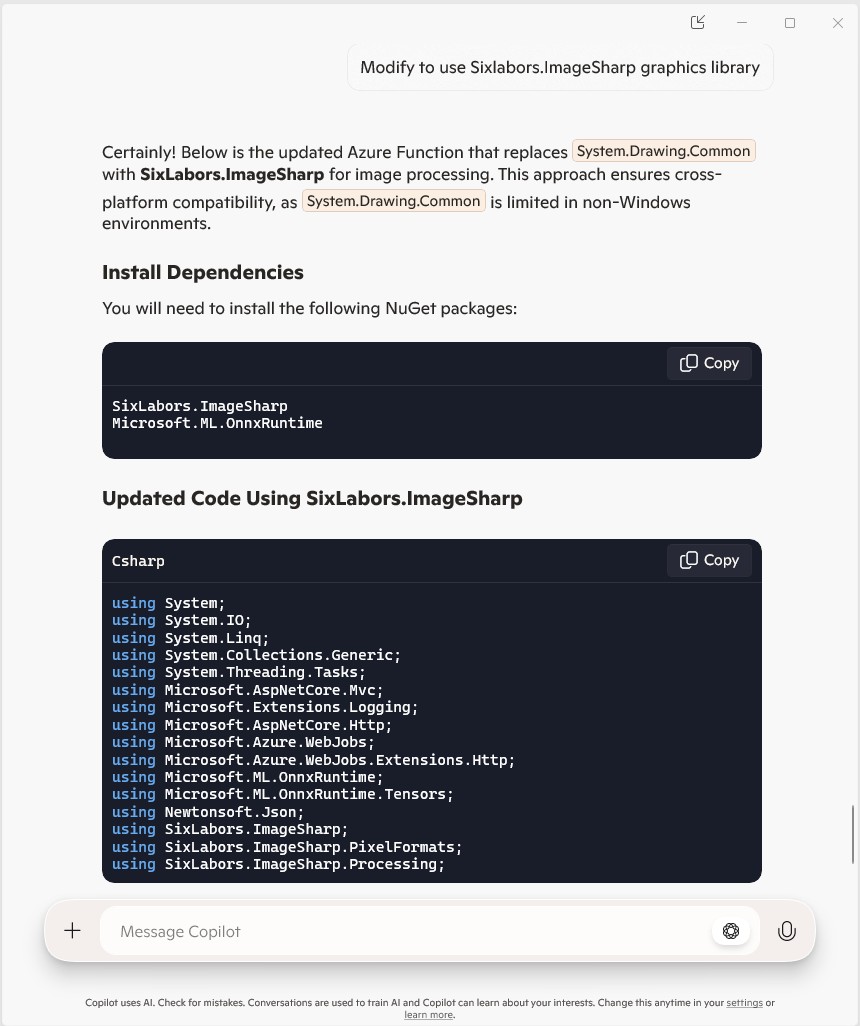
The Azure HTTP Trigger function should run on multiple platforms so System.Drawing.Comon had to be replaced with Sixlabors ImageSharp

The Azure HTTP Trigger function ran but the Sixlabors ImageSharp based image classification failed.

After some debugging I realised that the MemoryStream used to copy the HTTPRequest body was not being reset.

[Function("ImageClassification")]
public static async Task<IActionResult> Run(
    [HttpTrigger(AuthorizationLevel.Function, "post")] HttpRequest req)
{
   logger.LogInformation("Processing image classification request...");

   try
   {
      using var ms = new MemoryStream();
      await req.Body.CopyToAsync(ms);

      ms.Seek(0, SeekOrigin.Begin);

      using var image = Image.Load<Rgb24>(ms);

      var inputTensor = PreprocessImage(image);
...   
   }
   catch (Exception ex)
   {
      logger.LogError($"Error: {ex.Message}");
      return new BadRequestObjectResult("Invalid image or request.");
   }
}

The odd thing was the confidence values changed slightly when the code was modified to use Sixlabors ImageSharp

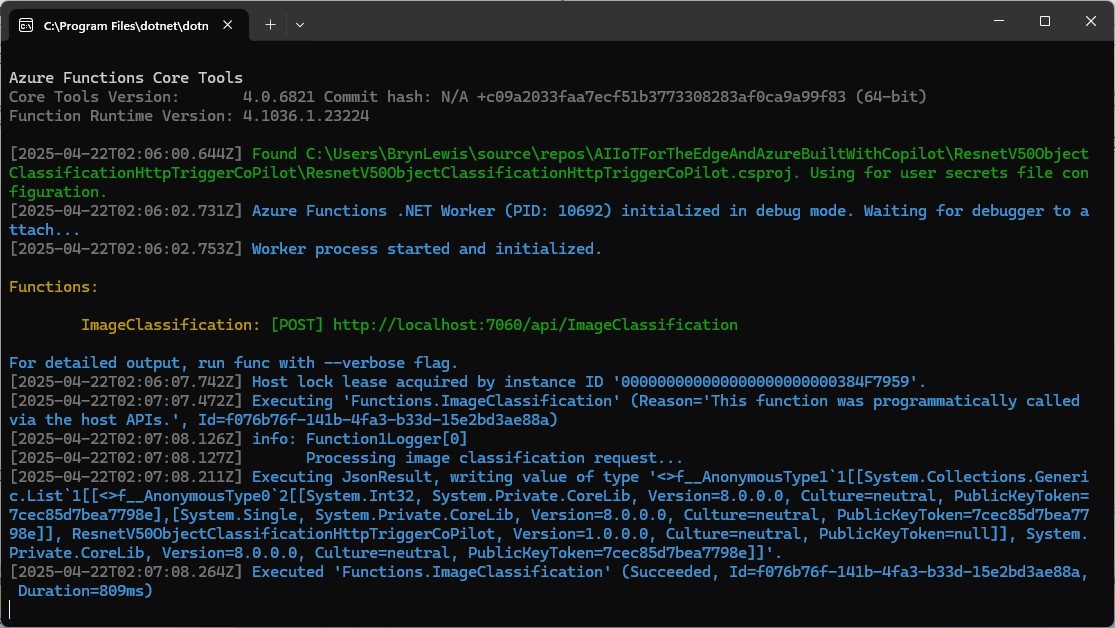
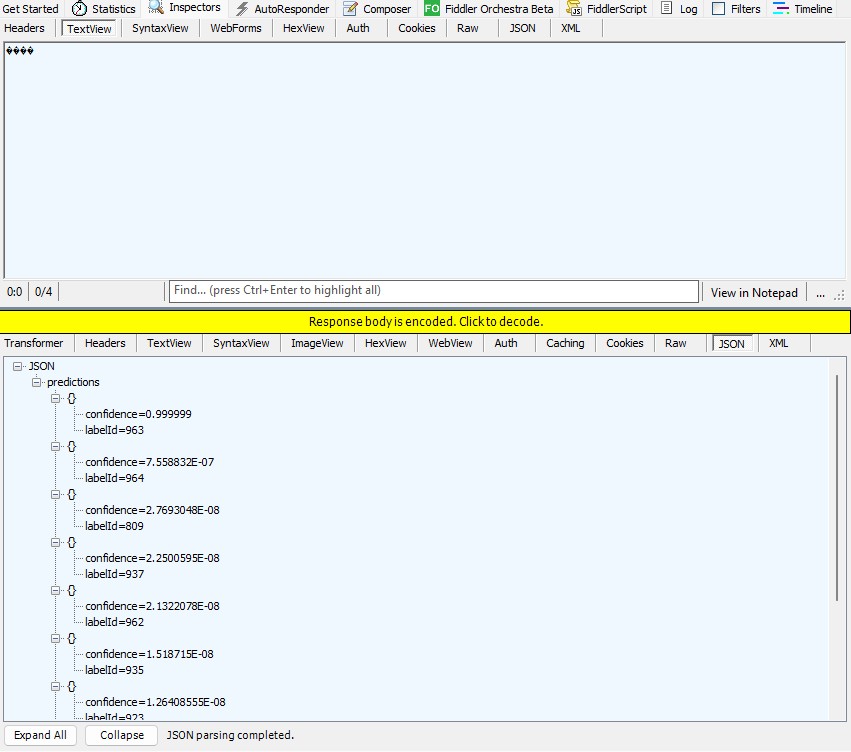
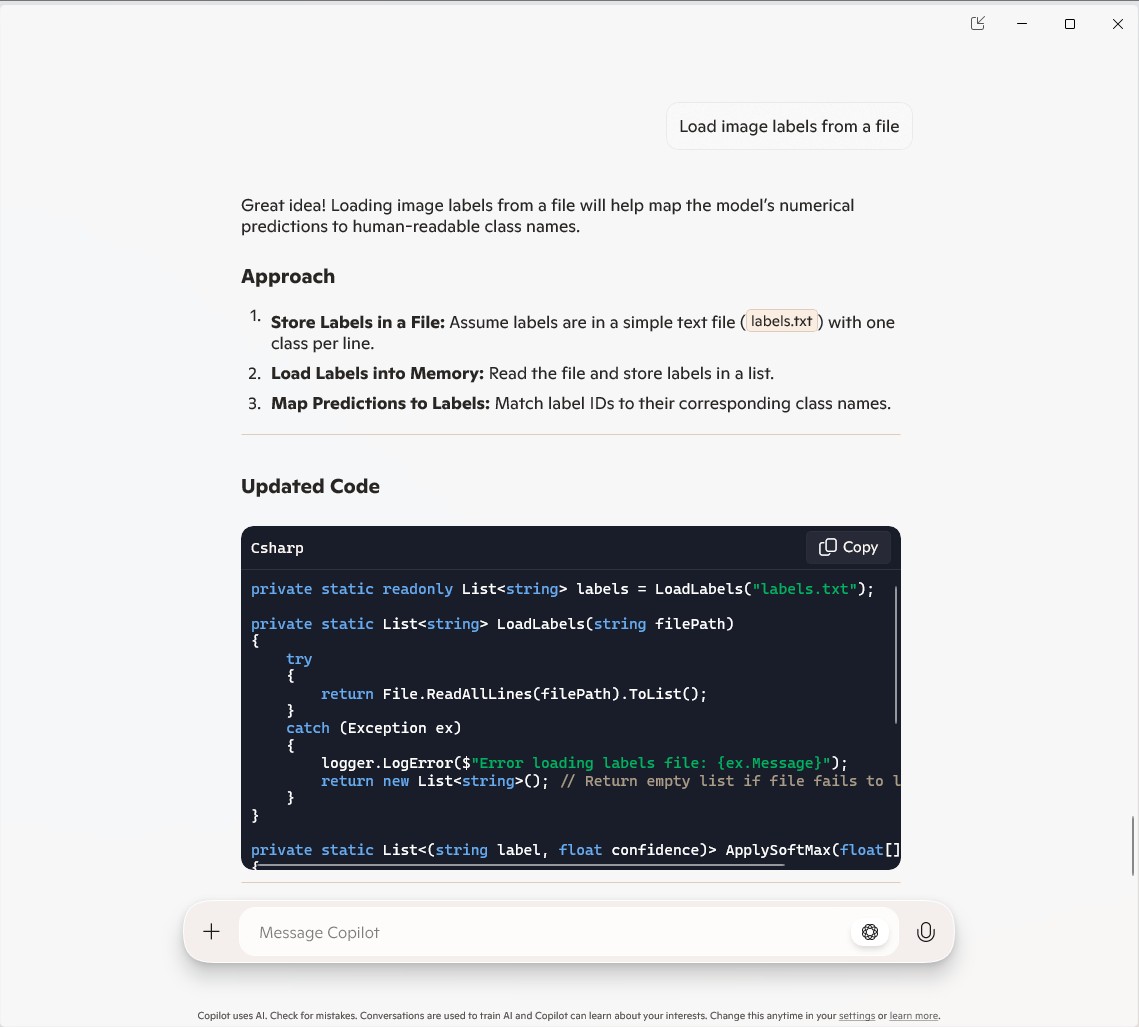
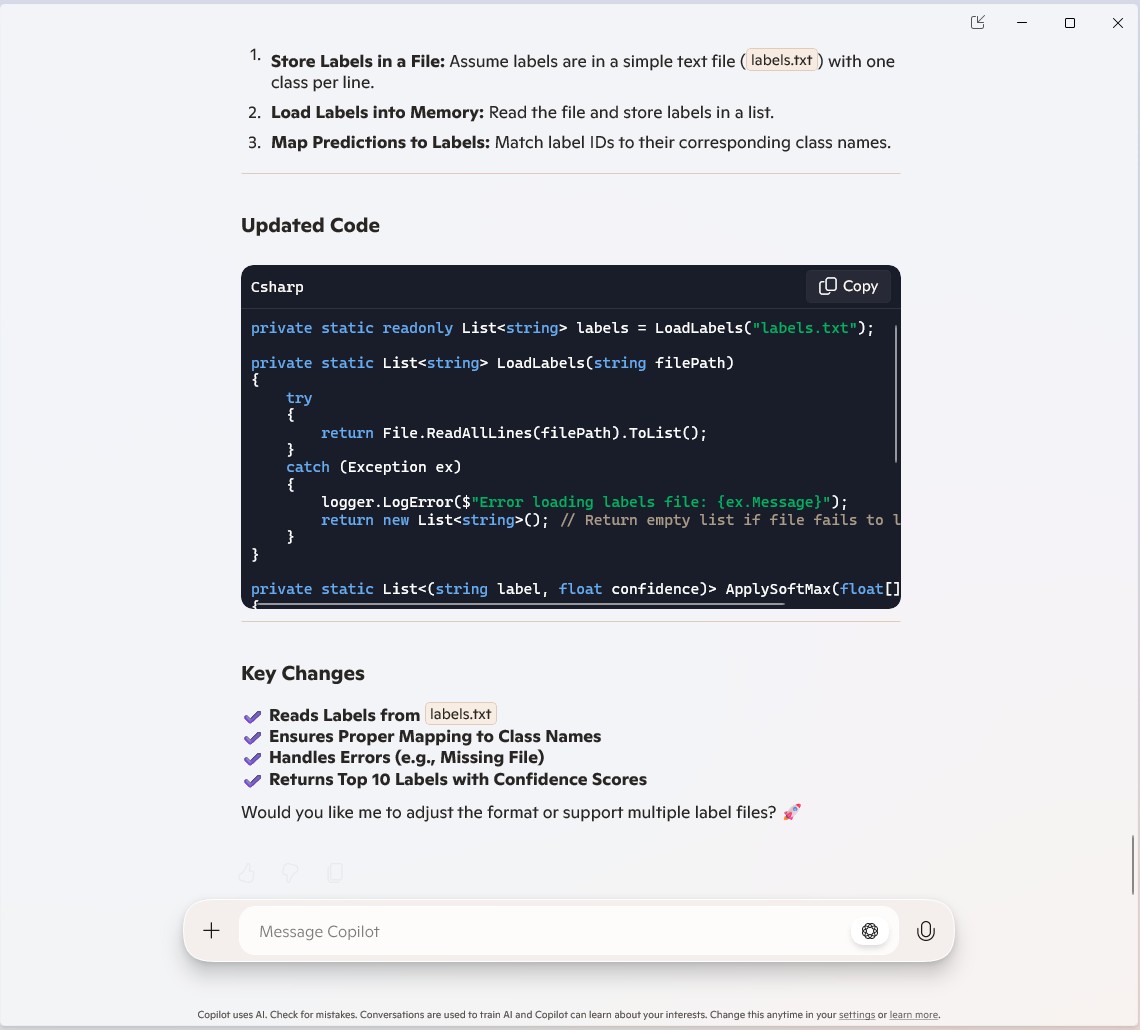
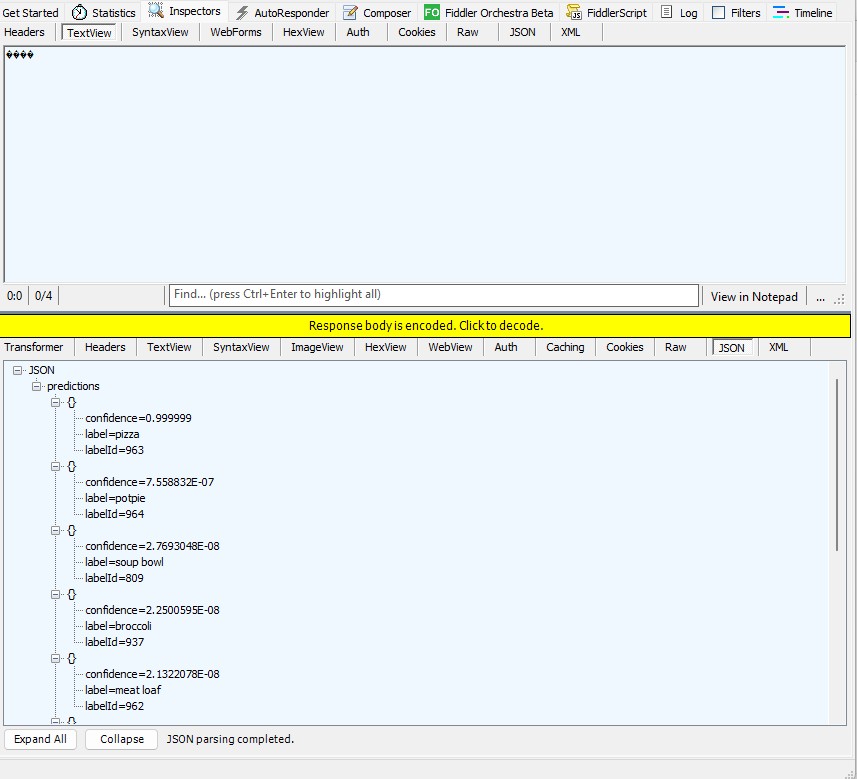
The Azure HTTP Trigger function worked but the labelId wasn’t that “human readable”.

public static class Function1
{
   private static readonly ILogger logger;
   private static readonly InferenceSession session = new InferenceSession("resnet50-v2-7.onnx");
   private static readonly List<string> labels = LoadLabels("labels.txt");
...
   [Function("ImageClassification")]
   public static async Task<IActionResult> Run(
       [HttpTrigger(AuthorizationLevel.Function, "post")] HttpRequest req)
   {
      logger.LogInformation("Processing image classification request...");

      try
      {
...
         // Get top 10 predictions (label ID and confidence)
         var top10 = softmaxResults
             .Select((confidence, labelId) => new { labelId, confidence, label = labelId < labels.Count ? labels[labelId] : $"Unknown-{labelId}" })
             .OrderByDescending(p => p.confidence)
             .Take(10)
             .ToList();

         return new JsonResult(new { predictions = top10 });
      }
      catch (Exception ex)
      {
         logger.LogError($"Error: {ex.Message}");
         return new BadRequestObjectResult("Invalid image or request.");
      }
   }
...
   private static List<string> LoadLabels(string filePath)
   {
      try
      {
         return File.ReadAllLines(filePath).ToList();
      }
      catch (Exception ex)
      {
         logger.LogError($"Error loading labels file: {ex.Message}");
         return new List<string>(); // Return empty list if file fails to load
      }
   }
}

Summary

The Github Copilot generated code was okay but would be fragile and not scale terribly well. The confidence values changing very slightly when the code was updated for Sixlabors ImageSharp was disconcerting, but not surprising.

The Copilot generated code in this post is not suitable for production

Building Edge AI with Copilot-ResNet50 Client

Introduction

This is an awfully long post about my experience using Copilot to write a console application that runs a validated resnet50 V2.7 Open Neural Network Exchange model(ONNX) on an image loaded from disk.

I have found that often Copilot code generation is “better” but the user interface can be limiting.

The Copilot code generated compiled after the System.Drawing.Common and Microsoft.ML.OnnxRuntime NuGet packages were added to the project.

Input
All pre-trained models expect input images normalized in the same way, i.e. mini-batches 
of 3-channel RGB images of shape (N x 3 x H x W), where N is the batch size, and H and 
W are expected to be at least 224. The inference was done using jpeg image.

Preprocessing
The image needs to be preprocessed before fed to the network. The first step is to 
extract a 224x224 crop from the center of the image. For this, the image is first scaled 
to a minimum size of 256x256, while keeping aspect ratio. That is, the shortest side 
of the image is resized to 256 and the other side is scaled accordingly to maintain 
the original aspect ratio. 

After that, the image is normalized with mean = 255*[0.485, 0.456, 0.406] and std 
= 255*[0.229, 0.224, 0.225]. Last step is to transpose it from HWC to CHW layout.

The code also had a reasonable implementation of the ResnetV5 preprocessing instructions

static void Main()
{
   string modelPath = "resnet50-v2-7.onnx"; // Path to your ONNX model
   string imagePath = "pizza.jpg"; // Path to the input image

   using var session = new InferenceSession(modelPath);
   var inputTensor = LoadAndPreprocessImage(imagePath);

   var inputs = new List<NamedOnnxValue>
   {
       NamedOnnxValue.CreateFromTensor("input", inputTensor)
   };

   using var results = session.Run(inputs);
   var output = results.First().AsTensor<float>().ToArray();

   Console.WriteLine("Predicted class index: " + Array.IndexOf(output, output.Max()));
}

static DenseTensor<float> LoadAndPreprocessImage(string imagePath)
{
   using Bitmap bitmap = new Bitmap(imagePath);
   int width = 224, height = 224; // ResNet50 expects 224x224 input
   using Bitmap resized = new Bitmap(bitmap, new Size(width, height));

   var tensor = new DenseTensor<float>(new[] { 1, 3, width, height });
   for (int y = 0; y < height; y++)
   {
      for (int x = 0; x < width; x++)
      {
         Color pixel = resized.GetPixel(x, y);
         tensor[0, 0, y, x] = pixel.R / 255f; // Normalize
         tensor[0, 1, y, x] = pixel.G / 255f;
         tensor[0, 2, y, x] = pixel.B / 255f;
      }
   }
   return tensor;
}

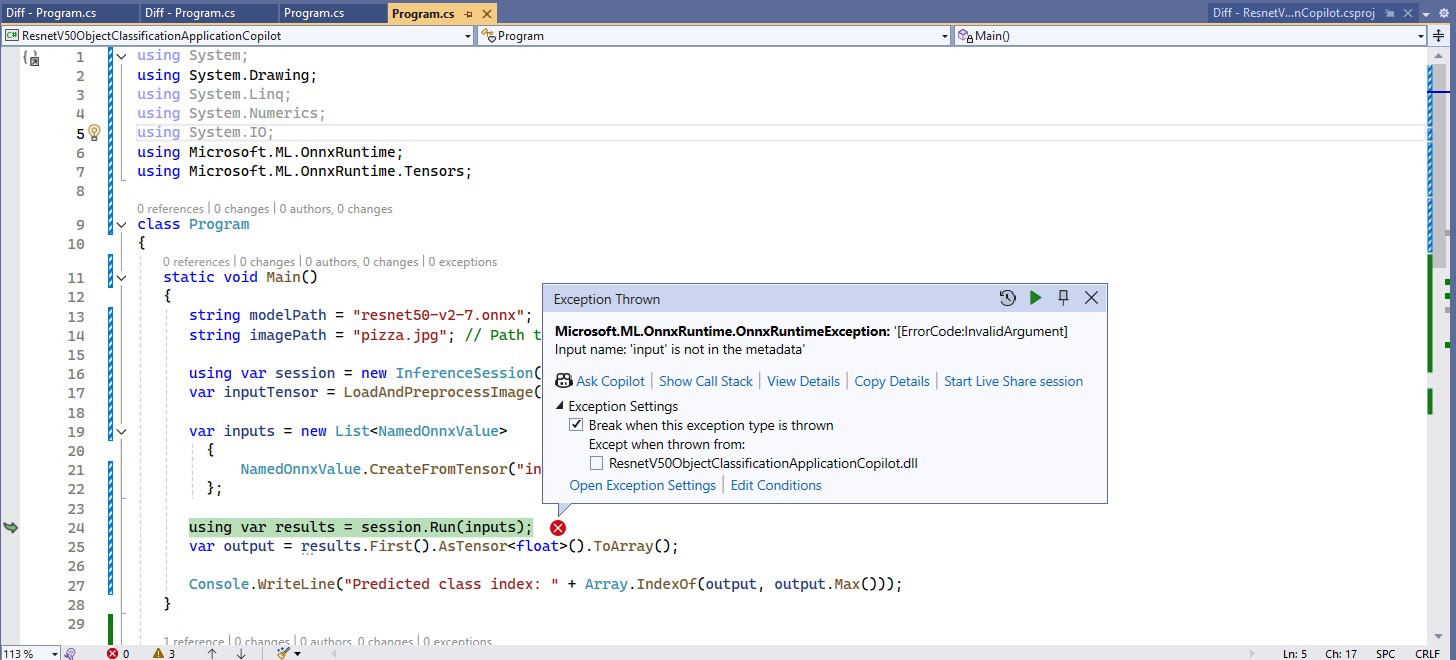
The program ran but failed with a Microsoft.ML.OnnxRuntime.OnnxRuntimeException Message=[ErrorCode:InvalidArgument] Input name: ‘input’ is not in the metadata

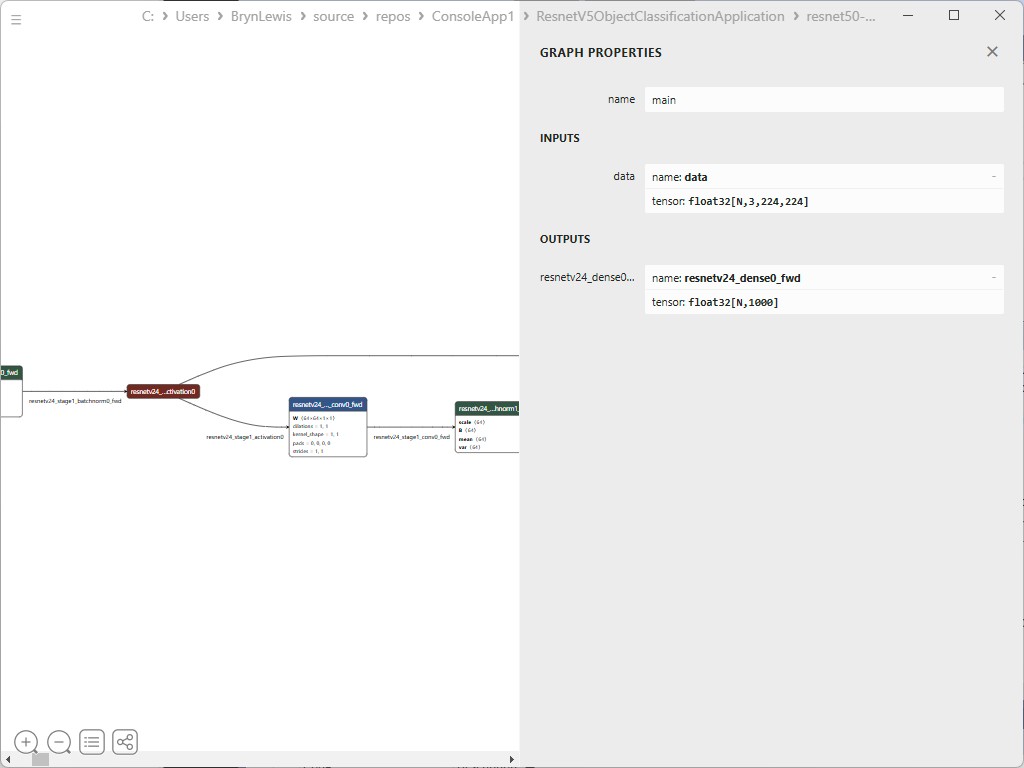
The name of the input tensor was wrong, so I used Netron to inspect the graph properties of the model.

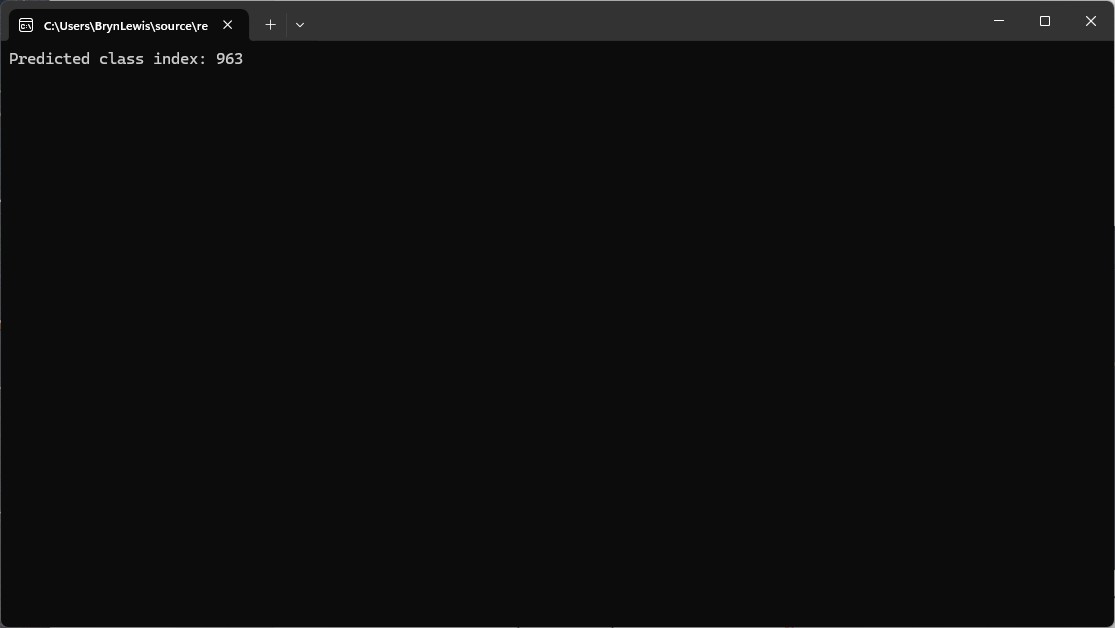
After the input tensor name was updated, the program ran

I checked the labels using the torchvison ImageNet categories and the results looked reasonable

The model and input file paths were wrong and I had been manually fixing them.

The confidence values didn’t look right so I re-read the preprocessing requirements for a ResNet model

Input
All pre-trained models expect input images normalized in the same way, i.e. mini-batches 
of 3-channel RGB images of shape (N x 3 x H x W), where N is the batch size, and H and 
W are expected to be at least 224. The inference was done using jpeg image.

Preprocessing
The image needs to be preprocessed before fed to the network. The first step is to 
extract a 224x224 crop from the center of the image. For this, the image is first scaled 
to a minimum size of 256x256, while keeping aspect ratio. That is, the shortest side 
of the image is resized to 256 and the other side is scaled accordingly to maintain 
the original aspect ratio. 

After that, the image is normalized with mean = 255*[0.485, 0.456, 0.406] and std 
= 255*[0.229, 0.224, 0.225]. Last step is to transpose it from HWC to CHW layout.

The Copilot generated code compiled and ran but the confidence values still didn’t look right, and the results tensor contained 1000 confidences values.

static void Main()
{
   string modelPath = "resnet50-v2-7.onnx"; // Updated model path
   string imagePath = "pizza.jpg"; // Updated image path

   using var session = new InferenceSession(modelPath);
   var inputTensor = LoadAndPreprocessImage(imagePath);

   var inputs = new List<NamedOnnxValue>
   {
      NamedOnnxValue.CreateFromTensor("data", inputTensor) // Using "data" as the input tensor name
   };

   using var results = session.Run(inputs);
   var output = results.First().AsTensor<float>().ToArray();

   Console.WriteLine("Predicted class index: " + Array.IndexOf(output, output.Max()));
}

static DenseTensor<float> LoadAndPreprocessImage(string imagePath)
{
   using Bitmap bitmap = new Bitmap(imagePath);
   int width = 224, height = 224; // ResNet50 expects 224x224 input
   using Bitmap resized = new Bitmap(bitmap, new Size(width, height));

   var tensor = new DenseTensor<float>(new[] { 1, 3, width, height });

   // ImageNet mean & standard deviation values
   float[] mean = { 0.485f, 0.456f, 0.406f };
   float[] stdev = { 0.229f, 0.224f, 0.225f };

   for (int y = 0; y < height; y++)
   {
      for (int x = 0; x < width; x++)
      {
         Color pixel = resized.GetPixel(x, y);

         // Normalize using mean and standard deviation
         tensor[0, 0, y, x] = (pixel.R / 255f - mean[0]) / stdev[0]; // Red channel
         tensor[0, 1, y, x] = (pixel.G / 255f - mean[1]) / stdev[1]; // Green channel
         tensor[0, 2, y, x] = (pixel.B / 255f - mean[2]) / stdev[2]; // Blue channel
      }
   }
   return tensor;
}

Because the results didn’t look right, I went back and read the ResNet50 post processing instructions

Output
The model outputs image scores for each of the 1000 classes of ImageNet.

Postprocessing
The post-processing involves calculating the softmax probability scores for each 
class. You can also sort them to report the most probable classes. Check 
imagenet_postprocess.py for code.

The Copilot generated code wouldn’t compile due to a syntax error.

static void Main()
{
   string modelPath = "resnet50-v2-7.onnx"; // Updated model path
   string imagePath = "pizza.jpg"; // Updated image path

   using var session = new InferenceSession(modelPath);
   var inputTensor = LoadAndPreprocessImage(imagePath);

   var inputs = new List<NamedOnnxValue>
   {
      NamedOnnxValue.CreateFromTensor("data", inputTensor) // Using "data" as the input tensor name
   };

   using var results = session.Run(inputs);
   var output = results.First().AsTensor<float>().ToArray();

   // Calculate softmax
   var probabilities = Softmax(output);

   // Get the class index with the highest probability
   int predictedClass = Array.IndexOf(probabilities, probabilities.Max());
   Console.WriteLine($"Predicted class index: {predictedClass}");
   Console.WriteLine($"Probabilities: {string.Join(", ", probabilities.Select(p => p.ToString("F4")))}");
}
...
static float[] Softmax(float[] logits)
{
   // Compute softmax
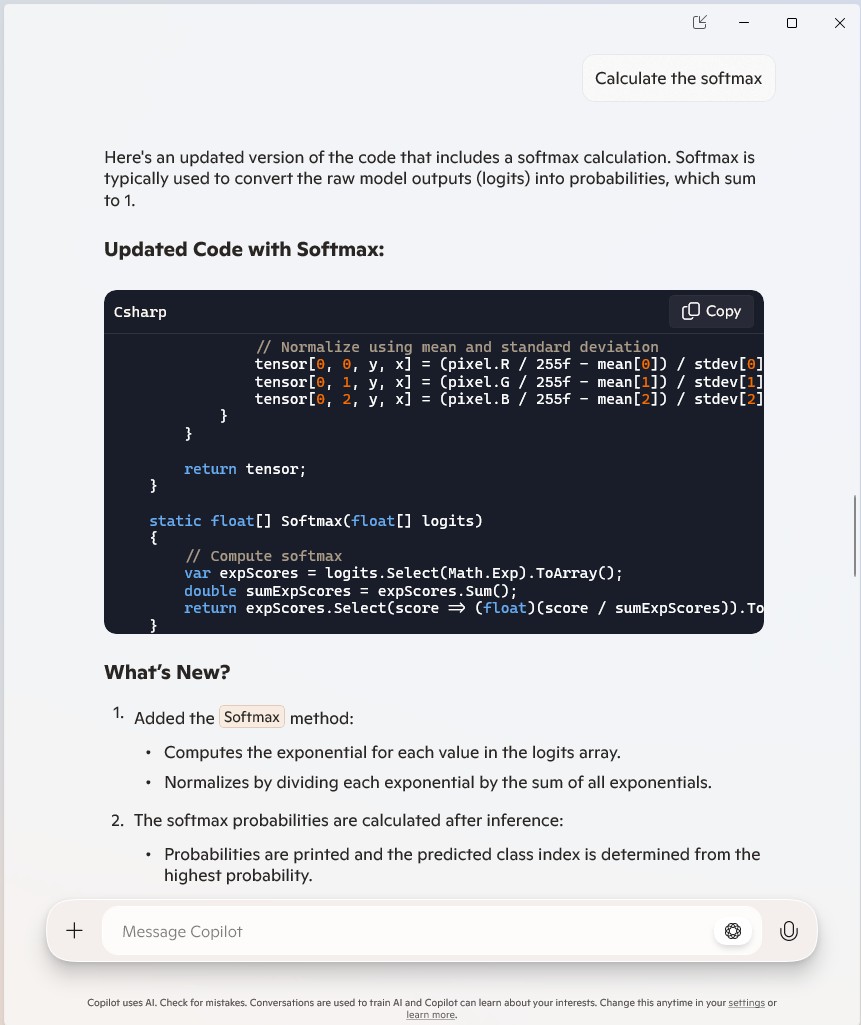
   var expScores = logits.Select(Math.Exp).ToArray();
   double sumExpScores = expScores.Sum();
   return expScores.Select(score => (float)(score / sumExpScores)).ToArray();
}

Copilot was adamant that the generated code was correct.

After trying different Copilot prompts the code had to be manually fixed, before it would compile

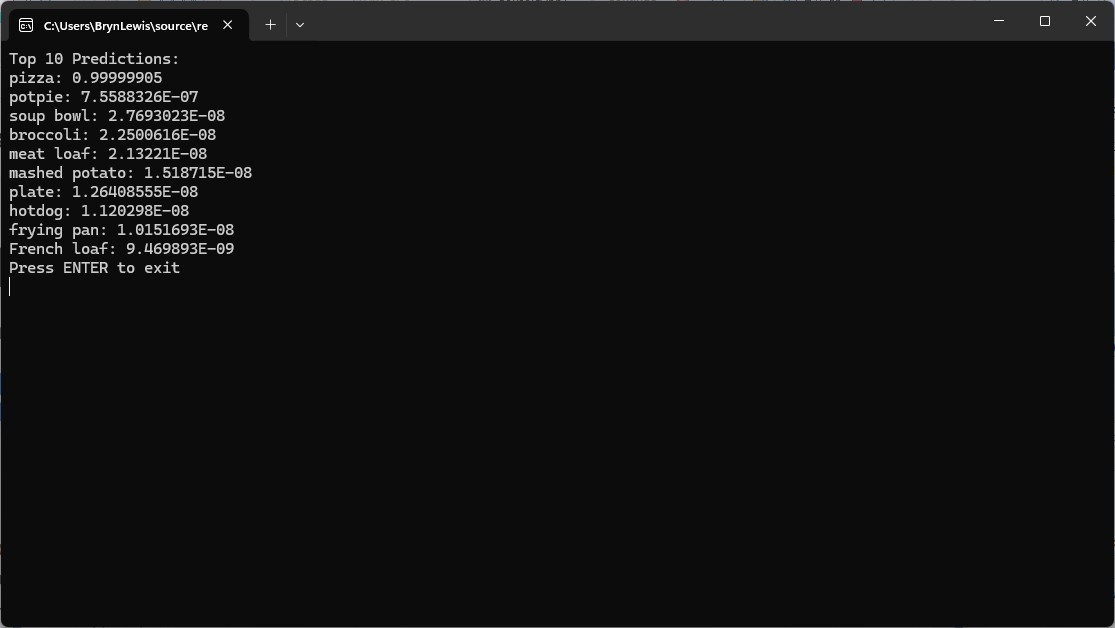
The Copilot generated code ran and the results for the top 10 confidence values looked reasonable

static void Main()
{
   string modelPath = "resnet50-v2-7.onnx"; // Updated model path
   string imagePath = "pizza.jpg"; // Updated image path
   string labelsPath = "labels.txt"; // Path to labels file

   using var session = new InferenceSession(modelPath);
   var inputTensor = LoadAndPreprocessImage(imagePath);

   var inputs = new List<NamedOnnxValue>
   {
       NamedOnnxValue.CreateFromTensor("data", inputTensor) // Using "data" as the input tensor name
   };

   using var results = session.Run(inputs);
   var output = results.First().AsTensor<float>().ToArray();

   // Calculate softmax
   var probabilities = Softmax(output);

   // Load labels
   var labels = File.ReadAllLines(labelsPath);

   // Find Top 10 labels and their confidence scores
   var top10 = probabilities
          .Select((prob, index) => new { Label = labels[index], Confidence = prob })
          .OrderByDescending(item => item.Confidence)
          .Take(10);

   Console.WriteLine("Top 10 Predictions:");
   foreach (var item in top10)
   {
      Console.WriteLine($"{item.Label}: {item.Confidence:F4}");
   }
}
...
static float[] Softmax(float[] logits)
{
   // Compute softmax
   float maxVal = logits.Max();
   var expScores = logits.Select(v => (float)Math.Exp(v - maxVal)).ToArray();
   double sumExpScores = expScores.Sum();
   return expScores.Select(score => (float)(score / sumExpScores)).ToArray();
}

The code will have to run on non-windows devices for System.Drawing.Common had to replaced with SixLabors ImageSharp a multi-platform graphics library.

The SixLabors ImageSharp update compiled and ran first time.

using Microsoft.ML.OnnxRuntime;
using Microsoft.ML.OnnxRuntime.Tensors;

using SixLabors.ImageSharp;
using SixLabors.ImageSharp.PixelFormats;
using SixLabors.ImageSharp.Processing;

namespace ResnetV5ObjectClassificationApplication
{
   class Program
   {
      static void Main()
      {
         string modelPath = "resnet50-v2-7.onnx"; // Updated model path
         string imagePath = "pizza.jpg"; // Updated image path
         string labelsPath = "labels.txt"; // Path to labels file

         using var session = new InferenceSession(modelPath);
         var inputTensor = LoadAndPreprocessImage(imagePath);

         var inputs = new List<NamedOnnxValue>
         {
            NamedOnnxValue.CreateFromTensor("data", inputTensor) // Using "data" as the input tensor name
         };

         using var results = session.Run(inputs);
         var output = results.First().AsTensor<float>().ToArray();

         // Calculate softmax
         var probabilities = Softmax(output);

         // Load labels
         var labels = File.ReadAllLines(labelsPath);

         // Find Top 10 labels and their confidence scores
         var top10 = probabilities
             .Select((prob, index) => new { Label = labels[index], Confidence = prob })
             .OrderByDescending(item => item.Confidence)
             .Take(10);

         Console.WriteLine("Top 10 Predictions:");
         foreach (var item in top10)
         {
            Console.WriteLine($"{item.Label}: {item.Confidence}");
         }

         Console.WriteLine("Press ENTER to exit");
         Console.ReadLine();
      }

      static DenseTensor<float> LoadAndPreprocessImage(string imagePath)
      {
         int width = 224, height = 224; // ResNet50 expects 224x224 input

         using var image = Image.Load<Rgb24>(imagePath);
         image.Mutate(x => x.Resize(width, height));

         var tensor = new DenseTensor<float>(new[] { 1, 3, width, height });

         // ImageNet mean & standard deviation values
         float[] mean = { 0.485f, 0.456f, 0.406f };
         float[] stdev = { 0.229f, 0.224f, 0.225f };

         for (int y = 0; y < height; y++)
         {
            for (int x = 0; x < width; x++)
            {
               var pixel = image[x, y];

               // Normalize using mean and standard deviation
               tensor[0, 0, y, x] = (pixel.R / 255f - mean[0]) / stdev[0]; // Red channel
               tensor[0, 1, y, x] = (pixel.G / 255f - mean[1]) / stdev[1]; // Green channel
               tensor[0, 2, y, x] = (pixel.B / 255f - mean[2]) / stdev[2]; // Blue channel
            }
         }

         return tensor;
      }

      static float[] Softmax(float[] logits)
      {
         // Compute softmax  
         float maxVal = logits.Max();
         var expScores = logits.Select(logit => Math.Exp(logit - maxVal)).ToArray(); // Explicitly cast logit to double  
         double sumExpScores = expScores.Sum();
         return expScores.Select(score => (float)(score / sumExpScores)).ToArray();
      }
   }
}

Summary

The Copilot generated code in this post in this was “inspired” by the Image recognition with ResNet50v2 in C# sample application.

The Copilot generated code in this post is not suitable for production

Building Cloud AI with Github Copilot- YoloSharp Azure HTTP Functions

Introduction

For this post I have used Github Copilot prompts to generate Azure HTTP Trigger functions which use Ultralytics YoloV8 and Compunet YoloSharp for object classification, object detection, and pose estimation.

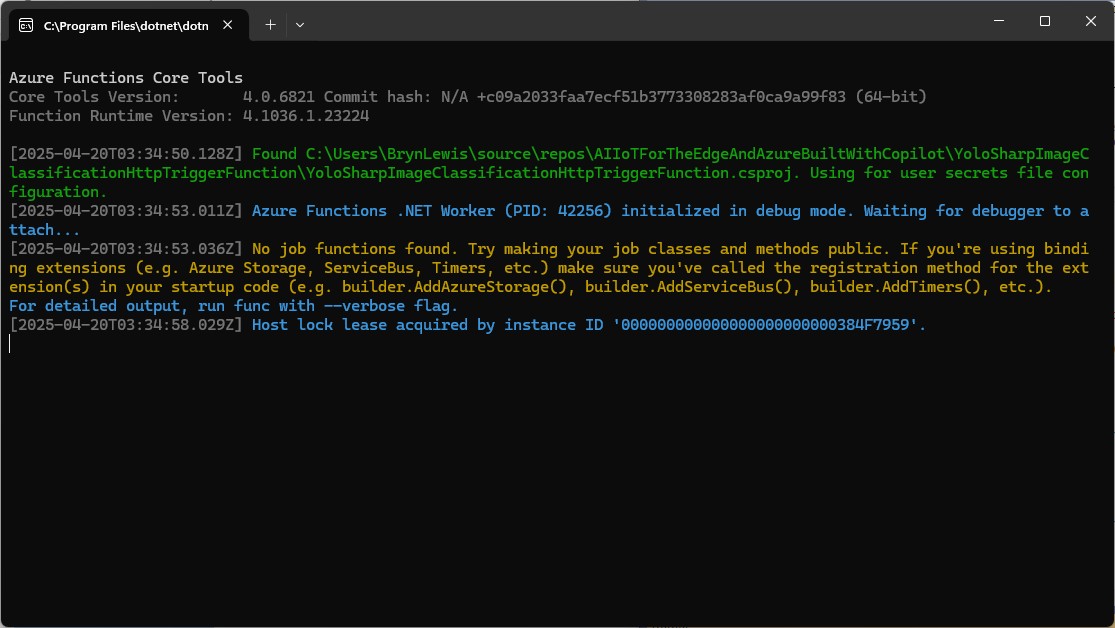
I started with the Visual Studio 2022 Azure functions quick start code which ran first time.

using Microsoft.AspNetCore.Http;
using Microsoft.AspNetCore.Mvc;
using Microsoft.Azure.Functions.Worker;
using Microsoft.Extensions.Logging;

namespace YoloSharpxxxxxHttpTriggerFunction
{
    public class Function1
    {
        private readonly ILogger<Function1> _logger;

        public Function1(ILogger<Function1> logger)
        {
            _logger = logger;
        }

        [Function("Function1")]
        public IActionResult Run([HttpTrigger(AuthorizationLevel.Anonymous, "get", "post")] HttpRequest req)
        {
            _logger.LogInformation("C# HTTP trigger function processed a request.");
            return new OkObjectResult("Welcome to Azure Functions!");
        }
    }
}

The code generated by Github Copilot for the three functions changed the Function attribute to FunctionName and didn’t initialise the ILogger correctly.

[FunctionName("DetectObjects")]
public static async Task<IActionResult> Run(
     [HttpTrigger(AuthorizationLevel.Function, "post", Route = "detect")] HttpRequest req,
     ILogger log)
{
   log.LogInformation("DetectObjects function received a request for object detection.");
   ...
}

Every so often, when uploading more than one image at a time there was a “System.IO.InvalidData Exception: The stream exceeded the data limit 16384” error. In previous examples I had tried the batch processing of multiple images but had hit memory issues, so putting the image to be in the message body rather than Multipart Form Data for future development seems like a reasonable approach.

Image in the body of the request

Object Classification

I started with an object classification function because in previous examples Github Copilot was better at unpacking the results.

please write an httpTrigger azure function that uses YoloSharp and a Yolo image classification onnx model
Image classification not object detection
The image is in the form data
The multipart/form-data check can be removed
The YoloPredictor should be released after use
Many image files could be uploaded in one request
Only one image file can be uploaded in one request

[Function("YoloImageClassificationFunction")]
public async Task<IActionResult> Run([HttpTrigger(AuthorizationLevel.Function, "post", Route = null)] HttpRequest req)
{
   _logger.LogInformation("C# HTTP trigger function processed a request.");

   var form = await req.ReadFormAsync();
   var files = form.Files;

   if (files.Count == 0)
   {
      return new BadRequestObjectResult("No images uploaded.");
   }

   if (files.Count > 1)
   {
      return new BadRequestObjectResult("Only one image file can be uploaded in one request.");
   }

   var file = files[0];
   if (file.Length > 0)
   {
      using (var memoryStream = new MemoryStream())
      {
         await file.CopyToAsync(memoryStream);
         var imageBytes = memoryStream.ToArray();

         using (var yoloModel = new YoloPredictor("yolov8s-cls.onnx"))
         {
            var classifications = yoloModel.Classify(imageBytes);

            return new OkObjectResult(new { file.FileName, classifications });
         }
      }
   }

   return new BadRequestObjectResult("Invalid image file.");
}

Image in the form data of the request

When I compared the results with previous applications, they were the same. I should have added code which discarded any result with less that a specified confidence to reduce the size of the results.

Object Detection

please write an azure function with an http trigger that uses yolosharp and an onnx file to detect objects in an image
The image is not in the body it is in the form
Image.Load is not used
yolo.Detect can process an image file stream
The YoloPredictor should be released after use
Many image files could be uploaded in one request
Only one image per request
Add multipart/form-data content type check
Add check that there are headers — Didn’t get this right
Add check that req.Headers is not null
Add check that request has ContentType and it is multipart/form-data

[Function("ObjectDetectionFunction")]
public async Task<IActionResult> Run( [HttpTrigger(AuthorizationLevel.Function, "post", Route = null)] HttpRequest req)
{
   _logger.LogInformation("C# HTTP trigger function processed a request.");

   // Intellisense fix
   if (req.Headers == null || !req.Headers.TryGetValue("Content-Type", out Microsoft.Extensions.Primitives.StringValues value) || !value.ToString().Contains("multipart/form-data"))
   {
      return new BadRequestObjectResult("The request must have a Content-Type header with multipart/form-data.");
   }

   // Read the images from the form data
   var form = await req.ReadFormAsync();
   var files = form.Files;
   if (files.Count == 0)
   {
      return new BadRequestObjectResult("No image files uploaded.");
   }

   if (files.Count > 1)
   {
      return new BadRequestObjectResult("Only one image file is allowed per request.");
   }

   var file = files[0];
   if (file.Length == 0)
   {
      return new BadRequestObjectResult("The uploaded image file is empty.");
   }

   // Load the YOLOv8 model
   using (var yolo = new YoloPredictor("yolov8s.onnx"))
   {
      // Perform object detection
      using (var stream = file.OpenReadStream())
      {
         var items = yolo.Detect(stream);
         var result = new { FileName = file.FileName, Detections = items };

         // Return the detection results
         return new OkObjectResult(result);
      }
   }
}

After a couple of manual fixes the function ran in the desktop emulator

When I compared the results with previous applications, they were the same.

Pose Estimation

I forgot the ILogger initialisation so had to do it at the end

please write an azure function with an http trigger that uses yolosharp to estimate the pose of humans in an uploaded image.
Yolo v8 pose estimation model and yolosharp library
Make into azure function
The image files are in the form of the request
Modify the code so more than one image per request can be processed
Initialise ILogger in the constructor

//[FunctionName("PoseEstimation")]
[Function("PoseEstimation")]
public async Task<IActionResult> Run([HttpTrigger(AuthorizationLevel.Function, "post", Route = null)] HttpRequest req)
{
   _log.LogInformation("Pose estimation function processed a request.");

   if (!req.HasFormContentType || !req.Form.Files.Any())
   {
      return new BadRequestObjectResult("Please upload image files.");
   }

   var results = new List<object>();

   foreach (var file in req.Form.Files)
   {
      using var memoryStream = new MemoryStream();
      await file.CopyToAsync(memoryStream);
      memoryStream.Position = 0;

      using var image = Image.Load<Rgba32>(memoryStream);

      // Initialize the YOLO model
      //using var predictor = new YoloPredictor("path/to/model.onnx");
      using var predictor = new YoloPredictor("yolov8s-pose.onnx");

      // Perform pose estimation
      var result = await predictor.PoseAsync(image);

      // Format the results
      //var poses = result.Poses.Select(pose => new
      var poses = result.Select(pose => new
      {
         //Keypoints = pose.Keypoints.Select(k => new { k.X, k.Y }),
         Keypoints = pose.Select(k => new { k.Point.X, k.Point.Y }),
         Confidence = pose.Confidence
      });

      results.Add(new
      {
         Image = file.FileName,
         Poses = poses
      });
   }

   return new OkObjectResult(new { results });
}

After a couple of manual fixes including changing the way the results were generated the function ran in the desktop emulator.

Summary

The generated code worked but required manual fixes and was pretty ugly

The Github Copilot generated code in this post is not suitable for production