.NET Core Seeed LoRaE5 LoRaWAN library Part2

Nasty OTAA connect

After getting basic connectivity for my Seeed LoRa-E5 test rig sorted I used RAK7246G LPWAN Developer Gateway on my bookcase to connect to The Things Network(TTN)
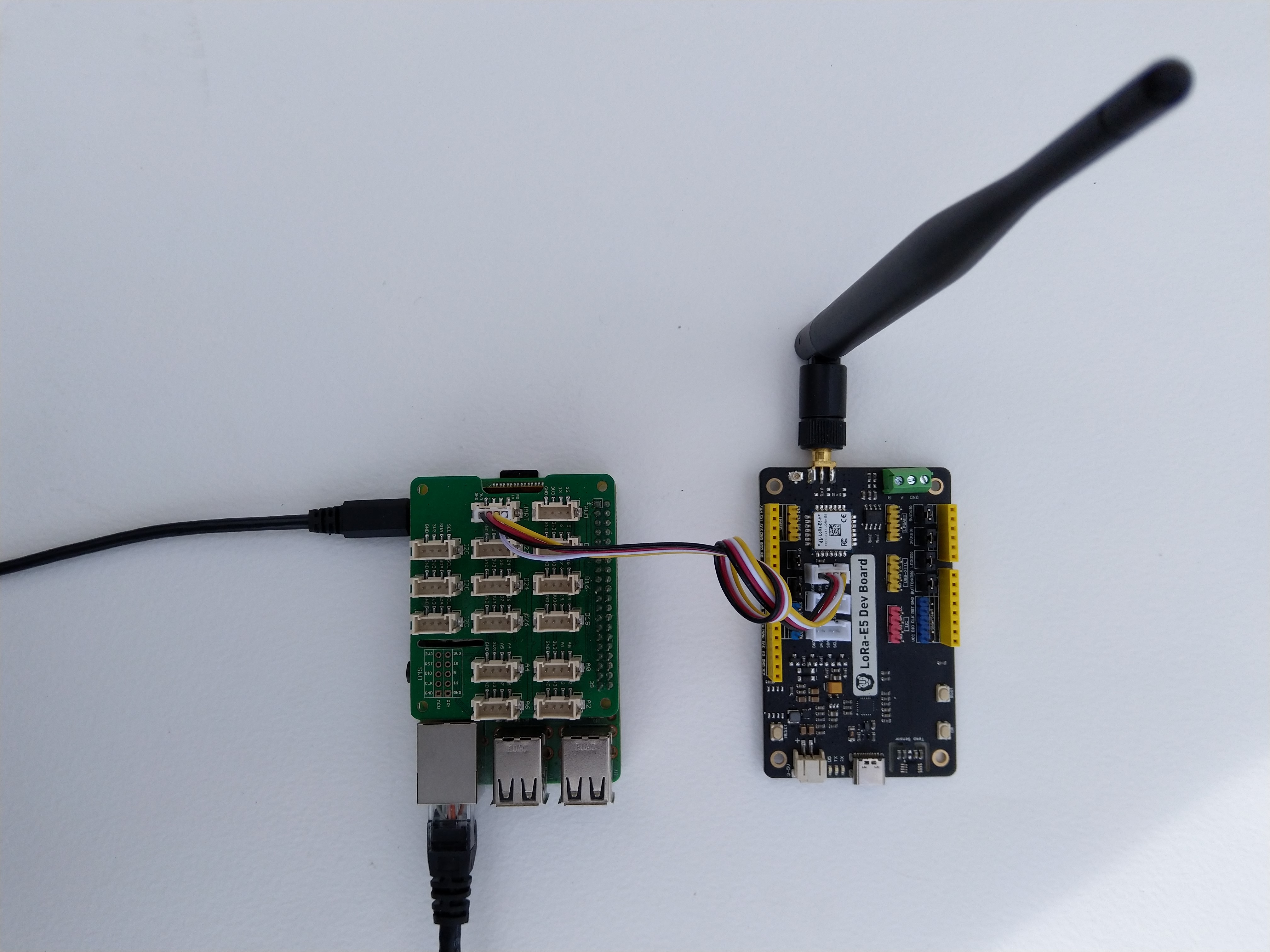
Seeed LoRa-E5 Development kit connected to Gove bas shield on a Raspberry PI3

My Over the Air Activation (OTAA) implementation is very “nasty” I have assumed that there would be no timeouts or failures and I only send one BCD message “48656c6c6f204c6f526157414e” which is “hello LoRaWAN”.

The code just sequentially steps through the necessary configuration to join the TTN network with a suitable delay after each command is sent. There also appeared to be quite a variation in response times, especially for joining the network(most probably network related) and the progress of sending a message.

//---------------------------------------------------------------------------------
// Copyright (c) September 2021, devMobile Software
//
// Licensed under the Apache License, Version 2.0 (the "License");
// you may not use this file except in compliance with the License.
// You may obtain a copy of the License at
//
//     http://www.apache.org/licenses/LICENSE-2.0
//
// Unless required by applicable law or agreed to in writing, software
// distributed under the License is distributed on an "AS IS" BASIS,
// WITHOUT WARRANTIES OR CONDITIONS OF ANY KIND, either express or implied.
// See the License for the specific language governing permissions and
// limitations under the License.
//
//---------------------------------------------------------------------------------
namespace devMobile.IoT.NetCore.SeeedLoRaE5.NetworkJoinOTAA
{
	using System;
	using System.Diagnostics;
	using System.IO.Ports;
	using System.Threading;

	class Program
	{
		private const string SerialPortId = "/dev/ttyS0";

		private const string AppKey = "................................";
		private const string AppEui = "................";

		private const byte MessagePort = 15;

		//private const string Payload = "48656c6c6f204c6f526157414e"; // Hello LoRaWAN
		private const string Payload = "01020304"; // AQIDBA==
		//private const string Payload = "04030201"; // BAMCAQ==

		public static void Main()
		{
			string response;

			Debug.WriteLine("devMobile.IoT.SeeedLoRaE5.NetworkJoinOTAA starting");

			Debug.WriteLine(String.Join(",", SerialPort.GetPortNames()));

			try
			{
				using (SerialPort serialDevice = new SerialPort(SerialPortId))
				{
					// set parameters
					serialDevice.BaudRate = 9600;
					serialDevice.Parity = Parity.None;
					serialDevice.StopBits = StopBits.One;
					serialDevice.Handshake = Handshake.None;
					serialDevice.DataBits = 8;

					serialDevice.ReadTimeout = 10000;

					serialDevice.NewLine = "\r\n";

					serialDevice.Open();

					// clear out the RX buffer
					serialDevice.ReadExisting();
					response = serialDevice.ReadExisting();
					Debug.WriteLine($"Response :{response.Trim()} bytes:{response.Length}");
					Thread.Sleep(500);

					// Set the Region to AS923
					serialDevice.WriteLine("AT+DR=AS923\r\n");
					response = serialDevice.ReadLine();
					Debug.WriteLine($"Response :{response.Trim()} bytes:{response.Length}");

					// Set the Join mode
					serialDevice.WriteLine("AT +MODE=LWOTAA\r\n");
					response = serialDevice.ReadLine();
					Debug.WriteLine($"Response :{response.Trim()} bytes:{response.Length}");

					// Set the appEUI
					serialDevice.WriteLine($"AT+ID=AppEui,\"{AppEui}\"\r\n");
					response = serialDevice.ReadLine();
					Debug.WriteLine($"Response :{response.Trim()} bytes:{response.Length}");

					// Set the appKey
					serialDevice.WriteLine($"AT+KEY=APPKEY,{AppKey}\r\n");
					response = serialDevice.ReadLine();
					Debug.WriteLine($"Response :{response.Trim()} bytes:{response.Length}");

					// Set the port number
					serialDevice.WriteLine($"AT+PORT={MessagePort}\r\n");
					response = serialDevice.ReadLine();
					Debug.WriteLine($"Response :{response.Trim()} bytes:{response.Length}");

					// Join the network
					serialDevice.WriteLine("AT+JOIN\r\n");

					// Join start
					response = serialDevice.ReadLine();
					Debug.WriteLine($"Response :{response.Trim()} bytes:{response.Length}");

					// JOIN normal
					response = serialDevice.ReadLine();
					Debug.WriteLine($"Response :{response.Trim()} bytes:{response.Length}");

					Thread.Sleep(5000);

					// network joined
					response = serialDevice.ReadLine();
					Debug.WriteLine($"Response :{response.Trim()} bytes:{response.Length}");

					// Net ID
					response = serialDevice.ReadLine();
					Debug.WriteLine($"Response :{response.Trim()} bytes:{response.Length}");

					// Join done
					response = serialDevice.ReadLine();
					Debug.WriteLine($"Response :{response.Trim()} bytes:{response.Length}");

					while (true)
					{
						Debug.WriteLine("Sending");

						serialDevice.WriteLine($"AT+MSGHEX=\"{Payload}\"\r\n");

						// Start
						response = serialDevice.ReadLine();
						Debug.WriteLine($"Response :{response.Trim()} bytes:{response.Length}");

						// Fpending
						response = serialDevice.ReadLine();
						Debug.WriteLine($"Response :{response.Trim()} bytes:{response.Length}");

						//Read metrics
						response = serialDevice.ReadLine();
						Debug.WriteLine($"Response :{response.Trim()} bytes:{response.Length}");

						//Done
						response = serialDevice.ReadLine();
						Debug.WriteLine($"Response :{response.Trim()} bytes:{response.Length}");

						Thread.Sleep(30000);
					}
				}
			}
			catch (Exception ex)
			{
				Debug.WriteLine(ex.Message);
			}
		}
	}
}

The code is not suitable for production but it confirmed my software and hardware configuration worked.
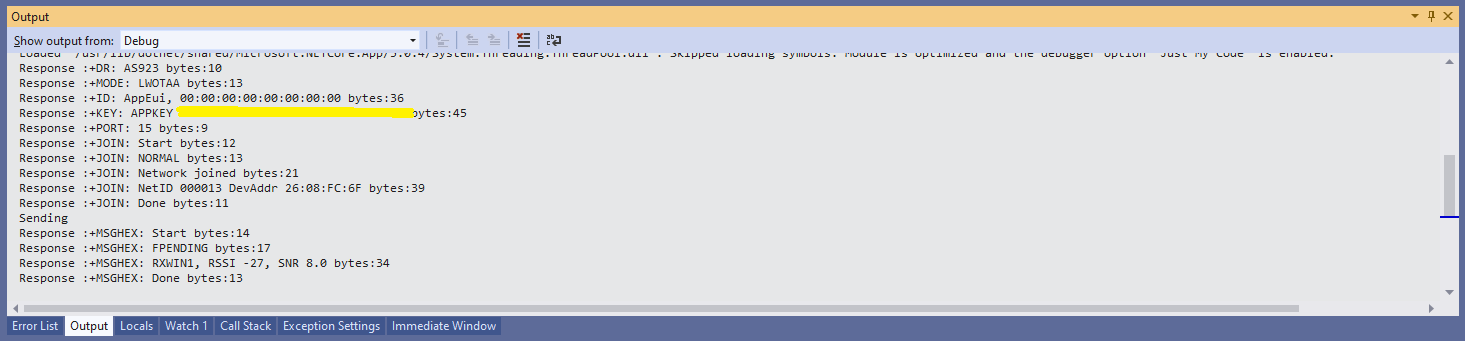
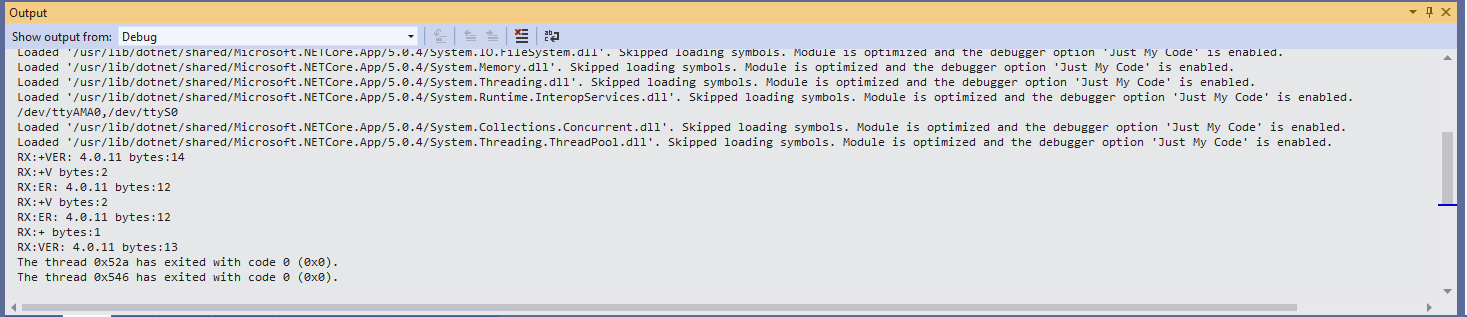
Visual Studio debugger output window showing network join and sensing a message

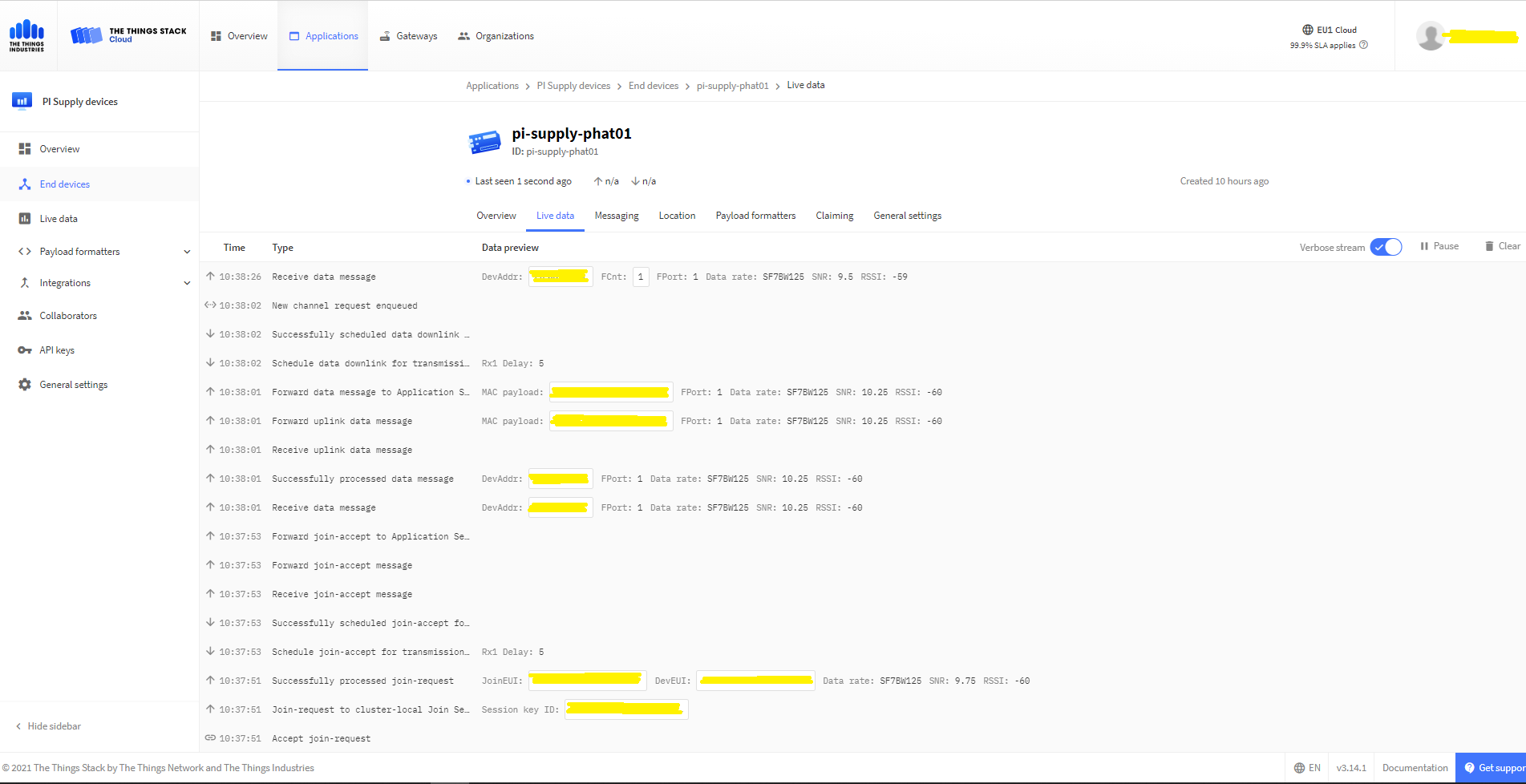
In the Visual Studio 2019 debug output I could see messages getting sent and then after a short delay they were visible in the TTN console.
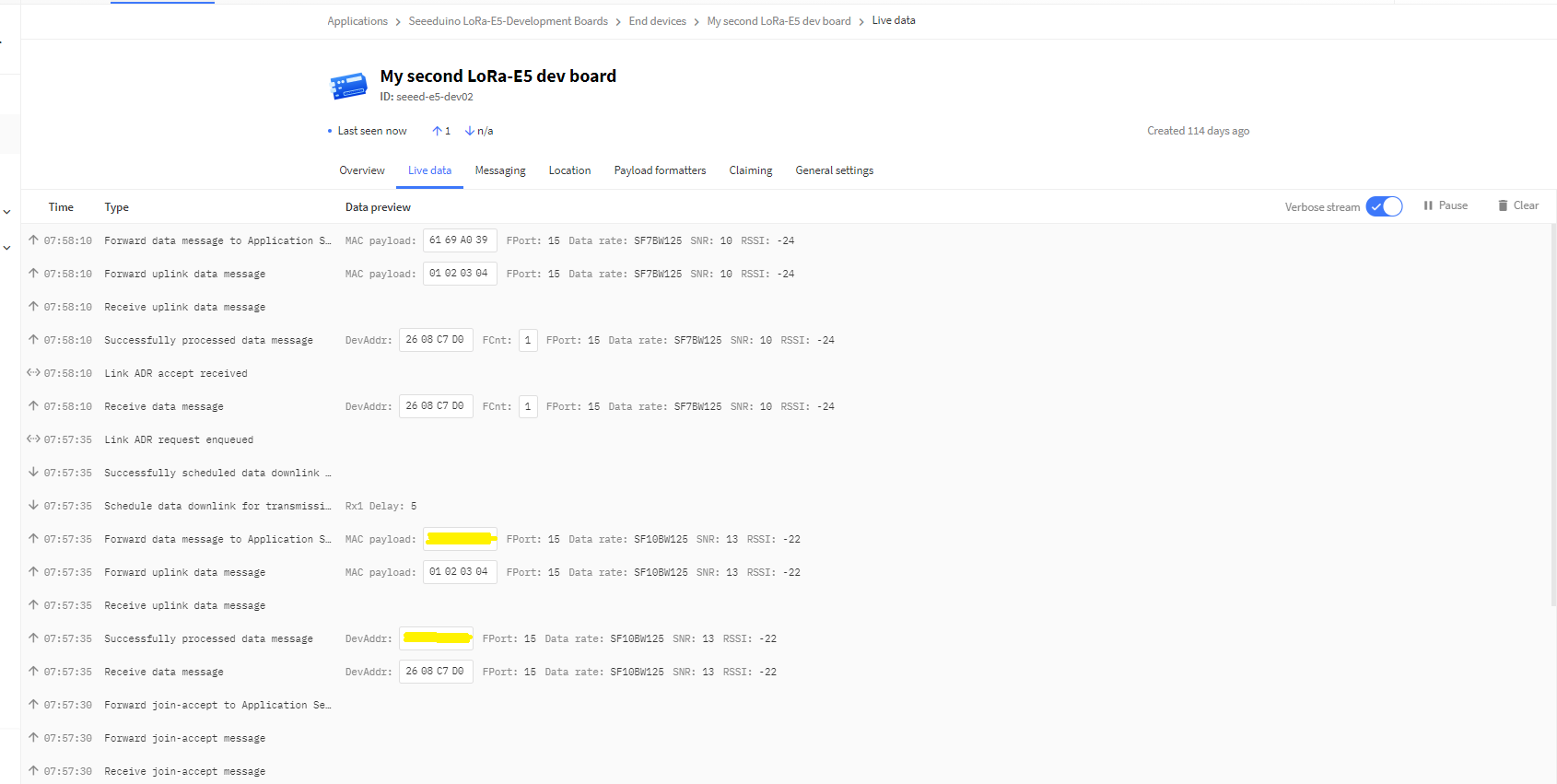
The Things Industries Live Data view showing network join and sensing a message

Most of the LoRaWAN modems I have worked with reply “OK” when a command is successful. The SeeedLoRa-E5 often returns the payload of the request in the response which makes the code a little bit more complex.
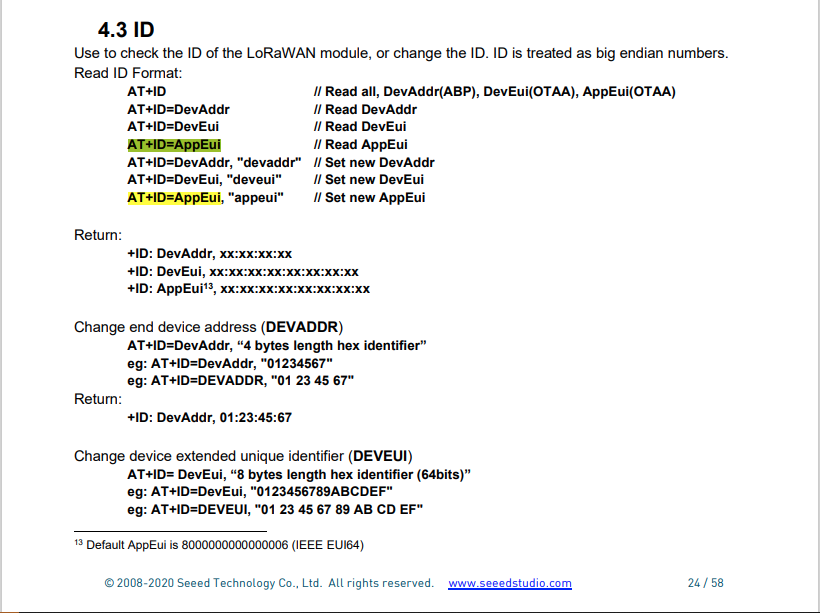
AppEui command structure in AT Command documentation

For example the AppEui can be passed in as “00:00:00:00:00:00:00:00” or “0000000000000000” but in the response the format is always “00:00:00:00:00:00:00:00”
.NET Core Seeed LoRaE5 LoRaWAN library Part1

Basic connectivity

Over the weekend I started building a .Net Core C# library for a Seeedstudio LoRa-E5 Development Kit which was connected to a Raspberry PI 3 with a Grove Base Hat for Raspberry Pi

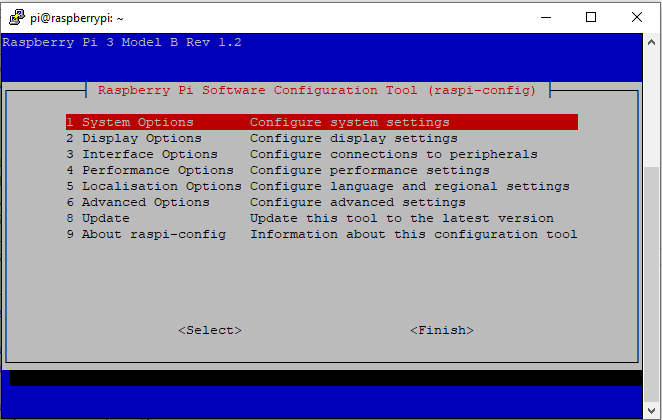
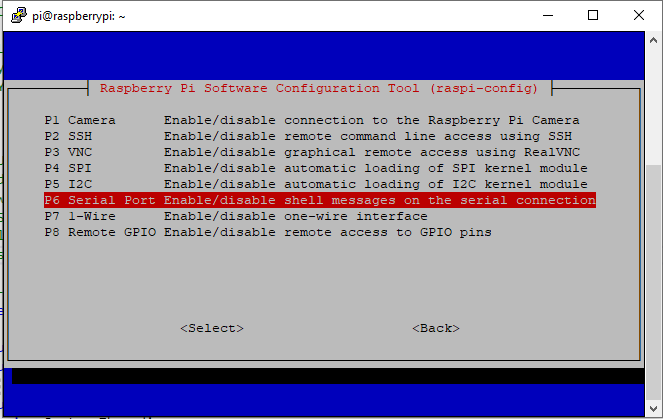
The RaspberryPI OS is a bit more strict than the other devices I use about port access. To allow my .Net Core application to access a serial port I connected to the device with ExtraPutty, then ran the RaspberyPI configuration tool, from the command prompt with “sudo raspi-config”

RaspberyPI OS Software Configuration tool mains screen
RaspberryPI OS IO Serial Port configuration
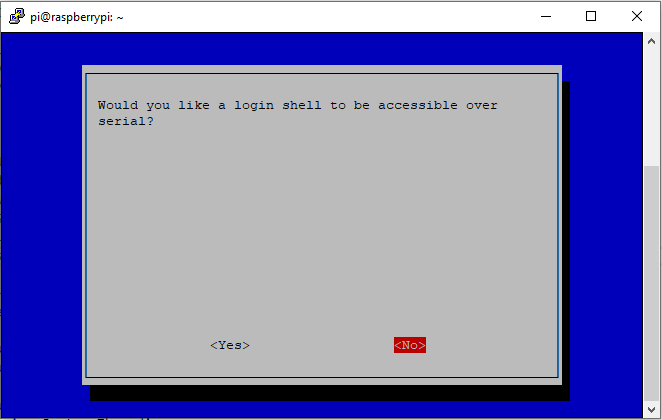
Raspberry PI OS disabling remote serial login shell
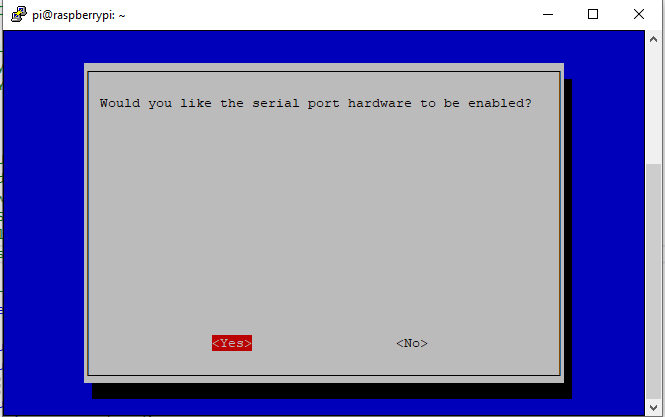
RaspberryPI OS enabling serial port access

Once serial port access was enabled I could enumerate them with SerialPort.GetPortNames() which is in the System.IO.Ports NuGet package. The code has compile time options for synchronous and asynchronous operation.

//---------------------------------------------------------------------------------
// Copyright (c) September 2021, devMobile Software
//
// Licensed under the Apache License, Version 2.0 (the "License");
// you may not use this file except in compliance with the License.
// You may obtain a copy of the License at
//
//     http://www.apache.org/licenses/LICENSE-2.0
//
// Unless required by applicable law or agreed to in writing, software
// distributed under the License is distributed on an "AS IS" BASIS,
// WITHOUT WARRANTIES OR CONDITIONS OF ANY KIND, either express or implied.
// See the License for the specific language governing permissions and
// limitations under the License.
//
//---------------------------------------------------------------------------------
namespace devMobile.IoT.NetCore.SeeedLoRaE5.ShieldSerial
{
	using System;
	using System.Diagnostics;
	using System.IO.Ports;
	using System.Threading;

	public class Program
	{
		private const string SerialPortId = "/dev/ttyS0";

		public static void Main()
		{
			SerialPort serialPort;

			Debug.WriteLine("devMobile.IoT.NetCore.SeeedLoRaE5.ShieldSerial starting");

			Debug.WriteLine(String.Join(",", SerialPort.GetPortNames()));

			try
			{
				serialPort = new SerialPort(SerialPortId);

				// set parameters
				serialPort.BaudRate = 9600;
				serialPort.Parity = Parity.None;
				serialPort.DataBits = 8;
				serialPort.StopBits = StopBits.One;
				serialPort.Handshake = Handshake.None;

				serialPort.ReadTimeout = 1000;

				serialPort.NewLine = "\r\n";

				serialPort.Open();

#if SERIAL_ASYNC_READ
				serialPort.DataReceived += SerialDevice_DataReceived;
#endif

				while (true)
				{
					serialPort.WriteLine("AT+VER");

#if SERIAL_SYNC_READ
					string response = serialPort.ReadLine();

					Debug.WriteLine($"RX:{response.Trim()} bytes:{response.Length}");
#endif

					Thread.Sleep(20000);
				}
			}
			catch (Exception ex)
			{
				Debug.WriteLine(ex.Message);
			}
		}

#if SERIAL_ASYNC_READ
		private static void SerialDevice_DataReceived(object sender, SerialDataReceivedEventArgs e)
		{
			SerialPort serialPort = (SerialPort)sender;

			switch (e.EventType)
			{
				case SerialData.Chars:
					string response = serialPort.ReadExisting();

					Debug.WriteLine($"RX:{response.Trim()} bytes:{response.Length}");
					break;

				case SerialData.Eof:
					Debug.WriteLine("RX :EoF");
					break;
				default:
					Debug.Assert(false, $"e.EventType {e.EventType} unknown");
					break;
			}
		}
#endif
	}
}

The synchronous version of the test client requests the Seeeduino LoRa-E5 version information with the AT+VER command.

Synchronously reading characters from the Seeeduino LoRa-E5

The asynchronous version of the application displays character(s) as they arrive so a response can be split across multiple SerialDataReceived events.

Asynchronous versions displaying partial responses

I use the excellent RaspberryDebugger to download the application and debug it on my Raspberry PI 3.

.NET Core RAK811 LoRaWAN library Part2

Nasty OTAA connect

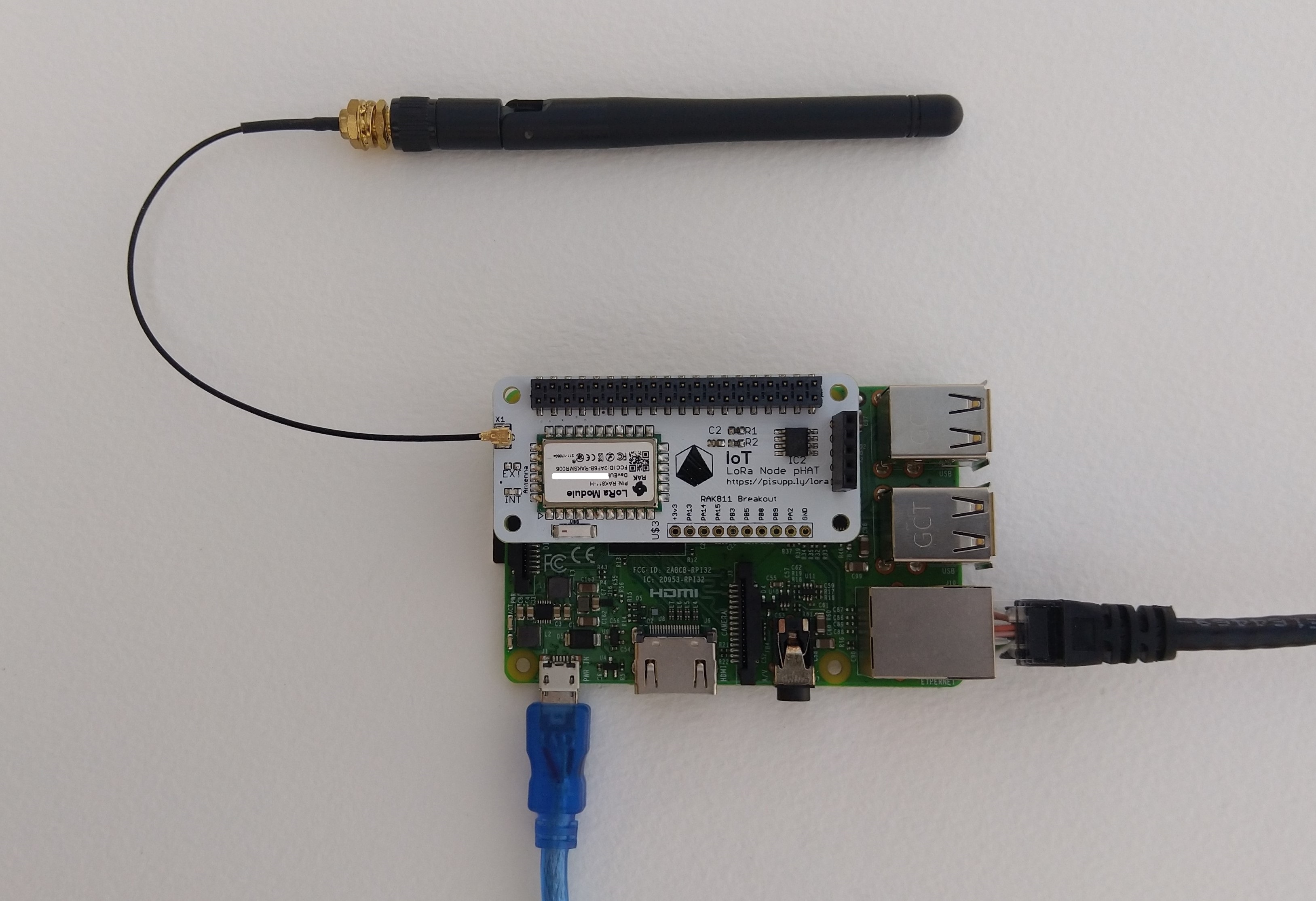
After getting basic connectivity for my IoT LoRa Node pHAT for Raspberry Pi test rig sorted I wanted to see if I could get the device connected to The Things Network(TTN) via the RAK7246G LPWAN Developer Gateway on my bookcase.

IoT LoRa Node pHAT for Raspberry Pi mounted on a Raspberry PI3

My Over the Air Activation (OTAA) implementation is very “nasty” I have assumed that there would be no timeouts or failures and I only send one BCD message “48656c6c6f204c6f526157414e” which is “hello LoRaWAN”.

The code just sequentially steps through the necessary configuration to join the TTN network with a suitable delay after each command is sent. I had some problems with re-opening the serial port if my application had previously failed with an uncaught exception. After some experimentation I added some code to ensure the port was closed when an exception occurred.

//---------------------------------------------------------------------------------
// Copyright (c) September 2021, devMobile Software
//
// Licensed under the Apache License, Version 2.0 (the "License");
// you may not use this file except in compliance with the License.
// You may obtain a copy of the License at
//
//     http://www.apache.org/licenses/LICENSE-2.0
//
// Unless required by applicable law or agreed to in writing, software
// distributed under the License is distributed on an "AS IS" BASIS,
// WITHOUT WARRANTIES OR CONDITIONS OF ANY KIND, either express or implied.
// See the License for the specific language governing permissions and
// limitations under the License.
//
//---------------------------------------------------------------------------------
namespace devMobile.IoT.NetCore.Rak811.NetworkJoinOTAA
{
	using System;
	using System.Diagnostics;
	using System.IO.Ports;
	using System.Threading;

	public class Program
	{
		private const string SerialPortId = "/dev/ttyS0";
		private const string AppEui = "...";
		private const string AppKey = "...";
		private const byte MessagePort = 1;
		private const string Payload = "A0EEE456D02AFF4AB8BAFD58101D2A2A"; // Hello LoRaWAN

		public static void Main()
		{
			string response;

			Debug.WriteLine("devMobile.IoT.NetCore.Rak811.NetworkJoinOTAA starting");

			Debug.WriteLine(String.Join(",", SerialPort.GetPortNames()));

			try
			{
				using (SerialPort serialPort = new SerialPort(SerialPortId))
				{
					// set parameters
					serialPort.BaudRate = 9600;
					serialPort.DataBits = 8;
					serialPort.Parity = Parity.None;
					serialPort.StopBits = StopBits.One;
					serialPort.Handshake = Handshake.None;

					serialPort.ReadTimeout = 5000;

					serialPort.NewLine = "\r\n";

					serialPort.Open();

					// clear out the RX buffer
					response = serialPort.ReadExisting();
					Debug.WriteLine($"RX :{response.Trim()} bytes:{response.Length}");
					Thread.Sleep(500);

					// Set the Working mode to LoRaWAN
					Console.WriteLine("Set Work mode");
					serialPort.WriteLine("at+set_config=lora:work_mode:0");
					Thread.Sleep(5000);
					response = serialPort.ReadExisting();
					response = response.Trim('\0');
					Debug.WriteLine($"RX :{response.Trim()} bytes:{response.Length}");

					// Set the Region to AS923
					Console.WriteLine("Set Region");
					serialPort.WriteLine("at+set_config=lora:region:AS923");
					response = serialPort.ReadLine();
					Debug.WriteLine($"RX :{response.Trim()} bytes:{response.Length}");

					// Set the JoinMode
					Console.WriteLine("Set Join mode");
					serialPort.WriteLine("at+set_config=lora:join_mode:0");
					response = serialPort.ReadLine();
					Debug.WriteLine($"RX :{response.Trim()} bytes:{response.Length}");

					// Set the appEUI
					Console.WriteLine("Set App Eui");
					serialPort.WriteLine($"at+set_config=lora:app_eui:{AppEui}");
					response = serialPort.ReadLine();
					Debug.WriteLine($"RX :{response.Trim()} bytes:{response.Length}");

					// Set the appKey
					Console.WriteLine("Set App Key");
					serialPort.WriteLine($"at+set_config=lora:app_key:{AppKey}");
					response = serialPort.ReadLine();
					Debug.WriteLine($"RX :{response.Trim()} bytes:{response.Length}");

					// Set the Confirm flag
					Console.WriteLine("Set Confirm off");
					serialPort.WriteLine("at+set_config=lora:confirm:0");
					response = serialPort.ReadLine();
					Debug.WriteLine($"RX :{response.Trim()} bytes:{response.Length}");
					
					// Join the network
					Console.WriteLine("Start Join");
					serialPort.WriteLine("at+join");
					Thread.Sleep(10000);
					response = serialPort.ReadLine();
					Debug.WriteLine($"RX :{response.Trim()} bytes:{response.Length}");

					while (true)
					{
						Console.WriteLine("Sending");
						serialPort.WriteLine($"at+send=lora:{MessagePort}:{Payload}");
						Thread.Sleep(1000);

						// The OK
						Console.WriteLine("Send result");
						response = serialPort.ReadLine();
						Debug.WriteLine($"RX :{response.Trim()} bytes:{response.Length}");

						// The Signal strength information etc.
						Console.WriteLine("Network confirmation");
						response = serialPort.ReadLine();
						Debug.WriteLine($"RX :{response.Trim()} bytes:{response.Length}");

						Thread.Sleep(20000);
					}
				}
			}
			catch (Exception ex)
			{
				Debug.WriteLine(ex.Message);
			}
		}
	}
}

The code is not suitable for production but it confirmed my software and hardware configuration worked.

In the Visual Studio 2019 debug output I could see messages getting sent and then after a short delay they were visible in the TTN console.

The Things Industries Live Data Tab showing my device connecting and sending messages

The RAK811 doesn’t fully implement the AS923 specification but I have a work around detailed in another post.

.NET Core RAK811 LoRaWAN library Part1

Basic connectivity

In my spare time over the last couple of days I have been working on a .Net Core C# library for a RAKWireless RAK811 based PiSupply IoT LoRa Node pHat for Raspberry PI.

Raspberry Pi3 with PI Supply RAK811 based IoT node LoRaWAN pHat

The RaspberryPI OS is a bit more strict than the other devices I use about port access. To allow my .Net Core application to access a serial port I connected to the device with ExtraPutty, then ran the RaspberyPI configuration tool, from the command prompt with “sudo raspi-config”

RaspberyPI OS Software Configuration tool mains screen
RaspberryPI OS IO Serial Port configuration
Raspberry PI OS disabling remote serial login shell
RaspberryPI OS enabling serial port access

Once serial port access was enabled I could enumerate them with SerialPort.GetPortNames() which is in the System.IO.Ports NuGet package. The code has compile time options for synchronous and asynchronous operation.

//---------------------------------------------------------------------------------
// Copyright (c) September 2021, devMobile Software
//
// Licensed under the Apache License, Version 2.0 (the "License");
// you may not use this file except in compliance with the License.
// You may obtain a copy of the License at
//
//     http://www.apache.org/licenses/LICENSE-2.0
//
// Unless required by applicable law or agreed to in writing, software
// distributed under the License is distributed on an "AS IS" BASIS,
// WITHOUT WARRANTIES OR CONDITIONS OF ANY KIND, either express or implied.
// See the License for the specific language governing permissions and
// limitations under the License.
//
//---------------------------------------------------------------------------------
namespace devMobile.IoT.NetCore.Rak811.pHatSerial
{
	using System;
	using System.Diagnostics;

	using System.IO.Ports;
	using System.Threading;

	public class Program
	{
		private const string SerialPortId = "/dev/ttyS0";

		public static void Main()
		{
			SerialPort serialPort;

			Debug.WriteLine("devMobile.IoT.NetCore.Rak811.pHatSerial starting");

			Debug.WriteLine(String.Join(",", SerialPort.GetPortNames()));

			try
			{
				serialPort = new SerialPort(SerialPortId);

				// set parameters
#if DEFAULT_BAUDRATE
				serialDevice.BaudRate = 115200;
#else
            serialPort.BaudRate = 9600;
#endif
				serialPort.Parity = Parity.None;
				serialPort.DataBits = 8;
				serialPort.StopBits = StopBits.One;
				serialPort.Handshake = Handshake.None;

				serialPort.ReadTimeout = 1000;

				serialPort.NewLine = "\r\n";

				serialPort.Open();

#if DEFAULT_BAUDRATE
				Debug.WriteLine("RAK811 baud rate set to 9600");
				serialDevice.Write("at+set_config=device:uart:1:9600");
#endif

#if SERIAL_ASYNC_READ
				serialPort.DataReceived += SerialDevice_DataReceived;
#endif

				while (true)
				{
					serialPort.WriteLine("at+version");

#if SERIAL_SYNC_READ
					string response = serialPort.ReadLine();

					Debug.WriteLine($"RX:{response.Trim()} bytes:{response.Length}");
#endif

					Thread.Sleep(20000);
				}
			}
			catch (Exception ex)
			{
				Debug.WriteLine(ex.Message);
			}
		}

#if SERIAL_ASYNC_READ
		private static void SerialDevice_DataReceived(object sender, SerialDataReceivedEventArgs e)
		{
			SerialPort serialPort = (SerialPort)sender;

			switch (e.EventType)
			{
				case SerialData.Chars:
					string response = serialPort.ReadExisting();

					Debug.WriteLine($"RX:{response.Trim()} bytes:{response.Length}");
					break;

				case SerialData.Eof:
					Debug.WriteLine("RX :EoF");
					break;
				default:
					Debug.Assert(false, $"e.EventType {e.EventType} unknown");
					break;
			}
		}
#endif
	}
}

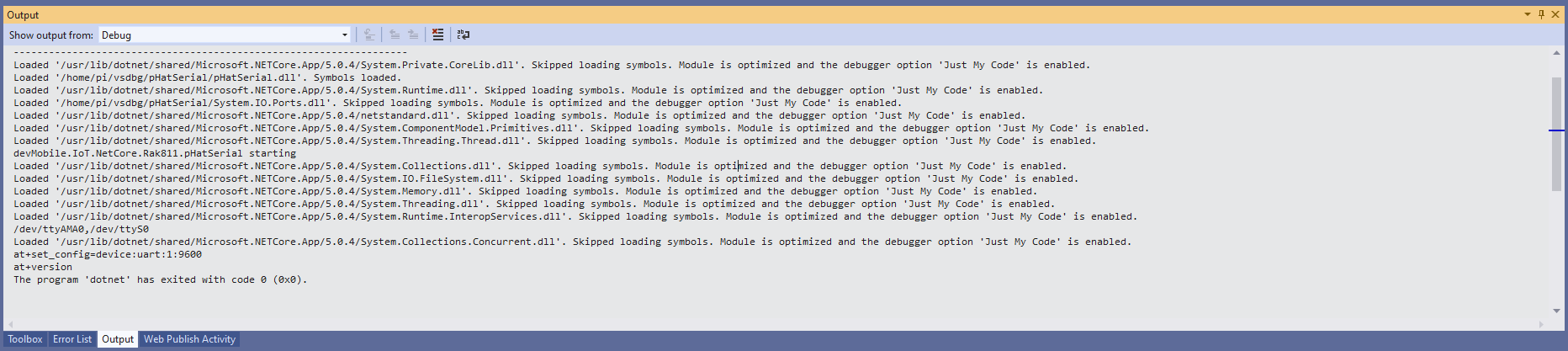
The first step was to change the RAK811 serial port speed from 115200 to 9600 baud.

Changing RAK811 serial port from 115200 to 9600 baud

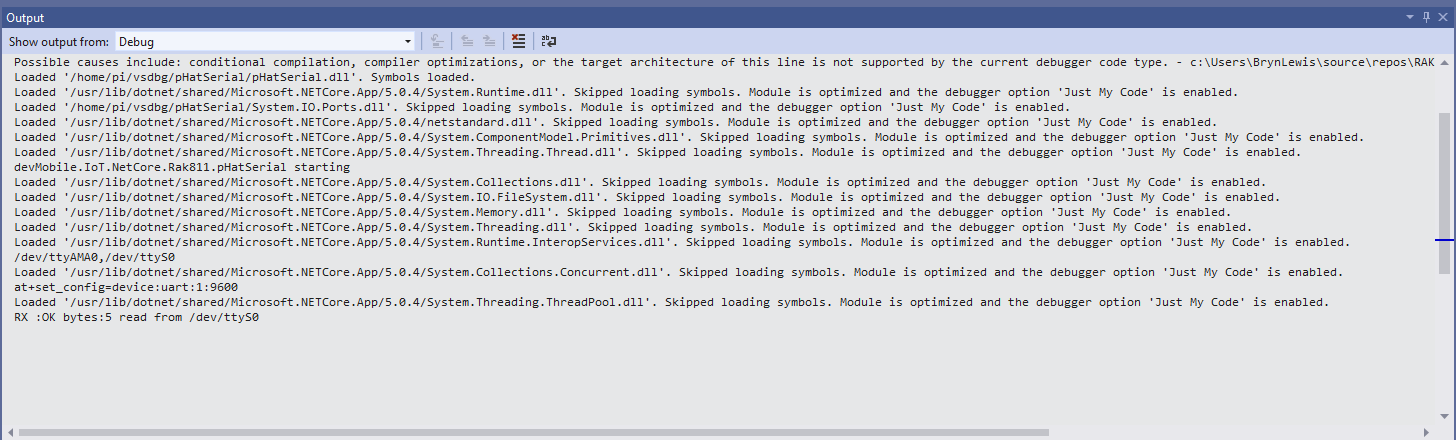
Then I requested the RAK811 version information with the at+version command.

Synchronously reading characters from the RAK811 partial response

I had to add a short delay between sending the command and reading the response.

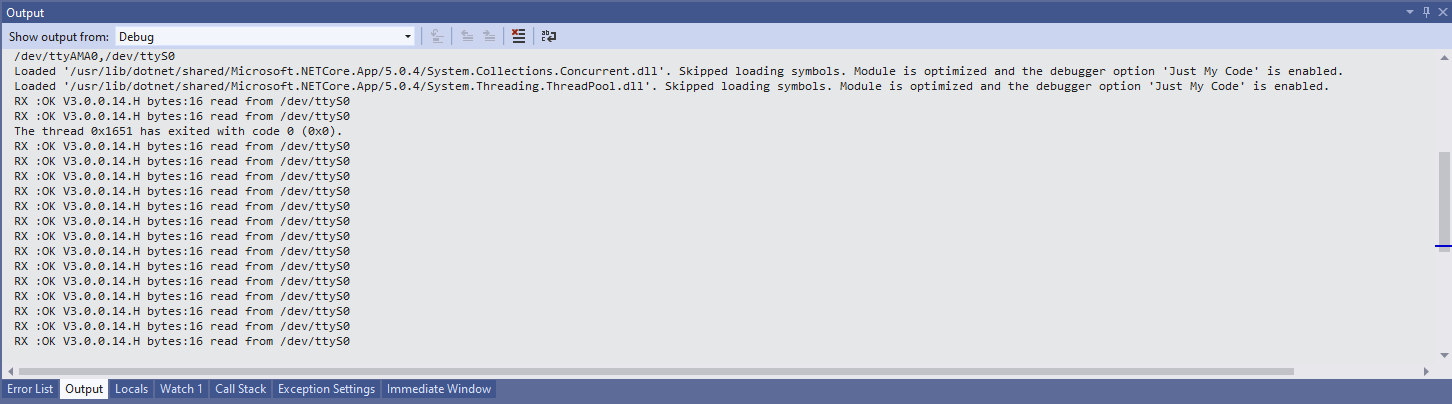
Synchronously reading characters from the RAK811 complete command responses

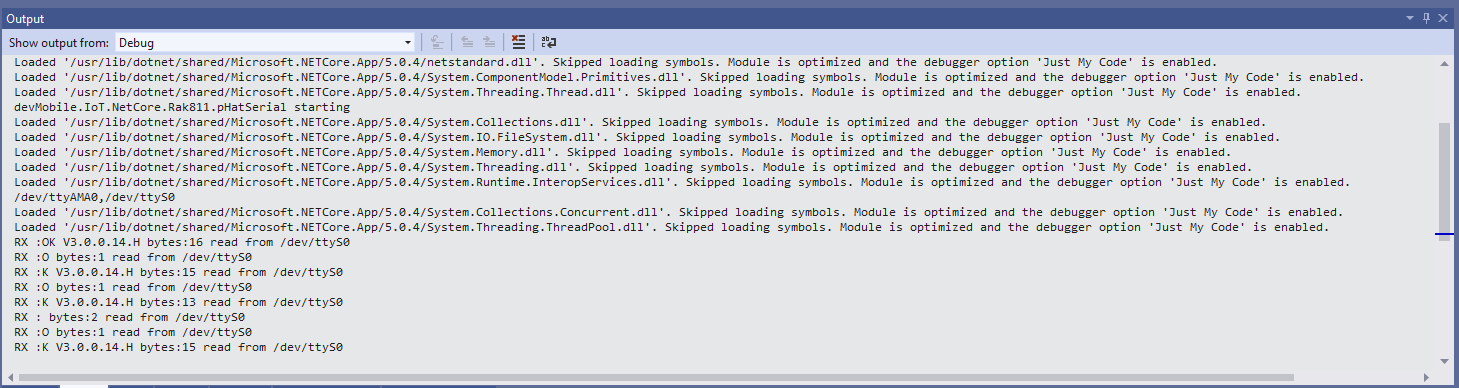
The asynchronous version of the application displays character(s) as they arrive so a response could be split across multiple SerialDataReceived events

Asynchronous versions displaying partial responses

I use the excellent RaspberryDebugger to download the application and debug it on my Raspberry PI 3.

Security Camera Azure IoT Hub Image upload

The final two projects of this series both upload images to the Azure Storage account associated with an Azure IoT Hub. One project uses a Timer to upload pictures with a configurable delay. The other uploads an image every time a General Purpose Input Output(GPIO) pin on the Raspberry PI3 is strobed.

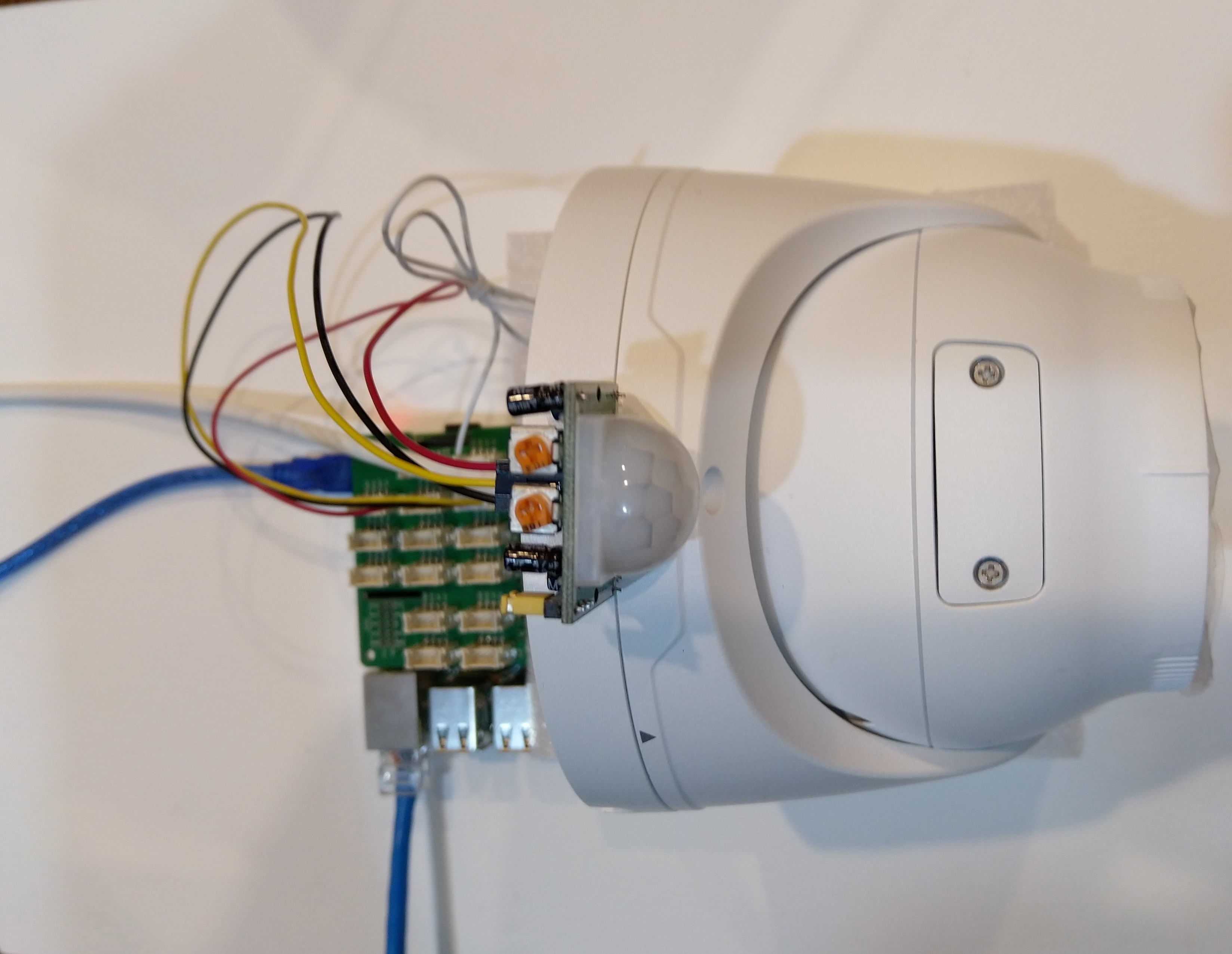
Uniview IPC3635SB-ADZK-I0 Security camera test rig with Raspberry PI and PIR motion detector

I tried to keep the .Net Core 5 console applications as simple as possible, they download an image from the camera “snapshot” endpoint (In this case http://10.0.0.47:85/images/snapshot.jpg), save it to the local filesystem and then upload it.

The core of the two applications is the “upload” image method, which is called by a timer or GPIO pin EventHandler

private static async void ImageUpdateTimerCallback(object state)
{
	CommandLineOptions options = (CommandLineOptions)state;
	DateTime requestAtUtc = DateTime.UtcNow;

	// Just incase - stop code being called while retrival of the photo already in progress
	if (cameraBusy)
	{
		return;
	}
	cameraBusy = true;

	Console.WriteLine($"{requestAtUtc:yy-MM-dd HH:mm:ss} Image up load start");

	try
	{
		// First go and get the image file from the camera onto local file system
		using (var client = new WebClient())
		{
			NetworkCredential networkCredential = new NetworkCredential()
			{
				UserName = options.UserName,
				Password = options.Password
			};

			client.Credentials = networkCredential;

			await client.DownloadFileTaskAsync(new Uri(options.CameraUrl), options.LocalFilename);
		}

		// Then open the file ready to stream ito upto storage account associated with Azuure IoT Hub
		using (FileStream fileStreamSource = new FileStream(options.LocalFilename, FileMode.Open))
		{
			var fileUploadSasUriRequest = new FileUploadSasUriRequest
			{
				BlobName = string.Format("{0:yyMMdd}/{0:yyMMddHHmmss}.jpg", requestAtUtc)
			};

			// Get the plumbing sorted for where the file is going in Azure Storage
			FileUploadSasUriResponse sasUri = await azureIoTCentralClient.GetFileUploadSasUriAsync(fileUploadSasUriRequest);
			Uri uploadUri = sasUri.GetBlobUri();

			try
			{
				var blockBlobClient = new BlockBlobClient(uploadUri);

				var response = await blockBlobClient.UploadAsync(fileStreamSource, new BlobUploadOptions());

				var successfulFileUploadCompletionNotification = new FileUploadCompletionNotification()
				{
					// Mandatory. Must be the same value as the correlation id returned in the sas uri response
					CorrelationId = sasUri.CorrelationId,

					// Mandatory. Will be present when service client receives this file upload notification
					IsSuccess = true,

					// Optional, user defined status code. Will be present when service client receives this file upload notification
					StatusCode = 200,

					// Optional, user-defined status description. Will be present when service client receives this file upload notification
					StatusDescription = "Success"
				};

				await azureIoTCentralClient.CompleteFileUploadAsync(successfulFileUploadCompletionNotification);
			}
			catch (Exception ex)
			{
				Console.WriteLine($"Failed to upload file to Azure Storage using the Azure Storage SDK due to {ex}");

				var failedFileUploadCompletionNotification = new FileUploadCompletionNotification
				{
					// Mandatory. Must be the same value as the correlation id returned in the sas uri response
					CorrelationId = sasUri.CorrelationId,

					// Mandatory. Will be present when service client receives this file upload notification
					IsSuccess = false,

					// Optional, user-defined status code. Will be present when service client receives this file upload notification
					StatusCode = 500,

					// Optional, user defined status description. Will be present when service client receives this file upload notification
					StatusDescription = ex.Message
				};

				await azureIoTCentralClient.CompleteFileUploadAsync(failedFileUploadCompletionNotification);
			}
		}

		TimeSpan uploadDuration = DateTime.UtcNow - requestAtUtc;

		Console.WriteLine($"{requestAtUtc:yy-MM-dd HH:mm:ss} Image up load done. Duration:{uploadDuration.TotalMilliseconds:0.} mSec");
	}
	catch (Exception ex)
	{
		Console.WriteLine($"Camera image upload process failed {ex.Message}");
	}
	finally
	{
		cameraBusy = false;
	}
}

I have used Azure DeviceClient UploadToBlobAsync in other projects and it was a surprise to see it deprecated and replaced with GetFileUploadSasUriAsync and GetBlobUri with sample code from the development team.

string blobName = string.Format("{0:yyMMdd}/{0:yyMMddHHmmss}.jpg", requestAtUtc);

azureIoTCentralClient.UploadToBlobAsync(blobName, fileStreamSource);

It did seem to take a lot of code to implement what was previously a single line (I’m going try and find out why this method has been deprecated)

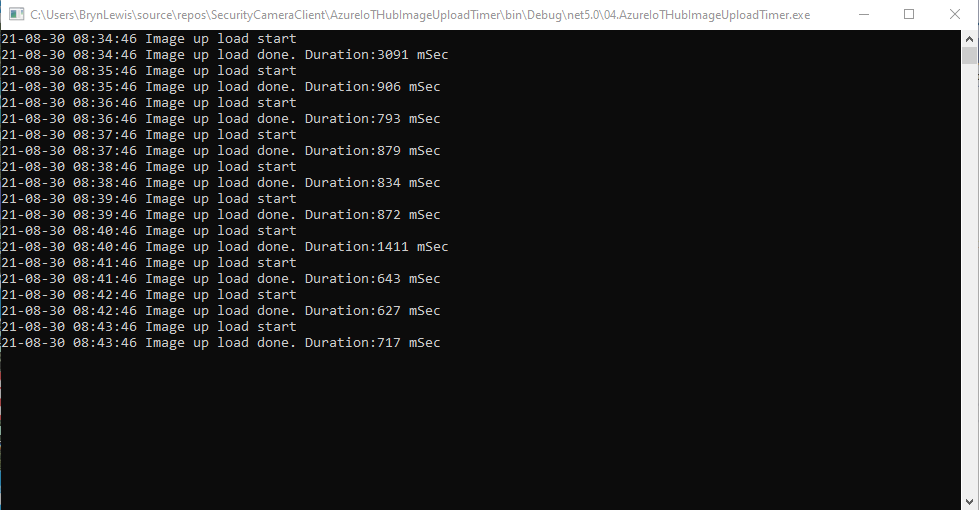
TImer application image uploader

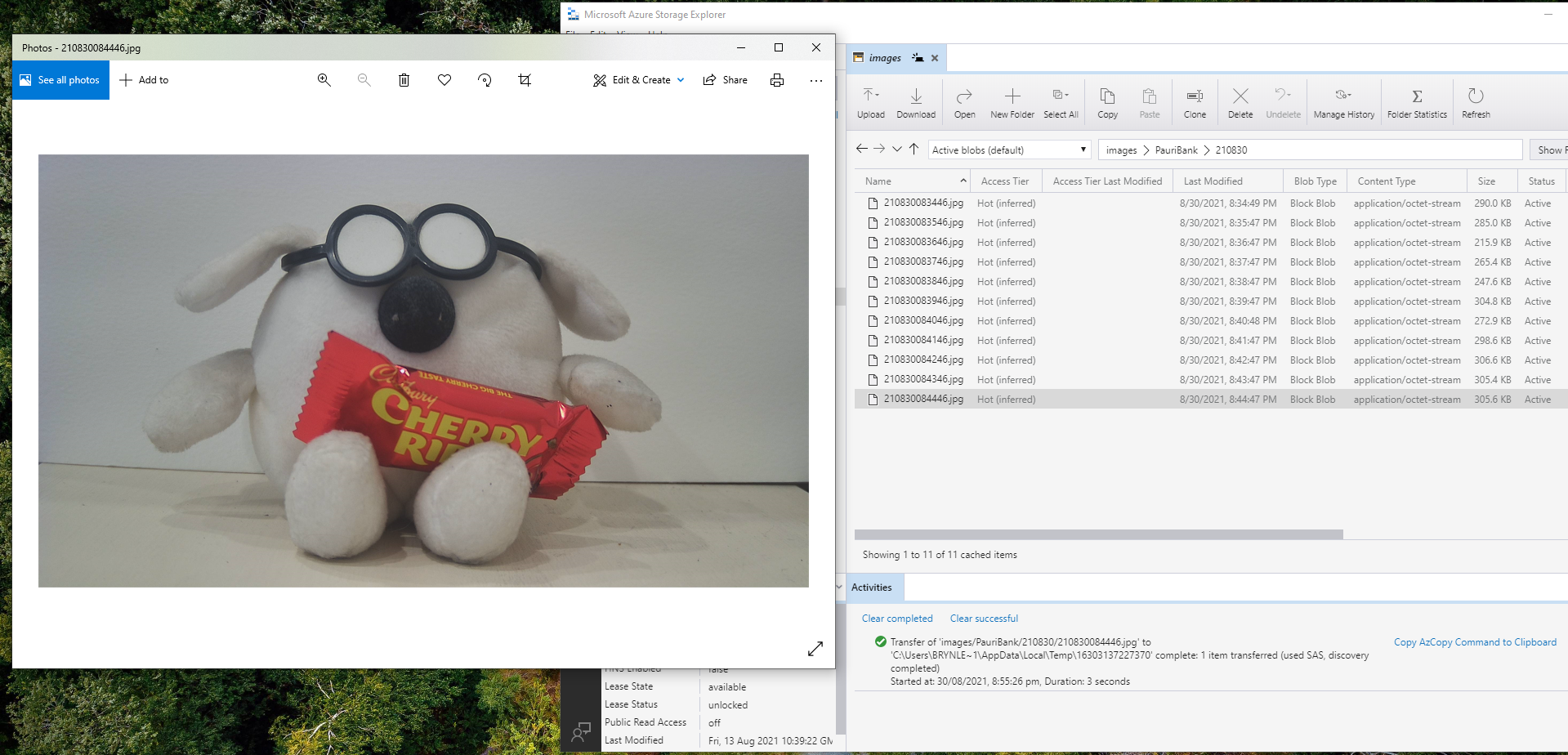
Using Azure Storage Explorer I could view and download the images uploaded by the application(s) running on my development machine and Raspberry PI

Azure Storage Displaying most recent image uploaded by a RaspberryPI device

After confirming the program was working I used the excellent RaspberryDebugger to download the application and debug it on my Raspberry PI 3 running the Raspberry PI OS.

Now that the basics are working my plan is to figure out how to control the camera using Azure IoT Hub method calls, display live Real Time Streaming Protocol(RTSP) using Azure IoT Hub Device Streams, upload images to Azure Cognitive Services for processing and use ML.Net to process them locally.

Security Camera ONVIF Capabilities

The ONVIF specification standardises the network interface (the network layer) of network video products. It defines a communication framework based on relevant IETF and Web Services standards including security and IP configuration requirements.

After discovering a device the next step was to query it to determine its capabilities. I had some issues with .Net Core 5 application configuring the Windows Communication Foundation(WCF) to use Digest authentication (RFC2617) credentials on all bar the device management service client.

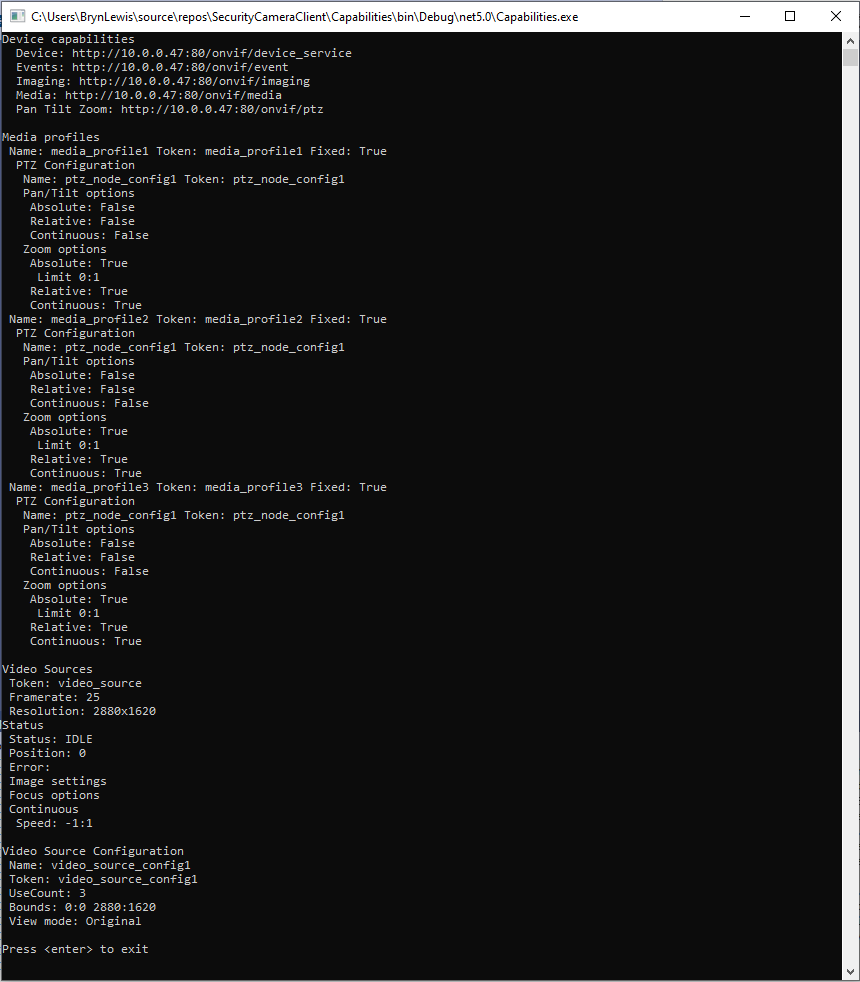
This .Net Core 5 console application queries the device management service (ONVID application programmers guide) to get the capabilities of the device then calls the media, imaging and pan tilt zoom services and displays the results.

I generated the client services using the Microsoft WCF Web Service Reference Provider.

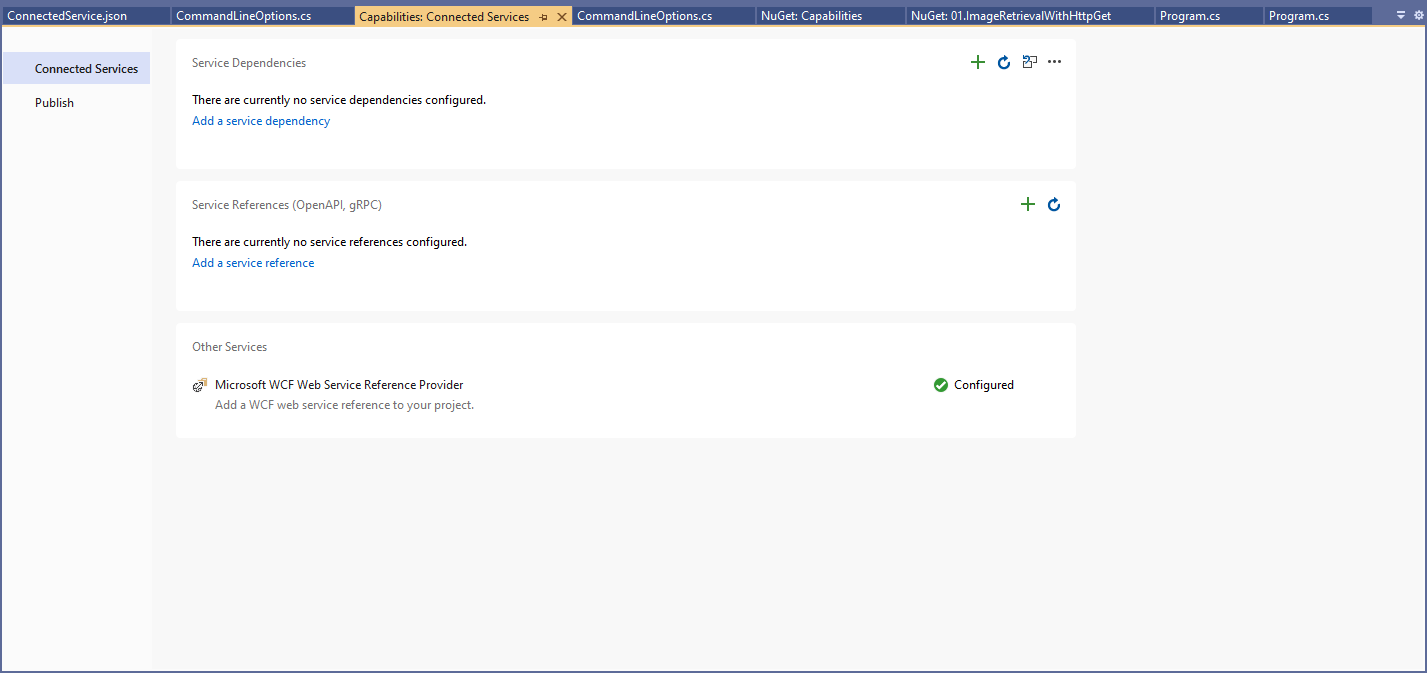
Connected Services management dialog

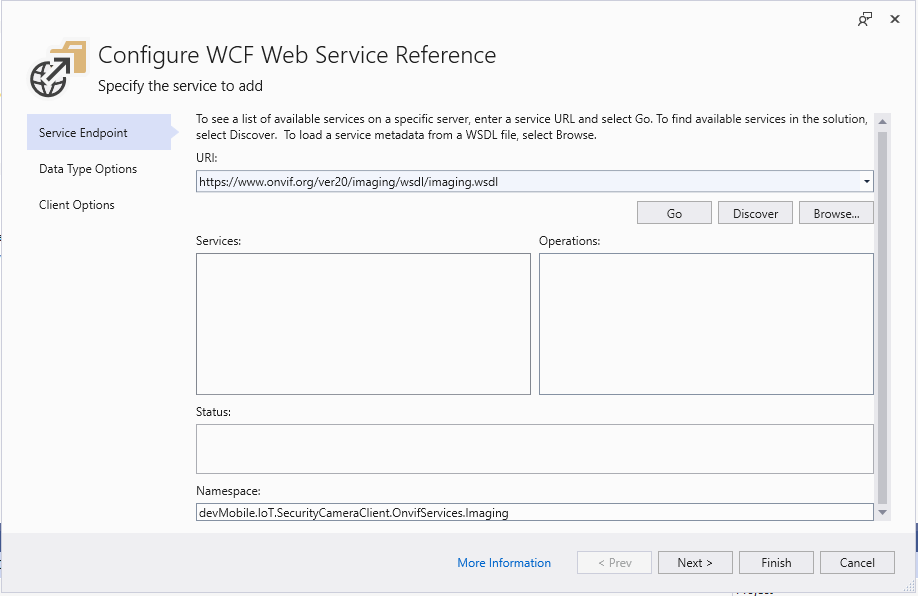
The Uniform Resource Locators(URL) and namespace prefixes for each generated service are configured in the ConnectedService.json file.

First step configuring a WCF Service

Initially I used a devMobile.IoT.SecurityCameraClient prefix but after some experimentation changed to OnvifServices.

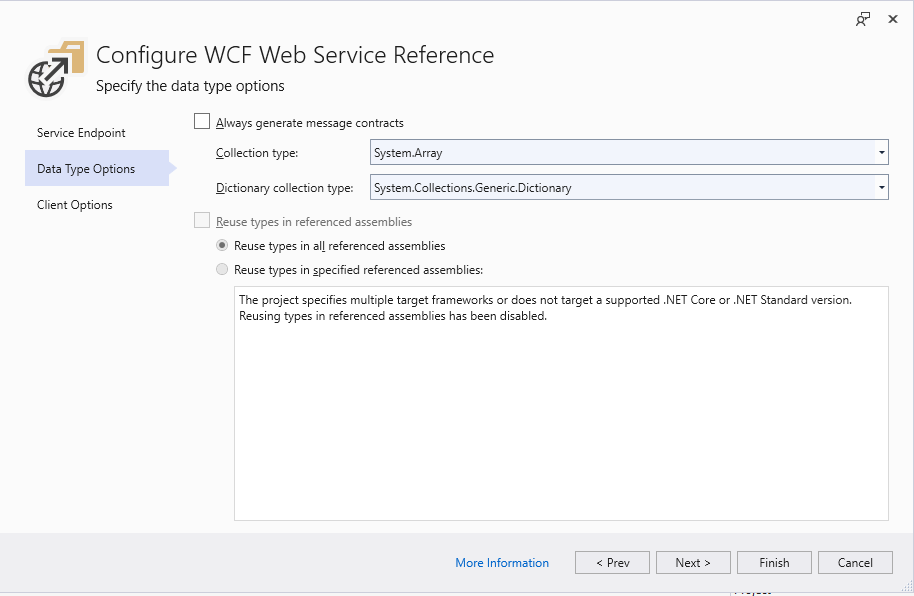
Second step configuring a WCF Service

For testing I selected “Generated Synchronous Operations” as they are easier to use in a console application while exploring the available functionality.

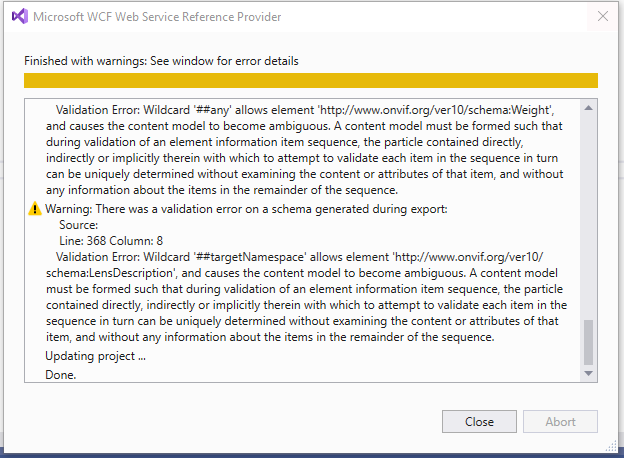
Third step configuring a WCF Service

The WSDL generated a number of warnings so I inspected the WSDL to see if the were easy to fix. I did consider copying the WSDL to my development box but it didn’t appear to be worth the effort.

SVCUtil warning messages about invalid Onvif WSDL

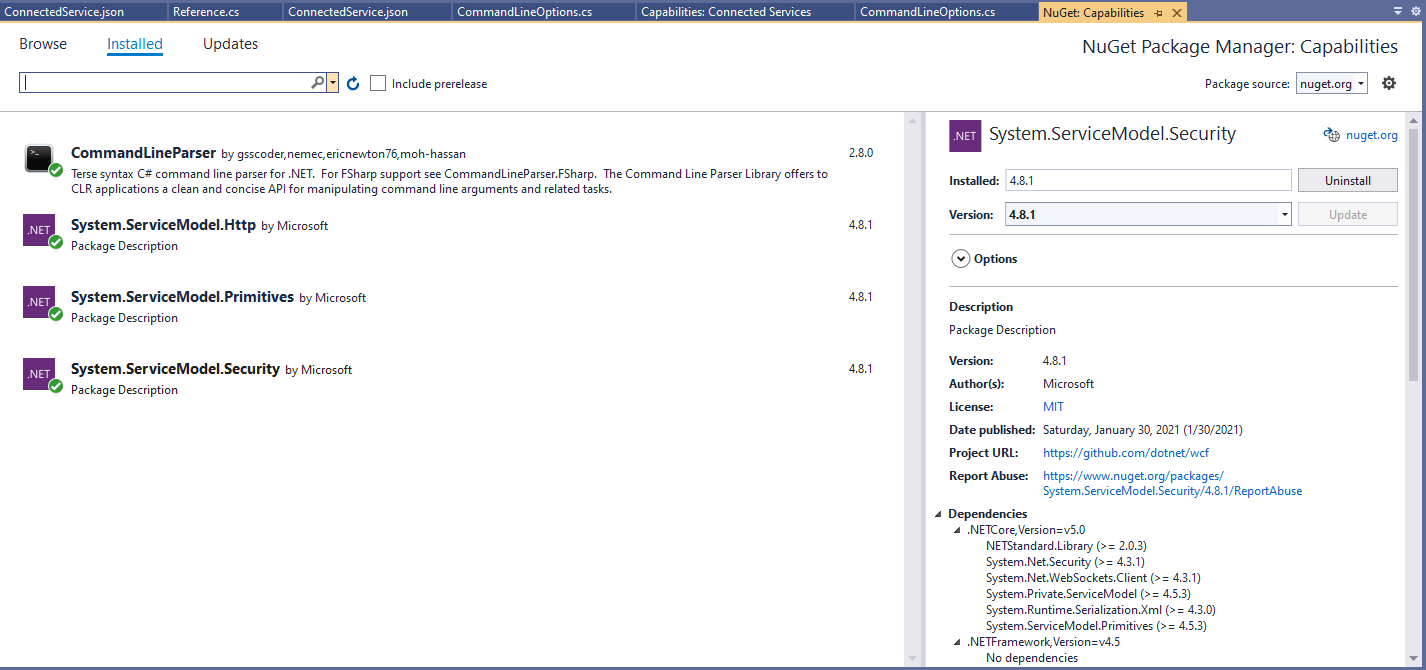
For this application I’m using the CommandLineParser NuGet package to parse and validate the client, username and password configured in the debugger tab.

Required Nuget packages
private static async Task ApplicationCore(CommandLineOptions options)
{
   Device deviceClient;
   ImagingPortClient imagingPortClient;
   MediaClient mediaClient;
   PTZClient panTiltZoomClient;

   var messageElement = new TextMessageEncodingBindingElement()
   {
      MessageVersion = MessageVersion.CreateVersion(EnvelopeVersion.Soap12, AddressingVersion.None),
      WriteEncoding = Encoding.UTF8
    };

    HttpTransportBindingElement httpTransportNoPassword = new HttpTransportBindingElement();
    CustomBinding bindingHttpNoPassword = new CustomBinding(messageElement, httpTransportNoPassword);
         
    HttpTransportBindingElement httpTransport = new HttpTransportBindingElement()
    {
       AuthenticationScheme = AuthenticationSchemes.Digest
    };
    CustomBinding bindingHttpPassword = new CustomBinding(messageElement, httpTransport);

    try
    {
       // Setup the imaging porting binding, use TLS, and ignore certificate errors
       deviceClient = new DeviceClient(bindingHttpNoPassword, new EndpointAddress($"http://{options.CameraUrl}/onvif/devicemgmt"));

       GetCapabilitiesResponse capabilitiesResponse = await deviceClient.GetCapabilitiesAsync(new GetCapabilitiesRequest(new CapabilityCategory[] { CapabilityCategory.All }));

       Console.WriteLine("Device capabilities");
       Console.WriteLine($"  Device: {capabilitiesResponse.Capabilities.Device.XAddr}");
       Console.WriteLine($"  Events: {capabilitiesResponse.Capabilities.Events.XAddr}"); // Not interested in events for V1
       Console.WriteLine($"  Imaging: {capabilitiesResponse.Capabilities.Imaging.XAddr}");
       Console.WriteLine($"  Media: {capabilitiesResponse.Capabilities.Media.XAddr}");
       Console.WriteLine($"  Pan Tilt Zoom: {capabilitiesResponse.Capabilities.PTZ.XAddr}");
       Console.WriteLine();
       ...
       Console.WriteLine($"Video Source Configuration");
       foreach (OnvifServices.Media.VideoSourceConfiguration videoSourceConfiguration in videoSourceConfigurations.Configurations)
      {
         Console.WriteLine($" Name: {videoSourceConfiguration.Name}");
         Console.WriteLine($" Token: {videoSourceConfiguration.token}");
         Console.WriteLine($" UseCount: {videoSourceConfiguration.UseCount}");
         Console.WriteLine($" Bounds: {videoSourceConfiguration.Bounds.x}:{videoSourceConfiguration.Bounds.y} {videoSourceConfiguration.Bounds.width}:{videoSourceConfiguration.Bounds.height}");
         Console.WriteLine($" View mode: {videoSourceConfiguration.ViewMode}");
      }
   }
   catch (Exception ex)
   {
      Console.WriteLine(ex.Message);
   }

   Console.WriteLine();
   Console.WriteLine("Press <enter> to exit");
   Console.ReadLine();
}

I had to do a bit of “null checking” as often if a feature wasn’t supported the root node was null. I need to get a selection of cameras (especially one with pan/tilt/zoom) to check that I’m processing the responses from the device correctly.

Console application output showing capabilities of Uniview device

After confirming the program was working on my development box I used the excellent RaspberryDebugger to download the application and run it on a Raspberry PI 3 running the Raspberry PI OS.

Security Camera ONVIF Discovery

The ONVIF specification standardises the network interface (the network layer) of network video products. It defines a communication framework based on relevant IETF and Web Services standards including security and IP configuration requirements. ONVIF uses Web Services Dynamic Discovery (WS-Discovery) to locate devices on the local network which operates over UDP port 3702 and uses IP multicast address 239.255.255.250.

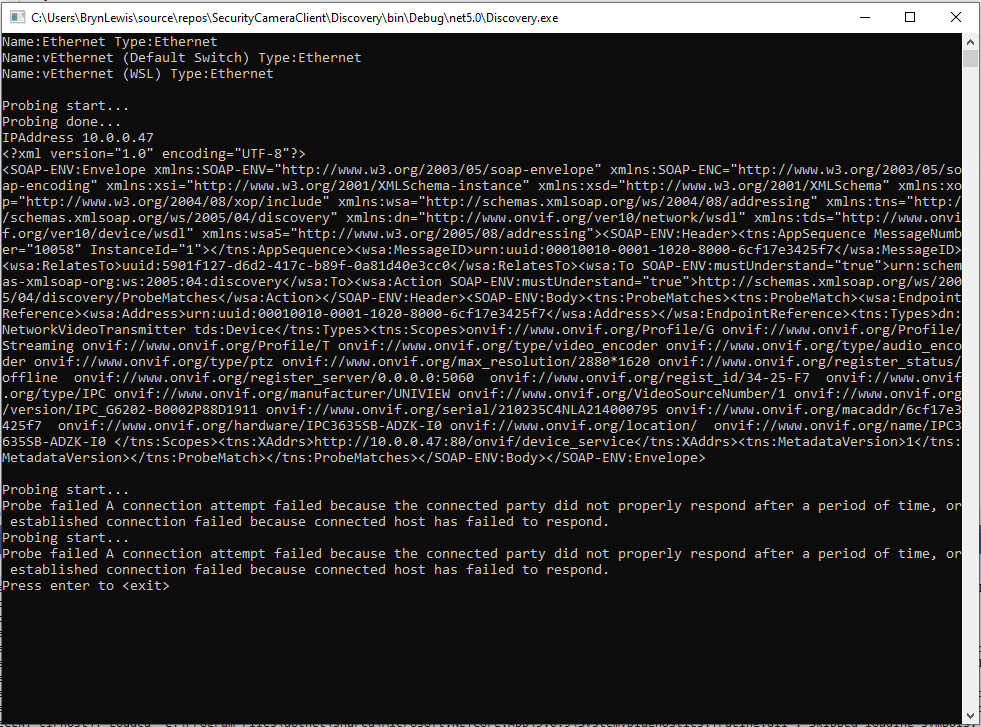
The first issue was that WS-Discovery is not currently supported by the .Net Core Windows Communication Foundation(WCF) implementation CoreWCF(2021-08). So I built a proof of concept(PoC) client which used UDP to send and receive XML messages (WS-Discovery specification) to “probe” the local network.

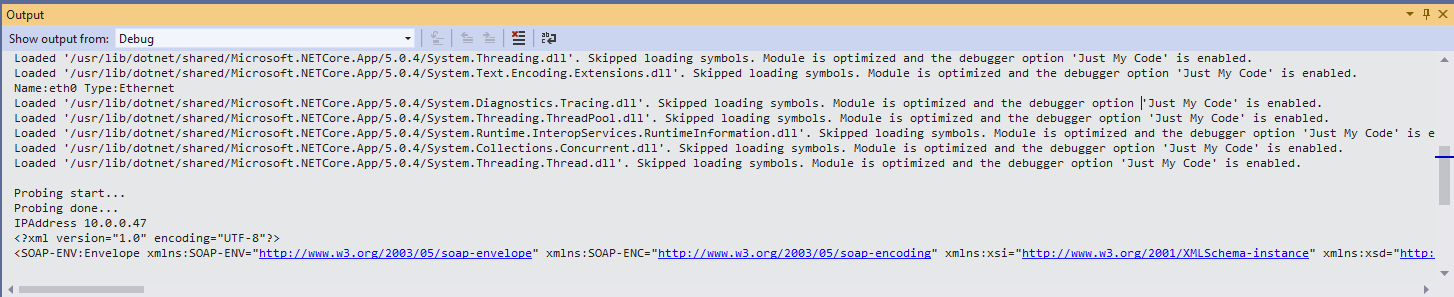
My .Net Core 5 console application enumerates the host device’s network interfaces, then sends a “probe” message and waits for responses. The ONVID application programmers guide specifies the format of the “probe” request and response messages (One of the namespace prefixes in the sample is wrong). The client device can return its name and details of it’s capabilities in the response. Currently I only need the IP addresses of the cameras but if more information was required I would use the XML Serialisation functionality of .Net Core to generate the requests and unpack the responses.

class Program
{
	// From https://specs.xmlsoap.org/ws/2005/04/discovery/ws-discovery.pdf & http://www.onvif.org/wp-content/uploads/2016/12/ONVIF_WG-APG-Application_Programmers_Guide-1.pdf
	const string WSDiscoveryProbeMessages =
		"<?xml version = \"1.0\" encoding=\"UTF-8\"?>" +
		"<e:Envelope xmlns:e=\"http://www.w3.org/2003/05/soap-envelope\" " +
			"xmlns:w=\"http://schemas.xmlsoap.org/ws/2004/08/addressing\" " +
			"xmlns:d=\"http://schemas.xmlsoap.org/ws/2005/04/discovery\" " +
			"xmlns:dn=\"http://www.onvif.org/ver10/network/wsdl\"> " +
				"<e:Header>" +
					"<w:MessageID>uuid:{0}</w:MessageID>" +
					"<w:To e:mustUnderstand=\"true\">urn:schemas-xmlsoap-org:ws:2005:04:discovery</w:To> " +
					"<w:Action mustUnderstand=\"true\">http://schemas.xmlsoap.org/ws/2005/04/discovery/Probe</w:Action> " +
				"</e:Header> " +
				"<e:Body> " +
					"<d:Probe> " +
						"<d:Types>dn:NetworkVideoTransmitter</d:Types>" +
					"</d:Probe> " +
				"</e:Body> " +
		"</e:Envelope>";

	static async Task Main(string[] args)
	{
		List<UdpClient> udpClients = new List<UdpClient>();

		foreach (var networkInterface in NetworkInterface.GetAllNetworkInterfaces())
		{
			Console.WriteLine($"Name {networkInterface.Name}");
			foreach (var unicastAddress in networkInterface.GetIPProperties().UnicastAddresses)
			{
				if (unicastAddress.Address.AddressFamily == AddressFamily.InterNetwork)
				{
					var udpClient = new UdpClient(new IPEndPoint(unicastAddress.Address, 0)) { EnableBroadcast = true };

					udpClient.Client.SetSocketOption(SocketOptionLevel.Socket, SocketOptionName.ReceiveTimeout, 5000);

					udpClients.Add(udpClient);
				}
			}
		}

	var multicastEndpoint = new IPEndPoint(IPAddress.Parse("239.255.255.250"), 3702);

		foreach (UdpClient udpClient in udpClients)
		{
			byte[] message = UTF8Encoding.UTF8.GetBytes(string.Format(WSDiscoveryProbeMessages, Guid.NewGuid().ToString()));

			try
			{
				await udpClient.SendAsync(message, message.Length, multicastEndpoint);

				IPEndPoint remoteEndPoint = null;

				while(true)
				{				
					message = udpClient.Receive(ref remoteEndPoint);

					Console.WriteLine($"IPAddress {remoteEndPoint.Address}");
					Console.WriteLine(UTF8Encoding.UTF8.GetString(message));

					Console.WriteLine();
				}
			}
			catch (SocketException sex)
			{
				Console.WriteLine($"Probe failed {sex.Message}");
			}
		}

		Console.WriteLine("Press enter to <exit>");
		Console.ReadKey();
	}
}

After confirming the program was working I used the excellent RaspberryDebugger to download the application and debug it on a Raspberry PI 3 running the Raspberry PI OS.

Security Camera HTTP Image download

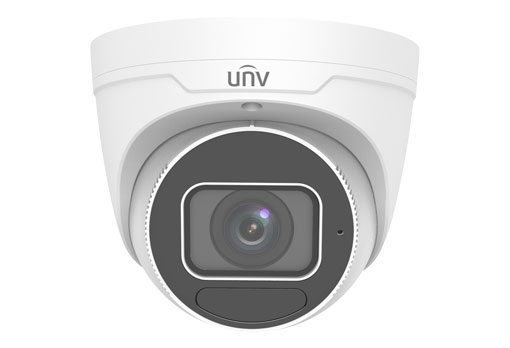
As part of a contract a customer sent me a Uniview IPC3635SB-ADZK-I0 Security camera for a proof of concept(PoC) project. Before the PoC I wanted to explore the camera functionality in more depth, especially how to retrieve individual images from the camera, remotely control it’s zoom, focus, pan, tilt etc.. I’m trying to source a couple of other vendors’ security cameras with remotely controllable pan and tilt for testing.

Uniview IPC3635SB-ADZK-I0 Security camera

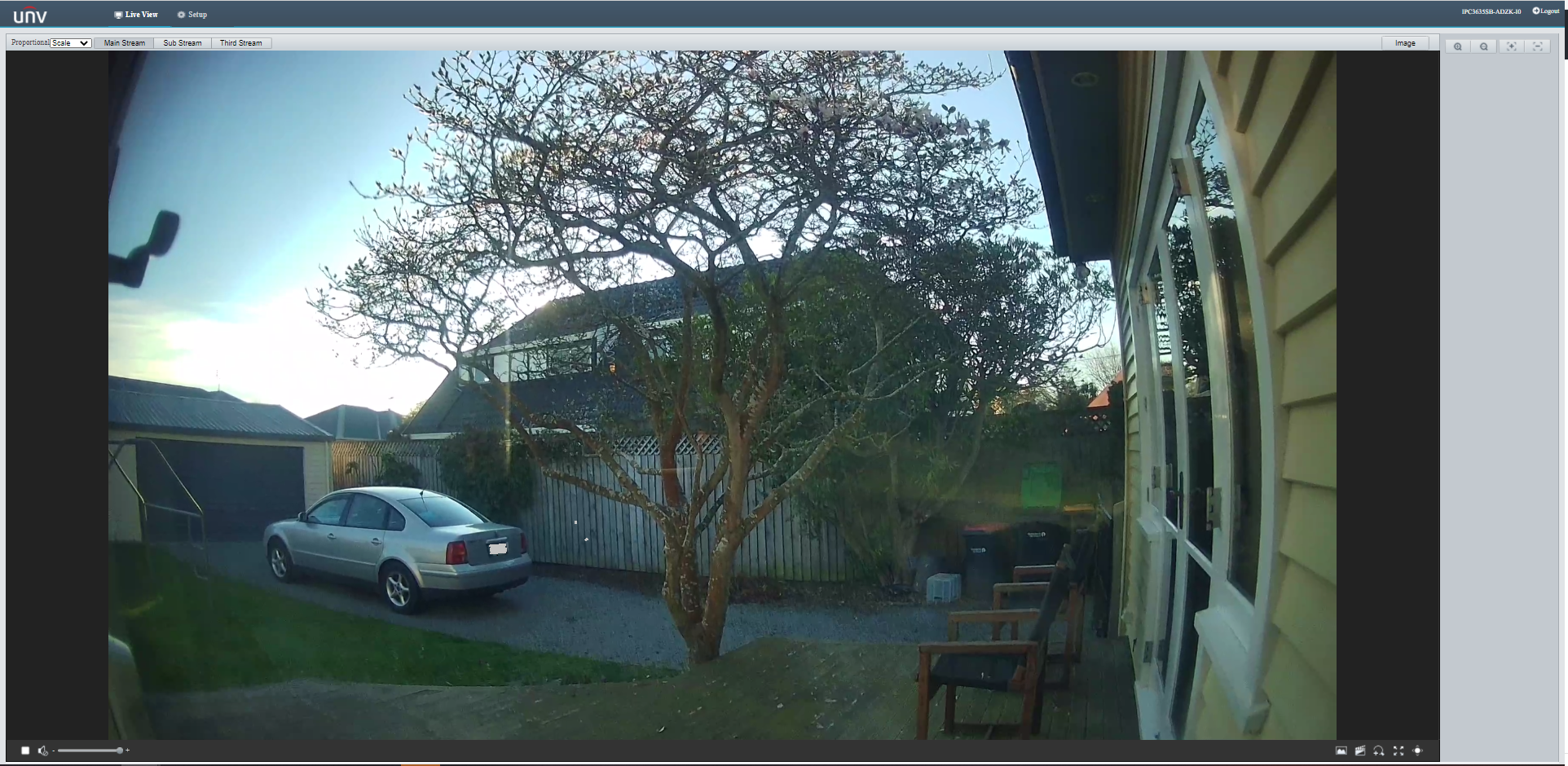
It appears that many cameras support retrieving the latest image with an HyperText Transfer Protocol (HTTP) GET so that looked like a good place to start. For the next couple of posts the camera will be sitting on the bookcase in my office looking through the window at the backyard.

Unv camera software live view of my backyard

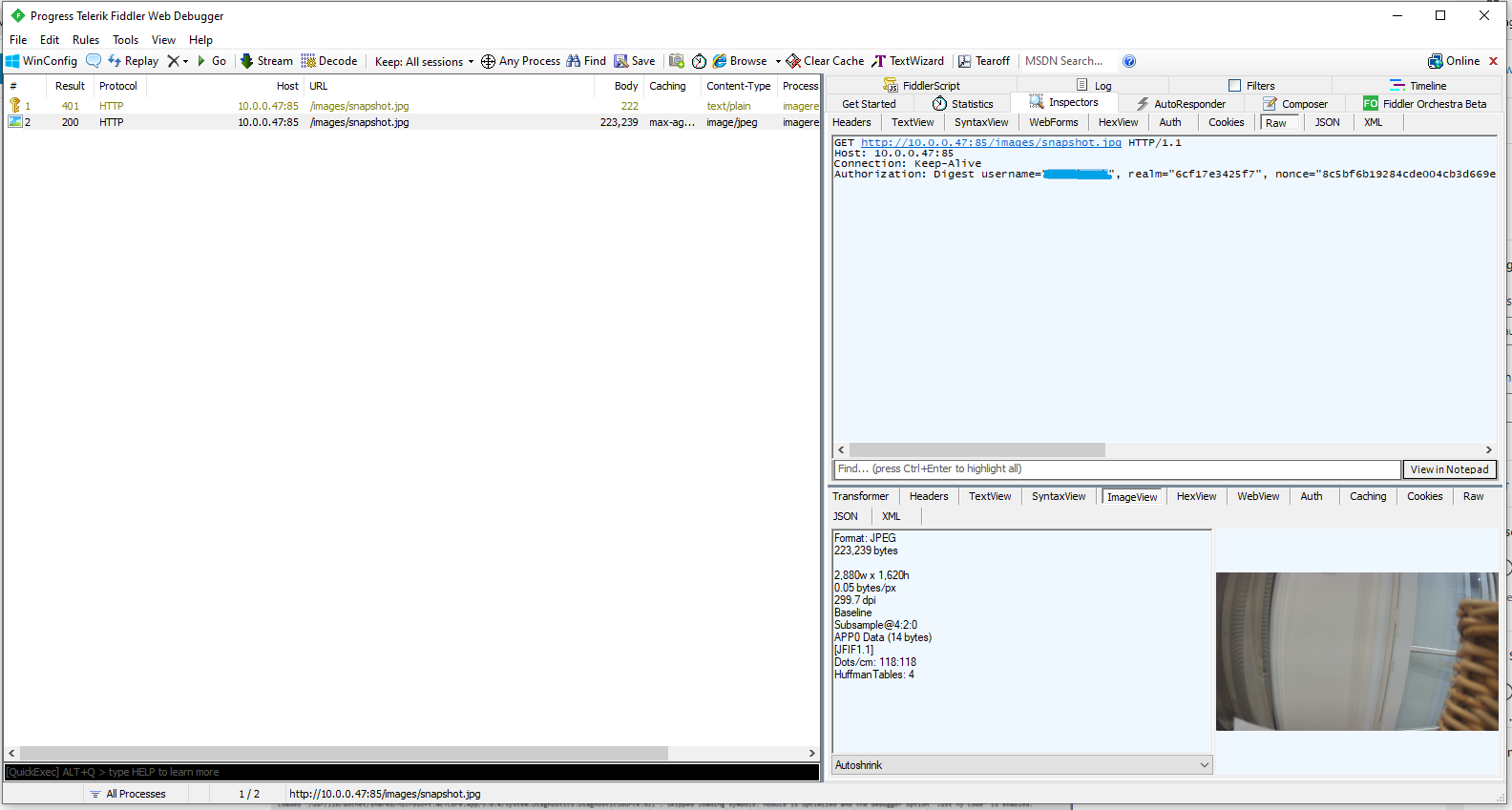
One thing I did notice (then confirmed with Telerik Fiddler and in the camera configuration) was that the camera was configured to use Digest authentication(RFC 2069) which broke my initial attempt with a Universal Windows Platform(UWP) application.

Telerik Fiddler showing 401 authorisation challenge

My .Net Core 5 console application is as simple possible, it just downloads an image from the camera “snapshot” endpoint (In this case http://10.0.0.47:85/images/snapshot.jpg) and saves it to the local filesystem.

class Program
{
	static async Task Main(string[] args)
	{
		await Parser.Default.ParseArguments<CommandLineOptions>(args)
			.WithNotParsed(HandleParseError)
			.WithParsedAsync(ApplicationCore);
	}

	private static async Task ApplicationCore(CommandLineOptions options)
	{
		Console.WriteLine($"Camera:{options.CameraUrl} UserName:{options.UserName} filename:{options.Filename}");

		using (var client = new WebClient())
		{
			NetworkCredential networkCredential = new NetworkCredential()
			{
				UserName = options.UserName,
				Password = options.Password
			};

			client.Credentials = networkCredential;

			try
			{
				await client.DownloadFileTaskAsync(new Uri(options.CameraUrl), options.Filename);
			}
			catch (Exception ex)
			{
				Console.WriteLine($"File download failed {ex.Message}");
			}
		}

		Console.WriteLine("Press <enter> to exit");
		Console.ReadLine();
	}

	private static void HandleParseError(IEnumerable<Error> errors)
	{
		if (errors.IsVersion())
		{
			Console.WriteLine("Version Request");
			return;
		}

		if (errors.IsHelp())
		{
			Console.WriteLine("Help Request");
			return;
		}
		Console.WriteLine("Parser Fail");
	}
}

After confirming the program was working I used the excellent RaspberryDebugger to download the application and debug it on a Raspberry PI 3 running the Raspberry PI OS.

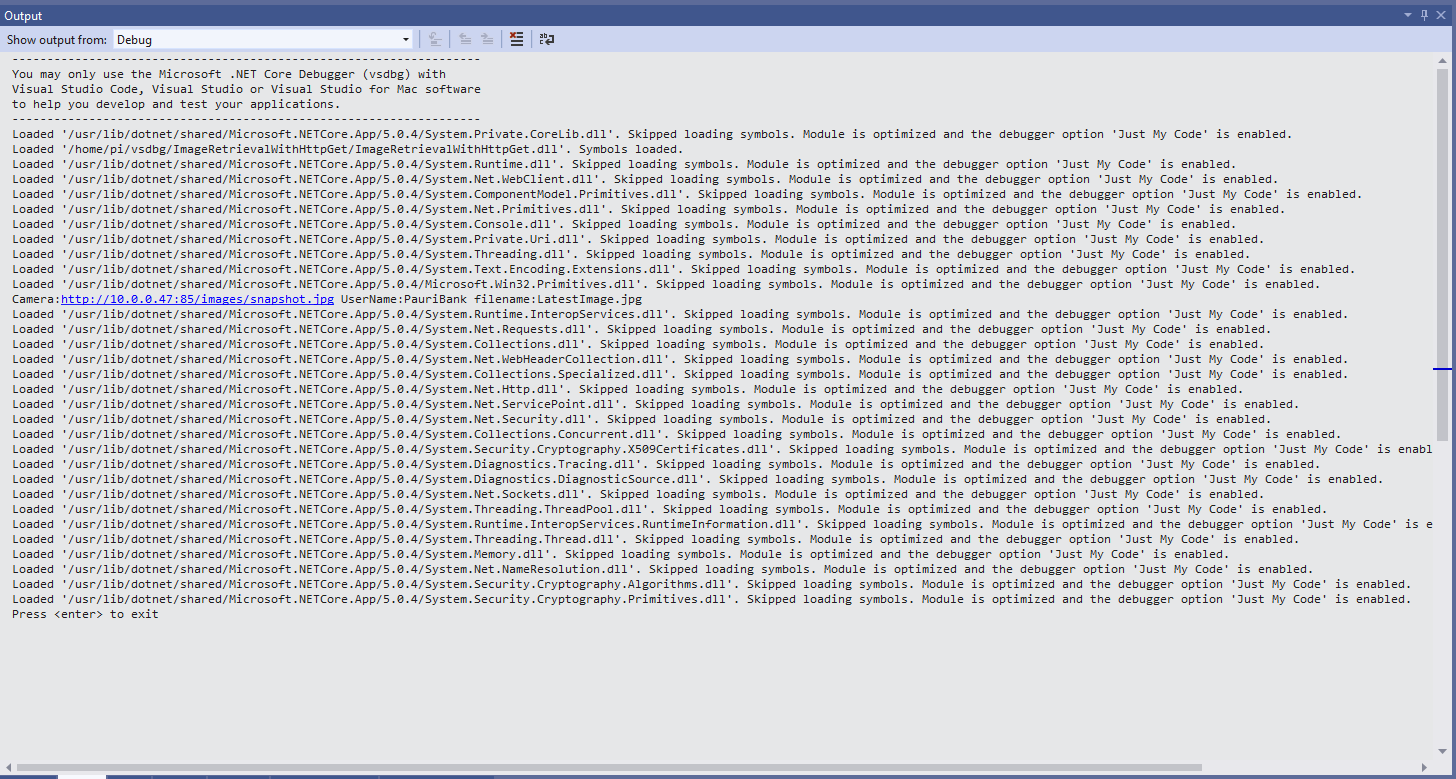
Visual Studio 2019 Debug Output showing application download process

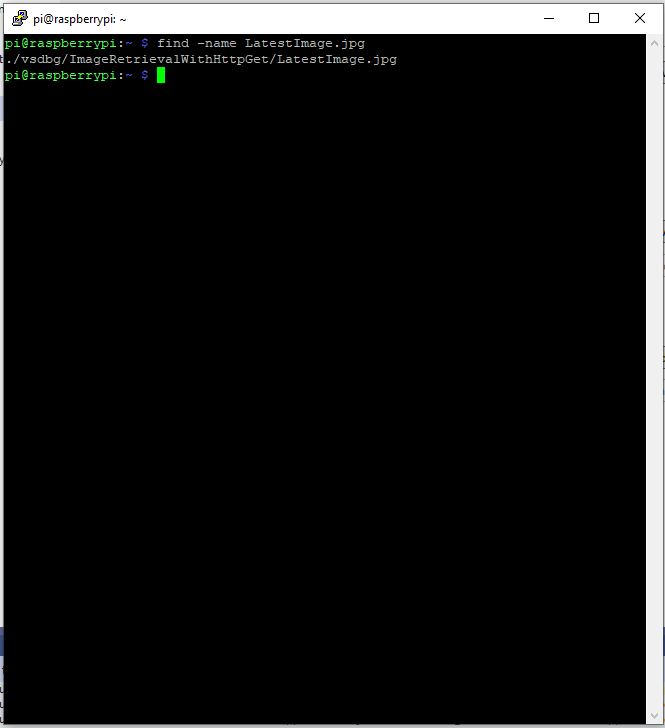
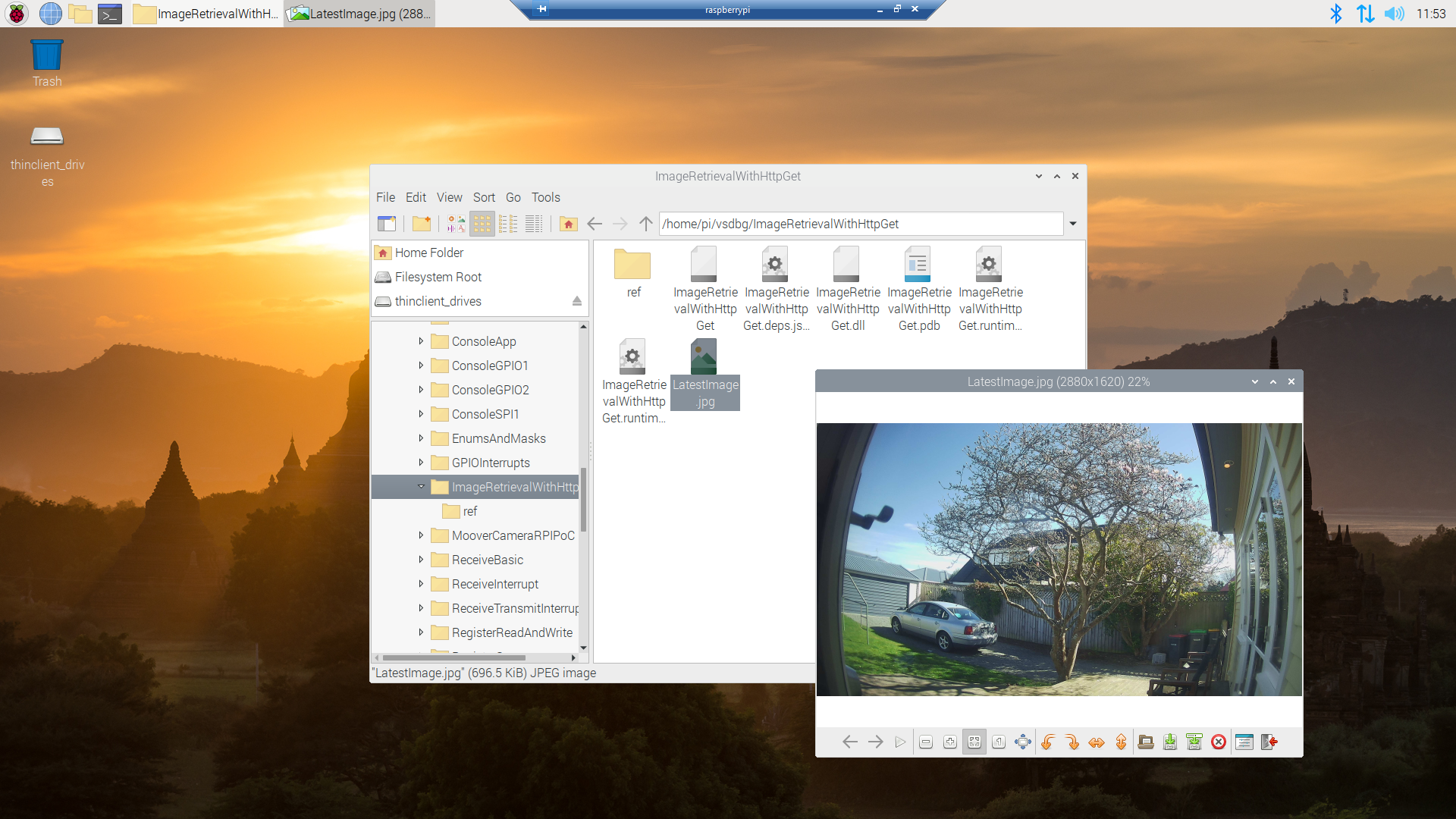
Once the application had finished running on the device I wanted to check that the file was on the local filesystem. I used Putty to connect to the Raspberry PI then searched for LatestImage.jpg.

Linux find utility displaying the location of the downloaded file

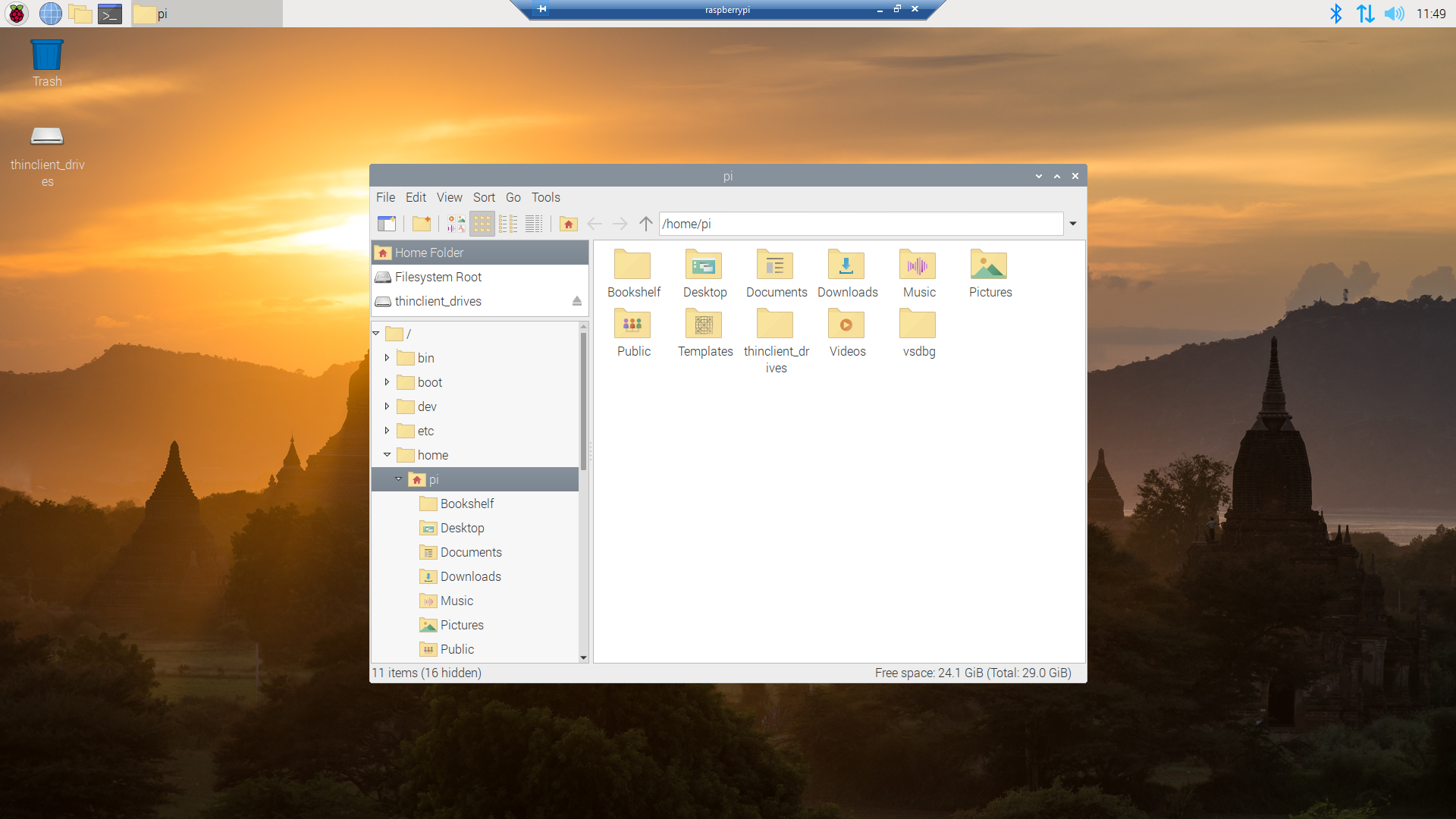
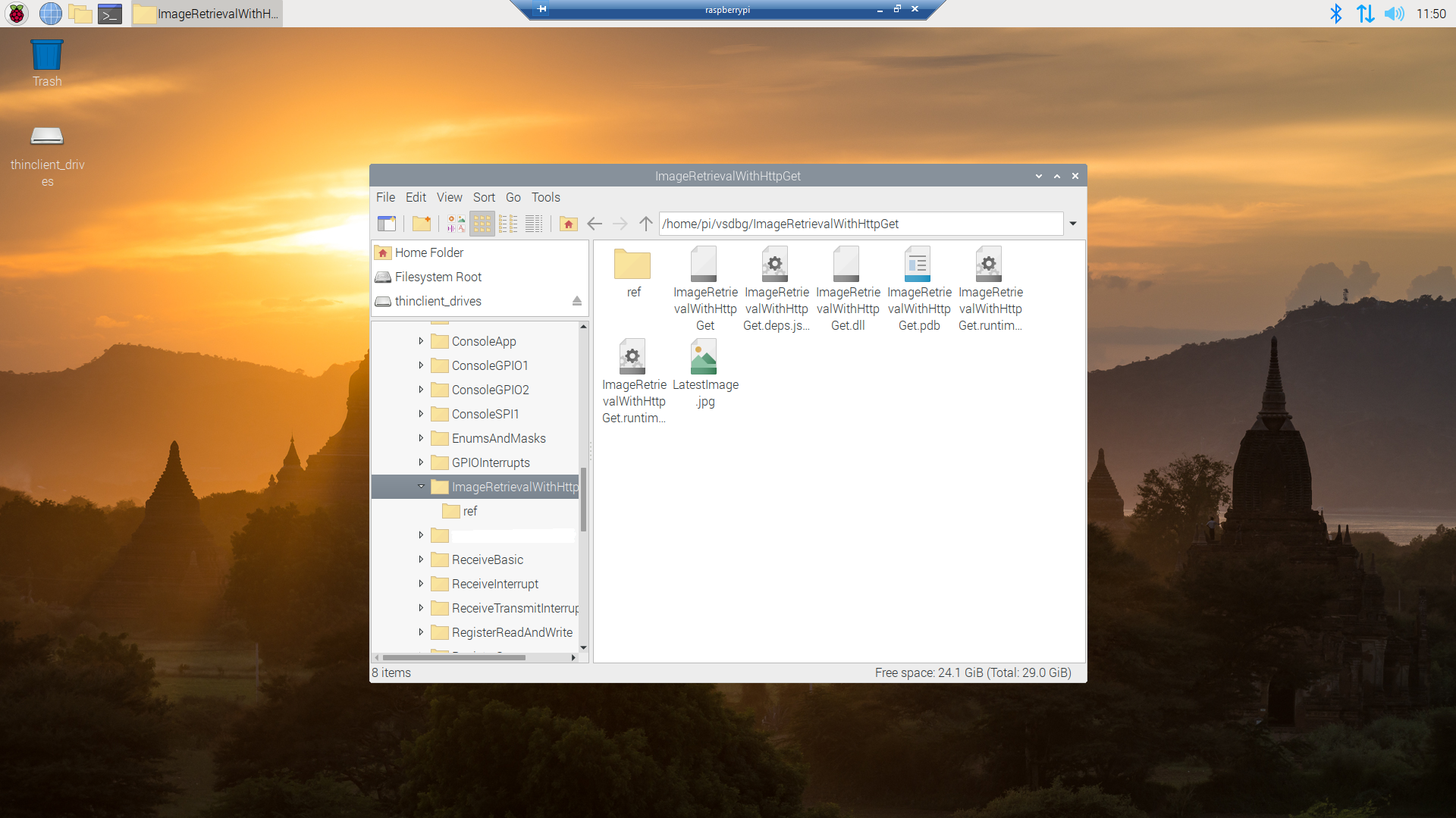
I though about using a utility like scp to download the image file but decided (because I have been using Microsoft Window since WIndows 286) to install xrdp an open-source Remote Desktop Protocol(RDP) server so I could use a Windows 10 RDP client.

xrdp login screen
xrdp home screen
xrdp file manager display files in application deployment directory
Raspberry PI OS default image view

Now that the basics are working my plan is to figure out how to control the camera, display live video with the Real Time Streaming Protocol(RTSP) upload images to Azure Cognitive Services for processing and use ML.Net to process them locally.

This post was about selecting the tooling I’m comfortable with and configuring my development environment so they work well together. The next step will be using Open Network Video Interface Forum (ONVIF) to discover, determine the capabilities of and then control the camera (for this device just zoom and focus).

.NET Core SX127X library Part5

Receive and Transmit with Interrupts

After confirming my TransmitInterrupt and ReceiveInterupt test-rigs worked with an Arduino device running the SandeepMistry Arduino LoRa library LoRaSimpleNode example (LoRa.enableInvertIQ disabled) I merged them together.

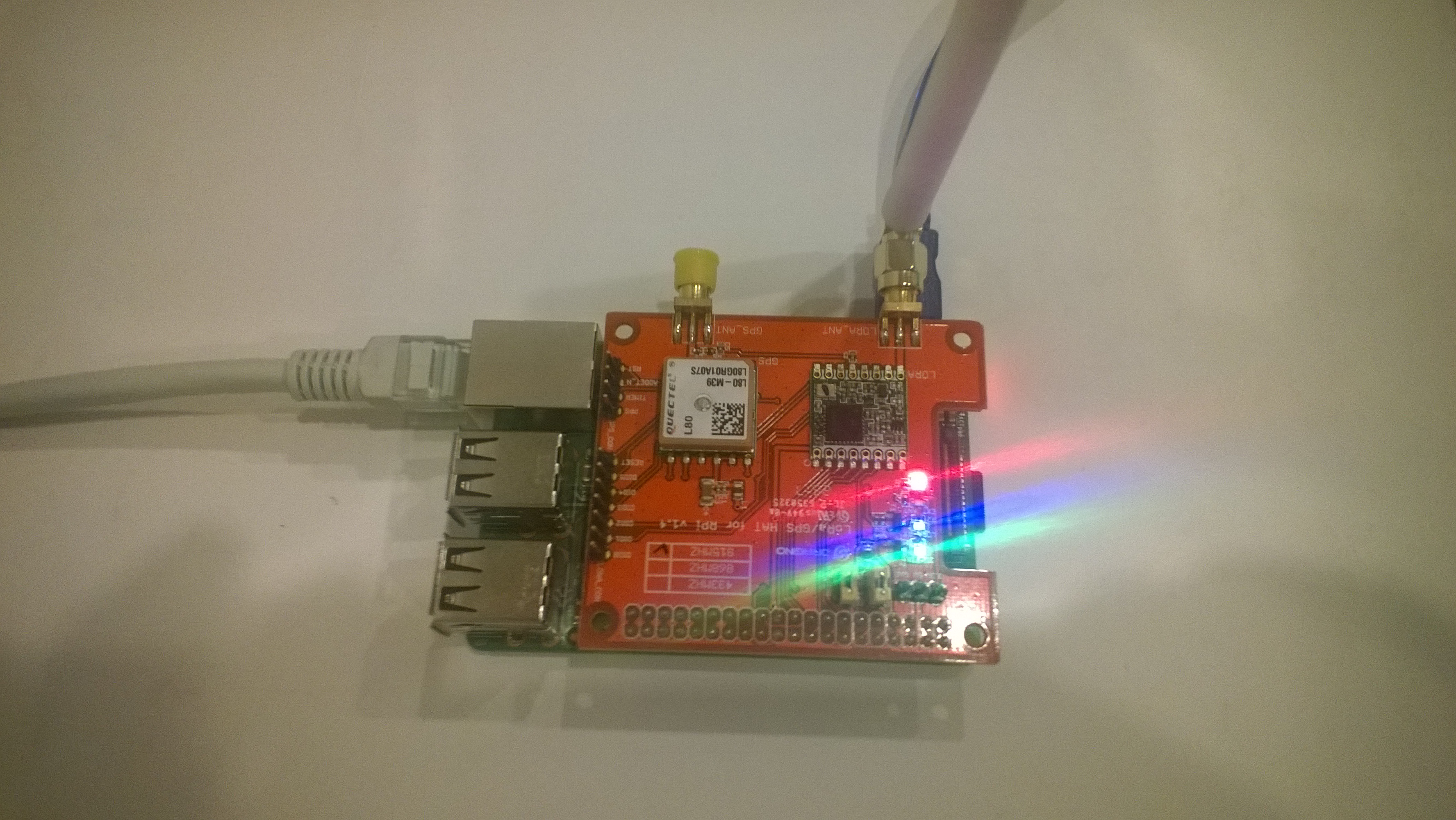
For this client I’m using a Dragino Raspberry Pi HAT featuring GPS and LoRa® technology on my Raspberry PI.

Dragino pHat on my Raspberry 3 device
Arduino Monitor output running LoRaSimpleNode example code

The Dragino Raspberry Pi HAT featuring GPS and LoRa® technology hat has the same pin configuration as the M2M 1 Channel LoRaWAN Gateway Shield for Raspberry Pi so no code changes were required.

	class Program
	{
		static void Main(string[] args)
		{
			int messageCount = 1;
			// Uptronics has no reset pin uses CS0 or CS1
			//SX127XDevice sX127XDevice = new SX127XDevice(25, chipSelectLine: 0); 
			//SX127XDevice sX127XDevice = new SX127XDevice(25, chipSelectLine: 1); 

			// M2M device has reset pin uses non standard chip select 
			//SX127XDevice sX127XDevice = new SX127XDevice(4, chipSelectLine: 0, chipSelectLogicalPinNumber: 25, resetPin: 17);
			SX127XDevice sX127XDevice = new SX127XDevice(4, chipSelectLine: 1, chipSelectLogicalPinNumber: 25, resetPinNumber: 17);

			// Put device into LoRa + Sleep mode
			sX127XDevice.WriteByte(0x01, 0b10000000); // RegOpMode 

			// Set the frequency to 915MHz
			byte[] frequencyBytes = { 0xE4, 0xC0, 0x00 }; // RegFrMsb, RegFrMid, RegFrLsb
			sX127XDevice.WriteBytes(0x06, frequencyBytes);

			sX127XDevice.WriteByte(0x0F, 0x0); // RegFifoRxBaseAddress 

			// More power PA Boost
			sX127XDevice.WriteByte(0x09, 0b10000000); // RegPaConfig

			sX127XDevice.WriteByte(0x40, 0b00000000); // RegDioMapping1 0b00000000 DI0 RxReady & TxReady

			sX127XDevice.WriteByte(0x01, 0b10000101); // RegOpMode set LoRa & RxContinuous

			while (true)
			{
				sX127XDevice.WriteByte(0x0E, 0x0); // RegFifoTxBaseAddress 

				// Set the Register Fifo address pointer
				sX127XDevice.WriteByte(0x0D, 0x0); // RegFifoAddrPtr 

				string messageText = "Hello LoRa from .NET Core! " + messageCount.ToString();
				messageCount += 1;

				// load the message into the fifo
				byte[] messageBytes = UTF8Encoding.UTF8.GetBytes(messageText);
				sX127XDevice.WriteBytes(0x00, messageBytes); // RegFifoAddrPtr 

				// Set the length of the message in the fifo
				sX127XDevice.WriteByte(0x22, (byte)messageBytes.Length); // RegPayloadLength

				sX127XDevice.WriteByte(0x40, 0b01000000); // RegDioMapping1 0b00000000 DI0 RxReady & TxReady

				sX127XDevice.WriteByte(0x01, 0b10000011); // RegOpMode 

				Debug.WriteLine($"Sending {messageBytes.Length} bytes message {messageText}");

				Thread.Sleep(10000);
			}
		}
	}

For the SX127X to transmit and receive messages the device has to be put into sleep mode (RegOpMode), the frequency set to 915MHz(RegFrMsb, RegFrMid, RegFrLsb) and the receiver enabled(RxContinuous). In addition interrupts have to be enabled(RegDioMapping1) on message received(RxReady) and message sent(TxReady).

			sX127XDevice.WriteByte(0x40, 0b00000000); // RegDioMapping1 0b00000000 DI0 RxReady & TxReady

			sX127XDevice.WriteByte(0x01, 0b10000101); // RegOpMode set LoRa & RxContinuous

When running the applications sleeps the SX127X module(RegOpMode), writes the message payload to the buffer(RegFifoAddrPtr,RegPayloadLength) then turns on the transmitter(RegOpMode). When has message arrived or a message has been sent the DI0 pin is strobed, the type of interrupt is determined (RegIrqFlags) and processed accordingly. Once the interrupt has been processed the interrupt flags(RegIrqFlags) are cleared, the receiver re-enabled and the interrupt mappings reset(RegDioMapping1) reset.

Loaded '/usr/lib/dotnet/shared/Microsoft.NETCore.App/5.0.4/System.Memory.dll'. Skipped loading symbols. Module is optimized and the debugger option 'Just My Code' is enabled.
Sending 28 bytes message Hello LoRa from .NET Core! 1
RegIrqFlags 00001000
Transmit-Done
RegIrqFlags 01010000
Receive-Message
Received 32 byte message HeLoRa World! I'm a Node! 880000
Sending 28 bytes message Hello LoRa from .NET Core! 2
RegIrqFlags 00001000
Transmit-Done
RegIrqFlags 01010000
Receive-Message
Received 32 byte message HeLoRa World! I'm a Node! 890000
Sending 28 bytes message Hello LoRa from .NET Core! 3
RegIrqFlags 00001000
Transmit-Done
RegIrqFlags 01010000
Receive-Message
Received 32 byte message HeLoRa World! I'm a Node! 900000
Sending 28 bytes message Hello LoRa from .NET Core! 4
RegIrqFlags 00001000
Transmit-Done
RegIrqFlags 01010000
Receive-Message
Received 32 byte message HeLoRa World! I'm a Node! 910000
Sending 28 bytes message Hello LoRa from .NET Core! 5
RegIrqFlags 00001000
Transmit-Done
RegIrqFlags 01010000
Receive-Message
Received 32 byte message HeLoRa World! I'm a Node! 920000

Summary

In this iteration I sent messages to and from my .Net Core 5 dotnet/iot powered Raspberry PI using a Dragino LoRa Shield 915MHz and a Seeeduino V4.2 client.

.NET Core SX127X library Part4

Receive Basic

Next step was proving I could receive a message sent by an Arduino device running the LoRaSimpleNode example from the SandeepMistry Arduino LoRa library. For some variety I’m using a Dragino Raspberry Pi HAT featuring GPS and LoRa® technology on my Raspberry PI.

Dragino pHat on my Raspberry 3 device
Arduino Monitor output running LoRaSimpleNode example code

The Dragino pHat has the same pin configuration as the M2M 1 Channel LoRaWAN Gateway Shield for Raspberry Pi so there weren’t any code changes.

class Program
{
	static void Main(string[] args)
	{
		// M2M device has reset pin uses non standard chip select 
		SX127XDevice sX127XDevice = new SX127XDevice(chipSelectLine: 1, chipSelectLogicalPinNumber: 25, resetPin: 17);

		// Put device into LoRa + Sleep mode
		sX127XDevice.WriteByte(0x01, 0b10000000); // RegOpMode 

		// Set the frequency to 915MHz
		byte[] frequencyBytes = { 0xE4, 0xC0, 0x00 }; // RegFrMsb, RegFrMid, RegFrLsb
		sX127XDevice.WriteBytes(0x06, frequencyBytes);

		sX127XDevice.WriteByte(0x0F, 0x0); // RegFifoRxBaseAddress 

		sX127XDevice.WriteByte(0x01, 0b10000101); // RegOpMode set LoRa & RxContinuous

		while (true)
		{
			// Wait until a packet is received, no timeouts in PoC
			Console.WriteLine("Receive-Wait");
			byte IrqFlags = sX127XDevice.ReadByte(0x12); // RegIrqFlags
			while ((IrqFlags & 0b01000000) == 0)  // wait until RxDone cleared
			{
				Thread.Sleep(100);
				IrqFlags = sX127XDevice.ReadByte(0x12); // RegIrqFlags
				Debug.Write(".");
			}
			Console.WriteLine("");
			Console.WriteLine($"RegIrqFlags {Convert.ToString((byte)IrqFlags, 2).PadLeft(8, '0')}");
			Console.WriteLine("Receive-Message");
			byte currentFifoAddress = sX127XDevice.ReadByte(0x10); // RegFifiRxCurrent
			sX127XDevice.WriteByte(0x0d, currentFifoAddress); // RegFifoAddrPtr

			byte numberOfBytes = sX127XDevice.ReadByte(0x13); // RegRxNbBytes

			// Read the message from the FIFO
			byte[] messageBytes = sX127XDevice.ReadBytes(0x00, numberOfBytes);

			sX127XDevice.WriteByte(0x0d, 0);
			sX127XDevice.WriteByte(0x12, 0b11111111); // RegIrqFlags clear all the bits

			string messageText = UTF8Encoding.UTF8.GetString(messageBytes);
			Console.WriteLine($"Received {messageBytes.Length} byte message {messageText}");

			Console.WriteLine("Receive-Done");
		}
	}
}

There wasn’t much code to configure the SX127X to receive messages. The device has to be put into sleep mode (RegOpMode), the frequency set to 915MHz(RegFrMsb, RegFrMid, RegFrLsb) and receiver enabled(RxContinuous).

While running the applications polls (RegIrqFlags) until a message has arrived (RxDone). It then gets a pointer to the start of the message buffer (RegFifiRxCurrent, RegFifoAddrPtr), gets the message length, and then reads the message (RegPayloadLength, RegFifo) from the buffer. Finally the flags are reset ready for the next message(RegIrqFlags)

Loaded '/usr/lib/dotnet/shared/Microsoft.NETCore.App/5.0.4/System.Memory.dll'. Skipped loading symbols. Module is optimized and the debugger option 'Just My Code' is enabled.
Sending 28 bytes message Hello LoRa from .NET Core! 1
RegIrqFlags 00001000
Transmit-Done
RegIrqFlags 01010000
Receive-Message
Received 31 byte message HeLoRa World! I'm a Node! 20000
Sending 28 bytes message Hello LoRa from .NET Core! 2
RegIrqFlags 00001000
Transmit-Done
RegIrqFlags 01010000
Receive-Message
Received 31 byte message HeLoRa World! I'm a Node! 30000
Sending 28 bytes message Hello LoRa from .NET Core! 3
RegIrqFlags 00001000
Transmit-Done
RegIrqFlags 01010000
Receive-Message
Received 31 byte message HeLoRa World! I'm a Node! 40000
Sending 28 bytes message Hello LoRa from .NET Core! 4
RegIrqFlags 00001000
Transmit-Done
RegIrqFlags 01010000
Receive-Message
Received 31 byte message HeLoRa World! I'm a Node! 50000
Sending 28 bytes message Hello LoRa from .NET Core! 5
RegIrqFlags 00001000
Transmit-Done
RegIrqFlags 01010000
Receive-Message
Received 31 byte message HeLoRa World! I'm a Node! 60000
Sending 28 bytes message Hello LoRa from .NET Core! 6
RegIrqFlags 00001000
Transmit-Done
RegIrqFlags 01010000
Receive-Message
Received 31 byte message HeLoRa World! I'm a Node! 70000
Sending 28 bytes message Hello LoRa from .NET Core! 7
RegIrqFlags 00001000
Transmit-Done
RegIrqFlags 01010000
Receive-Message
Received 31 byte message HeLoRa World! I'm a Node! 80000
Sending 28 bytes message Hello LoRa from .NET Core! 8
RegIrqFlags 00001000
Transmit-Done

Summary

In this iteration I sent a from my a Dragino LoRa Shield 915MHz on a Seeeduino V4.2 device to my .Net Core 5 dotnet/iot powered Raspberry PI.