Random wanderings through Microsoft Azure esp. PaaS plumbing, the IoT bits, AI on Micro controllers, AI on Edge Devices, .NET nanoFramework, .NET Core on *nix and ML.NET+ONNX
I have started with a “nasty” Proof of Concept(PoC) to figure out how to connect to the Swarm Hive API.
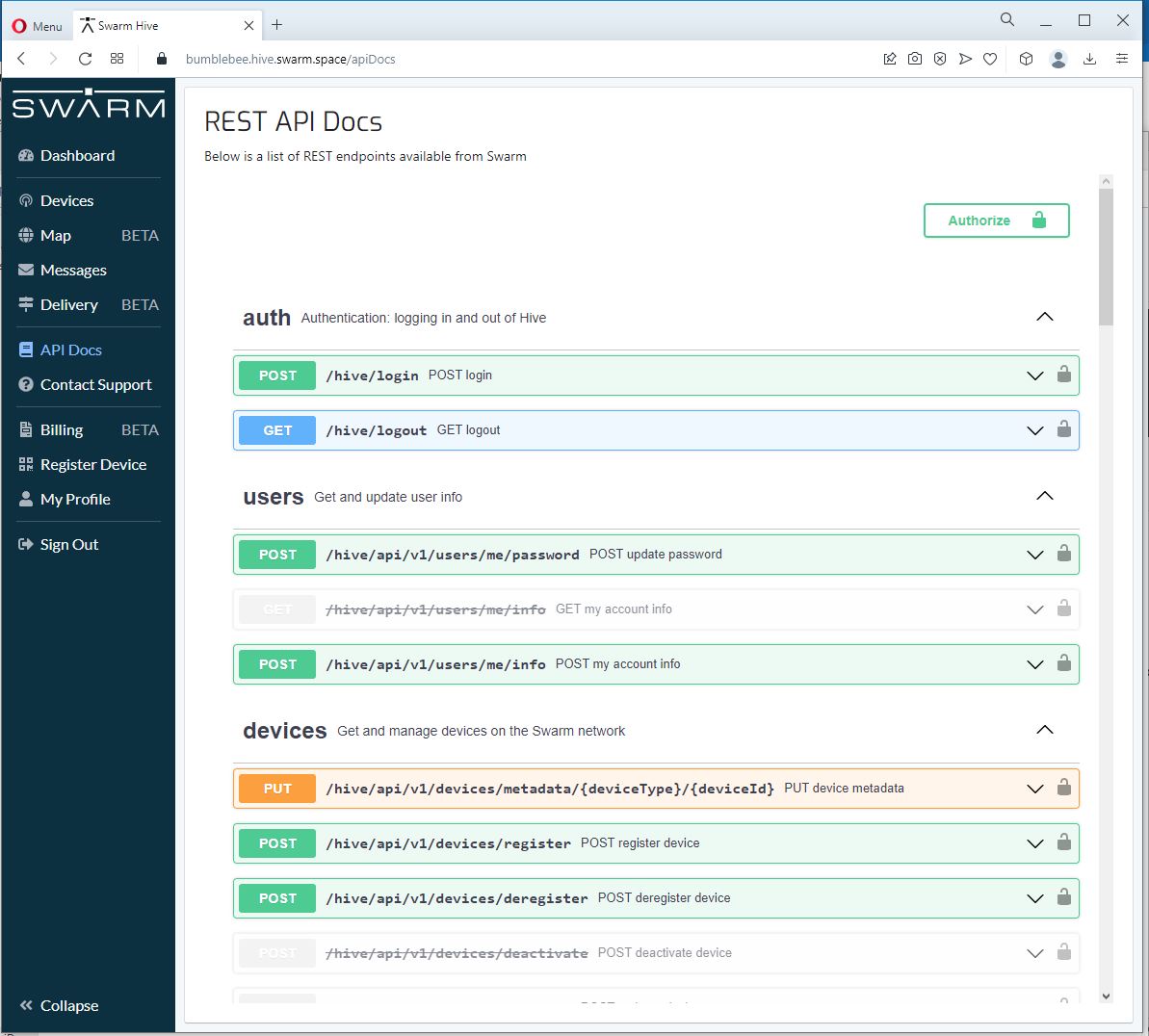
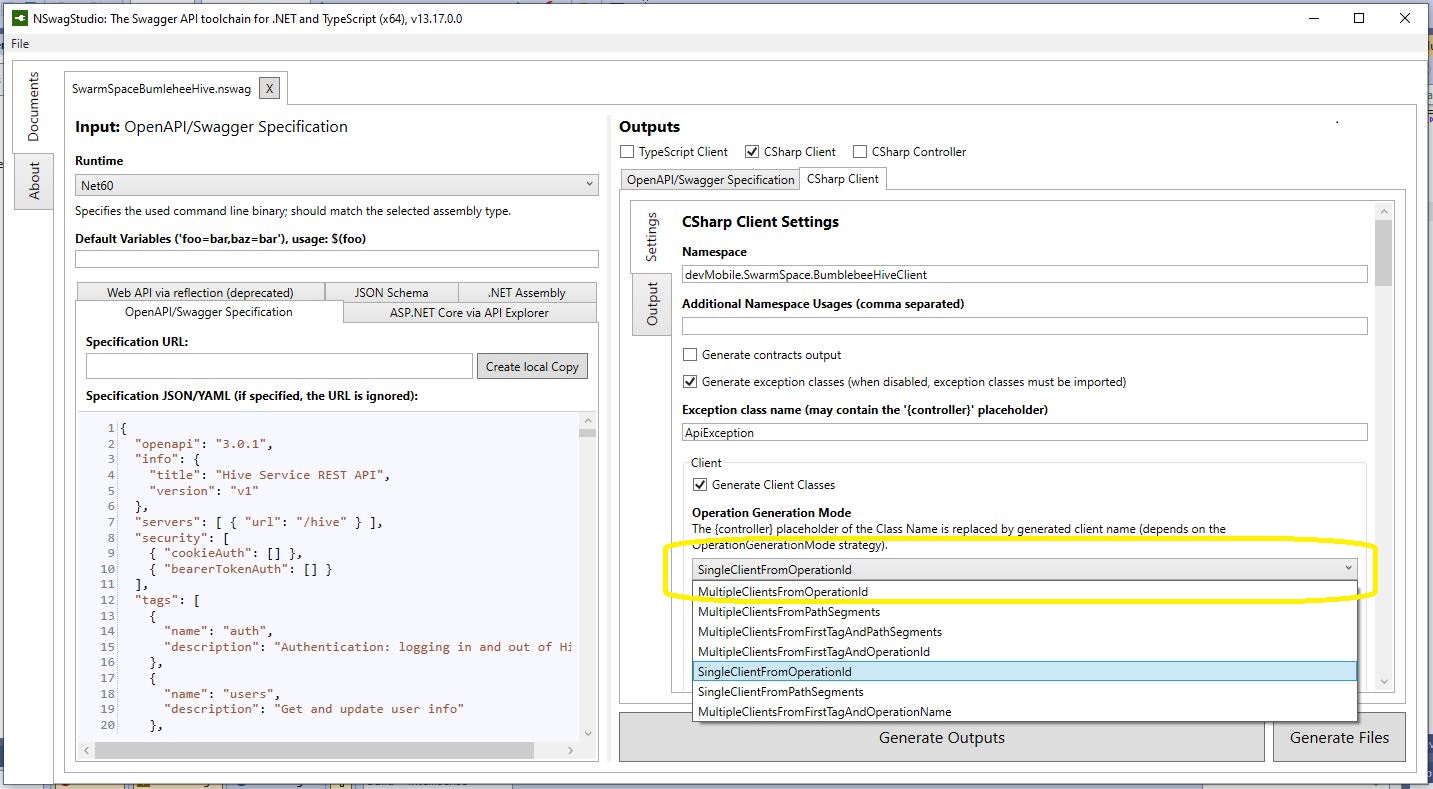
The Swarm Hive API has been published with Swagger/OpenAPI which is really simple to use. I used NSwagStudio to generate a C# client to I didn’t have to “handcraft” one.
Initially the code would compile but I found a clue in a Github Issue from September 2017 which was to change the “Operation Generation Model” to SingleClientFromOperationId.(The setting is highlighted above).
I tried a couple of ways to attach the Swarm Hive API authorisation token (returned by the Login method) to client requests. After a couple for failed attempts, I “realised” that adding the “Authorization” header to the HttpClientdefaultRequestHeaders was by far the simplest approach.
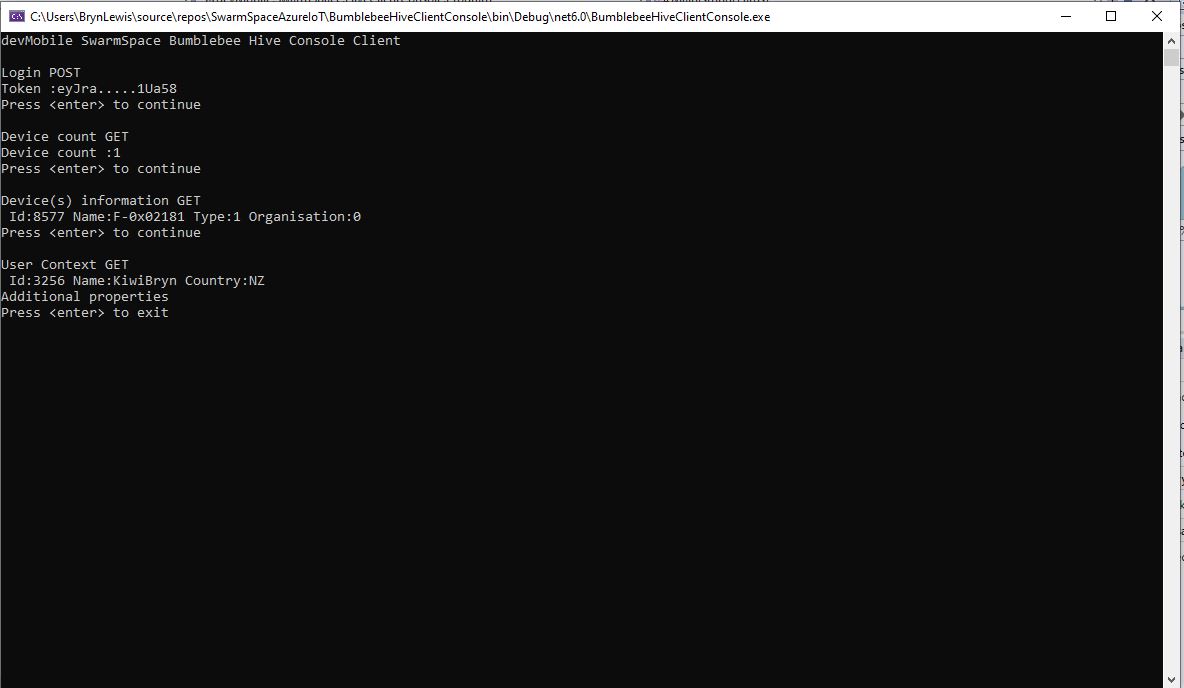
My “nasty” console application calls the Login method, then requests the number of devices (I only have one), gets a list of the properties of all the devices(very short list) then gets the User Context and displays their ID, Name and Country.
The libcamera-jpeg program has a lot of command line parameters.
pi@raspberrypi4a:~ $ libcamera-jpeg --help
Valid options are:
  -h [ --help ] [=arg(=1)] (=0)         Print this help message
  --version [=arg(=1)] (=0)             Displays the build version number
  -v [ --verbose ] [=arg(=1)] (=0)      Output extra debug and diagnostics
  -c [ --config ] [=arg(=config.txt)]   Read the options from a file. If no filename is specified, default to
                                        config.txt. In case of duplicate options, the ones provided on the command line
                                        will be used. Note that the config file must only contain the long form
                                        options.
  --info-text arg (=#%frame (%fps fps) exp %exp ag %ag dg %dg)
                                        Sets the information string on the titlebar. Available values:
                                        %frame (frame number)
                                        %fps (framerate)
                                        %exp (shutter speed)
                                        %ag (analogue gain)
                                        %dg (digital gain)
                                        %rg (red colour gain)
                                        %bg (blue colour gain)
                                        %focus (focus FoM value)
                                        %aelock (AE locked status)
  --width arg (=0)                      Set the output image width (0 = use default value)
  --height arg (=0)                     Set the output image height (0 = use default value)
  -t [ --timeout ] arg (=5000)          Time (in ms) for which program runs
  -o [ --output ] arg                   Set the output file name
  --post-process-file arg               Set the file name for configuring the post-processing
  --rawfull [=arg(=1)] (=0)             Force use of full resolution raw frames
  -n [ --nopreview ] [=arg(=1)] (=0)    Do not show a preview window
  -p [ --preview ] arg (=0,0,0,0)       Set the preview window dimensions, given as x,y,width,height e.g. 0,0,640,480
  -f [ --fullscreen ] [=arg(=1)] (=0)   Use a fullscreen preview window
  --qt-preview [=arg(=1)] (=0)          Use Qt-based preview window (WARNING: causes heavy CPU load, fullscreen not
                                        supported)
  --hflip [=arg(=1)] (=0)               Request a horizontal flip transform
  --vflip [=arg(=1)] (=0)               Request a vertical flip transform
  --rotation arg (=0)                   Request an image rotation, 0 or 180
  --roi arg (=0,0,0,0)                  Set region of interest (digital zoom) e.g. 0.25,0.25,0.5,0.5
  --shutter arg (=0)                    Set a fixed shutter speed
  --analoggain arg (=0)                 Set a fixed gain value (synonym for 'gain' option)
  --gain arg                            Set a fixed gain value
  --metering arg (=centre)              Set the metering mode (centre, spot, average, custom)
  --exposure arg (=normal)              Set the exposure mode (normal, sport)
  --ev arg (=0)                         Set the EV exposure compensation, where 0 = no change
  --awb arg (=auto)                     Set the AWB mode (auto, incandescent, tungsten, fluorescent, indoor, daylight,
                                        cloudy, custom)
  --awbgains arg (=0,0)                 Set explict red and blue gains (disable the automatic AWB algorithm)
  --flush [=arg(=1)] (=0)               Flush output data as soon as possible
  --wrap arg (=0)                       When writing multiple output files, reset the counter when it reaches this
                                        number
  --brightness arg (=0)                 Adjust the brightness of the output images, in the range -1.0 to 1.0
  --contrast arg (=1)                   Adjust the contrast of the output image, where 1.0 = normal contrast
  --saturation arg (=1)                 Adjust the colour saturation of the output, where 1.0 = normal and 0.0 =
                                        greyscale
  --sharpness arg (=1)                  Adjust the sharpness of the output image, where 1.0 = normal sharpening
  --framerate arg (=30)                 Set the fixed framerate for preview and video modes
  --denoise arg (=auto)                 Sets the Denoise operating mode: auto, off, cdn_off, cdn_fast, cdn_hq
  --viewfinder-width arg (=0)           Width of viewfinder frames from the camera (distinct from the preview window
                                        size
  --viewfinder-height arg (=0)          Height of viewfinder frames from the camera (distinct from the preview window
                                        size)
  --tuning-file arg (=-)                Name of camera tuning file to use, omit this option for libcamera default
                                        behaviour
  --lores-width arg (=0)                Width of low resolution frames (use 0 to omit low resolution stream
  --lores-height arg (=0)               Height of low resolution frames (use 0 to omit low resolution stream
  -q [ --quality ] arg (=93)            Set the JPEG quality parameter
  -x [ --exif ] arg                     Add these extra EXIF tags to the output file
  --timelapse arg (=0)                  Time interval (in ms) between timelapse captures
  --framestart arg (=0)                 Initial frame counter value for timelapse captures
  --datetime [=arg(=1)] (=0)            Use date format for output file names
  --timestamp [=arg(=1)] (=0)           Use system timestamps for output file names
  --restart arg (=0)                    Set JPEG restart interval
  -k [ --keypress ] [=arg(=1)] (=0)     Perform capture when ENTER pressed
  -s [ --signal ] [=arg(=1)] (=0)       Perform capture when signal received
  --thumb arg (=320:240:70)             Set thumbnail parameters as width:height:quality
  -e [ --encoding ] arg (=jpg)          Set the desired output encoding, either jpg, png, rgb, bmp or yuv420
  -r [ --raw ] [=arg(=1)] (=0)          Also save raw file in DNG format
  --latest arg                          Create a symbolic link with this name to most recent saved file
  --immediate [=arg(=1)] (=0)           Perform first capture immediately, with no preview phase
pi@raspberrypi4a:~ $
My libcamera-jpeg application is run “headless” so I tried turning off the image preview functionality.
When I ran libcamera-jpeg in a console windows or my application this didn’t appear to make any noticeable difference.
libcamera-jpeg run from the command line with –nopreview
libcamera-jpeg run by my application with –nopreview
I then had another look at the libcamera-jpeg command line parameters to see if any looked useful for reducing the time that it took to take a save an image and this one caught my attention.
I had assumed the delay was related to how long the preview window was displayed.
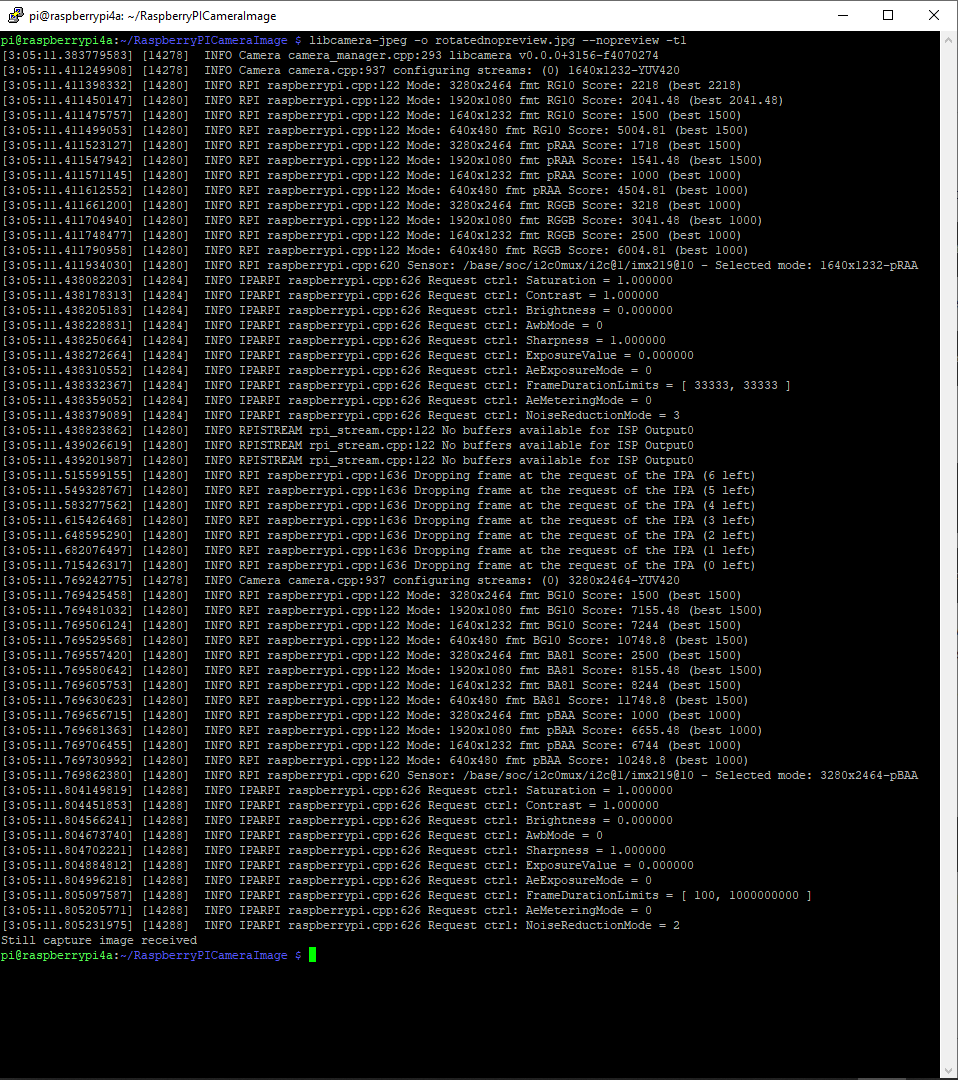
libcamera-jpeg run from the command line with –nopreview –t1
I modified the application (V5) then ran it from the command line and the time reduced to less than a second.
private static void ImageUpdateTimerCallback(object state)
{
	try
	{
		Console.WriteLine($"{DateTime.UtcNow:yy-MM-dd HH:mm:ss} Image update start");

		// Just incase - stop code being called while photo already in progress
		if (_cameraBusy)
		{
			return;
		}

		Console.WriteLine($" {DateTime.UtcNow:yy-MM-dd HH:mm:ss} Image capture start");

		using (Process process = new Process())
		{
			process.StartInfo.FileName = @"libcamera-jpeg";
			// V1 it works
			//process.StartInfo.Arguments = $"-o {_applicationSettings.ImageFilenameLocal}";
			// V3a Image right way up
			//process.StartInfo.Arguments = $"-o {_applicationSettings.ImageFilenameLocal} --vflip --hflip";
			// V3b Image right way up
			//process.StartInfo.Arguments = $"-o {_applicationSettings.ImageFilenameLocal} --rotation 180";
			// V4 Image no preview
			//process.StartInfo.Arguments = $"-o {_applicationSettings.ImageFilenameLocal} --rotation 180 --nopreview";
			// V5 Image no preview, no timeout
			process.StartInfo.Arguments = $"-o {_applicationSettings.ImageFilenameLocal} --nopreview -t1 --rotation 180";
			//process.StartInfo.RedirectStandardOutput = true;
			// V2 No diagnostics
			process.StartInfo.RedirectStandardError = true;
			//process.StartInfo.UseShellExecute = false;
			//process.StartInfo.CreateNoWindow = true;

			process.Start();

			if (!process.WaitForExit(10000) || (process.ExitCode != 0))
			{
				Console.WriteLine($"{DateTime.UtcNow:yy-MM-dd HH:mm:ss} Image update failure {process.ExitCode}");
			}
		}

		Console.WriteLine($" {DateTime.UtcNow:yy-MM-dd HH:mm:ss} Image capture done");
	}
	catch (Exception ex)
	{
		Console.WriteLine($"{DateTime.UtcNow:yy-MM-dd HH:mm:ss} Image update error {ex.Message}");
	}
	finally
	{
		_cameraBusy = false;
	}
}
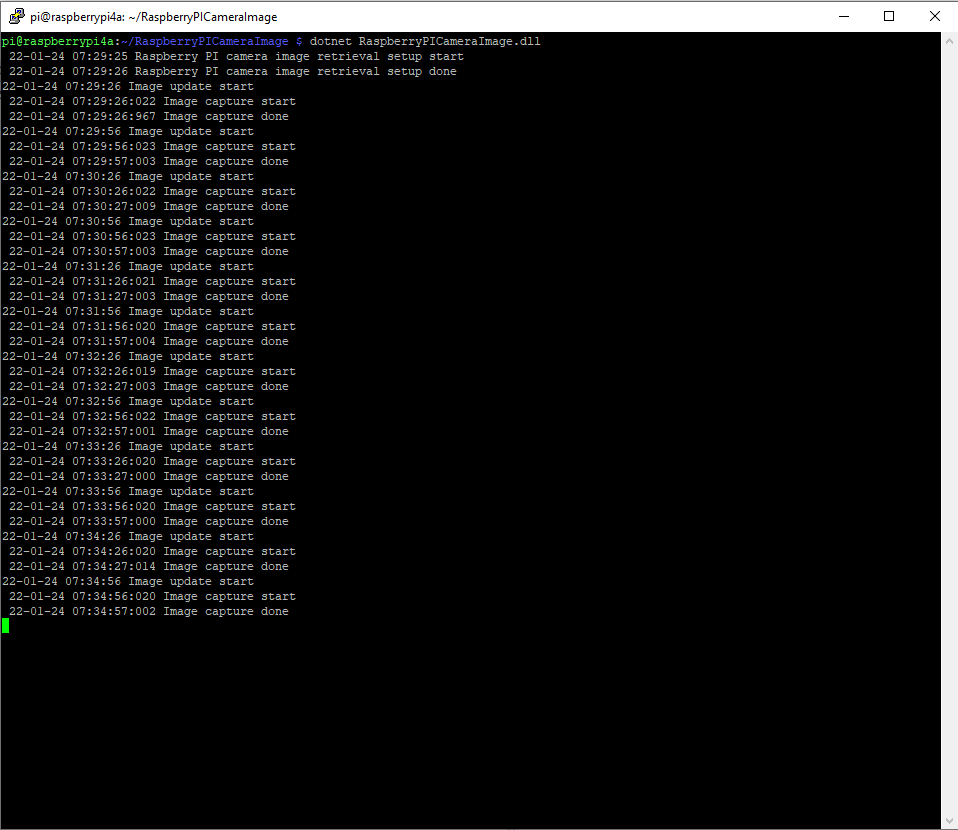
libcamera-jpeg run by my application with –nopreview -t1
The image capture process now takes less that a second which is much better (but not a lot less than retrieving an image from one of my security cameras).
I wanted one of my ML.Net demos to use the Raspberry PI Camera rather than a security camera (so it was more portable) but it took a bit more work than I expected.
Version 1 used Process.Start to launch the libcamera-jpeg application with a command line to store an image to the local file system.
libcamera-jpeg -o latest.jpg
libcamera-jpeg with diagnostic information displayed
There was a lot of diagnostic information which I didn’t want displayed so after reading many stackoverflow posts (lots of different approaches none of which worked in my scenario), then some trial and error I found that I only had to enable RedirectStandardError.
libcamera-jpeg without diagnostic information displayed
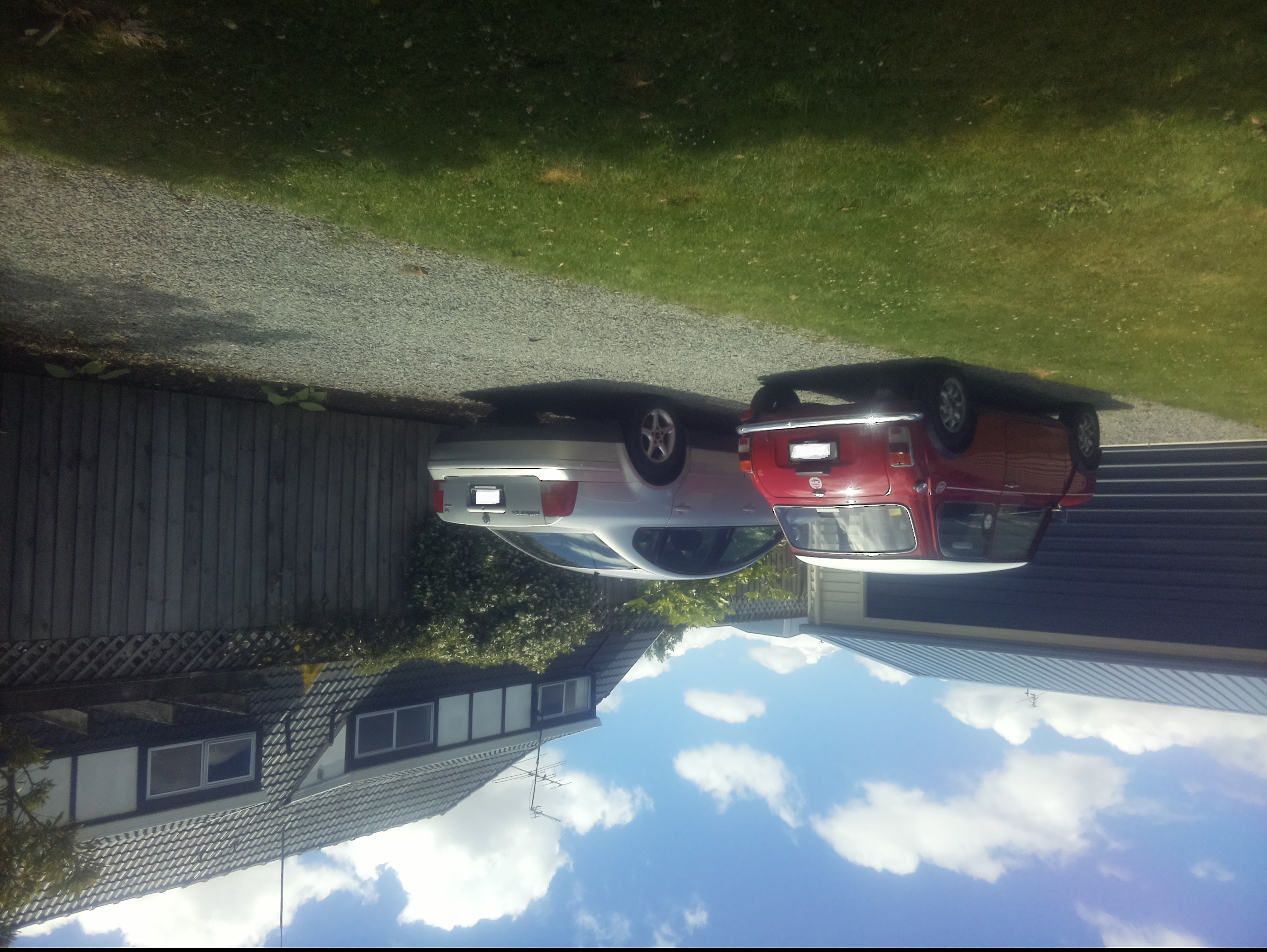
At this point there was a lot less noise but the image was upside down.
Inverted picture of my 30th anniversary Mini Cooper in the backyard
I then added a vertical flip to the command line parameters
libcamera-jpeg -o latest.jpg --vflip
My 30th anniversary Mini Cooper in the backyard
The image was backwards so I added a horizontal flip to the commandline parameters
libcamera-jpeg -o latest.jpg --vflip --hflip
or
libcamera-jpeg -o latest.jpg --rotation 180
My 30th anniversary Mini Cooper in the backyard with the correct orientation
The libcamera code is in a Timer callback so I added the _cameraBusy boolean flag to stop reentrancy problems.
private static void ImageUpdateTimerCallback(object state)
{
	try
	{
		Console.WriteLine($"{DateTime.UtcNow:yy-MM-dd HH:mm:ss} Image update start");

		// Just incase - stop code being called while photo already in progress
		if (_cameraBusy)
		{
			return;
		}

		Console.WriteLine($" {DateTime.UtcNow:yy-MM-dd HH:mm:ss} Image capture start");

		using (Process process = new Process())
		{
			process.StartInfo.FileName = @"libcamera-jpeg";
			// V1 it works
			//process.StartInfo.Arguments = $"-o {_applicationSettings.ImageFilenameLocal}";
			// V3 Image right way up
			//process.StartInfo.Arguments = $"-o {_applicationSettings.ImageFilenameLocal} --vflip";
			// V3 Image right way round
			process.StartInfo.Arguments = $"-o {_applicationSettings.ImageFilenameLocal} --vflip --hflip";
			//process.StartInfo.RedirectStandardOutput = true;
			// V2 No diagnostics
			process.StartInfo.RedirectStandardError = true;
			//process.StartInfo.UseShellExecute = false;
			//process.StartInfo.CreateNoWindow = true;

			process.Start();

			if (!process.WaitForExit(10000) || (process.ExitCode != 0))
			{
				Console.WriteLine($"{DateTime.UtcNow:yy-MM-dd HH:mm:ss} Image update failure {process.ExitCode}");
			}
		}

		Console.WriteLine($" {DateTime.UtcNow:yy-MM-dd HH:mm:ss} Image capture done");
	}
	catch (Exception ex)
	{
		Console.WriteLine($"{DateTime.UtcNow:yy-MM-dd HH:mm:ss} Image update error {ex.Message}");
	}
	finally
	{
		_cameraBusy = false;
	}
}
This was the simplest way I could get an image onto the local file system without lots of dependencies on third party libraries. The image capture process takes about 5 seconds which a bit longer than I was expecting.
public class IoTHubApplicationSetting
{
	public string DtdlModelId { get; set; }
}

public class IoTHubSettings
{
	public string IoTHubConnectionString { get; set; } = string.Empty;

	public Dictionary<string, IoTHubApplicationSetting> Applications { get; set; }
}


public class DeviceProvisiongServiceApplicationSetting
{
	public string DtdlModelId { get; set; } = string.Empty;

	public string GroupEnrollmentKey { get; set; } = string.Empty;
}

public class DeviceProvisiongServiceSettings
{
	public string IdScope { get; set; } = string.Empty;

	public Dictionary<string, DeviceProvisiongServiceApplicationSetting> Applications { get; set; }
}


public class IoTCentralMethodSetting
{
	public byte Port { get; set; } = 0;

	public bool Confirmed { get; set; } = false;

	public Models.DownlinkPriority Priority { get; set; } = Models.DownlinkPriority.Normal;

	public Models.DownlinkQueue Queue { get; set; } = Models.DownlinkQueue.Replace;
}

public class IoTCentralSetting
{
	public Dictionary<string, IoTCentralMethodSetting> Methods { get; set; }
}

public class AzureIoTSettings
{
	public IoTHubSettings IoTHub { get; set; }

	public DeviceProvisiongServiceSettings DeviceProvisioningService { get; set; }

	public IoTCentralSetting IoTCentral { get; set; }
}
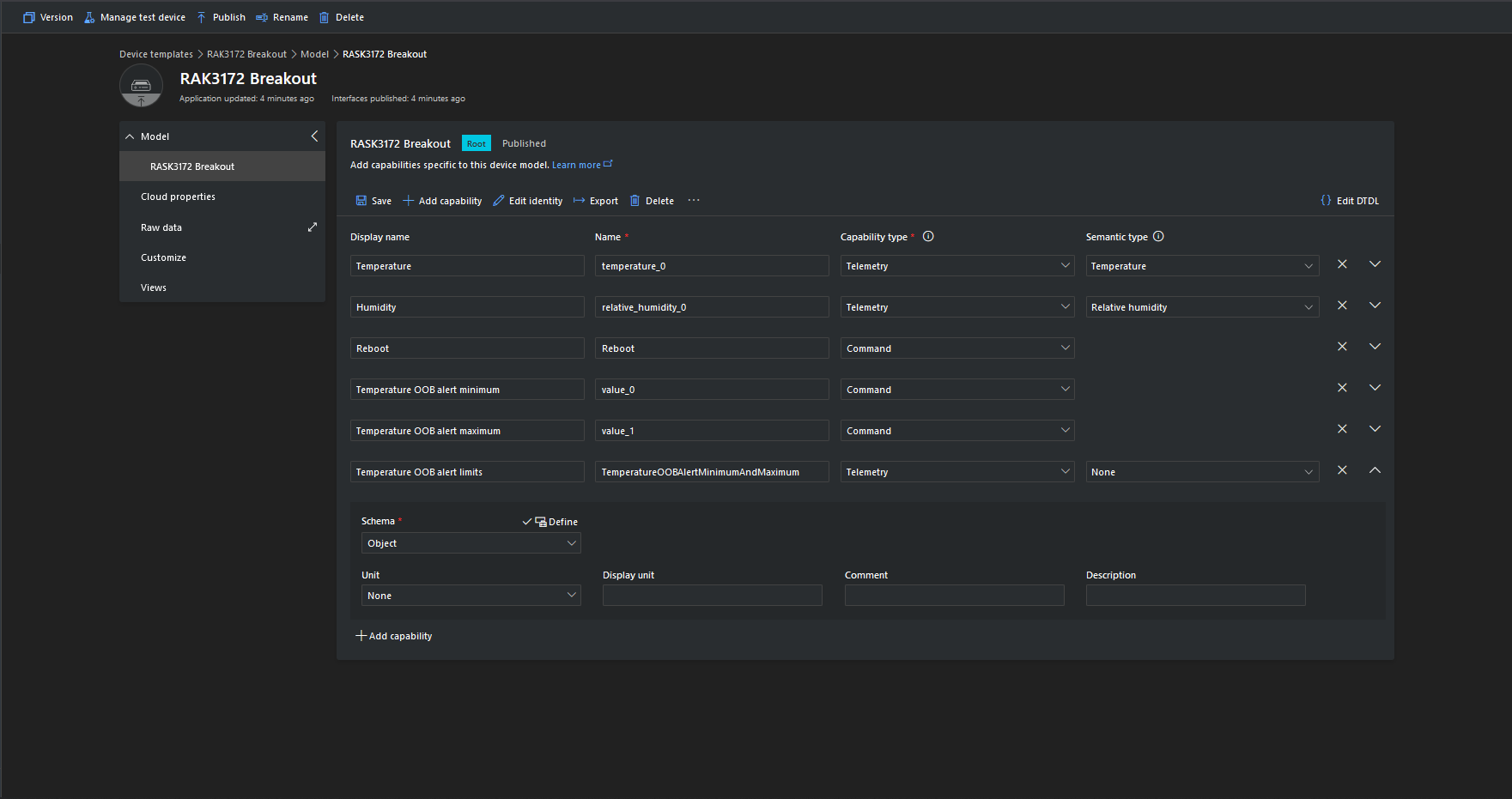
Azure IoT Central appears to have no support for setting message properties so the LoRaWAN port, confirmed flag, priority, and queuing so these a retrieved from configuration.
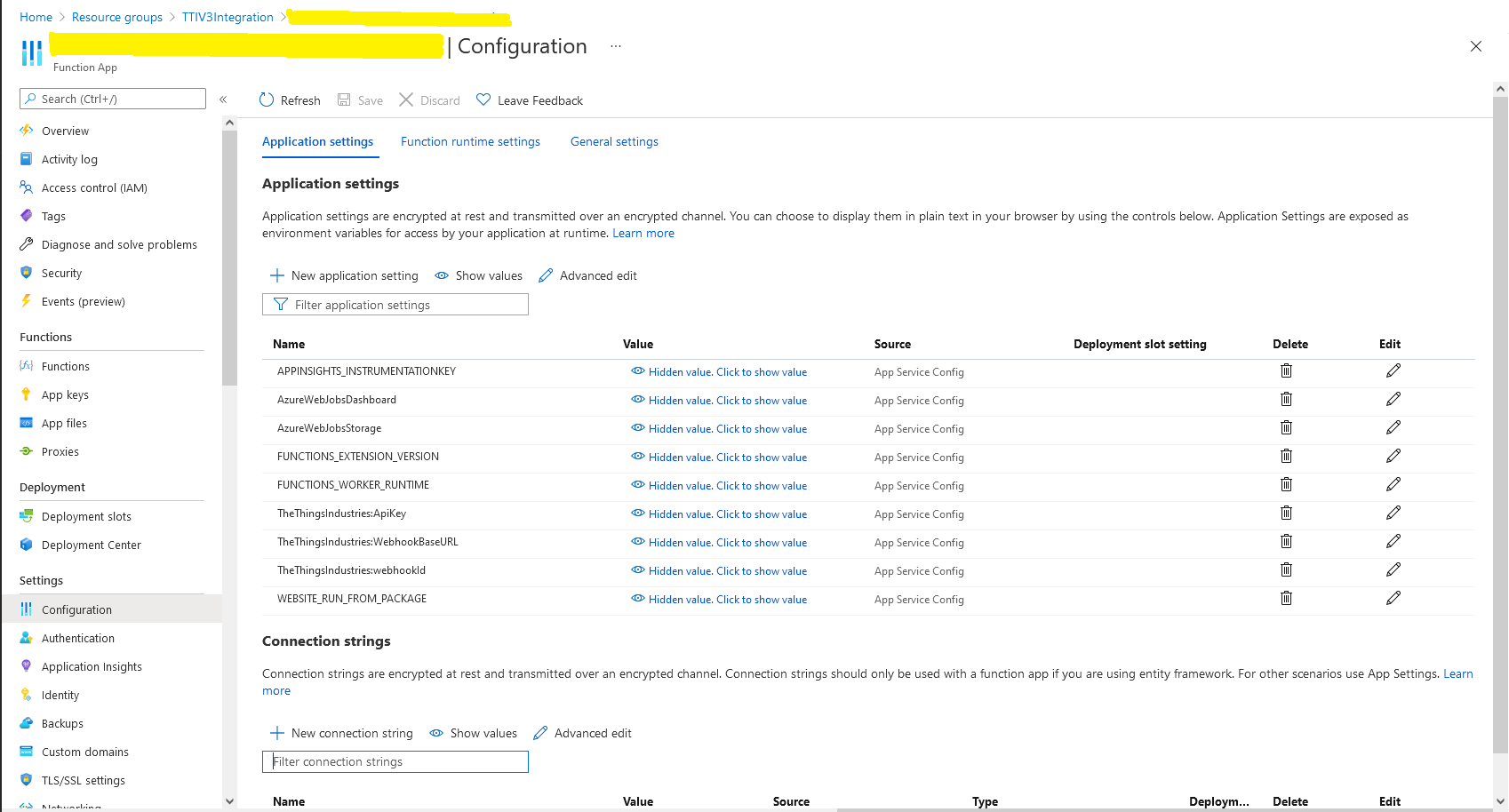
Azure Function Configuration
Models.Downlink downlink;
Models.DownlinkQueue queue;

string payloadText = Encoding.UTF8.GetString(message.GetBytes()).Trim();

if (message.Properties.ContainsKey("method-name"))
{
	#region Azure IoT Central C2D message processing
	string methodName = message.Properties["method-name"];

	if (string.IsNullOrWhiteSpace(methodName))
	{
		_logger.LogWarning("Downlink-DeviceID:{0} MessagedID:{1} LockToken:{2} method-name property empty", receiveMessageHandlerContext.DeviceId, message.MessageId, message.LockToken);

		await deviceClient.RejectAsync(message);
		return;
	}

	// Look up the method settings to get confirmed, port, priority, and queue
	if ((_azureIoTSettings == null) || (_azureIoTSettings.IoTCentral == null) || !_azureIoTSettings.IoTCentral.Methods.TryGetValue(methodName, out IoTCentralMethodSetting methodSetting))
	{
		_logger.LogWarning("Downlink-DeviceID:{0} MessagedID:{1} LockToken:{2} method-name:{3} has no settings", receiveMessageHandlerContext.DeviceId, message.MessageId, message.LockToken, methodName);

		await deviceClient.RejectAsync(message);
		return;
	}

	downlink = new Models.Downlink()
	{
		Confirmed = methodSetting.Confirmed,
		Priority = methodSetting.Priority,
		Port = methodSetting.Port,
		CorrelationIds = AzureLockToken.Add(message.LockToken),
	};

	queue = methodSetting.Queue;

	// Check to see if special case for Azure IoT central command with no request payload
	if (payloadText.IsPayloadEmpty())
	{
		downlink.PayloadRaw = "";
	}

	if (!payloadText.IsPayloadEmpty())
	{
		if (payloadText.IsPayloadValidJson())
		{
			downlink.PayloadDecoded = JToken.Parse(payloadText);
			}
		else
		{
			downlink.PayloadDecoded = new JObject(new JProperty(methodName, payloadText));
		}
	}

	logger.LogInformation("Downlink-IoT Central DeviceID:{0} Method:{1} MessageID:{2} LockToken:{3} Port:{4} Confirmed:{5} Priority:{6} Queue:{7}",
		receiveMessageHandlerContext.DeviceId,
		methodName,
		message.MessageId,
		message.LockToken,
		downlink.Port,
		downlink.Confirmed,
		downlink.Priority,
		queue);
	#endregion
}
The reboot command payload only contains an “@” so the TTTI payload will be empty, the minimum and maximum command payloads will contain only a numeric value which is added to the decoded payload with the method name, the combined minimum and maximum command has a JSON payload which is “grafted” into the decoded payload.
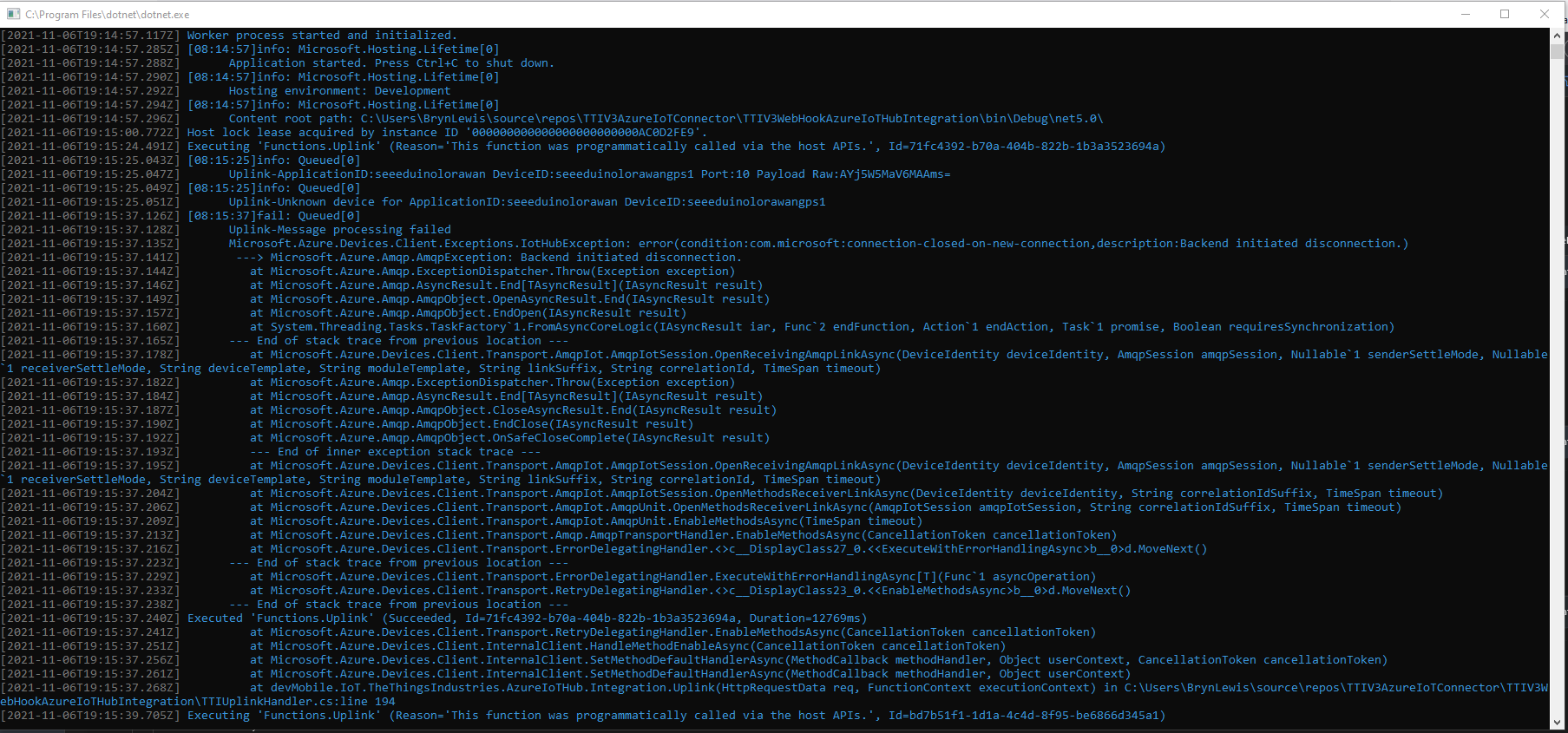
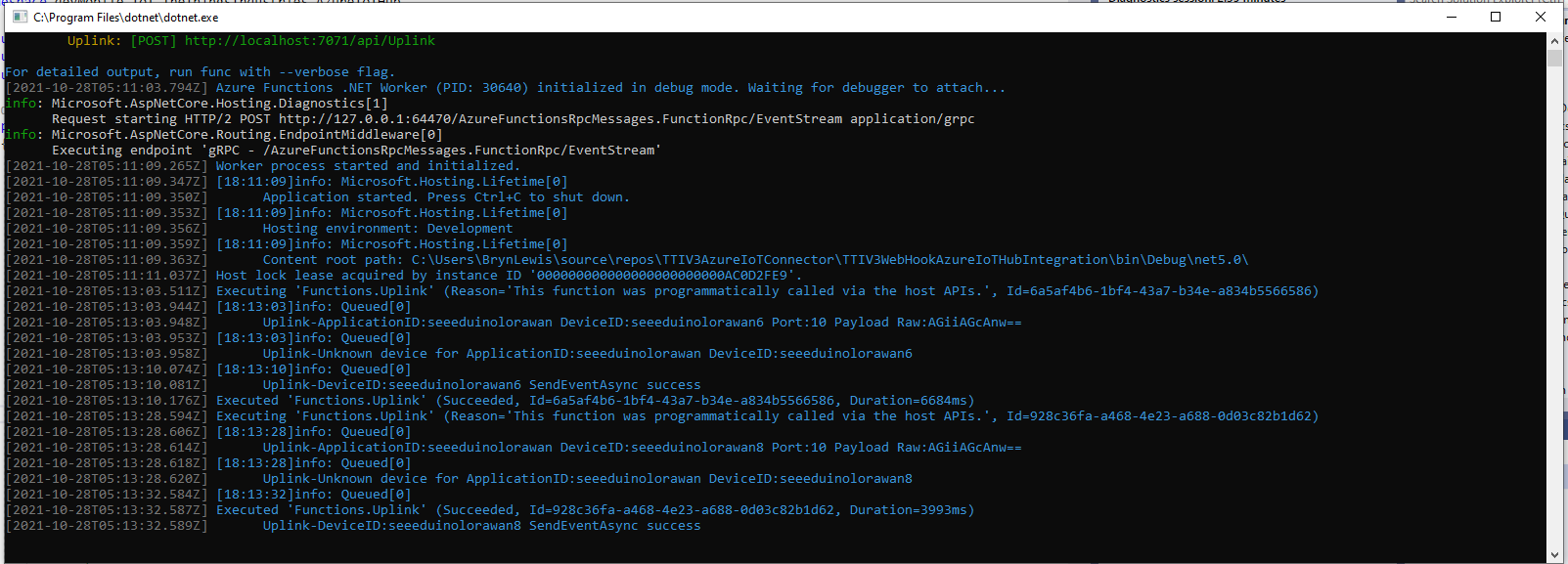
TTI Webhook Integration running in desktop emulator
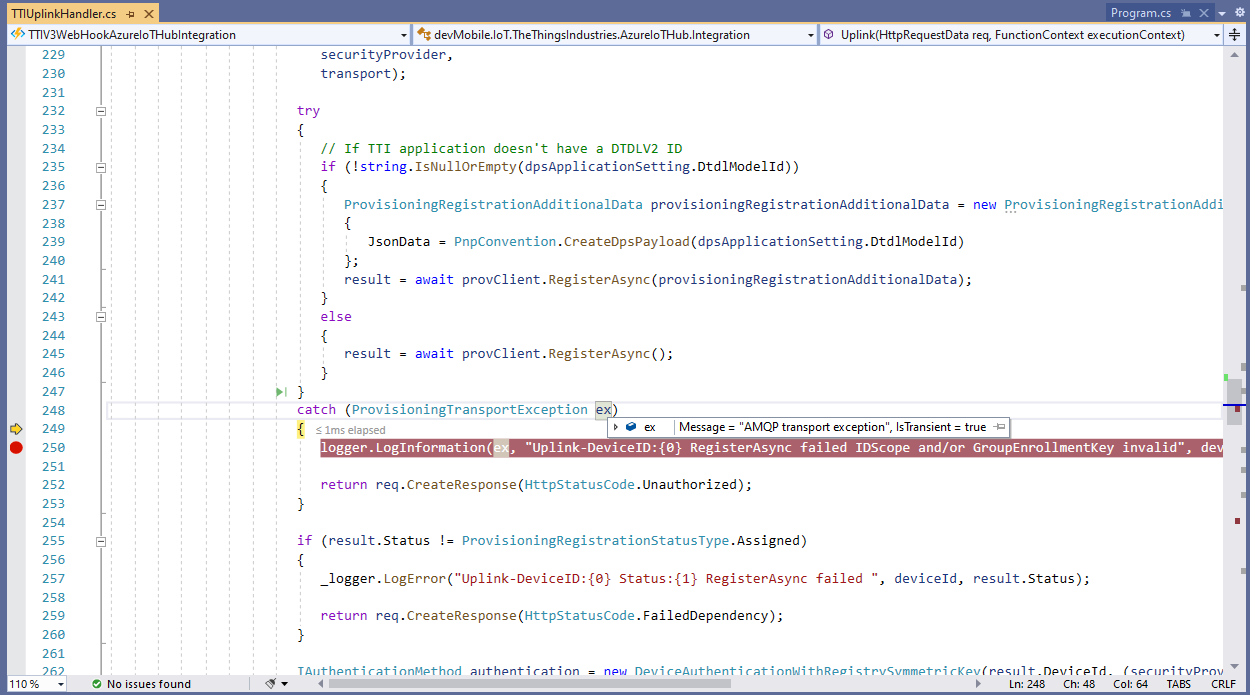
In the Visual Studio 2019 Debugger the exception text was “IsTransient = true” so I went and made a coffee and tried again.
Visual Studio 2019 Quickwatch displaying short from error message
The call was still failing so I dumped out the exception text so I had some key words to search for
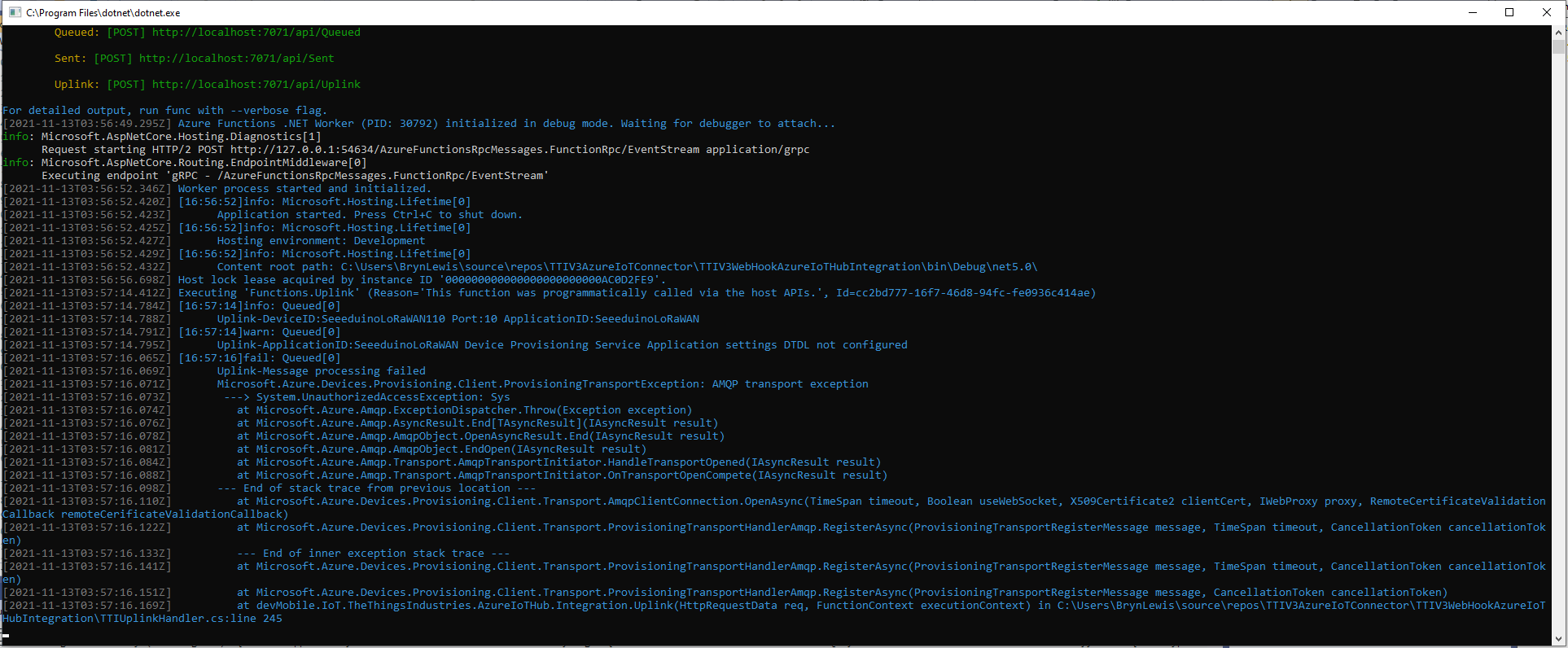
Microsoft.Azure.Devices.Provisioning.Client.ProvisioningTransportException: AMQP transport exception
 ---> System.UnauthorizedAccessException: Sys
   at Microsoft.Azure.Amqp.ExceptionDispatcher.Throw(Exception exception)
   at Microsoft.Azure.Amqp.AsyncResult.End[TAsyncResult](IAsyncResult result)
   at Microsoft.Azure.Amqp.AmqpObject.OpenAsyncResult.End(IAsyncResult result)
   at Microsoft.Azure.Amqp.AmqpObject.EndOpen(IAsyncResult result)
   at Microsoft.Azure.Amqp.Transport.AmqpTransportInitiator.HandleTransportOpened(IAsyncResult result)
   at Microsoft.Azure.Amqp.Transport.AmqpTransportInitiator.OnTransportOpenCompete(IAsyncResult result)
--- End of stack trace from previous location ---
   at Microsoft.Azure.Devices.Provisioning.Client.Transport.AmqpClientConnection.OpenAsync(TimeSpan timeout, Boolean useWebSocket, X509Certificate2 clientCert, IWebProxy proxy, RemoteCertificateValidationCallback remoteCerificateValidationCallback)
   at Microsoft.Azure.Devices.Provisioning.Client.Transport.ProvisioningTransportHandlerAmqp.RegisterAsync(ProvisioningTransportRegisterMessage message, TimeSpan timeout, CancellationToken cancellationToken)
   --- End of inner exception stack trace ---
   at Microsoft.Azure.Devices.Provisioning.Client.Transport.ProvisioningTransportHandlerAmqp.RegisterAsync(ProvisioningTransportRegisterMessage message, TimeSpan timeout, CancellationToken cancellationToken)
   at Microsoft.Azure.Devices.Provisioning.Client.Transport.ProvisioningTransportHandlerAmqp.RegisterAsync(ProvisioningTransportRegisterMessage message, CancellationToken cancellationToken)
   at devMobile.IoT.TheThingsIndustries.AzureIoTHub.Integration.Uplink(HttpRequestData req, FunctionContext executionContext) in C:\Users\BrynLewis\source\repos\TTIV3AzureIoTConnector\TTIV3WebHookAzureIoTHubIntegration\TTIUplinkHandler.cs:line 245
I then tried another program which did used the Device provisioning Service and it worked first time so it was something wrong with the code.
using (var securityProvider = new SecurityProviderSymmetricKey(deviceId, deviceKey, null))
{
	using (var transport = new ProvisioningTransportHandlerAmqp(TransportFallbackType.TcpOnly))
	{
		DeviceRegistrationResult result;

		ProvisioningDeviceClient provClient = ProvisioningDeviceClient.Create(
			Constants.AzureDpsGlobalDeviceEndpoint,
			 dpsApplicationSetting.GroupEnrollmentKey, <<= Should be _azureIoTSettings.DeviceProvisioningService.IdScope,
			securityProvider,
			transport);

		try
		{
				result = await provClient.RegisterAsync();
		}
		catch (ProvisioningTransportException ex)
		{
			logger.LogInformation(ex, "Uplink-DeviceID:{0} RegisterAsync failed IDScope and/or GroupEnrollmentKey invalid", deviceId);

			return req.CreateResponse(HttpStatusCode.Unauthorized);
		}

		if (result.Status != ProvisioningRegistrationStatusType.Assigned)
		{
			_logger.LogError("Uplink-DeviceID:{0} Status:{1} RegisterAsync failed ", deviceId, result.Status);

			return req.CreateResponse(HttpStatusCode.FailedDependency);
		}

		IAuthenticationMethod authentication = new DeviceAuthenticationWithRegistrySymmetricKey(result.DeviceId, (securityProvider as SecurityProviderSymmetricKey).GetPrimaryKey());

		deviceClient = DeviceClient.Create(result.AssignedHub, authentication, TransportSettings);

		await deviceClient.OpenAsync();

		logger.LogInformation("Uplink-DeviceID:{0} Azure IoT Hub connected (Device Provisioning Service)", deviceId);
	}
}
I then carefully inspected my source code and worked back through the file history and realised I had accidentally replaced the IDScope with the GroupEnrollment setting so it was never going to work i.e. IsTransient != true. So, for the one or two other people who get this error message check your IDScope and GroupEnrollment key make sure they are the right variables and that values they contain are correct.
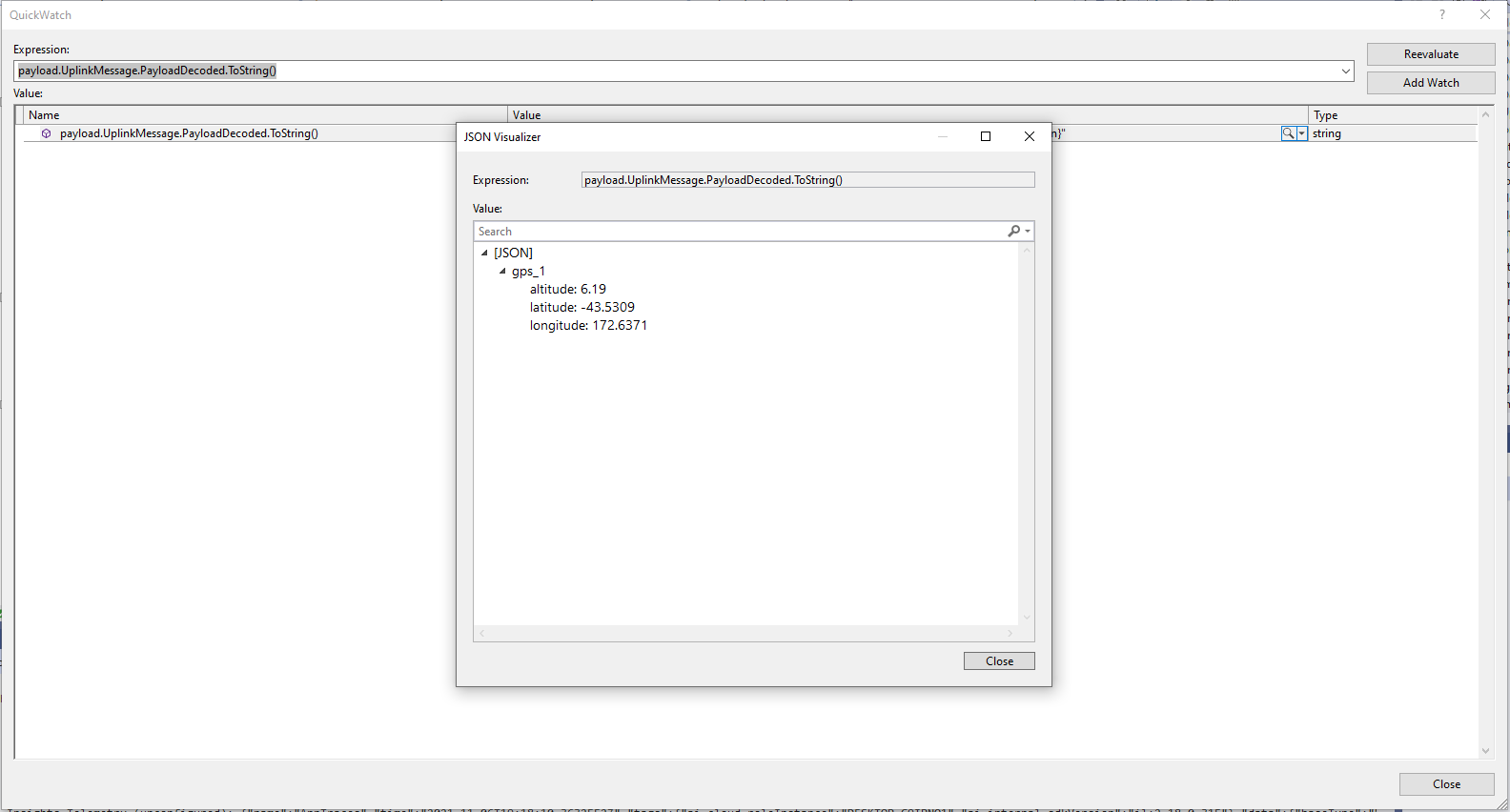
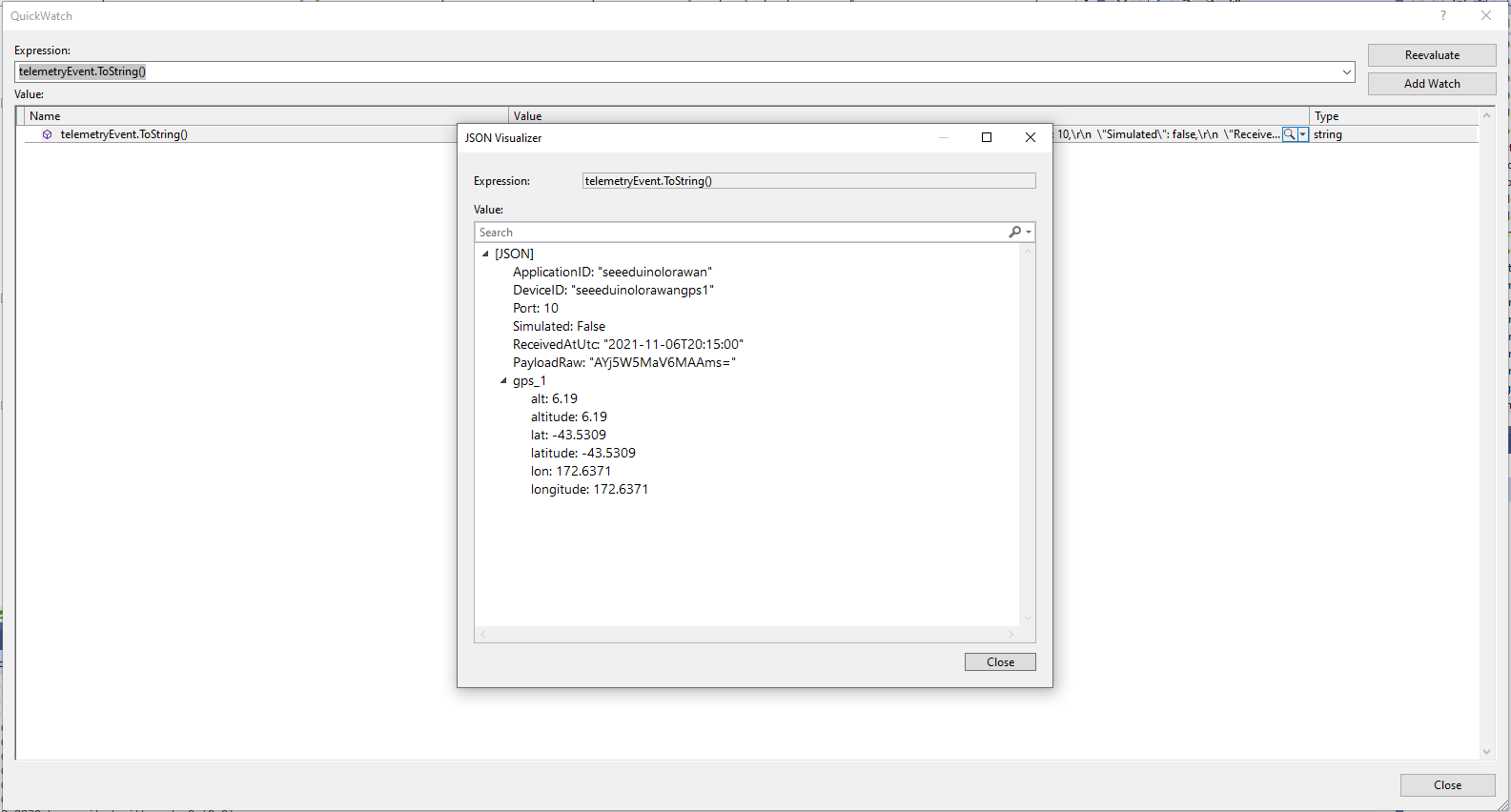
The Azure IoT Central Location Telemetry messages have a slightly different format to the output of the TTI LPP Payload formatter so the payload has to be “post processed”.
private void EnumerateChildren(JObject jobject, JToken token)
{
	if (token is JProperty property)
	{
		if (token.First is JValue)
		{
			// Temporary dirty hack for Azure IoT Central compatibility
			if (token.Parent is JObject possibleGpsProperty)
			{
				// TODO Need to check if similar approach necessary accelerometer and gyro LPP payloads
				if (possibleGpsProperty.Path.StartsWith("GPS_", StringComparison.OrdinalIgnoreCase))
				{
					if (string.Compare(property.Name, "Latitude", true) == 0)
					{
						jobject.Add("lat", property.Value);
					}
					if (string.Compare(property.Name, "Longitude", true) == 0)
					{
						jobject.Add("lon", property.Value);
					}
					if (string.Compare(property.Name, "Altitude", true) == 0)
					{
						jobject.Add("alt", property.Value);
					}
				}
			}
			jobject.Add(property.Name, property.Value);
		}
		else
		{
			JObject parentObject = new JObject();
			foreach (JToken token2 in token.Children())
			{
				EnumerateChildren(parentObject, token2);
				jobject.Add(property.Name, parentObject);
			}
		}
	}
	else
	{
		foreach (JToken token2 in token.Children())
		{
			EnumerateChildren(jobject, token2);
		}
	}
}
I may have to extend this method for other LPP datatypes
“Post processed” TTI JSON GPS Position data suitable for Azure IoT Central
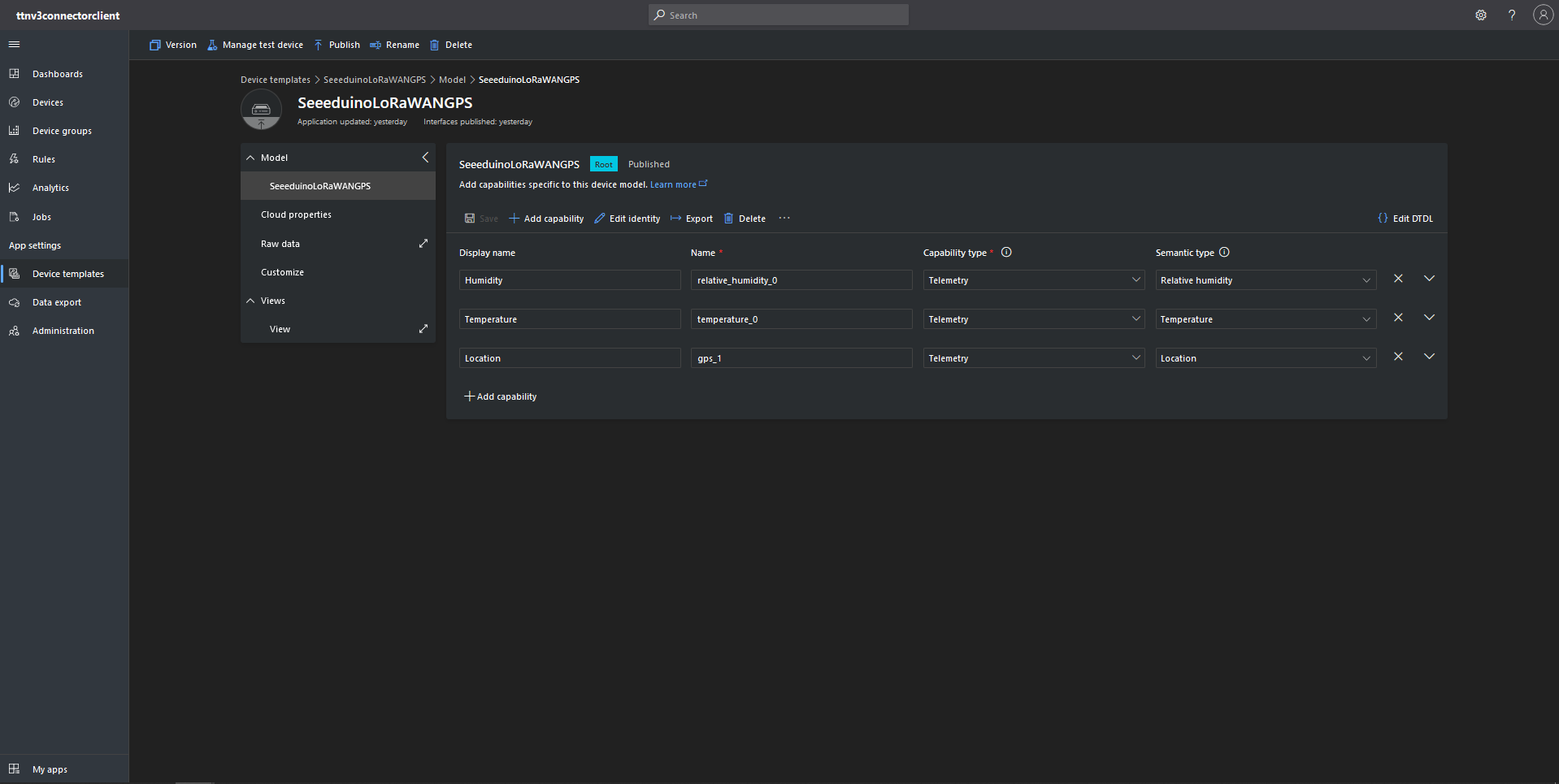
Azure IoT Central Device Template with Location Capability
For initial development and testing I ran the function application in the desktop emulator and simulated TTI webhook calls with Telerik Fiddler and modified sample payloads. After some issues with iothub-creation-time-utc decoded telemetry messages were displayed in the Device Raw Data tab
Azure IoT Central Device Raw Data tab with successfully decoded GPS location payloads
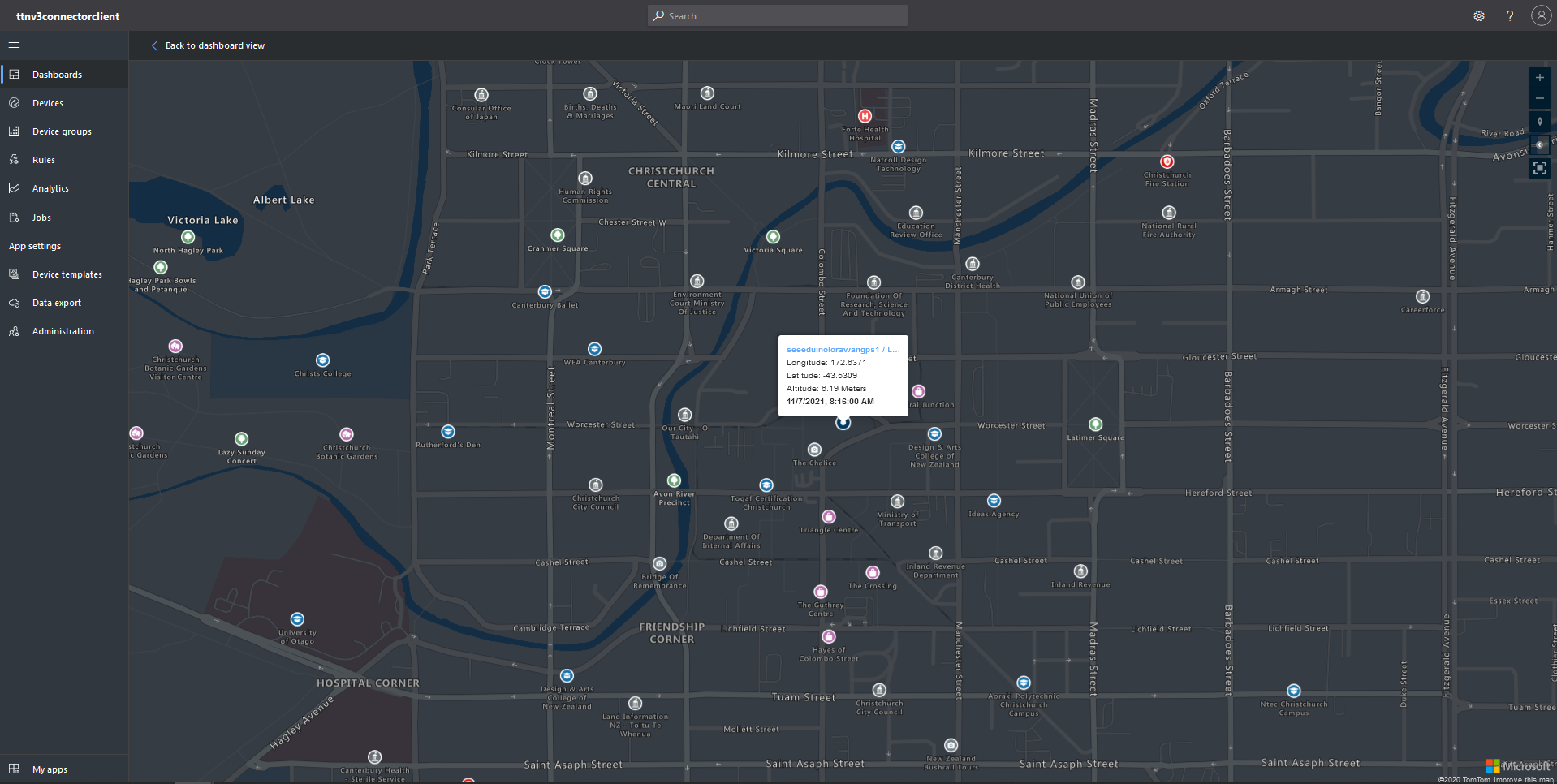
Azure IoT Central map displaying with device location highlighted
The TTI V3 Connector Minimalist Cloud to Device only required a port number, and there was no way to specify whether delivery of message had to be confirmed, the way the message was queued, or the priority of message delivery. Like the port number these optional settings can be specified in message properties.
If any of these properties are incorrect DeviceClient.RejectAsync is called which deletes the message from the device queue and indicates to the server that the message could not be processed.
private async Task AzureIoTHubClientReceiveMessageHandler(Message message, object userContext)
{
	try
	{
		Models.AzureIoTHubReceiveMessageHandlerContext receiveMessageHandlerContext = (Models.AzureIoTHubReceiveMessageHandlerContext)userContext;

		if (!_DeviceClients.TryGetValue(receiveMessageHandlerContext.DeviceId, out DeviceClient deviceClient))
		{
			_logger.LogWarning("Downlink-DeviceID:{0} unknown", receiveMessageHandlerContext.DeviceId);
			return;
		}

		using (message)
		{
			string payloadText = Encoding.UTF8.GetString(message.GetBytes()).Trim();

			if (!AzureDownlinkMessage.PortTryGet(message.Properties, out byte port))
			{
				_logger.LogWarning("Downlink-Port property is invalid");

				await deviceClient.RejectAsync(message);
				return;
			}

			if (!AzureDownlinkMessage.ConfirmedTryGet(message.Properties, out bool confirmed))
			{
				_logger.LogWarning("Downlink-Confirmed flag is invalid");

				await deviceClient.RejectAsync(message);
				return;
			}

			if (!AzureDownlinkMessage.PriorityTryGet(message.Properties, out Models.DownlinkPriority priority))
			{
				_logger.LogWarning("Downlink-Priority value is invalid");

				await deviceClient.RejectAsync(message);
				return;
			}

			if (!AzureDownlinkMessage.QueueTryGet(message.Properties, out Models.DownlinkQueue queue))
			{
				_logger.LogWarning("Downlink-Queue value is invalid");

				await deviceClient.RejectAsync(message.LockToken);
				return;
			}

			Models.Downlink downlink = new Models.Downlink()
			{
				Confirmed = confirmed,
				Priority = priority,
				Port = port,
				CorrelationIds = AzureLockToken.Add(message.LockToken),
			};

			// Split over multiple lines in an attempt to improve readability. In this scenario a valid JSON string should start/end with {/} for an object or [/] for an array
			if ((payloadText.StartsWith("{") && payloadText.EndsWith("}"))
													||
				((payloadText.StartsWith("[") && payloadText.EndsWith("]"))))
			{
				try
				{
					downlink.PayloadDecoded = JToken.Parse(payloadText);
				}
				catch (JsonReaderException)
				{
					downlink.PayloadRaw = payloadText;
				}
			}
			else
			{
				downlink.PayloadRaw = payloadText;
			}

			_logger.LogInformation("Downlink-IoT Hub DeviceID:{0} MessageID:{2} LockToken:{3} Port:{4} Confirmed:{5} Priority:{6} Queue:{7}",
				receiveMessageHandlerContext.DeviceId,
				message.MessageId,
				message.LockToken,
				downlink.Port,
				downlink.Confirmed,
				downlink.Priority,
				queue);

			Models.DownlinkPayload Payload = new Models.DownlinkPayload()
			{
				Downlinks = new List<Models.Downlink>()
				{
					downlink
				}
			};

			string url = $"{receiveMessageHandlerContext.WebhookBaseURL}/{receiveMessageHandlerContext.ApplicationId}/webhooks/{receiveMessageHandlerContext.WebhookId}/devices/{receiveMessageHandlerContext.DeviceId}/down/{queue}".ToLower();

			using (var client = new WebClient())
			{
				client.Headers.Add("Authorization", $"Bearer {receiveMessageHandlerContext.ApiKey}");

				client.UploadString(new Uri(url), JsonConvert.SerializeObject(Payload));
			}

			_logger.LogInformation("Downlink-DeviceID:{0} LockToken:{1} success", receiveMessageHandlerContext.DeviceId, message.LockToken);
		}
	}
	catch (Exception ex)
	{
		_logger.LogError(ex, "Downlink-ReceiveMessge processing failed");
	}
}
A correlation identifier containing the Message LockToken is added to the downlink payload.
Unconfirmed Downlink Messages
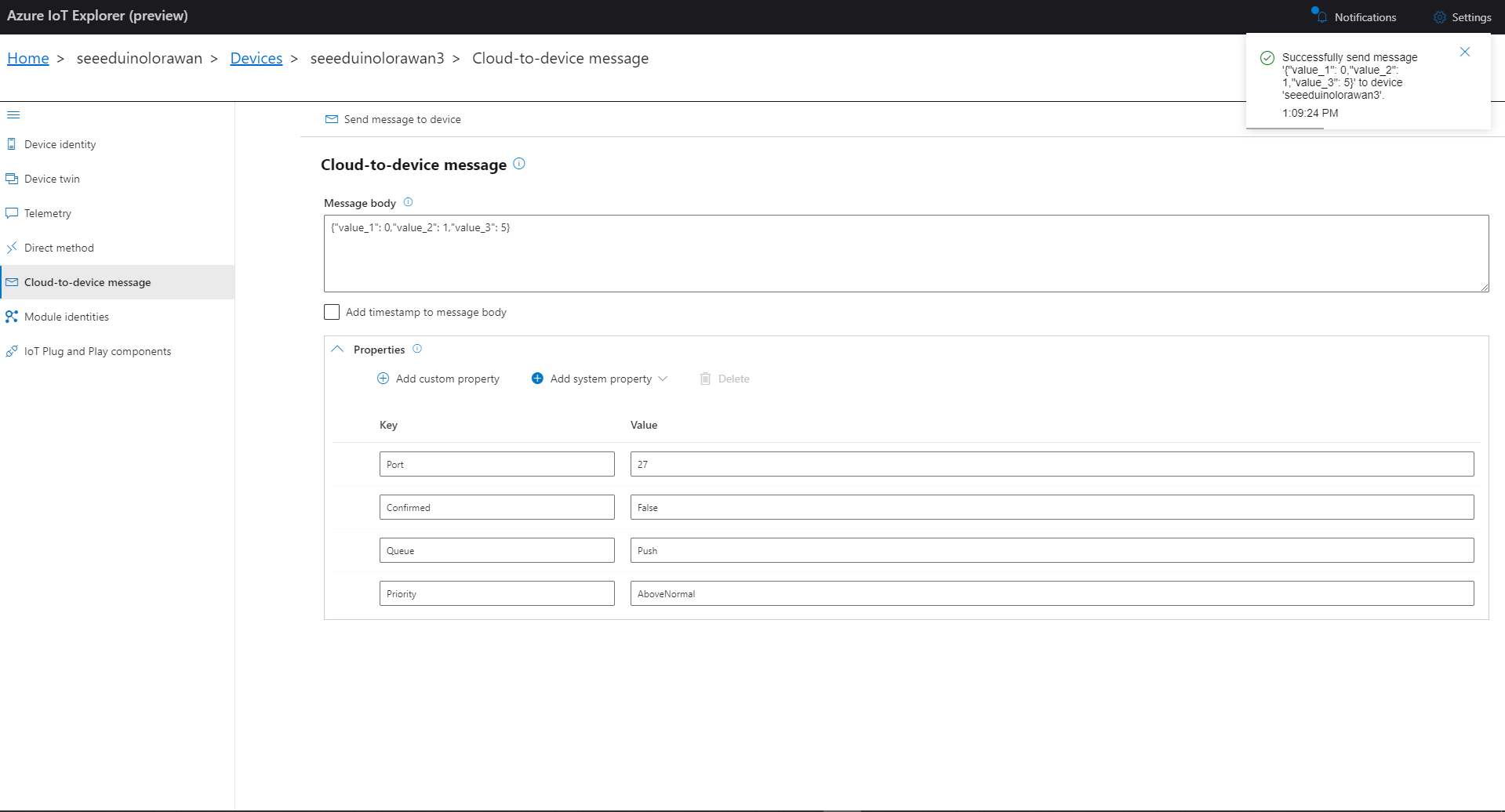
Azure IoT Explorer Cloud to Device sending an unconfirmed downlink message
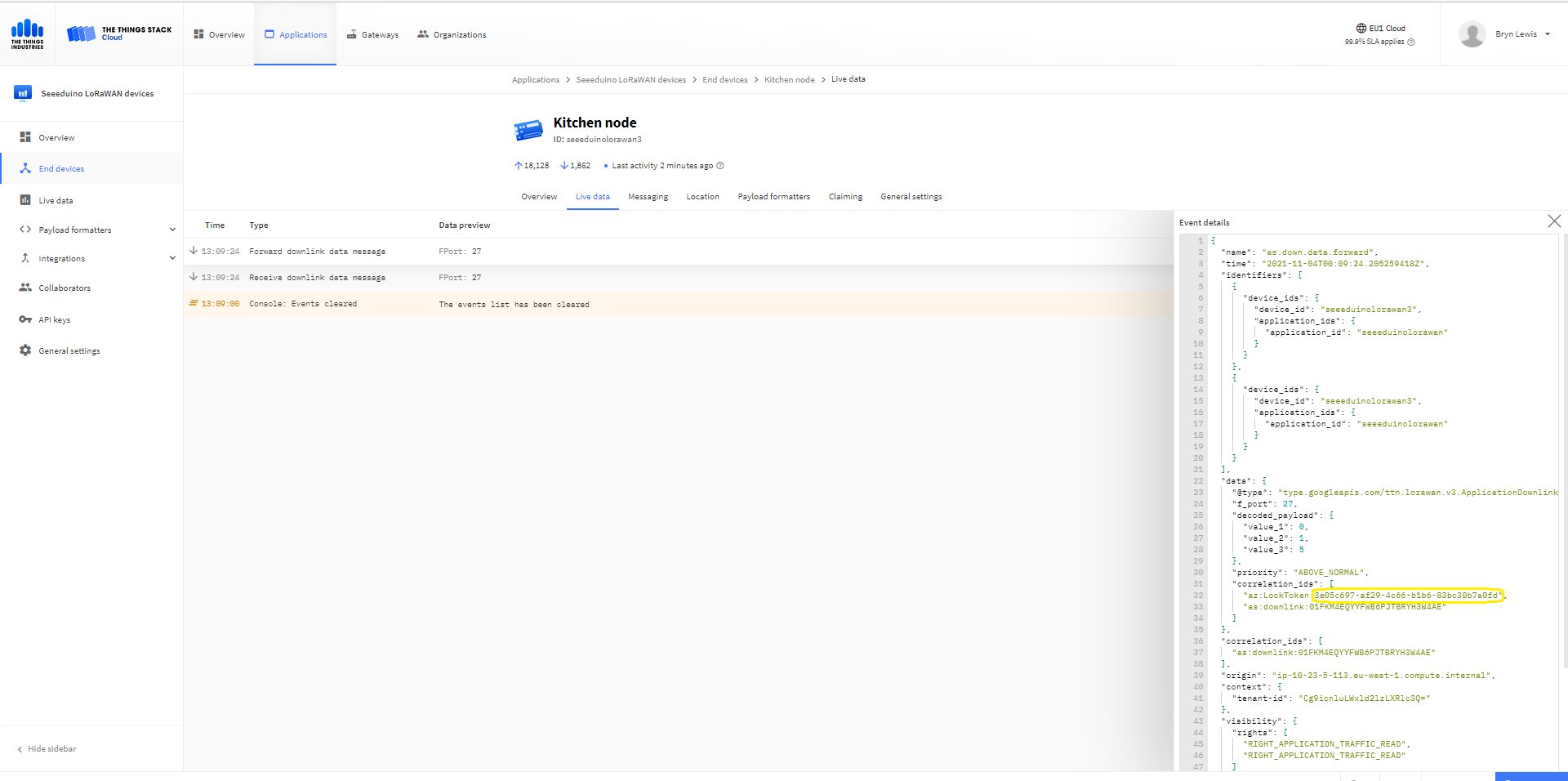
For unconfirmed messages The TTI Connector calls the DeviceClient.CompletedAsync method (with the LockToken from the CorrelationIDs list) which deletes the message from the device queue.
[Function("Queued")]
public async Task<HttpResponseData> Queued([HttpTrigger(AuthorizationLevel.Function, "post")] HttpRequestData req, FunctionContext executionContext)
{
	var logger = executionContext.GetLogger("Queued");

	// Wrap all the processing in a try\catch so if anything blows up we have logged it.
	try
	{
		string payloadText = await req.ReadAsStringAsync();

		Models.DownlinkQueuedPayload payload = JsonConvert.DeserializeObject<Models.DownlinkQueuedPayload>(payloadText);
		if (payload == null)
		{
			logger.LogInformation("Queued-Payload {0} invalid", payloadText);

			return req.CreateResponse(HttpStatusCode.BadRequest);
		}

		string applicationId = payload.EndDeviceIds.ApplicationIds.ApplicationId;
		string deviceId = payload.EndDeviceIds.DeviceId;

		logger.LogInformation("Queued-ApplicationID:{0} DeviceID:{1} ", applicationId, deviceId);

		if (!_DeviceClients.TryGetValue(deviceId, out DeviceClient deviceClient))
		{
			logger.LogInformation("Queued-Unknown device for ApplicationID:{0} DeviceID:{1}", applicationId, deviceId);

			return req.CreateResponse(HttpStatusCode.Conflict);
		}

		// If the message is not confirmed "complete" it as soon as with network
		if (!payload.DownlinkQueued.Confirmed)
		{
			if (!AzureLockToken.TryGet(payload.DownlinkQueued.CorrelationIds, out string lockToken))
			{
				logger.LogWarning("Queued-DeviceID:{0} LockToken missing from payload:{1}", payload.EndDeviceIds.DeviceId, payloadText);

				return req.CreateResponse(HttpStatusCode.BadRequest);
			}

			try
			{
				await deviceClient.CompleteAsync(lockToken);
			}
			catch (DeviceMessageLockLostException)
			{
				logger.LogWarning("Queued-CompleteAsync DeviceID:{0} LockToken:{1} timeout", payload.EndDeviceIds.DeviceId, lockToken);

				return req.CreateResponse(HttpStatusCode.Conflict);
			}

			logger.LogInformation("Queued-DeviceID:{0} LockToken:{1} success", payload.EndDeviceIds.DeviceId, lockToken);
		}
	}
	catch (Exception ex)
	{
		logger.LogError(ex, "Queued message processing failed");

		return req.CreateResponse(HttpStatusCode.InternalServerError);
	}

	return req.CreateResponse(HttpStatusCode.OK);
}
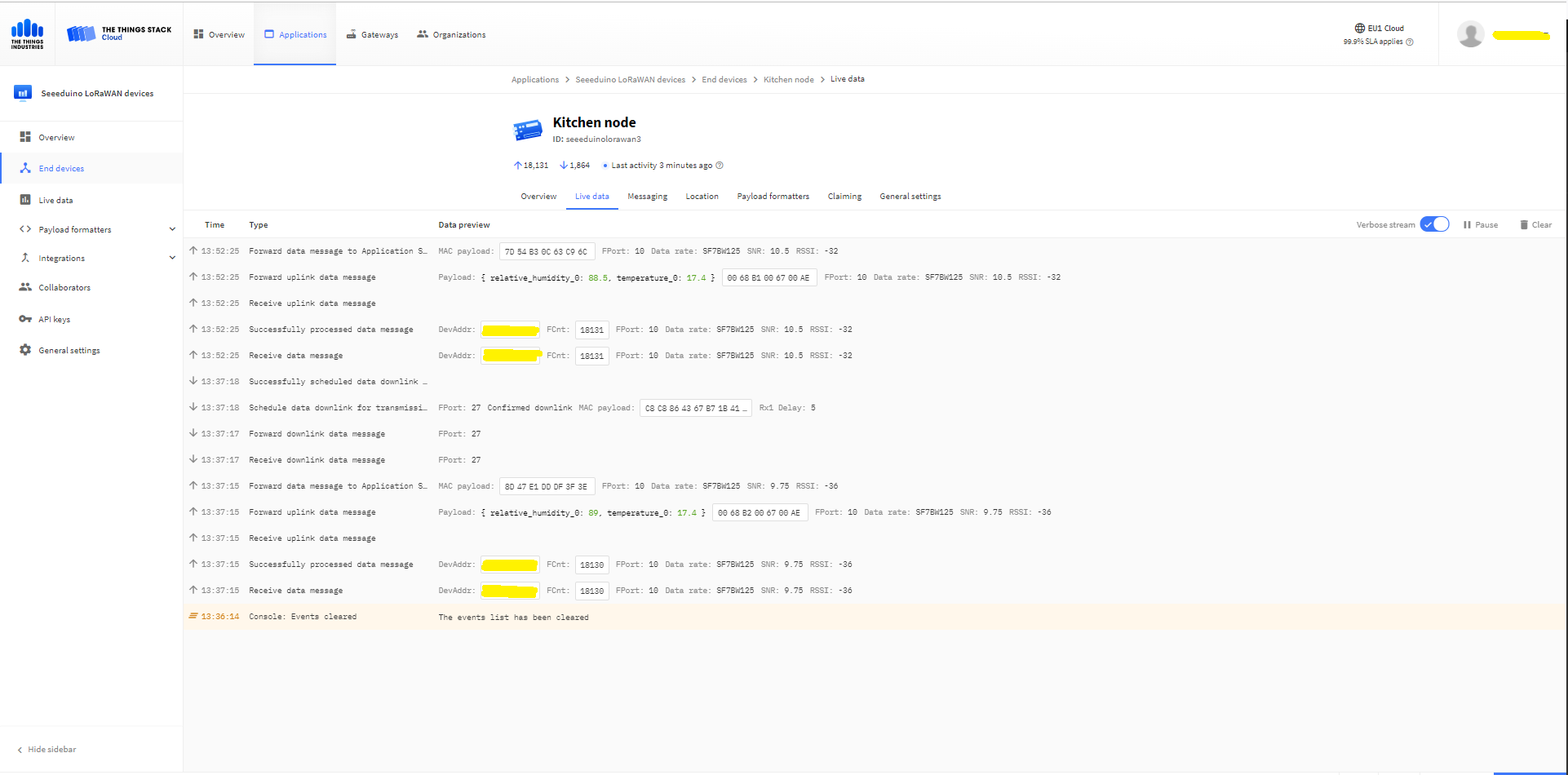
The Things Industries Live Data tab for an unconfirmed message-Queued
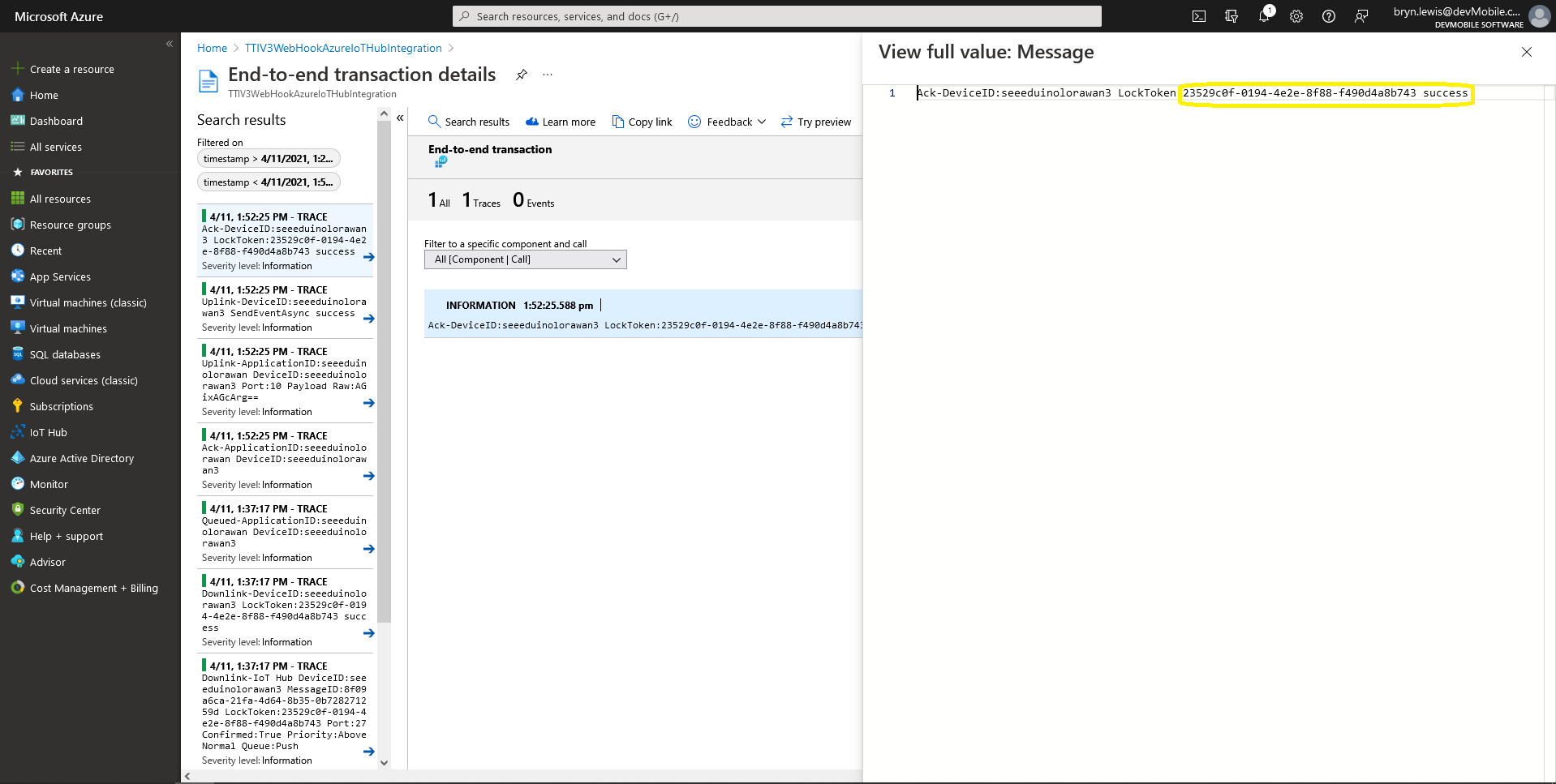
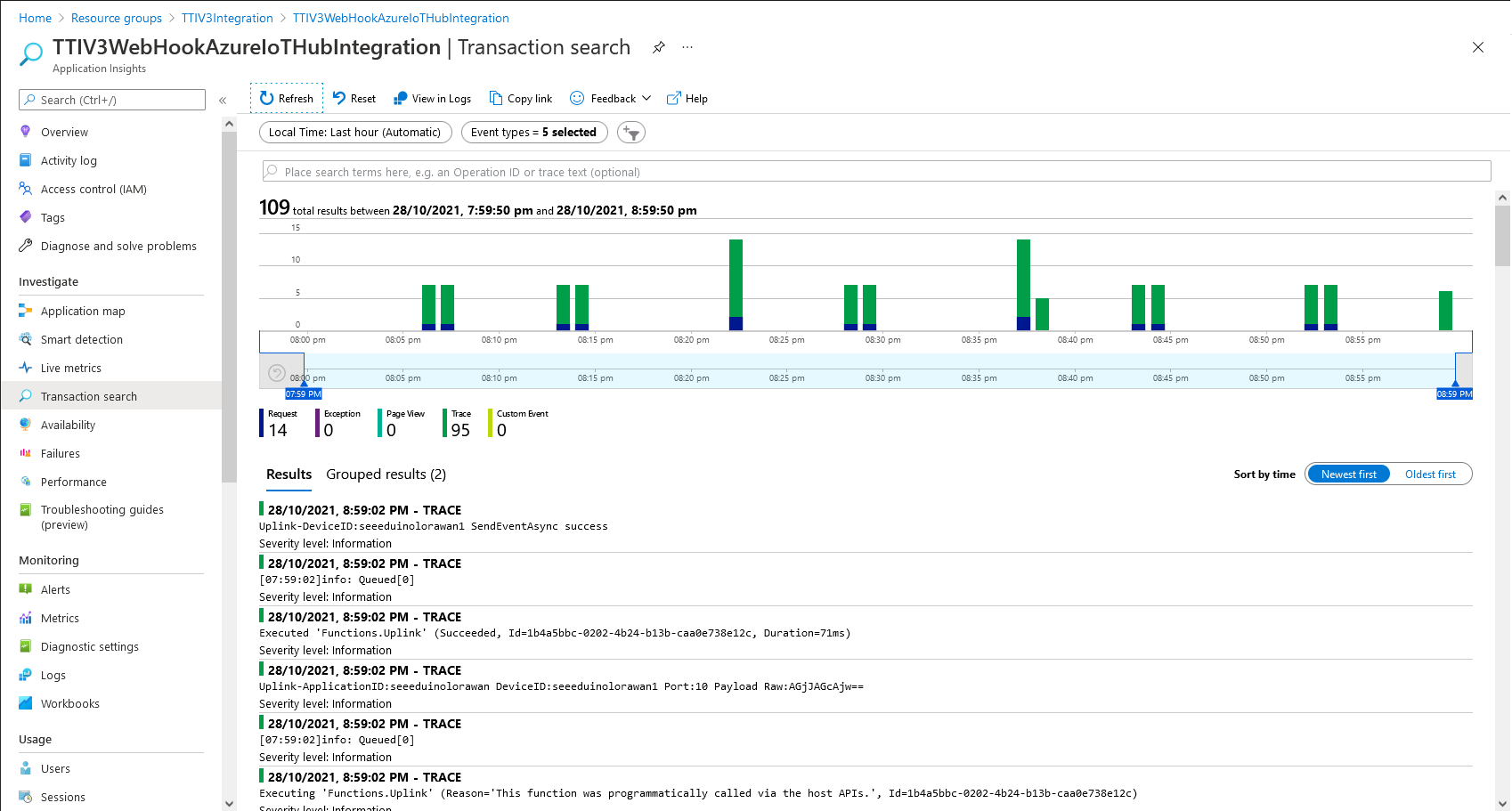
Azure Application Insights for an unconfirmed message
The Things Industries Live Data tab for an unconfirmed message-Sent
Confirmed Downlink Messages
Azure IoT Explorer Cloud to Device sending a confirmed downlink message
Azure Application Insights for a confirmed message
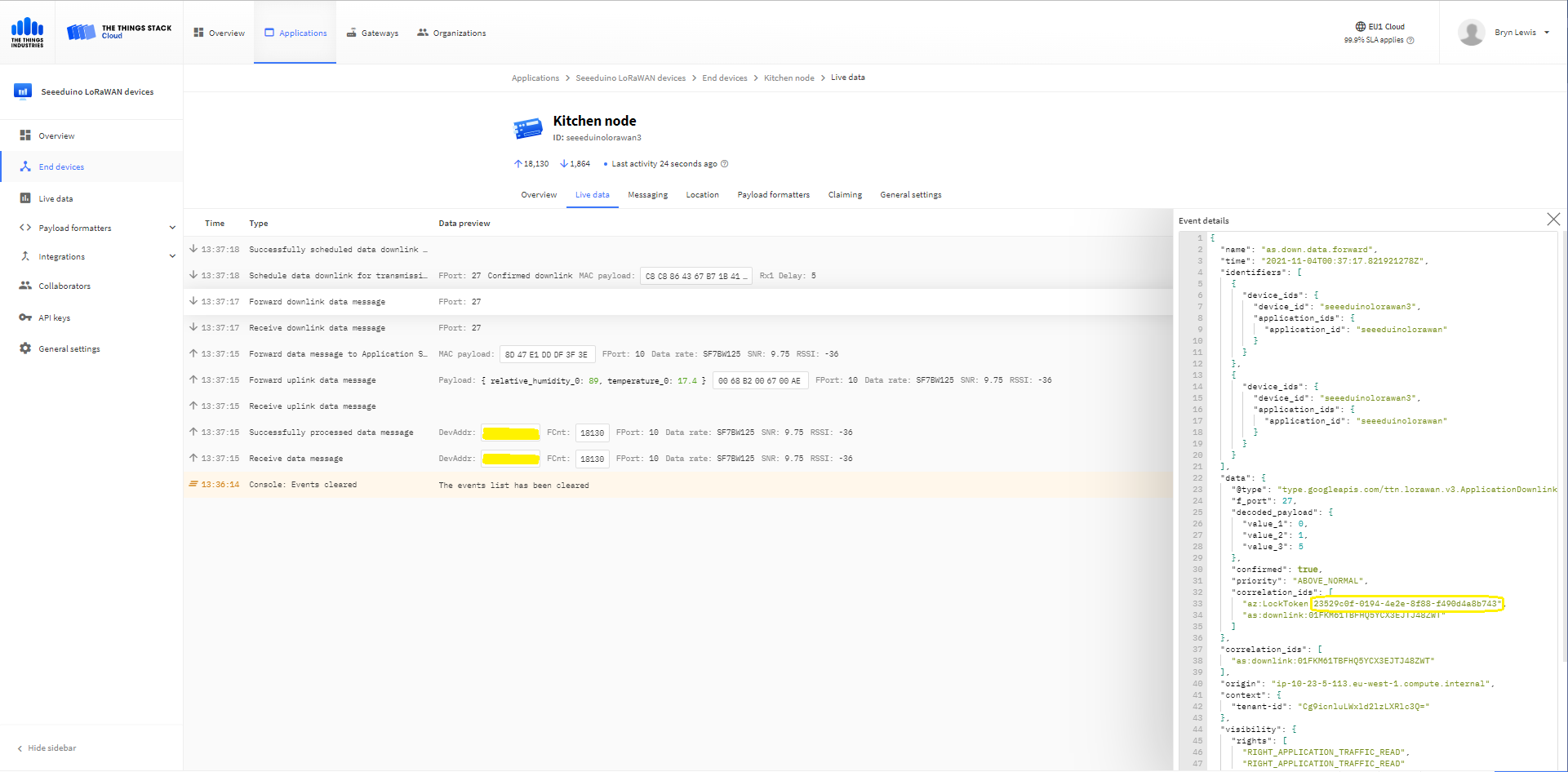
The Things Industries Live Data tab for a confirmed message-Sent
The Things Industries Live Data tab for a confirmed message-Ack
If message delivery succeeds the deviceClient.CompleteAsync method (with the LockToken from the CorrelationIDs list) is called which removes the message from the device queue.
[Function("Ack")]
public async Task<HttpResponseData> Ack([HttpTrigger(AuthorizationLevel.Function, "post")] HttpRequestData req, FunctionContext executionContext)
{
	var logger = executionContext.GetLogger("Queued");

	// Wrap all the processing in a try\catch so if anything blows up we have logged it.
	try
	{
		string payloadText = await req.ReadAsStringAsync();

		Models.DownlinkAckPayload payload = JsonConvert.DeserializeObject<Models.DownlinkAckPayload>(payloadText);
		if (payload == null)
		{
			logger.LogInformation("Ack-Payload {0} invalid", payloadText);

			return req.CreateResponse(HttpStatusCode.BadRequest);
		}

		string applicationId = payload.EndDeviceIds.ApplicationIds.ApplicationId;
		string deviceId = payload.EndDeviceIds.DeviceId;

		logger.LogInformation("Ack-ApplicationID:{0} DeviceID:{1} ", applicationId, deviceId);

		if (!_DeviceClients.TryGetValue(deviceId, out DeviceClient deviceClient))
		{
			logger.LogInformation("Ack-Unknown device for ApplicationID:{0} DeviceID:{1}", applicationId, deviceId);

			return req.CreateResponse(HttpStatusCode.Conflict);
		}

		if (!AzureLockToken.TryGet(payload.DownlinkAck.CorrelationIds, out string lockToken))
		{
			logger.LogWarning("Ack-DeviceID:{0} LockToken missing from payload:{1}", payload.EndDeviceIds.DeviceId, payloadText);

			return req.CreateResponse(HttpStatusCode.BadRequest);
		}

		try
		{
			await deviceClient.CompleteAsync(lockToken);
		}
		catch (DeviceMessageLockLostException)
		{
			logger.LogWarning("Ack-CompleteAsync DeviceID:{0} LockToken:{1} timeout", payload.EndDeviceIds.DeviceId, lockToken);

			return req.CreateResponse(HttpStatusCode.Conflict);
		}

		logger.LogInformation("Ack-DeviceID:{0} LockToken:{1} success", payload.EndDeviceIds.DeviceId, lockToken);
	}
	catch (Exception ex)
	{
		logger.LogError(ex, "Ack message processing failed");

		return req.CreateResponse(HttpStatusCode.InternalServerError);
	}

	return req.CreateResponse(HttpStatusCode.OK);
}
Azure Application Insights for an confirmed message Ack
If message delivery fails the deviceClient.AbandonAsync method (with the LockToken from the CorrelationIDs list) is called which puts the downlink message back onto the device queue.
[Function("Failed")]
public async Task<HttpResponseData> Failed([HttpTrigger(AuthorizationLevel.Function, "post")] HttpRequestData req, FunctionContext executionContext)
{
	var logger = executionContext.GetLogger("Queued");

	// Wrap all the processing in a try\catch so if anything blows up we have logged it.
	try
	{
		string payloadText = await req.ReadAsStringAsync();

		Models.DownlinkFailedPayload payload = JsonConvert.DeserializeObject<Models.DownlinkFailedPayload>(payloadText);
		if (payload == null)
		{
			logger.LogInformation("Failed-Payload {0} invalid", payloadText);

			return req.CreateResponse(HttpStatusCode.BadRequest);
		}

		string applicationId = payload.EndDeviceIds.ApplicationIds.ApplicationId;
		string deviceId = payload.EndDeviceIds.DeviceId;

		logger.LogInformation("Failed-ApplicationID:{0} DeviceID:{1} ", applicationId, deviceId);

		if (!_DeviceClients.TryGetValue(deviceId, out DeviceClient deviceClient))
		{
			logger.LogInformation("Failed-Unknown device for ApplicationID:{0} DeviceID:{1}", applicationId, deviceId);

			return req.CreateResponse(HttpStatusCode.Conflict);
		}

		if (!AzureLockToken.TryGet(payload.DownlinkFailed.CorrelationIds, out string lockToken))
		{
			logger.LogWarning("Failed-DeviceID:{0} LockToken missing from payload:{1}", payload.EndDeviceIds.DeviceId, payloadText);

			return req.CreateResponse(HttpStatusCode.BadRequest);
		}

		try
		{
			await deviceClient.RejectAsync(lockToken);
		}
		catch (DeviceMessageLockLostException)
		{
			logger.LogWarning("Failed-RejectAsync DeviceID:{0} LockToken:{1} timeout", payload.EndDeviceIds.DeviceId, lockToken);

			return req.CreateResponse(HttpStatusCode.Conflict);
		}

		logger.LogInformation("Failed-DeviceID:{0} LockToken:{1} success", payload.EndDeviceIds.DeviceId, lockToken);
	}
	catch (Exception ex)
	{
		logger.LogError(ex, "Failed message processing failed");

		return req.CreateResponse(HttpStatusCode.InternalServerError);
	}

	return req.CreateResponse(HttpStatusCode.OK);
}
If message delivery is unsuccessful the deviceClient.RejectAsync method (with the LockToken from the CorrelationIDs list) is called which deletes the message from the device queue and indicates to the server that the message could not be processed.
[Function("Nack")]
public async Task<HttpResponseData> Nack([HttpTrigger(AuthorizationLevel.Function, "post")] HttpRequestData req, FunctionContext executionContext)
{
	var logger = executionContext.GetLogger("Queued");

	// Wrap all the processing in a try\catch so if anything blows up we have logged it.
	try
	{
		string payloadText = await req.ReadAsStringAsync();

		Models.DownlinkNackPayload payload = JsonConvert.DeserializeObject<Models.DownlinkNackPayload>(payloadText);
		if (payload == null)
		{
			logger.LogInformation("Nack-Payload {0} invalid", payloadText);

			return req.CreateResponse(HttpStatusCode.BadRequest);
		}

		string applicationId = payload.EndDeviceIds.ApplicationIds.ApplicationId;
		string deviceId = payload.EndDeviceIds.DeviceId;

		logger.LogInformation("Nack-ApplicationID:{0} DeviceID:{1} ", applicationId, deviceId);

		if (!_DeviceClients.TryGetValue(deviceId, out DeviceClient deviceClient))
		{
			logger.LogInformation("Nack-Unknown device for ApplicationID:{0} DeviceID:{1}", applicationId, deviceId);

			return req.CreateResponse(HttpStatusCode.Conflict);
		}

		if (!AzureLockToken.TryGet(payload.DownlinkNack.CorrelationIds, out string lockToken))
		{
			logger.LogWarning("Nack-DeviceID:{0} LockToken missing from payload:{1}", payload.EndDeviceIds.DeviceId, payloadText);

			return req.CreateResponse(HttpStatusCode.BadRequest);
		}

		try
		{
			await deviceClient.RejectAsync(lockToken);
		}
		catch (DeviceMessageLockLostException)
		{
			logger.LogWarning("Nack-RejectAsync DeviceID:{0} LockToken:{1} timeout", payload.EndDeviceIds.DeviceId, lockToken);

			return req.CreateResponse(HttpStatusCode.Conflict);
		}

		logger.LogInformation("Nack-DeviceID:{0} LockToken:{1} success", payload.EndDeviceIds.DeviceId, lockToken);
	}
	catch (Exception ex)
	{
		logger.LogError(ex, "Nack message processing failed");

		return req.CreateResponse(HttpStatusCode.InternalServerError);
	}

	return req.CreateResponse(HttpStatusCode.OK);
}
The way message Failed(Abandon), Ack(CompleteAsync) and Nack(RejectAsync) are handled needs some more testing to confirm my understanding of the sequencing of TTI confirmed message delivery.
BEWARE
The use of Confirmed messaging with devices that send uplink messages irregularly can cause weird problems if the Azure IoT hub downlink message times out.
public partial class Webhooks
{
	[Function("Uplink")]
	public async Task<HttpResponseData> Uplink([HttpTrigger(AuthorizationLevel.Function, "post")] HttpRequestData req, FunctionContext executionContext)
	{
		var logger = executionContext.GetLogger("Uplink");

		// Wrap all the processing in a try\catch so if anything blows up we have logged it. Will need to specialise for connectivity failues etc.
		try
		{
			Models.PayloadUplink payload = JsonConvert.DeserializeObject<Models.PayloadUplink>(await req.ReadAsStringAsync());
			if (payload == null)
			{
				logger.LogInformation("Uplink: Payload {0} invalid", await req.ReadAsStringAsync());

				return req.CreateResponse(HttpStatusCode.BadRequest);
			}

			string applicationId = payload.EndDeviceIds.ApplicationIds.ApplicationId;
			string deviceId = payload.EndDeviceIds.DeviceId;

			if ((payload.UplinkMessage.Port == null ) || (!payload.UplinkMessage.Port.HasValue) || (payload.UplinkMessage.Port.Value == 0))
			{
				logger.LogInformation("Uplink-ApplicationID:{0} DeviceID:{1} Payload Raw:{2} Control nessage", applicationId, deviceId, payload.UplinkMessage.PayloadRaw);

				return req.CreateResponse(HttpStatusCode.BadRequest);
			}

			int port = payload.UplinkMessage.Port.Value;

			logger.LogInformation("Uplink-ApplicationID:{0} DeviceID:{1} Port:{2} Payload Raw:{3}", applicationId, deviceId, port, payload.UplinkMessage.PayloadRaw);

			if (!_DeviceClients.TryGetValue(deviceId, out DeviceClient deviceClient))
			{
				logger.LogInformation("Uplink-Unknown device for ApplicationID:{0} DeviceID:{1}", applicationId, deviceId);

				deviceClient = DeviceClient.CreateFromConnectionString(_configuration.GetConnectionString("AzureIoTHub"), deviceId);

				try
				{
					await deviceClient.OpenAsync();
				}
				catch (DeviceNotFoundException)
				{
					logger.LogWarning("Uplink-Unknown DeviceID:{0}", deviceId);

					return req.CreateResponse(HttpStatusCode.NotFound);
				}

				if (!_DeviceClients.TryAdd(deviceId, deviceClient))
				{
					logger.LogWarning("Uplink-TryAdd failed for ApplicationID:{0} DeviceID:{1}", applicationId, deviceId);

					return req.CreateResponse(HttpStatusCode.Conflict);
				}
			}

			JObject telemetryEvent = new JObject
			{
				{ "ApplicationID", applicationId },
				{ "DeviceID", deviceId },
				{ "Port", port },
				{ "PayloadRaw", payload.UplinkMessage.PayloadRaw }
			};

			// If the payload has been decoded by payload formatter, put it in the message body.
			if (payload.UplinkMessage.PayloadDecoded != null)
			{
				telemetryEvent.Add("PayloadDecoded", payload.UplinkMessage.PayloadDecoded);
			}

			// Send the message to Azure IoT Hub
			using (Message ioTHubmessage = new Message(Encoding.ASCII.GetBytes(JsonConvert.SerializeObject(telemetryEvent))))
			{
				// Ensure the displayed time is the acquired time rather than the uploaded time.
				ioTHubmessage.Properties.Add("iothub-creation-time-utc", payload.UplinkMessage.ReceivedAtUtc.ToString("s", CultureInfo.InvariantCulture));
				ioTHubmessage.Properties.Add("ApplicationId", applicationId);
				ioTHubmessage.Properties.Add("DeviceEUI", payload.EndDeviceIds.DeviceEui);
				ioTHubmessage.Properties.Add("DeviceId", deviceId);
				ioTHubmessage.Properties.Add("port", port.ToString());

				await deviceClient.SendEventAsync(ioTHubmessage);
			}
		}
		catch (Exception ex)
		{
			logger.LogError(ex, "Uplink message processing failed");

			return req.CreateResponse(HttpStatusCode.InternalServerError);
		}

		return req.CreateResponse(HttpStatusCode.OK);
	}
}
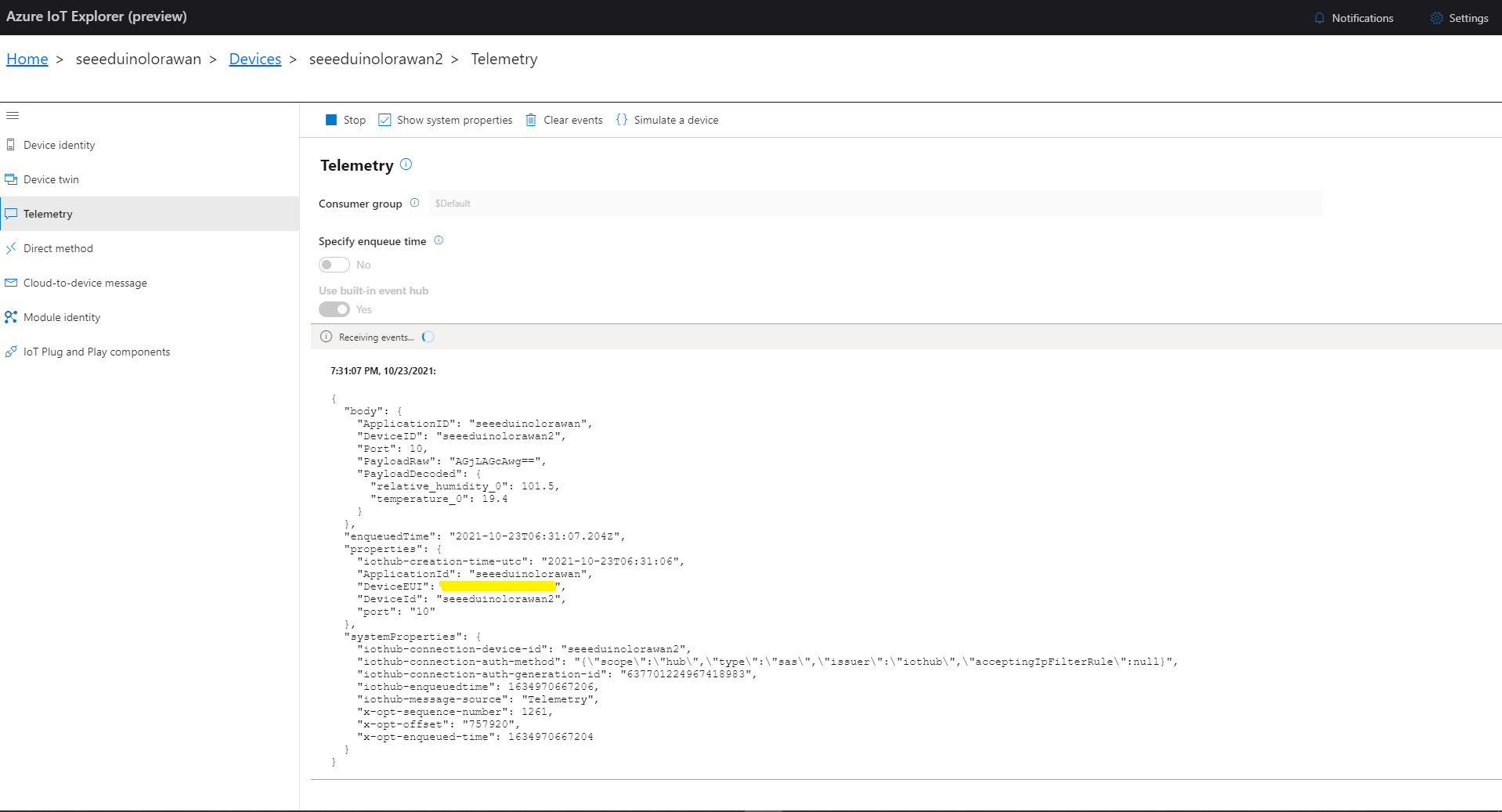
For initial development and testing I ran the function application in the desktop emulator and simulated TTI webhook calls with Telerik Fiddler and modified TTI sample payloads.
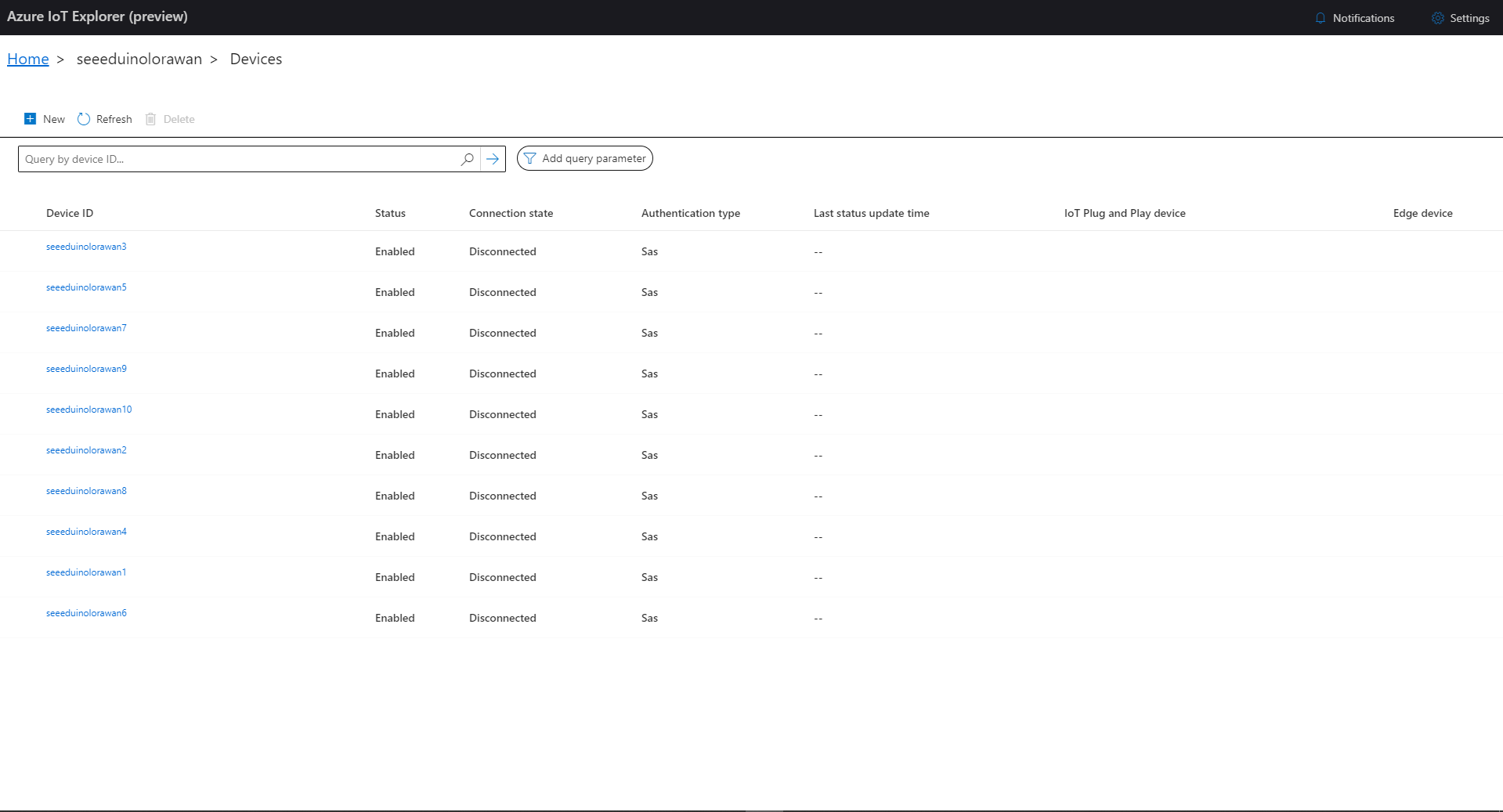
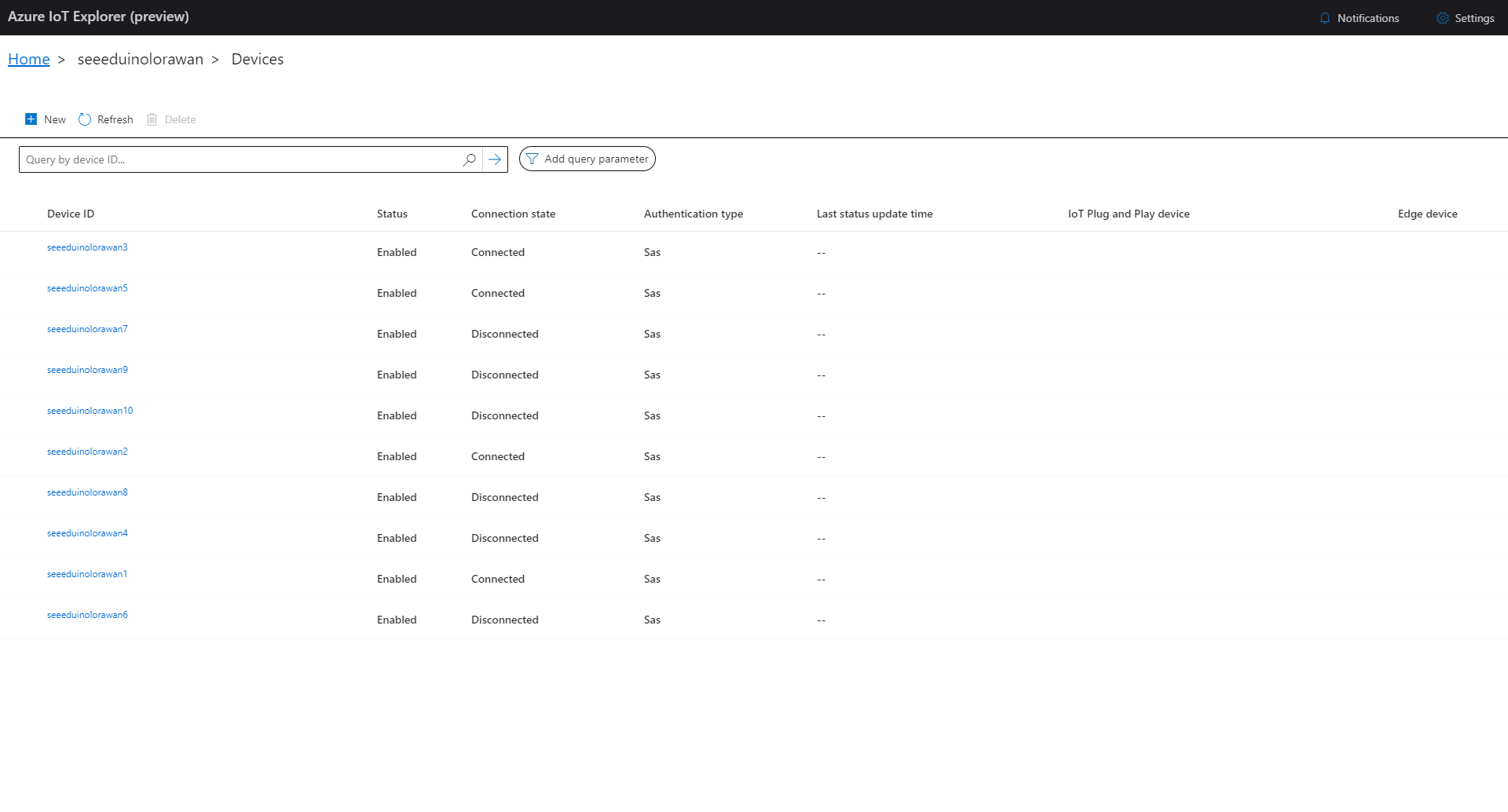
I then used Azure IoT Explorer to configure devices, view uplink traffic etc. When I connected to my Azure IoT Hub shortly after starting the application all the devices were disconnected.
Azure IoT Explorer – no connected devices
The SeeeduinoLoRaWAN devices report roughly every 15 minutes so it took a while for them all to connect. (the SeeeduinoLoRaWAN4 & SeeeduinoLoRaWAN6 need to be repaired) .
I have included sample application in the Github repository to show how to use the library
namespace devMobile.IoT.NetCore.Sensirion
{
	using System;
	using System.Device.I2c;
	using System.Threading;

	class Program
	{
		static void Main(string[] args)
		{
			// bus id on the raspberry pi 3
			const int busId = 1;

			I2cConnectionSettings i2cConnectionSettings = new(busId, Sht20.DefaultI2cAddress);

			using I2cDevice i2cDevice = I2cDevice.Create(i2cConnectionSettings);

			using (Sht20 sht20 = new Sht20(i2cDevice))
			{
				sht20.Reset();

				while (true)
				{
					double temperature = sht20.Temperature();
					double humidity = sht20.Humidity();

#if HEATER_ON_OFF
					sht20.HeaterOn();
					Console.WriteLine($"{DateTime.Now:HH:mm:ss} HeaterOn:{sht20.IsHeaterOn()}");
#endif
					Console.WriteLine($"{DateTime.Now:HH:mm:ss} Temperature:{temperature:F1}°C Humidity:{humidity:F0}% HeaterOn:{sht20.IsHeaterOn()}");
#if HEATER_ON_OFF
					sht20.HeaterOff();
					Console.WriteLine($"{DateTime.Now:HH:mm:ss} HeaterOn:{sht20.IsHeaterOn()}");
#endif

					Thread.Sleep(1000);
				}
			}
		}
	}
}
The Sensiron SHT20 has a heater which is intended to be used for functionality diagnosis – relative humidity drops upon rising temperature. The heater consumes about 5.5mW and provides a temperature increase of about 0.5 – 1.5°C.
Beware when the device is soft reset the heater bit is not cleared.
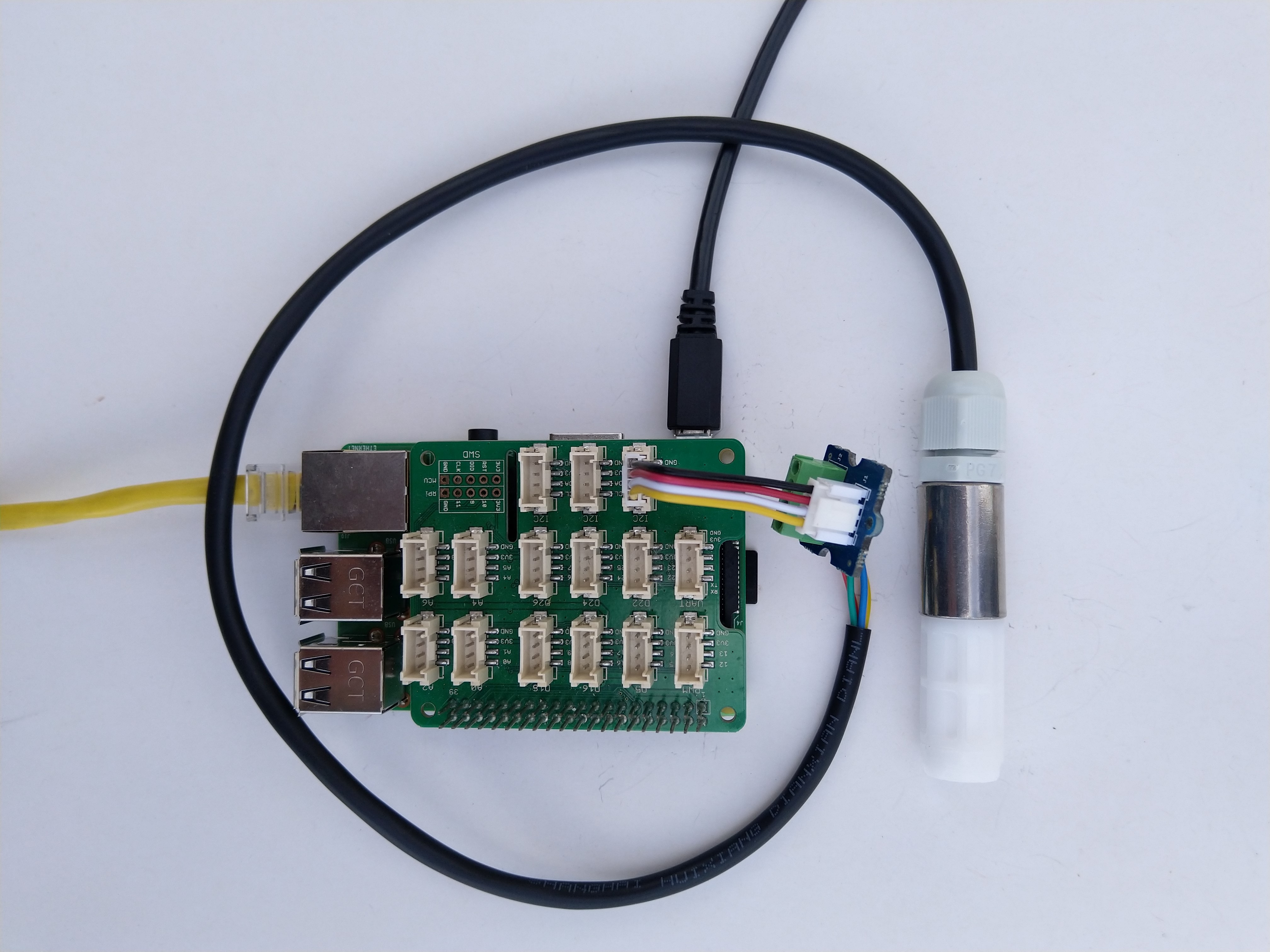
I have included sample application to show how to use the library
namespace devMobile.IoT.NetCore.GroveBaseHat
{
	using System;
	using System.Device.I2c;
	using System.Threading;

	class Program
	{
		static void Main(string[] args)
		{
			// bus id on the raspberry pi 3
			const int busId = 1;

			I2cConnectionSettings i2cConnectionSettings = new(busId, AnalogPorts.DefaultI2cAddress);

			using (I2cDevice i2cDevice = I2cDevice.Create(i2cConnectionSettings))
			using (AnalogPorts AnalogPorts = new AnalogPorts(i2cDevice))
			{
				Console.WriteLine($"{DateTime.Now:HH:mm:SS} Version:{AnalogPorts.Version()}");
				Console.WriteLine();

				double powerSupplyVoltage = AnalogPorts.PowerSupplyVoltage();
				Console.WriteLine($"{DateTime.Now:HH:mm:SS} Power Supply Voltage:{powerSupplyVoltage:F2}v");

				while (true)
				{
					double value = AnalogPorts.Read(AnalogPorts.AnalogPort.A0);
					double rawValue = AnalogPorts.ReadRaw(AnalogPorts.AnalogPort.A0);
					double voltageValue = AnalogPorts.ReadVoltage(AnalogPorts.AnalogPort.A0);

					Console.WriteLine($"{DateTime.Now:HH:mm:SS} Value:{value:F2} Raw:{rawValue:F2} Voltage:{voltageValue:F2}v");
					Console.WriteLine();

					Thread.Sleep(1000);
				}
			}
		}
	}
}
The GROVE_BASE_HAT_RPI and GROVE_BASE_HAT_RPI_ZERO are used to specify the number of available analog ports.











 devMobile's blog