Azure IoT Central Connectivity Part2

Basic Commands

I have been struggling with making The Things Network(TTN) and The Things Industries(TTI) uplink/downlink messages work well Azure IoT Central. To explore different messaging approaches I have built a proof of Concept(PoC) application which simulates TTN/TTI connectivity to an Azure IoT Hub, or Azure IoT Central.

This blog post is about queued and non queued Cloud to Device(C2D) commands without request or response parameters. I have mostly used non queued commands in other projects (my Azure IoT Hub LoRa and RF24L01 gateways) to “Restart” devices etc..

The first step was to create an Azure IoT Central Device Template with command and telemetry device capabilities.
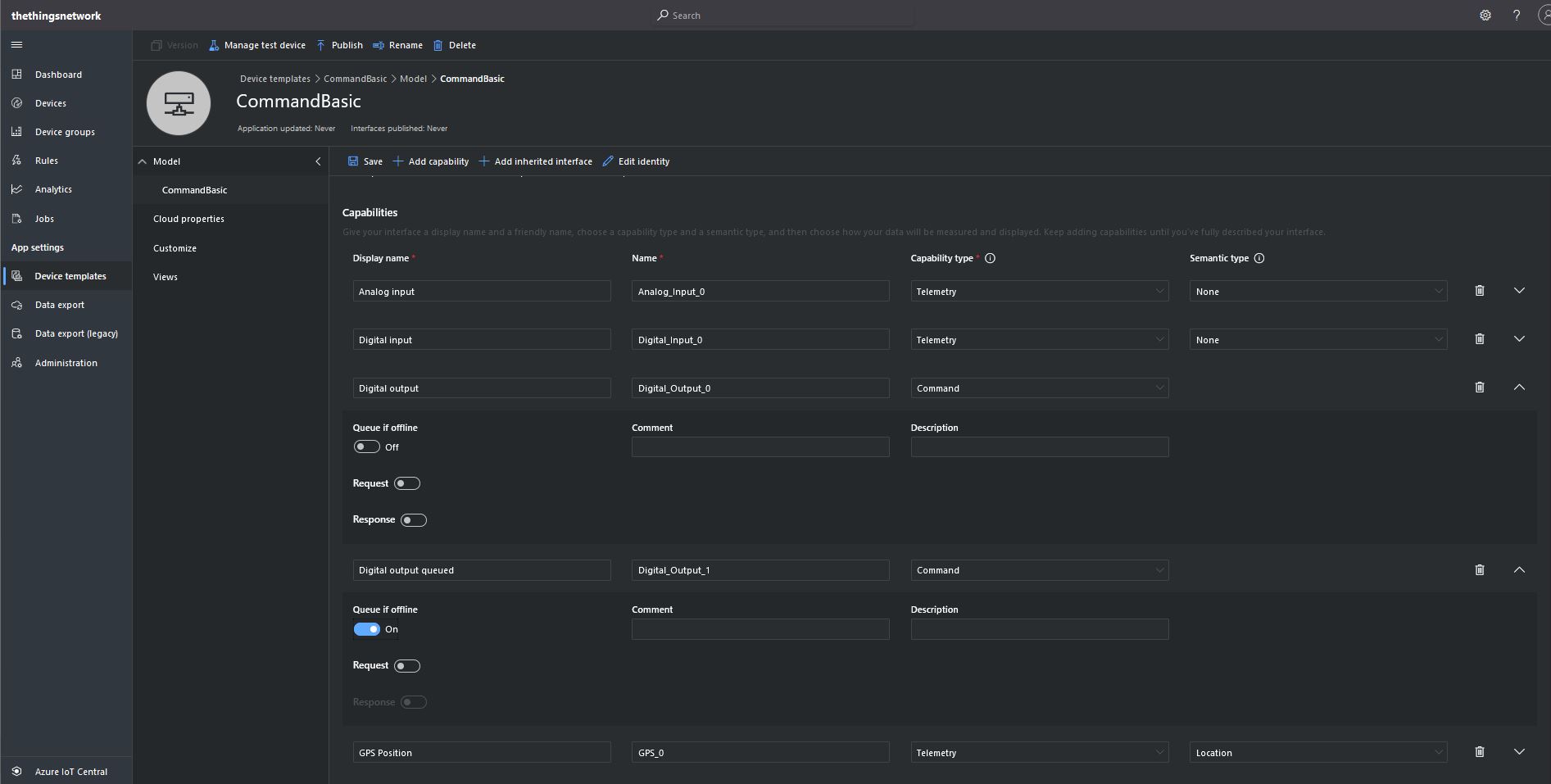
CommandBasic device template device with command & telemetry capabilities

I then “migrated” my second preconfigured device to the CommandBasic template.
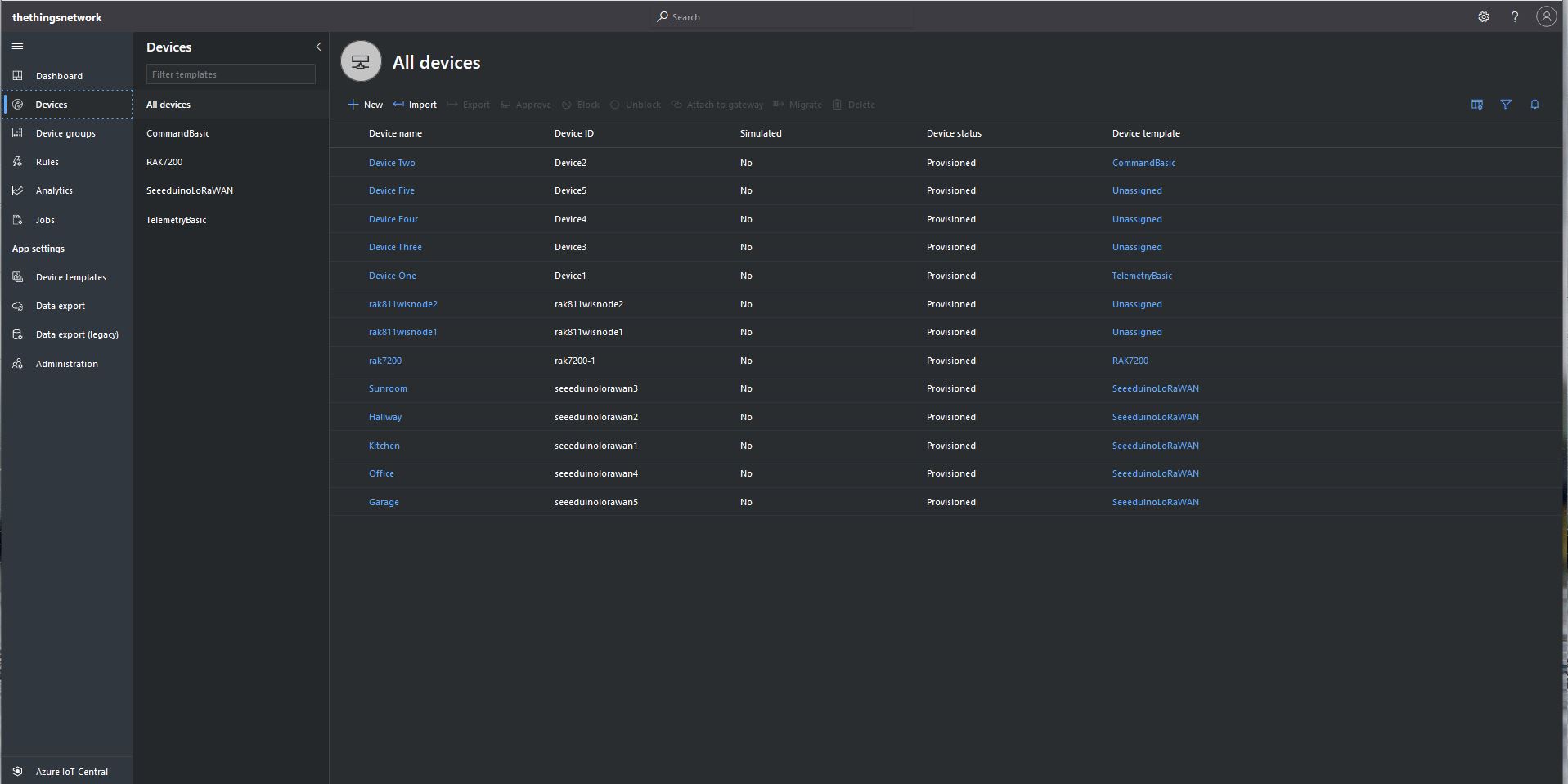
Migrating a device to TelemetryBasic template

I then went back and created a Template view to visualise the telemetry from my console application and initiate commands.
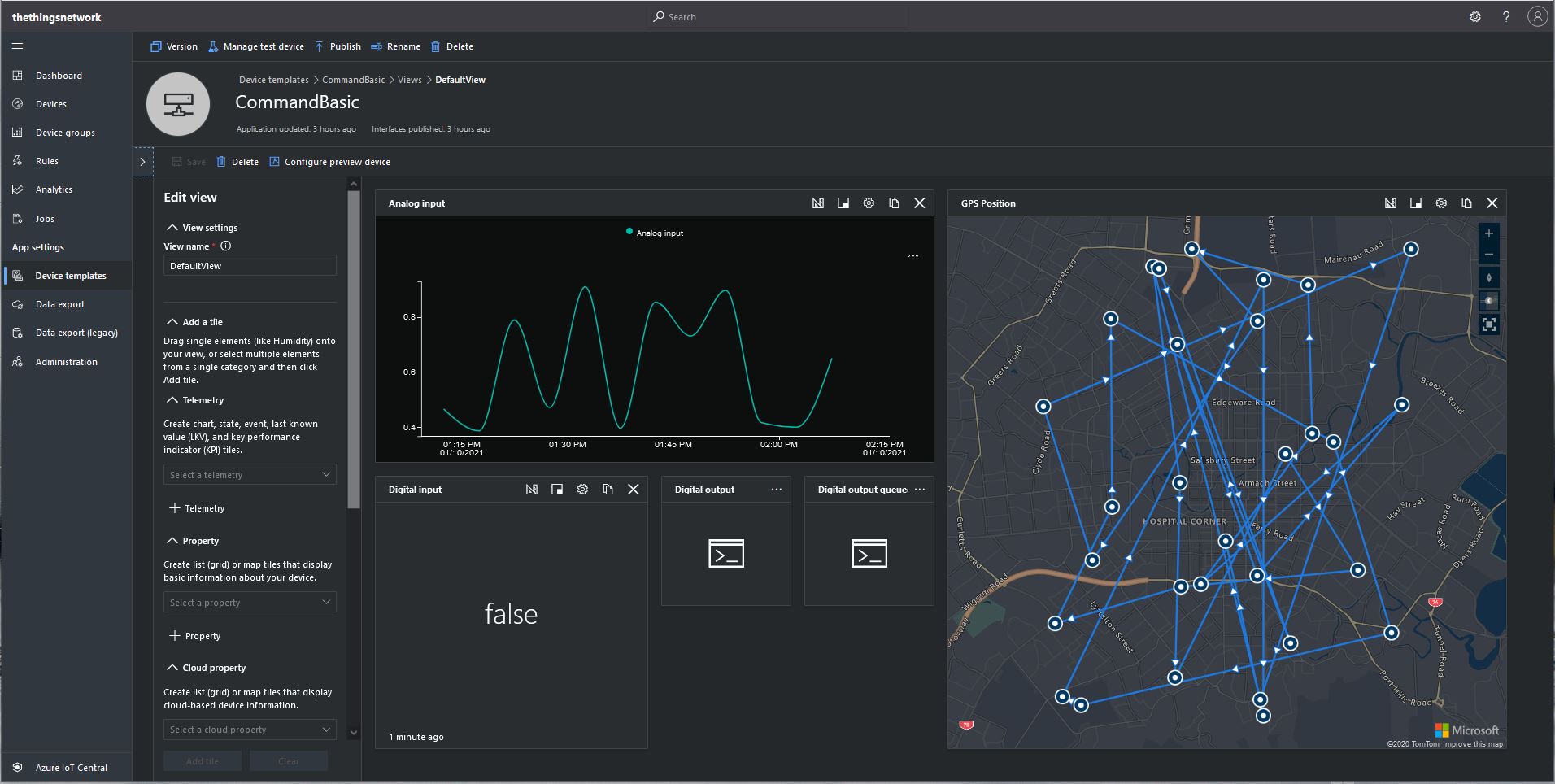
CommandBasic device template default view

I modified the PoC application adding handlers for Methods (SetMethodDefaultHandlerAsync) and Messages (SetReceiveMessageHandlerAsync).

private static async Task ApplicationCore(CommandLineOptions options)
{
   DeviceClient azureIoTHubClient;
   Timer MessageSender;

   try
   {
      // Open up the connection
      azureIoTHubClient = DeviceClient.CreateFromConnectionString(options.AzureIoTHubconnectionString, TransportType.Amqp_Tcp_Only);

      await azureIoTHubClient.OpenAsync();
      await azureIoTHubClient.SetReceiveMessageHandlerAsync(ReceiveMessageHandler, azureIoTHubClient);
      await azureIoTHubClient.SetMethodHandlerAsync("Named", MethodCallbackNamedHandler, null);
      await azureIoTHubClient.SetMethodDefaultHandlerAsync(MethodCallbackDefaultHandler, null);

      MessageSender = new Timer(TimerCallbackAsync, azureIoTHubClient, new TimeSpan(0, 0, 10), new TimeSpan(0, 2, 0));

      Console.WriteLine("Press any key to exit");
      while (!Console.KeyAvailable)
      {
         await Task.Delay(100);
      }
   }
   catch (Exception ex)
   {
      Console.WriteLine($"Main {ex.Message}");
      Console.WriteLine("Press <enter> to exit");
      Console.ReadLine();
   }
}

The method handler displays the method name and the message payload.

private static async Task<MethodResponse> MethodCallbackDefaultHandler(MethodRequest methodRequest, object userContext)
{
   Console.WriteLine($"Default handler method {methodRequest.Name} was called.");

   Console.WriteLine($"Payload:{methodRequest.DataAsJson}");
   Console.WriteLine();

   //return new MethodResponse(400);
   //return new MethodResponse(404);
   return new MethodResponse(200);
}

The message handler displays a selection the message properties, any attributes and the message payload.

 private async static Task ReceiveMessageHandler(Message message, object userContext)
{
   DeviceClient azureIoTHubClient = (DeviceClient)userContext;

   Console.WriteLine($"ReceiveMessageHandler handler method was called.");

   Console.WriteLine($" Message ID:{message.MessageId}");
   Console.WriteLine($" Message Schema:{message.MessageSchema}");
   Console.WriteLine($" Correlation ID:{message.CorrelationId}");
   Console.WriteLine($" Component name:{message.ComponentName}");
   Console.WriteLine($" To:{message.To}");
   Console.WriteLine($" Module ID:{message.ConnectionModuleId}");
   Console.WriteLine($" Device ID:{message.ConnectionDeviceId}");
   Console.WriteLine($" CreatedAt:{message.CreationTimeUtc}");
   Console.WriteLine($" EnqueuedAt:{message.EnqueuedTimeUtc}");
   Console.WriteLine($" ExpiresAt:{message.ExpiryTimeUtc}");
   Console.WriteLine($" Delivery count:{message.DeliveryCount}");
   Console.WriteLine($" InputName:{message.InputName}");
   Console.WriteLine($" SequenceNumber:{message.SequenceNumber}");

   foreach (var property in message.Properties)
   {
     Console.WriteLine($"   Key:{property.Key} Value:{property.Value}");
   }

   Console.WriteLine($" Content encoding:{message.ContentEncoding}");
   Console.WriteLine($" Content type:{message.ContentType}");
   Console.WriteLine($" Content:{Encoding.UTF8.GetString(message.GetBytes())}");
   Console.WriteLine();

   //await azureIoTHubClient.AbandonAsync(message); // message retries
   await azureIoTHubClient.CompleteAsync(message);
   //await azureIoTHubClient.RejectAsync(message); // message gone no retry
}

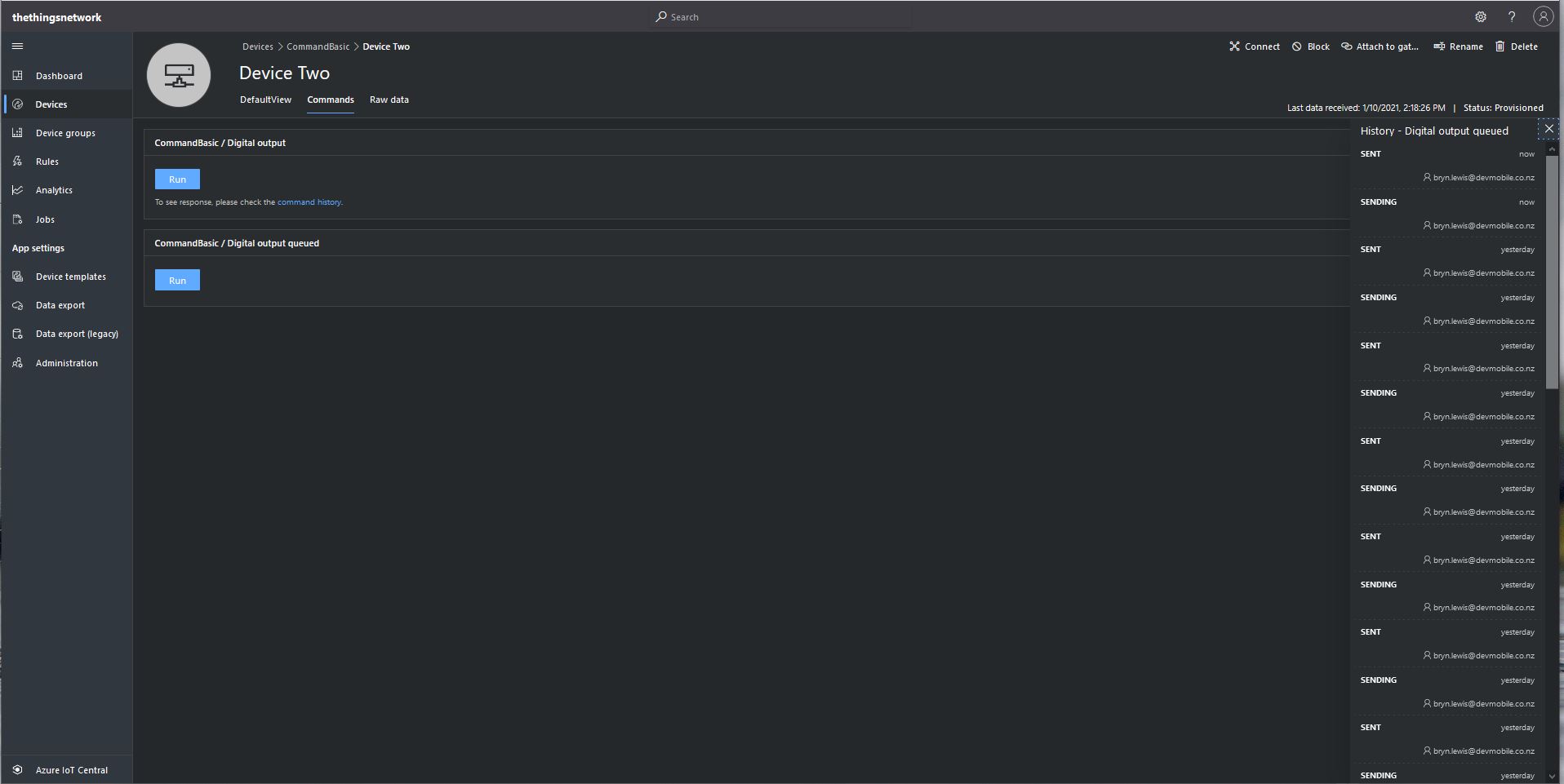
From the Device Commands tab I can could non queued and a queued commands
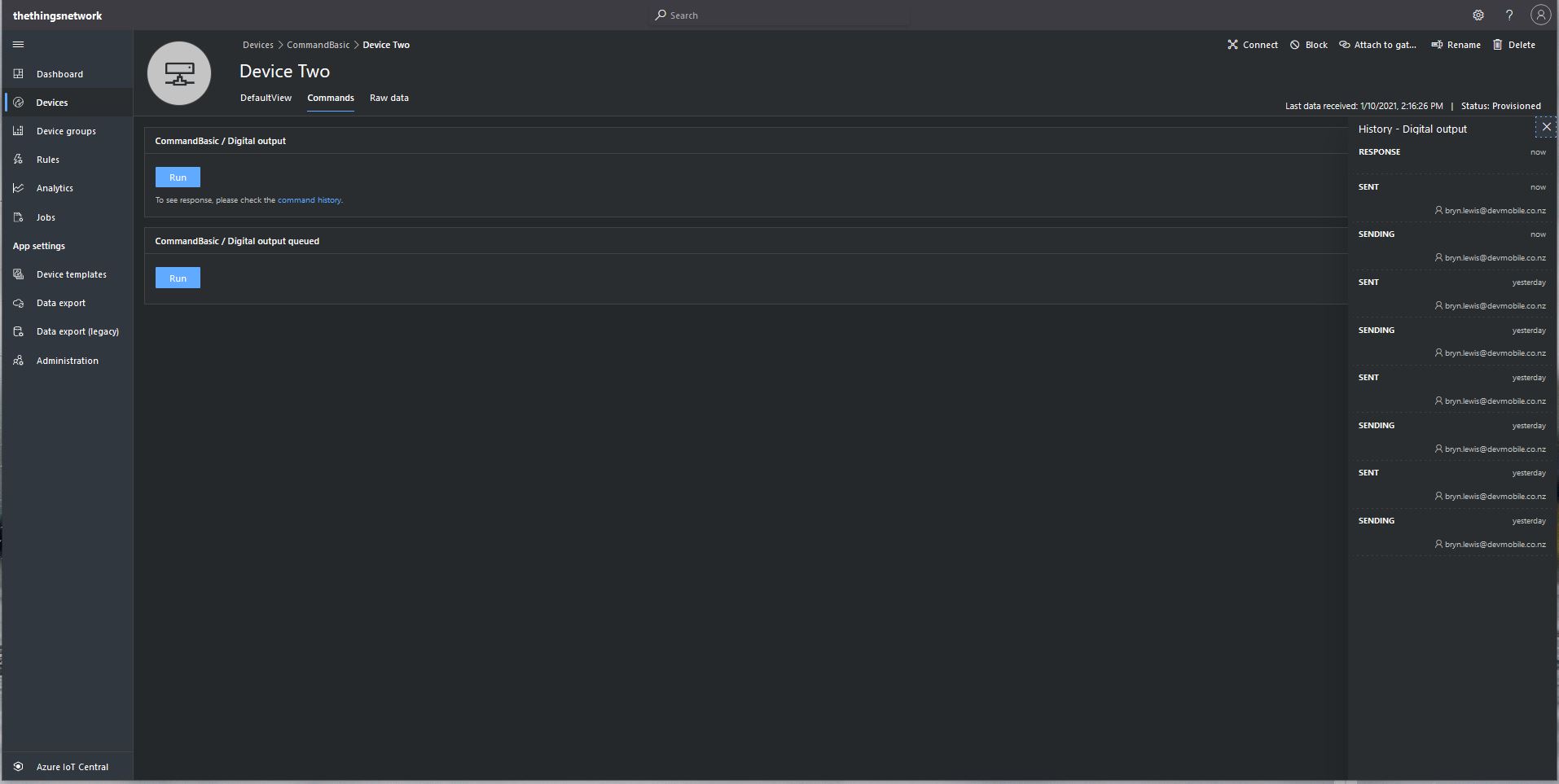
Device Two Commands tab

When I sent a non-queued command the default method handler was invoked with the name of the command capability (Digital_Output_0) as the method name and an empty payload. In the Azure IoT Central interface I couldn’t see any difference for successful (HTTP 200 OK) or failure (HTTP 400 Bad Request or HTTP 404 Not Found) responses. If the application was not running the command failed immediately.
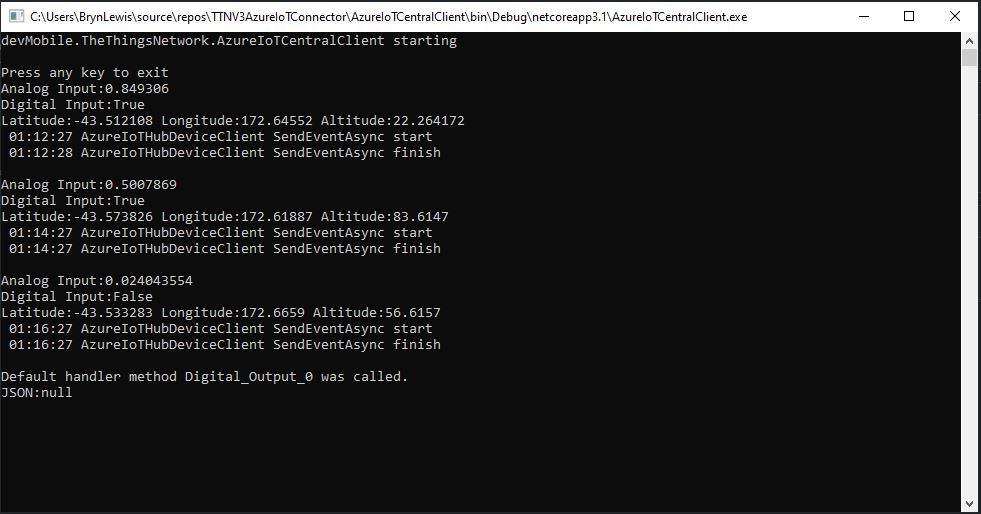
Console application displaying non-queued call

With Azure IoT Explorer failure responses were visible.
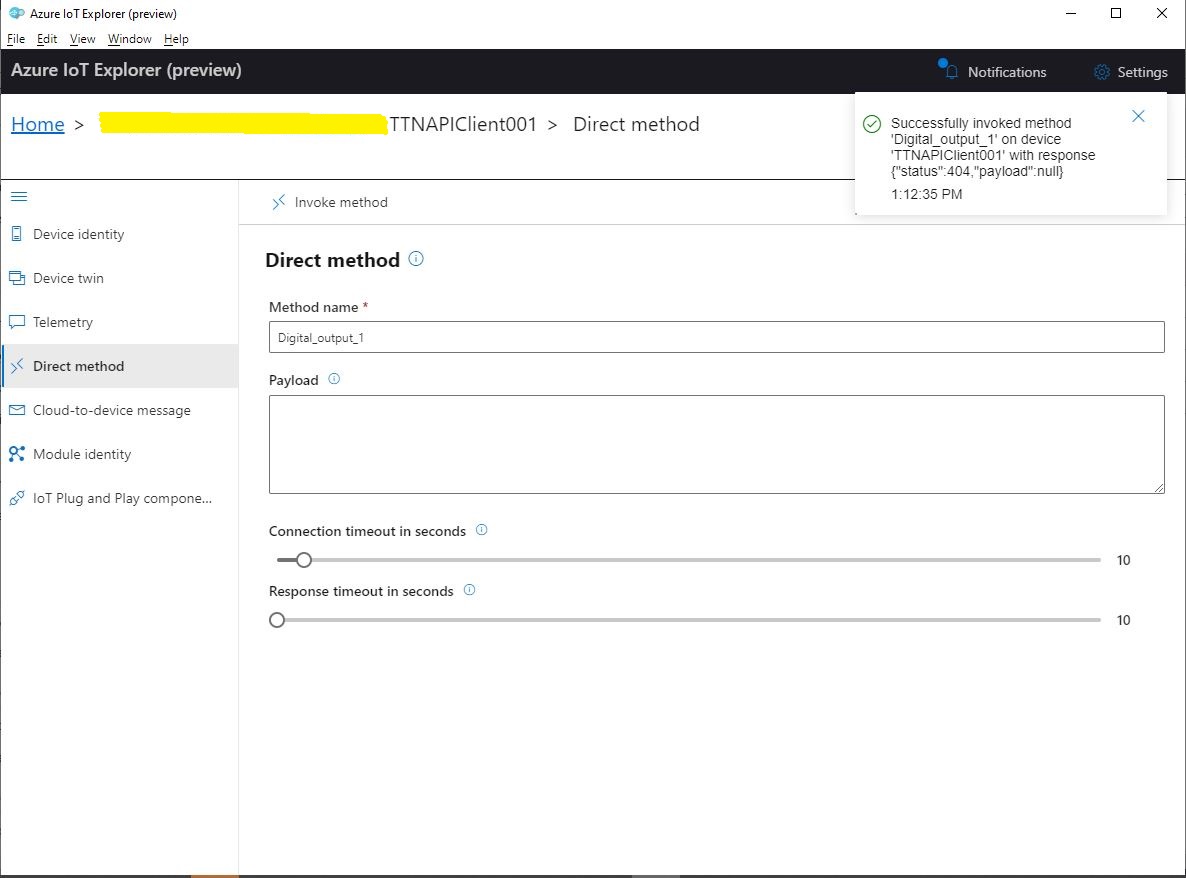
Azure IoT Explorer show message with 404 response

When I sent a queued command the message handler was invoked with the name of the command capability(Digital_Output_1) in a message property called “method-name” and the payload contained only an “@” character.
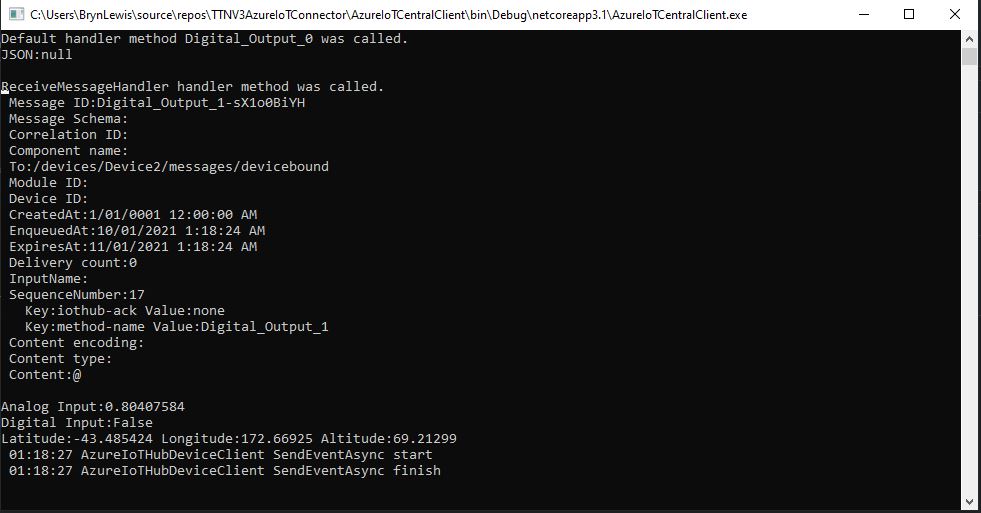
Console application displaying queued call

If the application was not running the command was queued until the Console application was started. When the console application was running and AbandonAsync was called rather than CompleteAsync the message was retried 10 times. If RejectAsync was called rather than CompleteAsync the message was deleted from the queue and not retried. There didn’t appear to be any difference for the displayed Azure IoT Central or Azure IoT Hub explorer results when AbandonAsync or RejectAsync were called.

I also created a personal dashboard to visualise the telemetry data and initiate commands. The way the two commands were presented on the dashboard was quite limited so I will go back to the documentation and see what I missed
Azure IoT Central Connectivity Part1

Basic Telemetry

I have been struggling with making The Things Network(TTN) and The Things Industries(TTI) uplink/downlink messages Azure IoT Central compatible. To explore the messaging approaches used I have built a proof of Concept(PoC) application which simulates TTN/TTI connectivity to an Azure IoT Hub, or Azure IoT Central.

My “nasty” console application uses the Azure DeviceClient library (Advanced Message Queuing Protocol(AMQP) connectivity) to explore how to interface with Azure IoT Central. This first blog post is about to Device Cloud(D2C) telemetry

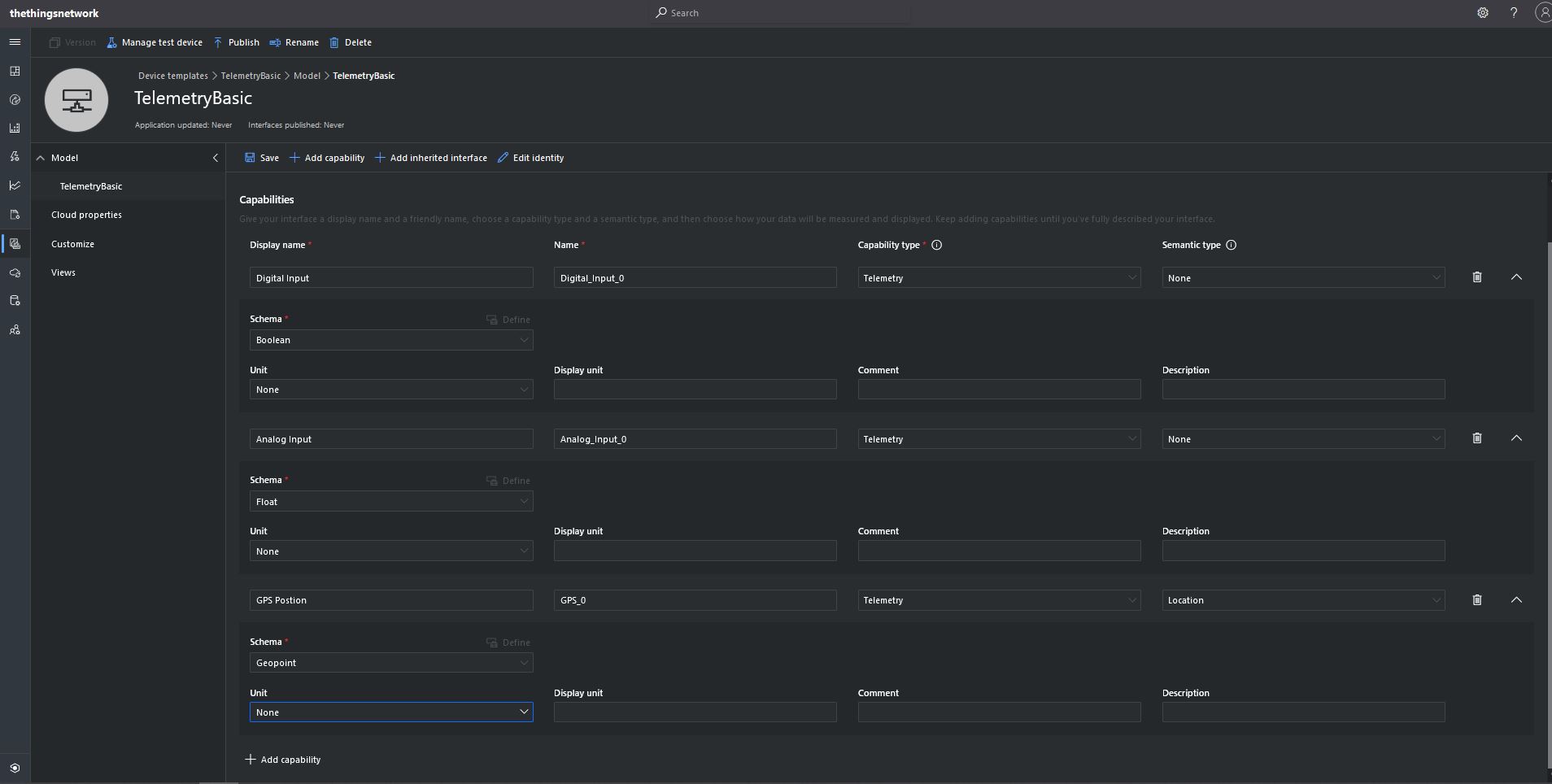
The first step was to create an Azure IoT Central Device Template with a selection of telemetry capabilities.

TelemetryBasic device template device capabilities

I then created a Plain old Common Language Runtime(CLR) object(PoCo) with Newtonsoft JSON library attributes to fine tune the serialisation/deserialation.

public class GPSPosition
{    
   [JsonProperty("lat")]
   public float Latitude { get; set; }
   [JsonProperty("lon")]
   public float Longitude { get; set; }
   [JsonProperty("alt")]
   public float Altitude { get; set; }
}

public class DigitialTelemetryPayload
{
   [JsonProperty("Digital_Input_0")]
   public bool DigitalInput { get; set; }

   [JsonProperty("Analog_Input_0")]
   public float AnalogInput { get; set; }

   [JsonProperty("GPS_0")]
   public GPSPosition GPSPosition { get; set; }
 }

I created five devices and generated their connection strings using the DPS individual enrollment functionality of one my other sample applications.

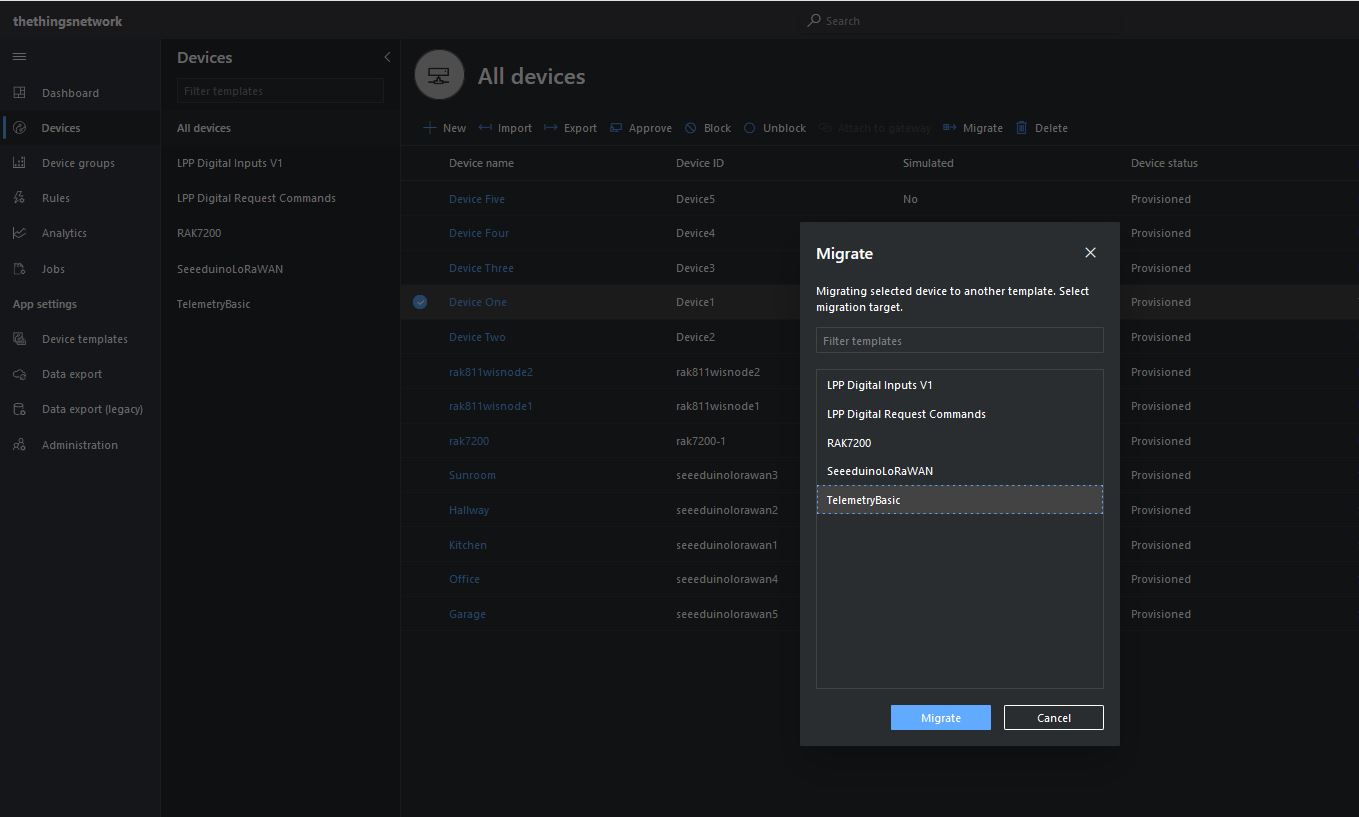
I then “migrated” the first device to my BasicTelemetry template

Migrating a device to TelemetryBasic template

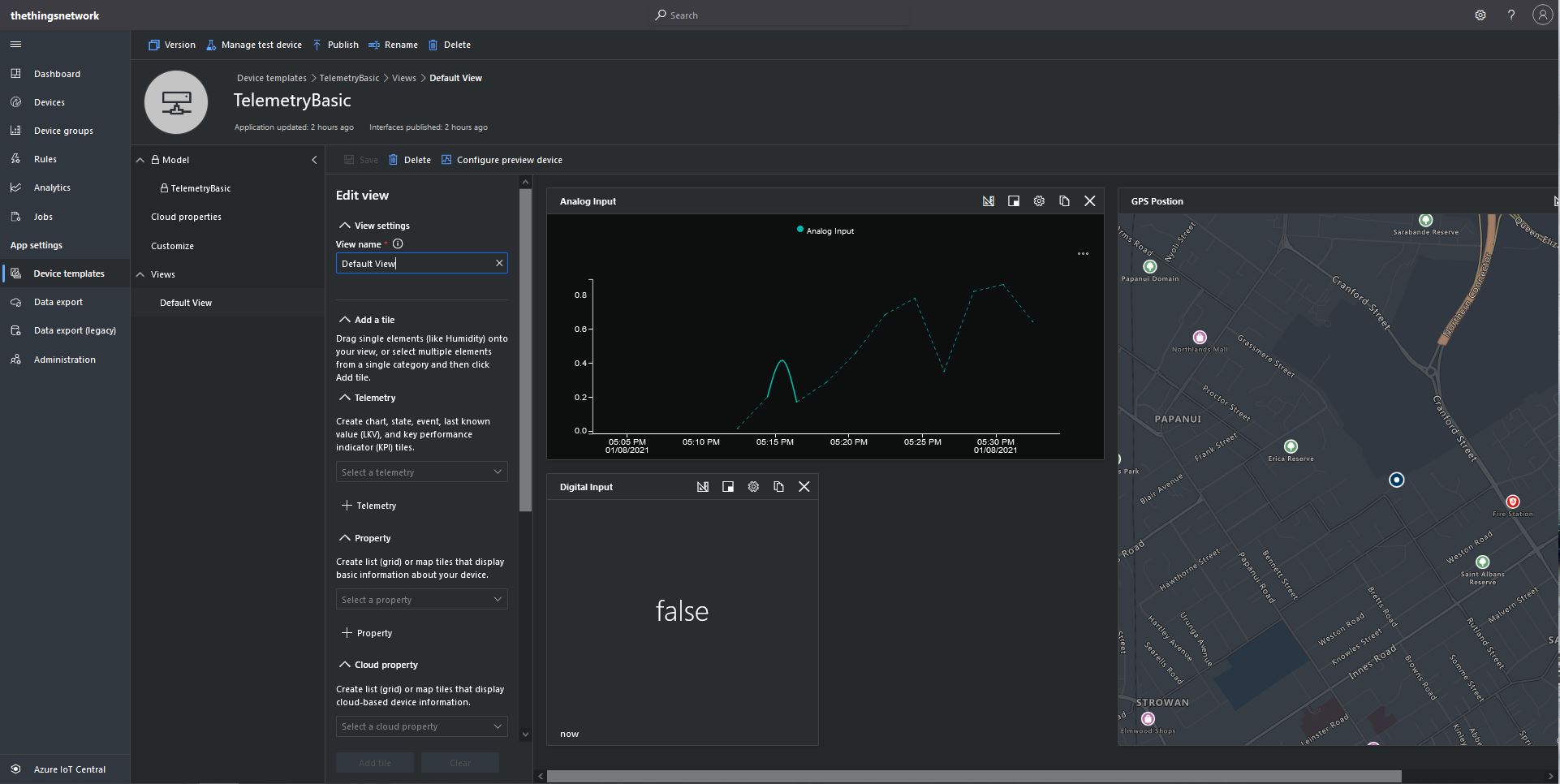
I then went back and created a Template view to visualise the telemetry from my console application.

TelemetryBasic device template default view

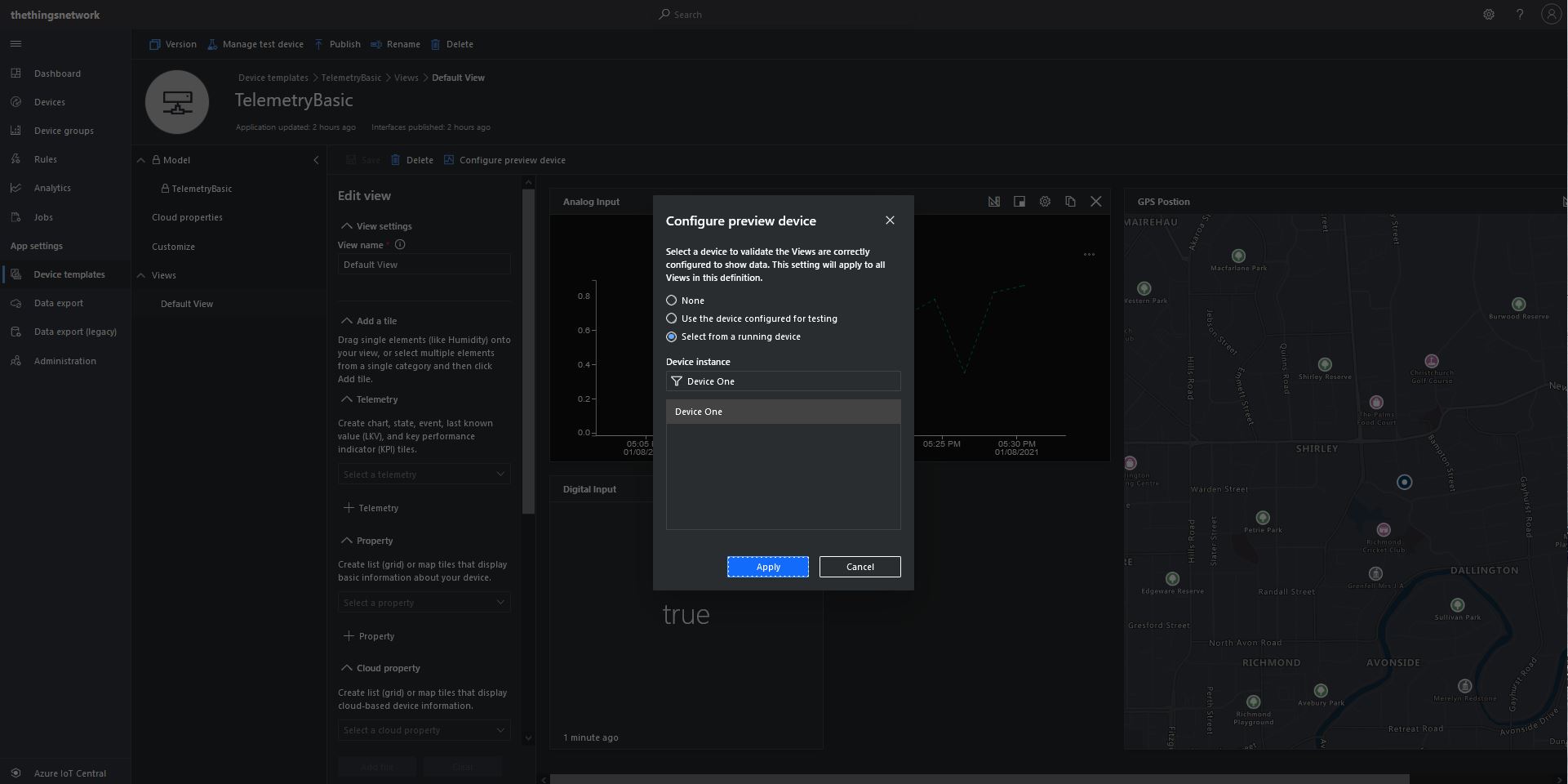
Then I configured a preview device so the template view was populated with “realistic” data.

TelemetryBasic device template default view configuring a device as data source

The console application simulates a digital input (random true/false), analog input (random value between 0.0 and 1.0) and a Global Positioning System(GPS) location (Christchurch Anglican Cathedral with a random latitude, longitude and altitude offset) .

Basic Telemetry Console Application

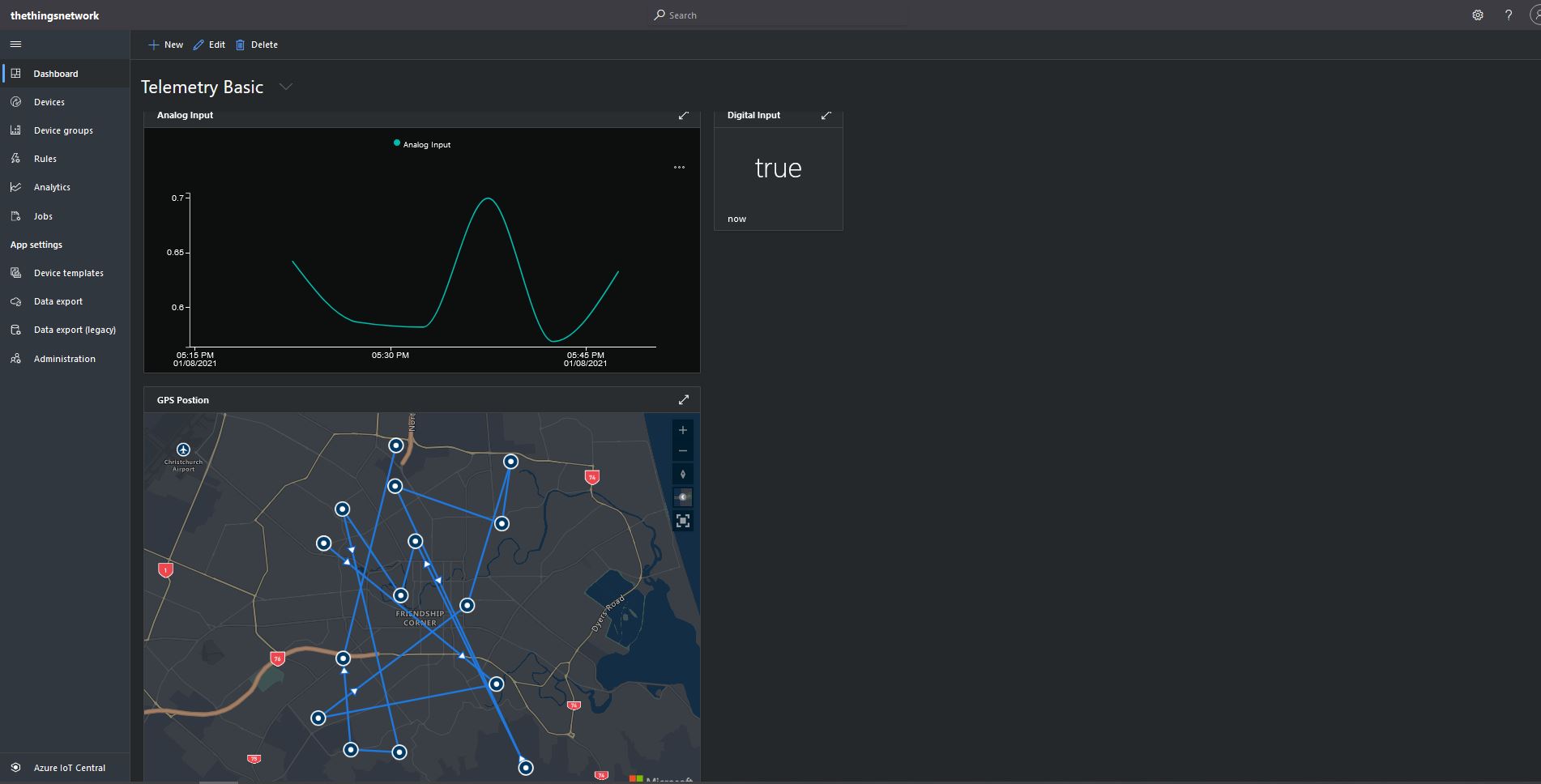
The final step was to create an Azure IoT Central Personal dashboard to visualise the data from my simulated device.

Basic Telemetry Dashboard

Connecting a Device, creating a Device Template, Migrating the Device, and then displaying telemetry on a personal dashboard was a good introduction to interfacing with and configuring Azure IoT Central devices.

In other applications I have mapped “payload_fields” to an Azure IoT Central telemetry payload with minimal code.

{
   "app_id": "rak811wisnodetest",
   "dev_id": "seeeduinolorawan4",
   "hardware_serial": "1234567890123456",
   "port": 10,
   "counter": 1,
   "is_retry": true,
   "payload_raw": "AWcBEAFlAGQBAAEBAgAyAYgAqYgGIxgBJuw=",
   "payload_fields": {
      "analog_in_1": 0.5,
      "digital_in_1": 1,
      "gps_1": {
         "altitude": 755,
         "latitude": 4.34,
         "longitude": 40.22
      },
      "luminosity_1": 100,
      "temperature_1": 27.2
   },
   "metadata": {
      "time": "2020-08-28T10:41:04.496594225Z",
      "frequency": 923.4,
      "modulation": "LORA",
      "data_rate": "SF12BW125",
      "coding_rate": "4/5",
      "gateways": [
         {
            "gtw_id": "eui-b827ebfffe6c279d",
            "timestamp": 3971612260,
            "time": "2020-08-28T10:41:03.313471Z",
            "channel": 1,
            "rssi": -53,
            "snr": 11.2,
            "rf_chain": 0,
            "latitude": -43.49885,
            "longitude": 172.60095,
            "altitude": 25
         }
      ]
   },
   "downlink_url": "https://integrations.thethingsnetwork.org/ttn-eu/api/v2/down/rak811wisnodetest/azure-webapi-endpoint?key=ttn-account-v2.12345678901234567_12345_1234567-dduo"
}

This was a longish post with lots of screen shots so I don’t have to repeat core setup instructions in future posts.

The Things Network MQTT & Azure IoT Part3A

Cloud to Device with frm_payload no confirmation

An Azure IoT Hub supports three kinds for Cloud to Device(C2D) messaging and my gateway will initially support only Direct Methods and Cloud-to-device messages.

The first step was to add the The Things Network(TTN) V3 Tennant ID to the context information as it is required for the downlink Message Queue Telemetry Transport (MQTT) publish topic.

namespace devMobile.TheThingsNetwork.Models
{
   public class AzureIoTHubReceiveMessageHandlerContext
   {
      public string TenantId { get; set; }
      public string DeviceId { get; set; }
      public string ApplicationId { get; set; }
   }
}

The object is passed as the context parameter of the SetReceiveMessageHandlerAsync method.
try
{
	DeviceClient deviceClient = DeviceClient.CreateFromConnectionString(
		options.AzureIoTHubconnectionString,
		endDevice.Ids.Device_id,
		TransportType.Amqp_Tcp_Only);

	await deviceClient.OpenAsync();

	AzureIoTHubReceiveMessageHandlerContext context = new AzureIoTHubReceiveMessageHandlerContext()
	{
		TenantId = options.Tenant,
		DeviceId = endDevice.Ids.Device_id,
		ApplicationId = options.ApiApplicationID,
	};

	await deviceClient.SetReceiveMessageHandlerAsync(AzureIoTHubClientReceiveMessageHandler, context);
	
	DeviceClients.Add(endDevice.Ids.Device_id, deviceClient, cacheItemPolicy);
}
catch( Exception ex)
{
	Console.WriteLine($"Azure IoT Hub OpenAsync failed {ex.Message}");
}

To send a message to a LoRaWAN device in addition to the payload, TTN needs the port number and optionally a confirmation required flag, message priority, queueing type and correlation ids.

With my implementation the confirmation required flag, message priority, and queueing type are Azure IoT Hub message properties and the messageid is used as a correlation id.
private async static Task AzureIoTHubClientReceiveMessageHandler(Message message, object userContext)
{
	bool confirmed;
	byte port;
	DownlinkPriority priority;
	string downlinktopic;

	try
	{
		AzureIoTHubReceiveMessageHandlerContext receiveMessageHandlerConext = (AzureIoTHubReceiveMessageHandlerContext)userContext;

		DeviceClient deviceClient = (DeviceClient)DeviceClients.Get(receiveMessageHandlerConext.DeviceId);
		if (deviceClient == null)
		{
			Console.WriteLine($" UplinkMessageReceived unknown DeviceID: {receiveMessageHandlerConext.DeviceId}");
			await deviceClient.RejectAsync(message);
			return;
		}

		using (message)
		{
			Console.WriteLine();
			Console.WriteLine();
			Console.WriteLine($"{DateTime.UtcNow:HH:mm:ss} Azure IoT Hub downlink message");
			Console.WriteLine($" ApplicationID: {receiveMessageHandlerConext.ApplicationId}");
			Console.WriteLine($" DeviceID: {receiveMessageHandlerConext.DeviceId}");
#if DIAGNOSTICS_AZURE_IOT_HUB
			Console.WriteLine($" Cached: {DeviceClients.Contains(receiveMessageHandlerConext.DeviceId)}");
			Console.WriteLine($" MessageID: {message.MessageId}");
			Console.WriteLine($" DeliveryCount: {message.DeliveryCount}");
			Console.WriteLine($" EnqueuedTimeUtc: {message.EnqueuedTimeUtc}");
			Console.WriteLine($" SequenceNumber: {message.SequenceNumber}");
			Console.WriteLine($" To: {message.To}");
#endif
			string messageBody = Encoding.UTF8.GetString(message.GetBytes());
			Console.WriteLine($" Body: {messageBody}");
#if DOWNLINK_MESSAGE_PROPERTIES_DISPLAY
			foreach (var property in message.Properties)
			{
				Console.WriteLine($"   Key:{property.Key} Value:{property.Value}");
			}
#endif
			if (!message.Properties.ContainsKey("Confirmed"))
			{
				Console.WriteLine(" UplinkMessageReceived missing confirmed property");
				await deviceClient.RejectAsync(message);
				return;
			}

			if (!bool.TryParse(message.Properties["Confirmed"], out confirmed))
			{
				Console.WriteLine(" UplinkMessageReceived confirmed property invalid");
				await deviceClient.RejectAsync(message);
				return;
			}

			if (!message.Properties.ContainsKey("Priority"))
			{
				Console.WriteLine(" UplinkMessageReceived missing priority property");
				await deviceClient.RejectAsync(message);
				return;
			}

			if (!Enum.TryParse(message.Properties["Priority"], true, out priority))
			{
				Console.WriteLine(" UplinkMessageReceived priority property invalid");
				await deviceClient.RejectAsync(message);
				return;
			}

			if (priority == DownlinkPriority.Undefined)
			{
				Console.WriteLine(" UplinkMessageReceived priority property undefined value invalid");
				await deviceClient.RejectAsync(message);
				return;
			}

			if (!message.Properties.ContainsKey("Port"))
			{
				Console.WriteLine(" UplinkMessageReceived missing port number property");
				await deviceClient.RejectAsync(message);
				return;
			}

			if (!byte.TryParse( message.Properties["Port"], out port))
			{
				Console.WriteLine(" UplinkMessageReceived port number property invalid");
				await deviceClient.RejectAsync(message);
				return;
			}

			if ((port < Constants.PortNumberMinimum) || port > (Constants.PortNumberMaximum))
			{
				Console.WriteLine($" UplinkMessageReceived port number property invalid value must be between {Constants.PortNumberMinimum} and {Constants.PortNumberMaximum}");
				await deviceClient.RejectAsync(message);
				return;
			}

			if (!message.Properties.ContainsKey("Queue"))
			{
				Console.WriteLine(" UplinkMessageReceived missing queue property");
				await deviceClient.RejectAsync(message);
				return;
			}

			switch(message.Properties["Queue"].ToLower())
			{
				case "push":
					downlinktopic = $"v3/{receiveMessageHandlerConext.ApplicationId}@{receiveMessageHandlerConext.TenantId}/devices/{receiveMessageHandlerConext.DeviceId}/down/push";
					break;
				case "replace":
					downlinktopic = $"v3/{receiveMessageHandlerConext.ApplicationId}@{receiveMessageHandlerConext.TenantId}/devices/{receiveMessageHandlerConext.DeviceId}/down/replace";
					break;
				default:
					Console.WriteLine(" UplinkMessageReceived missing queue property invalid value");
					await deviceClient.RejectAsync(message);
					return;
               }

			DownlinkPayload Payload = new DownlinkPayload()
			{
				Downlinks = new List<Downlink>()
				{ 
					new Downlink()
					{
						Confirmed = confirmed,
						PayloadRaw = messageBody,
						Priority = priority,
						Port = port,
						CorrelationIds = new List<string>()
						{
							message.MessageId
						}
					}
				}
			};

			var mqttMessage = new MqttApplicationMessageBuilder()
					.WithTopic(downlinktopic)
					.WithPayload(JsonConvert.SerializeObject(Payload))
					.WithAtLeastOnceQoS()
					.Build();

			await mqttClient.PublishAsync(mqttMessage);

			// Need to look at confirmation requirement ack, nack maybe failed & sent
			await deviceClient.CompleteAsync(message);

			Console.WriteLine();
		}
	}
	catch (Exception ex)
	{
		Debug.WriteLine("UplinkMessageReceived failed: {0}", ex.Message);
	}
}

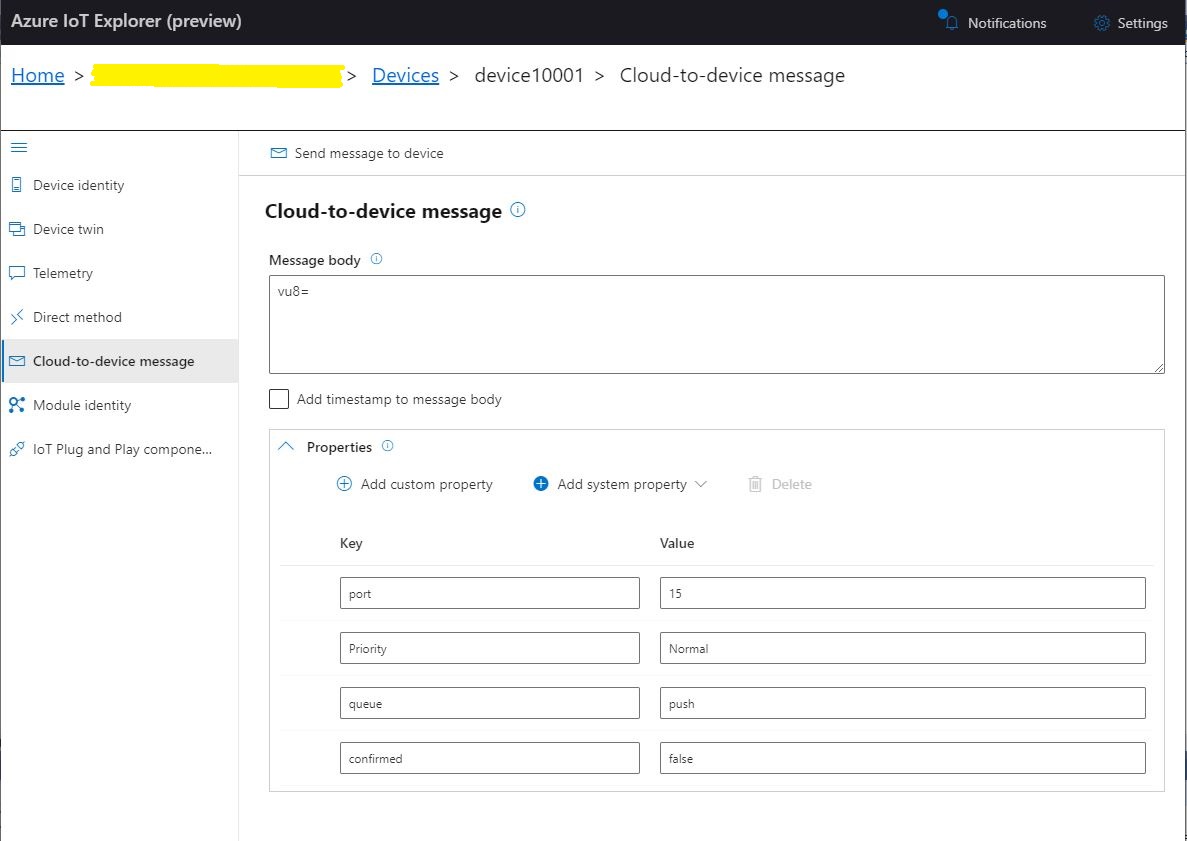
To “smoke test”” my implementation I used Azure IoT Explorer to send a C2D telemetry message

Azure IoT Hub Explorer send message form with payload and message properties

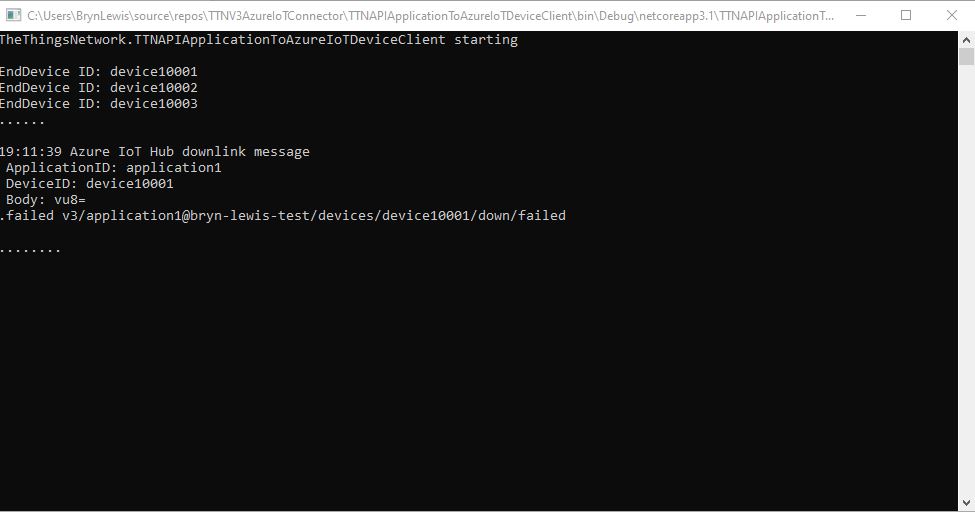
The PoC console application then forwarded the message to TTN using MQTT to be sent(which fails)

PoC application sending message then displaying result

The TTN live data display shows the message couldn’t be delivered because my test LoRaWAN device has not been activiated.

TTN Live Data display with message delivery failure

Now that my PoC application can receive and transmit message to devices I need to reconfigure my RAK Wisgate Developer D+ gateway and Seeeduino LoRaWAN and RAK Wisnode 7200 Track Lite devices on The Things Industries Network so I can test my approach with more realistic setup.

The Things Network MQTT & Azure IoT Part2

Uplink with decoded_payload & frm_payload

The next functionality added to my Proof of Concept(PoC) Azure IoT Hub, The Things Network(TTN) V3 Hypertext Transfer Protocol(HTTP) client API Integration, and Message Queue Telemetry Transport (MQTT) Data API Integration is sending of raw and decoded uplink messages to an Azure IoT Hub.

// At this point all the AzureIoT Hub deviceClients setup and ready to go so can enable MQTT receive
mqttClient.UseApplicationMessageReceivedHandler(new MqttApplicationMessageReceivedHandlerDelegate(e => MqttClientApplicationMessageReceived(e)));

// This may shift to individual device subscriptions
string uplinkTopic = $"v3/{options.MqttApplicationID}/devices/+/up";
await mqttClient.SubscribeAsync(uplinkTopic, MQTTnet.Protocol.MqttQualityOfServiceLevel.AtLeastOnce);

//string queuedTopic = $"v3/{options.MqttApplicationID}/devices/+/queued";
//await mqttClient.SubscribeAsync(queuedTopic, MQTTnet.Protocol.MqttQualityOfServiceLevel.AtLeastOnce);

The additional commented out subscriptions are for the processing of downlink messages

The MQTTNet received message handler uses the last segment of the topic to route messages to a method for processing

private static async void MqttClientApplicationMessageReceived(MqttApplicationMessageReceivedEventArgs e)
{
	if (e.ApplicationMessage.Topic.EndsWith("/up", StringComparison.InvariantCultureIgnoreCase))
	{
		await UplinkMessageReceived(e);
	}

	/*
	if (e.ApplicationMessage.Topic.EndsWith("/queued", StringComparison.InvariantCultureIgnoreCase))
	{
		await DownlinkMessageQueued(e);
	}
	...			
	*/
}

The UplinkMessageReceived method deserialises the message payload, retrieves device context information from the local ObjectCache, adds relevant uplink messages fields (including the raw payload), then if the message has been unpacked by a TTN Decoder, the message fields are added as well.

static async Task UplinkMessageReceived(MqttApplicationMessageReceivedEventArgs e)
{
	try
	{
		PayloadUplinkV3 payload = JsonConvert.DeserializeObject<PayloadUplinkV3>(e.ApplicationMessage.ConvertPayloadToString());
		string applicationId = payload.EndDeviceIds.ApplicationIds.ApplicationId;
		string deviceId = payload.EndDeviceIds.DeviceId;
		int port = payload.UplinkMessage.Port;
...
		DeviceClient deviceClient = (DeviceClient)DeviceClients.Get(deviceId);
		if (deviceClient == null)
		{
			Console.WriteLine($" UplinkMessageReceived unknown DeviceID: {deviceId}");
			return;
		}

		JObject telemetryEvent = new JObject();
		telemetryEvent.Add("DeviceID", deviceId);
		telemetryEvent.Add("ApplicationID", applicationId);
		telemetryEvent.Add("Port", port);
		telemetryEvent.Add("PayloadRaw", payload.UplinkMessage.PayloadRaw);

		// If the payload has been unpacked in TTN backend add fields to telemetry event payload
		if (payload.UplinkMessage.PayloadDecoded != null)
		{
			EnumerateChildren(telemetryEvent, payload.UplinkMessage.PayloadDecoded);
		}

		// Send the message to Azure IoT Hub/Azure IoT Central
		using (Message ioTHubmessage = new Message(Encoding.ASCII.GetBytes(JsonConvert.SerializeObject(telemetryEvent))))
		{
			// Ensure the displayed time is the acquired time rather than the uploaded time. 
			//ioTHubmessage.Properties.Add("iothub-creation-time-utc", payloadObject.Metadata.ReceivedAtUtc.ToString("s", CultureInfo.InvariantCulture));
			ioTHubmessage.Properties.Add("ApplicationId", applicationId);
			ioTHubmessage.Properties.Add("DeviceId", deviceId);
			ioTHubmessage.Properties.Add("port", port.ToString());

			await deviceClient.SendEventAsync(ioTHubmessage);
		}
	}
	catch( Exception ex)
	{
		Debug.WriteLine("UplinkMessageReceived failed: {0}", ex.Message);
	}
}

private static void EnumerateChildren(JObject jobject, JToken token)
{
	if (token is JProperty property)
	{
		if (token.First is JValue)
		{
			// Temporary dirty hack for Azure IoT Central compatibility
			if (token.Parent is JObject possibleGpsProperty)
			{
				if (possibleGpsProperty.Path.StartsWith("GPS_", StringComparison.OrdinalIgnoreCase))
				{
					if (string.Compare(property.Name, "Latitude", true) == 0)
					{
						jobject.Add("lat", property.Value);
					}
					if (string.Compare(property.Name, "Longitude", true) == 0)
					{
						jobject.Add("lon", property.Value);
					}
					if (string.Compare(property.Name, "Altitude", true) == 0)
					{
						jobject.Add("alt", property.Value);
					}
				}
			}
			jobject.Add(property.Name, property.Value);
		}
		else
		{
			JObject parentObject = new JObject();
			foreach (JToken token2 in token.Children())
			{
				EnumerateChildren(parentObject, token2);
				jobject.Add(property.Name, parentObject);
			}
		}
	}
	else
	{
		foreach (JToken token2 in token.Children())
		{
			EnumerateChildren(jobject, token2);
		}
	}
}

There is also some basic reformatting of the messages for Azure IoT Central

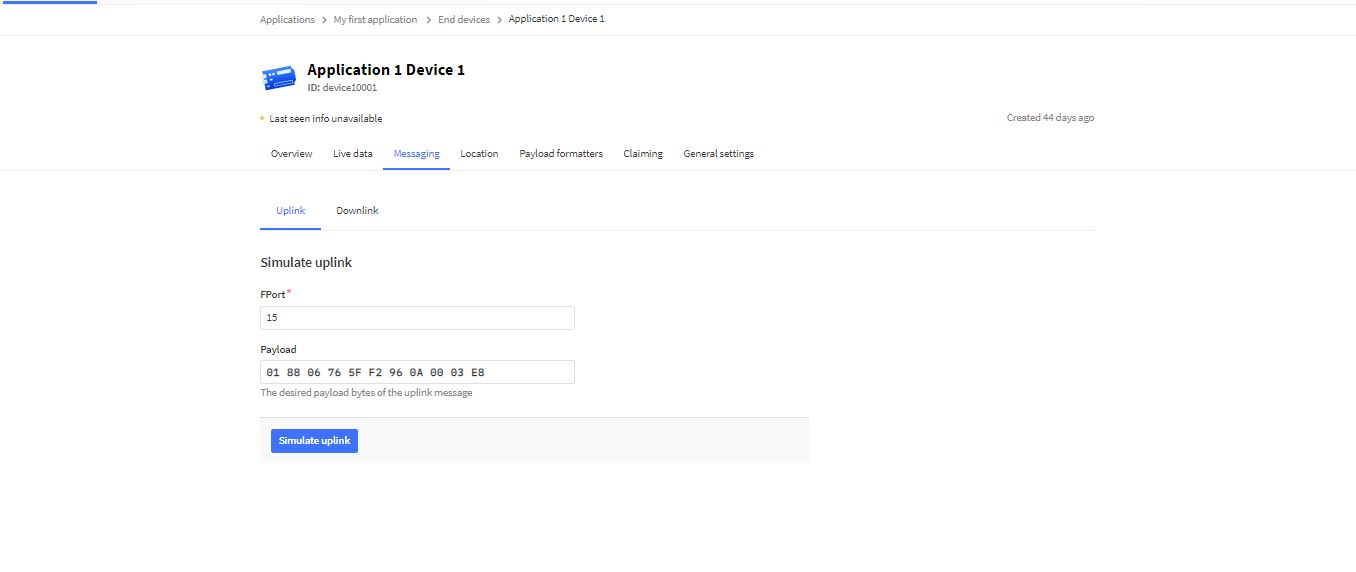
TTN Simulate uplink message with GPS location payload.
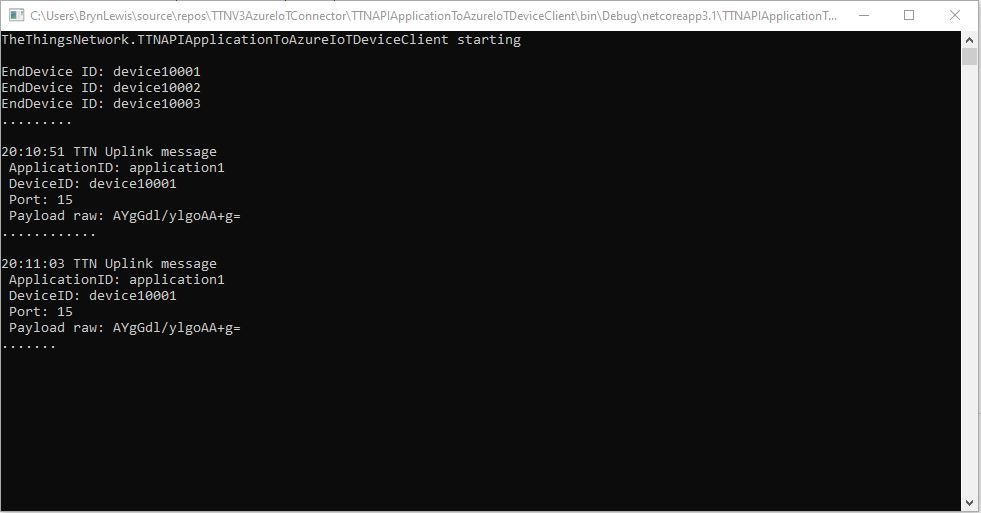
Nasty console application processing uplink message
Message from LoRaWAN device displayed in Azure IoT Explorer

Currently the code has a lots of diagnostic Console.Writeline statements, doesn’t support Uplink messages, has no Advanced Message Queuing Protocol(AMQP) client connection pooling, can’t run as an Azure Webjob, and a number of other features which I plan on adding in future blog posts.

MQTTnet Azure Function Binding

It Looks promising

I’m using MQTTnet to build my The Things Industries client and it looked like the amount of code for my Message Queue Telemetry Transport (MQTT) Data API Integration could be reduced by using the AzureFunction MQTT Binding by Kees Schollaart.

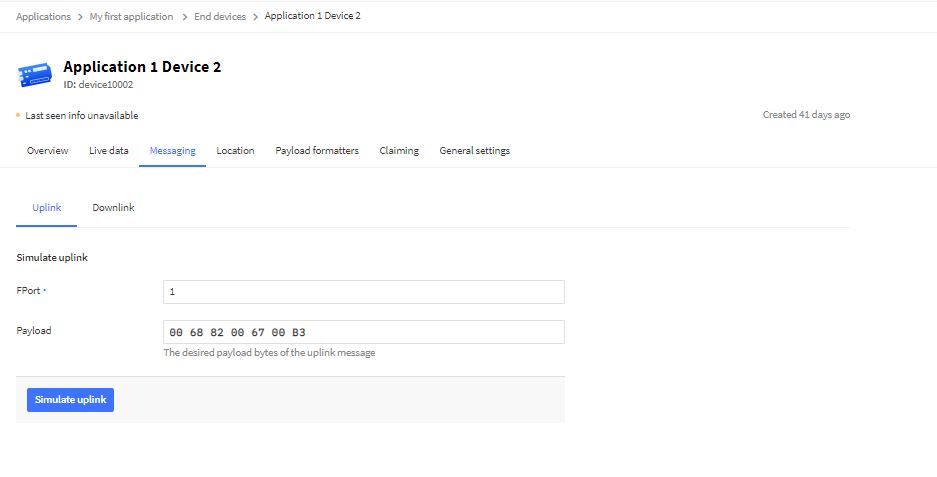
I used The Things Industries simulate uplink functionality for my initial testing

TTI uplink message simulator

The first version of the Azure function code proof of concept(PoC) was very compact

namespace MQTTnetAzureFunction
{
   using System;
   using System.Text;
   using Microsoft.Azure.WebJobs;
   using Microsoft.Extensions.Logging;

   using CaseOnline.Azure.WebJobs.Extensions.Mqtt;
   using CaseOnline.Azure.WebJobs.Extensions.Mqtt.Messaging;
   using CaseOnline.Azure.WebJobs.Extensions.Mqtt.Config;
   using CaseOnline.Azure.WebJobs.Extensions.Mqtt.Bindings;

   using MQTTnet.Client.Options;
   using MQTTnet.Extensions.ManagedClient;

   public static class Subscribe
   {
      [FunctionName("UplinkMessageProcessor")]
      public static void UplinkMessageProcessor(
            [MqttTrigger("v3/application123456789012345/devices/+/up", ConnectionString = "TTNMQTTConnectionString")] IMqttMessage message,
IMqttMessage message,
            ILogger log)
      {
         var body = Encoding.UTF8.GetString(message.GetMessage());

         log.LogInformation($"Advanced: message from topic {message.Topic} \nbody: {body}");
      }
   }
}

I configured the TTNMQTTConnectionString in the application’s local.settings.json file

{
    "IsEncrypted": false,
   "Values": {
      "AzureWebJobsStorage": "DefaultEndpointsProtocol=https;AccountName=...",
      "AzureWebJobsDashboard": "DefaultEndpointsProtocol=https;AccountName=...",
      "FUNCTIONS_WORKER_RUNTIME": "dotnet",
      "TTNMQTTConnectionString": "Server=...;Username=application1@...;Password=...",
   }
}

This was a good start but I need to be able to configure the MQTT topic for deployments.

After looking at the binding source code plus some trial and error based on the AdvancedConfiguration sample I have a nasty PoC

public static class Subscribe
{
   [FunctionName("UplinkMessageProcessor")]
   public static void UplinkMessageProcessor(
         [MqttTrigger(typeof(ExampleMqttConfigProvider), "v3/%TopicName%/devices/+/up")] IMqttMessage message,
         ILogger log)
   {
      var body = Encoding.UTF8.GetString(message.GetMessage());

      log.LogInformation($"Advanced: message from topic {message.Topic} \nbody: {body}");
   }
}

public class MqttConfigExample : CustomMqttConfig
{
  public override IManagedMqttClientOptions Options { get; }

  public override string Name { get; }

  public MqttConfigExample(string name, IManagedMqttClientOptions options)
  {
     Options = options;
     Name = name;
   }
}

public class ExampleMqttConfigProvider : ICreateMqttConfig
{
   public CustomMqttConfig Create(INameResolver nameResolver, ILogger logger)
   {
      var connectionString = new MqttConnectionString(nameResolver.Resolve("TTNMQTTConnectionString"), "CustomConfiguration");

      var options = new ManagedMqttClientOptionsBuilder()
             .WithAutoReconnectDelay(TimeSpan.FromSeconds(5))
             .WithClientOptions(new MqttClientOptionsBuilder()
                  .WithClientId(connectionString.ClientId.ToString())
                  .WithTcpServer(connectionString.Server, connectionString.Port)
                  .WithCredentials(connectionString.Username, connectionString.Password)
                  .Build())
             .Build();

      return new MqttConfigExample("CustomConnection", options);
   }
}

The TTNMQTTConnectionString and TopicName can be configured in the application’s local.settings.json file

{
    "IsEncrypted": false,
   "Values": {
      "AzureWebJobsStorage": "DefaultEndpointsProtocol=https;AccountName=...",
      "AzureWebJobsDashboard": "DefaultEndpointsProtocol=https;AccountName=...",
      "FUNCTIONS_WORKER_RUNTIME": "dotnet",
      "TTNMQTTConnectionString": "Server=...;Username=application1@...;Password=...",
      "TopicName": "application1@..."
   }
}

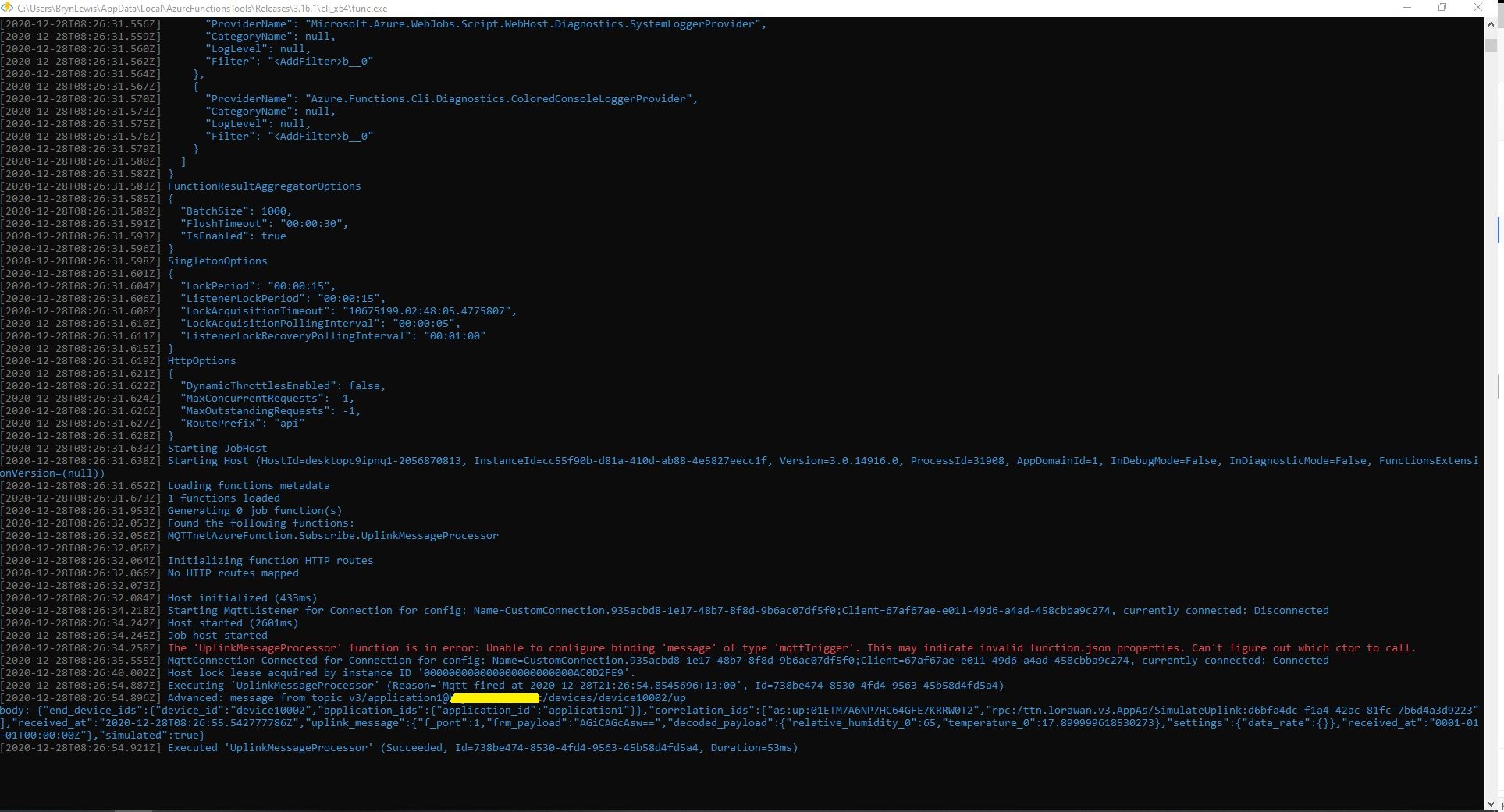
When run in the Azure Functions Core Tools the simulated message properties and payload are displayed

The message “The ‘UplinkMessageProcessor’ function is in error: Unable to configure binding ‘message’ of type ‘mqttTrigger’. This may indicate invalid function.json properties. Can’t figure out which ctor to call.” needs further investigation.

The Things Network HTTP Integration Part13

Connection multiplexing

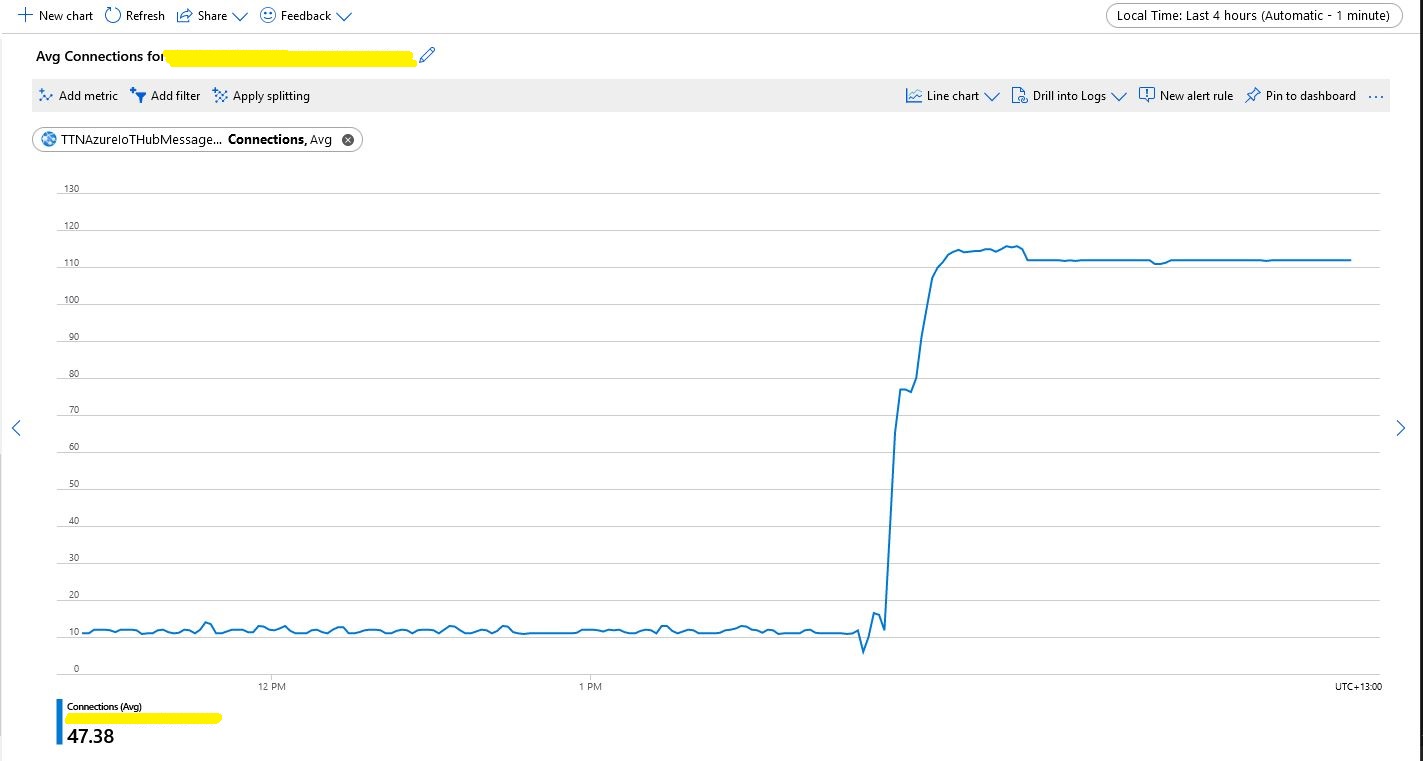
For the Proof of Concept(PoC) I had used a cache to store Azure IoT Hub connections to reduce the number of calls to the Device Provisioning Service(DPS).

Number of connections with no pooling

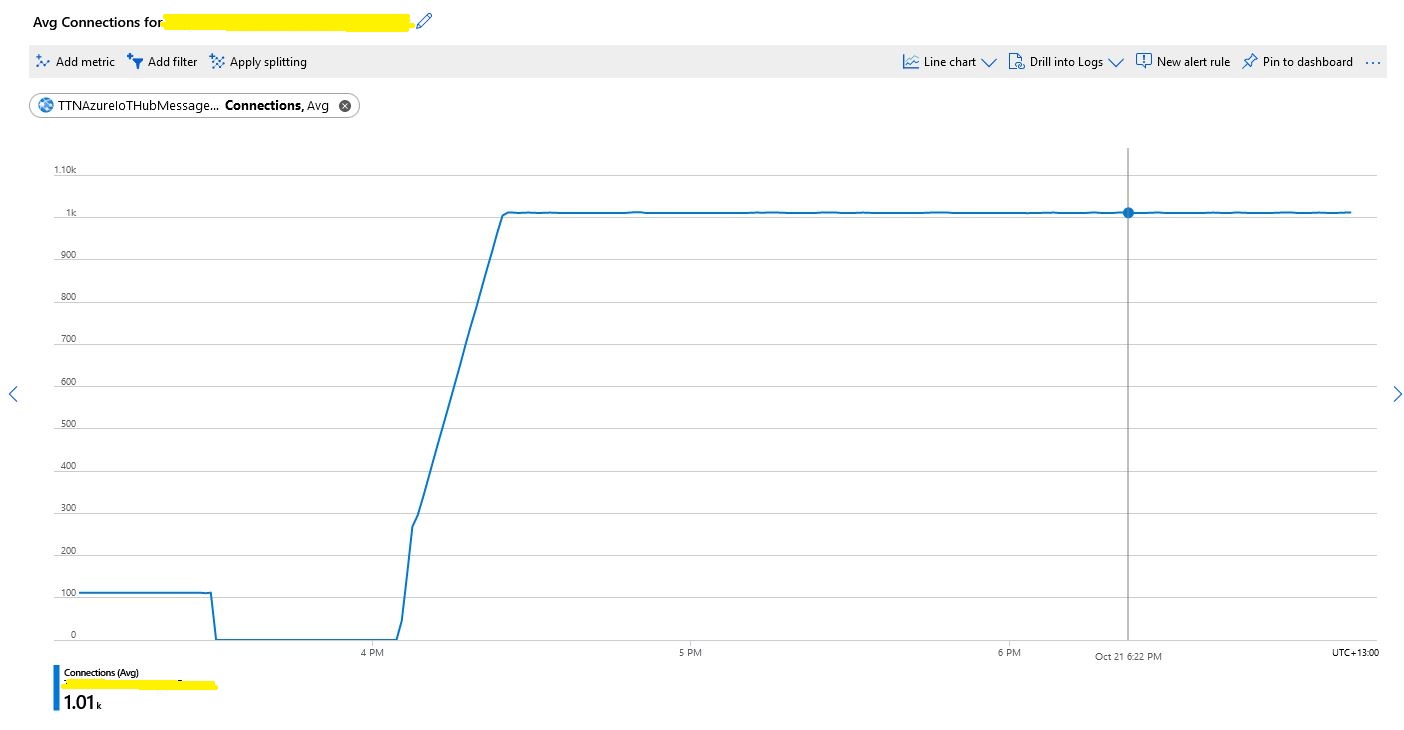
When stress testing with 1000’s of devices my program hit the host connection limit so I enabled Advanced Message Queuing Protocol(AMQP) connection pooling.

return DeviceClient.Create(result.AssignedHub,
                  authentication,
                  new ITransportSettings[]
                  {
                     new AmqpTransportSettings(TransportType.Amqp_Tcp_Only)
                     {
                        PrefetchCount = 0,
                        AmqpConnectionPoolSettings = new AmqpConnectionPoolSettings()
                        {
                           Pooling = true,
                        }
                     }
                  }
               );

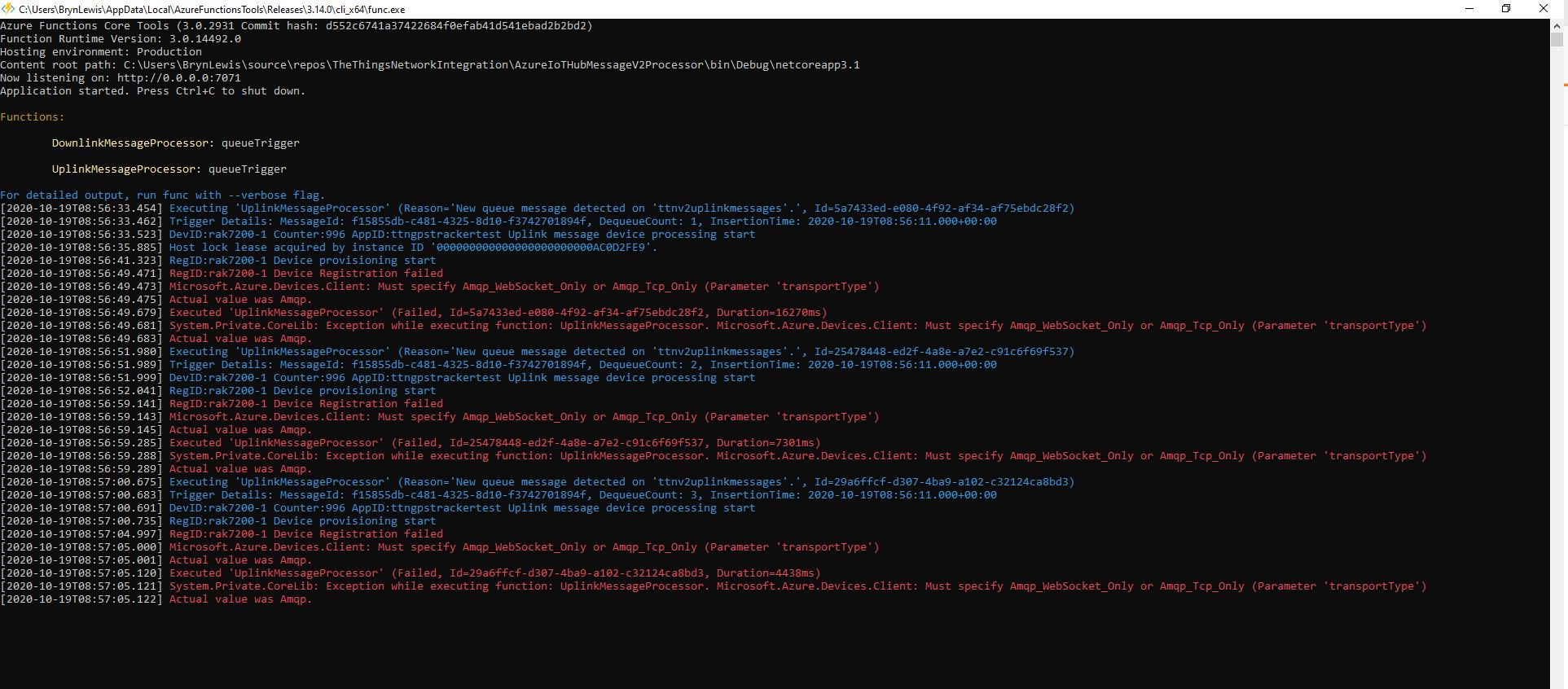
My first attempt failed as I hadn’t configured “TransportType.Amqp_Tcp_Only” which would have allowed the AMQP implementation to fallback to other protocols which don’t support pooling.

Exception caused by not using TransportType.Amqp_Tcp_Only

I then deployed the updated code and ran my 1000 device stress test (note the different x axis scales)

Number of connections with pooling

This confirmed what I found in the Azure.AMQP source code

/// <summary>
/// The default size of the pool
/// </summary>
/// <remarks>
/// Allows up to 100,000 devices
/// </remarks>
/// private const uint DefaultPoolSize = 100;

The Things Network V2 MQTT Client

Another option for I had been looking at for connecting an Azure IoT Hub and The Things Network(TTN) was a Message Queue Telemetry Transport(MQTT) integration.

To trial this approach I build a .Net Core console application which sent message to and received messages from an application running on a GHI Electronics TinyCLRV2 Fezduino with RakWireless Wisduino Evaluation Board(EVB).

The console application uses MQTTNet to connect to TTN. It subscribes to to the TTN application device uplink topic (did try subscribing to the uplink messages for all the devices in the application but this was to noisy), and the downlink message scheduled, sent and acknowledged topics. To send messages to the device I published them on the device downlink topic.

//string uplinktopic = $"{applicationId}/devices/+/up";
string uplinktopic = $"{applicationId}/devices/{deviceId}/up";
await mqttClient.SubscribeAsync(uplinktopic, MQTTnet.Protocol.MqttQualityOfServiceLevel.AtLeastOnce);

string downlinkAcktopic = $"{applicationId}/devices/{deviceId}/events/down/acks";
await mqttClient.SubscribeAsync(downlinkAcktopic, MQTTnet.Protocol.MqttQualityOfServiceLevel.AtLeastOnce);

string downlinkScheduledtopic = $"{applicationId}/devices/{deviceId}/events/down/scheduled";
await mqttClient.SubscribeAsync(downlinkScheduledtopic, MQTTnet.Protocol.MqttQualityOfServiceLevel.AtLeastOnce);

string downlinkSenttopic = $"{applicationId}/devices/{deviceId}/events/down/sent";
await mqttClient.SubscribeAsync(downlinkSenttopic, MQTTnet.Protocol.MqttQualityOfServiceLevel.AtLeastOnce);

string downlinktopic = $"{applicationId}/devices/{deviceId}/down";

I used the classes from one of my earlier blog posts to deserialise the uplink message payload so I could display a subset of the fields.

MQTTNet based .Net Core console client
Things Network Device Data view

In the TTN Device data tab I could see messages being sent, to and received from from the device.

Visual Studio 2019 Tiny CLR debugger Output

In the Visual Studio 2019 debugger output window I could see messages being sent and received by the Fezduino.

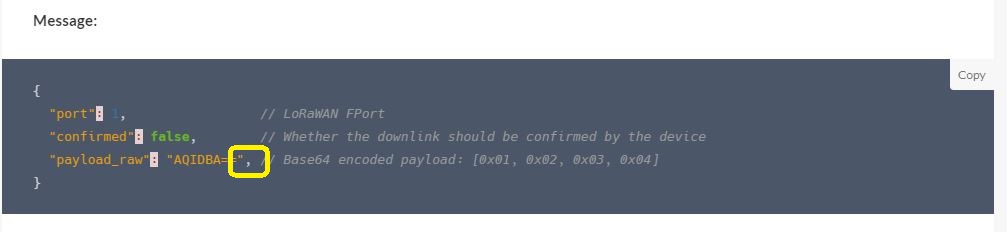
Malformed TTN downlink payload

I had some problems with the downlink messages silently failing as the TTN sample payload JSON was malformed and I had copied it without noticing.

I have a working TTN HTTP Integration (uplink messages only) but have been exploring alternatives using TTN MQTT and Azure IoT Hub AMQP clients.

The next step is to build an Azure IoT Hub client (using native AMQP) then join them together.

The Things Network HTTP Integration Part12

Removing the DIY cache

For the Proof of Concept(PoC) I had written a simple cache using a ConcurrentDictionary to store Azure IoT Hub connections to reduce the number of calls to the Device Provisioning Service(DPS).

Device Provisioning Service calls in stress test

For a PoC the DIY cache was ok but I wanted to replace it with something more robust like the .Net ObjectCache which is in the System.Runtime.Caching namespace.

I started by replacing the ConcurrentDictionary declaration

static readonly ConcurrentDictionary<string, DeviceClient> DeviceClients = new ConcurrentDictionary<string, DeviceClient>();
     

With an ObjectCache declaration.

static readonly ObjectCache DeviceClients = MemoryCache.Default;
  

Then, where there were compiler errors I updated the method call.

// See if the device has already been provisioned or is being provisioned on another thread.
if (DeviceClients.Add(registrationId, deviceContext, cacheItemPolicy))
{
   log.LogInformation("RegID:{registrationId} Device provisioning start", registrationId);
...

One difference I found was that ObjectCache throws an exception if the value is null. I was using a null value to indicate that the Device Provisioning Service(DPS) process had been initiated on another thread and was underway.

I have been planning to add support for downlink messages so I added a new class to store the uplink (Azure IoT Hub DeviceClient) and downlink ( downlink_url in the uplink message) details.

 public class DeviceContext
   {
      public DeviceClient Uplink { get; set; }
      public Uri Downlink { get; set; }
   }

For the first version the only functionality I’m using is sliding expiration which is set to one day

CacheItemPolicy cacheItemPolicy = new CacheItemPolicy()
{
   SlidingExpiration = new TimeSpan(1, 0, 0, 0),
   //RemovedCallback
};

DeviceContext deviceContext = new DeviceContext()
{
   Uplink = null,
   Downlink = new Uri(payload.DownlinkUrl)
};

I didn’t have to make many changes and I’ll double check my implementation in the next round of stress and soak testing.

The Things Network HTTP Integration Part11

Moving Secrets to KeyVault

The application configuration file contained sensitive information like Device Provision Service(DPS) Group Enrollment Symmetric Keys and Azure IoT Hub connection strings which is OK for a proof of concept (PoC) but sub-optimal for production deployments.

"DeviceProvisioningService": {
      "GlobalDeviceEndpoint": "global.azure-devices-provisioning.net",
      "ScopeID": "",
      "EnrollmentGroupSymmetricKeyDefault": "TopSecretKey",
      "DeviceProvisioningPollingDelay": 500,
      "ApplicationEnrollmentGroupMapping": {
         "Application1": "TopSecretKey1",
         "Application2": "TopSecretKey2"
      }
   }

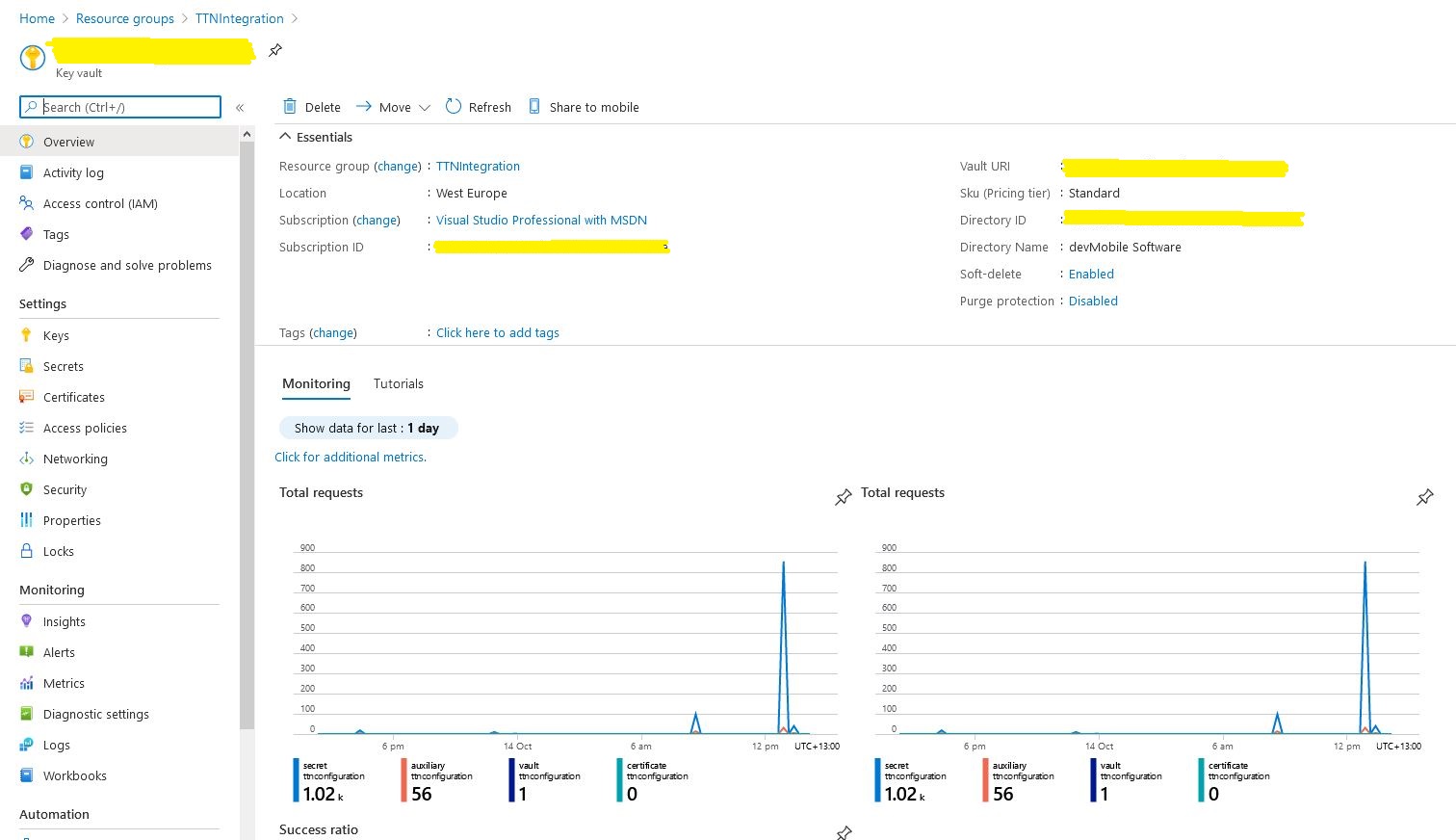
The Azure Key Vault is intended for securing sensitive information like connection strings so I added one to my resource group.

Azure Key Vault overview and basic metrics

I wrote a wrapper which resolves configuration settings based on the The Things Network(TTN) application identifier and port information in the uplink message payload. The resolve methods start by looking for configuration for the applicationId and port (separated by a – ), then the applicationId and then finally falling back to a default value. This functionality is used for AzureIoTHub connection strings, DPS IDScopes, DPS Enrollment Group Symmetric Keys, and is also used to format the cache keys.

public class ApplicationConfiguration
{
const string DpsGlobaDeviceEndpointDefault = "global.azure-devices-provisioning.net";

private IConfiguration Configuration;

public void Initialise( )
{
   // Check that KeyVault URI is configured in environment variables. Not a lot we can do if it isn't....
   if (Configuration == null)
   {
      string keyVaultUri = Environment.GetEnvironmentVariable("KeyVaultURI");
      if (string.IsNullOrWhiteSpace(keyVaultUri))
      {
         throw new ApplicationException("KeyVaultURI environment variable not set");
      }

      // Load configuration from KeyVault 
      Configuration = new ConfigurationBuilder()
         .AddEnvironmentVariables()
         .AddAzureKeyVault(keyVaultUri)
         .Build();
   }
}

public string DpsGlobaDeviceEndpointResolve()
{
   string globaDeviceEndpoint = Configuration.GetSection("DPSGlobaDeviceEndpoint").Value;
   if (string.IsNullOrWhiteSpace(globaDeviceEndpoint))
   {
      globaDeviceEndpoint = DpsGlobaDeviceEndpointDefault;
   }

   return globaDeviceEndpoint;
}

public string ConnectionStringResolve(string applicationId, int port)
{
   // Check to see if there is application + port specific configuration
   string connectionString = Configuration.GetSection($"AzureIotHubConnectionString-{applicationId}-{port}").Value;
   if (!string.IsNullOrWhiteSpace(connectionString))
   {
      return connectionString;
   }

   // Check to see if there is application specific configuration, otherwise run with default
   connectionString = Configuration.GetSection($"AzureIotHubConnectionString-{applicationId}").Value;
   if (!string.IsNullOrWhiteSpace(connectionString))
   {
      return connectionString;
   }

   // get the default as not a specialised configuration
   connectionString = Configuration.GetSection("AzureIotHubConnectionStringDefault").Value;

   return connectionString;
}

public string DpsIdScopeResolve(string applicationId, int port)
{
   // Check to see if there is application + port specific configuration
   string idScope = Configuration.GetSection($"DPSIDScope-{applicationId}-{port}").Value;
   if (!string.IsNullOrWhiteSpace(idScope))
   {
      return idScope;
   }

   // Check to see if there is application specific configuration, otherwise run with default
   idScope = Configuration.GetSection($"DPSIDScope-{applicationId}").Value;
   if (!string.IsNullOrWhiteSpace(idScope))
   {
      return idScope;
   }

   // get the default as not a specialised configuration
   idScope = Configuration.GetSection("DPSIDScopeDefault").Value;

   if (string.IsNullOrWhiteSpace(idScope))
   {
      throw new ApplicationException($"DPSIDScope configuration invalid");
   }

   return idScope;
}

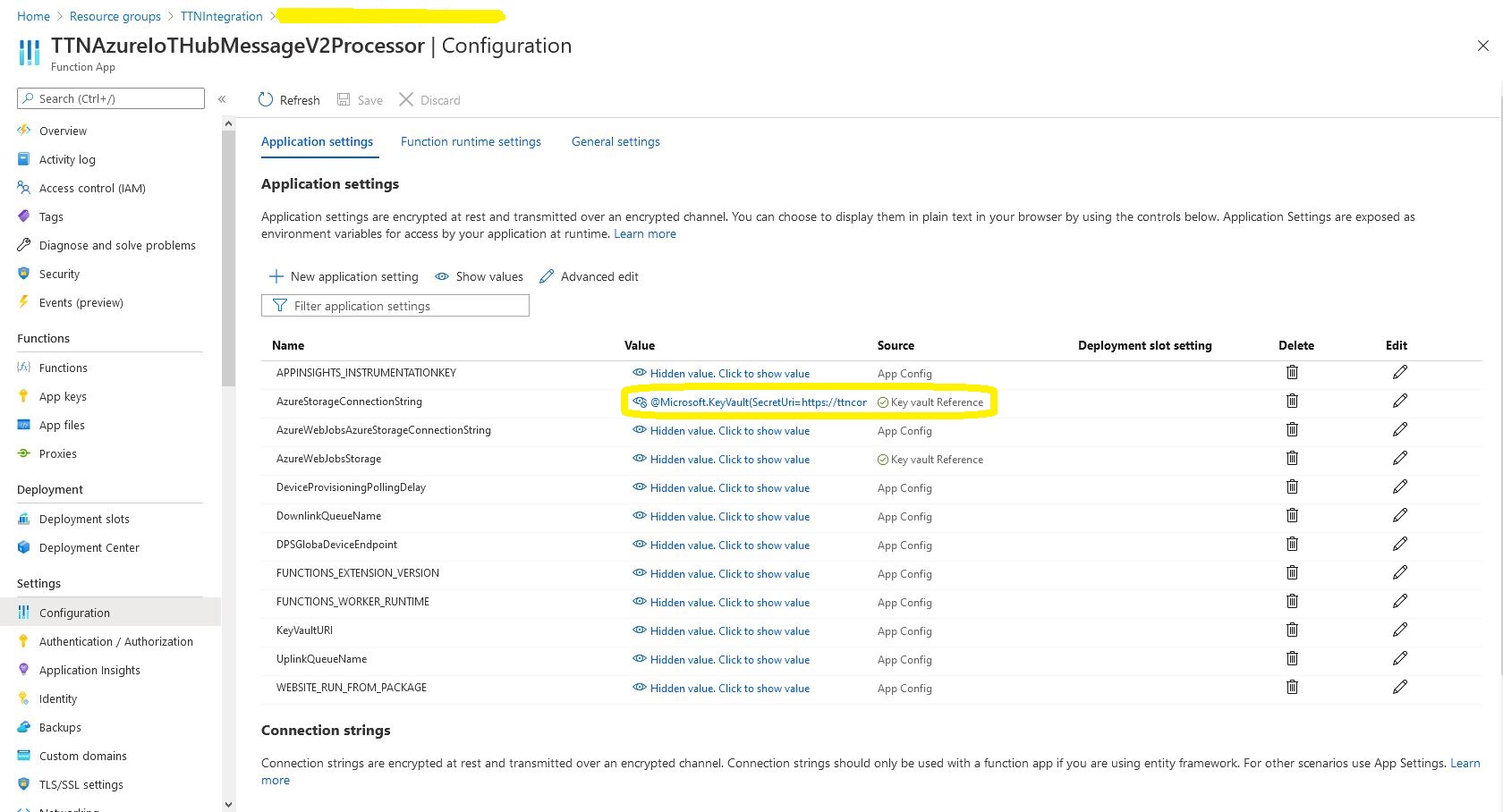
The values of Azure function configuration settings are replaced by a reference to the secret in the Azure Key Vault.

Azure Function configuration value replacement

In the Azure Key Vault “Access Policies” I configured an “Application Access Policy” so my Azure TTNAzureIoTHubMessageV2Processor function identity could retrieve secrets.

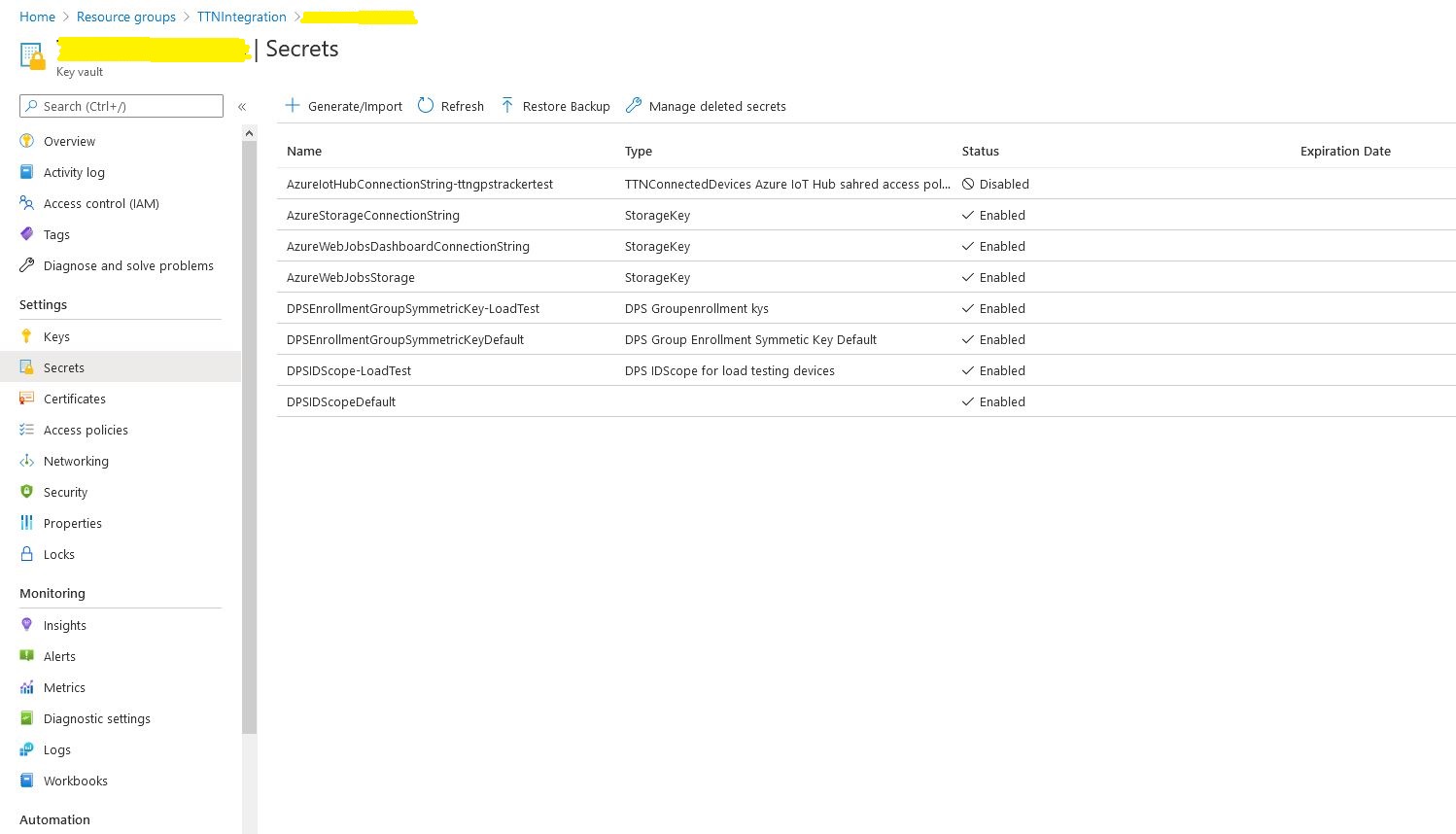
Azure Key Vault Secrets

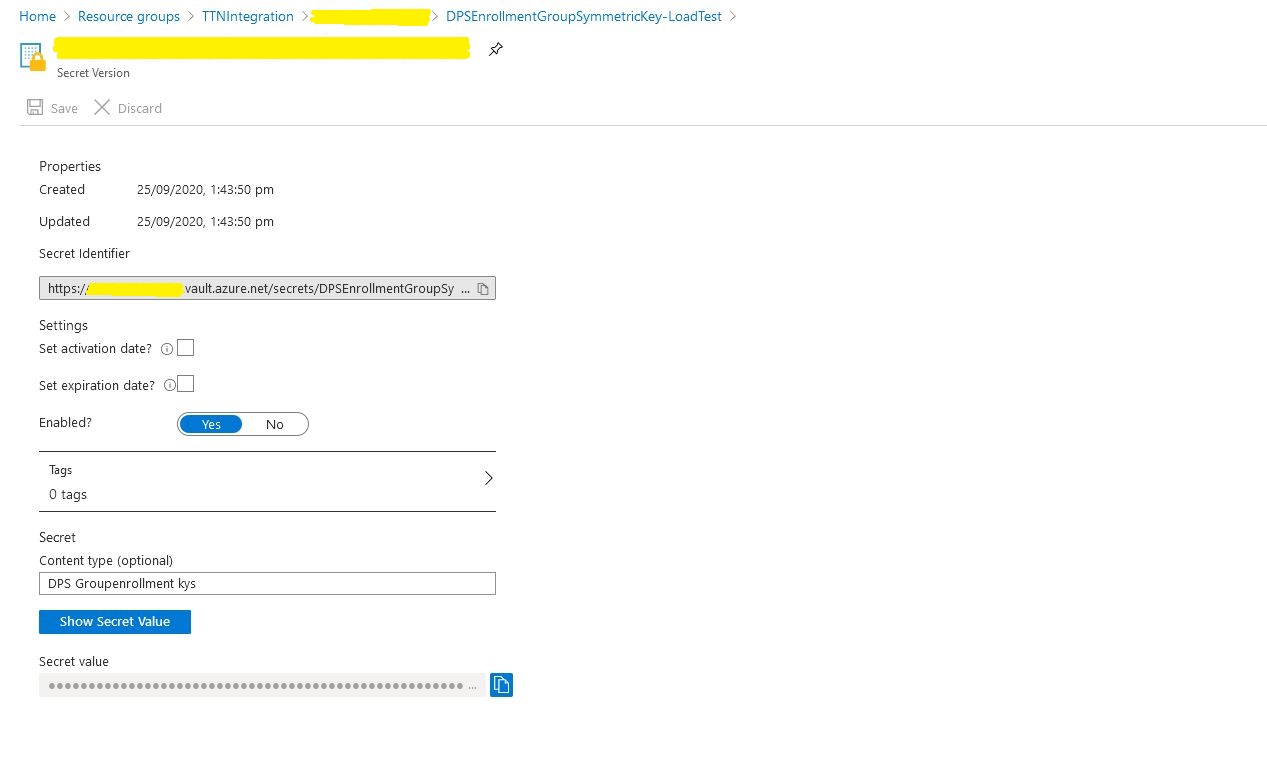
I kept on making typos in the secret names and types which was frustrating.

Azure Key Vault secret

While debugging in Visual Studio you may need to configure the Azure Identity so the application can access the Azure Key Vault.

The Things Network HTTP Azure IoT Integration Soak Testing

I wanted to do some testing to make sure the application would reliably process messages from 1000’s of devices…

The first thing I learnt was “don’t forget to restart your Azure Function after deleting all the devices from the Azure IoT Hub” as the DeviceClients are cached. Also make sure you delete the devices from both your Azure Device Provisioning service(DPS) and Azure IoT Hub instances.

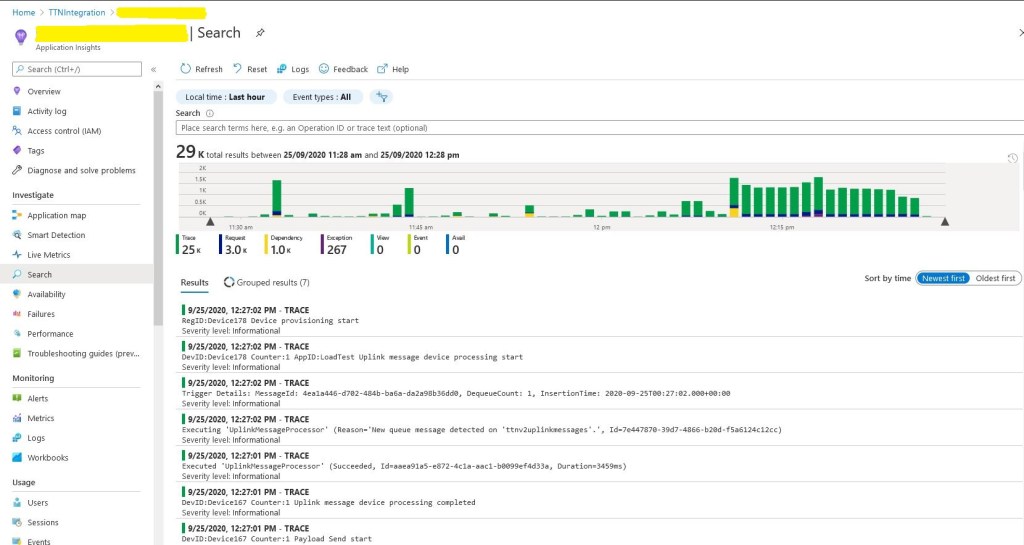
Applications Insights provisioning event tracking

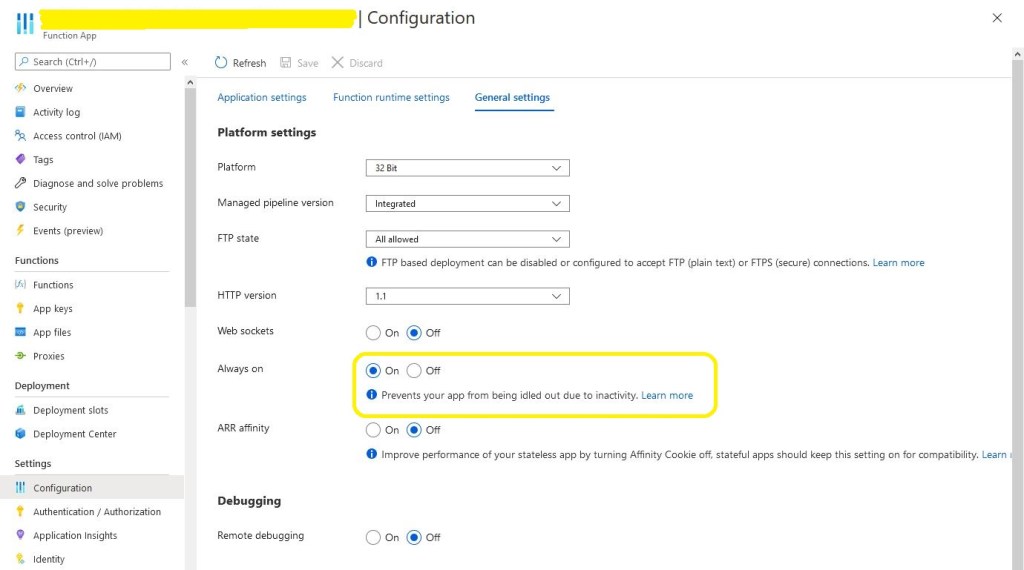
The next “learning” was that if you forget to enable “always on” the caching won’t work and your application will call the DPS way more often than expected.

Azure Application “always on configuration

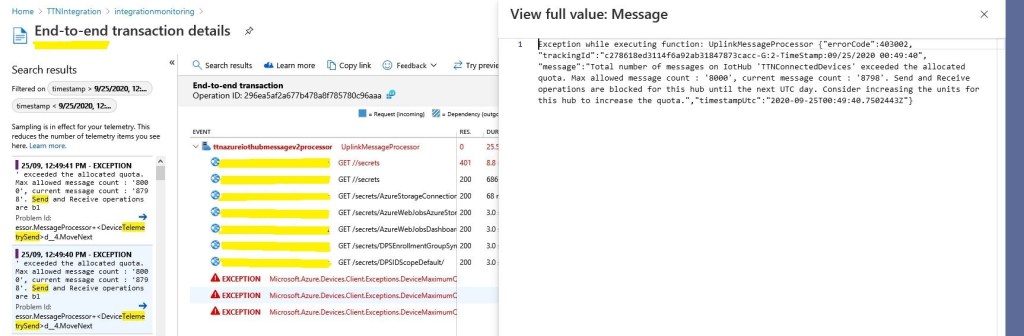
The next “learning” was if your soak test sends 24000 messages it will start to fail just after you go out to get a coffee because of the 8000 msgs/day limit on the free version of IoT Hub.

Azure IoT Hub Free tier 8000 messages/day limit

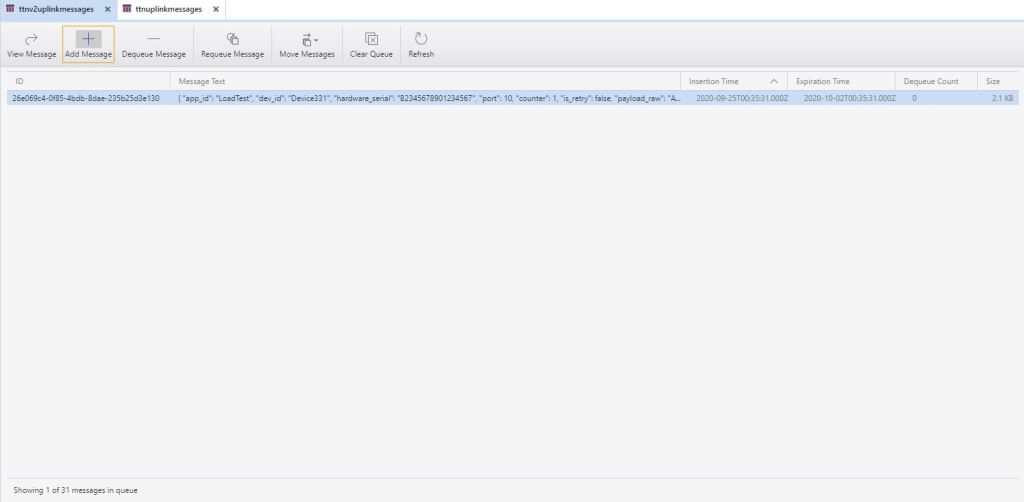
After these “learnings” the application appeared to be working and every so often a message would briefly appear in Azure Storage Explorer queue view.

Azure storage explorer view of uplink messages queue

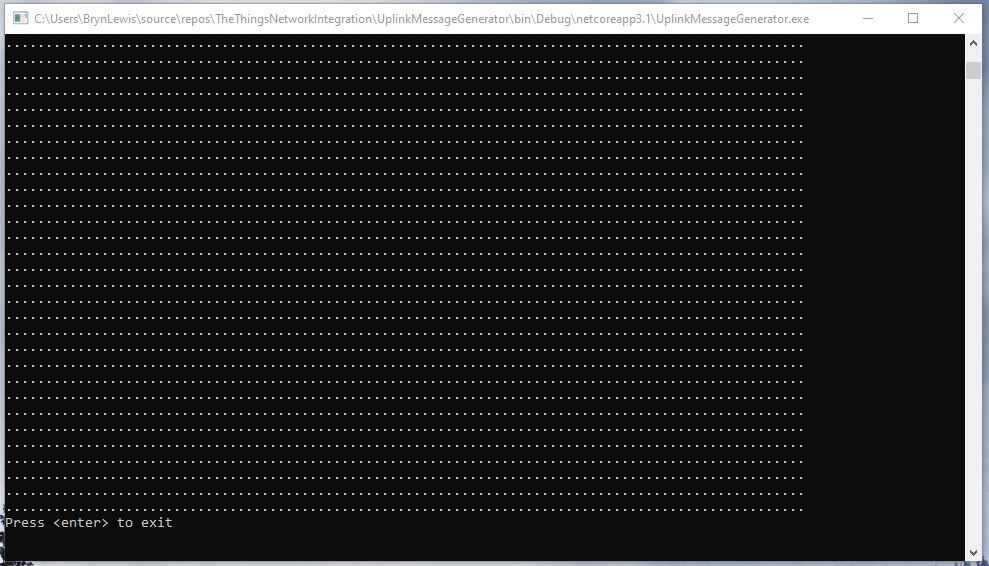
The console test application simulated 1000 devices sending 24 messages every so often and took roughly 8 hours to complete.

Message generator finished

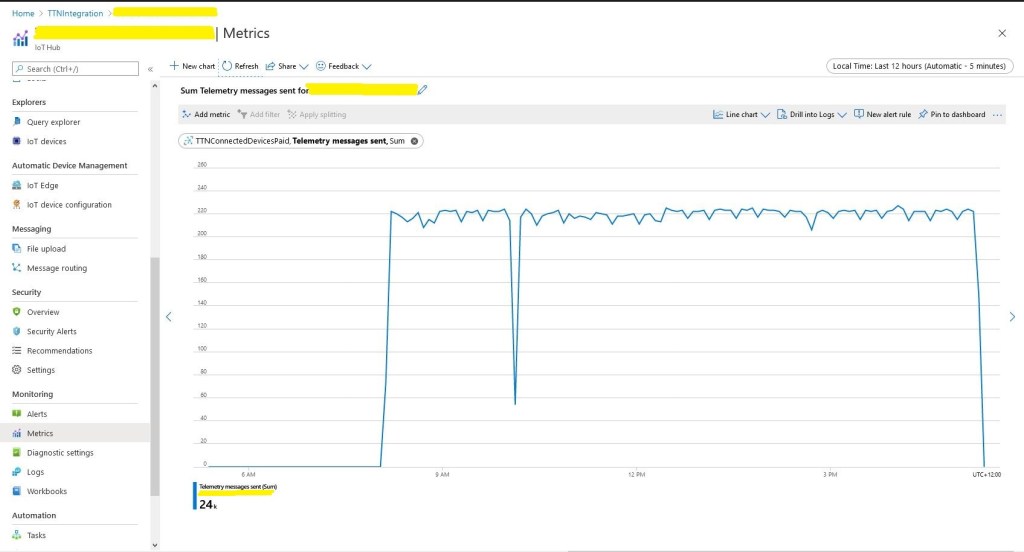
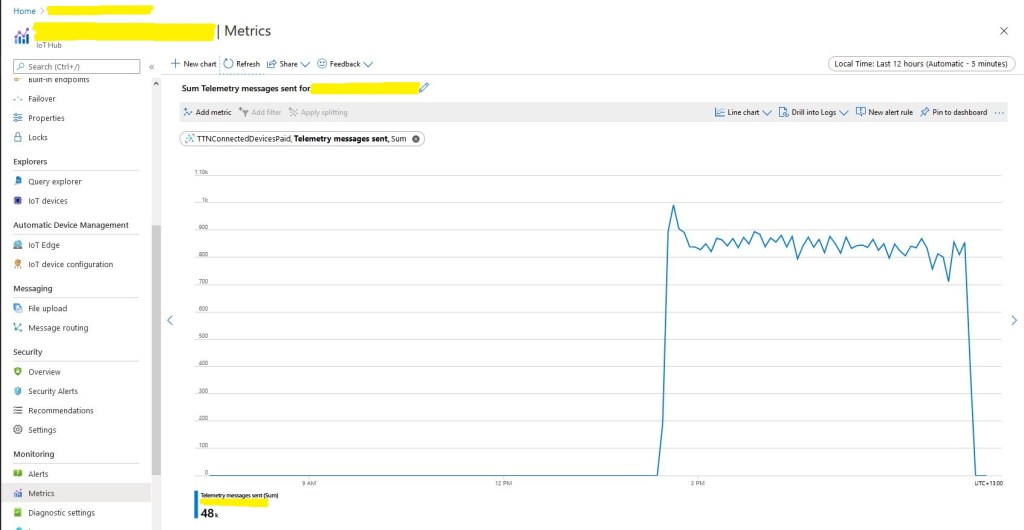
In the Azure IoT Hub telemetry 24000 messages had been received after roughly 8 hours confirming the test rig was working as expected.

The notch was another “learning”, if you go and do some gardening then after roughly 40 minutes of inactivity your desktop PC will go into power save mode and the test client will stop sending messages.

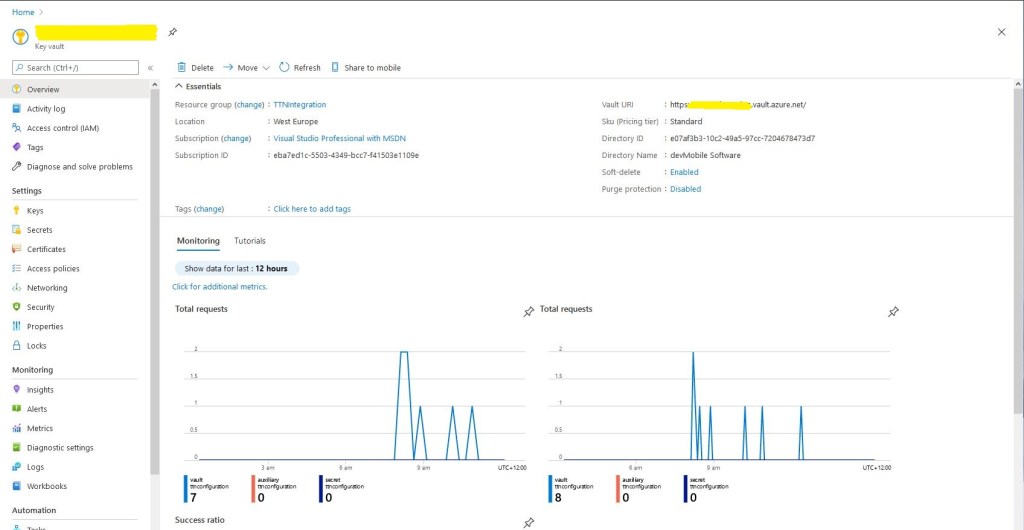
The caching of settings appeared to be work as there were only a couple of requests to my Azure Key Vault where sensitive information like connection strings, symmetric keys etc. are stored.

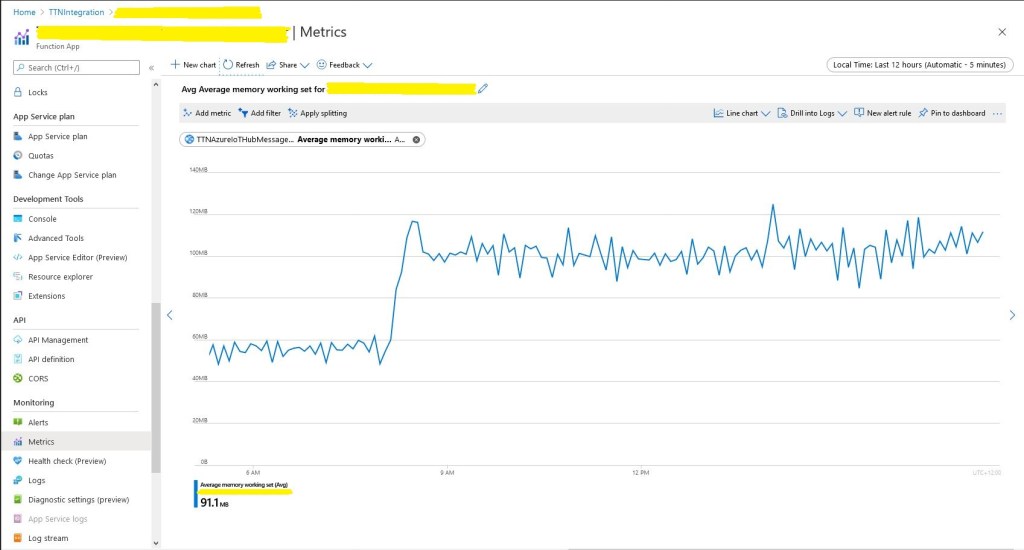
Memory consumption did look to bad and topped out at roughly 120M.

In the application logging you can see the 1000 calls to DPS at the beginning (the yellow dependency events) then the regular processing of messages.

Application Insights logging

Even with the “learnings” the testing went pretty well overall. I do need to run the test rig for longer and with even more simulated devices.

I think this should do

48K Telemetry messages

If you get lots of errors in the logs “Host thresholds exceeded: [Connections]…. might need to bump your plan to something a bit larger