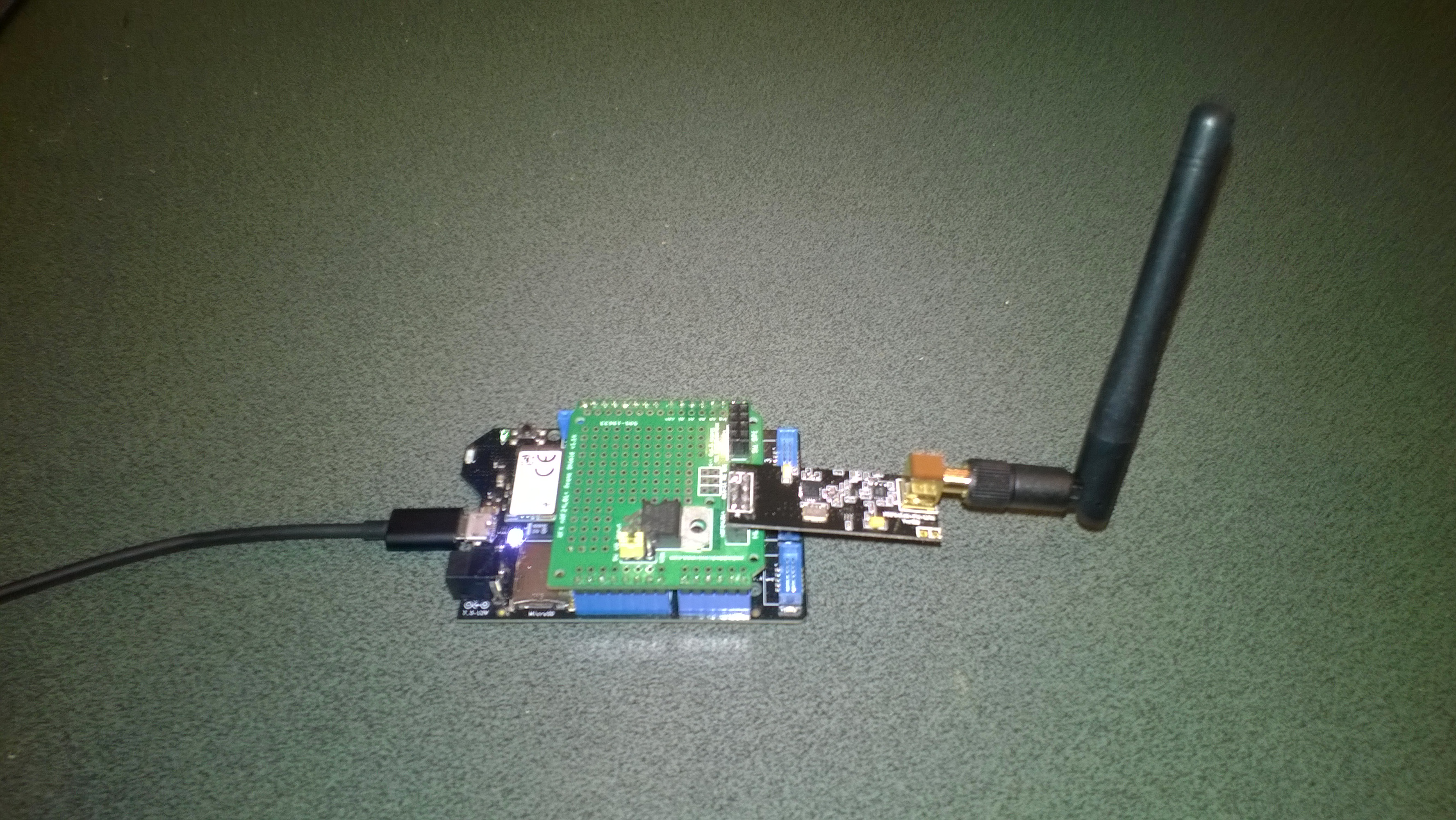
Re-reading the SX1276 datasheet

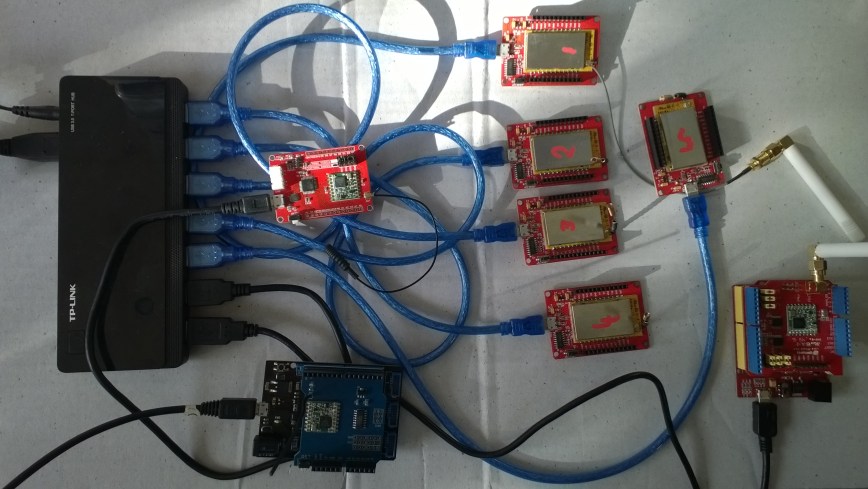
I sat down and read the Semtech SX1276 datasheet paying close attention to any references to CRCs and headers. Then to test some ideas I modified my Receive Basic test harness to see if I could reliably reproduce the problem with my stress test harness.LoRaStress2
public sealed class StartupTask : IBackgroundTask
	{
		private const int ChipSelectLine = 25;
		private const int ResetLine = 17;
		private Rfm9XDevice rfm9XDevice = new Rfm9XDevice(ChipSelectLine, ResetLine);

		public void Run(IBackgroundTaskInstance taskInstance)
		{
			// Put device into LoRa + Sleep mode
			rfm9XDevice.RegisterWriteByte(0x01, 0b10000000); // RegOpMode 

			// Set the frequency to 915MHz
			byte[] frequencyWriteBytes = { 0xE4, 0xC0, 0x00 }; // RegFrMsb, RegFrMid, RegFrLsb
			rfm9XDevice.RegisterWrite(0x06, frequencyWriteBytes);

			rfm9XDevice.RegisterWriteByte(0x0F, 0x0); // RegFifoRxBaseAddress 

			rfm9XDevice.RegisterWriteByte(0x01, 0b10000101); // RegOpMode set LoRa & RxContinuous

			while (true)
			{
				// Wait until a packet is received, no timeouts in PoC
				Debug.WriteLine("Receive-Wait");
				byte IrqFlags = rfm9XDevice.RegisterReadByte(0x12); // RegIrqFlags
				while ((IrqFlags & 0b01000000) == 0)  // wait until RxDone cleared
				{
					Task.Delay(20).Wait();
					IrqFlags = rfm9XDevice.RegisterReadByte(0x12); // RegIrqFlags
					Debug.Write(".");
				}
				Debug.WriteLine("");

				if ((IrqFlags & 0b00100000) == 0b00100000)
				{
					Debug.WriteLine("Payload CRC error");
				}

				byte regHopChannel = rfm9XDevice.RegisterReadByte(0x1C);
				Debug.WriteLine(string.Format("regHopChannel {0}", Convert.ToString((byte)regHopChannel, 2).PadLeft(8, '0')));

				byte currentFifoAddress = rfm9XDevice.RegisterReadByte(0x10); // RegFifiRxCurrent
				rfm9XDevice.RegisterWriteByte(0x0d, currentFifoAddress); // RegFifoAddrPtr*
				byte numberOfBytes = rfm9XDevice.RegisterReadByte(0x13); // RegRxNbBytes

				// Allocate buffer for message
				byte[] messageBytes = new byte[numberOfBytes];

				for (int i = 0; i < numberOfBytes; i++)
				{
					messageBytes[i] = rfm9XDevice.RegisterReadByte(0x00); // RegFifo
				}
				rfm9XDevice.RegisterWriteByte(0x12, 0xff); // RegIrqFlags clear all the bits

				string messageText = UTF8Encoding.UTF8.GetString(messageBytes);
				Debug.WriteLine("Received {0} byte message {1}", messageBytes.Length, messageText);
				Debug.WriteLine(string.Format("RegIrqFlags {0}", Convert.ToString((byte)IrqFlags, 2).PadLeft(8, '0')));
				Debug.WriteLine("Receive-Done");
			}
		}
	}

The RegHopChannel register has a flag indicating whether there was a CRC extracted from the packet header.

regHopChannel 00000000
Received 23 byte message 1 Hello Arduino LoRa! 1
RegIrqFlags 01010000
Receive-Done
Receive-Wait
…………………………..
regHopChannel 00000000
Received 23 byte message 1 Hello Arduino LoRa! 2
RegIrqFlags 01010000
Receive-Done
Receive-Wait
……………………………
regHopChannel 00000000
Received 23 byte message 1 Hello Arduino LoRa! 3
RegIrqFlags 01010000
Receive-Done
Receive-Wait

I then modified my Arduino-LoRa library based client to include a CRC

void setup() {
  Serial.begin(9600);                   // initialize serial
  while (!Serial);

  Serial.println("LoRa Duplex - Set sync word");

  // override the default CS, reset, and IRQ pins (optional)
  LoRa.setPins(csPin, resetPin, irqPin);// set CS, reset, IRQ pin

  if (!LoRa.begin(915E6)) {             // initialize ratio at 915 MHz
    Serial.println("LoRa init failed. Check your connections.");
    while (true);                       // if failed, do nothing
  }

  LoRa.enableCrc();  // BHL This was my change

  LoRa.setSyncWord(0x12);           // ranges from 0-0xFF, default 0x34, see API docs

  LoRa.dumpRegisters(Serial);
  Serial.println("LoRa init succeeded.");
}

void loop() {
  if (millis() - lastSendTime > interval) {
    String message = "5 Hello Arduino LoRa! ";   // send a message
    message += msgCount;
    sendMessage(message);
    Serial.println("Sending " + message);
    lastSendTime = millis();            // timestamp the message
    //interval = random(2000) + 1000;    // 2-3 seconds
    interval = 1000;
  }

  // parse for a packet, and call onReceive with the result:
  onReceive(LoRa.parsePacket());
}

void sendMessage(String outgoing) {
  LoRa.beginPacket();                   // start packet
  LoRa.print(outgoing);                 // add payload
  LoRa.endPacket();                     // finish packet and send it
  msgCount++;                           // increment message ID
}

void onReceive(int packetSize) {
  if (packetSize == 0) return;          // if there's no packet, return

  // read packet header bytes:
  String incoming = "";

  while (LoRa.available()) {
    incoming += (char)LoRa.read();
  }

  Serial.println("Message: " + incoming);
  Serial.println("RSSI: " + String(LoRa.packetRssi()));
  Serial.println("Snr: " + String(LoRa.packetSnr()));
  Serial.println();
}

When I powered up a single client and the payload had a CRC

...............................
regHopChannel 01000000
Received 23 byte message 6 Hello Arduino LoRa! 6
RegIrqFlags 01010000
Receive-Done
Receive-Wait
.................................
regHopChannel 01000000
Received 23 byte message 6 Hello Arduino LoRa! 7
RegIrqFlags 01010000
Receive-Done
Receive-Wait
.................................
regHopChannel 01000000
Received 23 byte message 6 Hello Arduino LoRa! 8
RegIrqFlags 01010000
Receive-Done
Receive-Wait
...............................

Then when I increased the number of clients I started getting corrupted messages with CRC errors.

Received 24 byte message 6 Hello Arduino LoRa! 32
RegIrqFlags 01010000
Receive-Done
Receive-Wait
...............
regHopChannel 01000001
Received 25 byte message 8 Hello Arduino LoRa! 114
RegIrqFlags 01010000
Receive-Done
Receive-Wait
Payload CRC error
regHopChannel 01000000
Received 24 byte message s��=��(��p�^j�\ʏ�����
RegIrqFlags 01100000
Receive-Done
Receive-Wait
.............
regHopChannel 01000000
Received 24 byte message 6 Hello Arduino LoRa! 33
RegIrqFlags 01010000
Receive-Done
Receive-Wait
...............
regHopChannel 01000001
Received 25 byte message 8 Hello Arduino LoRa! 115
RegIrqFlags 01010000
Receive-Done
Receive-Wait

I need to do some more testing but now I think the problem was the RegIrqFlags PayloadCRCError flag was never going to get set because there was no CRC on the payload.
Windows 10 IoT Core LoRa library

I have a pair of Windows 10 IoT Core nRF24L01 field gateway projects, one for AdaFruit.IO and the other for Azure IoTHub (Including Azure IoT Central). I use these field gateways for small scale indoor and outdoor deployments.

For larger systems e.g a school campus I was looking for something with a bit more range (line of site + in building penetration) and clients with lower power consumption (suitable for long term battery or solar power).

Other makers had had success with RFM69(proprietary) and RFM9X (LoRA) based devices and shields/hats so I had a look at both technologies.

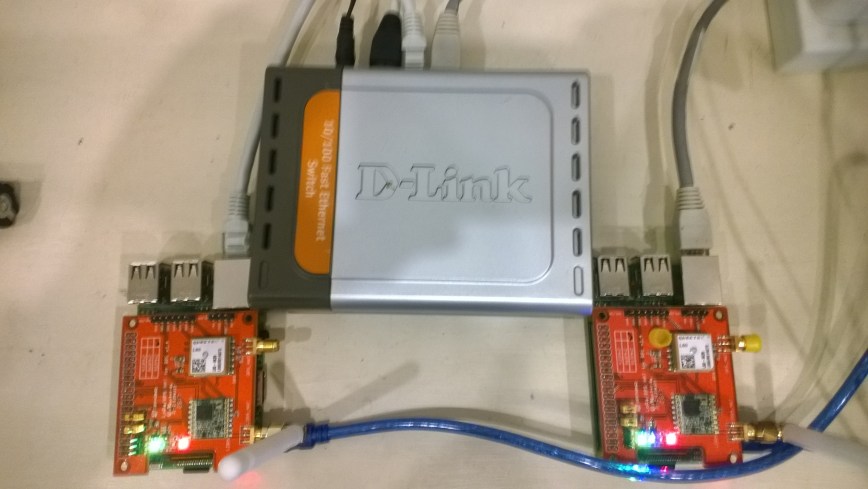
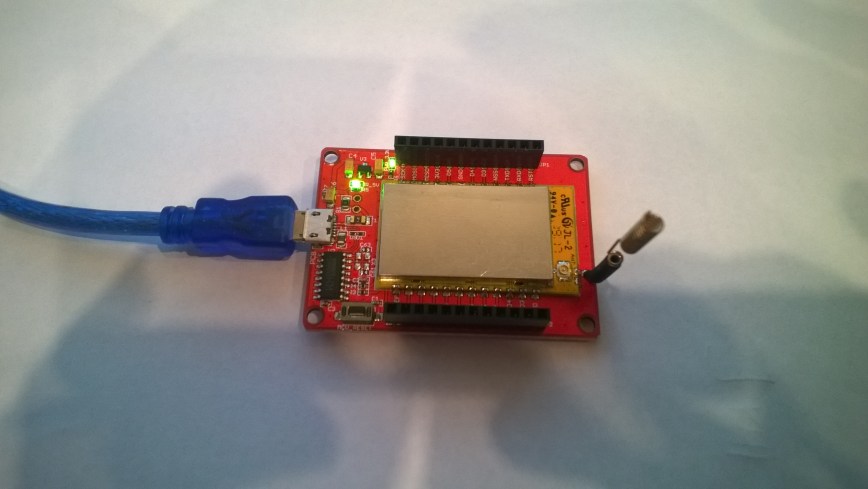
To kick things off I purchased

I then did some searching and downloaded two commonly used libraries

Initially I trialled the emmellsoft Windows 10 IoT Core Dragino.LoRa code on a couple of Raspberry PI devices.

RPIDraginoP2P

After updating the Windows 10 Min/Max versions, plus the NuGet packages and setting the processor type to ARM the code compiled, downloaded and ran which was a pretty good start.

I could see messages being transmitted and received by the two devices


Packet RSSI: -33, RSSI: -91, SNR: 8, Length: 5

Message Received: CRC OK, Rssi=-91, PacketRssi=-33, PacketSnr=8, Buffer:[55, ff, 00, aa, 01], 2018-07-30 09:27:48

Successfully sent in 110 milliseconds.

Packet RSSI: -15, RSSI: -100, SNR: 9.2, Length: 5

Message Received: CRC OK, Rssi=-100, PacketRssi=-15, PacketSnr=9.2, Buffer:[55, ff, 00, aa, 02], 2018-07-30 09:27:53

Successfully sent in 36 milliseconds.

Packet RSSI: -35, RSSI: -101, SNR: 9, Length: 5

Message Received: CRC OK, Rssi=-101, PacketRssi=-35, PacketSnr=9, Buffer:[55, ff, 00, aa, 03], 2018-07-30 09:27:58

Successfully sent in 36 milliseconds.

I added my first attempt at device configuration for New Zealand (based on EU settings) in Dragino.LoRa\Radio\TransceiverSettings.cs


public static readonly TransceiverSettings ANZ915 = new TransceiverSettings(

RadioModemKind.Lora,

915000000,

BandWidth.BandWidth_125_00_kHz,

SpreadingFactor.SF7,

CodingRate.FourOfFive,

8,

true,

false,

LoraSyncWord.Public);

The LoraSyncWord.Public would turn out to be a problem later!

Then I modified the sender and receiver sample application MainPage.xaml.cs files to reference my settings


private static TransceiverSettings GetRadioSettings()

{

// *********************************************************************************************

// #1/2. YOUR EDITING IS REQUIRED HERE!

//

// Choose transeiver settings:

// *********************************************************************************************

return TransceiverSettings.Standard.ANZ915;

}

I modified one of the RadioHead sample Arduino applications (centre frequency) and deployed it to a LoRa MiniDev device. I could see messages getting sent but they were not getting received by the RPI(s).

So I dumped the registers for the SX127X device in the HopeRF RFM95 module on both devices,

DraginoLoraMinDev

From the device on RPI Hat


SX1276/77/78/79 detected, starting.

1-85

2-1A

3-B

4-0

5-52

6-E4

7-C0

8-0

9-85

A-9

B-2B

C-23

D-0

E-80

F-0

10-0

11-0

12-0

13-0

14-0

15-0

16-0

17-0

18-4

19-0

1A-0

1B-42

1C-0

1D-72

1E-74

1F-9F

20-0

21-8

22-1

23-FF

24-0

25-0

26-4

27-0

28-0

29-0

2A-0

2B-0

2C-9

2D-50

2E-14

2F-45

30-55

31-C3

32-5

33-27

34-1C

35-A

36-3

37-A

38-42

39-34

The LoRa transceiver is initiated successfully.

I printed out the Radiohead and emmellsoft registers then manually compared them using the SX1276 datasheet for reference.

I found the 3 registers which contain the MSB, ISB and LSB for the centre frequency weren’t being calculated correctly (checked this by changing the frequency to 434MHz and comparing the register values to the worked example in the datasheet).

I manually “brute forced” the centre frequency registers in LoRaTransceiver.cs Init() and the RPI could then detect a signal but couldn’t decode the messages.

I went back to the Register dumps and found the SyncWord (odd name as it is a byte) were different. After updating the RPI settings the devices could exchange packets..


const double RH_RF95_FXOSC = 32000000.0;

const double RH_RF95_FSTEP = RH_RF95_FXOSC / 524288.0;

long frf = (long)(Settings.Frequency / RH_RF95_FSTEP);

byte[] bytes = BitConverter.GetBytes(frf);

byte[] x6 = { bytes[2] };

RegisterManager.WriteRegister(6, x6);

byte[] x7 = { bytes[1] };

RegisterManager.WriteRegister(7, x7);

byte[] x8 = { bytes[0] };

RegisterManager.WriteRegister(8, x8);

RegisterManager.Write(new LoraRegisterSyncWord(Settings.LoraSyncWord.Value));

This was not a long term solution, lots of code, and register setting changes with limited explanation…

Wireless field gateway protocol V2

I have now built a couple of nRF2L01P field gateways (for AdaFriut.IO & Azure IoT Hubs) which run as a background tasks on Windows 10 IoT Core on RaspberyPI). I have also written several clients which run on Arduino, devDuino, Netduino, and Seeeduino devices.

I have tried to keep the protocol simple (telemetry only) to deploy and it will be used in high school student projects in the next couple of weeks.

To make the payload smaller the first byte of the message now specifies the message type in the top nibble and the length of the device unique identifier in the bottom nibble.

0 = Echo

The message is displayed by the field gateway as text & hexadecimal.

1 = Device identifier + Comma separated values (CSV) payload

[0] – Set to 0001, XXXX   Device identifier length

[1]..[1+Device identifier length] – Unique device identifier bytes e.g. Mac address

[1+Device identifier length+1 ]..[31] – CSV payload e.g.  SensorID value, SensorID value


Wireless field gateway devDuino client V1

This client is a devDuino V2.2 device with an AdaFruit AM2315 temperature & humidity sensor. This sensor is powered by two AAA batteries and has an on-board support for unique device identification and encryption.

In this first iteration the focus was accessing the SHA204A crypto and authentication chip, the AM2315 sensor and message payload assembly. Reducing the power consumption, improving reliability etc. will be covered in future posts.

/*
Copyright ® 2018 Jan devMobile Software, All Rights Reserved

THIS CODE AND INFORMATION IS PROVIDED "AS IS" WITHOUT WARRANTY OF ANY
KIND, EITHER EXPRESSED OR IMPLIED, INCLUDING BUT NOT LIMITED TO THE
IMPLIED WARRANTIES OF MERCHANTABILITY AND/OR FITNESS FOR A PARTICULAR
PURPOSE.

You can do what you want with this code, acknowledgment would be nice.

http://www.devmobile.co.nz

*/
#include <RF24.h>
#include <Adafruit_AM2315.h>
#include <sha204_library.h>

// nRF24L01 ISM wireless module setup
RF24 radio(7,6);
const int nRFPayloadSize = 32 ;
char payload[nRFPayloadSize] = "";
const byte FieldGatewayAddress[5] = "Base1";
const byte FieldGatewayChannel = 10 ;
const rf24_pa_dbm_e RadioPALevel = RF24_PA_MAX;
const rf24_datarate_e RadioDataRate = RF24_250KBPS; 

// ATSHA204 secure authentication, validation with crypto and hashing (initially only used for unique serial number)
atsha204Class sha204(A2);
const int SerialNumberLength = 9 ;
uint8_t serialNumber[SerialNumberLength];

// AM2315 I2C Outdoors temperature and humdity sensor
Adafruit_AM2315 am2315;

const int LoopSleepDelay = 30000 ;

void setup()
{
  Serial.begin(9600);
  Serial.println("Setup called");

  // Retrieve the serial number then display it nicely
  sha204.getSerialNumber(serialNumber);

  Serial.print("SNo:");
  for (int i=0; i<SerialNumberLength; i++)
  {
    // Add a leading zero
    if ( serialNumber[i] < 16)
    {
      Serial.print("0");
    }
    Serial.print(serialNumber[i], HEX);
    Serial.print(" ");
  }
  Serial.println(); 

  // Configure the AM2315 temperature & humidity sensor
  Serial.println("AM2315 setup");
  am2315.begin();

  // Configure the nRF24 module
  Serial.println("nRF24 setup");
  radio.begin();
  radio.setPALevel(RadioPALevel);
  radio.setDataRate(RadioDataRate) ;
  radio.setChannel(FieldGatewayChannel);
  radio.enableDynamicPayloads();
  radio.openWritingPipe(FieldGatewayAddress);

  delay(1000);

  Serial.println("Setup done");
}

void loop()
{
  float temperature ;
  float humidity ;
  float batteryVoltage ;

  Serial.println("Loop called");
  memset( payload, 0, sizeof( payload));

  // prepare the payload header
  int payloadLength = 0 ;
  payload[0] = 1 ; // Sensor device unique ID header with CSV payload
  payloadLength += 1;

  // Copy the ATSHA204 device serial number into the payload
  payload[1] = SerialNumberLength ;
  payloadLength += 1;
  memcpy( &payload[payloadLength], serialNumber, SerialNumberLength);
  payloadLength += SerialNumberLength ;

  // Read the temperature, humidity & battery voltage values then display nicely
  am2315.readTemperatureAndHumidity(temperature, humidity);
  Serial.print("T:");
  Serial.print( temperature, 1 ) ;
  Serial.print( "C" ) ;

  Serial.print(" H:");
  Serial.print( humidity, 0 ) ;
  Serial.print( "%" ) ;

  batteryVoltage = readVcc() / 1000.0 ;
  Serial.print(" B:");
  Serial.print( batteryVoltage, 2 ) ;
  Serial.println( "V" ) ;

  // Copy the temperature into the payload
  payload[ payloadLength] = 'T';
  payloadLength += 1 ;
  dtostrf(temperature, 6, 1, &payload[payloadLength]);
  payloadLength += 6;
  payload[ payloadLength] = ',';
  payloadLength += 1 ;

  // Copy the humidity into the payload
  payload[ payloadLength] = 'H';
  payloadLength += 1 ;
  dtostrf(humidity, 4, 0, &payload[payloadLength]);
  payloadLength += 4;
  payload[ payloadLength] = ',';
  payloadLength += 1 ;

  // Copy the battery voltage into the payload
  payload[ payloadLength] = 'V';
  payloadLength += 1 ;

  dtostrf(batteryVoltage, 5, 2, &payload[payloadLength]);
  payloadLength += 5;

  // Powerup the nRF24 chipset then send the payload to base station
  Serial.print( "Payload length:");
  Serial.println( payloadLength );

  radio.powerUp();
  delay(500);

  Serial.println( "nRF24 write" ) ;
  boolean result = radio.write(payload, payloadLength);
  if (result)
    Serial.println("Write Ok...");
  else
    Serial.println("Write failed.");

 Serial.println( "nRF24 power down" ) ;
 radio.powerDown();

 delay(LoopSleepDelay);
}

Arduino monitor output

devDuinoAM2315V1Output

Prototype hardware

devDuinoAM2315V1Bill of materials (prices as at Jan 2018)
  • devDuino V2.2 USD18
  • AdaFruit AM2315 USD30
  • Grove – 5cm buckled cable USD1.90
  • Grove – Screw Terminal USD2.90
  • 10K resistors x 2

RaspberyPI UWP application diagnostic output

Interrupt Triggered: RisingEdge
Interrupt Triggered: FallingEdge
09:39:03 Address 01-23-32-66-C6-FE-0B-8D-EE Length 9 Payload T  25.0,H  48,V 3.31 Length 20
 Sensor 01-23-32-66-C6-FE-0B-8D-EE-T Value 25.0
 Sensor 01-23-32-66-C6-FE-0B-8D-EE-H Value 48
 Sensor 01-23-32-66-C6-FE-0B-8D-EE-V Value 3.31
Interrupt Triggered: RisingEdge
Interrupt Triggered: FallingEdge
09:39:33 Address 01-23-32-66-C6-FE-0B-8D-EE Length 9 Payload T  24.9,H  48,V 3.30 Length 20
 Sensor 01-23-32-66-C6-FE-0B-8D-EE-T Value 24.9
 Sensor 01-23-32-66-C6-FE-0B-8D-EE-H Value 48
 Sensor 01-23-32-66-C6-FE-0B-8D-EE-V Value 3.30
Interrupt Triggered: RisingEdge
Interrupt Triggered: FallingEdge
09:40:04 Address 01-23-32-66-C6-FE-0B-8D-EE Length 9 Payload T  24.9,H  48,V 3.31 Length 20
 Sensor 01-23-32-66-C6-FE-0B-8D-EE-T Value 24.9
 Sensor 01-23-32-66-C6-FE-0B-8D-EE-H Value 48
 Sensor 01-23-32-66-C6-FE-0B-8D-EE-V Value 3.31
Interrupt Triggered: RisingEdge

Wireless field gateway protocol V1

I’m going to build a number of nRF2L01P field gateways (Netduino Ethernet & Wifi running .NetMF, Raspberry PI running Windows 10 IoT Core, RedBearLab 3200  etc.), clients which run on a variety of hardware (Arduino, devDuino, Netduino, Seeeduino etc.) which, then upload data to a selection of IoT Cloud services (AdaFruit.IO, ThingSpeak, Microsoft IoT Central etc.)

The nRF24L01P is widely supported with messages up to 32 bytes long, low power consumption and 250kbps, 1Mbps and 2Mbps data rates.

The aim is to keep the protocol simple (telemetry only initially) to implement and debug as the client side code will be utilised by high school student projects.

The first byte of the message specifies the message type

0 = Echo

The message is displayed by the field gateway as text & hexadecimal.

1 = Device identifier + Comma separated values (CSV) payload

[0] – Set to 1

[1] – Device identifier length

[2]..[2+Device identifier length] – Unique device identifier bytes e.g. Mac address

[2+Device identifier length+1 ]..[31] – CSV payload e.g.  SensorID value, SensorID value

Overtime I will support more message types and wireless protocols.


nRF24 Windows 10 IoT Core Background Task

First step is to build a basic Windows 10 IoT Core background task which can receive and display messages sent from a variety of devices across an nRF24L01 wireless link.

If you create a new “Windows IoT Core” “Background Application” project then copy this code into StartupTasks.cs the namespace has to be changed in the C# file, project properties\library\Default namespace and “Package.appxmanifest”\declarations\Entry Point.

/*

Copyright ® 2017 December devMobile Software, All Rights Reserved

THIS CODE AND INFORMATION IS PROVIDED "AS IS" WITHOUT WARRANTY OF ANY
KIND, EITHER EXPRESSED OR IMPLIED, INCLUDING BUT NOT LIMITED TO THE
IMPLIED WARRANTIES OF MERCHANTABILITY AND/OR FITNESS FOR A PARTICULAR
PURPOSE.

http://www.devmobile.co.nz

*/
using System;
using System.Diagnostics;
using System.Text;
using Radios.RF24;
using Windows.ApplicationModel.Background;

namespace devmobile.IoTCore.nRF24BackgroundTask
{
    public sealed class StartupTask : IBackgroundTask
    {
      private const byte ChipEnablePin = 25;
      private const byte ChipSelectPin = 0;
      private const byte nRF24InterruptPin = 17;
      private const string BaseStationAddress = "Base1";
      private const byte nRF24Channel = 10;
      private RF24 Radio = new RF24();
      private BackgroundTaskDeferral deferral;

      public void Run(IBackgroundTaskInstance taskInstance)
        {
         Radio.OnDataReceived += Radio_OnDataReceived;
         Radio.OnTransmitFailed += Radio_OnTransmitFailed;
         Radio.OnTransmitSuccess += Radio_OnTransmitSuccess;

         Radio.Initialize(ChipEnablePin, ChipSelectPin, nRF24InterruptPin);
         Radio.Address = Encoding.UTF8.GetBytes(BaseStationAddress);
         Radio.Channel = nRF24Channel;
         Radio.PowerLevel = PowerLevel.High;
         Radio.DataRate = DataRate.DR250Kbps;
         Radio.IsEnabled = true;

         Debug.WriteLine("Address: " + Encoding.UTF8.GetString(Radio.Address));
         Debug.WriteLine("PA: " + Radio.PowerLevel);
         Debug.WriteLine("IsAutoAcknowledge: " + Radio.IsAutoAcknowledge);
         Debug.WriteLine("Channel: " + Radio.Channel);
         Debug.WriteLine("DataRate: " + Radio.DataRate);
         Debug.WriteLine("IsDynamicAcknowledge: " + Radio.IsDyanmicAcknowledge);
         Debug.WriteLine("IsDynamicPayload: " + Radio.IsDynamicPayload);
         Debug.WriteLine("IsEnabled: " + Radio.IsEnabled);
         Debug.WriteLine("Frequency: " + Radio.Frequency);
         Debug.WriteLine("IsInitialized: " + Radio.IsInitialized);
         Debug.WriteLine("IsPowered: " + Radio.IsPowered);

         deferral = taskInstance.GetDeferral();

         Debug.WriteLine("Run completed");
      }

      private void Radio_OnDataReceived(byte[] data)
      {
         // Display as Unicode
         string unicodeText = Encoding.UTF8.GetString(data);
         Debug.WriteLine("Unicode - Payload Length {0} Unicode Length {1} Unicode text {2}", data.Length, unicodeText.Length, unicodeText);

         // display as hex
         Debug.WriteLine("Hex - Length {0} Payload {1}", data.Length, BitConverter.ToString(data));
      }

      private void Radio_OnTransmitSuccess()
      {
         Debug.WriteLine("Transmit Succeeded!");
      }

      private void Radio_OnTransmitFailed()
      {
         Debug.WriteLine("Transmit Failed!");
      }
   }
}

This was displayed in the output window of Visual Studio

Address: Base1
PA: 15
IsAutoAcknowledge: True
Channel: 10
DataRate: DR250Kbps
IsDynamicAcknowledge: False
IsDynamicPayload: True
IsEnabled: True
Frequency: 2410
IsInitialized: True
IsPowered: True
Run completed

Interrupt Triggered: FallingEdge
Unicode – Payload Length 19 Unicode Length 19 Unicode text T  23.8,H  73,V 3.26
Hex – Length 19 Payload 54-20-32-33-2E-38-2C-48-20-20-37-33-2C-56-20-33-2E-32-36
Interrupt Triggered: RisingEdge

Note the odd formatting of the Temperature and humidity values which is due to the way dtostrf function in the Atmel AVR library works.

Also noticed the techfooninja nRF24 library has configurable output power level which I will try to retrofit onto the Gralin NetMF library.

Next, several simple Arduino, devDuino V2.2, Seeeduino V4.2 and Netduino 2/3 clients (plus possibly some others)

nRF24 Windows 10 IoT Core reboot

My first live deployment of the nRF24L01 Windows 10 IoT Core field gateway is now scheduled for mid Q1 2018 so time for a reboot. After digging out my Raspbery PI 2/3 devices and the nRF24L01+ shield (with modifications detailed here) I have a basic plan with some milestones.

My aim is to be able to wirelessly acquire data from several dozen Arduino, devduino, seeeduino, and Netduino devices, Then, using a field gateway on a Raspberry PI running Windows 10 IoT Core upload it to Microsoft IoT Central

First bit of code – Bleepy a simple background application to test the piezo beeper on the RPI NRF24 Shield

namespace devmobile.IoTCore.Bleepy
{
   public sealed class StartupTask : IBackgroundTask
   {
      private BackgroundTaskDeferral deferral;
      private const int ledPinNumber = 4;
      private GpioPin ledGpioPin;
      private ThreadPoolTimer timer;

      public void Run(IBackgroundTaskInstance taskInstance)
      {
         var gpioController = GpioController.GetDefault();
         if (gpioController == null)
         {
            Debug.WriteLine("GpioController.GetDefault failed");
            return;
         }

         ledGpioPin = gpioController.OpenPin(ledPinNumber);
         if (ledGpioPin == null)
         {
            Debug.WriteLine("gpioController.OpenPin failed");
            return;
         }

         ledGpioPin.SetDriveMode(GpioPinDriveMode.Output);

         this.timer = ThreadPoolTimer.CreatePeriodicTimer(Timer_Tick, TimeSpan.FromMilliseconds(500));

         deferral = taskInstance.GetDeferral();

         Debug.WriteLine("Rum completed");
      }

      private void Timer_Tick(ThreadPoolTimer timer)
      {
         GpioPinValue currentPinValue = ledGpioPin.Read();

         if (currentPinValue == GpioPinValue.High)
         {
            ledGpioPin.Write(GpioPinValue.Low);
         }
         else
         {
            ledGpioPin.Write(GpioPinValue.High);
         }
      }
   }
}

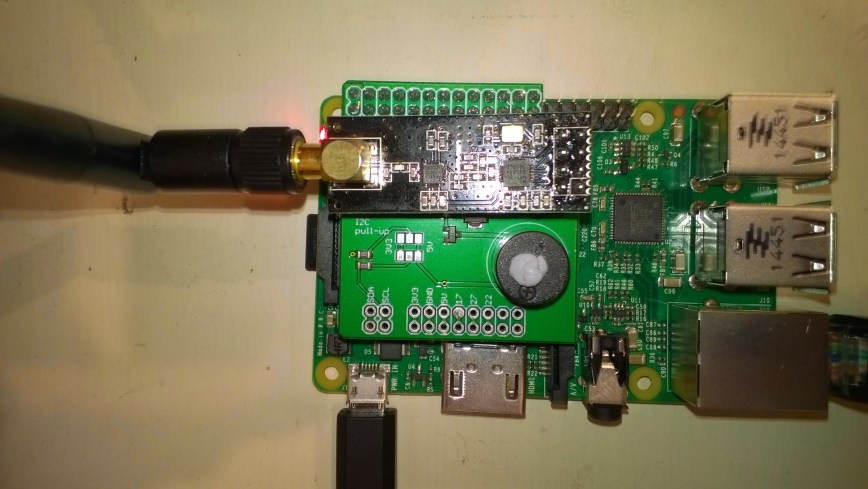
Note the blob of blu tack over the piezo beeper to mute noise
nRF24ShieldMuted

Netduino 3 Wifi Queued Azure Event Hub Field Gateway V1.0

My ADSL connection had been a bit flaky which had meant I had lost some sensor data with my initial Azure Event Hub gateway. In attempt make the solution more robust this version of the gateway queues unsent messages using the on-board MicroSD card support.

The code assumes that a file move is an “atomic operation”, so it streams the events received from the devices into a temporary directory (configurable) then moves them to the upload directory (configurable).

This code is proof of concept and needs to be soak tested, improved error handling and some additional multi threading locking added plus the magic constants refactored.

This code is called in the nRF24 receive messages handler

private void OnReceive(byte[] data)
{
   activityLed.Write(!activityLed.Read());

   // Ensure that we have a payload
   if (data.Length < 1 )
   {
      Debug.Print( "ERROR - Message has no payload" ) ;
      return ;
   }

   string message = new String(Encoding.UTF8.GetChars(data));
   Debug.Print("+" + DateTime.UtcNow.ToString("HH:mm:ss") + " L=" + data.Length + " M=" + message);

   string filename = DateTime.UtcNow.ToString("yyyyMMddhhmmssff") + ".txt";

   string tempDirectory = Path.Combine("\\sd", "temp");
   string tempFilePath = Path.Combine(tempDirectory, filename);

   string queueDirectory = Path.Combine("\\sd", "data");
   string queueFilePath = Path.Combine(queueDirectory, filename);

   File.WriteAllBytes(tempFilePath, data);

   File.Move(tempFilePath, queueFilePath);

   new Microsoft.SPOT.IO.VolumeInfo("\\sd").FlushAll();
}

A timer initiates the upload process which uses the AMQPNetlite library

bool UploadInProgress = false;

      
void uploaderCallback(object state)
{
   Debug.Print("uploaderCallback - start");

   if (UploadInProgress)
   {
      return;
   }
   UploadInProgress = true;

   string[] eventFilesToSend = Directory.GetFiles(Path.Combine("\\sd", "data")) ;

   if ( eventFilesToSend.Length == 0 )
   {
      Debug.Print("uploaderCallback - no files");
      UploadInProgress = false;
      return ;
   }

   try
   {
      Debug.Print("uploaderCallback - Connect");
      Connection connection = new Connection(new Address(serviceBusHost, serviceBusPort, serviceBusSasKeyName, serviceBusSasKey));

      Session session = new Session(connection);

      SenderLink sender = new SenderLink(session, "send-link", eventHubName);

      for (int index = 0; index < System.Math.Min(eventUploadBatchSizeMaximum, eventFilesToSend.Length); index++)
      {
         string eventFile = eventFilesToSend[ index ] ;

         Debug.Print("-" + DateTime.UtcNow.ToString("HH:mm:ss") + " " + eventFile ); ;

         Message message = new Message()
         {
            BodySection = new Data()
            {
               Binary = File.ReadAllBytes(eventFile),
            },
         ApplicationProperties = new Amqp.Framing.ApplicationProperties(),
         };

         FileInfo fileInfo = new FileInfo(eventFile);

         message.ApplicationProperties["AcquiredAtUtc"] = fileInfo.CreationTimeUtc;
         message.ApplicationProperties["UploadedAtUtc"] = DateTime.UtcNow;
         message.ApplicationProperties["GatewayId"] = gatewayId;
         message.ApplicationProperties["DeviceId"] = deviceId;
         message.ApplicationProperties["EventId"] = Guid.NewGuid();

         sender.Send(message);

         File.Delete(eventFile);

         new Microsoft.SPOT.IO.VolumeInfo("\\sd").FlushAll();
      }

      sender.Close();
      session.Close();
      connection.Close();
   }
   catch (Exception ex)
   {
      Debug.Print("ERROR: Upload failed with error: " + ex.Message);
   }
   finally
   {
      Debug.Print("uploaderCallback - finally");
      UploadInProgress = false;
   }
}

The timer period and number of files uploaded in each batch is configurable. I need to test the application to see how it handles power outages and MicroSD card corruption. The source is Netduino NRF24L01 AMQPNetLite Queued Azure EventHub Gatewaywith all the usual caveats.

This project wouldn’t have been possible without

MS Ignite Auckland NZ Presentation now available online

My presentation “All your device are belong to us” [M240] is now online at MSDN Channel 9

So much hype, so many different devices, so many protocols, so much data, so little security, welcome to the Internet of Things. Come and see how you can build an affordable, securable, scalable, interoperable, robust & reliable solution with embedded devices, Windows 10 IoT and Microsoft Azure. By 2020 there will be 26 Billion devices and 4.5 million developers building solutions so the scope is limitless.

I had 8 devices in my presentation so the scope for disaster was high.

The first demo was of how sensors could be connected across Arduino, Netduino and Raspberry PI platforms.

The Arduino demo used

The Netduino demo used

The Raspbery PI Windows 10 IoT Core demo used

The hobbyist data acquisition demo collected data from two devduino devices that were in passed around by the audience and were each equipped with a Temperature & Humidity sensor. They uploaded data to Xively over an NRF24L01 link to a gateway running on a Netduino 3 Ethernet and the data was displayed in real-time on my house information page

The professional data acquisition demo uploaded telemetry data to an Azure ServiceBus EventHub and retrieved commands from an Azure ServiceBus Queue. Both devices were running software based on Azure ServiceBus Lite by Paolo Paiterno

The telemetry stream was the temperature of some iced water.

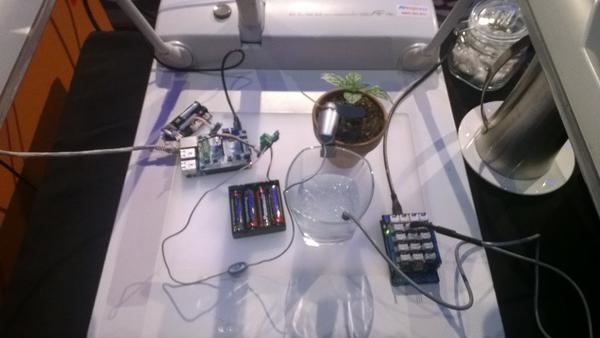
The commands were processed by a Raspbery PI running Windows 10 IoT Core which turned a small fan on & off to illustrate how a FrostFan could be used in a vineyard to reduce frost damage to the vines.

Frost Fan demo

MS Ignite 2015 Frost Fan demo

My demos all worked on the day which was a major win as many other presenters struggled with connectivity. Thanks to the conference infrastructure support guys who helped me sort things out.

With the benefit of hindsight, I tried to fit too much in and the overnight partial rewrite post attending the presentation Mashup the Internet of Things, Azure App Service and Windows 10 to Deliver Business Value [M387] by Rob Tiffany was a bit rushed.

Netduino 3 Wifi xively nRF24L01 Gateway

The first version of this code acquired data from a number of *duino devices and uploaded it to xively for a week without any problems(bar my ADSL modem dropping out every so often which it recovered from without human intervention). The data streams are the temperature and humidity for the three bedrooms in my house (the most reliable stream is Bedroom 1). Next version will use the new Netduino.IP stack and run on a Netduino 2 Plus

Netduino 3 Wifi with nRF24L01 shield

Netduino 3 Wifi + nRF24L01 shield

To make the software easy to setup all the gateway configuration is stored on a MicroSD and can be modified with a text editor. When the application starts it looks for a file in the root directory of the MicroSD card called app.config. If the file does not exist an empty template is created.

httprequestreadwritetimeoutmsec=2500
httprequesttimeoutmsec=2500
webproxyaddress=
webproxyport=
xivelyapibaseurl=http://api.xively.com/v2/feeds/
xivelyapikey=XivelyAPIKeyGoesHere
xivelyapifeedid=XivelyFeedIDGoesHere
xivelyapicontenttype=text/csv
xivelyapiendpoint=.csv
nrf2l01address=AddressGoesHere
nrf2l01channel=ChannelGoesHere
nrf2l01datarate=0
channel1=Sensor1
channel2=Sensor2
channel3=Sensor3
channel4=Sensor4
channel5=Sensor5
...
...

The first byte of each (upto 32 byte) nRF24L01 message is used to determine the Xively channel.

For testing I used a simple *duino program which uploads temperature and humidity readings every 5 seconds. It’s not terribly efficient or elegant and is just to illustrate how to package up the data.

#include <RF24_config>
#include <nRF24L01.h>
#include <SPI.h>
#include <RF24.h>
#include "Wire.h"
#include <TH02_dev.h>

//UNO R3 with embedded coolness board
//RF24 radio(3, 7);
//devDuino  with onboard
RF24 radio(8, 7);

char payload[32] = "";
const uint64_t pipe = 0x3165736142LL; // Base1 pay attention to byte ordering and address length

void setup()
{
  Serial.begin(9600);

  radio.begin();
  radio.setPALevel(RF24_PA_MAX);
  radio.setChannel(10);
  radio.enableDynamicPayloads();
  radio.openWritingPipe(pipe);

  radio.printDetails();

  /* Power up,delay 150ms,until voltage is stable */
  delay(150);

  TH02.begin();

  delay(1000);
}

void loop()
{
  float temperature = TH02.ReadTemperature();
  float humidity = TH02.ReadHumidity();

  radio.powerUp();

  payload[0] = 'A';
  dtostrf(temperature, 5, 1, &payload[1]);
  Serial.println(payload);
  boolean result = radio.write(payload, strlen(payload));
  if (result)
    Serial.println("T Ok...");
  else
    Serial.println("T failed.");

  payload[0] = 'B';
  dtostrf(humidity, 5, 1, &payload[1]);
  Serial.println(payload);
  result = radio.write(payload, strlen(payload));
  if (result)
    Serial.println("H Ok...");
  else
    Serial.println("H failed.");

  radio.powerDown();

  delay(5000);
}

The gateway code creates a thread for each call to the Xively REST API. (In future the code may need to limit the number of concurrent requests)

private void OnReceive(byte[] data)
{
   activityLed.Write(!activityLed.Read());

   // Ensure that we have a valid payload
   if ( data.Length == 0 )
   {
      Debug.Print( "ERROR - Message has no payload" ) ;
      return ;
   }

   // Extract the device id
   string deviceId = xivelyApiChannleIDPrefix + data[0].ToString();
   string message = new String(Encoding.UTF8.GetChars(data, 1, data.Length - 1));

   string xivelyApiChannel = appSettings.GetString( deviceId, string.Empty ) ;
   if ( xivelyApiChannel.Length == 0 )
   {
      Debug.Print("ERROR - Inbound message has unknown channel " + deviceId);
      return ;
   }
   Debug.Print(DateTime.Now.ToString("HH:mm:ss") + " " + xivelyApiChannel + " " + message); ;

   Thread thread = new Thread(() =&gt; xivelyFeedUpdate(xivelyApiChannel, message ));
   thread.Start();
   }

private void xivelyFeedUpdate( string channel, string value)
{
   #region Assertions
   Debug.Assert(channel != null);
   Debug.Assert(channel != string.Empty );
   Debug.Assert(value != null);
   #endregion

   try
   {
      WebProxy webProxy = null;

      if (webProxyAddress.Length &gt; 1)
      {
         webProxy = new WebProxy(webProxyAddress, webProxyPort);
      }

      using (HttpWebRequest request = (HttpWebRequest)WebRequest.Create(xivelyApiBaseUrl + xivelyApiFeedID + xivelyApiEndpoint))
      {
         byte[] buffer = Encoding.UTF8.GetBytes(channel + "," + value);

         DateTime httpRequestedStartedAtUtc = DateTime.UtcNow;

         if (webProxy != null)
         {
            request.Proxy = webProxy;
         }
         request.Method = "PUT";
         request.ContentLength = buffer.Length;
         request.ContentType = xivelyApiContentType;
         request.Headers.Add("X-ApiKey", xivelyApiKey);
         request.KeepAlive = false;
         request.Timeout = httpRequestTimeoutmSec;
         request.ReadWriteTimeout = httpRequestReadWriteTimeoutmSec;

         // request body
         Debug.Print("HTTP request");
         using (Stream stream = request.GetRequestStream())
         {
            stream.Write(buffer, 0, buffer.Length);
         }

         using (var response = (HttpWebResponse)request.GetResponse())
         {
            Debug.Print(" Status: " + response.StatusCode + " : " + response.StatusDescription);
         }

         TimeSpan duration = DateTime.UtcNow - httpRequestedStartedAtUtc;
         Debug.Print(" Duration: " + duration.ToString());
      }
   }
   catch (Exception ex)
   {
      Debug.Print(ex.Message);
   }
}

To use this code download the Nordic nRF24L01 library from Codeplex then include that plus my Netduino NRF24L01 Xively Gateway in a new solution and it should just work.

Deploy the application to a Netduino 2 Plus or Netduino 3 Wifi device and run it to create the app.config file, then use a text editor to update the file with your Xively & device settings.

I’ll upload this and a couple of other projects to GitHub shortly.

Bill of materials (prices as at July 2015)