Random wanderings through Microsoft Azure esp. PaaS plumbing, the IoT bits, AI on Micro controllers, AI on Edge Devices, .NET nanoFramework, .NET Core on *nix and ML.NET+ONNX
This application was inspired by one of teachers I work with wanting to check occupancy of different areas in the school library. I had been using the Computer Vision service to try and identify objects around my home and office which had been moderately successful but not terribly useful or accurate.
Every time the digital input is strobed by the passive infra red motion detector an image is captured, then uploaded for processing, and finally results displayed. For this sample I’m looking for categories which indicate the image is of a group of people (The categories are configured in the appsettings file)
If any of the specified categories are identified in the image I illuminate a Light Emitting Diode (LED) for 5 seconds, if an image is being processed or the minimum period between images has not passed the LED is illuminated for 5 milliseconds .
		private async void InterruptGpioPin_ValueChanged(GpioPin sender, GpioPinValueChangedEventArgs args)
		{
			DateTime currentTime = DateTime.UtcNow;
			Debug.WriteLine($"Digital Input Interrupt {sender.PinNumber} triggered {args.Edge}");

			if (args.Edge != this.interruptTriggerOn)
			{
				return;
			}

			// Check that enough time has passed for picture to be taken
			if ((currentTime - this.imageLastCapturedAtUtc) < this.debounceTimeout)
			{
				this.displayGpioPin.Write(GpioPinValue.High);
				this.displayOffTimer.Change(this.timerPeriodDetectIlluminated, this.timerPeriodInfinite);
				return;
			}

			this.imageLastCapturedAtUtc = currentTime;

			// Just incase - stop code being called while photo already in progress
			if (this.cameraBusy)
			{
				this.displayGpioPin.Write(GpioPinValue.High);
				this.displayOffTimer.Change(this.timerPeriodDetectIlluminated, this.timerPeriodInfinite);
				return;
			}

			this.cameraBusy = true;

			try
			{
				using (Windows.Storage.Streams.InMemoryRandomAccessStream captureStream = new Windows.Storage.Streams.InMemoryRandomAccessStream())
				{
					this.mediaCapture.CapturePhotoToStreamAsync(ImageEncodingProperties.CreateJpeg(), captureStream).AsTask().Wait();
					captureStream.FlushAsync().AsTask().Wait();
					captureStream.Seek(0);

					IStorageFile photoFile = await KnownFolders.PicturesLibrary.CreateFileAsync(ImageFilename, CreationCollisionOption.ReplaceExisting);
					ImageEncodingProperties imageProperties = ImageEncodingProperties.CreateJpeg();
					await this.mediaCapture.CapturePhotoToStorageFileAsync(imageProperties, photoFile);

					ImageAnalysis imageAnalysis = await this.computerVisionClient.AnalyzeImageInStreamAsync(captureStream.AsStreamForRead());

					Debug.WriteLine($"Tag count {imageAnalysis.Categories.Count}");

					if (imageAnalysis.Categories.Intersect(this.categoryList, new CategoryComparer()).Any())
					{
						this.displayGpioPin.Write(GpioPinValue.High);

						// Start the timer to turn the LED off
						this.displayOffTimer.Change(this.timerPeriodFaceIlluminated, this.timerPeriodInfinite);
					}

					LoggingFields imageInformation = new LoggingFields();

					imageInformation.AddDateTime("TakenAtUTC", currentTime);
					imageInformation.AddInt32("Pin", sender.PinNumber);
					Debug.WriteLine($"Categories:{imageAnalysis.Categories.Count}");
					imageInformation.AddInt32("Categories", imageAnalysis.Categories.Count);
					foreach (Category category in imageAnalysis.Categories)
					{
						Debug.WriteLine($" Category:{category.Name} {category.Score}");
						imageInformation.AddDouble($"Category:{category.Name}", category.Score);
					}

					this.logging.LogEvent("Captured image processed by Cognitive Services", imageInformation);
				}
			}
			catch (Exception ex)
			{
				this.logging.LogMessage("Camera photo or save failed " + ex.Message, LoggingLevel.Error);
			}
			finally
			{
				this.cameraBusy = false;
			}
		}

		private void TimerCallback(object state)
		{
			this.displayGpioPin.Write(GpioPinValue.Low);
		}

		internal class CategoryComparer : IEqualityComparer<Category>
		{
			public bool Equals(Category x, Category y)
			{
				if (string.Equals(x.Name, y.Name, StringComparison.OrdinalIgnoreCase))
				{
					return true;
				}

				return false;
			}

			public int GetHashCode(Category obj)
			{
				return obj.Name.GetHashCode();
			}
		}
I found that the Computer vision service was pretty good at categorising photos of images like this displayed on my second monitor as containing a group of people.
The debugging output of the application includes the different categories identified in the captured image.
Digital Input Interrupt 24 triggered RisingEdge
Digital Input Interrupt 24 triggered FallingEdge
'backgroundTaskHost.exe' (CoreCLR: CoreCLR_UWP_Domain): Loaded 'C:\Data\Programs\WindowsApps\Microsoft.NET.CoreFramework.Debug.2.2_2.2.27505.2_arm__8wekyb3d8bbwe\System.Diagnostics.DiagnosticSource.dll'. Skipped loading symbols. Module is optimized and the debugger option 'Just My Code' is enabled.
'backgroundTaskHost.exe' (CoreCLR: CoreCLR_UWP_Domain): Loaded 'C:\Data\Programs\WindowsApps\Microsoft.NET.CoreFramework.Debug.2.2_2.2.27505.2_arm__8wekyb3d8bbwe\System.Collections.NonGeneric.dll'. Skipped loading symbols. Module is optimized and the debugger option 'Just My Code' is enabled.
'backgroundTaskHost.exe' (CoreCLR: CoreCLR_UWP_Domain): Loaded 'C:\Data\Programs\WindowsApps\Microsoft.NET.CoreFramework.Debug.2.2_2.2.27505.2_arm__8wekyb3d8bbwe\System.Runtime.Serialization.Formatters.dll'. Skipped loading symbols. Module is optimized and the debugger option 'Just My Code' is enabled.
'backgroundTaskHost.exe' (CoreCLR: CoreCLR_UWP_Domain): Loaded 'C:\Data\Programs\WindowsApps\Microsoft.NET.CoreFramework.Debug.2.2_2.2.27505.2_arm__8wekyb3d8bbwe\System.Diagnostics.TraceSource.dll'. Skipped loading symbols. Module is optimized and the debugger option 'Just My Code' is enabled.
'backgroundTaskHost.exe' (CoreCLR: CoreCLR_UWP_Domain): Loaded 'C:\Data\Programs\WindowsApps\Microsoft.NET.CoreFramework.Debug.2.2_2.2.27505.2_arm__8wekyb3d8bbwe\System.Collections.Specialized.dll'. Skipped loading symbols. Module is optimized and the debugger option 'Just My Code' is enabled.
'backgroundTaskHost.exe' (CoreCLR: CoreCLR_UWP_Domain): Loaded 'C:\Data\Programs\WindowsApps\Microsoft.NET.CoreFramework.Debug.2.2_2.2.27505.2_arm__8wekyb3d8bbwe\System.Drawing.Primitives.dll'. Skipped loading symbols. Module is optimized and the debugger option 'Just My Code' is enabled.
'backgroundTaskHost.exe' (CoreCLR: CoreCLR_UWP_Domain): Loaded 'C:\Data\Programs\WindowsApps\Microsoft.NET.CoreFramework.Debug.2.2_2.2.27505.2_arm__8wekyb3d8bbwe\System.Runtime.Serialization.Primitives.dll'. Skipped loading symbols. Module is optimized and the debugger option 'Just My Code' is enabled.
'backgroundTaskHost.exe' (CoreCLR: CoreCLR_UWP_Domain): Loaded 'C:\Data\Programs\WindowsApps\Microsoft.NET.CoreFramework.Debug.2.2_2.2.27505.2_arm__8wekyb3d8bbwe\System.Data.Common.dll'. Skipped loading symbols. Module is optimized and the debugger option 'Just My Code' is enabled.
'backgroundTaskHost.exe' (CoreCLR: CoreCLR_UWP_Domain): Loaded 'C:\Data\Programs\WindowsApps\Microsoft.NET.CoreFramework.Debug.2.2_2.2.27505.2_arm__8wekyb3d8bbwe\System.Xml.ReaderWriter.dll'. Skipped loading symbols. Module is optimized and the debugger option 'Just My Code' is enabled.
'backgroundTaskHost.exe' (CoreCLR: CoreCLR_UWP_Domain): Loaded 'C:\Data\Programs\WindowsApps\Microsoft.NET.CoreFramework.Debug.2.2_2.2.27505.2_arm__8wekyb3d8bbwe\System.Private.Xml.dll'. Skipped loading symbols. Module is optimized and the debugger option 'Just My Code' is enabled.
'backgroundTaskHost.exe' (CoreCLR: CoreCLR_UWP_Domain): Loaded 'Anonymously Hosted DynamicMethods Assembly'.
Tag count 1
Categories:1
 Category:people_group 0.8671875
The thread 0x634 has exited with code 0 (0x0).
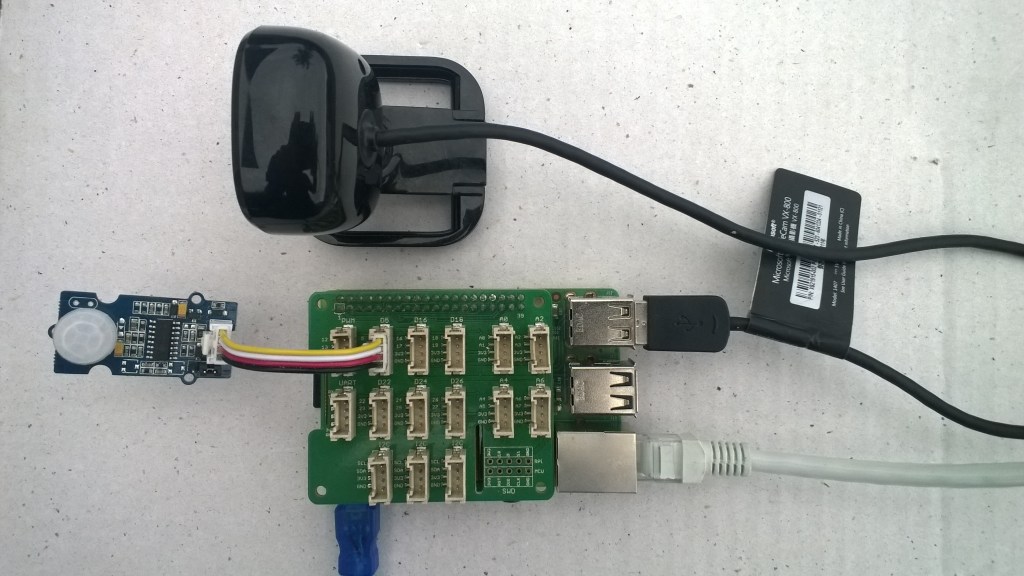
I used an infrared motion sensor to trigger capture and processing of an image to simulate a application for detecting if there is a group of people in an area of the school library.
I’m going to run this application alongside one of my time-lapse applications to record a days worth of images and manually check the accuracy of the image categorisation. I think that camera location maybe important as well so I’ll try a selection of different USB cameras and locations.
Trial PIR triggered computer vision client
I also found the small PIR motion detector didn’t work very well in a larger space so I’m going to trial a configurable sensor and a repurposed burglar alarm sensor.
This application was inspired by one of my students who has been looking at an Arduino based LoRa wireless connected sensor for monitoring Ultraviolet(UV) light levels and wanted to check that juniors at the school were wearing their hats on sunny days before going outside.
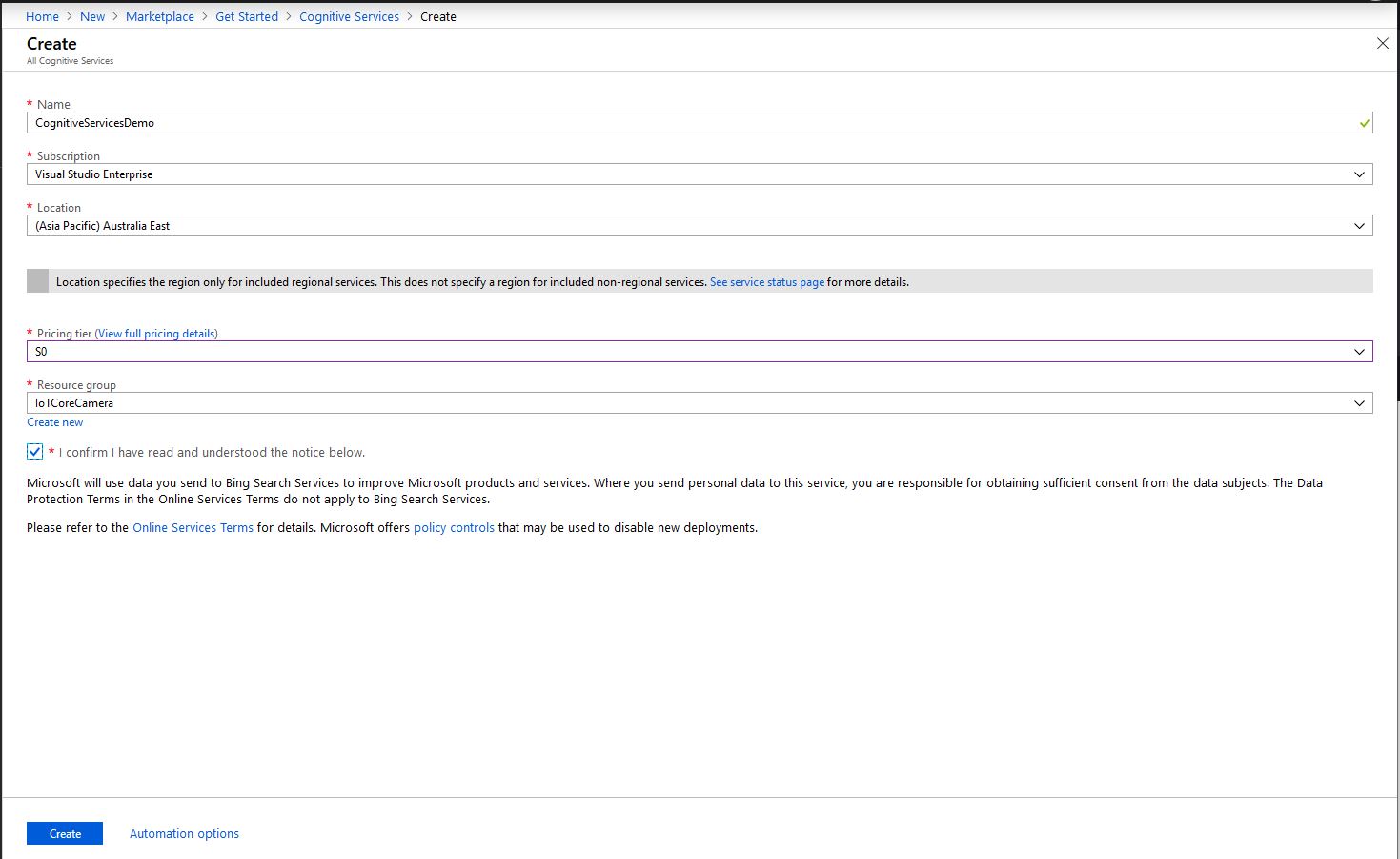
First I needed create a Cognitive Services instance and get the subscription key and endpoint.
Azure Cognitive Services Instance Creation
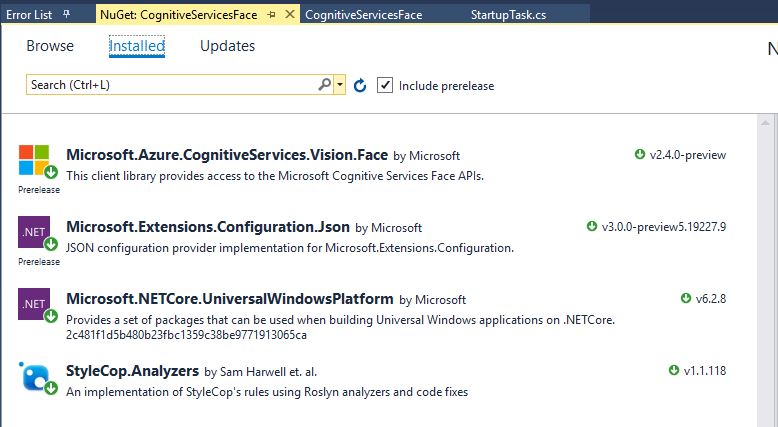
Then I added the Azure Cognitive Services Face API NuGet packages into my Visual Studio Windows IoT Core project
Azure Cognitive Services Vision Face API library
Then initialise the Face API client
try
{
	this.faceClient = new FaceClient(
			 new Microsoft.Azure.CognitiveServices.Vision.Face.ApiKeyServiceClientCredentials(this.azureCognitiveServicesSubscriptionKey),
											 new System.Net.Http.DelegatingHandler[] { })
	{
		Endpoint = this.azureCognitiveServicesEndpoint,
	};
}
catch (Exception ex)
{
	this.logging.LogMessage("Azure Cognitive Services Face Client configuration failed " + ex.Message, LoggingLevel.Error);
	return;
}
Then every time a digital input is strobed and image is captured, then uploaded for processing, and finally results displayed. The interrupt handler has code to stop re-entrancy and contactor bounce causing issues. I also requested that the Face service include age and gender attributes with associated confidence values.
If a face is found in the image I illuminate a Light Emitting Diode (LED) for 5 seconds, if an image is being processed or the minimum period between images has not passed the LED is illuminated for 5 milliseconds .
private async void InterruptGpioPin_ValueChanged(GpioPin sender, GpioPinValueChangedEventArgs args)
{
	DateTime currentTime = DateTime.UtcNow;
	Debug.WriteLine($"Digital Input Interrupt {sender.PinNumber} triggered {args.Edge}");

	if (args.Edge != this.interruptTriggerOn)
	{
		return;
	}

	// Check that enough time has passed for picture to be taken
	if ((currentTime - this.imageLastCapturedAtUtc) < this.debounceTimeout)
	{
		this.displayGpioPin.Write(GpioPinValue.High);
		this.displayOffTimer.Change(this.timerPeriodDetectIlluminated, this.timerPeriodInfinite);
		return;
	}

	this.imageLastCapturedAtUtc = currentTime;

	// Just incase - stop code being called while photo already in progress
	if (this.cameraBusy)
	{
		this.displayGpioPin.Write(GpioPinValue.High);
		this.displayOffTimer.Change(this.timerPeriodDetectIlluminated, this.timerPeriodInfinite);
		return;
	}

	this.cameraBusy = true;

	try
	{
		using (Windows.Storage.Streams.InMemoryRandomAccessStream captureStream = new Windows.Storage.Streams.InMemoryRandomAccessStream())
		{
			this.mediaCapture.CapturePhotoToStreamAsync(ImageEncodingProperties.CreateJpeg(), captureStream).AsTask().Wait();
			captureStream.FlushAsync().AsTask().Wait();
			captureStream.Seek(0);
			IStorageFile photoFile = await KnownFolders.PicturesLibrary.CreateFileAsync(ImageFilename, CreationCollisionOption.ReplaceExisting);
			ImageEncodingProperties imageProperties = ImageEncodingProperties.CreateJpeg();
			await this.mediaCapture.CapturePhotoToStorageFileAsync(imageProperties, photoFile);

			IList<FaceAttributeType> returnfaceAttributes = new List<FaceAttributeType>();
			returnfaceAttributes.Add(FaceAttributeType.Gender);
			returnfaceAttributes.Add(FaceAttributeType.Age);

			IList<DetectedFace> detectedFaces = await this.faceClient.Face.DetectWithStreamAsync(captureStream.AsStreamForRead(), returnFaceAttributes: returnfaceAttributes);

			Debug.WriteLine($"Count {detectedFaces.Count}");

			if (detectedFaces.Count > 0)
			{
				this.displayGpioPin.Write(GpioPinValue.High);

						// Start the timer to turn the LED off
				this.displayOffTimer.Change(this.timerPeriodFaceIlluminated, this.timerPeriodInfinite);
			}

			LoggingFields imageInformation = new LoggingFields();
			imageInformation.AddDateTime("TakenAtUTC", currentTime);
			imageInformation.AddInt32("Pin", sender.PinNumber);
			imageInformation.AddInt32("Faces", detectedFaces.Count);
			foreach (DetectedFace detectedFace in detectedFaces)
			{
				Debug.WriteLine("Face");
				if (detectedFace.FaceId.HasValue)
				{
					imageInformation.AddGuid("FaceId", detectedFace.FaceId.Value);
					Debug.WriteLine($" Id:{detectedFace.FaceId.Value}");
				}
				imageInformation.AddInt32("Left", detectedFace.FaceRectangle.Left);
				imageInformation.AddInt32("Width", detectedFace.FaceRectangle.Width);
				imageInformation.AddInt32("Top", detectedFace.FaceRectangle.Top);
				imageInformation.AddInt32("Height", detectedFace.FaceRectangle.Height);
				Debug.WriteLine($" L:{detectedFace.FaceRectangle.Left} W:{detectedFace.FaceRectangle.Width} T:{detectedFace.FaceRectangle.Top} H:{detectedFace.FaceRectangle.Height}");
				if (detectedFace.FaceAttributes != null)
				{
					if (detectedFace.FaceAttributes.Gender.HasValue)
					{
						imageInformation.AddString("Gender", detectedFace.FaceAttributes.Gender.Value.ToString());
						Debug.WriteLine($" Gender:{detectedFace.FaceAttributes.Gender.ToString()}");
					}

					if (detectedFace.FaceAttributes.Age.HasValue)
					{
						imageInformation.AddDouble("Age", detectedFace.FaceAttributes.Age.Value);
						Debug.WriteLine($" Age:{detectedFace.FaceAttributes.Age.Value.ToString("F1")}");
					}
				}
			}

			this.logging.LogEvent("Captured image processed by Cognitive Services", imageInformation);
		}
	}
	catch (Exception ex)
	{
		this.logging.LogMessage("Camera photo or save failed " + ex.Message, LoggingLevel.Error);
	}
	finally
	{
		this.cameraBusy = false;
	}
}

private void TimerCallback(object state)
{
	this.displayGpioPin.Write(GpioPinValue.Low);
}
This is the image uploaded to the Cognitive Services Vision Face API from my DragonBoard 410C
Which was a photo of this sample image displayed on my second monitor
The debugging output of the application includes the bounding box, gender, age and unique identifier of each detected face.
Digital Input Interrupt 24 triggered RisingEdge
Digital Input Interrupt 24 triggered FallingEdge
Count 13
Face
 Id:41ab8a38-180e-4b63-ab47-d502b8534467
 L:12 W:51 T:129 H:51
 Gender:Female
 Age:24.0
Face
 Id:554f7557-2b78-4392-9c73-5e51fedf0300
 L:115 W:48 T:146 H:48
 Gender:Female
 Age:19.0
Face
 Id:f67ae4cc-1129-46a8-8c5b-0e79f350cbaa
 L:547 W:46 T:162 H:46
 Gender:Female
 Age:56.0
Face
 Id:fad453fb-0923-4ae2-8c9d-73c9d89eaaf4
 L:585 W:45 T:116 H:45
 Gender:Female
 Age:25.0
Face
 Id:c2d2ca4e-faa6-49e8-8cd9-8d21abfc374c
 L:410 W:44 T:154 H:44
 Gender:Female
 Age:23.0
Face
 Id:6fb75edb-654c-47ff-baf0-847a31d2fd85
 L:70 W:44 T:57 H:44
 Gender:Male
 Age:37.0
Face
 Id:d6c97a9a-c49f-4d9c-8eac-eb2fbc03abc1
 L:469 W:44 T:122 H:44
 Gender:Female
 Age:38.0
Face
 Id:e193bf15-6d8c-4c30-adb5-4ca5fb0f0271
 L:206 W:44 T:117 H:44
 Gender:Male
 Age:33.0
Face
 Id:d1ba5a42-0475-4b65-afc8-0651439e1f1e
 L:293 W:44 T:74 H:44
 Gender:Male
 Age:59.0
Face
 Id:b6a7c551-bdad-4e38-8976-923b568d2721
 L:282 W:43 T:144 H:43
 Gender:Female
 Age:28.0
Face
 Id:8be87f6d-7350-4bc3-87f5-3415894b8fac
 L:513 W:42 T:78 H:42
 Gender:Male
 Age:36.0
Face
 Id:e73bd4d7-81a4-403c-aa73-1408ae1068c0
 L:163 W:36 T:94 H:36
 Gender:Female
 Age:44.0
Face
 Id:462a6948-a05e-4fea-918d-23d8289e0401
 L:407 W:36 T:73 H:36
 Gender:Male
 Age:27.0
The thread 0x8e0 has exited with code 0 (0x0).
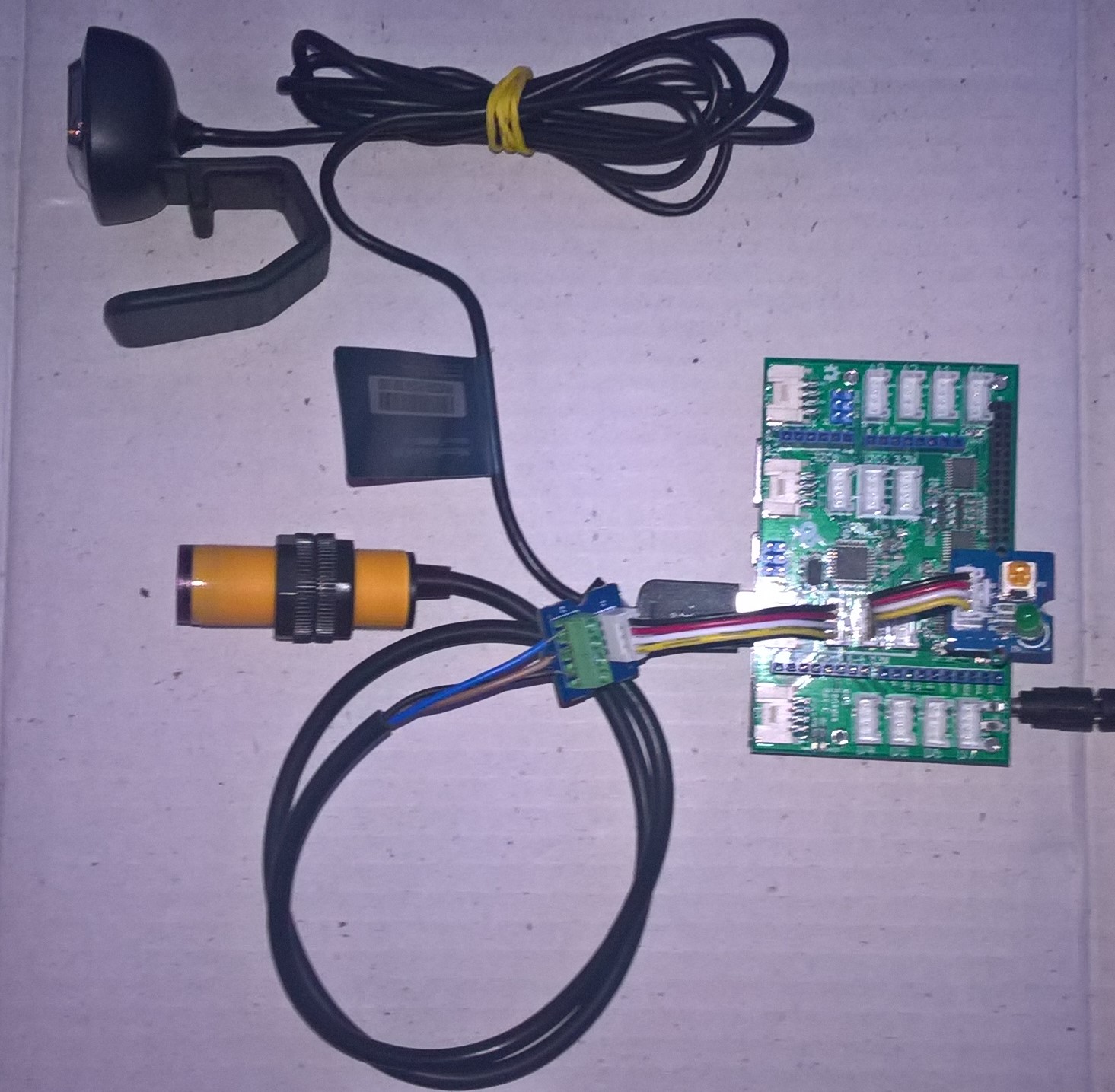
I used a simple infrared proximity sensor trigger the image capture to simulate an application for monitoring the number of people in or people entering a room.
Infrared Proximity Sensor triggered Face API test client
Overall I found that with not a lot of code I could capture an image, upload it to Azure Cognitive Services Face API for processing and the algorithm would reasonably reliably detect faces and features.
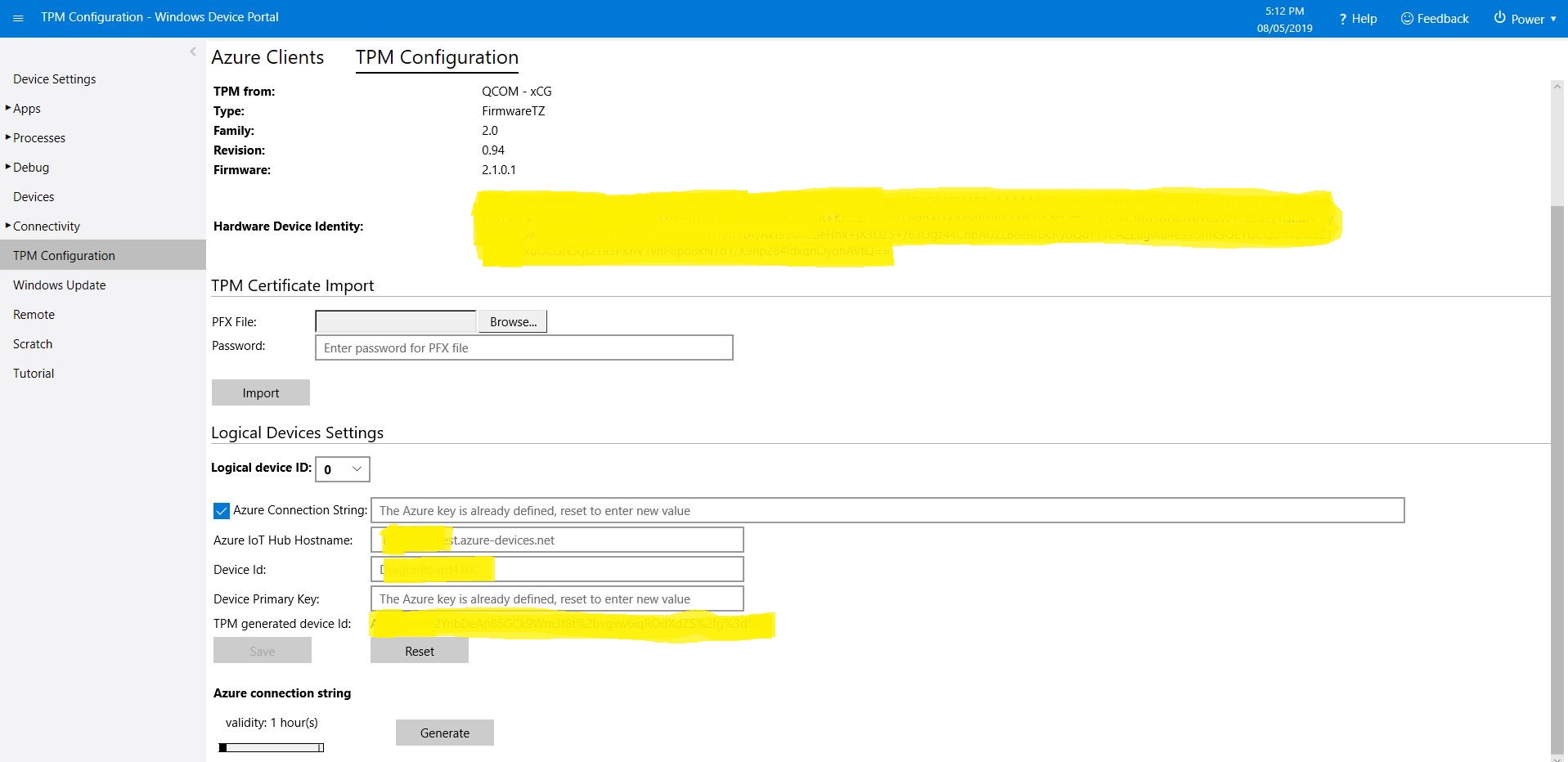
This is for people who were searching for why the SAS token issued by the TPM on their Windows 10 IoT Core device is expiring much quicker than expected or might have noticed that something isn’t quite right with the “validity” period. (as at early May 2019). If you want to “follow along at home” the code I used is available on GitHub.
I found the SAS key was expiring in roughly 5 minutes and the validity period in the configuration didn’t appear to have any effect on how long the SAS token was valid.
10:04:16 Application started
...
10:04:27 SAS token needs renewing
10:04:30 SAS token renewed
 10:04:30.984 AzureIoTHubClient SendEventAsync starting
 10:04:36.709 AzureIoTHubClient SendEventAsync starting
The thread 0x1464 has exited with code 0 (0x0).
 10:04:37.808 AzureIoTHubClient SendEventAsync finished
 10:04:37.808 AzureIoTHubClient SendEventAsync finished
The thread 0xb88 has exited with code 0 (0x0).
The thread 0x1208 has exited with code 0 (0x0).
The thread 0x448 has exited with code 0 (0x0).
The thread 0x540 has exited with code 0 (0x0).
 10:04:46.763 AzureIoTHubClient SendEventAsync starting
 10:04:47.051 AzureIoTHubClient SendEventAsync finished
The thread 0x10d8 has exited with code 0 (0x0).
The thread 0x6e0 has exited with code 0 (0x0).
The thread 0xf7c has exited with code 0 (0x0).
 10:04:56.808 AzureIoTHubClient SendEventAsync starting
 10:04:57.103 AzureIoTHubClient SendEventAsync finished
The thread 0xb8c has exited with code 0 (0x0).
The thread 0xc60 has exited with code 0 (0x0).
 10:05:06.784 AzureIoTHubClient SendEventAsync starting
 10:05:07.057 AzureIoTHubClient SendEventAsync finished
...
The thread 0x4f4 has exited with code 0 (0x0).
The thread 0xe10 has exited with code 0 (0x0).
The thread 0x3c8 has exited with code 0 (0x0).
 10:09:06.773 AzureIoTHubClient SendEventAsync starting
 10:09:07.044 AzureIoTHubClient SendEventAsync finished
The thread 0xf70 has exited with code 0 (0x0).
The thread 0x1214 has exited with code 0 (0x0).
 10:09:16.819 AzureIoTHubClient SendEventAsync starting
 10:09:17.104 AzureIoTHubClient SendEventAsync finished
The thread 0x1358 has exited with code 0 (0x0).
The thread 0x400 has exited with code 0 (0x0).
 10:09:26.802 AzureIoTHubClient SendEventAsync starting
 10:09:27.064 AzureIoTHubClient SendEventAsync finished
The thread 0x920 has exited with code 0 (0x0).
The thread 0x1684 has exited with code 0 (0x0).
The thread 0x4ec has exited with code 0 (0x0).
 10:09:36.759 AzureIoTHubClient SendEventAsync starting
'backgroundTaskHost.exe' (CoreCLR: CoreCLR_UWP_Domain): Loaded 'C:\Data\Programs\WindowsApps\Microsoft.NET.CoreFramework.Debug.2.2_2.2.27505.2_arm__8wekyb3d8bbwe\System.Net.Requests.dll'. Skipped loading symbols. Module is optimized and the debugger option 'Just My Code' is enabled.
'backgroundTaskHost.exe' (CoreCLR: CoreCLR_UWP_Domain): Loaded 'C:\Data\Programs\WindowsApps\Microsoft.NET.CoreFramework.Debug.2.2_2.2.27505.2_arm__8wekyb3d8bbwe\System.Net.WebSockets.dll'. Skipped loading symbols. Module is optimized and the debugger option 'Just My Code' is enabled.
Sending payload to AzureIoTHub failed:CONNECT failed: RefusedNotAuthorized
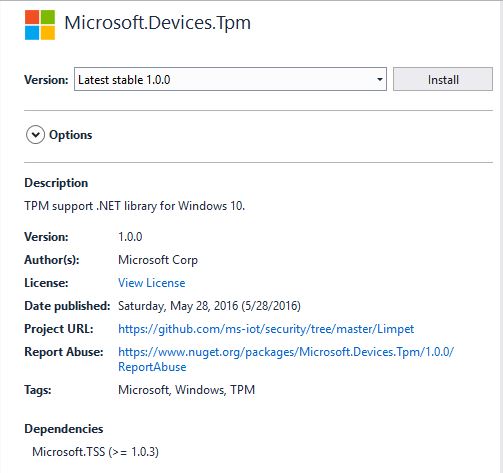
I went and looked at the NuGet package details and it seemed a bit old.
I have the RedGate Reflector plugin installed on my development box so I quickly disassembled the Microsoft.Devices.TPM assembly to see what was going on. The Reflector code is pretty readable and it wouldn’t take much “refactoring” to get it looking like “human” generated code.
public string GetSASToken(uint validity = 0xe10)
{
    string deviceId = this.GetDeviceId();
    string hostName = this.GetHostName();
    long num = (DateTime.get_Now().ToUniversalTime().ToFileTime() / 0x98_9680L) - 0x2_b610_9100L;
    string str3 = "";
    if ((hostName.Length > 0) && (deviceId.Length > 0))
    {
        object[] objArray1 = new object[] { hostName, "/devices/", deviceId, "\n", (long) num };
        byte[] bytes = new UTF8Encoding().GetBytes(string.Concat((object[]) objArray1));
        byte[] buffer2 = this.SignHmac(bytes);
        if (buffer2.Length != 0)
        {
            string str5 = this.AzureUrlEncode(Convert.ToBase64String(buffer2));
            object[] objArray2 = new object[] { "SharedAccessSignature sr=", hostName, "/devices/", deviceId, "&sig=", str5, "&se=", (long) num };
            str3 = string.Concat((object[]) objArray2);
        }
    }
    return str3;
}
The validity parameter appears to not used. Below is the current code from the Azure IoT CSharp SDK on GitHub repository and they are different, the validity is used.
public string GetSASToken(uint validity = 3600)
{
   const long WINDOWS_TICKS_PER_SEC = 10000000;
   const long EPOCH_DIFFERNECE = 11644473600;
   string deviceId = GetDeviceId();
   string hostName = GetHostName();
   long expirationTime = (DateTime.Now.ToUniversalTime().ToFileTime() / WINDOWS_TICKS_PER_SEC) - EPOCH_DIFFERNECE;
   expirationTime += validity;
   string sasToken = "";
   if ((hostName.Length > 0) && (deviceId.Length > 0))
   {
      // Encode the message to sign with the TPM
      UTF8Encoding utf8 = new UTF8Encoding();
      string tokenContent = hostName + "/devices/" + deviceId + "\n" + expirationTime;
      Byte[] encodedBytes = utf8.GetBytes(tokenContent);

      // Sign the message
      Byte[] hmac = SignHmac(encodedBytes);

      // if we got a signature foramt it
      if (hmac.Length > 0)
      {
         // Encode the output and assemble the connection string
         string hmacString = AzureUrlEncode(System.Convert.ToBase64String(hmac));
         sasToken = "SharedAccessSignature sr=" + hostName + "/devices/" + deviceId + "&sig=" + hmacString + "&se=" + expirationTime;
         }
   }
   return sasToken;
}
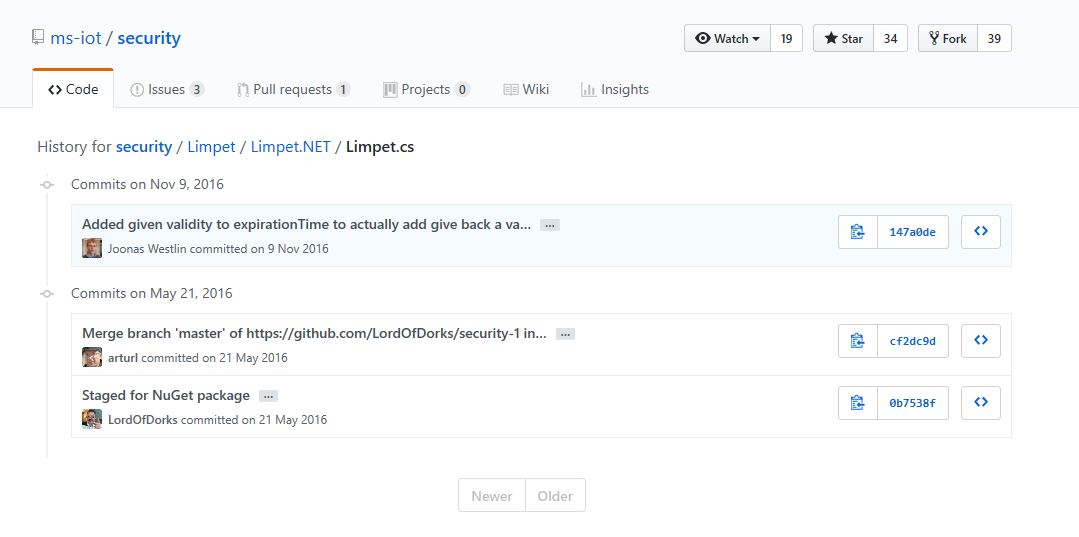
I went back and look at the Github history and it looks like a patch was applied after the NuGet packages were released in May 2016.
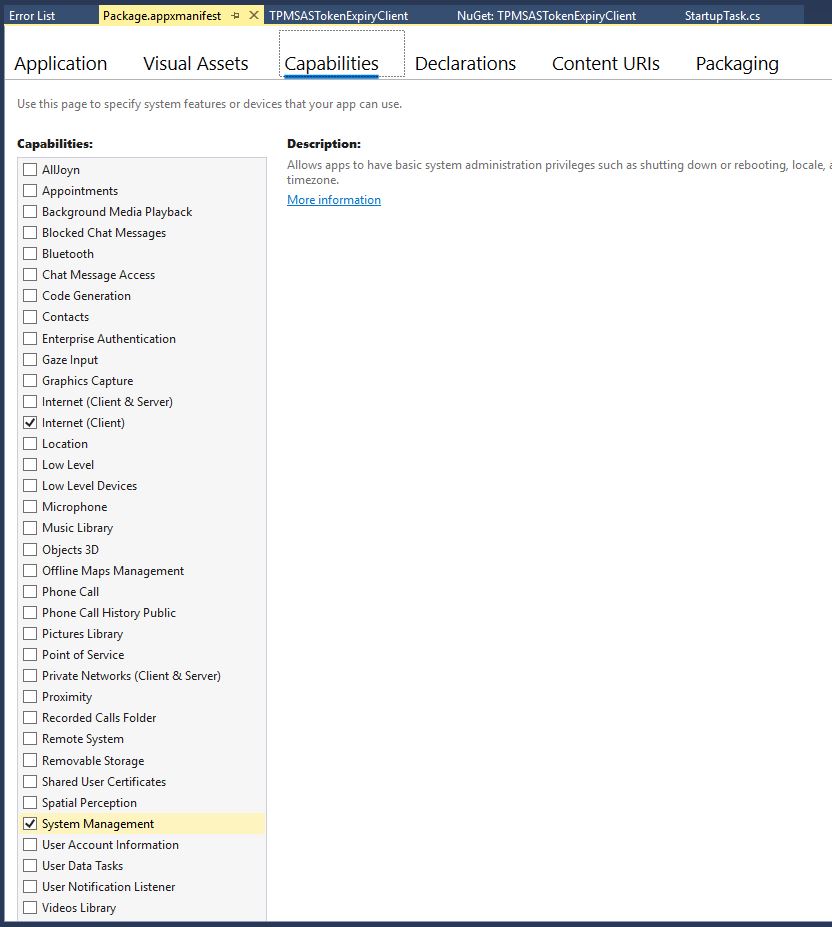
If you read from the TPM and get nothing make sure you’re using the right TPM slot number and have “System Management” checked in the capabilities tab of the application manifest.
I’m still not certain the validity is being applied correctly and will dig into in a future post.
After building platform specific gateways I have built an MQ Telemetry Transport(MQTT) Field Gateway. The application is a Windows IoT Core background task and uses the MQTTnet client. The first supported cloud Internet of Things (IoT) application API is the AdaFruit.IO MQTT interface.
This client implementation is not complete and currently only supports basic topic formatting (setup in the config.json file) and device to cloud (D2C messaging). The source code and a selection of prebuilt installers are available on GitHub.com.
Included with the field gateway application are number of console applications that I am using to debug connectivity with the different cloud platforms.
AdaFruit.IO dashboard for Arduino Sensor Node Arduino device with AM2302 temperature sensor
When the application is first started it creates a minimal configuration file which should be downloaded, the missing information filled out, then uploaded using the File explorer in the Windows device portal.
The application logs debugging information to the Windows 10 IoT Core ETW logging Microsoft-Windows-Diagnostics-LoggingChannel
The application currently only supports comma separated value(CSV) payloads. I am working on JavaScript Object Notation(JSON) and Low Power Payload(LPP) support.
Over time I will upload pre-built application packages to the gihub repo to make it easier to install. The installation process is exactly the same as my AdaFruit.IO and Azure IoT Hubs/Central field gateways.
This version supports one nRF24L01 device socket active at a time.
Enabling both nRF24L01 device sockets broke outbound message routing in a prototype branch with cloud to device(C2D) messaging support. This functionality is part of an Over The Air(OTA) device provisioning implementation I’m working o.
By setting a conditional compile option (CEECH_NRF24L01P_SHIELD, BOROS_RF2_SHIELD_RADIO_0 or BOROS_RF2_SHIELD_RADIO_1) my test application could be configured to support the Boros or Ceech (with a modification detailed here) shields.
Both vendors’ shields worked well with my test application, the ceech shield (USD9.90 April 2019) is a little bit cheaper, but the Boros shield (USD15.90 April 2019 ) doesn’t require any modification and has a socket for a second nRF24 device.
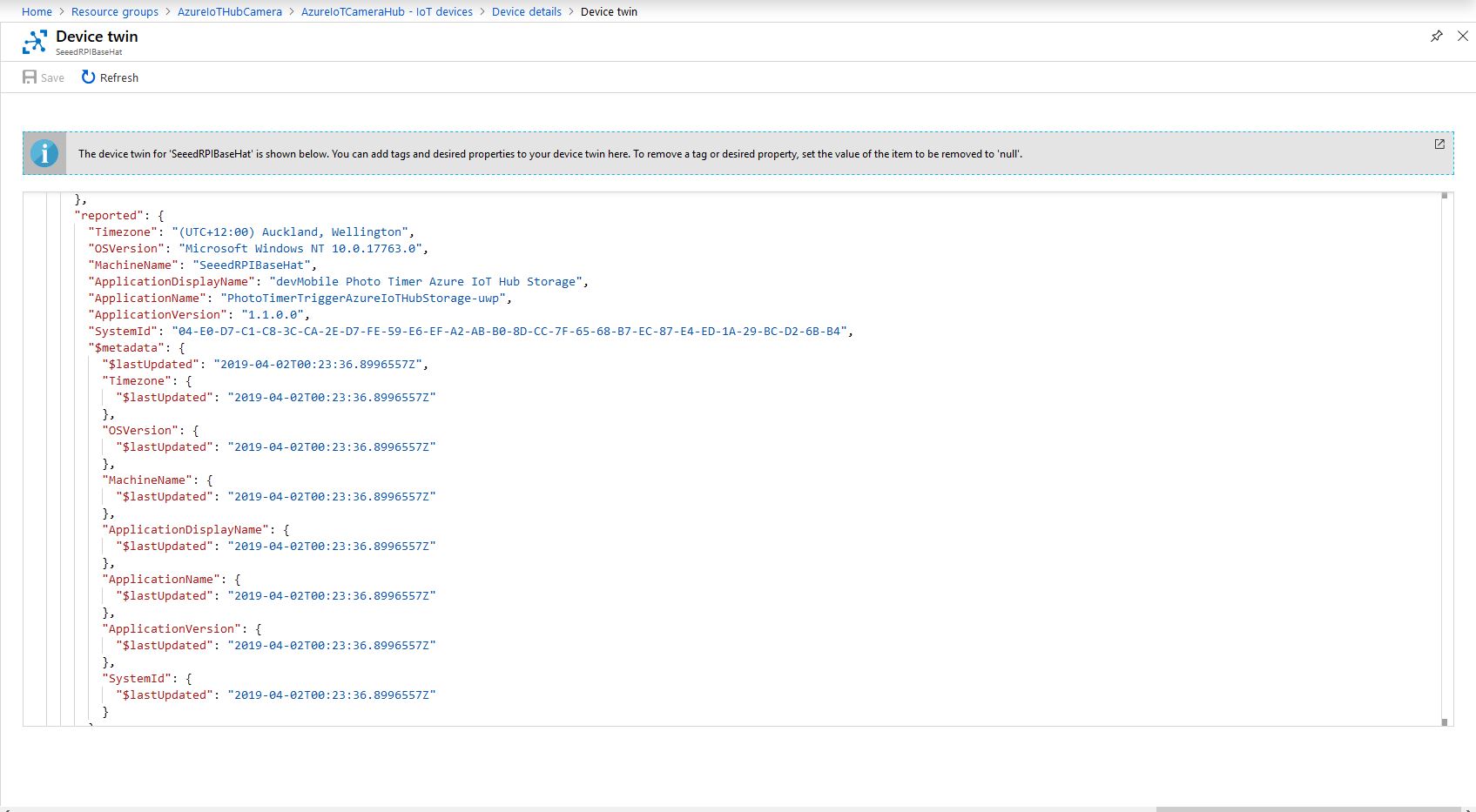
On startup the application uploads a selection of properties to the Azure IoT Hub to assist with support, fault finding etc.
// This is from the OS
reportedProperties["Timezone"] = TimeZoneSettings.CurrentTimeZoneDisplayName;
reportedProperties["OSVersion"] = Environment.OSVersion.VersionString;
reportedProperties["MachineName"] = Environment.MachineName;
reportedProperties["ApplicationDisplayName"] = package.DisplayName;
reportedProperties["ApplicationName"] = packageId.Name;
reportedProperties["ApplicationVersion"] = string.Format($"{version.Major}.{version.Minor}.{version.Build}.{version.Revision}");

// Unique identifier from the hardware
SystemIdentificationInfo systemIdentificationInfo = SystemIdentification.GetSystemIdForPublisher();
using (DataReader reader = DataReader.FromBuffer(systemIdentificationInfo.Id))
{
   byte[] bytes = new byte[systemIdentificationInfo.Id.Length];
   reader.ReadBytes(bytes);
   reportedProperties["SystemId"] = BitConverter.ToString(bytes);
}
Azure Portal Device Properties
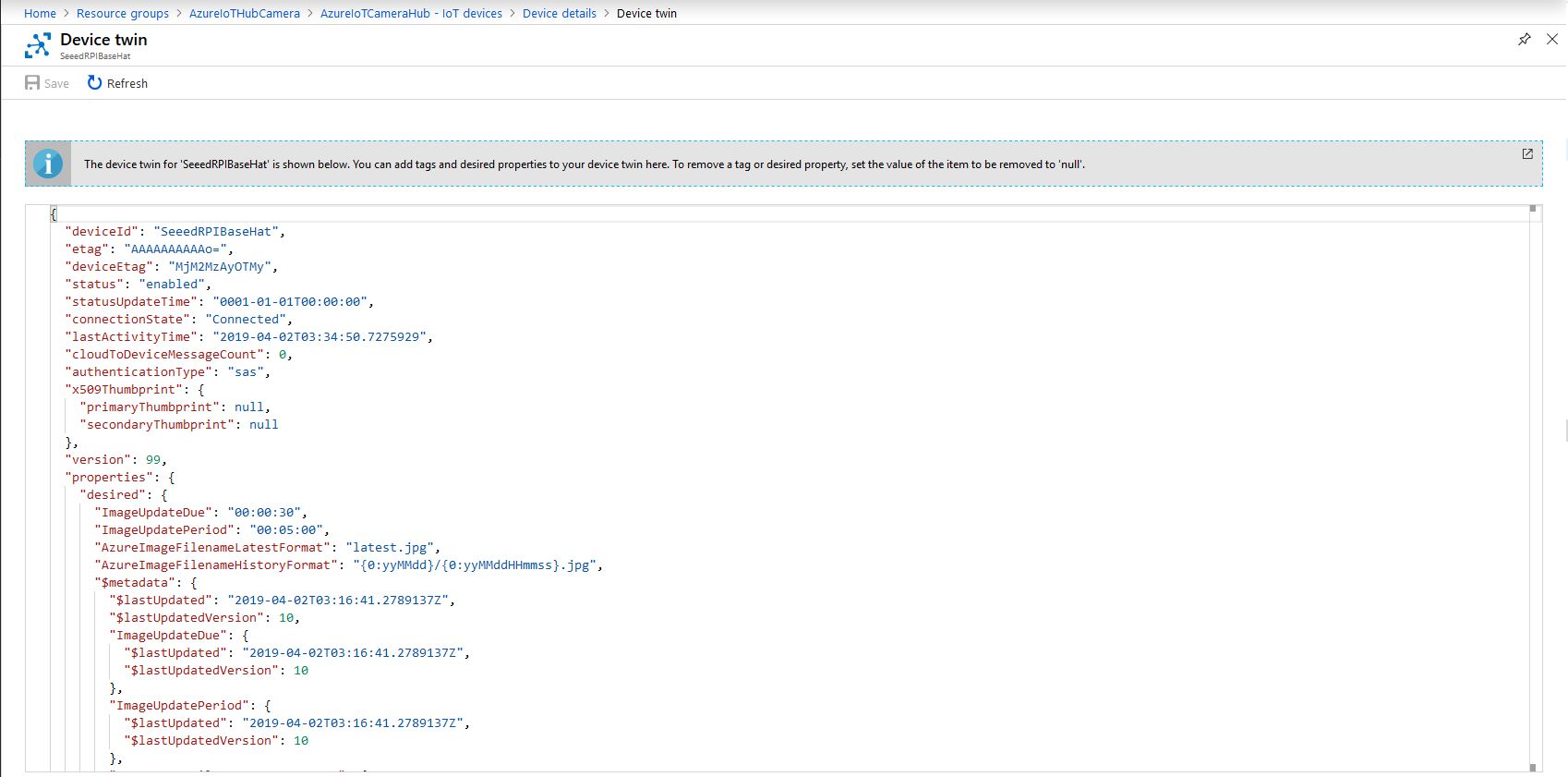
The Azure Storage file and folder name formats along with the image capture due and update periods are configured in the DeviceTwin properties. Initially I had some problems with the dynamic property types so had to .ToString and then Timespan.TryParse the periods.
Twin deviceTwin= azureIoTHubClient.GetTwinAsync().Result;

if (!deviceTwin.Properties.Desired.Contains("AzureImageFilenameLatestFormat"))
{
   this.logging.LogMessage("DeviceTwin.Properties AzureImageFilenameLatestFormat setting missing", LoggingLevel.Warning);
   return;
}
…
if (!deviceTwin.Properties.Desired.Contains("ImageUpdateDue") || !TimeSpan.TryParse(deviceTwin.Properties.Desired["ImageUpdateDue"].Value.ToString(), out imageUpdateDue))
{
   this.logging.LogMessage("DeviceTwin.Properties ImageUpdateDue setting missing or invalid format", LoggingLevel.Warning);
   return;
}
Azure Portal Device Settings
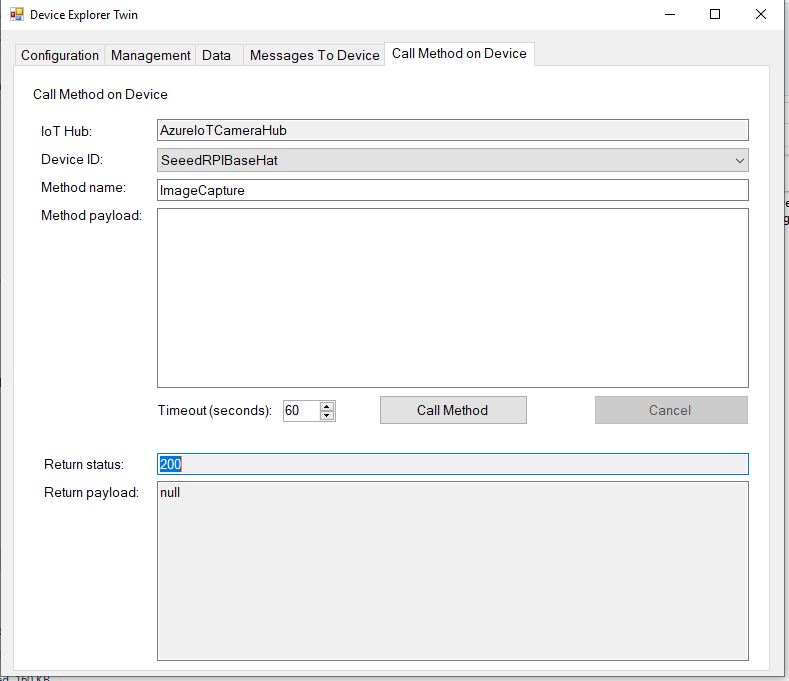
The application also supports two commands “ImageCapture’ and “DeviceReboot”. For testing I used Azure Device Explorer
After running the installer (available from GitHub) the application will create a default configuration file in
Which can be downloaded, modified then uploaded using the portal file explorer application. If you want to make the application run on device start-up the radio button below needs to be selected.
I really wanted to be able to do a time-lapse video of a storm coming up the Canterbury Plains to Christchurch and combine it with the wind direction, windspeed, temperature and humidity data from my weather station which uploads data to Azure through my Azure IoT Hub LoRa field gateway.
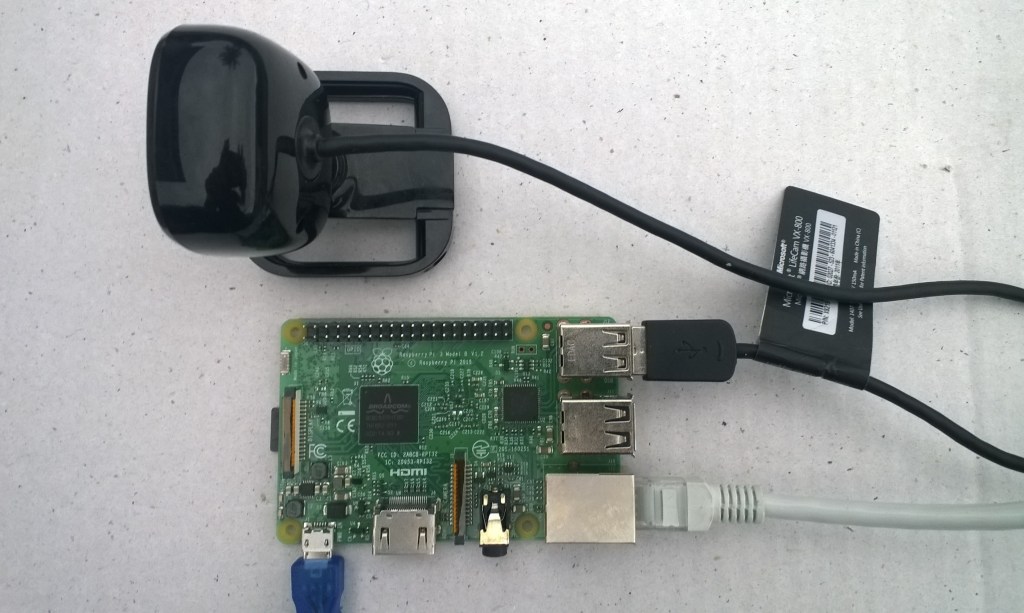
Time-lapse camera setup
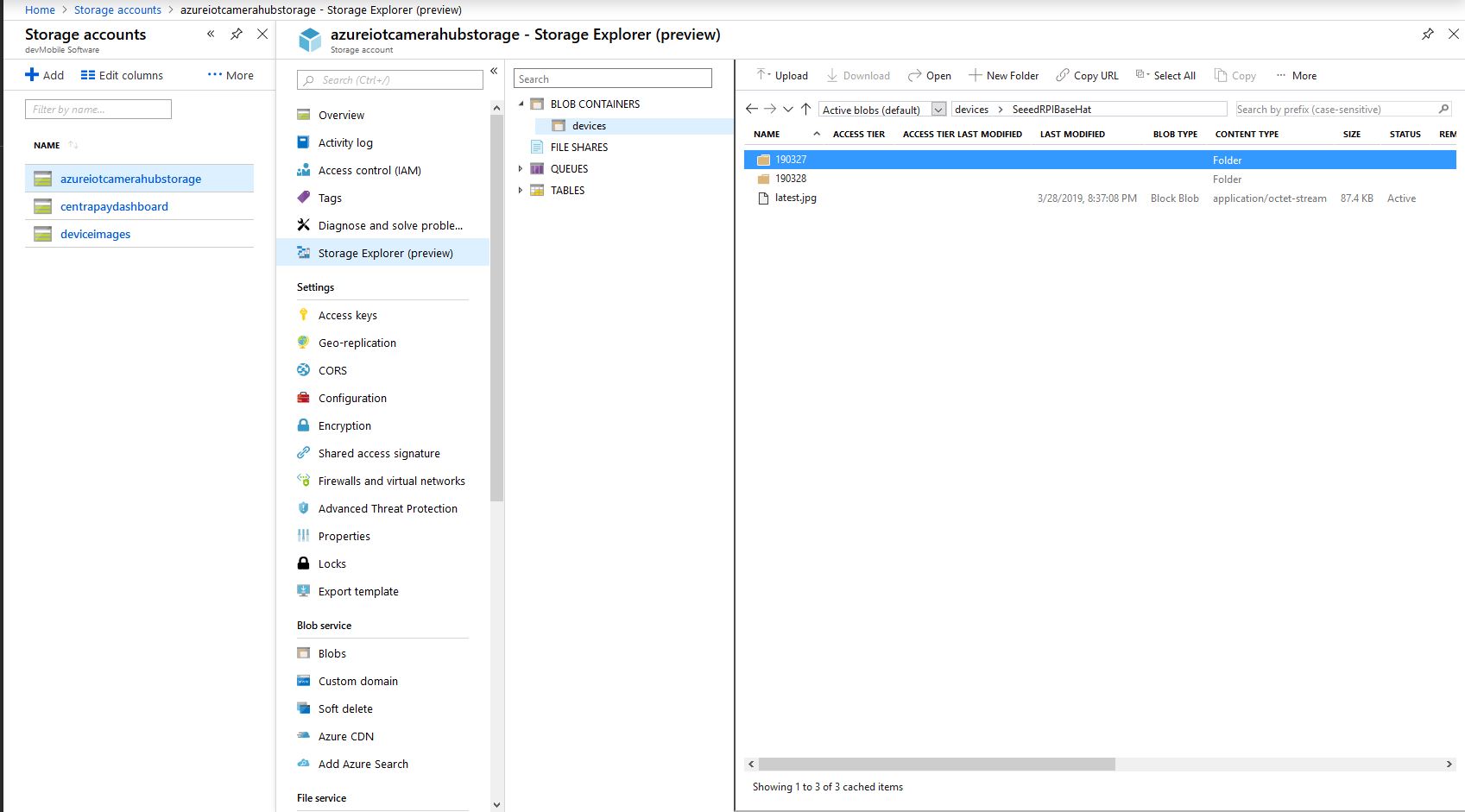
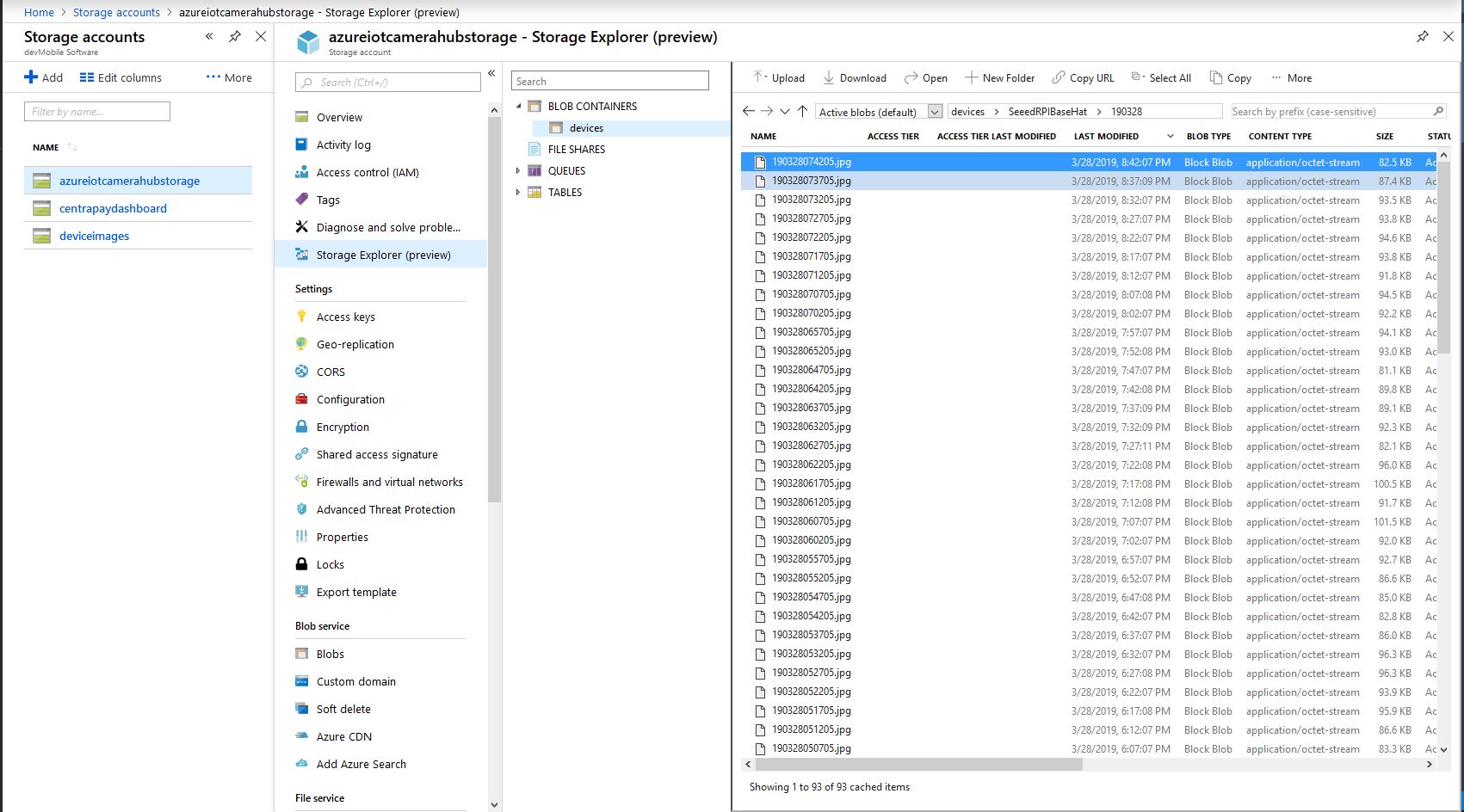
The application captures images with a configurable period after configurable start-up delay. The Azure storage root folder name is based on the device name in the Azure IoT Hub connection string. The folder(s) where the historic images are stored are configurable and the images can optionally be in monthly, daily, hourly etc. folders. The current image is stored in the root folder for the device and it’s name is configurable.
With the above setup I have a folder for each device in the historic fiolder and the most recent image i.e. “latest.jpg” in the root folder. The file and folder names are assembled with a parameterised string.format . The parameter {0} is the current UTC time
Pay attention to your folder/file name formatting, I was tripped up by
mm – minutes vs. MM – months
hh – 12 hour clock vs. HH -24 hour clock
With 12 images every hour
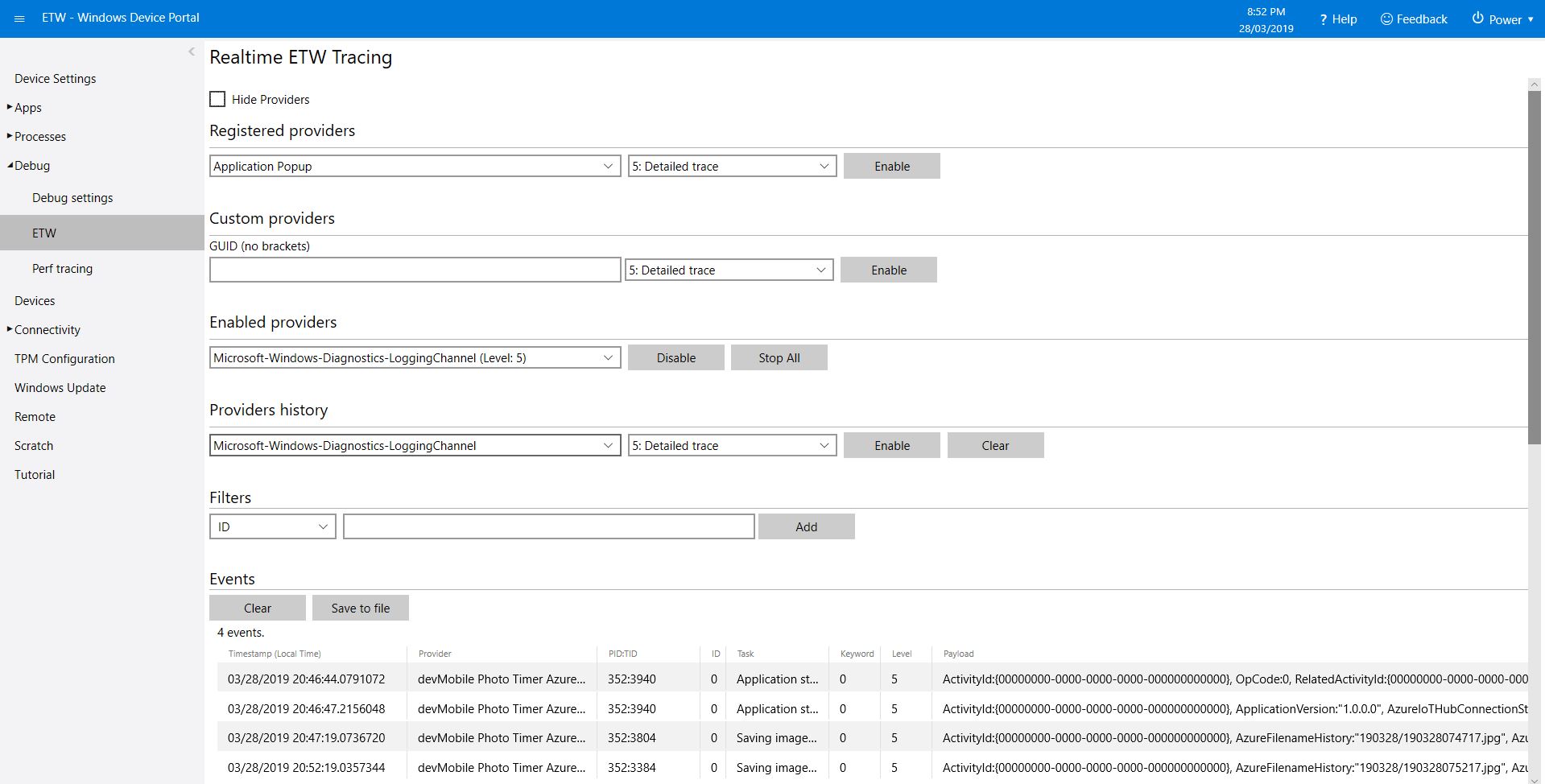
The application logs events on start-up and every time a picture is taken
After running the installer (available from GitHub) the application will create a default configuration file in
User Folders\LocalAppData\PhotoTimerTriggerAzureIoTHubStorage-uwp_1.0.0.0_arm__nmn3tag1rpsaw\LocalState\
Which can be downloaded, modified then uploaded using the portal file explorer application. If you want to make the application run on device start-up the radio button below needs to be selected.
/*
    Copyright ® 2019 March devMobile Software, All Rights Reserved

    MIT License

…
*/
namespace devMobile.Windows10IotCore.IoT.PhotoTimerTriggerAzureIoTHubStorage
{
	using System;
	using System.IO;
	using System.Diagnostics;
	using System.Threading;

	using Microsoft.Azure.Devices.Client;
	using Microsoft.Extensions.Configuration;

	using Windows.ApplicationModel;
	using Windows.ApplicationModel.Background;
	using Windows.Foundation.Diagnostics;
	using Windows.Media.Capture;
	using Windows.Media.MediaProperties;
	using Windows.Storage;
	using Windows.System;

	public sealed class StartupTask : IBackgroundTask
	{
		private BackgroundTaskDeferral backgroundTaskDeferral = null;
		private readonly LoggingChannel logging = new LoggingChannel("devMobile Photo Timer Azure IoT Hub Storage", null, new Guid("4bd2826e-54a1-4ba9-bf63-92b73ea1ac4a"));
		private DeviceClient azureIoTHubClient = null;
		private const string ConfigurationFilename = "appsettings.json";
		private Timer ImageUpdatetimer;
		private MediaCapture mediaCapture;
		private string azureIoTHubConnectionString;
		private TransportType transportType;
		private string azureStorageimageFilenameLatestFormat;
		private string azureStorageImageFilenameHistoryFormat;
		private const string ImageFilenameLocal = "latest.jpg";
		private volatile bool cameraBusy = false;

		public void Run(IBackgroundTaskInstance taskInstance)
		{
			StorageFolder localFolder = ApplicationData.Current.LocalFolder;
			int imageUpdateDueSeconds;
			int imageUpdatePeriodSeconds;

			this.logging.LogEvent("Application starting");

			// Log the Application build, OS version information etc.
			LoggingFields startupInformation = new LoggingFields();
			startupInformation.AddString("Timezone", TimeZoneSettings.CurrentTimeZoneDisplayName);
			startupInformation.AddString("OSVersion", Environment.OSVersion.VersionString);
			startupInformation.AddString("MachineName", Environment.MachineName);

			// This is from the application manifest
			Package package = Package.Current;
			PackageId packageId = package.Id;
			PackageVersion version = packageId.Version;
			startupInformation.AddString("ApplicationVersion", string.Format($"{version.Major}.{version.Minor}.{version.Build}.{version.Revision}"));

			try
			{
				// see if the configuration file is present if not copy minimal sample one from application directory
				if (localFolder.TryGetItemAsync(ConfigurationFilename).AsTask().Result == null)
				{
					StorageFile templateConfigurationfile = Package.Current.InstalledLocation.GetFileAsync(ConfigurationFilename).AsTask().Result;
					templateConfigurationfile.CopyAsync(localFolder, ConfigurationFilename).AsTask();

					this.logging.LogMessage("JSON configuration file missing, templated created", LoggingLevel.Warning);
					return;
				}

				IConfiguration configuration = new ConfigurationBuilder().AddJsonFile(Path.Combine(localFolder.Path, ConfigurationFilename), false, true).Build();

				azureIoTHubConnectionString = configuration.GetSection("AzureIoTHubConnectionString").Value;
				startupInformation.AddString("AzureIoTHubConnectionString", azureIoTHubConnectionString);

				transportType = (TransportType)Enum.Parse( typeof(TransportType), configuration.GetSection("TransportType").Value);
				startupInformation.AddString("TransportType", transportType.ToString());

				azureStorageimageFilenameLatestFormat = configuration.GetSection("AzureImageFilenameFormatLatest").Value;
				startupInformation.AddString("ImageFilenameLatestFormat", azureStorageimageFilenameLatestFormat);

				azureStorageImageFilenameHistoryFormat = configuration.GetSection("AzureImageFilenameFormatHistory").Value;
				startupInformation.AddString("ImageFilenameHistoryFormat", azureStorageImageFilenameHistoryFormat);

				imageUpdateDueSeconds = int.Parse(configuration.GetSection("ImageUpdateDueSeconds").Value);
				startupInformation.AddInt32("ImageUpdateDueSeconds", imageUpdateDueSeconds);

				imageUpdatePeriodSeconds = int.Parse(configuration.GetSection("ImageUpdatePeriodSeconds").Value);
				startupInformation.AddInt32("ImageUpdatePeriodSeconds", imageUpdatePeriodSeconds);
			}
			catch (Exception ex)
			{
				this.logging.LogMessage("JSON configuration file load or settings retrieval failed " + ex.Message, LoggingLevel.Error);
				return;
			}

			try
			{
				azureIoTHubClient = DeviceClient.CreateFromConnectionString(azureIoTHubConnectionString, transportType);
			}
			catch (Exception ex)
			{
				this.logging.LogMessage("AzureIOT Hub connection failed " + ex.Message, LoggingLevel.Error);
				return;
			}

			try
			{
				mediaCapture = new MediaCapture();
				mediaCapture.InitializeAsync().AsTask().Wait();
			}
			catch (Exception ex)
			{
				this.logging.LogMessage("Camera configuration failed " + ex.Message, LoggingLevel.Error);
				return;
			}

			ImageUpdatetimer = new Timer(ImageUpdateTimerCallback, null, new TimeSpan(0, 0, imageUpdateDueSeconds), new TimeSpan(0, 0, imageUpdatePeriodSeconds));

			this.logging.LogEvent("Application started", startupInformation);

			//enable task to continue running in background
			backgroundTaskDeferral = taskInstance.GetDeferral();
		}

		private async void ImageUpdateTimerCallback(object state)
		{
			DateTime currentTime = DateTime.UtcNow;
			Debug.WriteLine($"{DateTime.UtcNow.ToLongTimeString()} Timer triggered");

			// Just incase - stop code being called while photo already in progress
			if (cameraBusy)
			{
				return;
			}
			cameraBusy = true;

			try
			{
				using (Windows.Storage.Streams.InMemoryRandomAccessStream captureStream = new Windows.Storage.Streams.InMemoryRandomAccessStream())
				{
					await mediaCapture.CapturePhotoToStreamAsync(ImageEncodingProperties.CreateJpeg(), captureStream);
					await captureStream.FlushAsync();
#if DEBUG
					IStorageFile photoFile = await KnownFolders.PicturesLibrary.CreateFileAsync(ImageFilenameLocal, CreationCollisionOption.ReplaceExisting);
					ImageEncodingProperties imageProperties = ImageEncodingProperties.CreateJpeg();
					await mediaCapture.CapturePhotoToStorageFileAsync(imageProperties, photoFile);
#endif

					string azureFilenameLatest = string.Format(azureStorageimageFilenameLatestFormat, currentTime);
					string azureFilenameHistory = string.Format(azureStorageImageFilenameHistoryFormat, currentTime);

					LoggingFields imageInformation = new LoggingFields();
					imageInformation.AddDateTime("TakenAtUTC", currentTime);
#if DEBUG
					imageInformation.AddString("LocalFilename", photoFile.Path);
#endif
					imageInformation.AddString("AzureFilenameLatest", azureFilenameLatest);
					imageInformation.AddString("AzureFilenameHistory", azureFilenameHistory);
					this.logging.LogEvent("Saving image(s) to Azure storage", imageInformation);

					// Update the latest image in storage
					if (!string.IsNullOrWhiteSpace(azureFilenameLatest))
					{
						captureStream.Seek(0);
						Debug.WriteLine("AzureIoT Hub latest image upload start");
						await azureIoTHubClient.UploadToBlobAsync(azureFilenameLatest, captureStream.AsStreamForRead());
						Debug.WriteLine("AzureIoT Hub latest image upload done");
					}

					// Upload the historic image to storage
					if (!string.IsNullOrWhiteSpace(azureFilenameHistory))
					{
						captureStream.Seek(0);
						Debug.WriteLine("AzureIoT Hub historic image upload start");
						await azureIoTHubClient.UploadToBlobAsync(azureFilenameHistory, captureStream.AsStreamForRead());
						Debug.WriteLine("AzureIoT Hub historic image upload done");
					}
				}
			}
			catch (Exception ex)
			{
				this.logging.LogMessage("Camera photo save or AzureIoTHub storage upload failed " + ex.Message, LoggingLevel.Error);
			}
			finally
			{
				cameraBusy = false;
			}
		}
	}
}








 devMobile's blog