AdaFruit IO basic desktop HTTP client

AdaFruit IO meets my basic criteria as it has support for HTTP/S clients (it also has an MQTT interface which I will look at in a future post) and the API is well documented.

My first Proof of Concept (PoC) was to build a desktop client which used the HttpWebRequest (for ease of porting to NetMF) classes to upload data.

The program uploaded one of three simulated values to AdaFruit.IO every 10 seconds.

I found the username, group, and feed keys to be case sensitive so pay close attention to the values displayed in the webby UI or copy n paste.

program.cs

 class Program
   {
      static void Main(string[] args)
      {
         string adaFruitIOApiBaseUrl = "https://IO.adafruit.com/api/v2/";
         string adaFruitIOUserName = "YourUserName"; // This is mixed case & case sensitive
         string adaFruitIOApiKey = "YourAPIKey";
         // The feed group and feed key are forced to lower case by UI
         const string feedGroup = "";
         //const string feedGroup = "devduinov2-dot-2";
         const string temperatureKey = "t";
         const double temperatureBase = 20.0;
         const double temperatureRange = 10.0;
         const string humidityKey = "h";
         const double humidityBase = 70.0;
         const double humidityRange = 20.0;
         const string batteryVoltageKey = "v";
         const double batteryVoltageBase = 3.00;
         const double batteryVoltageRange = -1.00;
         TimeSpan dataUpdateDelay = new TimeSpan(0, 0, 10);
         Random random = new Random();

         while (true)
         {
            double temperature = temperatureBase + random.NextDouble() * temperatureRange;
            Console.WriteLine("Temperature {0}°C", temperature.ToString("F1"));
            AdaFruitIoFeedUpdate(adaFruitIOApiBaseUrl, adaFruitIOUserName, adaFruitIOApiKey, feedGroup, temperatureKey, temperature.ToString("F1"));

            Thread.Sleep(dataUpdateDelay);

            double humidity = humidityBase + random.NextDouble() * humidityRange;
            Console.WriteLine("Humidity {0}%", humidity.ToString("F0"));
            AdaFruitIoFeedUpdate(adaFruitIOApiBaseUrl, adaFruitIOUserName, adaFruitIOApiKey, feedGroup, humidityKey, humidity.ToString("F0"));

            Thread.Sleep(dataUpdateDelay);

            double batteryVoltage = batteryVoltageBase + random.NextDouble() * batteryVoltageRange;
            Console.WriteLine("Battery voltage {0}V", batteryVoltage.ToString("F2"));
            AdaFruitIoFeedUpdate(adaFruitIOApiBaseUrl, adaFruitIOUserName, adaFruitIOApiKey, feedGroup, batteryVoltageKey, batteryVoltage.ToString("F2"));

            Thread.Sleep(dataUpdateDelay);
         }
      }

client.cs

      public void AdaFruitIoFeedUpdate(string apiBaseUrl, string userName, string apiKey, string group, string feedKey, string value, int httpRequestTimeoutmSec = 2500, int httpRequestReadWriteTimeoutmSec = 5000)
      {
         string feedUrl;

         if (group.Trim() == string.Empty)
         {
            feedUrl = apiBaseUrl + userName + @"/feeds/" + feedKey + @"/data";
         }
         else
         {
            feedUrl = apiBaseUrl + userName + @"/feeds/" + group.Trim() + "." + feedKey + @"/data";
         }

         Console.WriteLine(" Feed URL :{0}", feedUrl);

         try
         {
            HttpWebRequest request = (HttpWebRequest)WebRequest.Create(feedUrl);
            {
               string payload = @"{""value"": """ + value + @"""}";

               byte[] buffer = Encoding.UTF8.GetBytes(payload);

               DateTime httpRequestedStartedAtUtc = DateTime.UtcNow;

               request.Method = "POST";
               request.ContentLength = buffer.Length;
               request.ContentType = @"application/json";
               request.Headers.Add("X-AIO-Key", apiKey);
               request.KeepAlive = false;
               request.Timeout = httpRequestTimeoutmSec;
               request.ReadWriteTimeout = httpRequestReadWriteTimeoutmSec;

               using (Stream stream = request.GetRequestStream())
               {
                  stream.Write(buffer, 0, buffer.Length);
               }

               using (var response = (HttpWebResponse)request.GetResponse())
               {
                  Console.WriteLine(" Status: " + response.StatusCode + " : " + response.StatusDescription);
               }

               TimeSpan duration = DateTime.UtcNow - httpRequestedStartedAtUtc;
               Console.WriteLine(" Duration: " + duration.ToString());
            }
         }
         catch (Exception ex)
         {
            Console.WriteLine(ex.Message);
            throw;
         }
      }
   }

This approach seemed to work pretty reliably

DesktopHTTPRequest

Xively Personal is being retired

This is going to cause me a problem especially my Netduino based nRF24 Xively Field gateway which gets used in quite a few of my student projects. I’m looking for a replacement Internet of Things service which has http/s and/or mqtt, amqp support, C & C#  client libraries (which I can get to work on Windows 10 IoT Core & NetMF) would be a bonus.

From the Xively email

”After careful consideration, LogMeIn has made the decision to retire Xively Personal from its current line of products effective January 15, 2018 at 12:00PM ET . Please note that LogMeIn will continue to offer our Xively Enterprise edition – there is no change to that edition and we will continue to support that platform as part of our IoT business.

Retiring a product is never an easy decision, and we recognize it does introduce potential challenges to active users. So we want to make sure you have all the information you need to make as seamless a transition as possible.

Access to your account:
Your Xively Personal account will remain active until January 15th. Please note that devices will not be accessible via the Xively Personal service once it is retired.

Transferring your products to another IoT service:
Should you choose to switch to another service, there are essentially two options.

1) Migrate to Xively Enterprise: The latest Enterprise version of Xively is built on a more modern and reliable architecture, which brings the benefits of pre-built hardware integrations, identity and device management features, MQTT messaging, and best-in-class security, but it may require some reconfiguring of your current devices. We do offer a 30 day free trial of Xively Enterprise should you want to try it out for yourself.

2) Migrate to another free service: If your use is primarily for experimenting and personal projects, there are several free IoT platform options on the market, such as Adafruit, Thingspeak, or SparkFun.”

One of the suggestions – Sparkfun Phant has been retired

Some possible alternatives in no particular order (this list may grow)

AdaFruit.IO – The internet of things for everyone

Microsoft IoT Central – Enterprise-grade IoT SaaS

ThingSpeak – The open IoT platform with MATLAB analytics

Blynk – Democratizing the Internet of Things

Thinger.io platform

SenseIoT – Internet of Things Data Hosting Platform

Temboo – Tools for Digital Transformation

Carriots by Altair

Nearbus – An IoT Open Project

ubidots – An application Builder for the Internet of Things

Kii Cloud

Artik – End-to-end IoT Platform

goplusplatform – Connect your things with GO+

I’m initially looking for a platform which is the “least painful” transition from Xively.

nRF24 Windows 10 IoT Core Background Task

First step is to build a basic Windows 10 IoT Core background task which can receive and display messages sent from a variety of devices across an nRF24L01 wireless link.

If you create a new “Windows IoT Core” “Background Application” project then copy this code into StartupTasks.cs the namespace has to be changed in the C# file, project properties\library\Default namespace and “Package.appxmanifest”\declarations\Entry Point.

/*

Copyright ® 2017 December devMobile Software, All Rights Reserved

THIS CODE AND INFORMATION IS PROVIDED "AS IS" WITHOUT WARRANTY OF ANY
KIND, EITHER EXPRESSED OR IMPLIED, INCLUDING BUT NOT LIMITED TO THE
IMPLIED WARRANTIES OF MERCHANTABILITY AND/OR FITNESS FOR A PARTICULAR
PURPOSE.

http://www.devmobile.co.nz

*/
using System;
using System.Diagnostics;
using System.Text;
using Radios.RF24;
using Windows.ApplicationModel.Background;

namespace devmobile.IoTCore.nRF24BackgroundTask
{
    public sealed class StartupTask : IBackgroundTask
    {
      private const byte ChipEnablePin = 25;
      private const byte ChipSelectPin = 0;
      private const byte nRF24InterruptPin = 17;
      private const string BaseStationAddress = "Base1";
      private const byte nRF24Channel = 10;
      private RF24 Radio = new RF24();
      private BackgroundTaskDeferral deferral;

      public void Run(IBackgroundTaskInstance taskInstance)
        {
         Radio.OnDataReceived += Radio_OnDataReceived;
         Radio.OnTransmitFailed += Radio_OnTransmitFailed;
         Radio.OnTransmitSuccess += Radio_OnTransmitSuccess;

         Radio.Initialize(ChipEnablePin, ChipSelectPin, nRF24InterruptPin);
         Radio.Address = Encoding.UTF8.GetBytes(BaseStationAddress);
         Radio.Channel = nRF24Channel;
         Radio.PowerLevel = PowerLevel.High;
         Radio.DataRate = DataRate.DR250Kbps;
         Radio.IsEnabled = true;

         Debug.WriteLine("Address: " + Encoding.UTF8.GetString(Radio.Address));
         Debug.WriteLine("PA: " + Radio.PowerLevel);
         Debug.WriteLine("IsAutoAcknowledge: " + Radio.IsAutoAcknowledge);
         Debug.WriteLine("Channel: " + Radio.Channel);
         Debug.WriteLine("DataRate: " + Radio.DataRate);
         Debug.WriteLine("IsDynamicAcknowledge: " + Radio.IsDyanmicAcknowledge);
         Debug.WriteLine("IsDynamicPayload: " + Radio.IsDynamicPayload);
         Debug.WriteLine("IsEnabled: " + Radio.IsEnabled);
         Debug.WriteLine("Frequency: " + Radio.Frequency);
         Debug.WriteLine("IsInitialized: " + Radio.IsInitialized);
         Debug.WriteLine("IsPowered: " + Radio.IsPowered);

         deferral = taskInstance.GetDeferral();

         Debug.WriteLine("Run completed");
      }

      private void Radio_OnDataReceived(byte[] data)
      {
         // Display as Unicode
         string unicodeText = Encoding.UTF8.GetString(data);
         Debug.WriteLine("Unicode - Payload Length {0} Unicode Length {1} Unicode text {2}", data.Length, unicodeText.Length, unicodeText);

         // display as hex
         Debug.WriteLine("Hex - Length {0} Payload {1}", data.Length, BitConverter.ToString(data));
      }

      private void Radio_OnTransmitSuccess()
      {
         Debug.WriteLine("Transmit Succeeded!");
      }

      private void Radio_OnTransmitFailed()
      {
         Debug.WriteLine("Transmit Failed!");
      }
   }
}

This was displayed in the output window of Visual Studio

Address: Base1
PA: 15
IsAutoAcknowledge: True
Channel: 10
DataRate: DR250Kbps
IsDynamicAcknowledge: False
IsDynamicPayload: True
IsEnabled: True
Frequency: 2410
IsInitialized: True
IsPowered: True
Run completed

Interrupt Triggered: FallingEdge
Unicode – Payload Length 19 Unicode Length 19 Unicode text T  23.8,H  73,V 3.26
Hex – Length 19 Payload 54-20-32-33-2E-38-2C-48-20-20-37-33-2C-56-20-33-2E-32-36
Interrupt Triggered: RisingEdge

Note the odd formatting of the Temperature and humidity values which is due to the way dtostrf function in the Atmel AVR library works.

Also noticed the techfooninja nRF24 library has configurable output power level which I will try to retrofit onto the Gralin NetMF library.

Next, several simple Arduino, devDuino V2.2, Seeeduino V4.2 and Netduino 2/3 clients (plus possibly some others)

nRF24 Windows 10 IoT Core reboot

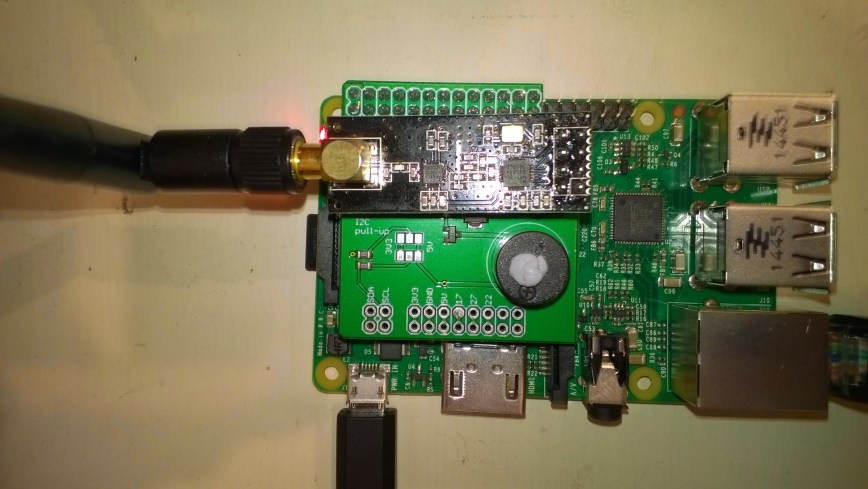
My first live deployment of the nRF24L01 Windows 10 IoT Core field gateway is now scheduled for mid Q1 2018 so time for a reboot. After digging out my Raspbery PI 2/3 devices and the nRF24L01+ shield (with modifications detailed here) I have a basic plan with some milestones.

My aim is to be able to wirelessly acquire data from several dozen Arduino, devduino, seeeduino, and Netduino devices, Then, using a field gateway on a Raspberry PI running Windows 10 IoT Core upload it to Microsoft IoT Central

First bit of code – Bleepy a simple background application to test the piezo beeper on the RPI NRF24 Shield

namespace devmobile.IoTCore.Bleepy
{
   public sealed class StartupTask : IBackgroundTask
   {
      private BackgroundTaskDeferral deferral;
      private const int ledPinNumber = 4;
      private GpioPin ledGpioPin;
      private ThreadPoolTimer timer;

      public void Run(IBackgroundTaskInstance taskInstance)
      {
         var gpioController = GpioController.GetDefault();
         if (gpioController == null)
         {
            Debug.WriteLine("GpioController.GetDefault failed");
            return;
         }

         ledGpioPin = gpioController.OpenPin(ledPinNumber);
         if (ledGpioPin == null)
         {
            Debug.WriteLine("gpioController.OpenPin failed");
            return;
         }

         ledGpioPin.SetDriveMode(GpioPinDriveMode.Output);

         this.timer = ThreadPoolTimer.CreatePeriodicTimer(Timer_Tick, TimeSpan.FromMilliseconds(500));

         deferral = taskInstance.GetDeferral();

         Debug.WriteLine("Rum completed");
      }

      private void Timer_Tick(ThreadPoolTimer timer)
      {
         GpioPinValue currentPinValue = ledGpioPin.Read();

         if (currentPinValue == GpioPinValue.High)
         {
            ledGpioPin.Write(GpioPinValue.Low);
         }
         else
         {
            ledGpioPin.Write(GpioPinValue.High);
         }
      }
   }
}

Note the blob of blu tack over the piezo beeper to mute noise
nRF24ShieldMuted

nRF24 Windows 10 IoT Core Hardware

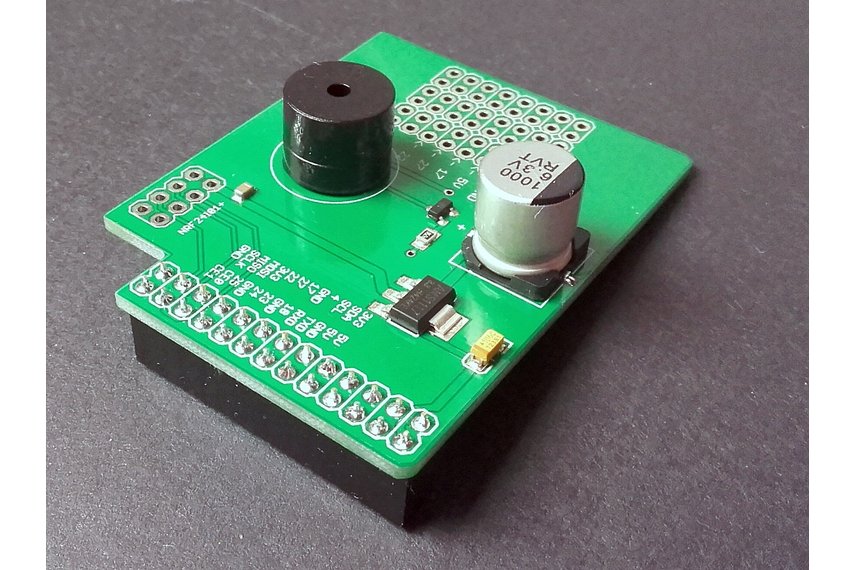
Taking my own advice I decided to purchase a couple of Raspberry Pi to NRF24L01 shields from Ceech a vendor on Tindie.

The nRF24L01 libraries for my .Net Micro framework and WIndows 10 IoT Core devices use an interrupt driver approach rather than polling status registers to see what is going on.

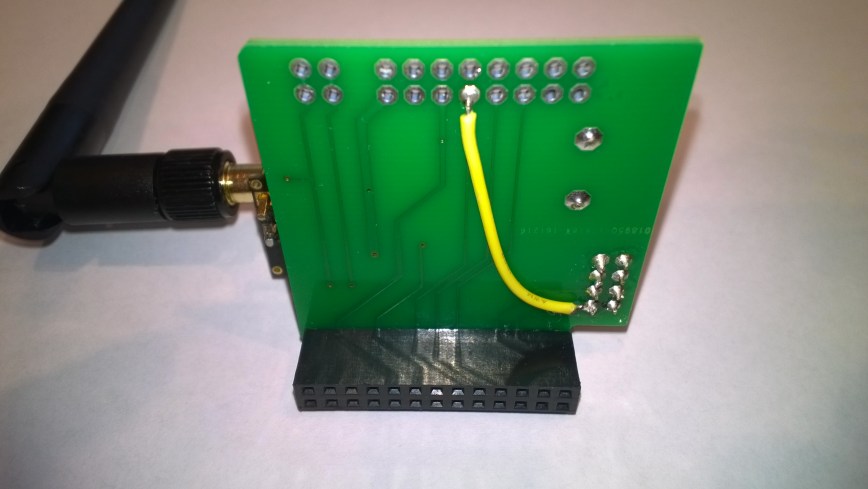
Like most Raspberry PI shields intended to be used with a *nix based operating system the interrupt pin was not connected to a General Purpose Input/Output (GPIO) pin.

NRF24PiPlateModification

My first step was to add a jumper wire from the pin 8 on the nRF24L01 to GPIO pin 17 on Raspberry PI connector.

I then downloaded the techfooninja Radios.RF24 library for Windows IoT core and update the configuration to suit my modifcations. In the TestApp the modifications were limited to changing the interrupt pin from GPI 4 to GPO 17

private const byte IRQ_PIN = 4;

private const byte IRQ_PIN = 17;

I used a socket for the nRF24L01 device so I can trial different devices, for a production system I would solder the device to the shield to improve reliability.

RPiWithnRF24Plate

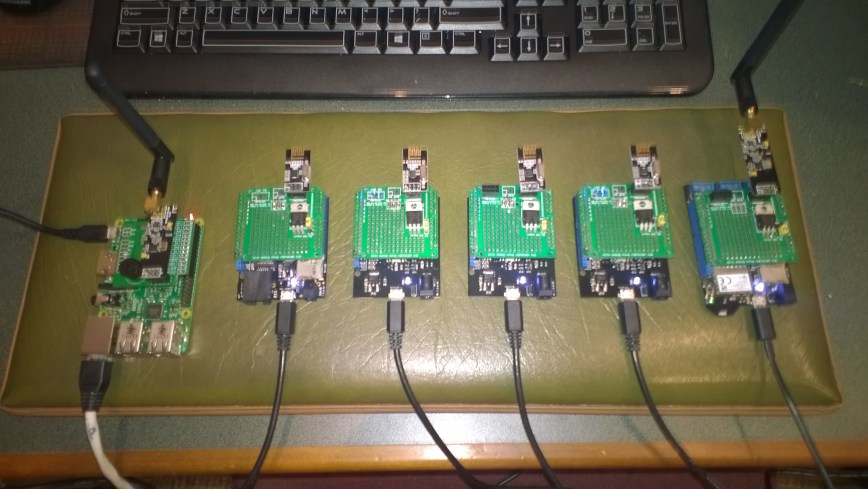
I then ran the my test application software in a stress test rig overnight to check for any reliability issues. The 5 x netduino devices were sending messages every 500mSec

RPIStressTester

nRF24L01 Raspberry PI Gateway Hardware

For those who came to my MS Ignite AU Intelligent Cloud booth session

Building Wireless Field Gateways

Connecting wireless sensor nodes to the cloud is not the mission it used to be, because the Azure team (and many OS projects) have developed tooling which can help hobbyist and professional developers build solutions. How could you build a home scale robust, reliable and secure solution with off the shelf kit without blowing the budget?

Sparkfun nRF24L01 module &Adafruit perma proto hat

NRF24L01 Raspberry PI DIY Gateway Hardware

BoM (all prices as at Feb 2016)

You will also need some short lengths of wire and a soldering iron.

For those who want an “off the shelf” solution (still requires a minor modification for interrupt support) I have used the Raspberry Pi to NRF24l01+ Shield USD9.90

2015-09-25t072754-447z-20150925_091942-855x570_q85_pad_rcrop

Instructions for modifications and software to follow.

Mikrobus.Net Quail, Weather & nRF-C clicks and xively

My next proof of concept uses a Weather click and nRF C click to upload temperature and humidity data to a Xively gateway running on a spare Netduino 2 Plus. I have a couple of Azure Event hub gateways (direct & queued) which require a Netduino 3 Wifi (for TLS/AMQPS support) and I’ll build a client for them in a coming post.

I initially purchased an nRF T click but something wasn’t quite right with its interrupt output. The interrupt line wasn’t getting pulled low at all so there were no send success/failure events. If I disabled the pull up resistor and strobed the interrupt pin on start-up the device would work for a while.


using (OutputPort Int = new OutputPort(socket.Int, true))
{
 Int.Write(true);
};

...

_irqPin = new InterruptPort(socket.Int, false, Port.ResistorMode.Disabled, Port.InterruptMode.InterruptEdgeLow);

The code sends a reading every 10 seconds and has been running for a couple of days. It strobes Led1 for each successful send and turns on Led2 when a send fails.

private static readonly byte[] deviceAddress = Encoding.UTF8.GetBytes("Quail");
private static readonly byte[] gatewayAddress = Encoding.UTF8.GetBytes("12345");
private const byte gatewayChannel = 10;
private const NRFC.DataRate gatewayDataRate = NRFC.DataRate.DR1Mbps;
private const int XivelyUpdateDelay = 10000;
private const char XivelyGatewayChannelIdTemperature = 'J';
private const char XivelyGatewayChannelIdHumidity = 'K';

public static void Main()
{
   NRFC nRF24Click = new NRFC(Hardware.SocketFour);
   nRF24Click.Configure(deviceAddress, gatewayChannel, gatewayDataRate);
   nRF24Click.OnTransmitFailed += nRF24Click_OnTransmitFailed;
   nRF24Click.OnTransmitSuccess += nRF24Click_OnTransmitSuccess;
   nRF24Click.Enable();

   // Configure the weather click
   WeatherClick weatherClick = new WeatherClick(Hardware.SocketOne, WeatherClick.I2CAddresses.Address0);
   weatherClick.SetRecommendedMode(WeatherClick.RecommendedModes.WeatherMonitoring);

   Thread.Sleep(XivelyUpdateDelay);

   while (true)
   {
      string temperatureMessage = XivelyGatewayChannelIdTemperature + weatherClick.ReadTemperature().ToString("F1");
      Debug.Print(temperatureMessage);
      MBN.Hardware.Led1.Write(true);
      nRF24Click.SendTo(gatewayAddress, Encoding.UTF8.GetBytes(temperatureMessage));

      Thread.Sleep(XivelyUpdateDelay);

      string humidityMessage = XivelyGatewayChannelIdHumidity + weatherClick.ReadHumidity().ToString("F1");
      Debug.Print(humidityMessage);
      MBN.Hardware.Led1.Write(true);
      nRF24Click.SendTo(gatewayAddress, Encoding.UTF8.GetBytes(humidityMessage));

      Thread.Sleep(XivelyUpdateDelay);
   }
}

static void nRF24Click_OnTransmitSuccess()
{
   MBN.Hardware.Led1.Write(false);
   if (MBN.Hardware.Led2.Read())
   {
      MBN.Hardware.Led2.Write(false);
   }

   Debug.Print("nRF24Click_OnTransmitSuccess");
}

static void nRF24Click_OnTransmitFailed()
{
   MBN.Hardware.Led2.Write(true);

   Debug.Print("nRF24Click_OnTransmitFailed");
}

I need to have a look at interfacing some more sensors and soak testing the solution.

The MikroBus.Net team have done a great job with the number & quality of the drivers they have available.

Mikrobus.Net Quail, EthClick and xively

My second proof of concept application for the Mikrobus.Net Quail and EthClick uploads temperature and humidity data to Xively every 30 seconds for display and analysis.

Temperature and humidity Xively data stream

Temperature and humidity Xively data stream

The Xively REST API uses an HTTP PUT which initially didn’t work because the payload was not getting attached.

I patched the AssembleRequest method in the EtherClick driver to fix this issue.

private byte[] AssembleRequest()
{
   var a = RequestType;
   a += " " + Path + " " + Protocol + "\r\nHost: ";
   a += Host + "\r\n";

   foreach (object aHeader in Headers.Keys)
      a += (string)aHeader + ": " + (string)Headers[aHeader] + "\r\n";

   a += "\r\n"; // Cache-Control: no-cache\r\n  //Accept-Charset: utf-8;\r\n

   if (Content != null && Content != string.Empty && (RequestType == "POST" || RequestType == "PUT")) a += Content;

   return Encoding.UTF8.GetBytes(a);
}

The code reads the WeatherClick temperature and humidity values then assembles a CSV payload which it uploads with an HTTP PUT

</pre>
public class Program
{
   private const string xivelyHost = @"api.xively.com";
   private const string xivelyApiKey = @"YourAPIKey";
   private const string xivelyFeedId = @"YourFeedID";

   public static void Main()
   {
      WeatherClick weatherClick = new WeatherClick(Hardware.SocketOne, WeatherClick.I2CAddresses.Address0);
      weatherClick.SetRecommendedMode(WeatherClick.RecommendedModes.WeatherMonitoring);

      EthClick ethClick = new EthClick(Hardware.SocketTwo);
      ethClick.Start(ethClick.GenerateUniqueMacAddress("devMobileSoftware"), "QuailDevice");

      // Wait for an internet connection
      while (true)
      {
         if (ethClick.ConnectedToInternet)
         {
            Debug.Print("Connected to Internet");
            break;
         }
         Debug.Print("Waiting on Internet connection");
      }

      while (true)
      {
         Debug.Print("T " + weatherClick.ReadTemperature().ToString("F1") + " H " + weatherClick.ReadHumidity().ToString("F1") + " P " + weatherClick.ReadPressure(PressureCompensationModes.Uncompensated).ToString("F1"));

         HttpRequest request = new HttpRequest(@"http://" + xivelyHost + @"/v2/feeds/" + xivelyFeedId + @".csv");
         request.Host = xivelyHost;
         request.RequestType = "PUT";
         request.Headers.Add("Content-Type", "text/csv");
         request.Headers.Add("X-ApiKey", xivelyApiKey );

         request.Content = "OfficeT," + weatherClick.ReadTemperature().ToString("F1") + "\r\n" + "OfficeH," + weatherClick.ReadHumidity().ToString("F1") ;
         request.Headers.Add("Content-Length", request.Content.Length.ToString());

         var response = request.Send();
         if (response != null)
         {
            Debug.Print("Response: " + response.Message);
         }
         else
         {
            Debug.Print("No response");
         }
      Thread.Sleep(30000);
      }
   }
}
MikrobustNet Quail with Eth and Weather Clicks

MikrobustNet Quail with Eth and Weather Clicks

This proof of concept code appears to be reliable and has run for days at a time. The IP stack looks like it needs a bit more work.

Netduino 3 Wifi Queued Azure Event Hub Field Gateway V1.0

My ADSL connection had been a bit flaky which had meant I had lost some sensor data with my initial Azure Event Hub gateway. In attempt make the solution more robust this version of the gateway queues unsent messages using the on-board MicroSD card support.

The code assumes that a file move is an “atomic operation”, so it streams the events received from the devices into a temporary directory (configurable) then moves them to the upload directory (configurable).

This code is proof of concept and needs to be soak tested, improved error handling and some additional multi threading locking added plus the magic constants refactored.

This code is called in the nRF24 receive messages handler

private void OnReceive(byte[] data)
{
   activityLed.Write(!activityLed.Read());

   // Ensure that we have a payload
   if (data.Length < 1 )
   {
      Debug.Print( "ERROR - Message has no payload" ) ;
      return ;
   }

   string message = new String(Encoding.UTF8.GetChars(data));
   Debug.Print("+" + DateTime.UtcNow.ToString("HH:mm:ss") + " L=" + data.Length + " M=" + message);

   string filename = DateTime.UtcNow.ToString("yyyyMMddhhmmssff") + ".txt";

   string tempDirectory = Path.Combine("\\sd", "temp");
   string tempFilePath = Path.Combine(tempDirectory, filename);

   string queueDirectory = Path.Combine("\\sd", "data");
   string queueFilePath = Path.Combine(queueDirectory, filename);

   File.WriteAllBytes(tempFilePath, data);

   File.Move(tempFilePath, queueFilePath);

   new Microsoft.SPOT.IO.VolumeInfo("\\sd").FlushAll();
}

A timer initiates the upload process which uses the AMQPNetlite library

bool UploadInProgress = false;

      
void uploaderCallback(object state)
{
   Debug.Print("uploaderCallback - start");

   if (UploadInProgress)
   {
      return;
   }
   UploadInProgress = true;

   string[] eventFilesToSend = Directory.GetFiles(Path.Combine("\\sd", "data")) ;

   if ( eventFilesToSend.Length == 0 )
   {
      Debug.Print("uploaderCallback - no files");
      UploadInProgress = false;
      return ;
   }

   try
   {
      Debug.Print("uploaderCallback - Connect");
      Connection connection = new Connection(new Address(serviceBusHost, serviceBusPort, serviceBusSasKeyName, serviceBusSasKey));

      Session session = new Session(connection);

      SenderLink sender = new SenderLink(session, "send-link", eventHubName);

      for (int index = 0; index < System.Math.Min(eventUploadBatchSizeMaximum, eventFilesToSend.Length); index++)
      {
         string eventFile = eventFilesToSend[ index ] ;

         Debug.Print("-" + DateTime.UtcNow.ToString("HH:mm:ss") + " " + eventFile ); ;

         Message message = new Message()
         {
            BodySection = new Data()
            {
               Binary = File.ReadAllBytes(eventFile),
            },
         ApplicationProperties = new Amqp.Framing.ApplicationProperties(),
         };

         FileInfo fileInfo = new FileInfo(eventFile);

         message.ApplicationProperties["AcquiredAtUtc"] = fileInfo.CreationTimeUtc;
         message.ApplicationProperties["UploadedAtUtc"] = DateTime.UtcNow;
         message.ApplicationProperties["GatewayId"] = gatewayId;
         message.ApplicationProperties["DeviceId"] = deviceId;
         message.ApplicationProperties["EventId"] = Guid.NewGuid();

         sender.Send(message);

         File.Delete(eventFile);

         new Microsoft.SPOT.IO.VolumeInfo("\\sd").FlushAll();
      }

      sender.Close();
      session.Close();
      connection.Close();
   }
   catch (Exception ex)
   {
      Debug.Print("ERROR: Upload failed with error: " + ex.Message);
   }
   finally
   {
      Debug.Print("uploaderCallback - finally");
      UploadInProgress = false;
   }
}

The timer period and number of files uploaded in each batch is configurable. I need to test the application to see how it handles power outages and MicroSD card corruption. The source is Netduino NRF24L01 AMQPNetLite Queued Azure EventHub Gatewaywith all the usual caveats.

This project wouldn’t have been possible without

Netduino 3 Wifi pollution Sensor Part 2

In a previous post I had started building a driver for the Seeedstudio Grove Dust Sensor. It was a proof of concept and it didn’t handle some edge cases well.

While building the pollution monitor with a student we started by simulating the negative occupancy of the Shinyei PPD42NJ Particle sensor with the Netduino’s on-board button. This worked and reduced initial complexity. But it also made it harder to simulate the button being pressed as the program launches (the on-board button is also the reset button), or simulate if the button was pressed at the start or end of the period.

Dust sensor simulation with button

Netduino 3 Wifi Test Harness

The first sample code processes button press interrupts and displays the values of the data1 & data2 parameters

public class Program
{
   public static void Main()
   {
      InterruptPort button = new InterruptPort(Pins.GPIO_PIN_D5, false, Port.ResistorMode.Disabled, Port.InterruptMode.InterruptEdgeBoth);
      button.OnInterrupt += button_OnInterrupt;

      Thread.Sleep(Timeout.Infinite);
   }

   static void button_OnInterrupt(uint data1, uint data2, DateTime time)
   {
      Debug.Print(time.ToString("hh:mm:ss.fff") + " data1 =" + data1.ToString() + " data2 = " + data2.ToString());
   }
}

Using the debugging output from this application we worked out that data1 was the Microcontroller Pin number and data2 was the button state.

12:00:14.389 data1 =24 data2 = 0
12:00:14.389 data1 =24 data2 = 1
12:00:14.389 data1 =24 data2 = 0
12:00:15.851 data1 =24 data2 = 1
12:00:16.078 data1 =24 data2 = 0

We then extended the code to record the duration of each button press.

public class Program
{
   static DateTime buttonLastPressedAtUtc = DateTime.UtcNow;

   public static void Main()
   {
      InterruptPort button = new InterruptPort(Pins.ONBOARD_BTN, false, Port.ResistorMode.Disabled, Port.InterruptMode.InterruptEdgeBoth);
      button.OnInterrupt += button_OnInterrupt;

      Thread.Sleep(Timeout.Infinite);
   }

   static void button_OnInterrupt(uint data1, uint data2, DateTime time)
   {
      if (data2 == 0)
      {
         TimeSpan duration = time - buttonLastPressedAtUtc;

         Debug.Print(duration.ToString());
      }
      else
      {
         buttonLastPressedAtUtc = time;
      }
   }
}

The thread ” (0x4) has exited with code 0 (0x0).
00:00:00.2031790
00:00:00.1954150
00:00:00.1962350

The next step was to keep track of the total duration of the button presses since the program started executing.

public class Program
{
   static DateTime buttonLastPressedAtUtc = DateTime.UtcNow;
   static TimeSpan buttonPressedDurationTotal;

   public static void Main()
   {
      InterruptPort button = new InterruptPort(Pins.ONBOARD_BTN, false, Port.ResistorMode.Disabled, Port.InterruptMode.InterruptEdgeBoth);
      button.OnInterrupt += button_OnInterrupt;

      Thread.Sleep(Timeout.Infinite);
   }

   static void button_OnInterrupt(uint data1, uint data2, DateTime time)
   {
      if (data2 == 0)
      {
         TimeSpan duration = time - buttonLastPressedAtUtc;

         buttonPressedDurationTotal += duration;
          Debug.Print(duration.ToString() + " " + buttonPressedDurationTotal.ToString());
      }
      else
      {
         buttonLastPressedAtUtc = time;
      }
   }
}

The thread ” (0x4) has exited with code 0 (0x0).
00:00:00.2476460 00:00:00.2476460
00:00:00.2193600 00:00:00.4670060
00:00:00.2631400 00:00:00.7301460
00:00:00.0001870 00:00:00.7303330

We then added a timer to display the amount of time the button was pressed in the configured period.

public class Program
{
   static TimeSpan measurementDueTime = new TimeSpan(0, 0, 30);
   static TimeSpan measurementperiodTime = new TimeSpan(0, 0, 30);
   static DateTime buttonLastPressedAtUtc = DateTime.UtcNow;
   static TimeSpan buttonPressedDurationTotal;


   public static void Main()
   {
      InterruptPort button = new InterruptPort(Pins.GPIO_PIN_D5, false, Port.ResistorMode.Disabled, Port.InterruptMode.InterruptEdgeBoth);
      button.OnInterrupt += button_OnInterrupt;

      Timer periodTimer = new Timer(periodTimerProc, button, measurementDueTime, measurementperiodTime);

      Thread.Sleep(Timeout.Infinite);
   }

   static void periodTimerProc(object status)
   {
      InterruptPort button = (InterruptPort)status;

      if (button.Read())
      {
         TimeSpan duration = DateTime.UtcNow - buttonLastPressedAtUtc;

         buttonPressedDurationTotal += duration; 
      }

      Debug.Print(buttonPressedDurationTotal.ToString());

      buttonPressedDurationTotal = new TimeSpan(0, 0, 0);
      buttonLastPressedAtUtc = DateTime.UtcNow;
   }

   static void button_OnInterrupt(uint data1, uint data2, DateTime time)
   {
      if (data2 == 0)
      {
         TimeSpan duration = time - buttonLastPressedAtUtc;

         buttonPressedDurationTotal += duration;

         Debug.Print(duration.ToString() + " " + buttonPressedDurationTotal.ToString());
      }
      else
      {
         buttonLastPressedAtUtc = time;
      }
   }
}

The thread ” (0x4) has exited with code 0 (0x0).
00:00:00
00:00:00
00:00:00.2299050 00:00:00.2299050
00:00:00.1956980 00:00:00.4256030
00:00:00.1693190 00:00:00.5949220
00:00:00.5949220

After some testing we identified that the handling of button presses at the period boundaries was problematic and revised the code some more. We added a timer for the startup period to simplify the interrupt handling code.

public class Program
{
   static TimeSpan measurementDueTime = new TimeSpan(0, 0, 60);
   static TimeSpan measurementperiodTime = new TimeSpan(0, 0, 30);
   static DateTime buttonLastPressedAtUtc = DateTime.UtcNow;
   static TimeSpan buttonPressedDurationTotal;

   public static void Main()
   {
      InterruptPort button = new InterruptPort(Pins.GPIO_PIN_D5, false, Port.ResistorMode.Disabled, Port.InterruptMode.InterruptEdgeBoth);
      button.OnInterrupt += button_OnInterrupt;

      Timer periodTimer = new Timer(periodTimerProc, button, Timeout.Infinite, Timeout.Infinite);

      Timer startUpTImer = new Timer(startUpTimerProc, periodTimer, measurementDueTime.Milliseconds, Timeout.Infinite);

      Thread.Sleep(Timeout.Infinite);
   }

   static void startUpTimerProc(object status)
   {
      Timer periodTimer = (Timer)status;

      Debug.Print( DateTime.UtcNow.ToString("hh:mm:ss") + " -Startup complete");

      buttonLastPressedAtUtc = DateTime.UtcNow;
      periodTimer.Change(measurementDueTime, measurementperiodTime);
   }

   static void periodTimerProc(object status)
   {
      InterruptPort button = (InterruptPort)status;
      Debug.Print(DateTime.UtcNow.ToString("hh:mm:ss") + " -Period timer");

      if (button.Read())
      {
         TimeSpan duration = DateTime.UtcNow - buttonLastPressedAtUtc;

         buttonPressedDurationTotal += duration;
      }

      Debug.Print(buttonPressedDurationTotal.ToString());

      buttonPressedDurationTotal = new TimeSpan(0, 0, 0);
      buttonLastPressedAtUtc = DateTime.UtcNow;
   }

   static void button_OnInterrupt(uint data1, uint data2, DateTime time)
   {
      Debug.Print(DateTime.UtcNow.ToString("hh:mm:ss") + " -OnInterrupt");

      if (data2 == 0)
      {
         TimeSpan duration = time - buttonLastPressedAtUtc;

         buttonPressedDurationTotal += duration;

         Debug.Print(duration.ToString() + " " + buttonPressedDurationTotal.ToString());
      }
      else
      {
         buttonLastPressedAtUtc = time;
      }
   }
}

The debugging output looked positive, but more testing is required.

The thread ” (0x2) has exited with code 0 (0x0).
12:00:13 -Startup complete
12:01:13 -Period timer
00:00:00
12:01:43 -Period timer
00:00:00
12:01:46 -OnInterrupt
12:01:48 -OnInterrupt
00:00:01.2132510 00:00:01.2132510
12:01:49 -OnInterrupt
12:01:50 -OnInterrupt
00:00:01.3001240 00:00:02.5133750
12:01:53 -OnInterrupt
12:01:54 -OnInterrupt
00:00:01.1216510 00:00:03.6350260
12:02:13 -Period timer
00:00:03.6350260

Next steps – multi threading, extract code into a device driver and extend to support sensors like the SeeedStudio Smart dust Sensor which has two digital outputs, one for small particles (e.g. smoke) the other for larger particles (e.g. dust).