Random wanderings through Microsoft Azure esp. PaaS plumbing, the IoT bits, AI on Micro controllers, AI on Edge Devices, .NET nanoFramework, .NET Core on *nix and ML.NET+ONNX
For a couple of weeks Myriota Developer Toolkit has been sitting under my desk and today I got some time to setup a device, register it, then upload some data.
ASP.NET Core identityRoles can also have individual claims but with the authorisation model of the legacy application I work on this functionality hasn’t been useful. We use role based authentication with a few user claims to minimise the size of our Java Web Tokens(JWT)
Visual Studio 2022 ASP.NET Core Web Application template options
I tried to minimise the modifications to the application. I added EnableRetryOnFailure, some changes to names spaces etc. I also added support for email address confirmation with SendGrid and “authentication” link to the navabar in _Layout.cshtml.
While exploring some of the functionality of MiniProfiler there were some 3rd party examples which caught my attention.
using (SqlConnection connection = new SqlConnection(@"Data Source=...; Initial Catalog=SyncDB; Trusted_Connection=Yes"))
{
    using (ProfiledDbConnection profiledDbConnection = new ProfiledDbConnection(connection, MiniProfiler.Current))
    {
    if (profiledDbConnection.State != System.Data.ConnectionState.Open)
        profiledDbConnection.Open();
    using (SqlCommand command = new SqlCommand("Select * From Authors", connection))
    {
        using (ProfiledDbCommand profiledDbCommand = new ProfiledDbCommand(command, connection, MiniProfiler.Current))
        {
            var data = profiledDbCommand.ExecuteReader();

            //Write code here to populate the list of Authors
        }
    }
}
“Inspired” by code like this my first attempt to retrieve a list of stock items didn’t look right.
[HttpGet("AdoProfiledOtt")]
public async Task<ActionResult<IEnumerable<Model.StockItemListDtoV1>>> GetAdoProfiledOtt()
{
    List<Model.StockItemListDtoV1> response = new List<Model.StockItemListDtoV1>();

    using (SqlConnection connection = new SqlConnection(configuration.GetConnectionString("default")))
    {
        using (ProfiledDbConnection profiledDbConnection = new ProfiledDbConnection(connection, MiniProfiler.Current))
        {
            await profiledDbConnection.OpenAsync();

            using (SqlCommand command = new SqlCommand(sqlCommandText, connection))
            {
                using (ProfiledDbCommand profiledDbCommand = new ProfiledDbCommand(command, profiledDbConnection, MiniProfiler.Current))
                {
                    using (SqlDataReader reader = await command.ExecuteReaderAsync())
                    {
                        using (ProfiledDbDataReader profiledDbDataReader = new ProfiledDbDataReader(reader, MiniProfiler.Current))
                        {
                            var rowParser = profiledDbDataReader.GetRowParser<Model.StockItemListDtoV1>();

                            while (await profiledDbDataReader.ReadAsync())
                            {
                                response.Add(rowParser(profiledDbDataReader));
                            }
                        }
                    }
                }
            }

            await profiledDbConnection.CloseAsync();
        }
    }
}
/// <summary>
/// Initializes a new instance of the <see cref="ProfiledDbDataReader"/> class (with <see cref="CommandBehavior.Default"/>).
/// </summary>
/// <param name="reader">The reader.</param>
/// <param name="profiler">The profiler.</param>
public ProfiledDbDataReader(DbDataReader reader, IDbProfiler profiler) : this(reader, CommandBehavior.Default, profiler) { }

/// <summary>
/// Initializes a new instance of the <see cref="ProfiledDbDataReader"/> class.
/// </summary>
/// <param name="reader">The reader.</param>
/// <param name="behavior">The behavior specified during command execution.</param>
/// <param name="profiler">The profiler.</param>
public ProfiledDbDataReader(DbDataReader reader, CommandBehavior behavior, IDbProfiler? profiler)
{
    WrappedReader = reader;
    Behavior = behavior;
    _profiler = profiler;
}
...
/// <summary>
/// The <see cref="DbDataReader"/> that is being used.
/// </summary>
public DbDataReader WrappedReader { get; }

/// <inheritdoc cref="DbDataReader.Dispose(bool)"/>
protected override void Dispose(bool disposing)
{
    // reader can be null when we're not profiling, but we've inherited from ProfiledDbCommand and are returning a
    // an unwrapped reader from the base command
    WrappedReader?.Dispose();
    base.Dispose(disposing);
}
Another “using” not required as ProfiledDbDataReader “automagically” disposes the SqlDataReader. This was my final version of profiling the System.Data.SqlClient code to retrieve a list of stock items.
[HttpGet("AdoProfiled")]
public async Task<ActionResult<IEnumerable<Model.StockItemListDtoV1>>> GetProfiledAdo()
{
    List<Model.StockItemListDtoV1> response = new List<Model.StockItemListDtoV1>();

    using (ProfiledDbConnection profiledDbConnection = new ProfiledDbConnection((SqlConnection)dapperContext.ConnectionCreate(), MiniProfiler.Current))
    {
        await profiledDbConnection.OpenAsync();

        using (ProfiledDbCommand profiledDbCommand = new ProfiledDbCommand(new SqlCommand(sqlCommandText), profiledDbConnection, MiniProfiler.Current))
        {
            DbDataReader reader = await profiledDbCommand.ExecuteReaderAsync();

            using (ProfiledDbDataReader profiledDbDataReader = new ProfiledDbDataReader(reader, MiniProfiler.Current))
            {
                var rowParser = profiledDbDataReader.GetRowParser<Model.StockItemListDtoV1>();

                while (await profiledDbDataReader.ReadAsync())
                {
                    response.Add(rowParser(profiledDbDataReader));
                }
            }
        }
    }

    return this.Ok(response);
}
The profileDbDataReader.cs implementation was “sparse” and when loading a longer list of stock items there were some ReadAsync calls which took a bit longer.
/// <summary>
/// The profiled database data reader.
/// </summary>
public class ProfiledDbDataReader : DbDataReader
{
    private readonly IDbProfiler? _profiler;

    /// <summary>
    /// Initializes a new instance of the <see cref="ProfiledDbDataReader"/> class (with <see cref="CommandBehavior.Default"/>).
    /// </summary>
    /// <param name="reader">The reader.</param>
    /// <param name="profiler">The profiler.</param>
    public ProfiledDbDataReader(DbDataReader reader, IDbProfiler profiler) : this(reader, CommandBehavior.Default, profiler) { }

    /// <summary>
    /// Initializes a new instance of the <see cref="ProfiledDbDataReader"/> class.
    /// </summary>
    /// <param name="reader">The reader.</param>
    /// <param name="behavior">The behavior specified during command execution.</param>
    /// <param name="profiler">The profiler.</param>
    public ProfiledDbDataReader(DbDataReader reader, CommandBehavior behavior, IDbProfiler? profiler)
    {
        WrappedReader = reader;
        Behavior = behavior;
        _profiler = profiler;
    }

    /// <summary>Gets the behavior specified during command execution.</summary>
    public CommandBehavior Behavior { get; }

    /// <inheritdoc cref="DbDataReader.Depth"/>
    public override int Depth => WrappedReader.Depth;

    /// <inheritdoc cref="DbDataReader.FieldCount"/>
    public override int FieldCount => WrappedReader.FieldCount;

    /// <inheritdoc cref="DbDataReader.HasRows"/>
    public override bool HasRows => WrappedReader.HasRows;

    /// <inheritdoc cref="DbDataReader.IsClosed"/>
    public override bool IsClosed => WrappedReader.IsClosed;

    /// <inheritdoc cref="DbDataReader.RecordsAffected"/>
    public override int RecordsAffected => WrappedReader.RecordsAffected;

    /// <summary>
    /// The <see cref="DbDataReader"/> that is being used.
    /// </summary>
    public DbDataReader WrappedReader { get; }

    /// <inheritdoc cref="DbDataReader.this[string]"/>
    public override object this[string name] => WrappedReader[name];

    /// <inheritdoc cref="DbDataReader.this[int]"/>
    public override object this[int ordinal] => WrappedReader[ordinal];
...
    /// <inheritdoc cref="DbDataReader.GetString(int)"/>
    public override string GetString(int ordinal) => WrappedReader.GetString(ordinal);

    /// <inheritdoc cref="DbDataReader.GetValue(int)"/>
    public override object GetValue(int ordinal) => WrappedReader.GetValue(ordinal);

    /// <inheritdoc cref="DbDataReader.GetValues(object[])"/>
    public override int GetValues(object[] values) => WrappedReader.GetValues(values);

    /// <inheritdoc cref="DbDataReader.IsDBNull(int)"/>
    public override bool IsDBNull(int ordinal) => WrappedReader.IsDBNull(ordinal);

    /// <inheritdoc cref="DbDataReader.IsDBNullAsync(int, CancellationToken)"/>
    public override Task<bool> IsDBNullAsync(int ordinal, CancellationToken cancellationToken) => WrappedReader.IsDBNullAsync(ordinal, cancellationToken);

    /// <inheritdoc cref="DbDataReader.NextResult()"/>
    public override bool NextResult() => WrappedReader.NextResult();

    /// <inheritdoc cref="DbDataReader.NextResultAsync(CancellationToken)"/>
    public override Task<bool> NextResultAsync(CancellationToken cancellationToken) => WrappedReader.NextResultAsync(cancellationToken);

    /// <inheritdoc cref="DbDataReader.Read()"/>
    public override bool Read() => WrappedReader.Read();

    /// <inheritdoc cref="DbDataReader.ReadAsync(CancellationToken)"/>
    public override Task<bool> ReadAsync(CancellationToken cancellationToken) => WrappedReader.ReadAsync(cancellationToken);

    /// <inheritdoc cref="DbDataReader.Close()"/>
    public override void Close()
    {
        // reader can be null when we're not profiling, but we've inherited from ProfiledDbCommand and are returning a
        // an unwrapped reader from the base command
        WrappedReader?.Close();
        _profiler?.ReaderFinish(this);
    }

    /// <inheritdoc cref="DbDataReader.GetSchemaTable()"/>
    public override DataTable? GetSchemaTable() => WrappedReader.GetSchemaTable();

    /// <inheritdoc cref="DbDataReader.Dispose(bool)"/>
    protected override void Dispose(bool disposing)
    {
        // reader can be null when we're not profiling, but we've inherited from ProfiledDbCommand and are returning a
        // an unwrapped reader from the base command
        WrappedReader?.Dispose();
        base.Dispose(disposing);
    }
}
In the [HttpGet(“DapperProfiledQueryMultipleStep”)] method I wrapped ReadAsync and could see in the profiling that every so often a call did take significantly longer.
using (MiniProfiler.Current.Step("invoiceSummaryLine.ReadAsync"))
{
   response.InvoiceLines = await invoiceSummary.ReadAsync<Model.InvoiceLineSummaryListDtoV1>();
}
I did consider modifying profileDbDataReader.cs to add some instrumentation to the Read… and Get… methods but, the authors of miniprofiler are way way smarter than me so there must be a reason why they didn’t.
After several unsuccessful attempts at updating the NuGets packages I started again from scratch
The code wouldn’t compile so I started fixing issues (The first couple of attempts were very “hacky”). The UseDatabaseErrorPage method was from EF Core so it was commented out. The UseBrowserLink method was from the Browser Link support which I decided not to use etc.
...
namespace CustomIdentityProviderSample
{
    public class Startup
    {
        public Startup(IHostingEnvironment env)
        {
            var builder = new ConfigurationBuilder()
                .SetBasePath(env.ContentRootPath)
                .AddJsonFile("appsettings.json", optional: false, reloadOnChange: true)
                .AddJsonFile($"appsettings.{env.EnvironmentName}.json", optional: true);

            if (env.IsDevelopment())
            {
                // For more details on using the user secret store see https://go.microsoft.com/fwlink/?LinkID=532709
                builder.AddUserSecrets<Startup>();
            }

            builder.AddEnvironmentVariables();
            Configuration = builder.Build();
        }

        public IConfigurationRoot Configuration { get; }

        // This method gets called by the runtime. Use this method to add services to the container.
        public void ConfigureServices(IServiceCollection services)
        {
            // Add identity types
            services.AddIdentity<ApplicationUser, ApplicationRole>()
                .AddDefaultTokenProviders();

            // Identity Services
            services.AddTransient<IUserStore<ApplicationUser>, CustomUserStore>();
            services.AddTransient<IRoleStore<ApplicationRole>, CustomRoleStore>();
            string connectionString = Configuration.GetConnectionString("DefaultConnection");
            services.AddTransient<SqlConnection>(e => new SqlConnection(connectionString));
            services.AddTransient<DapperUsersTable>();

            services.AddMvc();

            // Add application services.
            services.AddTransient<IEmailSender, AuthMessageSender>();
            services.AddTransient<ISmsSender, AuthMessageSender>();
        }

        // This method gets called by the runtime. Use this method to configure the HTTP request pipeline.
        public void Configure(IApplicationBuilder app, IHostingEnvironment env, ILoggerFactory loggerFactory)
        {
            // loggerFactory.AddConsole(Configuration.GetSection("Logging"));
            // loggerFactory.AddDebug();

            if (env.IsDevelopment())
            {
                app.UseDeveloperExceptionPage();
                // app.UseDatabaseErrorPage(); BHL
                // app.UseBrowserLink(); BHL
            }
            else
            {
                app.UseExceptionHandler("/Home/Error");
            }

            app.UseStaticFiles();

            app.UseRouting(); // BHL

            // app.UseIdentity(); BHL
            app.UseAuthentication();
            app.UseAuthorization();

            // Add external authentication middleware below. To configure them please see https://go.microsoft.com/fwlink/?LinkID=532715
            app.UseMvc(routes =>
            {
                routes.MapRoute(
                    name: "default",
                    template: "{controller=Home}/{action=Index}/{id?}");
            });
        }
    }
}
using Microsoft.AspNetCore.Identity;
using System;
using System.Threading.Tasks;
using System.Threading;
using System.Collections.Generic;

namespace CustomIdentityProviderSample.CustomProvider
{
    /// <summary>
    /// This store is only partially implemented. It supports user creation and find methods.
    /// </summary>
    public class CustomUserStore : IUserStore<ApplicationUser>,
        IUserPasswordStore<ApplicationUser>,
        IUserPhoneNumberStore<ApplicationUser>,
        IUserTwoFactorStore<ApplicationUser>,
        IUserLoginStore<ApplicationUser>
    {
        private readonly DapperUsersTable _usersTable;

        public CustomUserStore(DapperUsersTable usersTable)
        {
            _usersTable = usersTable;
        }

        public Task AddLoginAsync(ApplicationUser user, UserLoginInfo login, CancellationToken cancellationToken)
        {
            throw new NotImplementedException();
        }

        public async Task<IdentityResult> CreateAsync(ApplicationUser user,
            CancellationToken cancellationToken = default(CancellationToken))
        {
            cancellationToken.ThrowIfCancellationRequested();
            if (user == null) throw new ArgumentNullException(nameof(user));

            return await _usersTable.CreateAsync(user);
        }

        public async Task<IdentityResult> DeleteAsync(ApplicationUser user,
            CancellationToken cancellationToken = default(CancellationToken))
        {
            cancellationToken.ThrowIfCancellationRequested();
            if (user == null) throw new ArgumentNullException(nameof(user));

            return await _usersTable.DeleteAsync(user);

        }

        public async Task<ApplicationUser> FindByIdAsync(string userId,
            CancellationToken cancellationToken = default(CancellationToken))
        {
            cancellationToken.ThrowIfCancellationRequested();
            if (userId == null) throw new ArgumentNullException(nameof(userId));
            Guid idGuid;
            if(!Guid.TryParse(userId, out idGuid))
            {
                throw new ArgumentException("Not a valid Guid id", nameof(userId));
            }

            return await _usersTable.FindByIdAsync(idGuid);

        }

        public Task<ApplicationUser> FindByLoginAsync(string loginProvider, string providerKey, CancellationToken cancellationToken)
        {
            throw new NotImplementedException();
        }

        public async Task<ApplicationUser> FindByNameAsync(string userName,
            CancellationToken cancellationToken = default(CancellationToken))
        {
            cancellationToken.ThrowIfCancellationRequested();
            if (userName == null) throw new ArgumentNullException(nameof(userName));

            return await _usersTable.FindByNameAsync(userName);
        }

        public async Task<IList<UserLoginInfo>> GetLoginsAsync(ApplicationUser user, CancellationToken cancellationToken)
        {
            cancellationToken.ThrowIfCancellationRequested();
            if (user == null) throw new ArgumentNullException(nameof(user));

            return await _usersTable.GetLoginsAsync(user.Id);
        }
...
}
This also required extensions to the DapperUsersTable.cs.
public async Task<IdentityResult> UpdateAsync(ApplicationUser user)
{
   string sql = "UPDATE dbo.AspNetUsers " + // BHL
                     "SET [Id] = @Id, [Email]= @Email, [EmailConfirmed] = @EmailConfirmed, [PasswordHash] = @PasswordHash, [UserName] = @UserName " +
                     "WHERE Id = @Id;";


   int rows = await _connection.ExecuteAsync(sql, new { user.Id, user.Email, user.EmailConfirmed, user.PasswordHash, user.UserName });

   if (rows == 1)
   {
      return IdentityResult.Success;
   }

return IdentityResult.Failed(new IdentityError { Description = $"Could not update user {user.Email}." });
}
After many failed attempts my very nasty Custom Storage Provider refresh works (with many warnings and messages). I now understand how they work well enough that I am going to start again from scratch.
The note on the wiki page“For LazyCache v2+ users, you should consider switching away from LazyCache to IDistributedCache. More information at #59“ caught my attention.
I have written other posts about caching Dapper query results with the Dapper Extension Library which worked well but had some configuration limitations. I also have posts about off-loading read-only workloads with Azure Active geo-replication or SQL Data Sync for Azure, which worked well in some scenarios but had limitations (performance and operational costs).
I explored the in-memory implementation (AddDistributedMemoryCache) on my development machine and found “tinkering” with the configuration options had little impact on the performance of my trivial sample application.
CREATE TABLE [dbo].[StockItemsCache](
	[Id] [nvarchar](449) NOT NULL,
	[Value] [varbinary](max) NOT NULL,
	[ExpiresAtTime] [datetimeoffset](7) NOT NULL,
	[SlidingExpirationInSeconds] [bigint] NULL,
	[AbsoluteExpiration] [datetimeoffset](7) NULL,
PRIMARY KEY CLUSTERED
(
	[Id] ASC
)WITH (PAD_INDEX = OFF, STATISTICS_NORECOMPUTE = OFF, IGNORE_DUP_KEY = OFF, ALLOW_ROW_LOCKS = ON, ALLOW_PAGE_LOCKS = ON, OPTIMIZE_FOR_SEQUENTIAL_KEY = OFF) ON [PRIMARY]
) ON [PRIMARY] TEXTIMAGE_ON [PRIMARY]
GO
The table used to store the data wasn’t very complex and I could view the data associated with a cache key in SQL Server Mangement studio.
SQL Server Managment Studio displaying cache table contents
One of the applications I work on uses a complex SQL Server Stored procedure to load reference data (updated daily) and being able to purge the cache at the end of this process like this might be useful. For a geographically distributed application putting the Azure SQL instance “closer” to the application’s users might be worth considering.
[HttpGet]
public async Task<ActionResult<IEnumerable<Model.StockItemListDtoV1>>> Get()
{
    var utcNow = DateTime.UtcNow;

    var cached = await distributedCache.GetAsync("StockItems");
    if (cached != null)
    {
#if SERIALISATION_JSON
        return this.Ok(JsonSerializer.Deserialize<List<Model.StockItemListDtoV1>>(cached));
#endif
#if SERIALISATION_MESSAGE_PACK
        return this.Ok(MessagePackSerializer.Deserialize<List<Model.StockItemListDtoV1>>(cached));
#endif
    }

    var stockItems = await dbConnection.QueryWithRetryAsync<Model.StockItemListDtoV1>(sql: sqlCommandText, commandType: CommandType.Text);

#if SERIALISATION_JSON
    await distributedCache.SetAsync("StockItems", JsonSerializer.SerializeToUtf8Bytes(stockItems), new DistributedCacheEntryOptions()
#endif
#if SERIALISATION_MESSAGE_PACK
    await distributedCache.SetAsync("StockItems", MessagePackSerializer.Serialize(stockItems), new DistributedCacheEntryOptions()
#endif
    {
        AbsoluteExpiration = new DateTime(utcNow.Year, utcNow.Month, DateTime.DaysInMonth(utcNow.Year, utcNow.Month), StockItemListAbsoluteExpiration.Hours, StockItemListAbsoluteExpiration.Minutes, StockItemListAbsoluteExpiration.Seconds)
    });

    return this.Ok(stockItems);
}

[HttpGet("NoLoad")]
public async Task<ActionResult<IEnumerable<Model.StockItemListDtoV1>>> GetNoLoad()
{
    var cached = await distributedCache.GetAsync("StockItems");
    if (cached == null)
    {
        return this.NoContent();
    }

#if SERIALISATION_JSON
    return this.Ok(JsonSerializer.Deserialize<List<Model.StockItemListDtoV1>>(cached));
#endif
#if SERIALISATION_MESSAGE_PACK
        return this.Ok(MessagePackSerializer.Deserialize<List<Model.StockItemListDtoV1>>(cached));
#endif
}
In my test environment the JSON payload for a list of stock items was a bit “chunky” at 25K bytes, so I added compile time configurable support for the MessagePack library. This significantly reduced the size of the payload LZ4Block (5K bytes) and LZ4BlockArray (5K2 bytes) which should reduce network traffic.
Assuming the overheads of JSON vs. MessagePack serialisation are similar and the much smaller MessagePack library payload I would most probably use MessagePack and LZ4BlockArray (For improved compatibility with other implementations) compression.
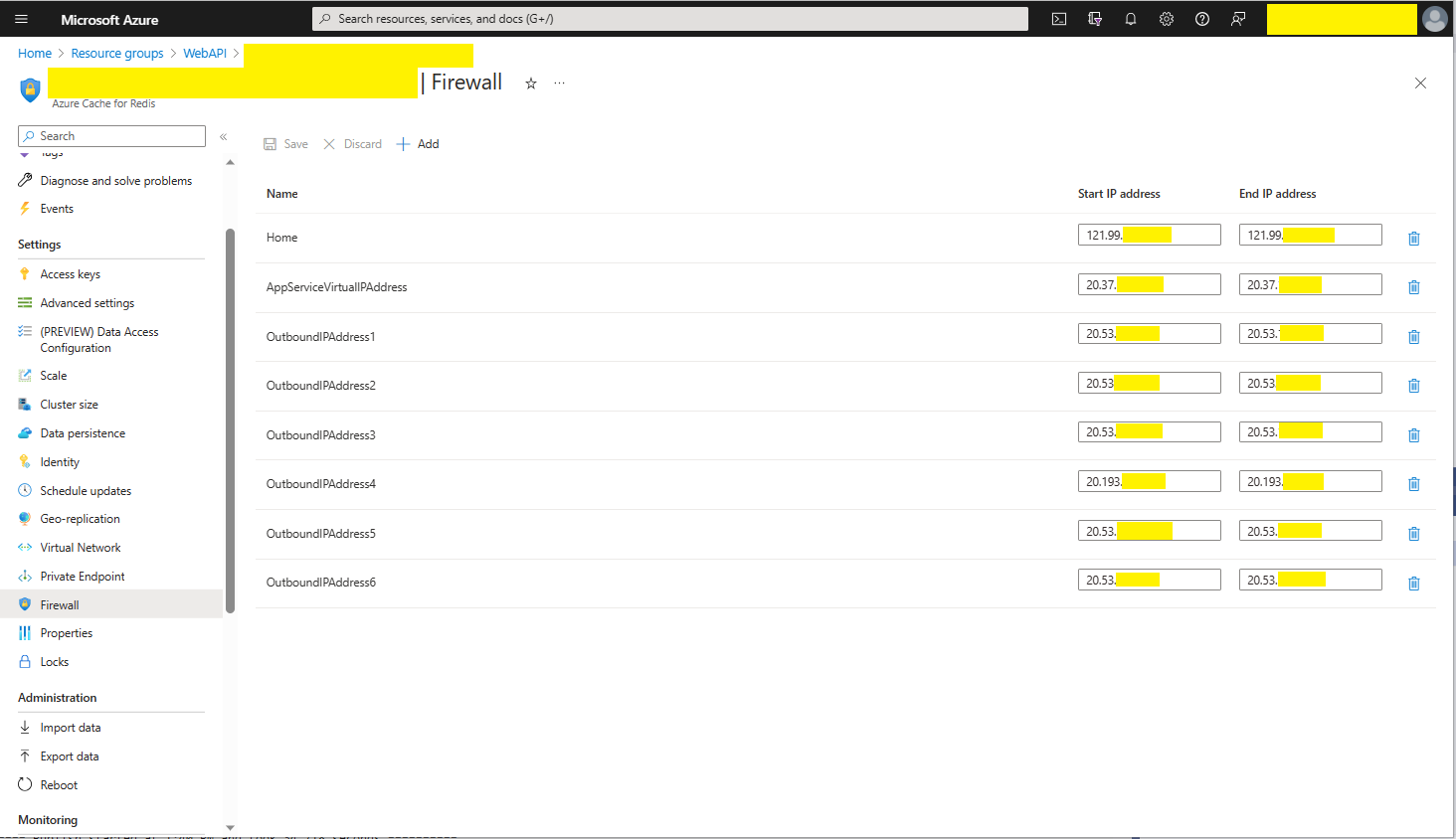
Initially, I was running the WebAPI Dapper DistributedCache application on my development box and it ran third/forth time after sorting out the Azure Cache for Redis connection string and firewall configuration.
StockItems list served from the cache running on my Desktop
There were many questions and tentative answers on stackoverflow some of them I tried, and which didn’t work in my scenario.
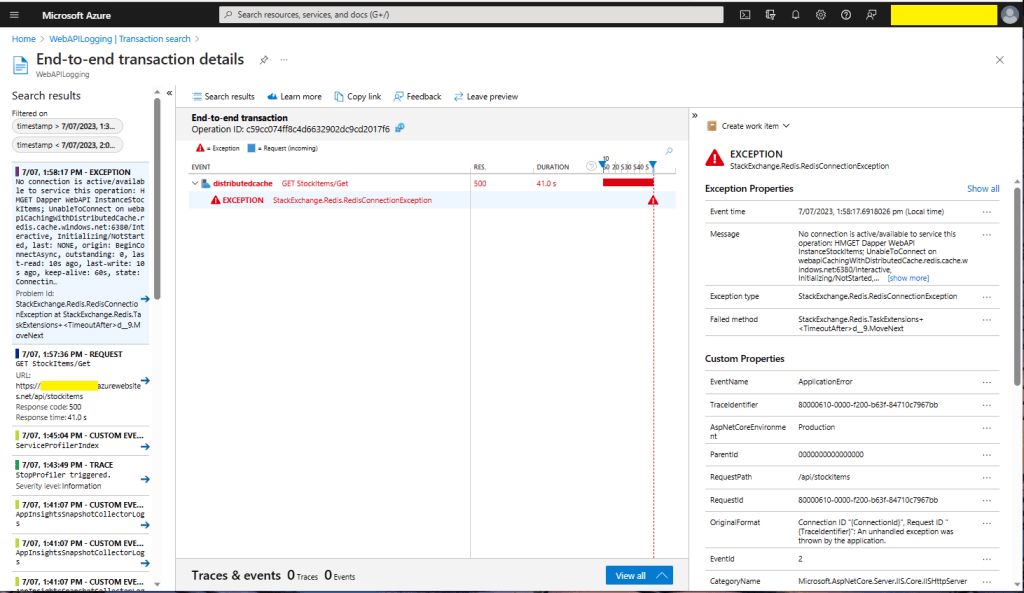
No connection is active/available to service this operation: HMGET Dapper WebAPI InstanceStockItems;
UnableToConnect on xxxxxxxxxxxxxxxxxxxxxxxxxxx.redis.cache.windows.net:6380/Interactive,
Initializing/NotStarted,
last: NONE,
origin: BeginConnectAsync,
outstanding: 0,
last-read: 10s ago, last-write: 10s ago, keep-alive: 60s,
state: Connecting,
mgr: 10 of 10 available,
last-heartbeat: never, global: 10s ago,
v: 2.2.4.27433,
mc: 1/1/0, mgr: 10 of 10 available,
clientName: XXXXXXXXXXXX, <----------------------This was important
IOCP: (Busy=0,Free=1000,Min=1,Max=1000),
WORKER: (Busy=5,Free=1018,Min=1,Max=1023),
v: 2.2.4.27433
UnableToConnect on xxxxxxxxxxxxxxxxxxxxxxxxxxx.cache.windows.net:6380/Interactive,
Initializing/NotStarted,
last: NONE,
origin: BeginConnectAsync,
outstanding: 0,
last-read: 10s ago, last-write: 10s ago, keep-alive: 60s,
state: Connecting,
mgr: 10 of 10 available,
last-heartbeat: never, global: 10s ago,
v: 2.2.4.27433
I then recreated my configuration from scratch so none of my random changes based on stackoverflow posts would mess my next round of debugging.
Azure AppService Virtual, Outbound and Additional Outbound IP Addresses
The error appeared to be a networking issue, most probably the firewall blocking connections so I added the Azure AppService Virtual IP Address which didn’t work…
public static void Main(string[] args)
{
    var builder = WebApplication.CreateBuilder(args);

    // Add services to the container.
    builder.Services.AddApplicationInsightsTelemetry();

    // Add services to the container.
    builder.Services.AddTransient<IDapperContext>(s => new DapperContext(builder.Configuration));

    builder.Services.AddControllers();

    // Register IAppCache as a singleton CachingService
    builder.Services.AddLazyCache();

    var app = builder.Build();

    // Configure the HTTP request pipeline.

    app.UseHttpsRedirection();

    app.MapControllers();

    app.Run();
}
One of the applications I work uses a lot of “reference” data which is effectively static e.g. national/regional holidays in countries where they have customers, and data which is updated on a schedule e.g. exchange rates downloaded at a known time every day.
For the holiday information updates, the dataset could be deleted(“burped”) then refreshed the next time it is referenced or deleted then re-loaded. For exchange rate updates the cache could automatically expire the dataset shortly after the scheduled download.
The time to open the home page of one of the “legacy” applications I was working on was slowly increasing over time. After a quick investigation it looked like there a couple of Azure SQL stored procedures which were called many times as the home page was opening were the problem.
[HttpGet("Dapper")]
public async Task<ActionResult<IEnumerable<Model.StockItemListDtoV1>>> GetDapper()
{
    IEnumerable<Model.StockItemListDtoV1> response;

    using (IDbConnection db = dapperContext.ConnectionCreate())
    {
        response = await db.QueryAsync<Model.StockItemListDtoV1>(sql: sqlCommandText, commandType: CommandType.Text);
    }

    return this.Ok(response);
}
World Wide Importers database list of stockitems
The World Wide Importers database has approximately 250 StockItems which was representative of one of the problematic queries.
[HttpGet("DapperProfiled")]
public async Task<ActionResult<IEnumerable<Model.StockItemListDtoV1>>> GetDapperProfiled()
{
    IEnumerable<Model.StockItemListDtoV1> response;

    using (IDbConnection db = new ProfiledDbConnection((DbConnection)dapperContext.ConnectionCreate(), MiniProfiler.Current))
    {
        response = await db.QueryAsync<Model.StockItemListDtoV1>(sql: sqlCommandText, commandType: CommandType.Text);
    }

    return this.Ok(response);
 }
When I executed the GetDapperProfiler() method of the StockItems controller on my development box it took roughly 2.4 seconds.
MiniProfiler results for StockItems query running on my desktop
I sometimes ran the website on my development box so when I used “toggle trivial gaps” it was easier to see what where the delays were.
When I executed the GetDapperProfiler() method of the StockItems controller running in an Azure AppService it took roughly 20 mSec.
MiniProfiler results for StockItems query running in an Azure AppService
In one application a QueryMultipleAsync is used to retrieve information about a product and a list of its attributes. The World Wide Importers database has Invoices which have invoice lines and Transactions which was representative of another problematic query.
[HttpGet("DapperProfiledQueryMultiple")]
public async Task<ActionResult<IEnumerable<Model.StockItemListDtoV1>>> GetDapperProfiledQueryMultiple([Required][Range(1, int.MaxValue, ErrorMessage = "Invoice id must greater than 0")] int id)
{
    Model.InvoiceSummaryGetDtoV1 response = null;

    using (ProfiledDbConnection db = new ProfiledDbConnection((DbConnection)dapperContext.ConnectionCreate(), MiniProfiler.Current))
    {
        var invoiceSummary = await db.QueryMultipleAsync("[Sales].[InvoiceSummaryGetV1]", param: new { InvoiceId = id }, commandType: CommandType.StoredProcedure);

        response = await invoiceSummary.ReadSingleOrDefaultAsync<Model.InvoiceSummaryGetDtoV1>();
        if (response == default)
        {
            return this.NotFound($"Invoice:{id} not found");
        }

        response.InvoiceLines = await invoiceSummary.ReadAsync<Model.InvoiceLineSummaryListDtoV1>();

        response.StockItemTransactions = await invoiceSummary.ReadAsync<Model.StockItemTransactionSummaryListDtoV1>();
    }

    return this.Ok(response);
}
World Wide Importers database list of invoice lines and transactions for a StockItem
MiniProfiler results for Invoice Item Query Multiple running in an Azure AppService
I couldn’t see any results for reading the StockItem Invoice lines and Transactions so I wrapped each ReadAsync with a MiniProfiler.Current.Step.
[HttpGet("DapperProfiledQueryMultipleStep")]
public async Task<ActionResult<IEnumerable<Model.StockItemListDtoV1>>> GetDapperProfiledQueryMultipleStep([Required][Range(1, int.MaxValue, ErrorMessage = "Invoice id must greater than 0")] int id)
{
    Model.InvoiceSummaryGetDtoV1 response = null;

    using (IDbConnection db = new ProfiledDbConnection((DbConnection)dapperContext.ConnectionCreate(), MiniProfiler.Current))
    {
        SqlMapper.GridReader invoiceSummary;

        using (MiniProfiler.Current.Step("db.QueryMultipleAsync"))
        {
            invoiceSummary = await db.QueryMultipleAsync("[Sales].[InvoiceSummaryGetV1]", param: new { InvoiceId = id }, commandType: CommandType.StoredProcedure);
        }

        using (MiniProfiler.Current.Step("invoiceSummary.ReadSingleOrDefaultAsync"))
        {
            response = await invoiceSummary.ReadSingleOrDefaultAsync<Model.InvoiceSummaryGetDtoV1>();
        }
        if (response == default)
        {
            return this.NotFound($"Invoice:{id} not found");
        }

        using (MiniProfiler.Current.Step("invoiceSummaryLine.ReadAsync"))
        {
            response.InvoiceLines = await invoiceSummary.ReadAsync<Model.InvoiceLineSummaryListDtoV1>();
        }

        using (MiniProfiler.Current.Step("TransactionSummary.ReadAsync"))
        {
            response.StockItemTransactions = await invoiceSummary.ReadAsync<Model.StockItemTransactionSummaryListDtoV1>();
        }
    }

    return this.Ok(response);
}
With larger lists every so often there were ReadAsync calls that took a more than a “trivial” amount of time. I surmise was some sort of batching done by the underlying ReadAsync + NextResultAsync methods of a SqlDataReader.
Need to investigate the use of
using (IDbConnection db = new ProfiledDbConnection(new SqlConnection(_configuration.GetConnectionString("default"), MiniProfiler.Current))
{
//...
}
The unpacking of the value standard particulate, environmental particulate and particle count values is fairly repetitive, but I will fix it in the next version.
Visual Studio 2022 Debug Output
The checksum calculation isn’t great even a simple cyclic redundancy check(CRC) would be an improvement on summing the 28 bytes of the payload.
The application I’m currently working on has some tables with many columns and these were proving painful to update with HTTP PUT methods. Over the last couple of releases, I have been extending the customer facing API with PATCH methods so the client can specify only the values to changed.
The JSON Patch is a format for specifying updates to be applied to a resource.
Stock Items list before HTTP Patch operation
A JSON Patch document has an array of operations which identify a particular type of change.
Using Telerik Fiddler Composer functionality to apply an HTTP PATCH
Stock Items list after HTTP Patch operation
The StockItemPatchDtoV1 class is decorated with DataAnnotations to ensure the contents are valid.
public class StockItemPatchDtoV1
{
    [Required]
    [StringLength(100, MinimumLength = 1, ErrorMessage = "The name text must be at least {2} and no more than {1} characters long")]  // These would be constants in a real application
    public string Name { get; set; }

    [Required]
    [Range(0.0, 100.0)] // These would be constants in a real application
    public decimal UnitPrice { get; set; }

    [Required]
    [Range(0.0, 1000000.0)] // These would be constants in a real application
    public decimal RecommendedRetailPrice { get; set; }
}
The StockItemsController [HttpPatch(“{id}”)] method retrieves the stock item to be updated, then uses ApplyTo method and TryValidateModel to update only the specified fields.
[HttpPatch("{id}")]
public async Task<ActionResult<Model.StockItemGetDtoV1>> Patch([FromBody] JsonPatchDocument<Model.StockItemPatchDtoV1> stockItemPatch, int id)
{
    Model.StockItemGetDtoV1 stockItem;

    using (IDbConnection db = dapperContext.ConnectionCreate())
    {
        stockItem = await db.QuerySingleOrDefaultWithRetryAsync<Model.StockItemGetDtoV1>(sql: "[Warehouse].[StockItemsStockItemLookupV1]", param: new { stockItemId = id }, commandType: CommandType.StoredProcedure);

        if (stockItem == default)
        {
            logger.LogInformation("StockItem:{id} not found", id);

            return this.NotFound($"StockItem:{id} not found");
        }

        Model.StockItemPatchDtoV1 stockItemPatchDto = mapper.Map<Model.StockItemPatchDtoV1>(stockItem);

        stockItemPatch.ApplyTo(stockItemPatchDto, ModelState);

        if (!ModelState.IsValid || !TryValidateModel(stockItemPatchDto))
        {
            logger.LogInformation("stockItemPatchDto invalid {0}", string.Join(Environment.NewLine, ModelState.Values.SelectMany(v => v.Errors).Select(v => v.ErrorMessage + " " + v.Exception))); // would extract this out into shared module

            return BadRequest(ModelState);
        }

        mapper.Map(stockItemPatchDto, stockItem);

        await db.ExecuteWithRetryAsync(sql: "UPDATE Warehouse.StockItems SET StockItemName=@Name, UnitPrice=@UnitPrice, RecommendedRetailPrice=@RecommendedRetailPrice WHERE StockItemId=@Id", param: stockItem, commandType: CommandType.Text);
    }

    return this.Ok();
}
Initially the HTTP Patch method returned this error message.
HTTP/1.1 400 Bad Request
Content-Type: application/problem+json; charset=utf-8
Date: Tue, 27 Jun 2023 09:20:30 GMT
Server: Kestrel
Transfer-Encoding: chunked

1d7
{"type":"https://tools.ietf.org/html/rfc7231#section-6.5.1","title":"One or more validation errors occurred.","status":400,"traceId":"00-665a6ee9ed1105a105237c421793af5d-1719bda40c0b7d5d-00","errors":{"$":["The JSON value could not be converted to Microsoft.AspNetCore.JsonPatch.JsonPatchDocument`1[devMobile.WebAPIDapper.HttpPatch.Model.StockItemPatchDtoV1]. Path: $ | LineNumber: 0 | BytePositionInLine: 1."],"stockItemPatch":["The stockItemPatch field is required."]}}
0