Freaduino MP3 Music Shield

For code club one of the projects I had been considering was an MP3 player with a simple user interface (UI) based on a joystick providing track next/previous , volume up/down, and pause/play. I looked for suitable Arduino shields which had Netduino driver support. I narrowed the list down to (Prices as at April 2014) these VS1053 based shields

For Code Club I purchased 5 of the Elecfreaks Freaduino shields as the price and on-board joystick made it ideal for our application. The Freaduino MP3 Shield wiki page indicated that the following pins were used by the SPI bus

D10 – Used for SPI Chip Select.
D11 – Used for SPI MOSI.
D12 – Used for SPI MISO.
D13 – Used for SPI SCK.

I initially tried the NetduinoVS1053 library from SoftElectoTech but found that no sound was produced. I tried different pin configurations, format and bitrate music files but nothing worked. I then had a look at the shield schematic and noticed that D11/D12/D13 were not connected to the VS1053, only D10 which is used for chip selected on the MicroSD card socket was connected.

I soldered some jumpers to the board and connected the SPI pins on the ICSP socket to the D11,D12 & D13 on the edge connector and the shield now works. It would be good if elecfreaks could make the pins the SPI bus uses configurable using jumpers or similar.
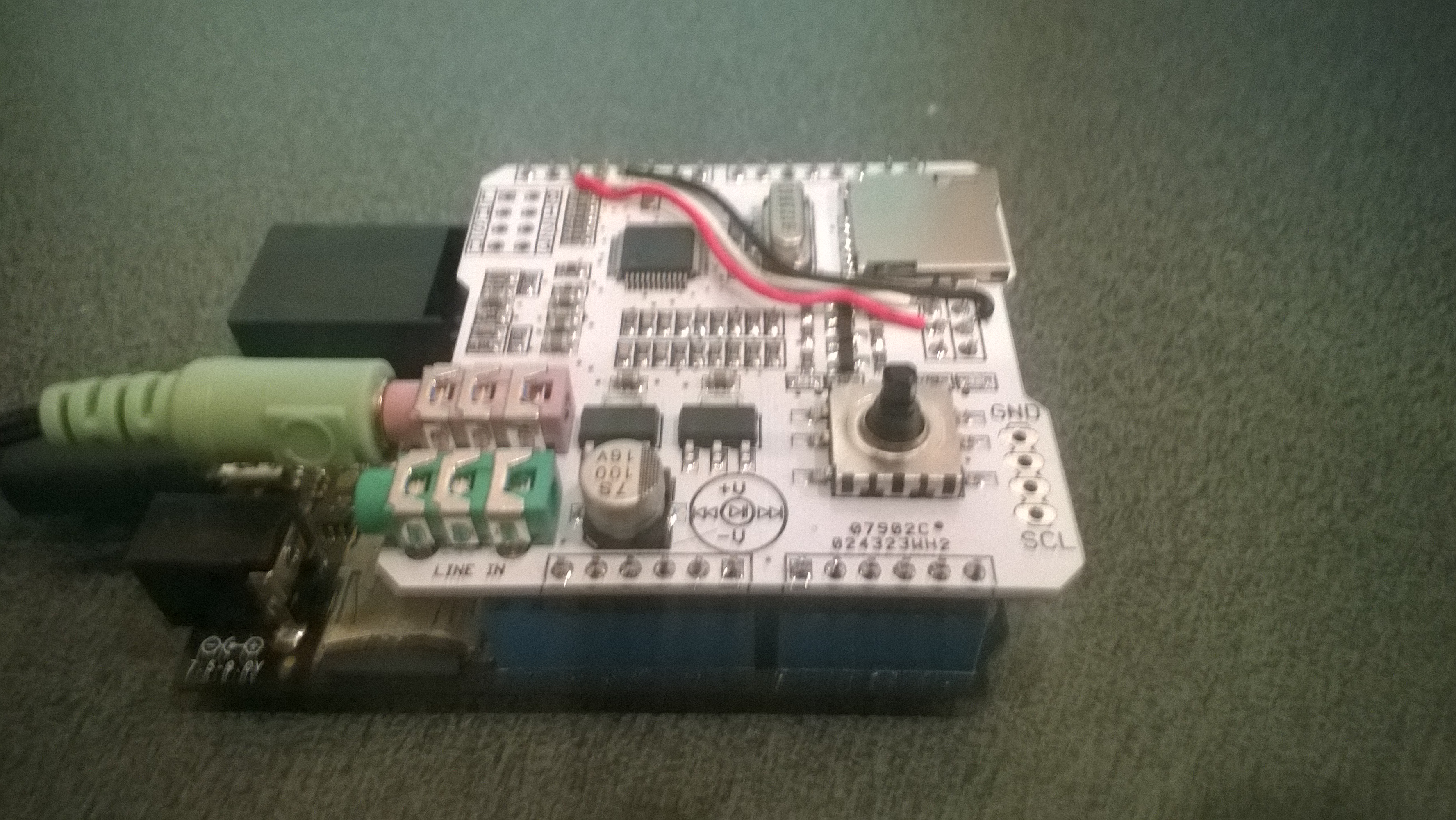
Modified Freaduino Music Shield

Modified Freaduino Music Shield

The library needs to be initialised with the following pins

Player = newVs1053B(Pins.GPIO_PIN_A1, Pins.GPIO_PIN_A3, Pins.GPIO_PIN_A2, Pins.GPIO_PIN_A0);

The joystick operations can be handled with Interrupts with the following configuration

InterruptPort volumeDownButton = newInterruptPort(Pins.GPIO_PIN_D7, false, Port.ResistorMode.PullUp, Port.InterruptMode.InterruptEdgeLow);

InterruptPort volumeUpButton = newInterruptPort(Pins.GPIO_PIN_D3, false, Port.ResistorMode.PullUp, Port.InterruptMode.InterruptEdgeLow);

InterruptPort nextSongButton = newInterruptPort(Pins.GPIO_PIN_D4, false, Port.ResistorMode.PullUp, Port.InterruptMode.InterruptEdgeLow);

InterruptPort previousSongButton = newInterruptPort(Pins.GPIO_PIN_D6, false, Port.ResistorMode.PullUp, Port.InterruptMode.InterruptEdgeLow);

InterruptPort playStopButton = newInterruptPort(Pins.GPIO_PIN_D5, false, Port.ResistorMode.PullUp, Port.InterruptMode.InterruptEdgeLow);

volumeUpButton.OnInterrupt += new NativeEventHandler(volumeUpButton_OnInterrupt);

volumeDownButton.OnInterrupt += new NativeEventHandler(volumeDownButton_OnInterrupt);

nextSongButton.OnInterrupt += new NativeEventHandler(nextSongButton_OnInterrupt);

previousSongButton.OnInterrupt += new NativeEventHandler(previousSongButton_OnInterrupt);

playStopButton.OnInterrupt += new NativeEventHandler(playStopButton_OnInterrupt);

I could now play MP3 files off the SD card on my Netduino Plus 2 but couldn’t adjust the volume or change the track being played. Using an interrupt based approached for the UI also highlighted some problems with the driver code which I will discuss in a future post.
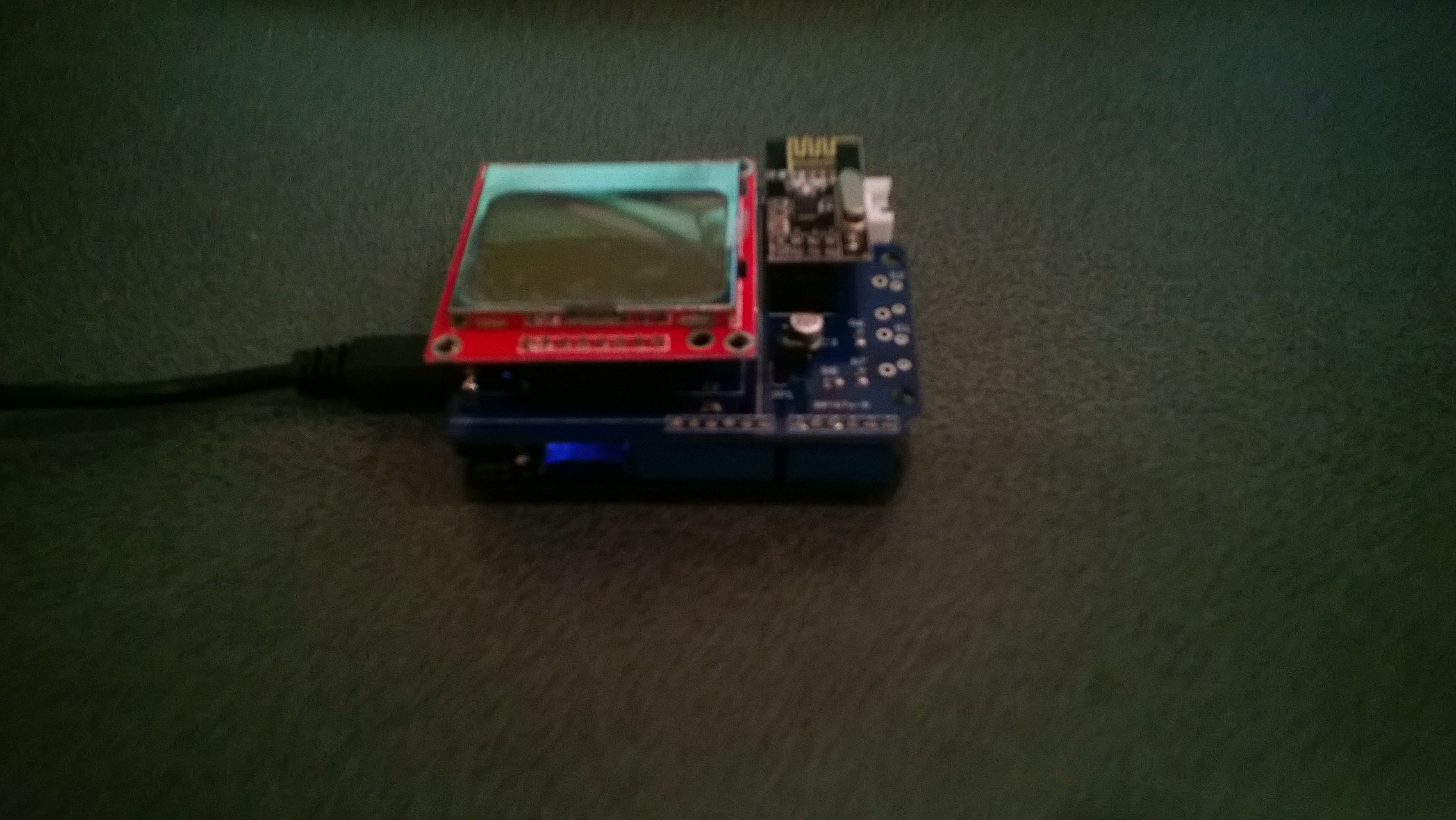

Energy Monitor Shield arrived

One of the projects I’m planning for code club is a power consumption monitor. After some research and checking of circuit diagrams the Energy Monitor Shield designed by devicter looked like it would work with a Netduino. The analog voltage inputs for the AC current sensors plus the SPI bus configuration for the Nokia 5110 display and nRF24L01+ appear to be compatible.

Image

Initial impressions are good, only problem is the backlight is a little bit bright (so I removed the jumper).

Code club @ Orion Health kit on its way

Spent several hours last night ordering all the bits for the next month’s code club sessions. Can take a couple of weeks for parts to arrive from China and the USA so I have to plan well in advance.

We now have 16 Netduino’s plus enough kit for

The groups of students will get to build each project over a couple of nights.

Code club 20th Feb @ Orion Health

We are trying a new approach this term and are running the Code Club at Orion Health in Hazeldean Road.

I have managed to borrow 8 or 9 Netduinos so with 3 people per device we can run a class for up to 27 people. If there is enough interest we may look at splitting the class and running some more at local high schools or hosted by IT companies.

This term we’ll be learning C#, building robots, heartbeat monitors, connecting devices to the internet and eating pizza.

Big thanks to Orion Health for hosting us.

CODE_CLUB_POSTARD_FRONT_2014

We might be a bit short of computers to run the development tools. If you can bring one with the setup detailed here that would help a lot. The Visual Studio 2010 and associated Netduino SDKs would be easiest.

Netduino Plus PulseRate Monitor V2

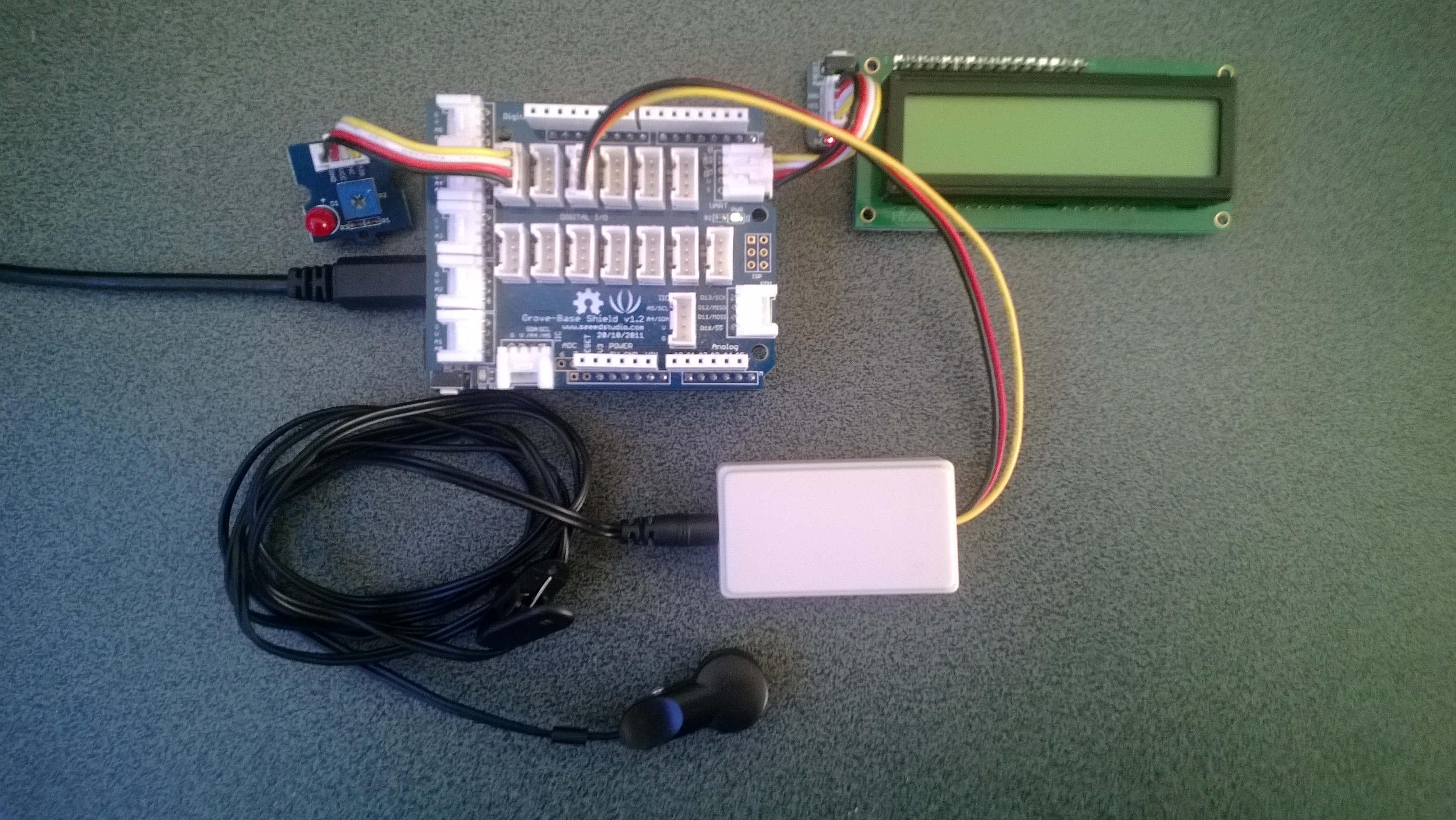
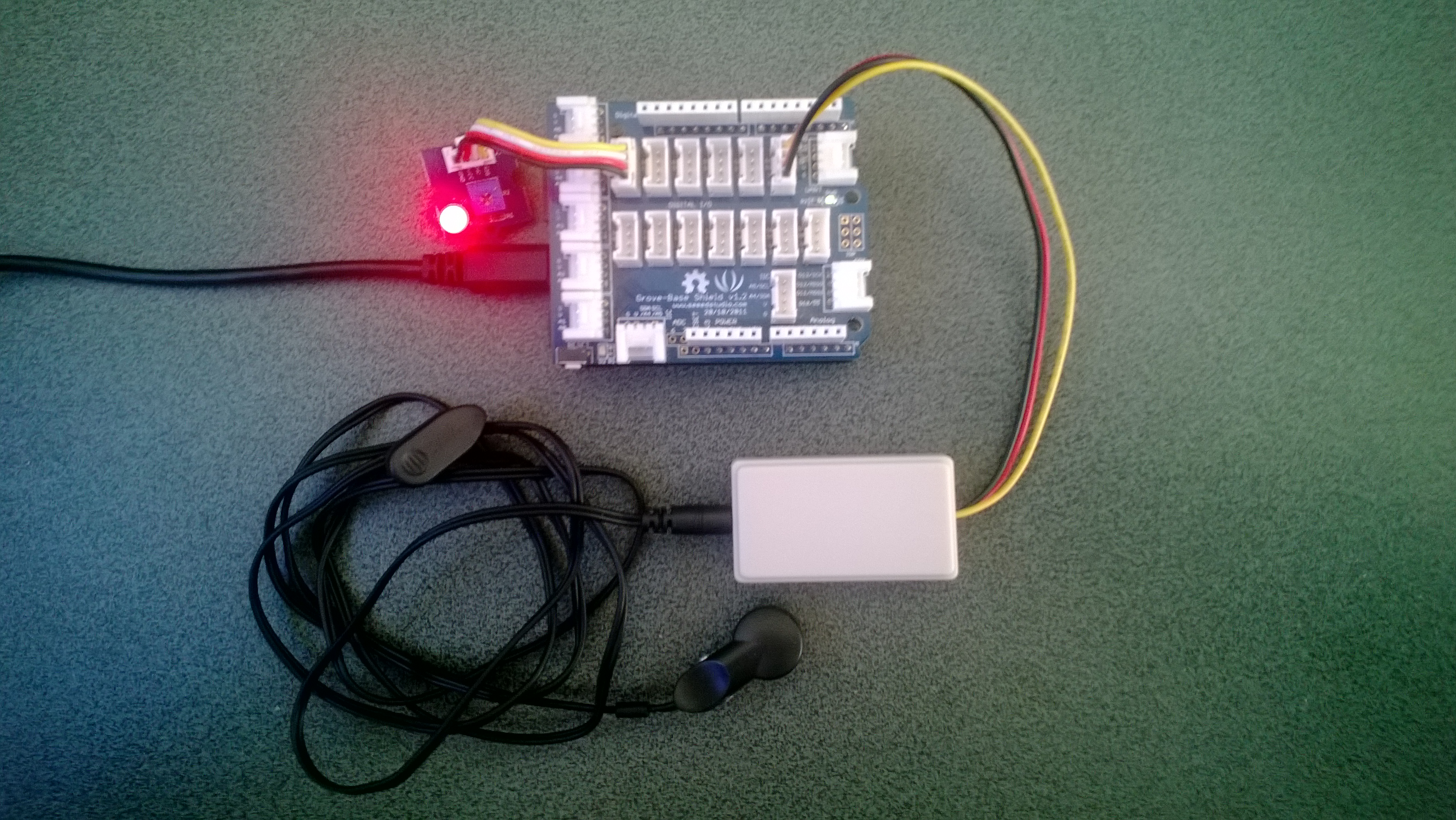
In the final couple of code club sessions we built a pulse rate monitor to show a practical application for the NetMF InterruptPort, and communication between threads using the Interlocked class (Increment & exchange). This was then enhanced to display the data locally and upload it to the cloud to illustrate a basic HTTP interaction and serial communications.

The application displays the approximate pulse rate in Beats Per Minute (BPM) on a 16×2 character LCD display and also uploads the information to a free developer account at Xively a “Public Cloud for the Internet of Things”.

Netduino Plus 2 rate monitor

The xively trial account has a limit of 25 calls a minute, rolling 3 minute average (Dec 2013) which was more than adequate for our application and many other educational projects.

The xively API supports managing products, managing devices,  reading & writing data, reading & wiring metadata, querying historical data and searching for data feeds, using a RESTful approach.

The NetduinoPlus2 has full support for the NetMF system.http and sufficient memory so that there is plenty of room left for an application. If you are using a Netduino Plus (or other NetMF device with limited memory) an approach which reduces memory consumption is detailed here.

The xively data API supports JSON, XML and CSV formats for upload of data and for the pulse rate monitor we used CSV. The following code was called roughly every 20 seconds.

static void xivelyFeedUpdate( string ApiKey, string feedId, string channel, string value )
{
try
{
using (HttpWebRequest request = (HttpWebRequest)WebRequest.Create(xivelyApiBaseUrl+ feedId + ".csv"))
{
byte[] buffer = Encoding.UTF8.GetBytes(channel + "," + value);


request.Method = "PUT";
request.ContentLength = buffer.Length;
request.ContentType = "text/csv";
request.Headers.Add("X-ApiKey", ApiKey);
request.KeepAlive = false;
request.Timeout = 5000;
request.ReadWriteTimeout = 5000;


// request body
using (Stream stream = request.GetRequestStream())
{
stream.Write(buffer, 0, buffer.Length);
}


using (var response = (HttpWebResponse)request.GetResponse())
{
Debug.Print("HTTP Status:" + response.StatusCode + " : " + response.StatusDescription);
}
}
}
catch (Exception ex)
{
Debug.Print(ex.Message);
}
}

The pulse rate information can then displayed by xively in tables and graphs.

Pulse Rate data gaph at xively

Pulse Rate data display

At the end of term presentation several parents and family members were doing press-ups and other exercises to see how high their pulse rate went and how quickly it recovered.

Bill of materials (Prices as at Dec 2013)

Netduino Plus PulseRate Monitor V1

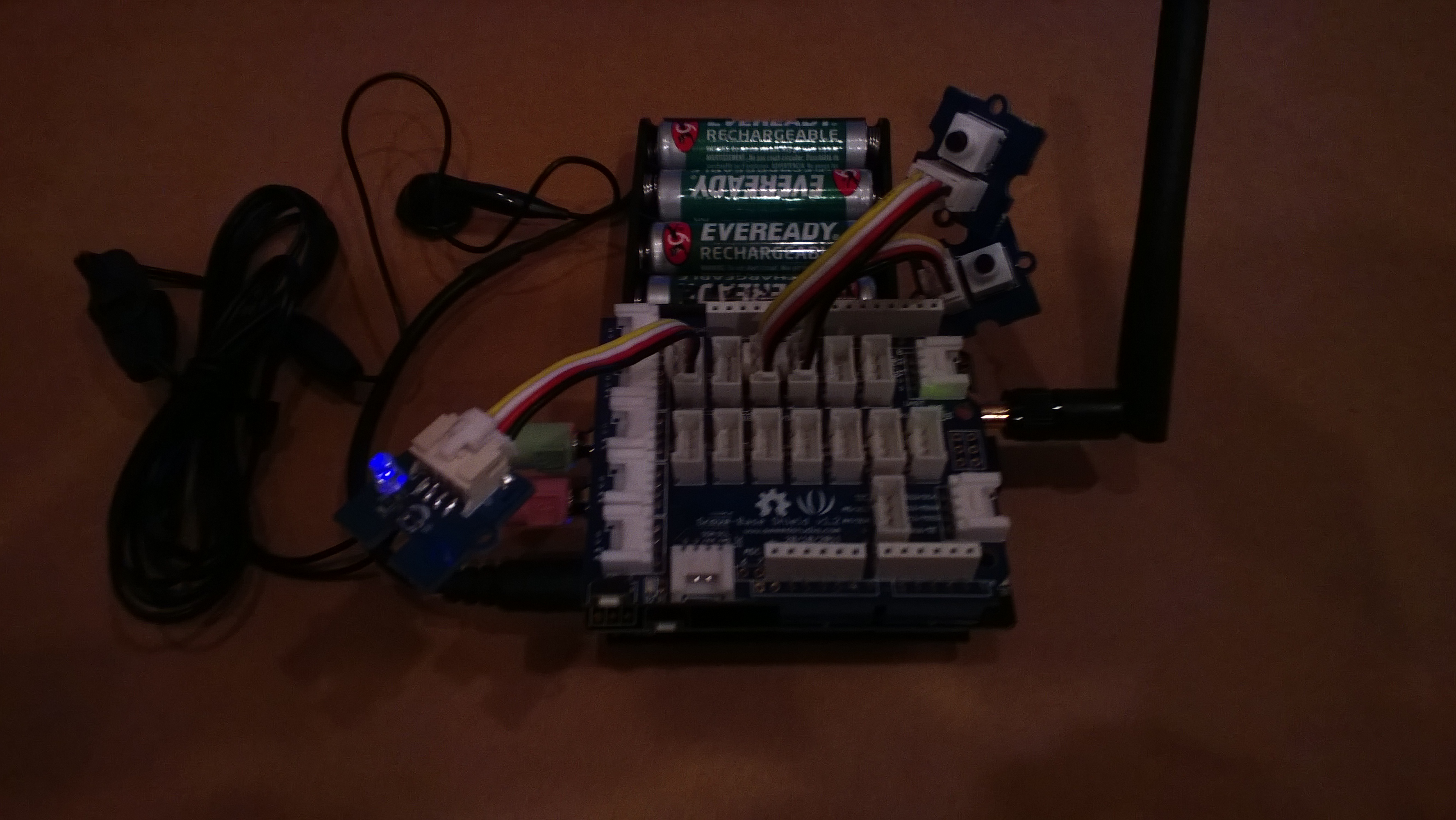
In the final couple of code club sessions we built a pulse rate monitor to illustrate a practical application for the NetMF InterruptPort, and communication between threads using Interlocked (Increment & exchange). The V1 application displays the approximate pulse rate in Beats Per Minute (BPM) using Debug.Print.

The SeeedStudio Grove Ear clip heart rate sensor strobes a digital input for each heart beat it detects and this is used to trigger an interrupt handler. In the interrupt handler we incremented a counter using Interlocked.Increment.

A timer fires every 15 seconds which takes a copy of the current count, resets it to zero using Interlocked.Exchange. This code then multiplies the count by the number of times the timer fires per minute to convert it to BPM for display.

We discussed different approaches for determining the pulse rate and for V1 a 15 second timer seemed to be a reasonable trade off between accuracy and reading update latency.

Netduino Plus rate monitor

Pulserate monitor

public class Program
{
   const int mSecPerMinute = 60000;
   const int displayUpdateRatemSec = 15000;
   private static InterruptPort heartBeatSensor = new InterruptPort(Pins.GPIO_PIN_D1, false, Port.ResistorMode.Disabled, Port.InterruptMode.InterruptEdgeHigh);
   private static OutputPort heartBeatDisplayLed = new OutputPort(Pins.GPIO_PIN_D6, false);
   private static int heartBeatCount = 0;</code>

   public static void Main()
   {
      heartBeatSensor.OnInterrupt += pulse_OnInterrupt;
      Timer pulseRateDisplayTimer = new Timer(PulseRateDisplayTimerCallback, null, displayUpdateRatemSec, displayUpdateRatemSec);
      Thread.Sleep(Timeout.Infinite);
   }

   static void pulse_OnInterrupt(uint data1, uint data2, DateTime time)
   {
      heartBeatDisplayLed.Write(!heartBeatDisplayLed.Read());
      Interlocked.Increment(ref heartBeatCount);
   }

   static void PulseRateDisplayTimerCallback(object state)
   {
      int displayPulseCount ;</code>

      displayPulseCount = Interlocked.Exchange(ref heartBeatCount, 0 );
      displayPulseCount = displayPulseCount * (mSecPerMinute / displayUpdateRatemSec);
      Debug.Print("Pulse rate " + displayPulseCount + " bpm");
   }
}

Bill of materials (Prices as at Dec 2013)

netduino Plus + nerf supersoaker

A few weeks ago my 6 year old son took his Nerf SuperSoaker to the beach and the salt water damaged the battery pack. Yesterday he pulled it apart to see how it worked and after a couple of quick tests with the multimeter we worked out the switch on the battery pack was the problem.

While it was dismantled we decided to “enhance” it with a Netduino+ and an ultrasonic range finder so it squirted water automatically when a target got with 2.5m. The code for the Ultrasonic range finder was adapted from Dave’s code on Netduino.com

Netduino SuperSoaker++

Bill of Materials

MyFirst mobile phone for Code club

One of my co-workers is involved with a group that run “code clubs” at local schools teaching high school students how to code.

We got talking about projects which would appeal to the students and I suggested making a mobile phone. This is my prototype

Image

It’s more Nokia 5110 than Nokia Lumia 820

If you want to build your own (the parts list will grow as I add GPS, accelerometer, compass, screen etc..)

For V0.1 of code one button sends and SMS to my mobile, the other button initiates a voice call to my mobile. The initial version of the code was based on the SeeedStudio GSM Shield Netduino driver on codeplex.

The later versions are based on the CodeFreakout Seeedstudio GPRS Shield drivers which are available via NuGet. I have added some functionality for dialling and hanging up voice calls which I will post for others to use once I have tested it some more.

My Robot – No tools required

A few local people have asked for a BoM for my robot.  This is for the entry level version with no soldering or additional tools required. (There is a screw driver included with the robot chassis kit)

2WD Robot chassis from Mindkits – NZD25

Netduino from Mindkits – NZD58

IR Distance Sensor and cable from SeeedStudio– USD 14

Motor Controller from SeeedStudio – USD 20

Mountings for IR Sensor from Mindkits – NZD 5

bracket x 2

screws x4

nuts x 2

With the Seeedstudio motor controller I use a larger battery pack –

Battery holder 6xAA NZD2.25

Battery snap NZD0.75

If you don’t mind some soldering or crimping …

Short range ID Distance sensor from Mindkits NZD 25.50

I swapped the long range Sharp sensor for the short range one.

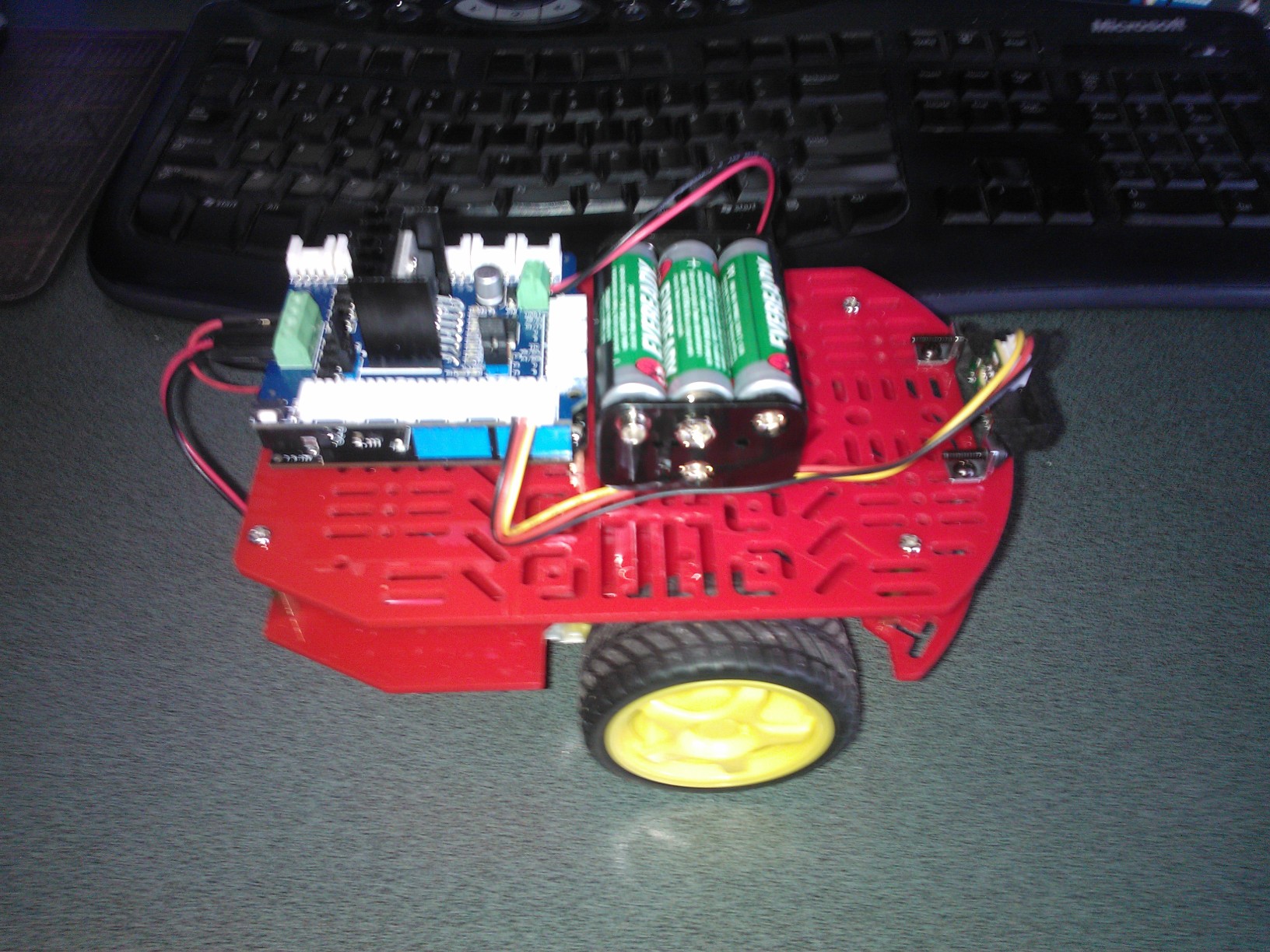
Magician robot

Robot on my desk

Make sure you upgrade Netduino to 4.2 or later for improved PWM