Random wanderings through Microsoft Azure esp. PaaS plumbing, the IoT bits, AI on Micro controllers, AI on Edge Devices, .NET nanoFramework, .NET Core on *nix and ML.NET+ONNX
The first version of the Azure function code proof of concept(PoC) was very compact
namespace MQTTnetAzureFunction
{
   using System;
   using System.Text;
   using Microsoft.Azure.WebJobs;
   using Microsoft.Extensions.Logging;

   using CaseOnline.Azure.WebJobs.Extensions.Mqtt;
   using CaseOnline.Azure.WebJobs.Extensions.Mqtt.Messaging;
   using CaseOnline.Azure.WebJobs.Extensions.Mqtt.Config;
   using CaseOnline.Azure.WebJobs.Extensions.Mqtt.Bindings;

   using MQTTnet.Client.Options;
   using MQTTnet.Extensions.ManagedClient;

   public static class Subscribe
   {
      [FunctionName("UplinkMessageProcessor")]
      public static void UplinkMessageProcessor(
            [MqttTrigger("v3/application123456789012345/devices/+/up", ConnectionString = "TTNMQTTConnectionString")] IMqttMessage message,
IMqttMessage message,
            ILogger log)
      {
         var body = Encoding.UTF8.GetString(message.GetMessage());

         log.LogInformation($"Advanced: message from topic {message.Topic} \nbody: {body}");
      }
   }
}
I configured the TTNMQTTConnectionString in the application’s local.settings.json file
This was a good start but I need to be able to configure the MQTT topic for deployments.
After looking at the binding source code plus some trial and error based on the AdvancedConfiguration sample I have a nasty PoC
public static class Subscribe
{
   [FunctionName("UplinkMessageProcessor")]
   public static void UplinkMessageProcessor(
         [MqttTrigger(typeof(ExampleMqttConfigProvider), "v3/%TopicName%/devices/+/up")] IMqttMessage message,
         ILogger log)
   {
      var body = Encoding.UTF8.GetString(message.GetMessage());

      log.LogInformation($"Advanced: message from topic {message.Topic} \nbody: {body}");
   }
}

public class MqttConfigExample : CustomMqttConfig
{
  public override IManagedMqttClientOptions Options { get; }

  public override string Name { get; }

  public MqttConfigExample(string name, IManagedMqttClientOptions options)
  {
     Options = options;
     Name = name;
   }
}

public class ExampleMqttConfigProvider : ICreateMqttConfig
{
   public CustomMqttConfig Create(INameResolver nameResolver, ILogger logger)
   {
      var connectionString = new MqttConnectionString(nameResolver.Resolve("TTNMQTTConnectionString"), "CustomConfiguration");

      var options = new ManagedMqttClientOptionsBuilder()
             .WithAutoReconnectDelay(TimeSpan.FromSeconds(5))
             .WithClientOptions(new MqttClientOptionsBuilder()
                  .WithClientId(connectionString.ClientId.ToString())
                  .WithTcpServer(connectionString.Server, connectionString.Port)
                  .WithCredentials(connectionString.Username, connectionString.Password)
                  .Build())
             .Build();

      return new MqttConfigExample("CustomConnection", options);
   }
}
The TTNMQTTConnectionString and TopicName can be configured in the application’s local.settings.json file
While building these PoCs I have learnt a lot about the way that the TTN V3 RESTful and MQTT APIs work and this is the first in a series of posts about linking them together. My plan is to start with yet another .NetCore Console application which hosts both the MQTT and Azure IoT Hub DeviceClient (using the Advanced Message Queueing Protocol(AMQP)) client implementations. I’m using MQTTnet to build my data API client and used NSwag by Richo Suter to generate my RESTful client from the TTN provided swagger file.
In this PoC I’m using the commandlineParserNuGet package to the reduce the amount of code required to process command line parameters and make it more robust. This PoC has a lot of command line parameters which would have been painful to manually parse and validate.
public class CommandLineOptions
{
	[Option('u', "APIbaseURL", Required = false, HelpText = "TTN Restful API URL.")]
	public string ApiBaseUrl { get; set; }

	[Option('K', "APIKey", Required = true, HelpText = "TTN Restful API APIkey")]
	public string ApiKey { get; set; }

	[Option('P', "APIApplicationID", Required = true, HelpText = "TTN Restful API ApplicationID")]
	public string ApiApplicationID { get; set; }

	[Option('D', "DeviceListPageSize", Required = true, HelpText = "The size of the pages used to retrieve EndDevice configuration")]
	public int DevicePageSize { get; set; }

	[Option('S', "MQTTServerName", Required = true, HelpText = "TTN MQTT API server name")]
	public string MqttServerName { get; set; }

	[Option('A', "MQTTAccessKey", Required = true, HelpText = "TTN MQTT API access key")]
	public string MqttAccessKey { get; set; }

	[Option('Q', "MQTTApplicationID", Required = true, HelpText = "TTN MQTT API ApplicationID")]
	public string MqttApplicationID { get; set; }

	[Option('C', "MQTTClientName", Required = true, HelpText = "TTN MQTT API Client ID")]
	public string MqttClientID { get; set; }

	[Option('Z', "AzureIoTHubConnectionString", Required = true, HelpText = "Azure IoT Hub Connection string")]
	public string AzureIoTHubconnectionString { get; set; }
}
To keep things simple in this PoC I’m using an Azure IoT Hub specific (rather than a device specific connection string)
After some trial and error I found the order of execution was important
Open MQTTnet connection to TTN host (but don’t configure any subscriptions)
Configure connection to TTN RESTful API
Retrieve list of V3EndDevices (paginated), then for each V3EndDevice
Open connection to Azure IoT Hub using command line connection string + TTN Device ID
Call DeviceClient.SetReceiveMessageHandlerAsync to specify ReceiveMessageCallback and additional context information for processing Azure IoT Hub downlink messages.
Store DeviceClient instance in ObjectCache using DeviceID as key
Configure the MQTTnet recived message handler
Subscribe to uplink messages from all the V3EndDevices in the specified application.
private static async Task ApplicationCore(CommandLineOptions options)
{
	MqttFactory factory = new MqttFactory();
	mqttClient = factory.CreateMqttClient();

#if DIAGNOSTICS
	Console.WriteLine($"baseURL: {options.ApiBaseUrl}");
	Console.WriteLine($"APIKey: {options.ApiKey}");
	Console.WriteLine($"ApplicationID: {options.ApiApplicationID}");
	Console.WriteLine($"AazureIoTHubconnectionString: {options.AzureIoTHubconnectionString}");
	Console.WriteLine();
#endif

	try
	{
		// First configure MQTT, open connection and wire up disconnection handler.
		// Can't wire up MQTT received handler as at this stage AzureIoTHub devices not connected.
		mqttOptions = new MqttClientOptionsBuilder()
			.WithTcpServer(options.MqttServerName)
			.WithCredentials(options.MqttApplicationID, options.MqttAccessKey)
			.WithClientId(options.MqttClientID)
			.WithTls()
			.Build();

		mqttClient.UseDisconnectedHandler(new MqttClientDisconnectedHandlerDelegate(e => MqttClientDisconnected(e)));

		await mqttClient.ConnectAsync(mqttOptions);

		// Prepare the HTTP client to be used in the TTN device enumeration
		using (HttpClient httpClient = new HttpClient())
		{
			EndDeviceRegistryClient endDeviceRegistryClient = new EndDeviceRegistryClient(options.ApiBaseUrl, httpClient)
			{
				ApiKey = options.ApiKey
			};

			// Retrieve list of devices page by page
			V3EndDevices endDevices = await endDeviceRegistryClient.ListAsync(
				options.ApiApplicationID,
				field_mask_paths: DevicefieldMaskPaths,
				limit: options.DevicePageSize);
			if ((endDevices != null) && (endDevices.End_devices != null)) // If no devices returns null rather than empty list
			{
				foreach (V3EndDevice endDevice in endDevices.End_devices)
				{
					// Display the device info+attributes then connect device to Azure IoT Hub
#if DEVICE_FIELDS_MINIMUM
					Console.WriteLine($"EndDevice ID: {endDevice.Ids.Device_id}");
#else
					Console.WriteLine($"Device ID: {endDevice.Ids.Device_id} Name: {endDevice.Name} Description: {endDevice.Description}");
					Console.WriteLine($"  CreatedAt: {endDevice.Created_at:dd-MM-yy HH:mm:ss} UpdatedAt: {endDevice.Updated_at:dd-MM-yy HH:mm:ss}");
#endif

#if DEVICE_ATTRIBUTES_DISPLAY
					if (endDevice.Attributes != null)
					{
						Console.WriteLine("  EndDevice attributes");

						foreach (KeyValuePair<string, string> attribute in endDevice.Attributes)
						{
							Console.WriteLine($"    Key: {attribute.Key} Value: {attribute.Value}");
						}
					}
#endif
					try
					{
						DeviceClient deviceClient = DeviceClient.CreateFromConnectionString(
							options.AzureIoTHubconnectionString,
							endDevice.Ids.Device_id,
							TransportType.Amqp_Tcp_Only);

						await deviceClient.OpenAsync();

						await deviceClient.SetReceiveMessageHandlerAsync(
							AzureIoTHubClientReceiveMessageHandler,
							new AzureIoTHubReceiveMessageHandlerContext()
							{
								DeviceId = endDevice.Ids.Device_id,
								ApplicationId = endDevice.Ids.Application_ids.Application_id,
							});

						DeviceClients.Add(endDevice.Ids.Device_id, deviceClient, cacheItemPolicy);
					}
					catch( Exception ex)
					{
						Console.WriteLine($"Azure IoT Hub OpenAsync failed {ex.Message}");
					}
				}
			}
		}

		// At this point all the AzureIoT Hub deviceClients setup and ready to go so can enable MQTT receive
		mqttClient.UseApplicationMessageReceivedHandler(new MqttApplicationMessageReceivedHandlerDelegate(e => MqttClientApplicationMessageReceived(e)));

		// This may shift to individual device subscriptions
		string uplinktopic = $"v3/{options.MqttApplicationID}/devices/+/up";

		await mqttClient.SubscribeAsync(uplinktopic, MQTTnet.Protocol.MqttQualityOfServiceLevel.AtLeastOnce);
	}
	catch(Exception ex)
	{
		Console.WriteLine($"Main {ex.Message}");
		Console.WriteLine("Press any key to exit");
		Console.ReadLine();
		return;
	}

	while (!Console.KeyAvailable)
	{
		Console.Write(".");
		await Task.Delay(1000);
	}

	// Consider ways to mop up connections

	Console.WriteLine("Press any key to exit");
	Console.ReadLine();
}
When I was initially looking at Azure Deviceclient I would of had to have created a thread (which would have been blocked most of the time) for each device. This implementation issued was removed by the introduction of the DeviceClientSetReceiveMessageHandlerAsync method in release 1.33.0.
Currently the application just displays the Cloud to Device(C2D) message payload plus diagnostic information, and the CompleteAsync method is called so the message is dequeued.
Currently the application just displays the Cloud to Device(D2C) message payload plus diagnostic information, displaying the payload fields if the message format has been configured and successfully processed.
return DeviceClient.Create(result.AssignedHub,
                  authentication,
                  new ITransportSettings[]
                  {
                     new AmqpTransportSettings(TransportType.Amqp_Tcp_Only)
                     {
                        PrefetchCount = 0,
                        AmqpConnectionPoolSettings = new AmqpConnectionPoolSettings()
                        {
                           Pooling = true,
                        }
                     }
                  }
               );
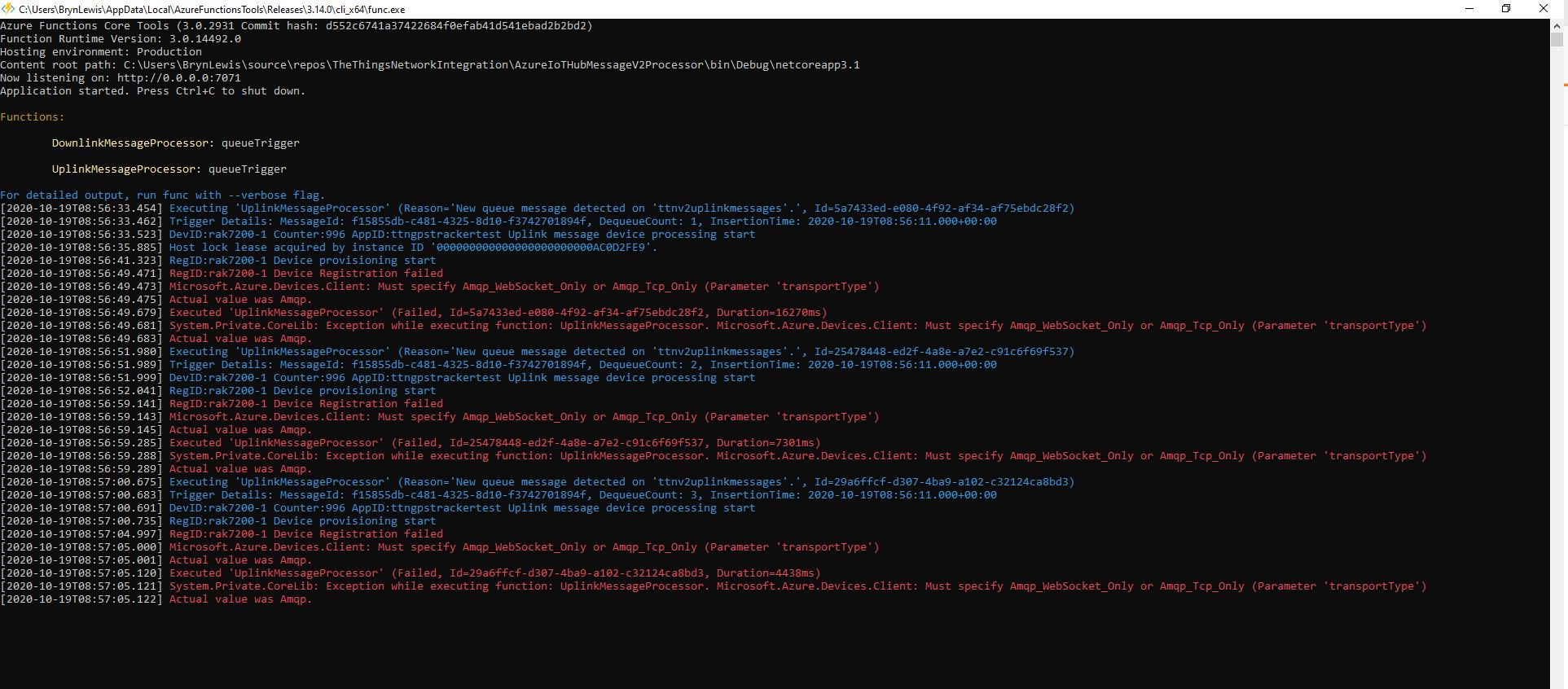
My first attempt failed as I hadn’t configured “TransportType.Amqp_Tcp_Only” which would have allowed the AMQP implementation to fallback to other protocols which don’t support pooling.
Exception caused by not using TransportType.Amqp_Tcp_Only
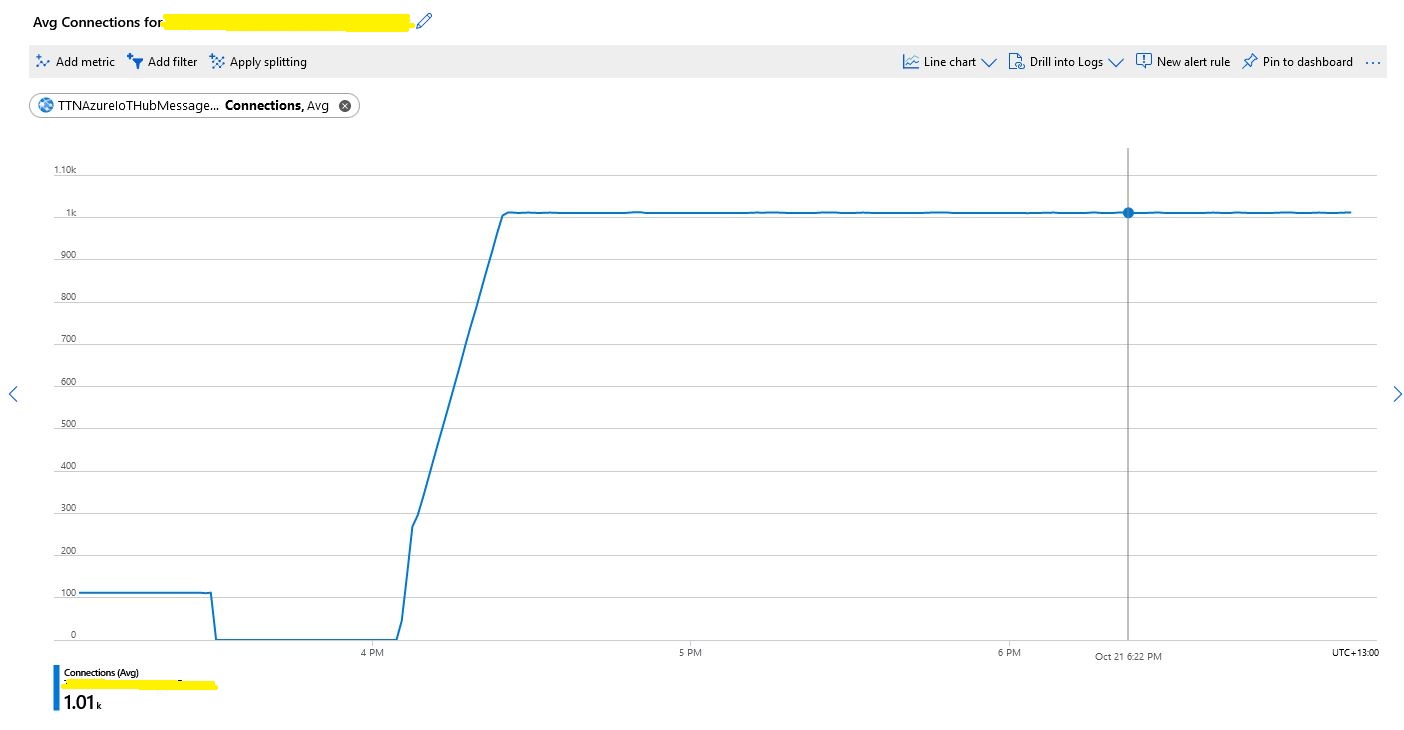
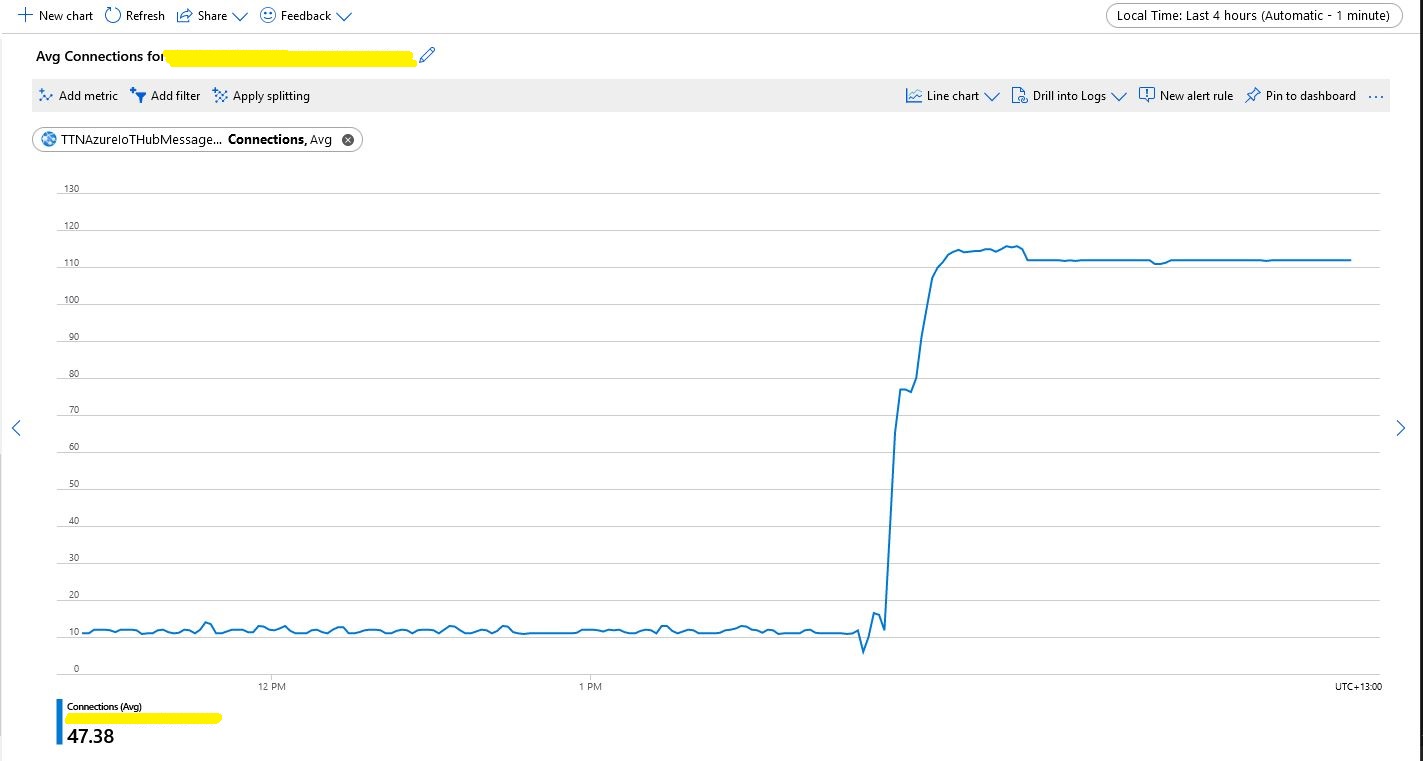
I then deployed the updated code and ran my 1000 device stress test (note the different x axis scales)
Number of connections with pooling
This confirmed what I found in the Azure.AMQP source code
/// <summary>
/// The default size of the pool
/// </summary>
/// <remarks>
/// Allows up to 100,000 devices
/// </remarks>
/// private const uint DefaultPoolSize = 100;
class Program
{
   private static string payload;

   static async Task Main(string[] args)
   {
      string filename;
      string azureIoTHubconnectionString;
      DeviceClient azureIoTHubClient;

      if (args.Length != 2)
      {
         Console.WriteLine("[JOSN file] [AzureIoTHubConnectionString]");
         Console.WriteLine("Press <enter> to exit");
         Console.ReadLine();
         return;
      }

      filename = args[0];
      azureIoTHubconnectionString = args[1];

      try
      {
         payload = File.ReadAllText(filename);

         // Open up the connection
         azureIoTHubClient = DeviceClient.CreateFromConnectionString(azureIoTHubconnectionString, TransportType.Mqtt);
         //azureIoTHubClient = DeviceClient.CreateFromConnectionString(azureIoTHubconnectionString, TransportType.Mqtt_Tcp_Only);
         //azureIoTHubClient = DeviceClient.CreateFromConnectionString(azureIoTHubconnectionString, TransportType.Mqtt_WebSocket_Only);

         await azureIoTHubClient.OpenAsync();

         await azureIoTHubClient.SetMethodDefaultHandlerAsync(MethodCallbackDefault, null);

         Timer MessageSender = new Timer(TimerCallback, azureIoTHubClient, new TimeSpan(0, 0, 10), new TimeSpan(0, 0, 10));


         Console.WriteLine("Press <enter> to exit");
         Console.ReadLine();
      }
      catch (Exception ex)
      {
         Console.WriteLine(ex.Message);
         Console.WriteLine("Press <enter> to exit");
         Console.ReadLine();
      }
   }

   public static async void TimerCallback(object state)
   {
      DeviceClient azureIoTHubClient = (DeviceClient)state;

      try
      {
         // I know having the payload as a global is a bit nasty but this is a demo..
         using (Message message = new Message(Encoding.ASCII.GetBytes(JsonConvert.SerializeObject(payload))))
         {
            Console.WriteLine(" {0:HH:mm:ss} AzureIoTHubDeviceClient SendEventAsync start", DateTime.UtcNow);
            await azureIoTHubClient.SendEventAsync(message);
            Console.WriteLine(" {0:HH:mm:ss} AzureIoTHubDeviceClient SendEventAsync finish", DateTime.UtcNow);
         }
      }
      catch (Exception ex)
      {
         Console.WriteLine(ex.Message);
      }
   }

   private static async Task<MethodResponse> MethodCallbackDefault(MethodRequest methodRequest, object userContext)
   {
      Console.WriteLine($"Default handler method {methodRequest.Name} was called.");

      return new MethodResponse(200);
   }
}
I configured an Azure IoT hub then used Azure IoT explorer to create a device and get the connections string for my application. After fixing up the application’s command line parameters I could see the timer code was successfully sending telemetry messages to my Azure IoT Hub. I also explored the different MQTT connections options TransportType.Mqtt, TransportType.Mqtt_Tcp_Only, and TransportType.Mqtt_WebSocket_Only which worked as expected.
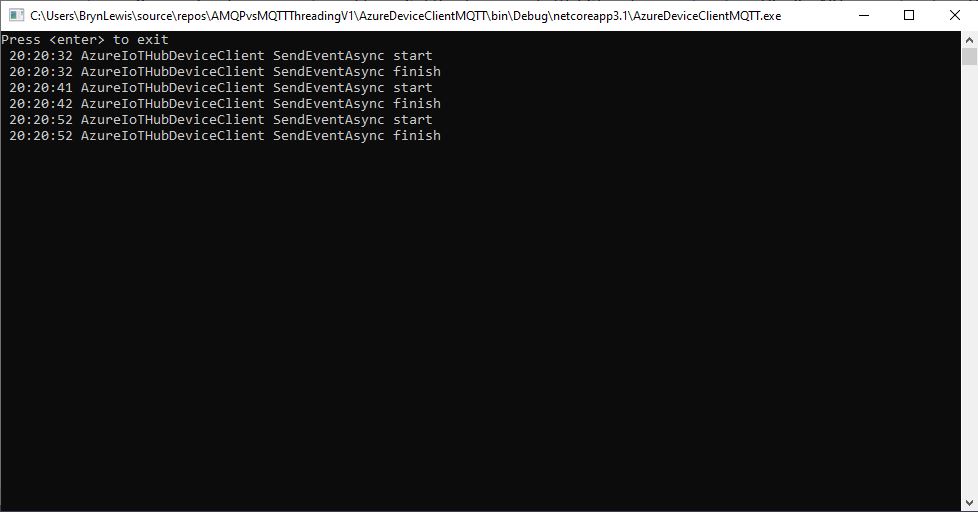
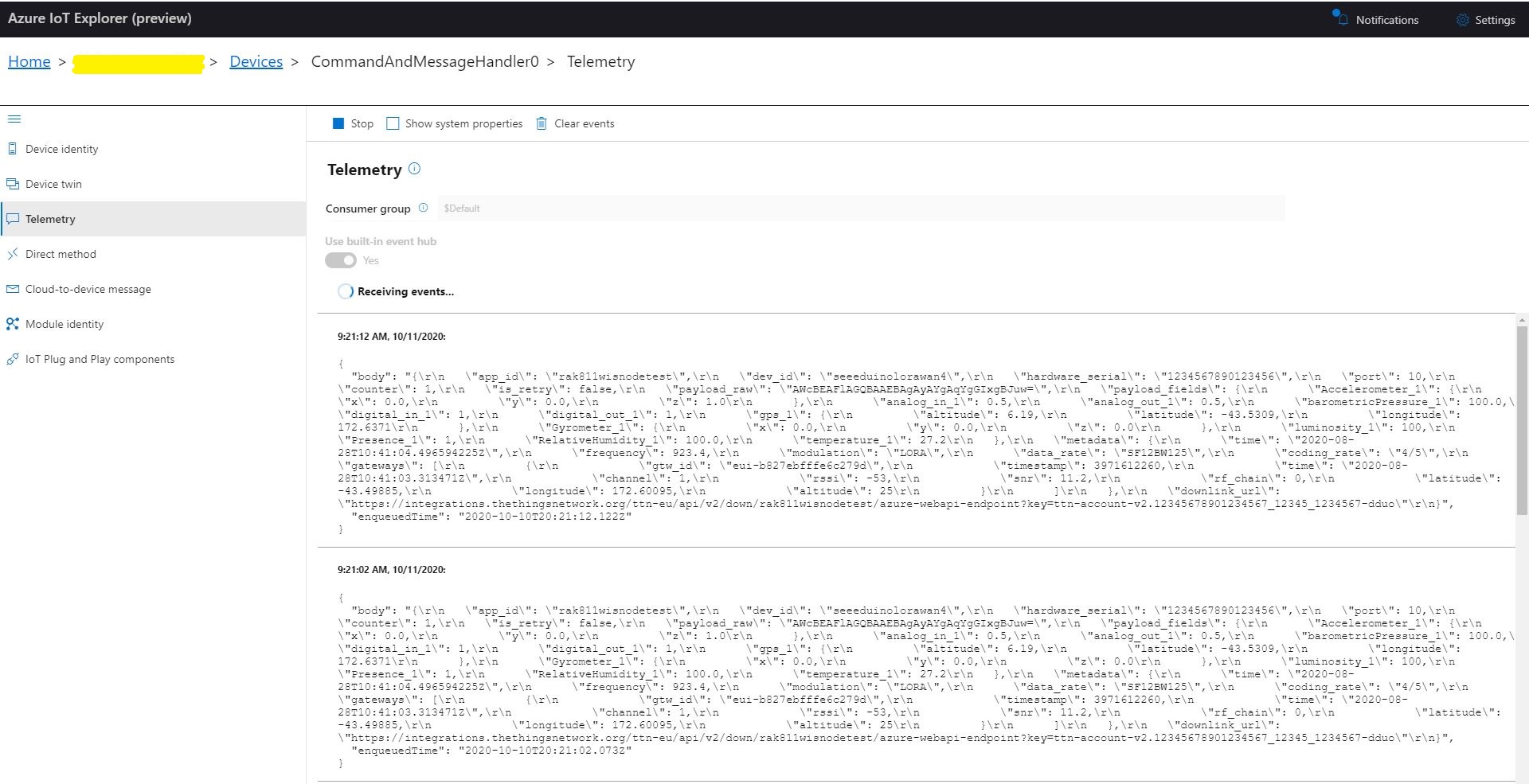
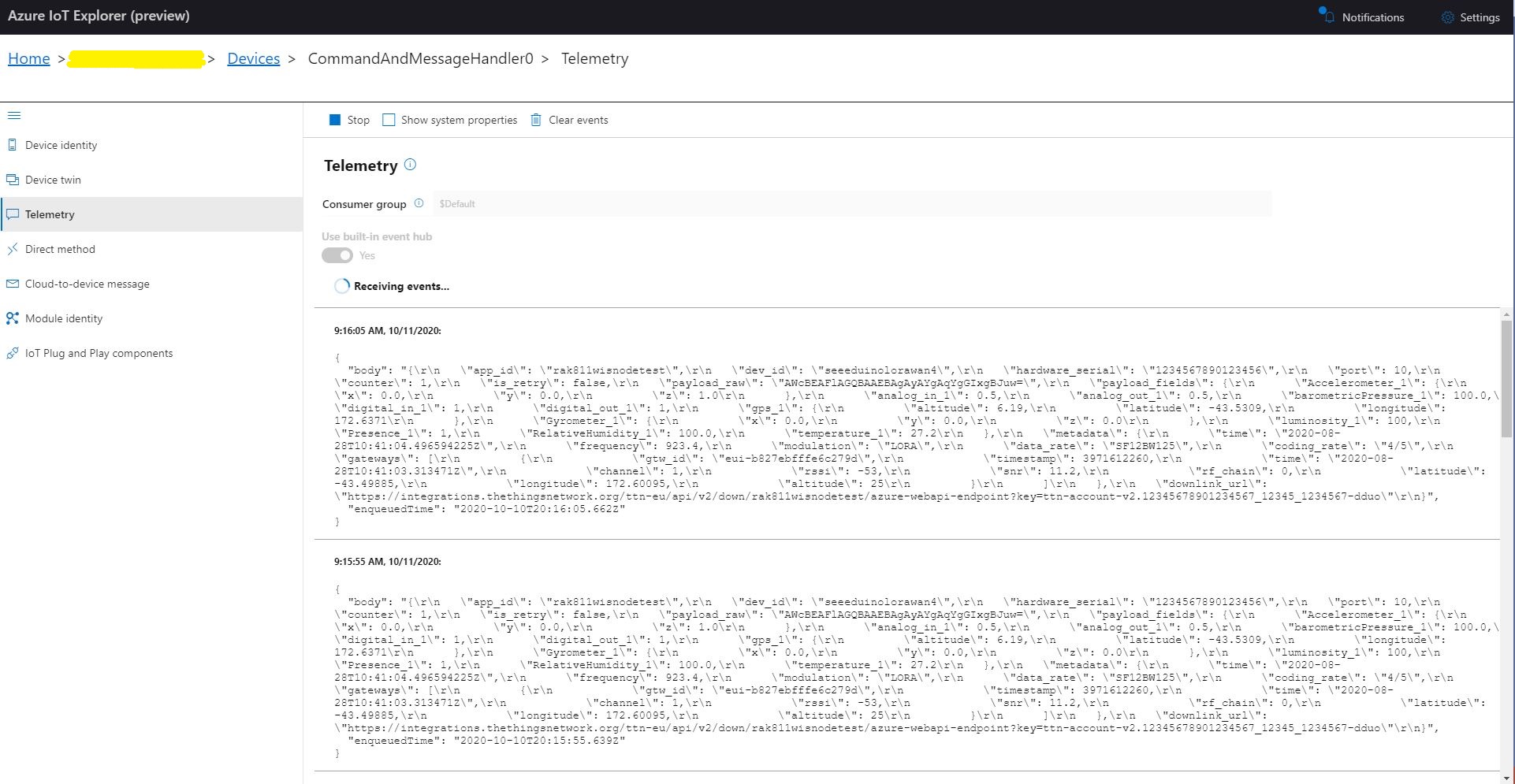
MQTT Console application displaying sent telemetryAzure IoT Hub displaying received telemetry
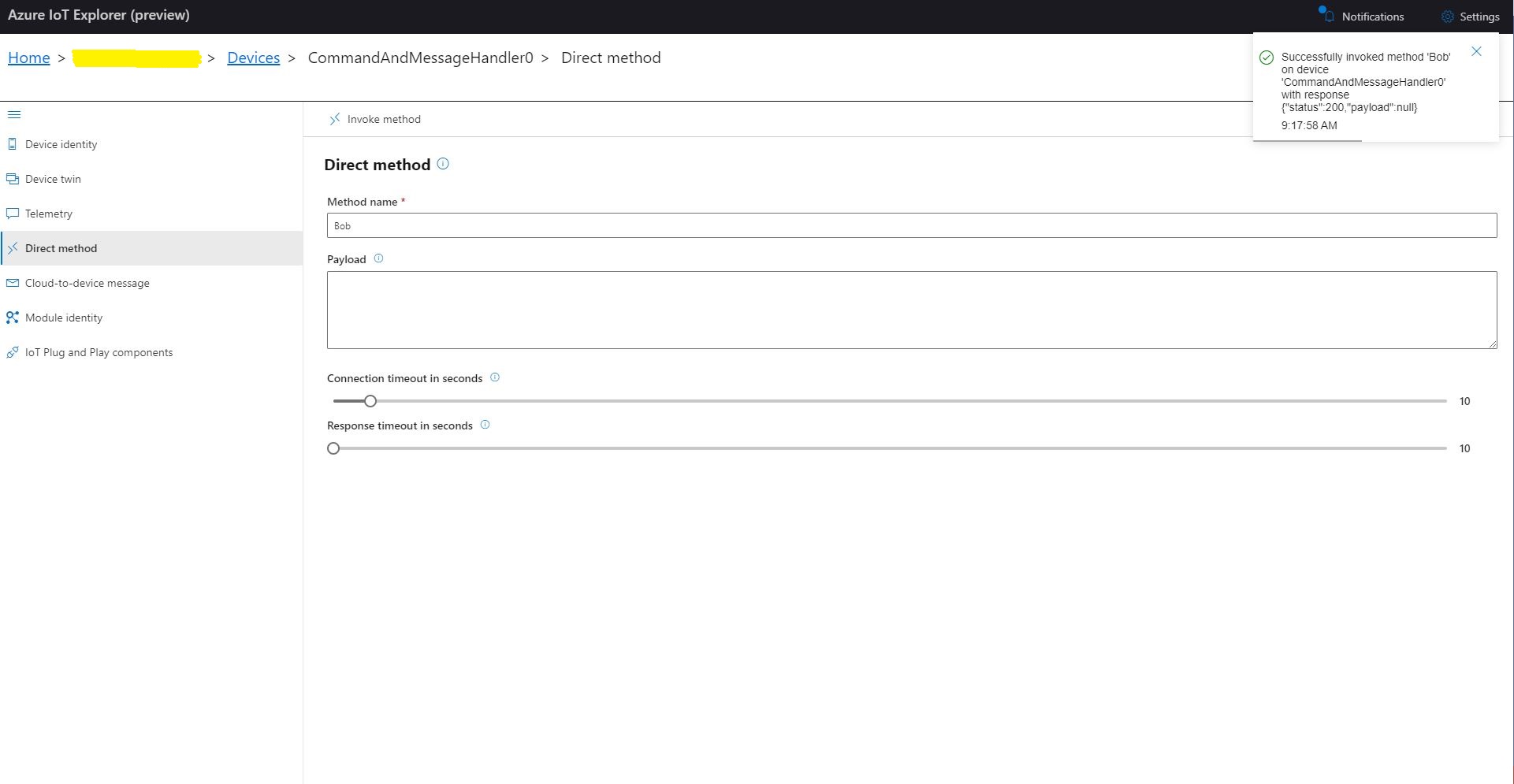
I could also initiate Direct Method calls to my console application from Azure IoT explorer.
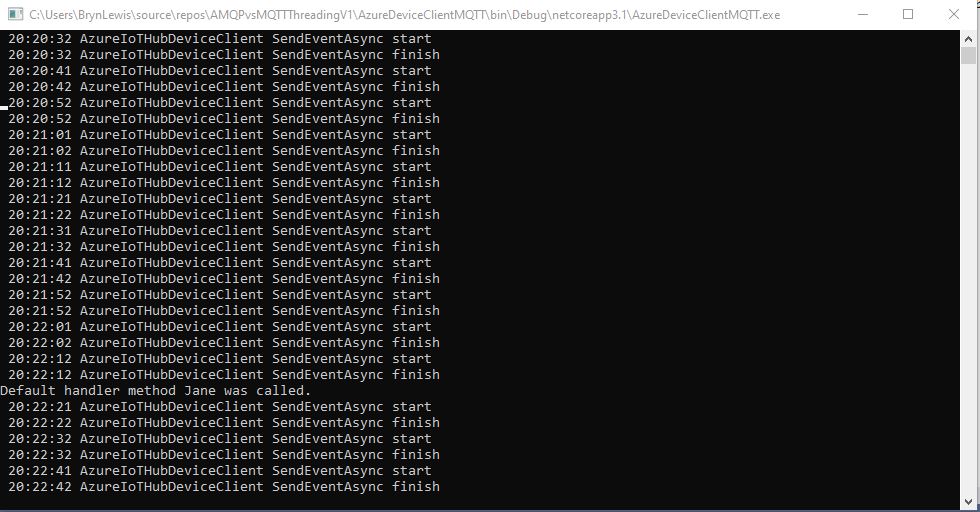
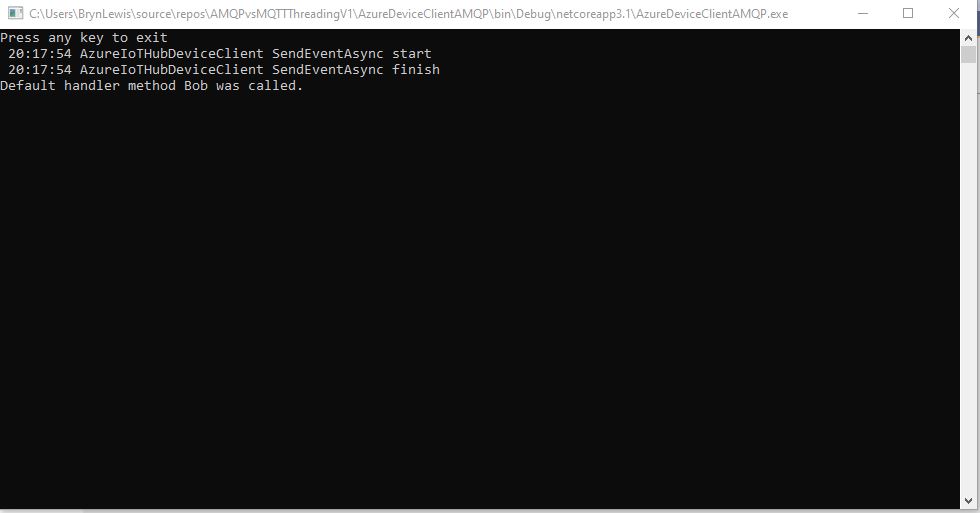
Azure IoT Explorer initiating a Direct Method MQTT console application displaying direct method call.
I then changed the protocol to AMQP
class Program
{
   private static string payload;

   static async Task Main(string[] args)
   {
      string filename;
      string azureIoTHubconnectionString;
      DeviceClient azureIoTHubClient;
      Timer MessageSender;

      if (args.Length != 2)
      {
         Console.WriteLine("[JOSN file] [AzureIoTHubConnectionString]");
         Console.WriteLine("Press <enter> to exit");
         Console.ReadLine();
         return;
      }

      filename = args[0];
      azureIoTHubconnectionString = args[1];

      try
      {
         payload = File.ReadAllText(filename);

         // Open up the connection
         azureIoTHubClient = DeviceClient.CreateFromConnectionString(azureIoTHubconnectionString, TransportType.Amqp);
         //azureIoTHubClient = DeviceClient.CreateFromConnectionString(azureIoTHubconnectionString, TransportType.Amqp_Tcp_Only);
         //azureIoTHubClient = DeviceClient.CreateFromConnectionString(azureIoTHubconnectionString, TransportType.Amqp_WebSocket_Only);

         await azureIoTHubClient.OpenAsync();

         await azureIoTHubClient.SetMethodDefaultHandlerAsync(MethodCallbackDefault, null);

         //MessageSender = new Timer(TimerCallbackAsync, azureIoTHubClient, new TimeSpan(0, 0, 10), new TimeSpan(0, 0, 10));
         MessageSender = new Timer(TimerCallbackSync, azureIoTHubClient, new TimeSpan(0, 0, 10), new TimeSpan(0, 0, 10));

#if MESSAGE_PUMP
         Console.WriteLine("Press any key to exit");
         while (!Console.KeyAvailable)
         {
            await Task.Delay(100);
         }
#else
         Console.WriteLine("Press <enter> to exit");
         Console.ReadLine();
#endif
      }
      catch (Exception ex)
      {
         Console.WriteLine(ex.Message);
         Console.WriteLine("Press <enter> to exit");
         Console.ReadLine();
      }
   }

   public static async void TimerCallbackAsync(object state)
   {
      DeviceClient azureIoTHubClient = (DeviceClient)state;

      try
      {
         // I know having the payload as a global is a bit nasty but this is a demo..
         using (Message message = new Message(Encoding.ASCII.GetBytes(JsonConvert.SerializeObject(payload))))
         {
            Console.WriteLine(" {0:HH:mm:ss} AzureIoTHubDeviceClient SendEventAsync start", DateTime.UtcNow);
            await azureIoTHubClient.SendEventAsync(message);
            Console.WriteLine(" {0:HH:mm:ss} AzureIoTHubDeviceClient SendEventAsync finish", DateTime.UtcNow);
         }
      }
      catch (Exception ex)
      {
         Console.WriteLine(ex.Message);
      }
   }

   public static void TimerCallbackSync(object state)
   {
      DeviceClient azureIoTHubClient = (DeviceClient)state;

      try
      {
         // I know having the payload as a global is a bit nasty but this is a demo..
         using (Message message = new Message(Encoding.ASCII.GetBytes(JsonConvert.SerializeObject(payload))))
         {
            Console.WriteLine(" {0:HH:mm:ss} AzureIoTHubDeviceClient SendEventAsync start", DateTime.UtcNow);
            azureIoTHubClient.SendEventAsync(message).GetAwaiter();
            Console.WriteLine(" {0:HH:mm:ss} AzureIoTHubDeviceClient SendEventAsync finish", DateTime.UtcNow);
         }
      }
      catch (Exception ex)
      {
         Console.WriteLine(ex.Message);
      }
   }


   private static async Task<MethodResponse> MethodCallbackDefault(MethodRequest methodRequest, object userContext)
   {
      Console.WriteLine($"Default handler method {methodRequest.Name} was called.");

      return new MethodResponse(200);
   }
}
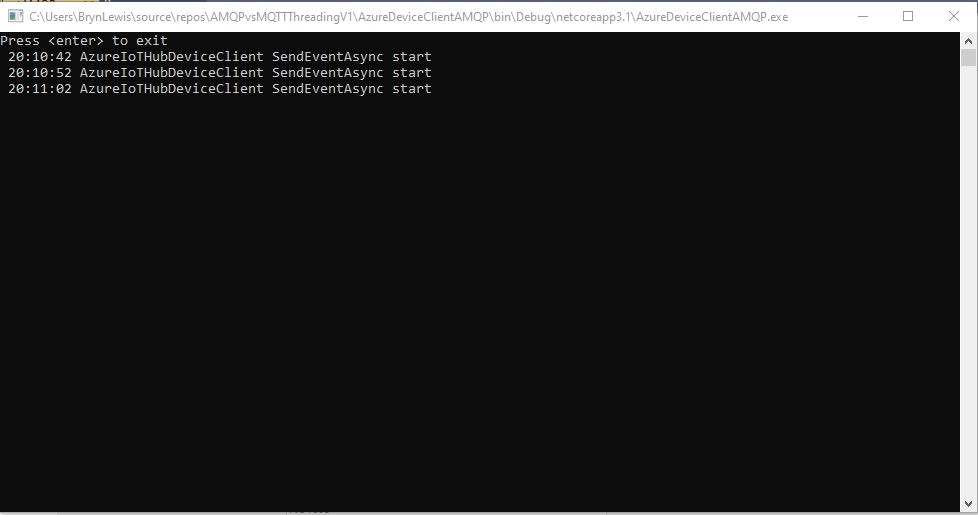
In the first version of my console application I could see the SendEventAsync method was getting called but was not returning
AMQP Console application displaying sent telemetry failure
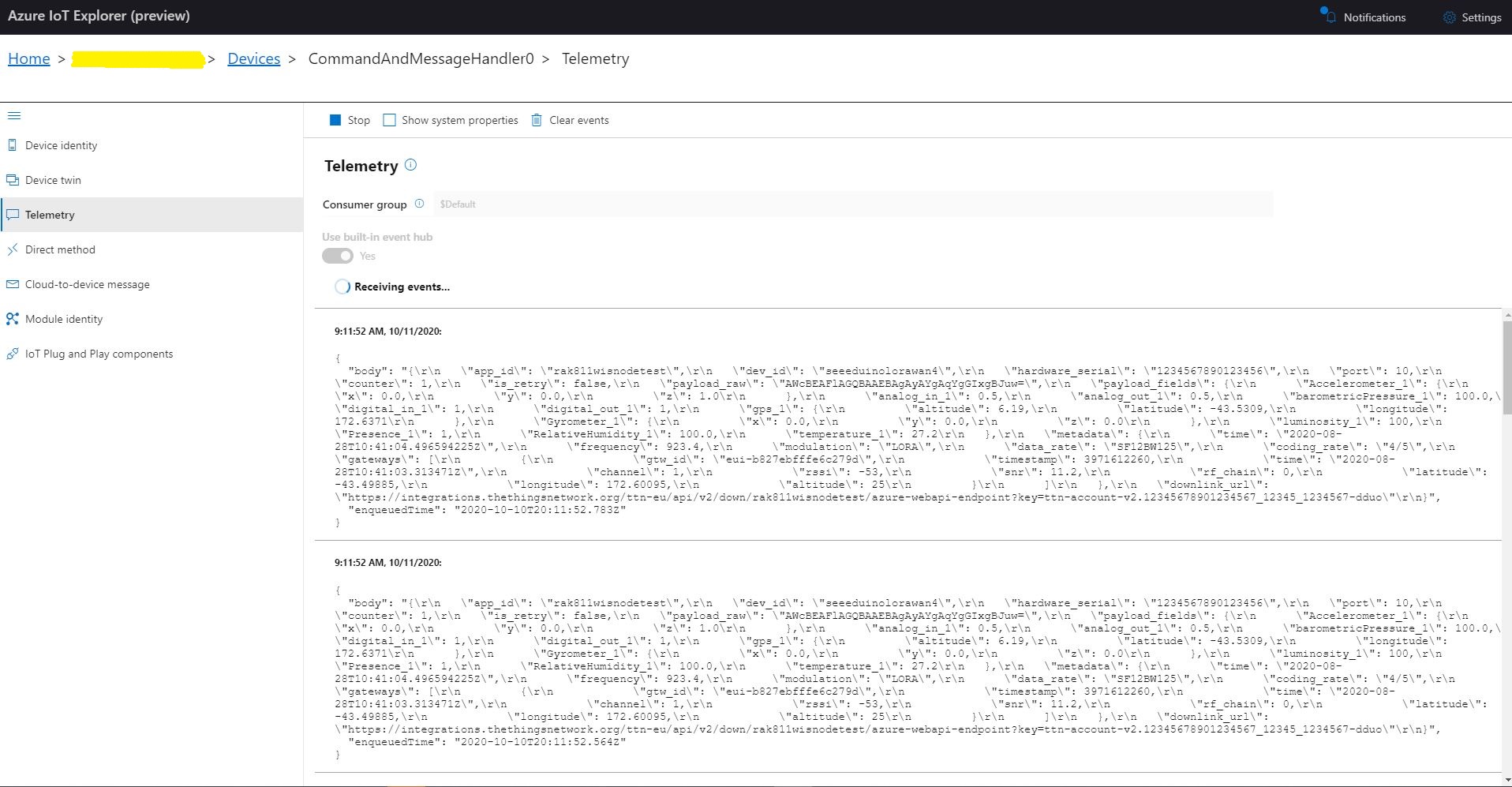
Even though the SendEventAsync call was not returning the telemetry messages were making it to my Azure IoT Hub.
Azure IoT Hub displaying AMQP telemetry
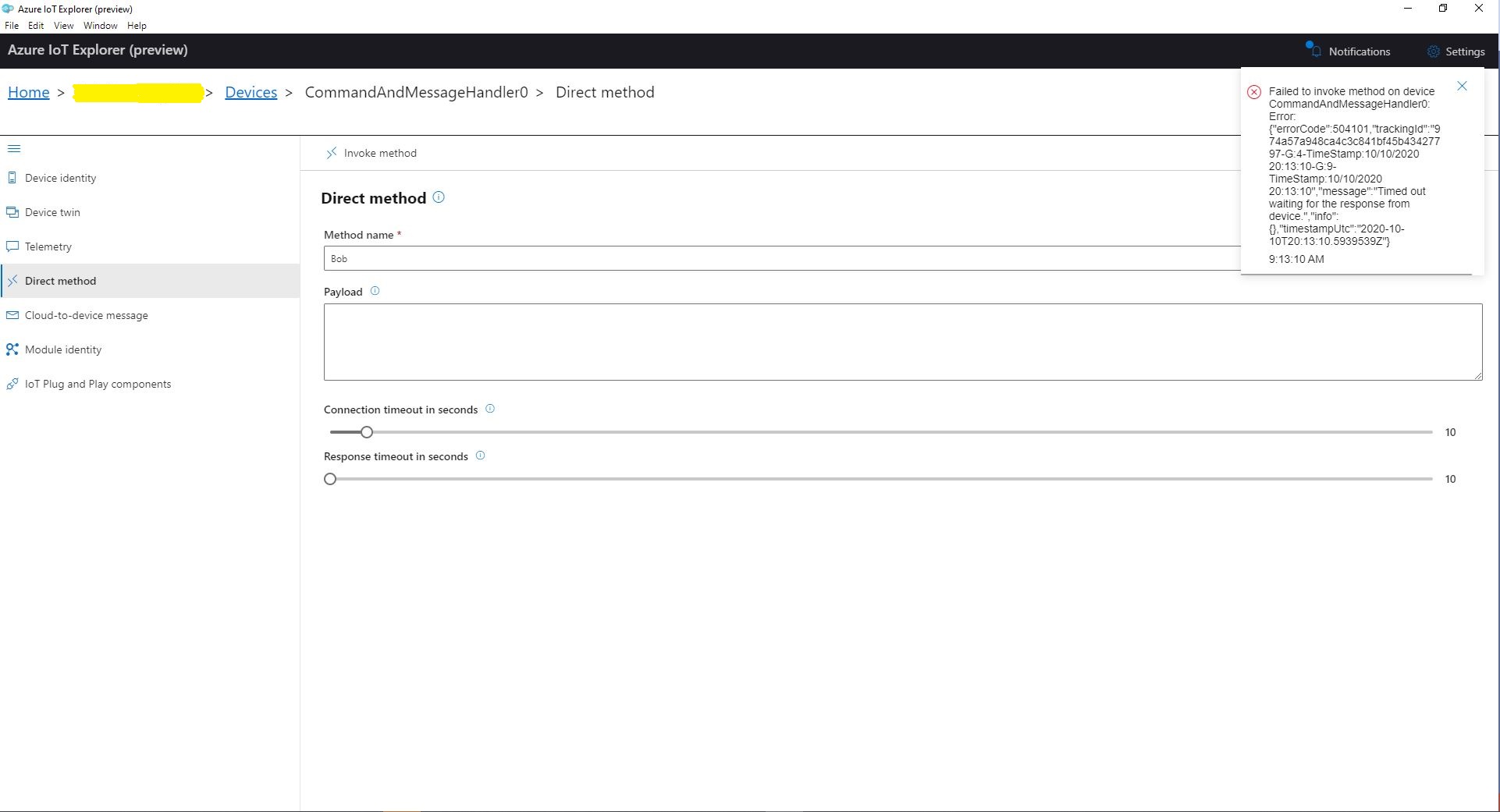
When I tried to initiate a Direct Method call from Azure IoT Explorer it failed after a while with a timeout.
Azure IoT Explorer initiating a Direct Method
The first successful approach I tried was to change the Console.Readline to a “message pump” (flashbacks to Win32 API programming).
Console.WriteLine("Press any key to exit");
while (!Console.KeyAvailable)
{
   await Task.Delay(100);
}
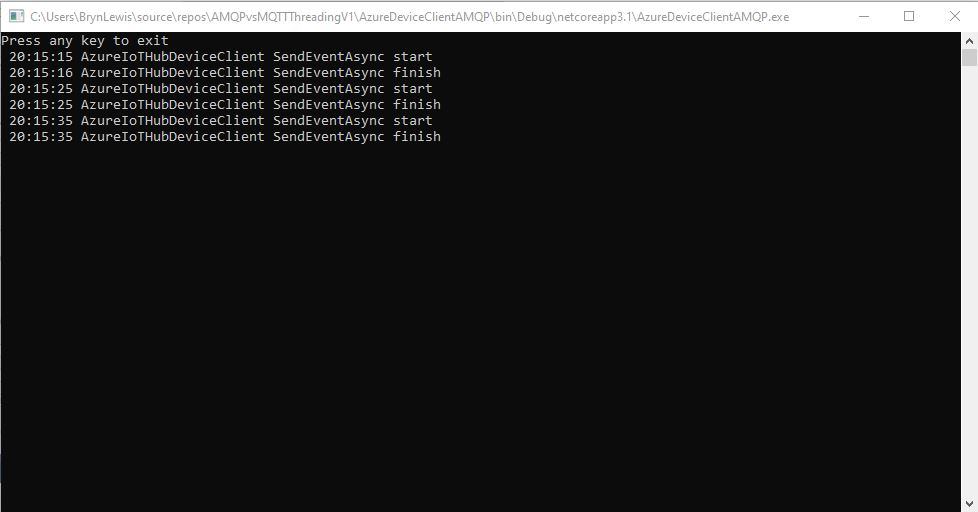
After some more experimentation I found that changing the timer method from asynchronous to synchronous also worked.
public static void TimerCallbackSync(object state)
{
   DeviceClient azureIoTHubClient = (DeviceClient)state;

   try
   {
      // I know having the payload as a global is a bit nasty but this is a demo..
      using (Message message = new Message(Encoding.ASCII.GetBytes(JsonConvert.SerializeObject(payload))))
      {
         Console.WriteLine(" {0:HH:mm:ss} AzureIoTHubDeviceClient SendEventAsync start", DateTime.UtcNow);
         azureIoTHubClient.SendEventAsync(message).GetAwaiter();
         Console.WriteLine(" {0:HH:mm:ss} AzureIoTHubDeviceClient SendEventAsync finish", DateTime.UtcNow);
      }
   }
   catch (Exception ex)
   {
      Console.WriteLine(ex.Message);
   }
}
I also had to change the method declaration and modify the SendEventAsync call to use a GetAwaiter.
AMQP Console application displaying sent telemetryAzure IoT Hub displaying received telemetryAzure IoT Explorer initiating a Direct MethodMQTT console application displaying direct method call.
It took a while to figure out enough about what was going on so I could do a search with the right keywords (DeviceClient AMQP async await SendEventAsync) to confirm my suspicion that MQTT and AMQP clients did behave differently.
I did notice that the .DeviceConnected and .DeviceDisconnected events did take a while to arrive. When I started the field gateway application on the Windows 10 IoT Core device I would get several DeviceTelemetry events before the DeviceConnected event arrived.
I was using Advanced Message Queueing Protocol (AMQP) so I modified the configuration file so I could try all the available options.
C# TransportType enumeration
namespace Microsoft.Azure.Devices.Client
{
	//
	// Summary:
	//     Transport types supported by DeviceClient - AMQP/TCP, HTTP 1.1, MQTT/TCP, AMQP/WS,
	//     MQTT/WS
	public enum TransportType
	{
		//
		// Summary:
		//     Advanced Message Queuing Protocol transport. Try Amqp over TCP first and fallback
		//     to Amqp over WebSocket if that fails
		Amqp = 0,
		//
		// Summary:
		//     HyperText Transfer Protocol version 1 transport.
		Http1 = 1,
		//
		// Summary:
		//     Advanced Message Queuing Protocol transport over WebSocket only.
		Amqp_WebSocket_Only = 2,
		//
		// Summary:
		//     Advanced Message Queuing Protocol transport over native TCP only
		Amqp_Tcp_Only = 3,
		//
		// Summary:
		//     Message Queuing Telemetry Transport. Try Mqtt over TCP first and fallback to
		//     Mqtt over WebSocket if that fails
		Mqtt = 4,
		//
		// Summary:
		//     Message Queuing Telemetry Transport over Websocket only.
		Mqtt_WebSocket_Only = 5,
		//
		// Summary:
		//     Message Queuing Telemetry Transport over native TCP only
		Mqtt_Tcp_Only = 6
	}
}
The first telemetry data arrived 00:57:18, the DeviceConnected arrived 01:01:28 so approximately a 4 minute delay, the DeviceDisconnected arrived within a minute of me shutting the device down.
The first telemetry data arrived 04:16:48, the DeviceConnected arrived 04:20:39 so approximately a 4 minute delay, the DeviceDisconnected arrived within a minute of me shutting the device down.
The first telemetry data arrived 04:05:36, DeviceConnected arrived 04:09:52 so approximately a 4 minute delay, the DeviceDisconnected arrived within a minute of me shutting the device down.
HTTP
I waited for 20 minutes and there wasn’t a DeviceConnected message which I sort of expected as HTTP is a connectionless protocol.
The first telemetry data arrived 01:11:33, the DeviceConnected arrived 01:11:25 so they arrived in order and within 10 seconds, the DeviceDisconnected arrived within a 15 seconds of me shutting the device down.
The first telemetry data arrived 04:42:15, the DeviceConnected arrived 04:42:06 so they arrived in order and within 10 seconds, the DeviceDisconnected arrived within a 20 seconds of me shutting device down.
The first telemetry data arrived 04:36:08, the DeviceConnected arrived 04:36:03 so they arrived in order and within 10 seconds, the DeviceDisconnected arrived within a 30 seconds of me shutting device down.
Summary
My LoRa sensors nodes are sending data roughly every minute which reduces the precision of the times.
It looks like for AMQP based messaging it can take 4-5 minutes for a Devices.DeviceConnected message to arrive, for based MQTT messaging it’s 5-10 seconds.
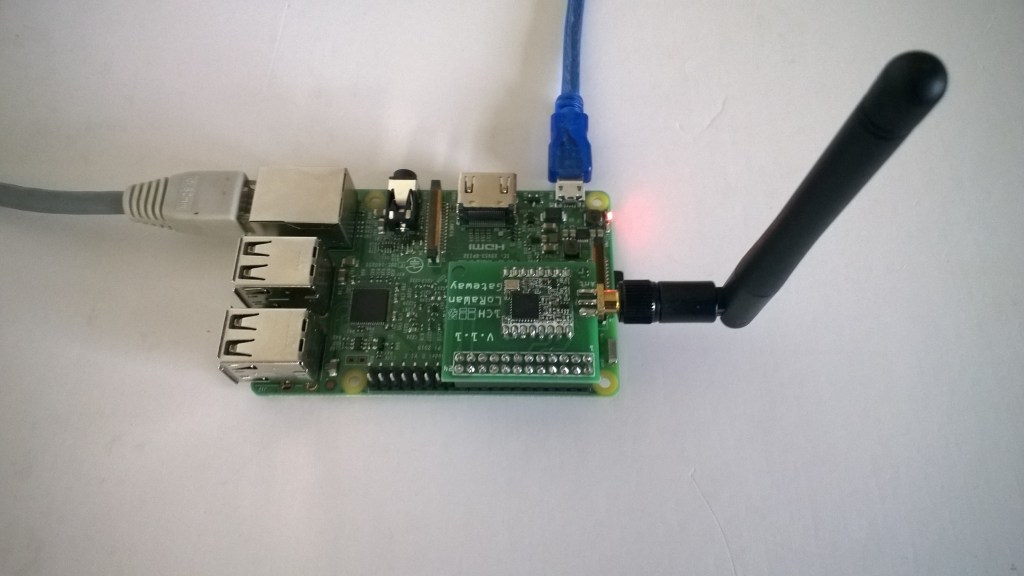
I have one an Azure IoT HubLoRa Telemetry Field Gateway running in my office and I wanted to process the data collected by the sensors around my property without using a Software as a Service(SaaS) Internet of Things (IoT) package.
Rather than lots of screen grabs of my configuration steps I figured people reading this series of posts would be able to figure the details out themselves.
I downloaded the JSON configuration file template from my Windows 10 device (which is created on first startup after installation) and configured the Azure IoT Hub connection string.
I then uploaded this to my Windows 10 IoT Core device and restarted the Azure IoT Hub Field gateway so it picked up the new settings.
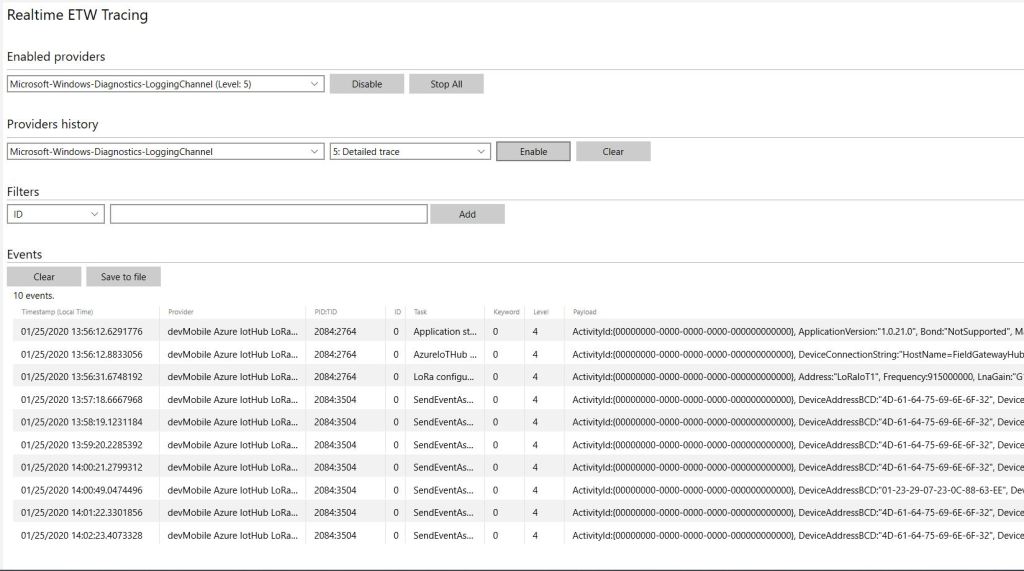
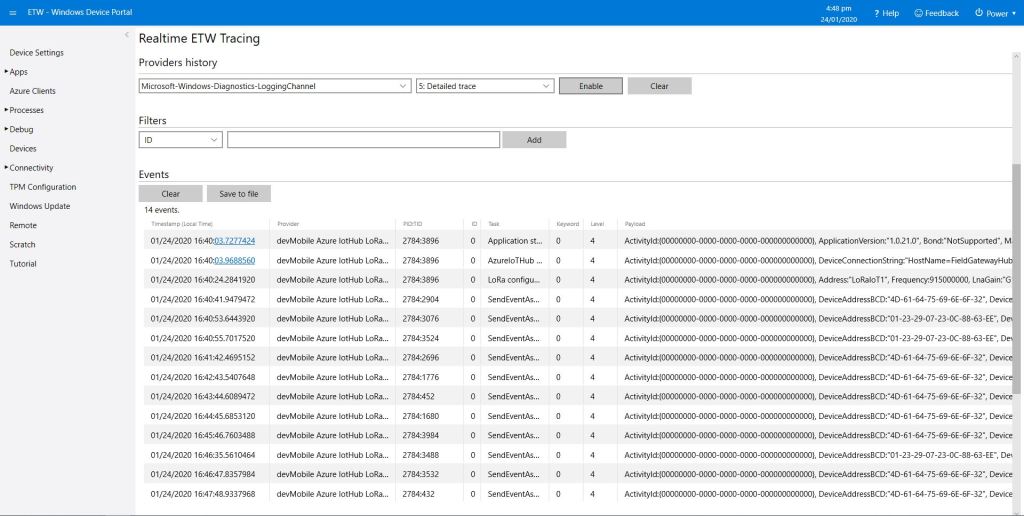
I could then see on the device messages from sensor nodes being unpacked and uploaded to my Azure IoT Hub.
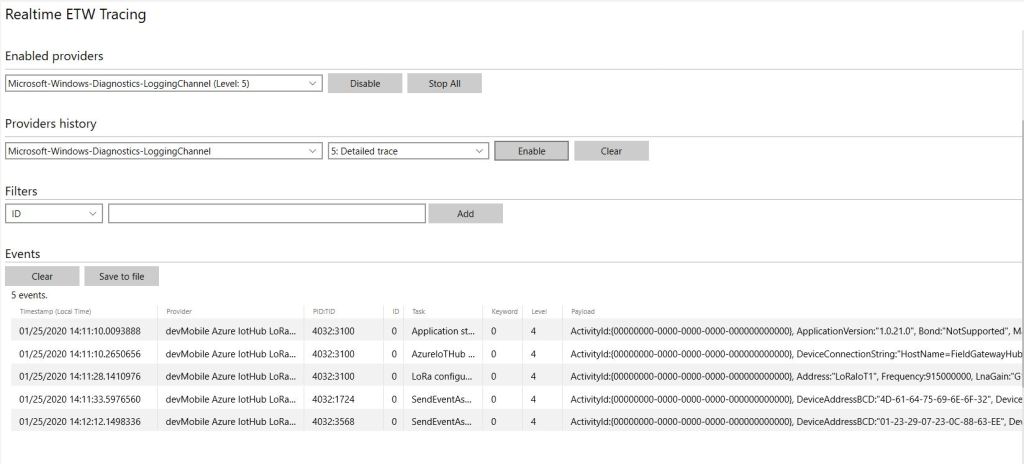
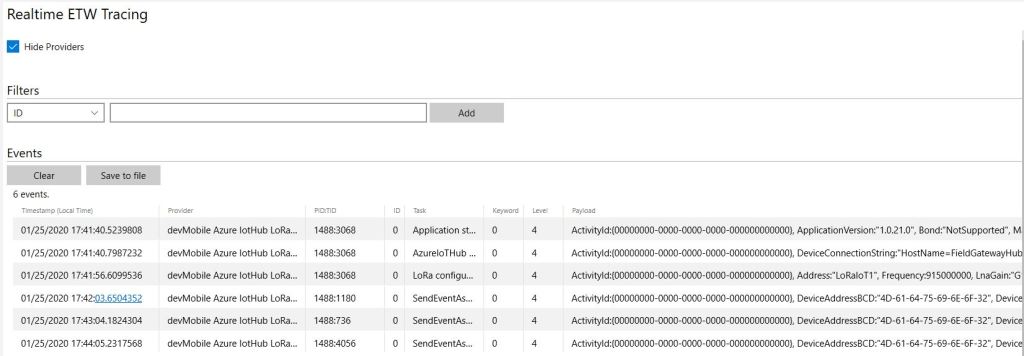
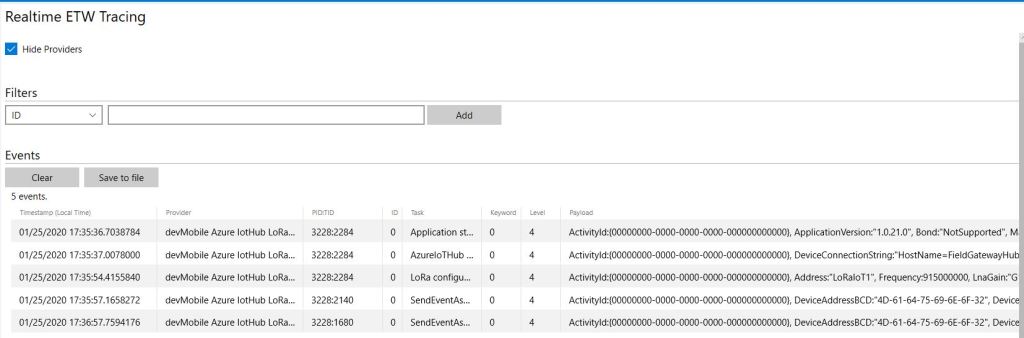
ETW logging on device
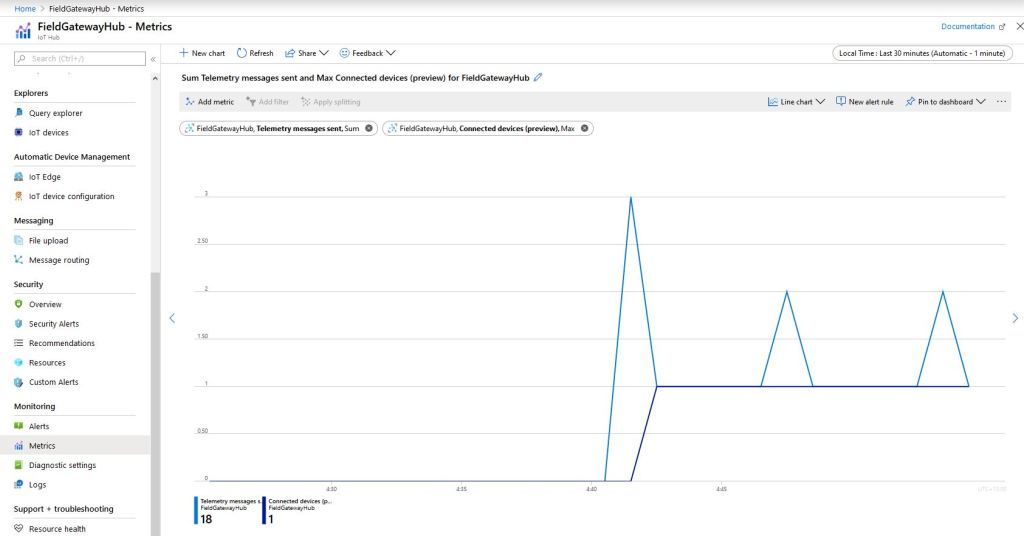
In the Azure IoT Hub metrics I graphed the number of devices connected and the number of telemetry messages sent and could see my device connect then start uploading telemetry.
Azure IoT Hub metrics
One of my customers uses Azure Event Grid for application integration and I wanted to explore using it in an IoT solution. The first step was to create an Event Grid Domain.
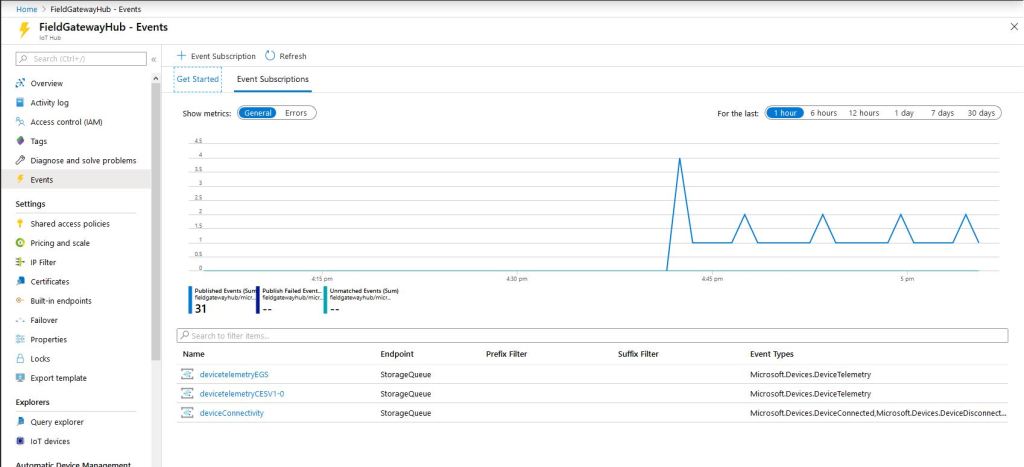
To confirm my event subscriptions were successful I previously found the “simplest” approach was to use an Azure storage queue endpoint. I had to create an Azure Storage Account with two Azure Storage Queues one for device connectivity (.DeviceConnected & .DeviceDisconnected) events and the other for device telemetry (.DeviceTelemetry) events.
I created a couple of other subscriptions so I could compare the different Event schemas (Event Grid Schema & Cloud Event Schema v1.0). At this stage I didn’t configure any Filters or Additional Features.
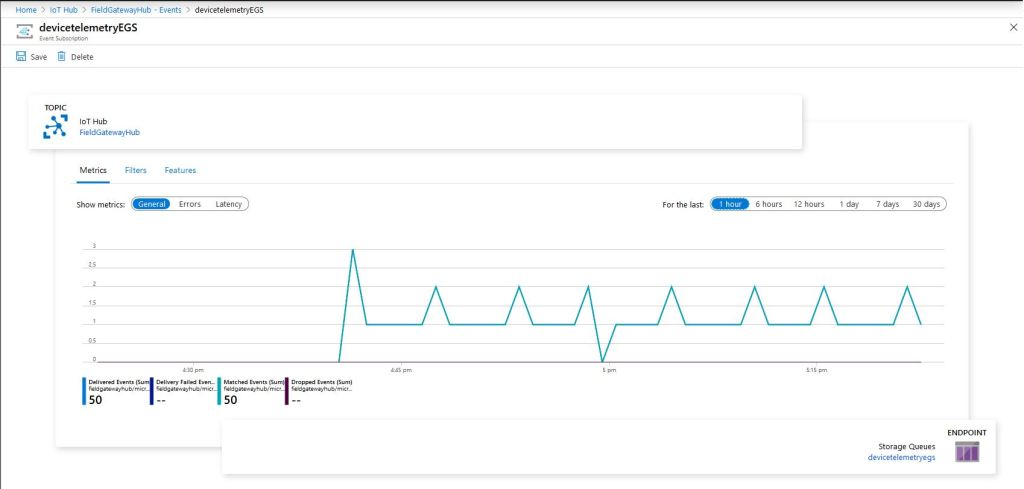
Azure IoT Hub Telemetry Event Metrics
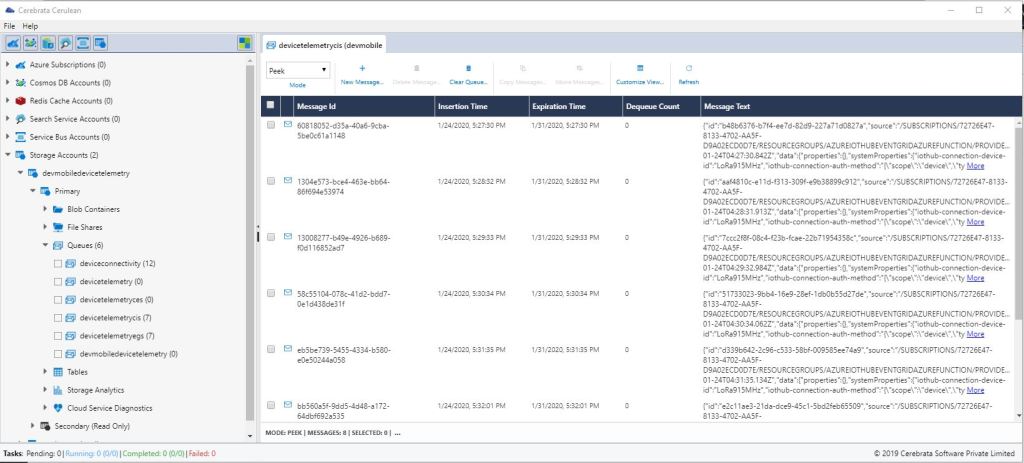
I use Cerebrate Cerculean for monitoring and managing a couple of other customer projects so I used it to inspect the messages in the storage queues.
Without writing any code (I will script the configuration) I could upload sensor data to an Azure IoT Hub, subscribe to a selection of events the Azure IoT Hub publishes and then inspect them in an Azure Storage Queue.
I did notice that the .DeviceConnected and .DeviceDisconnected events did take a while to arrive. When I started the field gateway application on the device I would get several DeviceTelemetry events before the DeviceConnected event arrived.
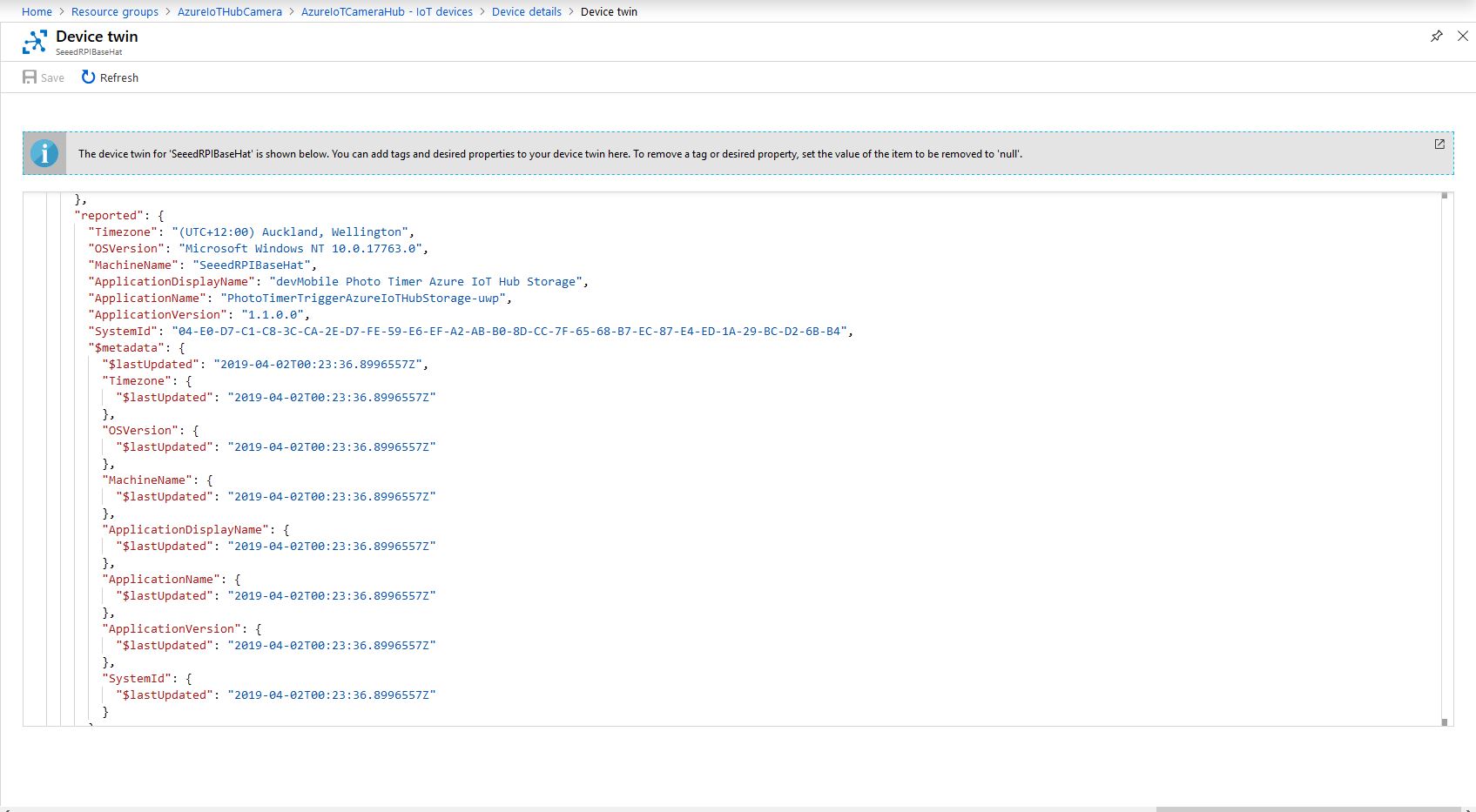
On startup the application uploads a selection of properties to the Azure IoT Hub to assist with support, fault finding etc.
// This is from the OS
reportedProperties["Timezone"] = TimeZoneSettings.CurrentTimeZoneDisplayName;
reportedProperties["OSVersion"] = Environment.OSVersion.VersionString;
reportedProperties["MachineName"] = Environment.MachineName;
reportedProperties["ApplicationDisplayName"] = package.DisplayName;
reportedProperties["ApplicationName"] = packageId.Name;
reportedProperties["ApplicationVersion"] = string.Format($"{version.Major}.{version.Minor}.{version.Build}.{version.Revision}");

// Unique identifier from the hardware
SystemIdentificationInfo systemIdentificationInfo = SystemIdentification.GetSystemIdForPublisher();
using (DataReader reader = DataReader.FromBuffer(systemIdentificationInfo.Id))
{
   byte[] bytes = new byte[systemIdentificationInfo.Id.Length];
   reader.ReadBytes(bytes);
   reportedProperties["SystemId"] = BitConverter.ToString(bytes);
}
Azure Portal Device Properties
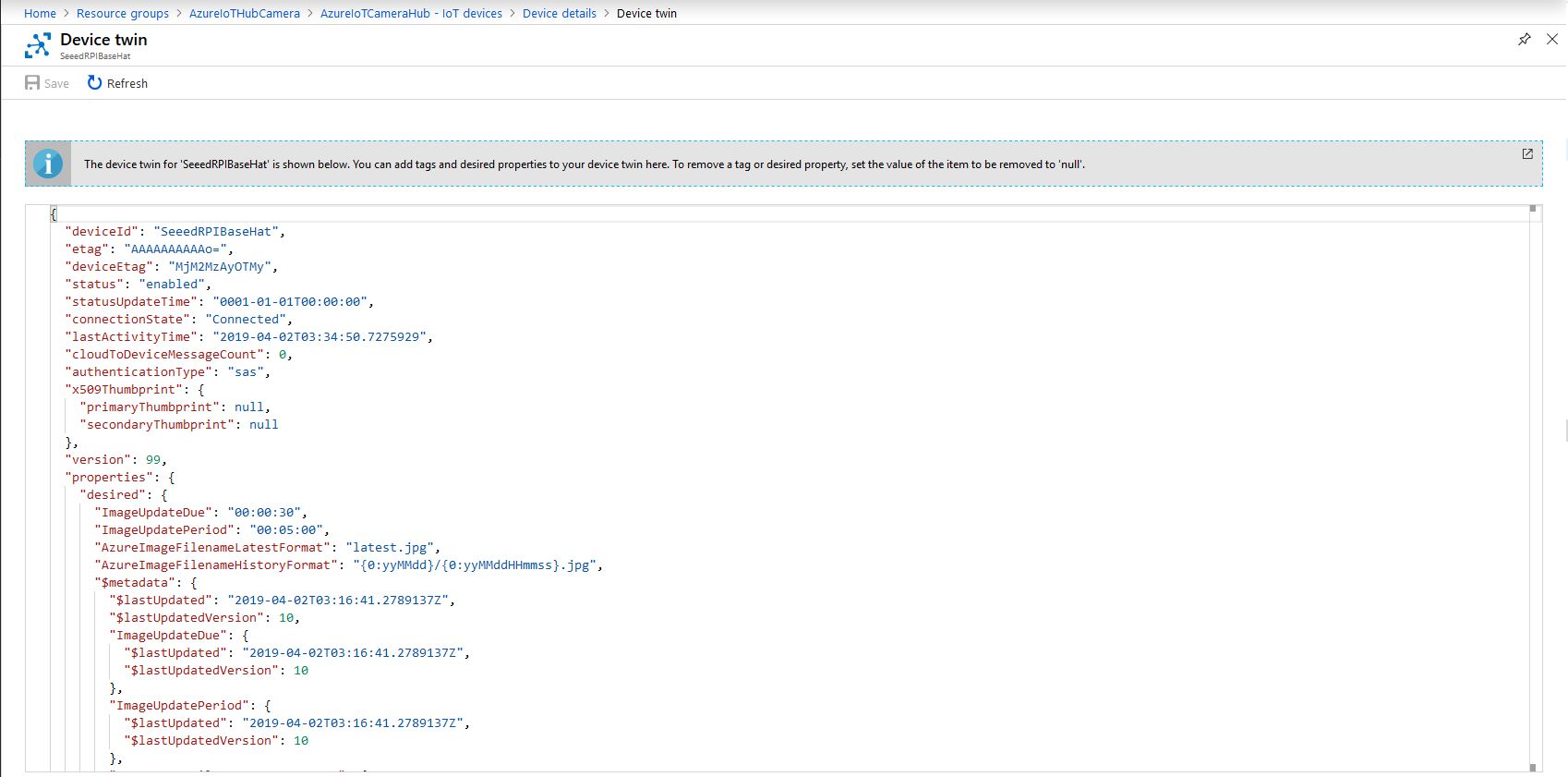
The Azure Storage file and folder name formats along with the image capture due and update periods are configured in the DeviceTwin properties. Initially I had some problems with the dynamic property types so had to .ToString and then Timespan.TryParse the periods.
Twin deviceTwin= azureIoTHubClient.GetTwinAsync().Result;

if (!deviceTwin.Properties.Desired.Contains("AzureImageFilenameLatestFormat"))
{
   this.logging.LogMessage("DeviceTwin.Properties AzureImageFilenameLatestFormat setting missing", LoggingLevel.Warning);
   return;
}
…
if (!deviceTwin.Properties.Desired.Contains("ImageUpdateDue") || !TimeSpan.TryParse(deviceTwin.Properties.Desired["ImageUpdateDue"].Value.ToString(), out imageUpdateDue))
{
   this.logging.LogMessage("DeviceTwin.Properties ImageUpdateDue setting missing or invalid format", LoggingLevel.Warning);
   return;
}
Azure Portal Device Settings
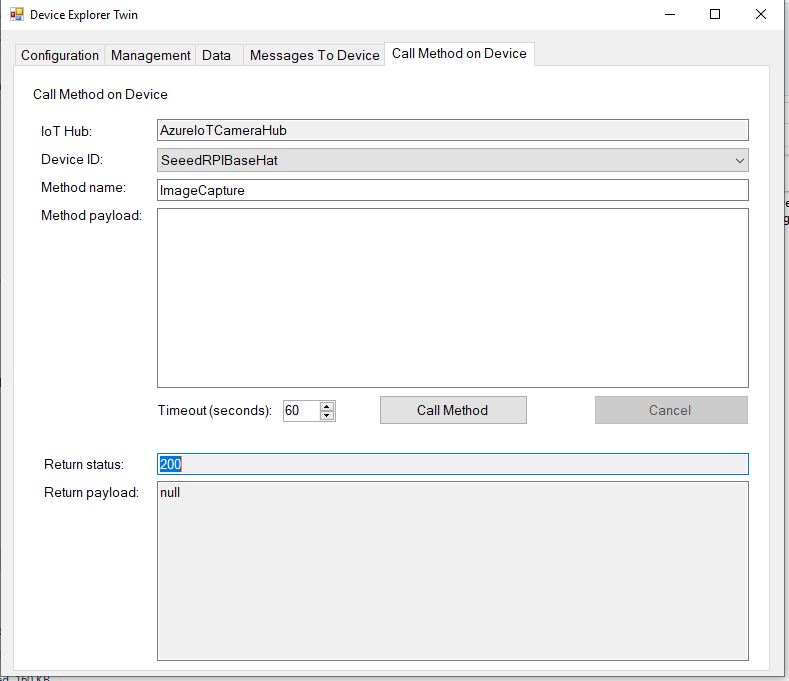
The application also supports two commands “ImageCapture’ and “DeviceReboot”. For testing I used Azure Device Explorer
After running the installer (available from GitHub) the application will create a default configuration file in
Which can be downloaded, modified then uploaded using the portal file explorer application. If you want to make the application run on device start-up the radio button below needs to be selected.
I really wanted to be able to do a time-lapse video of a storm coming up the Canterbury Plains to Christchurch and combine it with the wind direction, windspeed, temperature and humidity data from my weather station which uploads data to Azure through my Azure IoT Hub LoRa field gateway.
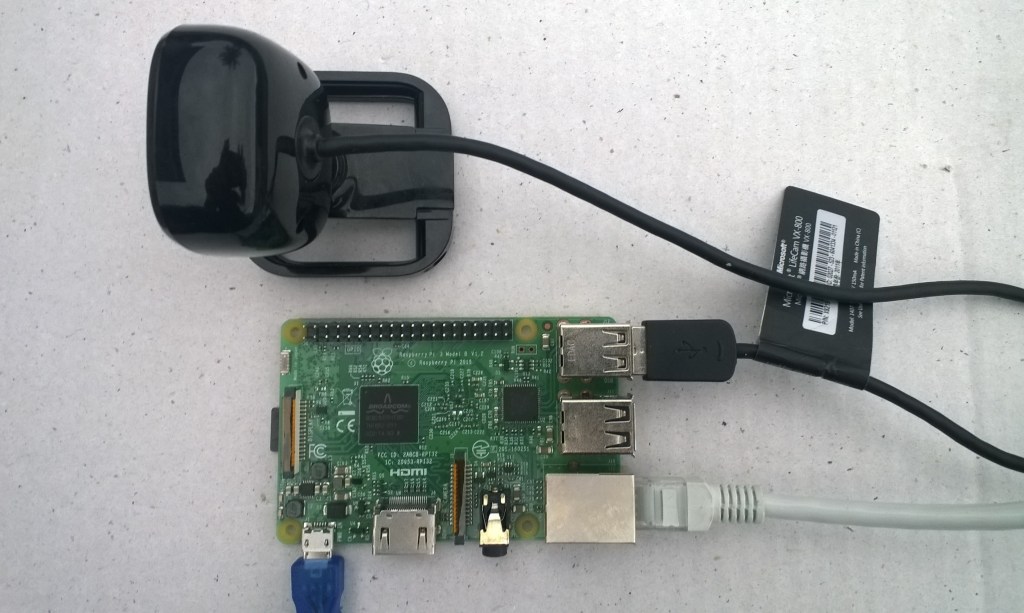
Time-lapse camera setup
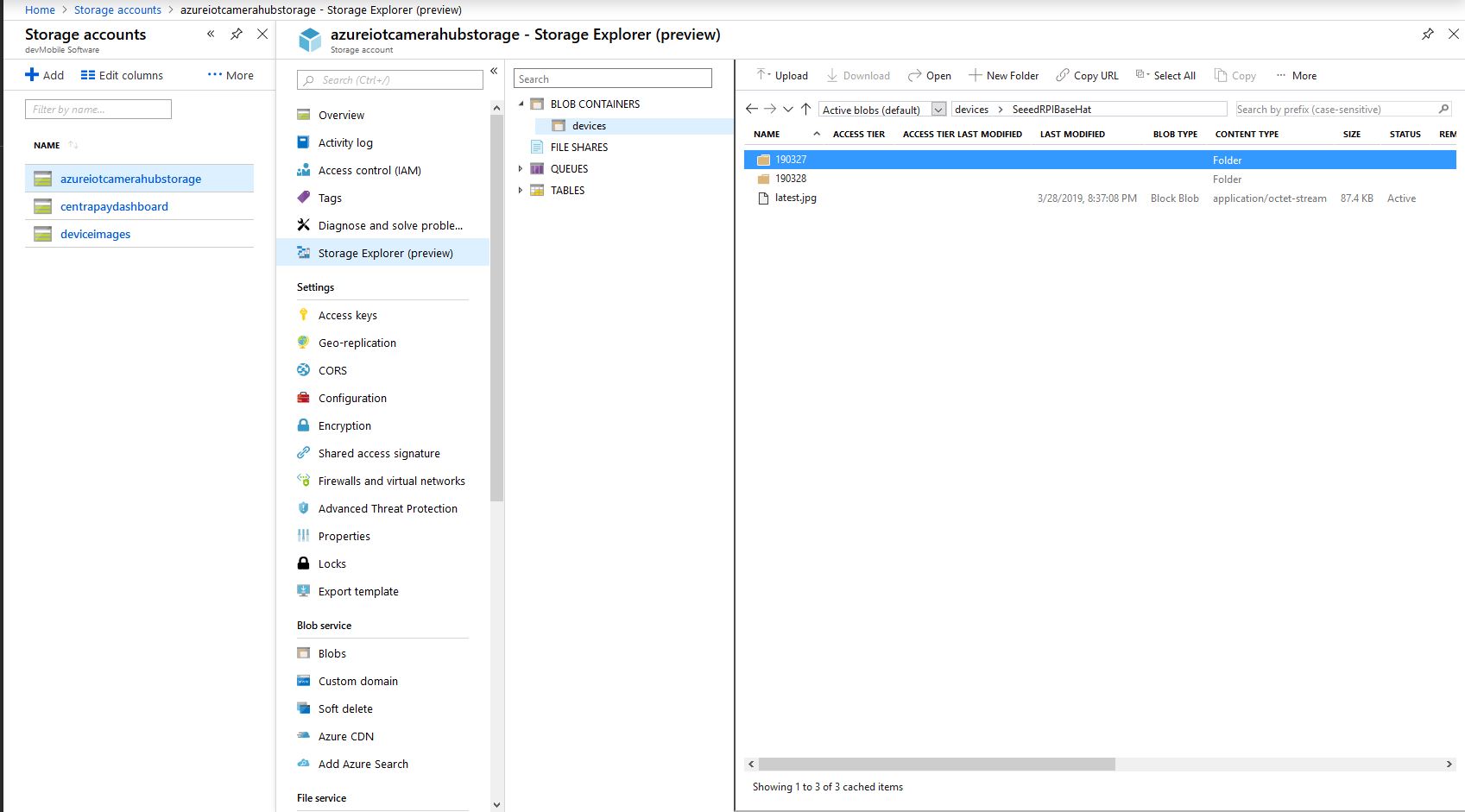
The application captures images with a configurable period after configurable start-up delay. The Azure storage root folder name is based on the device name in the Azure IoT Hub connection string. The folder(s) where the historic images are stored are configurable and the images can optionally be in monthly, daily, hourly etc. folders. The current image is stored in the root folder for the device and it’s name is configurable.
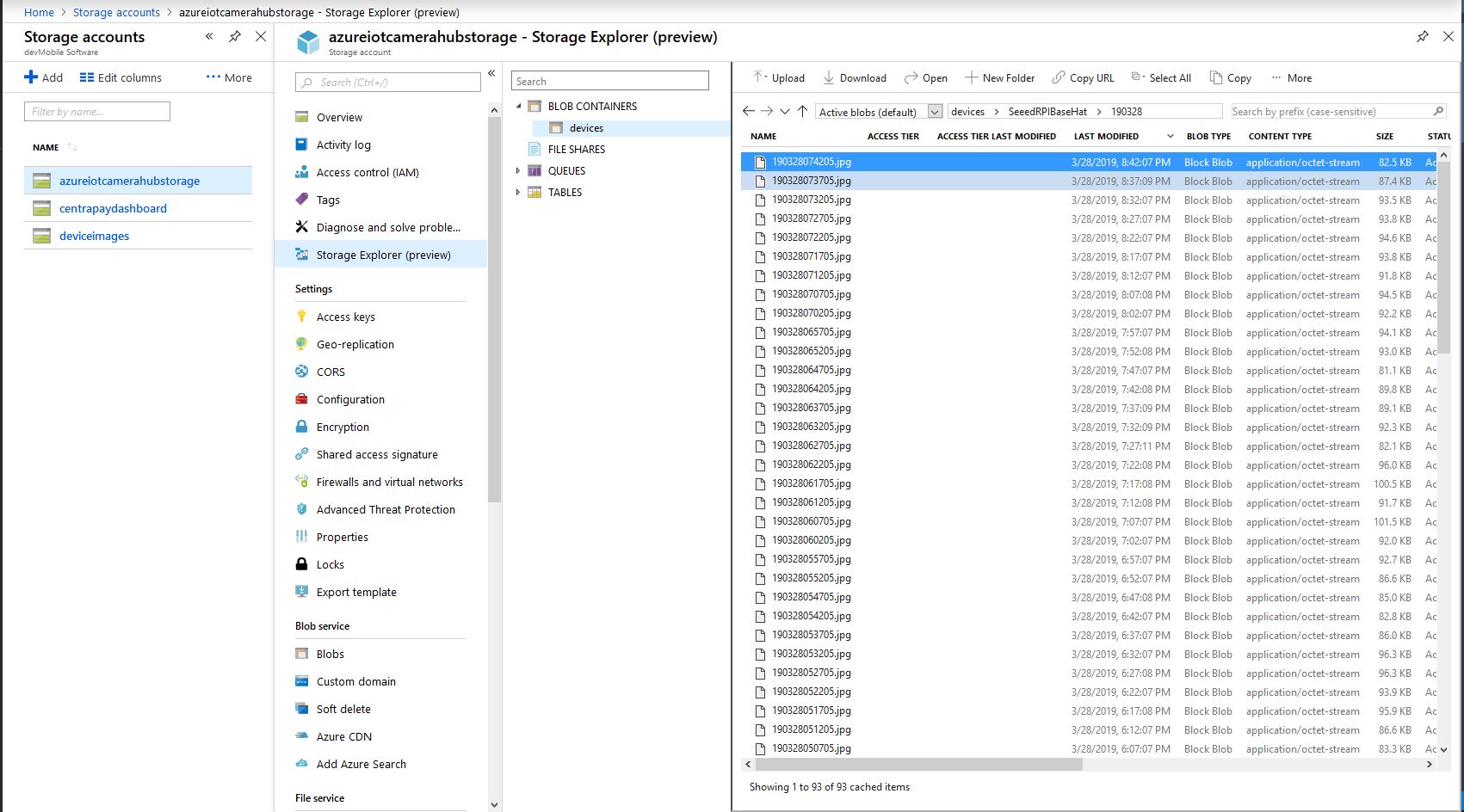
With the above setup I have a folder for each device in the historic fiolder and the most recent image i.e. “latest.jpg” in the root folder. The file and folder names are assembled with a parameterised string.format . The parameter {0} is the current UTC time
Pay attention to your folder/file name formatting, I was tripped up by
mm – minutes vs. MM – months
hh – 12 hour clock vs. HH -24 hour clock
With 12 images every hour
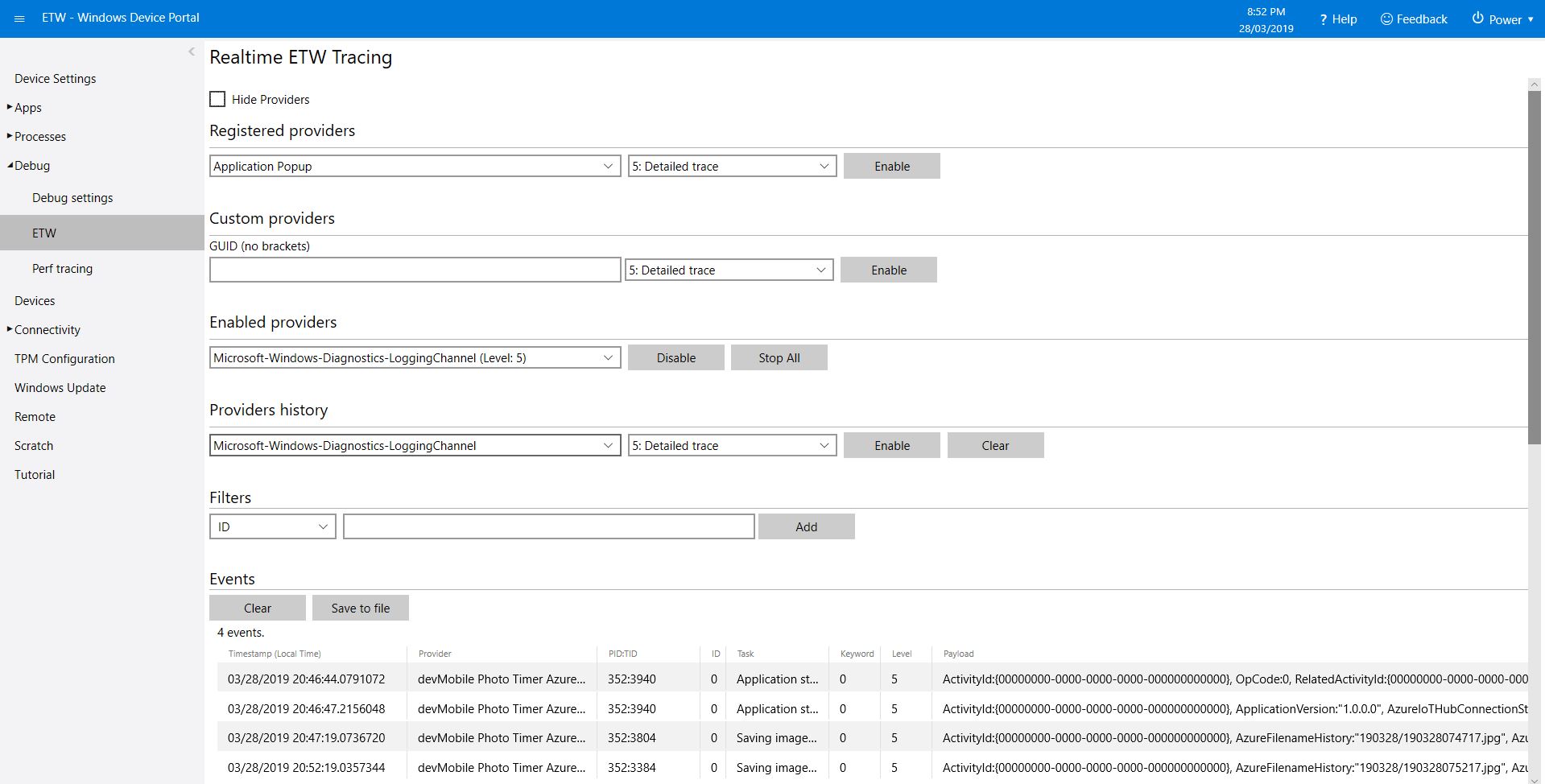
The application logs events on start-up and every time a picture is taken
After running the installer (available from GitHub) the application will create a default configuration file in
User Folders\LocalAppData\PhotoTimerTriggerAzureIoTHubStorage-uwp_1.0.0.0_arm__nmn3tag1rpsaw\LocalState\
Which can be downloaded, modified then uploaded using the portal file explorer application. If you want to make the application run on device start-up the radio button below needs to be selected.
/*
    Copyright ® 2019 March devMobile Software, All Rights Reserved

    MIT License

…
*/
namespace devMobile.Windows10IotCore.IoT.PhotoTimerTriggerAzureIoTHubStorage
{
	using System;
	using System.IO;
	using System.Diagnostics;
	using System.Threading;

	using Microsoft.Azure.Devices.Client;
	using Microsoft.Extensions.Configuration;

	using Windows.ApplicationModel;
	using Windows.ApplicationModel.Background;
	using Windows.Foundation.Diagnostics;
	using Windows.Media.Capture;
	using Windows.Media.MediaProperties;
	using Windows.Storage;
	using Windows.System;

	public sealed class StartupTask : IBackgroundTask
	{
		private BackgroundTaskDeferral backgroundTaskDeferral = null;
		private readonly LoggingChannel logging = new LoggingChannel("devMobile Photo Timer Azure IoT Hub Storage", null, new Guid("4bd2826e-54a1-4ba9-bf63-92b73ea1ac4a"));
		private DeviceClient azureIoTHubClient = null;
		private const string ConfigurationFilename = "appsettings.json";
		private Timer ImageUpdatetimer;
		private MediaCapture mediaCapture;
		private string azureIoTHubConnectionString;
		private TransportType transportType;
		private string azureStorageimageFilenameLatestFormat;
		private string azureStorageImageFilenameHistoryFormat;
		private const string ImageFilenameLocal = "latest.jpg";
		private volatile bool cameraBusy = false;

		public void Run(IBackgroundTaskInstance taskInstance)
		{
			StorageFolder localFolder = ApplicationData.Current.LocalFolder;
			int imageUpdateDueSeconds;
			int imageUpdatePeriodSeconds;

			this.logging.LogEvent("Application starting");

			// Log the Application build, OS version information etc.
			LoggingFields startupInformation = new LoggingFields();
			startupInformation.AddString("Timezone", TimeZoneSettings.CurrentTimeZoneDisplayName);
			startupInformation.AddString("OSVersion", Environment.OSVersion.VersionString);
			startupInformation.AddString("MachineName", Environment.MachineName);

			// This is from the application manifest
			Package package = Package.Current;
			PackageId packageId = package.Id;
			PackageVersion version = packageId.Version;
			startupInformation.AddString("ApplicationVersion", string.Format($"{version.Major}.{version.Minor}.{version.Build}.{version.Revision}"));

			try
			{
				// see if the configuration file is present if not copy minimal sample one from application directory
				if (localFolder.TryGetItemAsync(ConfigurationFilename).AsTask().Result == null)
				{
					StorageFile templateConfigurationfile = Package.Current.InstalledLocation.GetFileAsync(ConfigurationFilename).AsTask().Result;
					templateConfigurationfile.CopyAsync(localFolder, ConfigurationFilename).AsTask();

					this.logging.LogMessage("JSON configuration file missing, templated created", LoggingLevel.Warning);
					return;
				}

				IConfiguration configuration = new ConfigurationBuilder().AddJsonFile(Path.Combine(localFolder.Path, ConfigurationFilename), false, true).Build();

				azureIoTHubConnectionString = configuration.GetSection("AzureIoTHubConnectionString").Value;
				startupInformation.AddString("AzureIoTHubConnectionString", azureIoTHubConnectionString);

				transportType = (TransportType)Enum.Parse( typeof(TransportType), configuration.GetSection("TransportType").Value);
				startupInformation.AddString("TransportType", transportType.ToString());

				azureStorageimageFilenameLatestFormat = configuration.GetSection("AzureImageFilenameFormatLatest").Value;
				startupInformation.AddString("ImageFilenameLatestFormat", azureStorageimageFilenameLatestFormat);

				azureStorageImageFilenameHistoryFormat = configuration.GetSection("AzureImageFilenameFormatHistory").Value;
				startupInformation.AddString("ImageFilenameHistoryFormat", azureStorageImageFilenameHistoryFormat);

				imageUpdateDueSeconds = int.Parse(configuration.GetSection("ImageUpdateDueSeconds").Value);
				startupInformation.AddInt32("ImageUpdateDueSeconds", imageUpdateDueSeconds);

				imageUpdatePeriodSeconds = int.Parse(configuration.GetSection("ImageUpdatePeriodSeconds").Value);
				startupInformation.AddInt32("ImageUpdatePeriodSeconds", imageUpdatePeriodSeconds);
			}
			catch (Exception ex)
			{
				this.logging.LogMessage("JSON configuration file load or settings retrieval failed " + ex.Message, LoggingLevel.Error);
				return;
			}

			try
			{
				azureIoTHubClient = DeviceClient.CreateFromConnectionString(azureIoTHubConnectionString, transportType);
			}
			catch (Exception ex)
			{
				this.logging.LogMessage("AzureIOT Hub connection failed " + ex.Message, LoggingLevel.Error);
				return;
			}

			try
			{
				mediaCapture = new MediaCapture();
				mediaCapture.InitializeAsync().AsTask().Wait();
			}
			catch (Exception ex)
			{
				this.logging.LogMessage("Camera configuration failed " + ex.Message, LoggingLevel.Error);
				return;
			}

			ImageUpdatetimer = new Timer(ImageUpdateTimerCallback, null, new TimeSpan(0, 0, imageUpdateDueSeconds), new TimeSpan(0, 0, imageUpdatePeriodSeconds));

			this.logging.LogEvent("Application started", startupInformation);

			//enable task to continue running in background
			backgroundTaskDeferral = taskInstance.GetDeferral();
		}

		private async void ImageUpdateTimerCallback(object state)
		{
			DateTime currentTime = DateTime.UtcNow;
			Debug.WriteLine($"{DateTime.UtcNow.ToLongTimeString()} Timer triggered");

			// Just incase - stop code being called while photo already in progress
			if (cameraBusy)
			{
				return;
			}
			cameraBusy = true;

			try
			{
				using (Windows.Storage.Streams.InMemoryRandomAccessStream captureStream = new Windows.Storage.Streams.InMemoryRandomAccessStream())
				{
					await mediaCapture.CapturePhotoToStreamAsync(ImageEncodingProperties.CreateJpeg(), captureStream);
					await captureStream.FlushAsync();
#if DEBUG
					IStorageFile photoFile = await KnownFolders.PicturesLibrary.CreateFileAsync(ImageFilenameLocal, CreationCollisionOption.ReplaceExisting);
					ImageEncodingProperties imageProperties = ImageEncodingProperties.CreateJpeg();
					await mediaCapture.CapturePhotoToStorageFileAsync(imageProperties, photoFile);
#endif

					string azureFilenameLatest = string.Format(azureStorageimageFilenameLatestFormat, currentTime);
					string azureFilenameHistory = string.Format(azureStorageImageFilenameHistoryFormat, currentTime);

					LoggingFields imageInformation = new LoggingFields();
					imageInformation.AddDateTime("TakenAtUTC", currentTime);
#if DEBUG
					imageInformation.AddString("LocalFilename", photoFile.Path);
#endif
					imageInformation.AddString("AzureFilenameLatest", azureFilenameLatest);
					imageInformation.AddString("AzureFilenameHistory", azureFilenameHistory);
					this.logging.LogEvent("Saving image(s) to Azure storage", imageInformation);

					// Update the latest image in storage
					if (!string.IsNullOrWhiteSpace(azureFilenameLatest))
					{
						captureStream.Seek(0);
						Debug.WriteLine("AzureIoT Hub latest image upload start");
						await azureIoTHubClient.UploadToBlobAsync(azureFilenameLatest, captureStream.AsStreamForRead());
						Debug.WriteLine("AzureIoT Hub latest image upload done");
					}

					// Upload the historic image to storage
					if (!string.IsNullOrWhiteSpace(azureFilenameHistory))
					{
						captureStream.Seek(0);
						Debug.WriteLine("AzureIoT Hub historic image upload start");
						await azureIoTHubClient.UploadToBlobAsync(azureFilenameHistory, captureStream.AsStreamForRead());
						Debug.WriteLine("AzureIoT Hub historic image upload done");
					}
				}
			}
			catch (Exception ex)
			{
				this.logging.LogMessage("Camera photo save or AzureIoTHub storage upload failed " + ex.Message, LoggingLevel.Error);
			}
			finally
			{
				cameraBusy = false;
			}
		}
	}
}




 devMobile's blog