CodeClub Mashup 2014 @ Epic Innovation

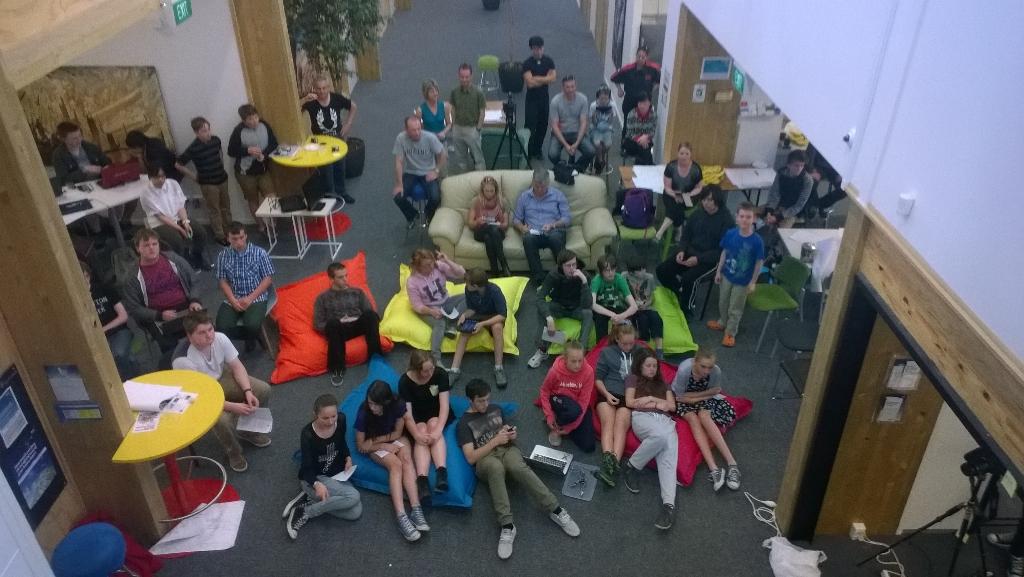
On the 8th of November  I was an industry mentor at CodeClub Mashup 2014 which was held at Epic Innovation in Christchurch.

The event was sponsored by Environment Canterbury (ECAN), Land Information New Zealand (LINZ) and Code Club Aotearoa.

Mashup 2014 was a “concept to cash” in one day competition for local high schools. We had roughly 40 students turn up and we started the day with introductions to hardware/software based product development and basic business skills.

Mashup2014 Judging begins

Mashup2014 Judging begins

A team from a Selwyn House an Independent School for Girls from year 1 – 8 explained in a blog post what is mashup.

Some students from Burnside High School produced the official video about the day

Thinking about “Internet of Things” and/or “Farm of Things” mashups in Q1 2015


Azure Event Hub Updates from a NetMF Device

I had read about how Azure Event Hubs supported both Advanced Message Queuing Protocol(AMQP) & Hypertext Transfer Protocol (HTTP) access and was keen to see how easy the REST API was to use from a .Net Microframework (NetMF) device.

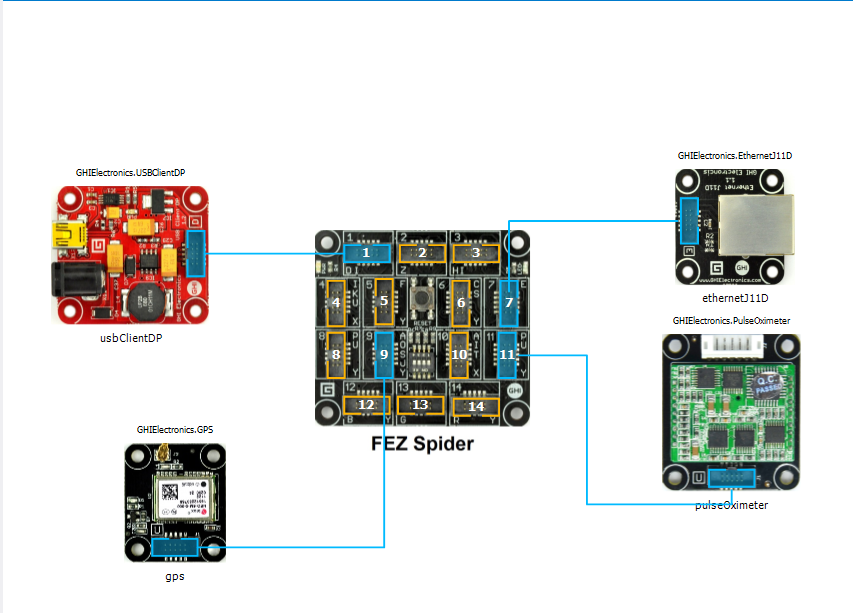
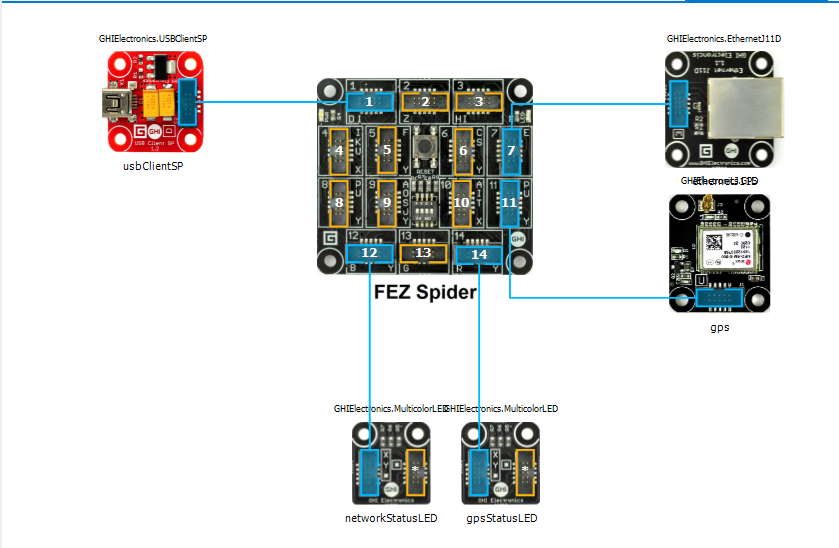
My initial concept was an exercise monitoring system with a Global Positioning System (GPS) unit and a pulse oximeter connected to a FEZ Spider device. My posting GPS Tracker Azure Service Bus has more info about GPS Drivers  and Azure Service Bus connectivity.
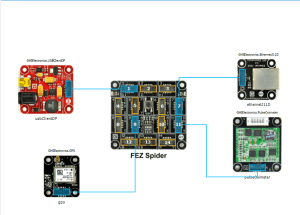
FEZ Spider, GPS and PulseOximeter

Fez spider and sensors for exercise monitoring device

The software was inspired by the Service Bus Event Hubs Getting started, Scale Out Event Processing with Event Hubs,Service Bus Event Hubs Large Scale Secure Publishing and OBD Recorder for .Net Micro Framework with ServiceBus, AMQP (for IoT) samples. I created an Event Hub and associated device access keys and fired up Service Bus Explorer so I could monitor and tweak the configuration.

I started by porting the REST API SendMessage implementation of Service Bus Event Hubs Large Scale Secure Publishing sample to NetMF. My approach was to get the application into my local source control and then cut ‘n’ paste the code into a NetMF project and see what breaks. I then modified the code over several iterations so it ran on both the desktop and NetMF clients.

The next step was to download the HTTPS certificates and add them to the project as resources so the requests could be secured. See this post for more detail.

For the connection to be secured you need to set the local time (so the certificate valid to/from can be checked) and load the certificates so they can be attached to the HTTP requests

void ProgramStarted()
{
   ...
   Microsoft.SPOT.Hardware.Utility.SetLocalTime(NtpClient.GetNetworkTime());
   caCerts = new X509Certificate[] { new X509Certificate(Resources.GetBytes(Resources.BinaryResources.Baltimore)) };

I used the Network Time Protocol (NTP) library from the OBD Recorder for .Net Micro Framework sample to get the current time.

The Service Bus Event Hubs Large Scale Secure Publishing uses an asynchronous HTTP request which is not available on the NetMF platform. So I had to replace it with a synchronous version.

static void EventHubSendMessage(string eventHubAddressHttps, string token, string messageBody)
{
   try
   {
      HttpWebRequest request = (HttpWebRequest)HttpWebRequest.Create(eventHubAddressHttps + "/messages" + "?timeout=60" + ApiVersion);
      {
         ...
         request.Headers.Add("Authorization", token);
         request.Headers.Add("ContentType", "application/atom+xml;type=entry;charset=utf-8");
         byte[] buffer = Encoding.UTF8.GetBytes(messageBody);
         request.ContentLength = buffer.Length;

         // request body
         using (Stream stream = request.GetRequestStream())
         {
            stream.Write(buffer, 0, buffer.Length);
         }
         using (HttpWebResponse response = (HttpWebResponse)request.GetResponse())
         {
            Debug.Print("HTTP Status:" + response.StatusCode + " : " + response.StatusDescription);
         }
      }
   }
   catch (WebException we)
   {
      Debug.Print(we.Message);
   }
}

The code to generate the SAS Token also required some modification as string.format, timespan, and SHA256 functionality are not natively available on the .NetMF platform. The GetExpiry, and SHA256 implementations were part of the OBD Recorder for .Net Micro Framework sample.

static string CreateSasToken(string uri, string keyName, string key)
{
   // Set token lifetime to 20 minutes. When supplying a device with a token, you might want to use a longer expiration time.
   uint tokenExpirationTime = GetExpiry(20 * 60);

   string stringToSign = HttpUtility.UrlEncode(uri) + "\n" + tokenExpirationTime;
   var hmac = SHA.computeHMAC_SHA256(Encoding.UTF8.GetBytes(key), Encoding.UTF8.GetBytes(stringToSign));

   string signature = Convert.ToBase64String(hmac);
   signature = Base64NetMf42ToRfc4648(signature);

   string token = "SharedAccessSignature sr=" + HttpUtility.UrlEncode(uri) + "&sig=" + HttpUtility.UrlEncode(signature) + "&se=" + tokenExpirationTime.ToString() + "&skn=" + keyName;
   return token;
}

static uint GetExpiry(uint tokenLifetimeInSeconds)
{
   const long ticksPerSecond = 1000000000 / 100; // 1 tick = 100 nano seconds</code>

   DateTime origin = new DateTime(1970, 1, 1, 0, 0, 0, 0);
   TimeSpan diff = DateTime.Now.ToUniversalTime() - origin;

   return ((uint)(diff.Ticks / ticksPerSecond)) + tokenLifetimeInSeconds;
}

private static string Base64NetMf42ToRfc4648(string base64netMf)
{
   var base64Rfc = string.Empty;
   for (var i = 0; i < base64netMf.Length; i++)
   {
      if (base64netMf[i] == '!')
      {
         base64Rfc += '+';
      }
      else if (base64netMf[i] == '*')
      {
         base64Rfc += '/';
      }
      else
      {
         base64Rfc += base64netMf[i];
      }
   }
return base64Rfc;
}

The HttpUtility class came from the OBD Recorder for .Net Micro Framework sample. The Base64NetMf42ToRfc4648 functionality is still necessary on NetMF 4.3.

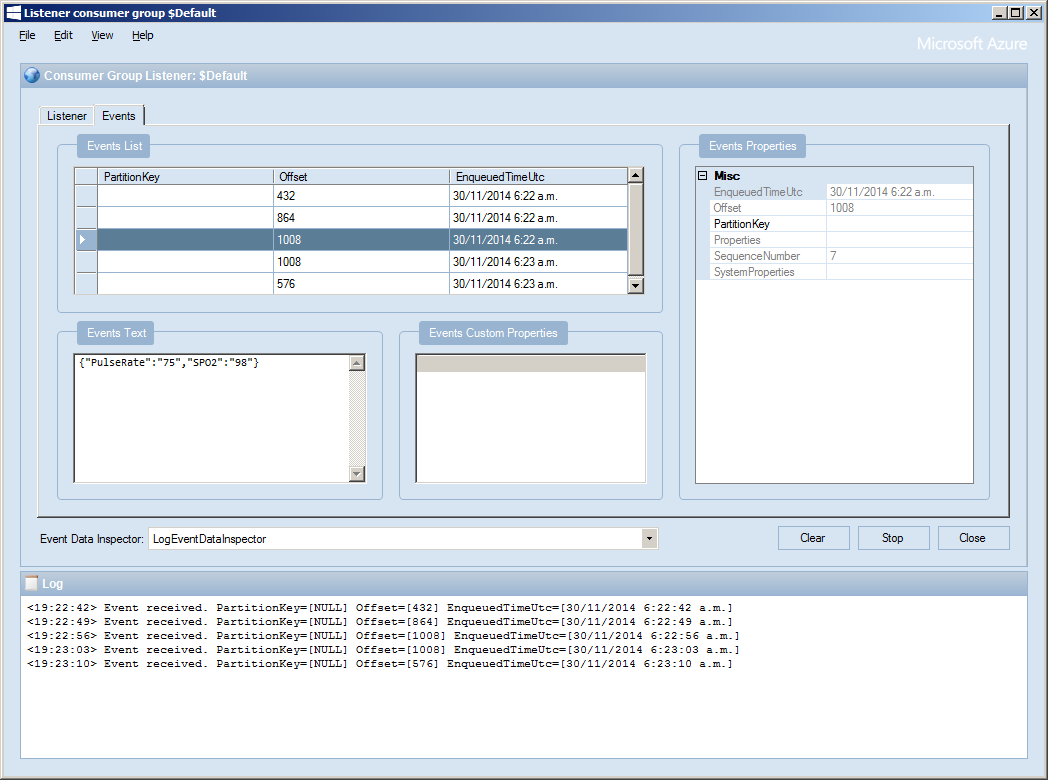
After a couple of hours I had data upload working.(No GPS data as the device was running on my desk where GPS coverage is poor)
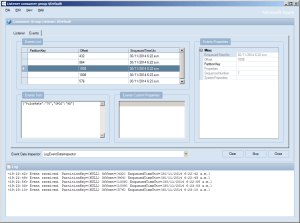
ServiceBusExplorerEventHub

Netduino Galvanic Skin Response(GSR)

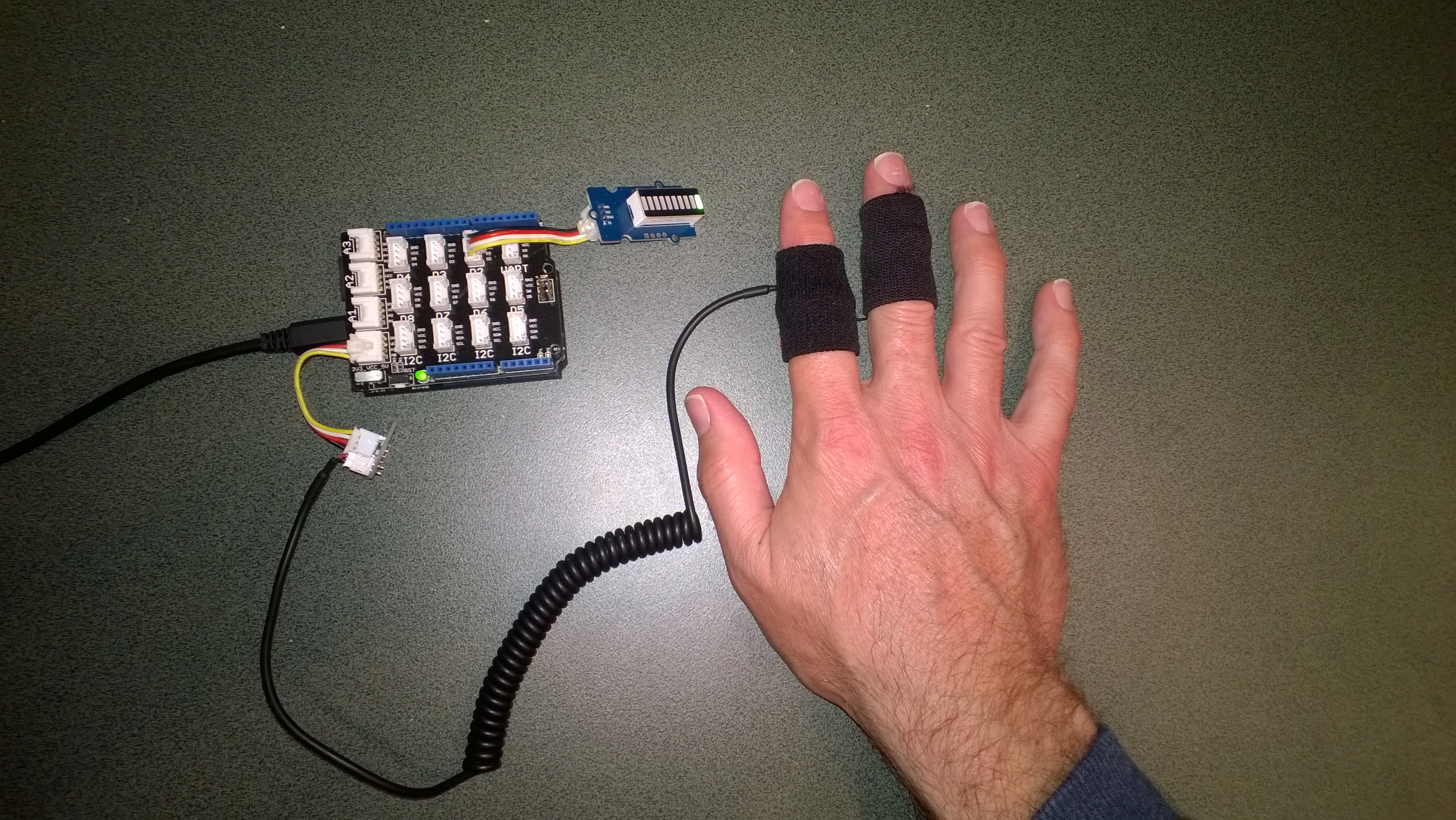
One of CodeClub’s sponsors is Orion Health so I have been evaluating sensors suitable for health focused projects. We already use the SeeedStudio Grove Heart rate sensor and Grove EMG Detector, so I purchased a Grove GSR sensor for testing. Galvanic Skin Response(GSR) is a method of measuring the electrical conductivity of the skin, which depends on the amount of sweat on the skin.

Netduino with Grove GSR sensor

Netduino with Grove GSR sensor

The GSR detector outputs a single analog signal which I connected to A0. For the evaluation I averaged the first 3000 samples to determine the initial offset, then sampled roughly every 100mSec.

I’m a bit worried about the robustness of the wires connecting the two probes to the black cable so it will be interesting to see how long they last at Code Club.

I also updated the Minimum and Maximum values with each sample as this appeared to make the display more reliable.

I found the display responded well to me holding my breath for as long as I could.

Pulse rate + EMG + GSR = Polygraph or DIY lie detector maybe a project for next term.

for (int sampleCounter = 0; sampleCounter < calibrationSampleCount; sampleCounter++)
{
   double value = gsr.Read();
   sampleSum += value;
}
offset = sampleSum / calibrationSampleCount ;

I then displayed the magnitude of the adjusted signal on a Seeedstudio LED bar using code written by Famoury Toure

while(true)
{
   double value = emg.Read() - offset;

   if (value < valueMinimum)
   {
      valueMinimum = value;
   }

   if (value > valueMaximum)
   {
      valueMaximum = value;
   }
   range = valueMaximum - valueMinimum;
   if (value < 0)
   {
      value = value / valueMaximum * 10.0;
   }
   else
   {
      value = value / valueMinimum * 10.0;
   }
   Debug.Print("Val " + value.ToString("F3") + " Max " + valueMaximum.ToString("F3") + " Min " +valueMinimum.ToString("F3"));

   int bar = 1;
   value = 10.0 - value;
   bar = bar << (int)value ;
   ledBar.setLED((uint)bar);
   Thread.Sleep(100);
}

Bill of Materials (Prices as at October 2014)

Netduino Electromyograph (EMG)

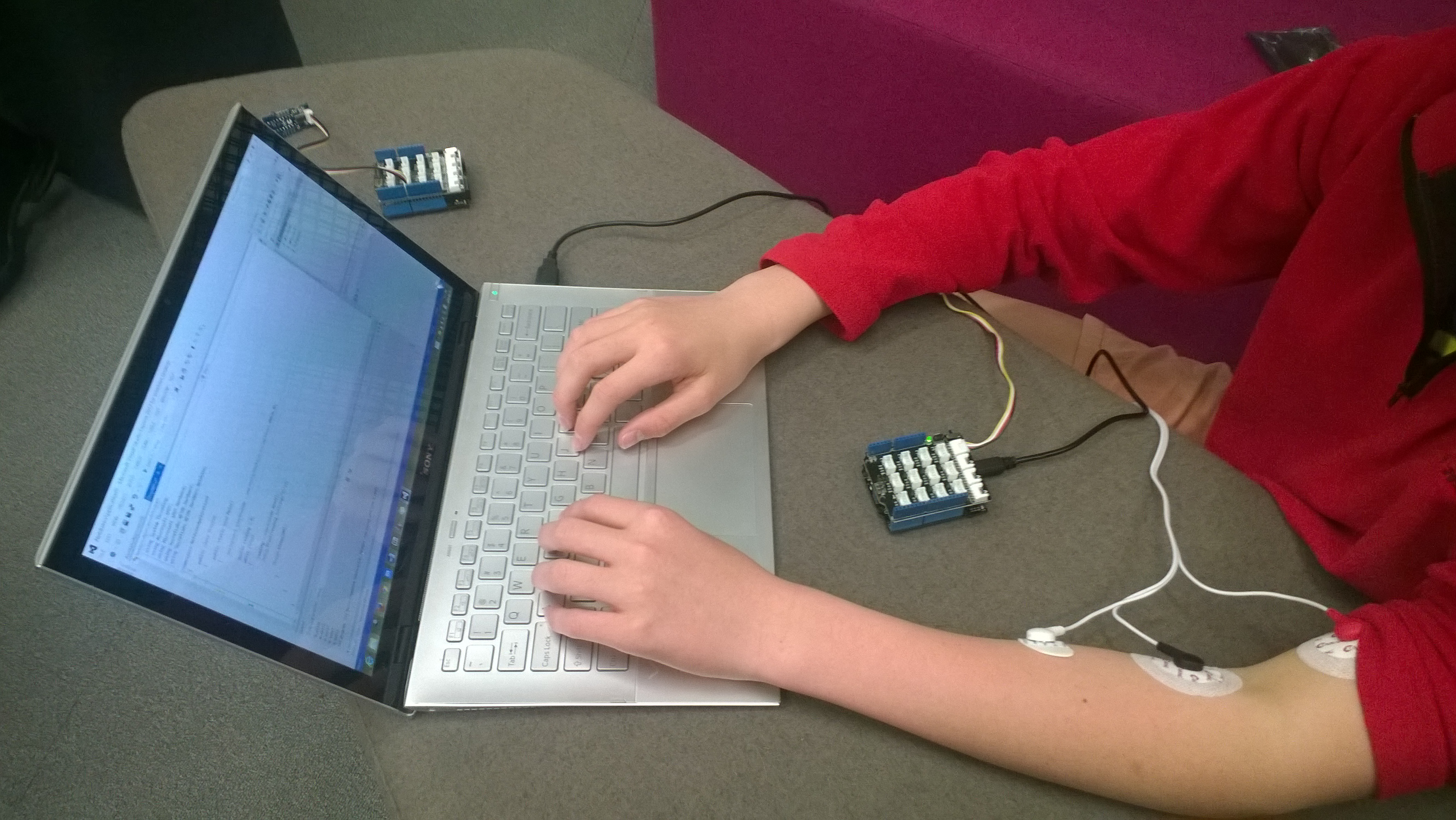
One of CodeClub’s sponsors is Orion Health so I had been looking for some reasonably priced sensors for health focused projects. We already use the SeeedStudio Heart rate sensor for one of our projects so I ordered a Grove EMG Detector for evaluation.

Netduino with Seeedstudio EMG

Netduino with Grove EMG Detector

The EMG detector outputs a single analog signal which we connected to analog input 0. For the proof of concept we averaged for 500 samples to determine the steady state offset.

for (int sampleCounter = 0; sampleCounter < calibrationSampleCount; sampleCounter++)
{
   double value = emg.Read();
   sampleSum += value;
}
offset = sampleSum / calibrationSampleCount ;

We then read the analog input applied the offset and displayed the magnitude of the signal on a Seeedstudio LED bar using code written by Famoury Toure

while(true)
{
   double value = emg.Read() - offset;

   if (value < valueMinimum) { valueMinimum = value; } if (value > valueMaximum)
   {
      valueMaximum = value;
   }
   range = valueMaximum - valueMinimum;

   if (value < 0)
   {
      value = value / valueMaximum * 10.0;
   }
   else
   {
      value = value / valueMinimum * 10.0;
   }

   Debug.Print("Val " + value.ToString("F3") + " Max " + valueMaximum.ToString("F3") + " Min " +valueMinimum.ToString("F3"));

   int bar = 1;
   value = 10.0 - value;
   bar = bar << (int)value ;
   ledBar.setLED((uint)bar);
   Thread.Sleep(100);
   }
}

Bill of Materials (Prices as at October 2014)

The proof of concept worked surprisingly well, the LED illuminated on the LED bar appeared to move in response to arm movements and when I clenched my fist.

TechEd 2014 Auckland Presentation online

My TechEd INO204 presentation in now online at on MSDN Channel 9.

INO204  The Things of the Internet of Things
Speaker Rating
3.54 / 4  84.7%

Overall Rating
3.44 / 4 81.29%

The presenters desk had my laptop, document camera, 2 Fez spiders, 9 Netduinos, 2 devDuinos and an Arduino Uno R3 device so it was pretty busy.

TechEdPresentersDesk[1]

While preparing for the presentation I had some problems with the EMG stick on sensors

EMGStickOnPadMarks[1]

GPS Tracker Azure Service Bus

After a break from the GPSTracker samples I dug out my FEZ Spider devices, upgraded them to .NetMF 4.3 and downloaded the discontinued module drivers so my SeeedStudio GPS would work.


GPS Tracker using FEZ Spider mainboard

GPS Tracker built using FEZ Spider mainboard

I updated the root certificates in the Microsoft.ServiceBus.Micro resources to the current “Baltimore CyberTrust Root” ones using the process described here

The code is based on the OBD Recorder for .Net Micro Framework with ServiceBus, AMQP (for IoT)

The GPS is initialised with handlers for valid & invalid positions.

gpsStatusLED.TurnRed();
gps.InvalidPositionReceived += gps_InvalidPositionReceived;
gps.PositionReceived += gps_PositionReceived;

void gps_InvalidPositionReceived(GPS sender, EventArgs e)
{
   gpsStatusLED.TurnRed();
}

<code>void gps_PositionReceived(GPS sender, GPS.Position e)
{
   gpsStatusLED.TurnGreen();
}

Once the network interface has an IP address, the time on the FEZ Spider is set (so the certificate from and until times can be checked) and then the ServiceBus connection is initialised

IPAddress ip = IPAddress.GetDefaultLocalAddress();

// Setup the device time
if (ip != IPAddress.Any)
{
   ....
   DateTime networkTime = NtpClient.GetNetworkTime();
   Microsoft.SPOT.Hardware.Utility.SetLocalTime(networkTime);
...

   SASTokenProvider tp = new SASTokenProvider("device", "YourTopSecretKey=");
   messagingClient = new MessagingClient(new Uri(@"https://YourEndpoint.servicebus.windows.net/YourQueueName"), tp);</code>

   Once the GPS returns a valid position every so often a message is sent to the service bus queue

   SimpleMessage message = new SimpleMessage()
   {
      BrokerProperties = { { "SessionId", Guid.NewGuid().ToString()}, { "Label", "NMEAPositionData" } },
      Properties =
      {
         { "Latitude", gps.LastPosition.Latitude.ToString("F4") },
         { "Longitude", gps.LastPosition.Longitude.ToString("F4") },
      },
   };
   try
   {
      Debug.Print("Message send");
      messagingClient.Send(message);
      Debug.Print("Message sent OK");
   }
   catch (Exception ex)
   {
      Debug.Print(ex.Message);
   }

The send appeared to be quite slow (even on my home LAN so some further investigation is required)

6462mSec
6399mSec
6471mSec
6346mSec
7403mSec

6325mSec
6188mSec
6426mSec
6493mSec
6555mSec

Average 6506mSec

EV Telemetry Demo

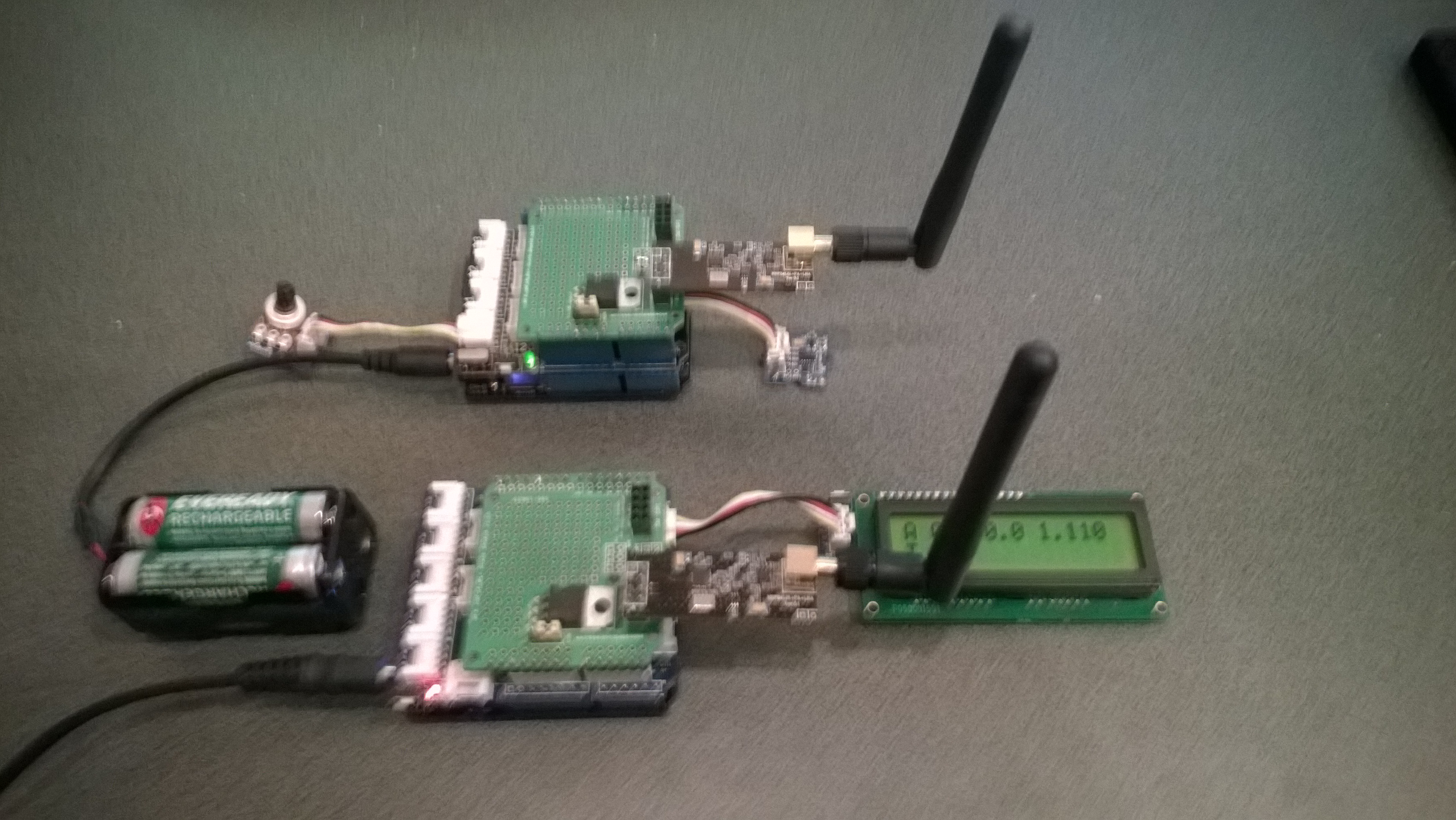
At EV Camp in June 2014 I talked about real-time telemetry for the electric carts. This is a demo of how this could be done using a couple of Netduinos, nRF24L01 modules and some other hardware

Telemetry Demo

Accelerometer and Throttle Position Telemetry

Bill of materials (Prices as at July 2014)

  • 2 x Netduino Plus 2 USD60,NZD108 or Netduino 2 USD33,NZD60
  • 2 x Embedded Coolness nRF24L01shields V1.1b + high power modules AUD17.85
  • 2 x Grove Base Shields V2 USD8.90
  • 1 x Grove ADX345 Accelerometer USD9.90
  • 1 x Grove Rotary Angle Sensor USD2.90
  • 1 x Grove 16×2 LCD USD13.90 (Using earlier serial display in pictures)

The mobile device configures the Gralin nRF24L01 library, initialises the Love Electronics ADXL345 Accelerometer library, and creates two timers, one for the throttle position the other for the accelerometer.

_module.OnTransmitFailed += OnSendFailure;
_module.OnTransmitSuccess += OnSendSuccess;
_module.Initialize(SPI.SPI_module.SPI1, Pins.GPIO_PIN_D7, Pins.GPIO_PIN_D3, Pins.GPIO_PIN_D2);
_module.Configure(myAddress, channel);
_module.Enable();

accel.EnsureConnected();
accel.Range = 2;
accel.FullResolution = true;
accel.EnableMeasurements();
accel.SetDataRate(0x0F);

Timer throttlePositionUpdates = new Timer(throttleTimerProc, null, 500, 500);
Timer accelerometerUpdates = new Timer(AccelerometerTimerProc, null, 500, 500);

Thread.Sleep( Timeout.Infinite ) ;

The Accelerometer timer reads the x, y & z accelerations then sends the data as an ASCII string (rather than Unicode) to save space (maximum message length is 32 bytes)

private void AccelerometerTimerProc(object state)
{
accel.ReadAllAxis();
Debug.Print("A- X = " + accel.ScaledXAxisG.ToString("F2") + " Y = " + accel.ScaledYAxisG.ToString("F2") + " Z = " + accel.ScaledZAxisG.ToString("F2"));

_module.SendTo(baseStationAddress, Encoding.UTF8.GetBytes("A " + accel.ScaledXAxisG.ToString("F1") + " " + accel.ScaledYAxisG.ToString("F1") + " " + accel.ScaledZAxisG.ToString("F1")));
}

The base station works in a similar way, configuring the nRF24L01 library then displaying the received messages on the LCD Display.

Remote control 4WD robot build part2

I finally had some time to finish off the 4WD robot I first blogged about in February this year.

robot and remote control

Netduino 4wd robot and remote control unit

When I fired up the robot the nrf24L01 module on the embedded coolness shield was having some problems with electrical noise from the motors. This noise was causing the wireless module to report errors then stop working. So, based on this article by Pololu I added some noise suppression capacitors. There are two 0.1uF capacitors per motor and they connect the power supply pins to the metal casing of the motor. I have also twisted the motor supply wires and added some capacitors to the motor shield.

Motors with noise suppression capacitors

Netduino 4WD Robot motors with noise suppression capacitors

The Elecfreaks Joystick has to be modified to work with a Netduino. The remote control uses the initial position of the joystick for a calibration offset then sends 4 byte commands to the robot every 250mSec. The first two bytes are the motor directions and the last two are the motor speeds.

_module.OnDataReceived += OnReceive;
_module.OnTransmitFailed += OnSendFailure;
_module.OnTransmitSuccess += OnSendSuccess;

_module.Initialize(SPI.SPI_module.SPI1, Pins.GPIO_PIN_D10, Pins.GPIO_PIN_D9, Pins.GPIO_PIN_D1);
_module.Configure(_ControllerAddress, channel);
_module.Enable();

xOffset = xAxis.Read();
yOffset = yAxis.Read();

_timer = new Timer(SendMessage, null, 250, 250);
Thread.Sleep(Timeout.Infinite);

Then

byte[] command = { motor1Direction, motor2Direction, motor1Speed, motor2Speed };
_module.SendTo(_RobotAddress, command);

After trialling the robot round the house I added a timer to shut the motors down if connectivity was lost. Before adding the noise suppression capacitors I managed to plough the robot into the wall when the radio link failed and the motors were running at close to full speed.

Timer CommunicationsMonitorTimer = newTimer(CommunicationsMonitorTimerProc, null, 500, 500);
void CommunicationsMonitorTimerProc(object status)
{
   if (( DateTime.UtcNow - _MessageLastReceivedAt ) > MessageMaximumInterval)
   {
      Debug.Print(&quot;Communications timeout&quot;);
      M1Speed.DutyCycle = 0.0;
      M2Speed.DutyCycle = 0.0;
   }
}

Electric Vehicle Camp 2014-06

The Hardware

The software

Flash an LED

OutputPort led = new OutputPort(Pins.ONBOARD_LED, false);
while ( true)
{
   Led.Write(!Led.Read())
   Thread.Sleep(500)
}

Digital Input – Polled

InputPort button = new InputPort(Pins.ONBOARD_SW1, false, Port.ResistorMode.Disabled);
OutputPort led = new OutputPort(Pins.ONBOARD_LED, false);
while (true)
{
   led.Write(button.Read());
   Thread.Sleep(1000);
}

Digital Input – Interrupt

static OutputPort interuptled = new OutputPort(Pins.ONBOARD_LED, false);
InterruptPort button = new InterruptPort(Pins.ONBOARD_SW1, false, Port.ResistorMode.Disabled, Port.InterruptMode.InterruptEdgeHigh);
button.OnInterrupt += new NativeEventHandler(button_OnInterrupt);&amp;amp;lt;/span&amp;amp;gt;&amp;amp;lt;/code&amp;amp;gt;

Thread.Sleep(Timeout.Infinite);
static void button_OnInterrupt(uint data1, uint data2, DateTime time)
{
   interuptled.Write(!interuptled.Read());
}

Analog Input

AnalogInput Sensor = new AnalogInput(Cpu.AnalogChannel.ANALOG_0);
while ( true)
{
   Debug.Print( &quot;Value &quot; + Sensor.Read(&quot;F2&quot;));
   Thread.Sleep(500)
}

Pulse Width Modulation Output

AnalogInput brightness = new AnalogInput(AnalogChannels.ANALOG_PIN_A0);
PWM led = new PWM(PWMChannels.PWM_PIN_D5, 1000, 0.0, false);

led.Start();

while (true)
{
   Debug.Print(&amp;amp;quot;Brightness &amp;amp;quot; + led.DutyCycle.ToString("F2"));
   led.DutyCycle = brightness.Read();
   Thread.Sleep(500);
}
led.Stop();

Telemetry – Mobile station

Configure the NRF24L01 library for the  elecfreaks Joystick ShieldV2.4, for more detail see this post 

_module.OnDataReceived += OnReceive;
_module.OnTransmitFailed += OnSendFailure;
_module.OnTransmitSuccess += OnSendSuccess;
_module.Initialize(SPI.SPI_module.SPI1, Pins.GPIO_PIN_D10, Pins.GPIO_PIN_D9, Pins.GPIO_PIN_D1);
_module.Configure(myAddress, channel);
_module.Enable();

Timer joystickPositionUpdates = new Timer(JoyStickTimerProc, null, 500, 500);
Thread.Sleep( Timeout.Infinite ) ;

Send the data to the base station (converting it from Unicode to ASCII)

private void JoyStickTimerProc(object state)
{
   double xVal = x.Read();
   double yVal = y.Read();
   Debug.Print("X " + xVal.ToString("F1") + " Y &" + yVal.ToString("F1"));

   _module.SendTo(baseStationAddress, Encoding.UTF8.GetBytes( xVal.ToString("F1") + " " + yVal.ToString("F1")));
}

Telemetry – Base Station

Configure the NRF24L01 library for the Embedded Coolness board, for more detail see this post

private readonly NRF24L01Plus _module;

_module.OnDataReceived += OnReceive;
_module.OnTransmitFailed += OnSendFailure;
_module.OnTransmitSuccess += OnSendSuccess;

_module.Initialize(SPI.SPI_module.SPI1, Pins.GPIO_PIN_D7, Pins.GPIO_PIN_D3, Pins.GPIO_PIN_D2);
_module.Configure(_myAddress, channel);
_module.Enable();

Display the inbound message (converting it from ASCII to Unicode)

private void OnReceive(byte[] data)
{
string message = new String(Encoding.UTF8.GetChars(data));
Debug.Print("Receive " + message); ;
}

Code Camp Christchurch 2014

The Hardware

Flash an LED

OutputPort led = new OutputPort(Pins.ONBOARD_LED, false);
while ( true)
{
   Led.Write(!Led.Read())
   Thread.Sleep(500)
}

Digital Input – Polled

InputPort button = new InputPort(Pins.ONBOARD_SW1, false, Port.ResistorMode.Disabled);
OutputPort led = new OutputPort(Pins.ONBOARD_LED, false);
while (true)
{
   led.Write(button.Read());
   Thread.Sleep(1000);
}

Digital Input – Interrupt

static OutputPort interuptled = new OutputPort(Pins.ONBOARD_LED, false);
InterruptPort button = new InterruptPort(Pins.ONBOARD_SW1, false, Port.ResistorMode.Disabled, Port.InterruptMode.InterruptEdgeHigh);
button.OnInterrupt += new NativeEventHandler(button_OnInterrupt);

Thread.Sleep(Timeout.Infinite);

static void button_OnInterrupt(uint data1, uint data2, DateTime time)
{
   interuptled.Write(!interuptled.Read());
}

Analog Input

AnalogInput Sensor = new AnalogInput(Cpu.AnalogChannel.ANALOG_0);
while ( true)
{
   Debug.Print( "Value " + Sensor.Read().ToString("F2"));
   Thread.Sleep(500);
}

Pulse Width Modulation Output

AnalogInput brightness = new AnalogInput(AnalogChannels.ANALOG_PIN_A0);
PWM led = new PWM(PWMChannels.PWM_PIN_D5, 1000, 0.0, false);

led.Start();
while (true)
{
   Debug.Print("Brightness " + led.DutyCycle.ToString("F2"));
   led.DutyCycle = brightness.Read();
   Thread.Sleep(500);
}
led.Stop();

Power Consumption Monitor

Developing the software for the Energy Monitor Shield

Robot

Developing the software

  • Determine the distance to objects
  • Control the speed & direction of the motors using a Motor Shield Driver
  • Basic obstacle avoidance
  • Avoid obstacles using a state machine
  • Fine tune the motor speeds using a rotary encoder
  • Connect the GPS
  • Upload the position information to Xively

Heart Rate Monitor

Developing the software

  • Read the buttons using an AnalogInput
  • Count the number of button presses using an InterruptPort and a Timer
  • Determine the pulse rate in BPM by counting
  • Determine the average pulse rate in BPM
  • Display and manage the pulse rate info on the DFRobot 16×2 Lcd Shield
  • Upload the pulse rate information to xively