.NET Core 5 Raspberry PI GPIO Interrupts

To port my Windows 10 IoT Core nRF24L01, SX123X. and SX127X LoRa libraries to .Net Core 5 I wanted to see if there were any differences in the way interrupts were handled by the dotnet/iot libraries. The initial versions of the code will being running on a Raspberry PI but I will also look at other supported Single Board Computers(SBCs).

My test-rig was a RaspberryPI 3B with a Grove Base Hat for Raspberry PI (left over from a proof of concept project), a couple of Grove Universal 4 pin 5CM cables, a Grove LED pack, and a Grove Button.

Raspberry PI test rig with Grove Base pHat, button & LED

There were some syntax differences but nothing to major

using System;
using System.Device.Gpio;
using System.Diagnostics;
using System.Threading;

namespace devMobile.NetCore.GPIOInterrupts
{
	class Program
	{
		private const int ButtonPinNumber = 5;
		private const int LedPinNumber = 16;
		private static GpioController gpiocontroller;

		static void Main(string[] args)
		{
			try
			{
				gpiocontroller = new GpioController(PinNumberingScheme.Logical);

				gpiocontroller.OpenPin(ButtonPinNumber, PinMode.InputPullDown);
				gpiocontroller.OpenPin(LedPinNumber, PinMode.Output);

				gpiocontroller.RegisterCallbackForPinValueChangedEvent(ButtonPinNumber, PinEventTypes.Rising, PinChangeEventHandler);

				Console.WriteLine($"Main thread:{Thread.CurrentThread.ManagedThreadId}");

				while (true)
				{
					Console.WriteLine($"Doing stuff");
					Thread.Sleep(1000);
				}
			}
			catch (Exception ex)
			{
				Console.WriteLine(ex.Message);
			}
		}

		private static void PinChangeEventHandler(object sender, PinValueChangedEventArgs pinValueChangedEventArgs)
		{
			Debug.Write($"Interrupt Thread:{Thread.CurrentThread.ManagedThreadId}");

			if (pinValueChangedEventArgs.ChangeType == PinEventTypes.Rising)
			{
				if (gpiocontroller.Read(LedPinNumber) == PinValue.Low)
				{
					gpiocontroller.Write(LedPinNumber, PinValue.High);
				}
				else
				{
					gpiocontroller.Write(LedPinNumber, PinValue.Low);
				}
			}
		}
	}
}

I included code to display the Thread.CurrentThread.ManagedThreadId to see if the callback was running on a different thread.

-------------------------------------------------------------------
You may only use the Microsoft .NET Core Debugger (vsdbg) with
Visual Studio Code, Visual Studio or Visual Studio for Mac software
to help you develop and test your applications.
-------------------------------------------------------------------
...
Loaded '/usr/lib/dotnet/shared/Microsoft.NETCore.App/5.0.4/Microsoft.Win32.Primitives.dll'. Skipped loading symbols. Module is optimized and the debugger option 'Just My Code' is enabled.
Main thread:1
Doing stuff
Doing stuff
Doing stuff
Doing stuff
Doing stuff
Interrupt Thread:6Doing stuff
Doing stuff
Doing stuff
Interrupt Thread:6Doing stuff
Doing stuff
Interrupt Thread:6Doing stuff
Doing stuff
Doing stuff
Doing stuff
Doing stuff
Doing stuff
The program 'dotnet' has exited with code 0 (0x0).

The ManagedThreadId for the main loop(1) was different to the callback(6) which needs some further investigation.
.NET Core 5 Raspberry PI GPIO

Next to my desk I have a stack of Raspberry PI’s and with the release of .Net Core 5 for Windows, Macintosh and Linux I decided to have another look at porting some of my nRF24L01, LoRa, and LoRaWAN libraries to .Net Core.

There are blog posts (like Deploying and Debugging Raspberry Pi .NET Applications using VS Code) about installing .Net core on a Raspberry PI, using Visual Studio Code to write an application, then deploying and debugging it over SSH which were interesting but there were a lot of steps so the likelihood me screwing up was high.

I have been using Visual Studio for C# and VB.Net code since .Net was first released (I wrote my first C# applications with Visual Studio 6) so when I stumbled across RaspberryDebugger it was time to unbox a Raspberry PI 3B and see what happened.

All coding demos start with Hello world

using System;
using System.Diagnostics;
using System.Threading;

namespace devMobile.NetCore.ConsoleApp
{
	class Program
	{
		static void Main(string[] args)
		{
			while (true)
			{
				Console.WriteLine($"{DateTime.UtcNow:HH:mm:ss} Hello World!");

				Thread.Sleep(1000);
			}
		}
	}
}

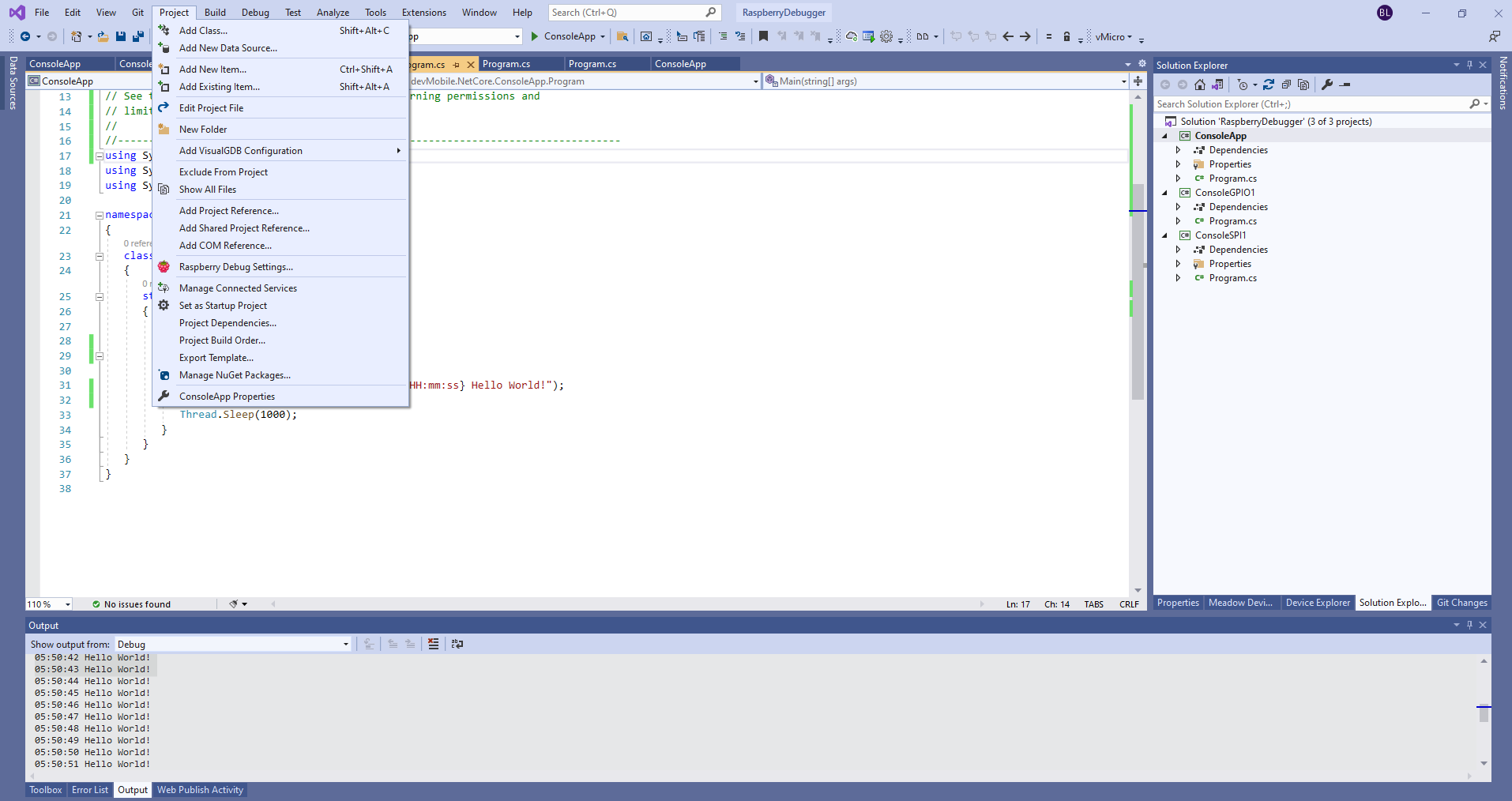
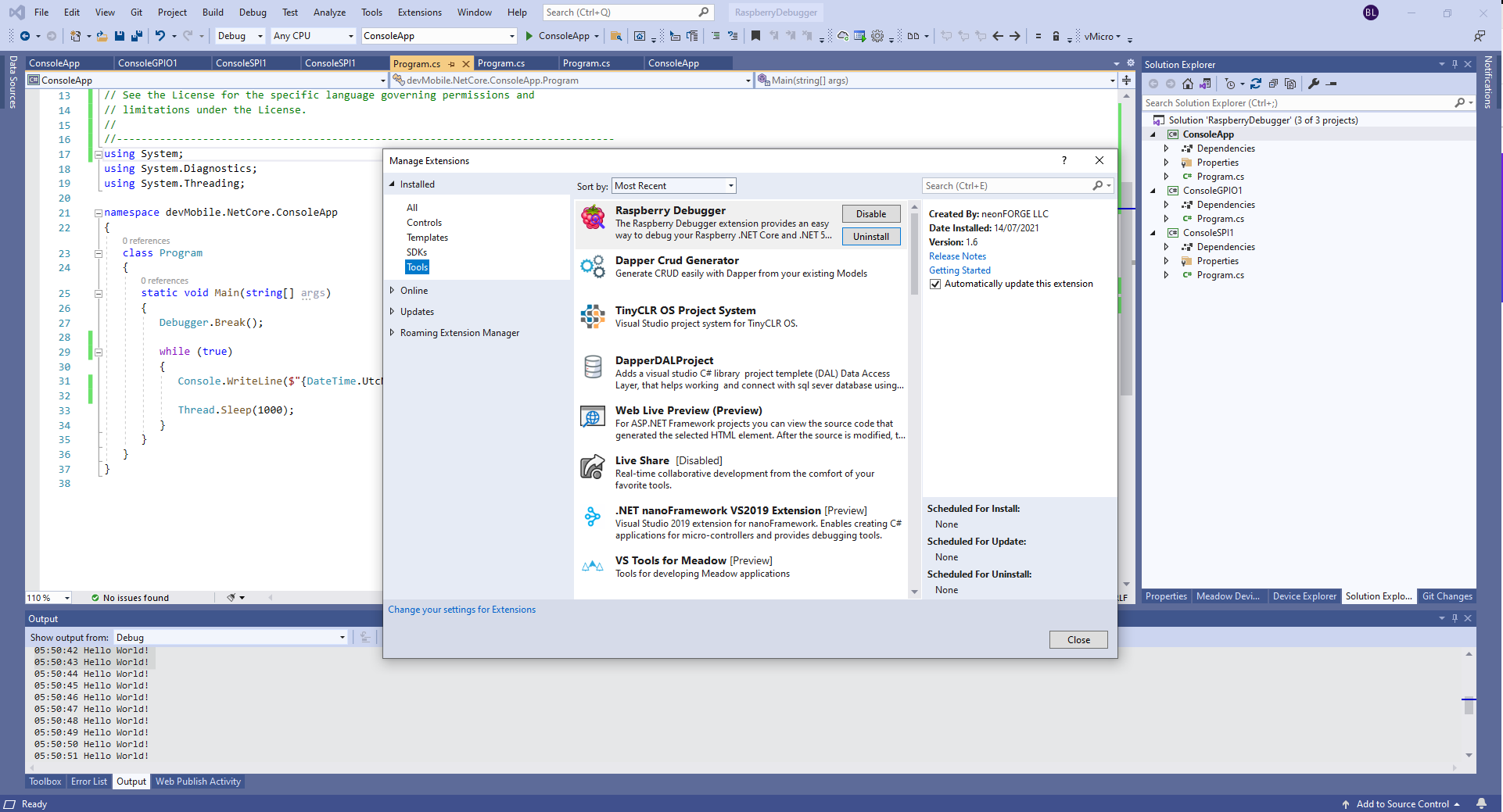
The RaspberryDebugger is really simple to install, and “frictionless” to use. The developers have put a lot of effort into making it easy to deploy and debug a .Net Core application running on a Raspberry PI with Visual Studio. All I had to do was search for, then download and install their Visual Studio Extension(VSIX).

Visual Studio Manage Extensions search

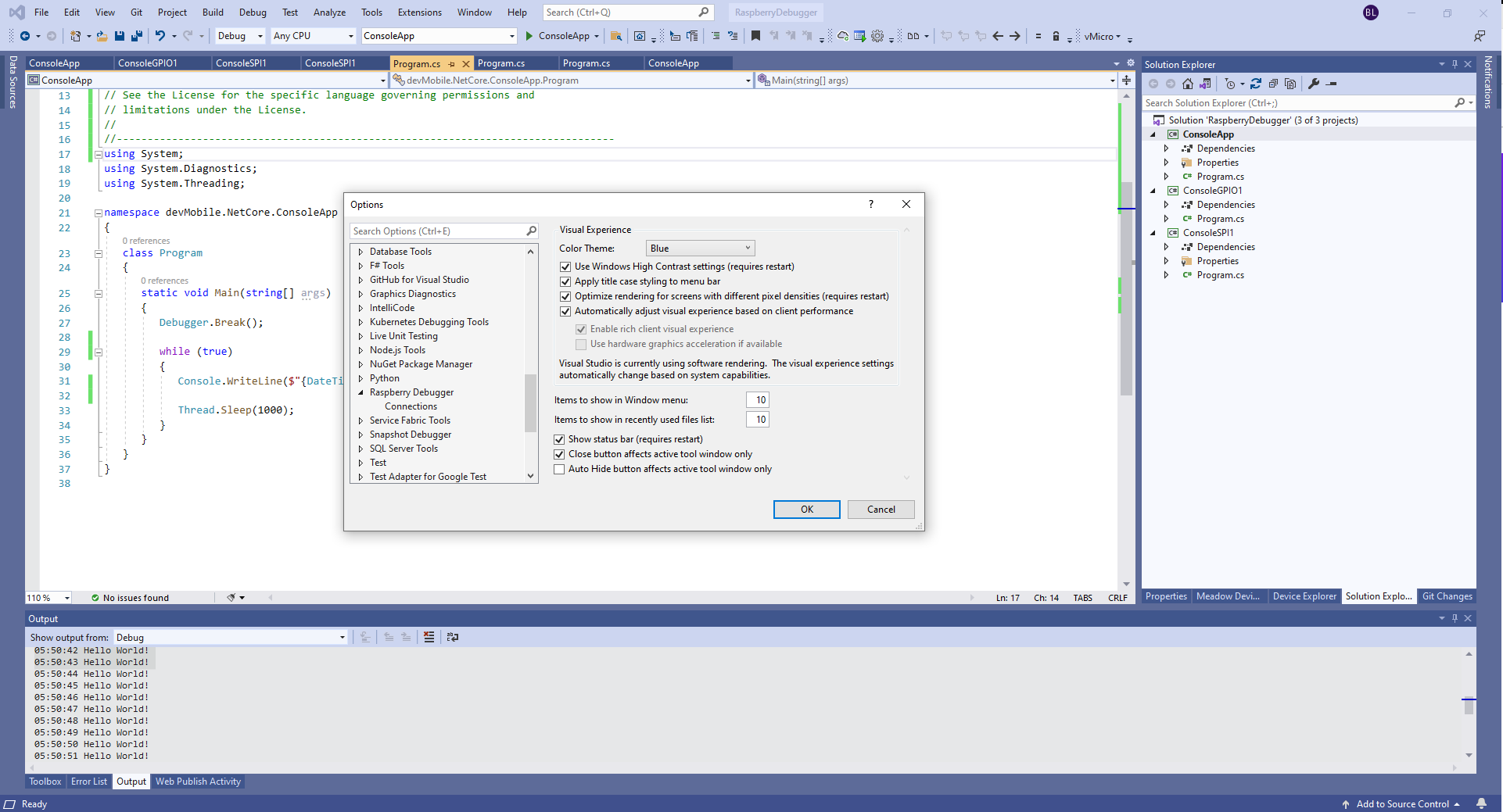
Then configure the connection information for the devices I wanted to use.

Visual Studio Options menu for RaspberryDebugger

On my main development system I was using multiple Raspberry PI devices so it was great to be able to pre-configure several devices.

RaspberryDebugger device(s) configuration)

I had connected to each device with PuTTY to check that connectivity was sorted.

RaspberryDebugger devices configuration device configuration

After typing in my “Hello world” application I had to select the device I wanted to use

Project menu RaspberryDebugger option
RaspberryDebugger device selection

Then I pressed F5 and it worked! It’s very unusual for things to work first time so I was stunned. The application was “automagically” downloaded and run in the debugger on the device.

-------------------------------------------------------------------
You may only use the Microsoft .NET Core Debugger (vsdbg) with
Visual Studio Code, Visual Studio or Visual Studio for Mac software
to help you develop and test your applications.
-------------------------------------------------------------------
Loaded '/usr/lib/dotnet/shared/Microsoft.NETCore.App/5.0.4/System.Private.CoreLib.dll'. Skipped loading symbols. Module is optimized and the debugger option 'Just My Code' is enabled.
Loaded '/home/pi/vsdbg/ConsoleApp/ConsoleApp.dll'. Symbols loaded.
Loaded '/usr/lib/dotnet/shared/Microsoft.NETCore.App/5.0.4/System.Runtime.dll'. Skipped loading symbols. Module is optimized and the debugger option 'Just My Code' is enabled.
Loaded '/usr/lib/dotnet/shared/Microsoft.NETCore.App/5.0.4/System.Console.dll'. Skipped loading symbols. Module is optimized and the debugger option 'Just My Code' is enabled.
Loaded '/usr/lib/dotnet/shared/Microsoft.NETCore.App/5.0.4/System.Threading.Thread.dll'. Skipped loading symbols. Module is optimized and the debugger option 'Just My Code' is enabled.
Loaded '/usr/lib/dotnet/shared/Microsoft.NETCore.App/5.0.4/System.Threading.dll'. Skipped loading symbols. Module is optimized and the debugger option 'Just My Code' is enabled.
Loaded '/usr/lib/dotnet/shared/Microsoft.NETCore.App/5.0.4/System.Text.Encoding.Extensions.dll'. Skipped loading symbols. Module is optimized and the debugger option 'Just My Code' is enabled.
Loaded '/usr/lib/dotnet/shared/Microsoft.NETCore.App/5.0.4/Microsoft.Win32.Primitives.dll'. Skipped loading symbols. Module is optimized and the debugger option 'Just My Code' is enabled.
05:50:37 Hello World!
05:50:39 Hello World!
05:50:40 Hello World!
05:50:41 Hello World!
05:50:42 Hello World!
05:50:43 Hello World!
...

Once the basics were sorted I wanted to check out the General Purpose Input & Output(GPIO) support implemented in the dotnet/iot libraries. My test-rig was a RaspberryPI 3B with a Grove Base Hat for Raspberry PI (left over from a Windows 10 IoT Core proof of concept project), a couple of Grove Universal 4 pin 5CM cables, a Grove LED pack, and a Grove Button.

Raspberry PI test rig with Grove Base pHat, button & LED
using System;
using System.Device.Gpio;
using System.Diagnostics;
using System.Threading;

namespace devMobile.NetCore.ConsoleGPIO1
{
	class Program
	{
		const int ButtonPinNumber = 5;
		const int LedPinNumber = 16;

		static void Main(string[] args)
		{
			try
			{
				GpioController controller = new GpioController(PinNumberingScheme.Logical);

				controller.OpenPin(ButtonPinNumber, PinMode.InputPullUp);
				controller.OpenPin(LedPinNumber, PinMode.Output);

				while (true)
				{
					if (controller.Read(ButtonPinNumber) == PinValue.High)
					{
						if (controller.Read(LedPinNumber) == PinValue.Low)
						{
							controller.Write(LedPinNumber, PinValue.High);
						}
						else
						{
							controller.Write(LedPinNumber, PinValue.Low);
						}
					}
					Thread.Sleep(100);
				}
			}
			catch (Exception ex)
			{
				Console.WriteLine(ex.Message);
			}
		}
	}
}

After starting the application, when I pressed the button the Grove LED flashed with a 100mSec duty cycle.

The RaspberryDebugger extension is a joy to use and I’m going to figure out how I can donate some money to the developers.

.NET Core web API + Dapper – Image Upload

Stream of Bytes or Base64 Encoded

To test my Dapper based functionality to upload images to my World Wide Importers database I used Telerik Fiddler.

Fiddler Composer with the image field name and upload file button highlighted

The currentimplementation only supports the uploading of one image at a time in a field called “image”.

Fiddler console after succesfull upload

This implementation supports a “Content-Type” of “application/octet-stream” or “image/jpeg”.

[HttpPost("{id}/image")]
public async Task<ActionResult> Upload([FromRoute(Name = "id")][Range(1, int.MaxValue, ErrorMessage = "StockItem id must greater than 0")] int id, [FromForm] IFormFile image)
{
	if (image == null) 
	{
		return this.BadRequest("Image image file missing");
	}

	if (image.Length == 0)
	{
		return this.BadRequest("Image image file is empty");
	}

	if ((string.Compare(image.ContentType, "application/octet-stream",true) != 0) && (string.Compare(image.ContentType, "image/jpeg", true) != 0))
	{
		return this.BadRequest("Image image file content-type is not application/octet-stream or image/jpeg");
	}

	try
	{
		using (MemoryStream ms = new MemoryStream())
		{
			await image.CopyToAsync(ms);

			ms.Seek(0, SeekOrigin.Begin);

			using (SqlConnection db = new SqlConnection(this.connectionString))
			{
				DynamicParameters parameters = new DynamicParameters();

				parameters.Add("StockItemId", id);
				parameters.Add("photo", ms, DbType.Binary, ParameterDirection.Input);

				await db.ExecuteAsync(sql: @"UPDATE [WareHouse].[StockItems] SET [Photo]=@Photo WHERE StockItemID=@StockItemId", param: parameters, commandType: CommandType.Text);
			}
		}
	}
	catch (SqlException ex)
	{
		logger.LogError(ex, "Updating photo of StockItem with ID:{0}", id);

		return this.StatusCode(StatusCodes.Status500InternalServerError);
	}

	return this.Ok();
}

After uploading the image I could download it as either a stream of bytes(displayed in Fiddler) or Base64 encoded (this had to be converted to an image)

Fiddler displaying downloaded jpeg image

This implementation doesn’t support the uploading of multiple images or the streaming of larger images but would be sufficient for uploading thumbnails etc.

NOTE : Error Handling approach has been updated

.NET Core web API + Dapper – Image Download

Stream of Bytes and Base64 Encoded

I needed to add some code using Dapper to retrieve images stored in a database for a webby client. The stockItems table has a column for a photo but they were all null…

CREATE TABLE [Warehouse].[StockItems](
	[StockItemID] [int] NOT NULL,
	[StockItemName] [nvarchar](100) NOT NULL,
	[SupplierID] [int] NOT NULL,
	[ColorID] [int] NULL,
	[UnitPackageID] [int] NOT NULL,
	[OuterPackageID] [int] NOT NULL,
	[Brand] [nvarchar](50) NULL,
	[Size] [nvarchar](20) NULL,
	[LeadTimeDays] [int] NOT NULL,
	[QuantityPerOuter] [int] NOT NULL,
	[IsChillerStock] [bit] NOT NULL,
	[Barcode] [nvarchar](50) NULL,
	[TaxRate] [decimal](18, 3) NOT NULL,
	[UnitPrice] [decimal](18, 2) NOT NULL,
	[RecommendedRetailPrice] [decimal](18, 2) NULL,
	[TypicalWeightPerUnit] [decimal](18, 3) NOT NULL,
	[MarketingComments] [nvarchar](max) NULL,
	[InternalComments] [nvarchar](max) NULL,
	[Photo] [varbinary](max) NULL,
	[CustomFields] [nvarchar](max) NULL,
	[Tags]  AS (json_query([CustomFields],N'$.Tags')),
	[SearchDetails]  AS (concat([StockItemName],N' ',[MarketingComments])),
	[LastEditedBy] [int] NOT NULL,
	[ValidFrom] [datetime2](7) GENERATED ALWAYS AS ROW START NOT NULL,
	[ValidTo] [datetime2](7) GENERATED ALWAYS AS ROW END NOT NULL,
 CONSTRAINT [PK_Warehouse_StockItems] PRIMARY KEY CLUSTERED 
(
	[StockItemID] ASC
)

I uploaded images of three different colours of sellotape dispensers with the following SQL

UPDATE Warehouse.StockItems 
SET [Photo] =(SELECT * FROM Openrowset( Bulk 'C:\Users\BrynLewis\Pictures\TapeDispenserBlue.jpg', Single_Blob) as  MyImage) where StockItemID = 

-- 203	Tape dispenser (Black)
-- 204	Tape dispenser (Red)
-- 205	Tape dispenser (Blue)

There are two options for downloading the image. The first is as a stream of bytes

[HttpGet("{id}/image")]
public async Task<ActionResult> GetImage([Range(1, int.MaxValue, ErrorMessage = "StockItem id must greater than 0")] int id)
{
	Byte[] response;

	try
	{
		using (SqlConnection db = new SqlConnection(this.connectionString))
		{
			response = await db.ExecuteScalarAsync<byte[]>(sql: @"SELECT [Photo] as ""photo"" FROM [Warehouse].[StockItems] WHERE StockItemID=@StockItemId", param: new { StockItemId = id }, commandType: CommandType.Text);
		}

		if (response == default)
		{
			logger.LogInformation("StockItem:{0} image not found", id);

			return this.NotFound($"StockItem:{id} image not found");
		}
	}
	catch (SqlException ex)
	{
		logger.LogError(ex, "Looking up a StockItem:{0} image", id);

		return this.StatusCode(StatusCodes.Status500InternalServerError);
	}

	return File(response, "image/jpeg");
}

The second is a Base64 encoded stream of bytes

[HttpGet("{id}/base64")]
public async Task<ActionResult> GetBase64([Range(1, int.MaxValue, ErrorMessage = "Stock item id must greater than 0")] int id)
{
	Byte[] response;

	try
	{
		using (SqlConnection db = new SqlConnection(this.connectionString))
		{
			response = await db.ExecuteScalarAsync<byte[]>(sql: @"SELECT [Photo] as ""photo"" FROM [Warehouse].[StockItems] WHERE StockItemID=@StockItemId", param: new { StockItemId = id }, commandType: CommandType.Text);
		}

		if (response == default)
		{
			logger.LogInformation("StockItem:{0} Base64 not found", id);

			return this.NotFound($"StockItem:{id} image not found");
		}
	}
	catch (SqlException ex)
	{
		logger.LogError(ex, "Looking up a StockItem withID:{0} base64", id);

		return this.StatusCode(StatusCodes.Status500InternalServerError);
	}

	return Ok("data:image/jpeg;base64," + Convert.ToBase64String(response));
}

I lost an hour from my life I will never get back figuring out that a correctly formatted/spelt content types “image/jpeg” and “data:image/jpeg;base64” were key to getting the webby client to render image.

NOTE : Error Handling approach has been updated

.NET Core web API + Dapper – Polly Retries

Recovering from transient failures with Polly

It’s not uncommon for SQL Azure servers and databases to suffer from “transient failures”. In application logs I have seen these occur during scale up/down events, periods where my application’s performance has been temporarily impacted (but its throughput has not changed), which I assume has been some load balancing going on in the background and when network connectivity has been a bit flakey.

Microsoft has published guidance for building Microservices applications, troubleshooting common AzureSQL errors and improving the resilience of ADO.Net connections which cover different approaches in depth.

For many years I used the Microsoft Enterprise Library Transient Fault Handling Application Block (TOPAZ), then upgraded to the .Net Core Version built by Mo Chavoshi both of which have been retired.

Now I’m using The Polly Project which builds on the concepts of TOPAZ but has been thoroughly re-engineered with lots of extensibility, an active community and modern codebase. Inspired by Ben Hyrman and several other developers I have built a minimalist wrapper for the Dapper Async methods which detects transient errors using the same approach as the Entity Framework Core library.

public static Task<int> ExecuteWithRetryAsync(
			  this IDbConnection connection,
			  string sql,
			  object param = null,
			  IDbTransaction transaction = null,
			  int? commandTimeout = null,
			  CommandType? commandType = null) => RetryPolicy.ExecuteAsync(() => connection.ExecuteAsync(sql, param, transaction, commandTimeout, commandType));

I did think about retry functionality for async methods which returned object/dynamic but have only implemented strongly typed ones for the initial version.

[HttpGet]
public async Task<ActionResult<IEnumerable<Model.StockItemListDtoV1>>> Get()
{
	IEnumerable<Model.StockItemListDtoV1> response = null;

	try
	{
		using (SqlConnection db = new SqlConnection(this.connectionString))
		{
			response = await db.QueryWithRetryAsync<Model.StockItemListDtoV1>(sql: @"SELECT [StockItemID] as ""ID"", [StockItemName] as ""Name"", [RecommendedRetailPrice], [TaxRate] FROM [Warehouse].[StockItems]", commandType: CommandType.Text);
		}
	}
	catch (SqlException ex)
	{
		logger.LogError(ex, "Retrieving list of StockItems");

		return this.StatusCode(StatusCodes.Status500InternalServerError);
	}

	return this.Ok(response);
}

I have struggled to get reproduceable transient failures without pausing execution in the Visual Studio debugger and tinkering with variables or scaling up/down my databases (limit to how often this can be done) or unplugging the network cable at the wrong time.

NOTE : Error Handling approach has been updated

.NET Core web API – FromHeader, FromQuery & FromRoute

Validation of parameters

In the post net Core web API + Dapper -Web Caching I wondered why the GET returned a detailed 400 error and the HEAD didn’t when the eTag was invalid. I added a new controller to test this for .ASP.NET Core FromHeader, FromQuery and FromRoute attributes and the responses were consistent. The GET methods returned a detailed 400 error and the HEAD methods returned a simple 400 error when a value was invalid.

/*
	http://localhost:36739/api/FromHeaderFromQueryFromRoute/FromHeaderValidation
	User-Agent: Fiddler
	Host: localhost:36739
	eTag: USB456


	HTTP/1.1 400 Bad Request
	Content-Type: application/problem+json; charset=utf-8
	Server: Microsoft-IIS/10.0
	X-Powered-By: ASP.NET
	Date: Sun, 27 Jun 2021 05:39:06 GMT
	Content-Length: 257

	{
		"type":"https://tools.ietf.org/html/rfc7231#section-6.5.1",
		"title":"One or more validation errors occurred.",
		"status":400,
		"traceId":"00-82b38ed4019b004282e49c70489a76e0-d3674e4952022949-00",
		"errors":
		{
			"eTag":["eTagMust be not more than 5 characters long"]
		}
	}		
*/
[HttpGet("FromHeaderValidation")]
public ActionResult GetHeaderValidation([FromHeader(Name = "eTag")][MinLength(3, ErrorMessage = "The eTag header text must be at least 3 characters long")][MaxLength(5, ErrorMessage = "eTagMust be not more than 5 characters long")][Required(ErrorMessage ="The eTag field is required")] string request)
{
	return this.Ok(request);
}

/*
	http://localhost:36739/api/FromHeaderFromQueryFromRoute/FromHeaderValidation
	User-Agent: Fiddler
	Host: localhost:36739
	eTag: USB456


	HTTP/1.1 400 Bad Request
	Content-Length: 257
	Content-Type: application/problem+json; charset=utf-8
	Server: Microsoft-IIS/10.0
	X-Powered-By: ASP.NET
	Date: Sun, 27 Jun 2021 05:41:26 GMT
*/
[HttpHead("FromHeaderValidation")]
public ActionResult HeadHeaderValidation([FromHeader(Name = "eTag")][MinLength(3, ErrorMessage = "The eTag header text must be at least 3 characters long")][MaxLength(5, ErrorMessage = "eTagMust be not more than 5 characters long")][Required(ErrorMessage = "The eTag field is required")] string request)
{
	return this.Ok(request);
}

I was having a virtual coffee with a co-worker and they commented that a HEAD method doesn’t return a body so I went and checked the relevant Internet Engineering Task Force(IETF) Request For Comments(RFC) documentation.

https://www.ietf.org/rfc/rfc2616.txt

RFC 2616                        HTTP/1.1                       June 1999


9.4 HEAD

   The HEAD method is identical to GET except that the server MUST NOT
   return a message-body in the response. The metainformation contained
   in the HTTP headers in response to a HEAD request SHOULD be identical
   to the information sent in response to a GET request. This method can
   be used for obtaining metainformation about the entity implied by the
   request without transferring the entity-body itself. This method is
   often used for testing hypertext links for validity, accessibility,
   and recent modification.

   The response to a HEAD request MAY be cacheable in the sense that the
   information contained in the response MAY be used to update a
   previously cached entity from that resource. If the new field values
   indicate that the cached entity differs from the current entity (as
   would be indicated by a change in Content-Length, Content-MD5, ETag
   or Last-Modified), then the cache MUST treat the cache entry as
   stale.

The short answer is I’m stupid, the longer answer is above.

.NET Core web API + Dapper – Web Caching

Web cache validation with eTags

On a couple of the systems I work on there are a number of queries (often complex spatial searches) which are very resource intensive but are quite readily cached. In these systems we have used HTTP GET and HEAD Request methods together so that the client only re-GETs the query results after a HEAD method indicates there have been updates.

I have been trying to keep the number of changes to my Microsoft SQL Azure World Wide Importers database to a minimum but for this post I have added a rowversion column to the StockGroups table. The rowversion data type is an automatically generated, unique 8 byte binary(12 bytes Base64 encoded) number within a database.

StockGroups table with Version column

Adding a rowversion table to an existing System Versioned table in the SQL Server Management Studio Designer is painful so I used…

ALTER TABLE [Warehouse].[StockGroups] ADD [Version] [timestamp] NULL

To reduce complexity the embedded SQL is contains two commands (normally I wouldn’t do this) one for retrieving the list StockGroups the other for retrieving the maximum StockGroup rowversion. If a StockGroup is changed the rowversion will be “automagically” updated and the maximum value will change.

[HttpGet]
public async Task<ActionResult<IEnumerable<Model.StockGroupListDtoV1>>> Get()
{
	IEnumerable<Model.StockGroupListDtoV1> response = null;

	try
	{
		using (SqlConnection db = new SqlConnection(this.connectionString))
		{
			var parameters = new DynamicParameters();

			parameters.Add("@RowVersion", dbType: DbType.Binary, direction: ParameterDirection.Output, size: ETagBytesLength);

			response = await db.QueryAsync<Model.StockGroupListDtoV1>(sql: @"SELECT [StockGroupID] as ""ID"", [StockGroupName] as ""Name""FROM [Warehouse].[StockGroups] ORDER BY Name; SELECT @RowVersion=MAX(Version) FROM [Warehouse].[StockGroups]", param: parameters, commandType: CommandType.Text);

			if (response.Any())
			{
				byte[] rowVersion = parameters.Get<byte[]>("RowVersion");

				this.HttpContext.Response.Headers.Add("ETag", Convert.ToBase64String(rowVersion));
			}
		}
	}
	catch (SqlException ex)
	{
		logger.LogError(ex, "Retrieving list of StockGroups");

		return this.StatusCode(StatusCodes.Status500InternalServerError);
	}

	return this.Ok(response);
}

I used Telerik Fiddler to to capture the GET response payload.

HTTP/1.1 200 OK
Transfer-Encoding: chunked
Content-Type: application/json; charset=utf-8
ETag: AAAAAAABrdE=
Server: Microsoft-IIS/10.0
X-Powered-By: ASP.NET
Date: Sat, 26 Jun 2021 06:12:16 GMT

136
[
   {"id":5,"name":"Airline Novelties"},
   {"id":2,"name":"Clothing"},
   {"id":6,"name":"Computing Novelties"},
   {"id":8,"name":"Furry Footwear"},
   {"id":3,"name":"Mugs"},
   {"id":1,"name":"Novelty Items"},
   {"id":10,"name":"Packaging Material"},
   {"id":9,"name":"Toys"},
   {"id":4,"name":"T-Shirts"},
   {"id":7,"name":"USB Novelties"}
]
0

The HEAD method requests the maximum rwoversion value from the StockGroups table and compares it to the eTag. In a more complex scenario this could be a call to a local cache to see if a query result has bee refreshed.

[HttpHead]
public async Task<ActionResult> Head([Required][FromHeader(Name = "ETag")][MinLength(ETagBase64Length, ErrorMessage = "eTag length invalid too short")][MaxLength(ETagBase64Length, ErrorMessage = "eTag length {0} invalid too long")] string eTag)
{
	byte[] headerVersion = new byte[ETagBytesLength];

	if (!Convert.TryFromBase64String(eTag, headerVersion, out _))
	{
		logger.LogInformation("eTag invalid format");

		return this.BadRequest("eTag invalid format");
	}

	try
	{
		using (SqlConnection db = new SqlConnection(this.connectionString))
		{
			byte[] databaseVersion = await db.ExecuteScalarAsync<byte[]>(sql: "SELECT MAX(Version) FROM [Warehouse].[StockGroups]", commandType: CommandType.Text);

			if (headerVersion.SequenceEqual(databaseVersion))
			{
				return this.StatusCode(StatusCodes.Status304NotModified);
			}
		}
	}
	catch (SqlException ex)
	{
		logger.LogError(ex, "Retrieving StockItem list");

		return this.StatusCode(StatusCodes.Status500InternalServerError);
	}

	return this.Ok();
}

I used Fiddler to to capture a HEAD response payload a 304 Not modified.

HTTP/1.1 304 Not Modified
Server: Microsoft-IIS/10.0
X-Powered-By: ASP.NET
Date: Sat, 26 Jun 2021 22:09:02 GMT

I then modified the database and the response changed to 200 OK indicating the local cache should be updated with a GET.

HTTP/1.1 200 OK
Transfer-Encoding: chunked
Server: Microsoft-IIS/10.0
X-Powered-By: ASP.NET
Date: Sat, 26 Jun 2021 22:09:59 GMT

This approach combined with the use of the If-Match, If-Modified-Since, If-None-Match and If-Unmodified-since allows web and client side caches to use previously requested results when there have been no changes. This can significantly reduce the amount of network traffic and server requests.

As part of my testing I modified the eTag so it was invalid (to check the Convert.ToBase64String and Convert.TryFromBase64String error handling) and the response was much smaller than I expected.

HTTP/1.1 400 Bad Request
Content-Length: 240
Content-Type: application/problem+json; charset=utf-8
Server: Microsoft-IIS/10.0
X-Powered-By: ASP.NET
Date: Sat, 26 Jun 2021 06:28:11 GMT

This was unlike the helpful validation messages returned by the GET method of the StockItems pagination example code

{
   "type":"https://tools.ietf.org/html/rfc7231#section-6.5.1",
   "title":"One or more validation errors occurred.",
   "status":400,
   "traceId":"00-bd68c94bf05f5c4ca8752011d6a60533-48e966211dec4847-00",
   "errors": 
   {
      "PageSize":["PageSize must be present and greater than 0"],
      "PageNumber":["PageNumber must be present and greater than 0"]
   }
}

The lack of diagnostic information was not helpful and I’ll explore this further in a future post. I often work on Fintech applications which are “insert only”, or nothing is deleted just marked as inactive/readonly so this approach is viable.

NOTE : Error Handling approach has been updated

.NET Core web API + Dapper – History

System Versioned Temporal tables looking up and listing

This StockItemsHistoryController has methods for retrieving a list of StockItems at a point in time specified by an optional query string parameter (if no value is provided the current time is assumed). To show how a temporal query can span multiple tables I included the [Purchasing].[suppliers] table which is also versioned.

http://localhost:36739/api/StockItemsHistory

[HttpGet]
public async Task<ActionResult<IEnumerable<Model.StockItemsHistoryListDtoV1>>> Get([FromQuery]DateTime? asAt)
{
	IEnumerable<Model.StockItemsHistoryListDtoV1> response = null;

	if (!asAt.HasValue)
	{
		asAt = DateTime.UtcNow;
	}

	try
	{
		using (SqlConnection db = new SqlConnection(this.connectionString))
		{
			response = await db.QueryAsync<Model.StockItemsHistoryListDtoV1>(sql: "[warehouse].[StockItemsHistoryStockItemsListAsAtV1]", param: new { asAt }, commandType: CommandType.StoredProcedure);
		}
	}
	catch (SqlException ex)
	{
		logger.LogError(ex, "Retrieving list of StockItems");

		return this.StatusCode(StatusCodes.Status500InternalServerError);
	}

	return this.Ok(response);
}
ALTER PROCEDURE [Warehouse].[StockItemsHistoryStockItemsListAsAtV1]
		@AsAt DATETIME2(7)
AS
BEGIN
	SELECT [StockItems].[StockItemID] as "ID"
		,[StockItems].[StockItemName] as "Name" 
		,[StockItems].[UnitPrice]
		,[StockItems].[RecommendedRetailPrice] 
		,[StockItems].[TaxRate]
		,[StockItems].[CustomFields]
		,[Suppliers].[SupplierID]
		,[Suppliers].[SupplierName]
	FROM [Warehouse].[StockItems] FOR SYSTEM_TIME AS OF @AsAt as StockItems
		INNER JOIN [Purchasing].[Suppliers] FOR SYSTEM_TIME AS OF @AsAt as Suppliers ON (StockItems.SupplierID = [Suppliers].SupplierID)
END

The query also returns the custom fields (often what was changed in StockItem history), the supplier Id and Supplier name.

The detailed history of a StockItem can be queried to illustrate how the _Archive(history) table works

localhost:36739/api/StockItemsHistory/64/history

ALTER PROCEDURE [Warehouse].[StockItemsHistoryStockItemHistoryListV1]
		@StockItemID int 
AS
BEGIN
	SELECT[StockItems_Archive].[StockItemID] as "ID"
		,[StockItems_Archive].[StockItemName] as "Name"
		,[StockItems_Archive].[UnitPrice]
		,[StockItems_Archive].[RecommendedRetailPrice]
		,[StockItems_Archive].[TaxRate]
		,[StockItems_Archive].[CustomFields]
		,[StockItems_Archive].[ValidFrom]
		,[StockItems_Archive].[ValidTo]
	FROM [Warehouse].[StockItems_Archive]
	WHERE [StockItems_Archive].[StockItemID] = @StockItemId
	ORDER BY [ValidFrom] DESC
END
[HttpGet("{id}/history")]
public async Task<ActionResult<IEnumerable<Model.StockItemHistoryListDtoV1>>> GetHistory([Range(1, int.MaxValue, ErrorMessage = "Stock item id must greater than 0")] int id)
{
    IEnumerable<Model.StockItemHistoryListDtoV1> response = null;

    try
    {
        using (SqlConnection db = new SqlConnection(this.connectionString))
        {
            response = await db.QueryAsync<Model.StockItemHistoryListDtoV1>(sql: "[Warehouse].[StockItemsHistoryStockItemHistoryListV1]", param: new { StockItemID = id }, commandType: CommandType.StoredProcedure);
            if (response == default)
            {
                logger.LogInformation("StockItem:{0} not found", id);

                return this.NotFound($"StockItem:{id} not found");
           }
       }
   }
   catch (SqlException ex)
   {
        logger.LogError(ex, "Retrieving up a StockItem with Id:{0}", id);

        return this.StatusCode(StatusCodes.Status500InternalServerError);
     }

    return this.Ok(response);
}

The state of a StockItem plus the associated Supplier and PackageTypes tables can also be queried at a point in time (if no value is provided the current time is assumed).

http://localhost:36739/api/StockItemsHistory/64?AsAt=2021-06-18T01:21:07.0121476

[HttpGet("{id}")]
public async Task<ActionResult<Model.StockItemGetDtoV1>> Get([Range(1, int.MaxValue, ErrorMessage = "Stock item id must greater than 0")] int id, [FromQuery] DateTime? asAt)
{
	Model.StockItemGetDtoV1 response = null;

	if ( !asAt.HasValue)
	{
		asAt = DateTime.UtcNow; 
	}

	try
	{
		using (SqlConnection db = new SqlConnection(this.connectionString))
		{
			response = await db.QuerySingleOrDefaultAsync<Model.StockItemGetDtoV1>(sql: "[Warehouse].[StockItemsHistoryStockItemLookupAsAtV1]", param: new { asAt, stockItemID=id }, commandType: CommandType.StoredProcedure);
			if (response == default)
			{
				logger.LogInformation("StockItem:{0} not found", id);

				return this.NotFound($"StockItem:{id} not found");
			}
		}
	}
	catch (SqlException ex)
	{
		logger.LogError(ex, "Retrieving StockItem with Id:{0}", id);

		return this.StatusCode(StatusCodes.Status500InternalServerError);
	}

	return this.Ok(response);
}
ALTER PROCEDURE [Warehouse].[StockItemsHistoryStockItemLookupAsAtV1]
		@StockItemID int, 
		@AsAt DATETIME2(7)
AS
BEGIN
	SELECT[StockItem].[StockItemID] as "ID"
		,[StockItem].[StockItemName] as "Name" 
		,[StockItem].[UnitPrice]
		,[StockItem].[RecommendedRetailPrice] 
		,[StockItem].[TaxRate]
		,[StockItem].[typicalWeightPerUnit] 
		,[StockItem].[QuantityPerOuter]
		,[UnitPackage].[PackageTypeName] as "unitPackageName"
		,[OuterPackage].[PackageTypeName] as "outerPackageName"
		,[Supplier].[SupplierID]
		,[Supplier].[SupplierName]
	FROM [Warehouse].[StockItems] FOR SYSTEM_TIME AS OF @AsAt as StockItem
		INNER JOIN[Warehouse].[PackageTypes] FOR SYSTEM_TIME AS OF @AsAt as UnitPackage ON ([StockItem].[UnitPackageID] = [UnitPackage].[PackageTypeID])
		INNER JOIN[Warehouse].[PackageTypes] FOR SYSTEM_TIME AS OF @AsAt as OuterPackage ON ([StockItem].[OuterPackageID] = [OuterPackage].[PackageTypeID])
		INNER JOIN[Purchasing].[Suppliers] FOR SYSTEM_TIME AS OF @AsAt as Supplier ON ([StockItem].SupplierID = Supplier.SupplierID)
		WHERE[StockItem].[StockItemID] = @StockItemId
END

I found it was easy to miss the “FOR SYSTEM_TIME AS OF @AsAt” on the INNER JOINs.

......
| ADD
    {
        <column_definition>
      | <computed_column_definition>
      | <table_constraint>
      | <column_set_definition>
    } [ ,...n ]
      | [ system_start_time_column_name datetime2 GENERATED ALWAYS AS ROW START
                [ HIDDEN ] [ NOT NULL ] [ CONSTRAINT constraint_name ]
            DEFAULT constant_expression [WITH VALUES] ,
                system_end_time_column_name datetime2 GENERATED ALWAYS AS ROW END
                   [ HIDDEN ] [ NOT NULL ][ CONSTRAINT constraint_name ]
            DEFAULT constant_expression [WITH VALUES] ,
                start_transaction_id_column_name bigint GENERATED ALWAYS AS TRANSACTION_ID START
        ]
       PERIOD FOR SYSTEM_TIME ( system_start_time_column_name, system_end_time_column_name )
    | 

It is also possible to hide the start and end time columns which might be useful for when retrofitting this approach to a legacy application which uses SELECT * FROM … and might not handle the extra columns correctly.

NOTE : Error Handling approach has been updated

.NET Core web API + Dapper – Lookup

Looking up and searching

This StockItemsLookupController has methods for looking up a single record using the StockItemID and retrieving a list of records with a name that “matches” the search text. In my initial version the length of the embedded Structured Query Language(SQL) which spanned multiple lines was starting to get out of hand.

ALTER PROCEDURE [Warehouse].[StockItemsStockItemLookupV1]
		@StockItemID as int
AS
BEGIN
	SELECT [StockItems].[StockItemID] as "ID"  
			,[StockItems].[StockItemName] as "Name" 
			,[StockItems].[UnitPrice]
			,[StockItems].[RecommendedRetailPrice] 
			,[StockItems].[TaxRate]
			,[StockItems].[QuantityPerOuter]
			,[StockItems].[TypicalWeightPerUnit]
			,[UnitPackage].[PackageTypeName] as "UnitPackageName"
			,[OuterPackage].[PackageTypeName] as "OuterPackageName"
			,[Supplier].[SupplierID] 
			,[Supplier].[SupplierName] 
	FROM[Warehouse].[StockItems] as StockItems  
	INNER JOIN[Warehouse].[PackageTypes] as UnitPackage ON ([StockItems].[UnitPackageID] = [UnitPackage].[PackageTypeID]) 
	INNER JOIN[Warehouse].[PackageTypes] as OuterPackage ON ([StockItems].[OuterPackageID] = [OuterPackage].[PackageTypeID]) 
	INNER JOIN[Purchasing].[Suppliers] as Supplier ON ([StockItems].SupplierID = [Supplier].]SupplierID])
	WHERE[StockItems].[StockItemID] = @StockItemId
END

The query also returns the inner/outer packaging and the supplier name (plus supplierId for creating a link to the Supplier’s details) to make the example more realistic.

[HttpGet("{id}")]
public async Task<ActionResult<Model.StockItemGetDtoV1>> Get([Range(1, int.MaxValue, ErrorMessage = "Stock item id must greater than 0")] int id)
{
	Model.StockItemGetDtoV1 response = null;

	try
	{
		using (SqlConnection db = new SqlConnection(this.connectionString))
		{
			response = await db.QuerySingleOrDefaultAsync<Model.StockItemGetDtoV1>(sql: "[Warehouse].[StockItemsStockItemLookupV1]", param: new { stockItemId=id }, commandType: CommandType.StoredProcedure);
		}

		if (response == default)
		{
			logger.LogInformation("StockItem:{0} not found", id);

			return this.NotFound($"StockItem:{id} image not found");
		}
	}
	catch (SqlException ex)
	{
		logger.LogError(ex, "Looking up a StockItem with Id:{0}", id);

		return this.StatusCode(StatusCodes.Status500InternalServerError);
	}

	return this.Ok(response);
}

This simple name search also uses the FromQuery attribute (like the pagination example) to populate a Data Transfer Object(DTO) with request query string parameters

[HttpGet]
public async Task<ActionResult<IEnumerable<Model.StockItemListDtoV1>>> Get([FromQuery] Model.StockItemNameSearchDtoV1 request)
{
	IEnumerable<Model.StockItemListDtoV1> response = null;

	try
	{
		using (SqlConnection db = new SqlConnection(this.connectionString))
		{
			response = await db.QueryAsync<Model.StockItemListDtoV1>(sql: "[Warehouse].[StockItemsNameSearchV1]", param: request, commandType: CommandType.StoredProcedure);
		}
	}
	catch (SqlException ex)
	{
		logger.LogError(ex, "Searching for list of StockItems with name like:{0}", request);

		return this.StatusCode(StatusCodes.Status500InternalServerError);
	}

	return this.Ok(response);
}

The request DTO properties have Data Annotations to ensure the values are valid and suitable error messages are displayed if they are not. The controller GET method will not even be called if the DTO is missing or the values are incorrect. I would use constants for the lengths etc. and the attribute value error messages can be loaded from resource files for multiple language support.

public class StockItemNameSearchDtoV1
{
	[Required]
	[MinLength(3, ErrorMessage = "The name search text must be at least 3 characters long")]
	public string SearchText { get; set; }

	[Required]
	[Range(1, int.MaxValue, ErrorMessage = "MaximumRowsToReturn must be present and greater than 0")]
	public int MaximumRowsToReturn { get; set; }
}

The SELECT TOP command to limit the number of records returned. To improve performance the results of this query could be cached but the result set might need to be filtered based on the current user.

ALTER PROCEDURE [Warehouse].[StockItemsSearchV1]
           @SearchText nvarchar(100),
           @MaximumRowsToReturn int
AS
BEGIN
    SELECT TOP(@MaximumRowsToReturn) [StockItemID] as "ID"
		   ,[StockItemName] as "Name"
		   ,[RecommendedRetailPrice]
		   ,[TaxRate]
    FROM Warehouse.StockItems
    WHERE SearchDetails LIKE N'%' + @SearchText + N'%'
    ORDER BY [StockItemName]
END;

I have used this approach to populate a list of selectable options as a user types their search text.

NOTE : Error Handling approach has been updated

.NET Core web API + Dapper – Pagination

Pagination for payload size reduction

This controller method returns a limited number of records(pageSize) from a position(pageNumber) in a database query resultset to reduce the size of the response payload.

The SQL command uses the ROWS FETCH NEXT … ROWS ONLY syntax, The use of this approach is not really highlighted in official developer documentation (though I maybe missing the obvious).

There is some discussion in the ORDER BY clause syntax documentation.

Using OFFSET and FETCH to limit the rows returned.

“We recommend that you use the OFFSET and FETCH clauses instead of the TOP clause to implement a query paging solution and limit the number of rows sent to a client application.

Using OFFSET and FETCH as a paging solution requires running the query one time for each “page” of data returned to the client application. For example, to return the results of a query in 10-row increments, you must execute the query one time to return rows 1 to 10 and then run the query again to return rows 11 to 20 and so on. Each query is independent and not related to each other in any way. This means that, unlike using a cursor in which the query is executed once and state is maintained on the server, the client application is responsible for tracking state.”

[HttpGet]
public async Task<ActionResult<IEnumerable<Model.StockItemListDtoV1>>> Get([FromQuery] Model.StockItemPagingDtoV1 request)
{
	IEnumerable<Model.StockItemListDtoV1> response = null;

	var parameters = new DynamicParameters();

	parameters.Add("@PageNumber", request.PageNumber);
	parameters.Add("@PageSize", request.PageSize);

	using (SqlConnection db = new SqlConnection(this.connectionString))
	{
			response = await db.QueryAsync<Model.StockItemListDtoV1>(sql: @"SELECT [StockItemID] as ""ID"", [StockItemName] as ""Name"", [RecommendedRetailPrice], [TaxRate] FROM[Warehouse].[StockItems] ORDER BY ID OFFSET @PageSize * (@PageNumber-1) ROWS FETCH NEXT @PageSize ROWS ONLY", param: parameters, commandType: CommandType.Text);
	}
	return this.Ok(response);
}

This sample also uses the FromQuery attribute to populate a Data Transfer Object(DTO) with request query string parameters

	public class StockItemPagingDtoV1
	{
		[Required]
		[Range(1, int.MaxValue, ErrorMessage = "PageSize must be present and greater than 0")]
		public int PageSize { get; set; }

		[Required]
		[Range(1, int.MaxValue, ErrorMessage = "PageNumber must be present and greater than 0")]
		public int PageNumber { get; set; }
	}

The request DTO properties have Data Annotations to ensure the values are valid and suitable error messages are displayed if they are not. The controller GET method will not even be called if the DTO is missing or the values are incorrect. I would use constants for the lengths etc. and the attribute value error messages can be loaded from resource files for multiple language support.

http://localhost:36739/api/StockItemsPagination/

The result is

ols.ietf.org/html/rfc7231#section-6.5.1″,”title”:”One or more validation errors occurred.”,”status”:400,”traceId”:”00-917b6336aa8828468c6d78fb73dbe446-f72fc74b22ce724b-00″,”errors”:{“PageSize”:[“PageSize must be present and greater than 0”],”PageNumber”:[“PageNumber must be present and greater than 0”]}}

http://localhost:36739/api/StockItemsPagination?pageSize=10

{“type”:”https://tools.ietf.org/html/rfc7231#section-6.5.1&#8243;,”title”:”One or more validation errors occurred.”,”status”:400,”traceId”:”00-dd5f2683c6d7dc4a84bb04949703fc34-0c3658e2e54c2648-00″,”errors”:{“PageNumber”:[“PageNumber must be present and greater than 0”]}}

https://localhost:36739/api/StockItemsPagination?pageSize=10

The result is

{“type”:”https://tools.ietf.org/html/rfc7231#section-6.5.1&#8243;,”title”:”One or more validation errors occurred.”,”status”:400,”traceId”:”00-63f591ee3bfdc7418a83afbdba2faf7f-3d2ea994eb0c5c49-00″,”errors”:{“PageSize”:[“PageSize must be present and greater than 0”]}}

The amount of code can be reduced a bit further by dropping the dynamic parameter and passing the StockItemListDtoV1 object is as a parameter.

[HttpGet]
public async Task<ActionResult<IEnumerable<Model.StockItemListDtoV1>>> Get([FromQuery] Model.StockItemPagingDtoV1 request)
{
	IEnumerable<Model.StockItemListDtoV1> response = null;

	using (SqlConnection db = new SqlConnection(this.connectionString))
	{
		response = await db.QueryAsync<Model.StockItemListDtoV1>(sql: @"SELECT [StockItemID] as ""ID"", [StockItemName] as ""Name"", [RecommendedRetailPrice], [TaxRate] FROM[Warehouse].[StockItems] ORDER BY ID OFFSET @PageSize * (@PageNumber-1) ROWS FETCH NEXT @PageSize ROWS ONLY", param: request, commandType: CommandType.Text);
	}

	return this.Ok(response);
}

I use both approaches, for example if database fields or parameters have quite a different naming convention to C# properties (with query DTOs then can often be fixed with attributes) I would use the explicit approach .The later approach also had slightly better code metrics

Metrics for version with DynamicPararmeters
Metrics for version with DTO parameters