Building Edge AI with GitHub Copilot – Faster R-CNN Client

Introduction

For this post I’ll be using GitHub Copilot to generate code for a console application that uses a Faster R-CNN ONNX model to process an image loaded from disk.

please write a C# console application that uses Onnx to run a ONNX Faster-RCNN object detection model on an image loaded from disk

I added the System.Drawing.Common and Microsoft.ML.OnnxRuntime NuGet packages, required using directives then the code compiled. The ProcessOutput method was stubbed out so I will need to figure out the format of the output tensor

static void Main(string[] args)
{
   string modelPath = "FasterRCNN-10.onnx";
   string imagePath = "sports.jpg";

   using var session = new InferenceSession(modelPath);
   using var image = new Bitmap(imagePath);

   var inputTensor = ExtractTensorFromImage(image);
   var inputs = new List<NamedOnnxValue>
   {
       NamedOnnxValue.CreateFromTensor("image", inputTensor)
   };

   using IDisposableReadOnlyCollection<DisposableNamedOnnxValue> results = session.Run(inputs);
   var output = results.First().AsEnumerable<float>().ToArray();

   // Process the output (e.g., draw bounding boxes on the image)
   ProcessOutput(output, image);

   image.Save("output.jpg", ImageFormat.Jpeg);
   Console.WriteLine("Object detection completed. Output saved as output.jpg");
}

private static DenseTensor<float> ExtractTensorFromImage(Bitmap image)
{
   int width = image.Width;
   int height = image.Height;
   var tensor = new DenseTensor<float>(new[] { 1, 3, height, width });

   for (int y = 0; y < height; y++)
   {
      for (int x = 0; x < width; x++)
      {
         Color pixel = image.GetPixel(x, y);
         tensor[0, 0, y, x] = pixel.R / 255.0f;
         tensor[0, 1, y, x] = pixel.G / 255.0f;
         tensor[0, 2, y, x] = pixel.B / 255.0f;
      }
   }

   return tensor;
}

private static void ProcessOutput(float[] output, Bitmap image)
{
   // Implement the logic to process the output and draw bounding boxes on the image
   // This is a placeholder for the actual implementation
}

I fixed the paths to the ONNX model and image files, so the application ran but there was an error.

The dimensions of the input tensor were wrong because the declaration included a batch id.

Change dimensions of tensor by removing batch from declaration

private static DenseTensor<float> ExtractTensorFromImage(Bitmap image)
{
   int width = image.Width;
   int height = image.Height;
   var tensor = new DenseTensor<float>(new[] { 3, height, width });

   for (int y = 0; y < height; y++)
   {
      for (int x = 0; x < width; x++)
      {
         Color pixel = image.GetPixel(x, y);
         tensor[0, y, x] = pixel.R / 255.0f;
         tensor[1, y, x] = pixel.G / 255.0f;
         tensor[2, y, x] = pixel.B / 255.0f;
      }
   }

   return tensor;
 }

GitHub Copilot fixed the tensor declaration by removing the batch id. The application also used System.Drawing which is not supported on my target embedded platforms.

change from System.Drawing to ImageSharp

I added the SixLabors.ImageSharp and removed System.Drawing.Common NuGets. Then updated the using directives as required.

using var image = Image.Load<Rgb24>(imagePath);
...
private static DenseTensor<float> ExtractTensorFromImage(Image<Rgb24> image)
{
   int width = image.Width;
   int height = image.Height;
   var tensor = new DenseTensor<float>(new[] { 3, height, width });

   image.ProcessPixelRows(accessor =>
   {
      for (int y = 0; y < height; y++)
      {
         var pixelRow = accessor.GetRowSpan(y);
         for (int x = 0; x < width; x++)
         {
            tensor[0, y, x] = pixelRow[x].R / 255.0f;
            tensor[1, y, x] = pixelRow[x].G / 255.0f;
            tensor[2, y, x] = pixelRow[x].B / 255.0f;
         }
      }
   });

   return tensor;
}

The application ran but there was an error as the dimensions of the input image were wrong.

Based on the Faster R-CNN documentation I used ImageSharp to resize the image

Use ImageSharp to resize the image such that both height and width are within the range of [800, 1333], such that both height and width are divisible by 32.

 private static void ResizeImage(Image<Rgb24> image)
 {
    const int minSize = 800;
    const int maxSize = 1333;

    int originalWidth = image.Width;
    int originalHeight = image.Height;

    float scale = Math.Min((float)maxSize / Math.Max(originalWidth, originalHeight), (float)minSize / Math.Min(originalWidth, originalHeight));
    int newWidth = (int)(originalWidth * scale);
    int newHeight = (int)(originalHeight * scale);

    // Ensure dimensions are divisible by 32
    newWidth = (newWidth / 32) * 32;
    newHeight = (newHeight / 32) * 32;

    image.Mutate(x => x.Resize(newWidth, newHeight));
 }

The application ran but the results were bad, so I checked format of the input tensor and figured out the R,G,B values need to be adjusted.

Apply mean to each channel

private static DenseTensor<float> ExtractTensorFromImage(Image<Rgb24> image)
{
   int width = image.Width;
   int height = image.Height;
   var tensor = new DenseTensor<float>(new[] { 3, height, width });

   // Mean values for each channel
   float[] mean = { 0.485f, 0.456f, 0.406f };

   image.ProcessPixelRows(accessor =>
   {
      for (int y = 0; y < height; y++)
      {
         var pixelRow = accessor.GetRowSpan(y);
         for (int x = 0; x < width; x++)
         {
            tensor[0, y, x] = (pixelRow[x].R / 255.0f) - mean[0];
            tensor[1, y, x] = (pixelRow[x].G / 255.0f) - mean[1];
            tensor[2, y, x] = (pixelRow[x].B / 255.0f) - mean[2];
         }
      }
   });

   return tensor;
 }

The application ran but the results were still bad, so I checked format of the input tensor and figured out the Resnet50 means had be used and the input tensor was BGR rather than RGB

Use FasterRCNN means not resnet ones
Change to B,G,R

private static DenseTensor<float> ExtractTensorFromImage(Image<Rgb24> image)
{
   int width = image.Width;
   int height = image.Height;
   var tensor = new DenseTensor<float>(new[] { 3, height, width });

   // Mean values for each channel for FasterRCNN
   float[] mean = { 102.9801f, 115.9465f, 122.7717f };

   image.ProcessPixelRows(accessor =>
   {
      for (int y = 0; y < height; y++)
      {
         var pixelRow = accessor.GetRowSpan(y);
         for (int x = 0; x < width; x++)
         {
            tensor[0, y, x] = pixelRow[x].B - mean[0];
            tensor[1, y, x] = pixelRow[x].G - mean[1];
            tensor[2, y, x] = pixelRow[x].R - mean[2];
         }
      }
   });

   return tensor;
}

When I inspected the values in the output tensor in the debugger they looked “reasonable” so got GitHub Copilot to add the code required to display the results.

Display label, confidence and bounding box

The application ran but there was an exception because the names of the output tensor “dimensions” were wrong.
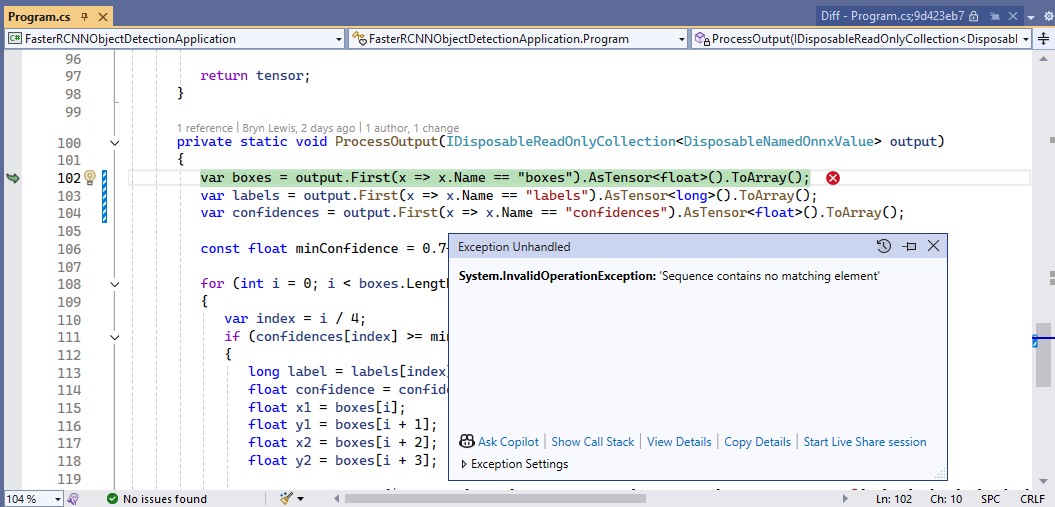
I used Netron to get the correct output tensor “dimension” names.
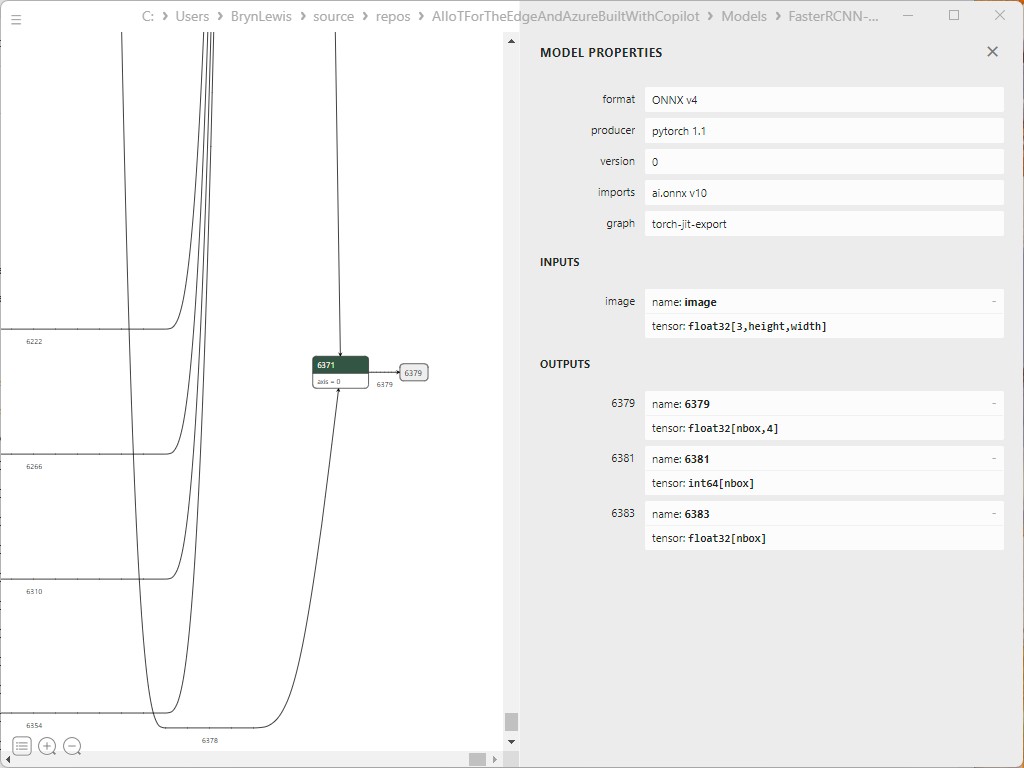
I then manually fixed the output tensor “dimension” names

private static void ProcessOutput(IDisposableReadOnlyCollection<DisposableNamedOnnxValue> output)
{
   var boxes = output.First(x => x.Name == "6379").AsTensor<float>().ToArray();
   var labels = output.First(x => x.Name == "6381").AsTensor<long>().ToArray();
   var confidences = output.First(x => x.Name == "6383").AsTensor<float>().ToArray();

   const float minConfidence = 0.7f;

   for (int i = 0; i < boxes.Length; i += 4)
   {
      var index = i / 4;
      if (confidences[index] >= minConfidence)
      {
         long label = labels[index];
         float confidence = confidences[index];
         float x1 = boxes[i];
         float y1 = boxes[i + 1];
         float x2 = boxes[i + 2];
         float y2 = boxes[i + 3];

         Console.WriteLine($"Label: {label}, Confidence: {confidence}, Bounding Box: [{x1}, {y1}, {x2}, {y2}]");
      }
   }
}

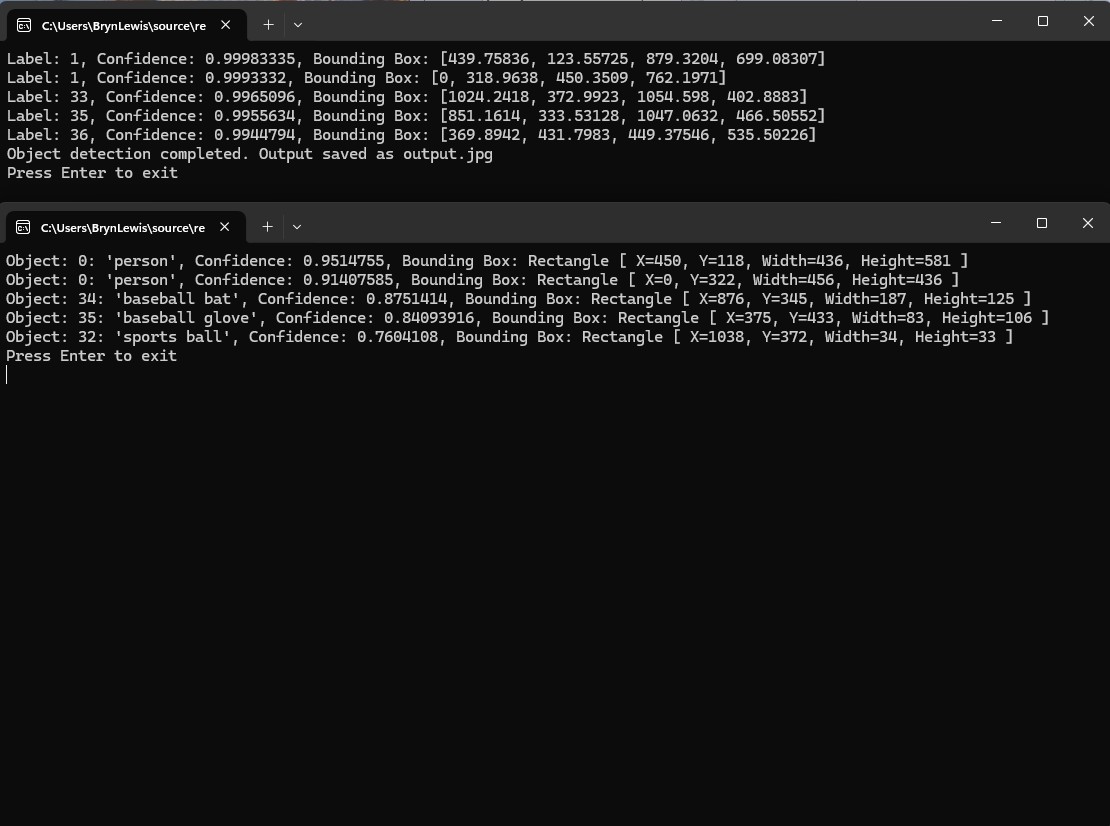
I manually compared the output of the console application with equivalent YoloSharp application output and the results looked close enough.
Summary

The Copilot prompts required to generate code were significantly more complex than previous examples and I had to regularly refer to the documentation to figure out what was wrong. The code wasn’t great and Copilot didn’t add much value

The Copilot generated code in this post is not suitable for production

Building Edge AI with Github Copilot- Security Camera HTTP YoloSharp

When I started with the Security Camera HTTP code and added code to process the images with Ultralytics Object Detection model I found the order of the prompts could make a difference. My first attempt at adding YoloSharp to the SecurityCameraHttpClient application with Github Copilot didn’t go well and needed some “human intervention”. When I thought more about the order of the prompts the adding the same functionality went a lot better.

// Use a stream rather than loading image from a file
// Use YoloSharp to run an onnx Object Detection model on the image
// Make the YoloPredictor a class variable
// Save image if object with specified image class name detected
// Modify so objectDetected supports multiple image class names
// Modify code to make use of GPU configurable
// Make display of detections configurable in app settings
// Make saving of image configurable in app settings

internal class Program
{
   private static HttpClient _client;
   private static bool _isRetrievingImage = false;
   private static ApplicationSettings _applicationSettings;
   private static YoloPredictor _yoloPredictor;

   static void Main(string[] args)
   {
      Console.WriteLine($"{DateTime.UtcNow:yy-MM-dd HH:mm:ss} SecurityCameraClient starting");
#if RELEASE
         Console.WriteLine("RELEASE");
#else
         Console.WriteLine("DEBUG");
#endif

      var configuration = new ConfigurationBuilder()
            .AddJsonFile("appsettings.json", false, true)
            .AddUserSecrets<Program>()
            .Build();

      _applicationSettings = configuration.GetSection("ApplicationSettings").Get<ApplicationSettings>();

      // Initialize YoloPredictor with GPU configuration
      _yoloPredictor = new YoloPredictor(_applicationSettings.OnnxModelPath, new YoloPredictorOptions()
      {
         UseCuda = _applicationSettings.UseCuda, // Configurable GPU usage
      });

      using (HttpClientHandler handler = new HttpClientHandler { Credentials = new NetworkCredential(_applicationSettings.Username, _applicationSettings.Password) })
      using (_client = new HttpClient(handler))
      using (var timer = new Timer(async _ => await RetrieveImageAsync(), null, _applicationSettings.TimerDue, _applicationSettings.TimerPeriod))
      {
         Console.WriteLine("Press any key to exit...");
         Console.ReadKey();
      }
   }

      private static async Task RetrieveImageAsync()
      {
         if (_isRetrievingImage) return;

         _isRetrievingImage = true;
         try
         {
            Console.WriteLine($"{DateTime.UtcNow:yy-MM-dd HH:mm:ss.fff} SecurityCameraClient download starting");

            HttpResponseMessage response = await _client.GetAsync(_applicationSettings.CameraUrl);
            response.EnsureSuccessStatusCode();

            using (Stream imageStream = await response.Content.ReadAsStreamAsync())
            {
               var detections = _yoloPredictor.Detect(imageStream);
               bool objectDetected = false;

               foreach (var detection in detections)
               {
                  if (_applicationSettings.LogDetections) // Check if logging detections is enabled
                  {
                     Console.WriteLine($"Detected {detection.Name.Name} with confidence {detection.Confidence}");
                  }

                  if (_applicationSettings.ClassNames.Contains(detection.Name.Name))
                  {
                     objectDetected = true;
                  }
               }

               if (objectDetected && _applicationSettings.SaveImage) // Check if saving images is enabled
               {
                  string savePath = string.Format(_applicationSettings.SavePath, DateTime.UtcNow);
                  using (FileStream fileStream = new FileStream(savePath, FileMode.Create, FileAccess.Write, FileShare.None))
                  {
                     imageStream.Position = 0;
                     await imageStream.CopyToAsync(fileStream);
                  }
               }
            }

            Console.WriteLine($"{DateTime.UtcNow:yy-MM-dd HH:mm:ss.fff} SecurityCameraClient download done");
         }
         catch (Exception ex)
         {
            Console.WriteLine($"An error occurred: {ex.Message}");
         }
         finally
         {
            _isRetrievingImage = false;
         }
      }
}

public class ApplicationSettings
{
   public string CameraUrl { get; set; } = "";
   public string SavePath { get; set; } = "";
   public string Username { get; set; } = "";
   public string Password { get; set; } = "";
   public TimeSpan TimerDue { get; set; } = TimeSpan.Zero;
   public TimeSpan TimerPeriod { get; set; } = TimeSpan.Zero;
   public string OnnxModelPath { get; set; } = "";
   public bool UseCuda { get; set; } = false; // Configurable GPU usage
   public List<string> ClassNames { get; set; } //= new List<string>();
   public bool LogDetections { get; set; } = false; // Configurable logging of detections 
   public bool SaveImage { get; set; } = false; // Configurable saving of images
   }
}

The interactions Visual Studio IntelliSense with the GitHub Copilot prompts was interesting.

I wonder if this is because Visual Studio Intellisense has local context, whereas Github Copilot has “cloud” context.

It took a couple of failed attempts to find the best order, which I think would reduce over time.

The Copilot generated code in this post is not suitable for production
Building Edge AI with AI- YoloDotNet Client

Introduction

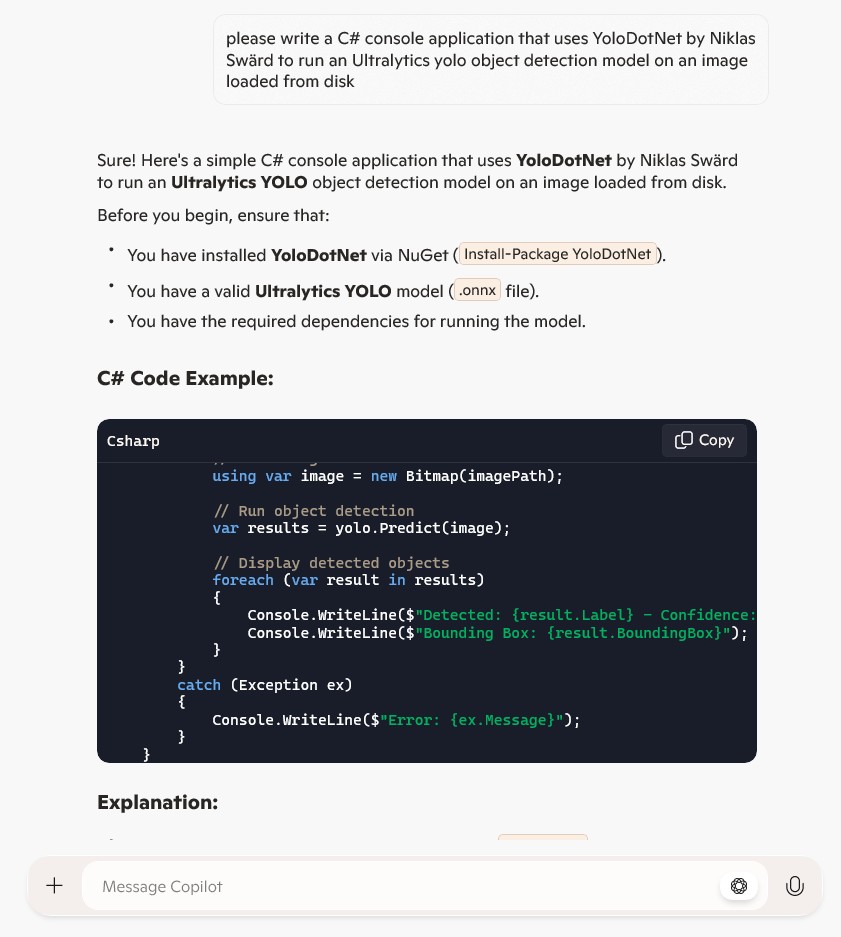
For this post I have used Copilot prompts to generate code which uses Ultralytics YoloV8 and YoloDoNet by NickSwardh for object detection, object classification, and pose estimation.

Object Detection

static void Main(string[] args)
{
   string modelPath = "path/to/yolo_model.onnx";  // Update with actual model path
   string imagePath = "path/to/image.jpg";        // Update with actual image path

   // Load YOLO model
   var yolo = new YoloModel(modelPath);

   // Load image
   using Bitmap image = new Bitmap(imagePath);

   // Run classification
   var results = yolo.Predict(image);

   // Display results
   foreach (var result in results)
   {
      Console.WriteLine($"Detected: {result.Label} with confidence {result.Confidence:P}");
   }
}

The code didn’t compile so I tried a different prompt

This didn’t compile and looked like it was based on https://github.com/techwingslab/yolov5-net. The generated code also added code to check that the model and image files existed.

static void Main(string[] args)
{
   string modelPath = "yolov8.onnx"; // Replace with your actual model path
   string imagePath = "image.jpg"; // Replace with your actual image path

   if (!File.Exists(modelPath))
   {
      Console.WriteLine("Error: Model file not found!");
      return;
   }

   if (!File.Exists(imagePath))
   {
      Console.WriteLine("Error: Image file not found!");
      return;
   }

   try
   {
      // Load the YOLO model
      using var yolo = new Yolo(modelPath);

      // Load image from disk
      using var image = new Bitmap(imagePath);

      // Run object detection
      var results = yolo.Predict(image);

      // Display detected objects
      foreach (var result in results)
      {
         Console.WriteLine($"Detected: {result.Label} - Confidence: {result.Confidence}");
         Console.WriteLine($"Bounding Box: {result.BoundingBox}");
      }
   }
   catch (Exception ex)
   {
      Console.WriteLine($"Error: {ex.Message}");
   }
}

This didn’t compile so tried again

static void Main(string[] args)
{
   string modelPath = "yolov8.onnx"; // Replace with your actual model path
   string imagePath = "image.jpg"; // Replace with your actual image path
...
   try
   {
      var yoloOptions = new YoloOptions
      {
         ConfidenceThreshold = 0.5, // Confidence threshold (adjust as needed)
         IoUThreshold = 0.4        // Intersection over Union threshold
      };

      // Load the YOLO model
      //using var yolo = new Yolo(modelPath);
      using var yolo = new Yolo(yoloOptions);

      // Load image from disk
      using var image = new Bitmap(imagePath);

      // Run object detection
      //var results = yolo.Predict(image);
      var results = yolo.RunObjectDetection(image);

      // Display detected objects
      foreach (var result in results)
      {
         Console.WriteLine($"Detected: {result.Label} - Confidence: {result.Confidence}");
         Console.WriteLine($"Bounding Box: {result.BoundingBox}");
      }
   }
   catch (Exception ex)
   {
      Console.WriteLine($"Error: {ex.Message}");
   }
}

This didn’t compile so tried a different approach

I manually modified the code removing ConfidenceThreshold and IoUThreshold, then used intellisense to “discover” then add ModelType & modelPath

static void Main(string[] args)
{
   string modelPath = "yolov8.onnx"; // Replace with your actual model path
   string imagePath = "image.jpg"; // Replace with your actual image path
...
   try
   {
      var yoloOptions = new YoloOptions
      {
         ModelType = ModelType.ObjectDetection,
         OnnxModel = modelPath
      };

      // Load the YOLO model
      //using var yolo = new Yolo(modelPath);
      //using var yolo = new Yolo(yoloOptions);
      //using var yolo = new Yolo(modelPath, yoloOptions);
      using var yolo = new Yolo(yoloOptions);

      // Load image using SkiaSharp
      using var skBitmap = SKBitmap.Decode(imagePath);

      // Convert SKBitmap to a format YOLO can process
      using var skImage = SKImage.FromBitmap(skBitmap);
      using var skData = skImage.Encode(SKEncodedImageFormat.Jpeg, 100);
      using var memoryStream = new MemoryStream(skData.ToArray());
      //var results = yolo.Predict(memoryStream);
      var results = yolo.RunObbDetection(skImage);

      // Display detected objects
      foreach (var result in results)
      {
         Console.WriteLine($"Detected: {result.Label} - Confidence: {result.Confidence}");
         Console.WriteLine($"Bounding Box: {result.BoundingBox}");
      }
   }
   catch (Exception ex)
   {
      Console.WriteLine($"Error: {ex.Message}");
   }
}

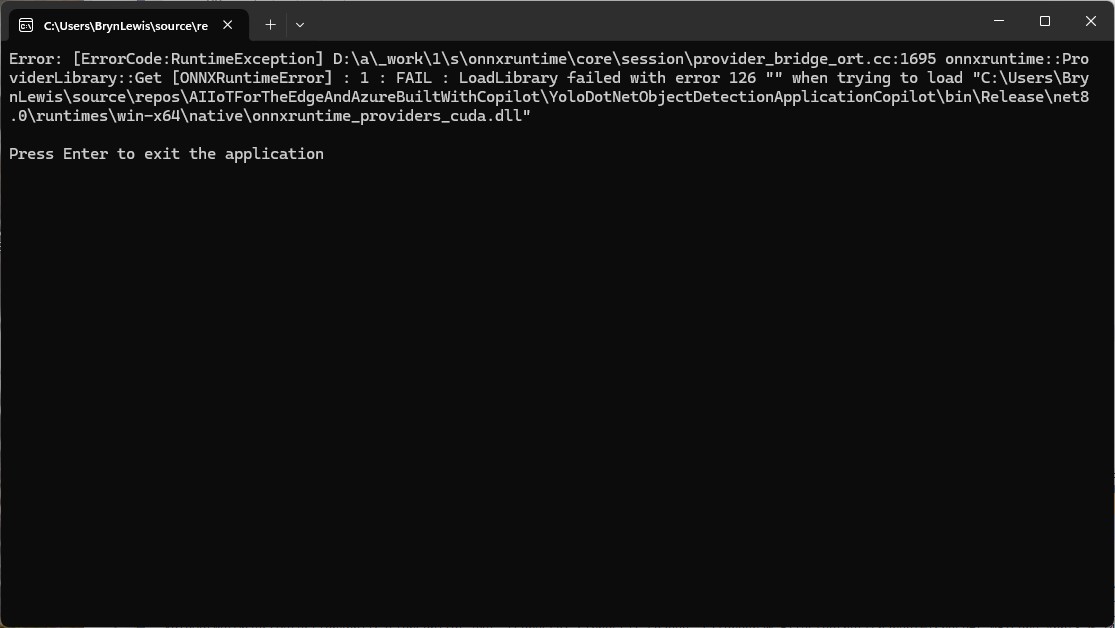
The code compiled and ran but didn’t work because YoloDoNet assumed that my computer had CUDA support

static void Main(string[] args)
{
   string modelPath = "yolov8.onnx"; // Replace with your actual model path
   string imagePath = "image.jpg"; // Replace with your actual image path
...
         try
         {
            var yoloOptions = new YoloOptions
            {
               ModelType = ModelType.ObjectDetection,
               OnnxModel = modelPath,
               Cuda = false
            };

            // Load the YOLO model
            //using var yolo = new Yolo(modelPath);
            //using var yolo = new Yolo(yoloOptions);
            //using var yolo = new Yolo(modelPath, yoloOptions);
            using var yolo = new Yolo(yoloOptions);

            // Load image using SkiaSharp
            using var skBitmap = SKBitmap.Decode(imagePath);

            // Convert SKBitmap to a format YOLO can process
            using var skImage = SKImage.FromBitmap(skBitmap);
            using var skData = skImage.Encode(SKEncodedImageFormat.Jpeg, 100);
            using var memoryStream = new MemoryStream(skData.ToArray());
            //var results = yolo.Predict(memoryStream);
            var results = yolo.RunObbDetection(skImage);

            // Display detected objects
            foreach (var result in results)
            {
               Console.WriteLine($"Detected: {result.Label} - Confidence: {result.Confidence}");
               Console.WriteLine($"Bounding Box: {result.BoundingBox}");
            }
         }
         catch (Exception ex)
         {
            Console.WriteLine($"Error: {ex.Message}");
         }
      }
   }
}

The code compiled and ran but didn’t work because I had accidentally used oriented bounding box rather than the object detection.

I was getting sick of prompts so manually fixed SKImage loading, RunObjectDetection and then removed the “cruft”.

static void Main(string[] args)
{
   string modelPath = "yolov8s.onnx"; // Replace with your actual model path
   string imagePath = "sports.jpg"; // Replace with your actual image path
...
   try
   {
      var yoloOptions = new YoloOptions
      {
         ModelType = ModelType.ObjectDetection,
         OnnxModel = modelPath,
         Cuda = false
      };

      using var yolo = new Yolo(yoloOptions);

     using var skImage = SKImage.FromEncodedData(imagePath);

      var results = yolo.RunObjectDetection(skImage);

      foreach (var result in results)
      {
         Console.WriteLine($"Detected: {result.Label} - Confidence: {result.Confidence:F2}");
         Console.WriteLine($"Bounding Box: {result.BoundingBox}");
      }
   }
   catch (Exception ex)
   {
      Console.WriteLine($"Error: {ex.Message}");
   }

   Console.WriteLine("Press Enter to exit the application");
   Console.ReadLine();
}

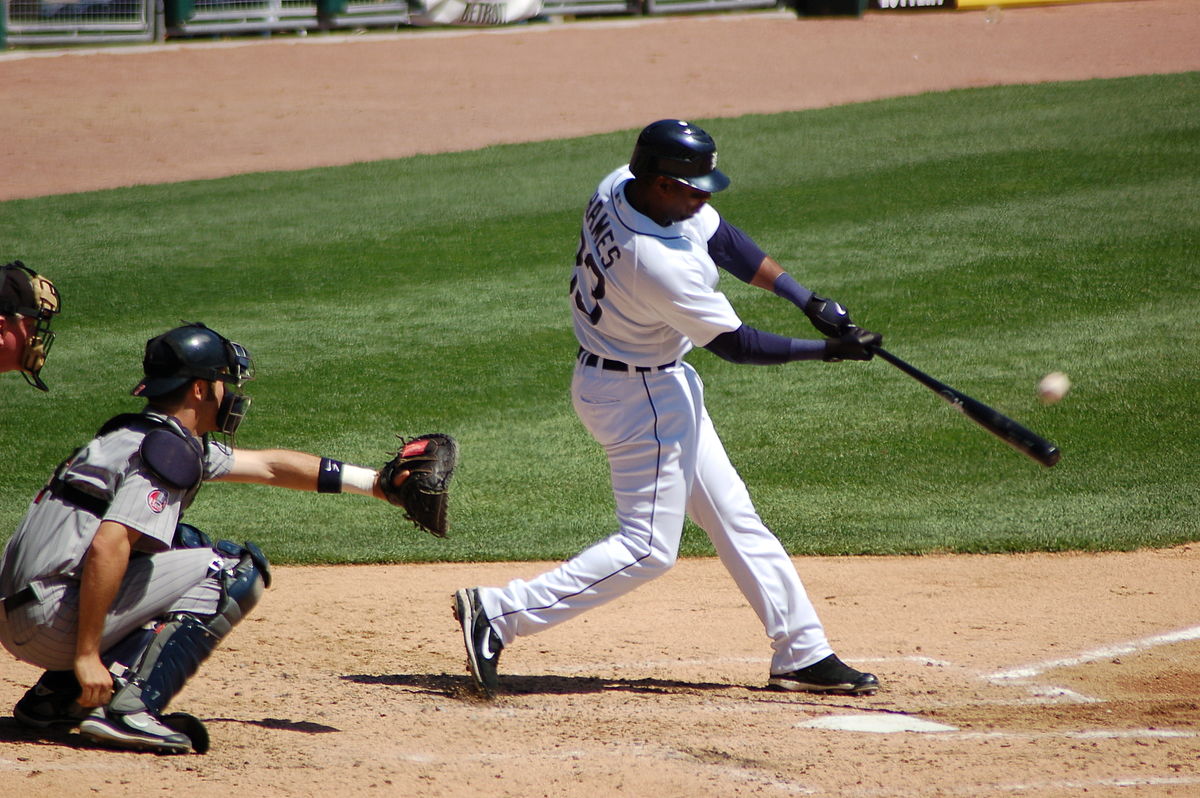
I tested the implementation with sample “sports” image from the YoloSharp Github repository

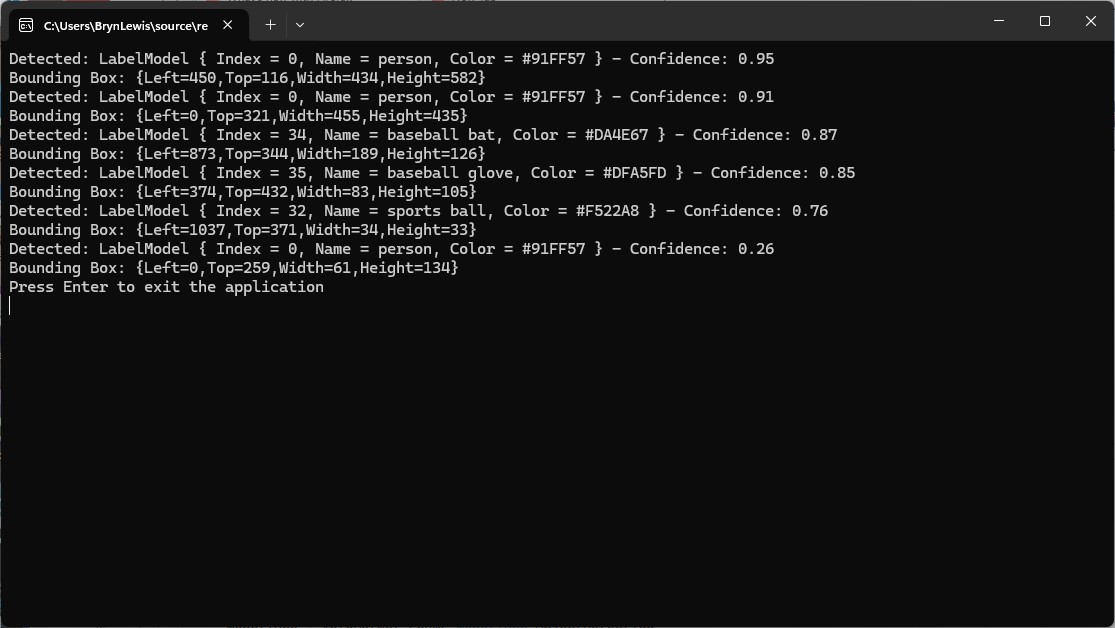
The console application output looked reasonable

Classification

My initial Copilot prompt

Don’t understand why reference to OpenCV was included

static void Main(string[] args)
{
   string modelPath = "path/to/yolo_model.onnx"; // Update with actual model path
   string imagePath = "path/to/image.jpg"; // Update with actual image path

   // Load YOLO model
   var yolo = new YoloModel(modelPath);

   // Load image
   using Bitmap image = new Bitmap(imagePath);

   // Run classification
   var results = yolo.Predict(image);

   // Display results
  foreach (var result in results)
  {
      Console.WriteLine($"Detected: {result.Label} with confidence {result.Confidence:P}");
   }
}

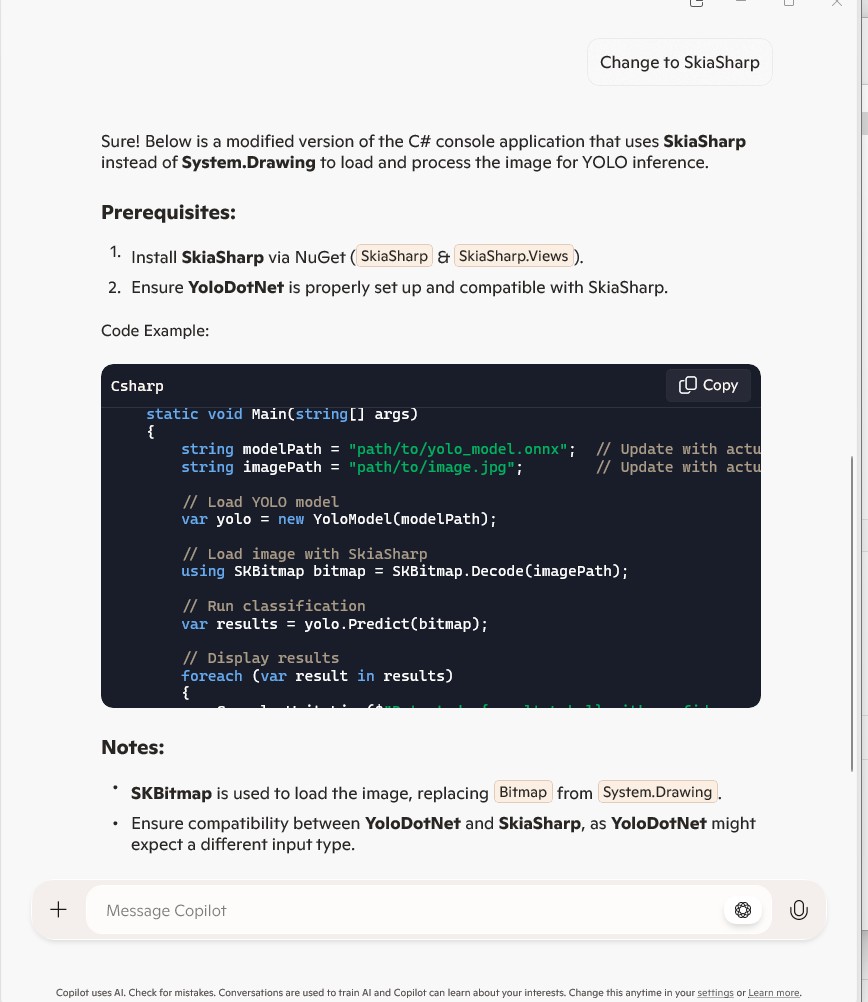
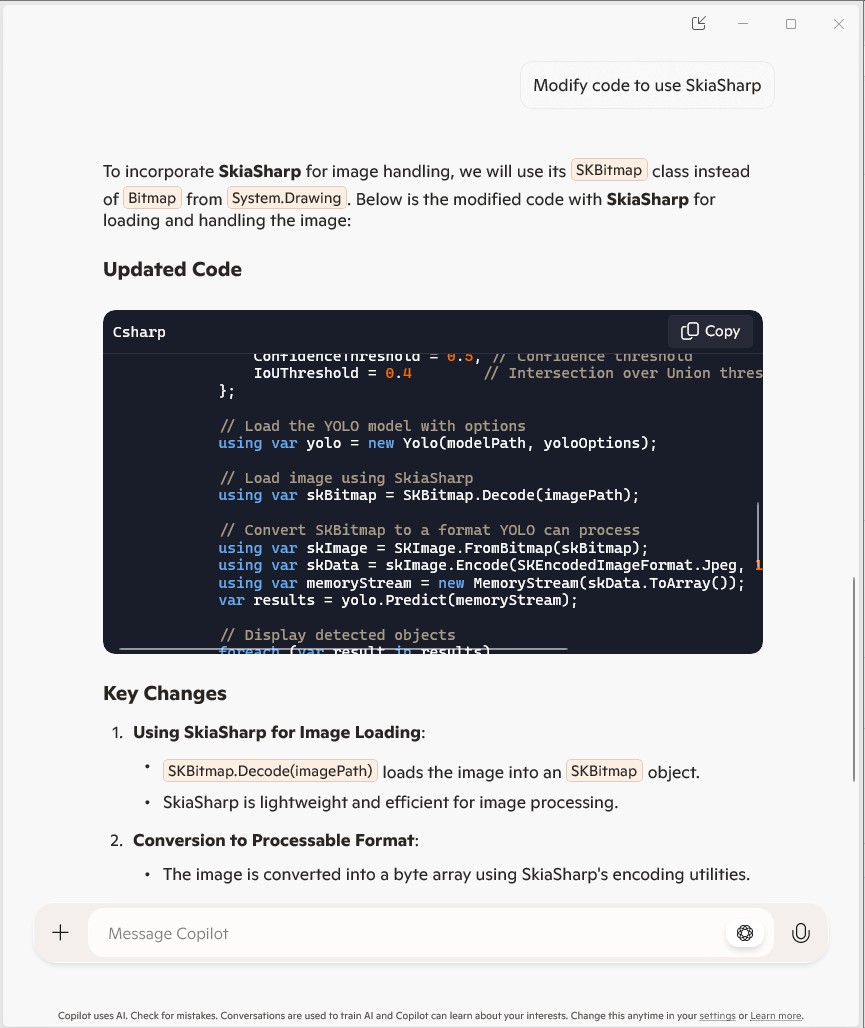
The code didn’t compile so I prompted the code be modified to use SkiaSharp which is used by YoloDoNet

This was a bit strange, so I tried again

I was getting sick of prompts so manually fixed SKImage loading, RunClassification and then removed the “cruft”.

static void Main(string[] args)
{
   string modelPath = "yolov8s-cls.onnx";  // Update with actual model path
   string imagePath = "pizza.jpg";        // Update with actual image path

   var yolo = new Yolo(new YoloOptions()
   {
      ModelType = ModelType.Classification,
      OnnxModel = modelPath,
      Cuda = false
   });

   // Load image
   using SKImage image = SKImage.FromEncodedData(imagePath);

   // Run classification
   var results = yolo.RunClassification(image);

   // Display results
   foreach (var result in results)
   {
      Console.WriteLine($"Detected: {result.Label} with confidence {result.Confidence:P}");
   }

   Console.WriteLine("Press Enter to exit the application");
   Console.ReadLine();
}

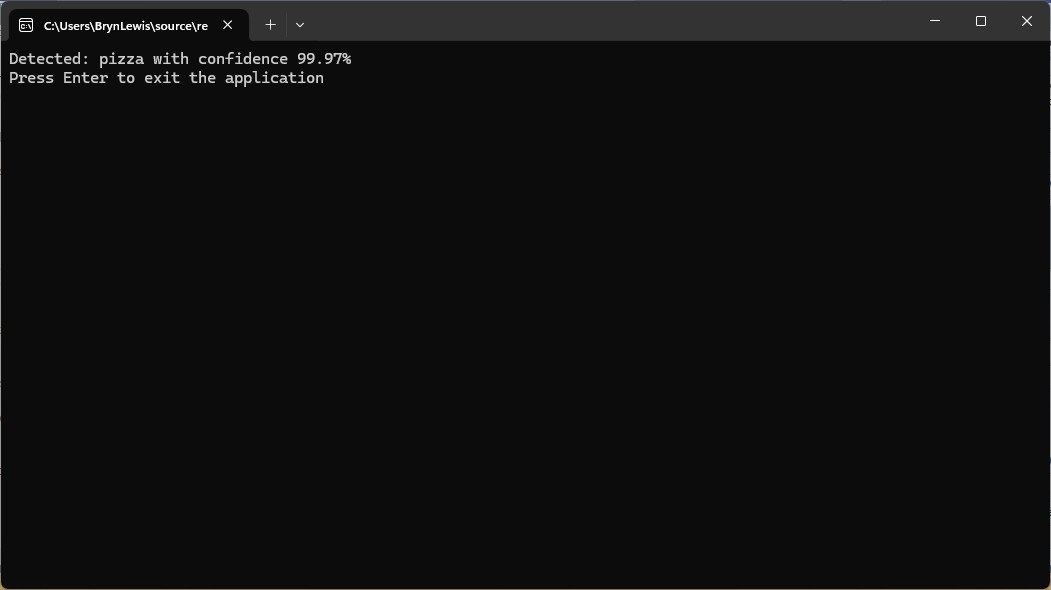
At this point the code compiled and ran

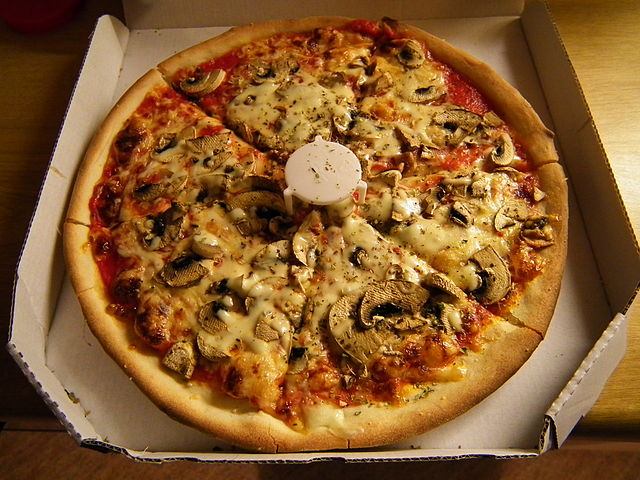
Pretty confident this i a picture of a pizza

Pose

My Copilot prompt

Replace, path/to/yolo_model.onnx, and path/to/image.jpg with the actual paths to your model files and input image

This example assumes that YoloDotNet V2 supports the loaded YOLO model. Verify compatibility with the YOLO ObjectDetection variant.

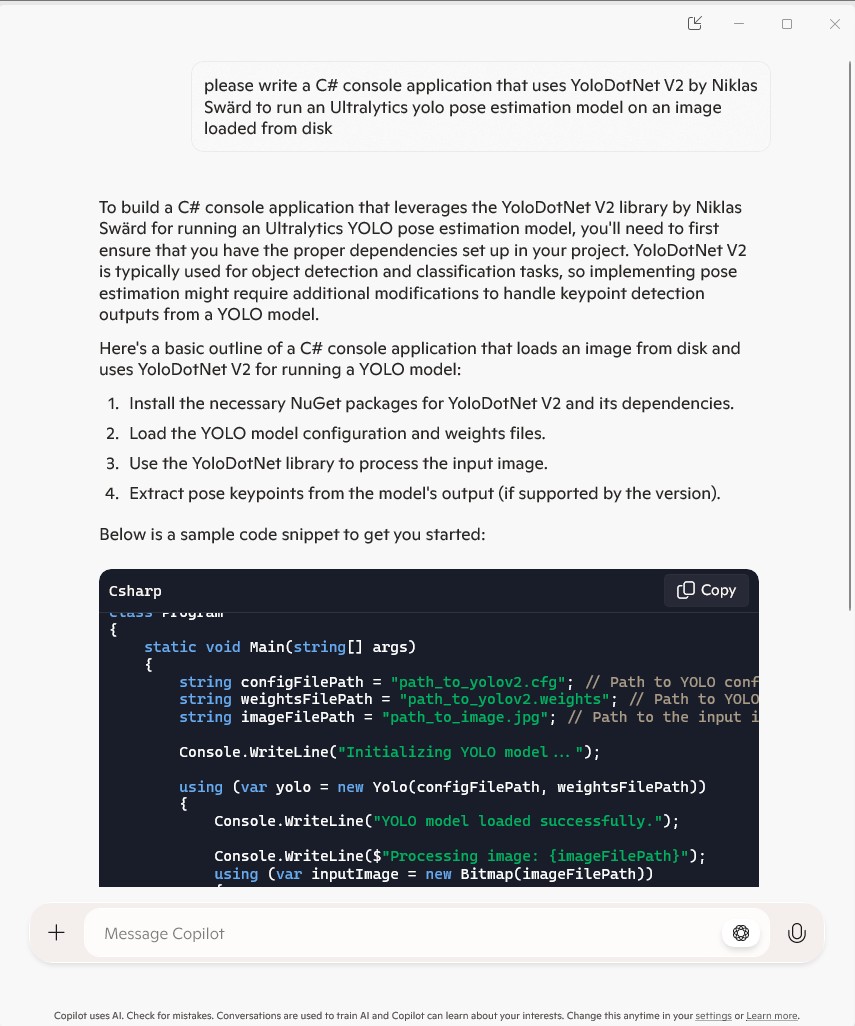
Copilot had “assumed” I meant Ultralytics Yolo V2 and the code didn’t compile. So, I tried again without V2.

At this point I gave up

Summary

Using Copilot prompts to generate code which uses Ultralytics YoloV8 and YoloDoNet didn’t go well. In addition Visual Studio intellisense often struggled to offer useful options.

Overall, the experience wasn’t great.

Building Cloud AI with AI-YoloSharp Object detection Azure HTTP Trigger function

Introduction

Using Copilot to generate the code to retrieve an image from a security camera and small applications for object detection, object classification, with YoloSharp also went surprisingly well. An Azure HTTP Trigger function is a bit more complex so I decided to do one next. I started with the Visual Studio 2022 generated code

using Microsoft.AspNetCore.Http;
using Microsoft.AspNetCore.Mvc;
using Microsoft.Azure.Functions.Worker;
using Microsoft.Extensions.Logging;

namespace YoloObjectDetectionFunction
{
    public class Function1
    {
        private readonly ILogger<Function1> _logger;

        public Function1(ILogger<Function1> logger)
        {
            _logger = logger;
        }

        [Function("Function1")]
        public IActionResult Run([HttpTrigger(AuthorizationLevel.Function, "get", "post")] HttpRequest req)
        {
            _logger.LogInformation("C# HTTP trigger function processed a request.");
            return new OkObjectResult("Welcome to Azure Functions!");
        }
    }
}

I then generated the first version of the code with Copilot desktop

The code looked “okay” but had lots of extra “usings”, used FunctionName vs Function attributes etc. so didn’t compile.

I think the “var yolo = new Yolo(modelPath)” comes from YoloDotNet by Niklas Swärd and “var detections = yolo.Predict(image)” is from YoloV8.Net by Samuel Stainback

using System.IO;
using System.Linq;
using System.Net;
using System.Net.Http;
using System.Threading.Tasks;
using Microsoft.AspNetCore.Mvc;
using Microsoft.Azure.WebJobs;
using Microsoft.Azure.WebJobs.Extensions.Http;
using Microsoft.Extensions.Logging;
using SixLabors.ImageSharp;
using SixLabors.ImageSharp.PixelFormats;
using SixLabors.ImageSharp.Processing;
using YoloSharp;
using YoloSharp.DataStructures;

public static class YoloObjectDetectionFunction
{
    private static readonly string modelPath = "path/to/your/yolo-model.onnx";

    [FunctionName("YoloObjectDetection")]
    public static async Task<IActionResult> Run(
        [HttpTrigger(AuthorizationLevel.Function, "post", Route = null)] HttpRequestMessage req,
        ILogger log)
    {
        log.LogInformation("Yolo Object Detection function processed a request.");

        // Read the image from the request
        byte[] imageBytes = await req.Content.ReadAsByteArrayAsync();
        using (Image<Rgba32> image = Image.Load<Rgba32>(imageBytes))
        {
            // Initialize YoloSharp
            using (var yolo = new Yolo(modelPath))
            {
                // Detect objects in the image
                var detections = yolo.Predict(image);

                // Process the detections
                foreach (var detection in detections)
                {
                    // Draw bounding boxes on the image
                    image.Mutate(ctx => ctx.DrawPolygon(Rgba32.Red, 2, detection.BoundingBox.ToPolygon()));
                }

                // Save the modified image to a memory stream
                using (var ms = new MemoryStream())
                {
                    image.SaveAsPng(ms);
                    ms.Seek(0, SeekOrigin.Begin);

                    // Return the modified image as a response
                    var result = new HttpResponseMessage(HttpStatusCode.OK)
                    {
                        Content = new StreamContent(ms)
                    };
                    result.Content.Headers.ContentType = new System.Net.Http.Headers.MediaTypeHeaderValue("image/png");
                    return new FileStreamResult(ms, "image/png");
                }
            }
        }
    }
}

I manually fixed all the issues in the code with a lot of assistance from Visual Studio 2022 Intellisense

using System.Net;

using Microsoft.AspNetCore.Mvc;
using Microsoft.Azure.Functions.Worker;
using Microsoft.Extensions.Logging;

using SixLabors.ImageSharp;
using SixLabors.ImageSharp.PixelFormats;
using SixLabors.ImageSharp.Processing;
using SixLabors.ImageSharp.Drawing.Processing;

//using YoloSharp;
//using YoloSharp.DataStructures;
using Compunet.YoloSharp;


public static class YoloObjectDetectionFunction
{
   //private static readonly string modelPath = "path/to/your/yolo-model.onnx";
   private static readonly string modelPath = "yolov8s.onnx";

   //[FunctionName("YoloObjectDetection")]
   [Function("YoloObjectDetection")]
   public static async Task<IActionResult> Run(
       [HttpTrigger(AuthorizationLevel.Function, "post", Route = null)] HttpRequestMessage req,
       ILogger log)
   {
      log.LogInformation("Yolo Object Detection function processed a request.");

      // Read the image from the request
      byte[] imageBytes = await req.Content.ReadAsByteArrayAsync();
      using (Image<Rgba32> image = Image.Load<Rgba32>(imageBytes))
      {
         // Initialize YoloSharp
         //using (var yolo = new Yolo(modelPath))
         using (var yolo = new YoloPredictor(modelPath))
         {
            // Detect objects in the image
            //var detections = yolo.Predict(image);
            var detections = yolo.Detect(image);

            // Process the detections
            foreach (var detection in detections)
            {
               // Draw bounding boxes on the image
               //image.Mutate(ctx => ctx.DrawPolygon(Rgba32.Red, 2, detection.BoundingBox.ToPolygon()));

               var rectangle = new PointF[] {new Point(detection.Bounds.Bottom, detection.Bounds.Left), new Point(detection.Bounds.Bottom, detection.Bounds.Right), new Point(detection.Bounds.Right, detection.Bounds.Top), new Point(detection.Bounds.Left, detection.Bounds.Top)};

               image.Mutate(ctx => ctx.DrawPolygon(Rgba32.ParseHex("FF0000"), 2, rectangle));
            }

            // Save the modified image to a memory stream
            using (var ms = new MemoryStream())
            {
               image.SaveAsPng(ms);
               ms.Seek(0, SeekOrigin.Begin);

               // Return the modified image as a response
               var result = new HttpResponseMessage(HttpStatusCode.OK)
               {
                  Content = new StreamContent(ms)
               };
               result.Content.Headers.ContentType = new System.Net.Http.Headers.MediaTypeHeaderValue("image/png");
               return new FileStreamResult(ms, "image/png");
            }
         }
      }
   }
}

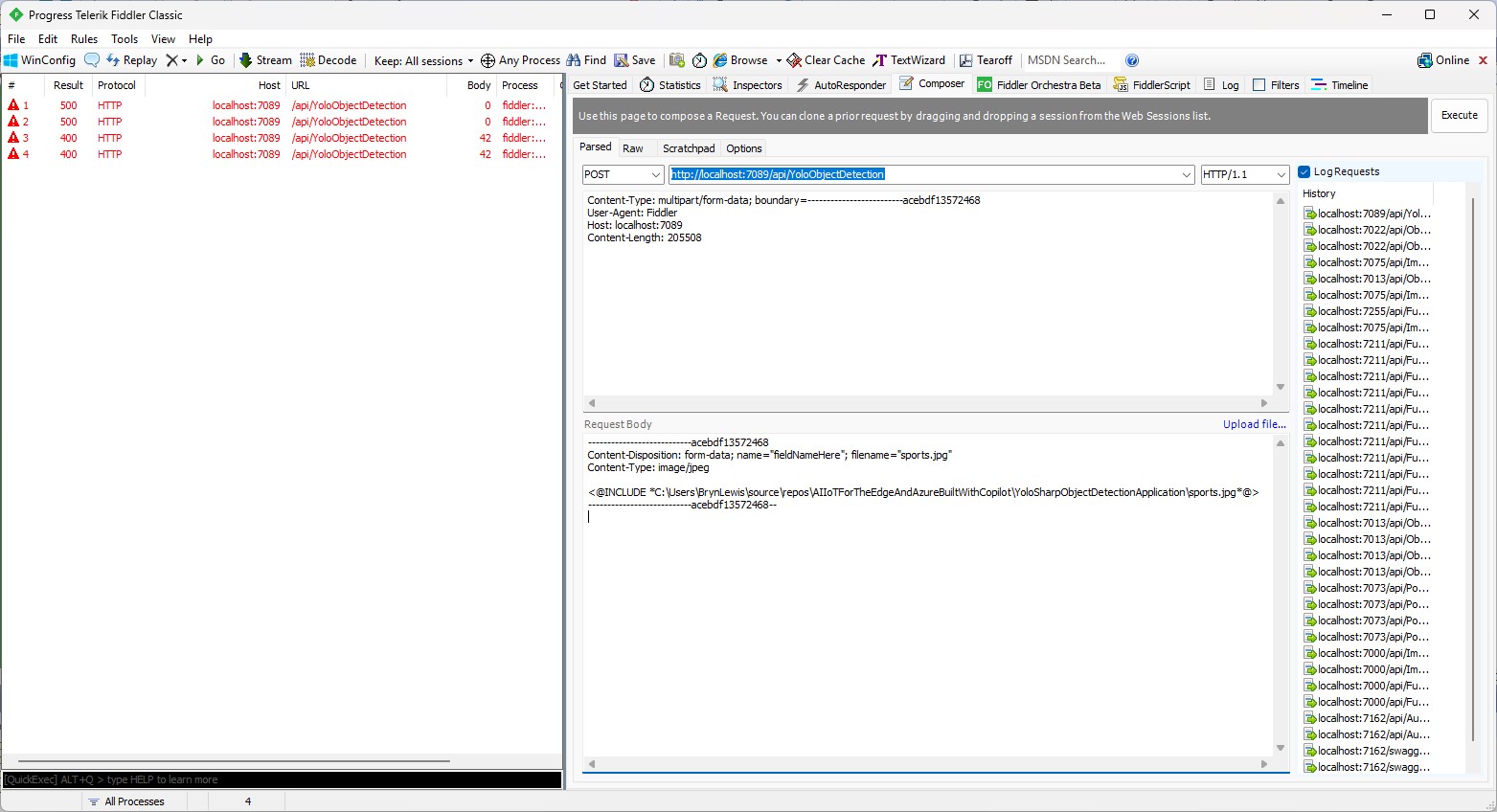
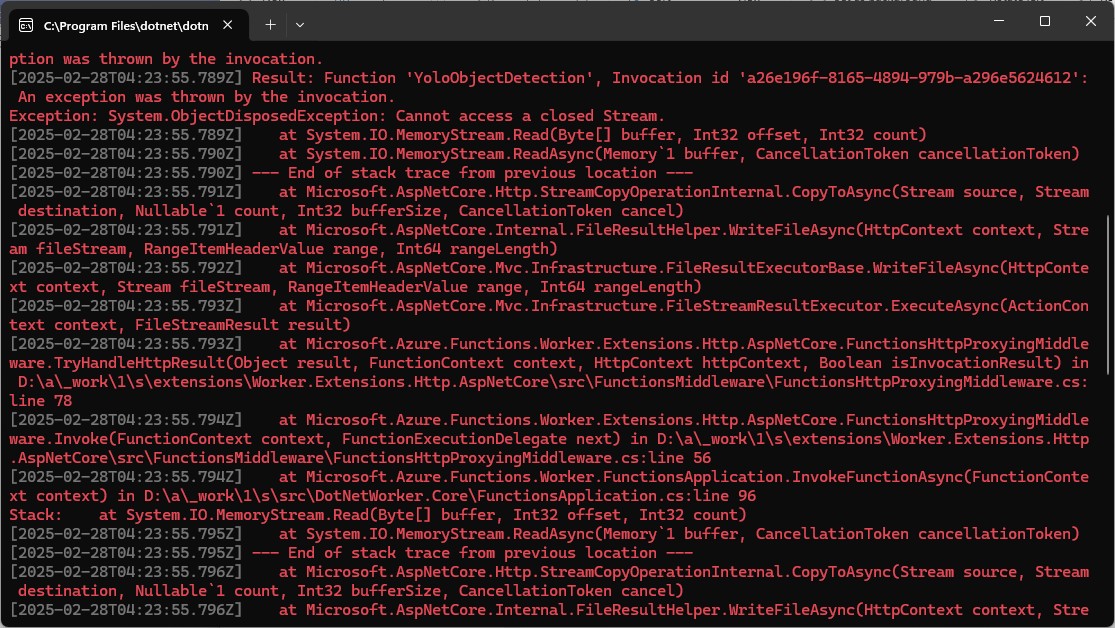
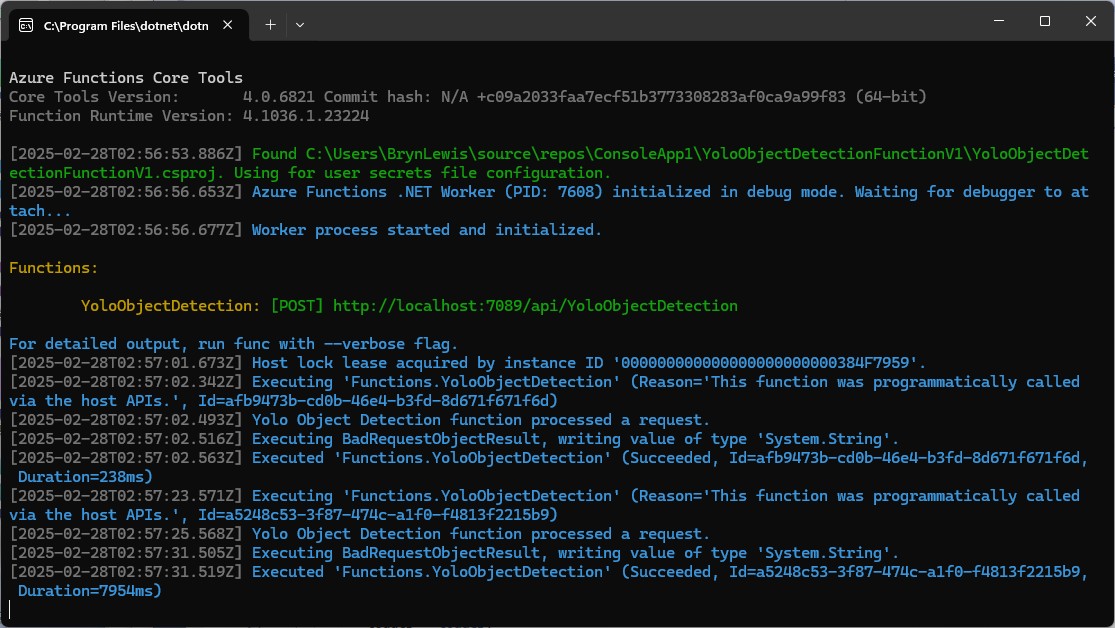
When I posted an image to the function with Telerik Fiddler Classic it threw an exception, because the ILogger injected into the Run method was null.

I then asked Github Copilot to “Modify code so the ILogger is parameter of constructor”

using System.Net;

using Microsoft.AspNetCore.Mvc;
using Microsoft.Azure.Functions.Worker;
using Microsoft.Extensions.Logging;

using SixLabors.ImageSharp;
using SixLabors.ImageSharp.PixelFormats;
using SixLabors.ImageSharp.Processing;
using SixLabors.ImageSharp.Drawing.Processing;

//using YoloSharp;
//using YoloSharp.DataStructures;
using Compunet.YoloSharp;


//public static class YoloObjectDetectionFunction
public class YoloObjectDetectionFunction
{
   private static readonly ILogger _log;
   //private static readonly string modelPath = "path/to/your/yolo-model.onnx";
   private static readonly string modelPath = "yolov8s.onnx";

   public YoloObjectDetectionFunction(ILogger<YoloObjectDetectionFunction> log)
   {
      _log = log;
   }

   //[FunctionName("YoloObjectDetection")]
   [Function("YoloObjectDetection")]
   //public static async Task<IActionResult> Run( [HttpTrigger(AuthorizationLevel.Function, "post", Route = null)] HttpRequestMessage req, ILogger log)
   public static async Task<IActionResult> Run([HttpTrigger(AuthorizationLevel.Function, "post", Route = null)] HttpRequestMessage req)
   {
      _log.LogInformation("Yolo Object Detection function processed a request.");

      // Read the image from the request
      byte[] imageBytes = await req.Content.ReadAsByteArrayAsync();
      using (Image<Rgba32> image = Image.Load<Rgba32>(imageBytes))
      {
         // Initialize YoloSharp
         //using (var yolo = new Yolo(modelPath))
         using (var yolo = new YoloPredictor(modelPath))
         {
            // Detect objects in the image
            //var detections = yolo.Predict(image);
            var detections = yolo.Detect(image);

            // Process the detections
            foreach (var detection in detections)
            {
               // Draw bounding boxes on the image
               //image.Mutate(ctx => ctx.DrawPolygon(Rgba32.Red, 2, detection.BoundingBox.ToPolygon()));

               var rectangle = new PointF[] {new Point(detection.Bounds.Bottom, detection.Bounds.Left), new Point(detection.Bounds.Bottom, detection.Bounds.Right), new Point(detection.Bounds.Right, detection.Bounds.Top), new Point(detection.Bounds.Left, detection.Bounds.Top)};

               image.Mutate(ctx => ctx.DrawPolygon(Rgba32.ParseHex("FF0000"), 2, rectangle));
            }

            // Save the modified image to a memory stream
            using (var ms = new MemoryStream())
            {
               image.SaveAsPng(ms);
               ms.Seek(0, SeekOrigin.Begin);

               // Return the modified image as a response
               var result = new HttpResponseMessage(HttpStatusCode.OK)
               {
                  Content = new StreamContent(ms)
               };
               result.Content.Headers.ContentType = new System.Net.Http.Headers.MediaTypeHeaderValue("image/png");
               return new FileStreamResult(ms, "image/png");
            }
         }
      }
   }
}

When I posted an image to the function it threw an exception, because content of the HttpRequestMessage was null.

I then asked Github Copilot to “Modify the code so that the image is read from the form”

// Read the image from the form
var form = await req.ReadFormAsync();
var file = form.Files["image"];
if (file == null || file.Length == 0)
{
   return new BadRequestObjectResult("Image file is missing or empty.");
}

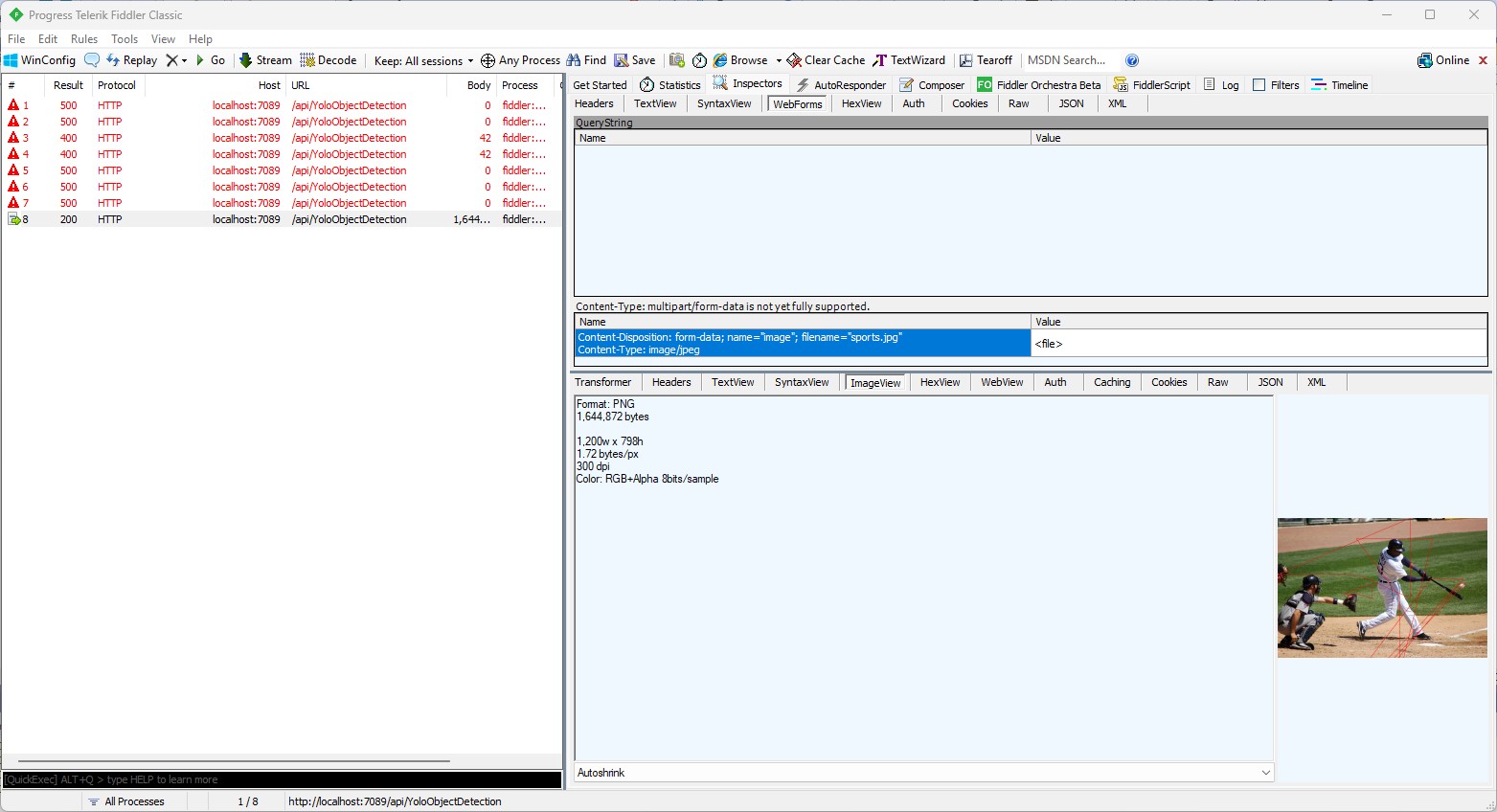
When I posted an image to the function it returned a 400 Bad Request Error.

After inspecting the request I realized that the name field was wrong, as the generated code was looking for “image”

Content-Disposition: form-data; name=”image”; filename=”sports.jpg”

Then, when I posted an image to the function it returned a 500 error.

But, the FileStreamResult was failing so I modified the code to return a FileContentResult

using (var ms = new MemoryStream())
{
   image.SaveAsJpeg(ms);

   return new FileContentResult(ms.ToArray(), "image/jpg");
}

Then, when I posted an image to the function it succeeded

But, the bounding boxes around the detected objects were wrong.

I then manually fixed up the polygon code so the lines for each bounding box were drawn in the correct order.

// Process the detections
foreach (var detection in detections)
{
   var rectangle = new PointF[] {
      new Point(detection.Bounds.Left, detection.Bounds.Bottom),
      new Point(detection.Bounds.Right, detection.Bounds.Bottom),
      new Point(detection.Bounds.Right, detection.Bounds.Top),
      new Point(detection.Bounds.Left, detection.Bounds.Top)
 };

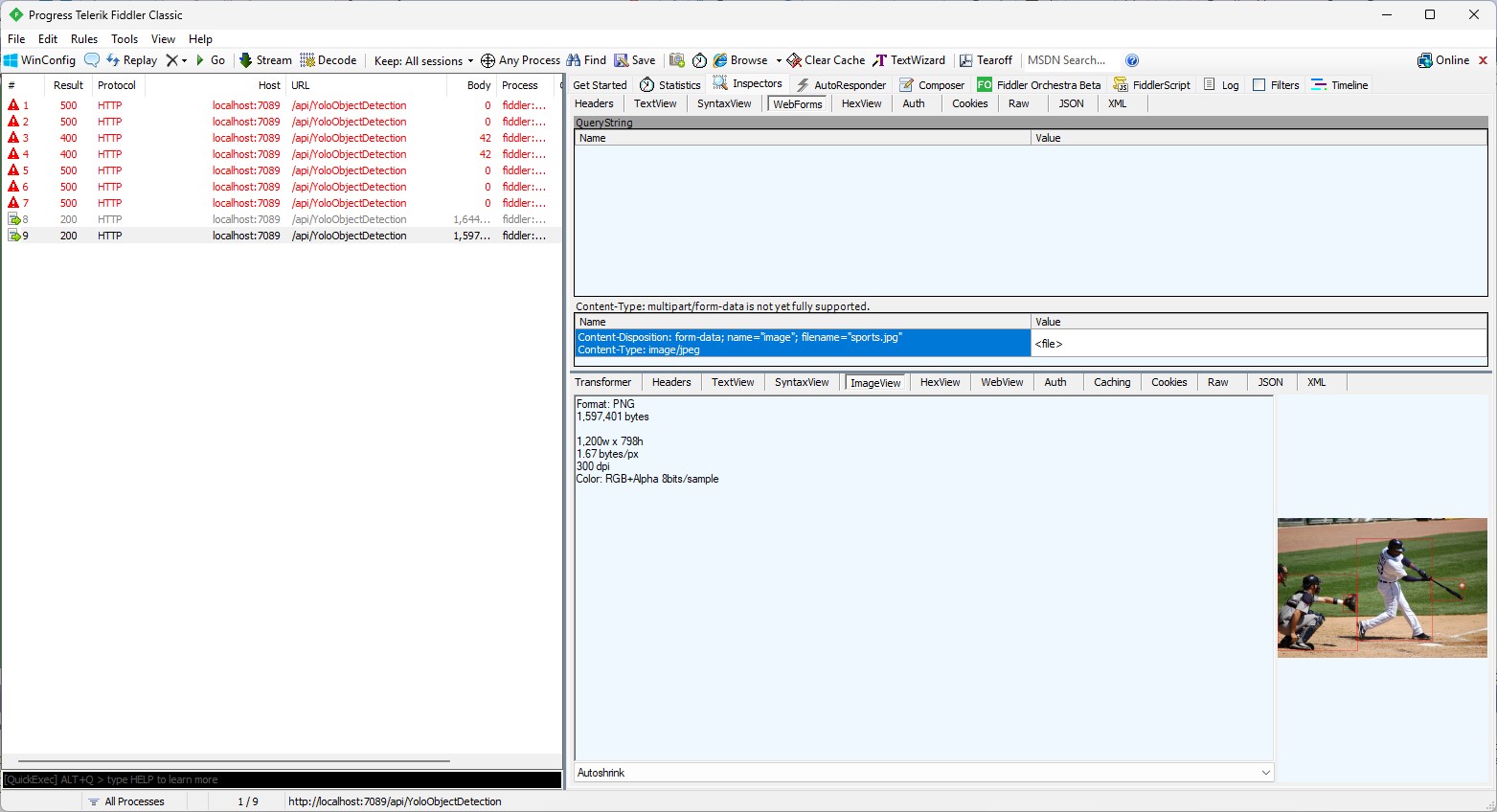
Then, when I posted an image to the function it succeeded

The bounding boxes around the detected objects were correct.

I then “refactored” the code, removing all the unused “using”s, removed any commented out code, changed ILogger to be initialised using a Primary Constructor etc.

using Microsoft.AspNetCore.Http;
using Microsoft.AspNetCore.Mvc;
using Microsoft.Azure.Functions.Worker;
using Microsoft.Extensions.Logging;

using SixLabors.ImageSharp;
using SixLabors.ImageSharp.PixelFormats;
using SixLabors.ImageSharp.Processing;
using SixLabors.ImageSharp.Drawing.Processing;

using Compunet.YoloSharp;

public class YoloObjectDetectionFunction(ILogger<YoloObjectDetectionFunction> log)
{
   private readonly ILogger<YoloObjectDetectionFunction> _log = log;
   private readonly string modelPath = "yolov8s.onnx";

   [Function("YoloObjectDetection")]
   public async Task<IActionResult> Run([HttpTrigger(AuthorizationLevel.Function, "post", Route = null)] HttpRequest req)
   {
      _log.LogInformation("Yolo Object Detection function processed a request.");

      // Read the image from the form
      var form = await req.ReadFormAsync();
      var file = form.Files["image"];
      if (file == null || file.Length == 0)
      {
         return new BadRequestObjectResult("Image file is missing or empty.");
      }

      using (var stream = file.OpenReadStream())
      using (Image<Rgba32> image = Image.Load<Rgba32>(stream))
      {
         // Initialize YoloSharp
         using (var yolo = new YoloPredictor(modelPath))
         {
            // Detect objects in the image
            var detections = yolo.Detect(image);

            // Process the detections
            foreach (var detection in detections)
            {
               var rectangle = new PointF[] {
                  new Point(detection.Bounds.Left, detection.Bounds.Bottom),
                  new Point(detection.Bounds.Right, detection.Bounds.Bottom),
                  new Point(detection.Bounds.Right, detection.Bounds.Top),
                  new Point(detection.Bounds.Left, detection.Bounds.Top)
               };

               image.Mutate(ctx => ctx.DrawPolygon(Rgba32.ParseHex("FF0000"), 2, rectangle));
            }

            // Save the modified image to a memory stream
            using (var ms = new MemoryStream())
            {
               image.SaveAsJpeg(ms);

              return new FileContentResult(ms.ToArray(), "image/jpg");
            }
         }
      }
   }
}

Summary

The initial code generated by Copilot was badly broken but with the assistance of Visual Studio 2022 Intellisense was fixed fairly quickly. The ILogger not being initialised, me using the “wrong” upload file name were easy to debug, but the FileContentResult exception was a bit more difficult.

It took me a quite a bit longer to write the function with Copilot desktop/Github Copilot than what it would have taken me normally. But, I think a lot of this was due to having to take screen shots, writing this blog post as I went, and having already written several Azure HTTP Trigger function for processing uploaded images.

The Copilot generated code in this post is not suitable for production
IoT and AI Building Edge AI with AI- YoloSharp Client

Introduction

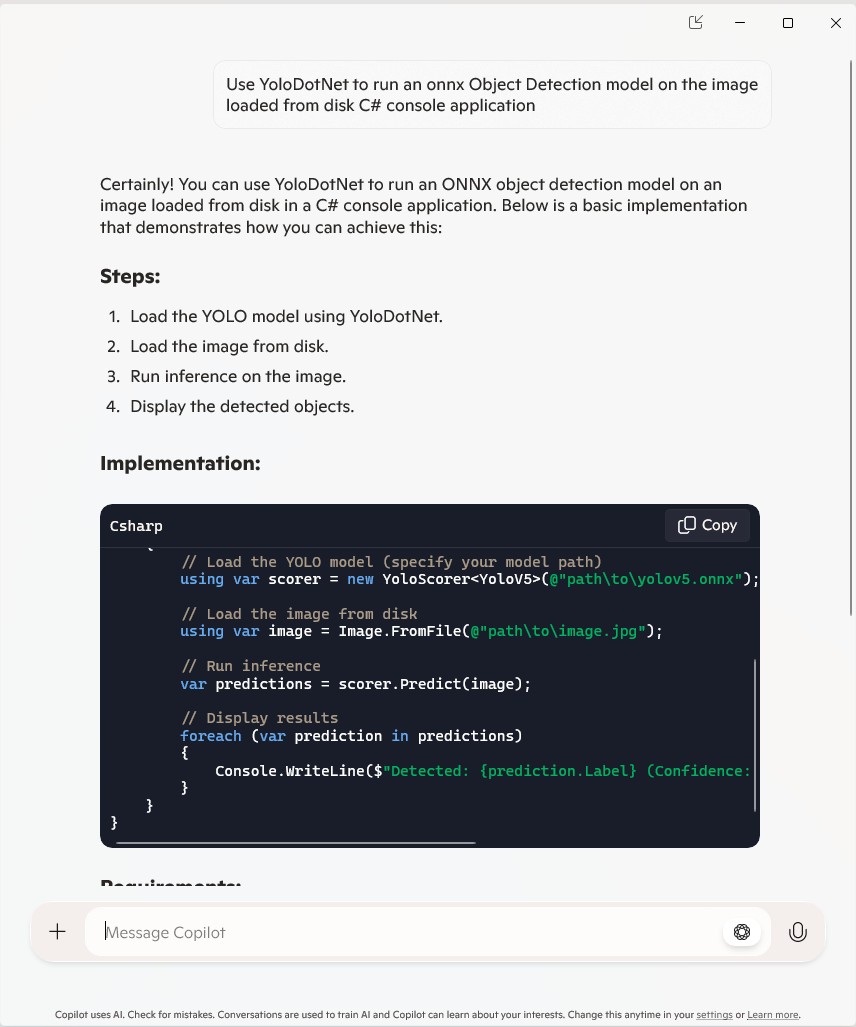
Using Copilot to generate the code to retrieve an image from a security camera went surprisingly well so next step was something a bit more complex. For this post I have used Copilot prompts to generate code which uses Ultralytics YoloV8 and Compunet YoloSharp for object detection, object classification, pose estimation, and instance segmentation

using System;
using System.Drawing;
using YOLOSharp;

class Program
{
    static void Main(string[] args)
    {
        string modelPath = "path/to/yolov8.onnx"; // Replace with the path to your YOLOv8 model
        string imagePath = "path/to/image.jpg"; // Replace with the path to your image

        // Load the YOLOv8 model
        var yolo = new YOLO(modelPath);

        // Load the image from disk
        using (var image = Image.FromFile(imagePath))
        {
            // Run the YOLOv8 model on the image
            var results = yolo.Predict(image);

            // Display the results
            foreach (var result in results)
            {
                Console.WriteLine($"Label: {result.Label}, Confidence: {result.Confidence}, BoundingBox: {result.BoundingBox}");
            }
        }
    }
}
In this example:

Replace path/to/yolov8.onnx with the actual path to your YOLOv8 model file.

Replace path/to/image.jpg with the actual path to your image file.

This application loads the YOLOv8 model using YOLOSharp, loads an image from disk, runs the model on the image, and displays the results, including the label, confidence, and bounding box for each detected object.

Happy coding! 🚀

Copilot had “assumed” I meant object detection(reasonable) with YoloSharp and the code didn’t compile.

Object Detection

After some minor fixes and shifting the configuration to an appsettings file the application compiled.

using Compunet.YoloSharp;
using Microsoft.Extensions.Configuration;
using SixLabors.ImageSharp;

class Program
{
   static void Main(string[] args)
   {
      Model.ApplicationSettings applicationSettings;

      Console.WriteLine($"{DateTime.UtcNow:yy-MM-dd HH:mm:ss} 0.3.CameraHTTPClient starting");
#if RELEASE
       Console.WriteLine("RELEASE");
#else
      Console.WriteLine("DEBUG");
#endif
      // load the app settings into configuration
      var configuration = new ConfigurationBuilder()
           .AddJsonFile("appsettings.json", false, true)
      .Build();

      applicationSettings = configuration.GetSection("ApplicationSettings").Get<Model.ApplicationSettings>();

      // Load the YOLOv8 model
      var yolo = new YoloPredictor(applicationSettings.ModelPath);

      // Load the image from disk
      using (var image = Image.Load(applicationSettings.ImagePath))
      {
         // Run the YOLOv8 model on the image
         var results = yolo.Detect(image);

         // Display the results
         foreach (var result in results)
         {
            Console.WriteLine($"Label: {result.Name}, Confidence: {result.Confidence}, BoundingBox: {result.Bounds}");
         }
      }
   }
}

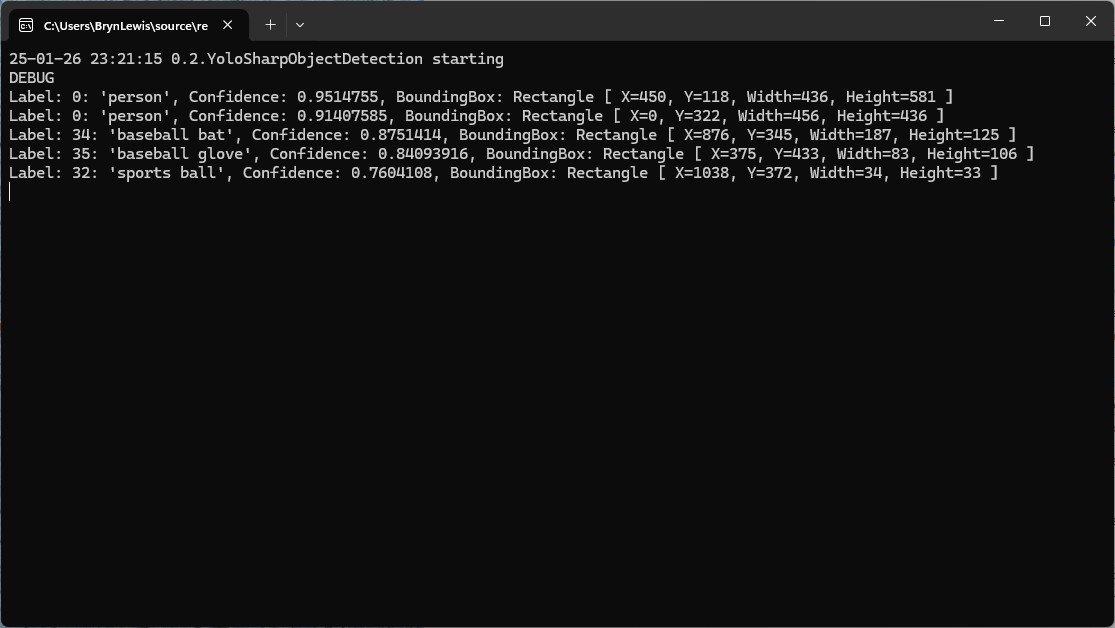
I tested the implementation with sample “sports” image from the YoloSharp Github repository

The console application output looked reasonable

I manually compared the output of the console application with the Ultralytics Hub model preview tab and the results looked close enough.

Pose

My Copilot prompt

please write a C# console application that uses Compunet YoloSharp to run a yolov8 pose model on an image loaded from disk
using Compunet.YoloSharp;
using Microsoft.Extensions.Configuration;
using SixLabors.ImageSharp;

class Program
{
   static void Main(string[] args)
   {
      Model.ApplicationSettings applicationSettings;

      Console.WriteLine($"{DateTime.UtcNow:yy-MM-dd HH:mm:ss} 0.3.CameraHTTPClient starting");
#if RELEASE
       Console.WriteLine("RELEASE");
#else
      Console.WriteLine("DEBUG");
#endif
      // load the app settings into configuration
      var configuration = new ConfigurationBuilder()
           .AddJsonFile("appsettings.json", false, true)
      .Build();

      applicationSettings = configuration.GetSection("ApplicationSettings").Get<Model.ApplicationSettings>();

      // Load the YOLOv8 pose model
      var yolo = new YoloPredictor(applicationSettings.ModelPath);

      // Load the image from disk
      using (var image = Image.Load(applicationSettings.ImagePath))
      {
         // Run the YOLOv8 pose model on the image
         var results = yolo.Pose(image);

         // Display the results
         foreach (var result in results)
         {
            Console.WriteLine($"Label: {result.Name.Name}, Confidence: {result.Confidence}, BoundingBox: {result.Bounds}");
            Console.WriteLine("Keypoints:");
            foreach (var keypoint in result)
            {
               Console.WriteLine($"  - {keypoint.Point}");
            }
         }
      }
   }
}

After some minor fixes and shifting the configuration to an appsettings file the application compiled. I tested the implementation with sample “sports” image from the YoloSharp Github repository

The console application output looked reasonable

I manually compared the output of the console application with the Ultralytics Hub model preview tab and the results were reasonable

Classification

My Copilot prompt

please write a C# console application that uses Compunet YoloSharp to run a yolov8 pose model on an image loaded from disk
using Compunet.YoloSharp;
using Microsoft.Extensions.Configuration;
using SixLabors.ImageSharp;

class Program
{
   static void Main(string[] args)
   {
      Model.ApplicationSettings applicationSettings;

      Console.WriteLine($"{DateTime.UtcNow:yy-MM-dd HH:mm:ss} 0.3.CameraHTTPClient starting");
#if RELEASE
       Console.WriteLine("RELEASE");
#else
      Console.WriteLine("DEBUG");
#endif

      // load the app settings into configuration
      var configuration = new ConfigurationBuilder()
           .AddJsonFile("appsettings.json", false, true)
      .Build();

      applicationSettings = configuration.GetSection("ApplicationSettings").Get<Model.ApplicationSettings>();

      // Load the YOLOv8 classification model
      var yolo = new YoloPredictor(applicationSettings.ModelPath);

      // Load the image from disk
      using (var image = Image.Load(applicationSettings.ImagePath))
      {
         // Run the YOLOv8 classification model on the image
         var results = yolo.Classify(image);

         // Display the results
         foreach (var result in results)
         {
             Console.WriteLine($"Label: {result.Name.Name}, Confidence: {result.Confidence}");
         }
      }
   }
}

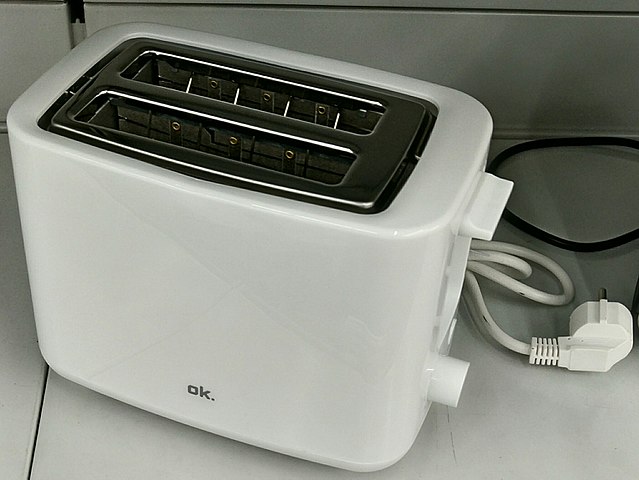
After some minor fixes and shifting the configuration to an appsettings file the application compiled. I tested the implementation with sample “toaster” image from the YoloSharp Github repository

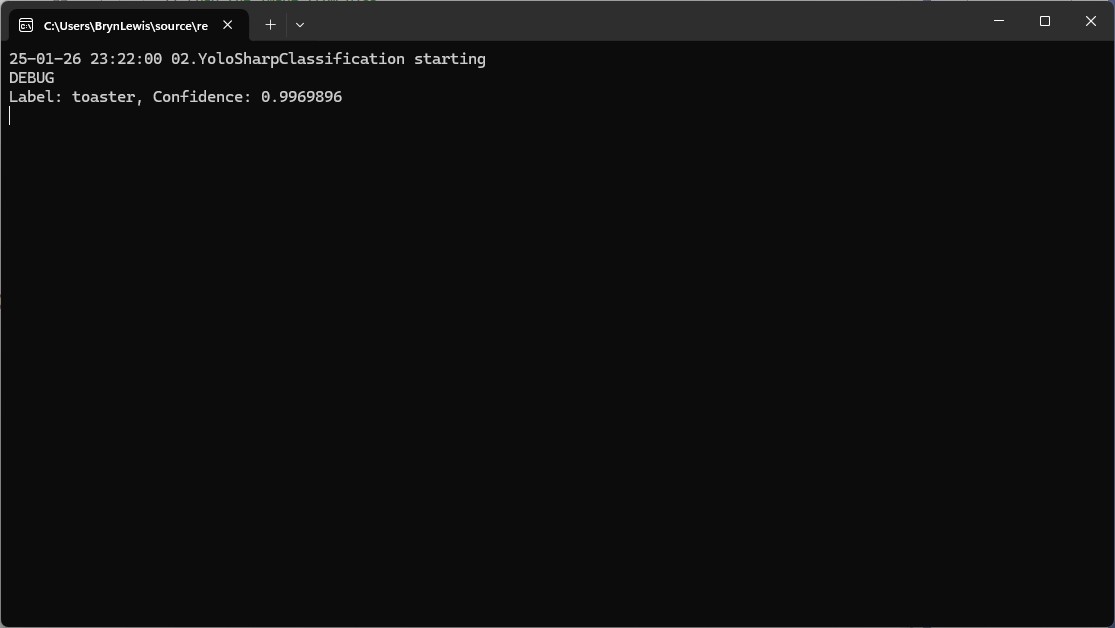
The console application output looked reasonable

I’m pretty confident the input image was a toaster.

Summary

The Copilot prompts to generate code which uses Ultralytics YoloV8 and Compunet YoloSharp and may have produced better code with some “prompt engineering”. Using Visual Studio intellisense the generated code was easy to fix.

The Copilot generated code in this post is not suitable for production
IoT and AI Building Edge AI with AI- Introduction

Introduction

Recently, there have been mainstream media articles (Forbes, Wired-Video games , Wired-Copilot, BBC, The Guardian etc.), about how Artificial Intelligence (AI) could soon replace developers.

I have been using Github Copilot, mainly for “enhanced” Visual Studio IntelliSense, code snippets, and refactoring. I have also found Github Copilot generated code samples and more context aware searching of documentation really useful. Overall, the experience has been positive with limited hallucinations and my productivity has got better as my “prompt engineer” skills improved.

Initially, I started building “hobbyist” AI applications for the edge with an Azure Percept and for customer projects use Ultralytics Yolo, Azure Machine Learning, Azure Cognitive Services, ML.Net, Open Neural Network Exchange (ONNX), Nvidia Jeston Modules, Seeedstudio reComputer Industrial J3011 – Fanless Edge AI Devices etc.

After some discussion with my co-workers I decided to explore how much Github Copilot helped building a “non-trivial” computer vision Proof of Concept (PoC). In previous blog posts I have written about capturing still images from a Security Camera so figured that was a good place to start.

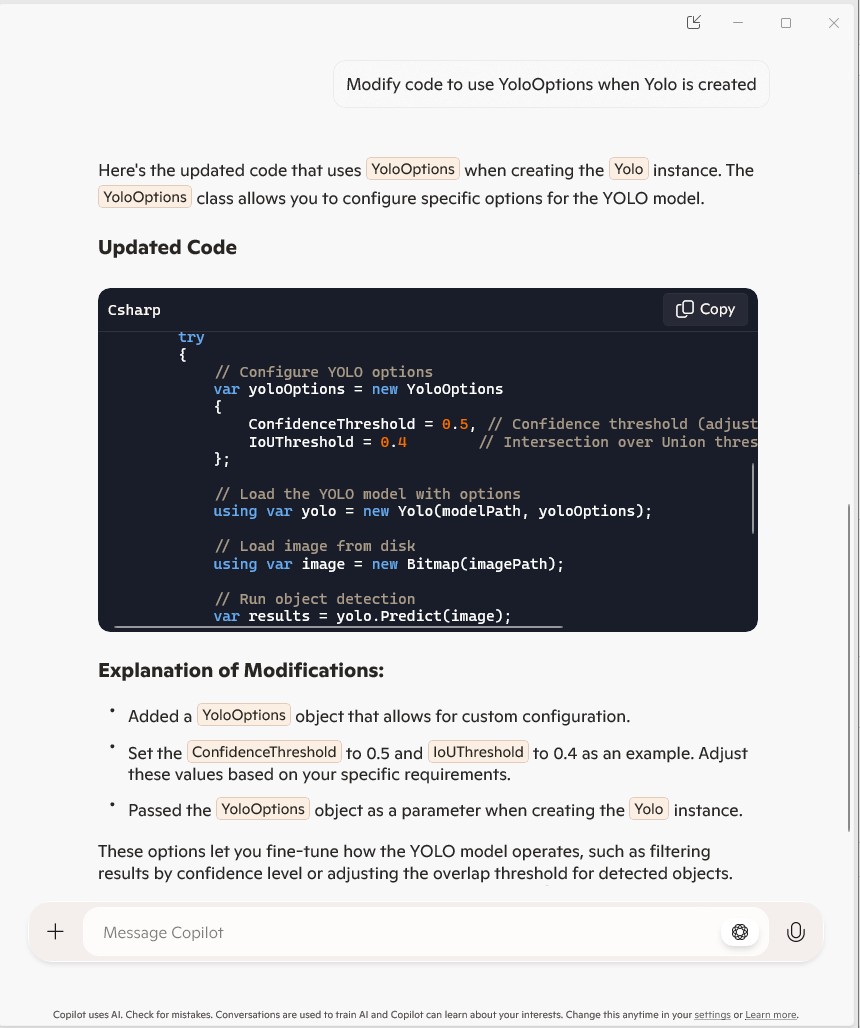
Even though I have been using Copilot for a while I still say please.

using System;
using System.IO;
using System.Net.Http;
using System.Threading.Tasks;

class Program
{
    static async Task Main(string[] args)
    {
        string cameraUrl = "http://your-security-camera-url/image.jpg"; // Replace with your security camera URL
        string savePath = "C:\\path\\to\\save\\image.jpg"; // Replace with the path where you want to save the image

        using (HttpClient client = new HttpClient())
        {
            try
            {
                HttpResponseMessage response = await client.GetAsync(cameraUrl);
                response.EnsureSuccessStatusCode();

                byte[] imageBytes = await response.Content.ReadAsByteArrayAsync();
                await File.WriteAllBytesAsync(savePath, imageBytes);

                Console.WriteLine("Image retrieved and saved successfully.");
            }
            catch (Exception ex)
            {
                Console.WriteLine($"An error occurred: {ex.Message}");
            }
        }
    }
}

The generated code compiled first time, looked “ok” and worked with some of my security cameras when the cameraurl and save path were modified

I then modified the code so “sensitive” information was not stored in code or configuration files.

//using System;
//using System.IO;
//using System.Net.Http;
//using System.Reflection;
//using System.Threading.Tasks;

using Microsoft.Extensions.Configuration;

class Program
{
   static async Task Main(string[] args)
   {
      //string cameraUrl = "http://your-security-camera-url/image.jpg"; // Replace with your security camera URL
      //string savePath = "C:\\path\\to\\save\\image.jpg"; // Replace with the path where you want to save the image
      Model.ApplicationSettings applicationSettings;

   Console.WriteLine($"{DateTime.UtcNow:yy-MM-dd HH:mm:ss} 0.2.CameraHTTPClient starting");
#if RELEASE
         Console.WriteLine("RELEASE");
#else
      Console.WriteLine("DEBUG");
#endif
      // load the app settings into configuration
      var configuration = new ConfigurationBuilder()
           .AddJsonFile("appsettings.json", false, true)
      .AddUserSecrets<Program>()
      .Build();

      applicationSettings = configuration.GetSection("ApplicationSettings").Get<Model.ApplicationSettings>();

      using (HttpClient client = new HttpClient())
      {
         try
         {
            HttpResponseMessage response = await client.GetAsync(applicationSettings.CameraUrl);
            response.EnsureSuccessStatusCode();

            byte[] imageBytes = await response.Content.ReadAsByteArrayAsync();
            await File.WriteAllBytesAsync(applicationSettings.SavePath, imageBytes);

            Console.WriteLine("Image retrieved and saved successfully.");
         }
         catch (Exception ex)
         {
            Console.WriteLine($"An error occurred: {ex.Message}");
         }
      }
   }
}

namespace Model
{
   public class ApplicationSettings
   {
      public string CameraUrl { get; set; } = "";

      public string SavePath { get; set; } = "Images";
   }
}

Several of my security cameras (e.g. HILook T250H) required client to authentication so I added NetworkCredential my Copilot prompt.

// please write c# console application that uses httpclient and an httpget to retrieve image from security camera with NetworkCredential security
//
// Sure! Here's a C# console application that uses HttpClient and HttpGet to retrieve an image from a security camera with NetworkCredential security: 
// In this example:
//
// Replace http://your-security-camera-url/image.jpg with the actual URL of your security camera's image.
//
// Replace C:\\path\\to\\save\\image.jpg with the path where you want to save the retrieved image.
//
// Replace your-username and your-password with your actual credentials.
//
// This application uses HttpClient with NetworkCredential to authenticate the request, retrieves the image as a byte array, and saves it to the specified path. If there's an error during the process, it will be caught and displayed in the console.
//
// Happy coding! 🚀
//using System;
//using System.IO;
using System.Net;
//using System.Net.Http;
//using System.Threading.Tasks;

using Microsoft.Extensions.Configuration;

class Program
{
   static async Task Main(string[] args)
   {
      //string cameraUrl = "http://your-security-camera-url/image.jpg"; // Replace with your security camera URL
      //string savePath = "C:\\path\\to\\save\\image.jpg"; // Replace with the path where you want to save the image
      //string username = "your-username"; // Replace with your username
      //string password = "your-password"; // Replace with your password
      Model.ApplicationSettings applicationSettings;

      Console.WriteLine($"{DateTime.UtcNow:yy-MM-dd HH:mm:ss} 0.3.CameraHTTPClient starting");
#if RELEASE
         Console.WriteLine("RELEASE");
#else
      Console.WriteLine("DEBUG");
#endif
      // load the app settings into configuration
      var configuration = new ConfigurationBuilder()
           .AddJsonFile("appsettings.json", false, true)
      .AddUserSecrets<Program>()
      .Build();

      applicationSettings = configuration.GetSection("ApplicationSettings").Get<Model.ApplicationSettings>();

      using (HttpClientHandler handler = new HttpClientHandler { Credentials = new NetworkCredential(applicationSettings.Username, applicationSettings.Password) })
      using (HttpClient client = new HttpClient(handler))
      {
         try
         {
            HttpResponseMessage response = await client.GetAsync(applicationSettings.CameraUrl);
            response.EnsureSuccessStatusCode();

            byte[] imageBytes = await response.Content.ReadAsByteArrayAsync();
            await File.WriteAllBytesAsync(applicationSettings.SavePath, imageBytes);

            Console.WriteLine("Image retrieved and saved successfully.");
         }
         catch (Exception ex)
         {
            Console.WriteLine($"An error occurred: {ex.Message}");
         }
      }
   }
}

namespace Model
{
   public class ApplicationSettings
   {
      public string CameraUrl { get; set; } = "";

      public string SavePath { get; set; } = "Images";

      public string Username { get; set; } = "";

      public string Password { get; set; } = "";
   }
}

My Visual Studio 2022 solution with a project for each Copilot generated sample.

Summary

The Copilot generated code for my three “trivial” PoC applications compiled and worked with minimal modifications.

The Copilot generated code in this post is not suitable for production
NickSwardh NuGet Nvidia Jetson Orin Nano™ GPU CUDA Inferencing

My Seeedstudio reComputer J3011 has two processors an ARM64 CPU and an Nividia Jetson Orin 8G coprocessor. YoloDotNet by NickSwardh V2 (uses SkiaSharp) was significantly faster when run on the ARM64 CPU so I wanted to try inferencing with the Nividia Jetson Orin 8G coprocessor.

Performance of YoloDotNet by NickSwardh V2 running on the ARM64 CPU

Performance of YoloDotNet by NickSwardh V2 running on the Nividia Jetson Orin 8G with Compute Unified Device Architecture (CUDA) enabled.

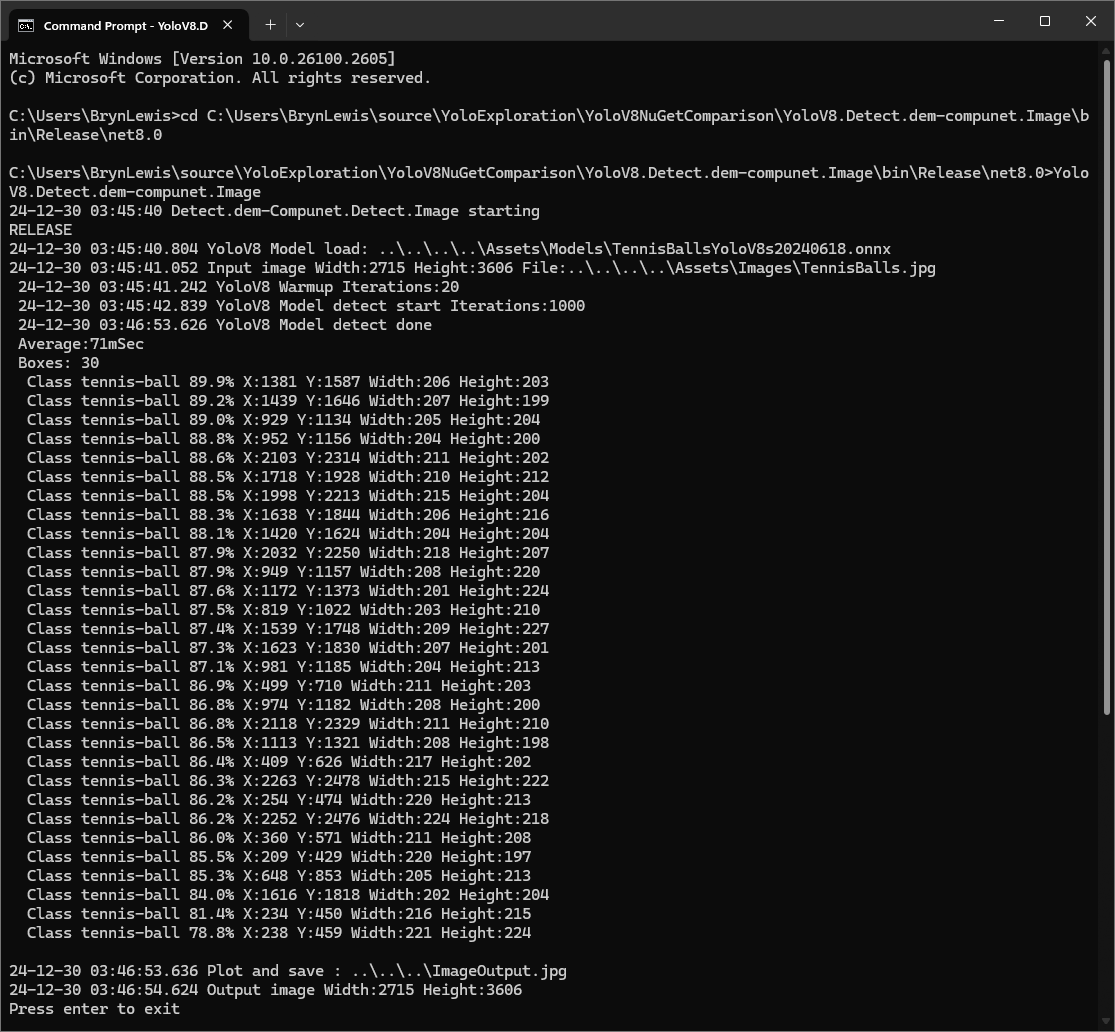
Enabling CUDA reduced the total image scaling, pre-processing, inferencing, and post processing time from 115mSec to 36mSec which is a significant improvement.

YoloV8-NuGet Performance ARM64 CPU

To see how the dme-compunet, updated YoloDotNet and sstainba NuGets performed on an ARM64 CPU I built a test rig for the different NuGets using standard images and ONNX Models.

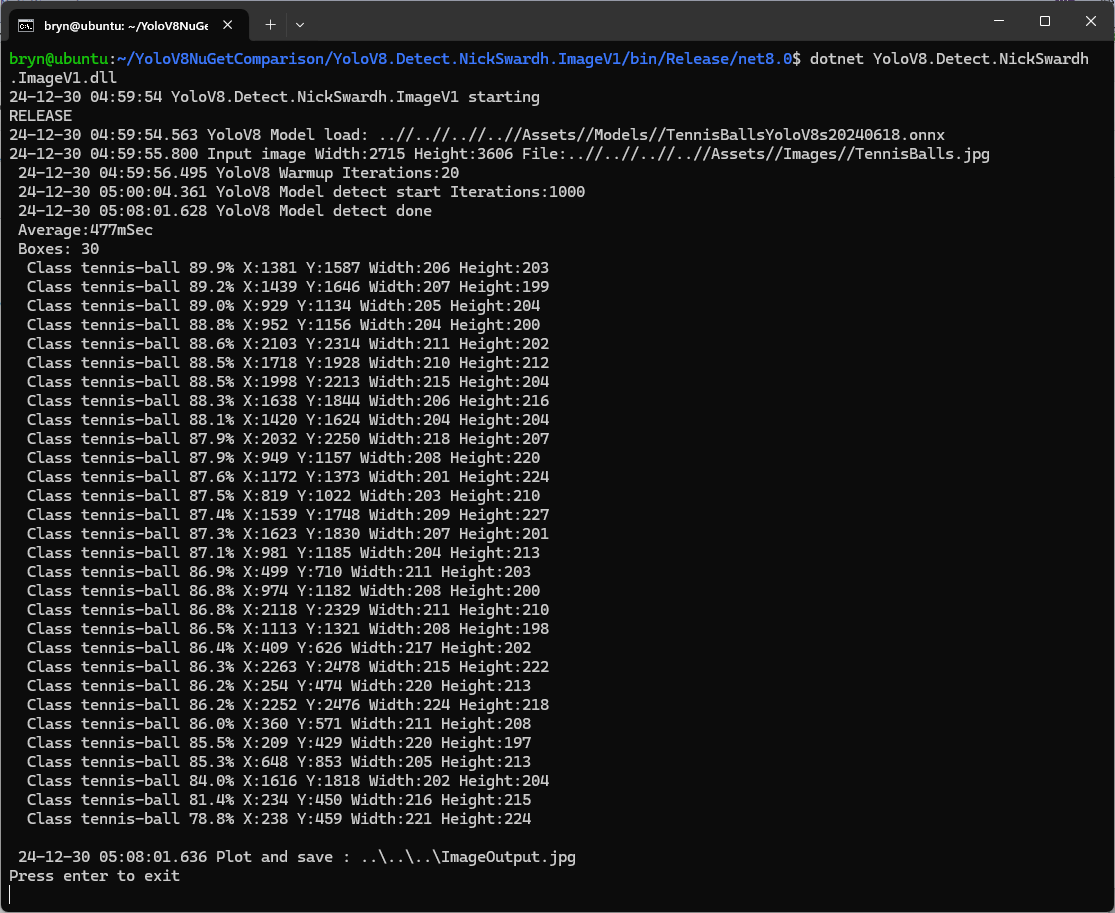
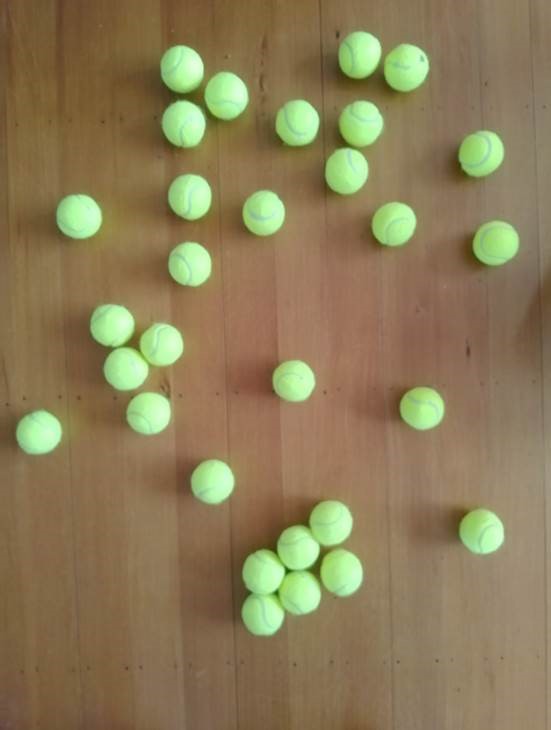
I started with the dme-compunet YoloV8 NuGet which found all the tennis balls and the results were consistent with earlier tests.

The YoloDotNet by NickSwardh NuGet update had some “breaking changes” so I built “old” and “updated” test harnesses.

The YoloDotNet by NickSwardh V1 and V2 results were slightly different. The V2 NuGet uses SkiaSharp which appears to significantly improve the performance.

Even though the YoloV8 by sstainba NuGet hadn’t been updated I ran the test harness just in case

The dme-compunet YoloV8 and NickSwardh YoloDotNet V1 versions produced the same results, but the NickSwardh YoloDotNet V2 results were slightly different.

  • dme-Compunet 291 mSec
  • NickSwardV1 480 mSec
  • NickSwardV2 115 mSecs
  • SStainba 422 mSec

Like in the YoloV8-NuGet Performance X64 CPU post the NickSwardV2 implementation which uses SkiaSharp was significantly faster so it looks like Sixlabors.ImageSharp is the issue.

To support Compute Unified Device Architecture (CUDA) or TensorRT inferencing with NickSwardV2(for SkiaSharp) will need some major modifications to the code so it might be better to build my own YoloV8 Nuget.

YoloV8-NuGet Performance X64 CPU

When checking the dme-compunet, YoloDotNet, and sstainba and NuGets I noticed YoloDotNet readme.md detailed some performance enhancements…

What’s new in YoloDotNet v2.0?

YoloDotNet 2.0 is a Speed Demon release where the main focus has been on supercharging performance to bring you the fastest and most efficient version yet. With major code optimizations, a switch to SkiaSharp for lightning-fast image processing, and added support for Yolov10 as a little extra 😉 this release is set to redefine your YoloDotNet experience:

Changing the implementation to use SkiaSharp caught my attention because in previous testing manipulating images with the Sixlabors.ImageSharp library took longer than expected.

I built a test rig for comparing the performance of the different NuGets using standard images and ONNX Models.

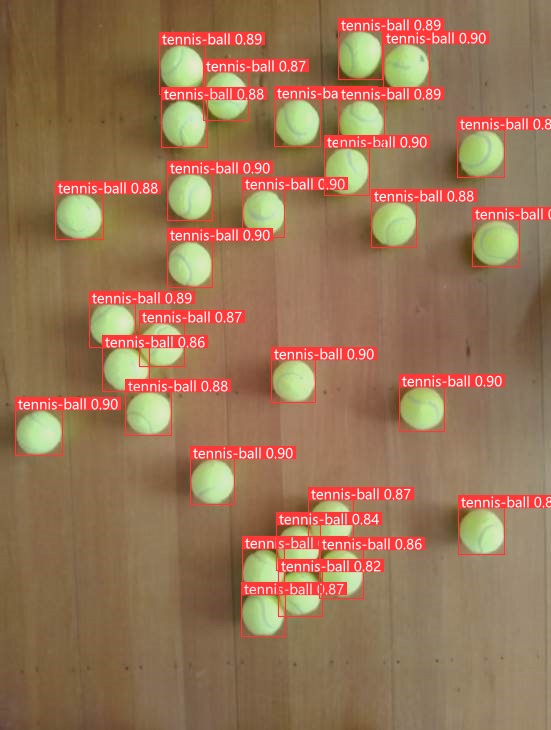
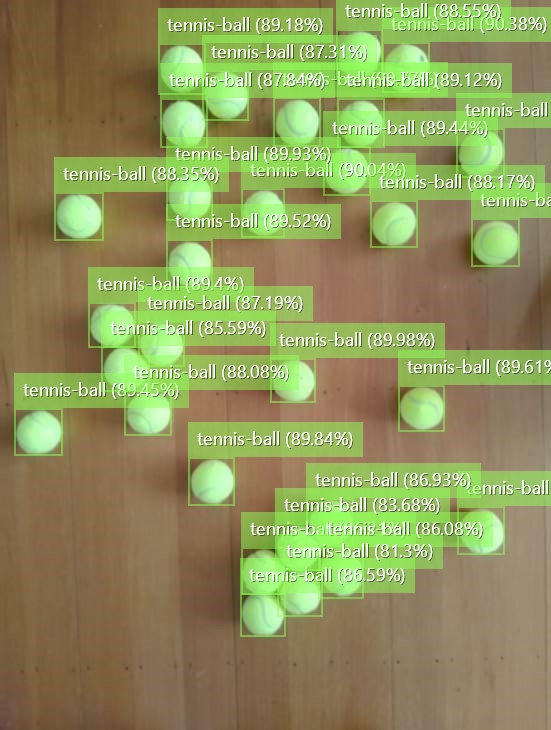
I started with the dme-compunet YoloV8 NuGet which found all the tennis balls and the results were consistent with earlier tests.

dme-compunet test harness image bounding boxes

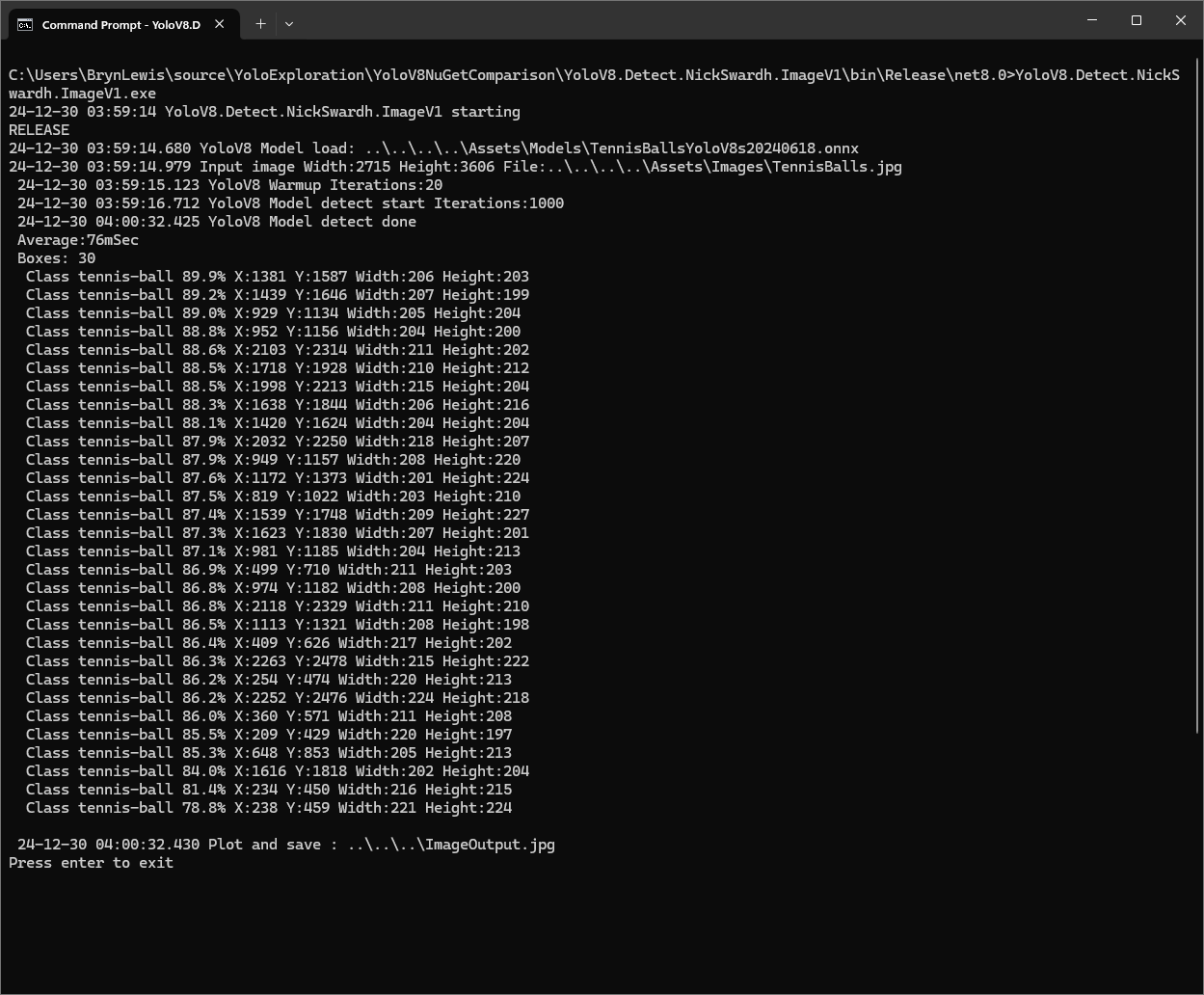
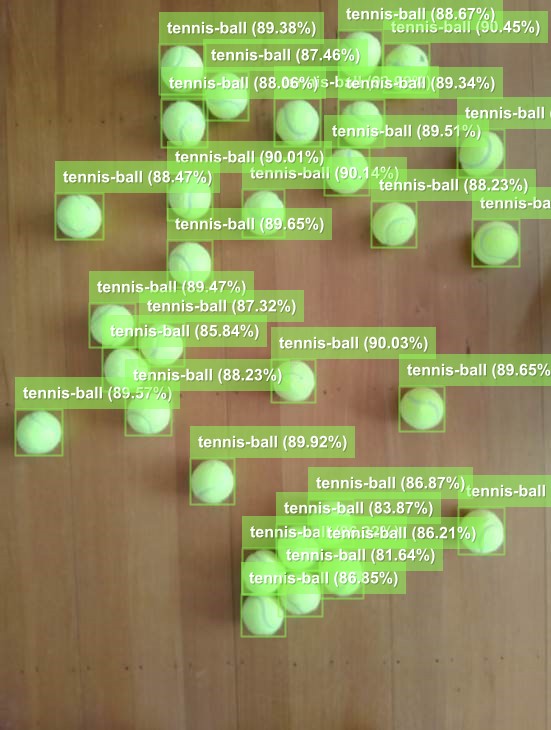
The YoloDotNet by NickSwardh NuGet update had some “breaking changes” so I built “old” and “updated” test harnesses. The V1 version found all the tennis balls and the results were consistent with earlier tests.

NickSwardh V1 test harness image bounding boxes

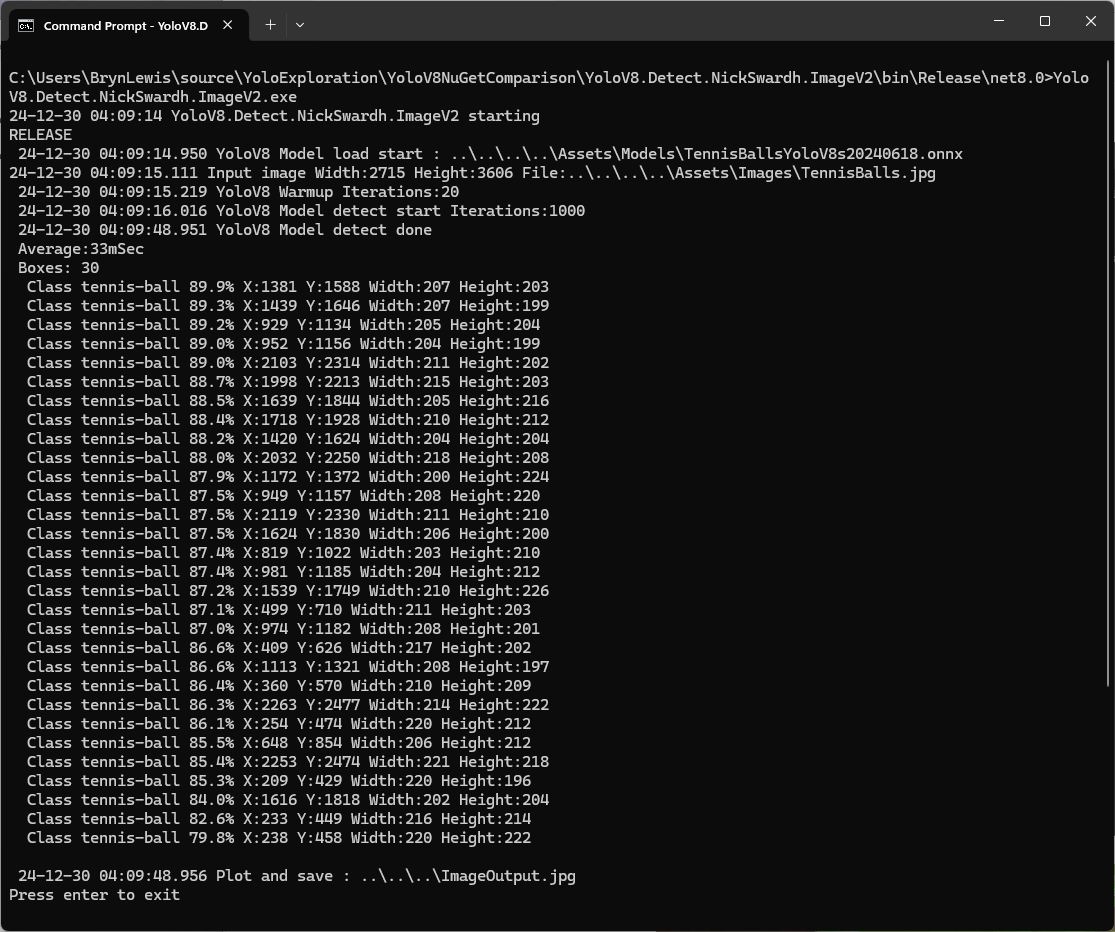
The YoloDotNet by NickSwardh NuGet update had some “breaking changes” so there were some code changes but the V1 and V2 results were slightly different.

NickSwardh V2 test harness image bounding boxes

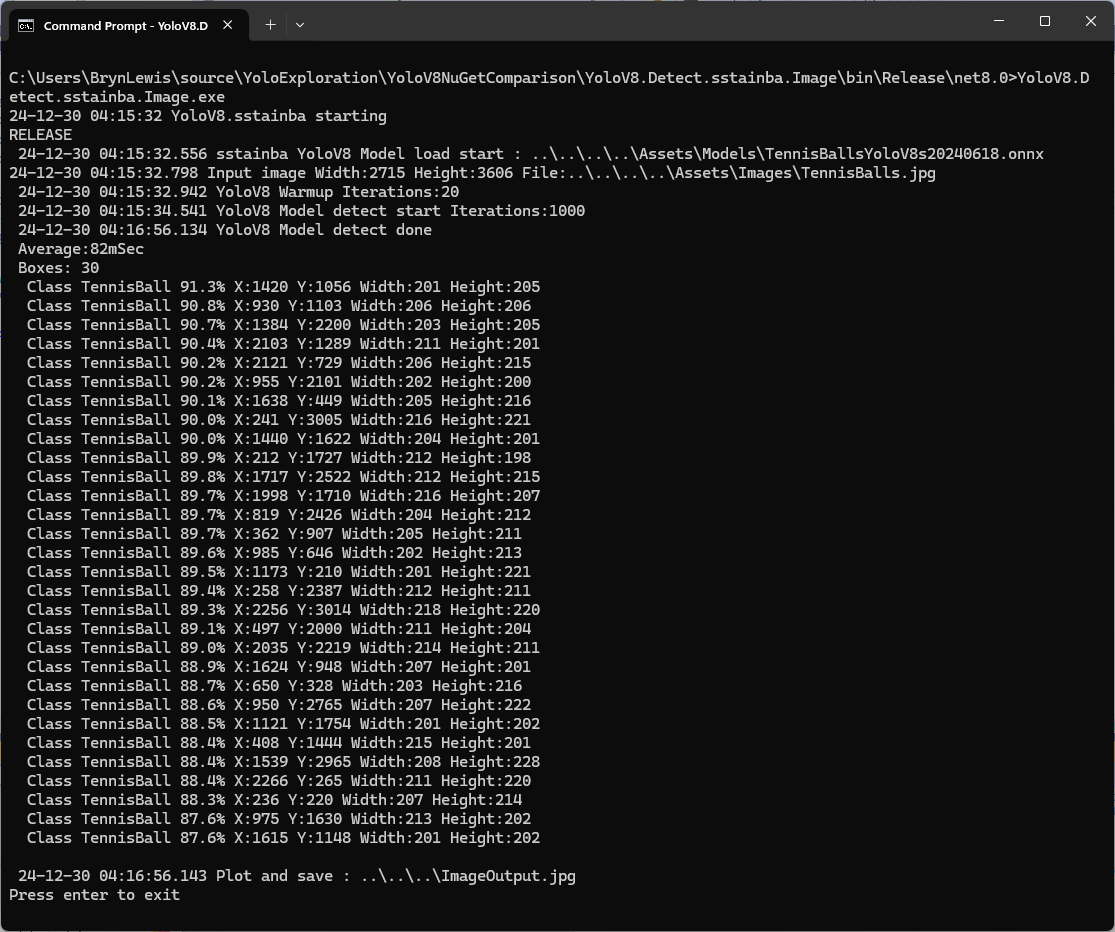
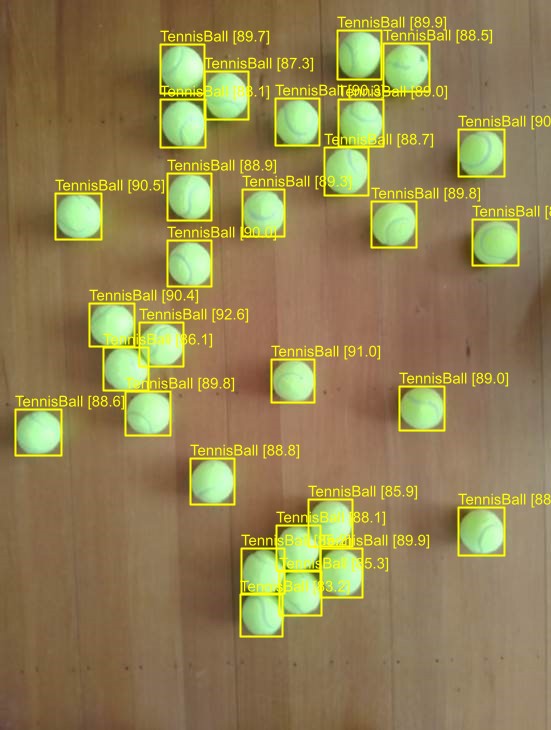
Even though the YoloV8 by sstainba NuGet hadn’t been updated I ran the test harness just in case and the results were consistent with previous tests.

sstainba test harness image bounding boxes

The dme-compunet YoloV8 and NickSwardh YoloDotNet V1 versions produce the same results, but the NickSwardh YoloDotNet V2 results were slightly different. The YoloV8 by sstainba results were unchanged.

  • dme-Compunet 71 mSec
  • NickSwardV1 76 mSec
  • NickSwardV2 33 mSecs
  • SStainba 82mSec

The NickSwardV2 implementation was significantly faster, but I need to investigate the slight difference in the bounding boxes. It looks like Sixlabors.ImageSharp might be the issue.

Azure Event Grid YoloV8- Basic MQTT Client Pose Estimation

The Azure.EventGrid.Image.YoloV8.Pose application downloads images from a security camera, processes them with the default YoloV8(by Ultralytics) Pose Estimation model then publishes the results to an Azure Event Grid MQTT broker topic.

private async void ImageUpdateTimerCallback(object? state)
{
   DateTime requestAtUtc = DateTime.UtcNow;

   // Just incase - stop code being called while photo or prediction already in progress
   if (_ImageProcessing)
   {
      return;
   }
   _ImageProcessing = true;

   try
   {
      _logger.LogDebug("Camera request start");

      PoseResult result;

      using (Stream cameraStream = await _httpClient.GetStreamAsync(_applicationSettings.CameraUrl))
      {
         result = await _predictor.PoseAsync(cameraStream);
      }

      _logger.LogInformation("Speed Preprocess:{Preprocess} Postprocess:{Postprocess}", result.Speed.Preprocess, result.Speed.Postprocess);


      if (_logger.IsEnabled(LogLevel.Debug))
      {
         _logger.LogDebug("Pose results");

         foreach (var box in result.Boxes)
         {
            _logger.LogDebug(" Class:{box.Class} Confidence:{Confidence:f1}% X:{X} Y:{Y} Width:{Width} Height:{Height}", box.Class.Name, box.Confidence * 100.0, box.Bounds.X, box.Bounds.Y, box.Bounds.Width, box.Bounds.Height);

            foreach (var keypoint in box.Keypoints)
            {
               Model.PoseMarker poseMarker = (Model.PoseMarker)keypoint.Index;

               _logger.LogDebug("  Class:{Class} Confidence:{Confidence:f1}% X:{X} Y:{Y}", Enum.GetName(poseMarker), keypoint.Confidence * 100.0, keypoint.Point.X, keypoint.Point.Y);
            }
         }
      }

      var message = new MQTT5PublishMessage
      {
         Topic = string.Format(_applicationSettings.PublishTopic, _applicationSettings.UserName),
         Payload = Encoding.ASCII.GetBytes(JsonSerializer.Serialize(new
         {
            result.Boxes
         })),
         QoS = _applicationSettings.PublishQualityOfService,
      };

      _logger.LogDebug("HiveMQ.Publish start");

      var resultPublish = await _mqttclient.PublishAsync(message);

      _logger.LogDebug("HiveMQ.Publish done");
   }
   catch (Exception ex)
   {
      _logger.LogError(ex, "Camera image download, processing, or telemetry failed");
   }
   finally
   {
      _ImageProcessing = false;
   }

   TimeSpan duration = DateTime.UtcNow - requestAtUtc;

   _logger.LogDebug("Camera Image download, processing and telemetry done {TotalSeconds:f2} sec", duration.TotalSeconds);
}

The application uses a Timer(with configurable Due and Period times) to poll the security camera, detect objects in the image then publish a JavaScript Object Notation(JSON) representation of the results to Azure Event Grid MQTT broker topic using a HiveMQ client.
Utralytics Pose Model input image

The Unv ADZK-10 camera used in this sample has a Hypertext Transfer Protocol (HTTP) Uniform Resource Locator(URL) for downloading the current image. Like the YoloV8.Detect.SecurityCamera.Stream sample the image “streamed” using the HttpClient.GetStreamAsync to the YoloV8 PoseAsync method.

Azure.EventGrid.Image.YoloV8.Pose application console output

The same approach as the YoloV8.Detect.SecurityCamera.Stream sample is used because the image doesn’t have to be saved on the local filesystem.

Utralytics Pose Model marked-up image

To check the results, I put a breakpoint in the timer just after PoseAsync method is called and then used the Visual Studio 2022 Debugger QuickWatch functionality to inspect the contents of the PoseResult object.

Visual Studio 2022 Debugger PoseResult Quickwatch

For testing I configured a single Azure Event Grid custom topic subscription an Azure Storage Queue.

Azure Event Grid Topic Metrics

An Azure Storage Queue is an easy way to store messages while debugging/testing an application.

Azure Storage Explorer messages list

Azure Storage Explorer is a good tool for listing recent messages, then inspecting their payloads.

Azure Storage Explorer Message Details

The Azure Event Grid custom topic message text(in data_base64) contains the JavaScript Object Notation(JSON) of the pose detection result.

{"Boxes":[{"Keypoints":[{"Index":0,"Point":{"X":744,"Y":58,"IsEmpty":false},"Confidence":0.6334442},{"Index":1,"Point":{"X":746,"Y":33,"IsEmpty":false},"Confidence":0.759928},{"Index":2,"Point":{"X":739,"Y":46,"IsEmpty":false},"Confidence":0.19036674},{"Index":3,"Point":{"X":784,"Y":8,"IsEmpty":false},"Confidence":0.8745915},{"Index":4,"Point":{"X":766,"Y":45,"IsEmpty":false},"Confidence":0.086735755},{"Index":5,"Point":{"X":852,"Y":50,"IsEmpty":false},"Confidence":0.9166329},{"Index":6,"Point":{"X":837,"Y":121,"IsEmpty":false},"Confidence":0.85815763},{"Index":7,"Point":{"X":888,"Y":31,"IsEmpty":false},"Confidence":0.6234426},{"Index":8,"Point":{"X":871,"Y":205,"IsEmpty":false},"Confidence":0.37670398},{"Index":9,"Point":{"X":799,"Y":21,"IsEmpty":false},"Confidence":0.3686208},{"Index":10,"Point":{"X":768,"Y":205,"IsEmpty":false},"Confidence":0.21734264},{"Index":11,"Point":{"X":912,"Y":364,"IsEmpty":false},"Confidence":0.98523325},{"Index":12,"Point":{"X":896,"Y":382,"IsEmpty":false},"Confidence":0.98377174},{"Index":13,"Point":{"X":888,"Y":637,"IsEmpty":false},"Confidence":0.985927},{"Index":14,"Point":{"X":849,"Y":645,"IsEmpty":false},"Confidence":0.9834709},{"Index":15,"Point":{"X":951,"Y":909,"IsEmpty":false},"Confidence":0.96191007},{"Index":16,"Point":{"X":921,"Y":894,"IsEmpty":false},"Confidence":0.9618156}],"Class":{"Id":0,"Name":"person"},"Bounds":{"X":690,"Y":3,"Width":315,"Height":1001,"Location":{"X":690,"Y":3,"IsEmpty":false},"Size":{"Width":315,"Height":1001,"IsEmpty":false},"IsEmpty":false,"Top":3,"Right":1005,"Bottom":1004,"Left":690},"Confidence":0.8341071}]}