Random wanderings through Microsoft Azure esp. PaaS plumbing, the IoT bits, AI on Micro controllers, AI on Edge Devices, .NET nanoFramework, .NET Core on *nix and ML.NET+ONNX
My Over the Air Activation (OTAA) implementation is very “nasty” as it is assumed that there are no timeouts or failures and it only sends one BCD message “48656c6c6f204c6f526157414e” which is “hello LoRaWAN”. The code just sequentially steps through the necessary commands (with a suitable delay after each is sent) to join the TTI network.
public class Program
{
#if TINYCLR_V2_FEZDUINO
   private static string SerialPortId = SC20100.UartPort.Uart5;
#endif
   private const string AppKey = "................................";

   //txByteCount = serialDevice.Write(UTF8Encoding.UTF8.GetBytes($"AT+ID=AppEui,{AppEui}\r\n"));
   //private const string AppEui = "................";

   //txByteCount = serialDevice.Write(UTF8Encoding.UTF8.GetBytes($"AT+ID=AppEui,\"{AppEui}\"\r\n"));
   private const string AppEui = ".. .. .. .. .. .. .. ..";

   private const byte messagePort = 1;

   //private const string payload = "48656c6c6f204c6f526157414e"; // Hello LoRaWAN
   private const string payload = "01020304"; // AQIDBA==
   //private const string payload = "04030201"; // BAMCAQ==

   public static void Main()
   {
      UartController serialDevice;
      int txByteCount;
      int rxByteCount;

      Debug.WriteLine("devMobile.IoT.SeeedE5.NetworkJoinOTAA starting");

      try
      {
         serialDevice = UartController.FromName(SerialPortId);

         serialDevice.SetActiveSettings(new UartSetting()
         {
            BaudRate = 9600,
            Parity = UartParity.None,
            StopBits = UartStopBitCount.One,
            Handshaking = UartHandshake.None,
            DataBits = 8
         });

         serialDevice.Enable();

         // Set the Region to AS923
         txByteCount = serialDevice.Write(UTF8Encoding.UTF8.GetBytes("AT+DR=AS923\r\n"));
         Debug.WriteLine($"TX: DR {txByteCount} bytes");
         Thread.Sleep(500);

         // Read the response
         rxByteCount = serialDevice.BytesToRead;
         if (rxByteCount > 0)
         {
            byte[] rxBuffer = new byte[rxByteCount];
            serialDevice.Read(rxBuffer);
            Debug.WriteLine($"RX :{UTF8Encoding.UTF8.GetString(rxBuffer)}");
         }

         // Set the Join mode
         txByteCount = serialDevice.Write(UTF8Encoding.UTF8.GetBytes("AT+MODE=LWOTAA\r\n"));
         Debug.WriteLine($"TX: MODE {txByteCount} bytes");
         Thread.Sleep(500);

         // Read the response
         rxByteCount = serialDevice.BytesToRead;
         if (rxByteCount > 0)
         {
            byte[] rxBuffer = new byte[rxByteCount];
            serialDevice.Read(rxBuffer);
            Debug.WriteLine($"RX :{UTF8Encoding.UTF8.GetString(rxBuffer)}");
         }

         // Set the appEUI
         txByteCount = serialDevice.Write(UTF8Encoding.UTF8.GetBytes($"AT+ID=AppEui,\"{AppEui}\"\r\n"));
         Debug.WriteLine($"TX: ID=AppEui {txByteCount} bytes");
         Thread.Sleep(500);

         // Read the response
         rxByteCount = serialDevice.BytesToRead;
         if (rxByteCount > 0)
         {
            byte[] rxBuffer = new byte[rxByteCount];
            serialDevice.Read(rxBuffer);
            Debug.WriteLine($"RX :{UTF8Encoding.UTF8.GetString(rxBuffer)}");
         }

         // Set the appKey
         txByteCount = serialDevice.Write(UTF8Encoding.UTF8.GetBytes($"AT+KEY=APPKEY,{AppKey}\r\n"));
         Debug.WriteLine($"TX: KEY=APPKEY {txByteCount} bytes");
         Thread.Sleep(500);

         // Read the response
         rxByteCount = serialDevice.BytesToRead;
         if (rxByteCount > 0)
         {
            byte[] rxBuffer = new byte[rxByteCount];
            serialDevice.Read(rxBuffer);
            Debug.WriteLine($"RX :{UTF8Encoding.UTF8.GetString(rxBuffer)}");
         }

         // Set the PORT
         txByteCount = serialDevice.Write(UTF8Encoding.UTF8.GetBytes($"AT+PORT={messagePort}\r\n"));
         Debug.WriteLine($"TX: PORT {txByteCount} bytes");
         Thread.Sleep(500);

         // Read the response
         rxByteCount = serialDevice.BytesToRead;
         if (rxByteCount > 0)
         {
            byte[] rxBuffer = new byte[rxByteCount];
            serialDevice.Read(rxBuffer);
            Debug.WriteLine($"RX :{UTF8Encoding.UTF8.GetString(rxBuffer)}");
         }

         // Join the network
         txByteCount = serialDevice.Write(UTF8Encoding.UTF8.GetBytes("AT+JOIN\r\n"));
         Debug.WriteLine($"TX: JOIN {txByteCount} bytes");
         Thread.Sleep(10000);

         // Read the response
         rxByteCount = serialDevice.BytesToRead;
         if (rxByteCount > 0)
         {
            byte[] rxBuffer = new byte[rxByteCount];
            serialDevice.Read(rxBuffer);
            Debug.WriteLine($"RX :{UTF8Encoding.UTF8.GetString(rxBuffer)}");
         }

         while (true)
         {
            // Unconfirmed message
            txByteCount = serialDevice.Write(UTF8Encoding.UTF8.GetBytes($"AT+MSGHEX=\"{payload}\"\r\n"));
            Debug.WriteLine($"TX: MSGHEX {txByteCount} bytes");

            // Confirmed message
            //txByteCount = serialDevice.Write(UTF8Encoding.UTF8.GetBytes($"AT+CMSGHEX=\"{payload}\"\r\n"));
            //Debug.WriteLine($"TX: CMSGHEX {txByteCount} bytes");

            Thread.Sleep(10000);

            // Read the response
            rxByteCount = serialDevice.BytesToRead;
            if (rxByteCount > 0)
            {
               byte[] rxBuffer = new byte[rxByteCount];
               serialDevice.Read(rxBuffer);
               Debug.WriteLine($"RX :{UTF8Encoding.UTF8.GetString(rxBuffer)}");
            }

            Thread.Sleep(30000);
         }
      }
      catch (Exception ex)
      {
         Debug.WriteLine(ex.Message);
      }
   }
}
The code is not suitable for production but it confirmed my software and hardware configuration worked.
The thread '<No Name>' (0x2) has exited with code 0 (0x0).
devMobile.IoT.Rak811LoRaWanDeviceClient starting
12:00:12 Region AS923
12:00:12 ADR On
12:00:12 Unconfirmed
12:00:12 OTAA
12:00:13 Join start Timeout:30Sec
Join failed 26
The thread '<No Name>' (0x1) has exited with code 0 (0x0).
Done.
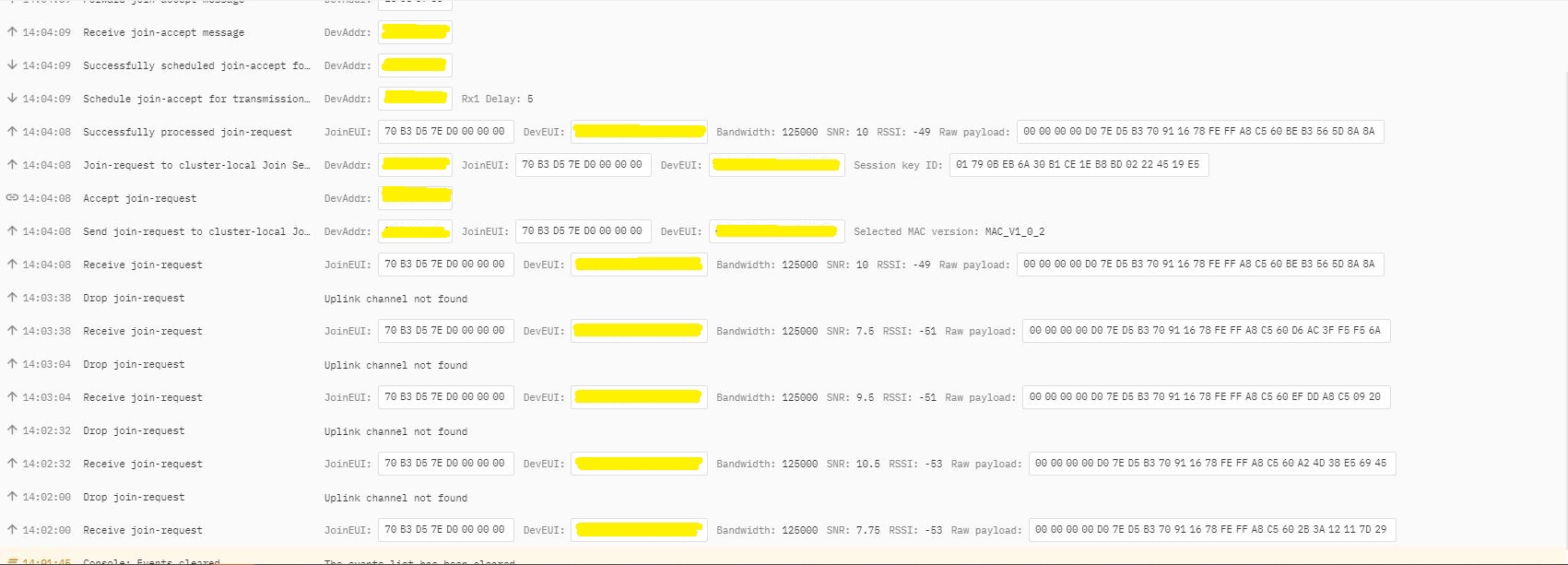
In TTI end device live data tab I could see the the joins attempts were failing with “Uplink channel Not found”
The Things Industries device live data tab “uplink channel not found” failures
The Things Industries device live data tab “uplink channel not found” detail
Initially I assumed this was an issue with my configuration of the RAKwirelessRAK7258 gateway in my office that I was using for testing. After some discussions with a helpful TTI support person they suggested that I try disabling all bar the first two channels the RAK811 module was configured to use then see if worked.
I modified the intialise method of my TinyCLR V2 RAK811 Module library to disable all bar the first two channels
result = SendCommand("OK", "at+set_config=lora:ch_mask:2:0", CommandTimeoutDefault);
if (result != Result.Success)
{
#if DIAGNOSTICS
   Debug.WriteLine($" {DateTime.UtcNow:hh:mm:ss} at+set_config=lora:ch_mask:2:0 {result}");
#endif
   return result;
}

result = SendCommand("OK", "at+set_config=lora:ch_mask:3:0", CommandTimeoutDefault);
if (result != Result.Success)
{
#if DIAGNOSTICS
   Debug.WriteLine($" {DateTime.UtcNow:hh:mm:ss} at+set_config=lora:ch_mask:3:0 {result}");
#endif
   return result;
}

result = SendCommand("OK", "at+set_config=lora:ch_mask:4:0", CommandTimeoutDefault);
if (result != Result.Success)
{
#if DIAGNOSTICS
   Debug.WriteLine($" {DateTime.UtcNow:hh:mm:ss} at+set_config=lora:ch_mask:4:0 {result}");
#endif
   return result;
}

result = SendCommand("OK", "at+set_config=lora:ch_mask:5:0", CommandTimeoutDefault);
if (result != Result.Success)
{
#if DIAGNOSTICS
    Debug.WriteLine($" {DateTime.UtcNow:hh:mm:ss} at+set_config=lora:ch_mask:5:0 {result}");
#endif
   return result;
}

result = SendCommand("OK", "at+set_config=lora:ch_mask:6:0", CommandTimeoutDefault);
if (result != Result.Success)
{
#if DIAGNOSTICS
   Debug.WriteLine($" {DateTime.UtcNow:hh:mm:ss} at+set_config=lora:ch_mask:6:0 {result}");
#endif
   return result;
}

result = SendCommand("OK", "at+set_config=lora:ch_mask:7:0", CommandTimeoutDefault);
if (result != Result.Success)
{
#if DIAGNOSTICS
   Debug.WriteLine($" {DateTime.UtcNow:hh:mm:ss} at+set_config=lora:ch_mask:7:0 {result}");
#endif
   return result;
}
After modifying the code my Fezduino joined reliably.
The thread ” (0x2) has exited with code 0 (0x0). devMobile.IoT.Rak811LoRaWanDeviceClient starting 12:00:12 Region AS923 12:00:12 ADR On 12:00:12 Unconfirmed 12:00:12 OTAA 12:00:13 Join start Timeout:30Sec 12:00:18 Join finish Temperature : 19.9 °C Pressure : 1014.0 HPa Altitude : 143 meters 12:00:19 port:5 payload BCD:0073279C016700C8 12:00:44 Sleep 12:01:44 Wakeup Temperature : 20.1 °C Pressure : 1014.0 HPa Altitude : 143 meters 12:01:44 port:5 payload BCD:0073279C016700C9 12:02:09 Sleep
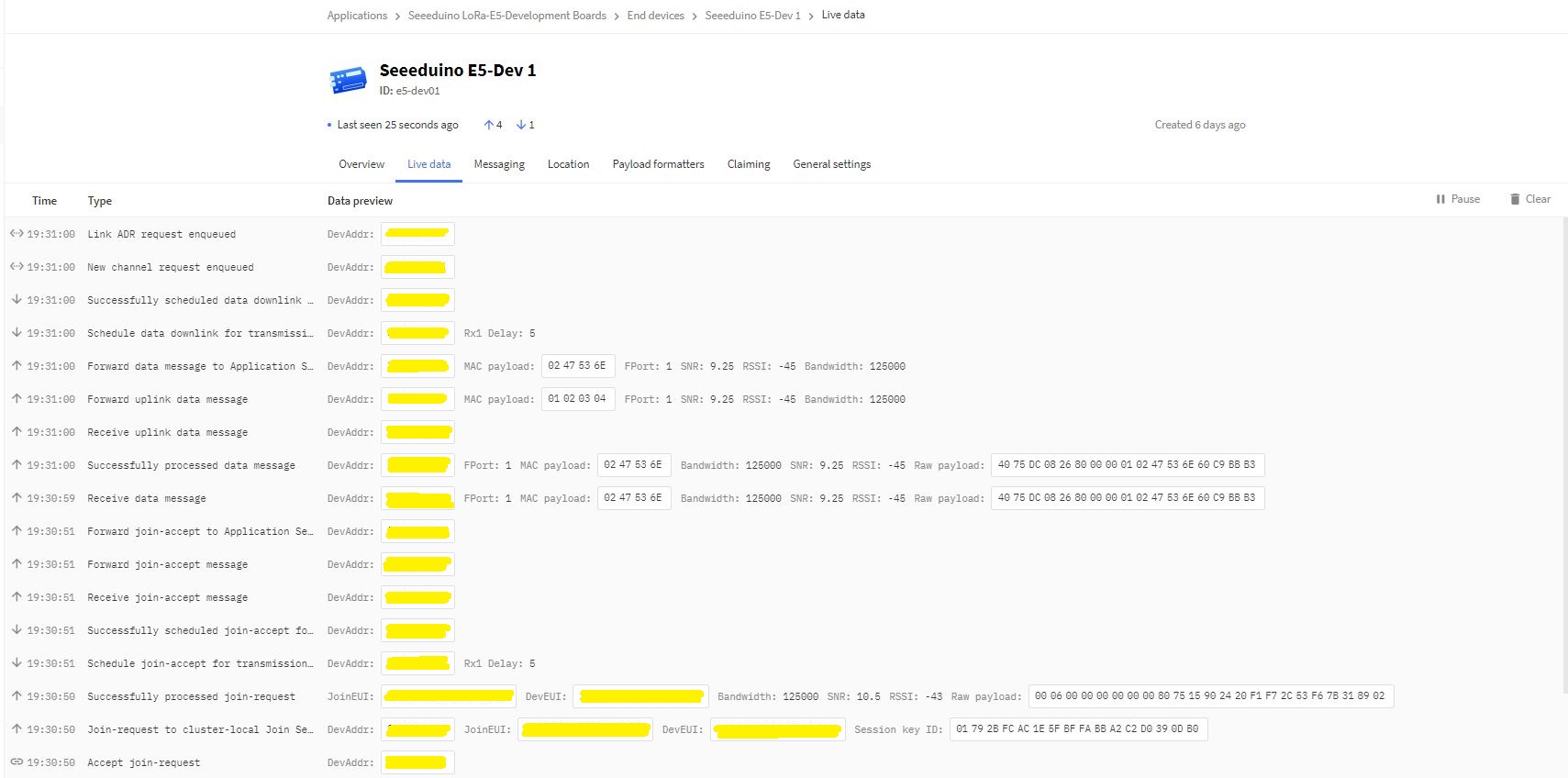
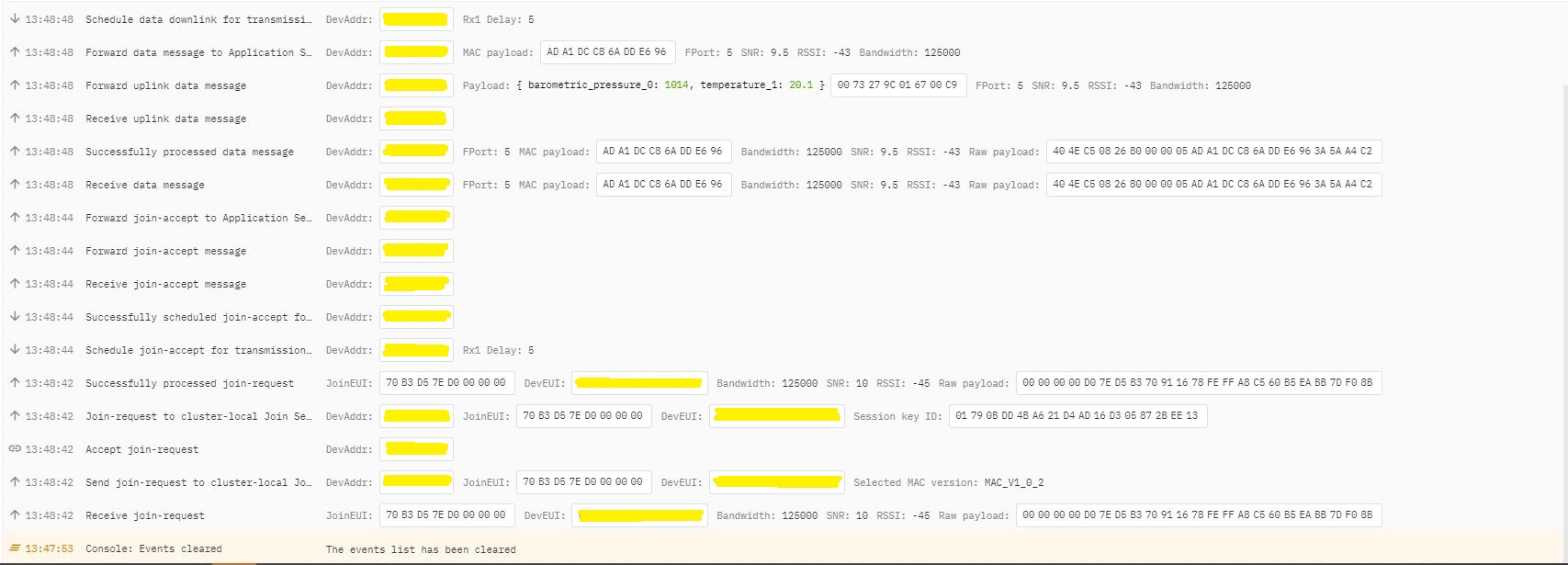
The Things Industries device live data tab successful join.
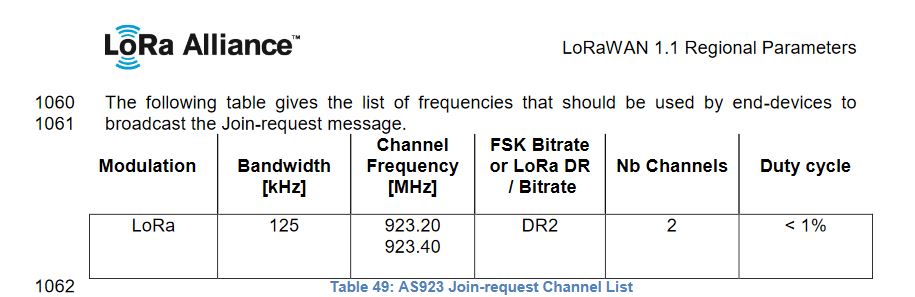
After some further discussion with TTI support it looks like the RAK811 module doesn’t send join requests on the frequencies specified for the AS923 region in the LoRaWAN™1.1Regional Parameters.
After confirming the join-request channel issue I went back to the RAKwireless forums with some new terms to search for and found that others were having a similar issue but with RAK4200 modules. My “best guess” is that the TTI implementation is more strict about join-request frequencies than the TTN
After some research I found references to the underlying problem in TTN and OpenAPI forums. The Dev_addr and Dev_eui fields are Base16(Hexidecimal) encoded binary but are being processed as if they were Base64(mime) encoded.
The TTI connector only displays the Device EUI so I changed the Dev_eui property to a string
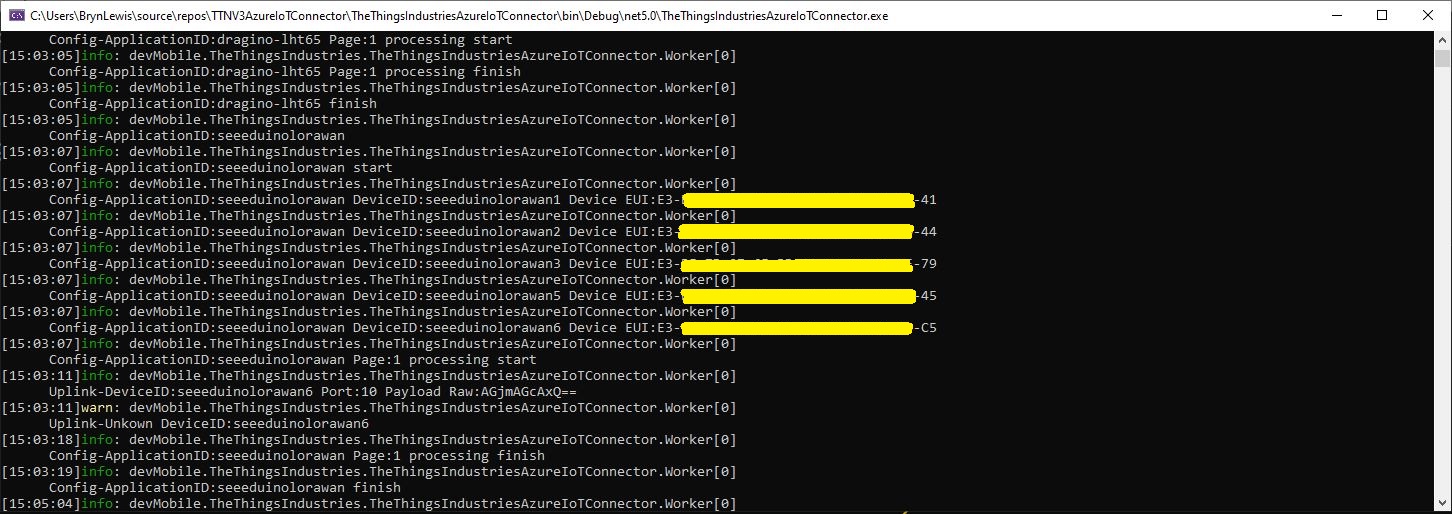
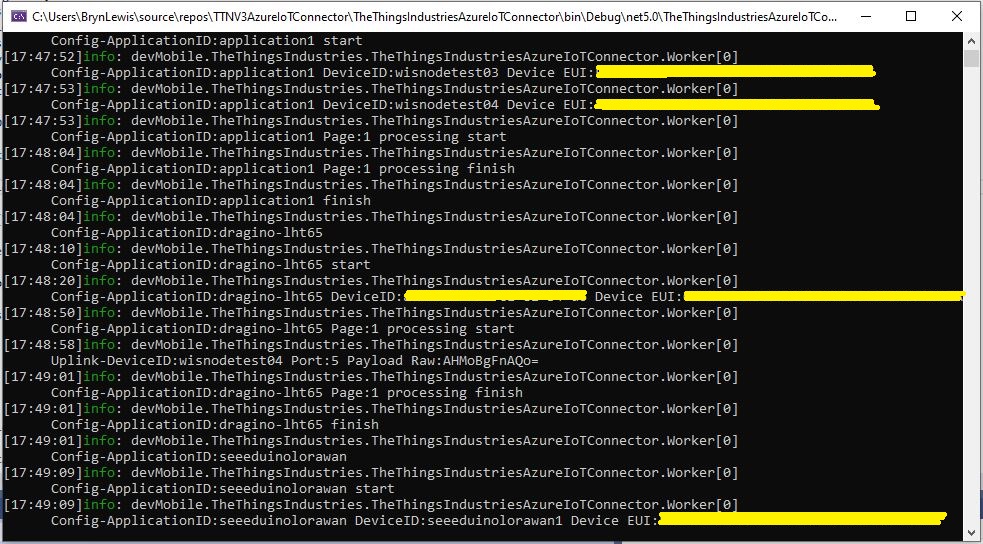
Now the DeviceEUI values are displayed correctly and searching for EndDevices in Azure Application Insights is easier
TTI V3 Connector application running as a console application showing correct DeviceEUIs
Modifying the nSwag generated classes is a really nasty way of fixing the problem but I think this approach is okay as it’s only one field and any other solution I could find was significantly more complex.
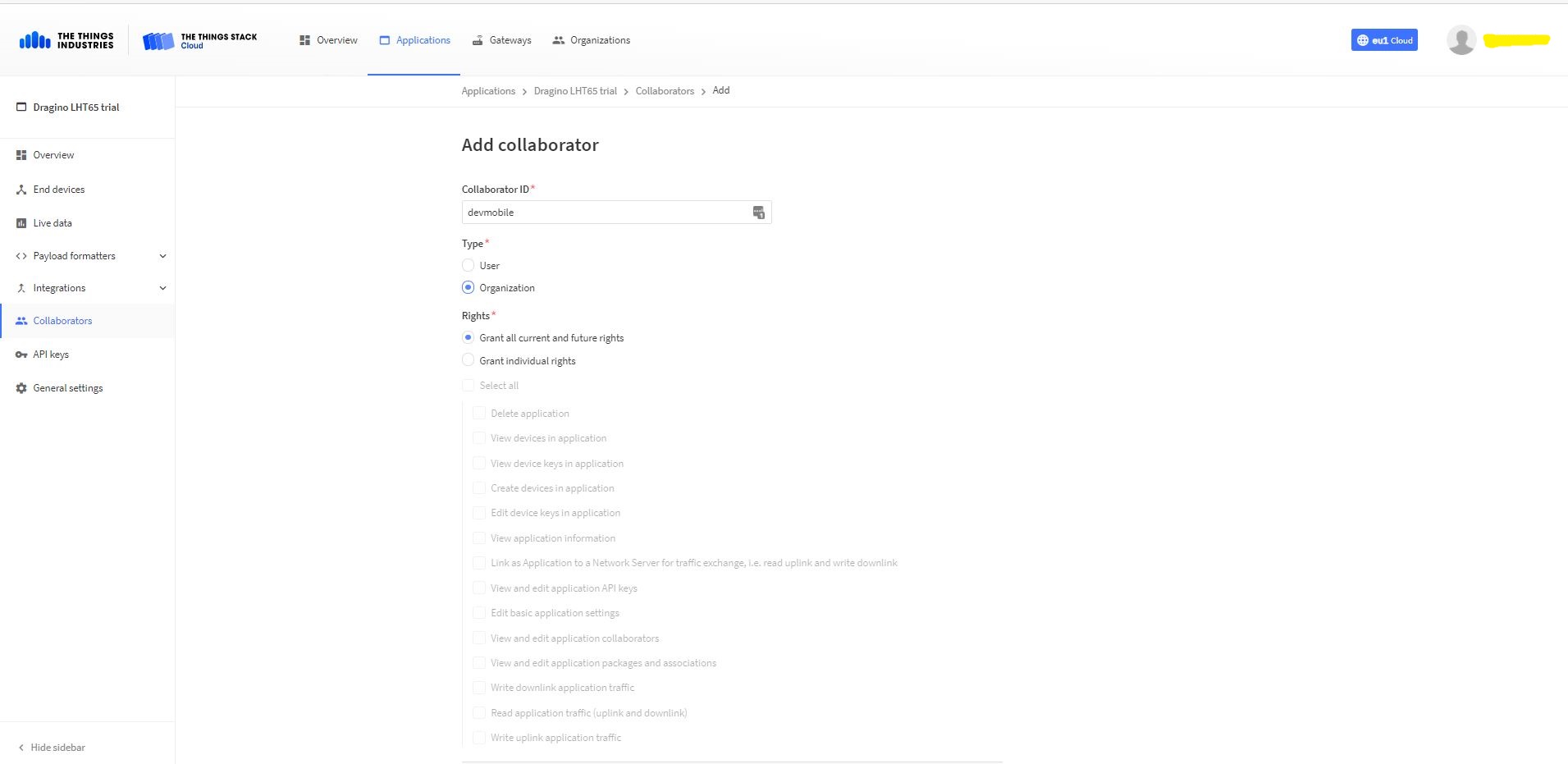
Adding devMobile as a collaborator on the new application
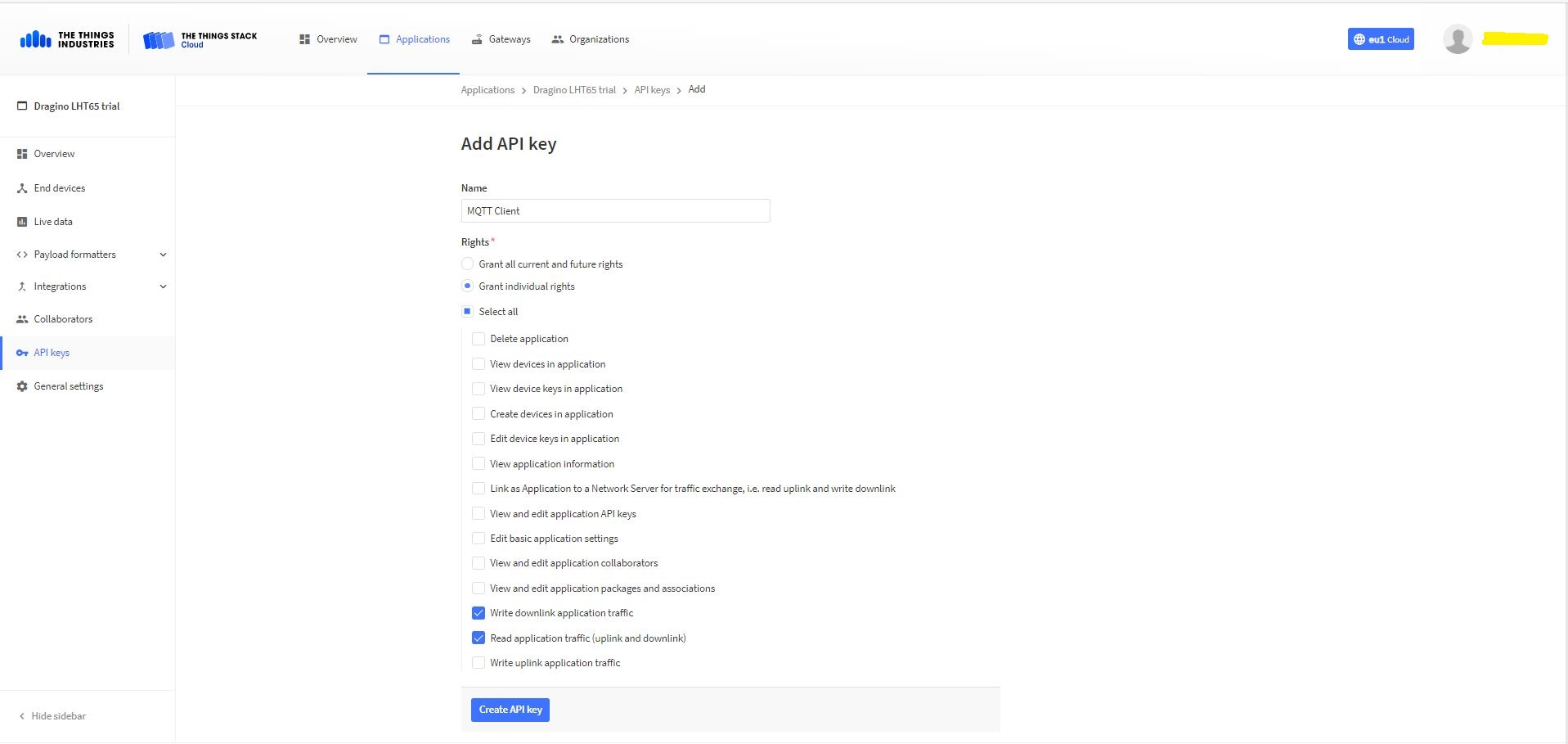
TTI Application API Key configuration
The new Application API Key used by the MQTTnetmanaged client only needs to have write downlink and read uplink traffic enabled.
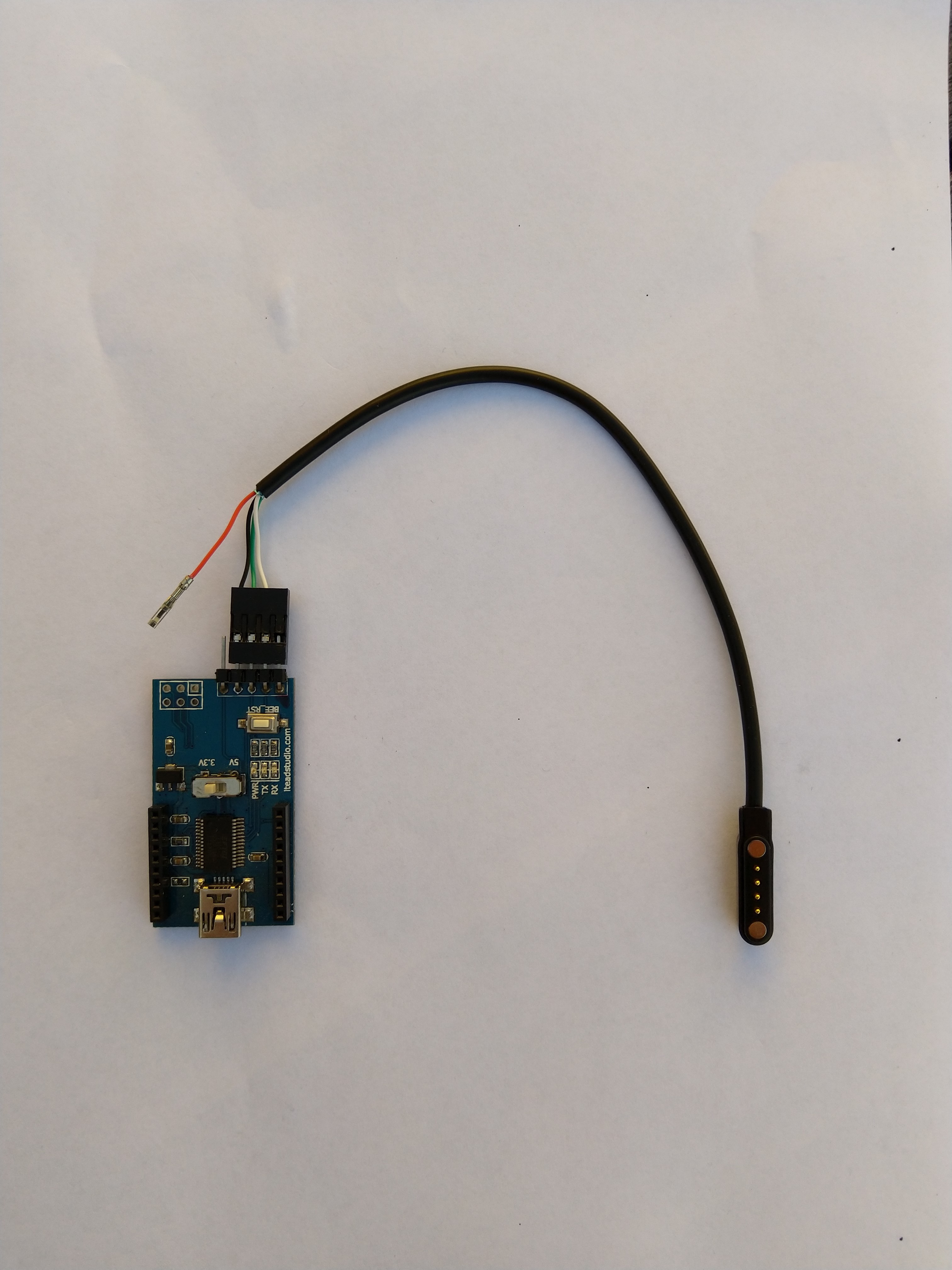
FTDI Adapter and modified LHT64 cable
So I could reliably connect to my LHT65 devices to configure them I modified a programming cable so I could use it with a spare FTDI adaptor without jumper wires. Todo this I used a small jewelers screwdriver to “pop” out the VCC cable and move the transmit data line.
After entering the device password and checking the firmware version I used the AT+CFG command to display the device settings
AT+CFG: Print all configurations

[334428]***** UpLinkCounter= 0 *****
[334430]TX on freq 923200000 Hz at DR 2
[334804]txDone
[339807]RX on freq 923200000 Hz at DR 2
[339868]rxTimeOut
[340807]RX on freq 923200000 Hz at DR 2
[340868]rxTimeOut

Correct Password

Stop Tx events,Please wait for all configurations to print
Printf all config...
AT+DEUI=a8 .. .. .. .. .. .. d6
AT+DADDR=01......D6

AT+APPKEY=9d .. .. .. .. .. .. .. .. .. .. .. .. .. .. 2e
AT+NWKSKEY=f6 .. .. .. .. .. .. .. .. .. .. .. .. .. .. 69
AT+APPSKEY=4c 35 .. .. .. .. .. .. .. .. .. .. .. .. .. 3d
AT+APPEUI=a0 .. .. .. .. .. .. 00
AT+ADR=1
AT+TXP=0
AT+DR=0
AT+DCS=0
AT+PNM=1
AT+RX2FQ=923200000
AT+RX2DR=2
AT+RX1DL=1000
AT+RX2DL=2000
AT+JN1DL=5000
AT+JN2DL=6000
AT+NJM=1
AT+NWKID=00 00 00 00
AT+FCU=0
AT+FCD=0
AT+CLASS=A
AT+NJS=0
AT+RECVB=0:
AT+RECV=0:
AT+VER=v1.7 AS923

AT+CFM=0
AT+CFS=0
AT+SNR=0
AT+RSSI=0
AT+TDC=1200000
AT+PORT=2
AT+PWORD=123456
AT+CHS=0
AT+DATE=21/3/26 07:49:15
AT+SLEEP=0
AT+EXT=4,2
AT+RTP=20
AT+BAT=3120
AT+WMOD=0
AT+ARTEMP=-40,125
AT+CITEMP=1
Start Tx events OK


[399287]***** UpLinkCounter= 0 *****

[399289]TX on freq 923400000 Hz at DR 2

[399663]txDone

[404666]RX on freq 923400000 Hz at DR 2

[404726]rxTimeOut

[405666]RX on freq 923200000 Hz at DR 2

[405726]rxTimeOut
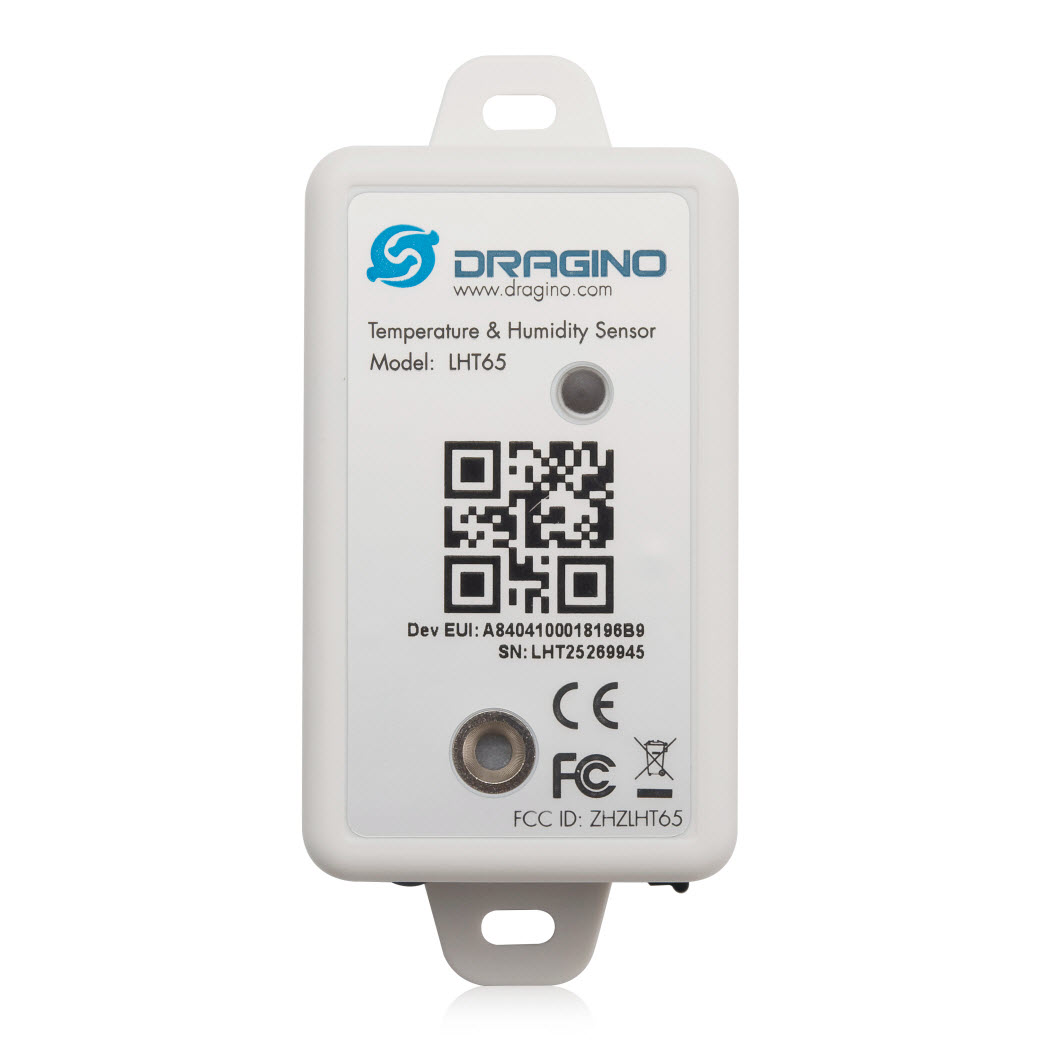
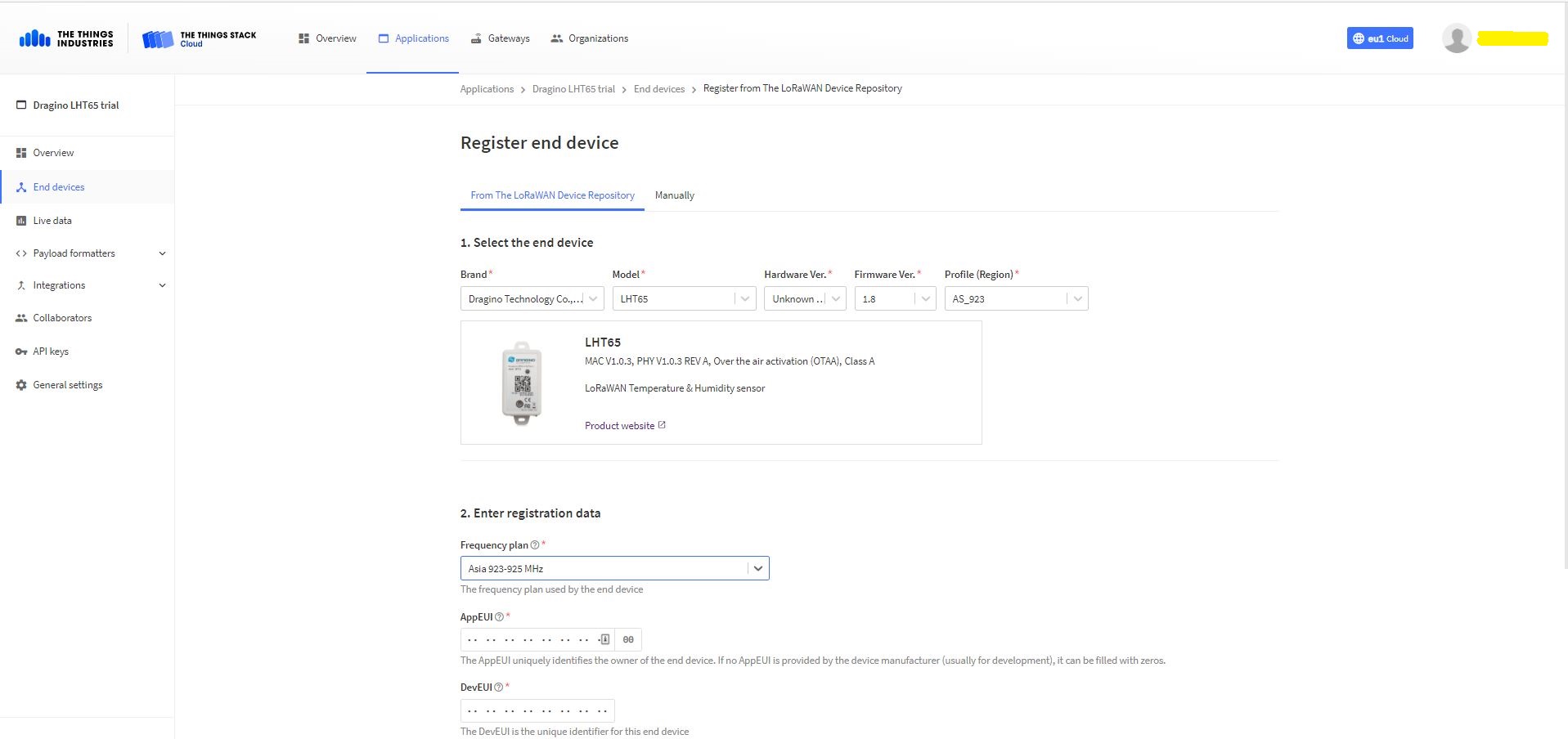
The Dragino LHT65 uses the DeviceEUI as the DeviceID which meant I had todo more redaction in my TTI/TTN and Azure Application Insights screen captures. The rules around the re-use of EndDevice ID were a pain in the arse(PITA) in my development focused tenant.
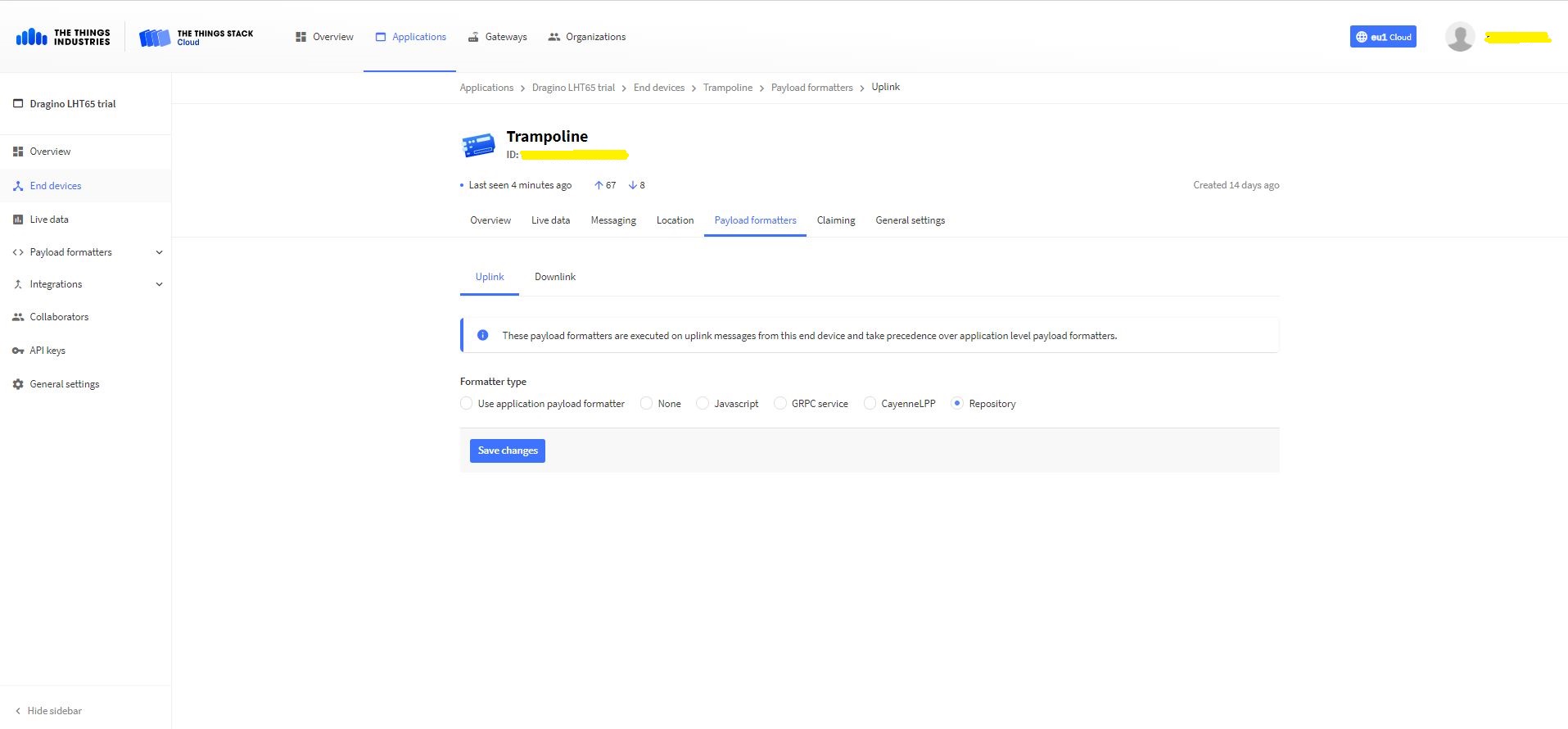
Dragino LHT 65 Device uplink payload formatter
The connector supports both uplink and downlink messages with JSON encoded payloads. The Dragino LHT65 has a vendor supplied formatter which is automatically configured when an EndDevice is created. The EndDevice formatter configuration can also be overridden at the Application level in the app.settings.json file.
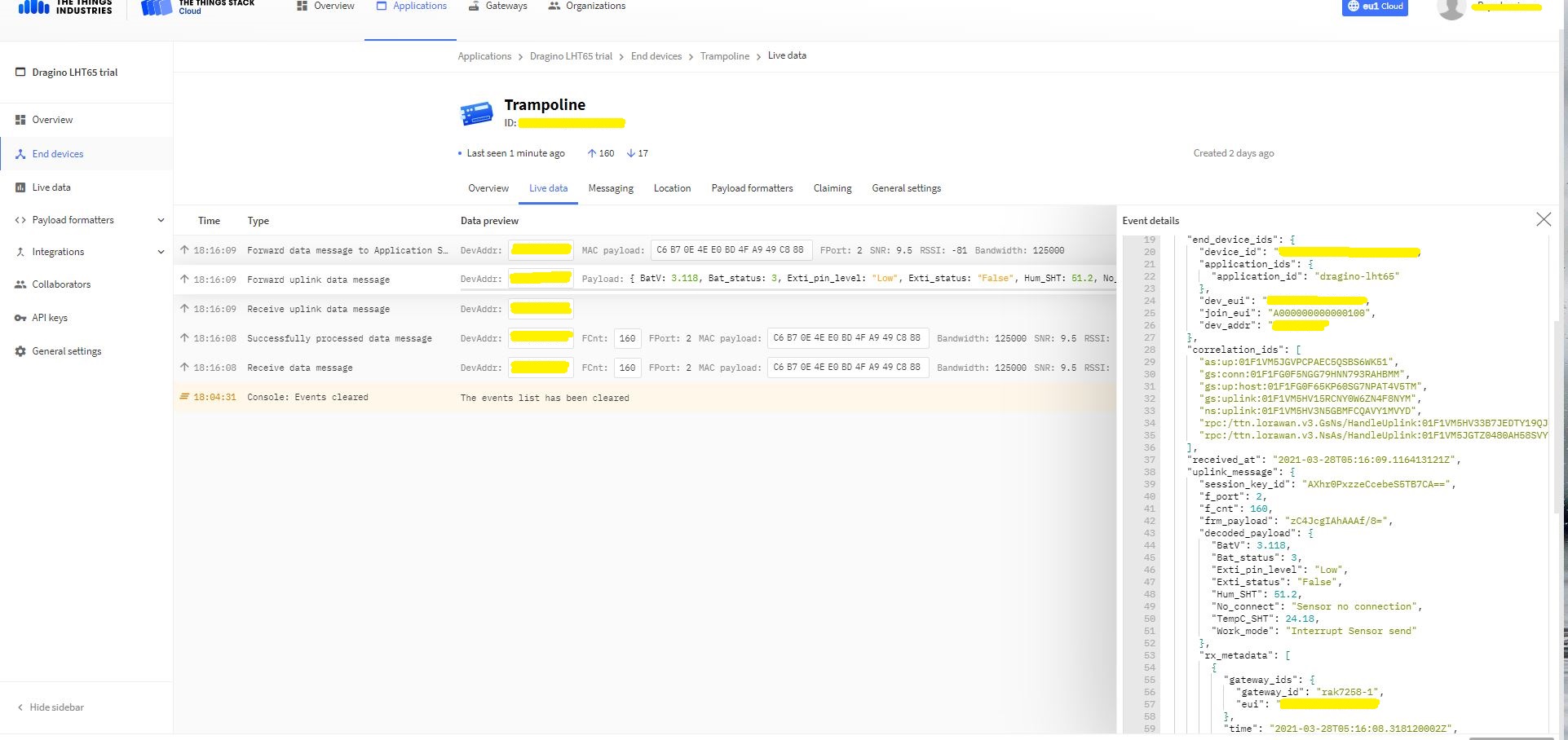
Device Live Data Uplink Data Payload
Once an EndDevice is configured in TTI/TTN I usually use the “Live data Uplink Payload” to work out the decoded payload JSON property names and data types.
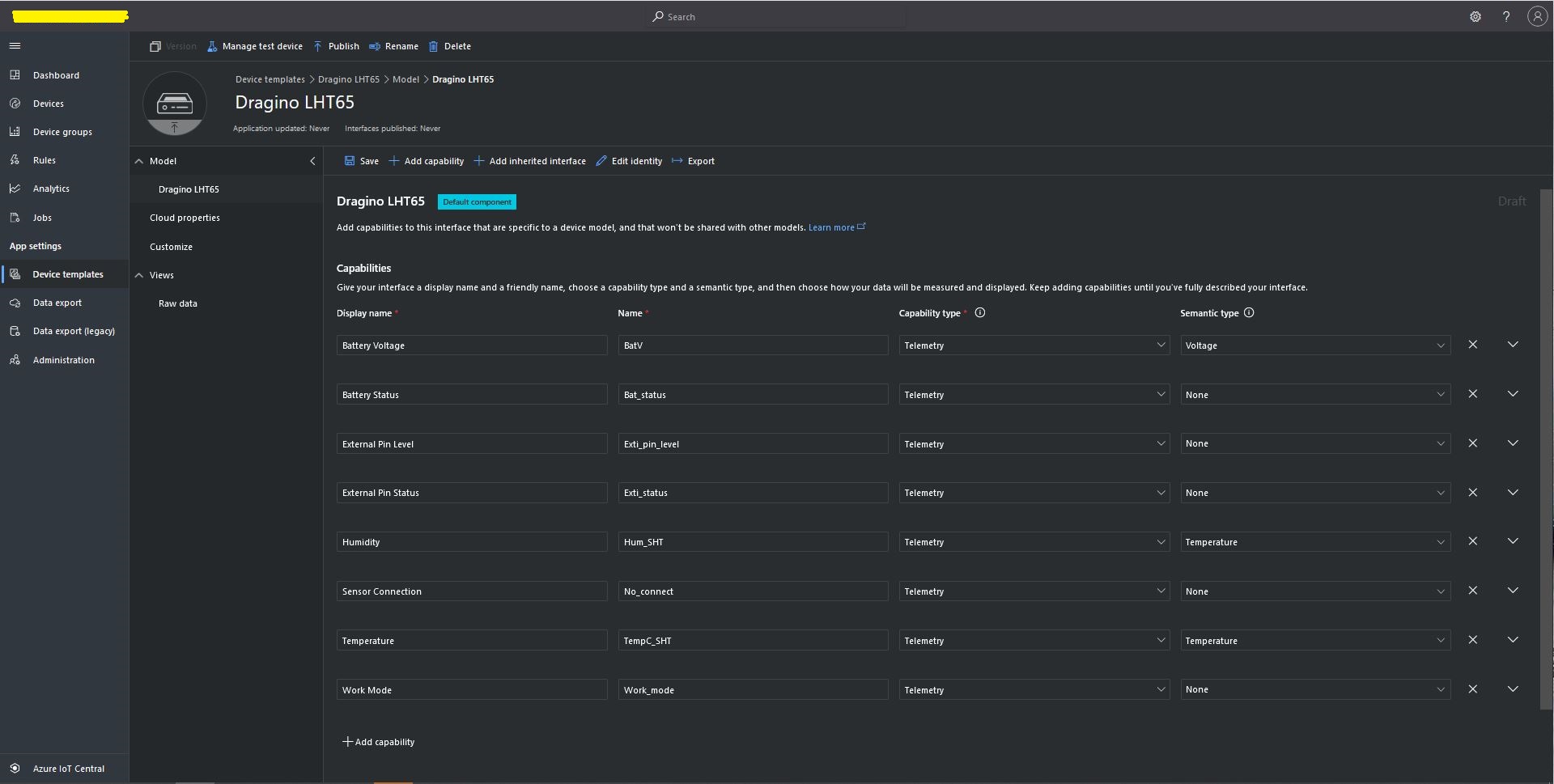
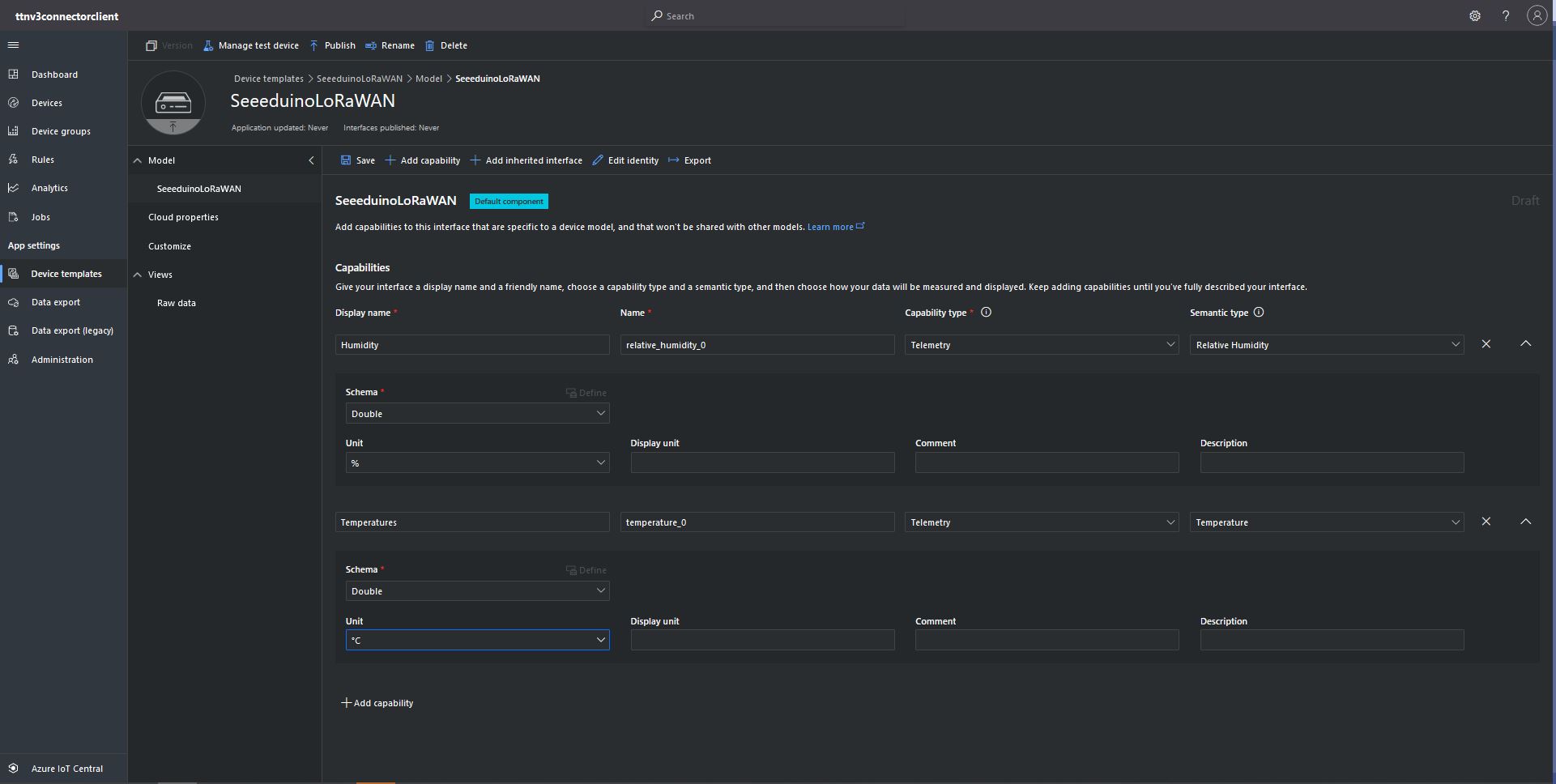
LHT65 Uplink only Azure IoT Central Device Template
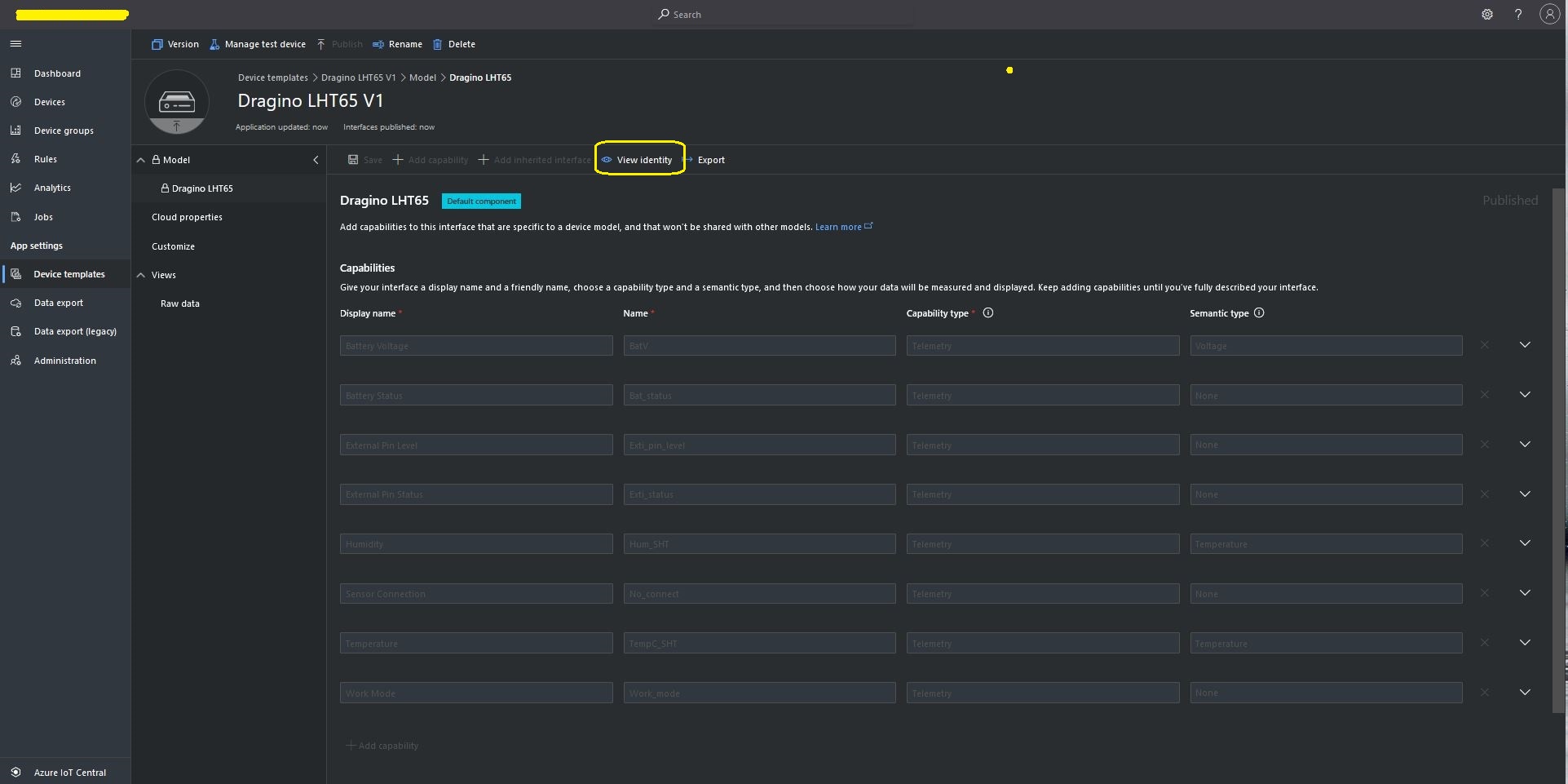
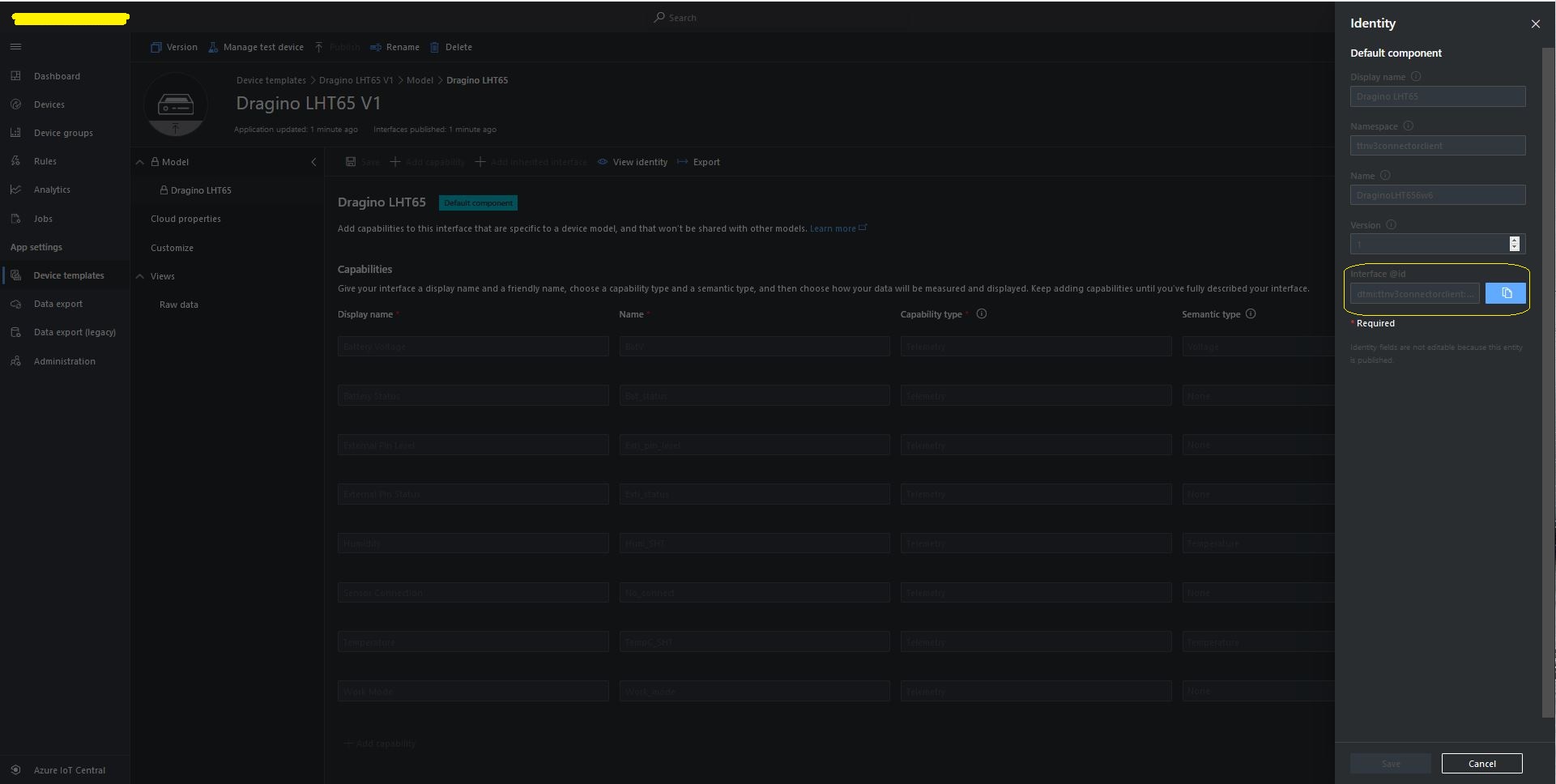
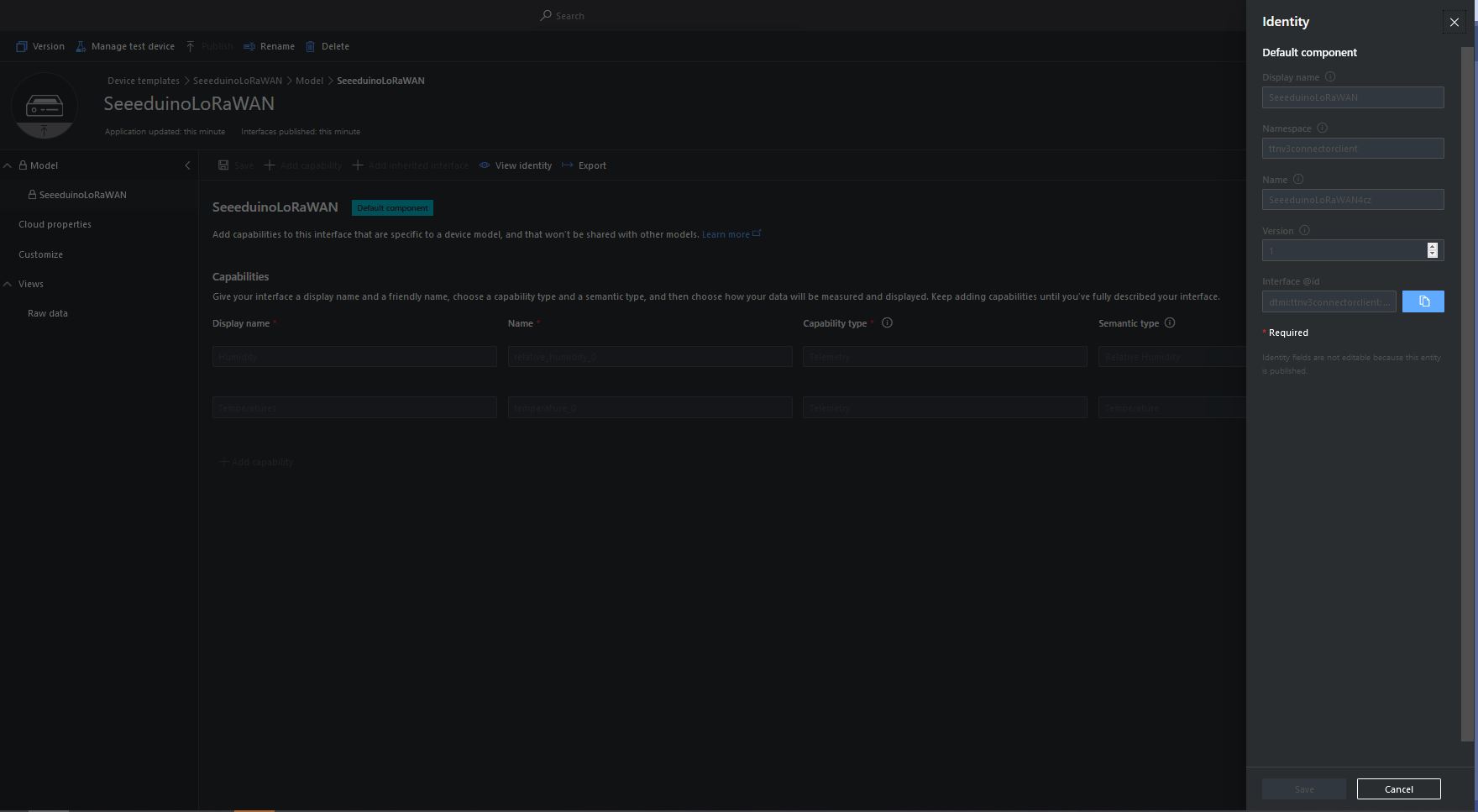
LHT65 Device Template View Identity
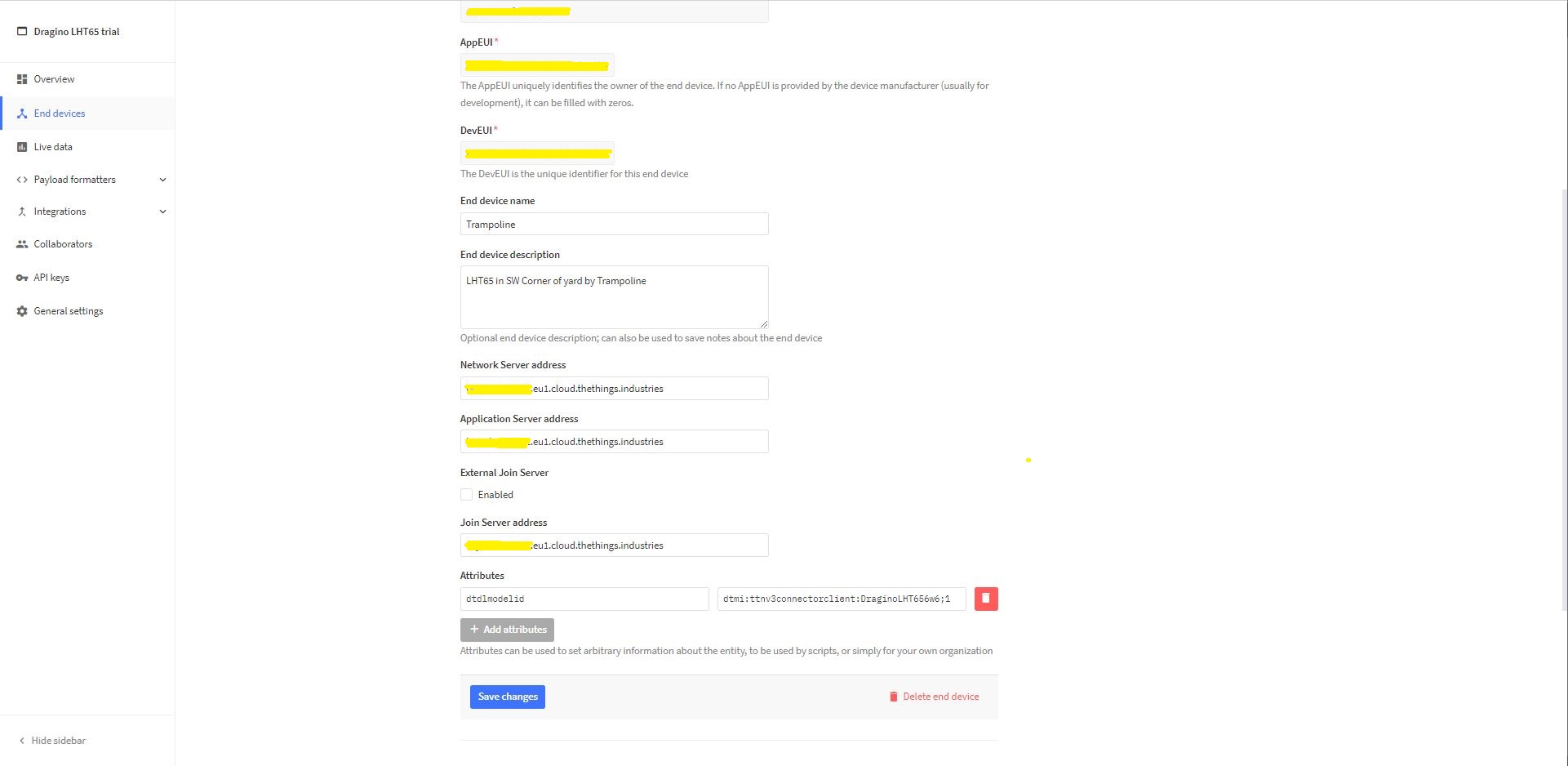
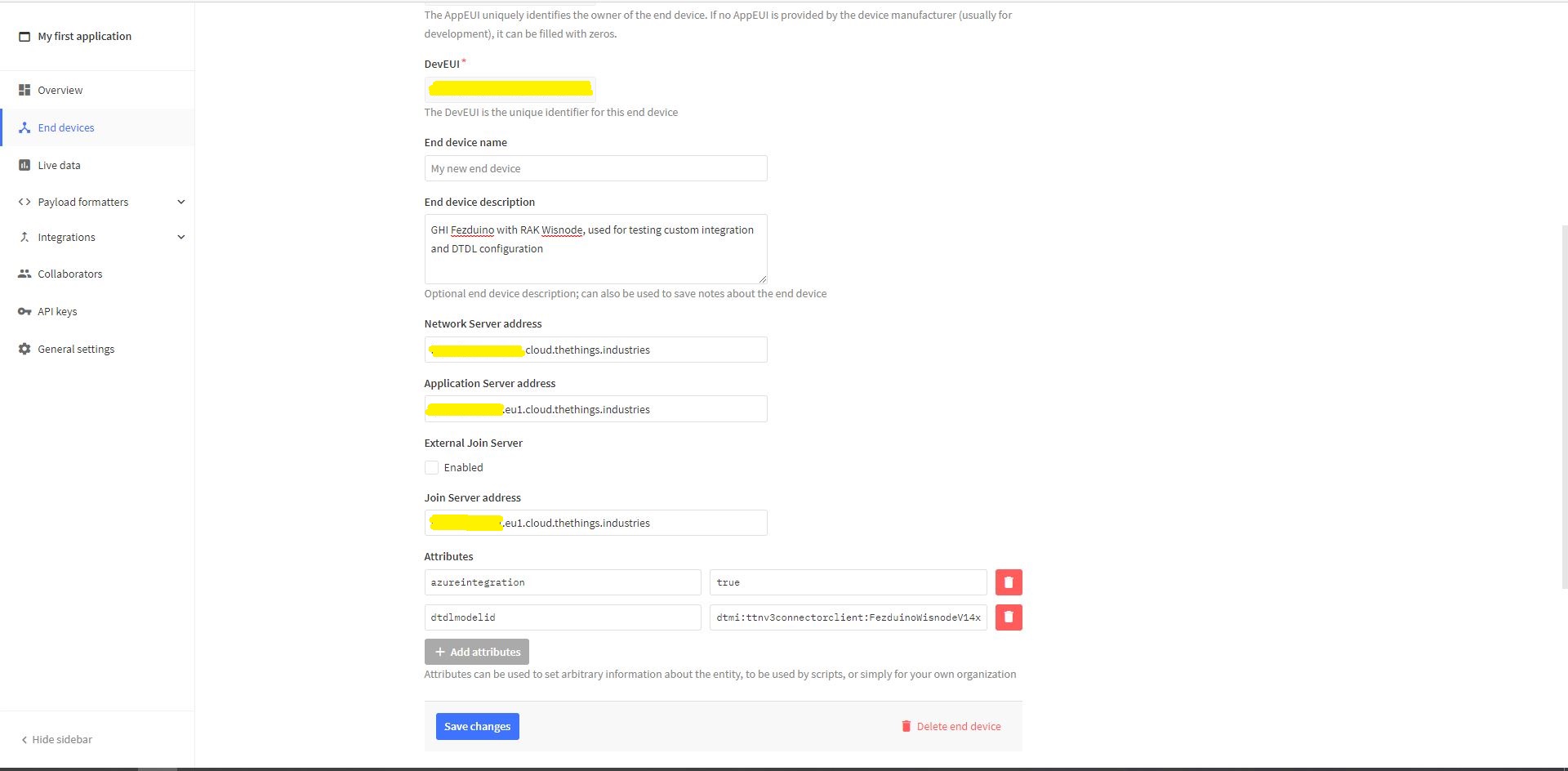
For Azure IoT Central “automagic” provisioning the DTDLModelId has to be copied from the Azure IoT Central Template into the TTI/TTN EndDevice or app.settings.json file application configuration.
LHT65 Device Template copy DTDL @ID
TTI EndDevice configuring the DTDLV2 @ID at the device level
Configuring the DTDLV2 @ID at the TTI application level in the app.settings.json file
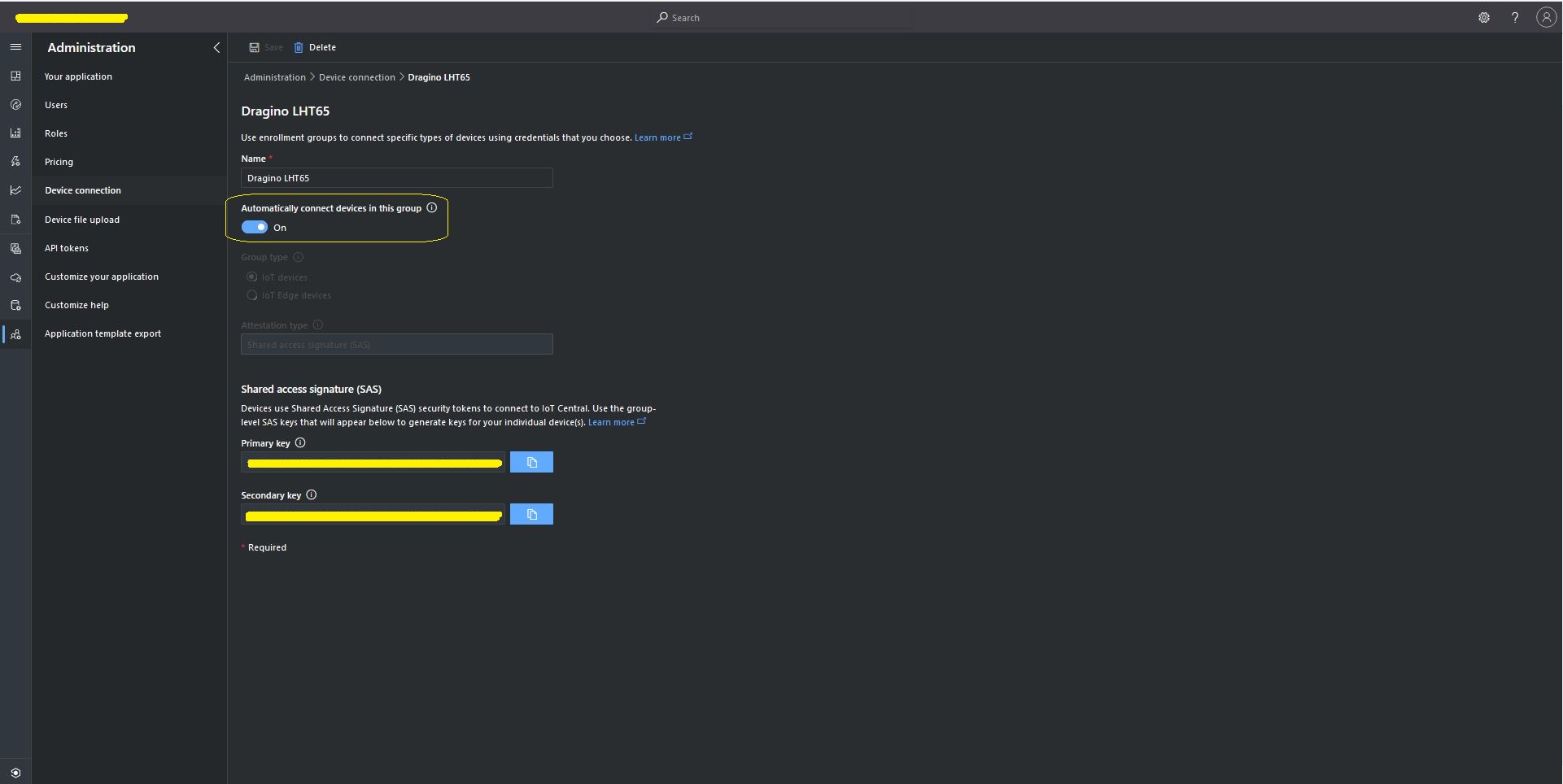
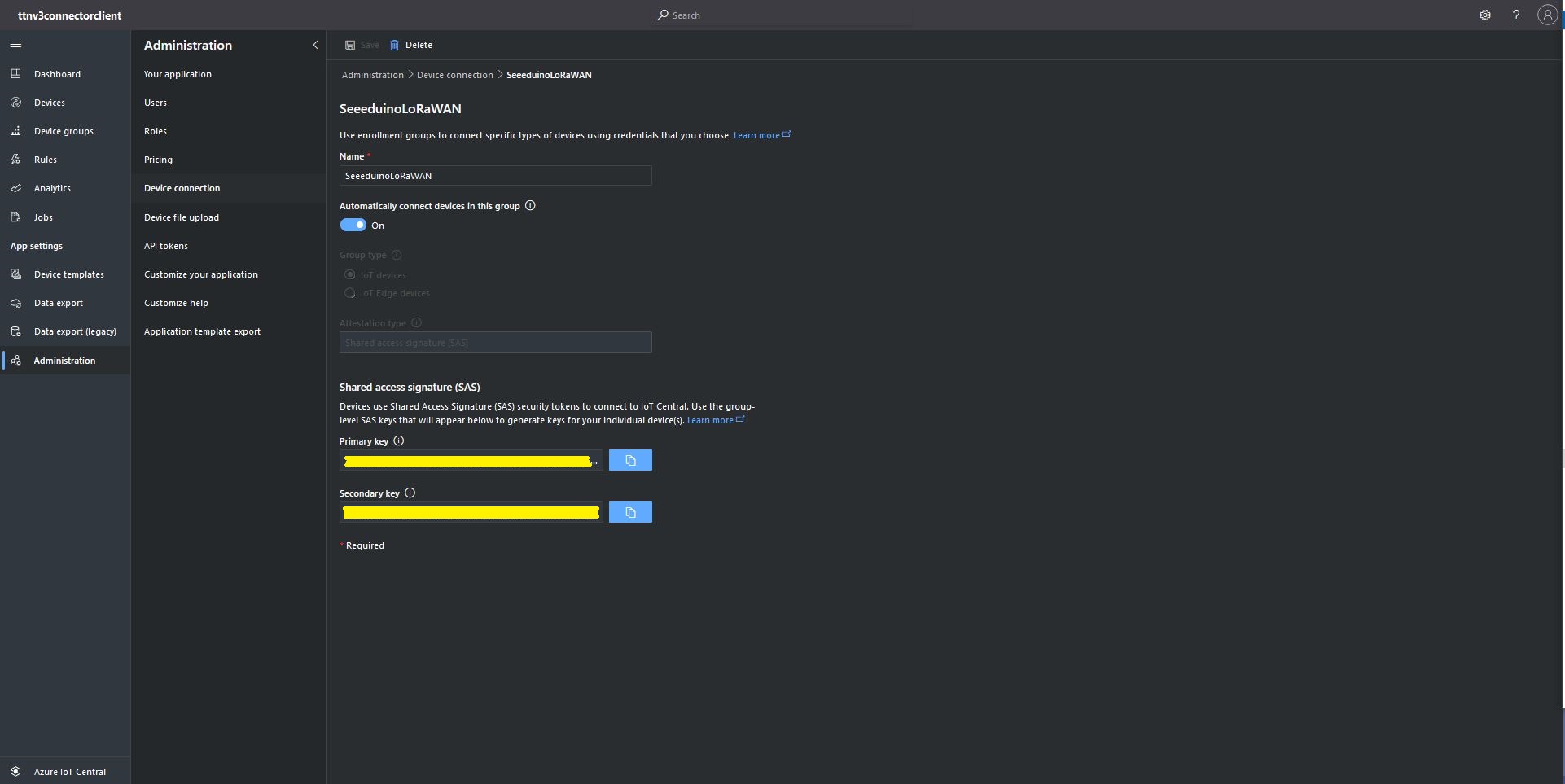
The Azure Device Provisioning Service(DPS) is configured at the TTI application level in the app.settings.json file. The IDScope and one of the Primary or Secondary Shared Access Signature(SAS) keys should be copied into DeviceProvisioningServiceSettings of an Application in the app.settings.json file. I usually set the “Automatically connect devices in this group” flag as part of the “automagic” provisioning process.
Azure IoT Central Group Enrollment Key
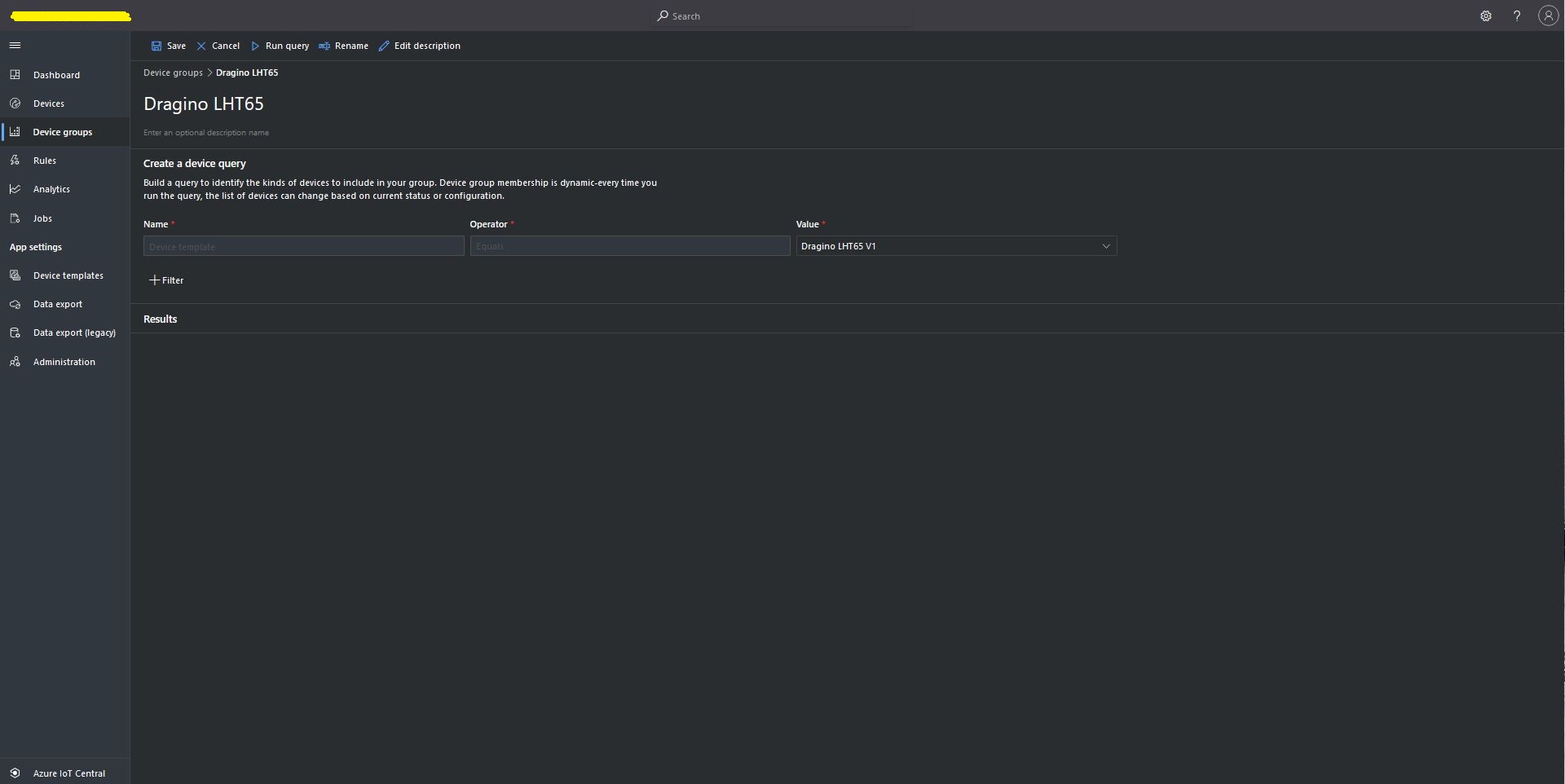
Then device templates need to be mapped to an Enrollment Group then Device Group.
For testing the connector application can be run locally with diagnostic information displayed in the application console window as it “automagically’ provisions devices and uploads telemetry data.
Connector application Diagnostics
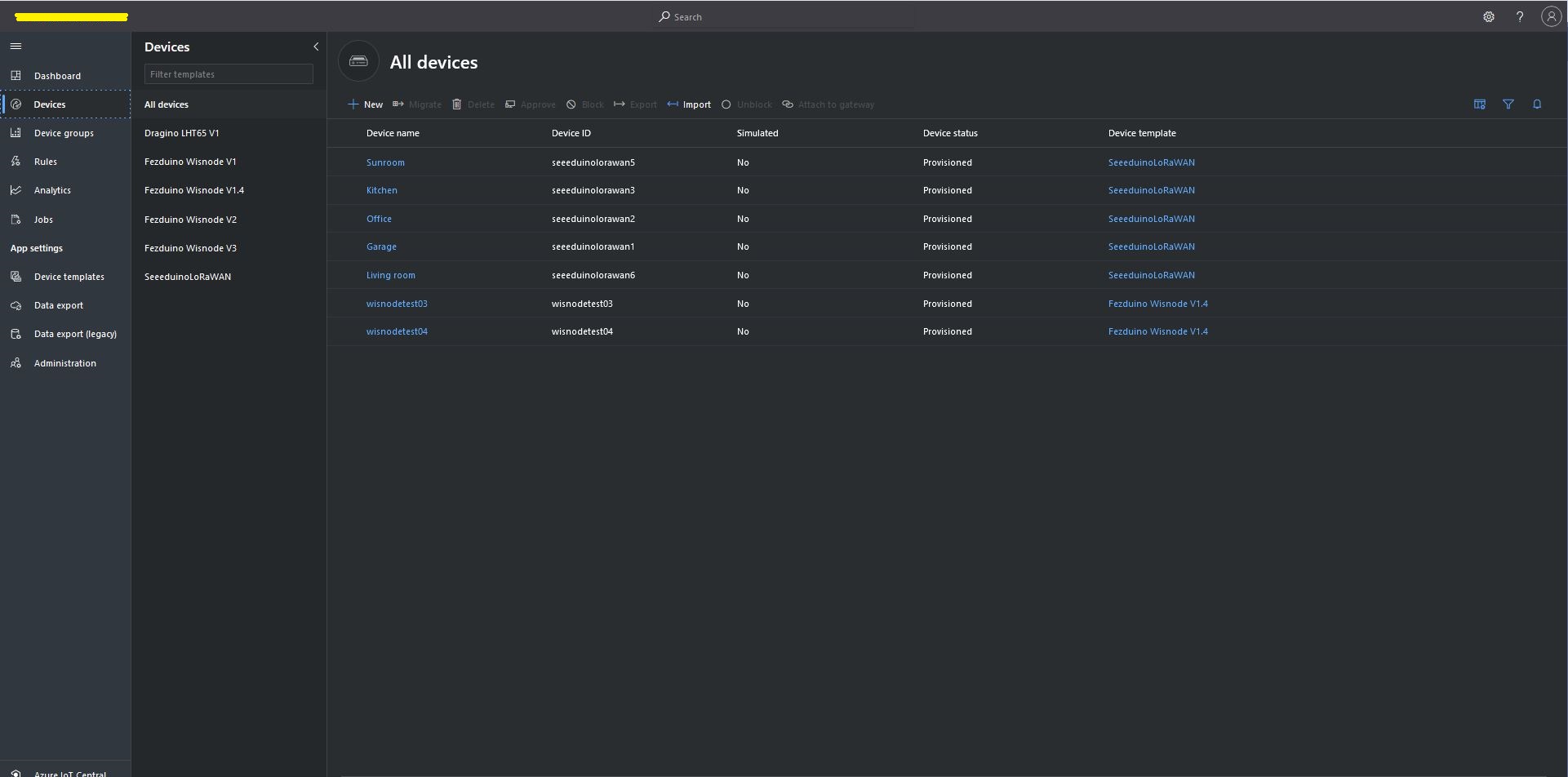
Azure IoT Central Device list before my LHT65 device is “automagically” provisioned
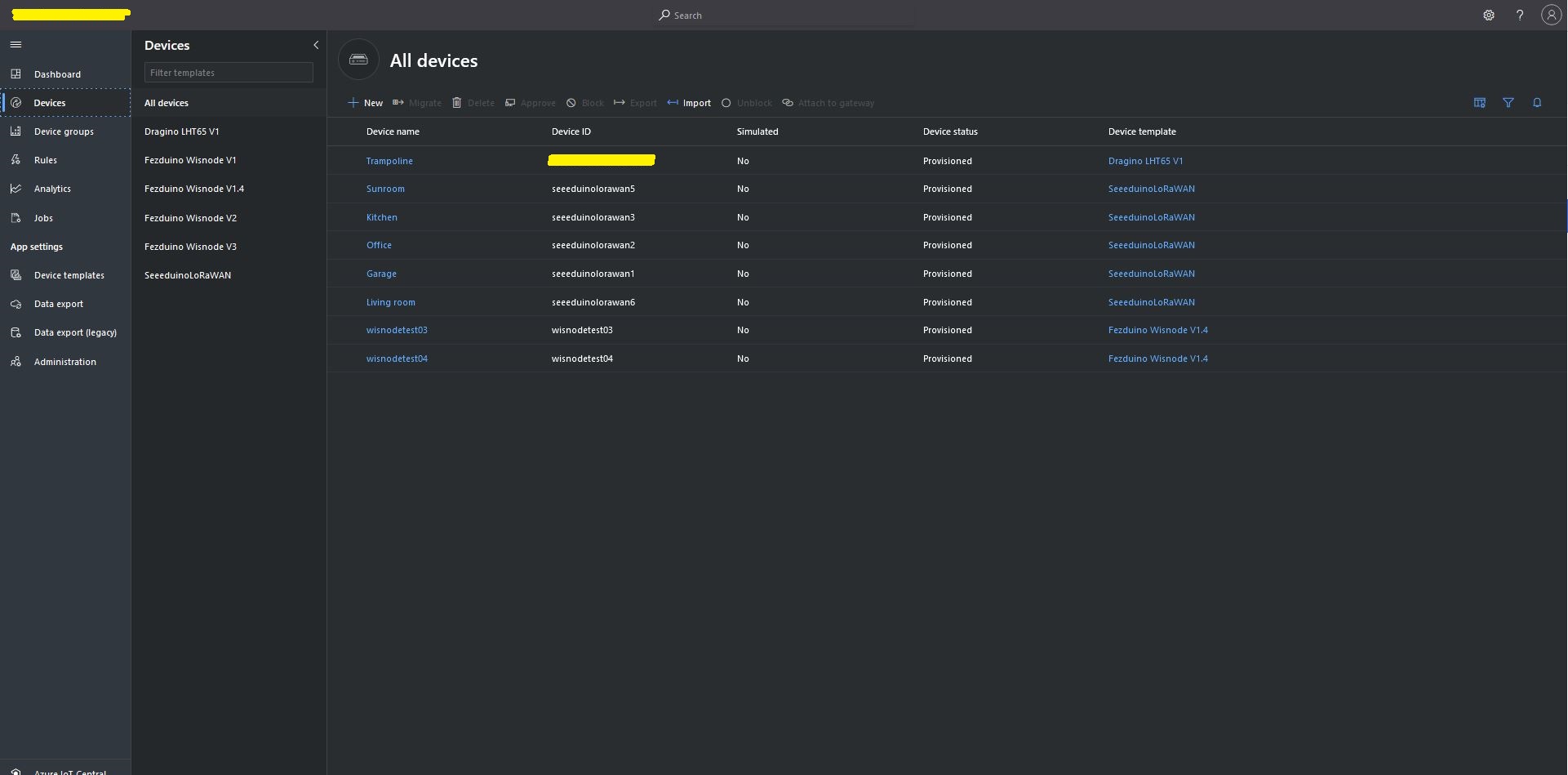
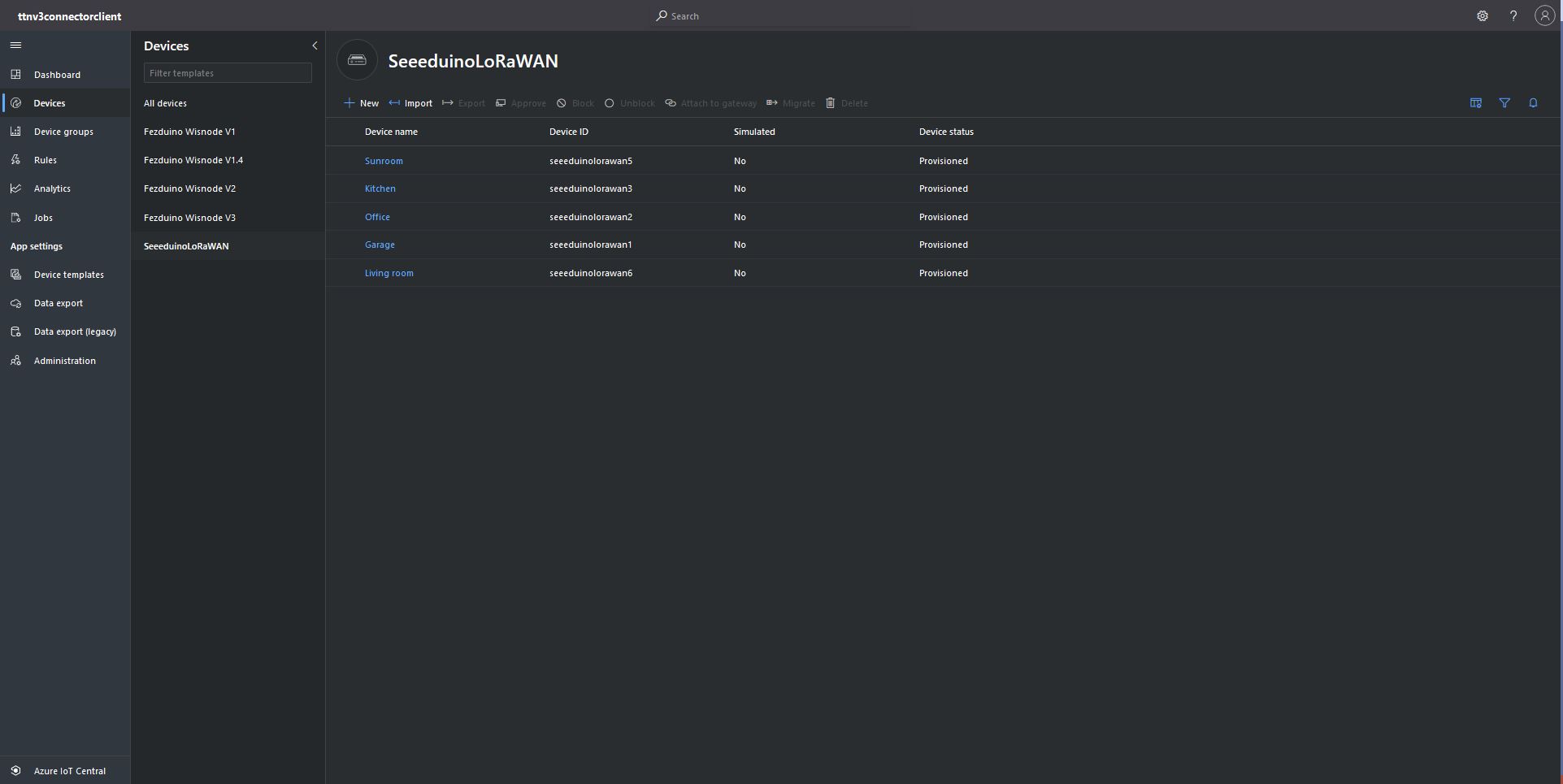
Azure IoT Central Device list after my LHT65 device is “automagically” provisioned
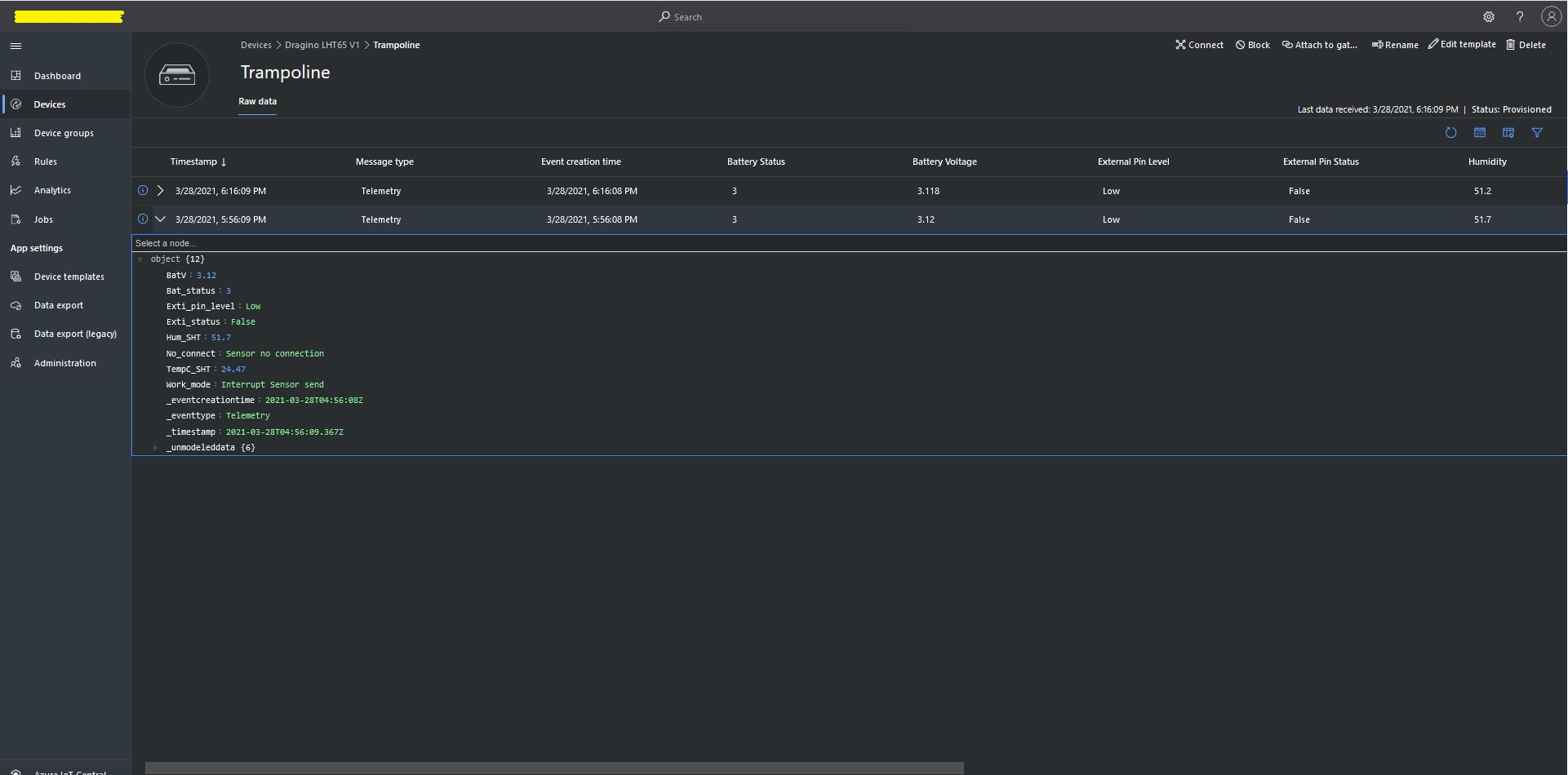
One a device has been provisioned I check on the raw data display that all the fields I configured have been mapped correctly.
Azure IoT Central raw data display
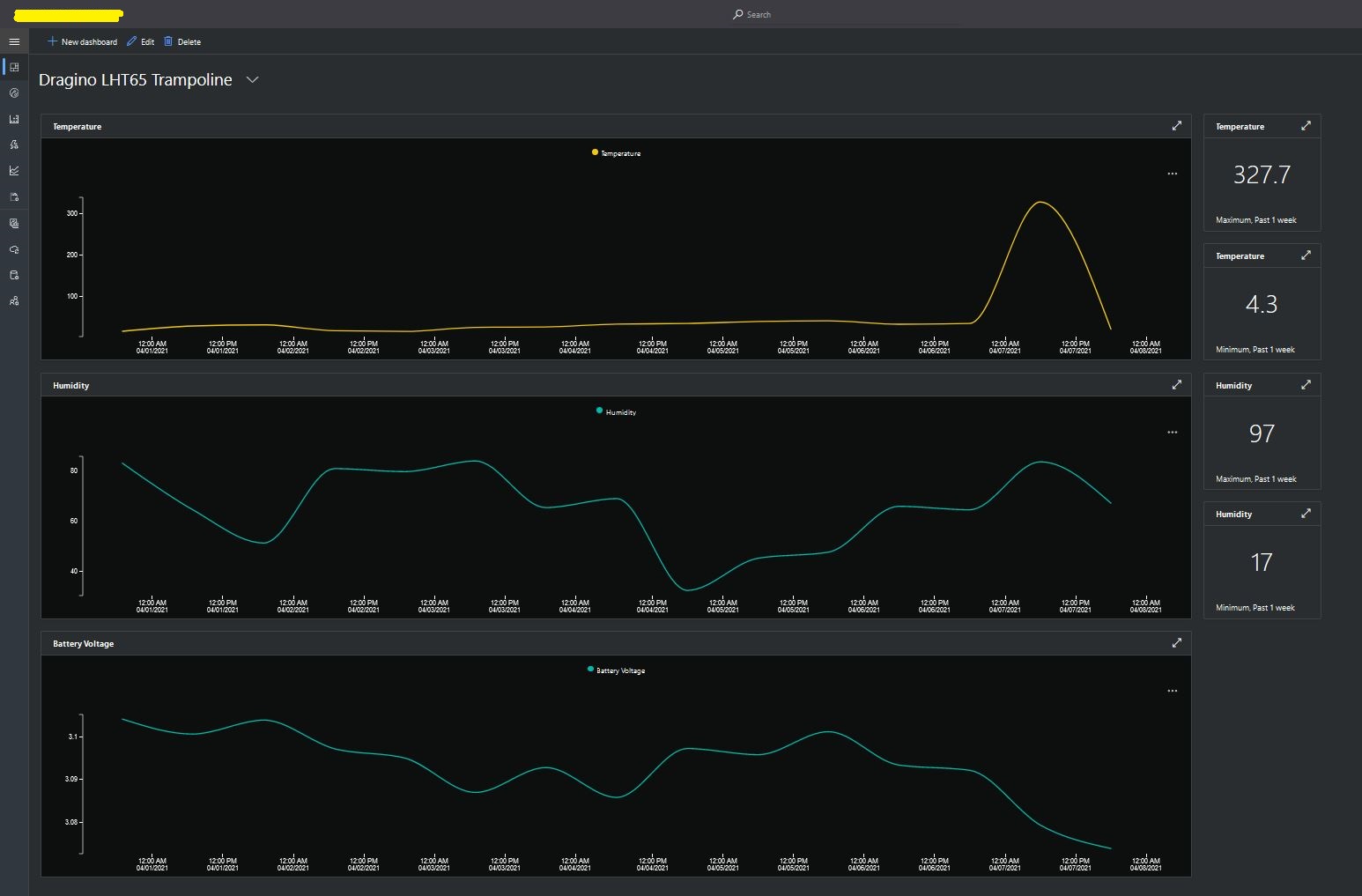
I then created a dashboard to display the telemetry data from the LHT65 sensors.
Azure IoT Central dashboard displaying LHT65 temperature, humidity and battery voltage graphs.
The dashboard also has a few KPI displays which highlighted an issue which occurs a couple of times a month with the LHT65 onboard temperature sensor values (327.7°). I have connected Dragino technical support and have also been unable to find a way to remove the current an/or filter out future aberrant values.
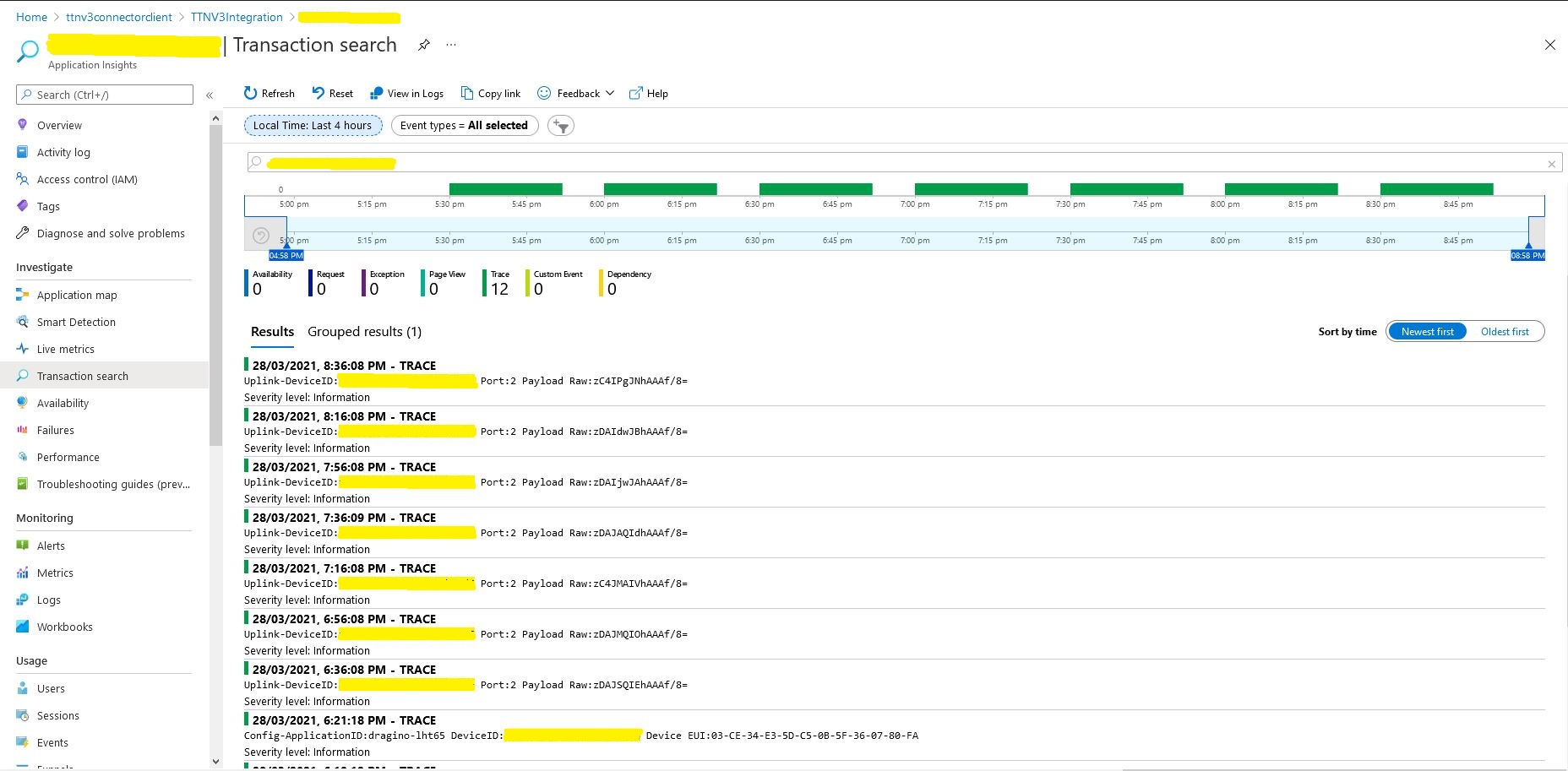
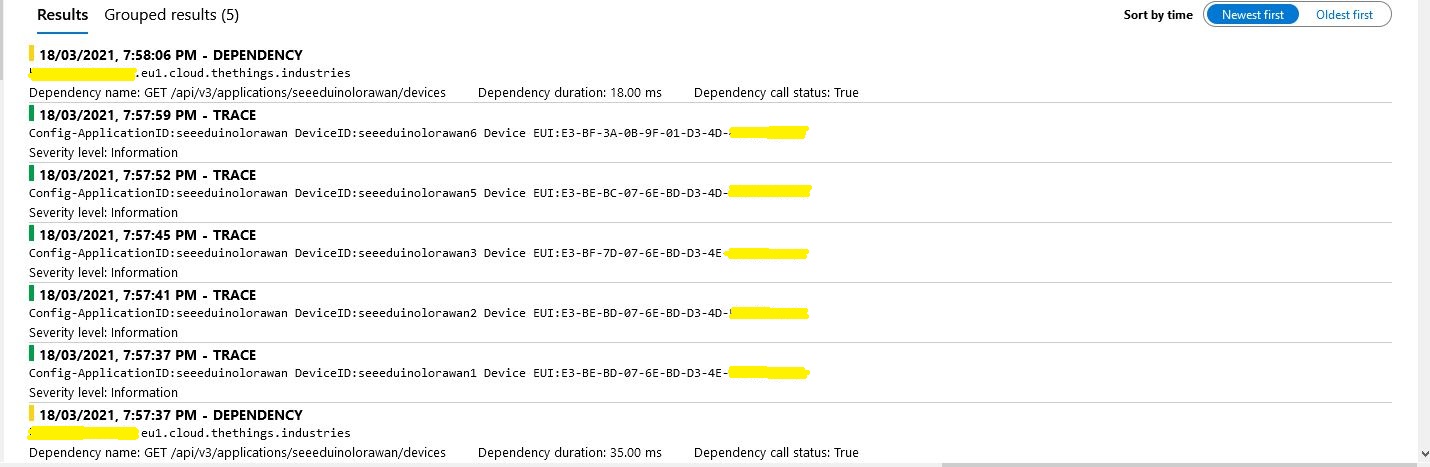
Azure Application Insights logging
I also noticed that the formatting of the DeviceEUI values in the Application Insights logging was incorrect after trying to search for one of my Seeedstudio LoRaWAN device with its DeviceEUI.
ProvisioningRegistrationAdditionalData provisioningRegistrationAdditionalData = new ProvisioningRegistrationAdditionalData()
{
   JsonData = $"{{\"modelId\": \"{modelId}\"}}"
};

result = await provClient.RegisterAsync(provisioningRegistrationAdditionalData);
I remembered seeing a sample where the DTDLV2 methodId was formatted by a library function and after a surprising amount of searching I found what I was looking for in Azure-Samples repository.
// Copyright (c) Microsoft. All rights reserved.
// Licensed under the MIT license. See LICENSE file in the project root for full license information.

using Microsoft.Azure.Devices.Provisioning.Client.Extensions;

namespace Microsoft.Azure.Devices.Provisioning.Client.PlugAndPlay
{
    /// <summary>
    /// A helper class for formatting the DPS device registration payload, per plug and play convention.
    /// </summary>
    public static class PnpConvention
    {
        /// <summary>
        /// Create the DPS payload to provision a device as plug and play.
        /// </summary>
        /// <remarks>
        /// For more information on device provisioning service and plug and play compatibility,
        /// and PnP device certification, see <see href="https://docs.microsoft.com/en-us/azure/iot-pnp/howto-certify-device"/>.
        /// The DPS payload should be in the format:
        /// <code>
        /// {
        ///   "modelId": "dtmi:com:example:modelName;1"
        /// }
        /// </code>
        /// For information on DTDL, see <see href="https://github.com/Azure/opendigitaltwins-dtdl/blob/master/DTDL/v2/dtdlv2.md"/>
        /// </remarks>
        /// <param name="modelId">The Id of the model the device adheres to for properties, telemetry, and commands.</param>
        /// <returns>The DPS payload to provision a device as plug and play.</returns>
        public static string CreateDpsPayload(string modelId)
        {
            modelId.ThrowIfNullOrWhiteSpace(nameof(modelId));
            return $"{{\"modelId\":\"{modelId}\"}}";
        }
    }
}
With a couple of changes my code now uses the CreateDpsPayload method
using Microsoft.Azure.Devices.Provisioning.Client.PlugAndPlay;

...

using (var securityProvider = new SecurityProviderSymmetricKey(deviceId, deviceKey, null))
{
   using (var transport = new ProvisioningTransportHandlerAmqp(TransportFallbackType.TcpOnly))
   {
      ProvisioningDeviceClient provClient = ProvisioningDeviceClient.Create(
         Constants.AzureDpsGlobalDeviceEndpoint,
         deviceProvisiongServiceSettings.IdScope,
         securityProvider,
         transport);

      DeviceRegistrationResult result;

      if (!string.IsNullOrEmpty(modelId))
      {
         ProvisioningRegistrationAdditionalData provisioningRegistrationAdditionalData = new ProvisioningRegistrationAdditionalData()
         {
               JsonData = PnpConvention.CreateDpsPayload(modelId)
         };

         result = await provClient.RegisterAsync(provisioningRegistrationAdditionalData, stoppingToken);
      }
      else
      {
         result = await provClient.RegisterAsync(stoppingToken);
      }

      if (result.Status != ProvisioningRegistrationStatusType.Assigned)
      {
         _logger.LogError("Config-DeviceID:{0} Status:{1} RegisterAsync failed ", deviceId, result.Status);

         return false;
      }

      IAuthenticationMethod authentication = new DeviceAuthenticationWithRegistrySymmetricKey(result.DeviceId, (securityProvider as SecurityProviderSymmetricKey).GetPrimaryKey());

      deviceClient = DeviceClient.Create(result.AssignedHub, authentication, transportSettings);
   }
}
To reduce the impact of the RegisterAsync call duration this Proof of Concept(PoC) code uses the System.Tasks.Threading library to execute each request in its own thread and then wait for all the requests to finish.
The connector application paginates the retrieval of device configuration from TTI API and a Task is created for each device returned in a page. In the Application Insights Trace logging the duration of a single page of device registrations was approximately the duration of the longest call.
There will be a tradeoff between device page size (resource utilisation by many threads) and startup duration (to many sequential page operations) which will need to be explored.
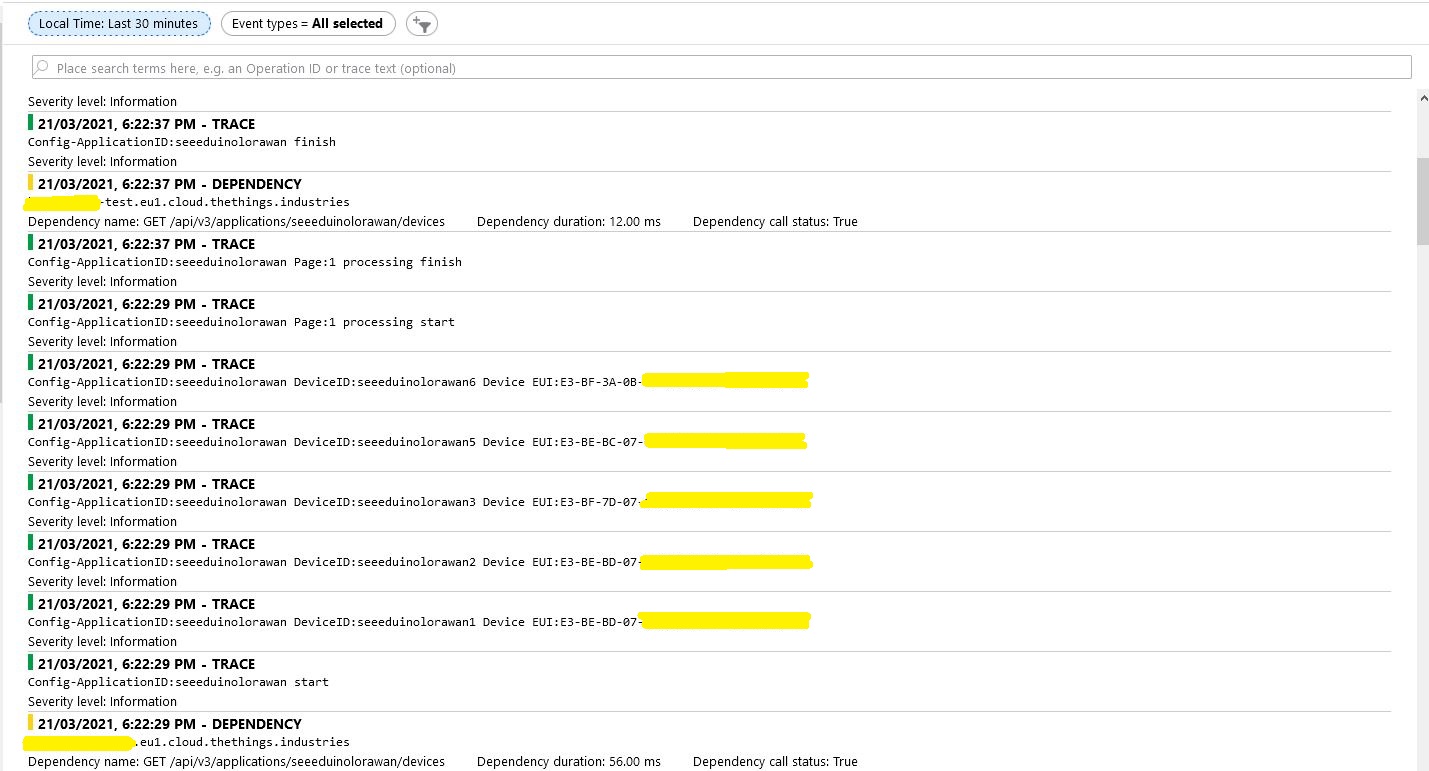
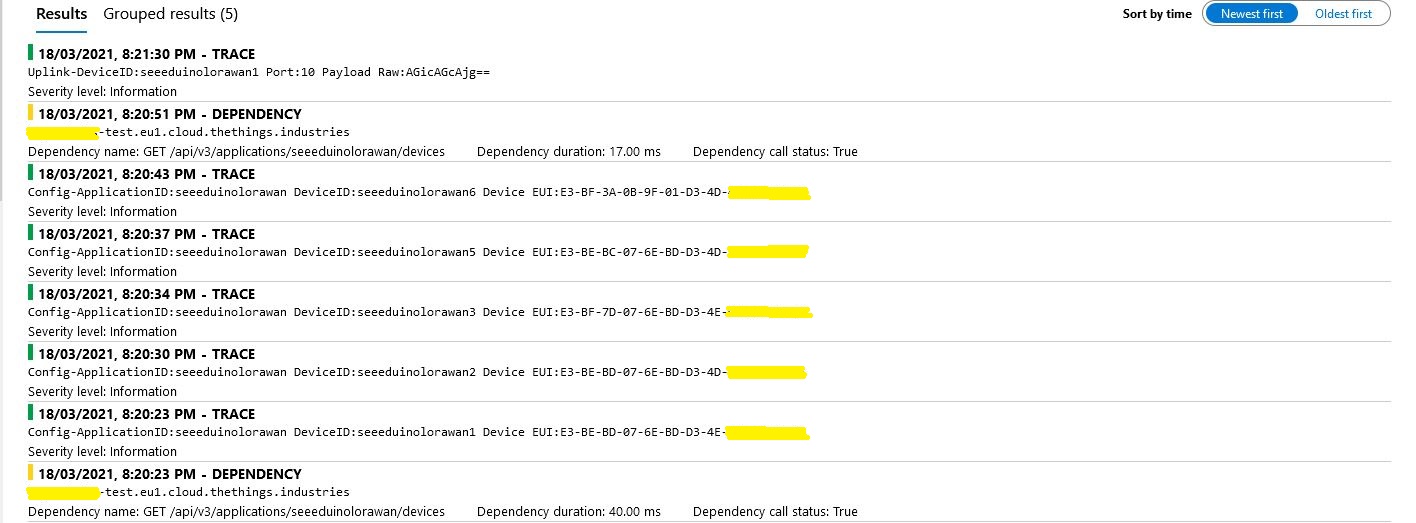
While debugging the connector on my desktop I had noticed that using a connection string was quite a bit faster than using DPS and I had assumed this was just happenstance. While doing some testing in the Azure North Europe data-center (Closer to TTI European servers) I grabbed some screen shots of the trace messages in Azure Application Insights as the TTI Connector Application was starting.
I only have six LoRaWAN devices configured in my TTI dev instance, but I repeated each test several times and the results were consistent so the request durations are reasonable. My TTI Connector application, IoT Hub, DPS and Application insights instances are all in the same Azure Region and Azure Resource Group so networking overheads shouldn’t be significant.
Using my own DPS instance to provide the connection string and then establishing a connection took between 3 and 7 seconds.
Azure IoT Central DPS
For my Azure IoT Central instance getting a connection string and establishing a connection took between 4 and 7 seconds.
The Azure DPS client code was copied from one of the sample applications so I have assumed it is “correct”.
using (var transport = new ProvisioningTransportHandlerAmqp(TransportFallbackType.TcpOnly))
{
	ProvisioningDeviceClient provClient = ProvisioningDeviceClient.Create(
		Constants.AzureDpsGlobalDeviceEndpoint,
		deviceProvisiongServiceSettings.IdScope,
		securityProvider,
		transport);

	DeviceRegistrationResult result;

	if (!string.IsNullOrEmpty(modelId))
	{
		ProvisioningRegistrationAdditionalData provisioningRegistrationAdditionalData = new ProvisioningRegistrationAdditionalData()
		{
			JsonData = $"{{"modelId": "{modelId}"}}"
		};

		result = await provClient.RegisterAsync(provisioningRegistrationAdditionalData, stoppingToken);
	}
	else
    {
		result = await provClient.RegisterAsync(stoppingToken);
	}

	if (result.Status != ProvisioningRegistrationStatusType.Assigned)
	{
		_logger.LogError("Config-DeviceID:{0} Status:{1} RegisterAsync failed ", deviceId, result.Status);

		return false;
	}

	IAuthenticationMethod authentication = new DeviceAuthenticationWithRegistrySymmetricKey(result.DeviceId, (securityProvider as SecurityProviderSymmetricKey).GetPrimaryKey());

	deviceClient = DeviceClient.Create(result.AssignedHub, authentication, transportSettings);
}
I need to investigate why getting a connection string from the DPS then connecting take significantly longer (I appreciate that “behind the scenes” service calls maybe required). This wouldn’t be an issue for individual devices connecting from different locations but for my Identity Translation Cloud gateway which currently open connections sequentially this could be a problem when there are a large number of devices.
If the individual requests duration can’t be reduced (using connection pooling etc.) I may have to spin up multiple threads so multiple devices can be connecting concurrently.
The first step was to configure and Azure IoT Central enrollment group (ensure “Automatically connect devices in this group” is on) and copy the IDScope and Group Enrollment key to the appsettings.json file (see sample file below for more detail)
At startup the TTI Gateway enumerates through the devices in each application configured in the app.settings.json. The Azure Device Provisioning Service(DPS) is used to retrieve each device’s connection string and configure it in Azure IoT Central if required.
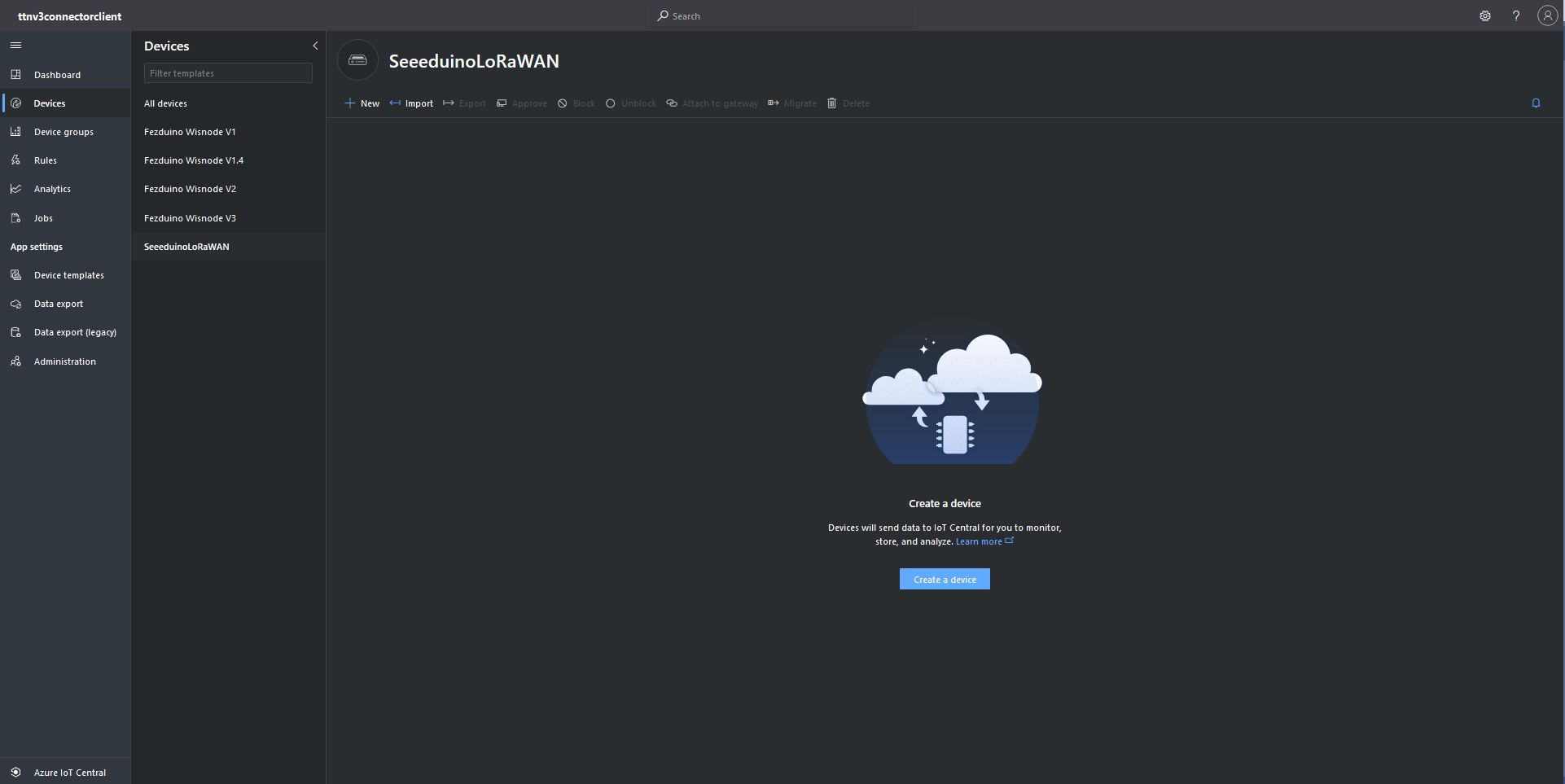
Azure IoT Central Device Group with no provisioned DevicesTTI Connector application connecting and provisioning EndDevices
Azure IoT Central devices mapped to an Azure IoT Central Template via the modelID
using (var transport = new ProvisioningTransportHandlerAmqp(TransportFallbackType.TcpOnly))
{
	ProvisioningDeviceClient provClient = ProvisioningDeviceClient.Create(
		Constants.AzureDpsGlobalDeviceEndpoint,
		deviceProvisiongServiceSettings.IdScope,
		securityProvider,
		transport);

	DeviceRegistrationResult result;

	if (!string.IsNullOrEmpty(modelId))
	{
		ProvisioningRegistrationAdditionalData provisioningRegistrationAdditionalData = new ProvisioningRegistrationAdditionalData()
		{
			JsonData = $"{{\"modelId\": \"{modelId}\"}}"
		};

		result = await provClient.RegisterAsync(provisioningRegistrationAdditionalData, stoppingToken);
	}
	else
    {
		result = await provClient.RegisterAsync(stoppingToken);
	}

	if (result.Status != ProvisioningRegistrationStatusType.Assigned)
	{
		_logger.LogError("Config-DeviceID:{0} Status:{1} RegisterAsync failed ", deviceId, result.Status);

		return false;
	}

	IAuthenticationMethod authentication = new DeviceAuthenticationWithRegistrySymmetricKey(result.DeviceId, (securityProvider as SecurityProviderSymmetricKey).GetPrimaryKey());

	deviceClient = DeviceClient.Create(result.AssignedHub, authentication, transportSettings);
}
My implementation was “inspired” by TemperatureController project in the PnP Device Samples.
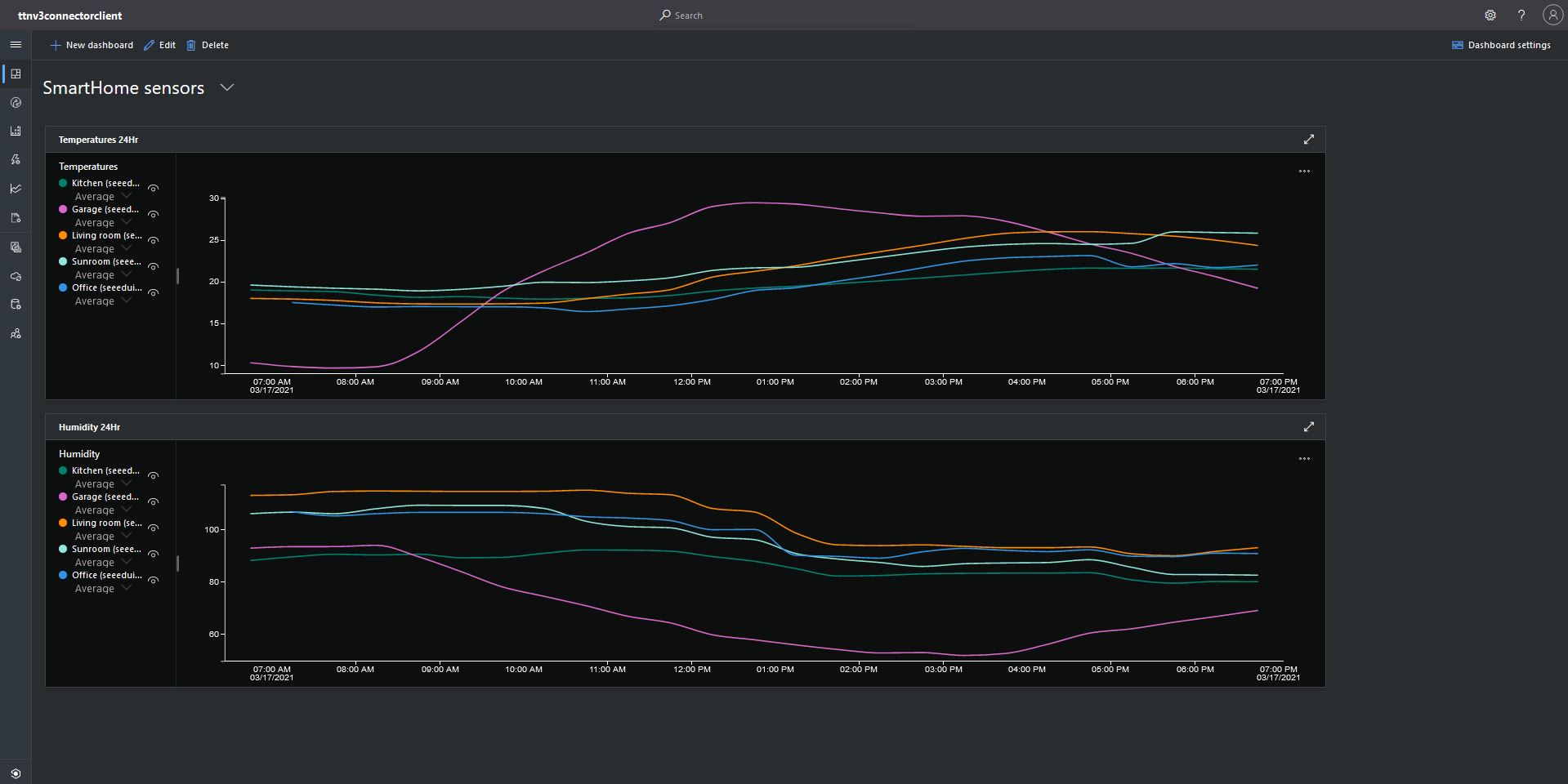
Azure IoT Central Dashboard with Seeeduino LoRaWAN devices around my house that were “automagically” provisioned
I need to do some testing to confirm my code works reliably with both DPS and user provided connection strings. The RegisterAsync call is currently taking about four seconds which could be an issue for TTI applications with many devices.
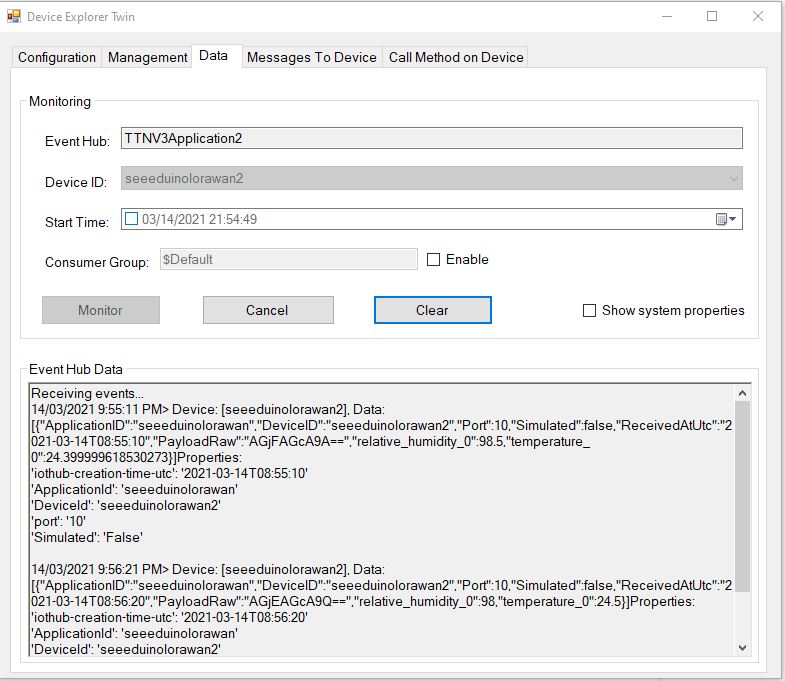
Device Twin Explorer displaying telemetry from one of the Seeeduino devices
My integration uses only queued messages as often they won’t be delivered to the sensor node immediately, especially if the sensor node only sends an uplink message every 30 minutes/hour/day.
The confirmed flag should be used with care as the Azure IoT Hub messages may expire before a delivery Ack/Nack/Failed is received from the TTI.
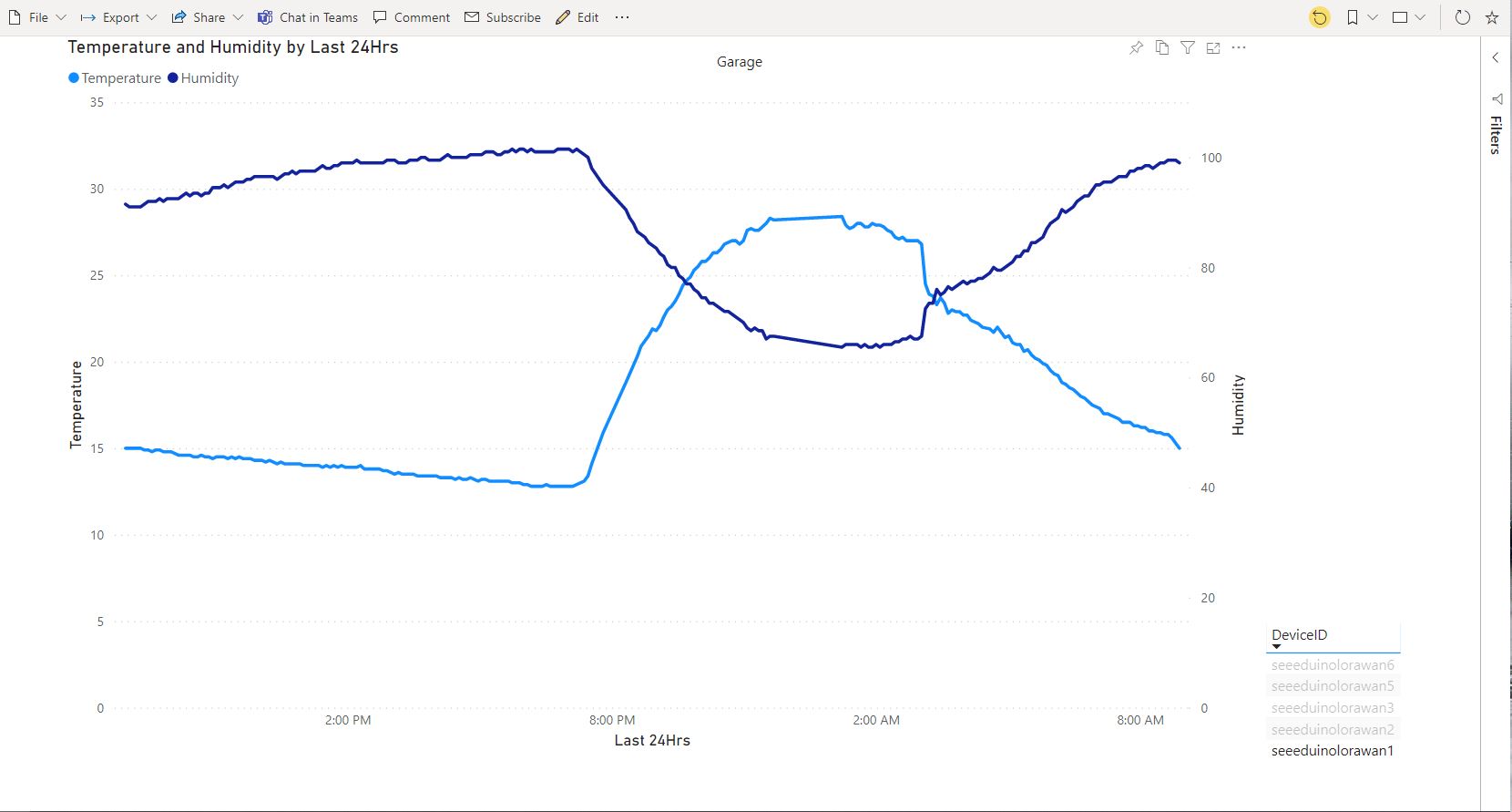
PowerBI graph of temperature and humidity in my garage over 24 hours
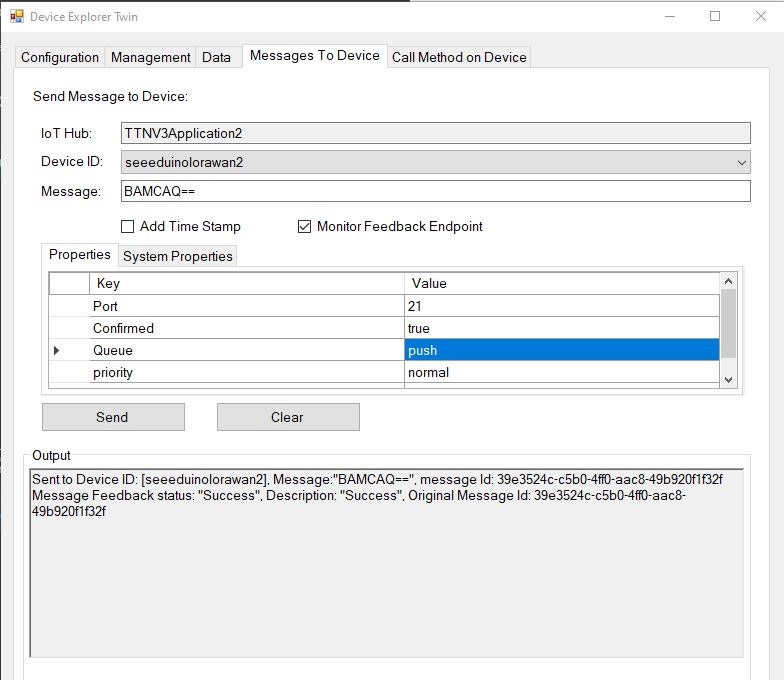
Device explorer displaying a raw payload message which has been confirmed delivered
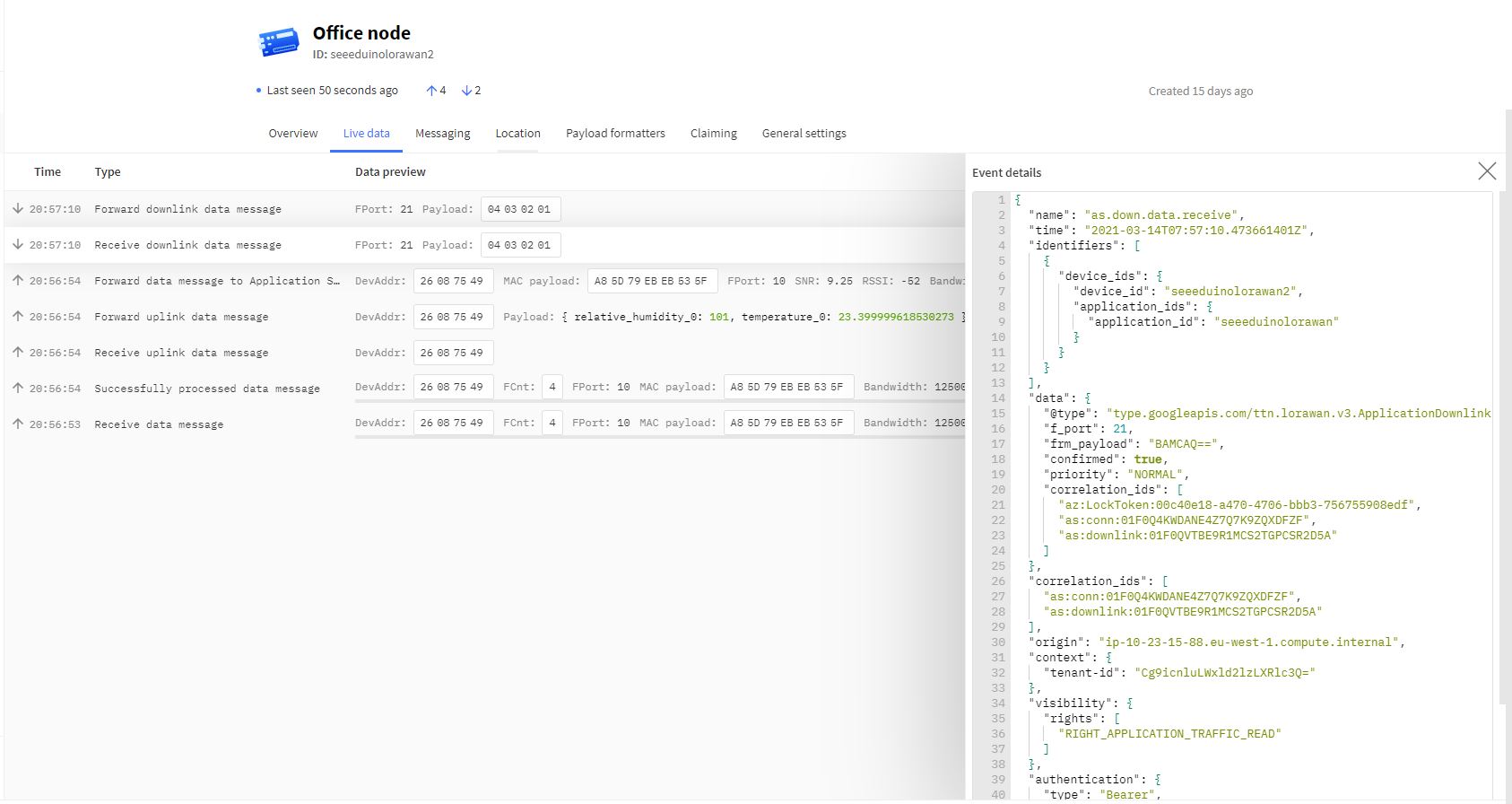
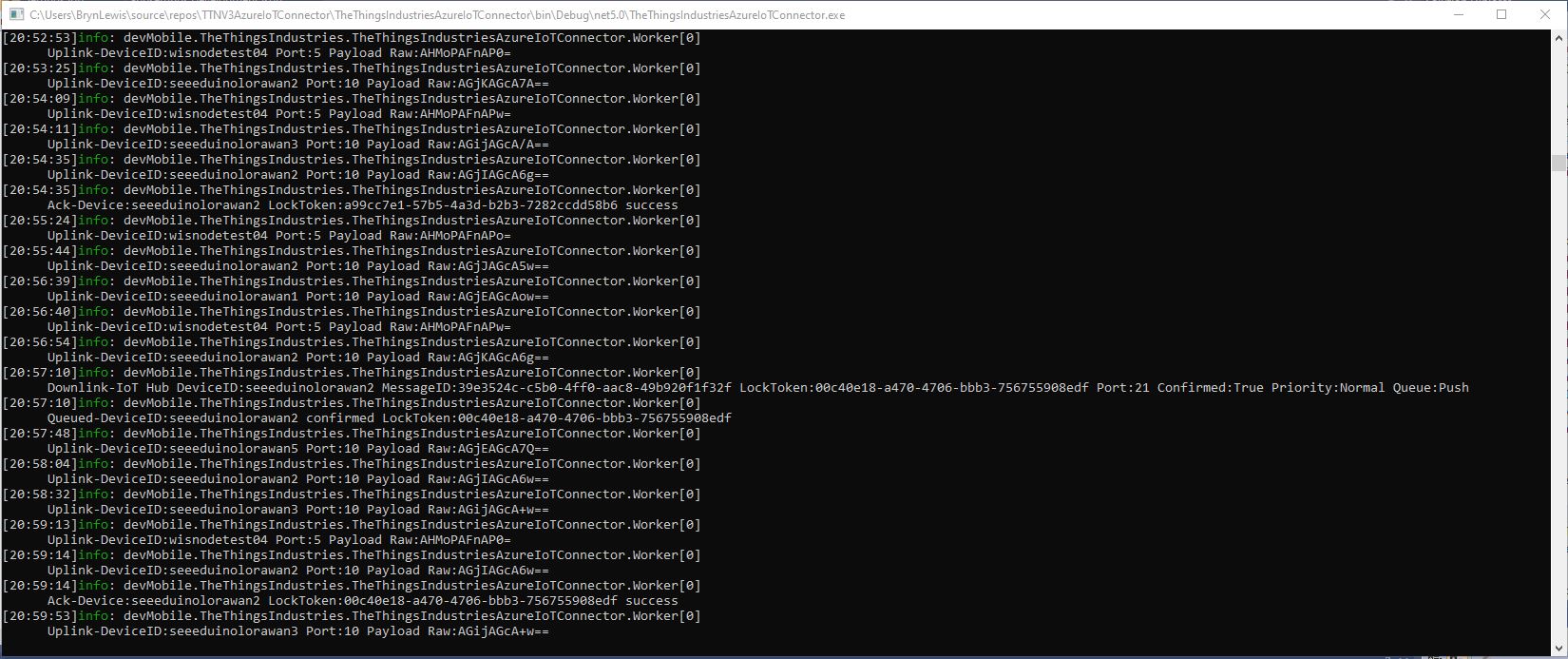
TTI device live data tab displaying raw payload in downlink message information tabAzure IoT Connector console application sending raw payload to sensor node with confirmation ack
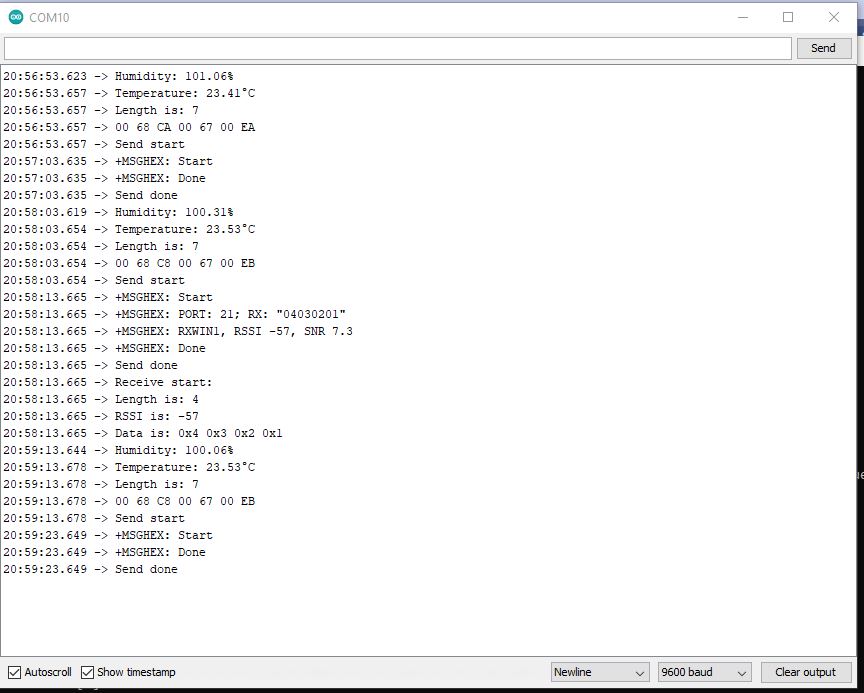
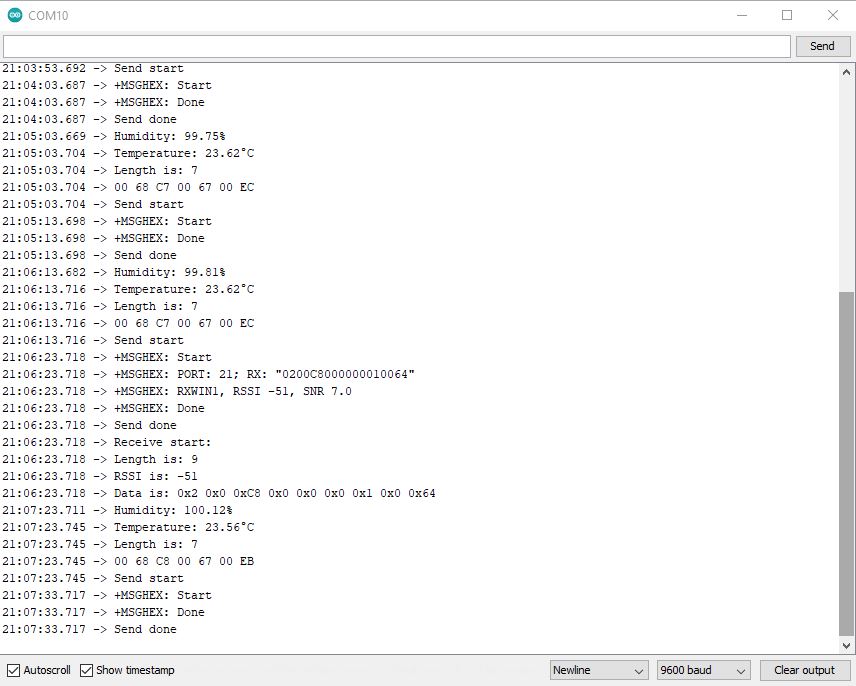
Arduino monitor displaying received raw payload from TTI
If the Azure IoT Hub message payload is valid JSON it is copied into the payload decoded downlink message property. and if it is not valid JSON it assumed to be a Base64 encoded value and copied into the payload raw downlink message property.
try
{
	// Split over multiple lines in an attempt to improve readability. A valid JSON string should start/end with {/} for an object or [/] for an array
	if (!(payloadText.StartsWith("{") && payloadText.EndsWith("}"))
										&&
		(!(payloadText.StartsWith("[") && payloadText.EndsWith("]"))))
	{
		throw new JsonReaderException();
	}

	downlink.PayloadDecoded = JToken.Parse(payloadText);
}
catch (JsonReaderException)
{
	downlink.PayloadRaw = payloadText;
}
Like the Azure IoT Central JSON validation I had to add a check that the string started with a “{” and finished with a “}” (a JSON object) or started with a “[” and finished with a “]” (a JSON array) as part of the validation process.
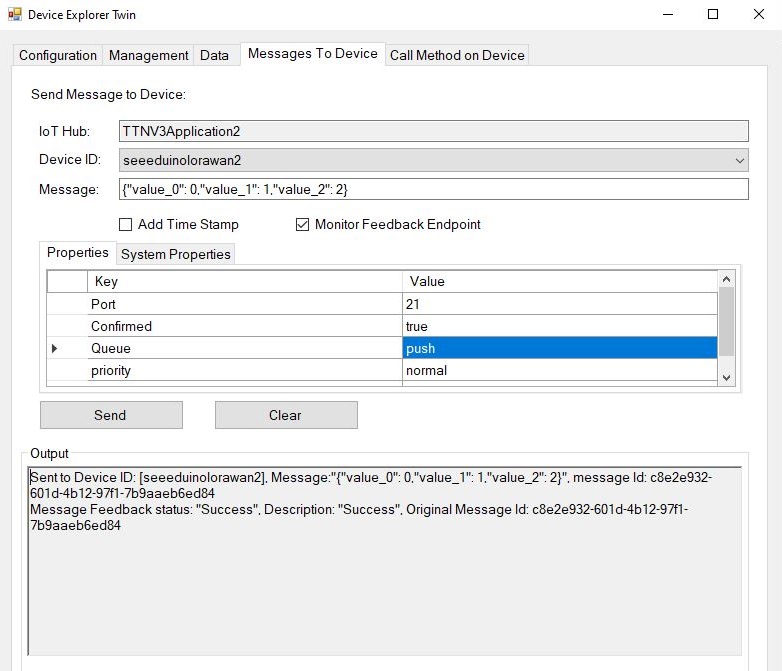
Device explorer displaying a JSON payload message which has been confirmed delivered
I normally wouldn’t use exceptions for flow control but I can’t see a better way of doing this.
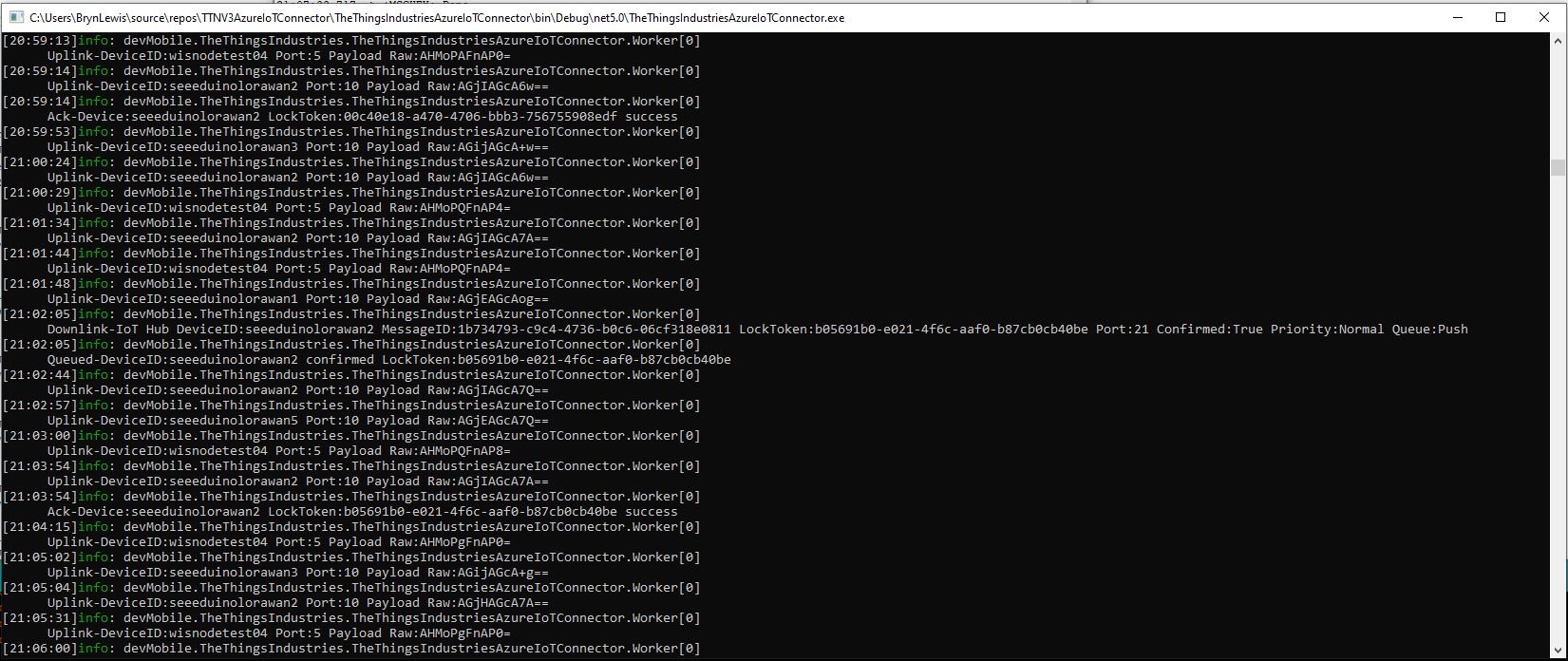
TTI device live data tab displaying JSON payload in downlink message information tabAzure IoT Connector console application sending JSON payload to sensor node with confirmation ackArduino monitor displaying received JSON payload from TTI
The build in TTI decoder only supports downlink decoded payloads with property names “value_0” through “value_x” custom encoders may support other property names.






 devMobile's blog