Mikrobus.Net Quail, Weather & nRF-C clicks and xively

My next proof of concept uses a Weather click and nRF C click to upload temperature and humidity data to a Xively gateway running on a spare Netduino 2 Plus. I have a couple of Azure Event hub gateways (direct & queued) which require a Netduino 3 Wifi (for TLS/AMQPS support) and I’ll build a client for them in a coming post.

I initially purchased an nRF T click but something wasn’t quite right with its interrupt output. The interrupt line wasn’t getting pulled low at all so there were no send success/failure events. If I disabled the pull up resistor and strobed the interrupt pin on start-up the device would work for a while.


using (OutputPort Int = new OutputPort(socket.Int, true))
{
 Int.Write(true);
};

...

_irqPin = new InterruptPort(socket.Int, false, Port.ResistorMode.Disabled, Port.InterruptMode.InterruptEdgeLow);

The code sends a reading every 10 seconds and has been running for a couple of days. It strobes Led1 for each successful send and turns on Led2 when a send fails.

private static readonly byte[] deviceAddress = Encoding.UTF8.GetBytes("Quail");
private static readonly byte[] gatewayAddress = Encoding.UTF8.GetBytes("12345");
private const byte gatewayChannel = 10;
private const NRFC.DataRate gatewayDataRate = NRFC.DataRate.DR1Mbps;
private const int XivelyUpdateDelay = 10000;
private const char XivelyGatewayChannelIdTemperature = 'J';
private const char XivelyGatewayChannelIdHumidity = 'K';

public static void Main()
{
   NRFC nRF24Click = new NRFC(Hardware.SocketFour);
   nRF24Click.Configure(deviceAddress, gatewayChannel, gatewayDataRate);
   nRF24Click.OnTransmitFailed += nRF24Click_OnTransmitFailed;
   nRF24Click.OnTransmitSuccess += nRF24Click_OnTransmitSuccess;
   nRF24Click.Enable();

   // Configure the weather click
   WeatherClick weatherClick = new WeatherClick(Hardware.SocketOne, WeatherClick.I2CAddresses.Address0);
   weatherClick.SetRecommendedMode(WeatherClick.RecommendedModes.WeatherMonitoring);

   Thread.Sleep(XivelyUpdateDelay);

   while (true)
   {
      string temperatureMessage = XivelyGatewayChannelIdTemperature + weatherClick.ReadTemperature().ToString("F1");
      Debug.Print(temperatureMessage);
      MBN.Hardware.Led1.Write(true);
      nRF24Click.SendTo(gatewayAddress, Encoding.UTF8.GetBytes(temperatureMessage));

      Thread.Sleep(XivelyUpdateDelay);

      string humidityMessage = XivelyGatewayChannelIdHumidity + weatherClick.ReadHumidity().ToString("F1");
      Debug.Print(humidityMessage);
      MBN.Hardware.Led1.Write(true);
      nRF24Click.SendTo(gatewayAddress, Encoding.UTF8.GetBytes(humidityMessage));

      Thread.Sleep(XivelyUpdateDelay);
   }
}

static void nRF24Click_OnTransmitSuccess()
{
   MBN.Hardware.Led1.Write(false);
   if (MBN.Hardware.Led2.Read())
   {
      MBN.Hardware.Led2.Write(false);
   }

   Debug.Print("nRF24Click_OnTransmitSuccess");
}

static void nRF24Click_OnTransmitFailed()
{
   MBN.Hardware.Led2.Write(true);

   Debug.Print("nRF24Click_OnTransmitFailed");
}

I need to have a look at interfacing some more sensors and soak testing the solution.

The MikroBus.Net team have done a great job with the number & quality of the drivers they have available.

Fez Lemur & Panda III AnalogInput read rates

I had previously have measured the AnalogInput read rate of my Netduino devices and was surprised by some of the numbers. Now, I have another project in the planning phase which will be using a GHI Electronics Fez Lemur or Fez Panda III device and had time for a quick test.

This is just a simple test, not terribly representative of real world just to get comparable numbers.

public static void Main()
{
   int value;
   AnalogInput x1 = new AnalogInput(FEZLemur.AnalogInput.A0);
   Stopwatch stopwatch = Stopwatch.StartNew();

   Debug.Print("Starting");

   stopwatch.Start();
   for (int i = 0; i < SampleCount; i++)
   {
      value = x1.ReadRaw();
   }
   stopwatch.Stop();

   Debug.Print("Duration = " + stopwatch.ElapsedMilliseconds.ToString() + " mSec " + (SampleCount * 1000 / stopwatch.ElapsedMilliseconds).ToString() + "/sec");
}

Fez Lemur 84 MHz CPU
Duration = 2855 mSec 35026/sec
Duration = 2854 mSec 35038/sec
Duration = 2861 mSec 34952/sec

Duration = 2856 mSec 35014/sec
Duration = 2854 mSec 35038/sec
Duration = 2855 mSec 35026/sec
Duration = 2854 mSec 35038/sec

Fez Panda III 180MHz CPU
Duration = 1799 mSec 55586/sec

Duration = 1799 mSec 55586/sec

It looks like the GHI Team have a performant implementation of AnalogInput.ReadRaw()

Mikrobus.Net Quail and EthClick

In my second batch of MikroElektronika Mikrobus clicks I had purchased an EthClick to explore the robustness and reliability of the Mikrobus.Net IP Stack.

My first trial application uses the Internet Chuck Norris database (ICNBD) to look up useful “facts” about the movie star.

public static void Main()
{
   EthClick ethClick = new EthClick(Hardware.SocketTwo);

   ethClick.Start(ethClick.GenerateUniqueMacAddress("devMobileSoftware"), "QuailDevice");

   while (true)
   {
      if (ethClick.ConnectedToInternet)
      {
         Debug.Print("Connected to Internet");
         break;
      }
   Debug.Print("Waiting on Internet connection");
   }

   while (true)
   {
      var r = new HttpRequest(@&amp;quot;http://api.icndb.com/jokes/random&amp;quot;);

      r.Headers.Add("Accept", "*/*");

      var response = r.Send();
      if (response != null)
      {
         if (response.Status == "HTTP/1.1 200 OK")
         {
            Debug.Print(response.Message);
         }

      }
      else
      {
         Debug.Print("No response");
      }
      Thread.Sleep(10000);
   }
}

The ran first time and returned the following text

7c
{ "type": "success, "value": { "id": 496, "joke": "Chuck Norris went out of an infinite loop.", "categories": ["nerdy"]}}
0

85
{ "type": "success", "value": { "id": 518, "joke": "Chuck Norris doesn't cheat death. He wins fair and square.", "categories": []}}
0

It looks like the HTTP response parsing is not quite right as each message starts with the length of the message in bytes in hex and the terminating “0”.

Mikrobus.Net Quail and ThumbStick Click

Back in June I purchased a MikroBus.Net Quail board and a selection of Mikro Elektronika click boards. After figuring out I had purchased a couple of click boards which didn’t have NetMF driver support, I placed another order (ensuring drivers available) which arrived just before Christmas.

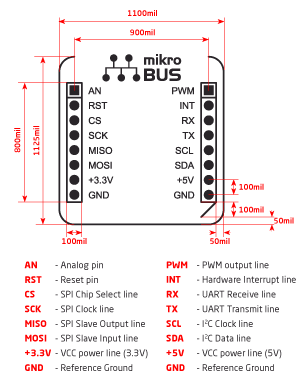
The mikroBUS connector standard has quite a different approach to my arduino style boards where the analog, digital, I2C , SPI and other functionality of the microcontroller are exposed on headers.

The mikroBUS standard specifies several different mechanical configurations (small, medium & large) for clicks and the connections available on the 16 pins (2 x 8 pin female headers).

mikrobus_pinout_thumb_b

This impacts on the way sensors are connected, for example with Arduino style devices there are shields with joysticks and buttons which are read using analog inputs and interrupt ports for the buttons

The mikroBus click boards only have one analog port so the x & y axis values of the joystick are read by an MCP3204 Analog to Digital convertor connected to the SPI Bus and the joystick button is connected to the interrupt port.

The microbus team have done a lot of work developing 60+ drivers and the ThumbStick driver was one of the first I downloaded. The interface provided by the driver is relatively straight forward to use

using MBN;
using MBN.Modules;
using Microsoft.SPOT;
using System.Threading;

namespace ThumbstickClickTestApp
{
   public class Program
   {
      public static void Main()
      {
         ThumbstickClick thumbStick = new ThumbstickClick(Hardware.SocketOne);

         thumbStick.ThumbstickOrientation = ThumbstickClick.Orientation.RotateZeroDegrees;
         thumbStick.ThumbstickPressed += thumbstickPressed;
         thumbStick.ThumbstickReleased += thumbstickReleased;
         thumbStick.Calibrate();

         while (true)
         {
            var position = thumbStick.GetPosition();

            Debug.Print("X,Y,IsPressed " + position.X.ToString("F1") + "," + position.Y.ToString("F1") + "," + thumbStick.IsPressed);

            Thread.Sleep(1000);
         }
      }

      static void thumbstickReleased(ThumbstickClick sender, ThumbstickClick.ButtonState state)
      {
         Debug.Print("Thumbstick Released");
      }

      static void thumbstickPressed(ThumbstickClick sender, ThumbstickClick.ButtonState state)
      {
         Debug.Print("Thumbstick Pressed");
      }
   }
}

From the diagnostics output window in Visual Studio
X,Y,IsPressed 0.0,0.0,False
Thumbstick Pressed
Thumbstick Released
X,Y,IsPressed 0.0,-0.0,False
Thumbstick Pressed
X,Y,IsPressed 0.0,1.0,True
Thumbstick Released
X,Y,IsPressed 0.0,0.0,False

Netduino 3 Wifi Queued Azure Event Hub Field Gateway V1.0

My ADSL connection had been a bit flaky which had meant I had lost some sensor data with my initial Azure Event Hub gateway. In attempt make the solution more robust this version of the gateway queues unsent messages using the on-board MicroSD card support.

The code assumes that a file move is an “atomic operation”, so it streams the events received from the devices into a temporary directory (configurable) then moves them to the upload directory (configurable).

This code is proof of concept and needs to be soak tested, improved error handling and some additional multi threading locking added plus the magic constants refactored.

This code is called in the nRF24 receive messages handler

private void OnReceive(byte[] data)
{
   activityLed.Write(!activityLed.Read());

   // Ensure that we have a payload
   if (data.Length < 1 )
   {
      Debug.Print( "ERROR - Message has no payload" ) ;
      return ;
   }

   string message = new String(Encoding.UTF8.GetChars(data));
   Debug.Print("+" + DateTime.UtcNow.ToString("HH:mm:ss") + " L=" + data.Length + " M=" + message);

   string filename = DateTime.UtcNow.ToString("yyyyMMddhhmmssff") + ".txt";

   string tempDirectory = Path.Combine("\\sd", "temp");
   string tempFilePath = Path.Combine(tempDirectory, filename);

   string queueDirectory = Path.Combine("\\sd", "data");
   string queueFilePath = Path.Combine(queueDirectory, filename);

   File.WriteAllBytes(tempFilePath, data);

   File.Move(tempFilePath, queueFilePath);

   new Microsoft.SPOT.IO.VolumeInfo("\\sd").FlushAll();
}

A timer initiates the upload process which uses the AMQPNetlite library

bool UploadInProgress = false;

      
void uploaderCallback(object state)
{
   Debug.Print("uploaderCallback - start");

   if (UploadInProgress)
   {
      return;
   }
   UploadInProgress = true;

   string[] eventFilesToSend = Directory.GetFiles(Path.Combine("\\sd", "data")) ;

   if ( eventFilesToSend.Length == 0 )
   {
      Debug.Print("uploaderCallback - no files");
      UploadInProgress = false;
      return ;
   }

   try
   {
      Debug.Print("uploaderCallback - Connect");
      Connection connection = new Connection(new Address(serviceBusHost, serviceBusPort, serviceBusSasKeyName, serviceBusSasKey));

      Session session = new Session(connection);

      SenderLink sender = new SenderLink(session, "send-link", eventHubName);

      for (int index = 0; index < System.Math.Min(eventUploadBatchSizeMaximum, eventFilesToSend.Length); index++)
      {
         string eventFile = eventFilesToSend[ index ] ;

         Debug.Print("-" + DateTime.UtcNow.ToString("HH:mm:ss") + " " + eventFile ); ;

         Message message = new Message()
         {
            BodySection = new Data()
            {
               Binary = File.ReadAllBytes(eventFile),
            },
         ApplicationProperties = new Amqp.Framing.ApplicationProperties(),
         };

         FileInfo fileInfo = new FileInfo(eventFile);

         message.ApplicationProperties["AcquiredAtUtc"] = fileInfo.CreationTimeUtc;
         message.ApplicationProperties["UploadedAtUtc"] = DateTime.UtcNow;
         message.ApplicationProperties["GatewayId"] = gatewayId;
         message.ApplicationProperties["DeviceId"] = deviceId;
         message.ApplicationProperties["EventId"] = Guid.NewGuid();

         sender.Send(message);

         File.Delete(eventFile);

         new Microsoft.SPOT.IO.VolumeInfo("\\sd").FlushAll();
      }

      sender.Close();
      session.Close();
      connection.Close();
   }
   catch (Exception ex)
   {
      Debug.Print("ERROR: Upload failed with error: " + ex.Message);
   }
   finally
   {
      Debug.Print("uploaderCallback - finally");
      UploadInProgress = false;
   }
}

The timer period and number of files uploaded in each batch is configurable. I need to test the application to see how it handles power outages and MicroSD card corruption. The source is Netduino NRF24L01 AMQPNetLite Queued Azure EventHub Gatewaywith all the usual caveats.

This project wouldn’t have been possible without

Netduino 3 Wifi pollution Sensor Part 2

In a previous post I had started building a driver for the Seeedstudio Grove Dust Sensor. It was a proof of concept and it didn’t handle some edge cases well.

While building the pollution monitor with a student we started by simulating the negative occupancy of the Shinyei PPD42NJ Particle sensor with the Netduino’s on-board button. This worked and reduced initial complexity. But it also made it harder to simulate the button being pressed as the program launches (the on-board button is also the reset button), or simulate if the button was pressed at the start or end of the period.
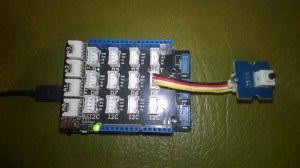
Dust sensor simulation with button

Netduino 3 Wifi Test Harness

The first sample code processes button press interrupts and displays the values of the data1 & data2 parameters

public class Program
{
   public static void Main()
   {
      InterruptPort button = new InterruptPort(Pins.GPIO_PIN_D5, false, Port.ResistorMode.Disabled, Port.InterruptMode.InterruptEdgeBoth);
      button.OnInterrupt += button_OnInterrupt;

      Thread.Sleep(Timeout.Infinite);
   }

   static void button_OnInterrupt(uint data1, uint data2, DateTime time)
   {
      Debug.Print(time.ToString("hh:mm:ss.fff") + " data1 =" + data1.ToString() + " data2 = " + data2.ToString());
   }
}

Using the debugging output from this application we worked out that data1 was the Microcontroller Pin number and data2 was the button state.

12:00:14.389 data1 =24 data2 = 0
12:00:14.389 data1 =24 data2 = 1
12:00:14.389 data1 =24 data2 = 0
12:00:15.851 data1 =24 data2 = 1
12:00:16.078 data1 =24 data2 = 0

We then extended the code to record the duration of each button press.

public class Program
{
   static DateTime buttonLastPressedAtUtc = DateTime.UtcNow;

   public static void Main()
   {
      InterruptPort button = new InterruptPort(Pins.ONBOARD_BTN, false, Port.ResistorMode.Disabled, Port.InterruptMode.InterruptEdgeBoth);
      button.OnInterrupt += button_OnInterrupt;

      Thread.Sleep(Timeout.Infinite);
   }

   static void button_OnInterrupt(uint data1, uint data2, DateTime time)
   {
      if (data2 == 0)
      {
         TimeSpan duration = time - buttonLastPressedAtUtc;

         Debug.Print(duration.ToString());
      }
      else
      {
         buttonLastPressedAtUtc = time;
      }
   }
}

The thread ” (0x4) has exited with code 0 (0x0).
00:00:00.2031790
00:00:00.1954150
00:00:00.1962350

The next step was to keep track of the total duration of the button presses since the program started executing.

public class Program
{
   static DateTime buttonLastPressedAtUtc = DateTime.UtcNow;
   static TimeSpan buttonPressedDurationTotal;

   public static void Main()
   {
      InterruptPort button = new InterruptPort(Pins.ONBOARD_BTN, false, Port.ResistorMode.Disabled, Port.InterruptMode.InterruptEdgeBoth);
      button.OnInterrupt += button_OnInterrupt;

      Thread.Sleep(Timeout.Infinite);
   }

   static void button_OnInterrupt(uint data1, uint data2, DateTime time)
   {
      if (data2 == 0)
      {
         TimeSpan duration = time - buttonLastPressedAtUtc;

         buttonPressedDurationTotal += duration;
          Debug.Print(duration.ToString() + " " + buttonPressedDurationTotal.ToString());
      }
      else
      {
         buttonLastPressedAtUtc = time;
      }
   }
}

The thread ” (0x4) has exited with code 0 (0x0).
00:00:00.2476460 00:00:00.2476460
00:00:00.2193600 00:00:00.4670060
00:00:00.2631400 00:00:00.7301460
00:00:00.0001870 00:00:00.7303330

We then added a timer to display the amount of time the button was pressed in the configured period.

public class Program
{
   static TimeSpan measurementDueTime = new TimeSpan(0, 0, 30);
   static TimeSpan measurementperiodTime = new TimeSpan(0, 0, 30);
   static DateTime buttonLastPressedAtUtc = DateTime.UtcNow;
   static TimeSpan buttonPressedDurationTotal;


   public static void Main()
   {
      InterruptPort button = new InterruptPort(Pins.GPIO_PIN_D5, false, Port.ResistorMode.Disabled, Port.InterruptMode.InterruptEdgeBoth);
      button.OnInterrupt += button_OnInterrupt;

      Timer periodTimer = new Timer(periodTimerProc, button, measurementDueTime, measurementperiodTime);

      Thread.Sleep(Timeout.Infinite);
   }

   static void periodTimerProc(object status)
   {
      InterruptPort button = (InterruptPort)status;

      if (button.Read())
      {
         TimeSpan duration = DateTime.UtcNow - buttonLastPressedAtUtc;

         buttonPressedDurationTotal += duration; 
      }

      Debug.Print(buttonPressedDurationTotal.ToString());

      buttonPressedDurationTotal = new TimeSpan(0, 0, 0);
      buttonLastPressedAtUtc = DateTime.UtcNow;
   }

   static void button_OnInterrupt(uint data1, uint data2, DateTime time)
   {
      if (data2 == 0)
      {
         TimeSpan duration = time - buttonLastPressedAtUtc;

         buttonPressedDurationTotal += duration;

         Debug.Print(duration.ToString() + " " + buttonPressedDurationTotal.ToString());
      }
      else
      {
         buttonLastPressedAtUtc = time;
      }
   }
}

The thread ” (0x4) has exited with code 0 (0x0).
00:00:00
00:00:00
00:00:00.2299050 00:00:00.2299050
00:00:00.1956980 00:00:00.4256030
00:00:00.1693190 00:00:00.5949220
00:00:00.5949220

After some testing we identified that the handling of button presses at the period boundaries was problematic and revised the code some more. We added a timer for the startup period to simplify the interrupt handling code.

public class Program
{
   static TimeSpan measurementDueTime = new TimeSpan(0, 0, 60);
   static TimeSpan measurementperiodTime = new TimeSpan(0, 0, 30);
   static DateTime buttonLastPressedAtUtc = DateTime.UtcNow;
   static TimeSpan buttonPressedDurationTotal;

   public static void Main()
   {
      InterruptPort button = new InterruptPort(Pins.GPIO_PIN_D5, false, Port.ResistorMode.Disabled, Port.InterruptMode.InterruptEdgeBoth);
      button.OnInterrupt += button_OnInterrupt;

      Timer periodTimer = new Timer(periodTimerProc, button, Timeout.Infinite, Timeout.Infinite);

      Timer startUpTImer = new Timer(startUpTimerProc, periodTimer, measurementDueTime.Milliseconds, Timeout.Infinite);

      Thread.Sleep(Timeout.Infinite);
   }

   static void startUpTimerProc(object status)
   {
      Timer periodTimer = (Timer)status;

      Debug.Print( DateTime.UtcNow.ToString("hh:mm:ss") + " -Startup complete");

      buttonLastPressedAtUtc = DateTime.UtcNow;
      periodTimer.Change(measurementDueTime, measurementperiodTime);
   }

   static void periodTimerProc(object status)
   {
      InterruptPort button = (InterruptPort)status;
      Debug.Print(DateTime.UtcNow.ToString("hh:mm:ss") + " -Period timer");

      if (button.Read())
      {
         TimeSpan duration = DateTime.UtcNow - buttonLastPressedAtUtc;

         buttonPressedDurationTotal += duration;
      }

      Debug.Print(buttonPressedDurationTotal.ToString());

      buttonPressedDurationTotal = new TimeSpan(0, 0, 0);
      buttonLastPressedAtUtc = DateTime.UtcNow;
   }

   static void button_OnInterrupt(uint data1, uint data2, DateTime time)
   {
      Debug.Print(DateTime.UtcNow.ToString("hh:mm:ss") + " -OnInterrupt");

      if (data2 == 0)
      {
         TimeSpan duration = time - buttonLastPressedAtUtc;

         buttonPressedDurationTotal += duration;

         Debug.Print(duration.ToString() + " " + buttonPressedDurationTotal.ToString());
      }
      else
      {
         buttonLastPressedAtUtc = time;
      }
   }
}

The debugging output looked positive, but more testing is required.

The thread ” (0x2) has exited with code 0 (0x0).
12:00:13 -Startup complete
12:01:13 -Period timer
00:00:00
12:01:43 -Period timer
00:00:00
12:01:46 -OnInterrupt
12:01:48 -OnInterrupt
00:00:01.2132510 00:00:01.2132510
12:01:49 -OnInterrupt
12:01:50 -OnInterrupt
00:00:01.3001240 00:00:02.5133750
12:01:53 -OnInterrupt
12:01:54 -OnInterrupt
00:00:01.1216510 00:00:03.6350260
12:02:13 -Period timer
00:00:03.6350260

Next steps – multi threading, extract code into a device driver and extend to support sensors like the SeeedStudio Smart dust Sensor which has two digital outputs, one for small particles (e.g. smoke) the other for larger particles (e.g. dust).
Netduino 3 Wifi pollution Sensor Part 1

I am working on a Netduino 3 Wifi based version for my original concept as a STEM project for high school students. I wanted to be able to upload data to a Microsoft Azure Eventhub or other HTTPS secured RESTful endpoint (e.g. xivelyIOT) to show how to build a securable solution. This meant a Netduino 3 Wifi device with the TI C3100 which does all the crypto processing was necessary.

The aim was to (over a number of blog posts) build a plug ‘n play box that initially was for measuring airborne particulates and then overtime add more sensors e.g. atmospheric gas concentrations, (Grove multichannel gas sensor), an accelerometer for earthquake early warning/monitoring (Grove 3-Axis Digital Accelerometer) etc.

Netduino 3 Wifi based pollution sensor

Bill of materials for prototype as at (October 2015)

  • Netduino 3 Wifi USD69.95
  • Seeedstudio Grove base shield V2 USD8.90
  • Seeedstudio Grove smart dust sensor USD16.95
  • Seeedstudio Grove Temperature & Humidity Sensor pro USD14.90
  • Seeedstudio ABS outdoor waterproof case USD1.65
  • Seeedstudio Grove 4 pin female to Grove 4 pin conversion cable USD3.90
  • Seeedstudio Grove 4 pin buckled 5CM cabed USD1.90

After the first assembly I have realised the box is a bit small. There is not a lot of clearance around the Netduino board (largely due to the go!bus connectors on the end making it a bit larger than a standard *duino board) and the space for additional sensors is limited so I will need to source a larger enclosure.

The dust sensor doesn’t come with a cable so I used the conversion cable instead. NOTE – The pins on the sensor are numbered right->Left rather than left->right.

The first step is to get the temperature and humidity sensor working with my driver code, then adapt the Seeedstudio Grove-Dust sensor code for the dual outputs of the SM-PWM-01 device.

According to the SM-PWM-01A device datasheet The P1 output is for small particles < 1uM (smoke) and P2 output is for large particles > 2uM (dust). The temperature & humidity sensor is included in the first iteration as other researchers have indicated that humidity levels can impact on the accuracy of optical particle counters.

Then, once the sensors are working as expected I will integrate a cut back version of the AMQPNetLite code and configuration storage code I wrote for my Netduino 3 wifi Azure EventHub Field Gateway.

Netduino Silicon Labs Si7005 Device Driver

A while back I wrote a post about some problems I was having with a Silicon Labs Si7005 device and now I have had some time to package up the code.

My code strobes the I2C SDA line and then initiates a request that will always fail, from there on everything works as expected.

public SiliconLabsSI7005(byte deviceId = DeviceIdDefault, int clockRateKHz = ClockRateKHzDefault, int transactionTimeoutmSec = TransactionTimeoutmSecDefault)
{
   this.deviceId = deviceId;
   this.clockRateKHz = clockRateKHz;
   this.transactionTimeoutmSec = transactionTimeoutmSec;

   using (OutputPort i2cPort = new OutputPort(Pins.GPIO_PIN_SDA, true))
   {
      i2cPort.Write(false);
      Thread.Sleep(250);
   }

   using (I2CDevice device = new I2CDevice(new I2CDevice.Configuration(deviceId, clockRateKHz)))
   {
      byte[] writeBuffer = { RegisterIdDeviceId };
      byte[] readBuffer = new byte[1];

      // The first request always fails
      I2CDevice.I2CTransaction[] action = new I2CDevice.I2CTransaction[] 
      { 
         I2CDevice.CreateWriteTransaction(writeBuffer),
         I2CDevice.CreateReadTransaction(readBuffer)
      };

      if( device.Execute(action, transactionTimeoutmSec) == 0 )
      {
         //   throw new ApplicationException("Unable to send get device id command");
      }
   }
}

This is how the driver should be used in an application

public static void Main()
{
   SiliconLabsSI7005 sensor = new SiliconLabsSI7005();

   while (true)
   {
      double temperature = sensor.Temperature();

      double humidity = sensor.Humidity();

      Debug.Print("T:" + temperature.ToString("F1") + " H:" + humidity.ToString("F1"));

      Thread.Sleep(5000);
      }
   }

I have added code to catch failures and there is a sample application in the project. For a project I’m working on I will modify the code to use one of the I2C sharing libraries so I can have a number of devices on the bus

My first AzureSBLite program

Extending on the theme for my previous post I decided to take a look at Azure ServiceBus Lite by Paolo Patierno. Same objective as last time, a minimalist application running on my Netduino 3 Wifi which connects to my home wifi, waits for an IP address then uploads an event to an Azure EventHub.

public class Program
{
   private const string connectionString = "Endpoint=sb://[YourNamespace].servicebus.windows.net/;SharedAccessKeyName=[YourKeyName];SharedAccessKey=[YourSaSKey]";
   private const string eventHub = "[YourEventHub]";

...

// Wait for Network address if DHCP
NetworkInterface networkInterface = NetworkInterface.GetAllNetworkInterfaces()[0];
if (networkInterface.IsDhcpEnabled)
{
   Debug.Print(" Waiting for IP address ");

   while (NetworkInterface.GetAllNetworkInterfaces()[0].IPAddress == IPAddress.Any.ToString())
   {
      Debug.Print(".");
   }
}

// Display network config for debugging
Debug.Print("Network configuration");
Debug.Print(" Network interface type: " + networkInterface.NetworkInterfaceType.ToString());
Debug.Print(" MAC Address: " + BytesToHexString(networkInterface.PhysicalAddress));
Debug.Print(" DHCP enabled: " + networkInterface.IsDhcpEnabled.ToString());
Debug.Print(" Dynamic DNS enabled: " + networkInterface.IsDynamicDnsEnabled.ToString());
Debug.Print(" IP Address: " + networkInterface.IPAddress.ToString());
Debug.Print(" Subnet Mask: " + networkInterface.SubnetMask.ToString());
Debug.Print(" Gateway: " + networkInterface.GatewayAddress.ToString());

foreach (string dnsAddress in networkInterface.DnsAddresses)
{
   Debug.Print(" DNS Server: " + dnsAddress.ToString());
}

string deviceId = BytesToHexString(networkInterface.PhysicalAddress);
Debug.Print("DeviceId " + deviceId.ToString());

A bit less code is required to send an event using AzureSBLite

try
{
   MessagingFactory factory = MessagingFactory.CreateFromConnectionString(connectionString);

   EventHubClient client = factory.CreateEventHubClient(eventHub);

   string messageBody = @"{""DeviceId"":""" + deviceId + @""",""Time"":""" + DateTime.Now.ToString("yy-MM-dd hh:mm:ss") + @"""}";
   EventData data = new EventData(Encoding.UTF8.GetBytes(messageBody));

   //EventData data = new EventData();
   //data.Properties.Add("Time", DateTime.Now);
   //data.Properties.Add("DeviceId", deviceId);

   client.Send(data);
   client.Close();

   factory.Close();
}
catch (Exception ex)
{
   Debug.Print("ERROR: Send failed with error: " + ex.Message);
}

Over all, a very similar experience to “MyFirst AMQPNetLite” program, after a couple of typos, and fixing a copy ‘n’ paste issue with the connection string my application worked, with the bonus of less code. Both AMQPNetLite and AzureSBLite look suitable for my application so I’ll need to evaluate them in more detail.

My first AMQPNetLite program

After having some problems with my Netduino 3 wifi Azure Event Hub client code (which are most probably due to the issues discussed here) I decided to have a look at AMQPNetLite which had been suggested by Paolo Patierno in a response to one of my posts in the Netduino forums.

I usually create a “minimalist” project so I can figure out how a new library works without an domain specific code getting in the way. Overall, my first experience was pretty positive, the code compiled first time, ran second time and worked third time.

The objective for my first AMQPNetLite application running on my Netduino 3 Wifi was to connect to my home wifi, wait for an IP address then upload an event to an Azure EventHub

private const int amqpPortNumber = 5671;
private const string sbNamespace = "ServiceBus Namespace";
private const string keyName = "SaS Key name";
private const string keyValue = "SaS Key value";
private const string eventHub = "EventHub name";

...

// Wait for Network address if DHCP
NetworkInterface networkInterface = NetworkInterface.GetAllNetworkInterfaces()[0];
if (networkInterface.IsDhcpEnabled)
{
   Debug.Print(" Waiting for IP address ");

   while (NetworkInterface.GetAllNetworkInterfaces()[0].IPAddress == IPAddress.Any.ToString())
   {
      Debug.Print(".");
   }
}

// Display network config for debugging
Debug.Print("Network configuration");
Debug.Print(" Network interface type: " + networkInterface.NetworkInterfaceType.ToString());
Debug.Print(" MAC Address: " + BytesToHexString(networkInterface.PhysicalAddress));
Debug.Print(" DHCP enabled: " + networkInterface.IsDhcpEnabled.ToString());
Debug.Print(" Dynamic DNS enabled: " + networkInterface.IsDynamicDnsEnabled.ToString());
Debug.Print(" IP Address: " + networkInterface.IPAddress.ToString());
Debug.Print(" Subnet Mask: " + networkInterface.SubnetMask.ToString());
Debug.Print(" Gateway: " + networkInterface.GatewayAddress.ToString());

foreach (string dnsAddress in networkInterface.DnsAddresses)
{
   Debug.Print(" DNS Server: " + dnsAddress.ToString());
}

string deviceId = BytesToHexString(networkInterface.PhysicalAddress);
Debug.Print("DeviceId " + deviceId.ToString());

Then I constructed the AMQP address for the event hub, started an AMQP session and sent the message. I tried sending a message with a JSON payload and also using the “type safe” application properties.

try
{
   Address address = new Address(sbNamespace, amqpPortNumber, keyName, keyValue);
   Connection connection = new Connection(address);

   Session session = new Session(connection);

   SenderLink sender = new SenderLink(session, "send-link", eventHub);

   string messageBody = @"{""DeviceId"":""" + deviceId + @""",""Time"":""" + DateTime.Now.ToString("yy-MM-dd hh:mm:ss") + @"""}";

   Message message = new Message()
   {
      //BodySection = new Data() { Binary = Encoding.UTF8.GetBytes(messageBody)},
      ApplicationProperties = new Amqp.Framing.ApplicationProperties(),
   };

   message.ApplicationProperties["Time"] = DateTime.Now;
   message.ApplicationProperties["DeviceId"] = deviceId;

   sender.Send(message);

   sender.Close();
   session.Close();
   connection.Close();
}
catch (Exception ex)
{
   Debug.Print("ERROR: Publish failed with error: " + ex.Message);
}

For my scenario I was pleasantly surprised how easy it was to get working.

AMQP has a non TLS option (only for non sensitive data) and if this is supported I could use a device like a Netduino 3 Ethernet which don’t have baked in TLS support.