Netduino Crazyflie Wii Nunchuk Remote Control V1.0

After flying the Crazyflie for a couple of days with the Joystick shield based remote control I figured an alternate user interface based on a Wii Nunchuk could be interesting. (It might also make the Crazyflie easier to operate for novice pilots). After a couple of hours coding I have a proof of concept Netduino based Crazyflie Nanocopter Wii Nunchck remote control unit.

Initially the nanocopter was difficult to fly, bouncing up and down (thrust control issues) and swaying side to side (roll & pitch control issues). After some digging I found that every so often the Wii nunchuk (my cheap clone) would return a buffer full of 0xFF or 0x00 bytes.  The 0xFF case had been handled but not the 0x00 one. I added a second test into the GetData  method (around line 335) to catch the 0x00 scenario and this appeared to fix the problem.

cnt = 0;
for (int i = 0; i < inputBuffer.Length; i++)
   if (inputBuffer[i] == 0x0) cnt++;
if (cnt == inputBuffer.Length)
{
   return false;
}
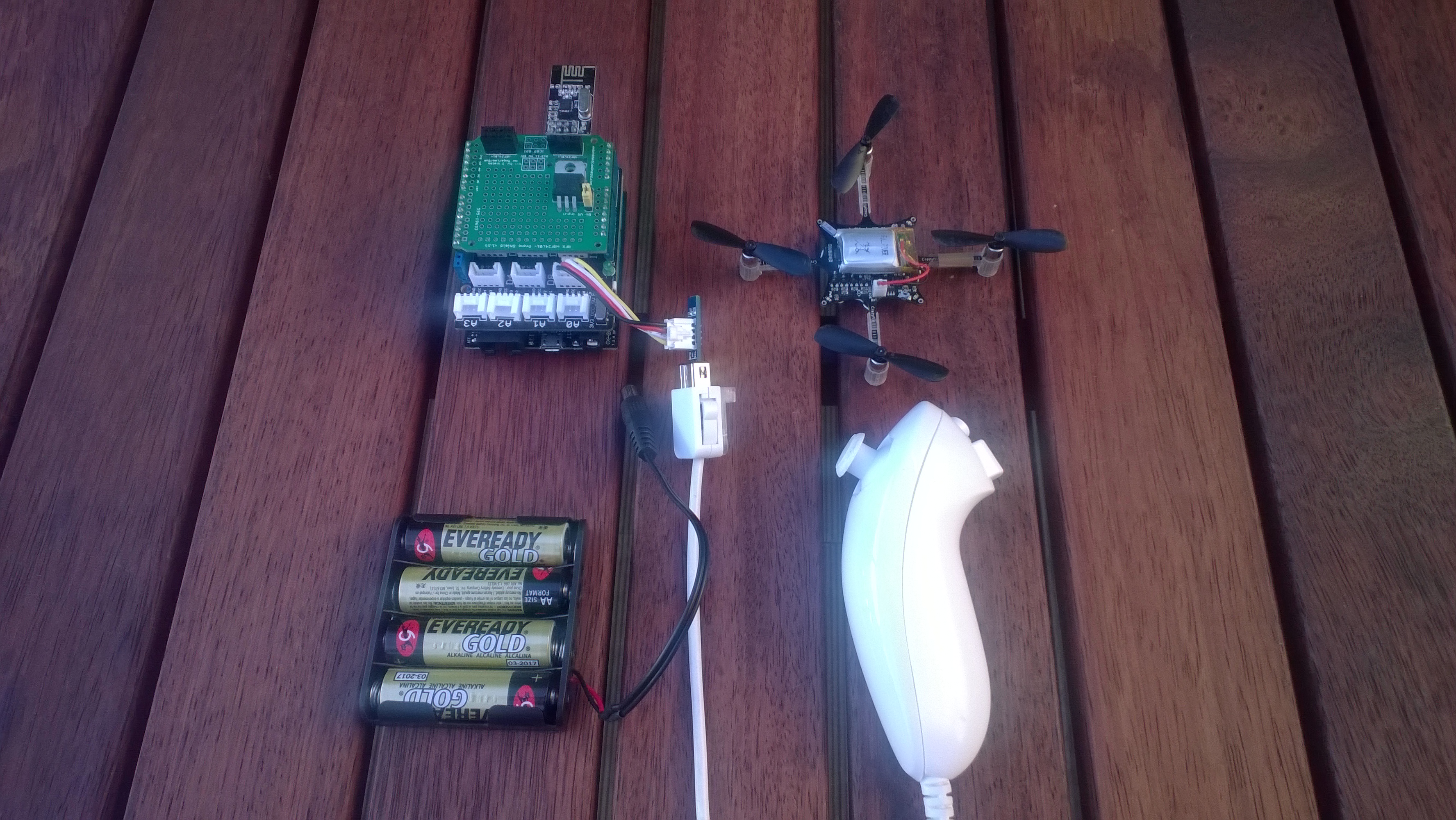
CrazyFlie Netduino Wiichuck based Remote

CrazyFlie Netduino Wiichuck based Remote

Bill on Materials (Prices as at Jan 2014)

This software was built using tooling created and shared by others.

Big thanks to

Jakub Bartkowiak – Gralin.NETMF.Nordic.NRF24L01Plus

Szymon Kobalczyk – Wiichuck I2C driver

Antao Almada – HydraMF.BitConverter

The nunchuck accelerometer provides roll and pitch, the joystick is for thrust and yaw. The first version of the CrazyFlieWiiChuckV1.0 is pretty basic and I have intentionally reduced the maximum roll, pitch, thrust and yaw values to make it easier to fly. (Need to set the Grove Base Shield to 3V3 for my code to work)

Currently I only calculate offset values for thrust & yaw. After a couple of test flights some visual indication of the pitch and roll values from the nunchuk would be helpfull.
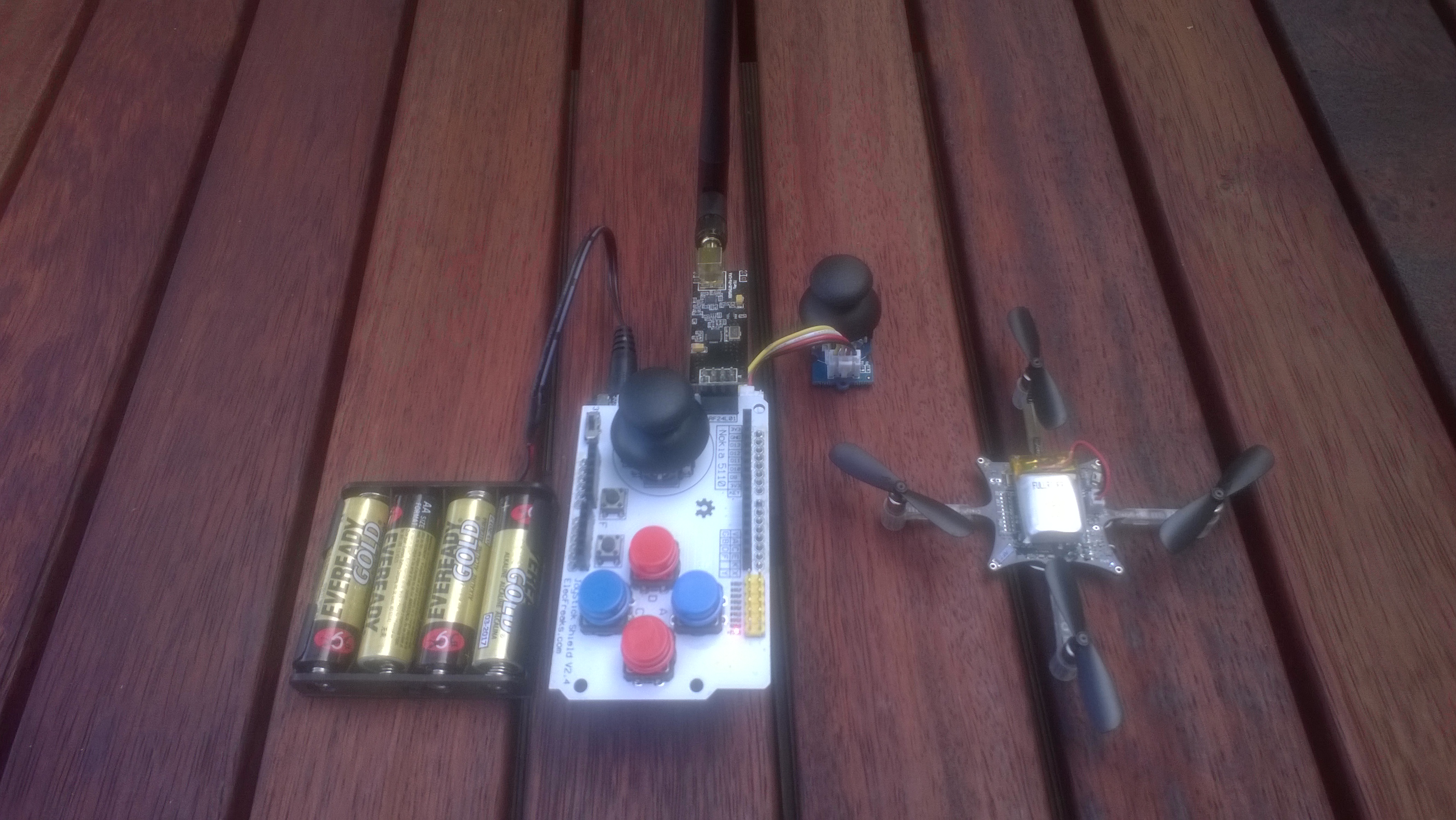
Netduino Crazyflie Joystick Shield Remote Control V1.0

Sometimes you start with a goal in mind then a couple of days later you have built something interesting but totally unrelated to what you originally intended to do….

I have several devices (both Netduino & Arduino) which I want to use to collect and upload data to the cloud so I can monitor the resource usage of my house.

I had read Clemens Vaster post on Service Assisted Communication and I was planning to use a Windows Server Essentials 2012 box I have running 24/7 in the hallway to forward updates to the cloud.

I wanted to connect the remote data acquisition nodes directly to the server using their baked in nRF24L01+ support. On the server end the Crazyradio 2.4 Hhz nRF24LU1 USB dongle looked ideal. After some initial positive results I found that the CrazyRadio firmware had been implemented in a way that made it not suitable for my application. (I even considered downloading the BitCraze development VM and building my own custom firmware)

After spending a few hours trying to get the CrazyRadio dongle working I looked at my Crazyflie Nano QuadCopter sitting on the bookshelf.

Then I realised what I really needed is a more portable Crazyflie remote control unit so I didn’t have to unpack my laptop. So two nights later I have a proof of concept Netduino based Crazyflie Nanocopter remote control unit.

CrazyFlie nano copter and Netduino Based Remote

CrazyFlie Netduino based Remote

Bill on Materials (Prices as at Jan 2014)

This software was built using tooling created and shared by others.

Big thanks to

Jakub Bartkowiak – Gralin.NETMF.Nordic.NRF24L01Plus

Antao Almada – HydraMF.BitConverter

Mike McCauley – NRF24 library for Arduino.

I used the NRF24 CrazyFlie emulator to debug my project. No doubt stopping me crashing my Crazyflie many times while debugging.

The Joystick shield has to be modified to work with the common Netduino nRF24L01 libraries which use interrupts rather than polling.

The joystick on the shield is for roll and pitch, the external joystick is for thrust and yaw. The first version of the JoystickShieldnRF24l01V1.0 is pretty basic but I’ll try and enhance it over the next couple of posts.

Netduino Water flow Sensor

A few months ago I purchased 1/2” and 3/4″ inch water flow sensors from SeeedStudio. My plan was to monitor our water and power consumption data to see what environmental impact my house has.

To see how the sensor works I built a simple proof of concept Netduino application which counted the pulses produced by the sensor and calculated the instantaneous water flow.

The next steps are to upload the water flow data to the cloud over a cabled then wireless connections.

public class Program
{
   private static int waterFlowCounter = 0;

   public static void Main()
   {
      InterruptPort flowCounterSensor = new InterruptPort(Pins.GPIO_PIN_D5, false, Port.ResistorMode.Disabled, Port.InterruptMode.InterruptEdgeHigh);
      flowCounterSensor.OnInterrupt += new NativeEventHandler(flowCounter_OnInterrupt);

      Timer waterFlowUpdate = new Timer(waterFlowUpdateProc, null, 0, 1000);
      Thread.Sleep(Timeout.Infinite);
   }

   static void flowCounter_OnInterrupt(uint data1, uint data2, DateTime time)
   {
      Interlocked.Increment(ref waterFlowCounter);
   }

   static void waterFlowUpdateProc(object status)
   {
      int flowCount = Interlocked.Exchange(ref waterFlowCounter, 0);
      double flowLitresMinute = flowCount / 5.5 ; // The q value from documentation
      Debug.Print(flowLitresMinute.ToString("F1") + "L/m";);
    }
}
Netduino based water flow sensor

water flow sensor

Bill of Materials (Prices as at 12-2014)

Netduino Plus 2 USD60 NZD108

Grove Base Shield V2 USD8.90

G3/4″ Water Flow Sensor USD14.90

G1/2″ Water Flow Sensor USD9.50 NZD8.30

Netduino Galvanic Skin Response(GSR)

One of CodeClub’s sponsors is Orion Health so I have been evaluating sensors suitable for health focused projects. We already use the SeeedStudio Grove Heart rate sensor and Grove EMG Detector, so I purchased a Grove GSR sensor for testing. Galvanic Skin Response(GSR) is a method of measuring the electrical conductivity of the skin, which depends on the amount of sweat on the skin.

Netduino with Grove GSR sensor

Netduino with Grove GSR sensor

The GSR detector outputs a single analog signal which I connected to A0. For the evaluation I averaged the first 3000 samples to determine the initial offset, then sampled roughly every 100mSec.

I’m a bit worried about the robustness of the wires connecting the two probes to the black cable so it will be interesting to see how long they last at Code Club.

I also updated the Minimum and Maximum values with each sample as this appeared to make the display more reliable.

I found the display responded well to me holding my breath for as long as I could.

Pulse rate + EMG + GSR = Polygraph or DIY lie detector maybe a project for next term.

for (int sampleCounter = 0; sampleCounter < calibrationSampleCount; sampleCounter++)
{
   double value = gsr.Read();
   sampleSum += value;
}
offset = sampleSum / calibrationSampleCount ;

I then displayed the magnitude of the adjusted signal on a Seeedstudio LED bar using code written by Famoury Toure

while(true)
{
   double value = emg.Read() - offset;

   if (value < valueMinimum)
   {
      valueMinimum = value;
   }

   if (value > valueMaximum)
   {
      valueMaximum = value;
   }
   range = valueMaximum - valueMinimum;
   if (value < 0)
   {
      value = value / valueMaximum * 10.0;
   }
   else
   {
      value = value / valueMinimum * 10.0;
   }
   Debug.Print("Val " + value.ToString("F3") + " Max " + valueMaximum.ToString("F3") + " Min " +valueMinimum.ToString("F3"));

   int bar = 1;
   value = 10.0 - value;
   bar = bar << (int)value ;
   ledBar.setLED((uint)bar);
   Thread.Sleep(100);
}

Bill of Materials (Prices as at October 2014)

Netduino Electromyograph (EMG)

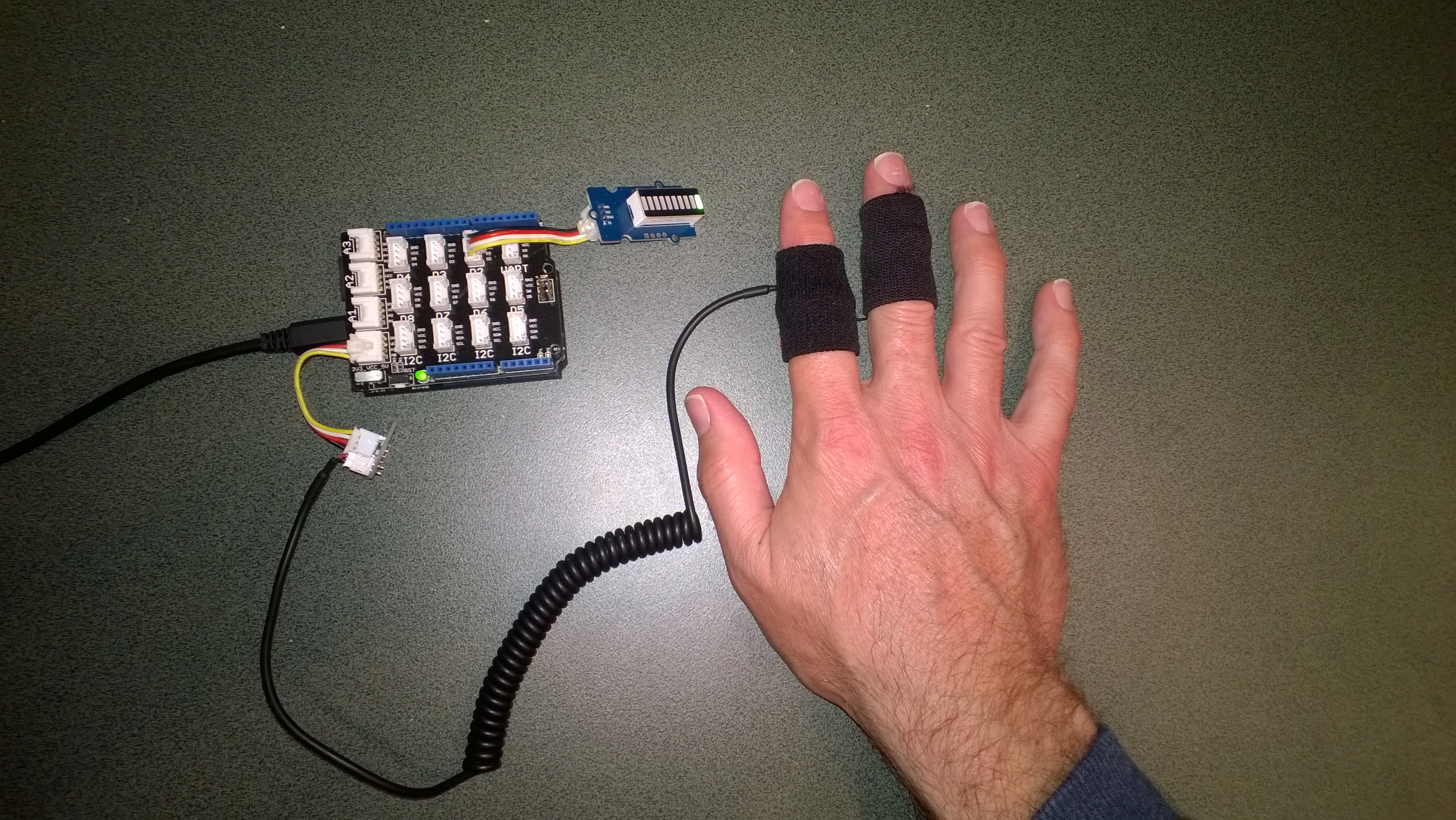
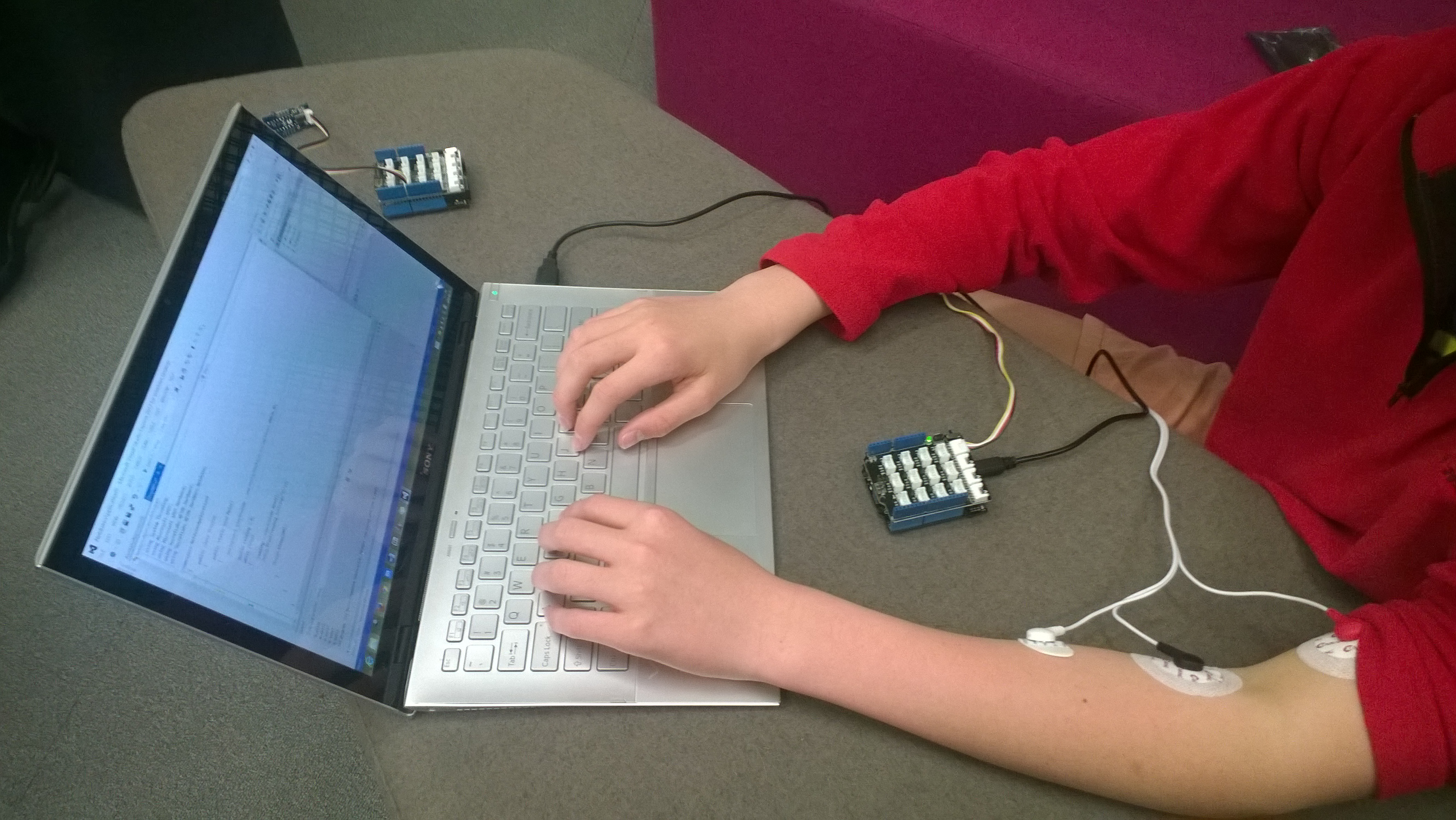
One of CodeClub’s sponsors is Orion Health so I had been looking for some reasonably priced sensors for health focused projects. We already use the SeeedStudio Heart rate sensor for one of our projects so I ordered a Grove EMG Detector for evaluation.

Netduino with Seeedstudio EMG

Netduino with Grove EMG Detector

The EMG detector outputs a single analog signal which we connected to analog input 0. For the proof of concept we averaged for 500 samples to determine the steady state offset.

for (int sampleCounter = 0; sampleCounter < calibrationSampleCount; sampleCounter++)
{
   double value = emg.Read();
   sampleSum += value;
}
offset = sampleSum / calibrationSampleCount ;

We then read the analog input applied the offset and displayed the magnitude of the signal on a Seeedstudio LED bar using code written by Famoury Toure

while(true)
{
   double value = emg.Read() - offset;

   if (value < valueMinimum) { valueMinimum = value; } if (value > valueMaximum)
   {
      valueMaximum = value;
   }
   range = valueMaximum - valueMinimum;

   if (value < 0)
   {
      value = value / valueMaximum * 10.0;
   }
   else
   {
      value = value / valueMinimum * 10.0;
   }

   Debug.Print("Val " + value.ToString("F3") + " Max " + valueMaximum.ToString("F3") + " Min " +valueMinimum.ToString("F3"));

   int bar = 1;
   value = 10.0 - value;
   bar = bar << (int)value ;
   ledBar.setLED((uint)bar);
   Thread.Sleep(100);
   }
}

Bill of Materials (Prices as at October 2014)

The proof of concept worked surprisingly well, the LED illuminated on the LED bar appeared to move in response to arm movements and when I clenched my fist.

TechEd 2014 Auckland Presentation online

My TechEd INO204 presentation in now online at on MSDN Channel 9.

INO204  The Things of the Internet of Things
Speaker Rating
3.54 / 4  84.7%

Overall Rating
3.44 / 4 81.29%

The presenters desk had my laptop, document camera, 2 Fez spiders, 9 Netduinos, 2 devDuinos and an Arduino Uno R3 device so it was pretty busy.

TechEdPresentersDesk[1]

While preparing for the presentation I had some problems with the EMG stick on sensors

EMGStickOnPadMarks[1]

EV Telemetry Demo

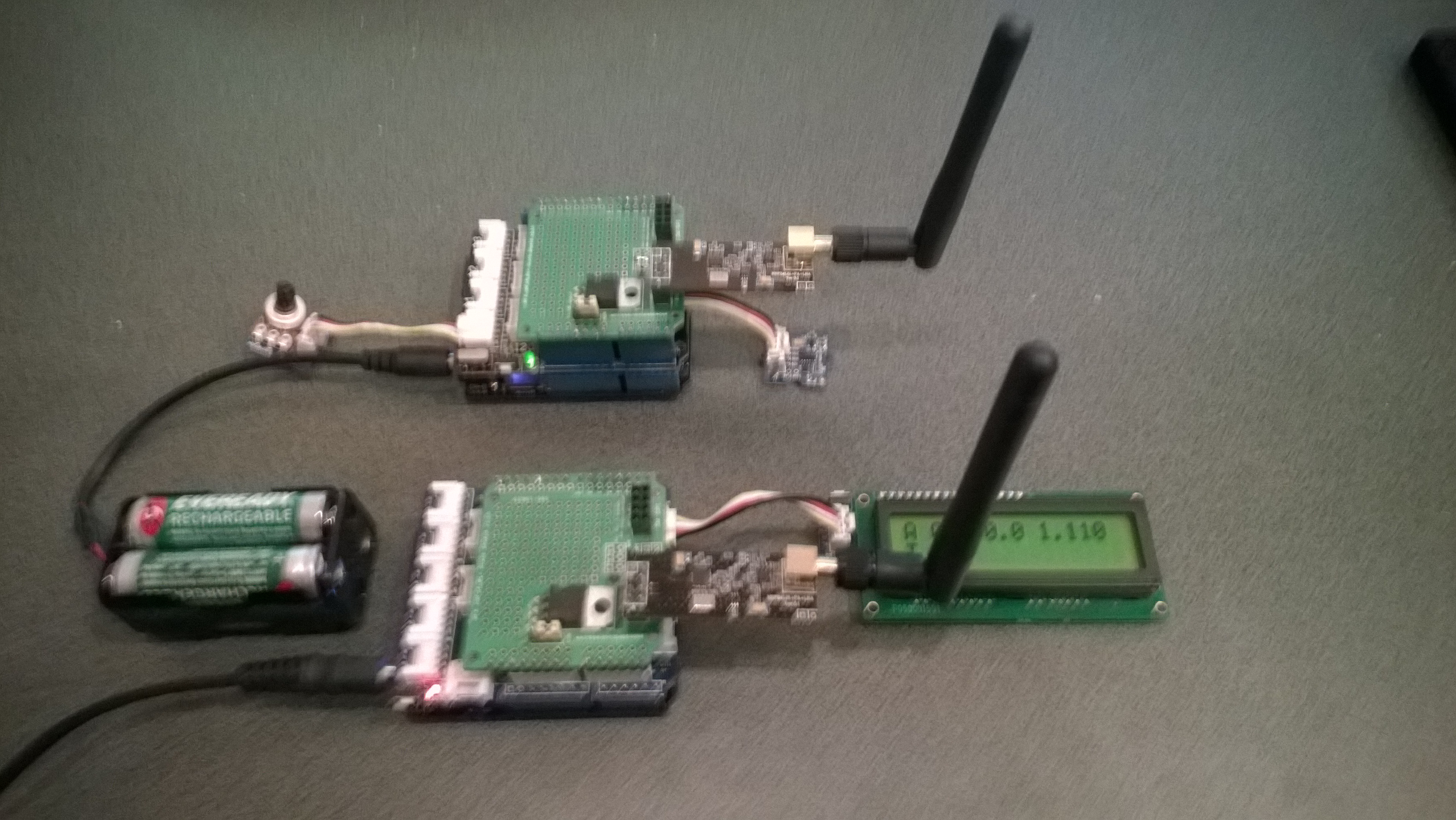
At EV Camp in June 2014 I talked about real-time telemetry for the electric carts. This is a demo of how this could be done using a couple of Netduinos, nRF24L01 modules and some other hardware

Telemetry Demo

Accelerometer and Throttle Position Telemetry

Bill of materials (Prices as at July 2014)

  • 2 x Netduino Plus 2 USD60,NZD108 or Netduino 2 USD33,NZD60
  • 2 x Embedded Coolness nRF24L01shields V1.1b + high power modules AUD17.85
  • 2 x Grove Base Shields V2 USD8.90
  • 1 x Grove ADX345 Accelerometer USD9.90
  • 1 x Grove Rotary Angle Sensor USD2.90
  • 1 x Grove 16×2 LCD USD13.90 (Using earlier serial display in pictures)

The mobile device configures the Gralin nRF24L01 library, initialises the Love Electronics ADXL345 Accelerometer library, and creates two timers, one for the throttle position the other for the accelerometer.

_module.OnTransmitFailed += OnSendFailure;
_module.OnTransmitSuccess += OnSendSuccess;
_module.Initialize(SPI.SPI_module.SPI1, Pins.GPIO_PIN_D7, Pins.GPIO_PIN_D3, Pins.GPIO_PIN_D2);
_module.Configure(myAddress, channel);
_module.Enable();

accel.EnsureConnected();
accel.Range = 2;
accel.FullResolution = true;
accel.EnableMeasurements();
accel.SetDataRate(0x0F);

Timer throttlePositionUpdates = new Timer(throttleTimerProc, null, 500, 500);
Timer accelerometerUpdates = new Timer(AccelerometerTimerProc, null, 500, 500);

Thread.Sleep( Timeout.Infinite ) ;

The Accelerometer timer reads the x, y & z accelerations then sends the data as an ASCII string (rather than Unicode) to save space (maximum message length is 32 bytes)

private void AccelerometerTimerProc(object state)
{
accel.ReadAllAxis();
Debug.Print("A- X = " + accel.ScaledXAxisG.ToString("F2") + " Y = " + accel.ScaledYAxisG.ToString("F2") + " Z = " + accel.ScaledZAxisG.ToString("F2"));

_module.SendTo(baseStationAddress, Encoding.UTF8.GetBytes("A " + accel.ScaledXAxisG.ToString("F1") + " " + accel.ScaledYAxisG.ToString("F1") + " " + accel.ScaledZAxisG.ToString("F1")));
}

The base station works in a similar way, configuring the nRF24L01 library then displaying the received messages on the LCD Display.

Remote control 4WD robot build part2

I finally had some time to finish off the 4WD robot I first blogged about in February this year.

robot and remote control

Netduino 4wd robot and remote control unit

When I fired up the robot the nrf24L01 module on the embedded coolness shield was having some problems with electrical noise from the motors. This noise was causing the wireless module to report errors then stop working. So, based on this article by Pololu I added some noise suppression capacitors. There are two 0.1uF capacitors per motor and they connect the power supply pins to the metal casing of the motor. I have also twisted the motor supply wires and added some capacitors to the motor shield.

Motors with noise suppression capacitors

Netduino 4WD Robot motors with noise suppression capacitors

The Elecfreaks Joystick has to be modified to work with a Netduino. The remote control uses the initial position of the joystick for a calibration offset then sends 4 byte commands to the robot every 250mSec. The first two bytes are the motor directions and the last two are the motor speeds.

_module.OnDataReceived += OnReceive;
_module.OnTransmitFailed += OnSendFailure;
_module.OnTransmitSuccess += OnSendSuccess;

_module.Initialize(SPI.SPI_module.SPI1, Pins.GPIO_PIN_D10, Pins.GPIO_PIN_D9, Pins.GPIO_PIN_D1);
_module.Configure(_ControllerAddress, channel);
_module.Enable();

xOffset = xAxis.Read();
yOffset = yAxis.Read();

_timer = new Timer(SendMessage, null, 250, 250);
Thread.Sleep(Timeout.Infinite);

Then

byte[] command = { motor1Direction, motor2Direction, motor1Speed, motor2Speed };
_module.SendTo(_RobotAddress, command);

After trialling the robot round the house I added a timer to shut the motors down if connectivity was lost. Before adding the noise suppression capacitors I managed to plough the robot into the wall when the radio link failed and the motors were running at close to full speed.

Timer CommunicationsMonitorTimer = newTimer(CommunicationsMonitorTimerProc, null, 500, 500);
void CommunicationsMonitorTimerProc(object status)
{
   if (( DateTime.UtcNow - _MessageLastReceivedAt ) > MessageMaximumInterval)
   {
      Debug.Print(&quot;Communications timeout&quot;);
      M1Speed.DutyCycle = 0.0;
      M2Speed.DutyCycle = 0.0;
   }
}

Code Camp Christchurch 2014

The Hardware

Flash an LED

OutputPort led = new OutputPort(Pins.ONBOARD_LED, false);
while ( true)
{
   Led.Write(!Led.Read())
   Thread.Sleep(500)
}

Digital Input – Polled

InputPort button = new InputPort(Pins.ONBOARD_SW1, false, Port.ResistorMode.Disabled);
OutputPort led = new OutputPort(Pins.ONBOARD_LED, false);
while (true)
{
   led.Write(button.Read());
   Thread.Sleep(1000);
}

Digital Input – Interrupt

static OutputPort interuptled = new OutputPort(Pins.ONBOARD_LED, false);
InterruptPort button = new InterruptPort(Pins.ONBOARD_SW1, false, Port.ResistorMode.Disabled, Port.InterruptMode.InterruptEdgeHigh);
button.OnInterrupt += new NativeEventHandler(button_OnInterrupt);

Thread.Sleep(Timeout.Infinite);

static void button_OnInterrupt(uint data1, uint data2, DateTime time)
{
   interuptled.Write(!interuptled.Read());
}

Analog Input

AnalogInput Sensor = new AnalogInput(Cpu.AnalogChannel.ANALOG_0);
while ( true)
{
   Debug.Print( "Value " + Sensor.Read().ToString("F2"));
   Thread.Sleep(500);
}

Pulse Width Modulation Output

AnalogInput brightness = new AnalogInput(AnalogChannels.ANALOG_PIN_A0);
PWM led = new PWM(PWMChannels.PWM_PIN_D5, 1000, 0.0, false);

led.Start();
while (true)
{
   Debug.Print("Brightness " + led.DutyCycle.ToString("F2"));
   led.DutyCycle = brightness.Read();
   Thread.Sleep(500);
}
led.Stop();

Power Consumption Monitor

Developing the software for the Energy Monitor Shield

Robot

Developing the software

  • Determine the distance to objects
  • Control the speed & direction of the motors using a Motor Shield Driver
  • Basic obstacle avoidance
  • Avoid obstacles using a state machine
  • Fine tune the motor speeds using a rotary encoder
  • Connect the GPS
  • Upload the position information to Xively

Heart Rate Monitor

Developing the software

  • Read the buttons using an AnalogInput
  • Count the number of button presses using an InterruptPort and a Timer
  • Determine the pulse rate in BPM by counting
  • Determine the average pulse rate in BPM
  • Display and manage the pulse rate info on the DFRobot 16×2 Lcd Shield
  • Upload the pulse rate information to xively


Energy Monitor Shield Nokia 5100 Display

The Energy Monitor Shield is supplied with a Nokia 5110 LCD for displaying instantaneous power consumption etc. There is an excellent Netduino driver for the Nokia 5100 display by omar, and with a few modifications this works with the Energy Monitor Shield. I removed the backlight support and made a few other simple modifications.

Nokia_5110 Lcd = new Nokia_5110(Pins.GPIO_PIN_D3, Pins.GPIO_PIN_D6, Pins.GPIO_PIN_D5);

while (true)
{
   Lcd.Clear();
   Lcd.DrawString(0, 0, DateTime.Now.ToString("HH:mm:ss"), true);
   Lcd.DrawString(0, 1, DateTime.Now.ToString("HH:mm:ss"), true);
   Lcd.DrawString(0, 2, DateTime.Now.ToString("HH:mm:ss"), true);
   Lcd.Refresh();
   Thread.Sleep(500)
}

Netduino Nokia 5110 driver