Random wanderings through Microsoft Azure esp. PaaS plumbing, the IoT bits, AI on Micro controllers, AI on Edge Devices, .NET nanoFramework, .NET Core on *nix and ML.NET+ONNX
After getting MQ Telemetry Transport (MQTT) Device to Cloud (D2C) messaging working for AdaFruit.IO I have also got Cloud to Device (C2D) messaging working as well.
The MQTT broker, username, API key, client ID, optional group name (to keep MQTT aligned with REST API terminology), command topic and feed name are command line options.
The Adafruit IO MQTT documentation suggests an approach for naming topics which allows a bit more structure for feed (D2C and C2D) names than the RESTAPI (which only does D2C).
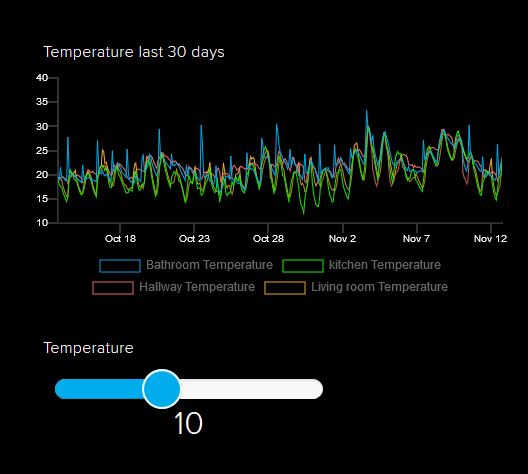
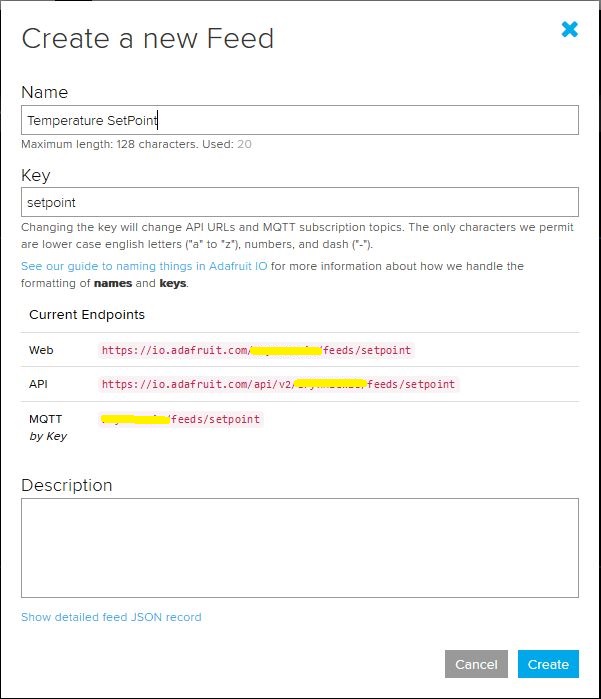
I configured a slider on the dashboard for my home called “setpoint” (yet again I was tripped up “automatically” camel casing the name because I’m a C# developer) which my MQTT client subscribed to.
AdaFruit.IO Home monitoring dashboardsetpoint feed configuration
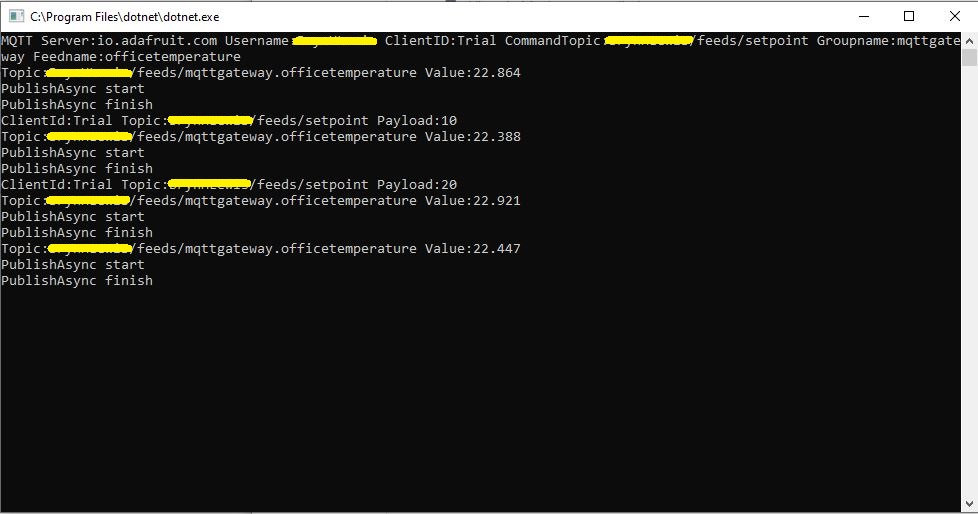
After figuring out the format of the command topic I found that when the slider was moved the MQTT client subscription event fired reliably.
AdaFruit Client showing the setpoint value change notifications
Overall the process went pretty well, though the manual configuration of the subscriptions to AdaFruit.IO feeds could become a bit of a problem at scale.
After a 6 month pause I’m back working on my Message Queue Telemetry Transport(MQTT) LoRa gateway.
As I’m testing my Message Queue Telemetry Transport(MQTT) LoRa gateway I’m building a proof of concept(PoC) .Net core console application for each IoT platform I would like to support.
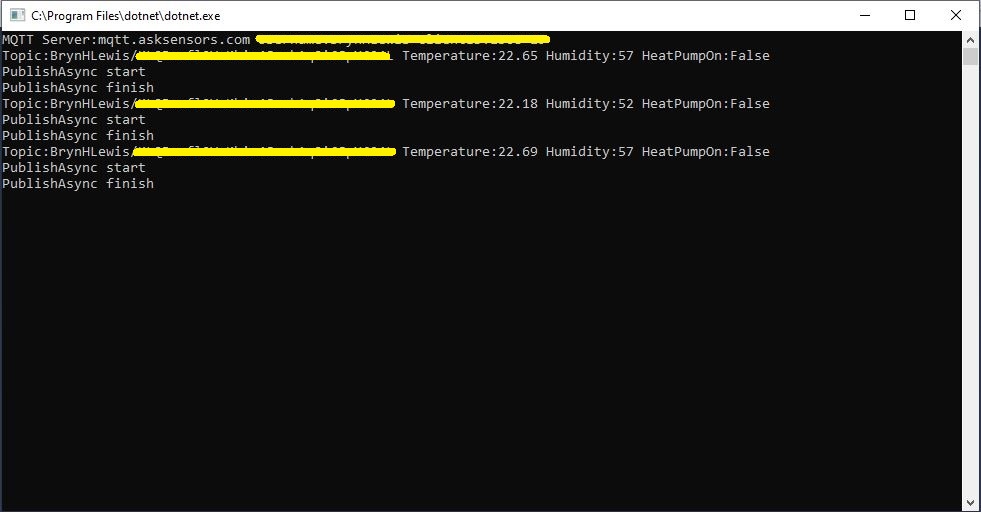
This PoC was to confirm that I could connect to the Ask SensorsMQTT API then format topics and payloads correctly.
Console test application
The MQTT broker, username, password, and client ID are command line options.
class Program
{
	private static IMqttClient mqttClient = null;
	private static IMqttClientOptions mqttOptions = null;
	private static string server;
	private static string username;
	private static string apiKey;
	private static string clientID;

	static void Main(string[] args)
	{
		MqttFactory factory = new MqttFactory();
		mqttClient = factory.CreateMqttClient();
		bool heatPumpOn = false;

		if (args.Length != 4)
		{
			Console.WriteLine("[MQTT Server] [UserName] [APIKey] [ClientID]");
			Console.WriteLine("Press <enter> to exit");
			Console.ReadLine();
			return;
		}

		server = args[0];
		username = args[1];
		apiKey = args[2];
		clientID = args[3];

		Console.WriteLine($"MQTT Server:{server} Username:{username} ClientID:{clientID}");

		mqttOptions = new MqttClientOptionsBuilder()
			.WithTcpServer(server)
			.WithCredentials(username, "")
			.WithClientId(clientID)
			//.WithTls() // This is a bit of a worry
			.Build();

		mqttClient.ApplicationMessageReceived += MqttClient_ApplicationMessageReceived;
		mqttClient.Disconnected += MqttClient_Disconnected;
		mqttClient.ConnectAsync(mqttOptions).Wait();

		// AskSensors formatted client state update topic
		string stateTopic = $"{username}/{apiKey}";

		while (true)
		{
			string payloadText;
			double temperature = 22.0 + (DateTime.UtcNow.Millisecond / 1000.0);
			double humidity = 50 + (DateTime.UtcNow.Millisecond / 100.0);
			double speed = 10 + (DateTime.UtcNow.Millisecond / 100.0);
			Console.WriteLine($"Topic:{stateTopic} Temperature:{temperature:0.00} Humidity:{humidity:0} HeatPumpOn:{heatPumpOn}");

			// First JSON attempt didn't work
			payloadText = @"{""Humidity"":55}";

            // Second attempt worked
            payloadText = $"module1=22";

            // Third attempt with "real" values injected
            payloadText = $"module1={temperature}&m2={humidity}";

            var message = new MqttApplicationMessageBuilder()
					.WithTopic(stateTopic)
					.WithPayload(payloadText)
					.WithQualityOfServiceLevel(global::MQTTnet.Protocol.MqttQualityOfServiceLevel.AtLeastOnce)
				   .WithExactlyOnceQoS()
				   //.WithAtLeastOnceQoS()
				   //.WithRetainFlag()
				   .Build();

				Console.WriteLine("PublishAsync start");
				mqttClient.PublishAsync(message).Wait();
				Console.WriteLine("PublishAsync finish");

				Thread.Sleep(30100);
			}
		}

	private static async void MqttClient_Disconnected(object sender, MqttClientDisconnectedEventArgs e)
	{
		Debug.WriteLine("Disconnected");
		await Task.Delay(TimeSpan.FromSeconds(5));

		try
		{
			await mqttClient.ConnectAsync(mqttOptions);
		}
		catch (Exception ex)
		{
			Debug.WriteLine("Reconnect failed {0}", ex.Message);
		}
	}
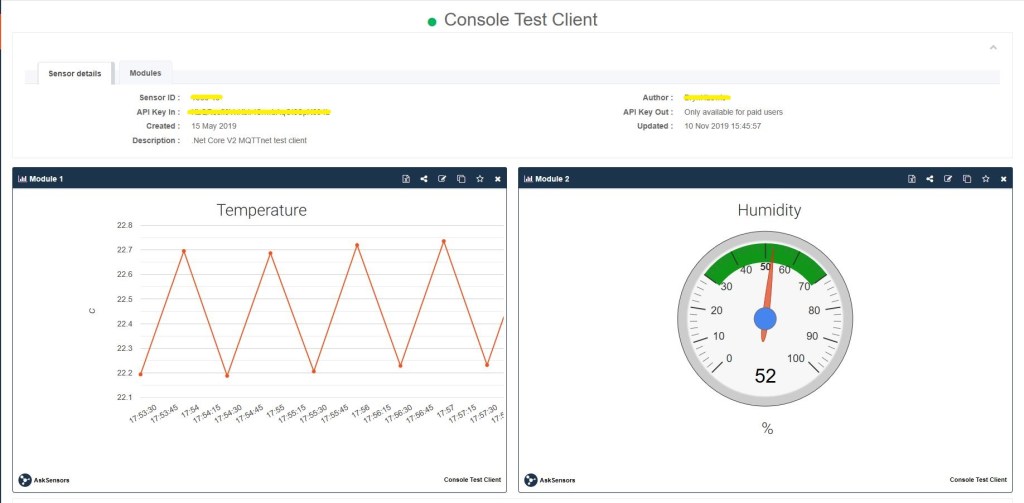
The Ask Sensors screen designer has 8 different types of Graph (line, bar, scatter, gauge, table, binary. digital, map)
Ask sensors dashboard configuration was fairly simple, though sequential numbering of inputs (modules) might require some mapping code.
Overall the initial configuration went smoothly after I figured out the payload format (not JSON), though the functionality (of a free subscription) did appear to be quite limited.
Since I first started building my MQTT gateway there have been several breaking updates to the MQTTNet API which so I will have to refresh all the applications in my solution.
As I’m testing my Message Queue Telemetry Transport(MQTT) LoRa gateway I’m building a proof of concept(PoC) .Net core console application for each IoT platform I would like to support.
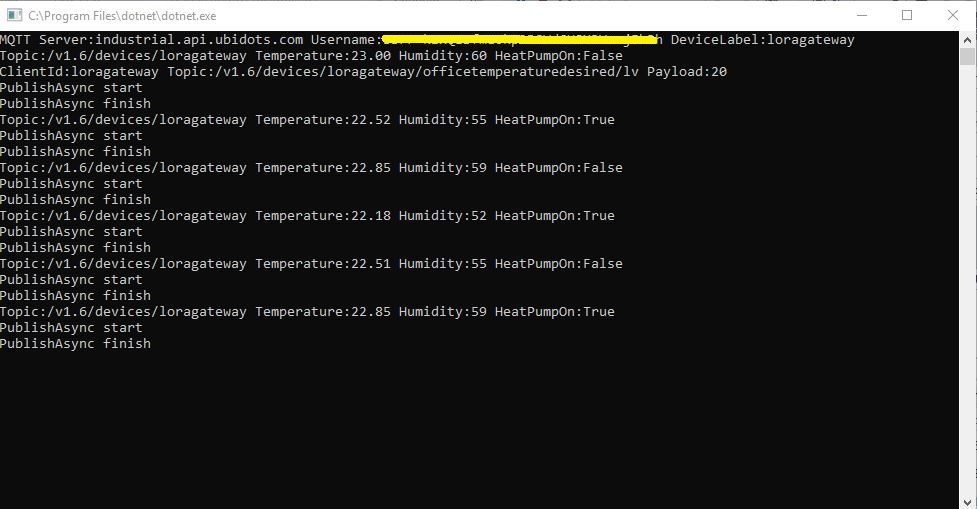
This PoC was to confirm that I could connect to the ubidotsMQTT API then format the topics and payloads correctly. The ubidots screen designer has “variables” (both actual sensors & synthetic calculated ones) which present as topics so I built a client which could subscribe to these.
.Net Core V2 MQTTnet client
The MQTT broker, username, password, and client ID are command line options.
class Program
{
	private static IMqttClient mqttClient = null;
	private static IMqttClientOptions mqttOptions = null;
	private static string server;
	private static string username;
	private static string deviceLabel;

	static void Main(string[] args)
	{
		MqttFactory factory = new MqttFactory();
		mqttClient = factory.CreateMqttClient();
		bool heatPumpOn = false;

		if (args.Length != 3)
		{
			Console.WriteLine("[MQTT Server] [UserName] [Password] [ClientID]");
			Console.WriteLine("Press <enter> to exit");
			Console.ReadLine();
			return;
		}

		server = args[0];
		username = args[1];
		deviceLabel = args[2];

		Console.WriteLine($"MQTT Server:{server} Username:{username} DeviceLabel:{deviceLabel}");

		mqttOptions = new MqttClientOptionsBuilder()
			.WithTcpServer(server)
			.WithCredentials(username, "NotVerySecret")
			.WithClientId(deviceLabel)
			.WithTls()
			.Build();

		mqttClient.ApplicationMessageReceived += MqttClient_ApplicationMessageReceived;
		mqttClient.Disconnected += MqttClient_Disconnected;
		mqttClient.ConnectAsync(mqttOptions).Wait();

		// Setup a subscription for commands sent to client
		string commandTopic = $"/v1.6/devices/{deviceLabel}/officetemperaturedesired/lv";
		mqttClient.SubscribeAsync(commandTopic).GetAwaiter().GetResult();

		//// Ubidots formatted client state update topic
		string stateTopic = $"/v1.6/devices/{deviceLabel}";

		while (true)
		{
			string payloadText;
			double temperature = 22.0 + (DateTime.UtcNow.Millisecond / 1000.0);
			double humidity = 50 + (DateTime.UtcNow.Millisecond / 100.0);
			double speed = 10 + (DateTime.UtcNow.Millisecond / 100.0);
			Console.WriteLine($"Topic:{stateTopic} Temperature:{temperature:0.00} Humidity:{humidity:0} HeatPumpOn:{heatPumpOn}");

			// First attempt which worked
			//payloadText = @"{""OfficeTemperature"":22.5}";

			// Second attempt to work out data format with "real" values injected
			//payloadText = @"{ ""officetemperature"":"+ temperature.ToString("F2") + @",""officehumidity"":" + humidity.ToString("F0") + @"}";

			// Third attempt with Jobject which sort of worked but number serialisation was sub optimal
			JObject payloadJObject = new JObject();
			payloadJObject.Add("OfficeTemperature", temperature.ToString("F2"));
			payloadJObject.Add("OfficeHumidity", humidity.ToString("F0"));

			if (heatPumpOn)
			{
				payloadJObject.Add("HeatPumpOn", 1);
			}
			else
			{
				payloadJObject.Add("HeatPumpOn", 0);
			}
			heatPumpOn = !heatPumpOn;
			payloadText = JsonConvert.SerializeObject(payloadJObject);

			/*
			// Forth attempt with JOBject, timestamps and gps
			JObject payloadJObject = new JObject();
			JObject context = new JObject();
			context.Add("lat", "-43.5309325");
			context.Add("lng", "172.637119");// Christchurch Cathederal
			//context.Add("timestamp", ((DateTimeOffset)(DateTime.UtcNow)).ToUnixTimeSeconds()); // This field is optional and can be commented out
			JObject position = new JObject();
			position.Add("context", context);
			position.Add("value", "0");
			payloadJObject.Add("postion", position);
			payloadText = JsonConvert.SerializeObject(payloadJObject);
			*/

			var message = new MqttApplicationMessageBuilder()
				.WithTopic(stateTopic)
				.WithPayload(payloadText)
				.WithQualityOfServiceLevel(global::MQTTnet.Protocol.MqttQualityOfServiceLevel.AtLeastOnce)
			//.WithExactlyOnceQoS()// With ubidots this caused the publish to hang
			.WithAtLeastOnceQoS()
			.WithRetainFlag()
			.Build();

			Console.WriteLine("PublishAsync start");
			mqttClient.PublishAsync(message).Wait();
			Console.WriteLine("PublishAsync finish");

			Thread.Sleep(30100);
		}
	}

	private static void MqttClient_ApplicationMessageReceived(object sender, MqttApplicationMessageReceivedEventArgs e)
	{
		Console.WriteLine($"ClientId:{e.ClientId} Topic:{e.ApplicationMessage.Topic} Payload:{e.ApplicationMessage.ConvertPayloadToString()}");
	}

	private static async void MqttClient_Disconnected(object sender, MqttClientDisconnectedEventArgs e)
	{
		Debug.WriteLine("Disconnected");
		await Task.Delay(TimeSpan.FromSeconds(5));

		try
		{
			await mqttClient.ConnectAsync(mqttOptions);
		}
		catch (Exception ex)
		{
			Debug.WriteLine("Reconnect failed {0}", ex.Message);
		}
	}
}
For this PoC I used the MQTTnet package which is available via NuGet. It appeared to be reasonably well supported and has had recent updates.
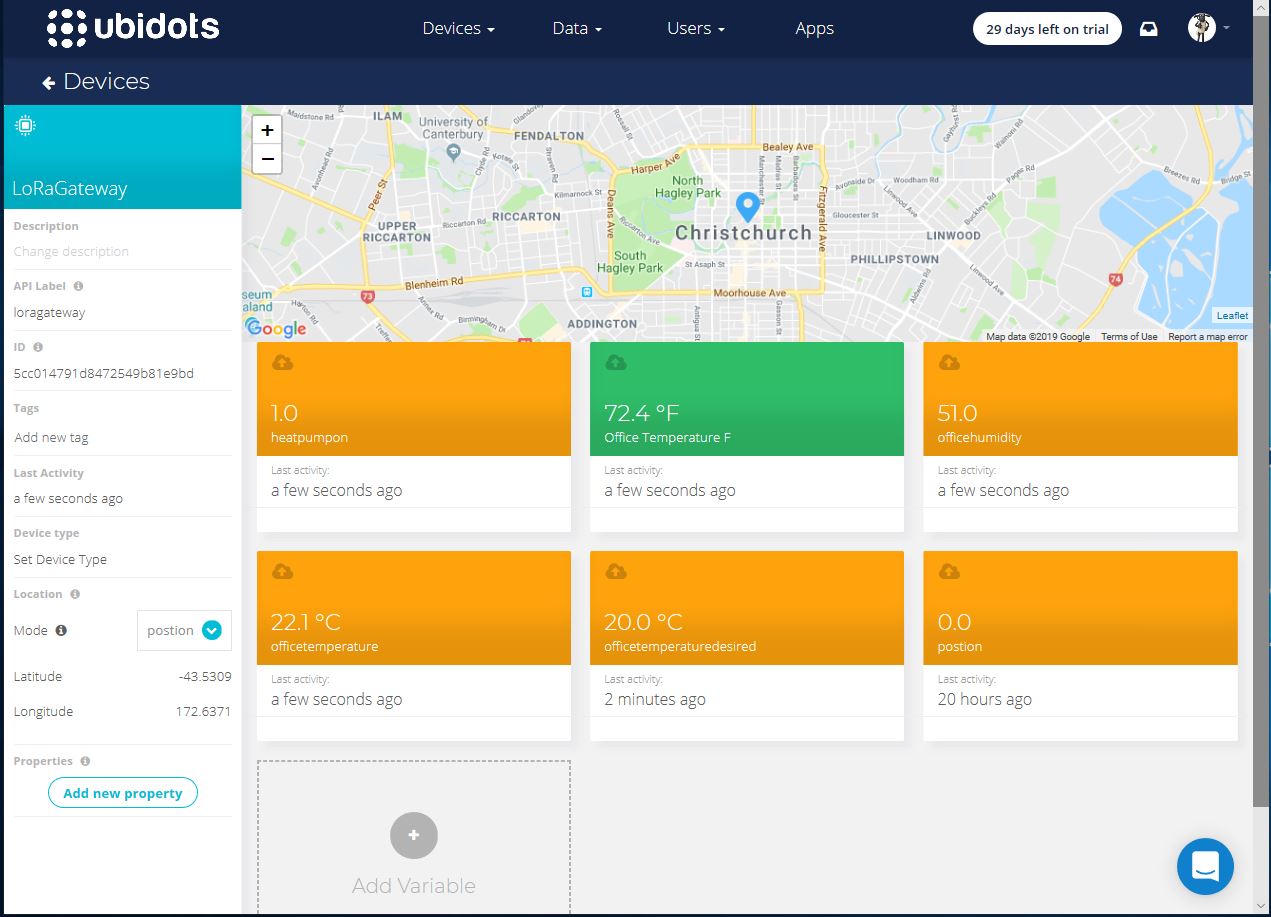
Variable configuration with device location map
Overall the initial configuration went smoothly, I found the dragging of blocks onto the dashboard and configuring them worked as expected.
The configuration of a “synthetic” variable (converting a temperature to Fahrenheit for readers from the Unites States of America, Myanmar & Liberia ) took a couple of goes to get right.
I may have missed something (April 2019) but the lack of boolean datatype variables was a bit odd.
Synthetic (calculated) variable configuration
I put a slider control on my test dashboard, associated it with a variable and my client reliably received messages when the slider was moved.
Dashboard with slider for desired temperature
Overall the Ubidots experience was pretty good and I’m going to spend some more time working with the device, data, users configurations to see how well it works for a “real-world” project.
I found (April 2019) that to get MQTTS going I had to install a Ubidots provided certificate
MQTT with TLS guidance and certificate download link
When my .Net Core application didn’t work I tried one my MQTT debugging tools and they didn’t work either with the Ubitdots MQTT brokers. The Ubidots forum people were quite helpful, but making it not necessary to install a certificate or making it really obvious in the documentation that this was required would be a good thing.
As I’m testing my Message Queue Telemetry Transport(MQTT) LoRa gateway I’m building a proof of concept(PoC) .Net core console application for each IoT platform I would like to support.
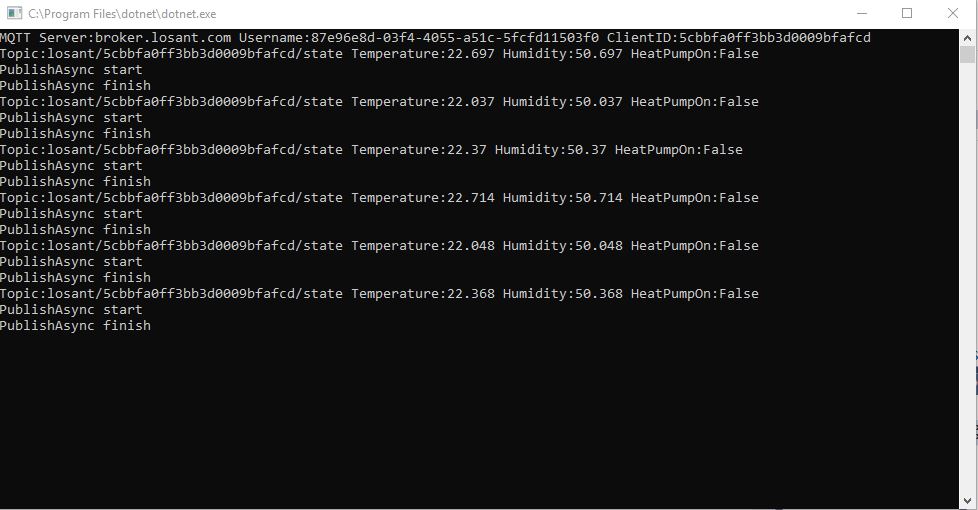
This PoC was to confirm that I could connect to the LosantMQTT API then format the topics and payloads correctly. The Losant screen designer has “Blocks” which generate commands for devices so I extended the test client to see how well this worked.
The MQTT broker, username, password, and client ID are command line options.
class Program
{
	private static IMqttClient mqttClient = null;
	private static IMqttClientOptions mqttOptions = null;
	private static string server;
	private static string username;
	private static string password;
	private static string clientId;

	static void Main(string[] args)
	{
		MqttFactory factory = new MqttFactory();
		mqttClient = factory.CreateMqttClient();
		bool heatPumpOn = false;

		if (args.Length != 4)
		{
			Console.WriteLine("[MQTT Server] [UserName] [Password] [ClientID]");
			Console.WriteLine("Press <enter> to exit");
			Console.ReadLine();
		}

		server = args[0];
		username = args[1];
		password = args[2];
		clientId = args[3];

		Console.WriteLine($"MQTT Server:{server} Username:{username} ClientID:{clientId}");

		mqttOptions = new MqttClientOptionsBuilder()
			.WithTcpServer(server)
			.WithCredentials(username, password)
			.WithClientId(clientId)
			.WithTls()
			.Build();

		mqttClient.ApplicationMessageReceived += MqttClient_ApplicationMessageReceived;
		mqttClient.Disconnected += MqttClient_Disconnected;
		mqttClient.ConnectAsync(mqttOptions).Wait();

		// Setup a subscription for commands sent to client
		string commandTopic = $"losant/{clientId}/command";
		mqttClient.SubscribeAsync(commandTopic);

		// Losant formatted client state update topic
		string stateTopic = $"losant/{clientId}/state";

		while (true)
		{
			string payloadText;
			double temperature = 22.0 + +(DateTime.UtcNow.Millisecond / 1000.0);
			double humidity = 50 + +(DateTime.UtcNow.Millisecond / 1000.0);
			Console.WriteLine($"Topic:{stateTopic} Temperature:{temperature} Humidity:{humidity} HeatPumpOn:{heatPumpOn}");

			// First attempt which worked
			//payloadText = @"{""data"":{ ""OfficeTemperature"":22.5}}";

			// Second attempt to work out data format with "real" values injected
			payloadText = @"{""data"":{ ""OfficeTemperature"":"+ temperature.ToString("f1") + @",""OfficeHumidity"":" + humidity.ToString("F0") + @"}}";

			// Third attempt with Jobject which sort of worked but number serialisation is sub optimal
			//JObject payloadJObject = new JObject();
			//payloadJObject.Add("time", DateTime.UtcNow.ToString("u")); // This field is optional and can be commented out

			//JObject data = new JObject();
			//data.Add("OfficeTemperature", temperature.ToString("F1"));
			//data.Add("OfficeHumidity", humidity.ToString("F0"));

			//data.Add("HeatPumpOn", heatPumpOn);
			//heatPumpOn = !heatPumpOn;
			//payloadJObject.Add( "data", data);

			//payloadText = JsonConvert.SerializeObject(payloadJObject);

			// Forth attempt with JOBject and gps info https://docs.losant.com/devices/state/
			//JObject payloadJObject = new JObject();
			//payloadJObject.Add("time", DateTime.UtcNow.ToString("u")); // This field is optional and can be commented out
			//JObject data = new JObject();
			//data.Add("GPS", "-43.5309325, 172.637119"); // Christchurch Cathederal
			//payloadJObject.Add("data", data);
			//payloadText = JsonConvert.SerializeObject(payloadJObject);

			var message = new MqttApplicationMessageBuilder()
				.WithTopic(stateTopic)
				.WithPayload(payloadText)
				.WithQualityOfServiceLevel(global::MQTTnet.Protocol.MqttQualityOfServiceLevel.AtLeastOnce)
				//.WithExactlyOnceQoS() With Losant this caused the publish to hang
				.WithAtLeastOnceQoS()
				//.WithRetainFlag() Losant doesn't allow this flag
				.Build();

			Console.WriteLine("PublishAsync start");
				mqttClient.PublishAsync(message).Wait();
			Console.WriteLine("PublishAsync finish");

			Thread.Sleep(30100);
		}
	}

	private static void MqttClient_ApplicationMessageReceived(object sender, MqttApplicationMessageReceivedEventArgs e)
	{
		Console.WriteLine($"ClientId:{e.ClientId} Topic:{e.ApplicationMessage.Topic} Payload:{e.ApplicationMessage.ConvertPayloadToString()}");
	}

	private static async void MqttClient_Disconnected(object sender, MqttClientDisconnectedEventArgs e)
	{
		Debug.WriteLine("Disconnected");
		await Task.Delay(TimeSpan.FromSeconds(5));

		try
		{
			await mqttClient.ConnectAsync(mqttOptions);
		}
		catch (Exception ex)
		{
			Debug.WriteLine("Reconnect failed {0}", ex.Message);
		}
	}
}
For this PoC I used the MQTTnet package which is available via NuGet. It appeared to be reasonably well supported and has had recent updates.
Overall the initial configuration went really smoothly, I found the dragging of blocks onto the dashboard and configuring them worked well.
The device log made bringing up a new device easy and the error messages displayed when I had badly formatted payloads were helpful (unlike many other packages I have used).
I put a button block on the overview screen, associated it with a command publication and my client reliably received messages when the button was pressed
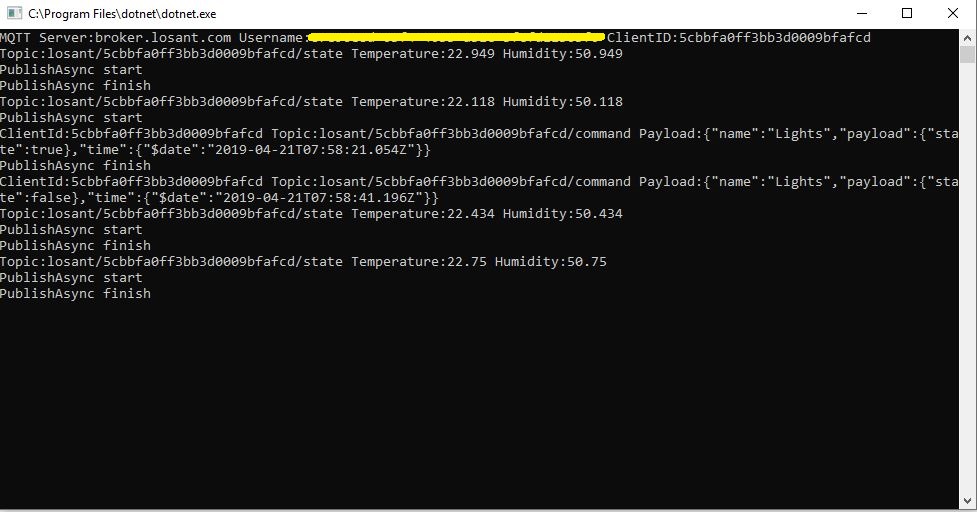
Losant .Net Core V2 client processing command
Overall the Losant experience was pretty good and I’m going to spend some more time working with the application designer, devices recipes, webhooks, integrations and workflows etc. to see how well it works for a “real-world” project.
Before building the Message Queue Telemetry Transport(MQTT) gateway I built a proof of concept(PoC) .Net core console application. This was to confirm that I could connect to the Adafruit.IO MQTT broker and format the topic (with and without group name) and payload correctly. The Adafruit IO MQTT documentation suggests an approach for naming topics which allows a bit more structure for feed names than the RESTAPI.
The MQTT broker, username, API key, client ID, optional group name (to keep MQTT aligned with REST API terminology) and feed name are command line options.
For this PoC I used the MQTTnet package which is available via NuGet. It appeared to be reasonably well supported and has had recent updates.
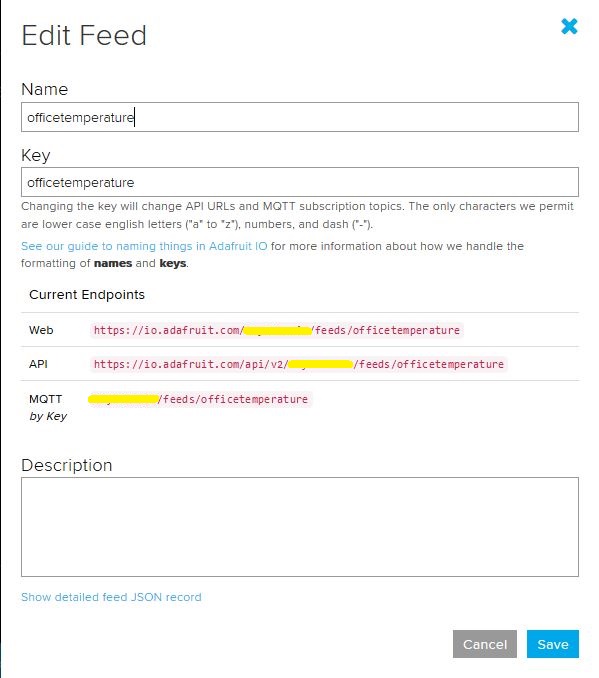
Overall the process went pretty well, I found that looking at the topic names in the Adafruit IO feed setup screens helped a lot. A couple of times I was tripped up by mixed case in my text fields.
.Net Core 2 client with group nameAdafruit IO feed setup with group nameConsole client without group nameAdafruit IO feed setup without group name
I am also going to try building some clients with the Eclipse Paho project .net client so I can compare a couple of different libraries.
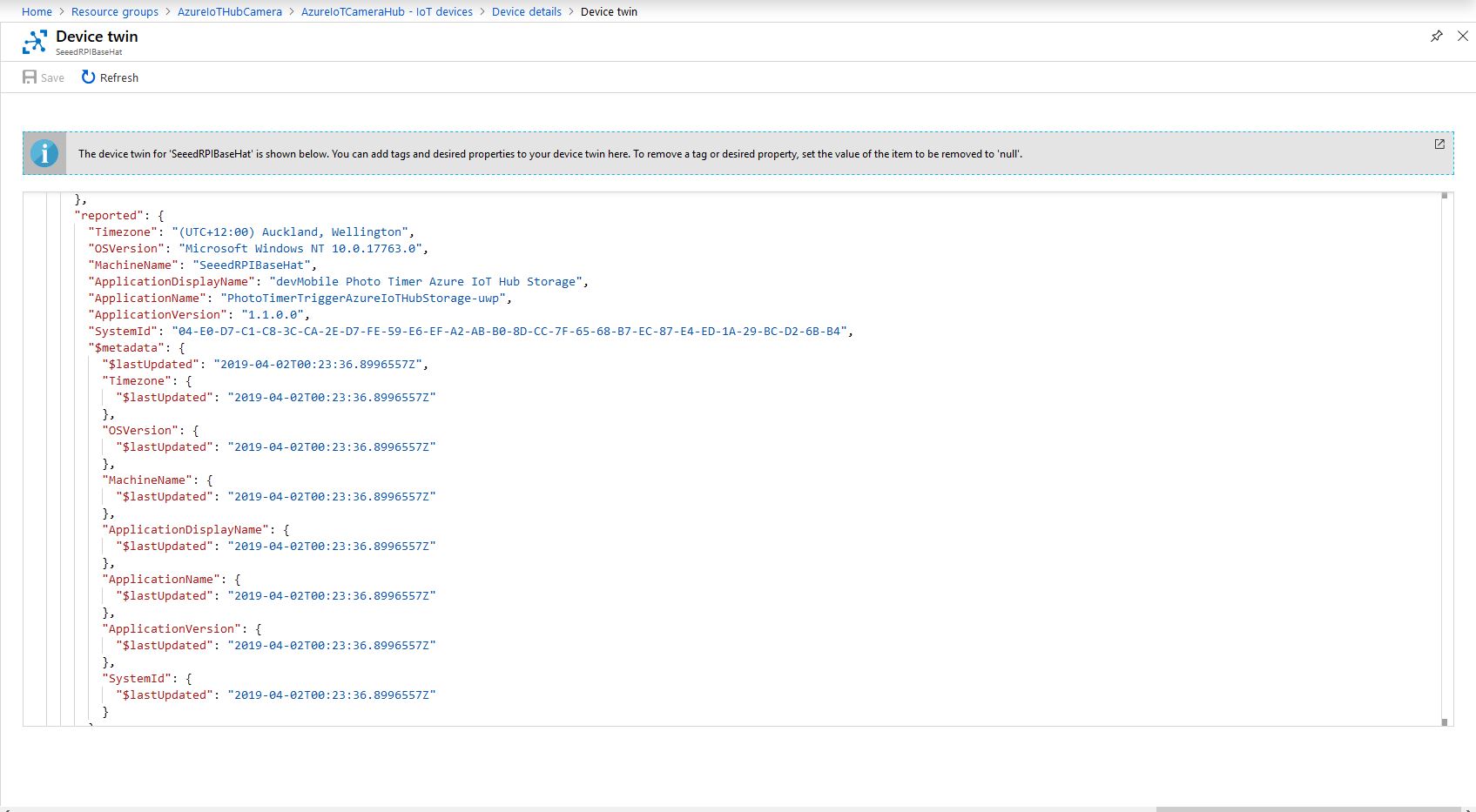
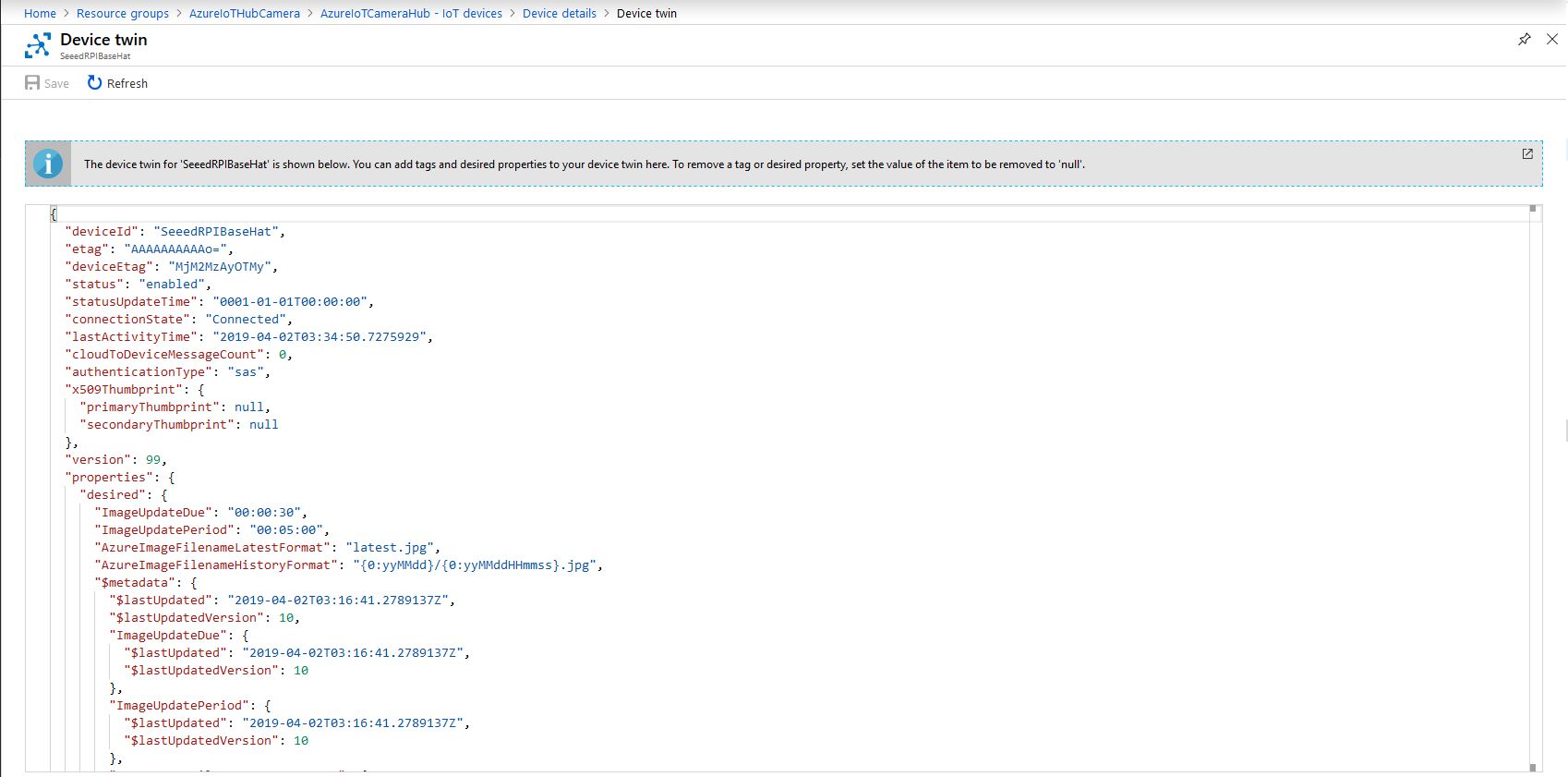
On startup the application uploads a selection of properties to the Azure IoT Hub to assist with support, fault finding etc.
// This is from the OS
reportedProperties["Timezone"] = TimeZoneSettings.CurrentTimeZoneDisplayName;
reportedProperties["OSVersion"] = Environment.OSVersion.VersionString;
reportedProperties["MachineName"] = Environment.MachineName;
reportedProperties["ApplicationDisplayName"] = package.DisplayName;
reportedProperties["ApplicationName"] = packageId.Name;
reportedProperties["ApplicationVersion"] = string.Format($"{version.Major}.{version.Minor}.{version.Build}.{version.Revision}");

// Unique identifier from the hardware
SystemIdentificationInfo systemIdentificationInfo = SystemIdentification.GetSystemIdForPublisher();
using (DataReader reader = DataReader.FromBuffer(systemIdentificationInfo.Id))
{
   byte[] bytes = new byte[systemIdentificationInfo.Id.Length];
   reader.ReadBytes(bytes);
   reportedProperties["SystemId"] = BitConverter.ToString(bytes);
}
Azure Portal Device Properties
The Azure Storage file and folder name formats along with the image capture due and update periods are configured in the DeviceTwin properties. Initially I had some problems with the dynamic property types so had to .ToString and then Timespan.TryParse the periods.
Twin deviceTwin= azureIoTHubClient.GetTwinAsync().Result;

if (!deviceTwin.Properties.Desired.Contains("AzureImageFilenameLatestFormat"))
{
   this.logging.LogMessage("DeviceTwin.Properties AzureImageFilenameLatestFormat setting missing", LoggingLevel.Warning);
   return;
}
…
if (!deviceTwin.Properties.Desired.Contains("ImageUpdateDue") || !TimeSpan.TryParse(deviceTwin.Properties.Desired["ImageUpdateDue"].Value.ToString(), out imageUpdateDue))
{
   this.logging.LogMessage("DeviceTwin.Properties ImageUpdateDue setting missing or invalid format", LoggingLevel.Warning);
   return;
}
Azure Portal Device Settings
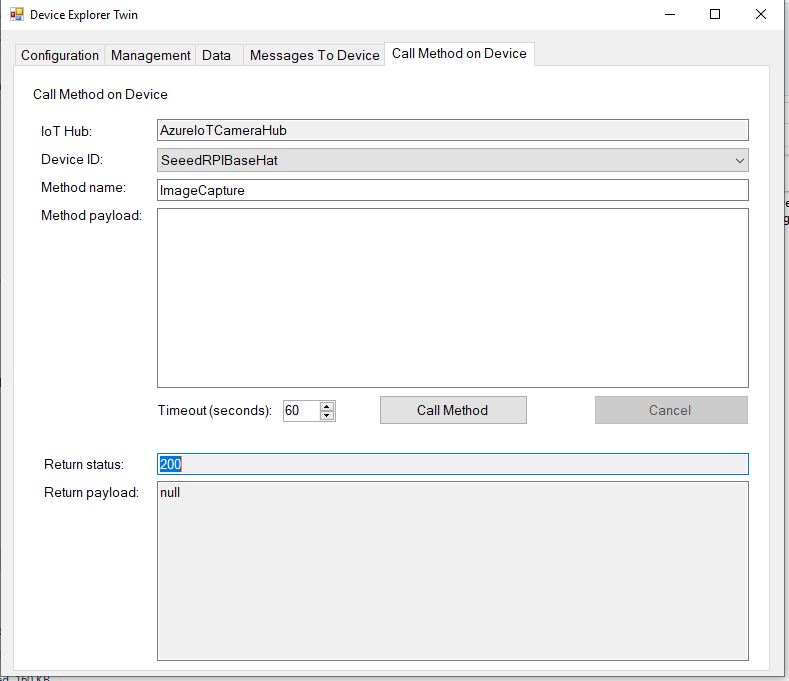
The application also supports two commands “ImageCapture’ and “DeviceReboot”. For testing I used Azure Device Explorer
After running the installer (available from GitHub) the application will create a default configuration file in
Which can be downloaded, modified then uploaded using the portal file explorer application. If you want to make the application run on device start-up the radio button below needs to be selected.
I really wanted to be able to do a time-lapse video of a storm coming up the Canterbury Plains to Christchurch and combine it with the wind direction, windspeed, temperature and humidity data from my weather station which uploads data to Azure through my Azure IoT Hub LoRa field gateway.
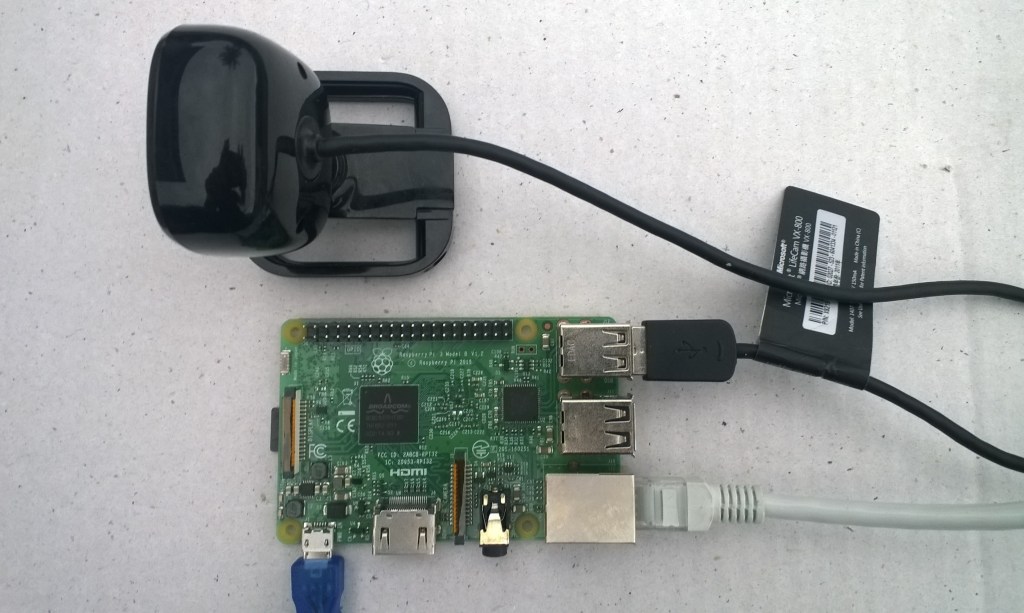
Time-lapse camera setup
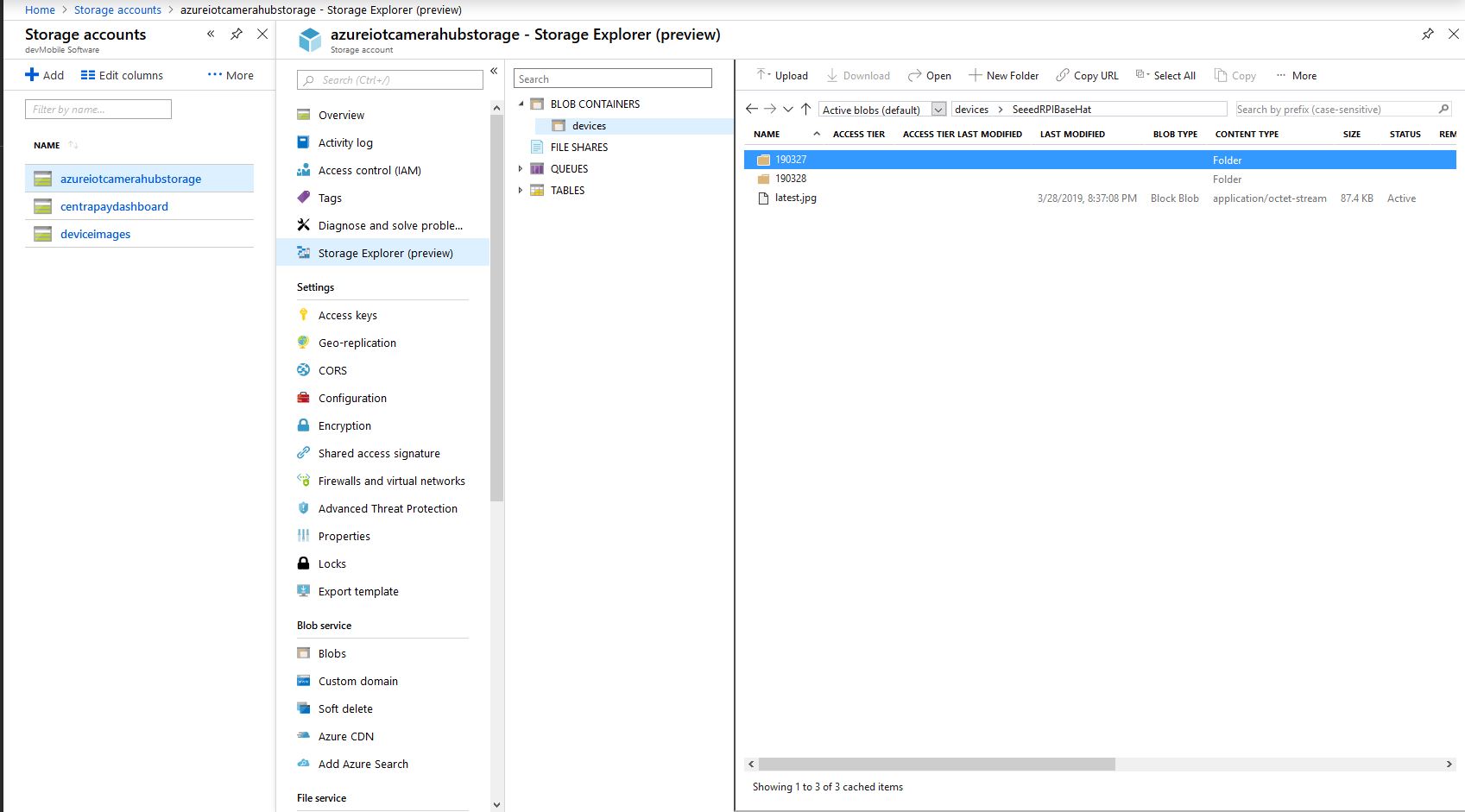
The application captures images with a configurable period after configurable start-up delay. The Azure storage root folder name is based on the device name in the Azure IoT Hub connection string. The folder(s) where the historic images are stored are configurable and the images can optionally be in monthly, daily, hourly etc. folders. The current image is stored in the root folder for the device and it’s name is configurable.
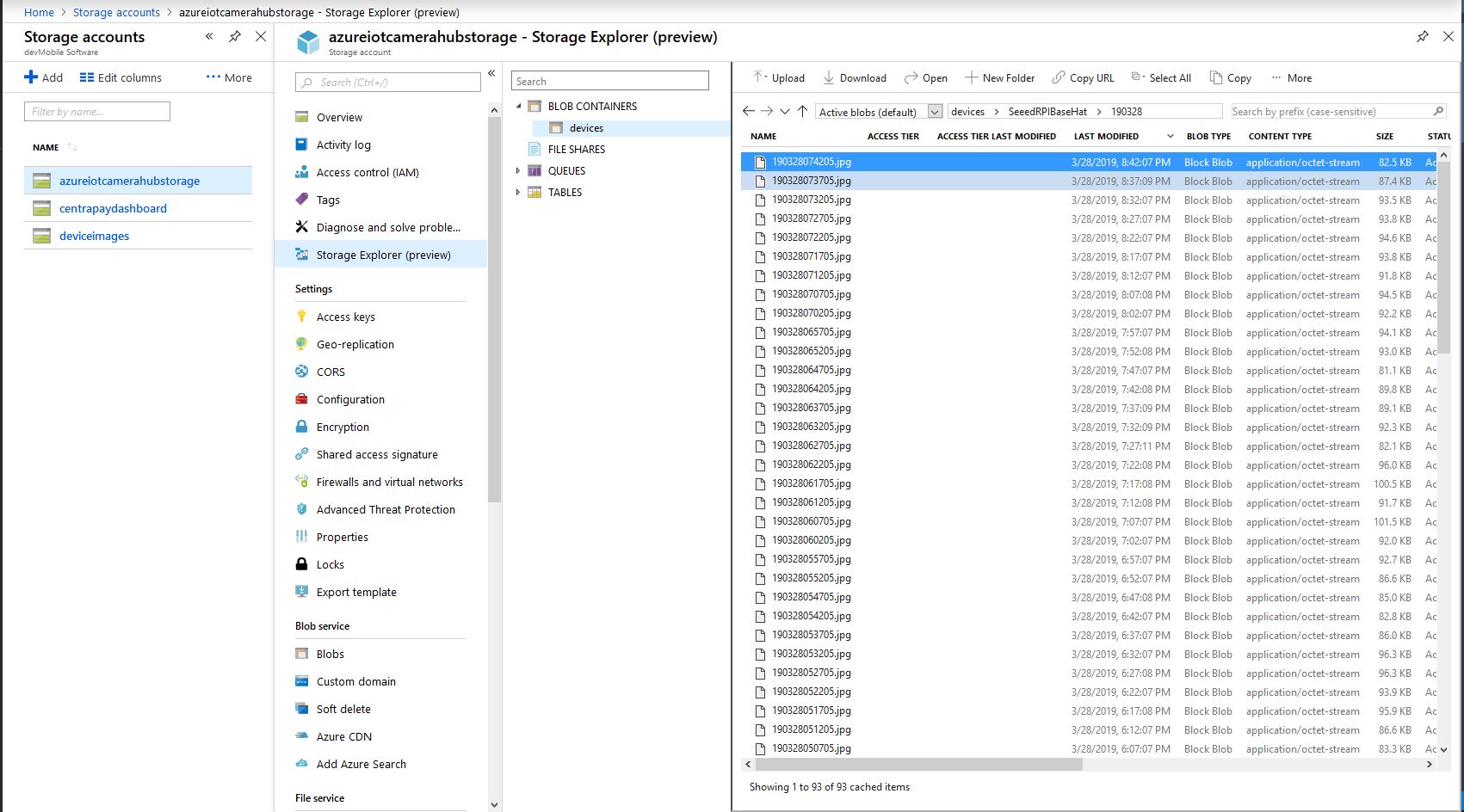
With the above setup I have a folder for each device in the historic fiolder and the most recent image i.e. “latest.jpg” in the root folder. The file and folder names are assembled with a parameterised string.format . The parameter {0} is the current UTC time
Pay attention to your folder/file name formatting, I was tripped up by
mm – minutes vs. MM – months
hh – 12 hour clock vs. HH -24 hour clock
With 12 images every hour
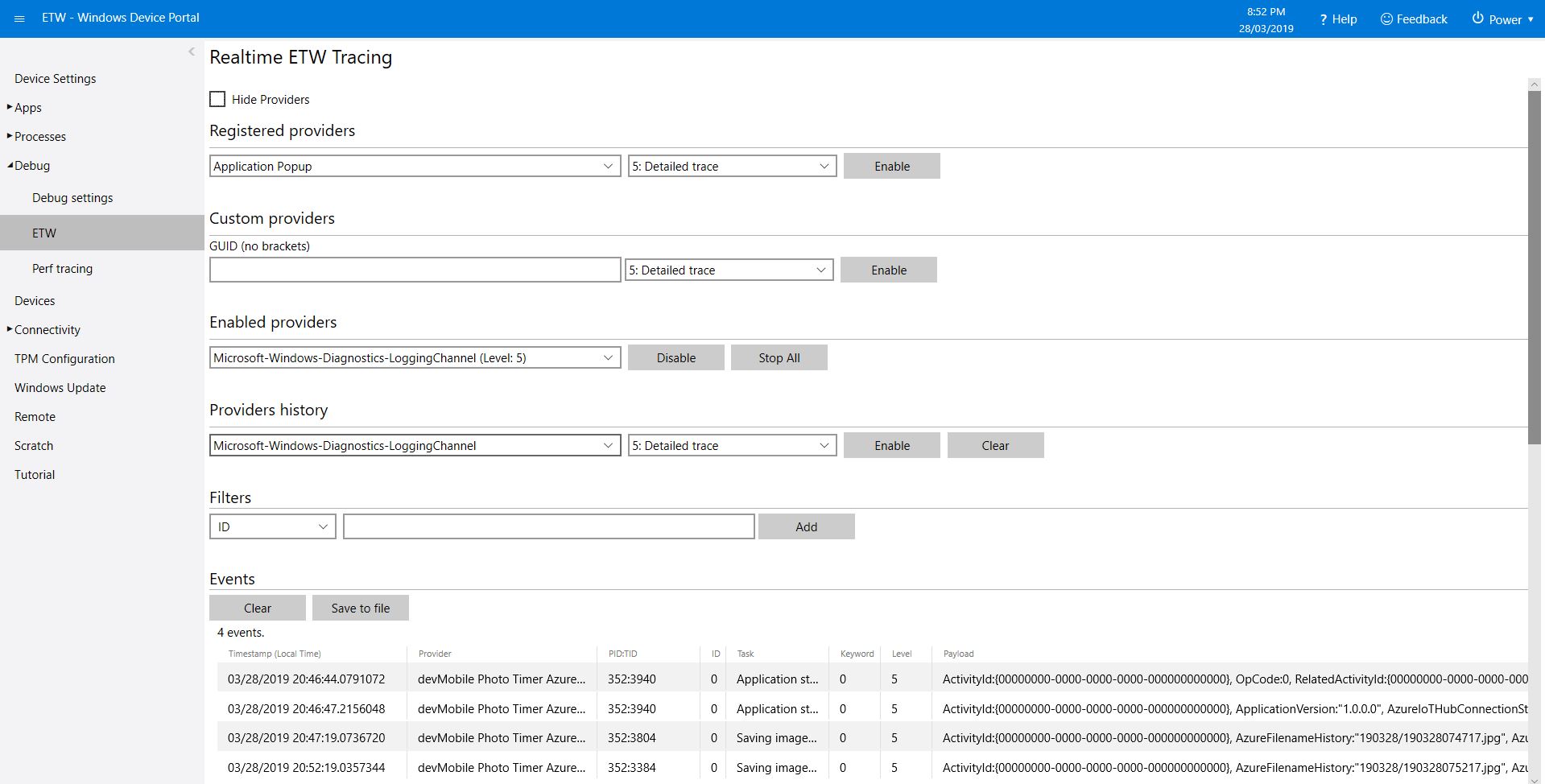
The application logs events on start-up and every time a picture is taken
After running the installer (available from GitHub) the application will create a default configuration file in
User Folders\LocalAppData\PhotoTimerTriggerAzureIoTHubStorage-uwp_1.0.0.0_arm__nmn3tag1rpsaw\LocalState\
Which can be downloaded, modified then uploaded using the portal file explorer application. If you want to make the application run on device start-up the radio button below needs to be selected.
/*
    Copyright ® 2019 March devMobile Software, All Rights Reserved

    MIT License

…
*/
namespace devMobile.Windows10IotCore.IoT.PhotoTimerTriggerAzureIoTHubStorage
{
	using System;
	using System.IO;
	using System.Diagnostics;
	using System.Threading;

	using Microsoft.Azure.Devices.Client;
	using Microsoft.Extensions.Configuration;

	using Windows.ApplicationModel;
	using Windows.ApplicationModel.Background;
	using Windows.Foundation.Diagnostics;
	using Windows.Media.Capture;
	using Windows.Media.MediaProperties;
	using Windows.Storage;
	using Windows.System;

	public sealed class StartupTask : IBackgroundTask
	{
		private BackgroundTaskDeferral backgroundTaskDeferral = null;
		private readonly LoggingChannel logging = new LoggingChannel("devMobile Photo Timer Azure IoT Hub Storage", null, new Guid("4bd2826e-54a1-4ba9-bf63-92b73ea1ac4a"));
		private DeviceClient azureIoTHubClient = null;
		private const string ConfigurationFilename = "appsettings.json";
		private Timer ImageUpdatetimer;
		private MediaCapture mediaCapture;
		private string azureIoTHubConnectionString;
		private TransportType transportType;
		private string azureStorageimageFilenameLatestFormat;
		private string azureStorageImageFilenameHistoryFormat;
		private const string ImageFilenameLocal = "latest.jpg";
		private volatile bool cameraBusy = false;

		public void Run(IBackgroundTaskInstance taskInstance)
		{
			StorageFolder localFolder = ApplicationData.Current.LocalFolder;
			int imageUpdateDueSeconds;
			int imageUpdatePeriodSeconds;

			this.logging.LogEvent("Application starting");

			// Log the Application build, OS version information etc.
			LoggingFields startupInformation = new LoggingFields();
			startupInformation.AddString("Timezone", TimeZoneSettings.CurrentTimeZoneDisplayName);
			startupInformation.AddString("OSVersion", Environment.OSVersion.VersionString);
			startupInformation.AddString("MachineName", Environment.MachineName);

			// This is from the application manifest
			Package package = Package.Current;
			PackageId packageId = package.Id;
			PackageVersion version = packageId.Version;
			startupInformation.AddString("ApplicationVersion", string.Format($"{version.Major}.{version.Minor}.{version.Build}.{version.Revision}"));

			try
			{
				// see if the configuration file is present if not copy minimal sample one from application directory
				if (localFolder.TryGetItemAsync(ConfigurationFilename).AsTask().Result == null)
				{
					StorageFile templateConfigurationfile = Package.Current.InstalledLocation.GetFileAsync(ConfigurationFilename).AsTask().Result;
					templateConfigurationfile.CopyAsync(localFolder, ConfigurationFilename).AsTask();

					this.logging.LogMessage("JSON configuration file missing, templated created", LoggingLevel.Warning);
					return;
				}

				IConfiguration configuration = new ConfigurationBuilder().AddJsonFile(Path.Combine(localFolder.Path, ConfigurationFilename), false, true).Build();

				azureIoTHubConnectionString = configuration.GetSection("AzureIoTHubConnectionString").Value;
				startupInformation.AddString("AzureIoTHubConnectionString", azureIoTHubConnectionString);

				transportType = (TransportType)Enum.Parse( typeof(TransportType), configuration.GetSection("TransportType").Value);
				startupInformation.AddString("TransportType", transportType.ToString());

				azureStorageimageFilenameLatestFormat = configuration.GetSection("AzureImageFilenameFormatLatest").Value;
				startupInformation.AddString("ImageFilenameLatestFormat", azureStorageimageFilenameLatestFormat);

				azureStorageImageFilenameHistoryFormat = configuration.GetSection("AzureImageFilenameFormatHistory").Value;
				startupInformation.AddString("ImageFilenameHistoryFormat", azureStorageImageFilenameHistoryFormat);

				imageUpdateDueSeconds = int.Parse(configuration.GetSection("ImageUpdateDueSeconds").Value);
				startupInformation.AddInt32("ImageUpdateDueSeconds", imageUpdateDueSeconds);

				imageUpdatePeriodSeconds = int.Parse(configuration.GetSection("ImageUpdatePeriodSeconds").Value);
				startupInformation.AddInt32("ImageUpdatePeriodSeconds", imageUpdatePeriodSeconds);
			}
			catch (Exception ex)
			{
				this.logging.LogMessage("JSON configuration file load or settings retrieval failed " + ex.Message, LoggingLevel.Error);
				return;
			}

			try
			{
				azureIoTHubClient = DeviceClient.CreateFromConnectionString(azureIoTHubConnectionString, transportType);
			}
			catch (Exception ex)
			{
				this.logging.LogMessage("AzureIOT Hub connection failed " + ex.Message, LoggingLevel.Error);
				return;
			}

			try
			{
				mediaCapture = new MediaCapture();
				mediaCapture.InitializeAsync().AsTask().Wait();
			}
			catch (Exception ex)
			{
				this.logging.LogMessage("Camera configuration failed " + ex.Message, LoggingLevel.Error);
				return;
			}

			ImageUpdatetimer = new Timer(ImageUpdateTimerCallback, null, new TimeSpan(0, 0, imageUpdateDueSeconds), new TimeSpan(0, 0, imageUpdatePeriodSeconds));

			this.logging.LogEvent("Application started", startupInformation);

			//enable task to continue running in background
			backgroundTaskDeferral = taskInstance.GetDeferral();
		}

		private async void ImageUpdateTimerCallback(object state)
		{
			DateTime currentTime = DateTime.UtcNow;
			Debug.WriteLine($"{DateTime.UtcNow.ToLongTimeString()} Timer triggered");

			// Just incase - stop code being called while photo already in progress
			if (cameraBusy)
			{
				return;
			}
			cameraBusy = true;

			try
			{
				using (Windows.Storage.Streams.InMemoryRandomAccessStream captureStream = new Windows.Storage.Streams.InMemoryRandomAccessStream())
				{
					await mediaCapture.CapturePhotoToStreamAsync(ImageEncodingProperties.CreateJpeg(), captureStream);
					await captureStream.FlushAsync();
#if DEBUG
					IStorageFile photoFile = await KnownFolders.PicturesLibrary.CreateFileAsync(ImageFilenameLocal, CreationCollisionOption.ReplaceExisting);
					ImageEncodingProperties imageProperties = ImageEncodingProperties.CreateJpeg();
					await mediaCapture.CapturePhotoToStorageFileAsync(imageProperties, photoFile);
#endif

					string azureFilenameLatest = string.Format(azureStorageimageFilenameLatestFormat, currentTime);
					string azureFilenameHistory = string.Format(azureStorageImageFilenameHistoryFormat, currentTime);

					LoggingFields imageInformation = new LoggingFields();
					imageInformation.AddDateTime("TakenAtUTC", currentTime);
#if DEBUG
					imageInformation.AddString("LocalFilename", photoFile.Path);
#endif
					imageInformation.AddString("AzureFilenameLatest", azureFilenameLatest);
					imageInformation.AddString("AzureFilenameHistory", azureFilenameHistory);
					this.logging.LogEvent("Saving image(s) to Azure storage", imageInformation);

					// Update the latest image in storage
					if (!string.IsNullOrWhiteSpace(azureFilenameLatest))
					{
						captureStream.Seek(0);
						Debug.WriteLine("AzureIoT Hub latest image upload start");
						await azureIoTHubClient.UploadToBlobAsync(azureFilenameLatest, captureStream.AsStreamForRead());
						Debug.WriteLine("AzureIoT Hub latest image upload done");
					}

					// Upload the historic image to storage
					if (!string.IsNullOrWhiteSpace(azureFilenameHistory))
					{
						captureStream.Seek(0);
						Debug.WriteLine("AzureIoT Hub historic image upload start");
						await azureIoTHubClient.UploadToBlobAsync(azureFilenameHistory, captureStream.AsStreamForRead());
						Debug.WriteLine("AzureIoT Hub historic image upload done");
					}
				}
			}
			catch (Exception ex)
			{
				this.logging.LogMessage("Camera photo save or AzureIoTHub storage upload failed " + ex.Message, LoggingLevel.Error);
			}
			finally
			{
				cameraBusy = false;
			}
		}
	}
}
For my presentation last week I prepared a sample xively and Netduino based application to illustrate what could be built with off the shelf kit. I built a wireless home monitoring system which had two energy consumption monitoring devices and a dual temperature sensor device. These devices uploaded their data using MQTT to xively in close to real time. Prices as at May 2014
The devices connected to the internet via a gateway.
Testing the power consumption monitor devices, with my “modified” power lead.
The software was based on the approach in the Arduino code of the emon libraries from the Open Energy Monitor project which I’ll discuss in more detail in a future post.









 devMobile's blog