Random wanderings through Microsoft Azure esp. PaaS plumbing, the IoT bits, AI on Micro controllers, AI on Edge Devices, .NET nanoFramework, .NET Core on *nix and ML.NET+ONNX
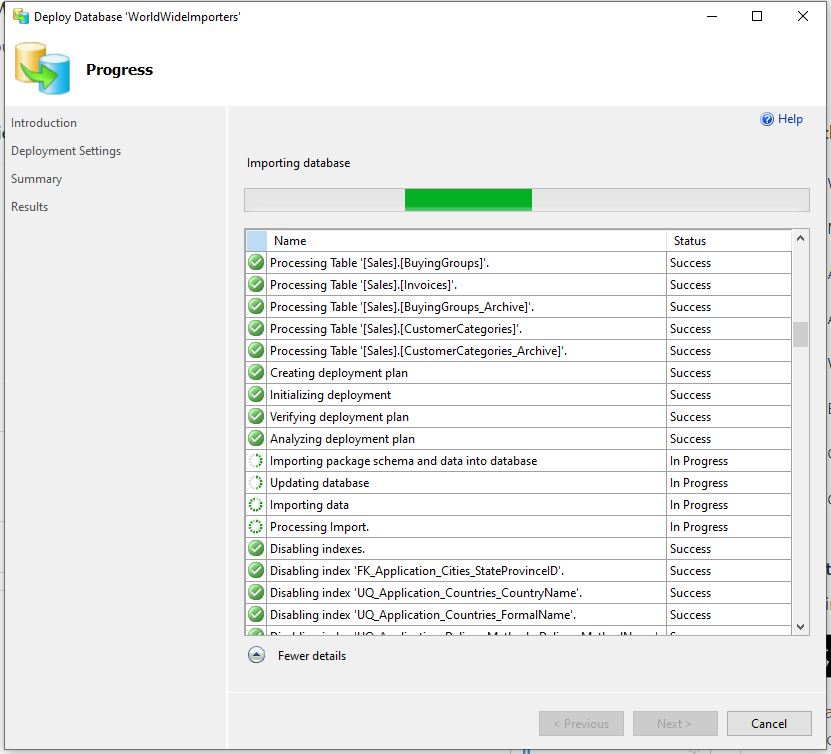
Read-only replicas of an Azure SQL Database database with Active geo-replication are easy to setup but there are some disadvantages. e.g. bi-directional synchronisation is not supported, not all tables or selected columns of some tables might not be needed\should not be accessible for reporting, the overhead of replicating tables used for transaction processing might impact on the performance of the solution etc. Azure SQL Data Sync is a service built on Azure SQL Database that can synchronise selected data bi-directionally across multiple databases, both on-premises and in the cloud.
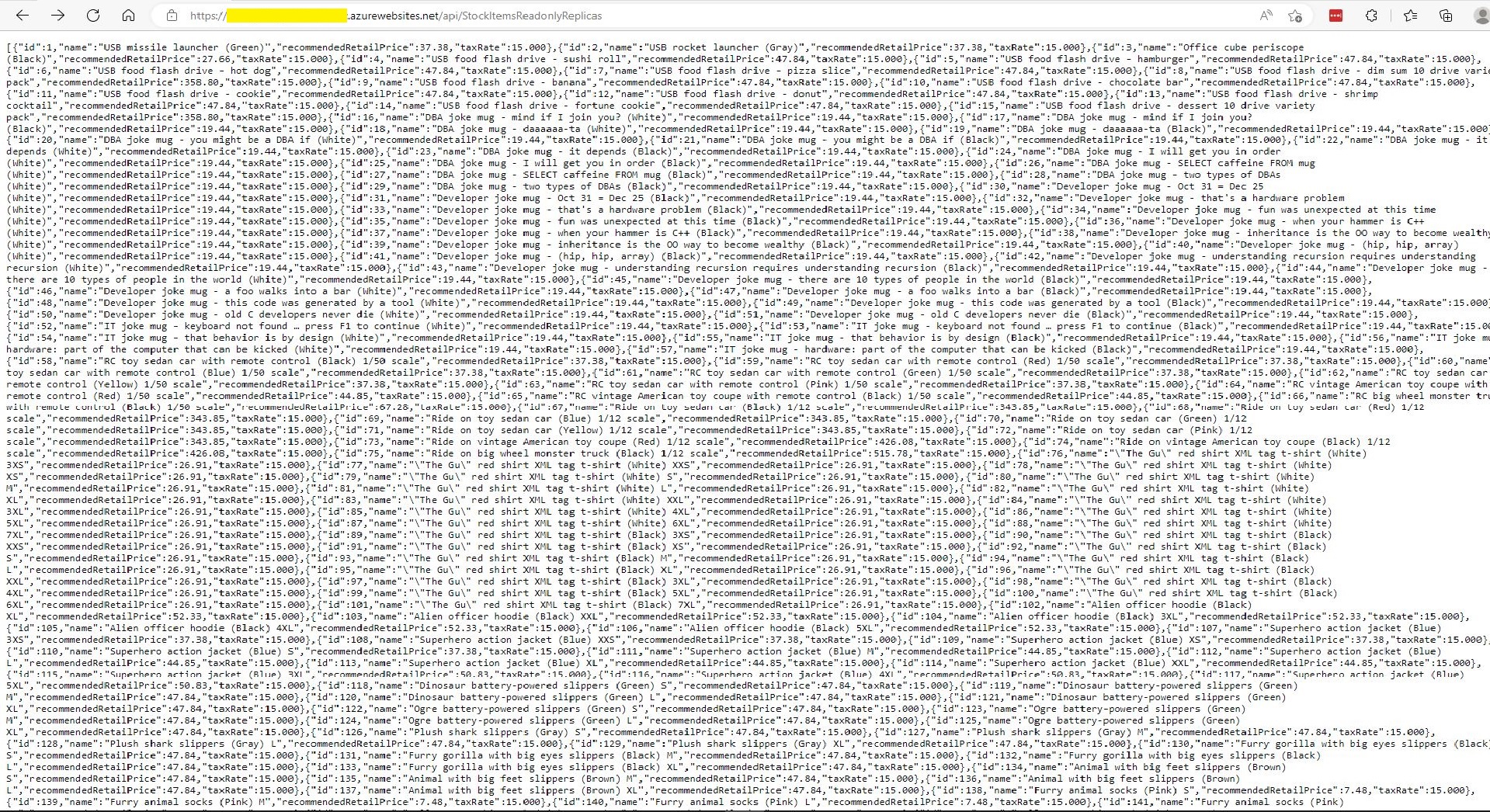
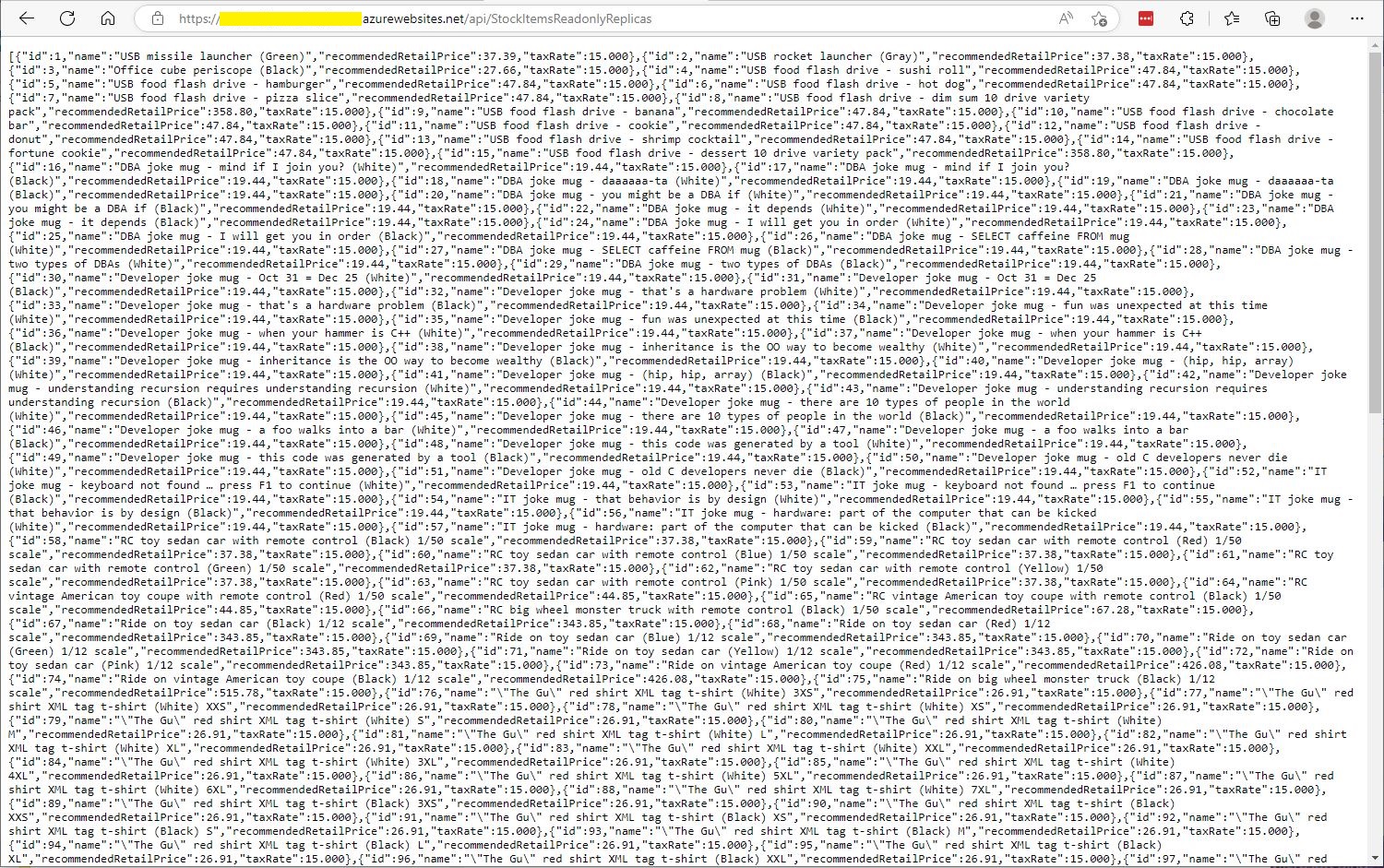
StockItemsReadOnlyReplicas Controller JSON after first replication completed
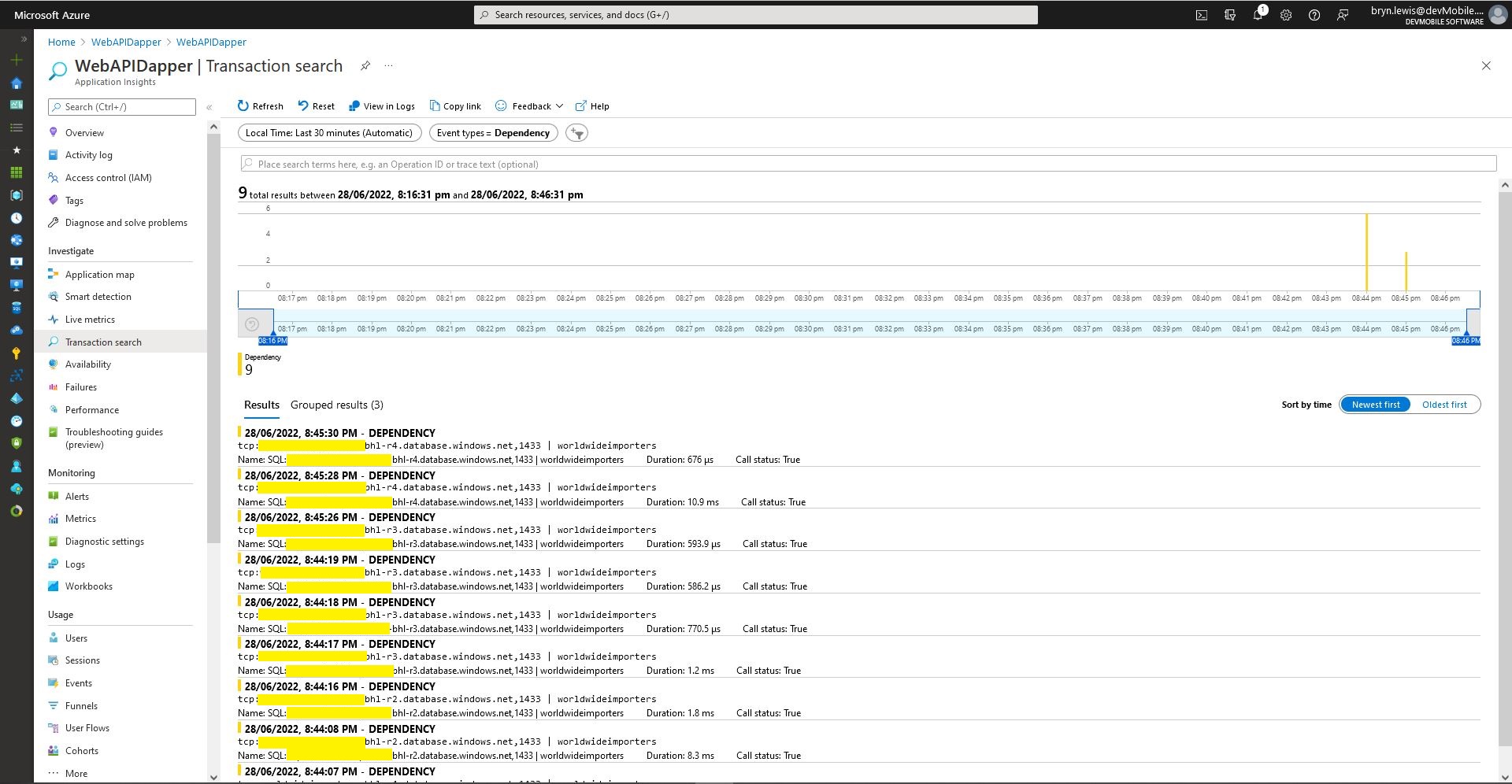
Azure application Insights Dependencies showing usage of different synchronised databases
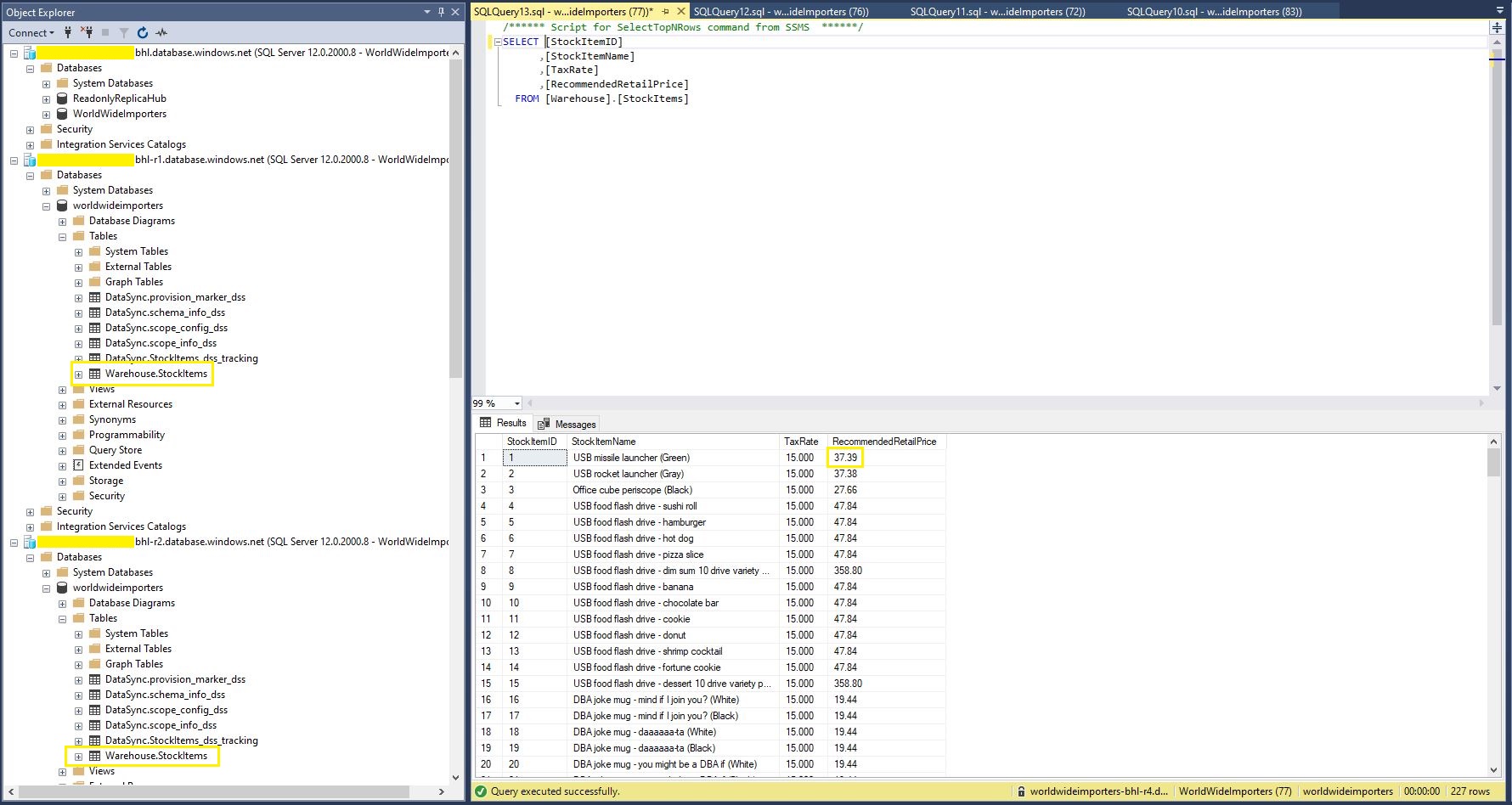
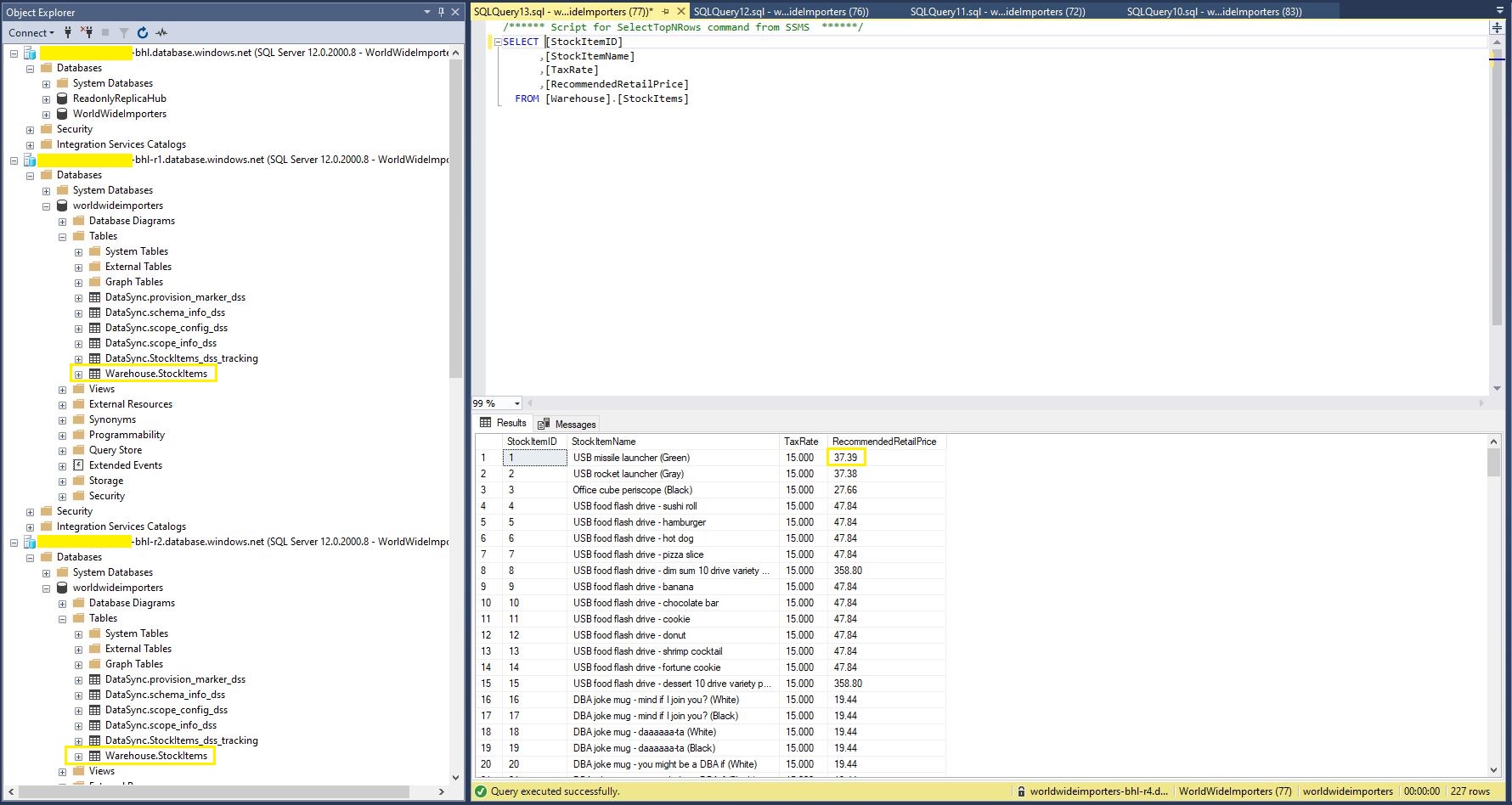
StockItems table in source database with updated RRP
StockItems table in destination database with updated RRP after next scheduled snychronisation
StockItems table in destination database after next scheduled synchronisation
The Azure SQL Database Data Sync was pretty easy to setup (configuration in the hub database tripped me up initially). For a production scenario where only a portion of the database (e.g. shaped by Customer, Geography, security considerations, or a bi-directional requirement) it would be an effective solution, though for some applications the delay between synchronisations might be an issue.
One of the easiest ways to create read-only replicas of an Azure SQL Database database is with Active geo-replication(it’s also useful for disaster recovery with geo-failure to a geo-secondary in a different Azure Region).
I then created replicas in the same region (if the application had a global customer base creating read only geo replicas in regions close to users might be worth considering) for the read-only queries.
Azure SQL Database no replicas configured
Azure Portal Create Geo Replica
I created four replicas which is the maximum number supported. If more replicas were required a secondary of a secondary (a process known as chaining) could be use to create additional geo-replicas
Azure Portal Primary Database and four Geo-replicas
Azure Application Insights showing multiple Geo-Replicas being used.
The Azure Database Geo-replication was pretty easy to setup. For a production scenario where only a portion of the database (e.g. shaped by Customer or Geography) is required it might not be the “right hammer”.
WebAPI Dapper Azure Resource Group
The other limitation I encountered was the resources used by the replication of “transaction processing” tables (in the World Wide Importers database tables like the Sales.OrderLines, Sales.CustomerTransactions etc.) which often wouldn’t be required for read-only applications.
The company builds a Software as a Service(Saas) product for managing portfolios of foreign currency forwards, options, swaps etc. Part of the solution has an application which customers use to get an “aggregated” view of their purchases.
The database queries to lookup reference data (forward curves etc.), return a shaped dataset for each supported instrument type, then “aggregating” the information with C# code consumes significant database and processing resources.
The configuration strings of the read-only replicas are loaded as the application starts.
// This method gets called by the runtime. Use this method to add services to the container.
public void ConfigureServices(IServiceCollection services)
{
	services.AddControllers();

	var errorHandlerSettings = Configuration.GetSection(nameof(ErrorHandlerSettings));
	services.Configure<ErrorHandlerSettings>(errorHandlerSettings);

	var readonlyReplicaServersConnectionStringSettings = Configuration.GetSection("ReadonlyReplicaServersConnectionStringSettings");
	services.Configure<List<string>>(readonlyReplicaServersConnectionStringSettings);

	services.AddResponseCaching();

	services.AddDapperForMSSQL();
#if DAPPER_EXTENSIONS_CACHE_MEMORY
	services.AddDapperCachingInMemory(new MemoryConfiguration
	{
		AllMethodsEnableCache = false
 	});
#endif
#if DAPPER_EXTENSIONS_CACHE_REDIS
	services.AddDapperCachingInRedis(new RedisConfiguration
	{
		AllMethodsEnableCache = false,
		KeyPrefix = Configuration.GetValue<string>("RedisKeyPrefix"),
		ConnectionString = Configuration.GetConnectionString("RedisConnection")
	});
#endif
	services.AddApplicationInsightsTelemetry();
}
Then code was added to the controller to randomly select which read-only replica to use. More complex approaches were considered but not implemented for the initial version.
[ApiController]
[Route("api/[controller]")]
public class StockItemsReadonlyReplicasController : ControllerBase
{
    private readonly ILogger<StockItemsReadonlyReplicasController> logger;
    private readonly List<string> readonlyReplicasConnectionStrings;

    public StockItemsReadonlyReplicasController(ILogger<StockItemsReadonlyReplicasController> logger, IOptions<List<string>> readonlyReplicasServerConnectionStrings)
    {
        this.logger = logger;

        this.readonlyReplicasConnectionStrings = readonlyReplicasServerConnectionStrings.Value;
    }

    [HttpGet]
    public async Task<ActionResult<IEnumerable<Model.StockItemListDtoV1>>> Get()
    {
        IEnumerable<Model.StockItemListDtoV1> response = null;

        if (readonlyReplicasConnectionStrings.Count == 0)
        {
            logger.LogError("No readonly replica server Connection strings configured");

            return this.StatusCode(StatusCodes.Status500InternalServerError);
        }

        Random random = new Random(); // maybe this should be instantiated ever call, but "danger here by thy threading"

        string connectionString = readonlyReplicasConnectionStrings[random.Next(0, readonlyReplicasConnectionStrings.Count)];

        logger.LogTrace("Connection string {connectionString}", connectionString);

        using (SqlConnection db = new SqlConnection(connectionString))
        {
            response = await db.QueryAsync<Model.StockItemListDtoV1>(sql: @"SELECT [StockItemID] as ""ID"", [StockItemName] as ""Name"", [RecommendedRetailPrice], [TaxRate] FROM [Warehouse].[StockItems]", commandType: CommandType.Text);
        }

        return this.Ok(response);
    }
}
The Read-only replica server connection string setup template in appsettings.Development.json.
The Manage UserSecrets(Secrets.json) functionality was used for testing on my development machine. In production Azure App Service the array of connections strings was configured with ReadonlyReplicaServersConnectionStringSettings:0, ReadonlyReplicaServersConnectionStringSettings:1 etc. syntax
Sample application Azure App Service Configuration
Azure Application Insights with connections to different read-only replicas highlighted
I had incorrectly configured the firewall on one of the read-only replica database servers so roughly one in four connection attempts failed.
For some historical reason I can’t remember my controllers often had an outer try/catch and associated logging. I think may have been ensure no “sensitive” information was returned to the caller even if the application was incorrectly deployed. So I could revisit my approach I added a controller with two methods one which returns an HTTP 500 error and another which has un-caught exception.
[Route("api/[controller]")]
[ApiController]
public class StockItemsNok500Controller : ControllerBase
{
	private readonly string connectionString;
	private readonly ILogger<StockItemsNok500Controller> logger;

	public StockItemsNok500Controller(IConfiguration configuration, ILogger<StockItemsNok500Controller> logger)
	{
		this.connectionString = configuration.GetConnectionString("WorldWideImportersDatabase");

		this.logger = logger;
	}

	public async Task<ActionResult<IEnumerable<Model.StockItemListDtoV1>>> Get500()
	{
		IEnumerable<Model.StockItemListDtoV1> response = null;

		try
		{
			using (SqlConnection db = new SqlConnection(this.connectionString))
			{
				response = await db.QueryWithRetryAsync<Model.StockItemListDtoV1>(sql: @"SELECT [StockItemID] as ""ID"", [StockItemName] as ""Name"", [RecommendedRetailPrice], [TaxRate] FROM [Warehouse].[StockItem500]", commandType: CommandType.Text);
			}
		}
		catch (SqlException ex)
		{
			logger.LogError(ex, "Retrieving list of StockItems");

			return this.StatusCode(StatusCodes.Status500InternalServerError);
		}

		return this.Ok(response);
	}
}
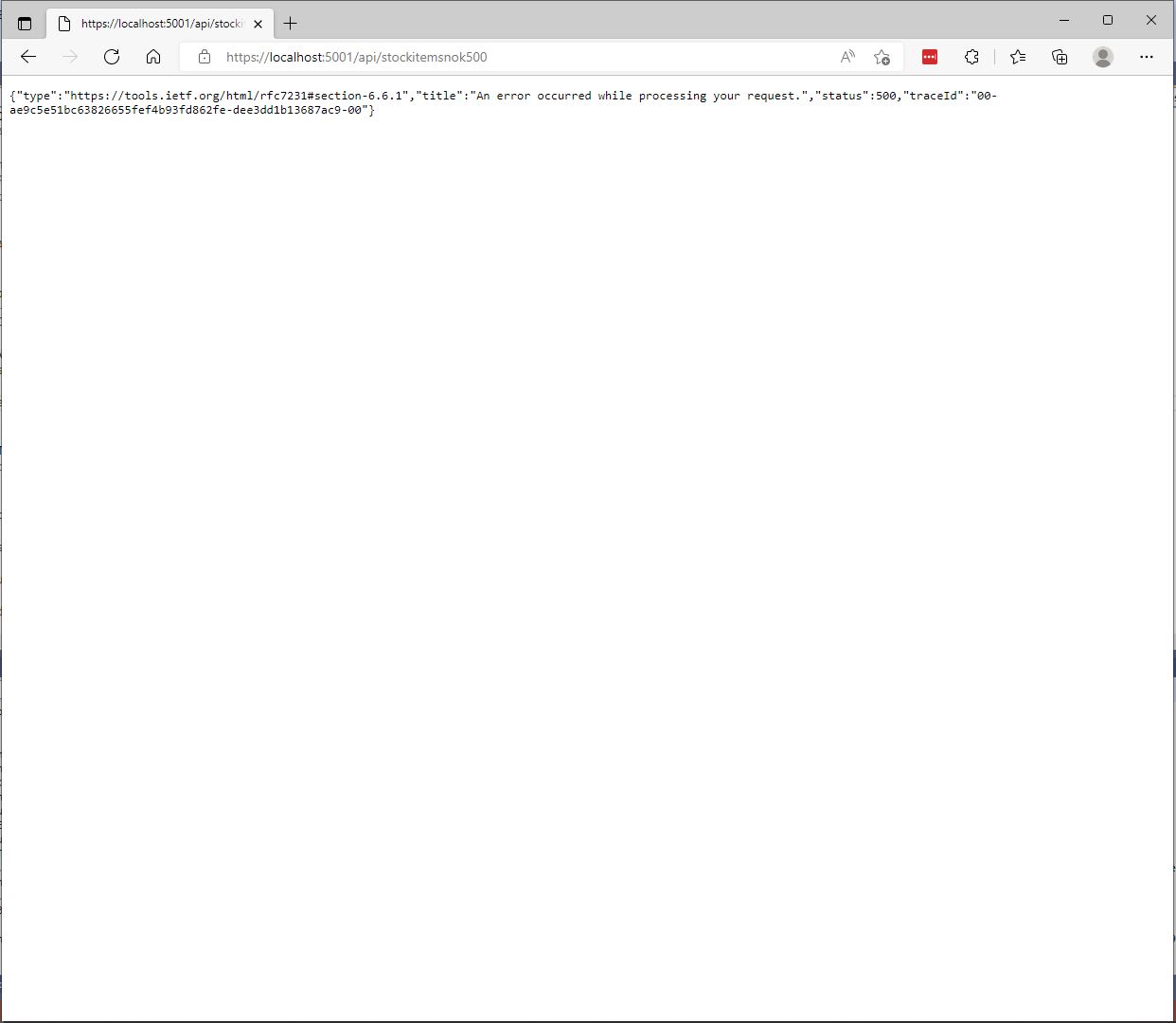
The information returned to a caller was generic and the only useful information was the “traceId”.
StockItemsNok500Controller error page
[Route("api/[controller]")]
[ApiController]
public class StockItemsNokExceptionController : ControllerBase
{
	private readonly string connectionString;

	public StockItemsNokExceptionController(IConfiguration configuration)
	{
		this.connectionString = configuration.GetConnectionString("WorldWideImportersDatabase");
	}

	public async Task<ActionResult<IEnumerable<Model.StockItemListDtoV1>>> GetException()
	{
		IEnumerable<Model.StockItemListDtoV1> response = null;

		using (SqlConnection db = new SqlConnection(this.connectionString))
		{
			response = await db.QueryWithRetryAsync<Model.StockItemListDtoV1>(sql: @"SELECT [StockItemID] as ""ID"", [StockItemName] as ""Name"", [RecommendedRetailPrice], [TaxRate] FROM [Warehouse].[StockItemsException]", commandType: CommandType.Text);
		}

		return this.Ok(response);
	}
}
In “Development” mode the information returned to the caller contains a detailed stack trace that reveals implementation details which are useful for debugging but would also be useful to an attacker.
Developer StockItemsNok Controller Exception page
When not in “Development” mode no additional information is returned (not even a TraceId).
Production StockItemsNok500Controller Exception
The diagnostic stacktrace information logged by the two different controllers was essentially the same
System.Data.SqlClient.SqlException:
   at System.Data.SqlClient.SqlCommand+<>c.<ExecuteDbDataReaderAsync>b__126_0 (System.Data.SqlClient, Version=4.6.1.3, Culture=neutral, PublicKeyToken=b03f5f7f11d50a3a)
   at System.Threading.Tasks.ContinuationResultTaskFromResultTask`2.InnerInvoke (System.Private.CoreLib, Version=6.0.0.0, Culture=neutral, PublicKeyToken=7cec85d7bea7798e)
   at System.Threading.Tasks.Task+<>c.<.cctor>b__272_0 (System.Private.CoreLib, Version=6.0.0.0, Culture=neutral, PublicKeyToken=7cec85d7bea7798e)
   at System.Threading.ExecutionContext.RunInternal (System.Private.CoreLib, Version=6.0.0.0, Culture=neutral, PublicKeyToken=7cec85d7bea7798e)
   at System.Runtime.ExceptionServices.ExceptionDispatchInfo.Throw (System.Private.CoreLib, Version=6.0.0.0, Culture=neutral, PublicKeyToken=7cec85d7bea7798e)
   at System.Threading.ExecutionContext.RunInternal (System.Private.CoreLib, Version=6.0.0.0, Culture=neutral, PublicKeyToken=7cec85d7bea7798e)
   at System.Threading.Tasks.Task.ExecuteWithThreadLocal (System.Private.CoreLib, Version=6.0.0.0, Culture=neutral, PublicKeyToken=7cec85d7bea7798e)
   at System.Runtime.ExceptionServices.ExceptionDispatchInfo.Throw (System.Private.CoreLib, Version=6.0.0.0, Culture=neutral, PublicKeyToken=7cec85d7bea7798e)
   at System.Runtime.CompilerServices.TaskAwaiter.ThrowForNonSuccess (System.Private.CoreLib, Version=6.0.0.0, Culture=neutral, PublicKeyToken=7cec85d7bea7798e)
   at System.Runtime.CompilerServices.TaskAwaiter.HandleNonSuccessAndDebuggerNotification (System.Private.CoreLib, Version=6.0.0.0, Culture=neutral, PublicKeyToken=7cec85d7bea7798e)
   at Dapper.SqlMapper+<QueryAsync>d__33`1.MoveNext (Dapper, Version=2.0.0.0, Culture=neutral, PublicKeyToken=null: /_/Dapper/SqlMapper.Async.cs:418)
   at System.Runtime.ExceptionServices.ExceptionDispatchInfo.Throw (System.Private.CoreLib, Version=6.0.0.0, Culture=neutral, PublicKeyToken=7cec85d7bea7798e)
   at System.Runtime.CompilerServices.TaskAwaiter.ThrowForNonSuccess (System.Private.CoreLib, Version=6.0.0.0, Culture=neutral, PublicKeyToken=7cec85d7bea7798e)
   at System.Runtime.CompilerServices.TaskAwaiter.HandleNonSuccessAndDebuggerNotification (System.Private.CoreLib, Version=6.0.0.0, Culture=neutral, PublicKeyToken=7cec85d7bea7798e)
   at Polly.Retry.AsyncRetryEngine+<ImplementationAsync>d__0`1.MoveNext (Polly, Version=7.0.0.0, Culture=neutral, PublicKeyToken=c8a3ffc3f8f825cc)
   at System.Runtime.ExceptionServices.ExceptionDispatchInfo.Throw (System.Private.CoreLib, Version=6.0.0.0, Culture=neutral, PublicKeyToken=7cec85d7bea7798e)
   at System.Runtime.CompilerServices.TaskAwaiter.ThrowForNonSuccess (System.Private.CoreLib, Version=6.0.0.0, Culture=neutral, PublicKeyToken=7cec85d7bea7798e)
   at System.Runtime.CompilerServices.TaskAwaiter.HandleNonSuccessAndDebuggerNotification (System.Private.CoreLib, Version=6.0.0.0, Culture=neutral, PublicKeyToken=7cec85d7bea7798e)
   at System.Runtime.CompilerServices.ConfiguredTaskAwaitable`1+ConfiguredTaskAwaiter.GetResult (System.Private.CoreLib, Version=6.0.0.0, Culture=neutral, PublicKeyToken=7cec85d7bea7798e)
   at Polly.AsyncPolicy+<ExecuteAsync>d__21`1.MoveNext (Polly, Version=7.0.0.0, Culture=neutral, PublicKeyToken=c8a3ffc3f8f825cc)
   at System.Runtime.ExceptionServices.ExceptionDispatchInfo.Throw (System.Private.CoreLib, Version=6.0.0.0, Culture=neutral, PublicKeyToken=7cec85d7bea7798e)
   at System.Runtime.CompilerServices.TaskAwaiter.ThrowForNonSuccess (System.Private.CoreLib, Version=6.0.0.0, Culture=neutral, PublicKeyToken=7cec85d7bea7798e)
   at System.Runtime.CompilerServices.TaskAwaiter.HandleNonSuccessAndDebuggerNotification (System.Private.CoreLib, Version=6.0.0.0, Culture=neutral, PublicKeyToken=7cec85d7bea7798e)
   at System.Runtime.CompilerServices.TaskAwaiter`1.GetResult (System.Private.CoreLib, Version=6.0.0.0, Culture=neutral, PublicKeyToken=7cec85d7bea7798e)
   at devMobile.WebAPIDapper.Lists.Controllers.StockItemsNokController+<Get500>d__4.MoveNext (ListsClassic, Version=1.0.0.0, Culture=neutral, PublicKeyToken=null: C:\Users\BrynLewis\source\repos\WebAPIDapper\Lists\Controllers\14.StockItemsNokController.cs:70)
One customer wanted their client application to display a corporate help desk number for staff to call for support. This information was made configurable
namespace devMobile.WebAPIDapper.Lists
{
	public class ErrorHandlerSettings
	{
		public string Detail { get; set; } = "devMobile Lists Classic API failure";

		public string Title { get; set; } = "System Error";
	}
}
{
 ...
  },
  "ErrorHandlerSettings": {
    "Title": "Webpage has died",
    "Detail": "Something has gone wrong call the help desk on 0800-RebootIt"
  },
...
}
namespace devMobile.WebAPIDapper.Lists.Controllers
{
	using Microsoft.AspNetCore.Mvc;
	using Microsoft.Extensions.Hosting;
	using Microsoft.Extensions.Options;


	[ApiController]
	public class ErrorController : Controller
	{
		private readonly ErrorHandlerSettings errorHandlerSettings;

		public ErrorController(IOptions<ErrorHandlerSettings> errorHandlerSettings)
		{
			this.errorHandlerSettings = errorHandlerSettings.Value;
		}

		[Route("/error")]
		public IActionResult HandleError([FromServices] IHostEnvironment hostEnvironment)
		{
			return Problem(detail: errorHandlerSettings.Detail, title: errorHandlerSettings.Title);
		}
	}
}
StockItemsNok Controller Error page with configurable title and details
Another customer wanted their client application to display a corporate help desk number based on the source hostname.
ClientA.SaasApplicationProvider.co.nz
ClientB.SaasApplicationProvider.co.nz
ClientC.SaasApplicationProvider.co.nz
SaasApplication.ClientD.co.nz
This information was also made configurable
namespace devMobile.WebAPIDapper.Lists
{
	using System.Collections.Generic;

	public class UrlSpecificSetting
	{
		public string Title { get; set; } = "";

		public string Detail { get; set; } = "";

		public UrlSpecificSetting()
		{
		}

		public UrlSpecificSetting(string title, string detail)
		{
			this.Title = title;
			this.Detail = detail;
		}
	}

	public class ErrorHandlerSettings
	{
		public string Title { get; set; } = "System Error";

		public string Detail { get; set; } = "devMobile Lists Classic API failure";

		public Dictionary<string, UrlSpecificSetting> UrlSpecificSettings { get; set; }

		public ErrorHandlerSettings()
		{
		}

		public ErrorHandlerSettings(string title, string detail, Dictionary<string, UrlSpecificSetting> urlSpecificSettings )
		{
			Title = title;

			Detail = detail;

			UrlSpecificSettings = urlSpecificSettings;
		}
	}
}
We considered storing the title and details message in the database but that approach was discounted as we wanted to minimise dependencies.
{
 ...
  "ErrorHandlerSettings": {
    "Detail": "Default detail",
    "Title": "Default title",
    "UrlSpecificSettings": {
      "localhost": {
        "Title": "Title for localhost",
        "Detail": "Detail for localhost"
      },
      "127.0.0.1": {
        "Title": "Title for 127.0.0.1",
        "Detail": "Detail for 127.0.0.1"
      }
    }
  }
}
namespace devMobile.WebAPIDapper.Lists.Controllers
{
	using Microsoft.AspNetCore.Mvc;
	using Microsoft.Extensions.Hosting;
	using Microsoft.Extensions.Options;


	[ApiController]
	public class ErrorController : Controller
	{
		private readonly ErrorHandlerSettings errorHandlerSettings;

		public ErrorController(IOptions<ErrorHandlerSettings> errorHandlerSettings)
		{
			this.errorHandlerSettings = errorHandlerSettings.Value;
		}

		[Route("/error")]
		public IActionResult HandleError([FromServices] IHostEnvironment hostEnvironment)
		{
			if (!this.errorHandlerSettings.UrlSpecificSettings.ContainsKey(this.Request.Host.Host))
			{
				return Problem(detail: errorHandlerSettings.Detail, title: errorHandlerSettings.Title);
			}

			return Problem(errorHandlerSettings.UrlSpecificSettings[this.Request.Host.Host].Title, errorHandlerSettings.UrlSpecificSettings[this.Request.Host.Host].Detail);
		}
	}
}
The sample configuration has custom title and details text for localhost and 127.0.0.1 with a default title and details text for all other hostnames.
StockItemsNok Controller Error page with 127.0.0.1 specific title and details
StockItemsNok Controller Error page with localhost specific title and details
One customer had a staff member who would take a photo of the client application error page with their mobile and email it to us which made it really easy to track down issues. This was especially usefully as they were in an awkward timezone.
Application Insights TraceId search
Application Insights TraceId search result with exception details
With a customisable error page my approach with the outer try/catch has limited benefit and just adds complexity.
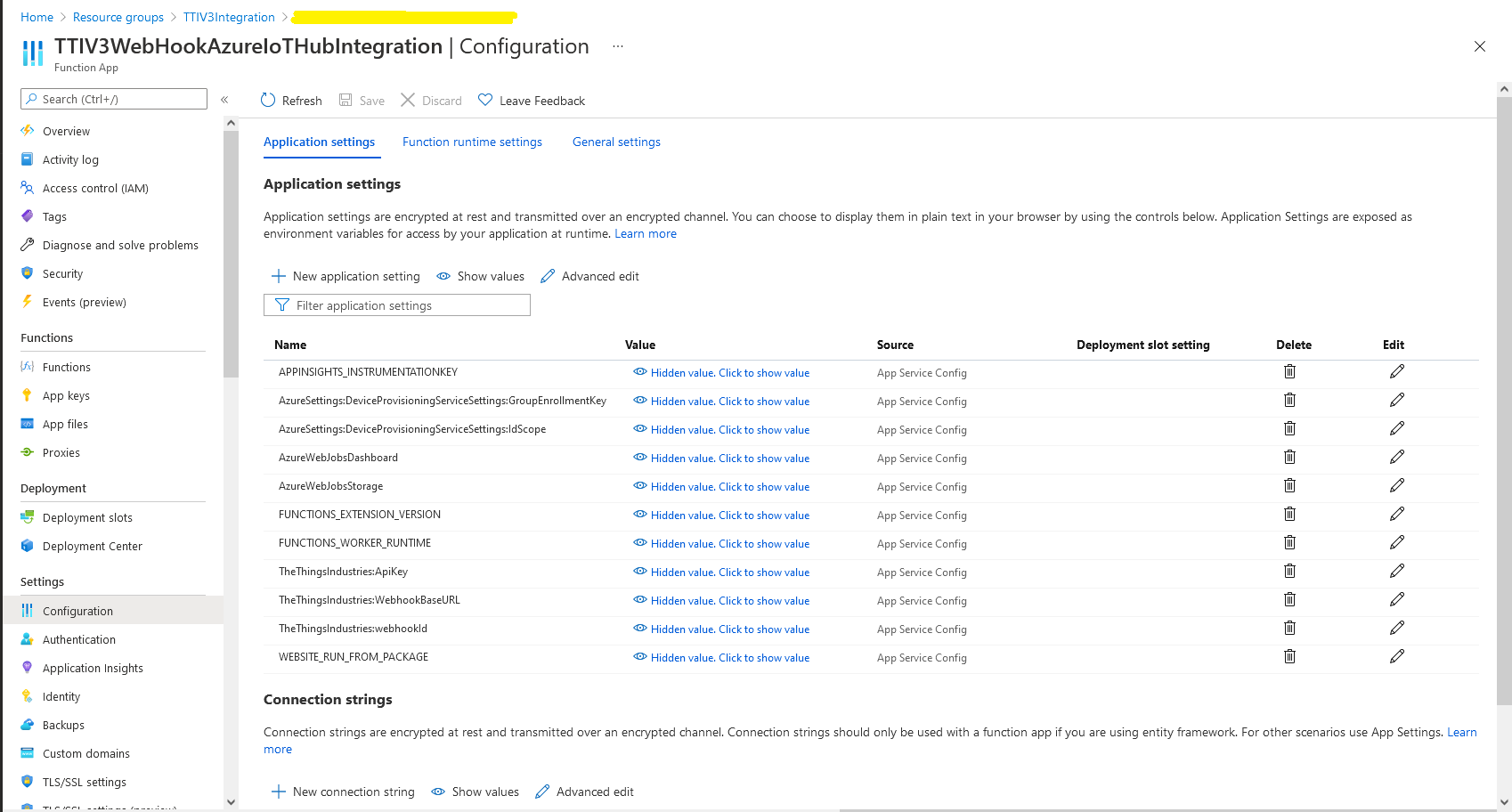
In the Azure Portal I configured the DPS ID Scope (AzureSettings:DeviceProvisioningServiceSettings:IdScope) and the Group Enrollment Key(AzureSettings:DeviceProvisioningServiceSettings:GroupEnrollmentKey) then saved the configuration which restarted the AppService.
Azure Portal AppService configration
The first time a device sent an uplink message the cache query fails and the RegisterAsync method of the ProvisioningDeviceClient is called to get a device connection string.
	logger.LogInformation("Uplink-ApplicationID:{0} DeviceID:{1} Port:{2} Payload Raw:{3}", applicationId, deviceId, port, payload.UplinkMessage.PayloadRaw);

	if (!_DeviceClients.TryGetValue(deviceId, out DeviceClient deviceClient))
	{
		logger.LogInformation("Uplink-Unknown device for ApplicationID:{0} DeviceID:{1}", applicationId, deviceId);

		// Check that only one of Azure Connection string or DPS is configured
		if (string.IsNullOrEmpty(_azureSettings.IoTHubConnectionString) && (_azureSettings.DeviceProvisioningServiceSettings == null))
		{
			logger.LogError("Uplink-Neither Azure IoT Hub connection string or Device Provisioning Service configured");

			return req.CreateResponse(HttpStatusCode.UnprocessableEntity);
		}

		// Check that only one of Azure Connection string or DPS is configured
		if (!string.IsNullOrEmpty(_azureSettings.IoTHubConnectionString) && (_azureSettings.DeviceProvisioningServiceSettings != null))
		{
			logger.LogError("Uplink-Both Azure IoT Hub connection string and Device Provisioning Service configured");

			return req.CreateResponse(HttpStatusCode.UnprocessableEntity);
		}

		// User Azure IoT Connection string if configured and Device Provisioning Service isn't
		if (!string.IsNullOrEmpty(_azureSettings.IoTHubConnectionString))
		{
			deviceClient = DeviceClient.CreateFromConnectionString(_azureSettings.IoTHubConnectionString, deviceId, transportSettings);

			try
			{
				await deviceClient.OpenAsync();
			}
			catch (DeviceNotFoundException)
			{
				logger.LogWarning("Uplink-Unknown DeviceID:{0}", deviceId);

				return req.CreateResponse(HttpStatusCode.NotFound);
			}
		}

		// Azure IoT Hub Device provisioning service if configured
		if (_azureSettings.DeviceProvisioningServiceSettings != null)
		{
			string deviceKey;

			if ( string.IsNullOrEmpty(_azureSettings.DeviceProvisioningServiceSettings.IdScope) || string.IsNullOrEmpty(_azureSettings.DeviceProvisioningServiceSettings.GroupEnrollmentKey))
			{
				logger.LogError("Uplink-Device Provisioning Service requires ID Scope and Group Enrollment Key configured");

				return req.CreateResponse(HttpStatusCode.UnprocessableEntity);
			}

			using (var hmac = new HMACSHA256(Convert.FromBase64String(_azureSettings.DeviceProvisioningServiceSettings.GroupEnrollmentKey)))
			{
				deviceKey = Convert.ToBase64String(hmac.ComputeHash(Encoding.UTF8.GetBytes(deviceId)));
			}

			using (var securityProvider = new SecurityProviderSymmetricKey(deviceId, deviceKey, null))
			{
				using (var transport = new ProvisioningTransportHandlerAmqp(TransportFallbackType.TcpOnly))
				{
					ProvisioningDeviceClient provClient = ProvisioningDeviceClient.Create(
						Constants.AzureDpsGlobalDeviceEndpoint,
						_azureSettings.DeviceProvisioningServiceSettings.IdScope,
						securityProvider,
						transport);

					DeviceRegistrationResult result = await provClient.RegisterAsync();

					if (result.Status != ProvisioningRegistrationStatusType.Assigned)
					{
						_logger.LogError("Config-DeviceID:{0} Status:{1} RegisterAsync failed ", deviceId, result.Status);

						return req.CreateResponse(HttpStatusCode.FailedDependency);
					}

					IAuthenticationMethod authentication = new DeviceAuthenticationWithRegistrySymmetricKey(result.DeviceId, (securityProvider as SecurityProviderSymmetricKey).GetPrimaryKey());

					deviceClient = DeviceClient.Create(result.AssignedHub, authentication, transportSettings);

					await deviceClient.OpenAsync();
				}
			}
		}

		if (!_DeviceClients.TryAdd(deviceId, deviceClient))
		{
			logger.LogWarning("Uplink-TryAdd failed for ApplicationID:{0} DeviceID:{1}", applicationId, deviceId);

			return req.CreateResponse(HttpStatusCode.Conflict);
		}

		Models.AzureIoTHubReceiveMessageHandlerContext context = new Models.AzureIoTHubReceiveMessageHandlerContext()
		{
			DeviceId = deviceId,
			ApplicationId = applicationId,
			WebhookId = _theThingsIndustriesSettings.WebhookId,
			WebhookBaseURL = _theThingsIndustriesSettings.WebhookBaseURL,
			ApiKey = _theThingsIndustriesSettings.ApiKey
		};

		await deviceClient.SetReceiveMessageHandlerAsync(AzureIoTHubClientReceiveMessageHandler, context);

		await deviceClient.SetMethodDefaultHandlerAsync(AzureIoTHubClientDefaultMethodHandler, context);
	}

	JObject telemetryEvent = new JObject
	{
		{ "ApplicationID", applicationId },
		{ "DeviceID", deviceId },
		{ "Port", port },
		{ "Simulated", payload.Simulated },
		{ "ReceivedAtUtc", payload.UplinkMessage.ReceivedAtUtc.ToString("s", CultureInfo.InvariantCulture) },
		{ "PayloadRaw", payload.UplinkMessage.PayloadRaw }
	};

	// If the payload has been decoded by payload formatter, put it in the message body.
	if (payload.UplinkMessage.PayloadDecoded != null)
	{
		telemetryEvent.Add("PayloadDecoded", payload.UplinkMessage.PayloadDecoded);
	}

	// Send the message to Azure IoT Hub
	using (Message ioTHubmessage = new Message(Encoding.ASCII.GetBytes(JsonConvert.SerializeObject(telemetryEvent))))
	{
		// Ensure the displayed time is the acquired time rather than the uploaded time.
		ioTHubmessage.Properties.Add("iothub-creation-time-utc", payload.UplinkMessage.ReceivedAtUtc.ToString("s", CultureInfo.InvariantCulture));
		ioTHubmessage.Properties.Add("ApplicationId", applicationId);
		ioTHubmessage.Properties.Add("DeviceEUI", payload.EndDeviceIds.DeviceEui);
		ioTHubmessage.Properties.Add("DeviceId", deviceId);
		ioTHubmessage.Properties.Add("port", port.ToString());
		ioTHubmessage.Properties.Add("Simulated", payload.Simulated.ToString());

		await deviceClient.SendEventAsync(ioTHubmessage);

		logger.LogInformation("Uplink-DeviceID:{0} SendEventAsync success", payload.EndDeviceIds.DeviceId);
	}
}
catch (Exception ex)
{
	logger.LogError(ex, "Uplink-Message processing failed");

	return req.CreateResponse(HttpStatusCode.InternalServerError);
}
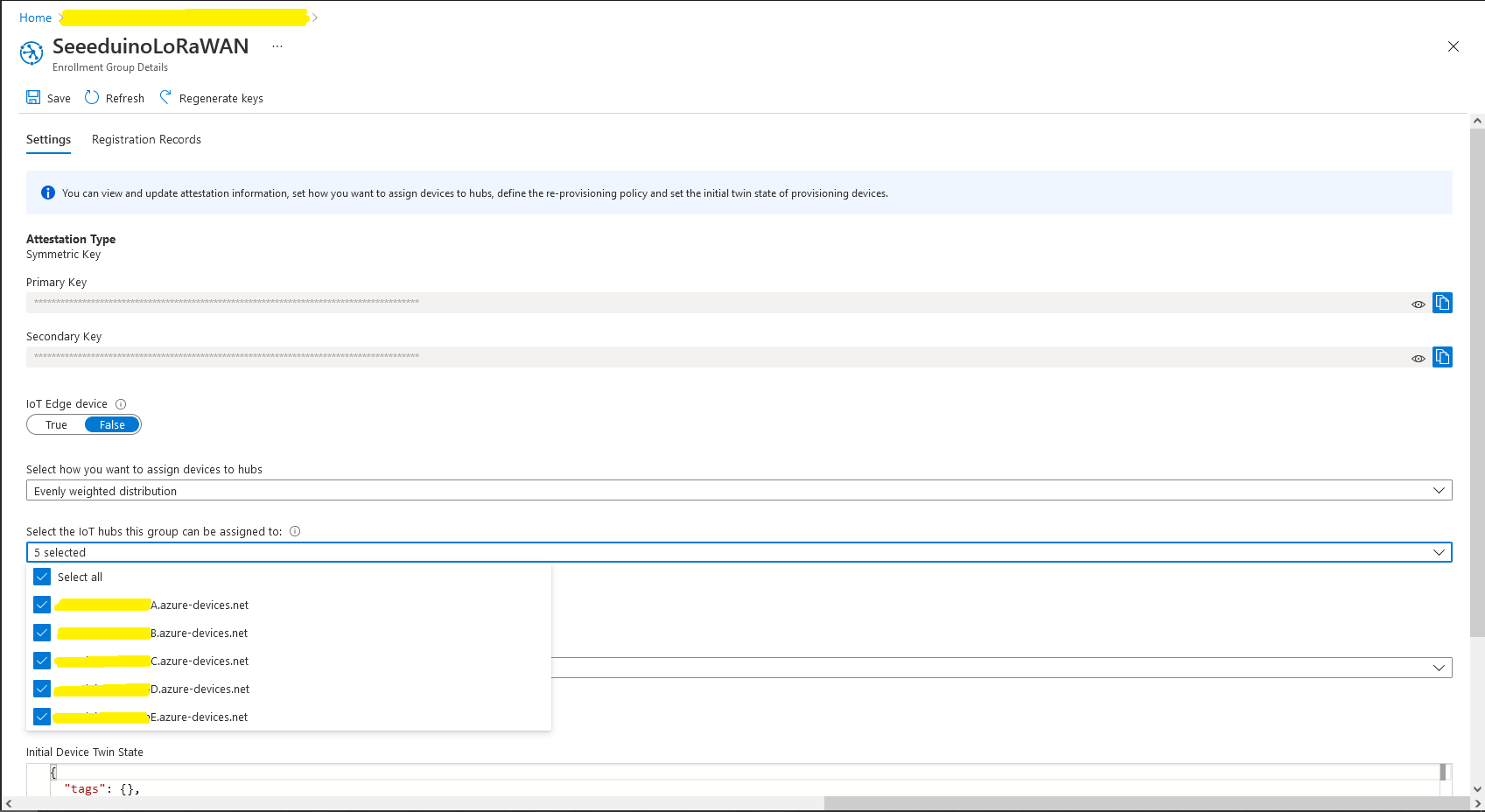
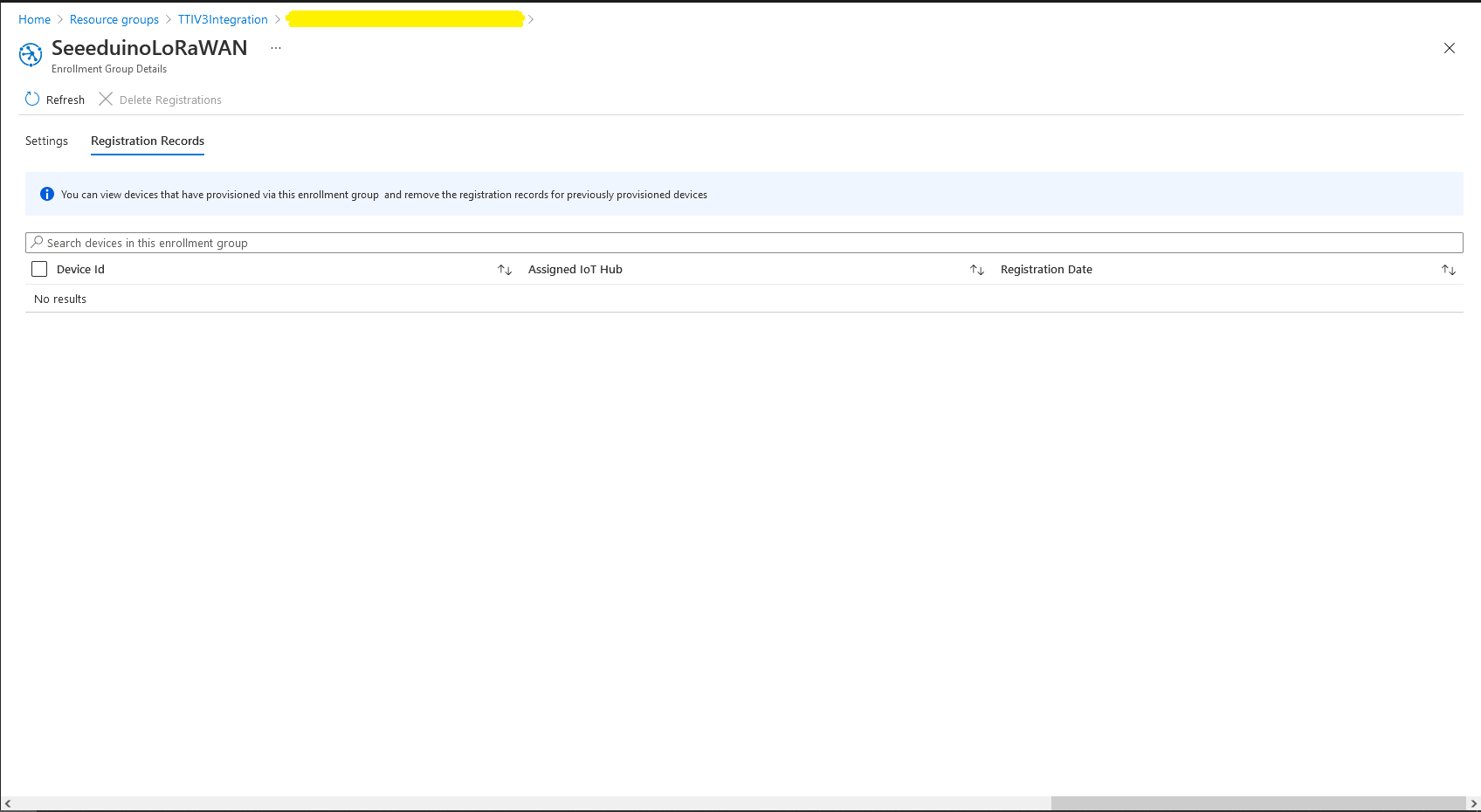
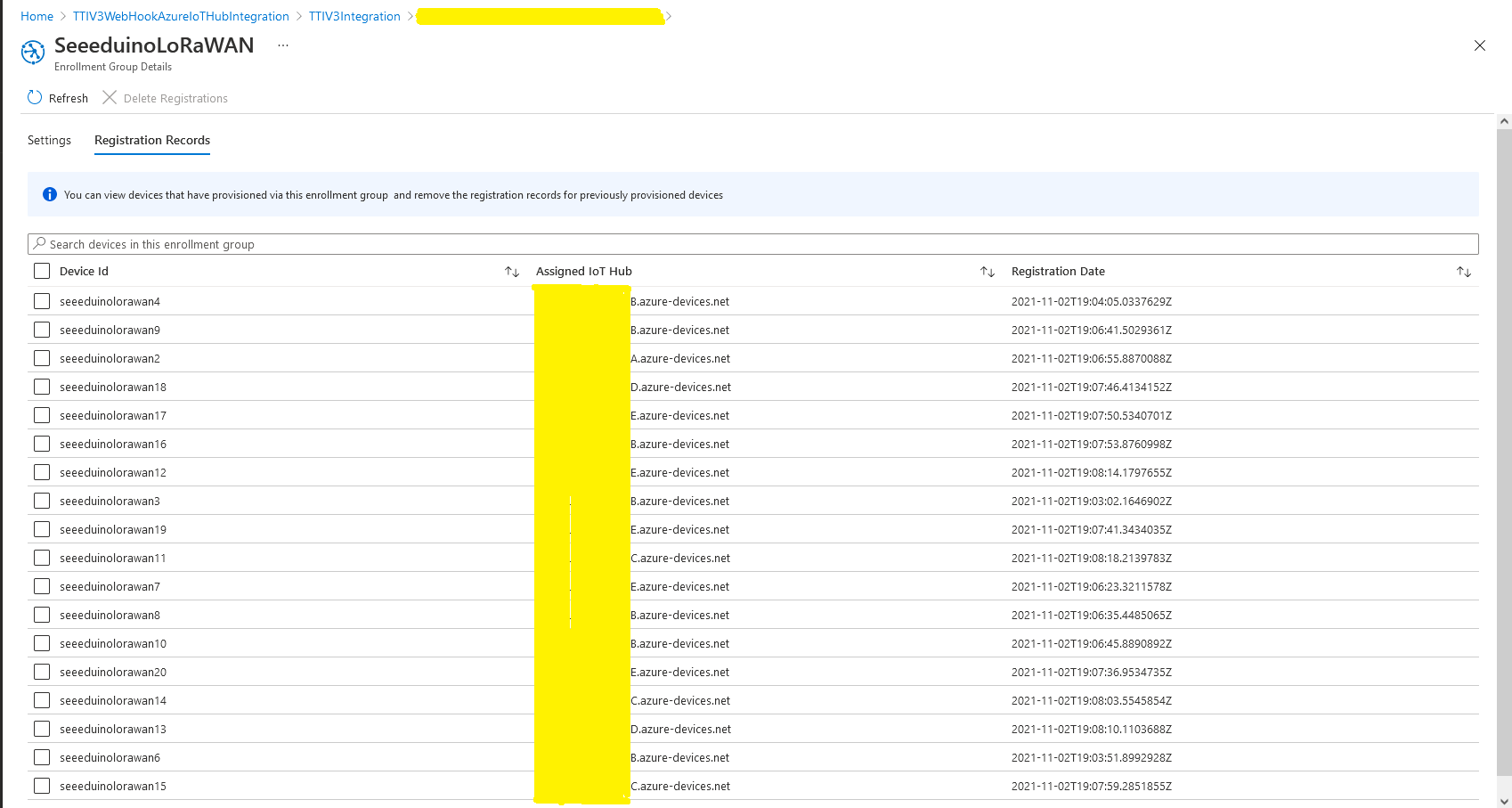
I used Telerik Fiddler and some sample payloads copied from my Azure Storage Queue sample to simulate many devices and the registrations were spread across my five Azure IoT Hubs.
DPS Device Registrations tab showing distribution of LoRaWAN Devices
I need to review the HTTP Error codes returned for different errors and ensure failures are handled robustly.
In this version a downlink message can be sent to a device only after an uplink message. I’m looking at adding an Azure Function which initiates a connection to the configured Azure IoT Hub for the specified device to mitigate with this issue.
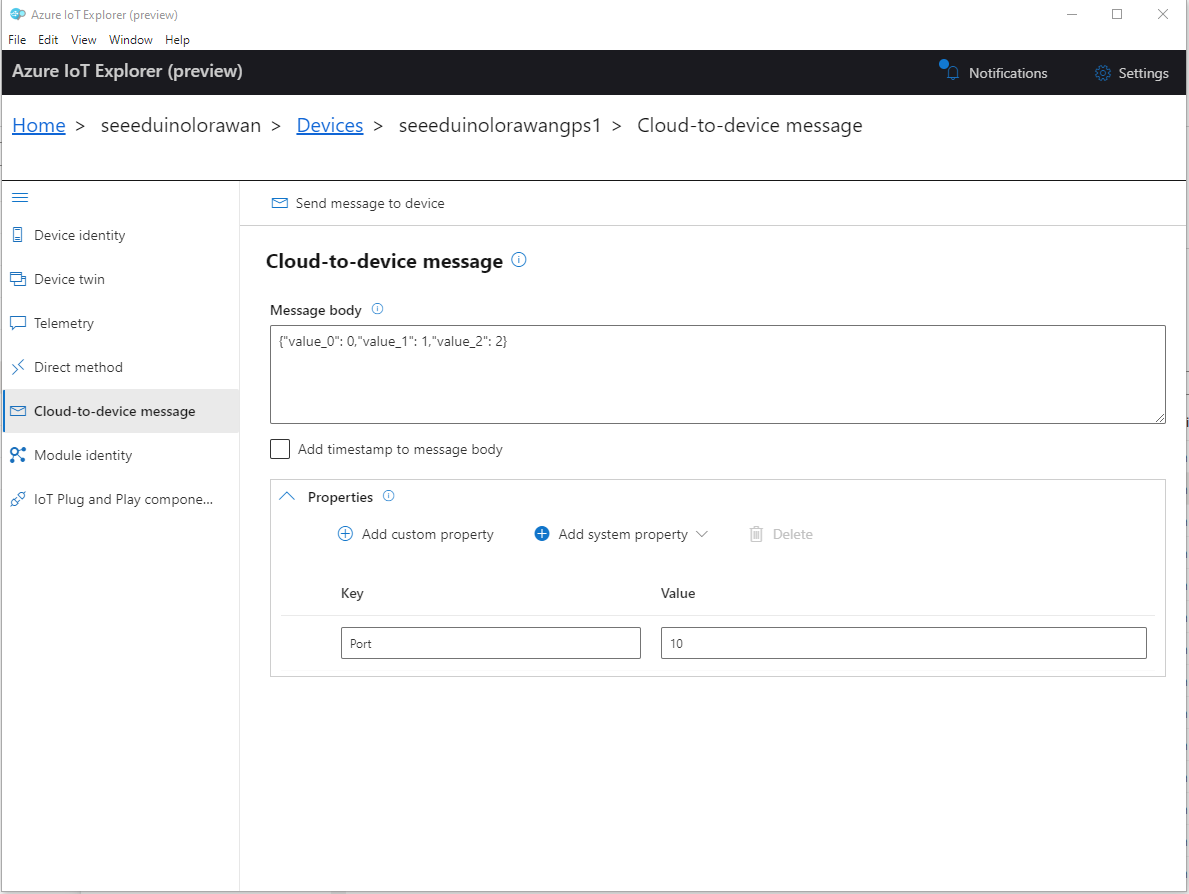
To send a TTN downlink message to a device the minimum required info is the LoRaWAN port number (specified in a Custom Property on the Azure IoT Hub cloud to device message), the device Id (from uplink message payload, which has been validated by a successful Azure IoT Hub connection) web hook id, web hook base URL, and an API Key (The Web Hook parameters are stored in the Connector configuration).
After some experimentation in previous TTN Connectors I found the synchronous nature of DirectMethods didn’t work well with LoRAWAN “irregular” connectivity so currently they are ignored.
public partial class Integration
{
	private async Task AzureIoTHubClientReceiveMessageHandler(Message message, object userContext)
	{
		try
		{
			Models.AzureIoTHubReceiveMessageHandlerContext receiveMessageHandlerContext = (Models.AzureIoTHubReceiveMessageHandlerContext)userContext;

			if (!_DeviceClients.TryGetValue(receiveMessageHandlerContext.DeviceId, out DeviceClient deviceClient))
			{
				_logger.LogWarning("Downlink-DeviceID:{0} unknown", receiveMessageHandlerContext.DeviceId);
				return;
			}

			using (message)
			{
				string payloadText = Encoding.UTF8.GetString(message.GetBytes()).Trim();

				if (!AzureDownlinkMessage.PortTryGet(message.Properties, out byte port))
				{
					_logger.LogWarning("Downlink-Port property is invalid");

					await deviceClient.RejectAsync(message);
					return;
				}

				// Split over multiple lines in an attempt to improve readability. In this scenario a valid JSON string should start/end with {/} for an object or [/] for an array
				if ((payloadText.StartsWith("{") && payloadText.EndsWith("}"))
														||
					((payloadText.StartsWith("[") && payloadText.EndsWith("]"))))
				{
					try
					{
						downlink.PayloadDecoded = JToken.Parse(payloadText);
					}
					catch (JsonReaderException)
					{
						downlink.PayloadRaw = payloadText;
					}
				}
				else
				{
					downlink.PayloadRaw = payloadText;
				}

				_logger.LogInformation("Downlink-IoT Hub DeviceID:{0} MessageID:{1} LockToken :{2} Port{3}",
					receiveMessageHandlerContext.DeviceId,
					message.MessageId,
		            message.LockToken,
					downlink.Port);

				Models.DownlinkPayload Payload = new Models.DownlinkPayload()
				{
					Downlinks = new List<Models.Downlink>()
					{
						downlink
					}
				};

				string url = $"{receiveMessageHandlerContext.WebhookBaseURL}/{receiveMessageHandlerContext.ApplicationId}/webhooks/{receiveMessageHandlerContext.WebhookId}/devices/{receiveMessageHandlerContext.DeviceId}/down/replace");

				using (var client = new WebClient())
				{
					client.Headers.Add("Authorization", $"Bearer {receiveMessageHandlerContext.ApiKey}");

					client.UploadString(new Uri(url), JsonConvert.SerializeObject(Payload));
				}

				_logger.LogInformation("Downlink-DeviceID:{0} LockToken:{1} success", receiveMessageHandlerContext.DeviceId, message.LockToken);
			}
		}
		catch (Exception ex)
		{
			_logger.LogError(ex, "Downlink-ReceiveMessge processing failed");
		}
	}
}
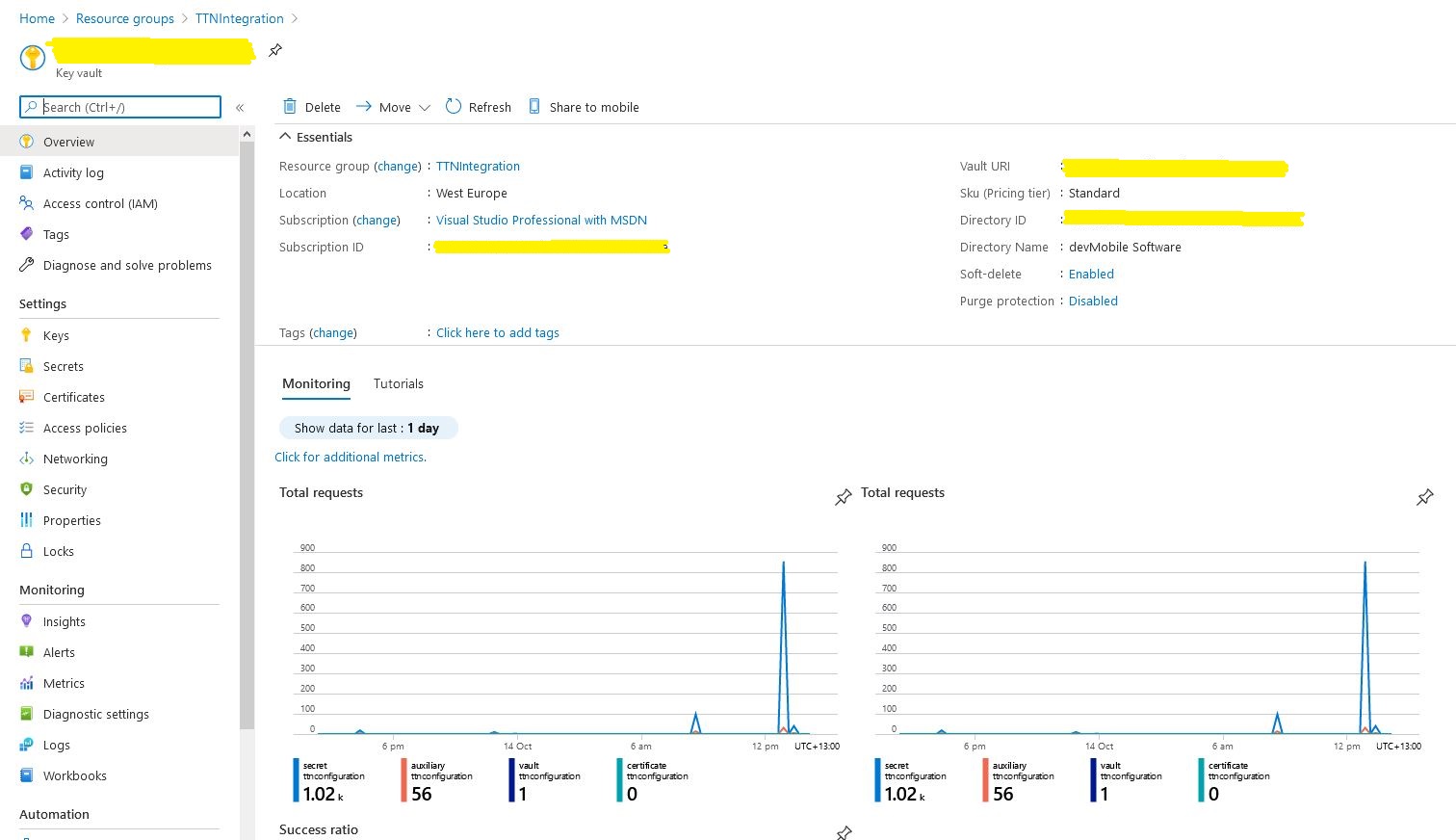
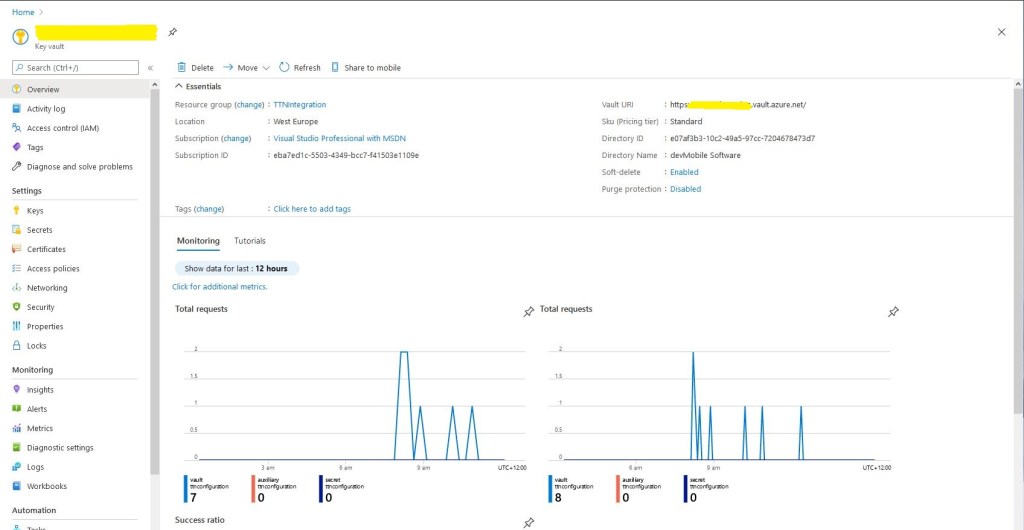
The Azure Key Vault is intended for securing sensitive information like connection strings so I added one to my resource group.
Azure Key Vault overview and basic metrics
I wrote a wrapper which resolves configuration settings based on the The Things Network(TTN) application identifier and port information in the uplink message payload. The resolve methods start by looking for configuration for the applicationId and port (separated by a – ), then the applicationId and then finally falling back to a default value. This functionality is used for AzureIoTHub connection strings, DPS IDScopes, DPS Enrollment Group Symmetric Keys, and is also used to format the cache keys.
public class ApplicationConfiguration
{
const string DpsGlobaDeviceEndpointDefault = "global.azure-devices-provisioning.net";

private IConfiguration Configuration;

public void Initialise( )
{
   // Check that KeyVault URI is configured in environment variables. Not a lot we can do if it isn't....
   if (Configuration == null)
   {
      string keyVaultUri = Environment.GetEnvironmentVariable("KeyVaultURI");
      if (string.IsNullOrWhiteSpace(keyVaultUri))
      {
         throw new ApplicationException("KeyVaultURI environment variable not set");
      }

      // Load configuration from KeyVault
      Configuration = new ConfigurationBuilder()
         .AddEnvironmentVariables()
         .AddAzureKeyVault(keyVaultUri)
         .Build();
   }
}

public string DpsGlobaDeviceEndpointResolve()
{
   string globaDeviceEndpoint = Configuration.GetSection("DPSGlobaDeviceEndpoint").Value;
   if (string.IsNullOrWhiteSpace(globaDeviceEndpoint))
   {
      globaDeviceEndpoint = DpsGlobaDeviceEndpointDefault;
   }

   return globaDeviceEndpoint;
}

public string ConnectionStringResolve(string applicationId, int port)
{
   // Check to see if there is application + port specific configuration
   string connectionString = Configuration.GetSection($"AzureIotHubConnectionString-{applicationId}-{port}").Value;
   if (!string.IsNullOrWhiteSpace(connectionString))
   {
      return connectionString;
   }

   // Check to see if there is application specific configuration, otherwise run with default
   connectionString = Configuration.GetSection($"AzureIotHubConnectionString-{applicationId}").Value;
   if (!string.IsNullOrWhiteSpace(connectionString))
   {
      return connectionString;
   }

   // get the default as not a specialised configuration
   connectionString = Configuration.GetSection("AzureIotHubConnectionStringDefault").Value;

   return connectionString;
}

public string DpsIdScopeResolve(string applicationId, int port)
{
   // Check to see if there is application + port specific configuration
   string idScope = Configuration.GetSection($"DPSIDScope-{applicationId}-{port}").Value;
   if (!string.IsNullOrWhiteSpace(idScope))
   {
      return idScope;
   }

   // Check to see if there is application specific configuration, otherwise run with default
   idScope = Configuration.GetSection($"DPSIDScope-{applicationId}").Value;
   if (!string.IsNullOrWhiteSpace(idScope))
   {
      return idScope;
   }

   // get the default as not a specialised configuration
   idScope = Configuration.GetSection("DPSIDScopeDefault").Value;

   if (string.IsNullOrWhiteSpace(idScope))
   {
      throw new ApplicationException($"DPSIDScope configuration invalid");
   }

   return idScope;
}
In the Azure Key Vault “Access Policies” I configured an “Application Access Policy” so my Azure TTNAzureIoTHubMessageV2Processor function identity could retrieve secrets.
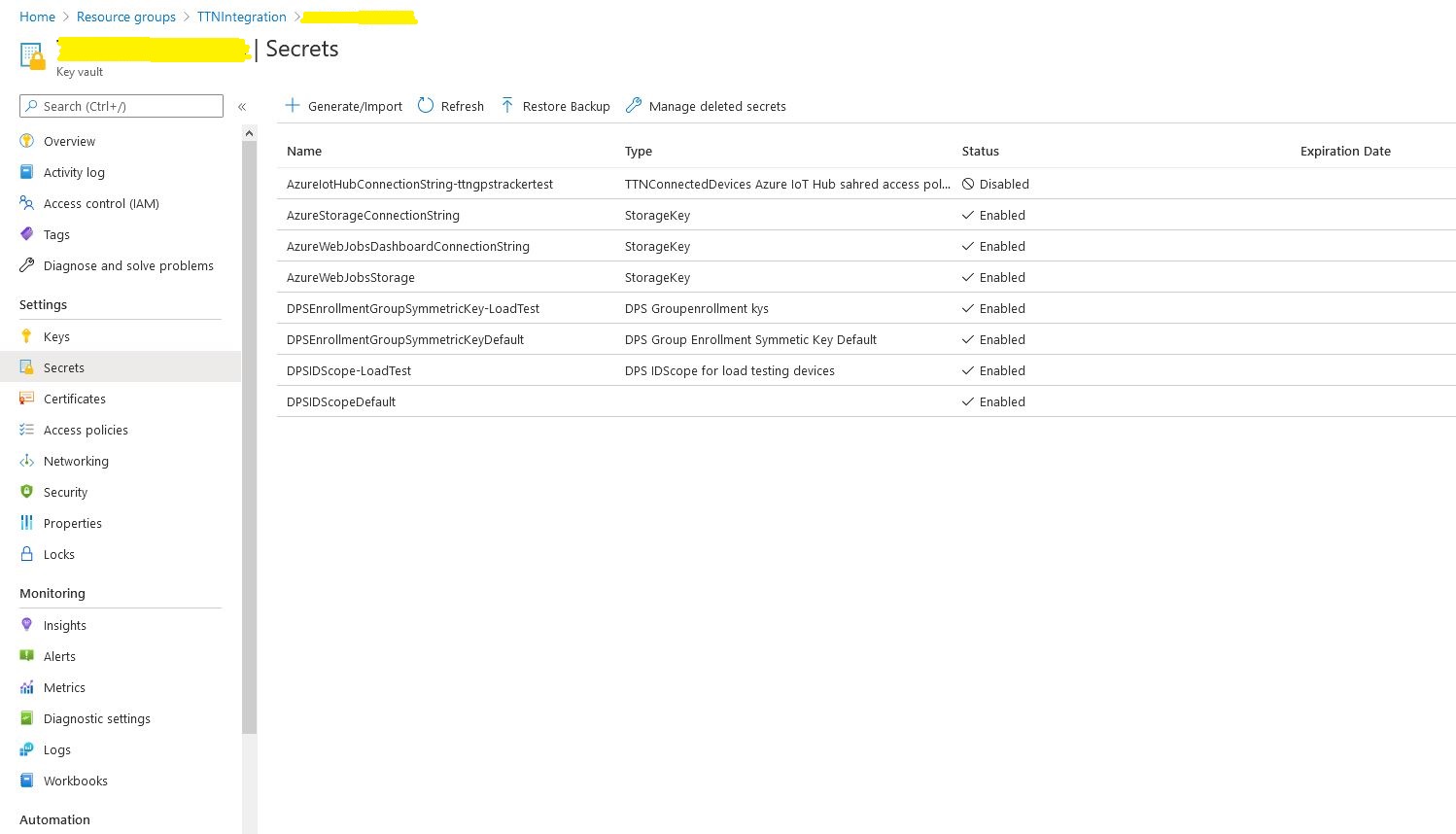
Azure Key Vault Secrets
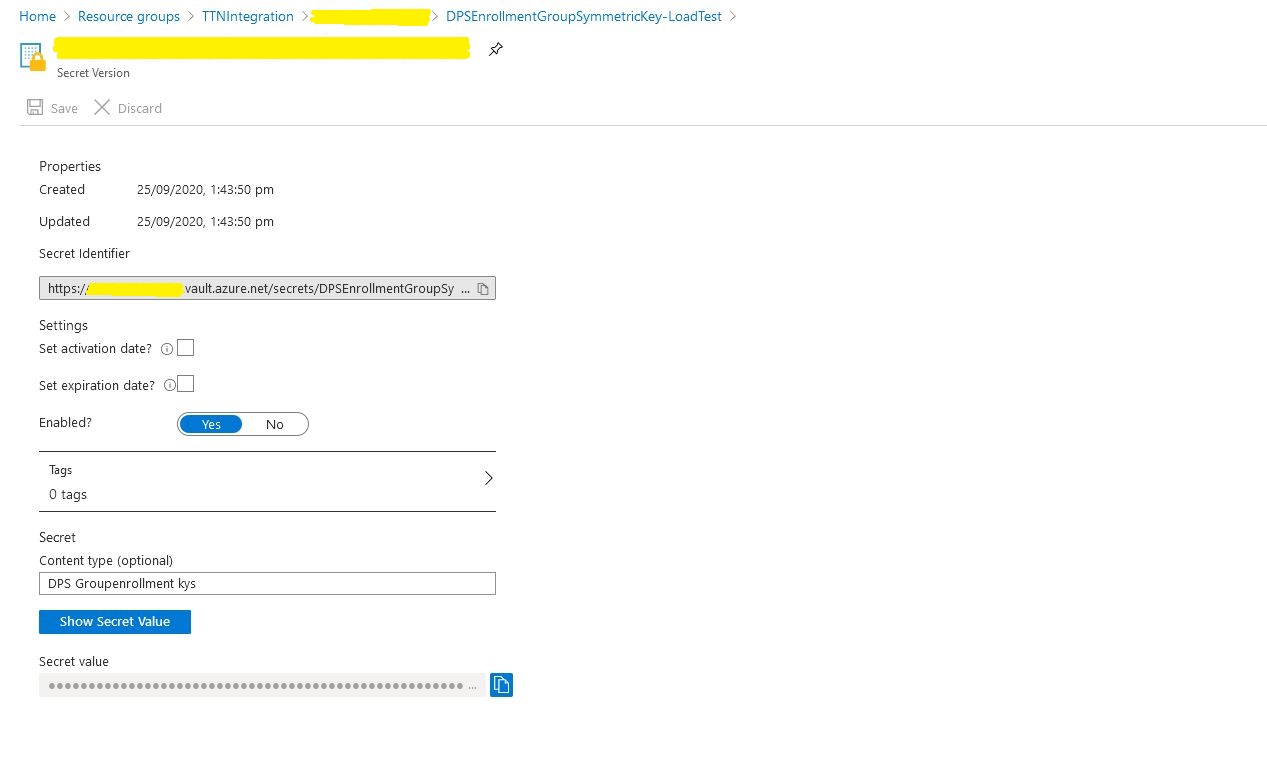
I kept on making typos in the secret names and types which was frustrating.
Azure Key Vault secret
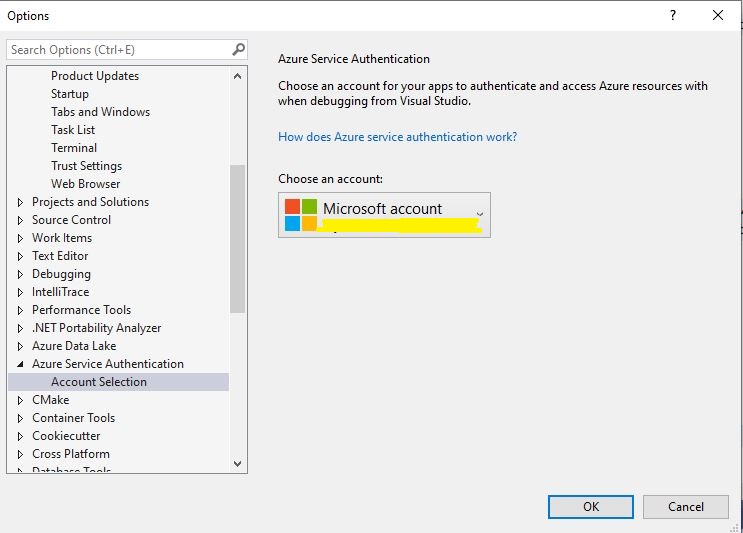
While debugging in Visual Studio you may need to configure the Azure Identity so the application can access the Azure Key Vault.
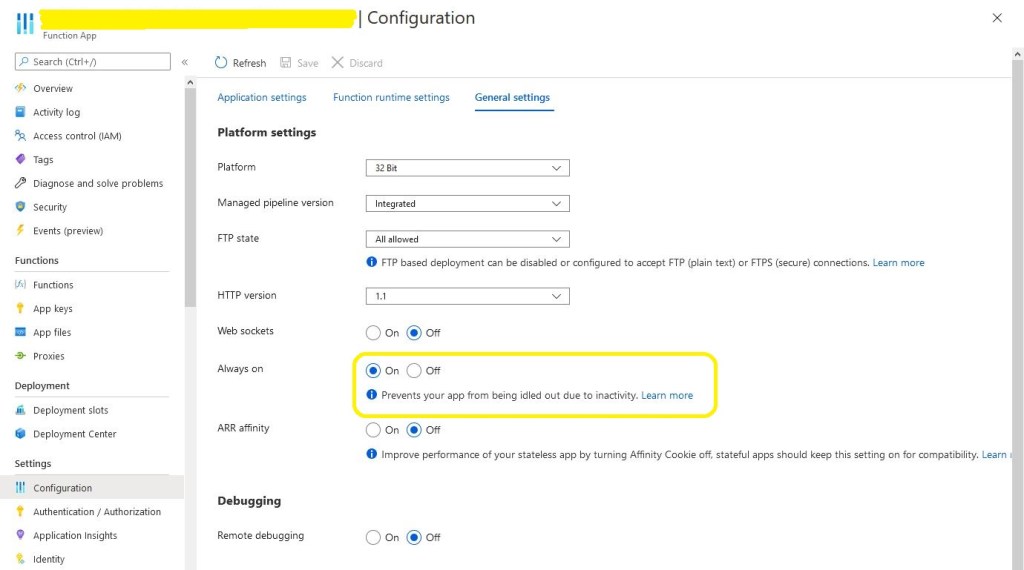
The next “learning” was that if you forget to enable “always on” the caching won’t work and your application will call the DPS way more often than expected.
Azure Application “always on configuration
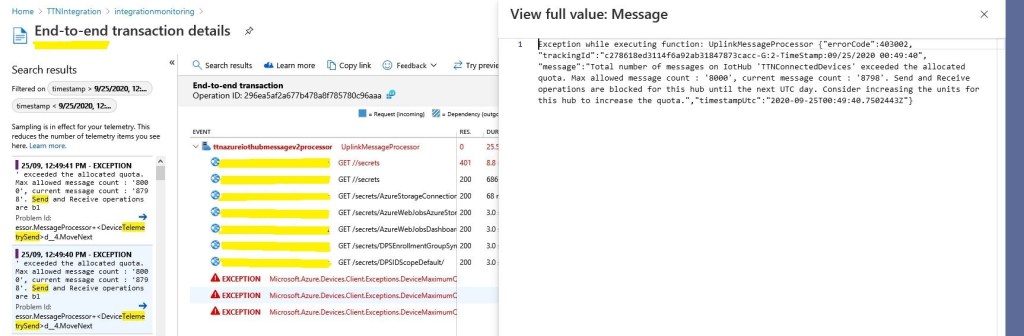
The next “learning” was if your soak test sends 24000 messages it will start to fail just after you go out to get a coffee because of the 8000 msgs/day limit on the free version of IoT Hub.
Azure IoT Hub Free tier 8000 messages/day limit
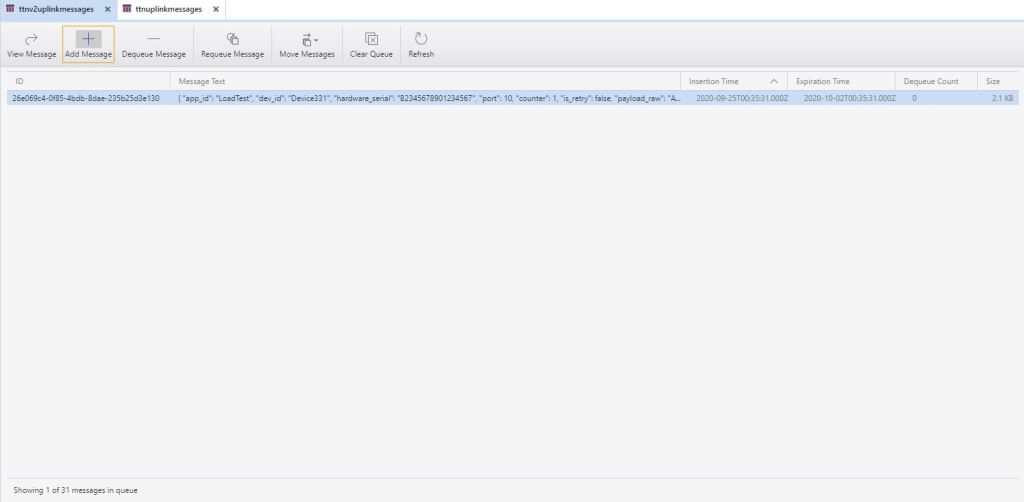
After these “learnings” the application appeared to be working and every so often a message would briefly appear in Azure Storage Explorer queue view.
Azure storage explorer view of uplink messages queue
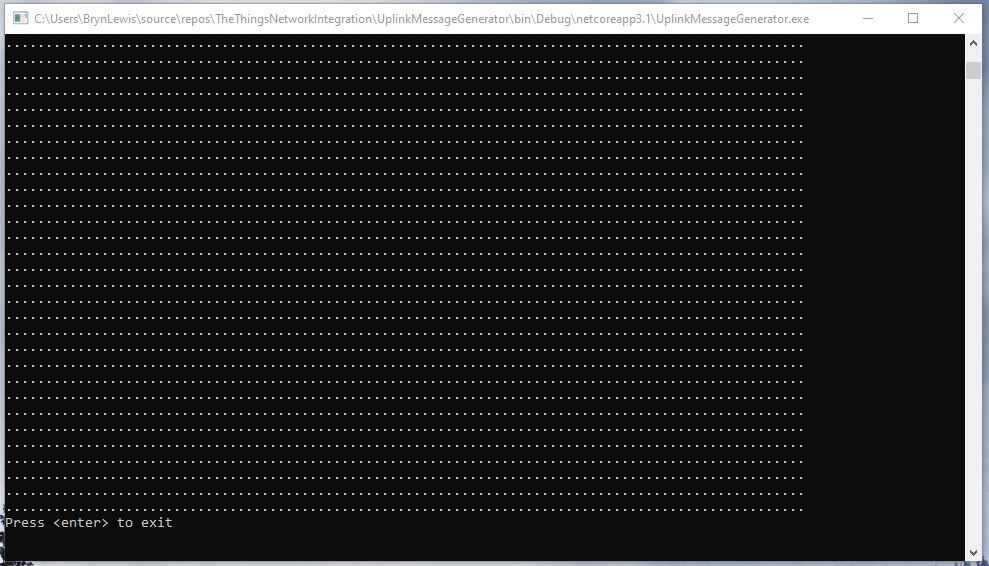
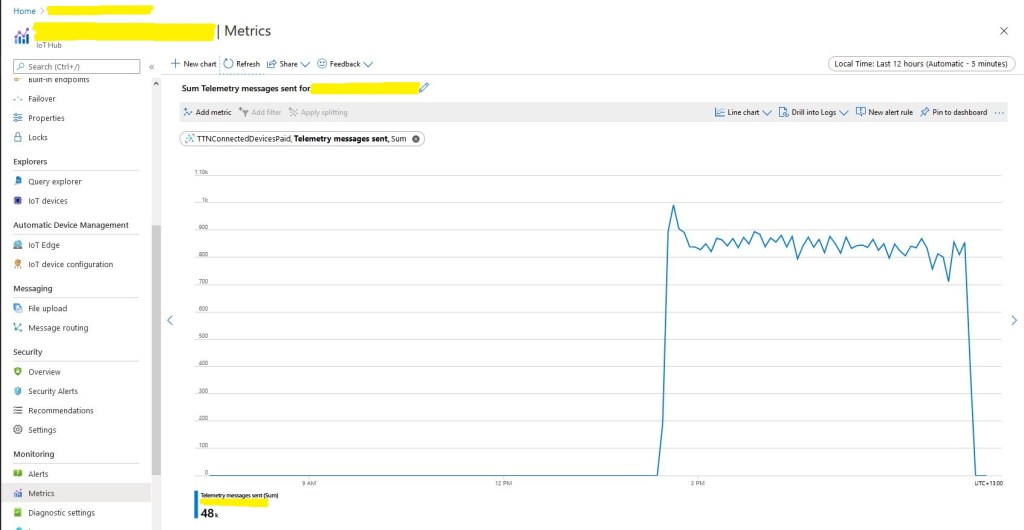
The console test application simulated 1000 devices sending 24 messages every so often and took roughly 8 hours to complete.
Message generator finished
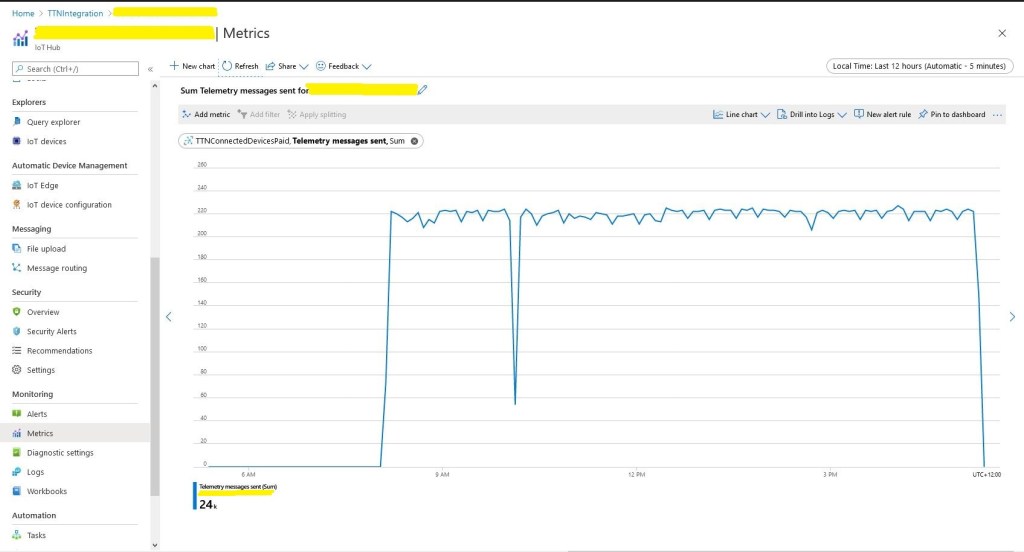
In the Azure IoT Hub telemetry 24000 messages had been received after roughly 8 hours confirming the test rig was working as expected.
The notch was another “learning”, if you go and do some gardening then after roughly 40 minutes of inactivity your desktop PC will go into power save mode and the test client will stop sending messages.
The caching of settings appeared to be work as there were only a couple of requests to my Azure Key Vault where sensitive information like connection strings, symmetric keys etc. are stored.
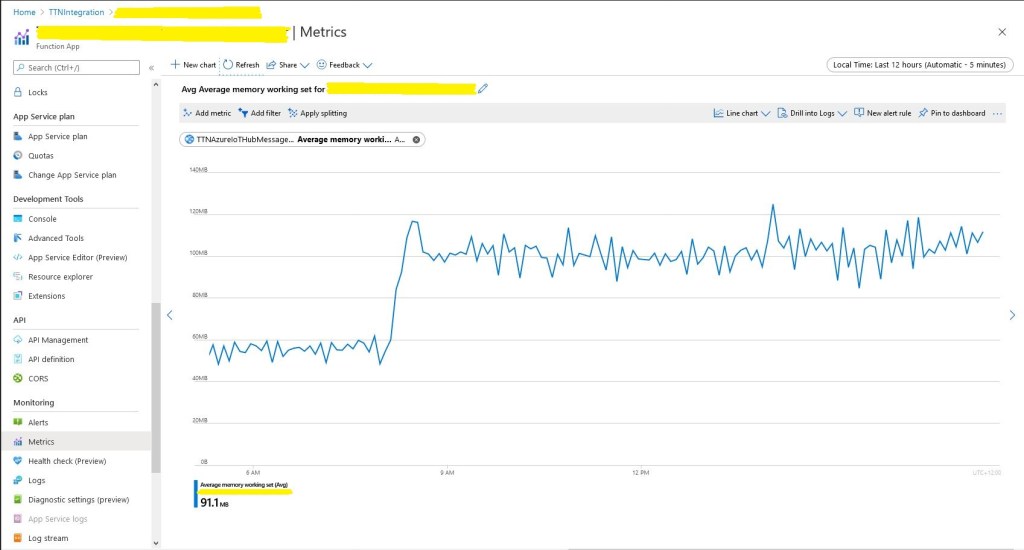
Memory consumption did look to bad and topped out at roughly 120M.
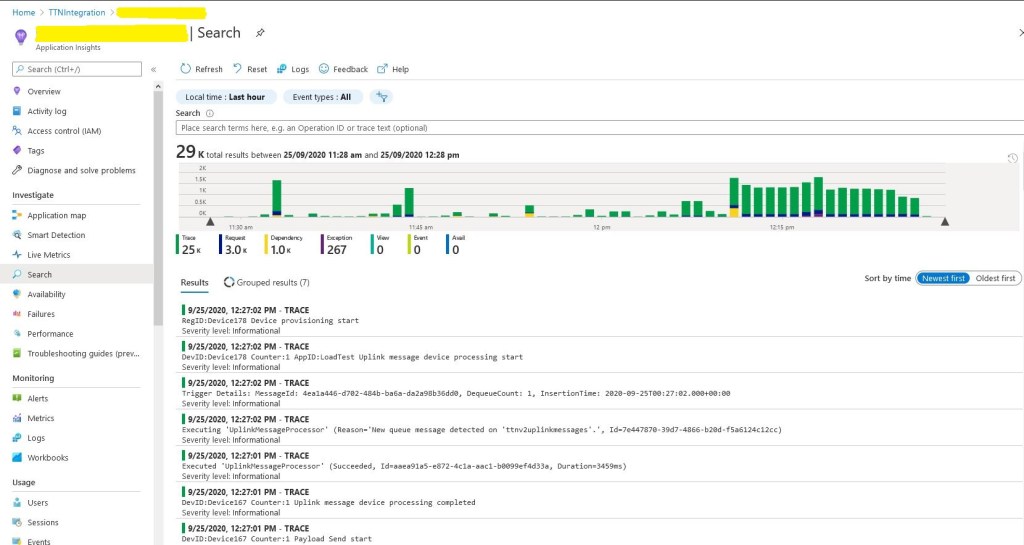
In the application logging you can see the 1000 calls to DPS at the beginning (the yellow dependency events) then the regular processing of messages.
Application Insights logging
Even with the “learnings” the testing went pretty well overall. I do need to run the test rig for longer and with even more simulated devices.
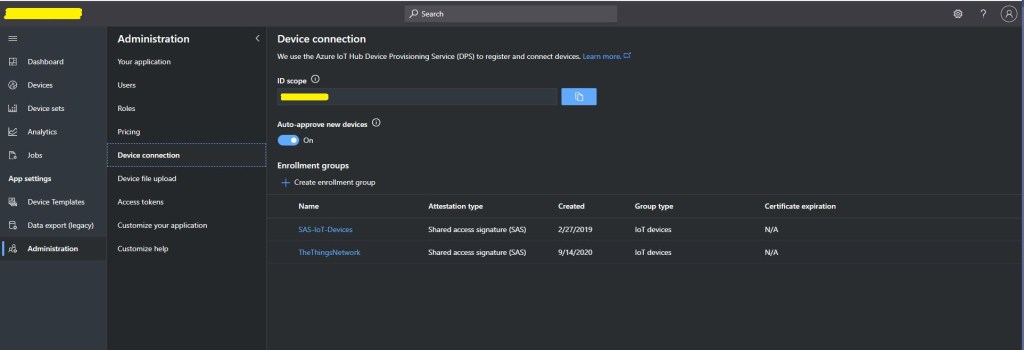
The first step is to copy the IDScope from the Device connection blade.
Device connection blade
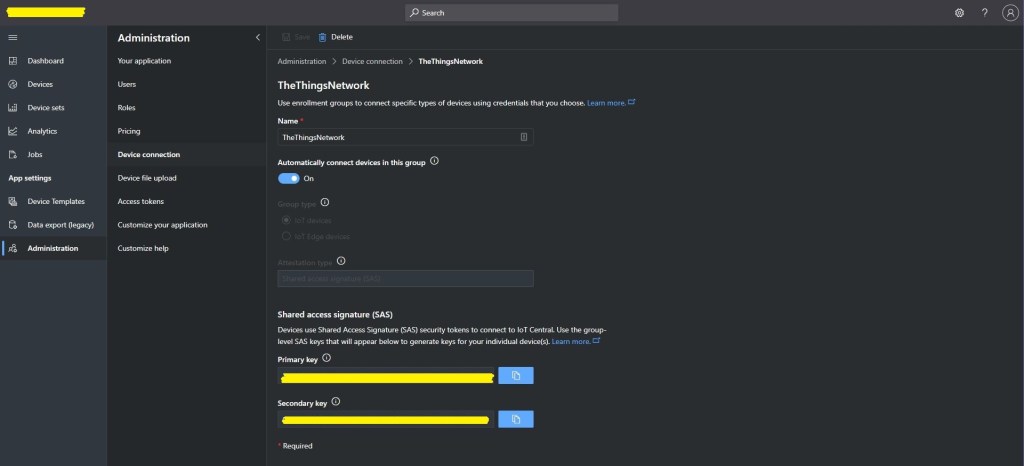
Then copy one of the primary or secondary keys
For more complex deployment the ApplicationEnrollmentGroupMapping configuration enables The Things Network(TTN) devices to be provisioned using different GroupEnrollment keys based on the applicationid in the Uplink message which initiates their provisoning.
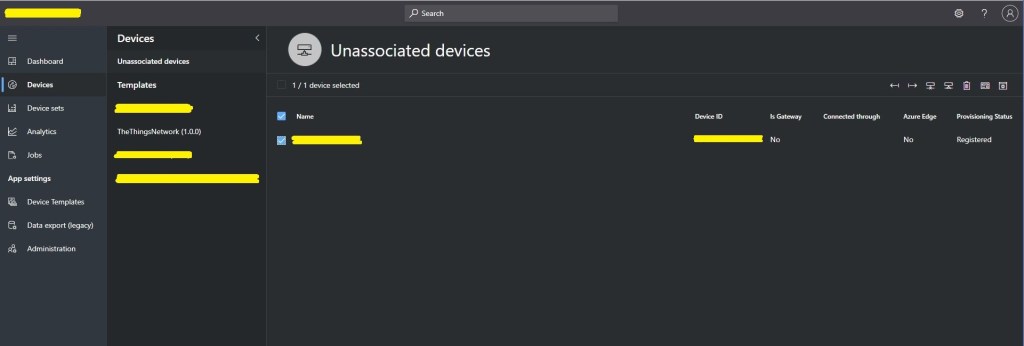
Shortly after the first uplink message from a TTN device is processed, it will listed in the “Unassociated devices” blade with the DevEUI as the Device ID.
Unassociated devices blade
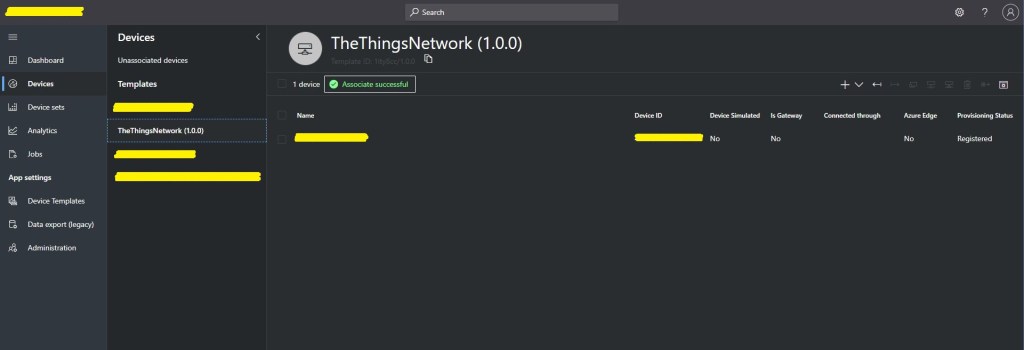
The device can then be associated with an Azure IoT Central Device Template.
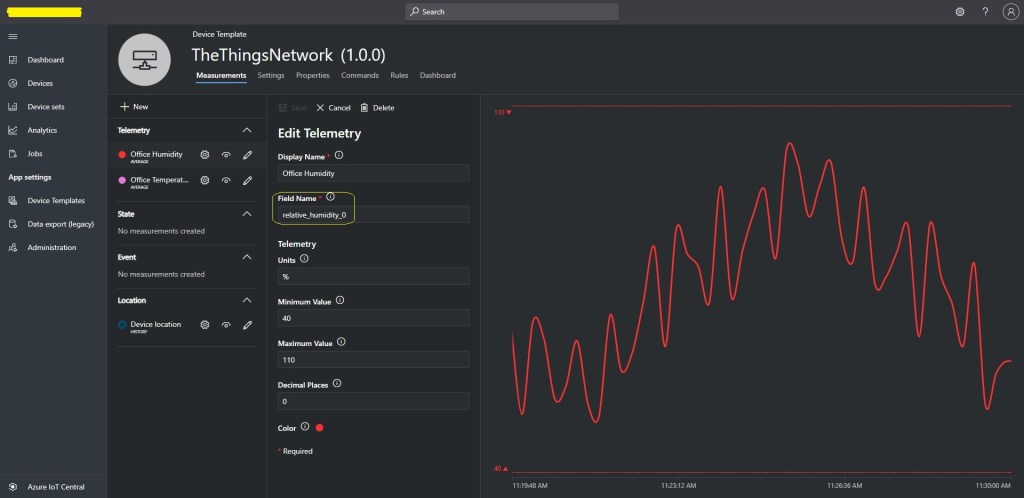
The device template provides for the mapping of uplink message payload_fields to measurements. In this example the payload field has been generated by the TTN HTTP integration Low Power Protocol(LPP) decoder. Many LoRaWAN devices use LPP to minimise the size of the network payload.
Azure IoT Central Device template blade
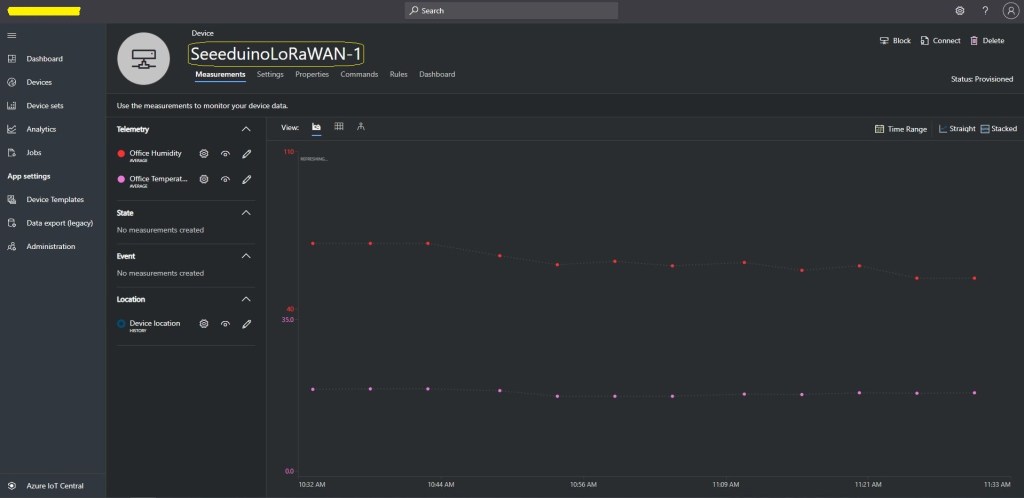
Once the device has been associated with a template a user friendly device name etc. can be configured.
Azure IoT Central Device properties blade
In the telemetry event payload sent to Azure IoT Central there are some extra fields to help with debugging and tracing.
// Assemble the JSON payload to send to Azure IoT Hub/Central.
log.LogInformation($"{messagePrefix} Payload assembly start");
JObject telemetryEvent = new JObject();
try
{
   JObject payloadFields = (JObject)payloadObect.payload_fields;
   telemetryEvent.Add("HardwareSerial", payloadObect.hardware_serial);
   telemetryEvent.Add("Retry", payloadObect.is_retry);
   telemetryEvent.Add("Counter", payloadObect.counter);
   telemetryEvent.Add("DeviceID", payloadObect.dev_id);
   telemetryEvent.Add("ApplicationID", payloadObect.app_id);
   telemetryEvent.Add("Port", payloadObect.port);
   telemetryEvent.Add("PayloadRaw", payloadObect.payload_raw);
   telemetryEvent.Add("ReceivedAtUTC", payloadObect.metadata.time);

   // If the payload has been unpacked in TTN backend add fields to telemetry event payload
   if (payloadFields != null)
   {
      foreach (JProperty child in payloadFields.Children())
      {
         EnumerateChildren(telemetryEvent, child);
      }
   }
}
catch (Exception ex)
{
   log.LogError(ex, $"{messagePrefix} Payload processing or Telemetry event assembly failed");
   throw;
}
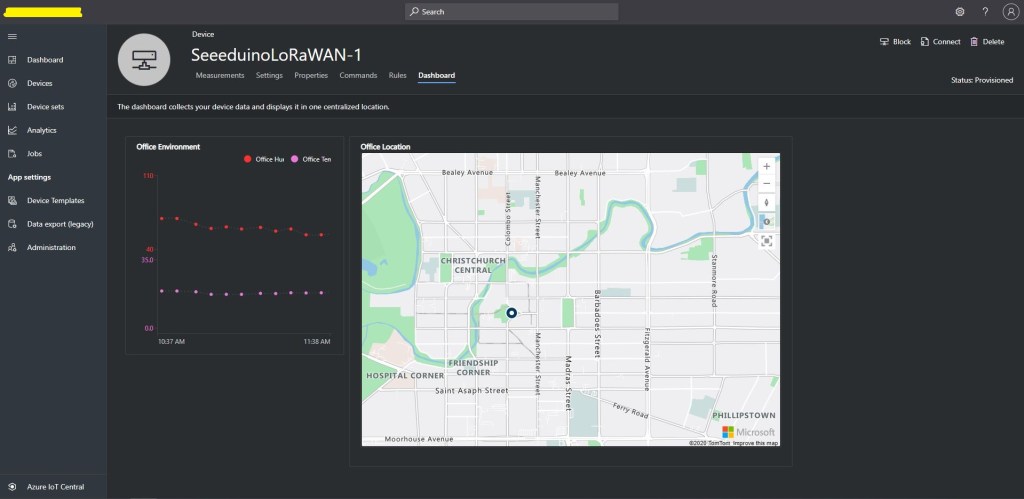
Azure IoT Central has mapping functionality which can be used to display the location of a device.
Azure Device
The format of the location payload generated by the TTN LPP decoder is different to the one required by Azure IoT Central. I have added temporary code (“a cost effective modification to expedite deployment” aka. a hack) to format the TelemetryEvent payload so it can be processed.
if (token.First is JValue)
{
   // Temporary dirty hack for Azure IoT Central compatibility
   if (token.Parent is JObject possibleGpsProperty)
   {
      if (possibleGpsProperty.Path.StartsWith("GPS", StringComparison.OrdinalIgnoreCase))
      {
         if (string.Compare(property.Name, "Latitude", true) == 0)
         {
            jobject.Add("lat", property.Value);
         }
         if (string.Compare(property.Name, "Longitude", true) == 0)
         {
            jobject.Add("lon", property.Value);
         }
         if (string.Compare(property.Name, "Altitude", true) == 0)
         {
            jobject.Add("alt", property.Value);
         }
      }
   }
   jobject.Add(property.Name, property.Value);
}
I need review the IoT Plug and Play specification documentation to see what other payload transformations maybe required.
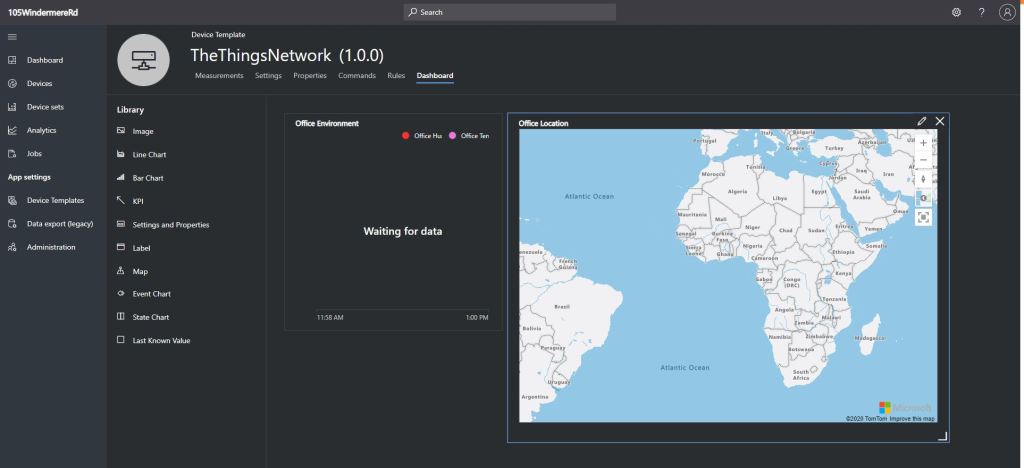
I did observe that if a device had not reported its position the default location was zero degrees latitude and zero degrees longitude which is about 610 KM south of Ghana and 1080 KM west of Gabon in the Atlantic Ocean.
Azure IoT Central mapping default position
After configuring a device template, associating my devices with the template, and modifying each device’s properties I could create a dashboard to view the temperature and humidity information returned by my Seeeduino LoRaWAN devices.
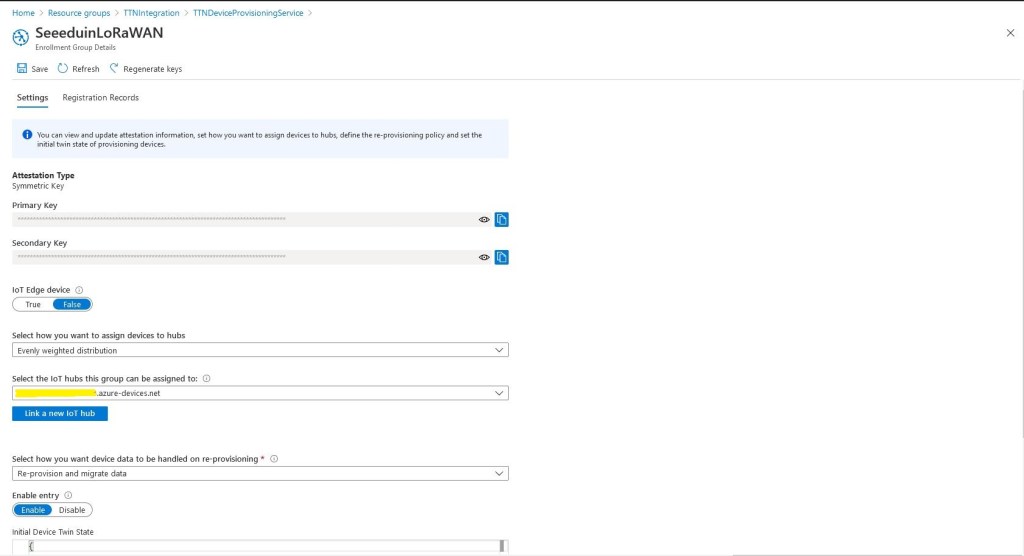
For more complex deployments the ApplicationEnrollmentGroupMapping configuration enables The Things Network(TTN) devices to be provisioned using different GroupEnrollment keys based on the applicationid in the first Uplink message which initiates provisoning.
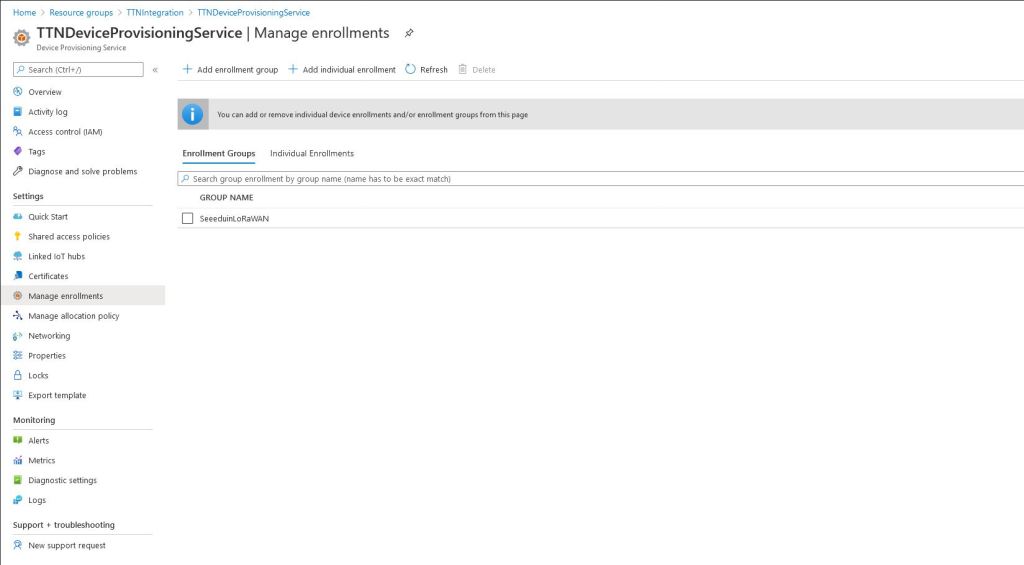
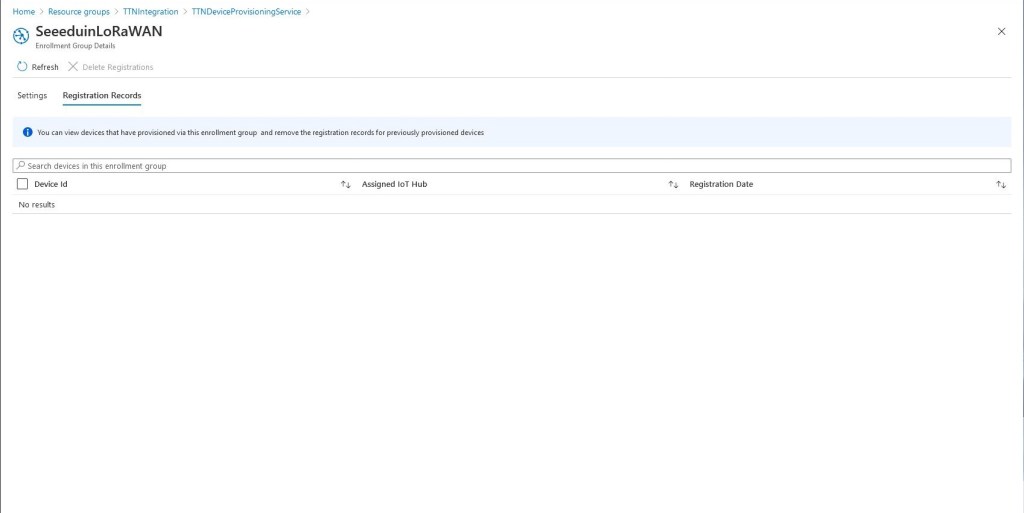
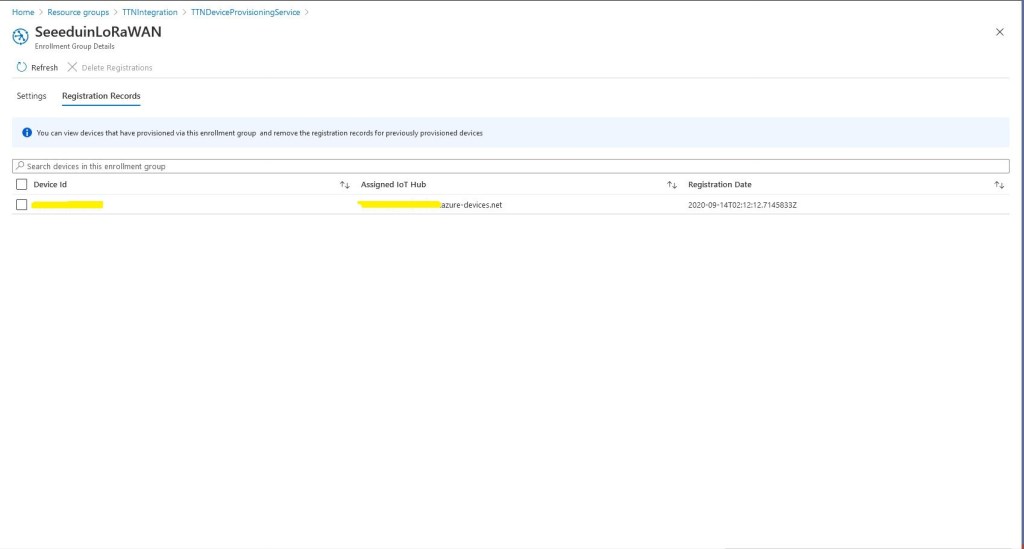
Then as uplink messages from the TTN integration are processed devices are “automagically” created in the DPS.
Simultaneously devices are created in the Azure IoT Hub
Then shortly after telemetry events are available for applications to process or inspection with tools like Azure IoT Explorer.
In the telemetry event payload sent to the Azure IoT IoT Hub are some extra fields to help with debugging and tracing. The raw payload is also included so messages not decoded by TTN can be processed by the client application(s).
/ Assemble the JSON payload to send to Azure IoT Hub/Central.
log.LogInformation($"{messagePrefix} Payload assembly start");
JObject telemetryEvent = new JObject();
try
{
   JObject payloadFields = (JObject)payloadObect.payload_fields;
   telemetryEvent.Add("HardwareSerial", payloadObect.hardware_serial);
   telemetryEvent.Add("Retry", payloadObect.is_retry);
   telemetryEvent.Add("Counter", payloadObect.counter);
   telemetryEvent.Add("DeviceID", payloadObect.dev_id);
   telemetryEvent.Add("ApplicationID", payloadObect.app_id);
   telemetryEvent.Add("Port", payloadObect.port);
   telemetryEvent.Add("PayloadRaw", payloadObect.payload_raw);
   telemetryEvent.Add("ReceivedAtUTC", payloadObect.metadata.time);

   // If the payload has been unpacked in TTN backend add fields to telemetry event payload
   if (payloadFields != null)
   {
      foreach (JProperty child in payloadFields.Children())
      {
         EnumerateChildren(telemetryEvent, child);
      }
   }
}
catch (Exception ex)
{
   log.LogError(ex, $"{messagePrefix} Payload processing or Telemetry event assembly failed");
   throw;
}
Beware, the Azure Storage Account and storage queue names have a limited character set. This caused me problems several times when I used camel cased queue names etc.









 devMobile's blog