Azure Function SendGrid Binding Fail

This post is for Azure Function developers having issues with the SendGrid binding throwing exceptions like the one below.

System.Private.CoreLib: Exception while executing function: Functions.AzureBlobFileUploadEmailer. Microsoft.Azure.WebJobs.Extensions.SendGrid: A 'To' address must be specified for the message

My Azure BlobTrigger Function sends an email (with SendGrid) when a file is uploaded to an Azure Blob Storage Container(a couple of times a day).

public class FileUploadEmailer(ILogger<FileUploadEmailer> logger, IOptions<EmailSettings> emailSettings)
{
   private readonly ILogger<FileUploadEmailer> _logger = logger;
   private readonly EmailSettings _emailSettings = emailSettings.Value;

   [Function(nameof(AzureBlobFileUploadEmailer))]
   [SendGridOutput(ApiKey = "SendGridAPIKey")]
   public string Run([BlobTrigger("filestobeprocesed/{name}", Connection = "upload-file-storage")] Stream stream, string name)
   {
      _logger.LogInformation("FileUploadEmailer Blob trigger function Processed blob Name:{0} start", name);

      try
      {
         var message = new SendGridMessage();

         message.SetFrom(_emailSettings.From);
         message.AddTo(_emailSettings.To);
         message.Subject = _emailSettings.Subject;

         message.AddContent(MimeType.Html, string.Format(_emailSettings.BodyFormat, name, DateTime.UtcNow));

         // WARNING - Use Newtonsoft JSON serializer to produce JSON string. System.Text.Json won't work because property annotations are different
         var messageJson = Newtonsoft.Json.JsonConvert.SerializeObject(message);

         _logger.LogInformation("FileUploadEmailer Blob trigger function Processed blob Name:{0} finish", name);

         return messageJson;
      }
      catch (Exception ex)
      {
         _logger.LogError(ex, "FileUploadEmailer Blob trigger function Processed blob Name: {0}", name);

         throw;
      }
   }
}

I missed the first clue when I looked at the JSON and missed the Tos, Ccs, Bccs property names.

{
"From":{"Name":"Foo","Email":"bryn.lewis@devmobile.co.nz"},
"Subject":"Hi 30/09/2024 1:27:49 pm",
"Personalizations":[{"Tos":[{"Name":"Bar","Email":"bryn.lewis@devmobile.co.nz"}],
"Ccs":null,
"Bccs":null,
"From":null,
"Subject":null,
"Headers":null,
"Substitutions":null,
"CustomArgs":null,
"SendAt":null,
"TemplateData":null}],
"Contents":[{"Type":"text/html","Value":"\u003Ch2\u003EHello AssemblyInfo.cs\u003C/h2\u003E"}],
"PlainTextContent":null,
"HtmlContent":null,
"Attachments":null,
"TemplateId":null,
"Headers":null,
"Sections":null,
"Categories":null,
"CustomArgs":null,
"SendAt":null,
"Asm":null,
"BatchId":null,
"IpPoolName":null,
"MailSettings":null,
"TrackingSettings":null,
"ReplyTo":null,
"ReplyTos":null
}

I wasn’t paying close enough attention to the sample code and used the System.Text.Json rather than Newtonsoft.Json to serialize the SendGridMessage object. They use different attributes for property names etc. so the JSON generated was wrong.

Initially, I tried adding System.Text.Json attributes to the SendGridMessage class

namespace SendGrid.Helpers.Mail
{
   /// <summary>
   /// Class SendGridMessage builds an object that sends an email through Twilio SendGrid.
   /// </summary>
   [JsonObject(IsReference = false)]
   public class SendGridMessage
   {
      /// <summary>
      /// Gets or sets an email object containing the email address and name of the sender. Unicode encoding is not supported for the from field.
      /// </summary>
      //[JsonProperty(PropertyName = "from")]
      [JsonPropertyName("from")]
      public EmailAddress From { get; set; }

      /// <summary>
      /// Gets or sets the subject of your email. This may be overridden by personalizations[x].subject.
      /// </summary>
      //[JsonProperty(PropertyName = "subject")]
      [JsonPropertyName("subject")]
      public string Subject { get; set; }

      /// <summary>
      /// Gets or sets a list of messages and their metadata. Each object within personalizations can be thought of as an envelope - it defines who should receive an individual message and how that message should be handled. For more information, please see our documentation on Personalizations. Parameters in personalizations will override the parameters of the same name from the message level.
      /// https://sendgrid.com/docs/Classroom/Send/v3_Mail_Send/personalizations.html.
      /// </summary>
      //[JsonProperty(PropertyName = "personalizations", IsReference = false)]
      [JsonPropertyName("personalizations")]
      public List<Personalization> Personalizations { get; set; }
...
}

SendGridMessage uses other classes like EmailAddress which worked because the property names matched the JSON

namespace SendGrid.Helpers.Mail
{
    /// <summary>
    /// An email object containing the email address and name of the sender or recipient.
    /// </summary>
    [JsonObject(IsReference = false)]
    public class EmailAddress : IEquatable<EmailAddress>
    {
        /// <summary>
        /// Initializes a new instance of the <see cref="EmailAddress"/> class.
        /// </summary>
        public EmailAddress()
        {
        }

        /// <summary>
        /// Initializes a new instance of the <see cref="EmailAddress"/> class.
        /// </summary>
        /// <param name="email">The email address of the sender or recipient.</param>
        /// <param name="name">The name of the sender or recipient.</param>
        public EmailAddress(string email, string name = null)
        {
            this.Email = email;
            this.Name = name;
        }

        /// <summary>
        /// Gets or sets the name of the sender or recipient.
        /// </summary>
        [JsonProperty(PropertyName = "name")]
        public string Name { get; set; }

        /// <summary>
        /// Gets or sets the email address of the sender or recipient.
        /// </summary>
        [JsonProperty(PropertyName = "email")]
        public string Email { get; set; }
...
}

Many of the property name “mismatch” issues were in the Personalization class with the Toos, Ccs, bccs etc. properties

namespace SendGrid.Helpers.Mail
{
    /// <summary>
    /// An array of messages and their metadata. Each object within personalizations can be thought of as an envelope - it defines who should receive an individual message and how that message should be handled. For more information, please see our documentation on Personalizations. Parameters in personalizations will override the parameters of the same name from the message level.
    /// https://sendgrid.com/docs/Classroom/Send/v3_Mail_Send/personalizations.html.
    /// </summary>
    [JsonObject(IsReference = false)]
    public class Personalization
    {
        /// <summary>
        /// Gets or sets an array of recipients. Each email object within this array may contain the recipient’s name, but must always contain the recipient’s email.
        /// </summary>
        [JsonProperty(PropertyName = "to", IsReference = false)]
        [JsonConverter(typeof(RemoveDuplicatesConverter<EmailAddress>))]
        public List<EmailAddress> Tos { get; set; }

        /// <summary>
        /// Gets or sets an array of recipients who will receive a copy of your email. Each email object within this array may contain the recipient’s name, but must always contain the recipient’s email.
        /// </summary>
        [JsonProperty(PropertyName = "cc", IsReference = false)]
        [JsonConverter(typeof(RemoveDuplicatesConverter<EmailAddress>))]
        public List<EmailAddress> Ccs { get; set; }

        /// <summary>
        /// Gets or sets an array of recipients who will receive a blind carbon copy of your email. Each email object within this array may contain the recipient’s name, but must always contain the recipient’s email.
        /// </summary>
        [JsonProperty(PropertyName = "bcc", IsReference = false)]
        [JsonConverter(typeof(RemoveDuplicatesConverter<EmailAddress>))]
        public List<EmailAddress> Bccs { get; set; }

        /// <summary>
        /// Gets or sets the from email address. The domain must match the domain of the from email property specified at root level of the request body.
        /// </summary>
        [JsonProperty(PropertyName = "from")]
        public EmailAddress From { get; set; }

        /// <summary>
        /// Gets or sets the subject line of your email.
        /// </summary>
        [JsonProperty(PropertyName = "subject")]
        public string Subject { get; set; }
...
}

After a couple of failed attempts at decorating the SendGrid SendGridMessage, EmailAddress, Personalization etc. classes I gave up and reverted to the Newtonsoft.Json serialiser.

Note to self – pay closer attention to the samples.

Myriota Connector – Azure IoT Hub DTDL Support

The Myriota connector supports the use of Digital Twin Definition Language(DTDL) for Azure IoT Hub Connection Strings and the Azure IoT Hub Device Provisioning Service(DPS).

{
  "ConnectionStrings": {
    "ApplicationInsights": "...",
    "UplinkQueueStorage": "...",
    "PayloadFormattersStorage": "..."
  },
  "AzureIoT": {
   ...
 "ApplicationToDtdlModelIdMapping": {
   "tracker": "dtmi:myriotaconnector:Tracker_2lb;1",
     }
  }
 ...    
}

The Digital Twin Definition Language(DTDL) configuration used when a device is provisioned or when it connects is determined by the payload application which is based on the Myriota Destination endpoint.

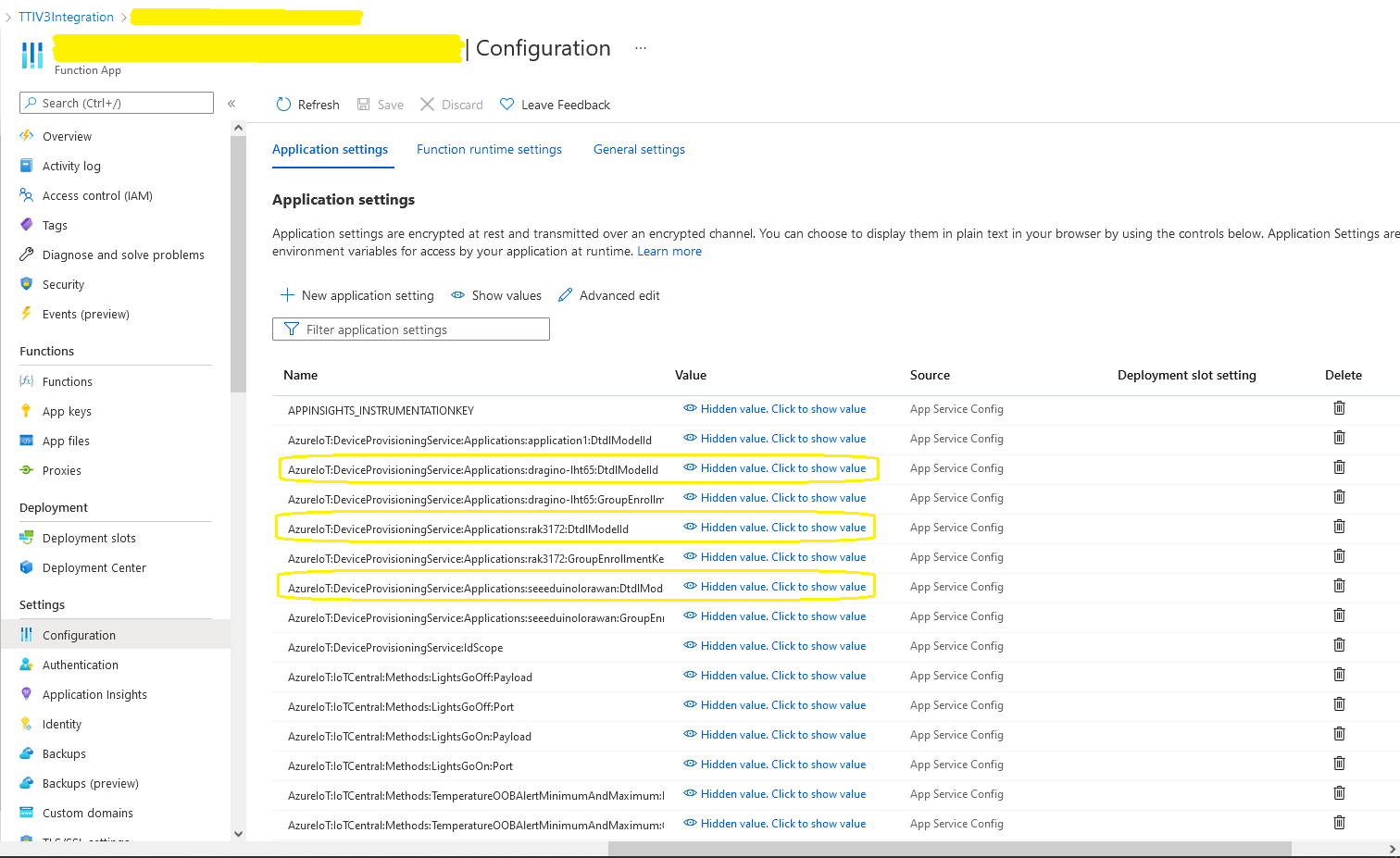
The Azure Function Configuration of Application to DTDL Model ID

BEWARE – They application in ApplicationToDtdlModelIdMapping is case sensitive!

Azure IoT Central Device Template Configuration

I used Azure IoT Central Device Template functionality to create my Azure Digital Twin definitions.

Azure IoT Hub Device Connection String

The DeviceClient CreateFromConnectionString method has an optional ClientOptions parameter which specifies the DTLDL model ID for the duration of the connection.

private async Task<DeviceClient> AzureIoTHubDeviceConnectionStringConnectAsync(string terminalId, string application, object context)
{
    DeviceClient deviceClient;

    if (_azureIoTSettings.ApplicationToDtdlModelIdMapping.TryGetValue(application, out string? modelId))
    {
        ClientOptions clientOptions = new ClientOptions()
        {
            ModelId = modelId
        };

        deviceClient = DeviceClient.CreateFromConnectionString(_azureIoTSettings.AzureIoTHub.ConnectionString, terminalId, TransportSettings, clientOptions);
    }
    else
    { 
        deviceClient = DeviceClient.CreateFromConnectionString(_azureIoTSettings.AzureIoTHub.ConnectionString, terminalId, TransportSettings);
    }

    await deviceClient.OpenAsync();

    return deviceClient;
}
Azure IoT Explorer Telemetry message with DTDL Model ID

Azure IoT Hub Device Provisioning Service

The ProvisioningDeviceClient RegisterAsync method has an optional ProvisionRegistrationAdditionalData parameter. The PnpConnection CreateDpsPayload is used to generate the JsonData property which specifies the DTLDL model ID used when the device is initially provisioned.

private async Task<DeviceClient> AzureIoTHubDeviceProvisioningServiceConnectAsync(string terminalId, string application, object context)
{
    DeviceClient deviceClient;

    string deviceKey;
    using (var hmac = new HMACSHA256(Convert.FromBase64String(_azureIoTSettings.AzureIoTHub.DeviceProvisioningService.GroupEnrollmentKey)))
    {
        deviceKey = Convert.ToBase64String(hmac.ComputeHash(Encoding.UTF8.GetBytes(terminalId)));
    }

    using (var securityProvider = new SecurityProviderSymmetricKey(terminalId, deviceKey, null))
    {
        using (var transport = new ProvisioningTransportHandlerAmqp(TransportFallbackType.TcpOnly))
        {
            DeviceRegistrationResult result;

            ProvisioningDeviceClient provClient = ProvisioningDeviceClient.Create(
                _azureIoTSettings.AzureIoTHub.DeviceProvisioningService.GlobalDeviceEndpoint,
                _azureIoTSettings.AzureIoTHub.DeviceProvisioningService.IdScope,
                securityProvider,
            transport);

            if (_azureIoTSettings.ApplicationToDtdlModelIdMapping.TryGetValue(application, out string? modelId))
            {
                ClientOptions clientOptions = new ClientOptions()
                {
                    ModelId = modelId
                };

                ProvisioningRegistrationAdditionalData provisioningRegistrationAdditionalData = new ProvisioningRegistrationAdditionalData()
                {
                    JsonData = PnpConvention.CreateDpsPayload(modelId)
                };
                result = await provClient.RegisterAsync(provisioningRegistrationAdditionalData);
            }
            else
            {
                result = await provClient.RegisterAsync();
            }
  
            if (result.Status != ProvisioningRegistrationStatusType.Assigned)
            {
                _logger.LogWarning("Uplink-DeviceID:{0} RegisterAsync status:{1} failed ", terminalId, result.Status);

                throw new ApplicationException($"Uplink-DeviceID:{0} RegisterAsync status:{1} failed");
            }

            IAuthenticationMethod authentication = new DeviceAuthenticationWithRegistrySymmetricKey(result.DeviceId, (securityProvider as SecurityProviderSymmetricKey).GetPrimaryKey());

            deviceClient = DeviceClient.Create(result.AssignedHub, authentication, TransportSettings);
        }
    }

    await deviceClient.OpenAsync();

    return deviceClient;
}
Azure IoT Central Device Connection Group configuration

An Azure IoT Central Device connection groups can be configured to “automagically” provision devices.

Myriota Connector – Azure IoT Hub Connectivity

The Myriota connector supports the use of Azure IoT Hub Connection Strings and the Azure IoT Hub Device Provisioning Service(DPS) for device management. I use Alastair Crabtree’s LazyCache to store Azure IoT Hub connections which are opened the first time they are used.

 public async Task<DeviceClient> GetOrAddAsync(string terminalId, object context)
 {
     DeviceClient deviceClient;

     switch (_azureIoTSettings.AzureIoTHub.ConnectionType)
     {
         case Models.AzureIotHubConnectionType.DeviceConnectionString:
             deviceClient = await _azuredeviceClientCache.GetOrAddAsync(terminalId, (ICacheEntry x) => AzureIoTHubDeviceConnectionStringConnectAsync(terminalId, context));
             break;
         case Models.AzureIotHubConnectionType.DeviceProvisioningService:
             deviceClient = await _azuredeviceClientCache.GetOrAddAsync(terminalId, (ICacheEntry x) => AzureIoTHubDeviceProvisioningServiceConnectAsync(terminalId, context));
             break;
         default:
             _logger.LogError("Uplink- Azure IoT Hub ConnectionType unknown {0}", _azureIoTSettings.AzureIoTHub.ConnectionType);

             throw new NotImplementedException("AzureIoT Hub unsupported ConnectionType");
     }

     return deviceClient;
 }

The IAzureDeviceClientCache.GetOrAddAsync method returns an open Azure IoT Hub DeviceClient connection or uses the method specified in the application configuration.

Azure IoT Hub Device Connection String

The Azure IoT Hub delegate uses a Device Connection String which is retrieved from the application configuration.

{
  "ConnectionStrings": {
    "ApplicationInsights": "...",
    "UplinkQueueStorage": "...",
    "PayloadFormattersStorage": "..."
  },
  "AzureIoT": {
    "AzureIoTHub": {
      "ConnectionType": "DeviceConnectionString",
      "connectionString": "HostName=....azure-devices.net;SharedAccessKeyName=device;SharedAccessKey=...",
        }
   }
 ...    
}
Azure Function with IoT Hub Device connection string configuration
private async Task<DeviceClient> AzureIoTHubDeviceConnectionStringConnectAsync(string terminalId, object context)
{
    DeviceClient deviceClient = DeviceClient.CreateFromConnectionString(_azureIoTSettings.AzureIoTHub.ConnectionString, terminalId, TransportSettings);

    await deviceClient.OpenAsync();

    return deviceClient;
 }
Azure IoT Hub Device Shared Access Policy for Device Connection String

One of my customers uses an Azure Logic Application to manage Myriota and Azure IoT Connector configuration.

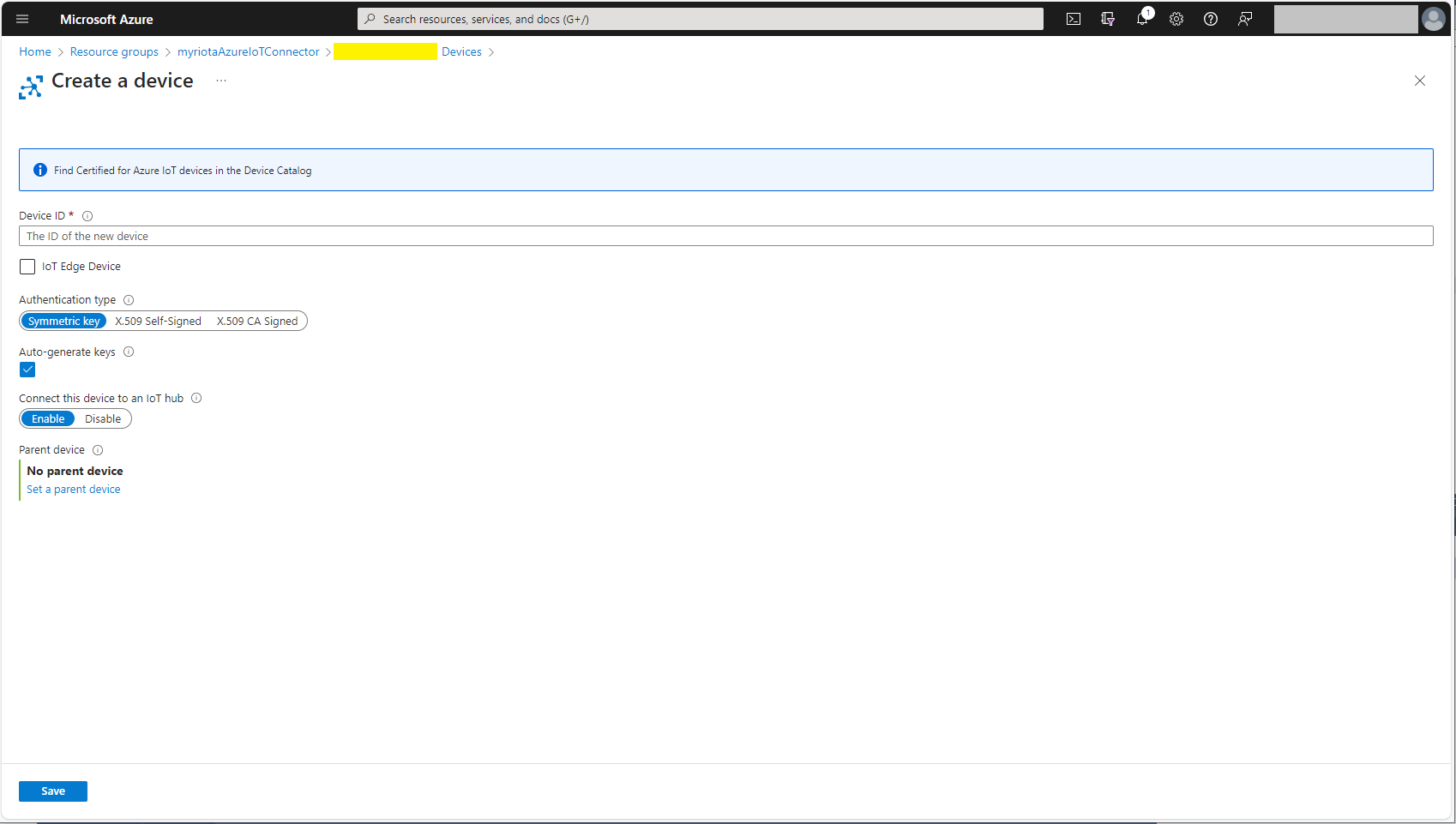
Azure IoT Hub manual Device configuration

Azure IoT Hub Device Provisioning Service

The Azure IoT Hub Device Provisioning Service(DPS) delegate uses Symmetric Key Attestation with the Global Device Endpoint, ID Scope and Group Enrollment Key retrieved from the application configuration.

{
  "ConnectionStrings": {
    "ApplicationInsights": "...",
    "UplinkQueueStorage": "...",
    "PayloadFormattersStorage": "..."
  },
  "AzureIoT": {
      "ConnectionType": "DeviceProvisioningService",
      "DeviceProvisioningServiceIoTHub": {
        "GlobalDeviceEndpoint": "global.azure-devices-provisioning.net",
        "IDScope": ".....",
        "GroupEnrollmentKey": "...."
      }
   }
}
Azure IoT Function with Azure IoT Hub Device Provisioning Service(DPS) configuration

Symmetric key attestation with the Azure IoT Hub Device Provisioning Service(DPS) is performed using the same security tokens supported by Azure IoT Hubs to securely connect devices. The symmetric key of an enrollment group isn’t used directly by devices in the provisioning process. Instead, devices that provision through an enrollment group do so using a derived device key.

private async Task<DeviceClient> AzureIoTHubDeviceProvisioningServiceConnectAsync(string terminalId, object context)
{
    DeviceClient deviceClient;

    string deviceKey;
    using (var hmac = new HMACSHA256(Convert.FromBase64String(_azureIoTSettings.AzureIoTHub.DeviceProvisioningService.GroupEnrollmentKey)))
    {
        deviceKey = Convert.ToBase64String(hmac.ComputeHash(Encoding.UTF8.GetBytes(terminalId)));
    }

    using (var securityProvider = new SecurityProviderSymmetricKey(terminalId, deviceKey, null))
    {
        using (var transport = new ProvisioningTransportHandlerAmqp(TransportFallbackType.TcpOnly))
        {
            DeviceRegistrationResult result;

            ProvisioningDeviceClient provClient = ProvisioningDeviceClient.Create(
                _azureIoTSettings.AzureIoTHub.DeviceProvisioningService.GlobalDeviceEndpoint,
                _azureIoTSettings.AzureIoTHub.DeviceProvisioningService.IdScope,
                securityProvider,
                transport);

            result = await provClient.RegisterAsync();
  
            if (result.Status != ProvisioningRegistrationStatusType.Assigned)
            {
                _logger.LogWarning("Uplink-DeviceID:{0} RegisterAsync status:{1} failed ", terminalId, result.Status);

                throw new ApplicationException($"Uplink-DeviceID:{0} RegisterAsync status:{1} failed");
            }

            IAuthenticationMethod authentication = new DeviceAuthenticationWithRegistrySymmetricKey(result.DeviceId, (securityProvider as SecurityProviderSymmetricKey).GetPrimaryKey());

            deviceClient = DeviceClient.Create(result.AssignedHub, authentication, TransportSettings);
        }
    }

    await deviceClient.OpenAsync();

    return deviceClient;
}

The derived device key is a hash of the device’s registration ID and is computed using the symmetric key of the enrollment group. The device can then use its derived device key to sign the SAS token it uses to register with DPS.

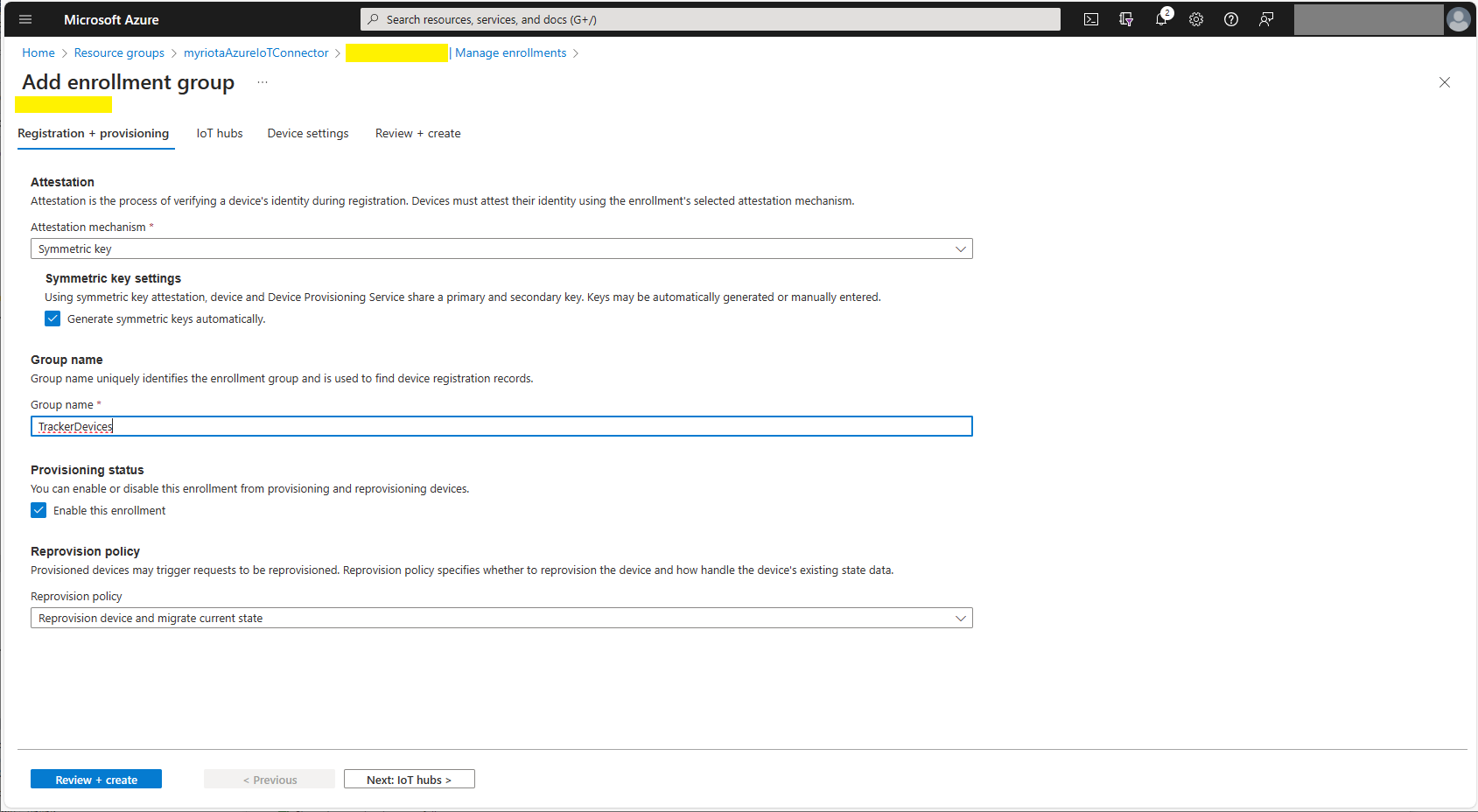
Azure Device Provisioning Service Adding Enrollment Group Attestation
Azure Device Provisioning Service Add Enrollment Group IoT Hub(s) selection.
Azure Device Provisioning Service Manager Enrollments

For initial development and testing I ran the function application in the desktop emulator and simulated Myriota Device Manager webhook calls with Azure Storage Explorer and modified sample payloads.

Azure Storage Explorer Storage Account Queued Messages

I then used Azure IoT Explorer to configure devices, view uplink traffic etc.

Azure IoT Explorer Devices

When I connected to my Azure IoT Hub shortly after starting the Myriota Azure IoT Connector Function my test devices started connecting as messages arrived.

Azure IoT Explorer Device Telemetry

I then deployed my function to Azure and configured the Azure IoT Hub connection string, Azure Application Insights connection string etc.

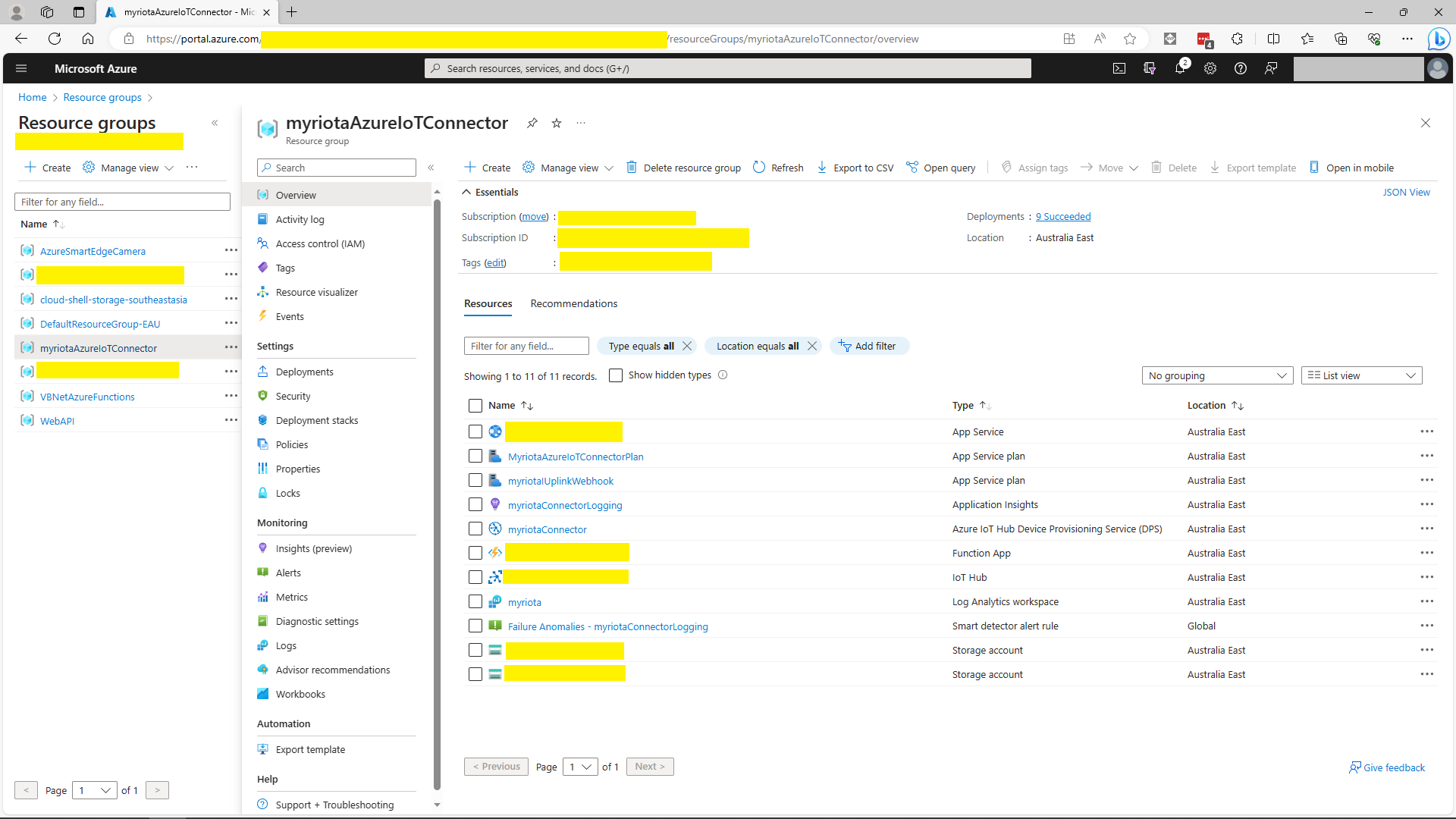
Azure Portal Myriota Resource Group
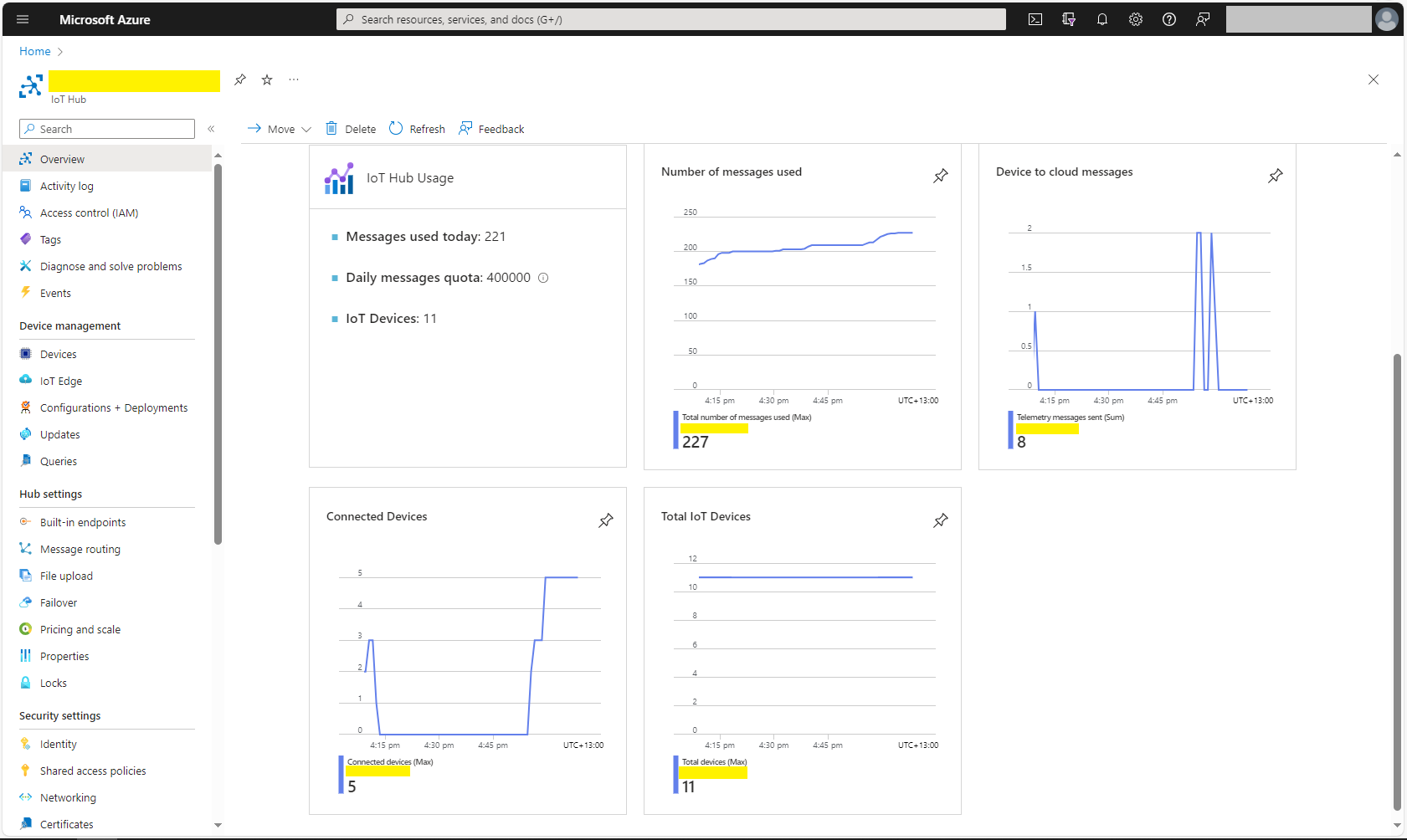
Azure Portal Myriota IoT Hub Metrics

There was often a significant delay for the Device Status to update. which shouldn’t be a problem.

Azure Functions Isolated Worker support for VB.Net 4.8

As part of my “day job” I spend a bit of time working with VB.Net 4.X “legacy” projects doing upgrades, and bug fixes. Currently I am updating a number of Windows Service applications to run as Microsoft Azure Functions. With the release of the Azure functions runtime V4 Isolated Worker Processes with .NET Framework V4.8 support this is the last post in my Azure Functions with VB.Net 4.X and Azure Functions with VB.Net on .NET Core V6 series.

I have published source code for Azure Storage BlobTrigger, Azure Storage QueueTrigger, and TimerTriggers.

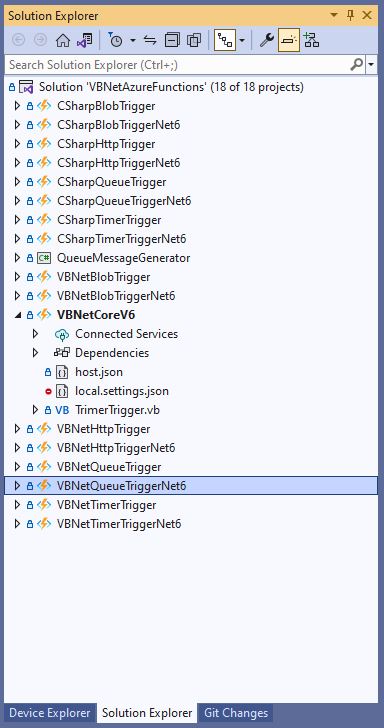
Visual Studio Solution explorer Azure Functions projects

All of the examples now have a program.vb which initialises the Trigger.

Namespace VBNet....TriggerIsolated
    Friend Class Program
        Public Shared Sub Main(ByVal args As String())
            Call FunctionsDebugger.Enable()

            Dim host = New HostBuilder().ConfigureFunctionsWorkerDefaults().Build()

            host.Run()
        End Sub
    End Class
End Namespace

All of the Isolated worker process Triggers displayed this message which appeared to be benign.

Csproj not found in C:\Users\..\VBNetHttpTriggerIsolated\bin\Debug\net48 directory tree. Skipping user secrets file configuration.

There were a lot of articles about problems building Docker images but the only relevant ones appeared to talk about getting F# and other .NET Core languages to work in Azure Functions.

Namespace devMobile.Azure.VBNetBlobTriggerIsolated
    Public Class BlobTrigger
        Private ReadOnly _logger As ILogger

        Public Sub New(ByVal loggerFactory As ILoggerFactory)
            _logger = loggerFactory.CreateLogger(Of BlobTrigger)()
        End Sub

        <[Function]("vbnetblobtriggerisolated")>
        Public Sub Run(
        <BlobTrigger("vbnetblobtriggerisolated/{name}", Connection:="blobendpoint")> ByVal myBlob As String, ByVal name As String)

            _logger.LogInformation($"VB.Net NET 4.8 Isolated Blob trigger function Processed blob Name: {name}  Data: {myBlob}")
        End Sub
    End Class
End Namespace

I used Azure Storage Explorer to upload files containing Lorem Ipsum for testing the BlobTrigger.

Azure BlobTrigger function running in the desktop emulator
Azure BlobTrigger Function logging in Application Insights

I used Telerik Fiddler to POST messages to the desktop emulator and Azure endpoints.

Namespace VBNetHttpTriggerIsolated
    Public Class HttpTrigger
        Private Shared executionCount As Int32
        Private ReadOnly _logger As ILogger

        Public Sub New(ByVal loggerFactory As ILoggerFactory)
            _logger = loggerFactory.CreateLogger(Of HttpTrigger)()
        End Sub

        <[Function]("Notifications")>
        Public Function Run(
        <HttpTrigger(AuthorizationLevel.Anonymous, "get", "post")> ByVal req As HttpRequestData) As HttpResponseData
            Interlocked.Increment(executionCount)

            _logger.LogInformation("VB.Net NET 4.8 Isolated HTTP trigger Execution count:{executionCount} Method:{req.Method}", executionCount, req.Method)

            Dim response = req.CreateResponse(HttpStatusCode.OK)
            response.Headers.Add("Content-Type", "text/plain; charset=utf-8")

            Return response
        End Function
    End Class
End Namespace
Azure HttpTrigger Function running in the desktop emulator
Azure HttpTrigger Function logging in Application Insights

I used Azure Storage Explorer to create messages for testing the QueueTrigger

Namespace devMobile.Azure.VBNetQueueTriggerIsolated

    Public Class QueueTrigger
        Private Shared _logger As ILogger
        Private Shared _concurrencyCount As Integer = 0
        Private Shared _executionCount As Integer = 0

        Public Sub New(ByVal loggerFactory As ILoggerFactory)
            _logger = loggerFactory.CreateLogger(Of QueueTrigger)()
        End Sub

        <[Function]("VBNetQueueTriggerIsolated")>
        Public Sub Run(
        <QueueTrigger("vbnetqueuetriggerisolated", Connection:="QueueEndpoint")> ByVal message As String)
            Interlocked.Increment(_concurrencyCount)
            Interlocked.Increment(_executionCount)

            _logger.LogInformation("VB.Net .NET 4.8 Isolated Queue Trigger Concurrency:{_concurrencyCount} ExecutionCount:{_executionCount} Message:{message}", _concurrencyCount, _executionCount, message)

            Interlocked.Decrement(_concurrencyCount)
        End Sub
    End Class
End Namespace
Azure QueueTrigger Function running in the desktop emulator
Azure QueueTrigger Function logging in Application Insights
Namespace devMobile.Azure.VBNetTimerTriggerIsolated
    Public Class TimerTrigger
        Private Shared _logger As ILogger
        Private Shared _executionCount As Integer = 0

        Public Sub New(ByVal loggerFactory As ILoggerFactory)
            _logger = loggerFactory.CreateLogger(Of TimerTrigger)()
        End Sub

        <[Function]("Timer")>
        Public Sub Run(
        <TimerTrigger("0 */1 * * * *")> ByVal myTimer As MyInfo)

            Interlocked.Increment(_executionCount)
            _logger.LogInformation("VB.Net Isolated TimerTrigger next trigger:{0} Execution count:{1}", myTimer.ScheduleStatus.Next, _executionCount)
        End Sub
    End Class
Azure TimerTrigger Function running in the desktop emulator
Azure TimerTrigger Function logging in Application Insights

The development, debugging and deployment of these functions took a lot of time. Initially Azure Application Insights didn’t work when the Azure Isolated Worker triggers were deployed to Azure. After some experimentation I found that Application Insights Connection Strings worked and Application Instrumentation Keys did not.

With the Microsoft: ‘We Do Not Plan to Evolve Visual Basic as a Language this should hopefully be my last post about VB.Net ever.

Azure Functions with VB.Net on .NET Core V6

A year and a half ago I wrote a post about how to build Azure functions with VB.Net and the .NET Framework 4.X. The Microsoft VB team posted about Visual Basic Support for .NET 5.0 in March 2020 then went quiet, so my customer put the project on hold. Since then, a lot has changed .NET Core 3.1 LTS ends December 12, 2022, and .NET Core 5.0 support (no LTS) ended May 10, 2022 so I have ported the samples to .NET Core V6.

The process is similar (but different) to the original approach

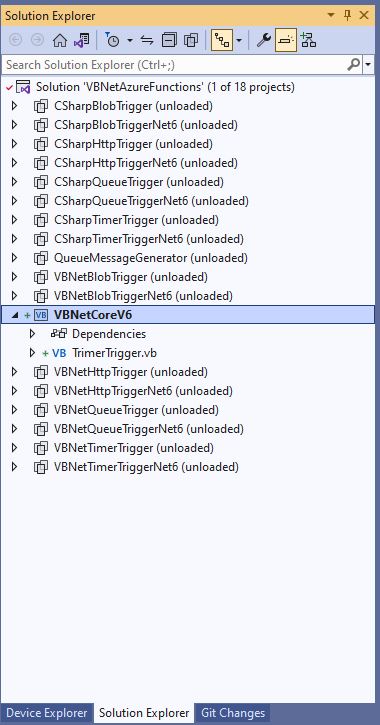
The VB.Net Solution from June 2021

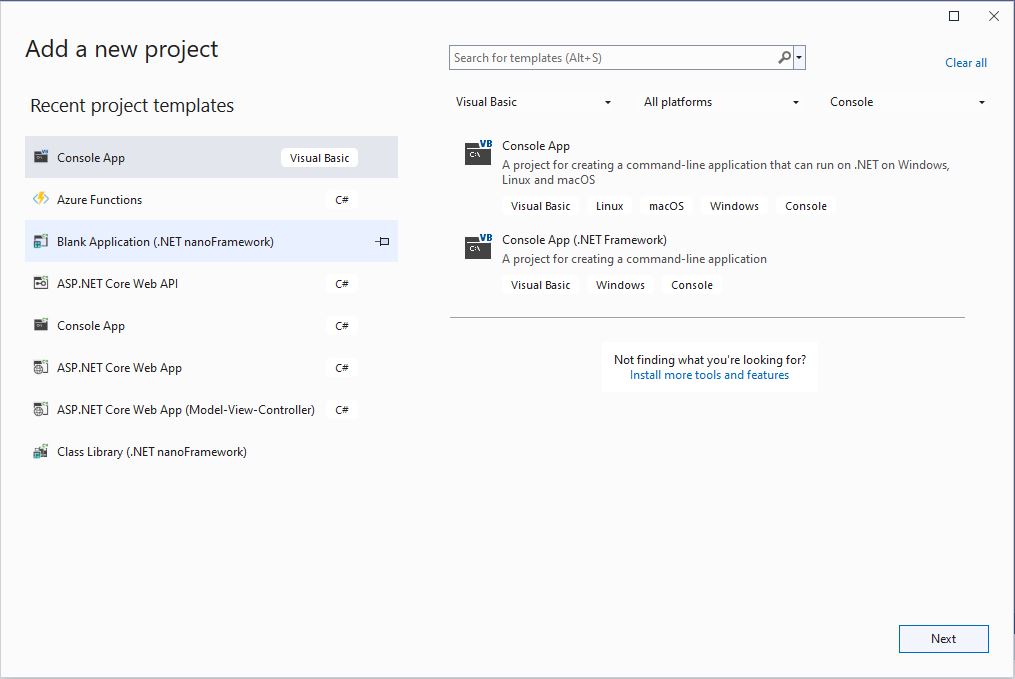
First step is to create a Visual Basic .NET Core V6 console application

Visual Studio 2022 “Add a new project”

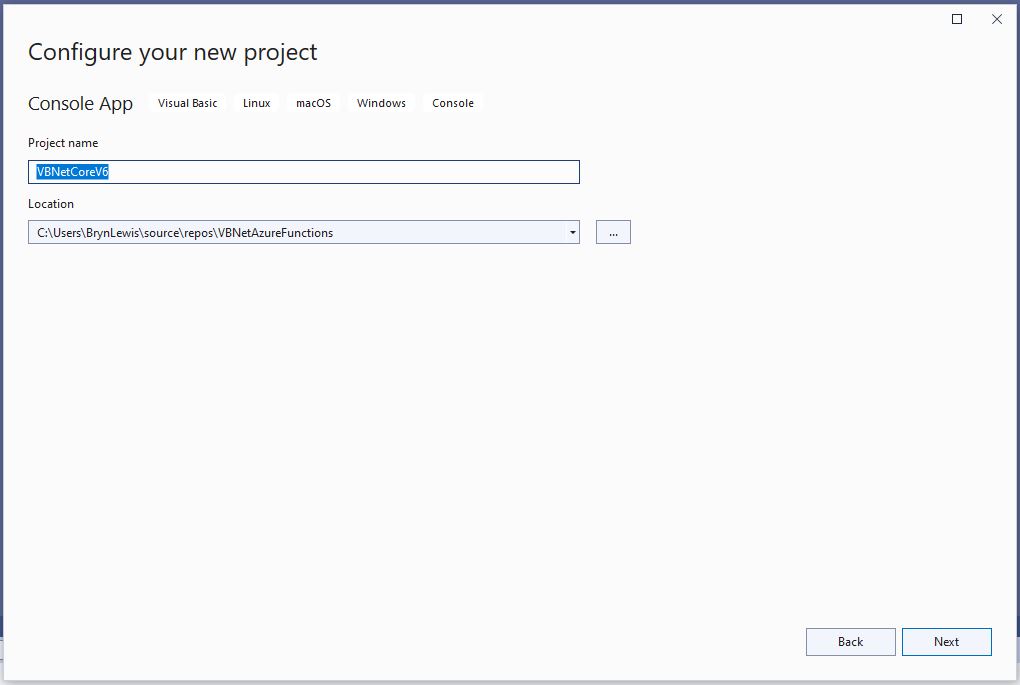
The specify a name for the new project.

Visual Studio 2022 Add Project “Configure your new project”

Then select the version of .NET Core used

Visual Studio 2022 Add Project “Additional information”

Then rename program.cs to a name which highlights that it is a trigger

Visual Studio 2022 rename program.vb to TimerTrigger.vb

The initial version of the TimerTrigger code was “inspired” by the VB.Net 4.8 version.

'---------------------------------------------------------------------------------
' Copyright (c) November 2022, devMobile Software
'
' Licensed under the Apache License, Version 2.0 (the "License");
' you may Not use this file except in compliance with the License.
' You may obtain a copy of the License at
'
'     http://www.apache.org/licenses/LICENSE-2.0
'
' Unless required by applicable law Or agreed to in writing, software
' distributed under the License Is distributed on an "AS IS" BASIS,
' WITHOUT WARRANTIES Or CONDITIONS OF ANY KIND, either express Or implied.
' See the License for the specific language governing permissions And
' limitations under the License.
'
'---------------------------------------------------------------------------------
Imports System.Threading

Imports Microsoft.Azure.WebJobs
Imports Microsoft.Extensions.Logging


Public Class TimerTrigger
    Shared executionCount As Int32

    <FunctionName("Timer")>
    Public Shared Sub Run(<TimerTrigger("0 */1 * * * *")> myTimer As TimerInfo, log As ILogger)
        Interlocked.Increment(executionCount)

        log.LogInformation("VB.Net .NET V6 TimerTrigger next trigger:{0} Execution count:{1}", myTimer.ScheduleStatus.Next, executionCount)

    End Sub
End Class

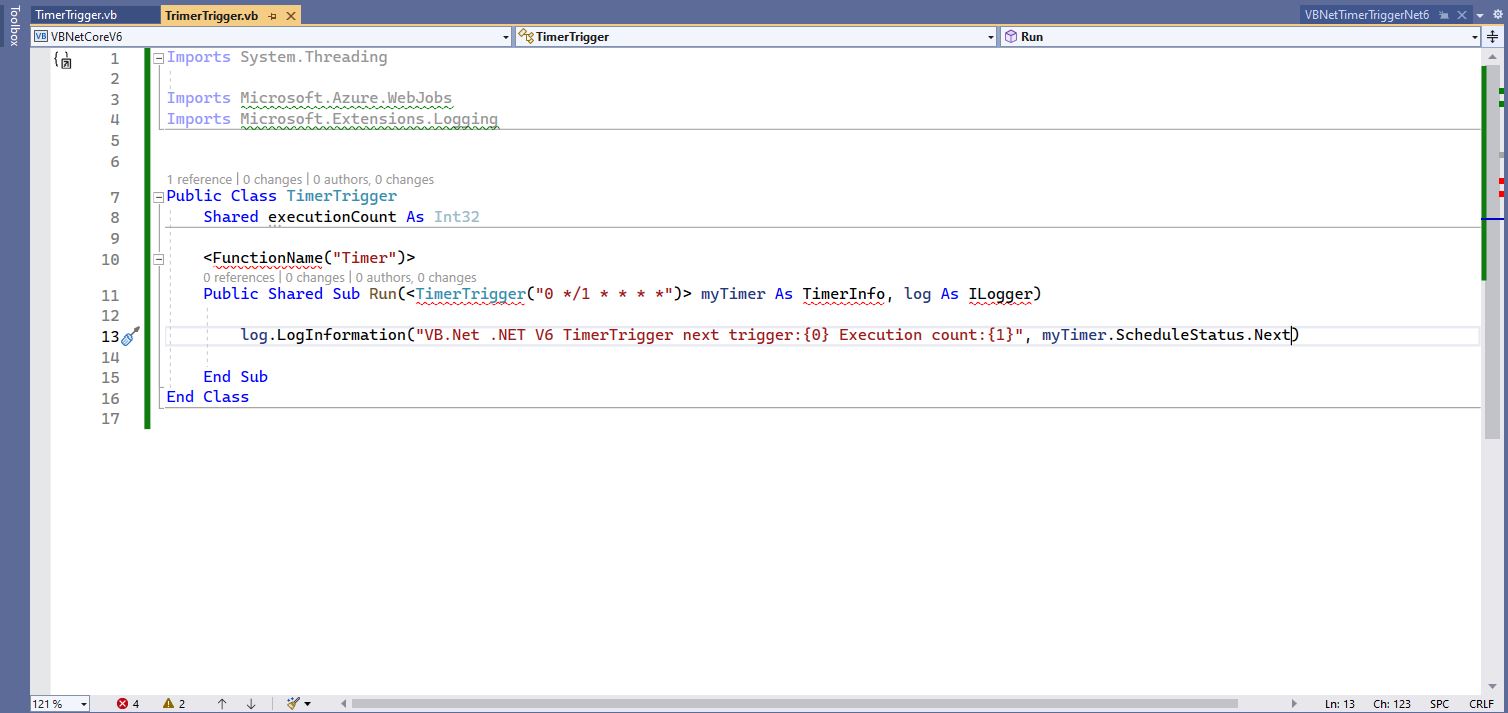
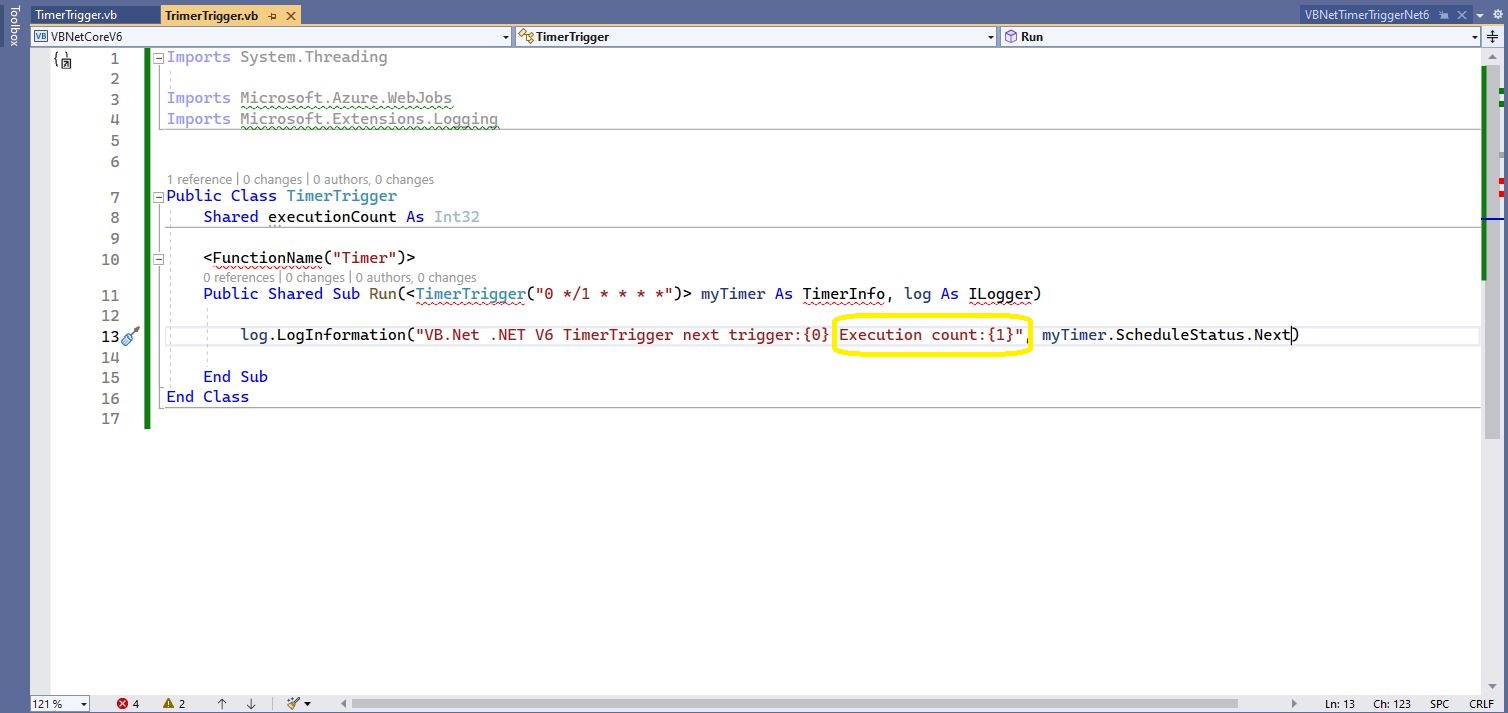
Visual Studio 2022 highlighting missing libraries
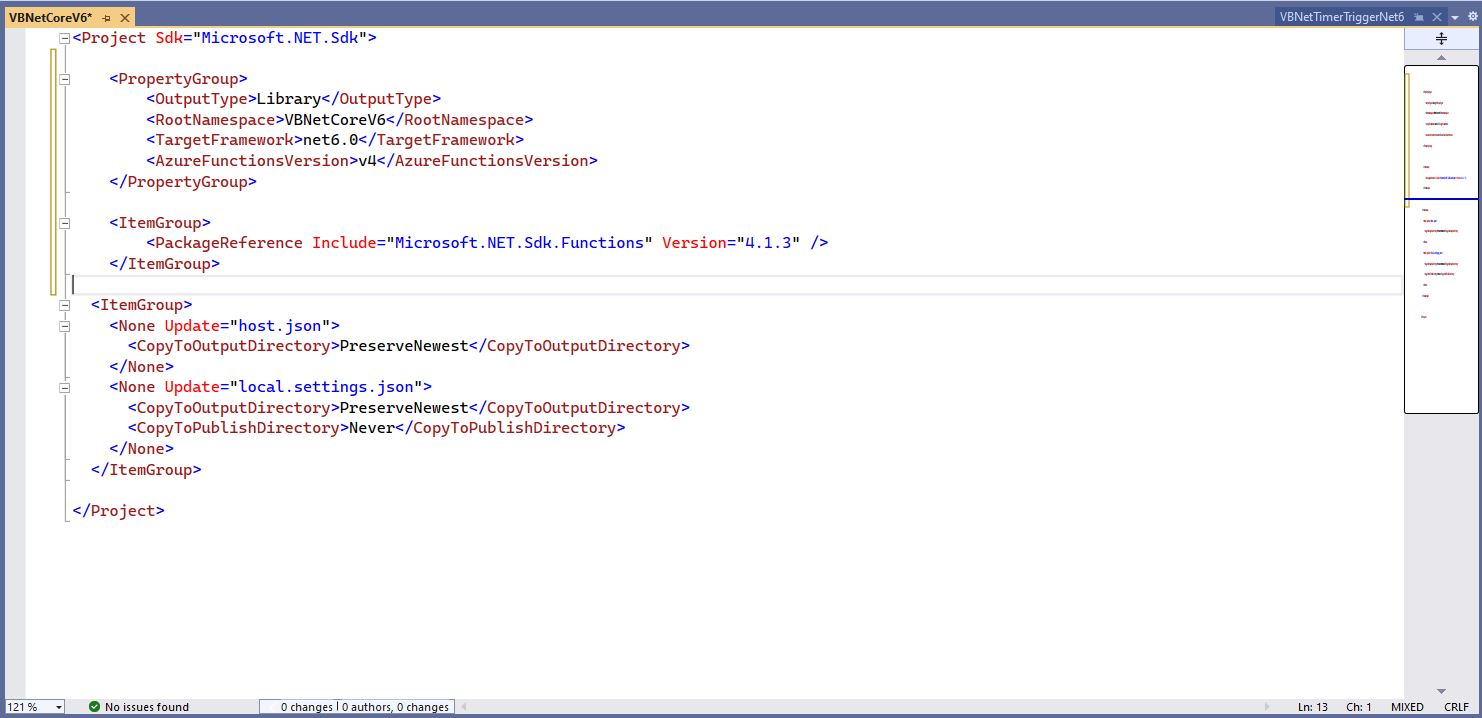
Visual Studio 2022 with additional function SDK references

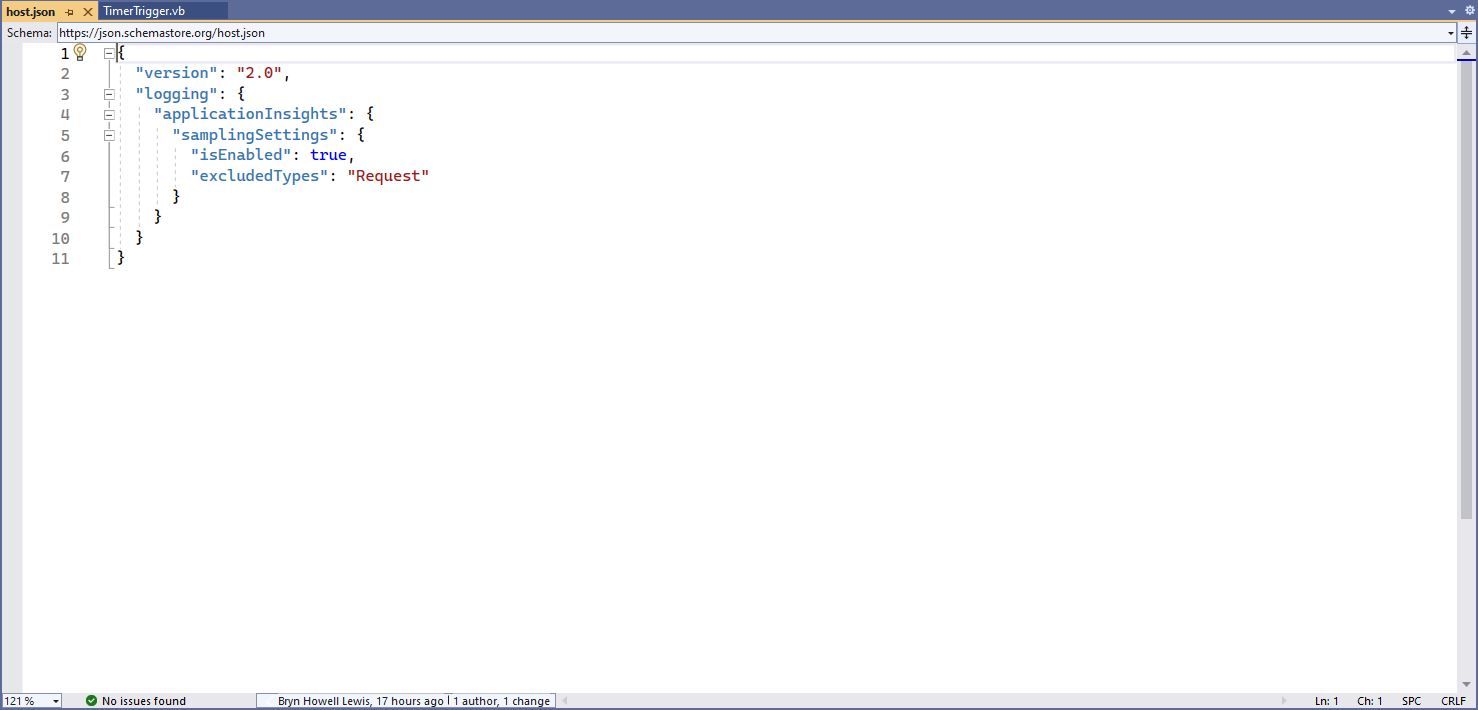
The next step is to add the hosts.json(empty for timer tigger) and localsettings.json to configure the function

Visual 2022 Hosts.json file
Visual Studio 2022 showing hosts.json & local.settings.json

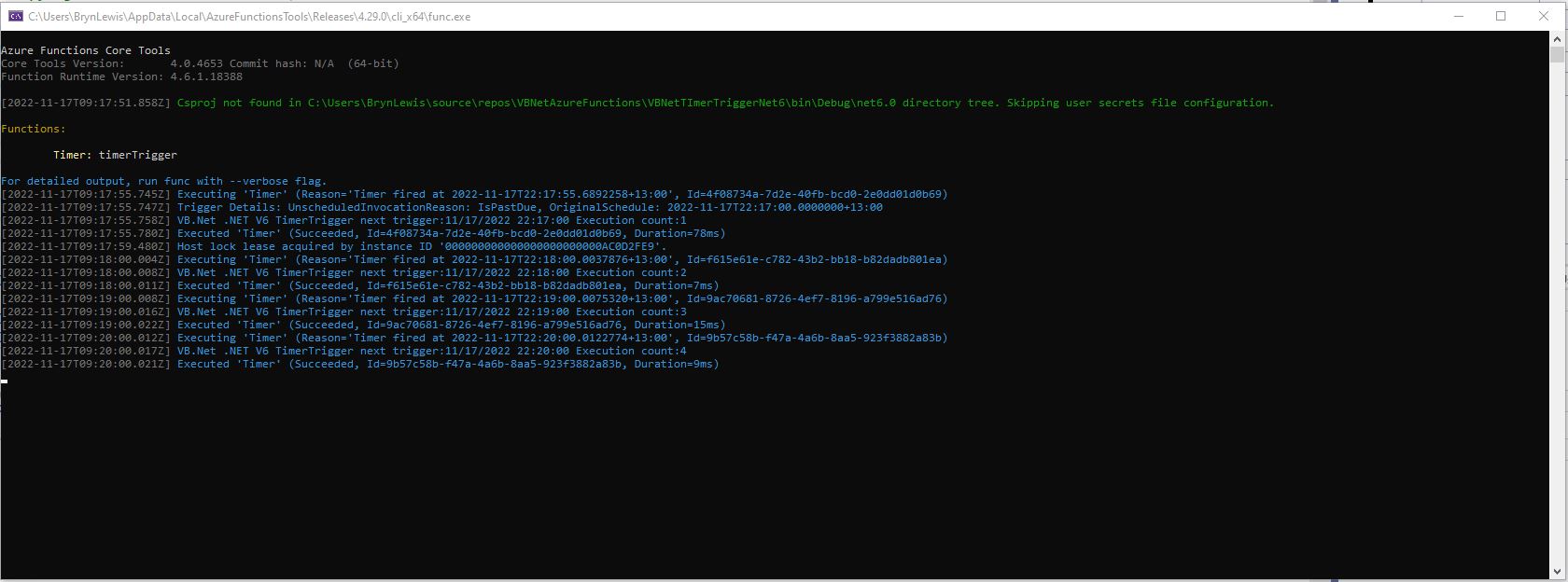
Then I could run the function in the Azure Functions runtime emulator and “single step” in the Visual Studio 2022 Debugger.

VB.Net .NET Core V6 Timer Trigger running in emulator

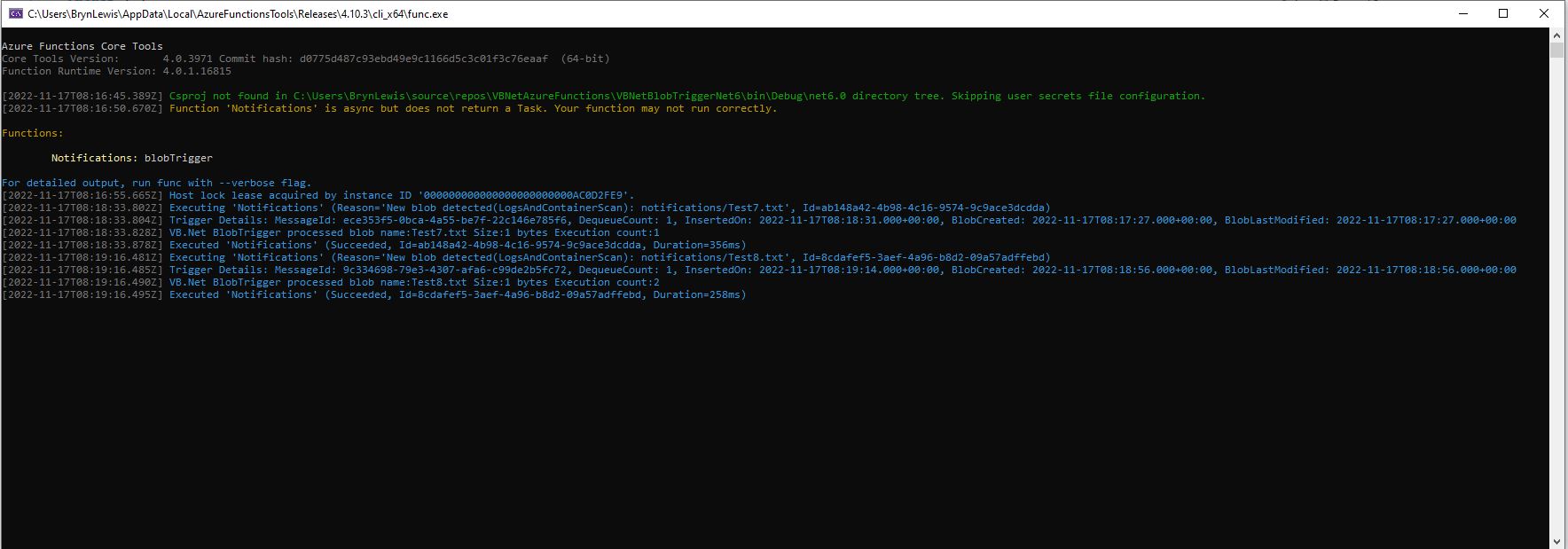
For completeness I also built sample BlobTrigger, HttpTrigger and QueueTrigger versions

VB.Net .NET Core V6 Blob Trigger running in emulator
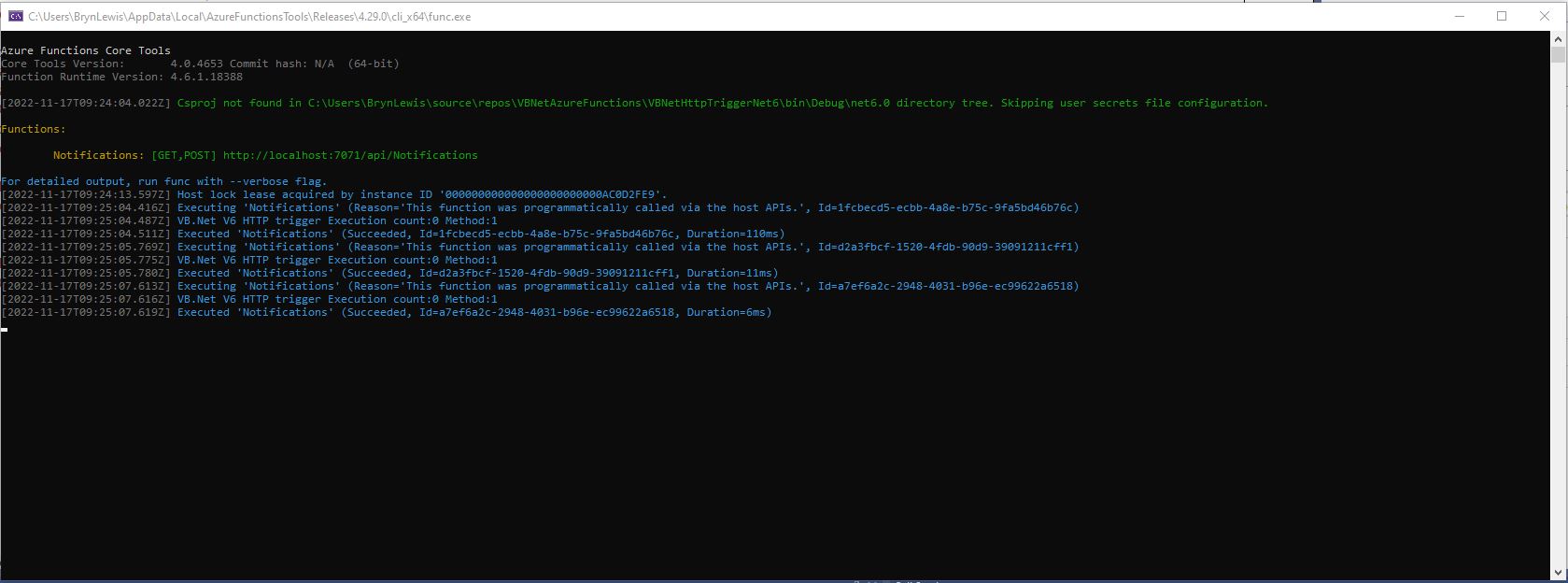
VB.Net .NET Core V6 HTTP Trigger running in emulator
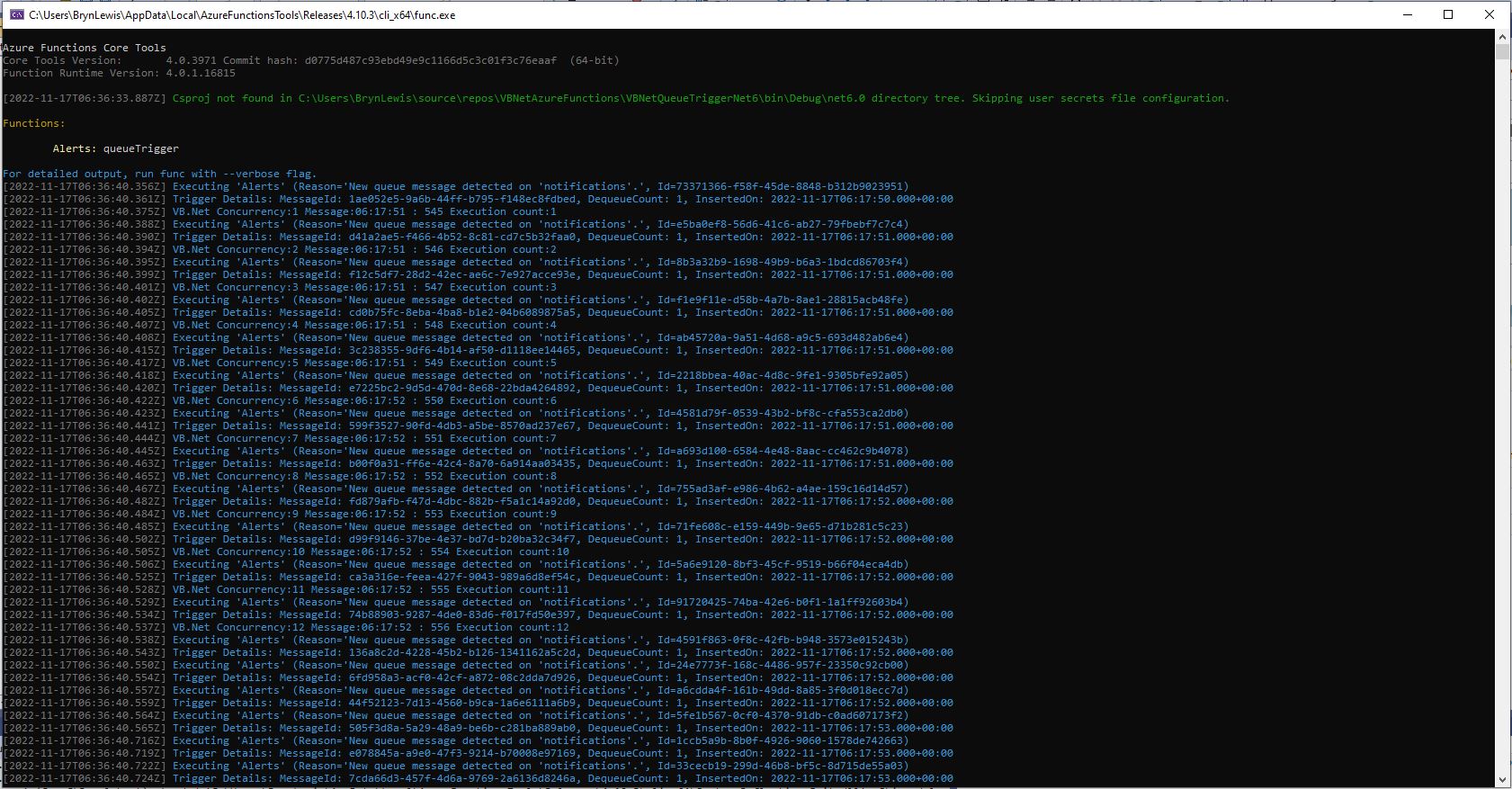
VB.Net .NET Core V6 Queue Trigger running in emulator

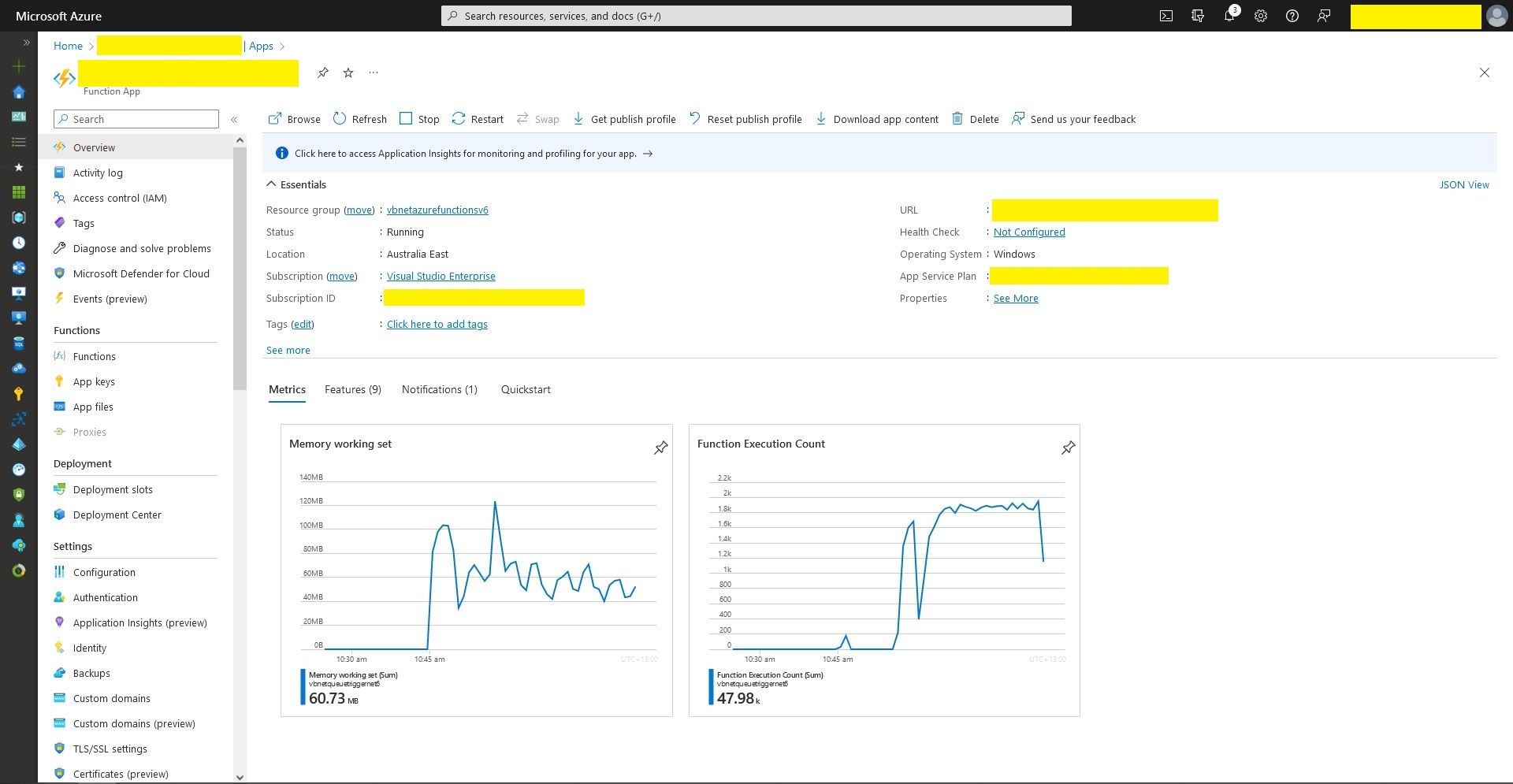
I also deployed the Azure Storage QueueTrigger to Microsoft Azure, configured it, and then stress tested it with multiple instances of my QueueMessageGenerator.

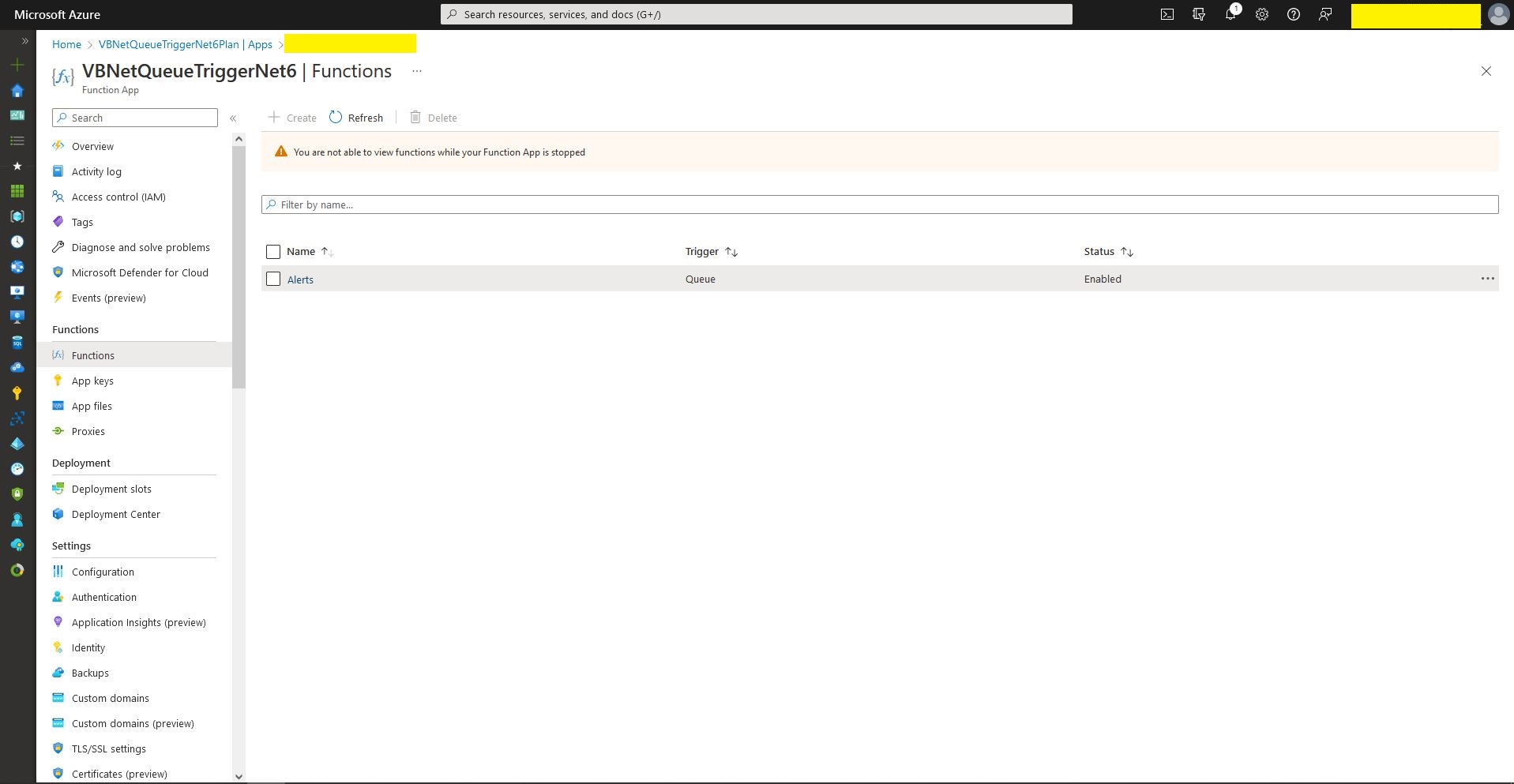
Queue Trigger Function deployment
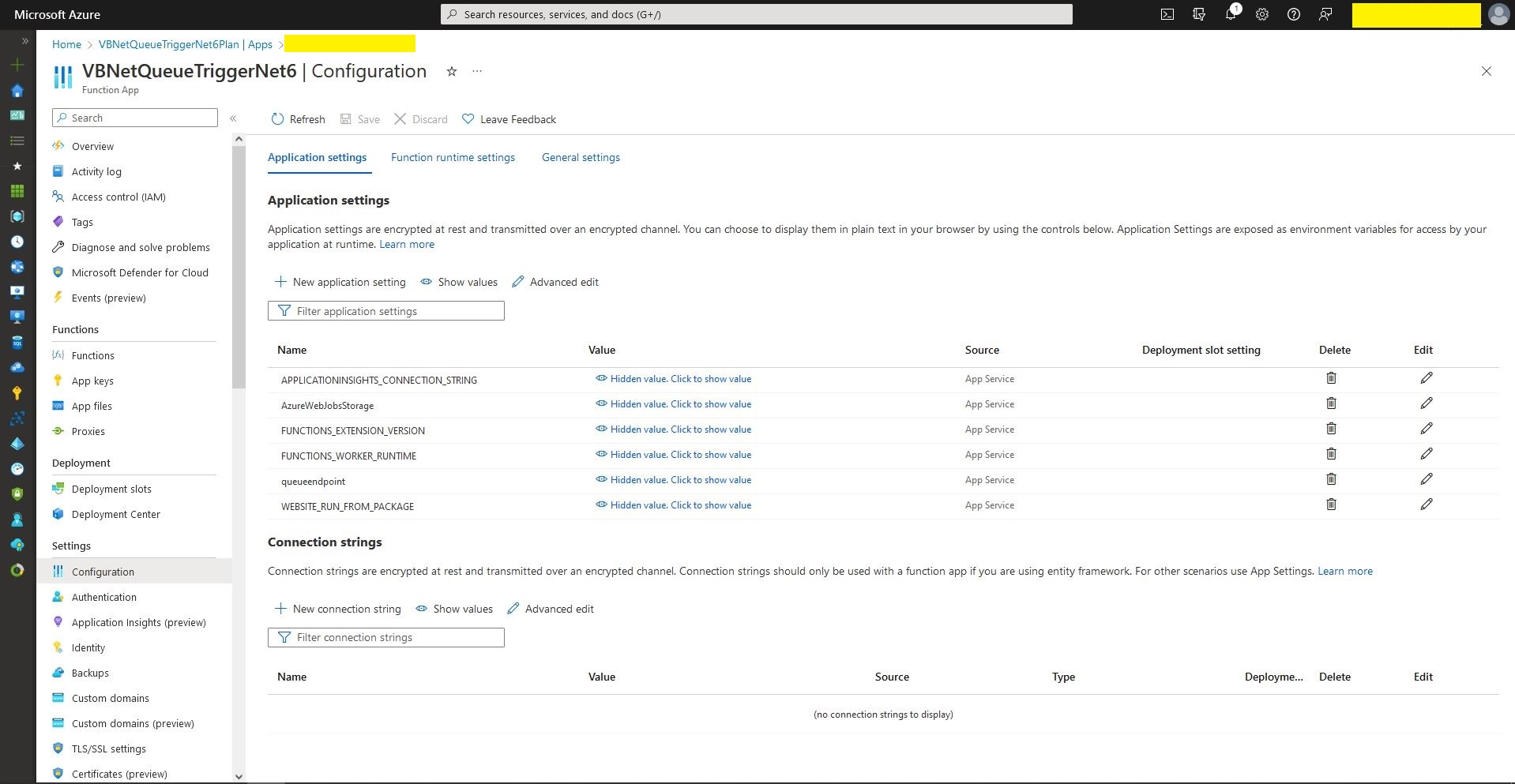
Queue Trigger configuration
Queue Trigger Throughput 48K messages

What if it goes wrong…

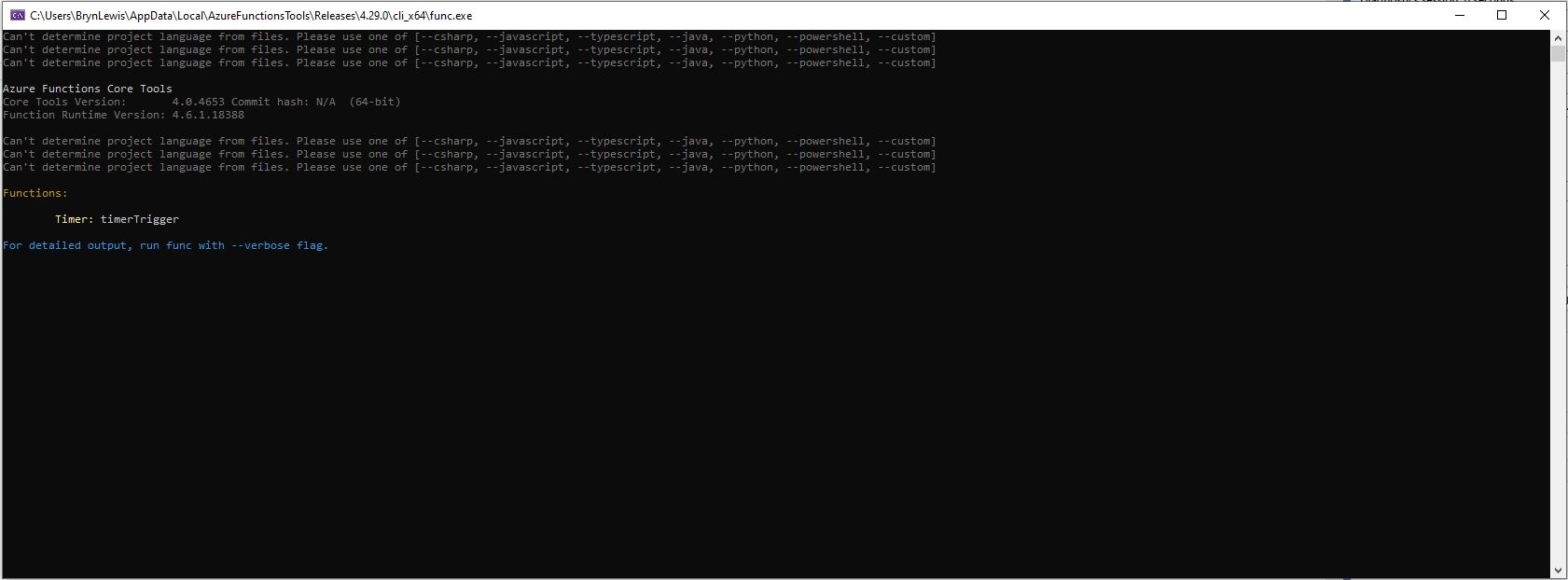
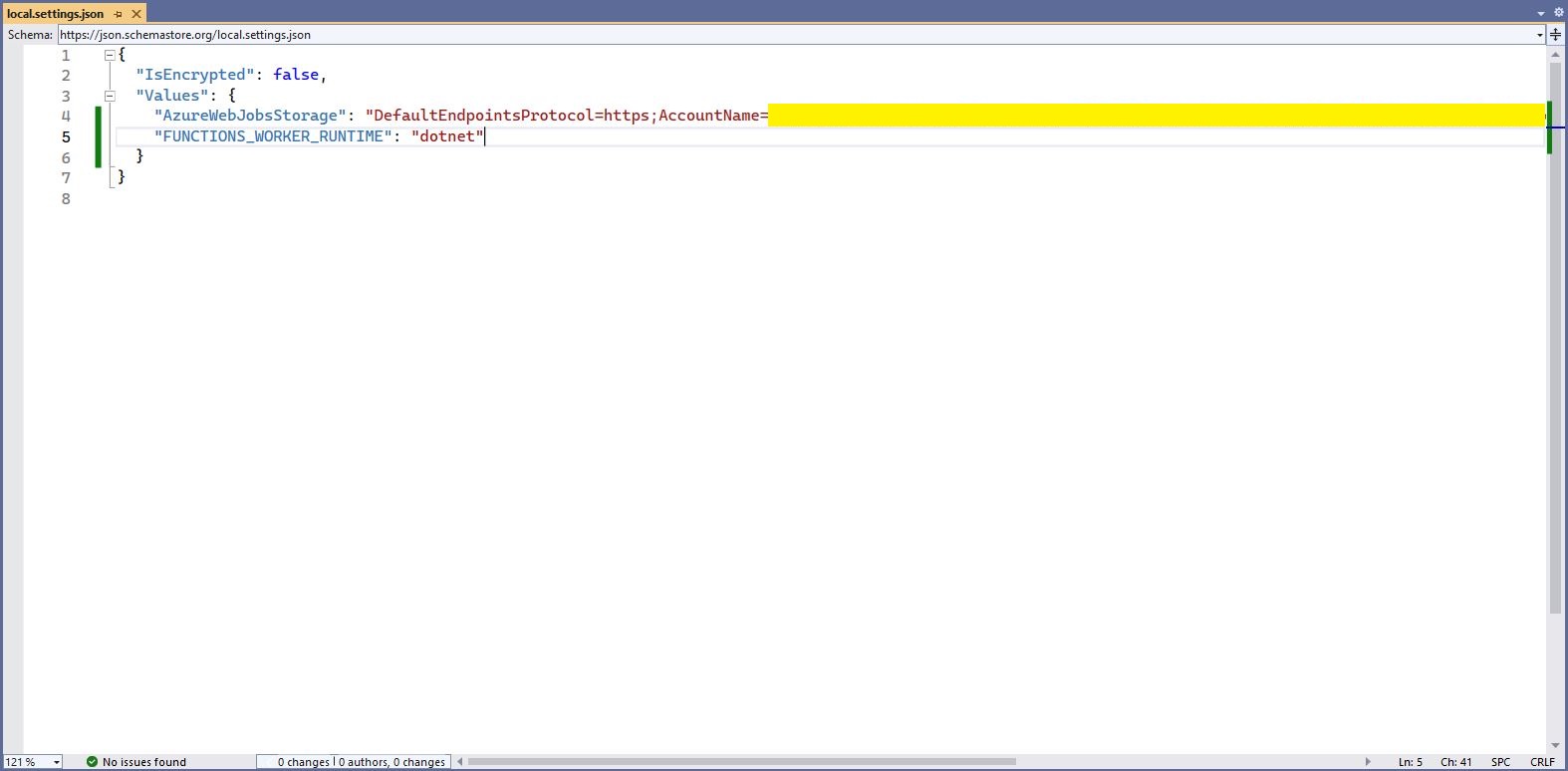
“Can’t determine project language from files. Please add one of [–csharp, –javascript, –typescript, –java, –powershell, –customer]
Check “FUNCTIONS_WORKER_RUNTIME” in the local.settings.json file.

The baked in error logging doesn’t handle broken message formats very well. Look at the call stack or single step through the application to find the message format that is broken

Visual Studio 2022 editor with malformed message highlighted

WARNING

I assume this is not a supported approach so use

“at your own risk”

TTI V3 Connector Azure IoT Central Device Provisioning Service(DPS) support

The TTI Connector supports the Azure IoT Hub Device Provisioning Service(DPS) which is required (it is possible to provision individual devices but this intended for small deployments or testing) for Azure IoT Central applications. The TTI Connector implementation also supports Azure IoT Central Digital Twin Definition Language (DTDL V2) for “automagic” device provisioning.

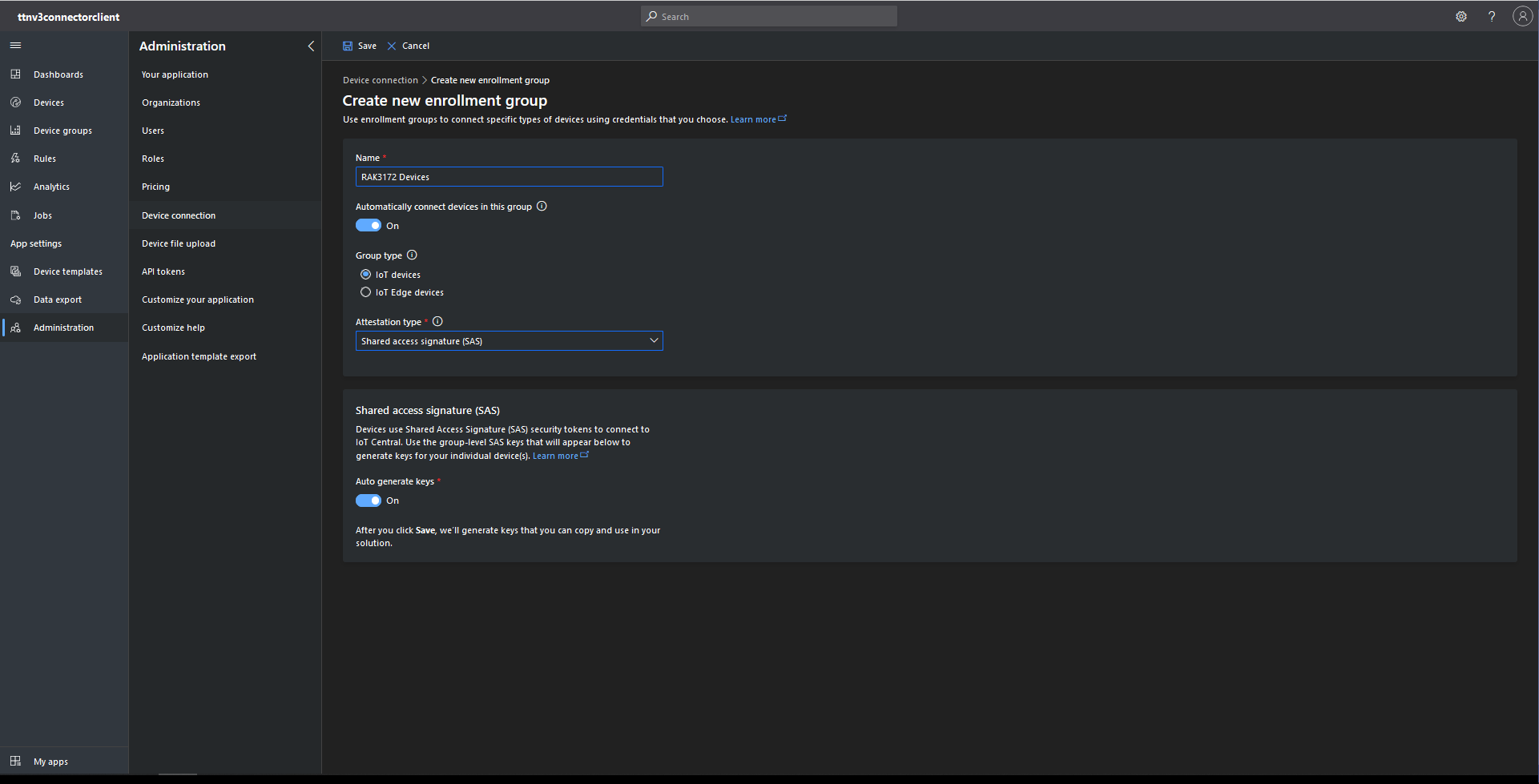
The first step was to configure and Azure IoT Central enrollment group (ensure “Automatically connect devices in this group” is on for “zero touch” provisioning) and copy the IDScope and Group Enrollment key to the TTI Connector configuration

RAK3172 Enrollment Group creation
Azure IoT Hub Device Provisioning Service configuration

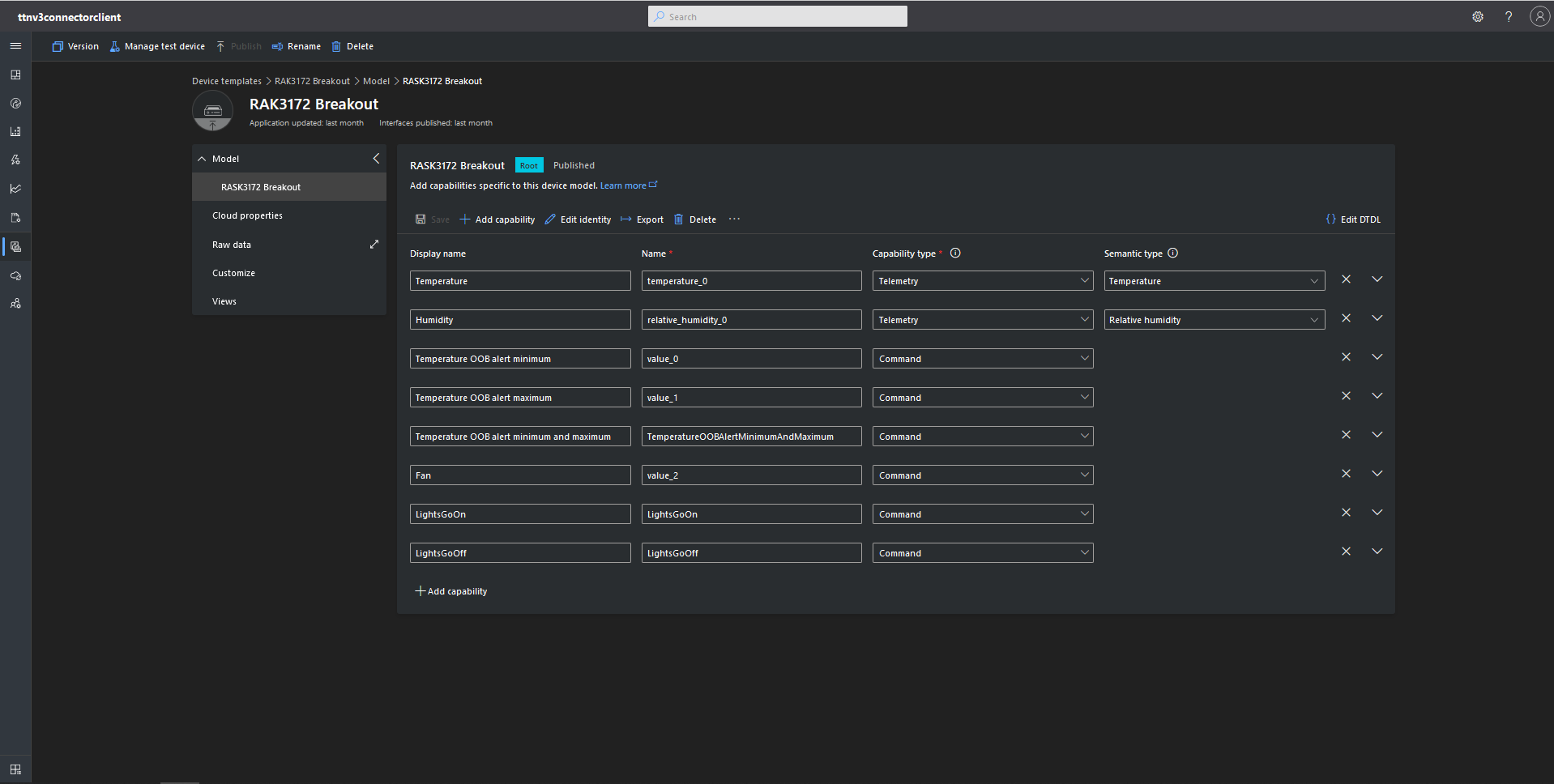
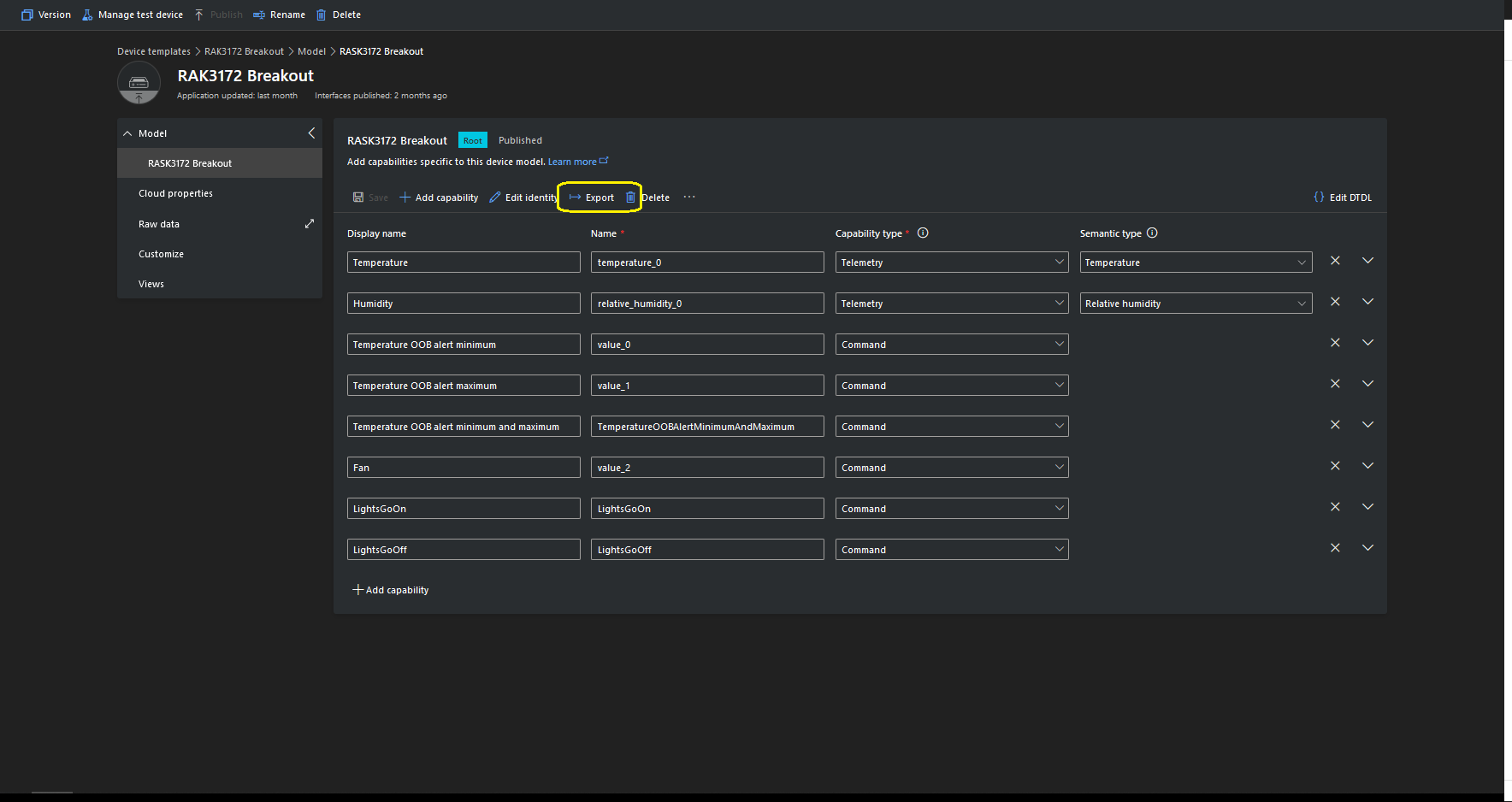
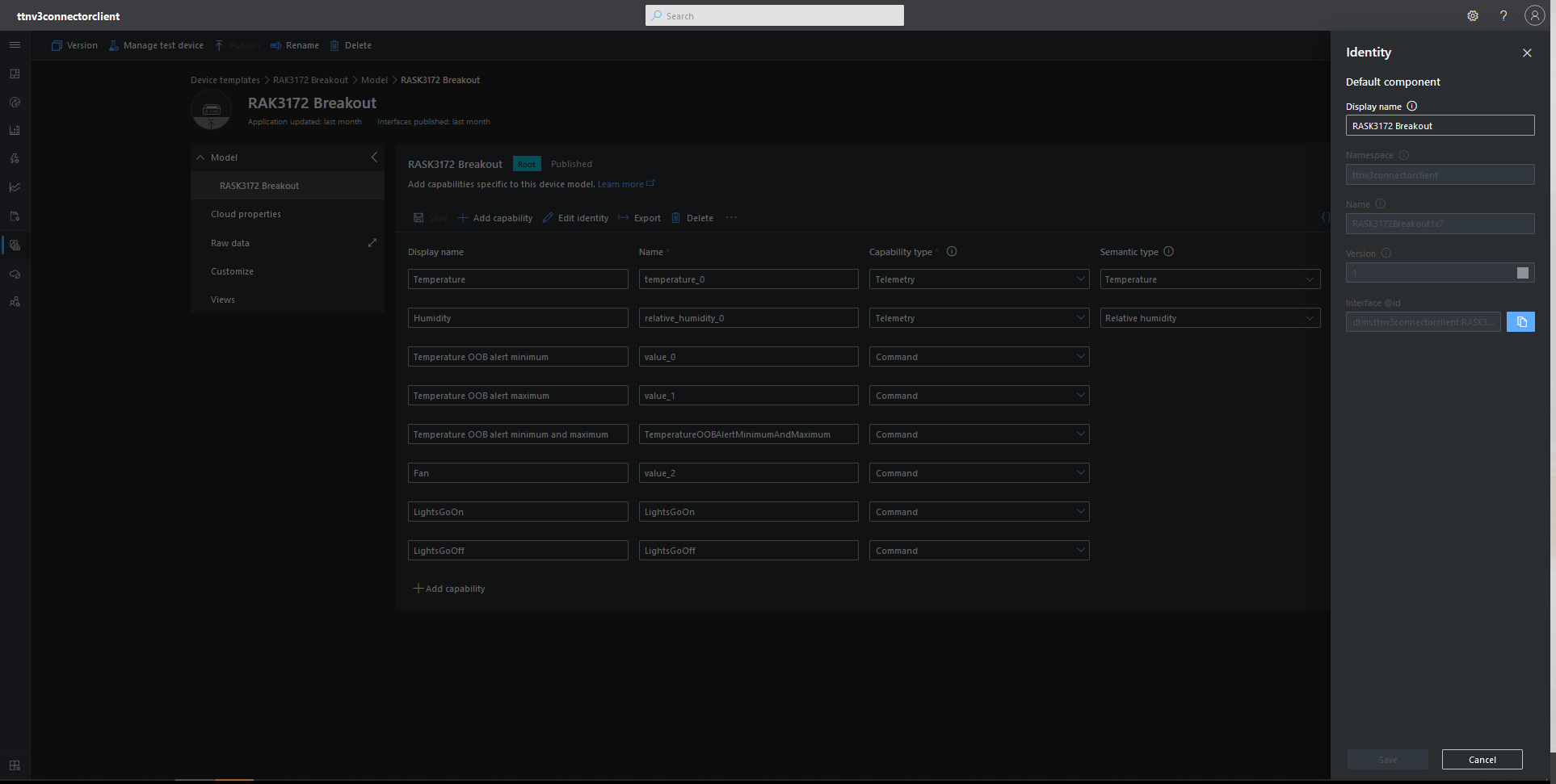
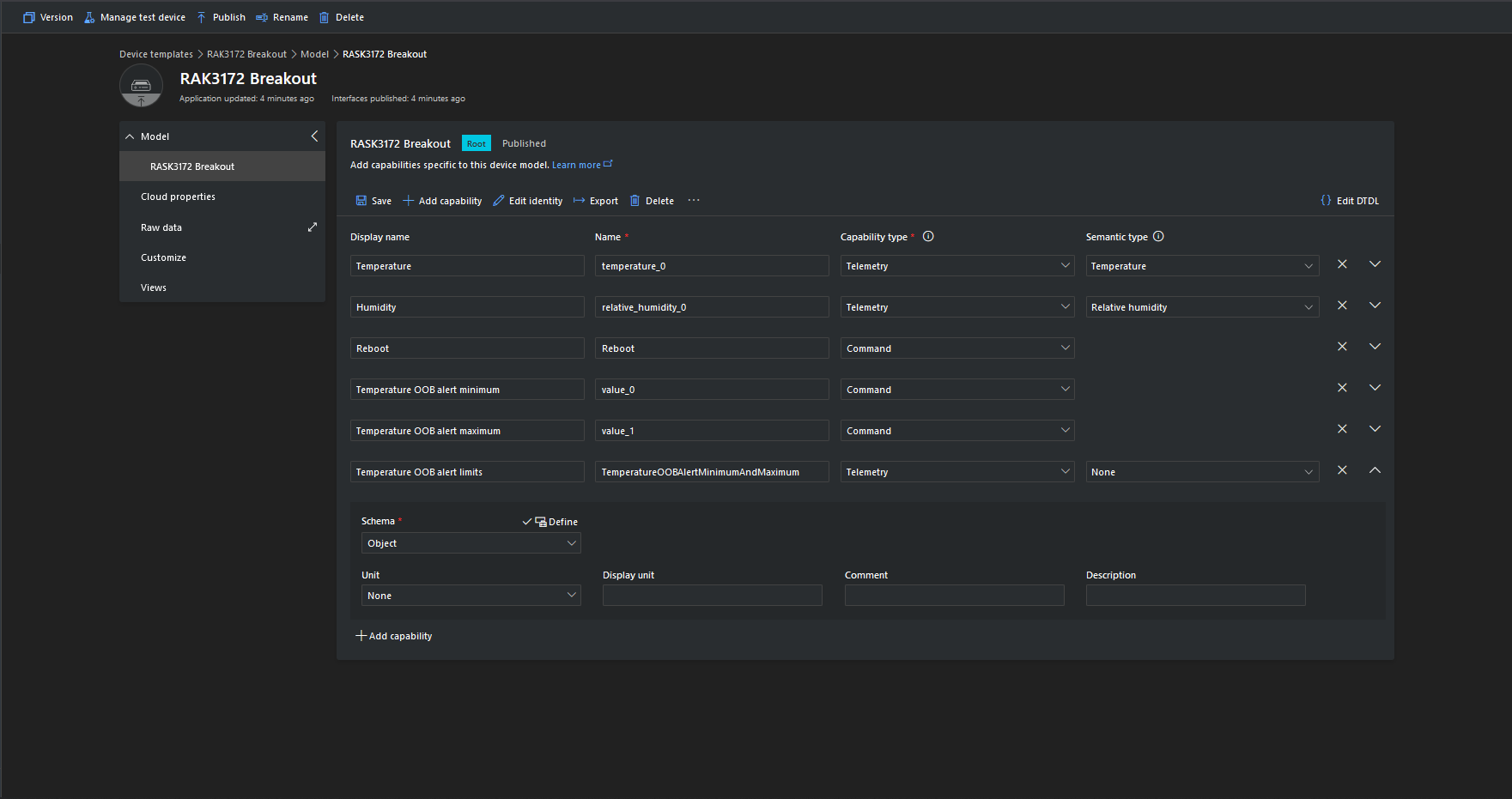
I then created an Azure IoT Central template for my RAK3172 breakout board based.Net Core powered test device.

{
    "@id": "dtmi:ttnv3connectorclient:RASK3172Breakout1c7;1",
    "@type": "Interface",
    "contents": [
        {
            "@id": "dtmi:ttnv3connectorclient:RASK3172Breakout1c7:temperature_0;1",
            "@type": [
                "Telemetry",
                "Temperature"
            ],
            "displayName": {
                "en": "Temperature"
            },
            "name": "temperature_0",
            "schema": "double",
            "unit": "degreeCelsius"
        },
        {
            "@id": "dtmi:ttnv3connectorclient:RASK3172Breakout1c7:relative_humidity_0;1",
            "@type": [
                "Telemetry",
                "RelativeHumidity"
            ],
            "displayName": {
                "en": "Humidity"
            },
            "name": "relative_humidity_0",
            "schema": "double",
            "unit": "percent"
        },
        {
            "@id": "dtmi:ttnv3connectorclient:RASK3172Breakout1c7:value_0;1",
            "@type": "Command",
            "displayName": {
                "en": "Temperature OOB alert minimum"
            },
            "name": "value_0",
            "request": {
                "@type": "CommandPayload",
                "displayName": {
                    "en": "Minimum"
                },
                "name": "value_0",
                "schema": "double"
            },
            "durable": true
        },
        {
            "@id": "dtmi:ttnv3connectorclient:RASK3172Breakout1c7:value_1;1",
            "@type": "Command",
            "displayName": {
                "en": "Temperature OOB alert maximum"
            },
            "name": "value_1",
            "request": {
                "@type": "CommandPayload",
                "displayName": {
                    "en": "Maximum"
                },
                "name": "value_1",
                "schema": "double"
            },
            "durable": true
        },
        {
            "@id": "dtmi:ttnv3connectorclient:RASK3172Breakout1c7:TemperatureOOBAlertMinimumAndMaximum;1",
            "@type": "Command",
            "displayName": {
                "en": "Temperature OOB alert minimum and maximum"
            },
            "name": "TemperatureOOBAlertMinimumAndMaximum",
            "request": {
                "@type": "CommandPayload",
                "displayName": {
                    "en": "Alert Temperature"
                },
                "name": "AlertTemperature",
                "schema": {
                    "@type": "Object",
                    "displayName": {
                        "en": "Object"
                    },
                    "fields": [
                        {
                            "displayName": {
                                "en": "minimum"
                            },
                            "name": "value_0",
                            "schema": "double"
                        },
                        {
                            "displayName": {
                                "en": "maximum"
                            },
                            "name": "value_1",
                            "schema": "double"
                        }
                    ]
                }
            },
            "durable": true
        },
        {
            "@id": "dtmi:ttnv3connectorclient:RASK3172Breakout1c7:value_2;1",
            "@type": "Command",
            "displayName": {
                "en": "Fan"
            },
            "name": "value_2",
            "request": {
                "@type": "CommandPayload",
                "displayName": {
                    "en": "On"
                },
                "name": "value_3",
                "schema": {
                    "@type": "Enum",
                    "displayName": {
                        "en": "Enum"
                    },
                    "enumValues": [
                        {
                            "displayName": {
                                "en": "On"
                            },
                            "enumValue": 1,
                            "name": "On"
                        },
                        {
                            "displayName": {
                                "en": "Off"
                            },
                            "enumValue": 0,
                            "name": "Off"
                        }
                    ],
                    "valueSchema": "integer"
                }
            },
            "durable": true
        },
        {
            "@id": "dtmi:ttnv3connectorclient:RASK3172Breakout1c7:LightsGoOn;1",
            "@type": "Command",
            "displayName": {
                "en": "LightsGoOn"
            },
            "name": "LightsGoOn",
            "durable": true
        },
        {
            "@id": "dtmi:ttnv3connectorclient:RASK3172Breakout1c7:LightsGoOff;1",
            "@type": "Command",
            "displayName": {
                "en": "LightsGoOff"
            },
            "name": "LightsGoOff",
            "durable": true
        }
    ],
    "displayName": {
        "en": "RASK3172 Breakout"
    },
    "@context": [
        "dtmi:iotcentral:context;2",
        "dtmi:dtdl:context;2"
    ]
}

The Device Template @Id can also be set for a TTI application using an optional dtdlmodelid which is specified the the TTI Connector configuration.

Azure Percept Pay Attention to the Warnings

Azure IoT Hub setup “Learnings”

After roughly an hour the telemetry stopped and the Azure Percept displayed a message which wasn’t terribly helpful.

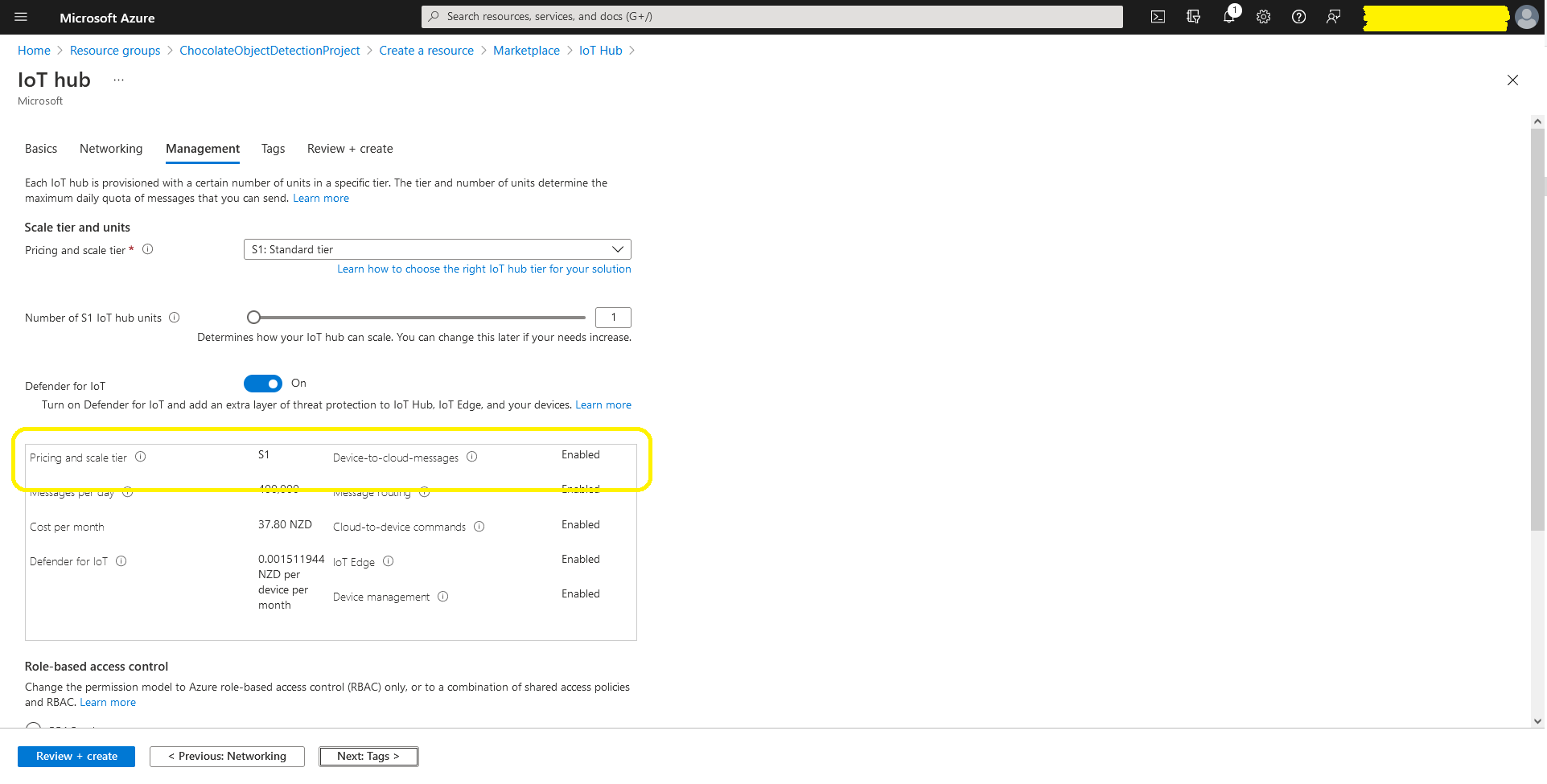
I had manually created the Azure IoT Hub and selected the “Free Tier” (I was trying to keep my monthly billing reasonable) then as I was stepping through the Azure Percept setup wizard I didn’t read the warning message highlighted below.

Azure Percept Azure IoT Hub Warning

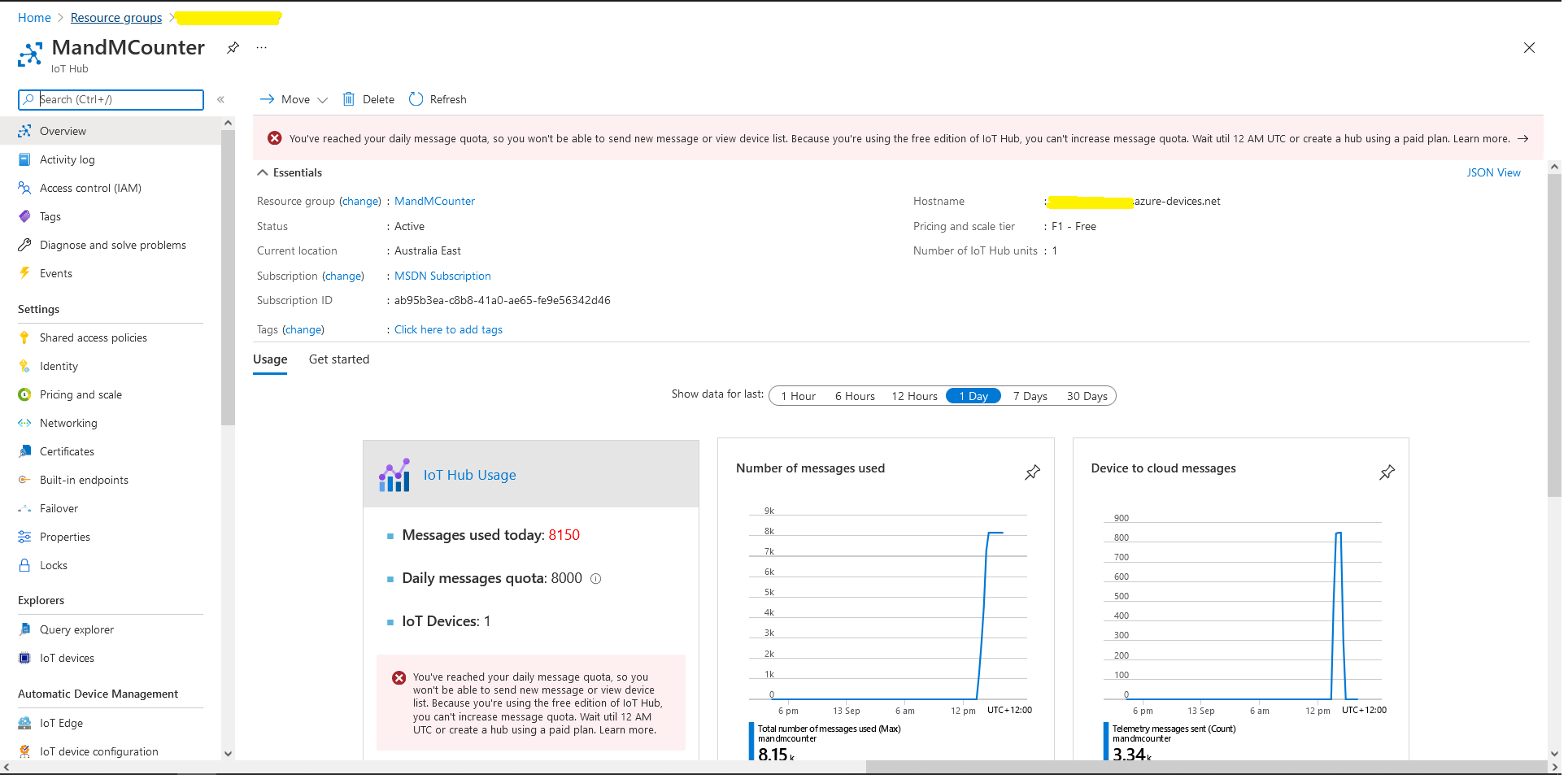
The Azure Percept generates a lot of messages and I had quickly hit the 8000 messages per day limit of the “Free Tier”.

Azure IoT Hub Daily Message Quota

I had to create a new Azure IoT Hub, repave the Azure Percept Device (there were some updates and I had made some mistakes in the initial setup) and reconfigure the device.

Azure IoT Hub Minimum Tier configuration

Azure Percept “low code” integration Setup

Introduction

There have been blog posts showing how to build Azure Percept integrations with Power BI, Azure Logic Apps etc. with “zero code”.  But what do you do if your Azure Percept based solution needs some “glue” to connect to other systems?

I work on a SmartAg computer vision based application that uses security cameras to monitor the flow of cattle through stockyards. It has to control some local hardware, display real-time dashboards, and integrate with an existing application so a “zero code” solution wouldn’t work.

Having to connect an Azure Percept to 3rd party applications can’t be a unique problem so this series blog posts will show a couple of “low code” options that I have used to solve this issue. The technologies that will be covered include Azure IoT Hub Message Routing. Azure Storage Queues, Azure Service Bus Queues, Azure Service Bus Topics and Azure Functions.

The Pivot

The initial plan was to take the Azure Percept to a piggery to see if I could build a Proof of Concept(PoC) of a product that the CEO and I had been discussing for a couple of weeks.

But shortly after I started working on this series of blog posts New Zealand went into strict lockdown. Only essential shops like supermarkets and petrol stations were open, our groceries were being delivered, and schools were closed.

I needed a demonstration application which used props I could source from home and the local petrol station. In addition my teenage son’s school was closed so he could be the project “intern”.

While at the local petrol station to buy milk I observed that they had a large selection of confectionary so we decided to build a series of object detection models to count different types of chocolates.
In a retail scenario this could be counting products on shelves, pallets in a cold store, or at the SmartAg start-up I work for counting cattle in a yard.

Configuring The Test Environment

I have not included screen shots of the hardware configuration process as this has been covered by other bloggers. Though, for projects like this I always create a new resource group so I can easily delete all the resources so my Azure invoice doesn’t cause “bill shock”.
Azure Resource Group Creation blade

I also created the Azure IoT Hub before configuring the Percept device rather than via the Device provisioning process.

Azure Percept configuration assigning an Azure IoT Hub

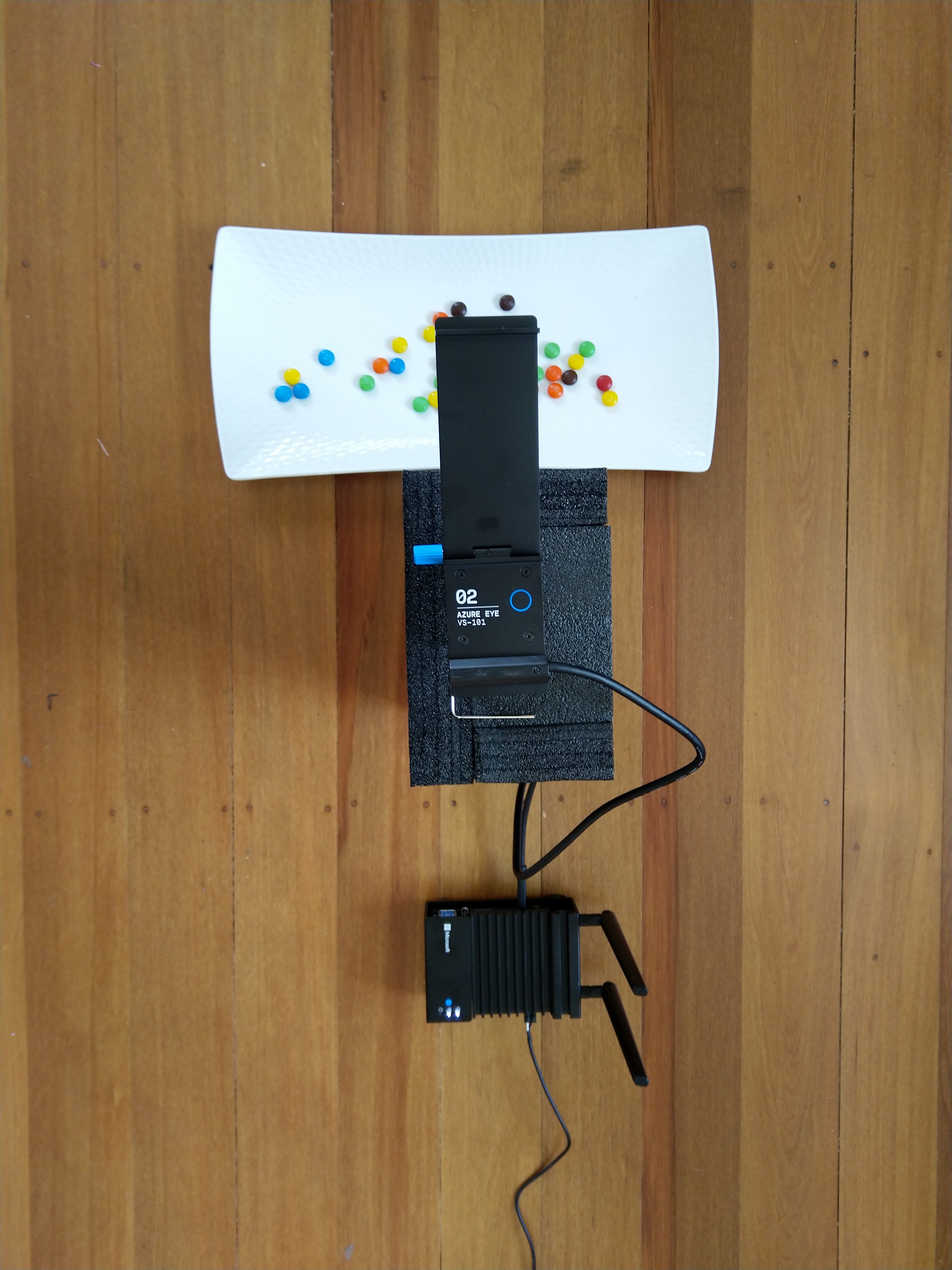
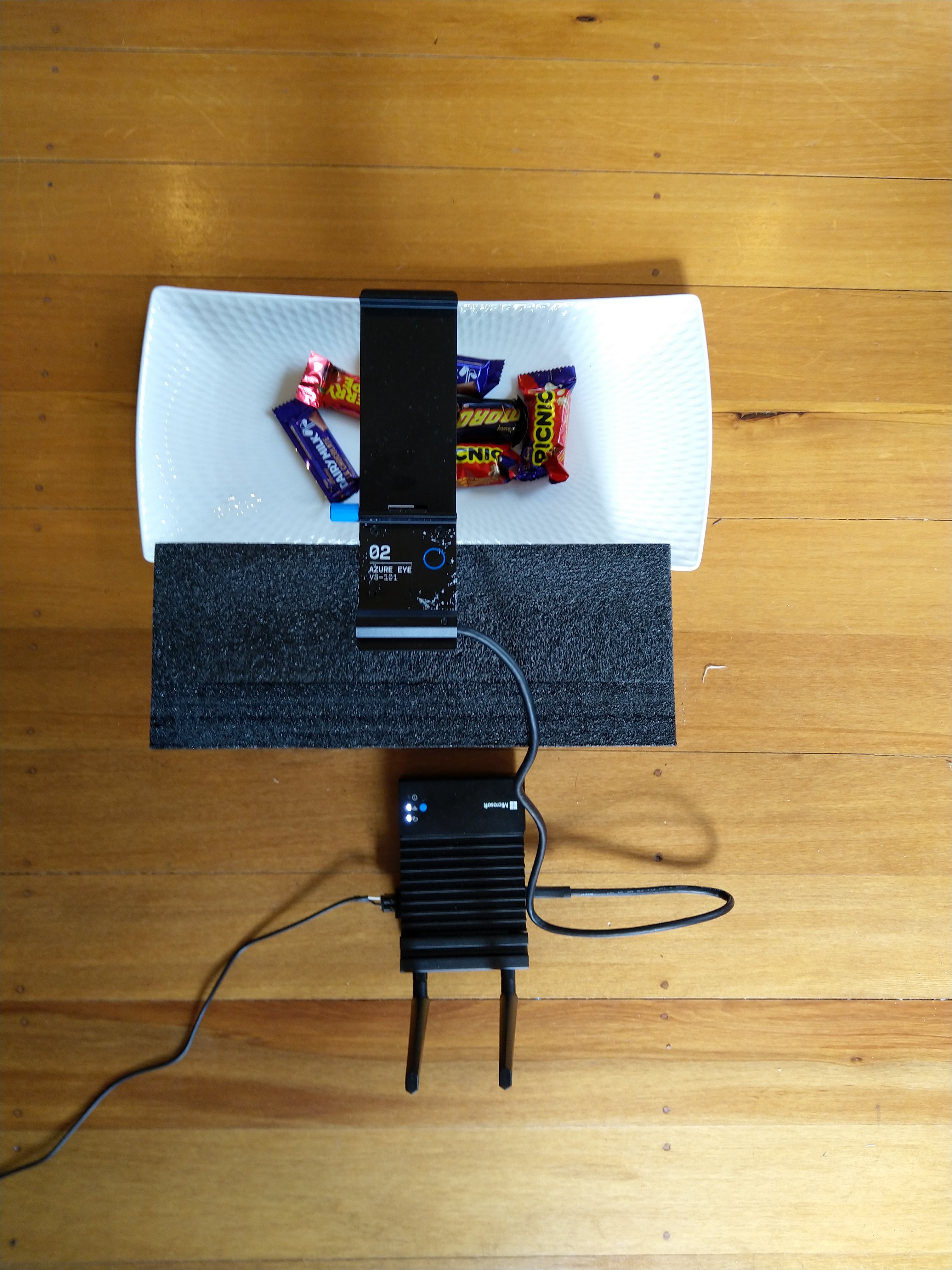
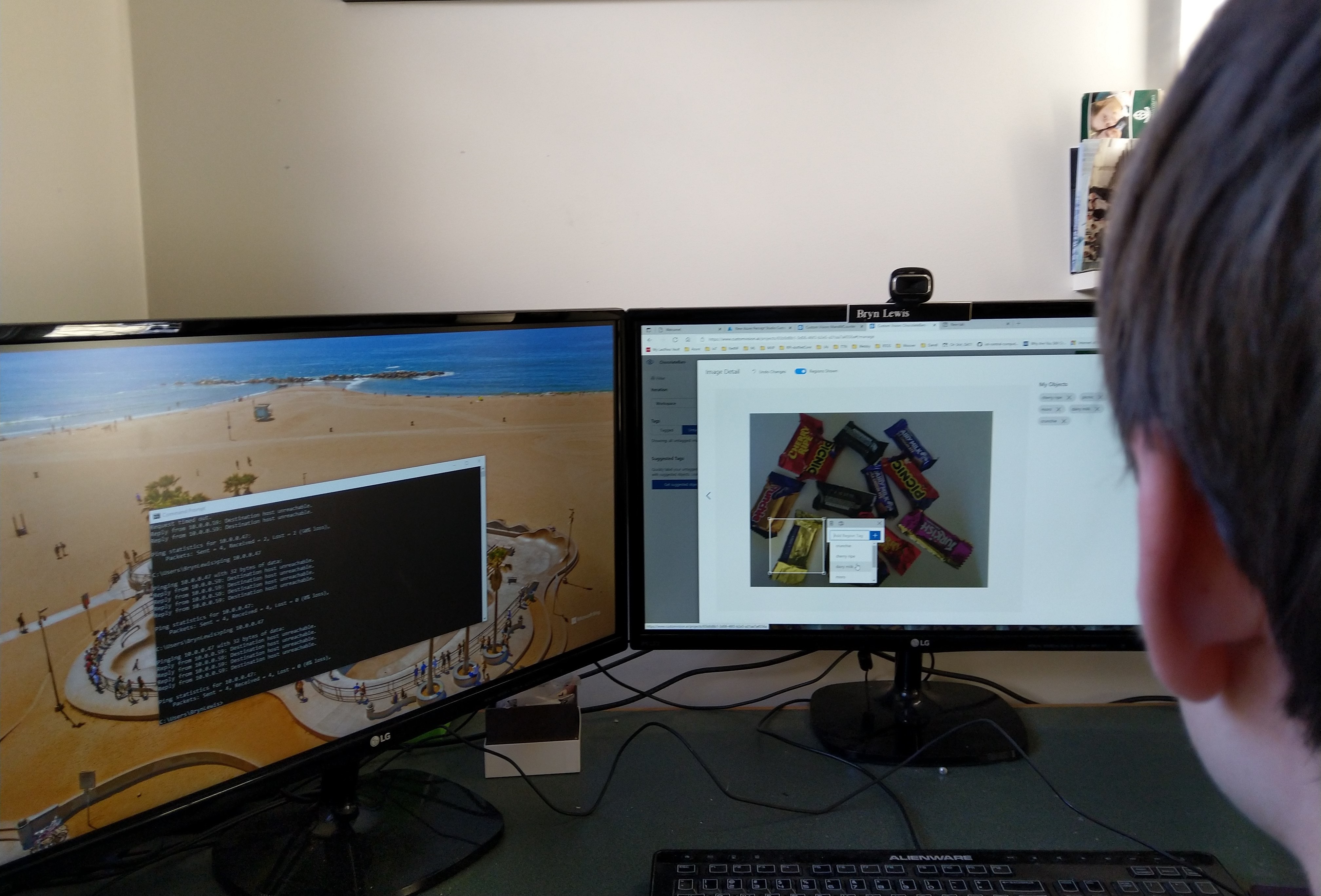
The intern trialed different trays, camera orientations, and lighting as part of building a test rig on the living room floor. After some trial and error, he identified the optimal camera orientation (on top of the packing foam) and lighting (indirect sunlight with no shadows) for reliable inferencing. As this was a proof-of-concept project we limited the number of variables so we didn’t have to collect lots of images which the intern would then have to mark up.

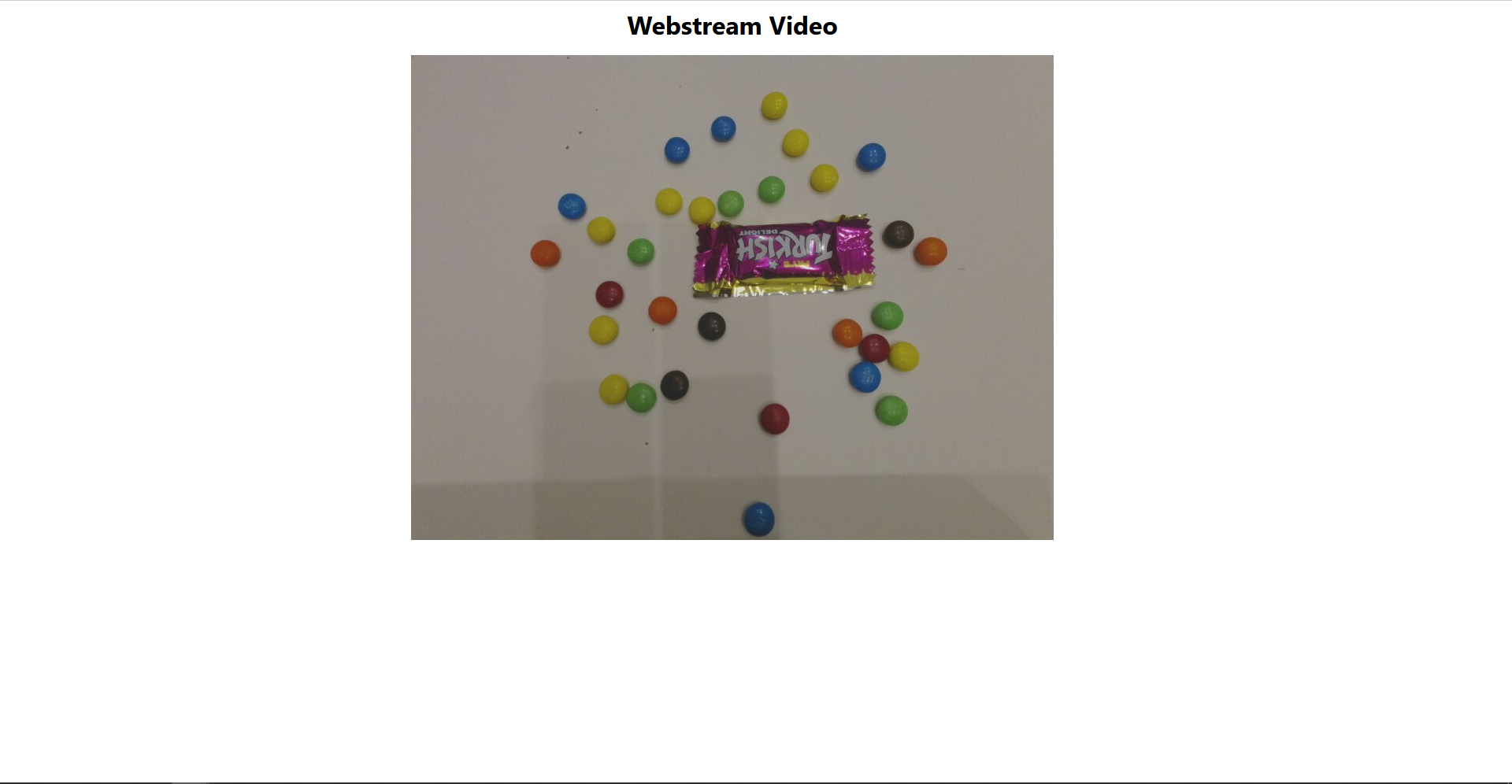
Trialing image capture with M&M’s
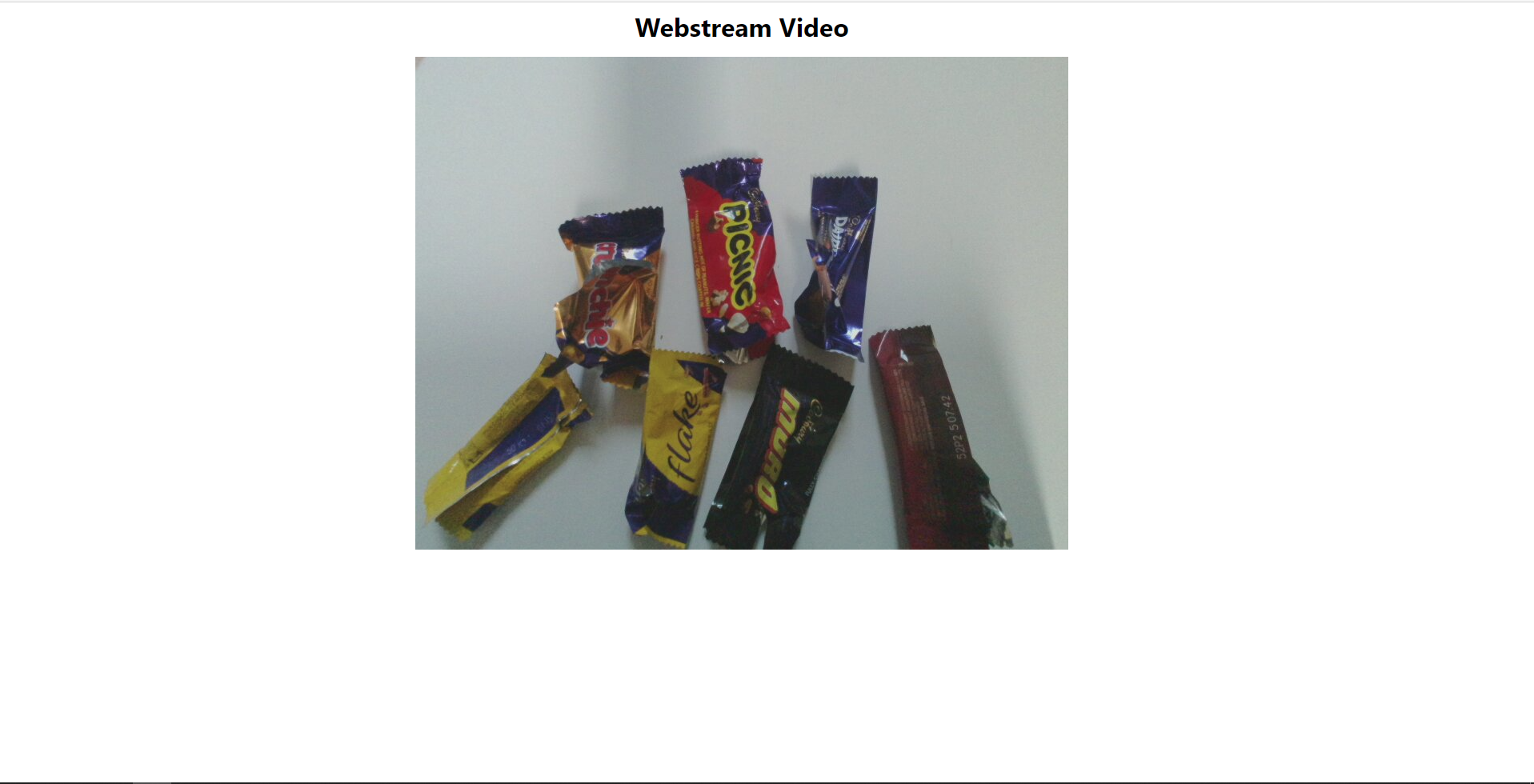
Trialling Image capture with Cadbury Favourites

Azure Percept Studio + CustomVision.AI for capturing and marking up images

The intern created two Custom Vision projects, one for M&M’s and the other for Cadbury Favourites.

Azure M&M and Cadbury Favourites Percept Projects

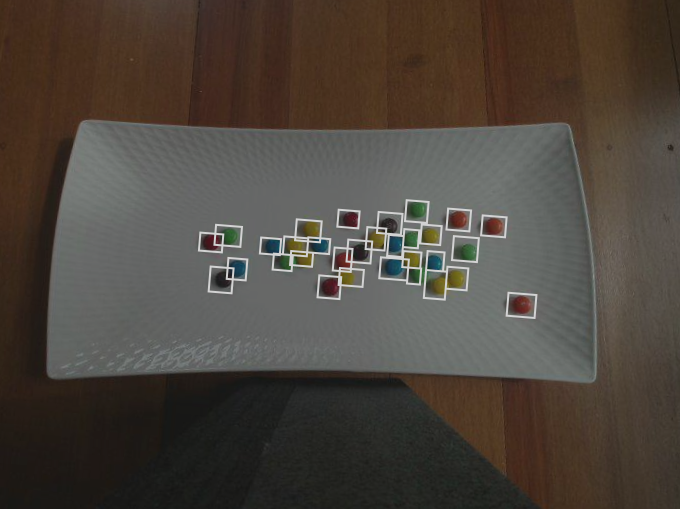
The intern then spent an afternoon drawing minimum bounding rectangles (MBRs) around the different chocolates in the images he had collected.

M&M Size issue

The intern then decided to focus on the chocolate bars after realising they were much easier and faster to markup than the M&Ms.

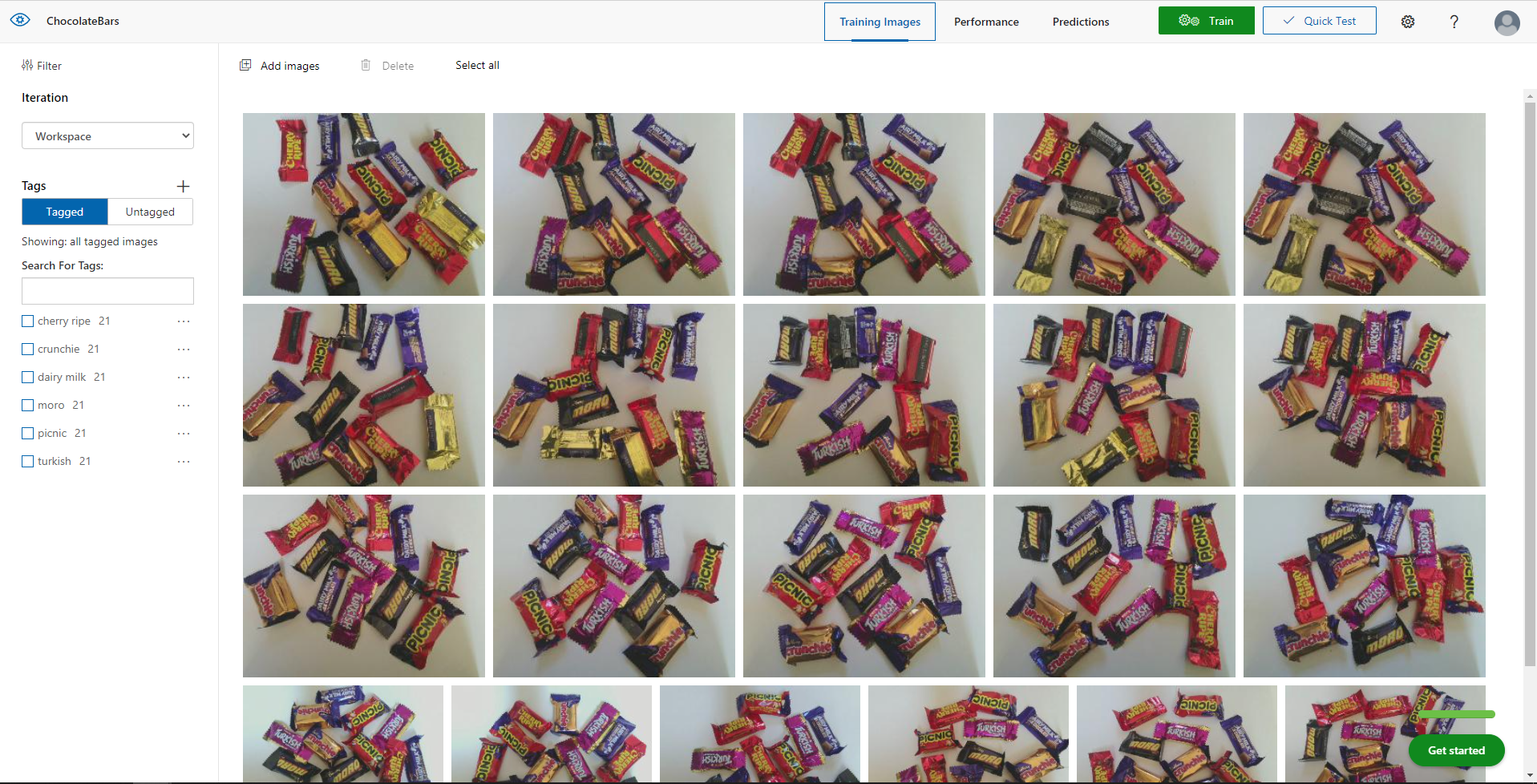
Cadbury Favourites images before markup

Training

The intern repeatedly trained the model adding additional images and adjusting parameters until the results were “good enough”.

Fine-tuning the Configuration

After using the test rig one evening we found the performance of the model wasn’t great, so the intern collected more images with different lighting, shadows, chocolate bar placements, and orientations to improve the accuracy of the inferencing.

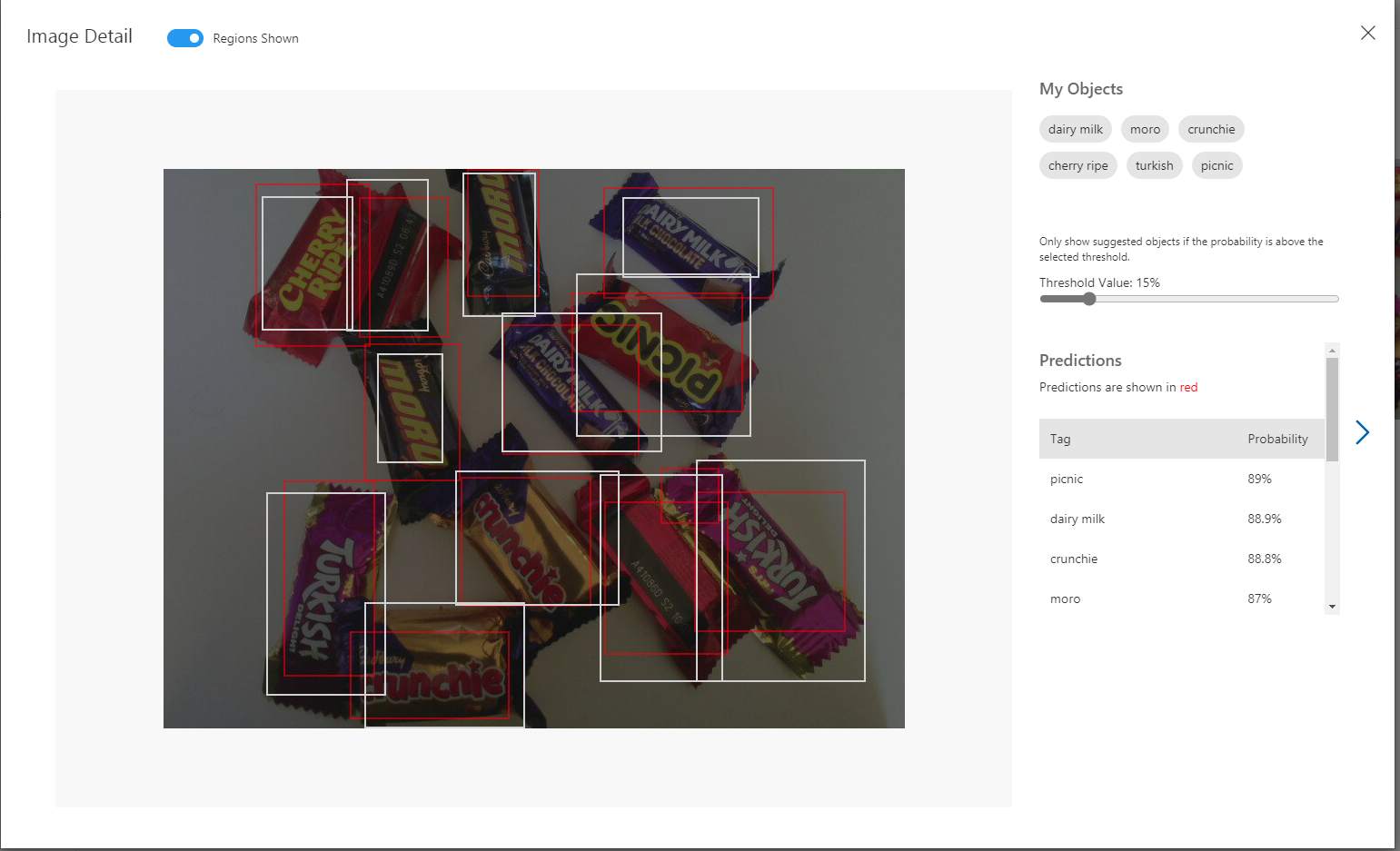
Manual reviewing of object detection results.

Inspecting the Inferencing Results

After several iterations the accuracy of the chocolate bar object detection model was acceptable I wanted to examine the telemetry that was being streamed to my Azure IoT Hub.

In Azure Percept Studio I could view (in a limited way) inferencing telemetry and check the quality and format of the results.

Azure Percept Studio device telemetry

I use Azure IoT Explorer on other projects to configure devices, view telemetry from devices, send messages to devices, view and modify device twin JSON etc. So I used it to inspect the inferencing results streamed to the Azure IoT Hub.

Azure IoT Explorer device telemetry

Summary

In an afternoon the intern had configured and trained a Custom Vision project for me that I could use to to build some “low code” integrations .

Project “Learnings”

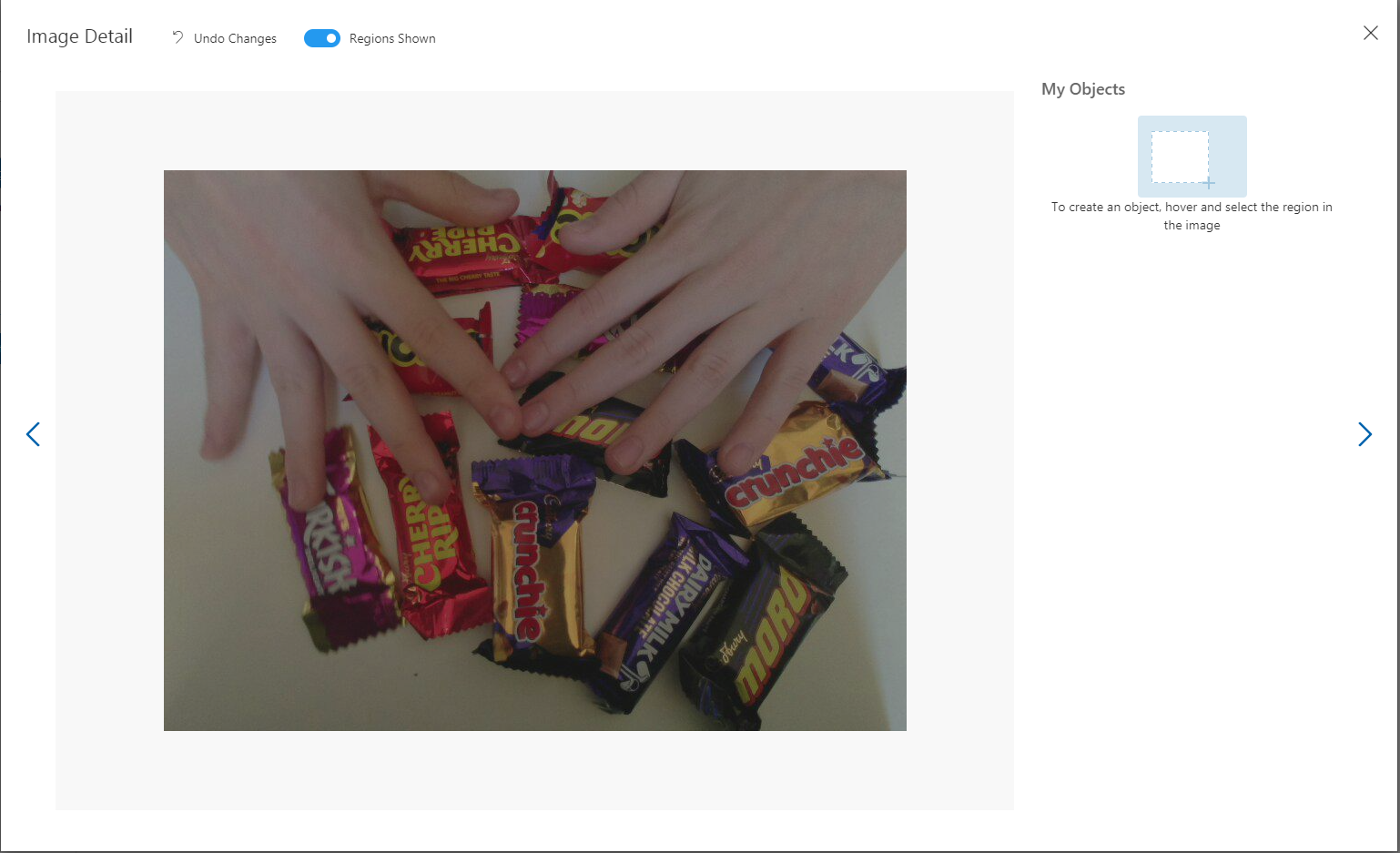
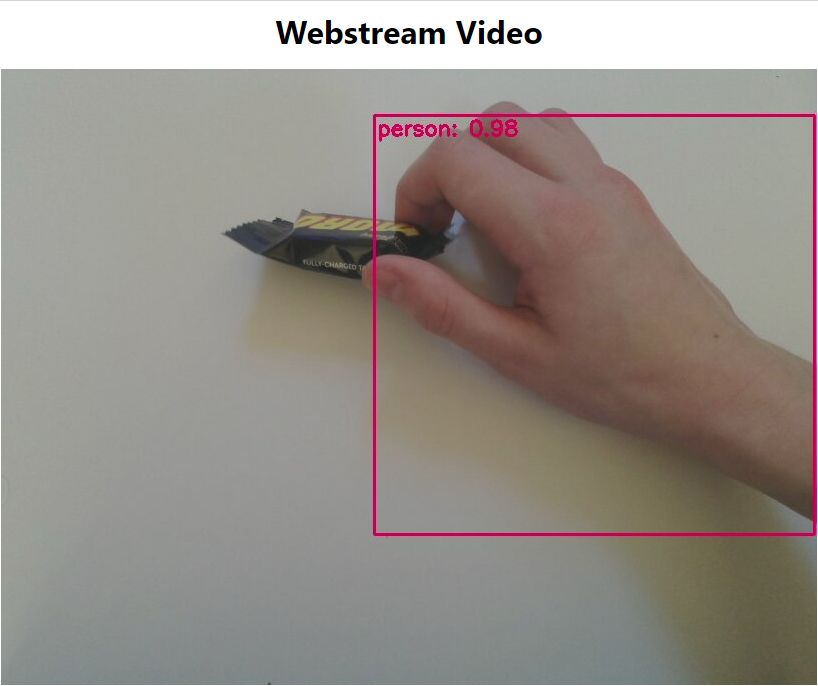
If the image capture delay is too short there will be images with hands.

Captured image with interns hands

Though, the untrained model did identify the hands

The intern also discovered that by including images with “not favourites” the robustness of the model improved.

Cadbury Favourites with M&Ms

When I had to collect some more images for a blog post, I found the intern had consumed quite a few of the “props” and left the wrappers in the bottom of the Azure Percept packaging.

Cadbury Favourties wrappers

TTI V3 Connector Azure IoT Central Cloud to Device(C2D)

Handling Cloud to Device(D2C) Azure IoT Central messages (The Things Industries(TTI) downlink) is a bit more complex than Device To Cloud(D2C) messaging. The format of the command messages is reasonably well documented and I have already explored in detail with basic telemetry, basic commands, request commands, and The Things Industries Friendly commands and Digital Twin Definition Language(DTDL) support.

public class IoTHubApplicationSetting
{
	public string DtdlModelId { get; set; }
}

public class IoTHubSettings
{
	public string IoTHubConnectionString { get; set; } = string.Empty;

	public Dictionary<string, IoTHubApplicationSetting> Applications { get; set; }
}


public class DeviceProvisiongServiceApplicationSetting
{
	public string DtdlModelId { get; set; } = string.Empty;

	public string GroupEnrollmentKey { get; set; } = string.Empty;
}

public class DeviceProvisiongServiceSettings
{
	public string IdScope { get; set; } = string.Empty;

	public Dictionary<string, DeviceProvisiongServiceApplicationSetting> Applications { get; set; }
}


public class IoTCentralMethodSetting
{
	public byte Port { get; set; } = 0;

	public bool Confirmed { get; set; } = false;

	public Models.DownlinkPriority Priority { get; set; } = Models.DownlinkPriority.Normal;

	public Models.DownlinkQueue Queue { get; set; } = Models.DownlinkQueue.Replace;
}

public class IoTCentralSetting
{
	public Dictionary<string, IoTCentralMethodSetting> Methods { get; set; }
}

public class AzureIoTSettings
{
	public IoTHubSettings IoTHub { get; set; }

	public DeviceProvisiongServiceSettings DeviceProvisioningService { get; set; }

	public IoTCentralSetting IoTCentral { get; set; }
}

Azure IoT Central appears to have no support for setting message properties so the LoRaWAN port, confirmed flag, priority, and queuing so these a retrieved from configuration.

Azure Function Configuration
Models.Downlink downlink;
Models.DownlinkQueue queue;

string payloadText = Encoding.UTF8.GetString(message.GetBytes()).Trim();

if (message.Properties.ContainsKey("method-name"))
{
	#region Azure IoT Central C2D message processing
	string methodName = message.Properties["method-name"];

	if (string.IsNullOrWhiteSpace(methodName))
	{
		_logger.LogWarning("Downlink-DeviceID:{0} MessagedID:{1} LockToken:{2} method-name property empty", receiveMessageHandlerContext.DeviceId, message.MessageId, message.LockToken);

		await deviceClient.RejectAsync(message);
		return;
	}

	// Look up the method settings to get confirmed, port, priority, and queue
	if ((_azureIoTSettings == null) || (_azureIoTSettings.IoTCentral == null) || !_azureIoTSettings.IoTCentral.Methods.TryGetValue(methodName, out IoTCentralMethodSetting methodSetting))
	{
		_logger.LogWarning("Downlink-DeviceID:{0} MessagedID:{1} LockToken:{2} method-name:{3} has no settings", receiveMessageHandlerContext.DeviceId, message.MessageId, message.LockToken, methodName);
							
		await deviceClient.RejectAsync(message);
		return;
	}

	downlink = new Models.Downlink()
	{
		Confirmed = methodSetting.Confirmed,
		Priority = methodSetting.Priority,
		Port = methodSetting.Port,
		CorrelationIds = AzureLockToken.Add(message.LockToken),
	};

	queue = methodSetting.Queue;

	// Check to see if special case for Azure IoT central command with no request payload
	if (payloadText.IsPayloadEmpty())
	{
		downlink.PayloadRaw = "";
	}

	if (!payloadText.IsPayloadEmpty())
	{
		if (payloadText.IsPayloadValidJson())
		{
			downlink.PayloadDecoded = JToken.Parse(payloadText);
			}
		else
		{
			downlink.PayloadDecoded = new JObject(new JProperty(methodName, payloadText));
		}
	}

	logger.LogInformation("Downlink-IoT Central DeviceID:{0} Method:{1} MessageID:{2} LockToken:{3} Port:{4} Confirmed:{5} Priority:{6} Queue:{7}",
		receiveMessageHandlerContext.DeviceId,
		methodName,
		message.MessageId,
		message.LockToken,
		downlink.Port,
		downlink.Confirmed,
		downlink.Priority,
		queue);
	#endregion
}

The reboot command payload only contains an “@” so the TTTI payload will be empty, the minimum and maximum command payloads will contain only a numeric value which is added to the decoded payload with the method name, the combined minimum and maximum command has a JSON payload which is “grafted” into the decoded payload.

Azure IoT Central Device Template

Azure Device Provisioning Service(DPS) when transient isn’t

After some updates to my Device Provisioning Service(DPS) code the RegisterAsync method was exploding with an odd exception.

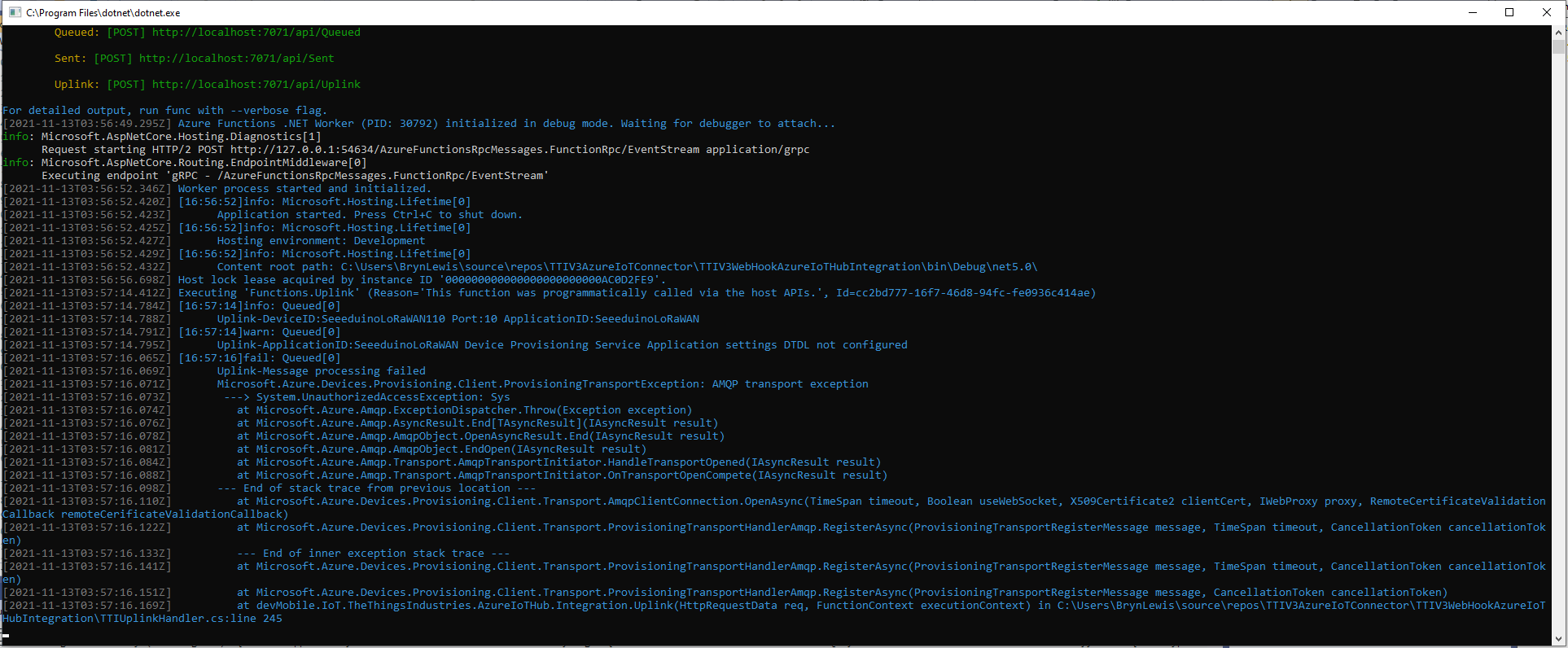
TTI Webhook Integration running in desktop emulator

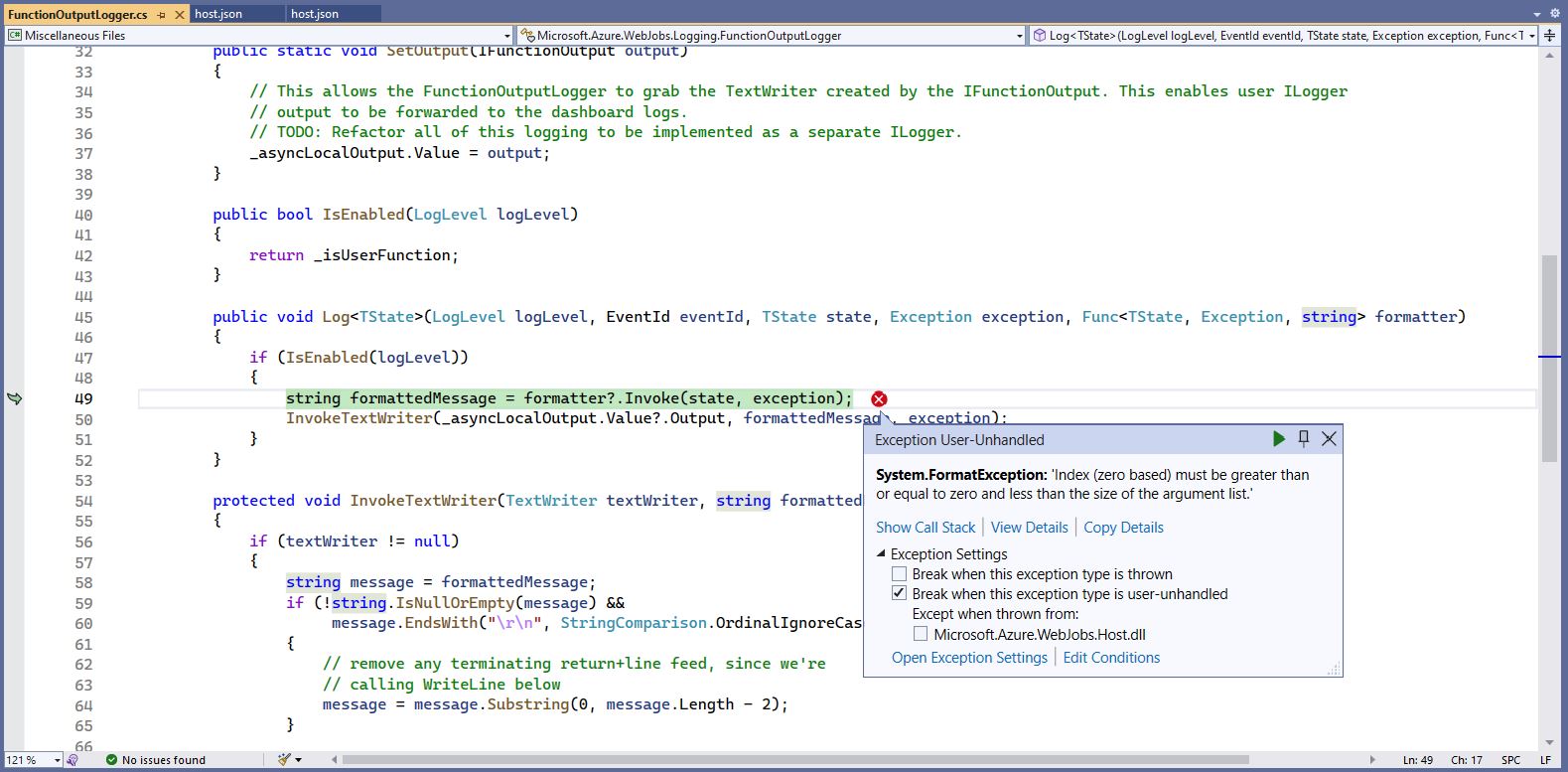
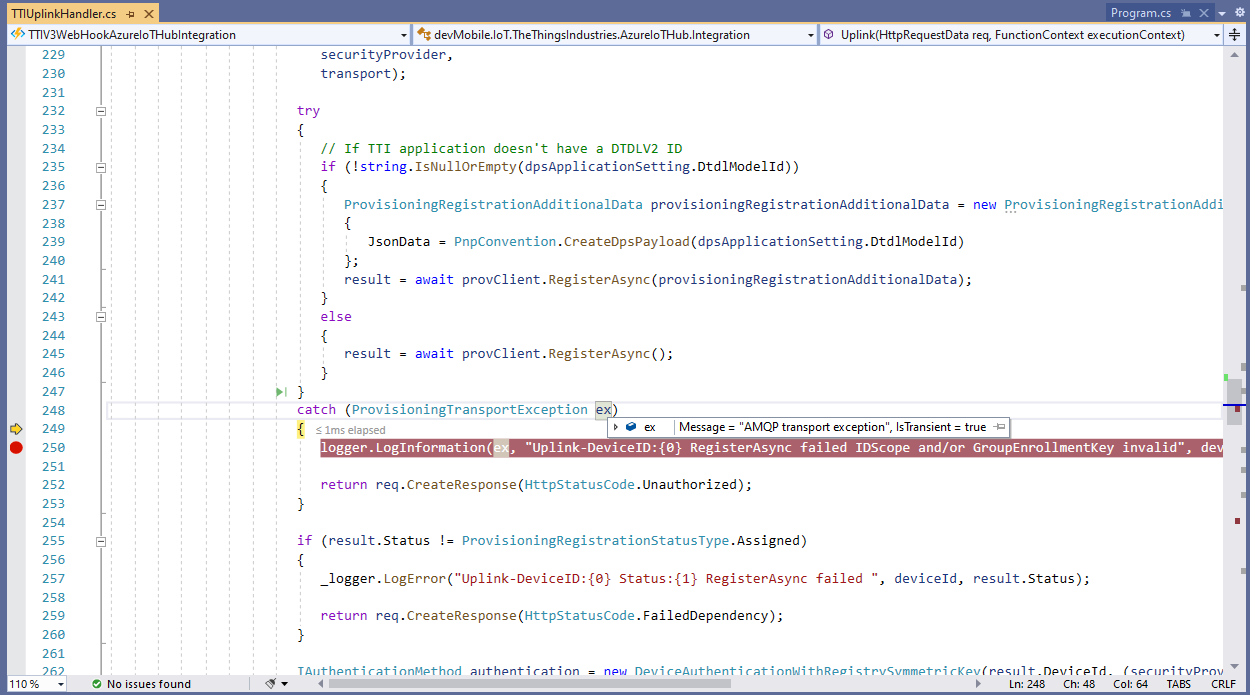
In the Visual Studio 2019 Debugger the exception text was “IsTransient = true” so I went and made a coffee and tried again.

Visual Studio 2019 Quickwatch displaying short from error message

The call was still failing so I dumped out the exception text so I had some key words to search for

Microsoft.Azure.Devices.Provisioning.Client.ProvisioningTransportException: AMQP transport exception
 ---> System.UnauthorizedAccessException: Sys
   at Microsoft.Azure.Amqp.ExceptionDispatcher.Throw(Exception exception)
   at Microsoft.Azure.Amqp.AsyncResult.End[TAsyncResult](IAsyncResult result)
   at Microsoft.Azure.Amqp.AmqpObject.OpenAsyncResult.End(IAsyncResult result)
   at Microsoft.Azure.Amqp.AmqpObject.EndOpen(IAsyncResult result)
   at Microsoft.Azure.Amqp.Transport.AmqpTransportInitiator.HandleTransportOpened(IAsyncResult result)
   at Microsoft.Azure.Amqp.Transport.AmqpTransportInitiator.OnTransportOpenCompete(IAsyncResult result)
--- End of stack trace from previous location ---
   at Microsoft.Azure.Devices.Provisioning.Client.Transport.AmqpClientConnection.OpenAsync(TimeSpan timeout, Boolean useWebSocket, X509Certificate2 clientCert, IWebProxy proxy, RemoteCertificateValidationCallback remoteCerificateValidationCallback)
   at Microsoft.Azure.Devices.Provisioning.Client.Transport.ProvisioningTransportHandlerAmqp.RegisterAsync(ProvisioningTransportRegisterMessage message, TimeSpan timeout, CancellationToken cancellationToken)
   --- End of inner exception stack trace ---
   at Microsoft.Azure.Devices.Provisioning.Client.Transport.ProvisioningTransportHandlerAmqp.RegisterAsync(ProvisioningTransportRegisterMessage message, TimeSpan timeout, CancellationToken cancellationToken)
   at Microsoft.Azure.Devices.Provisioning.Client.Transport.ProvisioningTransportHandlerAmqp.RegisterAsync(ProvisioningTransportRegisterMessage message, CancellationToken cancellationToken)
   at devMobile.IoT.TheThingsIndustries.AzureIoTHub.Integration.Uplink(HttpRequestData req, FunctionContext executionContext) in C:\Users\BrynLewis\source\repos\TTIV3AzureIoTConnector\TTIV3WebHookAzureIoTHubIntegration\TTIUplinkHandler.cs:line 245

I tried a lot of keywords and went and looked at the source code on github

One of the many keyword searches

Another of the many keyword searches

I then tried another program which did used the Device provisioning Service and it worked first time so it was something wrong with the code.

using (var securityProvider = new SecurityProviderSymmetricKey(deviceId, deviceKey, null))
{
	using (var transport = new ProvisioningTransportHandlerAmqp(TransportFallbackType.TcpOnly))
	{
		DeviceRegistrationResult result;

		ProvisioningDeviceClient provClient = ProvisioningDeviceClient.Create(
			Constants.AzureDpsGlobalDeviceEndpoint,
			 dpsApplicationSetting.GroupEnrollmentKey, <<= Should be _azureIoTSettings.DeviceProvisioningService.IdScope,
			securityProvider,
			transport);

		try
		{
				result = await provClient.RegisterAsync();
		}
		catch (ProvisioningTransportException ex)
		{
			logger.LogInformation(ex, "Uplink-DeviceID:{0} RegisterAsync failed IDScope and/or GroupEnrollmentKey invalid", deviceId);

			return req.CreateResponse(HttpStatusCode.Unauthorized);
		}

		if (result.Status != ProvisioningRegistrationStatusType.Assigned)
		{
			_logger.LogError("Uplink-DeviceID:{0} Status:{1} RegisterAsync failed ", deviceId, result.Status);

			return req.CreateResponse(HttpStatusCode.FailedDependency);
		}

		IAuthenticationMethod authentication = new DeviceAuthenticationWithRegistrySymmetricKey(result.DeviceId, (securityProvider as SecurityProviderSymmetricKey).GetPrimaryKey());

		deviceClient = DeviceClient.Create(result.AssignedHub, authentication, TransportSettings);

		await deviceClient.OpenAsync();

		logger.LogInformation("Uplink-DeviceID:{0} Azure IoT Hub connected (Device Provisioning Service)", deviceId);
	}
}

I then carefully inspected my source code and worked back through the file history and realised I had accidentally replaced the IDScope with the GroupEnrollment setting so it was never going to work i.e. IsTransient != true. So, for the one or two other people who get this error message check your IDScope and GroupEnrollment key make sure they are the right variables and that values they contain are correct.