Azure Functions Isolated Worker support for VB.Net 4.8

As part of my “day job” I spend a bit of time working with VB.Net 4.X “legacy” projects doing upgrades, and bug fixes. Currently I am updating a number of Windows Service applications to run as Microsoft Azure Functions. With the release of the Azure functions runtime V4 Isolated Worker Processes with .NET Framework V4.8 support this is the last post in my Azure Functions with VB.Net 4.X and Azure Functions with VB.Net on .NET Core V6 series.

I have published source code for Azure Storage BlobTrigger, Azure Storage QueueTrigger, and TimerTriggers.

Visual Studio Solution explorer Azure Functions projects

All of the examples now have a program.vb which initialises the Trigger.

Namespace VBNet....TriggerIsolated
    Friend Class Program
        Public Shared Sub Main(ByVal args As String())
            Call FunctionsDebugger.Enable()

            Dim host = New HostBuilder().ConfigureFunctionsWorkerDefaults().Build()

            host.Run()
        End Sub
    End Class
End Namespace

All of the Isolated worker process Triggers displayed this message which appeared to be benign.

Csproj not found in C:\Users\..\VBNetHttpTriggerIsolated\bin\Debug\net48 directory tree. Skipping user secrets file configuration.

There were a lot of articles about problems building Docker images but the only relevant ones appeared to talk about getting F# and other .NET Core languages to work in Azure Functions.

Namespace devMobile.Azure.VBNetBlobTriggerIsolated
    Public Class BlobTrigger
        Private ReadOnly _logger As ILogger

        Public Sub New(ByVal loggerFactory As ILoggerFactory)
            _logger = loggerFactory.CreateLogger(Of BlobTrigger)()
        End Sub

        <[Function]("vbnetblobtriggerisolated")>
        Public Sub Run(
        <BlobTrigger("vbnetblobtriggerisolated/{name}", Connection:="blobendpoint")> ByVal myBlob As String, ByVal name As String)

            _logger.LogInformation($"VB.Net NET 4.8 Isolated Blob trigger function Processed blob Name: {name}  Data: {myBlob}")
        End Sub
    End Class
End Namespace

I used Azure Storage Explorer to upload files containing Lorem Ipsum for testing the BlobTrigger.

Azure BlobTrigger function running in the desktop emulator
Azure BlobTrigger Function logging in Application Insights

I used Telerik Fiddler to POST messages to the desktop emulator and Azure endpoints.

Namespace VBNetHttpTriggerIsolated
    Public Class HttpTrigger
        Private Shared executionCount As Int32
        Private ReadOnly _logger As ILogger

        Public Sub New(ByVal loggerFactory As ILoggerFactory)
            _logger = loggerFactory.CreateLogger(Of HttpTrigger)()
        End Sub

        <[Function]("Notifications")>
        Public Function Run(
        <HttpTrigger(AuthorizationLevel.Anonymous, "get", "post")> ByVal req As HttpRequestData) As HttpResponseData
            Interlocked.Increment(executionCount)

            _logger.LogInformation("VB.Net NET 4.8 Isolated HTTP trigger Execution count:{executionCount} Method:{req.Method}", executionCount, req.Method)

            Dim response = req.CreateResponse(HttpStatusCode.OK)
            response.Headers.Add("Content-Type", "text/plain; charset=utf-8")

            Return response
        End Function
    End Class
End Namespace
Azure HttpTrigger Function running in the desktop emulator
Azure HttpTrigger Function logging in Application Insights

I used Azure Storage Explorer to create messages for testing the QueueTrigger

Namespace devMobile.Azure.VBNetQueueTriggerIsolated

    Public Class QueueTrigger
        Private Shared _logger As ILogger
        Private Shared _concurrencyCount As Integer = 0
        Private Shared _executionCount As Integer = 0

        Public Sub New(ByVal loggerFactory As ILoggerFactory)
            _logger = loggerFactory.CreateLogger(Of QueueTrigger)()
        End Sub

        <[Function]("VBNetQueueTriggerIsolated")>
        Public Sub Run(
        <QueueTrigger("vbnetqueuetriggerisolated", Connection:="QueueEndpoint")> ByVal message As String)
            Interlocked.Increment(_concurrencyCount)
            Interlocked.Increment(_executionCount)

            _logger.LogInformation("VB.Net .NET 4.8 Isolated Queue Trigger Concurrency:{_concurrencyCount} ExecutionCount:{_executionCount} Message:{message}", _concurrencyCount, _executionCount, message)

            Interlocked.Decrement(_concurrencyCount)
        End Sub
    End Class
End Namespace
Azure QueueTrigger Function running in the desktop emulator
Azure QueueTrigger Function logging in Application Insights
Namespace devMobile.Azure.VBNetTimerTriggerIsolated
    Public Class TimerTrigger
        Private Shared _logger As ILogger
        Private Shared _executionCount As Integer = 0

        Public Sub New(ByVal loggerFactory As ILoggerFactory)
            _logger = loggerFactory.CreateLogger(Of TimerTrigger)()
        End Sub

        <[Function]("Timer")>
        Public Sub Run(
        <TimerTrigger("0 */1 * * * *")> ByVal myTimer As MyInfo)

            Interlocked.Increment(_executionCount)
            _logger.LogInformation("VB.Net Isolated TimerTrigger next trigger:{0} Execution count:{1}", myTimer.ScheduleStatus.Next, _executionCount)
        End Sub
    End Class
Azure TimerTrigger Function running in the desktop emulator
Azure TimerTrigger Function logging in Application Insights

The development, debugging and deployment of these functions took a lot of time. Initially Azure Application Insights didn’t work when the Azure Isolated Worker triggers were deployed to Azure. After some experimentation I found that Application Insights Connection Strings worked and Application Instrumentation Keys did not.

With the Microsoft: ‘We Do Not Plan to Evolve Visual Basic as a Language this should hopefully be my last post about VB.Net ever.

Azure Functions with VB.Net 4.X

Updated .NET Core V6 Version

As part of my “day job” I spend a lot of time working with C# and VB.Net 4.X “legacy” projects doing upgrades, bugs fixes and moving applications to Azure. For the last couple of months I have been working on a project replacing Microsoft message queue(MSMQ) queues with Azure Storage Queues so the solution is easier to deploy in Azure.

The next phase of the project is to replace a number of Windows Services with Azure Queue Trigger and Timer Trigger functions. The aim is a series of small steps which we can test before deployment rather than major changes, hence the use of V1 Azure functions for the first release.

Silver Fox systems sells a Visual Studio extension which generates an HTTP Trigger VB.Net project. I needed Timer and Queue Trigger functions so I created C# examples and then used them to figure out how to build VB.Net equivalents

Visual Studio Solution Explorer

After quite a few failed attempts I found this sequence worked for me

Add a new VB.Net class library
Provide a name for new class library
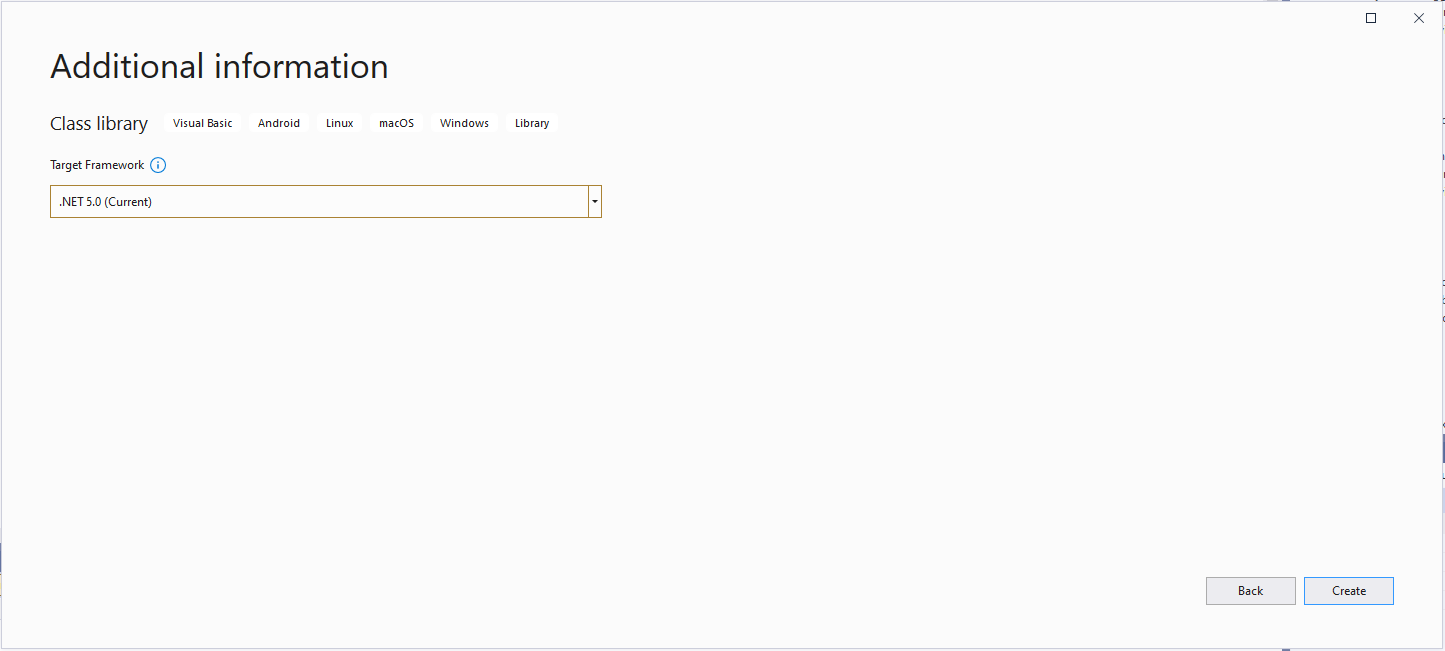
Select target framework

Even though the target platform is not .NET 5.0 ignore this and continue.

Microsoft.NET.Sdk.Functions

Added Microsoft.NET.Sdk.Functions (make sure version 1.0.38)

Visual Studio project with Azure Function Icon.

Then unload the project and open the file.

<Project Sdk="Microsoft.NET.Sdk">

  <PropertyGroup>
    <RootNamespace>TimerClass</RootNamespace>
    <TargetFramework>net5.0</TargetFramework>
  </PropertyGroup>

  <ItemGroup>
    <PackageReference Include="Microsoft.NET.Sdk.Functions" Version="1.0.38" />
  </ItemGroup>

</Project>

Add the TargetFramework and AzureFunctionsVersion lines

<Project Sdk="Microsoft.NET.Sdk">

  <PropertyGroup>
    <RootNamespace>TimerClass</RootNamespace>
    <TargetFramework>net48</TargetFramework>
    <AzureFunctionsVersion>v1</AzureFunctionsVersion>
  </PropertyGroup>
  <ItemGroup>
    <PackageReference Include="Microsoft.NET.Sdk.Functions" Version="1.0.38" />
  </ItemGroup>

</Project>

At this point the project should compile but won’t do much, so update the class to look like the code below.

Imports System.Threading

Imports Microsoft.Azure.WebJobs
Imports Microsoft.Extensions.Logging


Public Class TimerTrigger
   Shared executionCount As Int32

   <FunctionName("Timer")>
   Public Shared Sub Run(<TimerTrigger("0 */1 * * * *")> myTimer As TimerInfo, log As ILogger)
      Interlocked.Increment(executionCount)

      log.LogInformation("VB.Net TimerTrigger next trigger:{0} Execution count:{1}", myTimer.ScheduleStatus.Next, executionCount)

   End Sub
End Class

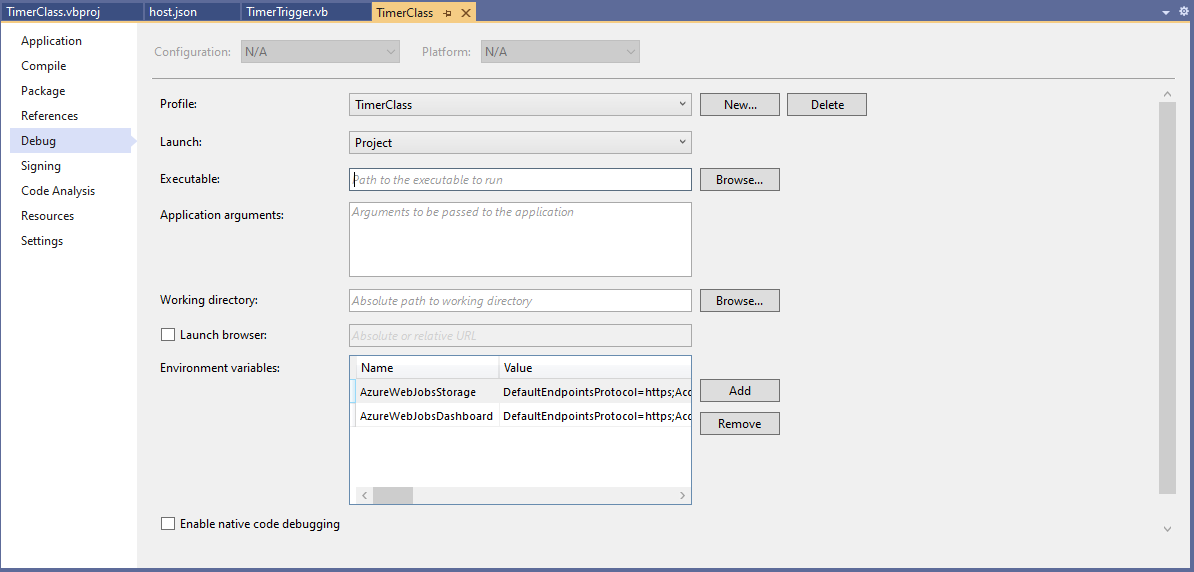
Then add an empty hosts.json file (make sure “copy if newer” is configured in properties) to the project directory, then depending on deployment model configure the AzureWebJobsStorage and AzureWebJobsDashboard connection strings via environment variables or a local.settings.json file.

Visual Studio Environment variables for AzureWebJobsStorage and AzureWebJobsDashboard connection strings

Blob Trigger Sample code

Imports System.IO
Imports System.Threading

Imports Microsoft.Azure.WebJobs
Imports Microsoft.Extensions.Logging


Public Class BlobTrigger
   Shared executionCount As Int32

   ' This function will get triggered/executed when a new message is written on an Azure Queue called events.
   <FunctionName("Notifications")>
   Public Shared Async Sub Run(<BlobTrigger("notifications/{name}", Connection:="BlobEndPoint")> payload As Stream, name As String, log As ILogger)
      Interlocked.Increment(executionCount)

      log.LogInformation("VB.Net BlobTrigger processed blob name:{0} Size:{1} bytes Execution count:{2}", name, payload.Length, executionCount)
   End Sub
End Class

HTTP Trigger Sample code

Imports System.Net
Imports System.Net.Http
Imports System.Threading

Imports Microsoft.Azure.WebJobs
Imports Microsoft.Azure.WebJobs.Extensions.Http
Imports Microsoft.Extensions.Logging


Public Class HttpTrigger
   Shared executionCount As Int32

   <FunctionName("Notifications")>
   Public Shared Async Function Run(<HttpTrigger(AuthorizationLevel.Anonymous, "get", "post", Route:=Nothing)> req As HttpRequestMessage, log As ILogger) As Task(Of HttpResponseMessage)
      Interlocked.Increment(executionCount)

      log.LogInformation($"VB.Net HTTP trigger Execution count:{0} Method:{1}", executionCount, req.Method)

      Return New HttpResponseMessage(HttpStatusCode.OK)
   End Function
End Class

Queue Trigger Sample Code

Imports System.Threading

Imports Microsoft.Azure.WebJobs
Imports Microsoft.Extensions.Logging


Public Class QueueTrigger
   Shared ConcurrencyCount As Long
   Shared ExecutionCount As Long

   <FunctionName("Alerts")>
   Public Shared Sub ProcessQueueMessage(<QueueTrigger("notifications", Connection:="QueueEndpoint")> message As String, log As ILogger)
      Interlocked.Increment(ConcurrencyCount)
      Interlocked.Increment(ExecutionCount)

      log.LogInformation("VB.Net Concurrency:{0} Message:{1} Execution count:{2}", ConcurrencyCount, message, ExecutionCount)

      ' Wait for a bit to force some consurrency
      Thread.Sleep(5000)

      Interlocked.Decrement(ConcurrencyCount)
   End Sub
End Class

As well as counting the number of executions I also wanted to check that >1 instances were started to process messages when the queues had many messages. I added a “queues” section to the hosts.json file so I could tinker with the options.

{
  "queues": {
    "maxPollingInterval": 100,
    "visibilityTimeout": "00:00:05",
    "batchSize": 16,
    "maxDequeueCount": 5,
    "newBatchThreshold": 8
  }
}

The QueueMessageGenerator application inserts many messages into a queue for processing.

When I started the QueueTrigger function I could see the concurrency count was > 0

Timer Trigger Sample Code

Imports System.Threading

Imports Microsoft.Azure.WebJobs
Imports Microsoft.Extensions.Logging


Public Class TimerTrigger
   Shared executionCount As Int32

   <FunctionName("Timer")>
   Public Shared Sub Run(<TimerTrigger("0 */1 * * * *")> myTimer As TimerInfo, log As ILogger)
      Interlocked.Increment(executionCount)

      log.LogInformation("VB.Net TimerTrigger next trigger:{0} Execution count:{1}", myTimer.ScheduleStatus.Next, executionCount)

   End Sub
End Class

The source code for the C# and VB.Net functions is available on GitHub

Azure IoT Hub MQTT/AMQP oddness

This is a long post which covers some oddness I noticed when changing the protocol used by an Azure IoT Hub client from Message Queuing Telemetry Transport(MQTT) to Advanced Message Queuing Protocol (AMQP). I want to build a console application to test the pooling of AMQP connections so I started with an MQTT client written for another post.

class Program
{
   private static string payload;

   static async Task Main(string[] args)
   {
      string filename;
      string azureIoTHubconnectionString;
      DeviceClient azureIoTHubClient;

      if (args.Length != 2)
      {
         Console.WriteLine("[JOSN file] [AzureIoTHubConnectionString]");
         Console.WriteLine("Press <enter> to exit");
         Console.ReadLine();
         return;
      }

      filename = args[0];
      azureIoTHubconnectionString = args[1];

      try
      {
         payload = File.ReadAllText(filename);

         // Open up the connection
         azureIoTHubClient = DeviceClient.CreateFromConnectionString(azureIoTHubconnectionString, TransportType.Mqtt);
         //azureIoTHubClient = DeviceClient.CreateFromConnectionString(azureIoTHubconnectionString, TransportType.Mqtt_Tcp_Only);
         //azureIoTHubClient = DeviceClient.CreateFromConnectionString(azureIoTHubconnectionString, TransportType.Mqtt_WebSocket_Only);

         await azureIoTHubClient.OpenAsync();

         await azureIoTHubClient.SetMethodDefaultHandlerAsync(MethodCallbackDefault, null);

         Timer MessageSender = new Timer(TimerCallback, azureIoTHubClient, new TimeSpan(0, 0, 10), new TimeSpan(0, 0, 10));


         Console.WriteLine("Press <enter> to exit");
         Console.ReadLine();
      }
      catch (Exception ex)
      {
         Console.WriteLine(ex.Message);
         Console.WriteLine("Press <enter> to exit");
         Console.ReadLine();
      }
   }

   public static async void TimerCallback(object state)
   {
      DeviceClient azureIoTHubClient = (DeviceClient)state;

      try
      {
         // I know having the payload as a global is a bit nasty but this is a demo..
         using (Message message = new Message(Encoding.ASCII.GetBytes(JsonConvert.SerializeObject(payload))))
         {
            Console.WriteLine(" {0:HH:mm:ss} AzureIoTHubDeviceClient SendEventAsync start", DateTime.UtcNow);
            await azureIoTHubClient.SendEventAsync(message);
            Console.WriteLine(" {0:HH:mm:ss} AzureIoTHubDeviceClient SendEventAsync finish", DateTime.UtcNow);
         }
      }
      catch (Exception ex)
      {
         Console.WriteLine(ex.Message);
      }
   }

   private static async Task<MethodResponse> MethodCallbackDefault(MethodRequest methodRequest, object userContext)
   {
      Console.WriteLine($"Default handler method {methodRequest.Name} was called.");

      return new MethodResponse(200);
   }
}

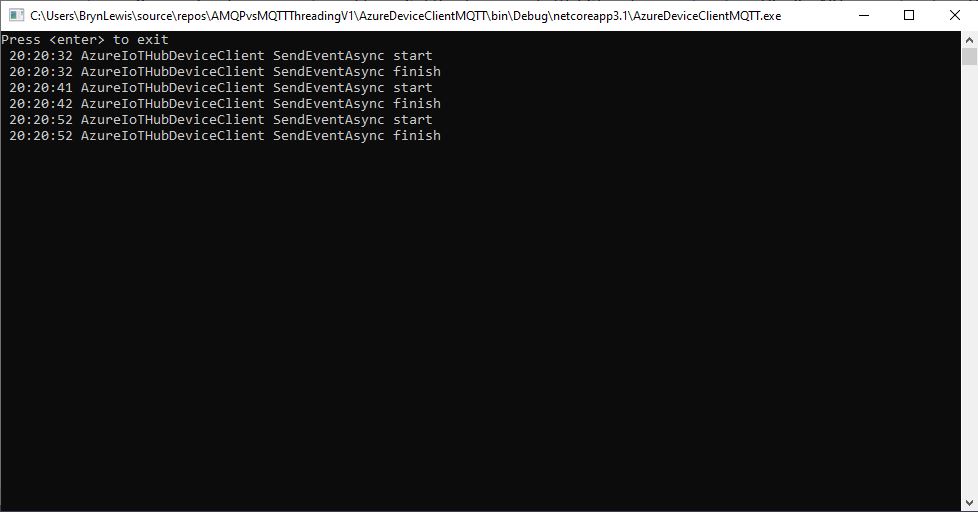
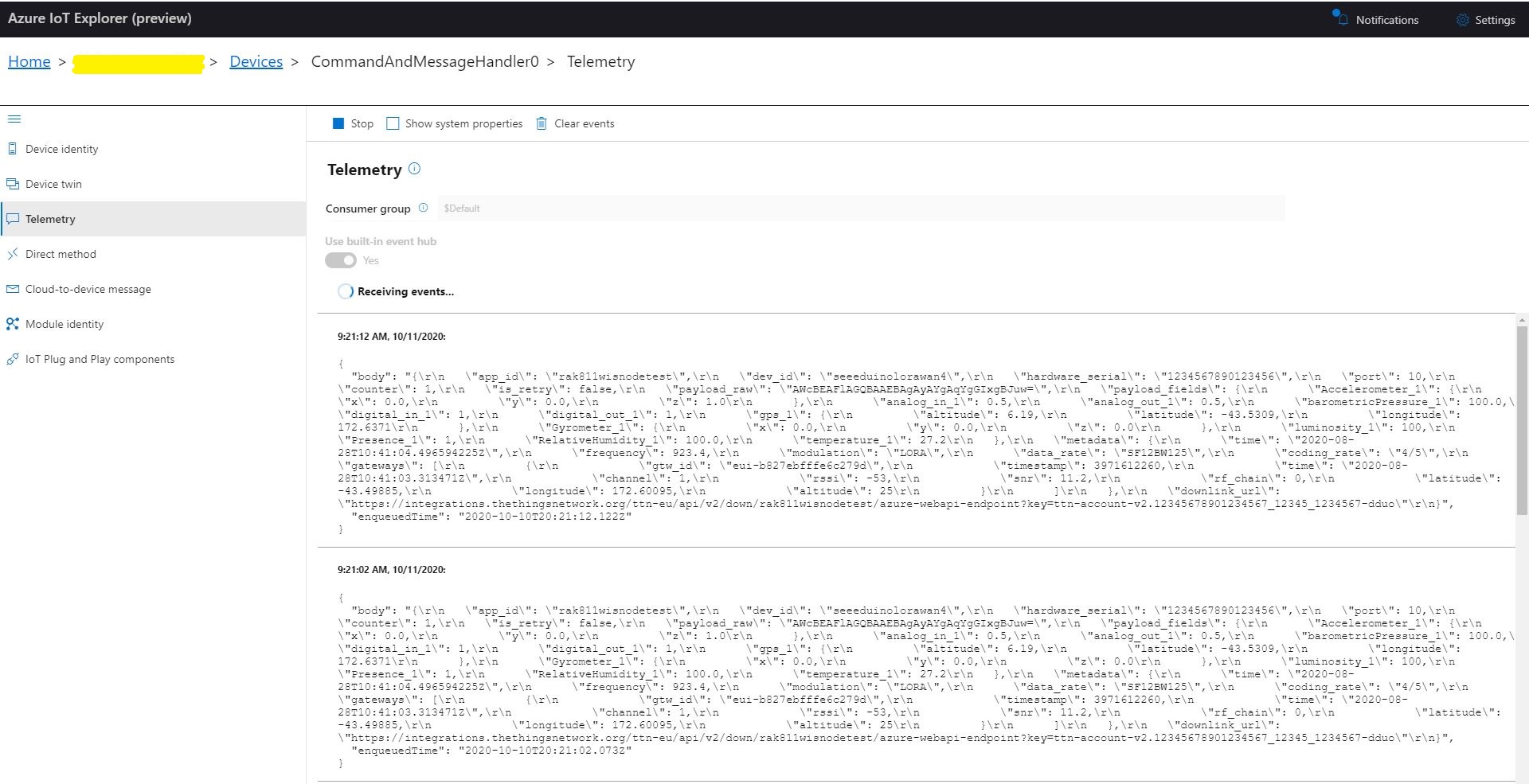
I configured an Azure IoT hub then used Azure IoT explorer to create a device and get the connections string for my application. After fixing up the application’s command line parameters I could see the timer code was successfully sending telemetry messages to my Azure IoT Hub. I also explored the different MQTT connections options TransportType.Mqtt, TransportType.Mqtt_Tcp_Only, and TransportType.Mqtt_WebSocket_Only which worked as expected.

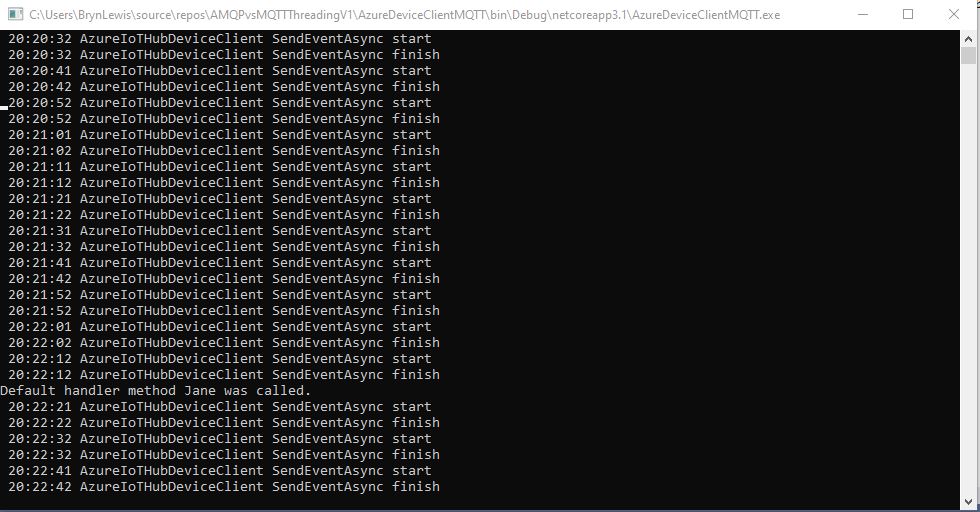
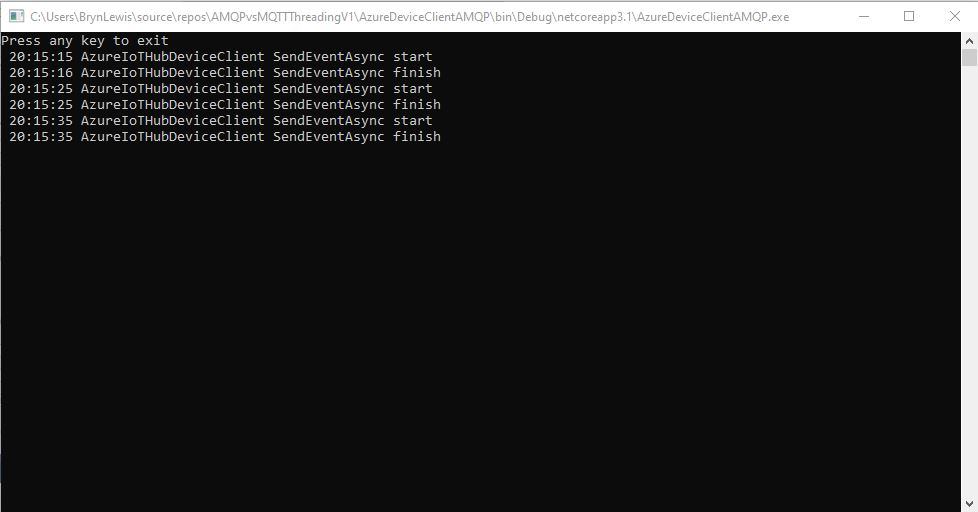
MQTT Console application displaying sent telemetry
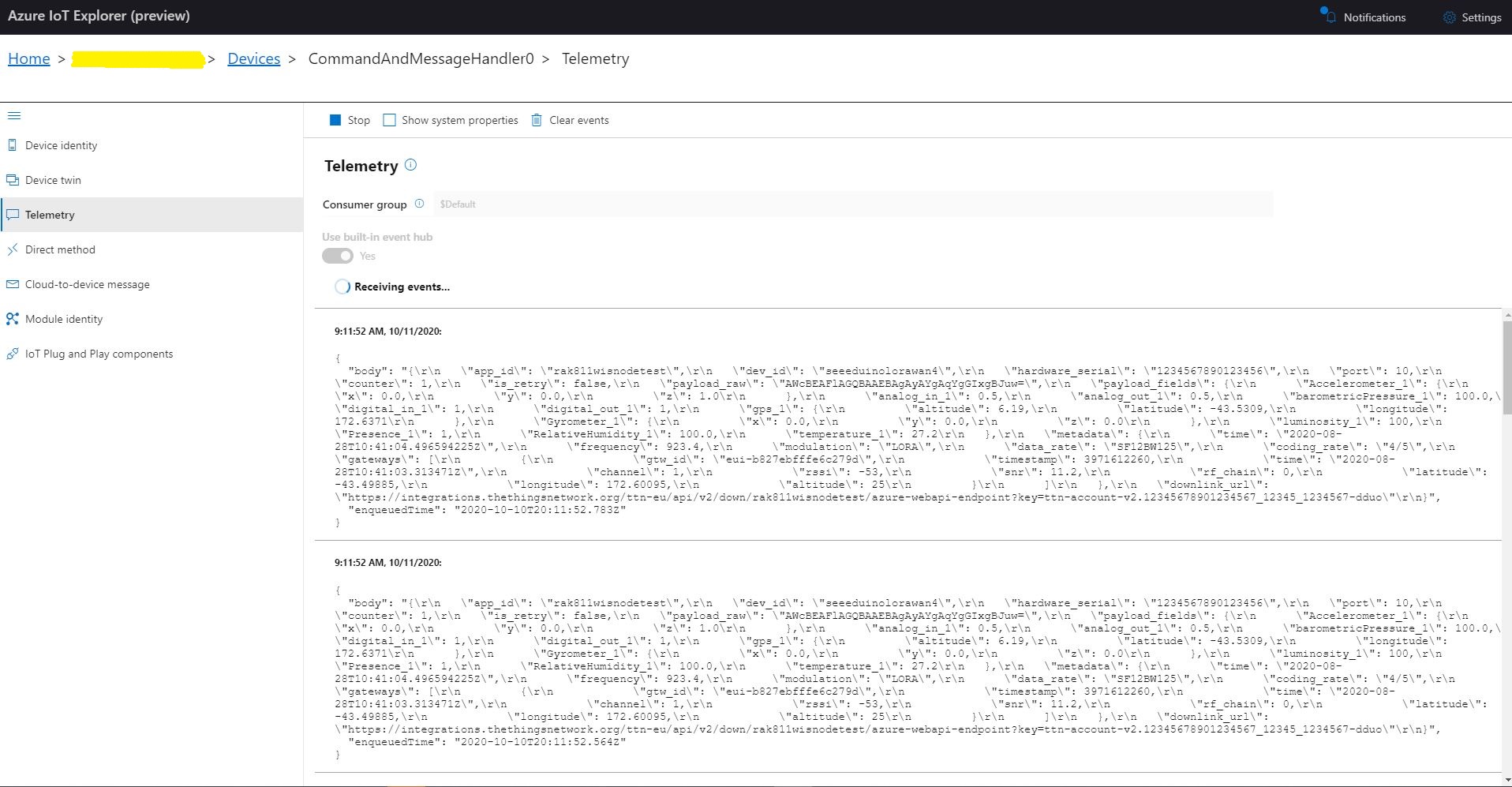
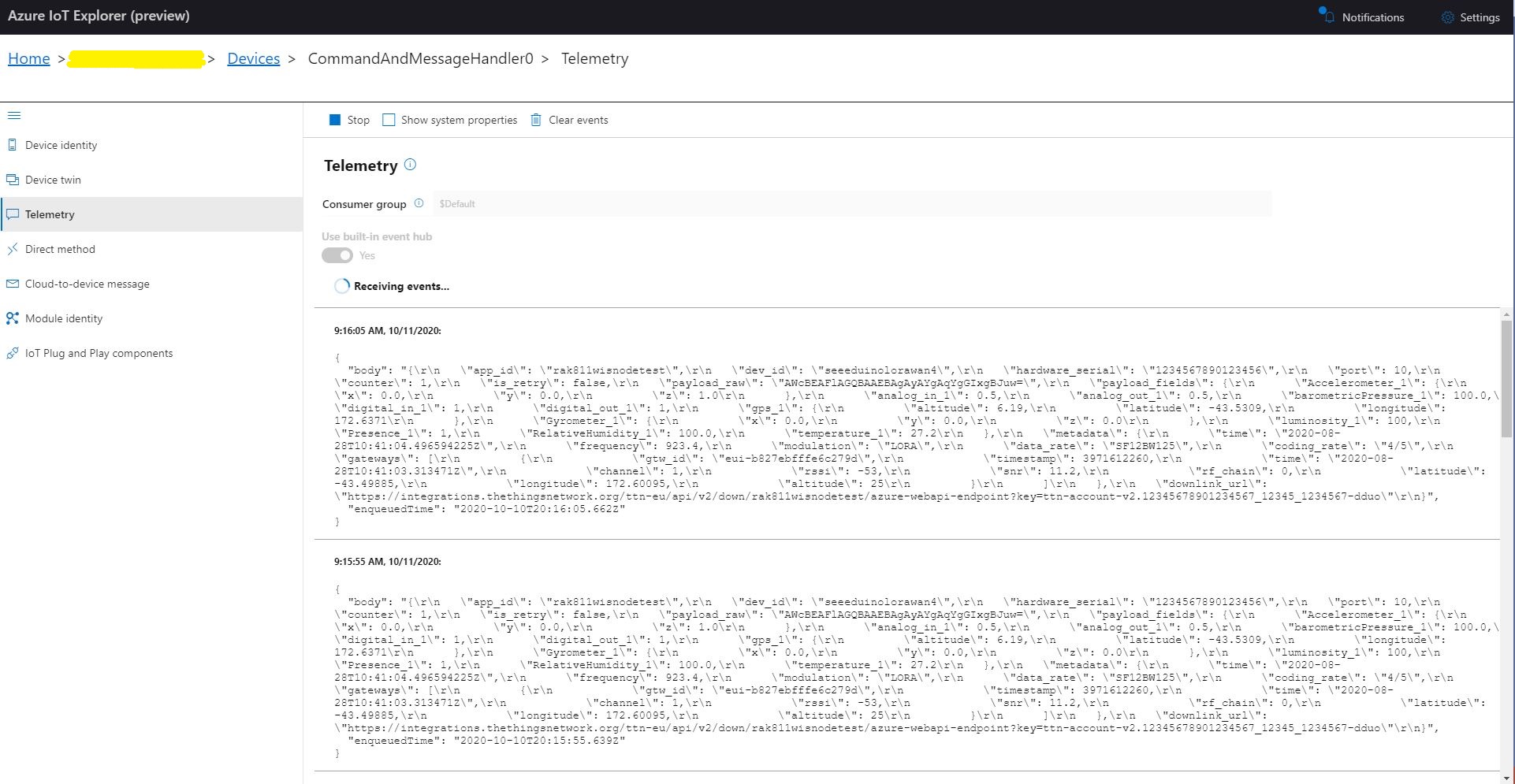
Azure IoT Hub displaying received telemetry

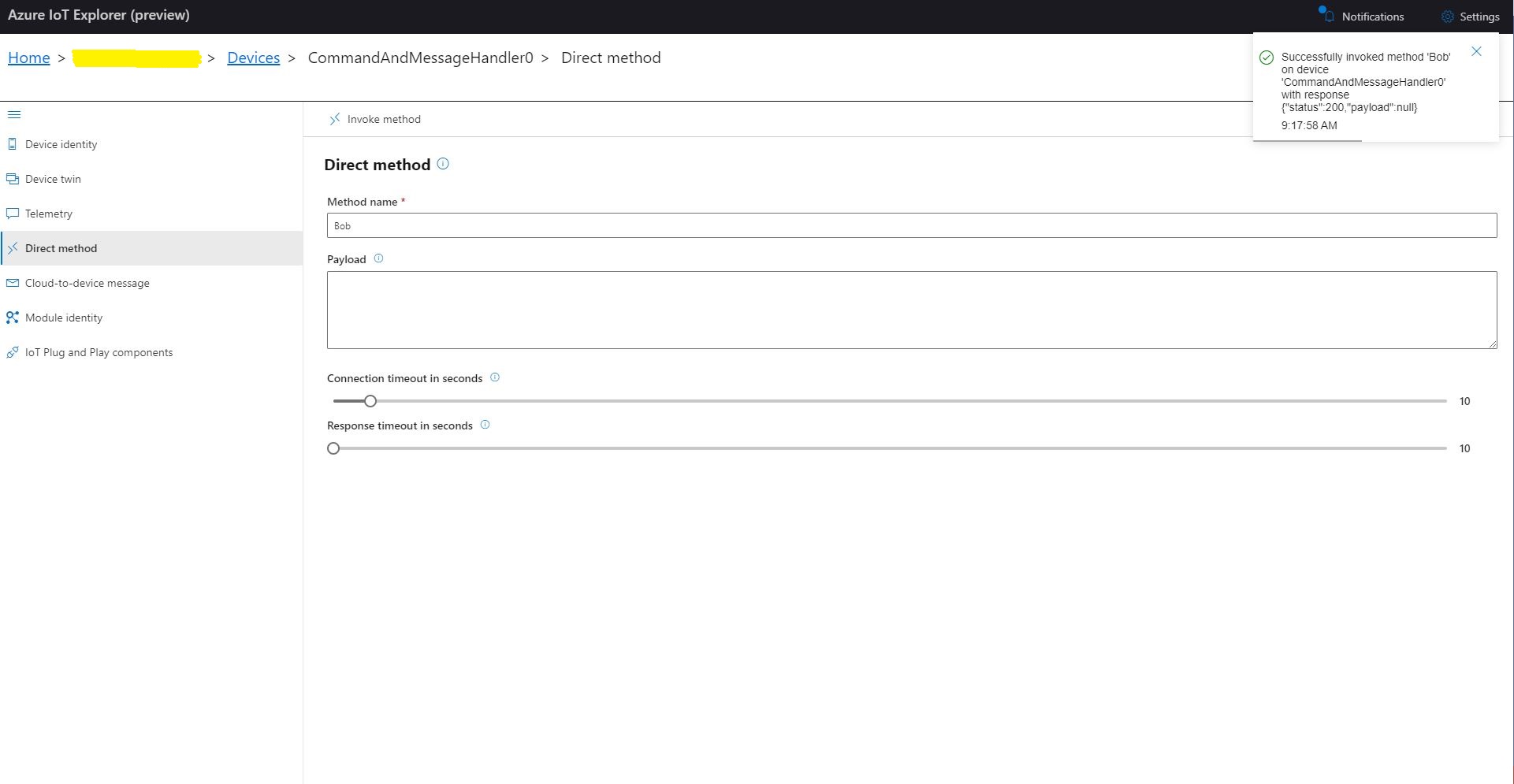
I could also initiate Direct Method calls to my console application from Azure IoT explorer.

Azure IoT Explorer initiating a Direct Method
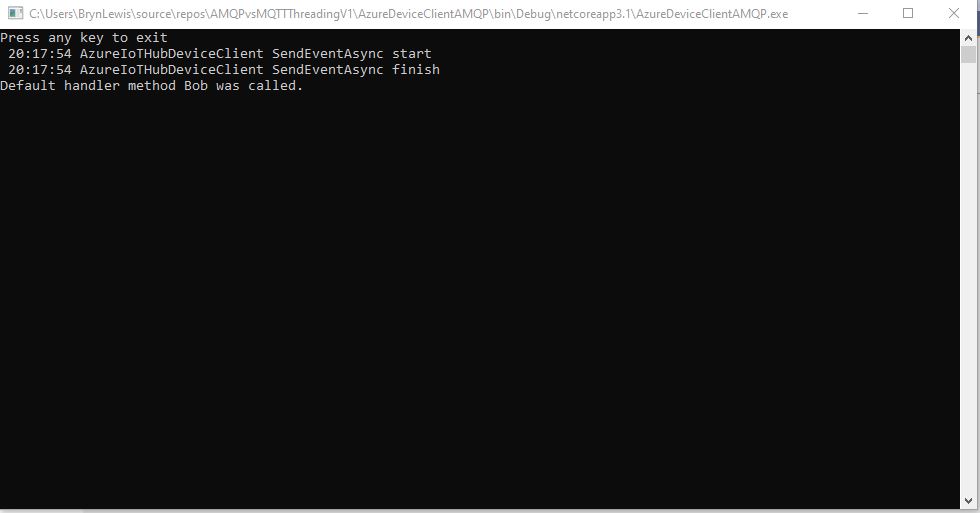
MQTT console application displaying direct method call.

I then changed the protocol to AMQP

class Program
{
   private static string payload;

   static async Task Main(string[] args)
   {
      string filename;
      string azureIoTHubconnectionString;
      DeviceClient azureIoTHubClient;
      Timer MessageSender;

      if (args.Length != 2)
      {
         Console.WriteLine("[JOSN file] [AzureIoTHubConnectionString]");
         Console.WriteLine("Press <enter> to exit");
         Console.ReadLine();
         return;
      }

      filename = args[0];
      azureIoTHubconnectionString = args[1];

      try
      {
         payload = File.ReadAllText(filename);

         // Open up the connection
         azureIoTHubClient = DeviceClient.CreateFromConnectionString(azureIoTHubconnectionString, TransportType.Amqp);
         //azureIoTHubClient = DeviceClient.CreateFromConnectionString(azureIoTHubconnectionString, TransportType.Amqp_Tcp_Only);
         //azureIoTHubClient = DeviceClient.CreateFromConnectionString(azureIoTHubconnectionString, TransportType.Amqp_WebSocket_Only);

         await azureIoTHubClient.OpenAsync();

         await azureIoTHubClient.SetMethodDefaultHandlerAsync(MethodCallbackDefault, null);

         //MessageSender = new Timer(TimerCallbackAsync, azureIoTHubClient, new TimeSpan(0, 0, 10), new TimeSpan(0, 0, 10));
         MessageSender = new Timer(TimerCallbackSync, azureIoTHubClient, new TimeSpan(0, 0, 10), new TimeSpan(0, 0, 10));

#if MESSAGE_PUMP
         Console.WriteLine("Press any key to exit");
         while (!Console.KeyAvailable)
         {
            await Task.Delay(100);
         }
#else
         Console.WriteLine("Press <enter> to exit");
         Console.ReadLine();
#endif
      }
      catch (Exception ex)
      {
         Console.WriteLine(ex.Message);
         Console.WriteLine("Press <enter> to exit");
         Console.ReadLine();
      }
   }

   public static async void TimerCallbackAsync(object state)
   {
      DeviceClient azureIoTHubClient = (DeviceClient)state;

      try
      {
         // I know having the payload as a global is a bit nasty but this is a demo..
         using (Message message = new Message(Encoding.ASCII.GetBytes(JsonConvert.SerializeObject(payload))))
         {
            Console.WriteLine(" {0:HH:mm:ss} AzureIoTHubDeviceClient SendEventAsync start", DateTime.UtcNow);
            await azureIoTHubClient.SendEventAsync(message);
            Console.WriteLine(" {0:HH:mm:ss} AzureIoTHubDeviceClient SendEventAsync finish", DateTime.UtcNow);
         }
      }
      catch (Exception ex)
      {
         Console.WriteLine(ex.Message);
      }
   }

   public static void TimerCallbackSync(object state)
   {
      DeviceClient azureIoTHubClient = (DeviceClient)state;

      try
      {
         // I know having the payload as a global is a bit nasty but this is a demo..
         using (Message message = new Message(Encoding.ASCII.GetBytes(JsonConvert.SerializeObject(payload))))
         {
            Console.WriteLine(" {0:HH:mm:ss} AzureIoTHubDeviceClient SendEventAsync start", DateTime.UtcNow);
            azureIoTHubClient.SendEventAsync(message).GetAwaiter();
            Console.WriteLine(" {0:HH:mm:ss} AzureIoTHubDeviceClient SendEventAsync finish", DateTime.UtcNow);
         }
      }
      catch (Exception ex)
      {
         Console.WriteLine(ex.Message);
      }
   }


   private static async Task<MethodResponse> MethodCallbackDefault(MethodRequest methodRequest, object userContext)
   {
      Console.WriteLine($"Default handler method {methodRequest.Name} was called.");

      return new MethodResponse(200);
   }
}

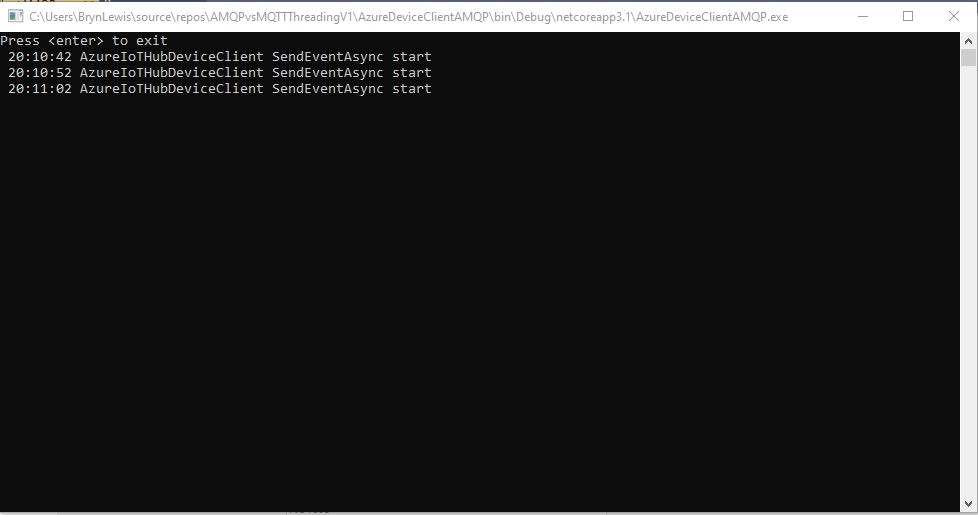
In the first version of my console application I could see the SendEventAsync method was getting called but was not returning

AMQP Console application displaying sent telemetry failure

Even though the SendEventAsync call was not returning the telemetry messages were making it to my Azure IoT Hub.

Azure IoT Hub displaying AMQP telemetry

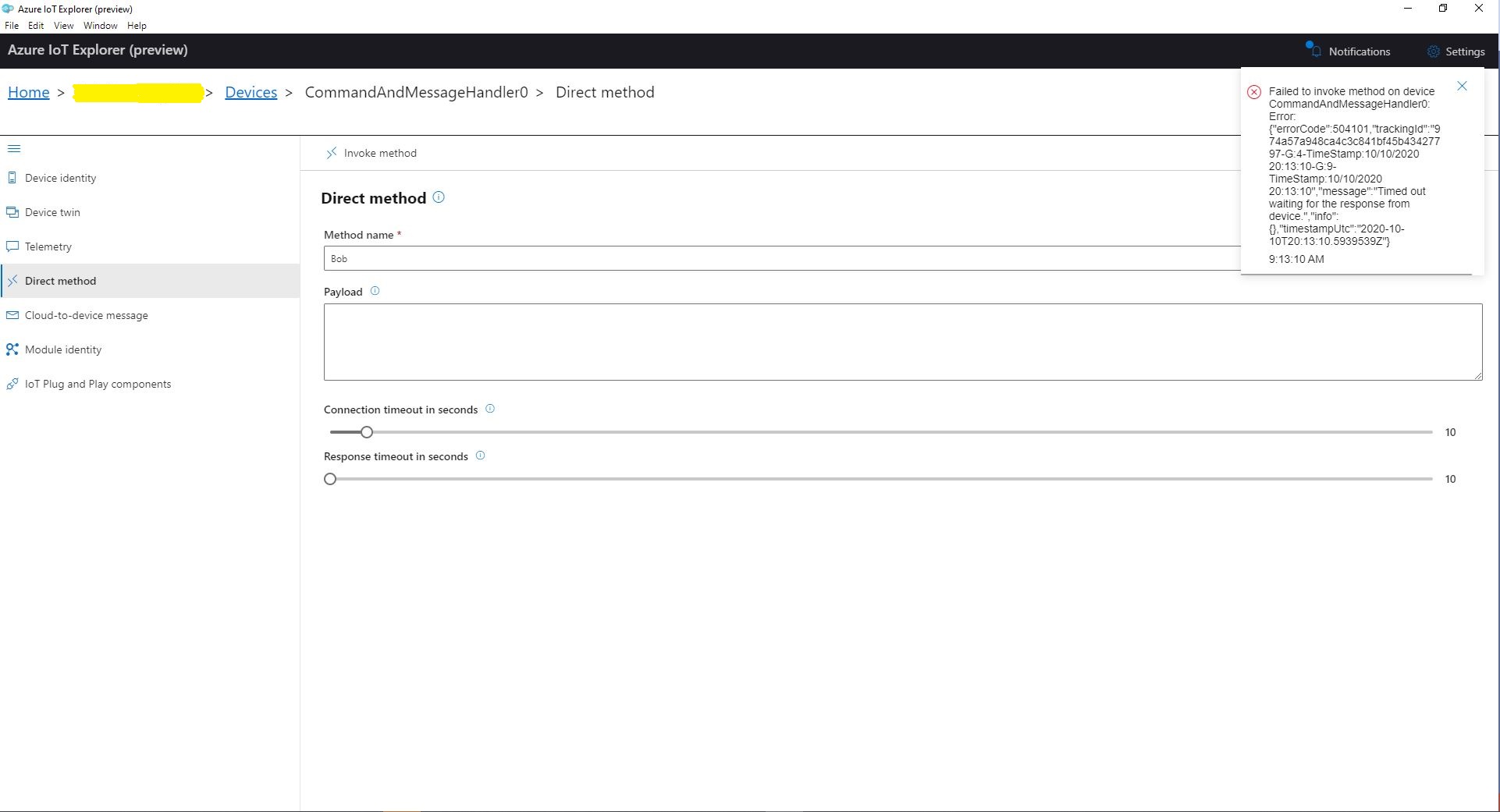
When I tried to initiate a Direct Method call from Azure IoT Explorer it failed after a while with a timeout.

Azure IoT Explorer initiating a Direct Method

The first successful approach I tried was to change the Console.Readline to a “message pump” (flashbacks to Win32 API programming).

Console.WriteLine("Press any key to exit");
while (!Console.KeyAvailable)
{
   await Task.Delay(100);
}

After some more experimentation I found that changing the timer method from asynchronous to synchronous also worked.

public static void TimerCallbackSync(object state)
{
   DeviceClient azureIoTHubClient = (DeviceClient)state;

   try
   {
      // I know having the payload as a global is a bit nasty but this is a demo..
      using (Message message = new Message(Encoding.ASCII.GetBytes(JsonConvert.SerializeObject(payload))))
      {
         Console.WriteLine(" {0:HH:mm:ss} AzureIoTHubDeviceClient SendEventAsync start", DateTime.UtcNow);
         azureIoTHubClient.SendEventAsync(message).GetAwaiter();
         Console.WriteLine(" {0:HH:mm:ss} AzureIoTHubDeviceClient SendEventAsync finish", DateTime.UtcNow);
      }
   }
   catch (Exception ex)
   {
      Console.WriteLine(ex.Message);
   }
}

I also had to change the method declaration and modify the SendEventAsync call to use a GetAwaiter.

AMQP Console application displaying sent telemetry
Azure IoT Hub displaying received telemetry
Azure IoT Explorer initiating a Direct Method
MQTT console application displaying direct method call.

It took a while to figure out enough about what was going on so I could do a search with the right keywords (DeviceClient AMQP async await SendEventAsync) to confirm my suspicion that MQTT and AMQP clients did behave differently.

For anyone who reads this post, I think this Github issue about task handling and blocking calls is most probably the answer (October 2020).

Electric Vehicle Camp 2014-06

The Hardware

The software

Flash an LED

OutputPort led = new OutputPort(Pins.ONBOARD_LED, false);
while ( true)
{
   Led.Write(!Led.Read())
   Thread.Sleep(500)
}

Digital Input – Polled

InputPort button = new InputPort(Pins.ONBOARD_SW1, false, Port.ResistorMode.Disabled);
OutputPort led = new OutputPort(Pins.ONBOARD_LED, false);
while (true)
{
   led.Write(button.Read());
   Thread.Sleep(1000);
}

Digital Input – Interrupt

static OutputPort interuptled = new OutputPort(Pins.ONBOARD_LED, false);
InterruptPort button = new InterruptPort(Pins.ONBOARD_SW1, false, Port.ResistorMode.Disabled, Port.InterruptMode.InterruptEdgeHigh);
button.OnInterrupt += new NativeEventHandler(button_OnInterrupt);&amp;amp;lt;/span&amp;amp;gt;&amp;amp;lt;/code&amp;amp;gt;

Thread.Sleep(Timeout.Infinite);
static void button_OnInterrupt(uint data1, uint data2, DateTime time)
{
   interuptled.Write(!interuptled.Read());
}

Analog Input

AnalogInput Sensor = new AnalogInput(Cpu.AnalogChannel.ANALOG_0);
while ( true)
{
   Debug.Print( &quot;Value &quot; + Sensor.Read(&quot;F2&quot;));
   Thread.Sleep(500)
}

Pulse Width Modulation Output

AnalogInput brightness = new AnalogInput(AnalogChannels.ANALOG_PIN_A0);
PWM led = new PWM(PWMChannels.PWM_PIN_D5, 1000, 0.0, false);

led.Start();

while (true)
{
   Debug.Print(&amp;amp;quot;Brightness &amp;amp;quot; + led.DutyCycle.ToString("F2"));
   led.DutyCycle = brightness.Read();
   Thread.Sleep(500);
}
led.Stop();

Telemetry – Mobile station

Configure the NRF24L01 library for the  elecfreaks Joystick ShieldV2.4, for more detail see this post 

_module.OnDataReceived += OnReceive;
_module.OnTransmitFailed += OnSendFailure;
_module.OnTransmitSuccess += OnSendSuccess;
_module.Initialize(SPI.SPI_module.SPI1, Pins.GPIO_PIN_D10, Pins.GPIO_PIN_D9, Pins.GPIO_PIN_D1);
_module.Configure(myAddress, channel);
_module.Enable();

Timer joystickPositionUpdates = new Timer(JoyStickTimerProc, null, 500, 500);
Thread.Sleep( Timeout.Infinite ) ;

Send the data to the base station (converting it from Unicode to ASCII)

private void JoyStickTimerProc(object state)
{
   double xVal = x.Read();
   double yVal = y.Read();
   Debug.Print("X " + xVal.ToString("F1") + " Y &" + yVal.ToString("F1"));

   _module.SendTo(baseStationAddress, Encoding.UTF8.GetBytes( xVal.ToString("F1") + " " + yVal.ToString("F1")));
}

Telemetry – Base Station

Configure the NRF24L01 library for the Embedded Coolness board, for more detail see this post

private readonly NRF24L01Plus _module;

_module.OnDataReceived += OnReceive;
_module.OnTransmitFailed += OnSendFailure;
_module.OnTransmitSuccess += OnSendSuccess;

_module.Initialize(SPI.SPI_module.SPI1, Pins.GPIO_PIN_D7, Pins.GPIO_PIN_D3, Pins.GPIO_PIN_D2);
_module.Configure(_myAddress, channel);
_module.Enable();

Display the inbound message (converting it from ASCII to Unicode)

private void OnReceive(byte[] data)
{
string message = new String(Encoding.UTF8.GetChars(data));
Debug.Print("Receive " + message); ;
}