Random wanderings through Microsoft Azure esp. PaaS plumbing, the IoT bits, AI on Micro controllers, AI on Edge Devices, .NET nanoFramework, .NET Core on *nix and ML.NET+ONNX
Enabling CUDA reduced the total image scaling, pre-processing, inferencing, and post processing time from 115mSec to 36mSec which is a significant improvement.
Several of my projects use the NickSwardh/YoloDotNetNuGet which supports NVIDIA CUDA but not TensorRT. The first step before “putting the NuGet on a diet” was to fix up my test application because some of the method signatures had changed in the latest release.
// load the app settings into configuration
var configuration = new ConfigurationBuilder()
   .AddJsonFile("appsettings.json", false, true)
   .Build();

_applicationSettings = configuration.GetSection("ApplicationSettings").Get<Model.ApplicationSettings>();

Console.WriteLine($" {DateTime.UtcNow:yy-MM-dd HH:mm:ss.fff} YoloV8 Model load start : {_applicationSettings.ModelPath}");

//using (var predictor = new Yolo(_applicationSettings.ModelPath, false))
using var yolo = new Yolo(new YoloOptions()
{
   OnnxModel = _applicationSettings.ModelPath,
   Cuda = false,
   PrimeGpu = false,
   ModelType = ModelType.ObjectDetection,
});
{
   Console.WriteLine($" {DateTime.UtcNow:yy-MM-dd HH:mm:ss.fff} YoloV8 Model load done");
   Console.WriteLine();

   //using (var image = await SixLabors.ImageSharp.Image.LoadAsync<Rgba32>(_applicationSettings.ImageInputPath))
   using (var image = SKImage.FromEncodedData(_applicationSettings.ImageInputPath))
   {
      Console.WriteLine($" {DateTime.UtcNow:yy-MM-dd HH:mm:ss.fff} YoloV8 Model detect start");

      var predictions = yolo.RunObjectDetection(image);

      Console.WriteLine($" {DateTime.UtcNow:yy-MM-dd HH:mm:ss.fff} YoloV8 Model detect done");
      Console.WriteLine();

      foreach (var predicition in predictions)
      {
         Console.WriteLine($"  Class {predicition.Label.Name} {(predicition.Confidence * 100.0):f1}% X:{predicition.BoundingBox.Location.X} Y:{predicition.BoundingBox.Location.Y} Width:{predicition.BoundingBox.Width} Height:{predicition.BoundingBox.Height}");
      }
      Console.WriteLine();

      Console.WriteLine($" {DateTime.UtcNow:yy-MM-dd HH:mm:ss.fff} Plot and save : {_applicationSettings.ImageOutputPath}");

      using (SKImage skImage = image.Draw(predictions))
      {
         //await image.SaveAsJpegAsync(_applicationSettings.ImageOutputPath);
         skImage.Save(_applicationSettings.ImageOutputPath, SKEncodedImageFormat.Jpeg);
      }
   }
}
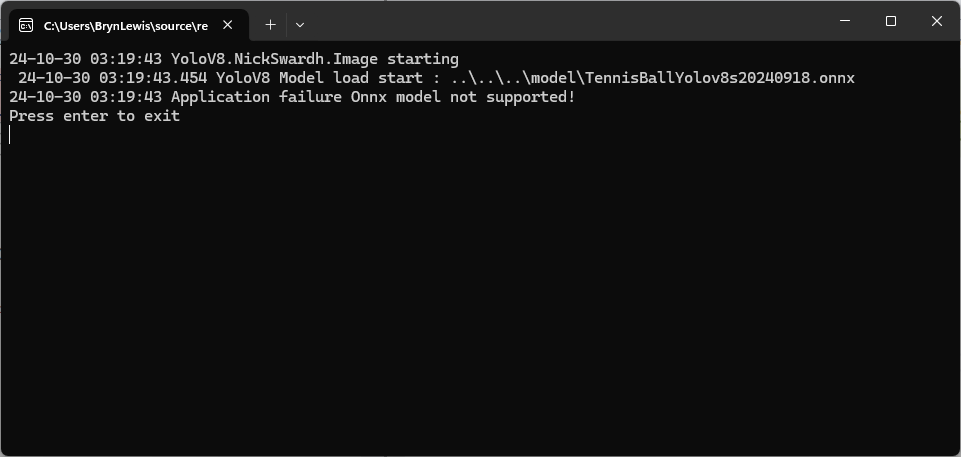
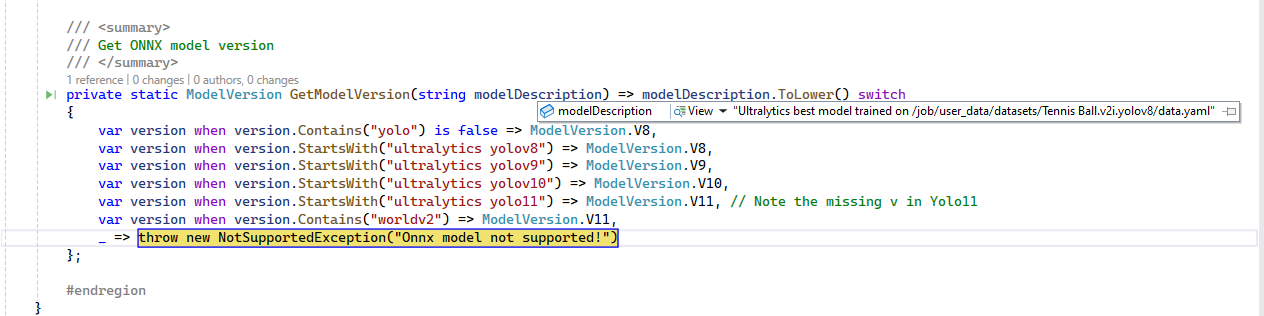
The YoloDotNet code was looking for specific text in the model description which wasn’t present in the description of my Ultralytics Hub trained models.
I downloaded the YoloDotNet source and included the core project in my solution so I could temporarily modify the GetModelVersion method in OnnxPropertiesExtension.cs.
 /// <summary>
 /// Get ONNX model version
 /// </summary>
 private static ModelVersion GetModelVersion(string modelDescription) => modelDescription.ToLower() switch
 {
     var version when version.Contains("yolo") is false => ModelVersion.V8,
    var version when version.Contains("yoloV8") is false => ModelVersion.V8, // <========
    var version when version.StartsWith("ultralytics yolov8") => ModelVersion.V8,
     var version when version.StartsWith("ultralytics yolov9") => ModelVersion.V9,
     var version when version.StartsWith("ultralytics yolov10") => ModelVersion.V10,
     var version when version.StartsWith("ultralytics yolo11") => ModelVersion.V11, // Note the missing v in Yolo11
     var version when version.Contains("worldv2") => ModelVersion.V11,
     _ => throw new NotSupportedException("Onnx model not supported!")
 };
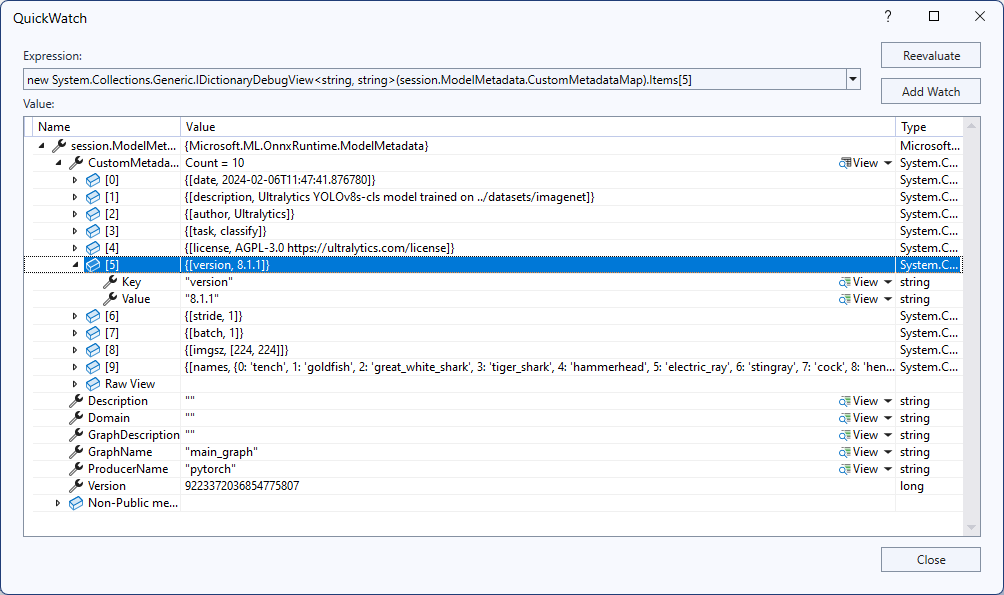
After getting the test application running in the Visual Studio 2022 debugger it looked like the CustomMetadata Version info would be a better choice.
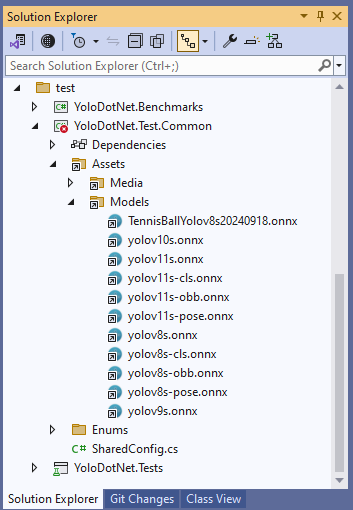
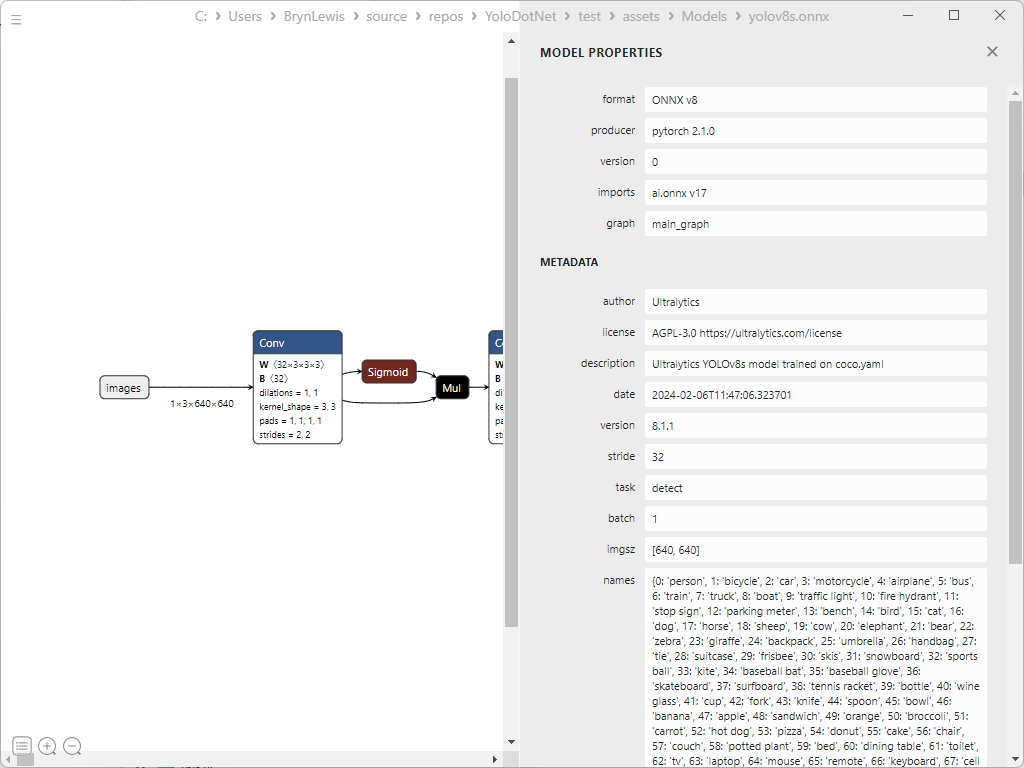
To check my assumption, I inspected some of the sample ONNX Model properties with Netron.
YoloV8s model 8.1.1
YoloV10s Model – 8.2.5.1
It looks like the CustomMetadata Version info increments but doesn’t nicely map to the Ultralytics Yolo version.
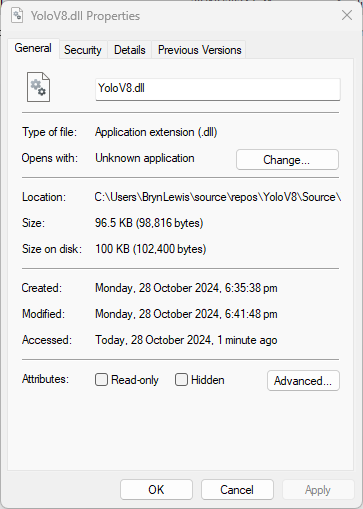
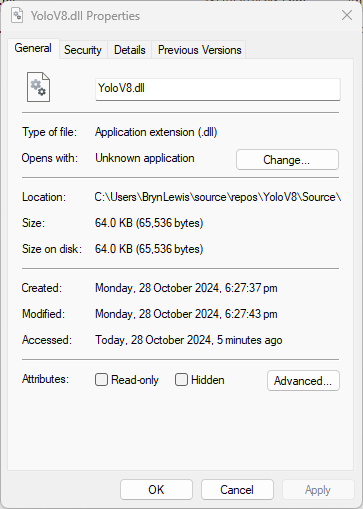
The initial version of the YoloV8.dll in the version 4.2 of the NuGet was 96.5KB. Most of my applications deployed to edge devices and Azure do not require plotting functionality so I started by commenting out (not terribly subtle).
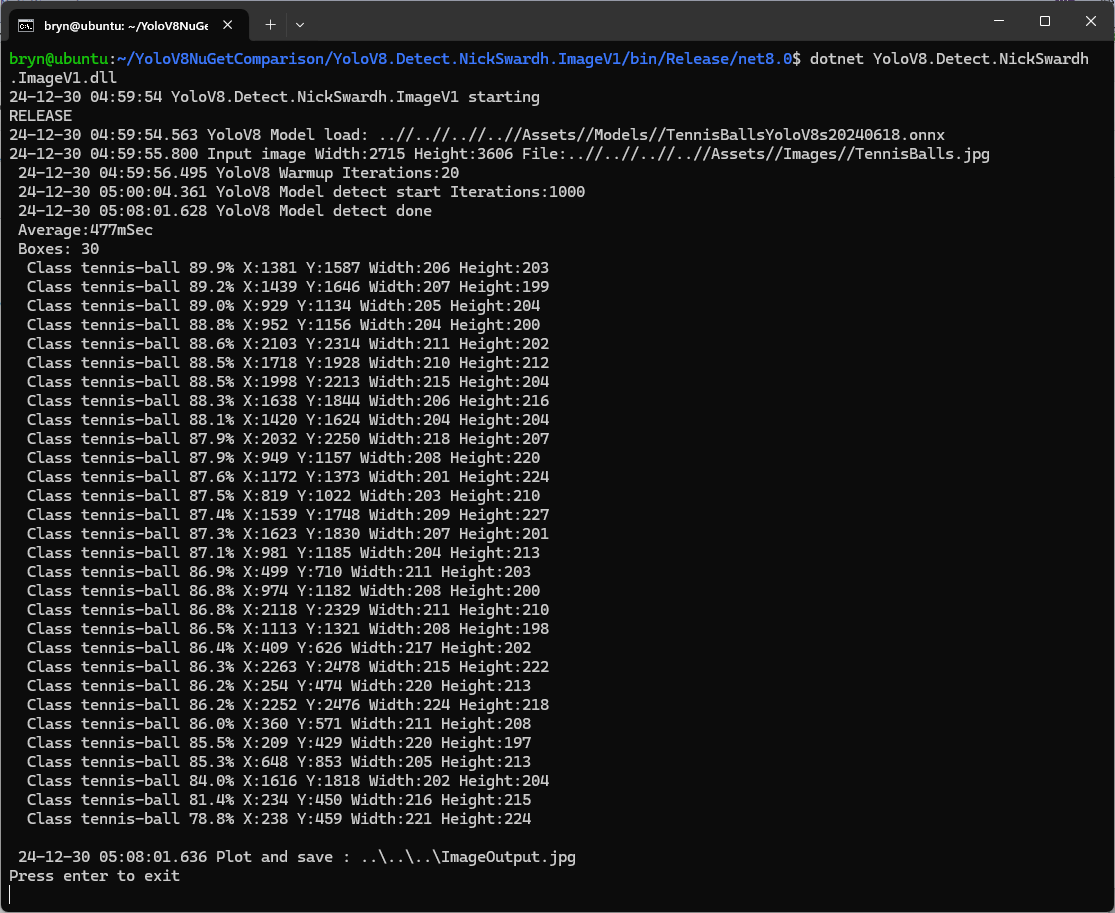
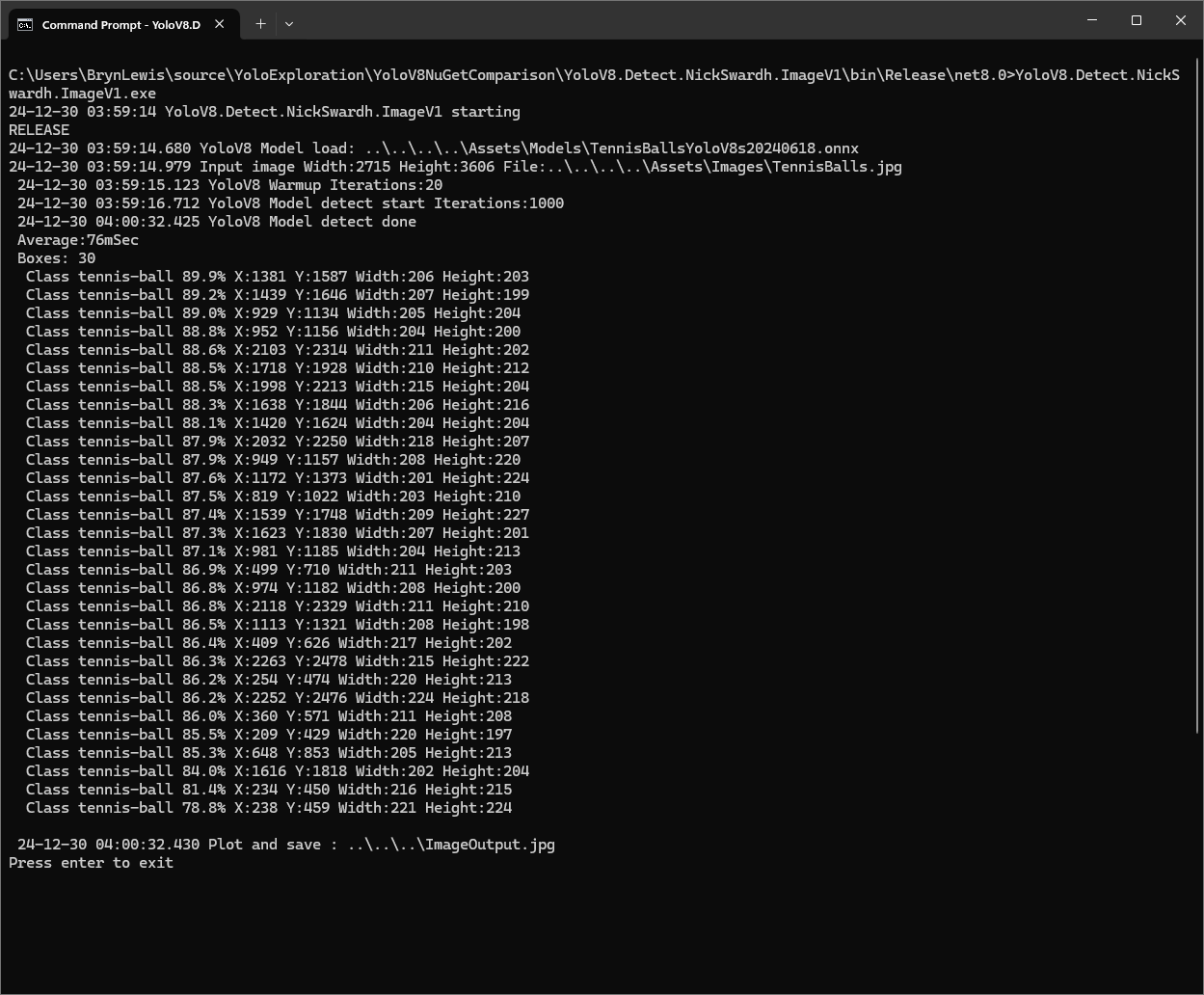
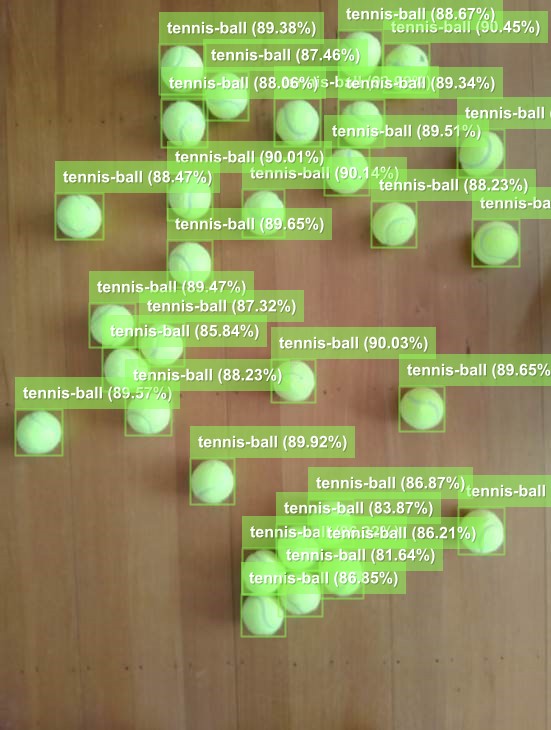
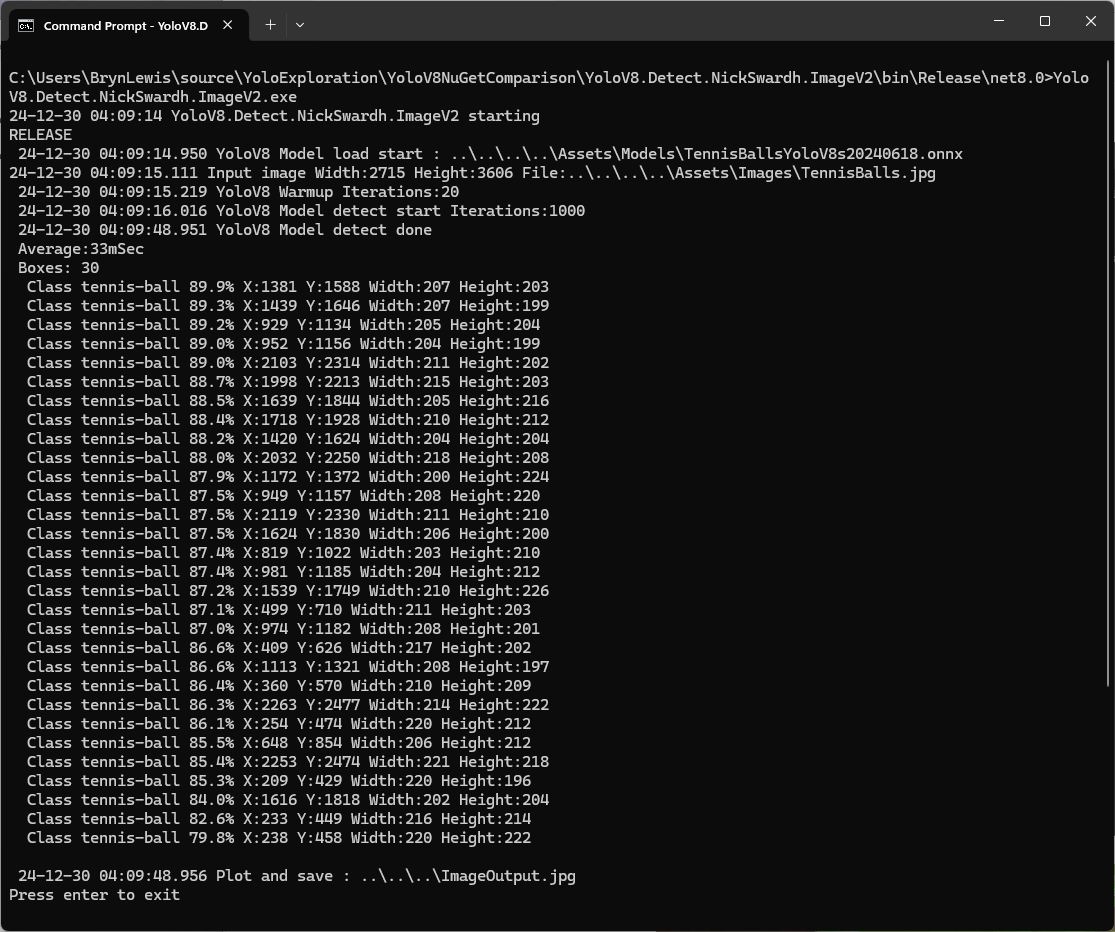
The YoloDotNet by NickSwardh V1 and V2 results were slightly different. The V2 NuGet uses SkiaSharp which appears to significantly improve the performance.
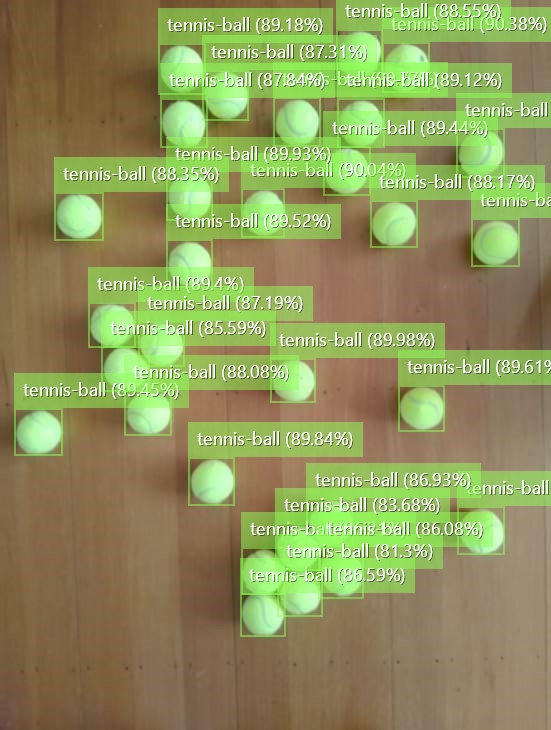
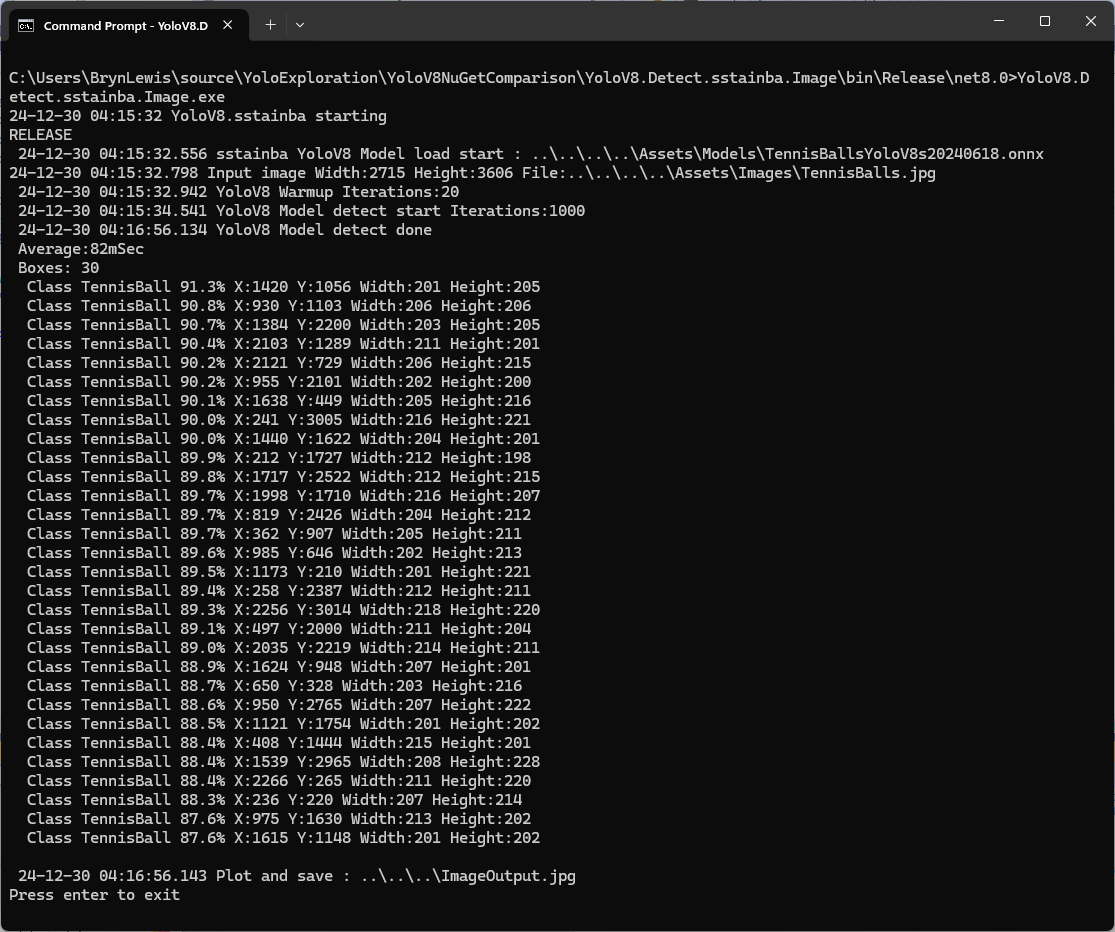
Even though the YoloV8 by sstainba NuGet hadn’t been updated I ran the test harness just in case
YoloDotNet 2.0 is a Speed Demon release where the main focus has been on supercharging performance to bring you the fastest and most efficient version yet. With major code optimizations, a switch to SkiaSharp for lightning-fast image processing, and added support for Yolov10 as a little extra 😉 this release is set to redefine your YoloDotNet experience:
Changing the implementation to use SkiaSharp caught my attention because in previous testing manipulating images with the Sixlabors.ImageSharp library took longer than expected.
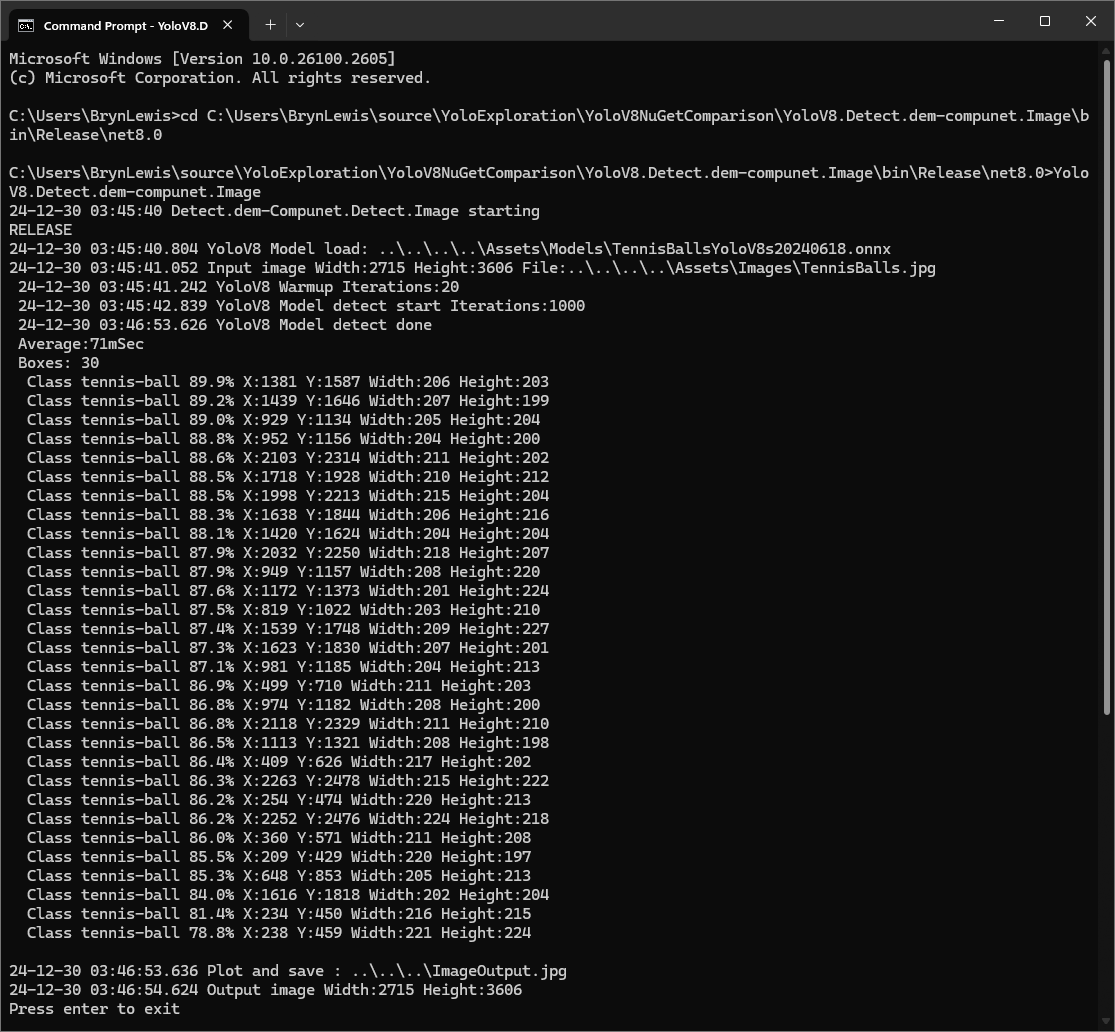
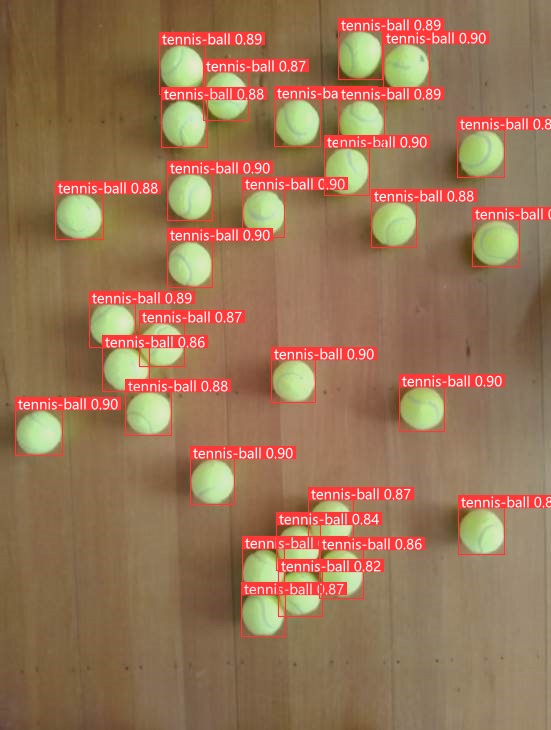
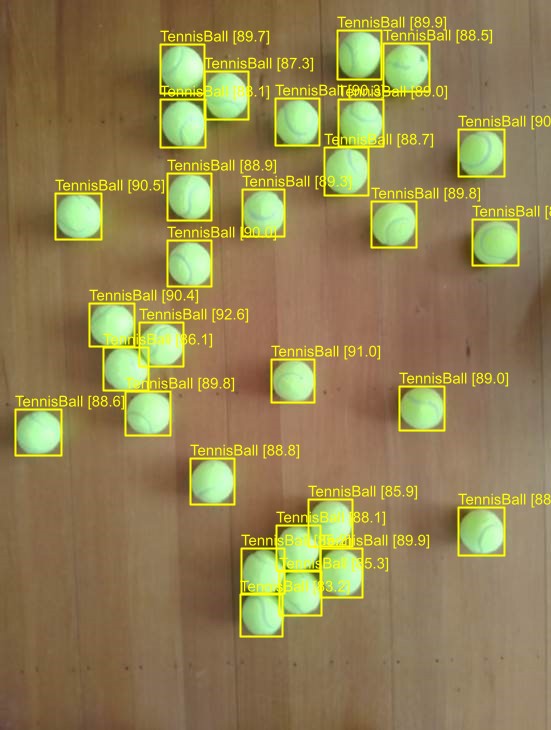
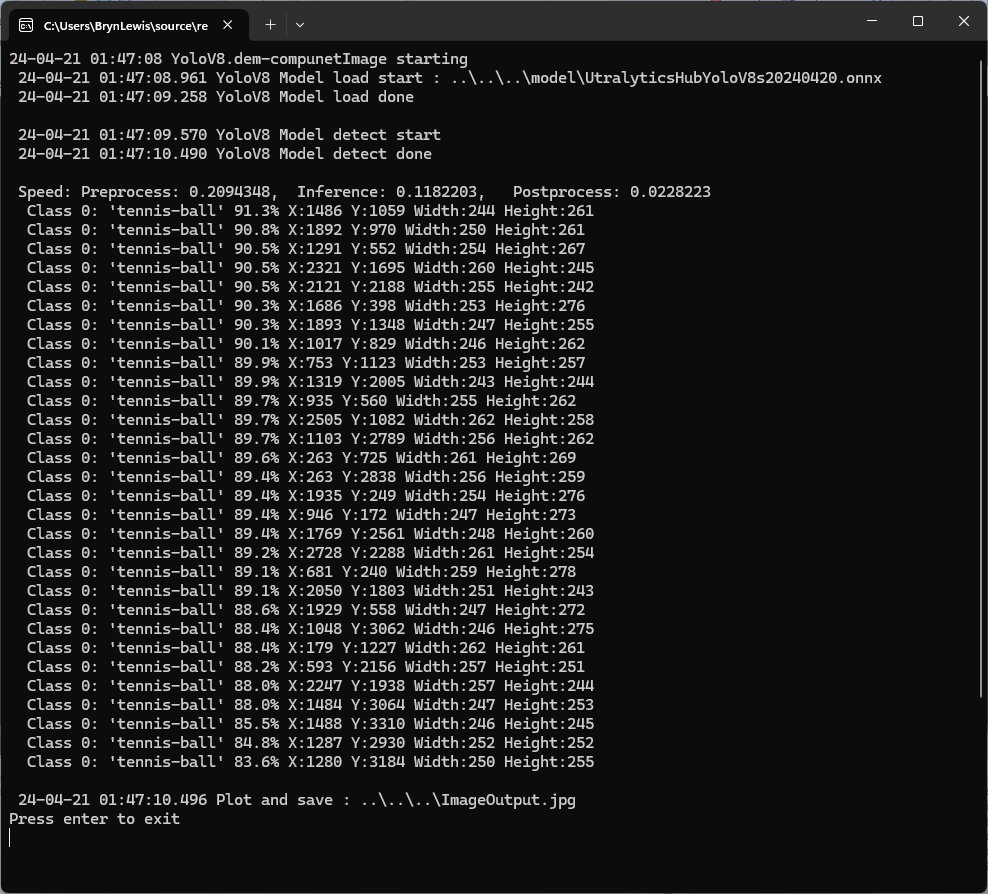
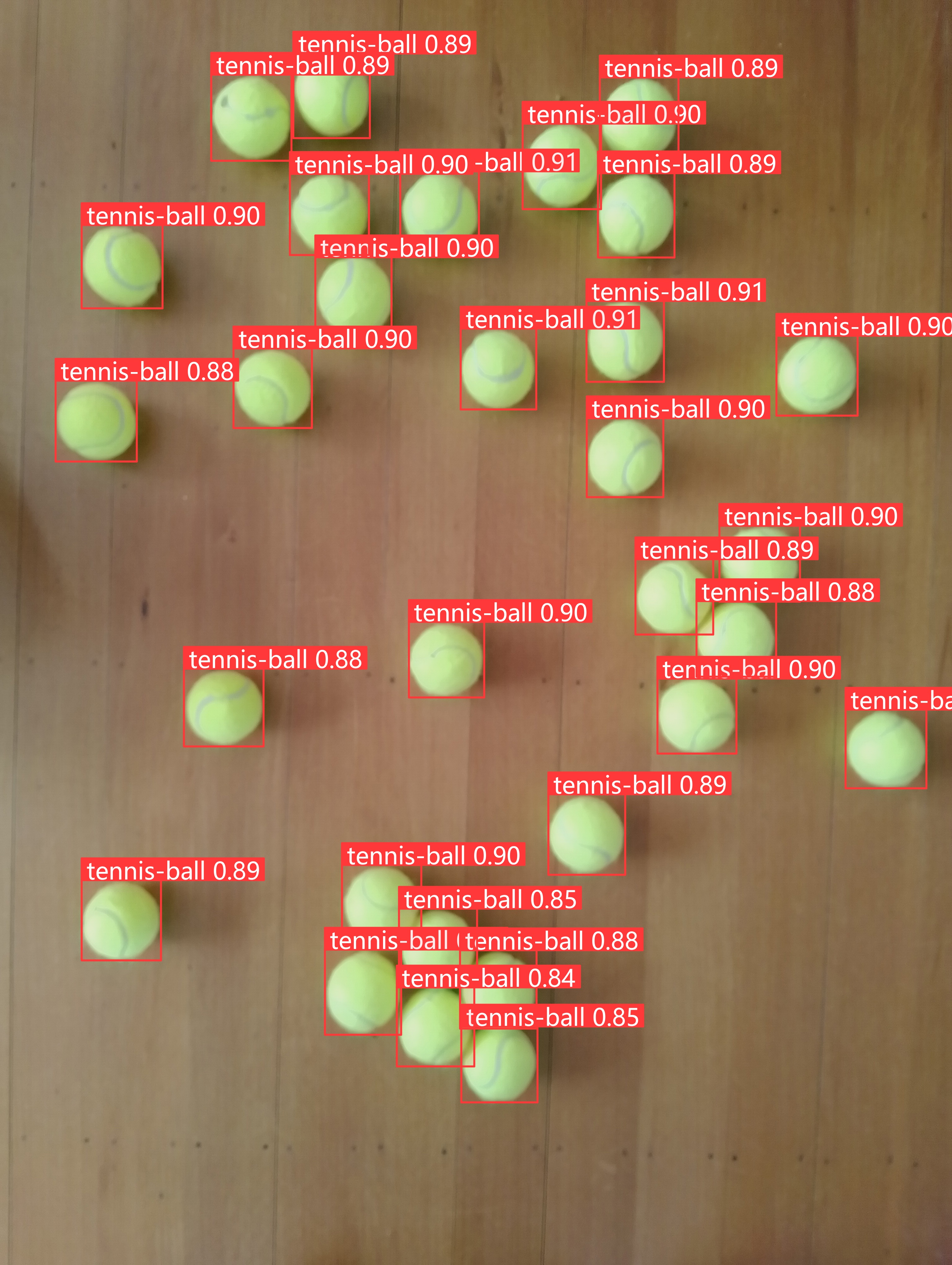
I started with the dme-compunet YoloV8 NuGet which found all the tennis balls and the results were consistent with earlier tests.
dme-compunet test harness image bounding boxes
The YoloDotNet by NickSwardh NuGet update had some “breaking changes” so I built “old” and “updated” test harnesses. The V1 version found all the tennis balls and the results were consistent with earlier tests.
NickSwardh V1 test harness image bounding boxes
The YoloDotNet by NickSwardh NuGet update had some “breaking changes” so there were some code changes but the V1 and V2 results were slightly different.
NickSwardh V2 test harness image bounding boxes
Even though the YoloV8 by sstainba NuGet hadn’t been updated I ran the test harness just in case and the results were consistent with previous tests.
The NickSwardV2 implementation was significantly faster, but I need to investigate the slight difference in the bounding boxes. It looks like Sixlabors.ImageSharp might be the issue.
The same approach as the YoloV8.Detect.SecurityCamera.Stream sample is used because the image doesn’t have to be saved on the local filesystem.
Utralytics Pose Model marked-up image
To check the results, I put a breakpoint in the timer just after PoseAsync method is called and then used the Visual Studio 2022 Debugger QuickWatch functionality to inspect the contents of the PoseResult object.
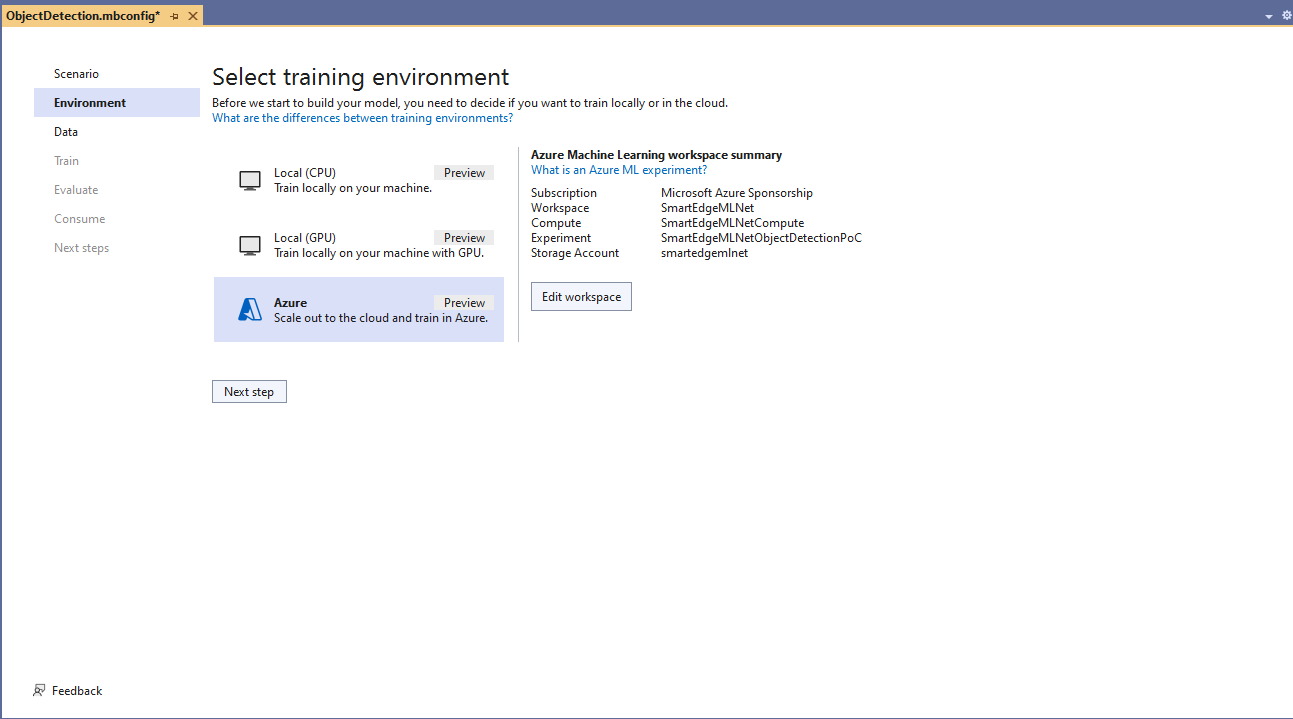
Azure Machine Learning selected for model training
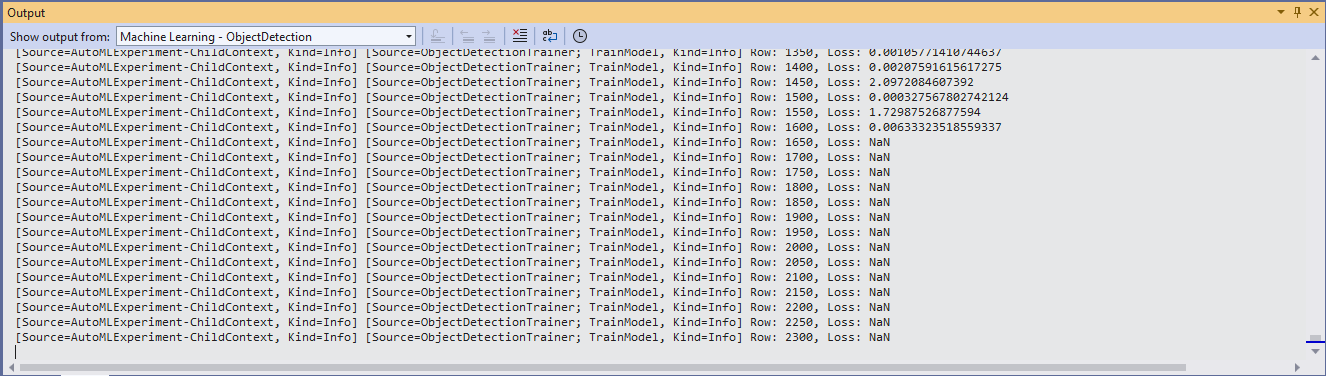
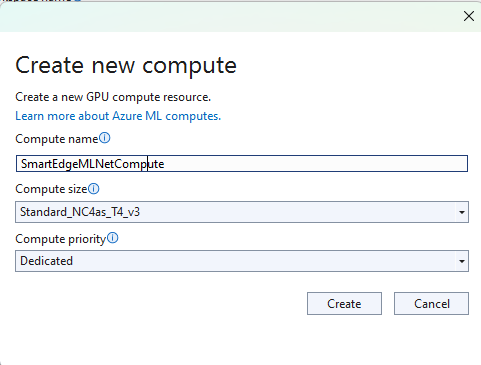
The configuration of my Azure Machine Learning experiment which represent the collection of trials used took much longer than expected.
Insufficient SKUs available in Australia East
Initially my subscription had Insufficient Standard NC4as_T4_v3 SKUs in Australia East so I had to request a quota increase which took a couple of support tickets.
I need to check how the Roboflow dataset was loaded (I think possibly only the training dataset was loaded, so that was split into training and test datasets) and trial different configurations.
I like the machine generated job names “frank machine”, “tough fowl” and “epic chicken”.
Azure Machine Learning Job list
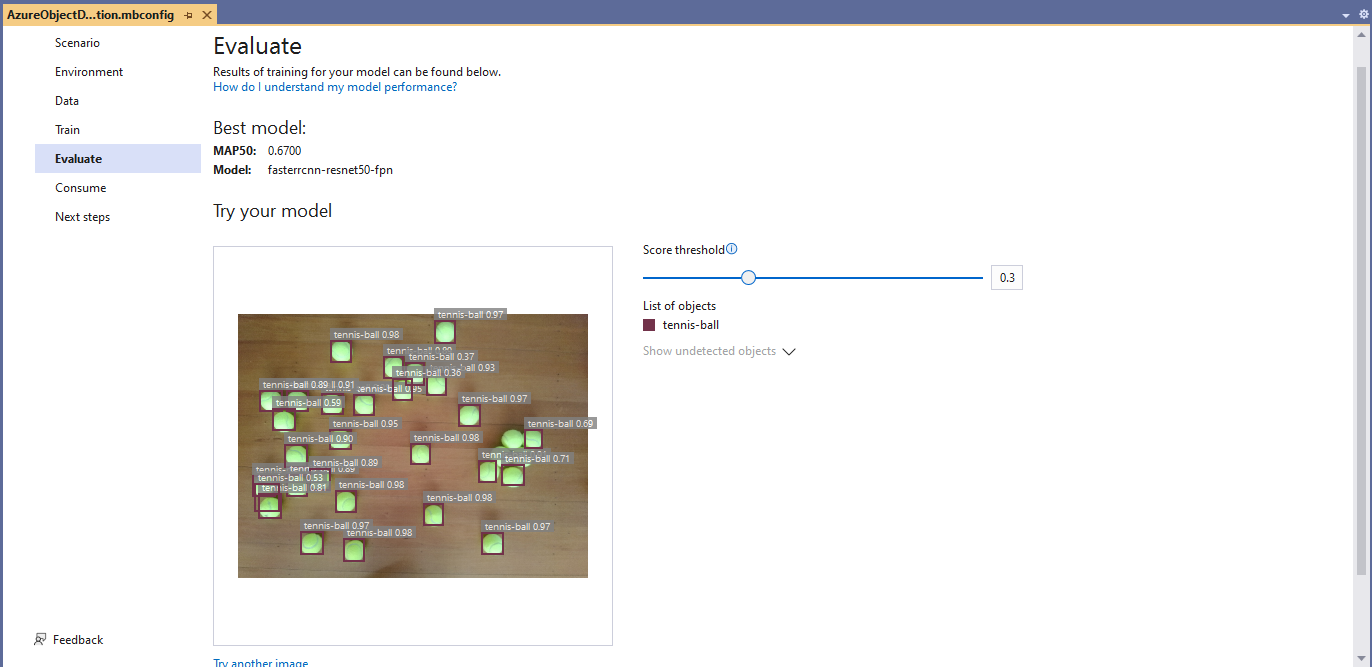
I found my Ultralytics YoloV8 model coped better with different backgrounds and tennis ball colours.
Evaluating model with tennis balls on my living room floor
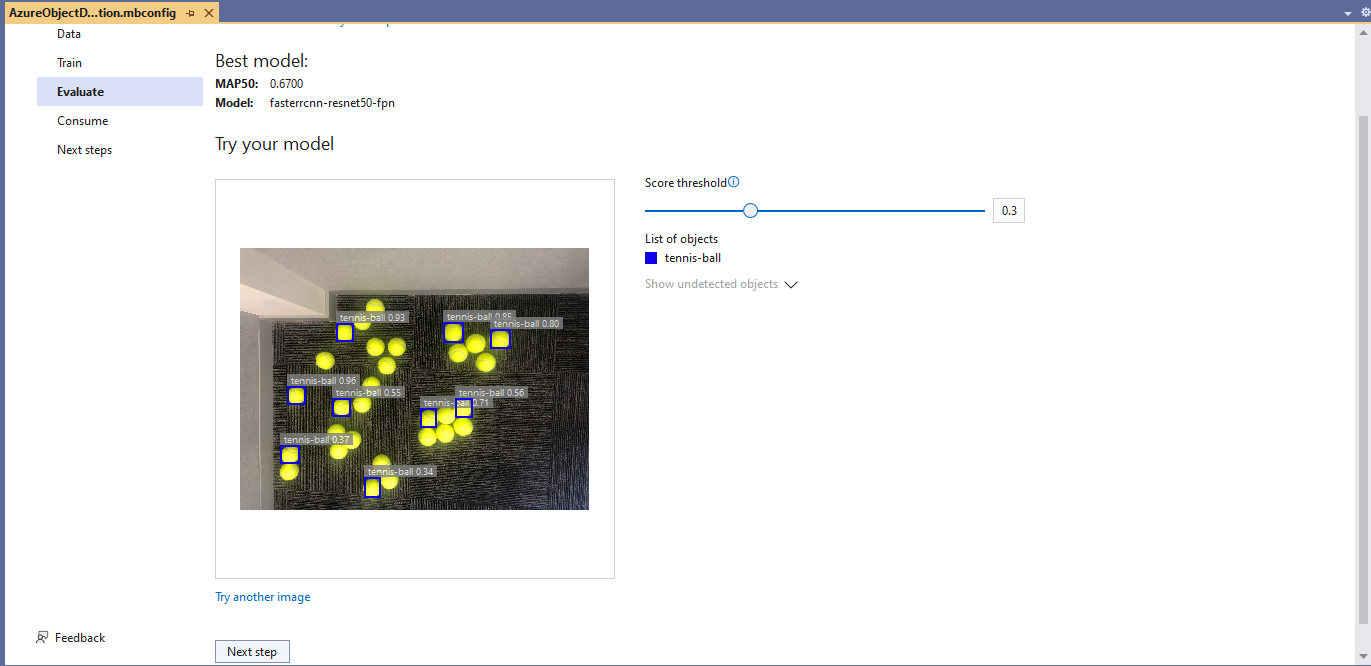
Evaluating model with tennis balls on the office floor
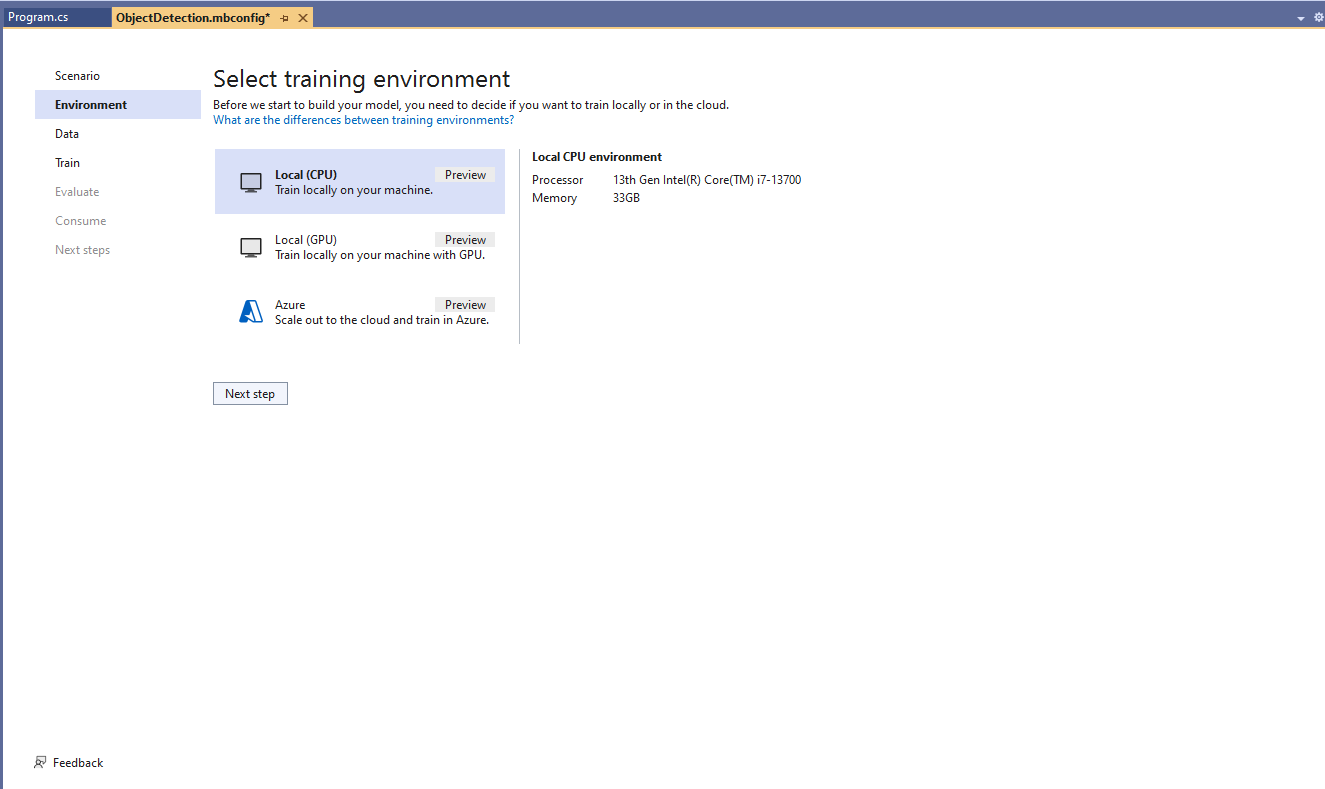
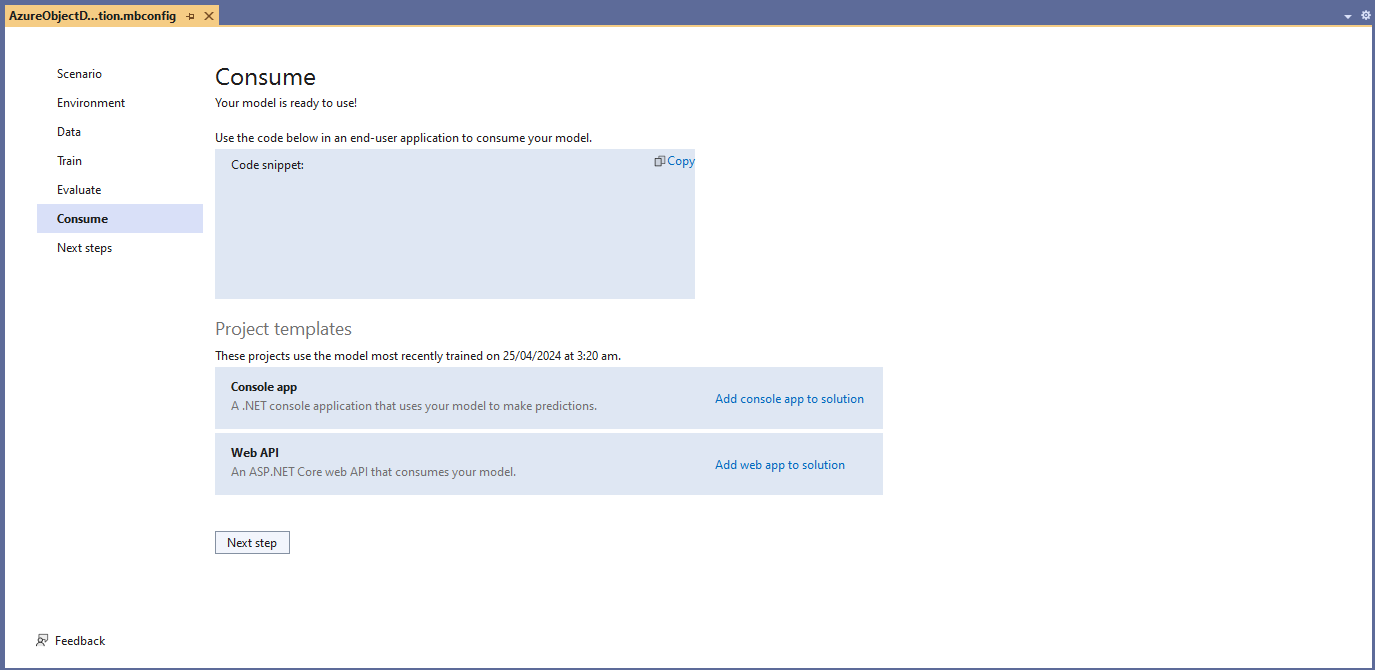
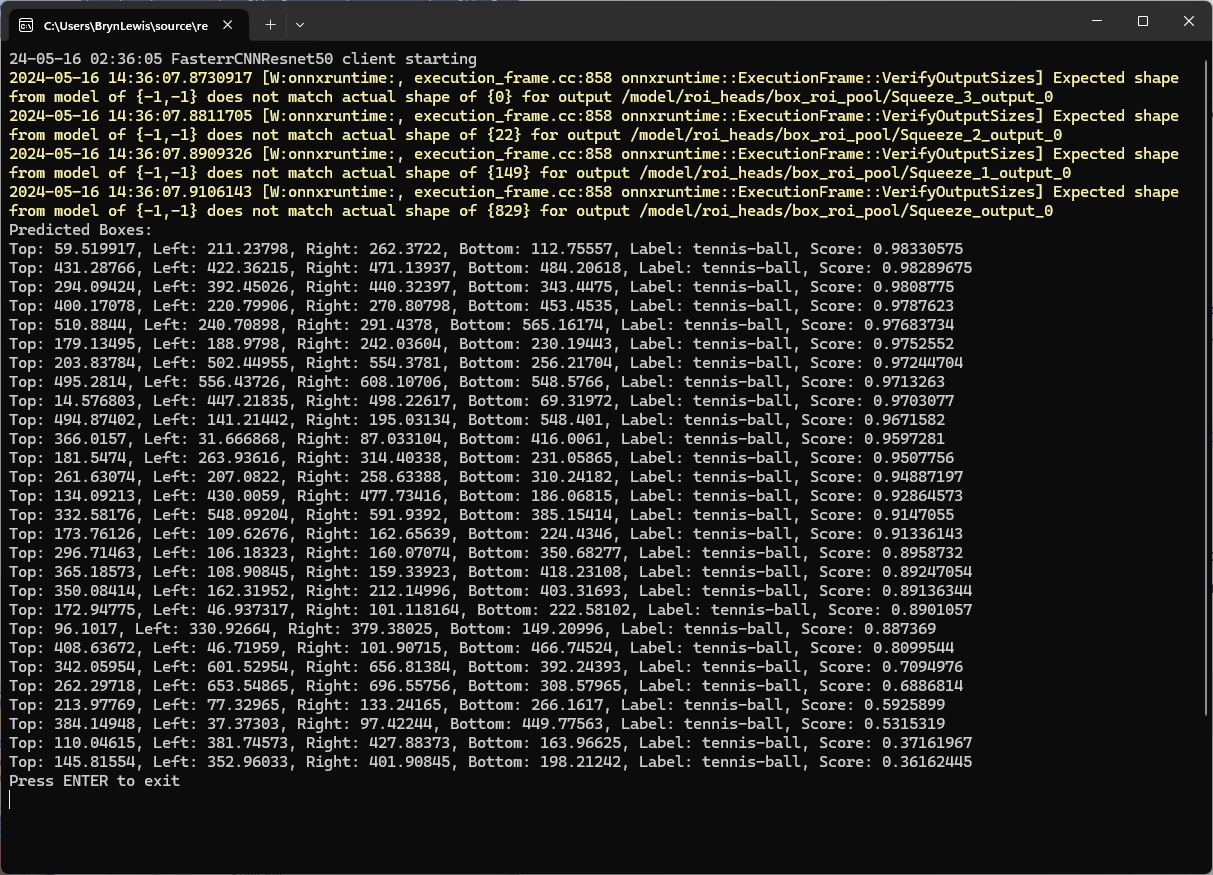
I used the “generated” code to consume the model with a simple console application.
Visual Studio 2022 ML.Net Integration client code generation
static async Task Main()
{
   Console.WriteLine($"{DateTime.UtcNow:yy-MM-dd HH:mm:ss} FasterrCNNResnet50 client starting");

   try
   {
      // load the app settings into configuration
      var configuration = new ConfigurationBuilder()
            .AddJsonFile("appsettings.json", false, true)
      .Build();

      Model.ApplicationSettings _applicationSettings = configuration.GetSection("ApplicationSettings").Get<Model.ApplicationSettings>();

      // Create single instance of sample data from first line of dataset for model input
      var image = MLImage.CreateFromFile(_applicationSettings.ImageInputPath);

      AzureObjectDetection.ModelInput sampleData = new AzureObjectDetection.ModelInput()
      {
         ImageSource = image,
      };

      // Make a single prediction on the sample data and print results.
      var predictionResult = AzureObjectDetection.Predict(sampleData);

      Console.WriteLine("Predicted Boxes:");
      Console.WriteLine(predictionResult);
   }
   catch (Exception ex)
   {
      Console.WriteLine($"{DateTime.UtcNow:yy-MM-dd HH:mm:ss} MQTTnet.Publish failed {ex.Message}");
   }

   Console.WriteLine("Press ENTER to exit");
   Console.ReadLine();
}
The initial model was detecting only 28 (with much lower confidences) of the 30 tennis balls in the sample images.
Output of console application with object detection information
I used the “default configuration” settings and ran the model training for 17.5 hours overnight which cost roughly USD24.
Azure Pricing Calculator estimate for my training setup
This post is not about how train a “good” model it is the approach I took to create a “proof of concept” model for a demonstration.
Confirming the number of classes and splits of the training dataset
Selecting the output model architecture (YoloV8s).
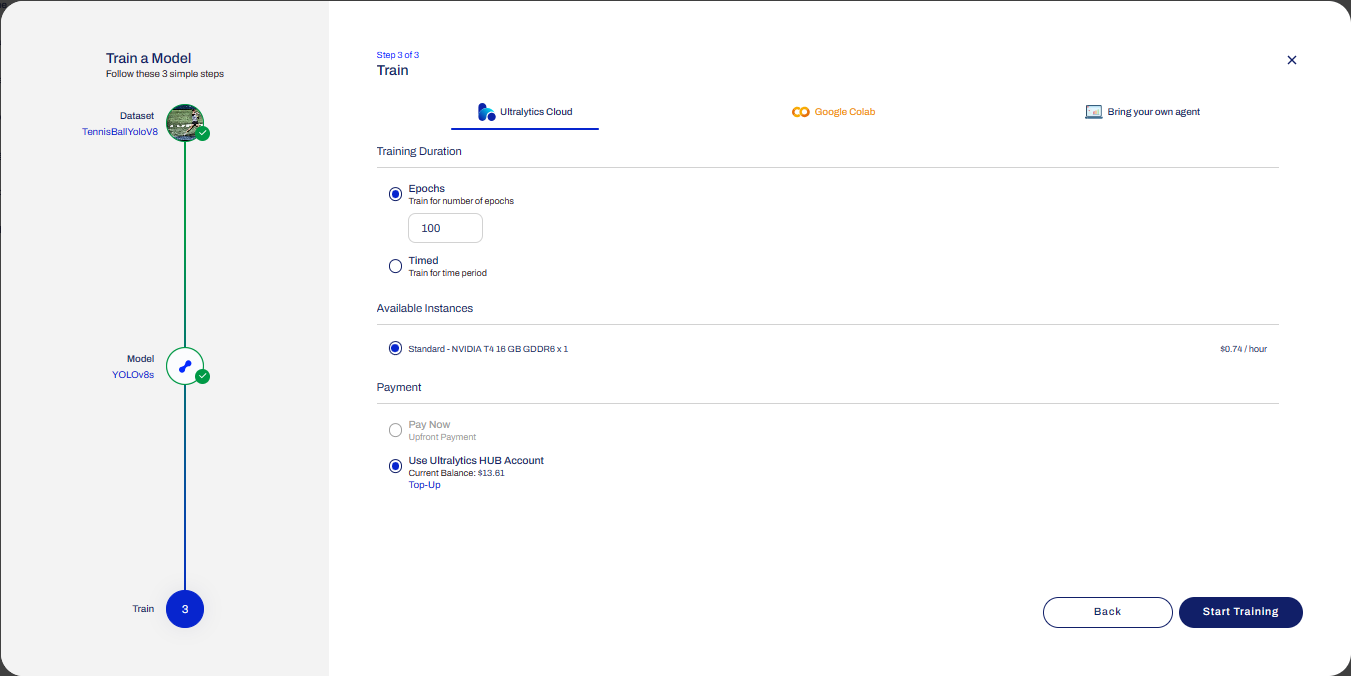
Configuring the number of epochs and payment method
Preparing the cloud instance(s) for training
The midpoint of the training process
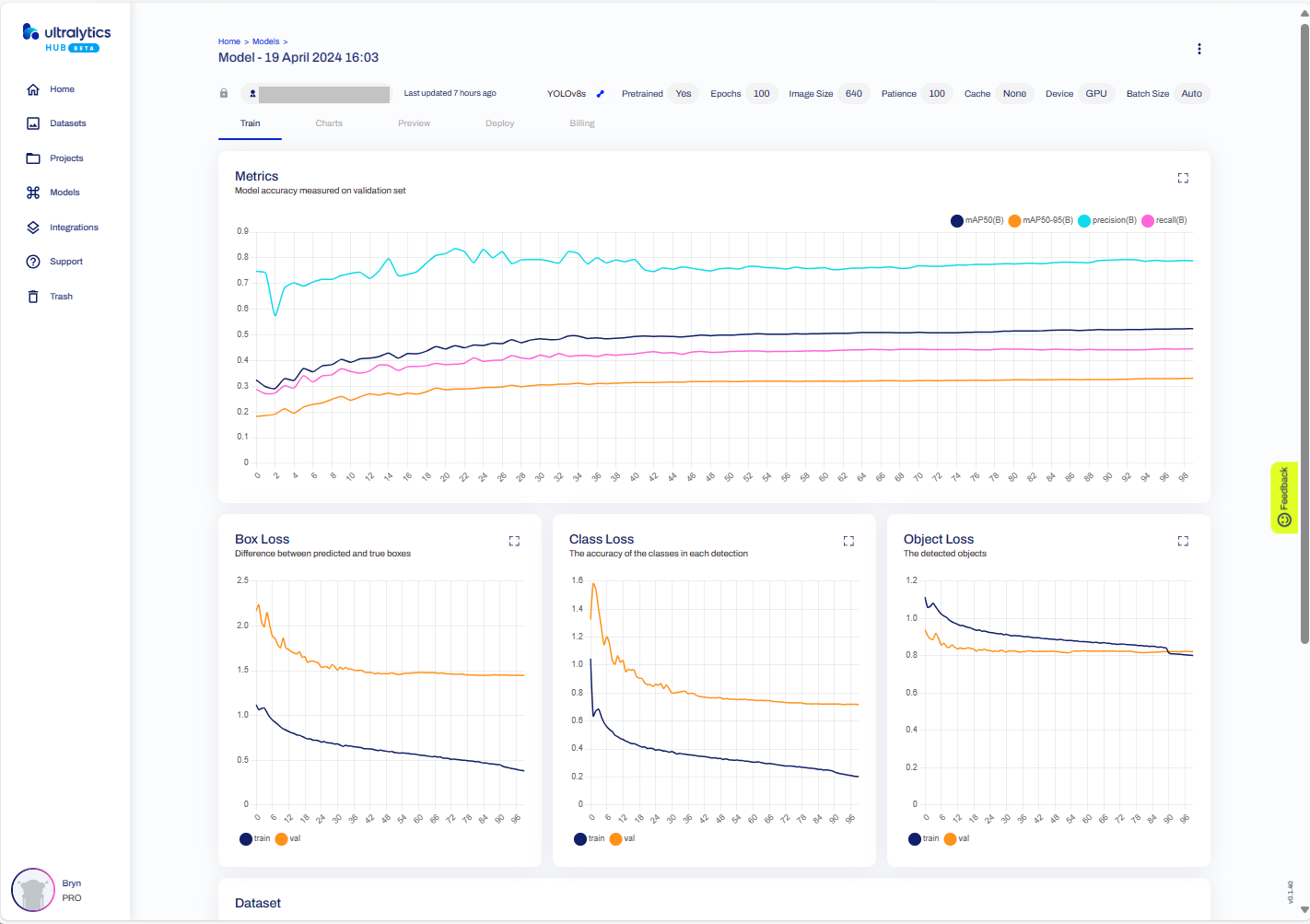
The training process completed with some basic model metrics.
The resources used and model accuracy metrics.
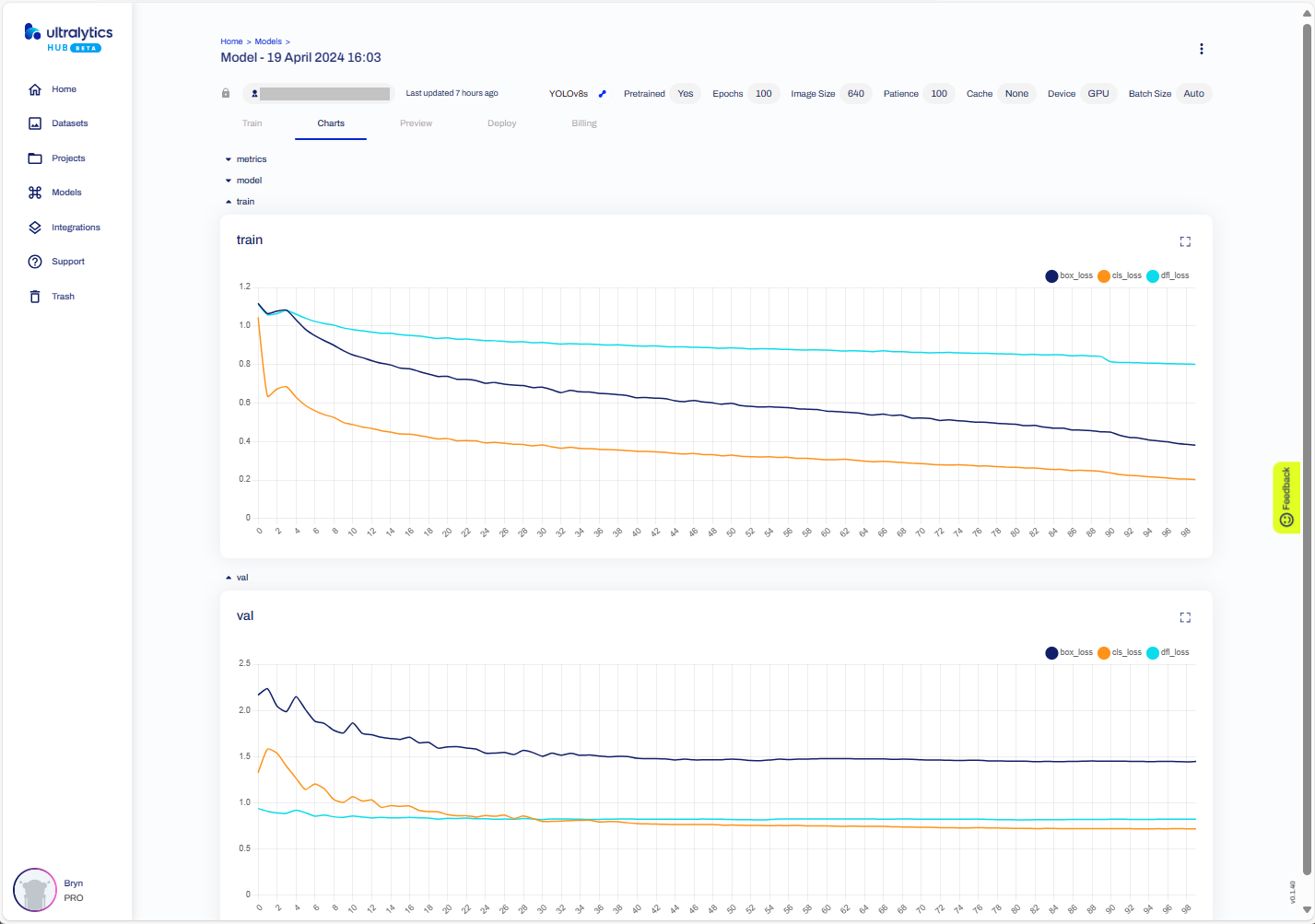
Model training metrics.
Testing the trained model inference results with my test image.
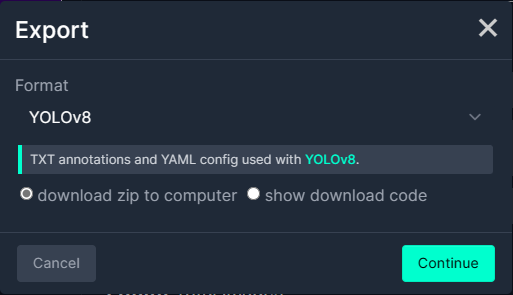
Exporting the trained YoloV8 model in ONNX format.
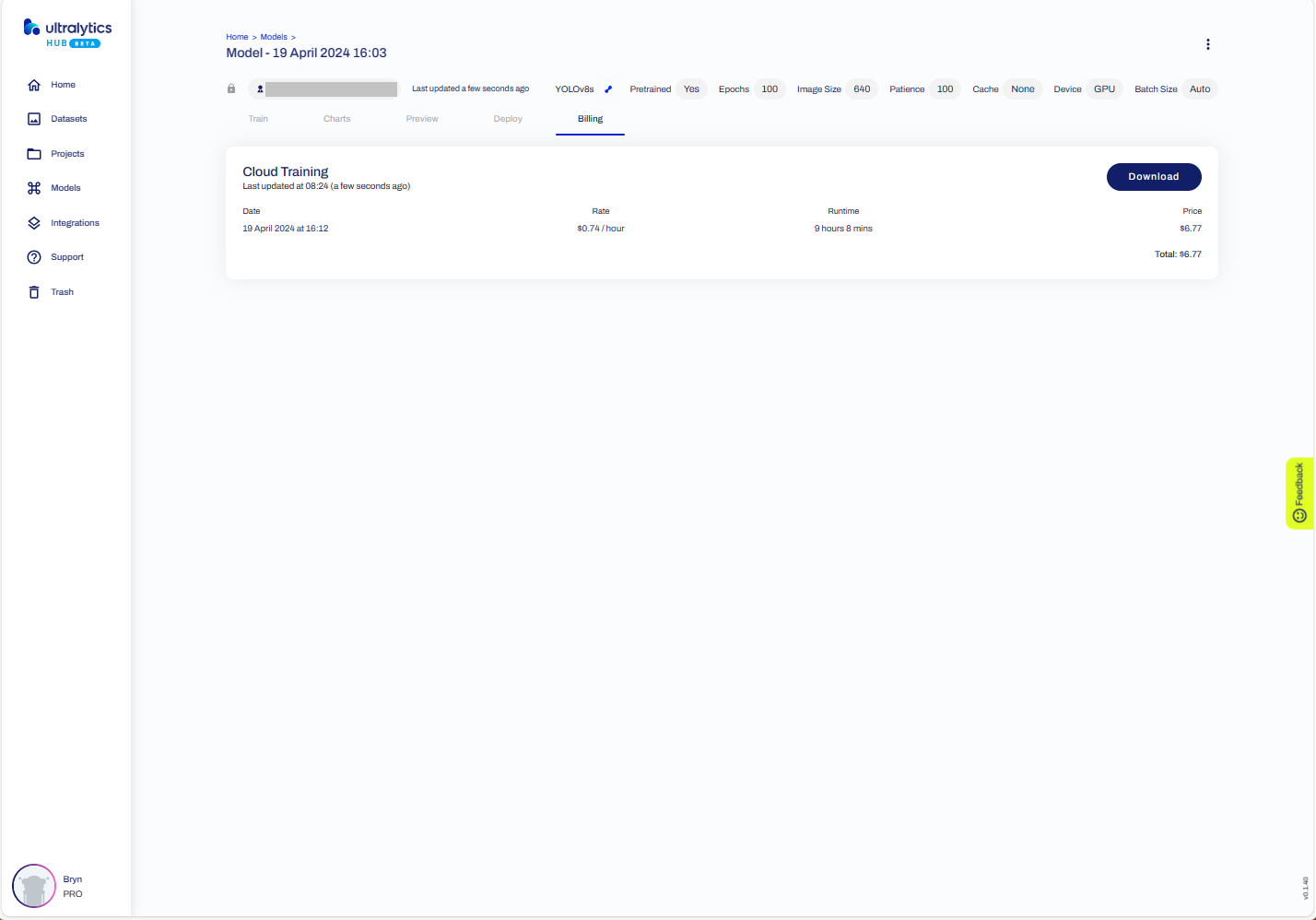
The duration and cost of training the model.
Testing the YoloV8 model with the dem-compunet.Image console application
Marked-up image generated by the dem-compunet.Image console application.
In this post I have not covered YoloV8 model selection and tuning of the training configuration to optimise the “performance” of the model. I used the default settings and then ran the model training overnight which cost USD6.77
This post is not about how create a “good” model it is the approach I took to create a “proof of concept” model for a demonstration.
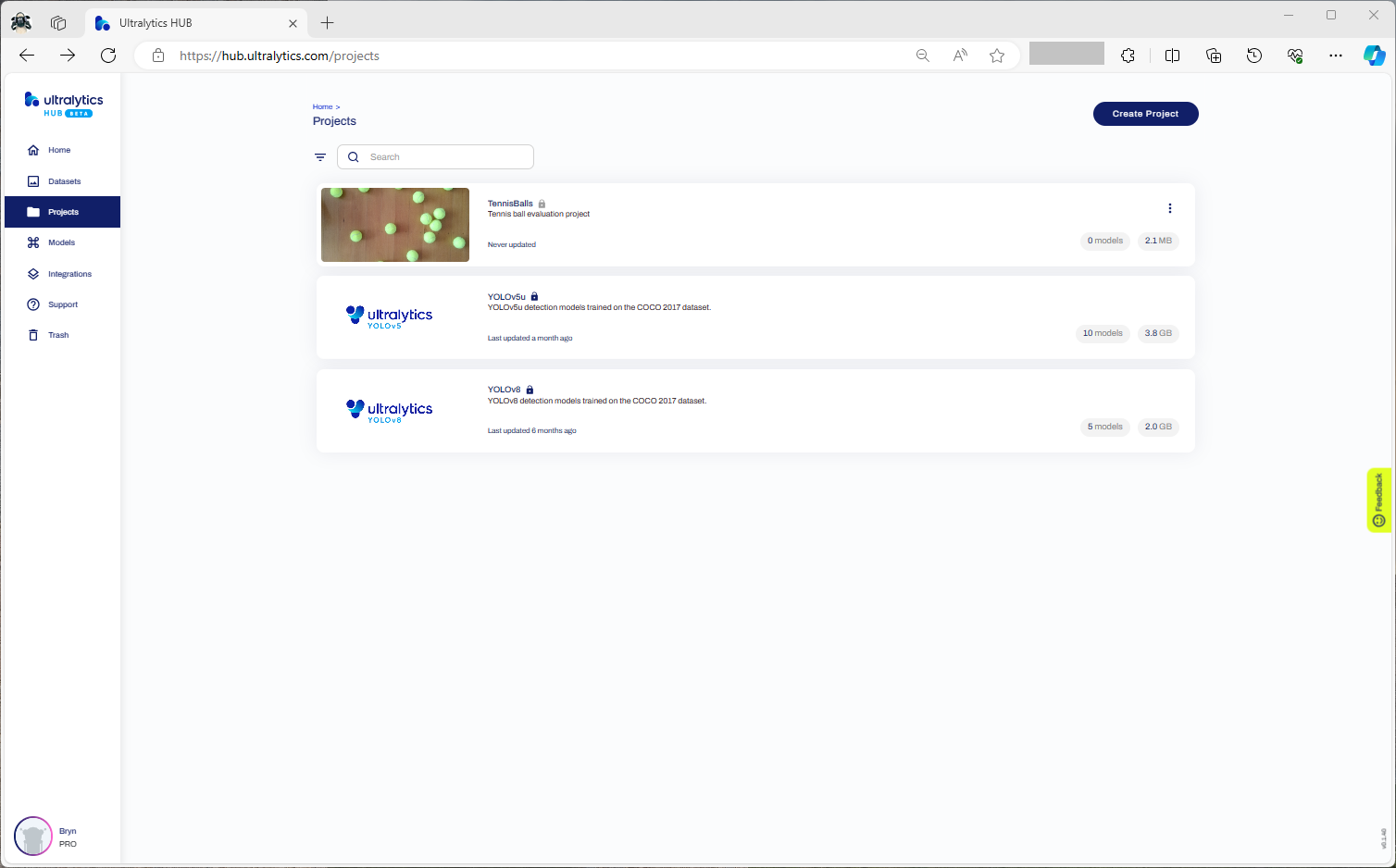
To comply with the Ultralytics AGPL-3.0 License and to use an Ultralytics Pro plan the source code and models for an application have to be open source. Rather than publishing my YoloV8 model (which is quite large) this is the first in a series of posts which detail the process I used to create it. (which I think is more useful)
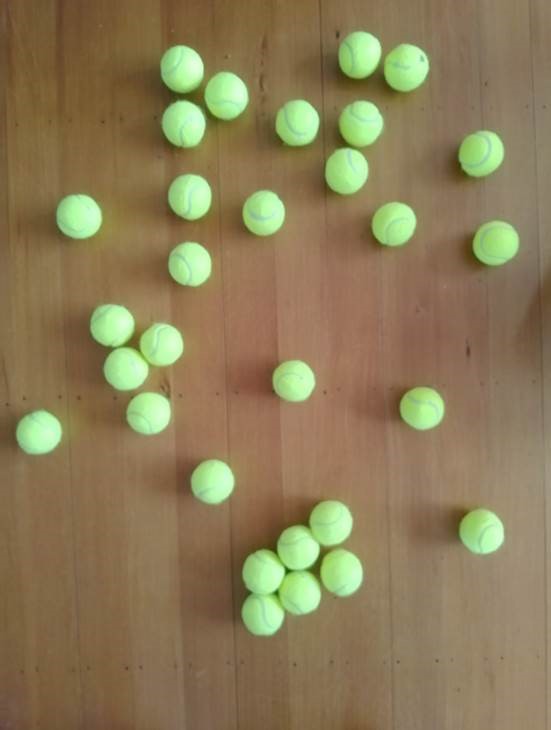
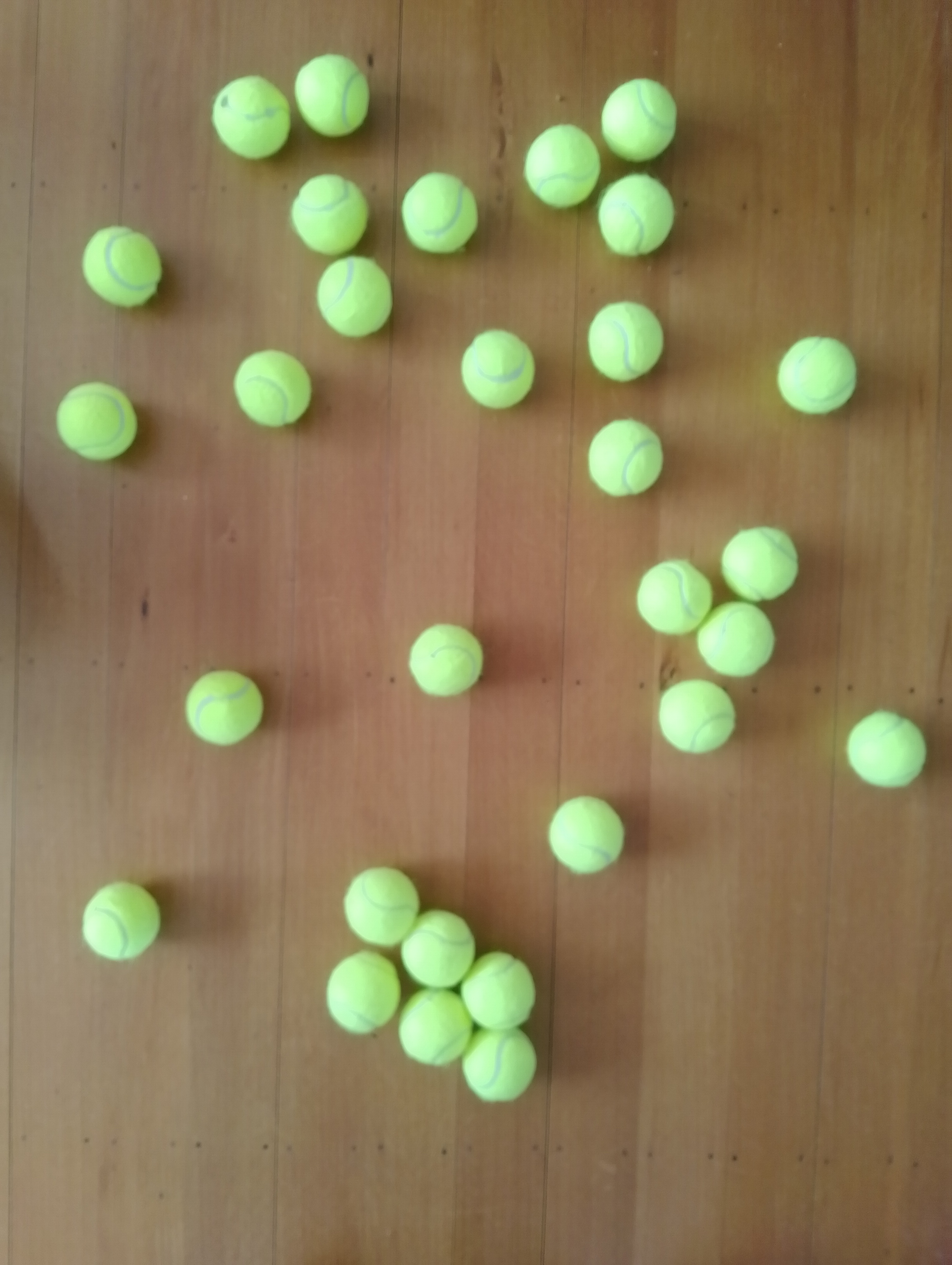
The single test image (not a good idea) is a photograph of 30 tennis balls on my living room floor.
Test image of 30 tennis balls on my living room floor
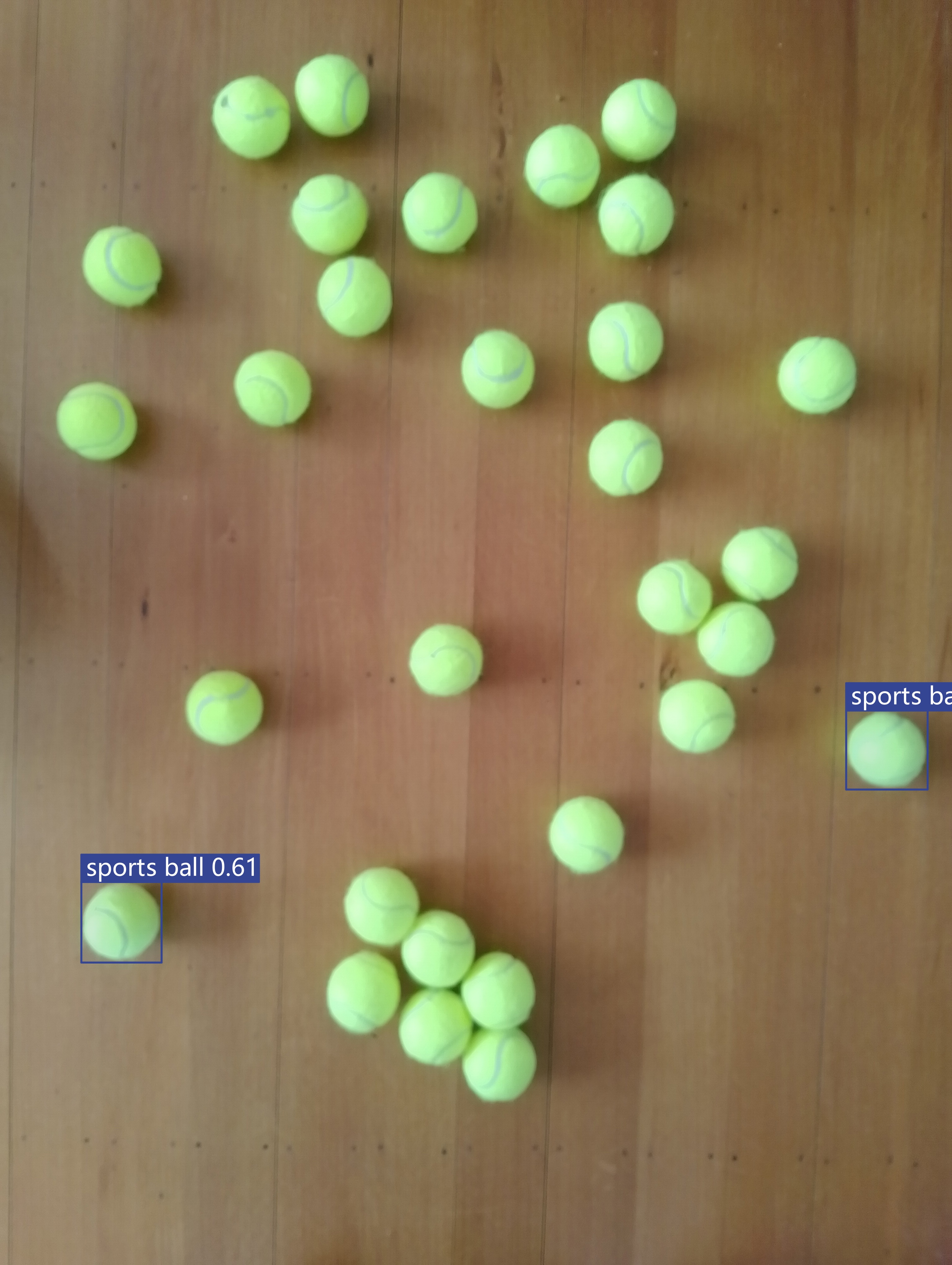
The object detection results using the “default” model were pretty bad, but this wasn’t a surprise as the model is not optimised for this sort of problem.
roboflow universe open-source model dataset search
I have used datasets from roboflow universe which is a great resource for building “proof of concept” applications.
roboflow universe dataset search
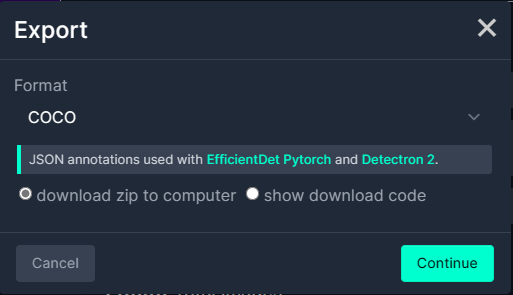
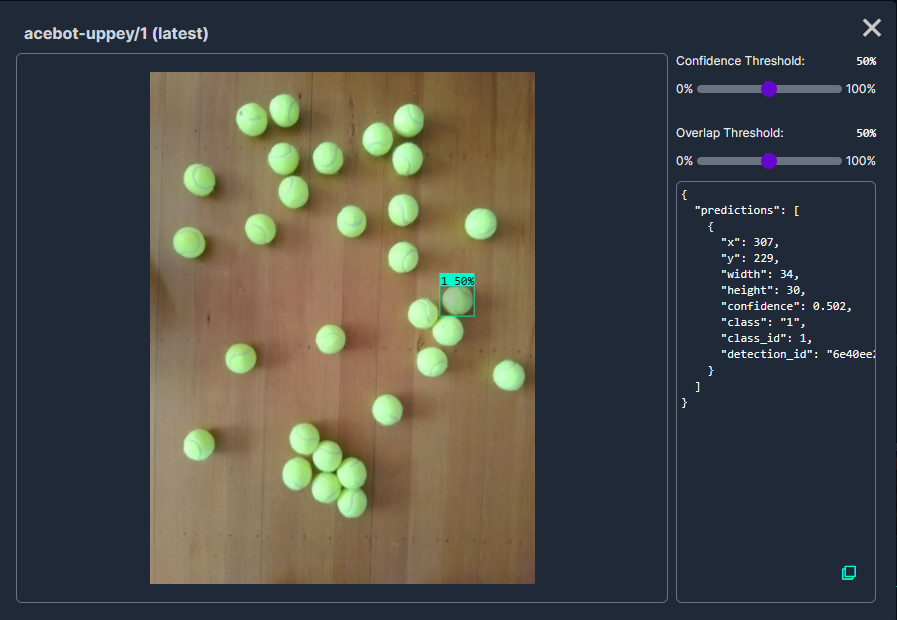
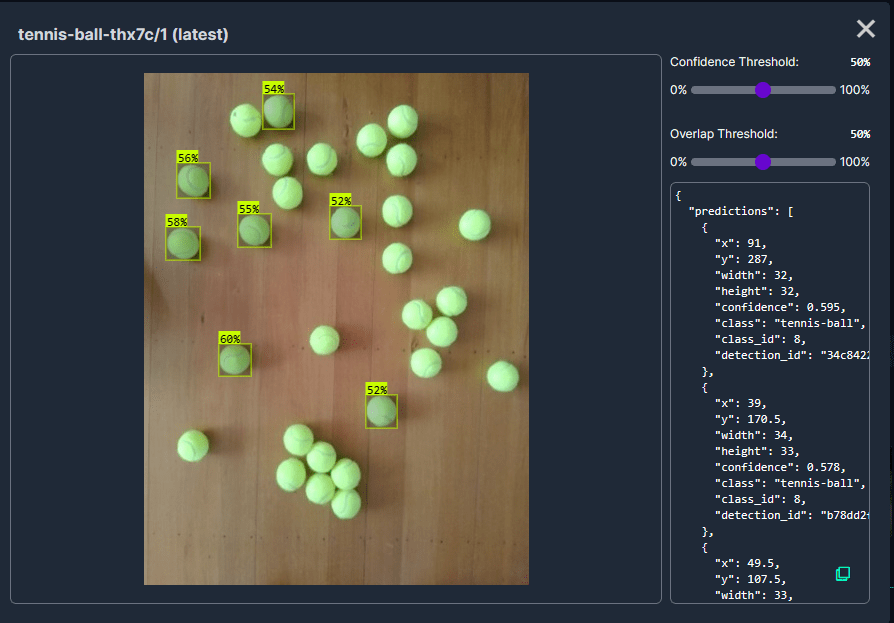
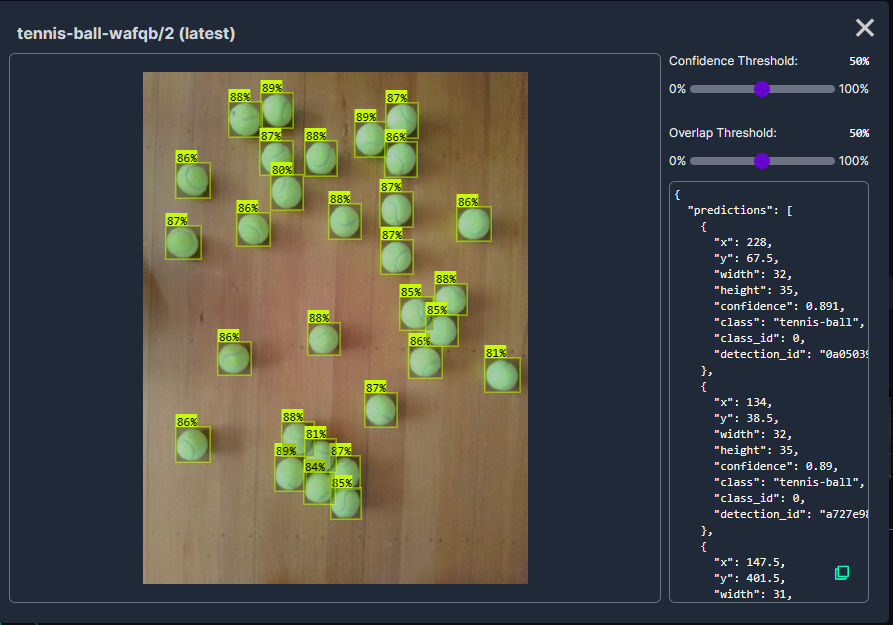
The first step was to identify some datasets which would improve my tennis ball object detection model results. After some searching (with tennis, tennis-ball etc. classes) and filtering (object detection, has a model for faster evaluation, more the 5000 images) to reduce the search results to a manageable number, I identified 5 datasets worth further evaluation.
In my scenario the performance of the Acebot by Mrunal model was worse than the “default” yolov8s model.
In my scenario the performance of the tennis racket by test model was similar to the “default” yolov8s model.
In my scenario the performance of the Tennis Ball by Hust model was a bit better than the “default” yolov8s mode
In my scenario the performance of the roboflow_oball by ahmedelshalkany model was pretty good it detected 28 of the 30 tennis balls.
In my scenario the performance of the Tennis Ball by Ugur Ozdemir model was good it detected all of the 30 tennis balls.
The uses the Microsoft.Extensions.Logging library to publish diagnostic information to the console while debugging the application.
Visual Studio 2022 QuickWatch displaying object detection results.
To check the results I put a breakpoint in the timer just after DetectAsync method is called and then used the Visual Studio 2022 Debugger QuickWatch functionality to inspect the contents of the DetectionResult object.
Visual Studio 2022 JSON Visualiser displaying object detection results.
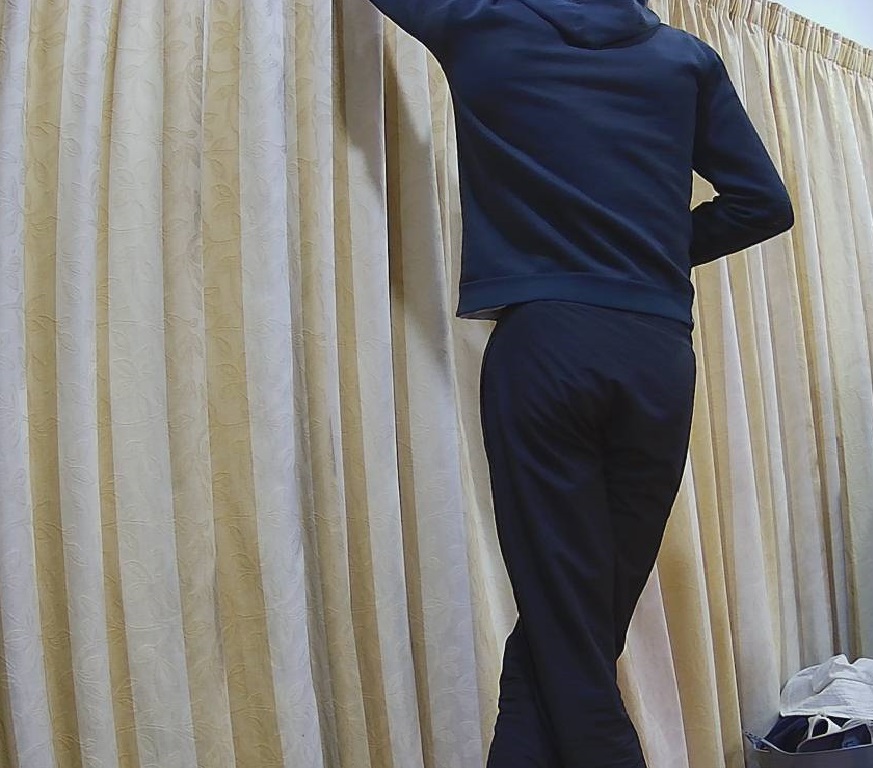
Security Camera image for object detection photo bombed by Yarnold our Standard Apricot Poodle.
This application can also be deployed as a Linuxsystemd Service so it will start then run in the background. The same approach as the YoloV8.Detect.SecurityCamera.Stream sample is used because the image doesn’t have to be saved on the local filesystem.



























 devMobile's blog
