Azure Event Grid MQTT-With HiveMQ & MQTTnet Clients

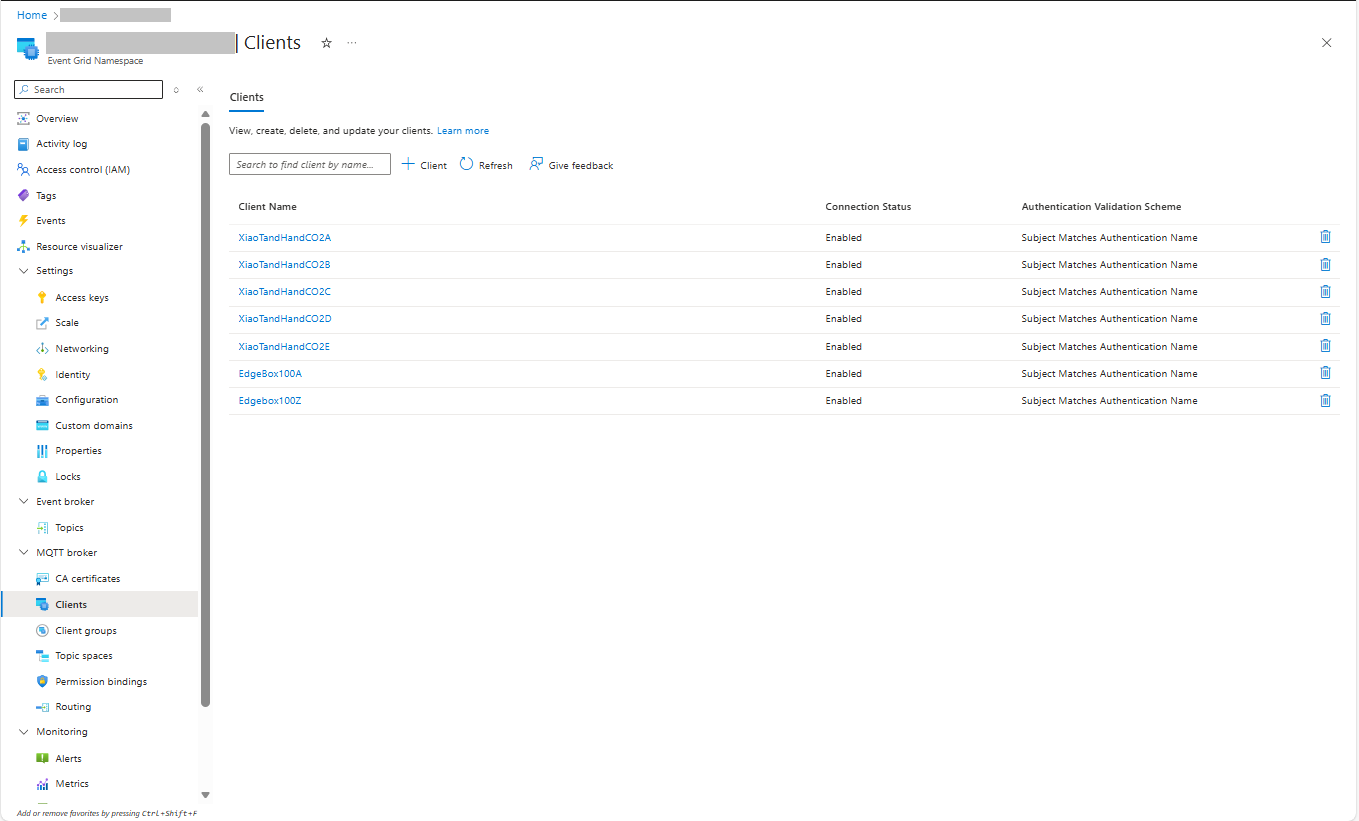
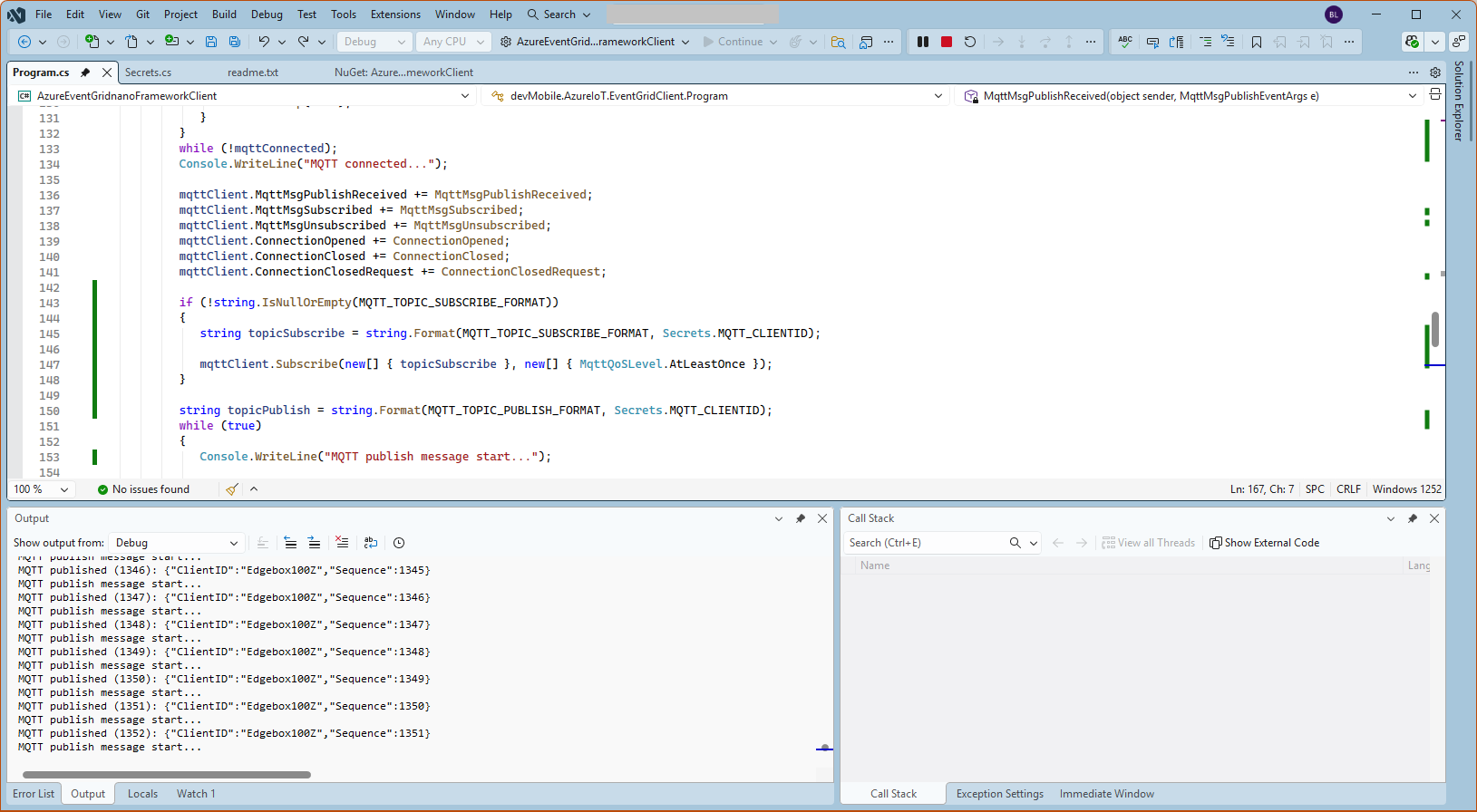
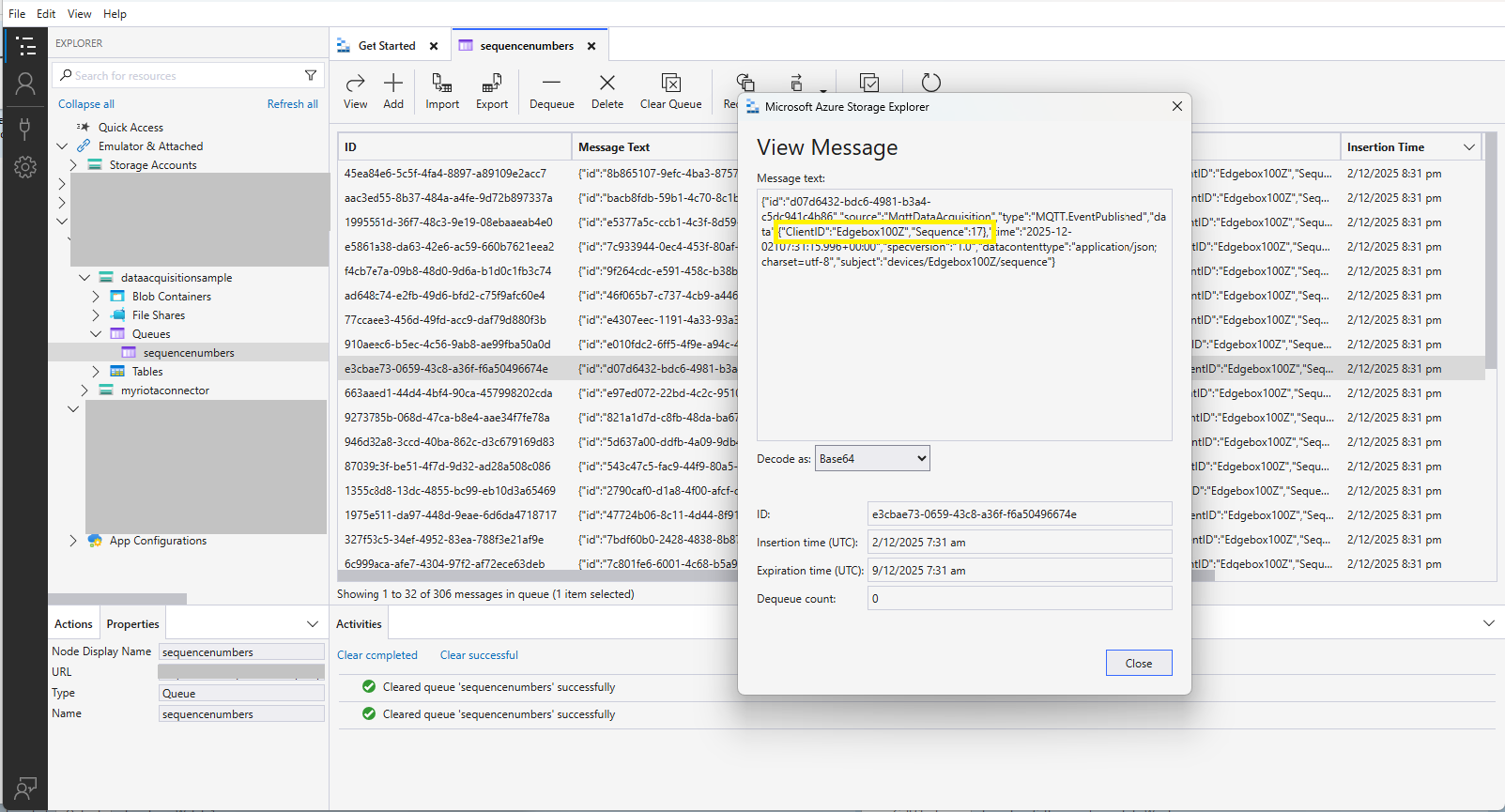
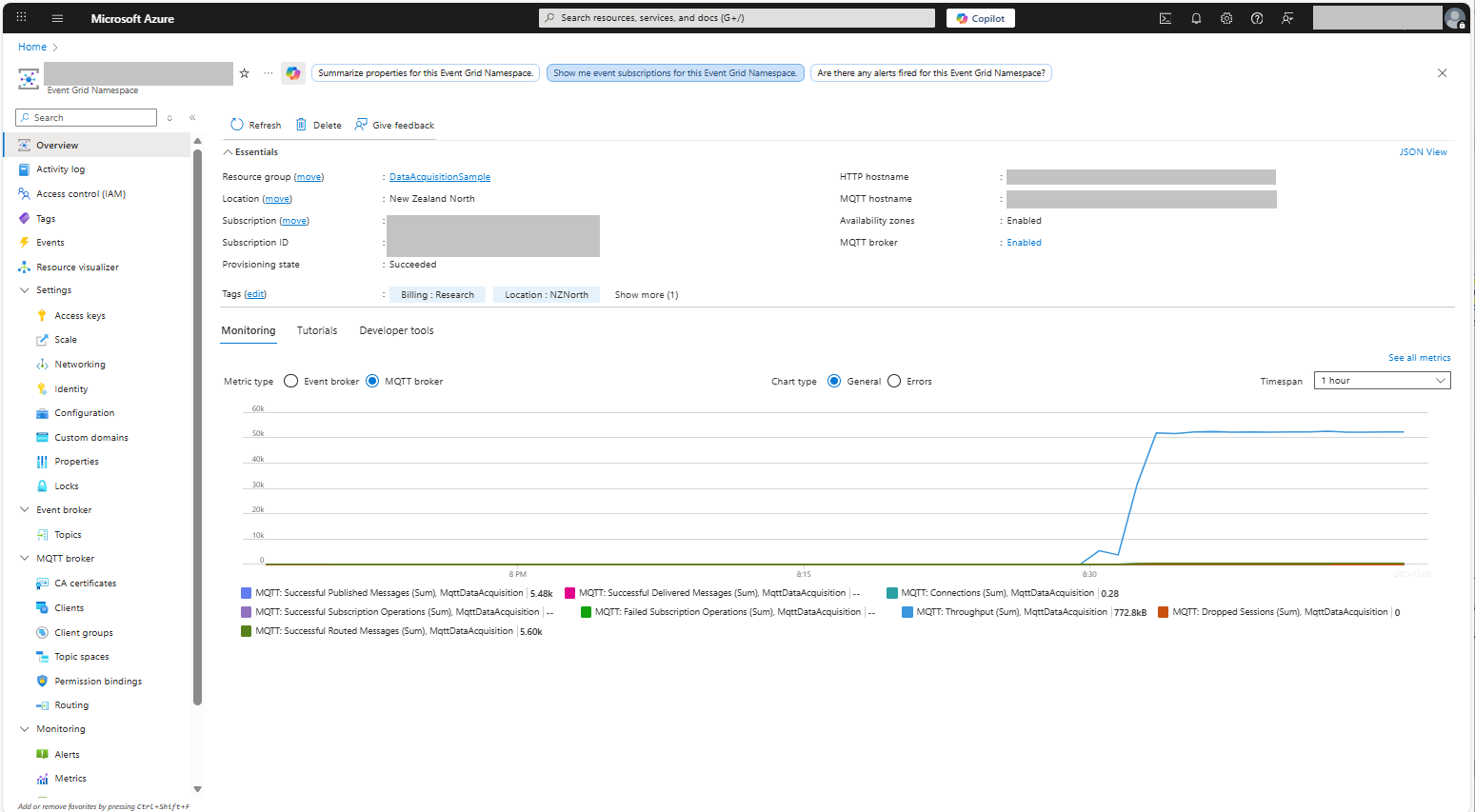
Most of the examples of connecting to Azure Event Grid’s MQTT broker use MQTTnet so for a bit of variety I started with a hivemq-mqtt-client-dotnet based client. (A customer had been evaluating HiveMQ for a project which was later cancelled)

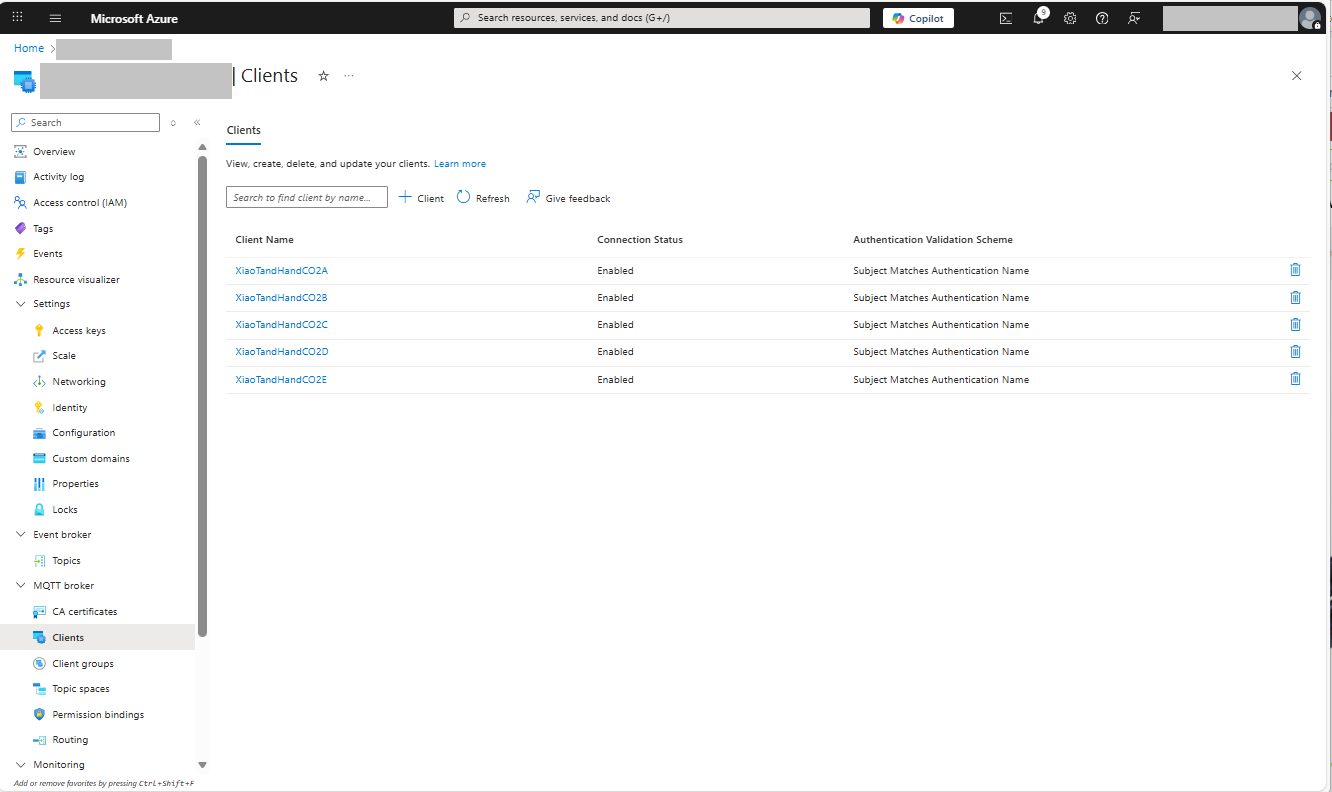
BEWARE – ClientID parameter is case sensitive.

The HiveMQ client was “inspired” by the How to Guides > Custom Client Certificates documentation.

class Program
{
   private static Model.ApplicationSettings _applicationSettings;
   private static HiveMQClient _client;
   private static bool _publisherBusy = false;

   static async Task Main()
   {
      Console.WriteLine($"{DateTime.UtcNow:yy-MM-dd HH:mm:ss} Hive MQ client starting");

      try
      {
         // load the app settings into configuration
         var configuration = new ConfigurationBuilder()
               .AddJsonFile("appsettings.json", false, true)
               .AddUserSecrets<Program>()
         .Build();

         _applicationSettings = configuration.GetSection("ApplicationSettings").Get<Model.ApplicationSettings>();

         var optionsBuilder = new HiveMQClientOptionsBuilder();

         optionsBuilder
            .WithClientId(_applicationSettings.ClientId)
            .WithBroker(_applicationSettings.Host)
            .WithPort(_applicationSettings.Port)
            .WithUserName(_applicationSettings.UserName)
            .WithCleanStart(_applicationSettings.CleanStart)
            .WithClientCertificate(_applicationSettings.ClientCertificateFileName, _applicationSettings.ClientCertificatePassword)
            .WithUseTls(true);

         using (_client = new HiveMQClient(optionsBuilder.Build()))
         {
            _client.OnMessageReceived += OnMessageReceived;

            var connectResult = await _client.ConnectAsync();
            if (connectResult.ReasonCode != ConnAckReasonCode.Success)
            {
               throw new Exception($"Failed to connect: {connectResult.ReasonString}");
            }

            Console.WriteLine($"Subscribed to Topic");
            foreach (string topic in _applicationSettings.SubscribeTopics.Split(',', StringSplitOptions.RemoveEmptyEntries | StringSplitOptions.TrimEntries))
            {
               var subscribeResult = await _client.SubscribeAsync(topic, _applicationSettings.SubscribeQualityOfService);

               Console.WriteLine($" Topic:{topic} Result:{subscribeResult.Subscriptions[0].SubscribeReasonCode}");
            }
   }
//...
}
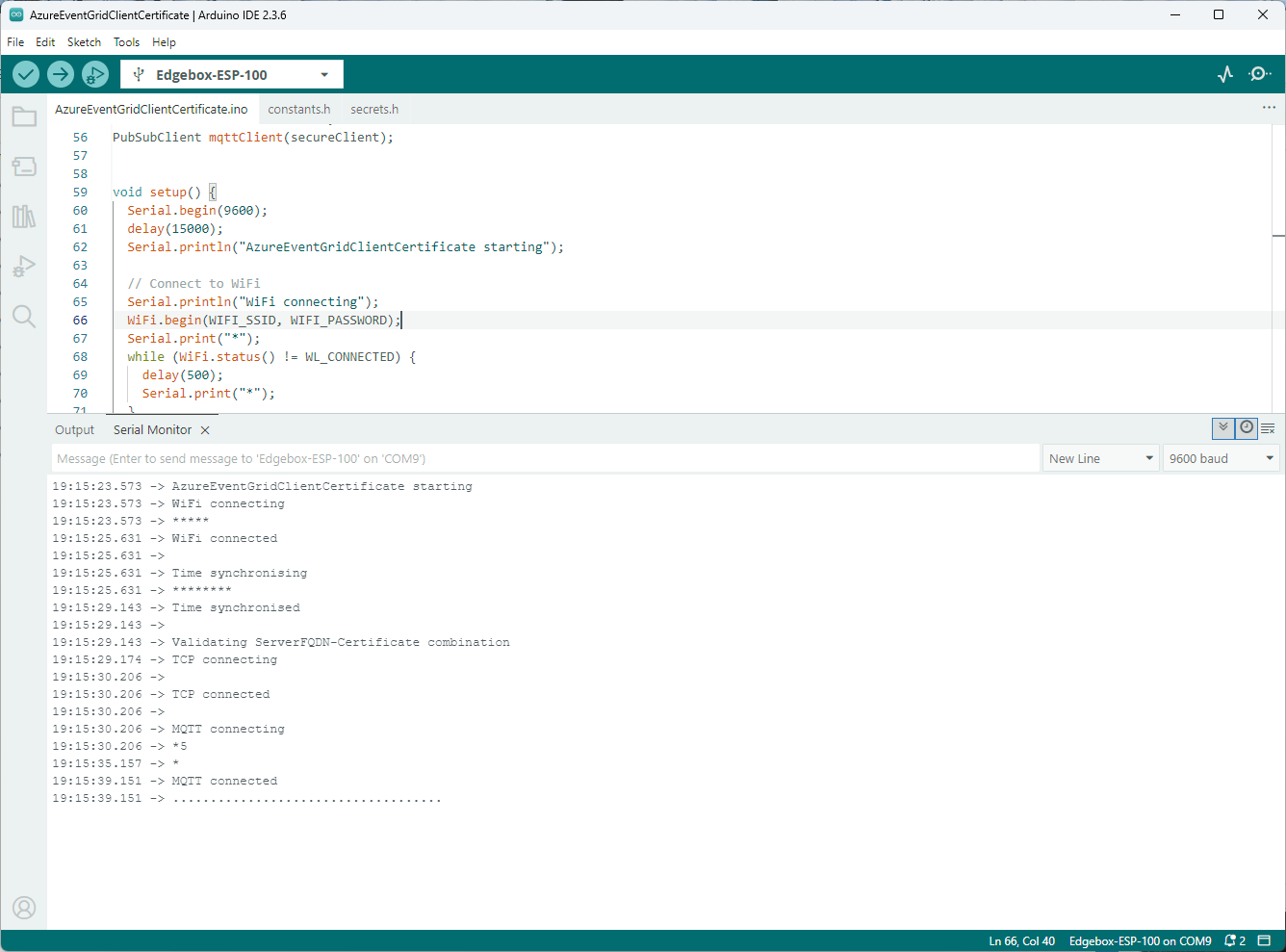
HiveMQ Client console application output

The MQTTnet client was “inspired” by the Azure MQTT .NET Application sample

class Program
{
   private static Model.ApplicationSettings _applicationSettings;
   private static IMqttClient _client;
   private static bool _publisherBusy = false;

   static async Task Main()
   {
      Console.WriteLine($"{DateTime.UtcNow:yy-MM-dd HH:mm:ss} MQTTNet client starting");

      try
      {
         // load the app settings into configuration
         var configuration = new ConfigurationBuilder()
               .AddJsonFile("appsettings.json", false, true)
               .AddUserSecrets<Program>()
         .Build();

         _applicationSettings = configuration.GetSection("ApplicationSettings").Get<Model.ApplicationSettings>();

         var mqttFactory = new MqttFactory();

         using (_client = mqttFactory.CreateMqttClient())
         {
            // Certificate based authentication
            List<X509Certificate2> certificates = new List<X509Certificate2>
            {
               new X509Certificate2(_applicationSettings.ClientCertificateFileName, _applicationSettings.ClientCertificatePassword)
            };

            var tlsOptions = new MqttClientTlsOptionsBuilder()
                  .WithClientCertificates(certificates)
                  .WithSslProtocols(System.Security.Authentication.SslProtocols.Tls12)
                  .UseTls(true)
                  .Build();

            MqttClientOptions mqttClientOptions = new MqttClientOptionsBuilder()
                     .WithClientId(_applicationSettings.ClientId)
                     .WithTcpServer(_applicationSettings.Host, _applicationSettings.Port)
                     .WithCredentials(_applicationSettings.UserName, _applicationSettings.Password)
                     .WithCleanStart(_applicationSettings.CleanStart)
                     .WithTlsOptions(tlsOptions)
                     .Build();

            var connectResult = await _client.ConnectAsync(mqttClientOptions);
            if (connectResult.ResultCode != MqttClientConnectResultCode.Success)
            {
               throw new Exception($"Failed to connect: {connectResult.ReasonString}");
            }

            _client.ApplicationMessageReceivedAsync += OnApplicationMessageReceivedAsync;

            Console.WriteLine($"Subscribed to Topic");
            foreach (string topic in _applicationSettings.SubscribeTopics.Split(',', StringSplitOptions.RemoveEmptyEntries | StringSplitOptions.TrimEntries))
            {
               var subscribeResult = await _client.SubscribeAsync(topic, _applicationSettings.SubscribeQualityOfService);

               Console.WriteLine($" {topic} Result:{subscribeResult.Items.First().ResultCode}");
            }
      }
//...
}
MQTTnet client console application output

The design of the MQTT protocol means that the hivemq-mqtt-client-dotnet and MQTTnet implementations are similar. Having used both I personally prefer the HiveMQ client library.

Azure Event Grid MQTT-Certificates

When configuring Root, Intermediate and Device certificates for my Azure Event Grid Devices using the smallstep step-ca or OpenSSL I made mistakes/typos which broke my deployment and in the end I was copying and pasting commands from Windows Notepad.

For one test deployment it took me an hour to generate the Root, Intermediate and a number of Devices certificates which was a waste of time. At this point I decided investigate writing some applications to simplify the process.

After some searching I stumbled across CREATING CERTIFICATES FOR X.509 SECURITY IN AZURE IOT HUB USING .NET CORE by Damien Bod which showed how to generate certificates for Azure IoT Hub solutions using his NuGet package Certificate Manager.

The AzureIoTHubDps repository had a sample showing how to generate the certificate chain for Azure IoT Hub devices. It worked really well but I accidentally overwrote my Root and Intermediate certificates, there were some “magic numbers” and hard coded passwords (it was a sample) so I decided to “chop” the sample up into three command line applications.

static void Main(string[] args)
{
   var serviceProvider = new ServiceCollection()
         .AddCertificateManager()
         .BuildServiceProvider();

   // load the app settings into configuration
   var configuration = new ConfigurationBuilder()
         .AddJsonFile("appsettings.json", false, true)
         .AddUserSecrets<Program>()
   .Build();

   _applicationSettings = configuration.GetSection("ApplicationSettings").Get<Model.ApplicationSettings>();
//------
   Console.WriteLine($"validFrom:{validFrom} ValidTo:{validTo}");

   var serverRootCertificate = serviceProvider.GetService<CreateCertificatesClientServerAuth>();

   var root = serverRootCertificate.NewRootCertificate(
         new DistinguishedName { 
               CommonName = _applicationSettings.CommonName,
               Organisation = _applicationSettings.Organisation,
               OrganisationUnit = _applicationSettings.OrganisationUnit,
               Locality = _applicationSettings.Locality,
               StateProvince  = _applicationSettings.StateProvince,
               Country = _applicationSettings.Country
         },
         new ValidityPeriod { 
         ValidFrom = validFrom,
         ValidTo = validTo,
         },
         _applicationSettings.PathLengthConstraint,
         _applicationSettings.DnsName);
   root.FriendlyName = _applicationSettings.FriendlyName;

   Console.Write("PFX Password:");
   string password = Console.ReadLine();
   if ( String.IsNullOrEmpty(password))
   {
      Console.WriteLine("PFX Password invalid");
      return;
   }

   var exportCertificate = serviceProvider.GetService<ImportExportCertificate>();

   var rootCertificatePfxBytes = exportCertificate.ExportRootPfx(password, root);
   File.WriteAllBytes(_applicationSettings.RootCertificateFilePath, rootCertificatePfxBytes);

   Console.WriteLine($"Root certificate file:{_applicationSettings.RootCertificateFilePath}");
   Console.WriteLine("press enter to exit");
   Console.ReadLine();
}

The application’s configuration was split between application settings file(certificate file paths, validity periods, Organisation etc.) or entered at runtime ( certificate filenames, passwords etc.) The first application generates a Root Certificate using the distinguished name information from the application settings, plus file names and passwords entered by the user.

Root Certificate generation application output

The second application generates an Intermediate Certificate using the Root Certificate, the distinguished name information from the application settings, plus file names and passwords entered by the user.

static void Main(string[] args)
{
   var serviceProvider = new ServiceCollection()
         .AddCertificateManager()
         .BuildServiceProvider();

   // load the app settings into configuration
   var configuration = new ConfigurationBuilder()
         .AddJsonFile("appsettings.json", false, true)
         .AddUserSecrets<Program>()
   .Build();

   _applicationSettings = configuration.GetSection("ApplicationSettings").Get<Model.ApplicationSettings>();
//------
   Console.WriteLine($"validFrom:{validFrom} be after ValidTo:{validTo}");

   Console.WriteLine($"Root Certificate file:{_applicationSettings.RootCertificateFilePath}");

   Console.Write("Root Certificate Password:");
   string rootPassword = Console.ReadLine();
   if (String.IsNullOrEmpty(rootPassword))
   {
      Console.WriteLine("Fail");
      return;
   }
   var rootCertificate = new X509Certificate2(_applicationSettings.RootCertificateFilePath, rootPassword);

   var intermediateCertificateCreate = serviceProvider.GetService<CreateCertificatesClientServerAuth>();

   var intermediateCertificate = intermediateCertificateCreate.NewIntermediateChainedCertificate(
         new DistinguishedName
         {
            CommonName = _applicationSettings.CommonName,
            Organisation = _applicationSettings.Organisation,
            OrganisationUnit = _applicationSettings.OrganisationUnit,
            Locality = _applicationSettings.Locality,
            StateProvince = _applicationSettings.StateProvince,
            Country = _applicationSettings.Country
         },
      new ValidityPeriod
      {
         ValidFrom = validFrom,
         ValidTo = validTo,
      },
            _applicationSettings.PathLengthConstraint,
            _applicationSettings.DnsName, rootCertificate);
      intermediateCertificate.FriendlyName = _applicationSettings.FriendlyName;

   Console.Write("Intermediate certificate Password:");
   string intermediatePassword = Console.ReadLine();
   if (String.IsNullOrEmpty(intermediatePassword))
   {
      Console.WriteLine("Fail");
      return;
   }

   var importExportCertificate = serviceProvider.GetService<ImportExportCertificate>();

   Console.WriteLine($"Intermediate PFX file:{_applicationSettings.IntermediateCertificatePfxFilePath}");
   var intermediateCertificatePfxBtyes = importExportCertificate.ExportChainedCertificatePfx(intermediatePassword, intermediateCertificate, rootCertificate);
   File.WriteAllBytes(_applicationSettings.IntermediateCertificatePfxFilePath, intermediateCertificatePfxBtyes);

   Console.WriteLine($"Intermediate CER file:{_applicationSettings.IntermediateCertificateCerFilePath}");
   var intermediateCertificatePemText = importExportCertificate.PemExportPublicKeyCertificate(intermediateCertificate);
   File.WriteAllText(_applicationSettings.IntermediateCertificateCerFilePath, intermediateCertificatePemText);

   Console.WriteLine("press enter to exit");
   Console.ReadLine();
}
Intermediate Certificate generation application output
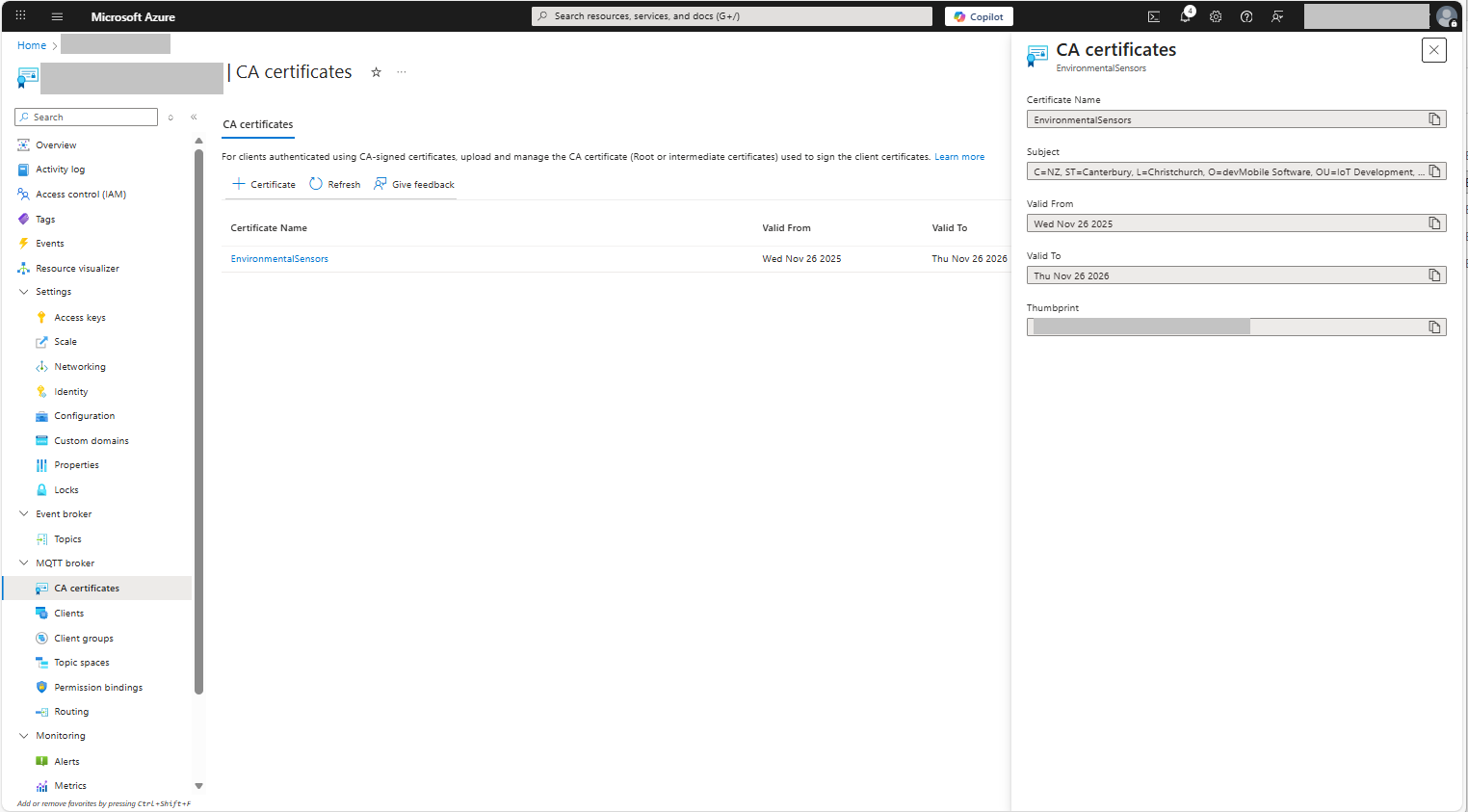
Uploading the Intermediate certificate to Azure Event Grid

The third application generates Device Certificates using the Intermediate Certificate, distinguished name information from the application settings, plus device id, file names and passwords entered by the user.

static void Main(string[] args)
{
   var serviceProvider = new ServiceCollection()
         .AddCertificateManager()
         .BuildServiceProvider();

   // load the app settings into configuration
   var configuration = new ConfigurationBuilder()
         .AddJsonFile("appsettings.json", false, true)
         .AddUserSecrets<Program>()
   .Build();

   _applicationSettings = configuration.GetSection("ApplicationSettings").Get<Model.ApplicationSettings>();
//------
   Console.WriteLine($"validFrom:{validFrom} ValidTo:{validTo}");

   Console.WriteLine($"Intermediate PFX file:{_applicationSettings.IntermediateCertificateFilePath}");

   Console.Write("Intermediate PFX Password:");
   string intermediatePassword = Console.ReadLine();
   if (String.IsNullOrEmpty(intermediatePassword))
   {
      Console.WriteLine("Intermediate PFX Password invalid");
      return;
   }
   var intermediate = new X509Certificate2(_applicationSettings.IntermediateCertificateFilePath, intermediatePassword);

   Console.Write("Device ID:");
   string deviceId = Console.ReadLine();
   if (String.IsNullOrEmpty(deviceId))
   {
      Console.WriteLine("Device ID invalid");
      return;
   }

   var createClientServerAuthCerts = serviceProvider.GetService<CreateCertificatesClientServerAuth>();

   var device = createClientServerAuthCerts.NewDeviceChainedCertificate(
         new DistinguishedName
         {
            CommonName = deviceId,
            Organisation = _applicationSettings.Organisation,
            OrganisationUnit = _applicationSettings.OrganisationUnit,
            Locality = _applicationSettings.Locality,
            StateProvince = _applicationSettings.StateProvince,
            Country = _applicationSettings.Country
         },
      new ValidityPeriod
      {
         ValidFrom = validFrom,
         ValidTo = validTo,
      },
      deviceId, intermediate);
   device.FriendlyName = deviceId;

   Console.Write("Device PFX Password:");
   string devicePassword = Console.ReadLine();
   if (String.IsNullOrEmpty(devicePassword))
   {
      Console.WriteLine("Fail");
      return;
   }

   var importExportCertificate = serviceProvider.GetService<ImportExportCertificate>();

   string devicePfxPath = string.Format(_applicationSettings.DeviceCertificatePfxFilePath, deviceId);

   Console.WriteLine($"Device PFX file:{devicePfxPath}");
   var deviceCertificatePath = importExportCertificate.ExportChainedCertificatePfx(devicePassword, device, intermediate);
   File.WriteAllBytes(devicePfxPath,  deviceCertificatePath);

   Console.WriteLine("press enter to exit");
   Console.ReadLine();
}
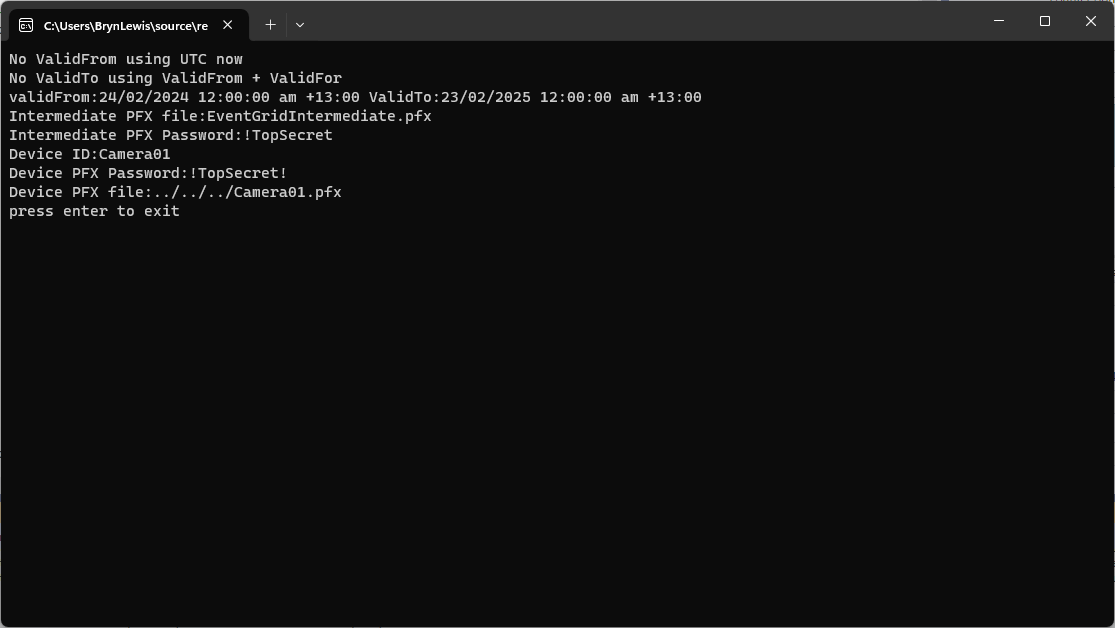
Device Certificate generation application output
Uploading the Intermediate certificate to Azure Event Grid

These applications wouldn’t have been possible without Damien Bod’s CREATING CERTIFICATES FOR X.509 SECURITY IN AZURE IOT HUB USING .NET CORE blog post, and his Certificate Manager NuGet package.

RAK7258 Local server and Message Queuing Telemetry Transport(MQTT)

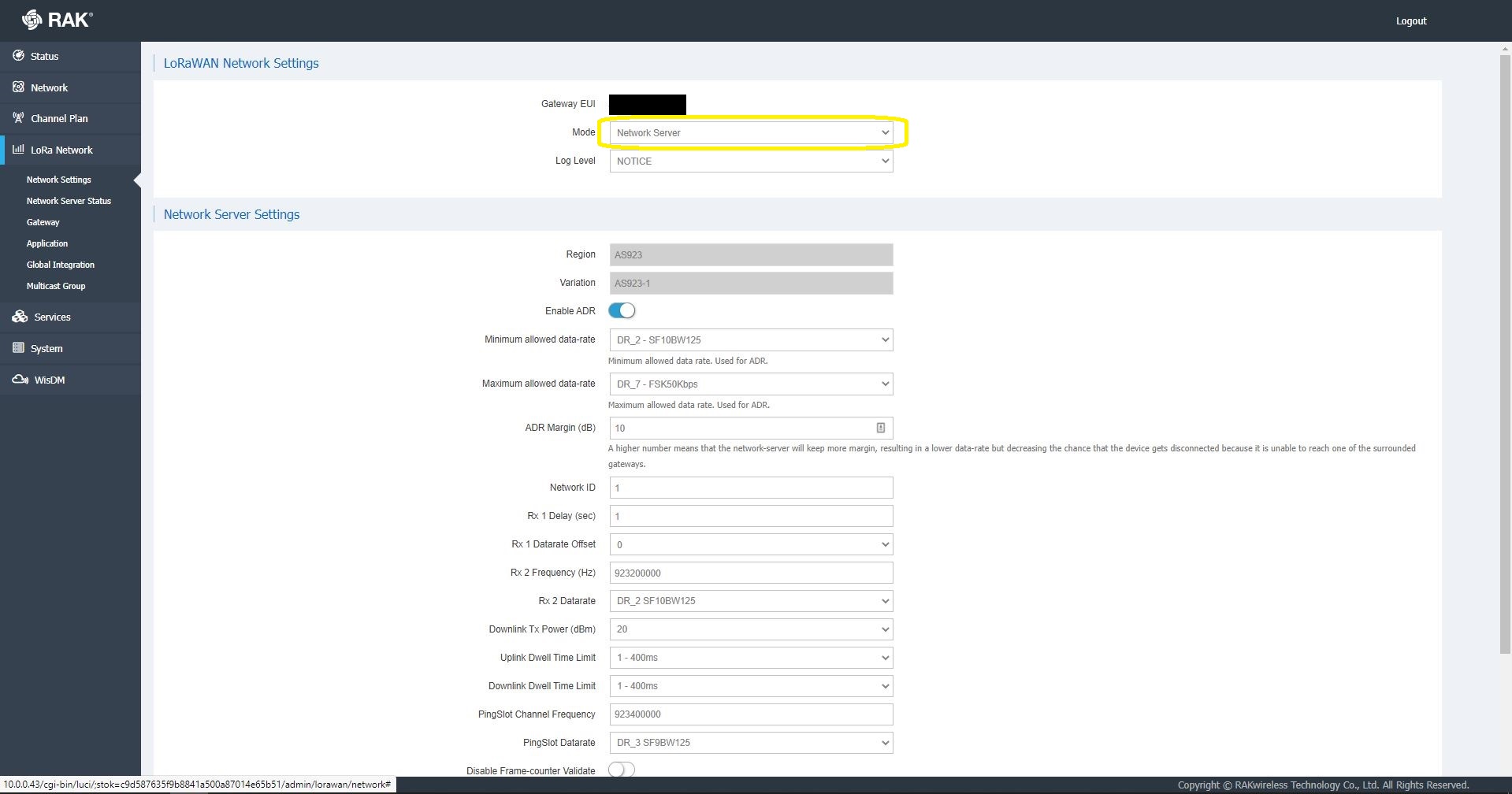
This post was originally about getting the built in Network Server of my RAKWireless RAK7258 WisGate Edge Lite to connect to an Azure IoT Hub or Azure IoT Central. The RAK7258 had been connected to The Things Industries(TTI) network so I updated the firmware and checked the “mode” in the LoRaWAN Network settings.

RAK 7258 LoRaWAN Network settings

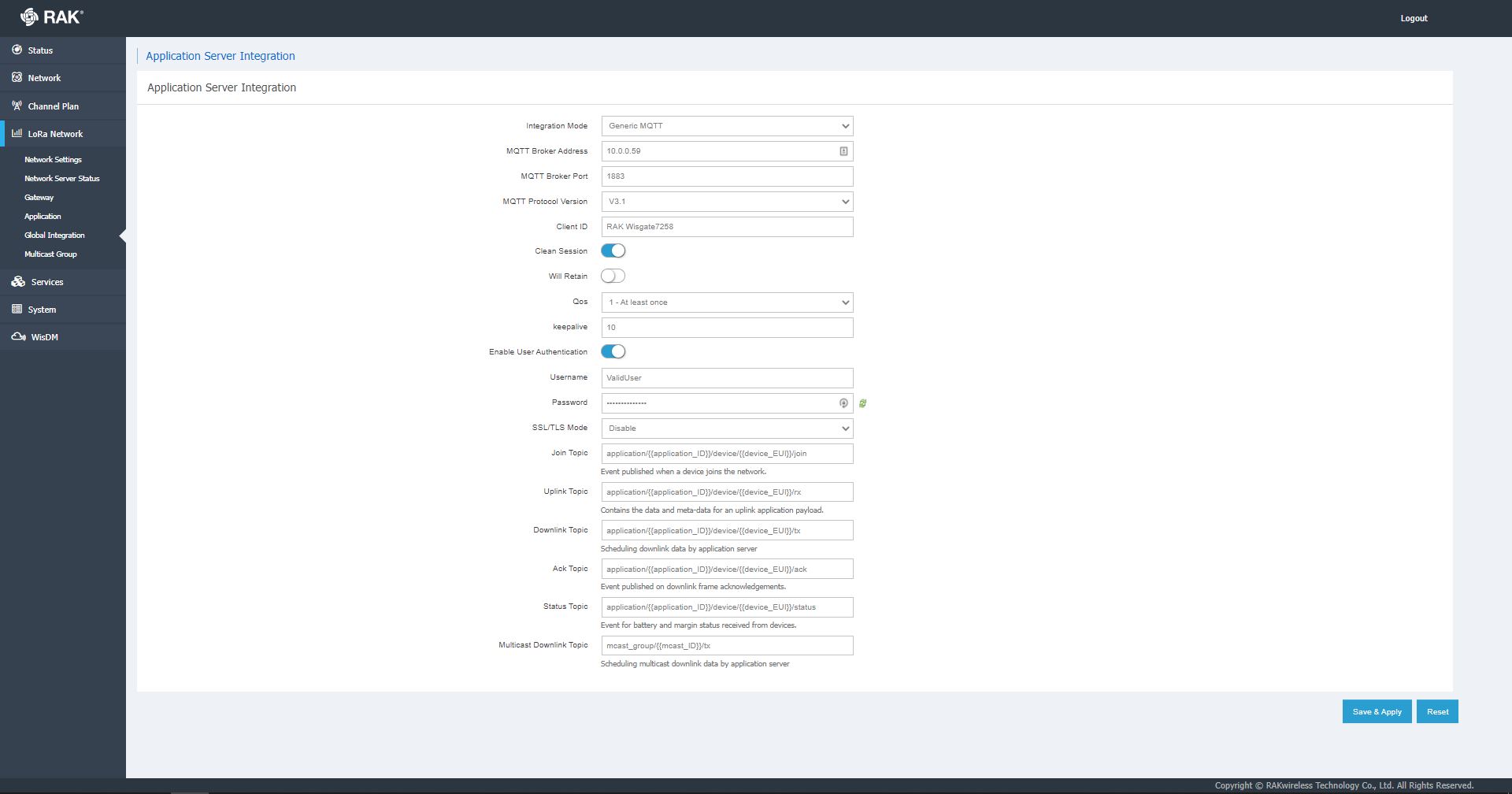
Azure IoT Hub is not a fully featured MQTT broker so I initially looked at running Eclipse Mosquitto or HiveMQ locally but this seemed like a lot of effort for a Proof of Concept(PoC).

RAK 7258 Network Server Global Integration settings

I have used MQTTNet in a few other projects (The Things Network(TTN) V3 Azure IoT Connector, The Things Network V2 MQTT SQL Connector, Windows 10 IoT Core MQTT Field gateway etc.) and there was a sample application which showed ho to build a simple server so that became my preferred approach.

I then started exploring how applications and devices are provisioned in the RAK Network Server.

RAK 7258 Network Server applications list

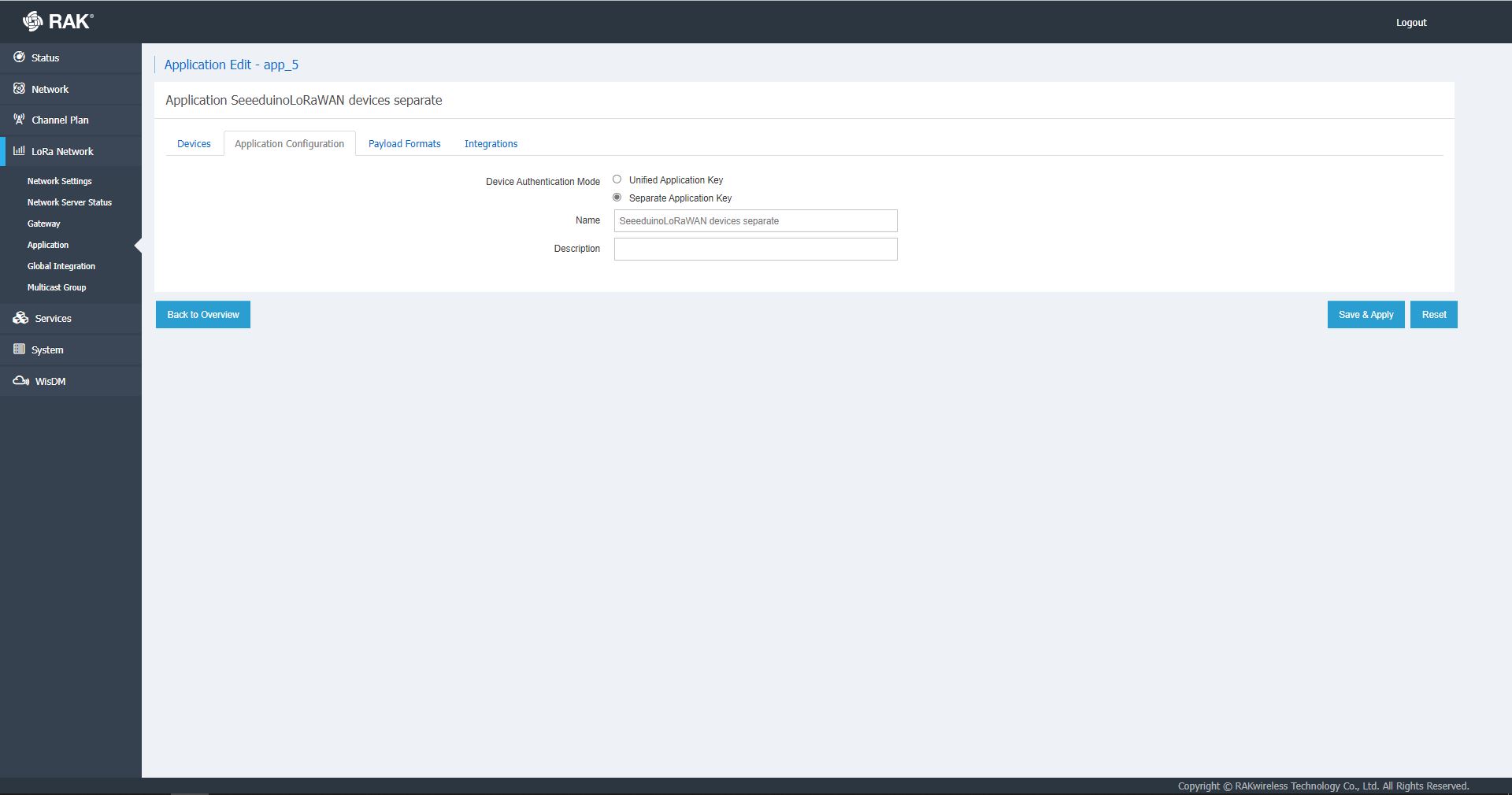
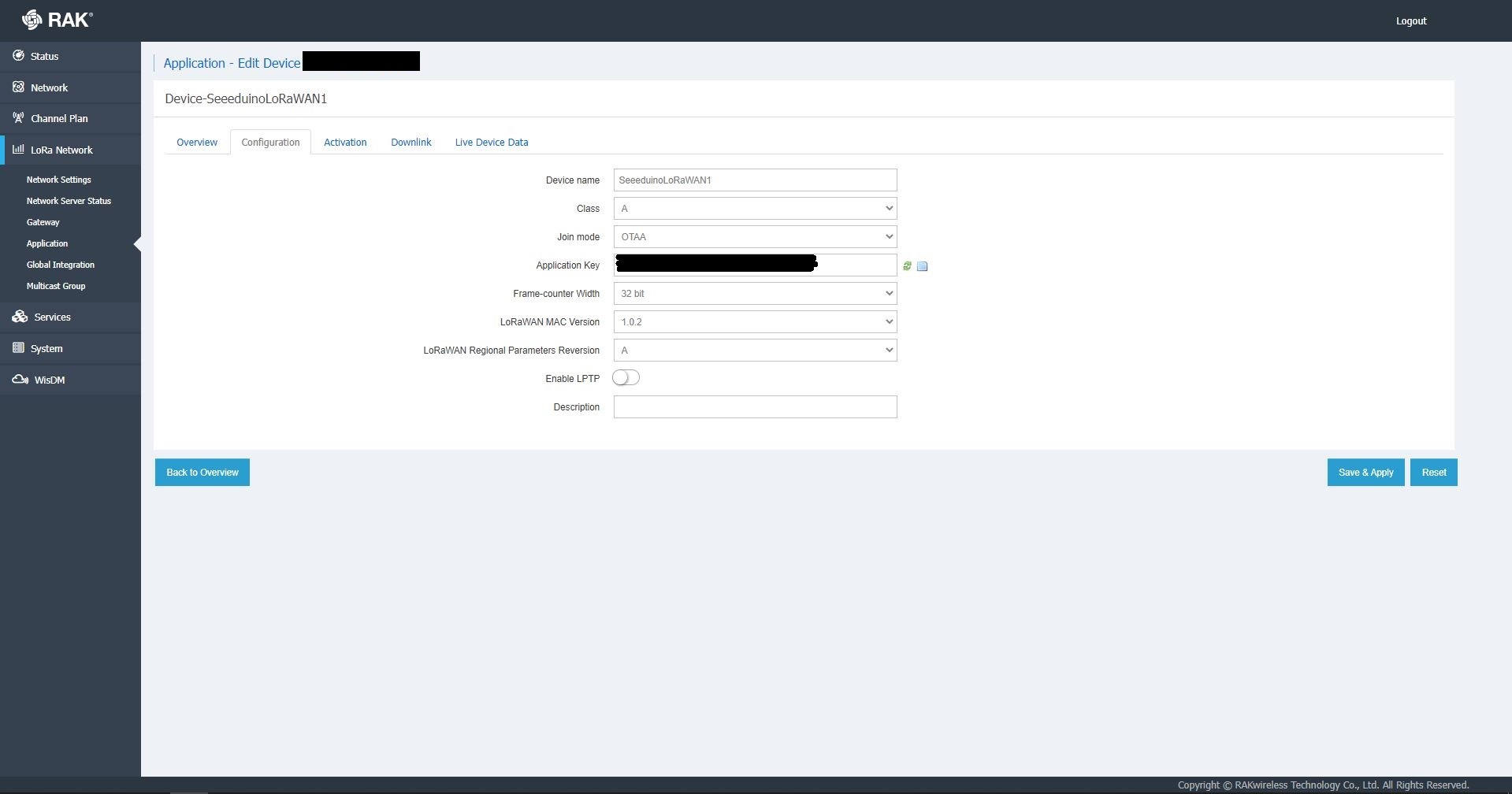
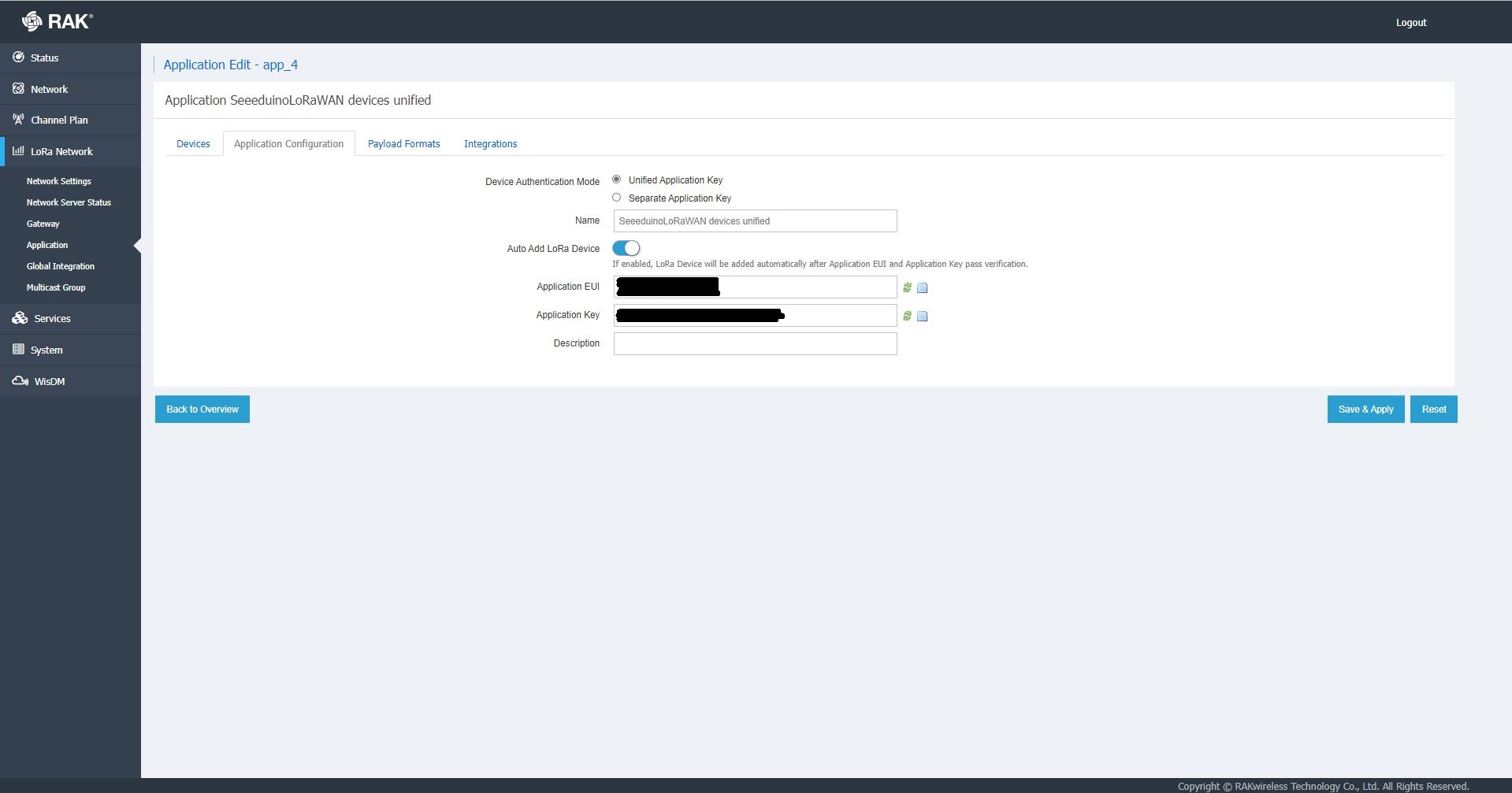
The network server software has “unified” and “separate” “Device authentication mode”s and will “auto Add LoRa Device”s if enabled.

RAK 7258 Network Server Separate Application basic setup
RAK 7258 Network Server Separate Application device basic setup
RAK 7258 Network Server Unified Application device basic setup

Applications also have configurable payload formats(raw & LPP) and integrations (uplink messages plus join, ack, and device notifications etc.)

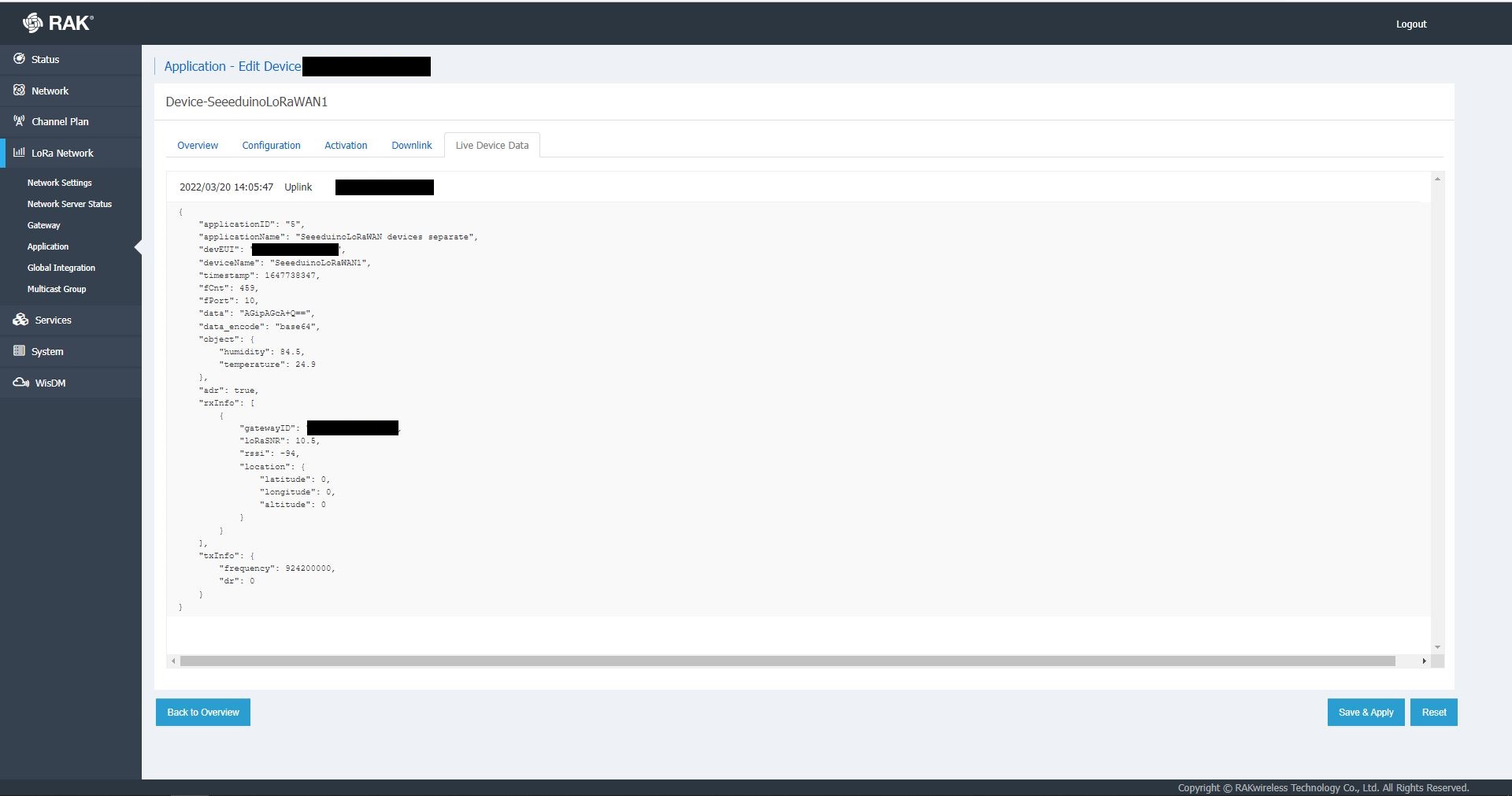
RAK7258 live device data display

In the sample server I could see how ValidatingConnectionAsync was used to check the clientID, username and password when a device connected. I just wanted to display messages and payloads without having to use an MQTT client and it looked like InterceptingPublishAsync was a possible solution.

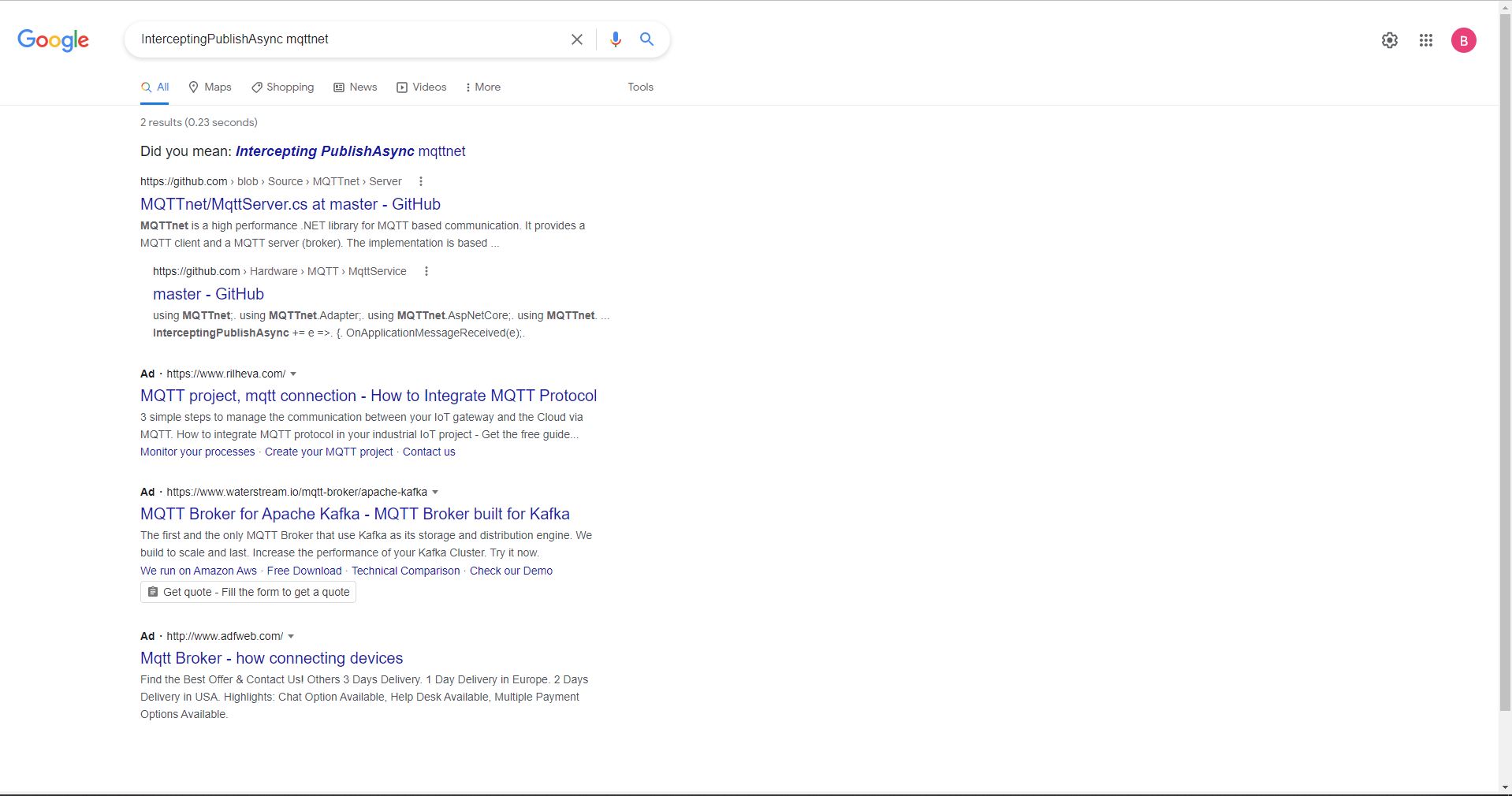
But the search results were a bit sparse…

InterceptingPublishAsync + MQTTNet search results

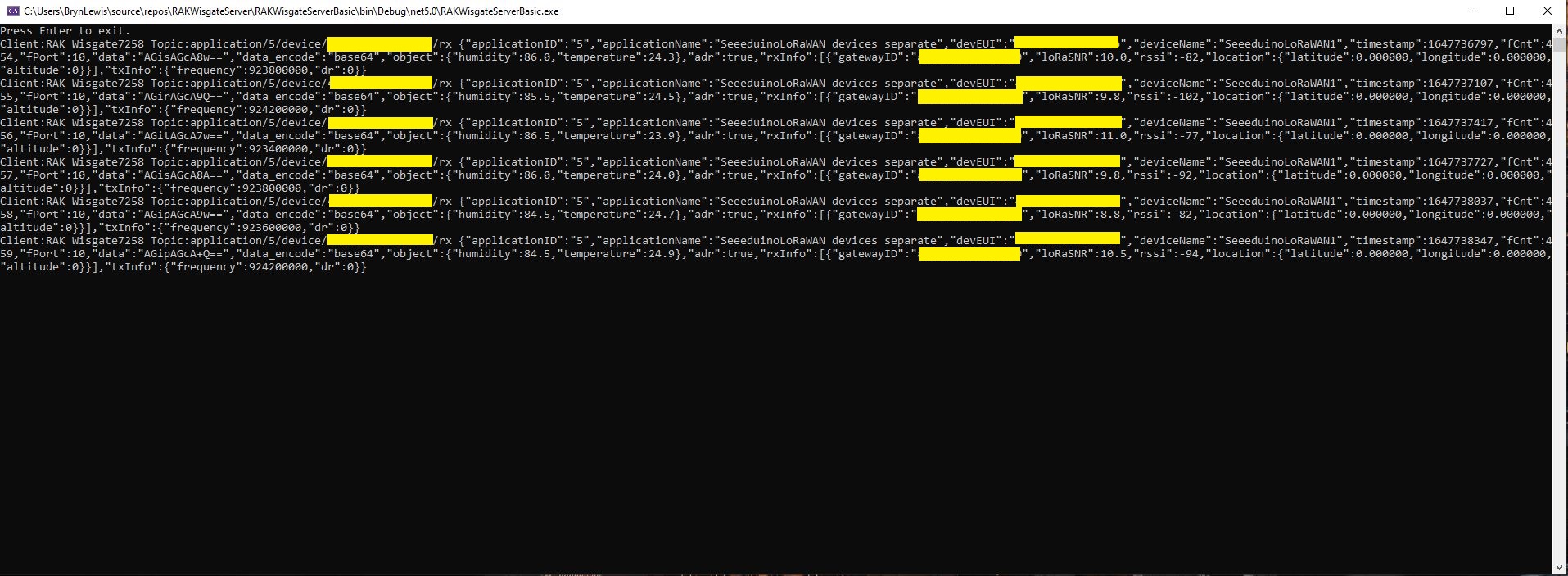
After some reading the MQTTNet documentation and some experimentation I could display the message payload (same as in the live device data display) in a “nasty” console application.

namespace devMobile.IoT.RAKWisgate.ServerBasic
{
   using System;
	using System.Threading.Tasks;

   using MQTTnet;
   using MQTTnet.Protocol;
   using MQTTnet.Server;

   public static class Program
   {
      static async Task Main(string[] args)
      {
         var mqttFactory = new MqttFactory();

         var mqttServerOptions = new MqttServerOptionsBuilder()
             .WithDefaultEndpoint()
             .Build();

         using (var mqttServer = mqttFactory.CreateMqttServer(mqttServerOptions))
         {
            mqttServer.InterceptingPublishAsync += e =>
            {
               Console.WriteLine($"Client:{e.ClientId} Topic:{e.ApplicationMessage.Topic} {e.ApplicationMessage.ConvertPayloadToString()}");

               return Task.CompletedTask;
            };

            mqttServer.ValidatingConnectionAsync += e =>
            {
               if (e.ClientId != "RAK Wisgate7258")
               {
                  e.ReasonCode = MqttConnectReasonCode.ClientIdentifierNotValid;
               }

               if (e.Username != "ValidUser")
               {
                  e.ReasonCode = MqttConnectReasonCode.BadUserNameOrPassword;
               }

               if (e.Password != "TopSecretPassword")
               {
                  e.ReasonCode = MqttConnectReasonCode.BadUserNameOrPassword;
               }

               return Task.CompletedTask;
            };

            await mqttServer.StartAsync();

            Console.WriteLine("Press Enter to exit.");
            Console.ReadLine();

            await mqttServer.StopAsync();
         }
      }
   }
}
MQTTNet based console application displaying device payloads

The process of provisioning Applications and Devices is quite different (The use of the AppEUI/JoinEUI is odd) to The Things Network(TTN) and other platforms I have used so I will explore this some more in future post(s).

TTN V3 Connector Revisited

Earlier in the year I built Things Network(TTN) V2 and V3 connectors and after using these in production applications I have learnt a lot about what I had got wrong, less wrong and what I had got right.

Using a TTN V3 MQTT Application integration wasn’t a great idea. The management of state was very complex. The storage of application keys in a app.settings file made configuration easy but was bad for security.

The use of Azure Key Vault in the TTNV2 connector was a good approach, but the process of creation and updating of the settings needs to be easier.

Using TTN device registry as the “single source of truth” was a good decision as managing the amount of LoRaWAN network, application and device specific configuration in an Azure IoT Hub would be non-trivial.

Using a Webhooks Application Integration like the TTNV2 connector is my preferred approach.

The TTNV2 Connector’s use of Azure Storage Queues was a good idea as they it provide an elastic buffer between the different parts of the application.

The use of Azure Functions to securely ingest webhook calls and write them to Azure Storage Queues with output bindingts should simplify configuration and deployment. The use of Azure Storage Queue input bindings to process messages is the preferred approach.

The TTN V3 processing of JSON uplink messages into a structure that Azure IoT Central could ingest is a required feature

The TTN V2 and V3 support for the Azure Device Provisioning Service(DPS) is a required feature (mandated by Azure IoT Central). The TTN V3 connector support for DTDLV2 is a desirable feature. The DPS implementation worked with Azure IoT Central but I was unable to get the DeviceClient based version working.
Using DPS to pre-provision devices in Azure IoT Hubs and Azure IoT Central by using the TTN Application Registry API then enumerating the TTN applications, then devices needs to be revisited as it was initially slow then became quite complex.

The support for Azure IoT Hub connection strings was a useful feature, but added some complexity. This plus basic Azure IoT Hub DPS support(No Azure IoT Central support) could be implemented in a standalone application which connects via Azure Storage Queue messages.

The processing of Azure IoT Central Basic, and Request commands then translating the payloads so they work with TTN V3 is a required feature. The management of Azure IoT Hub command delivery confirmations (abandon, complete and Reject) is a required feature.

I’m considering building a new TTN V3 connector but is it worth the effort as TTN has one now?

TTI V3 Gateway Device Provisioning Service(DPS) Performance

My The Things Industries(TTI) V3 connector is an Identity Translation Cloud Gateway, it maps LoRaWAN devices to Azure IoT Hub devices. The connector creates a DeviceClient for each TTI LoRaWAN device and can use an Azure Device Connection string or the Azure Device Provisioning Service(DPS).

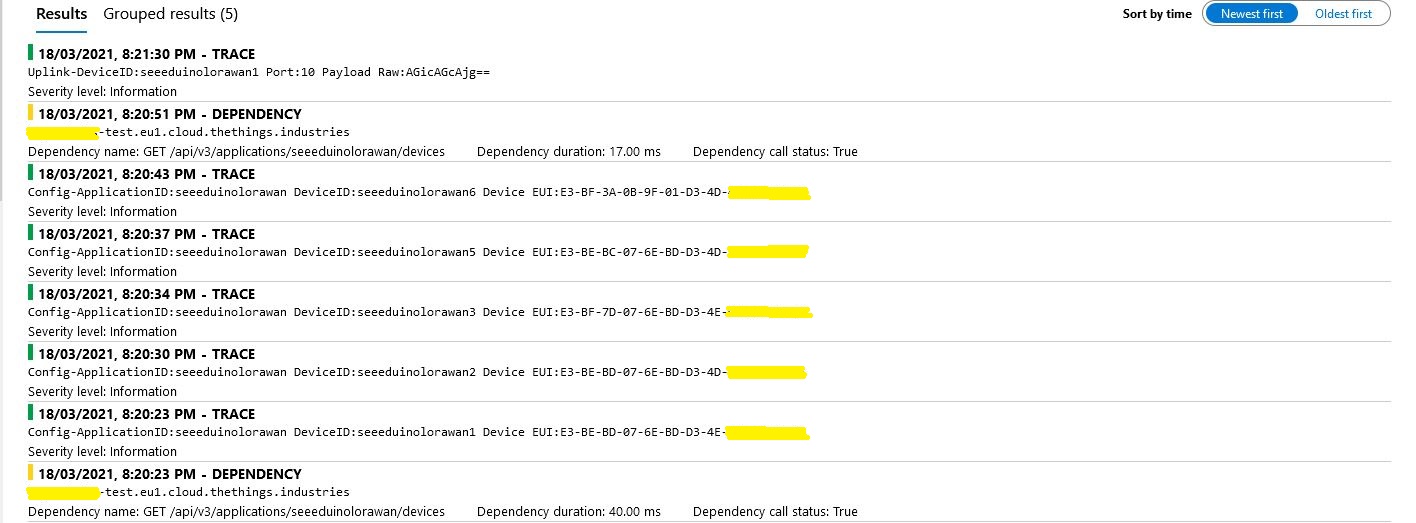
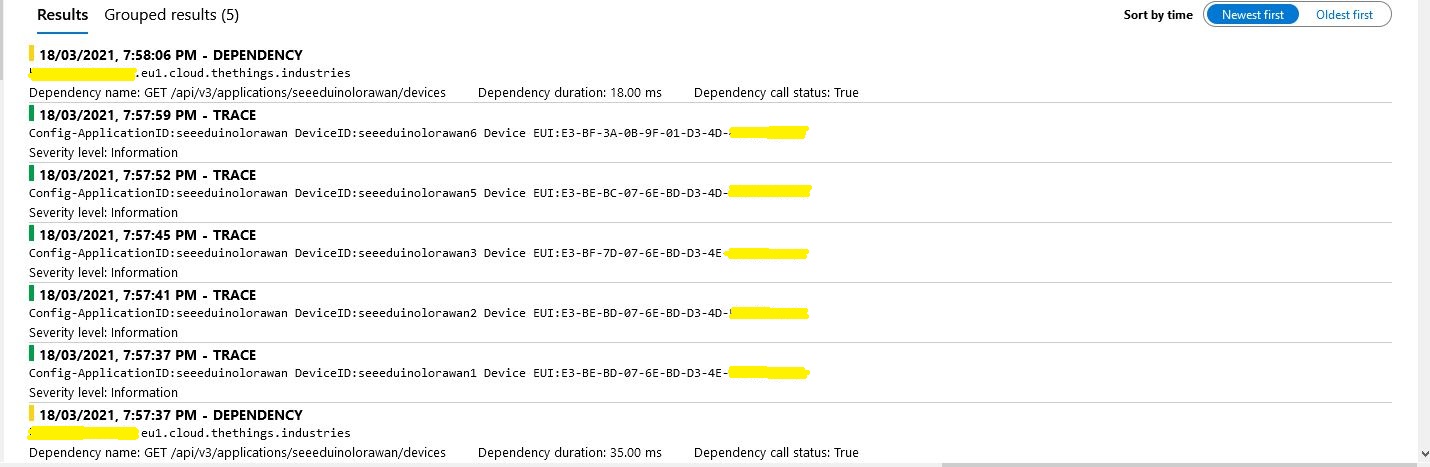
While debugging the connector on my desktop I had noticed that using a connection string was quite a bit faster than using DPS and I had assumed this was just happenstance. While doing some testing in the Azure North Europe data-center (Closer to TTI European servers) I grabbed some screen shots of the trace messages in Azure Application Insights as the TTI Connector Application was starting.
I only have six LoRaWAN devices configured in my TTI dev instance, but I repeated each test several times and the results were consistent so the request durations are reasonable. My TTI Connector application, IoT Hub, DPS and Application insights instances are all in the same Azure Region and Azure Resource Group so networking overheads shouldn’t be significant.

Azure IoT Hub Connection device connection string

Using an Azure IoT Hub Device Shared Access policy connection string establishing a connection took less than a second.

My Azure DPS Instance

Using my own DPS instance to provide the connection string and then establishing a connection took between 3 and 7 seconds.

Azure IoT Central DPS

For my Azure IoT Central instance getting a connection string and establishing a connection took between 4 and 7 seconds.

The Azure DPS client code was copied from one of the sample applications so I have assumed it is “correct”.

using (var transport = new ProvisioningTransportHandlerAmqp(TransportFallbackType.TcpOnly))
{
	ProvisioningDeviceClient provClient = ProvisioningDeviceClient.Create( 
		Constants.AzureDpsGlobalDeviceEndpoint,
		deviceProvisiongServiceSettings.IdScope,
		securityProvider,
		transport);

	DeviceRegistrationResult result;

	if (!string.IsNullOrEmpty(modelId))
	{
		ProvisioningRegistrationAdditionalData provisioningRegistrationAdditionalData = new ProvisioningRegistrationAdditionalData()
		{
			JsonData = $"{{"modelId": "{modelId}"}}"
		};

		result = await provClient.RegisterAsync(provisioningRegistrationAdditionalData, stoppingToken);
	}
	else
    {
		result = await provClient.RegisterAsync(stoppingToken);
	}

	if (result.Status != ProvisioningRegistrationStatusType.Assigned)
	{
		_logger.LogError("Config-DeviceID:{0} Status:{1} RegisterAsync failed ", deviceId, result.Status);

		return false;
	}

	IAuthenticationMethod authentication = new DeviceAuthenticationWithRegistrySymmetricKey(result.DeviceId, (securityProvider as SecurityProviderSymmetricKey).GetPrimaryKey());

	deviceClient = DeviceClient.Create(result.AssignedHub, authentication, transportSettings);
}

I need to investigate why getting a connection string from the DPS then connecting take significantly longer (I appreciate that “behind the scenes” service calls maybe required). This wouldn’t be an issue for individual devices connecting from different locations but for my Identity Translation Cloud gateway which currently open connections sequentially this could be a problem when there are a large number of devices.

If the individual requests duration can’t be reduced (using connection pooling etc.) I may have to spin up multiple threads so multiple devices can be connecting concurrently.

TTI V3 Gateway Azure IoT Central Digital Twin Definition Language(DTDL) support

Over the last couple of days I have added limited Digital Twin Definition Language(DTDLV2) support to my The Things Industries(TTI) V3 connector so that Azure IoT Central devices can be “zero touch” provisioned. For this blog post I used five Seeeduino LoRaWAN devices left over from another abandoned project.

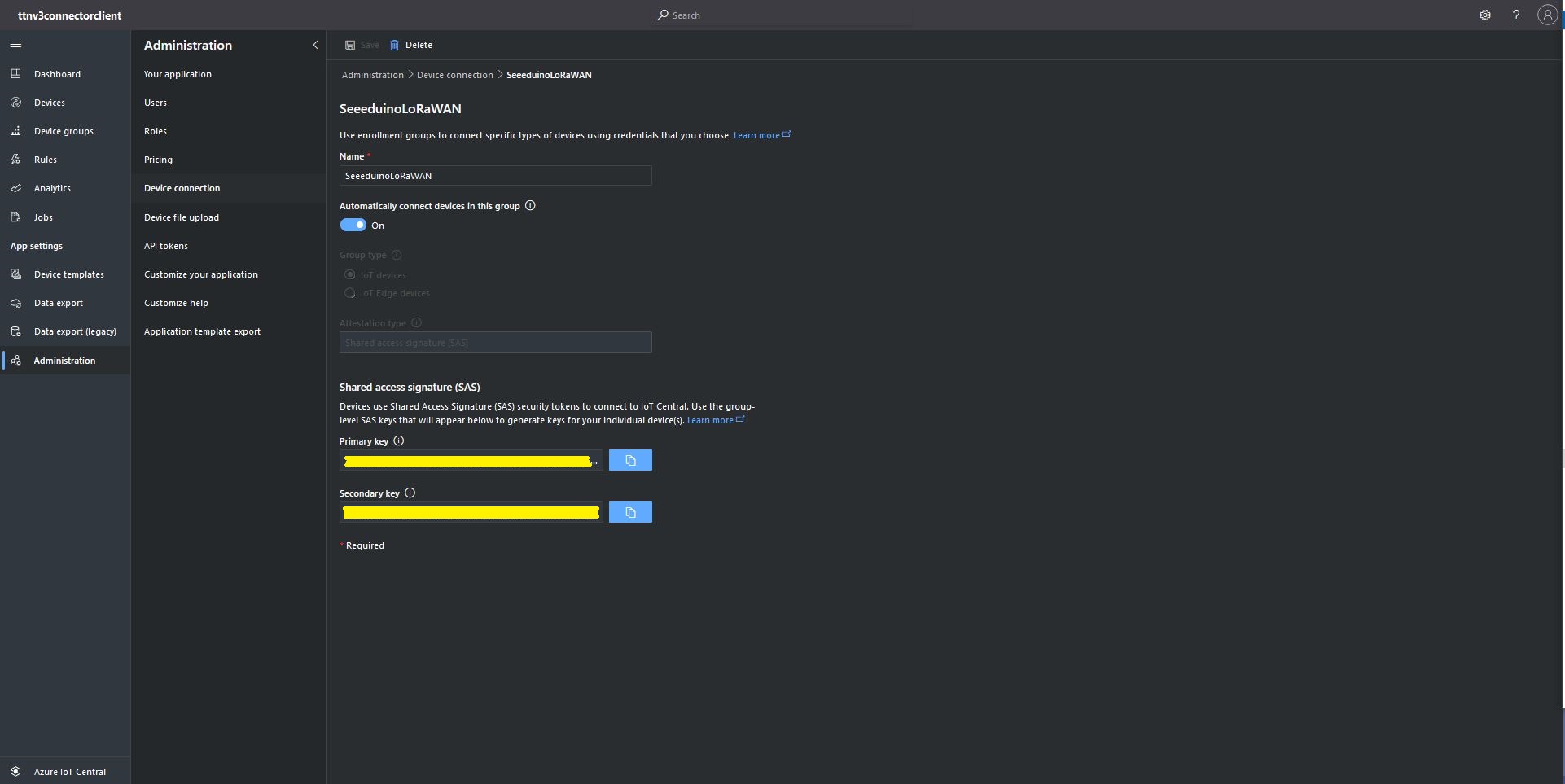
The first step was to configure and Azure IoT Central enrollment group (ensure “Automatically connect devices in this group” is on) and copy the IDScope and Group Enrollment key to the appsettings.json file (see sample file below for more detail)

Azure IoT Central Enrollment Group configuration

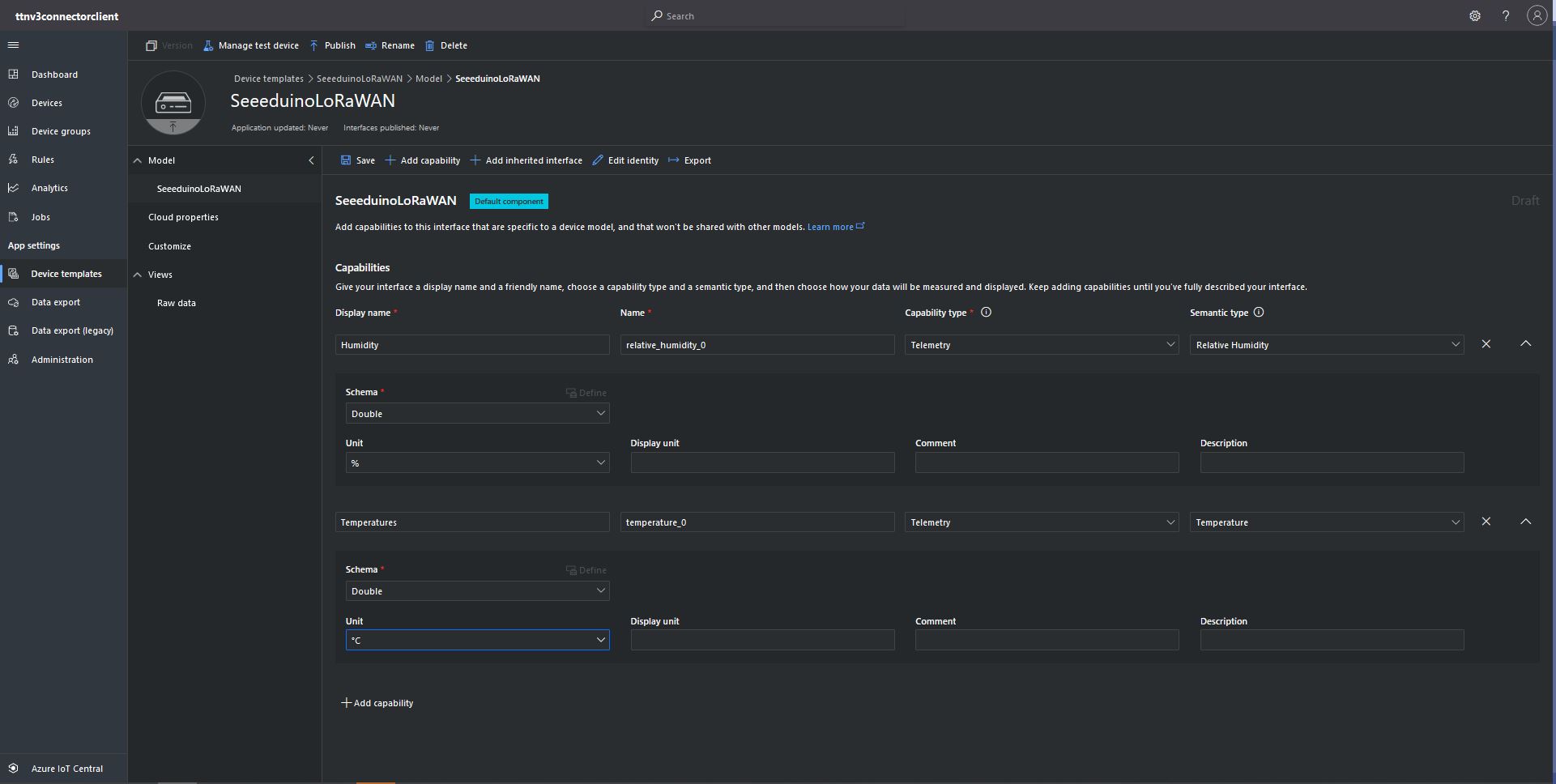
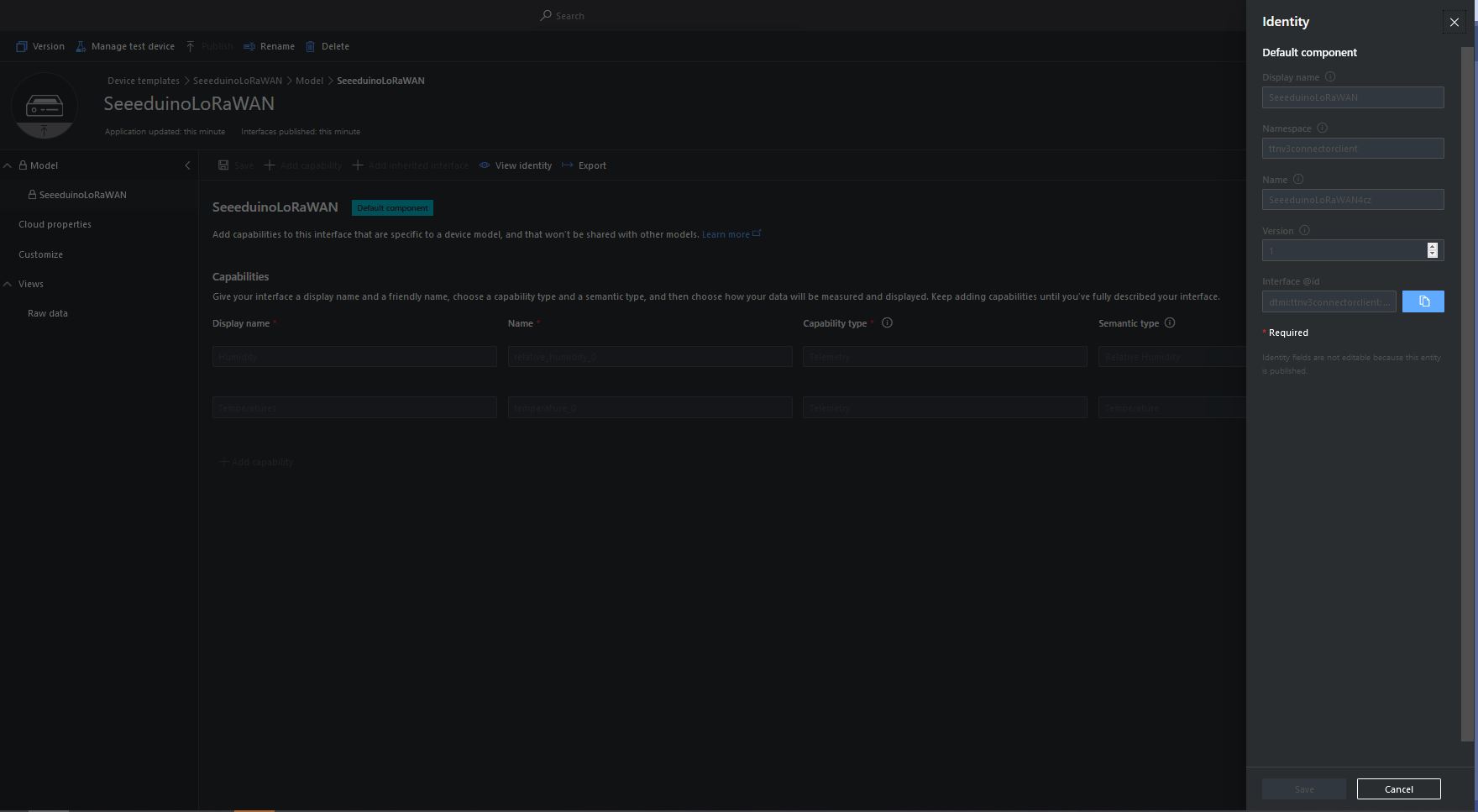
Then I created an Azure IoT Central template for the seeeduino LoRAWAN devices which are running software (developed with the Arduino tooling) that read values from a Grove – Temperature&Humidity sensor. The naming of telemetry properties in specified by the Low Power Protocol(LPP) encoder/decoder (I check the decoded payload in TTI EndDevice “Live Data” tab).

Configuring Seeeduino LoRaWAN device template

Then I mapped the Azure IoT Central Device Group to my Azure IoT Central Enrollment Group

Associating Device Group with Group Enrollment configuration

The Device Template @Id can be configured as the “default” template for all the devices in a TTI application in the app.settings.json file.

{
...
   "ProgramSettings": {
      "Applications": {
...
      "seeeduinolorawan": {
        "AzureSettings": {
           "DeviceProvisioningServiceSettings": {
              "IdScope": "...",
              "GroupEnrollmentKey": "..."
            }
         },
         "DTDLModelId": "dtmi:ttnv3connectorclient:SeeeduinoLoRaWAN4cz;1",
         "MQTTAccessKey": "...",
         "DeviceIntegrationDefault": true,
         "DevicePageSize": 10
      }
   }.
...

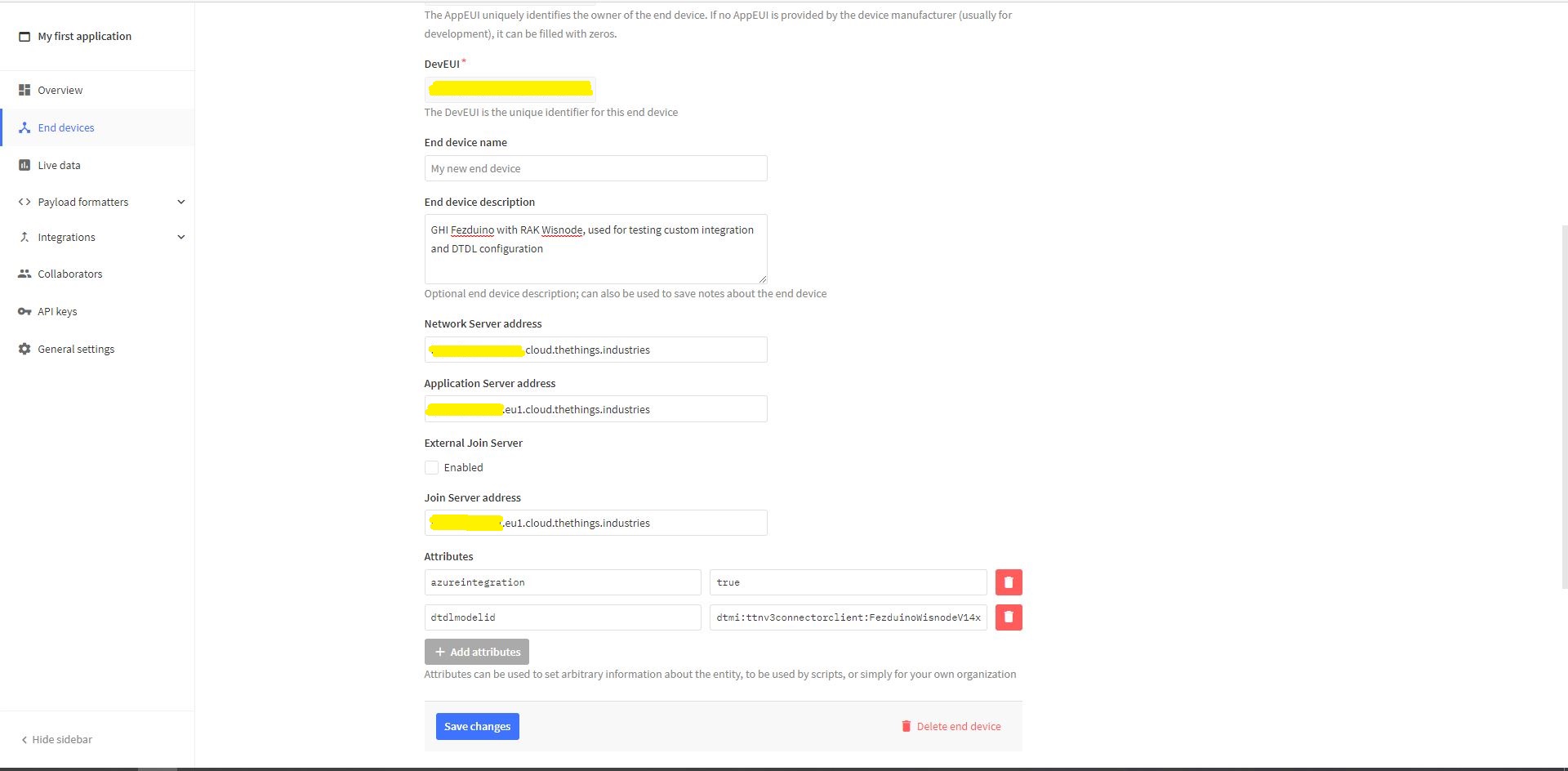
The Device Template @Id can also be set using a dtdlmodelid attribute in a TTI end device settings so devices can be individually configured.

TTI Application EndDevice dtdlmodelid attribute usage

At startup the TTI Gateway enumerates through the devices in each application configured in the app.settings.json. The Azure Device Provisioning Service(DPS) is used to retrieve each device’s connection string and configure it in Azure IoT Central if required.

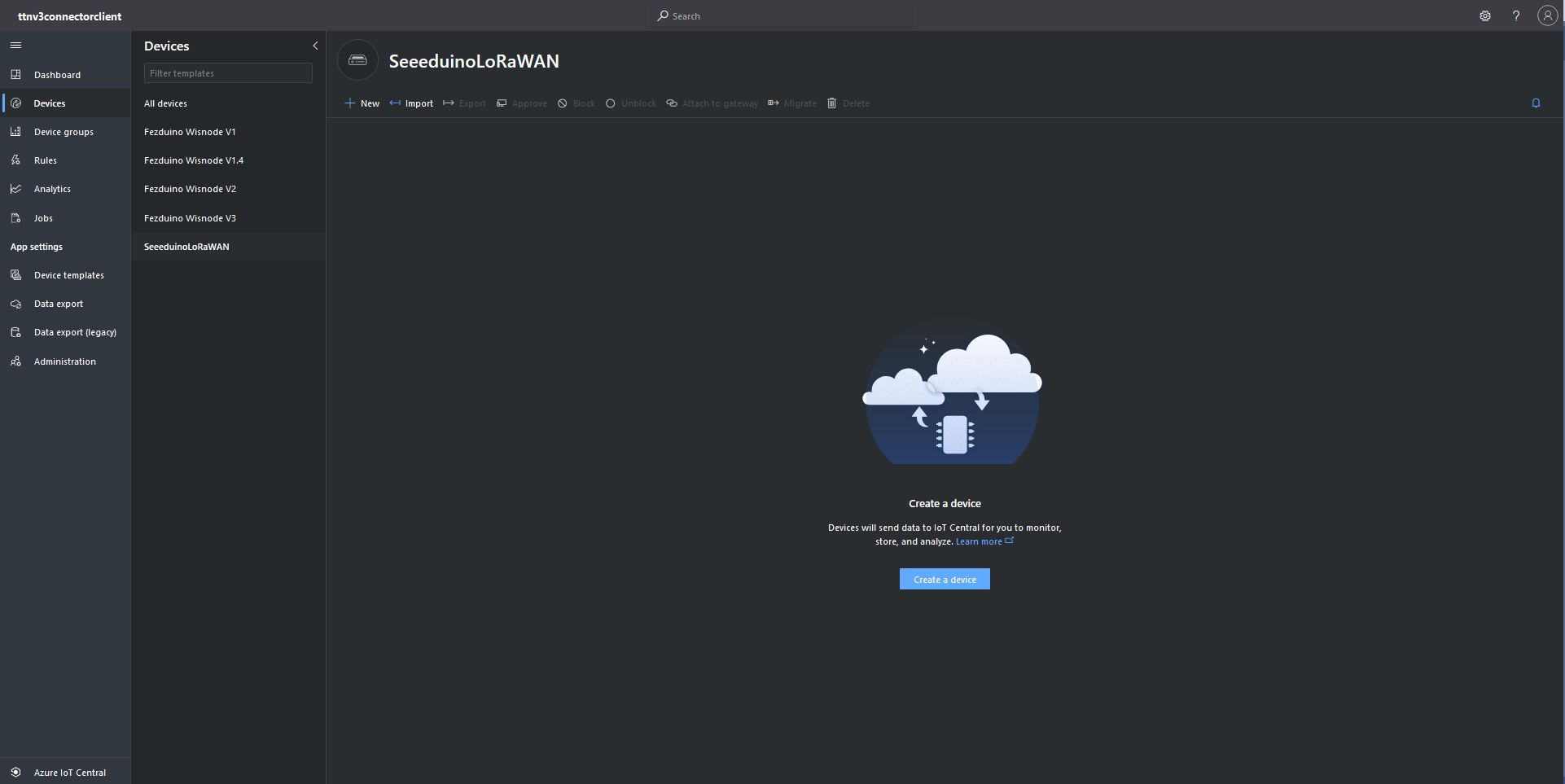
Azure IoT Central Device Group with no provisioned Devices
TTI Connector application connecting and provisioning EndDevices
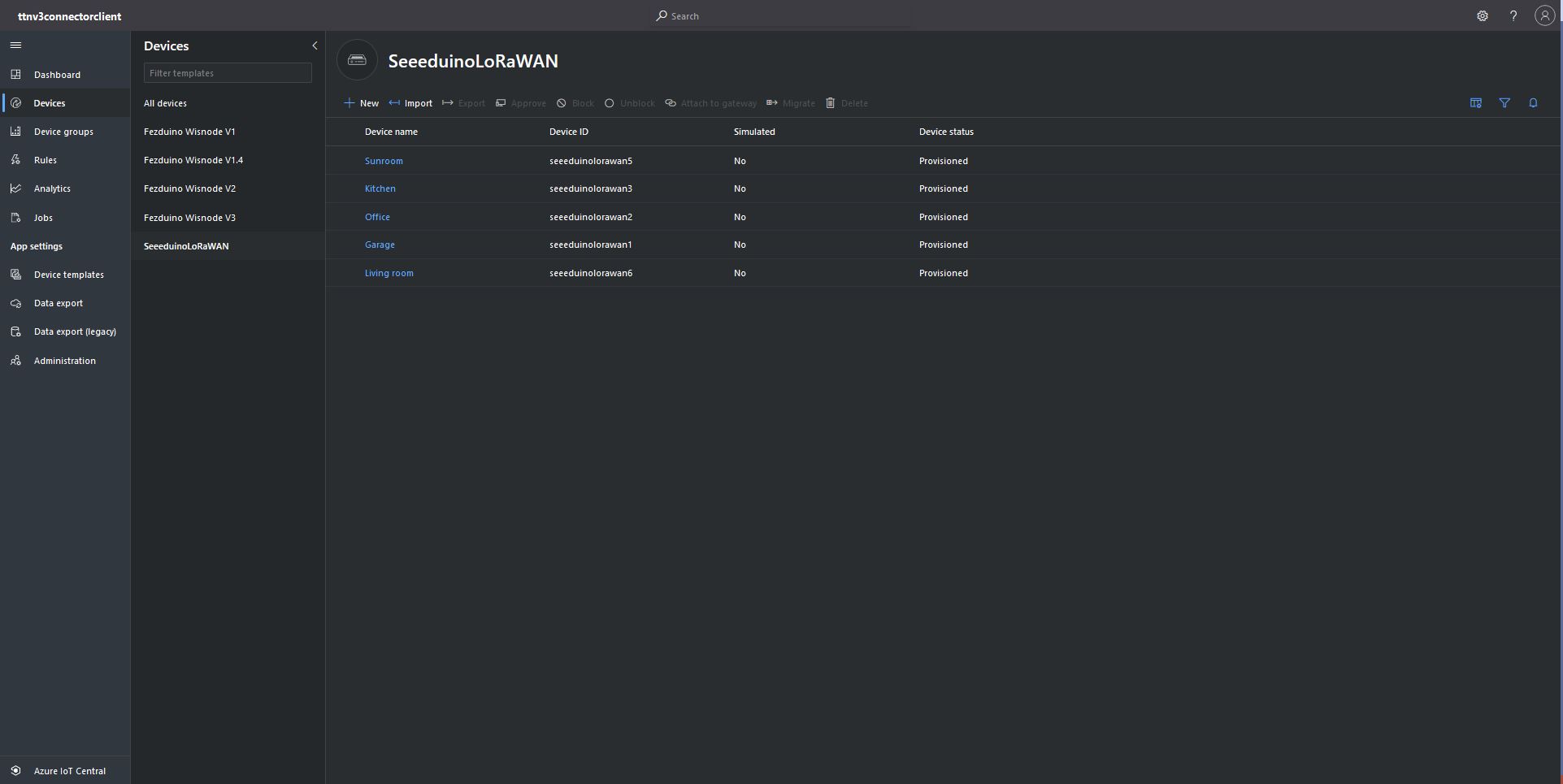
Azure IoT Central devices mapped to an Azure IoT Central Template via the modelID

The ProvisioningRegistrationAdditionalData optional parameter of the DPS RegisterAsync method has a JSON property which is used to the specify the device ModelID.

using (var transport = new ProvisioningTransportHandlerAmqp(TransportFallbackType.TcpOnly))
{
	ProvisioningDeviceClient provClient = ProvisioningDeviceClient.Create( 
		Constants.AzureDpsGlobalDeviceEndpoint,
		deviceProvisiongServiceSettings.IdScope,
		securityProvider,
		transport);

	DeviceRegistrationResult result;

	if (!string.IsNullOrEmpty(modelId))
	{
		ProvisioningRegistrationAdditionalData provisioningRegistrationAdditionalData = new ProvisioningRegistrationAdditionalData()
		{
			JsonData = $"{{\"modelId\": \"{modelId}\"}}"
		};

		result = await provClient.RegisterAsync(provisioningRegistrationAdditionalData, stoppingToken);
	}
	else
    {
		result = await provClient.RegisterAsync(stoppingToken);
	}

	if (result.Status != ProvisioningRegistrationStatusType.Assigned)
	{
		_logger.LogError("Config-DeviceID:{0} Status:{1} RegisterAsync failed ", deviceId, result.Status);

		return false;
	}

	IAuthenticationMethod authentication = new DeviceAuthenticationWithRegistrySymmetricKey(result.DeviceId, (securityProvider as SecurityProviderSymmetricKey).GetPrimaryKey());

	deviceClient = DeviceClient.Create(result.AssignedHub, authentication, transportSettings);
}

My implementation was “inspired” by TemperatureController project in the PnP Device Samples.

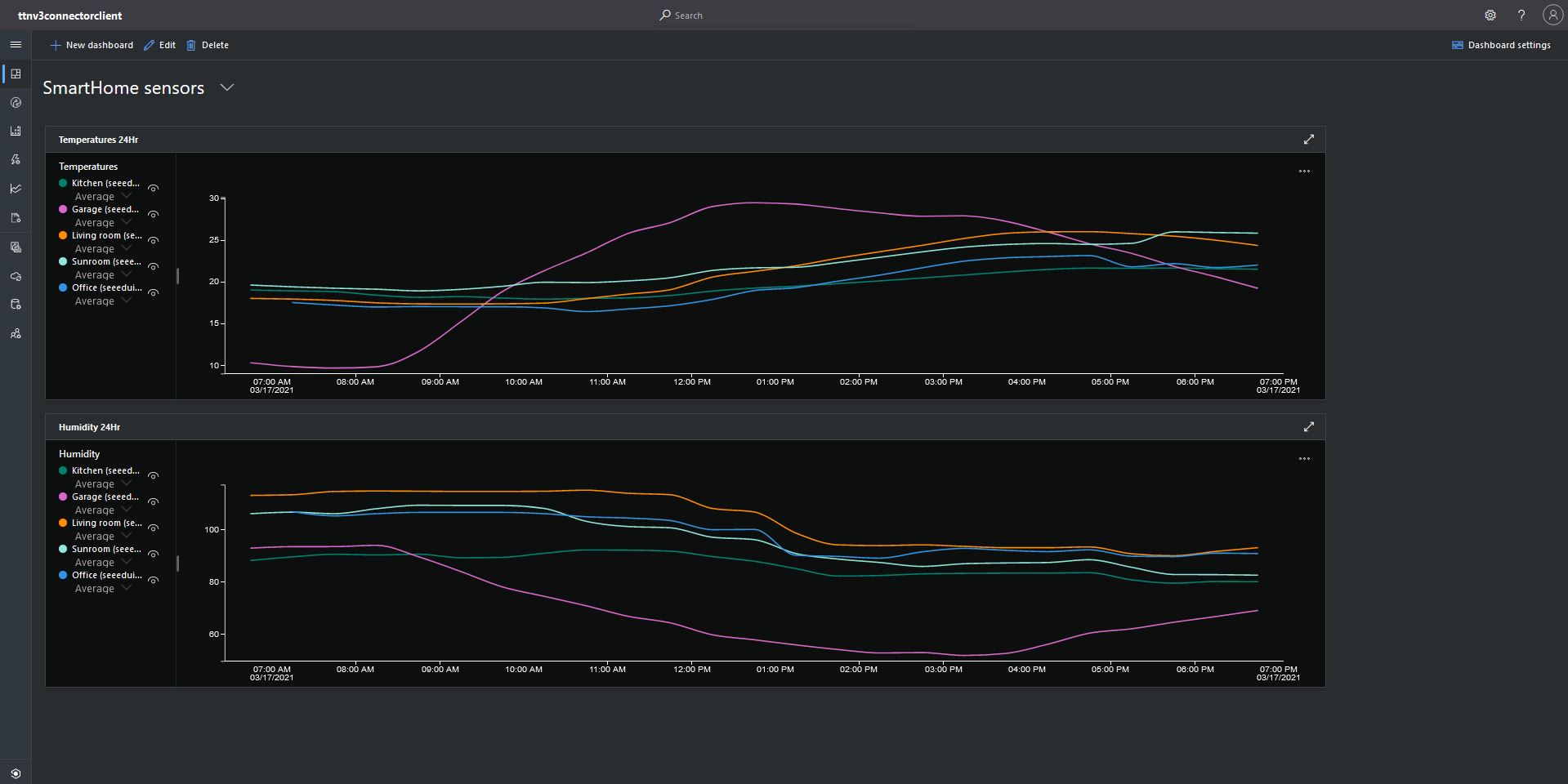
Azure IoT Central Dashboard with Seeeduino LoRaWAN devices around my house that were “automagically” provisioned

I need to do some testing to confirm my code works reliably with both DPS and user provided connection strings. The RegisterAsync call is currently taking about four seconds which could be an issue for TTI applications with many devices.

TTI V3 Gateway Azure IoT Hub Support

After a couple of weeks work my The Things Industries(TTI) V3 gateway is in beta testing. For this blog post I have configured five Seeeduino LoRaWAN devices. My sensor nodes connect to an Azure IoT Hub with a Shared Access Signature(SAS) device policy connection string. I’m using Device Twin Explorer to display Telemetry from and send messages to the sensor nodes. I have also configured Azure Stream Analytics and PowerBI to graph telemetry from the sensor nodes.
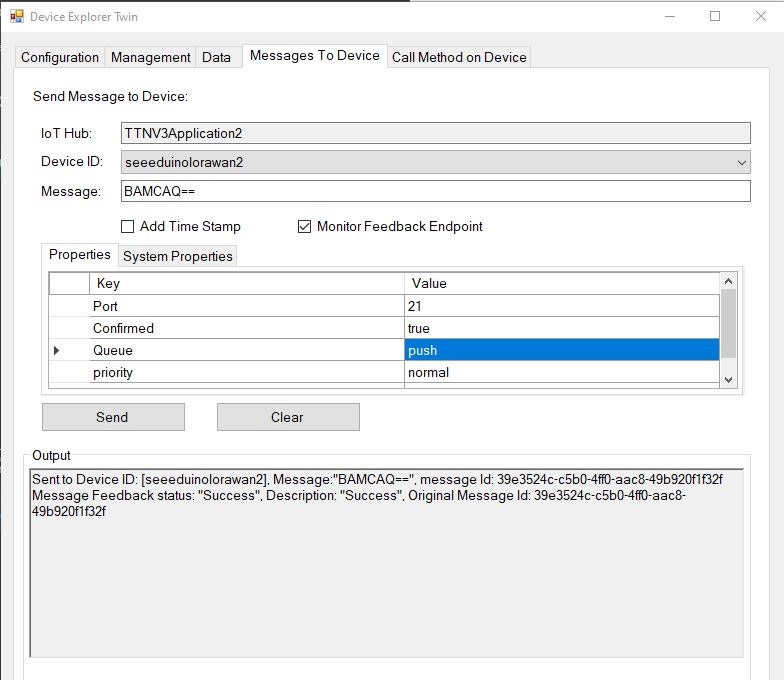
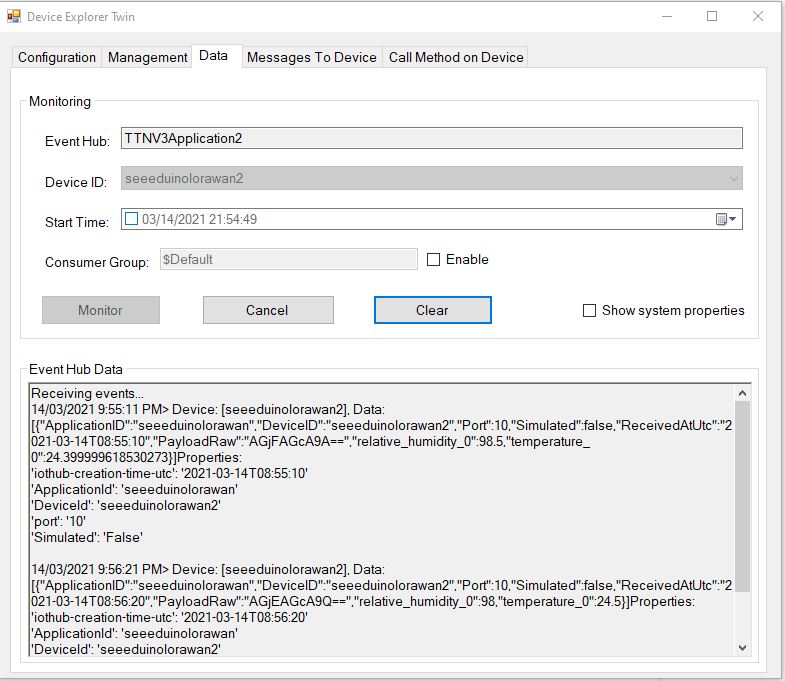
Device Twin Explorer displaying telemetry from one of the Seeeduino devices

My integration uses only queued messages as often they won’t be delivered to the sensor node immediately, especially if the sensor node only sends an uplink message every 30 minutes/hour/day.

The confirmed flag should be used with care as the Azure IoT Hub messages may expire before a delivery Ack/Nack/Failed is received from the TTI.

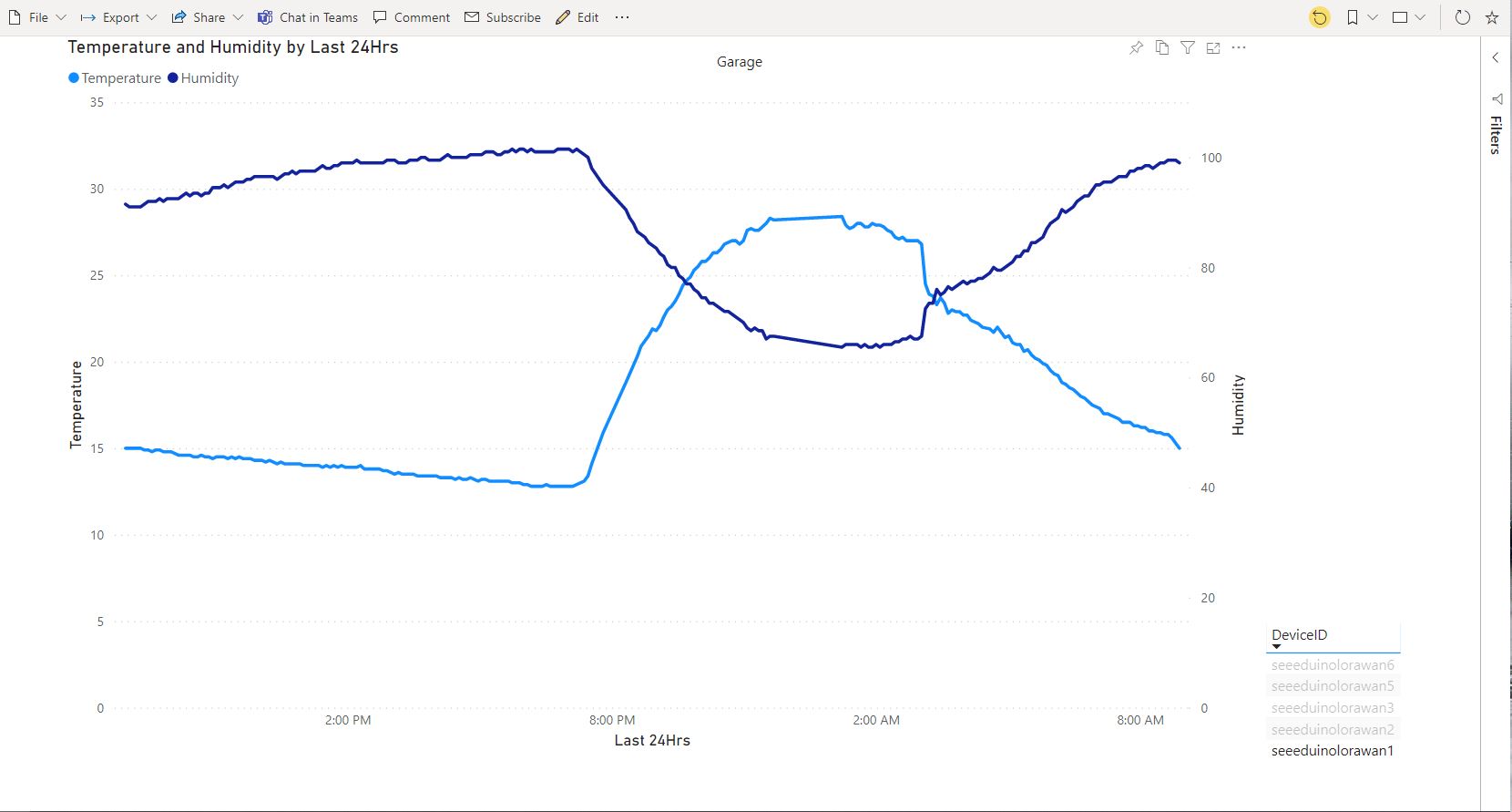
PowerBI graph of temperature and humidity in my garage over 24 hours

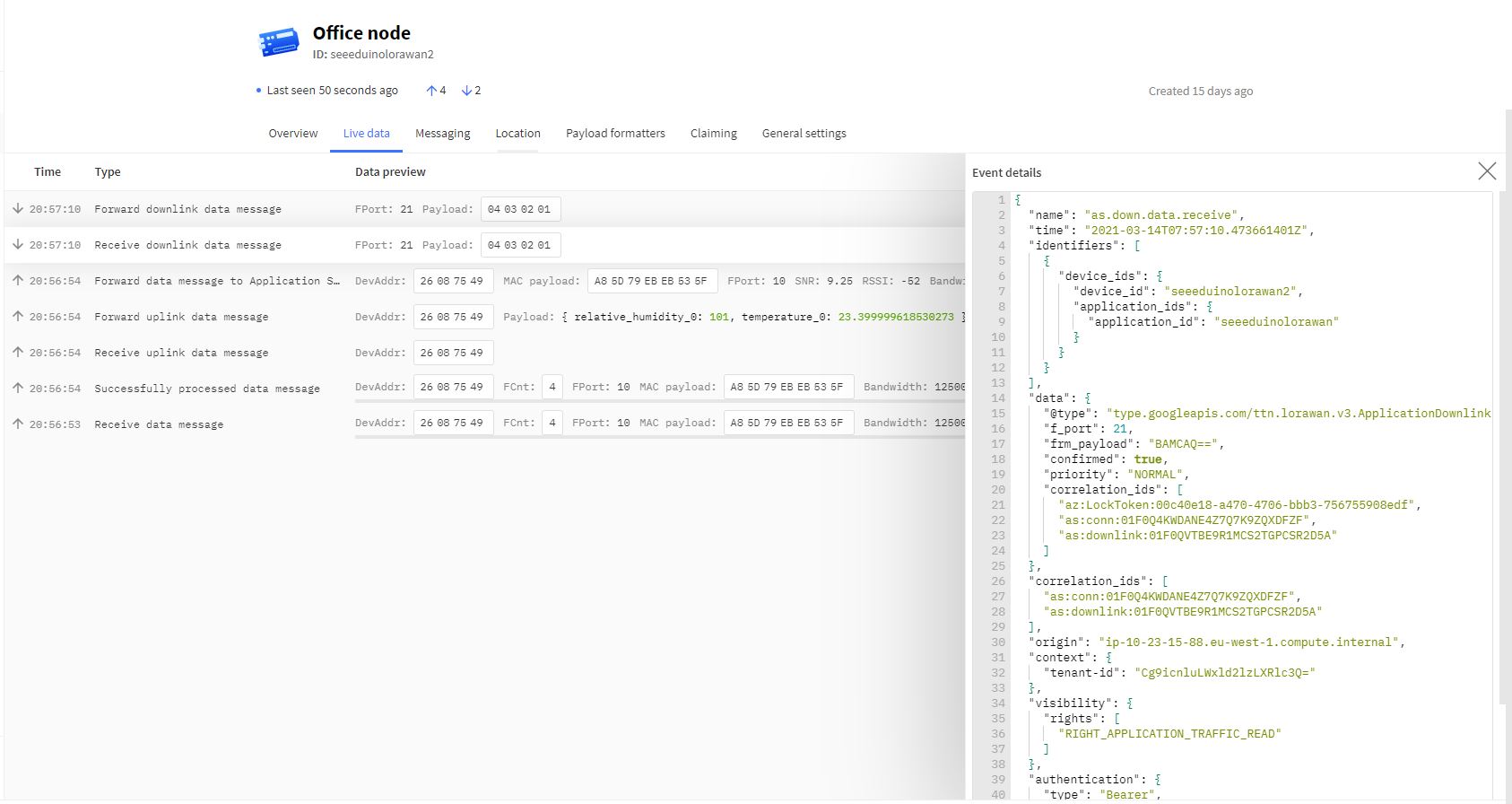
To send a downlink message, TTI needs a LoRaWAN port number (plus optional queue, confirmed and priority values) which is specified in the Azure IoT Hub message custom properties.

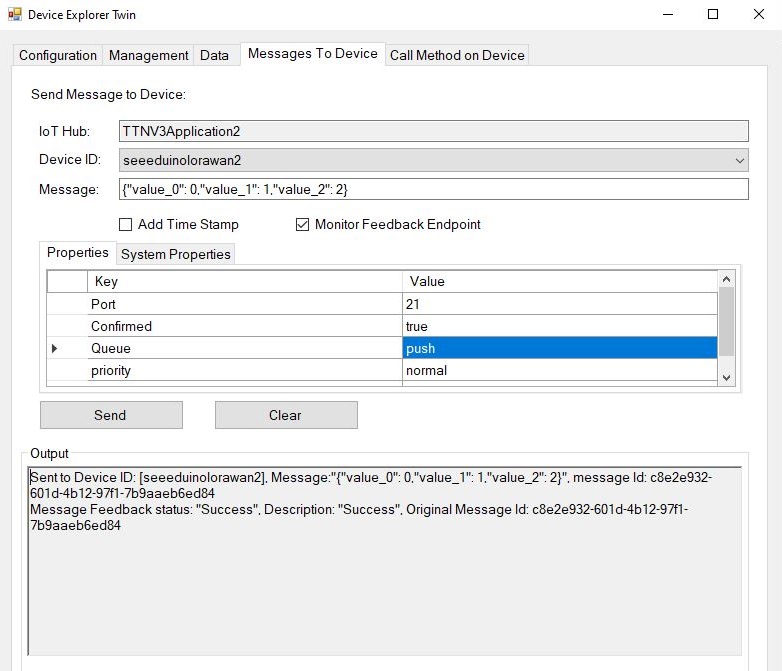
Device explorer displaying a raw payload message which has been confirmed delivered
TTI device live data tab displaying raw payload in downlink message information tab
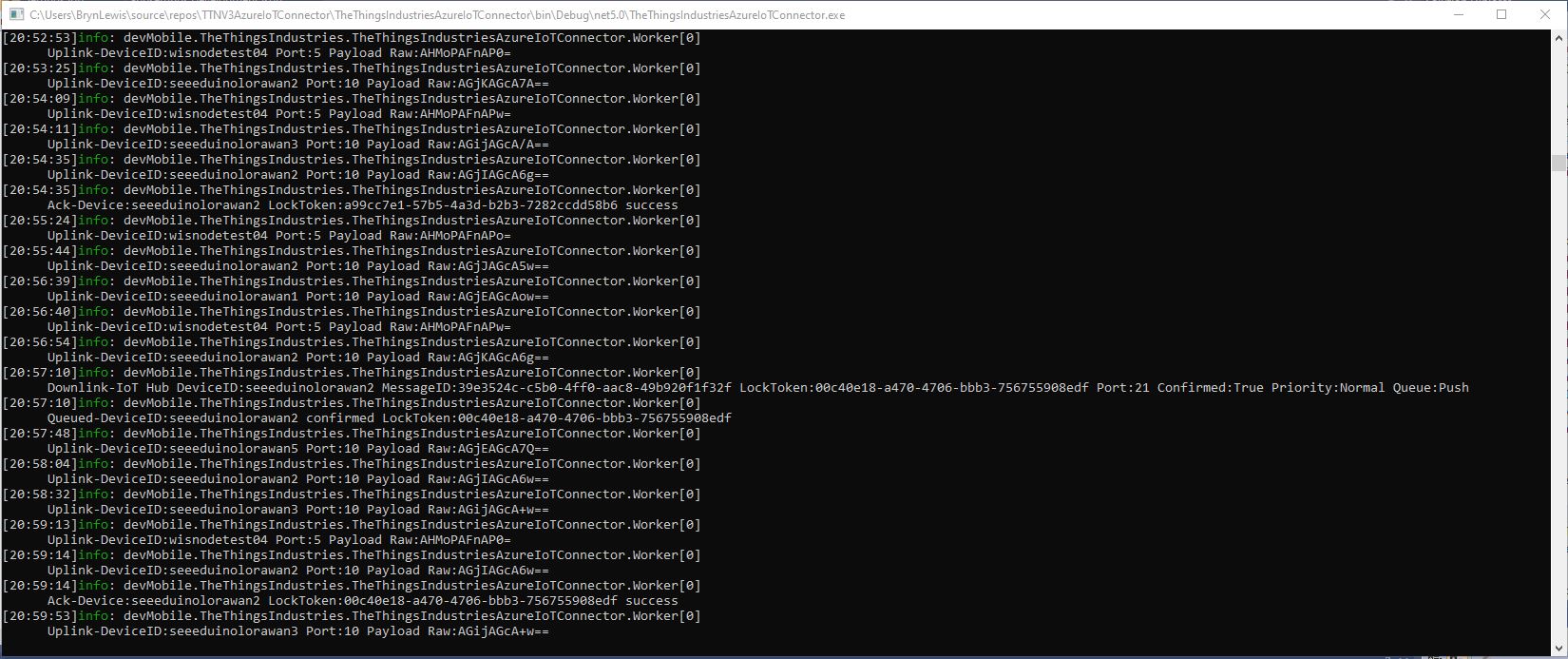
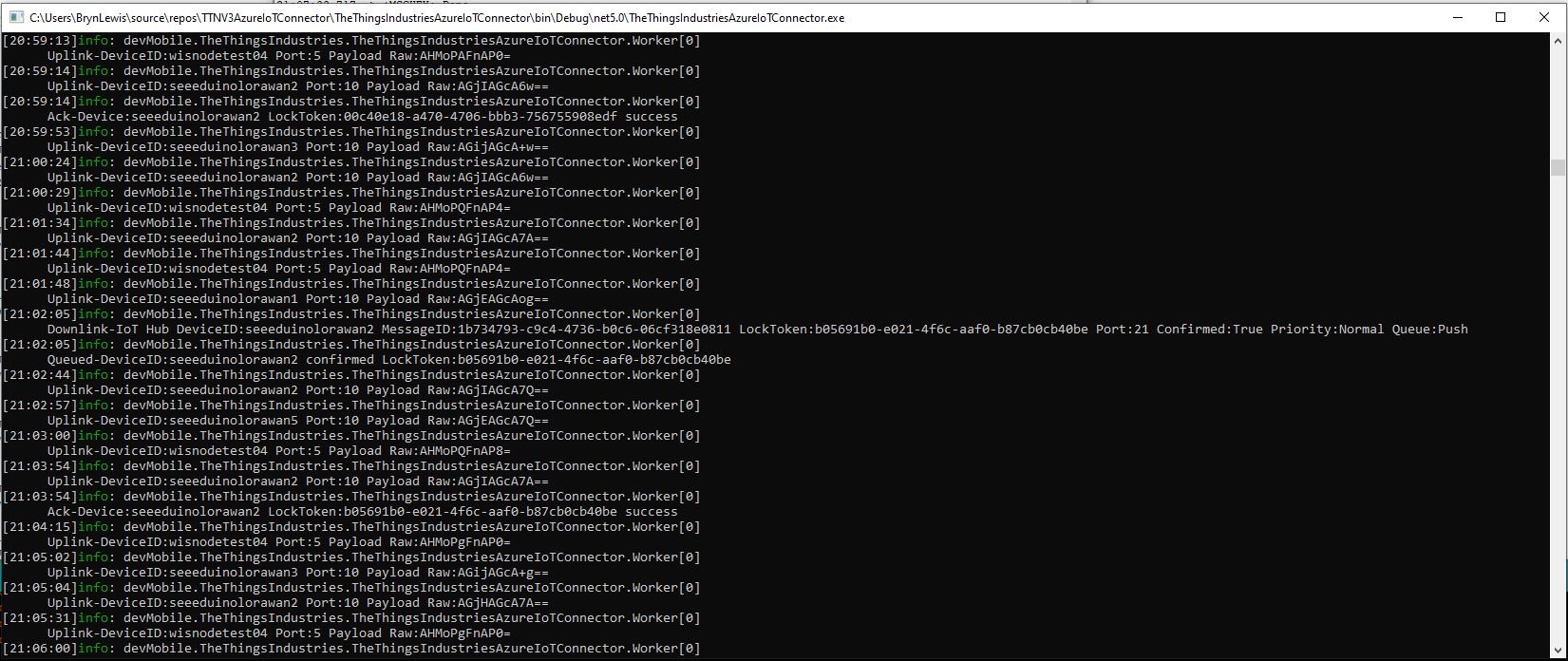
Azure IoT Connector console application sending raw payload to sensor node with confirmation ack
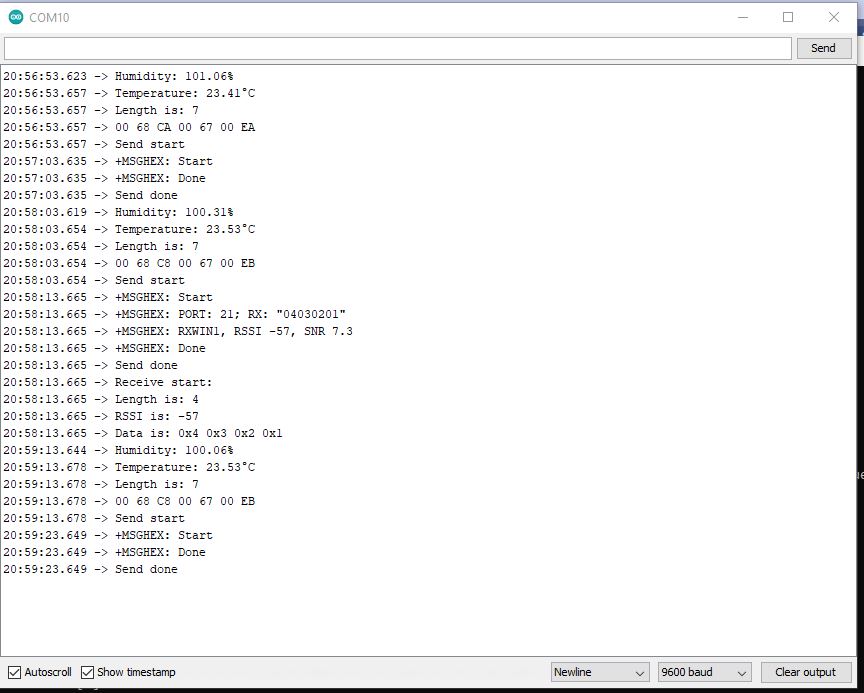
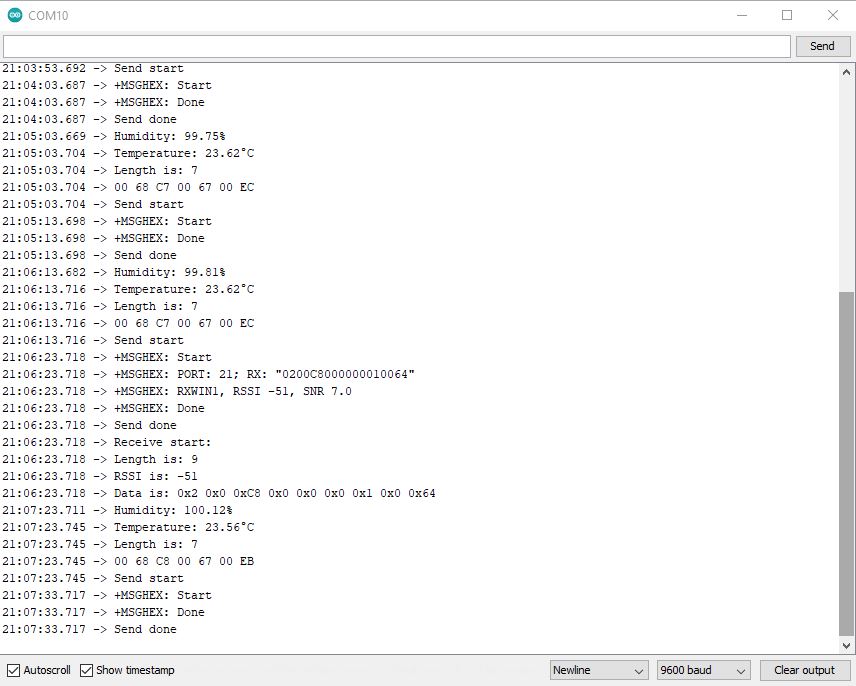
Arduino monitor displaying received raw payload from TTI

If the Azure IoT Hub message payload is valid JSON it is copied into the payload decoded downlink message property. and if it is not valid JSON it assumed to be a Base64 encoded value and copied into the payload raw downlink message property.

try
{
	// Split over multiple lines in an attempt to improve readability. A valid JSON string should start/end with {/} for an object or [/] for an array
	if (!(payloadText.StartsWith("{") && payloadText.EndsWith("}"))
										&&
		(!(payloadText.StartsWith("[") && payloadText.EndsWith("]"))))
	{
		throw new JsonReaderException();
	}

	downlink.PayloadDecoded = JToken.Parse(payloadText);
}
catch (JsonReaderException)
{
	downlink.PayloadRaw = payloadText;
}

Like the Azure IoT Central JSON validation I had to add a check that the string started with a “{” and finished with a “}” (a JSON object) or started with a “[” and finished with a “]” (a JSON array) as part of the validation process.

Device explorer displaying a JSON payload message which has been confirmed delivered

I normally wouldn’t use exceptions for flow control but I can’t see a better way of doing this.

TTI device live data tab displaying JSON payload in downlink message information tab
Azure IoT Connector console application sending JSON payload to sensor node with confirmation ack
Arduino monitor displaying received JSON payload from TTI

The build in TTI decoder only supports downlink decoded payloads with property names “value_0” through “value_x” custom encoders may support other property names.

TTI V3 Gateway Azure IoT Central Support

After a couple of weeks work my The Things Industries(TTI) V3 gateway is in beta testing. For this blog post the client is a GHI Electronics Fezduino with a RAK811 LPWAN Evaluation Board(EVB). My test device was configured in Azure IoT Central by the Device Provisioning Service(DPS) and I then manually migrated the device to each of the four templates used in this post.

The first step was to display the temperature and barometric pressure values from the Seeedstudio Grove BMP180 attached to my sensor node.

Sensor node displaying temperature and barometric pressure values
Azure IoT Central temperature and barometric pressure telemetry configuration
Azure IoT Central Telemetry Dashboard displaying temperature and barometric pressure values

The next step was to configure a simple Azure IoT Central command to send to the sensor node. This was a queued request with no payload. An example of this sort of command would be a request for a sensor node to reboot or turn on an actuator.

My integration uses only offline queued commands as often messages won’t be delivered to the sensor node immediately, especially if the sensor node only sends a message every half hour/hour/day. The confirmed flag should be used with care as the Azure IoT Hub messages may expire before a delivery Ack/Nack/Failed is received from the TTI and it consumes downlink bandwidth.

if (message.Properties.ContainsKey("method-name"))
{
}

I determine an Azure IoT Hub message is an Azure IoT Central command by the presence of the “method-name” property. If the Azure IoT Central command does not have a request payload the Azure IoT Hub message payload will contain a single “@” character so the Azure IoT Connector sends a TTI downlink message with an empty raw payload via the TTI Data API(MQTT).

if (payloadText.CompareTo("@") != 0)
{
   .
}
else
{
   downlink.PayloadRaw = "";
}
Azure IoT Central command with out a request payload value command configuration

To send a downlink message, TTI needs a LoRaWAN port number (plus optional queue, confirmed and priority values) which can’t be provided via the Azure IoT Central command setup so these values are configured in the app.settings file.

Each TTI application has zero or more Azure IoT Central command configurations which supply the port, confirmed, priority and queue settings.

  "ProgramSettings": {
    "Applications": {
      "application1": {
        "AzureSettings": {
          ...
          }
        },
        "MQTTAccessKey": "...",
        "DeviceIntegrationDefault": false,
        "MethodSettings": {
          "Reboot": {
            "Port": 21,
            "Confirmed": true,
            "Priority": "normal",
            "Queue": "push"
          },
        }
      },
      "seeeduinolorawan": {
        "AzureSettings": {
        }
        "MQTTAccessKey": "...",
        "DeviceIntegrationDefault": true,
        "DevicePageSize": 10
      }
    },
    "TheThingsIndustries": {
...
   }
}
Azure IoT Central simple command dashboard
Azure IoT Central simple command initiation
Azure IoT TTI connector application sending a simple command to my sensor node
Sensor node display simple command information. The note message payload is empty

The next step was to configure a more complex Azure IoT Central command to send to the sensor node. This was a queued request with a single value payload. An example of this sort of command could be setting the speed of a fan or the maximum temperature of a freezer for an out of band (OOB) notification to be sent.

Azure IoT Central single value command configuration
  "ProgramSettings": {
    "Applications": {
      "application1": {
        "AzureSettings": {
          ...
          }
        },
        "MQTTAccessKey": "...",
        "DeviceIntegrationDefault": false,
        "MethodSettings": {
          "Reboot": {
            "Port": 21,
            "Confirmed": true,
            "Priority": "normal",
            "Queue": "push"
          },
          "value_0": {
            "Port": 30,
            "Confirmed": true,
            "Priority": "normal",
            "Queue": "push"
          },
          "value_1": {
            "Port": 30,
            "Confirmed": true,
            "Priority": "normal",
            "Queue": "push"
          },
        }
      },
      "seeeduinolorawan": {
        "AzureSettings": {
        }
        "MQTTAccessKey": "...",
        "DeviceIntegrationDefault": true,
        "DevicePageSize": 10
      }
    },
    "TheThingsIndustries": {
...
   }
}

The value_0 settings are for the minimum temperature the value_1 settings are for the maximum temperature value.

Azure IoT Central single value command initiation
Azure IoT TTI connector application sending a single value command to my sensor node
Sensor node displaying single value command information. There are two downlink messages and each payload contains a single value

The single value command payload contains the textual representation of the value e.g. “true”/”false” or “1.23” which are also valid JSON. This initially caused issues as I was trying to splice a single value into the decoded payload.

I had to add a check that the string started with a “{” and finished with a “}” (a JSON object) or started with a “[” and finished with a “]” (a JSON array) as part of the validation process.

For a single value command the payload decoded has a single property with the method-name value as the name and the payload as the value. For a command with a JSON payload the message payload is copied into the PayloadDecoded.

I normally wouldn’t use exceptions for flow control but I can’t see a better way of doing this.

	try
	{
		// Split over multiple lines to improve readability
		if (!(payloadText.StartsWith("{") && payloadText.EndsWith("}"))
									&&
			(!(payloadText.StartsWith("[") && payloadText.EndsWith("]"))))
		{
			throw new JsonReaderException();
		}

		downlink.PayloadDecoded = JToken.Parse(payloadText);
	}
	catch (JsonReaderException)
	{
		try
		{
			JToken value = JToken.Parse(payloadText);

			downlink.PayloadDecoded = new JObject(new JProperty(methodName, value));
		}
		catch (JsonReaderException)
		{
			downlink.PayloadDecoded = new JObject(new JProperty(methodName, payloadText));
		}
	}

The final step was to configure an another Azure IoT Central command with a JSON payload to send to the sensor node. A “real-world” example of this sort of command would be setting the minimum and maximum temperatures of a freezer in a single downlink message.

Azure IoT Central JSON payload command setup
Azure IoT Central JSON payload command payload configuration
  "ProgramSettings": {
    "Applications": {
      "application1": {
        "AzureSettings": {
          ...
          }
        },
        "MQTTAccessKey": "...",
        "DeviceIntegrationDefault": false,
        "MethodSettings": {
          "Reboot": {
            "Port": 21,
            "Confirmed": true,
            "Priority": "normal",
            "Queue": "push"
          },
          "value_0": {
            "Port": 30,
            "Confirmed": true,
            "Priority": "normal",
            "Queue": "push"
          },
          "value_1": {
            "Port": 30,
            "Confirmed": true,
            "Priority": "normal",
            "Queue": "push"
          },
          "TemperatureOOBAlertMinimumAndMaximum": {
            "Port": 30,
            "Confirmed": true,
            "Priority": "normal",
            "Queue": "push"
          }
        }
      },
      "seeeduinolorawan": {
        "AzureSettings": {
        }
        "MQTTAccessKey": "...",
        "DeviceIntegrationDefault": true,
        "DevicePageSize": 10
      }
    },
    "TheThingsIndustries": {
...
   }
}
Azure IoT Central JSON payload command initiation

Azure IoT TTI connector application sending a JSON payload command to my sensor node
Sensor node displaying JSON command information. There is a single payload which contains a two values

The build in TTI decoder only supports downlink decoded payloads with property names “value_0” through “value_x” which results in some odd command names and JSON payload property names. (Custom encoders may support other property names). Case sensitivity of some configuration values also tripped me up.

TTN V3 Gateway Configuration, Deployment and Operation

After configuring, deploying and then operating my The Things Network(TTN) V2 gateway I have made some changes to my The Things Industries(TTI) V3 gateway.

TTI V3 Gateway running as a console application on my desktop

Azure IoT integration can be configured at the Device (TTN Device “azureintegration” attribute).

TTN Device AzureIntegration Attribute

Then falls back to the Application default (TTN application “azureintegrationdevicedefault” attribute).

TTN Application AzureIntegrationDeviceDefault attribute.

Then falls back to the “DeviceIntegrationDefault” setting for the Application then finally “DeviceIntegrationDefault” setting for the webjob the in the app.settings.json file

{
  ...
  "ProgramSettings": {
    "Applications": {
      "application1": {
        "AzureSettings": {
          "IoTHubConnectionString": "HostName=TT...n1.azure-devices.net;SharedAccessKeyName=device;SharedAccessKey=Am...M=",
          "DeviceProvisioningServiceSettings": {
            "IdScope": "0n...3B",
            "GroupEnrollmentKey": "Kl...Y="
          }
        },
        "MQTTAccessKey": "NNSXS.HC...YQ",
        "DeviceIntegrationDefault": false,
        "DevicePageSize": 10
      },
      "seeeduinolorawan": {
        "AzureSettings": {
          "IoTHubConnectionString": "HostName=TT...n2.azure-devices.net;SharedAccessKeyName=device;SharedAccessKey=D2q...L8=",
          "DeviceProvisioningServiceSettings": {
            "IdScope": "0n...3B",
            "GroupEnrollmentKey": "Kl...Y="
          }
        },
        "MQTTAccessKey": "NNSXS.V44...42A",
        "DeviceIntegrationDefault": true,
        "DevicePageSize": 10
      }
    },

    "AzureSettingsDefault": {
      "IoTHubConnectionString": "HostName=TT...ors.azure-devices.net;SharedAccessKeyName=device;SharedAccessKey=yd...k=",
      "DeviceProvisioningServiceSettings": {
        "IdScope": "0n...3B",
        "GroupEnrollmentKey": "Kl...Y="
      }
    },

    "TheThingsIndustries": {
      "MqttServerName": "eu1.cloud.thethings.industries",
      "MqttClientId": "MQTTClient",
      "MqttAutoReconnectDelay": "00:00:05",
      "Tenant": "br...st",
      "ApiBaseUrl": "https://br..st.eu1.cloud.thethings.industries/api/v3",
      "ApiKey": "NNSXS.NR...SA",
      "Collaborator": "de...le",
      "DevicePageSize": 10,
      "DeviceIntegrationDefault": true
    }
  }
}

This approach is now used for most of the application settings to recue the amount of configuration required for a small scale deployment.

To reduce complexity the initial version of the V3 TTI gateway doesn’t support Azure IoT Central and the Device Provisioning Service(DPS).

Downlink messages NahYeah

While running my The Things IndustriesTTI) gateway I noticed an exception in the logs every so often

Exception of type 'Microsoft.Azure.Devices.Client.Exceptions.DeviceMessageLockLostException' was thrown.

My client subscribes to Message Queue Telemetry Transport Topics(MQTT) (using MQTTNet) for each TTI Application and establishes a connection (using an Azure DeviceClient) for each TTI Device to an Azure IoT Hub(s).

  • v3/{application id}@{tenant id}/devices/{device id}/up
  • v3/{application id}@{tenant id}/devices/{device id}/down/queued
  • v3/{application id}@{tenant id}/devices/{device id}/down/sent
  • v3/{application id}@{tenant id}/devices/{device id}/down/ack
  • v3/{application id}@{tenant id}/devices/{device id}/down/nack
  • v3/{application id}@{tenant id}/devices/{device id}/down/failed

The application subscribes to the queued, ack, nack, and failed topics so the progress of a downlink message can be monitored. For downlink messages the correlation_id “az:LockToken:” contains the message.LockToken so that they can be Abandoned, Completed or Rejected in the MQTT receive messageHandler.

Below is the logging from my application for an odd sequence of messages

*****Nothing much happening for a couple of hours the .'s represent approx 1 second. Wisnode 4 sends roughly every 5 minues

.....................................................................................................................................................................................................................................................................................................................
03:36:08 TTN Uplink message
 ApplicationID: application1
 DeviceID: wisnodetest04
 Port: 5
.....................................................................................................................................................................................................................................................................................................................
03:41:18 TTN Uplink message
 ApplicationID: application1
 DeviceID: wisnodetest04
 Port: 5
...........................................................................
03:42:34 Azure IoT Hub downlink message
 ApplicationID: application1
 DeviceID: wisnodetest04
 LockToken: 57ea0fad-b6b3-492e-b194-10c4ff3e53cb
 Body: vu8=

*****I then started sending 5 messages to Wisnode 5 same payload vu8=, port 71 thru 75 

***** 71 Queued
03:42:34 Queued: v3/application1@tenant1/devices/wisnodetest04/down/queued
 payload: {"end_device_ids":{"device_id":"wisnodetest04","application_ids":{"application_id":"application1"}},
	"correlation_ids":[
"az:LockToken:57ea0fad-b6b3-492e-b194-10c4ff3e53cb",
"as:downlink:01EXX9B1CA4DB68PKCDAK4SS4H"],
	"downlink_queued":{"f_port":71,"frm_payload":"vu8=","confirmed":true,"priority":"NORMAL",
	"correlation_ids":[
"az:LockToken:57ea0fad-b6b3-492e-b194-10c4ff3e53cb",
"as:downlink:01EXX9B1CA4DB68PKCDAK4SS4H"]}}
...
03:42:37 Azure IoT Hub downlink message
 ApplicationID: application1
 DeviceID: wisnodetest04
 LockToken: e2fef28c-fb1f-42cd-bb40-3ad8e6051da9
 Body: vu8=
.

***** 72 Queued
03:42:38 Queued: v3/application1@tenant1/devices/wisnodetest04/down/queued
 payload: {"end_device_ids":{"device_id":"wisnodetest04","application_ids":{"application_id":"application1"}},
	"correlation_ids":[
"az:LockToken:e2fef28c-fb1f-42cd-bb40-3ad8e6051da9",
"as:downlink:01EXX9B4RGSCJ4BN21GHPM85W5"],
	"downlink_queued":{"f_port":72,"frm_payload":"vu8=",
"confirmed":true,"priority":"NORMAL",
	"correlation_ids":[
"az:LockToken:e2fef28c-fb1f-42cd-bb40-3ad8e6051da9",
"as:downlink:01EXX9B4RGSCJ4BN21GHPM85W5"]}}
...
03:42:41 Azure IoT Hub downlink message
 ApplicationID: application1
 DeviceID: wisnodetest04
 LockToken: 70d61d71-9b24-44d2-b54b-7cc08da4d072
 Body: vu8=

***** 73 Queued
03:42:41 Queued: v3/application1@tenant1/devices/wisnodetest04/down/queued
 payload: {"end_device_ids":{"device_id":"wisnodetest04","application_ids":{"application_id":"application1"}},
	"correlation_ids":[
"az:LockToken:70d61d71-9b24-44d2-b54b-7cc08da4d072","as:downlink:01EXX9B800WF7FEP56J3EZ3M8A"],
	"downlink_queued":{"f_port":73,"frm_payload":"vu8=",
"confirmed":true,"priority":"NORMAL",
	"correlation_ids":[
"az:LockToken:70d61d71-9b24-44d2-b54b-7cc08da4d072",
"as:downlink:01EXX9B800WF7FEP56J3EZ3M8A"]}}
...

***** 74 Queued
03:42:45 Azure IoT Hub downlink message
 ApplicationID: application1
 DeviceID: wisnodetest04
 LockToken: 12537728-de4a-4489-ace5-92923e49b8e4
 Body: vu8=
.
03:42:45 Queued: v3/application1@tenant1/devices/wisnodetest04/down/queued
 payload: {"end_device_ids":{"device_id":"wisnodetest04","application_ids":{"application_id":"application1"}},
	"correlation_ids":[
"az:LockToken:12537728-de4a-4489-ace5-92923e49b8e4",
"as:downlink:01EXX9BBWA2YNCN2DFE5FC3BP3"],
	"downlink_queued":{
"f_port":74,"frm_payload":"vu8=",
"confirmed":true,"priority":"NORMAL",
	"correlation_ids":[
"az:LockToken:12537728-de4a-4489-ace5-92923e49b8e4",
"as:downlink:01EXX9BBWA2YNCN2DFE5FC3BP3"]}}
...

***** 75 Queued
03:42:48 Azure IoT Hub downlink message
 ApplicationID: application1
 DeviceID: wisnodetest04
 LockToken: 388efc11-4514-406e-8147-9109289095f4
 Body: vu8=

03:42:49 Queued: v3/application1@tenant1/devices/wisnodetest04/down/queued
 payload: {"end_device_ids":{"device_id":"wisnodetest04","application_ids":{"application_id":"application1"}},
	"correlation_ids":[
"az:LockToken:388efc11-4514-406e-8147-9109289095f4",
"as:downlink:01EXX9BFCM2G51EPYNWGDWPS0N"],
	"downlink_queued":{"f_port":75,"frm_payload":"vu8=",
"confirmed":true,"priority":"NORMAL",
	"correlation_ids":[
"az:LockToken:388efc11-4514-406e-8147-9109289095f4",
"as:downlink:01EXX9BFCM2G51EPYNWGDWPS0N"]}}

***** Waiting for Wisniode
..........................................................................................................................................................................
03:47:18 TTN Uplink message
 ApplicationID: application1
 DeviceID: wisnodetest04
 Port: 5

***** Waiting for Wisniode again, I think might have been such a long delay becuase TTI didn't get
..........................................................................................................................................................................................................................................................................................................................................................................................................................................................................................................................................................................................
***** 71 Nack'd
03:56:52 Nack: v3/application1@tenant1/devices/wisnodetest04/down/nack
 payload: {"end_device_ids":{"device_id":"wisnodetest04","application_ids":{"application_id":"application1"},
	"dev_eui":"60C5A8FFFE781691","join_eui":"70B3D57ED0000000","dev_addr":"26083BE1"},
	"correlation_ids":[
"as:downlink:01EXX9B1CA4DB68PKCDAK4SS4H",
"as:up:01EXXA572VHN7X7G5KFTHBQPNG",
"az:LockToken:57ea0fad-b6b3-492e-b194-10c4ff3e53cb",
"gs:conn:01EXRPTTFGFNTRGH7V8FTC3R0S",
"gs:up:host:01EXRPTTFTEXBNV87KZFYFWP5V",
"gs:uplink:01EXXA56VPK14XG5S8JB9Q0V0X",
"ns:uplink:01EXXA56VYCHGGPPN1K77REMNM",
"rpc:/ttn.lorawan.v3.GsNs/HandleUplink:01EXXA56VRG6811HRCF803VJ34"],
	"received_at":"2021-02-07T03:56:53.211893610Z",
	"downlink_nack":{
"session_key_id":"AXd6GPmneD3dKVoArcS36g==",
"f_port":71,"f_cnt":35,
"frm_payload":"vu8=",
"confirmed":true,"priority":"NORMAL",
	"correlation_ids":[
"az:LockToken:57ea0fad-b6b3-492e-b194-10c4ff3e53cb",
"as:downlink:01EXX9B1CA4DB68PKCDAK4SS4H"]}}

 Found az:LockToken:

03:56:52 TTN Uplink message
 ApplicationID: application1
 DeviceID: wisnodetest04
 Port: 5

03:56:52 Azure IoT Hub downlink message
 ApplicationID: application1
 DeviceID: wisnodetest04
 LockToken: 856f5a9b-bc37-435c-8de9-19d2213999f8
 Body: vu8=

03:56:53 Queued: v3/application1@tenant1/devices/wisnodetest04/down/queued
 payload: {
"end_device_ids":{"device_id":"wisnodetest04","application_ids":{"application_id":"application1"},
	"correlation_ids":[
"az:LockToken:856f5a9b-bc37-435c-8de9-19d2213999f8",
"as:downlink:01EXXA57JJWWYEDX3Z55TNSTP5"],
	"downlink_queued":{"f_port":71,
"frm_payload":"vu8=",
"confirmed":true,"priority":"NORMAL",
	"correlation_ids":
["az:LockToken:856f5a9b-bc37-435c-8de9-19d2213999f8",
"as:downlink:01EXXA57JJWWYEDX3Z55TNSTP5"]}}

......
***** 71 Ack'd
03:56:58 Ack: v3/application1@tenant1/devices/wisnodetest04/down/ack
 payload: {"end_device_ids":{"device_id":"wisnodetest04","application_ids":{"application_id":"application1"},
	"dev_eui":"60C5A8FFFE781691","join_eui":"70B3D57ED0000000","dev_addr":"26083BE1"},
	"correlation_ids":[
"as:downlink:01EXX9B1CA4DB68PKCDAK4SS4H",
"as:up:01EXXA5D45E77S19TXEV1E4GAJ",
"az:LockToken:57ea0fad-b6b3-492e-b194-10c4ff3e53cb",
"gs:conn:01EXRPTTFGFNTRGH7V8FTC3R0S",
"gs:up:host:01EXRPTTFTEXBNV87KZFYFWP5V",
"gs:uplink:01EXXA5CV73THH2RKEAC2T9MDP",
"ns:uplink:01EXXA5CVDCWPFBTXGGGB3T02W",
"rpc:/ttn.lorawan.v3.GsNs/HandleUplink:01EXXA5CVDEXDFBPYXC0J01Q3E"],
	"received_at":"2021-02-07T03:56:59.397330003Z",
	"downlink_ack":{
"session_key_id":"AXd6GPmneD3dKVoArcS36g==",
"f_port":71,"f_cnt":36,"frm_payload":"vu8=",
"confirmed":true,"priority":"NORMAL",
	"correlation_ids":[
"az:LockToken:57ea0fad-b6b3-492e-b194-10c4ff3e53cb",
"as:downlink:01EXX9B1CA4DB68PKCDAK4SS4H"]}}

 Found az:LockToken:
Exception of type 'Microsoft.Azure.Devices.Client.Exceptions.DeviceMessageLockLostException' was thrown.

03:56:59 TTN Uplink message
 ApplicationID: application1
 DeviceID: wisnodetest04
 Port: 0
......
03:57:04 Ack: v3/application1@tenant1/devices/wisnodetest04/down/ack
 payload: {"end_device_ids":{"device_id":"wisnodetest04","application_ids":{"application_id":"application1"},
"dev_eui":"60C5A8FFFE781691","join_eui":"70B3D57ED0000000","dev_addr":"26083BE1"},
"correlation_ids":[
"as:downlink:01EXX9B4RGSCJ4BN21GHPM85W5",
"as:up:01EXXA5K2FWGP9DGD7THWZ8HNR",
"az:LockToken:e2fef28c-fb1f-42cd-bb40-3ad8e6051da9",
"gs:conn:01EXRPTTFGFNTRGH7V8FTC3R0S",
"gs:up:host:01EXRPTTFTEXBNV87KZFYFWP5V",
"gs:uplink:01EXXA5JVDR102TKCWQ77P4YYF",
"ns:uplink:01EXXA5JVGNGMZN33FNT47G6PF",
"rpc:/ttn.lorawan.v3.GsNs/HandleUplink:01EXXA5JVGJFFQVEWX2M1XSFKK"],
"received_at":"2021-02-07T03:57:05.487910418Z","downlink_ack":{"session_key_id":"AXd6GPmneD3dKVoArcS36g==",
"f_port":72,"f_cnt":37,
"frm_payload":"vu8=",
"confirmed":true,"priority":"NORMAL","correlation_ids":
["az:LockToken:e2fef28c-fb1f-42cd-bb40-3ad8e6051da9","as:downlink:01EXX9B4RGSCJ4BN21GHPM85W5"]}}

The sequence of messages is a bit odd, in the Azure DeviceClient ReceiveMessageHandler a downlink message is published, then a queued message is received, then a nak and finally an ack, The exception was because my client was trying to Complete the delivery of a message that had already been Abandoned.