Security Camera Azure IoT Hub Image upload

The final two projects of this series both upload images to the Azure Storage account associated with an Azure IoT Hub. One project uses a Timer to upload pictures with a configurable delay. The other uploads an image every time a General Purpose Input Output(GPIO) pin on the Raspberry PI3 is strobed.
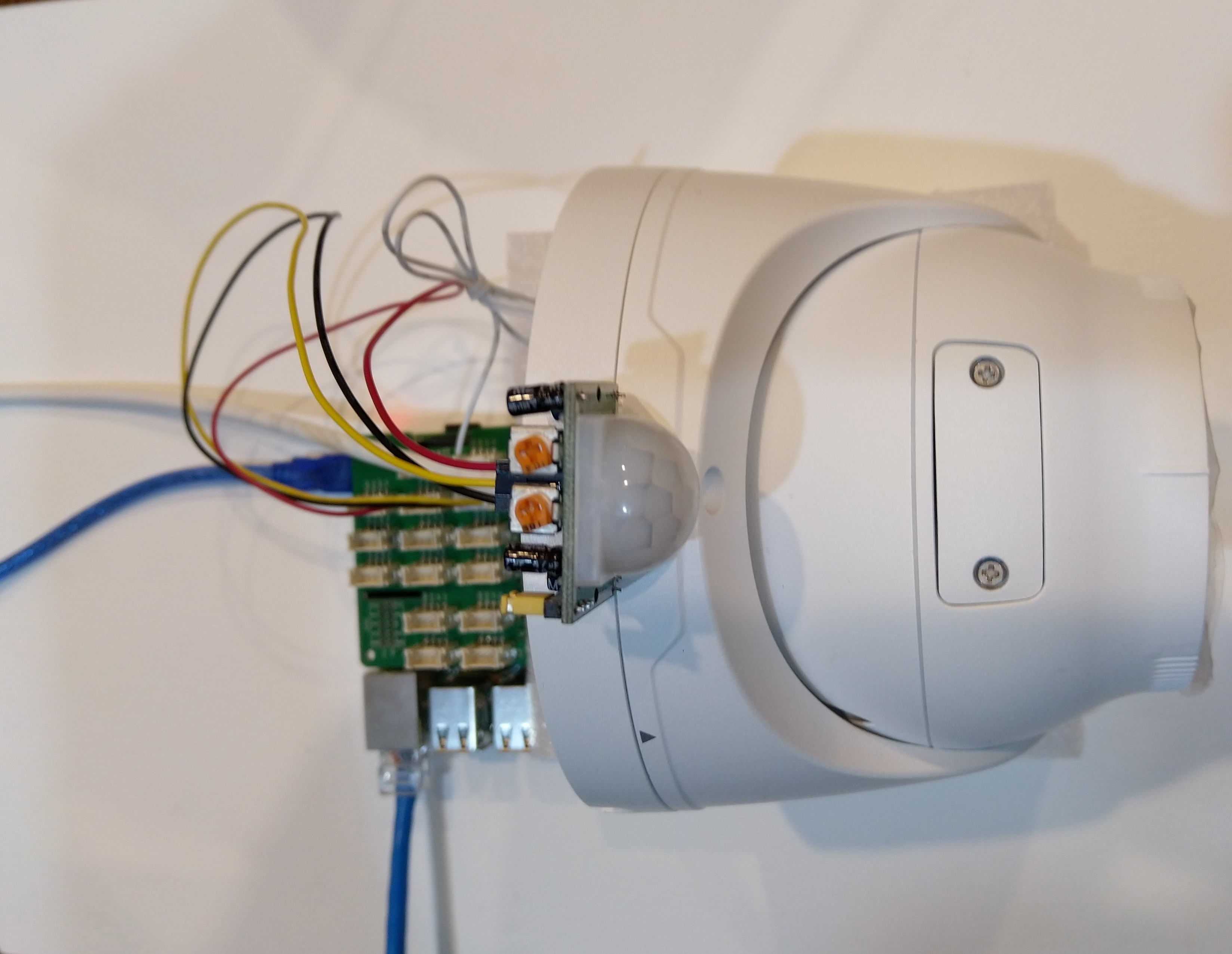
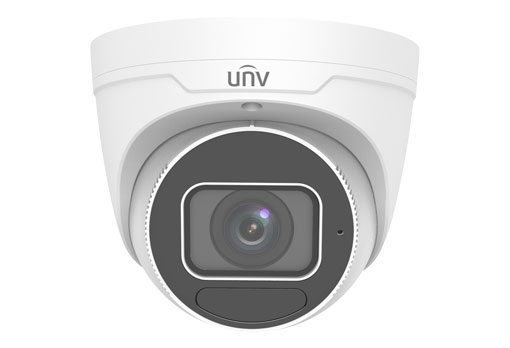
Uniview IPC3635SB-ADZK-I0 Security camera test rig with Raspberry PI and PIR motion detector

I tried to keep the .Net Core 5 console applications as simple as possible, they download an image from the camera “snapshot” endpoint (In this case http://10.0.0.47:85/images/snapshot.jpg), save it to the local filesystem and then upload it.

The core of the two applications is the “upload” image method, which is called by a timer or GPIO pin EventHandler

private static async void ImageUpdateTimerCallback(object state)
{
	CommandLineOptions options = (CommandLineOptions)state;
	DateTime requestAtUtc = DateTime.UtcNow;

	// Just incase - stop code being called while retrival of the photo already in progress
	if (cameraBusy)
	{
		return;
	}
	cameraBusy = true;

	Console.WriteLine($"{requestAtUtc:yy-MM-dd HH:mm:ss} Image up load start");

	try
	{
		// First go and get the image file from the camera onto local file system
		using (var client = new WebClient())
		{
			NetworkCredential networkCredential = new NetworkCredential()
			{
				UserName = options.UserName,
				Password = options.Password
			};

			client.Credentials = networkCredential;

			await client.DownloadFileTaskAsync(new Uri(options.CameraUrl), options.LocalFilename);
		}

		// Then open the file ready to stream ito upto storage account associated with Azuure IoT Hub
		using (FileStream fileStreamSource = new FileStream(options.LocalFilename, FileMode.Open))
		{
			var fileUploadSasUriRequest = new FileUploadSasUriRequest
			{
				BlobName = string.Format("{0:yyMMdd}/{0:yyMMddHHmmss}.jpg", requestAtUtc)
			};

			// Get the plumbing sorted for where the file is going in Azure Storage
			FileUploadSasUriResponse sasUri = await azureIoTCentralClient.GetFileUploadSasUriAsync(fileUploadSasUriRequest);
			Uri uploadUri = sasUri.GetBlobUri();

			try
			{
				var blockBlobClient = new BlockBlobClient(uploadUri);

				var response = await blockBlobClient.UploadAsync(fileStreamSource, new BlobUploadOptions());

				var successfulFileUploadCompletionNotification = new FileUploadCompletionNotification()
				{
					// Mandatory. Must be the same value as the correlation id returned in the sas uri response
					CorrelationId = sasUri.CorrelationId,

					// Mandatory. Will be present when service client receives this file upload notification
					IsSuccess = true,

					// Optional, user defined status code. Will be present when service client receives this file upload notification
					StatusCode = 200,

					// Optional, user-defined status description. Will be present when service client receives this file upload notification
					StatusDescription = "Success"
				};

				await azureIoTCentralClient.CompleteFileUploadAsync(successfulFileUploadCompletionNotification);
			}
			catch (Exception ex)
			{
				Console.WriteLine($"Failed to upload file to Azure Storage using the Azure Storage SDK due to {ex}");

				var failedFileUploadCompletionNotification = new FileUploadCompletionNotification
				{
					// Mandatory. Must be the same value as the correlation id returned in the sas uri response
					CorrelationId = sasUri.CorrelationId,

					// Mandatory. Will be present when service client receives this file upload notification
					IsSuccess = false,

					// Optional, user-defined status code. Will be present when service client receives this file upload notification
					StatusCode = 500,

					// Optional, user defined status description. Will be present when service client receives this file upload notification
					StatusDescription = ex.Message
				};

				await azureIoTCentralClient.CompleteFileUploadAsync(failedFileUploadCompletionNotification);
			}
		}

		TimeSpan uploadDuration = DateTime.UtcNow - requestAtUtc;

		Console.WriteLine($"{requestAtUtc:yy-MM-dd HH:mm:ss} Image up load done. Duration:{uploadDuration.TotalMilliseconds:0.} mSec");
	}
	catch (Exception ex)
	{
		Console.WriteLine($"Camera image upload process failed {ex.Message}");
	}
	finally
	{
		cameraBusy = false;
	}
}

I have used Azure DeviceClient UploadToBlobAsync in other projects and it was a surprise to see it deprecated and replaced with GetFileUploadSasUriAsync and GetBlobUri with sample code from the development team.

string blobName = string.Format("{0:yyMMdd}/{0:yyMMddHHmmss}.jpg", requestAtUtc);

azureIoTCentralClient.UploadToBlobAsync(blobName, fileStreamSource);

It did seem to take a lot of code to implement what was previously a single line (I’m going try and find out why this method has been deprecated)
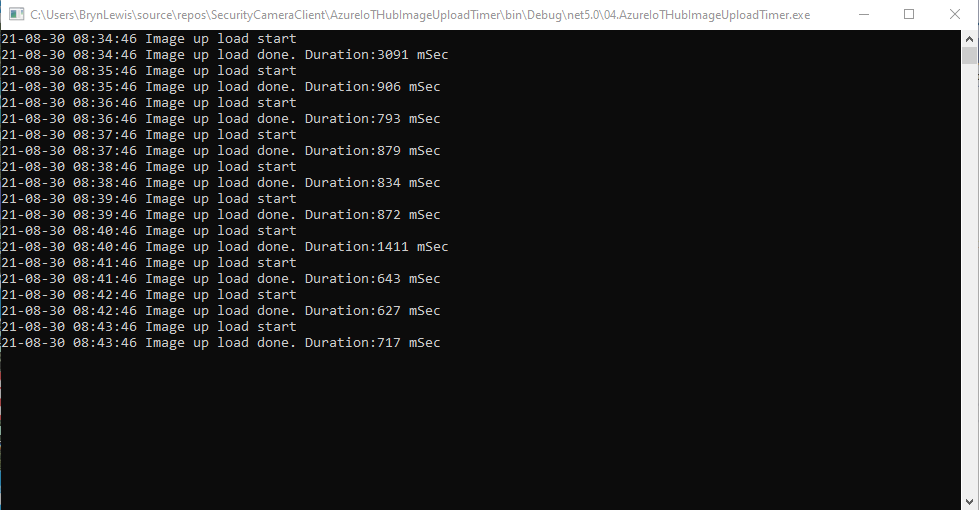
TImer application image uploader

Using Azure Storage Explorer I could view and download the images uploaded by the application(s) running on my development machine and Raspberry PI
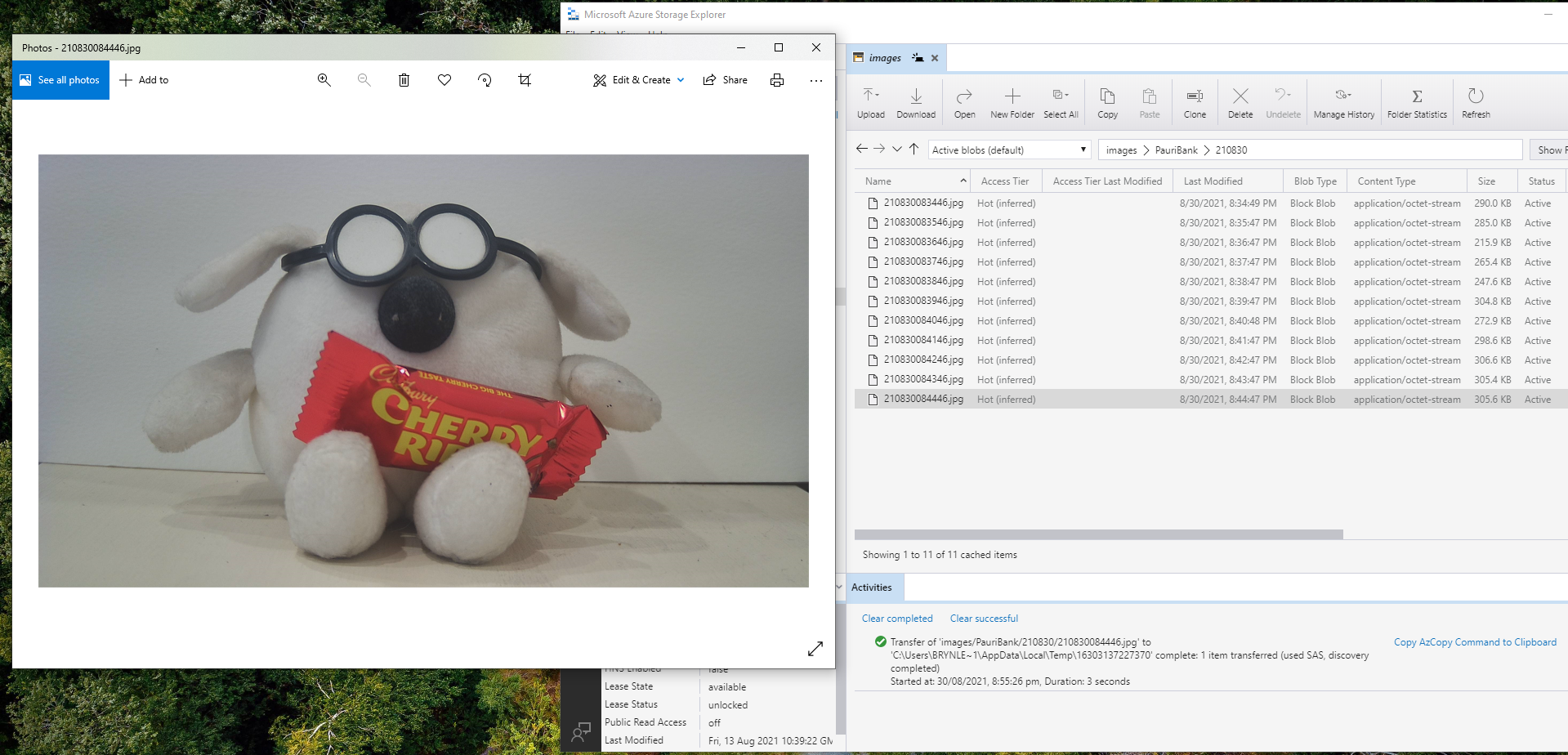
Azure Storage Displaying most recent image uploaded by a RaspberryPI device

After confirming the program was working I used the excellent RaspberryDebugger to download the application and debug it on my Raspberry PI 3 running the Raspberry PI OS.

Now that the basics are working my plan is to figure out how to control the camera using Azure IoT Hub method calls, display live Real Time Streaming Protocol(RTSP) using Azure IoT Hub Device Streams, upload images to Azure Cognitive Services for processing and use ML.Net to process them locally.
Security Camera ONVIF Capabilities

The ONVIF specification standardises the network interface (the network layer) of network video products. It defines a communication framework based on relevant IETF and Web Services standards including security and IP configuration requirements.

After discovering a device the next step was to query it to determine its capabilities. I had some issues with .Net Core 5 application configuring the Windows Communication Foundation(WCF) to use Digest authentication (RFC2617) credentials on all bar the device management service client.

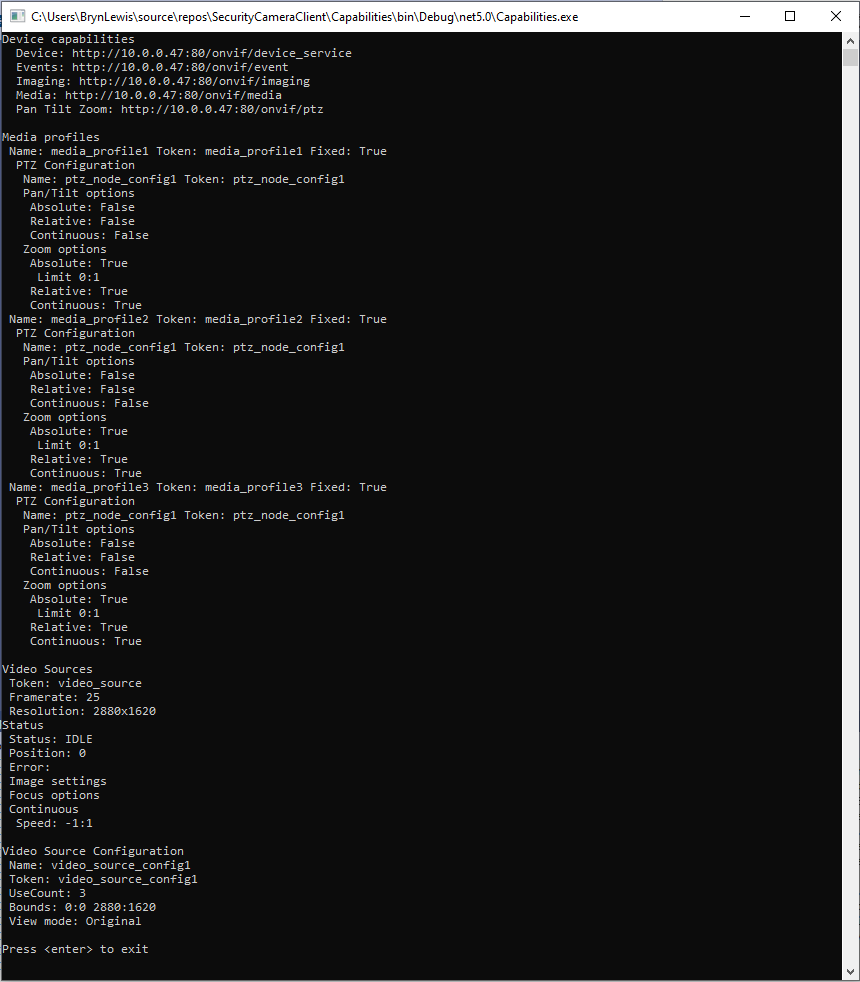
This .Net Core 5 console application queries the device management service (ONVID application programmers guide) to get the capabilities of the device then calls the media, imaging and pan tilt zoom services and displays the results.

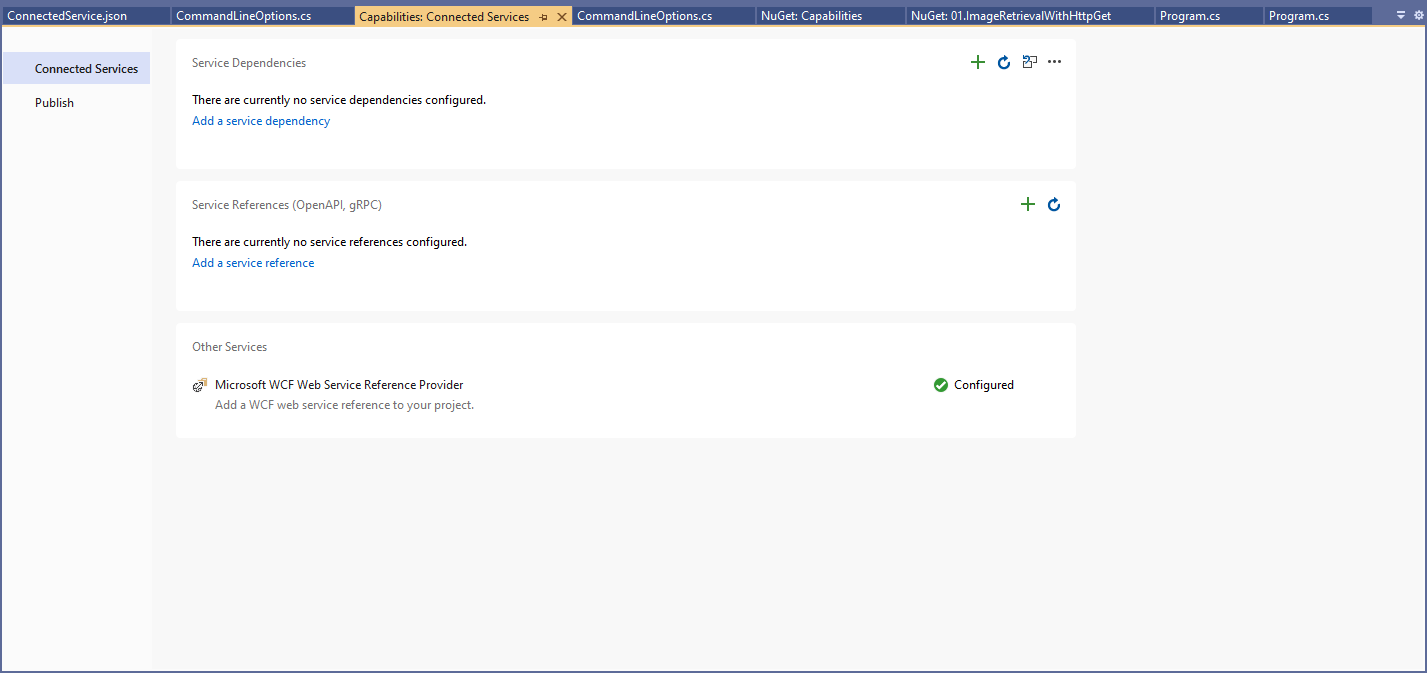
I generated the client services using the Microsoft WCF Web Service Reference Provider.

Connected Services management dialog

The Uniform Resource Locators(URL) and namespace prefixes for each generated service are configured in the ConnectedService.json file.

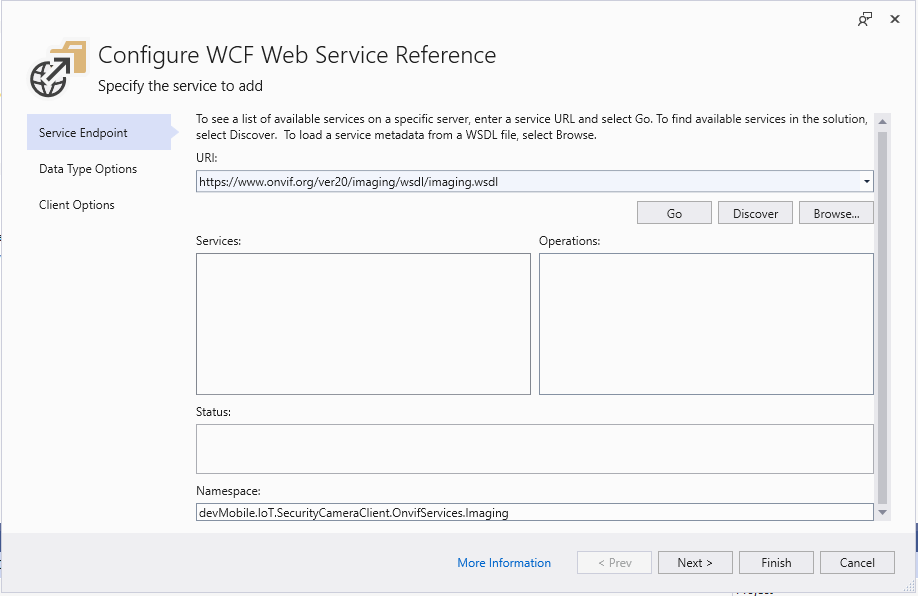
First step configuring a WCF Service

Initially I used a devMobile.IoT.SecurityCameraClient prefix but after some experimentation changed to OnvifServices.

Second step configuring a WCF Service

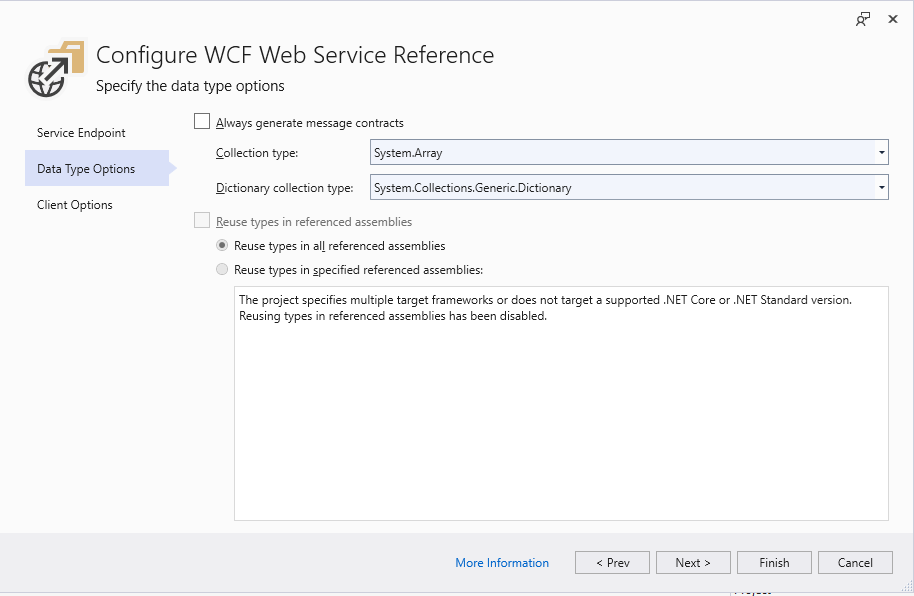
For testing I selected “Generated Synchronous Operations” as they are easier to use in a console application while exploring the available functionality.

Third step configuring a WCF Service

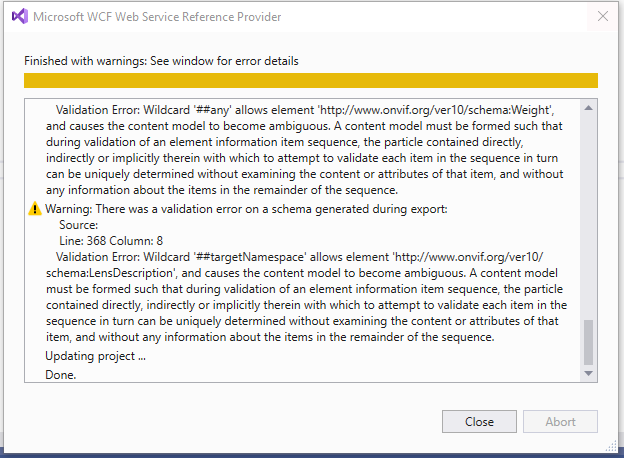
The WSDL generated a number of warnings so I inspected the WSDL to see if the were easy to fix. I did consider copying the WSDL to my development box but it didn’t appear to be worth the effort.

SVCUtil warning messages about invalid Onvif WSDL

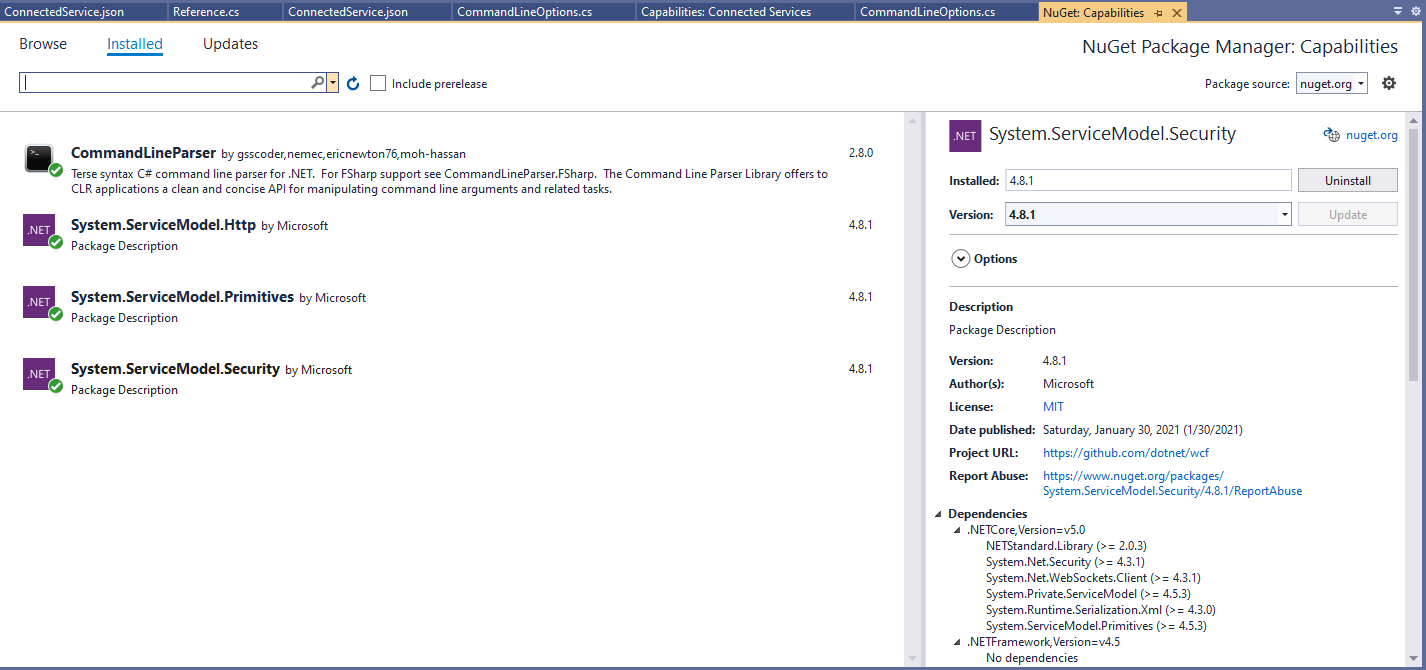
For this application I’m using the CommandLineParser NuGet package to parse and validate the client, username and password configured in the debugger tab.

Required Nuget packages
private static async Task ApplicationCore(CommandLineOptions options)
{
   Device deviceClient;
   ImagingPortClient imagingPortClient;
   MediaClient mediaClient;
   PTZClient panTiltZoomClient;

   var messageElement = new TextMessageEncodingBindingElement()
   {
      MessageVersion = MessageVersion.CreateVersion(EnvelopeVersion.Soap12, AddressingVersion.None),
      WriteEncoding = Encoding.UTF8
    };

    HttpTransportBindingElement httpTransportNoPassword = new HttpTransportBindingElement();
    CustomBinding bindingHttpNoPassword = new CustomBinding(messageElement, httpTransportNoPassword);
         
    HttpTransportBindingElement httpTransport = new HttpTransportBindingElement()
    {
       AuthenticationScheme = AuthenticationSchemes.Digest
    };
    CustomBinding bindingHttpPassword = new CustomBinding(messageElement, httpTransport);

    try
    {
       // Setup the imaging porting binding, use TLS, and ignore certificate errors
       deviceClient = new DeviceClient(bindingHttpNoPassword, new EndpointAddress($"http://{options.CameraUrl}/onvif/devicemgmt"));

       GetCapabilitiesResponse capabilitiesResponse = await deviceClient.GetCapabilitiesAsync(new GetCapabilitiesRequest(new CapabilityCategory[] { CapabilityCategory.All }));

       Console.WriteLine("Device capabilities");
       Console.WriteLine($"  Device: {capabilitiesResponse.Capabilities.Device.XAddr}");
       Console.WriteLine($"  Events: {capabilitiesResponse.Capabilities.Events.XAddr}"); // Not interested in events for V1
       Console.WriteLine($"  Imaging: {capabilitiesResponse.Capabilities.Imaging.XAddr}");
       Console.WriteLine($"  Media: {capabilitiesResponse.Capabilities.Media.XAddr}");
       Console.WriteLine($"  Pan Tilt Zoom: {capabilitiesResponse.Capabilities.PTZ.XAddr}");
       Console.WriteLine();
       ...
       Console.WriteLine($"Video Source Configuration");
       foreach (OnvifServices.Media.VideoSourceConfiguration videoSourceConfiguration in videoSourceConfigurations.Configurations)
      {
         Console.WriteLine($" Name: {videoSourceConfiguration.Name}");
         Console.WriteLine($" Token: {videoSourceConfiguration.token}");
         Console.WriteLine($" UseCount: {videoSourceConfiguration.UseCount}");
         Console.WriteLine($" Bounds: {videoSourceConfiguration.Bounds.x}:{videoSourceConfiguration.Bounds.y} {videoSourceConfiguration.Bounds.width}:{videoSourceConfiguration.Bounds.height}");
         Console.WriteLine($" View mode: {videoSourceConfiguration.ViewMode}");
      }
   }
   catch (Exception ex)
   {
      Console.WriteLine(ex.Message);
   }

   Console.WriteLine();
   Console.WriteLine("Press <enter> to exit");
   Console.ReadLine();
}

I had to do a bit of “null checking” as often if a feature wasn’t supported the root node was null. I need to get a selection of cameras (especially one with pan/tilt/zoom) to check that I’m processing the responses from the device correctly.

Console application output showing capabilities of Uniview device

After confirming the program was working on my development box I used the excellent RaspberryDebugger to download the application and run it on a Raspberry PI 3 running the Raspberry PI OS.

Security Camera ONVIF Discovery

The ONVIF specification standardises the network interface (the network layer) of network video products. It defines a communication framework based on relevant IETF and Web Services standards including security and IP configuration requirements. ONVIF uses Web Services Dynamic Discovery (WS-Discovery) to locate devices on the local network which operates over UDP port 3702 and uses IP multicast address 239.255.255.250.

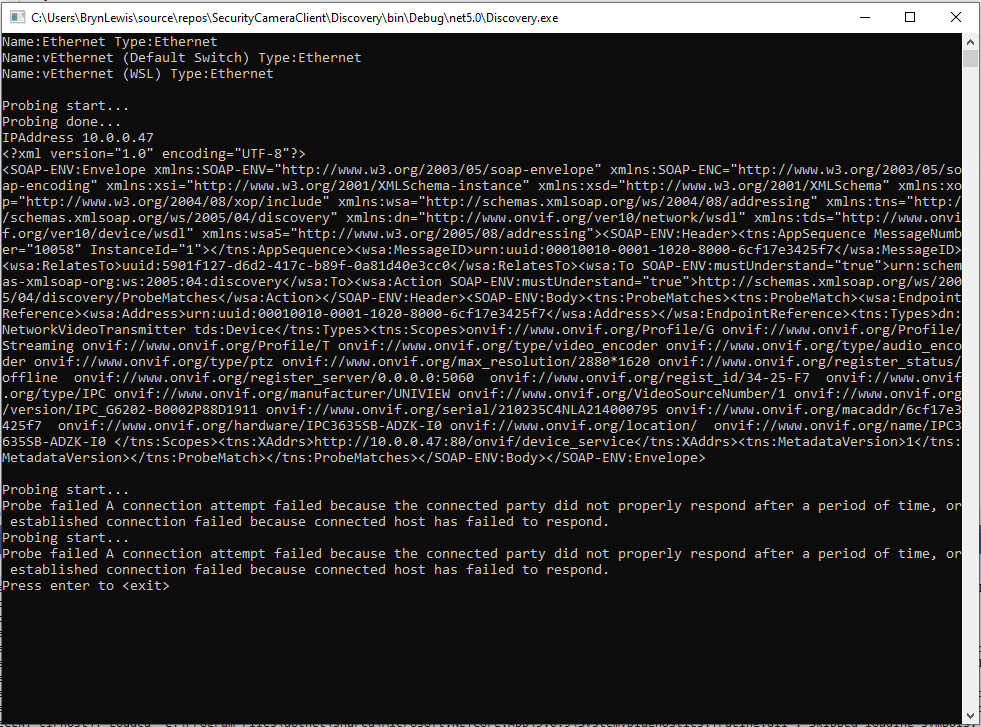
The first issue was that WS-Discovery is not currently supported by the .Net Core Windows Communication Foundation(WCF) implementation CoreWCF(2021-08). So I built a proof of concept(PoC) client which used UDP to send and receive XML messages (WS-Discovery specification) to “probe” the local network.

My .Net Core 5 console application enumerates the host device’s network interfaces, then sends a “probe” message and waits for responses. The ONVID application programmers guide specifies the format of the “probe” request and response messages (One of the namespace prefixes in the sample is wrong). The client device can return its name and details of it’s capabilities in the response. Currently I only need the IP addresses of the cameras but if more information was required I would use the XML Serialisation functionality of .Net Core to generate the requests and unpack the responses.

class Program
{
	// From https://specs.xmlsoap.org/ws/2005/04/discovery/ws-discovery.pdf & http://www.onvif.org/wp-content/uploads/2016/12/ONVIF_WG-APG-Application_Programmers_Guide-1.pdf
	const string WSDiscoveryProbeMessages =
		"<?xml version = \"1.0\" encoding=\"UTF-8\"?>" +
		"<e:Envelope xmlns:e=\"http://www.w3.org/2003/05/soap-envelope\" " +
			"xmlns:w=\"http://schemas.xmlsoap.org/ws/2004/08/addressing\" " +
			"xmlns:d=\"http://schemas.xmlsoap.org/ws/2005/04/discovery\" " +
			"xmlns:dn=\"http://www.onvif.org/ver10/network/wsdl\"> " +
				"<e:Header>" +
					"<w:MessageID>uuid:{0}</w:MessageID>" +
					"<w:To e:mustUnderstand=\"true\">urn:schemas-xmlsoap-org:ws:2005:04:discovery</w:To> " +
					"<w:Action mustUnderstand=\"true\">http://schemas.xmlsoap.org/ws/2005/04/discovery/Probe</w:Action> " +
				"</e:Header> " +
				"<e:Body> " +
					"<d:Probe> " +
						"<d:Types>dn:NetworkVideoTransmitter</d:Types>" +
					"</d:Probe> " +
				"</e:Body> " +
		"</e:Envelope>";

	static async Task Main(string[] args)
	{
		List<UdpClient> udpClients = new List<UdpClient>();

		foreach (var networkInterface in NetworkInterface.GetAllNetworkInterfaces())
		{
			Console.WriteLine($"Name {networkInterface.Name}");
			foreach (var unicastAddress in networkInterface.GetIPProperties().UnicastAddresses)
			{
				if (unicastAddress.Address.AddressFamily == AddressFamily.InterNetwork)
				{
					var udpClient = new UdpClient(new IPEndPoint(unicastAddress.Address, 0)) { EnableBroadcast = true };

					udpClient.Client.SetSocketOption(SocketOptionLevel.Socket, SocketOptionName.ReceiveTimeout, 5000);

					udpClients.Add(udpClient);
				}
			}
		}

	var multicastEndpoint = new IPEndPoint(IPAddress.Parse("239.255.255.250"), 3702);

		foreach (UdpClient udpClient in udpClients)
		{
			byte[] message = UTF8Encoding.UTF8.GetBytes(string.Format(WSDiscoveryProbeMessages, Guid.NewGuid().ToString()));

			try
			{
				await udpClient.SendAsync(message, message.Length, multicastEndpoint);

				IPEndPoint remoteEndPoint = null;

				while(true)
				{				
					message = udpClient.Receive(ref remoteEndPoint);

					Console.WriteLine($"IPAddress {remoteEndPoint.Address}");
					Console.WriteLine(UTF8Encoding.UTF8.GetString(message));

					Console.WriteLine();
				}
			}
			catch (SocketException sex)
			{
				Console.WriteLine($"Probe failed {sex.Message}");
			}
		}

		Console.WriteLine("Press enter to <exit>");
		Console.ReadKey();
	}
}

After confirming the program was working I used the excellent RaspberryDebugger to download the application and debug it on a Raspberry PI 3 running the Raspberry PI OS.

Security Camera HTTP Image download

As part of a contract a customer sent me a Uniview IPC3635SB-ADZK-I0 Security camera for a proof of concept(PoC) project. Before the PoC I wanted to explore the camera functionality in more depth, especially how to retrieve individual images from the camera, remotely control it’s zoom, focus, pan, tilt etc.. I’m trying to source a couple of other vendors’ security cameras with remotely controllable pan and tilt for testing.

Uniview IPC3635SB-ADZK-I0 Security camera

It appears that many cameras support retrieving the latest image with an HyperText Transfer Protocol (HTTP) GET so that looked like a good place to start. For the next couple of posts the camera will be sitting on the bookcase in my office looking through the window at the backyard.

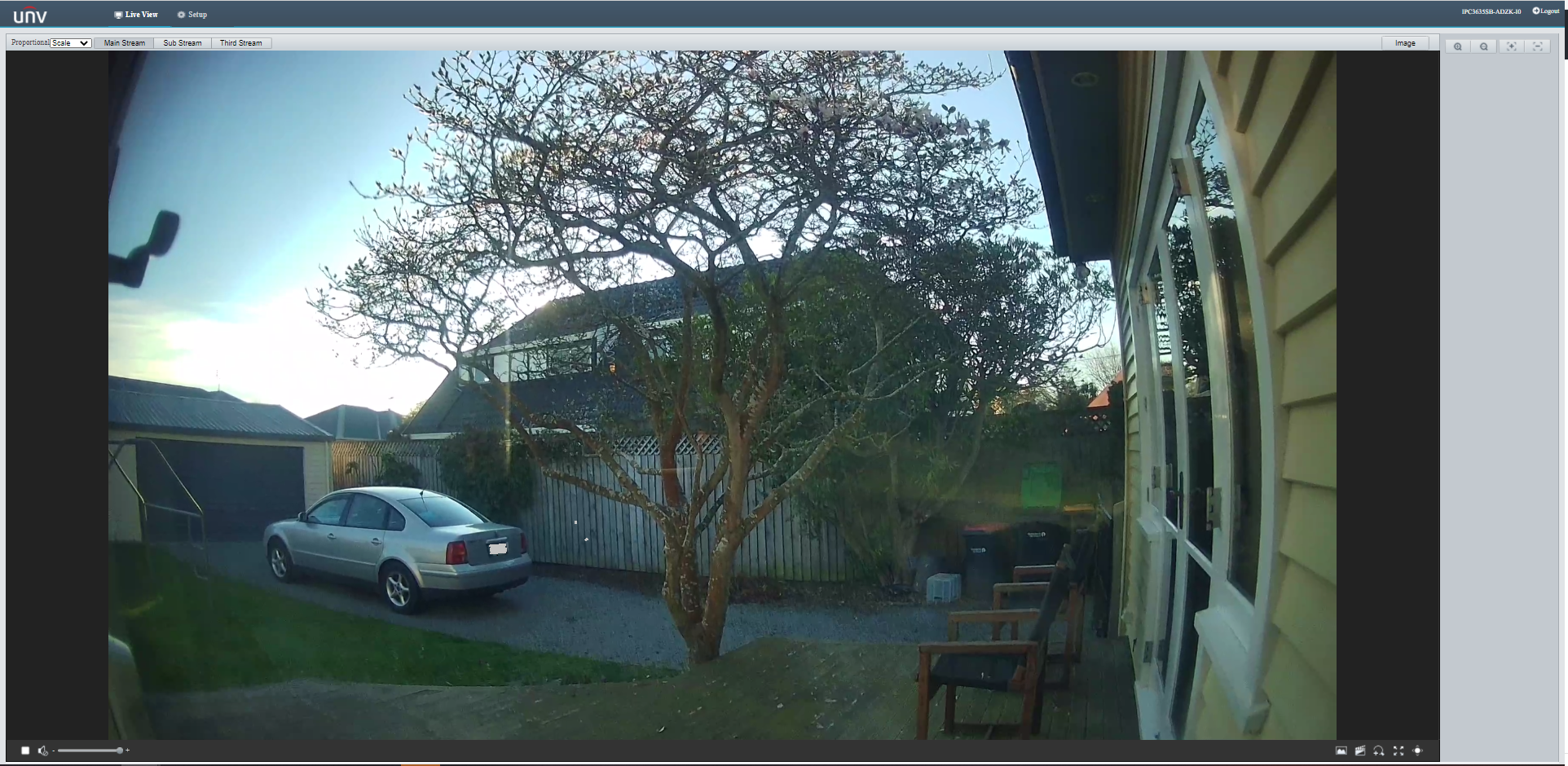
Unv camera software live view of my backyard

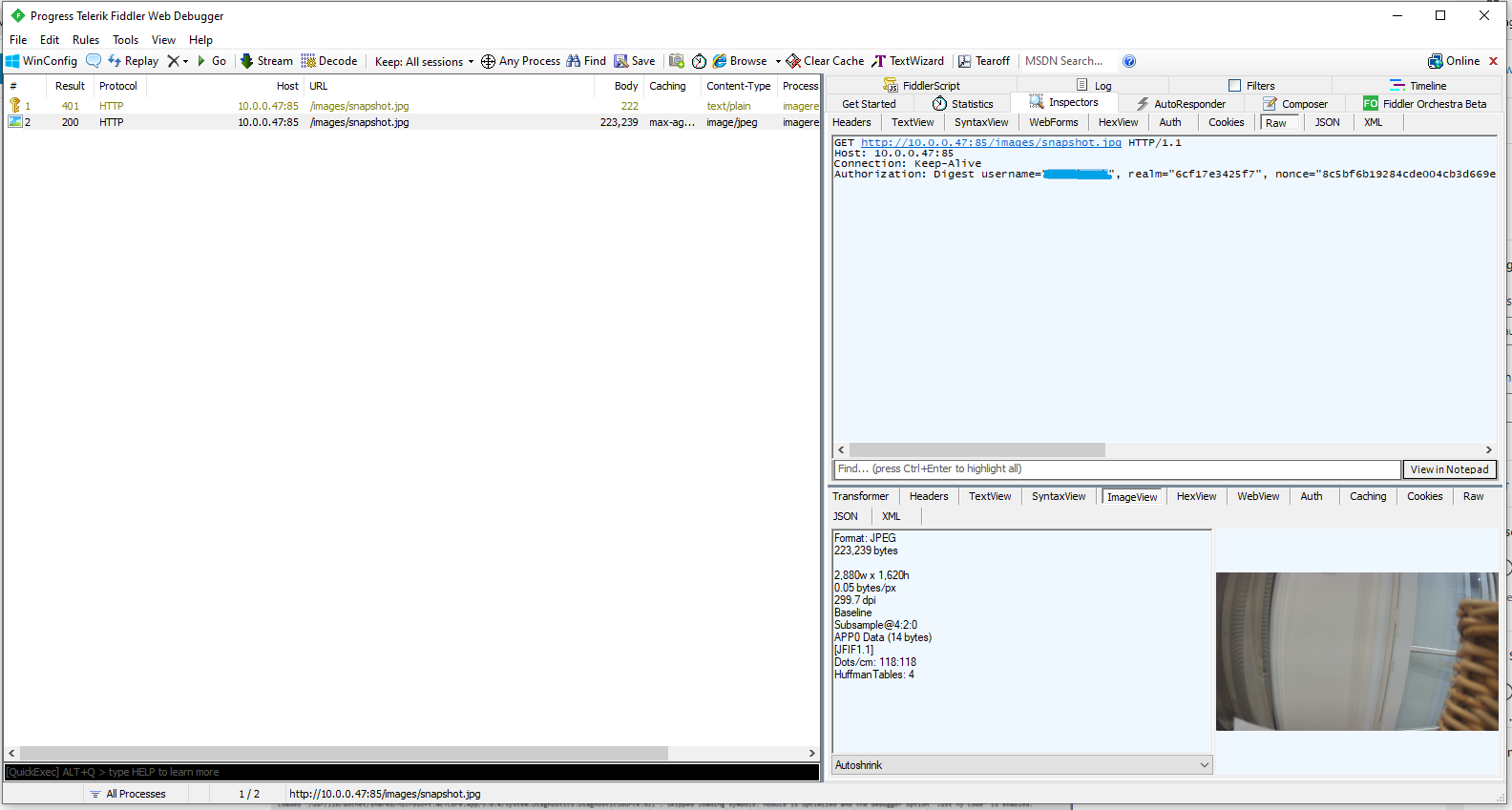
One thing I did notice (then confirmed with Telerik Fiddler and in the camera configuration) was that the camera was configured to use Digest authentication(RFC 2069) which broke my initial attempt with a Universal Windows Platform(UWP) application.

Telerik Fiddler showing 401 authorisation challenge

My .Net Core 5 console application is as simple possible, it just downloads an image from the camera “snapshot” endpoint (In this case http://10.0.0.47:85/images/snapshot.jpg) and saves it to the local filesystem.

class Program
{
	static async Task Main(string[] args)
	{
		await Parser.Default.ParseArguments<CommandLineOptions>(args)
			.WithNotParsed(HandleParseError)
			.WithParsedAsync(ApplicationCore);
	}

	private static async Task ApplicationCore(CommandLineOptions options)
	{
		Console.WriteLine($"Camera:{options.CameraUrl} UserName:{options.UserName} filename:{options.Filename}");

		using (var client = new WebClient())
		{
			NetworkCredential networkCredential = new NetworkCredential()
			{
				UserName = options.UserName,
				Password = options.Password
			};

			client.Credentials = networkCredential;

			try
			{
				await client.DownloadFileTaskAsync(new Uri(options.CameraUrl), options.Filename);
			}
			catch (Exception ex)
			{
				Console.WriteLine($"File download failed {ex.Message}");
			}
		}

		Console.WriteLine("Press <enter> to exit");
		Console.ReadLine();
	}

	private static void HandleParseError(IEnumerable<Error> errors)
	{
		if (errors.IsVersion())
		{
			Console.WriteLine("Version Request");
			return;
		}

		if (errors.IsHelp())
		{
			Console.WriteLine("Help Request");
			return;
		}
		Console.WriteLine("Parser Fail");
	}
}

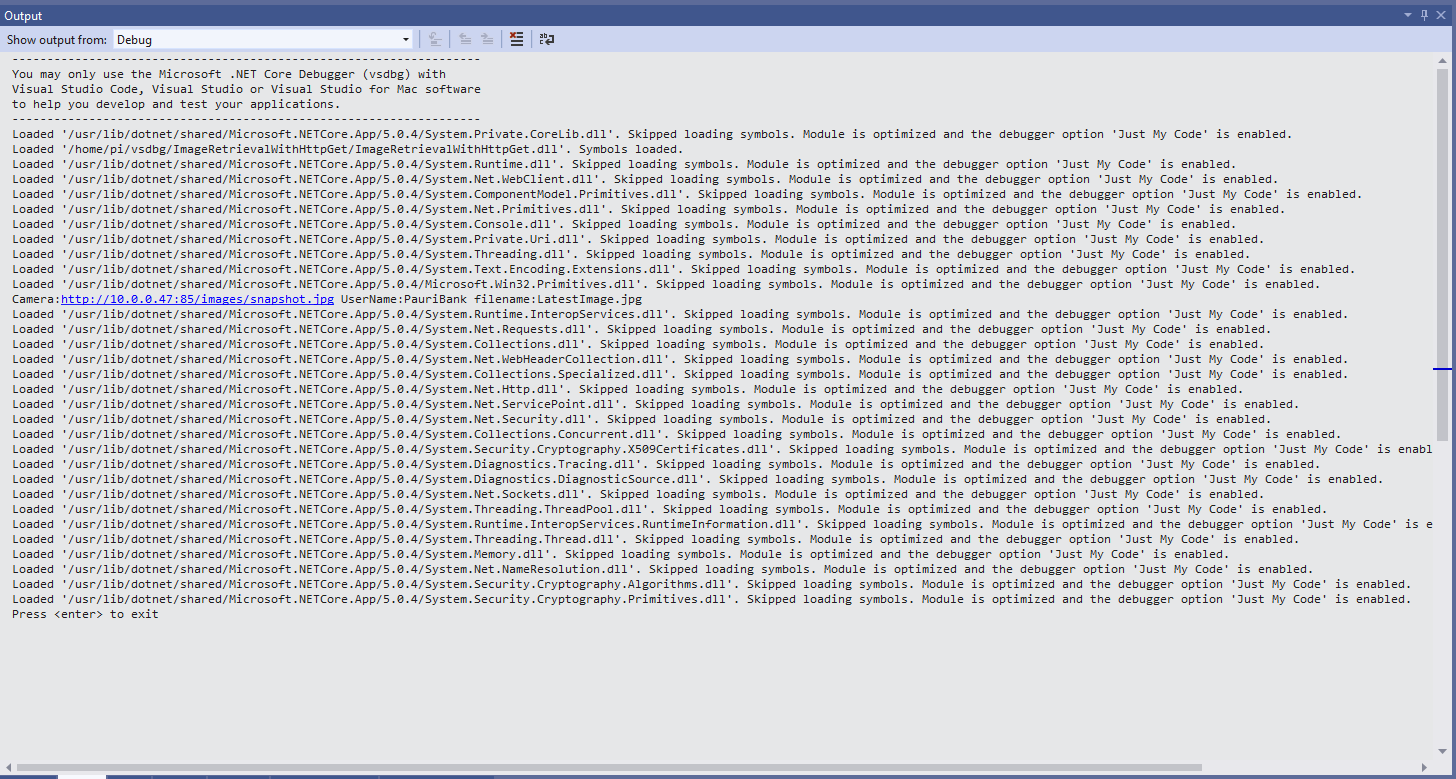
After confirming the program was working I used the excellent RaspberryDebugger to download the application and debug it on a Raspberry PI 3 running the Raspberry PI OS.

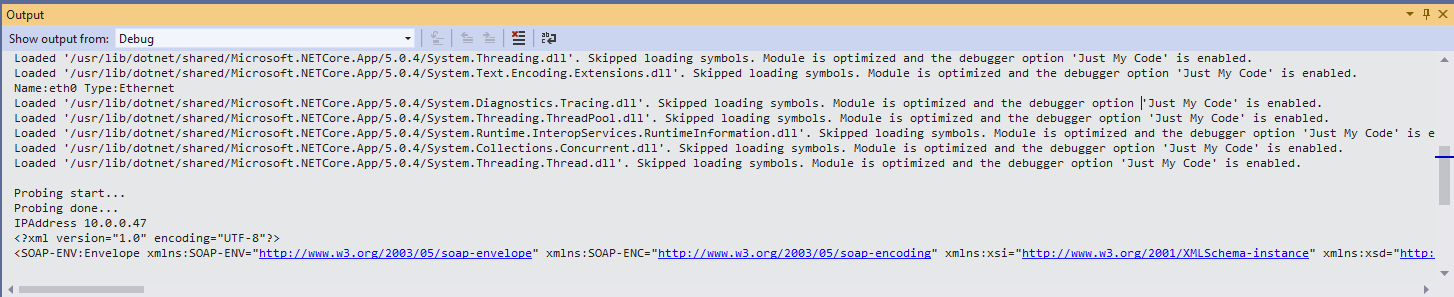
Visual Studio 2019 Debug Output showing application download process

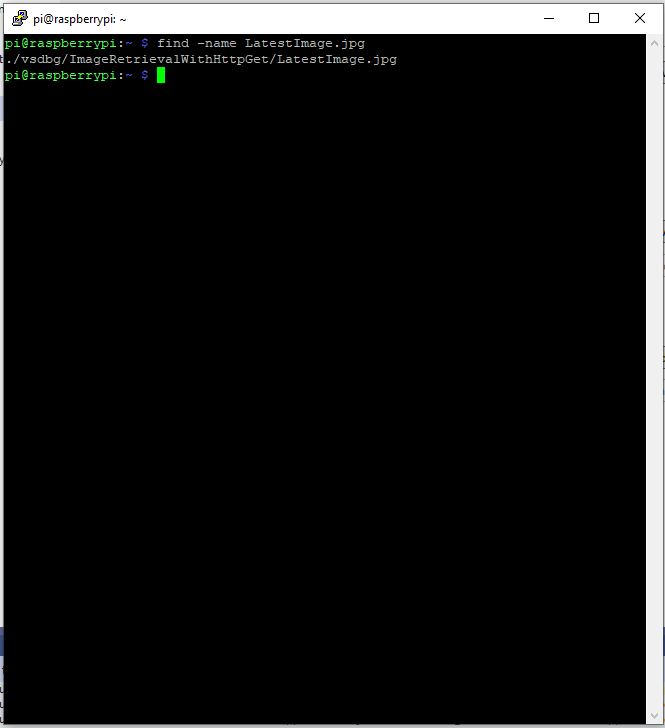
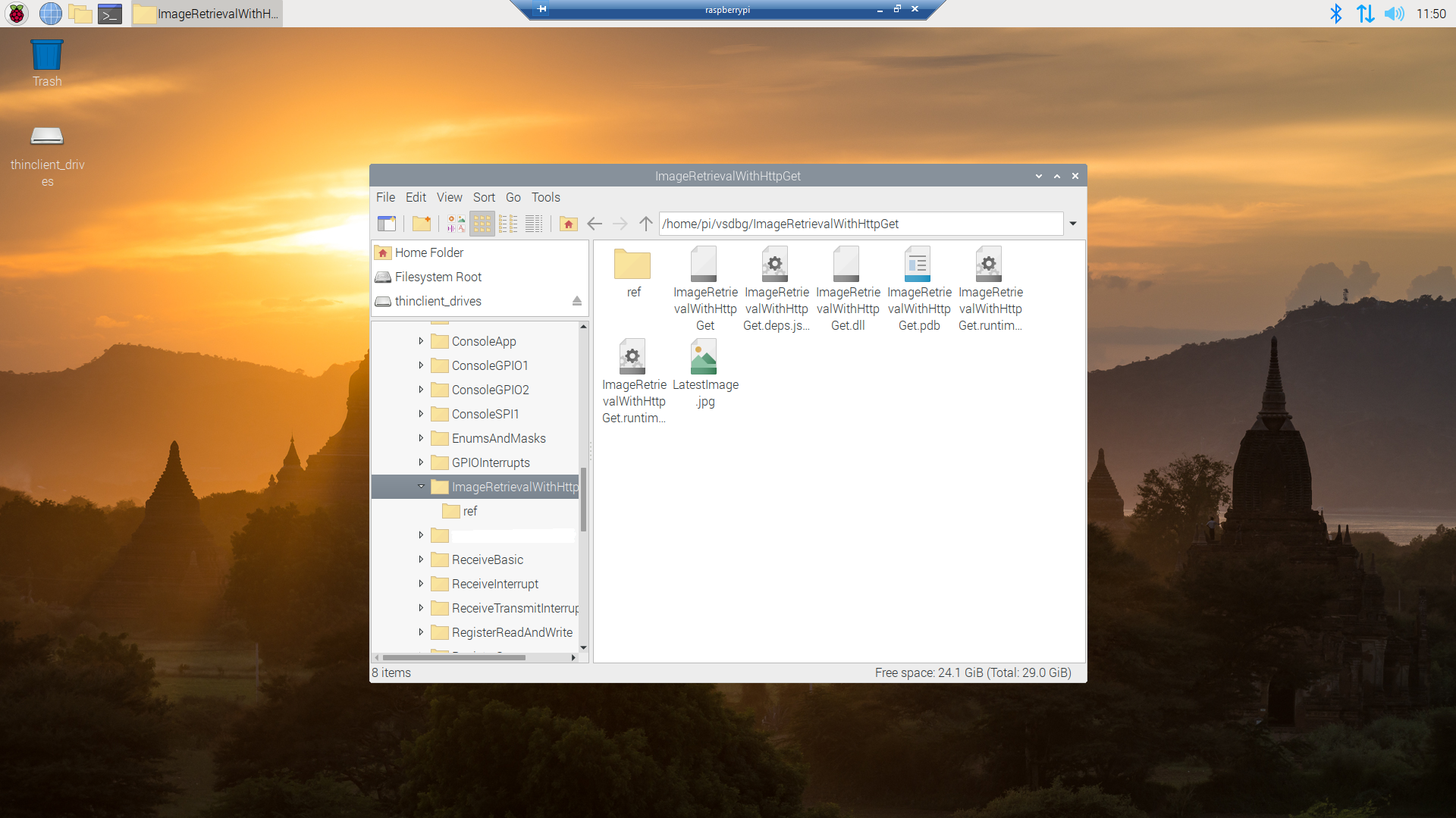
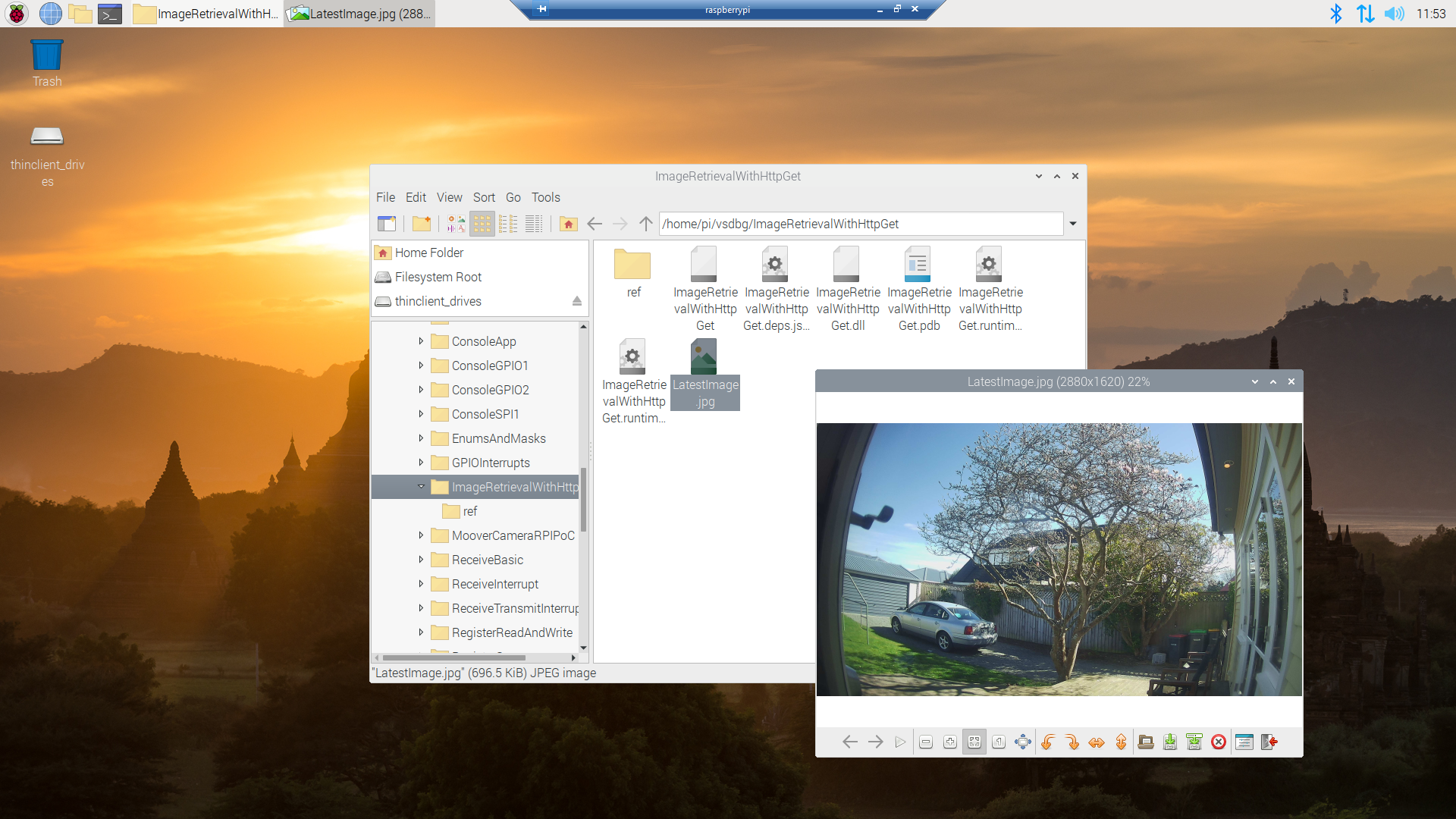
Once the application had finished running on the device I wanted to check that the file was on the local filesystem. I used Putty to connect to the Raspberry PI then searched for LatestImage.jpg.

Linux find utility displaying the location of the downloaded file

I though about using a utility like scp to download the image file but decided (because I have been using Microsoft Window since WIndows 286) to install xrdp an open-source Remote Desktop Protocol(RDP) server so I could use a Windows 10 RDP client.

xrdp login screen
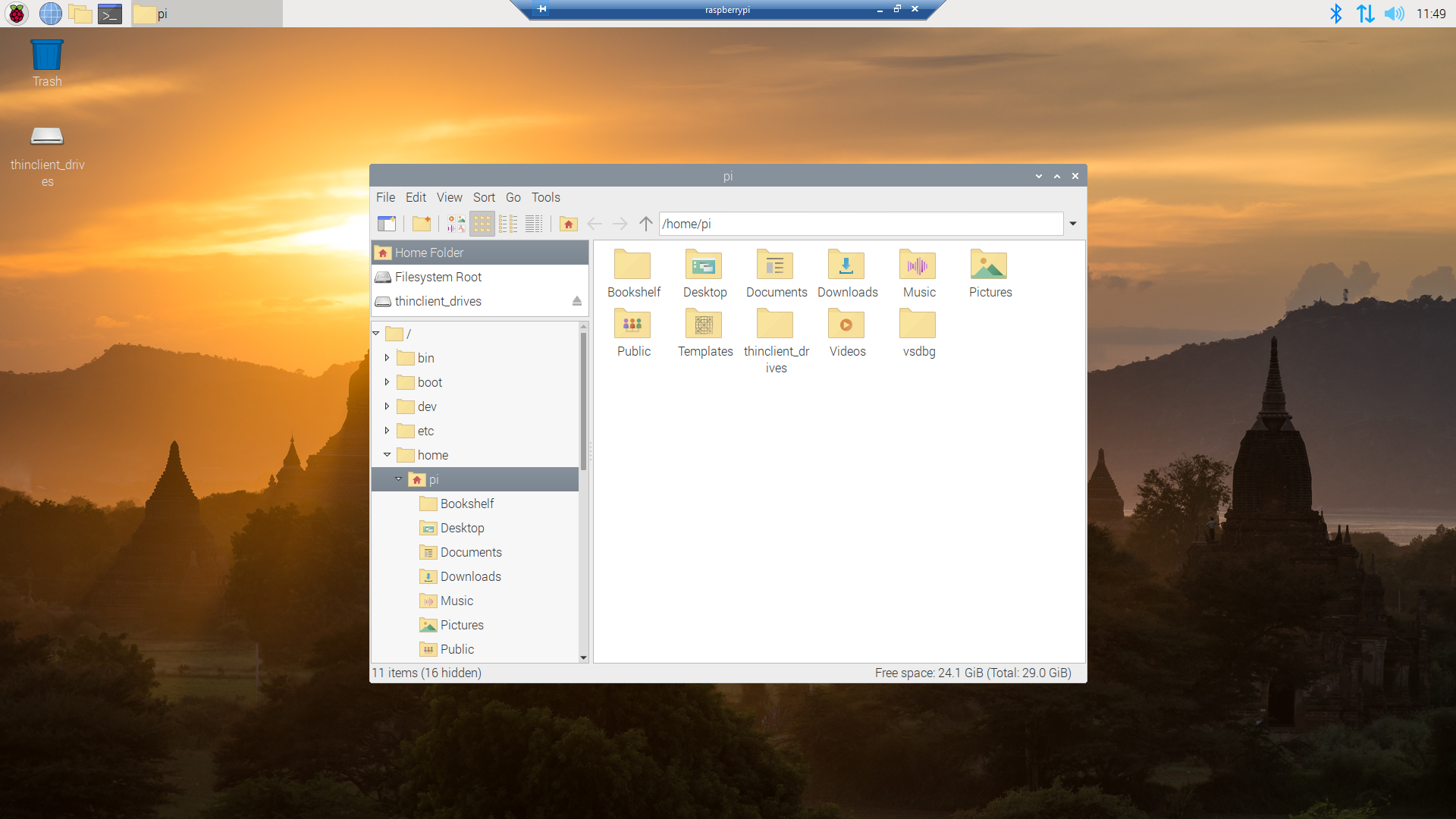
xrdp home screen
xrdp file manager display files in application deployment directory
Raspberry PI OS default image view

Now that the basics are working my plan is to figure out how to control the camera, display live video with the Real Time Streaming Protocol(RTSP) upload images to Azure Cognitive Services for processing and use ML.Net to process them locally.
This post was about selecting the tooling I’m comfortable with and configuring my development environment so they work well together. The next step will be using Open Network Video Interface Forum (ONVIF) to discover, determine the capabilities of and then control the camera (for this device just zoom and focus).

Azure IoT Central Connectivity Part4

The Things Network(TTN) Friendly Commands

I have built a several Proof of Concept(PoC) applications (Azure IoT Central Basic Telemetry, Basic Commands, and Request Commands) to explore to how an Azure IoT Central integration with TTN could work. This blog post is about how to configure queued and non queued Cloud to Device(C2D) Commands with request parameters so they should work with my TTN Message Queue Telemetry Transport(MQTT) Data API connector.

I have focused on commands with Analog values but the same approach should be valid for other parameter types like Boolean, Date, DateTime, Double, Duration, Enumeration, Float, Geopoint, Vector, Integer, Long, String, and Time.

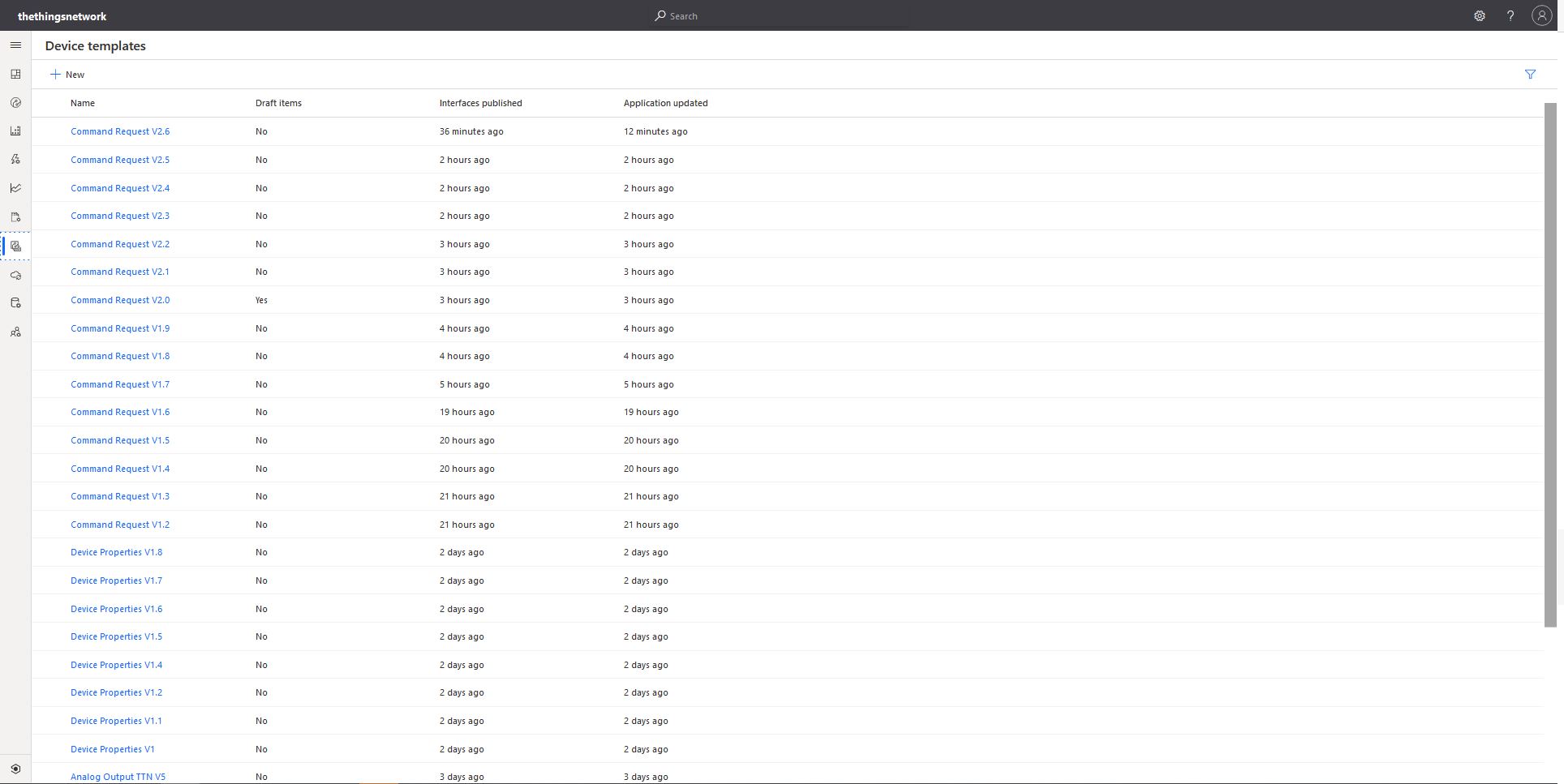
Multiple versions of my Azure IoT Central templates

There was a lot of “trial and error” (26 template versions) required to figure out how to configure commands and queued commands so they can and used in TTN downlink payloads.

{
  "end_device_ids": {
    "device_id": "dev1",
    "application_ids": {
      "application_id": "app1"
    },
    "dev_eui": "4200000000000000",
    "join_eui": "4200000000000000",
    "dev_addr": "00E6F42A"
  },
  "correlation_ids": [
    "my-correlation-id",
    "..."
  ],
  "downlink_ack": {
    "session_key_id": "AWnj0318qrtJ7kbudd8Vmw==",
    "f_port": 15,
    "f_cnt": 11,
    "frm_payload": "....",
    "decoded_payload": 
    {
      "Value_0":"1.23"
      ...
    }
    "confirmed": true,
    "priority": "NORMAL",
    "correlation_ids": [
      "my-correlation-id",
      "..."
    ]
  }
}

My Azure IoT Central client application displays the generated message including the decoded payload field which is used by the built in Low Power Protocol(LPP) decoder/encoder and other custom encoders/decoders.

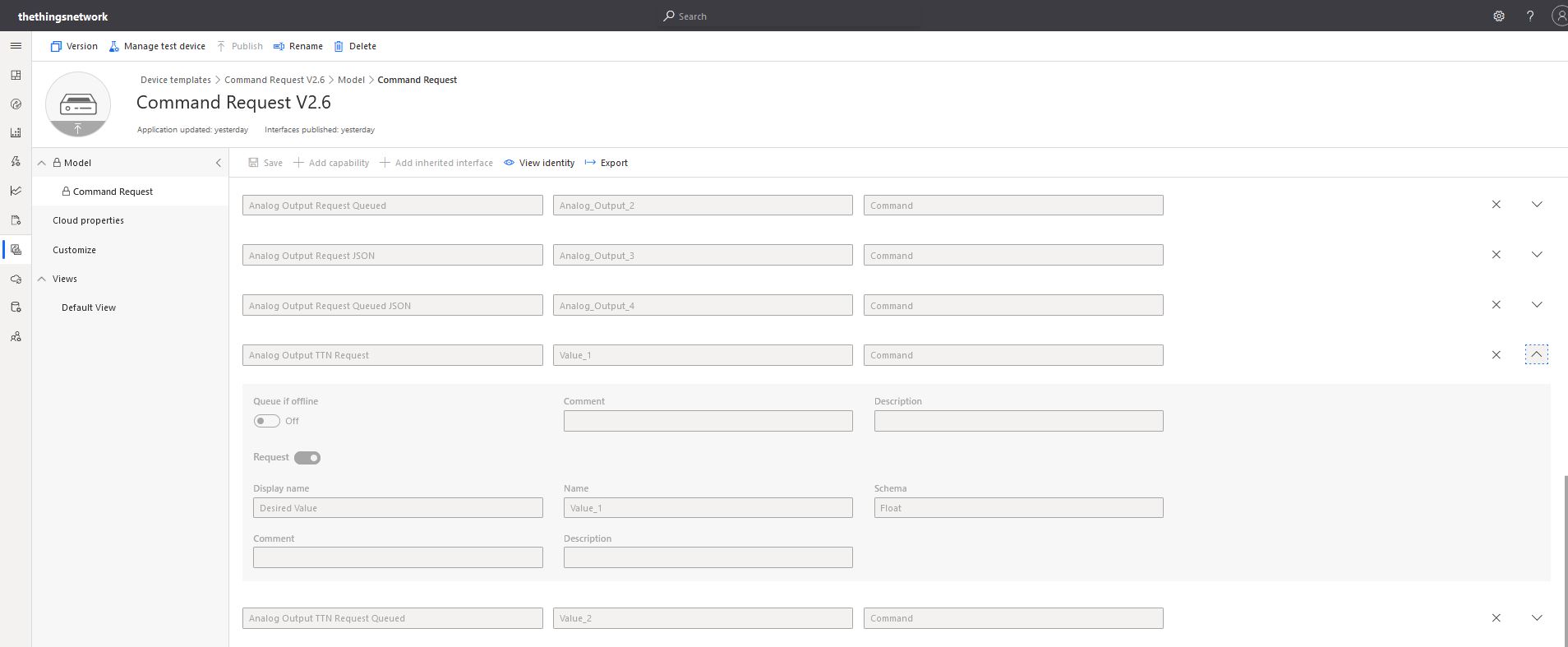
Azure IoT Central commands for TTN/TTI integration

From the “Device Commands” form I can send commands and a queued commands which have float parameters or object parameters which contain one or more float values in a JSON payload.

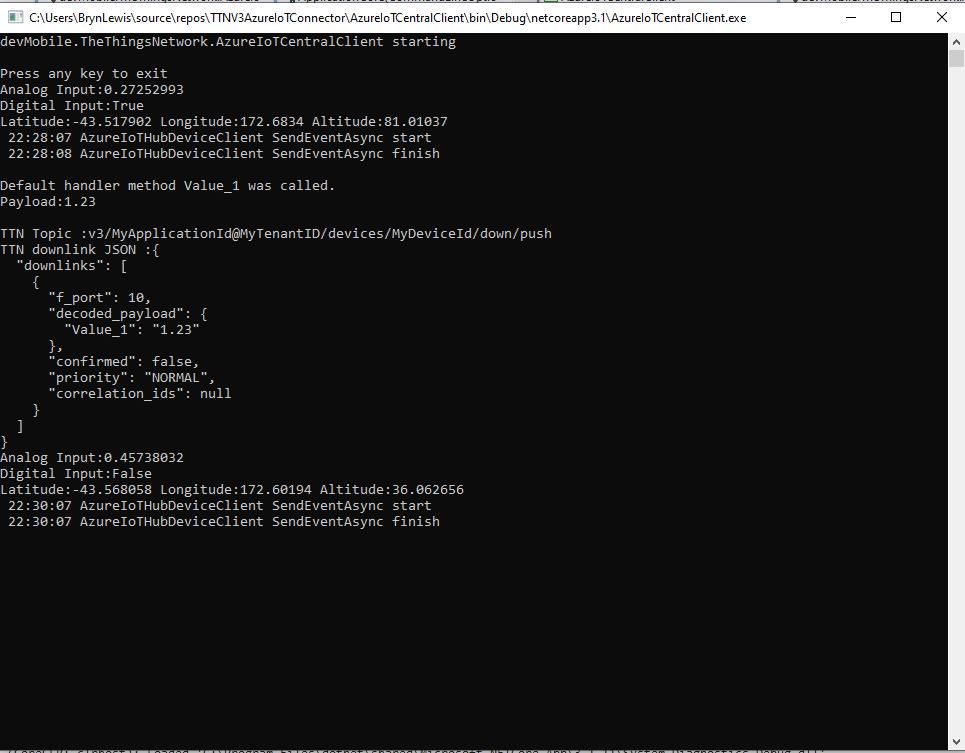
For commands which call the methodHander which was been registered by calling SetMethodDefaultHandlerAsync the request payload can be JSON or plain text. If the payload is valid JSON it is “grafted”(couldn’t think of a better word) into the decoded_payload field. If the payload is not valid a JSON object with the method name as the “name” and the text payload as the value is added the decoded_payload.

private static async Task<MethodResponse> MethodCallbackDefaultHandler(MethodRequest methodRequest, object userContext)
{
   AzureIoTMethodHandlerContext receiveMessageHandlerConext = (AzureIoTMethodHandlerContext)userContext;

   Console.WriteLine($"Default handler method {methodRequest.Name} was called.");

   Console.WriteLine($"Payload:{methodRequest.DataAsJson}");
   Console.WriteLine();

   if (string.IsNullOrWhiteSpace(methodRequest.Name))
   {
      Console.WriteLine($"   Method Request Name null or white space");
      return new MethodResponse(400);
   }

   string payloadText = Encoding.UTF8.GetString(methodRequest.Data);
   if (string.IsNullOrWhiteSpace(payloadText))
   {
       Console.WriteLine($"   Payload null or white space");
       return new MethodResponse(400);
   }

   // At this point would check to see if Azure DeviceClient is in cache, this is so nasty
   if ( String.Compare( methodRequest.Name, "Analog_Output_1", true) ==0 )
   {
      Console.WriteLine($"   Device not found");
      return new MethodResponse(UTF8Encoding.UTF8.GetBytes("Device not found"), 404);
   }

   JObject payload;

   if (IsValidJSON(payloadText))
   {
      payload = JObject.Parse(payloadText);
   }
   else
   {
      payload = new JObject
      {
         { methodRequest.Name, payloadText }
      };
   }

   string downlinktopic = $"v3/{receiveMessageHandlerConext.ApplicationId}@{receiveMessageHandlerConext.TenantId}/devices/{receiveMessageHandlerConext.DeviceId}/down/push";

   DownlinkPayload downlinkPayload = new DownlinkPayload()
   {
      Downlinks = new List<Downlink>()
      {
         new Downlink()
         {
            Confirmed = false,
            //PayloadRaw = messageBody,
            PayloadDecoded = payload,
            Priority = DownlinkPriority.Normal,
            Port = 10,
            /*
            CorrelationIds = new List<string>()
            {
               methodRequest.LockToken
            }
            */
         }
      }
   };

   Console.WriteLine($"TTN Topic :{downlinktopic}");
   Console.WriteLine($"TTN downlink JSON :{JsonConvert.SerializeObject(downlinkPayload, Formatting.Indented)}");

   return new MethodResponse(200);
}
Configuration of unqueued Commands with a typed payload
The output of my test harness for a Command for a typed payload
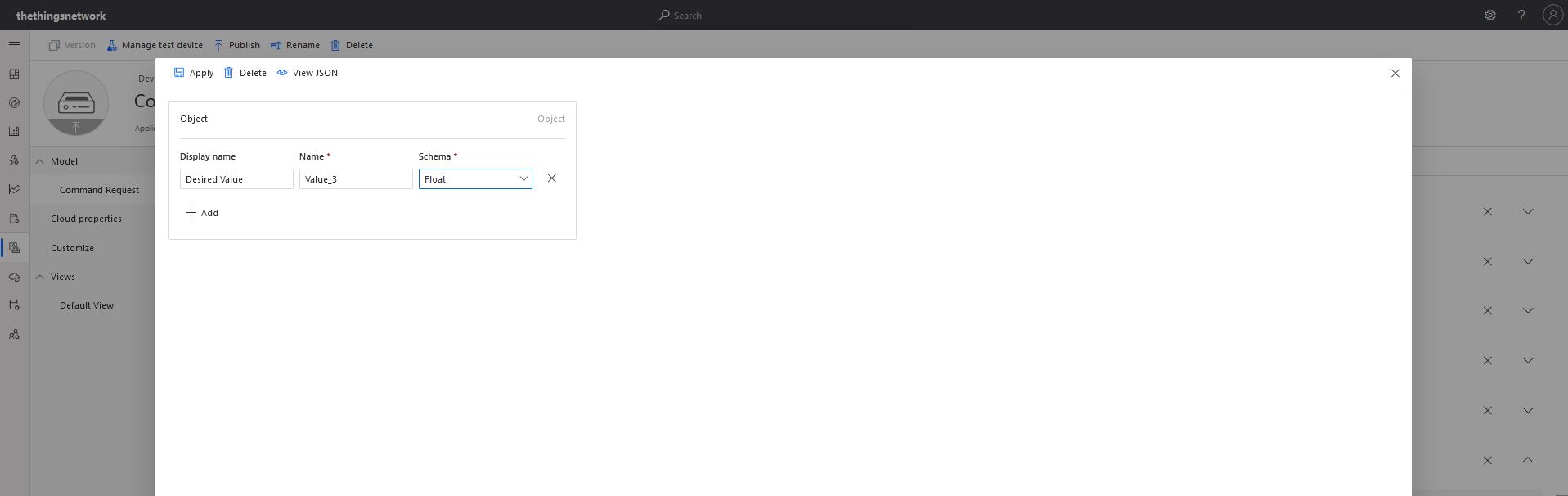
Configuring fields of object payload(JSON)

A JSON request payload also supports downlink messages with more that one value.

The output of my test harness for a Command with an object payload(JSON)

For queued commands which call the ReceiveMessageHandler which has was registered by calling SetReceiveMessageHandler the request payload is JSON or plain text.

private async static Task ReceiveMessageHandler(Message message, object userContext)
{
   AzureIoTMessageHandlerContext receiveMessageHandlerConext = (AzureIoTMessageHandlerContext)userContext;

   Console.WriteLine($"ReceiveMessageHandler handler method was called.");

   Console.WriteLine($" Message ID:{message.MessageId}");
   Console.WriteLine($" Message Schema:{message.MessageSchema}");
   Console.WriteLine($" Correlation ID:{message.CorrelationId}");
   Console.WriteLine($" Lock Token:{message.LockToken}");
   Console.WriteLine($" Component name:{message.ComponentName}");
   Console.WriteLine($" To:{message.To}");
   Console.WriteLine($" Module ID:{message.ConnectionModuleId}");
   Console.WriteLine($" Device ID:{message.ConnectionDeviceId}");
   Console.WriteLine($" User ID:{message.UserId}");
   Console.WriteLine($" CreatedAt:{message.CreationTimeUtc}");
   Console.WriteLine($" EnqueuedAt:{message.EnqueuedTimeUtc}");
   Console.WriteLine($" ExpiresAt:{message.ExpiryTimeUtc}");
   Console.WriteLine($" Delivery count:{message.DeliveryCount}");
   Console.WriteLine($" InputName:{message.InputName}");
   Console.WriteLine($" SequenceNumber:{message.SequenceNumber}");

   foreach (var property in message.Properties)
   {
      Console.WriteLine($"   Key:{property.Key} Value:{property.Value}");
   }

   Console.WriteLine($" Content encoding:{message.ContentEncoding}");
   Console.WriteLine($" Content type:{message.ContentType}");
   string payloadText = Encoding.UTF8.GetString(message.GetBytes());
   Console.WriteLine($" Content:{payloadText}");
   Console.WriteLine();

   if (!message.Properties.ContainsKey("method-name"))
   {
      await receiveMessageHandlerConext.AzureIoTHubClient.RejectAsync(message);
      Console.WriteLine($"   Property method-name not found");
      return;
   }

   string methodName = message.Properties["method-name"];
   if (string.IsNullOrWhiteSpace( methodName))
   {
      await receiveMessageHandlerConext.AzureIoTHubClient.RejectAsync(message);
      Console.WriteLine($"   Property null or white space");
      return;
   }

   if (string.IsNullOrWhiteSpace(payloadText))
   {
      await receiveMessageHandlerConext.AzureIoTHubClient.RejectAsync(message);
      Console.WriteLine($"   Payload null or white space");
      return;
   }

   JObject payload;

   if (IsValidJSON(payloadText))
   {
      payload = JObject.Parse(payloadText);
   }
   else
   {
      payload = new JObject
      {
         { methodName, payloadText }
      };
   }

   string downlinktopic = $"v3/{receiveMessageHandlerConext.ApplicationId}@{receiveMessageHandlerConext.TenantId}/devices/{receiveMessageHandlerConext.DeviceId}/down/push";

   DownlinkPayload downlinkPayload = new DownlinkPayload()
   {
      Downlinks = new List<Downlink>()
      {
         new Downlink()
         {
            Confirmed = false,
            //PayloadRaw = messageBody,
            PayloadDecoded = payload,
            Priority = DownlinkPriority.Normal,
            Port = 10,
            CorrelationIds = new List<string>()
            {
               message.LockToken
            }
         }
      }
   };

   Console.WriteLine($"TTN Topic :{downlinktopic}");
   Console.WriteLine($"TTN downlink JSON :{JsonConvert.SerializeObject(downlinkPayload, Formatting.Indented)}");

   //await receiveMessageHandlerConext.AzureIoTHubClient.AbandonAsync(message); // message retries
   //await receiveMessageHandlerConext.AzureIoTHubClient.CompleteAsync(message);
   await receiveMessageHandlerConext.AzureIoTHubClient.CompleteAsync(message.LockToken);
   //await receiveMessageHandlerConext.AzureIoTHubClient.RejectAsync(message); // message gone no retry
}

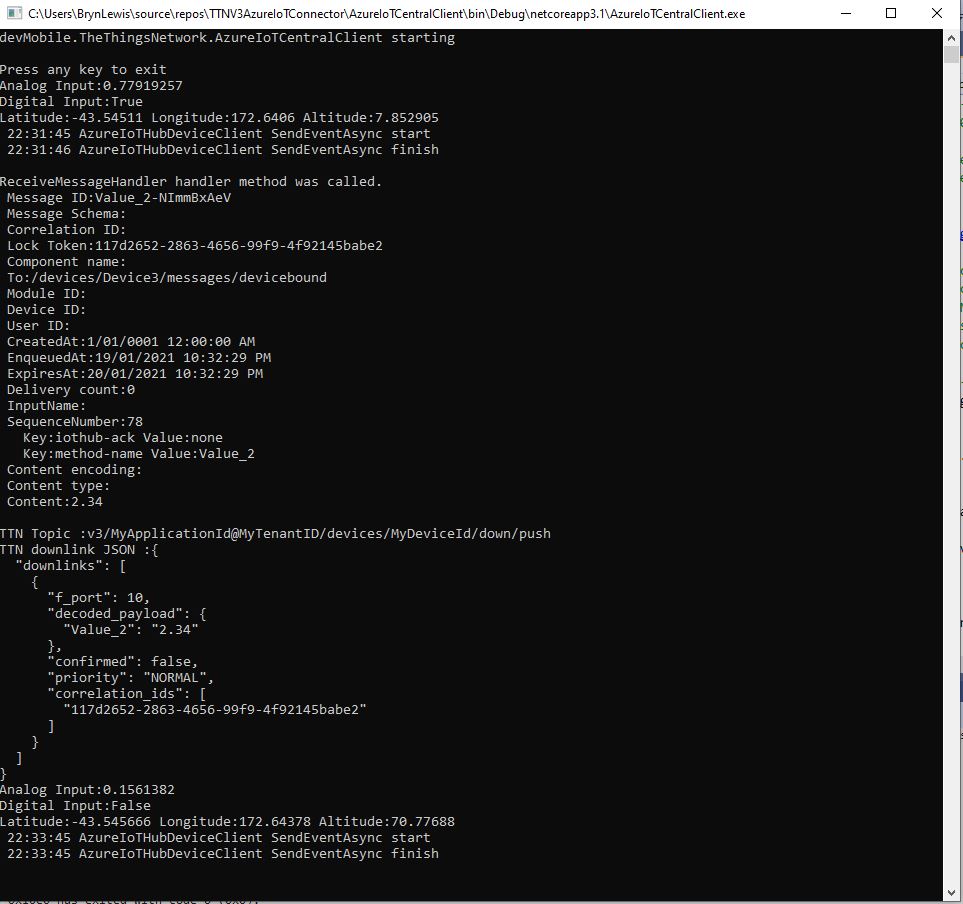
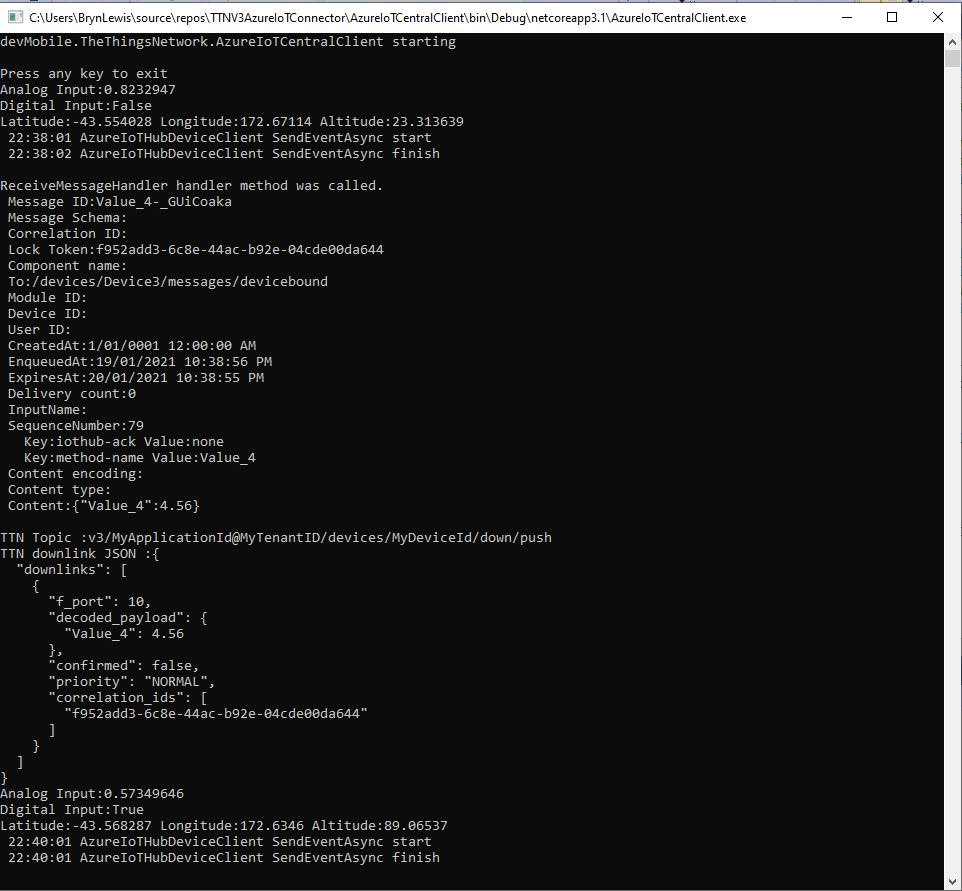
When I initiated an Analog queued command the message handler was invoked with the name of the command capability (Analog_Output_2) in a message property called “method-name”. For a typed parameter the message content was a string representation of the value. For an object parameter the payload contains a JSON representation of the request field(s)

The output of my test harness for a Queued Command with a typed payload

A JSON request payload supports downlink message with more that one value.

The output of my test harness for a Queued Command with an object payload(JSON)

The choice of Value_0, Value_1 (I think they are float64 type) etc. for the decoded_payload is specified in the LPP downlink decode/encoder source code.

The context information for both comments and queued commands provides additional information required to construct the MQTT topic for publishing the downlink messages.

For queued commands the correlation_id will contain the message.LockToken so that messages can be Abandoned, Completed or Rejected. The MQTT broker publishes a series of topics so the progress of the transmission of downlink message can be monitored.

If the device is not known the Abandon method will be called immediately. For command messages Completed will be called as soon as the message is “sent”
  • v3/{application id}@{tenant id}/devices/{device id}/down/queued
  • v3/{application id}@{tenant id}/devices/{device id}/down/sent
  • v3/{application id}@{tenant id}/devices/{device id}/down/ack
  • v3/{application id}@{tenant id}/devices/{device id}/down/nack
  • v3/{application id}@{tenant id}/devices/{device id}/down/failed

For queued messages the point in the delivery process where the Abandoned, Completed and Rejected methods will be called will be configurable.

Azure IoT Central Connectivity Part3

Request Commands

I have built a couple of proof of Concept(PoC) applications to explore the Basic Telemetry and Basic Command functionality of Azure IoT Central. This blog post is about queued and non queued Cloud to Device(C2D) Commands with request parameters.

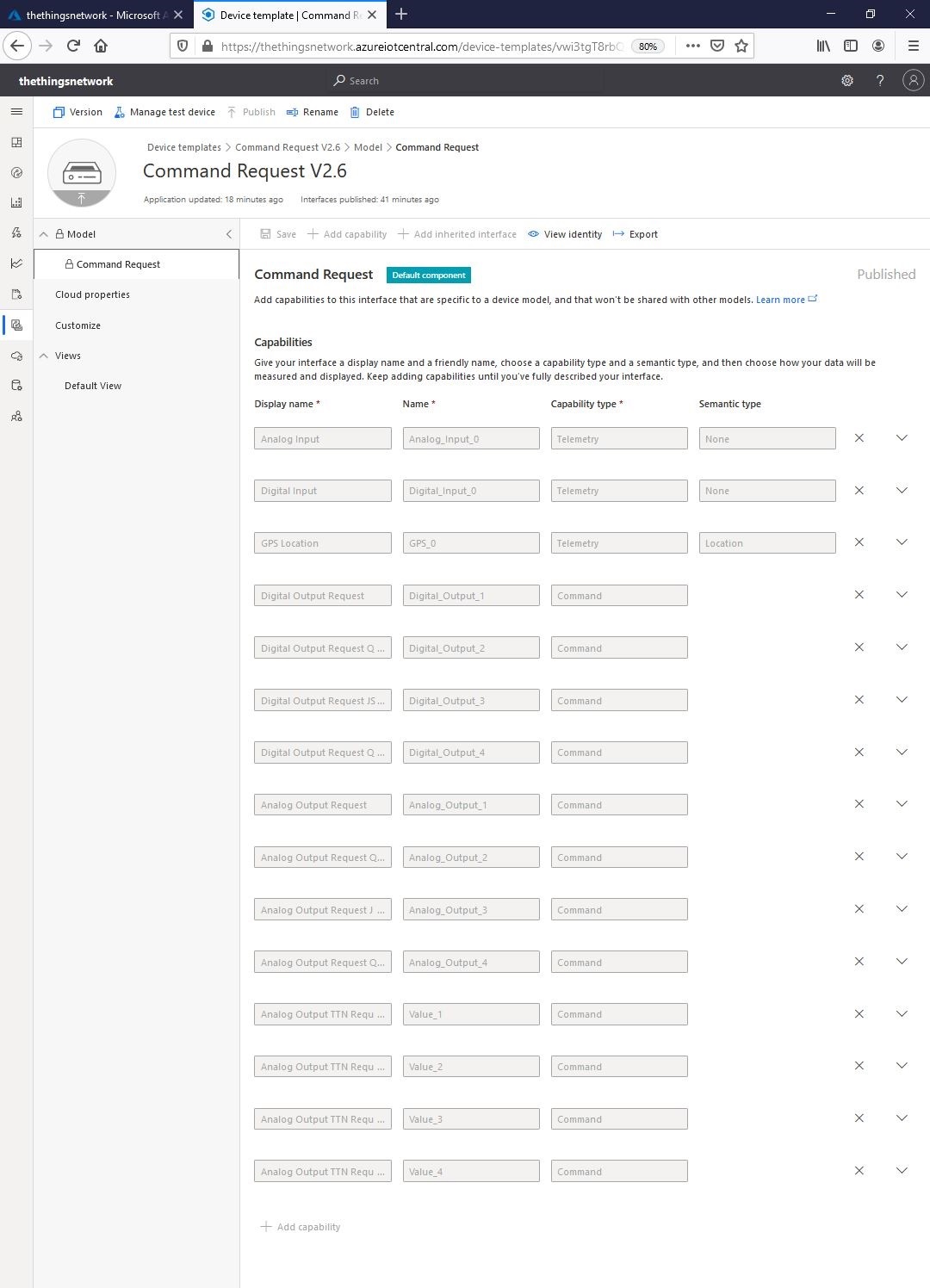
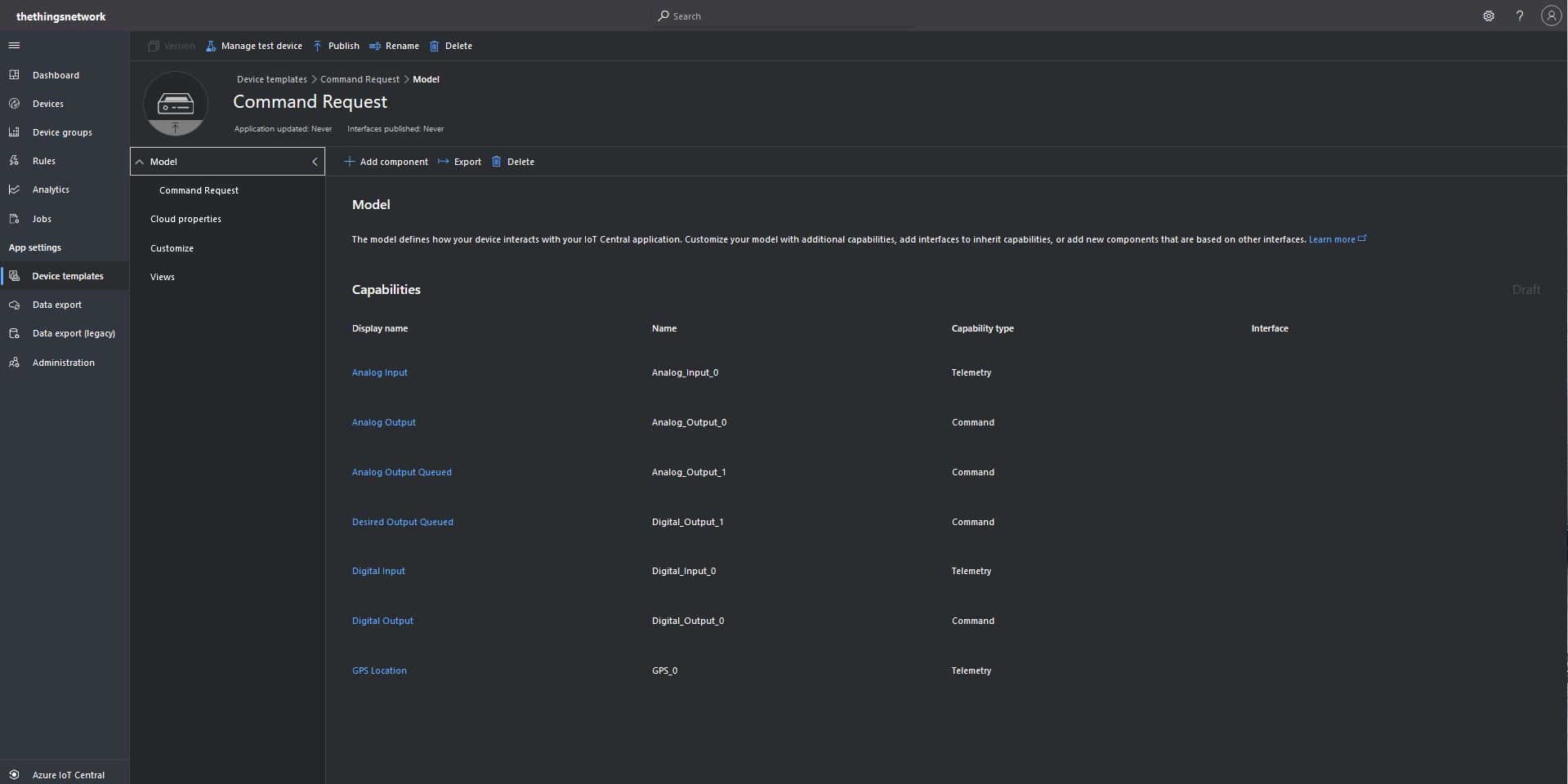
I initially created an Azure IoT Central Device Template with command and telemetry device capabilities.

“Collapsed” Command Request template
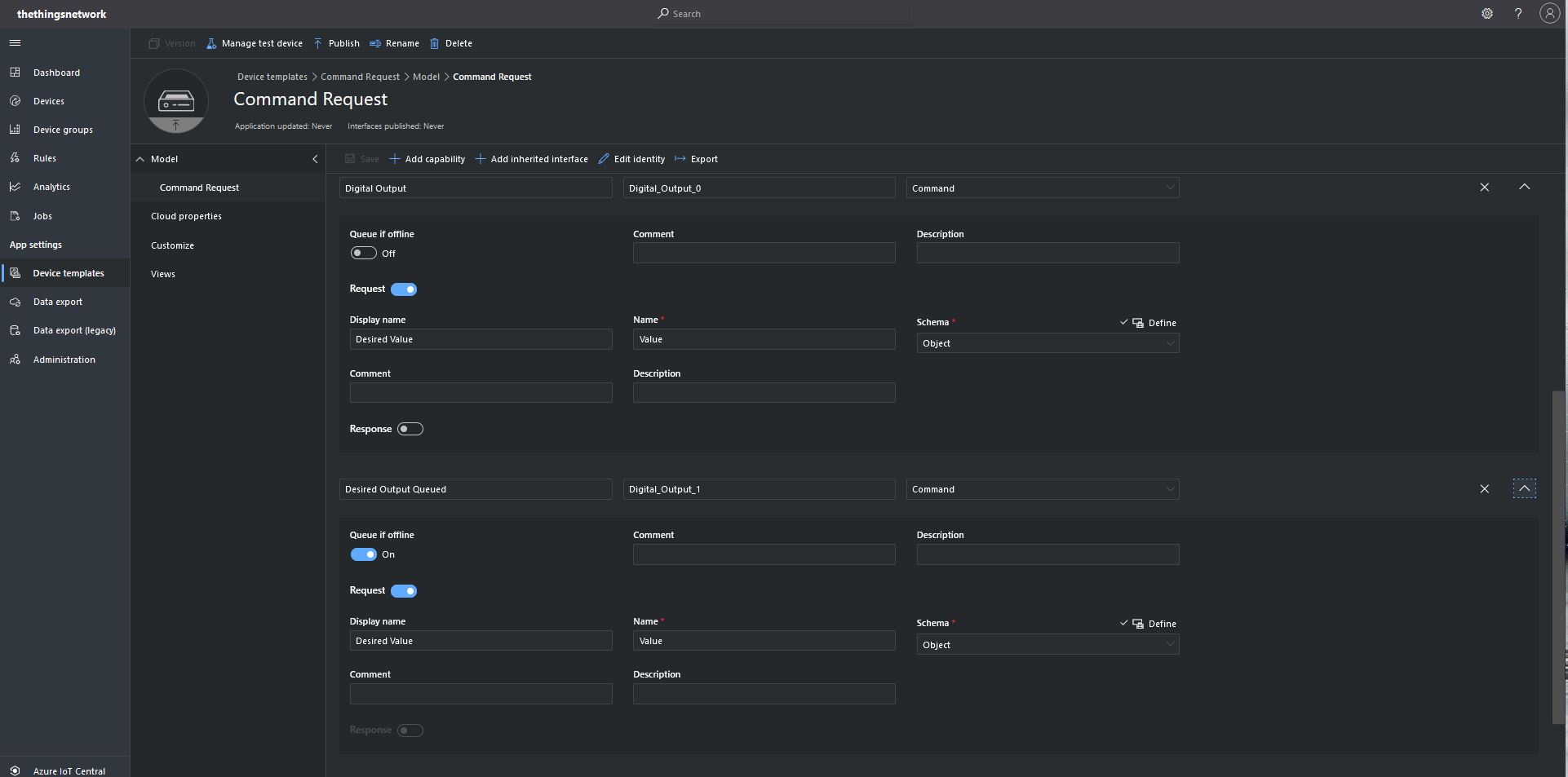
Command Request Template digital commands

I tried typed request and object based parameters to explorer how an integration with The Things Network(TTN)/The Things Industries(TTI) using the Message Queue Telemetry Transport(MQTT) interface could work.

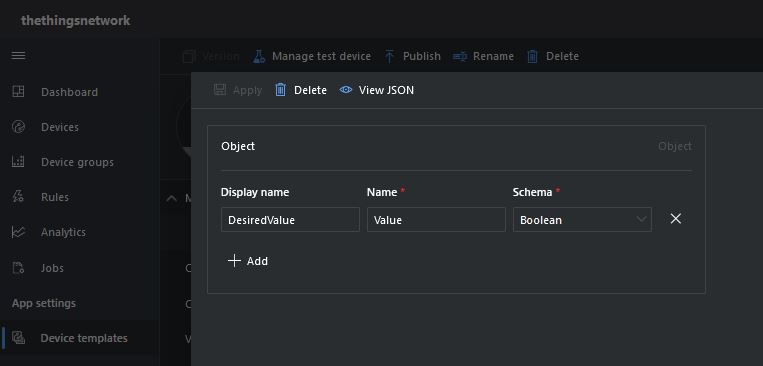
Object parameter schema designer

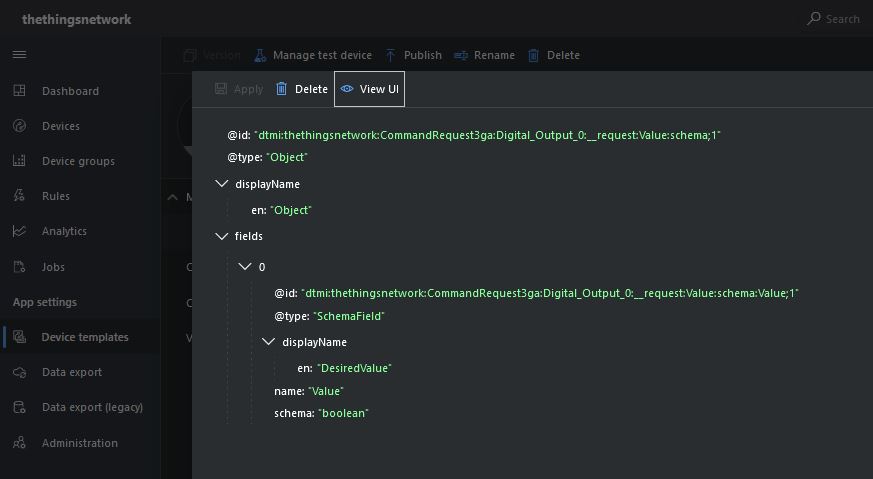
With object based parameters the request JSON could contain more than one value though the validation of user provided information didn’t appear to be as robust.

Object parameter schema definition

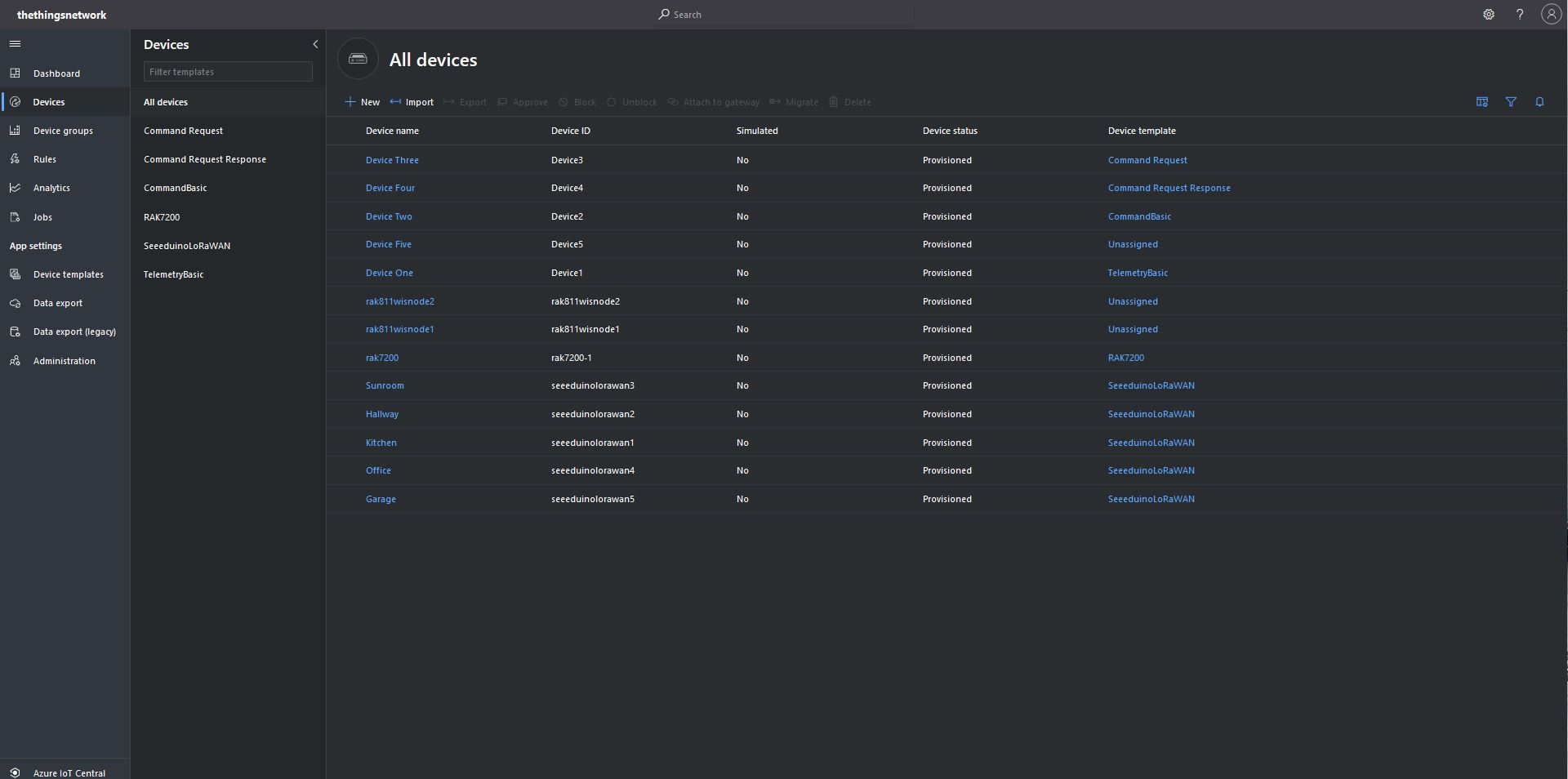
I “migrated” my third preconfigured device to the CommandRequest template to see how the commands with Request parameters interacted with my PoC application.

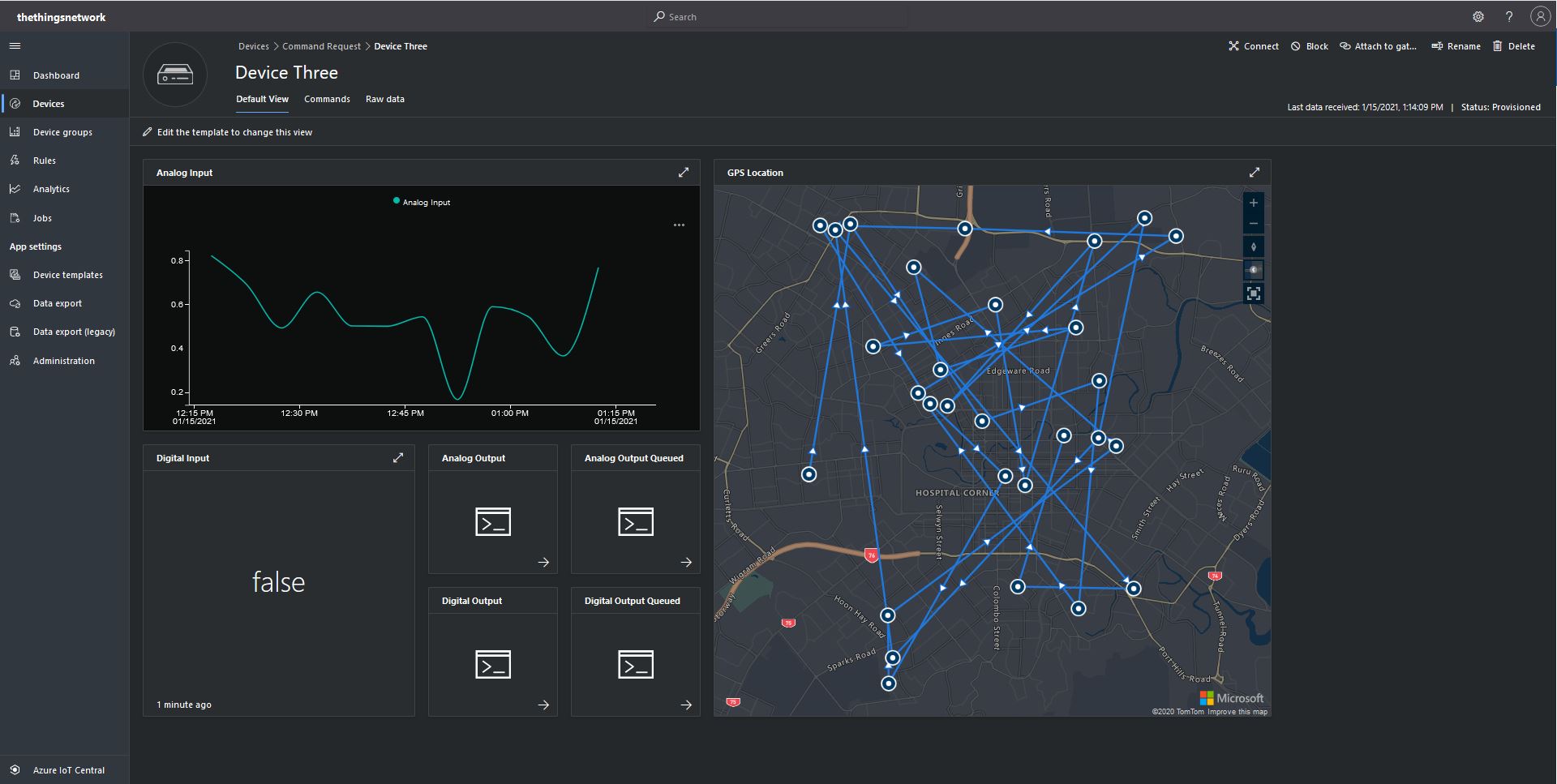
After “migrating” my device I went back and created a Template view so I could visualise the simulated telemetry from my PoC application and provide a way to initiate commands (Didn’t really need four command tiles as they all open the Device commands form).

CommandRequest device template default view

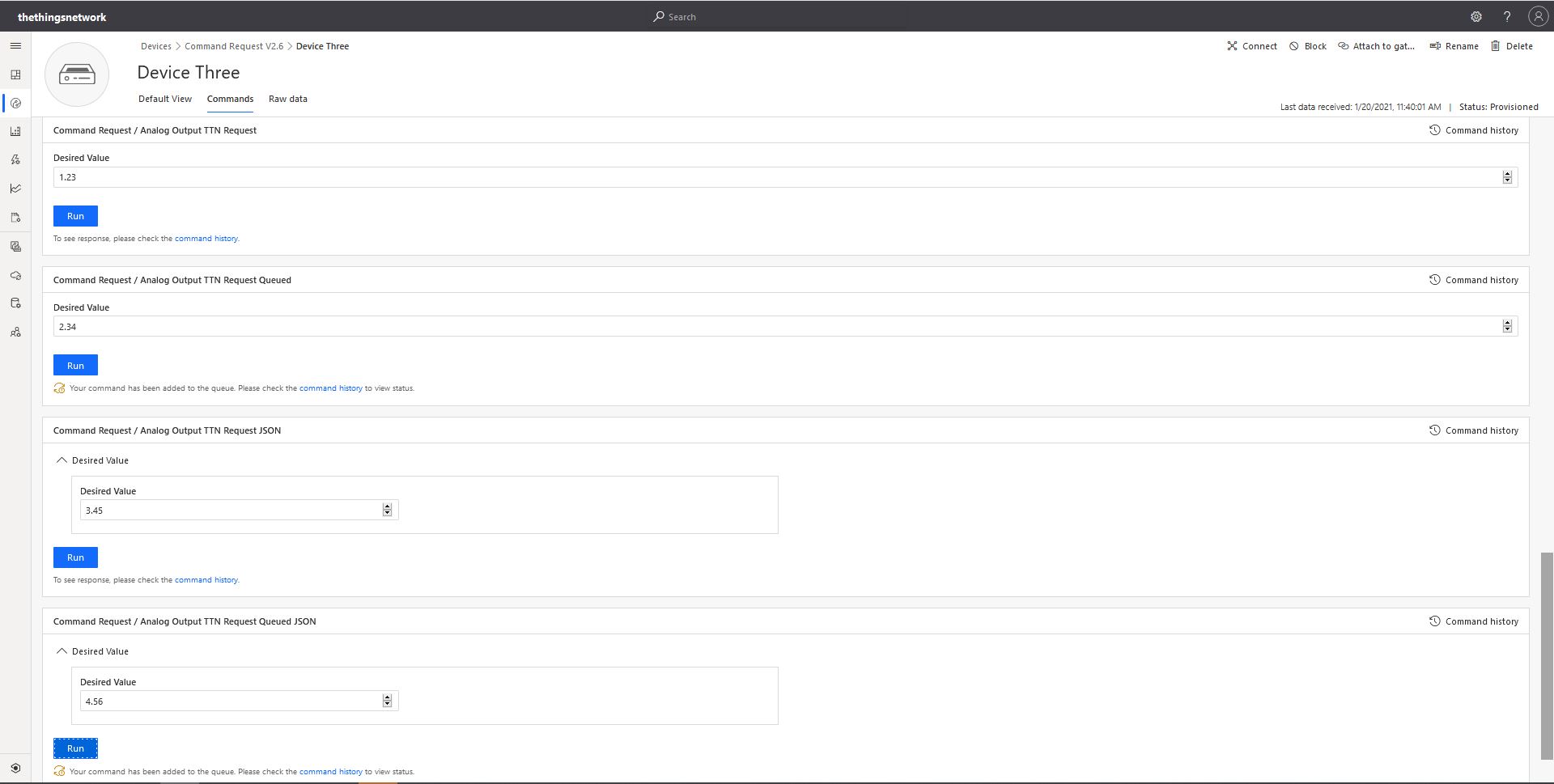
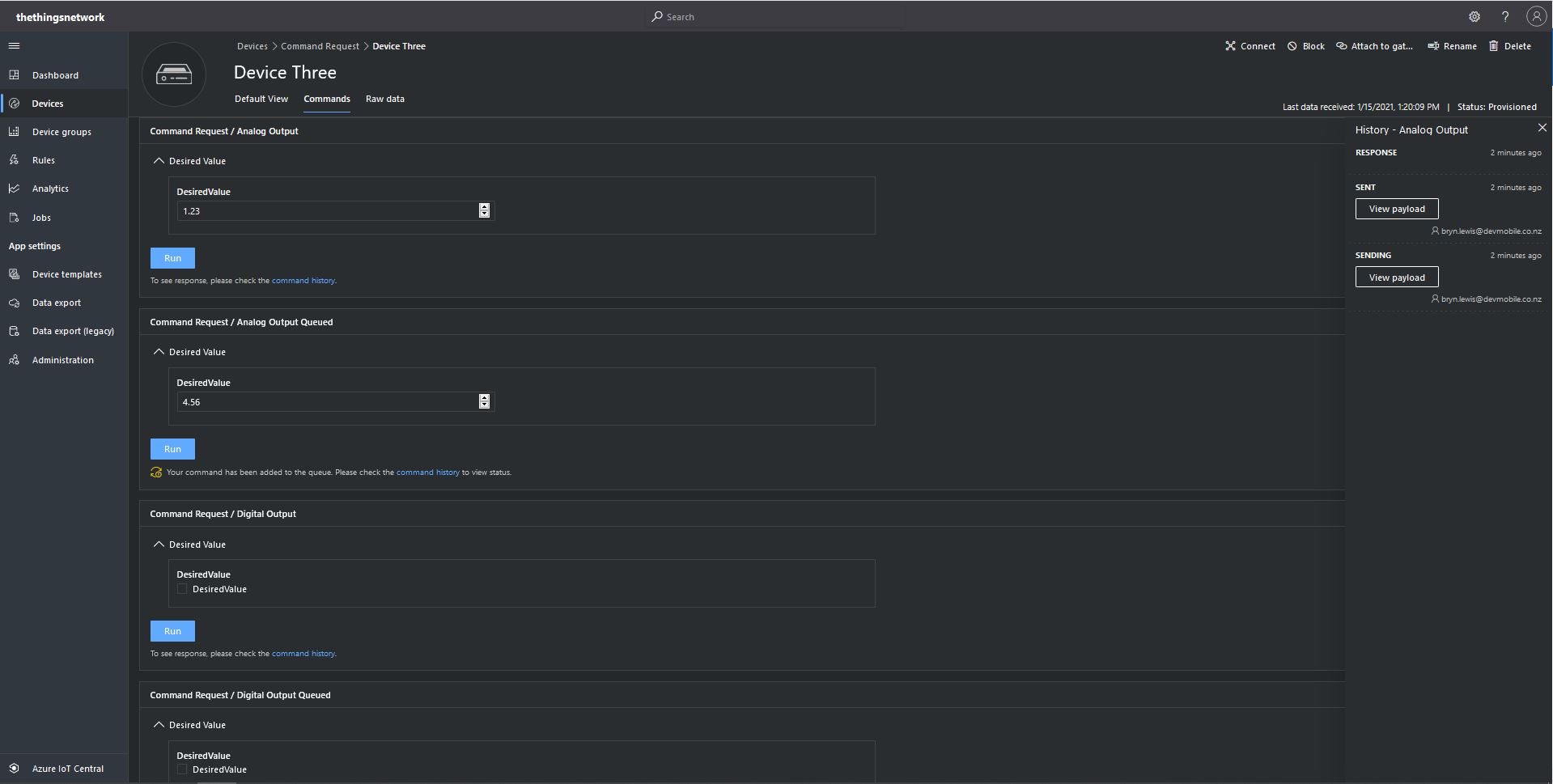
From the Device Commands form I could send commands and a queued commands which had analog or digital parameters.

Device Three Command Tab

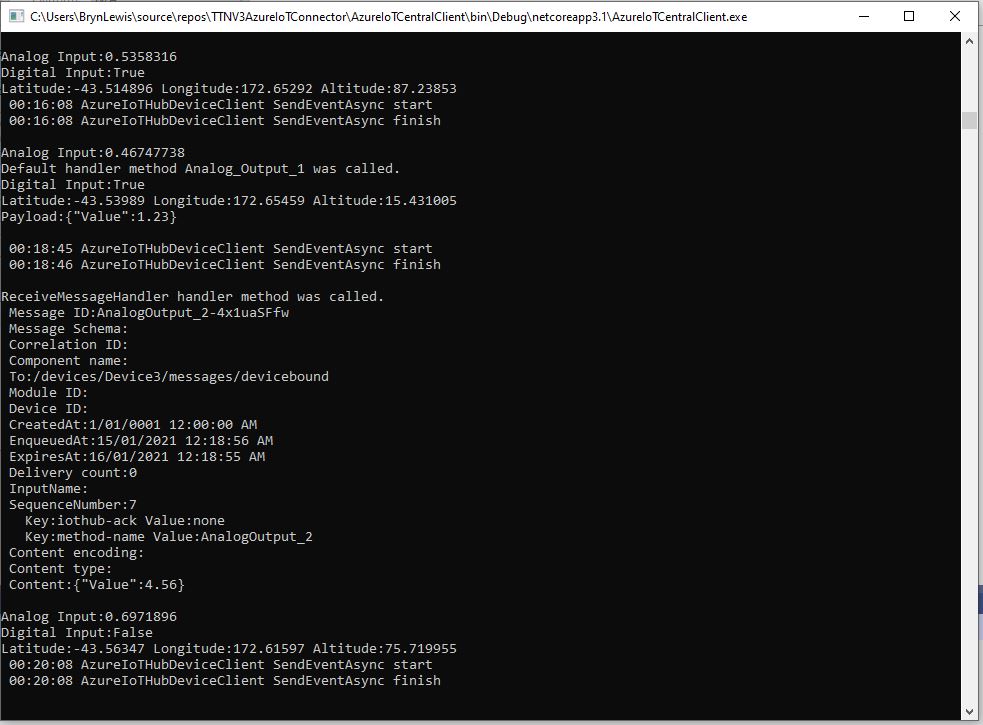
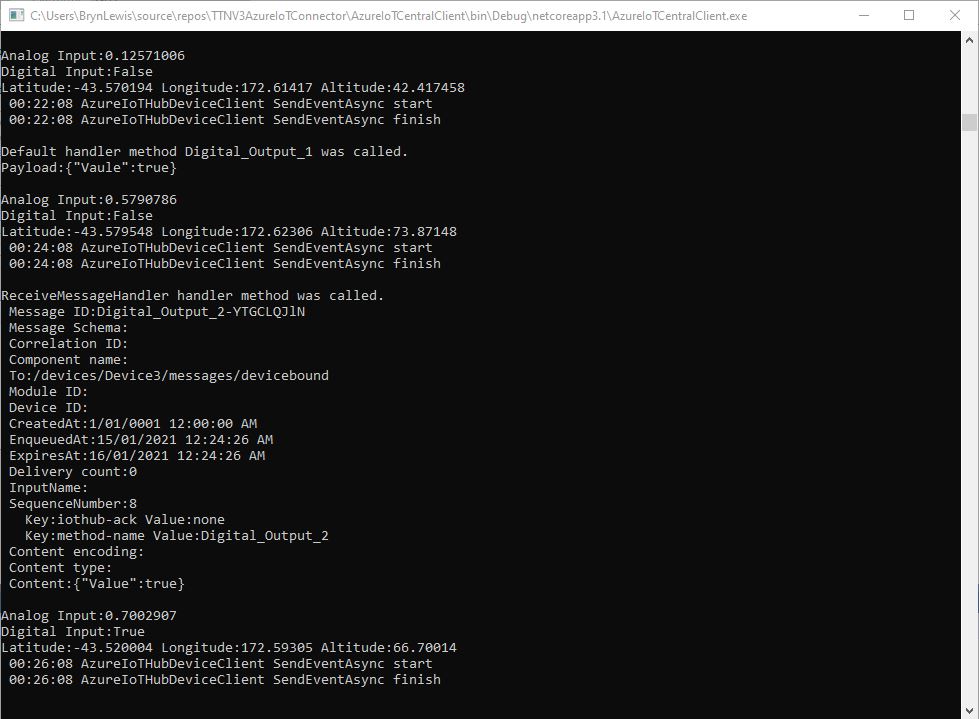
When I initiated an Analog non-queued command the default method handler was invoked with the name of the command capability (Analog_Output_1) as the method name and the payload contained a JSON representation of the request values(s). With a typed parameter a string representation of the value was in the message payload. With a typed parameter a string representation of the value was in the message payload rather than JSON.

Console application displaying Analog request and Analog Request queued commands

When I initiated an Analog queued command the message handler was invoked with the name of the command capability (Analog_Output_2) in a message property called “method-name” and the payload contained a JSON representation of the request value(s). With a typed parameter a string representation of the value was in the message payload rather than JSON.

When I initiated a Digital non-queued command the default method handler was invoked with the name of the command capability (Digital_Output_1) as the method name and the payload contained a JSON representation of the request values(s). With a typed parameter a string representation of the value was in the message payload rather than JSON.

Console application displaying Digital request and Digital Request queued commands

When I initiated a Digital queued command the message handler was invoked with the name of the command capability(Digital_Output_2) in a message property called “method-name” and the payload contained a JSON representation of the request value(s). With a typed parameter a string representation of the value was in the message payload rather than JSON.

The validation of user input wasn’t as robust as I expected, with problems selecting checkboxes with a mouse when there were several Boolean fields. I often had to click on a nearby input field and use the TAB button to navigate to the desired checkbox. I also had problems with ISO 8601 format date validation as the built in Date Picker returned a month, day, year date which was not editable and wouldn’t pass validation.

The next logical step would be to look at commands with a Response parameter but as the MQTT interface is The Things Network(TTN) and The Things Industries(TTI) is asynchronous and devices reporting every 5 minutes to a couple of times a day there could be a significant delay between sending a message and receiving an optional delivery confirmation or response.

Azure IoT Central Connectivity Part2

Basic Commands

I have been struggling with making The Things Network(TTN) and The Things Industries(TTI) uplink/downlink messages work well Azure IoT Central. To explore different messaging approaches I have built a proof of Concept(PoC) application which simulates TTN/TTI connectivity to an Azure IoT Hub, or Azure IoT Central.

This blog post is about queued and non queued Cloud to Device(C2D) commands without request or response parameters. I have mostly used non queued commands in other projects (my Azure IoT Hub LoRa and RF24L01 gateways) to “Restart” devices etc..

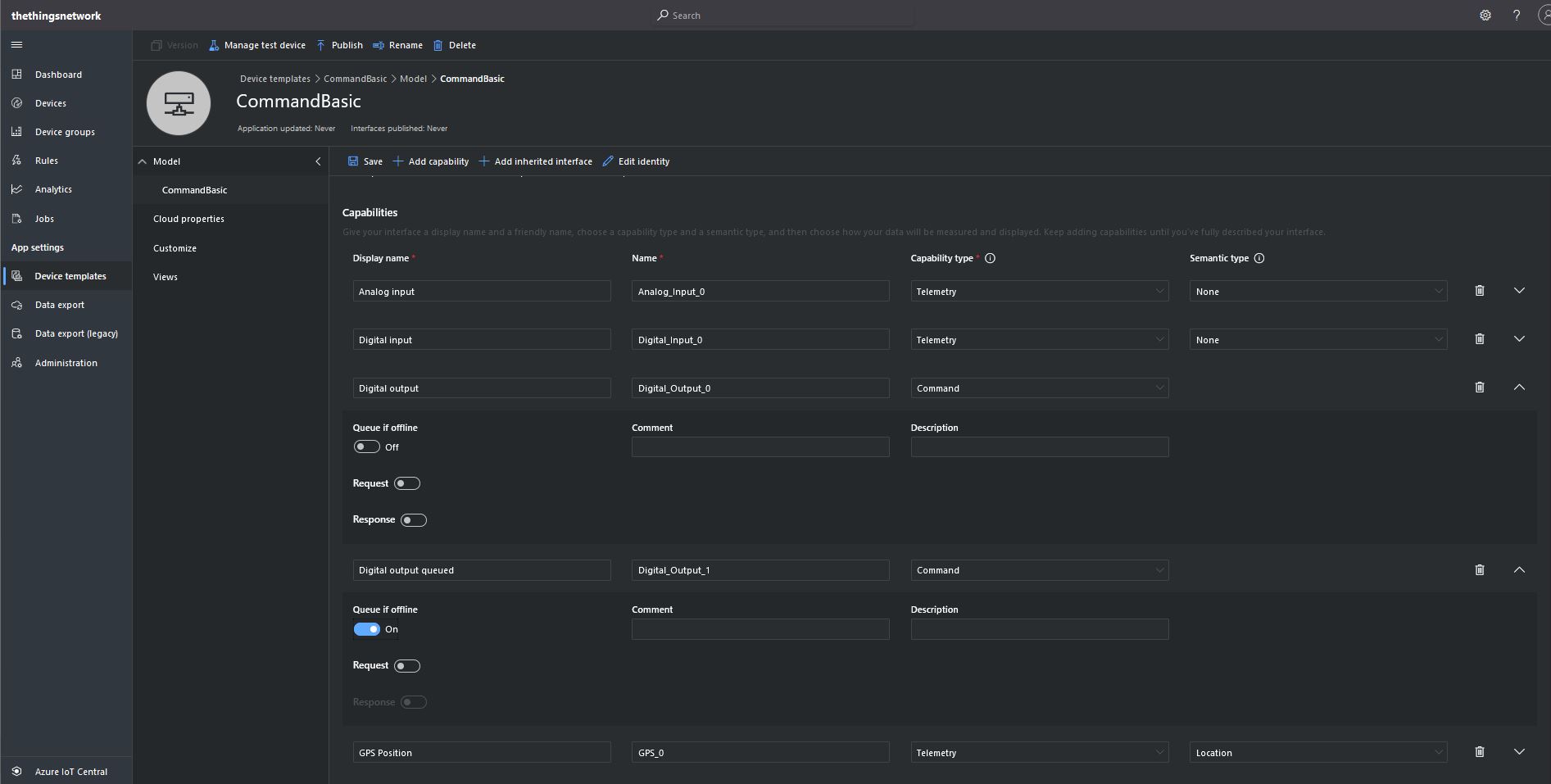
The first step was to create an Azure IoT Central Device Template with command and telemetry device capabilities.

CommandBasic device template device with command & telemetry capabilities

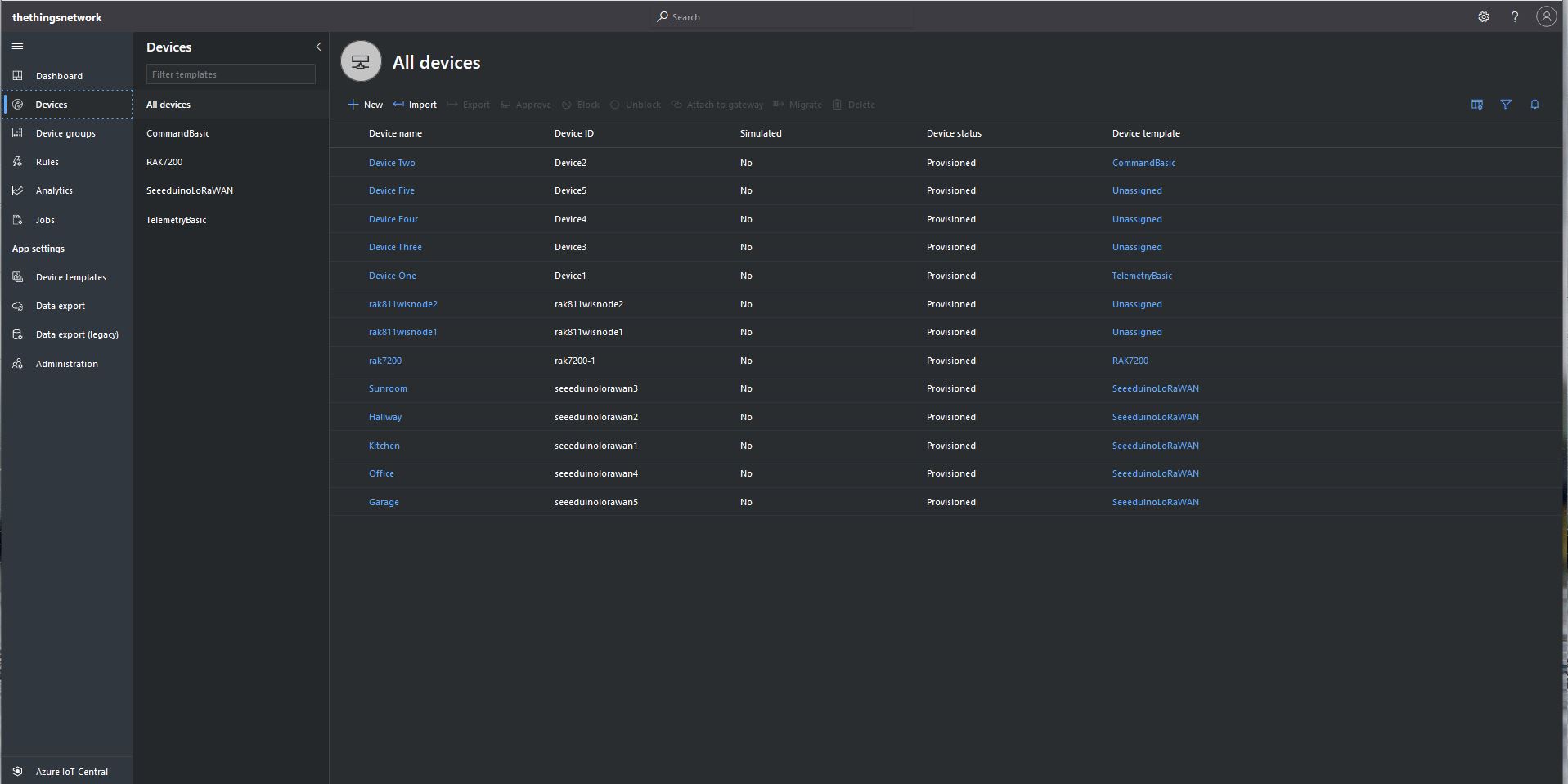
I then “migrated” my second preconfigured device to the CommandBasic template.

Migrating a device to TelemetryBasic template

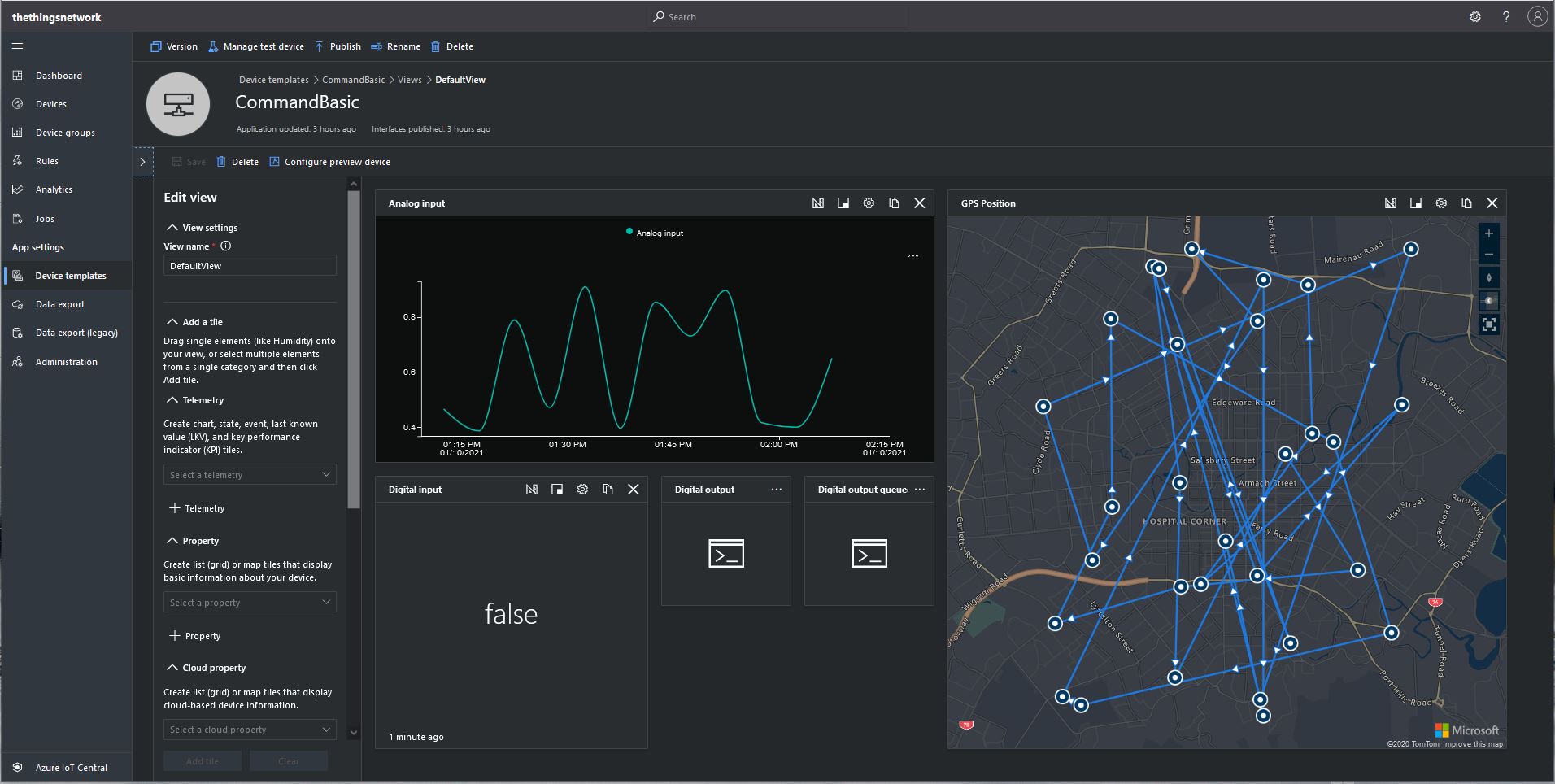
I then went back and created a Template view to visualise the telemetry from my console application and initiate commands.

CommandBasic device template default view

I modified the PoC application adding handlers for Methods (SetMethodDefaultHandlerAsync) and Messages (SetReceiveMessageHandlerAsync).

private static async Task ApplicationCore(CommandLineOptions options)
{
   DeviceClient azureIoTHubClient;
   Timer MessageSender;

   try
   {
      // Open up the connection
      azureIoTHubClient = DeviceClient.CreateFromConnectionString(options.AzureIoTHubconnectionString, TransportType.Amqp_Tcp_Only);

      await azureIoTHubClient.OpenAsync();
      await azureIoTHubClient.SetReceiveMessageHandlerAsync(ReceiveMessageHandler, azureIoTHubClient);
      await azureIoTHubClient.SetMethodHandlerAsync("Named", MethodCallbackNamedHandler, null);
      await azureIoTHubClient.SetMethodDefaultHandlerAsync(MethodCallbackDefaultHandler, null);

      MessageSender = new Timer(TimerCallbackAsync, azureIoTHubClient, new TimeSpan(0, 0, 10), new TimeSpan(0, 2, 0));

      Console.WriteLine("Press any key to exit");
      while (!Console.KeyAvailable)
      {
         await Task.Delay(100);
      }
   }
   catch (Exception ex)
   {
      Console.WriteLine($"Main {ex.Message}");
      Console.WriteLine("Press <enter> to exit");
      Console.ReadLine();
   }
}

The method handler displays the method name and the message payload.

private static async Task<MethodResponse> MethodCallbackDefaultHandler(MethodRequest methodRequest, object userContext)
{
   Console.WriteLine($"Default handler method {methodRequest.Name} was called.");

   Console.WriteLine($"Payload:{methodRequest.DataAsJson}");
   Console.WriteLine();

   //return new MethodResponse(400);
   //return new MethodResponse(404);
   return new MethodResponse(200);
}

The message handler displays a selection the message properties, any attributes and the message payload.

 private async static Task ReceiveMessageHandler(Message message, object userContext)
{
   DeviceClient azureIoTHubClient = (DeviceClient)userContext;

   Console.WriteLine($"ReceiveMessageHandler handler method was called.");

   Console.WriteLine($" Message ID:{message.MessageId}");
   Console.WriteLine($" Message Schema:{message.MessageSchema}");
   Console.WriteLine($" Correlation ID:{message.CorrelationId}");
   Console.WriteLine($" Component name:{message.ComponentName}");
   Console.WriteLine($" To:{message.To}");
   Console.WriteLine($" Module ID:{message.ConnectionModuleId}");
   Console.WriteLine($" Device ID:{message.ConnectionDeviceId}");
   Console.WriteLine($" CreatedAt:{message.CreationTimeUtc}");
   Console.WriteLine($" EnqueuedAt:{message.EnqueuedTimeUtc}");
   Console.WriteLine($" ExpiresAt:{message.ExpiryTimeUtc}");
   Console.WriteLine($" Delivery count:{message.DeliveryCount}");
   Console.WriteLine($" InputName:{message.InputName}");
   Console.WriteLine($" SequenceNumber:{message.SequenceNumber}");

   foreach (var property in message.Properties)
   {
     Console.WriteLine($"   Key:{property.Key} Value:{property.Value}");
   }

   Console.WriteLine($" Content encoding:{message.ContentEncoding}");
   Console.WriteLine($" Content type:{message.ContentType}");
   Console.WriteLine($" Content:{Encoding.UTF8.GetString(message.GetBytes())}");
   Console.WriteLine();

   //await azureIoTHubClient.AbandonAsync(message); // message retries
   await azureIoTHubClient.CompleteAsync(message);
   //await azureIoTHubClient.RejectAsync(message); // message gone no retry
}

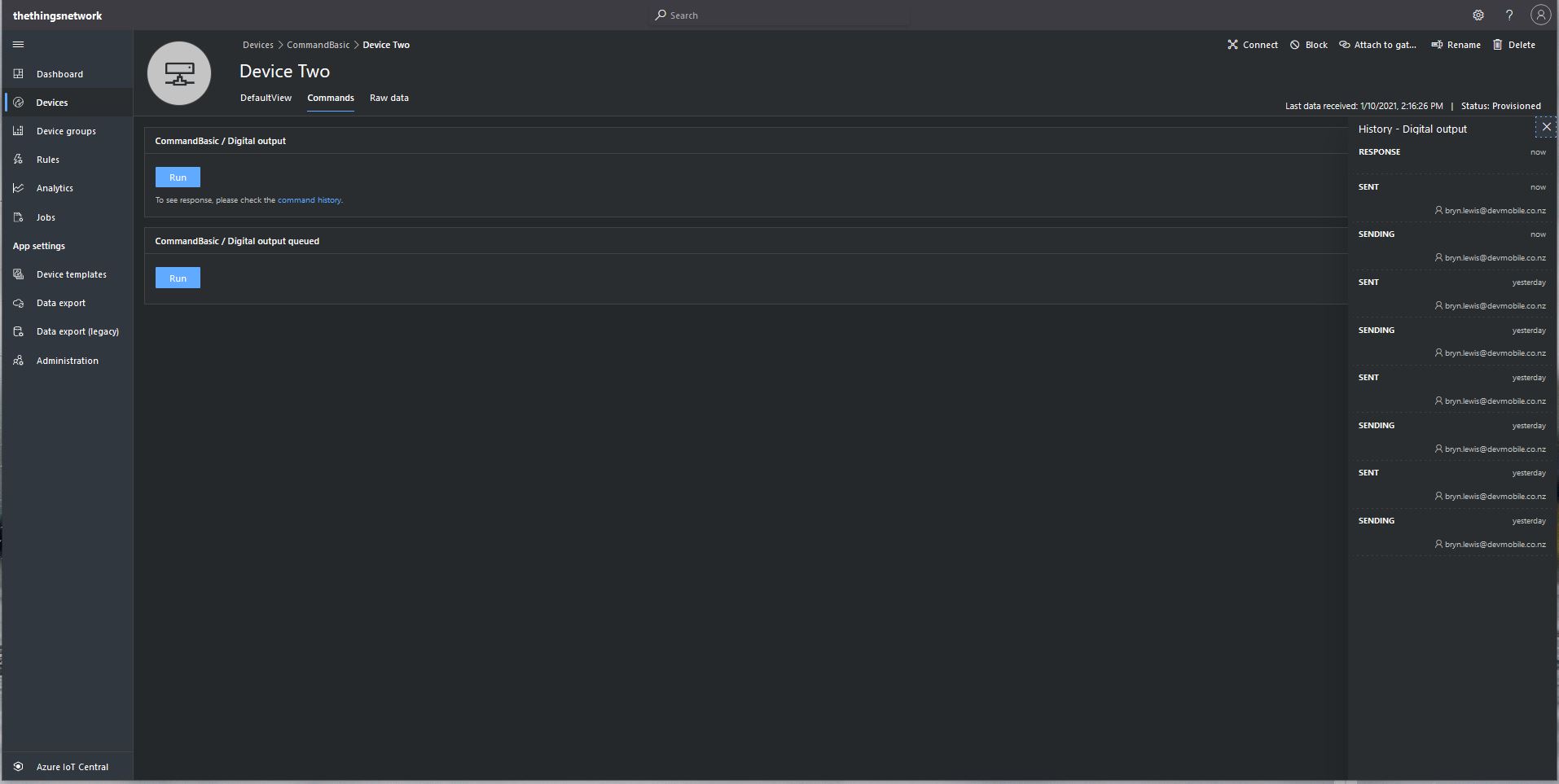
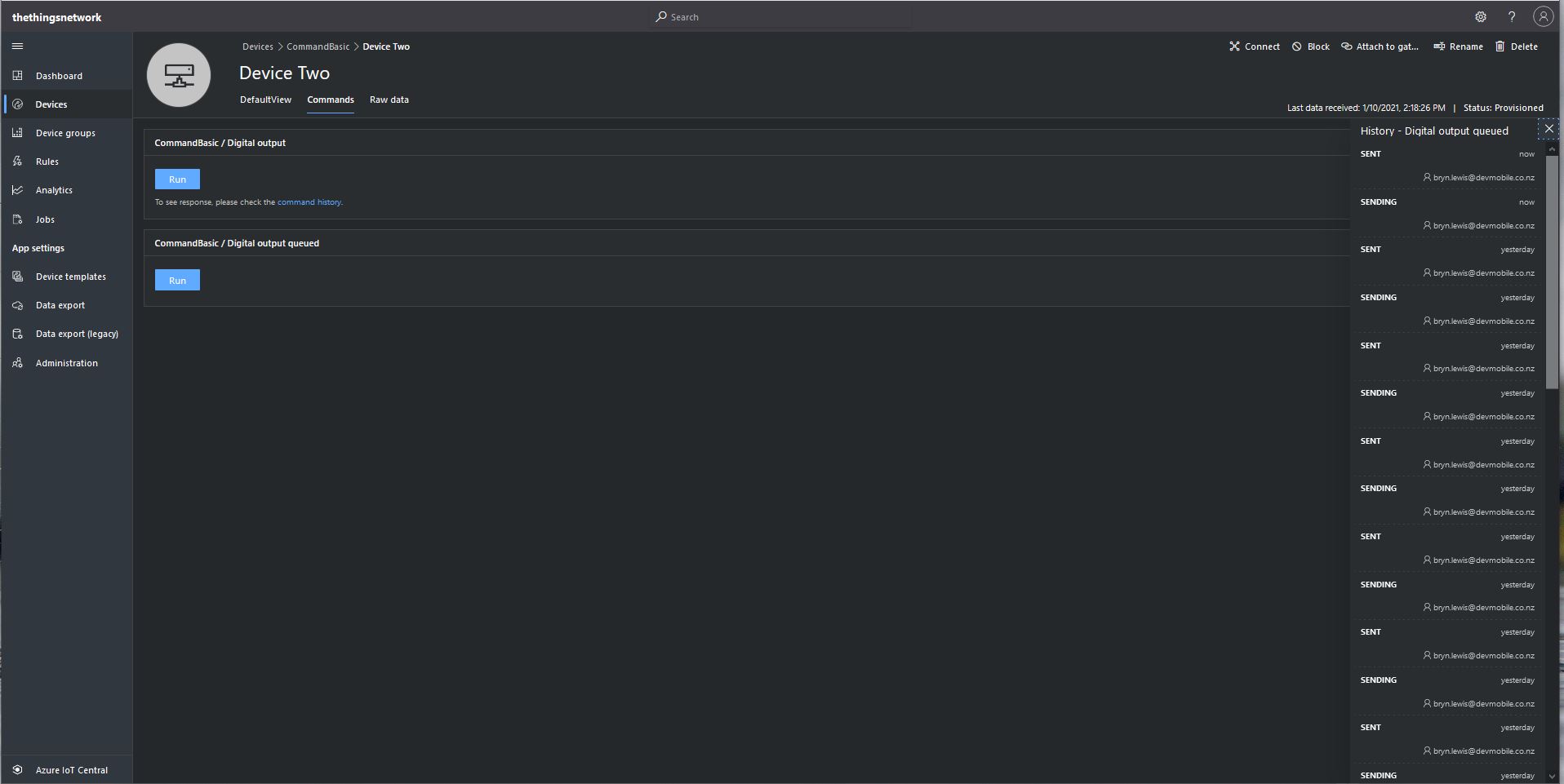
From the Device Commands tab I can could non queued and a queued commands

Device Two Commands tab

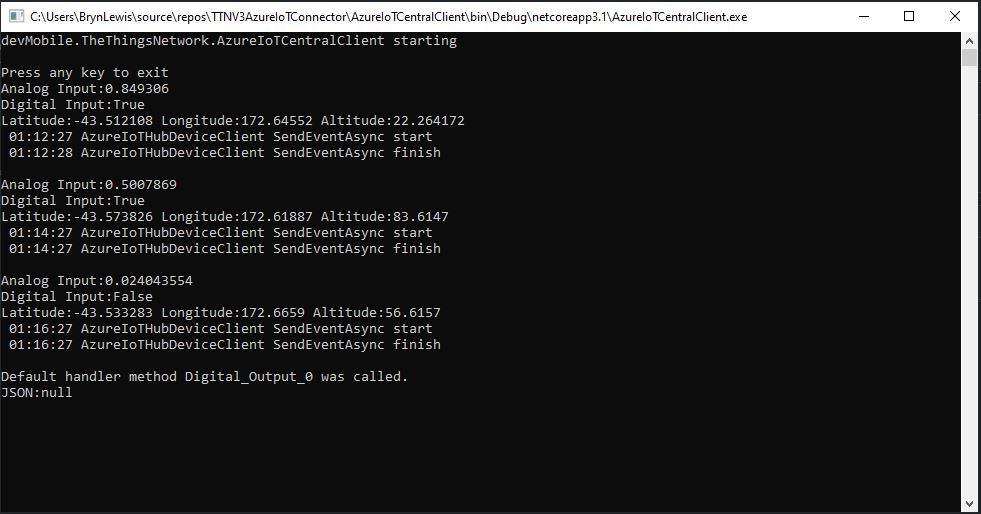
When I sent a non-queued command the default method handler was invoked with the name of the command capability (Digital_Output_0) as the method name and an empty payload. In the Azure IoT Central interface I couldn’t see any difference for successful (HTTP 200 OK) or failure (HTTP 400 Bad Request or HTTP 404 Not Found) responses. If the application was not running the command failed immediately.
Console application displaying non-queued call

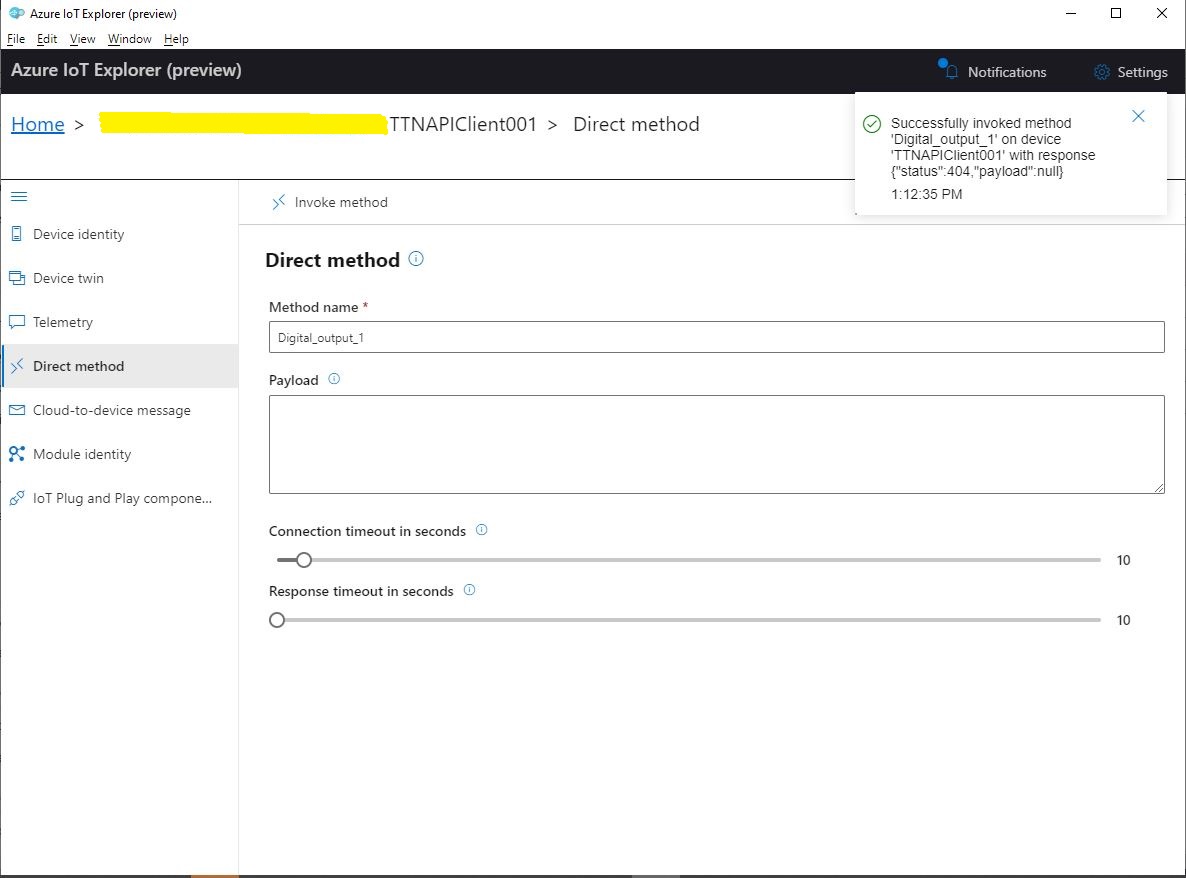
With Azure IoT Explorer failure responses were visible.
Azure IoT Explorer show message with 404 response

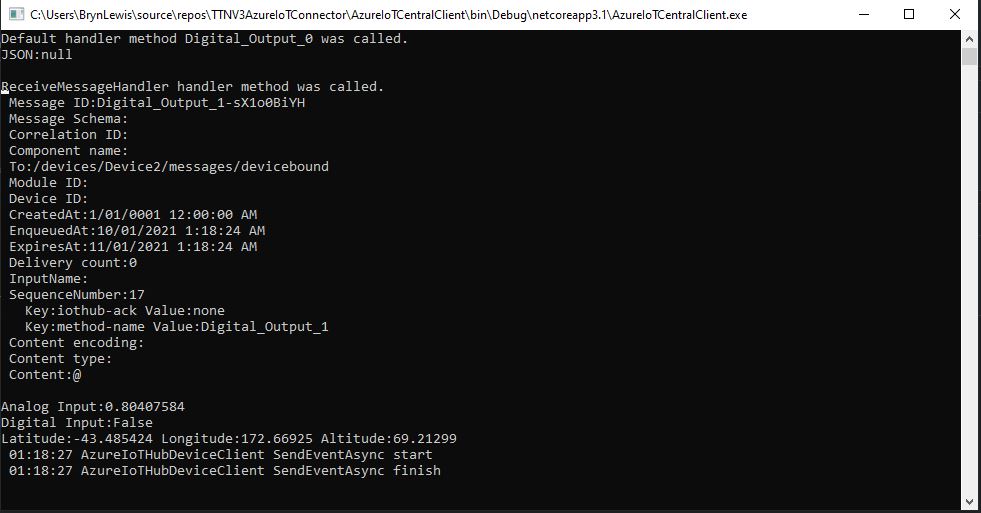
When I sent a queued command the message handler was invoked with the name of the command capability(Digital_Output_1) in a message property called “method-name” and the payload contained only an “@” character.

Console application displaying queued call

If the application was not running the command was queued until the Console application was started. When the console application was running and AbandonAsync was called rather than CompleteAsync the message was retried 10 times. If RejectAsync was called rather than CompleteAsync the message was deleted from the queue and not retried. There didn’t appear to be any difference for the displayed Azure IoT Central or Azure IoT Hub explorer results when AbandonAsync or RejectAsync were called.

I also created a personal dashboard to visualise the telemetry data and initiate commands. The way the two commands were presented on the dashboard was quite limited so I will go back to the documentation and see what I missed

Azure IoT Central Connectivity Part1

Basic Telemetry

I have been struggling with making The Things Network(TTN) and The Things Industries(TTI) uplink/downlink messages Azure IoT Central compatible. To explore the messaging approaches used I have built a proof of Concept(PoC) application which simulates TTN/TTI connectivity to an Azure IoT Hub, or Azure IoT Central.

My “nasty” console application uses the Azure DeviceClient library (Advanced Message Queuing Protocol(AMQP) connectivity) to explore how to interface with Azure IoT Central. This first blog post is about to Device Cloud(D2C) telemetry

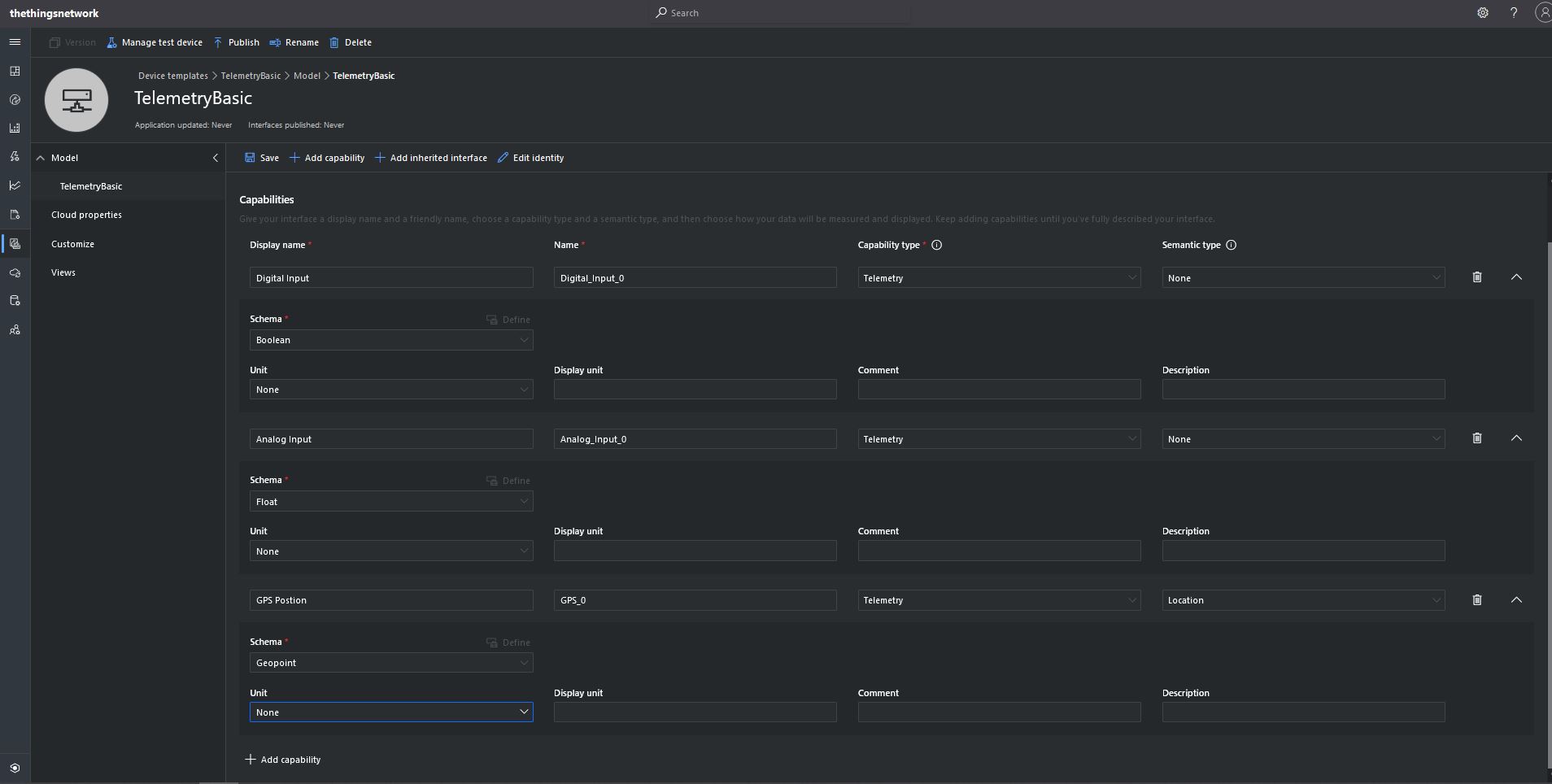
The first step was to create an Azure IoT Central Device Template with a selection of telemetry capabilities.

TelemetryBasic device template device capabilities

I then created a Plain old Common Language Runtime(CLR) object(PoCo) with Newtonsoft JSON library attributes to fine tune the serialisation/deserialation.

public class GPSPosition
{    
   [JsonProperty("lat")]
   public float Latitude { get; set; }
   [JsonProperty("lon")]
   public float Longitude { get; set; }
   [JsonProperty("alt")]
   public float Altitude { get; set; }
}

public class DigitialTelemetryPayload
{
   [JsonProperty("Digital_Input_0")]
   public bool DigitalInput { get; set; }

   [JsonProperty("Analog_Input_0")]
   public float AnalogInput { get; set; }

   [JsonProperty("GPS_0")]
   public GPSPosition GPSPosition { get; set; }
 }

I created five devices and generated their connection strings using the DPS individual enrollment functionality of one my other sample applications.

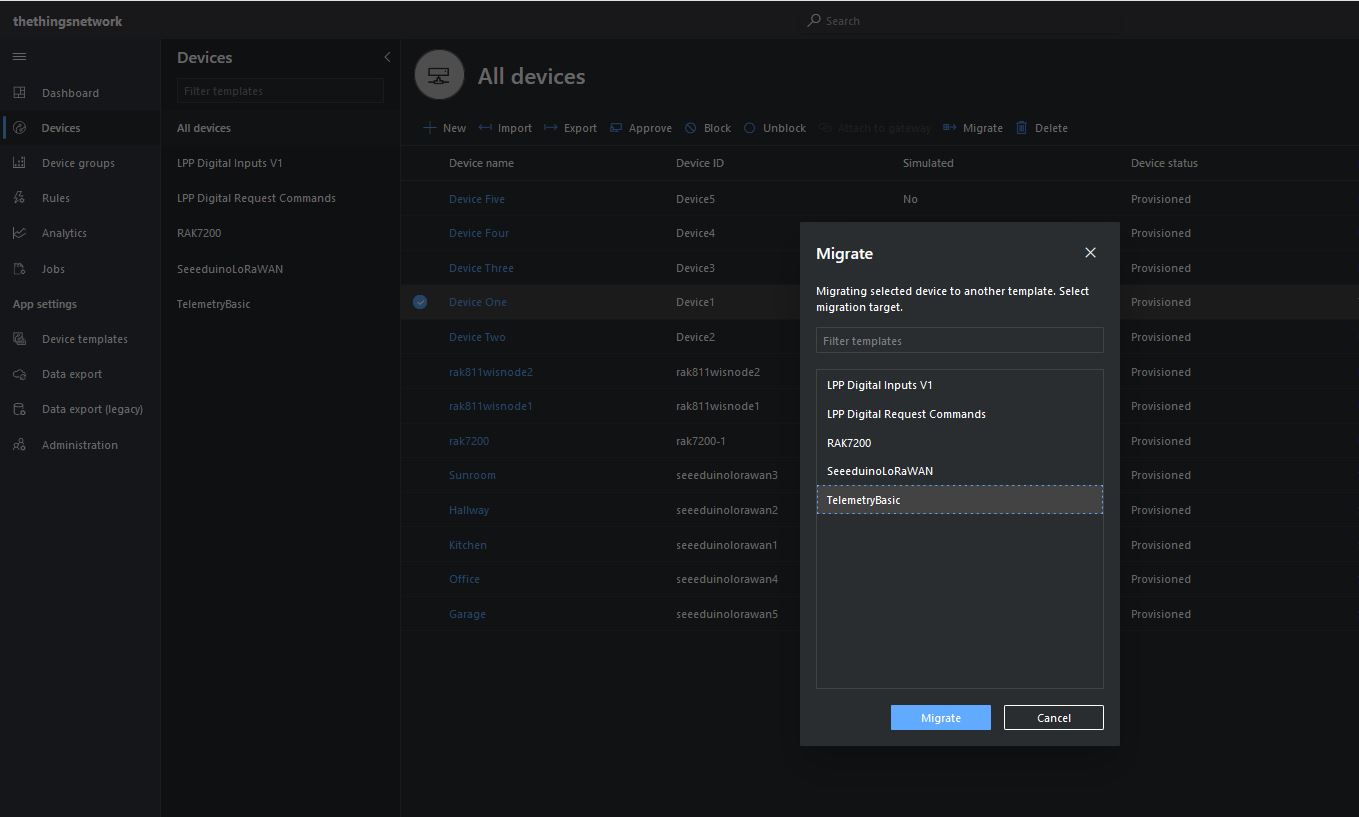
I then “migrated” the first device to my BasicTelemetry template

Migrating a device to TelemetryBasic template

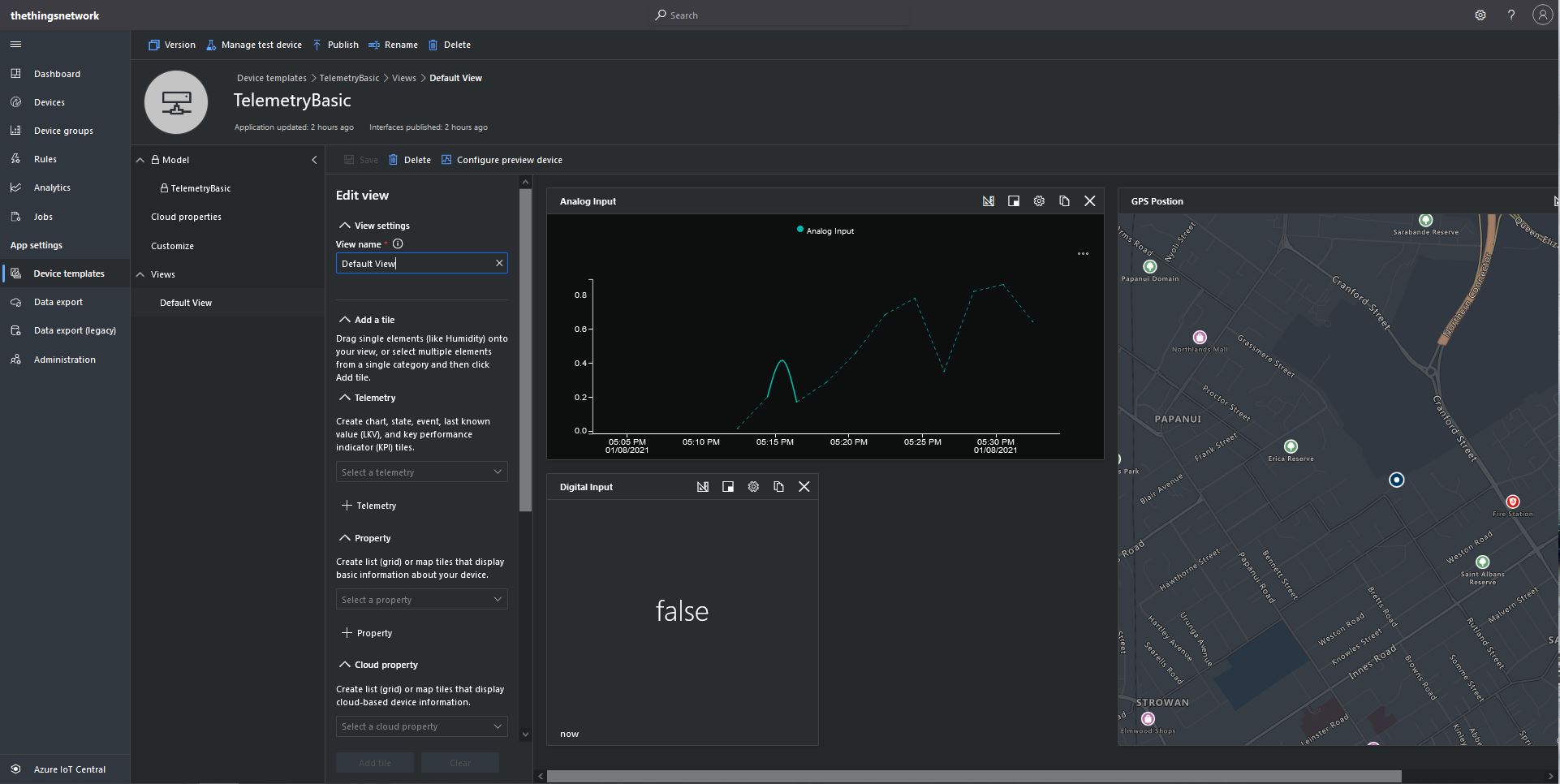
I then went back and created a Template view to visualise the telemetry from my console application.

TelemetryBasic device template default view

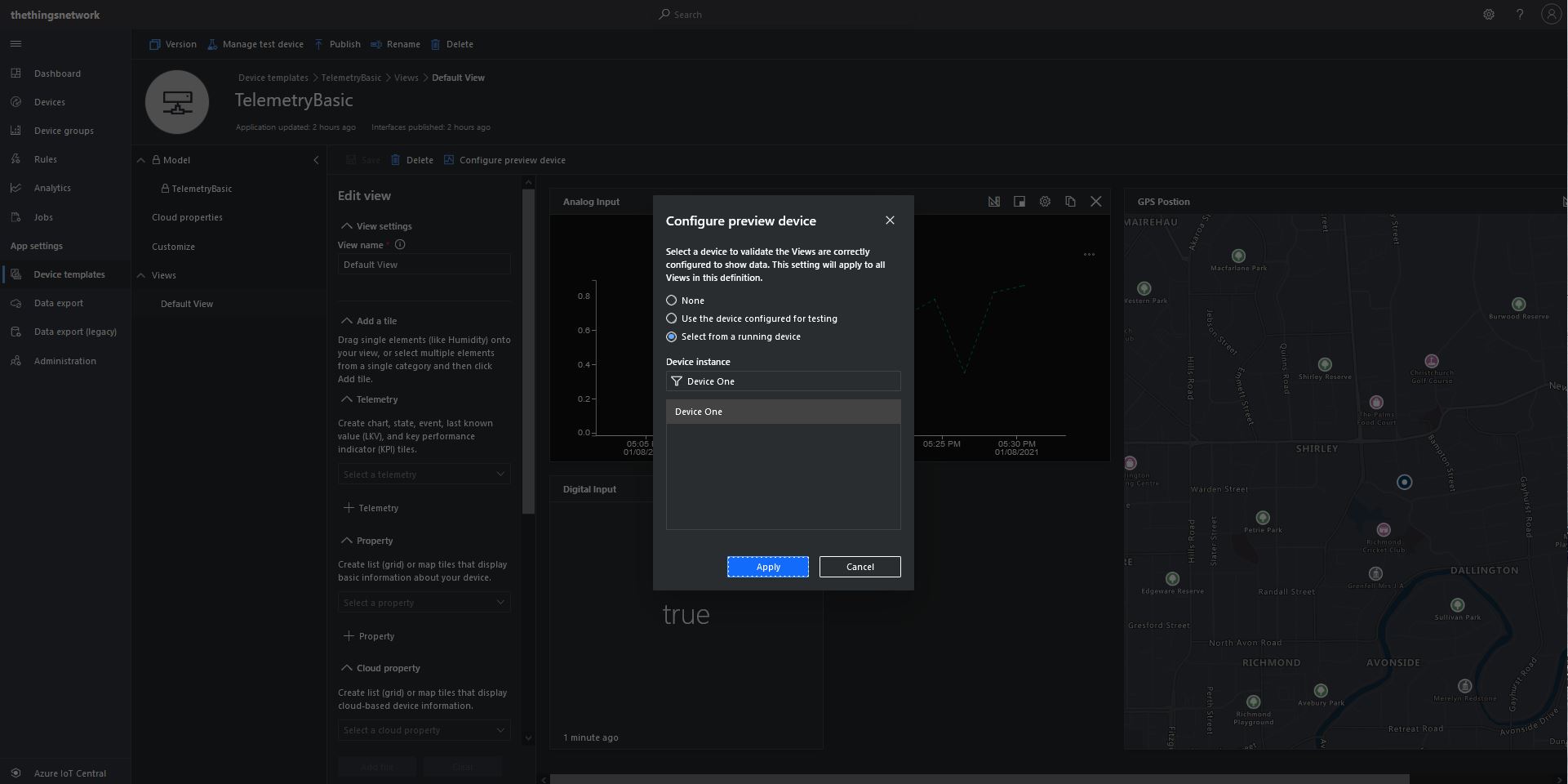
Then I configured a preview device so the template view was populated with “realistic” data.

TelemetryBasic device template default view configuring a device as data source

The console application simulates a digital input (random true/false), analog input (random value between 0.0 and 1.0) and a Global Positioning System(GPS) location (Christchurch Anglican Cathedral with a random latitude, longitude and altitude offset) .

Basic Telemetry Console Application

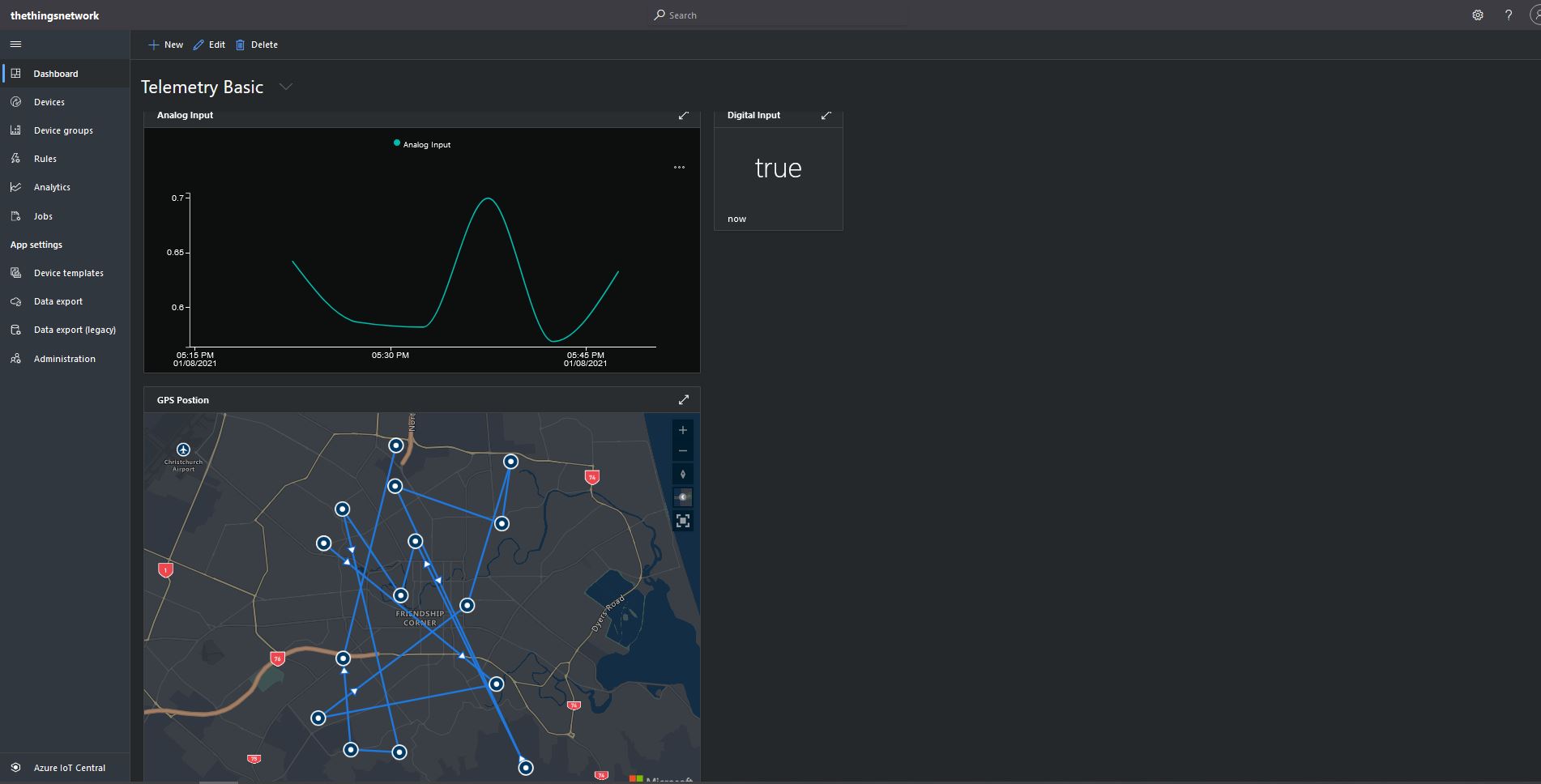
The final step was to create an Azure IoT Central Personal dashboard to visualise the data from my simulated device.

Basic Telemetry Dashboard

Connecting a Device, creating a Device Template, Migrating the Device, and then displaying telemetry on a personal dashboard was a good introduction to interfacing with and configuring Azure IoT Central devices.

In other applications I have mapped “payload_fields” to an Azure IoT Central telemetry payload with minimal code.

{
   "app_id": "rak811wisnodetest",
   "dev_id": "seeeduinolorawan4",
   "hardware_serial": "1234567890123456",
   "port": 10,
   "counter": 1,
   "is_retry": true,
   "payload_raw": "AWcBEAFlAGQBAAEBAgAyAYgAqYgGIxgBJuw=",
   "payload_fields": {
      "analog_in_1": 0.5,
      "digital_in_1": 1,
      "gps_1": {
         "altitude": 755,
         "latitude": 4.34,
         "longitude": 40.22
      },
      "luminosity_1": 100,
      "temperature_1": 27.2
   },
   "metadata": {
      "time": "2020-08-28T10:41:04.496594225Z",
      "frequency": 923.4,
      "modulation": "LORA",
      "data_rate": "SF12BW125",
      "coding_rate": "4/5",
      "gateways": [
         {
            "gtw_id": "eui-b827ebfffe6c279d",
            "timestamp": 3971612260,
            "time": "2020-08-28T10:41:03.313471Z",
            "channel": 1,
            "rssi": -53,
            "snr": 11.2,
            "rf_chain": 0,
            "latitude": -43.49885,
            "longitude": 172.60095,
            "altitude": 25
         }
      ]
   },
   "downlink_url": "https://integrations.thethingsnetwork.org/ttn-eu/api/v2/down/rak811wisnodetest/azure-webapi-endpoint?key=ttn-account-v2.12345678901234567_12345_1234567-dduo"
}

This was a longish post with lots of screen shots so I don’t have to repeat core setup instructions in future posts.

The Things Network MQTT & Azure IoT Part3A

Cloud to Device with frm_payload no confirmation

An Azure IoT Hub supports three kinds for Cloud to Device(C2D) messaging and my gateway will initially support only Direct Methods and Cloud-to-device messages.

The first step was to add the The Things Network(TTN) V3 Tennant ID to the context information as it is required for the downlink Message Queue Telemetry Transport (MQTT) publish topic.

namespace devMobile.TheThingsNetwork.Models
{
   public class AzureIoTHubReceiveMessageHandlerContext
   {
      public string TenantId { get; set; }
      public string DeviceId { get; set; }
      public string ApplicationId { get; set; }
   }
}

The object is passed as the context parameter of the SetReceiveMessageHandlerAsync method.

try
{
	DeviceClient deviceClient = DeviceClient.CreateFromConnectionString(
		options.AzureIoTHubconnectionString,
		endDevice.Ids.Device_id,
		TransportType.Amqp_Tcp_Only);

	await deviceClient.OpenAsync();

	AzureIoTHubReceiveMessageHandlerContext context = new AzureIoTHubReceiveMessageHandlerContext()
	{
		TenantId = options.Tenant,
		DeviceId = endDevice.Ids.Device_id,
		ApplicationId = options.ApiApplicationID,
	};

	await deviceClient.SetReceiveMessageHandlerAsync(AzureIoTHubClientReceiveMessageHandler, context);
	
	DeviceClients.Add(endDevice.Ids.Device_id, deviceClient, cacheItemPolicy);
}
catch( Exception ex)
{
	Console.WriteLine($"Azure IoT Hub OpenAsync failed {ex.Message}");
}

To send a message to a LoRaWAN device in addition to the payload, TTN needs the port number and optionally a confirmation required flag, message priority, queueing type and correlation ids.

With my implementation the confirmation required flag, message priority, and queueing type are Azure IoT Hub message properties and the messageid is used as a correlation id.

private async static Task AzureIoTHubClientReceiveMessageHandler(Message message, object userContext)
{
	bool confirmed;
	byte port;
	DownlinkPriority priority;
	string downlinktopic;

	try
	{
		AzureIoTHubReceiveMessageHandlerContext receiveMessageHandlerConext = (AzureIoTHubReceiveMessageHandlerContext)userContext;

		DeviceClient deviceClient = (DeviceClient)DeviceClients.Get(receiveMessageHandlerConext.DeviceId);
		if (deviceClient == null)
		{
			Console.WriteLine($" UplinkMessageReceived unknown DeviceID: {receiveMessageHandlerConext.DeviceId}");
			await deviceClient.RejectAsync(message);
			return;
		}

		using (message)
		{
			Console.WriteLine();
			Console.WriteLine();
			Console.WriteLine($"{DateTime.UtcNow:HH:mm:ss} Azure IoT Hub downlink message");
			Console.WriteLine($" ApplicationID: {receiveMessageHandlerConext.ApplicationId}");
			Console.WriteLine($" DeviceID: {receiveMessageHandlerConext.DeviceId}");
#if DIAGNOSTICS_AZURE_IOT_HUB
			Console.WriteLine($" Cached: {DeviceClients.Contains(receiveMessageHandlerConext.DeviceId)}");
			Console.WriteLine($" MessageID: {message.MessageId}");
			Console.WriteLine($" DeliveryCount: {message.DeliveryCount}");
			Console.WriteLine($" EnqueuedTimeUtc: {message.EnqueuedTimeUtc}");
			Console.WriteLine($" SequenceNumber: {message.SequenceNumber}");
			Console.WriteLine($" To: {message.To}");
#endif
			string messageBody = Encoding.UTF8.GetString(message.GetBytes());
			Console.WriteLine($" Body: {messageBody}");
#if DOWNLINK_MESSAGE_PROPERTIES_DISPLAY
			foreach (var property in message.Properties)
			{
				Console.WriteLine($"   Key:{property.Key} Value:{property.Value}");
			}
#endif
			if (!message.Properties.ContainsKey("Confirmed"))
			{
				Console.WriteLine(" UplinkMessageReceived missing confirmed property");
				await deviceClient.RejectAsync(message);
				return;
			}

			if (!bool.TryParse(message.Properties["Confirmed"], out confirmed))
			{
				Console.WriteLine(" UplinkMessageReceived confirmed property invalid");
				await deviceClient.RejectAsync(message);
				return;
			}

			if (!message.Properties.ContainsKey("Priority"))
			{
				Console.WriteLine(" UplinkMessageReceived missing priority property");
				await deviceClient.RejectAsync(message);
				return;
			}

			if (!Enum.TryParse(message.Properties["Priority"], true, out priority))
			{
				Console.WriteLine(" UplinkMessageReceived priority property invalid");
				await deviceClient.RejectAsync(message);
				return;
			}

			if (priority == DownlinkPriority.Undefined)
			{
				Console.WriteLine(" UplinkMessageReceived priority property undefined value invalid");
				await deviceClient.RejectAsync(message);
				return;
			}

			if (!message.Properties.ContainsKey("Port"))
			{
				Console.WriteLine(" UplinkMessageReceived missing port number property");
				await deviceClient.RejectAsync(message);
				return;
			}

			if (!byte.TryParse( message.Properties["Port"], out port))
			{
				Console.WriteLine(" UplinkMessageReceived port number property invalid");
				await deviceClient.RejectAsync(message);
				return;
			}

			if ((port < Constants.PortNumberMinimum) || port > (Constants.PortNumberMaximum))
			{
				Console.WriteLine($" UplinkMessageReceived port number property invalid value must be between {Constants.PortNumberMinimum} and {Constants.PortNumberMaximum}");
				await deviceClient.RejectAsync(message);
				return;
			}

			if (!message.Properties.ContainsKey("Queue"))
			{
				Console.WriteLine(" UplinkMessageReceived missing queue property");
				await deviceClient.RejectAsync(message);
				return;
			}

			switch(message.Properties["Queue"].ToLower())
			{
				case "push":
					downlinktopic = $"v3/{receiveMessageHandlerConext.ApplicationId}@{receiveMessageHandlerConext.TenantId}/devices/{receiveMessageHandlerConext.DeviceId}/down/push";
					break;
				case "replace":
					downlinktopic = $"v3/{receiveMessageHandlerConext.ApplicationId}@{receiveMessageHandlerConext.TenantId}/devices/{receiveMessageHandlerConext.DeviceId}/down/replace";
					break;
				default:
					Console.WriteLine(" UplinkMessageReceived missing queue property invalid value");
					await deviceClient.RejectAsync(message);
					return;
               }

			DownlinkPayload Payload = new DownlinkPayload()
			{
				Downlinks = new List<Downlink>()
				{ 
					new Downlink()
					{
						Confirmed = confirmed,
						PayloadRaw = messageBody,
						Priority = priority,
						Port = port,
						CorrelationIds = new List<string>()
						{
							message.MessageId
						}
					}
				}
			};

			var mqttMessage = new MqttApplicationMessageBuilder()
					.WithTopic(downlinktopic)
					.WithPayload(JsonConvert.SerializeObject(Payload))
					.WithAtLeastOnceQoS()
					.Build();

			await mqttClient.PublishAsync(mqttMessage);

			// Need to look at confirmation requirement ack, nack maybe failed & sent
			await deviceClient.CompleteAsync(message);

			Console.WriteLine();
		}
	}
	catch (Exception ex)
	{
		Debug.WriteLine("UplinkMessageReceived failed: {0}", ex.Message);
	}
}

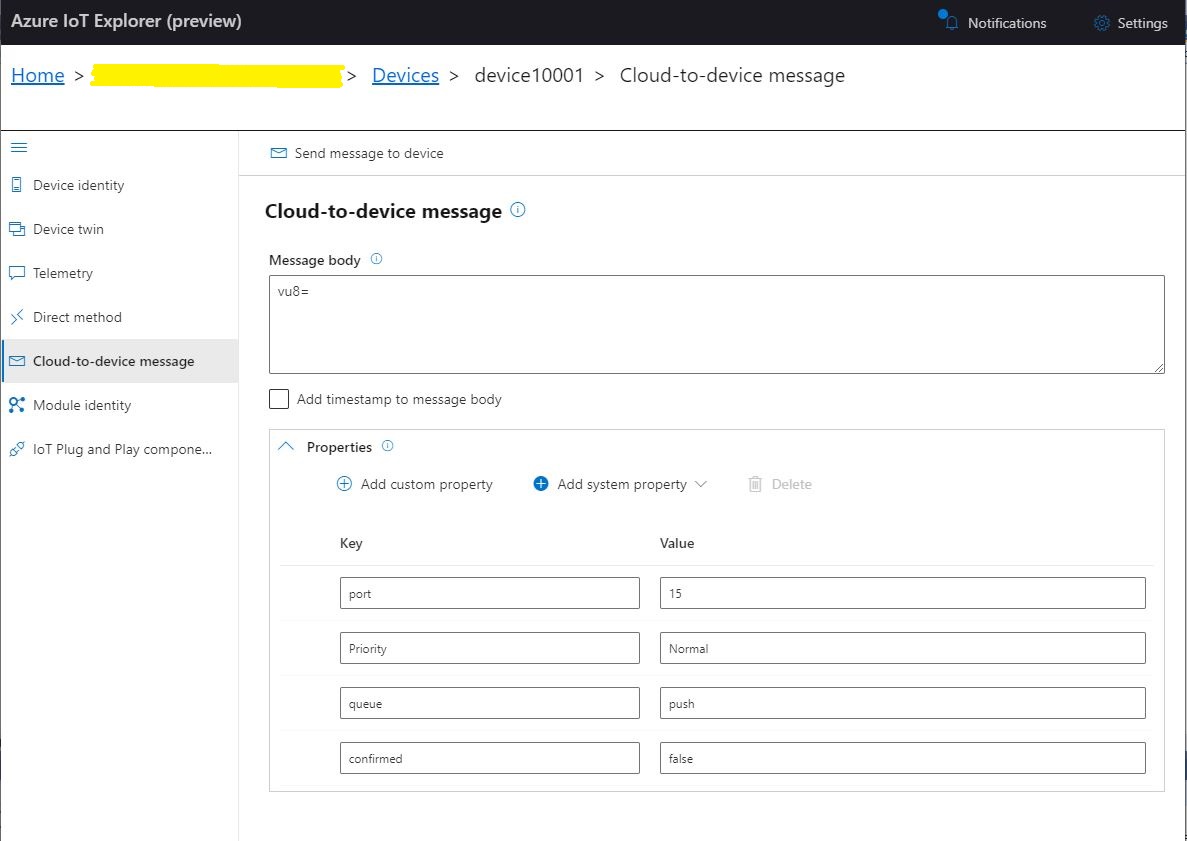
To “smoke test”” my implementation I used Azure IoT Explorer to send a C2D telemetry message

Azure IoT Hub Explorer send message form with payload and message properties

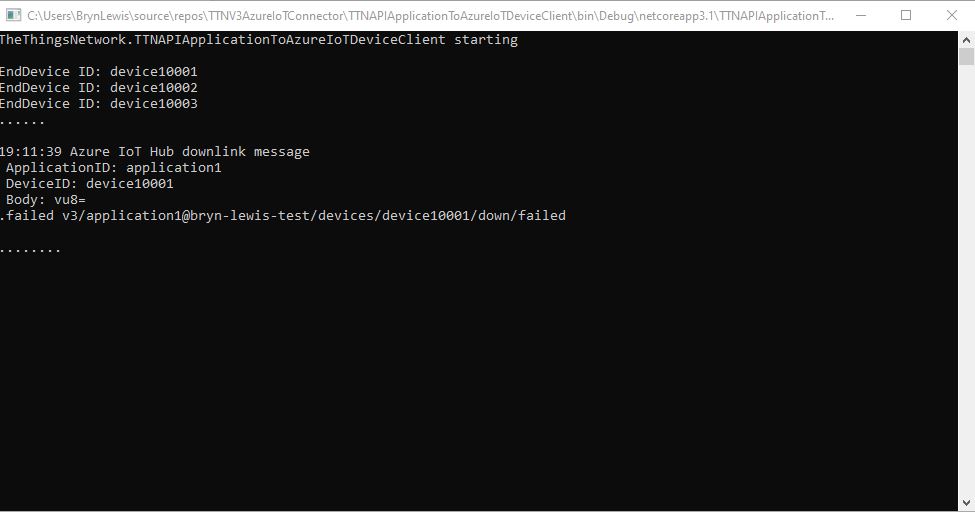
The PoC console application then forwarded the message to TTN using MQTT to be sent(which fails)

PoC application sending message then displaying result

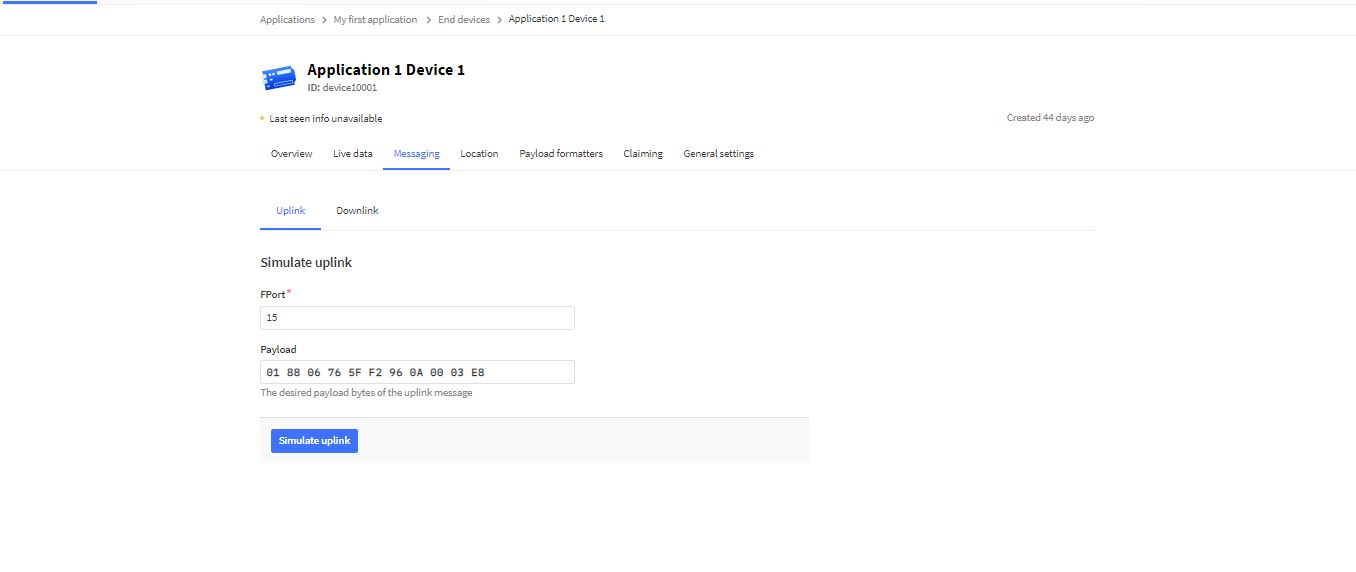
The TTN live data display shows the message couldn’t be delivered because my test LoRaWAN device has not been activiated.

TTN Live Data display with message delivery failure

Now that my PoC application can receive and transmit message to devices I need to reconfigure my RAK Wisgate Developer D+ gateway and Seeeduino LoRaWAN and RAK Wisnode 7200 Track Lite devices on The Things Industries Network so I can test my approach with more realistic setup.

The Things Network MQTT & Azure IoT Part2

Uplink with decoded_payload & frm_payload

The next functionality added to my Proof of Concept(PoC) Azure IoT Hub, The Things Network(TTN) V3 Hypertext Transfer Protocol(HTTP) client API Integration, and Message Queue Telemetry Transport (MQTT) Data API Integration is sending of raw and decoded uplink messages to an Azure IoT Hub.

// At this point all the AzureIoT Hub deviceClients setup and ready to go so can enable MQTT receive
mqttClient.UseApplicationMessageReceivedHandler(new MqttApplicationMessageReceivedHandlerDelegate(e => MqttClientApplicationMessageReceived(e)));

// This may shift to individual device subscriptions
string uplinkTopic = $"v3/{options.MqttApplicationID}/devices/+/up";
await mqttClient.SubscribeAsync(uplinkTopic, MQTTnet.Protocol.MqttQualityOfServiceLevel.AtLeastOnce);

//string queuedTopic = $"v3/{options.MqttApplicationID}/devices/+/queued";
//await mqttClient.SubscribeAsync(queuedTopic, MQTTnet.Protocol.MqttQualityOfServiceLevel.AtLeastOnce);

The additional commented out subscriptions are for the processing of downlink messages

The MQTTNet received message handler uses the last segment of the topic to route messages to a method for processing

private static async void MqttClientApplicationMessageReceived(MqttApplicationMessageReceivedEventArgs e)
{
	if (e.ApplicationMessage.Topic.EndsWith("/up", StringComparison.InvariantCultureIgnoreCase))
	{
		await UplinkMessageReceived(e);
	}

	/*
	if (e.ApplicationMessage.Topic.EndsWith("/queued", StringComparison.InvariantCultureIgnoreCase))
	{
		await DownlinkMessageQueued(e);
	}
	...			
	*/
}

The UplinkMessageReceived method deserialises the message payload, retrieves device context information from the local ObjectCache, adds relevant uplink messages fields (including the raw payload), then if the message has been unpacked by a TTN Decoder, the message fields are added as well.

static async Task UplinkMessageReceived(MqttApplicationMessageReceivedEventArgs e)
{
	try
	{
		PayloadUplinkV3 payload = JsonConvert.DeserializeObject<PayloadUplinkV3>(e.ApplicationMessage.ConvertPayloadToString());
		string applicationId = payload.EndDeviceIds.ApplicationIds.ApplicationId;
		string deviceId = payload.EndDeviceIds.DeviceId;
		int port = payload.UplinkMessage.Port;
...
		DeviceClient deviceClient = (DeviceClient)DeviceClients.Get(deviceId);
		if (deviceClient == null)
		{
			Console.WriteLine($" UplinkMessageReceived unknown DeviceID: {deviceId}");
			return;
		}

		JObject telemetryEvent = new JObject();
		telemetryEvent.Add("DeviceID", deviceId);
		telemetryEvent.Add("ApplicationID", applicationId);
		telemetryEvent.Add("Port", port);
		telemetryEvent.Add("PayloadRaw", payload.UplinkMessage.PayloadRaw);

		// If the payload has been unpacked in TTN backend add fields to telemetry event payload
		if (payload.UplinkMessage.PayloadDecoded != null)
		{
			EnumerateChildren(telemetryEvent, payload.UplinkMessage.PayloadDecoded);
		}

		// Send the message to Azure IoT Hub/Azure IoT Central
		using (Message ioTHubmessage = new Message(Encoding.ASCII.GetBytes(JsonConvert.SerializeObject(telemetryEvent))))
		{
			// Ensure the displayed time is the acquired time rather than the uploaded time. 
			//ioTHubmessage.Properties.Add("iothub-creation-time-utc", payloadObject.Metadata.ReceivedAtUtc.ToString("s", CultureInfo.InvariantCulture));
			ioTHubmessage.Properties.Add("ApplicationId", applicationId);
			ioTHubmessage.Properties.Add("DeviceId", deviceId);
			ioTHubmessage.Properties.Add("port", port.ToString());

			await deviceClient.SendEventAsync(ioTHubmessage);
		}
	}
	catch( Exception ex)
	{
		Debug.WriteLine("UplinkMessageReceived failed: {0}", ex.Message);
	}
}

private static void EnumerateChildren(JObject jobject, JToken token)
{
	if (token is JProperty property)
	{
		if (token.First is JValue)
		{
			// Temporary dirty hack for Azure IoT Central compatibility
			if (token.Parent is JObject possibleGpsProperty)
			{
				if (possibleGpsProperty.Path.StartsWith("GPS_", StringComparison.OrdinalIgnoreCase))
				{
					if (string.Compare(property.Name, "Latitude", true) == 0)
					{
						jobject.Add("lat", property.Value);
					}
					if (string.Compare(property.Name, "Longitude", true) == 0)
					{
						jobject.Add("lon", property.Value);
					}
					if (string.Compare(property.Name, "Altitude", true) == 0)
					{
						jobject.Add("alt", property.Value);
					}
				}
			}
			jobject.Add(property.Name, property.Value);
		}
		else
		{
			JObject parentObject = new JObject();
			foreach (JToken token2 in token.Children())
			{
				EnumerateChildren(parentObject, token2);
				jobject.Add(property.Name, parentObject);
			}
		}
	}
	else
	{
		foreach (JToken token2 in token.Children())
		{
			EnumerateChildren(jobject, token2);
		}
	}
}

There is also some basic reformatting of the messages for Azure IoT Central

TTN Simulate uplink message with GPS location payload.
Nasty console application processing uplink message
Message from LoRaWAN device displayed in Azure IoT Explorer

Currently the code has a lots of diagnostic Console.Writeline statements, doesn’t support Uplink messages, has no Advanced Message Queuing Protocol(AMQP) client connection pooling, can’t run as an Azure Webjob, and a number of other features which I plan on adding in future blog posts.