Netduino 3 AnalogInput read rates

At CodeClub some of the students build a power consumption meter and as part of that project we measure the AnalogInput sample rates to check they are sufficient for our application.

Earlier this term when we measured the sampling rates in a CodeClub session we had a mix of Netduino 2 and Netduino 3 devices and some of the results differed from my previous observations. I used the same code on all the devices

int value;
AnalogInput x1 = new AnalogInput(Cpu.AnalogChannel.ANALOG_0);
stopwatch.Start();
for (int i = 0; i < SampleCount; i++)
{
value = x1.ReadRaw();
}
stopwatch.Stop();

Netduino Plus 2

Duration = 2081 mSec 48053/sec
Duration = 2082 mSec 48030/sec
Duration = 2081 mSec 48053/sec
Duration = 2082 mSec 48030/sec
Duration = 2081 mSec 48053/sec

Netduino 3

Duration = 2071 mSec 48285/sec
Duration = 2069 mSec 48332/sec
Duration = 2070 mSec 48309/sec
Duration = 2071 mSec 48285/sec
Duration = 2070 mSec 48309/sec
Duration = 2071 mSec 48285/sec

Netduino 3 Ethernet
Duration = 2136 mSec 46816/sec
Duration = 2137 mSec 46794/sec
Duration = 2136 mSec 46816/sec
Duration = 2135 mSec 46838/sec
Duration = 2137 mSec 46794/sec
Duration = 2135 mSec 46838/sec
Duration = 2136 mSec 46816/sec
Duration = 2135 mSec 46838/sec

Netduino 3 Wifii
Duration = 3902 mSec 25627/sec
Duration = 3901 mSec 25634/sec
Duration = 3902 mSec 25627/sec
Duration = 3901 mSec 25634/sec
Duration = 3903 mSec 25621/sec
Duration = 3902 mSec 25627/sec
Duration = 3903 mSec 25621/sec

The results for the Netduino 3 & Netduino 3 Ethernet were comparable with the Netduino Plus 2 in my earlier post. The reduction in the sampling rate of the Netduino 3 Wifi warrants some further investigation.

Netduino 3 Wifi pollution Sensor Part 2

In a previous post I had started building a driver for the Seeedstudio Grove Dust Sensor. It was a proof of concept and it didn’t handle some edge cases well.

While building the pollution monitor with a student we started by simulating the negative occupancy of the Shinyei PPD42NJ Particle sensor with the Netduino’s on-board button. This worked and reduced initial complexity. But it also made it harder to simulate the button being pressed as the program launches (the on-board button is also the reset button), or simulate if the button was pressed at the start or end of the period.
Dust sensor simulation with button

Netduino 3 Wifi Test Harness

The first sample code processes button press interrupts and displays the values of the data1 & data2 parameters

public class Program
{
   public static void Main()
   {
      InterruptPort button = new InterruptPort(Pins.GPIO_PIN_D5, false, Port.ResistorMode.Disabled, Port.InterruptMode.InterruptEdgeBoth);
      button.OnInterrupt += button_OnInterrupt;

      Thread.Sleep(Timeout.Infinite);
   }

   static void button_OnInterrupt(uint data1, uint data2, DateTime time)
   {
      Debug.Print(time.ToString("hh:mm:ss.fff") + " data1 =" + data1.ToString() + " data2 = " + data2.ToString());
   }
}

Using the debugging output from this application we worked out that data1 was the Microcontroller Pin number and data2 was the button state.

12:00:14.389 data1 =24 data2 = 0
12:00:14.389 data1 =24 data2 = 1
12:00:14.389 data1 =24 data2 = 0
12:00:15.851 data1 =24 data2 = 1
12:00:16.078 data1 =24 data2 = 0

We then extended the code to record the duration of each button press.

public class Program
{
   static DateTime buttonLastPressedAtUtc = DateTime.UtcNow;

   public static void Main()
   {
      InterruptPort button = new InterruptPort(Pins.ONBOARD_BTN, false, Port.ResistorMode.Disabled, Port.InterruptMode.InterruptEdgeBoth);
      button.OnInterrupt += button_OnInterrupt;

      Thread.Sleep(Timeout.Infinite);
   }

   static void button_OnInterrupt(uint data1, uint data2, DateTime time)
   {
      if (data2 == 0)
      {
         TimeSpan duration = time - buttonLastPressedAtUtc;

         Debug.Print(duration.ToString());
      }
      else
      {
         buttonLastPressedAtUtc = time;
      }
   }
}

The thread ” (0x4) has exited with code 0 (0x0).
00:00:00.2031790
00:00:00.1954150
00:00:00.1962350

The next step was to keep track of the total duration of the button presses since the program started executing.

public class Program
{
   static DateTime buttonLastPressedAtUtc = DateTime.UtcNow;
   static TimeSpan buttonPressedDurationTotal;

   public static void Main()
   {
      InterruptPort button = new InterruptPort(Pins.ONBOARD_BTN, false, Port.ResistorMode.Disabled, Port.InterruptMode.InterruptEdgeBoth);
      button.OnInterrupt += button_OnInterrupt;

      Thread.Sleep(Timeout.Infinite);
   }

   static void button_OnInterrupt(uint data1, uint data2, DateTime time)
   {
      if (data2 == 0)
      {
         TimeSpan duration = time - buttonLastPressedAtUtc;

         buttonPressedDurationTotal += duration;
          Debug.Print(duration.ToString() + " " + buttonPressedDurationTotal.ToString());
      }
      else
      {
         buttonLastPressedAtUtc = time;
      }
   }
}

The thread ” (0x4) has exited with code 0 (0x0).
00:00:00.2476460 00:00:00.2476460
00:00:00.2193600 00:00:00.4670060
00:00:00.2631400 00:00:00.7301460
00:00:00.0001870 00:00:00.7303330

We then added a timer to display the amount of time the button was pressed in the configured period.

public class Program
{
   static TimeSpan measurementDueTime = new TimeSpan(0, 0, 30);
   static TimeSpan measurementperiodTime = new TimeSpan(0, 0, 30);
   static DateTime buttonLastPressedAtUtc = DateTime.UtcNow;
   static TimeSpan buttonPressedDurationTotal;


   public static void Main()
   {
      InterruptPort button = new InterruptPort(Pins.GPIO_PIN_D5, false, Port.ResistorMode.Disabled, Port.InterruptMode.InterruptEdgeBoth);
      button.OnInterrupt += button_OnInterrupt;

      Timer periodTimer = new Timer(periodTimerProc, button, measurementDueTime, measurementperiodTime);

      Thread.Sleep(Timeout.Infinite);
   }

   static void periodTimerProc(object status)
   {
      InterruptPort button = (InterruptPort)status;

      if (button.Read())
      {
         TimeSpan duration = DateTime.UtcNow - buttonLastPressedAtUtc;

         buttonPressedDurationTotal += duration; 
      }

      Debug.Print(buttonPressedDurationTotal.ToString());

      buttonPressedDurationTotal = new TimeSpan(0, 0, 0);
      buttonLastPressedAtUtc = DateTime.UtcNow;
   }

   static void button_OnInterrupt(uint data1, uint data2, DateTime time)
   {
      if (data2 == 0)
      {
         TimeSpan duration = time - buttonLastPressedAtUtc;

         buttonPressedDurationTotal += duration;

         Debug.Print(duration.ToString() + " " + buttonPressedDurationTotal.ToString());
      }
      else
      {
         buttonLastPressedAtUtc = time;
      }
   }
}

The thread ” (0x4) has exited with code 0 (0x0).
00:00:00
00:00:00
00:00:00.2299050 00:00:00.2299050
00:00:00.1956980 00:00:00.4256030
00:00:00.1693190 00:00:00.5949220
00:00:00.5949220

After some testing we identified that the handling of button presses at the period boundaries was problematic and revised the code some more. We added a timer for the startup period to simplify the interrupt handling code.

public class Program
{
   static TimeSpan measurementDueTime = new TimeSpan(0, 0, 60);
   static TimeSpan measurementperiodTime = new TimeSpan(0, 0, 30);
   static DateTime buttonLastPressedAtUtc = DateTime.UtcNow;
   static TimeSpan buttonPressedDurationTotal;

   public static void Main()
   {
      InterruptPort button = new InterruptPort(Pins.GPIO_PIN_D5, false, Port.ResistorMode.Disabled, Port.InterruptMode.InterruptEdgeBoth);
      button.OnInterrupt += button_OnInterrupt;

      Timer periodTimer = new Timer(periodTimerProc, button, Timeout.Infinite, Timeout.Infinite);

      Timer startUpTImer = new Timer(startUpTimerProc, periodTimer, measurementDueTime.Milliseconds, Timeout.Infinite);

      Thread.Sleep(Timeout.Infinite);
   }

   static void startUpTimerProc(object status)
   {
      Timer periodTimer = (Timer)status;

      Debug.Print( DateTime.UtcNow.ToString("hh:mm:ss") + " -Startup complete");

      buttonLastPressedAtUtc = DateTime.UtcNow;
      periodTimer.Change(measurementDueTime, measurementperiodTime);
   }

   static void periodTimerProc(object status)
   {
      InterruptPort button = (InterruptPort)status;
      Debug.Print(DateTime.UtcNow.ToString("hh:mm:ss") + " -Period timer");

      if (button.Read())
      {
         TimeSpan duration = DateTime.UtcNow - buttonLastPressedAtUtc;

         buttonPressedDurationTotal += duration;
      }

      Debug.Print(buttonPressedDurationTotal.ToString());

      buttonPressedDurationTotal = new TimeSpan(0, 0, 0);
      buttonLastPressedAtUtc = DateTime.UtcNow;
   }

   static void button_OnInterrupt(uint data1, uint data2, DateTime time)
   {
      Debug.Print(DateTime.UtcNow.ToString("hh:mm:ss") + " -OnInterrupt");

      if (data2 == 0)
      {
         TimeSpan duration = time - buttonLastPressedAtUtc;

         buttonPressedDurationTotal += duration;

         Debug.Print(duration.ToString() + " " + buttonPressedDurationTotal.ToString());
      }
      else
      {
         buttonLastPressedAtUtc = time;
      }
   }
}

The debugging output looked positive, but more testing is required.

The thread ” (0x2) has exited with code 0 (0x0).
12:00:13 -Startup complete
12:01:13 -Period timer
00:00:00
12:01:43 -Period timer
00:00:00
12:01:46 -OnInterrupt
12:01:48 -OnInterrupt
00:00:01.2132510 00:00:01.2132510
12:01:49 -OnInterrupt
12:01:50 -OnInterrupt
00:00:01.3001240 00:00:02.5133750
12:01:53 -OnInterrupt
12:01:54 -OnInterrupt
00:00:01.1216510 00:00:03.6350260
12:02:13 -Period timer
00:00:03.6350260

Next steps – multi threading, extract code into a device driver and extend to support sensors like the SeeedStudio Smart dust Sensor which has two digital outputs, one for small particles (e.g. smoke) the other for larger particles (e.g. dust).

Netduino 3 Wifi pollution Sensor Part 1

I am working on a Netduino 3 Wifi based version for my original concept as a STEM project for high school students. I wanted to be able to upload data to a Microsoft Azure Eventhub or other HTTPS secured RESTful endpoint (e.g. xivelyIOT) to show how to build a securable solution. This meant a Netduino 3 Wifi device with the TI C3100 which does all the crypto processing was necessary.

The aim was to (over a number of blog posts) build a plug ‘n play box that initially was for measuring airborne particulates and then overtime add more sensors e.g. atmospheric gas concentrations, (Grove multichannel gas sensor), an accelerometer for earthquake early warning/monitoring (Grove 3-Axis Digital Accelerometer) etc.

Netduino 3 Wifi based pollution sensor

Bill of materials for prototype as at (October 2015)

  • Netduino 3 Wifi USD69.95
  • Seeedstudio Grove base shield V2 USD8.90
  • Seeedstudio Grove smart dust sensor USD16.95
  • Seeedstudio Grove Temperature & Humidity Sensor pro USD14.90
  • Seeedstudio ABS outdoor waterproof case USD1.65
  • Seeedstudio Grove 4 pin female to Grove 4 pin conversion cable USD3.90
  • Seeedstudio Grove 4 pin buckled 5CM cabed USD1.90

After the first assembly I have realised the box is a bit small. There is not a lot of clearance around the Netduino board (largely due to the go!bus connectors on the end making it a bit larger than a standard *duino board) and the space for additional sensors is limited so I will need to source a larger enclosure.

The dust sensor doesn’t come with a cable so I used the conversion cable instead. NOTE – The pins on the sensor are numbered right->Left rather than left->right.

The first step is to get the temperature and humidity sensor working with my driver code, then adapt the Seeedstudio Grove-Dust sensor code for the dual outputs of the SM-PWM-01 device.

According to the SM-PWM-01A device datasheet The P1 output is for small particles < 1uM (smoke) and P2 output is for large particles > 2uM (dust). The temperature & humidity sensor is included in the first iteration as other researchers have indicated that humidity levels can impact on the accuracy of optical particle counters.

Then, once the sensors are working as expected I will integrate a cut back version of the AMQPNetLite code and configuration storage code I wrote for my Netduino 3 wifi Azure EventHub Field Gateway.

Netduino Silicon Labs Si7005 Device Driver

A while back I wrote a post about some problems I was having with a Silicon Labs Si7005 device and now I have had some time to package up the code.

My code strobes the I2C SDA line and then initiates a request that will always fail, from there on everything works as expected.

public SiliconLabsSI7005(byte deviceId = DeviceIdDefault, int clockRateKHz = ClockRateKHzDefault, int transactionTimeoutmSec = TransactionTimeoutmSecDefault)
{
   this.deviceId = deviceId;
   this.clockRateKHz = clockRateKHz;
   this.transactionTimeoutmSec = transactionTimeoutmSec;

   using (OutputPort i2cPort = new OutputPort(Pins.GPIO_PIN_SDA, true))
   {
      i2cPort.Write(false);
      Thread.Sleep(250);
   }

   using (I2CDevice device = new I2CDevice(new I2CDevice.Configuration(deviceId, clockRateKHz)))
   {
      byte[] writeBuffer = { RegisterIdDeviceId };
      byte[] readBuffer = new byte[1];

      // The first request always fails
      I2CDevice.I2CTransaction[] action = new I2CDevice.I2CTransaction[] 
      { 
         I2CDevice.CreateWriteTransaction(writeBuffer),
         I2CDevice.CreateReadTransaction(readBuffer)
      };

      if( device.Execute(action, transactionTimeoutmSec) == 0 )
      {
         //   throw new ApplicationException("Unable to send get device id command");
      }
   }
}

This is how the driver should be used in an application

public static void Main()
{
   SiliconLabsSI7005 sensor = new SiliconLabsSI7005();

   while (true)
   {
      double temperature = sensor.Temperature();

      double humidity = sensor.Humidity();

      Debug.Print("T:" + temperature.ToString("F1") + " H:" + humidity.ToString("F1"));

      Thread.Sleep(5000);
      }
   }

I have added code to catch failures and there is a sample application in the project. For a project I’m working on I will modify the code to use one of the I2C sharing libraries so I can have a number of devices on the bus

My first AzureSBLite program

Extending on the theme for my previous post I decided to take a look at Azure ServiceBus Lite by Paolo Patierno. Same objective as last time, a minimalist application running on my Netduino 3 Wifi which connects to my home wifi, waits for an IP address then uploads an event to an Azure EventHub.

public class Program
{
   private const string connectionString = "Endpoint=sb://[YourNamespace].servicebus.windows.net/;SharedAccessKeyName=[YourKeyName];SharedAccessKey=[YourSaSKey]";
   private const string eventHub = "[YourEventHub]";

...

// Wait for Network address if DHCP
NetworkInterface networkInterface = NetworkInterface.GetAllNetworkInterfaces()[0];
if (networkInterface.IsDhcpEnabled)
{
   Debug.Print(" Waiting for IP address ");

   while (NetworkInterface.GetAllNetworkInterfaces()[0].IPAddress == IPAddress.Any.ToString())
   {
      Debug.Print(".");
   }
}

// Display network config for debugging
Debug.Print("Network configuration");
Debug.Print(" Network interface type: " + networkInterface.NetworkInterfaceType.ToString());
Debug.Print(" MAC Address: " + BytesToHexString(networkInterface.PhysicalAddress));
Debug.Print(" DHCP enabled: " + networkInterface.IsDhcpEnabled.ToString());
Debug.Print(" Dynamic DNS enabled: " + networkInterface.IsDynamicDnsEnabled.ToString());
Debug.Print(" IP Address: " + networkInterface.IPAddress.ToString());
Debug.Print(" Subnet Mask: " + networkInterface.SubnetMask.ToString());
Debug.Print(" Gateway: " + networkInterface.GatewayAddress.ToString());

foreach (string dnsAddress in networkInterface.DnsAddresses)
{
   Debug.Print(" DNS Server: " + dnsAddress.ToString());
}

string deviceId = BytesToHexString(networkInterface.PhysicalAddress);
Debug.Print("DeviceId " + deviceId.ToString());

A bit less code is required to send an event using AzureSBLite

try
{
   MessagingFactory factory = MessagingFactory.CreateFromConnectionString(connectionString);

   EventHubClient client = factory.CreateEventHubClient(eventHub);

   string messageBody = @"{""DeviceId"":""" + deviceId + @""",""Time"":""" + DateTime.Now.ToString("yy-MM-dd hh:mm:ss") + @"""}";
   EventData data = new EventData(Encoding.UTF8.GetBytes(messageBody));

   //EventData data = new EventData();
   //data.Properties.Add("Time", DateTime.Now);
   //data.Properties.Add("DeviceId", deviceId);

   client.Send(data);
   client.Close();

   factory.Close();
}
catch (Exception ex)
{
   Debug.Print("ERROR: Send failed with error: " + ex.Message);
}

Over all, a very similar experience to “MyFirst AMQPNetLite” program, after a couple of typos, and fixing a copy ‘n’ paste issue with the connection string my application worked, with the bonus of less code. Both AMQPNetLite and AzureSBLite look suitable for my application so I’ll need to evaluate them in more detail.

Netduino 3 Wifi xively nRF24L01 Gateway

The first version of this code acquired data from a number of *duino devices and uploaded it to xively for a week without any problems(bar my ADSL modem dropping out every so often which it recovered from without human intervention). The data streams are the temperature and humidity for the three bedrooms in my house (the most reliable stream is Bedroom 1). Next version will use the new Netduino.IP stack and run on a Netduino 2 Plus

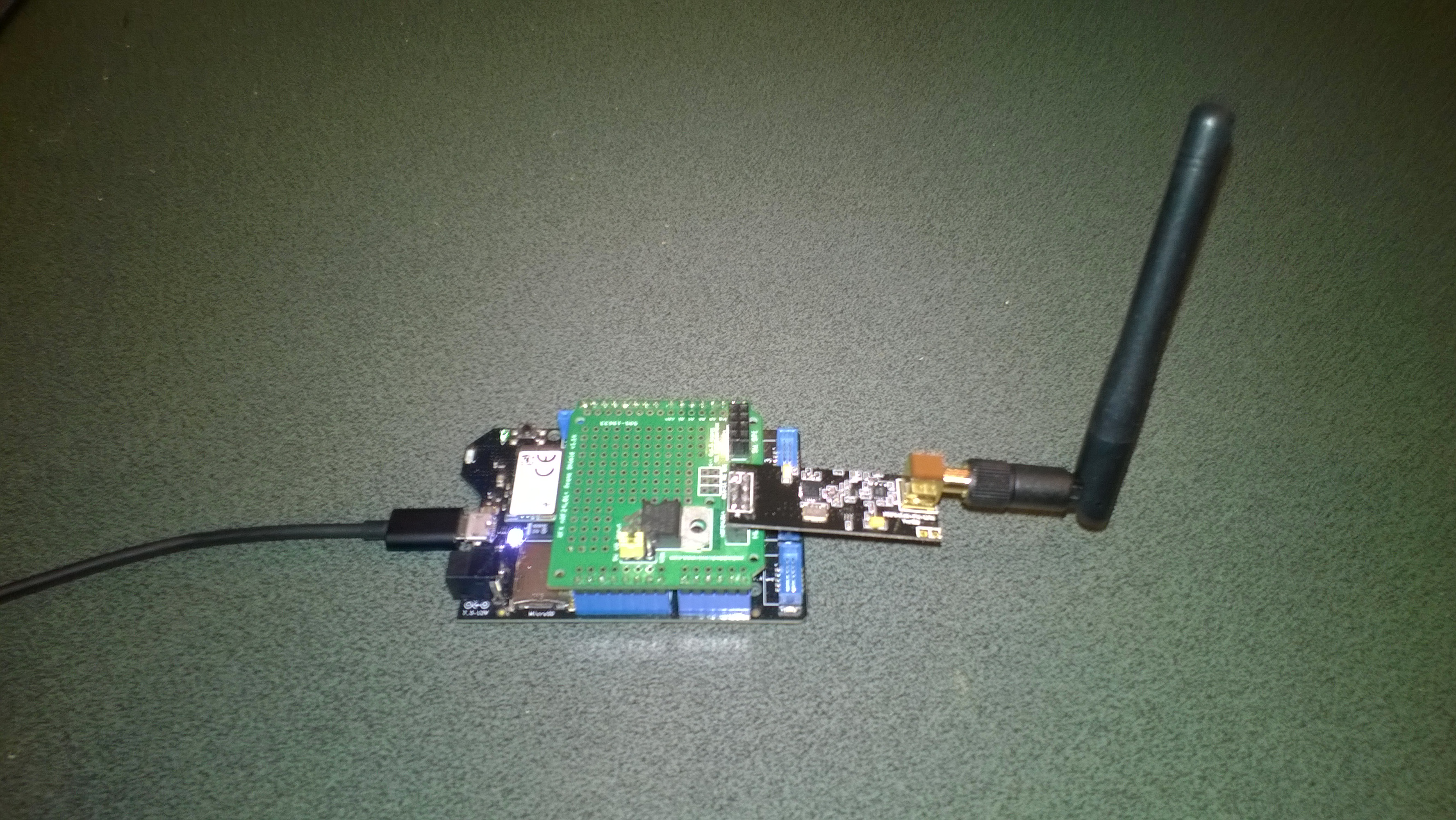
Netduino 3 Wifi with nRF24L01 shield

Netduino 3 Wifi + nRF24L01 shield

To make the software easy to setup all the gateway configuration is stored on a MicroSD and can be modified with a text editor. When the application starts it looks for a file in the root directory of the MicroSD card called app.config. If the file does not exist an empty template is created.

httprequestreadwritetimeoutmsec=2500
httprequesttimeoutmsec=2500
webproxyaddress=
webproxyport=
xivelyapibaseurl=http://api.xively.com/v2/feeds/
xivelyapikey=XivelyAPIKeyGoesHere
xivelyapifeedid=XivelyFeedIDGoesHere
xivelyapicontenttype=text/csv
xivelyapiendpoint=.csv
nrf2l01address=AddressGoesHere
nrf2l01channel=ChannelGoesHere
nrf2l01datarate=0
channel1=Sensor1
channel2=Sensor2
channel3=Sensor3
channel4=Sensor4
channel5=Sensor5
...
...

The first byte of each (upto 32 byte) nRF24L01 message is used to determine the Xively channel.

For testing I used a simple *duino program which uploads temperature and humidity readings every 5 seconds. It’s not terribly efficient or elegant and is just to illustrate how to package up the data.

#include <RF24_config>
#include <nRF24L01.h>
#include <SPI.h>
#include <RF24.h>
#include "Wire.h"
#include <TH02_dev.h>

//UNO R3 with embedded coolness board
//RF24 radio(3, 7);
//devDuino  with onboard
RF24 radio(8, 7);

char payload[32] = "";
const uint64_t pipe = 0x3165736142LL; // Base1 pay attention to byte ordering and address length

void setup()
{
  Serial.begin(9600);

  radio.begin();
  radio.setPALevel(RF24_PA_MAX);
  radio.setChannel(10);
  radio.enableDynamicPayloads();
  radio.openWritingPipe(pipe);

  radio.printDetails();

  /* Power up,delay 150ms,until voltage is stable */
  delay(150);

  TH02.begin();

  delay(1000);
}

void loop()
{
  float temperature = TH02.ReadTemperature();
  float humidity = TH02.ReadHumidity();

  radio.powerUp();

  payload[0] = 'A';
  dtostrf(temperature, 5, 1, &payload[1]);
  Serial.println(payload);
  boolean result = radio.write(payload, strlen(payload));
  if (result)
    Serial.println("T Ok...");
  else
    Serial.println("T failed.");

  payload[0] = 'B';
  dtostrf(humidity, 5, 1, &payload[1]);
  Serial.println(payload);
  result = radio.write(payload, strlen(payload));
  if (result)
    Serial.println("H Ok...");
  else
    Serial.println("H failed.");

  radio.powerDown();

  delay(5000);
}

The gateway code creates a thread for each call to the Xively REST API. (In future the code may need to limit the number of concurrent requests)

private void OnReceive(byte[] data)
{
   activityLed.Write(!activityLed.Read());

   // Ensure that we have a valid payload
   if ( data.Length == 0 )
   {
      Debug.Print( "ERROR - Message has no payload" ) ;
      return ;
   }

   // Extract the device id
   string deviceId = xivelyApiChannleIDPrefix + data[0].ToString();
   string message = new String(Encoding.UTF8.GetChars(data, 1, data.Length - 1));

   string xivelyApiChannel = appSettings.GetString( deviceId, string.Empty ) ;
   if ( xivelyApiChannel.Length == 0 )
   {
      Debug.Print("ERROR - Inbound message has unknown channel " + deviceId);
      return ;
   }
   Debug.Print(DateTime.Now.ToString("HH:mm:ss") + " " + xivelyApiChannel + " " + message); ;

   Thread thread = new Thread(() =&gt; xivelyFeedUpdate(xivelyApiChannel, message ));
   thread.Start();
   }

private void xivelyFeedUpdate( string channel, string value)
{
   #region Assertions
   Debug.Assert(channel != null);
   Debug.Assert(channel != string.Empty );
   Debug.Assert(value != null);
   #endregion

   try
   {
      WebProxy webProxy = null;

      if (webProxyAddress.Length &gt; 1)
      {
         webProxy = new WebProxy(webProxyAddress, webProxyPort);
      }

      using (HttpWebRequest request = (HttpWebRequest)WebRequest.Create(xivelyApiBaseUrl + xivelyApiFeedID + xivelyApiEndpoint))
      {
         byte[] buffer = Encoding.UTF8.GetBytes(channel + "," + value);

         DateTime httpRequestedStartedAtUtc = DateTime.UtcNow;

         if (webProxy != null)
         {
            request.Proxy = webProxy;
         }
         request.Method = "PUT";
         request.ContentLength = buffer.Length;
         request.ContentType = xivelyApiContentType;
         request.Headers.Add("X-ApiKey", xivelyApiKey);
         request.KeepAlive = false;
         request.Timeout = httpRequestTimeoutmSec;
         request.ReadWriteTimeout = httpRequestReadWriteTimeoutmSec;

         // request body
         Debug.Print("HTTP request");
         using (Stream stream = request.GetRequestStream())
         {
            stream.Write(buffer, 0, buffer.Length);
         }

         using (var response = (HttpWebResponse)request.GetResponse())
         {
            Debug.Print(" Status: " + response.StatusCode + " : " + response.StatusDescription);
         }

         TimeSpan duration = DateTime.UtcNow - httpRequestedStartedAtUtc;
         Debug.Print(" Duration: " + duration.ToString());
      }
   }
   catch (Exception ex)
   {
      Debug.Print(ex.Message);
   }
}

To use this code download the Nordic nRF24L01 library from Codeplex then include that plus my Netduino NRF24L01 Xively Gateway in a new solution and it should just work.

Deploy the application to a Netduino 2 Plus or Netduino 3 Wifi device and run it to create the app.config file, then use a text editor to update the file with your Xively & device settings.

I’ll upload this and a couple of other projects to GitHub shortly.

Bill of materials (prices as at July 2015)

Netduino 3 Wifi xively nRF24L01 Gateway data stream live

The gateway is now live, I’m regularly updating the Netduino 3 wifi code and the client arduino, devDuino + netduino devices so there maybe short periods of downtime and/or missing data points.

The stream is available here and is currently just temperature and humidity readings from two bedrooms updating roughly once a minute.

I live in New Zealand which is currently UTC + 12.

Netduino 3 Wifi xively nRF24L01 Gateway introduction

Around home I have a number of Arduino, devDuino and Netduino devices collecting power consumption, temperature & humidity measurements. Previously I had built an Azure event hub gateway which runs on Windows 7(or later) which acts as a gateway forwarding local http requests to an Microsoft Azure event hub.

Not all my embedded devices are capable of making an http request but an nRF24l01 based approach is supported.

For this application I wanted something a bit simpler than an Azure Event hub which could plot basic graphs and as I didn’t require massive scale Xively looked ideal.

Netduino 3 Wifi xively gateway + duino clients

Netduino 3 Wifi xively gateway and *duino clients

Over the next few blog postings I will show how I built the Netduino 3 wifi application and the Arduino based clients.

Bill of materials for the Xively gateway (prices at June 2015)

First step is to configure the network

NetworkInterface networkInterface = NetworkInterface.GetAllNetworkInterfaces()[0];

if (networkInterface.IsDhcpEnabled)
{
   Debug.Print(" Waiting for IP address ");

   while (NetworkInterface.GetAllNetworkInterfaces()[0].IPAddress == IPAddress.Any.ToString()) 
   {
      Thread.Sleep(100);
   }
}

// Display network config for debugging
Debug.Print("Network configuration");
Debug.Print(" Network interface type: " + networkInterface.NetworkInterfaceType.ToString());
Debug.Print(" MAC Address: " + BytesToHexString(networkInterface.PhysicalAddress));
Debug.Print(" DHCP enabled: " + networkInterface.IsDhcpEnabled.ToString());
Debug.Print(" Dynamic DNS enabled: " + networkInterface.IsDynamicDnsEnabled.ToString());
Debug.Print(" IP Address: " + networkInterface.IPAddress.ToString());
Debug.Print(" Subnet Mask: " + networkInterface.SubnetMask.ToString());
Debug.Print(" Gateway: " + networkInterface.GatewayAddress.ToString());

foreach (string dnsAddress in networkInterface.DnsAddresses)
{
   Debug.Print(" DNS Server: " + dnsAddress.ToString());
}

_module = new NRF24L01Plus();

Then setup the nRF24l01 driver

_module.OnDataReceived += OnReceive;
_module.OnTransmitFailed += OnSendFailure;
_module.OnTransmitSuccess += OnSendSuccess;

_module.Initialize(SPI.SPI_module.SPI1, Pins.GPIO_PIN_D7, Pins.GPIO_PIN_D3, Pins.GPIO_PIN_D2);
_module.Configure(myAddress, channel, NRFDataRate.DR1Mbps);
_module.Enable();

The setup required for the Xively API and mapping the devices highlighted the need for a means of storing configuration which could be modified using a simple text editor.

Netduino 3 Wifi with nRF24L01 shield

Netduino 3 Wifi + nRF24L01 shield

This software was built using tooling created and shared by others.

Big thanks to

Jakub Bartkowiak – Gralin.NETMF.Nordic.NRF24L01Plus

EVolocity 3 Axis G-Meter

A telemetry system could be used to monitor the progress of your electric vehicle and provide feedback to the team & driver about how efficiently/fast it is being driven. As part of a telemetry system lateral, longitudinal, and vertical acceleration could be monitored using a cheap ADXL345 mems accelerometer

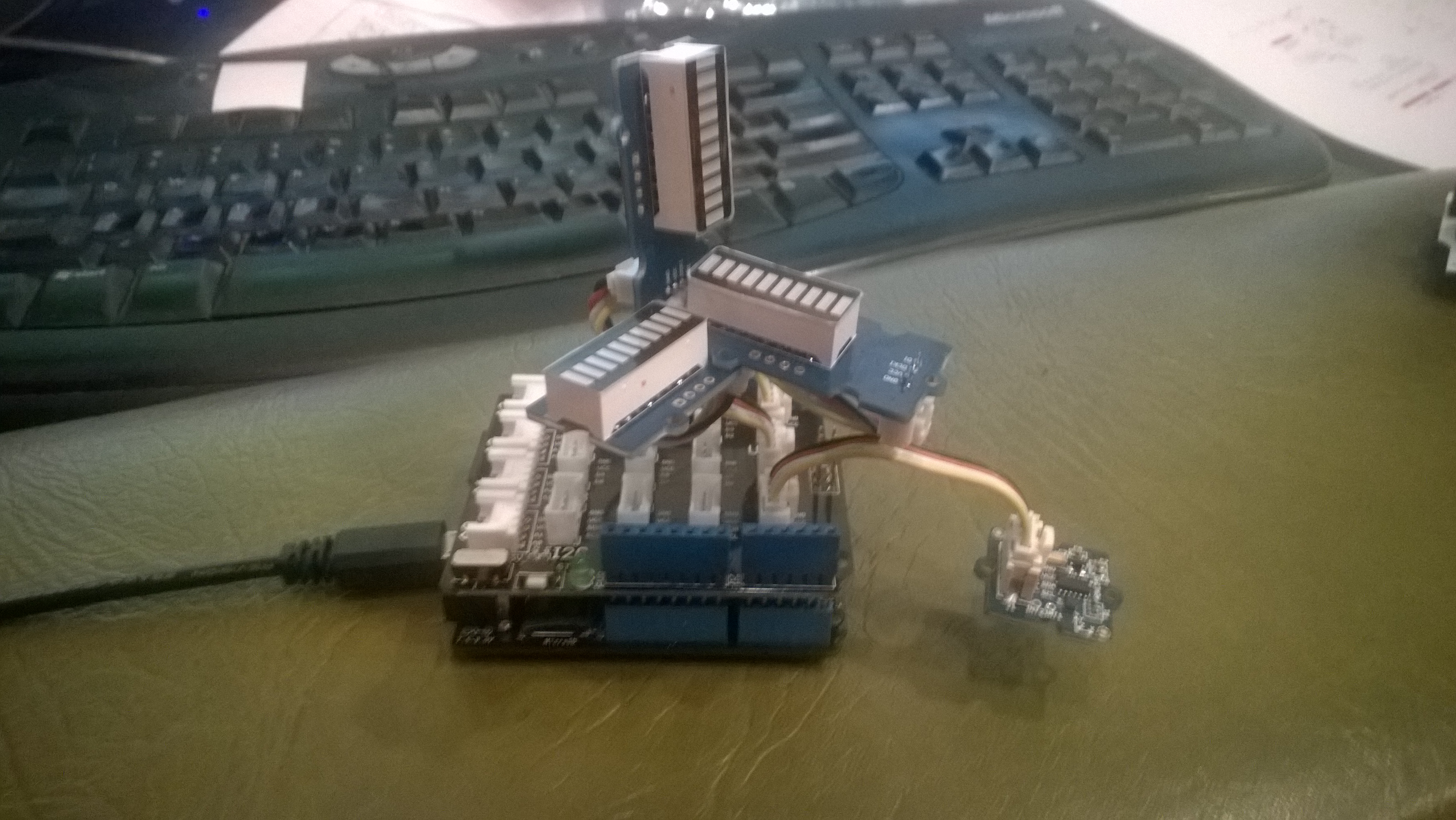
Netduino based 3D GMeter

Netduino based 3D G-Meter

Bill of Materials for my engineering proof of concept (Prices as at May 2015)

The sample code reads the acceleration data from the ADXL345 using a driver originally created by Love Electronics. It then displays the magnitude of the scaled acceleration on 3 x LED Bars using code written by Famoury Toure

OutputPort Xcin = new OutputPort(Pins.GPIO_PIN_D0, false);
OutputPort Xdin = new OutputPort(Pins.GPIO_PIN_D1, false);
OutputPort Ycin = new OutputPort(Pins.GPIO_PIN_D3, false);
OutputPort Ydin = new OutputPort(Pins.GPIO_PIN_D4, false);
OutputPort Zcin = new OutputPort(Pins.GPIO_PIN_D5, false);
OutputPort Zdin = new OutputPort(Pins.GPIO_PIN_D6, false);

GroveLedBarGraph Xbar = new GroveLedBarGraph(Xcin, Xdin);
GroveLedBarGraph Ybar = new GroveLedBarGraph(Ycin, Ydin);
GroveLedBarGraph Zbar = new GroveLedBarGraph(Zcin, Zdin);

using (OutputPort i2cPort = new OutputPort(Pins.GPIO_PIN_SDA, true))
{
   i2cPort.Write(false);
}

ADXL345 accel = new ADXL345(0x53);
accel.EnsureConnected();
accel.Range = 2;
accel.FullResolution = true;
accel.EnableMeasurements();
accel.SetDataRate(0x0F);

while (true)
{
   accel.ReadAllAxis();

   uint xValue = (uint)(((accel.ScaledXAxisG / 1.0 ) + 1.0) * 5.0) ;
   uint xbar = 1;
   xbar = xbar << (int)xValue;
   Xbar.setLED(xbar);

   uint yValue = (uint)(((accel.ScaledYAxisG / 1.0) + 1.0) * 5.0);
   uint ybar = 1;
   ybar = ybar << (int)yValue;
   Ybar.setLED(ybar);

   uint zValue = (uint)((-(accel.ScaledZAxisG / 1.0) + 2.0) * 5.0);
   uint zbar = 1;
   zbar = zbar << (int)zValue;
   Zbar.setLED(zbar);

   Thread.Sleep(20);
   }
}

Netduino 3 wifi Azure Event Hub client

Over the last couple of weeks I have been beta testing a Netduino 3 Wifi board. One of the great features of the new board is baked in support for SSL 3.0 and TLS 1.2 which enables direct connection to services which require https.

EDIT: The device has been running under my desk powered by a wall wart for a week. It has been monitoring the temperature of my office and the air gap between the curtains and the glass. My ADSL has gone down a couple of times but the N3 has recovered all by itself and kept on going.

In a couple of previous blog posts I have shown how to upload data to an Azure Event Hub from other NetMFdevices. I built an application that runs on a FEZ Spider and a lightweight Service Gateway so I was keen to see how well a Netduino 3 Wifi based solution worked.

To get something working on my Netduino 3 device I started with the application I had written for the FEZ spider. The code is based on OBD Recorder for .Net Micro Framework with ServiceBus, AMQP (for IoT) samples. The test client used a couple of DS18B20 temperature sensors to monitor the temperature of my fridge and freezer.

Netduino 3 device with temperature sensors

Netduino 3 device with Seeedstudio Shield and two temperature sensors

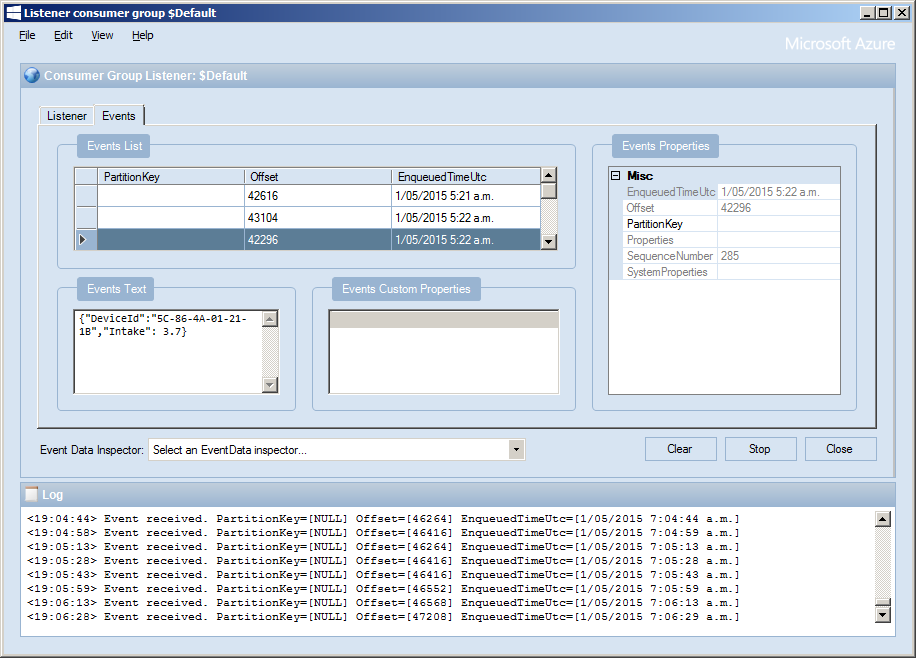
I created an Event Hub and associated device access keys and fired up Service Bus Explorer so I could see what was happening.ServiceBus Explorer showing my fridge and freezer temperatures

In the application the first step was to add code to wait for the device to acquire an IP address. (Will replace this code with a more efficient approach)

// Wait for Network address if DHCP
NetworkInterface networkInterface = NetworkInterface.GetAllNetworkInterfaces()[0];

if (networkInterface.IsDhcpEnabled)
{
   Debug.Print(" Waiting for IP address " );

   while (NetworkInterface.GetAllNetworkInterfaces()[0].IPAddress == IPAddress.Any.ToString()) ;
}

// Display network config for debugging
Debug.Print("Network configuration");
Debug.Print(" Network interface type: " + networkInterface.NetworkInterfaceType.ToString());
Debug.Print(" MAC Address: " + BytesToHexString(networkInterface.PhysicalAddress));
Debug.Print(" DHCP enabled: " + networkInterface.IsDhcpEnabled.ToString());
Debug.Print(" Dynamic DNS enabled: " + networkInterface.IsDynamicDnsEnabled.ToString());
Debug.Print(" IP Address: " + networkInterface.IPAddress.ToString());
Debug.Print(" Subnet Mask: " + networkInterface.SubnetMask.ToString());
Debug.Print(" Gateway: " + networkInterface.GatewayAddress.ToString());

foreach (string dnsAddress in networkInterface.DnsAddresses)
{
   Debug.Print(" DNS Server: " + dnsAddress.ToString());
}

deviceId = BytesToHexString(networkInterface.PhysicalAddress);

Then to send the message to the event hub the request has to have a authorisation token attached

private void EventHubSendMessage(string eventHubAddressHttps, string messageBody)
{
   string token = CreateSasToken(eventHubAddressHttps + "/messages", sasKeyName, sasKeyText);

   try
   {
      using( HttpWebRequest request = (HttpWebRequest)HttpWebRequest.Create(eventHubAddressHttps + "/messages" + "?timeout=60" + ApiVersion))
      {
         request.Timeout = 2500;
         request.Method = "POST";

         // Enable these options to suit your environment
         //request.Proxy = new WebProxy("myproxy.myorganisation.com", true);
         //request.Credentials = new NetworkCredential("myusername", "mytopsecretpassword"); 

         request.Headers.Add("Authorization", token);
         request.Headers.Add("ContentType", "application/json;charset=utf-8");

         byte[] buffer = Encoding.UTF8.GetBytes(messageBody);

         request.ContentLength = buffer.Length;

         // request body
         using (Stream stream = request.GetRequestStream())
         {
            stream.Write(buffer, 0, buffer.Length);
         }

         using (HttpWebResponse response = (HttpWebResponse)request.GetResponse())
         {
            Debug.Print("HTTP Status:" + response.StatusCode + " : " + response.StatusDescription);
         }
      }
   }
   catch (WebException we)
   {
      Debug.Print(we.Message);
   }
}

// Create a SAS token for a specified scope. SAS tokens are described in http://msdn.microsoft.com/en-us/library/windowsazure/dn170477.aspx.
private static string CreateSasToken(string uri, string keyName, string key)
{
   // Set token lifetime to 20 minutes. When supplying a device with a token, you might want to use a longer expiration time.
   uint tokenExpirationTime = GetExpiry(20 * 60);

   string stringToSign = HttpUtility.UrlEncode(uri) + "\n" + tokenExpirationTime;

   var hmac = SHA.computeHMAC_SHA256(Encoding.UTF8.GetBytes(key), Encoding.UTF8.GetBytes(stringToSign));
   string signature = Convert.ToBase64String(hmac);

   signature = Base64NetMf42ToRfc4648(signature);

   string token = "SharedAccessSignature sr=" + HttpUtility.UrlEncode(uri) + "&sig=" + HttpUtility.UrlEncode(signature) + "&se=" + tokenExpirationTime.ToString() + "&skn=" + keyName;

   return token;
}

private static string Base64NetMf42ToRfc4648(string base64netMf)
{
   var base64Rfc = string.Empty;

   for (var i = 0; i < base64netMf.Length; i++)
   {
      if (base64netMf[i] == '!')
      {
         base64Rfc += '+';
      }
      else if (base64netMf[i] == '*')
      {
         base64Rfc += '/';
      }
      else
      {
         base64Rfc += base64netMf[i];
      }
   }
   return base64Rfc;
}

static uint GetExpiry(uint tokenLifetimeInSeconds)
{
   const long ticksPerSecond = 1000000000 / 100; // 1 tick = 100 nano seconds

   DateTime origin = new DateTime(1970, 1, 1, 0, 0, 0, 0);
   TimeSpan diff = DateTime.Now.ToUniversalTime() - origin;

   return ((uint)(diff.Ticks / ticksPerSecond)) + tokenLifetimeInSeconds;
}

The initial version of the Netduino TI CC3100 driver has some limitations e.g. no server certificate validation but these should be attended to in future releases.

The software was based on Brad’s One-Wire and DS18B20 library with fixes from here.