Azure Event Grid esp-mqtt-arduino Client – Success

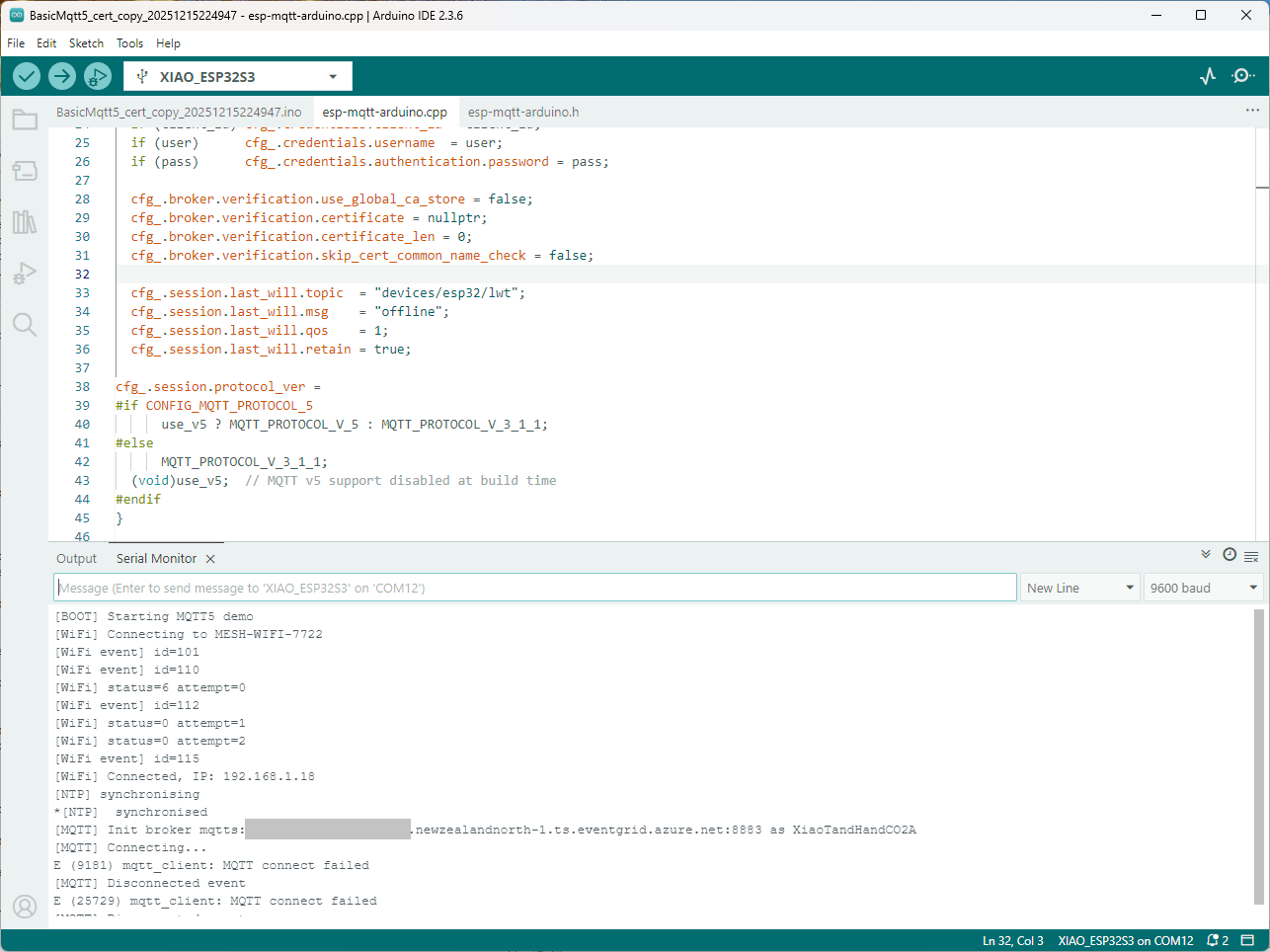
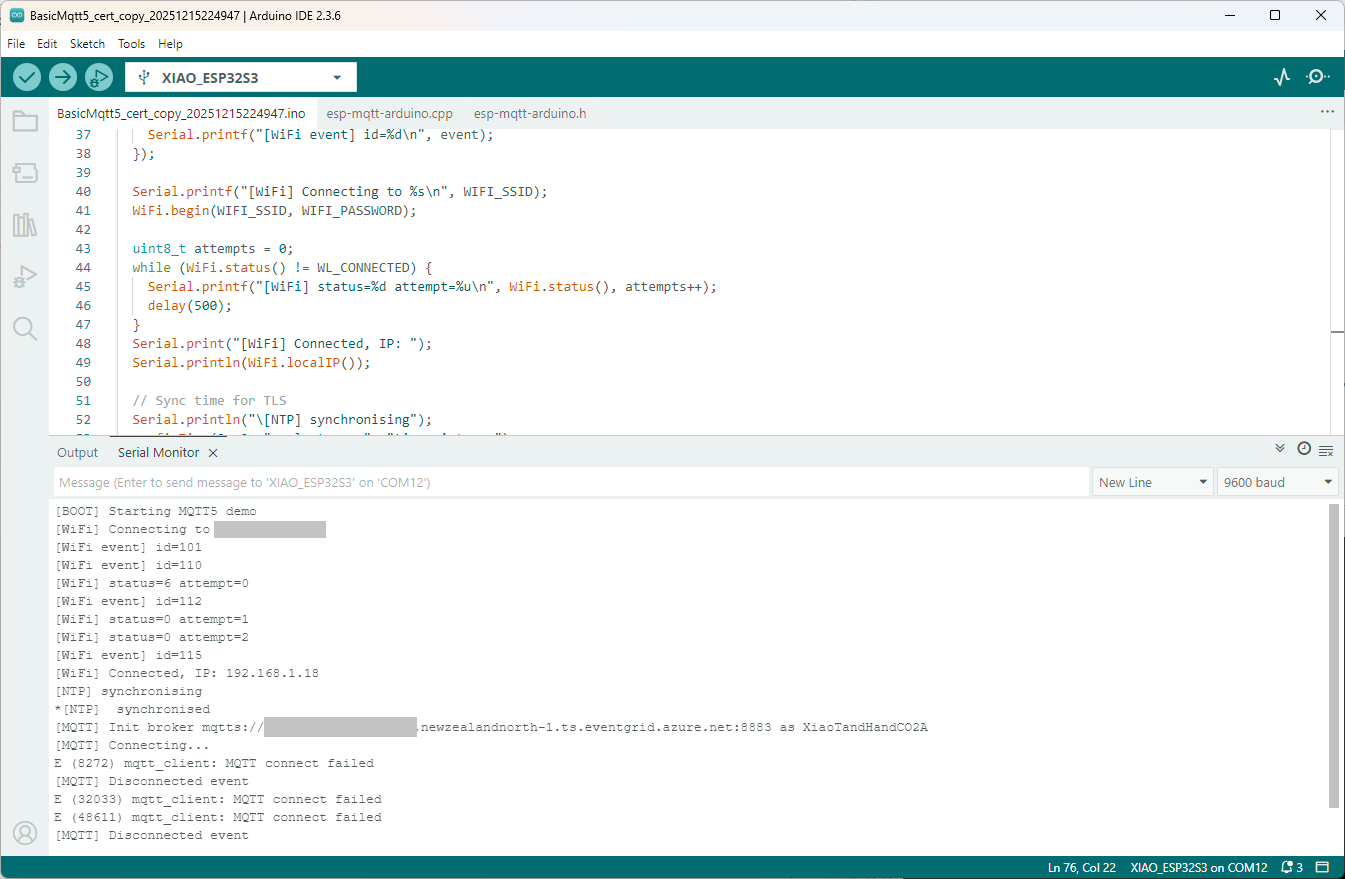
Still couldn’t figure out why my code was failing so I turned up logging to 11 and noticed a couple of messages which didn’t make sense. The device was connecting than disconnecting which indicated a another problem. As part of the Message Queue Telemetry Transport(MQTT) specification there is a “feature” Last Will and Testament(LWT) which a client can configure so that the MQTT broker sends a message to a topic if the device disconnects unexpectedly.

I was looking at the code and noticed that LWT was being used and that the topic didn’t exist in my Azure Event Grid MQTT Broker namespace. When the LWT configuration was commented out the application worked.

void Mqtt5ClientESP32::begin(const char* uri, const char* client_id, const char* user, const char* pass, bool use_v5) {
  connected_ = false;
  insecure_ = false;
  cfg_.broker.address.uri = uri;
  if (client_id) cfg_.credentials.client_id = client_id;
  if (user)      cfg_.credentials.username  = user;
  if (pass)      cfg_.credentials.authentication.password = pass;

  cfg_.broker.verification.use_global_ca_store = false;
  cfg_.broker.verification.certificate = nullptr;
  cfg_.broker.verification.certificate_len = 0;
  cfg_.broker.verification.skip_cert_common_name_check = false;
  
/*
  cfg_.session.last_will.topic  = "devices/esp32/lwt";
  cfg_.session.last_will.msg    = "offline";
  cfg_.session.last_will.qos    = 1;
  cfg_.session.last_will.retain = true;
*/

cfg_.session.protocol_ver = 
#if CONFIG_MQTT_PROTOCOL_5
      use_v5 ? MQTT_PROTOCOL_V_5 : MQTT_PROTOCOL_V_3_1_1;
#else
      MQTT_PROTOCOL_V_3_1_1;
  (void)use_v5;  // MQTT v5 support disabled at build time
#endif
}

Two methods were added so that the LWT could be configured if required

void SetLWT(const char *topic, const char *msg, int msg_len,int qos, int retain);
void Mqtt5ClientESP32::SetLWT(const char *topic, const char *msg, int msg_len,int qos, int retain){
   cfg_.session.last_will.topic  = topic;
   cfg_.session.last_will.msg    = msg;
   cfg_.session.last_will.msg_len= msg_len;
   cfg_.session.last_will.qos    = qos;
   cfg_.session.last_will.retain = retain;
}

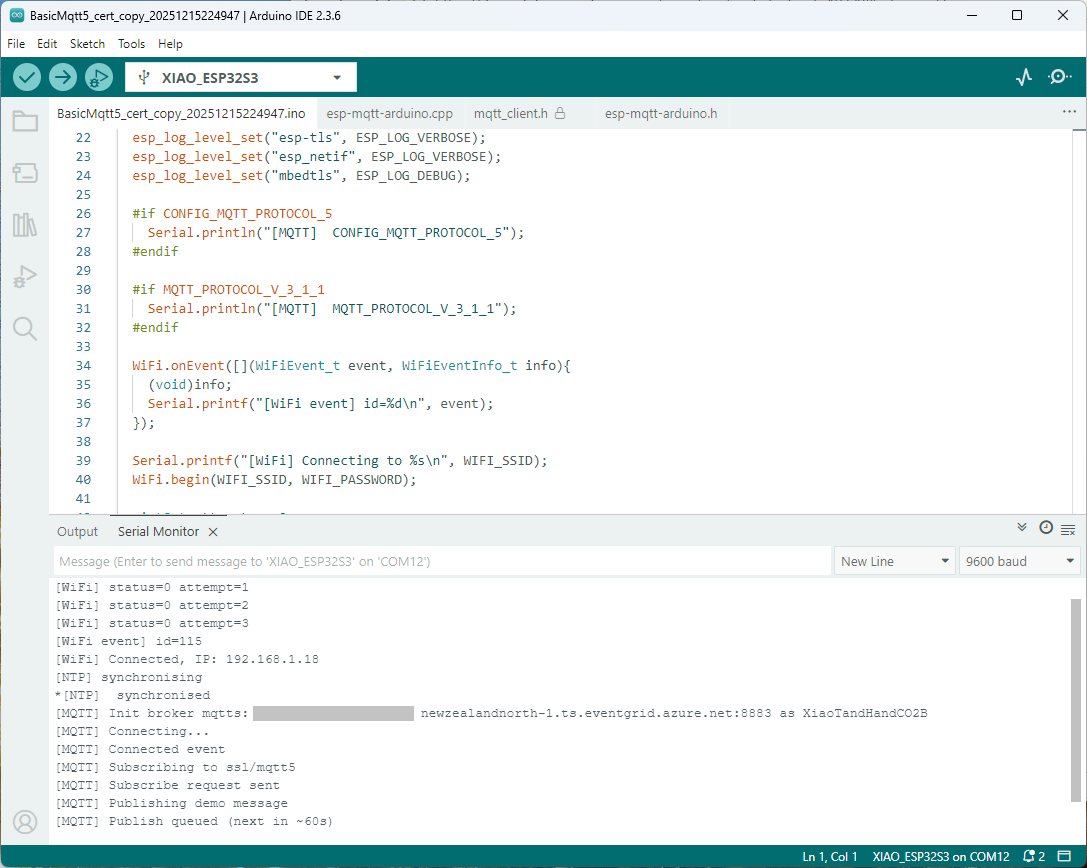
Paying close attention to the logging I noticed the “Subscribing to ssl/mqtts” followed by “Subscribe request sent”

I checked the sample application and found that if the connect was successful the application would then try and subscribe to a topic that didn’t exist.

mqtt.onConnected([]{
  Serial.println("[MQTT] Connected event");

   mqttReady = true;
/*
Serial.println("[MQTT] Subscribing to ssl/mqtt5");
if (mqtt.subscribe("ssl/mqtt5", 1, true)) {
  Serial.println("[MQTT] Subscribe request sent");
} else {
  Serial.println("[MQTT] Subscribe request failed");
}
*/

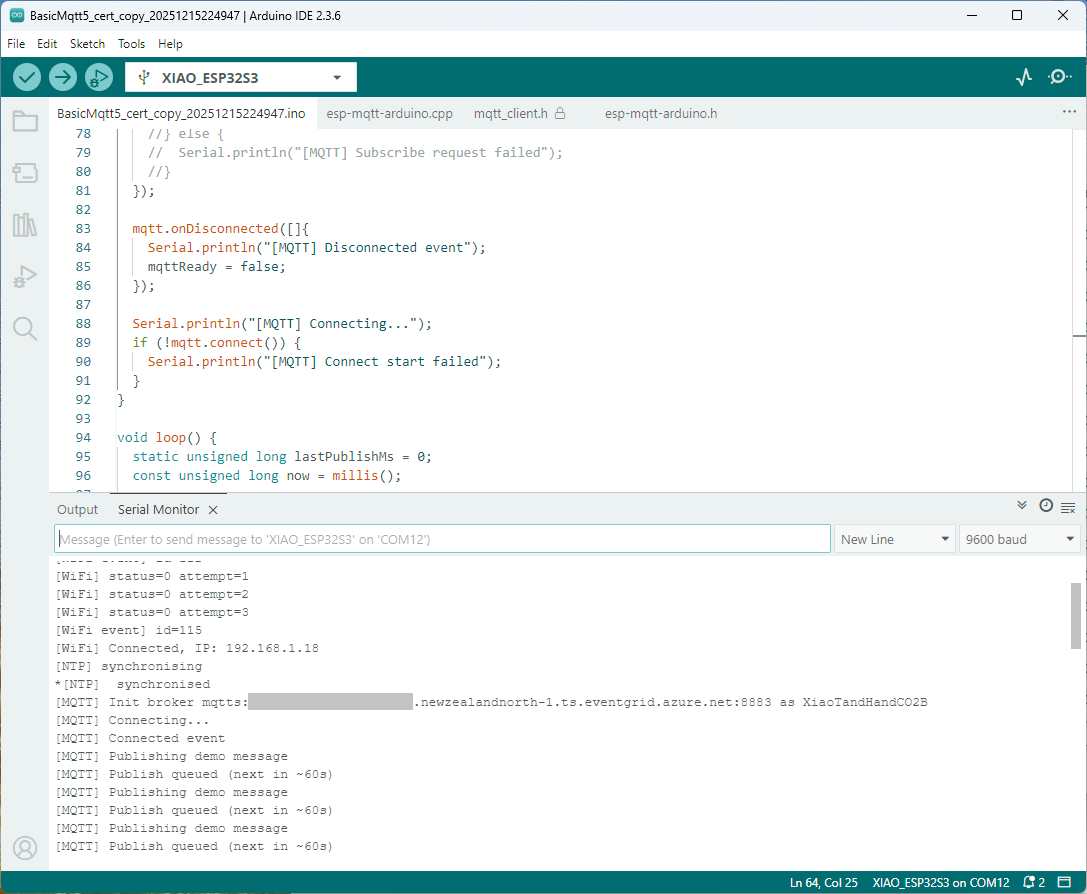
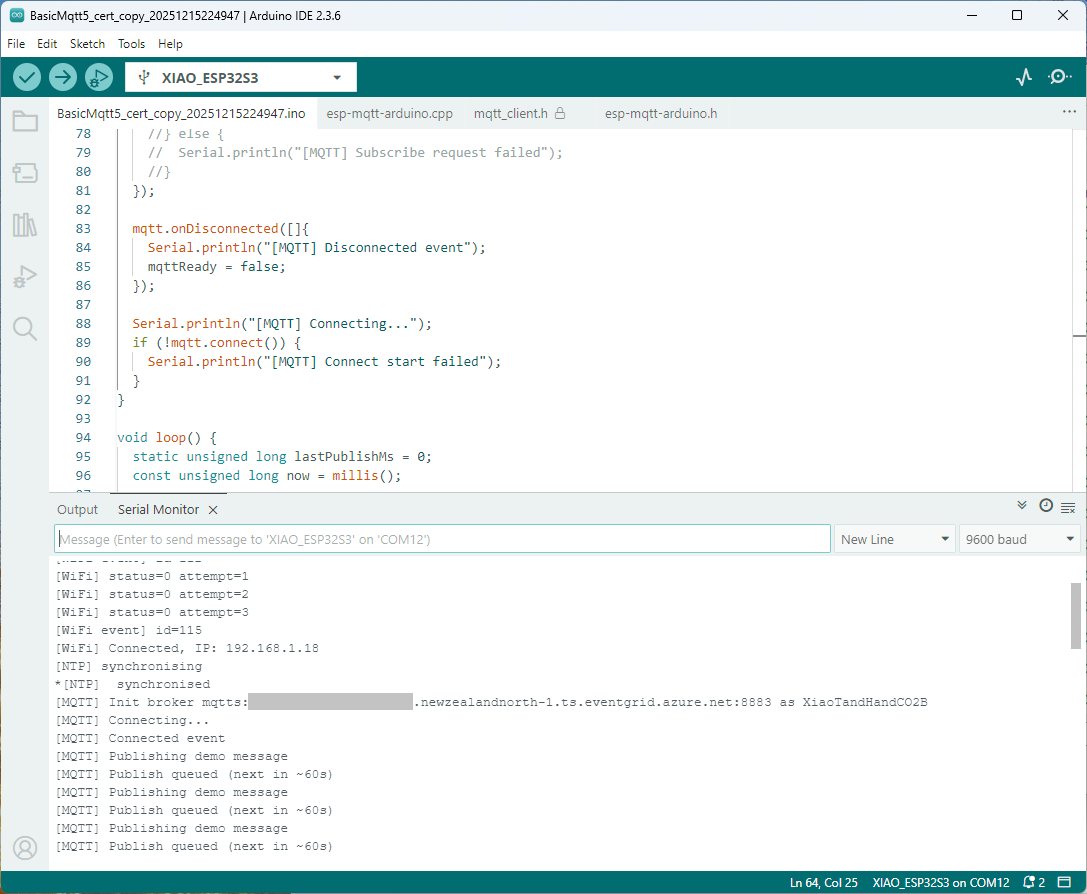
I commented out that code and the application started without any messages

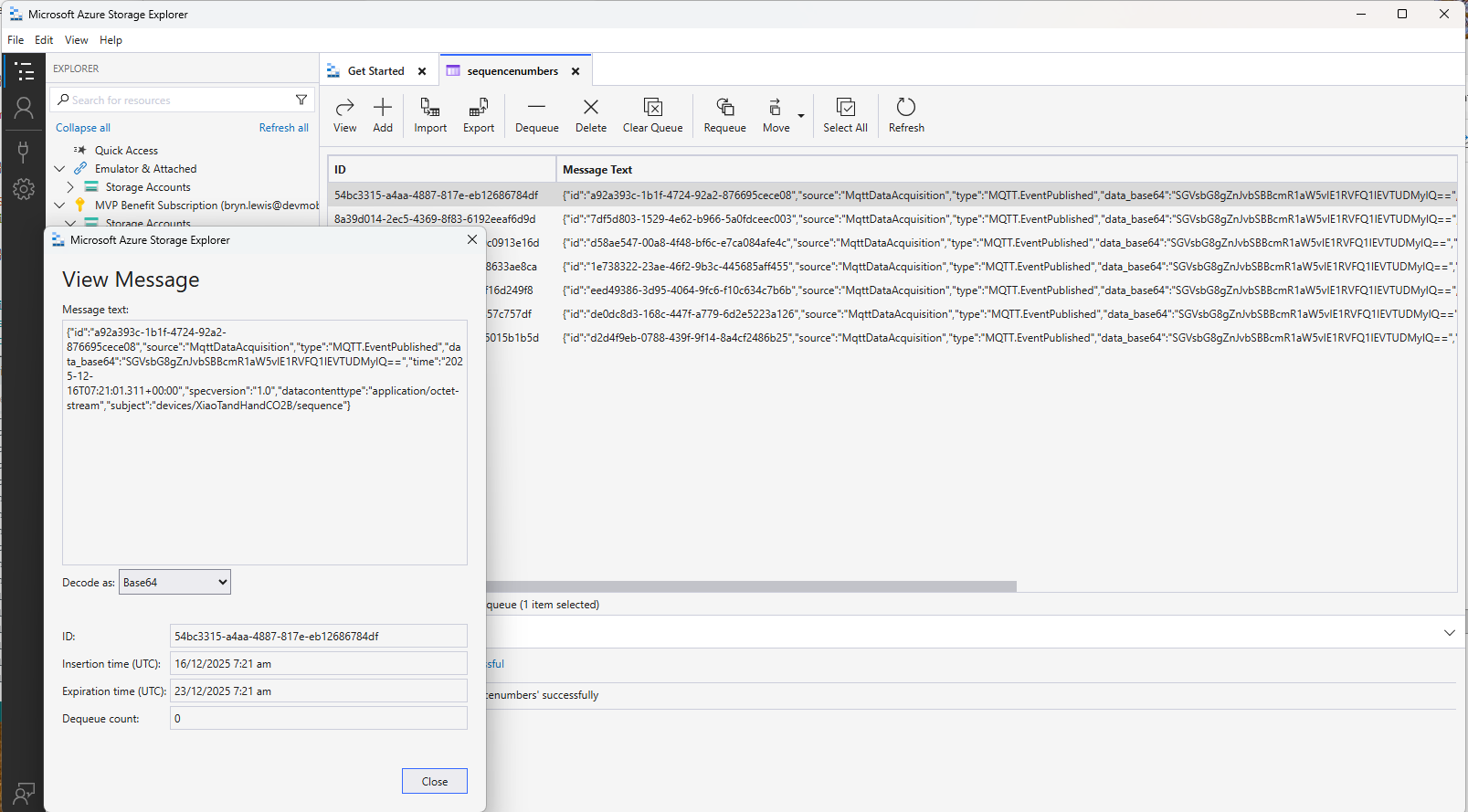
Just to make sure I checked that the message count in the Azure Storage Queue was increasing and the payload client ID matched my device

Yet again a couple of hours lost from my life which I can never get back

Azure Event Grid esp-mqtt-arduino Client – Finding fail

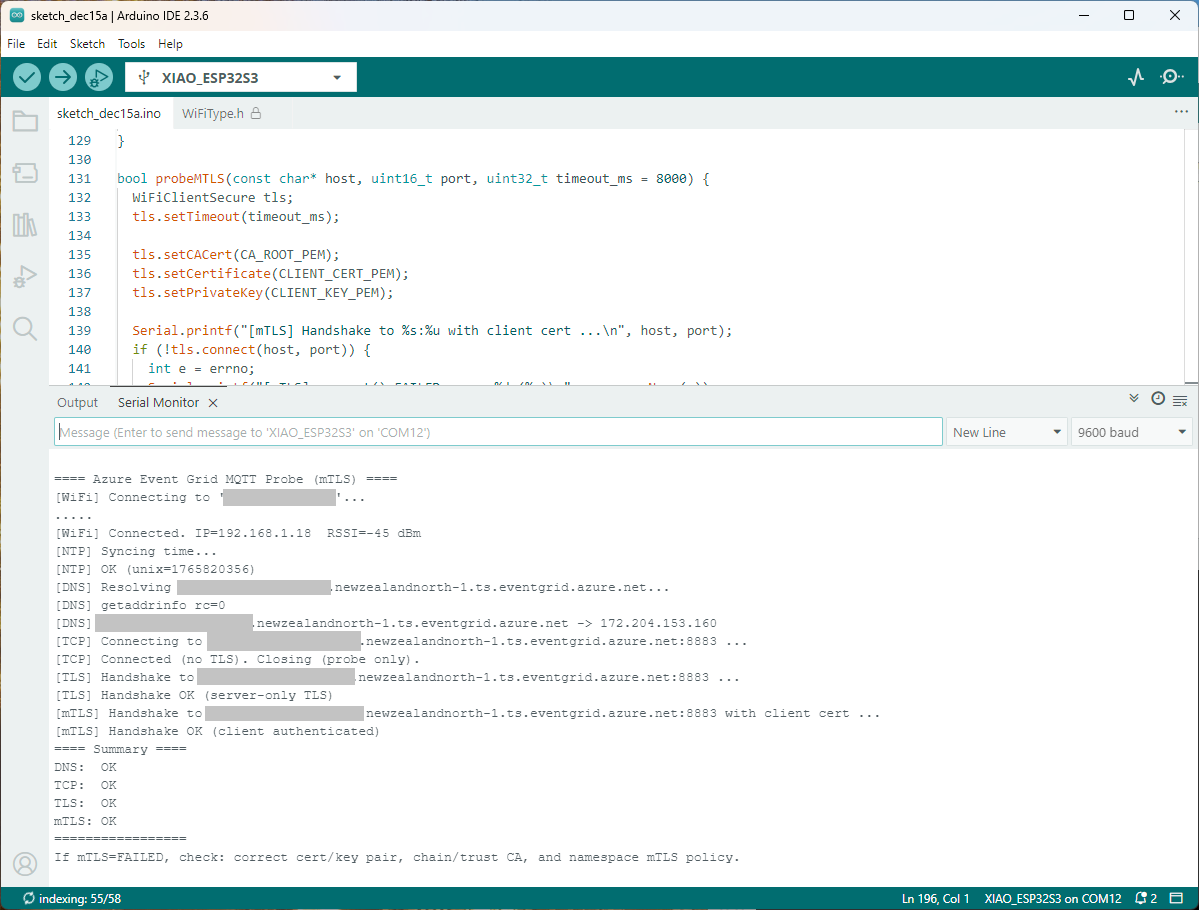
Still couldn’t figure out why my code was failing so I built a test harness which connected to the wifi, set the time with the Network Time Protocol(NTP), established a Transport Layer Security(TLS) connection with the Azure Event Grid MQTT Broker then finally Authenticated (using Client Certificate authentication). Basically, it was The joy of certs without the Arduino PubSubClient library and with authentication

/*
  Azure Event Grid MQTT Endpoint Probe with mTLS
  - Wi-Fi connect
  - SNTP time sync
  - DNS resolve
  - TCP reachability (port 8883)
  - TLS (server-only) handshake using CRT bundle (or custom CA)
  - TLS (mTLS) handshake with client certificate & private key

  Notes:
    - Client certificate must be PEM and match private key.
    - Private key must be PEM and UNENCRYPTED (no passphrase).
    - SNI uses HOSTNAME automatically; do NOT use raw IP.
*/
#include <Arduino.h>
#include <WiFi.h>
#include <WiFiClient.h>
#include <WiFiClientSecure.h>

#include <../constants.h>
#include <../secrets.h>

extern "C" {
  #include <lwip/netdb.h>
  #include <lwip/sockets.h>
  #include <lwip/inet.h>
  #include <lwip/errno.h>
  #include <time.h>
}
static const char* HOSTNAME  = "ThisIsNotTheMQTTBrokerYouAreLookingFor.newzealandnorth-1.ts.eventgrid.azure.net";
static const uint16_t PORT   = 8883;

// Time servers (for TLS validity window)
static const char* NTP_1 = "pool.ntp.org";
static const char* NTP_2 = "time.cloudflare.com";

static const char* errnoName(int e) {
  switch (e) {
    case 5:   return "EIO";
    case 101: return "ENETUNREACH";
    case 104: return "ECONNRESET";
    case 110: return "ETIMEDOUT";
    case 111: return "ECONNREFUSED";
    case 113: return "EHOSTUNREACH";
    default:  return "?";
  }
}


bool waitForWifi(uint32_t timeout_ms = 20000) {
  uint32_t start = millis();
  Serial.printf("[WiFi] Connecting to '%s'...\n", WIFI_SSID);
  WiFi.begin(WIFI_SSID, WIFI_PASSWORD);
  while (WiFi.status() != WL_CONNECTED && (millis() - start) < timeout_ms) {
    delay(250);
    Serial.print(".");
  }
  Serial.println();
  return WiFi.status() == WL_CONNECTED;
}


void syncTime() {
  configTime(0, 0, NTP_1, NTP_2);
  Serial.println("[NTP] Syncing time...");
  for (int i = 0; i < 20; ++i) {
    time_t now = time(nullptr);
    if (now > 1609459200) { // > Jan 1, 2021
      Serial.printf("[NTP] OK (unix=%ld)\n", (long)now);
      return;
    }
    delay(500);
  }
  Serial.println("[NTP] Time sync may have failed; continuing.");
}

bool probeDNS(const char* host, char outIp[16]) {
  struct addrinfo hints = {};
  hints.ai_family = AF_INET; // IPv4
  struct addrinfo* res = nullptr;

  Serial.printf("[DNS] Resolving %s...\n", host);
  int rc = getaddrinfo(host, NULL, &hints, &res);
  Serial.printf("[DNS] getaddrinfo rc=%d\n", rc);
  if (rc != 0 || !res) {
    Serial.println("[DNS] FAILED");
    return false;
  }
  struct sockaddr_in* sin = (struct sockaddr_in*)res->ai_addr;
  inet_ntop(AF_INET, &sin->sin_addr, outIp, 16);
  Serial.printf("[DNS] %s -> %s\n", host, outIp);
  freeaddrinfo(res);
  return true;
}


bool probeTCP(const char* host, uint16_t port, uint32_t timeout_ms = 5000) {
  WiFiClient cli;
  cli.setTimeout(timeout_ms);
  Serial.printf("[TCP] Connecting to %s:%u ...\n", host, port);
  if (!cli.connect(host, port)) {
    Serial.printf("[TCP] connect() FAILED\n");
    return false;
  }
  Serial.println("[TCP] Connected (no TLS). Closing (probe only).");
  cli.stop();
  return true;
}


bool probeTLS(const char* host, uint16_t port, uint32_t timeout_ms = 7000) {
  WiFiClientSecure tls;
  tls.setTimeout(timeout_ms);

  tls.setCACert(CA_ROOT_PEM);  

  Serial.printf("[TLS] Handshake to %s:%u ...\n", host, port);
  if (!tls.connect(host, port)) {
    int e = errno;
    Serial.printf("[TLS] connect() FAILED errno=%d (%s)\n", e, errnoName(e));
    return false;
  }
  Serial.println("[TLS] Handshake OK (server-only TLS)");
  tls.stop();
  return true;
}

bool probeMTLS(const char* host, uint16_t port, uint32_t timeout_ms = 8000) {
  WiFiClientSecure tls;
  tls.setTimeout(timeout_ms);

  tls.setCACert(CA_ROOT_PEM);
  tls.setCertificate(CLIENT_CERT_PEM);
  tls.setPrivateKey(CLIENT_KEY_PEM);

  Serial.printf("[mTLS] Handshake to %s:%u with client cert ...\n", host, port);
  if (!tls.connect(host, port)) {
    int e = errno;
    Serial.printf("[mTLS] connect() FAILED errno=%d (%s)\n", e, errnoName(e));
    Serial.println("[mTLS] If errno=ETIMEDOUT/ECONNRESET, server may be closing due to cert policy mismatch.");
    return false;
  }
  Serial.println("[mTLS] Handshake OK (client authenticated)");
  tls.stop();
  return true;
}

void setup() {
  Serial.begin(9600);
  delay(5000);
  Serial.println();
  Serial.println("==== Azure Event Grid MQTT Probe (mTLS) ====");

  WiFi.mode(WIFI_STA);

  if (!waitForWifi()) {
    Serial.println("[WiFi] FAILED to connect within timeout");
  } else {
    Serial.printf("[WiFi] Connected. IP=%s  RSSI=%d dBm\n",
                  WiFi.localIP().toString().c_str(), WiFi.RSSI());
  }

  // TLS sanity: time
  syncTime();

  // DNS
  char ip[16] = {0};
  bool dnsOk = probeDNS(HOSTNAME, ip);

  // TCP reachability
  bool tcpOk = probeTCP(HOSTNAME, PORT);

  // TLS (server-only)
  bool tlsOk = probeTLS(HOSTNAME, PORT);

  // TLS (mTLS with client cert/key)
  bool mtlsOk = probeMTLS(HOSTNAME, PORT);

  Serial.println("==== Summary ====");
  Serial.printf("DNS:  %s\n", dnsOk  ? "OK" : "FAILED");
  Serial.printf("TCP:  %s\n", tcpOk  ? "OK" : "FAILED");
  Serial.printf("TLS:  %s\n", tlsOk  ? "OK" : "FAILED");
  Serial.printf("mTLS: %s\n", mtlsOk ? "OK" : "FAILED");
  Serial.println("=================");

  Serial.println("If mTLS=FAILED, check: correct cert/key pair, chain/trust CA, and namespace mTLS policy.");
}

void loop() {
  delay(1000);
}

The test harness worked which meant the issue was with my “re-factoring” of the BasicMqtt5_cert example.

Azure Event Grid esp-mqtt-arduino Client – Hours of fail

I wanted to get other Arduino base clients (e.g. my SeeedStudio XiaoESP32S3) for Azure Event Grid MQTT Broker working (for MQTT 5 support) so installed the esp-mqtt-arduino library.

The library doesn’t support client authentication with certificates, so I added two methods setClientCert and setClientKey to the esp-mqtt-arduino.h and esp-mqtt-arduino.cpp files

class Mqtt5ClientESP32 {
   public:
   Mqtt5ClientESP32();
   ~Mqtt5ClientESP32();
//...
  void useCrtBundle(bool enable = true);
  void setCACert(const char* cert, size_t len = 0);
  void setClientCert(const char* cert, size_t len = 0);
  void setClientKey(const char* key, size_t len = 0);  
  void setInsecure(bool enable = true);
  void setKeepAlive(uint16_t seconds);
private:
void Mqtt5ClientESP32::setClientCert(const char* cert, size_t len)
{
  insecure_ = false;
  cfg_.credentials.authentication.certificate = cert;
  if (cert) {
    cfg_.credentials.authentication.certificate_len = len ? len : strlen(cert) + 1;
  } else {
    cfg_.credentials.authentication.certificate_len = 0;
  }  
  cfg_.broker.verification.skip_cert_common_name_check = false;  
}

void Mqtt5ClientESP32::setClientKey(const char* key, size_t len)
{
  insecure_ = false;
  cfg_.credentials.authentication.key = key;
  if (key) {
    cfg_.credentials.authentication.key_len = len ? len : strlen(key) + 1;
  } else {
    cfg_.credentials.authentication.key_len = 0;
  } 
  cfg_.broker.verification.skip_cert_common_name_check = false;  
}

I had started with the basic_mqtt5_cert example stripping it back to the bare minimum hacking out all the certificate bundle support et.c

#include <WiFi.h>
#include <esp-mqtt-arduino.h>
#include <esp_log.h>
#include "sdkconfig.h"
#include "../secrets.h"
#include "../constants.h"

Mqtt5ClientESP32 mqtt;

volatile bool mqttReady = false;
volatile bool mqttSubscribed = false;
void setup() {
  Serial.begin(9600);
  delay(5000);
  Serial.setDebugOutput(true);
  Serial.println("[BOOT] Starting MQTT5 demo");

  esp_log_level_set("*", ESP_LOG_INFO);
  esp_log_level_set("MQTT_CLIENT", ESP_LOG_VERBOSE);

  WiFi.onEvent([](WiFiEvent_t event, WiFiEventInfo_t info){
    (void)info;
    Serial.printf("[WiFi event] id=%d\n", event);
  });

  Serial.printf("[WiFi] Connecting to %s\n", WIFI_SSID);
  WiFi.begin(WIFI_SSID, WIFI_PASSWORD);

  uint8_t attempts = 0;
  while (WiFi.status() != WL_CONNECTED) {
    Serial.printf("[WiFi] status=%d attempt=%u\n", WiFi.status(), attempts++);
    delay(500);
  }
  Serial.print("[WiFi] Connected, IP: ");
  Serial.println(WiFi.localIP());

  // Sync time for TLS
  Serial.println("\[NTP] synchronising");
  configTime(0, 0, "pool.ntp.org", "time.nist.gov");
  Serial.print("*");
  while (time(nullptr) < 100000) {
    delay(500);
    Serial.print("*");
  }
  Serial.println("\[NTP]  synchronised");

  Serial.printf("[MQTT] Init broker %s as %s\n", MQTT_SERVER_URL,MQTT_CLIENTID);
  mqtt.begin(MQTT_SERVER_URL, MQTT_CLIENTID);
  mqtt.setKeepAlive(45);

  mqtt.setCACert(CA_ROOT_PEM); 
  mqtt.setClientCert(CLIENT_CERT_PEM);
  mqtt.setClientKey(CLIENT_KEY_PEM);
  mqtt.setInsecure(false);

  mqtt.onMessage([](const char* topic, size_t topic_len, const uint8_t* data, size_t len){
    Serial.printf("[MSG] %.*s => %.*s\n", (int)topic_len, topic, (int)len, (const char*)data);
  });
  mqtt.onConnected([]{
    Serial.println("[MQTT] Connected event");
    mqttReady = true;
    Serial.println("[MQTT] Subscribing to ssl/mqtt5");
    if (mqtt.subscribe("ssl/mqtt5", 1, true)) {
      Serial.println("[MQTT] Subscribe request sent");
    } else {
      Serial.println("[MQTT] Subscribe request failed");
    }
  });

  mqtt.onDisconnected([]{
    Serial.println("[MQTT] Disconnected event");
    mqttReady = false;
  });

  Serial.println("[MQTT] Connecting...");
  if (!mqtt.connect()) {
    Serial.println("[MQTT] Connect start failed");
  }
}

void loop() {
  static unsigned long lastPublishMs = 0;
  const unsigned long now = millis();

  if (mqttReady && (now - lastPublishMs) >= 60000) {
    const char* msg = "Hello from Arduino MQTT5 ESP32!";
    Serial.println("[MQTT] Publishing demo message");
    if (mqtt.publish(MQTT_TOPIC_PUBLISH, (const uint8_t*)msg, strlen(msg))) {
      Serial.println("[MQTT] Publish queued (next in ~60s)");
    } else {
      Serial.println("[MQTT] Publish failed");
    }
    lastPublishMs = now;
  }

  delay(10);
}

It was important to put the setClientCert & setClient after the mqtt.begin because it resets the configuration

void Mqtt5ClientESP32::begin(const char* uri, const char* client_id,
                             const char* user, const char* pass, bool use_v5) {
  connected_ = false;
  insecure_ = false;
  cfg_.broker.address.uri = uri;
  if (client_id) cfg_.credentials.client_id = client_id;
  if (user)      cfg_.credentials.username  = user;
  if (pass)      cfg_.credentials.authentication.password = pass;

  cfg_.broker.verification.use_global_ca_store = false;
  cfg_.broker.verification.certificate = nullptr;
  cfg_.broker.verification.certificate_len = 0;
  cfg_.broker.verification.skip_cert_common_name_check = false;
  
  cfg_.session.last_will.topic  = "devices/esp32/lwt";
  cfg_.session.last_will.msg    = "offline";
  cfg_.session.last_will.qos    = 1;
  cfg_.session.last_will.retain = true;

cfg_.session.protocol_ver = 
#if CONFIG_MQTT_PROTOCOL_5
      use_v5 ? MQTT_PROTOCOL_V_5 : MQTT_PROTOCOL_V_3_1_1;
#else
      MQTT_PROTOCOL_V_3_1_1;
  (void)use_v5;  // MQTT v5 support disabled at build time
#endif
}

I tried increasing the log levels to get more debugging information, adding delays on startup to make it easier to see what was going on, trying different options of protocol support.

After hours of trying I gave up.

Azure Event Grid nanoFramework Client – Publisher

Building a .NET nanoFramework application for testing Azure Event Grid MQTT Broker connectivity that would run on my Seeedstudio EdgeBox ESP100 and Seeedstudio Xiao ESP32S3 devices took a couple of hours. Most of that time was spent figuring out how to generate the certificate and elliptic curve private key

Create an elliptic curve private key

 openssl ecparam -name prime256v1 -genkey -noout -out device.key

Generate a certificate signing request

openssl req -new -key device.key -out device.csr -subj "/CN=device.example.com/O=YourOrg/OU=IoT"

Then use the intermediate certificate and key file from earlier to generate a device certificate and key.

 openssl x509 -req -in device.csr -CA IntermediateCA.crt -CAkey IntermediateCA.key -CAcreateserial -out device.crt -days 365 -sha256

In this post I have assumed that the reader is familiar with configuring Azure Event Grid clients, client groups, topic spaces, permission bindings and routing.

The PEM encoded root CA certificate chain that is used to validate the server
public const string CA_ROOT_PEM = @"-----BEGIN CERTIFICATE-----
CN: CN = Microsoft Azure ECC TLS Issuing CA 03
-----END CERTIFICATE-----
-----BEGIN CERTIFICATE-----
CN: CN = DigiCert Global Root G3
-----END CERTIFICATE-----";

The PEM encoded certificate chain that is used to authenticate the device
public const string CLIENT_CERT_PEM_A = @"-----BEGIN CERTIFICATE-----
-----BEGIN CERTIFICATE-----
 CN=Self signed device certificate
-----END CERTIFICATE-----
-----BEGIN CERTIFICATE-----
 CN=Self signed Intermediate certificate
-----END CERTIFICATE-----";

 The PEM encoded private key of device
public const string CLIENT_KEY_PEM_A = @"-----BEGIN EC PRIVATE KEY-----
-----END EC PRIVATE KEY-----";

My application was “inspired” by the .NET nanoFramework m2mqtt example.

public static void Main()
{
   int sequenceNumber = 0;
   MqttClient mqttClient = null;
   Thread.Sleep(1000); // Found this works around some issues with running immediately after a reset

   bool wifiConnected = false;
   Console.WriteLine("WiFi connecting...");
   do
   {
      // Attempt to connect using DHCP
      wifiConnected = WifiNetworkHelper.ConnectDhcp(Secrets.WIFI_SSID, Secrets.WIFI_PASSWORD, requiresDateTime: true);

      if (!wifiConnected)
      {
         Console.WriteLine($"Failed to connect. Error: {WifiNetworkHelper.Status}");
         if (WifiNetworkHelper.HelperException != null)
         {
            Console.WriteLine($"Exception: {WifiNetworkHelper.HelperException}");
         }

         Thread.Sleep(1000);
      }
   }
   while (!wifiConnected);
   Console.WriteLine("WiFi connected");

   var caCert = new X509Certificate(Constants.CA_ROOT_PEM);

   X509Certificate2 clientCert = null;
   try
   {
      clientCert = new X509Certificate2(Secrets.CLIENT_CERT_PEM_A, Secrets.CLIENT_KEY_PEM_A, string.Empty);
   }
   catch (Exception ex)
   {
      Console.WriteLine($"Client Certificate Exception: {ex.Message}");
   }

   mqttClient = new MqttClient(Secrets.MQTT_SERVER, Constants.MQTT_PORT, true, caCert, clientCert, MqttSslProtocols.TLSv1_2);

   mqttClient.ProtocolVersion = MqttProtocolVersion.Version_5;

   bool mqttConnected = false;
   Console.WriteLine("MQTT connecting...");
   do
   {
      try
      {
         // Regular connect
         var resultConnect = mqttClient.Connect(Secrets.MQTT_CLIENTID, Secrets.MQTT_USERNAME, Secrets.MQTT_PASSWORD);
         if (resultConnect != MqttReasonCode.Success)
         {
            Console.WriteLine($"MQTT ERROR connecting: {resultConnect}");
            Thread.Sleep(1000);
         }
         else
         {
            mqttConnected = true;
         }
      }
      catch (Exception ex)
      {
         Console.WriteLine($"MQTT ERROR Exception '{ex.Message}'");
         Thread.Sleep(1000);
      }
   }
   while (!mqttConnected);
   Console.WriteLine("MQTT connected...");

   mqttClient.MqttMsgPublishReceived += MqttMsgPublishReceived;
   mqttClient.MqttMsgSubscribed += MqttMsgSubscribed;
   mqttClient.MqttMsgUnsubscribed += MqttMsgUnsubscribed;
   mqttClient.ConnectionOpened += ConnectionOpened;
   mqttClient.ConnectionClosed += ConnectionClosed;
   mqttClient.ConnectionClosedRequest += ConnectionClosedRequest;

   string topicPublish = string.Format(MQTT_TOPIC_PUBLISH_FORMAT, Secrets.MQTT_CLIENTID);
   while (true)
   {
      Console.WriteLine("MQTT publish message start...");

      var payload = new MessagePayload() { ClientID = Secrets.MQTT_CLIENTID, Sequence = sequenceNumber++ };

      string jsonPayload = JsonSerializer.SerializeObject(payload);

      var result = mqttClient.Publish(topicPublish, Encoding.UTF8.GetBytes(jsonPayload), "application/json; charset=utf-8", null);

      Debug.WriteLine($"MQTT published ({result}): {jsonPayload}");

      Thread.Sleep(100);
   }
}

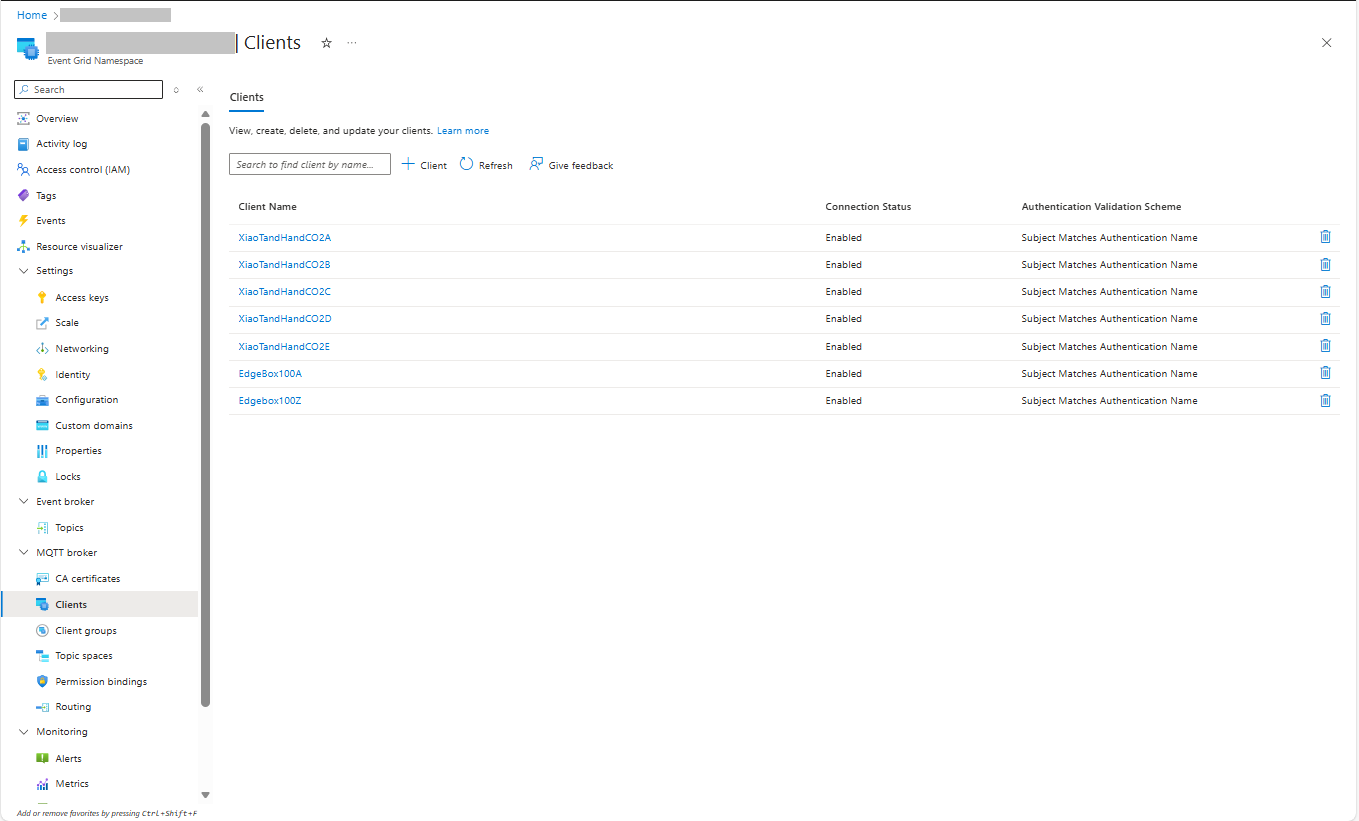
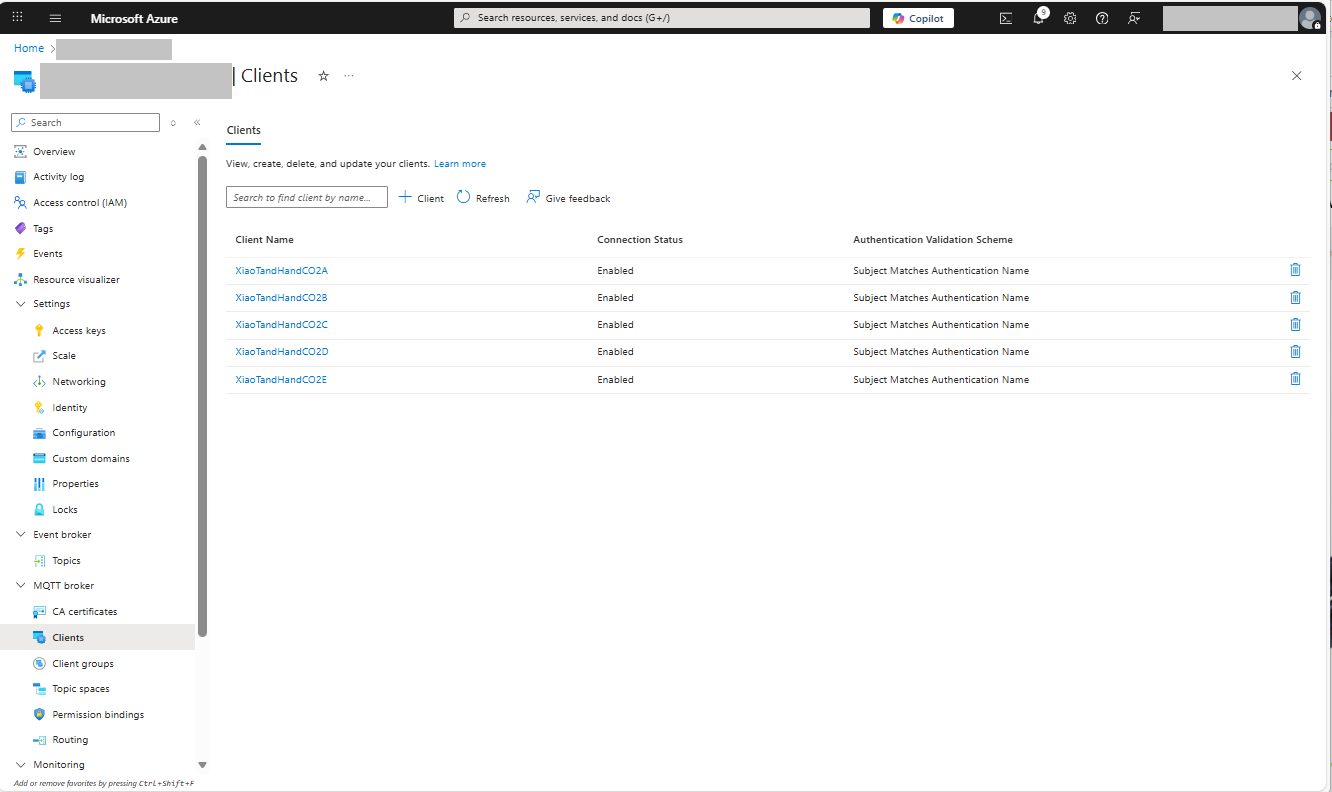
I then configured my client (Edgebox100Z) and updated the “secrets.cs” file

Azure Event Grid MQTT Broker Clients

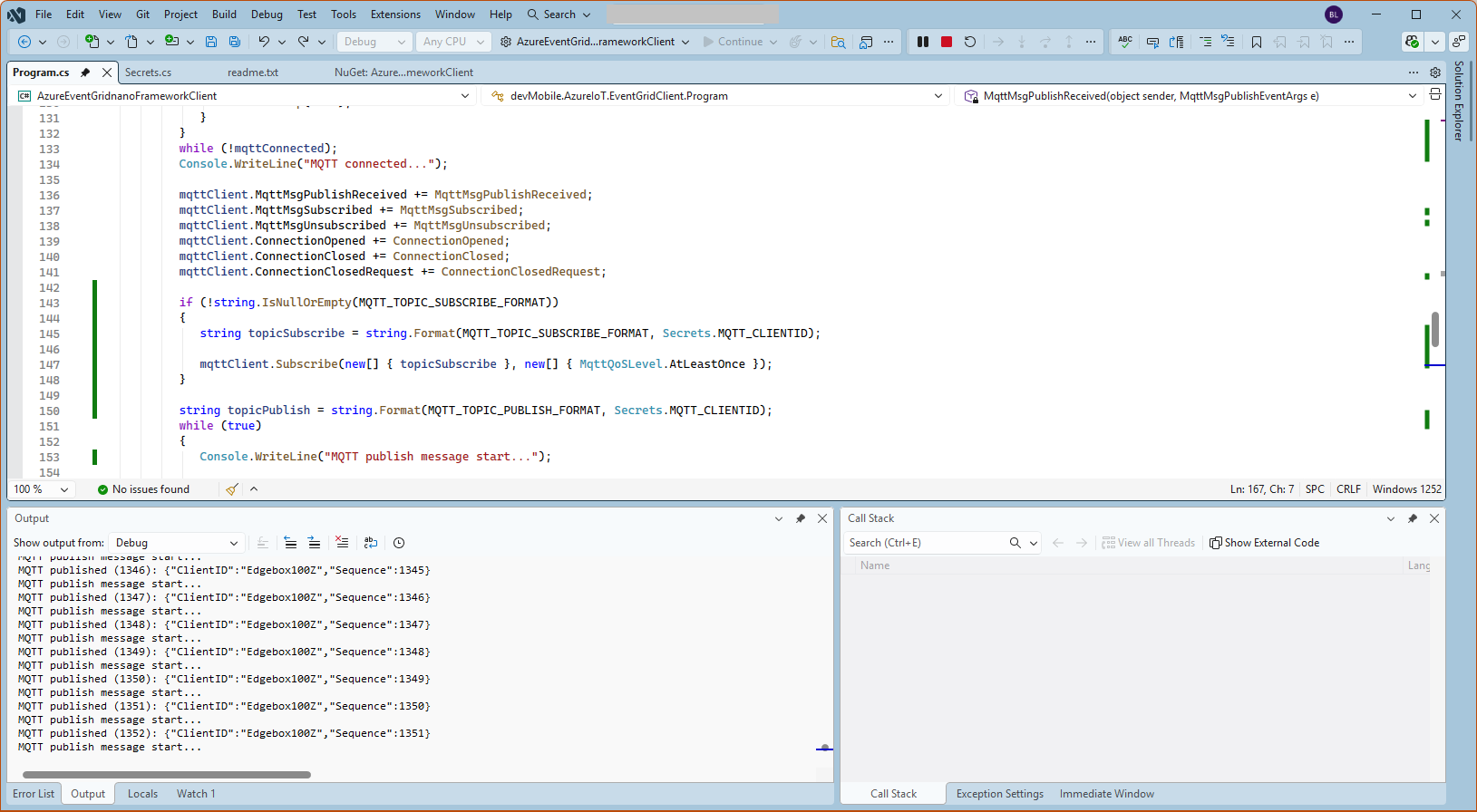
The application connected to the Azure Event Grid MQTT broker and started publishing the JSON payload with the incrementing sequence number.

Visual Studio debugger output of JSON payload publishing

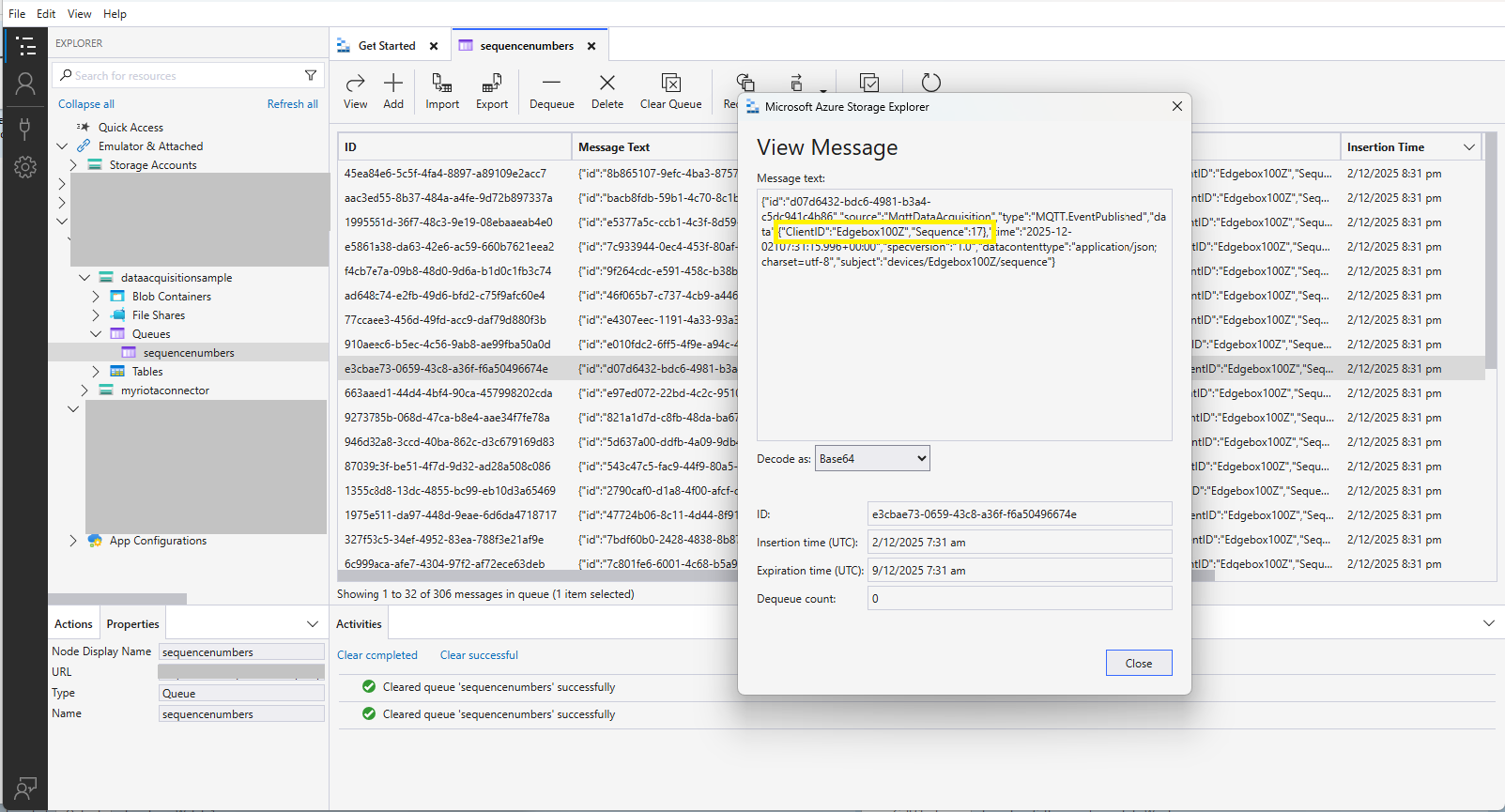
The published messages were “routed” to an Azure Storage Queue where they could be inspected with a tool like Azure Storage Explorer.

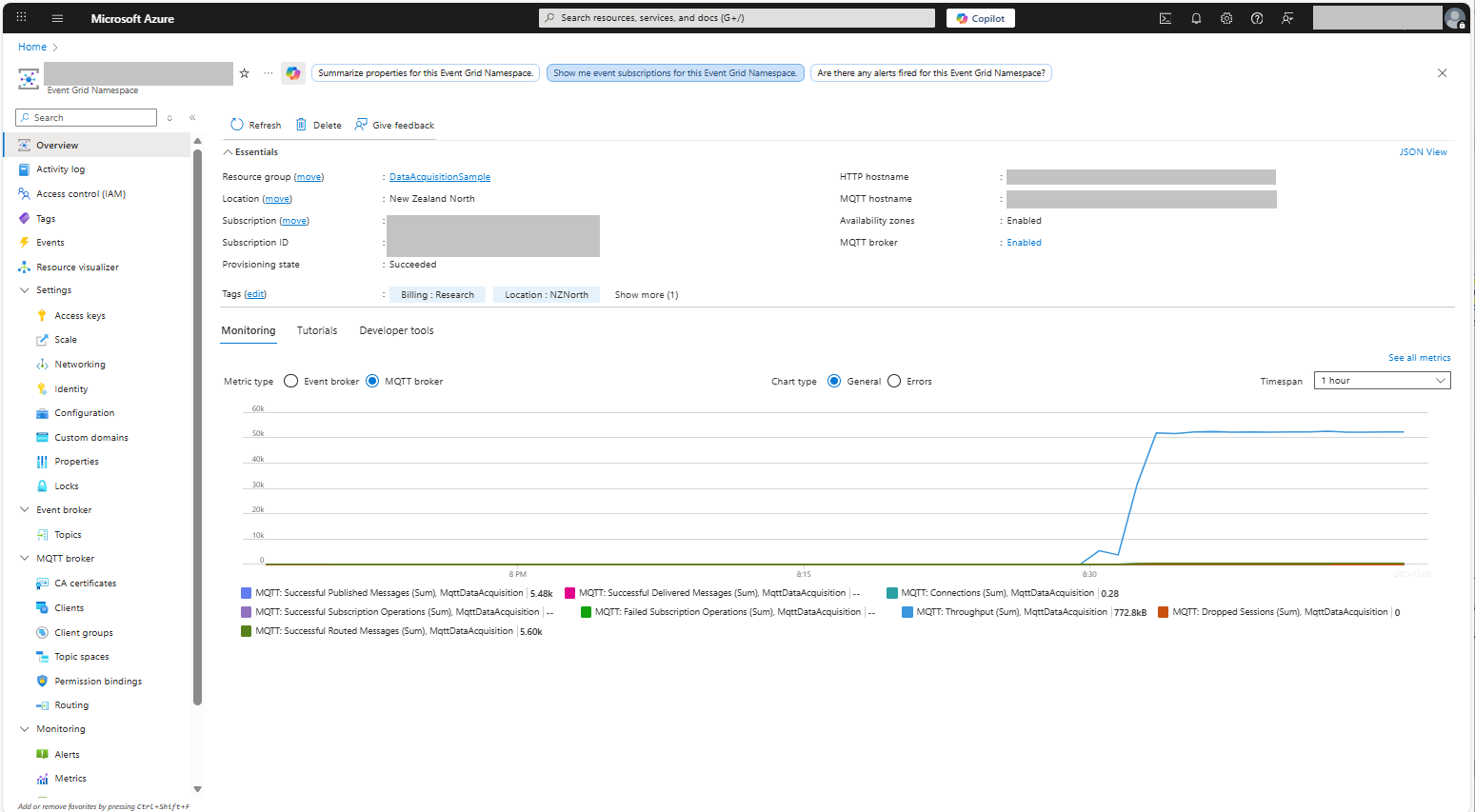
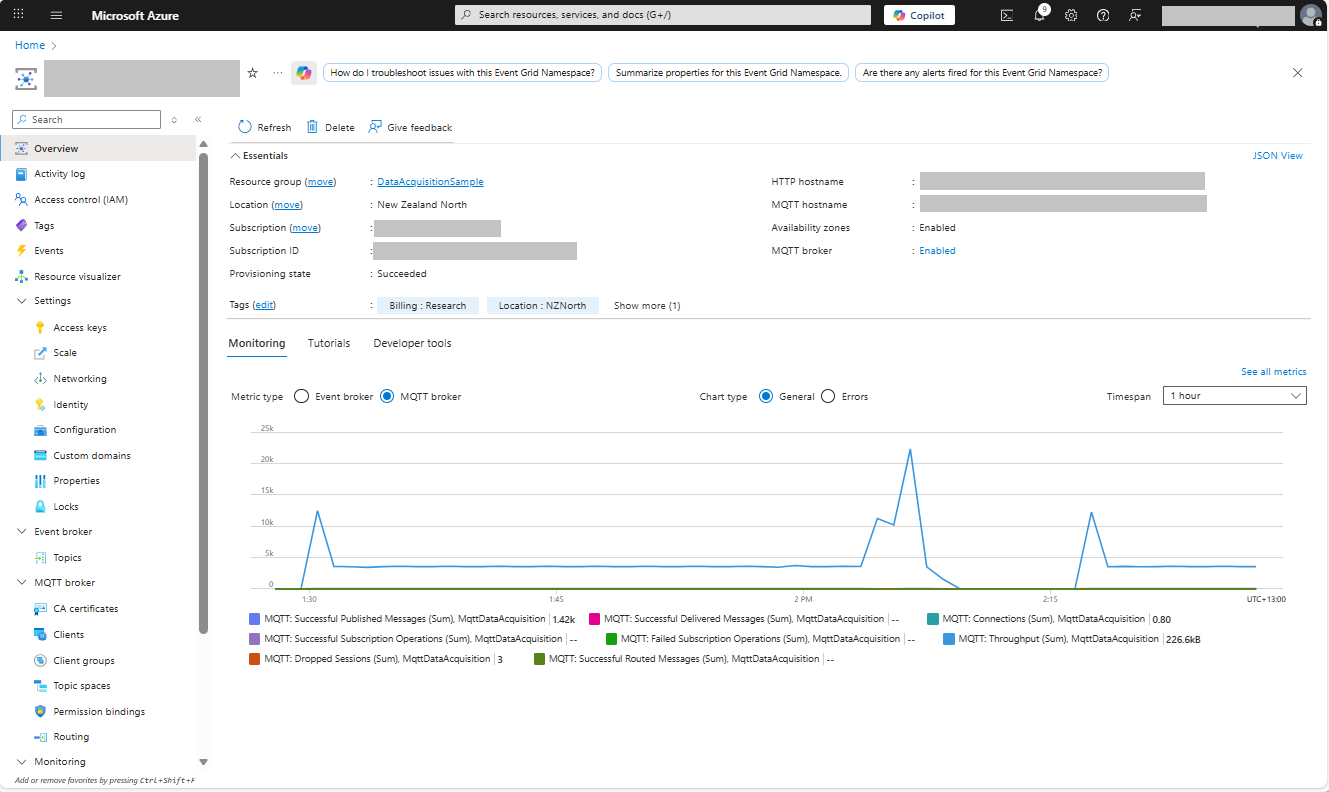
Azure Event Grid MQTT Broker metrics with messages published selected

I could see the application was working in the Azure Event Grid MQTT broker metrics because the number of messages published was increasing.

Azure Event Grid Arduino Client – Publisher

The Arduino application for testing Azure Event Grid MQTT Broker connectivity worked on my Seeedstudio EdgeBox ESP100 and Seeedstudio Xiao ESP32S3 devices, so the next step was to modify it to publish some messages.

The first version generated the JSON payload using an snprintf which was a bit “nasty”

static uint32_t sequenceNumber = 0;

void loop() {
  mqttClient.loop();

  Serial.println("MQTT Publish start");

  char payloadBuffer[64];

  snprintf(payloadBuffer, sizeof(payloadBuffer), "{\"ClientID\":\"%s\", \"Sequence\": %i}", MQTT_CLIENTID, sequenceNumber++);

  Serial.println(payloadBuffer);

  if (!mqttClient.publish(MQTT_TOPIC_PUBLISH, payloadBuffer, strlen(payloadBuffer))) {
    Serial.print("\nMQTT publish failed:");        
    Serial.println(mqttClient.state());    
  }
  Serial.println("MQTT Publish finish");

  delay(60000);
}

I then configured my client (Edgebox100A) and updated the “secrets.h” file

Azure Event Grid MQTT Broker Clients

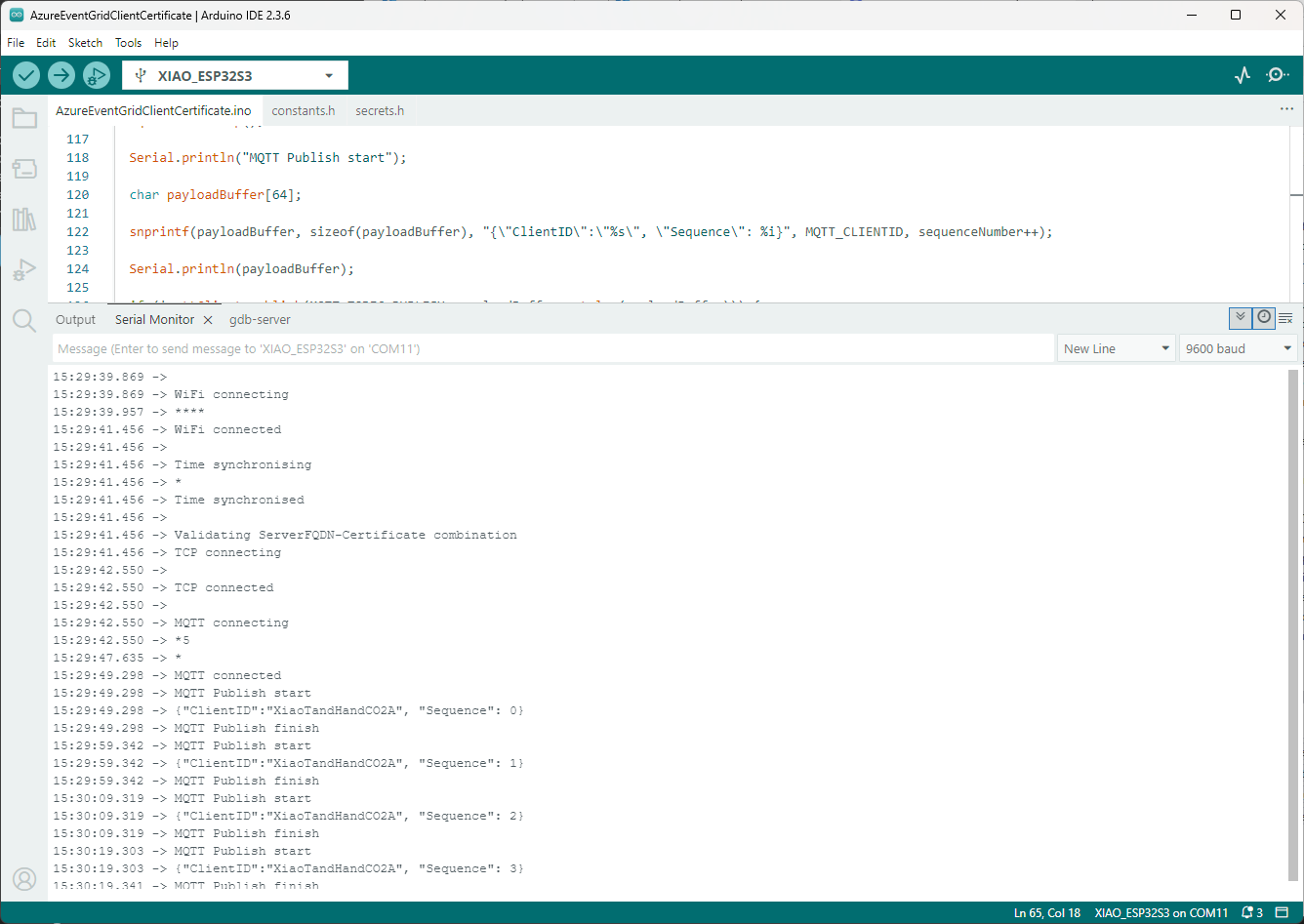
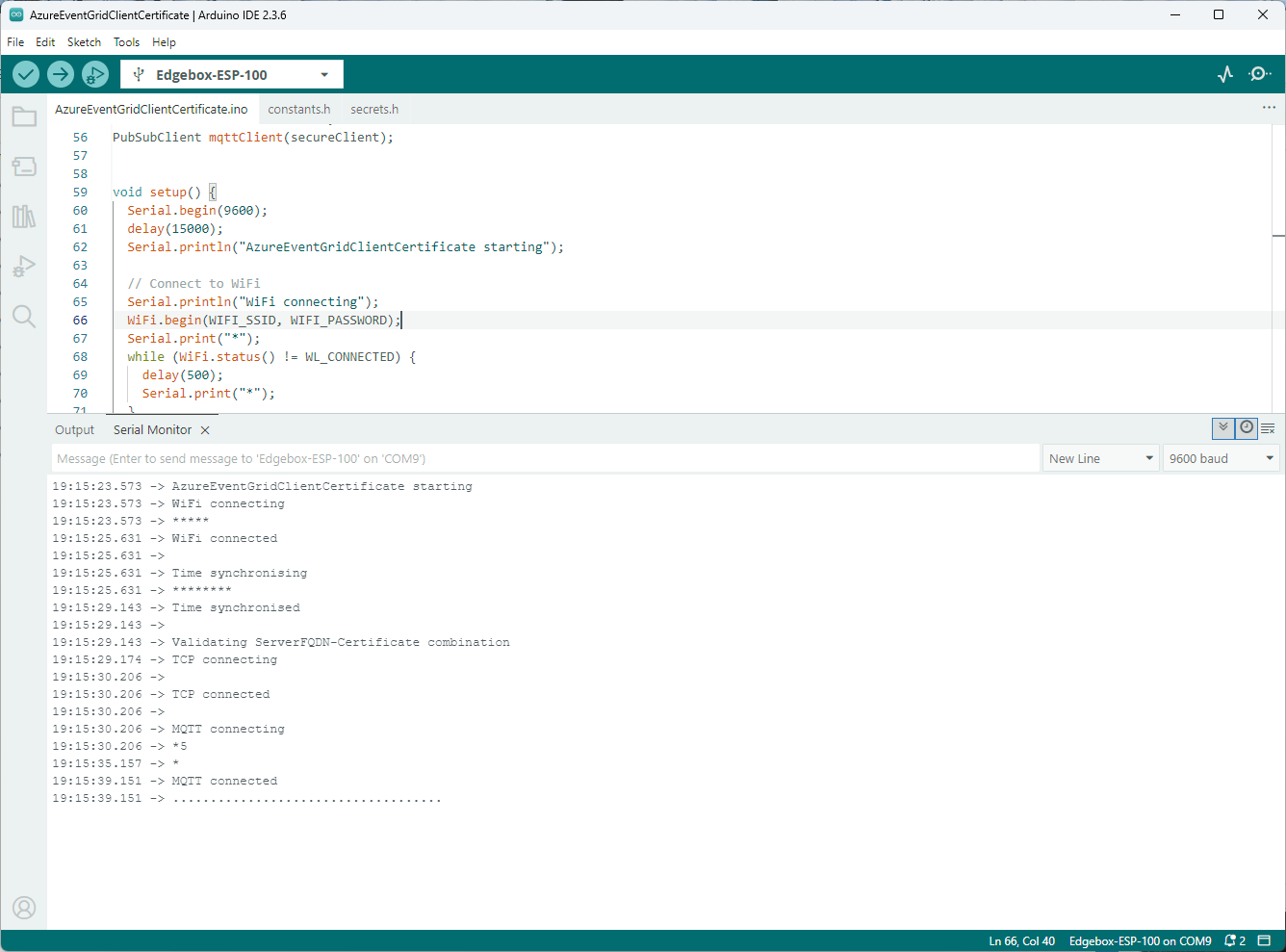
The application connected to the Azure Event Grid MQTT broker and started publishing the JSON payload with the incrementing sequence number.

Arduino IDE serial monitor output of JSON payload publishing

The second version generated the JSON payload using ArduinoJson library.

static uint32_t sequenceNumber = 0;

void loop() {
  mqttClient.loop();

  Serial.println("MQTT Publish start");

  // Create a static JSON document with fixed size
  StaticJsonDocument<64> doc;

  doc["Sequence"] = counter++;
  doc["ClientID"] = MQTT_CLIENTID;

  // Serialize JSON to a buffer
  char jsonBuffer[64];
  size_t n = serializeJson(doc, jsonBuffer);

  Serial.println(jsonBuffer);

  if(!mqttClient.publish(MQTT_TOPIC_PUBLISH, jsonBuffer, n))
  {
    Serial.println(mqttClient.state());    
  }

  Serial.println("MQTT Publish finish");

  delay(2000);
}

I could see the application was working in the Azure Event Grid MQTT broker metrics because the number of messages published was increasing.

Azure Event Grid MQTT Broker metrics with messages published selected

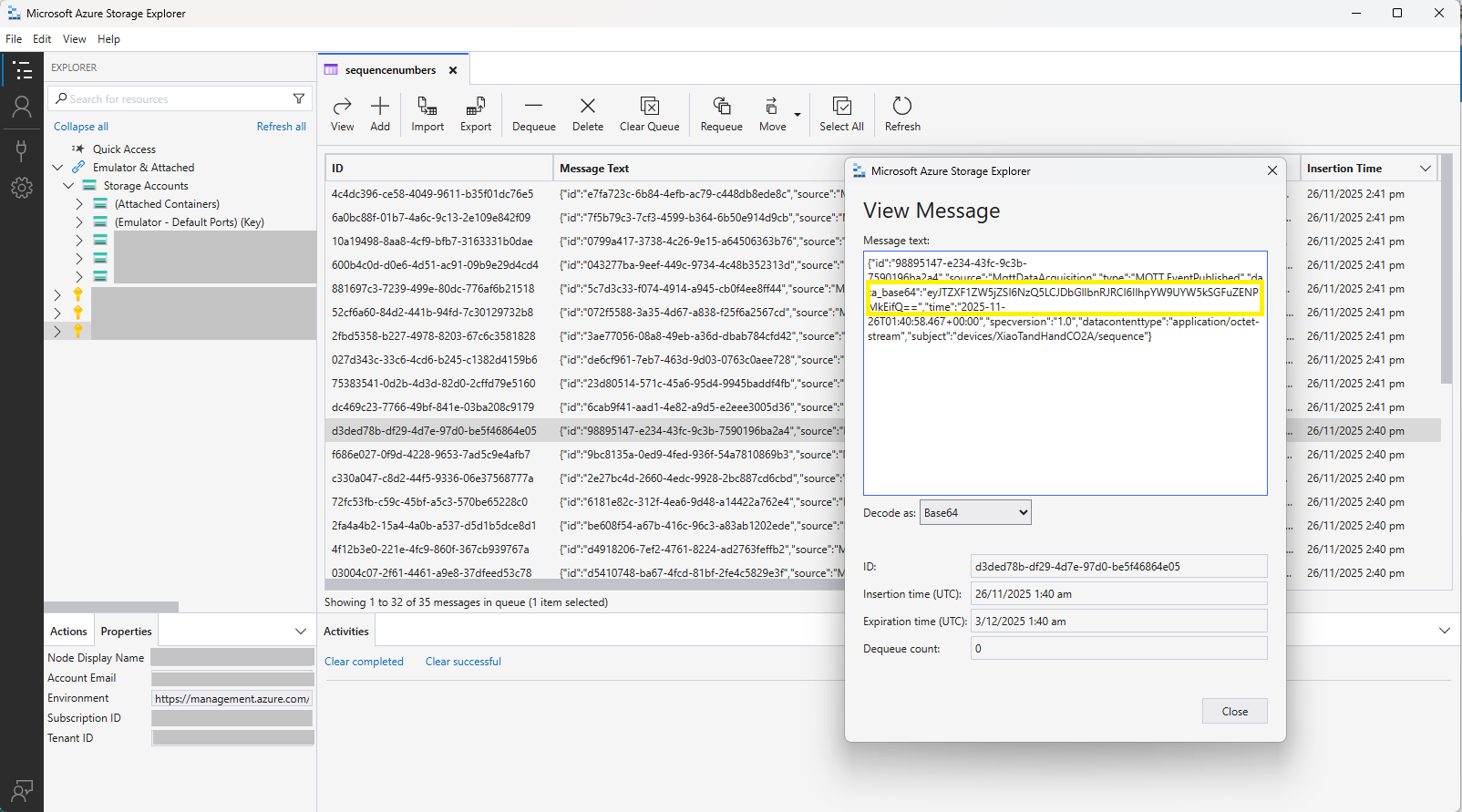
The published messages were “routed” to an Azure Storage Queue where they can be inspected with a tool like Azure Storage Explorer.

Azure Storage Explorer displaying a message’s payload

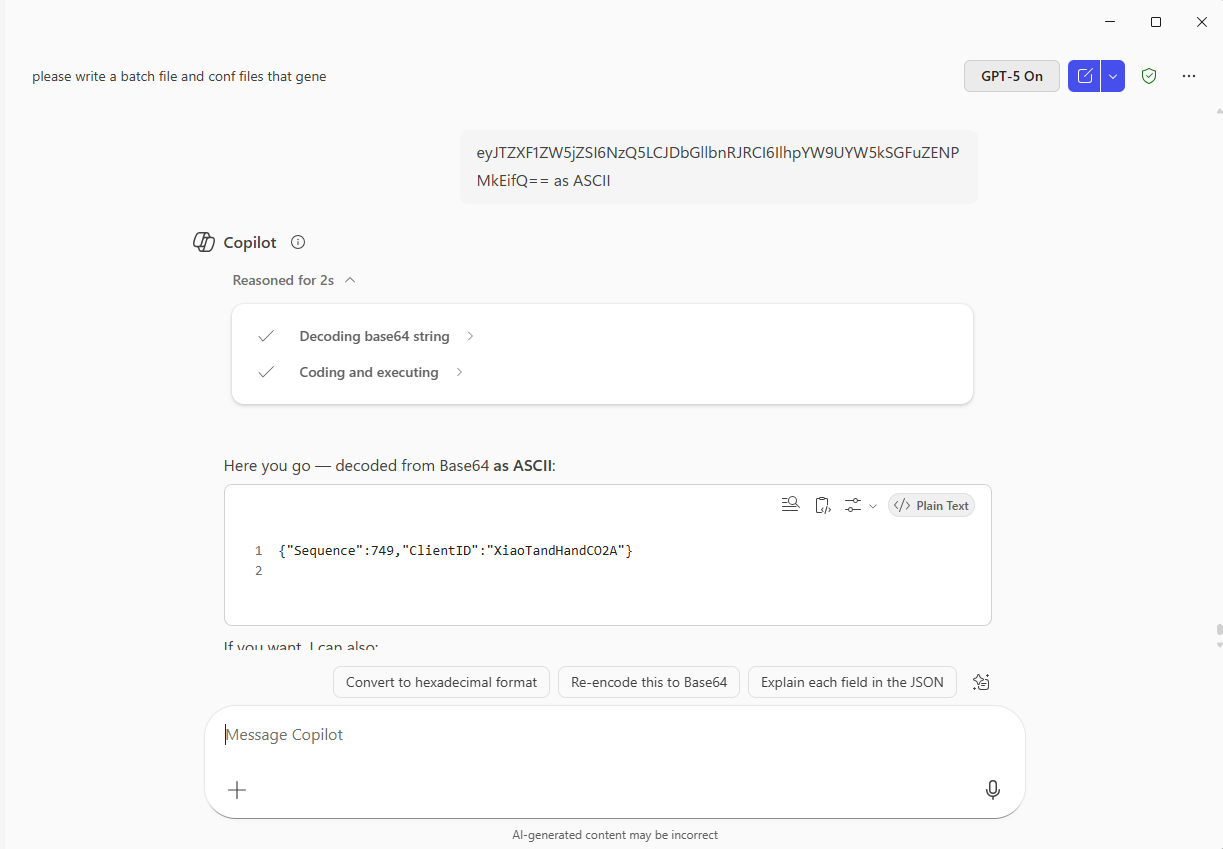
The message payload is in Base64 encoded so I used copilot convert it to text.

Microsoft copilot decoding the Base64 payload

In this post I have assumed that the reader is familiar with configuring Azure Event Grid clients, client groups, topic spaces, permission bindings and routing.

Bonus also managed to slip in a reference to copilot.

Azure Event Grid Arduino Client – The joy of certs

“Lets start at the very beginning, A very good place to start”

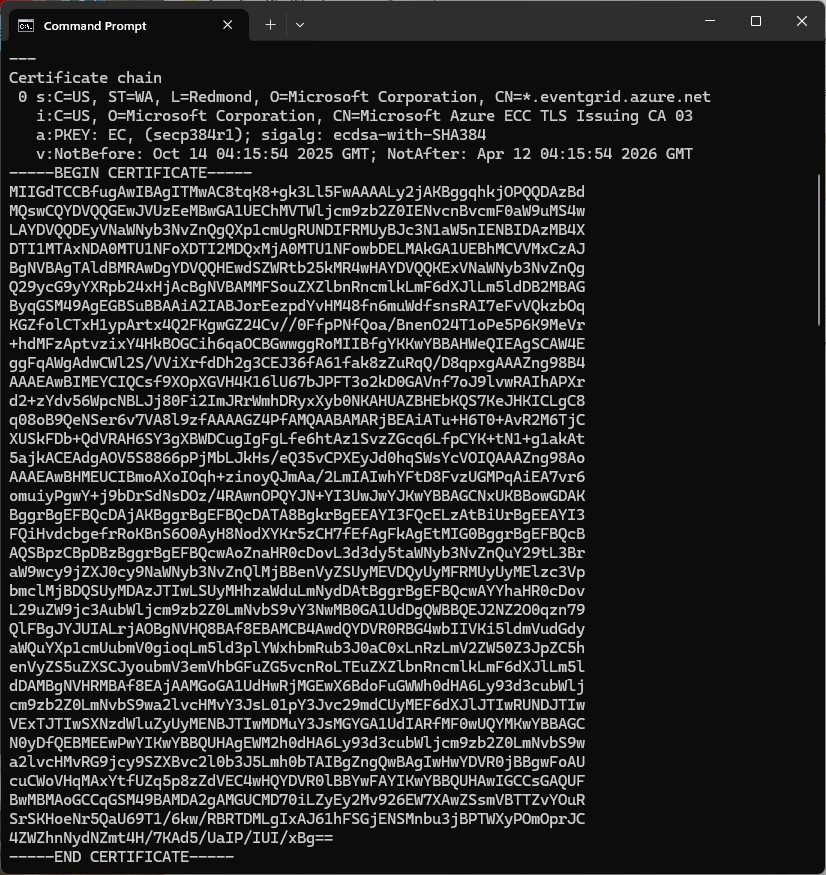
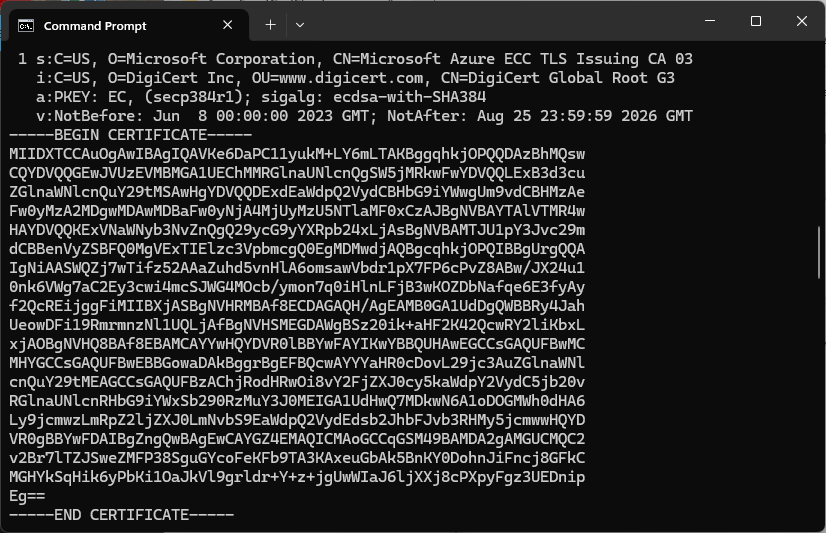
The Azure Event Grid MQTT Broker server X509 certificate chain can be copy ‘n’ paste from the output of the openssl command

openssl s_client -connect YourNamespace.newzealandnorth-1.ts.eventgrid.azure.net:8883 -showcerts

A self-signed X509 root certificate which can sign intermediate X509 certificates and key file can be generated with a single openssl command.

openssl req -x509 -newkey rsa:4096 -keyout rootCA.key -out rootCA.crt -days 3650 -nodes -subj "/CN=devMobile  /O=devMobile.co.nz /C=NZ" -addext "basicConstraints=critical,CA:TRUE" -addext "keyUsage=critical,keyCertSign"

For a non-trivial system there should be a number of intermediate certificates. I have tried creating intermediate certificates for a device type, geography, application, customer and combinations of these. The first couple of times got it wrong so start with a field trial so that it isn’t so painful to go back and fix. (beware the sunk cost fallacy)

openssl genrsa -out intermediate.key 4096

openssl req -new -key intermediate.key -out intermediate.csr -subj "/CN=intermediate  /O=devMobile.co.nz /C=NZ"

I found creating an intermediate certificate that could sign device certificates required a conf file for the basicConstraints and keyUsage configuration.

[ v3_intermediate_ca ]
basicConstraints = critical, CA:TRUE, pathlen:0
keyUsage = critical, keyCertSign
  • critical-The extension must be understood and processed by any application validating the certificate. If the application does not understand it, the certificate must be rejected.
  • CA:TRUE-This certificate is allowed to act as a Certificate Authority (CA), meaning it can sign other certificates.
  • pathlen:0-This CA can only issue end-entity (leaf) certificates and cannot issue further intermediate CA certificates.
  • keyCertSig- The certificate can be used to sign other certificates (i.e., it’s a CA certificate).
openssl x509 -req -in intermediate.csr  -CA rootCA.crt -CAkey rootCA.key -CAcreateserial -out intermediate.crt -days 1825 -extfile intermediate_ext.cnf -extensions v3_intermediate_ca

Creating a device certificate is similar to the process for the intermediate certificate but doesn’t need to be able to sign certificates.

openssl genrsa -out EdgeBox100A.key 4096

openssl req -new -key EdgeBox100A.key -out EdgeBox100A.csr -subj "/CN=EdgeBox100A"

openssl x509 -req -in EdgeBox100A.csr -CA intermediate.crt -CAkey intermediate.key -CAcreateserial -out EdgeBox100A.crt -days 365 

For production systems putting some thought into the Common name(CN), Organizational unit name(OU), Organization name(O), locality name(L), state or province name(S) and Country name(C)

// Minimalist ESP32 + Event Grid MQTT (mTLS) with PubSubClient
// Copyright (c) November 2025, devMobile Software
#include <PubSubClient.h>
#include <WiFi.h>
#include <WiFiClientSecure.h>

#include "constants.h"
#include "secrets.h"

// --- Wi-Fi ---
//const char* WIFI_SSID     = "";
//const char* WIFI_PASSWORD = "";

// --- Event Grid MQTT ---
//const char* MQTT_SERVER = "";
const uint16_t MQTT_PORT = 8883;

//const char* MQTT_CLIENTID = "";
//const char* MQTT_USERNAME = "";
//const char* MQTT_PASSWORD = "";
//const char* MQTT_TOPIC_PUBLISH = "devices/";
//const char* MQTT_TOPIC_SUBSCRIBE = "devices/";

/*
// The certificate that is used to authenticate the MQTT Broker
const char CA_ROOT_PEM[] PROGMEM = R"PEM(
-----BEGIN CERTIFICATE-----
      Thumbprint: 56D955C849887874AA1767810366D90ADF6C8536
      CN: CN=Microsoft Azure ECC TLS Issuing CA 03
-----END CERTIFICATE-----
-----BEGIN CERTIFICATE-----
      Thumbprint: 7E04DE896A3E666D00E687D33FFAD93BE83D349E
      CN: CN=DigiCert Global Root G3
-----END CERTIFICATE-----
)PEM";

The certificate that is used to authenticate the device
static const char CLIENT_CERT_PEM[] PROGMEM = R"PEM(
-----BEGIN CERTIFICATE-----
 CN=Self signed device certificate
-----END CERTIFICATE-----
-----BEGIN CERTIFICATE-----
 CN=Self signed Intermediate certificate
-----END CERTIFICATE-----
)PEM";

 The PEM encoded private key of device
static const char CLIENT_KEY_PEM[] PROGMEM = R"PEM(
-----BEGIN PRIVATE KEY-----
-----END PRIVATE KEY-----
)PEM";
*/

WiFiClientSecure secureClient;
PubSubClient mqttClient(secureClient);

void setup() {
  Serial.begin(9600);
  delay(5000);
  Serial.println();

  // Connect to WiFi
  Serial.println("WiFi connecting");
  WiFi.begin(WIFI_SSID, WIFI_PASSWORD);
  Serial.print("*");
  while (WiFi.status() != WL_CONNECTED) {
    delay(500);
    Serial.print("*");
  }
  Serial.println("\nWiFi connected");

  // Sync time for TLS
  Serial.println("\nTime synchronising");
  configTime(0, 0, "pool.ntp.org", "time.nist.gov");
  Serial.print("*");
  while (time(nullptr) < 100000) {
    delay(500);
    Serial.print("*");
  }
  Serial.println("\nTime synchronised");

  Serial.println("\nValidating ServerFQDN-Certificate combination");
  secureClient.setCACert(CA_ROOT_PEM);

  Serial.println("TCP connecting");
  if (secureClient.connect(MQTT_SERVER, MQTT_PORT)) {
    Serial.println("\nTCP connected");
  } else {
    Serial.println("\nTCP connection failed");
    return;
  }

  secureClient.setCertificate(CLIENT_CERT_A_PEM);
  secureClient.setPrivateKey(CLIENT_KEY_A_PEM);

  mqttClient.setServer(MQTT_SERVER, MQTT_PORT);

  Serial.println("\nMQTT connecting");
  Serial.print("*");
  while (!mqttClient.connect(MQTT_CLIENTID, MQTT_USERNAME, MQTT_PASSWORD)) {
    Serial.println(mqttClient.state());
    delay(5000);
    Serial.print("*");
  }
  Serial.println("\nMQTT connected");
}

static uint32_t sequenceNumber = 0;

void loop() {
  mqttClient.loop();

  Serial.print("'.");
  delay(10000);
}

My Arduino Xiao ESP32S3 and EdgeBox-ESP-100-Industrial Edge Controller devices could connect to the local Wi-Fi, get the time and date using the network time protocol(NTP), and validate the Azure Event Grid MQTT broker certificate. Then connect to the Azure Event Grid MQTT broker with the client name specified in the subject name of its X509 certificate.

Establishing a connection to the Azure Event Grid MQTT broker often failed which surprised me. Initially I didn’t have any retry logic which meant I wasted quite a bit of time trying to debug failed connections

Azure Event Grid Server Certificate Validation

Over the last couple of weekends I had been trying to get a repeatable process for extracting the X509 certificate information in the correct structure so my Arduino application could connect to Azure Event Grid. The first step was to get the certificate chain for my Azure Event Grid MQTT Broker with openssl

openssl s_client -connect YourNameSpaceHere.newzealandnorth-1.ts.eventgrid.azure.net:443 -showcerts

The CN: CN=DigiCert Global Root G3 and the wildcard CN=*.eventgrid.azure.net certificates were “concatenated” in the constants header file which is included in the main program file. The format of the certificate chain is described in the comments. Avoid blank lines, “rogue” spaces or other formatting as these may cause the WiFiClientSecure Mbed TLS implementation to fail.

/*
Minimalist ESP32 + Azure Event Grid MQTT Event Grid broker namespace certificate validation
copyright (c) November 2025, devMobile Software
*/
#include <WiFi.h>
#include <WiFiClientSecure.h>
#include "secrets.h"
#include "constants.h"

// --- Wi-Fi ---
//const char* WIFI_SSID     = "";
//const char* WIFI_PASSWORD = "";

//const char* MQTT_SERVER = "YourNamespace.newzealandnorth-1.ts.eventgrid.azure.net";
const uint16_t MQTT_PORT = 8883;

/*
// The certificate that is used to authenticate the MQTT Broker
const char CA_ROOT_PEM[] PROGMEM = R"PEM(
-----BEGIN CERTIFICATE-----
MIIGdTCCBfugAwIBAgITMwAC8tqK8+gk3Ll5FwAAAALy2jAKBggqhkjOPQQDAzBd
....
      Thumbprint: 56D955C849887874AA1767810366D90ADF6C8536
      CN: CN=Microsoft Azure ECC TLS Issuing CA 03
      CN=*.eventgrid.azure.net      
....
4ZWZhnNydNZmt4H/7KAd5/UaIP/IUI/xBg==
-----END CERTIFICATE-----
-----BEGIN CERTIFICATE-----
MIIDXTCCAuOgAwIBAgIQAVKe6DaPC11yukM+LY6mLTAKBggqhkjOPQQDAzBhMQsw
....
      Thumbprint: 7E04DE896A3E666D00E687D33FFAD93BE83D349E
      CN: CN=DigiCert Global Root G3
....
MGHYkSqHik6yPbKi1OaJkVl9grldr+Y+z+jgUwWIaJ6ljXXj8cPXpyFgz3UEDnip
Eg==
-----END CERTIFICATE-----
)PEM";
*/

WiFiClientSecure secureClient;

void setup() {
  Serial.begin(9600);
  delay(2000);
  Serial.println("\nServerCertificateValidationClient starting");

  struct tm timeinfo;
  if (getLocalTime(&timeinfo)) {
    Serial.printf("Startup DateTime: %04d-%02d-%02d %02d:%02d:%02d\n", timeinfo.tm_year + 1900, timeinfo.tm_mon + 1, timeinfo.tm_mday, timeinfo.tm_hour, timeinfo.tm_min, timeinfo.tm_sec);
  }

  // Connect to WiFi
  Serial.println("WiFi connecting");
  WiFi.begin(WIFI_SSID, WIFI_PASSWORD);
  Serial.print("*");
  while (WiFi.status() != WL_CONNECTED) {
    delay(500);
    Serial.print("*");
  }
  Serial.println("\nWiFi connected");

  if (getLocalTime(&timeinfo)) {
    Serial.printf("Wifi DateTime: %04d-%02d-%02d %02d:%02d:%02d\n", timeinfo.tm_year + 1900, timeinfo.tm_mon + 1, timeinfo.tm_mday, timeinfo.tm_hour, timeinfo.tm_min, timeinfo.tm_sec);
  }

  // Sync time for TLS
  Serial.println("\nTime synchronising");
  configTime(0, 0, "pool.ntp.org", "time.nist.gov");
  Serial.print("*");
  while (time(nullptr) < 100000) {
    delay(500);
    Serial.print("*");
  }
  Serial.println("\nTime synchronised");

  if (getLocalTime(&timeinfo)) {
    Serial.printf("NTP DateTime: %04d-%02d-%02d %02d:%02d:%02d\n", timeinfo.tm_year + 1900, timeinfo.tm_mon + 1, timeinfo.tm_mday, timeinfo.tm_hour, timeinfo.tm_min, timeinfo.tm_sec);
  }

  Serial.println("\nValidating ServerFQDN-Certificate combination");
  secureClient.setCACert(CA_ROOT_PEM);
  Serial.print("*");
  while (!secureClient.connect(MQTT_SERVER, MQTT_PORT)) {
    delay(500);
    Serial.print("*");
  }
  Serial.println("\nTLS Connected");
}

void loop() {
  Serial.print("x");
  delay(5000);
}

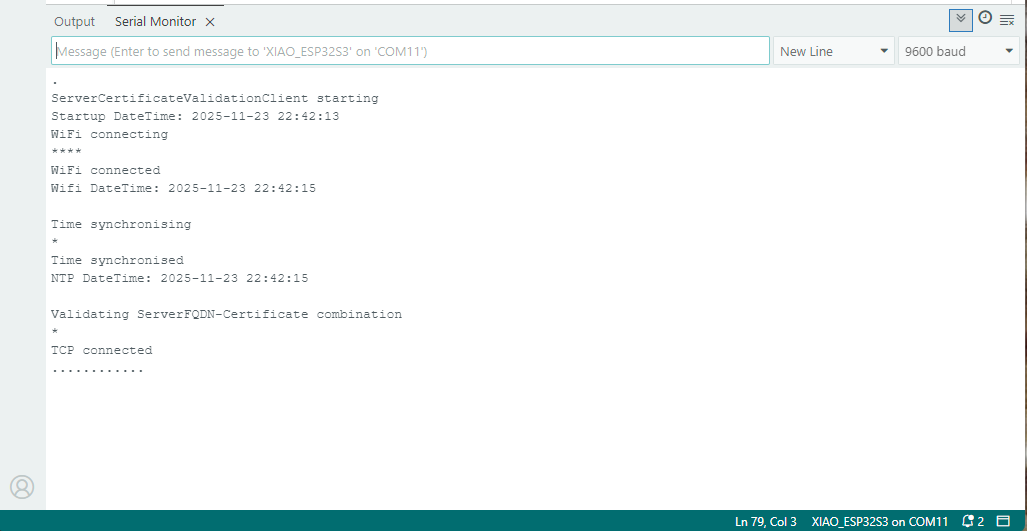
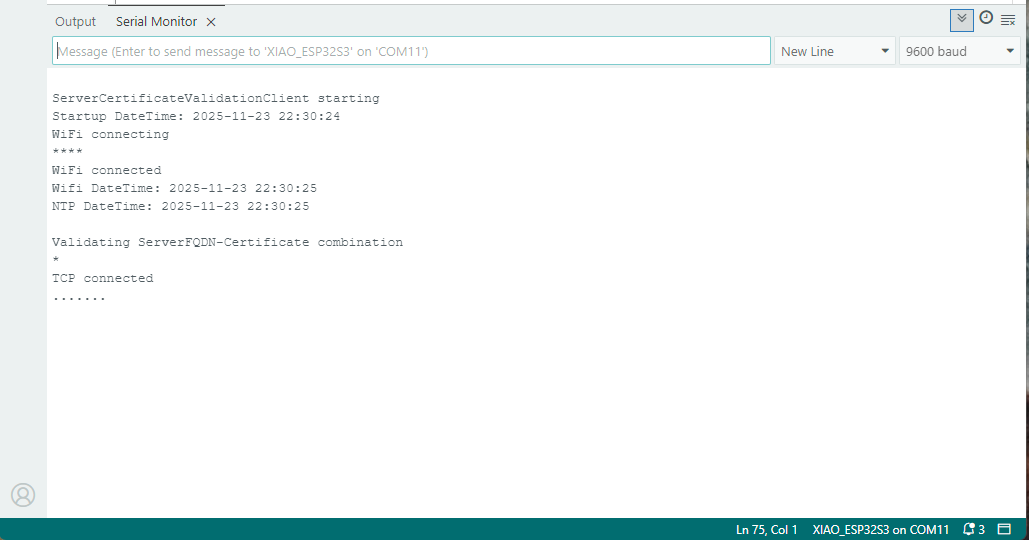
After a hard reset the WiFiClientSecure connect failed because the device time had not been initialised so the device/server time offset was too large (see rfc9325)

After a “hard” reset the Network Time Protocol(NTP) client was used to set the device time.

After a “soft” reset the Network Time Protocol(NTP) client did not have to be called.

Azure Function SendGrid Binding Fail

This post is for Azure Function developers having issues with the SendGrid binding throwing exceptions like the one below.

System.Private.CoreLib: Exception while executing function: Functions.AzureBlobFileUploadEmailer. Microsoft.Azure.WebJobs.Extensions.SendGrid: A 'To' address must be specified for the message

My Azure BlobTrigger Function sends an email (with SendGrid) when a file is uploaded to an Azure Blob Storage Container(a couple of times a day).

public class FileUploadEmailer(ILogger<FileUploadEmailer> logger, IOptions<EmailSettings> emailSettings)
{
   private readonly ILogger<FileUploadEmailer> _logger = logger;
   private readonly EmailSettings _emailSettings = emailSettings.Value;

   [Function(nameof(AzureBlobFileUploadEmailer))]
   [SendGridOutput(ApiKey = "SendGridAPIKey")]
   public string Run([BlobTrigger("filestobeprocesed/{name}", Connection = "upload-file-storage")] Stream stream, string name)
   {
      _logger.LogInformation("FileUploadEmailer Blob trigger function Processed blob Name:{0} start", name);

      try
      {
         var message = new SendGridMessage();

         message.SetFrom(_emailSettings.From);
         message.AddTo(_emailSettings.To);
         message.Subject = _emailSettings.Subject;

         message.AddContent(MimeType.Html, string.Format(_emailSettings.BodyFormat, name, DateTime.UtcNow));

         // WARNING - Use Newtonsoft JSON serializer to produce JSON string. System.Text.Json won't work because property annotations are different
         var messageJson = Newtonsoft.Json.JsonConvert.SerializeObject(message);

         _logger.LogInformation("FileUploadEmailer Blob trigger function Processed blob Name:{0} finish", name);

         return messageJson;
      }
      catch (Exception ex)
      {
         _logger.LogError(ex, "FileUploadEmailer Blob trigger function Processed blob Name: {0}", name);

         throw;
      }
   }
}

I missed the first clue when I looked at the JSON and missed the Tos, Ccs, Bccs property names.

{
"From":{"Name":"Foo","Email":"bryn.lewis@devmobile.co.nz"},
"Subject":"Hi 30/09/2024 1:27:49 pm",
"Personalizations":[{"Tos":[{"Name":"Bar","Email":"bryn.lewis@devmobile.co.nz"}],
"Ccs":null,
"Bccs":null,
"From":null,
"Subject":null,
"Headers":null,
"Substitutions":null,
"CustomArgs":null,
"SendAt":null,
"TemplateData":null}],
"Contents":[{"Type":"text/html","Value":"\u003Ch2\u003EHello AssemblyInfo.cs\u003C/h2\u003E"}],
"PlainTextContent":null,
"HtmlContent":null,
"Attachments":null,
"TemplateId":null,
"Headers":null,
"Sections":null,
"Categories":null,
"CustomArgs":null,
"SendAt":null,
"Asm":null,
"BatchId":null,
"IpPoolName":null,
"MailSettings":null,
"TrackingSettings":null,
"ReplyTo":null,
"ReplyTos":null
}

I wasn’t paying close enough attention to the sample code and used the System.Text.Json rather than Newtonsoft.Json to serialize the SendGridMessage object. They use different attributes for property names etc. so the JSON generated was wrong.

Initially, I tried adding System.Text.Json attributes to the SendGridMessage class

namespace SendGrid.Helpers.Mail
{
   /// <summary>
   /// Class SendGridMessage builds an object that sends an email through Twilio SendGrid.
   /// </summary>
   [JsonObject(IsReference = false)]
   public class SendGridMessage
   {
      /// <summary>
      /// Gets or sets an email object containing the email address and name of the sender. Unicode encoding is not supported for the from field.
      /// </summary>
      //[JsonProperty(PropertyName = "from")]
      [JsonPropertyName("from")]
      public EmailAddress From { get; set; }

      /// <summary>
      /// Gets or sets the subject of your email. This may be overridden by personalizations[x].subject.
      /// </summary>
      //[JsonProperty(PropertyName = "subject")]
      [JsonPropertyName("subject")]
      public string Subject { get; set; }

      /// <summary>
      /// Gets or sets a list of messages and their metadata. Each object within personalizations can be thought of as an envelope - it defines who should receive an individual message and how that message should be handled. For more information, please see our documentation on Personalizations. Parameters in personalizations will override the parameters of the same name from the message level.
      /// https://sendgrid.com/docs/Classroom/Send/v3_Mail_Send/personalizations.html.
      /// </summary>
      //[JsonProperty(PropertyName = "personalizations", IsReference = false)]
      [JsonPropertyName("personalizations")]
      public List<Personalization> Personalizations { get; set; }
...
}

SendGridMessage uses other classes like EmailAddress which worked because the property names matched the JSON

namespace SendGrid.Helpers.Mail
{
    /// <summary>
    /// An email object containing the email address and name of the sender or recipient.
    /// </summary>
    [JsonObject(IsReference = false)]
    public class EmailAddress : IEquatable<EmailAddress>
    {
        /// <summary>
        /// Initializes a new instance of the <see cref="EmailAddress"/> class.
        /// </summary>
        public EmailAddress()
        {
        }

        /// <summary>
        /// Initializes a new instance of the <see cref="EmailAddress"/> class.
        /// </summary>
        /// <param name="email">The email address of the sender or recipient.</param>
        /// <param name="name">The name of the sender or recipient.</param>
        public EmailAddress(string email, string name = null)
        {
            this.Email = email;
            this.Name = name;
        }

        /// <summary>
        /// Gets or sets the name of the sender or recipient.
        /// </summary>
        [JsonProperty(PropertyName = "name")]
        public string Name { get; set; }

        /// <summary>
        /// Gets or sets the email address of the sender or recipient.
        /// </summary>
        [JsonProperty(PropertyName = "email")]
        public string Email { get; set; }
...
}

Many of the property name “mismatch” issues were in the Personalization class with the Toos, Ccs, bccs etc. properties

namespace SendGrid.Helpers.Mail
{
    /// <summary>
    /// An array of messages and their metadata. Each object within personalizations can be thought of as an envelope - it defines who should receive an individual message and how that message should be handled. For more information, please see our documentation on Personalizations. Parameters in personalizations will override the parameters of the same name from the message level.
    /// https://sendgrid.com/docs/Classroom/Send/v3_Mail_Send/personalizations.html.
    /// </summary>
    [JsonObject(IsReference = false)]
    public class Personalization
    {
        /// <summary>
        /// Gets or sets an array of recipients. Each email object within this array may contain the recipient’s name, but must always contain the recipient’s email.
        /// </summary>
        [JsonProperty(PropertyName = "to", IsReference = false)]
        [JsonConverter(typeof(RemoveDuplicatesConverter<EmailAddress>))]
        public List<EmailAddress> Tos { get; set; }

        /// <summary>
        /// Gets or sets an array of recipients who will receive a copy of your email. Each email object within this array may contain the recipient’s name, but must always contain the recipient’s email.
        /// </summary>
        [JsonProperty(PropertyName = "cc", IsReference = false)]
        [JsonConverter(typeof(RemoveDuplicatesConverter<EmailAddress>))]
        public List<EmailAddress> Ccs { get; set; }

        /// <summary>
        /// Gets or sets an array of recipients who will receive a blind carbon copy of your email. Each email object within this array may contain the recipient’s name, but must always contain the recipient’s email.
        /// </summary>
        [JsonProperty(PropertyName = "bcc", IsReference = false)]
        [JsonConverter(typeof(RemoveDuplicatesConverter<EmailAddress>))]
        public List<EmailAddress> Bccs { get; set; }

        /// <summary>
        /// Gets or sets the from email address. The domain must match the domain of the from email property specified at root level of the request body.
        /// </summary>
        [JsonProperty(PropertyName = "from")]
        public EmailAddress From { get; set; }

        /// <summary>
        /// Gets or sets the subject line of your email.
        /// </summary>
        [JsonProperty(PropertyName = "subject")]
        public string Subject { get; set; }
...
}

After a couple of failed attempts at decorating the SendGrid SendGridMessage, EmailAddress, Personalization etc. classes I gave up and reverted to the Newtonsoft.Json serialiser.

Note to self – pay closer attention to the samples.

Azure Event Grid YoloV8- Basic MQTT Client Pose Estimation

The Azure.EventGrid.Image.YoloV8.Pose application downloads images from a security camera, processes them with the default YoloV8(by Ultralytics) Pose Estimation model then publishes the results to an Azure Event Grid MQTT broker topic.

private async void ImageUpdateTimerCallback(object? state)
{
   DateTime requestAtUtc = DateTime.UtcNow;

   // Just incase - stop code being called while photo or prediction already in progress
   if (_ImageProcessing)
   {
      return;
   }
   _ImageProcessing = true;

   try
   {
      _logger.LogDebug("Camera request start");

      PoseResult result;

      using (Stream cameraStream = await _httpClient.GetStreamAsync(_applicationSettings.CameraUrl))
      {
         result = await _predictor.PoseAsync(cameraStream);
      }

      _logger.LogInformation("Speed Preprocess:{Preprocess} Postprocess:{Postprocess}", result.Speed.Preprocess, result.Speed.Postprocess);


      if (_logger.IsEnabled(LogLevel.Debug))
      {
         _logger.LogDebug("Pose results");

         foreach (var box in result.Boxes)
         {
            _logger.LogDebug(" Class:{box.Class} Confidence:{Confidence:f1}% X:{X} Y:{Y} Width:{Width} Height:{Height}", box.Class.Name, box.Confidence * 100.0, box.Bounds.X, box.Bounds.Y, box.Bounds.Width, box.Bounds.Height);

            foreach (var keypoint in box.Keypoints)
            {
               Model.PoseMarker poseMarker = (Model.PoseMarker)keypoint.Index;

               _logger.LogDebug("  Class:{Class} Confidence:{Confidence:f1}% X:{X} Y:{Y}", Enum.GetName(poseMarker), keypoint.Confidence * 100.0, keypoint.Point.X, keypoint.Point.Y);
            }
         }
      }

      var message = new MQTT5PublishMessage
      {
         Topic = string.Format(_applicationSettings.PublishTopic, _applicationSettings.UserName),
         Payload = Encoding.ASCII.GetBytes(JsonSerializer.Serialize(new
         {
            result.Boxes
         })),
         QoS = _applicationSettings.PublishQualityOfService,
      };

      _logger.LogDebug("HiveMQ.Publish start");

      var resultPublish = await _mqttclient.PublishAsync(message);

      _logger.LogDebug("HiveMQ.Publish done");
   }
   catch (Exception ex)
   {
      _logger.LogError(ex, "Camera image download, processing, or telemetry failed");
   }
   finally
   {
      _ImageProcessing = false;
   }

   TimeSpan duration = DateTime.UtcNow - requestAtUtc;

   _logger.LogDebug("Camera Image download, processing and telemetry done {TotalSeconds:f2} sec", duration.TotalSeconds);
}

The application uses a Timer(with configurable Due and Period times) to poll the security camera, detect objects in the image then publish a JavaScript Object Notation(JSON) representation of the results to Azure Event Grid MQTT broker topic using a HiveMQ client.

Utralytics Pose Model input image

The Unv ADZK-10 camera used in this sample has a Hypertext Transfer Protocol (HTTP) Uniform Resource Locator(URL) for downloading the current image. Like the YoloV8.Detect.SecurityCamera.Stream sample the image “streamed” using the HttpClient.GetStreamAsync to the YoloV8 PoseAsync method.

Azure.EventGrid.Image.YoloV8.Pose application console output

The same approach as the YoloV8.Detect.SecurityCamera.Stream sample is used because the image doesn’t have to be saved on the local filesystem.

Utralytics Pose Model marked-up image

To check the results, I put a breakpoint in the timer just after PoseAsync method is called and then used the Visual Studio 2022 Debugger QuickWatch functionality to inspect the contents of the PoseResult object.

Visual Studio 2022 Debugger PoseResult Quickwatch

For testing I configured a single Azure Event Grid custom topic subscription an Azure Storage Queue.

Azure Event Grid Topic Metrics

An Azure Storage Queue is an easy way to store messages while debugging/testing an application.

Azure Storage Explorer messages list

Azure Storage Explorer is a good tool for listing recent messages, then inspecting their payloads.

Azure Storage Explorer Message Details

The Azure Event Grid custom topic message text(in data_base64) contains the JavaScript Object Notation(JSON) of the pose detection result.

{"Boxes":[{"Keypoints":[{"Index":0,"Point":{"X":744,"Y":58,"IsEmpty":false},"Confidence":0.6334442},{"Index":1,"Point":{"X":746,"Y":33,"IsEmpty":false},"Confidence":0.759928},{"Index":2,"Point":{"X":739,"Y":46,"IsEmpty":false},"Confidence":0.19036674},{"Index":3,"Point":{"X":784,"Y":8,"IsEmpty":false},"Confidence":0.8745915},{"Index":4,"Point":{"X":766,"Y":45,"IsEmpty":false},"Confidence":0.086735755},{"Index":5,"Point":{"X":852,"Y":50,"IsEmpty":false},"Confidence":0.9166329},{"Index":6,"Point":{"X":837,"Y":121,"IsEmpty":false},"Confidence":0.85815763},{"Index":7,"Point":{"X":888,"Y":31,"IsEmpty":false},"Confidence":0.6234426},{"Index":8,"Point":{"X":871,"Y":205,"IsEmpty":false},"Confidence":0.37670398},{"Index":9,"Point":{"X":799,"Y":21,"IsEmpty":false},"Confidence":0.3686208},{"Index":10,"Point":{"X":768,"Y":205,"IsEmpty":false},"Confidence":0.21734264},{"Index":11,"Point":{"X":912,"Y":364,"IsEmpty":false},"Confidence":0.98523325},{"Index":12,"Point":{"X":896,"Y":382,"IsEmpty":false},"Confidence":0.98377174},{"Index":13,"Point":{"X":888,"Y":637,"IsEmpty":false},"Confidence":0.985927},{"Index":14,"Point":{"X":849,"Y":645,"IsEmpty":false},"Confidence":0.9834709},{"Index":15,"Point":{"X":951,"Y":909,"IsEmpty":false},"Confidence":0.96191007},{"Index":16,"Point":{"X":921,"Y":894,"IsEmpty":false},"Confidence":0.9618156}],"Class":{"Id":0,"Name":"person"},"Bounds":{"X":690,"Y":3,"Width":315,"Height":1001,"Location":{"X":690,"Y":3,"IsEmpty":false},"Size":{"Width":315,"Height":1001,"IsEmpty":false},"IsEmpty":false,"Top":3,"Right":1005,"Bottom":1004,"Left":690},"Confidence":0.8341071}]}

Training a model with Azure AI Machine Learning

I exported the Tennis Ball by Ugur Ozdemir dataset in a suitable format I could use it to train a model using the Visual Studio 2022 ML.Net support. The first step was to export the Tennis Ball dataset in COCO (Common Objects in Context) format.

Exporting Tennis ball dataset in COCO format

My development box doesn’t have a suitable Local(GPU) and Local(CPU) training failed

Local CPU selected for model training

After a couple of hours training the in the Visual Studio 2022 the output “Loss” value was NaN and the training didn’t end successfully.

Local CPU model training failure

Training with Local(CPU) failed so I then tried again with ML.Net Azure Machine Learning option.

Azure Machine Learning selected for model training

The configuration of my Azure Machine Learning experiment which represent the collection of trials used took much longer than expected.

Insufficient SKUs available in Australia East

Initially my subscription had Insufficient Standard NC4as_T4_v3 SKUs in Australia East so I had to request a quota increase which took a couple of support tickets.

Training Environment Provisioned
Uploading the model training dataset

I do wonder why they include Microsoft’s Visual Object Tagging Tool(VOTT) format as an option because there has been no work done on the project since late 2021.

Uploading the model validation dataset

I need to check how the Roboflow dataset was loaded (I think possibly only the training dataset was loaded, so that was split into training and test datasets) and trial different configurations.

I like the machine generated job names “frank machine”, “tough fowl” and “epic chicken”.

Azure Machine Learning Job list

I found my Ultralytics YoloV8 model coped better with different backgrounds and tennis ball colours.

Evaluating model with tennis balls on my living room floor
Evaluating model with tennis balls on the office floor

I used the “generated” code to consume the model with a simple console application.

Visual Studio 2022 ML.Net Integration client code generation
static async Task Main()
{
   Console.WriteLine($"{DateTime.UtcNow:yy-MM-dd HH:mm:ss} FasterrCNNResnet50 client starting");

   try
   {
      // load the app settings into configuration
      var configuration = new ConfigurationBuilder()
            .AddJsonFile("appsettings.json", false, true)
      .Build();

      Model.ApplicationSettings _applicationSettings = configuration.GetSection("ApplicationSettings").Get<Model.ApplicationSettings>();

      // Create single instance of sample data from first line of dataset for model input
      var image = MLImage.CreateFromFile(_applicationSettings.ImageInputPath);

      AzureObjectDetection.ModelInput sampleData = new AzureObjectDetection.ModelInput()
      {
         ImageSource = image,
      };

      // Make a single prediction on the sample data and print results.
      var predictionResult = AzureObjectDetection.Predict(sampleData);

      Console.WriteLine("Predicted Boxes:");
      Console.WriteLine(predictionResult);
   }
   catch (Exception ex)
   {
      Console.WriteLine($"{DateTime.UtcNow:yy-MM-dd HH:mm:ss} MQTTnet.Publish failed {ex.Message}");
   }

   Console.WriteLine("Press ENTER to exit");
   Console.ReadLine();
}

The initial model was detecting only 28 (with much lower confidences) of the 30 tennis balls in the sample images.

Output of console application with object detection information

I used the “default configuration” settings and ran the model training for 17.5 hours overnight which cost roughly USD24.

Azure Pricing Calculator estimate for my training setup

This post is not about how train a “good” model it is the approach I took to create a “proof of concept” model for a demonstration.