.NET Core web API + Dapper – Web Caching

Web cache validation with eTags

On a couple of the systems I work on there are a number of queries (often complex spatial searches) which are very resource intensive but are quite readily cached. In these systems we have used HTTP GET and HEAD Request methods together so that the client only re-GETs the query results after a HEAD method indicates there have been updates.

I have been trying to keep the number of changes to my Microsoft SQL Azure World Wide Importers database to a minimum but for this post I have added a rowversion column to the StockGroups table. The rowversion data type is an automatically generated, unique 8 byte binary(12 bytes Base64 encoded) number within a database.

StockGroups table with Version column

Adding a rowversion table to an existing System Versioned table in the SQL Server Management Studio Designer is painful so I used…

ALTER TABLE [Warehouse].[StockGroups] ADD [Version] [timestamp] NULL

To reduce complexity the embedded SQL is contains two commands (normally I wouldn’t do this) one for retrieving the list StockGroups the other for retrieving the maximum StockGroup rowversion. If a StockGroup is changed the rowversion will be “automagically” updated and the maximum value will change.

[HttpGet]
public async Task<ActionResult<IEnumerable<Model.StockGroupListDtoV1>>> Get()
{
	IEnumerable<Model.StockGroupListDtoV1> response = null;

	try
	{
		using (SqlConnection db = new SqlConnection(this.connectionString))
		{
			var parameters = new DynamicParameters();

			parameters.Add("@RowVersion", dbType: DbType.Binary, direction: ParameterDirection.Output, size: ETagBytesLength);

			response = await db.QueryAsync<Model.StockGroupListDtoV1>(sql: @"SELECT [StockGroupID] as ""ID"", [StockGroupName] as ""Name""FROM [Warehouse].[StockGroups] ORDER BY Name; SELECT @RowVersion=MAX(Version) FROM [Warehouse].[StockGroups]", param: parameters, commandType: CommandType.Text);

			if (response.Any())
			{
				byte[] rowVersion = parameters.Get<byte[]>("RowVersion");

				this.HttpContext.Response.Headers.Add("ETag", Convert.ToBase64String(rowVersion));
			}
		}
	}
	catch (SqlException ex)
	{
		logger.LogError(ex, "Retrieving list of StockGroups");

		return this.StatusCode(StatusCodes.Status500InternalServerError);
	}

	return this.Ok(response);
}

I used Telerik Fiddler to to capture the GET response payload.

HTTP/1.1 200 OK
Transfer-Encoding: chunked
Content-Type: application/json; charset=utf-8
ETag: AAAAAAABrdE=
Server: Microsoft-IIS/10.0
X-Powered-By: ASP.NET
Date: Sat, 26 Jun 2021 06:12:16 GMT

136
[
   {"id":5,"name":"Airline Novelties"},
   {"id":2,"name":"Clothing"},
   {"id":6,"name":"Computing Novelties"},
   {"id":8,"name":"Furry Footwear"},
   {"id":3,"name":"Mugs"},
   {"id":1,"name":"Novelty Items"},
   {"id":10,"name":"Packaging Material"},
   {"id":9,"name":"Toys"},
   {"id":4,"name":"T-Shirts"},
   {"id":7,"name":"USB Novelties"}
]
0

The HEAD method requests the maximum rwoversion value from the StockGroups table and compares it to the eTag. In a more complex scenario this could be a call to a local cache to see if a query result has bee refreshed.

[HttpHead]
public async Task<ActionResult> Head([Required][FromHeader(Name = "ETag")][MinLength(ETagBase64Length, ErrorMessage = "eTag length invalid too short")][MaxLength(ETagBase64Length, ErrorMessage = "eTag length {0} invalid too long")] string eTag)
{
	byte[] headerVersion = new byte[ETagBytesLength];

	if (!Convert.TryFromBase64String(eTag, headerVersion, out _))
	{
		logger.LogInformation("eTag invalid format");

		return this.BadRequest("eTag invalid format");
	}

	try
	{
		using (SqlConnection db = new SqlConnection(this.connectionString))
		{
			byte[] databaseVersion = await db.ExecuteScalarAsync<byte[]>(sql: "SELECT MAX(Version) FROM [Warehouse].[StockGroups]", commandType: CommandType.Text);

			if (headerVersion.SequenceEqual(databaseVersion))
			{
				return this.StatusCode(StatusCodes.Status304NotModified);
			}
		}
	}
	catch (SqlException ex)
	{
		logger.LogError(ex, "Retrieving StockItem list");

		return this.StatusCode(StatusCodes.Status500InternalServerError);
	}

	return this.Ok();
}

I used Fiddler to to capture a HEAD response payload a 304 Not modified.

HTTP/1.1 304 Not Modified
Server: Microsoft-IIS/10.0
X-Powered-By: ASP.NET
Date: Sat, 26 Jun 2021 22:09:02 GMT

I then modified the database and the response changed to 200 OK indicating the local cache should be updated with a GET.

HTTP/1.1 200 OK
Transfer-Encoding: chunked
Server: Microsoft-IIS/10.0
X-Powered-By: ASP.NET
Date: Sat, 26 Jun 2021 22:09:59 GMT

This approach combined with the use of the If-Match, If-Modified-Since, If-None-Match and If-Unmodified-since allows web and client side caches to use previously requested results when there have been no changes. This can significantly reduce the amount of network traffic and server requests.

As part of my testing I modified the eTag so it was invalid (to check the Convert.ToBase64String and Convert.TryFromBase64String error handling) and the response was much smaller than I expected.

HTTP/1.1 400 Bad Request
Content-Length: 240
Content-Type: application/problem+json; charset=utf-8
Server: Microsoft-IIS/10.0
X-Powered-By: ASP.NET
Date: Sat, 26 Jun 2021 06:28:11 GMT

This was unlike the helpful validation messages returned by the GET method of the StockItems pagination example code

{
   "type":"https://tools.ietf.org/html/rfc7231#section-6.5.1",
   "title":"One or more validation errors occurred.",
   "status":400,
   "traceId":"00-bd68c94bf05f5c4ca8752011d6a60533-48e966211dec4847-00",
   "errors": 
   {
      "PageSize":["PageSize must be present and greater than 0"],
      "PageNumber":["PageNumber must be present and greater than 0"]
   }
}

The lack of diagnostic information was not helpful and I’ll explore this further in a future post. I often work on Fintech applications which are “insert only”, or nothing is deleted just marked as inactive/readonly so this approach is viable.

NOTE : Error Handling approach has been updated

.NET Core web API + Dapper – History

System Versioned Temporal tables looking up and listing

This StockItemsHistoryController has methods for retrieving a list of StockItems at a point in time specified by an optional query string parameter (if no value is provided the current time is assumed). To show how a temporal query can span multiple tables I included the [Purchasing].[suppliers] table which is also versioned.

http://localhost:36739/api/StockItemsHistory

[HttpGet]
public async Task<ActionResult<IEnumerable<Model.StockItemsHistoryListDtoV1>>> Get([FromQuery]DateTime? asAt)
{
	IEnumerable<Model.StockItemsHistoryListDtoV1> response = null;

	if (!asAt.HasValue)
	{
		asAt = DateTime.UtcNow;
	}

	try
	{
		using (SqlConnection db = new SqlConnection(this.connectionString))
		{
			response = await db.QueryAsync<Model.StockItemsHistoryListDtoV1>(sql: "[warehouse].[StockItemsHistoryStockItemsListAsAtV1]", param: new { asAt }, commandType: CommandType.StoredProcedure);
		}
	}
	catch (SqlException ex)
	{
		logger.LogError(ex, "Retrieving list of StockItems");

		return this.StatusCode(StatusCodes.Status500InternalServerError);
	}

	return this.Ok(response);
}
ALTER PROCEDURE [Warehouse].[StockItemsHistoryStockItemsListAsAtV1]
		@AsAt DATETIME2(7)
AS
BEGIN
	SELECT [StockItems].[StockItemID] as "ID"
		,[StockItems].[StockItemName] as "Name" 
		,[StockItems].[UnitPrice]
		,[StockItems].[RecommendedRetailPrice] 
		,[StockItems].[TaxRate]
		,[StockItems].[CustomFields]
		,[Suppliers].[SupplierID]
		,[Suppliers].[SupplierName]
	FROM [Warehouse].[StockItems] FOR SYSTEM_TIME AS OF @AsAt as StockItems
		INNER JOIN [Purchasing].[Suppliers] FOR SYSTEM_TIME AS OF @AsAt as Suppliers ON (StockItems.SupplierID = [Suppliers].SupplierID)
END

The query also returns the custom fields (often what was changed in StockItem history), the supplier Id and Supplier name.

The detailed history of a StockItem can be queried to illustrate how the _Archive(history) table works

localhost:36739/api/StockItemsHistory/64/history

ALTER PROCEDURE [Warehouse].[StockItemsHistoryStockItemHistoryListV1]
		@StockItemID int 
AS
BEGIN
	SELECT[StockItems_Archive].[StockItemID] as "ID"
		,[StockItems_Archive].[StockItemName] as "Name"
		,[StockItems_Archive].[UnitPrice]
		,[StockItems_Archive].[RecommendedRetailPrice]
		,[StockItems_Archive].[TaxRate]
		,[StockItems_Archive].[CustomFields]
		,[StockItems_Archive].[ValidFrom]
		,[StockItems_Archive].[ValidTo]
	FROM [Warehouse].[StockItems_Archive]
	WHERE [StockItems_Archive].[StockItemID] = @StockItemId
	ORDER BY [ValidFrom] DESC
END
[HttpGet("{id}/history")]
public async Task<ActionResult<IEnumerable<Model.StockItemHistoryListDtoV1>>> GetHistory([Range(1, int.MaxValue, ErrorMessage = "Stock item id must greater than 0")] int id)
{
    IEnumerable<Model.StockItemHistoryListDtoV1> response = null;

    try
    {
        using (SqlConnection db = new SqlConnection(this.connectionString))
        {
            response = await db.QueryAsync<Model.StockItemHistoryListDtoV1>(sql: "[Warehouse].[StockItemsHistoryStockItemHistoryListV1]", param: new { StockItemID = id }, commandType: CommandType.StoredProcedure);
            if (response == default)
            {
                logger.LogInformation("StockItem:{0} not found", id);

                return this.NotFound($"StockItem:{id} not found");
           }
       }
   }
   catch (SqlException ex)
   {
        logger.LogError(ex, "Retrieving up a StockItem with Id:{0}", id);

        return this.StatusCode(StatusCodes.Status500InternalServerError);
     }

    return this.Ok(response);
}

The state of a StockItem plus the associated Supplier and PackageTypes tables can also be queried at a point in time (if no value is provided the current time is assumed).

http://localhost:36739/api/StockItemsHistory/64?AsAt=2021-06-18T01:21:07.0121476

[HttpGet("{id}")]
public async Task<ActionResult<Model.StockItemGetDtoV1>> Get([Range(1, int.MaxValue, ErrorMessage = "Stock item id must greater than 0")] int id, [FromQuery] DateTime? asAt)
{
	Model.StockItemGetDtoV1 response = null;

	if ( !asAt.HasValue)
	{
		asAt = DateTime.UtcNow; 
	}

	try
	{
		using (SqlConnection db = new SqlConnection(this.connectionString))
		{
			response = await db.QuerySingleOrDefaultAsync<Model.StockItemGetDtoV1>(sql: "[Warehouse].[StockItemsHistoryStockItemLookupAsAtV1]", param: new { asAt, stockItemID=id }, commandType: CommandType.StoredProcedure);
			if (response == default)
			{
				logger.LogInformation("StockItem:{0} not found", id);

				return this.NotFound($"StockItem:{id} not found");
			}
		}
	}
	catch (SqlException ex)
	{
		logger.LogError(ex, "Retrieving StockItem with Id:{0}", id);

		return this.StatusCode(StatusCodes.Status500InternalServerError);
	}

	return this.Ok(response);
}
ALTER PROCEDURE [Warehouse].[StockItemsHistoryStockItemLookupAsAtV1]
		@StockItemID int, 
		@AsAt DATETIME2(7)
AS
BEGIN
	SELECT[StockItem].[StockItemID] as "ID"
		,[StockItem].[StockItemName] as "Name" 
		,[StockItem].[UnitPrice]
		,[StockItem].[RecommendedRetailPrice] 
		,[StockItem].[TaxRate]
		,[StockItem].[typicalWeightPerUnit] 
		,[StockItem].[QuantityPerOuter]
		,[UnitPackage].[PackageTypeName] as "unitPackageName"
		,[OuterPackage].[PackageTypeName] as "outerPackageName"
		,[Supplier].[SupplierID]
		,[Supplier].[SupplierName]
	FROM [Warehouse].[StockItems] FOR SYSTEM_TIME AS OF @AsAt as StockItem
		INNER JOIN[Warehouse].[PackageTypes] FOR SYSTEM_TIME AS OF @AsAt as UnitPackage ON ([StockItem].[UnitPackageID] = [UnitPackage].[PackageTypeID])
		INNER JOIN[Warehouse].[PackageTypes] FOR SYSTEM_TIME AS OF @AsAt as OuterPackage ON ([StockItem].[OuterPackageID] = [OuterPackage].[PackageTypeID])
		INNER JOIN[Purchasing].[Suppliers] FOR SYSTEM_TIME AS OF @AsAt as Supplier ON ([StockItem].SupplierID = Supplier.SupplierID)
		WHERE[StockItem].[StockItemID] = @StockItemId
END

I found it was easy to miss the “FOR SYSTEM_TIME AS OF @AsAt” on the INNER JOINs.

......
| ADD
    {
        <column_definition>
      | <computed_column_definition>
      | <table_constraint>
      | <column_set_definition>
    } [ ,...n ]
      | [ system_start_time_column_name datetime2 GENERATED ALWAYS AS ROW START
                [ HIDDEN ] [ NOT NULL ] [ CONSTRAINT constraint_name ]
            DEFAULT constant_expression [WITH VALUES] ,
                system_end_time_column_name datetime2 GENERATED ALWAYS AS ROW END
                   [ HIDDEN ] [ NOT NULL ][ CONSTRAINT constraint_name ]
            DEFAULT constant_expression [WITH VALUES] ,
                start_transaction_id_column_name bigint GENERATED ALWAYS AS TRANSACTION_ID START
        ]
       PERIOD FOR SYSTEM_TIME ( system_start_time_column_name, system_end_time_column_name )
    | 

It is also possible to hide the start and end time columns which might be useful for when retrofitting this approach to a legacy application which uses SELECT * FROM … and might not handle the extra columns correctly.

NOTE : Error Handling approach has been updated

.NET Core web API + Dapper – Lookup

Looking up and searching

This StockItemsLookupController has methods for looking up a single record using the StockItemID and retrieving a list of records with a name that “matches” the search text. In my initial version the length of the embedded Structured Query Language(SQL) which spanned multiple lines was starting to get out of hand.

ALTER PROCEDURE [Warehouse].[StockItemsStockItemLookupV1]
		@StockItemID as int
AS
BEGIN
	SELECT [StockItems].[StockItemID] as "ID"  
			,[StockItems].[StockItemName] as "Name" 
			,[StockItems].[UnitPrice]
			,[StockItems].[RecommendedRetailPrice] 
			,[StockItems].[TaxRate]
			,[StockItems].[QuantityPerOuter]
			,[StockItems].[TypicalWeightPerUnit]
			,[UnitPackage].[PackageTypeName] as "UnitPackageName"
			,[OuterPackage].[PackageTypeName] as "OuterPackageName"
			,[Supplier].[SupplierID] 
			,[Supplier].[SupplierName] 
	FROM[Warehouse].[StockItems] as StockItems  
	INNER JOIN[Warehouse].[PackageTypes] as UnitPackage ON ([StockItems].[UnitPackageID] = [UnitPackage].[PackageTypeID]) 
	INNER JOIN[Warehouse].[PackageTypes] as OuterPackage ON ([StockItems].[OuterPackageID] = [OuterPackage].[PackageTypeID]) 
	INNER JOIN[Purchasing].[Suppliers] as Supplier ON ([StockItems].SupplierID = [Supplier].]SupplierID])
	WHERE[StockItems].[StockItemID] = @StockItemId
END

The query also returns the inner/outer packaging and the supplier name (plus supplierId for creating a link to the Supplier’s details) to make the example more realistic.

[HttpGet("{id}")]
public async Task<ActionResult<Model.StockItemGetDtoV1>> Get([Range(1, int.MaxValue, ErrorMessage = "Stock item id must greater than 0")] int id)
{
	Model.StockItemGetDtoV1 response = null;

	try
	{
		using (SqlConnection db = new SqlConnection(this.connectionString))
		{
			response = await db.QuerySingleOrDefaultAsync<Model.StockItemGetDtoV1>(sql: "[Warehouse].[StockItemsStockItemLookupV1]", param: new { stockItemId=id }, commandType: CommandType.StoredProcedure);
		}

		if (response == default)
		{
			logger.LogInformation("StockItem:{0} not found", id);

			return this.NotFound($"StockItem:{id} image not found");
		}
	}
	catch (SqlException ex)
	{
		logger.LogError(ex, "Looking up a StockItem with Id:{0}", id);

		return this.StatusCode(StatusCodes.Status500InternalServerError);
	}

	return this.Ok(response);
}

This simple name search also uses the FromQuery attribute (like the pagination example) to populate a Data Transfer Object(DTO) with request query string parameters

[HttpGet]
public async Task<ActionResult<IEnumerable<Model.StockItemListDtoV1>>> Get([FromQuery] Model.StockItemNameSearchDtoV1 request)
{
	IEnumerable<Model.StockItemListDtoV1> response = null;

	try
	{
		using (SqlConnection db = new SqlConnection(this.connectionString))
		{
			response = await db.QueryAsync<Model.StockItemListDtoV1>(sql: "[Warehouse].[StockItemsNameSearchV1]", param: request, commandType: CommandType.StoredProcedure);
		}
	}
	catch (SqlException ex)
	{
		logger.LogError(ex, "Searching for list of StockItems with name like:{0}", request);

		return this.StatusCode(StatusCodes.Status500InternalServerError);
	}

	return this.Ok(response);
}

The request DTO properties have Data Annotations to ensure the values are valid and suitable error messages are displayed if they are not. The controller GET method will not even be called if the DTO is missing or the values are incorrect. I would use constants for the lengths etc. and the attribute value error messages can be loaded from resource files for multiple language support.

public class StockItemNameSearchDtoV1
{
	[Required]
	[MinLength(3, ErrorMessage = "The name search text must be at least 3 characters long")]
	public string SearchText { get; set; }

	[Required]
	[Range(1, int.MaxValue, ErrorMessage = "MaximumRowsToReturn must be present and greater than 0")]
	public int MaximumRowsToReturn { get; set; }
}

The SELECT TOP command to limit the number of records returned. To improve performance the results of this query could be cached but the result set might need to be filtered based on the current user.

ALTER PROCEDURE [Warehouse].[StockItemsSearchV1]
           @SearchText nvarchar(100),
           @MaximumRowsToReturn int
AS
BEGIN
    SELECT TOP(@MaximumRowsToReturn) [StockItemID] as "ID"
		   ,[StockItemName] as "Name"
		   ,[RecommendedRetailPrice]
		   ,[TaxRate]
    FROM Warehouse.StockItems
    WHERE SearchDetails LIKE N'%' + @SearchText + N'%'
    ORDER BY [StockItemName]
END;

I have used this approach to populate a list of selectable options as a user types their search text.

NOTE : Error Handling approach has been updated

.NET Core web API + Dapper – Pagination

Pagination for payload size reduction

This controller method returns a limited number of records(pageSize) from a position(pageNumber) in a database query resultset to reduce the size of the response payload.

The SQL command uses the ROWS FETCH NEXT … ROWS ONLY syntax, The use of this approach is not really highlighted in official developer documentation (though I maybe missing the obvious).

There is some discussion in the ORDER BY clause syntax documentation.

Using OFFSET and FETCH to limit the rows returned.

“We recommend that you use the OFFSET and FETCH clauses instead of the TOP clause to implement a query paging solution and limit the number of rows sent to a client application.

Using OFFSET and FETCH as a paging solution requires running the query one time for each “page” of data returned to the client application. For example, to return the results of a query in 10-row increments, you must execute the query one time to return rows 1 to 10 and then run the query again to return rows 11 to 20 and so on. Each query is independent and not related to each other in any way. This means that, unlike using a cursor in which the query is executed once and state is maintained on the server, the client application is responsible for tracking state.”

[HttpGet]
public async Task<ActionResult<IEnumerable<Model.StockItemListDtoV1>>> Get([FromQuery] Model.StockItemPagingDtoV1 request)
{
	IEnumerable<Model.StockItemListDtoV1> response = null;

	var parameters = new DynamicParameters();

	parameters.Add("@PageNumber", request.PageNumber);
	parameters.Add("@PageSize", request.PageSize);

	using (SqlConnection db = new SqlConnection(this.connectionString))
	{
			response = await db.QueryAsync<Model.StockItemListDtoV1>(sql: @"SELECT [StockItemID] as ""ID"", [StockItemName] as ""Name"", [RecommendedRetailPrice], [TaxRate] FROM[Warehouse].[StockItems] ORDER BY ID OFFSET @PageSize * (@PageNumber-1) ROWS FETCH NEXT @PageSize ROWS ONLY", param: parameters, commandType: CommandType.Text);
	}
	return this.Ok(response);
}

This sample also uses the FromQuery attribute to populate a Data Transfer Object(DTO) with request query string parameters

	public class StockItemPagingDtoV1
	{
		[Required]
		[Range(1, int.MaxValue, ErrorMessage = "PageSize must be present and greater than 0")]
		public int PageSize { get; set; }

		[Required]
		[Range(1, int.MaxValue, ErrorMessage = "PageNumber must be present and greater than 0")]
		public int PageNumber { get; set; }
	}

The request DTO properties have Data Annotations to ensure the values are valid and suitable error messages are displayed if they are not. The controller GET method will not even be called if the DTO is missing or the values are incorrect. I would use constants for the lengths etc. and the attribute value error messages can be loaded from resource files for multiple language support.

http://localhost:36739/api/StockItemsPagination/

The result is

ols.ietf.org/html/rfc7231#section-6.5.1″,”title”:”One or more validation errors occurred.”,”status”:400,”traceId”:”00-917b6336aa8828468c6d78fb73dbe446-f72fc74b22ce724b-00″,”errors”:{“PageSize”:[“PageSize must be present and greater than 0”],”PageNumber”:[“PageNumber must be present and greater than 0”]}}

http://localhost:36739/api/StockItemsPagination?pageSize=10

{“type”:”https://tools.ietf.org/html/rfc7231#section-6.5.1&#8243;,”title”:”One or more validation errors occurred.”,”status”:400,”traceId”:”00-dd5f2683c6d7dc4a84bb04949703fc34-0c3658e2e54c2648-00″,”errors”:{“PageNumber”:[“PageNumber must be present and greater than 0”]}}

https://localhost:36739/api/StockItemsPagination?pageSize=10

The result is

{“type”:”https://tools.ietf.org/html/rfc7231#section-6.5.1&#8243;,”title”:”One or more validation errors occurred.”,”status”:400,”traceId”:”00-63f591ee3bfdc7418a83afbdba2faf7f-3d2ea994eb0c5c49-00″,”errors”:{“PageSize”:[“PageSize must be present and greater than 0”]}}

The amount of code can be reduced a bit further by dropping the dynamic parameter and passing the StockItemListDtoV1 object is as a parameter.

[HttpGet]
public async Task<ActionResult<IEnumerable<Model.StockItemListDtoV1>>> Get([FromQuery] Model.StockItemPagingDtoV1 request)
{
	IEnumerable<Model.StockItemListDtoV1> response = null;

	using (SqlConnection db = new SqlConnection(this.connectionString))
	{
		response = await db.QueryAsync<Model.StockItemListDtoV1>(sql: @"SELECT [StockItemID] as ""ID"", [StockItemName] as ""Name"", [RecommendedRetailPrice], [TaxRate] FROM[Warehouse].[StockItems] ORDER BY ID OFFSET @PageSize * (@PageNumber-1) ROWS FETCH NEXT @PageSize ROWS ONLY", param: request, commandType: CommandType.Text);
	}

	return this.Ok(response);
}

I use both approaches, for example if database fields or parameters have quite a different naming convention to C# properties (with query DTOs then can often be fixed with attributes) I would use the explicit approach .The later approach also had slightly better code metrics

Metrics for version with DynamicPararmeters
Metrics for version with DTO parameters

.NET Core web API + Dapper – Asynchronicity

Asynchronous is always better, yeah nah

For a trivial controller like the one below the difference between synchronous and asynchronous calls is most probably negligible, the asynchronous versions may even be slightly slower. ASP.NET Core web API applications should be designed to process many requests concurrently.

The Dapper library has the following asynchronous methods

These asynchronous methods enable a small pool of threads to process thousands of concurrent requests by not waiting on blocking database calls. Rather than waiting on a long-running synchronous database call to complete, the thread can work on another request.

namespace devMobile.WebAPIDapper.Lists.Controllers
{
	[ApiController]
	[Route("api/[controller]")]
	public class StockItemsAsyncController : ControllerBase
	{
		private readonly string connectionString;
		private readonly ILogger<StockItemsAsyncController> logger;

		public StockItemsAsyncController(IConfiguration configuration, ILogger<StockItemsAsyncController> logger)
		{
			this.connectionString = configuration.GetSection("ConnectionStrings").GetSection("WideWorldImportersDatabase").Value;

			this.logger = logger;
		}

		[HttpGet]
		public async Task<ActionResult<IAsyncEnumerable<Model.StockItemListDtoV1>>> Get()
		{
			IEnumerable<Model.StockItemListDtoV1> response = null;

			try
			{
				using (SqlConnection db = new SqlConnection(this.connectionString))
				{
					response = await db.QueryAsync<Model.StockItemListDtoV1>(sql: @"SELECT [StockItemID] as ""ID"", [StockItemName] as ""Name"", [RecommendedRetailPrice], [TaxRate] FROM [Warehouse].[StockItems]", commandType: CommandType.Text);
				}
			}
			catch (SqlException ex)
			{
				logger.LogError(ex, "Retrieving list of StockItems");

				return this.StatusCode(StatusCodes.Status500InternalServerError);
			}

			return this.Ok(response);
		}
	}
}

This sample controller method returns a small number of records (approximate 230) in one request so performance is unlikely to be a consideration. A controller method which returns many (1000s or even 10000s) records could cause performance and scalability issues. In a future post I will add pagination and then do some stress testing of the application to compare the different implementations.

NOTE : Error Handling approach has been updated

.NET Core web API + Dapper – Failure

It will break

With no error handling the code was a bit fragile so I modified the program.cs file and added support for the built in logging and Debug provider. To reduce the amount of code in the controller I have also moved the DTO to a separate file in the “models” folder.

namespace devMobile.WebAPIDapper.Lists
{
	public class Program
	{
		public static void Main(string[] args)
		{
			CreateHostBuilder(args).Build().Run();
		}

		public static IHostBuilder CreateHostBuilder(string[] args) =>
			 Host.CreateDefaultBuilder(args)
				.ConfigureLogging(logging =>
				{
					logging.ClearProviders();
					logging.AddDebug();
				})
				.ConfigureWebHostDefaults(webBuilder =>
				{
					webBuilder.UseStartup<Startup>();
				});
	}
}

To test the exception handling I “broke” the Dapper query embedded SQL.

namespace devMobile.WebAPIDapper.Lists.Controllers
{
	[Route("api/[controller]")]
	[ApiController]
	public class StockItemsFailureController: ControllerBase
	{
		private readonly string connectionString;
		private readonly ILogger<StockItemsFailureController> logger;

		public StockItemsFailureController(IConfiguration configuration, ILogger<StockItemsFailureController> logger)
		{
			this.connectionString = configuration.GetSection("ConnectionStrings").GetSection("WideWorldImportersDatabase").Value;

			this.logger = logger;
		}

		[HttpGet]
		public ActionResult<IEnumerable<Model.StockItemListDtoV1>> Get()
		{
			IEnumerable<Model.StockItemListDtoV1> response = null;

			try
			{
				using (SqlConnection db = new SqlConnection(this.connectionString))
				{
					response = db.Query<Model.StockItemListDtoV1>(sql: @"SELECTx [StockItemID] as ""ID"", [StockItemName] as ""Name"", [RecommendedRetailPrice], [TaxRate] FROM [Warehouse].[StockItems]", commandType: CommandType.Text);
				}
			}
			catch( SqlException ex)
			{
				logger.LogError(ex, "Retrieving list of StockItems");

				return this.StatusCode(StatusCodes.Status500InternalServerError);
			}

			return this.Ok(response);
		}
	}

The controller failed and the following error was displayed in the Visual Studio output window

devMobile.WebAPIDapper.Lists.Controllers.StockItemsFailureController: Error: Retrieving list of StockItems

System.Data.SqlClient.SqlException (0x80131904): Incorrect syntax near the keyword 'as'.
   at System.Data.SqlClient.SqlConnection.OnError(SqlException exception, Boolean breakConnection, Action`1 wrapCloseInAction)
   at System.Data.SqlClient.SqlInternalConnection.OnError(SqlException exception, Boolean breakConnection, Action`1 wrapCloseInAction)
   at System.Data.SqlClient.TdsParser.ThrowExceptionAndWarning(TdsParserStateObject stateObj, Boolean callerHasConnectionLock, Boolean asyncClose)
   at System.Data.SqlClient.TdsParser.TryRun(RunBehavior runBehavior, SqlCommand cmdHandler, SqlDataReader dataStream, BulkCopySimpleResultSet bulkCopyHandler, TdsParserStateObject stateObj, Boolean& dataReady)
   at System.Data.SqlClient.SqlDataReader.TryConsumeMetaData()
   at System.Data.SqlClient.SqlDataReader.get_MetaData()
   at System.Data.SqlClient.SqlCommand.FinishExecuteReader(SqlDataReader ds, RunBehavior runBehavior, String resetOptionsString)
   at System.Data.SqlClient.SqlCommand.RunExecuteReaderTds(CommandBehavior cmdBehavior, RunBehavior runBehavior, Boolean returnStream, Boolean async, Int32 timeout, Task& task, Boolean asyncWrite, SqlDataReader ds)
   at System.Data.SqlClient.SqlCommand.RunExecuteReader(CommandBehavior cmdBehavior, RunBehavior runBehavior, Boolean returnStream, TaskCompletionSource`1 completion, Int32 timeout, Task& task, Boolean asyncWrite, String method)
   at System.Data.SqlClient.SqlCommand.RunExecuteReader(CommandBehavior cmdBehavior, RunBehavior runBehavior, Boolean returnStream, String method)
   at System.Data.SqlClient.SqlCommand.ExecuteReader(CommandBehavior behavior)
   at System.Data.SqlClient.SqlCommand.ExecuteDbDataReader(CommandBehavior behavior)
   at System.Data.Common.DbCommand.System.Data.IDbCommand.ExecuteReader(CommandBehavior behavior)
   at Dapper.SqlMapper.ExecuteReaderWithFlagsFallback(IDbCommand cmd, Boolean wasClosed, CommandBehavior behavior) in /_/Dapper/SqlMapper.cs:line 1055
   at Dapper.SqlMapper.QueryImpl[T](IDbConnection cnn, CommandDefinition command, Type effectiveType)+MoveNext() in /_/Dapper/SqlMapper.cs:line 1083
   at System.Collections.Generic.List`1..ctor(IEnumerable`1 collection)
   at System.Linq.Enumerable.ToList[TSource](IEnumerable`1 source)
   at Dapper.SqlMapper.Query[T](IDbConnection cnn, String sql, Object param, IDbTransaction transaction, Boolean buffered, Nullable`1 commandTimeout, Nullable`1 commandType) in /_/Dapper/SqlMapper.cs:line 725
   at devMobile.WebAPIDapper.Lists.Controllers.StockItemsFailureController.Get() in C:\Users\BrynLewis\source\repos\WebAPIDapper\Lists\Controllers\03.StockItemsFailureController.cs:line 53
ClientConnectionId:f37eb089-a560-406d-8c24-cf904bb17d8a
Error Number:156,State:1,Class:15
The program '[16996] iisexpress.exe: Program Trace' has exited with code 0 (0x0).
The program '[16996] iisexpress.exe' has exited with code -1 (0xffffffff).

In a couple of future posts I will add support for Log4Net, nLog, Serilog and a couple other libraries.

NOTE : Error Handling approach has been updated

.NET Core web API + Dapper – Less is more

Over the last few months I have been working on a series of .Net Core Web API projects for customers which have been connecting to existing on premises Microsoft SQL Server or Azure SQL databases I didn’t want to use the term “legacy” databases as they are part of large systems which are providing useful functionality to my customers and their clients.

One of the systems has in operation for a decade and the evolution of the database has been thoughtfully managed by the developers. They have always had to balance the business’s requirements, while trying to minimise new, and chip away at any existing technical debt.

This is the first in a longish series about my “brownfields” experiences and the non-functional requirements trade-offs we had to make. These included reliability, scalability, supportability, testability, availability, maintainability, securability extensibility, robustness and time to market considerations.

Often the applications had large existing code bases in VB.Net, C# or C++ which used ADO.Net and/or other Object Relational Mappers(ORMs) like Entity Framework(EF) and nHibernate. Over the years as developers had “come and gone” the mix of technologies had grown to the point where the codebases were difficult to maintain and to understand how the technologies interacted in production.

In a couple of organisations access to database(s) was managed by a Database Administrator(DBA) who defined the approach used (often with stored procedures) and vetted all access to data for performance, compliance and/or security considerations.

Unless it is something important these posts won’t have lots of screen grabs from Visual Studio with buttons to press highlighted, or details of how to use app.settings.json files etc.

In the beginning

The first step was creating a Visual Studio 2019 solution, adding an empty Web API project then adding an “API Controller with read/write actions.(most of which I have deleted).

using Microsoft.AspNetCore.Mvc;
using System;
using System.Collections.Generic;
using System.Linq;
using System.Threading.Tasks;

// For more information on enabling Web API for empty projects, visit https://go.microsoft.com/fwlink/?LinkID=397860

namespace devMobile.WebAPIDapper.Lists.Controllers
{
	[ApiController]
	[Route("api/[controller]")]
	public class ReadWriteController : ControllerBase
	{
		// GET: api/<ReadWriteController>
		[HttpGet]
		public IEnumerable<string> Get()
		{
			return new string[] { "value1", "value2" };
		}

		// GET api/<ReadWriteController>/5
		[HttpGet("{id}")]
		public string Get(int id)
		{
			return "value";
		}

		// POST api/<ReadWriteController>
		[HttpPost]
		public void Post([FromBody] string value)
		{
		}

		// PUT api/<ReadWriteController>/5
		[HttpPut("{id}")]
		public void Put(int id, [FromBody] string value)
		{
		}

		// DELETE api/<ReadWriteController>/5
		[HttpDelete("{id}")]
		public void Delete(int id)
		{
		}
	}
}

Several of the existing codebases used ADO.Net so Dapper the lightweight ORM(NuGet) developed by the Stackoverflow team has been a good fit. The developers were comfortable with ADO.Net unlike EF which has a pretty steep learning curve especially when retrofitting it to an existing database.

Dapper in Nuget Package Manager

Microsoft samples always use the Adventure works, Northwind, Pet Store or World Wide Importers sample databases so for my code I’m using World Wide Importers. This was the simplest sample I could come up with, a controller retrieves a list of StockItems which are “automagically” mapped to StockItemListDto instances.

using System.Collections.Generic;
using System.Data;
using System.Data.SqlClient;

using Microsoft.AspNetCore.Mvc;
using Microsoft.Extensions.Configuration;

using Dapper;

namespace devMobile.WebAPIDapper.SimpleList.Controllers
{
	public class StockItemListDto
	{
		public int Id { get; set; }
		public string Name { get; set; }
		public decimal RecommendedRetailPrice { get; set; }
		public decimal TaxRate { get; set; }
	}

	[Route("api/[controller]")]
	[ApiController]
	public class StockItemController : ControllerBase
	{
		private readonly string connectionString;

		public StockItemController(IConfiguration configuration)
		{
			this.connectionString = configuration.GetSection("ConnectionStrings").GetSection("WideWorldImportersDatabase").Value;
		}

		public IEnumerable<StockItemListDto> Get()
		{
			IEnumerable<StockItemListDto> response = null;

			using (SqlConnection db = new SqlConnection(this.connectionString))
			{
				response = db.Query<StockItemListDto>(sql: @"SELECT [StockItemID] as ""ID"", [StockItemName] as ""Name"", [RecommendedRetailPrice], [TaxRate] FROM [Warehouse].[StockItems]", commandType: CommandType.Text);
			}

			return response;
		}
	}
}

To keep the code as small and simple as practical I have used embedded SQL (I’ll cover stored procedures in depth in future posts), the request is synchronous, the “baked in” appsettings.json configuration file support is used, the Data Transfer Object(DTO) is included with the controller implementation, the names of the columns returned by the SQL query match the DTO properties, and there is no logging or error handling.

[{"id":1,"name":"USB missile launcher (Green)","recommendedRetailPrice":37.38,"taxRate":15.000,"validFrom":"2016-05-31T23:11:00"}, {"id":2,"name":"USB rocket launcher (Gray)","recommendedRetailPrice":37.38,"taxRate":15.000,"validFrom":"2016-05-31T23:11:00"},{"id":3,"name":"Office cube periscope (Black)","recommendedRetailPrice":27.66,"taxRate":15.000,"validFrom":"2016-05-31T23:00:00"},{"id":4,"name":"USB food flash drive - sushi roll","recommendedRetailPrice":47.84,"taxRate":15.000,"validFrom":"2016-05-31T23:11:00"},{"id":5,"name":"USB food flash drive - hamburger","recommendedRetailPrice":47.84,"taxRate":15.000,"validFrom":"2016-05-31T23:11:00"},{"id":6,"name":"USB food flash drive - hot dog","recommendedRetailPrice":47.84,"taxRate":15.000,"validFrom":"2016-05-31T23:11:00"},{"id":7,"name":"USB food flash drive - pizza slice","recommendedRetailPrice":47.84,"taxRate":15.000,"validFrom":"2016-05-31T23:11:00"},{"id":8,"name":"USB food flash drive - dim sum 10 drive variety pack","recommendedRetailPrice":358.80,"taxRate":15.000,"validFrom":"2016-05-31T23:11:00"},{"id":9,"name":"USB food flash drive - banana","recommendedRetailPrice":47.84,"taxRate":15.000,"validFrom":"2016-05-31T23:11:00"},
...
{"id":217,"name":"Void fill 200 L bag (White) 200L","recommendedRetailPrice":37.38,"taxRate":15.000,"validFrom":"2016-05-31T23:12:00"},{"id":218,"name":"Void fill 300 L bag (White) 300L","recommendedRetailPrice":56.06,"taxRate":15.000,"validFrom":"2016-05-31T23:12:00"},{"id":219,"name":"Void fill 400 L bag (White) 400L","recommendedRetailPrice":74.75,"taxRate":15.000,"validFrom":"2016-05-31T23:12:00"},{"id":220,"name":"Novelty chilli chocolates 250g","recommendedRetailPrice":12.23,"taxRate":10.000,"validFrom":"2016-05-31T23:00:00"},{"id":221,"name":"Novelty chilli chocolates 500g","recommendedRetailPrice":20.74,"taxRate":10.000,"validFrom":"2016-05-31T23:00:00"},{"id":222,"name":"Chocolate beetles 250g","recommendedRetailPrice":12.23,"taxRate":10.000,"validFrom":"2016-05-31T23:00:00"},{"id":223,"name":"Chocolate echidnas 250g","recommendedRetailPrice":12.23,"taxRate":10.000,"validFrom":"2016-05-31T23:00:00"},{"id":224,"name":"Chocolate frogs 250g","recommendedRetailPrice":12.23,"taxRate":10.000,"validFrom":"2016-05-31T23:00:00"},{"id":225,"name":"Chocolate sharks 250g","recommendedRetailPrice":12.23,"taxRate":10.000,"validFrom":"2016-05-31T23:00:00"},{"id":226,"name":"White chocolate snow balls 250g","recommendedRetailPrice":12.23,"taxRate":10.000,"validFrom":"2016-05-31T23:00:00"},{"id":227,"name":"White chocolate moon rocks 250g","recommendedRetailPrice":12.23,"taxRate":10.000,"validFrom":"2016-05-31T23:00:00"}]

Azure IoT Central Connectivity Part4

The Things Network(TTN) Friendly Commands

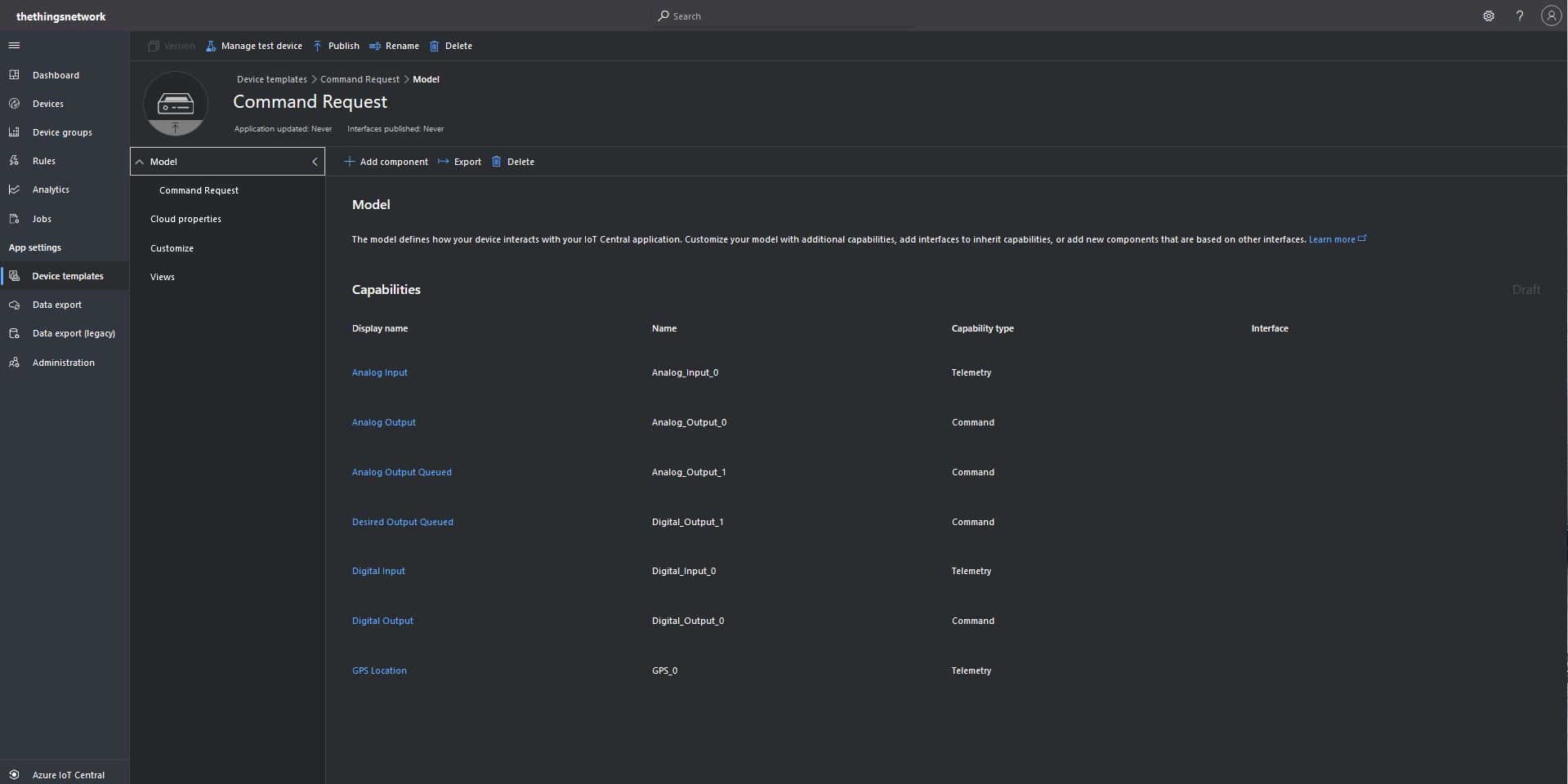
I have built a several Proof of Concept(PoC) applications (Azure IoT Central Basic Telemetry, Basic Commands, and Request Commands) to explore to how an Azure IoT Central integration with TTN could work. This blog post is about how to configure queued and non queued Cloud to Device(C2D) Commands with request parameters so they should work with my TTN Message Queue Telemetry Transport(MQTT) Data API connector.

I have focused on commands with Analog values but the same approach should be valid for other parameter types like Boolean, Date, DateTime, Double, Duration, Enumeration, Float, Geopoint, Vector, Integer, Long, String, and Time.

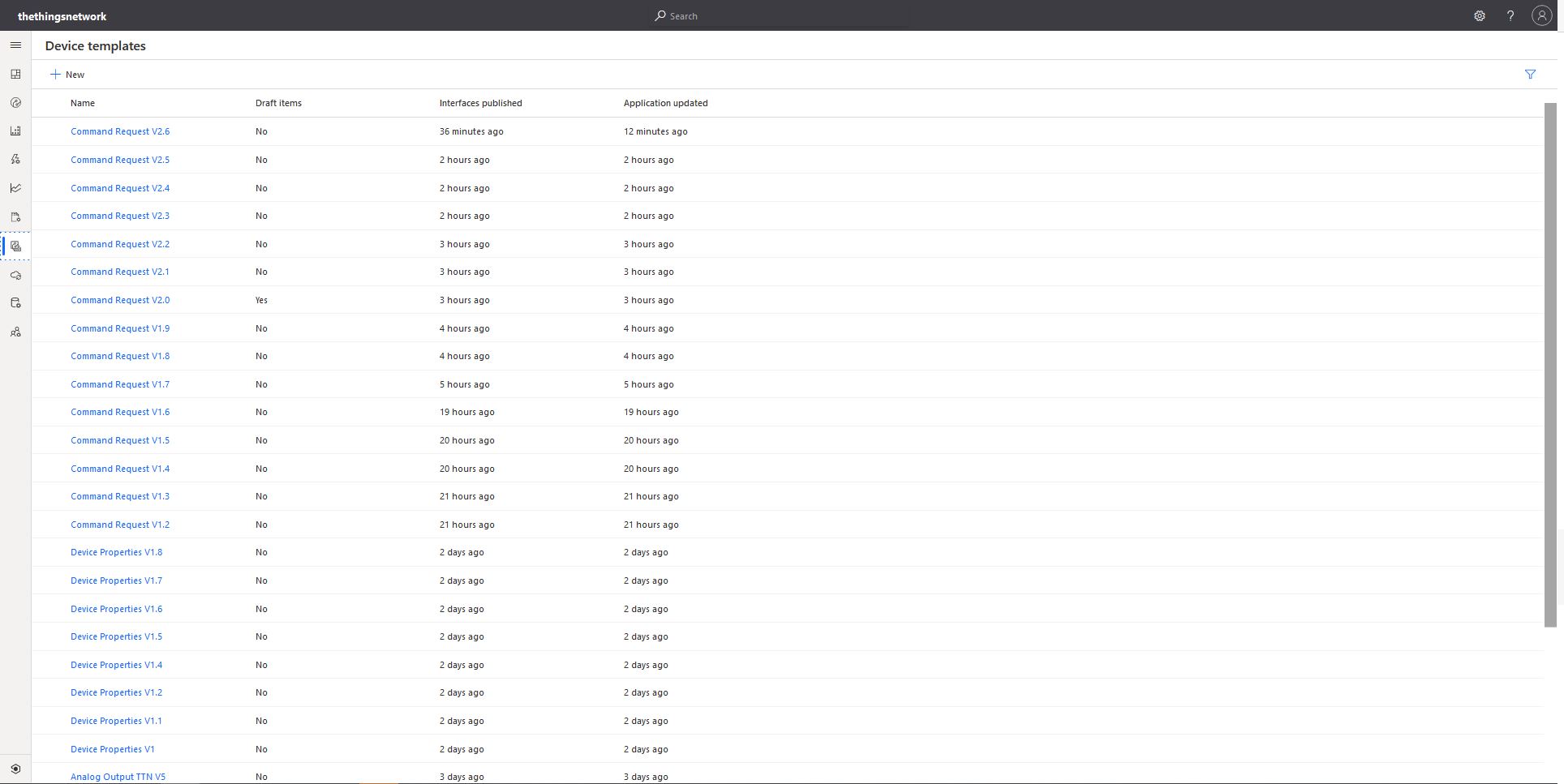
Multiple versions of my Azure IoT Central templates

There was a lot of “trial and error” (26 template versions) required to figure out how to configure commands and queued commands so they can and used in TTN downlink payloads.

{
  "end_device_ids": {
    "device_id": "dev1",
    "application_ids": {
      "application_id": "app1"
    },
    "dev_eui": "4200000000000000",
    "join_eui": "4200000000000000",
    "dev_addr": "00E6F42A"
  },
  "correlation_ids": [
    "my-correlation-id",
    "..."
  ],
  "downlink_ack": {
    "session_key_id": "AWnj0318qrtJ7kbudd8Vmw==",
    "f_port": 15,
    "f_cnt": 11,
    "frm_payload": "....",
    "decoded_payload": 
    {
      "Value_0":"1.23"
      ...
    }
    "confirmed": true,
    "priority": "NORMAL",
    "correlation_ids": [
      "my-correlation-id",
      "..."
    ]
  }
}

My Azure IoT Central client application displays the generated message including the decoded payload field which is used by the built in Low Power Protocol(LPP) decoder/encoder and other custom encoders/decoders.

Azure IoT Central commands for TTN/TTI integration

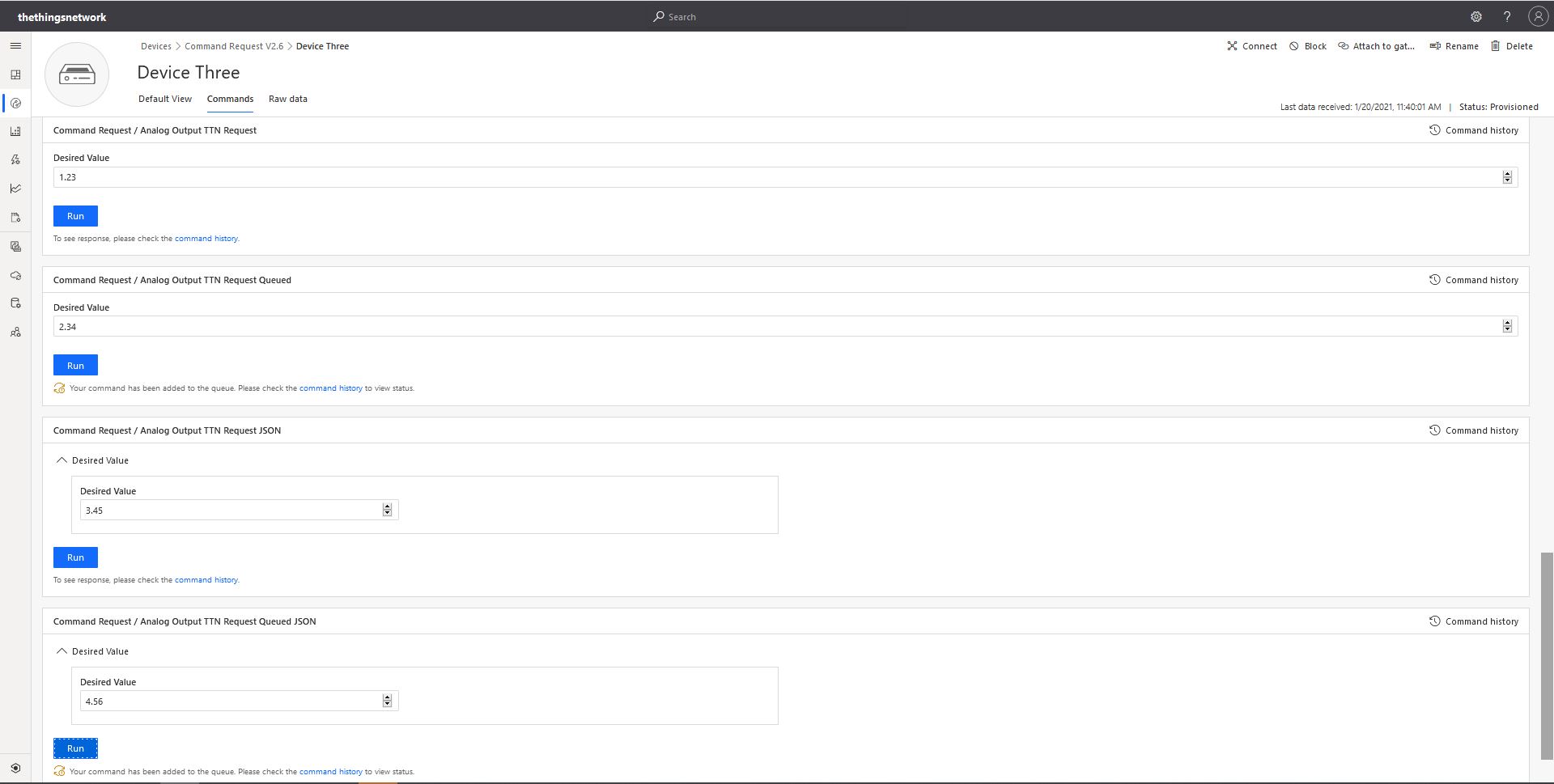
From the “Device Commands” form I can send commands and a queued commands which have float parameters or object parameters which contain one or more float values in a JSON payload.

For commands which call the methodHander which was been registered by calling SetMethodDefaultHandlerAsync the request payload can be JSON or plain text. If the payload is valid JSON it is “grafted”(couldn’t think of a better word) into the decoded_payload field. If the payload is not valid a JSON object with the method name as the “name” and the text payload as the value is added the decoded_payload.

private static async Task<MethodResponse> MethodCallbackDefaultHandler(MethodRequest methodRequest, object userContext)
{
   AzureIoTMethodHandlerContext receiveMessageHandlerConext = (AzureIoTMethodHandlerContext)userContext;

   Console.WriteLine($"Default handler method {methodRequest.Name} was called.");

   Console.WriteLine($"Payload:{methodRequest.DataAsJson}");
   Console.WriteLine();

   if (string.IsNullOrWhiteSpace(methodRequest.Name))
   {
      Console.WriteLine($"   Method Request Name null or white space");
      return new MethodResponse(400);
   }

   string payloadText = Encoding.UTF8.GetString(methodRequest.Data);
   if (string.IsNullOrWhiteSpace(payloadText))
   {
       Console.WriteLine($"   Payload null or white space");
       return new MethodResponse(400);
   }

   // At this point would check to see if Azure DeviceClient is in cache, this is so nasty
   if ( String.Compare( methodRequest.Name, "Analog_Output_1", true) ==0 )
   {
      Console.WriteLine($"   Device not found");
      return new MethodResponse(UTF8Encoding.UTF8.GetBytes("Device not found"), 404);
   }

   JObject payload;

   if (IsValidJSON(payloadText))
   {
      payload = JObject.Parse(payloadText);
   }
   else
   {
      payload = new JObject
      {
         { methodRequest.Name, payloadText }
      };
   }

   string downlinktopic = $"v3/{receiveMessageHandlerConext.ApplicationId}@{receiveMessageHandlerConext.TenantId}/devices/{receiveMessageHandlerConext.DeviceId}/down/push";

   DownlinkPayload downlinkPayload = new DownlinkPayload()
   {
      Downlinks = new List<Downlink>()
      {
         new Downlink()
         {
            Confirmed = false,
            //PayloadRaw = messageBody,
            PayloadDecoded = payload,
            Priority = DownlinkPriority.Normal,
            Port = 10,
            /*
            CorrelationIds = new List<string>()
            {
               methodRequest.LockToken
            }
            */
         }
      }
   };

   Console.WriteLine($"TTN Topic :{downlinktopic}");
   Console.WriteLine($"TTN downlink JSON :{JsonConvert.SerializeObject(downlinkPayload, Formatting.Indented)}");

   return new MethodResponse(200);
}
Configuration of unqueued Commands with a typed payload
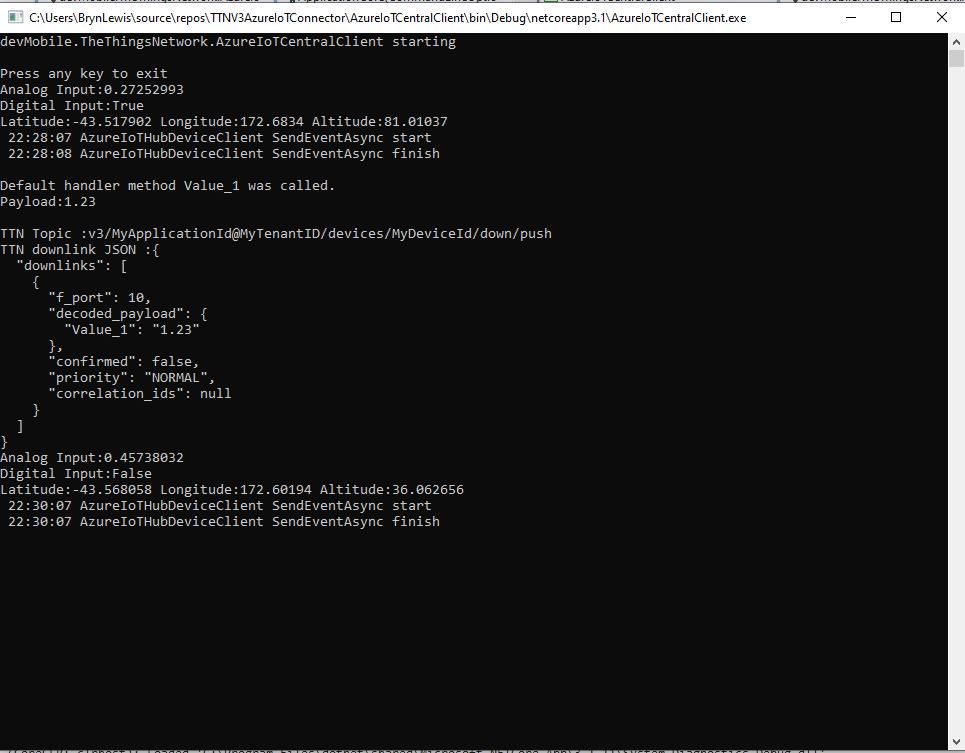
The output of my test harness for a Command for a typed payload
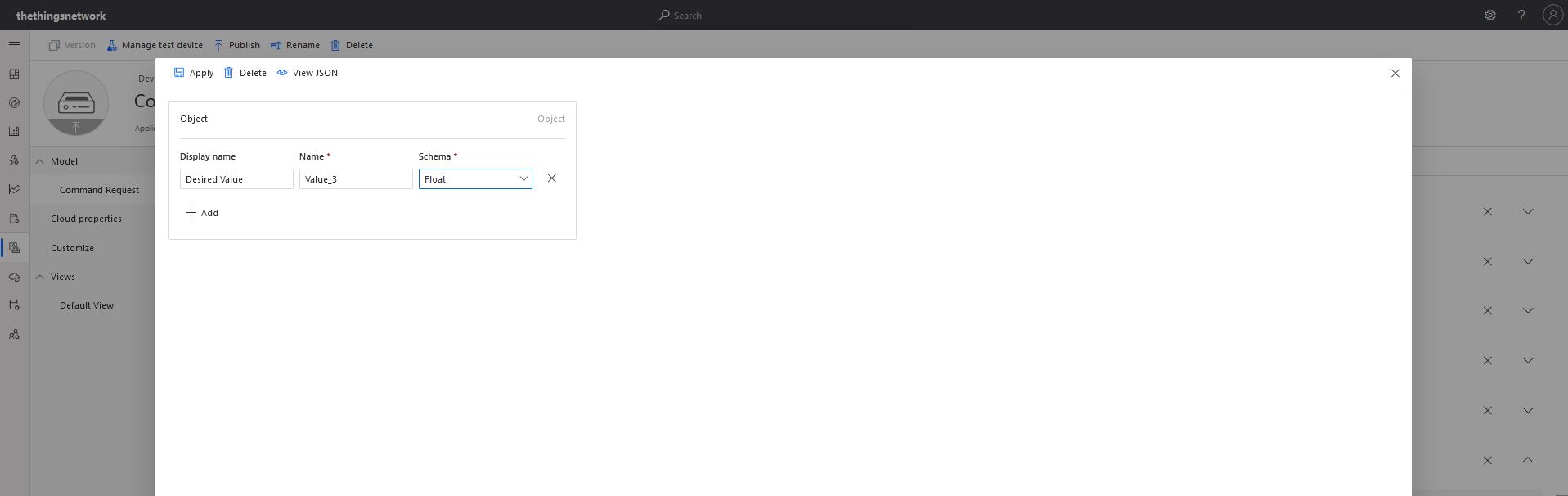
Configuring fields of object payload(JSON)

A JSON request payload also supports downlink messages with more that one value.

The output of my test harness for a Command with an object payload(JSON)

For queued commands which call the ReceiveMessageHandler which has was registered by calling SetReceiveMessageHandler the request payload is JSON or plain text.

private async static Task ReceiveMessageHandler(Message message, object userContext)
{
   AzureIoTMessageHandlerContext receiveMessageHandlerConext = (AzureIoTMessageHandlerContext)userContext;

   Console.WriteLine($"ReceiveMessageHandler handler method was called.");

   Console.WriteLine($" Message ID:{message.MessageId}");
   Console.WriteLine($" Message Schema:{message.MessageSchema}");
   Console.WriteLine($" Correlation ID:{message.CorrelationId}");
   Console.WriteLine($" Lock Token:{message.LockToken}");
   Console.WriteLine($" Component name:{message.ComponentName}");
   Console.WriteLine($" To:{message.To}");
   Console.WriteLine($" Module ID:{message.ConnectionModuleId}");
   Console.WriteLine($" Device ID:{message.ConnectionDeviceId}");
   Console.WriteLine($" User ID:{message.UserId}");
   Console.WriteLine($" CreatedAt:{message.CreationTimeUtc}");
   Console.WriteLine($" EnqueuedAt:{message.EnqueuedTimeUtc}");
   Console.WriteLine($" ExpiresAt:{message.ExpiryTimeUtc}");
   Console.WriteLine($" Delivery count:{message.DeliveryCount}");
   Console.WriteLine($" InputName:{message.InputName}");
   Console.WriteLine($" SequenceNumber:{message.SequenceNumber}");

   foreach (var property in message.Properties)
   {
      Console.WriteLine($"   Key:{property.Key} Value:{property.Value}");
   }

   Console.WriteLine($" Content encoding:{message.ContentEncoding}");
   Console.WriteLine($" Content type:{message.ContentType}");
   string payloadText = Encoding.UTF8.GetString(message.GetBytes());
   Console.WriteLine($" Content:{payloadText}");
   Console.WriteLine();

   if (!message.Properties.ContainsKey("method-name"))
   {
      await receiveMessageHandlerConext.AzureIoTHubClient.RejectAsync(message);
      Console.WriteLine($"   Property method-name not found");
      return;
   }

   string methodName = message.Properties["method-name"];
   if (string.IsNullOrWhiteSpace( methodName))
   {
      await receiveMessageHandlerConext.AzureIoTHubClient.RejectAsync(message);
      Console.WriteLine($"   Property null or white space");
      return;
   }

   if (string.IsNullOrWhiteSpace(payloadText))
   {
      await receiveMessageHandlerConext.AzureIoTHubClient.RejectAsync(message);
      Console.WriteLine($"   Payload null or white space");
      return;
   }

   JObject payload;

   if (IsValidJSON(payloadText))
   {
      payload = JObject.Parse(payloadText);
   }
   else
   {
      payload = new JObject
      {
         { methodName, payloadText }
      };
   }

   string downlinktopic = $"v3/{receiveMessageHandlerConext.ApplicationId}@{receiveMessageHandlerConext.TenantId}/devices/{receiveMessageHandlerConext.DeviceId}/down/push";

   DownlinkPayload downlinkPayload = new DownlinkPayload()
   {
      Downlinks = new List<Downlink>()
      {
         new Downlink()
         {
            Confirmed = false,
            //PayloadRaw = messageBody,
            PayloadDecoded = payload,
            Priority = DownlinkPriority.Normal,
            Port = 10,
            CorrelationIds = new List<string>()
            {
               message.LockToken
            }
         }
      }
   };

   Console.WriteLine($"TTN Topic :{downlinktopic}");
   Console.WriteLine($"TTN downlink JSON :{JsonConvert.SerializeObject(downlinkPayload, Formatting.Indented)}");

   //await receiveMessageHandlerConext.AzureIoTHubClient.AbandonAsync(message); // message retries
   //await receiveMessageHandlerConext.AzureIoTHubClient.CompleteAsync(message);
   await receiveMessageHandlerConext.AzureIoTHubClient.CompleteAsync(message.LockToken);
   //await receiveMessageHandlerConext.AzureIoTHubClient.RejectAsync(message); // message gone no retry
}

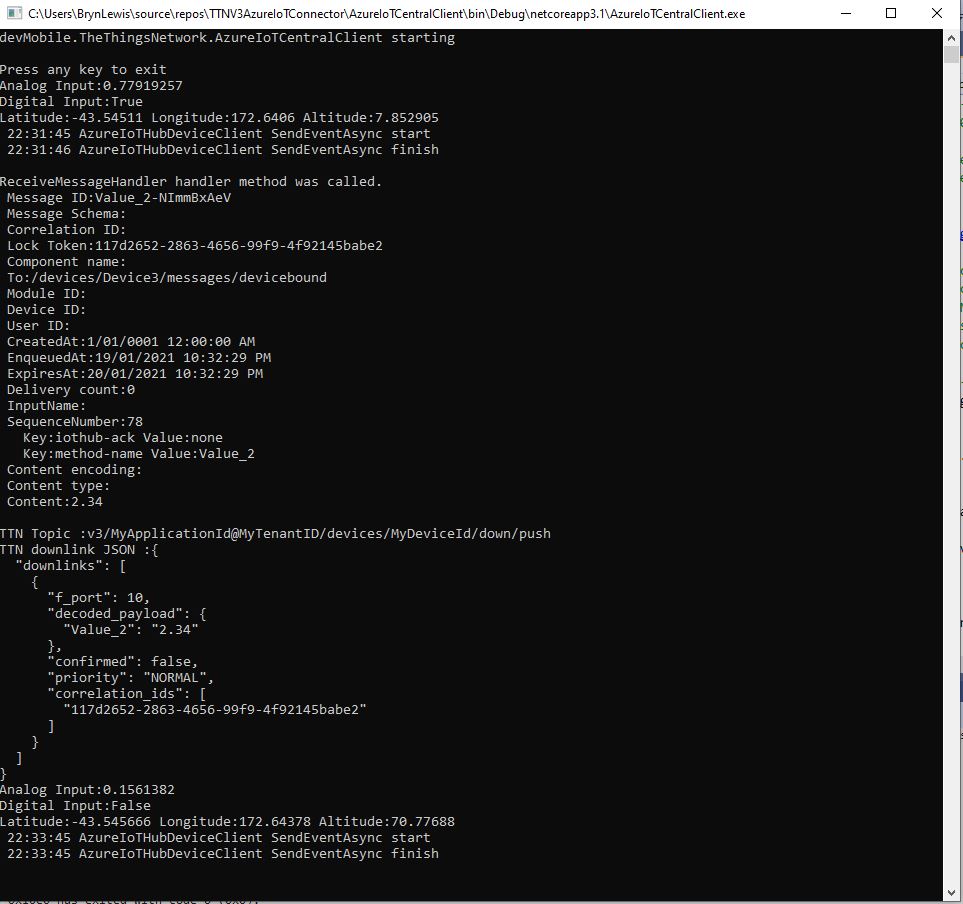
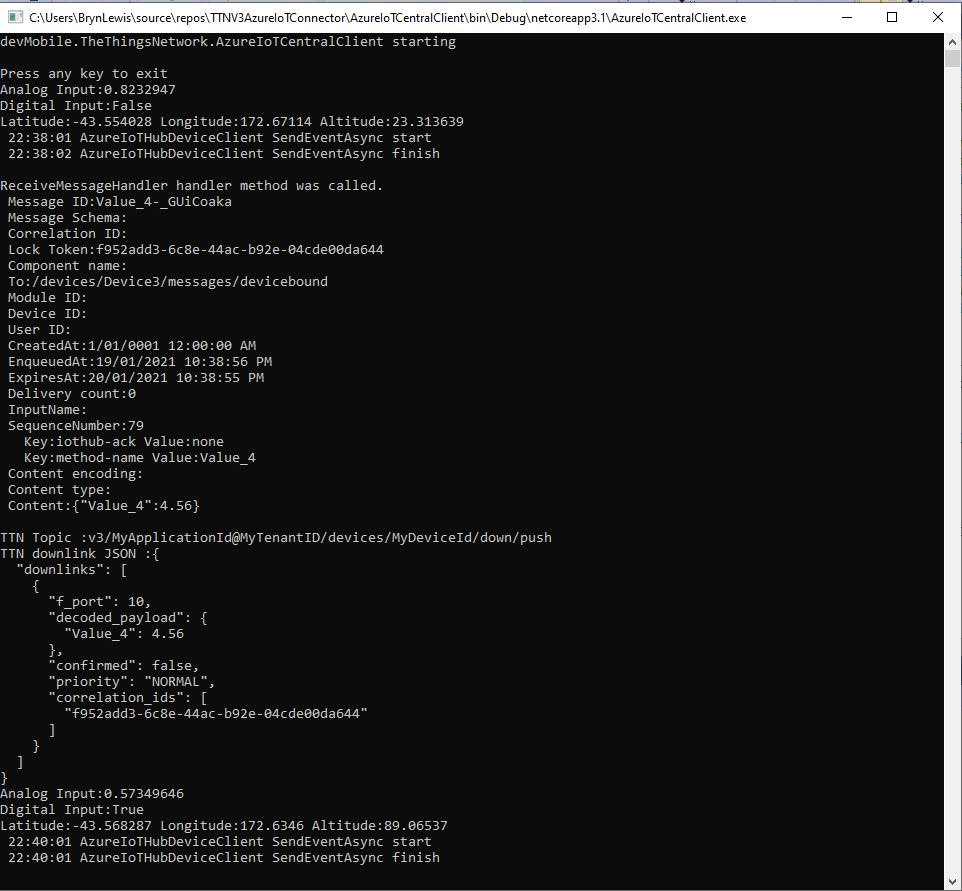
When I initiated an Analog queued command the message handler was invoked with the name of the command capability (Analog_Output_2) in a message property called “method-name”. For a typed parameter the message content was a string representation of the value. For an object parameter the payload contains a JSON representation of the request field(s)

The output of my test harness for a Queued Command with a typed payload

A JSON request payload supports downlink message with more that one value.

The output of my test harness for a Queued Command with an object payload(JSON)

The choice of Value_0, Value_1 (I think they are float64 type) etc. for the decoded_payload is specified in the LPP downlink decode/encoder source code.

The context information for both comments and queued commands provides additional information required to construct the MQTT topic for publishing the downlink messages.

For queued commands the correlation_id will contain the message.LockToken so that messages can be Abandoned, Completed or Rejected. The MQTT broker publishes a series of topics so the progress of the transmission of downlink message can be monitored.

If the device is not known the Abandon method will be called immediately. For command messages Completed will be called as soon as the message is “sent”

  • v3/{application id}@{tenant id}/devices/{device id}/down/queued
  • v3/{application id}@{tenant id}/devices/{device id}/down/sent
  • v3/{application id}@{tenant id}/devices/{device id}/down/ack
  • v3/{application id}@{tenant id}/devices/{device id}/down/nack
  • v3/{application id}@{tenant id}/devices/{device id}/down/failed

For queued messages the point in the delivery process where the Abandoned, Completed and Rejected methods will be called will be configurable.

Azure IoT Central Connectivity Part3

Request Commands

I have built a couple of proof of Concept(PoC) applications to explore the Basic Telemetry and Basic Command functionality of Azure IoT Central. This blog post is about queued and non queued Cloud to Device(C2D) Commands with request parameters.

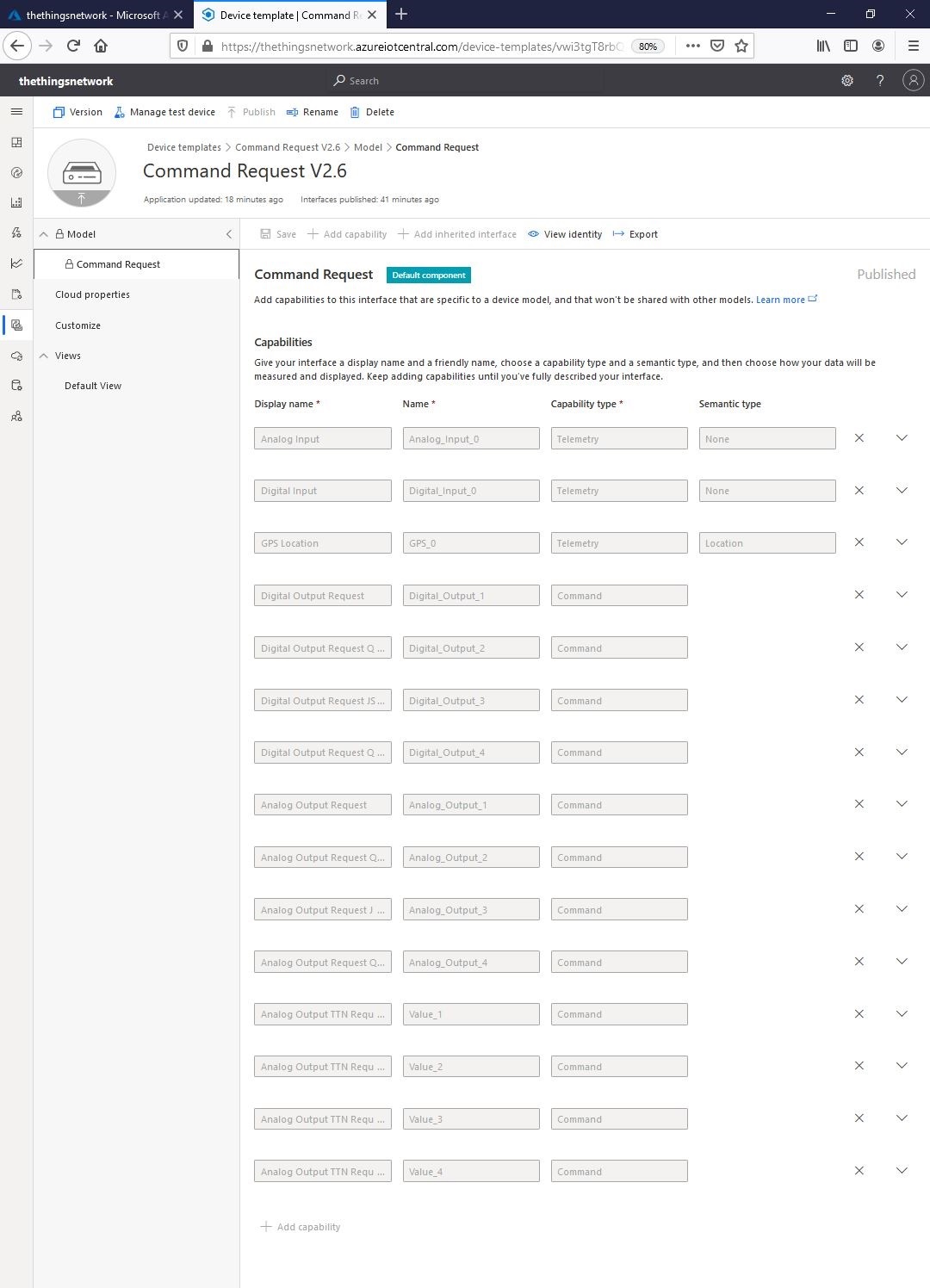
I initially created an Azure IoT Central Device Template with command and telemetry device capabilities.

“Collapsed” Command Request template
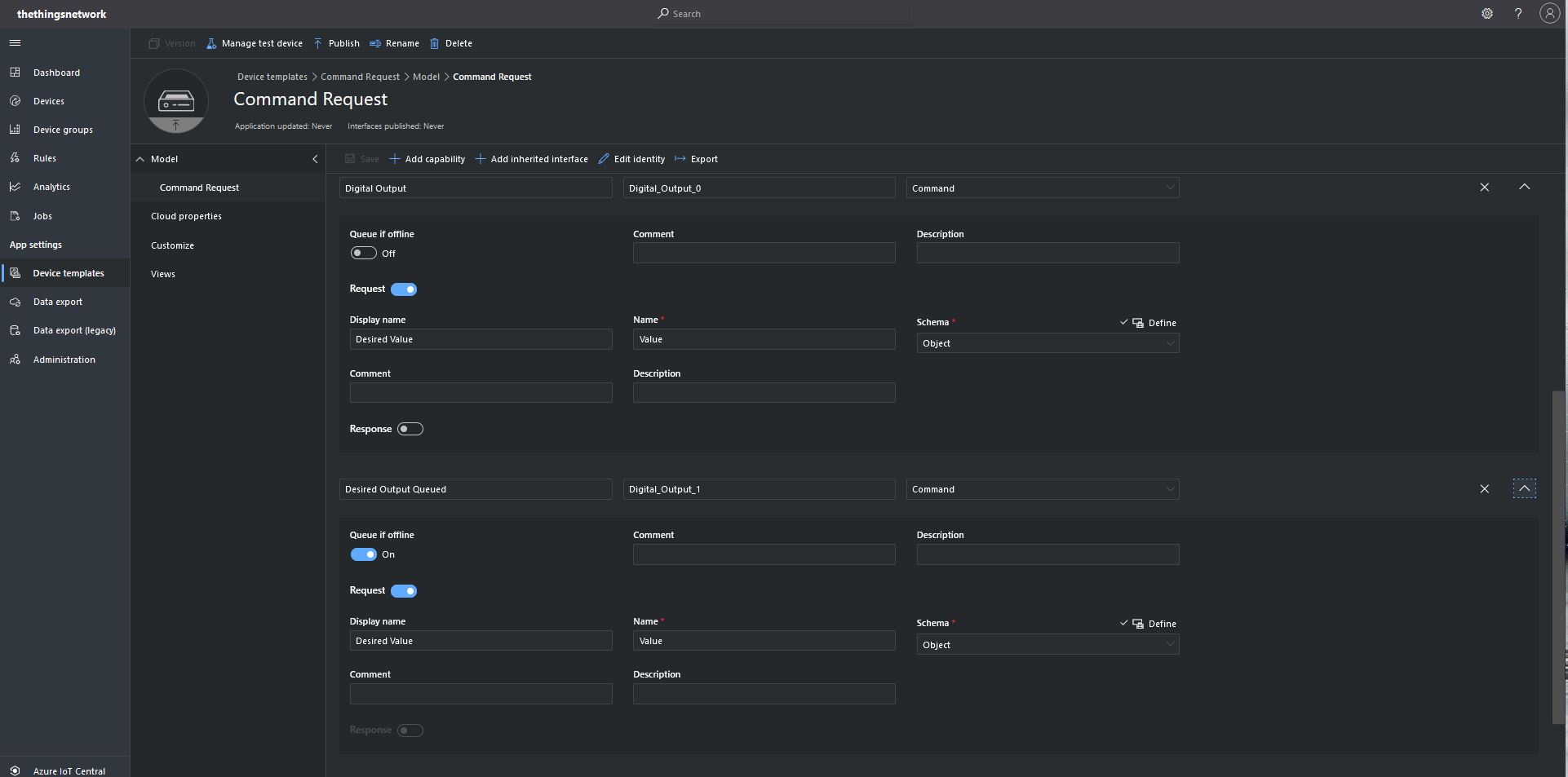
Command Request Template digital commands

I tried typed request and object based parameters to explorer how an integration with The Things Network(TTN)/The Things Industries(TTI) using the Message Queue Telemetry Transport(MQTT) interface could work.

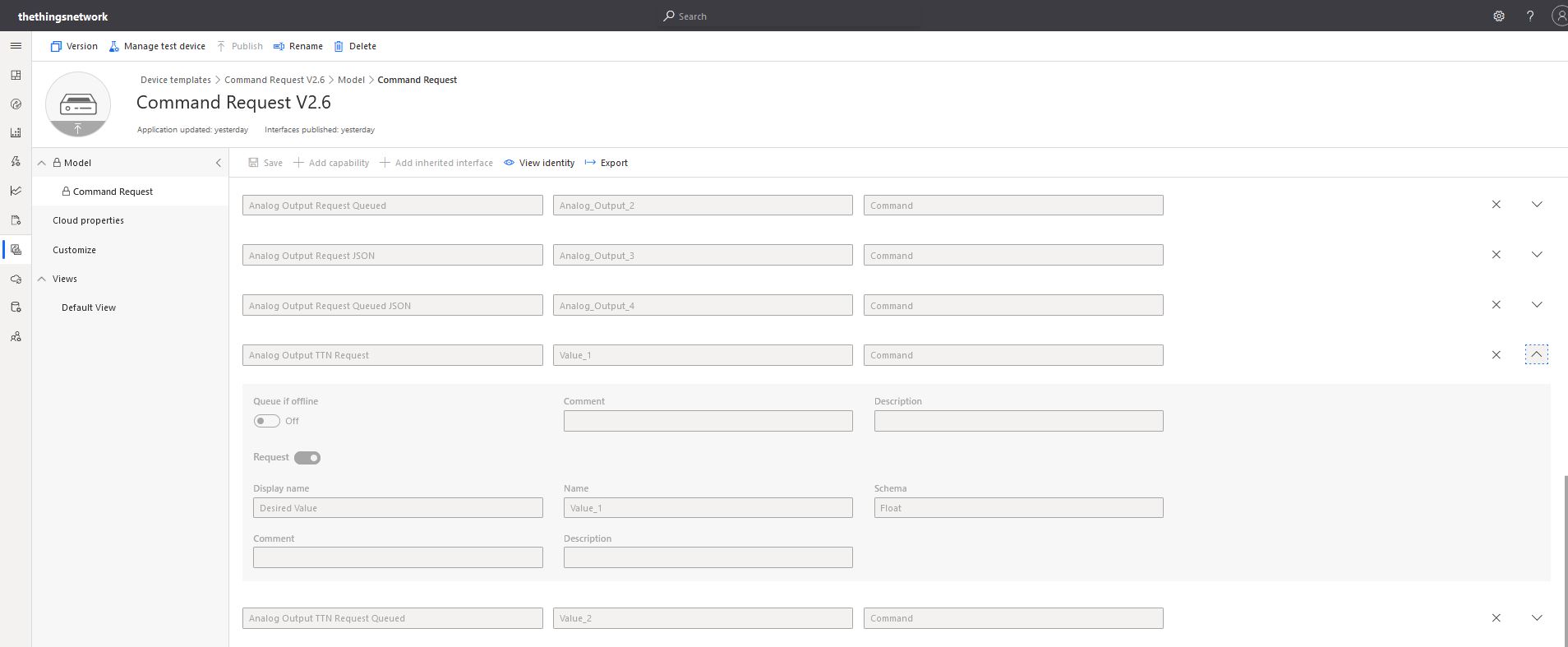
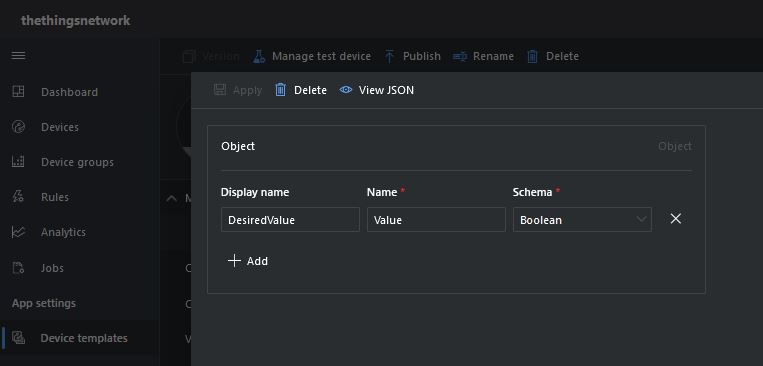
Object parameter schema designer

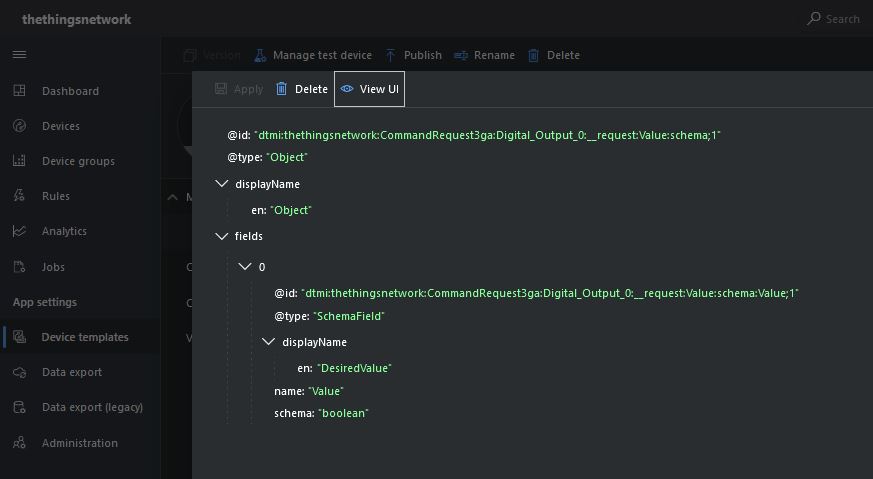
With object based parameters the request JSON could contain more than one value though the validation of user provided information didn’t appear to be as robust.

Object parameter schema definition

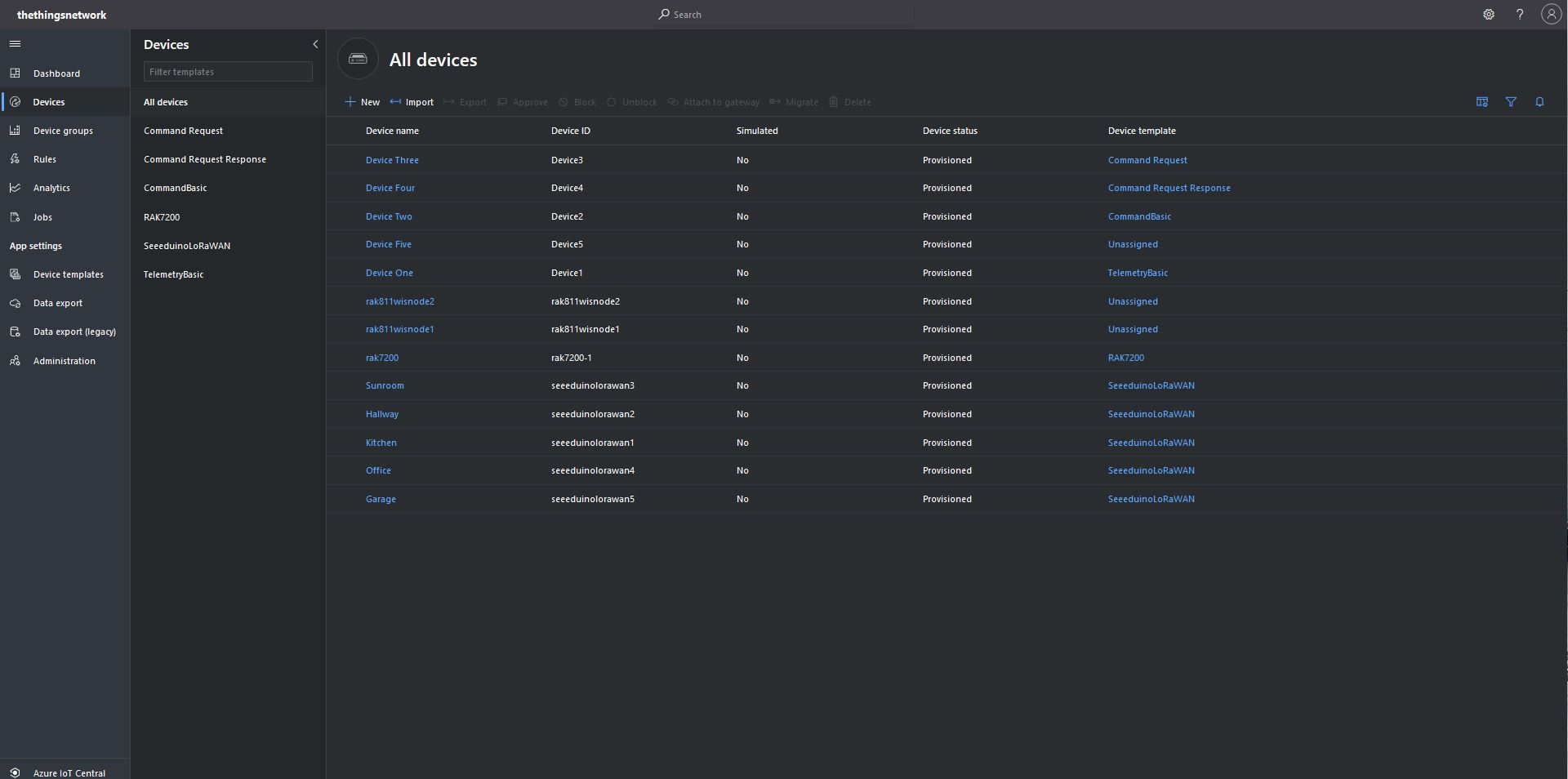
I “migrated” my third preconfigured device to the CommandRequest template to see how the commands with Request parameters interacted with my PoC application.

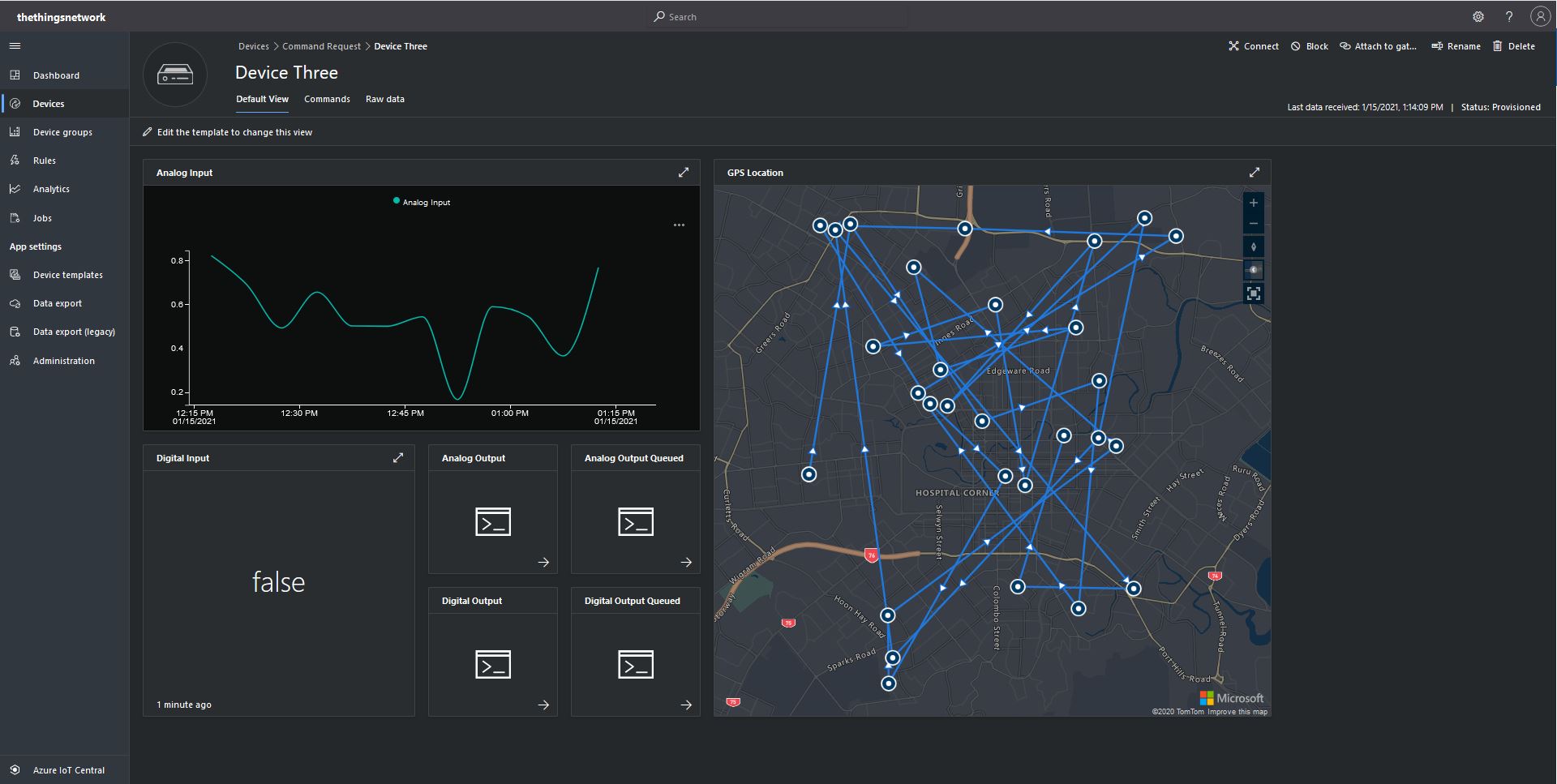
After “migrating” my device I went back and created a Template view so I could visualise the simulated telemetry from my PoC application and provide a way to initiate commands (Didn’t really need four command tiles as they all open the Device commands form).

CommandRequest device template default view

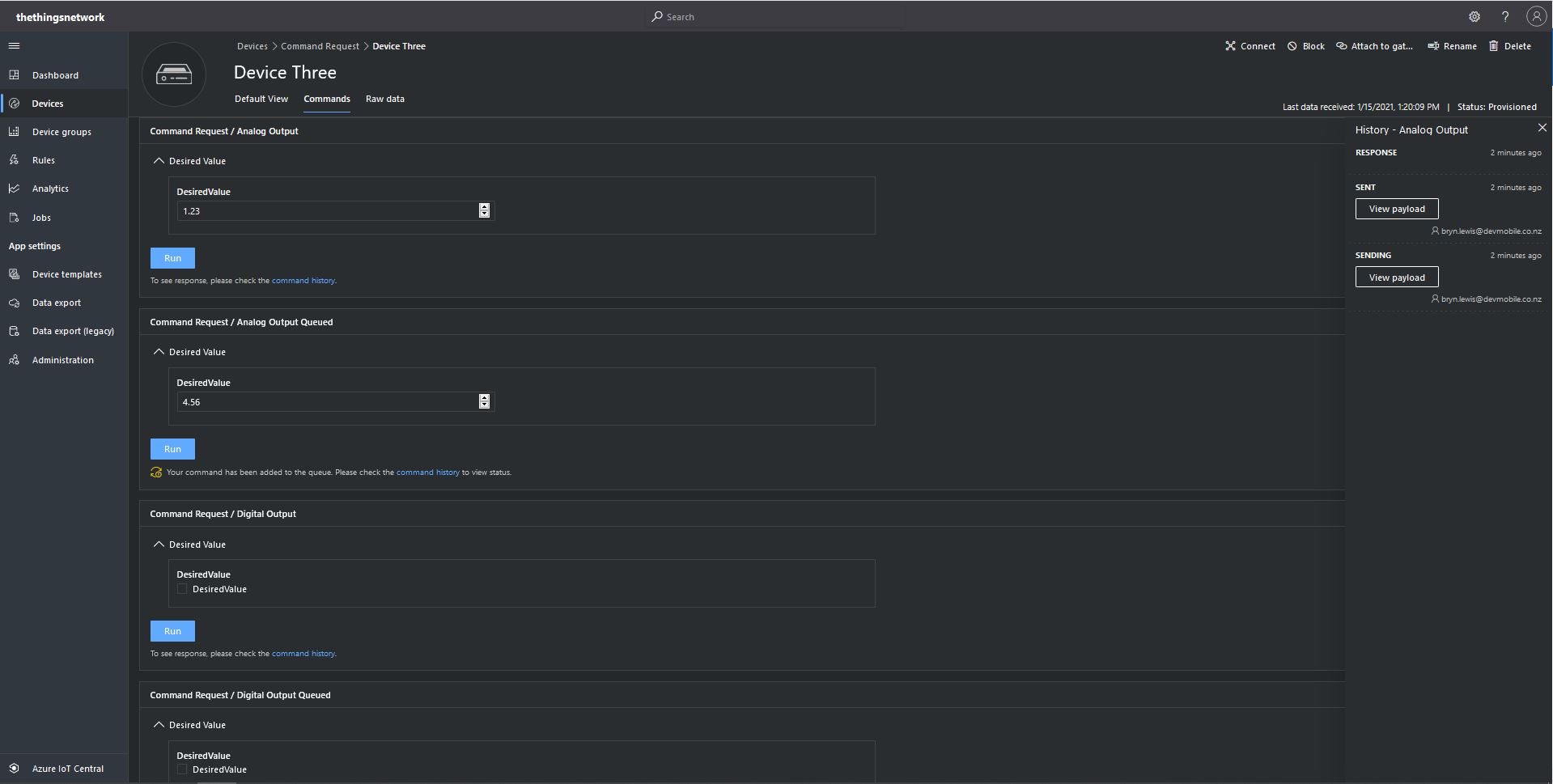
From the Device Commands form I could send commands and a queued commands which had analog or digital parameters.

Device Three Command Tab

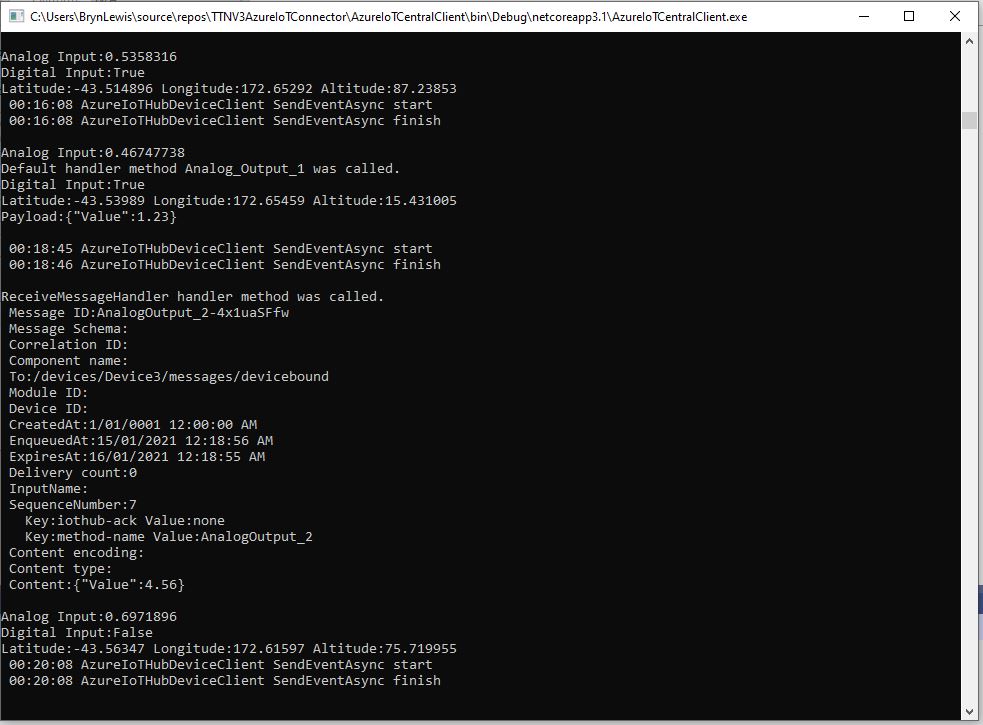
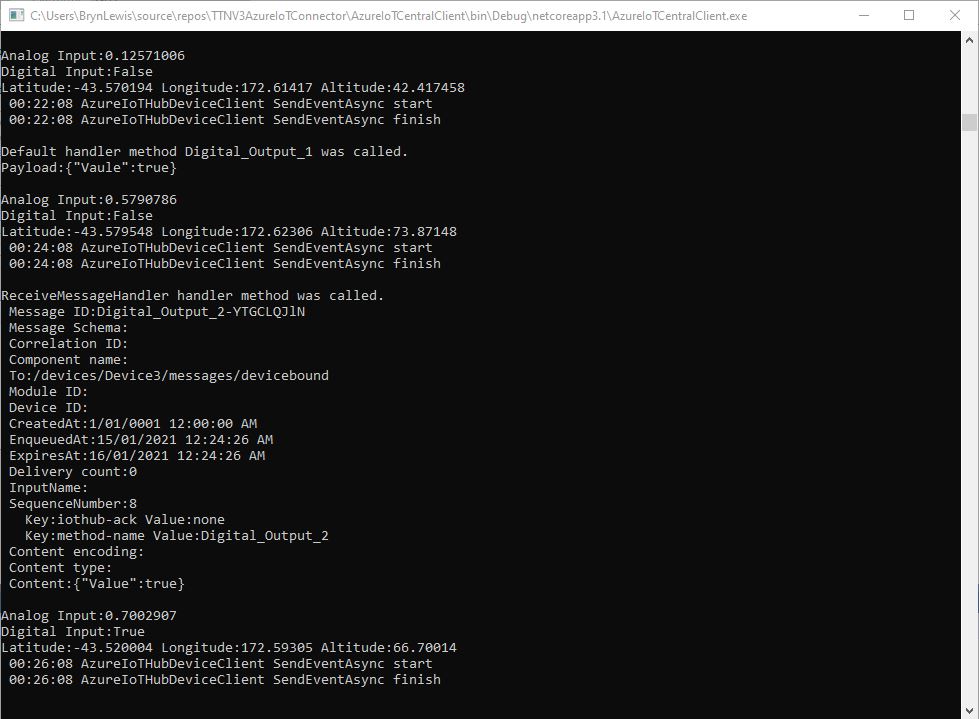
When I initiated an Analog non-queued command the default method handler was invoked with the name of the command capability (Analog_Output_1) as the method name and the payload contained a JSON representation of the request values(s). With a typed parameter a string representation of the value was in the message payload. With a typed parameter a string representation of the value was in the message payload rather than JSON.

Console application displaying Analog request and Analog Request queued commands

When I initiated an Analog queued command the message handler was invoked with the name of the command capability (Analog_Output_2) in a message property called “method-name” and the payload contained a JSON representation of the request value(s). With a typed parameter a string representation of the value was in the message payload rather than JSON.

When I initiated a Digital non-queued command the default method handler was invoked with the name of the command capability (Digital_Output_1) as the method name and the payload contained a JSON representation of the request values(s). With a typed parameter a string representation of the value was in the message payload rather than JSON.

Console application displaying Digital request and Digital Request queued commands

When I initiated a Digital queued command the message handler was invoked with the name of the command capability(Digital_Output_2) in a message property called “method-name” and the payload contained a JSON representation of the request value(s). With a typed parameter a string representation of the value was in the message payload rather than JSON.

The validation of user input wasn’t as robust as I expected, with problems selecting checkboxes with a mouse when there were several Boolean fields. I often had to click on a nearby input field and use the TAB button to navigate to the desired checkbox. I also had problems with ISO 8601 format date validation as the built in Date Picker returned a month, day, year date which was not editable and wouldn’t pass validation.

The next logical step would be to look at commands with a Response parameter but as the MQTT interface is The Things Network(TTN) and The Things Industries(TTI) is asynchronous and devices reporting every 5 minutes to a couple of times a day there could be a significant delay between sending a message and receiving an optional delivery confirmation or response.

Azure IoT Central Connectivity Part2

Basic Commands

I have been struggling with making The Things Network(TTN) and The Things Industries(TTI) uplink/downlink messages work well Azure IoT Central. To explore different messaging approaches I have built a proof of Concept(PoC) application which simulates TTN/TTI connectivity to an Azure IoT Hub, or Azure IoT Central.

This blog post is about queued and non queued Cloud to Device(C2D) commands without request or response parameters. I have mostly used non queued commands in other projects (my Azure IoT Hub LoRa and RF24L01 gateways) to “Restart” devices etc..

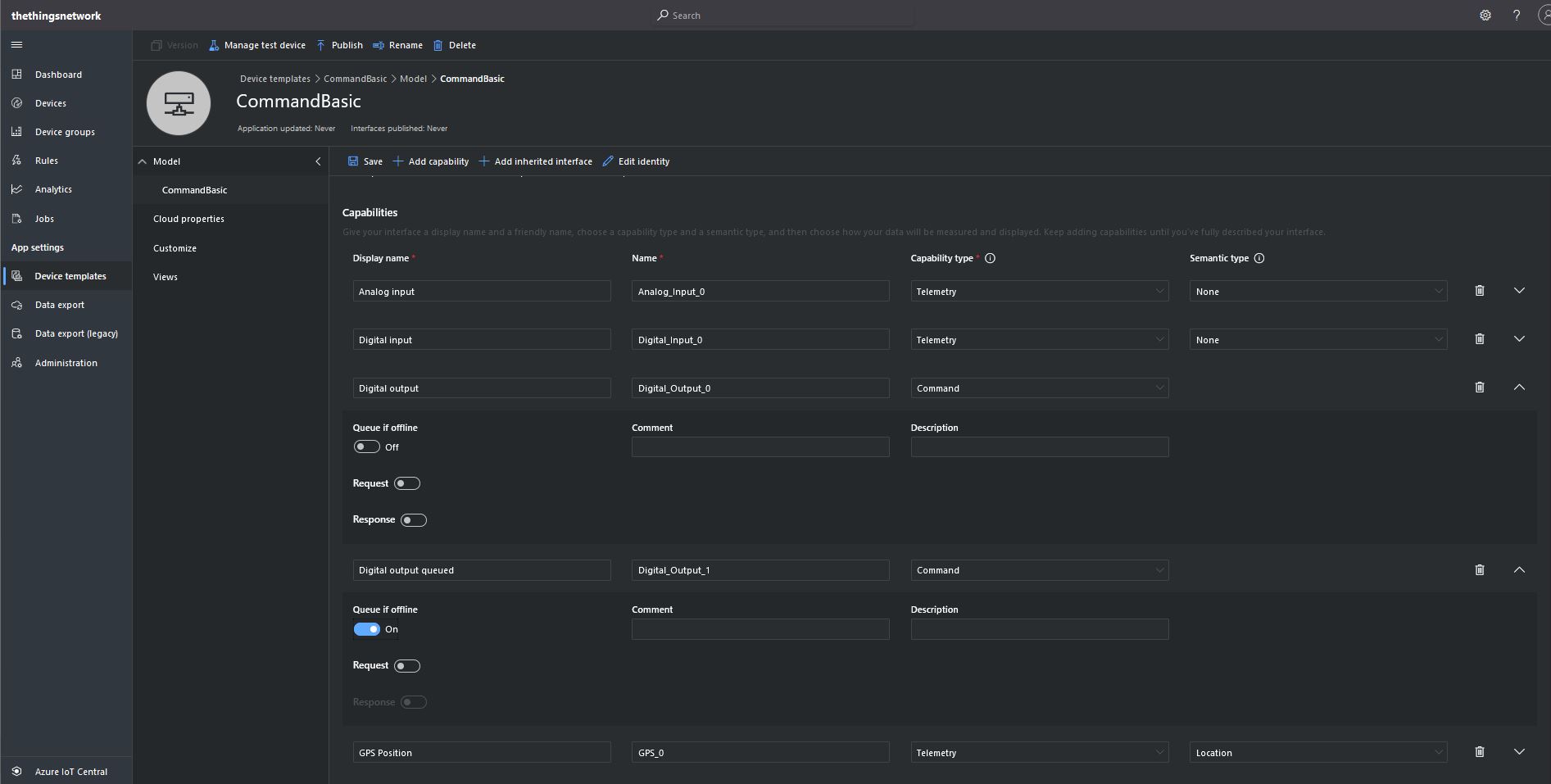
The first step was to create an Azure IoT Central Device Template with command and telemetry device capabilities.

CommandBasic device template device with command & telemetry capabilities

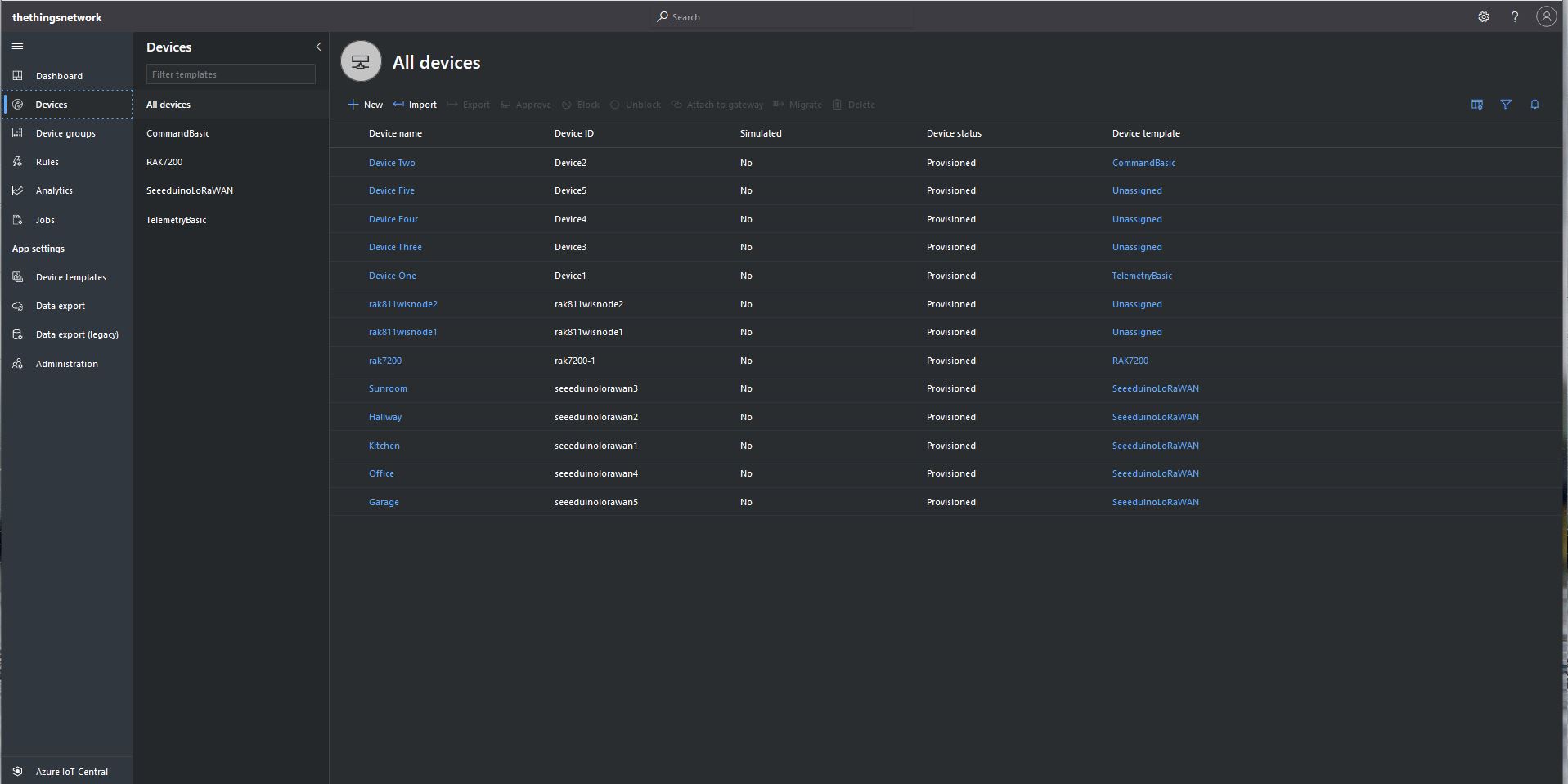
I then “migrated” my second preconfigured device to the CommandBasic template.

Migrating a device to TelemetryBasic template

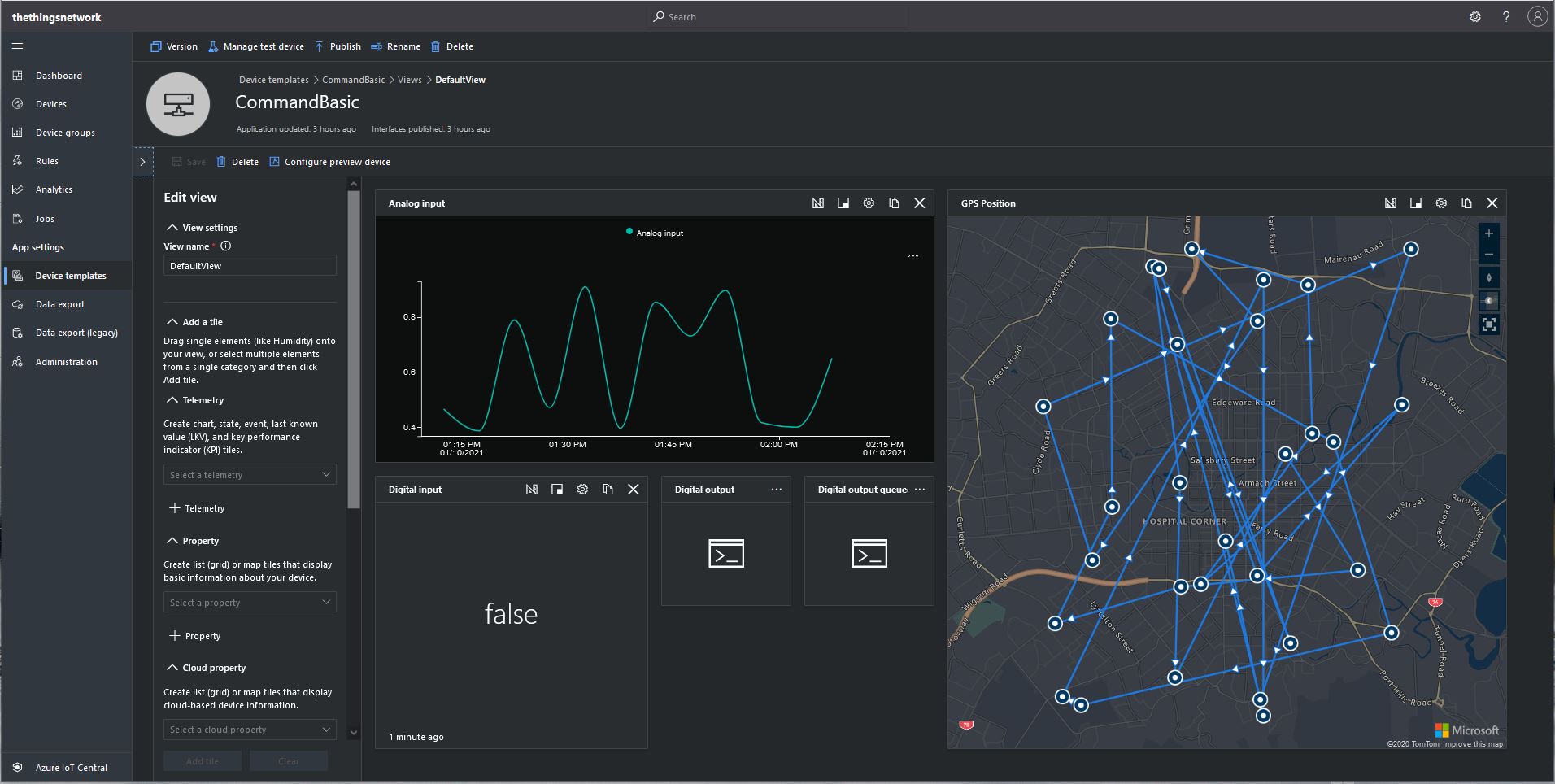
I then went back and created a Template view to visualise the telemetry from my console application and initiate commands.

CommandBasic device template default view

I modified the PoC application adding handlers for Methods (SetMethodDefaultHandlerAsync) and Messages (SetReceiveMessageHandlerAsync).

private static async Task ApplicationCore(CommandLineOptions options)
{
   DeviceClient azureIoTHubClient;
   Timer MessageSender;

   try
   {
      // Open up the connection
      azureIoTHubClient = DeviceClient.CreateFromConnectionString(options.AzureIoTHubconnectionString, TransportType.Amqp_Tcp_Only);

      await azureIoTHubClient.OpenAsync();
      await azureIoTHubClient.SetReceiveMessageHandlerAsync(ReceiveMessageHandler, azureIoTHubClient);
      await azureIoTHubClient.SetMethodHandlerAsync("Named", MethodCallbackNamedHandler, null);
      await azureIoTHubClient.SetMethodDefaultHandlerAsync(MethodCallbackDefaultHandler, null);

      MessageSender = new Timer(TimerCallbackAsync, azureIoTHubClient, new TimeSpan(0, 0, 10), new TimeSpan(0, 2, 0));

      Console.WriteLine("Press any key to exit");
      while (!Console.KeyAvailable)
      {
         await Task.Delay(100);
      }
   }
   catch (Exception ex)
   {
      Console.WriteLine($"Main {ex.Message}");
      Console.WriteLine("Press <enter> to exit");
      Console.ReadLine();
   }
}

The method handler displays the method name and the message payload.

private static async Task<MethodResponse> MethodCallbackDefaultHandler(MethodRequest methodRequest, object userContext)
{
   Console.WriteLine($"Default handler method {methodRequest.Name} was called.");

   Console.WriteLine($"Payload:{methodRequest.DataAsJson}");
   Console.WriteLine();

   //return new MethodResponse(400);
   //return new MethodResponse(404);
   return new MethodResponse(200);
}

The message handler displays a selection the message properties, any attributes and the message payload.

 private async static Task ReceiveMessageHandler(Message message, object userContext)
{
   DeviceClient azureIoTHubClient = (DeviceClient)userContext;

   Console.WriteLine($"ReceiveMessageHandler handler method was called.");

   Console.WriteLine($" Message ID:{message.MessageId}");
   Console.WriteLine($" Message Schema:{message.MessageSchema}");
   Console.WriteLine($" Correlation ID:{message.CorrelationId}");
   Console.WriteLine($" Component name:{message.ComponentName}");
   Console.WriteLine($" To:{message.To}");
   Console.WriteLine($" Module ID:{message.ConnectionModuleId}");
   Console.WriteLine($" Device ID:{message.ConnectionDeviceId}");
   Console.WriteLine($" CreatedAt:{message.CreationTimeUtc}");
   Console.WriteLine($" EnqueuedAt:{message.EnqueuedTimeUtc}");
   Console.WriteLine($" ExpiresAt:{message.ExpiryTimeUtc}");
   Console.WriteLine($" Delivery count:{message.DeliveryCount}");
   Console.WriteLine($" InputName:{message.InputName}");
   Console.WriteLine($" SequenceNumber:{message.SequenceNumber}");

   foreach (var property in message.Properties)
   {
     Console.WriteLine($"   Key:{property.Key} Value:{property.Value}");
   }

   Console.WriteLine($" Content encoding:{message.ContentEncoding}");
   Console.WriteLine($" Content type:{message.ContentType}");
   Console.WriteLine($" Content:{Encoding.UTF8.GetString(message.GetBytes())}");
   Console.WriteLine();

   //await azureIoTHubClient.AbandonAsync(message); // message retries
   await azureIoTHubClient.CompleteAsync(message);
   //await azureIoTHubClient.RejectAsync(message); // message gone no retry
}

From the Device Commands tab I can could non queued and a queued commands

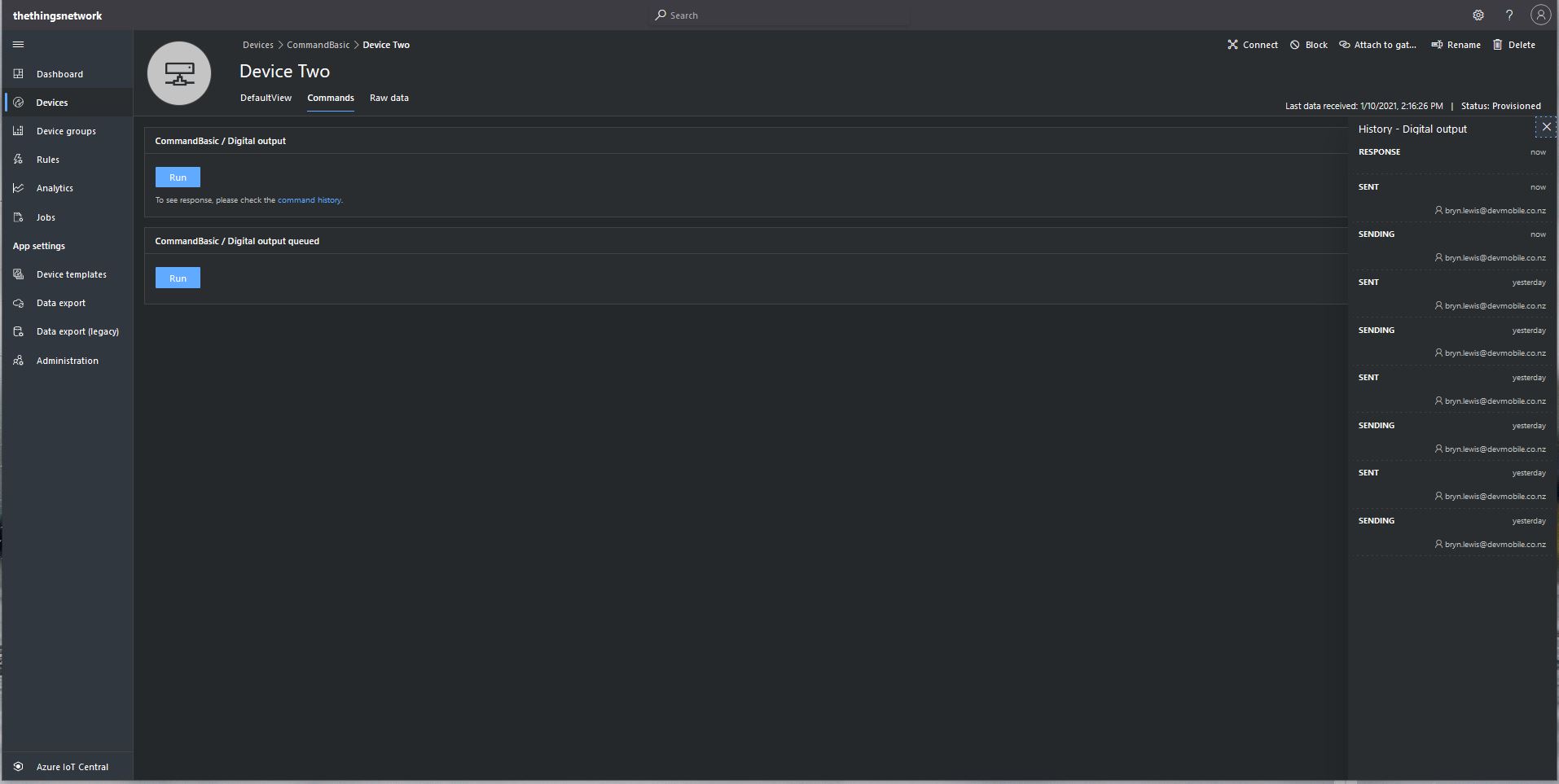
Device Two Commands tab

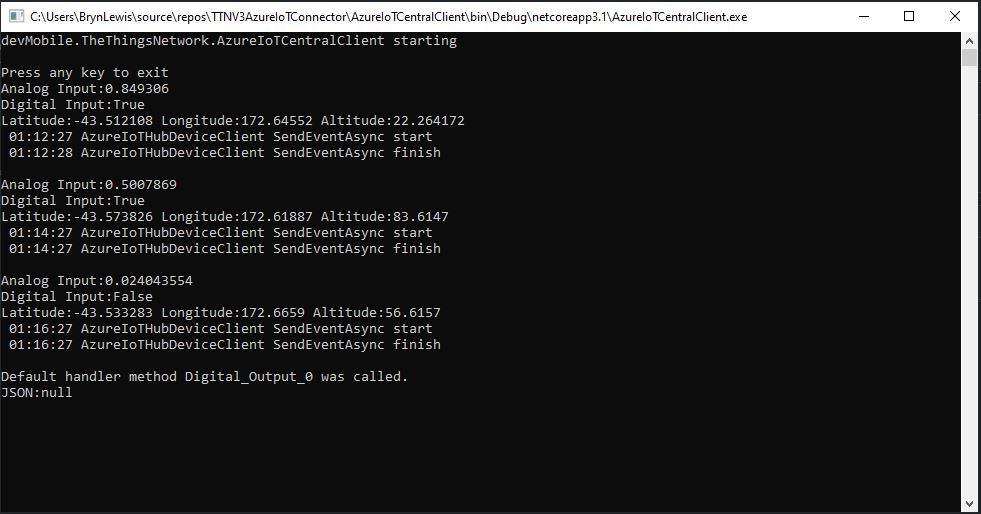
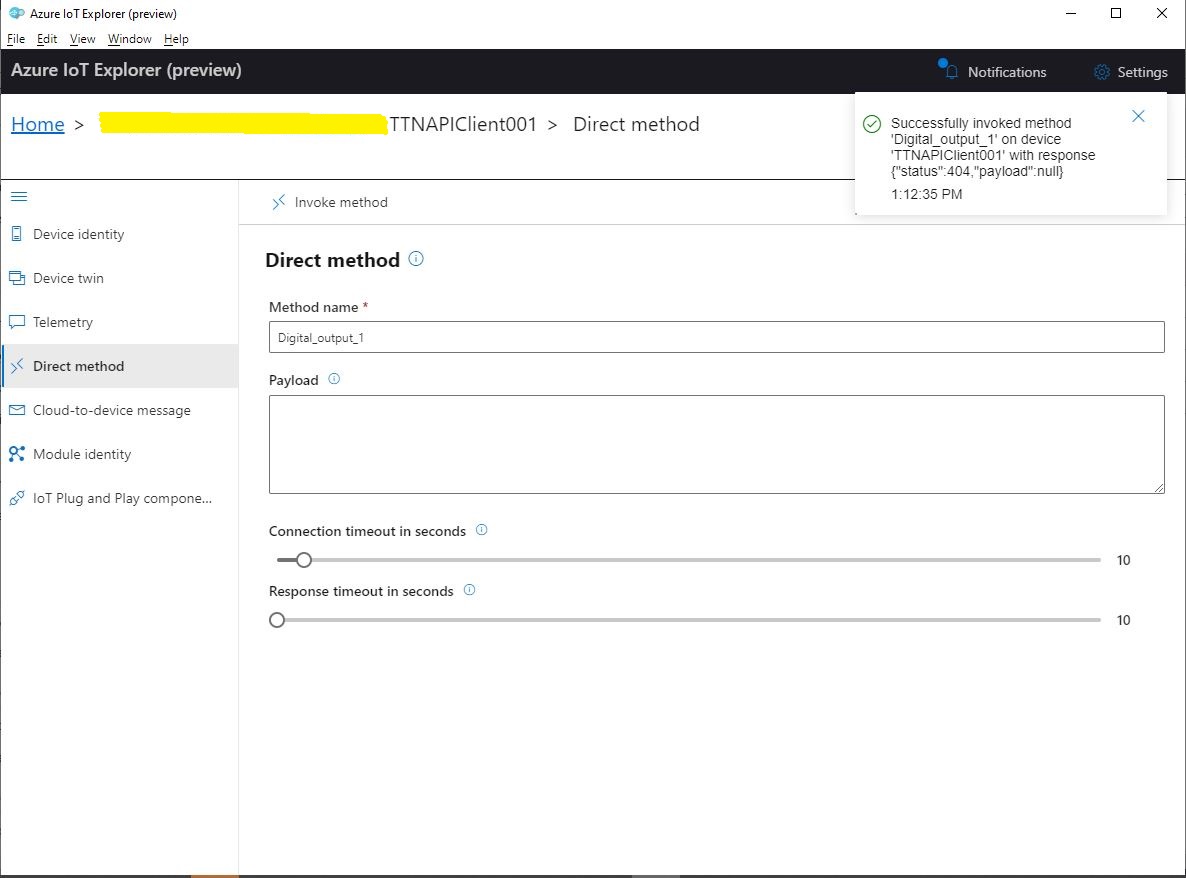
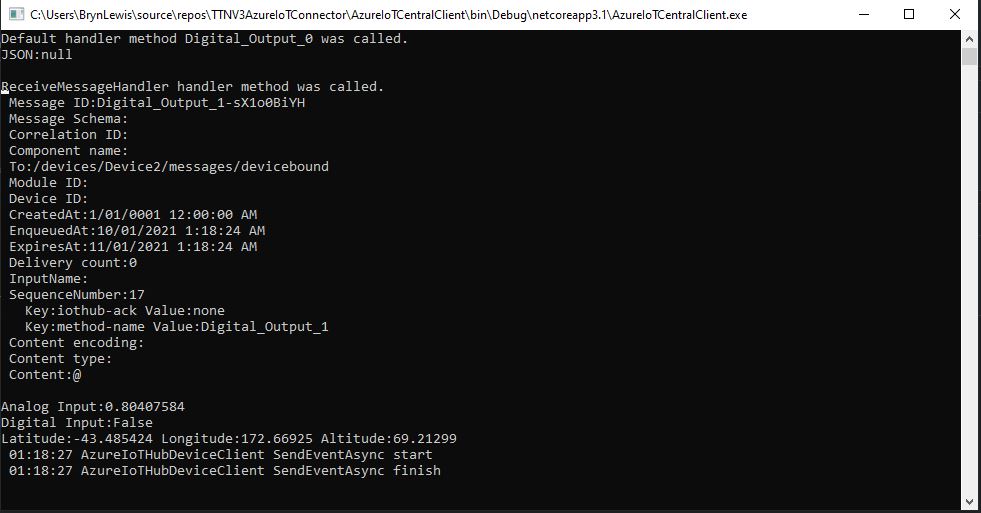
When I sent a non-queued command the default method handler was invoked with the name of the command capability (Digital_Output_0) as the method name and an empty payload. In the Azure IoT Central interface I couldn’t see any difference for successful (HTTP 200 OK) or failure (HTTP 400 Bad Request or HTTP 404 Not Found) responses. If the application was not running the command failed immediately.

Console application displaying non-queued call

With Azure IoT Explorer failure responses were visible.

Azure IoT Explorer show message with 404 response

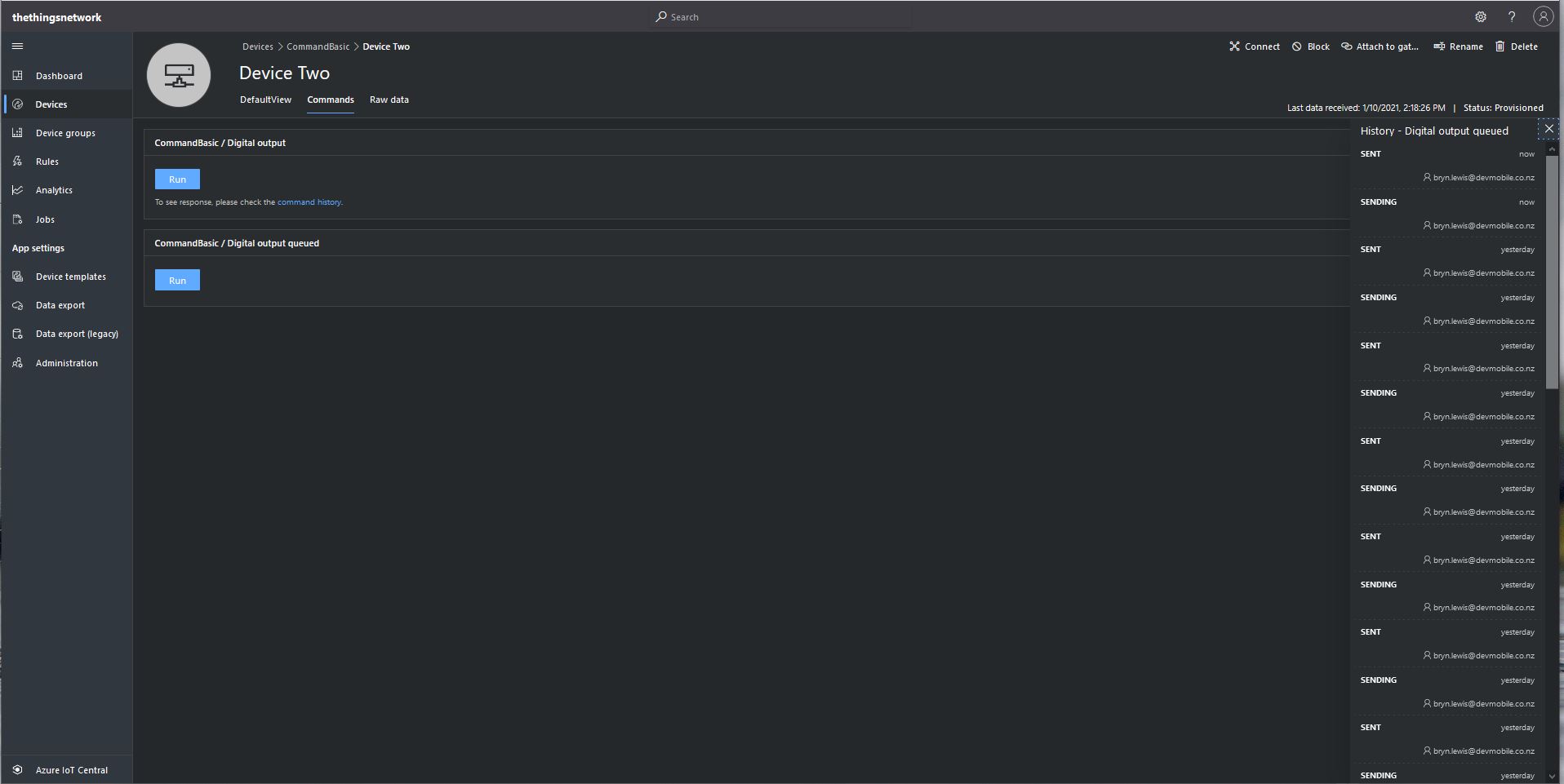
When I sent a queued command the message handler was invoked with the name of the command capability(Digital_Output_1) in a message property called “method-name” and the payload contained only an “@” character.

Console application displaying queued call

If the application was not running the command was queued until the Console application was started. When the console application was running and AbandonAsync was called rather than CompleteAsync the message was retried 10 times. If RejectAsync was called rather than CompleteAsync the message was deleted from the queue and not retried. There didn’t appear to be any difference for the displayed Azure IoT Central or Azure IoT Hub explorer results when AbandonAsync or RejectAsync were called.

I also created a personal dashboard to visualise the telemetry data and initiate commands. The way the two commands were presented on the dashboard was quite limited so I will go back to the documentation and see what I missed