Security Camera Azure IoT Hub Image upload

The final two projects of this series both upload images to the Azure Storage account associated with an Azure IoT Hub. One project uses a Timer to upload pictures with a configurable delay. The other uploads an image every time a General Purpose Input Output(GPIO) pin on the Raspberry PI3 is strobed.
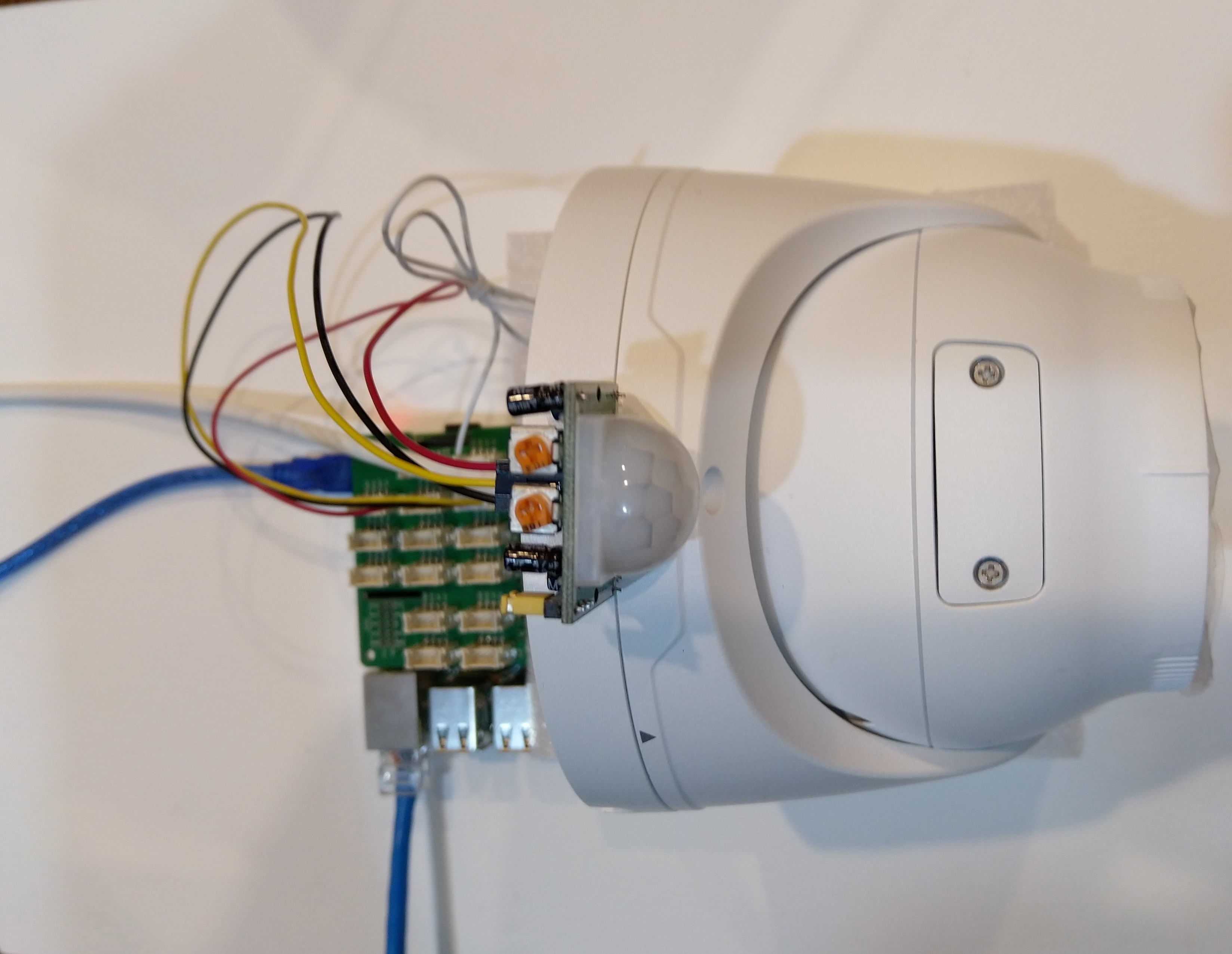
Uniview IPC3635SB-ADZK-I0 Security camera test rig with Raspberry PI and PIR motion detector

I tried to keep the .Net Core 5 console applications as simple as possible, they download an image from the camera “snapshot” endpoint (In this case http://10.0.0.47:85/images/snapshot.jpg), save it to the local filesystem and then upload it.

The core of the two applications is the “upload” image method, which is called by a timer or GPIO pin EventHandler

private static async void ImageUpdateTimerCallback(object state)
{
	CommandLineOptions options = (CommandLineOptions)state;
	DateTime requestAtUtc = DateTime.UtcNow;

	// Just incase - stop code being called while retrival of the photo already in progress
	if (cameraBusy)
	{
		return;
	}
	cameraBusy = true;

	Console.WriteLine($"{requestAtUtc:yy-MM-dd HH:mm:ss} Image up load start");

	try
	{
		// First go and get the image file from the camera onto local file system
		using (var client = new WebClient())
		{
			NetworkCredential networkCredential = new NetworkCredential()
			{
				UserName = options.UserName,
				Password = options.Password
			};

			client.Credentials = networkCredential;

			await client.DownloadFileTaskAsync(new Uri(options.CameraUrl), options.LocalFilename);
		}

		// Then open the file ready to stream ito upto storage account associated with Azuure IoT Hub
		using (FileStream fileStreamSource = new FileStream(options.LocalFilename, FileMode.Open))
		{
			var fileUploadSasUriRequest = new FileUploadSasUriRequest
			{
				BlobName = string.Format("{0:yyMMdd}/{0:yyMMddHHmmss}.jpg", requestAtUtc)
			};

			// Get the plumbing sorted for where the file is going in Azure Storage
			FileUploadSasUriResponse sasUri = await azureIoTCentralClient.GetFileUploadSasUriAsync(fileUploadSasUriRequest);
			Uri uploadUri = sasUri.GetBlobUri();

			try
			{
				var blockBlobClient = new BlockBlobClient(uploadUri);

				var response = await blockBlobClient.UploadAsync(fileStreamSource, new BlobUploadOptions());

				var successfulFileUploadCompletionNotification = new FileUploadCompletionNotification()
				{
					// Mandatory. Must be the same value as the correlation id returned in the sas uri response
					CorrelationId = sasUri.CorrelationId,

					// Mandatory. Will be present when service client receives this file upload notification
					IsSuccess = true,

					// Optional, user defined status code. Will be present when service client receives this file upload notification
					StatusCode = 200,

					// Optional, user-defined status description. Will be present when service client receives this file upload notification
					StatusDescription = "Success"
				};

				await azureIoTCentralClient.CompleteFileUploadAsync(successfulFileUploadCompletionNotification);
			}
			catch (Exception ex)
			{
				Console.WriteLine($"Failed to upload file to Azure Storage using the Azure Storage SDK due to {ex}");

				var failedFileUploadCompletionNotification = new FileUploadCompletionNotification
				{
					// Mandatory. Must be the same value as the correlation id returned in the sas uri response
					CorrelationId = sasUri.CorrelationId,

					// Mandatory. Will be present when service client receives this file upload notification
					IsSuccess = false,

					// Optional, user-defined status code. Will be present when service client receives this file upload notification
					StatusCode = 500,

					// Optional, user defined status description. Will be present when service client receives this file upload notification
					StatusDescription = ex.Message
				};

				await azureIoTCentralClient.CompleteFileUploadAsync(failedFileUploadCompletionNotification);
			}
		}

		TimeSpan uploadDuration = DateTime.UtcNow - requestAtUtc;

		Console.WriteLine($"{requestAtUtc:yy-MM-dd HH:mm:ss} Image up load done. Duration:{uploadDuration.TotalMilliseconds:0.} mSec");
	}
	catch (Exception ex)
	{
		Console.WriteLine($"Camera image upload process failed {ex.Message}");
	}
	finally
	{
		cameraBusy = false;
	}
}

I have used Azure DeviceClient UploadToBlobAsync in other projects and it was a surprise to see it deprecated and replaced with GetFileUploadSasUriAsync and GetBlobUri with sample code from the development team.

string blobName = string.Format("{0:yyMMdd}/{0:yyMMddHHmmss}.jpg", requestAtUtc);

azureIoTCentralClient.UploadToBlobAsync(blobName, fileStreamSource);

It did seem to take a lot of code to implement what was previously a single line (I’m going try and find out why this method has been deprecated)
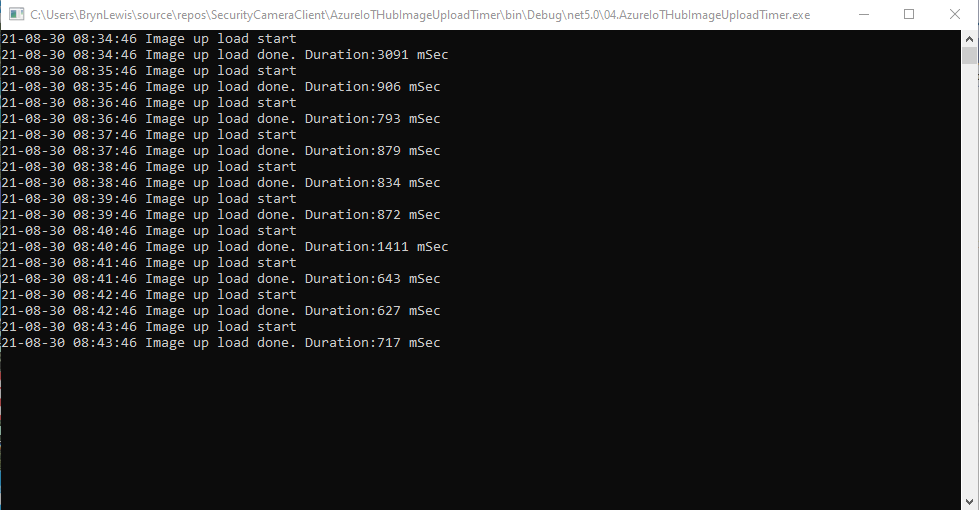
TImer application image uploader

Using Azure Storage Explorer I could view and download the images uploaded by the application(s) running on my development machine and Raspberry PI
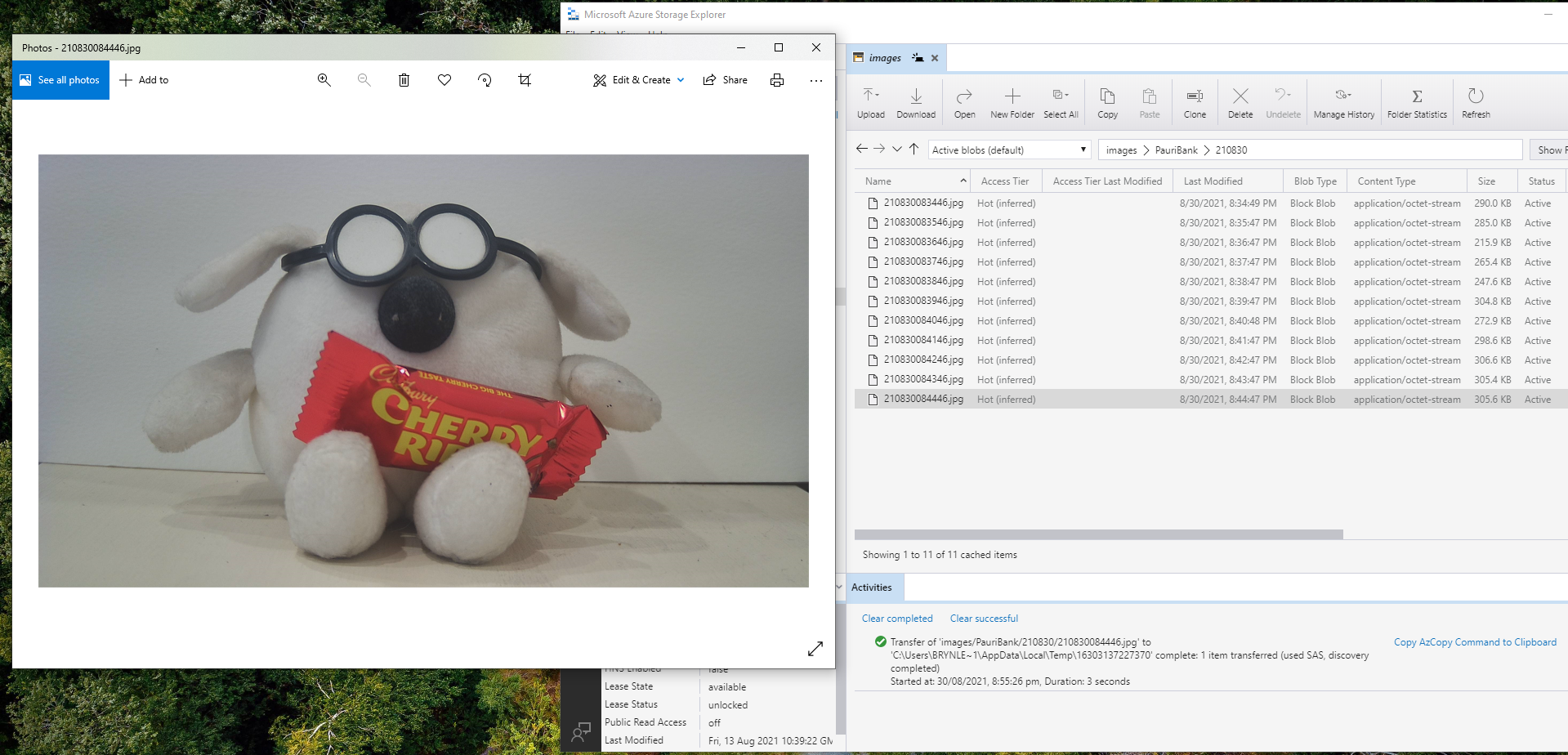
Azure Storage Displaying most recent image uploaded by a RaspberryPI device

After confirming the program was working I used the excellent RaspberryDebugger to download the application and debug it on my Raspberry PI 3 running the Raspberry PI OS.

Now that the basics are working my plan is to figure out how to control the camera using Azure IoT Hub method calls, display live Real Time Streaming Protocol(RTSP) using Azure IoT Hub Device Streams, upload images to Azure Cognitive Services for processing and use ML.Net to process them locally.
Security Camera HTTP Image download

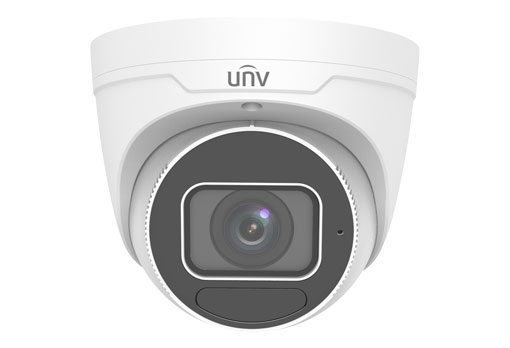
As part of a contract a customer sent me a Uniview IPC3635SB-ADZK-I0 Security camera for a proof of concept(PoC) project. Before the PoC I wanted to explore the camera functionality in more depth, especially how to retrieve individual images from the camera, remotely control it’s zoom, focus, pan, tilt etc.. I’m trying to source a couple of other vendors’ security cameras with remotely controllable pan and tilt for testing.

Uniview IPC3635SB-ADZK-I0 Security camera

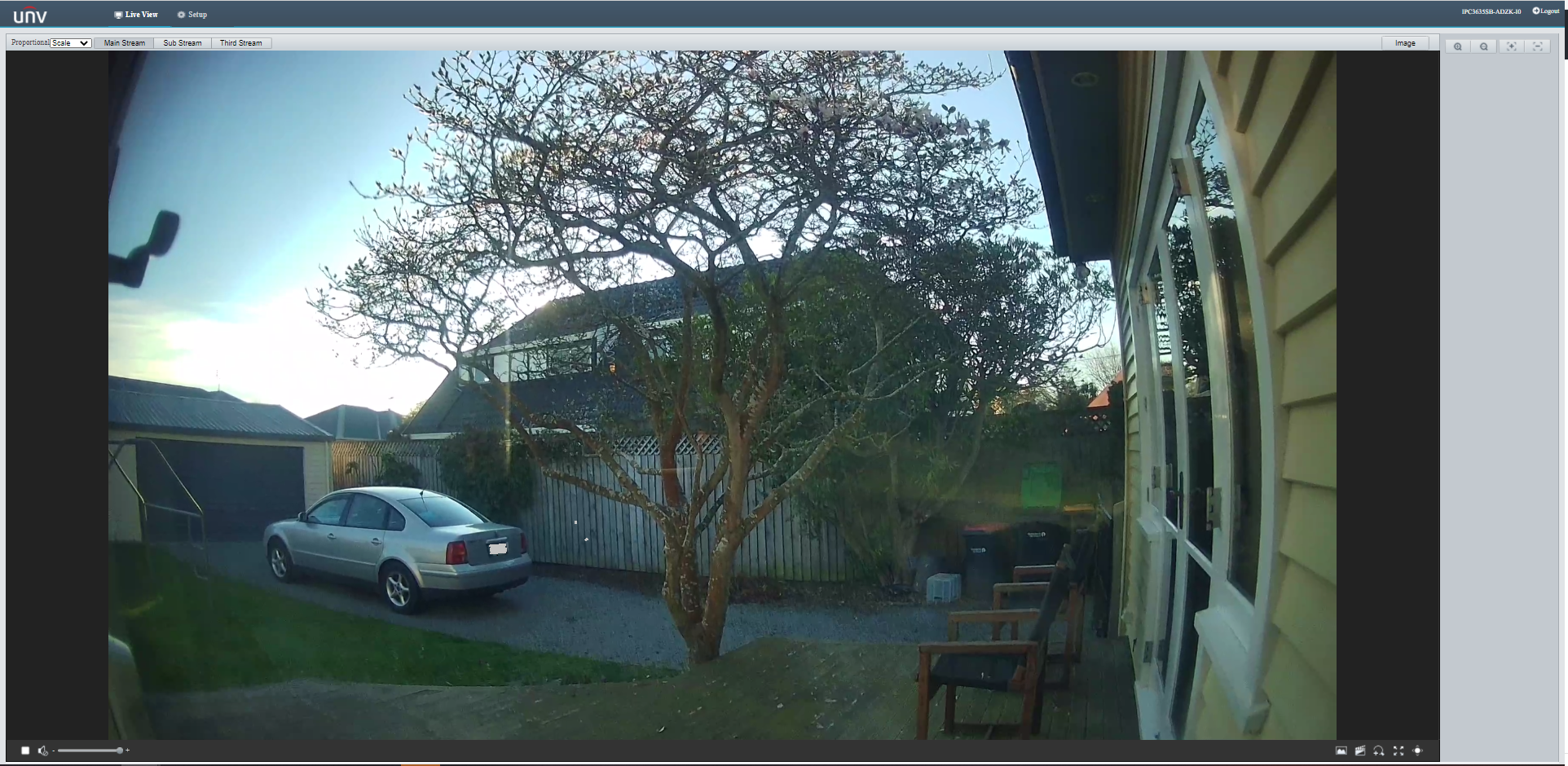
It appears that many cameras support retrieving the latest image with an HyperText Transfer Protocol (HTTP) GET so that looked like a good place to start. For the next couple of posts the camera will be sitting on the bookcase in my office looking through the window at the backyard.

Unv camera software live view of my backyard

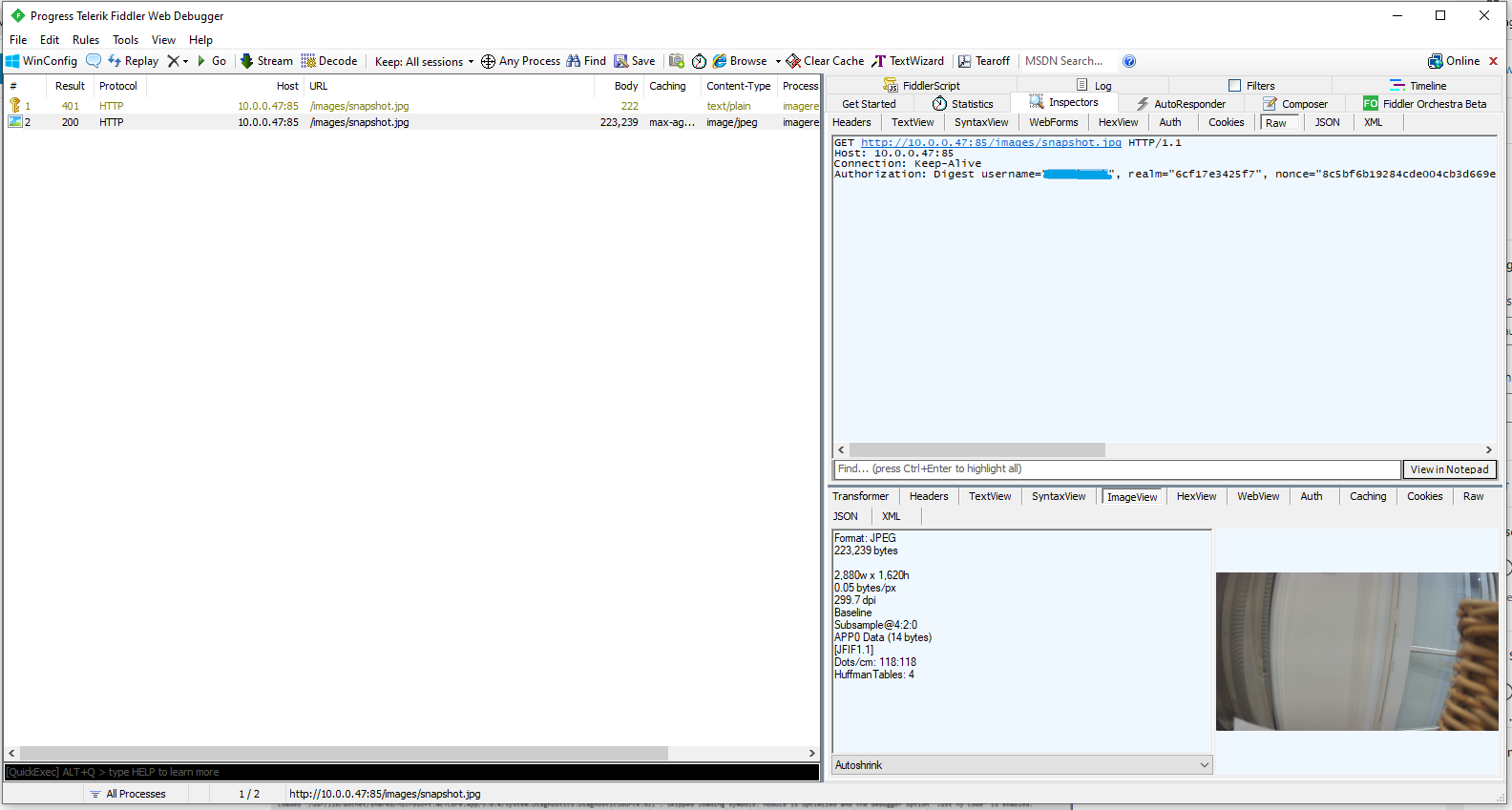
One thing I did notice (then confirmed with Telerik Fiddler and in the camera configuration) was that the camera was configured to use Digest authentication(RFC 2069) which broke my initial attempt with a Universal Windows Platform(UWP) application.

Telerik Fiddler showing 401 authorisation challenge

My .Net Core 5 console application is as simple possible, it just downloads an image from the camera “snapshot” endpoint (In this case http://10.0.0.47:85/images/snapshot.jpg) and saves it to the local filesystem.

class Program
{
	static async Task Main(string[] args)
	{
		await Parser.Default.ParseArguments<CommandLineOptions>(args)
			.WithNotParsed(HandleParseError)
			.WithParsedAsync(ApplicationCore);
	}

	private static async Task ApplicationCore(CommandLineOptions options)
	{
		Console.WriteLine($"Camera:{options.CameraUrl} UserName:{options.UserName} filename:{options.Filename}");

		using (var client = new WebClient())
		{
			NetworkCredential networkCredential = new NetworkCredential()
			{
				UserName = options.UserName,
				Password = options.Password
			};

			client.Credentials = networkCredential;

			try
			{
				await client.DownloadFileTaskAsync(new Uri(options.CameraUrl), options.Filename);
			}
			catch (Exception ex)
			{
				Console.WriteLine($"File download failed {ex.Message}");
			}
		}

		Console.WriteLine("Press <enter> to exit");
		Console.ReadLine();
	}

	private static void HandleParseError(IEnumerable<Error> errors)
	{
		if (errors.IsVersion())
		{
			Console.WriteLine("Version Request");
			return;
		}

		if (errors.IsHelp())
		{
			Console.WriteLine("Help Request");
			return;
		}
		Console.WriteLine("Parser Fail");
	}
}

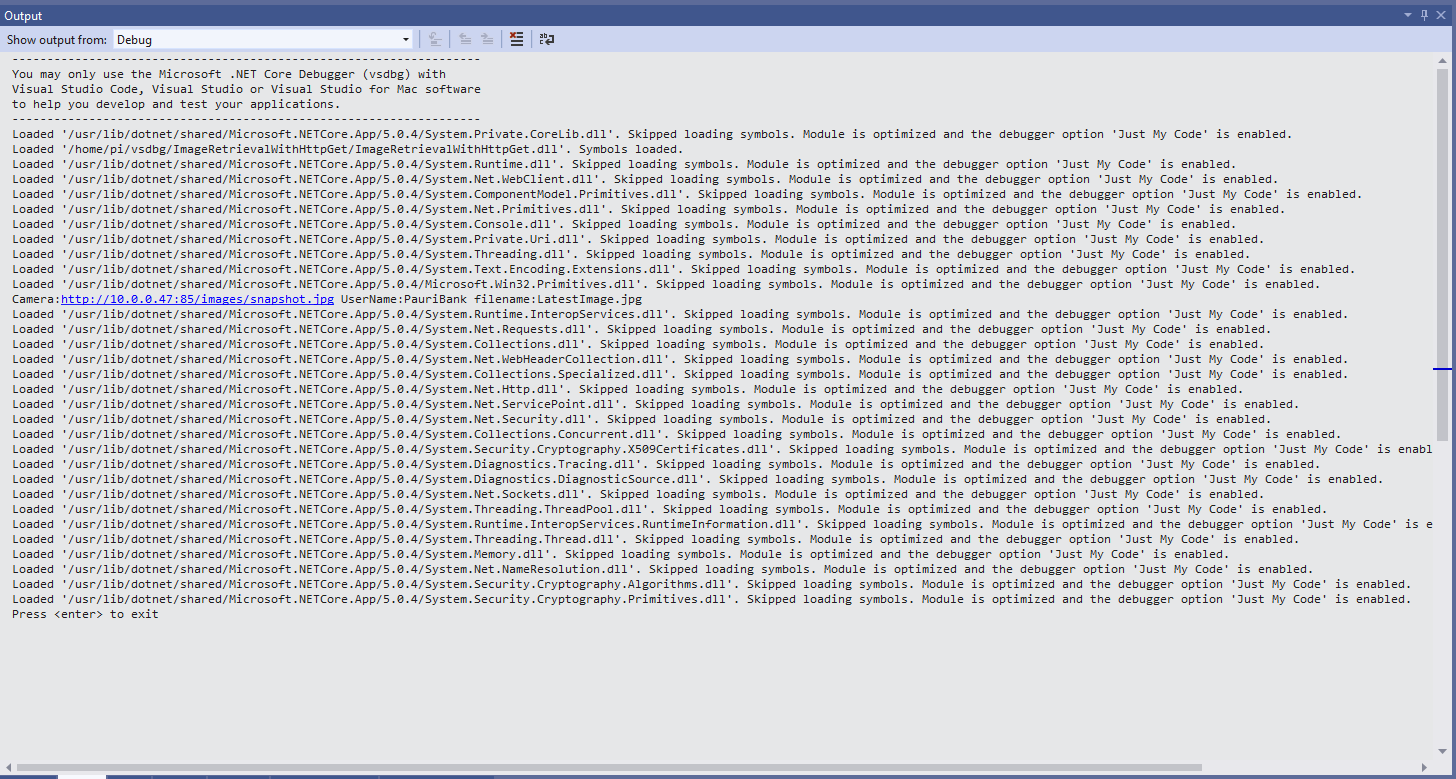
After confirming the program was working I used the excellent RaspberryDebugger to download the application and debug it on a Raspberry PI 3 running the Raspberry PI OS.

Visual Studio 2019 Debug Output showing application download process

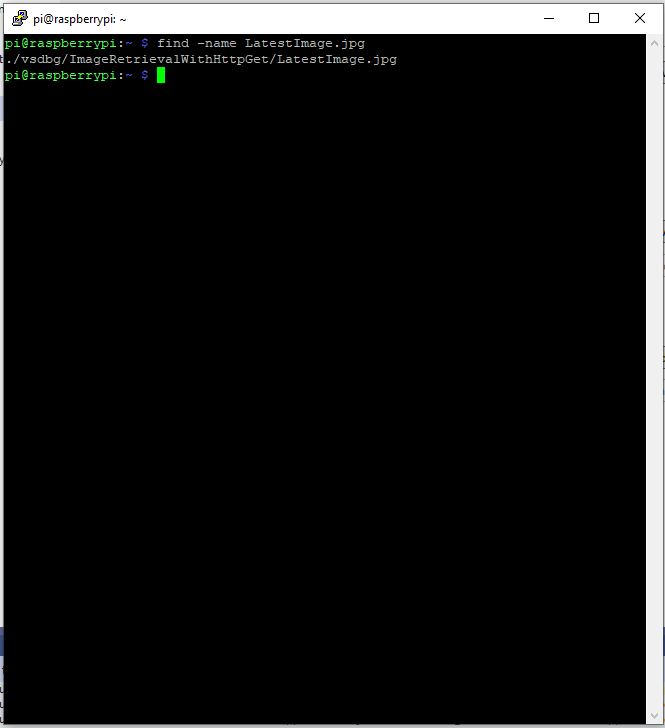
Once the application had finished running on the device I wanted to check that the file was on the local filesystem. I used Putty to connect to the Raspberry PI then searched for LatestImage.jpg.

Linux find utility displaying the location of the downloaded file

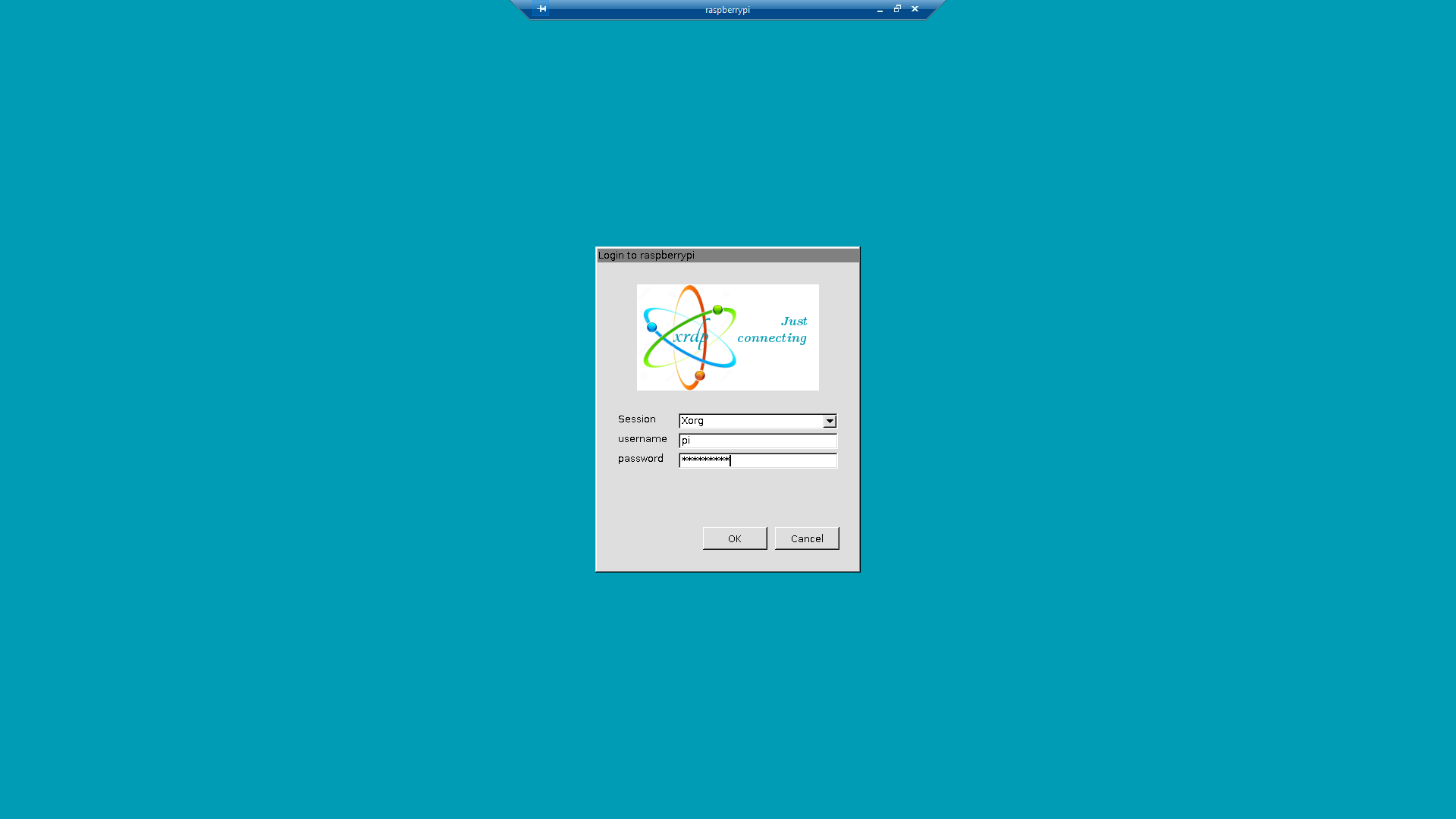
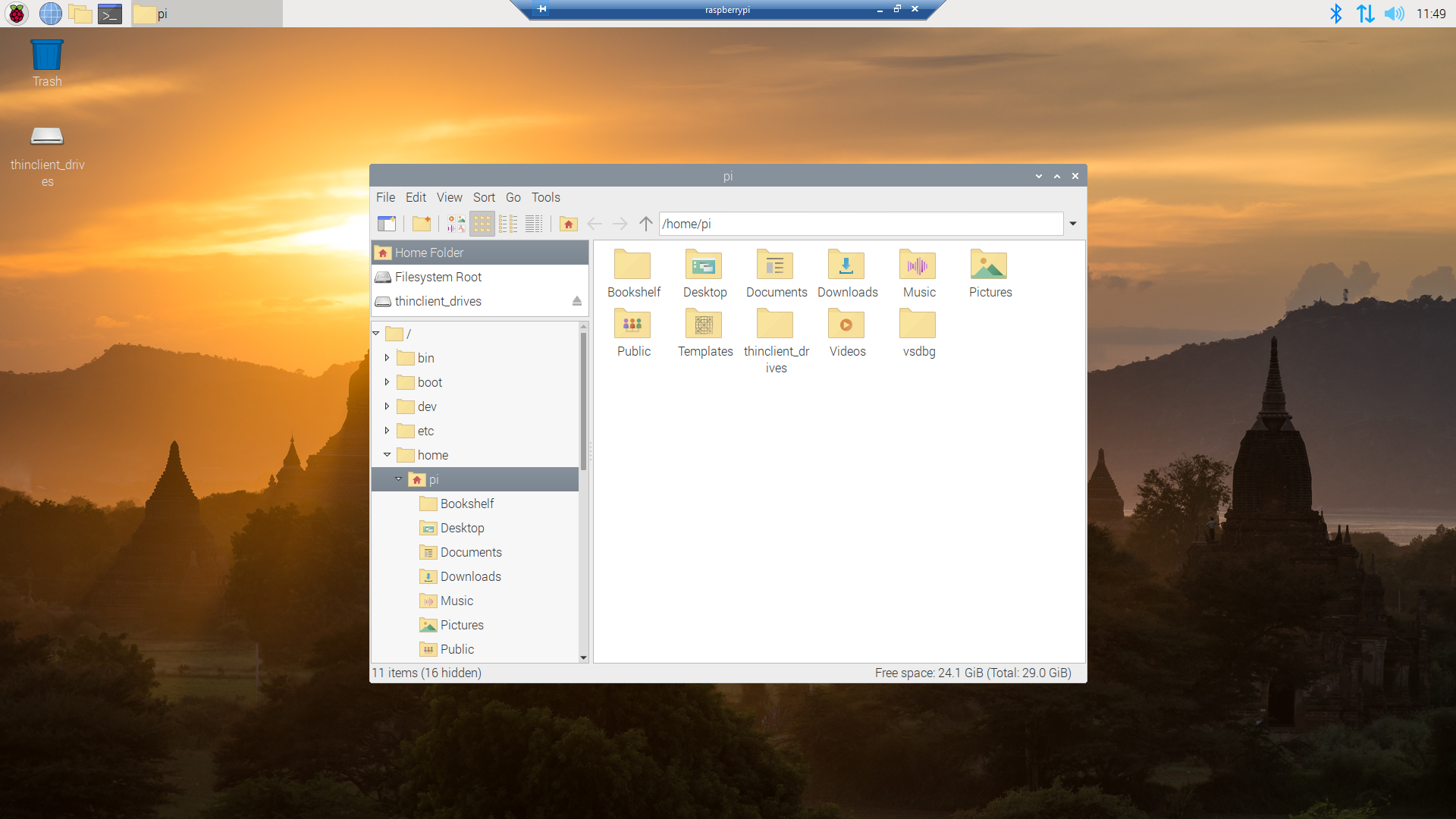
I though about using a utility like scp to download the image file but decided (because I have been using Microsoft Window since WIndows 286) to install xrdp an open-source Remote Desktop Protocol(RDP) server so I could use a Windows 10 RDP client.

xrdp login screen
xrdp home screen
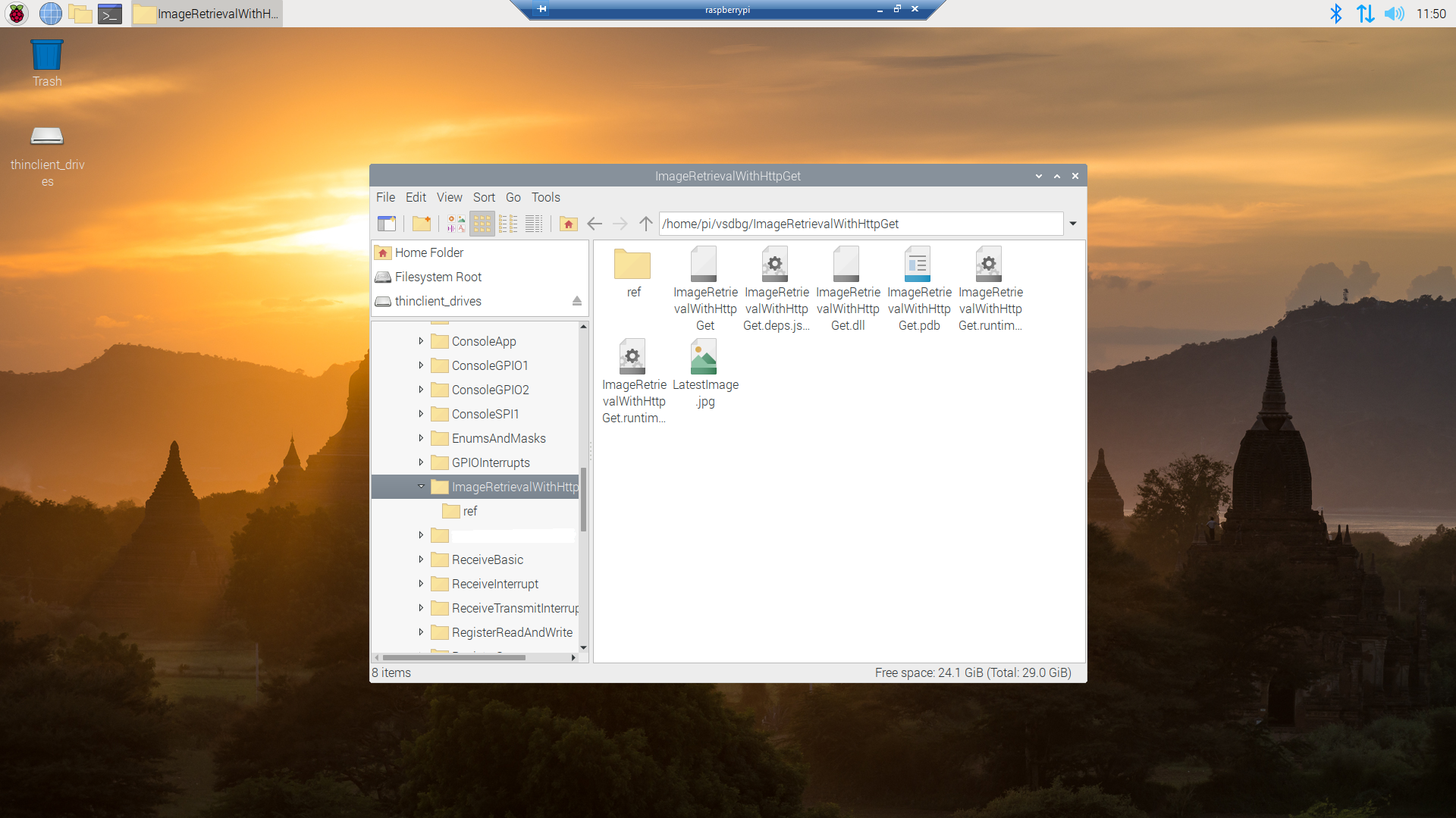
xrdp file manager display files in application deployment directory
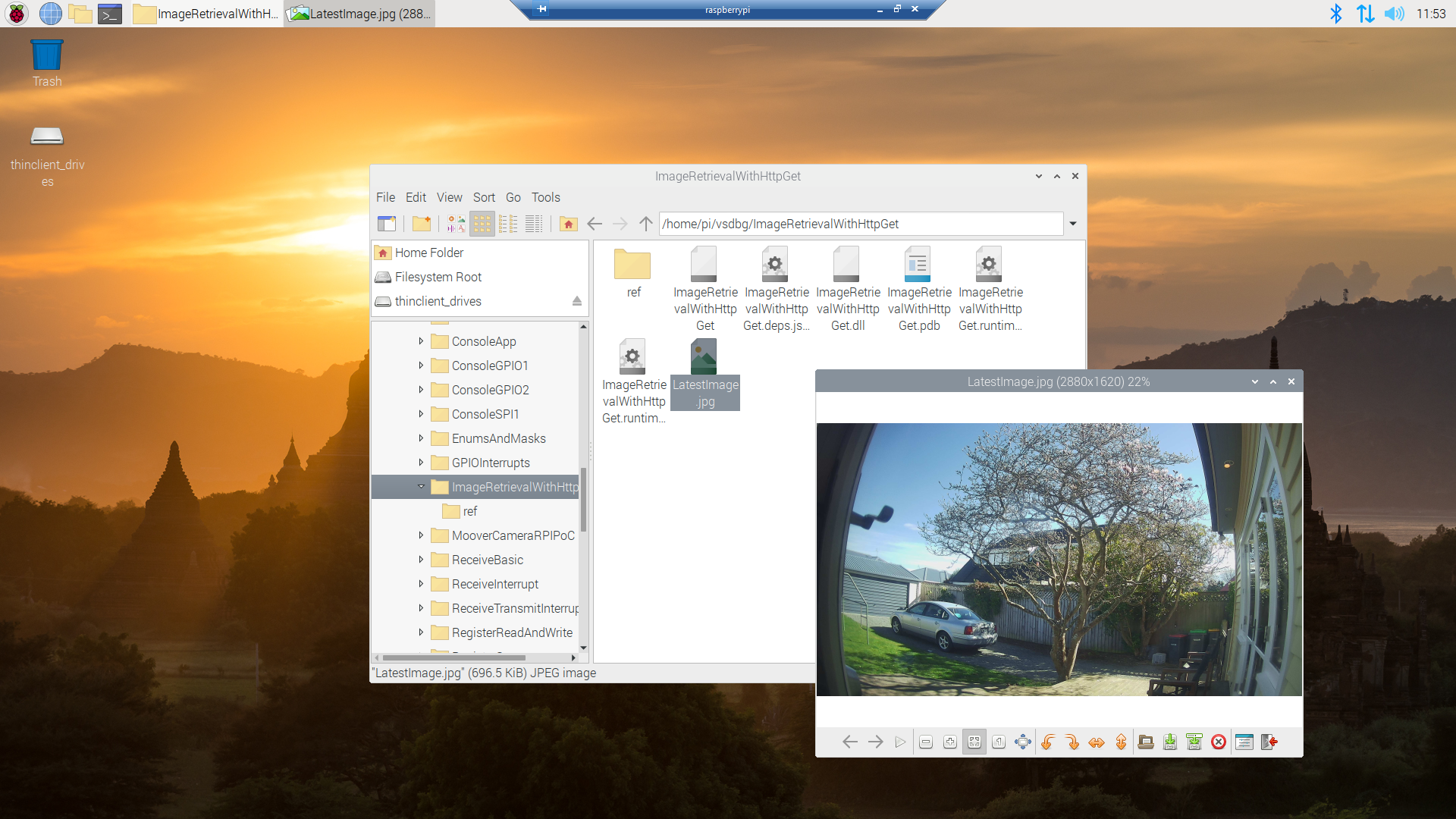
Raspberry PI OS default image view

Now that the basics are working my plan is to figure out how to control the camera, display live video with the Real Time Streaming Protocol(RTSP) upload images to Azure Cognitive Services for processing and use ML.Net to process them locally.
This post was about selecting the tooling I’m comfortable with and configuring my development environment so they work well together. The next step will be using Open Network Video Interface Forum (ONVIF) to discover, determine the capabilities of and then control the camera (for this device just zoom and focus).

.NET Core web API + Dapper – Web Caching

Web cache validation with eTags

On a couple of the systems I work on there are a number of queries (often complex spatial searches) which are very resource intensive but are quite readily cached. In these systems we have used HTTP GET and HEAD Request methods together so that the client only re-GETs the query results after a HEAD method indicates there have been updates.

I have been trying to keep the number of changes to my Microsoft SQL Azure World Wide Importers database to a minimum but for this post I have added a rowversion column to the StockGroups table. The rowversion data type is an automatically generated, unique 8 byte binary(12 bytes Base64 encoded) number within a database.

StockGroups table with Version column

Adding a rowversion table to an existing System Versioned table in the SQL Server Management Studio Designer is painful so I used…

ALTER TABLE [Warehouse].[StockGroups] ADD [Version] [timestamp] NULL

To reduce complexity the embedded SQL is contains two commands (normally I wouldn’t do this) one for retrieving the list StockGroups the other for retrieving the maximum StockGroup rowversion. If a StockGroup is changed the rowversion will be “automagically” updated and the maximum value will change.

[HttpGet]
public async Task<ActionResult<IEnumerable<Model.StockGroupListDtoV1>>> Get()
{
	IEnumerable<Model.StockGroupListDtoV1> response = null;

	try
	{
		using (SqlConnection db = new SqlConnection(this.connectionString))
		{
			var parameters = new DynamicParameters();

			parameters.Add("@RowVersion", dbType: DbType.Binary, direction: ParameterDirection.Output, size: ETagBytesLength);

			response = await db.QueryAsync<Model.StockGroupListDtoV1>(sql: @"SELECT [StockGroupID] as ""ID"", [StockGroupName] as ""Name""FROM [Warehouse].[StockGroups] ORDER BY Name; SELECT @RowVersion=MAX(Version) FROM [Warehouse].[StockGroups]", param: parameters, commandType: CommandType.Text);

			if (response.Any())
			{
				byte[] rowVersion = parameters.Get<byte[]>("RowVersion");

				this.HttpContext.Response.Headers.Add("ETag", Convert.ToBase64String(rowVersion));
			}
		}
	}
	catch (SqlException ex)
	{
		logger.LogError(ex, "Retrieving list of StockGroups");

		return this.StatusCode(StatusCodes.Status500InternalServerError);
	}

	return this.Ok(response);
}

I used Telerik Fiddler to to capture the GET response payload.

HTTP/1.1 200 OK
Transfer-Encoding: chunked
Content-Type: application/json; charset=utf-8
ETag: AAAAAAABrdE=
Server: Microsoft-IIS/10.0
X-Powered-By: ASP.NET
Date: Sat, 26 Jun 2021 06:12:16 GMT

136
[
   {"id":5,"name":"Airline Novelties"},
   {"id":2,"name":"Clothing"},
   {"id":6,"name":"Computing Novelties"},
   {"id":8,"name":"Furry Footwear"},
   {"id":3,"name":"Mugs"},
   {"id":1,"name":"Novelty Items"},
   {"id":10,"name":"Packaging Material"},
   {"id":9,"name":"Toys"},
   {"id":4,"name":"T-Shirts"},
   {"id":7,"name":"USB Novelties"}
]
0

The HEAD method requests the maximum rwoversion value from the StockGroups table and compares it to the eTag. In a more complex scenario this could be a call to a local cache to see if a query result has bee refreshed.

[HttpHead]
public async Task<ActionResult> Head([Required][FromHeader(Name = "ETag")][MinLength(ETagBase64Length, ErrorMessage = "eTag length invalid too short")][MaxLength(ETagBase64Length, ErrorMessage = "eTag length {0} invalid too long")] string eTag)
{
	byte[] headerVersion = new byte[ETagBytesLength];

	if (!Convert.TryFromBase64String(eTag, headerVersion, out _))
	{
		logger.LogInformation("eTag invalid format");

		return this.BadRequest("eTag invalid format");
	}

	try
	{
		using (SqlConnection db = new SqlConnection(this.connectionString))
		{
			byte[] databaseVersion = await db.ExecuteScalarAsync<byte[]>(sql: "SELECT MAX(Version) FROM [Warehouse].[StockGroups]", commandType: CommandType.Text);

			if (headerVersion.SequenceEqual(databaseVersion))
			{
				return this.StatusCode(StatusCodes.Status304NotModified);
			}
		}
	}
	catch (SqlException ex)
	{
		logger.LogError(ex, "Retrieving StockItem list");

		return this.StatusCode(StatusCodes.Status500InternalServerError);
	}

	return this.Ok();
}

I used Fiddler to to capture a HEAD response payload a 304 Not modified.

HTTP/1.1 304 Not Modified
Server: Microsoft-IIS/10.0
X-Powered-By: ASP.NET
Date: Sat, 26 Jun 2021 22:09:02 GMT

I then modified the database and the response changed to 200 OK indicating the local cache should be updated with a GET.

HTTP/1.1 200 OK
Transfer-Encoding: chunked
Server: Microsoft-IIS/10.0
X-Powered-By: ASP.NET
Date: Sat, 26 Jun 2021 22:09:59 GMT

This approach combined with the use of the If-Match, If-Modified-Since, If-None-Match and If-Unmodified-since allows web and client side caches to use previously requested results when there have been no changes. This can significantly reduce the amount of network traffic and server requests.

As part of my testing I modified the eTag so it was invalid (to check the Convert.ToBase64String and Convert.TryFromBase64String error handling) and the response was much smaller than I expected.

HTTP/1.1 400 Bad Request
Content-Length: 240
Content-Type: application/problem+json; charset=utf-8
Server: Microsoft-IIS/10.0
X-Powered-By: ASP.NET
Date: Sat, 26 Jun 2021 06:28:11 GMT

This was unlike the helpful validation messages returned by the GET method of the StockItems pagination example code

{
   "type":"https://tools.ietf.org/html/rfc7231#section-6.5.1",
   "title":"One or more validation errors occurred.",
   "status":400,
   "traceId":"00-bd68c94bf05f5c4ca8752011d6a60533-48e966211dec4847-00",
   "errors": 
   {
      "PageSize":["PageSize must be present and greater than 0"],
      "PageNumber":["PageNumber must be present and greater than 0"]
   }
}

The lack of diagnostic information was not helpful and I’ll explore this further in a future post. I often work on Fintech applications which are “insert only”, or nothing is deleted just marked as inactive/readonly so this approach is viable.

NOTE : Error Handling approach has been updated

Azure Functions with VB.Net 4.X

Updated .NET Core V6 Version

As part of my “day job” I spend a lot of time working with C# and VB.Net 4.X “legacy” projects doing upgrades, bugs fixes and moving applications to Azure. For the last couple of months I have been working on a project replacing Microsoft message queue(MSMQ) queues with Azure Storage Queues so the solution is easier to deploy in Azure.

The next phase of the project is to replace a number of Windows Services with Azure Queue Trigger and Timer Trigger functions. The aim is a series of small steps which we can test before deployment rather than major changes, hence the use of V1 Azure functions for the first release.

Silver Fox systems sells a Visual Studio extension which generates an HTTP Trigger VB.Net project. I needed Timer and Queue Trigger functions so I created C# examples and then used them to figure out how to build VB.Net equivalents

Visual Studio Solution Explorer

After quite a few failed attempts I found this sequence worked for me

Add a new VB.Net class library
Provide a name for new class library
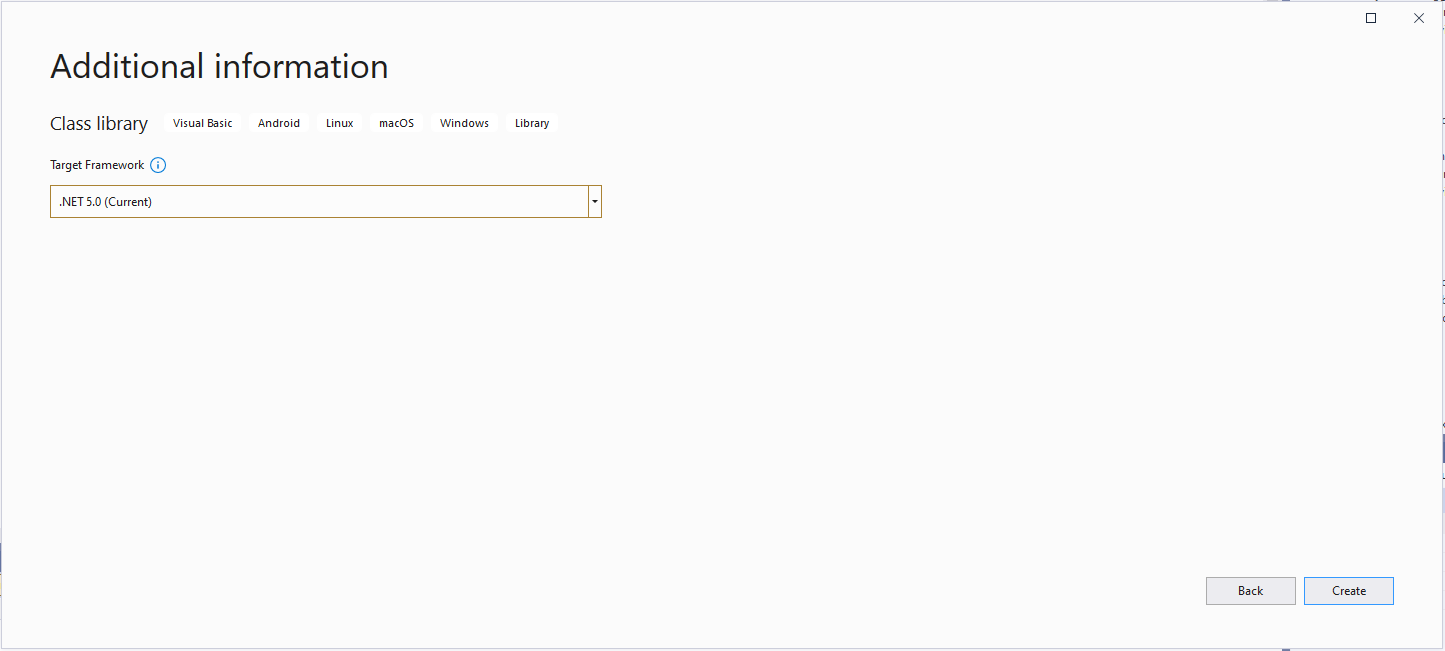
Select target framework

Even though the target platform is not .NET 5.0 ignore this and continue.

Microsoft.NET.Sdk.Functions

Added Microsoft.NET.Sdk.Functions (make sure version 1.0.38)

Visual Studio project with Azure Function Icon.

Then unload the project and open the file.

<Project Sdk="Microsoft.NET.Sdk">

  <PropertyGroup>
    <RootNamespace>TimerClass</RootNamespace>
    <TargetFramework>net5.0</TargetFramework>
  </PropertyGroup>

  <ItemGroup>
    <PackageReference Include="Microsoft.NET.Sdk.Functions" Version="1.0.38" />
  </ItemGroup>

</Project>

Add the TargetFramework and AzureFunctionsVersion lines

<Project Sdk="Microsoft.NET.Sdk">

  <PropertyGroup>
    <RootNamespace>TimerClass</RootNamespace>
    <TargetFramework>net48</TargetFramework>
    <AzureFunctionsVersion>v1</AzureFunctionsVersion>
  </PropertyGroup>
  <ItemGroup>
    <PackageReference Include="Microsoft.NET.Sdk.Functions" Version="1.0.38" />
  </ItemGroup>

</Project>

At this point the project should compile but won’t do much, so update the class to look like the code below.

Imports System.Threading

Imports Microsoft.Azure.WebJobs
Imports Microsoft.Extensions.Logging


Public Class TimerTrigger
   Shared executionCount As Int32

   <FunctionName("Timer")>
   Public Shared Sub Run(<TimerTrigger("0 */1 * * * *")> myTimer As TimerInfo, log As ILogger)
      Interlocked.Increment(executionCount)

      log.LogInformation("VB.Net TimerTrigger next trigger:{0} Execution count:{1}", myTimer.ScheduleStatus.Next, executionCount)

   End Sub
End Class

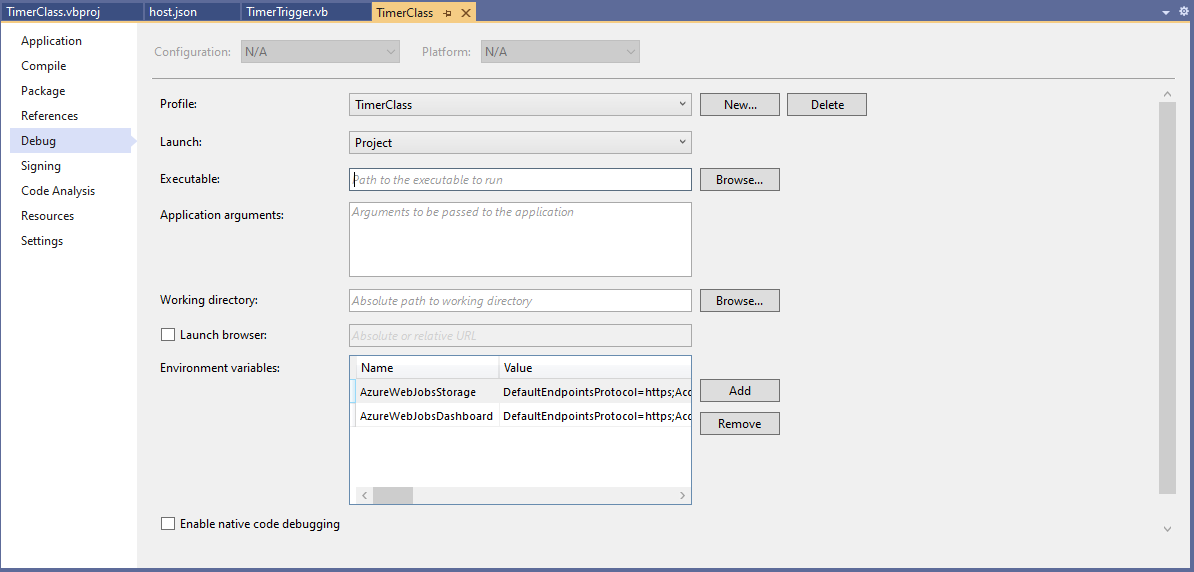
Then add an empty hosts.json file (make sure “copy if newer” is configured in properties) to the project directory, then depending on deployment model configure the AzureWebJobsStorage and AzureWebJobsDashboard connection strings via environment variables or a local.settings.json file.

Visual Studio Environment variables for AzureWebJobsStorage and AzureWebJobsDashboard connection strings

Blob Trigger Sample code

Imports System.IO
Imports System.Threading

Imports Microsoft.Azure.WebJobs
Imports Microsoft.Extensions.Logging


Public Class BlobTrigger
   Shared executionCount As Int32

   ' This function will get triggered/executed when a new message is written on an Azure Queue called events.
   <FunctionName("Notifications")>
   Public Shared Async Sub Run(<BlobTrigger("notifications/{name}", Connection:="BlobEndPoint")> payload As Stream, name As String, log As ILogger)
      Interlocked.Increment(executionCount)

      log.LogInformation("VB.Net BlobTrigger processed blob name:{0} Size:{1} bytes Execution count:{2}", name, payload.Length, executionCount)
   End Sub
End Class

HTTP Trigger Sample code

Imports System.Net
Imports System.Net.Http
Imports System.Threading

Imports Microsoft.Azure.WebJobs
Imports Microsoft.Azure.WebJobs.Extensions.Http
Imports Microsoft.Extensions.Logging


Public Class HttpTrigger
   Shared executionCount As Int32

   <FunctionName("Notifications")>
   Public Shared Async Function Run(<HttpTrigger(AuthorizationLevel.Anonymous, "get", "post", Route:=Nothing)> req As HttpRequestMessage, log As ILogger) As Task(Of HttpResponseMessage)
      Interlocked.Increment(executionCount)

      log.LogInformation($"VB.Net HTTP trigger Execution count:{0} Method:{1}", executionCount, req.Method)

      Return New HttpResponseMessage(HttpStatusCode.OK)
   End Function
End Class

Queue Trigger Sample Code

Imports System.Threading

Imports Microsoft.Azure.WebJobs
Imports Microsoft.Extensions.Logging


Public Class QueueTrigger
   Shared ConcurrencyCount As Long
   Shared ExecutionCount As Long

   <FunctionName("Alerts")>
   Public Shared Sub ProcessQueueMessage(<QueueTrigger("notifications", Connection:="QueueEndpoint")> message As String, log As ILogger)
      Interlocked.Increment(ConcurrencyCount)
      Interlocked.Increment(ExecutionCount)

      log.LogInformation("VB.Net Concurrency:{0} Message:{1} Execution count:{2}", ConcurrencyCount, message, ExecutionCount)

      ' Wait for a bit to force some consurrency
      Thread.Sleep(5000)

      Interlocked.Decrement(ConcurrencyCount)
   End Sub
End Class

As well as counting the number of executions I also wanted to check that >1 instances were started to process messages when the queues had many messages. I added a “queues” section to the hosts.json file so I could tinker with the options.

{
  "queues": {
    "maxPollingInterval": 100,
    "visibilityTimeout": "00:00:05",
    "batchSize": 16,
    "maxDequeueCount": 5,
    "newBatchThreshold": 8
  }
}

The QueueMessageGenerator application inserts many messages into a queue for processing.

When I started the QueueTrigger function I could see the concurrency count was > 0

Timer Trigger Sample Code

Imports System.Threading

Imports Microsoft.Azure.WebJobs
Imports Microsoft.Extensions.Logging


Public Class TimerTrigger
   Shared executionCount As Int32

   <FunctionName("Timer")>
   Public Shared Sub Run(<TimerTrigger("0 */1 * * * *")> myTimer As TimerInfo, log As ILogger)
      Interlocked.Increment(executionCount)

      log.LogInformation("VB.Net TimerTrigger next trigger:{0} Execution count:{1}", myTimer.ScheduleStatus.Next, executionCount)

   End Sub
End Class

The source code for the C# and VB.Net functions is available on GitHub

The Things Network HTTP Azure IoT Hub Integration

This post provides an overview of the required Azure Device Provisioning Service(DPS) and Azure IoT Hub configuration to process The Things Network(TTN) HTTP integration uplink messages. I have assumed that the reader is already familiar with all these products. There is an overview of configuring TTN HTTP integration in my “Simplicating and securing the HTTP handler” post.

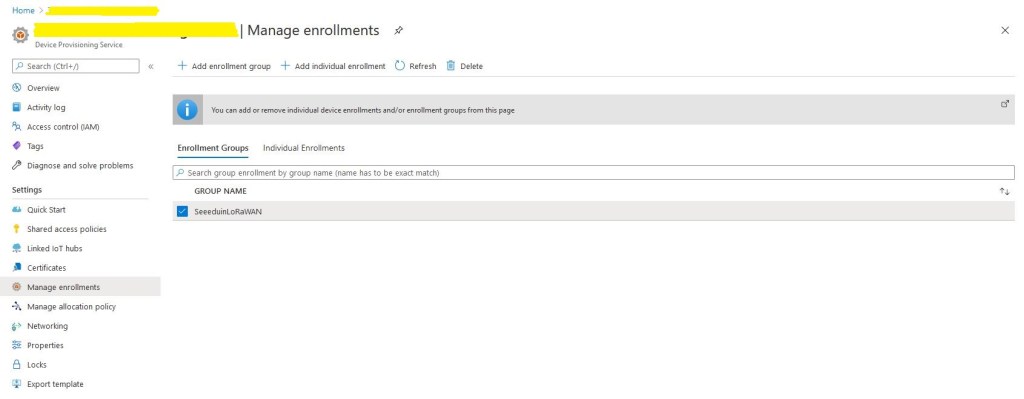
The first step is to configure a DPS Enrollment Group

DPS Group Enrollment blade

The scopeID and the primary/secondary key need to be configured in the appsettings.json file of uplink message processing Azure QueueTrigger function.

For more complex deployments the ApplicationEnrollmentGroupMapping configuration enables The Things Network(TTN) devices to be provisioned using different GroupEnrollment keys based on the applicationid in the first Uplink message which initiates provisoning.

"DeviceProvisioningService": {
      "GlobalDeviceEndpoint": "global.azure-devices-provisioning.net",
      "ScopeID": "",
      "EnrollmentGroupSymmetricKeyDefault": "TopSecretKey",
      "DeviceProvisioningPollingDelay": 500,
      "ApplicationEnrollmentGroupMapping": {
         "Application1": "TopSecretKey1",
         "Application2": "TopSecretKey2"
      }
   }

DPS Group Enrolment with no provisioned devices

Then as uplink messages from the TTN integration are processed devices are “automagically” created in the DPS.

Simultaneously devices are created in the Azure IoT Hub

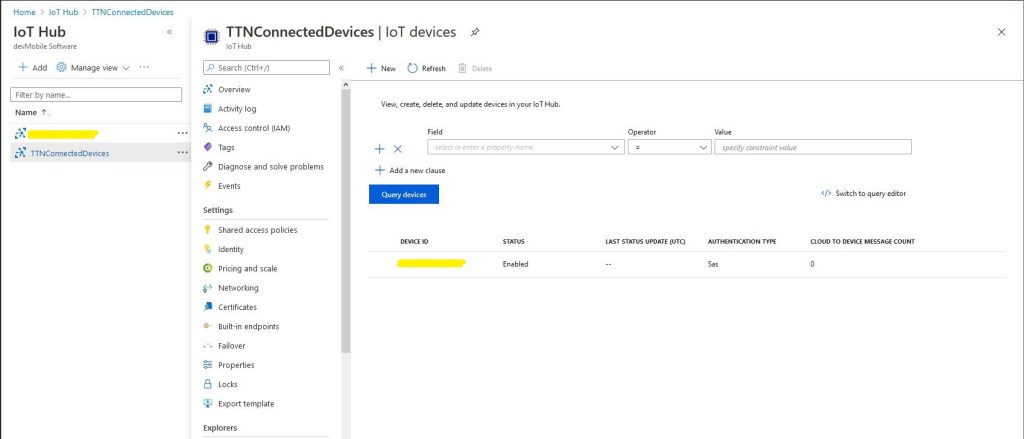
Then shortly after telemetry events are available for applications to process or inspection with tools like Azure IoT Explorer.

In the telemetry event payload sent to the Azure IoT IoT Hub are some extra fields to help with debugging and tracing. The raw payload is also included so messages not decoded by TTN can be processed by the client application(s).

/ Assemble the JSON payload to send to Azure IoT Hub/Central.
log.LogInformation($"{messagePrefix} Payload assembly start");
JObject telemetryEvent = new JObject();
try
{
   JObject payloadFields = (JObject)payloadObect.payload_fields;
   telemetryEvent.Add("HardwareSerial", payloadObect.hardware_serial);
   telemetryEvent.Add("Retry", payloadObect.is_retry);
   telemetryEvent.Add("Counter", payloadObect.counter);
   telemetryEvent.Add("DeviceID", payloadObect.dev_id);
   telemetryEvent.Add("ApplicationID", payloadObect.app_id);
   telemetryEvent.Add("Port", payloadObect.port);
   telemetryEvent.Add("PayloadRaw", payloadObect.payload_raw);
   telemetryEvent.Add("ReceivedAtUTC", payloadObect.metadata.time);
 
   // If the payload has been unpacked in TTN backend add fields to telemetry event payload
   if (payloadFields != null)
   {
      foreach (JProperty child in payloadFields.Children())
      {
         EnumerateChildren(telemetryEvent, child);
      }
   }
}
catch (Exception ex)
{
   log.LogError(ex, $"{messagePrefix} Payload processing or Telemetry event assembly failed");
   throw;
}

Beware, the Azure Storage Account and storage queue names have a limited character set. This caused me problems several times when I used camel cased queue names etc.

The Things Network HTTP Integration Part10

Assembling the components

After a series of articles exploring how portions of solution could be built

I now had working code for receiving The Things Network(TTN) HTTP integration JSON messages with an Azure Function using an HTTPTrigger. (secured with an APIKey) and then putting them into an Azure Storage Queue for processing. This code was intentionally kept as small and as simple as possible so there was less to go wrong. The required configuration is also minimal.

HTTP Endpoint handler application

In the last couple of posts I had been building an Azure Function with a QueueTrigger to process the uplink messages. The function used custom bindings so that the CloudQueueMessage could be accessed, and load the Azure Storage account plus queue name from configuration. I’m still using classes generated by JSON2CSharp (with minimal modifications) for deserialising the payloads with JSON.Net.

The message processor Azure Function uses a ConcurrentCollection to store AzureDeviceClient objects constructed using the information returned by the Azure Device Provisioning Service(DPS). This is so the DPS doesn’t have to be called for the connection details for every message.(When the Azure function is restarted the dictionary of DeviceClient objects has to be repopulated). If there is a backlog of messages the message processor can process more than a dozen messages concurrently so the telemetry events displayed in an application like Azure IoT Central can arrive out of order.

The solution uses DPS Group Enrollment with Symmetric Key Attestation so Azure IoT Hub devices can be “automagically” created when a message from a new device is processed. The processing code is multi-thread and relies on many error conditions being handled by the Azure Function retry mechanism. After a number of failed retries the messages are moved to a poison queue. Azure Storage Explorer is a good tool for viewing payloads and moving poison messages back to the processing queue.

public static class UplinkMessageProcessor
{
   static readonly ConcurrentDictionary<string, DeviceClient> DeviceClients = new ConcurrentDictionary<string, DeviceClient>();

   [FunctionName("UplinkMessageProcessor")]
   public static async Task Run(
      [QueueTrigger("%UplinkQueueName%", Connection = "AzureStorageConnectionString")]
      CloudQueueMessage cloudQueueMessage, // Used to get CloudQueueMessage.Id for logging
      Microsoft.Azure.WebJobs.ExecutionContext context,
      ILogger log)
   {
      PayloadV5 payloadObect;
      DeviceClient deviceClient = null;
      DeviceProvisioningServiceSettings deviceProvisioningServiceConfig;

      string environmentName = Environment.GetEnvironmentVariable("ENVIRONMENT");

      // Load configuration for DPS. Refactor approach and store securely...
      var configuration = new ConfigurationBuilder()
      .SetBasePath(context.FunctionAppDirectory)
      .AddJsonFile($"appsettings.json")
      .AddJsonFile($"appsettings.{environmentName}.json")
      .AddEnvironmentVariables()
      .Build();

      // Load configuration for DPS. Refactor approach and store securely...
      try
      {
         deviceProvisioningServiceConfig = (DeviceProvisioningServiceSettings)configuration.GetSection("DeviceProvisioningService").Get<DeviceProvisioningServiceSettings>(); ;
      }
      catch (Exception ex)
      {
         log.LogError(ex, $"Configuration loading failed");
         throw;
      }

      // Deserialise uplink message from Azure storage queue
      try
      {
         payloadObect = JsonConvert.DeserializeObject<PayloadV5>(cloudQueueMessage.AsString);
      }
      catch (Exception ex)
      {
         log.LogError(ex, $"MessageID:{cloudQueueMessage.Id} uplink message deserialisation failed");
         throw;
      }

      // Extract the device ID as it's used lots of places
      string registrationID = payloadObect.hardware_serial;

      // Construct the prefix used in all the logging
      string messagePrefix = $"MessageID: {cloudQueueMessage.Id} DeviceID:{registrationID} Counter:{payloadObect.counter} Application ID:{payloadObect.app_id}";
      log.LogInformation($"{messagePrefix} Uplink message device processing start");

      // See if the device has already been provisioned
      if (DeviceClients.TryAdd(registrationID, deviceClient))
      {
         log.LogInformation($"{messagePrefix} Device provisioning start");

         string enrollmentGroupSymmetricKey = deviceProvisioningServiceConfig.EnrollmentGroupSymmetricKeyDefault;

         // figure out if custom mapping for TTN applicationID
         if (deviceProvisioningServiceConfig.ApplicationEnrollmentGroupMapping != null)
        {
            deviceProvisioningServiceConfig.ApplicationEnrollmentGroupMapping.GetValueOrDefault(payloadObect.app_id, deviceProvisioningServiceConfig.EnrollmentGroupSymmetricKeyDefault);
         }

         // Do DPS magic first time device seen
         await DeviceRegistration(log, messagePrefix, deviceProvisioningServiceConfig.GlobalDeviceEndpoint, deviceProvisioningServiceConfig.ScopeID, enrollmentGroupSymmetricKey, registrationID);
      }

      // Wait for the Device Provisioning Service to complete on this or other thread
      log.LogInformation($"{messagePrefix} Device provisioning polling start");
      if (!DeviceClients.TryGetValue(registrationID, out deviceClient))
      {
         log.LogError($"{messagePrefix} Device provisioning polling TryGet before while failed");

         throw new ApplicationException($"{messagePrefix} Device provisioning polling TryGet before while failed");
      }

      while (deviceClient == null)
      {
         log.LogInformation($"{messagePrefix} provisioning polling delay");
         await Task.Delay(deviceProvisioningServiceConfig.DeviceProvisioningPollingDelay);

         if (!DeviceClients.TryGetValue(registrationID, out deviceClient))
         {
            log.LogError($"{messagePrefix} Device provisioning polling TryGet while loop failed");

            throw new ApplicationException($"{messagePrefix} Device provisioning polling TryGet while loopfailed");
         }
      }

      // Assemble the JSON payload to send to Azure IoT Hub/Central.
      log.LogInformation($"{messagePrefix} Payload assembly start");
      JObject telemetryEvent = new JObject();
      try
      {
         JObject payloadFields = (JObject)payloadObect.payload_fields;
         telemetryEvent.Add("HardwareSerial", payloadObect.hardware_serial);
         telemetryEvent.Add("Retry", payloadObect.is_retry);
         telemetryEvent.Add("Counter", payloadObect.counter);
         telemetryEvent.Add("DeviceID", payloadObect.dev_id);
         telemetryEvent.Add("ApplicationID", payloadObect.app_id);
         telemetryEvent.Add("Port", payloadObect.port);
         telemetryEvent.Add("PayloadRaw", payloadObect.payload_raw);
         telemetryEvent.Add("ReceivedAt", payloadObect.metadata.time);

         // If the payload has been unpacked in TTN backend add fields to telemetry event payload
         if (payloadFields != null)
         {
            foreach (JProperty child in payloadFields.Children())
            {
               EnumerateChildren(telemetryEvent, child);
            }
         }
      }
      catch (Exception ex)
      {
         if (DeviceClients.TryRemove(registrationID, out deviceClient))
         {
            log.LogWarning($"{messagePrefix} TryRemove payload assembly failed");
         }

         log.LogError(ex, $"{messagePrefix} Payload assembly failed");
         throw;
      }

      // Send the message to Azure IoT Hub/Azure IoT Central
      log.LogInformation($"{messagePrefix} Payload SendEventAsync start");
      try
      {
         using (Message ioTHubmessage = new Message(Encoding.ASCII.GetBytes(JsonConvert.SerializeObject(telemetryEvent))))
         {
            // Ensure the displayed time is the acquired time rather than the uploaded time. esp. importan for messages that end up in poison queue
            ioTHubmessage.Properties.Add("iothub-creation-time-utc", payloadObect.metadata.time.ToString("s", CultureInfo.InvariantCulture));
            await deviceClient.SendEventAsync(ioTHubmessage);
         }
      }
      catch (Exception ex)
      {
         if (DeviceClients.TryRemove(registrationID, out deviceClient))
         {
            log.LogWarning($"{messagePrefix} TryRemove SendEventAsync failed");
         }

         log.LogError(ex, $"{messagePrefix} SendEventAsync failed");
         throw;
      }

   log.LogInformation($"{messagePrefix} Uplink message device processing completed");
   }
}

There is also support for using a specific GroupEnrollment based on the application_id in the uplink message payload.

"DeviceProvisioningService": {
      "GlobalDeviceEndpoint": "global.azure-devices-provisioning.net",
      "ScopeID": "",
      "EnrollmentGroupSymmetricKeyDefault": "TopSecretKey",
      "DeviceProvisioningPollingDelay": 500,
      "ApplicationEnrollmentGroupMapping": {
         "Application1": "TopSecretKey1",
         "Application2": "TopSecretKey2"
      }
   }

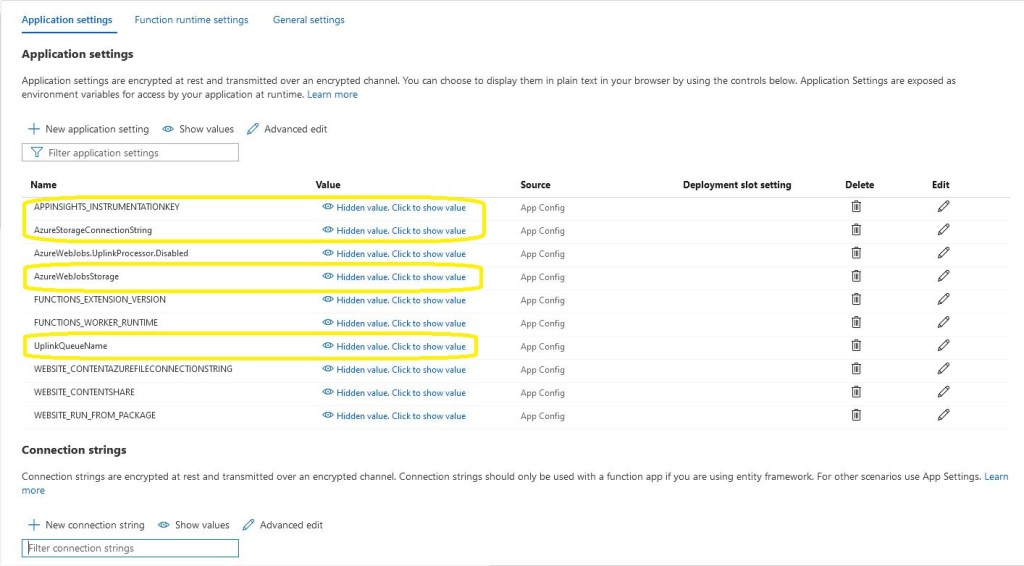
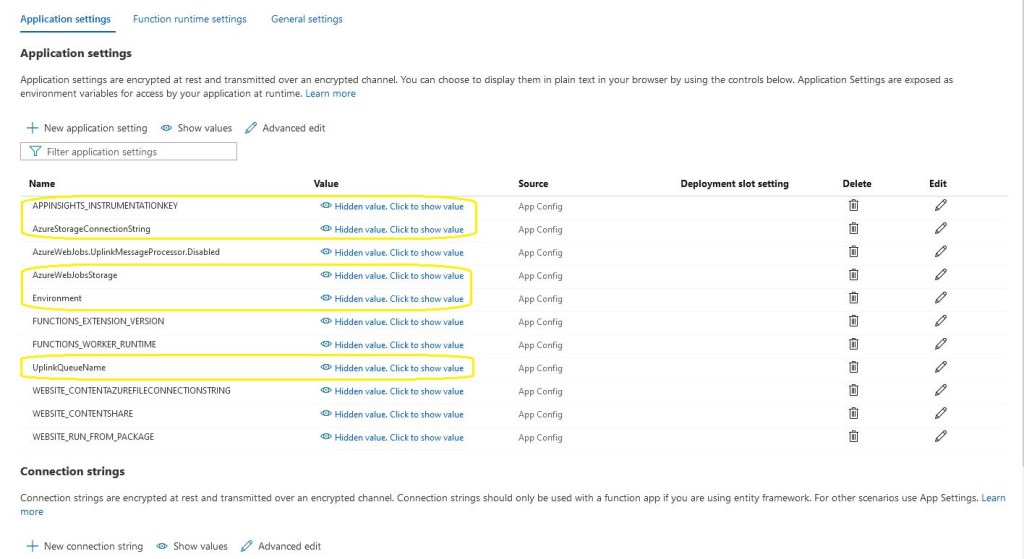
In addition to the appsettings.json there is configuration for application insights, uplink message queue name and Azure Storage connection strings. The “Environment” setting is important as it specifies what appsettings.json file should be used if code is being debugged etc..

TTN Integration uplink message processor configuration

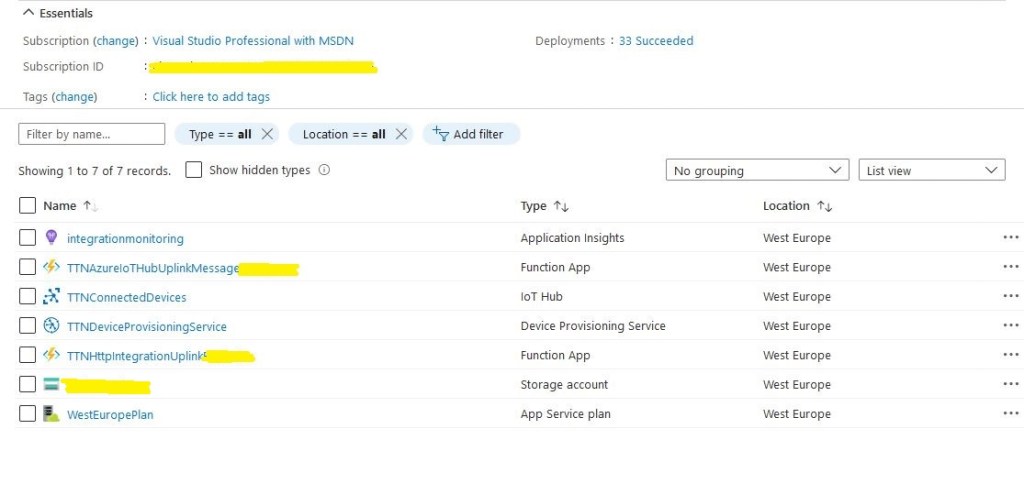
The deployed solution application consists of Azure IoTHub and DPS instances. There are two Azure functions, one for putting the messages from the TTN into a queue the other is for processing them. The Azure Functions are hosted in an Azure AppService plan.

Azure solution deployment

An Azure Storage account is used for the queue and Azure Function synchronisation information and Azure Application Insights is used to monitor the solution.

The Things Network HTTP Integration Part9

Simplicating and securing the HTTP handler

There was lots of code in nested classes for deserialising the The Things Network(TTN) JSON uplink messages in my WebAPI project. It looked a bit fragile and if the process failed uplink messages could be lost.

My first attempt at an Azure HTTP Trigger Function to handle an uplink message didn’t work. I had decorated the HTTP Trigger method with an Azure Storage Queue as the destination for the output.

public static class UplinkProcessor
{
   [FunctionName("UplinkProcessor")]
   [return: Queue("%UplinkQueueName%", Connection = "AzureStorageConnectionString")]
   public static async Task<IActionResult> Run([HttpTrigger(AuthorizationLevel.Anonymous, "get", "post", Route = null)] HttpRequest request, ILogger log)
   {
      string payload;

      log.LogInformation("C# HTTP trigger function processed a request.");

      using (StreamReader streamReader = new StreamReader(request.Body))
      {
         payload = await streamReader.ReadToEndAsync();
      }

      return new OkObjectResult(payload);
   }
}

When I returned OkObjectResult(object value) the message JSON was prefixed with “value”. This broke message deserialisation in the Azure queue trigger function for processing uplink events.

There were a couple of other versions which failed with encoding issues.

Invalid uplink event JSON
public static class UplinkProcessor
{
   [FunctionName("UplinkProcessor")]
   [return: Queue("%UplinkQueueName%", Connection = "AzureStorageConnectionString")]
   public static async Task<string> Run([HttpTrigger("post", Route = null)] HttpRequest request, ILogger log)
   {
      string payload;

      log.LogInformation("C# HTTP trigger function processed a request.");

      using (StreamReader streamReader = new StreamReader(request.Body))
      {
         payload = await streamReader.ReadToEndAsync();
      }

      return payload;
   }
}

I finally settled on returning a string, which with the benefit of hindsight was obvious.

Valid JSON message

By storing the raw uplink event JSON from TTN the application can recover if it they can’t deserialised, (message format has changed or generated class issues) The queue processor won’t be able to process the uplink event messages so they will end up in the poison message queue after being retried a few times.

I hadn’t added any security plumbing to the my other test application but I really did need to secure my uplink message endpoint in production (this functionality is disabled when running locally). Azure http trigger functions support host and method scope API key authorisation which integrates easily with TTN.

In the Azure management portal I generated a method scope API key.
Azure HTTP function API key management

I then added an x-functions-key header in the TTN application integration configuration and it worked second attempt due to a copy and past fail.
Things Network Application integration

To confirm my APIKey setup was correct I changed the header name and my requests started to fail with a 401 Unauthorised error.

After some experimentation it took less than two dozen lines of C# to create a secure endpoint to receive uplink messages and put them in an Azure Storage queue.

The Things Network HTTP Integration Part8

Logging and the start of simplification

While testing the processing of queued The Things Network(TTN) uplink messages I had noticed that some of the Azure Application Insights events from my Log4Net setup were missing. I could see the MessagesProcessed counter was correct but there weren’t enough events.

public static class UplinkMessageProcessor
{
   const string RunTag = "Log4Net001";
   static readonly ILog log = log4net.LogManager.GetLogger(System.Reflection.MethodBase.GetCurrentMethod().DeclaringType);
   static readonly ConcurrentDictionary<string, PayloadV5> DevicesSeen = new ConcurrentDictionary<string, PayloadV5>();
   static int ConcurrentThreadCount = 0;
   static int MessagesProcessed = 0;

   [FunctionName("UplinkMessageProcessor")]
   public static void Run([QueueTrigger("%UplinkQueueName%", Connection = "AzureStorageConnectionString")] string myQueueItem, Microsoft.Azure.WebJobs.ExecutionContext executionContext)
   {
      try
      {
         var logRepository = LogManager.GetRepository(Assembly.GetEntryAssembly());
         XmlConfigurator.Configure(logRepository, new FileInfo(Path.Combine(executionContext.FunctionAppDirectory, "log4net.config")));

         PayloadV5 payloadMessage = (PayloadV5)JsonSerializer.Deserialize(myQueueItem, typeof(PayloadV5));
         PayloadV5 payload = (PayloadV5)DevicesSeen.GetOrAdd(payloadMessage.dev_id, payloadMessage);

         Interlocked.Increment(ref ConcurrentThreadCount);
         Interlocked.Increment(ref MessagesProcessed);

         log.Info($"{MessagesProcessed} {RunTag} DevEui:{payload.dev_id} Threads:{ConcurrentThreadCount} First:{payload.metadata.time} Current:{payloadMessage.metadata.time} PayloadRaw:{payload.payload_raw}");

         Thread.Sleep(2000);

         Interlocked.Decrement(ref ConcurrentThreadCount);
      }
      catch (Exception ex)
      {
         log.Error("Processing of Uplink message failed", ex);

         throw;
      }
   }
}
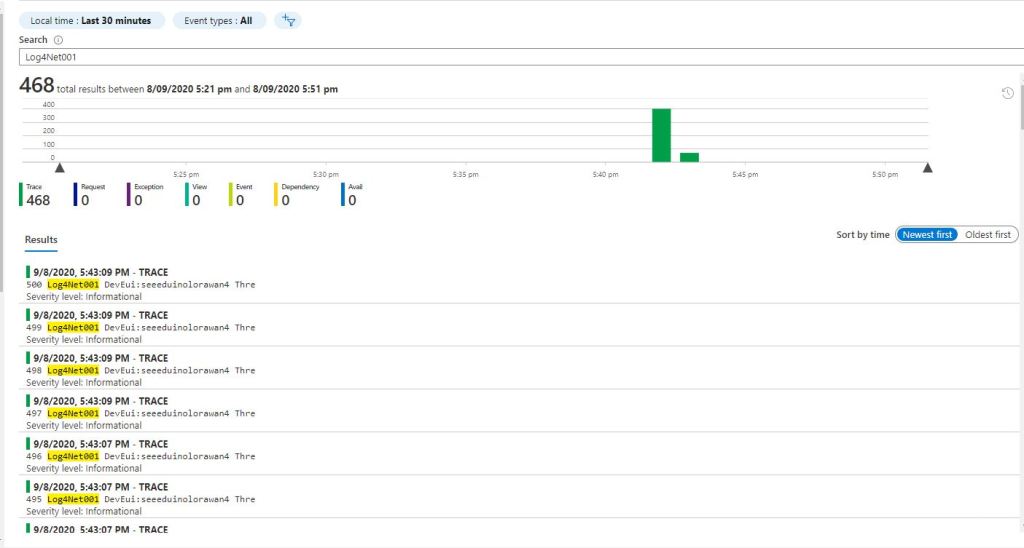
Log4Net in Application Insights Event viewer

I assume the missing events were because I wasn’t flushing at the end of the Run method. There was also a lot of “plumbing” code (including loading configuration files) to setup Log4Net.

I then built another Azure function using the Application Insights API

public static class UplinkMessageProcessor
{
   const string RunTag = "Insights001";
   static readonly ConcurrentDictionary<string, PayloadV5> DevicesSeen = new ConcurrentDictionary<string, PayloadV5>();
   static int ConcurrentThreadCount = 0;
   static int MessagesProcessed = 0;

   [FunctionName("UplinkMessageProcessor")]
   public static void Run([QueueTrigger("%UplinkQueueName%", Connection = "AzureStorageConnectionString")] string myQueueItem, Microsoft.Azure.WebJobs.ExecutionContext executionContext)
   {
      using (TelemetryConfiguration telemetryConfiguration = TelemetryConfiguration.CreateDefault())
      {
         TelemetryClient telemetryClient = new TelemetryClient(telemetryConfiguration);

         try
         {
            PayloadV5 payloadMessage = (PayloadV5)JsonSerializer.Deserialize(myQueueItem, typeof(PayloadV5));
            PayloadV5 payload = (PayloadV5)DevicesSeen.GetOrAdd(payloadMessage.dev_id, payloadMessage);

            Interlocked.Increment(ref ConcurrentThreadCount);
            Interlocked.Increment(ref MessagesProcessed);

            telemetryClient.TrackEvent($"{MessagesProcessed} {RunTag} DevEui:{payload.dev_id} Threads:{ConcurrentThreadCount} First:{payload.metadata.time} Current:{payloadMessage.metadata.time} PayloadRaw:{payload.payload_raw}");

            Thread.Sleep(2000);

            Interlocked.Decrement(ref ConcurrentThreadCount);
         }
         catch (Exception ex)
         {
            telemetryClient.TrackException(ex);
            throw;
         }
      }
   }
}

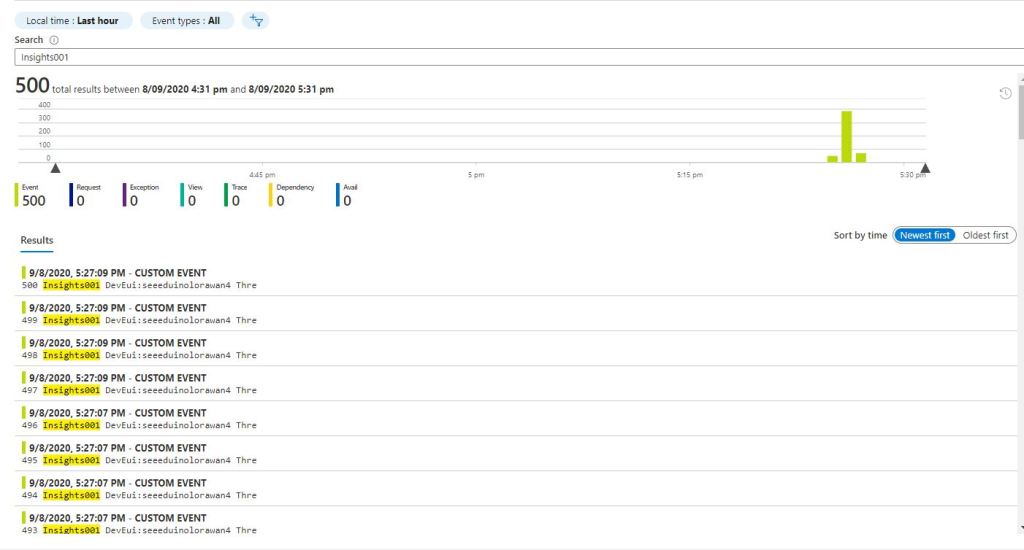
Application Insights API in Application Insights Event viewer

I assume there were no missing events because the using statement was “flushing” every time the Run method completed. There was still a bit of “plumbing” code and which it would be good to get rid of.

When I generated Azure Function stubs there was an ILogger parameter which the Dependency Injection (DI) infrastructure setup.

public static class UplinkMessageProcessor
{
  const string RunTag = "Logger002";
   static readonly ConcurrentDictionary<string, PayloadV5> DevicesSeen = new ConcurrentDictionary<string, PayloadV5>();
   static int ConcurrentThreadCount = 0;
   static int MessagesProcessed = 0;

   [FunctionName("UplinkMessageProcessor")]
   public static void Run([QueueTrigger("%UplinkQueueName%", Connection = "AzureStorageConnectionString")] string myQueueItem, ILogger log)
   {
      try
      {
            PayloadV5 payloadMessage = (PayloadV5)JsonSerializer.Deserialize(myQueueItem, typeof(PayloadV5));
         PayloadV5 payload = (PayloadV5)DevicesSeen.GetOrAdd(payloadMessage.dev_id, payloadMessage);

         Interlocked.Increment(ref ConcurrentThreadCount);
         Interlocked.Increment(ref MessagesProcessed);

         log.LogInformation($"{MessagesProcessed} {RunTag} DevEui:{payload.dev_id} Threads:{ConcurrentThreadCount} First:{payload.metadata.time} Current:{payloadMessage.metadata.time} PayloadRaw:{payload.payload_raw}");

         Thread.Sleep(2000);

         Interlocked.Decrement(ref ConcurrentThreadCount);
      }
      catch (Exception ex)
      { 
         log.LogError(ex,"Processing of Uplink message failed");

         throw;
      }
   }
}
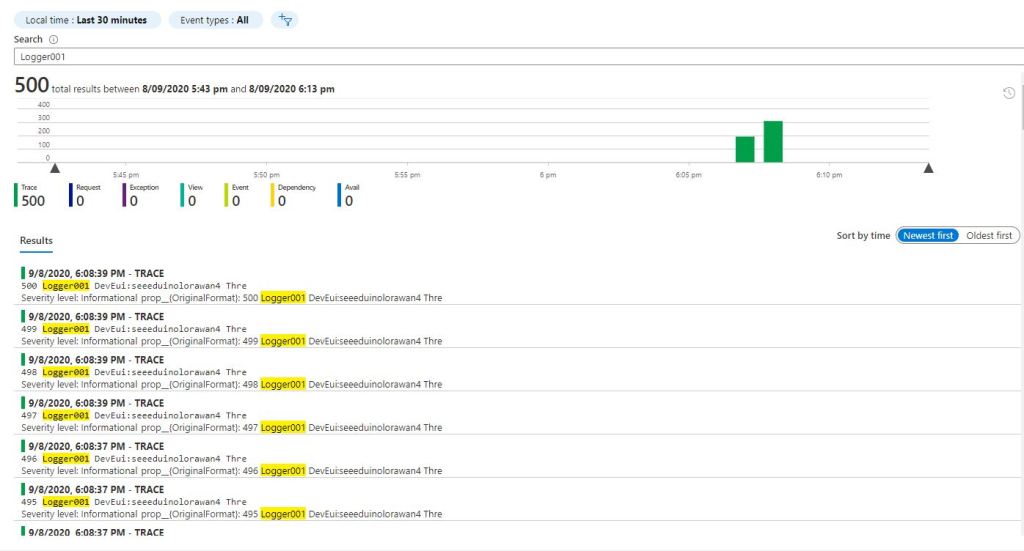
ILogger in Application Insights Event viewer

This implementation had even less code and all the messages were visible in the Azure Application Insights event viewer.

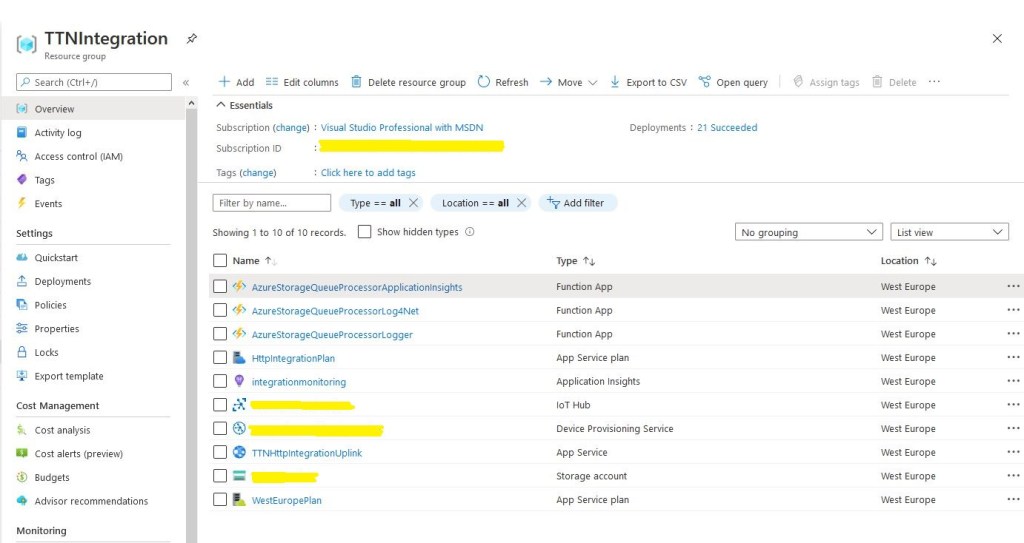
All the Azure functions for logging

While built the Proof of Concept(PoC) implementations I added the configurable “runtag” so I could search for the messages relating to a session in the Azure Application Insights event viewer. The queue name and storage account were “automagically” loaded by the runtime which also reduced the amount of code.

[QueueTrigger("%UplinkQueueName%", Connection = "AzureStorageConnectionString")]

At this point I had minimised the amount and complexity of the code required to process messages in the ttnuplinkmessages queue. Reducing the amount of “startup” required should make my QueueTrigger Azure function faster. But there was still a lot of boilerplate code for serialising the body of the message which added complexity.

At this point I realised I had a lot of code across multiple projects which had helped me breakdown the problem into manageable chunks but didn’t add a lot of value.

The Things Network HTTP Integration Part7

Queuing uplink messages

For my HTTP Integration I need to reliably forward messages to an Azure IoT Hub or Azure IoT Central. This solution needs to be robust and not lose any messages even when portions of the system are unavailable because of failures or sudden spikes in inbound traffic.

I added yet another controller, it receives an uplink messages from The Things Network(TTN) and puts them into an Azure Storage Queue.

[Route("[controller]")]
[ApiController]
public class Queued : ControllerBase
{
   private readonly string storageConnectionString;
   private readonly string queueName;
   private static readonly ILog log = log4net.LogManager.GetLogger(System.Reflection.MethodBase.GetCurrentMethod().DeclaringType);

   public Queued( IConfiguration configuration)
   {
      this.storageConnectionString = configuration.GetSection("AzureStorageConnectionString").Value;
      this.queueName = configuration.GetSection("UplinkQueueName").Value;
   }

   public string Index()
   {
      return "Queued move along nothing to see";
   }

   [HttpPost]
   public async Task<IActionResult> Post([FromBody] PayloadV5 payload)
   {
      string payloadFieldsUnpacked = string.Empty;

      // Check that the post data is good
      if (!this.ModelState.IsValid)
      {
         log.WarnFormat("QueuedController validation failed {0}", this.ModelState.Messages());

         return this.BadRequest(this.ModelState);
      }

      try
      {
         QueueClient queueClient = new QueueClient(storageConnectionString, queueName);

         await queueClient.CreateIfNotExistsAsync();

         await queueClient.SendMessageAsync(Convert.ToBase64String(JsonSerializer.SerializeToUtf8Bytes(payload)));
      }
      catch( Exception ex)
      {
         log.Error("Unable to open/create queue or send message", ex);

         return this.Problem("Unable to open queue (creating if it doesn't exist) or send message", statusCode:500, title:"Uplink payload not sent" );
      }

      return this.Ok();
   }
}

An Azure Function with a Queue Trigger processes the messages and for this test pauses for 2 seconds (simulating a call to the Device Provisioning Service(DPS) ). It keeps track of the number of concurrent processing threads and when the first message for each device was received since the program was started.

public static class UplinkMessageProcessor
{
   static readonly ILog log = log4net.LogManager.GetLogger(System.Reflection.MethodBase.GetCurrentMethod().DeclaringType);
   static ConcurrentDictionary<string, PayloadV5> DevicesSeen = new ConcurrentDictionary<string, PayloadV5>();
   static int ConcurrentThreadCount = 0;

   [FunctionName("UplinkMessageProcessor")]
   public static void Run([QueueTrigger("%UplinkQueueName%", Connection = "AzureStorageConnectionString")] string myQueueItem, Microsoft.Azure.WebJobs.ExecutionContext executionContext)
   {
      Interlocked.Increment(ref ConcurrentThreadCount);
      var logRepository = LogManager.GetRepository(Assembly.GetEntryAssembly());
      XmlConfigurator.Configure(logRepository, new FileInfo(Path.Combine(executionContext.FunctionAppDirectory, "log4net.config")));

      log.Info($"Uplink message function triggered: {myQueueItem}");

      PayloadV5 payloadMessage = (PayloadV5)JsonSerializer.Deserialize(myQueueItem, typeof(PayloadV5));
      PayloadV5 payload = (PayloadV5)DevicesSeen.GetOrAdd(payloadMessage.dev_id, payloadMessage);

      log.Info($"Uplink message DevEui:{payload.dev_id} Threads:{ConcurrentThreadCount} First:{payload.metadata.time} Current:{payloadMessage.metadata.time} PayloadRaw:{payload.payload_raw}");

      Thread.Sleep(2000);

      Interlocked.Decrement(ref ConcurrentThreadCount);
   }
}

To explore how this processing worked I sent 1000 uplink messages from my Seeeduino LoRaWAN devices which were buffered in a queue.

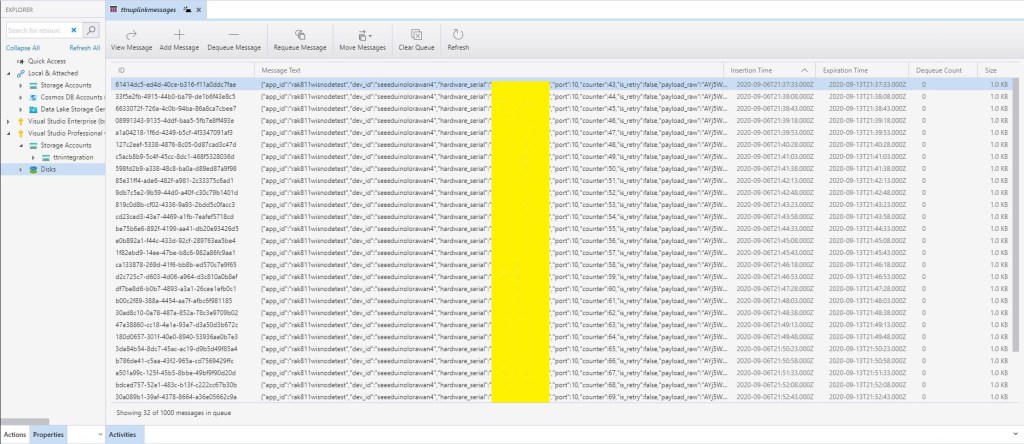
Azure storage Explorer 1000 queued messages
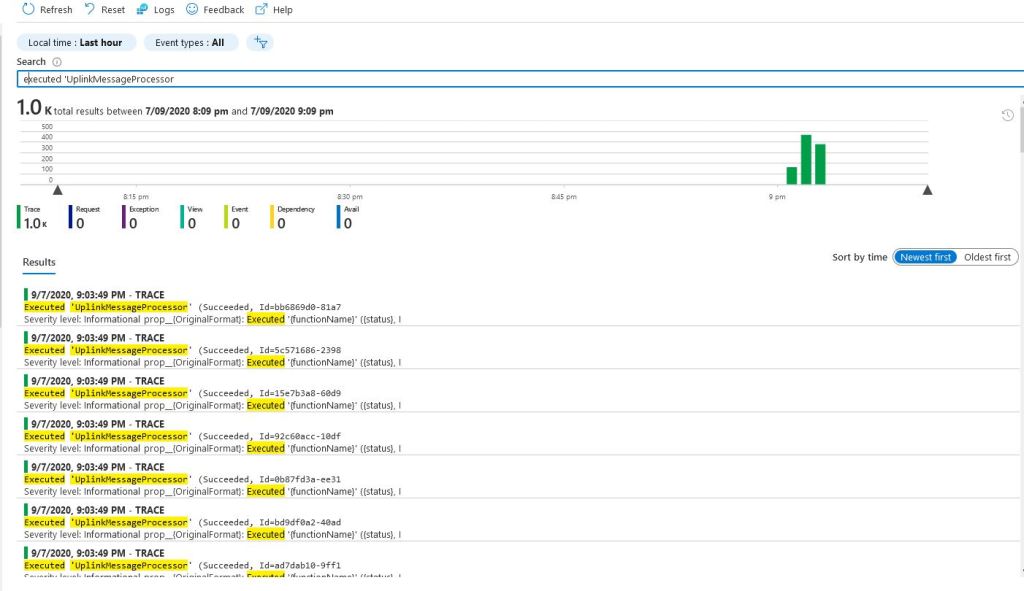
Application insights 1000 events

I processed 1000’s of messages with the Azure Function but every so often 10-20% of the logging messages wouldn’t turn up in the logs. I’m using Log4Net and I think it is most probably caused by not flushing the messages before the function finishes

The Things Network HTTP Integration Part6

Provisioning Devices on demand.

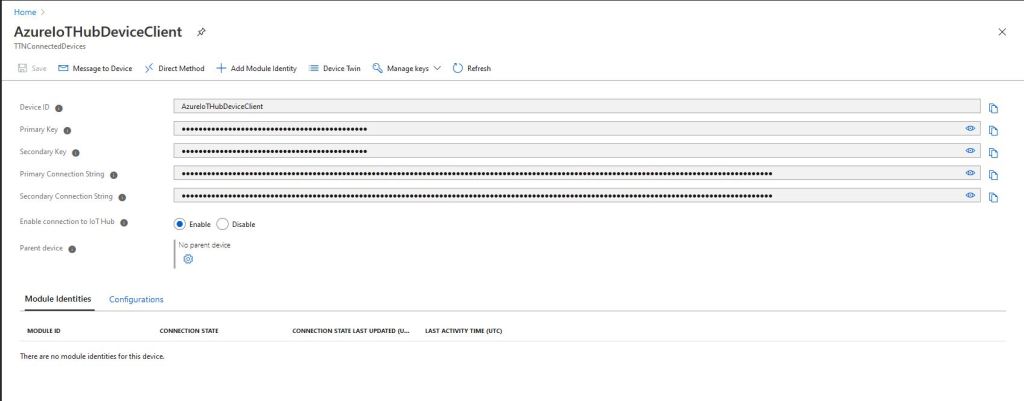
For development and testing being able to provision an individual device is really useful, though for Azure IoT Central it is not easy (especially with the deprecation of DPS-KeyGen). With an Azure IoT Hub device connection strings are available in the portal which is convenient but not terribly scalable.

Azure IoT Hub is integrated with, and Azure IoT Central forces the use of the Device Provisioning Service(DPS) which is designed to support the management of 1000’s of devices.

My HTTP Integration for The Things Network(TTN) is intended to support many devices and integrate with Azure IoT Central so I built yet another “nasty” console application to explore how the DPS works. The DPS also supports device attestation with a Trusted Platform Module(TPM) but this approach was not suitable for my application.

My command-line application supports individual and group enrollments with Symmetric Key Attestation and it can also generate group enrollment device keys.

class Program
{
   private const string GlobalDeviceEndpoint = "global.azure-devices-provisioning.net";

   static async Task Main(string[] args)
   {
      string registrationId;
...   
      registrationId = args[1];

      switch (args[0])
      {
         case "e":
         case "E":
            string scopeId = args[2];
            string symmetricKey = args[3];

            Console.WriteLine($"Enrolllment RegistrationID:{ registrationId} ScopeID:{scopeId}");
            await Enrollement(registrationId, scopeId, symmetricKey);
            break;
         case "k":
         case "K":
            string primaryKey = args[2];
            string secondaryKey = args[3];

            Console.WriteLine($"Enrollment Keys RegistrationID:{ registrationId}");
            GroupEnrollementKeys(registrationId, primaryKey, secondaryKey);
            break;
         default:
            Console.WriteLine("Unknown option");
            break;
      }
      Console.WriteLine("Press <enter> to exit");
      Console.ReadLine();
   }

   static async Task Enrollement(string registrationId, string scopeId, string symetricKey)
   {
      try
      {
         using (var securityProvider = new SecurityProviderSymmetricKey(registrationId, symetricKey, null))
         {
            using (var transport = new ProvisioningTransportHandlerAmqp(TransportFallbackType.TcpOnly))
            {
               ProvisioningDeviceClient provClient = ProvisioningDeviceClient.Create(GlobalDeviceEndpoint, scopeId, securityProvider, transport);

               DeviceRegistrationResult result = await provClient.RegisterAsync();

               Console.WriteLine($"Hub:{result.AssignedHub} DeviceID:{result.DeviceId} RegistrationID:{result.RegistrationId} Status:{result.Status}");
               if (result.Status != ProvisioningRegistrationStatusType.Assigned)
               {
                  Console.WriteLine($"DeviceID{ result.Status} already assigned");
               }

               IAuthenticationMethod authentication = new DeviceAuthenticationWithRegistrySymmetricKey(result.DeviceId, (securityProvider as SecurityProviderSymmetricKey).GetPrimaryKey());

               using (DeviceClient iotClient = DeviceClient.Create(result.AssignedHub, authentication, TransportType.Amqp))
               {
                  Console.WriteLine("DeviceClient OpenAsync.");
                  await iotClient.OpenAsync().ConfigureAwait(false);
                  Console.WriteLine("DeviceClient SendEventAsync.");
                  await iotClient.SendEventAsync(new Message(Encoding.UTF8.GetBytes("TestMessage"))).ConfigureAwait(false);
                  Console.WriteLine("DeviceClient CloseAsync.");
                  await iotClient.CloseAsync().ConfigureAwait(false);
               }
            }
         }
      }
      catch (Exception ex)
      {
         Console.WriteLine(ex.Message);
      }
   }

   static void GroupEnrollementKeys(string registrationId, string primaryKey, string secondaryKey)
   {
      string primaryDeviceKey = ComputeDerivedSymmetricKey(Convert.FromBase64String(primaryKey), registrationId);
      string secondaryDeviceKey = ComputeDerivedSymmetricKey(Convert.FromBase64String(secondaryKey), registrationId);

      Console.WriteLine($"RegistrationID:{registrationId}");
      Console.WriteLine($" PrimaryDeviceKey:{primaryDeviceKey}");
      Console.WriteLine($" SecondaryDeviceKey:{secondaryDeviceKey}");
   }

   public static string ComputeDerivedSymmetricKey(byte[] masterKey, string registrationId)
   {
      using (var hmac = new HMACSHA256(masterKey))
      {
         return Convert.ToBase64String(hmac.ComputeHash(Encoding.UTF8.GetBytes(registrationId)));
      }
   }
}

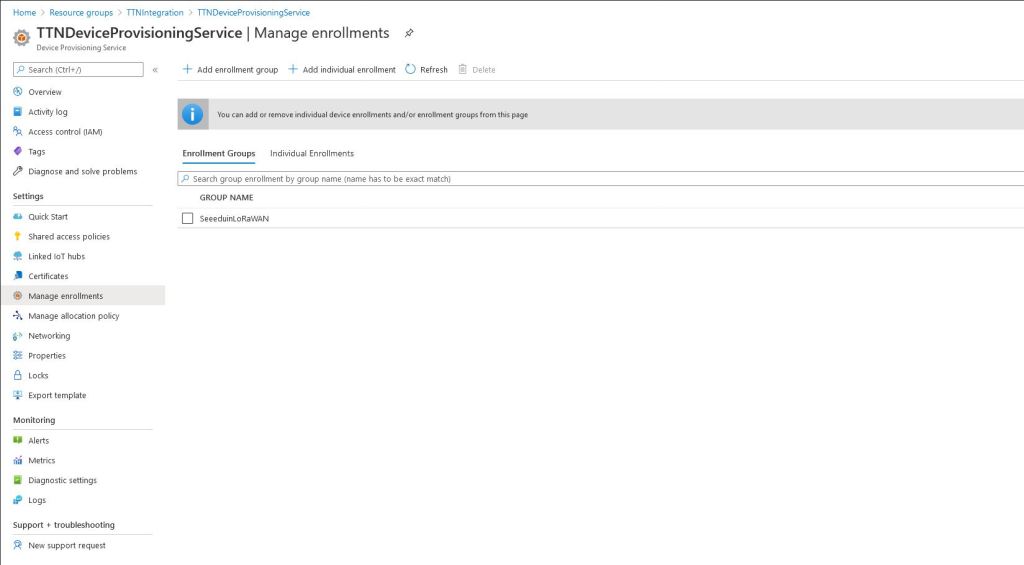
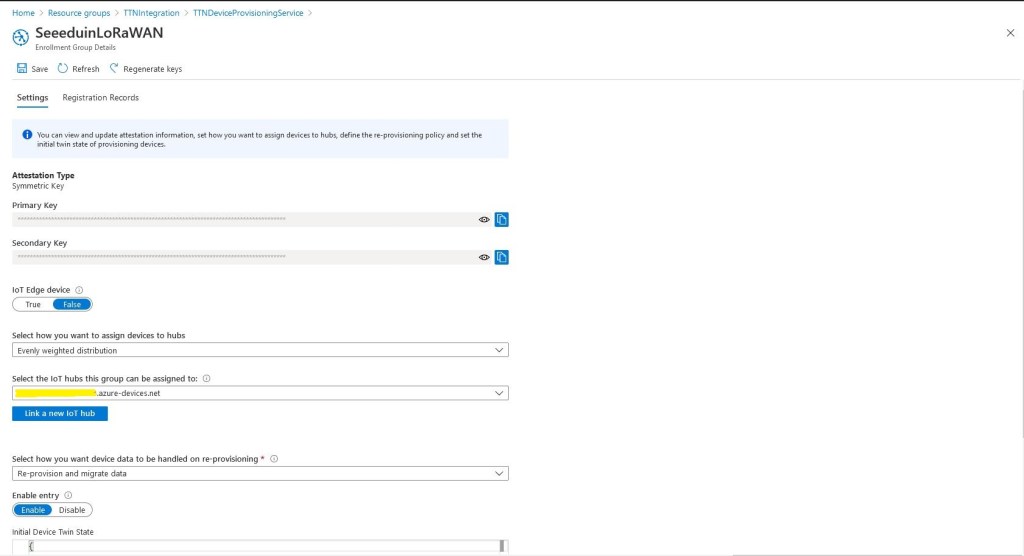
I have five seeeduino LoRaWAN and a single Seeeduino LoRaWAN W/GPS device leftover from another project so I created a SeeeduinoLoRaWAN enrollment group.

DPS Enrollment Group configuration

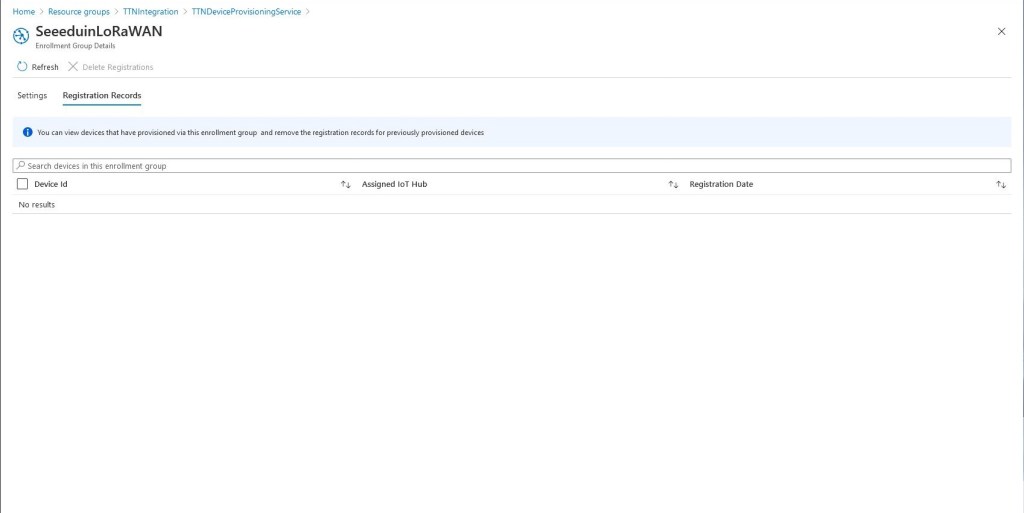
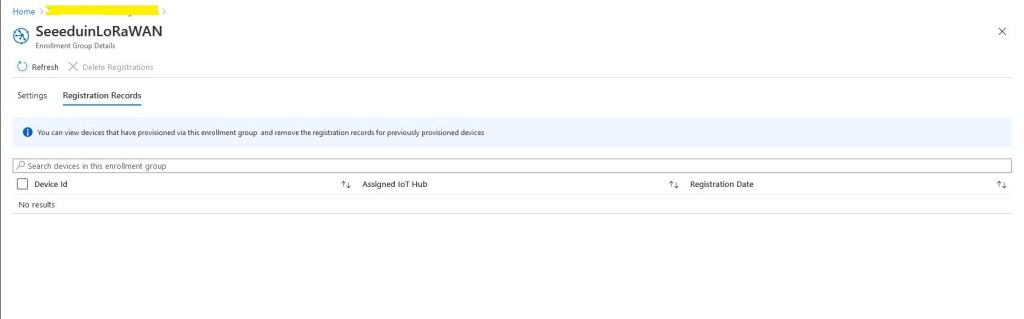
Initially the enrollment group had no registration records so I ran my command-line application to generate group enrollment keys for one of my devices.

Device registration before running my command line application

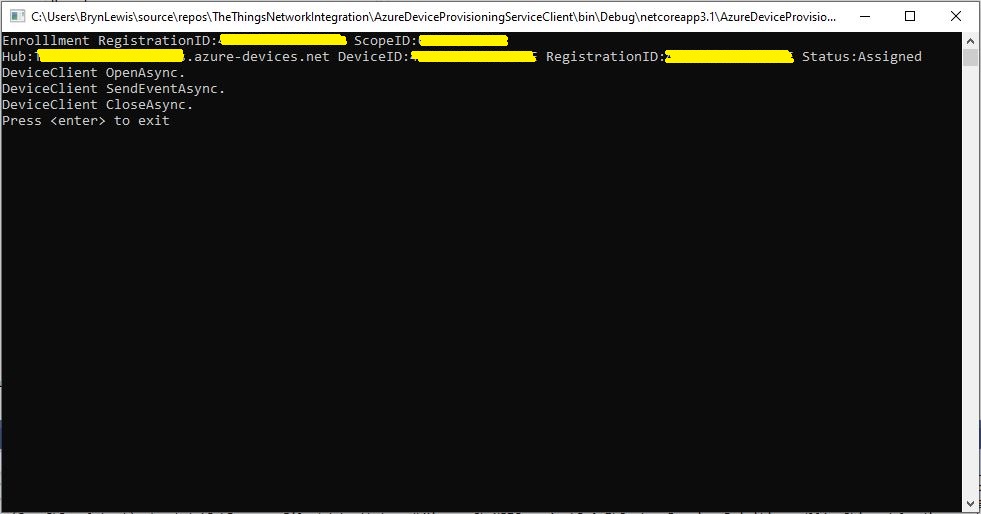
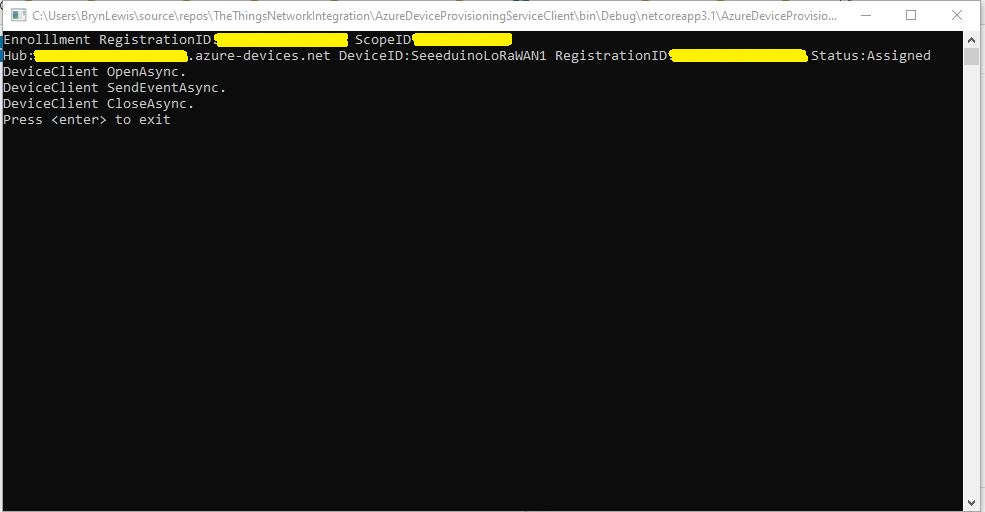
Then I ran the command-line application with my scopeID, registrationID (LoRaWAN deviceEUI) and the device group enrollment key I had generated in the previous step.

Registering a device and sending a message to the my Azure IoT Hub

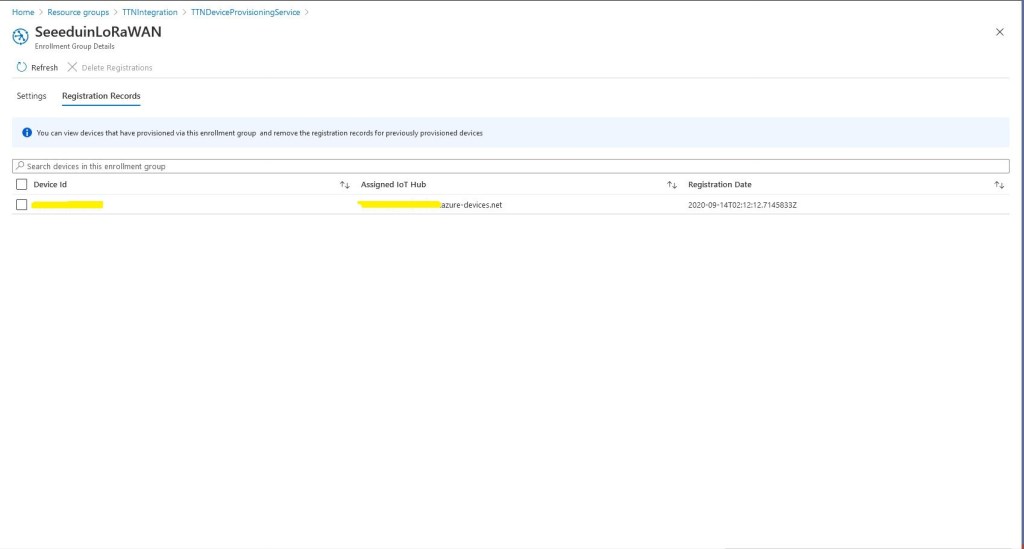
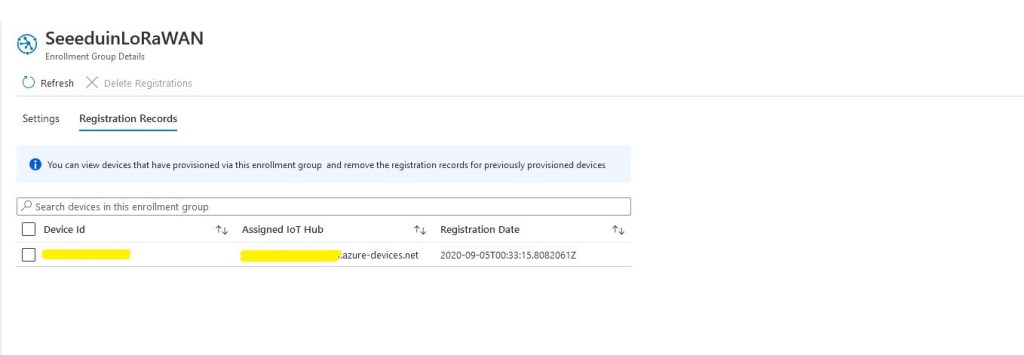
After running the command line application the device was visible in the enrollment group registration records.

Device registration after running my command line application

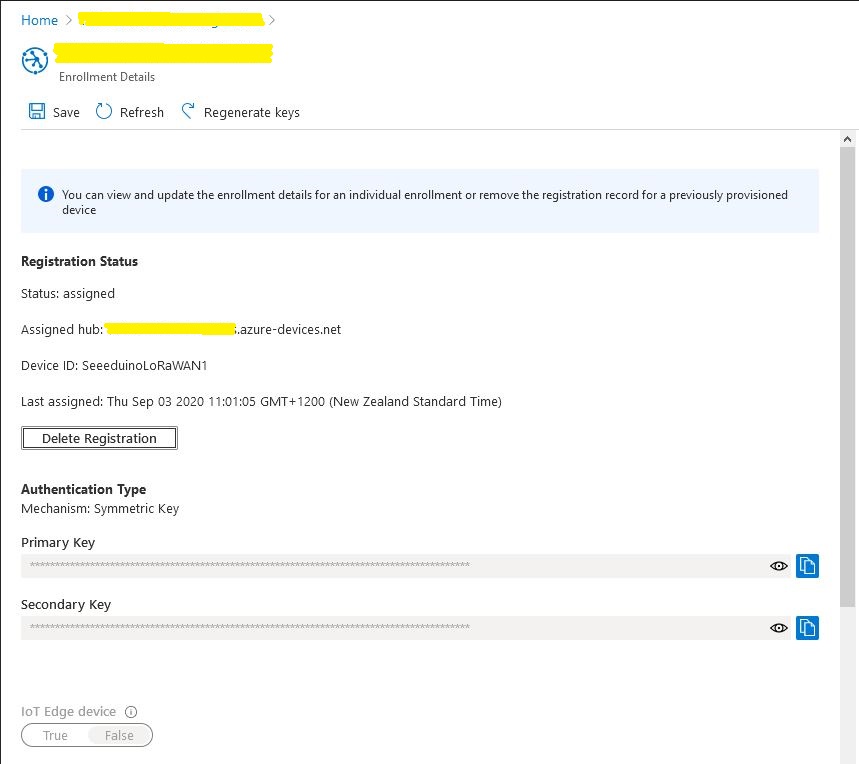
Provisioning a device with an individual enrollment has a different workflow. I had to run my command-line application with the RegistrationID, ScopeID, and one of the symmetric keys from the DPS individual enrollment device configuration.

DPS Individual enrollment configuration

A major downside to an individual enrollment is either the primary or the secondary symmetric key for the device has to be deployed on the device which could be problematic if the device has no secure storage.

With a group enrollment only the registration ID and the derived symmetric key have to be deployed on the device which is more secure.

Registering a device and sending a message to the my Azure IoT Hub

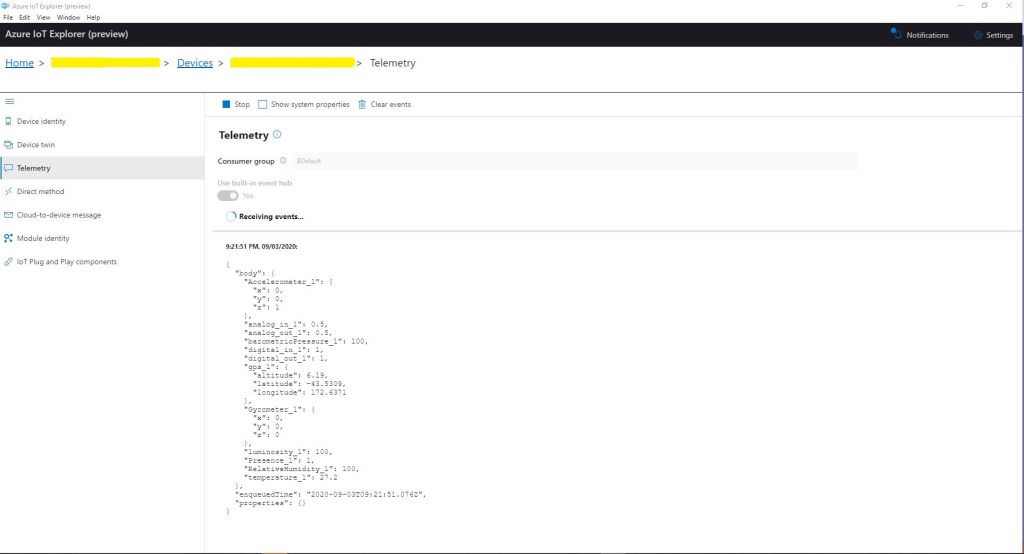
In Azure IoT Explorer I could see messages from both my group and individually enrolled devices arriving at my Azure IoT hub

After some initial issues I found DPS was quite reliable and surprisingly easy to configure. I did find the DPS ProvisioningDeviceClient.RegisterAsync method sometimes took several seconds to execute which may have some ramifications when my application is doing this on demand.