Azure Event Grid esp-mqtt-arduino Client – Success

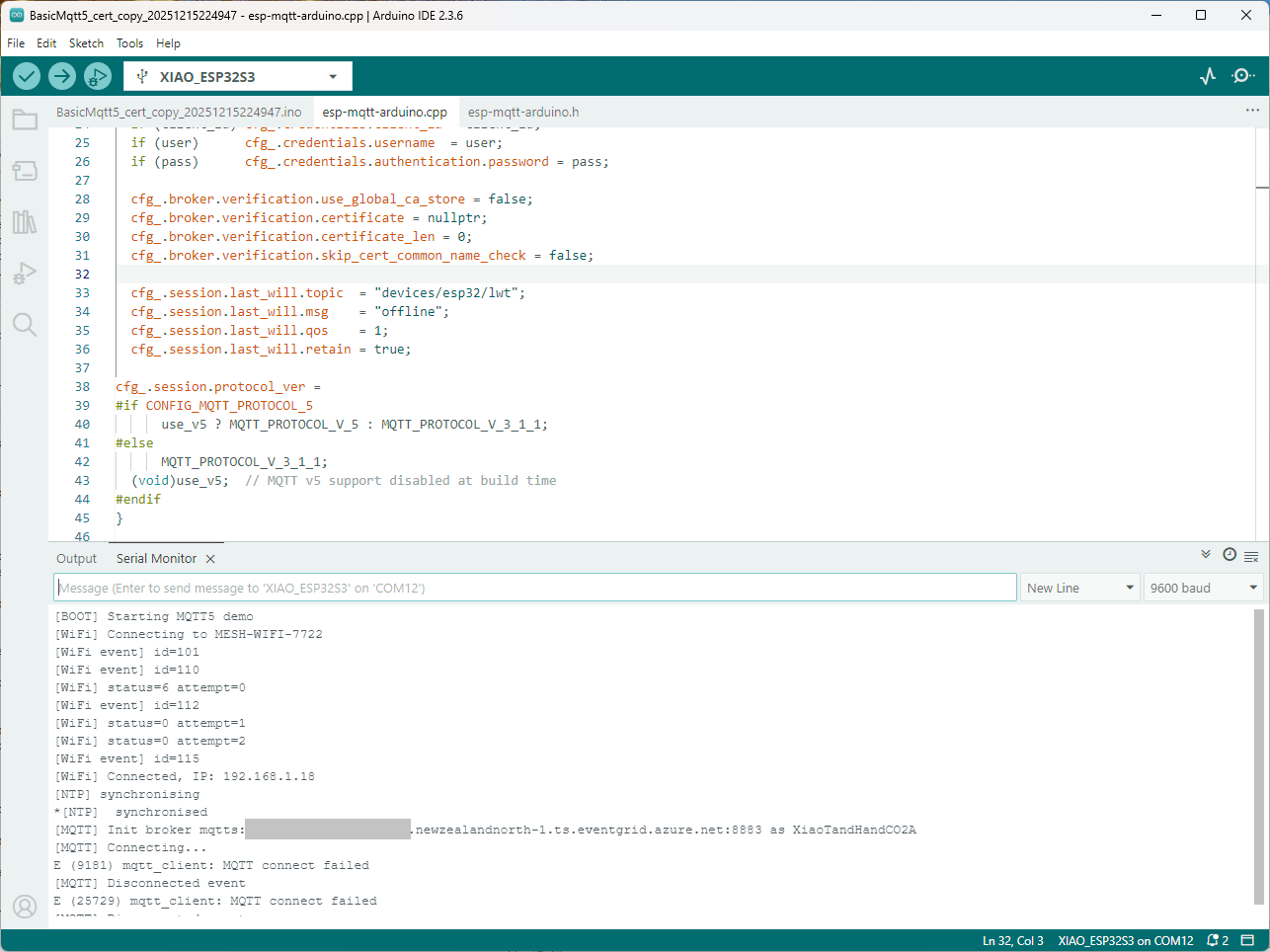
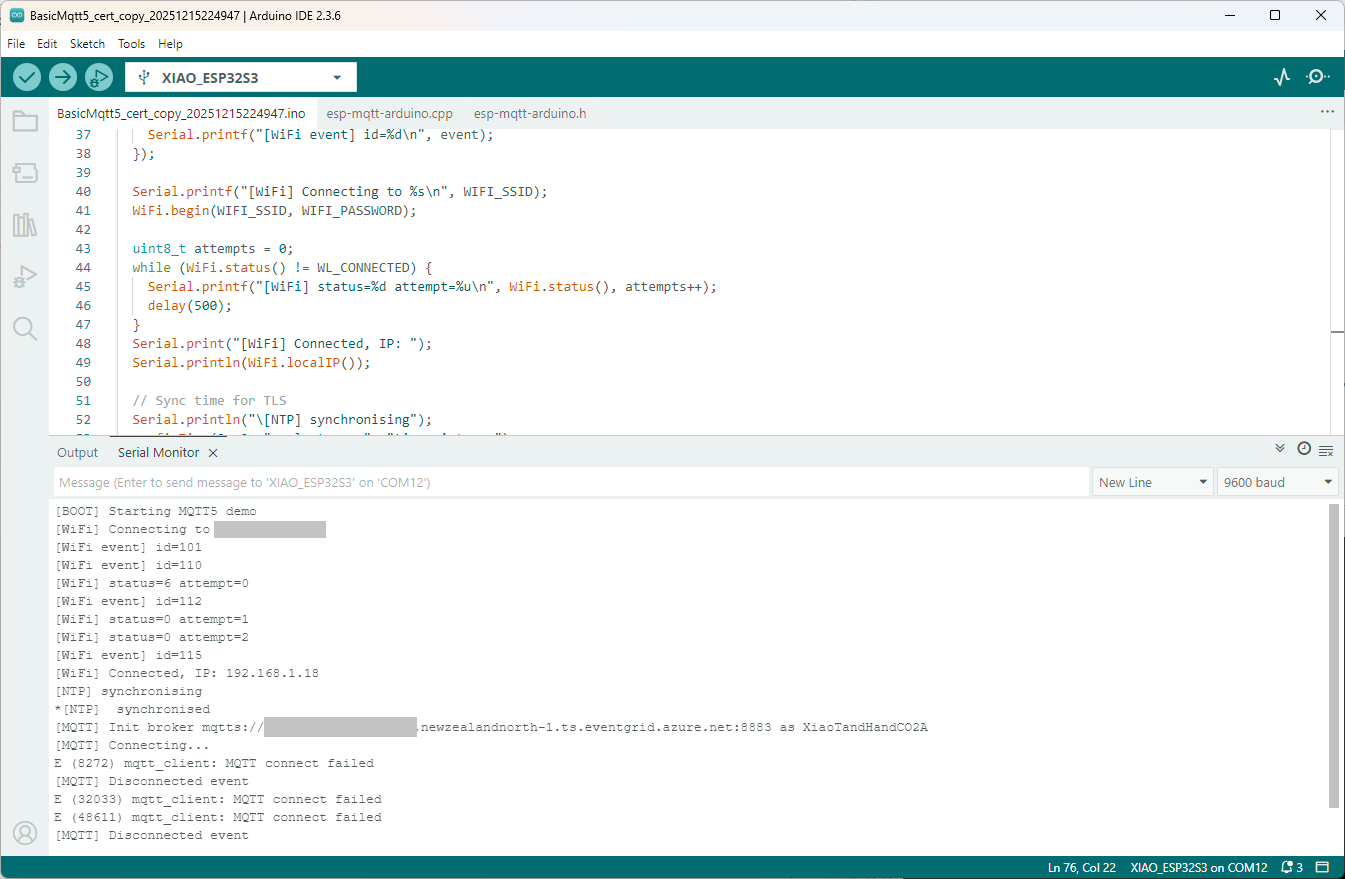
Still couldn’t figure out why my code was failing so I turned up logging to 11 and noticed a couple of messages which didn’t make sense. The device was connecting than disconnecting which indicated a another problem. As part of the Message Queue Telemetry Transport(MQTT) specification there is a “feature” Last Will and Testament(LWT) which a client can configure so that the MQTT broker sends a message to a topic if the device disconnects unexpectedly.

I was looking at the code and noticed that LWT was being used and that the topic didn’t exist in my Azure Event Grid MQTT Broker namespace. When the LWT configuration was commented out the application worked.

void Mqtt5ClientESP32::begin(const char* uri, const char* client_id, const char* user, const char* pass, bool use_v5) {
  connected_ = false;
  insecure_ = false;
  cfg_.broker.address.uri = uri;
  if (client_id) cfg_.credentials.client_id = client_id;
  if (user)      cfg_.credentials.username  = user;
  if (pass)      cfg_.credentials.authentication.password = pass;

  cfg_.broker.verification.use_global_ca_store = false;
  cfg_.broker.verification.certificate = nullptr;
  cfg_.broker.verification.certificate_len = 0;
  cfg_.broker.verification.skip_cert_common_name_check = false;
  
/*
  cfg_.session.last_will.topic  = "devices/esp32/lwt";
  cfg_.session.last_will.msg    = "offline";
  cfg_.session.last_will.qos    = 1;
  cfg_.session.last_will.retain = true;
*/

cfg_.session.protocol_ver = 
#if CONFIG_MQTT_PROTOCOL_5
      use_v5 ? MQTT_PROTOCOL_V_5 : MQTT_PROTOCOL_V_3_1_1;
#else
      MQTT_PROTOCOL_V_3_1_1;
  (void)use_v5;  // MQTT v5 support disabled at build time
#endif
}

Two methods were added so that the LWT could be configured if required

void SetLWT(const char *topic, const char *msg, int msg_len,int qos, int retain);
void Mqtt5ClientESP32::SetLWT(const char *topic, const char *msg, int msg_len,int qos, int retain){
   cfg_.session.last_will.topic  = topic;
   cfg_.session.last_will.msg    = msg;
   cfg_.session.last_will.msg_len= msg_len;
   cfg_.session.last_will.qos    = qos;
   cfg_.session.last_will.retain = retain;
}

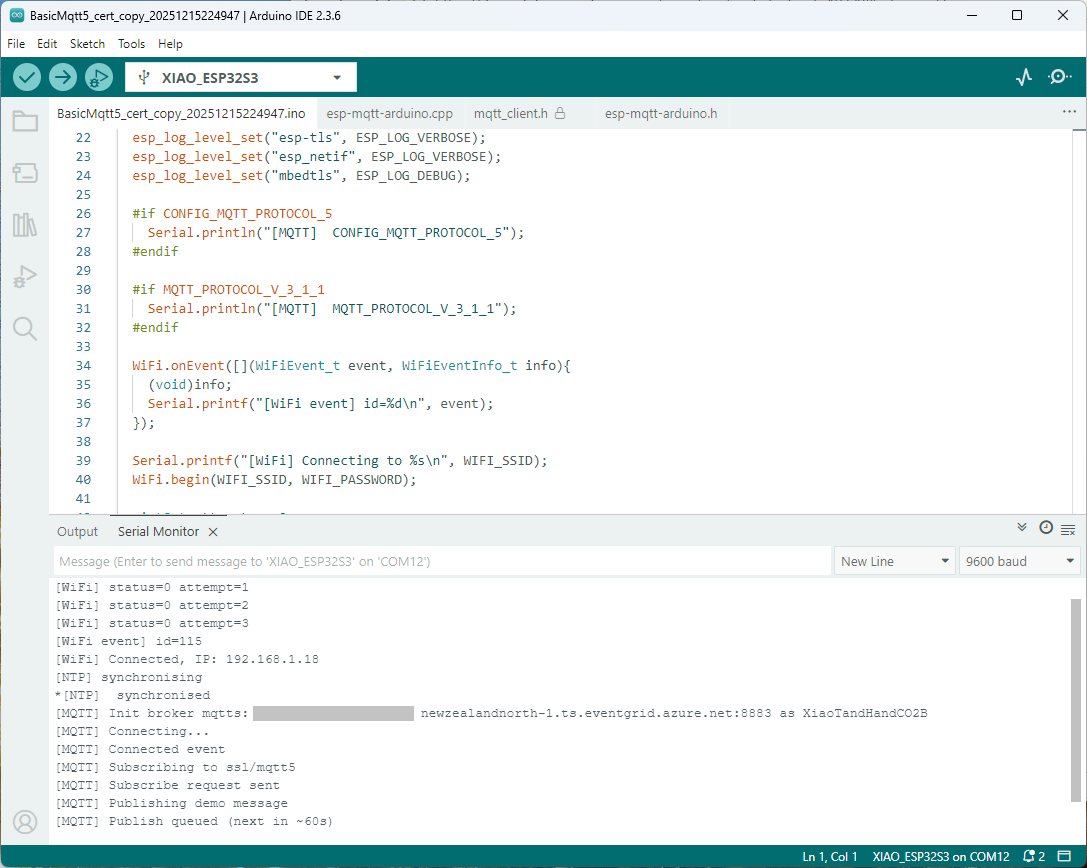
Paying close attention to the logging I noticed the “Subscribing to ssl/mqtts” followed by “Subscribe request sent”

I checked the sample application and found that if the connect was successful the application would then try and subscribe to a topic that didn’t exist.

mqtt.onConnected([]{
  Serial.println("[MQTT] Connected event");

   mqttReady = true;
/*
Serial.println("[MQTT] Subscribing to ssl/mqtt5");
if (mqtt.subscribe("ssl/mqtt5", 1, true)) {
  Serial.println("[MQTT] Subscribe request sent");
} else {
  Serial.println("[MQTT] Subscribe request failed");
}
*/

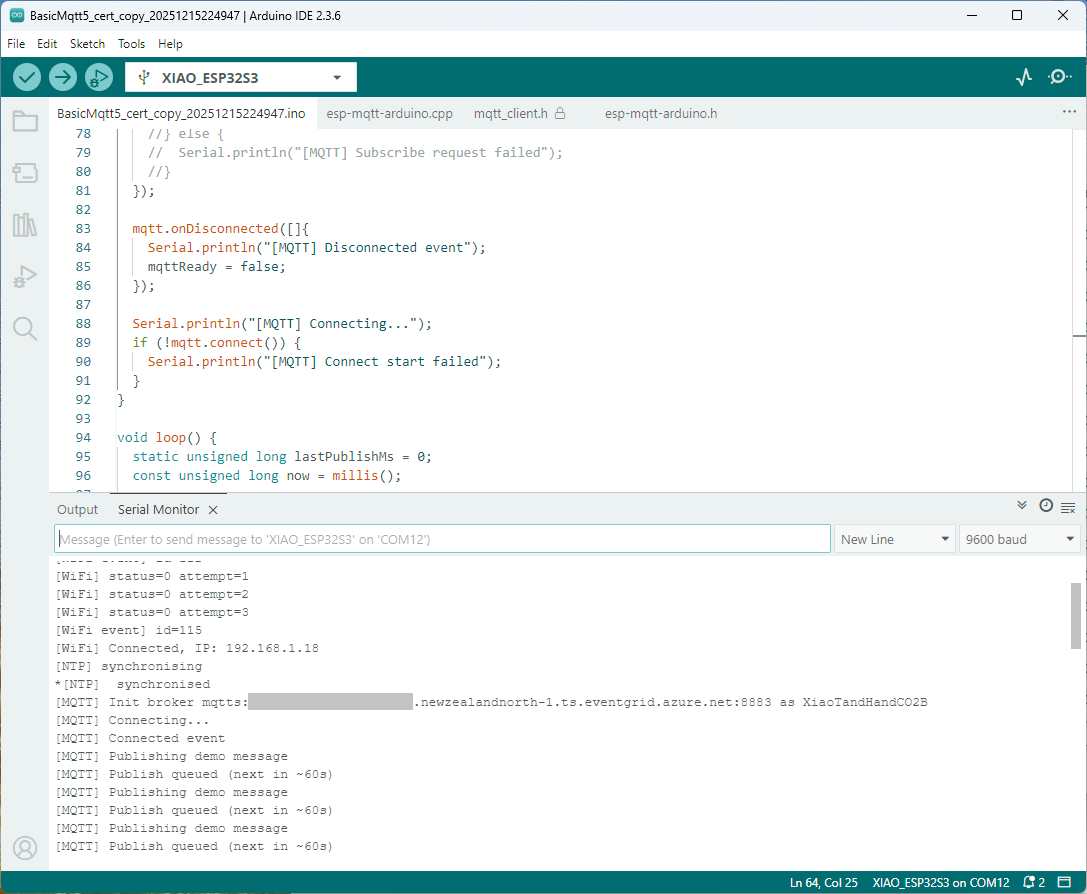
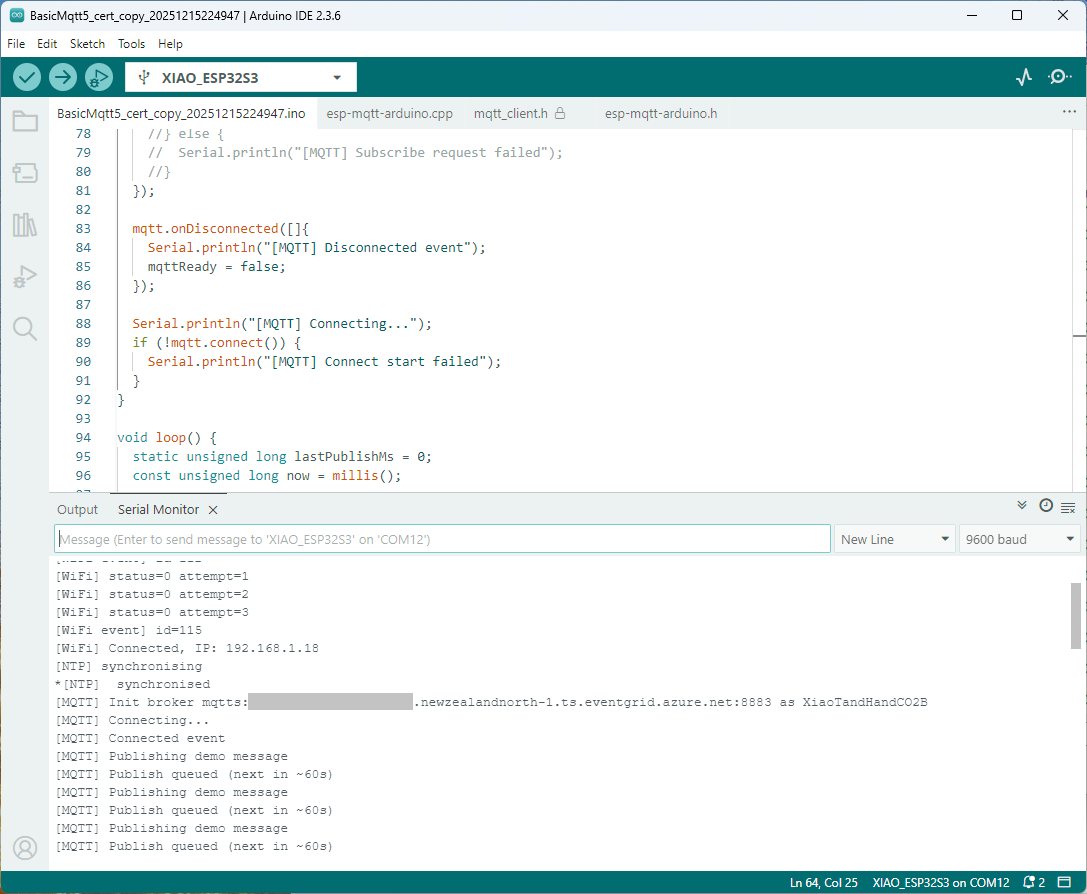
I commented out that code and the application started without any messages

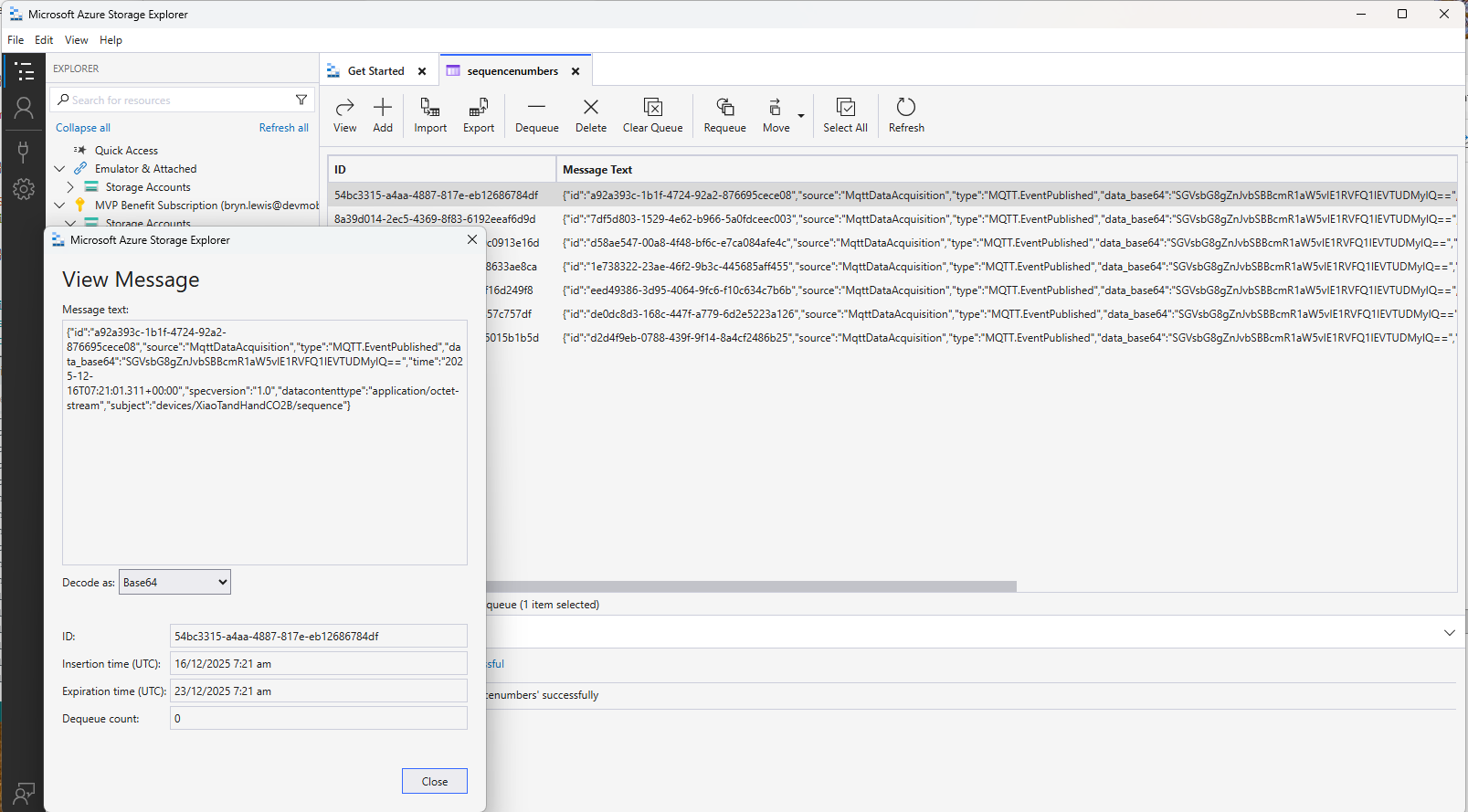
Just to make sure I checked that the message count in the Azure Storage Queue was increasing and the payload client ID matched my device

Yet again a couple of hours lost from my life which I can never get back

Azure Event Grid esp-mqtt-arduino Client – Finding fail

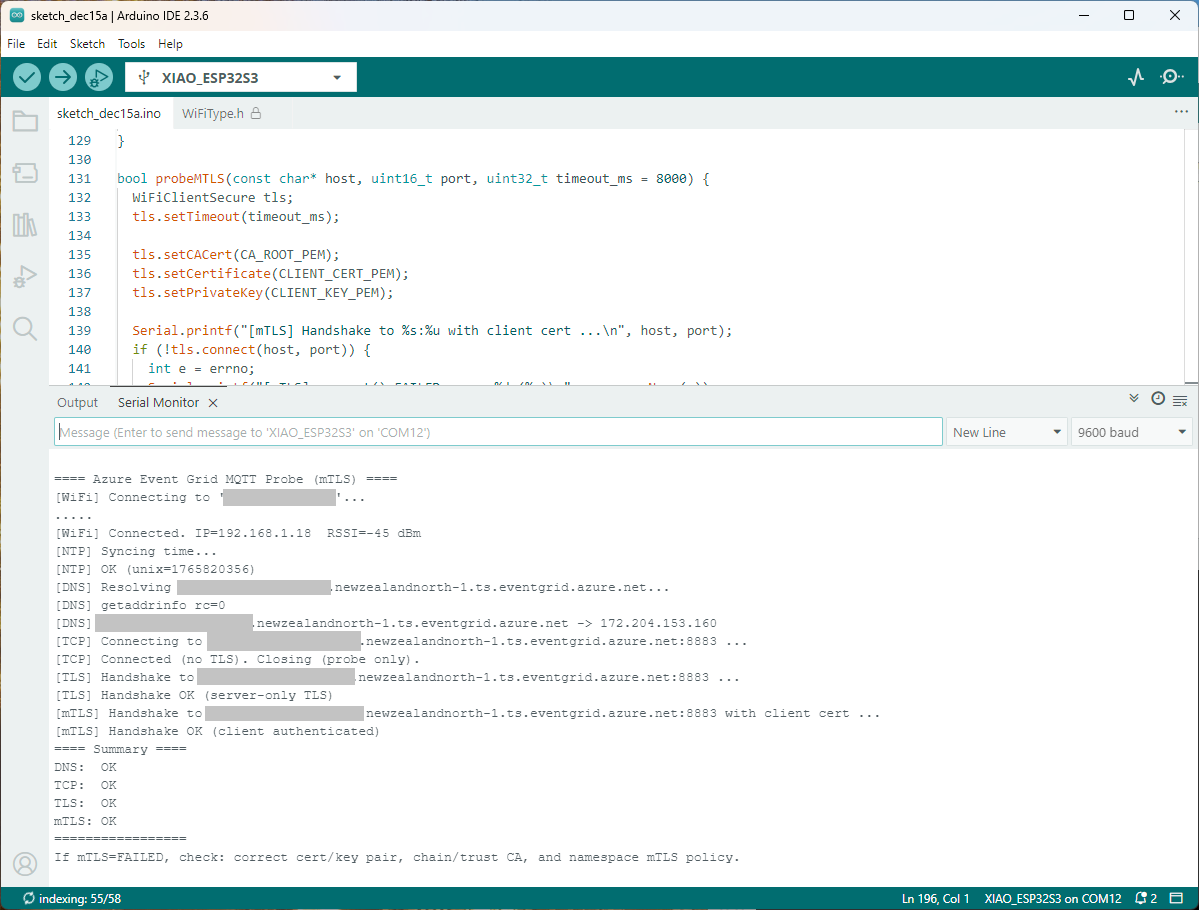
Still couldn’t figure out why my code was failing so I built a test harness which connected to the wifi, set the time with the Network Time Protocol(NTP), established a Transport Layer Security(TLS) connection with the Azure Event Grid MQTT Broker then finally Authenticated (using Client Certificate authentication). Basically, it was The joy of certs without the Arduino PubSubClient library and with authentication

/*
  Azure Event Grid MQTT Endpoint Probe with mTLS
  - Wi-Fi connect
  - SNTP time sync
  - DNS resolve
  - TCP reachability (port 8883)
  - TLS (server-only) handshake using CRT bundle (or custom CA)
  - TLS (mTLS) handshake with client certificate & private key

  Notes:
    - Client certificate must be PEM and match private key.
    - Private key must be PEM and UNENCRYPTED (no passphrase).
    - SNI uses HOSTNAME automatically; do NOT use raw IP.
*/
#include <Arduino.h>
#include <WiFi.h>
#include <WiFiClient.h>
#include <WiFiClientSecure.h>

#include <../constants.h>
#include <../secrets.h>

extern "C" {
  #include <lwip/netdb.h>
  #include <lwip/sockets.h>
  #include <lwip/inet.h>
  #include <lwip/errno.h>
  #include <time.h>
}
static const char* HOSTNAME  = "ThisIsNotTheMQTTBrokerYouAreLookingFor.newzealandnorth-1.ts.eventgrid.azure.net";
static const uint16_t PORT   = 8883;

// Time servers (for TLS validity window)
static const char* NTP_1 = "pool.ntp.org";
static const char* NTP_2 = "time.cloudflare.com";

static const char* errnoName(int e) {
  switch (e) {
    case 5:   return "EIO";
    case 101: return "ENETUNREACH";
    case 104: return "ECONNRESET";
    case 110: return "ETIMEDOUT";
    case 111: return "ECONNREFUSED";
    case 113: return "EHOSTUNREACH";
    default:  return "?";
  }
}


bool waitForWifi(uint32_t timeout_ms = 20000) {
  uint32_t start = millis();
  Serial.printf("[WiFi] Connecting to '%s'...\n", WIFI_SSID);
  WiFi.begin(WIFI_SSID, WIFI_PASSWORD);
  while (WiFi.status() != WL_CONNECTED && (millis() - start) < timeout_ms) {
    delay(250);
    Serial.print(".");
  }
  Serial.println();
  return WiFi.status() == WL_CONNECTED;
}


void syncTime() {
  configTime(0, 0, NTP_1, NTP_2);
  Serial.println("[NTP] Syncing time...");
  for (int i = 0; i < 20; ++i) {
    time_t now = time(nullptr);
    if (now > 1609459200) { // > Jan 1, 2021
      Serial.printf("[NTP] OK (unix=%ld)\n", (long)now);
      return;
    }
    delay(500);
  }
  Serial.println("[NTP] Time sync may have failed; continuing.");
}

bool probeDNS(const char* host, char outIp[16]) {
  struct addrinfo hints = {};
  hints.ai_family = AF_INET; // IPv4
  struct addrinfo* res = nullptr;

  Serial.printf("[DNS] Resolving %s...\n", host);
  int rc = getaddrinfo(host, NULL, &hints, &res);
  Serial.printf("[DNS] getaddrinfo rc=%d\n", rc);
  if (rc != 0 || !res) {
    Serial.println("[DNS] FAILED");
    return false;
  }
  struct sockaddr_in* sin = (struct sockaddr_in*)res->ai_addr;
  inet_ntop(AF_INET, &sin->sin_addr, outIp, 16);
  Serial.printf("[DNS] %s -> %s\n", host, outIp);
  freeaddrinfo(res);
  return true;
}


bool probeTCP(const char* host, uint16_t port, uint32_t timeout_ms = 5000) {
  WiFiClient cli;
  cli.setTimeout(timeout_ms);
  Serial.printf("[TCP] Connecting to %s:%u ...\n", host, port);
  if (!cli.connect(host, port)) {
    Serial.printf("[TCP] connect() FAILED\n");
    return false;
  }
  Serial.println("[TCP] Connected (no TLS). Closing (probe only).");
  cli.stop();
  return true;
}


bool probeTLS(const char* host, uint16_t port, uint32_t timeout_ms = 7000) {
  WiFiClientSecure tls;
  tls.setTimeout(timeout_ms);

  tls.setCACert(CA_ROOT_PEM);  

  Serial.printf("[TLS] Handshake to %s:%u ...\n", host, port);
  if (!tls.connect(host, port)) {
    int e = errno;
    Serial.printf("[TLS] connect() FAILED errno=%d (%s)\n", e, errnoName(e));
    return false;
  }
  Serial.println("[TLS] Handshake OK (server-only TLS)");
  tls.stop();
  return true;
}

bool probeMTLS(const char* host, uint16_t port, uint32_t timeout_ms = 8000) {
  WiFiClientSecure tls;
  tls.setTimeout(timeout_ms);

  tls.setCACert(CA_ROOT_PEM);
  tls.setCertificate(CLIENT_CERT_PEM);
  tls.setPrivateKey(CLIENT_KEY_PEM);

  Serial.printf("[mTLS] Handshake to %s:%u with client cert ...\n", host, port);
  if (!tls.connect(host, port)) {
    int e = errno;
    Serial.printf("[mTLS] connect() FAILED errno=%d (%s)\n", e, errnoName(e));
    Serial.println("[mTLS] If errno=ETIMEDOUT/ECONNRESET, server may be closing due to cert policy mismatch.");
    return false;
  }
  Serial.println("[mTLS] Handshake OK (client authenticated)");
  tls.stop();
  return true;
}

void setup() {
  Serial.begin(9600);
  delay(5000);
  Serial.println();
  Serial.println("==== Azure Event Grid MQTT Probe (mTLS) ====");

  WiFi.mode(WIFI_STA);

  if (!waitForWifi()) {
    Serial.println("[WiFi] FAILED to connect within timeout");
  } else {
    Serial.printf("[WiFi] Connected. IP=%s  RSSI=%d dBm\n",
                  WiFi.localIP().toString().c_str(), WiFi.RSSI());
  }

  // TLS sanity: time
  syncTime();

  // DNS
  char ip[16] = {0};
  bool dnsOk = probeDNS(HOSTNAME, ip);

  // TCP reachability
  bool tcpOk = probeTCP(HOSTNAME, PORT);

  // TLS (server-only)
  bool tlsOk = probeTLS(HOSTNAME, PORT);

  // TLS (mTLS with client cert/key)
  bool mtlsOk = probeMTLS(HOSTNAME, PORT);

  Serial.println("==== Summary ====");
  Serial.printf("DNS:  %s\n", dnsOk  ? "OK" : "FAILED");
  Serial.printf("TCP:  %s\n", tcpOk  ? "OK" : "FAILED");
  Serial.printf("TLS:  %s\n", tlsOk  ? "OK" : "FAILED");
  Serial.printf("mTLS: %s\n", mtlsOk ? "OK" : "FAILED");
  Serial.println("=================");

  Serial.println("If mTLS=FAILED, check: correct cert/key pair, chain/trust CA, and namespace mTLS policy.");
}

void loop() {
  delay(1000);
}

The test harness worked which meant the issue was with my “re-factoring” of the BasicMqtt5_cert example.

Azure Event Grid esp-mqtt-arduino Client – Hours of fail

I wanted to get other Arduino base clients (e.g. my SeeedStudio XiaoESP32S3) for Azure Event Grid MQTT Broker working (for MQTT 5 support) so installed the esp-mqtt-arduino library.

The library doesn’t support client authentication with certificates, so I added two methods setClientCert and setClientKey to the esp-mqtt-arduino.h and esp-mqtt-arduino.cpp files

class Mqtt5ClientESP32 {
   public:
   Mqtt5ClientESP32();
   ~Mqtt5ClientESP32();
//...
  void useCrtBundle(bool enable = true);
  void setCACert(const char* cert, size_t len = 0);
  void setClientCert(const char* cert, size_t len = 0);
  void setClientKey(const char* key, size_t len = 0);  
  void setInsecure(bool enable = true);
  void setKeepAlive(uint16_t seconds);
private:
void Mqtt5ClientESP32::setClientCert(const char* cert, size_t len)
{
  insecure_ = false;
  cfg_.credentials.authentication.certificate = cert;
  if (cert) {
    cfg_.credentials.authentication.certificate_len = len ? len : strlen(cert) + 1;
  } else {
    cfg_.credentials.authentication.certificate_len = 0;
  }  
  cfg_.broker.verification.skip_cert_common_name_check = false;  
}

void Mqtt5ClientESP32::setClientKey(const char* key, size_t len)
{
  insecure_ = false;
  cfg_.credentials.authentication.key = key;
  if (key) {
    cfg_.credentials.authentication.key_len = len ? len : strlen(key) + 1;
  } else {
    cfg_.credentials.authentication.key_len = 0;
  } 
  cfg_.broker.verification.skip_cert_common_name_check = false;  
}

I had started with the basic_mqtt5_cert example stripping it back to the bare minimum hacking out all the certificate bundle support et.c

#include <WiFi.h>
#include <esp-mqtt-arduino.h>
#include <esp_log.h>
#include "sdkconfig.h"
#include "../secrets.h"
#include "../constants.h"

Mqtt5ClientESP32 mqtt;

volatile bool mqttReady = false;
volatile bool mqttSubscribed = false;
void setup() {
  Serial.begin(9600);
  delay(5000);
  Serial.setDebugOutput(true);
  Serial.println("[BOOT] Starting MQTT5 demo");

  esp_log_level_set("*", ESP_LOG_INFO);
  esp_log_level_set("MQTT_CLIENT", ESP_LOG_VERBOSE);

  WiFi.onEvent([](WiFiEvent_t event, WiFiEventInfo_t info){
    (void)info;
    Serial.printf("[WiFi event] id=%d\n", event);
  });

  Serial.printf("[WiFi] Connecting to %s\n", WIFI_SSID);
  WiFi.begin(WIFI_SSID, WIFI_PASSWORD);

  uint8_t attempts = 0;
  while (WiFi.status() != WL_CONNECTED) {
    Serial.printf("[WiFi] status=%d attempt=%u\n", WiFi.status(), attempts++);
    delay(500);
  }
  Serial.print("[WiFi] Connected, IP: ");
  Serial.println(WiFi.localIP());

  // Sync time for TLS
  Serial.println("\[NTP] synchronising");
  configTime(0, 0, "pool.ntp.org", "time.nist.gov");
  Serial.print("*");
  while (time(nullptr) < 100000) {
    delay(500);
    Serial.print("*");
  }
  Serial.println("\[NTP]  synchronised");

  Serial.printf("[MQTT] Init broker %s as %s\n", MQTT_SERVER_URL,MQTT_CLIENTID);
  mqtt.begin(MQTT_SERVER_URL, MQTT_CLIENTID);
  mqtt.setKeepAlive(45);

  mqtt.setCACert(CA_ROOT_PEM); 
  mqtt.setClientCert(CLIENT_CERT_PEM);
  mqtt.setClientKey(CLIENT_KEY_PEM);
  mqtt.setInsecure(false);

  mqtt.onMessage([](const char* topic, size_t topic_len, const uint8_t* data, size_t len){
    Serial.printf("[MSG] %.*s => %.*s\n", (int)topic_len, topic, (int)len, (const char*)data);
  });
  mqtt.onConnected([]{
    Serial.println("[MQTT] Connected event");
    mqttReady = true;
    Serial.println("[MQTT] Subscribing to ssl/mqtt5");
    if (mqtt.subscribe("ssl/mqtt5", 1, true)) {
      Serial.println("[MQTT] Subscribe request sent");
    } else {
      Serial.println("[MQTT] Subscribe request failed");
    }
  });

  mqtt.onDisconnected([]{
    Serial.println("[MQTT] Disconnected event");
    mqttReady = false;
  });

  Serial.println("[MQTT] Connecting...");
  if (!mqtt.connect()) {
    Serial.println("[MQTT] Connect start failed");
  }
}

void loop() {
  static unsigned long lastPublishMs = 0;
  const unsigned long now = millis();

  if (mqttReady && (now - lastPublishMs) >= 60000) {
    const char* msg = "Hello from Arduino MQTT5 ESP32!";
    Serial.println("[MQTT] Publishing demo message");
    if (mqtt.publish(MQTT_TOPIC_PUBLISH, (const uint8_t*)msg, strlen(msg))) {
      Serial.println("[MQTT] Publish queued (next in ~60s)");
    } else {
      Serial.println("[MQTT] Publish failed");
    }
    lastPublishMs = now;
  }

  delay(10);
}

It was important to put the setClientCert & setClient after the mqtt.begin because it resets the configuration

void Mqtt5ClientESP32::begin(const char* uri, const char* client_id,
                             const char* user, const char* pass, bool use_v5) {
  connected_ = false;
  insecure_ = false;
  cfg_.broker.address.uri = uri;
  if (client_id) cfg_.credentials.client_id = client_id;
  if (user)      cfg_.credentials.username  = user;
  if (pass)      cfg_.credentials.authentication.password = pass;

  cfg_.broker.verification.use_global_ca_store = false;
  cfg_.broker.verification.certificate = nullptr;
  cfg_.broker.verification.certificate_len = 0;
  cfg_.broker.verification.skip_cert_common_name_check = false;
  
  cfg_.session.last_will.topic  = "devices/esp32/lwt";
  cfg_.session.last_will.msg    = "offline";
  cfg_.session.last_will.qos    = 1;
  cfg_.session.last_will.retain = true;

cfg_.session.protocol_ver = 
#if CONFIG_MQTT_PROTOCOL_5
      use_v5 ? MQTT_PROTOCOL_V_5 : MQTT_PROTOCOL_V_3_1_1;
#else
      MQTT_PROTOCOL_V_3_1_1;
  (void)use_v5;  // MQTT v5 support disabled at build time
#endif
}

I tried increasing the log levels to get more debugging information, adding delays on startup to make it easier to see what was going on, trying different options of protocol support.

After hours of trying I gave up.

Seeedstudio XIAO ESP32 S3 RS-485 test harness(nanoFramework)

As part of a project to read values from a MODBUS RS-485 sensor using a RS-485 Breakout Board for Seeed Studio XIAO and a Seeed Studio XIAO ESP32-S3 I built a .NET nanoFramework version of the Arduino test harness described in this wiki post.

This took a bit longer than I expected mainly because running two instances of Visual Studio 2026 was a problem (running Visual Studio 2022 for one device and Visual Studio 2026 for the other, though not 100% confident this was an issue) as there were some weird interactions.

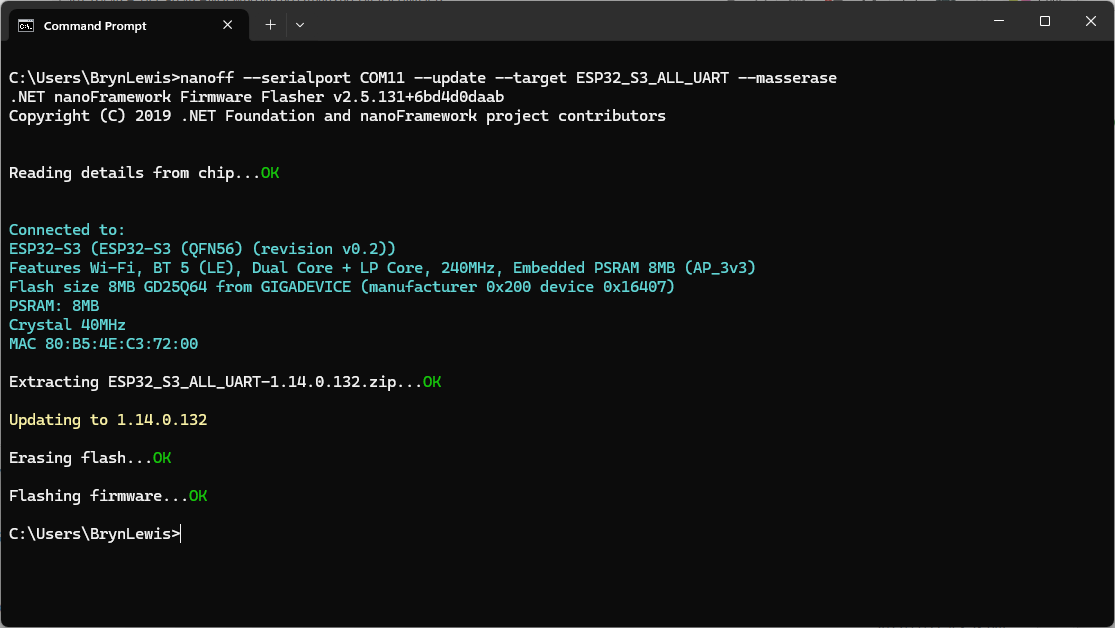
using nanoff to flash a device with the latest version of ESP32_S3_ALL_UART

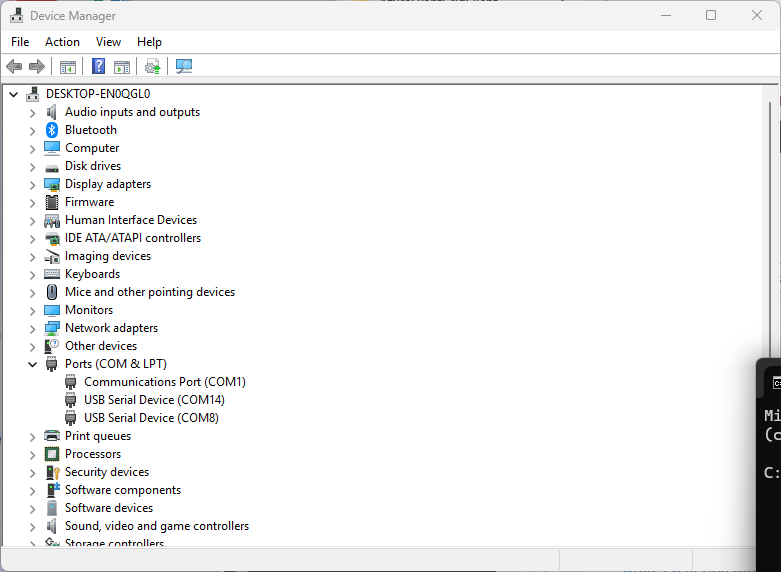
As I moved between the Arduino tooling and flashing devices with nanoff the serial port numbers would change watching the port assignments in Windows Device Manager was key.

Windows Device manager displaying the available serial ports

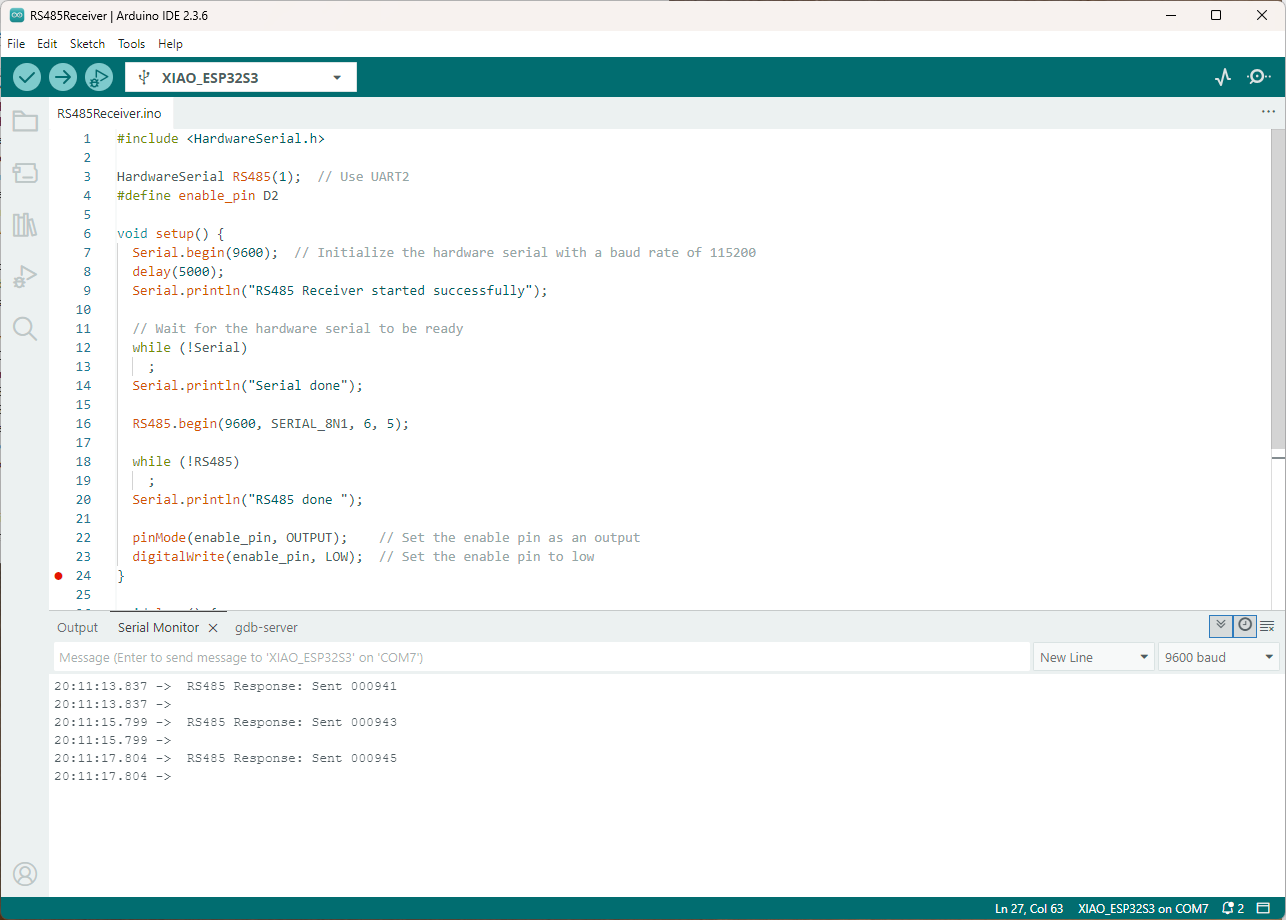
Rather than debugging both the nanoFramework RS485Sender and RS485Receiver applications simultaneously, I used the Arduino RS485Sender and RS485 Receiver application but had similar issues with the port assignments changing.

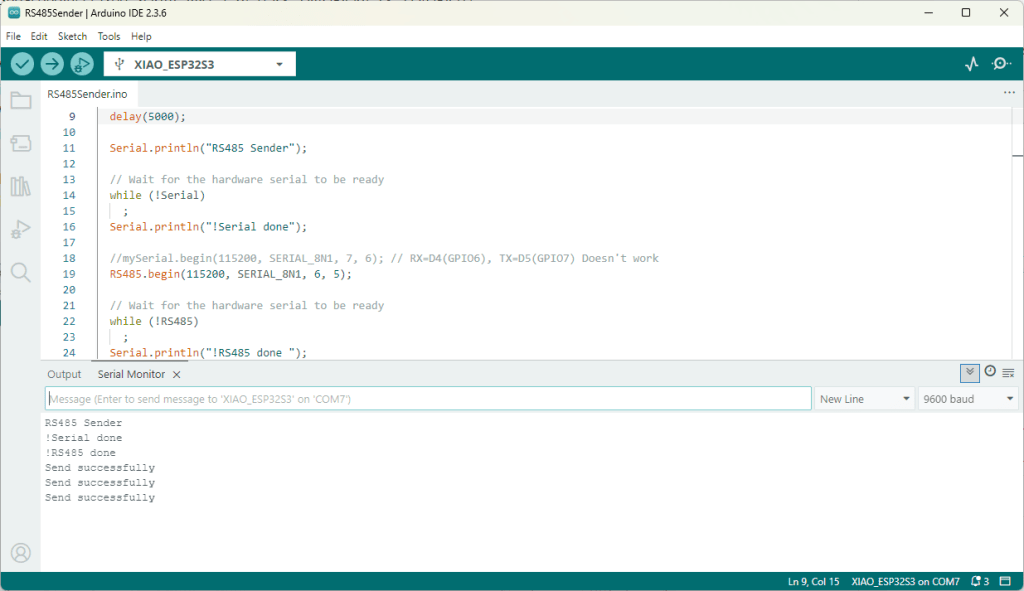
Arduino RS485 Sender application
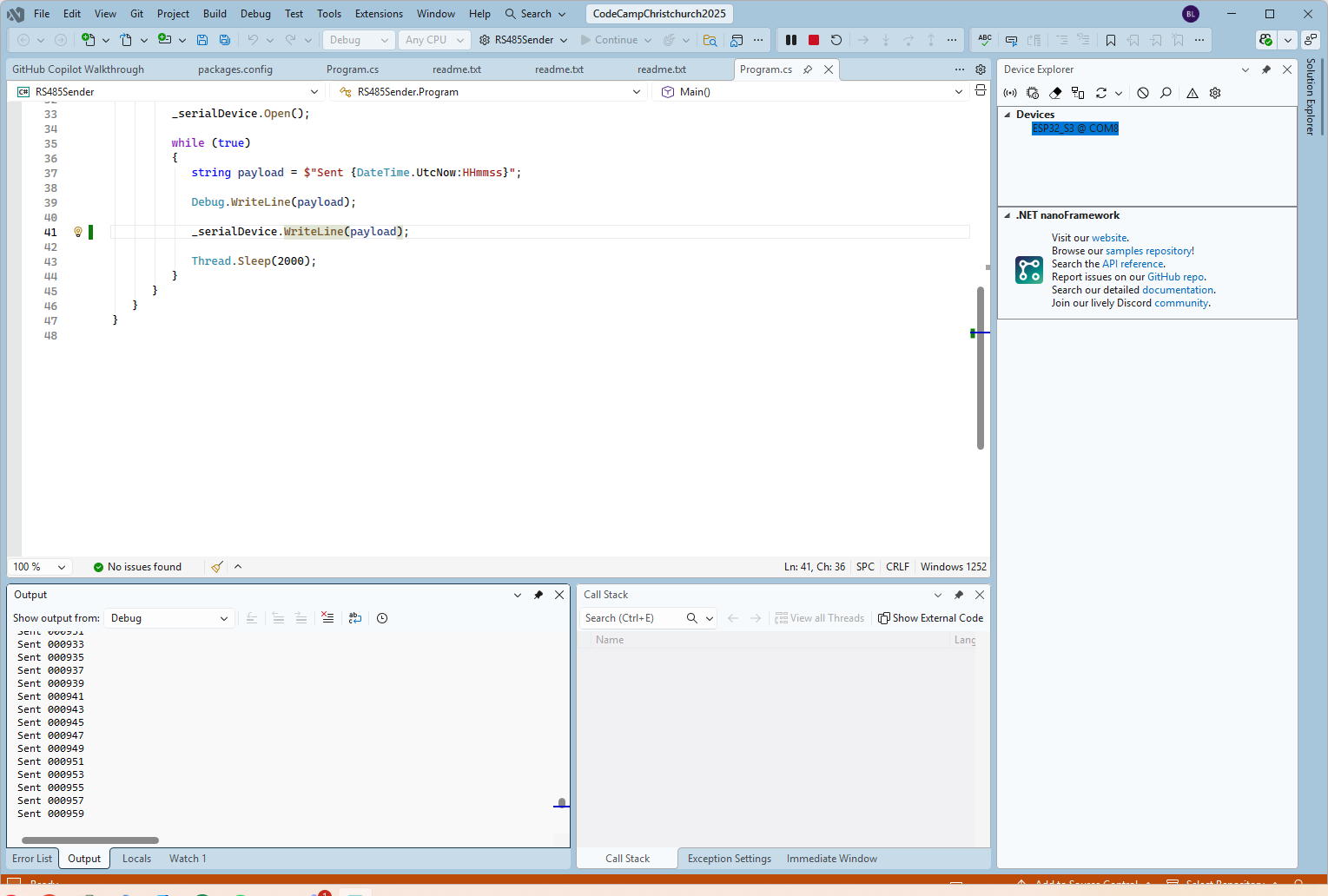
The nanoFramework sender application
public class Program
{
   static SerialPort _serialDevice;

   public static void Main()
   {
      Configuration.SetPinFunction(Gpio.IO06, DeviceFunction.COM2_RX);
      Configuration.SetPinFunction(Gpio.IO05, DeviceFunction.COM2_TX);
      Configuration.SetPinFunction(Gpio.IO02, DeviceFunction.COM2_RTS);

      Debug.WriteLine("RS485 Sender: ");

      var ports = SerialPort.GetPortNames();

      Debug.WriteLine("Available ports: ");
      foreach (string port in ports)
      {
         Debug.WriteLine($" {port}");
      }

      _serialDevice = new SerialPort("COM2");
      _serialDevice.BaudRate = 9600;
      _serialDevice.Mode = SerialMode.RS485;

      _serialDevice.Open();

      Debug.WriteLine("Sending...");
      while (true)
      {
         string payload = $"{DateTime.UtcNow:HHmmss}";

         Debug.WriteLine($"Sent:{DateTime.UtcNow:HHmmss}");

         Debug.WriteLine(payload);

         _serialDevice.WriteLine(payload);

         Thread.Sleep(2000);
      }
   }
}

if I had built the nanoFramework RS485Sender and RS485Receiver applications first debugging the Arduino RS485Sender and RS485Receiver would been similar.

Arduino receiver application displaying messages from the nanoFramework sender application
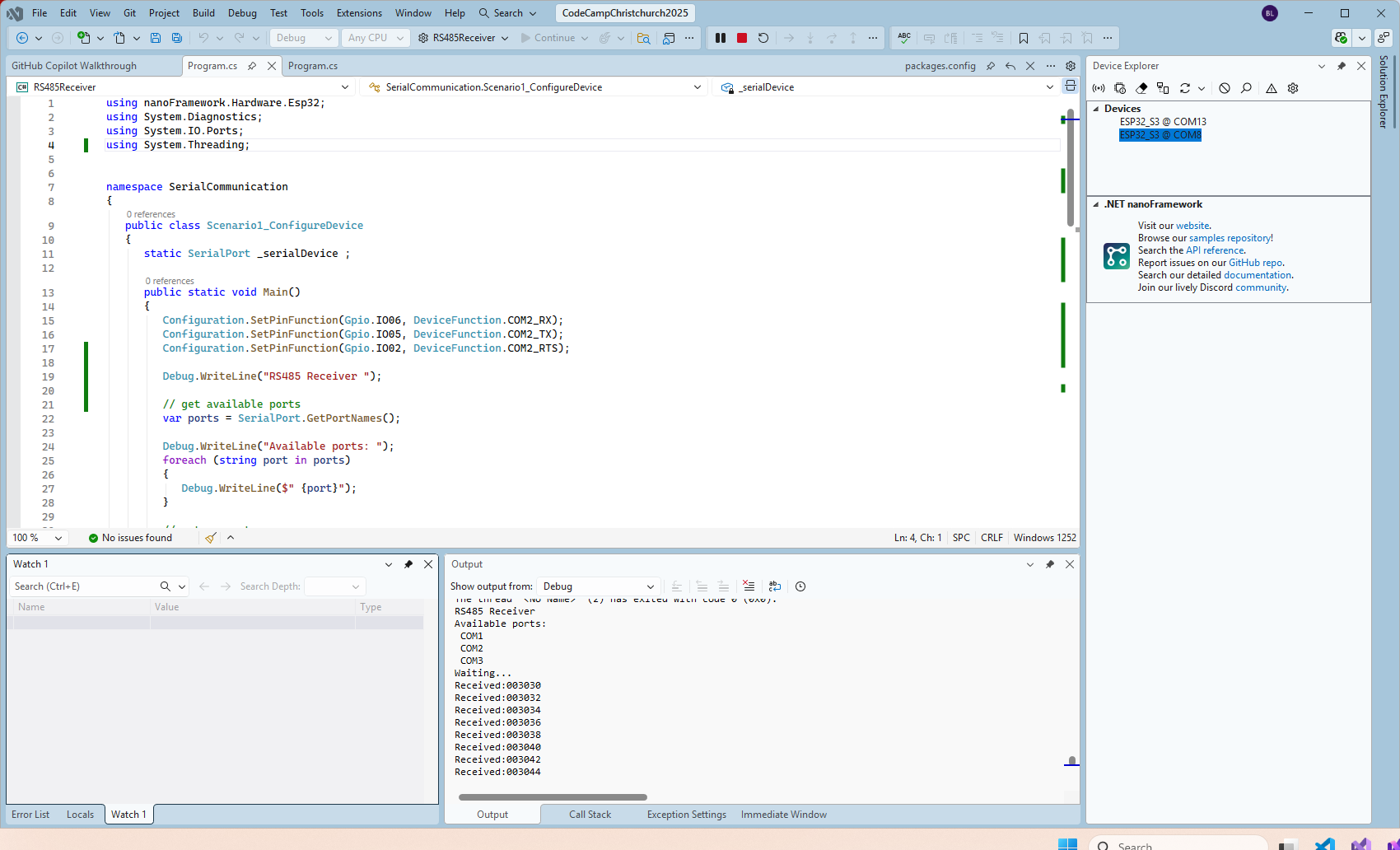
The nanoFramework Receiver receiving messages from the nanoFramework Sender
public class Program
{
   static SerialPort _serialDevice ;
 
   public static void Main()
   {
      Configuration.SetPinFunction(Gpio.IO06, DeviceFunction.COM2_RX);
      Configuration.SetPinFunction(Gpio.IO05, DeviceFunction.COM2_TX);
      Configuration.SetPinFunction(Gpio.IO02, DeviceFunction.COM2_RTS);

      Debug.WriteLine("RS485 Receiver ");

      // get available ports
      var ports = SerialPort.GetPortNames();

      Debug.WriteLine("Available ports: ");
      foreach (string port in ports)
      {
         Debug.WriteLine($" {port}");
      }

      // set parameters
      _serialDevice = new SerialPort("COM2");
      _serialDevice.BaudRate = 9600;
      _serialDevice.Mode = SerialMode.RS485;

      // set a watch char to be notified when it's available in the input stream
      _serialDevice.WatchChar = '\n';

      // setup an event handler that will fire when a char is received in the serial device input stream
      _serialDevice.DataReceived += SerialDevice_DataReceived;

      _serialDevice.Open();

      Debug.WriteLine("Waiting...");
      Thread.Sleep(Timeout.Infinite);
   }

   private static void SerialDevice_DataReceived(object sender, SerialDataReceivedEventArgs e)
   {
      SerialPort serialDevice = (SerialPort)sender;

      switch (e.EventType)
      {
         case SerialData.Chars:
         //break;

         case SerialData.WatchChar:
            string response = serialDevice.ReadExisting();
            Debug.Write($"Received:{response}");
            break;
         default:
            Debug.Assert(false, $"e.EventType {e.EventType} unknown");
            break;
      }
   }
}

The changing of serial port numbers while running different combinations of Arduino and nanoFramework environments concurrently combined with the sender and receiver applications having to be deployed to the right devices (also initially accidentally different baud rates) was a word of pain, and with the benefit of hindsight I should have used two computers.

Seeedstudio XIAO ESP32 S3 RS-485 test harness(Arduino)

As part of a project to read values from a MODBUS RS-485 sensor using a RS-485 Breakout Board for Seeed Studio XIAO and a Seeed Studio XIAO ESP32-S3 I built the test harness described in the wiki post. The test harness setup for a Seeed Studio XIAO ESP32-C3/Seeed Studio XIAO ESP32-C6 didn’t work with my Seeed Studio XIAO ESP32-S3.

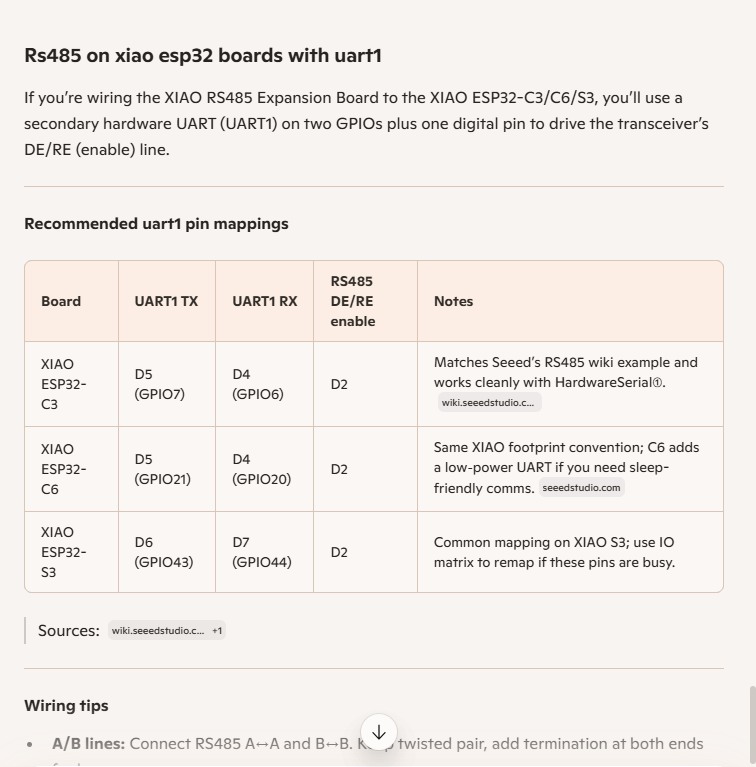
I then did some digging looked at schematics and figured out the port mappings were different. This took a while so I tried Microsoft Copilot

I then updated the port assigned for my RS485Sender application

#include <HardwareSerial.h>

HardwareSerial RS485(1);

#define enable_pin D2

void setup() {
  Serial.begin(9600);  // Initialize the hardware serial with a baud rate of 115200
  delay(5000);

  Serial.println("RS485 Sender");

  // Wait for the hardware serial to be ready
  while (!Serial)
    ;
  Serial.println("!Serial done");

  //mySerial.begin(115200, SERIAL_8N1, 7, 6); // RX=D4(GPIO6), TX=D5(GPIO7) Doesn't work
  RS485.begin(115200, SERIAL_8N1, 6, 5);

  // Wait for the hardware serial to be ready
  while (!RS485)
    ;
  Serial.println("!RS485 done ");

  pinMode(enable_pin, OUTPUT);     // Set the enable pin as an output
  digitalWrite(enable_pin, HIGH);  // Set the enable pin to high
}

void loop() {
  if (Serial.available()) {
    String inputData = Serial.readStringUntil('\n');  // Read the data from the hardware serial until a newline character

    // If the received data is not empty
    if (inputData.length() > 0) {
      Serial.println("Send successfully");  // Print a success message
      RS485.println(inputData);             // Send the received data to the hardware serial
    }
  }
}

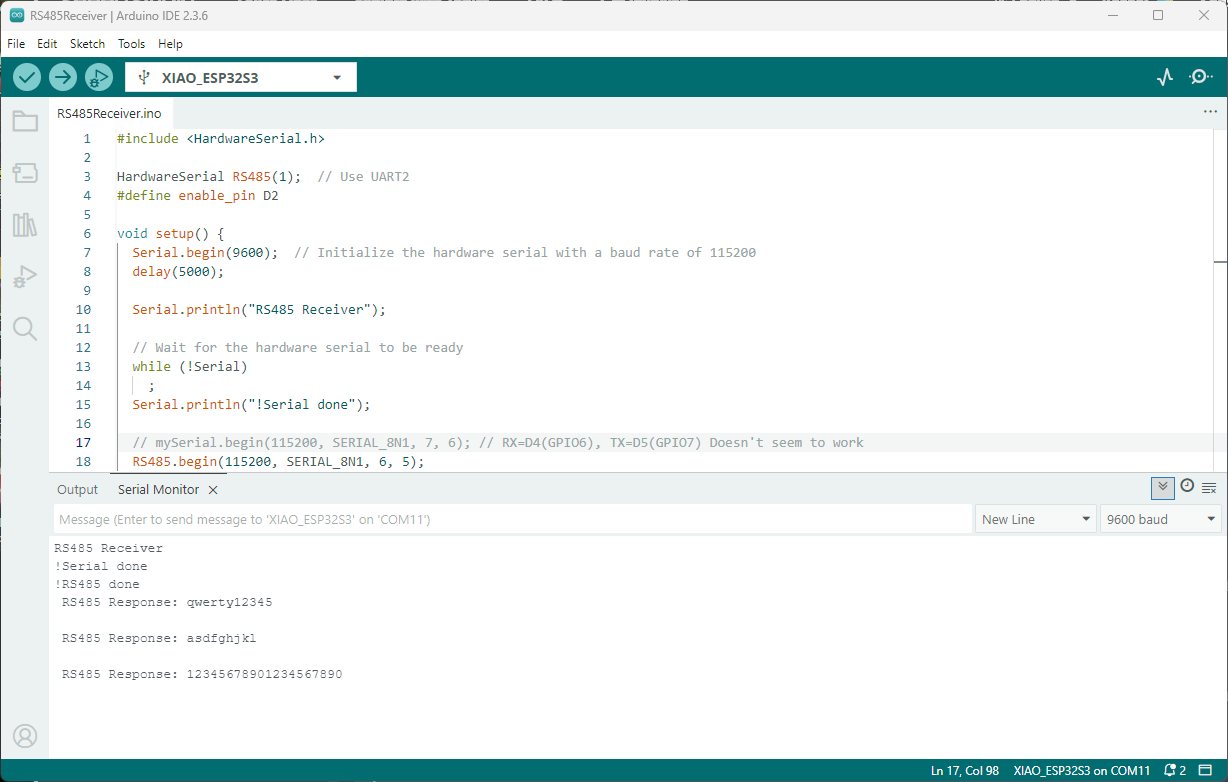
I then updated the port assigned for my RS485Receiver application

#include <HardwareSerial.h>

HardwareSerial RS485(1);  // Use UART2
#define enable_pin D2

void setup() {
  Serial.begin(9600);  // Initialize the hardware serial with a baud rate of 115200
  delay(5000);

  Serial.println("RS485 Receiver");

  // Wait for the hardware serial to be ready
  while (!Serial)
    ;
  Serial.println("!Serial done");

  // mySerial.begin(115200, SERIAL_8N1, 7, 6); // RX=D4(GPIO6), TX=D5(GPIO7) Doesn't seem to work
  RS485.begin(115200, SERIAL_8N1, 6, 5); 
  
    // Wait for the hardware serial to be ready
  while (!RS485)
    ;
  Serial.println("!RS485 done ");

  pinMode(enable_pin, OUTPUT);    // Set the enable pin as an output
  digitalWrite(enable_pin, LOW);  // Set the enable pin to low
}

void loop() {
  // Check if there is data available from the hardware serial
  int x = RS485.available();

  if (x) {
    String response = RS485.readString();

    Serial.println(" RS485 Response: " + response);
  }

  delay(1000);
}

Getting my test harness RS485Sender and RS485Receiver applications (inspired by Seeedstudio wiki) took quite a bit longer than expected. Using Copilot worked better than expected but I think that might be because after doing some research my prompts were better.

Wireless-Tag WT32-SC01 nanoFramework Chuck Norris API Client

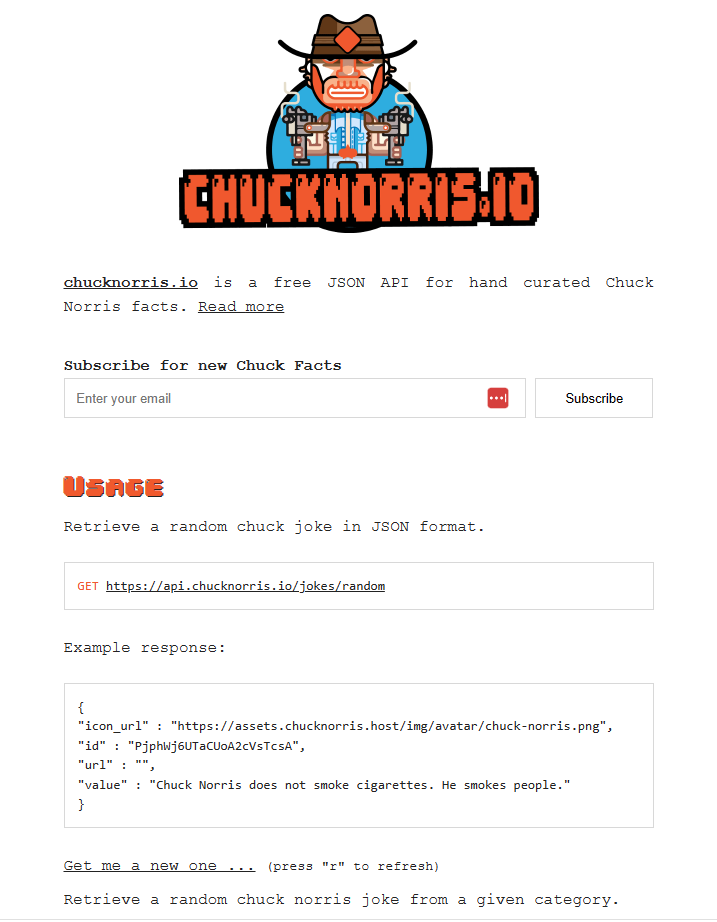
Back in 2013 built a demo application which called the Chuck Norris API(ICNAPI) to demonstrate .NET Micro Framework Hypertext Transfer Protocol(HTTP) connectivity and this a new version for the .NET nanoFramework.

Chuck Norris API Home page

The application uses a System.Net.Http httpClient to call the ICNAPI and nanoFramework.Json to deserialize the responses.

namespace devMobile.IoT.WT32SC01.ChuckNorrisAPI
{
...
    internal class Joke
    {
        public string id { get; set; }
        public string url { get; set; }
        public string value { get; set; }
    }

    public class Program
    {
        public static void Main()
        {
            HttpClient httpClient;

            Debug.WriteLine($"{DateTime.UtcNow:HH:mm:ss} Wifi connecting");

            if (!WifiNetworkHelper.ConnectDhcp(Config.Ssid, Config.Password, requiresDateTime: true))
            {
                if (NetworkHelper.HelperException != null)
                {
                    Debug.WriteLine($"{DateTime.UtcNow:HH:mm:ss} WifiNetworkHelper.ConnectDhcp failed {NetworkHelper.HelperException}");
                }

                Thread.Sleep(Timeout.Infinite);
            }

            Debug.WriteLine($"{DateTime.UtcNow:HH:mm:ss} Wifi connected");

            using (httpClient = new HttpClient())
            {
                httpClient.SslProtocols = System.Net.Security.SslProtocols.Tls12;
                httpClient.HttpsAuthentCert = new X509Certificate(Config.LetsEncryptCACertificate);
                httpClient.BaseAddress = new Uri(Config.ChuckNorrisAPIUrl);

                while (true)
                {
                    Debug.WriteLine($"{DateTime.UtcNow:HH:mm:ss} HTTP request to: {httpClient.BaseAddress.AbsoluteUri}");

                    var response = httpClient.GetString("");

                    Debug.WriteLine($"{DateTime.UtcNow:HH:mm:ss} HTTP request done");

                    Joke joke = (Joke)JsonConvert.DeserializeObject(response, typeof(Joke));

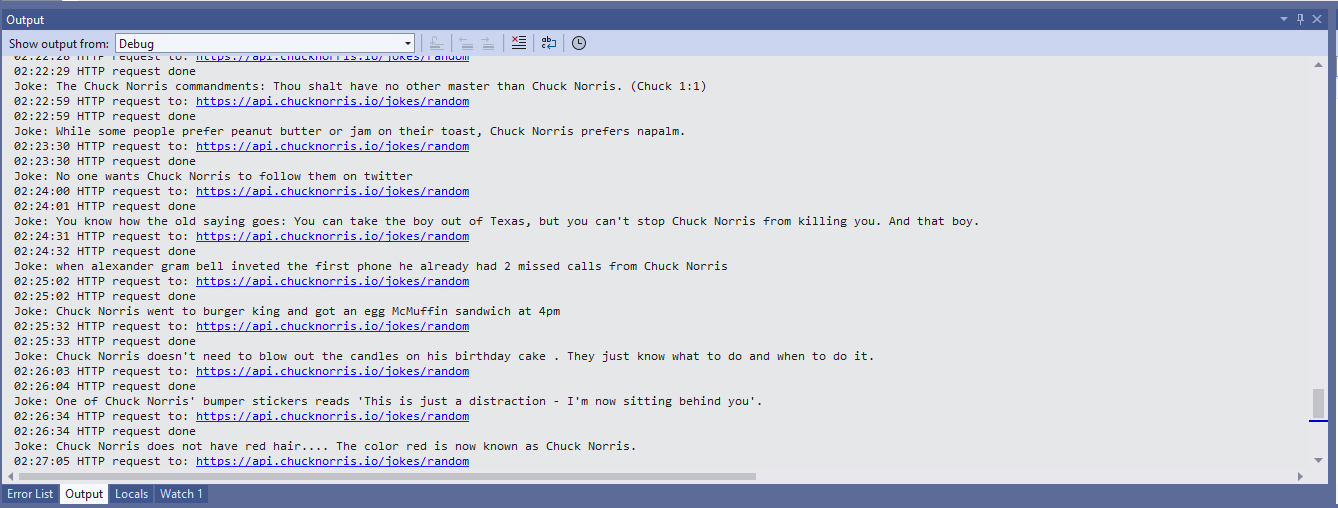
                    Debug.WriteLine($"Joke: {joke.value} ");

                    Thread.Sleep(Config.RequestDelay);
                }
            }
        }
    }
}
Visual Studio 2022 Debug output displaying Chuck Norris facts

The application configuration is stored in a separate file(config.cs) to reduce the likelihood of me accidently checking it into source control.

namespace devMobile.IoT.WT32SC01.ChuckNorrisAPI
{
    internal class Config
    {
        public const string Ssid = "";
        public const string Password = "";
        public const string ChuckNorrisAPIUrl = "https://api.chucknorris.io/jokes/random";

        public const string LetsEncryptCACertificate =
                 @"-----BEGIN CERTIFICATE-----
MIICGzCCAaGgAwIBAgIQQdKd0XLq7qeAwSxs6S+HUjAKBggqhkjOPQQDAzBPMQsw
CQYDVQQGEwJVUzEpMCcGA1UEChMgSW50ZXJuZXQgU2VjdXJpdHkgUmVzZWFyY2gg
R3JvdXAxFTATBgNVBAMTDElTUkcgUm9vdCBYMjAeFw0yMDA5MDQwMDAwMDBaFw00
MDA5MTcxNjAwMDBaME8xCzAJBgNVBAYTAlVTMSkwJwYDVQQKEyBJbnRlcm5ldCBT
ZWN1cml0eSBSZXNlYXJjaCBHcm91cDEVMBMGA1UEAxMMSVNSRyBSb290IFgyMHYw
EAYHKoZIzj0CAQYFK4EEACIDYgAEzZvVn4CDCuwJSvMWSj5cz3es3mcFDR0HttwW
+1qLFNvicWDEukWVEYmO6gbf9yoWHKS5xcUy4APgHoIYOIvXRdgKam7mAHf7AlF9
ItgKbppbd9/w+kHsOdx1ymgHDB/qo0IwQDAOBgNVHQ8BAf8EBAMCAQYwDwYDVR0T
AQH/BAUwAwEB/zAdBgNVHQ4EFgQUfEKWrt5LSDv6kviejM9ti6lyN5UwCgYIKoZI
zj0EAwMDaAAwZQIwe3lORlCEwkSHRhtFcP9Ymd70/aTSVaYgLXTWNLxBo1BfASdW
tL4ndQavEi51mI38AjEAi/V3bNTIZargCyzuFJ0nN6T5U6VR5CmD1/iQMVtCnwr1
/q4AaOeMSQ+2b1tbFfLn
            -----END CERTIFICATE-----";

        public static readonly TimeSpan RequestDelay = new TimeSpan(0, 30, 0); 
    }
}

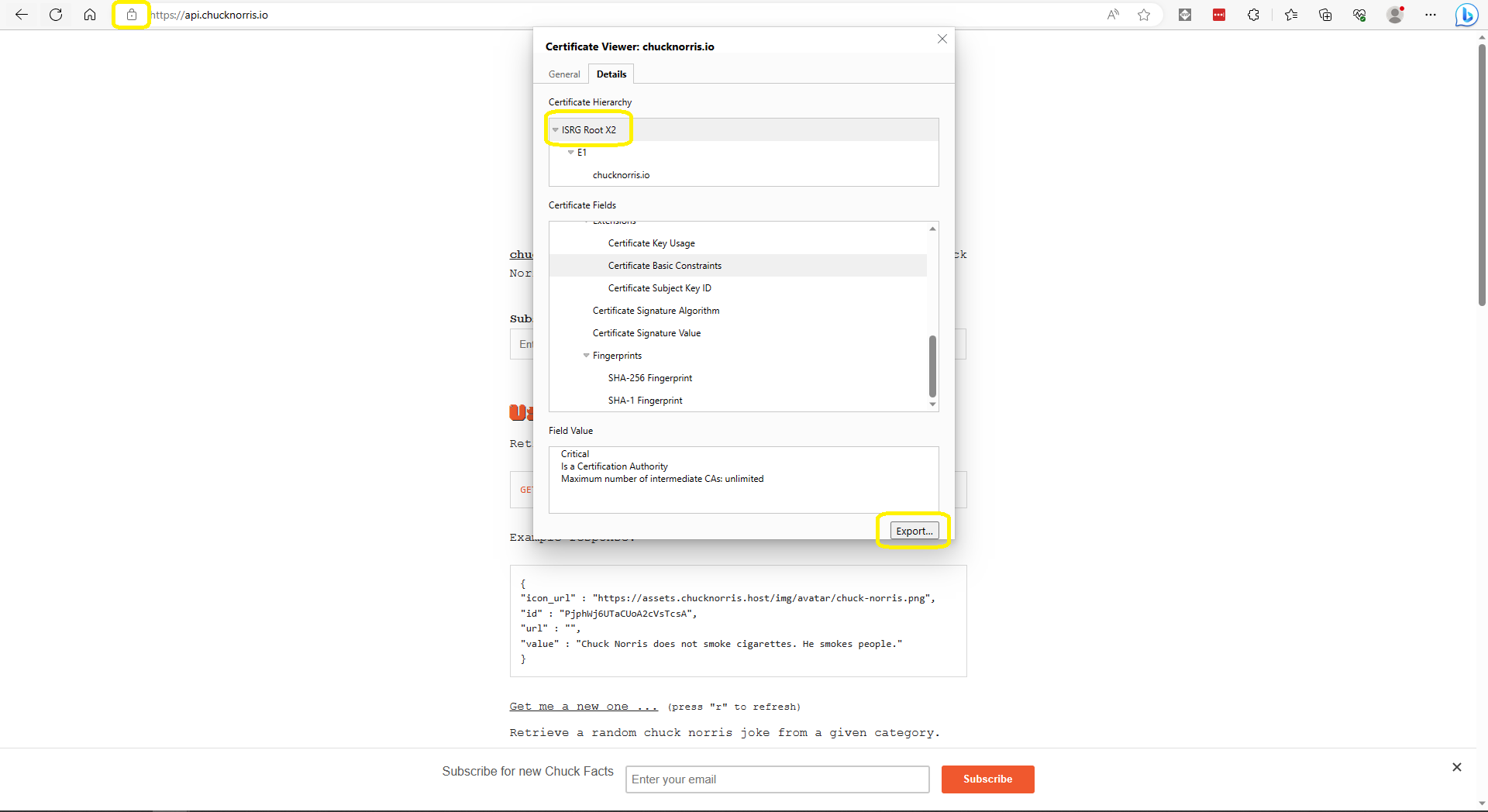
The ICNAPI supports HTTPS requests so I used the Micrsoft Edgium Certificate Viewer to download the Let’s Encrypt Internet Security Group(ISRG) Root X2 certificate.

Microsoft Edge Certificate View download

Some of the Chuck Norris facts are not suitable for school students so the request Uniform Resource Locator (URL) can be modified to ensure only “age appropriate” ones are returned.

Wireless-Tag WT32-SC01 nanoFramework getting started

Last week an ESP32 Development Board – WT32-SC01 with 3.5in 320×480 Multi-Touch capactive Screen, support Bluetooth & Wifi arrived from Elecrow. The development board was USD39.90 (June 2023) and appeared to be sourced from Wireless-Tag Technology.

WT32-SC01 packaging

The first step was to flash the WT32-SC01 with the latest version of the .NET nanoFramework for ESP32 devices. To get the device into “boot” mode I used a jumper wire to connect GPIO0 to ground before powering it up.

WT32-SC01 boot loader mode jumper

The .NET nanoFramework nanoff utility identified the device, downloaded the runtime package, and updated the device.

updating the WT32-SC01 with the nanoff utility

The next step was to run the blank NET nanoFramework sample application.

using System;
using System.Diagnostics;
using System.Threading;

namespace HelloWorld
{
    public class Program
    {
        public static void Main()
        {
            Debug.WriteLine("Hello from nanoFramework!");

            Thread.Sleep(Timeout.Infinite);

            // Browse our samples repository: https://github.com/nanoframework/samples
            // Check our documentation online: https://docs.nanoframework.net/
            // Join our lively Discord community: https://discord.gg/gCyBu8T
        }
    }
}

Microsoft Visual Studio 2022 displaying output of .NET nanoFramework Blank application

The WT32-SC01 doesn’t have a user LED so I modified the .NET nanoFramework blinky sample to flash the Liquid Crystal Display(LCD) backlight.

//
// Copyright (c) .NET Foundation and Contributors
// See LICENSE file in the project root for full license information.
//

using System.Device.Gpio;
using System;
using System.Threading;
using nanoFramework.Hardware.Esp32;

namespace Blinky
{
    public class Program
    {
        private static GpioController s_GpioController;
        public static void Main()
        {
            s_GpioController = new GpioController();

            // IO23 is LCD backlight
            GpioPin led = s_GpioController.OpenPin(Gpio.IO23,PinMode.Output ); 

            led.Write(PinValue.Low);

            while (true)
            {
                led.Toggle();
                Thread.Sleep(125);
                led.Toggle();
                Thread.Sleep(125);
                led.Toggle();
                Thread.Sleep(125);
                led.Toggle();
                Thread.Sleep(525);
            }
        }
    }
}

The

Flashing WT32-SC01 LCD backlight

Next steps getting the LCD+Touch panel and Wifi working

.NET nanoFramework Seeedstudio HM3301 library on Github

The source code of my .NET nanoFramework Seeedstudio Grove – Laser PM2.5 Dust Sensor HM3301 library is now available on GitHub. I have tested the library and sample application with Sparkfun Thing Plus and ST Micro STM32F7691 Discovery devices. (I can validate on more platform configurations if there is interest).

Important: make sure you setup the I2C pins especially on ESP32 Devices before creating the I2cDevice,

SHT20 +STM32F769 Discovery test rig

The .NET nanoFramework device libraries use a TryGet… pattern to retrieve sensor values, this library throws an exception if reading a sensor value fails. I’m not certain which approach is “better” as reading the Seeedstudio Grove – Laser PM2.5 Dust Sensor has never failed. The only time reading the “values” buffer failed was when I unplugged the device which I think is “exceptional”.

//---------------------------------------------------------------------------------
// Copyright (c) April 2023, devMobile Software
//
// Licensed under the Apache License, Version 2.0 (the "License");
// you may not use this file except in compliance with the License.
// You may obtain a copy of the License at
//
//     http://www.apache.org/licenses/LICENSE-2.0
//
// Unless required by applicable law or agreed to in writing, software
// distributed under the License is distributed on an "AS IS" BASIS,
// WITHOUT WARRANTIES OR CONDITIONS OF ANY KIND, either express or implied.
// See the License for the specific language governing permissions and
// limitations under the License.
//
// nanoff --target ST_STM32F769I_DISCOVERY --update 
// nanoff --platform ESP32 --serialport COM7 --update
//
//---------------------------------------------------------------------------------
#define ST_STM32F769I_DISCOVERY 
//#define  SPARKFUN_ESP32_THING_PLUS
namespace devMobile.IoT.Device.SeeedstudioHM3301
{
    using System;
    using System.Device.I2c;
    using System.Threading;

#if SPARKFUN_ESP32_THING_PLUS
    using nanoFramework.Hardware.Esp32;
#endif

    class Program
    {
        static void Main(string[] args)
        {
            const int busId = 1;

            Thread.Sleep(5000);

#if SPARKFUN_ESP32_THING_PLUS
            Configuration.SetPinFunction(Gpio.IO23, DeviceFunction.I2C1_DATA);
            Configuration.SetPinFunction(Gpio.IO22, DeviceFunction.I2C1_CLOCK);
#endif
            I2cConnectionSettings i2cConnectionSettings = new(busId, SeeedstudioHM3301.DefaultI2cAddress);

            using I2cDevice i2cDevice = I2cDevice.Create(i2cConnectionSettings);
            {
                using (SeeedstudioHM3301 seeedstudioHM3301 = new SeeedstudioHM3301(i2cDevice))
                {
                    while (true)
                    {
                        SeeedstudioHM3301.ParticulateMeasurements particulateMeasurements = seeedstudioHM3301.Read();

                        Console.WriteLine($"Standard PM1.0: {particulateMeasurements.Standard.PM1_0} ug/m3   PM2.5: {particulateMeasurements.Standard.PM2_5} ug/m3  PM10.0: {particulateMeasurements.Standard.PM10_0} ug/m3 ");
                        Console.WriteLine($"Atmospheric PM1.0: {particulateMeasurements.Atmospheric.PM1_0} ug/m3   PM2.5: {particulateMeasurements.Atmospheric.PM2_5} ug/m3  PM10.0: {particulateMeasurements.Standard.PM10_0} ug/m3");

                        // Always 0, checked payload so not a conversion issue. will check in Seeedstudio forums
                        // Console.WriteLine($"Count 0.3um: {particulateMeasurements.Count.Diameter0_3}/l 0.5um: {particulateMeasurements.Count.Diameter0_5} /l 1.0um : {particulateMeasurements.Count.Diameter1_0}/l 2.5um : {particulateMeasurements.Count.Diameter2_5}/l 5.0um : {particulateMeasurements.Count.Diameter5_0}/l 10.0um : {particulateMeasurements.Count.Diameter10_0}/l");

                        Thread.Sleep(new TimeSpan(0,1,0));
                    }
                }
            }
        }
    }
}

I’m going to soak test the library for a week to check that is working okay, then most probably refactor the code so it can be added to the nanoFramework IoT.Device Library repository.

.NET nanoFramework RAK11200 – Brownout Voltage Revisited

The voltage my test setup was calculating looked wrong, then I realised that the sample calculation in the RAK Wireless forums wasn’t applicable to my setup.

I reassembled my RAK11200 WisBlock WiFi Module, RAK19001 WisBlock Base Board, RAK1901 WisBlock Temperature and Humidity Sensor, 1200mAH Lithium Polymer (LiPo) battery, SKU920100 Solar Board test setup, put a new 9V battery (I had forgotten to turn it off last-time) in my multimeter then collected some data. A=ReadValue(), C= ReadRatio(), E= measured battery voltage.

Excel spreadsheet for calculating ratio

I updated the formula used to calculate the battery voltage and deployed the application

public static void Main()
{
    Debug.WriteLine($"{DateTime.UtcNow:HH:mm:ss} devMobile.IoT.RAK.Wisblock.AzureIoTHub.RAK11200.PowerSleep starting");

    Thread.Sleep(5000);

    try
    {
        double batteryVoltage;

        Configuration.SetPinFunction(Gpio.IO04, DeviceFunction.I2C1_DATA);
        Configuration.SetPinFunction(Gpio.IO05, DeviceFunction.I2C1_CLOCK);

        Debug.WriteLine($"{DateTime.UtcNow:HH:mm:ss} Battery voltage measurement");

        // Configure Analog input (AIN0) port then read the "battery charge"
        AdcController adcController = new AdcController();

        using (AdcChannel batteryVoltageAdcChannel = adcController.OpenChannel(AdcControllerChannel))
        {
            batteryVoltage = batteryVoltageAdcChannel.ReadValue() / 723.7685;

            Debug.WriteLine($" BatteryVoltage {batteryVoltage:F2}");

            if (batteryVoltage < Config.BatteryVoltageBrownOutThreshold)
            {
                Sleep.EnableWakeupByTimer(Config.FailureRetryInterval);
                Sleep.StartDeepSleep();
            }
        }
        catch (Exception ex)
        {
...    
}

To test the accuracy of the voltage calculation I am going to run my setup on the office windowsill for a week regularly measuring the voltage. Then, turn the solar panel over (so the battery is not getting charged) and monitor the battery discharging until the RAK11200 WisBlock WiFi Module won’t connect to the network.

.NET nanoFramework RAK11200 – Brownout Voltage

My test setup was a RAK11200 WisBlock WiFi Module, RAK19001 WisBlock Base Board, RAK1901 WisBlock Temperature and Humidity Sensor, 1200mAH Lithium Polymer (LiPo) battery and SKU920100 Solar Board. The test setup uploads temperature, humidity and battery voltage telemetry to an Azure IoT Hub every 5 minutes (short delay so battery life reduced).

The first step was to check that I could get a “battery voltage” value for the RAKWireless RAK11200 WisBlock WiFi Module on a RAK19001 WisBlock Base Board for managing “brownouts” and send to my Azure IoT Hub.

RAK19001 Power supply schematic

The RAK19001 WisBlock Base Board has a voltage divider (R4&R5 with output ADC_VBAT) which is connected to pin 21(AIN0) on the CPU slot connector.

RAK19001 connector schematic

The RAK19001 WisBlock Base Board has quite a low leakage current so the majority of the power consumption should be the RAK11200 WisBlock WiFi Module.

RAK19001 leakage current from specifications

I used AdcController + AdcChannel to read AIN0 and modified the code using the formula (for a RAK4631 module) in the RAK Wireless forums to calculate the battery voltage. (UPDATE This calculation is not applicable to my scenario)

RAK11200 Schematic with battery voltage analog input highlighted

When “slept” the RAK11200 WisBlock WiFi Module power consumption is very low

RAK11200 low power current from specifications
public static void Main()
{
    Debug.WriteLine($"{DateTime.UtcNow:HH:mm:ss} devMobile.IoT.RAK.Wisblock.AzureIoTHub.RAK11200.PowerSleep starting");

    Thread.Sleep(5000); // This do debugger can attach consider removing in realease version

    try
    {
        double batteryVoltage;

        Configuration.SetPinFunction(Gpio.IO04, DeviceFunction.I2C1_DATA);
        Configuration.SetPinFunction(Gpio.IO05, DeviceFunction.I2C1_CLOCK);

        Debug.WriteLine($"{DateTime.UtcNow:HH:mm:ss} Battery voltage measurement");

        // Configure Analog input (AIN0) port then read the "battery charge"
        AdcController adcController = new AdcController();

        using (AdcChannel batteryVoltageAdcChannel = adcController.OpenChannel(AdcControllerChannel))
        {

            // https://forum.rakwireless.com/t/custom-li-ion-battery-voltage-calculation-in-rak4630/4401/7
            // When I checked with multimeter I had to increase 1.72 to 1.9
            batteryVoltage = batteryVoltageAdcChannel.ReadValue() * (3.0 / 4096) * 1.9;

            Debug.WriteLine($" BatteryVoltage {batteryVoltage:F2}");

            if (batteryVoltage < Config.BatteryVoltageBrownOutThreshold)
            {
                Sleep.EnableWakeupByTimer(Config.FailureRetryInterval);
                Sleep.StartDeepSleep();
            }
        }

        Debug.WriteLine($"{DateTime.UtcNow:HH:mm:ss} Wifi connecting");

        if (!WifiNetworkHelper.ConnectDhcp(Config.Ssid, Config.Password, requiresDateTime: true))
        {
            if (NetworkHelper.HelperException != null)
            {
                Debug.WriteLine($"{DateTime.UtcNow:HH:mm:ss} WifiNetworkHelper.ConnectDhcp failed {NetworkHelper.HelperException}");
            }

            Sleep.EnableWakeupByTimer(Config.FailureRetryInterval);
            Sleep.StartDeepSleep();
        }
        Debug.WriteLine($"{DateTime.UtcNow:HH:mm:ss} Wifi connected");

        // Configure the SHTC3 
        I2cConnectionSettings settings = new(I2cDeviceBusID, Shtc3.DefaultI2cAddress);

        string payload ;

        using (I2cDevice device = I2cDevice.Create(settings))
        using (Shtc3 shtc3 = new(device))
        {
            if (shtc3.TryGetTemperatureAndHumidity(out var temperature, out var relativeHumidity))
            {
                Debug.WriteLine($" Temperature {temperature.DegreesCelsius:F1}°C Humidity {relativeHumidity.Value:F0}% BatteryVoltage {batteryVoltage:F2}");

                payload = $"{{\"RelativeHumidity\":{relativeHumidity.Value:F0},\"Temperature\":{temperature.DegreesCelsius:F1}, \"BatteryVoltage\":{batteryVoltage:F2}}}";
            }
            else
            {
                Debug.WriteLine($" BatteryVoltage {batteryVoltage:F2}");

                payload = $"{{\"BatteryVoltage\":{batteryVoltage:F2}}}";
            }

#if SLEEP_SHT3C
            shtc3.Sleep();
#endif
        }

        // Configure the HttpClient uri, certificate, and authorization
        string uri = $"{Config.AzureIoTHubHostName}.azure-devices.net/devices/{Config.DeviceID}";

        HttpClient httpClient = new HttpClient()
        {
            SslProtocols = System.Net.Security.SslProtocols.Tls12,
            HttpsAuthentCert = new X509Certificate(Config.DigiCertBaltimoreCyberTrustRoot),
            BaseAddress = new Uri($"https://{uri}/messages/events?api-version=2020-03-13"),
        };
        httpClient.DefaultRequestHeaders.Add("Authorization", SasTokenGenerate(uri, Config.Key, DateTime.UtcNow.Add(Config.SasTokenRenewFor)));

        Debug.WriteLine($"{DateTime.UtcNow:HH:mm:ss} Azure IoT Hub device {Config.DeviceID} telemetry update start");

        HttpResponseMessage response = httpClient.Post("", new StringContent(payload));

        Debug.WriteLine($"{DateTime.UtcNow:HH:mm:ss} Response code:{response.StatusCode}");

        response.EnsureSuccessStatusCode();
    }
    catch (Exception ex)
    {
        Debug.WriteLine($"{DateTime.UtcNow:HH:mm:ss} Azure IoT Hub telemetry update failed:{ex.Message} {ex?.InnerException?.Message}");

        Sleep.EnableWakeupByTimer(Config.FailureRetryInterval);
        Sleep.StartDeepSleep();
    }

    Sleep.EnableWakeupByTimer(Config.TelemetryUploadInterval);
#if SLEEP_LIGHT
    Sleep.StartLightSleep();
#endif
#if SLEEP_DEEP
    Sleep.StartDeepSleep();
#endif
}

The nanoFramework.Hardware.Esp32.Sleep functionality supports LightSleep and DeepSleep states. The ESP32 device can be “woken up” by GPIO pin(s), Touch pad activity or by a Timer.

RAK11200+RAK19007+RAK1901+ LiPo battery test rig

After some “tinkering” I found the voltage calculation was surprisingly accurate (usually within 0.01V) for my RAK19001 and RAK19007 base boards.

When the battery voltage was close to its minimum working voltage of the ESP32 device it would reboot when the WifiNetworkHelper.ConnectDhcp method was called. This would quickly drain the battery flat even when the solar panel was trying to charge the battery.

Now, before trying to connect to the wireless network the battery voltage is checked and if too low (more experimentation required) the device goes into a deep sleep for a configurable period (more experimentation required). This is so the solar panel can charge the battery to a level where wireless connectivity will work.