Random wanderings through Microsoft Azure esp. PaaS plumbing, the IoT bits, AI on Micro controllers, AI on Edge Devices, .NET nanoFramework, .NET Core on *nix and ML.NET+ONNX
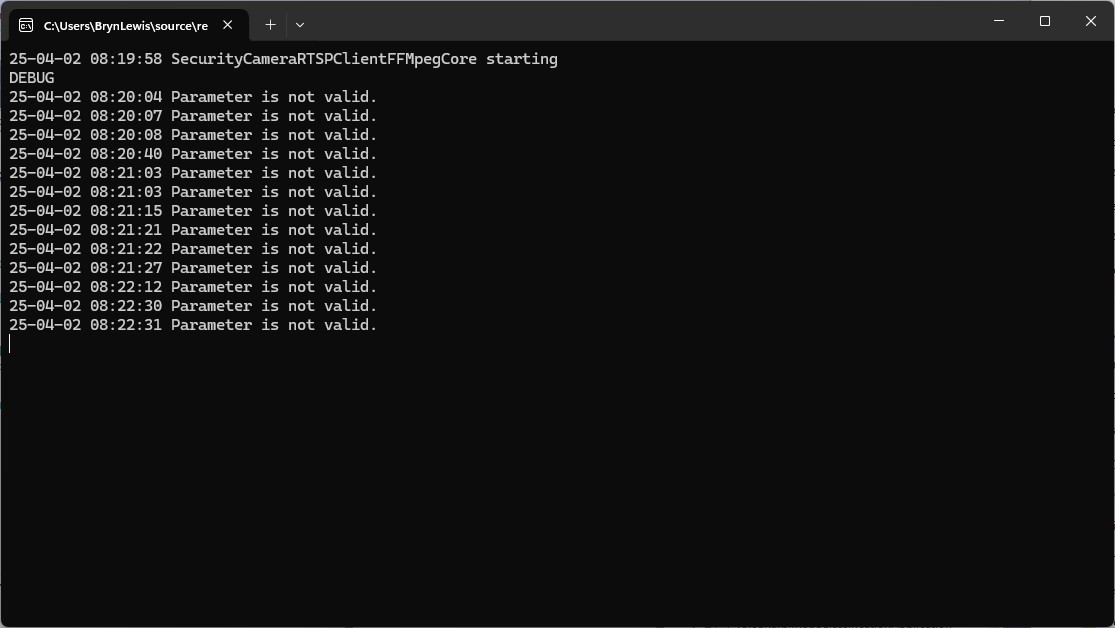
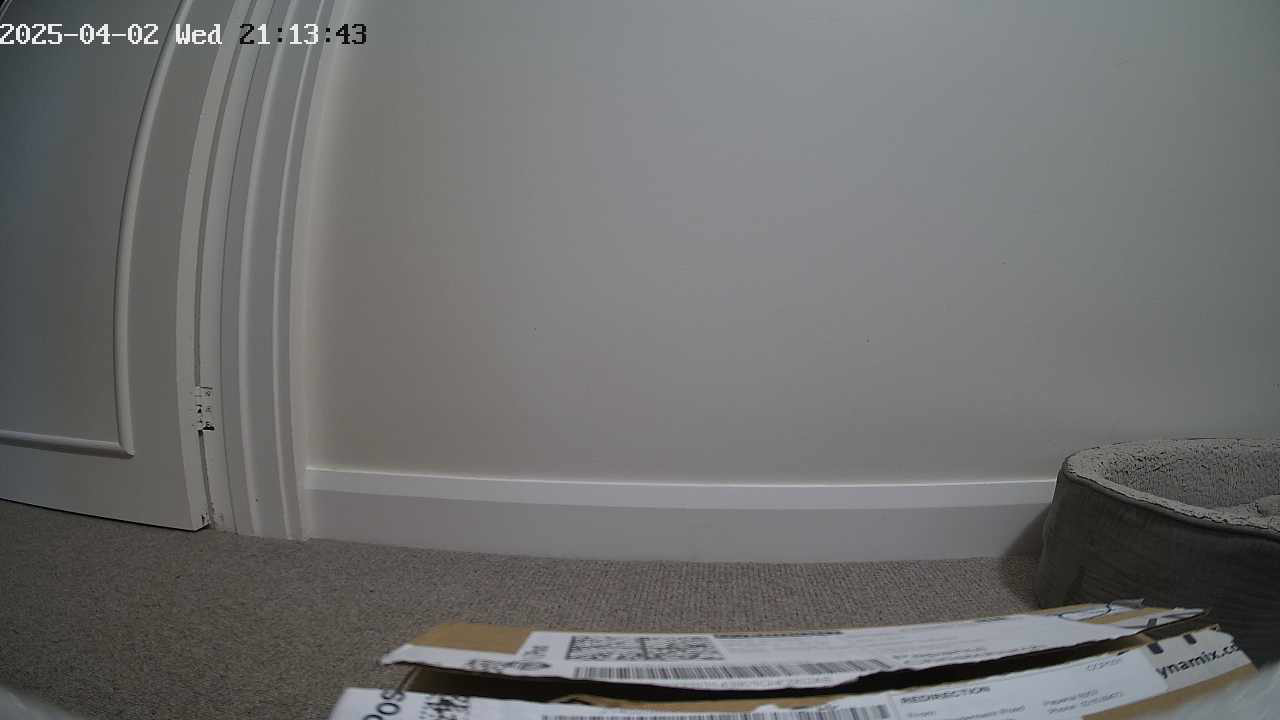
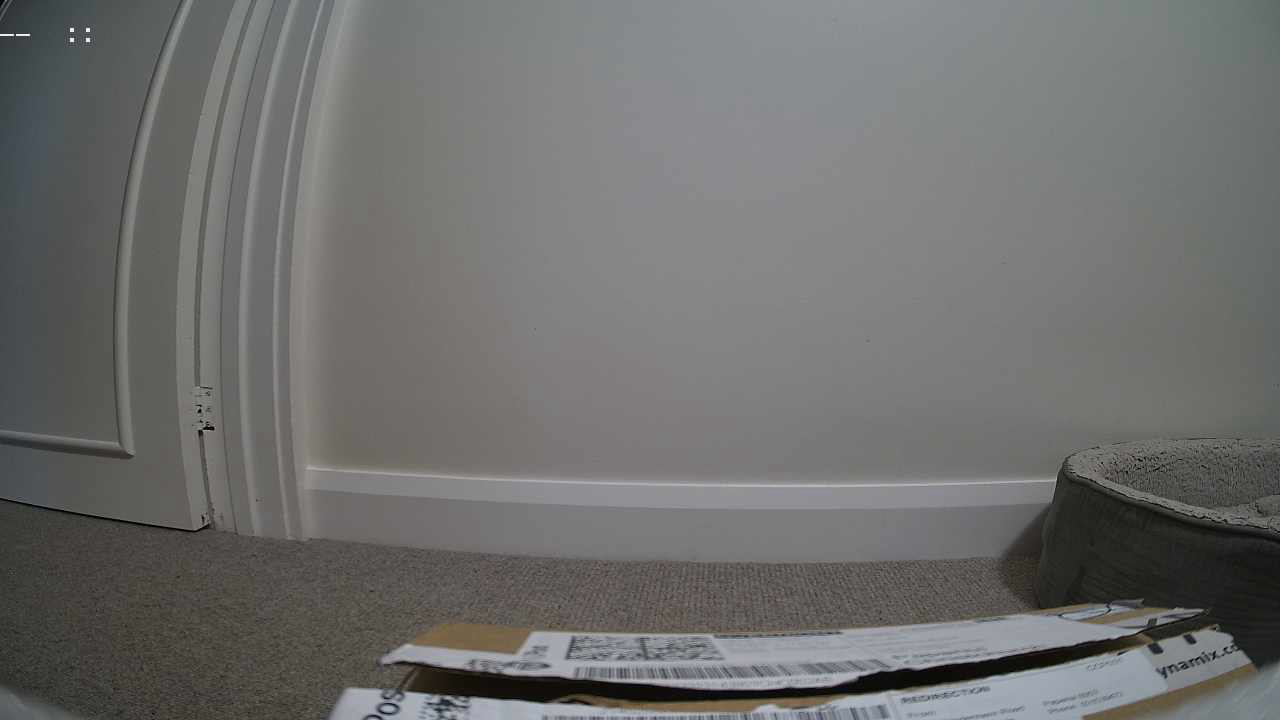
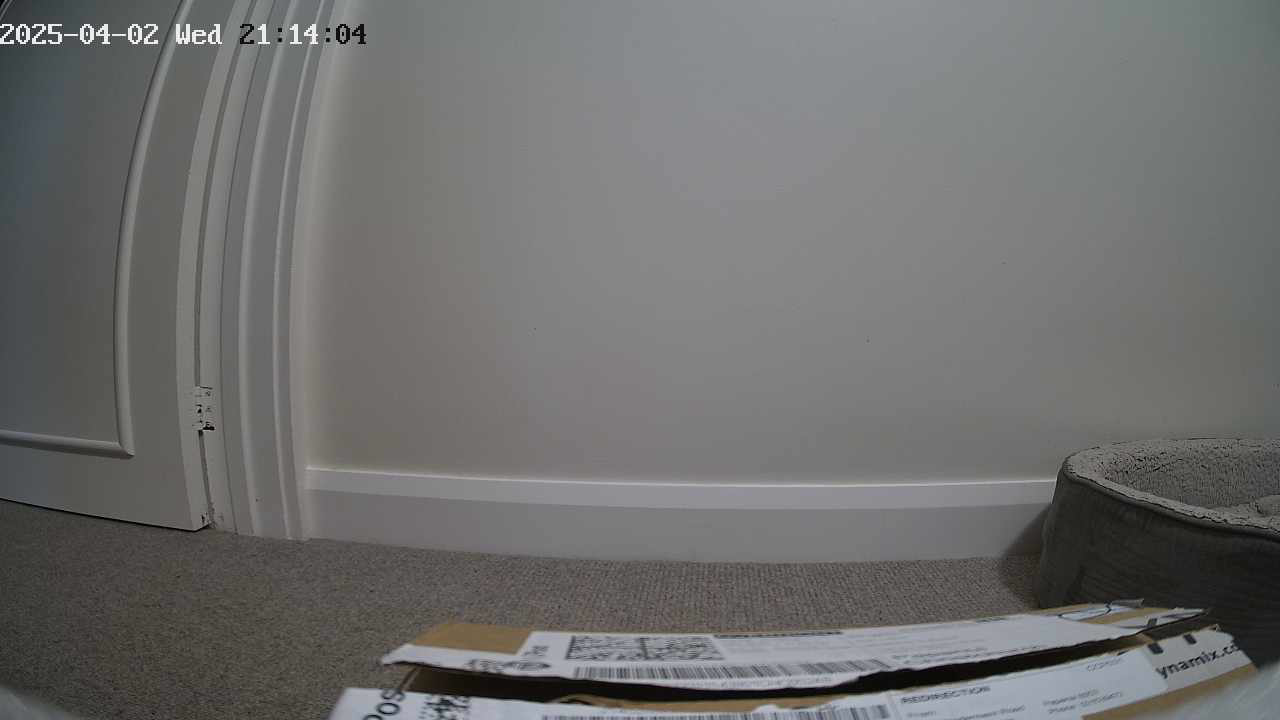
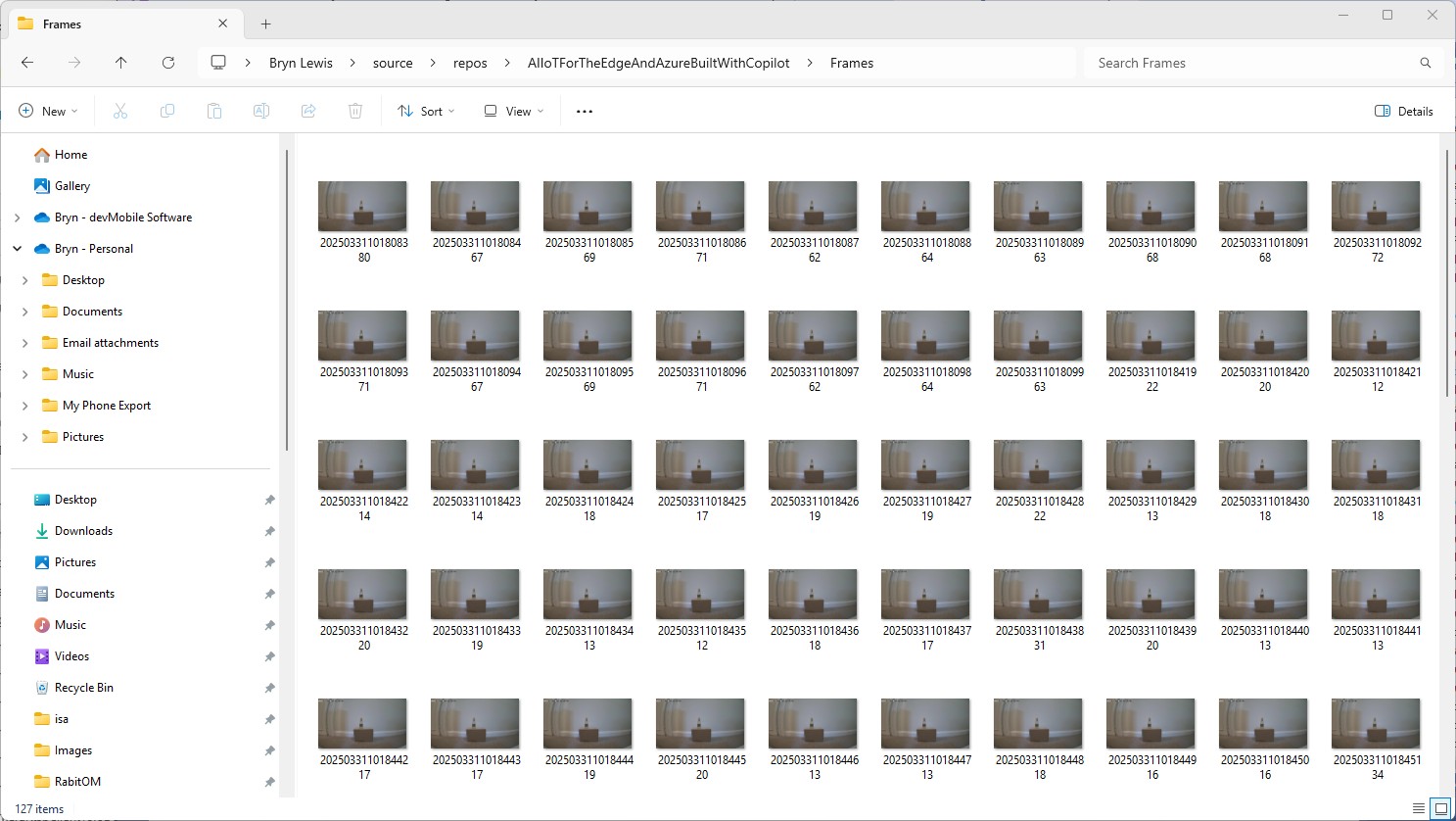
One odd thing that I noticed when scrolling “back and forth” through the images around when there was exception was that the date and time on the top left of the image was broken.
I wonder if the image was “broken” in some subtle way and FFMpegCore is handling this differently to the other libraries I’m trialing.
There was another sample application RabbitOM.Streaming.Tests.Mjpeg which displayed JPEG images. After looking at the code I figured out I need to use the RtpFrameBuilder class to assemble the RTSP packets into frames.
private static readonly RtpFrameBuilder _frameBuilder = new JpegFrameBuilder();
...
_frameBuilder.FrameReceived += OnFrameReceived;
...
client.PacketReceived += (sender, e) =>
{
   var interleavedPacket = e.Packet as RtspInterleavedPacket;

   if (interleavedPacket != null && interleavedPacket.Channel > 0)
   {
      // In most of case, avoid this packet
      Console.ForegroundColor = ConsoleColor.DarkCyan;
      Console.WriteLine("Skipping some data : size {0}", e.Packet.Data.Length);
      return;
   }

   _frameBuilder.Write(interleavedPacket.Data);
};
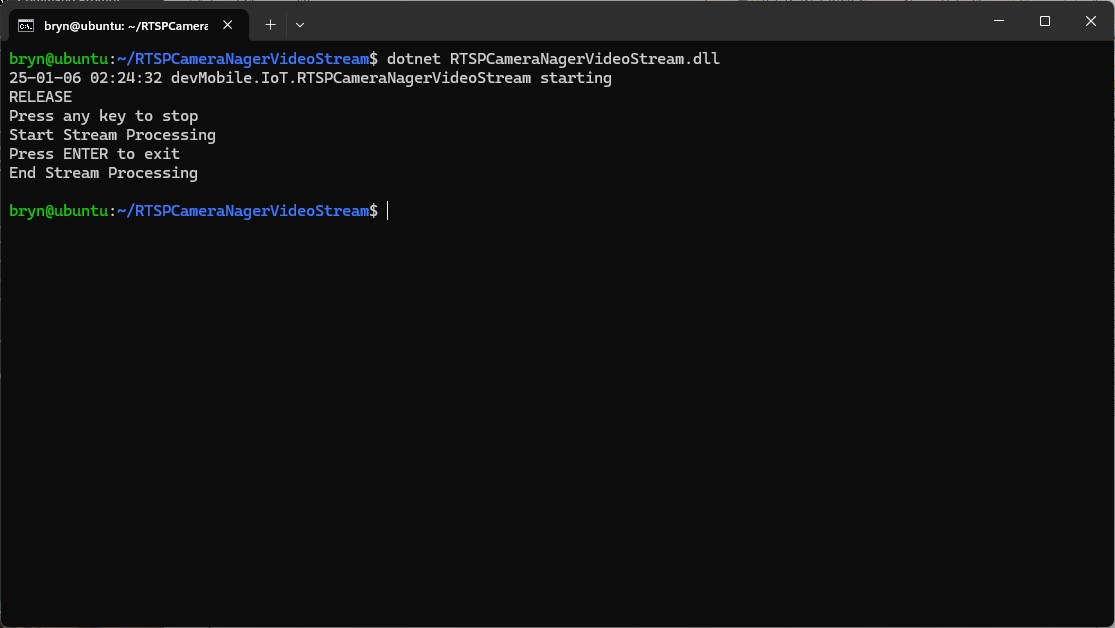
My test harness code was “inspired” by the Nager.VideoStream.TestConsole application with a slightly different file format for the start-stop marker text and camera images files.
I used Path.Combine so no code or configuration changes were required when the application was run on different operating systems (still need to ensure ImageFilepathLocal in the appsettings.json is the correct format).
Developer Desktop
I used my desktop computer a 13th Gen Intel(R) Core(TM) i7-13700 2.10 GHz with 32.0 GB running Windows 11 Pro 24H2.
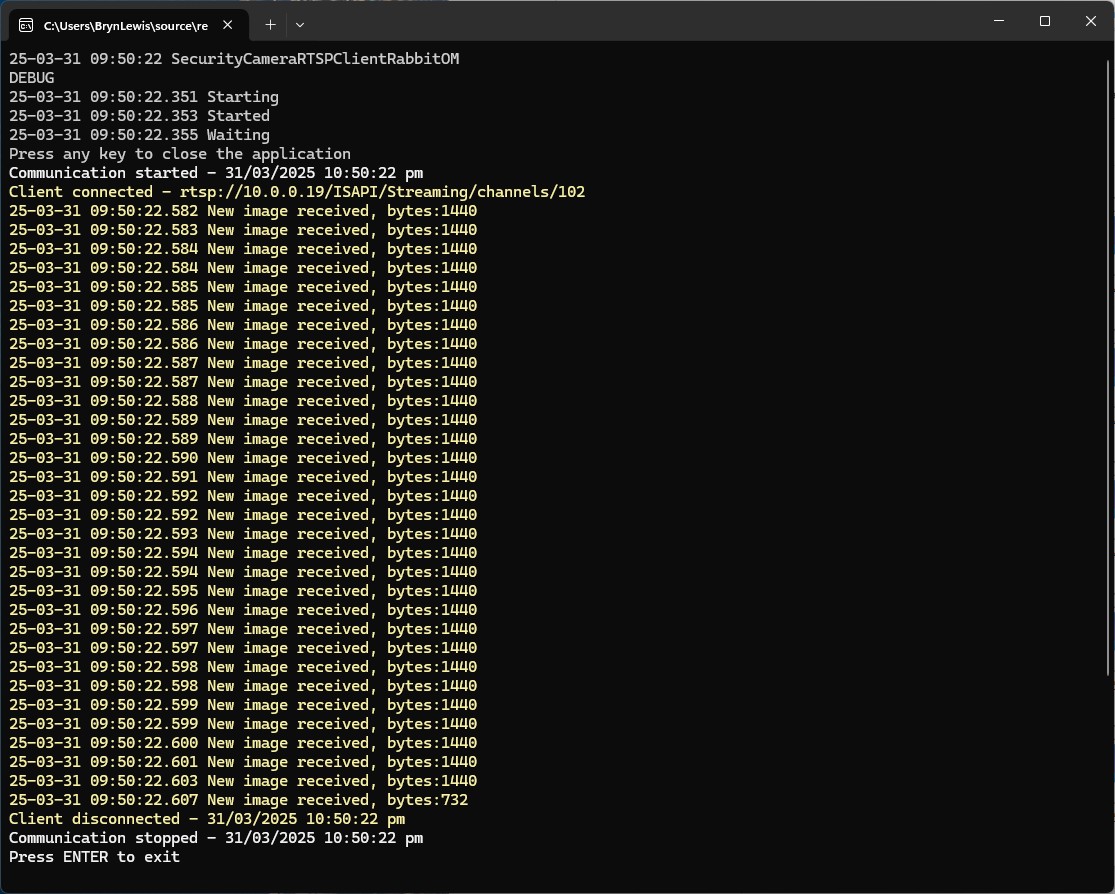
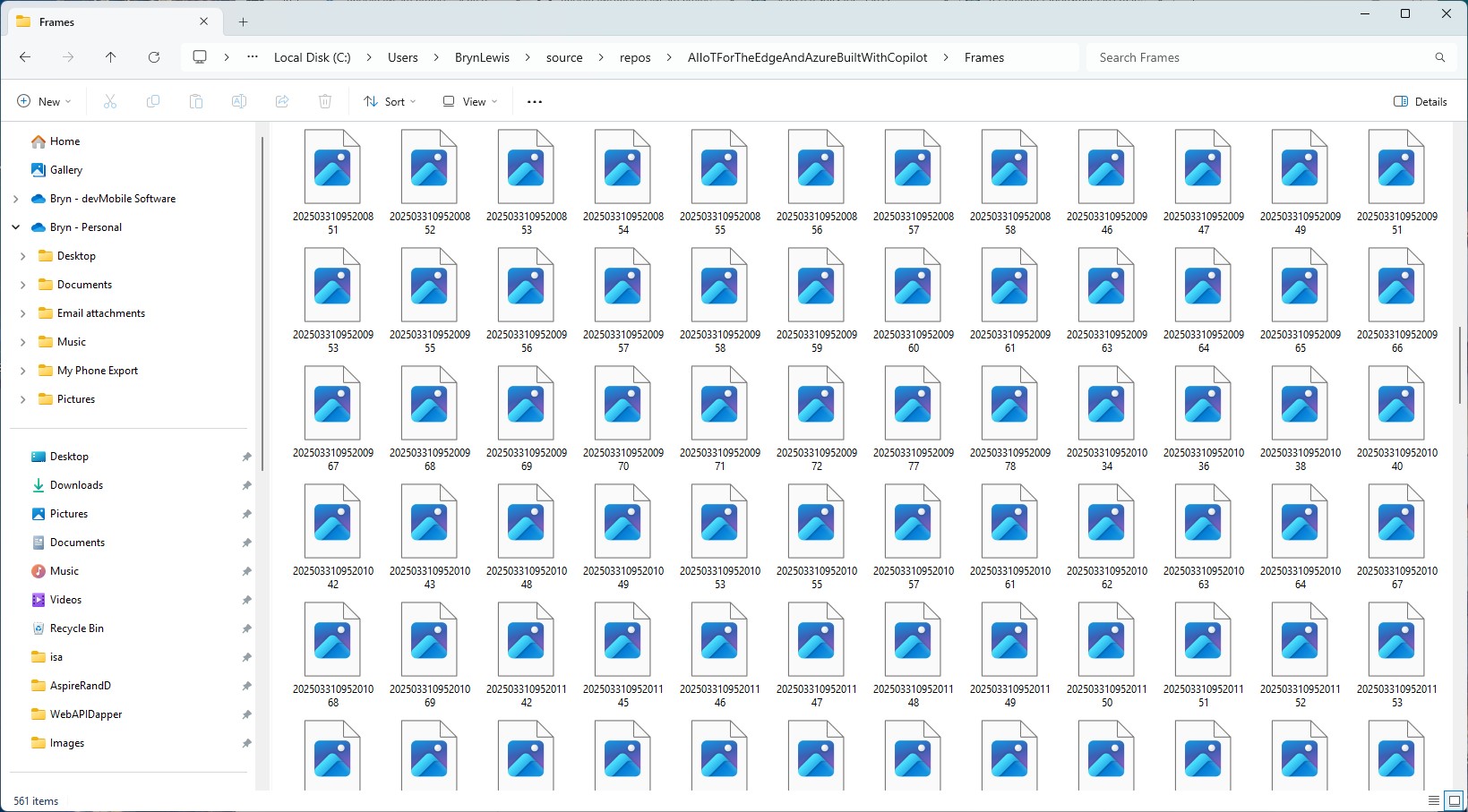
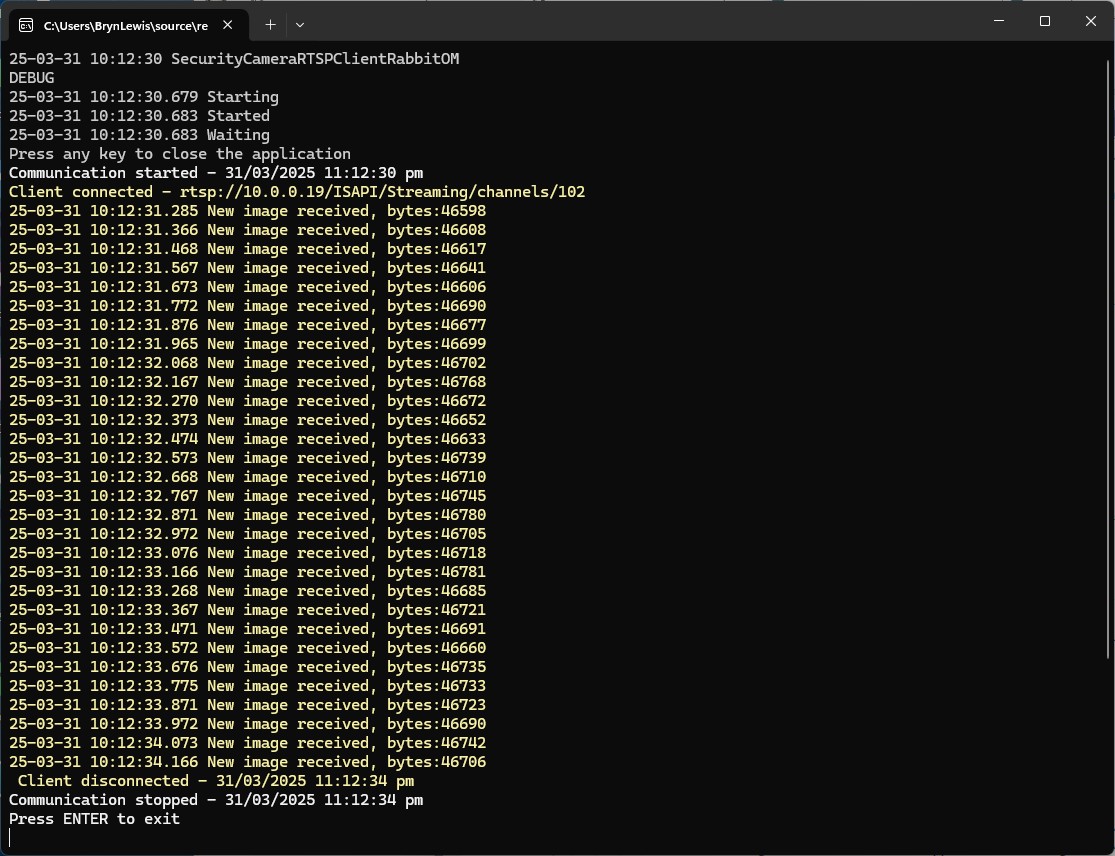
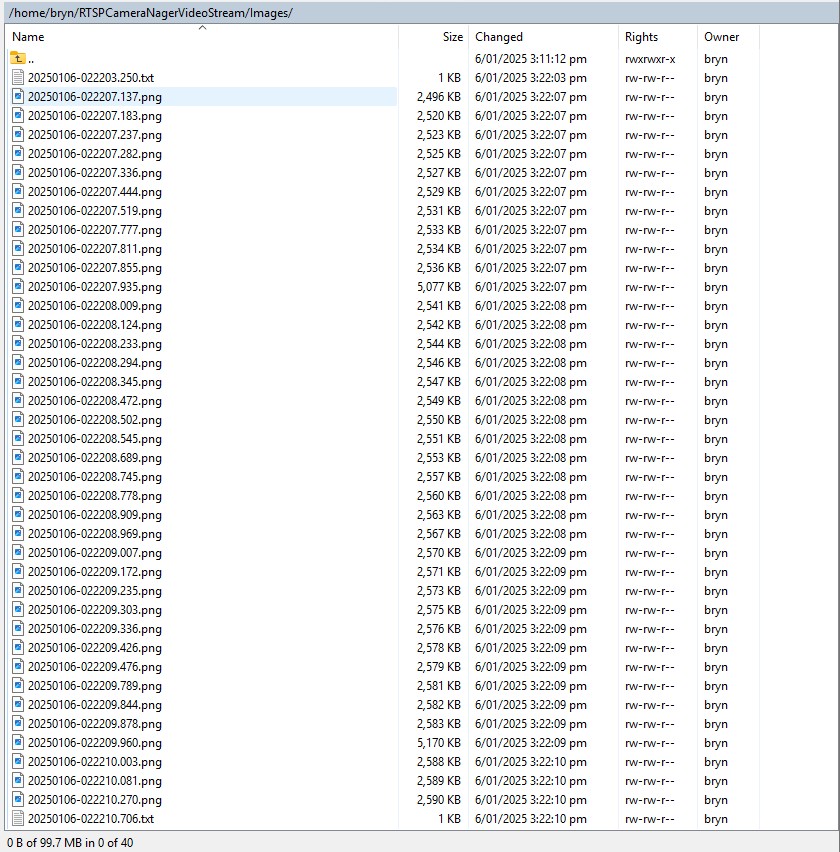
In the test results below (representative of multiple runs while testing) the delay between starting streaming and the first image file was on average 3.7 seconds with the gap between the images roughly 100mSec.
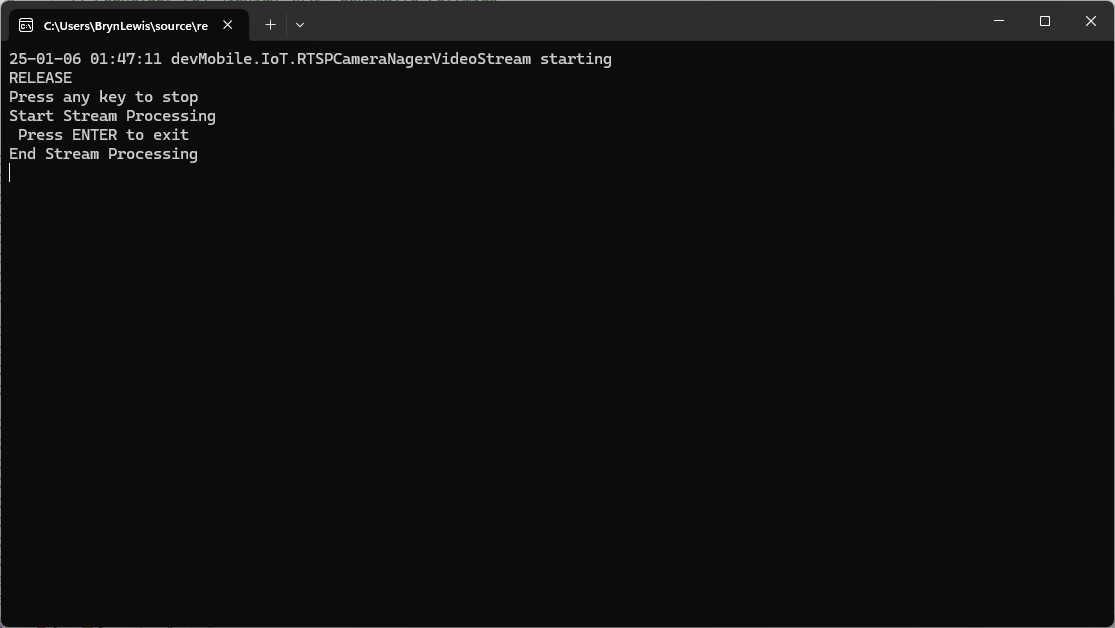
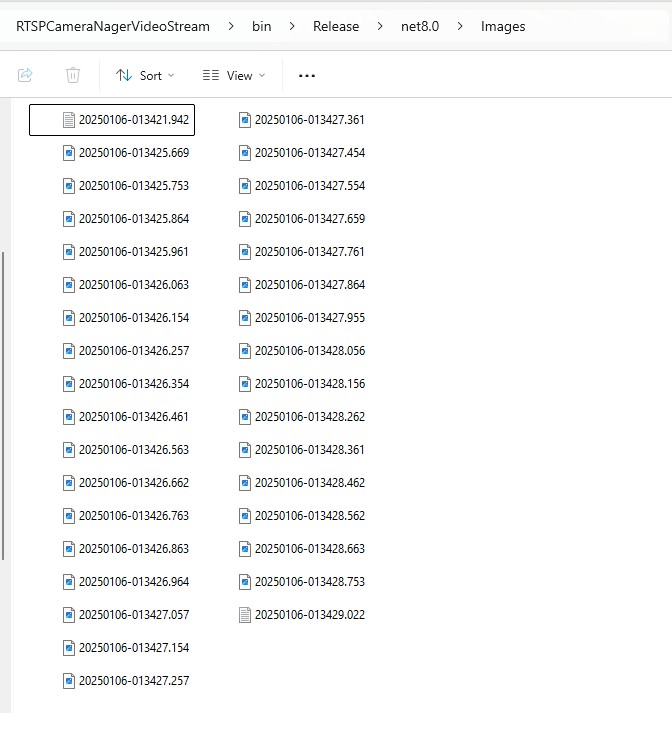
In the test results below (representative of multiple runs while testing) the delay between starting streaming and the first image file was on average roughly 3.7 seconds but the time between images varied a lot from 30mSec to >300mSec.
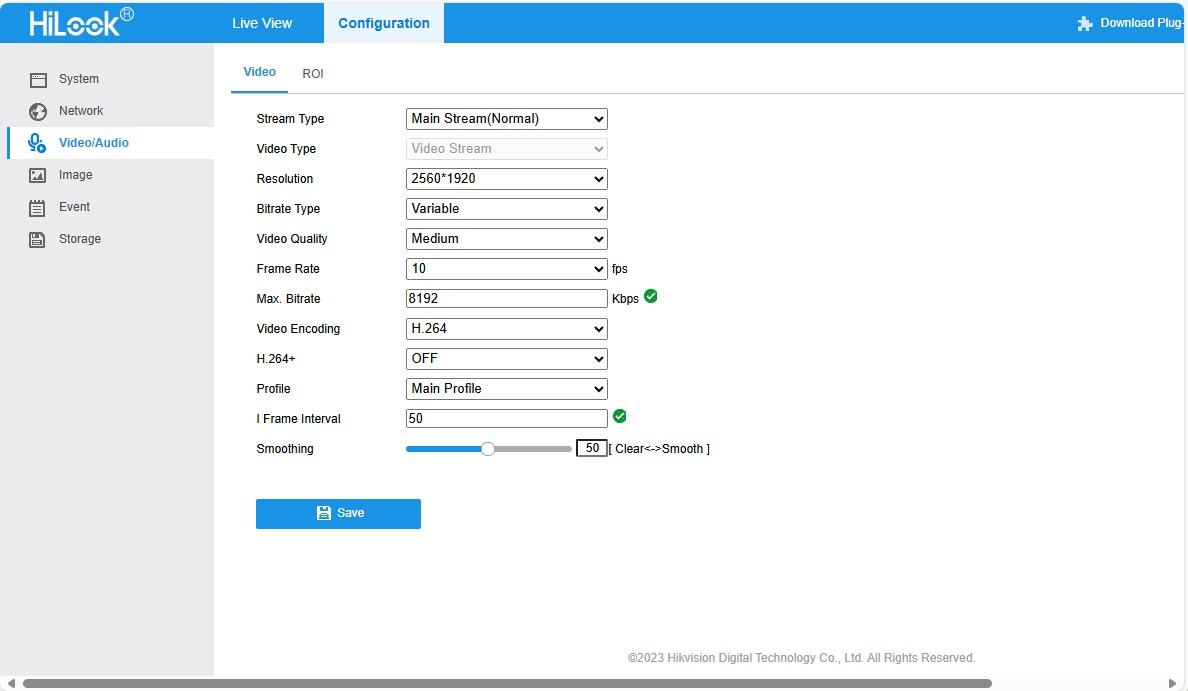
At 10FPS the results for my developer desktop were more consistent, and the reComputer J3011 had significantly more “jitter”. Both could cope with 1oFPS so the next step is to integrate YoloDotNet library to process the video frames.
The libcamera-jpeg program has a lot of command line parameters.
pi@raspberrypi4a:~ $ libcamera-jpeg --help
Valid options are:
  -h [ --help ] [=arg(=1)] (=0)         Print this help message
  --version [=arg(=1)] (=0)             Displays the build version number
  -v [ --verbose ] [=arg(=1)] (=0)      Output extra debug and diagnostics
  -c [ --config ] [=arg(=config.txt)]   Read the options from a file. If no filename is specified, default to
                                        config.txt. In case of duplicate options, the ones provided on the command line
                                        will be used. Note that the config file must only contain the long form
                                        options.
  --info-text arg (=#%frame (%fps fps) exp %exp ag %ag dg %dg)
                                        Sets the information string on the titlebar. Available values:
                                        %frame (frame number)
                                        %fps (framerate)
                                        %exp (shutter speed)
                                        %ag (analogue gain)
                                        %dg (digital gain)
                                        %rg (red colour gain)
                                        %bg (blue colour gain)
                                        %focus (focus FoM value)
                                        %aelock (AE locked status)
  --width arg (=0)                      Set the output image width (0 = use default value)
  --height arg (=0)                     Set the output image height (0 = use default value)
  -t [ --timeout ] arg (=5000)          Time (in ms) for which program runs
  -o [ --output ] arg                   Set the output file name
  --post-process-file arg               Set the file name for configuring the post-processing
  --rawfull [=arg(=1)] (=0)             Force use of full resolution raw frames
  -n [ --nopreview ] [=arg(=1)] (=0)    Do not show a preview window
  -p [ --preview ] arg (=0,0,0,0)       Set the preview window dimensions, given as x,y,width,height e.g. 0,0,640,480
  -f [ --fullscreen ] [=arg(=1)] (=0)   Use a fullscreen preview window
  --qt-preview [=arg(=1)] (=0)          Use Qt-based preview window (WARNING: causes heavy CPU load, fullscreen not
                                        supported)
  --hflip [=arg(=1)] (=0)               Request a horizontal flip transform
  --vflip [=arg(=1)] (=0)               Request a vertical flip transform
  --rotation arg (=0)                   Request an image rotation, 0 or 180
  --roi arg (=0,0,0,0)                  Set region of interest (digital zoom) e.g. 0.25,0.25,0.5,0.5
  --shutter arg (=0)                    Set a fixed shutter speed
  --analoggain arg (=0)                 Set a fixed gain value (synonym for 'gain' option)
  --gain arg                            Set a fixed gain value
  --metering arg (=centre)              Set the metering mode (centre, spot, average, custom)
  --exposure arg (=normal)              Set the exposure mode (normal, sport)
  --ev arg (=0)                         Set the EV exposure compensation, where 0 = no change
  --awb arg (=auto)                     Set the AWB mode (auto, incandescent, tungsten, fluorescent, indoor, daylight,
                                        cloudy, custom)
  --awbgains arg (=0,0)                 Set explict red and blue gains (disable the automatic AWB algorithm)
  --flush [=arg(=1)] (=0)               Flush output data as soon as possible
  --wrap arg (=0)                       When writing multiple output files, reset the counter when it reaches this
                                        number
  --brightness arg (=0)                 Adjust the brightness of the output images, in the range -1.0 to 1.0
  --contrast arg (=1)                   Adjust the contrast of the output image, where 1.0 = normal contrast
  --saturation arg (=1)                 Adjust the colour saturation of the output, where 1.0 = normal and 0.0 =
                                        greyscale
  --sharpness arg (=1)                  Adjust the sharpness of the output image, where 1.0 = normal sharpening
  --framerate arg (=30)                 Set the fixed framerate for preview and video modes
  --denoise arg (=auto)                 Sets the Denoise operating mode: auto, off, cdn_off, cdn_fast, cdn_hq
  --viewfinder-width arg (=0)           Width of viewfinder frames from the camera (distinct from the preview window
                                        size
  --viewfinder-height arg (=0)          Height of viewfinder frames from the camera (distinct from the preview window
                                        size)
  --tuning-file arg (=-)                Name of camera tuning file to use, omit this option for libcamera default
                                        behaviour
  --lores-width arg (=0)                Width of low resolution frames (use 0 to omit low resolution stream
  --lores-height arg (=0)               Height of low resolution frames (use 0 to omit low resolution stream
  -q [ --quality ] arg (=93)            Set the JPEG quality parameter
  -x [ --exif ] arg                     Add these extra EXIF tags to the output file
  --timelapse arg (=0)                  Time interval (in ms) between timelapse captures
  --framestart arg (=0)                 Initial frame counter value for timelapse captures
  --datetime [=arg(=1)] (=0)            Use date format for output file names
  --timestamp [=arg(=1)] (=0)           Use system timestamps for output file names
  --restart arg (=0)                    Set JPEG restart interval
  -k [ --keypress ] [=arg(=1)] (=0)     Perform capture when ENTER pressed
  -s [ --signal ] [=arg(=1)] (=0)       Perform capture when signal received
  --thumb arg (=320:240:70)             Set thumbnail parameters as width:height:quality
  -e [ --encoding ] arg (=jpg)          Set the desired output encoding, either jpg, png, rgb, bmp or yuv420
  -r [ --raw ] [=arg(=1)] (=0)          Also save raw file in DNG format
  --latest arg                          Create a symbolic link with this name to most recent saved file
  --immediate [=arg(=1)] (=0)           Perform first capture immediately, with no preview phase
pi@raspberrypi4a:~ $
My libcamera-jpeg application is run “headless” so I tried turning off the image preview functionality.
When I ran libcamera-jpeg in a console windows or my application this didn’t appear to make any noticeable difference.
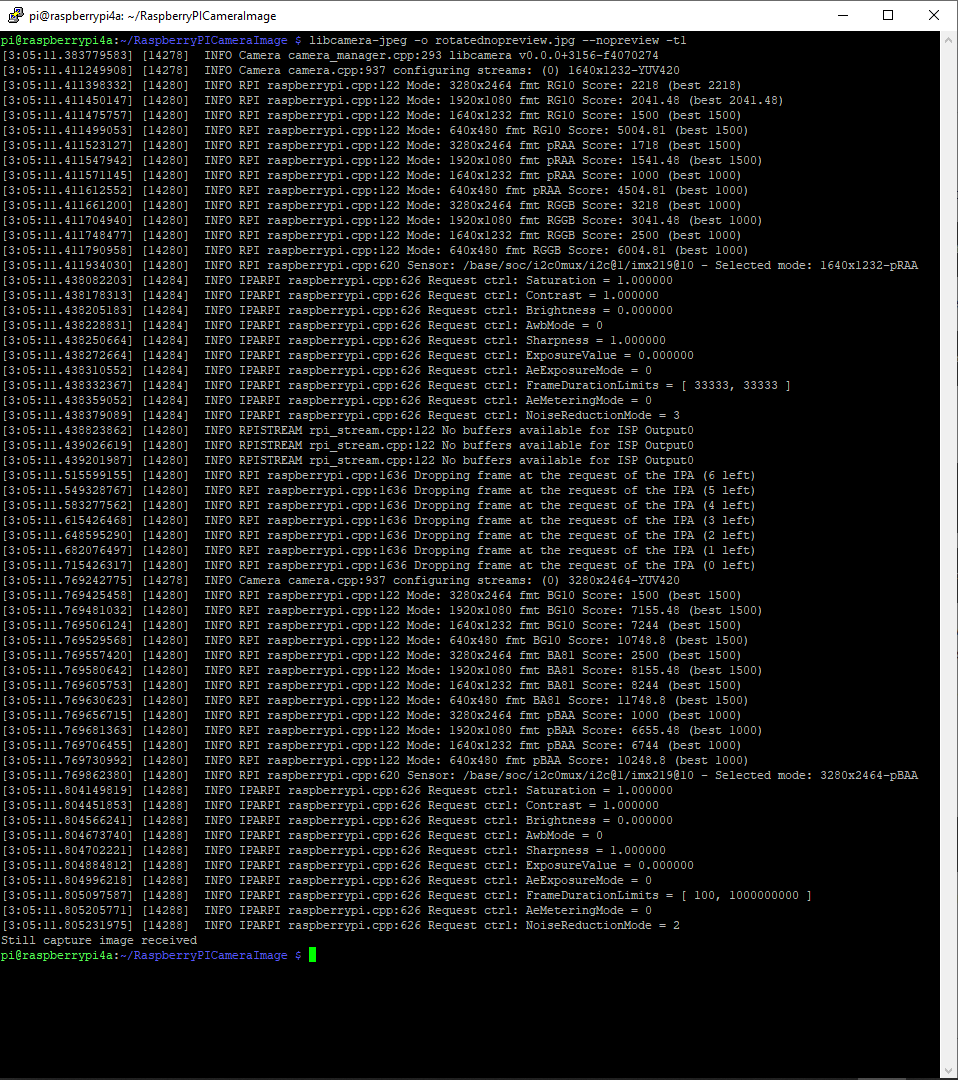
libcamera-jpeg run from the command line with –nopreview
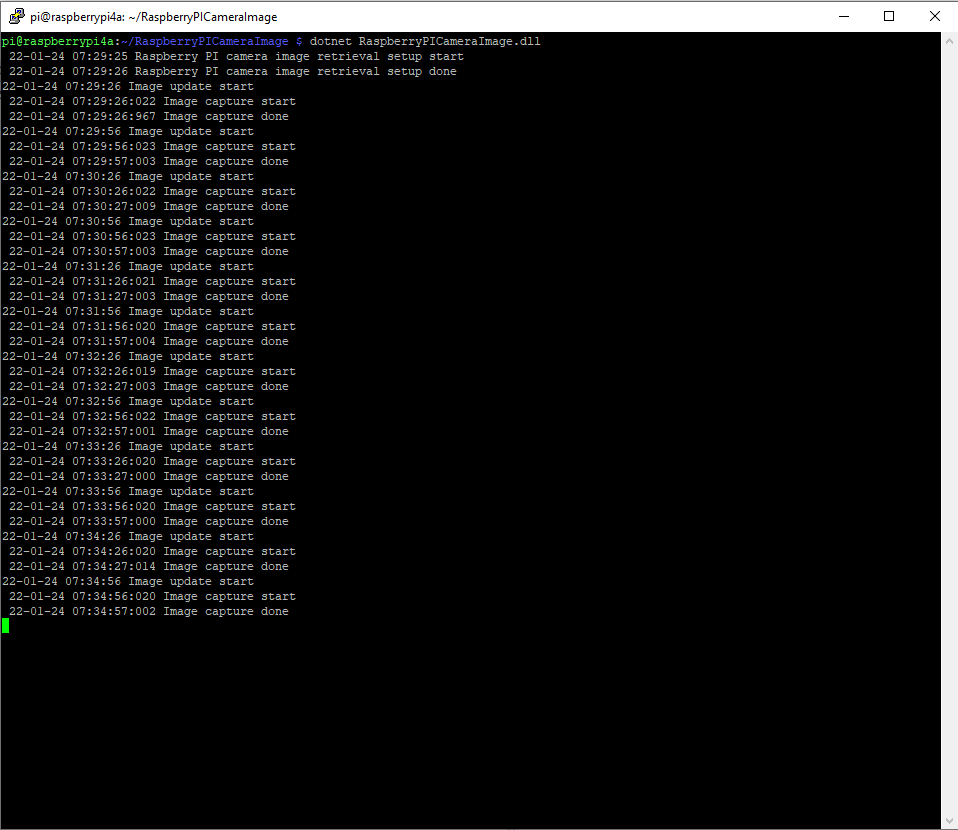
libcamera-jpeg run by my application with –nopreview
I then had another look at the libcamera-jpeg command line parameters to see if any looked useful for reducing the time that it took to take a save an image and this one caught my attention.
I had assumed the delay was related to how long the preview window was displayed.
libcamera-jpeg run from the command line with –nopreview –t1
I modified the application (V5) then ran it from the command line and the time reduced to less than a second.
private static void ImageUpdateTimerCallback(object state)
{
	try
	{
		Console.WriteLine($"{DateTime.UtcNow:yy-MM-dd HH:mm:ss} Image update start");

		// Just incase - stop code being called while photo already in progress
		if (_cameraBusy)
		{
			return;
		}

		Console.WriteLine($" {DateTime.UtcNow:yy-MM-dd HH:mm:ss} Image capture start");

		using (Process process = new Process())
		{
			process.StartInfo.FileName = @"libcamera-jpeg";
			// V1 it works
			//process.StartInfo.Arguments = $"-o {_applicationSettings.ImageFilenameLocal}";
			// V3a Image right way up
			//process.StartInfo.Arguments = $"-o {_applicationSettings.ImageFilenameLocal} --vflip --hflip";
			// V3b Image right way up
			//process.StartInfo.Arguments = $"-o {_applicationSettings.ImageFilenameLocal} --rotation 180";
			// V4 Image no preview
			//process.StartInfo.Arguments = $"-o {_applicationSettings.ImageFilenameLocal} --rotation 180 --nopreview";
			// V5 Image no preview, no timeout
			process.StartInfo.Arguments = $"-o {_applicationSettings.ImageFilenameLocal} --nopreview -t1 --rotation 180";
			//process.StartInfo.RedirectStandardOutput = true;
			// V2 No diagnostics
			process.StartInfo.RedirectStandardError = true;
			//process.StartInfo.UseShellExecute = false;
			//process.StartInfo.CreateNoWindow = true;

			process.Start();

			if (!process.WaitForExit(10000) || (process.ExitCode != 0))
			{
				Console.WriteLine($"{DateTime.UtcNow:yy-MM-dd HH:mm:ss} Image update failure {process.ExitCode}");
			}
		}

		Console.WriteLine($" {DateTime.UtcNow:yy-MM-dd HH:mm:ss} Image capture done");
	}
	catch (Exception ex)
	{
		Console.WriteLine($"{DateTime.UtcNow:yy-MM-dd HH:mm:ss} Image update error {ex.Message}");
	}
	finally
	{
		_cameraBusy = false;
	}
}
libcamera-jpeg run by my application with –nopreview -t1
The image capture process now takes less that a second which is much better (but not a lot less than retrieving an image from one of my security cameras).
I wanted one of my ML.Net demos to use the Raspberry PI Camera rather than a security camera (so it was more portable) but it took a bit more work than I expected.
Version 1 used Process.Start to launch the libcamera-jpeg application with a command line to store an image to the local file system.
libcamera-jpeg -o latest.jpg
libcamera-jpeg with diagnostic information displayed
There was a lot of diagnostic information which I didn’t want displayed so after reading many stackoverflow posts (lots of different approaches none of which worked in my scenario), then some trial and error I found that I only had to enable RedirectStandardError.
libcamera-jpeg without diagnostic information displayed
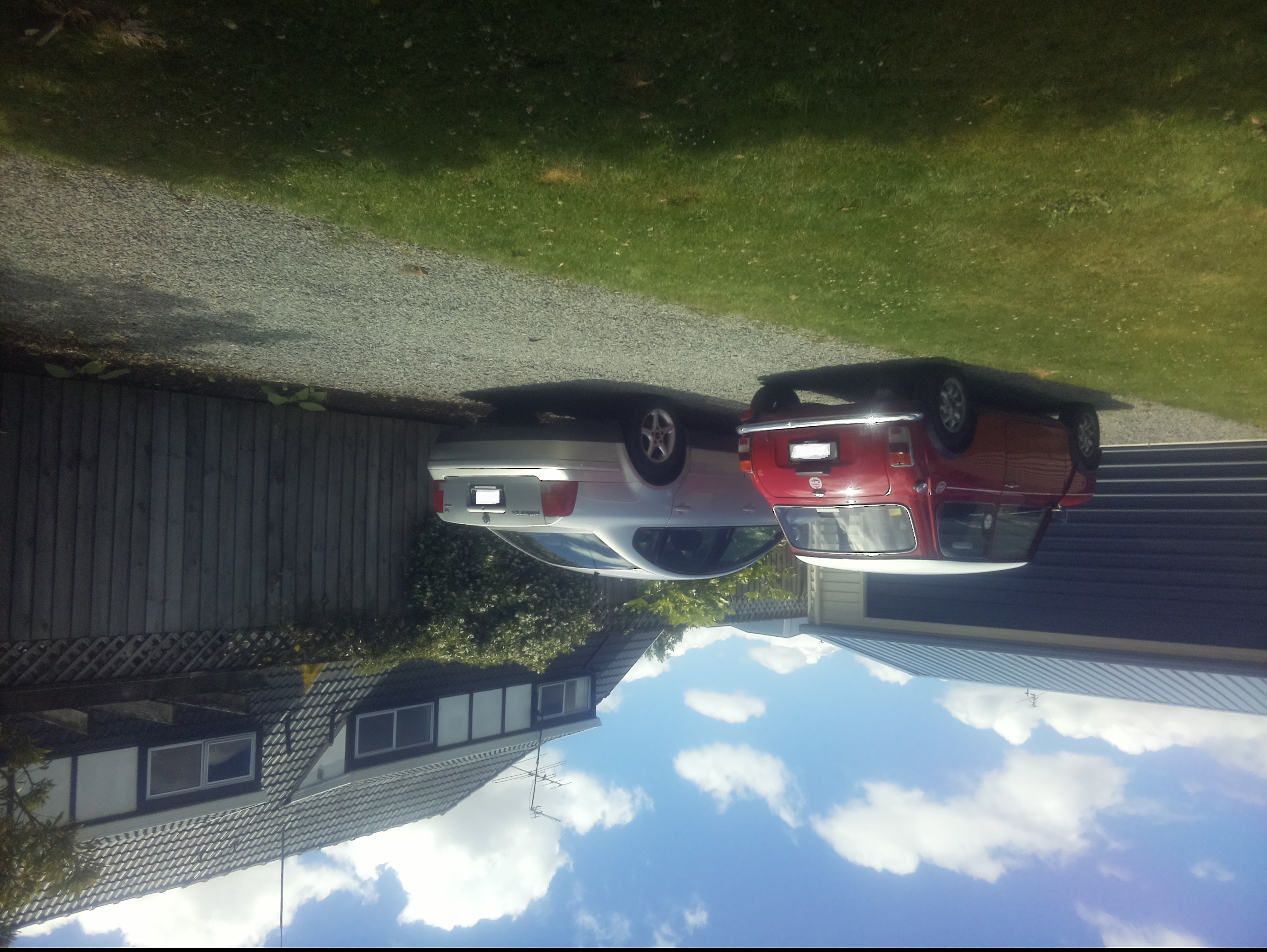
At this point there was a lot less noise but the image was upside down.
Inverted picture of my 30th anniversary Mini Cooper in the backyard
I then added a vertical flip to the command line parameters
libcamera-jpeg -o latest.jpg --vflip
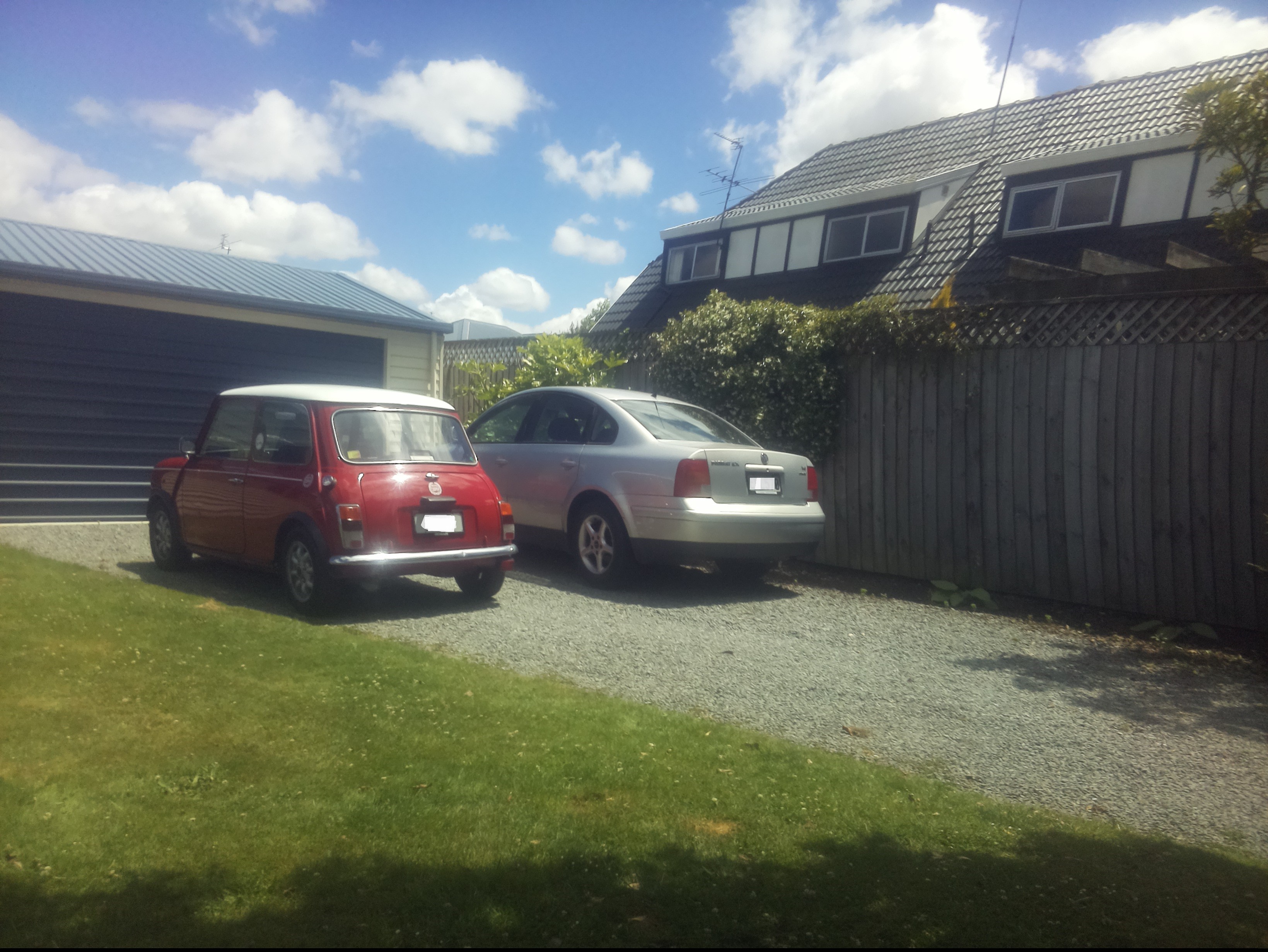
My 30th anniversary Mini Cooper in the backyard
The image was backwards so I added a horizontal flip to the commandline parameters
libcamera-jpeg -o latest.jpg --vflip --hflip
or
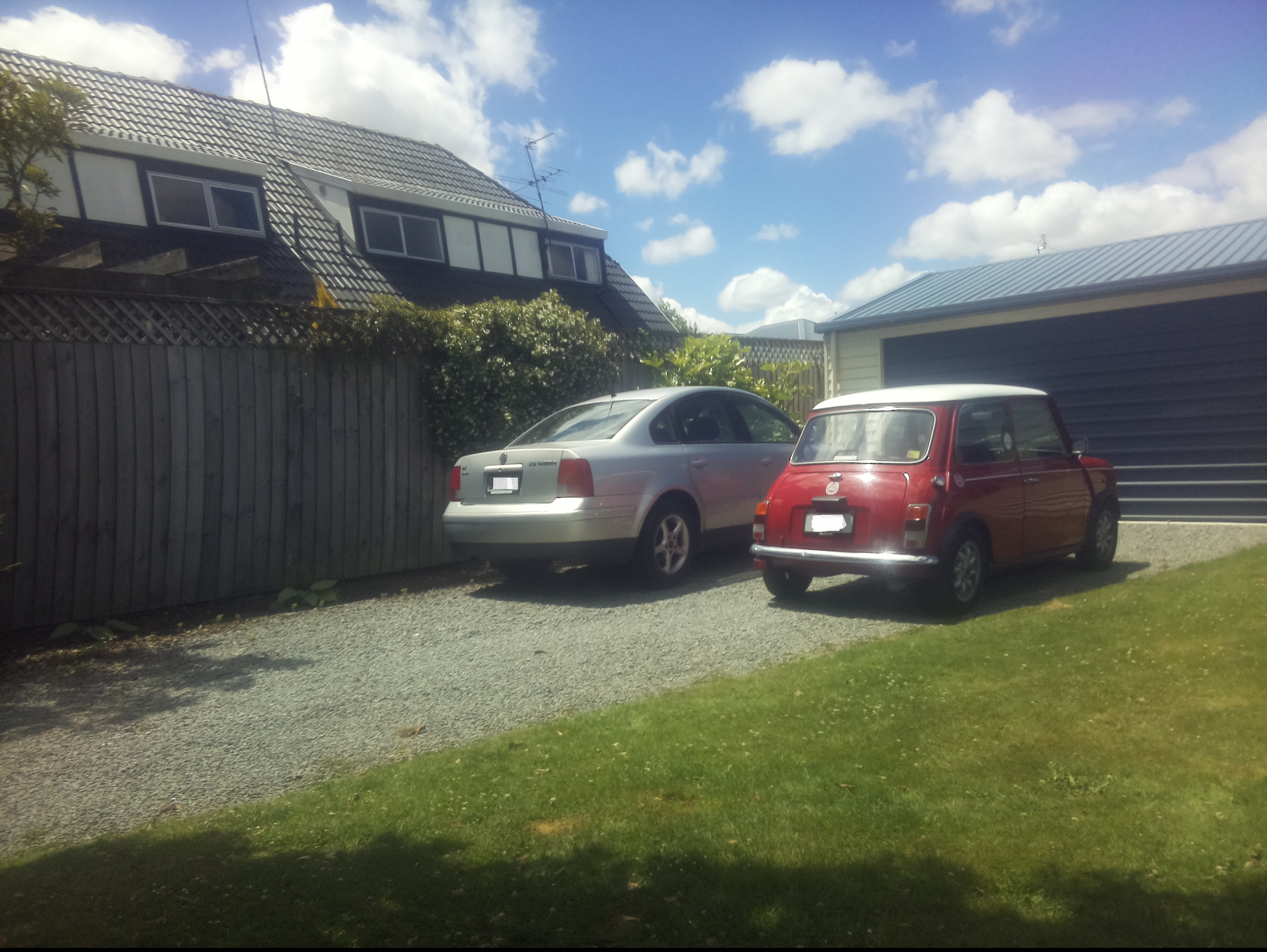
libcamera-jpeg -o latest.jpg --rotation 180
My 30th anniversary Mini Cooper in the backyard with the correct orientation
The libcamera code is in a Timer callback so I added the _cameraBusy boolean flag to stop reentrancy problems.
private static void ImageUpdateTimerCallback(object state)
{
	try
	{
		Console.WriteLine($"{DateTime.UtcNow:yy-MM-dd HH:mm:ss} Image update start");

		// Just incase - stop code being called while photo already in progress
		if (_cameraBusy)
		{
			return;
		}

		Console.WriteLine($" {DateTime.UtcNow:yy-MM-dd HH:mm:ss} Image capture start");

		using (Process process = new Process())
		{
			process.StartInfo.FileName = @"libcamera-jpeg";
			// V1 it works
			//process.StartInfo.Arguments = $"-o {_applicationSettings.ImageFilenameLocal}";
			// V3 Image right way up
			//process.StartInfo.Arguments = $"-o {_applicationSettings.ImageFilenameLocal} --vflip";
			// V3 Image right way round
			process.StartInfo.Arguments = $"-o {_applicationSettings.ImageFilenameLocal} --vflip --hflip";
			//process.StartInfo.RedirectStandardOutput = true;
			// V2 No diagnostics
			process.StartInfo.RedirectStandardError = true;
			//process.StartInfo.UseShellExecute = false;
			//process.StartInfo.CreateNoWindow = true;

			process.Start();

			if (!process.WaitForExit(10000) || (process.ExitCode != 0))
			{
				Console.WriteLine($"{DateTime.UtcNow:yy-MM-dd HH:mm:ss} Image update failure {process.ExitCode}");
			}
		}

		Console.WriteLine($" {DateTime.UtcNow:yy-MM-dd HH:mm:ss} Image capture done");
	}
	catch (Exception ex)
	{
		Console.WriteLine($"{DateTime.UtcNow:yy-MM-dd HH:mm:ss} Image update error {ex.Message}");
	}
	finally
	{
		_cameraBusy = false;
	}
}
This was the simplest way I could get an image onto the local file system without lots of dependencies on third party libraries. The image capture process takes about 5 seconds which a bit longer than I was expecting.
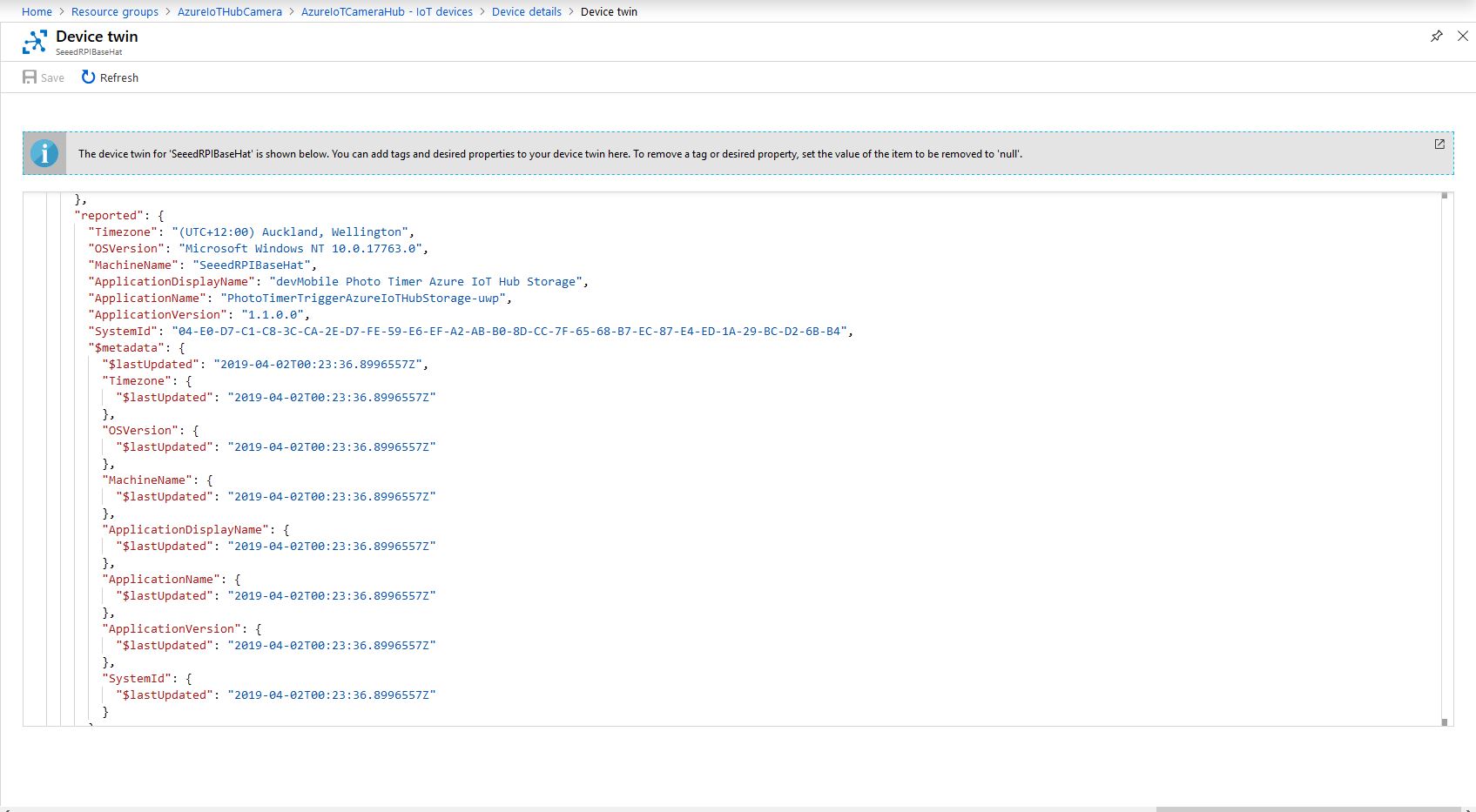
On startup the application uploads a selection of properties to the Azure IoT Hub to assist with support, fault finding etc.
// This is from the OS
reportedProperties["Timezone"] = TimeZoneSettings.CurrentTimeZoneDisplayName;
reportedProperties["OSVersion"] = Environment.OSVersion.VersionString;
reportedProperties["MachineName"] = Environment.MachineName;
reportedProperties["ApplicationDisplayName"] = package.DisplayName;
reportedProperties["ApplicationName"] = packageId.Name;
reportedProperties["ApplicationVersion"] = string.Format($"{version.Major}.{version.Minor}.{version.Build}.{version.Revision}");

// Unique identifier from the hardware
SystemIdentificationInfo systemIdentificationInfo = SystemIdentification.GetSystemIdForPublisher();
using (DataReader reader = DataReader.FromBuffer(systemIdentificationInfo.Id))
{
   byte[] bytes = new byte[systemIdentificationInfo.Id.Length];
   reader.ReadBytes(bytes);
   reportedProperties["SystemId"] = BitConverter.ToString(bytes);
}
Azure Portal Device Properties
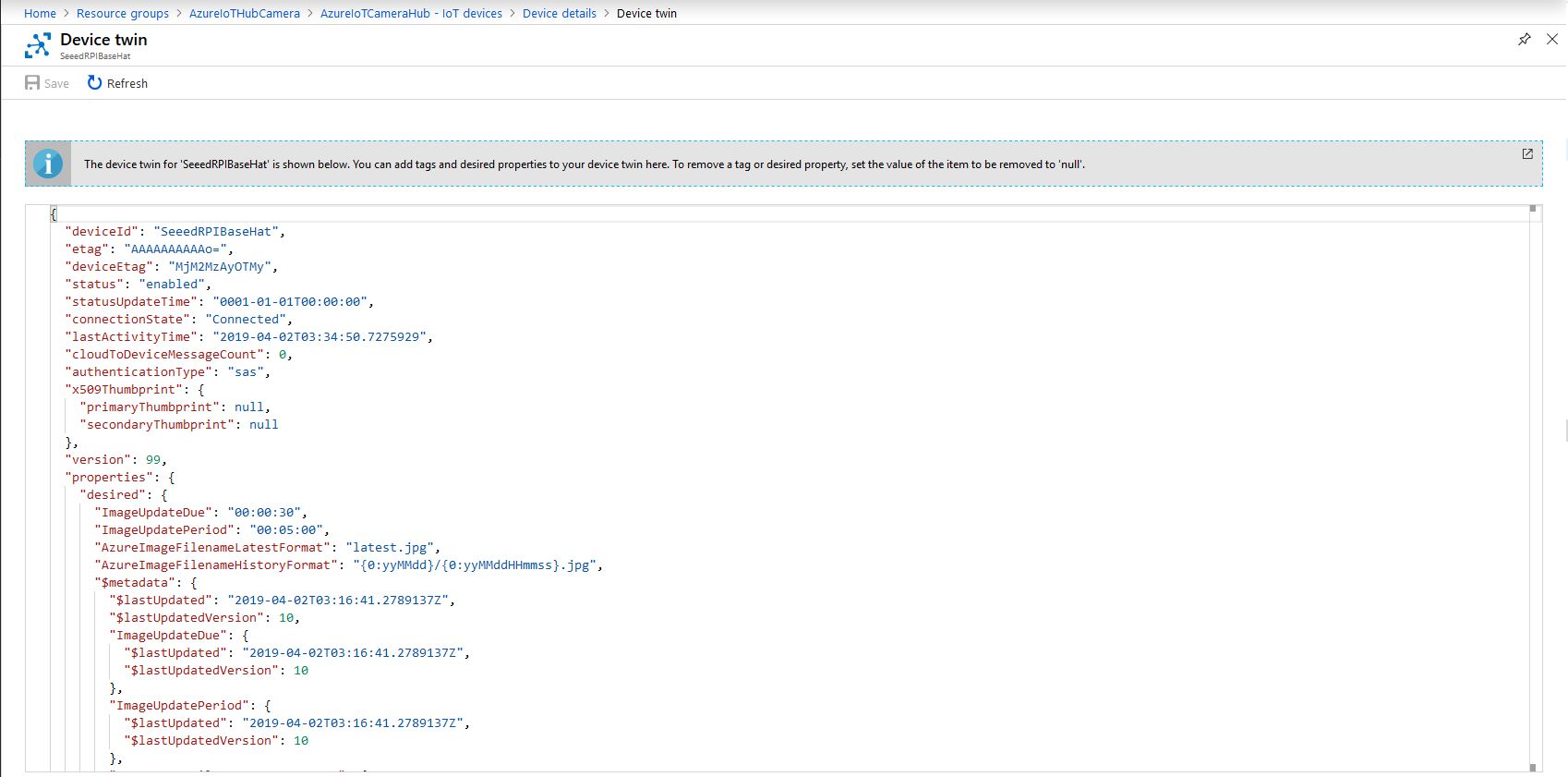
The Azure Storage file and folder name formats along with the image capture due and update periods are configured in the DeviceTwin properties. Initially I had some problems with the dynamic property types so had to .ToString and then Timespan.TryParse the periods.
Twin deviceTwin= azureIoTHubClient.GetTwinAsync().Result;

if (!deviceTwin.Properties.Desired.Contains("AzureImageFilenameLatestFormat"))
{
   this.logging.LogMessage("DeviceTwin.Properties AzureImageFilenameLatestFormat setting missing", LoggingLevel.Warning);
   return;
}
…
if (!deviceTwin.Properties.Desired.Contains("ImageUpdateDue") || !TimeSpan.TryParse(deviceTwin.Properties.Desired["ImageUpdateDue"].Value.ToString(), out imageUpdateDue))
{
   this.logging.LogMessage("DeviceTwin.Properties ImageUpdateDue setting missing or invalid format", LoggingLevel.Warning);
   return;
}
Azure Portal Device Settings
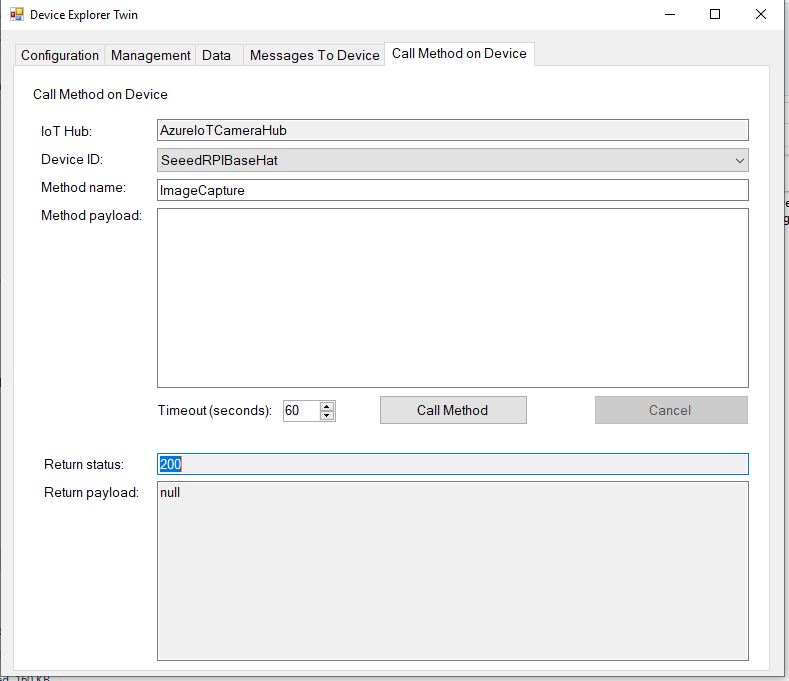
The application also supports two commands “ImageCapture’ and “DeviceReboot”. For testing I used Azure Device Explorer
After running the installer (available from GitHub) the application will create a default configuration file in
Which can be downloaded, modified then uploaded using the portal file explorer application. If you want to make the application run on device start-up the radio button below needs to be selected.
I really wanted to be able to do a time-lapse video of a storm coming up the Canterbury Plains to Christchurch and combine it with the wind direction, windspeed, temperature and humidity data from my weather station which uploads data to Azure through my Azure IoT Hub LoRa field gateway.
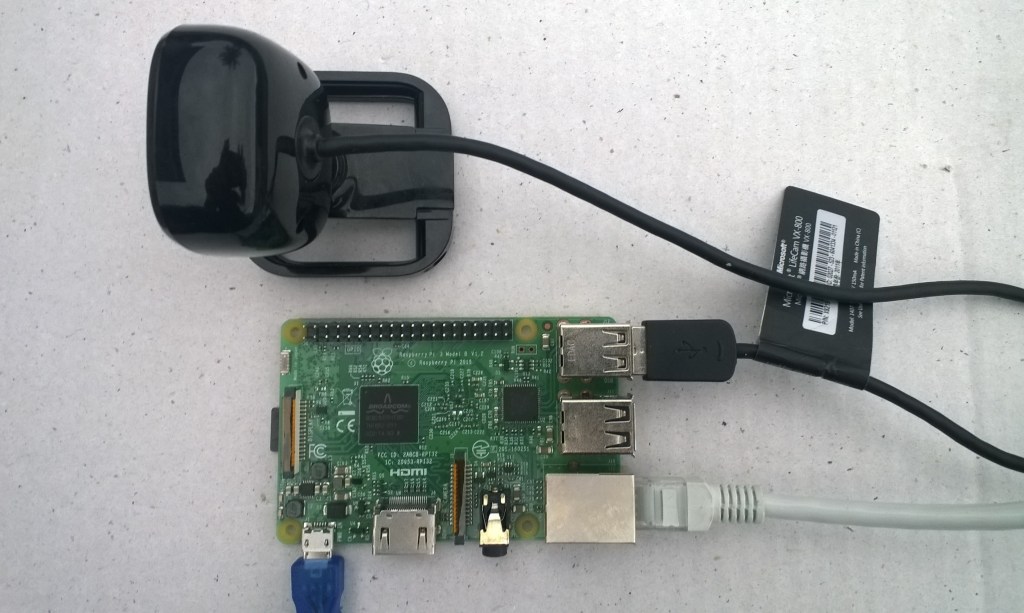
Time-lapse camera setup
The application captures images with a configurable period after configurable start-up delay. The Azure storage root folder name is based on the device name in the Azure IoT Hub connection string. The folder(s) where the historic images are stored are configurable and the images can optionally be in monthly, daily, hourly etc. folders. The current image is stored in the root folder for the device and it’s name is configurable.
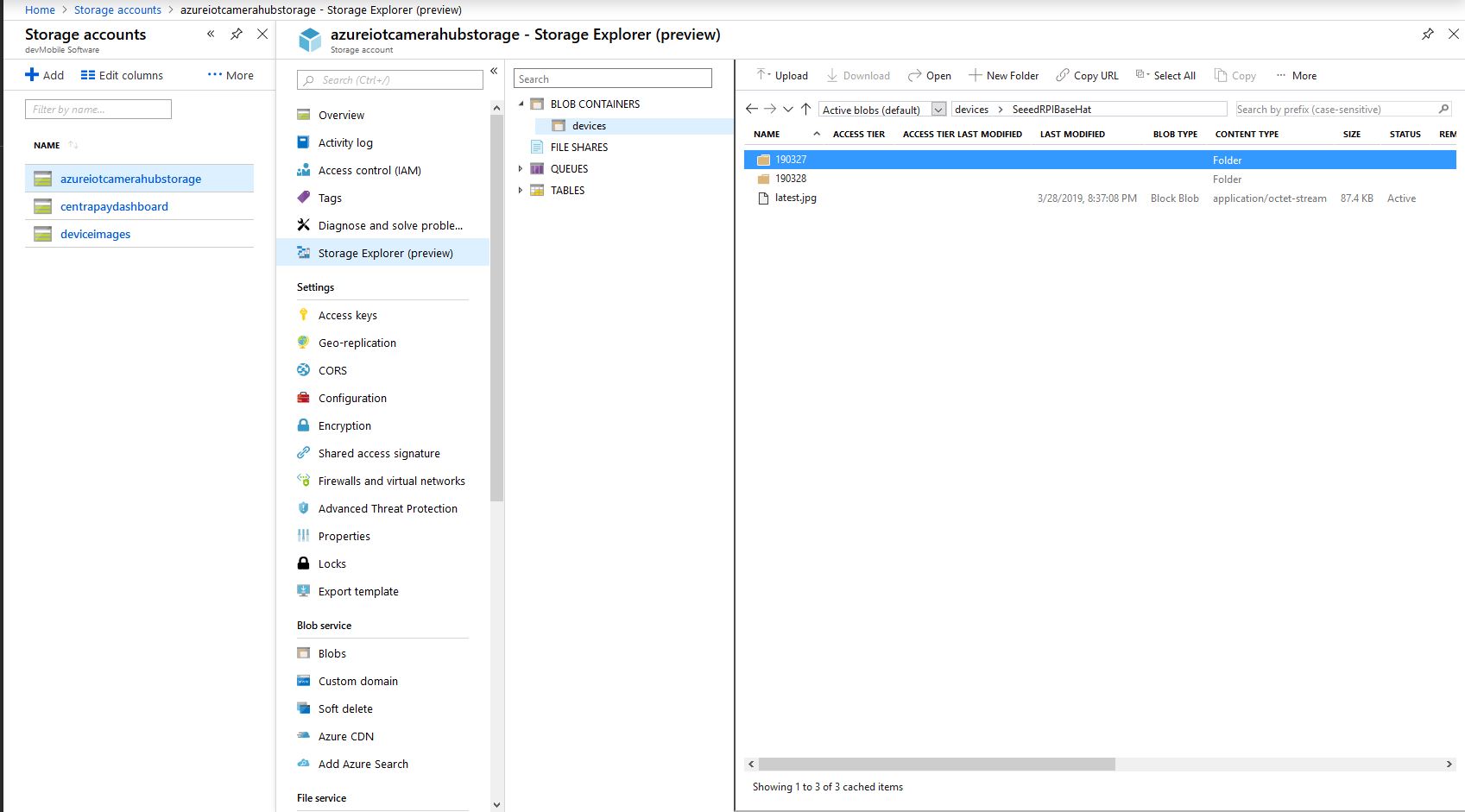
With the above setup I have a folder for each device in the historic fiolder and the most recent image i.e. “latest.jpg” in the root folder. The file and folder names are assembled with a parameterised string.format . The parameter {0} is the current UTC time
Pay attention to your folder/file name formatting, I was tripped up by
mm – minutes vs. MM – months
hh – 12 hour clock vs. HH -24 hour clock
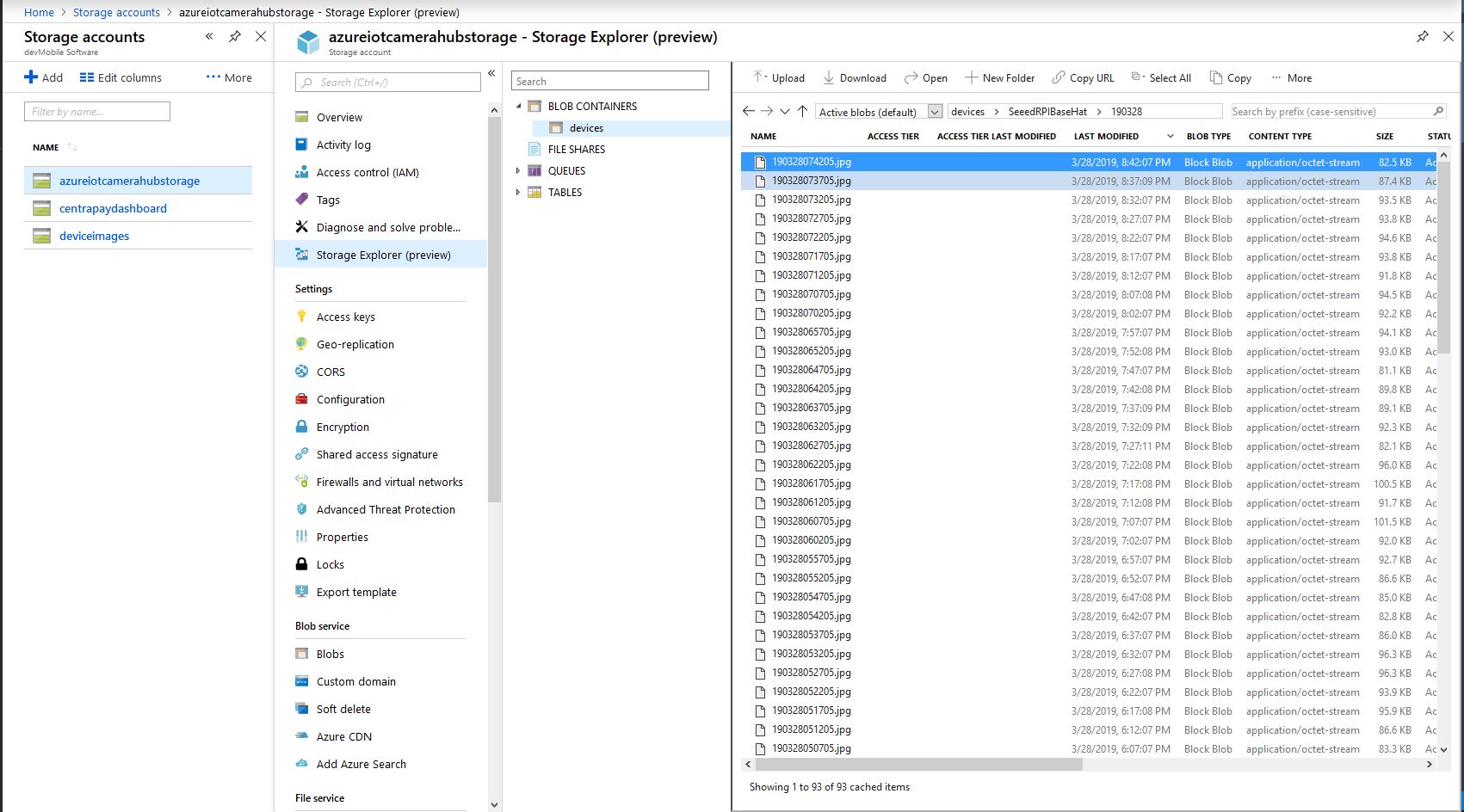
With 12 images every hour
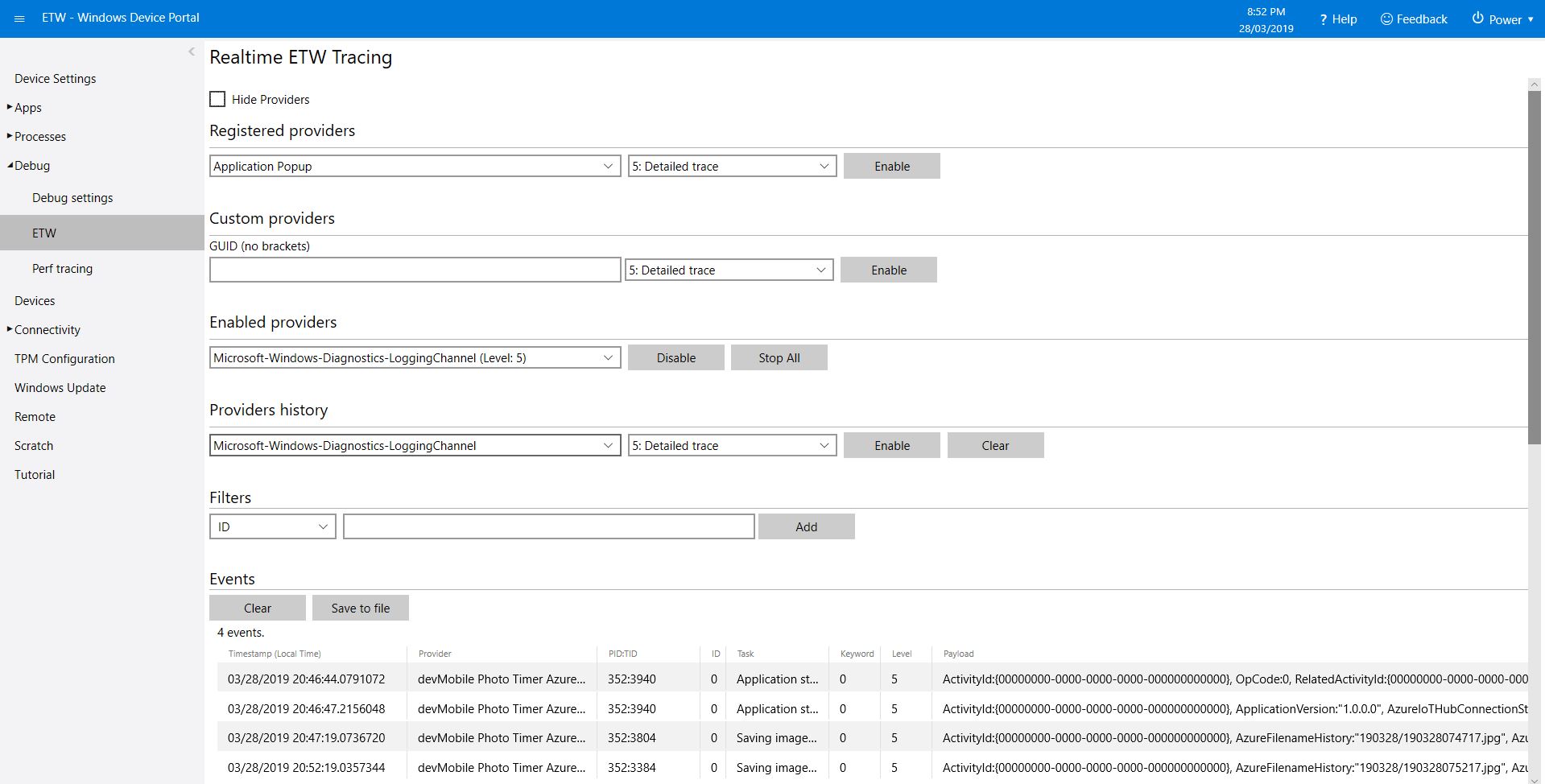
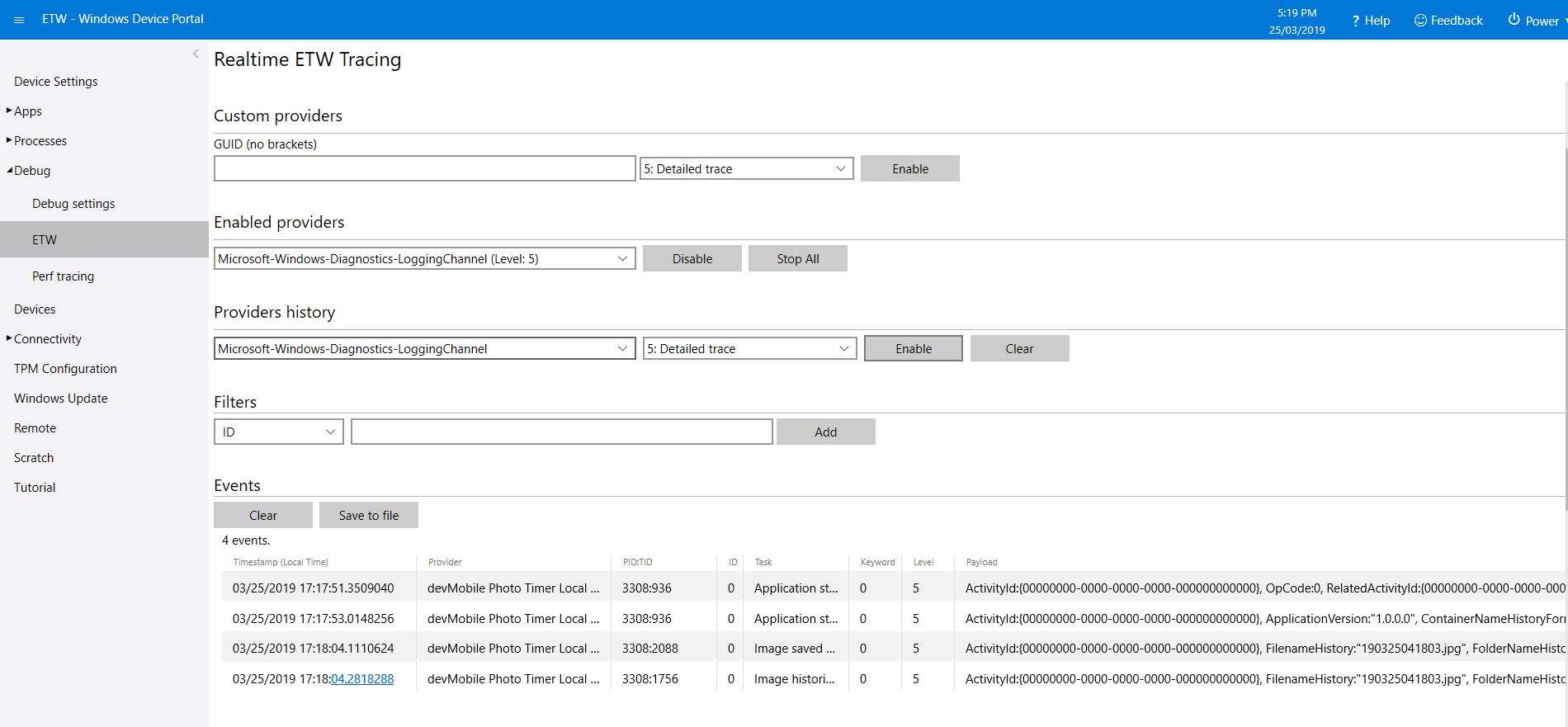
The application logs events on start-up and every time a picture is taken
After running the installer (available from GitHub) the application will create a default configuration file in
User Folders\LocalAppData\PhotoTimerTriggerAzureIoTHubStorage-uwp_1.0.0.0_arm__nmn3tag1rpsaw\LocalState\
Which can be downloaded, modified then uploaded using the portal file explorer application. If you want to make the application run on device start-up the radio button below needs to be selected.
/*
    Copyright ® 2019 March devMobile Software, All Rights Reserved

    MIT License

…
*/
namespace devMobile.Windows10IotCore.IoT.PhotoTimerTriggerAzureIoTHubStorage
{
	using System;
	using System.IO;
	using System.Diagnostics;
	using System.Threading;

	using Microsoft.Azure.Devices.Client;
	using Microsoft.Extensions.Configuration;

	using Windows.ApplicationModel;
	using Windows.ApplicationModel.Background;
	using Windows.Foundation.Diagnostics;
	using Windows.Media.Capture;
	using Windows.Media.MediaProperties;
	using Windows.Storage;
	using Windows.System;

	public sealed class StartupTask : IBackgroundTask
	{
		private BackgroundTaskDeferral backgroundTaskDeferral = null;
		private readonly LoggingChannel logging = new LoggingChannel("devMobile Photo Timer Azure IoT Hub Storage", null, new Guid("4bd2826e-54a1-4ba9-bf63-92b73ea1ac4a"));
		private DeviceClient azureIoTHubClient = null;
		private const string ConfigurationFilename = "appsettings.json";
		private Timer ImageUpdatetimer;
		private MediaCapture mediaCapture;
		private string azureIoTHubConnectionString;
		private TransportType transportType;
		private string azureStorageimageFilenameLatestFormat;
		private string azureStorageImageFilenameHistoryFormat;
		private const string ImageFilenameLocal = "latest.jpg";
		private volatile bool cameraBusy = false;

		public void Run(IBackgroundTaskInstance taskInstance)
		{
			StorageFolder localFolder = ApplicationData.Current.LocalFolder;
			int imageUpdateDueSeconds;
			int imageUpdatePeriodSeconds;

			this.logging.LogEvent("Application starting");

			// Log the Application build, OS version information etc.
			LoggingFields startupInformation = new LoggingFields();
			startupInformation.AddString("Timezone", TimeZoneSettings.CurrentTimeZoneDisplayName);
			startupInformation.AddString("OSVersion", Environment.OSVersion.VersionString);
			startupInformation.AddString("MachineName", Environment.MachineName);

			// This is from the application manifest
			Package package = Package.Current;
			PackageId packageId = package.Id;
			PackageVersion version = packageId.Version;
			startupInformation.AddString("ApplicationVersion", string.Format($"{version.Major}.{version.Minor}.{version.Build}.{version.Revision}"));

			try
			{
				// see if the configuration file is present if not copy minimal sample one from application directory
				if (localFolder.TryGetItemAsync(ConfigurationFilename).AsTask().Result == null)
				{
					StorageFile templateConfigurationfile = Package.Current.InstalledLocation.GetFileAsync(ConfigurationFilename).AsTask().Result;
					templateConfigurationfile.CopyAsync(localFolder, ConfigurationFilename).AsTask();

					this.logging.LogMessage("JSON configuration file missing, templated created", LoggingLevel.Warning);
					return;
				}

				IConfiguration configuration = new ConfigurationBuilder().AddJsonFile(Path.Combine(localFolder.Path, ConfigurationFilename), false, true).Build();

				azureIoTHubConnectionString = configuration.GetSection("AzureIoTHubConnectionString").Value;
				startupInformation.AddString("AzureIoTHubConnectionString", azureIoTHubConnectionString);

				transportType = (TransportType)Enum.Parse( typeof(TransportType), configuration.GetSection("TransportType").Value);
				startupInformation.AddString("TransportType", transportType.ToString());

				azureStorageimageFilenameLatestFormat = configuration.GetSection("AzureImageFilenameFormatLatest").Value;
				startupInformation.AddString("ImageFilenameLatestFormat", azureStorageimageFilenameLatestFormat);

				azureStorageImageFilenameHistoryFormat = configuration.GetSection("AzureImageFilenameFormatHistory").Value;
				startupInformation.AddString("ImageFilenameHistoryFormat", azureStorageImageFilenameHistoryFormat);

				imageUpdateDueSeconds = int.Parse(configuration.GetSection("ImageUpdateDueSeconds").Value);
				startupInformation.AddInt32("ImageUpdateDueSeconds", imageUpdateDueSeconds);

				imageUpdatePeriodSeconds = int.Parse(configuration.GetSection("ImageUpdatePeriodSeconds").Value);
				startupInformation.AddInt32("ImageUpdatePeriodSeconds", imageUpdatePeriodSeconds);
			}
			catch (Exception ex)
			{
				this.logging.LogMessage("JSON configuration file load or settings retrieval failed " + ex.Message, LoggingLevel.Error);
				return;
			}

			try
			{
				azureIoTHubClient = DeviceClient.CreateFromConnectionString(azureIoTHubConnectionString, transportType);
			}
			catch (Exception ex)
			{
				this.logging.LogMessage("AzureIOT Hub connection failed " + ex.Message, LoggingLevel.Error);
				return;
			}

			try
			{
				mediaCapture = new MediaCapture();
				mediaCapture.InitializeAsync().AsTask().Wait();
			}
			catch (Exception ex)
			{
				this.logging.LogMessage("Camera configuration failed " + ex.Message, LoggingLevel.Error);
				return;
			}

			ImageUpdatetimer = new Timer(ImageUpdateTimerCallback, null, new TimeSpan(0, 0, imageUpdateDueSeconds), new TimeSpan(0, 0, imageUpdatePeriodSeconds));

			this.logging.LogEvent("Application started", startupInformation);

			//enable task to continue running in background
			backgroundTaskDeferral = taskInstance.GetDeferral();
		}

		private async void ImageUpdateTimerCallback(object state)
		{
			DateTime currentTime = DateTime.UtcNow;
			Debug.WriteLine($"{DateTime.UtcNow.ToLongTimeString()} Timer triggered");

			// Just incase - stop code being called while photo already in progress
			if (cameraBusy)
			{
				return;
			}
			cameraBusy = true;

			try
			{
				using (Windows.Storage.Streams.InMemoryRandomAccessStream captureStream = new Windows.Storage.Streams.InMemoryRandomAccessStream())
				{
					await mediaCapture.CapturePhotoToStreamAsync(ImageEncodingProperties.CreateJpeg(), captureStream);
					await captureStream.FlushAsync();
#if DEBUG
					IStorageFile photoFile = await KnownFolders.PicturesLibrary.CreateFileAsync(ImageFilenameLocal, CreationCollisionOption.ReplaceExisting);
					ImageEncodingProperties imageProperties = ImageEncodingProperties.CreateJpeg();
					await mediaCapture.CapturePhotoToStorageFileAsync(imageProperties, photoFile);
#endif

					string azureFilenameLatest = string.Format(azureStorageimageFilenameLatestFormat, currentTime);
					string azureFilenameHistory = string.Format(azureStorageImageFilenameHistoryFormat, currentTime);

					LoggingFields imageInformation = new LoggingFields();
					imageInformation.AddDateTime("TakenAtUTC", currentTime);
#if DEBUG
					imageInformation.AddString("LocalFilename", photoFile.Path);
#endif
					imageInformation.AddString("AzureFilenameLatest", azureFilenameLatest);
					imageInformation.AddString("AzureFilenameHistory", azureFilenameHistory);
					this.logging.LogEvent("Saving image(s) to Azure storage", imageInformation);

					// Update the latest image in storage
					if (!string.IsNullOrWhiteSpace(azureFilenameLatest))
					{
						captureStream.Seek(0);
						Debug.WriteLine("AzureIoT Hub latest image upload start");
						await azureIoTHubClient.UploadToBlobAsync(azureFilenameLatest, captureStream.AsStreamForRead());
						Debug.WriteLine("AzureIoT Hub latest image upload done");
					}

					// Upload the historic image to storage
					if (!string.IsNullOrWhiteSpace(azureFilenameHistory))
					{
						captureStream.Seek(0);
						Debug.WriteLine("AzureIoT Hub historic image upload start");
						await azureIoTHubClient.UploadToBlobAsync(azureFilenameHistory, captureStream.AsStreamForRead());
						Debug.WriteLine("AzureIoT Hub historic image upload done");
					}
				}
			}
			catch (Exception ex)
			{
				this.logging.LogMessage("Camera photo save or AzureIoTHub storage upload failed " + ex.Message, LoggingLevel.Error);
			}
			finally
			{
				cameraBusy = false;
			}
		}
	}
}
After building a time lapse camera application for Windows 10 IoT Core which stored the images locally I figured a version which uploaded the images to Azure storage might be useful as well.
This allowed for significantly more storage and it would be easier to process the images with Azure Media services or custom applications like my simple emailer.
Time-lapse camera setup
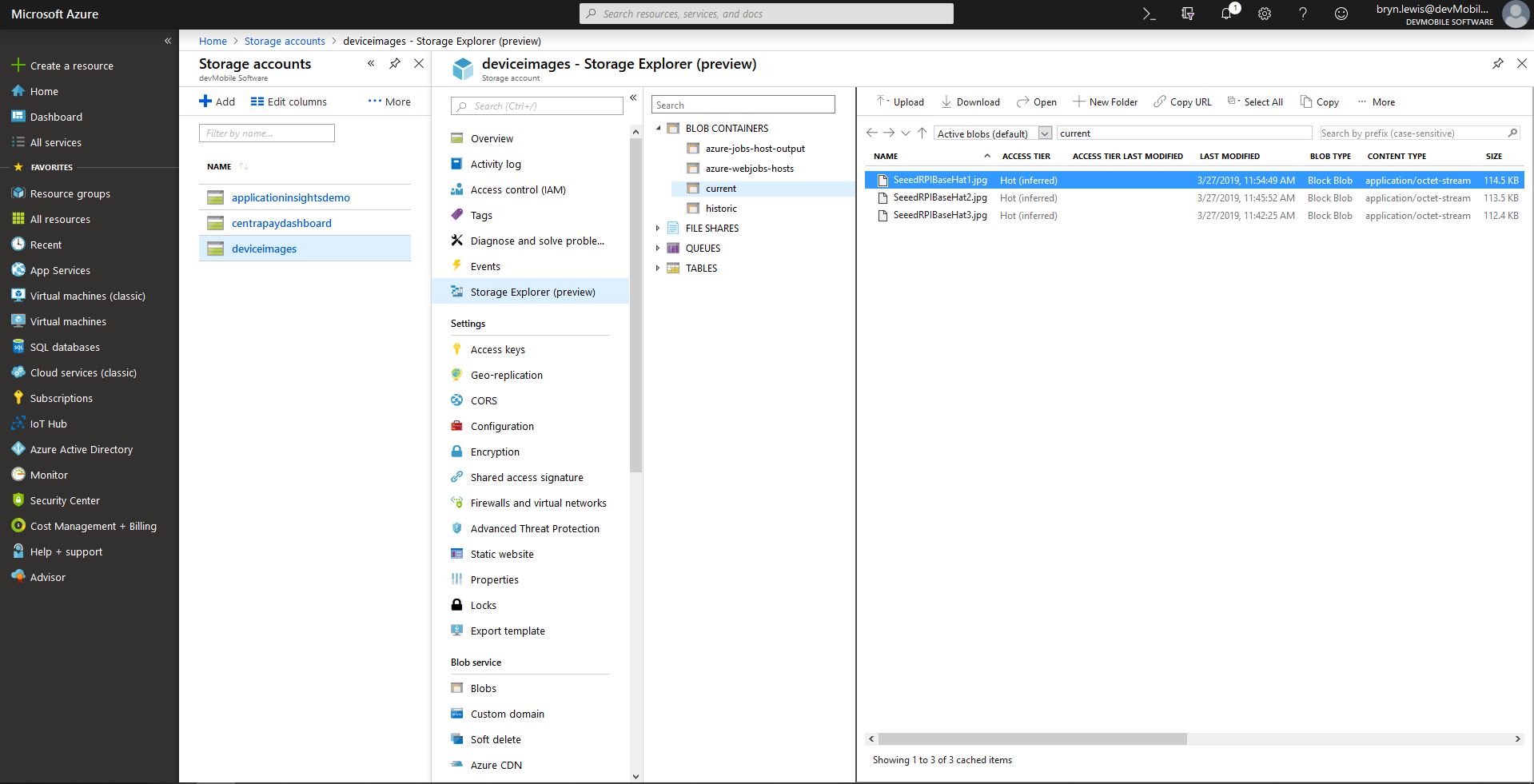
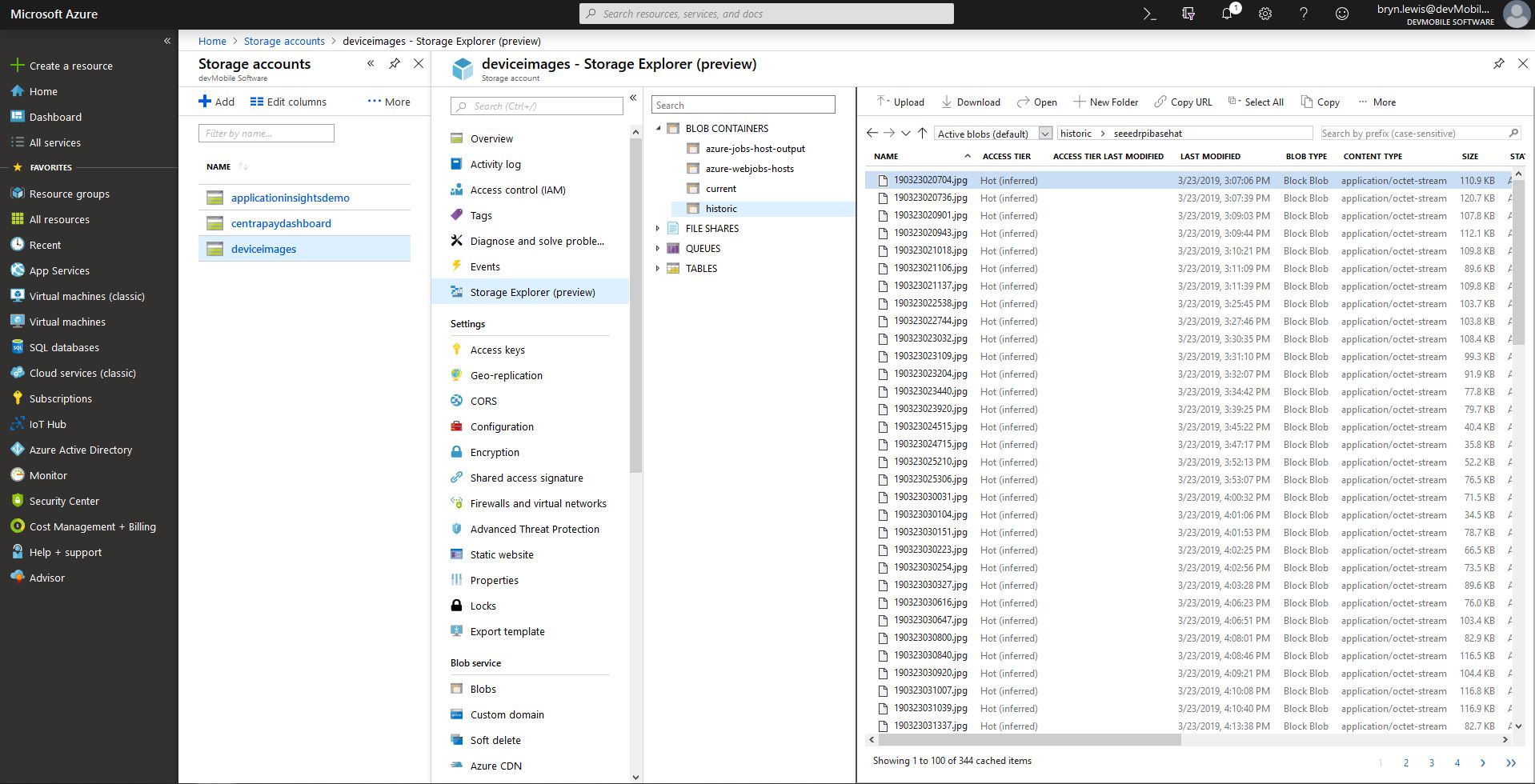
The application captures images with a configurable period after configurable start-up delay. The container and folder where the current and historic images are stored is configurable and the images can optionally be in monthly, daily, hourly etc. folders.
With the above setup I have a folder for each device in the historic fiolder and the most recent image e.g. “seeedRPIBaseHat.jpg” image in the current folder. The file and folder names are assembled with a parameterised string.format
{0} machine name
{1} Device MAC Address
{2} Current time
Pay attention to your container\file name formatting I was tripped up by
mm – minutes vs. MM – months
hh – 12 hour clock vs. HH -24 hour clock
With 12 images every hour
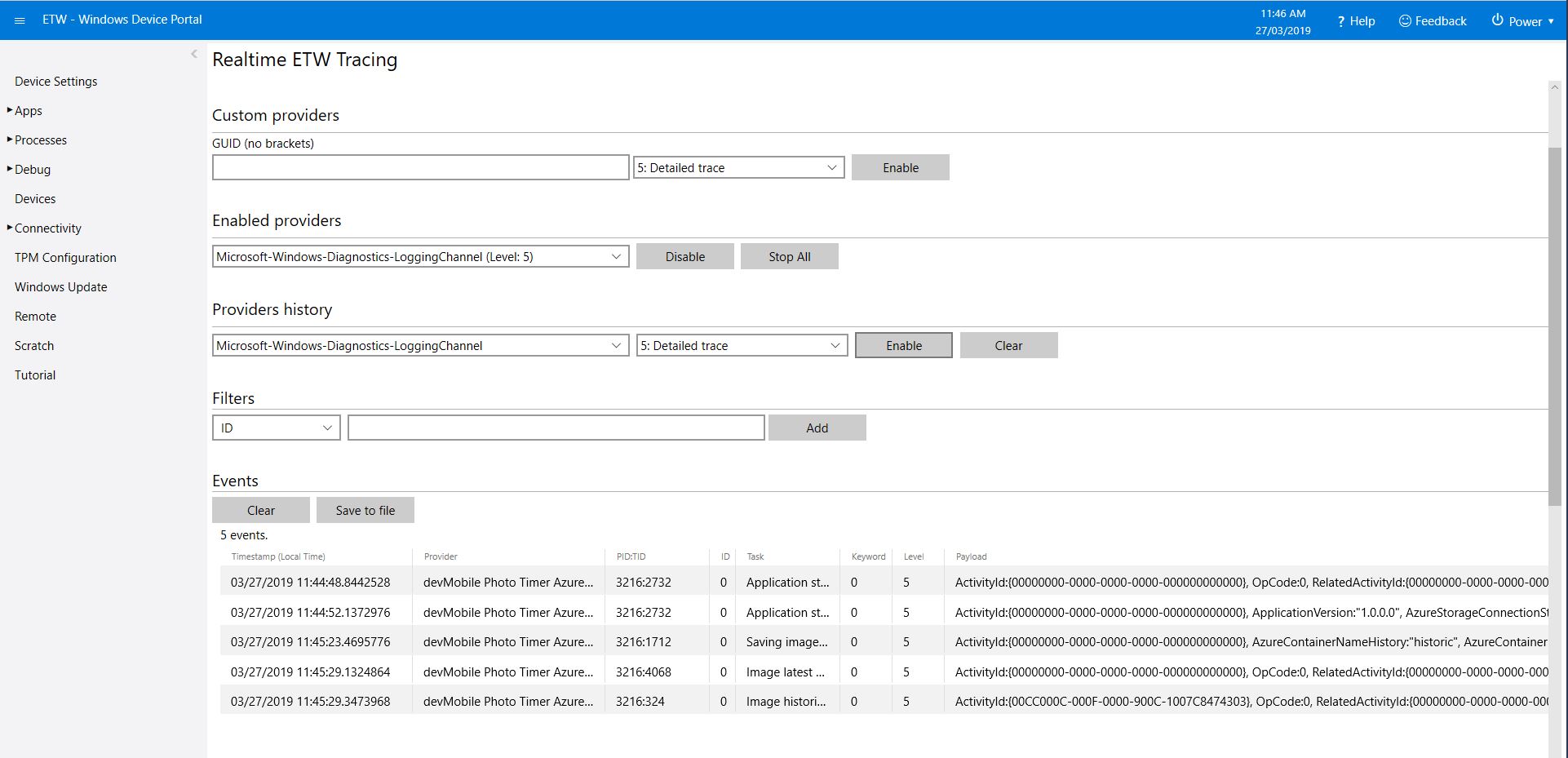
The application logs events on start-up and every time a picture is taken
Windows 10 IoT Core device ETW Logging
After running the installer (available from GitHub) the application will create a default configuration file in
User Folders\LocalAppData\PhotoTimerTriggerAzureStorage-uwp_1.0.0.0_arm__nmn3tag1rpsaw\ LocalState\
Which can be downloaded, modified then uploaded using the portal file explorer application. If you want to make the application run on device start-up the radio button below needs to be selected.
/*
    Copyright ® 2019 March devMobile Software, All Rights Reserved

    MIT License
…
*/
namespace devMobile.Windows10IotCore.IoT.PhotoTimerInputTriggerAzureStorage
{
	using System;
	using System.IO;
	using System.Diagnostics;
	using System.Linq;
	using System.Net.NetworkInformation;
	using System.Threading;

	using Microsoft.Extensions.Configuration;
	using Microsoft.WindowsAzure.Storage;
	using Microsoft.WindowsAzure.Storage.Blob;

	using Windows.ApplicationModel;
	using Windows.ApplicationModel.Background;
	using Windows.Foundation.Diagnostics;
	using Windows.Media.Capture;
	using Windows.Media.MediaProperties;
	using Windows.Storage;
	using Windows.System;

	public sealed class StartupTask : IBackgroundTask
	{
		private BackgroundTaskDeferral backgroundTaskDeferral = null;
		private readonly LoggingChannel logging = new LoggingChannel("devMobile Photo Timer Azure Storage", null, new Guid("4bd2826e-54a1-4ba9-bf63-92b73ea1ac4a"));
		private const string ConfigurationFilename = "appsettings.json";
		private Timer ImageUpdatetimer;
		private MediaCapture mediaCapture;
		private string deviceMacAddress;
		private string azureStorageConnectionString;
		private string azureStorageContainerNameLatestFormat;
		private string azureStorageimageFilenameLatestFormat;
		private string azureStorageContainerNameHistoryFormat;
		private string azureStorageImageFilenameHistoryFormat;
		private const string ImageFilenameLocal = "latest.jpg";
		private volatile bool cameraBusy = false;

		public void Run(IBackgroundTaskInstance taskInstance)
		{
			StorageFolder localFolder = ApplicationData.Current.LocalFolder;
			int imageUpdateDueSeconds;
			int imageUpdatePeriodSeconds;

			this.logging.LogEvent("Application starting");

			// Log the Application build, OS version information etc.
			LoggingFields startupInformation = new LoggingFields();
			startupInformation.AddString("Timezone", TimeZoneSettings.CurrentTimeZoneDisplayName);
			startupInformation.AddString("OSVersion", Environment.OSVersion.VersionString);
			startupInformation.AddString("MachineName", Environment.MachineName);

			// This is from the application manifest
			Package package = Package.Current;
			PackageId packageId = package.Id;
			PackageVersion version = packageId.Version;
			startupInformation.AddString("ApplicationVersion", string.Format($"{version.Major}.{version.Minor}.{version.Build}.{version.Revision}"));

			// ethernet mac address
			deviceMacAddress = NetworkInterface.GetAllNetworkInterfaces()
				 .Where(i => i.NetworkInterfaceType.ToString().ToLower().Contains("ethernet"))
				 .FirstOrDefault()
				 ?.GetPhysicalAddress().ToString();

			// remove unsupported charachers from MacAddress
			deviceMacAddress = deviceMacAddress.Replace("-", "").Replace(" ", "").Replace(":", "");
			startupInformation.AddString("MacAddress", deviceMacAddress);

			try
			{
				// see if the configuration file is present if not copy minimal sample one from application directory
				if (localFolder.TryGetItemAsync(ConfigurationFilename).AsTask().Result == null)
				{
					StorageFile templateConfigurationfile = Package.Current.InstalledLocation.GetFileAsync(ConfigurationFilename).AsTask().Result;
					templateConfigurationfile.CopyAsync(localFolder, ConfigurationFilename).AsTask();

					this.logging.LogMessage("JSON configuration file missing, templated created", LoggingLevel.Warning);
					return;
				}

				IConfiguration configuration = new ConfigurationBuilder().AddJsonFile(Path.Combine(localFolder.Path, ConfigurationFilename), false, true).Build();

				azureStorageConnectionString = configuration.GetSection("AzureStorageConnectionString").Value;
				startupInformation.AddString("AzureStorageConnectionString", azureStorageConnectionString);

				azureStorageContainerNameLatestFormat = configuration.GetSection("AzureContainerNameFormatLatest").Value;
				startupInformation.AddString("ContainerNameLatestFormat", azureStorageContainerNameLatestFormat);

				azureStorageimageFilenameLatestFormat = configuration.GetSection("AzureImageFilenameFormatLatest").Value;
				startupInformation.AddString("ImageFilenameLatestFormat", azureStorageimageFilenameLatestFormat);

				azureStorageContainerNameHistoryFormat = configuration.GetSection("AzureContainerNameFormatHistory").Value;
				startupInformation.AddString("ContainerNameHistoryFormat", azureStorageContainerNameHistoryFormat);

				azureStorageImageFilenameHistoryFormat = configuration.GetSection("AzureImageFilenameFormatHistory").Value;
				startupInformation.AddString("ImageFilenameHistoryFormat", azureStorageImageFilenameHistoryFormat);

				imageUpdateDueSeconds = int.Parse(configuration.GetSection("ImageUpdateDueSeconds").Value);
				startupInformation.AddInt32("ImageUpdateDueSeconds", imageUpdateDueSeconds);

				imageUpdatePeriodSeconds = int.Parse(configuration.GetSection("ImageUpdatePeriodSeconds").Value);
				startupInformation.AddInt32("ImageUpdatePeriodSeconds", imageUpdatePeriodSeconds);
			}
			catch (Exception ex)
			{
				this.logging.LogMessage("JSON configuration file load or settings retrieval failed " + ex.Message, LoggingLevel.Error);
				return;
			}

			try
			{
				mediaCapture = new MediaCapture();
				mediaCapture.InitializeAsync().AsTask().Wait();
			}
			catch (Exception ex)
			{
				this.logging.LogMessage("Camera configuration failed " + ex.Message, LoggingLevel.Error);
				return;
			}

			ImageUpdatetimer = new Timer(ImageUpdateTimerCallback, null, new TimeSpan(0,0, imageUpdateDueSeconds), new TimeSpan(0, 0, imageUpdatePeriodSeconds));

			this.logging.LogEvent("Application started", startupInformation);

			//enable task to continue running in background
			backgroundTaskDeferral = taskInstance.GetDeferral();
		}

		private async void ImageUpdateTimerCallback(object state)
		{
			DateTime currentTime = DateTime.UtcNow;
			Debug.WriteLine($"{DateTime.UtcNow.ToLongTimeString()} Timer triggered");

			// Just incase - stop code being called while photo already in progress
			if (cameraBusy)
			{
				return;
			}
			cameraBusy = true;

			try
			{
				StorageFile photoFile = await KnownFolders.PicturesLibrary.CreateFileAsync(ImageFilenameLocal, CreationCollisionOption.ReplaceExisting);
				ImageEncodingProperties imageProperties = ImageEncodingProperties.CreateJpeg();
				await mediaCapture.CapturePhotoToStorageFileAsync(imageProperties, photoFile);

				string azureContainernameLatest = string.Format(azureStorageContainerNameLatestFormat, Environment.MachineName, deviceMacAddress, currentTime).ToLower();
				string azureFilenameLatest = string.Format(azureStorageimageFilenameLatestFormat, Environment.MachineName, deviceMacAddress, currentTime);
				string azureContainerNameHistory = string.Format(azureStorageContainerNameHistoryFormat, Environment.MachineName, deviceMacAddress, currentTime).ToLower();
				string azureFilenameHistory = string.Format(azureStorageImageFilenameHistoryFormat, Environment.MachineName.ToLower(), deviceMacAddress, currentTime);

				LoggingFields imageInformation = new LoggingFields();
				imageInformation.AddDateTime("TakenAtUTC", currentTime);
				imageInformation.AddString("LocalFilename", photoFile.Path);
				imageInformation.AddString("AzureContainerNameLatest", azureContainernameLatest);
				imageInformation.AddString("AzureFilenameLatest", azureFilenameLatest);
				imageInformation.AddString("AzureContainerNameHistory", azureContainerNameHistory);
				imageInformation.AddString("AzureFilenameHistory", azureFilenameHistory);
				this.logging.LogEvent("Saving image(s) to Azure storage", imageInformation);

				CloudStorageAccount storageAccount = CloudStorageAccount.Parse(azureStorageConnectionString);
				CloudBlobClient blobClient = storageAccount.CreateCloudBlobClient();

				// Update the latest image in storage
				if (!string.IsNullOrWhiteSpace(azureContainernameLatest) && !string.IsNullOrWhiteSpace(azureFilenameLatest))
				{
					CloudBlobContainer containerLatest = blobClient.GetContainerReference(azureContainernameLatest);
					await containerLatest.CreateIfNotExistsAsync();

					CloudBlockBlob blockBlobLatest = containerLatest.GetBlockBlobReference(azureFilenameLatest);
					await blockBlobLatest.UploadFromFileAsync(photoFile);

					this.logging.LogEvent("Image latest saved to Azure storage");
				}

				// Upload the historic image to storage
				if (!string.IsNullOrWhiteSpace(azureContainerNameHistory) && !string.IsNullOrWhiteSpace(azureFilenameHistory))
				{
					CloudBlobContainer containerHistory = blobClient.GetContainerReference(azureContainerNameHistory);
					await containerHistory.CreateIfNotExistsAsync();

					CloudBlockBlob blockBlob = containerHistory.GetBlockBlobReference(azureFilenameHistory);
					await blockBlob.UploadFromFileAsync(photoFile);

					this.logging.LogEvent("Image historic saved to Azure storage");
				}
			}
			catch (Exception ex)
			{
				this.logging.LogMessage("Camera photo save or upload failed " + ex.Message, LoggingLevel.Error);
			}
			finally
			{
				cameraBusy = false;
			}
		}
	}
}
After my first my couple of post about building camera applications for Windows 10 IoT Core I figured a pre-built time-lapse camera project which stored the images on the device’s MicroSD might be useful.
Time-lapse camera setup
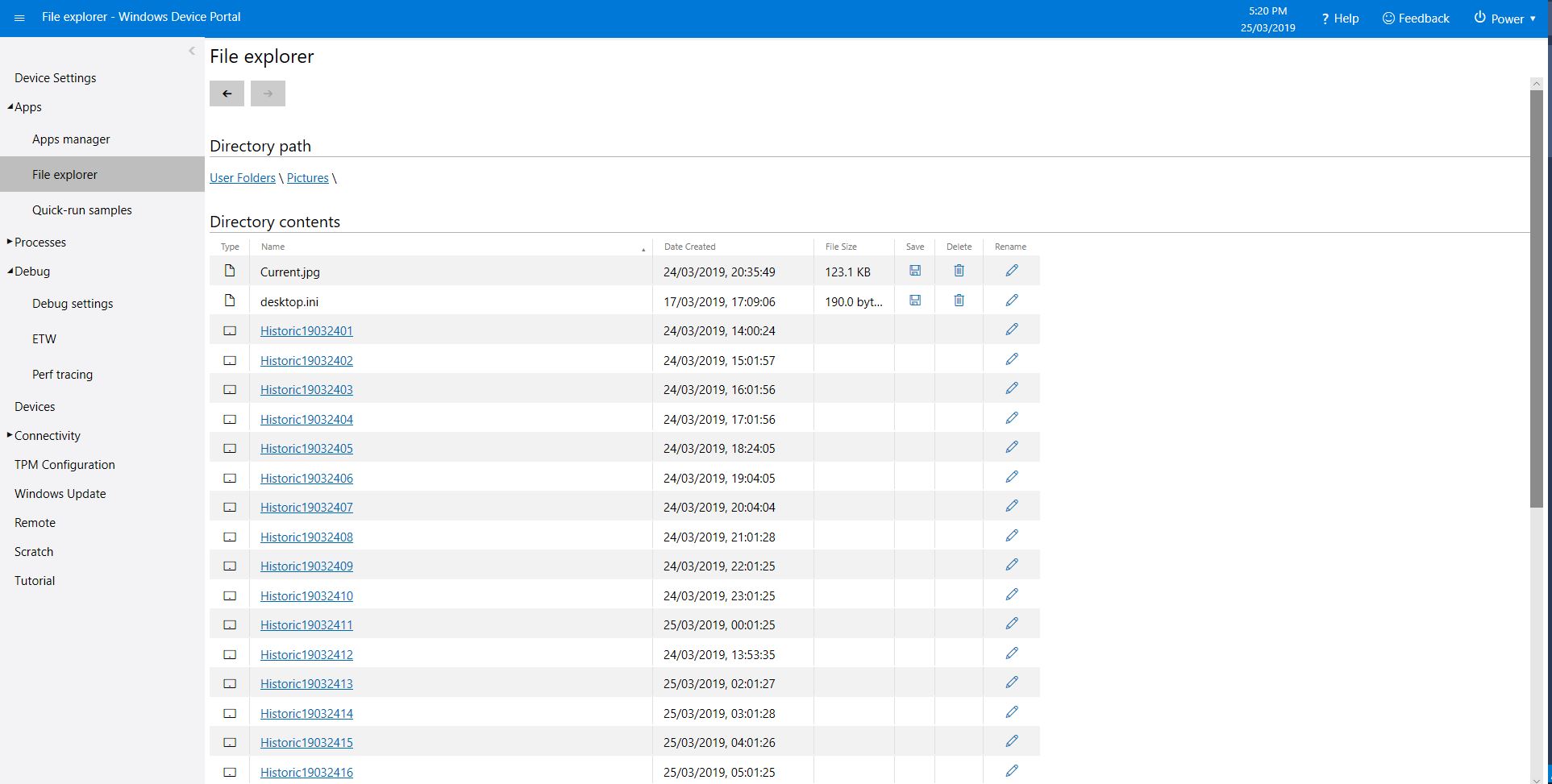
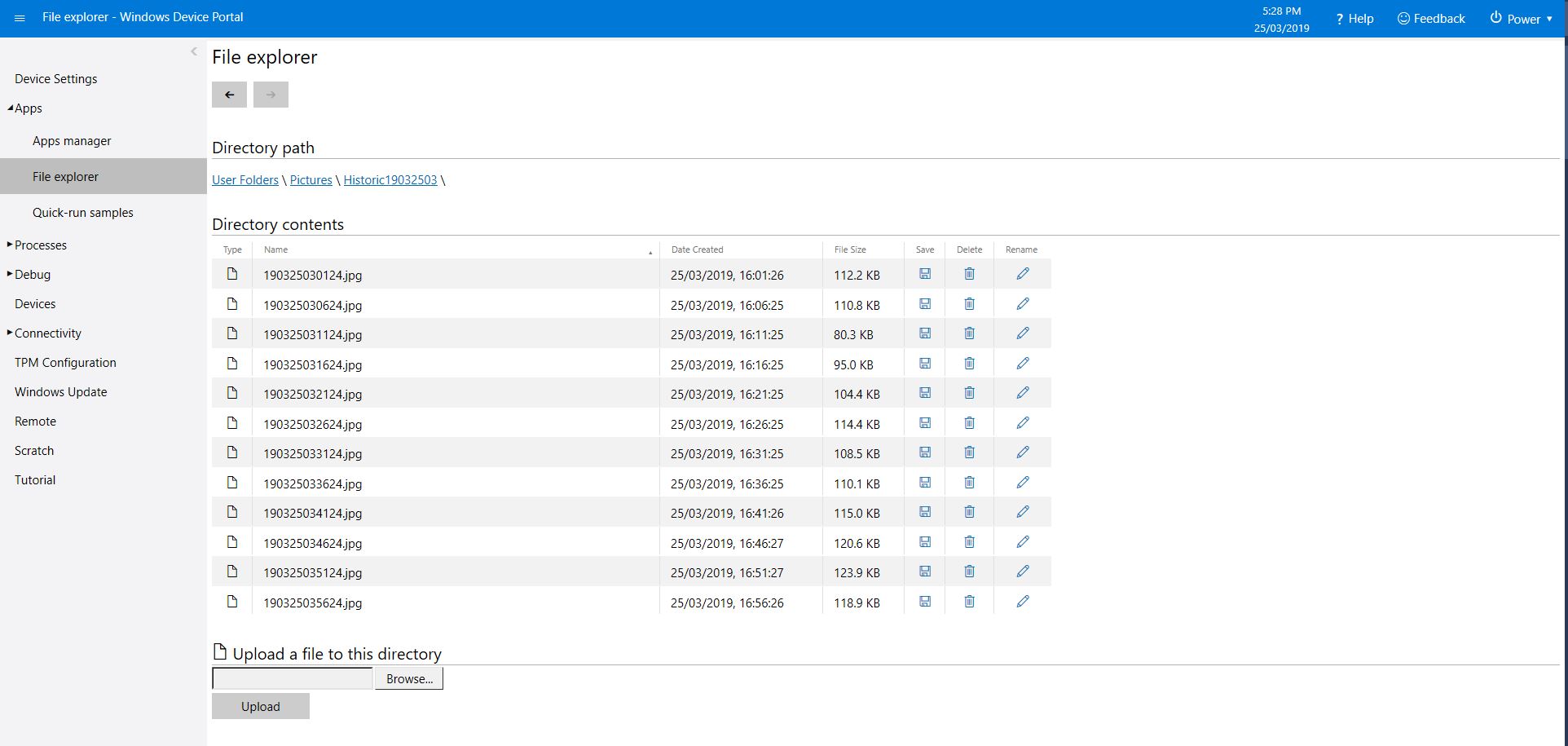
The application captures images with a configurable period after configurable start-up delay. The folder where the images are stored is configurable and the images can optionally be in monthly, daily, hourly etc. folders.
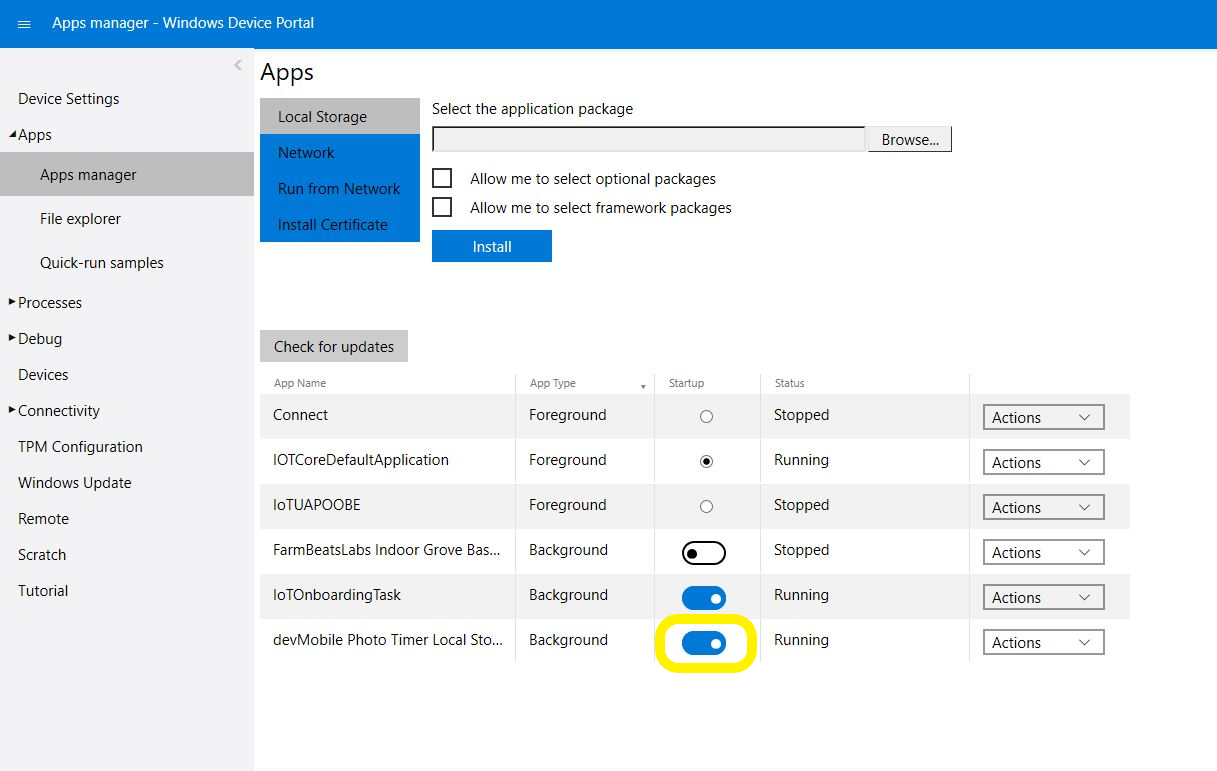
Which can be downloaded, modified then uploaded using the portal file explorer application. If you want to make the application run on device start-up the radio button below needs to be selected.
Device Portal Apps\Apps Manager
Make sure to set the Windows 10 IoT Core device timezone and connect it to a network (for ntp server access ) or use a third party real-time clock(RTC) to set the device time on restart.
/*
    Copyright ® 2019 March devMobile Software, All Rights Reserved

    MIT License

    …
*/
namespace devMobile.Windows10IotCore.IoT.PhotoTimerTriggerLocalStorage
{
	using System;
	using System.IO;
	using System.Diagnostics;
	using System.Threading;

	using Microsoft.Extensions.Configuration;

	using Windows.ApplicationModel;
	using Windows.ApplicationModel.Background;
	using Windows.Foundation.Diagnostics;
	using Windows.Media.Capture;
	using Windows.Media.MediaProperties;
	using Windows.Storage;
	using Windows.System;

	public sealed class StartupTask : IBackgroundTask
	{
		private BackgroundTaskDeferral backgroundTaskDeferral = null;
		private readonly LoggingChannel logging = new LoggingChannel("devMobile Photo Timer Local Storage", null, new Guid("4bd2826e-54a1-4ba9-bf63-92b73ea1ac4a"));
		private const string ConfigurationFilename = "appsettings.json";
		private Timer ImageUpdatetimer;
		private MediaCapture mediaCapture;
		private string localImageFilenameLatestFormat;
		private string localFolderNameHistoryFormat;
		private string localImageFilenameHistoryFormat;
		private volatile bool cameraBusy = false;

		public void Run(IBackgroundTaskInstance taskInstance)
		{
			StorageFolder localFolder = ApplicationData.Current.LocalFolder;
			int imageUpdateDueSeconds;
			int imageUpdatePeriodSeconds;

			this.logging.LogEvent("Application starting");

			// Log the Application build, OS version information etc.
			LoggingFields startupInformation = new LoggingFields();
			startupInformation.AddString("Timezone", TimeZoneSettings.CurrentTimeZoneDisplayName);
			startupInformation.AddString("OSVersion", Environment.OSVersion.VersionString);
			startupInformation.AddString("MachineName", Environment.MachineName);

			// This is from the application manifest
			Package package = Package.Current;
			PackageId packageId = package.Id;
			PackageVersion version = packageId.Version;
			startupInformation.AddString("ApplicationVersion", string.Format($"{version.Major}.{version.Minor}.{version.Build}.{version.Revision}"));

			try
			{
				// see if the configuration file is present if not copy minimal sample one from application directory
				if (localFolder.TryGetItemAsync(ConfigurationFilename).AsTask().Result == null)
				{
					StorageFile templateConfigurationfile = Package.Current.InstalledLocation.GetFileAsync(ConfigurationFilename).AsTask().Result;
					templateConfigurationfile.CopyAsync(localFolder, ConfigurationFilename).AsTask();

					this.logging.LogMessage("JSON configuration file missing, templated created", LoggingLevel.Warning);
					return;
				}

				IConfiguration configuration = new ConfigurationBuilder().AddJsonFile(Path.Combine(localFolder.Path, ConfigurationFilename), false, true).Build();

				localImageFilenameLatestFormat = configuration.GetSection("ImageFilenameFormatLatest").Value;
				startupInformation.AddString("ImageFilenameLatestFormat", localImageFilenameLatestFormat);

				localFolderNameHistoryFormat = configuration.GetSection("FolderNameFormatHistory").Value;
				startupInformation.AddString("ContainerNameHistoryFormat", localFolderNameHistoryFormat);

				localImageFilenameHistoryFormat = configuration.GetSection("ImageFilenameFormatHistory").Value;
				startupInformation.AddString("ImageFilenameHistoryFormat", localImageFilenameHistoryFormat);

				imageUpdateDueSeconds = int.Parse(configuration.GetSection("ImageUpdateDueSeconds").Value);
				startupInformation.AddInt32("ImageUpdateDueSeconds", imageUpdateDueSeconds);

				imageUpdatePeriodSeconds = int.Parse(configuration.GetSection("ImageUpdatePeriodSeconds").Value);
				startupInformation.AddInt32("ImageUpdatePeriodSeconds", imageUpdatePeriodSeconds);
			}
			catch (Exception ex)
			{
				this.logging.LogMessage("JSON configuration file load or settings retrieval failed " + ex.Message, LoggingLevel.Error);
				return;
			}

			try
			{
				mediaCapture = new MediaCapture();
				mediaCapture.InitializeAsync().AsTask().Wait();
			}
			catch (Exception ex)
			{
				this.logging.LogMessage("Camera configuration failed " + ex.Message, LoggingLevel.Error);
				return;
			}

			ImageUpdatetimer = new Timer(ImageUpdateTimerCallback, null, new TimeSpan(0, 0, imageUpdateDueSeconds), new TimeSpan(0, 0, imageUpdatePeriodSeconds));

			this.logging.LogEvent("Application started", startupInformation);

			//enable task to continue running in background
			backgroundTaskDeferral = taskInstance.GetDeferral();
		}

		private async void ImageUpdateTimerCallback(object state)
		{
			DateTime currentTime = DateTime.UtcNow;
			Debug.WriteLine($"{DateTime.UtcNow.ToLongTimeString()} Timer triggered");

			// Just incase - stop code being called while photo already in progress
			if (cameraBusy)
			{
				return;
			}
			cameraBusy = true;

			try
			{
				string localFilename = string.Format(localImageFilenameLatestFormat, currentTime);
				string folderNameHistory = string.Format(localFolderNameHistoryFormat, currentTime);
				string filenameHistory = string.Format(localImageFilenameHistoryFormat, currentTime);

				StorageFile photoFile = await KnownFolders.PicturesLibrary.CreateFileAsync(localFilename, CreationCollisionOption.ReplaceExisting);
				ImageEncodingProperties imageProperties = ImageEncodingProperties.CreateJpeg();
				await mediaCapture.CapturePhotoToStorageFileAsync(imageProperties, photoFile);

				LoggingFields imageInformation = new LoggingFields();
				imageInformation.AddDateTime("TakenAtUTC", currentTime);
				imageInformation.AddString("LocalFilename", photoFile.Path);
				imageInformation.AddString("FolderNameHistory", folderNameHistory);
				imageInformation.AddString("FilenameHistory", filenameHistory);
				this.logging.LogEvent("Image saved to local storage", imageInformation);

				// Upload the historic image to storage
				if (!string.IsNullOrWhiteSpace(folderNameHistory) && !string.IsNullOrWhiteSpace(filenameHistory))
				{
					// Check to see if historic images folder exists and if it doesn't create it
					IStorageFolder storageFolder = (IStorageFolder)await KnownFolders.PicturesLibrary.TryGetItemAsync(folderNameHistory);
					if (storageFolder == null)
					{
						storageFolder = await KnownFolders.PicturesLibrary.CreateFolderAsync(folderNameHistory);
					}
					await photoFile.CopyAsync(storageFolder, filenameHistory, NameCollisionOption.ReplaceExisting);

					this.logging.LogEvent("Image historic saved to local storage", imageInformation);
				}
			}
			catch (Exception ex)
			{
				this.logging.LogMessage("Camera photo or image save failed " + ex.Message, LoggingLevel.Error);
			}
			finally
			{
				cameraBusy = false;
			}
		}
	}
}
With a 32G or 64G MicroSD card a significant number of images (my low resolution camera was approximately 125K per image) could be stored on the Windows 10 device.
These could then be assembled into a video using a tool like Time Lapse Creator.









 devMobile's blog