“Don’t forget to flush” Application Insights

Revisited March 2020

An Azure solution I was working on had a .Net console application which ran on a server at the customer’s premises. It was scheduled task that uploaded some files to azure blob storage every 5 minutes.

To help with debugging I added support for Azure application Insights but after monitoring the application for a while I noticed some shutdown events were not getting uploaded.

Initially I was a bit confused because when I ran the application on my desktop it worked fine (It works on my machine). I found this was because when launched from the debugger the application would upload any files it found then wait until I pressed to exit and this was enough time for the shutdown messages to get uploaded.

The code for a smallest example application is below (I pass the instrumentation key as a command line parameter).

//---------------------------------------------------------------------------------
// Copyright (c) 2018, devMobile Software
//
// Licensed under the Apache License, Version 2.0 (the "License");
// you may not use this file except in compliance with the License.
// You may obtain a copy of the License at
//
//     http://www.apache.org/licenses/LICENSE-2.0
//
// Unless required by applicable law or agreed to in writing, software
// distributed under the License is distributed on an "AS IS" BASIS,
// WITHOUT WARRANTIES OR CONDITIONS OF ANY KIND, either express or implied.
// See the License for the specific language governing permissions and
// limitations under the License.
//---------------------------------------------------------------------------------
using System;
using Microsoft.ApplicationInsights;
using Microsoft.ApplicationInsights.Extensibility;

namespace devMobile.Azure.ApplicationInsightsClientConsole
{
   class Program
   {
      static void Main(string[] args)
      {
         if (args.Length != 1)
         {
            Console.WriteLine("Command line argument InstrumentationKey missing");
            return;
         }
         TelemetryConfiguration.Active.InstrumentationKey = args[0];

         TelemetryClient telemetryClient = new TelemetryClient();

         telemetryClient.TrackTrace("This is Application Insights native");

         telemetryClient.TrackTrace("Application startup");

         // application does stuff

         telemetryClient.TrackTrace("Application shutdown");

         telemetryClient.Flush();
      }
   }
}

Sample project AzureApplicationInsightsClientConsole
.Net version of SQL Server PWDCompare

One of my customers Hedgebook has a Microsoft SQL Server database with passwords that have been secured using PWDENCRYPT and PWDCOMPARE As part of a migration plan (away from this approach) we need to be able to validate passwords against hashes that have been generated with many versions of Microsoft SQL Server.

After some searching I found a stackoverflow post which described how to validate hashes up to SQL Server 2012 and I have added code to support more modern versions of SQL Server.

I had a chat with my boss and he approved me posting a console application wrapper for an anonymised version of the code as an aide to other developers.

This sample code is not production ready it is just to illustrate how the password hashes for older and newer versions of SQL Server can be validated in C#

//---------------------------------------------------------------------------------
// Copyright ® Feb 2018, devMobile Software
//
// Licensed under the Apache License, Version 2.0 (the "License");
// you may not use this file except in compliance with the License.
// You may obtain a copy of the License at
//
//     http://www.apache.org/licenses/LICENSE-2.0
//
// Unless required by applicable law or agreed to in writing, software
// distributed under the License is distributed on an "AS IS" BASIS,
// WITHOUT WARRANTIES OR CONDITIONS OF ANY KIND, either express or implied.
// See the License for the specific language governing permissions and
// limitations under the License.
//
// based on https://stackoverflow.com/questions/43879003/how-can-i-manually-check-passwords-hashed-with-sql-server-pwdencrypt-in-c-sharp
//
// Have added implementation for more modern SQL Server boxes and built as a console application
//---------------------------------------------------------------------------------
namespace devMobile.SqlServer.PWDCompareDemo
{
   using System;
   using System.Data.SqlClient;
   using System.Linq;
   using System.Security.Cryptography;
   using System.Text;

   public class Program
   {
      private const int DatabasePasswordHashLength = 256;
      private const int HeaderLength = 2;
      private const int SaltLength = 4;
      private const int Sha1HashLength = 20;
      private const int Sha512HashLength = 64;

      public static void Main(string[] args)
      {
         if (args.Length != 3)
         {
            Console.WriteLine("Expecting ConnectionString UserID Password");
            Console.WriteLine("Press ");
            Console.ReadLine();
            return;
         }

         string connectionString = args[0];
         string userId = args[1];
         string password = args[2];

         using (SqlConnection conn = new SqlConnection(connectionString))
         {
            conn.Open();

            using (SqlCommand cmd = new SqlCommand("SELECT Password FROM Users WHERE UserID=@UserID", conn))
            {
               cmd.Parameters.AddWithValue("@UserID", userId);

               using (SqlDataReader reader = cmd.ExecuteReader())
               {
                  if (reader.Read())
                  {
                     byte[] databasePasswordHash = new byte[DatabasePasswordHashLength];
                     reader.GetBytes(0, 0, databasePasswordHash, 0, databasePasswordHash.Length);

                     int header = BitConverter.ToChar(databasePasswordHash, 0);
                     byte[] salt = new byte[SaltLength];
                     Buffer.BlockCopy(databasePasswordHash, HeaderLength, salt, 0, salt.Length);

                     switch (header)
                     {
                        case 1: //SHA1 encryption for old SQL Server
                           byte[] sha1Hash = new byte[Sha1HashLength];
                           Buffer.BlockCopy(databasePasswordHash, HeaderLength + SaltLength, sha1Hash, 0, sha1Hash.Length);

                           HashAlgorithm sha1Hasher = SHA1.Create();
                           byte[] sha1Result = sha1Hasher.ComputeHash(Encoding.Unicode.GetBytes(password + Encoding.Unicode.GetString(salt)));
                           if (sha1Hash.SequenceEqual(sha1Result))
                           {
                              Console.WriteLine("SHA1 Password is good");
                           }
                           else
                           {
                              Console.WriteLine("SHA1 Password is bad");
                           }

                           break;

                        case 2: //SHA2-512 encryption for modern SQL Server
                           byte[] sha512Hash = new byte[Sha512HashLength];
                           Buffer.BlockCopy(databasePasswordHash, HeaderLength + SaltLength, sha512Hash, 0, sha512Hash.Length);

                           HashAlgorithm sha512Hasher = SHA512.Create();
                           byte[] sha512Result = sha512Hasher.ComputeHash(Encoding.Unicode.GetBytes(password + Encoding.Unicode.GetString(salt)));
                           if (sha512Hash.SequenceEqual(sha512Result))
                           {
                              Console.WriteLine("SHA512 Password is good");
                           }
                           else
                           {
                              Console.WriteLine("SHA512 Password is bad");
                           }

                           break;

                        default:
                           Console.WriteLine("Unknown header value something bad has happened");
                           break;
                     }
                  }
               }
            }
         }

         Console.WriteLine("Press ");
         Console.ReadLine();
      }
   }
}

Azure IoT Hub nRF24L01 Windows 10 IoT Core Field Gateway

This project is now live on Hackster.IO and github.com with sample *duino, Devduino and Netduino clients. While building the AdaFruit.IO field gateway, Azure IOT Hub field gateways and sample clients I changed the structure of the message payload and spent a bit of time removing non-core functionality and code.

The diagnostics logging code was refactored several times and after reading this reference on docs.Microsoft.com I settled on the published approach.

I considered using the built in Universal Windows Platform (UWP) application data class but this would have made configuration in the field hard for most of the targeted users school students & IT departments.

I have the application running at my house and it has proved pretty robust, last week I though it had crashed because the telemetry data stopped for about 20 minutes. I had a look at the Device portal and it was because Windows 10 IoT core had downloaded some updates, applied them and then rebooted automatically (as configured).

I put a socket on the Raspberry PI nRF24L01 Shield rather than soldering the module to the board so that I could compare the performance of the Low and High power modules. The antenna end of the high power module tends to droop so I put a small piece of plastic foam underneath to prop them up.

I had code to generate an empty JSON configuration but I removed that as it added complexity compared to putting a sample in the github repository.

I considered using a binary format (the nRF24L01 max message length is 32 bytes) but the code required to make it sufficiently flexible rapidly got out of hand and as most of my devices didn’t have a lot of sensors (battery/solar powered *duinos) and it wasn’t a major hassle to send another message so I removed it.

I need to tidy up the project and remove the unused Visual Assets and have a look at the automated update support.

Wireless field gateway protocol V2

I have now built a couple of nRF2L01P field gateways (for AdaFriut.IO & Azure IoT Hubs) which run as a background tasks on Windows 10 IoT Core on RaspberyPI). I have also written several clients which run on Arduino, devDuino, Netduino, and Seeeduino devices.

I have tried to keep the protocol simple (telemetry only) to deploy and it will be used in high school student projects in the next couple of weeks.

To make the payload smaller the first byte of the message now specifies the message type in the top nibble and the length of the device unique identifier in the bottom nibble.

0 = Echo

The message is displayed by the field gateway as text & hexadecimal.

1 = Device identifier + Comma separated values (CSV) payload

[0] – Set to 0001, XXXX   Device identifier length

[1]..[1+Device identifier length] – Unique device identifier bytes e.g. Mac address

[1+Device identifier length+1 ]..[31] – CSV payload e.g.  SensorID value, SensorID value


Wireless field gateway protocol V1

I’m going to build a number of nRF2L01P field gateways (Netduino Ethernet & Wifi running .NetMF, Raspberry PI running Windows 10 IoT Core, RedBearLab 3200  etc.), clients which run on a variety of hardware (Arduino, devDuino, Netduino, Seeeduino etc.) which, then upload data to a selection of IoT Cloud services (AdaFruit.IO, ThingSpeak, Microsoft IoT Central etc.)

The nRF24L01P is widely supported with messages up to 32 bytes long, low power consumption and 250kbps, 1Mbps and 2Mbps data rates.

The aim is to keep the protocol simple (telemetry only initially) to implement and debug as the client side code will be utilised by high school student projects.

The first byte of the message specifies the message type

0 = Echo

The message is displayed by the field gateway as text & hexadecimal.

1 = Device identifier + Comma separated values (CSV) payload

[0] – Set to 1

[1] – Device identifier length

[2]..[2+Device identifier length] – Unique device identifier bytes e.g. Mac address

[2+Device identifier length+1 ]..[31] – CSV payload e.g.  SensorID value, SensorID value

Overtime I will support more message types and wireless protocols.


Microsoft IoT Central dynamic payload desktop client

Unlike most of the Azure IoT Hub client examples the names and number of sensor values will only be known when messages received over the nRF24L01 wireless link are processed so the JSON message payload has to be constructed on the fly.

Using the Newtonsoft.Json NuGet package and Linq + JObject made this much easier than expected so I have added some code improve robustness.

/*

Copyright ® 2018 Jan devMobile Software, All Rights Reserved

THIS CODE AND INFORMATION IS PROVIDED "AS IS" WITHOUT WARRANTY OF ANY
KIND, EITHER EXPRESSED OR IMPLIED, INCLUDING BUT NOT LIMITED TO THE
IMPLIED WARRANTIES OF MERCHANTABILITY AND/OR FITNESS FOR A PARTICULAR
PURPOSE.

You can do what you want with this code, acknowledgment would be nice.

http://www.devmobile.co.nz

*/
using System;
using System.Text;
using System.Threading;
using Microsoft.Azure.Devices.Client;
using Newtonsoft.Json;
using Newtonsoft.Json.Linq;

namespace devMobile.IoT.MicrosoftIoTCentral.Desktop.DynamicPayload
{
   class Program
   {
      const string DeviceConnectionString = "YourDeviceConnectionStringFromIoTCentralGoesHere";
      const string TelemetryDataPointPropertyNameFormat = @"{0}-{1}";
      const double temperatureBase = 20.0;
      const double temperatureRange = 10.0;
      const double humidityBase = 70.0;
      const double humidityRange = 20.0;
      const double batteryVoltageBase = 3.00;
      const double batteryVoltageRange = -1.00;
      static readonly TimeSpan feedUpdateDelay = new TimeSpan(0, 0, 15);

      static void Main(string[] args)
      {
         DeviceClient Client = null;

         try
         {
            Console.WriteLine("Connecting to IoI hub");
            Client = DeviceClient.CreateFromConnectionString(DeviceConnectionString, TransportType.Amqp);
            Console.WriteLine(" Connected");
         }
         catch (Exception ex)
         {
            Console.WriteLine("Error connecting or sending data to IoT Central: {0}", ex.Message);
            return;
         }

         while (true)
         {
            // Then send simulated temperature, humidity & battery voltage data
            Random random = new Random();
            double temperature = temperatureBase + random.NextDouble() * temperatureRange;
            double humidity = humidityBase + random.NextDouble() * humidityRange;
            double batteryVoltage = batteryVoltageBase + random.NextDouble() * batteryVoltageRange;

            Console.WriteLine("Temperature {0}°C  Humidity {1}% Battery Voltage {2}V", temperature.ToString("F1"), humidity.ToString("F0"), batteryVoltage.ToString("F2"));

            // Populate the data point -
            JObject telemetryDataPoint = new JObject(); // This could be simplified but for field gateway will use this style

            string sensorDeviceSerialNumber = "0123456789ABCDEF"; // intentionally created and initialised at this level as sensor device will send over NRF24 link

            telemetryDataPoint.Add(string.Format(TelemetryDataPointPropertyNameFormat, sensorDeviceSerialNumber, "T"), temperature.ToString("F1"));
            telemetryDataPoint.Add(string.Format(TelemetryDataPointPropertyNameFormat, sensorDeviceSerialNumber, "H"), humidity.ToString("F0"));
            telemetryDataPoint.Add(string.Format(TelemetryDataPointPropertyNameFormat, sensorDeviceSerialNumber, "V"), batteryVoltage.ToString("F2"));

            string messageString = JsonConvert.SerializeObject(telemetryDataPoint);

            Console.WriteLine("{0:hh:mm:ss} > Sending telemetry: {1}", DateTime.Now, messageString);

            try
            {
               using (Message message = new Message(Encoding.ASCII.GetBytes(messageString)))
               {
                  Client.SendEventAsync(message).Wait();
                  Console.WriteLine(" Sent");
               }
            }
            catch (Exception ex)
            {
               Console.WriteLine("Error sending data to IoT Central: {0}", ex.Message);
            }

            Thread.Sleep(feedUpdateDelay);
         }
      }
   }
}

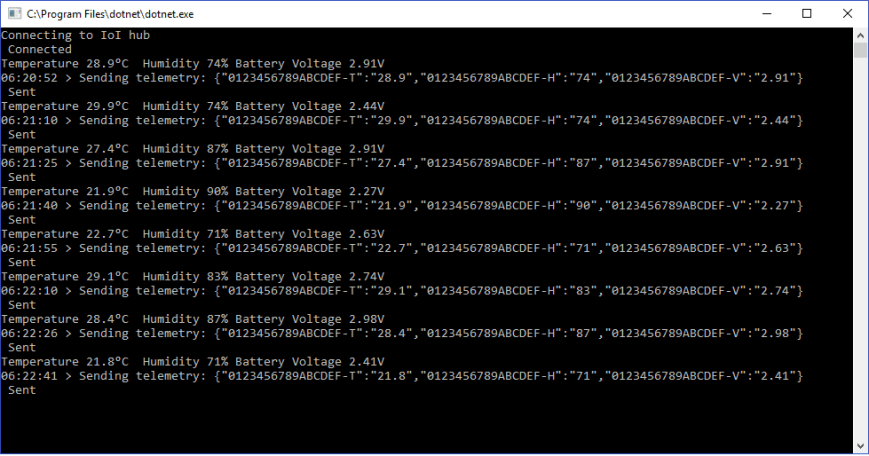
The application produces very similar output to the basic desktop client

IoTCentralDashboardDynamicPayloadClient

Microsoft IoT Central basic desktop client

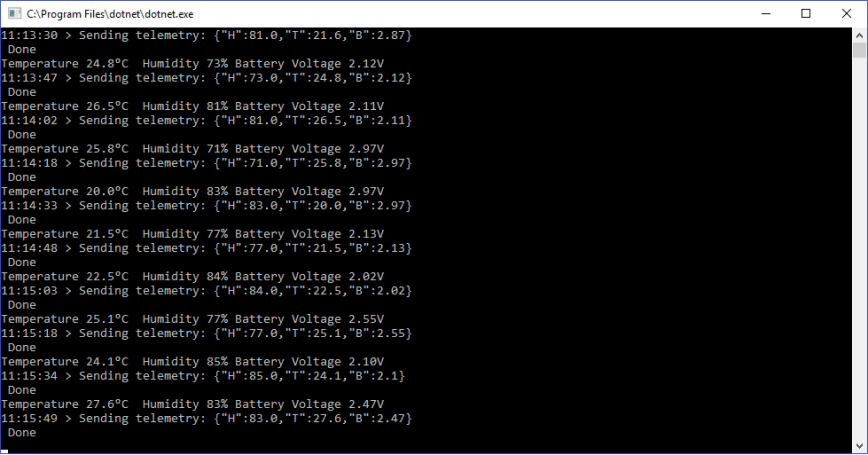
One of the replacement Internet of Things services which looked worth evaluating was Microsoft’s IoT Central. My first project was to build the simplest possible desktop client (.Net Core) which simulates a limited number of sensors (sensor names, value formats etc. configured in code) and only sends data to the cloud (no device management, control or provisioning capabilities).

The only required dependencies are the Newtonsoft.Json &  Microsoft.Azure.DevicesClient NuGet packages

/*

Copyright ® 2018 Jan devMobile Software, All Rights Reserved

THIS CODE AND INFORMATION IS PROVIDED "AS IS" WITHOUT WARRANTY OF ANY
KIND, EITHER EXPRESSED OR IMPLIED, INCLUDING BUT NOT LIMITED TO THE
IMPLIED WARRANTIES OF MERCHANTABILITY AND/OR FITNESS FOR A PARTICULAR
PURPOSE
You can do what you want with this code, acknowledgement would be nice.
http://www.devmobile.co.nz

*/
using System;
using System.Text;
using System.Threading;
using Microsoft.Azure.Devices.Client;
using Newtonsoft.Json;

namespace devMobile.IoT.MicrosoftIoTCentral.Desktop.Basic
{
 class Program
 {
 private const string DeviceConnectionString = "YourDeviceConnectionStringFromIoTCentralGoesHere";
 const double temperatureBase = 20.0;
 const double temperatureRange = 10.0;
 const double humidityBase = 70.0;
 const double humidityRange = 20.0;
 const double batteryVoltageBase = 3.00;
 const double batteryVoltageRange = -1.00;
 static readonly TimeSpan feedUpdateDelay = new TimeSpan(0, 0, 15);

private class TelemetryDataPoint
 {
 [JsonProperty(PropertyName = "H")]
 public double Humidity { get; set; }
 [JsonProperty(PropertyName = "T")]
 public double Temperature { get; set; }
 [JsonProperty(PropertyName = "B")]
 public double BatteryVoltage { get; set; }
 }

static void Main(string[] args)
 {
 DeviceClient Client ;
 Random random = new Random();

try
 {
 Console.WriteLine("Connecting to IoI hub");
 Client = DeviceClient.CreateFromConnectionString(DeviceConnectionString, TransportType.Mqtt);

while (true)
 {
 double temperature = temperatureBase + random.NextDouble() * temperatureRange;
 double humidity = humidityBase + random.NextDouble() * humidityRange;
 double batteryVoltage = batteryVoltageBase + random.NextDouble() * batteryVoltageRange;

Console.WriteLine("Temperature {0}°C Humidity {1}% Battery Voltage {2}V", temperature.ToString("F1"), humidity.ToString("F0"), batteryVoltage.ToString("F2"));

// Populate the data point - this has a static structure and name which could be a problem for field gateway
 TelemetryDataPoint telemetryDataPoint = new TelemetryDataPoint()
 {
 BatteryVoltage = Math.Round(batteryVoltage, 2),
 Humidity = Math.Round(humidity, 0),
 Temperature = Math.Round( temperature, 1 )
 };

string messageString = JsonConvert.SerializeObject(telemetryDataPoint);
 Message message = new Message(Encoding.ASCII.GetBytes(messageString));

Console.WriteLine("{0:hh:mm:ss} > Sending telemetry: {1}", DateTime.Now, messageString);
 Client.SendEventAsync(message).Wait();
 Console.WriteLine(" Done");

Thread.Sleep(feedUpdateDelay);
 }
 }
 catch (Exception ex)
 {
 Console.WriteLine("Error connecting or sending data to IoT Central: {0}", ex.Message);
 Console.WriteLine("Press <ENTER> to exit");
 Console.ReadLine();
 }
 }
 }
}

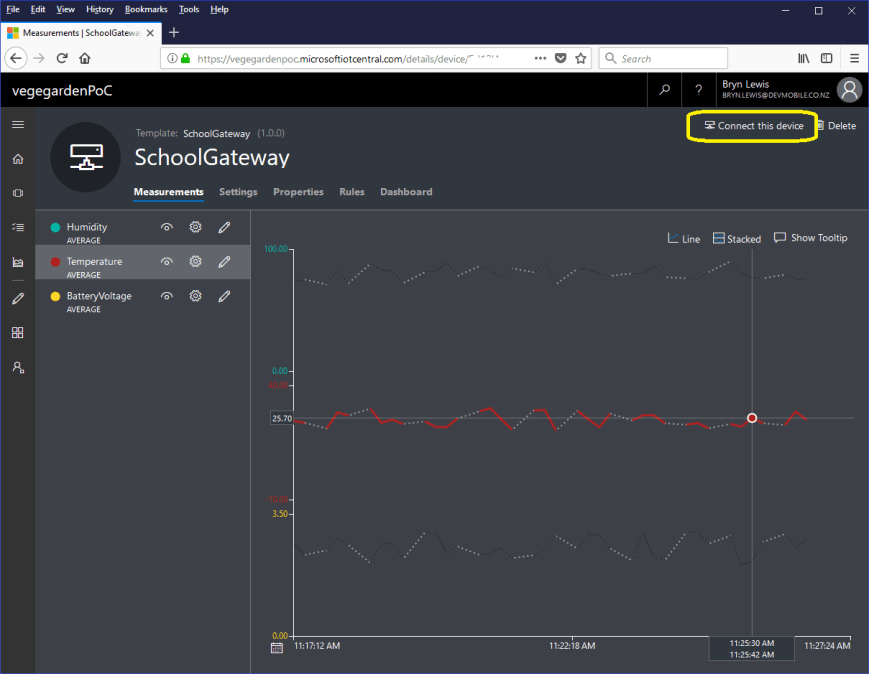
I manually provisioned the device by copying the device connection string in the IoT Central dashboard

IoTCentralDashboardBasicClient

DesktopClientSimple

Simple dotNet Core 2 IoTCentral Client

A functional client in less than 100 lines of code with support for individual device configuration. For my FieldGateway I’m going to need more flexibility in the construction of telemetry payloads, device provisioning and configuration support.