.NET Core web API + Dapper – History

System Versioned Temporal tables looking up and listing

This StockItemsHistoryController has methods for retrieving a list of StockItems at a point in time specified by an optional query string parameter (if no value is provided the current time is assumed). To show how a temporal query can span multiple tables I included the [Purchasing].[suppliers] table which is also versioned.

http://localhost:36739/api/StockItemsHistory

[HttpGet]
public async Task<ActionResult<IEnumerable<Model.StockItemsHistoryListDtoV1>>> Get([FromQuery]DateTime? asAt)
{
	IEnumerable<Model.StockItemsHistoryListDtoV1> response = null;

	if (!asAt.HasValue)
	{
		asAt = DateTime.UtcNow;
	}

	try
	{
		using (SqlConnection db = new SqlConnection(this.connectionString))
		{
			response = await db.QueryAsync<Model.StockItemsHistoryListDtoV1>(sql: "[warehouse].[StockItemsHistoryStockItemsListAsAtV1]", param: new { asAt }, commandType: CommandType.StoredProcedure);
		}
	}
	catch (SqlException ex)
	{
		logger.LogError(ex, "Retrieving list of StockItems");

		return this.StatusCode(StatusCodes.Status500InternalServerError);
	}

	return this.Ok(response);
}
ALTER PROCEDURE [Warehouse].[StockItemsHistoryStockItemsListAsAtV1]
		@AsAt DATETIME2(7)
AS
BEGIN
	SELECT [StockItems].[StockItemID] as "ID"
		,[StockItems].[StockItemName] as "Name" 
		,[StockItems].[UnitPrice]
		,[StockItems].[RecommendedRetailPrice] 
		,[StockItems].[TaxRate]
		,[StockItems].[CustomFields]
		,[Suppliers].[SupplierID]
		,[Suppliers].[SupplierName]
	FROM [Warehouse].[StockItems] FOR SYSTEM_TIME AS OF @AsAt as StockItems
		INNER JOIN [Purchasing].[Suppliers] FOR SYSTEM_TIME AS OF @AsAt as Suppliers ON (StockItems.SupplierID = [Suppliers].SupplierID)
END

The query also returns the custom fields (often what was changed in StockItem history), the supplier Id and Supplier name.

The detailed history of a StockItem can be queried to illustrate how the _Archive(history) table works

localhost:36739/api/StockItemsHistory/64/history

ALTER PROCEDURE [Warehouse].[StockItemsHistoryStockItemHistoryListV1]
		@StockItemID int 
AS
BEGIN
	SELECT[StockItems_Archive].[StockItemID] as "ID"
		,[StockItems_Archive].[StockItemName] as "Name"
		,[StockItems_Archive].[UnitPrice]
		,[StockItems_Archive].[RecommendedRetailPrice]
		,[StockItems_Archive].[TaxRate]
		,[StockItems_Archive].[CustomFields]
		,[StockItems_Archive].[ValidFrom]
		,[StockItems_Archive].[ValidTo]
	FROM [Warehouse].[StockItems_Archive]
	WHERE [StockItems_Archive].[StockItemID] = @StockItemId
	ORDER BY [ValidFrom] DESC
END
[HttpGet("{id}/history")]
public async Task<ActionResult<IEnumerable<Model.StockItemHistoryListDtoV1>>> GetHistory([Range(1, int.MaxValue, ErrorMessage = "Stock item id must greater than 0")] int id)
{
    IEnumerable<Model.StockItemHistoryListDtoV1> response = null;

    try
    {
        using (SqlConnection db = new SqlConnection(this.connectionString))
        {
            response = await db.QueryAsync<Model.StockItemHistoryListDtoV1>(sql: "[Warehouse].[StockItemsHistoryStockItemHistoryListV1]", param: new { StockItemID = id }, commandType: CommandType.StoredProcedure);
            if (response == default)
            {
                logger.LogInformation("StockItem:{0} not found", id);

                return this.NotFound($"StockItem:{id} not found");
           }
       }
   }
   catch (SqlException ex)
   {
        logger.LogError(ex, "Retrieving up a StockItem with Id:{0}", id);

        return this.StatusCode(StatusCodes.Status500InternalServerError);
     }

    return this.Ok(response);
}

The state of a StockItem plus the associated Supplier and PackageTypes tables can also be queried at a point in time (if no value is provided the current time is assumed).

http://localhost:36739/api/StockItemsHistory/64?AsAt=2021-06-18T01:21:07.0121476

[HttpGet("{id}")]
public async Task<ActionResult<Model.StockItemGetDtoV1>> Get([Range(1, int.MaxValue, ErrorMessage = "Stock item id must greater than 0")] int id, [FromQuery] DateTime? asAt)
{
	Model.StockItemGetDtoV1 response = null;

	if ( !asAt.HasValue)
	{
		asAt = DateTime.UtcNow; 
	}

	try
	{
		using (SqlConnection db = new SqlConnection(this.connectionString))
		{
			response = await db.QuerySingleOrDefaultAsync<Model.StockItemGetDtoV1>(sql: "[Warehouse].[StockItemsHistoryStockItemLookupAsAtV1]", param: new { asAt, stockItemID=id }, commandType: CommandType.StoredProcedure);
			if (response == default)
			{
				logger.LogInformation("StockItem:{0} not found", id);

				return this.NotFound($"StockItem:{id} not found");
			}
		}
	}
	catch (SqlException ex)
	{
		logger.LogError(ex, "Retrieving StockItem with Id:{0}", id);

		return this.StatusCode(StatusCodes.Status500InternalServerError);
	}

	return this.Ok(response);
}
ALTER PROCEDURE [Warehouse].[StockItemsHistoryStockItemLookupAsAtV1]
		@StockItemID int, 
		@AsAt DATETIME2(7)
AS
BEGIN
	SELECT[StockItem].[StockItemID] as "ID"
		,[StockItem].[StockItemName] as "Name" 
		,[StockItem].[UnitPrice]
		,[StockItem].[RecommendedRetailPrice] 
		,[StockItem].[TaxRate]
		,[StockItem].[typicalWeightPerUnit] 
		,[StockItem].[QuantityPerOuter]
		,[UnitPackage].[PackageTypeName] as "unitPackageName"
		,[OuterPackage].[PackageTypeName] as "outerPackageName"
		,[Supplier].[SupplierID]
		,[Supplier].[SupplierName]
	FROM [Warehouse].[StockItems] FOR SYSTEM_TIME AS OF @AsAt as StockItem
		INNER JOIN[Warehouse].[PackageTypes] FOR SYSTEM_TIME AS OF @AsAt as UnitPackage ON ([StockItem].[UnitPackageID] = [UnitPackage].[PackageTypeID])
		INNER JOIN[Warehouse].[PackageTypes] FOR SYSTEM_TIME AS OF @AsAt as OuterPackage ON ([StockItem].[OuterPackageID] = [OuterPackage].[PackageTypeID])
		INNER JOIN[Purchasing].[Suppliers] FOR SYSTEM_TIME AS OF @AsAt as Supplier ON ([StockItem].SupplierID = Supplier.SupplierID)
		WHERE[StockItem].[StockItemID] = @StockItemId
END

I found it was easy to miss the “FOR SYSTEM_TIME AS OF @AsAt” on the INNER JOINs.

......
| ADD
    {
        <column_definition>
      | <computed_column_definition>
      | <table_constraint>
      | <column_set_definition>
    } [ ,...n ]
      | [ system_start_time_column_name datetime2 GENERATED ALWAYS AS ROW START
                [ HIDDEN ] [ NOT NULL ] [ CONSTRAINT constraint_name ]
            DEFAULT constant_expression [WITH VALUES] ,
                system_end_time_column_name datetime2 GENERATED ALWAYS AS ROW END
                   [ HIDDEN ] [ NOT NULL ][ CONSTRAINT constraint_name ]
            DEFAULT constant_expression [WITH VALUES] ,
                start_transaction_id_column_name bigint GENERATED ALWAYS AS TRANSACTION_ID START
        ]
       PERIOD FOR SYSTEM_TIME ( system_start_time_column_name, system_end_time_column_name )
    | 

It is also possible to hide the start and end time columns which might be useful for when retrofitting this approach to a legacy application which uses SELECT * FROM … and might not handle the extra columns correctly.

NOTE : Error Handling approach has been updated

Azure Functions with VB.Net 4.X

Updated .NET Core V6 Version

As part of my “day job” I spend a lot of time working with C# and VB.Net 4.X “legacy” projects doing upgrades, bugs fixes and moving applications to Azure. For the last couple of months I have been working on a project replacing Microsoft message queue(MSMQ) queues with Azure Storage Queues so the solution is easier to deploy in Azure.

The next phase of the project is to replace a number of Windows Services with Azure Queue Trigger and Timer Trigger functions. The aim is a series of small steps which we can test before deployment rather than major changes, hence the use of V1 Azure functions for the first release.

Silver Fox systems sells a Visual Studio extension which generates an HTTP Trigger VB.Net project. I needed Timer and Queue Trigger functions so I created C# examples and then used them to figure out how to build VB.Net equivalents

Visual Studio Solution Explorer

After quite a few failed attempts I found this sequence worked for me

Add a new VB.Net class library
Provide a name for new class library
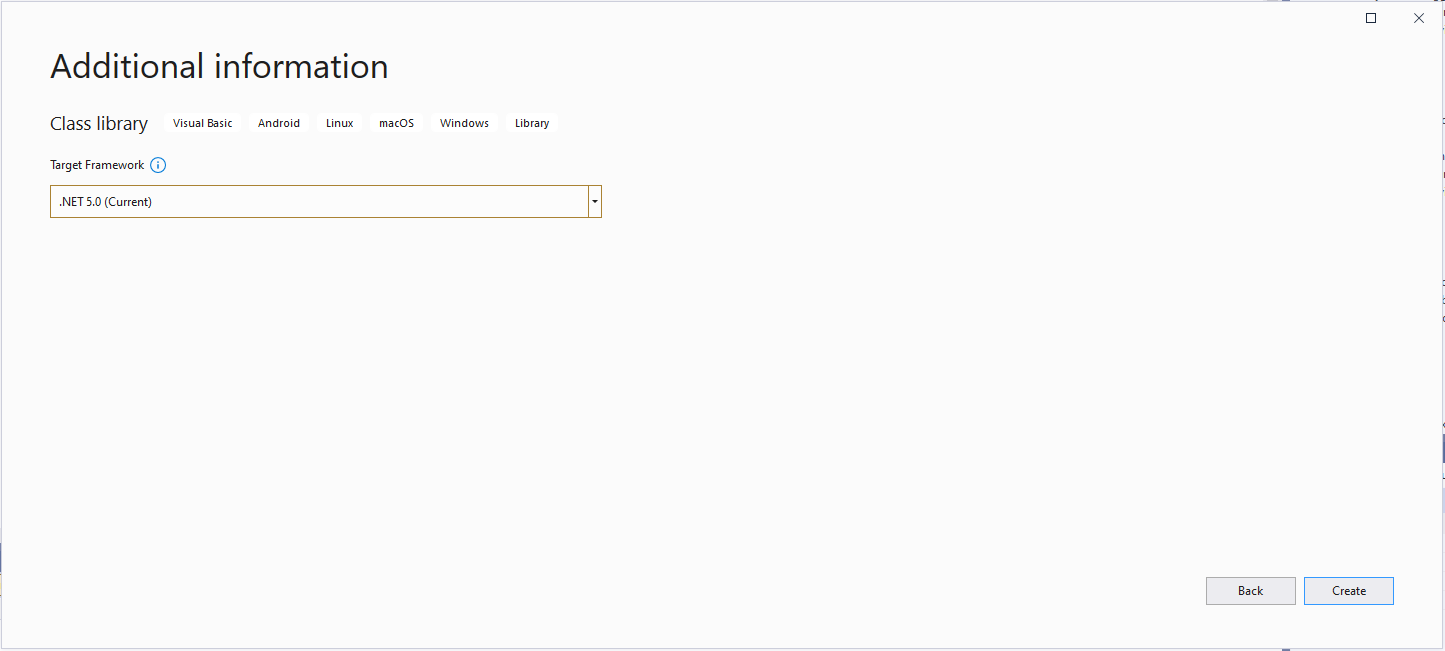
Select target framework

Even though the target platform is not .NET 5.0 ignore this and continue.

Microsoft.NET.Sdk.Functions

Added Microsoft.NET.Sdk.Functions (make sure version 1.0.38)

Visual Studio project with Azure Function Icon.

Then unload the project and open the file.

<Project Sdk="Microsoft.NET.Sdk">

  <PropertyGroup>
    <RootNamespace>TimerClass</RootNamespace>
    <TargetFramework>net5.0</TargetFramework>
  </PropertyGroup>

  <ItemGroup>
    <PackageReference Include="Microsoft.NET.Sdk.Functions" Version="1.0.38" />
  </ItemGroup>

</Project>

Add the TargetFramework and AzureFunctionsVersion lines

<Project Sdk="Microsoft.NET.Sdk">

  <PropertyGroup>
    <RootNamespace>TimerClass</RootNamespace>
    <TargetFramework>net48</TargetFramework>
    <AzureFunctionsVersion>v1</AzureFunctionsVersion>
  </PropertyGroup>
  <ItemGroup>
    <PackageReference Include="Microsoft.NET.Sdk.Functions" Version="1.0.38" />
  </ItemGroup>

</Project>

At this point the project should compile but won’t do much, so update the class to look like the code below.

Imports System.Threading

Imports Microsoft.Azure.WebJobs
Imports Microsoft.Extensions.Logging


Public Class TimerTrigger
   Shared executionCount As Int32

   <FunctionName("Timer")>
   Public Shared Sub Run(<TimerTrigger("0 */1 * * * *")> myTimer As TimerInfo, log As ILogger)
      Interlocked.Increment(executionCount)

      log.LogInformation("VB.Net TimerTrigger next trigger:{0} Execution count:{1}", myTimer.ScheduleStatus.Next, executionCount)

   End Sub
End Class

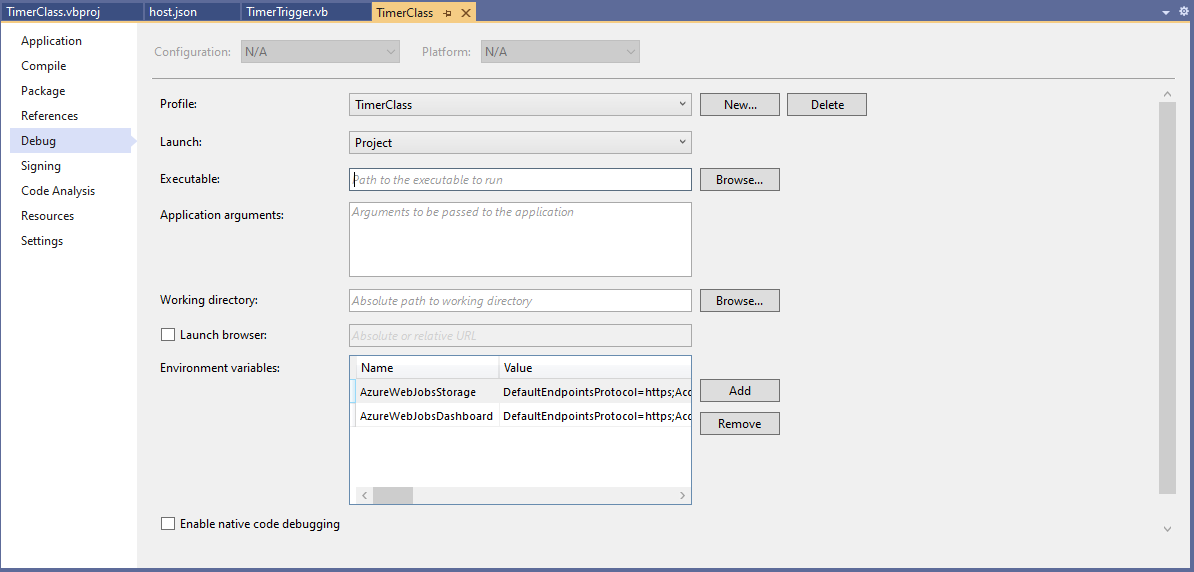
Then add an empty hosts.json file (make sure “copy if newer” is configured in properties) to the project directory, then depending on deployment model configure the AzureWebJobsStorage and AzureWebJobsDashboard connection strings via environment variables or a local.settings.json file.

Visual Studio Environment variables for AzureWebJobsStorage and AzureWebJobsDashboard connection strings

Blob Trigger Sample code

Imports System.IO
Imports System.Threading

Imports Microsoft.Azure.WebJobs
Imports Microsoft.Extensions.Logging


Public Class BlobTrigger
   Shared executionCount As Int32

   ' This function will get triggered/executed when a new message is written on an Azure Queue called events.
   <FunctionName("Notifications")>
   Public Shared Async Sub Run(<BlobTrigger("notifications/{name}", Connection:="BlobEndPoint")> payload As Stream, name As String, log As ILogger)
      Interlocked.Increment(executionCount)

      log.LogInformation("VB.Net BlobTrigger processed blob name:{0} Size:{1} bytes Execution count:{2}", name, payload.Length, executionCount)
   End Sub
End Class

HTTP Trigger Sample code

Imports System.Net
Imports System.Net.Http
Imports System.Threading

Imports Microsoft.Azure.WebJobs
Imports Microsoft.Azure.WebJobs.Extensions.Http
Imports Microsoft.Extensions.Logging


Public Class HttpTrigger
   Shared executionCount As Int32

   <FunctionName("Notifications")>
   Public Shared Async Function Run(<HttpTrigger(AuthorizationLevel.Anonymous, "get", "post", Route:=Nothing)> req As HttpRequestMessage, log As ILogger) As Task(Of HttpResponseMessage)
      Interlocked.Increment(executionCount)

      log.LogInformation($"VB.Net HTTP trigger Execution count:{0} Method:{1}", executionCount, req.Method)

      Return New HttpResponseMessage(HttpStatusCode.OK)
   End Function
End Class

Queue Trigger Sample Code

Imports System.Threading

Imports Microsoft.Azure.WebJobs
Imports Microsoft.Extensions.Logging


Public Class QueueTrigger
   Shared ConcurrencyCount As Long
   Shared ExecutionCount As Long

   <FunctionName("Alerts")>
   Public Shared Sub ProcessQueueMessage(<QueueTrigger("notifications", Connection:="QueueEndpoint")> message As String, log As ILogger)
      Interlocked.Increment(ConcurrencyCount)
      Interlocked.Increment(ExecutionCount)

      log.LogInformation("VB.Net Concurrency:{0} Message:{1} Execution count:{2}", ConcurrencyCount, message, ExecutionCount)

      ' Wait for a bit to force some consurrency
      Thread.Sleep(5000)

      Interlocked.Decrement(ConcurrencyCount)
   End Sub
End Class

As well as counting the number of executions I also wanted to check that >1 instances were started to process messages when the queues had many messages. I added a “queues” section to the hosts.json file so I could tinker with the options.

{
  "queues": {
    "maxPollingInterval": 100,
    "visibilityTimeout": "00:00:05",
    "batchSize": 16,
    "maxDequeueCount": 5,
    "newBatchThreshold": 8
  }
}

The QueueMessageGenerator application inserts many messages into a queue for processing.

When I started the QueueTrigger function I could see the concurrency count was > 0

Timer Trigger Sample Code

Imports System.Threading

Imports Microsoft.Azure.WebJobs
Imports Microsoft.Extensions.Logging


Public Class TimerTrigger
   Shared executionCount As Int32

   <FunctionName("Timer")>
   Public Shared Sub Run(<TimerTrigger("0 */1 * * * *")> myTimer As TimerInfo, log As ILogger)
      Interlocked.Increment(executionCount)

      log.LogInformation("VB.Net TimerTrigger next trigger:{0} Execution count:{1}", myTimer.ScheduleStatus.Next, executionCount)

   End Sub
End Class

The source code for the C# and VB.Net functions is available on GitHub

.NET Core web API + Dapper – Lookup

Looking up and searching

This StockItemsLookupController has methods for looking up a single record using the StockItemID and retrieving a list of records with a name that “matches” the search text. In my initial version the length of the embedded Structured Query Language(SQL) which spanned multiple lines was starting to get out of hand.

ALTER PROCEDURE [Warehouse].[StockItemsStockItemLookupV1]
		@StockItemID as int
AS
BEGIN
	SELECT [StockItems].[StockItemID] as "ID"  
			,[StockItems].[StockItemName] as "Name" 
			,[StockItems].[UnitPrice]
			,[StockItems].[RecommendedRetailPrice] 
			,[StockItems].[TaxRate]
			,[StockItems].[QuantityPerOuter]
			,[StockItems].[TypicalWeightPerUnit]
			,[UnitPackage].[PackageTypeName] as "UnitPackageName"
			,[OuterPackage].[PackageTypeName] as "OuterPackageName"
			,[Supplier].[SupplierID] 
			,[Supplier].[SupplierName] 
	FROM[Warehouse].[StockItems] as StockItems  
	INNER JOIN[Warehouse].[PackageTypes] as UnitPackage ON ([StockItems].[UnitPackageID] = [UnitPackage].[PackageTypeID]) 
	INNER JOIN[Warehouse].[PackageTypes] as OuterPackage ON ([StockItems].[OuterPackageID] = [OuterPackage].[PackageTypeID]) 
	INNER JOIN[Purchasing].[Suppliers] as Supplier ON ([StockItems].SupplierID = [Supplier].]SupplierID])
	WHERE[StockItems].[StockItemID] = @StockItemId
END

The query also returns the inner/outer packaging and the supplier name (plus supplierId for creating a link to the Supplier’s details) to make the example more realistic.

[HttpGet("{id}")]
public async Task<ActionResult<Model.StockItemGetDtoV1>> Get([Range(1, int.MaxValue, ErrorMessage = "Stock item id must greater than 0")] int id)
{
	Model.StockItemGetDtoV1 response = null;

	try
	{
		using (SqlConnection db = new SqlConnection(this.connectionString))
		{
			response = await db.QuerySingleOrDefaultAsync<Model.StockItemGetDtoV1>(sql: "[Warehouse].[StockItemsStockItemLookupV1]", param: new { stockItemId=id }, commandType: CommandType.StoredProcedure);
		}

		if (response == default)
		{
			logger.LogInformation("StockItem:{0} not found", id);

			return this.NotFound($"StockItem:{id} image not found");
		}
	}
	catch (SqlException ex)
	{
		logger.LogError(ex, "Looking up a StockItem with Id:{0}", id);

		return this.StatusCode(StatusCodes.Status500InternalServerError);
	}

	return this.Ok(response);
}

This simple name search also uses the FromQuery attribute (like the pagination example) to populate a Data Transfer Object(DTO) with request query string parameters

[HttpGet]
public async Task<ActionResult<IEnumerable<Model.StockItemListDtoV1>>> Get([FromQuery] Model.StockItemNameSearchDtoV1 request)
{
	IEnumerable<Model.StockItemListDtoV1> response = null;

	try
	{
		using (SqlConnection db = new SqlConnection(this.connectionString))
		{
			response = await db.QueryAsync<Model.StockItemListDtoV1>(sql: "[Warehouse].[StockItemsNameSearchV1]", param: request, commandType: CommandType.StoredProcedure);
		}
	}
	catch (SqlException ex)
	{
		logger.LogError(ex, "Searching for list of StockItems with name like:{0}", request);

		return this.StatusCode(StatusCodes.Status500InternalServerError);
	}

	return this.Ok(response);
}

The request DTO properties have Data Annotations to ensure the values are valid and suitable error messages are displayed if they are not. The controller GET method will not even be called if the DTO is missing or the values are incorrect. I would use constants for the lengths etc. and the attribute value error messages can be loaded from resource files for multiple language support.

public class StockItemNameSearchDtoV1
{
	[Required]
	[MinLength(3, ErrorMessage = "The name search text must be at least 3 characters long")]
	public string SearchText { get; set; }

	[Required]
	[Range(1, int.MaxValue, ErrorMessage = "MaximumRowsToReturn must be present and greater than 0")]
	public int MaximumRowsToReturn { get; set; }
}

The SELECT TOP command to limit the number of records returned. To improve performance the results of this query could be cached but the result set might need to be filtered based on the current user.

ALTER PROCEDURE [Warehouse].[StockItemsSearchV1]
           @SearchText nvarchar(100),
           @MaximumRowsToReturn int
AS
BEGIN
    SELECT TOP(@MaximumRowsToReturn) [StockItemID] as "ID"
		   ,[StockItemName] as "Name"
		   ,[RecommendedRetailPrice]
		   ,[TaxRate]
    FROM Warehouse.StockItems
    WHERE SearchDetails LIKE N'%' + @SearchText + N'%'
    ORDER BY [StockItemName]
END;

I have used this approach to populate a list of selectable options as a user types their search text.

NOTE : Error Handling approach has been updated

.NET Core web API + Dapper – Pagination

Pagination for payload size reduction

This controller method returns a limited number of records(pageSize) from a position(pageNumber) in a database query resultset to reduce the size of the response payload.

The SQL command uses the ROWS FETCH NEXT … ROWS ONLY syntax, The use of this approach is not really highlighted in official developer documentation (though I maybe missing the obvious).

There is some discussion in the ORDER BY clause syntax documentation.

Using OFFSET and FETCH to limit the rows returned.

“We recommend that you use the OFFSET and FETCH clauses instead of the TOP clause to implement a query paging solution and limit the number of rows sent to a client application.

Using OFFSET and FETCH as a paging solution requires running the query one time for each “page” of data returned to the client application. For example, to return the results of a query in 10-row increments, you must execute the query one time to return rows 1 to 10 and then run the query again to return rows 11 to 20 and so on. Each query is independent and not related to each other in any way. This means that, unlike using a cursor in which the query is executed once and state is maintained on the server, the client application is responsible for tracking state.”

[HttpGet]
public async Task<ActionResult<IEnumerable<Model.StockItemListDtoV1>>> Get([FromQuery] Model.StockItemPagingDtoV1 request)
{
	IEnumerable<Model.StockItemListDtoV1> response = null;

	var parameters = new DynamicParameters();

	parameters.Add("@PageNumber", request.PageNumber);
	parameters.Add("@PageSize", request.PageSize);

	using (SqlConnection db = new SqlConnection(this.connectionString))
	{
			response = await db.QueryAsync<Model.StockItemListDtoV1>(sql: @"SELECT [StockItemID] as ""ID"", [StockItemName] as ""Name"", [RecommendedRetailPrice], [TaxRate] FROM[Warehouse].[StockItems] ORDER BY ID OFFSET @PageSize * (@PageNumber-1) ROWS FETCH NEXT @PageSize ROWS ONLY", param: parameters, commandType: CommandType.Text);
	}
	return this.Ok(response);
}

This sample also uses the FromQuery attribute to populate a Data Transfer Object(DTO) with request query string parameters

	public class StockItemPagingDtoV1
	{
		[Required]
		[Range(1, int.MaxValue, ErrorMessage = "PageSize must be present and greater than 0")]
		public int PageSize { get; set; }

		[Required]
		[Range(1, int.MaxValue, ErrorMessage = "PageNumber must be present and greater than 0")]
		public int PageNumber { get; set; }
	}

The request DTO properties have Data Annotations to ensure the values are valid and suitable error messages are displayed if they are not. The controller GET method will not even be called if the DTO is missing or the values are incorrect. I would use constants for the lengths etc. and the attribute value error messages can be loaded from resource files for multiple language support.

http://localhost:36739/api/StockItemsPagination/

The result is

ols.ietf.org/html/rfc7231#section-6.5.1″,”title”:”One or more validation errors occurred.”,”status”:400,”traceId”:”00-917b6336aa8828468c6d78fb73dbe446-f72fc74b22ce724b-00″,”errors”:{“PageSize”:[“PageSize must be present and greater than 0”],”PageNumber”:[“PageNumber must be present and greater than 0”]}}

http://localhost:36739/api/StockItemsPagination?pageSize=10

{“type”:”https://tools.ietf.org/html/rfc7231#section-6.5.1&#8243;,”title”:”One or more validation errors occurred.”,”status”:400,”traceId”:”00-dd5f2683c6d7dc4a84bb04949703fc34-0c3658e2e54c2648-00″,”errors”:{“PageNumber”:[“PageNumber must be present and greater than 0”]}}

https://localhost:36739/api/StockItemsPagination?pageSize=10

The result is

{“type”:”https://tools.ietf.org/html/rfc7231#section-6.5.1&#8243;,”title”:”One or more validation errors occurred.”,”status”:400,”traceId”:”00-63f591ee3bfdc7418a83afbdba2faf7f-3d2ea994eb0c5c49-00″,”errors”:{“PageSize”:[“PageSize must be present and greater than 0”]}}

The amount of code can be reduced a bit further by dropping the dynamic parameter and passing the StockItemListDtoV1 object is as a parameter.

[HttpGet]
public async Task<ActionResult<IEnumerable<Model.StockItemListDtoV1>>> Get([FromQuery] Model.StockItemPagingDtoV1 request)
{
	IEnumerable<Model.StockItemListDtoV1> response = null;

	using (SqlConnection db = new SqlConnection(this.connectionString))
	{
		response = await db.QueryAsync<Model.StockItemListDtoV1>(sql: @"SELECT [StockItemID] as ""ID"", [StockItemName] as ""Name"", [RecommendedRetailPrice], [TaxRate] FROM[Warehouse].[StockItems] ORDER BY ID OFFSET @PageSize * (@PageNumber-1) ROWS FETCH NEXT @PageSize ROWS ONLY", param: request, commandType: CommandType.Text);
	}

	return this.Ok(response);
}

I use both approaches, for example if database fields or parameters have quite a different naming convention to C# properties (with query DTOs then can often be fixed with attributes) I would use the explicit approach .The later approach also had slightly better code metrics

Metrics for version with DynamicPararmeters
Metrics for version with DTO parameters

.NET Core web API + Dapper – Asynchronicity

Asynchronous is always better, yeah nah

For a trivial controller like the one below the difference between synchronous and asynchronous calls is most probably negligible, the asynchronous versions may even be slightly slower. ASP.NET Core web API applications should be designed to process many requests concurrently.

The Dapper library has the following asynchronous methods

These asynchronous methods enable a small pool of threads to process thousands of concurrent requests by not waiting on blocking database calls. Rather than waiting on a long-running synchronous database call to complete, the thread can work on another request.

namespace devMobile.WebAPIDapper.Lists.Controllers
{
	[ApiController]
	[Route("api/[controller]")]
	public class StockItemsAsyncController : ControllerBase
	{
		private readonly string connectionString;
		private readonly ILogger<StockItemsAsyncController> logger;

		public StockItemsAsyncController(IConfiguration configuration, ILogger<StockItemsAsyncController> logger)
		{
			this.connectionString = configuration.GetSection("ConnectionStrings").GetSection("WideWorldImportersDatabase").Value;

			this.logger = logger;
		}

		[HttpGet]
		public async Task<ActionResult<IAsyncEnumerable<Model.StockItemListDtoV1>>> Get()
		{
			IEnumerable<Model.StockItemListDtoV1> response = null;

			try
			{
				using (SqlConnection db = new SqlConnection(this.connectionString))
				{
					response = await db.QueryAsync<Model.StockItemListDtoV1>(sql: @"SELECT [StockItemID] as ""ID"", [StockItemName] as ""Name"", [RecommendedRetailPrice], [TaxRate] FROM [Warehouse].[StockItems]", commandType: CommandType.Text);
				}
			}
			catch (SqlException ex)
			{
				logger.LogError(ex, "Retrieving list of StockItems");

				return this.StatusCode(StatusCodes.Status500InternalServerError);
			}

			return this.Ok(response);
		}
	}
}

This sample controller method returns a small number of records (approximate 230) in one request so performance is unlikely to be a consideration. A controller method which returns many (1000s or even 10000s) records could cause performance and scalability issues. In a future post I will add pagination and then do some stress testing of the application to compare the different implementations.

NOTE : Error Handling approach has been updated

.NET Core web API + Dapper – Failure

It will break

With no error handling the code was a bit fragile so I modified the program.cs file and added support for the built in logging and Debug provider. To reduce the amount of code in the controller I have also moved the DTO to a separate file in the “models” folder.

namespace devMobile.WebAPIDapper.Lists
{
	public class Program
	{
		public static void Main(string[] args)
		{
			CreateHostBuilder(args).Build().Run();
		}

		public static IHostBuilder CreateHostBuilder(string[] args) =>
			 Host.CreateDefaultBuilder(args)
				.ConfigureLogging(logging =>
				{
					logging.ClearProviders();
					logging.AddDebug();
				})
				.ConfigureWebHostDefaults(webBuilder =>
				{
					webBuilder.UseStartup<Startup>();
				});
	}
}

To test the exception handling I “broke” the Dapper query embedded SQL.

namespace devMobile.WebAPIDapper.Lists.Controllers
{
	[Route("api/[controller]")]
	[ApiController]
	public class StockItemsFailureController: ControllerBase
	{
		private readonly string connectionString;
		private readonly ILogger<StockItemsFailureController> logger;

		public StockItemsFailureController(IConfiguration configuration, ILogger<StockItemsFailureController> logger)
		{
			this.connectionString = configuration.GetSection("ConnectionStrings").GetSection("WideWorldImportersDatabase").Value;

			this.logger = logger;
		}

		[HttpGet]
		public ActionResult<IEnumerable<Model.StockItemListDtoV1>> Get()
		{
			IEnumerable<Model.StockItemListDtoV1> response = null;

			try
			{
				using (SqlConnection db = new SqlConnection(this.connectionString))
				{
					response = db.Query<Model.StockItemListDtoV1>(sql: @"SELECTx [StockItemID] as ""ID"", [StockItemName] as ""Name"", [RecommendedRetailPrice], [TaxRate] FROM [Warehouse].[StockItems]", commandType: CommandType.Text);
				}
			}
			catch( SqlException ex)
			{
				logger.LogError(ex, "Retrieving list of StockItems");

				return this.StatusCode(StatusCodes.Status500InternalServerError);
			}

			return this.Ok(response);
		}
	}

The controller failed and the following error was displayed in the Visual Studio output window

devMobile.WebAPIDapper.Lists.Controllers.StockItemsFailureController: Error: Retrieving list of StockItems

System.Data.SqlClient.SqlException (0x80131904): Incorrect syntax near the keyword 'as'.
   at System.Data.SqlClient.SqlConnection.OnError(SqlException exception, Boolean breakConnection, Action`1 wrapCloseInAction)
   at System.Data.SqlClient.SqlInternalConnection.OnError(SqlException exception, Boolean breakConnection, Action`1 wrapCloseInAction)
   at System.Data.SqlClient.TdsParser.ThrowExceptionAndWarning(TdsParserStateObject stateObj, Boolean callerHasConnectionLock, Boolean asyncClose)
   at System.Data.SqlClient.TdsParser.TryRun(RunBehavior runBehavior, SqlCommand cmdHandler, SqlDataReader dataStream, BulkCopySimpleResultSet bulkCopyHandler, TdsParserStateObject stateObj, Boolean& dataReady)
   at System.Data.SqlClient.SqlDataReader.TryConsumeMetaData()
   at System.Data.SqlClient.SqlDataReader.get_MetaData()
   at System.Data.SqlClient.SqlCommand.FinishExecuteReader(SqlDataReader ds, RunBehavior runBehavior, String resetOptionsString)
   at System.Data.SqlClient.SqlCommand.RunExecuteReaderTds(CommandBehavior cmdBehavior, RunBehavior runBehavior, Boolean returnStream, Boolean async, Int32 timeout, Task& task, Boolean asyncWrite, SqlDataReader ds)
   at System.Data.SqlClient.SqlCommand.RunExecuteReader(CommandBehavior cmdBehavior, RunBehavior runBehavior, Boolean returnStream, TaskCompletionSource`1 completion, Int32 timeout, Task& task, Boolean asyncWrite, String method)
   at System.Data.SqlClient.SqlCommand.RunExecuteReader(CommandBehavior cmdBehavior, RunBehavior runBehavior, Boolean returnStream, String method)
   at System.Data.SqlClient.SqlCommand.ExecuteReader(CommandBehavior behavior)
   at System.Data.SqlClient.SqlCommand.ExecuteDbDataReader(CommandBehavior behavior)
   at System.Data.Common.DbCommand.System.Data.IDbCommand.ExecuteReader(CommandBehavior behavior)
   at Dapper.SqlMapper.ExecuteReaderWithFlagsFallback(IDbCommand cmd, Boolean wasClosed, CommandBehavior behavior) in /_/Dapper/SqlMapper.cs:line 1055
   at Dapper.SqlMapper.QueryImpl[T](IDbConnection cnn, CommandDefinition command, Type effectiveType)+MoveNext() in /_/Dapper/SqlMapper.cs:line 1083
   at System.Collections.Generic.List`1..ctor(IEnumerable`1 collection)
   at System.Linq.Enumerable.ToList[TSource](IEnumerable`1 source)
   at Dapper.SqlMapper.Query[T](IDbConnection cnn, String sql, Object param, IDbTransaction transaction, Boolean buffered, Nullable`1 commandTimeout, Nullable`1 commandType) in /_/Dapper/SqlMapper.cs:line 725
   at devMobile.WebAPIDapper.Lists.Controllers.StockItemsFailureController.Get() in C:\Users\BrynLewis\source\repos\WebAPIDapper\Lists\Controllers\03.StockItemsFailureController.cs:line 53
ClientConnectionId:f37eb089-a560-406d-8c24-cf904bb17d8a
Error Number:156,State:1,Class:15
The program '[16996] iisexpress.exe: Program Trace' has exited with code 0 (0x0).
The program '[16996] iisexpress.exe' has exited with code -1 (0xffffffff).

In a couple of future posts I will add support for Log4Net, nLog, Serilog and a couple other libraries.

NOTE : Error Handling approach has been updated

.NET Core web API + Dapper – Less is more

Over the last few months I have been working on a series of .Net Core Web API projects for customers which have been connecting to existing on premises Microsoft SQL Server or Azure SQL databases I didn’t want to use the term “legacy” databases as they are part of large systems which are providing useful functionality to my customers and their clients.

One of the systems has in operation for a decade and the evolution of the database has been thoughtfully managed by the developers. They have always had to balance the business’s requirements, while trying to minimise new, and chip away at any existing technical debt.

This is the first in a longish series about my “brownfields” experiences and the non-functional requirements trade-offs we had to make. These included reliability, scalability, supportability, testability, availability, maintainability, securability extensibility, robustness and time to market considerations.

Often the applications had large existing code bases in VB.Net, C# or C++ which used ADO.Net and/or other Object Relational Mappers(ORMs) like Entity Framework(EF) and nHibernate. Over the years as developers had “come and gone” the mix of technologies had grown to the point where the codebases were difficult to maintain and to understand how the technologies interacted in production.

In a couple of organisations access to database(s) was managed by a Database Administrator(DBA) who defined the approach used (often with stored procedures) and vetted all access to data for performance, compliance and/or security considerations.

Unless it is something important these posts won’t have lots of screen grabs from Visual Studio with buttons to press highlighted, or details of how to use app.settings.json files etc.

In the beginning

The first step was creating a Visual Studio 2019 solution, adding an empty Web API project then adding an “API Controller with read/write actions.(most of which I have deleted).

using Microsoft.AspNetCore.Mvc;
using System;
using System.Collections.Generic;
using System.Linq;
using System.Threading.Tasks;

// For more information on enabling Web API for empty projects, visit https://go.microsoft.com/fwlink/?LinkID=397860

namespace devMobile.WebAPIDapper.Lists.Controllers
{
	[ApiController]
	[Route("api/[controller]")]
	public class ReadWriteController : ControllerBase
	{
		// GET: api/<ReadWriteController>
		[HttpGet]
		public IEnumerable<string> Get()
		{
			return new string[] { "value1", "value2" };
		}

		// GET api/<ReadWriteController>/5
		[HttpGet("{id}")]
		public string Get(int id)
		{
			return "value";
		}

		// POST api/<ReadWriteController>
		[HttpPost]
		public void Post([FromBody] string value)
		{
		}

		// PUT api/<ReadWriteController>/5
		[HttpPut("{id}")]
		public void Put(int id, [FromBody] string value)
		{
		}

		// DELETE api/<ReadWriteController>/5
		[HttpDelete("{id}")]
		public void Delete(int id)
		{
		}
	}
}

Several of the existing codebases used ADO.Net so Dapper the lightweight ORM(NuGet) developed by the Stackoverflow team has been a good fit. The developers were comfortable with ADO.Net unlike EF which has a pretty steep learning curve especially when retrofitting it to an existing database.

Dapper in Nuget Package Manager

Microsoft samples always use the Adventure works, Northwind, Pet Store or World Wide Importers sample databases so for my code I’m using World Wide Importers. This was the simplest sample I could come up with, a controller retrieves a list of StockItems which are “automagically” mapped to StockItemListDto instances.

using System.Collections.Generic;
using System.Data;
using System.Data.SqlClient;

using Microsoft.AspNetCore.Mvc;
using Microsoft.Extensions.Configuration;

using Dapper;

namespace devMobile.WebAPIDapper.SimpleList.Controllers
{
	public class StockItemListDto
	{
		public int Id { get; set; }
		public string Name { get; set; }
		public decimal RecommendedRetailPrice { get; set; }
		public decimal TaxRate { get; set; }
	}

	[Route("api/[controller]")]
	[ApiController]
	public class StockItemController : ControllerBase
	{
		private readonly string connectionString;

		public StockItemController(IConfiguration configuration)
		{
			this.connectionString = configuration.GetSection("ConnectionStrings").GetSection("WideWorldImportersDatabase").Value;
		}

		public IEnumerable<StockItemListDto> Get()
		{
			IEnumerable<StockItemListDto> response = null;

			using (SqlConnection db = new SqlConnection(this.connectionString))
			{
				response = db.Query<StockItemListDto>(sql: @"SELECT [StockItemID] as ""ID"", [StockItemName] as ""Name"", [RecommendedRetailPrice], [TaxRate] FROM [Warehouse].[StockItems]", commandType: CommandType.Text);
			}

			return response;
		}
	}
}

To keep the code as small and simple as practical I have used embedded SQL (I’ll cover stored procedures in depth in future posts), the request is synchronous, the “baked in” appsettings.json configuration file support is used, the Data Transfer Object(DTO) is included with the controller implementation, the names of the columns returned by the SQL query match the DTO properties, and there is no logging or error handling.

[{"id":1,"name":"USB missile launcher (Green)","recommendedRetailPrice":37.38,"taxRate":15.000,"validFrom":"2016-05-31T23:11:00"}, {"id":2,"name":"USB rocket launcher (Gray)","recommendedRetailPrice":37.38,"taxRate":15.000,"validFrom":"2016-05-31T23:11:00"},{"id":3,"name":"Office cube periscope (Black)","recommendedRetailPrice":27.66,"taxRate":15.000,"validFrom":"2016-05-31T23:00:00"},{"id":4,"name":"USB food flash drive - sushi roll","recommendedRetailPrice":47.84,"taxRate":15.000,"validFrom":"2016-05-31T23:11:00"},{"id":5,"name":"USB food flash drive - hamburger","recommendedRetailPrice":47.84,"taxRate":15.000,"validFrom":"2016-05-31T23:11:00"},{"id":6,"name":"USB food flash drive - hot dog","recommendedRetailPrice":47.84,"taxRate":15.000,"validFrom":"2016-05-31T23:11:00"},{"id":7,"name":"USB food flash drive - pizza slice","recommendedRetailPrice":47.84,"taxRate":15.000,"validFrom":"2016-05-31T23:11:00"},{"id":8,"name":"USB food flash drive - dim sum 10 drive variety pack","recommendedRetailPrice":358.80,"taxRate":15.000,"validFrom":"2016-05-31T23:11:00"},{"id":9,"name":"USB food flash drive - banana","recommendedRetailPrice":47.84,"taxRate":15.000,"validFrom":"2016-05-31T23:11:00"},
...
{"id":217,"name":"Void fill 200 L bag (White) 200L","recommendedRetailPrice":37.38,"taxRate":15.000,"validFrom":"2016-05-31T23:12:00"},{"id":218,"name":"Void fill 300 L bag (White) 300L","recommendedRetailPrice":56.06,"taxRate":15.000,"validFrom":"2016-05-31T23:12:00"},{"id":219,"name":"Void fill 400 L bag (White) 400L","recommendedRetailPrice":74.75,"taxRate":15.000,"validFrom":"2016-05-31T23:12:00"},{"id":220,"name":"Novelty chilli chocolates 250g","recommendedRetailPrice":12.23,"taxRate":10.000,"validFrom":"2016-05-31T23:00:00"},{"id":221,"name":"Novelty chilli chocolates 500g","recommendedRetailPrice":20.74,"taxRate":10.000,"validFrom":"2016-05-31T23:00:00"},{"id":222,"name":"Chocolate beetles 250g","recommendedRetailPrice":12.23,"taxRate":10.000,"validFrom":"2016-05-31T23:00:00"},{"id":223,"name":"Chocolate echidnas 250g","recommendedRetailPrice":12.23,"taxRate":10.000,"validFrom":"2016-05-31T23:00:00"},{"id":224,"name":"Chocolate frogs 250g","recommendedRetailPrice":12.23,"taxRate":10.000,"validFrom":"2016-05-31T23:00:00"},{"id":225,"name":"Chocolate sharks 250g","recommendedRetailPrice":12.23,"taxRate":10.000,"validFrom":"2016-05-31T23:00:00"},{"id":226,"name":"White chocolate snow balls 250g","recommendedRetailPrice":12.23,"taxRate":10.000,"validFrom":"2016-05-31T23:00:00"},{"id":227,"name":"White chocolate moon rocks 250g","recommendedRetailPrice":12.23,"taxRate":10.000,"validFrom":"2016-05-31T23:00:00"}]

TTI V3 Connector Device EUI Representation

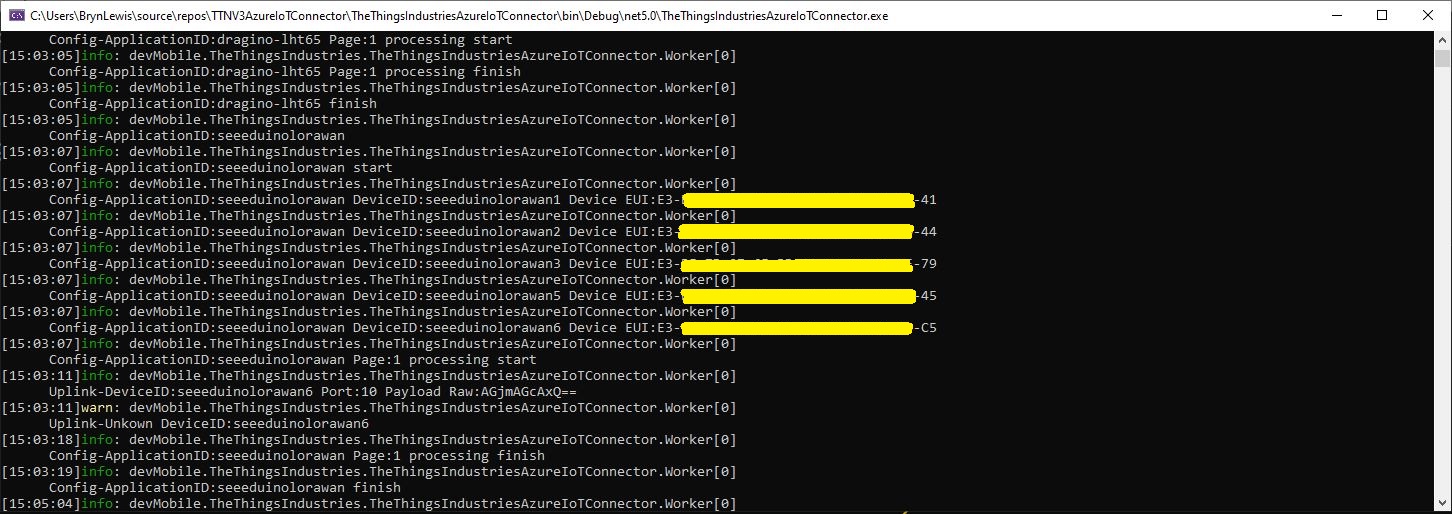
While debugging The Things Industries(TTI) V3 connector on my desktop I had noticed the Device EUI‘s were wrong.

TTI V3 Connector application running as a console application showing incorrect DeviceEUIs

The TTI V3 Connector code…

foreach (V3EndDevice device in endDevices.End_devices)
{
   if (DeviceAzureEnabled(device))
   {
      _logger.LogInformation("Config-ApplicationID:{0} DeviceID:{1} Device EUI:{2}", device.Ids.Application_ids.Application_id, device.Ids.Device_id, BitConverter.ToString(device.Ids.Dev_eui));

      tasks.Add(DeviceRegistration(device.Ids.Application_ids.Application_id, device.Ids.Device_id, _programSettings.ResolveDeviceModelId(device.Ids.Application_ids.Application_id, device.Attributes), stoppingToken));
   }
}

…uses some classes generated by nSwag based on the TheThingsNetwork/LoRaWAN-stack api.swagger.json

public partial class V3EndDeviceIdentifiers 
{
        [Newtonsoft.Json.JsonProperty("device_id", Required = Newtonsoft.Json.Required.Default, NullValueHandling = Newtonsoft.Json.NullValueHandling.Ignore)]
        public string Device_id { get; set; }
    
        [Newtonsoft.Json.JsonProperty("application_ids", Required = Newtonsoft.Json.Required.Default, NullValueHandling = Newtonsoft.Json.NullValueHandling.Ignore)]
        public V3ApplicationIdentifiers Application_ids { get; set; }
    
        /// <summary>The LoRaWAN DevEUI.</summary>
        [Newtonsoft.Json.JsonProperty("dev_eui", Required = Newtonsoft.Json.Required.Default, NullValueHandling = Newtonsoft.Json.NullValueHandling.Ignore)]
        public byte[] Dev_eui { get; set; }
    
        /// <summary>The LoRaWAN JoinEUI (AppEUI until LoRaWAN 1.0.3 end devices).</summary>
        [Newtonsoft.Json.JsonProperty("join_eui", Required = Newtonsoft.Json.Required.Default, NullValueHandling = Newtonsoft.Json.NullValueHandling.Ignore)]
        public byte[] Join_eui { get; set; }
    
        /// <summary>The LoRaWAN DevAddr.</summary>
        [Newtonsoft.Json.JsonProperty("dev_addr", Required = Newtonsoft.Json.Required.Default, NullValueHandling = Newtonsoft.Json.NullValueHandling.Ignore)]
        public byte[] Dev_addr { get; set; }
}

After some research I found references to the underlying problem in TTN and OpenAPI forums. The Dev_addr and Dev_eui fields are Base16(Hexidecimal) encoded binary but are being processed as if they were Base64(mime) encoded.

The TTI connector only displays the Device EUI so I changed the Dev_eui property to a string

public partial class V3EndDeviceIdentifiers 
{
        [Newtonsoft.Json.JsonProperty("device_id", Required = Newtonsoft.Json.Required.Default, NullValueHandling = Newtonsoft.Json.NullValueHandling.Ignore)]
        public string Device_id { get; set; }
    
        [Newtonsoft.Json.JsonProperty("application_ids", Required = Newtonsoft.Json.Required.Default, NullValueHandling = Newtonsoft.Json.NullValueHandling.Ignore)]
        public V3ApplicationIdentifiers Application_ids { get; set; }
    
        /// <summary>The LoRaWAN DevEUI.</summary>
        [Newtonsoft.Json.JsonProperty("dev_eui", Required = Newtonsoft.Json.Required.Default, NullValueHandling = Newtonsoft.Json.NullValueHandling.Ignore)]
        public string Dev_eui { get; set; }

      /// <summary>The LoRaWAN JoinEUI (AppEUI until LoRaWAN 1.0.3 end devices).</summary>
      [Newtonsoft.Json.JsonProperty("join_eui", Required = Newtonsoft.Json.Required.Default, NullValueHandling = Newtonsoft.Json.NullValueHandling.Ignore)]
        public byte[] Join_eui { get; set; }
    
        /// <summary>The LoRaWAN DevAddr.</summary>
        [Newtonsoft.Json.JsonProperty("dev_addr", Required = Newtonsoft.Json.Required.Default, NullValueHandling = Newtonsoft.Json.NullValueHandling.Ignore)]
        public byte[] Dev_addr { get; set; }
}

I also had to remove the BitConverter.ToString call

foreach (V3EndDevice device in endDevices.End_devices)
{
   if (DeviceAzureEnabled(device))
   {
      _logger.LogInformation("Config-ApplicationID:{0} DeviceID:{1} Device EUI:{2}", device.Ids.Application_ids.Application_id, device.Ids.Device_id, device.Ids.Dev_eui);

      tasks.Add(DeviceRegistration(device.Ids.Application_ids.Application_id, device.Ids.Device_id, _programSettings.ResolveDeviceModelId(device.Ids.Application_ids.Application_id, device.Attributes), stoppingToken));
   }
}

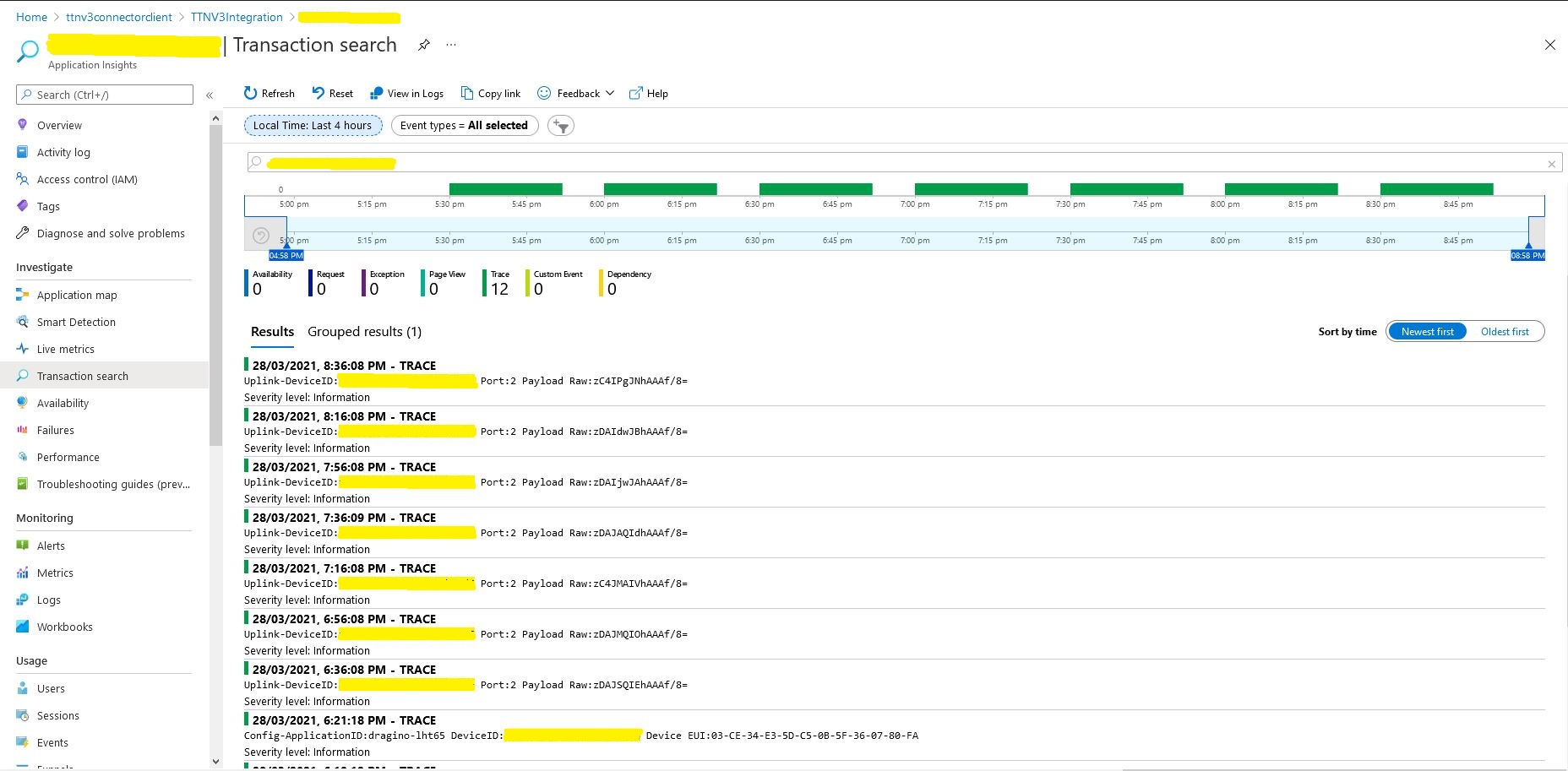
Now the DeviceEUI values are displayed correctly and searching for EndDevices in Azure Application Insights is easier

TTI V3 Connector application running as a console application showing correct DeviceEUIs

Modifying the nSwag generated classes is a really nasty way of fixing the problem but I think this approach is okay as it’s only one field and any other solution I could find was significantly more complex.

TTI V3 Gateway provisioning Dragino LHT65 Uplink

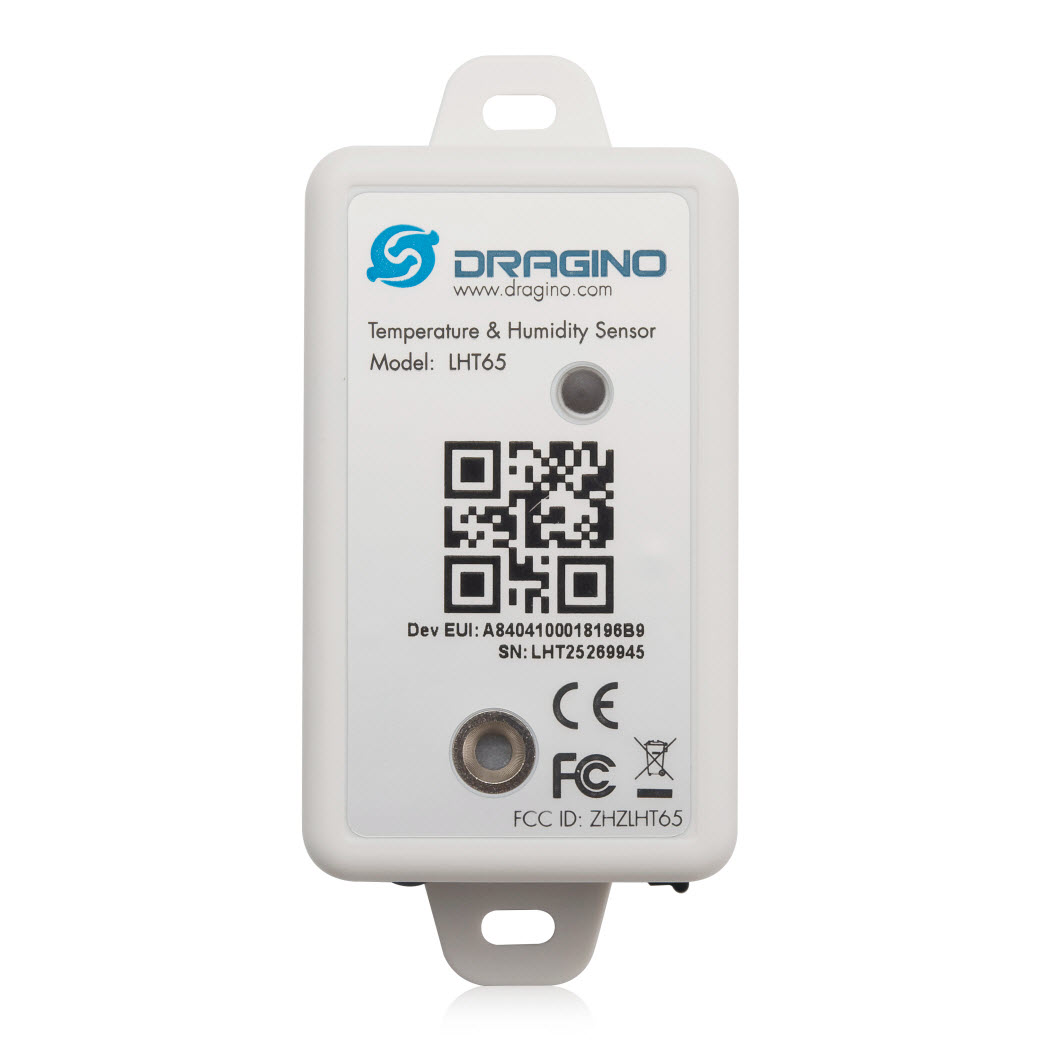
This very long post is about how to connect a Dragino LHT65 Temperature and Humidity sensor to Azure IoT Central using my TTI/TTN V3Azure IoT Connector and the Digital Twin Definition Language (DTDL).

Dragino LHT65 temperature and Humidity sensor

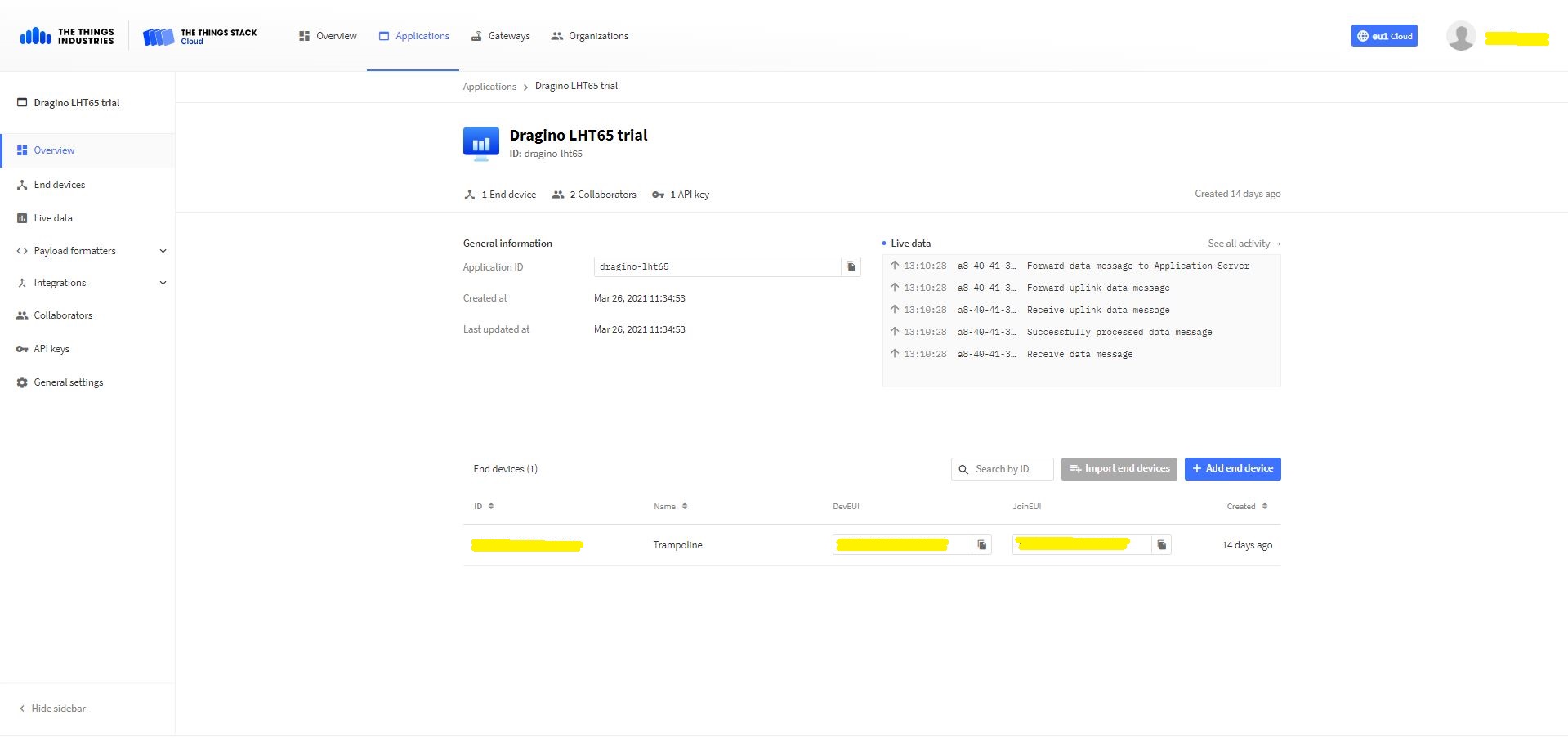
The first step was to add an application(dragino-lht65) in my The Things Industries(TTI) tenant

TTI/TTN application for my Dragino LHT65 devices
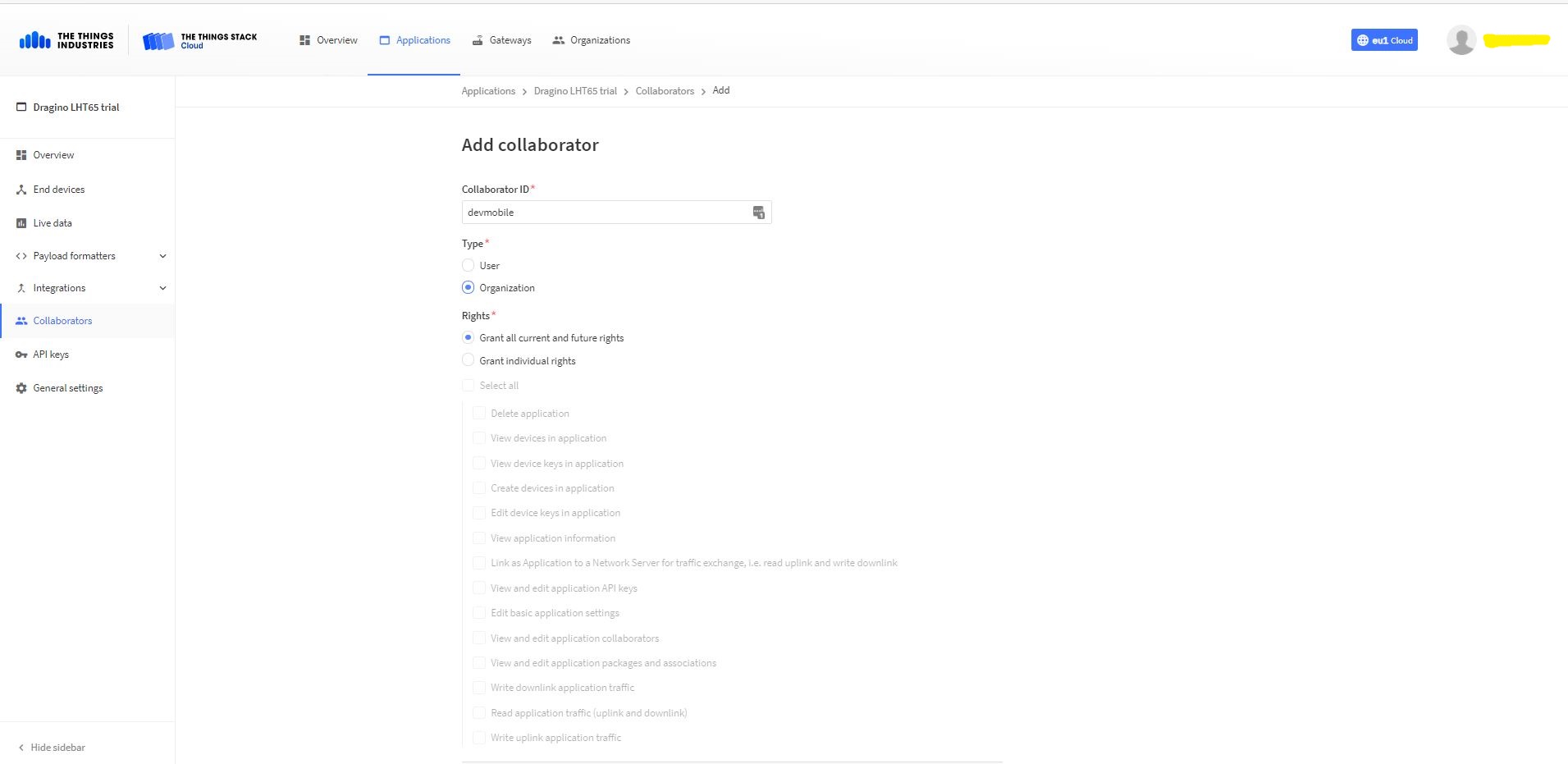
Adding devMobile as a collaborator on the new application
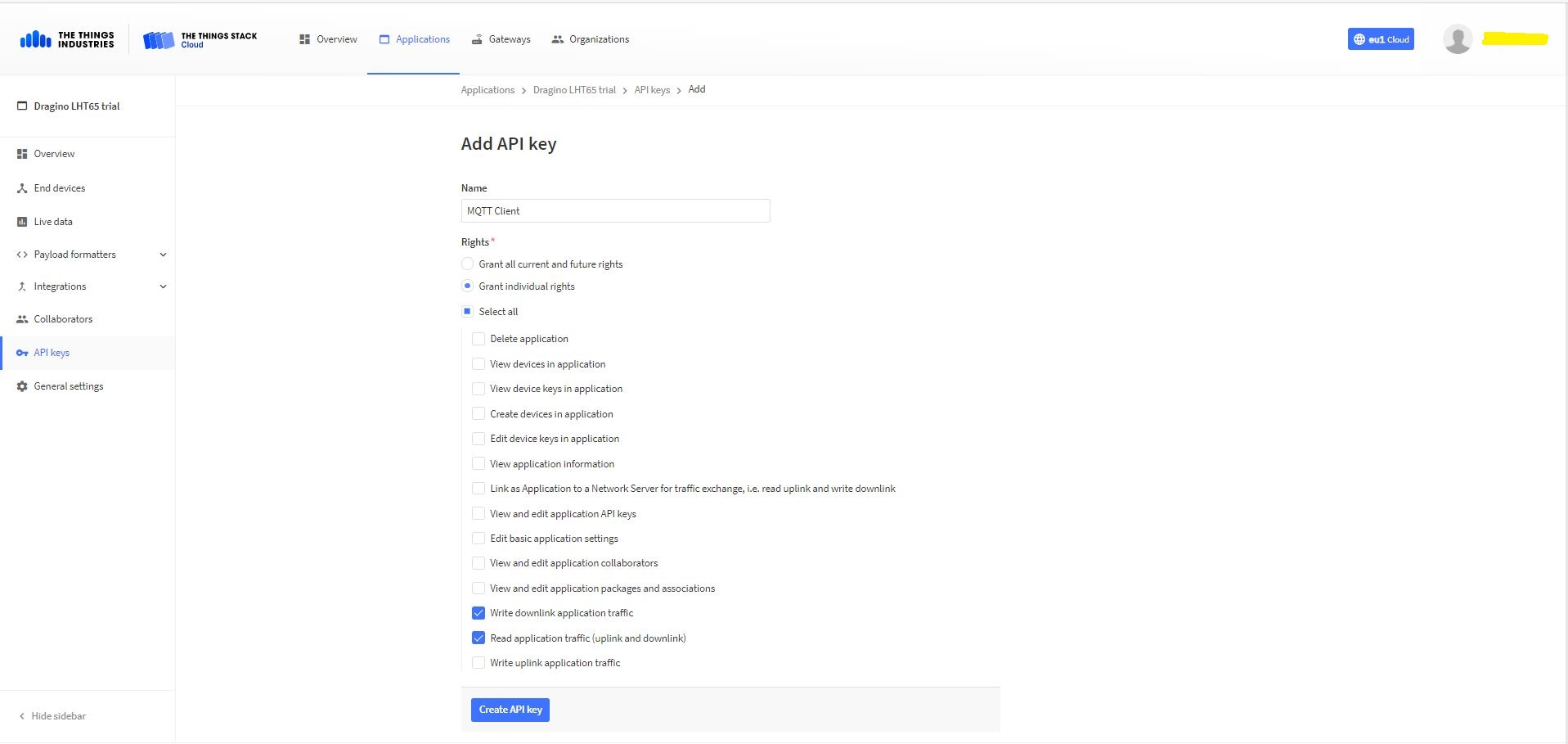
TTI Application API Key configuration

The new Application API Key used by the MQTTnet managed client only needs to have write downlink and read uplink traffic enabled.

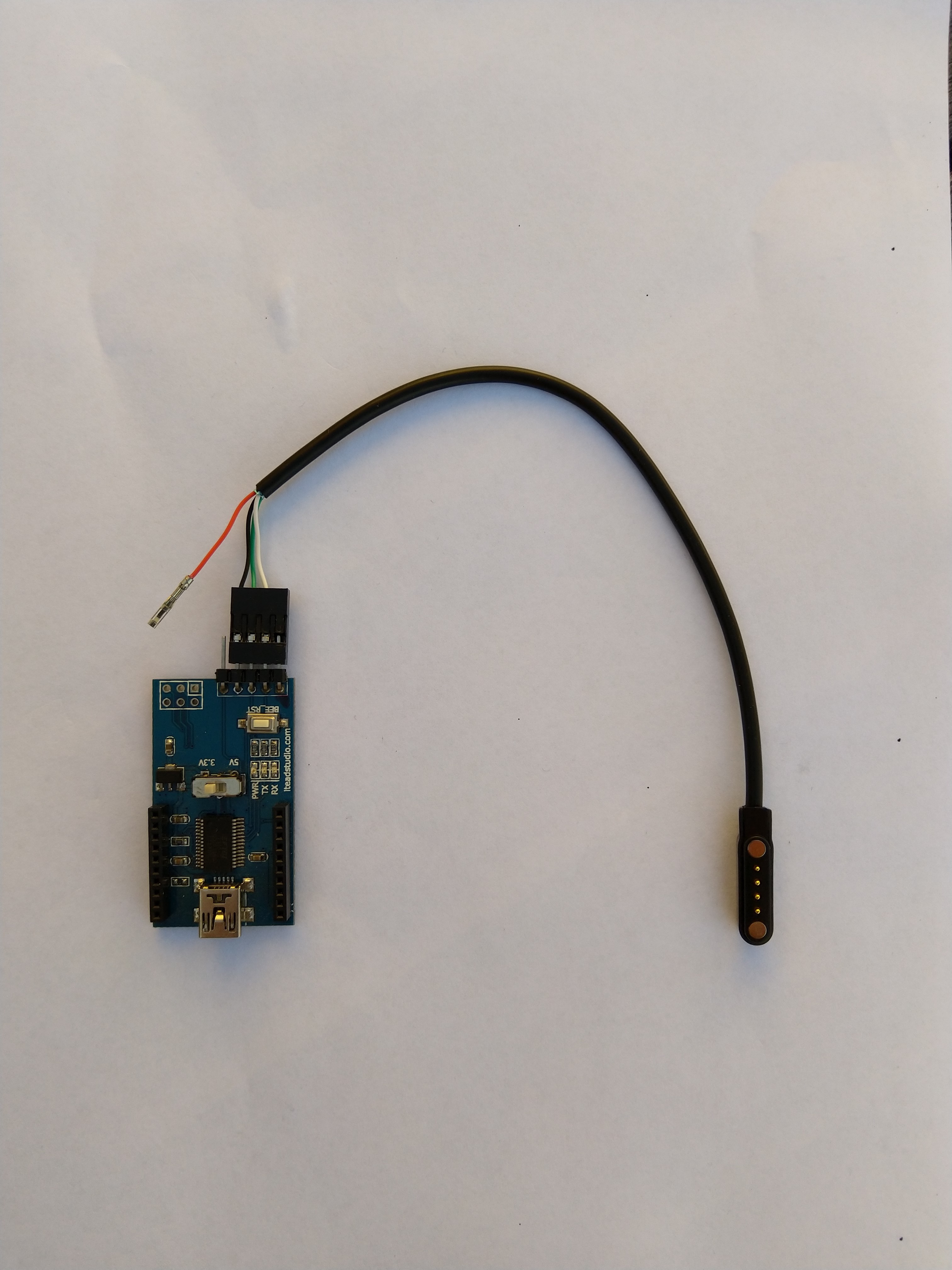
FTDI Adapter and modified LHT64 cable

So I could reliably connect to my LHT65 devices to configure them I modified a programming cable so I could use it with a spare FTDI adaptor without jumper wires. Todo this I used a small jewelers screwdriver to “pop” out the VCC cable and move the transmit data line.

After entering the device password and checking the firmware version I used the AT+CFG command to display the device settings

AT+CFG: Print all configurations

[334428]***** UpLinkCounter= 0 *****
[334430]TX on freq 923200000 Hz at DR 2
[334804]txDone
[339807]RX on freq 923200000 Hz at DR 2
[339868]rxTimeOut
[340807]RX on freq 923200000 Hz at DR 2
[340868]rxTimeOut

Correct Password

Stop Tx events,Please wait for all configurations to print
Printf all config...
AT+DEUI=a8 .. .. .. .. .. .. d6
AT+DADDR=01......D6

AT+APPKEY=9d .. .. .. .. .. .. .. .. .. .. .. .. .. .. 2e
AT+NWKSKEY=f6 .. .. .. .. .. .. .. .. .. .. .. .. .. .. 69
AT+APPSKEY=4c 35 .. .. .. .. .. .. .. .. .. .. .. .. .. 3d
AT+APPEUI=a0 .. .. .. .. .. .. 00
AT+ADR=1
AT+TXP=0
AT+DR=0
AT+DCS=0
AT+PNM=1
AT+RX2FQ=923200000
AT+RX2DR=2
AT+RX1DL=1000
AT+RX2DL=2000
AT+JN1DL=5000
AT+JN2DL=6000
AT+NJM=1
AT+NWKID=00 00 00 00
AT+FCU=0
AT+FCD=0
AT+CLASS=A
AT+NJS=0
AT+RECVB=0:
AT+RECV=0:
AT+VER=v1.7 AS923

AT+CFM=0
AT+CFS=0
AT+SNR=0
AT+RSSI=0
AT+TDC=1200000
AT+PORT=2
AT+PWORD=123456
AT+CHS=0
AT+DATE=21/3/26 07:49:15
AT+SLEEP=0
AT+EXT=4,2
AT+RTP=20
AT+BAT=3120
AT+WMOD=0
AT+ARTEMP=-40,125
AT+CITEMP=1
Start Tx events OK


[399287]***** UpLinkCounter= 0 *****

[399289]TX on freq 923400000 Hz at DR 2

[399663]txDone

[404666]RX on freq 923400000 Hz at DR 2

[404726]rxTimeOut

[405666]RX on freq 923200000 Hz at DR 2

[405726]rxTimeOut

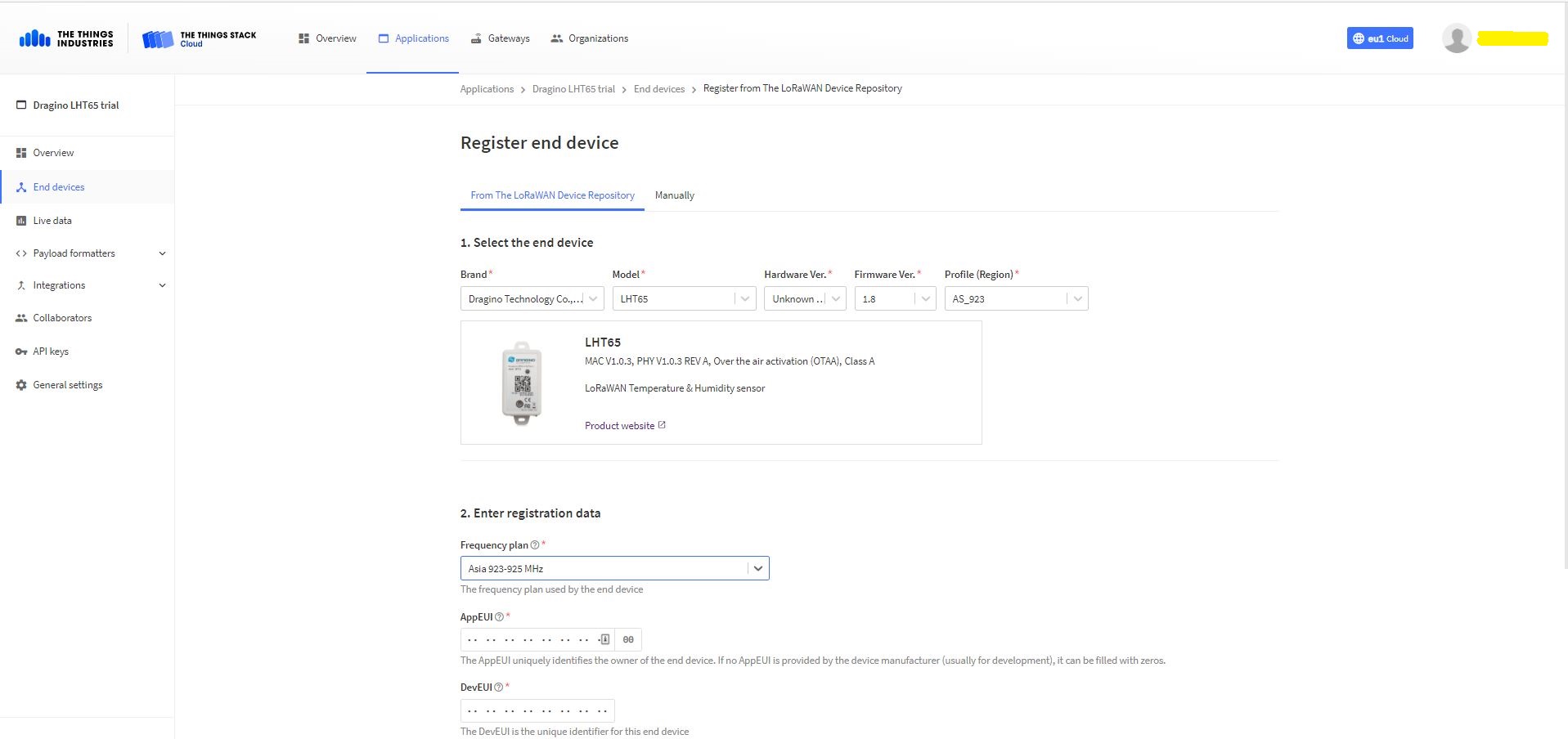
I copied the AppEUI and DevEUI for use on the TI Dragino LHT65 Register end device form provided by the TTI/TTN.

TTYI/TTN Dragino LHT65 Register end device

The Dragino LHT65 uses the DeviceEUI as the DeviceID which meant I had todo more redaction in my TTI/TTN and Azure Application Insights screen captures. The rules around the re-use of EndDevice ID were a pain in the arse(PITA) in my development focused tenant.

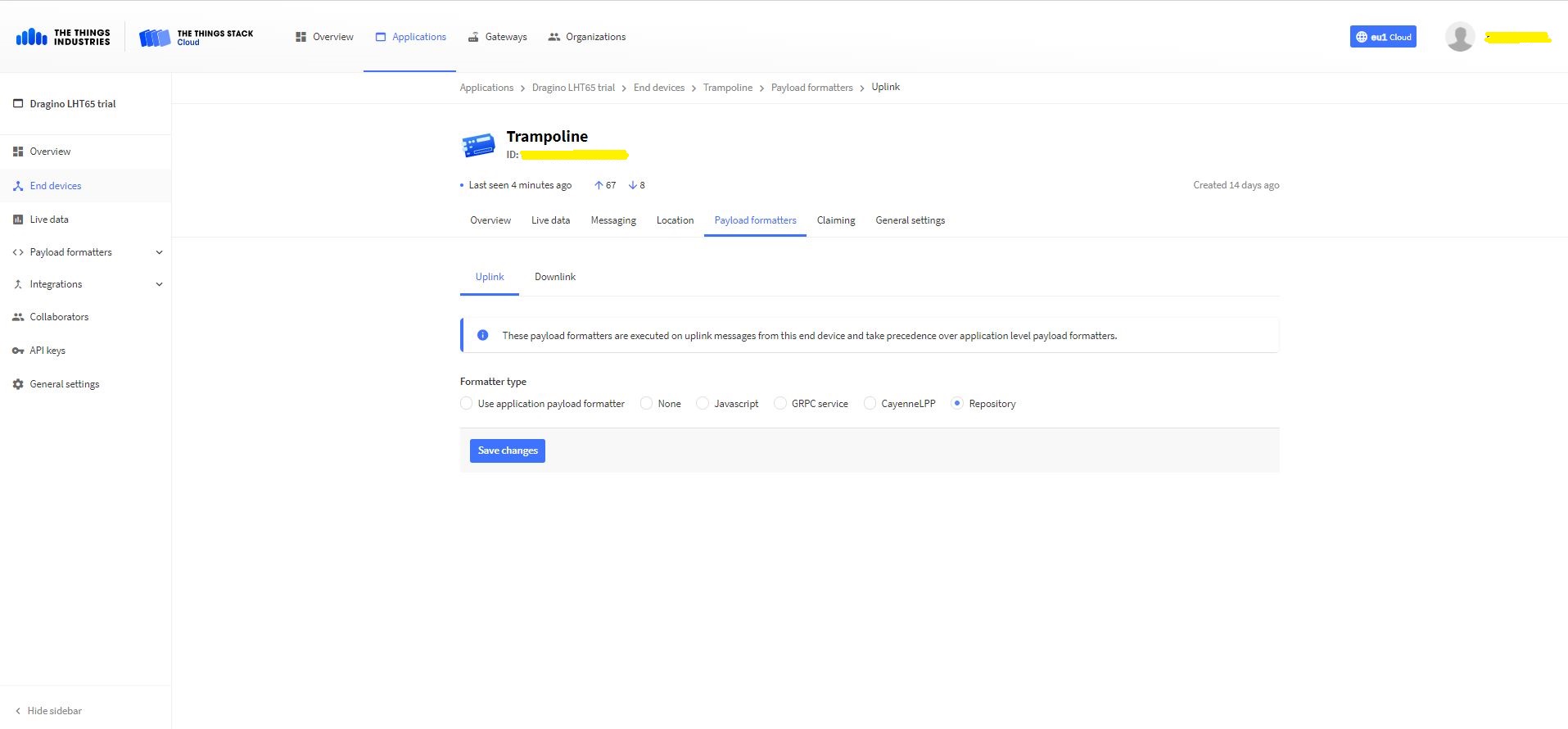
Dragino LHT 65 Device uplink payload formatter

The connector supports both uplink and downlink messages with JSON encoded payloads. The Dragino LHT65 has a vendor supplied formatter which is automatically configured when an EndDevice is created. The EndDevice formatter configuration can also be overridden at the Application level in the app.settings.json file.

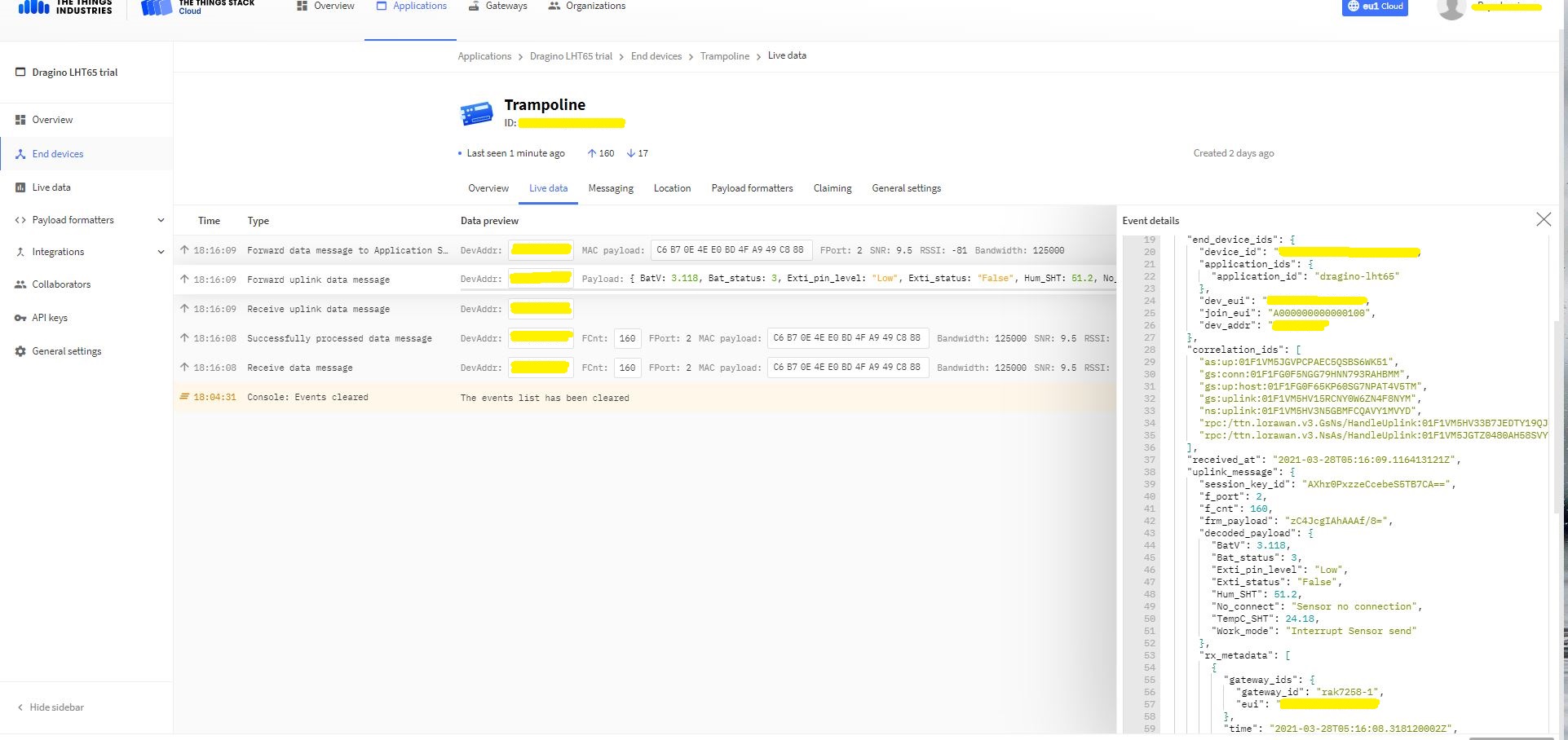
Device Live Data Uplink Data Payload

Once an EndDevice is configured in TTI/TTN I usually use the “Live data Uplink Payload” to work out the decoded payload JSON property names and data types.

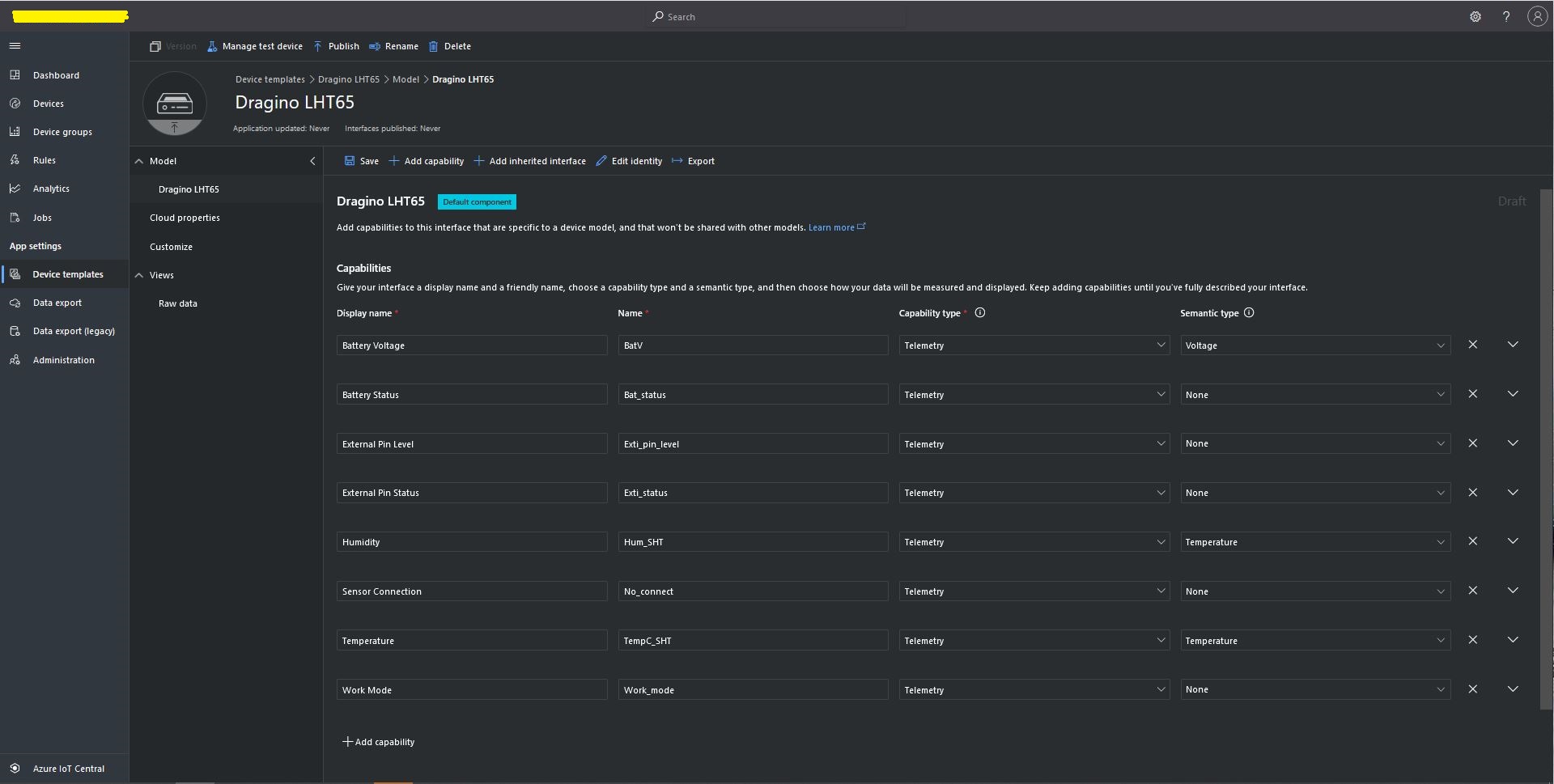
LHT65 Uplink only Azure IoT Central Device Template
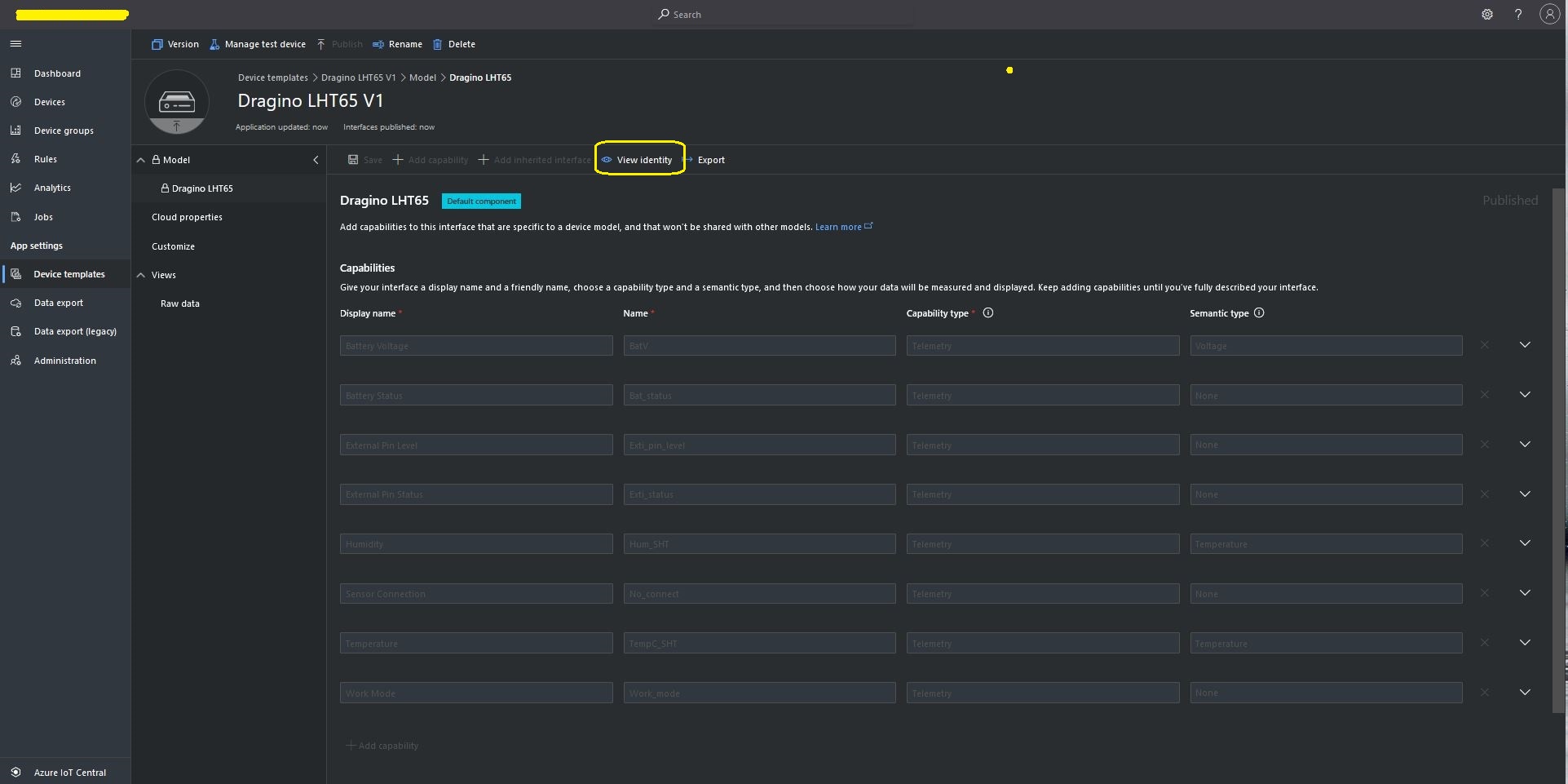
LHT65 Device Template View Identity

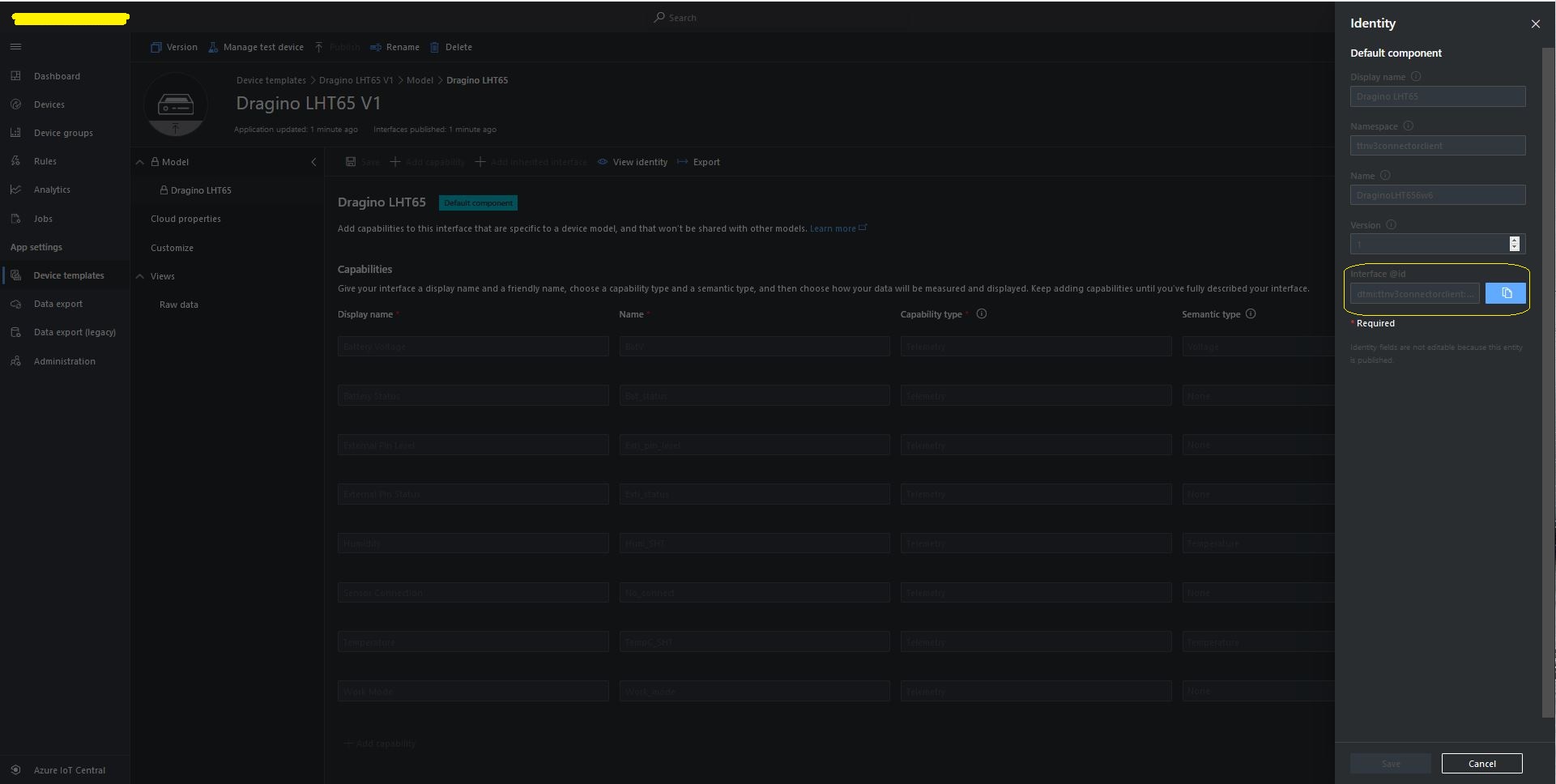
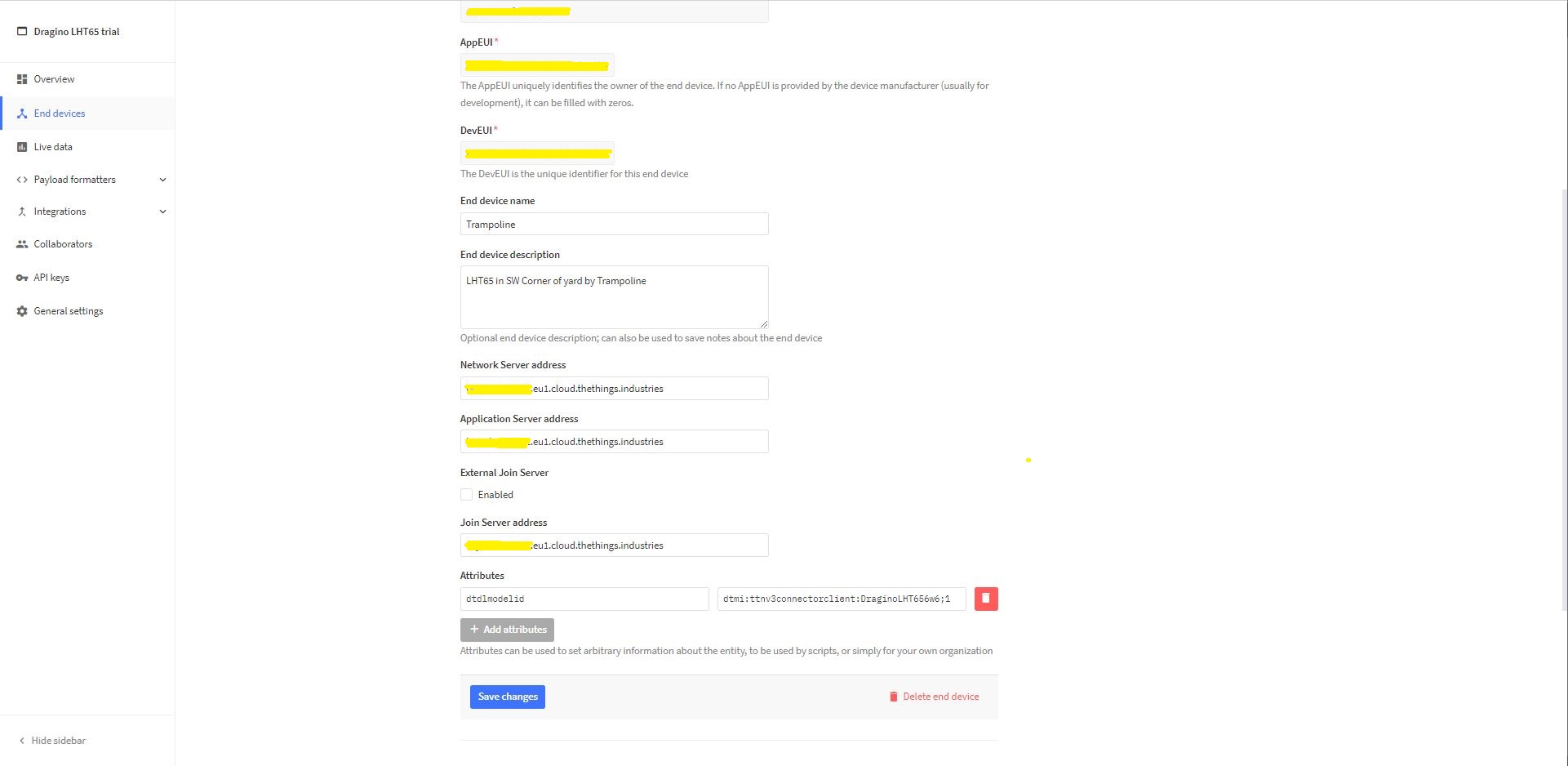
For Azure IoT Central “automagic” provisioning the DTDLModelId has to be copied from the Azure IoT Central Template into the TTI/TTN EndDevice or app.settings.json file application configuration.

LHT65 Device Template copy DTDL @ID
TTI EndDevice configuring the DTDLV2 @ID at the device level

Configuring the DTDLV2 @ID at the TTI application level in the app.settings.json file

{
  "Logging": {
    "LogLevel": {
      "Default": "Debug",
      "Microsoft": "Debug",
      "Microsoft.Hosting.Lifetime": "Debug"
    },
    "ApplicationInsights": {
      "LogLevel": {
        "Default": "Debug"
      }
    }
  },

  "ProgramSettings": {
    "Applications": {
      "application1": {
        "AzureSettings": {
          "DeviceProvisioningServiceSettings": {
            "IdScope": "0ne...DD9",
            "GroupEnrollmentKey": "eFR...w=="
          }
        },
        "DTDLModelId": "dtmi:ttnv3connectorclient:FezduinoWisnodeV14x8;4",
        "MQTTAccessKey": "NNSXS.HCY...RYQ",
        "DeviceIntegrationDefault": false,
        "MethodSettings": {
          "Reboot": {
            "Port": 21,
            "Confirmed": true,
            "Priority": "normal",
            "Queue": "push"
          },
          "value_0": {
            "Port": 30,
            "Confirmed": true,
            "Priority": "normal",
            "Queue": "push"
          },
          "value_1": {
            "Port": 30,
            "Confirmed": true,
            "Priority": "normal",
            "Queue": "push"
          },
          "TemperatureOOBAlertMinimumAndMaximum": {
            "Port": 30,
            "Confirmed": true,
            "Priority": "normal",
            "Queue": "push"
          }
        }
      },
      "seeeduinolorawan": {
        "AzureSettings": {
          "DeviceProvisioningServiceSettings": {
            "IdScope": "0ne...DD9",
            "GroupEnrollmentKey": "AtN...g=="
          },
        },
        "DTDLModelId": "dtmi:ttnv3connectorclient:SeeeduinoLoRaWAN4cz;1",
        "MQTTAccessKey": "NNSXS.V44...42A",
        "DeviceIntegrationDefault": true,
        "DevicePageSize": 10
      },
      "dragino-lht65": {
        "AzureSettings": {
          "DeviceProvisioningServiceSettings": {
            "IdScope": "0ne...DD9",
            "GroupEnrollmentKey": "SLB...w=="
          }
        },
        "DTDLModelId": "dtmi:ttnv3connectorclient:DraginoLHT656w6;1",
        "MQTTAccessKey": "NNSXS.RIJ...NZQ",
        "DeviceIntegrationDefault": true,
        "DevicePageSize": 10
      }
    },
    "TheThingsIndustries": {
      "MqttServerName": "eu1.cloud.thethings.industries",
      "MqttClientId": "MQTTClient",
      "MqttAutoReconnectDelay": "00:00:05",
      "Tenant": "...-test",
      "ApiBaseUrl": "https://...-test.eu1.cloud.thethings.industries/api/v3",
      "ApiKey": "NNSXS.NR7...ZSA",
      "Collaborator": "devmobile",
      "DevicePageSize": 10,
      "DeviceIntegrationDefault": true
    }
  }
}

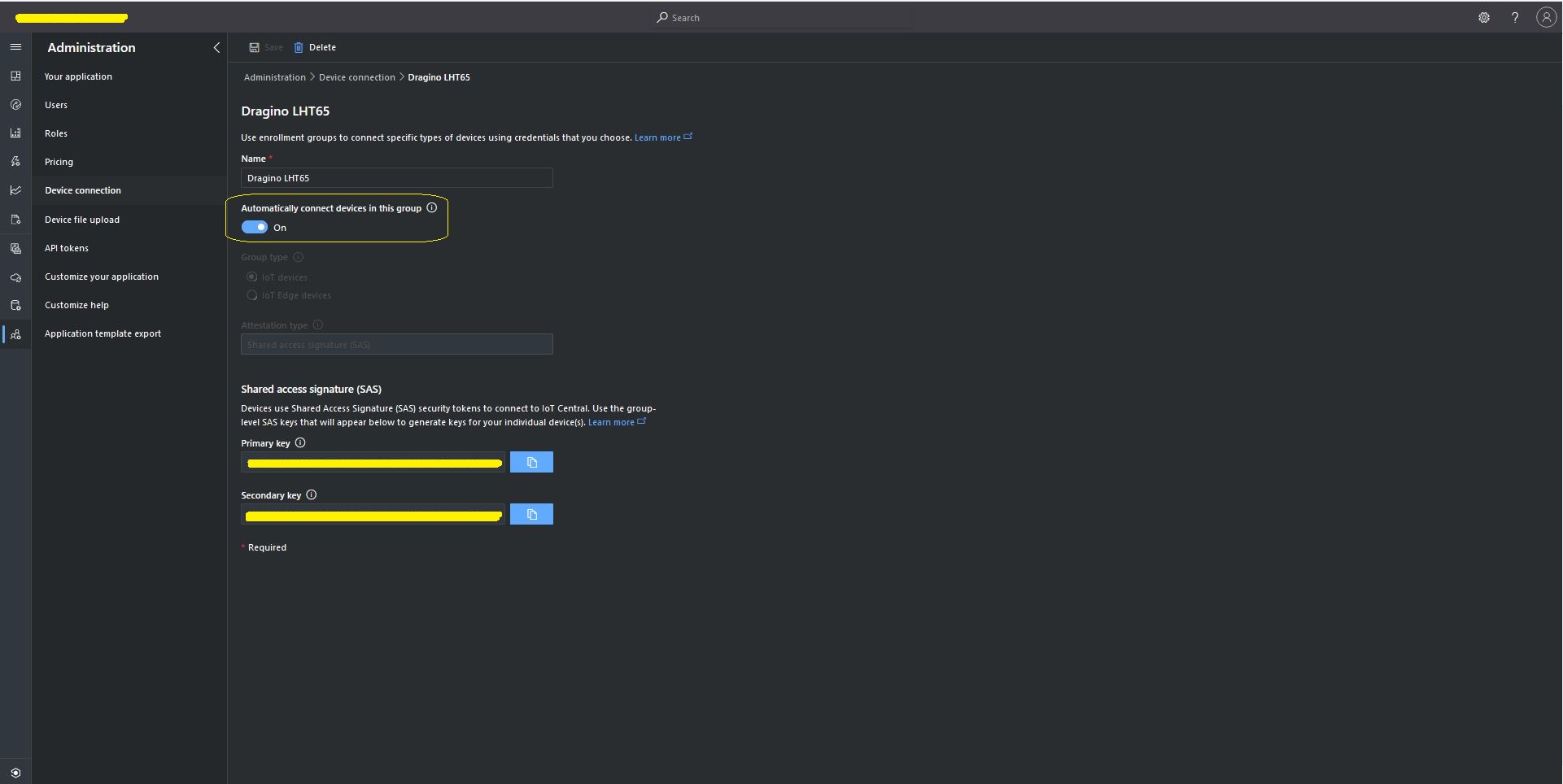
The Azure Device Provisioning Service(DPS) is configured at the TTI application level in the app.settings.json file. The IDScope and one of the Primary or Secondary Shared Access Signature(SAS) keys should be copied into DeviceProvisioningServiceSettings of an Application in the app.settings.json file. I usually set the “Automatically connect devices in this group” flag as part of the “automagic” provisioning process.

Azure IoT Central Group Enrollment Key
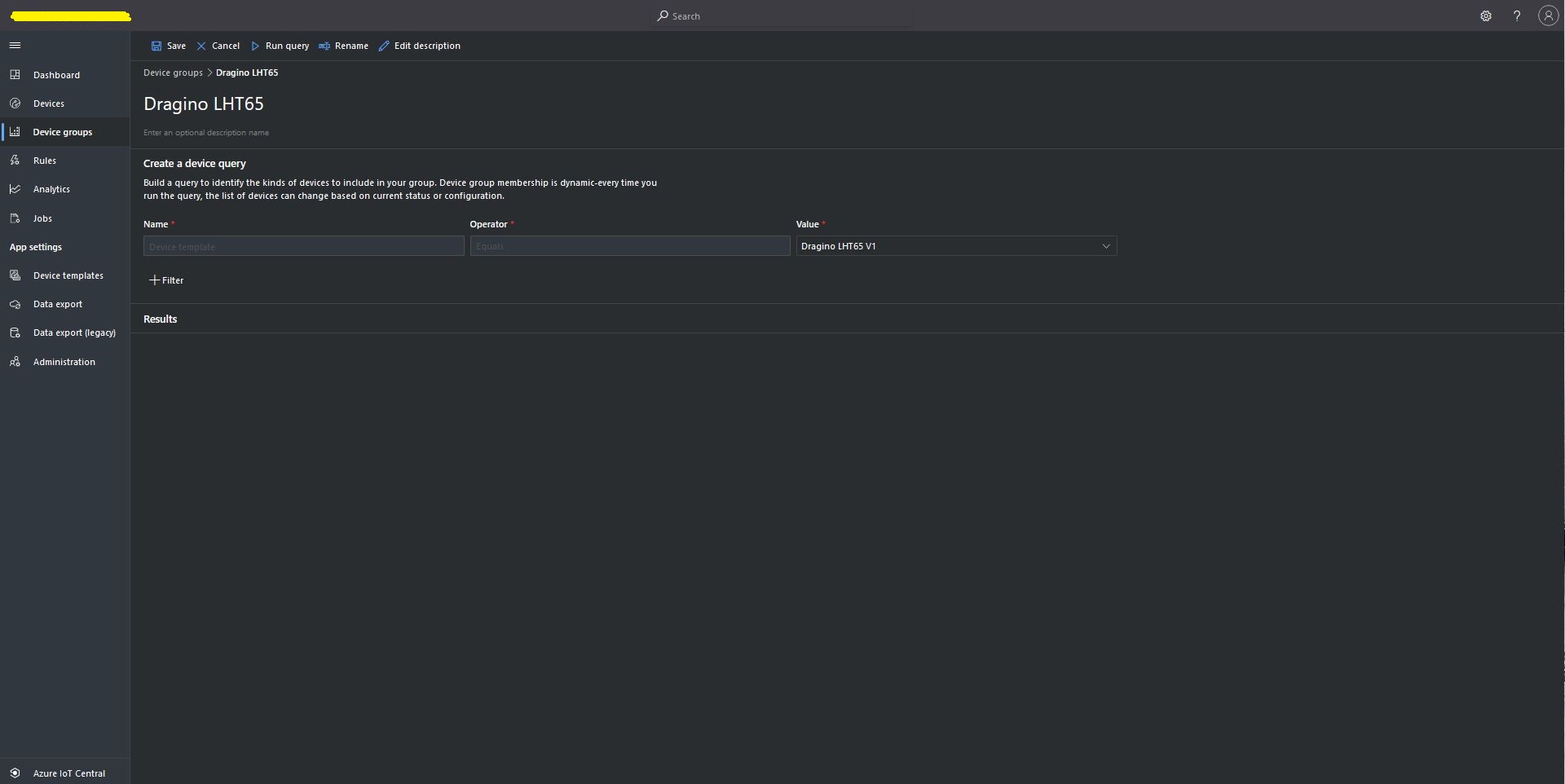
Then device templates need to be mapped to an Enrollment Group then Device Group.

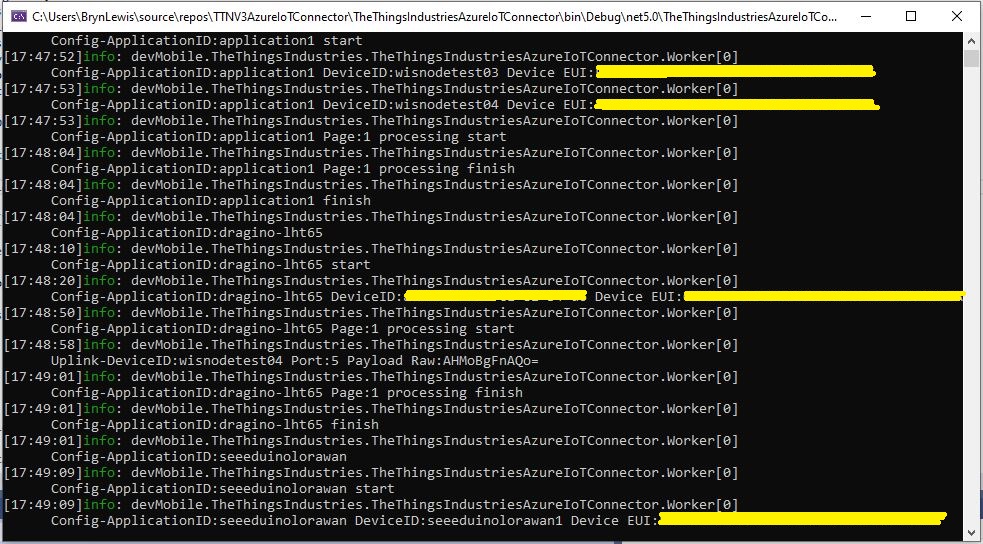
For testing the connector application can be run locally with diagnostic information displayed in the application console window as it “automagically’ provisions devices and uploads telemetry data.

Connector application Diagnostics
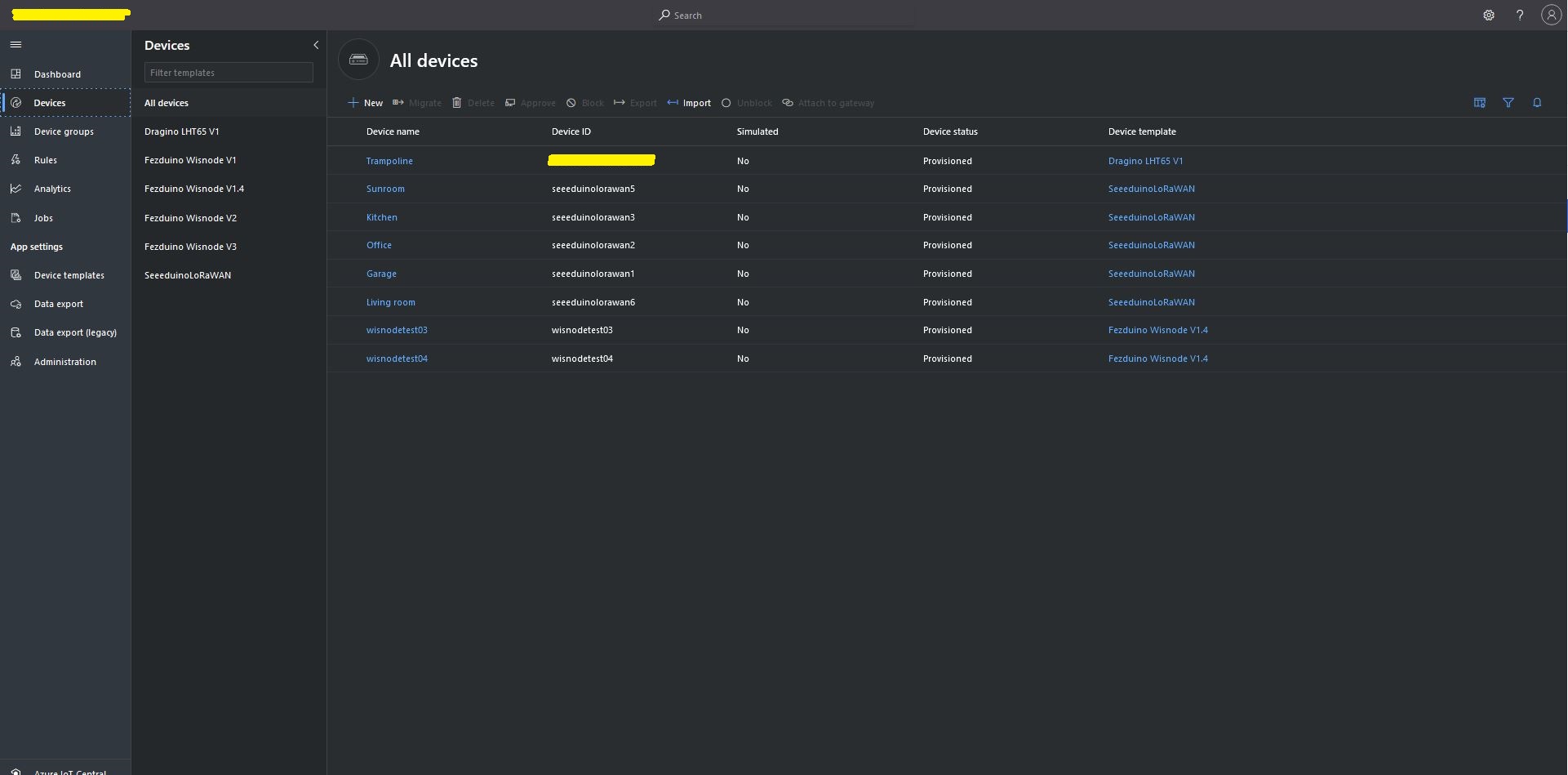
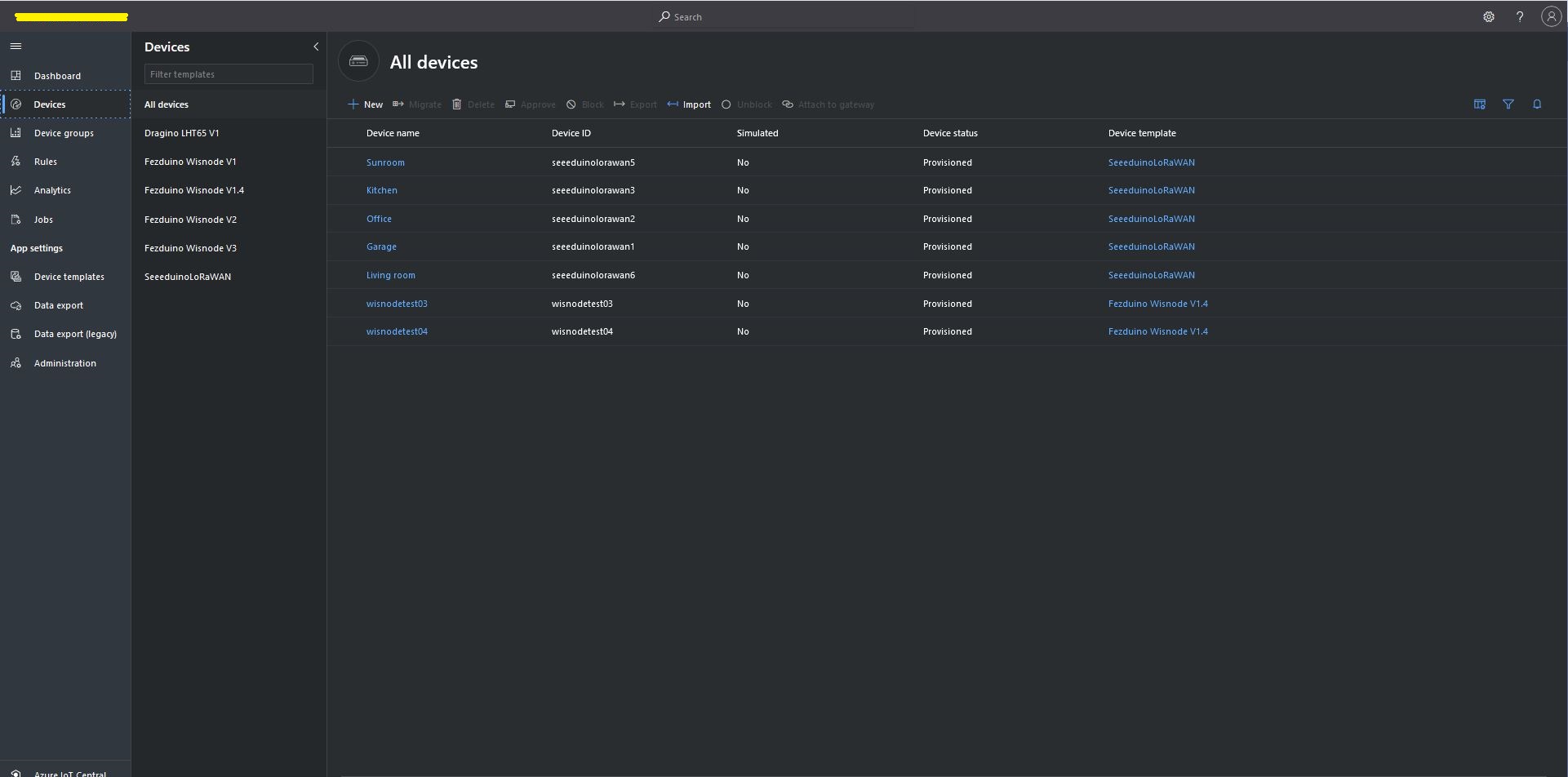
Azure IoT Central Device list before my LHT65 device is “automagically” provisioned
Azure IoT Central Device list after my LHT65 device is “automagically” provisioned

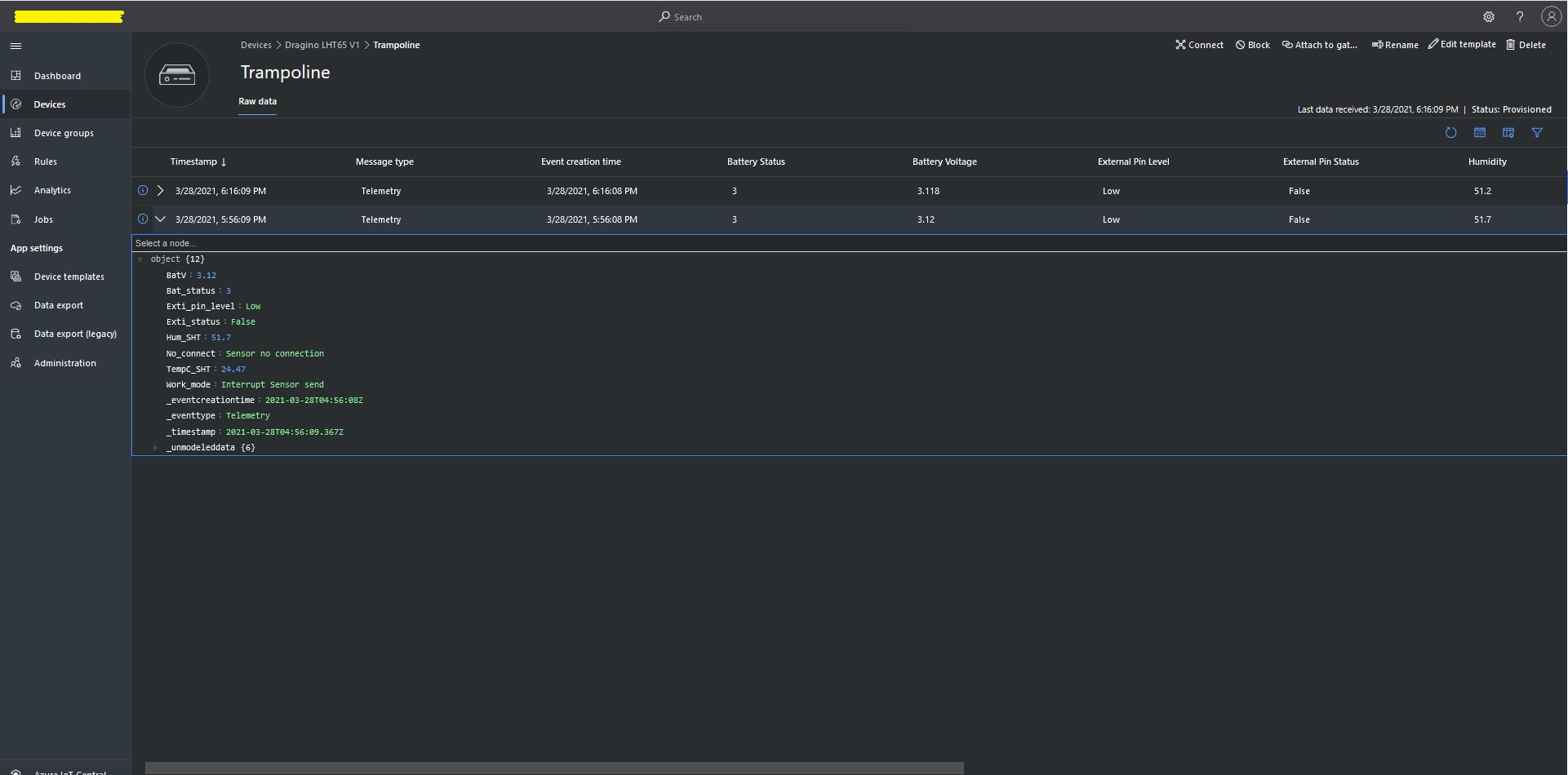
One a device has been provisioned I check on the raw data display that all the fields I configured have been mapped correctly.
Azure IoT Central raw data display

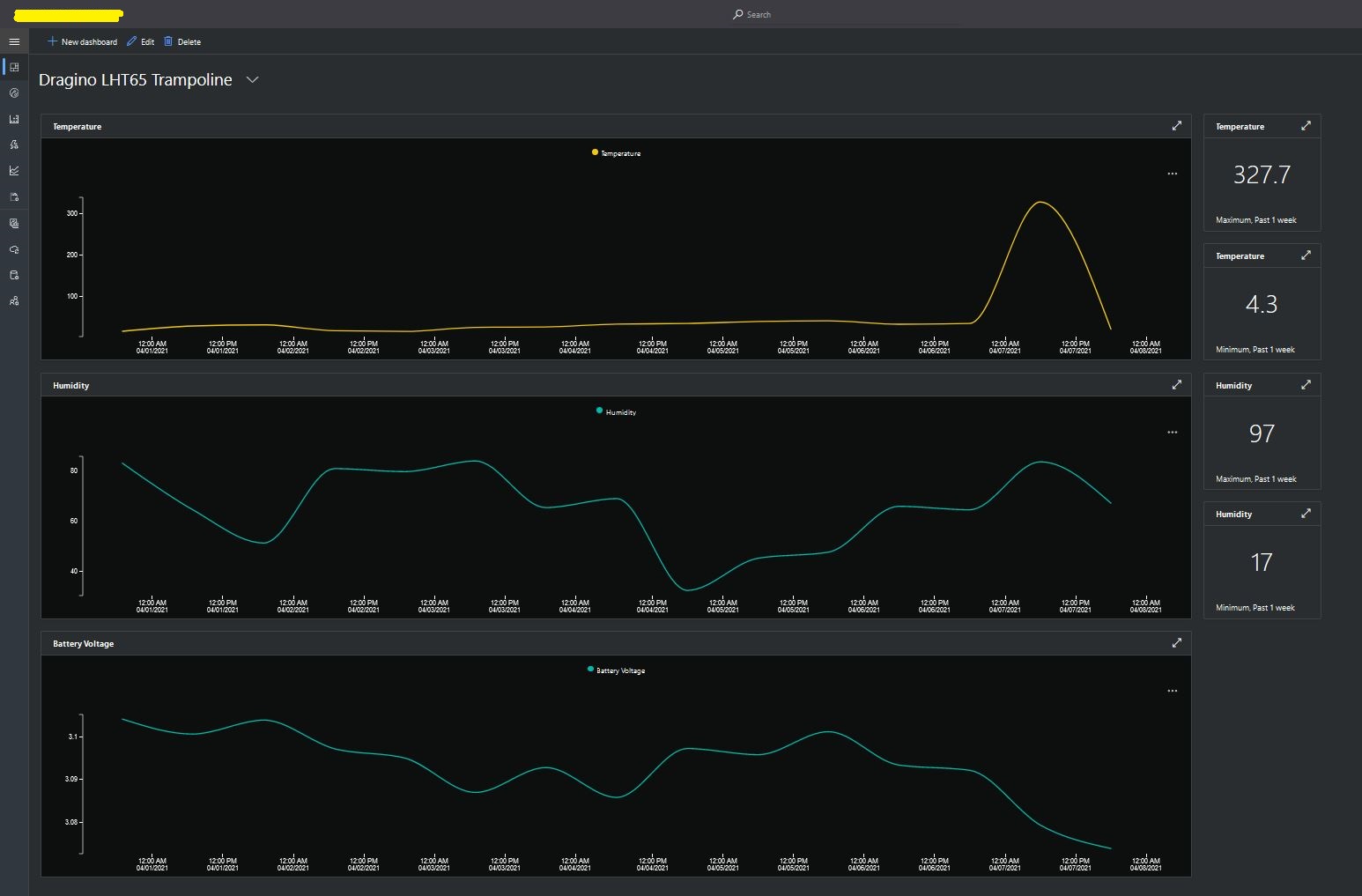
I then created a dashboard to display the telemetry data from the LHT65 sensors.

Azure IoT Central dashboard displaying LHT65 temperature, humidity and battery voltage graphs.

The dashboard also has a few KPI displays which highlighted an issue which occurs a couple of times a month with the LHT65 onboard temperature sensor values (327.7°). I have connected Dragino technical support and have also been unable to find a way to remove the current an/or filter out future aberrant values.

Azure Application Insights logging

I also noticed that the formatting of the DeviceEUI values in the Application Insights logging was incorrect after trying to search for one of my Seeedstudio LoRaWAN device with its DeviceEUI.

Device Provisioning Service(DPS) JsonData

While building my The Things Industries(TTI) V3 connector which uses the Azure Device Provisioning Service(DPS) the way pretty much all of the samples formatted the JsonData property of the ProvisioningRegistrationAdditionalData (part of Plug n Play provisioning) by manually constructing a JSON object which bugged me.

ProvisioningRegistrationAdditionalData provisioningRegistrationAdditionalData = new ProvisioningRegistrationAdditionalData()
{
   JsonData = $"{{\"modelId\": \"{modelId}\"}}"
};

result = await provClient.RegisterAsync(provisioningRegistrationAdditionalData);

I remembered seeing a sample where the DTDLV2 methodId was formatted by a library function and after a surprising amount of searching I found what I was looking for in Azure-Samples repository.

The code for the CreateDpsPayload method

// Copyright (c) Microsoft. All rights reserved.
// Licensed under the MIT license. See LICENSE file in the project root for full license information.

using Microsoft.Azure.Devices.Provisioning.Client.Extensions;

namespace Microsoft.Azure.Devices.Provisioning.Client.PlugAndPlay
{
    /// <summary>
    /// A helper class for formatting the DPS device registration payload, per plug and play convention.
    /// </summary>
    public static class PnpConvention
    {
        /// <summary>
        /// Create the DPS payload to provision a device as plug and play.
        /// </summary>
        /// <remarks>
        /// For more information on device provisioning service and plug and play compatibility,
        /// and PnP device certification, see <see href="https://docs.microsoft.com/en-us/azure/iot-pnp/howto-certify-device"/>.
        /// The DPS payload should be in the format:
        /// <code>
        /// {
        ///   "modelId": "dtmi:com:example:modelName;1"
        /// }
        /// </code>
        /// For information on DTDL, see <see href="https://github.com/Azure/opendigitaltwins-dtdl/blob/master/DTDL/v2/dtdlv2.md"/>
        /// </remarks>
        /// <param name="modelId">The Id of the model the device adheres to for properties, telemetry, and commands.</param>
        /// <returns>The DPS payload to provision a device as plug and play.</returns>
        public static string CreateDpsPayload(string modelId)
        {
            modelId.ThrowIfNullOrWhiteSpace(nameof(modelId));
            return $"{{\"modelId\":\"{modelId}\"}}";
        }
    }
}

With a couple of changes my code now uses the CreateDpsPayload method

using Microsoft.Azure.Devices.Provisioning.Client.PlugAndPlay;

...

using (var securityProvider = new SecurityProviderSymmetricKey(deviceId, deviceKey, null))
{
   using (var transport = new ProvisioningTransportHandlerAmqp(TransportFallbackType.TcpOnly))
   {
      ProvisioningDeviceClient provClient = ProvisioningDeviceClient.Create(
         Constants.AzureDpsGlobalDeviceEndpoint,
         deviceProvisiongServiceSettings.IdScope,
         securityProvider,
         transport);

      DeviceRegistrationResult result;

      if (!string.IsNullOrEmpty(modelId))
      {
         ProvisioningRegistrationAdditionalData provisioningRegistrationAdditionalData = new ProvisioningRegistrationAdditionalData()
         {
               JsonData = PnpConvention.CreateDpsPayload(modelId)
         };

         result = await provClient.RegisterAsync(provisioningRegistrationAdditionalData, stoppingToken);
      }
      else
      {
         result = await provClient.RegisterAsync(stoppingToken);
      }

      if (result.Status != ProvisioningRegistrationStatusType.Assigned)
      {
         _logger.LogError("Config-DeviceID:{0} Status:{1} RegisterAsync failed ", deviceId, result.Status);

         return false;
      }

      IAuthenticationMethod authentication = new DeviceAuthenticationWithRegistrySymmetricKey(result.DeviceId, (securityProvider as SecurityProviderSymmetricKey).GetPrimaryKey());

      deviceClient = DeviceClient.Create(result.AssignedHub, authentication, transportSettings);
   }
}