TTI V3 Gateway Azure IoT Central Digital Twin Definition Language(DTDL) support

Over the last couple of days I have added limited Digital Twin Definition Language(DTDLV2) support to my The Things Industries(TTI) V3 connector so that Azure IoT Central devices can be “zero touch” provisioned. For this blog post I used five Seeeduino LoRaWAN devices left over from another abandoned project.

The first step was to configure and Azure IoT Central enrollment group (ensure “Automatically connect devices in this group” is on) and copy the IDScope and Group Enrollment key to the appsettings.json file (see sample file below for more detail)
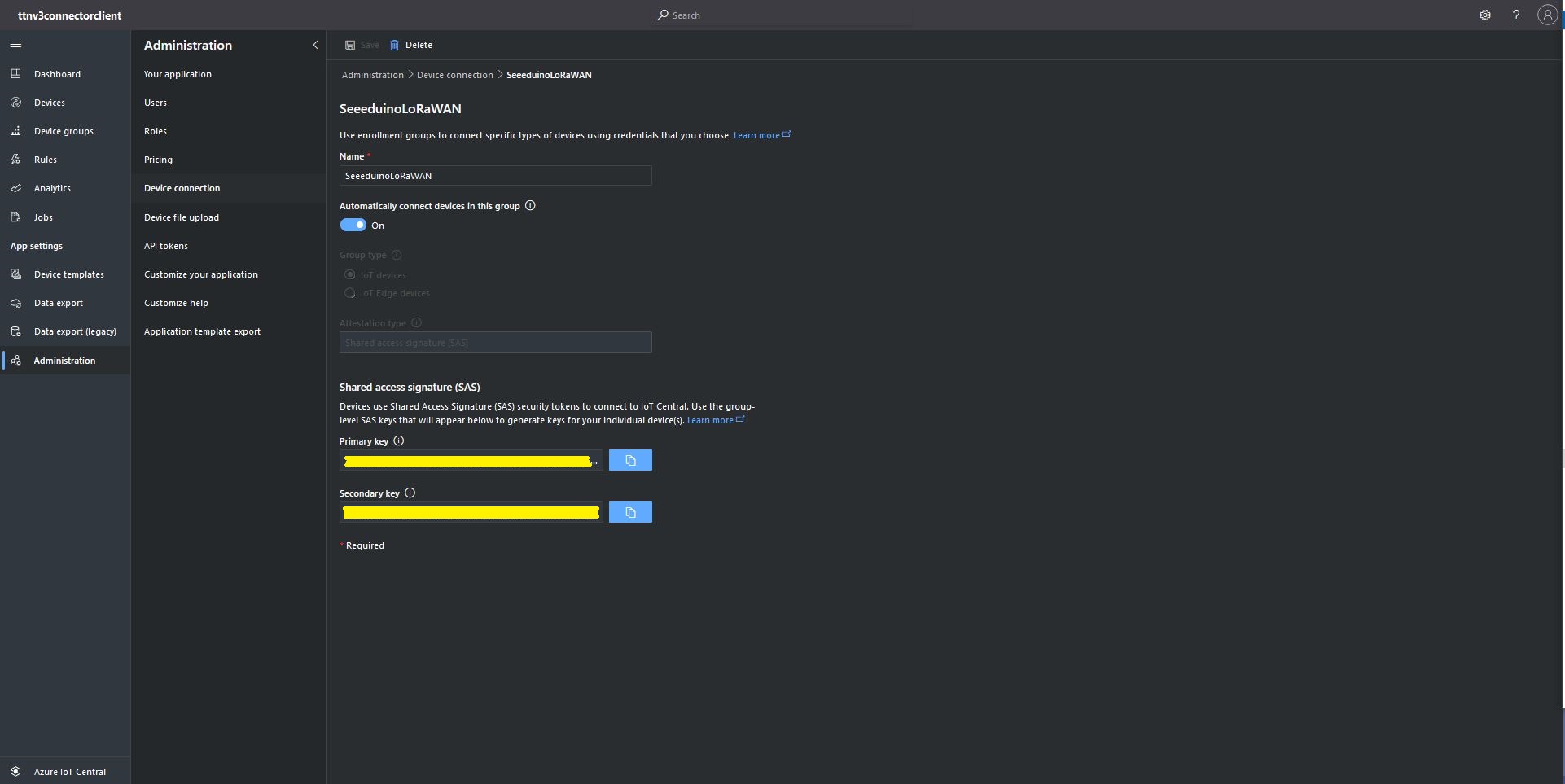
Azure IoT Central Enrollment Group configuration

Then I created an Azure IoT Central template for the seeeduino LoRAWAN devices which are running software (developed with the Arduino tooling) that read values from a Grove – Temperature&Humidity sensor. The naming of telemetry properties in specified by the Low Power Protocol(LPP) encoder/decoder (I check the decoded payload in TTI EndDevice “Live Data” tab).
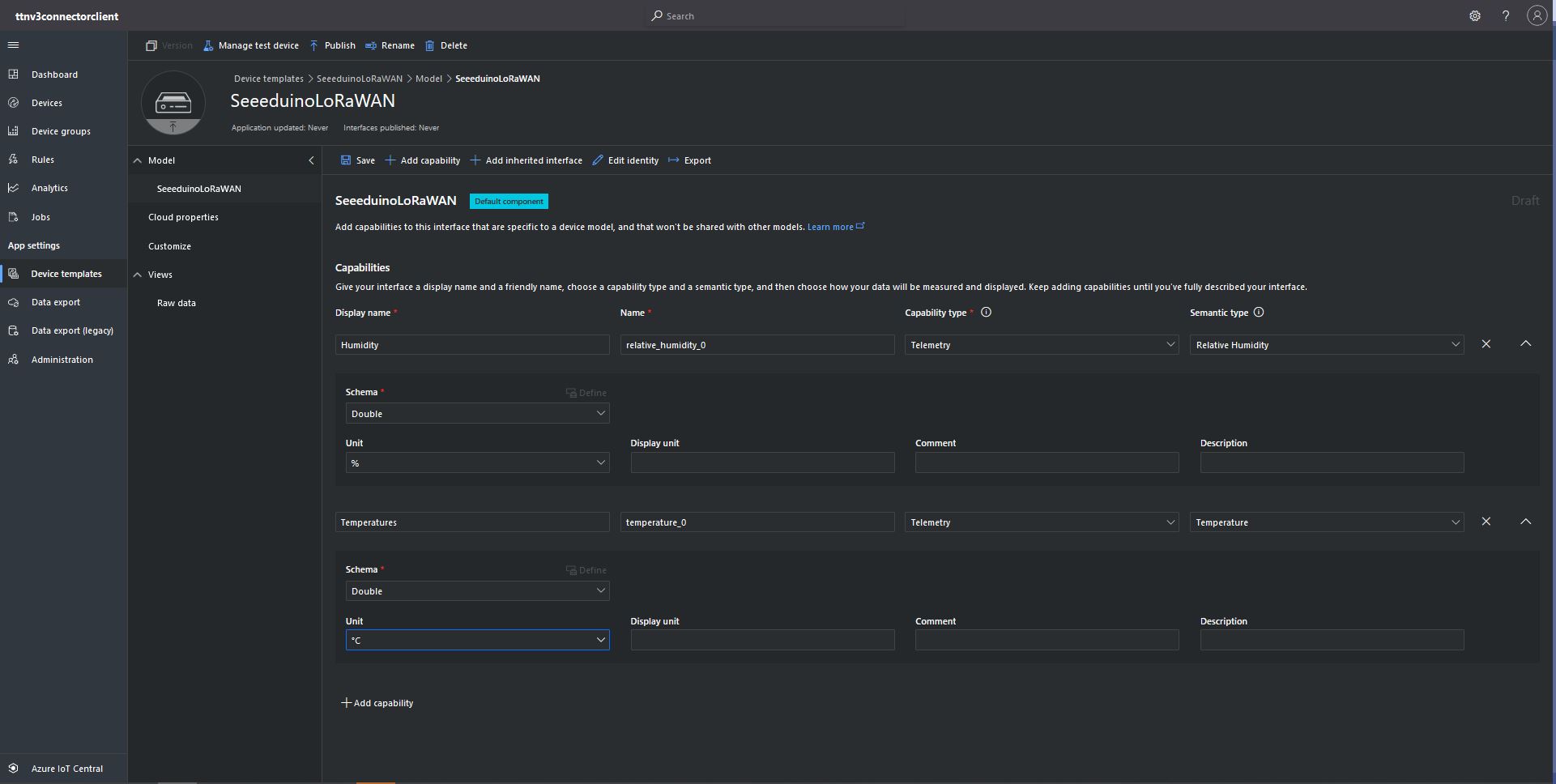
Configuring Seeeduino LoRaWAN device template

Then I mapped the Azure IoT Central Device Group to my Azure IoT Central Enrollment Group

Associating Device Group with Group Enrollment configuration

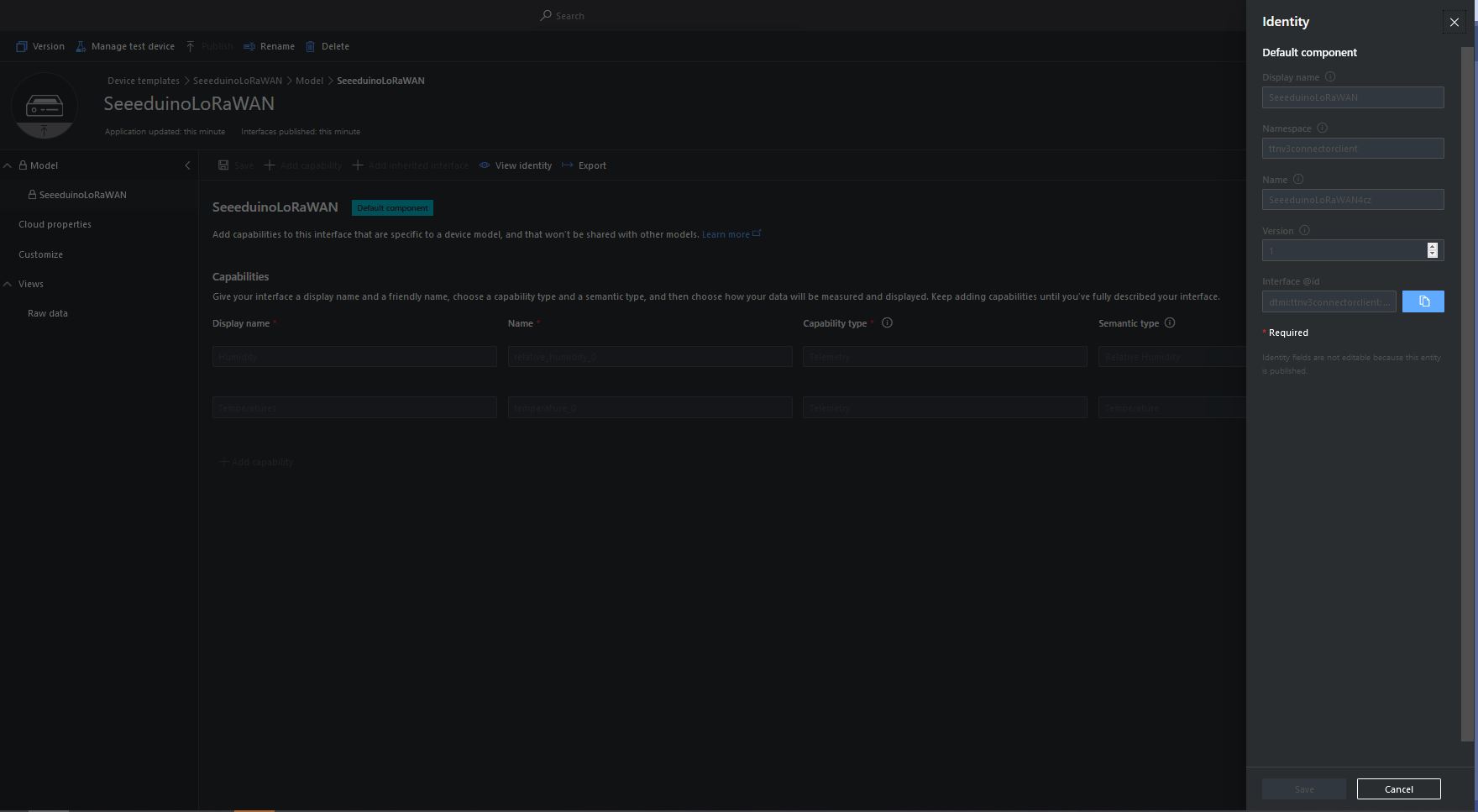
The Device Template @Id can be configured as the “default” template for all the devices in a TTI application in the app.settings.json file.
{
...
   "ProgramSettings": {
      "Applications": {
...
      "seeeduinolorawan": {
        "AzureSettings": {
           "DeviceProvisioningServiceSettings": {
              "IdScope": "...",
              "GroupEnrollmentKey": "..."
            }
         },
         "DTDLModelId": "dtmi:ttnv3connectorclient:SeeeduinoLoRaWAN4cz;1",
         "MQTTAccessKey": "...",
         "DeviceIntegrationDefault": true,
         "DevicePageSize": 10
      }
   }.
...

The Device Template @Id can also be set using a dtdlmodelid attribute in a TTI end device settings so devices can be individually configured.
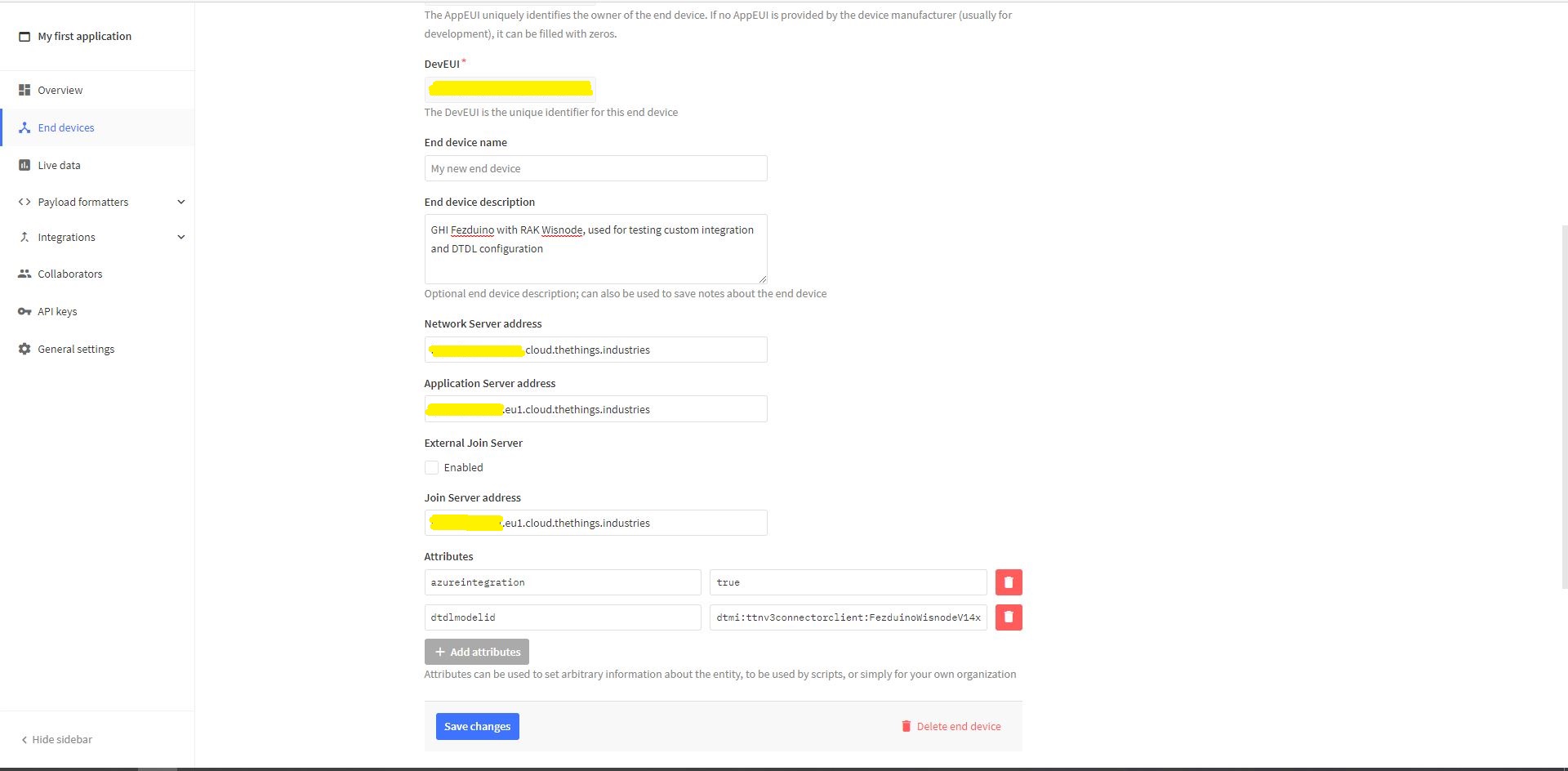
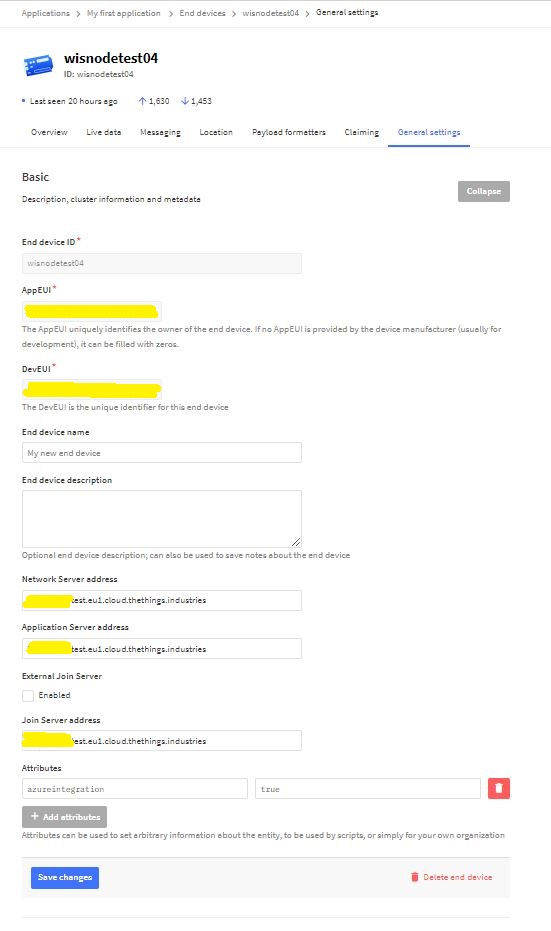
TTI Application EndDevice dtdlmodelid attribute usage

At startup the TTI Gateway enumerates through the devices in each application configured in the app.settings.json. The Azure Device Provisioning Service(DPS) is used to retrieve each device’s connection string and configure it in Azure IoT Central if required.
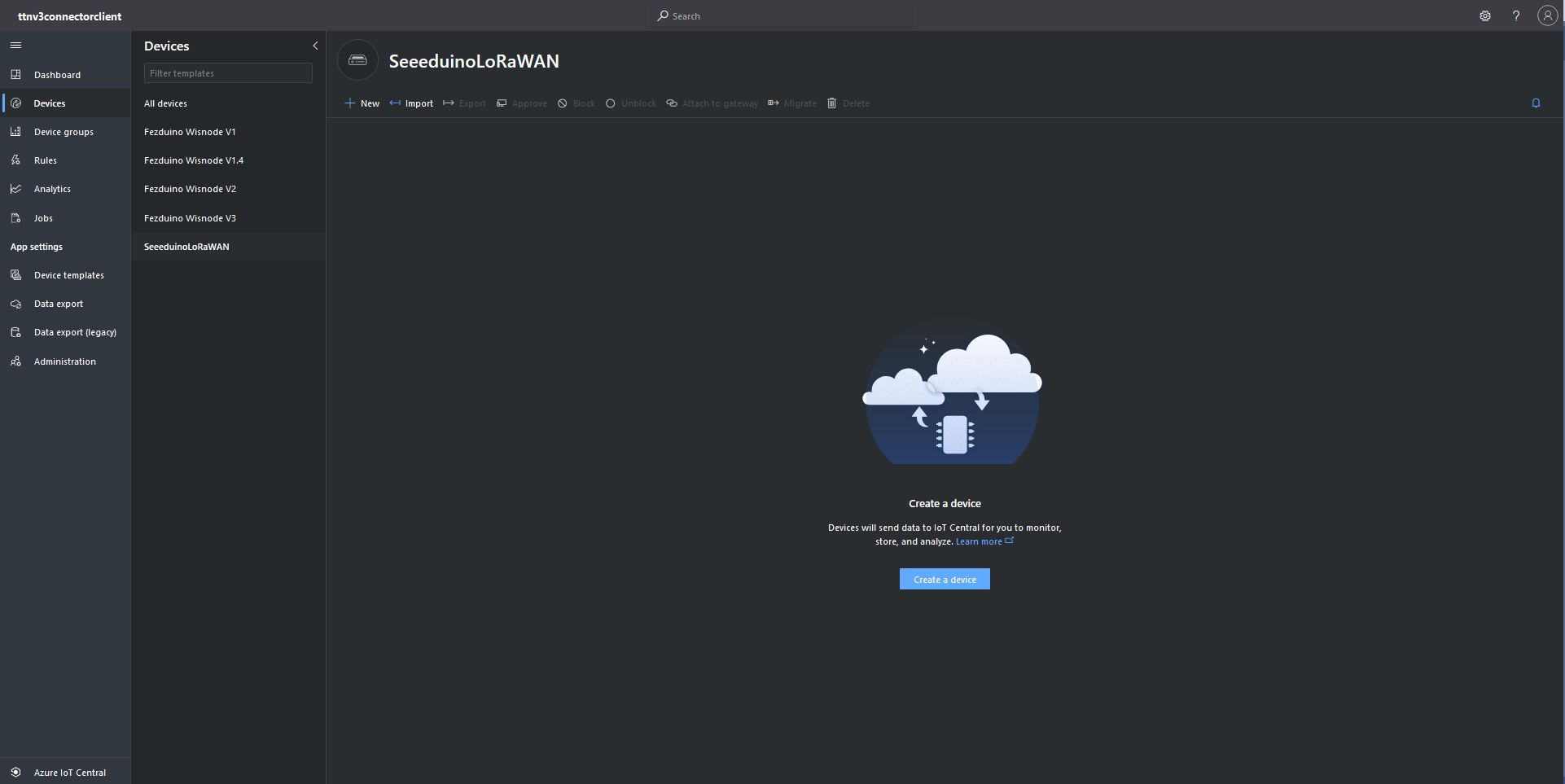
Azure IoT Central Device Group with no provisioned Devices
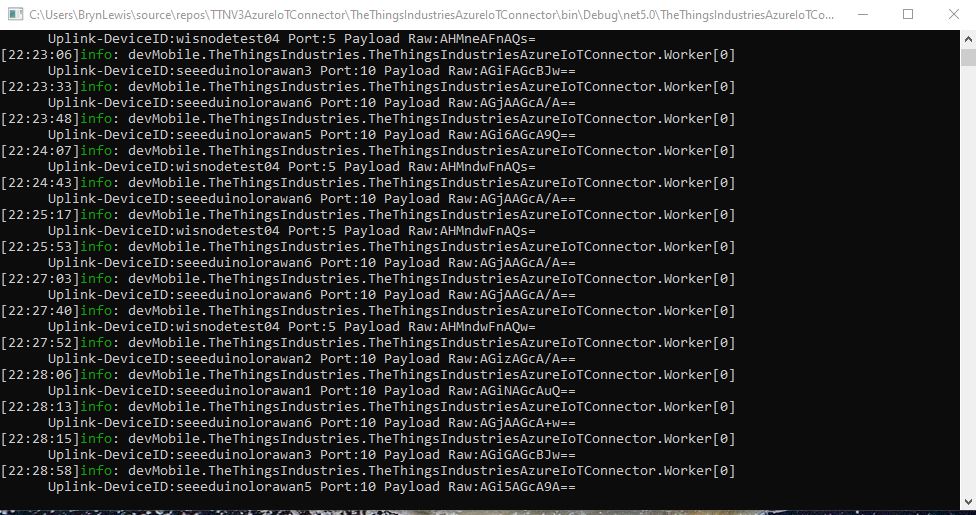
TTI Connector application connecting and provisioning EndDevices
Azure IoT Central devices mapped to an Azure IoT Central Template via the modelID

The ProvisioningRegistrationAdditionalData optional parameter of the DPS RegisterAsync method has a JSON property which is used to the specify the device ModelID.

using (var transport = new ProvisioningTransportHandlerAmqp(TransportFallbackType.TcpOnly))
{
	ProvisioningDeviceClient provClient = ProvisioningDeviceClient.Create( 
		Constants.AzureDpsGlobalDeviceEndpoint,
		deviceProvisiongServiceSettings.IdScope,
		securityProvider,
		transport);

	DeviceRegistrationResult result;

	if (!string.IsNullOrEmpty(modelId))
	{
		ProvisioningRegistrationAdditionalData provisioningRegistrationAdditionalData = new ProvisioningRegistrationAdditionalData()
		{
			JsonData = $"{{\"modelId\": \"{modelId}\"}}"
		};

		result = await provClient.RegisterAsync(provisioningRegistrationAdditionalData, stoppingToken);
	}
	else
    {
		result = await provClient.RegisterAsync(stoppingToken);
	}

	if (result.Status != ProvisioningRegistrationStatusType.Assigned)
	{
		_logger.LogError("Config-DeviceID:{0} Status:{1} RegisterAsync failed ", deviceId, result.Status);

		return false;
	}

	IAuthenticationMethod authentication = new DeviceAuthenticationWithRegistrySymmetricKey(result.DeviceId, (securityProvider as SecurityProviderSymmetricKey).GetPrimaryKey());

	deviceClient = DeviceClient.Create(result.AssignedHub, authentication, transportSettings);
}

My implementation was “inspired” by TemperatureController project in the PnP Device Samples.
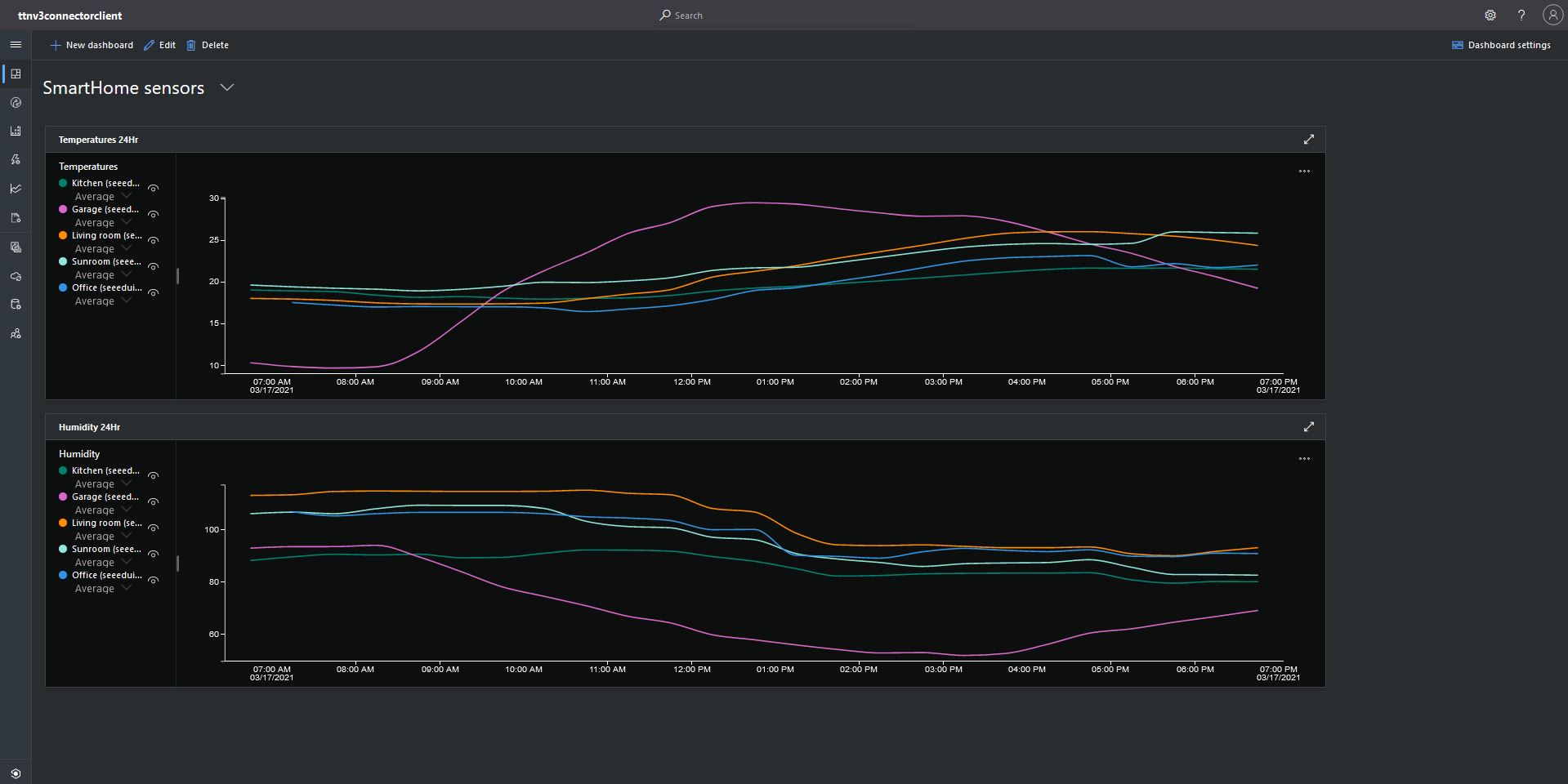
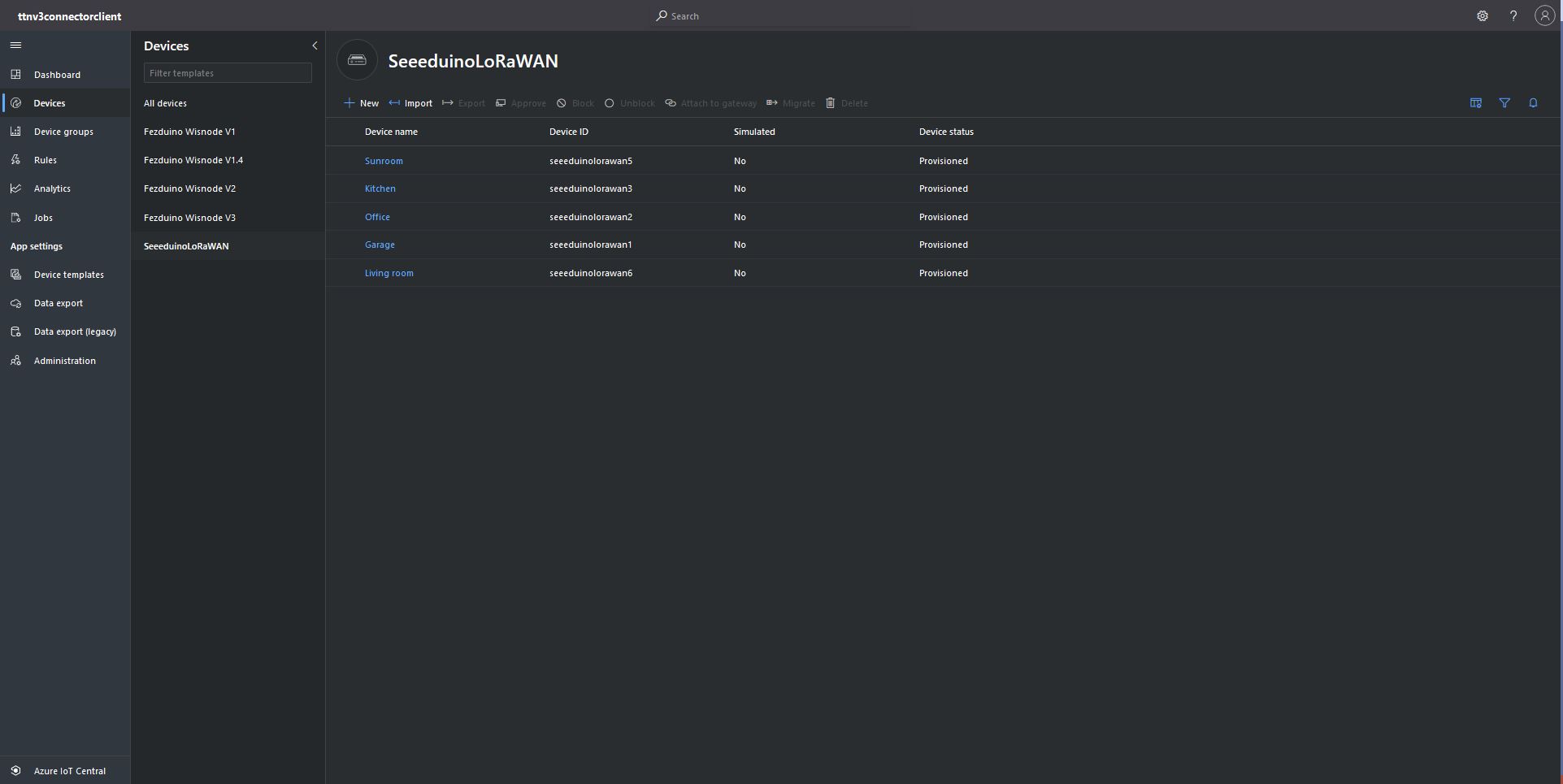
Azure IoT Central Dashboard with Seeeduino LoRaWAN devices around my house that were “automagically” provisioned

I need to do some testing to confirm my code works reliably with both DPS and user provided connection strings. The RegisterAsync call is currently taking about four seconds which could be an issue for TTI applications with many devices.
TTI V3 Gateway Azure IoT Hub Support

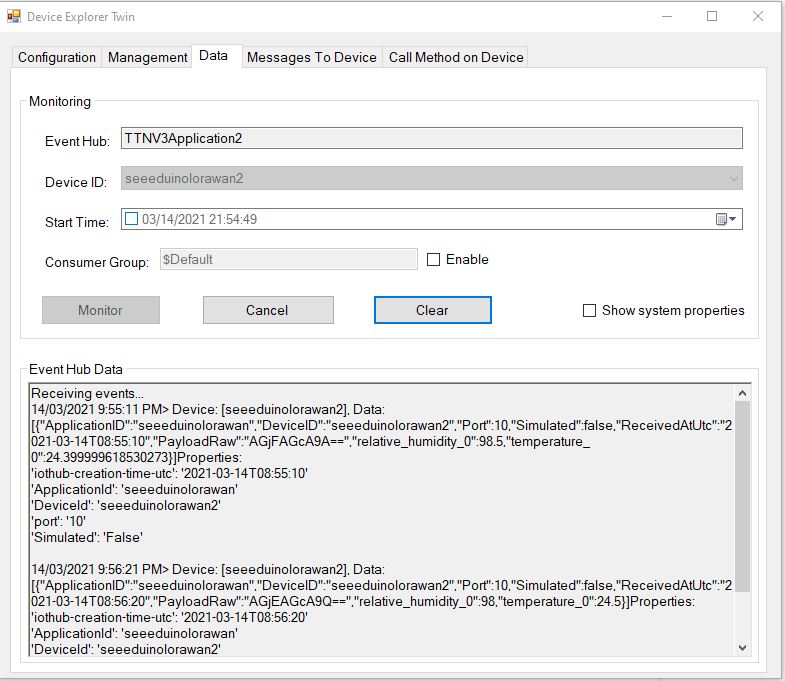
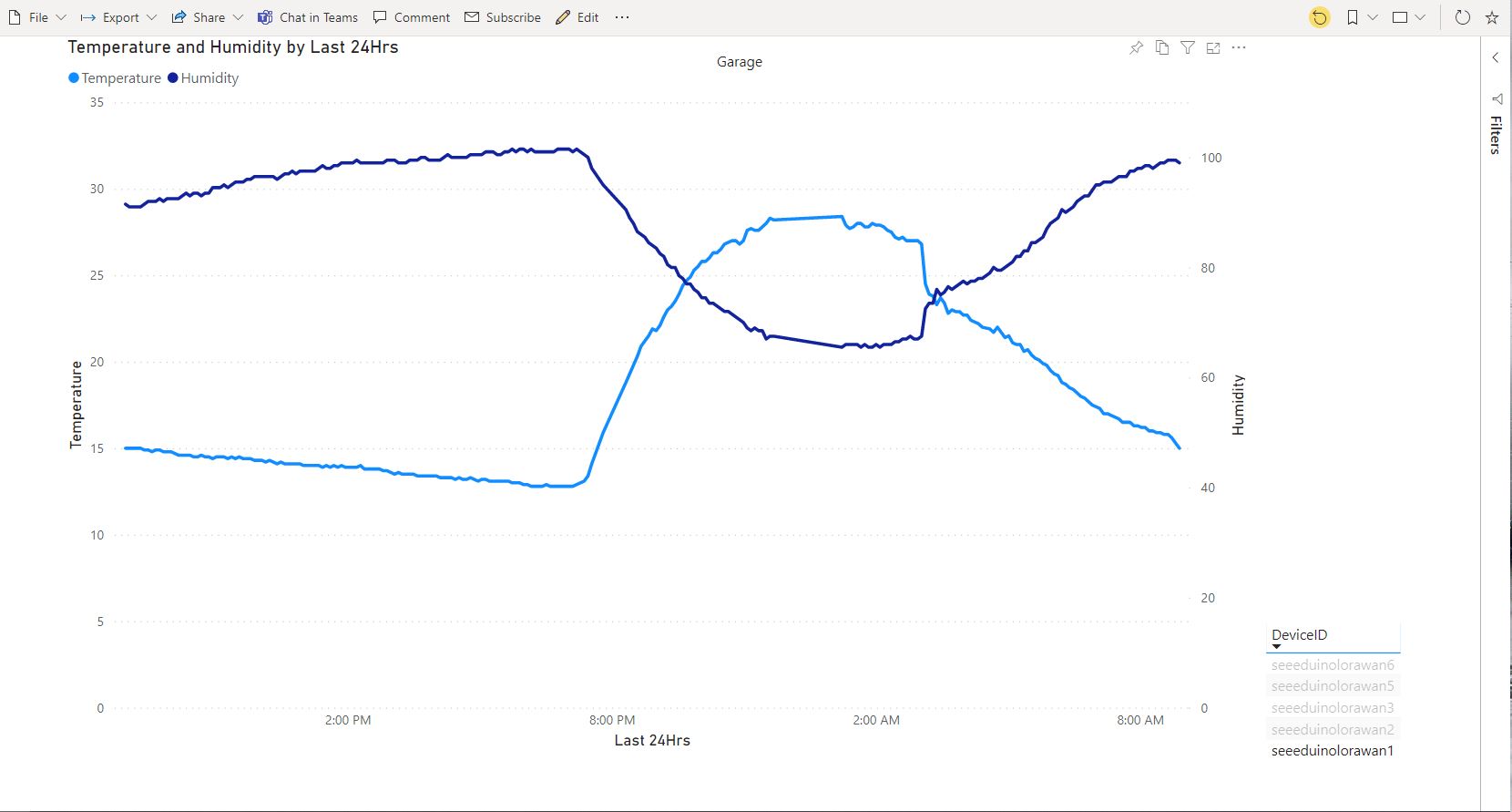
After a couple of weeks work my The Things Industries(TTI) V3 gateway is in beta testing. For this blog post I have configured five Seeeduino LoRaWAN devices. My sensor nodes connect to an Azure IoT Hub with a Shared Access Signature(SAS) device policy connection string. I’m using Device Twin Explorer to display Telemetry from and send messages to the sensor nodes. I have also configured Azure Stream Analytics and PowerBI to graph telemetry from the sensor nodes.
Device Twin Explorer displaying telemetry from one of the Seeeduino devices

My integration uses only queued messages as often they won’t be delivered to the sensor node immediately, especially if the sensor node only sends an uplink message every 30 minutes/hour/day.
The confirmed flag should be used with care as the Azure IoT Hub messages may expire before a delivery Ack/Nack/Failed is received from the TTI.

PowerBI graph of temperature and humidity in my garage over 24 hours

To send a downlink message, TTI needs a LoRaWAN port number (plus optional queue, confirmed and priority values) which is specified in the Azure IoT Hub message custom properties.

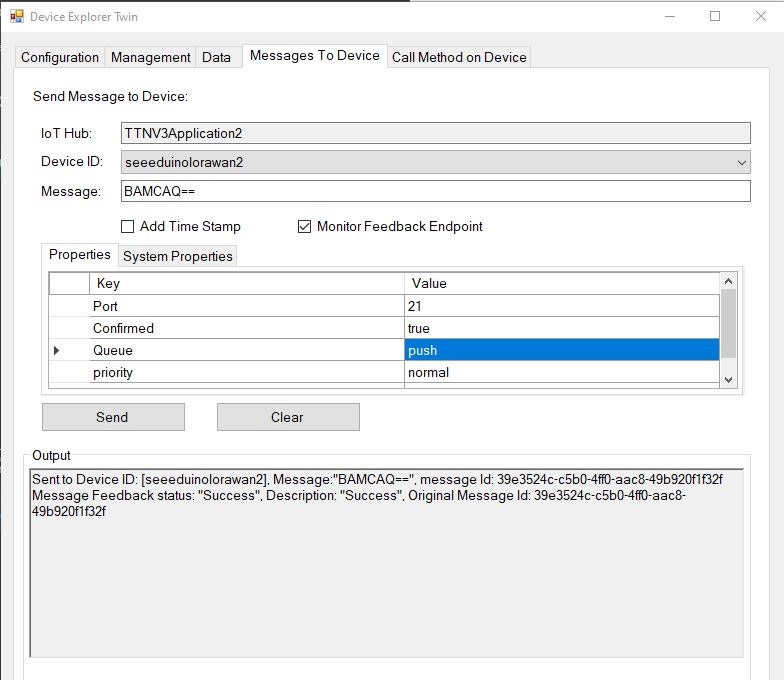
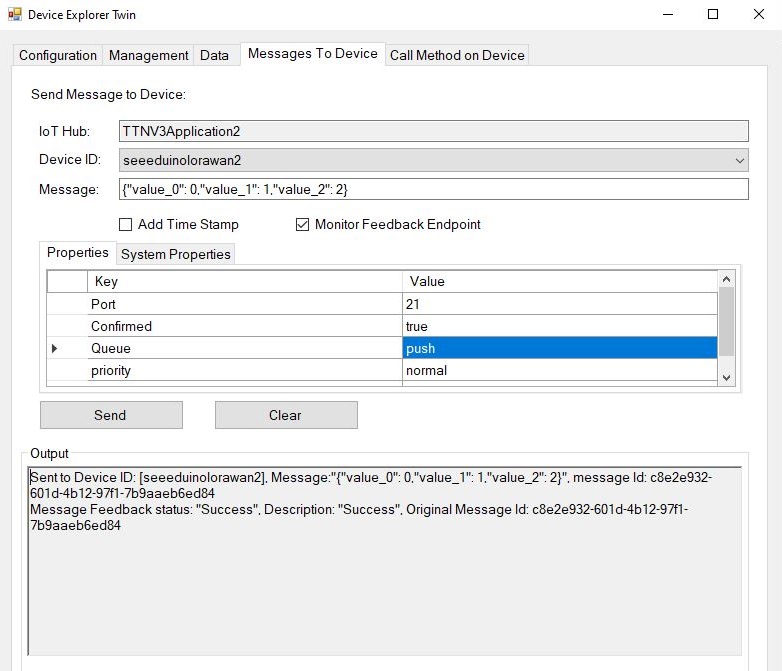
Device explorer displaying a raw payload message which has been confirmed delivered
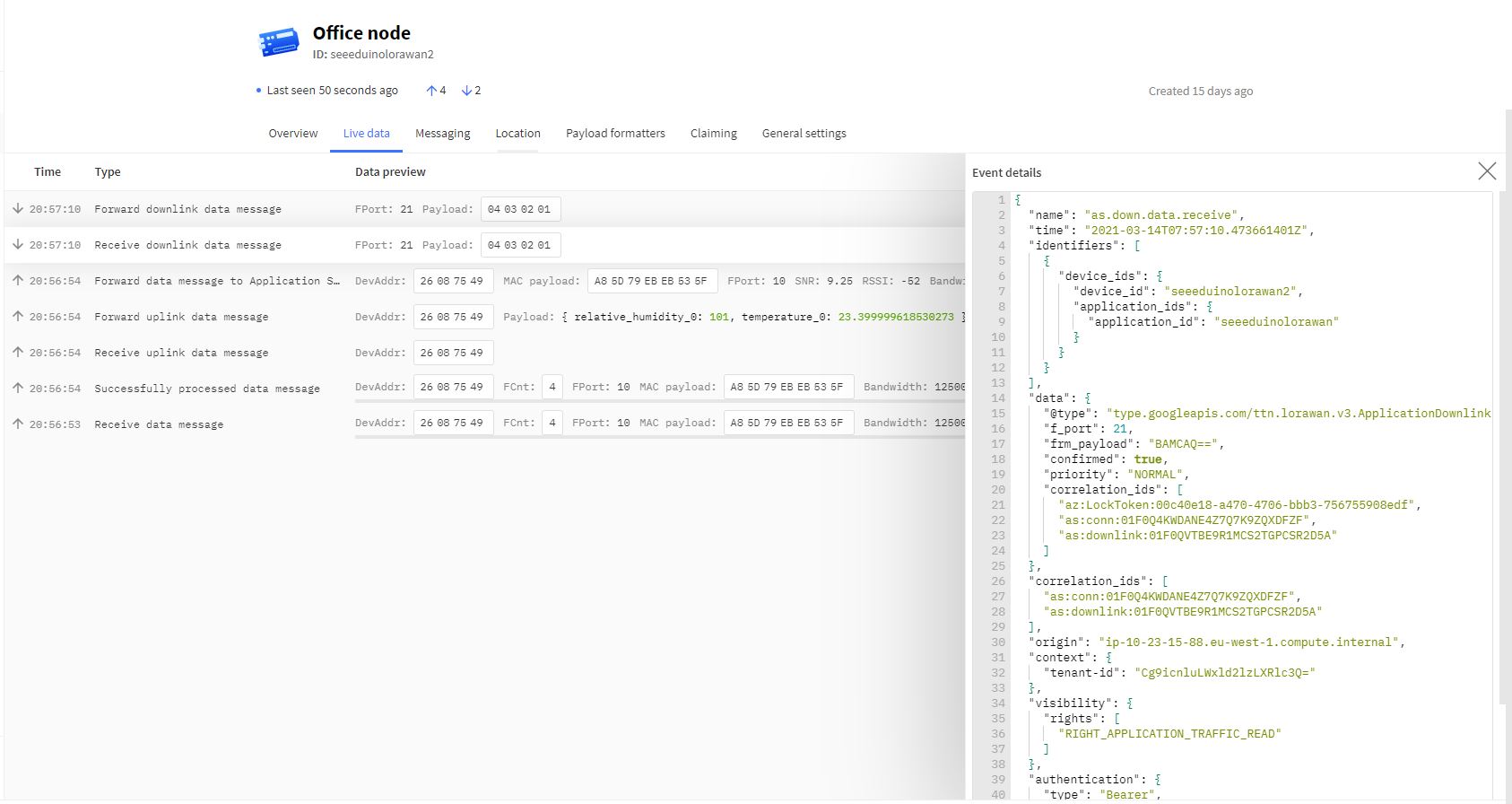
TTI device live data tab displaying raw payload in downlink message information tab
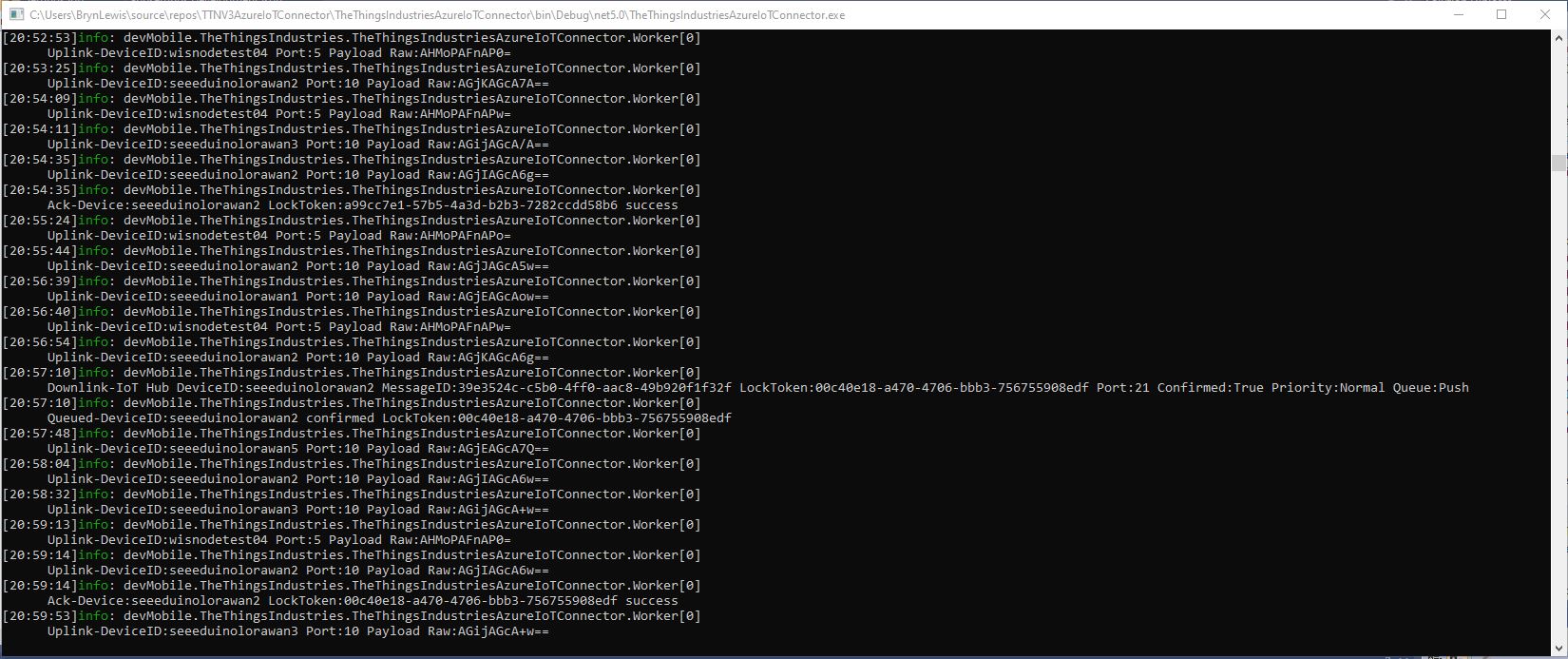
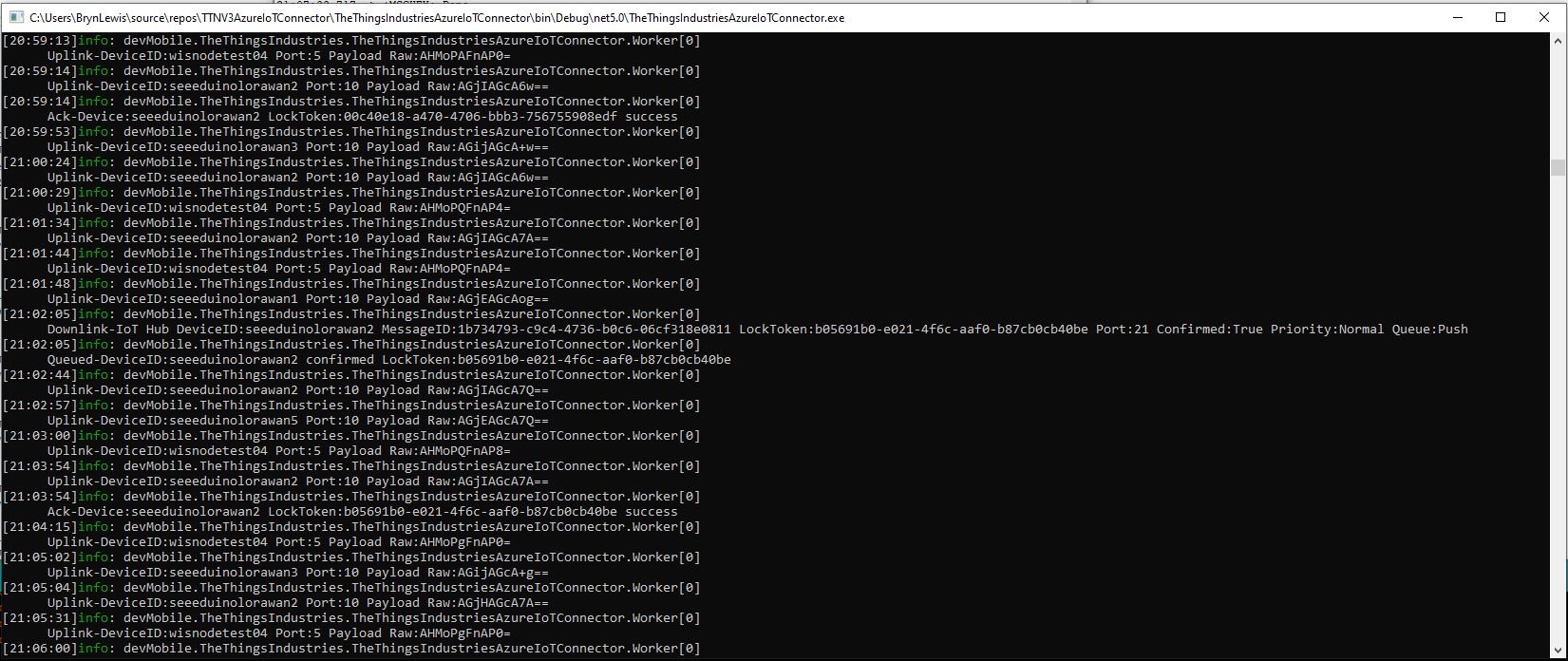
Azure IoT Connector console application sending raw payload to sensor node with confirmation ack
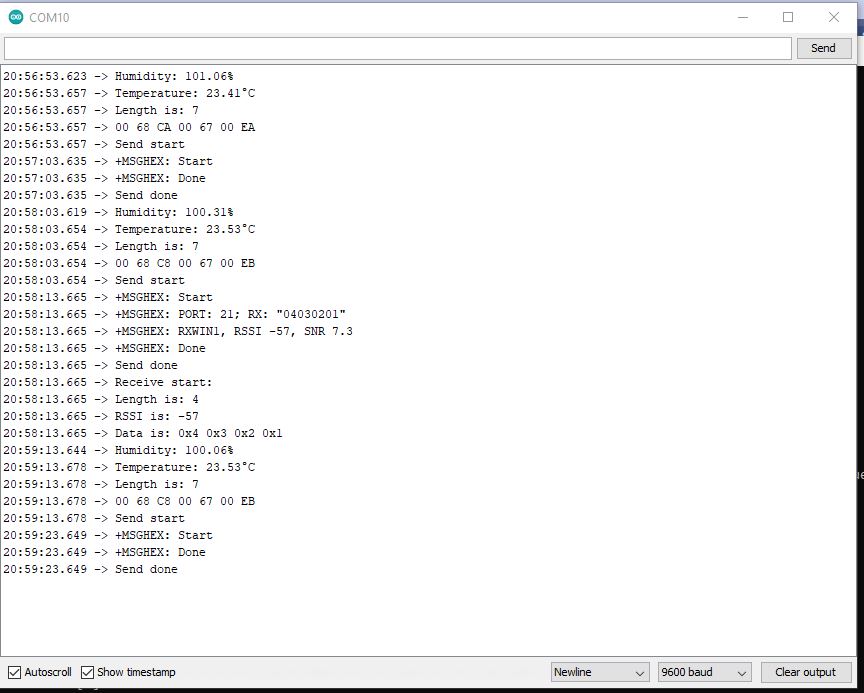
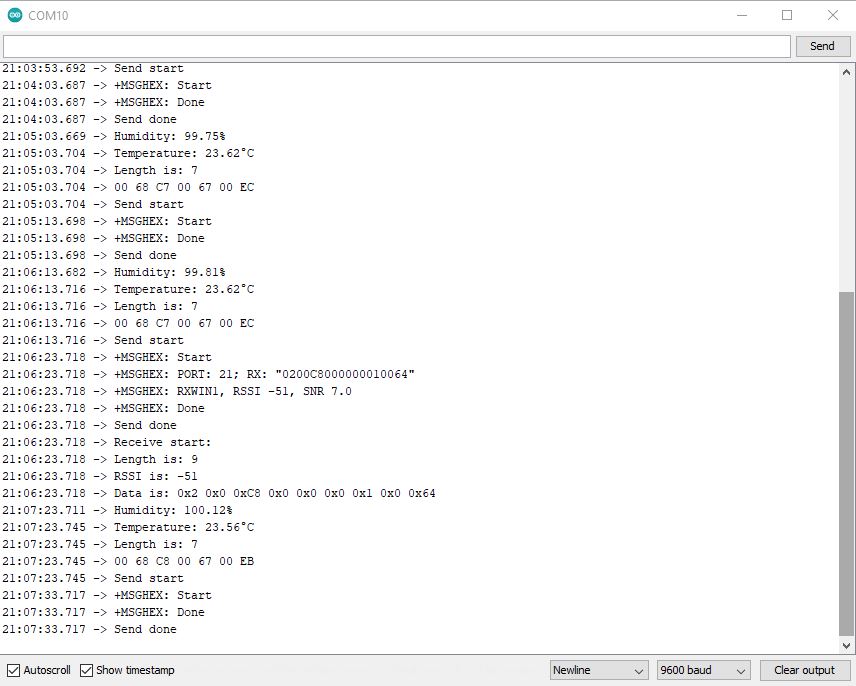
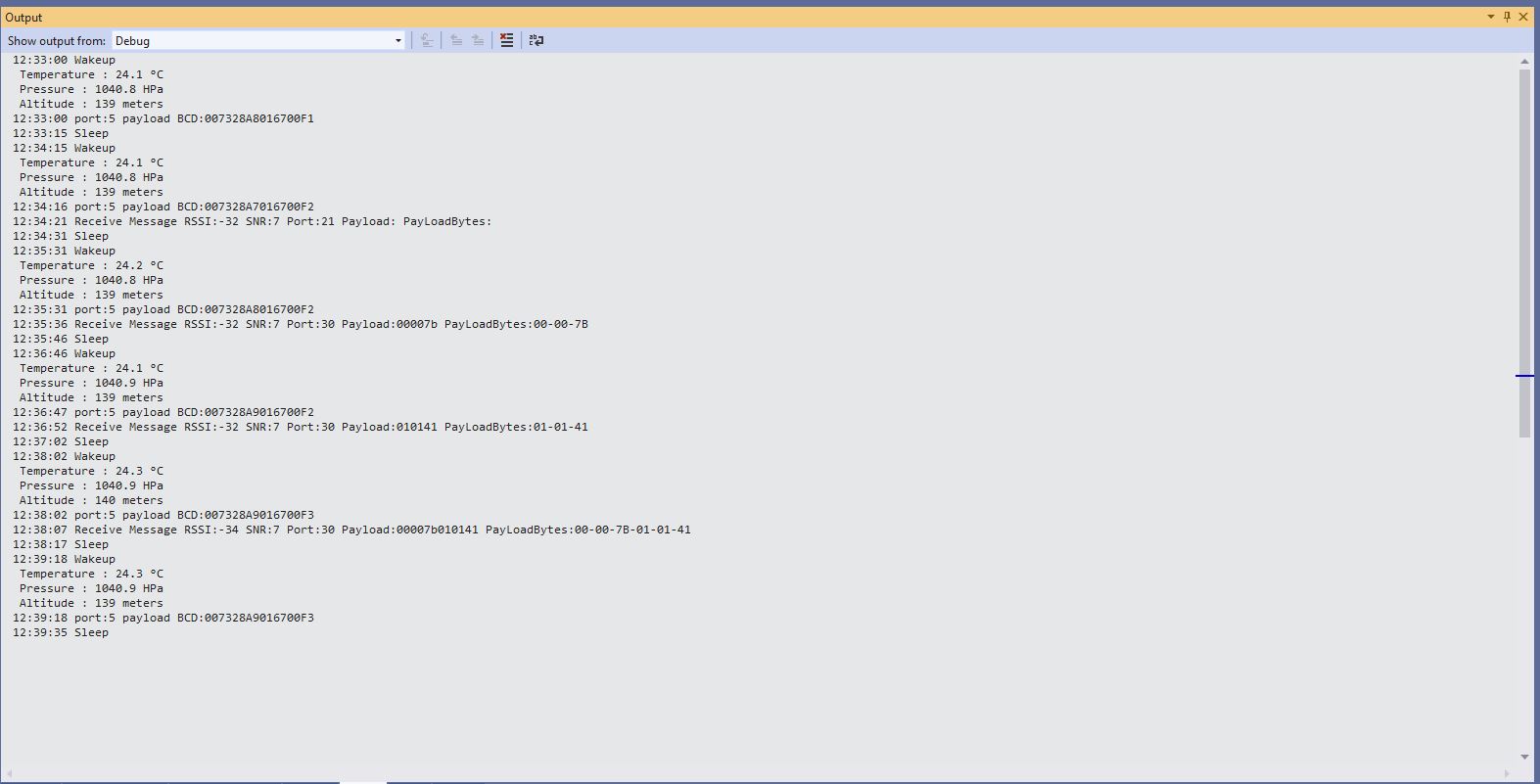
Arduino monitor displaying received raw payload from TTI

If the Azure IoT Hub message payload is valid JSON it is copied into the payload decoded downlink message property. and if it is not valid JSON it assumed to be a Base64 encoded value and copied into the payload raw downlink message property.

try
{
	// Split over multiple lines in an attempt to improve readability. A valid JSON string should start/end with {/} for an object or [/] for an array
	if (!(payloadText.StartsWith("{") && payloadText.EndsWith("}"))
										&&
		(!(payloadText.StartsWith("[") && payloadText.EndsWith("]"))))
	{
		throw new JsonReaderException();
	}

	downlink.PayloadDecoded = JToken.Parse(payloadText);
}
catch (JsonReaderException)
{
	downlink.PayloadRaw = payloadText;
}

Like the Azure IoT Central JSON validation I had to add a check that the string started with a “{” and finished with a “}” (a JSON object) or started with a “[” and finished with a “]” (a JSON array) as part of the validation process.

Device explorer displaying a JSON payload message which has been confirmed delivered

I normally wouldn’t use exceptions for flow control but I can’t see a better way of doing this.

TTI device live data tab displaying JSON payload in downlink message information tab
Azure IoT Connector console application sending JSON payload to sensor node with confirmation ack
Arduino monitor displaying received JSON payload from TTI

The build in TTI decoder only supports downlink decoded payloads with property names “value_0” through “value_x” custom encoders may support other property names.

TTI V3 Gateway Azure IoT Central Support

After a couple of weeks work my The Things Industries(TTI) V3 gateway is in beta testing. For this blog post the client is a GHI Electronics Fezduino with a RAK811 LPWAN Evaluation Board(EVB). My test device was configured in Azure IoT Central by the Device Provisioning Service(DPS) and I then manually migrated the device to each of the four templates used in this post.

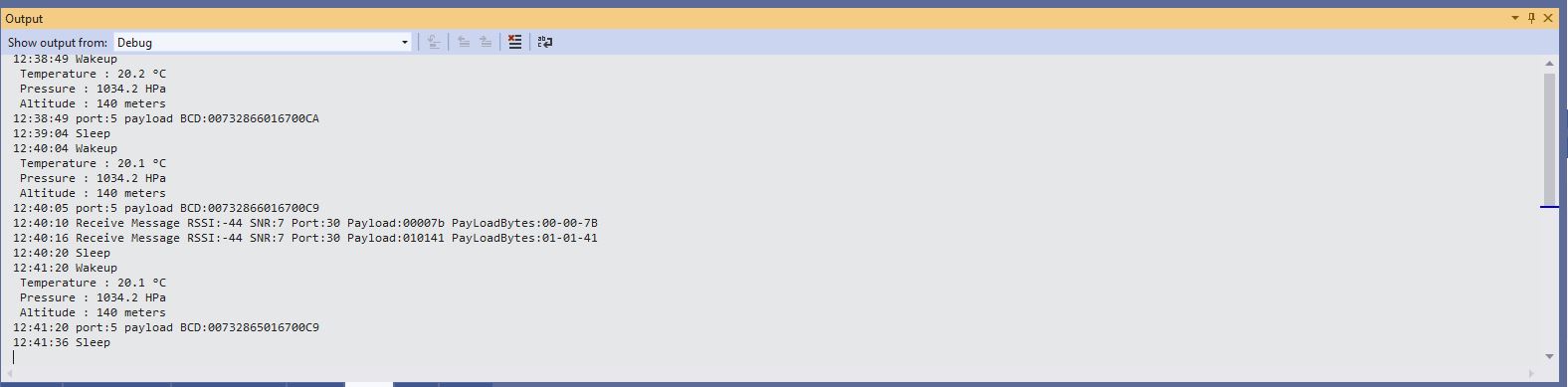
The first step was to display the temperature and barometric pressure values from the Seeedstudio Grove BMP180 attached to my sensor node.

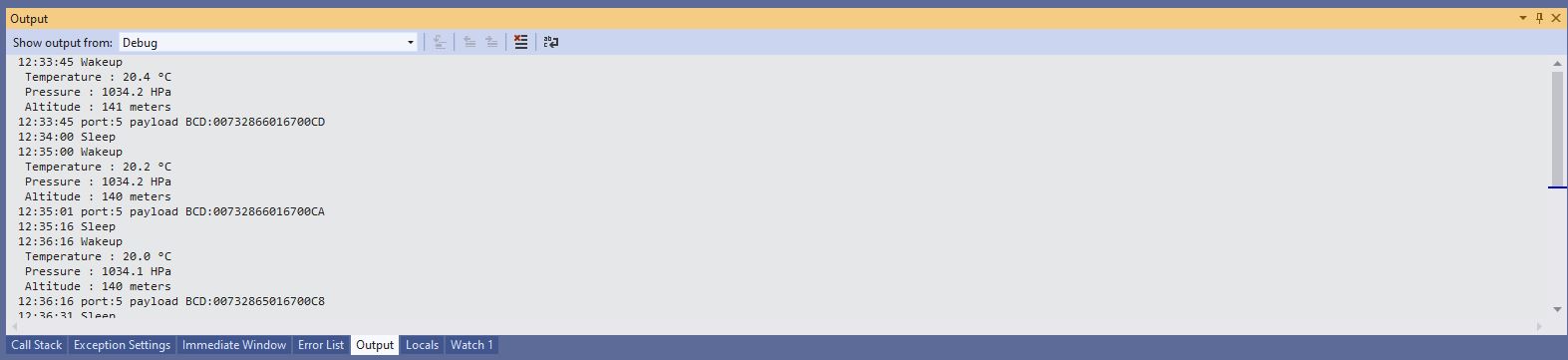
Sensor node displaying temperature and barometric pressure values
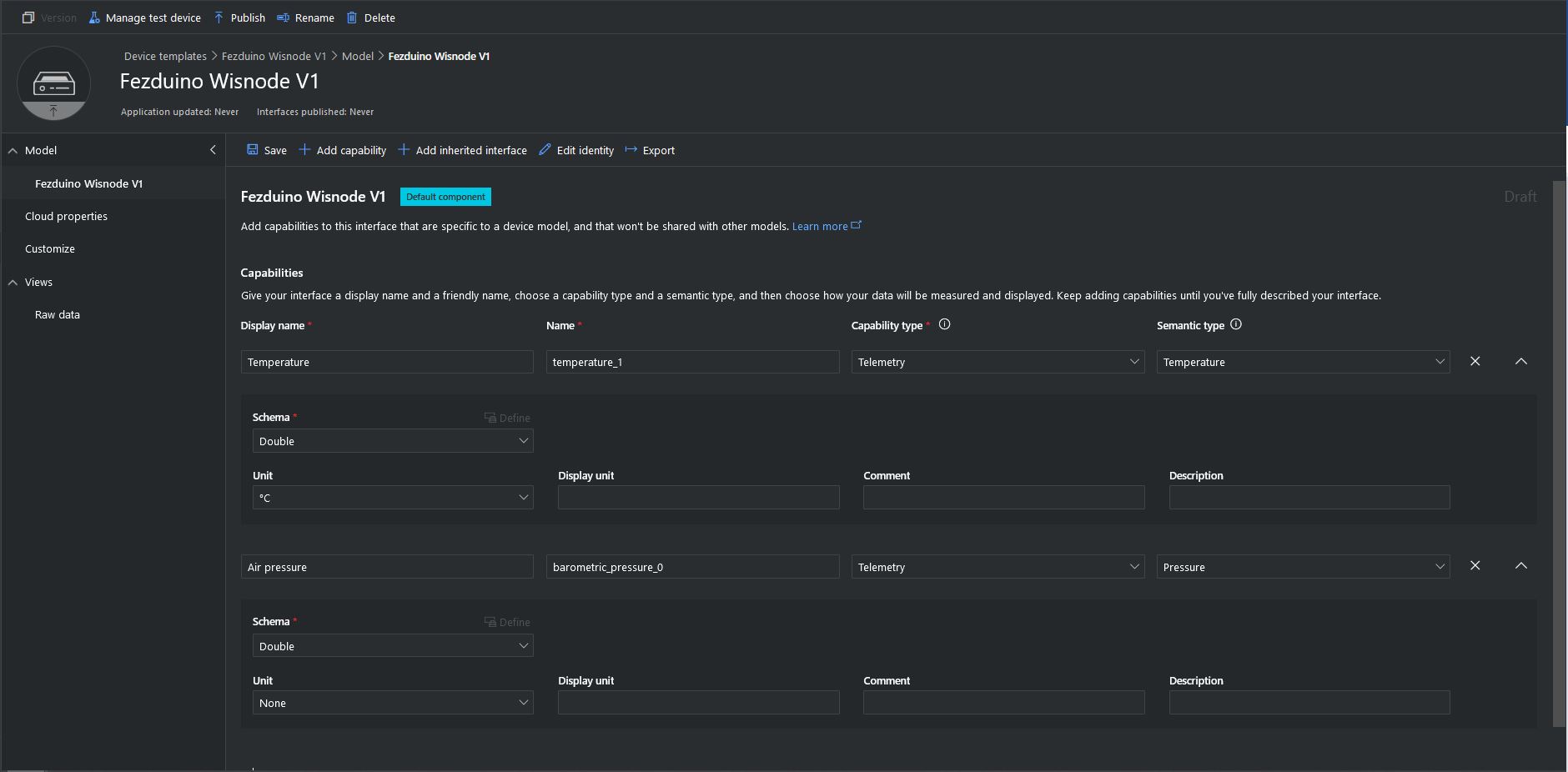
Azure IoT Central temperature and barometric pressure telemetry configuration
Azure IoT Central Telemetry Dashboard displaying temperature and barometric pressure values

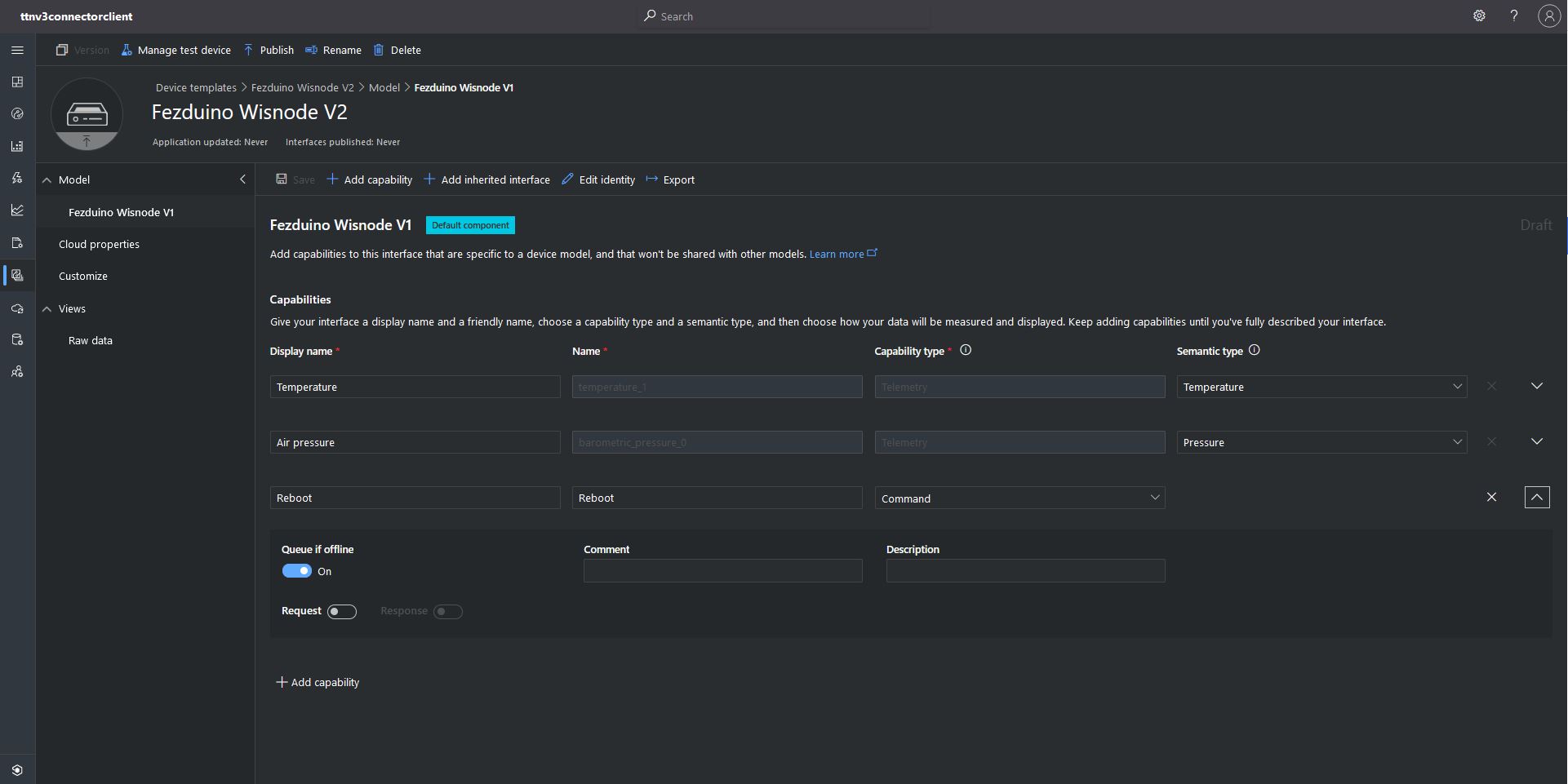
The next step was to configure a simple Azure IoT Central command to send to the sensor node. This was a queued request with no payload. An example of this sort of command would be a request for a sensor node to reboot or turn on an actuator.

My integration uses only offline queued commands as often messages won’t be delivered to the sensor node immediately, especially if the sensor node only sends a message every half hour/hour/day. The confirmed flag should be used with care as the Azure IoT Hub messages may expire before a delivery Ack/Nack/Failed is received from the TTI and it consumes downlink bandwidth.

if (message.Properties.ContainsKey("method-name"))
{
}

I determine an Azure IoT Hub message is an Azure IoT Central command by the presence of the “method-name” property. If the Azure IoT Central command does not have a request payload the Azure IoT Hub message payload will contain a single “@” character so the Azure IoT Connector sends a TTI downlink message with an empty raw payload via the TTI Data API(MQTT).

if (payloadText.CompareTo("@") != 0)
{
   .
}
else
{
   downlink.PayloadRaw = "";
}
Azure IoT Central command with out a request payload value command configuration

To send a downlink message, TTI needs a LoRaWAN port number (plus optional queue, confirmed and priority values) which can’t be provided via the Azure IoT Central command setup so these values are configured in the app.settings file.

Each TTI application has zero or more Azure IoT Central command configurations which supply the port, confirmed, priority and queue settings.

  "ProgramSettings": {
    "Applications": {
      "application1": {
        "AzureSettings": {
          ...
          }
        },
        "MQTTAccessKey": "...",
        "DeviceIntegrationDefault": false,
        "MethodSettings": {
          "Reboot": {
            "Port": 21,
            "Confirmed": true,
            "Priority": "normal",
            "Queue": "push"
          },
        }
      },
      "seeeduinolorawan": {
        "AzureSettings": {
        }
        "MQTTAccessKey": "...",
        "DeviceIntegrationDefault": true,
        "DevicePageSize": 10
      }
    },
    "TheThingsIndustries": {
...
   }
}
Azure IoT Central simple command dashboard
Azure IoT Central simple command initiation
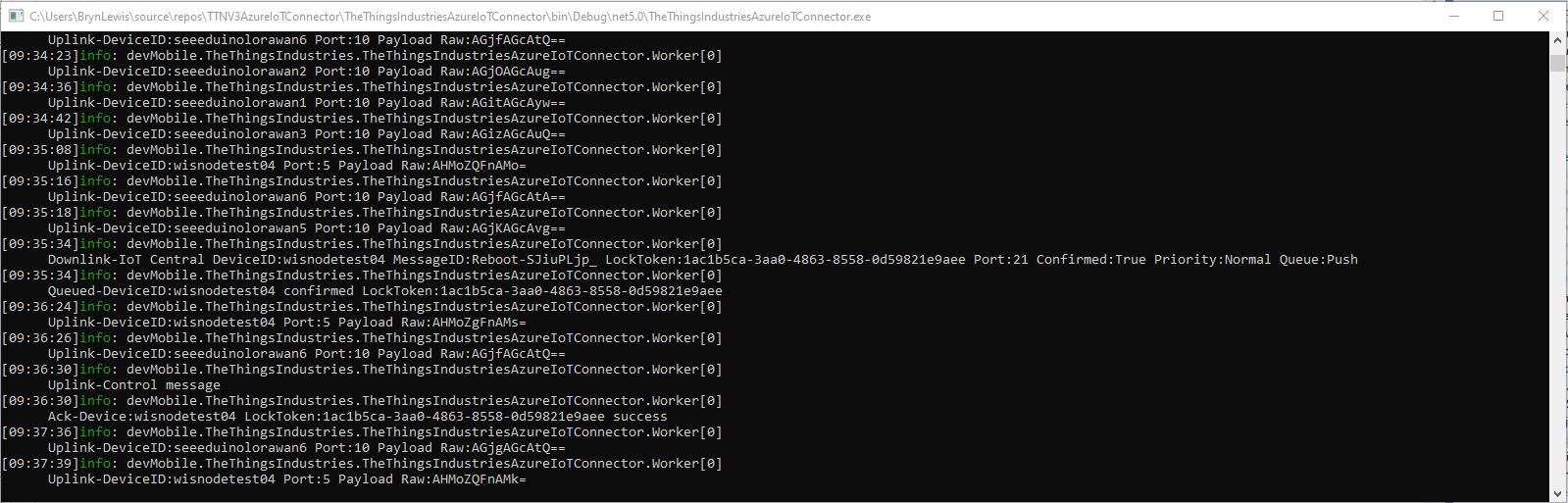
Azure IoT TTI connector application sending a simple command to my sensor node
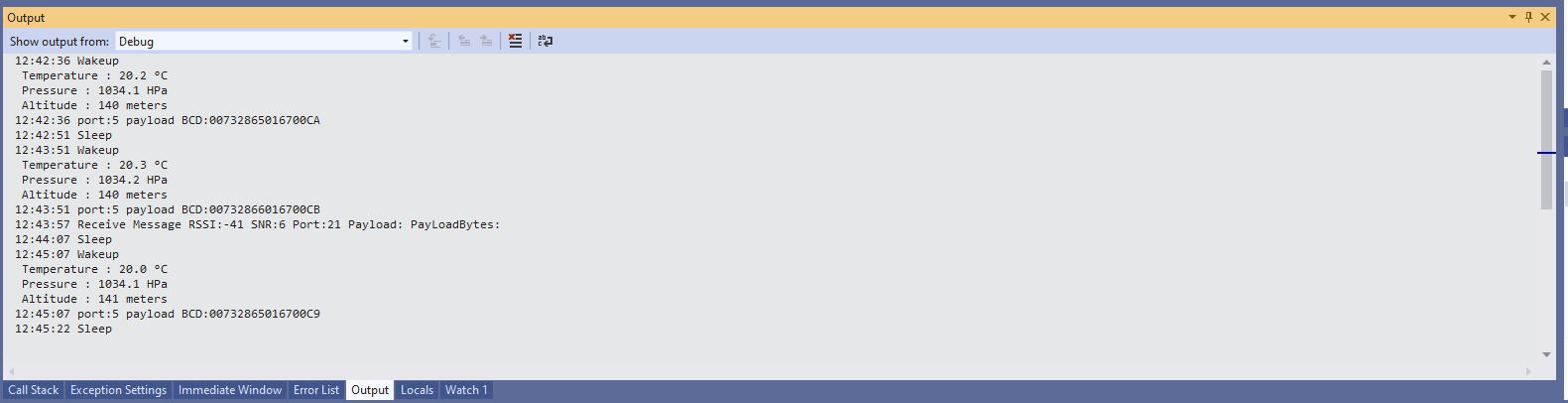
Sensor node display simple command information. The note message payload is empty

The next step was to configure a more complex Azure IoT Central command to send to the sensor node. This was a queued request with a single value payload. An example of this sort of command could be setting the speed of a fan or the maximum temperature of a freezer for an out of band (OOB) notification to be sent.

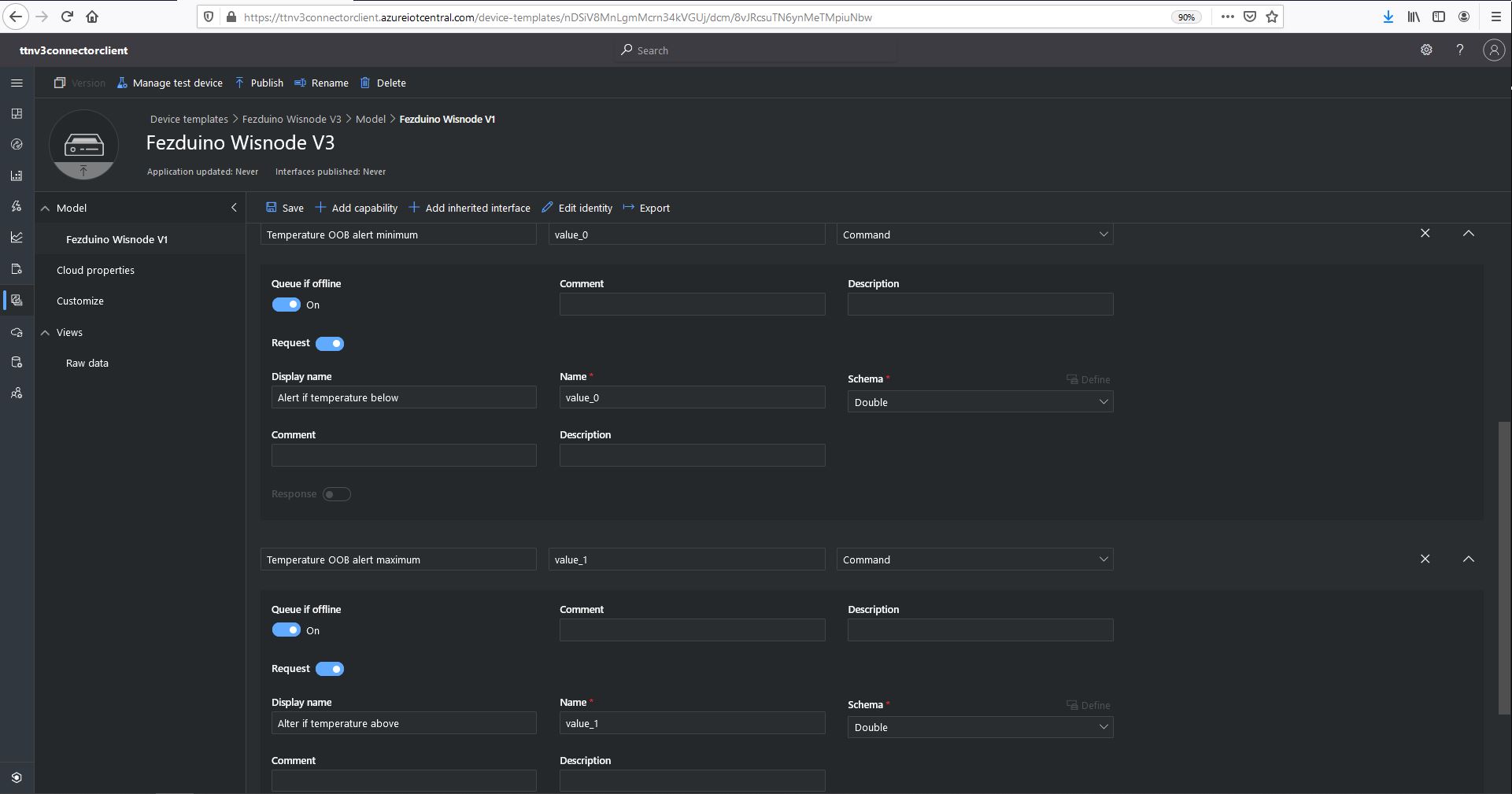
Azure IoT Central single value command configuration
  "ProgramSettings": {
    "Applications": {
      "application1": {
        "AzureSettings": {
          ...
          }
        },
        "MQTTAccessKey": "...",
        "DeviceIntegrationDefault": false,
        "MethodSettings": {
          "Reboot": {
            "Port": 21,
            "Confirmed": true,
            "Priority": "normal",
            "Queue": "push"
          },
          "value_0": {
            "Port": 30,
            "Confirmed": true,
            "Priority": "normal",
            "Queue": "push"
          },
          "value_1": {
            "Port": 30,
            "Confirmed": true,
            "Priority": "normal",
            "Queue": "push"
          },
        }
      },
      "seeeduinolorawan": {
        "AzureSettings": {
        }
        "MQTTAccessKey": "...",
        "DeviceIntegrationDefault": true,
        "DevicePageSize": 10
      }
    },
    "TheThingsIndustries": {
...
   }
}

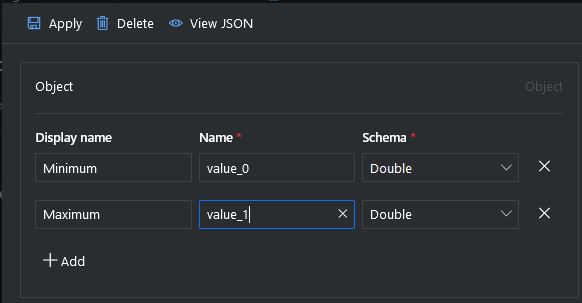
The value_0 settings are for the minimum temperature the value_1 settings are for the maximum temperature value.

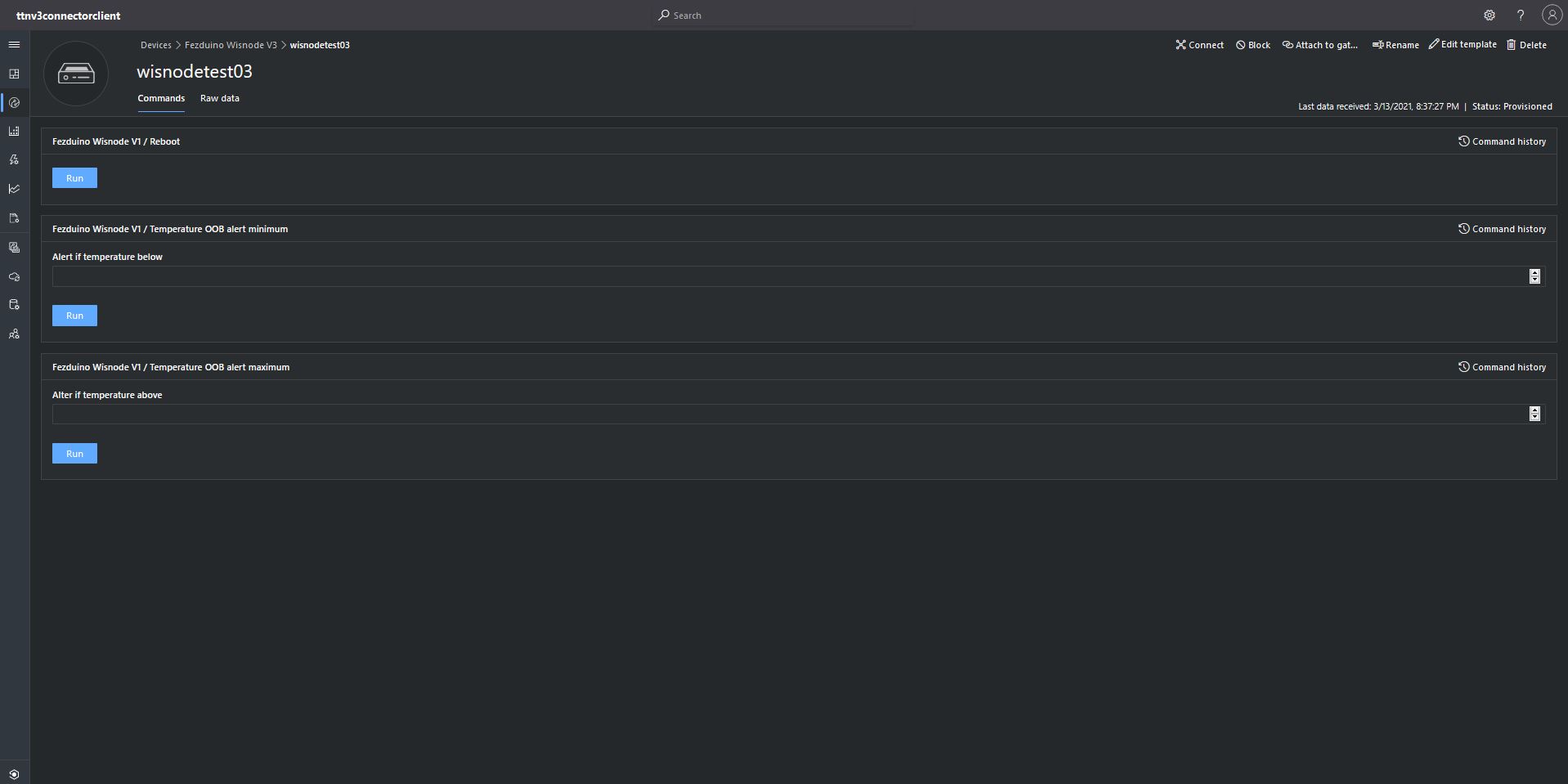
Azure IoT Central single value command initiation
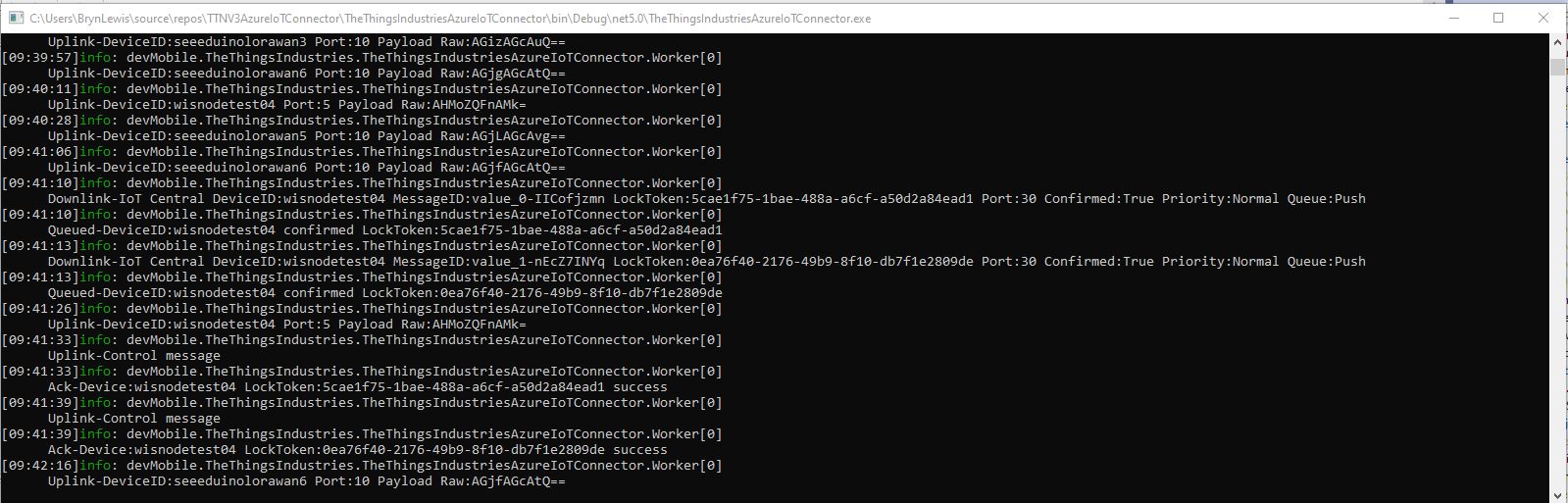
Azure IoT TTI connector application sending a single value command to my sensor node
Sensor node displaying single value command information. There are two downlink messages and each payload contains a single value

The single value command payload contains the textual representation of the value e.g. “true”/”false” or “1.23” which are also valid JSON. This initially caused issues as I was trying to splice a single value into the decoded payload.

I had to add a check that the string started with a “{” and finished with a “}” (a JSON object) or started with a “[” and finished with a “]” (a JSON array) as part of the validation process.

For a single value command the payload decoded has a single property with the method-name value as the name and the payload as the value. For a command with a JSON payload the message payload is copied into the PayloadDecoded.

I normally wouldn’t use exceptions for flow control but I can’t see a better way of doing this.

	try
	{
		// Split over multiple lines to improve readability
		if (!(payloadText.StartsWith("{") && payloadText.EndsWith("}"))
									&&
			(!(payloadText.StartsWith("[") && payloadText.EndsWith("]"))))
		{
			throw new JsonReaderException();
		}

		downlink.PayloadDecoded = JToken.Parse(payloadText);
	}
	catch (JsonReaderException)
	{
		try
		{
			JToken value = JToken.Parse(payloadText);

			downlink.PayloadDecoded = new JObject(new JProperty(methodName, value));
		}
		catch (JsonReaderException)
		{
			downlink.PayloadDecoded = new JObject(new JProperty(methodName, payloadText));
		}
	}

The final step was to configure an another Azure IoT Central command with a JSON payload to send to the sensor node. A “real-world” example of this sort of command would be setting the minimum and maximum temperatures of a freezer in a single downlink message.

Azure IoT Central JSON payload command setup
Azure IoT Central JSON payload command payload configuration
  "ProgramSettings": {
    "Applications": {
      "application1": {
        "AzureSettings": {
          ...
          }
        },
        "MQTTAccessKey": "...",
        "DeviceIntegrationDefault": false,
        "MethodSettings": {
          "Reboot": {
            "Port": 21,
            "Confirmed": true,
            "Priority": "normal",
            "Queue": "push"
          },
          "value_0": {
            "Port": 30,
            "Confirmed": true,
            "Priority": "normal",
            "Queue": "push"
          },
          "value_1": {
            "Port": 30,
            "Confirmed": true,
            "Priority": "normal",
            "Queue": "push"
          },
          "TemperatureOOBAlertMinimumAndMaximum": {
            "Port": 30,
            "Confirmed": true,
            "Priority": "normal",
            "Queue": "push"
          }
        }
      },
      "seeeduinolorawan": {
        "AzureSettings": {
        }
        "MQTTAccessKey": "...",
        "DeviceIntegrationDefault": true,
        "DevicePageSize": 10
      }
    },
    "TheThingsIndustries": {
...
   }
}
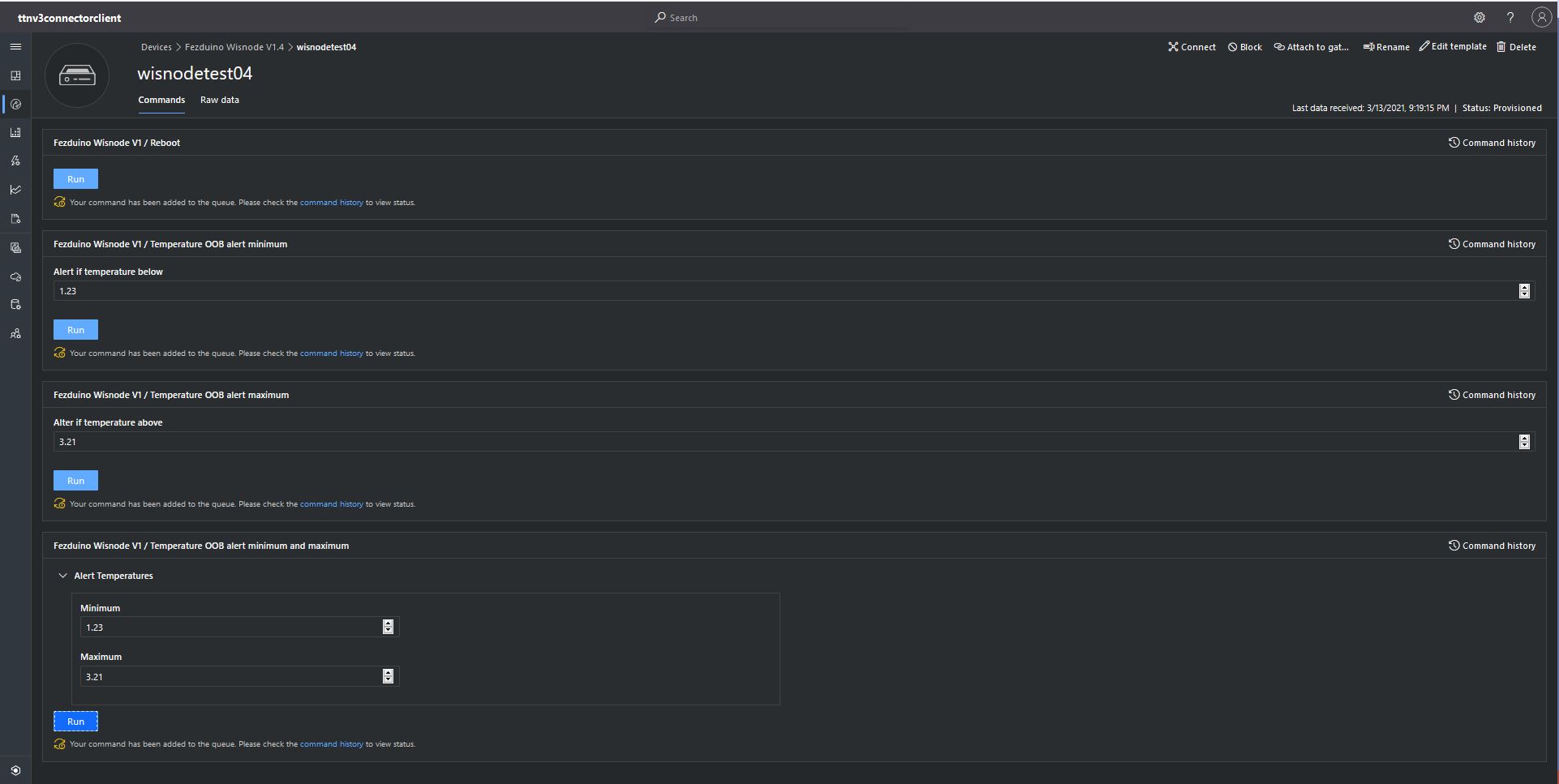
Azure IoT Central JSON payload command initiation

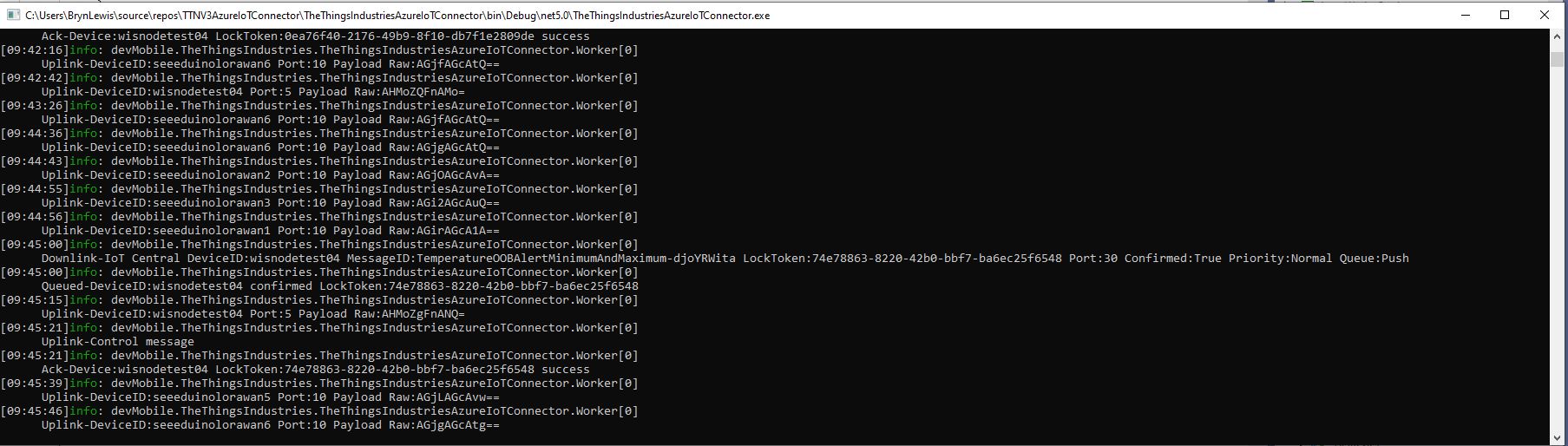
Azure IoT TTI connector application sending a JSON payload command to my sensor node
Sensor node displaying JSON command information. There is a single payload which contains a two values

The build in TTI decoder only supports downlink decoded payloads with property names “value_0” through “value_x” which results in some odd command names and JSON payload property names. (Custom encoders may support other property names). Case sensitivity of some configuration values also tripped me up.

TTN V3 Gateway Downlink Broken

While adding Azure Device Provisioning Service (DPS) support to my The Things Industries(TTI)/The Things Network(TTN) Azure IoT Hub/Azure IoT Central Connector I broke Cloud to Device(C2D)/Downlink messaging. I had copied the Advanced Message Queuing Protocol(AMQP) connection pooling configuration code from my The Things Network Integration assuming it worked.

return DeviceClient.CreateFromConnectionString(connectionString, deviceId,
	new ITransportSettings[]
	{
		new AmqpTransportSettings(TransportType.Amqp_Tcp_Only)
		{
			PrefetchCount = 0,
			AmqpConnectionPoolSettings = new AmqpConnectionPoolSettings()
			{
				Pooling = true,
			}
		}
	});

I hadn’t noticed this issue in my Azure IoT The Things Network Integration because I hadn’t built support for C2D messaging. After some trial and error I figured out the issue was the PrefetchCount initialisation.

return DeviceClient.CreateFromConnectionString(connectionString, deviceId,
	new ITransportSettings[]
	{
		new AmqpTransportSettings(TransportType.Amqp_Tcp_Only)
		{
			AmqpConnectionPoolSettings = new AmqpConnectionPoolSettings()
			{
				Pooling = true,
			}
		}
	});

From the Azure Service Bus (I couldn’t find any specifically Azure IoT Hub ) documentation

Even though the Service Bus APIs do not directly expose such an option today, a lower-level AMQP protocol client can use the link-credit model to turn the “pull-style” interaction of issuing one unit of credit for each receive request into a “push-style” model by issuing a large number of link credits and then receive messages as they become available without any further interaction. Push is supported through the MessagingFactory.PrefetchCount or MessageReceiver.PrefetchCount property settings. When they are non-zero, the AMQP client uses it as the link credit.

n this context, it’s important to understand that the clock for the expiration of the lock on the message inside the entity starts when the message is taken from the entity, not when the message is put on the wire. Whenever the client indicates readiness to receive messages by issuing link credit, it is therefore expected to be actively pulling messages across the network and be ready to handle them. Otherwise the message lock may have expired before the message is even delivered. The use of link-credit flow control should directly reflect the immediate readiness to deal with available messages dispatched to the receiver.

In the Azure IoT Hub SDK the prefetch count is set to 50 (around line 57) and throws an exception if less that zero (around line 90) and there is some information about tuning the prefetch value for Azure Service Bus.

The best explanation I count find was Github issue which was a query “What exactly does the PrefetchCount property control?”

“You are correct, the pre-fetch count is used to set the link credit over AMQP. What this signifies is the max. no. of messages that can be “in-flight” from the service to the client, at any given time. (This value defaults to 50 for the IoT Hub .NET client).
The client specifies its link-credit, that the service must respect. In simplest terms, any time the service sends a message to the client, it decrements the link credit, and will continue sending messages until linkCredit > 0. Once the client acknowledges the message, it will increment the link credit.”

In summary if Prefetch count is set to zero on startup in my application no messages will be sent to the client….

TTN V3 Gateway Azure Configuration Simplication

To reduce complexity the initial version of the V3 TTI gateway didn’t support the Azure Device Provisioning Service(DPS). In preparation for this I had included DeviceProvisioningServiceSettings object in both the Application and AzureSettingsDefault sections.

After trialing a couple of different approaches I have removed the AzureSettingsDefault. If an application has a connectionstring configured that is used, if there is not one then the DPS configuration is used, if there are neither currently the application logs an error. In the future I will look at adding a configuration option to make the application optionally shutdown

{
  ...
  "ProgramSettings": {
    "Applications": {
      "application1": {
        "AzureSettings": {
          "IoTHubConnectionString": "HostName=TT...n1.azure-devices.net;SharedAccessKeyName=device;SharedAccessKey=Am...M=",
          "DeviceProvisioningServiceSettings": {
            "IdScope": "0n...3B",
            "GroupEnrollmentKey": "Kl...Y="
          }
        },
        "MQTTAccessKey": "NNSXS.HC...YQ",
        "DeviceIntegrationDefault": false,
        "DevicePageSize": 10
      },
      "seeeduinolorawan": {
        "AzureSettings": {
          "IoTHubConnectionString": "HostName=TT...n2.azure-devices.net;SharedAccessKeyName=device;SharedAccessKey=D2q...L8=",
          "DeviceProvisioningServiceSettings": {
            "IdScope": "0n...3B",
            "GroupEnrollmentKey": "Kl...Y="
          }
        },
        "MQTTAccessKey": "NNSXS.V44...42A",
        "DeviceIntegrationDefault": true,
        "DevicePageSize": 10
      }
    },

    "TheThingsIndustries": {
      "MqttServerName": "eu1.cloud.thethings.industries",
      "MqttClientId": "MQTTClient",
      "MqttAutoReconnectDelay": "00:00:05",
      "Tenant": "br...st",
      "ApiBaseUrl": "https://br..st.eu1.cloud.thethings.industries/api/v3",
      "ApiKey": "NNSXS.NR...SA",
      "Collaborator": "de...le",
      "DevicePageSize": 10,
      "DeviceIntegrationDefault": true
    }
  }
}

The implementation of failing back from application to default settings wasn’t easy to implement, explain or document.

TTN V3 Gateway Configuration, Deployment and Operation

After configuring, deploying and then operating my The Things Network(TTN) V2 gateway I have made some changes to my The Things Industries(TTI) V3 gateway.

TTI V3 Gateway running as a console application on my desktop

Azure IoT integration can be configured at the Device (TTN Device “azureintegration” attribute).

TTN Device AzureIntegration Attribute

Then falls back to the Application default (TTN application “azureintegrationdevicedefault” attribute).

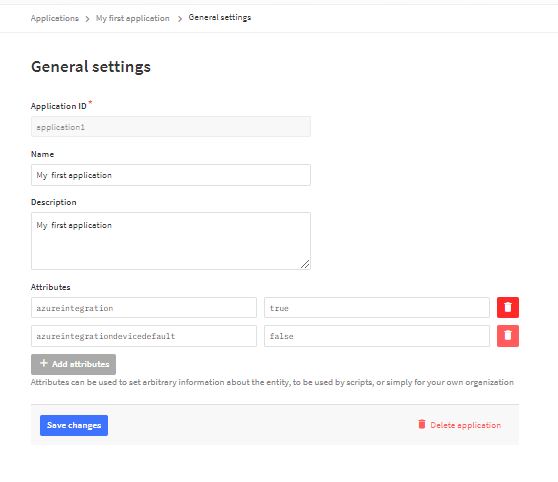
TTN Application AzureIntegrationDeviceDefault attribute.

Then falls back to the “DeviceIntegrationDefault” setting for the Application then finally “DeviceIntegrationDefault” setting for the webjob the in the app.settings.json file

{
  ...
  "ProgramSettings": {
    "Applications": {
      "application1": {
        "AzureSettings": {
          "IoTHubConnectionString": "HostName=TT...n1.azure-devices.net;SharedAccessKeyName=device;SharedAccessKey=Am...M=",
          "DeviceProvisioningServiceSettings": {
            "IdScope": "0n...3B",
            "GroupEnrollmentKey": "Kl...Y="
          }
        },
        "MQTTAccessKey": "NNSXS.HC...YQ",
        "DeviceIntegrationDefault": false,
        "DevicePageSize": 10
      },
      "seeeduinolorawan": {
        "AzureSettings": {
          "IoTHubConnectionString": "HostName=TT...n2.azure-devices.net;SharedAccessKeyName=device;SharedAccessKey=D2q...L8=",
          "DeviceProvisioningServiceSettings": {
            "IdScope": "0n...3B",
            "GroupEnrollmentKey": "Kl...Y="
          }
        },
        "MQTTAccessKey": "NNSXS.V44...42A",
        "DeviceIntegrationDefault": true,
        "DevicePageSize": 10
      }
    },

    "AzureSettingsDefault": {
      "IoTHubConnectionString": "HostName=TT...ors.azure-devices.net;SharedAccessKeyName=device;SharedAccessKey=yd...k=",
      "DeviceProvisioningServiceSettings": {
        "IdScope": "0n...3B",
        "GroupEnrollmentKey": "Kl...Y="
      }
    },

    "TheThingsIndustries": {
      "MqttServerName": "eu1.cloud.thethings.industries",
      "MqttClientId": "MQTTClient",
      "MqttAutoReconnectDelay": "00:00:05",
      "Tenant": "br...st",
      "ApiBaseUrl": "https://br..st.eu1.cloud.thethings.industries/api/v3",
      "ApiKey": "NNSXS.NR...SA",
      "Collaborator": "de...le",
      "DevicePageSize": 10,
      "DeviceIntegrationDefault": true
    }
  }
}

This approach is now used for most of the application settings to recue the amount of configuration required for a small scale deployment.

To reduce complexity the initial version of the V3 TTI gateway doesn’t support Azure IoT Central and the Device Provisioning Service(DPS).

Downlink messages NahYeah

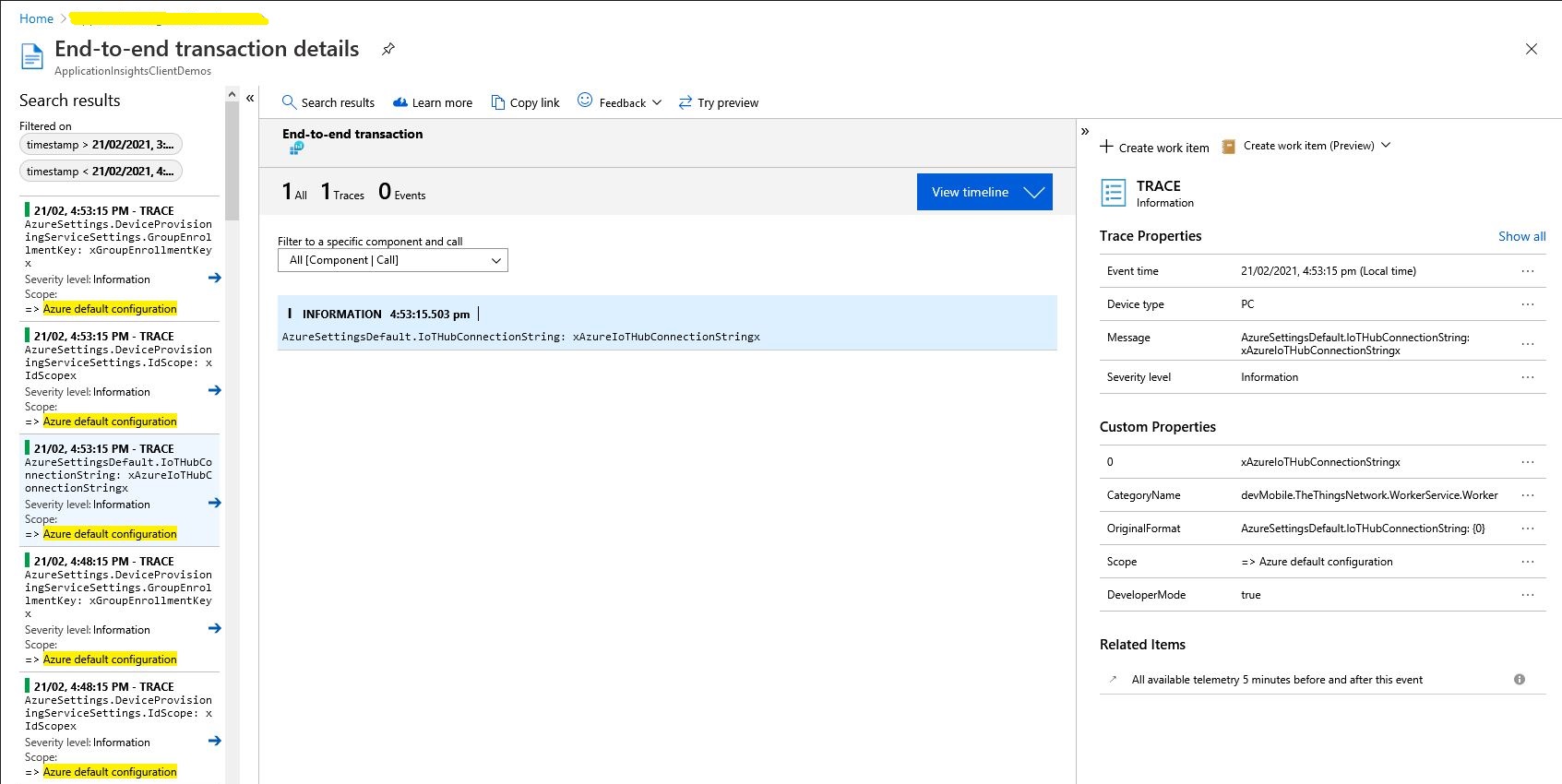
While running my The Things IndustriesTTI) gateway I noticed an exception in the logs every so often

Exception of type 'Microsoft.Azure.Devices.Client.Exceptions.DeviceMessageLockLostException' was thrown.

My client subscribes to Message Queue Telemetry Transport Topics(MQTT) (using MQTTNet) for each TTI Application and establishes a connection (using an Azure DeviceClient) for each TTI Device to an Azure IoT Hub(s).

  • v3/{application id}@{tenant id}/devices/{device id}/up
  • v3/{application id}@{tenant id}/devices/{device id}/down/queued
  • v3/{application id}@{tenant id}/devices/{device id}/down/sent
  • v3/{application id}@{tenant id}/devices/{device id}/down/ack
  • v3/{application id}@{tenant id}/devices/{device id}/down/nack
  • v3/{application id}@{tenant id}/devices/{device id}/down/failed

The application subscribes to the queued, ack, nack, and failed topics so the progress of a downlink message can be monitored. For downlink messages the correlation_id “az:LockToken:” contains the message.LockToken so that they can be Abandoned, Completed or Rejected in the MQTT receive messageHandler.

Below is the logging from my application for an odd sequence of messages

*****Nothing much happening for a couple of hours the .'s represent approx 1 second. Wisnode 4 sends roughly every 5 minues

.....................................................................................................................................................................................................................................................................................................................
03:36:08 TTN Uplink message
 ApplicationID: application1
 DeviceID: wisnodetest04
 Port: 5
.....................................................................................................................................................................................................................................................................................................................
03:41:18 TTN Uplink message
 ApplicationID: application1
 DeviceID: wisnodetest04
 Port: 5
...........................................................................
03:42:34 Azure IoT Hub downlink message
 ApplicationID: application1
 DeviceID: wisnodetest04
 LockToken: 57ea0fad-b6b3-492e-b194-10c4ff3e53cb
 Body: vu8=

*****I then started sending 5 messages to Wisnode 5 same payload vu8=, port 71 thru 75 

***** 71 Queued
03:42:34 Queued: v3/application1@tenant1/devices/wisnodetest04/down/queued
 payload: {"end_device_ids":{"device_id":"wisnodetest04","application_ids":{"application_id":"application1"}},
	"correlation_ids":[
"az:LockToken:57ea0fad-b6b3-492e-b194-10c4ff3e53cb",
"as:downlink:01EXX9B1CA4DB68PKCDAK4SS4H"],
	"downlink_queued":{"f_port":71,"frm_payload":"vu8=","confirmed":true,"priority":"NORMAL",
	"correlation_ids":[
"az:LockToken:57ea0fad-b6b3-492e-b194-10c4ff3e53cb",
"as:downlink:01EXX9B1CA4DB68PKCDAK4SS4H"]}}
...
03:42:37 Azure IoT Hub downlink message
 ApplicationID: application1
 DeviceID: wisnodetest04
 LockToken: e2fef28c-fb1f-42cd-bb40-3ad8e6051da9
 Body: vu8=
.

***** 72 Queued
03:42:38 Queued: v3/application1@tenant1/devices/wisnodetest04/down/queued
 payload: {"end_device_ids":{"device_id":"wisnodetest04","application_ids":{"application_id":"application1"}},
	"correlation_ids":[
"az:LockToken:e2fef28c-fb1f-42cd-bb40-3ad8e6051da9",
"as:downlink:01EXX9B4RGSCJ4BN21GHPM85W5"],
	"downlink_queued":{"f_port":72,"frm_payload":"vu8=",
"confirmed":true,"priority":"NORMAL",
	"correlation_ids":[
"az:LockToken:e2fef28c-fb1f-42cd-bb40-3ad8e6051da9",
"as:downlink:01EXX9B4RGSCJ4BN21GHPM85W5"]}}
...
03:42:41 Azure IoT Hub downlink message
 ApplicationID: application1
 DeviceID: wisnodetest04
 LockToken: 70d61d71-9b24-44d2-b54b-7cc08da4d072
 Body: vu8=

***** 73 Queued
03:42:41 Queued: v3/application1@tenant1/devices/wisnodetest04/down/queued
 payload: {"end_device_ids":{"device_id":"wisnodetest04","application_ids":{"application_id":"application1"}},
	"correlation_ids":[
"az:LockToken:70d61d71-9b24-44d2-b54b-7cc08da4d072","as:downlink:01EXX9B800WF7FEP56J3EZ3M8A"],
	"downlink_queued":{"f_port":73,"frm_payload":"vu8=",
"confirmed":true,"priority":"NORMAL",
	"correlation_ids":[
"az:LockToken:70d61d71-9b24-44d2-b54b-7cc08da4d072",
"as:downlink:01EXX9B800WF7FEP56J3EZ3M8A"]}}
...

***** 74 Queued
03:42:45 Azure IoT Hub downlink message
 ApplicationID: application1
 DeviceID: wisnodetest04
 LockToken: 12537728-de4a-4489-ace5-92923e49b8e4
 Body: vu8=
.
03:42:45 Queued: v3/application1@tenant1/devices/wisnodetest04/down/queued
 payload: {"end_device_ids":{"device_id":"wisnodetest04","application_ids":{"application_id":"application1"}},
	"correlation_ids":[
"az:LockToken:12537728-de4a-4489-ace5-92923e49b8e4",
"as:downlink:01EXX9BBWA2YNCN2DFE5FC3BP3"],
	"downlink_queued":{
"f_port":74,"frm_payload":"vu8=",
"confirmed":true,"priority":"NORMAL",
	"correlation_ids":[
"az:LockToken:12537728-de4a-4489-ace5-92923e49b8e4",
"as:downlink:01EXX9BBWA2YNCN2DFE5FC3BP3"]}}
...

***** 75 Queued
03:42:48 Azure IoT Hub downlink message
 ApplicationID: application1
 DeviceID: wisnodetest04
 LockToken: 388efc11-4514-406e-8147-9109289095f4
 Body: vu8=

03:42:49 Queued: v3/application1@tenant1/devices/wisnodetest04/down/queued
 payload: {"end_device_ids":{"device_id":"wisnodetest04","application_ids":{"application_id":"application1"}},
	"correlation_ids":[
"az:LockToken:388efc11-4514-406e-8147-9109289095f4",
"as:downlink:01EXX9BFCM2G51EPYNWGDWPS0N"],
	"downlink_queued":{"f_port":75,"frm_payload":"vu8=",
"confirmed":true,"priority":"NORMAL",
	"correlation_ids":[
"az:LockToken:388efc11-4514-406e-8147-9109289095f4",
"as:downlink:01EXX9BFCM2G51EPYNWGDWPS0N"]}}

***** Waiting for Wisniode
..........................................................................................................................................................................
03:47:18 TTN Uplink message
 ApplicationID: application1
 DeviceID: wisnodetest04
 Port: 5

***** Waiting for Wisniode again, I think might have been such a long delay becuase TTI didn't get
..........................................................................................................................................................................................................................................................................................................................................................................................................................................................................................................................................................................................
***** 71 Nack'd
03:56:52 Nack: v3/application1@tenant1/devices/wisnodetest04/down/nack
 payload: {"end_device_ids":{"device_id":"wisnodetest04","application_ids":{"application_id":"application1"},
	"dev_eui":"60C5A8FFFE781691","join_eui":"70B3D57ED0000000","dev_addr":"26083BE1"},
	"correlation_ids":[
"as:downlink:01EXX9B1CA4DB68PKCDAK4SS4H",
"as:up:01EXXA572VHN7X7G5KFTHBQPNG",
"az:LockToken:57ea0fad-b6b3-492e-b194-10c4ff3e53cb",
"gs:conn:01EXRPTTFGFNTRGH7V8FTC3R0S",
"gs:up:host:01EXRPTTFTEXBNV87KZFYFWP5V",
"gs:uplink:01EXXA56VPK14XG5S8JB9Q0V0X",
"ns:uplink:01EXXA56VYCHGGPPN1K77REMNM",
"rpc:/ttn.lorawan.v3.GsNs/HandleUplink:01EXXA56VRG6811HRCF803VJ34"],
	"received_at":"2021-02-07T03:56:53.211893610Z",
	"downlink_nack":{
"session_key_id":"AXd6GPmneD3dKVoArcS36g==",
"f_port":71,"f_cnt":35,
"frm_payload":"vu8=",
"confirmed":true,"priority":"NORMAL",
	"correlation_ids":[
"az:LockToken:57ea0fad-b6b3-492e-b194-10c4ff3e53cb",
"as:downlink:01EXX9B1CA4DB68PKCDAK4SS4H"]}}

 Found az:LockToken:

03:56:52 TTN Uplink message
 ApplicationID: application1
 DeviceID: wisnodetest04
 Port: 5

03:56:52 Azure IoT Hub downlink message
 ApplicationID: application1
 DeviceID: wisnodetest04
 LockToken: 856f5a9b-bc37-435c-8de9-19d2213999f8
 Body: vu8=

03:56:53 Queued: v3/application1@tenant1/devices/wisnodetest04/down/queued
 payload: {
"end_device_ids":{"device_id":"wisnodetest04","application_ids":{"application_id":"application1"},
	"correlation_ids":[
"az:LockToken:856f5a9b-bc37-435c-8de9-19d2213999f8",
"as:downlink:01EXXA57JJWWYEDX3Z55TNSTP5"],
	"downlink_queued":{"f_port":71,
"frm_payload":"vu8=",
"confirmed":true,"priority":"NORMAL",
	"correlation_ids":
["az:LockToken:856f5a9b-bc37-435c-8de9-19d2213999f8",
"as:downlink:01EXXA57JJWWYEDX3Z55TNSTP5"]}}

......
***** 71 Ack'd
03:56:58 Ack: v3/application1@tenant1/devices/wisnodetest04/down/ack
 payload: {"end_device_ids":{"device_id":"wisnodetest04","application_ids":{"application_id":"application1"},
	"dev_eui":"60C5A8FFFE781691","join_eui":"70B3D57ED0000000","dev_addr":"26083BE1"},
	"correlation_ids":[
"as:downlink:01EXX9B1CA4DB68PKCDAK4SS4H",
"as:up:01EXXA5D45E77S19TXEV1E4GAJ",
"az:LockToken:57ea0fad-b6b3-492e-b194-10c4ff3e53cb",
"gs:conn:01EXRPTTFGFNTRGH7V8FTC3R0S",
"gs:up:host:01EXRPTTFTEXBNV87KZFYFWP5V",
"gs:uplink:01EXXA5CV73THH2RKEAC2T9MDP",
"ns:uplink:01EXXA5CVDCWPFBTXGGGB3T02W",
"rpc:/ttn.lorawan.v3.GsNs/HandleUplink:01EXXA5CVDEXDFBPYXC0J01Q3E"],
	"received_at":"2021-02-07T03:56:59.397330003Z",
	"downlink_ack":{
"session_key_id":"AXd6GPmneD3dKVoArcS36g==",
"f_port":71,"f_cnt":36,"frm_payload":"vu8=",
"confirmed":true,"priority":"NORMAL",
	"correlation_ids":[
"az:LockToken:57ea0fad-b6b3-492e-b194-10c4ff3e53cb",
"as:downlink:01EXX9B1CA4DB68PKCDAK4SS4H"]}}

 Found az:LockToken:
Exception of type 'Microsoft.Azure.Devices.Client.Exceptions.DeviceMessageLockLostException' was thrown.

03:56:59 TTN Uplink message
 ApplicationID: application1
 DeviceID: wisnodetest04
 Port: 0
......
03:57:04 Ack: v3/application1@tenant1/devices/wisnodetest04/down/ack
 payload: {"end_device_ids":{"device_id":"wisnodetest04","application_ids":{"application_id":"application1"},
"dev_eui":"60C5A8FFFE781691","join_eui":"70B3D57ED0000000","dev_addr":"26083BE1"},
"correlation_ids":[
"as:downlink:01EXX9B4RGSCJ4BN21GHPM85W5",
"as:up:01EXXA5K2FWGP9DGD7THWZ8HNR",
"az:LockToken:e2fef28c-fb1f-42cd-bb40-3ad8e6051da9",
"gs:conn:01EXRPTTFGFNTRGH7V8FTC3R0S",
"gs:up:host:01EXRPTTFTEXBNV87KZFYFWP5V",
"gs:uplink:01EXXA5JVDR102TKCWQ77P4YYF",
"ns:uplink:01EXXA5JVGNGMZN33FNT47G6PF",
"rpc:/ttn.lorawan.v3.GsNs/HandleUplink:01EXXA5JVGJFFQVEWX2M1XSFKK"],
"received_at":"2021-02-07T03:57:05.487910418Z","downlink_ack":{"session_key_id":"AXd6GPmneD3dKVoArcS36g==",
"f_port":72,"f_cnt":37,
"frm_payload":"vu8=",
"confirmed":true,"priority":"NORMAL","correlation_ids":
["az:LockToken:e2fef28c-fb1f-42cd-bb40-3ad8e6051da9","as:downlink:01EXX9B4RGSCJ4BN21GHPM85W5"]}}

The sequence of messages is a bit odd, in the Azure DeviceClient ReceiveMessageHandler a downlink message is published, then a queued message is received, then a nak and finally an ack, The exception was because my client was trying to Complete the delivery of a message that had already been Abandoned.

Application Insights & Configuration

As part of my The Things IndustriesTTI) Integration my current approach is to use an Azure web job and configure the Azure App Service host so it doesn’t get shutdown after a period of inactivity. This so my application won’t have to repeatedly use the TTI API to request the Application and Device configuration information to reload the cache (still not certain if this is going to be implemented with a ConcurrentDictionary or ObjectCache).

namespace devMobile.TheThingsNetwork.WorkerService
{
   using System.Collections.Generic;

   public class AzureDeviceProvisiongServiceSettings
   {
      public string IdScope { get; set; }
      public string GroupEnrollmentKey { get; set; }
   }

   public class AzureSettings
   {
      public string IoTHubConnectionString { get; set; }
      public AzureDeviceProvisiongServiceSettings DeviceProvisioningServiceSettings { get; set; }
   }

   public class ApplicationSetting
   {
      public AzureSettings AzureSettings { get; set; }

      public string MQTTAccessKey { get; set; }

      public byte? ApplicationPageSize { get; set; }

      public bool? DeviceIntegrationDefault { get; set; }
      public byte? DevicePageSize { get; set; }
   }

   public class TheThingsIndustries
   {
      public string MqttServerName { get; set; }
      public string MqttClientName { get; set; }

      public string Tennant { get; set; }
      public string ApiBaseUrl { get; set; }
      public string ApiKey { get; set; }

      public bool ApplicationIntegrationDefault { get; set; }
      public byte ApplicationPageSize { get; set; }

      public bool DeviceIntegrationDefault { get; set; }
      public byte DevicePageSize { get; set; }
   }

   public class ProgramSettings
   {
      public TheThingsIndustries TheThingsIndustries { get; set; }

      public AzureSettings AzureSettingsDefault { get; set; }

      public Dictionary<string, ApplicationSetting> Applications { get; set; }
   }
}

The amount of configuration required to support multiple TTI Applications containing many Devices is also starting to get out of hand.

I need to subscribe to a Message Queue Telemetry Transport Topics(MQTT using MQTTNet) for each Application and establish a connection (using an Azure DeviceClient) for each TTI Device to the configured Azure IoT Hub(s).

  • v3/{application id}@{tenant id}/devices/{device id}/up
  • v3/{application id}@{tenant id}/devices/{device id}/down/queued
  • v3/{application id}@{tenant id}/devices/{device id}/down/sent
  • v3/{application id}@{tenant id}/devices/{device id}/down/ack
  • v3/{application id}@{tenant id}/devices/{device id}/down/nack
  • v3/{application id}@{tenant id}/devices/{device id}/down/failed

The Azure DeviceClient has to be configured and OpenAsync called just before/after subscribing to the TTI Application /up topic so the SendEventAsync method can be called to send messages to the configured Azure IoT Hub(s). For downlink messages the SetReceiveMessageHandler method will need to be called just before/after subscribing to ../down/queued, ../down/sent,../down/ack,…/down/nack and ,…/down/failed downlink topics.

The ordering of downloading the Application and Device configuration so downlink messages can be sent and uplink message received as soon as possible (so no messages are lost) is important. I have considered making the downlink process multi-threaded so API calls are made concurrently but I’m not certain the additional complexity would be worth it, especially in initial versions.

I’m also currently not certain about how to register my program for Application and Device registry changes so it doesn’t have to be restarted when configuration changes. I have also considered reverting to an HTTP Integration so that I could use Azure Storage queues to buffer uplink and downlink messages. This may also introduce ordering issues when multiple threads are created for Azure Queue Trigger functions to process a message backlog.

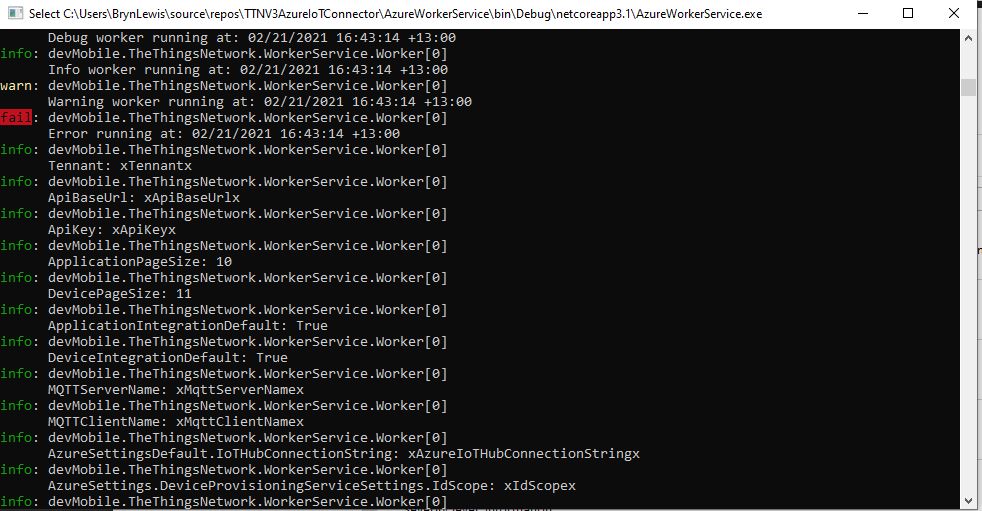
For debugging the application and monitoring in production I was planning on using the Apache Log4Net library but now I’m not certain the additional configuration complexity and dependencies are worth it. The built in Microsoft.Extensions.Logging library with Azure Application Insights integration looks like a “light weight” alternative with sufficient functionality .

protected override async Task ExecuteAsync(CancellationToken stoppingToken)
{
   while (!stoppingToken.IsCancellationRequested)
   {
      _logger.LogDebug("Debug worker running at: {time}", DateTimeOffset.Now);
      _logger.LogInformation("Info worker running at: {time}", DateTimeOffset.Now);
      _logger.LogWarning("Warning worker running at: {time}", DateTimeOffset.Now);
      _logger.LogError("Error running at: {time}", DateTimeOffset.Now);

      using (_logger.BeginScope("TheThingsIndustries configuration"))
      {
         _logger.LogInformation("Tennant: {0}", _programSettings.TheThingsIndustries.Tennant);
         _logger.LogInformation("ApiBaseUrl: {0}", _programSettings.TheThingsIndustries.ApiBaseUrl);
         _logger.LogInformation("ApiKey: {0}", _programSettings.TheThingsIndustries.ApiKey);

         _logger.LogInformation("ApplicationPageSize: {0}", _programSettings.TheThingsIndustries.ApplicationPageSize);
         _logger.LogInformation("DevicePageSize: {0}", _programSettings.TheThingsIndustries.DevicePageSize);

         _logger.LogInformation("ApplicationIntegrationDefault: {0}", _programSettings.TheThingsIndustries.ApplicationIntegrationDefault);
         _logger.LogInformation("DeviceIntegrationDefault: {0}", _programSettings.TheThingsIndustries.DeviceIntegrationDefault);

         _logger.LogInformation("MQTTServerName: {0}", _programSettings.TheThingsIndustries.MqttServerName);
         _logger.LogInformation("MQTTClientName: {0}", _programSettings.TheThingsIndustries.MqttClientName);
      }

      using (_logger.BeginScope("Azure default configuration"))
      {
         if (_programSettings.AzureSettingsDefault.IoTHubConnectionString != null)
         {
            _logger.LogInformation("AzureSettingsDefault.IoTHubConnectionString: {0}", _programSettings.AzureSettingsDefault.IoTHubConnectionString);
         }

         if (_programSettings.AzureSettingsDefault.DeviceProvisioningServiceSettings != null)
         {
            _logger.LogInformation("AzureSettings.DeviceProvisioningServiceSettings.IdScope: {0}", _programSettings.AzureSettingsDefault.DeviceProvisioningServiceSettings.IdScope);
            _logger.LogInformation("AzureSettings.DeviceProvisioningServiceSettings.GroupEnrollmentKey: {0}", _programSettings.AzureSettingsDefault.DeviceProvisioningServiceSettings.GroupEnrollmentKey);
         }
      }
    
      foreach (var application in _programSettings.Applications)
      {
         using (_logger.BeginScope(new[] { new KeyValuePair<string, object>("Application", application.Key)}))
         {
            _logger.LogInformation("MQTTAccessKey: {0} ", application.Value.MQTTAccessKey);

            if (application.Value.ApplicationPageSize.HasValue)
            {
               _logger.LogInformation("ApplicationPageSize: {0} ", application.Value.ApplicationPageSize.Value);
            }

            if (application.Value.DeviceIntegrationDefault.HasValue)
            {
               _logger.LogInformation("DeviceIntegation: {0} ", application.Value.DeviceIntegrationDefault.Value);
            }

            if (application.Value.DevicePageSize.HasValue)
            {
               _logger.LogInformation("DevicePageSize: {0} ", application.Value.DevicePageSize.Value);
            }

            if (application.Value.AzureSettings.IoTHubConnectionString != null)
            {
               _logger.LogInformation("AzureSettings.IoTHubConnectionString: {0} ", application.Value.AzureSettings.IoTHubConnectionString);
            }

            if (application.Value.AzureSettings.DeviceProvisioningServiceSettings != null)
            {
               _logger.LogInformation("AzureSettings.DeviceProvisioningServiceSettings.IdScope: {0} ", application.Value.AzureSettings.DeviceProvisioningServiceSettings.IdScope);
               _logger.LogInformation("AzureSettings.DeviceProvisioningServiceSettings.GroupEnrollmentKey: {0} ", application.Value.AzureSettings.DeviceProvisioningServiceSettings.GroupEnrollmentKey);
            }
         }
      }

      await Task.Delay(300000, stoppingToken);
   }
}

The logging information formatting is sufficiently readable when running locally

Extensive use of the BeginScope method to include additional meta-data on logged records should make debugging easier.

This long post is to explain some of my design decisions and which ones are still to be decided

Azure IoT Central Connectivity Part4

The Things Network(TTN) Friendly Commands

I have built a several Proof of Concept(PoC) applications (Azure IoT Central Basic Telemetry, Basic Commands, and Request Commands) to explore to how an Azure IoT Central integration with TTN could work. This blog post is about how to configure queued and non queued Cloud to Device(C2D) Commands with request parameters so they should work with my TTN Message Queue Telemetry Transport(MQTT) Data API connector.

I have focused on commands with Analog values but the same approach should be valid for other parameter types like Boolean, Date, DateTime, Double, Duration, Enumeration, Float, Geopoint, Vector, Integer, Long, String, and Time.

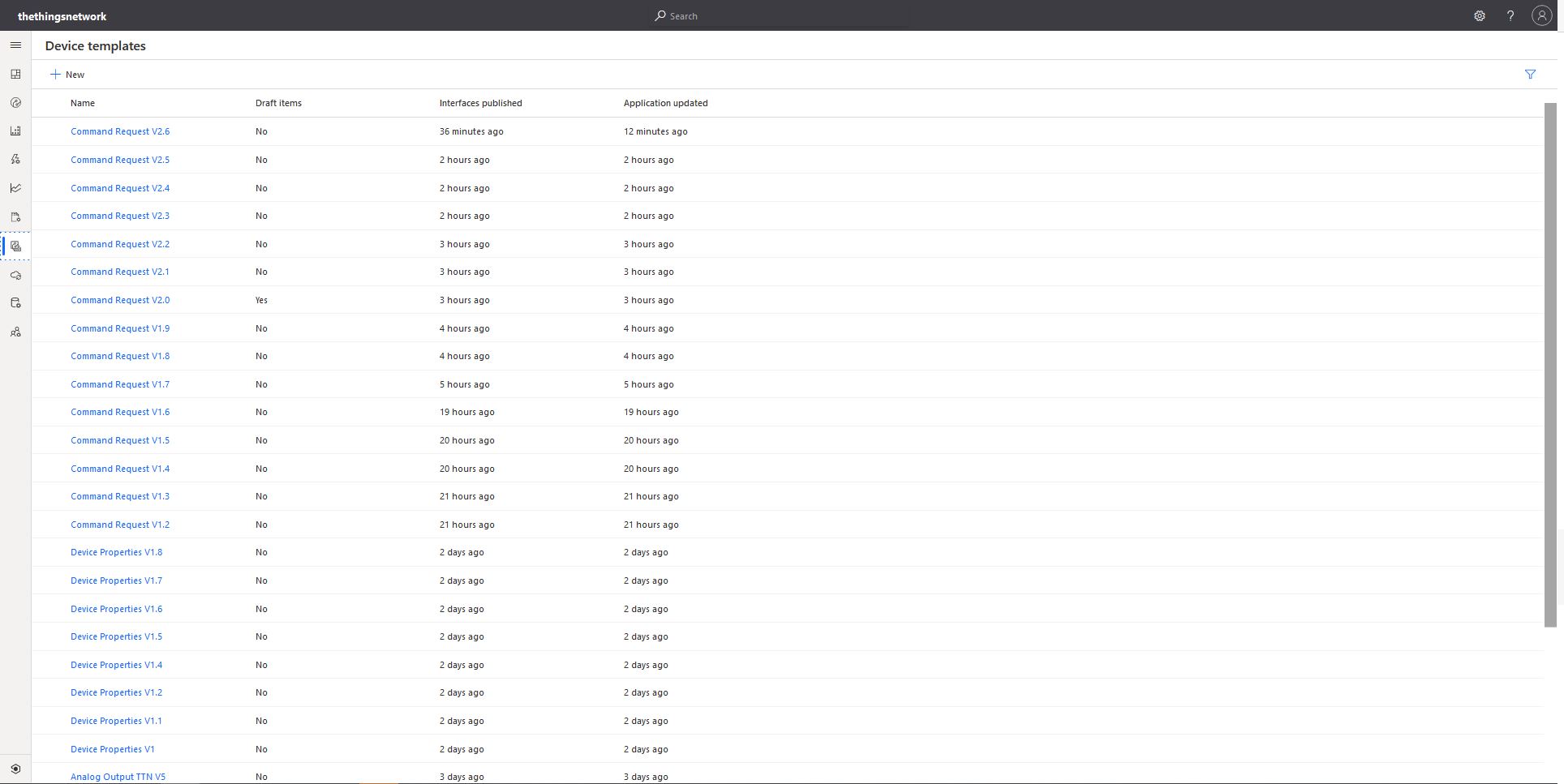
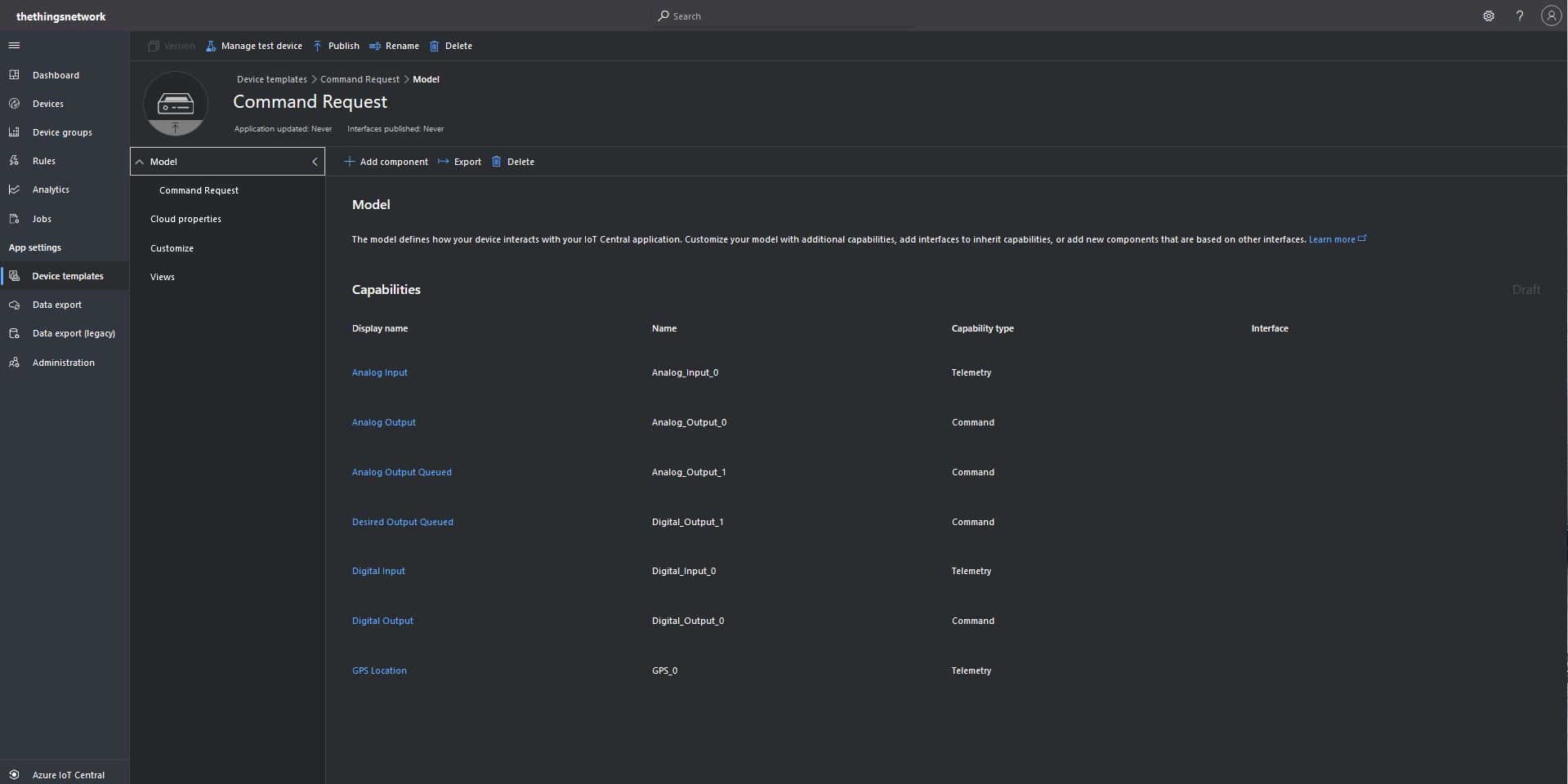
Multiple versions of my Azure IoT Central templates

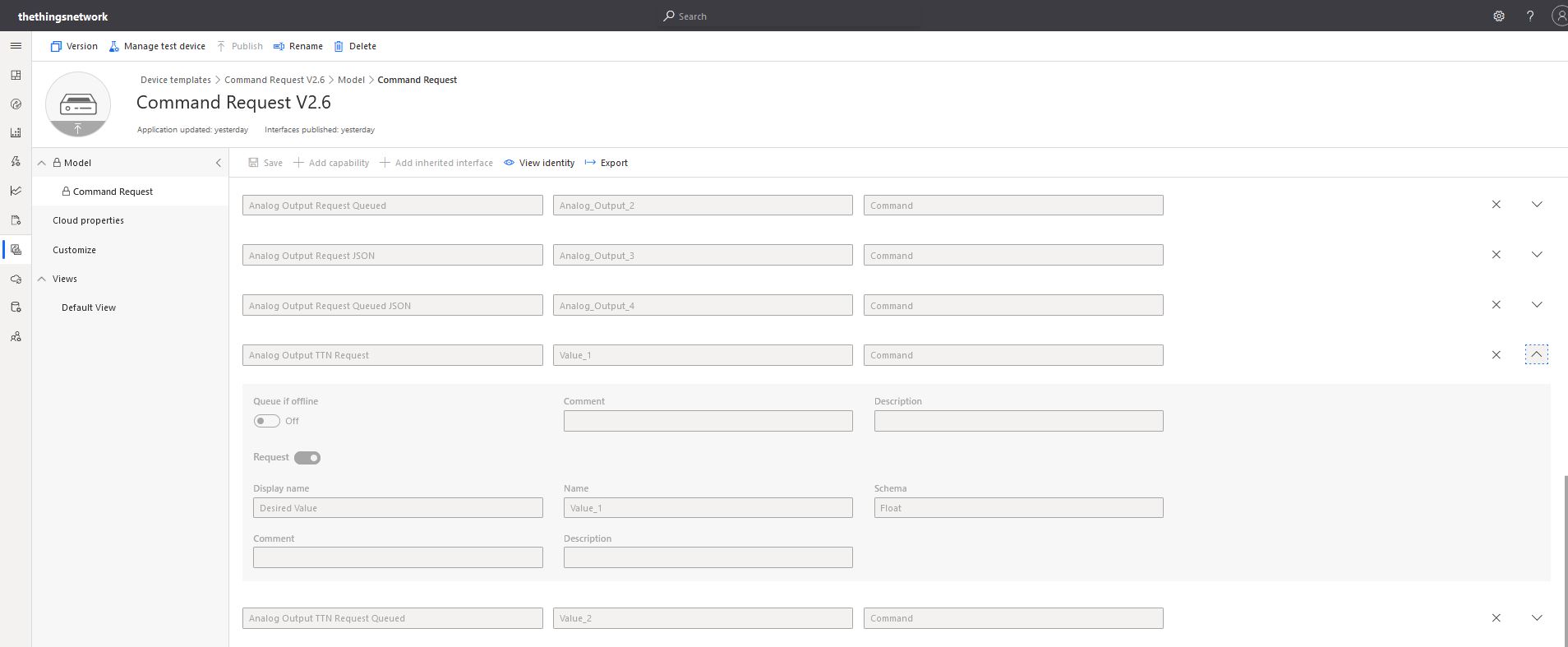
There was a lot of “trial and error” (26 template versions) required to figure out how to configure commands and queued commands so they can and used in TTN downlink payloads.

{
  "end_device_ids": {
    "device_id": "dev1",
    "application_ids": {
      "application_id": "app1"
    },
    "dev_eui": "4200000000000000",
    "join_eui": "4200000000000000",
    "dev_addr": "00E6F42A"
  },
  "correlation_ids": [
    "my-correlation-id",
    "..."
  ],
  "downlink_ack": {
    "session_key_id": "AWnj0318qrtJ7kbudd8Vmw==",
    "f_port": 15,
    "f_cnt": 11,
    "frm_payload": "....",
    "decoded_payload": 
    {
      "Value_0":"1.23"
      ...
    }
    "confirmed": true,
    "priority": "NORMAL",
    "correlation_ids": [
      "my-correlation-id",
      "..."
    ]
  }
}

My Azure IoT Central client application displays the generated message including the decoded payload field which is used by the built in Low Power Protocol(LPP) decoder/encoder and other custom encoders/decoders.

Azure IoT Central commands for TTN/TTI integration

From the “Device Commands” form I can send commands and a queued commands which have float parameters or object parameters which contain one or more float values in a JSON payload.

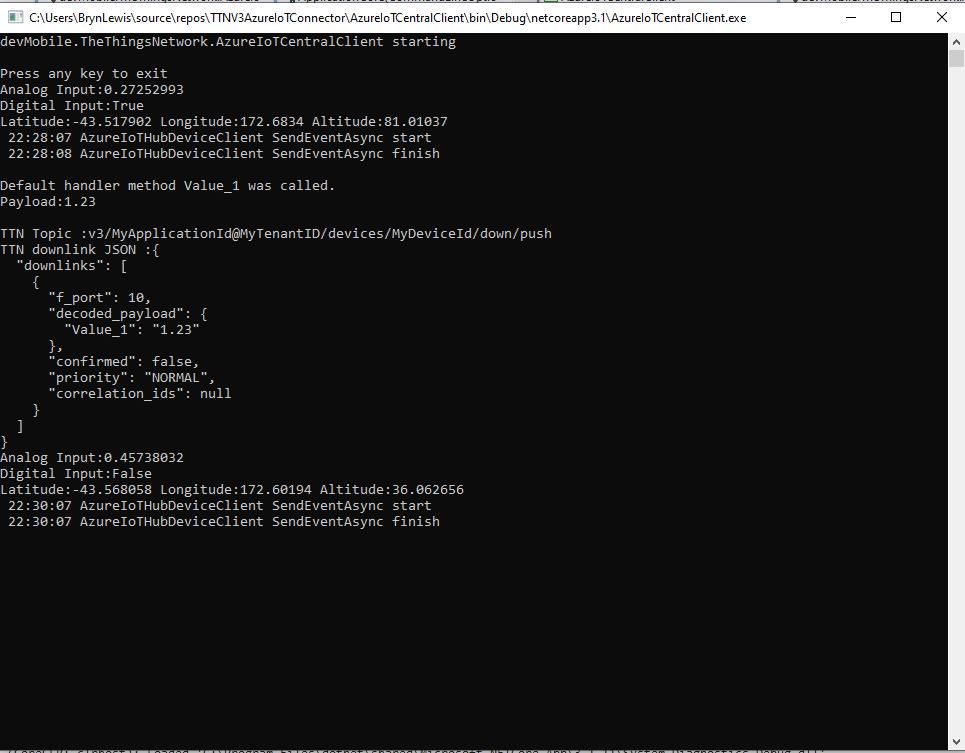
For commands which call the methodHander which was been registered by calling SetMethodDefaultHandlerAsync the request payload can be JSON or plain text. If the payload is valid JSON it is “grafted”(couldn’t think of a better word) into the decoded_payload field. If the payload is not valid a JSON object with the method name as the “name” and the text payload as the value is added the decoded_payload.

private static async Task<MethodResponse> MethodCallbackDefaultHandler(MethodRequest methodRequest, object userContext)
{
   AzureIoTMethodHandlerContext receiveMessageHandlerConext = (AzureIoTMethodHandlerContext)userContext;

   Console.WriteLine($"Default handler method {methodRequest.Name} was called.");

   Console.WriteLine($"Payload:{methodRequest.DataAsJson}");
   Console.WriteLine();

   if (string.IsNullOrWhiteSpace(methodRequest.Name))
   {
      Console.WriteLine($"   Method Request Name null or white space");
      return new MethodResponse(400);
   }

   string payloadText = Encoding.UTF8.GetString(methodRequest.Data);
   if (string.IsNullOrWhiteSpace(payloadText))
   {
       Console.WriteLine($"   Payload null or white space");
       return new MethodResponse(400);
   }

   // At this point would check to see if Azure DeviceClient is in cache, this is so nasty
   if ( String.Compare( methodRequest.Name, "Analog_Output_1", true) ==0 )
   {
      Console.WriteLine($"   Device not found");
      return new MethodResponse(UTF8Encoding.UTF8.GetBytes("Device not found"), 404);
   }

   JObject payload;

   if (IsValidJSON(payloadText))
   {
      payload = JObject.Parse(payloadText);
   }
   else
   {
      payload = new JObject
      {
         { methodRequest.Name, payloadText }
      };
   }

   string downlinktopic = $"v3/{receiveMessageHandlerConext.ApplicationId}@{receiveMessageHandlerConext.TenantId}/devices/{receiveMessageHandlerConext.DeviceId}/down/push";

   DownlinkPayload downlinkPayload = new DownlinkPayload()
   {
      Downlinks = new List<Downlink>()
      {
         new Downlink()
         {
            Confirmed = false,
            //PayloadRaw = messageBody,
            PayloadDecoded = payload,
            Priority = DownlinkPriority.Normal,
            Port = 10,
            /*
            CorrelationIds = new List<string>()
            {
               methodRequest.LockToken
            }
            */
         }
      }
   };

   Console.WriteLine($"TTN Topic :{downlinktopic}");
   Console.WriteLine($"TTN downlink JSON :{JsonConvert.SerializeObject(downlinkPayload, Formatting.Indented)}");

   return new MethodResponse(200);
}
Configuration of unqueued Commands with a typed payload
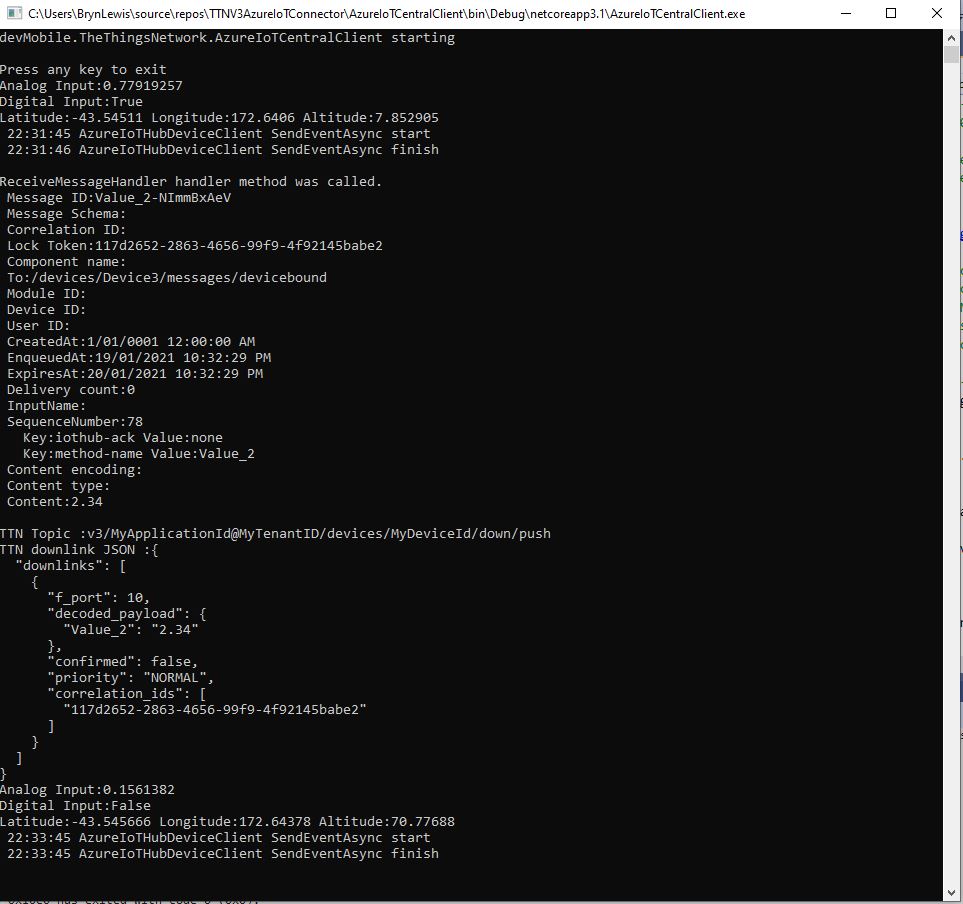
The output of my test harness for a Command for a typed payload
Configuring fields of object payload(JSON)

A JSON request payload also supports downlink messages with more that one value.

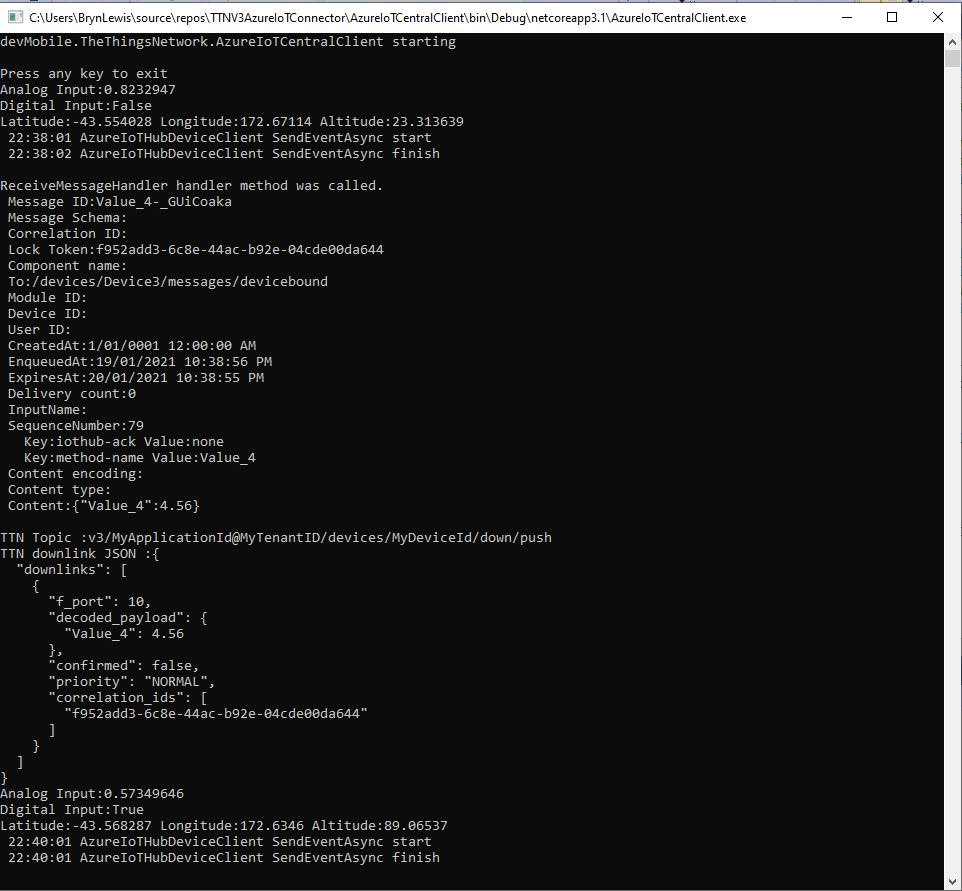
The output of my test harness for a Command with an object payload(JSON)

For queued commands which call the ReceiveMessageHandler which has was registered by calling SetReceiveMessageHandler the request payload is JSON or plain text.

private async static Task ReceiveMessageHandler(Message message, object userContext)
{
   AzureIoTMessageHandlerContext receiveMessageHandlerConext = (AzureIoTMessageHandlerContext)userContext;

   Console.WriteLine($"ReceiveMessageHandler handler method was called.");

   Console.WriteLine($" Message ID:{message.MessageId}");
   Console.WriteLine($" Message Schema:{message.MessageSchema}");
   Console.WriteLine($" Correlation ID:{message.CorrelationId}");
   Console.WriteLine($" Lock Token:{message.LockToken}");
   Console.WriteLine($" Component name:{message.ComponentName}");
   Console.WriteLine($" To:{message.To}");
   Console.WriteLine($" Module ID:{message.ConnectionModuleId}");
   Console.WriteLine($" Device ID:{message.ConnectionDeviceId}");
   Console.WriteLine($" User ID:{message.UserId}");
   Console.WriteLine($" CreatedAt:{message.CreationTimeUtc}");
   Console.WriteLine($" EnqueuedAt:{message.EnqueuedTimeUtc}");
   Console.WriteLine($" ExpiresAt:{message.ExpiryTimeUtc}");
   Console.WriteLine($" Delivery count:{message.DeliveryCount}");
   Console.WriteLine($" InputName:{message.InputName}");
   Console.WriteLine($" SequenceNumber:{message.SequenceNumber}");

   foreach (var property in message.Properties)
   {
      Console.WriteLine($"   Key:{property.Key} Value:{property.Value}");
   }

   Console.WriteLine($" Content encoding:{message.ContentEncoding}");
   Console.WriteLine($" Content type:{message.ContentType}");
   string payloadText = Encoding.UTF8.GetString(message.GetBytes());
   Console.WriteLine($" Content:{payloadText}");
   Console.WriteLine();

   if (!message.Properties.ContainsKey("method-name"))
   {
      await receiveMessageHandlerConext.AzureIoTHubClient.RejectAsync(message);
      Console.WriteLine($"   Property method-name not found");
      return;
   }

   string methodName = message.Properties["method-name"];
   if (string.IsNullOrWhiteSpace( methodName))
   {
      await receiveMessageHandlerConext.AzureIoTHubClient.RejectAsync(message);
      Console.WriteLine($"   Property null or white space");
      return;
   }

   if (string.IsNullOrWhiteSpace(payloadText))
   {
      await receiveMessageHandlerConext.AzureIoTHubClient.RejectAsync(message);
      Console.WriteLine($"   Payload null or white space");
      return;
   }

   JObject payload;

   if (IsValidJSON(payloadText))
   {
      payload = JObject.Parse(payloadText);
   }
   else
   {
      payload = new JObject
      {
         { methodName, payloadText }
      };
   }

   string downlinktopic = $"v3/{receiveMessageHandlerConext.ApplicationId}@{receiveMessageHandlerConext.TenantId}/devices/{receiveMessageHandlerConext.DeviceId}/down/push";

   DownlinkPayload downlinkPayload = new DownlinkPayload()
   {
      Downlinks = new List<Downlink>()
      {
         new Downlink()
         {
            Confirmed = false,
            //PayloadRaw = messageBody,
            PayloadDecoded = payload,
            Priority = DownlinkPriority.Normal,
            Port = 10,
            CorrelationIds = new List<string>()
            {
               message.LockToken
            }
         }
      }
   };

   Console.WriteLine($"TTN Topic :{downlinktopic}");
   Console.WriteLine($"TTN downlink JSON :{JsonConvert.SerializeObject(downlinkPayload, Formatting.Indented)}");

   //await receiveMessageHandlerConext.AzureIoTHubClient.AbandonAsync(message); // message retries
   //await receiveMessageHandlerConext.AzureIoTHubClient.CompleteAsync(message);
   await receiveMessageHandlerConext.AzureIoTHubClient.CompleteAsync(message.LockToken);
   //await receiveMessageHandlerConext.AzureIoTHubClient.RejectAsync(message); // message gone no retry
}

When I initiated an Analog queued command the message handler was invoked with the name of the command capability (Analog_Output_2) in a message property called “method-name”. For a typed parameter the message content was a string representation of the value. For an object parameter the payload contains a JSON representation of the request field(s)

The output of my test harness for a Queued Command with a typed payload

A JSON request payload supports downlink message with more that one value.

The output of my test harness for a Queued Command with an object payload(JSON)

The choice of Value_0, Value_1 (I think they are float64 type) etc. for the decoded_payload is specified in the LPP downlink decode/encoder source code.

The context information for both comments and queued commands provides additional information required to construct the MQTT topic for publishing the downlink messages.

For queued commands the correlation_id will contain the message.LockToken so that messages can be Abandoned, Completed or Rejected. The MQTT broker publishes a series of topics so the progress of the transmission of downlink message can be monitored.

If the device is not known the Abandon method will be called immediately. For command messages Completed will be called as soon as the message is “sent”

  • v3/{application id}@{tenant id}/devices/{device id}/down/queued
  • v3/{application id}@{tenant id}/devices/{device id}/down/sent
  • v3/{application id}@{tenant id}/devices/{device id}/down/ack
  • v3/{application id}@{tenant id}/devices/{device id}/down/nack
  • v3/{application id}@{tenant id}/devices/{device id}/down/failed

For queued messages the point in the delivery process where the Abandoned, Completed and Rejected methods will be called will be configurable.

Azure IoT Central Connectivity Part3

Request Commands

I have built a couple of proof of Concept(PoC) applications to explore the Basic Telemetry and Basic Command functionality of Azure IoT Central. This blog post is about queued and non queued Cloud to Device(C2D) Commands with request parameters.

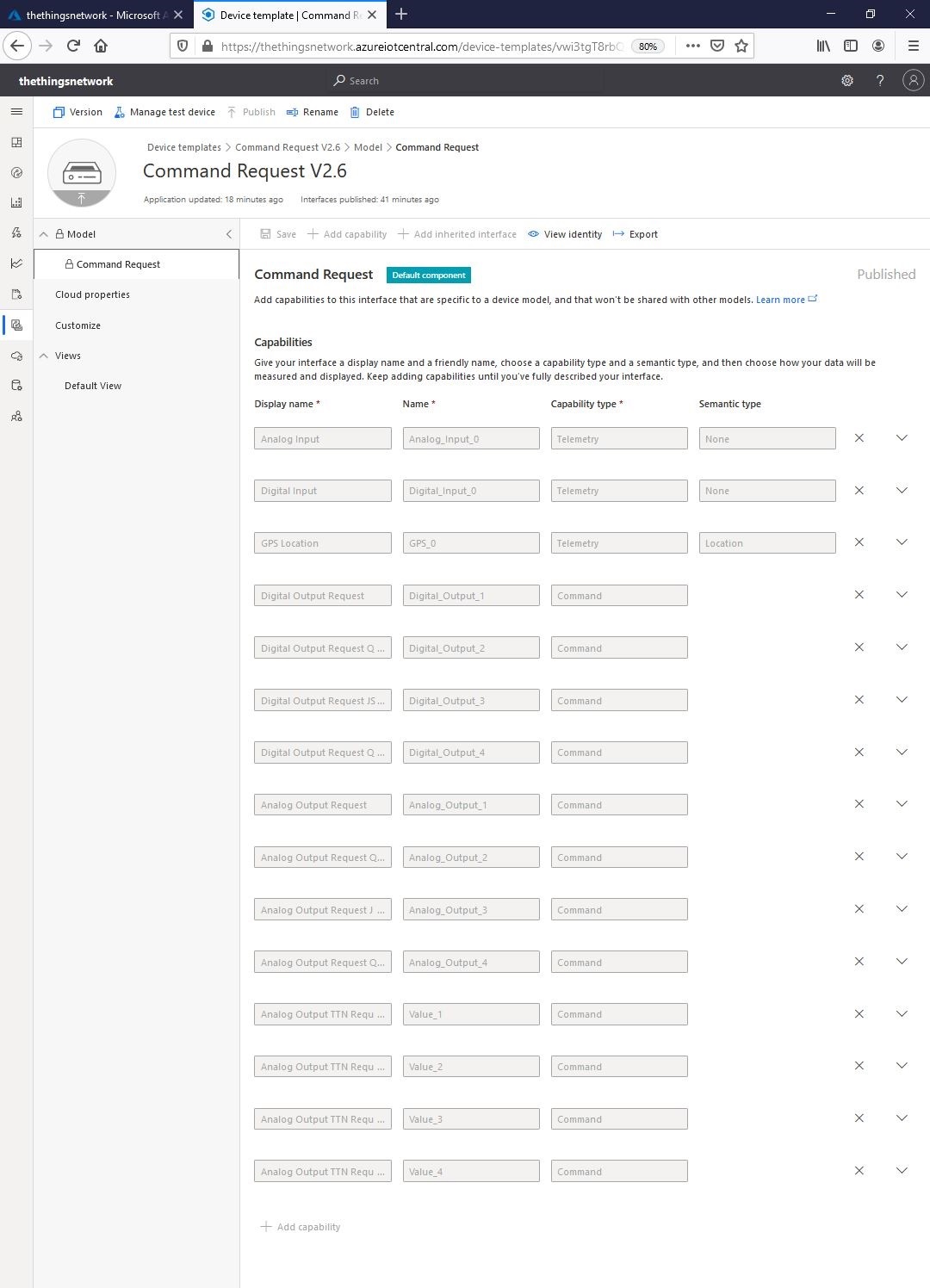
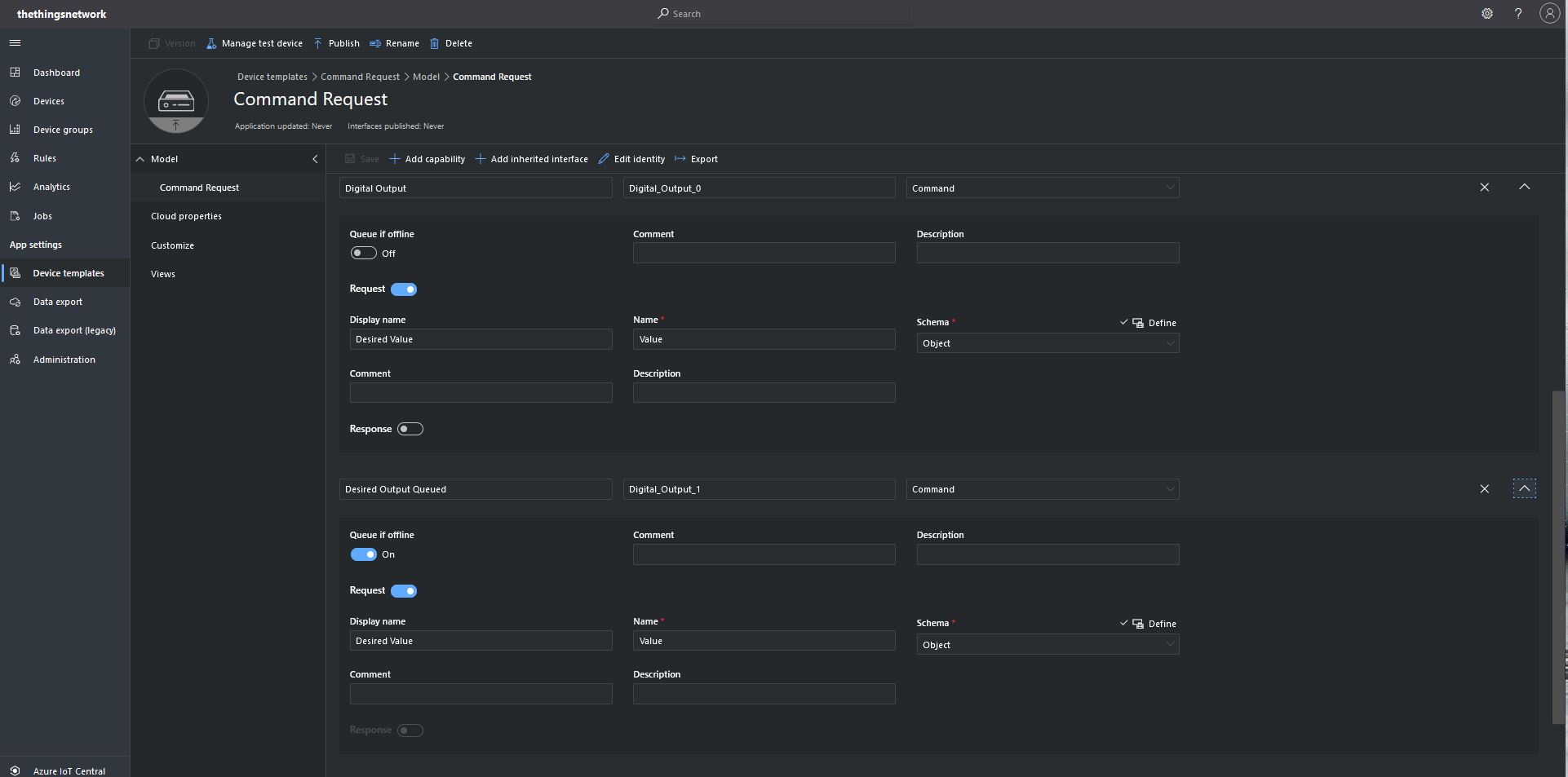
I initially created an Azure IoT Central Device Template with command and telemetry device capabilities.

“Collapsed” Command Request template
Command Request Template digital commands

I tried typed request and object based parameters to explorer how an integration with The Things Network(TTN)/The Things Industries(TTI) using the Message Queue Telemetry Transport(MQTT) interface could work.

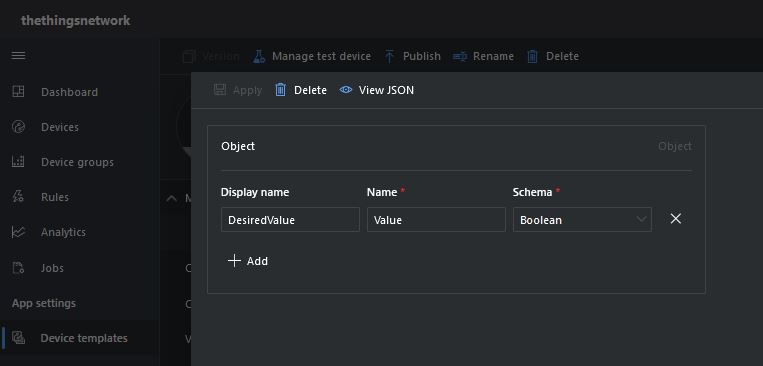
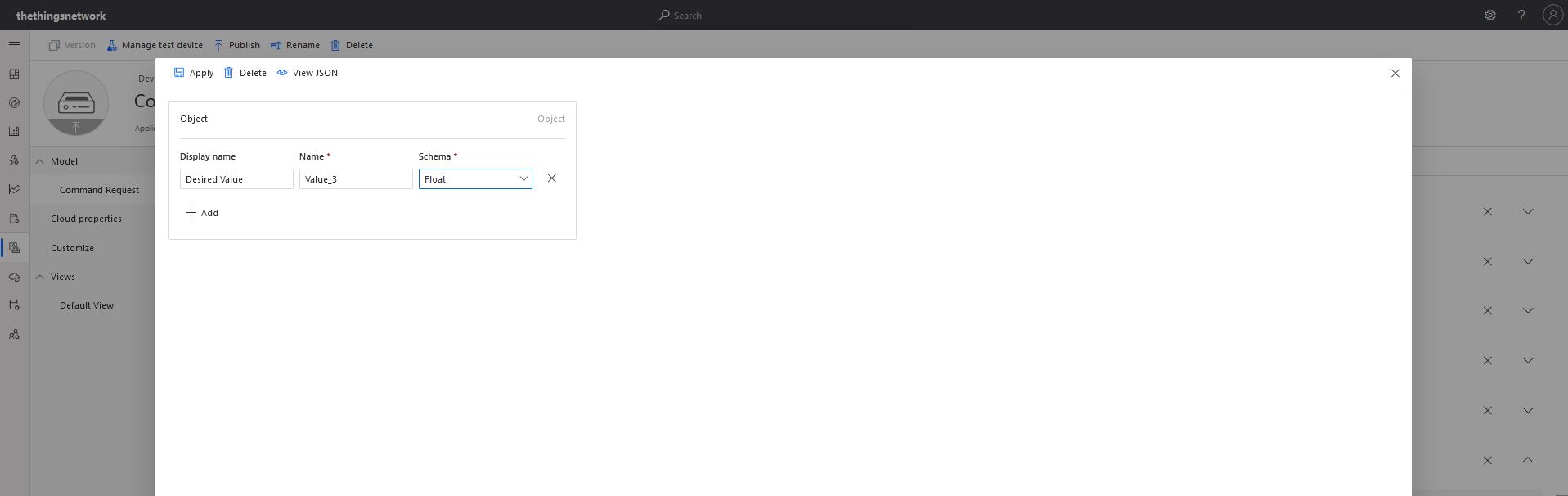
Object parameter schema designer

With object based parameters the request JSON could contain more than one value though the validation of user provided information didn’t appear to be as robust.

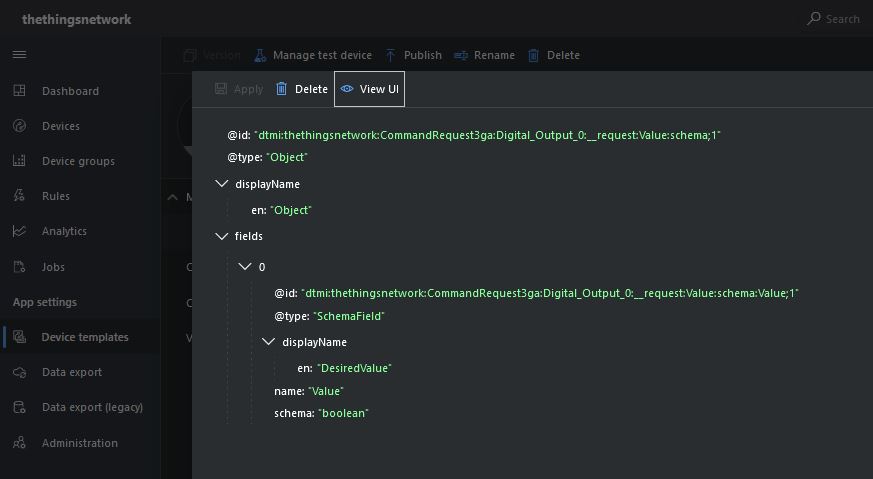
Object parameter schema definition

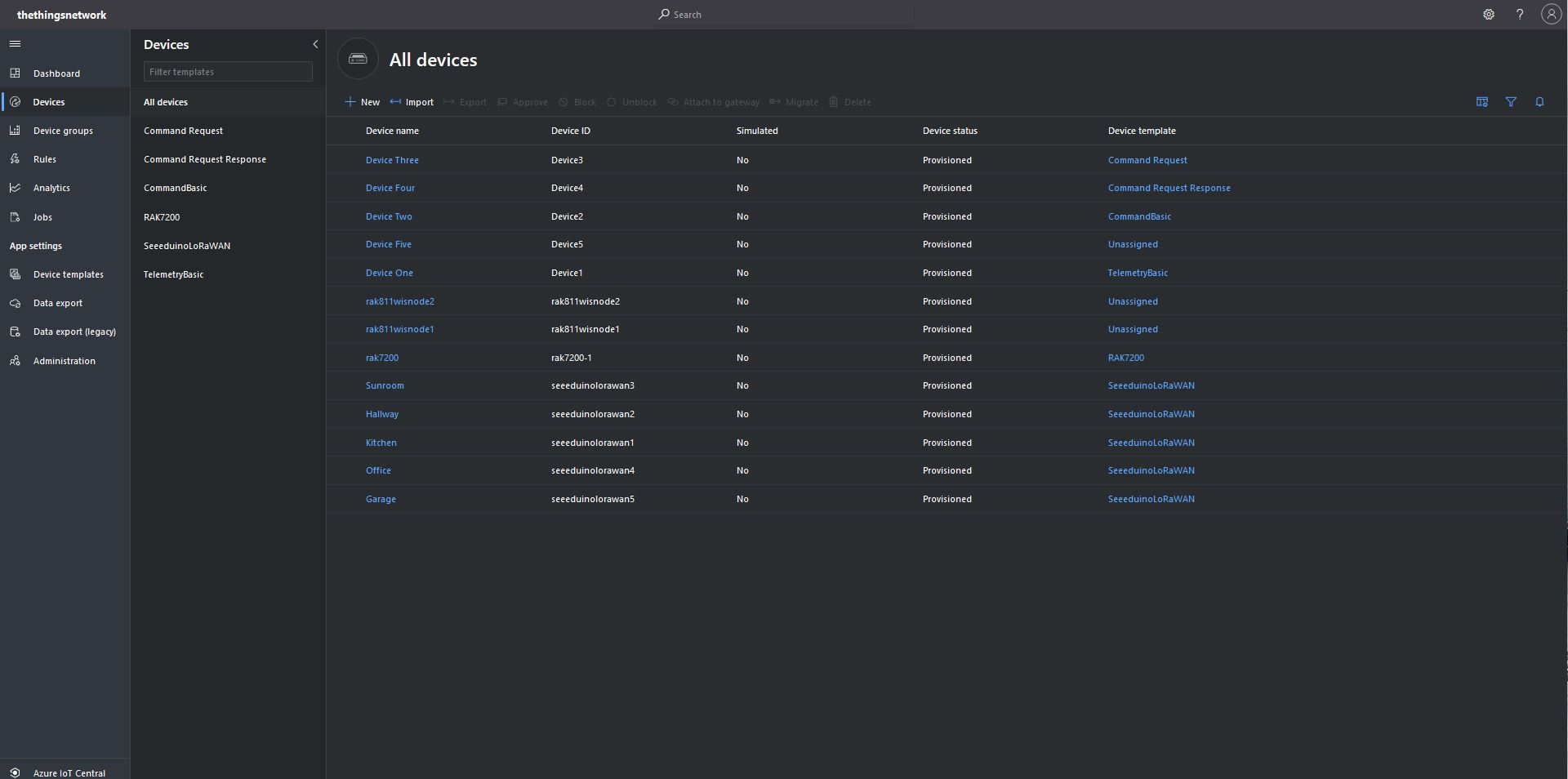
I “migrated” my third preconfigured device to the CommandRequest template to see how the commands with Request parameters interacted with my PoC application.

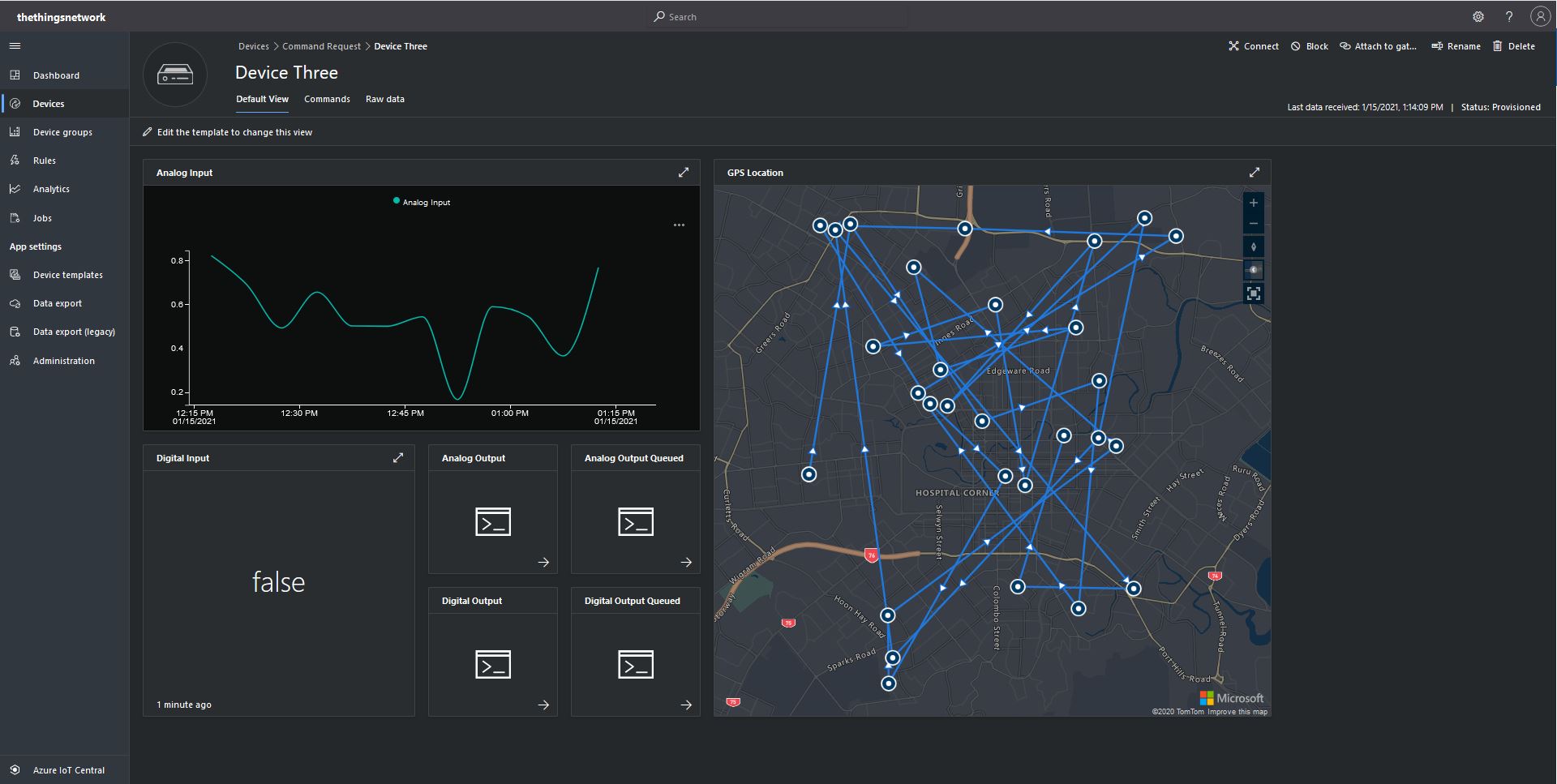
After “migrating” my device I went back and created a Template view so I could visualise the simulated telemetry from my PoC application and provide a way to initiate commands (Didn’t really need four command tiles as they all open the Device commands form).

CommandRequest device template default view

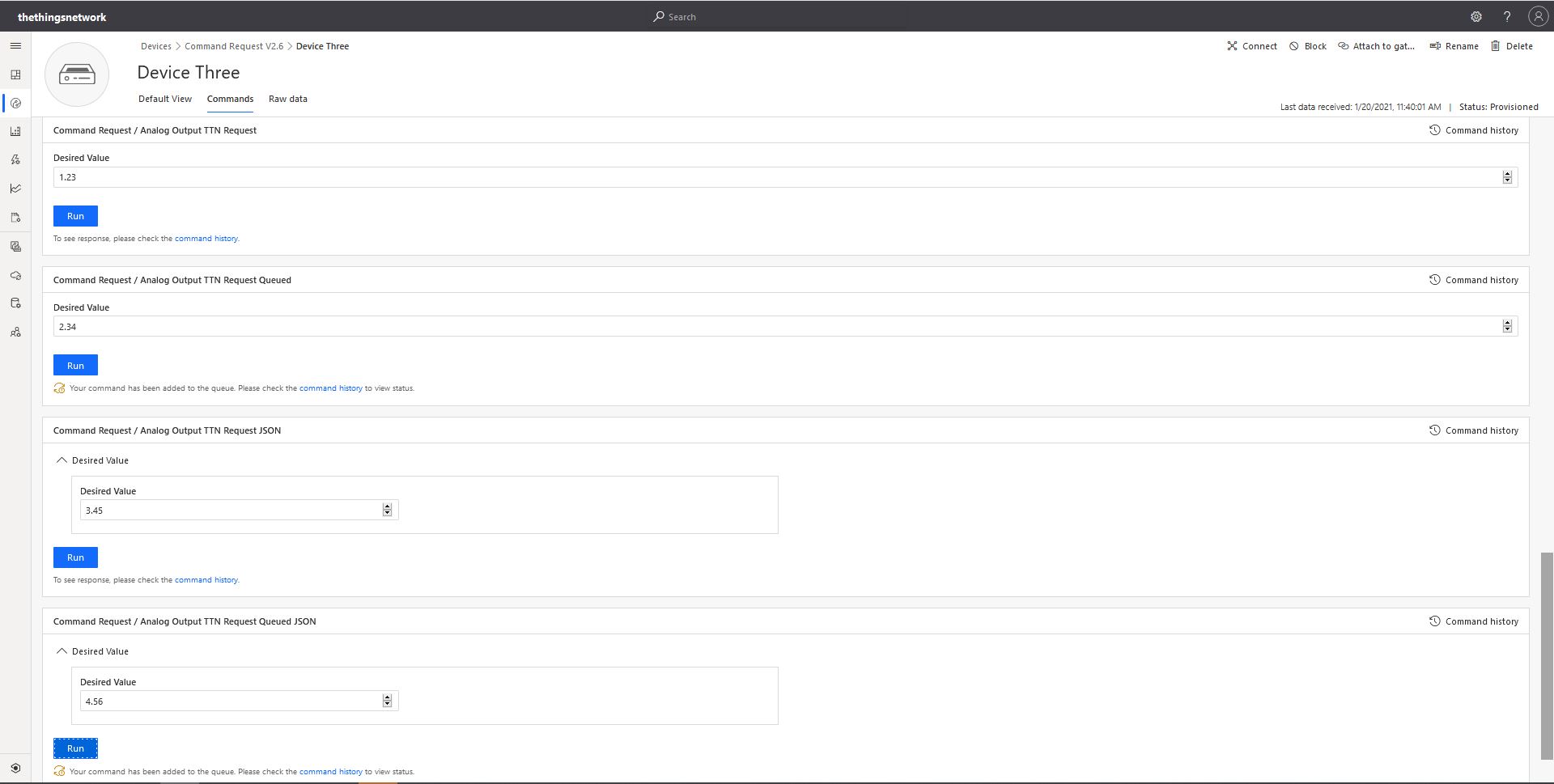
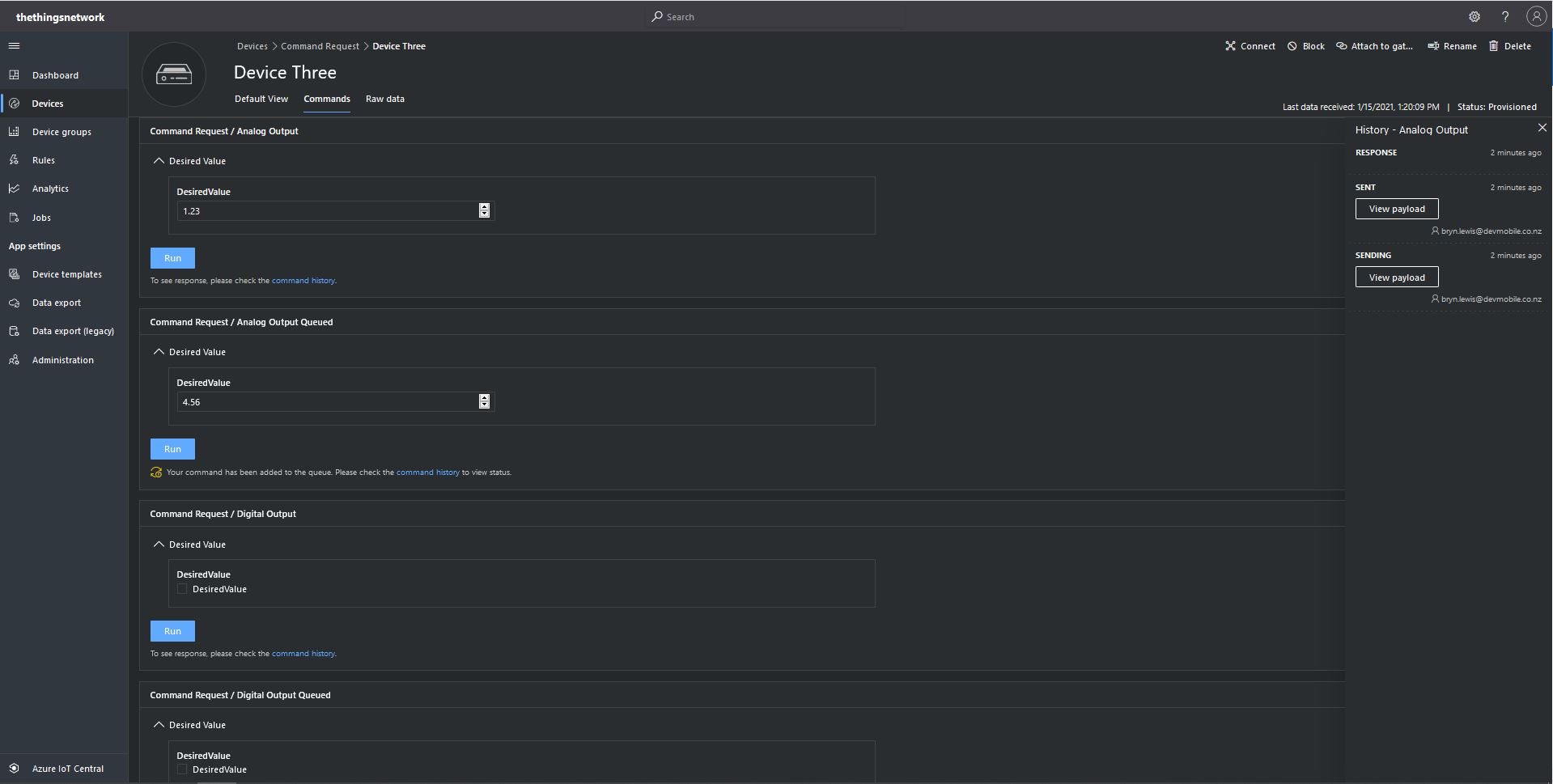
From the Device Commands form I could send commands and a queued commands which had analog or digital parameters.

Device Three Command Tab

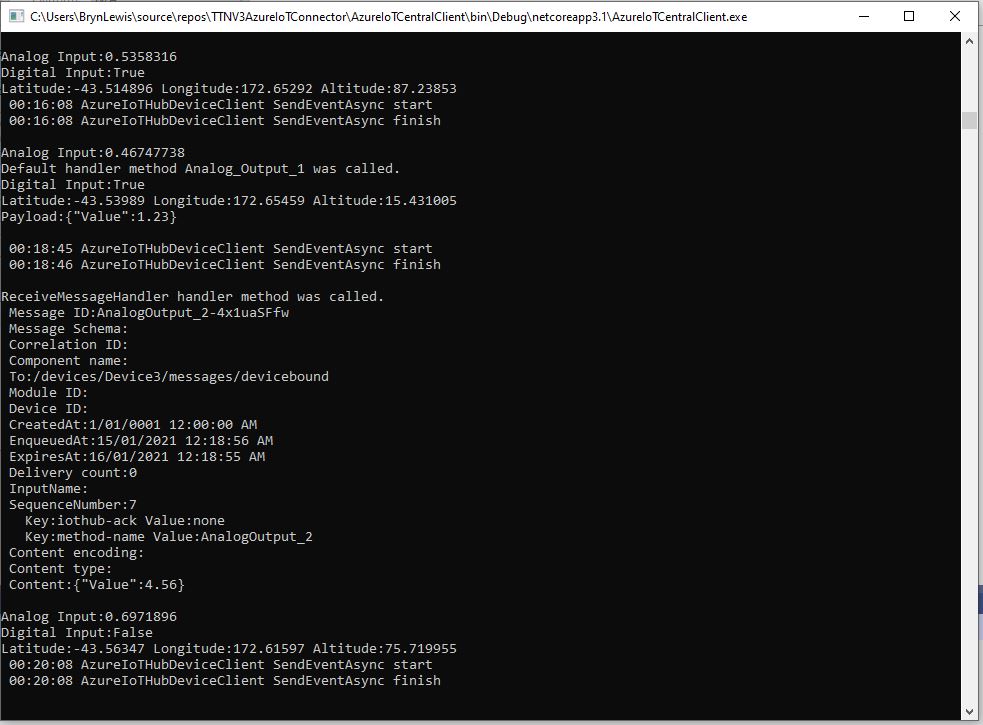
When I initiated an Analog non-queued command the default method handler was invoked with the name of the command capability (Analog_Output_1) as the method name and the payload contained a JSON representation of the request values(s). With a typed parameter a string representation of the value was in the message payload. With a typed parameter a string representation of the value was in the message payload rather than JSON.

Console application displaying Analog request and Analog Request queued commands

When I initiated an Analog queued command the message handler was invoked with the name of the command capability (Analog_Output_2) in a message property called “method-name” and the payload contained a JSON representation of the request value(s). With a typed parameter a string representation of the value was in the message payload rather than JSON.

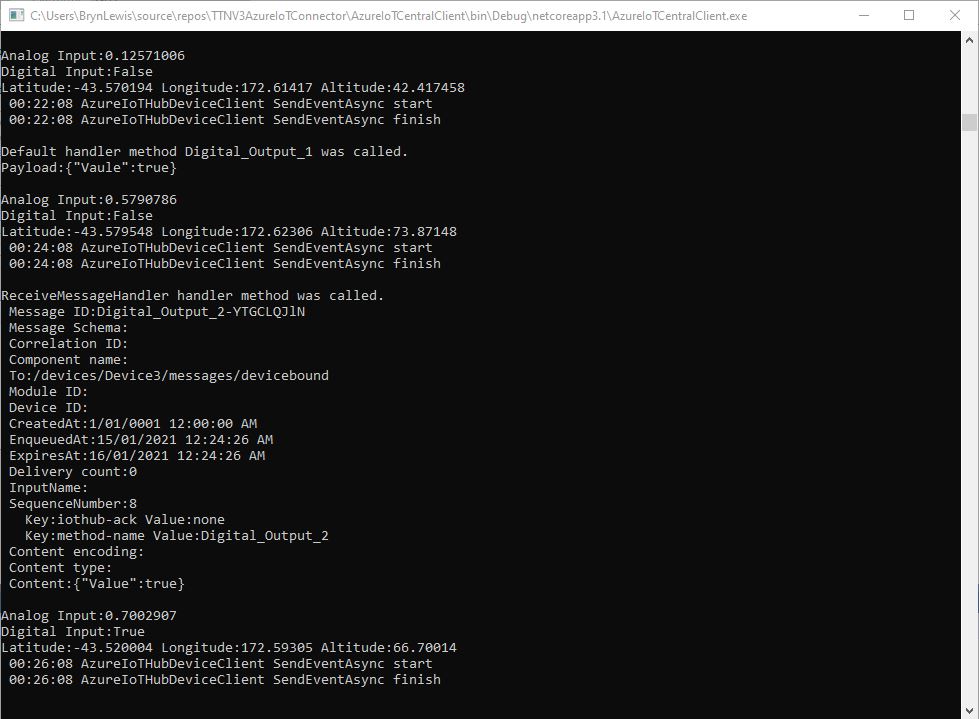
When I initiated a Digital non-queued command the default method handler was invoked with the name of the command capability (Digital_Output_1) as the method name and the payload contained a JSON representation of the request values(s). With a typed parameter a string representation of the value was in the message payload rather than JSON.

Console application displaying Digital request and Digital Request queued commands

When I initiated a Digital queued command the message handler was invoked with the name of the command capability(Digital_Output_2) in a message property called “method-name” and the payload contained a JSON representation of the request value(s). With a typed parameter a string representation of the value was in the message payload rather than JSON.

The validation of user input wasn’t as robust as I expected, with problems selecting checkboxes with a mouse when there were several Boolean fields. I often had to click on a nearby input field and use the TAB button to navigate to the desired checkbox. I also had problems with ISO 8601 format date validation as the built in Date Picker returned a month, day, year date which was not editable and wouldn’t pass validation.

The next logical step would be to look at commands with a Response parameter but as the MQTT interface is The Things Network(TTN) and The Things Industries(TTI) is asynchronous and devices reporting every 5 minutes to a couple of times a day there could be a significant delay between sending a message and receiving an optional delivery confirmation or response.