Airbnb Dataset – NetTopologySuite spatial searching

I have used Entity Framework Core a “full fat” Object Relational Mapper (ORM) for a couple of projects, and it supports mapping to spatial data types using the NetTopologySuite library. On Stackoverflow there was some discussion about Dapper’s spatial support so I thought I would try it out.

The DapperSpatialNetTopologySuite project has Dapper SQLMapper TypeHandler, Microsoft SQL Server stored procedure name and ASP.NET Core Minimal API for each location column handler implementation.

app.MapGet("/Spatial/NearbyGeography", async (double latitude, double longitude, int distance, [FromServices] IDapperContext dapperContext) =>
{
   var origin = new Point(longitude, latitude) { SRID = 4326 };

   using (var connection = dapperContext.ConnectionCreate())
   {
      var results = await connection.QueryWithRetryAsync<Model.ListingNearbyListGeographyDto>("ListingsSpatialNearbyNTS_____", new { origin, distance }, commandType: CommandType.StoredProcedure);

      return results;
   }
})
.Produces<IList<Model.ListingNearbyListGeographyDto>>(StatusCodes.Status200OK)
.Produces<ProblemDetails>(StatusCodes.Status400BadRequest)
.WithOpenApi();

After adding the NetTopologySuite spatial library to the project the schemas list got a lot bigger.

NetTopology Suite additional schemas

My first attempt inspired by a really old Marc Gravell post and the NetTopologySuite.IO.SqlServerBytes documentation didn’t work.

CREATE PROCEDURE [dbo].[ListingsSpatialNearbyNTSLocation]
	@Origin AS GEOGRAPHY,
	@distance AS INTEGER
AS
BEGIN
DECLARE @Circle AS GEOGRAPHY = @Origin.STBuffer(@distance); 

SELECT TOP(50) UID AS ListingUID
	,[Name]
	,listing_url as ListingUrl
	,Listing.Location.STDistance(@Origin) as Distance
	,Listing.Location
FROM Listing
WHERE (Listing.Location.STWithin(@Circle) = 1) 
ORDER BY Distance
END
NetTopology Suite Microsoft.SqlServer.Types library load exception

I could see the Dapper SQLMapper TypeHandler for the @origin parameter getting called but the not locations

NetTopology Suite @Origin parameter typehandler in Visual Studio 2022 Debugger

Then found a Brice Lambson post about how to use the NetTopologySuite.IO.SqlServerBytes library to read and write geography and geometry columns.

CREATE PROCEDURE [dbo].[ListingsSpatialNearbyNTSSerialize]
	@Origin AS GEOGRAPHY,
	@distance AS INTEGER
AS
BEGIN
DECLARE @Circle AS GEOGRAPHY = @Origin.STBuffer(@distance); 

SELECT TOP(50) UID AS ListingUID
	,[Name]
	,listing_url as ListingUrl
	,Listing.Location.STDistance(@Origin) as Distance
	,Location.Serialize() as Location
FROM [listing] 
WHERE (Location.STWithin(@Circle) = 1) 
ORDER BY Distance
END
class PointHandlerSerialise : SqlMapper.TypeHandler<Point>
{
   public override Point Parse(object value)
   {
      var reader = new SqlServerBytesReader { IsGeography = true };

      return (Point)reader.Read((byte[])value);
   }

   public override void SetValue(IDbDataParameter parameter, Point? value)
   {
      ((SqlParameter)parameter).SqlDbType = SqlDbType.Udt;  // @Origin parameter?
      ((SqlParameter)parameter).UdtTypeName = "GEOGRAPHY";

      var writer = new SqlServerBytesWriter { IsGeography = true };

      parameter.Value = writer.Write(value);
   }
}

Once the location column serialisation was working (I could see a valid response in the debugger) the generation of the response was failing with a “System.Text.Json.JsonException: A possible object cycle was detected. This can either be due to a cycle or if the object depth is larger than the maximum allowed depth of 64″.
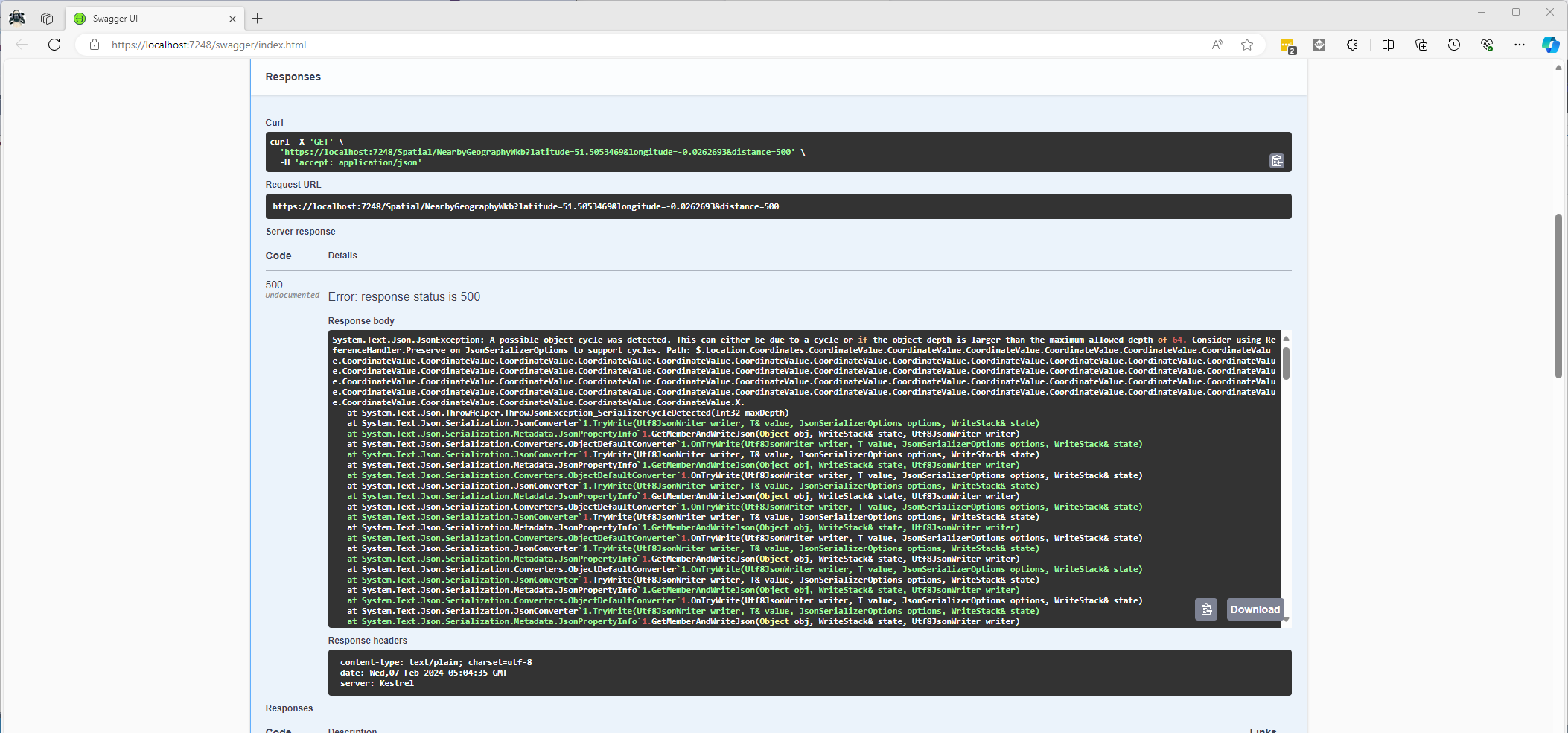
NetTopology Suite serialisation “possible object cycle detection” exception

After fixing that issue the response generation failed with “System.ArgumentException: .NET number values such as positive and negative infinity cannot be written as valid JSON.”
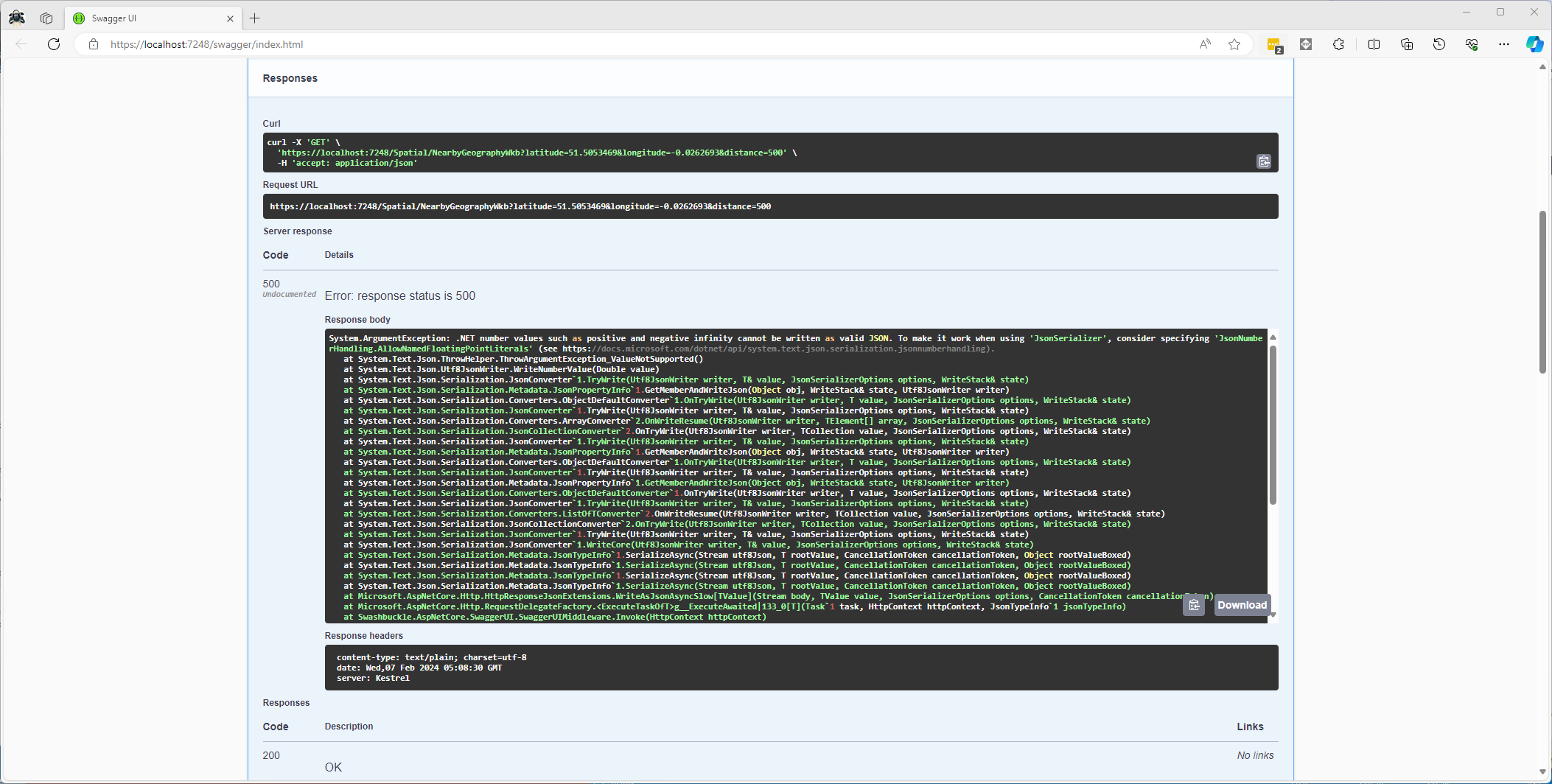
NetTopology Suite serialisation “possible object cycle detection” exception

Fixing these two issues required adjustment of two HttpJsonOptions

//...
builder.Services.ConfigureHttpJsonOptions(options =>
{
   options.SerializerOptions.ReferenceHandler = ReferenceHandler.IgnoreCycles;
   options.SerializerOptions.NumberHandling = JsonNumberHandling.AllowNamedFloatingPointLiterals;
});

var app = builder.Build();
//...
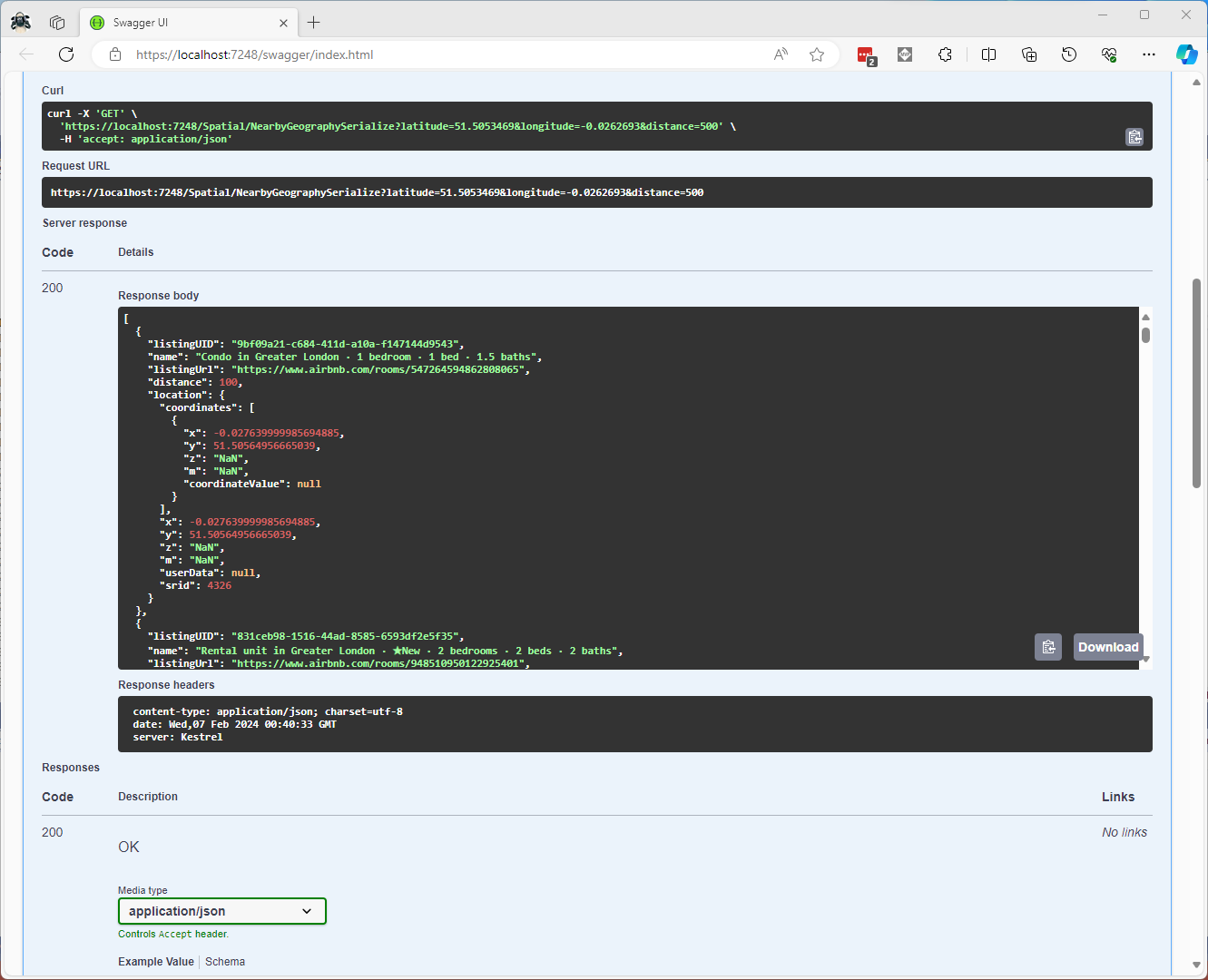
Swagger NetTopology Suite location serialisation response

After digging into the Dapper source code I wondered how ADO.Net handled loading Microsoft.SQLServer.Types library

app.MapGet("/Listing/Search/Ado", async (double latitude, double longitude, int distance, [FromServices] IDapperContext dapperContext) =>
{
   var origin = new Point(longitude, latitude) { SRID = 4326 };

   using (SqlConnection connection = (SqlConnection)dapperContext.ConnectionCreate())
   {
      await connection.OpenAsync();

      var geographyWriter = new SqlServerBytesWriter { IsGeography = true };

      using (SqlCommand command = connection.CreateCommand())
      {
         command.CommandText = "ListingsSpatialNearbyNTSLocation";
         command.CommandType = CommandType.StoredProcedure;

         var originParameter = command.CreateParameter();
         originParameter.ParameterName = "Origin";
         originParameter.Value = new SqlBytes(geographyWriter.Write(origin));
         originParameter.SqlDbType = SqlDbType.Udt;
         originParameter.UdtTypeName = "GEOGRAPHY";
         command.Parameters.Add(originParameter);

         var distanceParameter = command.CreateParameter();
         distanceParameter.ParameterName = "Distance";
         distanceParameter.Value = distance;
         distanceParameter.DbType = DbType.Int32;
         command.Parameters.Add(distanceParameter);

         var geographyReader = new SqlServerBytesReader { IsGeography = true };

         using (var dbDataReader = await command.ExecuteReaderAsync())
         {
            List<Model.ListingNearbyListGeographyDto> listings = new List<Model.ListingNearbyListGeographyDto>();

            int listingUIDColumn = dbDataReader.GetOrdinal("ListingUID");
            int nameColumn = dbDataReader.GetOrdinal("Name");
            int listingUrlColumn = dbDataReader.GetOrdinal("ListingUrl");
            int distanceColumn = dbDataReader.GetOrdinal("Distance");
            int LocationColumn = dbDataReader.GetOrdinal("Location");

            while (await dbDataReader.ReadAsync())
            {
               listings.Add(new Model.ListingNearbyListGeographyDto
               {
                  ListingUID = dbDataReader.GetGuid(listingUIDColumn),
                  Name = dbDataReader.GetString(nameColumn),
                  ListingUrl = dbDataReader.GetString(listingUrlColumn),
                  Distance = (int)dbDataReader.GetDouble(distanceColumn),
                  Location = (Point)geographyReader.Read(dbDataReader.GetSqlBytes(LocationColumn).Value)
               });
            }

            return listings;
         }
      }
   }
})
.Produces<IList<Model.ListingNearbyListGeographyDto>>(StatusCodes.Status200OK)
.Produces<ProblemDetails>(StatusCodes.Status400BadRequest)
.WithOpenApi();

The ADO.Net implementation worked and didn’t produce any exceptions.
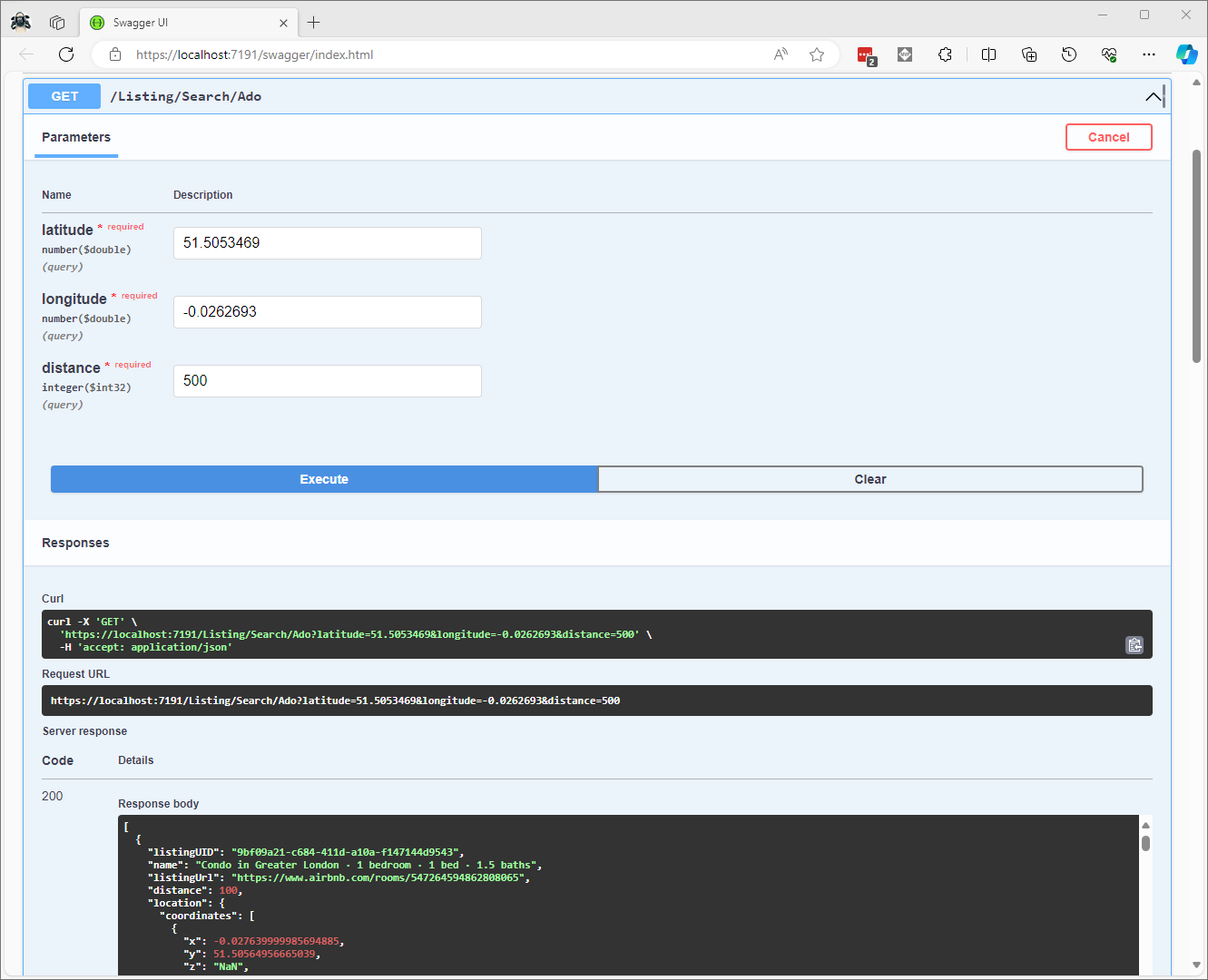
Swagger ADO.Net location serialisation response

In the Visual Studio 2022 debugger I could see the Microsoft.SQLServer.Types exception but this wasn’t “bubbling” up to the response generation code.

ADO.Net location serialisation Microsoft.SqlServer.Types load failure

The location columns could also be returned as Open Geospatial Consortium (OGC) Well-Known Binary (WKB) format using the STAsBinary method.

CREATE PROCEDURE [dbo].[ListingsSpatialNearbyNTSWkb]
	@Origin AS GEOGRAPHY,
	@distance AS INTEGER
AS
BEGIN
DECLARE @Circle AS GEOGRAPHY = @Origin.STBuffer(@distance); 

SELECT TOP(50) UID AS ListingUID
	,[Name]
	,listing_url as ListingUrl
	,Listing.Location.STDistance(@Origin) as Distance
	,Location.STAsBinary() as Location
FROM [listing] 
WHERE (Location.STWithin(@Circle) = 1) 
ORDER BY Distance
END

Then converted to and from NTS Point values using WKBReader and SqlServerBytesWriter

SqlMapper.AddTypeHandler(new PointHandlerWkb());
//...
class PointHandlerWkb : SqlMapper.TypeHandler<Point>
{
   public override Point Parse(object value)
   {
      var reader = new WKBReader();

      return (Point)reader.Read((byte[])value);
   }

   public override void SetValue(IDbDataParameter parameter, Point? value)
   {
      ((SqlParameter)parameter).SqlDbType = SqlDbType.Udt;  // @Origin parameter?
      ((SqlParameter)parameter).UdtTypeName = "GEOGRAPHY";

      var geometryWriter = new SqlServerBytesWriter { IsGeography = true };

      parameter.Value = geometryWriter.Write(value);
   }
}
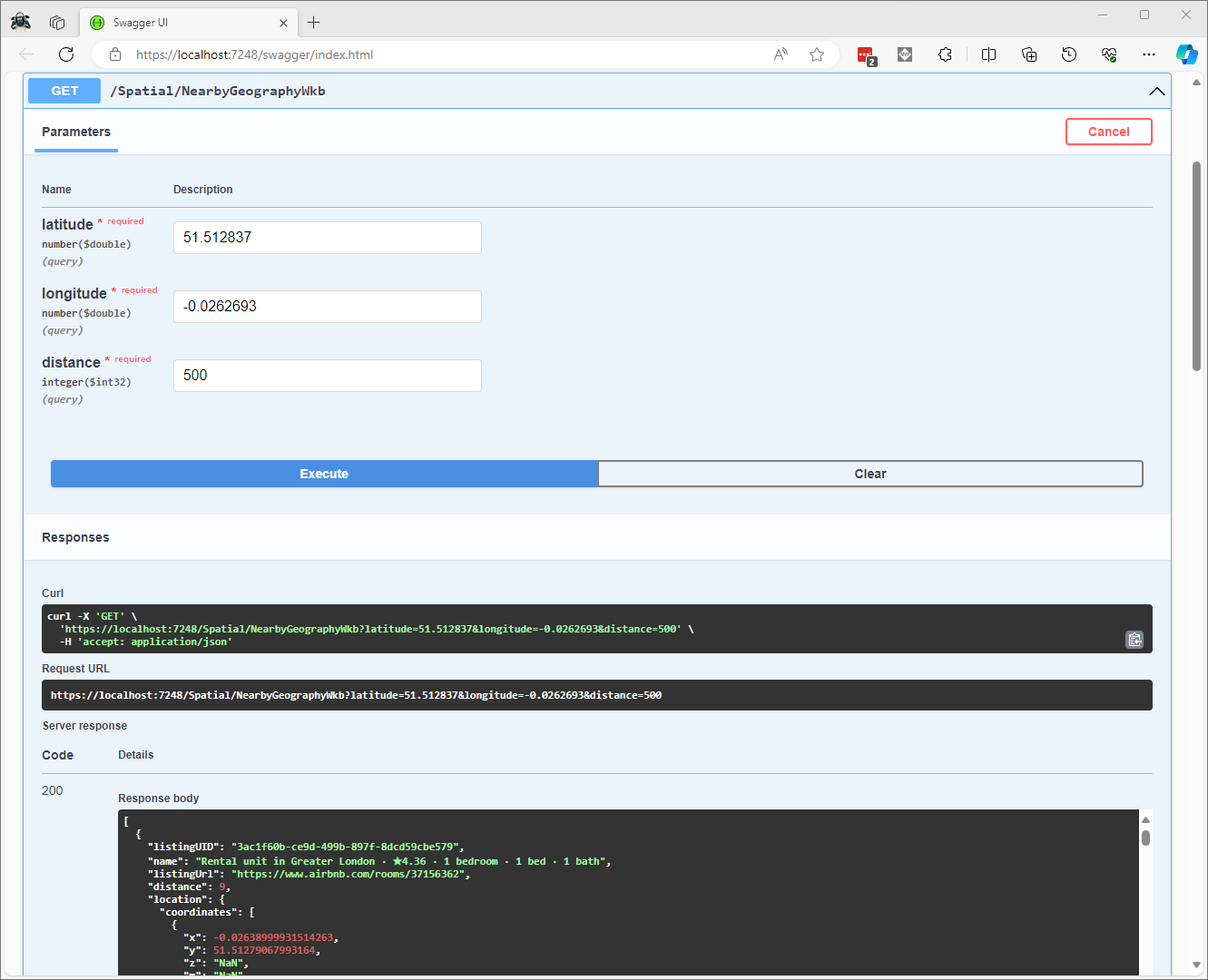
Successful Location processing with WKBReader

The location columns could also be returned as Open Geospatial Consortium (OGC) Well Known Text(WKT) format using the STAsText and SqlServerBytesWriter;

CREATE PROCEDURE [dbo].[ListingsSpatialNearbyNTSWkt]
	@Origin AS GEOGRAPHY,
	@distance AS INTEGER
AS
BEGIN
DECLARE @Circle AS GEOGRAPHY = @Origin.STBuffer(@distance); 

SELECT TOP(50) UID AS ListingUID
	,[Name]
	,listing_url as ListingUrl
	,Listing.Location.STDistance(@Origin) as Distance
	,Location.STAsText() as Location
FROM [listing] 
WHERE (Location.STWithin(@Circle) = 1) 
ORDER BY Distance
END

Then converted to and from NTS Point values using WKTReader and SqlServerBytesWriter

class PointHandlerWkt : SqlMapper.TypeHandler<Point>
{
   public override Point Parse(object value)
   {
      WKTReader wktReader = new WKTReader();

      return (Point)wktReader.Read(value.ToString());
   }

   public override void SetValue(IDbDataParameter parameter, Point? value)
   {
      ((SqlParameter)parameter).SqlDbType = SqlDbType.Udt;  // @Origin parameter?
      ((SqlParameter)parameter).UdtTypeName = "GEOGRAPHY";

      parameter.Value = new SqlServerBytesWriter() { IsGeography = true }.Write(value);
   }
}
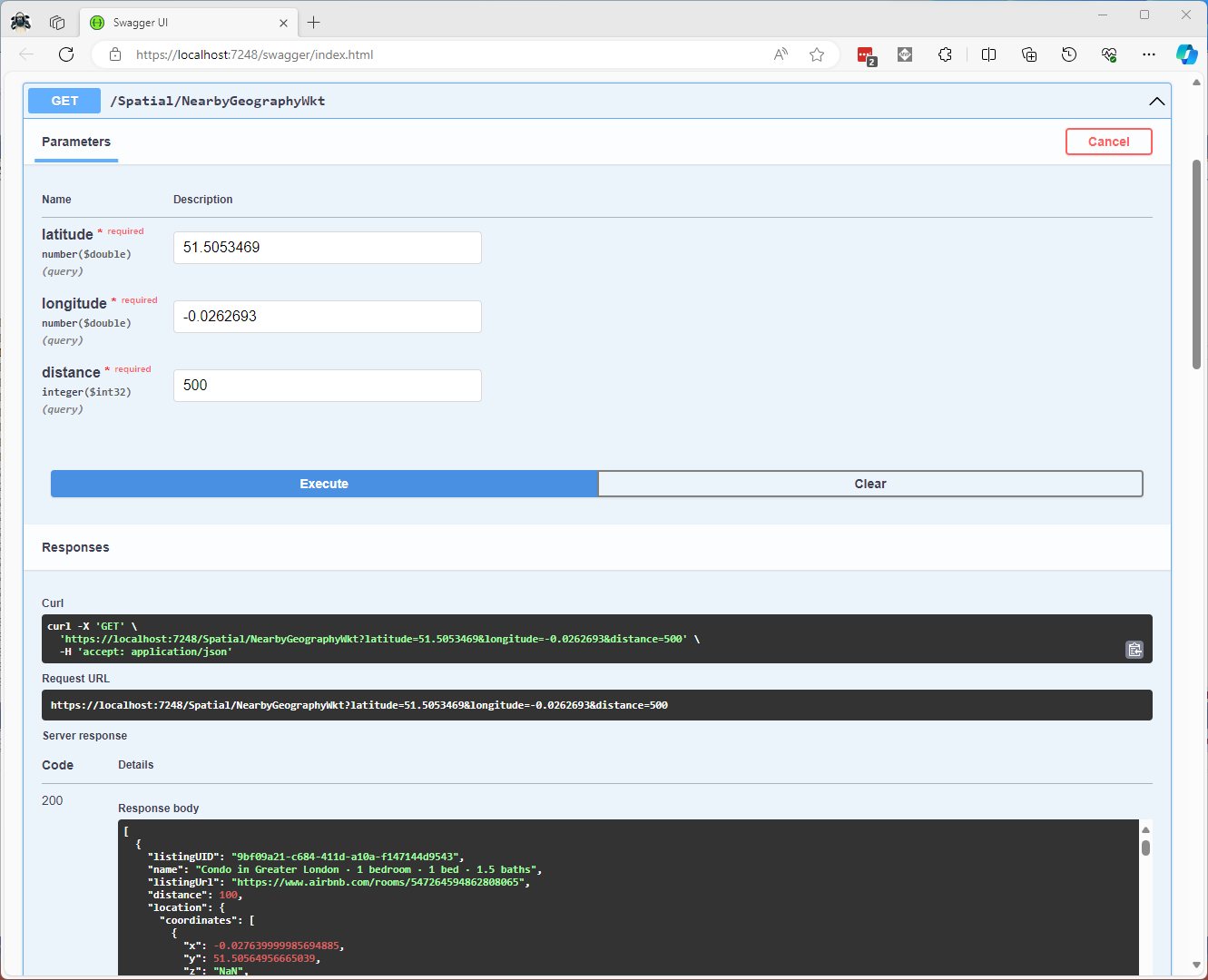
Successful Location processing with WKBReader

I have focused on getting the spatial queries to work and will stress/performance test my implementations in a future post. I will also revisit the /Spatial/NearbyGeography method to see if I can get it to work without “Location.Serialize() as Location”.

Downloaded Microsoft.Data.SqlClient source code and in SqlConnection.cs this doesn’t help….

  // UDT SUPPORT
  private Assembly ResolveTypeAssembly(AssemblyName asmRef, bool throwOnError)
  {
      Debug.Assert(TypeSystemAssemblyVersion != null, "TypeSystemAssembly should be set !");
      if (string.Equals(asmRef.Name, "Microsoft.SqlServer.Types", StringComparison.OrdinalIgnoreCase))
      {
          if (asmRef.Version != TypeSystemAssemblyVersion && SqlClientEventSource.Log.IsTraceEnabled())
          {
              SqlClientEventSource.Log.TryTraceEvent("SqlConnection.ResolveTypeAssembly | SQL CLR type version change: Server sent {0}, client will instantiate {1}", asmRef.Version, TypeSystemAssemblyVersion);
          }
          asmRef.Version = TypeSystemAssemblyVersion;
      }
      try
      {
          return Assembly.Load(asmRef);
      }
      catch (Exception e)
      {
          if (throwOnError || !ADP.IsCatchableExceptionType(e))
          {
              throw;
          }
          else
          {
              return null;
          }
      }
  }

Airbnb Dataset – Microsoft spatial searching

The Inside Airbnb London has the polygons of 33 neighbourhoods and each of the roughly 87900 listings has a latitude and longitude. The WebMinimalAPIDapper Spatial project uses only Microsoft SQL Server’s Spatial functionality for searching and distance calculations. 

Spatial Projections supported by SQL Server

The “magic number” 4326 indicates that the latitude and longitude values are expressed in the World Geodetic System 1984(WGS84) which is also used by the Global Positioning System (GPS) operated by the United States Space Force.

CREATE TABLE [dbo].[Neighbourhood](
	[id] [bigint] IDENTITY(1,1) NOT NULL,
	[NeighbourhoodUID] [uniqueidentifier] NOT NULL,
	[name] [nvarchar](50) NOT NULL,
	[neighbourhood_url] [nvarchar](100) NOT NULL,
	[boundary] [geography] NOT NULL,
 CONSTRAINT [PK_Neighbourhood] PRIMARY KEY CLUSTERED 
(
	[id] ASC
)
-- Then create a spatial index on GEOGRAPHY which contains the boundary polygon(s)
CREATE SPATIAL INDEX [ISX_NeighbourhoodBoundary] ON [dbo].[Neighbourhood]
(
	[boundary]
)

I added a GEOGRAPHY column to the Listing table, populated it using the Latitude and Longitudes of the Listings then added a spatial index.

-- Use latitude and longitude to populate Location GEOGRAPHY column
UPDATE listing
SET Listing.Location = geography::Point(latitude, longitude, 4326)

-- Then index Location column after changing to NOT NULL
CREATE SPATIAL INDEX [IXS_ListingByLocation] ON [dbo].[listing]
(
	[Location]
)

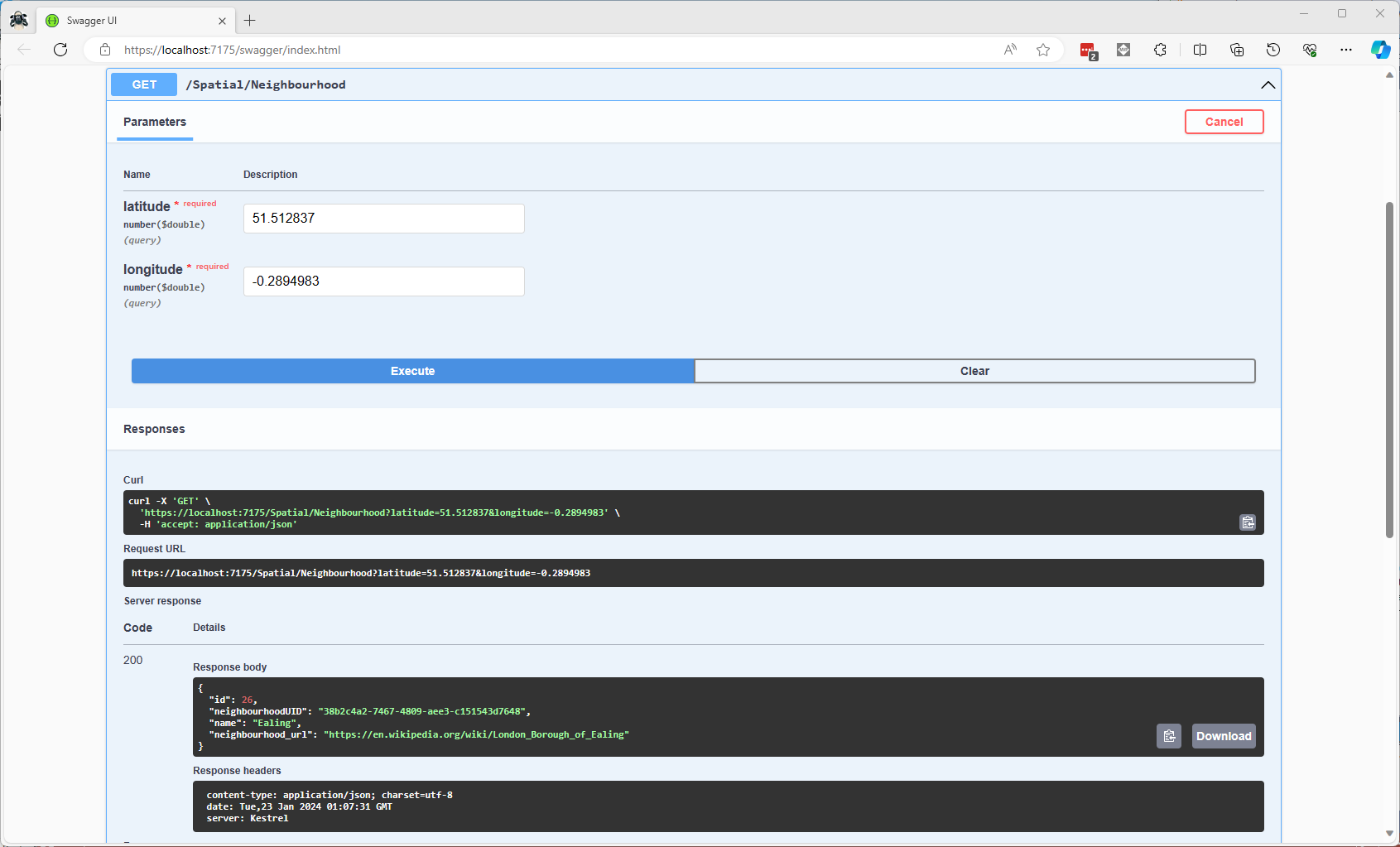
The first spatial search uses the latitude and longitude (most probably extracted from image metadata) to get a Listing’s neighbourhood.

Testing listing in Neighbourhood SQL

It uses the STContains method to find the neighbourhood polygon (if there is one) which the listing location is inside.

const string ListingInNeighbourhoodSQL = @"SELECT neighbourhoodUID, name, neighbourhood_url as neighbourhoodUrl FROM Neighbourhood WHERE Neighbourhood.Boundary.STContains(geography::Point(@Latitude, @Longitude, 4326)) = 1";
...

app.MapGet("/Spatial/Neighbourhood", async (double latitude, double longitude, [FromServices] IDapperContext dapperContext) =>
{
   Model.NeighbourhoodSearchDto neighbourhood;

   using (var connection = dapperContext.ConnectionCreate())
   {
      neighbourhood = await connection.QuerySingleOrDefaultWithRetryAsync<Model.NeighbourhoodSearchDto>(ListingInNeighbourhoodSQL, new { latitude, longitude });
   }

   if (neighbourhood is null)
   {
      return Results.Problem($"Neighbourhood for Latitude:{latitude} Longitude:{longitude} not found", statusCode: StatusCodes.Status404NotFound);
   }

   return Results.Ok(neighbourhood);
})
.Produces<IList<Model.NeighbourhoodSearchDto>>(StatusCodes.Status200OK)
.Produces(StatusCodes.Status404NotFound )
.WithOpenApi();

The case sensitivity of the OGC geography methods tripped me up a few times.

Testing listing Neighbourhood lookup with Swagger user interface

In a future blog post I will compare the performance of STContains vs. STWithin with a load testing application.

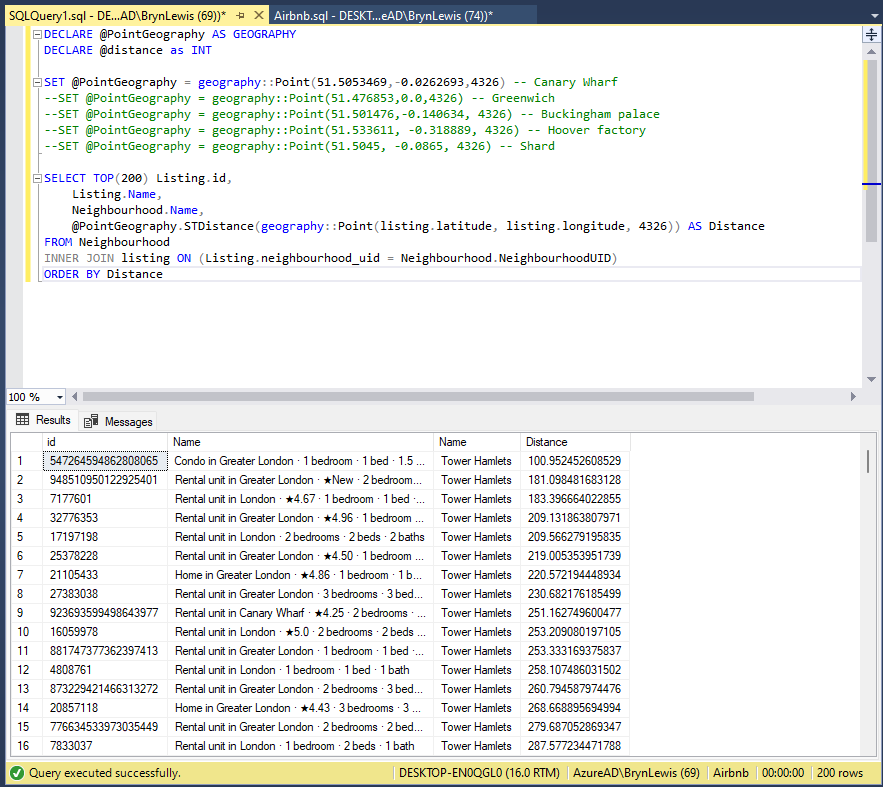
Testing listings near a location SQL

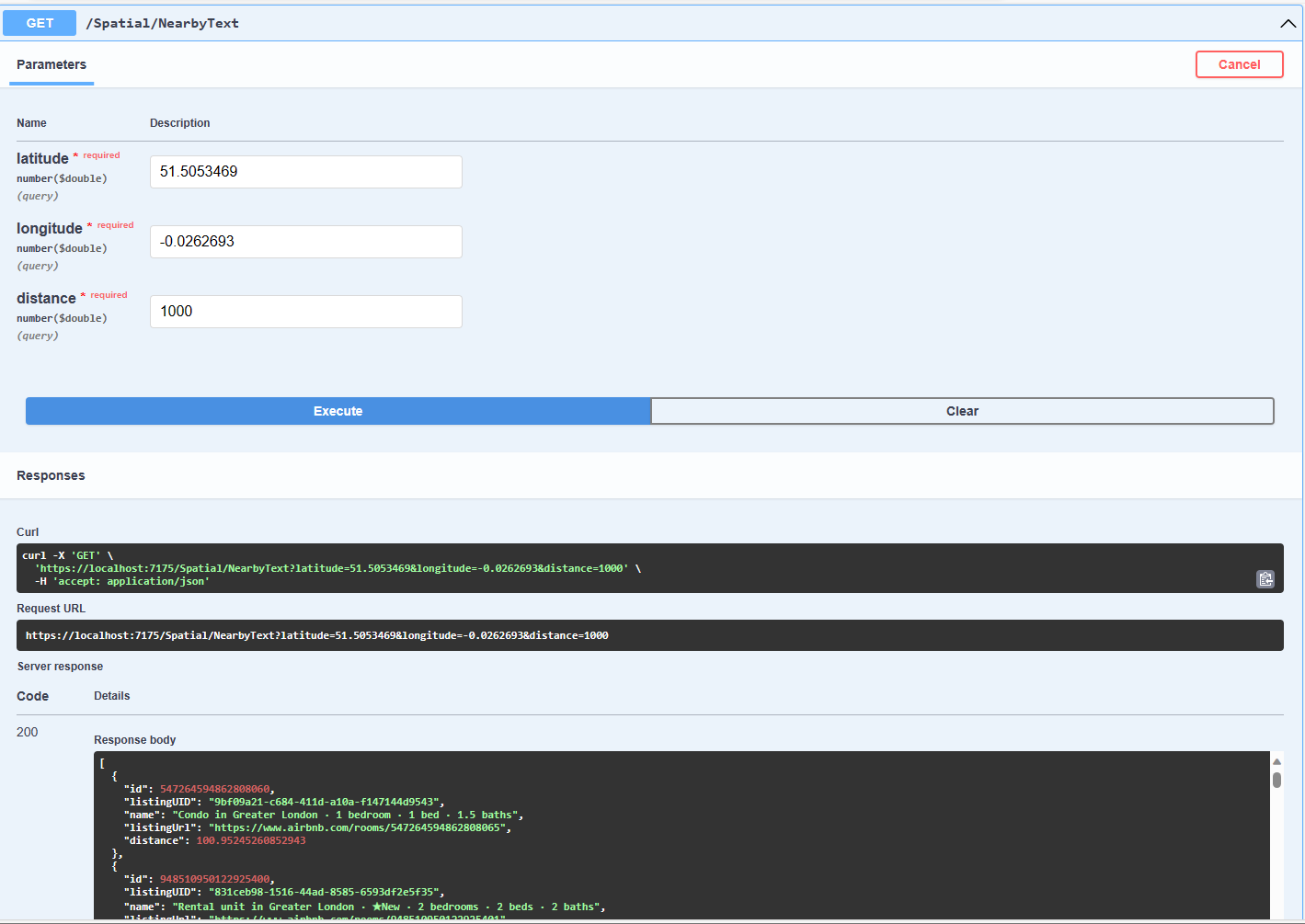
The second search simulates a customer looking for listing(s) within a specified distance of a point of interest.

const string ListingsNearbySQL = @"DECLARE @Origin AS GEOGRAPHY = geography::Point(@Latitude, @Longitude, 4326); 
                                  DECLARE @Circle AS GEOGRAPHY = @Origin.STBuffer(@distance); 
                                  --DECLARE @Circle AS GEOGRAPHY = @Origin.BufferWithTolerance(@distance, 0.09,true); 
                                  SELECT uid as ListingUID, Name, listing_url as ListingUrl, 
@Origin.STDistance(Listing.Location) as Distance 
                                  FROM [listing] 
                                  WHERE Listing.Location.STWithin(@Circle) = 1 ORDER BY Distance";
...
app.MapGet("/Spatial/NearbyText", async (double latitude, double longitude, double distance, [FromServices] IDapperContext dapperContext) =>
{
   using (var connection = dapperContext.ConnectionCreate())
   {
      return await connection.QueryWithRetryAsync<Model.ListingNearbyListDto>(ListingsNearbySQL, new { latitude, longitude, distance });
   }
})
.Produces<IList<Model.ListingNearbyListDto>>(StatusCodes.Status200OK)
.WithOpenApi();

The STBuffer command returns a geography object that represents represent a circle centered on @Location with a radius of @distance.

Testing listings near a location with Swagger user interface

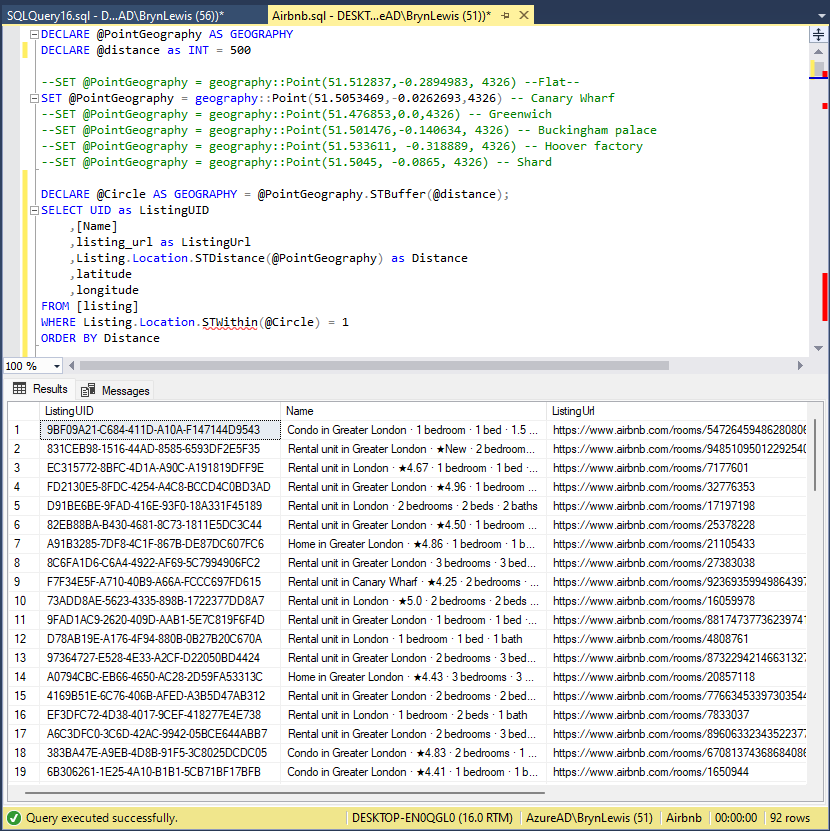
The third and final search simulates a customer looking for listing(s) within a specified distance of a point of interest with the latitude and longitude of the listing included in the results.

Testing listings near a location SQL with latitude & Longitude
const string ListingsNearbyLatitudeLongitudeSQL = @"DECLARE @Location AS GEOGRAPHY = geography::Point(@Latitude, @longitude,4326)
                                 DECLARE @Circle AS GEOGRAPHY = @Location.STBuffer(@distance);
                                 SELECT UID as ListingUID
	                              ,[Name]
	                              ,listing_url as ListingUrl
	                              ,Listing.Location.STDistance(@Location) as Distance
	                              ,latitude
                                 ,longitude
                                 FROM [listing]
                                 WHERE Listing.Location.STWithin(@Circle) = 1
                                 ORDER BY Distance";

app.MapGet("/Spatial/NearbyLatitudeLongitude", async (double latitude, double longitude, double distance, [FromServices] IDapperContext dapperContext) =>
{
   using (var connection = dapperContext.ConnectionCreate())
   {
      return await connection.QueryWithRetryAsync<Model.ListingNearbyListLatitudeLongitudeDto>(ListingsNearbyLatitudeLongitudeSQL, new { latitude, longitude, distance });
   }
})
.Produces<IList<Model.ListingNearbyListLatitudeLongitudeDto>>(StatusCodes.Status200OK)
.WithOpenApi();
Testing listings near a location with latitude & Longitude with Swagger user interface

The next couple of posts will use the third-party libraries Geo and NetTopolgySuite

Myriota device Uplink Serialisation

The Myriota Developer documentation has some sample webhook data payloads so I used JSON2csharp to generate a Data Transfer Object(DTO) to deserialise payload. The format of the message is a bit “odd”, the “Data “Value” contains an “escaped” JSON object.

{
  "EndpointRef": "ksnb8GB_TuGj:__jLfs2BQJ2d",
  "Timestamp": 1692928585,
  "Data": "{"Packets": [{"Timestamp": 1692927646796, "TerminalId": "0001020304", "Value": "00008c9512e624cce066adbae764cccccccccccc"}]}",
  "Id": "a5c1bffe-4b62-4233-bbe9-d4ecc4f8b6cb",
  "CertificateUrl": "https://security.myriota.com/data-13f7751f3c5df569a6c9c42a9ce73a8a.crt",
  "Signature": "FDJpQdWHwCY+tzCN/WvQdnbyjgu4BmP/t3cJIOEF11sREGtt7AH2L9vMUDji6X/lxWBYa4K8tmI0T914iPyFV36i+GtjCO4UHUGuFPJObCtiugVV8934EBM+824xgaeW8Hvsqj9eDeyJoXH2S6C1alcAkkZCVt0pUhRZSZZ4jBJGGEEQ1Gm+SOlYjC2exUOf0mCrI5Pct+qyaDHbtiHRd/qNGW0LOMXrB/9difT+/2ZKE1xvDv9VdxylXi7W0/mARCfNa0J6aWtQrpvEXJ5w22VQqKBYuj3nlGtL1oOuXCZnbFYFf4qkysPaXON31EmUBeB4WbZMyPaoyFK0wG3rwA=="
}
namespace devMobile.IoT.myriotaAzureIoTConnector.myriota.UplinkWebhook.Models
{
    public class UplinkPayloadWebDto
    {
        public string EndpointRef { get; set; }
        public long Timestamp { get; set; } 
        public string Data { get; set; } // Embedded JSON ?
        public string Id { get; set; }
        public string CertificateUrl { get; set; }
        public string Signature { get; set; }
    }
}

The UplinkWebhook controller “automagically” deserialises the message, then in code the embedded JSON is deserialised and “unpacked”, finally the processed message is inserted into an Azure Storage queue.

namespace devMobile.IoT.myriotaAzureIoTConnector.myriota.UplinkWebhook.Controllers
{
    [Route("[controller]")]
    [ApiController]
    public class UplinkController : ControllerBase
    {
        private readonly Models.ApplicationSettings _applicationSettings;
        private readonly ILogger<UplinkController> _logger;
        private readonly QueueServiceClient _queueServiceClient;

        public UplinkController(IOptions<Models.ApplicationSettings> applicationSettings, QueueServiceClient queueServiceClient, ILogger<UplinkController> logger)
        {
            _applicationSettings = applicationSettings.Value;
            _queueServiceClient = queueServiceClient;
            _logger = logger;
        }

        [HttpPost]
        public async Task<IActionResult> Post([FromBody] Models.UplinkPayloadWebDto payloadWeb)
        {
            _logger.LogInformation("SendAsync queue name:{QueueName}", _applicationSettings.QueueName);

            QueueClient queueClient = _queueServiceClient.GetQueueClient(_applicationSettings.QueueName);

            var serializeOptions = new JsonSerializerOptions
            {
                WriteIndented = true,
                Encoder = System.Text.Encodings.Web.JavaScriptEncoder.UnsafeRelaxedJsonEscaping
            };

            await queueClient.SendMessageAsync(Convert.ToBase64String(JsonSerializer.SerializeToUtf8Bytes(payloadWeb, serializeOptions)));

            return this.Ok();
        }
    }
}

The webhook application uses the QueueClientBuilderExtensions and AddServiceClient so a QueueServiceClient can be injected into the webhook controller.

namespace devMobile.IoT.myriotaAzureIoTConnector.myriota.UplinkWebhook
{
    public class Program
    {
        public static void Main(string[] args)
        {
            var builder = WebApplication.CreateBuilder(args);

            // Add services to the container.
            builder.Services.AddControllers();

            builder.Services.AddApplicationInsightsTelemetry(i => i.ConnectionString = builder.Configuration.GetConnectionString("ApplicationInsights"));

            builder.Services.Configure<Models.ApplicationSettings>(builder.Configuration.GetSection("Application"));

            builder.Services.AddAzureClients(azureClient =>
            {
                azureClient.AddQueueServiceClient(builder.Configuration.GetConnectionString("AzureWebApi"));
            });

            var app = builder.Build();

            // Configure the HTTP request pipeline.

            app.UseHttpsRedirection();

            app.MapControllers();

            app.Run();
        }
    }
}

After debugging the application on my desktop with Telerik fiddler I deployed the application to one of my Azure subscriptions.

Azure Resource Group for the myriota Azure IoT Connector
Adding a new Destination in the myriota device manager

As part of configuring a new device test messages can be sent to the configured destinations.

Testing a new Destination in the myriota device manager
{
  "EndpointRef": "N_HlfTNgRsqe:uyXKvYTmTAO5",
  "Timestamp": 1563521870,
  "Data": "{"Packets": [{"Timestamp": 1563521870359,
    "TerminalId": "f74636ec549f9bde50cf765d2bcacbf9",
    "Value": "0101010101010101010101010101010101010101"}]}",
  "Id": "fe77e2c7-8e9c-40d0-8980-43720b9dab75",
  "CertificateUrl":    "https://security.myriota.com/data-13f7751f3c5df569a6c9c42a9ce73a8a.crt",
  "Signature": "k2OIBppMRmBT520rUlIvMxNg+h9soJYBhQhOGSIWGdzkppdT1Po2GbFr7jbg..."
}

The DTO generated with JSON2csharp needed some manual “tweaking” after examining how a couple of the sample messages were deserialised.

Azure Storage Explorer messages

I left the Myriota Developer Toolkit device (running the tracker sample) outside overnight and the following day I could see with Azure Storage Explorer a couple of messages in the Azure Storage Queue

Myriota device configuration

For a couple of weeks Myriota Developer Toolkit has been sitting under my desk and today I got some time to setup a device, register it, then upload some data.

Myriota Developer Toolkit

The first step was to download and install the Myriota Configurator so I could get the device registration information and install the tracker example application.

Using Windows File Explorer to “unblock” the downloaded file

After “unblocking” the zip file and upgrading my pip install the install script worked.

Myriota Configurator installation script

The application had to be run from the command line with “python MyriotaConfigurator.py”

Myriota Configurator main menu
Myriota Configurator retrieving device registration code

On the device I’m using the Tracker sample application to generate some sample payloads.

Myriota Configurator downloading tracker sample to device

The next step was to “register” my device and configure the destination(s) for its messages.

Myriota Device Manager Device configuration

Once the device and device manager configuration were sorted, I put the Tracker out on the back lawn on top of a large flowerpot.

Device Manager Access Times

On the “Access Times” page I could see that there were several periods when a satellite was overhead and overnight a couple of messages were uploaded.

ASP.NET Core authentication – In the beginning

While building my ASP.NET Core identity, Dapper Custom storage provider I found there wasn’t a lot of discussion of the ASPNETUserClaims functionality for fine “grained permissions”.

ASP.NET Core identity initial data model

ASP.NET Core identity Roles can also have individual claims but with the authorisation model of the legacy application I work on this functionality hasn’t been useful. We use role based authentication with a few user claims to minimise the size of our Java Web Tokens(JWT)

Visual Studio 2022 ASP.NET Core Web Application template options

The first step was to create a “bare-bones” ASP.NET Core Razor pages Web Application with Individual Accounts Authentication project

Default ASP.NET Core identity Web application Homepage

I tried to minimise the modifications to the application. I added EnableRetryOnFailure, some changes to names spaces etc. I also added support for email address confirmation with SendGrid and “authentication” link to the navabar in _Layout.cshtml.

@page
@model RolesModel
@{
    <table class="table">
        <thead>
            <tr>
                <th>Role</th>
            </tr>
        </thead>
        <tbody>
            @foreach (var role in Model.Roles)
            {
                <tr>
                    <td>
                        @Html.DisplayFor(modelItem => role.Value)
                    </td>
                </tr>
            }
        </tbody>
    </table>
    <br/>
        <table class="table">
        <thead>
            <tr>
                <th>Claim Subject</th>
                <th>Value</th>
            </tr>
        </thead>

        <tbody>
            @foreach (var claim in Model.Claims)
            {
                <tr>
                    <td>
                        @Html.DisplayFor(modelItem => claim.Type)
                    </td>
                    <td>
                        @Html.DisplayFor(modelItem => claim.Value)
                    </td>
                </tr>
            }
        </tbody>
    </table>
}

The “Authentication” page displays the logged in User’s Role and Claims.

namespace devMobile.AspNetCore.Identity.WebApp.EFCore.Pages
{
    [Authorize()]
    public class RolesModel : PageModel
    {
        private readonly ILogger<RolesModel> _logger;

        public List<Claim> Roles { get; set; }
        public List<Claim> Claims { get; set; }

        public RolesModel(ILogger<RolesModel> logger)
        {
            _logger = logger;
        }

        public void OnGet()
        {
            Roles = User.Claims.Where(c => c.Type == ClaimTypes.Role).ToList();

            Claims = User.Claims.Where(c => c.Type != ClaimTypes.Role).ToList();
        }
    }
}

Each user can have role(s), with optional claims, and some optional individual claims.

ASP.NET Core identity application Authentication information page

The WebApp.EFCore project is intended to be the starting point for a series of posts about ASP.NET Core identity so I have not included Cross-Origin Resource Sharing (CORS), Cross Site Request Forgery (CSRF) etc. functionality.

.NET Core web API + Dapper – Offloading readonly query workloads.

A Scaling Out Scenario

Initially this was going to be a post about Sharding but after some discussion with my manager at one of the companies I work for it evolved into a post about using the Dapper Object Relational Mapper(ORM) with Azure SQL Database and Active geo-replication or SQL Data Sync for Azure to offload read-only query workloads to improve scalability.

The company builds a Software as a Service(Saas) product for managing portfolios of foreign currency forwardsoptionsswaps etc. Part of the solution has an application which customers use to get an “aggregated” view of their purchases.

The database queries to lookup reference data (forward curves etc.), return a shaped dataset for each supported instrument type, then “aggregating” the information with C# code consumes significant database and processing resources.

The first step was to remove all the Microsoft SQL Server features used in the The World Wide Importers database (e.g. Memory Optimized tables) which were not supported by the Azure SQL Database vCore or DTU tier I had was using.

I then uploaded my modified World Wide Importers database to an Azure SQL Database Server.

Azure SQL Database SQL Server Management Studio (SSMS) initial database

I then created read only replicas of the original database to use for scaling out in my demo application.

Azure SQL Database SQL Server Management Studio (SSMS) with replicas databases

The configuration strings of the read-only replicas are loaded as the application starts.

// This method gets called by the runtime. Use this method to add services to the container.
public void ConfigureServices(IServiceCollection services)
{
	services.AddControllers();

	var errorHandlerSettings = Configuration.GetSection(nameof(ErrorHandlerSettings));
	services.Configure<ErrorHandlerSettings>(errorHandlerSettings);

	var readonlyReplicaServersConnectionStringSettings = Configuration.GetSection("ReadonlyReplicaServersConnectionStringSettings");
	services.Configure<List<string>>(readonlyReplicaServersConnectionStringSettings);

	services.AddResponseCaching();

	services.AddDapperForMSSQL();
#if DAPPER_EXTENSIONS_CACHE_MEMORY
	services.AddDapperCachingInMemory(new MemoryConfiguration
	{
		AllMethodsEnableCache = false
 	});
#endif
#if DAPPER_EXTENSIONS_CACHE_REDIS
	services.AddDapperCachingInRedis(new RedisConfiguration
	{
		AllMethodsEnableCache = false,
		KeyPrefix = Configuration.GetValue<string>("RedisKeyPrefix"),
		ConnectionString = Configuration.GetConnectionString("RedisConnection")
	}); 
#endif
	services.AddApplicationInsightsTelemetry();
}

Then code was added to the controller to randomly select which read-only replica to use. More complex approaches were considered but not implemented for the initial version.

[ApiController]
[Route("api/[controller]")]
public class StockItemsReadonlyReplicasController : ControllerBase
{
    private readonly ILogger<StockItemsReadonlyReplicasController> logger;
    private readonly List<string> readonlyReplicasConnectionStrings;

    public StockItemsReadonlyReplicasController(ILogger<StockItemsReadonlyReplicasController> logger, IOptions<List<string>> readonlyReplicasServerConnectionStrings)
    {
        this.logger = logger;

        this.readonlyReplicasConnectionStrings = readonlyReplicasServerConnectionStrings.Value;
    }

    [HttpGet]
    public async Task<ActionResult<IEnumerable<Model.StockItemListDtoV1>>> Get()
    {
        IEnumerable<Model.StockItemListDtoV1> response = null;

        if (readonlyReplicasConnectionStrings.Count == 0)
        {
            logger.LogError("No readonly replica server Connection strings configured");

            return this.StatusCode(StatusCodes.Status500InternalServerError);
        }

        Random random = new Random(); // maybe this should be instantiated ever call, but "danger here by thy threading"

        string connectionString = readonlyReplicasConnectionStrings[random.Next(0, readonlyReplicasConnectionStrings.Count)];

        logger.LogTrace("Connection string {connectionString}", connectionString);

        using (SqlConnection db = new SqlConnection(connectionString))
        {
            response = await db.QueryAsync<Model.StockItemListDtoV1>(sql: @"SELECT [StockItemID] as ""ID"", [StockItemName] as ""Name"", [RecommendedRetailPrice], [TaxRate] FROM [Warehouse].[StockItems]", commandType: CommandType.Text);
        }

        return this.Ok(response);
    }
}

The Read-only replica server connection string setup template in appsettings.Development.json.

{
  "Logging": {
    "LogLevel": {
      "Default": "Information",
      "Microsoft": "Warning",
      "Microsoft.Hosting.Lifetime": "Information"
    }
  },
  "ConnectionStrings": {
    "WorldWideImportersDatabase": "ThisIsNotTheDatabaseConnectionStringYouAreLookingFor",
    "DefaultConnection": "ThisIsNotTheDefaultDatabaseConnectionStringYouAreLookingFor",
    "RedisConnection": "ThisIsNotTheRedisConnectionStringYouAreLookingFor"
  },
  "ReadonlyReplicaServersConnectionStringSettings": [
    "ThisIsNotTheReadonlyReplicaDatabaseConnectionStringYouAreLookingFor",
    "ThisIsNotTheReadonlyReplicaDatabaseConnectionStringYouAreLookingFor",
    "ThisIsNotTheReadonlyReplicaDatabaseConnectionStringYouAreLookingFor",
    "ThisIsNotTheReadonlyReplicaDatabaseConnectionStringYouAreLookingFor"
  ],
  "ApplicationInsights": {
    "ConnectionString": "ThisIsNotTheApplicationInsightsConnectionStringYouAreLookingFor"
  },
  "ErrorHandlerSettings": {
    "Detail": "Default detail",
    "Title": "Default title",
    "UrlSpecificSettings": {
      "localhost": {
        "Title": "Title for localhost",
        "Detail": "Detail for localhost"
      },
      "127.0.0.1": {
        "Title": "Title for 127.0.0.1",
        "Detail": "Detail for 127.0.0.1"
      }
    }
  }
}

The Manage UserSecrets(Secrets.json) functionality was used for testing on my development machine. In production Azure App Service the array of connections strings was configured with ReadonlyReplicaServersConnectionStringSettings:0, ReadonlyReplicaServersConnectionStringSettings:1 etc. syntax

Sample application Azure App Service Configuration
Azure Application Insights with connections to different read-only replicas highlighted

I had incorrectly configured the firewall on one of the read-only replica database servers so roughly one in four connection attempts failed.

Azure Application Insights failed database connection displayed

The customer’s application was also fairly compute intensive so we configure the Azure App Service to Auto scale based on the CPU load.,

Azure app service horizontal auto scale configuration

I’ll outline the configuration of Active geo-replication or SQL Data Sync for Azure in a couple of future posts.

The current solution works but I need to tidy up few issues like the StockItemsReadonlyReplicasController getting constructor getting a bit “chunky”.