Random wanderings through Microsoft Azure esp. PaaS plumbing, the IoT bits, AI on Micro controllers, AI on Edge Devices, .NET nanoFramework, .NET Core on *nix and ML.NET+ONNX
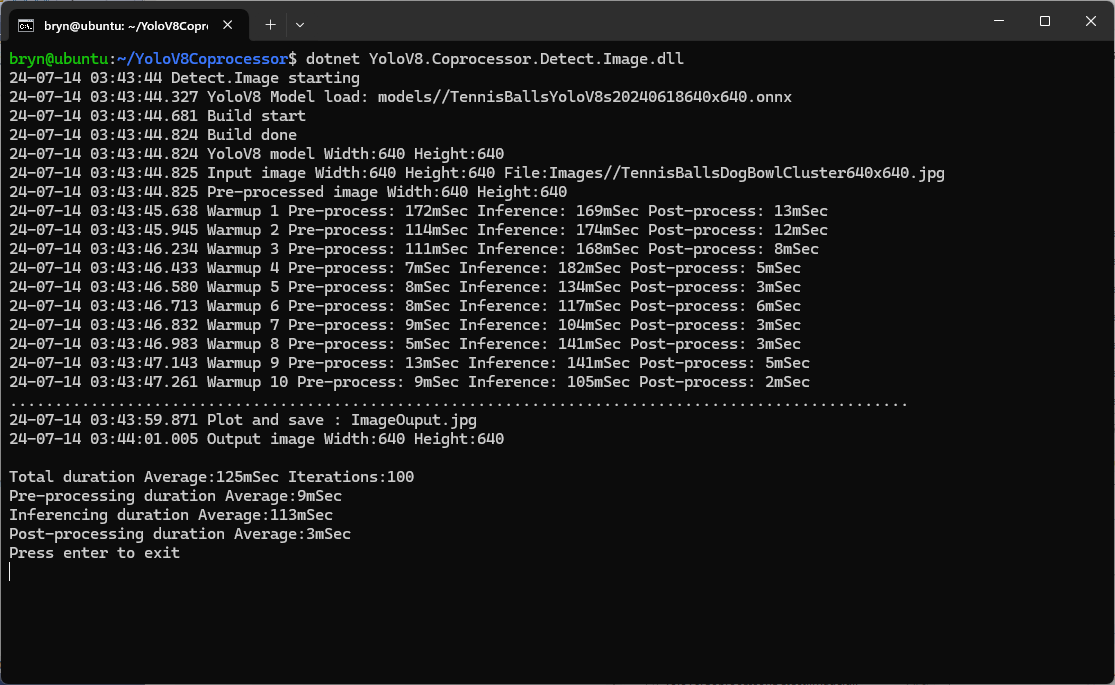
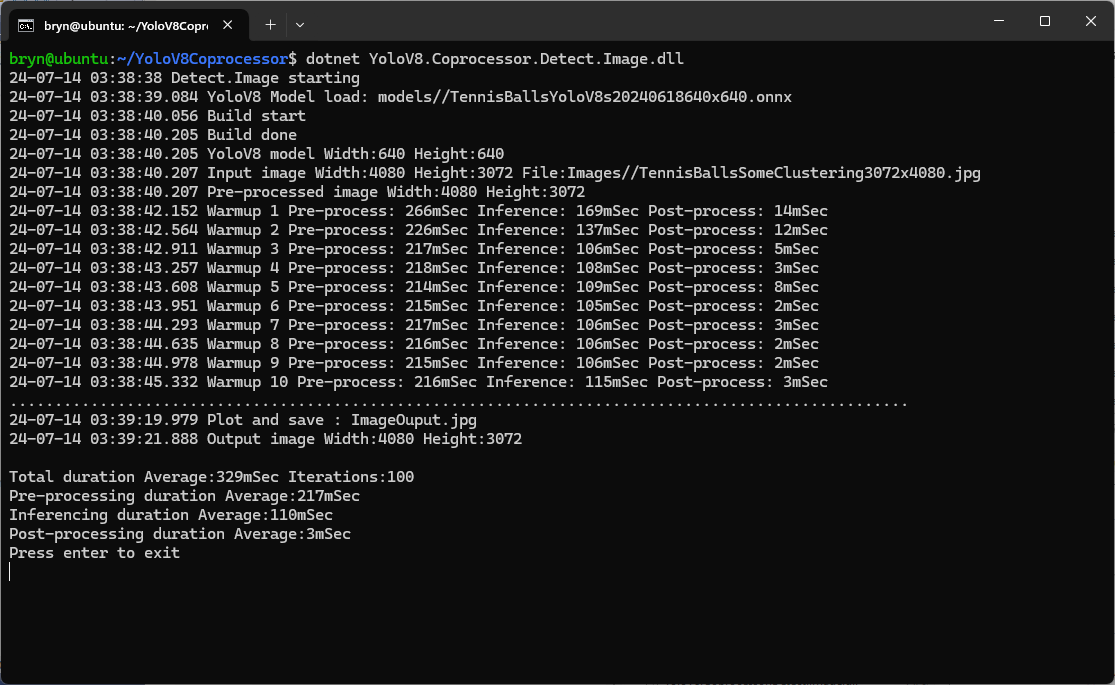
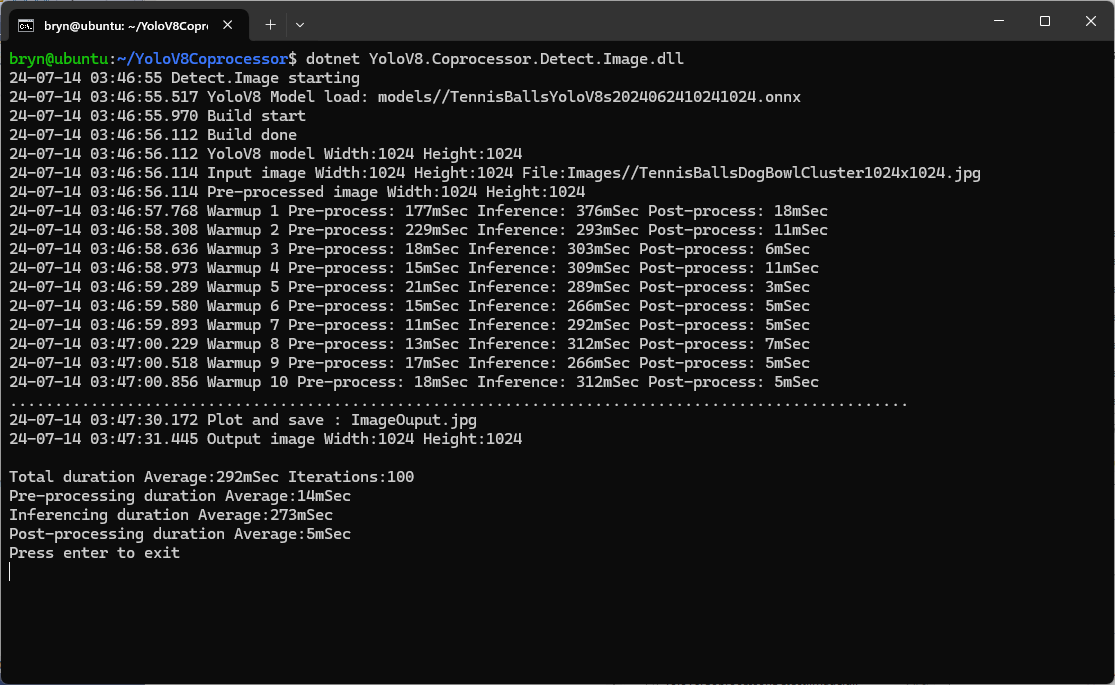
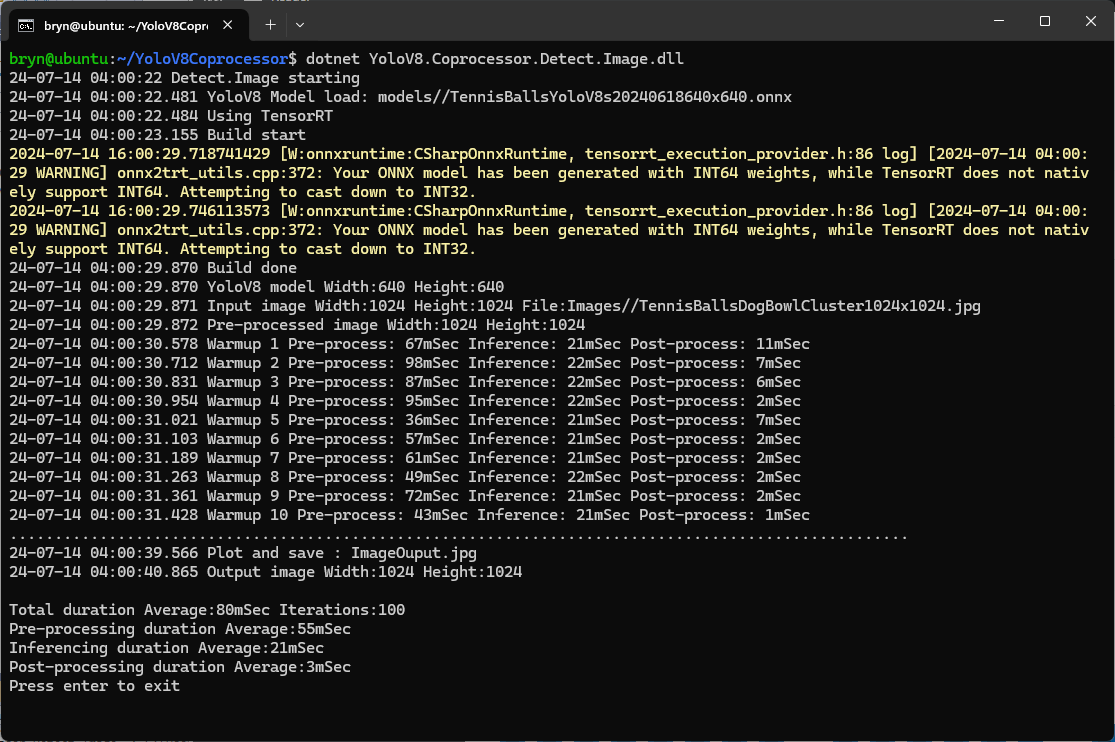
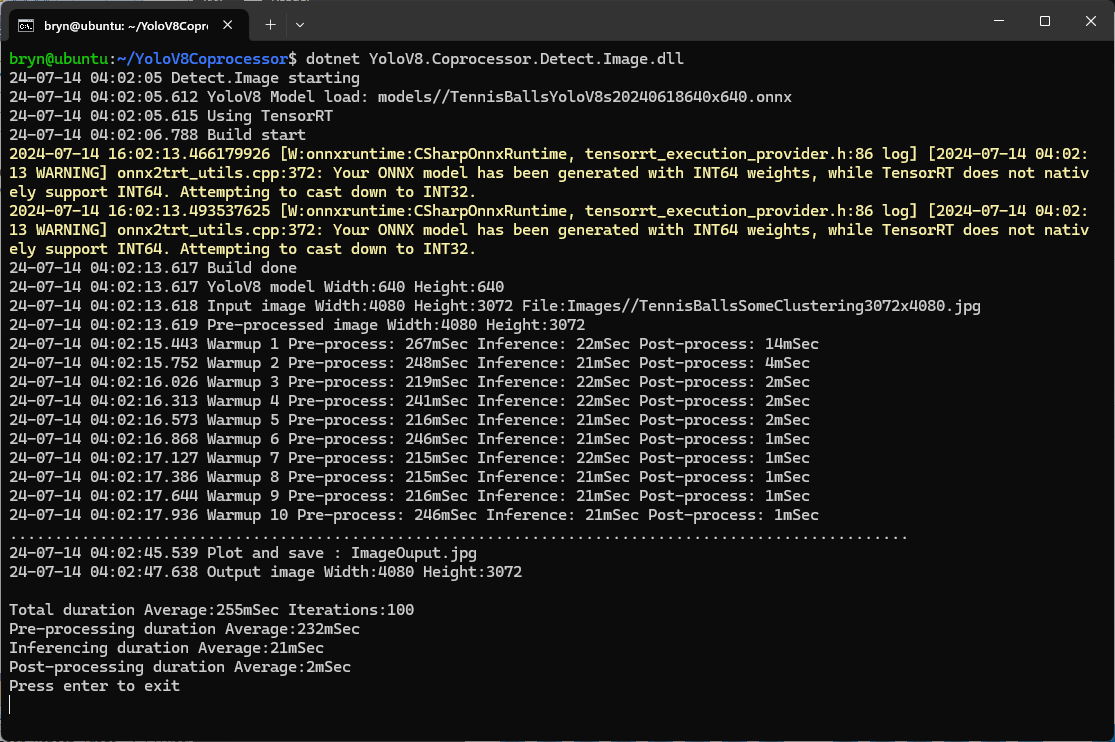
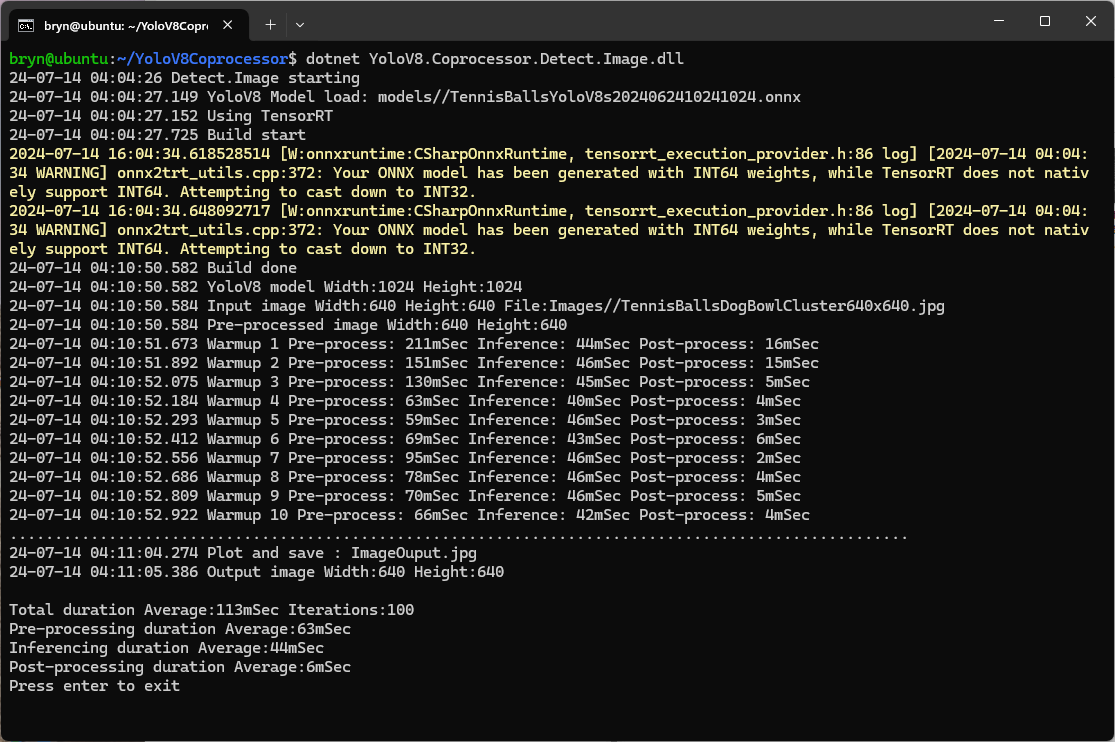
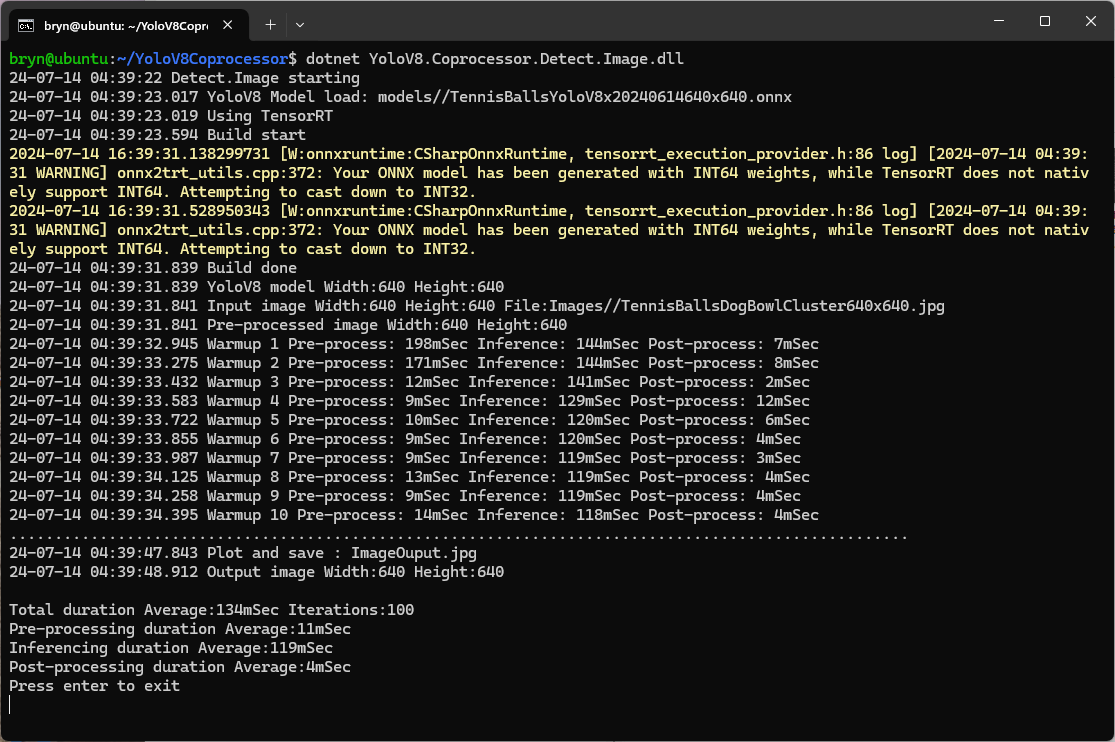
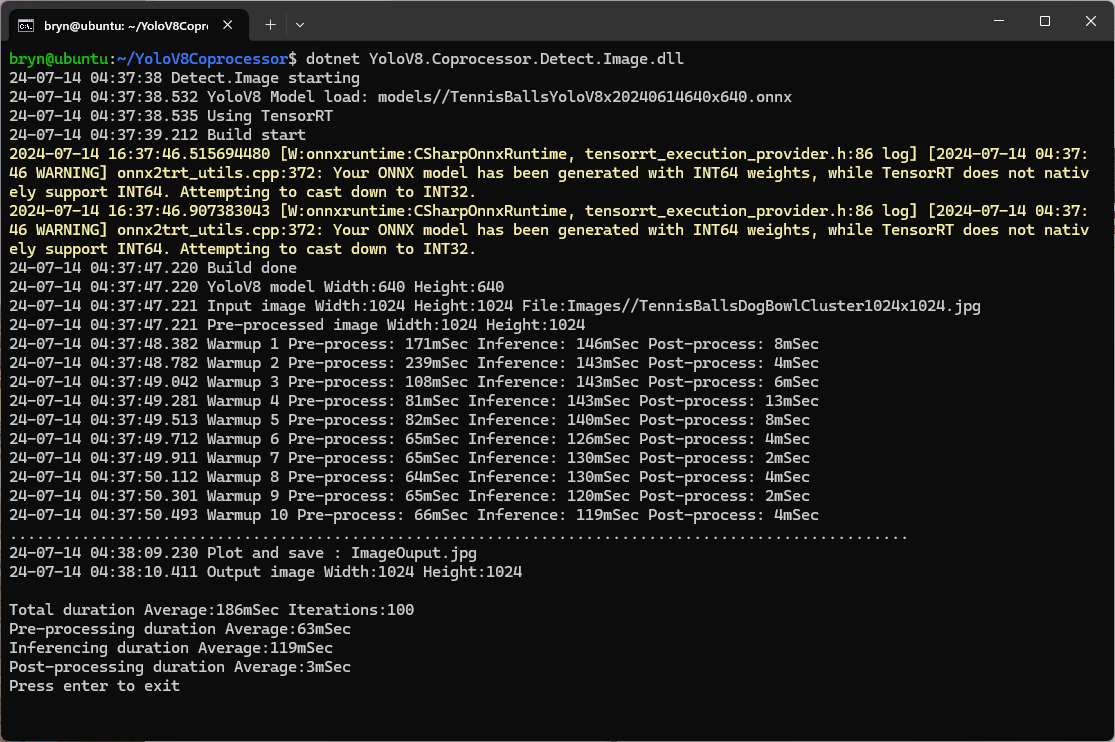
The testing consisted of permutations of three models TennisBallsYoloV8s20240618640×640.onnx, TennisBallsYoloV8s2024062410241024.onnx & TennisBallsYoloV8x20240614640×640 (limited testing as slow) and three images TennisBallsLandscape640x640.jpg, TennisBallsLandscape1024x1024.jpg & TennisBallsLandscape3072x4080.jpg.
Executive Summary
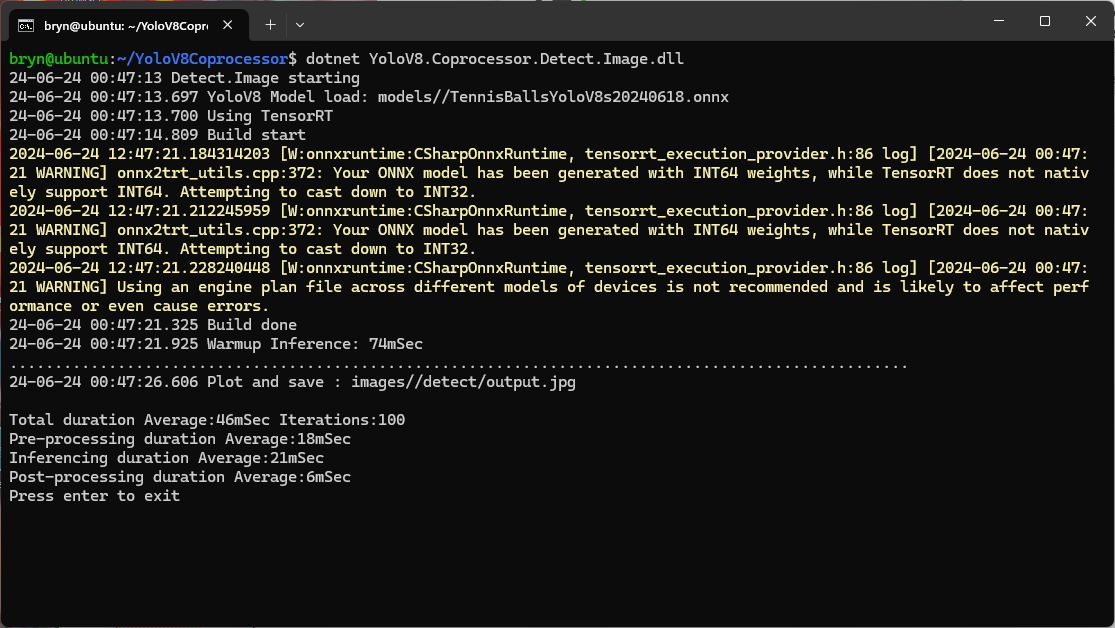
As expected, inferencing with a TensorRT 640×640 model and a 640×640 image was fastest, 9mSec pre-processing, 21mSec inferencing, then 4mSec post-processing.
If the image had to be scaled with SixLabors.ImageSharp this significantly increased the preprocessing (and overall) time.
When running the YoloV8 Coprocessor demonstration on the Nividia Jetson Orin inferencing looked a bit odd, the dotted line wasn’t moving as fast as expected. To investigate this further I split the inferencing duration into pre-processing, inferencing and post-processing times. Inferencing and post-processing were “quick”, but pre-processing was taking longer than expected.
YoloV8 Coprocessor application running on Nvidia Jetson Orin
When I ran the demonstrationUltralytics YoloV8object detection console application on my development desktop (13th Gen Intel(R) Core(TM) i7-13700 2.10 GHz with 32.0 GB) the pre-processing was much faster.
The much shorter pre-processing and longer inferencing durations were not a surprise as my development desktop does not have a Graphics Processing Unit(GPU)
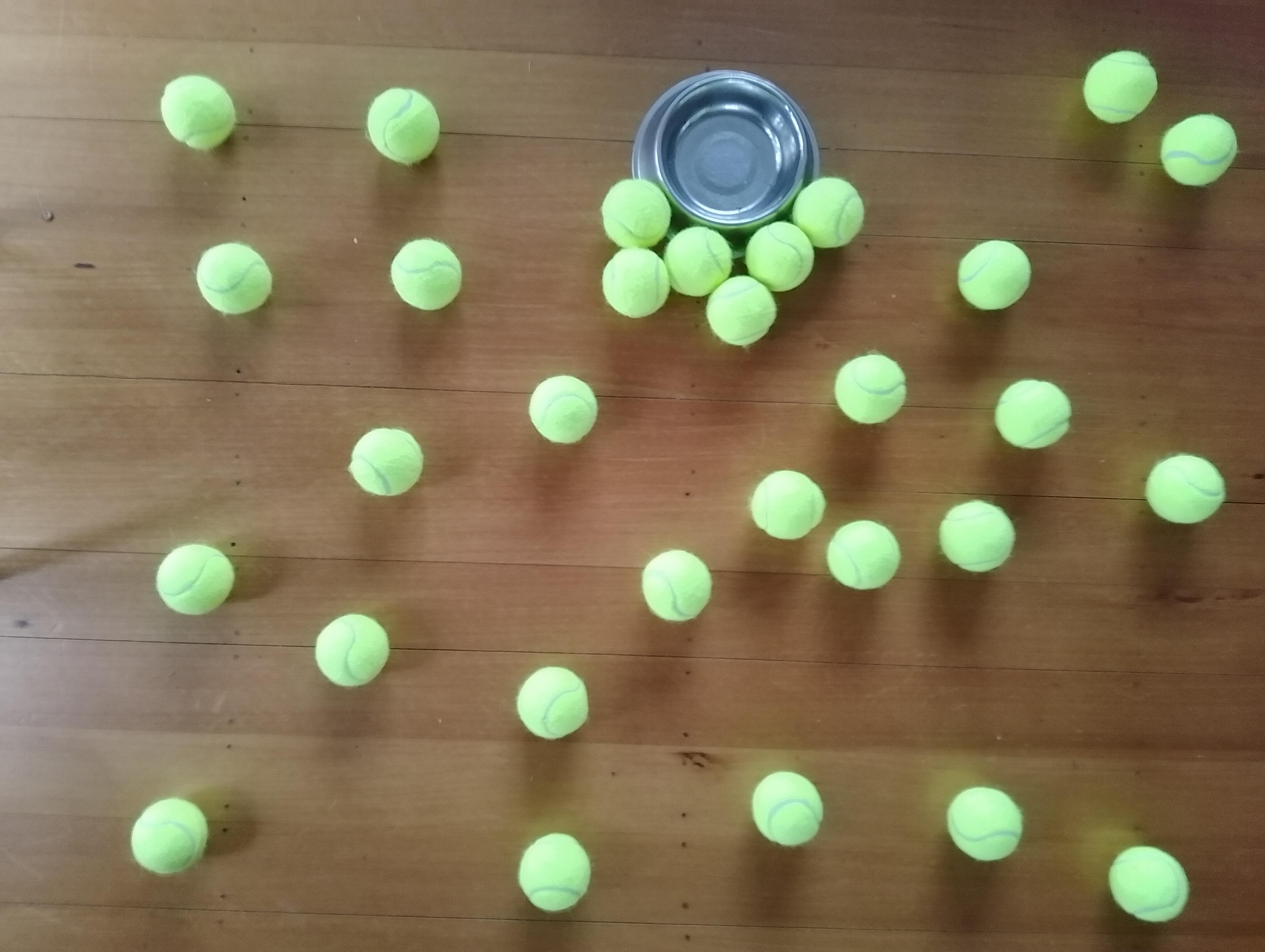
Test image used for testing on Jetson device and development PC
The test image taken with my mobile was 3606×2715 pixels which was representative of the security cameras images to be processed by the solution.
 public static void ProcessToTensor(Image<Rgb24> image, Size modelSize, bool originalAspectRatio, DenseTensor<float> target, int batch)
 {
    var options = new ResizeOptions()
    {
       Size = modelSize,
       Mode = originalAspectRatio ? ResizeMode.Max : ResizeMode.Stretch,
    };

    var xPadding = (modelSize.Width - image.Width) / 2;
    var yPadding = (modelSize.Height - image.Height) / 2;

    var width = image.Width;
    var height = image.Height;

    // Pre-calculate strides for performance
    var strideBatchR = target.Strides[0] * batch + target.Strides[1] * 0;
    var strideBatchG = target.Strides[0] * batch + target.Strides[1] * 1;
    var strideBatchB = target.Strides[0] * batch + target.Strides[1] * 2;
    var strideY = target.Strides[2];
    var strideX = target.Strides[3];

    // Get a span of the whole tensor for fast access
    var tensorSpan = target.Buffer;

    // Try get continuous memory block of the entire image data
    if (image.DangerousTryGetSinglePixelMemory(out var memory))
    {
       Parallel.For(0, width * height, index =>
       {
             int x = index % width;
             int y = index / width;
             int tensorIndex = strideBatchR + strideY * (y + yPadding) + strideX * (x + xPadding);

             var pixel = memory.Span[index];
             WritePixel(tensorSpan.Span, tensorIndex, pixel, strideBatchR, strideBatchG, strideBatchB);
       });
    }
    else
    {
       Parallel.For(0, height, y =>
       {
             var rowSpan = image.DangerousGetPixelRowMemory(y).Span;
             int tensorYIndex = strideBatchR + strideY * (y + yPadding);

             for (int x = 0; x < width; x++)
             {
                int tensorIndex = tensorYIndex + strideX * (x + xPadding);
                var pixel = rowSpan[x];
                WritePixel(tensorSpan.Span, tensorIndex, pixel, strideBatchR, strideBatchG, strideBatchB);
             }
       });
    }
 }

 private static void WritePixel(Span<float> tensorSpan, int tensorIndex, Rgb24 pixel, int strideBatchR, int strideBatchG, int strideBatchB)
 {
    tensorSpan[tensorIndex] = pixel.R / 255f;
    tensorSpan[tensorIndex + strideBatchG - strideBatchR] = pixel.G / 255f;
    tensorSpan[tensorIndex + strideBatchB - strideBatchR] = pixel.B / 255f;
 }
For a 3606×2715 image the WritePixel method would be called tens of millions of times so its implementation and the overall approach used for ProcessToTensor has a significant impact on performance.
YoloV8 Coprocessor application running on Nvidia Jetson Orin with a resized image
Resizing the images had a significant impact on performance on the development box and Nividia Jetson Orin. This will need some investigation to see how much reducing the resizing the images impacts on the performance and accuracy of the model.
Generating the TensorRT engine every time the application is started
The TensorRT Execution provider has a number of configuration options but the IYoloV8Builder interface had to modified with UseCuda, UseRocm, UseTensorrt and UseTvm overloads implemented to allow additional configuration settings.
...
public class YoloV8Builder : IYoloV8Builder
{
...
    public IYoloV8Builder UseOnnxModel(BinarySelector model)
    {
        _model = model;

        return this;
    }

#if GPURELEASE
    public IYoloV8Builder UseCuda(int deviceId) => WithSessionOptions(SessionOptions.MakeSessionOptionWithCudaProvider(deviceId));

    public IYoloV8Builder UseCuda(OrtCUDAProviderOptions options) => WithSessionOptions(SessionOptions.MakeSessionOptionWithCudaProvider(options));

    public IYoloV8Builder UseRocm(int deviceId) => WithSessionOptions(SessionOptions.MakeSessionOptionWithRocmProvider(deviceId));

    // Couldn't test this don't have suitable hardware
    public IYoloV8Builder UseRocm(OrtROCMProviderOptions options) => WithSessionOptions(SessionOptions.MakeSessionOptionWithRocmProvider(options));

    public IYoloV8Builder UseTensorrt(int deviceId) => WithSessionOptions(SessionOptions.MakeSessionOptionWithTensorrtProvider(deviceId));

    public IYoloV8Builder UseTensorrt(OrtTensorRTProviderOptions options) => WithSessionOptions(SessionOptions.MakeSessionOptionWithTensorrtProvider(options));

    // Couldn't test this don't have suitable hardware
    public IYoloV8Builder UseTvm(string settings = "") => WithSessionOptions(SessionOptions.MakeSessionOptionWithTvmProvider(settings));
#endif
...
}
...
YoloV8Builder builder = new YoloV8Builder();

builder.UseOnnxModel(_applicationSettings.ModelPath);

if (_applicationSettings.UseTensorrt)
{
   Console.WriteLine($" {DateTime.UtcNow:yy-MM-dd HH:mm:ss.fff} Using TensorRT");

   OrtTensorRTProviderOptions tensorRToptions = new OrtTensorRTProviderOptions();

   Dictionary<string, string> optionKeyValuePairs = new Dictionary<string, string>();

   optionKeyValuePairs.Add("trt_engine_cache_enable", "1");
   optionKeyValuePairs.Add("trt_engine_cache_path", "enginecache/");

   tensorRToptions.UpdateOptions(optionKeyValuePairs);

   builder.UseTensorrt(tensorRToptions);
}
...
In order to validate that the loaded engine loaded from the trt_engine_cache_path is usable for the current inference, an engine profile is also cached and loaded along with engine
If current input shapes are in the range of the engine profile, the loaded engine can be safely used. If input shapes are out of range, the profile will be updated and the engine will be recreated based on the new profile.
Reusing the TensorRT engine built the first time the application is started
When the YoloV8.Coprocessor.Detect.Image application was configured to use NVIDIA TensorRT and the engine was cached the average inference time was 58mSec and the Build method took roughly 10sec to execute after the application had been run once.
The same approach as the YoloV8.Detect.SecurityCamera.Stream sample is used because the image doesn’t have to be saved on the local filesystem.
Utralytics Pose Model marked-up image
To check the results, I put a breakpoint in the timer just after PoseAsync method is called and then used the Visual Studio 2022 Debugger QuickWatch functionality to inspect the contents of the PoseResult object.
I configured the demonstrationUltralytics YoloV8object detection(yolov8s.onnx) console application to process a 1920×1080 image from a security camera on my desktop development box (13th Gen Intel(R) Core(TM) i7-13700 2.10 GHz with 32.0 GB)
Object Detection sample application running on my development box
A Seeedstudio reComputerJ3011 uses a Nividia Jetson Orin 8G and looked like a cost-effective platform to explore how a dedicated Artificial Intelligence (AI) co-processor could reduce inferencing times.
To establish a “baseline” I “published” the demonstration application on my development box which created a folder with all the files required to run the application on the Seeedstudio reComputerJ3011 ARM64 CPU. I had to manually merge the “User Secrets” and appsettings.json files so the camera connection configuration was correct.
The runtimes folder contained a number of folders with the native runtime files for the supported Open Neural Network Exchange(ONNX) platforms
This Nividia Jetson Orin ARM64 CPU requires the linux-arm64 ONNX runtime which was “automagically” detected. (in previous versions of ML.Net the native runtime had to be copied to the execution directory)
Object Detection sample application running on my Seeedstudio reComputer J3011
When I averaged the pre-processing, inferencing and post-processing times for both devices over 20 executions my development box was much faster which was not a surprise. Though the reComputer J3011 post processing times were a bit faster than I was expecting
ARM64 CPU Preprocess 0.05s Inference 0.31s Postprocess 0.05
Confirming the number of classes and splits of the training dataset
Selecting the output model architecture (YoloV8s).
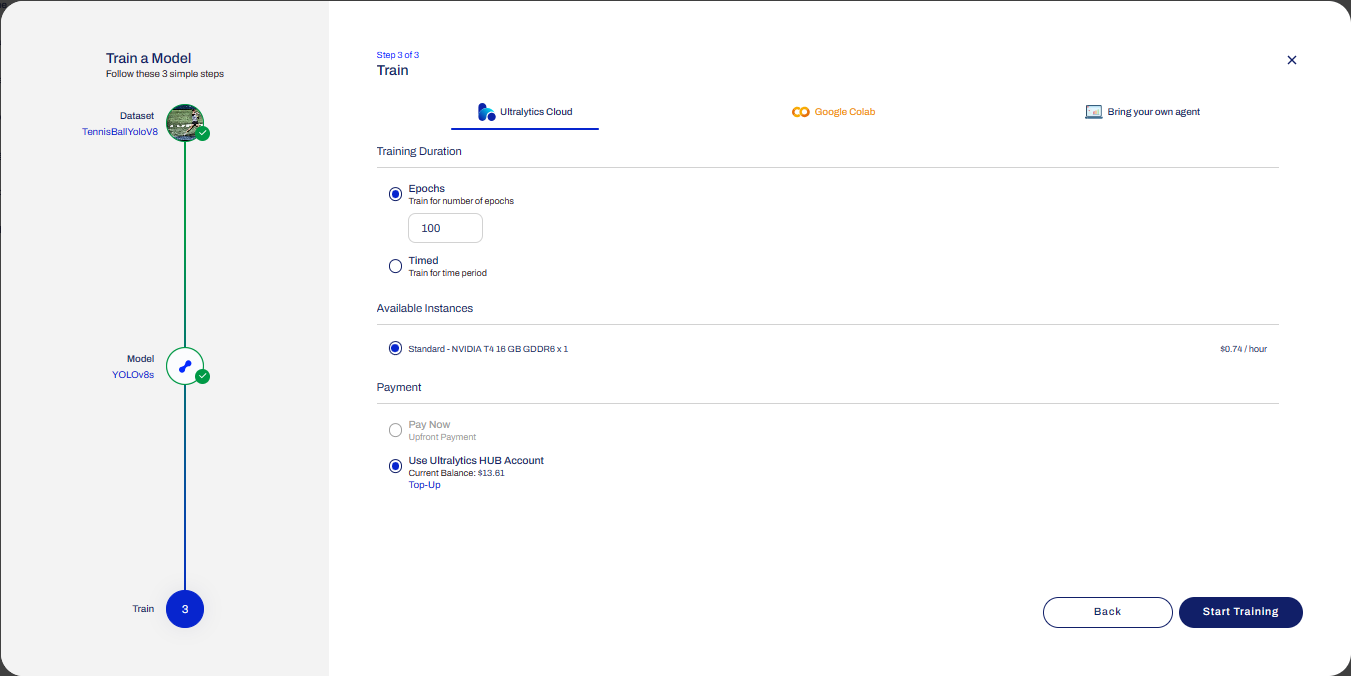
Configuring the number of epochs and payment method
Preparing the cloud instance(s) for training
The midpoint of the training process
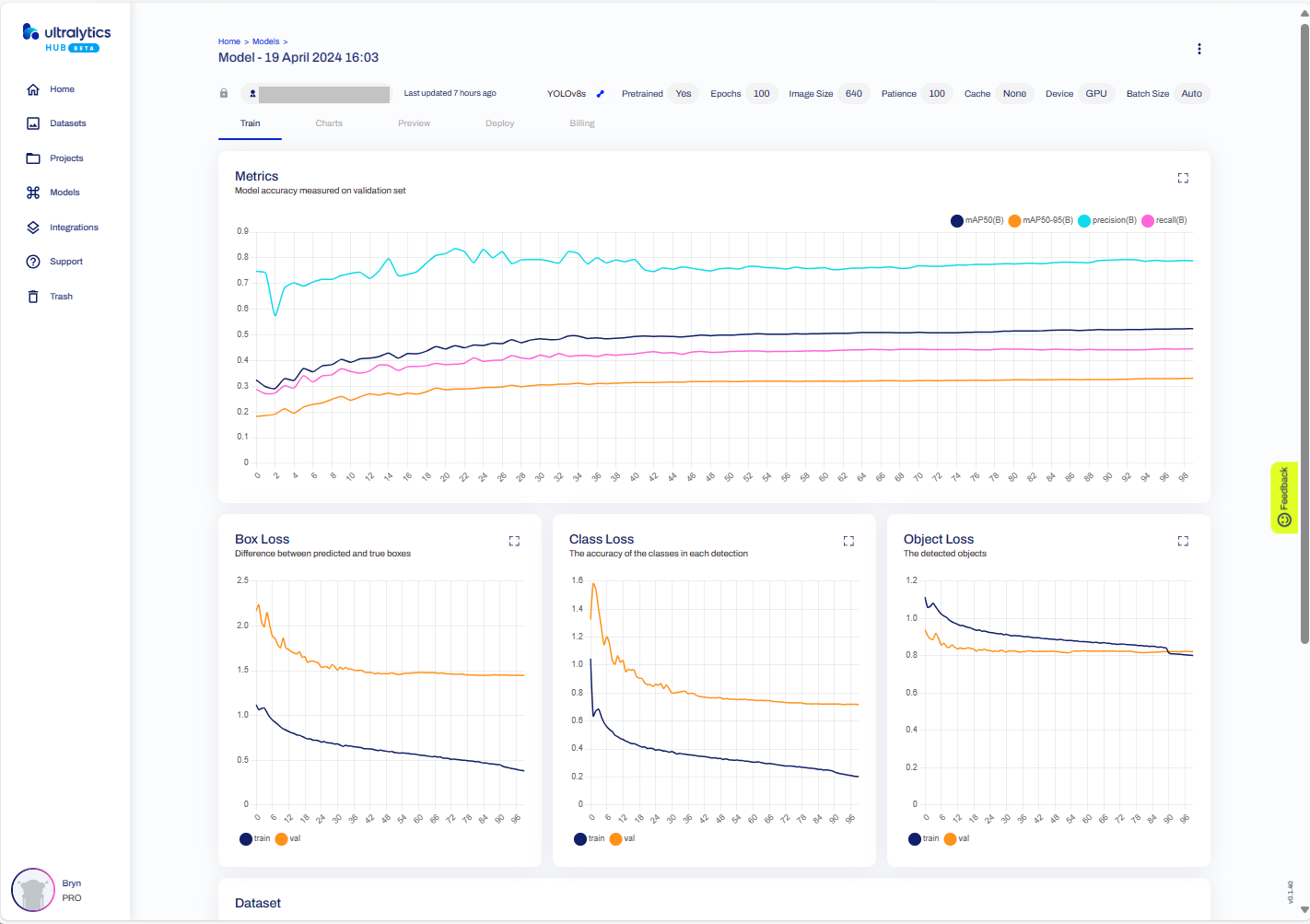
The training process completed with some basic model metrics.
The resources used and model accuracy metrics.
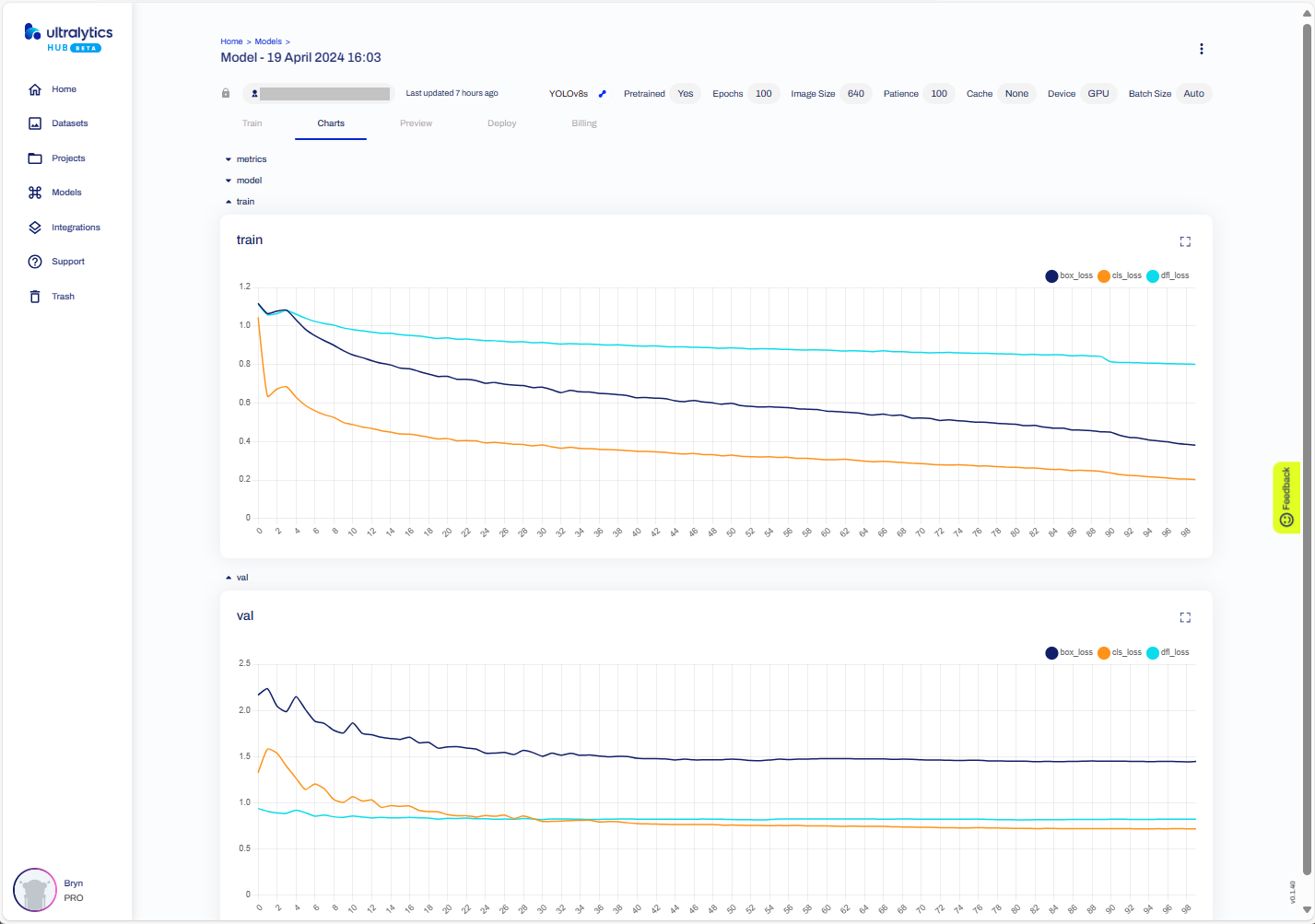
Model training metrics.
Testing the trained model inference results with my test image.
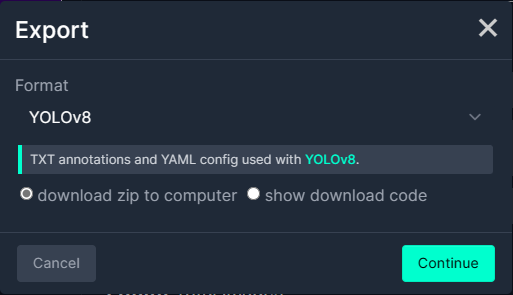
Exporting the trained YoloV8 model in ONNX format.
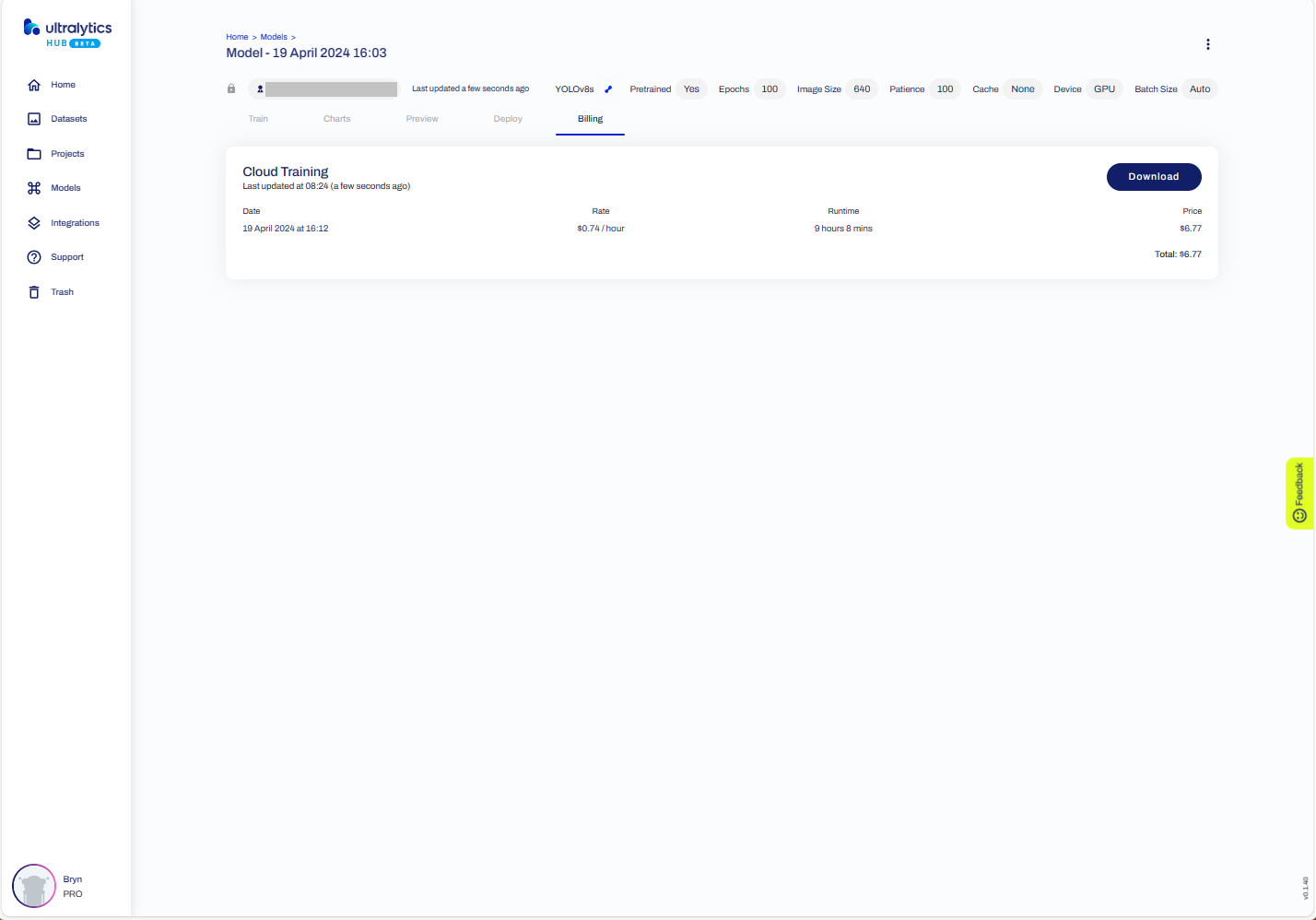
The duration and cost of training the model.
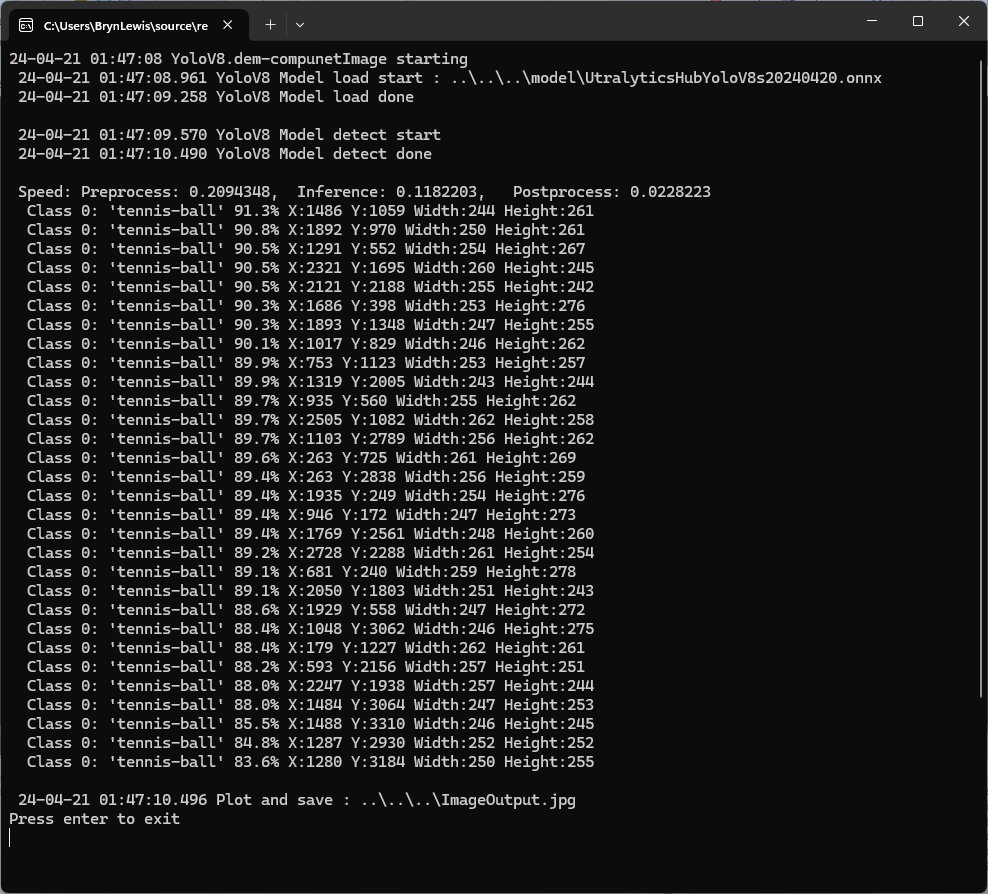
Testing the YoloV8 model with the dem-compunet.Image console application
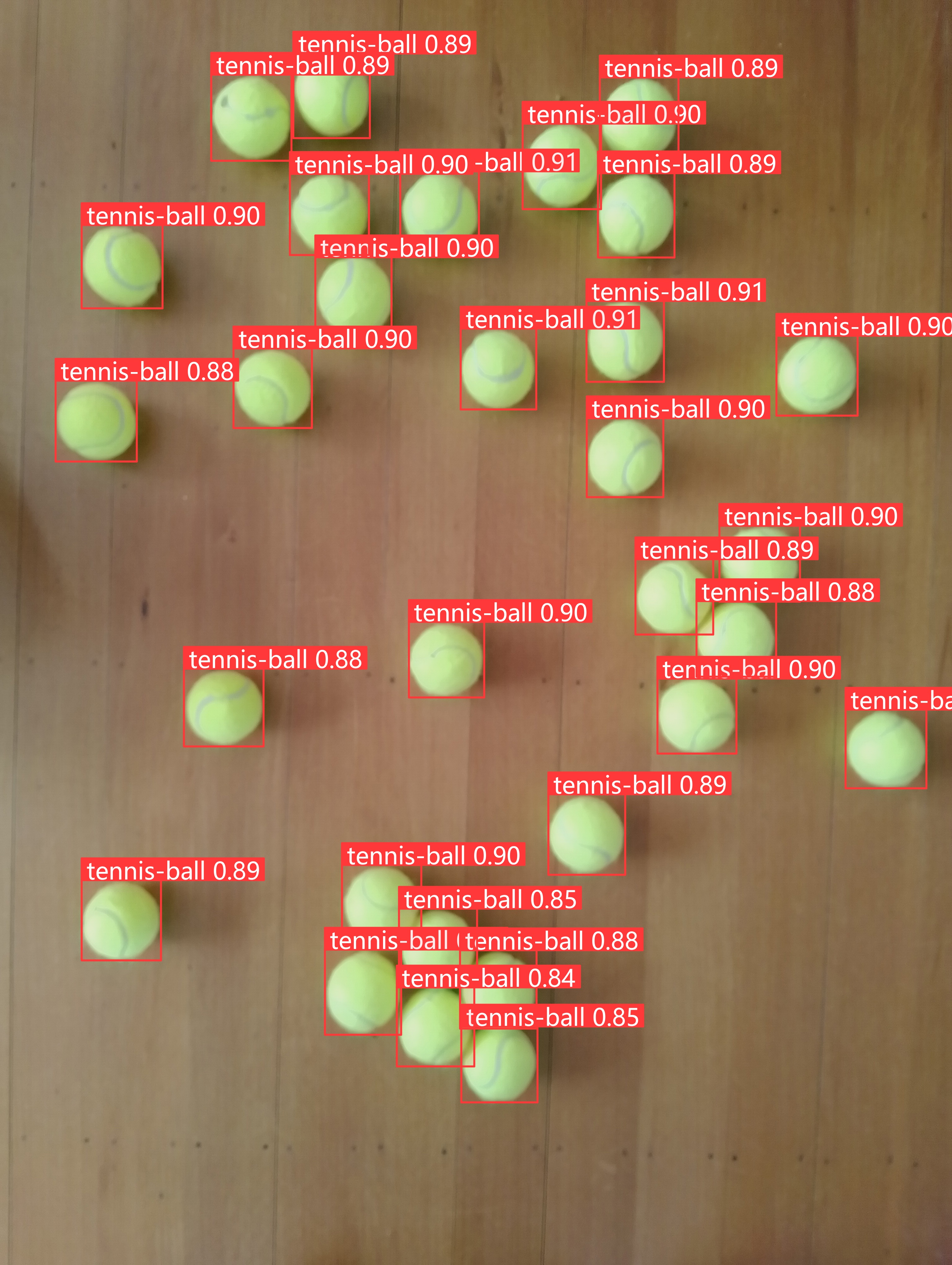
Marked-up image generated by the dem-compunet.Image console application.
In this post I have not covered YoloV8 model selection and tuning of the training configuration to optimise the “performance” of the model. I used the default settings and then ran the model training overnight which cost USD6.77
This post is not about how create a “good” model it is the approach I took to create a “proof of concept” model for a demonstration.
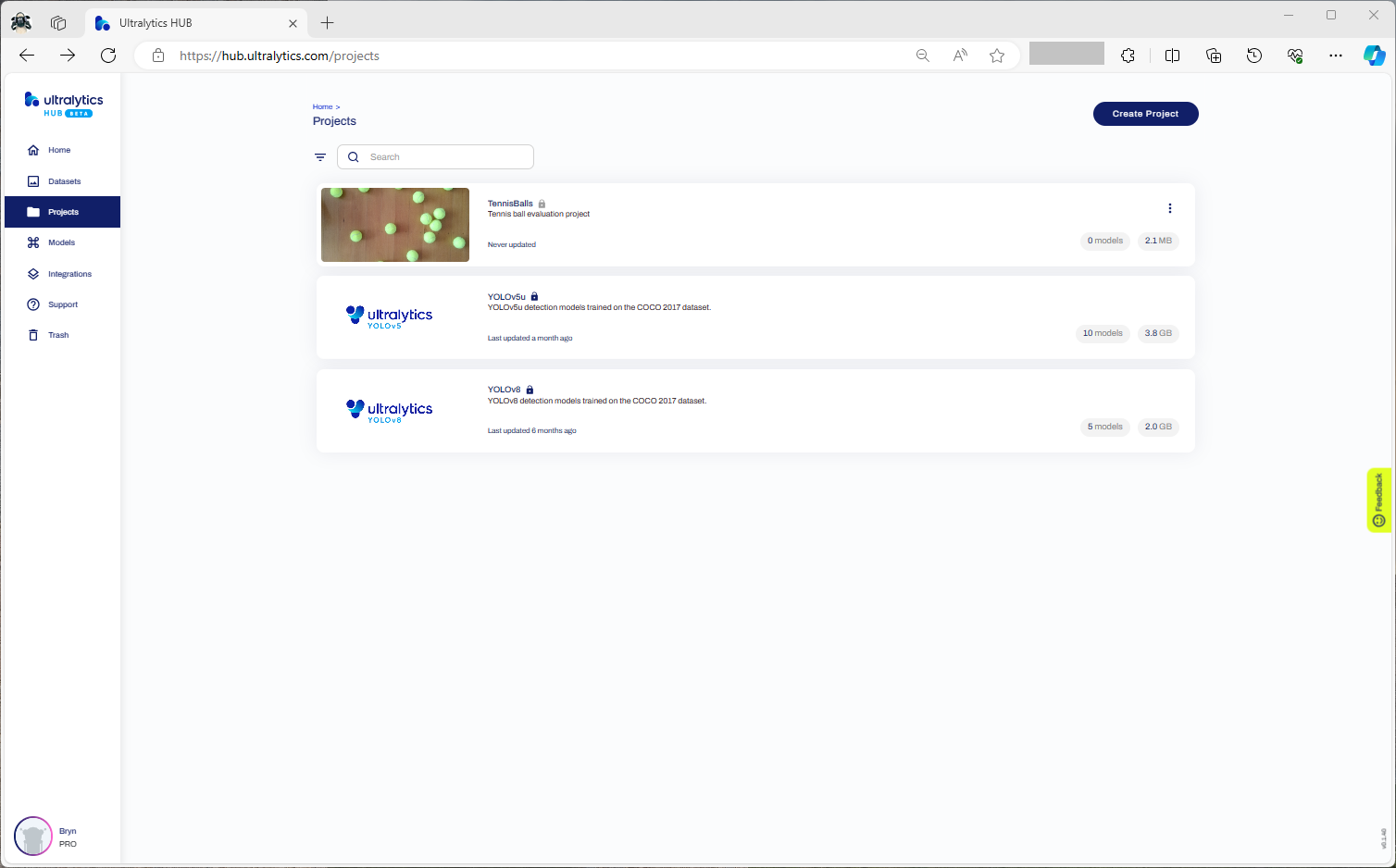
To comply with the Ultralytics AGPL-3.0 License and to use an Ultralytics Pro plan the source code and models for an application have to be open source. Rather than publishing my YoloV8 model (which is quite large) this is the first in a series of posts which detail the process I used to create it. (which I think is more useful)
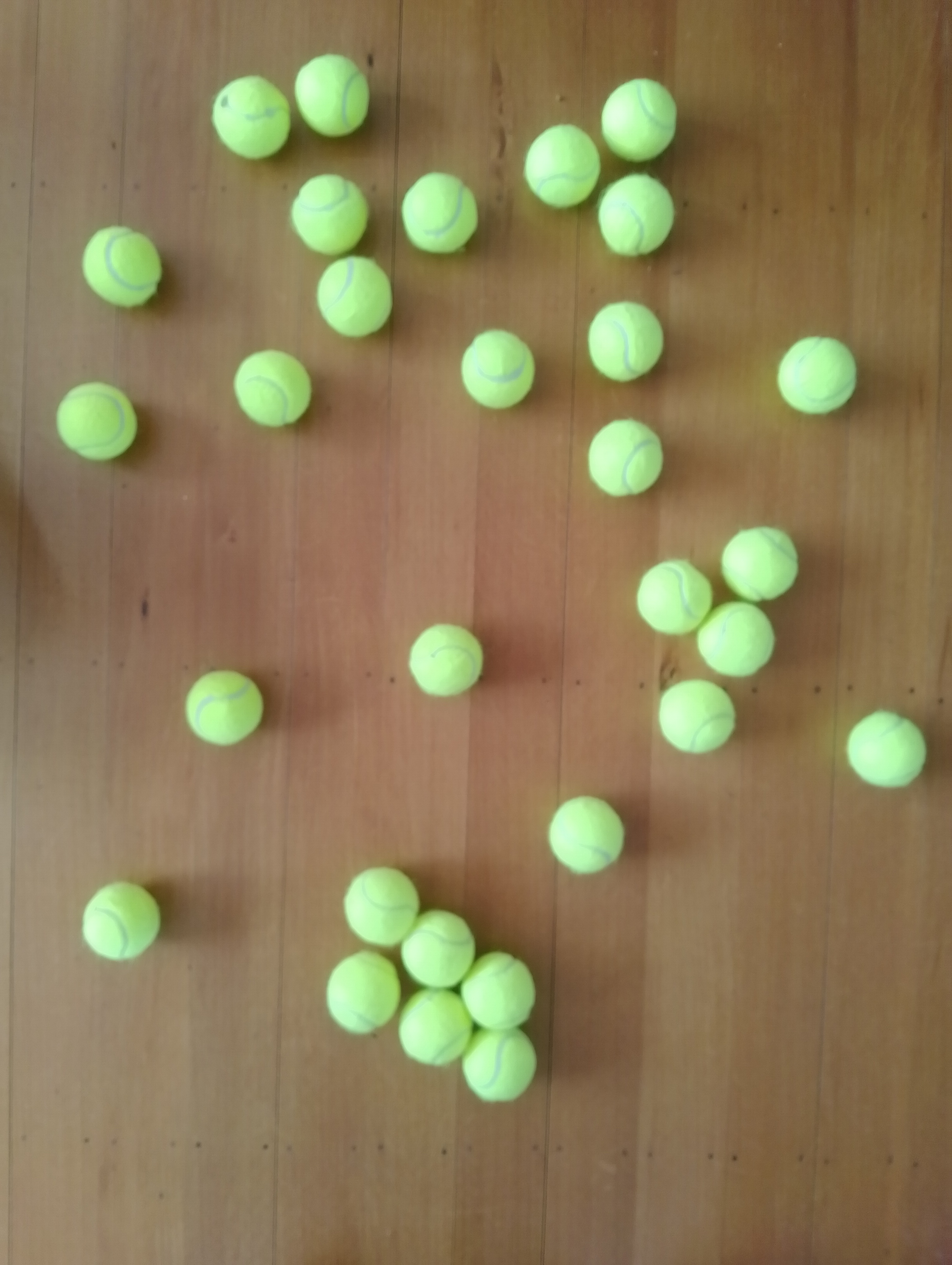
The single test image (not a good idea) is a photograph of 30 tennis balls on my living room floor.
Test image of 30 tennis balls on my living room floor
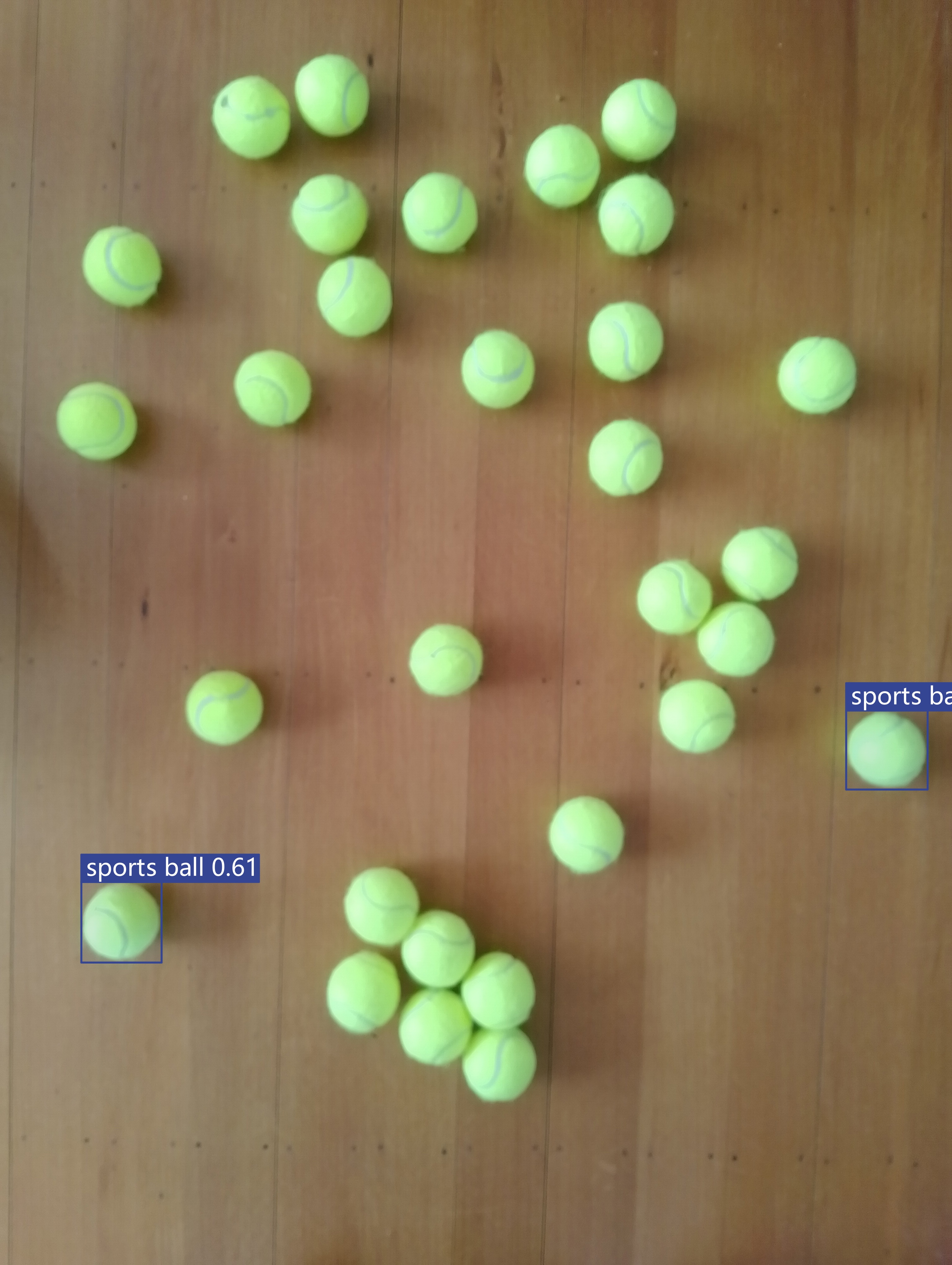
The object detection results using the “default” model were pretty bad, but this wasn’t a surprise as the model is not optimised for this sort of problem.
roboflow universe open-source model dataset search
I have used datasets from roboflow universe which is a great resource for building “proof of concept” applications.
roboflow universe dataset search
The first step was to identify some datasets which would improve my tennis ball object detection model results. After some searching (with tennis, tennis-ball etc. classes) and filtering (object detection, has a model for faster evaluation, more the 5000 images) to reduce the search results to a manageable number, I identified 5 datasets worth further evaluation.
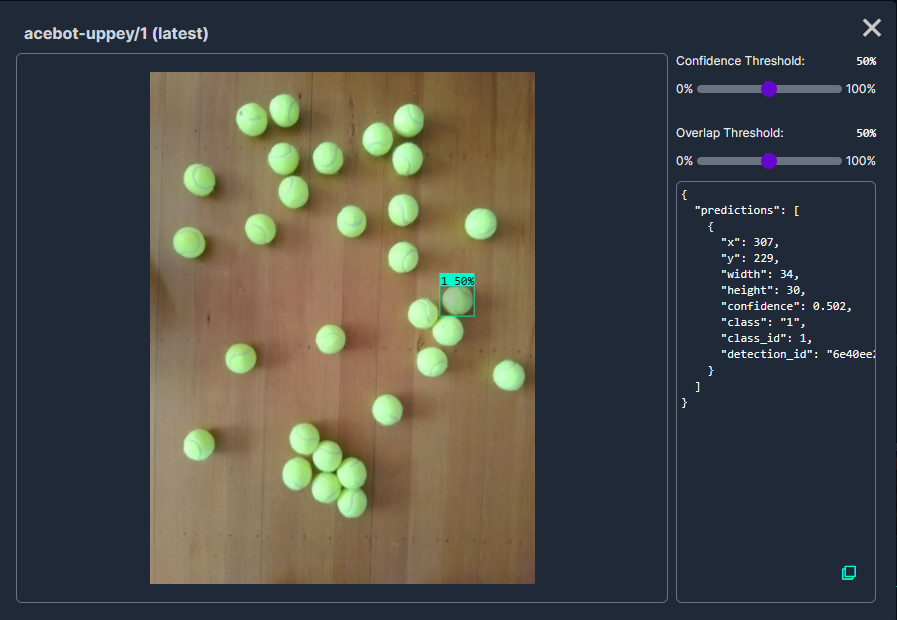
In my scenario the performance of the Acebot by Mrunal model was worse than the “default” yolov8s model.
In my scenario the performance of the tennis racket by test model was similar to the “default” yolov8s model.
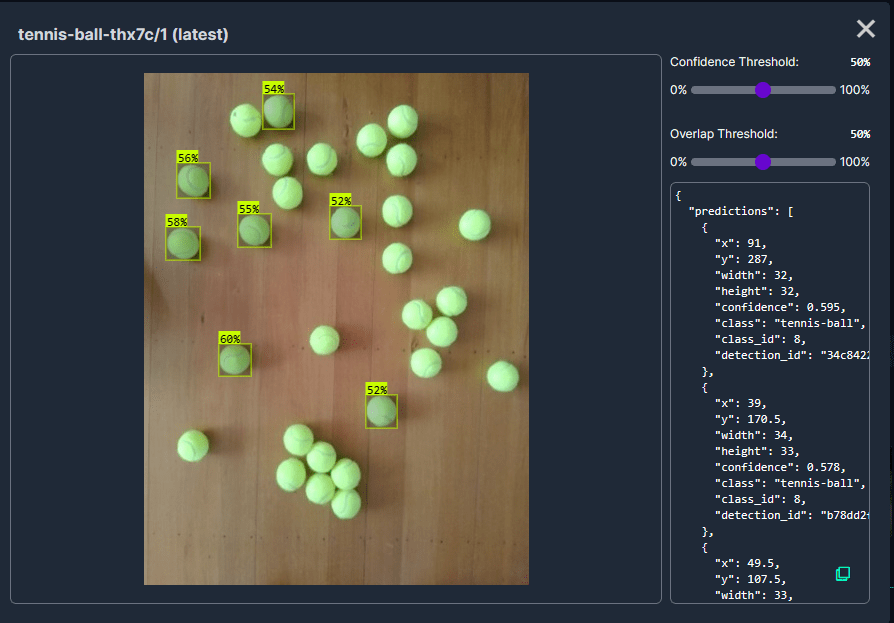
In my scenario the performance of the Tennis Ball by Hust model was a bit better than the “default” yolov8s mode
In my scenario the performance of the roboflow_oball by ahmedelshalkany model was pretty good it detected 28 of the 30 tennis balls.
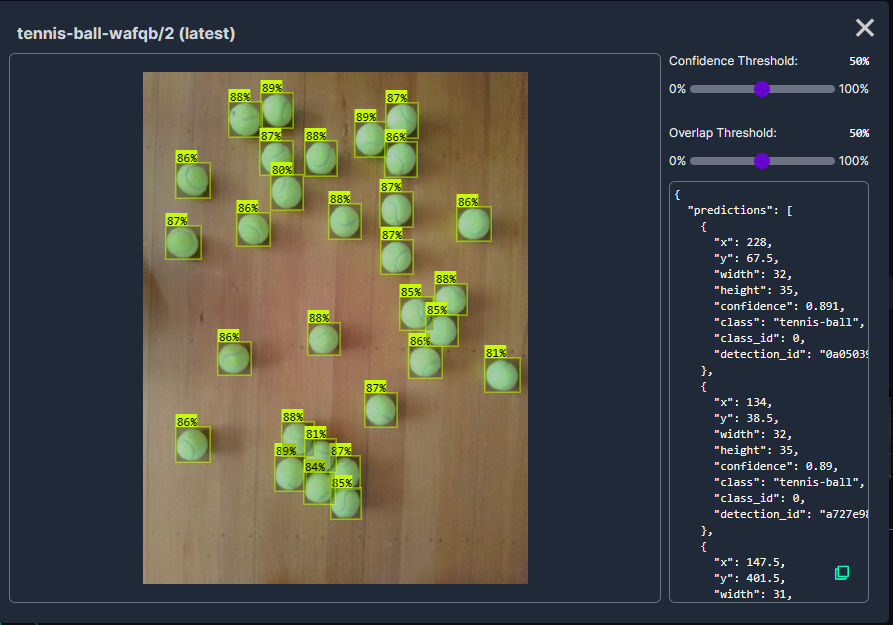
In my scenario the performance of the Tennis Ball by Ugur Ozdemir model was good it detected all of the 30 tennis balls.
The uses the Microsoft.Extensions.Logging library to publish diagnostic information to the console while debugging the application.
Visual Studio 2022 QuickWatch displaying object detection results.
To check the results I put a breakpoint in the timer just after DetectAsync method is called and then used the Visual Studio 2022 Debugger QuickWatch functionality to inspect the contents of the DetectionResult object.
Visual Studio 2022 JSON Visualiser displaying object detection results.
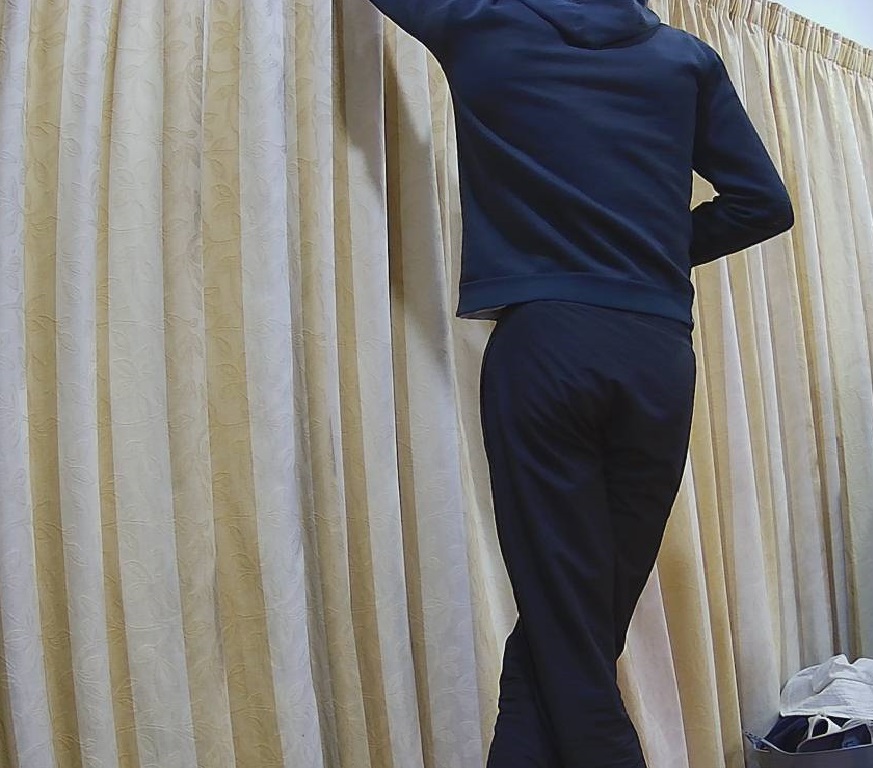
Security Camera image for object detection photo bombed by Yarnold our Standard Apricot Poodle.
This application can also be deployed as a Linuxsystemd Service so it will start then run in the background. The same approach as the YoloV8.Detect.SecurityCamera.Stream sample is used because the image doesn’t have to be saved on the local filesystem.
The YoloV8.Detect.SecurityCamera.File sample downloads images from the security camera to the local file system, then calls DetectAsync with the local file path.
private static async void ImageUpdateTimerCallback(object state)
{
   //...
   try
   {
      Console.WriteLine($"{DateTime.UtcNow:yy-MM-dd HH:mm:ss:fff} YoloV8 Security Camera Image File processing start");

      using (Stream cameraStream = await _httpClient.GetStreamAsync(_applicationSettings.CameraUrl))
      using (Stream fileStream = System.IO.File.Create(_applicationSettings.ImageFilepath))
      {
         await cameraStream.CopyToAsync(fileStream);
      }

      DetectionResult result = await _predictor.DetectAsync(_applicationSettings.ImageFilepath);

      Console.WriteLine($"Speed: {result.Speed}");

      foreach (var prediction in result.Boxes)
      {
         Console.WriteLine($" Class {prediction.Class} {(prediction.Confidence * 100.0):f1}% X:{prediction.Bounds.X} Y:{prediction.Bounds.Y} Width:{prediction.Bounds.Width} Height:{prediction.Bounds.Height}");
      }

      Console.WriteLine($"{DateTime.UtcNow:yy-MM-dd HH:mm:ss:fff} YoloV8 Security Camera Image processing done");
   }
   catch (Exception ex)
   {
      Console.WriteLine($"{DateTime.UtcNow:yy-MM-dd HH:mm:ss} YoloV8 Security camera image download or YoloV8 prediction failed {ex.Message}");
   }
//...
}
Console application using camera image saved on filesystem
The ImageSelector parameter of DetectAsync caught my attention as I hadn’t seen this approach used before. The developers who wrote the NuGet package are definitely smarter than me so I figured I might learn something useful digging deeper.
public static DetectionResult Detect(this YoloV8 predictor, ImageSelector selector)
{
    predictor.ValidateTask(YoloV8Task.Detect);

    return predictor.Run(selector, (outputs, image, timer) =>
    {
        var output = outputs[0].AsTensor<float>();

        var parser = new DetectionOutputParser(predictor.Metadata, predictor.Parameters);

        var boxes = parser.Parse(output, image);
        var speed = timer.Stop();

        return new DetectionResult
        {
            Boxes = boxes,
            Image = image,
            Speed = speed,
        };
    });

    public TResult Run<TResult>(ImageSelector selector, PostprocessContext<TResult> postprocess) where TResult : YoloV8Result
    {
        using var image = selector.Load(true);

        var originSize = image.Size;

        var timer = new SpeedTimer();

        timer.StartPreprocess();

        var input = Preprocess(image);

        var inputs = MapNamedOnnxValues([input]);

        timer.StartInference();

        using var outputs = Infer(inputs);

        var list = new List<NamedOnnxValue>(outputs);

        timer.StartPostprocess();

        return postprocess(list, originSize, timer);
    }
}
It looks like most of the image loading magic of ImageSelector class is implemented using the SixLabors library…
public class ImageSelector<TPixel> where TPixel : unmanaged, IPixel<TPixel>
{
    private readonly Func<Image<TPixel>> _factory;

    public ImageSelector(Image image)
    {
        _factory = image.CloneAs<TPixel>;
    }

    public ImageSelector(string path)
    {
        _factory = () => Image.Load<TPixel>(path);
    }

    public ImageSelector(byte[] data)
    {
        _factory = () => Image.Load<TPixel>(data);
    }

    public ImageSelector(Stream stream)
    {
        _factory = () => Image.Load<TPixel>(stream);
    }

    internal Image<TPixel> Load(bool autoOrient)
    {
        var image = _factory();

        if (autoOrient)
            image.Mutate(x => x.AutoOrient());

        return image;
    }

    public static implicit operator ImageSelector<TPixel>(Image image) => new(image);
    public static implicit operator ImageSelector<TPixel>(string path) => new(path);
    public static implicit operator ImageSelector<TPixel>(byte[] data) => new(data);
    public static implicit operator ImageSelector<TPixel>(Stream stream) => new(stream);
}
Learnt something new must be careful to apply it only where it adds value.


























 devMobile's blog