RTSP Camera Nager.VideoStream Startup Latency

While working on my RTSPCameraNagerVideoStream project I noticed that after opening the Realtime Streaming Protocol(RTSP) connection with my HiLook IPCT250H Security Camera it took a while for the application to start writing image files.
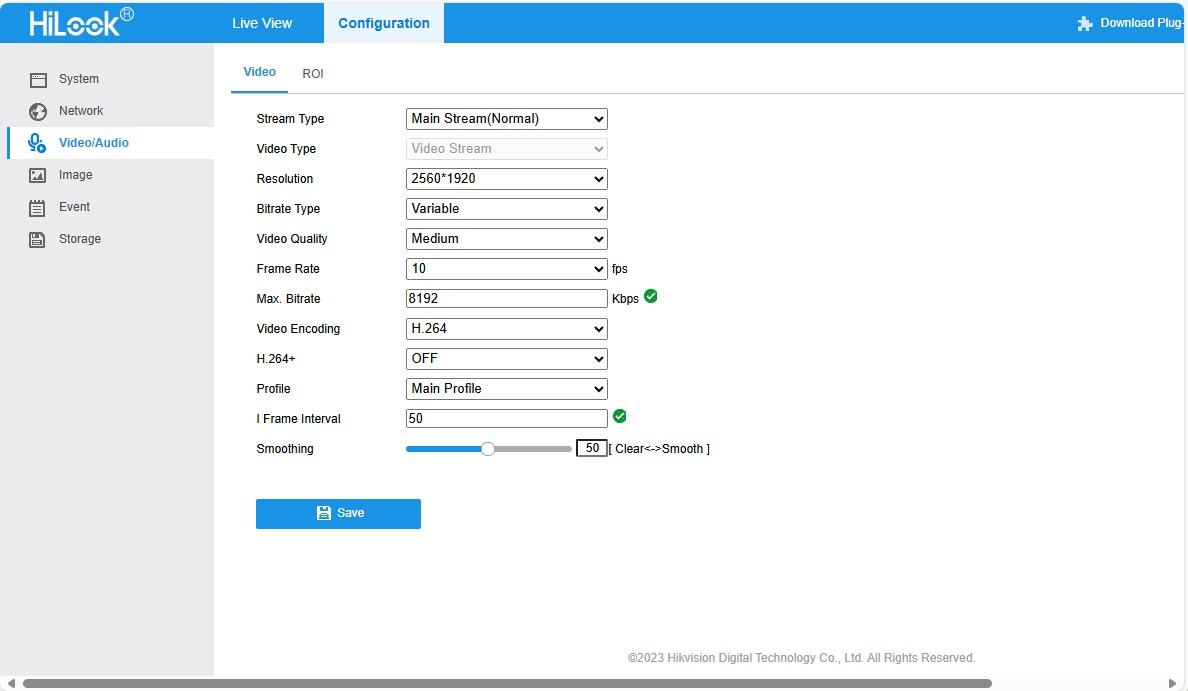
HiLook IPCT250H Camera configuration

My test harness code was “inspired” by the Nager.VideoStream.TestConsole application with a slightly different file format for the start-stop marker text and camera images files.

private static async Task StartStreamProcessingAsync(InputSource inputSource, CancellationToken cancellationToken = default)
{
   Console.WriteLine("Start Stream Processing");
   try
   {
      var client = new VideoStreamClient();

      client.NewImageReceived += NewImageReceived;
#if FFMPEG_INFO_DISPLAY
      client.FFmpegInfoReceived += FFmpegInfoReceived;
#endif
      File.WriteAllText(Path.Combine(_applicationSettings.ImageFilepathLocal, $"{DateTime.UtcNow:yyyyMMdd-HHmmss.fff}.txt"), "Start");

      await client.StartFrameReaderAsync(inputSource, OutputImageFormat.Png, cancellationToken: cancellationToken);

      File.WriteAllText(Path.Combine(_applicationSettings.ImageFilepathLocal, $"{DateTime.UtcNow:yyyyMMdd-HHmmss.fff}.txt"), "Finish");

      client.NewImageReceived -= NewImageReceived;
#if FFMPEG_INFO_DISPLAY
      client.FFmpegInfoReceived -= FFmpegInfoReceived;
#endif
      Console.WriteLine("End Stream Processing");
   }
   catch (Exception exception)
   {
      Console.WriteLine($"{exception}");
   }
}

private static void NewImageReceived(byte[] imageData)
{
   Debug.WriteLine($"{DateTime.UtcNow:yy-MM-dd HH:mm:ss.fff} NewImageReceived");

   File.WriteAllBytes( Path.Combine(_applicationSettings.ImageFilepathLocal, $"{DateTime.UtcNow:yyyyMMdd-HHmmss.fff}.png"), imageData);
}

I used Path.Combine so no code or configuration changes were required when the application was run on different operating systems (still need to ensure ImageFilepathLocal in the appsettings.json is the correct format).

Developer Desktop

I used my desktop computer a 13th Gen Intel(R) Core(TM) i7-13700 2.10 GHz with 32.0 GB running Windows 11 Pro 24H2.
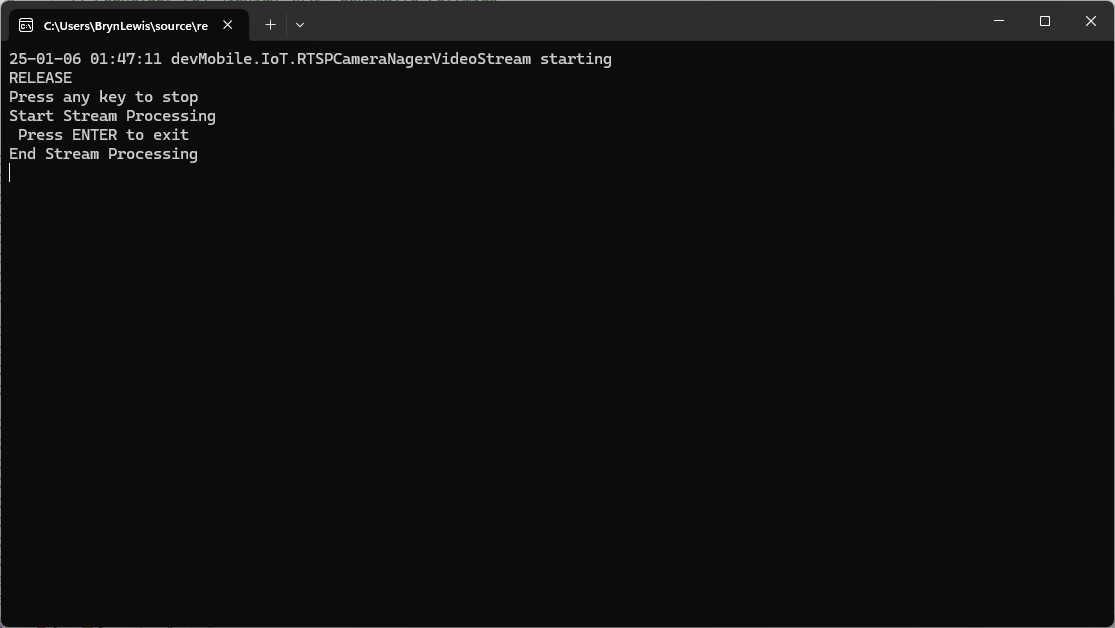
In the test results below (representative of multiple runs while testing) the delay between starting streaming and the first image file was on average 3.7 seconds with the gap between the images roughly 100mSec.
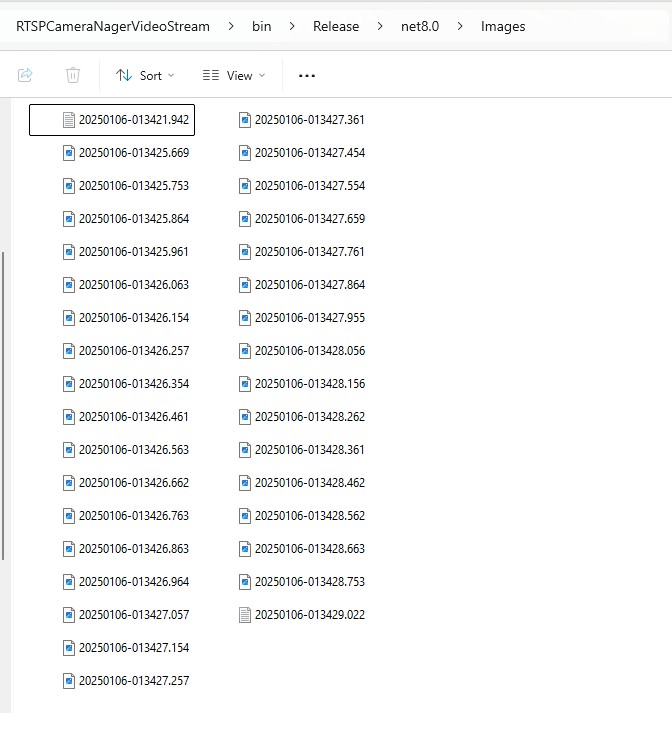
Files written by NagerVideoStream timestamps roughly 100mSec apart, but 3

Industrial Computer

I used a reComputer J3011 – Edge AI Computer with NVIDIA® Jetson™ Orin™ Nano 8GB running Ubuntu 22.04.5 LTS (Jammy Jellyfish)
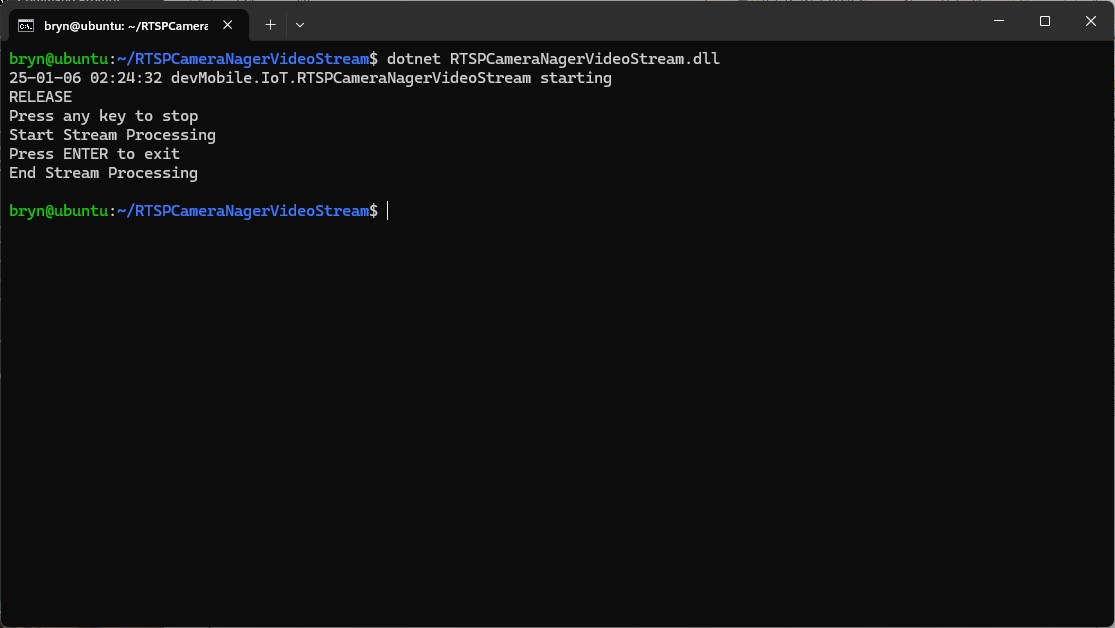
In the test results below (representative of multiple runs while testing) the delay between starting streaming and the first image file was on average roughly 3.7 seconds but the time between images varied a lot from 30mSec to >300mSec.
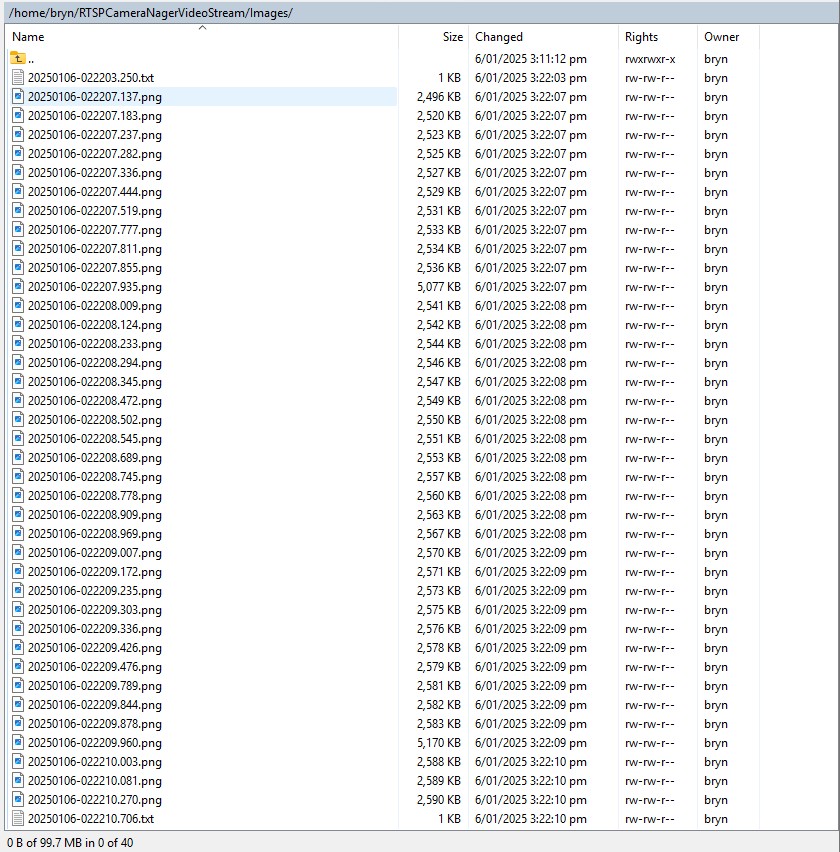
At 10FPS the results for my developer desktop were more consistent, and the reComputer J3011 had significantly more “jitter”. Both could cope with 1oFPS so the next step is to integrate YoloDotNet library to process the video frames.

YoloV8 ONNX – Nvidia Jetson Orin Nano™ Execution Providers

The Seeedstudio reComputer J3011 has two processors an ARM64 CPU and an Nvidia Jetson Orin 8G which can be used for inferencing with the Open Neural Network Exchange(ONNX)Runtime.

Story of Fail

Inferencing worked first time on the ARM64 CPU because the required runtime is included in the Microsoft.ML.OnnxRuntime NuGet

ARM64 Linux ONNX runtime
Microsoft.ML.OnnxRuntime NuGet ARM64 Linux runtime

Inferencing failed on the Nividia Jetson Orin 8G because the CUDA Execution provider and TensorRT Execution Provider for the ONNXRuntime were not included in the Microsoft.ML.OnnxRuntime.GPU.Linux NuGet.

Missing ARM64 Linux GPU runtime

There were Linux x64 and Windows x64 versions of the ONNXRuntime library included in the Microsoft.ML.OnnxRuntime.Gpu NuGet

Microsoft.ML.OnnxRuntime.Gpu NuGet x64 Linux runtime

Desperately Seeking libonnxruntime.so

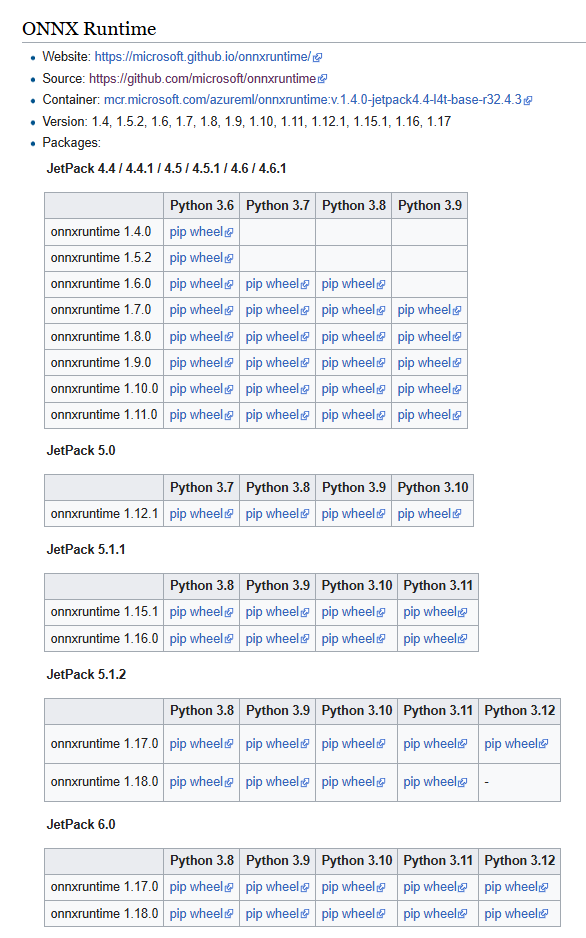
The Nvidia ONNX runtime site had pip wheel files for the different versions of Python and the Open Neural Network Exchange(ONNX)Runtime.

The onnxruntime_gpu-1.18.0-cp312-cp312-linux_aarch64.whl matched the version of the ONNXRuntime I needed and version of Python on the device..

When the pip wheel file was renamed onnxruntime_gpu-1.18.0-cp312-cp312-linux_aarch64.zip it could be opened, but there wasn’t a libonnruntime.so.

Onnxruntime_gpu-1.18.0-cp312-cp312-linux_aarch64 file listing

Building the TensorRT & CUDA Execution Providers

The ONNXRuntime build has to be done on Nividia Jetson Orin so after installing all the necessary prerequisites the first attempt failed.

bryn@ubuntu:~/onnxruntime/onnxruntime$ ./build.sh --config Release --update --build --build_wheel \
--use_tensorrt --cuda_home /usr/local/cuda --cudnn_home /usr/lib/aarch64-linux-gnu \
--tensorrt_home /usr/lib/aarch64-linux-gnu

When in high power mode more cores are used but this consumes more resource when building the ONNXRuntime. To limit resource utilisation --parallel2 was added the command line because the compile process was having “out of memory” failures.

bryn@ubuntu:~/onnxruntime/onnxruntime$ ./build.sh --config Release --update --build --parallel 2 --build_wheel \
--use_tensorrt --cuda_home /usr/local/cuda --cudnn_home /usr/lib/aarch64-linux-gnu \
--tensorrt_home /usr/lib/aarch64-linux-gnu

There were some compiler warnings but they appear to be benign.

First attempt at running the application failed because libonnxruntime.so was missing so –build_shared_lib was added to the command line

2024-06-10 18:21:58,480 build [INFO] - Build complete
bryn@ubuntu:~/onnxruntime/onnxruntime$ ./build.sh --config Release --update --build --parallel 2 --build_wheel --use_tensorrt --cuda_home /usr/local/cuda --cudnn_home /usr/lib/aarch64-linux-gnu --tensorrt_home /usr/lib/aarch64-linux-gnu --build_shared_lib

When the build completed the files were copied to the runtime folder of the program.

The application could then be configured to use the TensorRT Execution Provider.

Getting CUDA and TensorRT working on the Nvidia Jetson Orin 8G took much longer than I expected, with many dead ends and device factory resets before the process was repeatable.

YoloV8 ONNX – Nvidia Jetson Orin Nano™ CPU & GPU TensorRT Inferencing

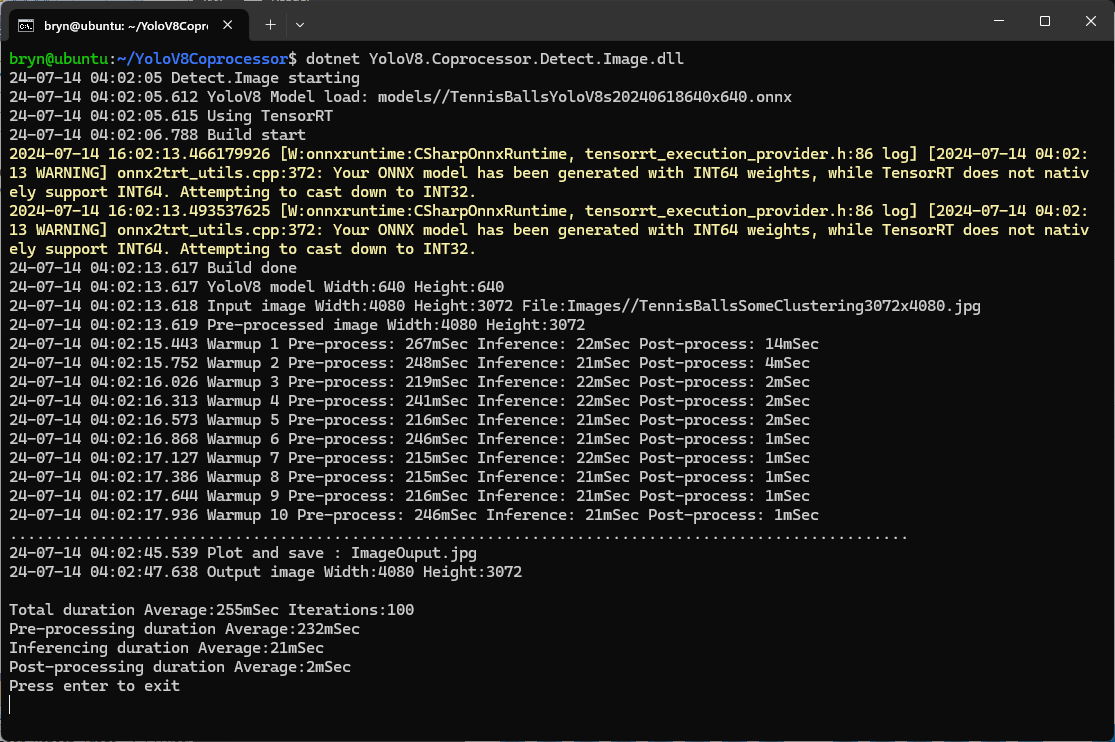
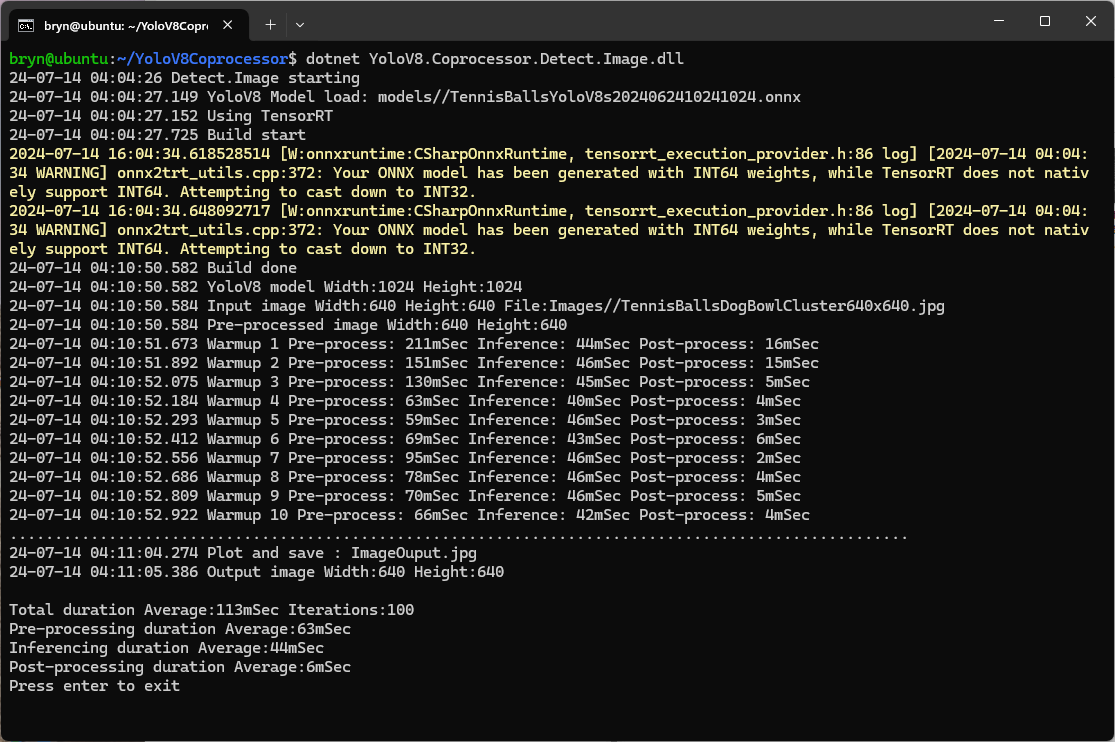
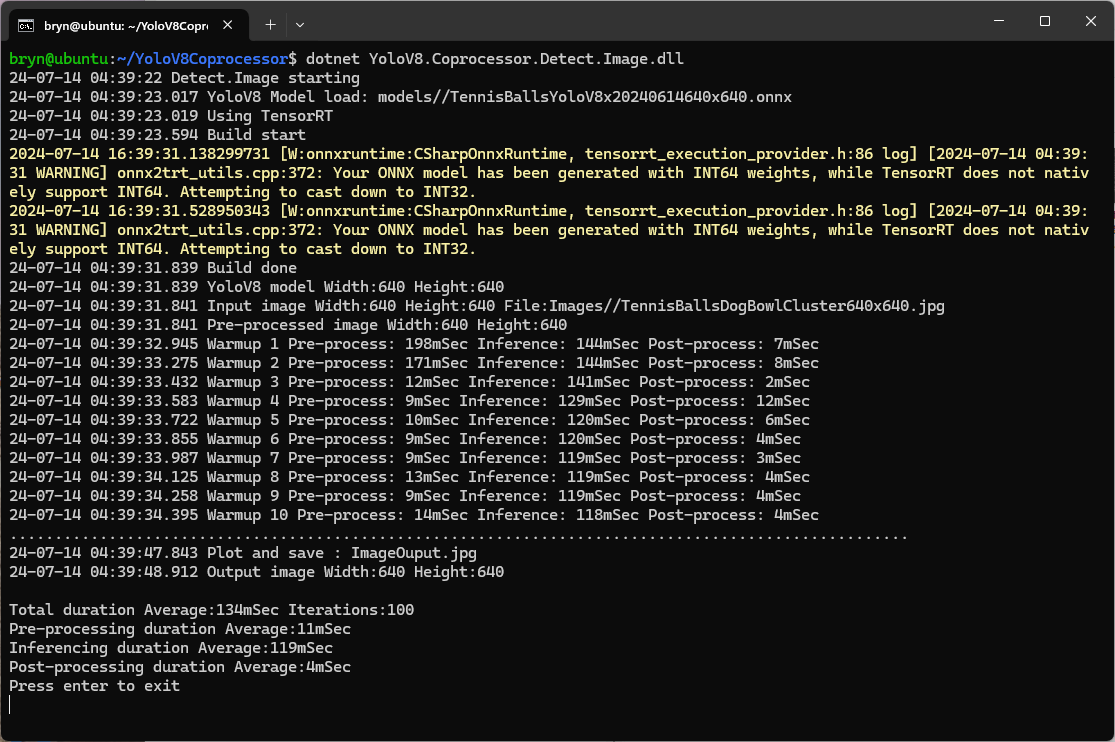
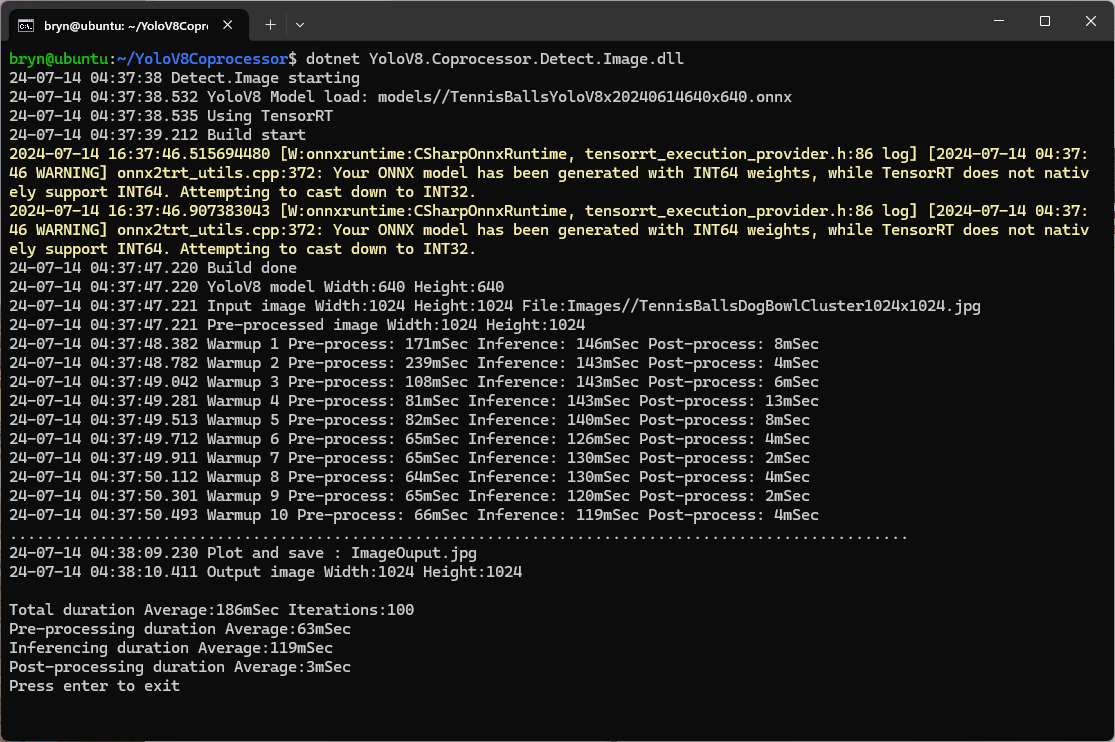
The Seeedstudio reComputer J3011 has two processors an ARM64 CPU and an Nividia Jetson Orin 8G. To speed up TensorRT inferencing I built an Open Neural Network Exchange(ONNX) TensorRT Execution Provider. After updating the code to add a “warm-up” and tracking of average pre-processing, inferencing & post-processing durations I did a series of CPU & GPU performance tests.

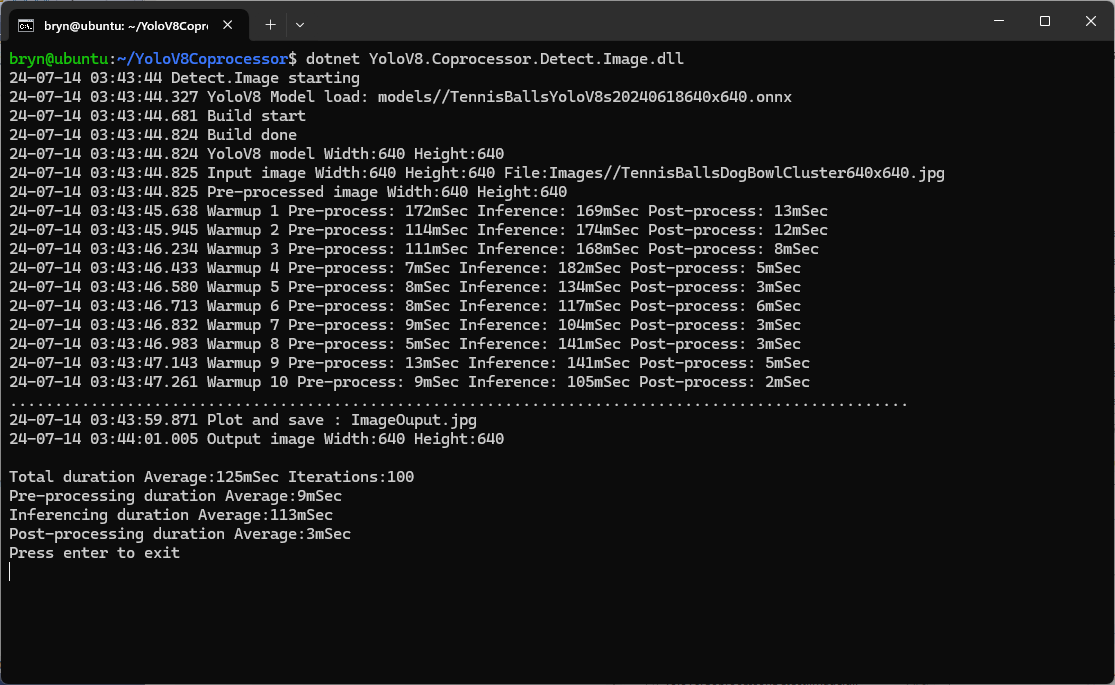
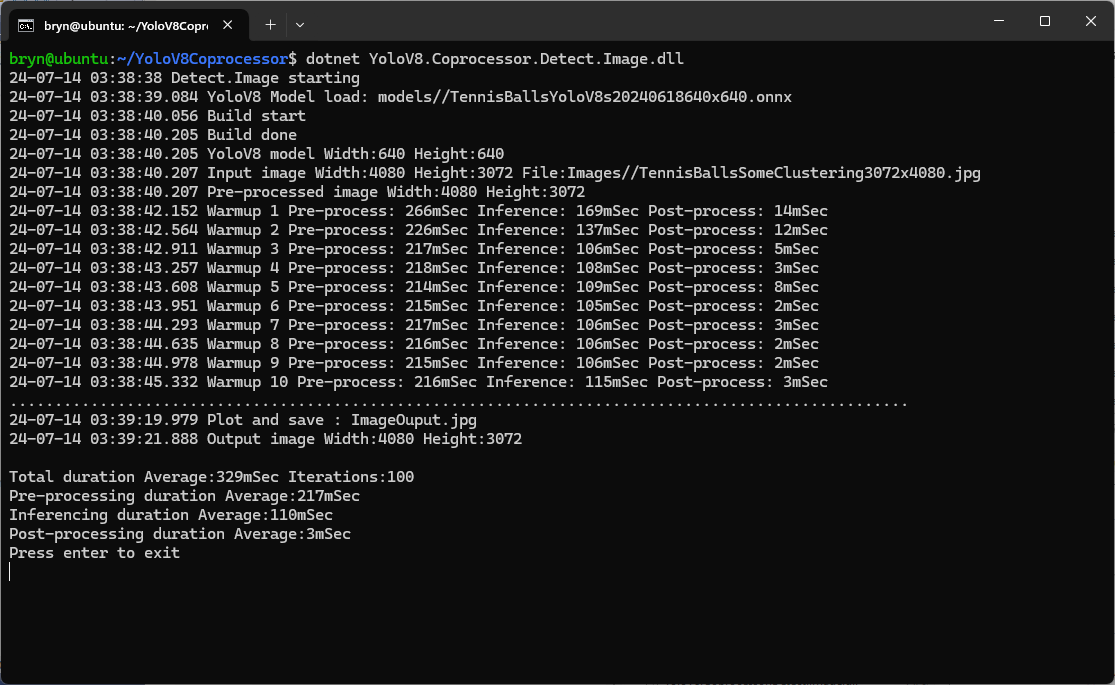
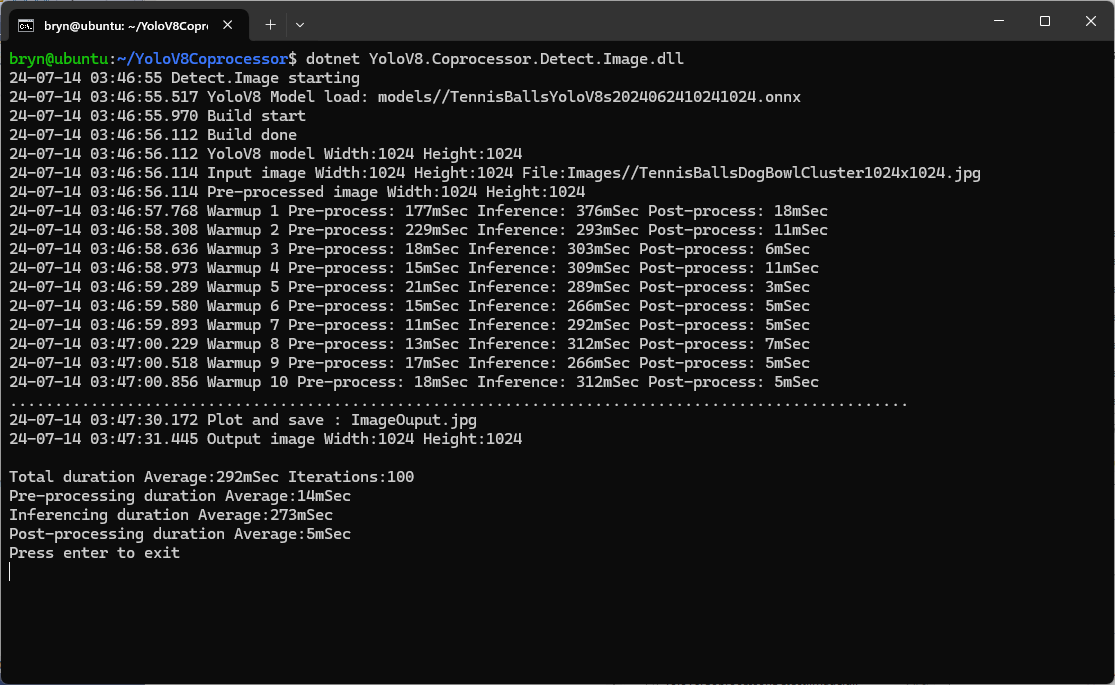
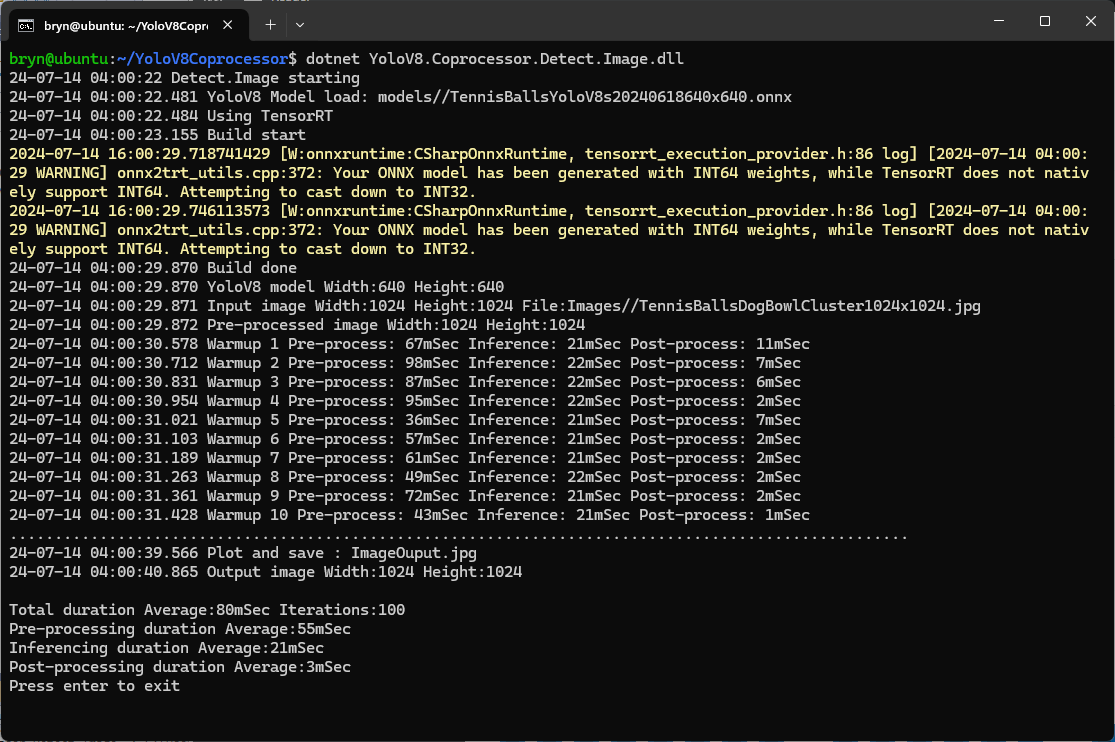
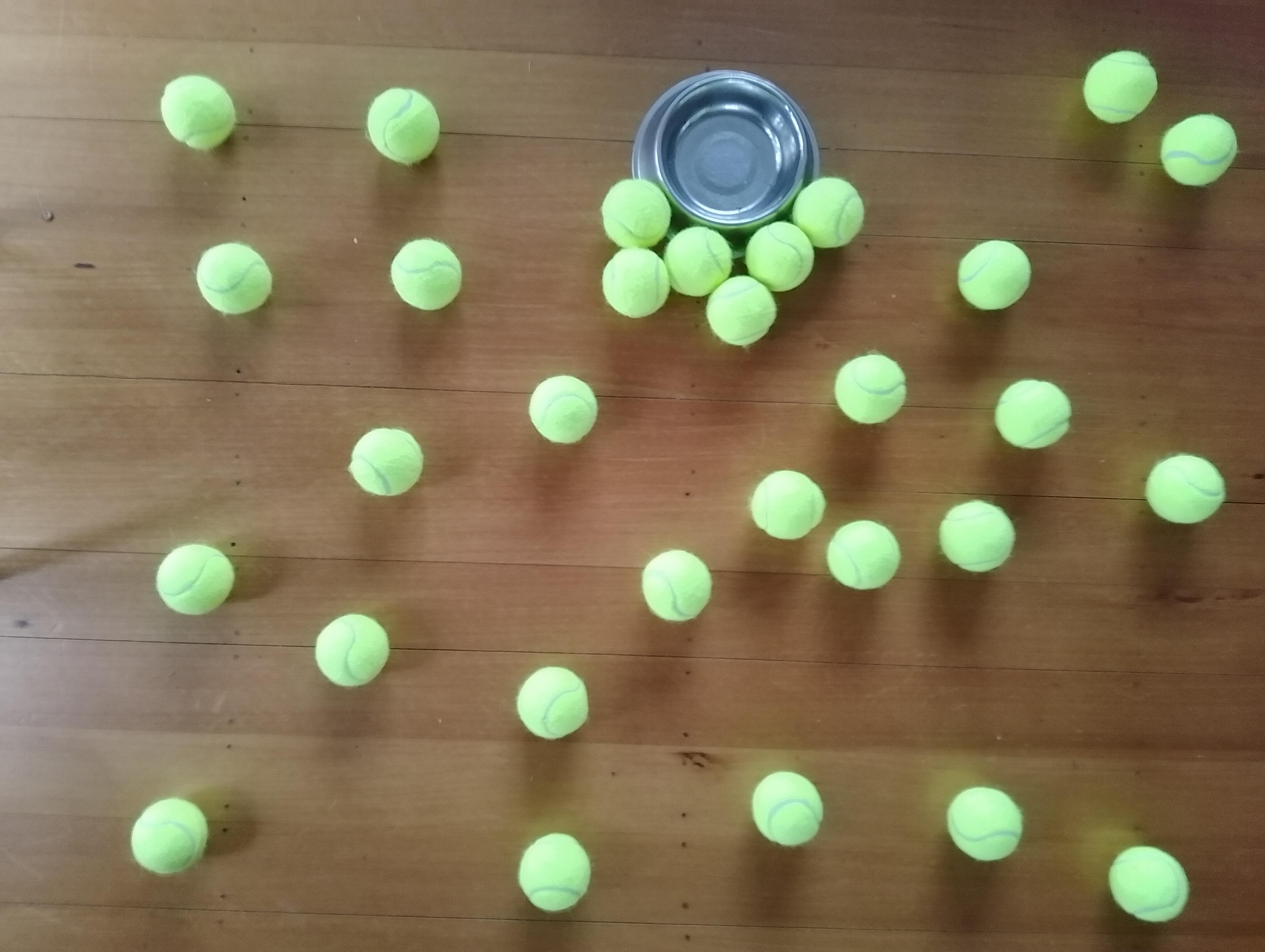
The testing consisted of permutations of three models TennisBallsYoloV8s20240618640×640.onnx, TennisBallsYoloV8s2024062410241024.onnx & TennisBallsYoloV8x20240614640×640 (limited testing as slow) and three images TennisBallsLandscape640x640.jpg, TennisBallsLandscape1024x1024.jpg & TennisBallsLandscape3072x4080.jpg.

Executive Summary

As expected, inferencing with a TensorRT 640×640 model and a 640×640 image was fastest, 9mSec pre-processing, 21mSec inferencing, then 4mSec post-processing.

If the image had to be scaled with SixLabors.ImageSharp this significantly increased the preprocessing (and overall) time.

CPU Inferencing

GPU TensorRT Small model Inferencing

GPU TensorRT Large model Inferencing

Nvidia Jetson Orin Nano™ JetPack 6

The Seeedstudio reComputer J3011 has two processors an ARM64 CPU and an Nividia Jetson Orin 8G Coprocessor. To speed up ML.NET running on the Nividia Jetson Orin 8G required compatible versions of ML.NET Open Neural Network Exchange (ONNX) and NVIDIA Jetpack.

Before installing NVIDIA Jetpack 6 the Seeedstudio reComputer J3011 Edge AI Device has to be put into recovery mode

Seeedstudio reComputer J3011 Edge AI Device with jumper for recovery mode

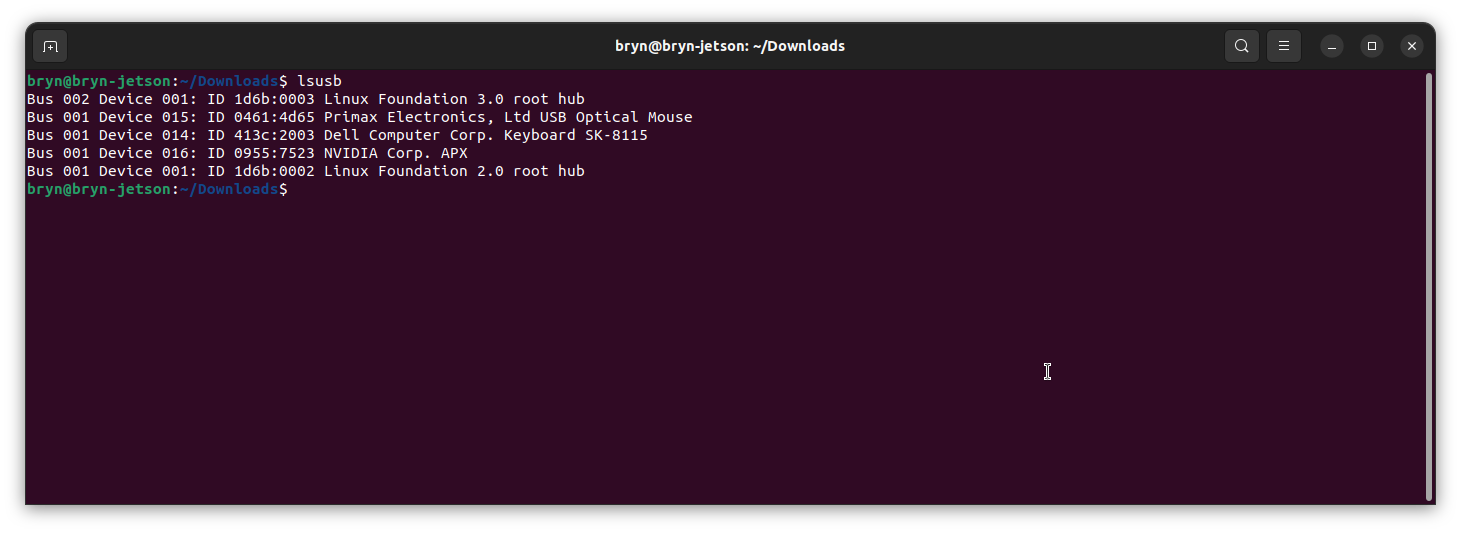
When started in recovery mode the Seeedstudio J3011 was in list of Universal Serial Bus (USB) devices returned by lsusb

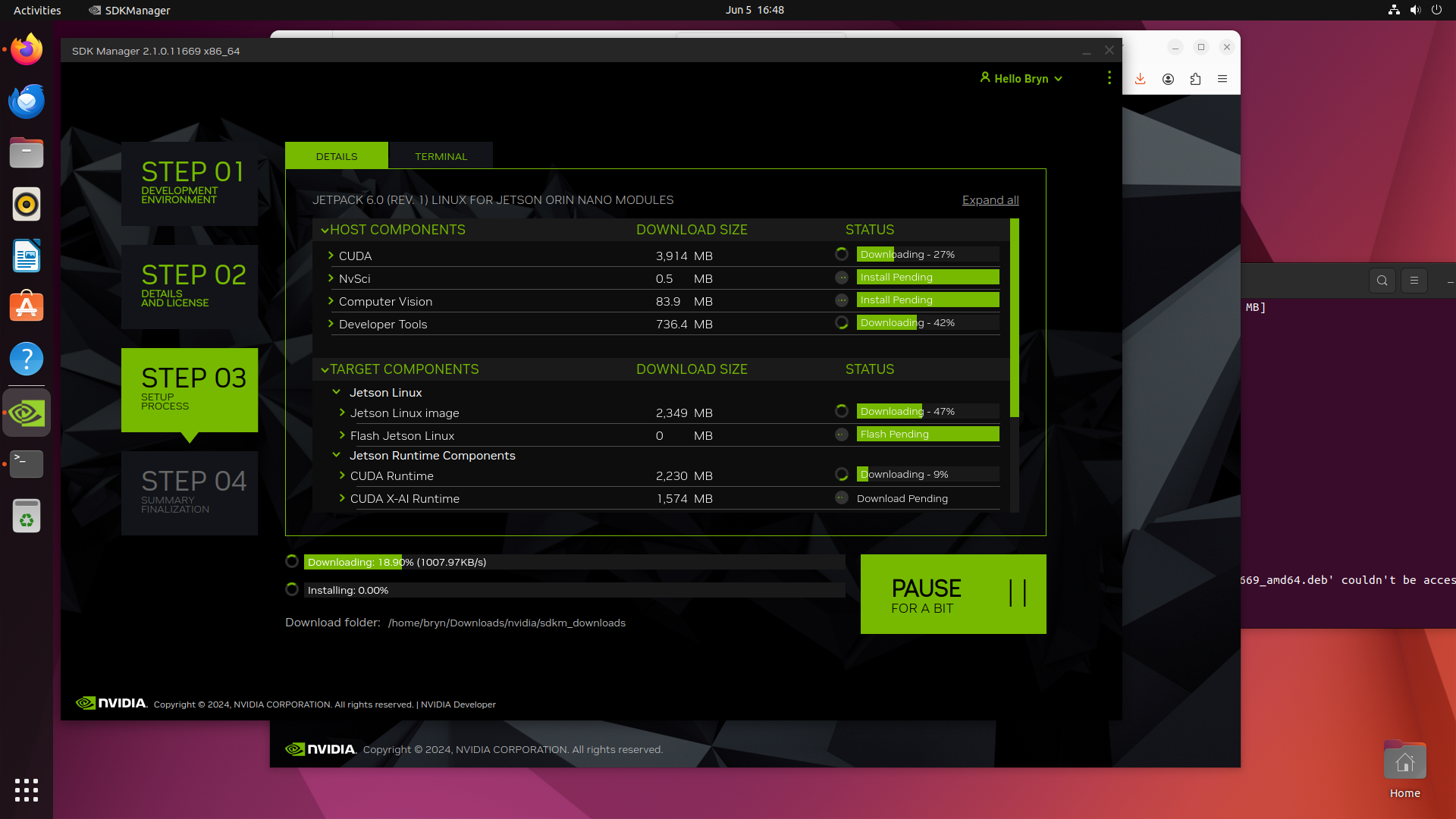
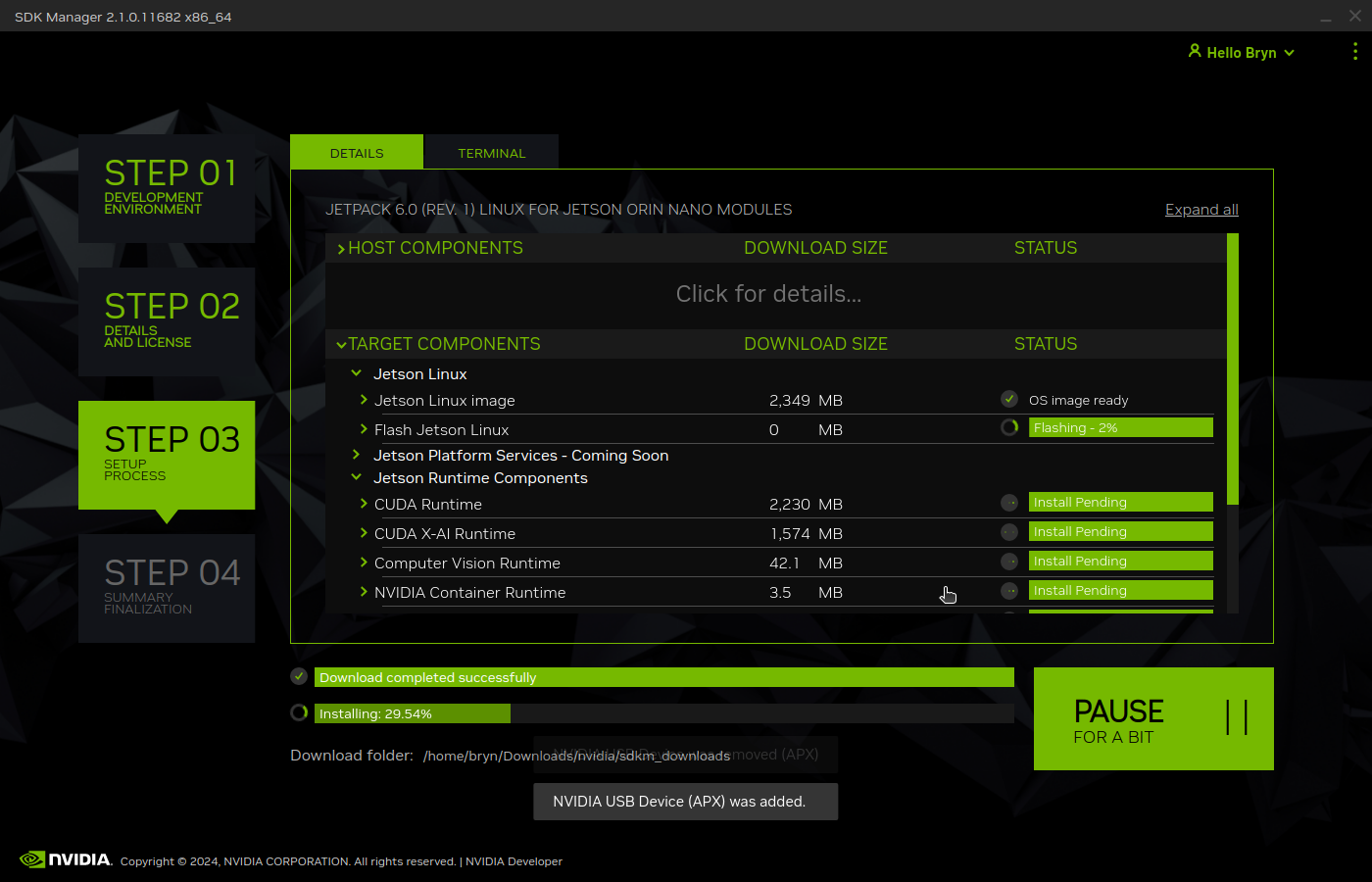
Upgrading to Jetpack 5.1.1 so the device could be upgraded using the Windows subsystem for Linux terminal failed. The NVIDIA SDK Manager downloads and installs all the required components and dependencies.

Installing NVIDIA Jetpack 6 from the Windows subsystem for Linux failed because the version of Ubuntu installed(Ubuntu 24.02 LTS) was not supported by NVIDIA SDK Manager.

Installing NVIDIA Jetpack 6 from a desktop PC running Ubuntu 24.02 LTS failed (the same issue as above) because the NVIDIA SDK Manager did not support that version of Ubuntu. The desktop PC was then “re-paved” with Ubuntu 22.04 LTS and NVIDIA SDK Manager worked.

An NVIDIA Developer program login is required to launch the NVIDIA SDK Manager

Selecting the right target hardware is important if it is not “auto detected”.

The Open Neural Network Exchange(ONNX) supports the Compute Unified Device Architecture (CUDA) which has to be included in the installation package.

Downloading NVIDIA Jetpack 6 and all the selected components of the install can be quite slow

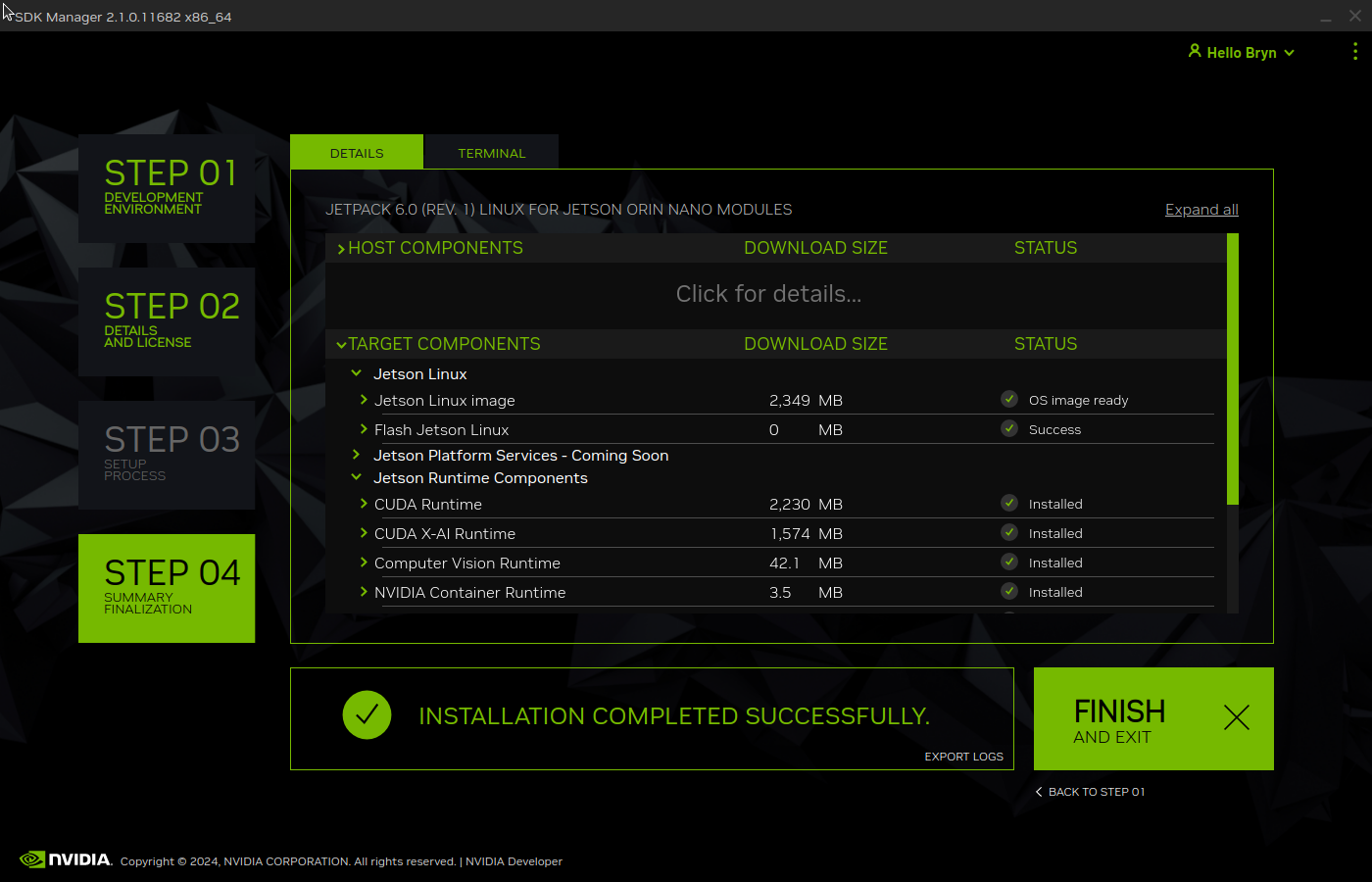
Installation of NVIDIA Jetpack 6 and selected components can take a while.

Even though Jetpack 6 is now available for Seeed’s Jetson Orin Devices this process is still applicable for an upgrade or “factory reset”.

YoloV8 ONNX – Nvidia Jetson Orin Nano™ DenseTensor Performance

When running the YoloV8 Coprocessor demonstration on the Nividia Jetson Orin inferencing looked a bit odd, the dotted line wasn’t moving as fast as expected. To investigate this further I split the inferencing duration into pre-processing, inferencing and post-processing times. Inferencing and post-processing were “quick”, but pre-processing was taking longer than expected.
YoloV8 Coprocessor application running on Nvidia Jetson Orin

When I ran the demonstration Ultralytics YoloV8 object detection console application on my development desktop (13th Gen Intel(R) Core(TM) i7-13700 2.10 GHz with 32.0 GB) the pre-processing was much faster.

The much shorter pre-processing and longer inferencing durations were not a surprise as my development desktop does not have a Graphics Processing Unit(GPU)

Test image used for testing on Jetson device and development PC

The test image taken with my mobile was 3606×2715 pixels which was representative of the security cameras images to be processed by the solution.

Redgate ANTS Performance Profiler instrumentation of application execution

On my development box running the application with Redgate ANTS Performance Profiler highlighted that the Computnet YoloV8 code converting the image to a DenseTensor could be an issue.

 public static void ProcessToTensor(Image<Rgb24> image, Size modelSize, bool originalAspectRatio, DenseTensor<float> target, int batch)
 {
    var options = new ResizeOptions()
    {
       Size = modelSize,
       Mode = originalAspectRatio ? ResizeMode.Max : ResizeMode.Stretch,
    };

    var xPadding = (modelSize.Width - image.Width) / 2;
    var yPadding = (modelSize.Height - image.Height) / 2;

    var width = image.Width;
    var height = image.Height;

    // Pre-calculate strides for performance
    var strideBatchR = target.Strides[0] * batch + target.Strides[1] * 0;
    var strideBatchG = target.Strides[0] * batch + target.Strides[1] * 1;
    var strideBatchB = target.Strides[0] * batch + target.Strides[1] * 2;
    var strideY = target.Strides[2];
    var strideX = target.Strides[3];

    // Get a span of the whole tensor for fast access
    var tensorSpan = target.Buffer;

    // Try get continuous memory block of the entire image data
    if (image.DangerousTryGetSinglePixelMemory(out var memory))
    {
       Parallel.For(0, width * height, index =>
       {
             int x = index % width;
             int y = index / width;
             int tensorIndex = strideBatchR + strideY * (y + yPadding) + strideX * (x + xPadding);

             var pixel = memory.Span[index];
             WritePixel(tensorSpan.Span, tensorIndex, pixel, strideBatchR, strideBatchG, strideBatchB);
       });
    }
    else
    {
       Parallel.For(0, height, y =>
       {
             var rowSpan = image.DangerousGetPixelRowMemory(y).Span;
             int tensorYIndex = strideBatchR + strideY * (y + yPadding);

             for (int x = 0; x < width; x++)
             {
                int tensorIndex = tensorYIndex + strideX * (x + xPadding);
                var pixel = rowSpan[x];
                WritePixel(tensorSpan.Span, tensorIndex, pixel, strideBatchR, strideBatchG, strideBatchB);
             }
       });
    }
 }

 private static void WritePixel(Span<float> tensorSpan, int tensorIndex, Rgb24 pixel, int strideBatchR, int strideBatchG, int strideBatchB)
 {
    tensorSpan[tensorIndex] = pixel.R / 255f;
    tensorSpan[tensorIndex + strideBatchG - strideBatchR] = pixel.G / 255f;
    tensorSpan[tensorIndex + strideBatchB - strideBatchR] = pixel.B / 255f;
 }

For a 3606×2715 image the WritePixel method would be called tens of millions of times so its implementation and the overall approach used for ProcessToTensor has a significant impact on performance.

YoloV8 Coprocessor application running on Nvidia Jetson Orin with a resized image

Resizing the images had a significant impact on performance on the development box and Nividia Jetson Orin. This will need some investigation to see how much reducing the resizing the images impacts on the performance and accuracy of the model.

The ProcessToTensor method has already had some performance optimisations which improved performance by roughly 20%. There have been discussions about optimising similar code e.g. Efficient Bitmap to OnnxRuntime Tensor in C#, and Efficient RGB Image to Tensor in dotnet which look applicable and these will be evaluated.

YoloV8 ONNX – Nvidia Jetson Orin Nano™ GPU TensorRT Inferencing

The Seeedstudio reComputer J3011 has two processors an ARM64 CPU and an Nividia Jetson Orin 8G. To speed up inferencing on the Nividia Jetson Orin 8G with TensorRT I built an Open Neural Network Exchange(ONNX) TensorRT Execution Provider.

Roboflow Universe Tennis Ball by Ugur ozdemir dataset

The Open Neural Network Exchange(ONNX) model used was trained on Roboflow Universe by Ugur ozdemir dataset which has 23696 images. The initial version of the TensorRT integration used the builder.UseTensorrt method of the IYoloV8Builder interface.
...
YoloV8Builder builder = new YoloV8Builder();

builder.UseOnnxModel(_applicationSettings.ModelPath);

if (_applicationSettings.UseTensorrt)
{
   Console.WriteLine($" {DateTime.UtcNow:yy-MM-dd HH:mm:ss.fff} Using TensorRT");

   builder.UseTensorrt(_applicationSettings.DeviceId);
}
...

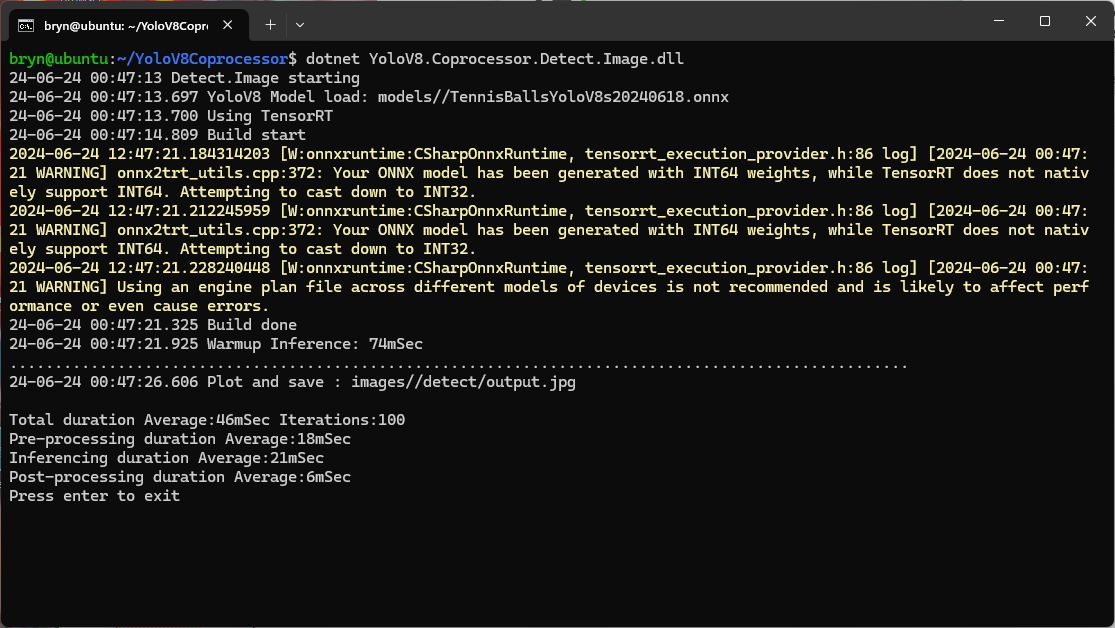
When the YoloV8.Coprocessor.Detect.Image application was configured to use the NVIDIA TensorRT Execution provider the average inference time was 58mSec but it took roughly 7 minutes to build and optimise the engine each time the application was run.

Generating the TensorRT engine every time the application is started

The TensorRT Execution provider has a number of configuration options but the IYoloV8Builder interface had to modified with UseCuda, UseRocm, UseTensorrt and UseTvm overloads implemented to allow additional configuration settings.

...
public class YoloV8Builder : IYoloV8Builder
{
...
    public IYoloV8Builder UseOnnxModel(BinarySelector model)
    {
        _model = model;

        return this;
    }

#if GPURELEASE
    public IYoloV8Builder UseCuda(int deviceId) => WithSessionOptions(SessionOptions.MakeSessionOptionWithCudaProvider(deviceId));

    public IYoloV8Builder UseCuda(OrtCUDAProviderOptions options) => WithSessionOptions(SessionOptions.MakeSessionOptionWithCudaProvider(options));

    public IYoloV8Builder UseRocm(int deviceId) => WithSessionOptions(SessionOptions.MakeSessionOptionWithRocmProvider(deviceId));
    
    // Couldn't test this don't have suitable hardware
    public IYoloV8Builder UseRocm(OrtROCMProviderOptions options) => WithSessionOptions(SessionOptions.MakeSessionOptionWithRocmProvider(options));

    public IYoloV8Builder UseTensorrt(int deviceId) => WithSessionOptions(SessionOptions.MakeSessionOptionWithTensorrtProvider(deviceId));

    public IYoloV8Builder UseTensorrt(OrtTensorRTProviderOptions options) => WithSessionOptions(SessionOptions.MakeSessionOptionWithTensorrtProvider(options));

    // Couldn't test this don't have suitable hardware
    public IYoloV8Builder UseTvm(string settings = "") => WithSessionOptions(SessionOptions.MakeSessionOptionWithTvmProvider(settings));
#endif
...
}

The trt_engine_cache_enable and trt_engine_cache_path TensorRT Execution provider session options configured the engine to be cached when it’s built for the first time so when a new inference session is created the engine can be loaded directly from disk.

...
YoloV8Builder builder = new YoloV8Builder();

builder.UseOnnxModel(_applicationSettings.ModelPath);

if (_applicationSettings.UseTensorrt)
{
   Console.WriteLine($" {DateTime.UtcNow:yy-MM-dd HH:mm:ss.fff} Using TensorRT");

   OrtTensorRTProviderOptions tensorRToptions = new OrtTensorRTProviderOptions();

   Dictionary<string, string> optionKeyValuePairs = new Dictionary<string, string>();

   optionKeyValuePairs.Add("trt_engine_cache_enable", "1");
   optionKeyValuePairs.Add("trt_engine_cache_path", "enginecache/");

   tensorRToptions.UpdateOptions(optionKeyValuePairs);

   builder.UseTensorrt(tensorRToptions);
}
...

In order to validate that the loaded engine loaded from the trt_engine_cache_path is usable for the current inference, an engine profile is also cached and loaded along with engine

If current input shapes are in the range of the engine profile, the loaded engine can be safely used. If input shapes are out of range, the profile will be updated and the engine will be recreated based on the new profile.

Reusing the TensorRT engine built the first time the application is started

When the YoloV8.Coprocessor.Detect.Image application was configured to use NVIDIA TensorRT and the engine was cached the average inference time was 58mSec and the Build method took roughly 10sec to execute after the application had been run once.

trtexec console application output

The trtexec utility can “pre-generate” engines but there doesn’t appear a way to use them with the TensorRT Execution provider.

YoloV8 ONNX – Nvidia Jetson Orin Nano™ GPU CUDA Inferencing

The Seeedstudio reComputer J3011 has two processors an ARM64 CPU and an Nividia Jetson Orin 8G. To speed up inferencing with the Nividia Jetson Orin 8G with Compute Unified Device Architecture (CUDA) I built an Open Neural Network Exchange(ONNX) CUDA Execution Provider.

The Open Neural Network Exchange(ONNX) model used was trained on Roboflow Universe by Ugur ozdemir dataset which has 23696 images.

// load the app settings into configuration
var configuration = new ConfigurationBuilder()
      .AddJsonFile("appsettings.json", false, true)
.Build();

_applicationSettings = configuration.GetSection("ApplicationSettings").Get<Model.ApplicationSettings>();

Console.WriteLine($" {DateTime.UtcNow:yy-MM-dd HH:mm:ss.fff} YoloV8 Model load: {_applicationSettings.ModelPath}");

YoloV8Builder builder = new YoloV8Builder();

builder.UseOnnxModel(_applicationSettings.ModelPath);

if (_applicationSettings.UseCuda)
{
   builder.UseCuda(_applicationSettings.DeviceId) ;
}

if (_applicationSettings.UseTensorrt)
{
   builder.UseTensorrt(_applicationSettings.DeviceId);
}

/*
builder.WithConfiguration(c =>
{
});
*/

/*
builder.WithSessionOptions(new Microsoft.ML.OnnxRuntime.SessionOptions()
{

});
*/

using (var image = await SixLabors.ImageSharp.Image.LoadAsync<Rgba32>(_applicationSettings.ImageInputPath))
using (var predictor = builder.Build())
{
   var result = await predictor.DetectAsync(image);

   Console.WriteLine();
   Console.WriteLine($"Speed: {result.Speed}");
   Console.WriteLine();

   foreach (var prediction in result.Boxes)
   {
      Console.WriteLine($" Class {prediction.Class} {(prediction.Confidence * 100.0):f1}% X:{prediction.Bounds.X} Y:{prediction.Bounds.Y} Width:{prediction.Bounds.Width} Height:{prediction.Bounds.Height}");
   }

   Console.WriteLine();

   Console.WriteLine($" {DateTime.UtcNow:yy-MM-dd HH:mm:ss.fff} Plot and save : {_applicationSettings.ImageOutputPath}");

   using (var imageOutput = await result.PlotImageAsync(image))
   {
      await imageOutput.SaveAsJpegAsync(_applicationSettings.ImageOutputPath);
   }
}

When configured to run the YoloV8.Coprocessor.Detect.Image on the ARM64 CPU the average inference time was 729 mSec.

The first time ran the YoloV8.Coprocessor.Detect.Image application configured to use CUDA for inferencing it failed badly.

The YoloV8.Coprocessor.Detect.Image application was then configured to use CUDA and the average inferencing time was 85mSec.

It took a couple of weeks to get the YoloV8.Coprocessor.Detect.Image application inferencing on the Nividia Jetson Orin 8G coprocessor and this will be covered in detail in another posts.

YoloV8 ONNX – Nvidia Jetson Orin Nano™ ARM64 CPU Inferencing

I configured the demonstration Ultralytics YoloV8 object detection(yolov8s.onnx) console application to process a 1920×1080 image from a security camera on my desktop development box (13th Gen Intel(R) Core(TM) i7-13700 2.10 GHz with 32.0 GB)

Object Detection sample application running on my development box

A Seeedstudio reComputer J3011 uses a Nividia Jetson Orin 8G and looked like a cost-effective platform to explore how a dedicated Artificial Intelligence (AI) co-processor could reduce inferencing times.

To establish a “baseline” I “published” the demonstration application on my development box which created a folder with all the files required to run the application on the Seeedstudio reComputer J3011 ARM64 CPU. I had to manually merge the “User Secrets” and appsettings.json files so the camera connection configuration was correct.

The runtimes folder contained a number of folders with the native runtime files for the supported Open Neural Network Exchange(ONNX) platforms

Object Detection application publish runtimes folder

This Nividia Jetson Orin ARM64 CPU requires the linux-arm64 ONNX runtime which was “automagically” detected. (in previous versions of ML.Net the native runtime had to be copied to the execution directory)

Linux ONNX ARM64 runtime

The final step was to use the demonstration Ultralytics YoloV8 object detection(yolov8s.onnx) console application to process a 1920×1080 image from a security camera on the reComputer J3011 (6-core Arm® Cortex®64-bit CPU 1.5Ghz processor)

Object Detection sample application running on my Seeedstudio reComputer J3011

When I averaged the pre-processing, inferencing and post-processing times for both devices over 20 executions my development box was much faster which was not a surprise. Though the reComputer J3011 post processing times were a bit faster than I was expecting

ARM64 CPU Preprocess 0.05s Inference 0.31s Postprocess 0.05

Smartish Edge Camera – Azure IoT Central

This post builds on Smartish Edge Camera – Azure Hub Part 1 using the Azure IoT Hub Device Provisioning Service(DPS) to connect to Azure IoT Central.

The list of object classes is in the YoloCocoP5Model.cs file in the mentalstack/yolov5-net repository.

public override List<YoloLabel> Labels { get; set; } = new List<YoloLabel>()
{
    new YoloLabel { Id = 1, Name = "person" },
    new YoloLabel { Id = 2, Name = "bicycle" },
    new YoloLabel { Id = 3, Name = "car" },
    new YoloLabel { Id = 4, Name = "motorcycle" },
    new YoloLabel { Id = 5, Name = "airplane" },
    new YoloLabel { Id = 6, Name = "bus" },
    new YoloLabel { Id = 7, Name = "train" },
    new YoloLabel { Id = 8, Name = "truck" },
    new YoloLabel { Id = 9, Name = "boat" },
    new YoloLabel { Id = 10, Name = "traffic light" },
    new YoloLabel { Id = 11, Name = "fire hydrant" },
    new YoloLabel { Id = 12, Name = "stop sign" },
    new YoloLabel { Id = 13, Name = "parking meter" },
    new YoloLabel { Id = 14, Name = "bench" },
    new YoloLabel { Id = 15, Name = "bird" },
    new YoloLabel { Id = 16, Name = "cat" },
    new YoloLabel { Id = 17, Name = "dog" },
    new YoloLabel { Id = 18, Name = "horse" },
    new YoloLabel { Id = 19, Name = "sheep" },
    new YoloLabel { Id = 20, Name = "cow" },
    new YoloLabel { Id = 21, Name = "elephant" },
    new YoloLabel { Id = 22, Name = "bear" },
    new YoloLabel { Id = 23, Name = "zebra" },
    new YoloLabel { Id = 24, Name = "giraffe" },
    new YoloLabel { Id = 25, Name = "backpack" },
    new YoloLabel { Id = 26, Name = "umbrella" },
    new YoloLabel { Id = 27, Name = "handbag" },
    new YoloLabel { Id = 28, Name = "tie" },
    new YoloLabel { Id = 29, Name = "suitcase" },
    new YoloLabel { Id = 30, Name = "frisbee" },
    new YoloLabel { Id = 31, Name = "skis" },
    new YoloLabel { Id = 32, Name = "snowboard" },
    new YoloLabel { Id = 33, Name = "sports ball" },
    new YoloLabel { Id = 34, Name = "kite" },
    new YoloLabel { Id = 35, Name = "baseball bat" },
    new YoloLabel { Id = 36, Name = "baseball glove" },
    new YoloLabel { Id = 37, Name = "skateboard" },
    new YoloLabel { Id = 38, Name = "surfboard" },
    new YoloLabel { Id = 39, Name = "tennis racket" },
    new YoloLabel { Id = 40, Name = "bottle" },
    new YoloLabel { Id = 41, Name = "wine glass" },
    new YoloLabel { Id = 42, Name = "cup" },
    new YoloLabel { Id = 43, Name = "fork" },
    new YoloLabel { Id = 44, Name = "knife" },
    new YoloLabel { Id = 45, Name = "spoon" },
    new YoloLabel { Id = 46, Name = "bowl" },
    new YoloLabel { Id = 47, Name = "banana" },
    new YoloLabel { Id = 48, Name = "apple" },
    new YoloLabel { Id = 49, Name = "sandwich" },
    new YoloLabel { Id = 50, Name = "orange" },
    new YoloLabel { Id = 51, Name = "broccoli" },
    new YoloLabel { Id = 52, Name = "carrot" },
    new YoloLabel { Id = 53, Name = "hot dog" },
    new YoloLabel { Id = 54, Name = "pizza" },
    new YoloLabel { Id = 55, Name = "donut" },
    new YoloLabel { Id = 56, Name = "cake" },
    new YoloLabel { Id = 57, Name = "chair" },
    new YoloLabel { Id = 58, Name = "couch" },
    new YoloLabel { Id = 59, Name = "potted plant" },
    new YoloLabel { Id = 60, Name = "bed" },
    new YoloLabel { Id = 61, Name = "dining table" },
    new YoloLabel { Id = 62, Name = "toilet" },
    new YoloLabel { Id = 63, Name = "tv" },
    new YoloLabel { Id = 64, Name = "laptop" },
    new YoloLabel { Id = 65, Name = "mouse" },
    new YoloLabel { Id = 66, Name = "remote" },
    new YoloLabel { Id = 67, Name = "keyboard" },
    new YoloLabel { Id = 68, Name = "cell phone" },
    new YoloLabel { Id = 69, Name = "microwave" },
    new YoloLabel { Id = 70, Name = "oven" },
    new YoloLabel { Id = 71, Name = "toaster" },
    new YoloLabel { Id = 72, Name = "sink" },
    new YoloLabel { Id = 73, Name = "refrigerator" },
    new YoloLabel { Id = 74, Name = "book" },
    new YoloLabel { Id = 75, Name = "clock" },
    new YoloLabel { Id = 76, Name = "vase" },
    new YoloLabel { Id = 77, Name = "scissors" },
    new YoloLabel { Id = 78, Name = "teddy bear" },
    new YoloLabel { Id = 79, Name = "hair drier" },
    new YoloLabel { Id = 80, Name = "toothbrush" }
};

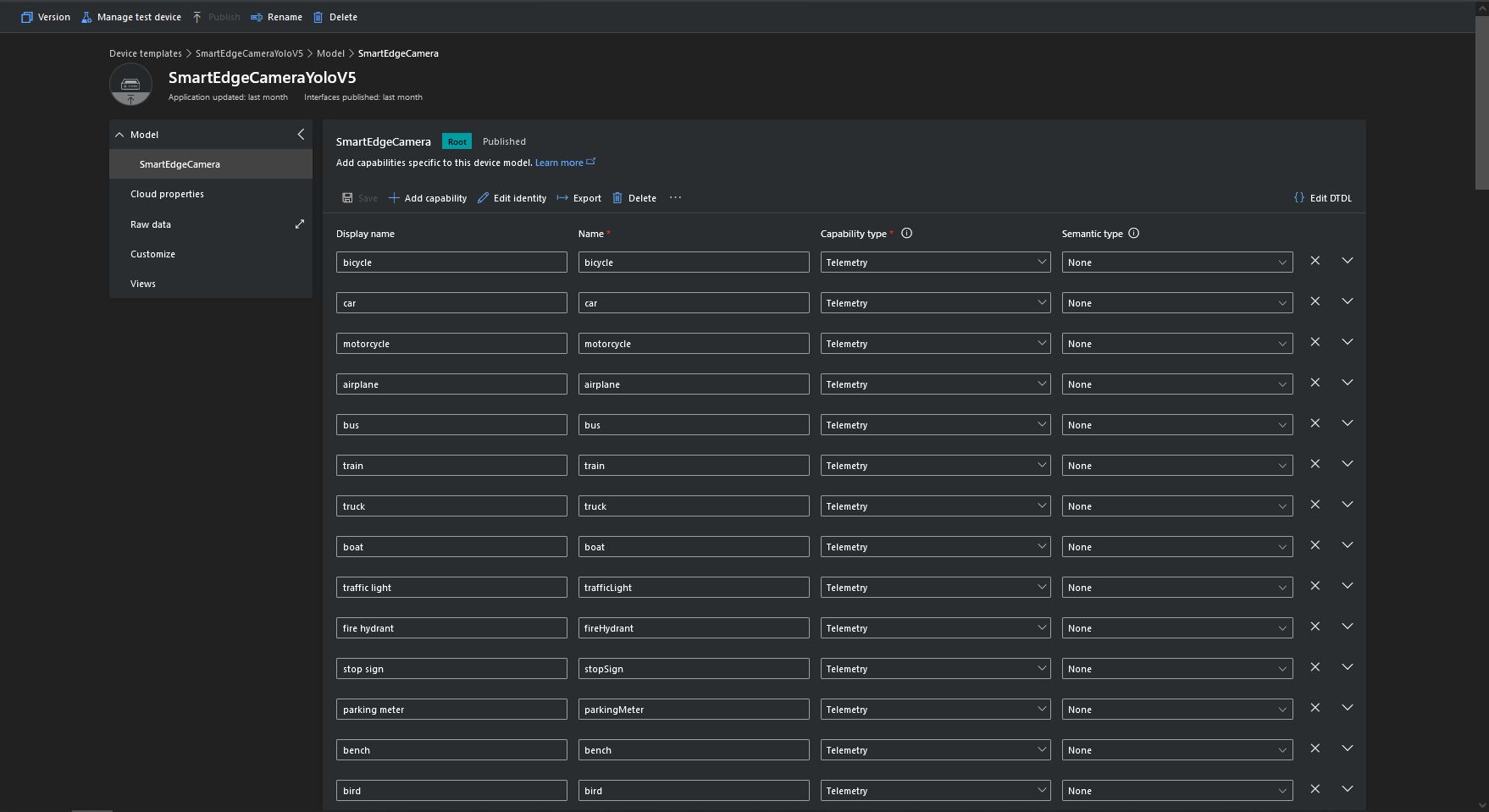
Some of the label choices seem a bit arbitrary(frisbee, surfboard) and American(fire hydrant, baseball bat, baseball glove) It was quite tedious configuring the 80 labels in my Azure IoT Central template.

Azure IoT Central Template with all the YoloV5 labels configured

If there is an object with a label in the PredictionLabelsOfInterest list, a tally of each of the different object classes in the image is sent to an Azure IoT Hub/ Azure IoT Central.

"Application": {
  "DeviceID": "",
  "ImageTimerDue": "0.00:00:15",
  "ImageTimerPeriod": "0.00:00:30",

  "ImageCameraFilepath": "ImageCamera.jpg",
  "ImageMarkedUpFilepath": "ImageMarkedup.jpg",

  "YoloV5ModelPath": "YoloV5/yolov5s.onnx",

  "PredictionScoreThreshold": 0.7,
  "PredictionLabelsOfInterest": [
    "bicycle",
    "person"
  ],
  "PredictionLabelsMinimum": [
    "bicycle",
    "car",
    "person"
  ]
}
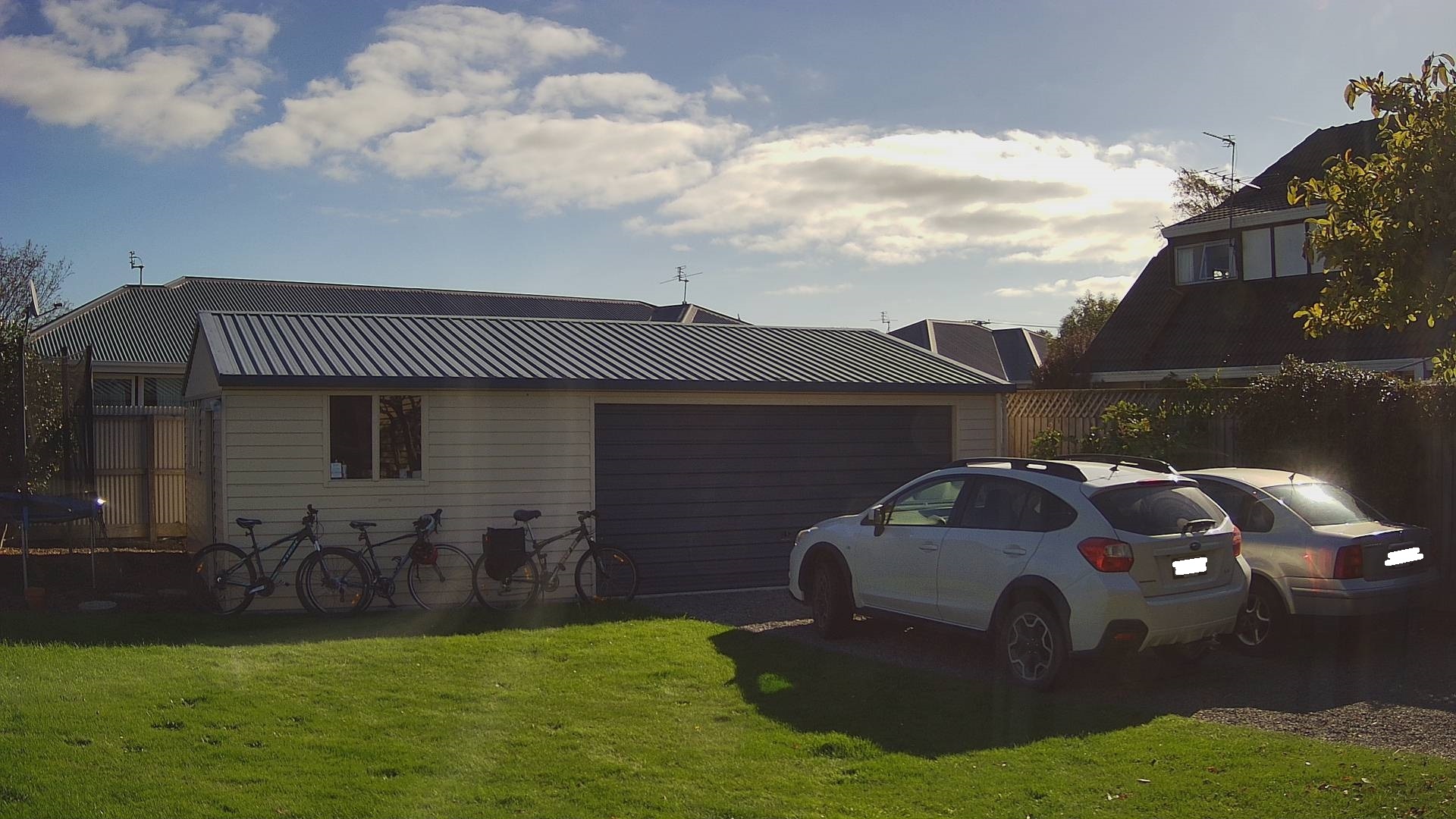
My backyard just after the car left (the dry patch in shingle on the right)
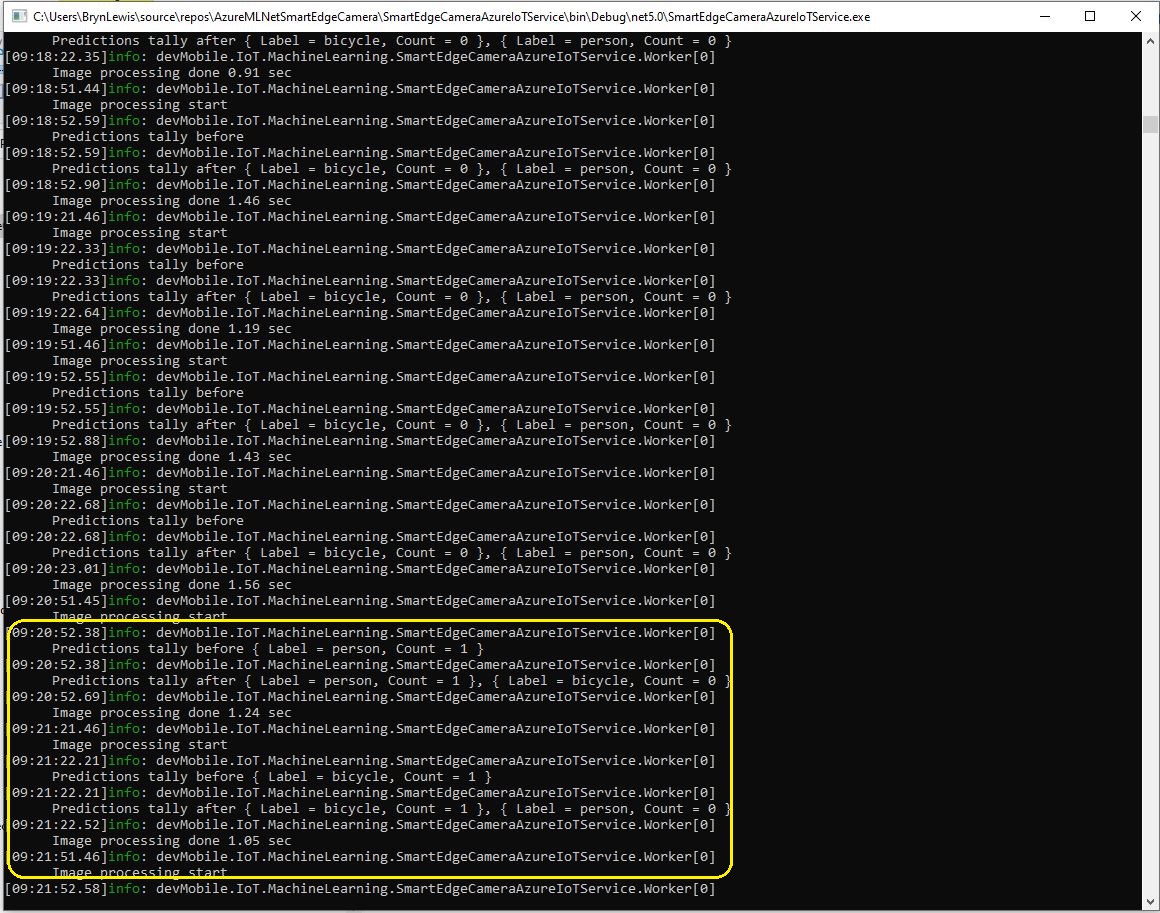
Smartish Edge Camera Service console just after car left
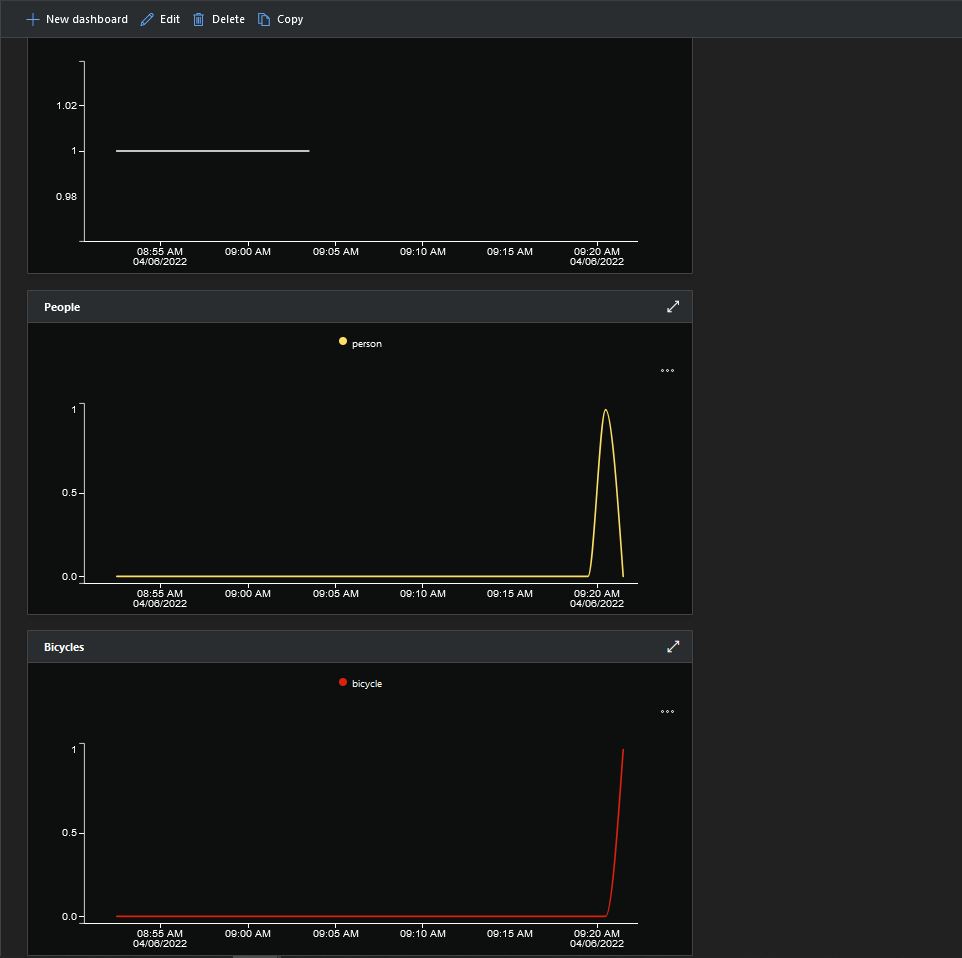
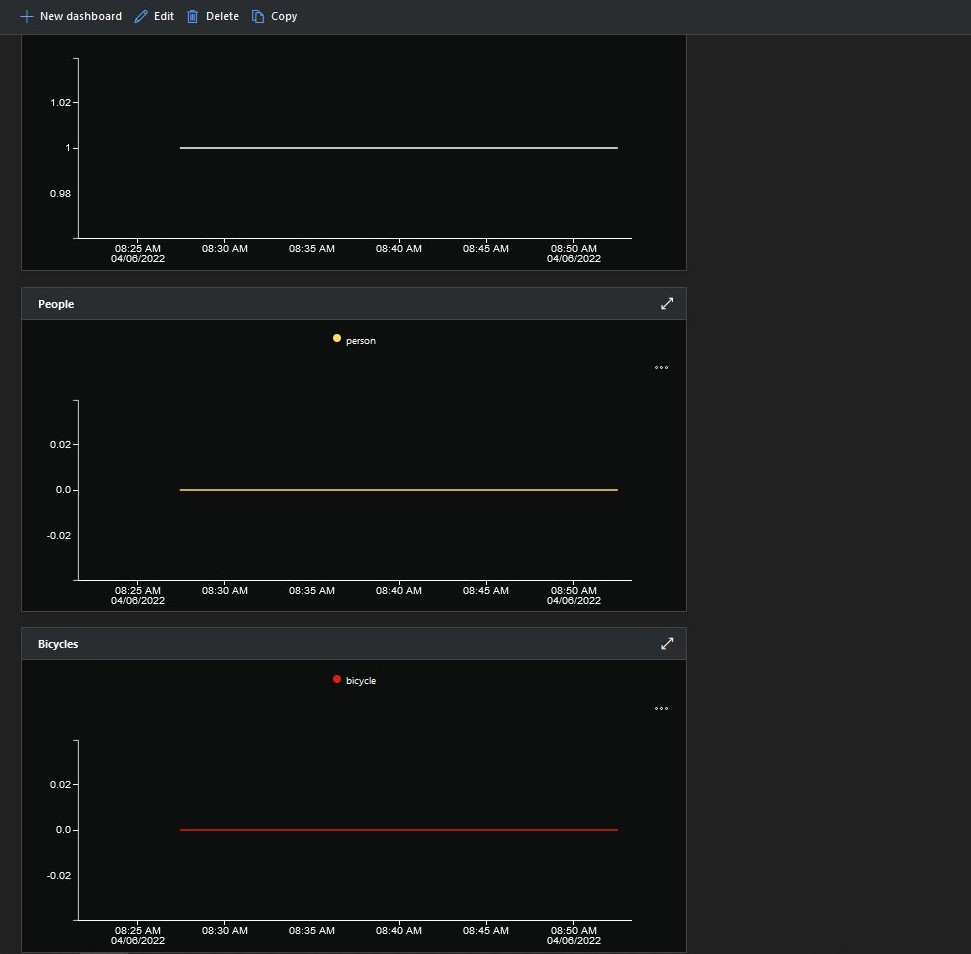
Smartish Edge Camera Azure IoT Central graphs showing missing data points

After the You Only Look Once(YOLOV5)+ML.Net+Open Neural Network Exchange(ONNX) plumbing has loaded a timer with a configurable due time and period is started.

private async void ImageUpdateTimerCallback(object state)
{
	DateTime requestAtUtc = DateTime.UtcNow;

	// Just incase - stop code being called while photo already in progress
	if (_cameraBusy)
	{
		return;
	}
	_cameraBusy = true;

	_logger.LogInformation("Image processing start");

	try
	{
#if CAMERA_RASPBERRY_PI
		RaspberryPIImageCapture();
#endif
#if CAMERA_SECURITY
		SecurityCameraImageCapture();
#endif
		List<YoloPrediction> predictions;

		using (Image image = Image.FromFile(_applicationSettings.ImageCameraFilepath))
		{
			_logger.LogTrace("Prediction start");
			predictions = _scorer.Predict(image);
			_logger.LogTrace("Prediction done");

			OutputImageMarkup(image, predictions, _applicationSettings.ImageMarkedUpFilepath);
		}

		if (_logger.IsEnabled(LogLevel.Trace))
		{
			_logger.LogTrace("Predictions {0}", predictions.Select(p => new { p.Label.Name, p.Score }));
		}

		var predictionsValid = predictions.Where(p => p.Score >= _applicationSettings.PredictionScoreThreshold).Select(p => p.Label.Name);

		// Count up the number of each class detected in the image
		var predictionsTally = predictionsValid.GroupBy(p => p)
				.Select(p => new
				{
					Label = p.Key,
					Count = p.Count()
				});

		if (_logger.IsEnabled(LogLevel.Information))
		{
			_logger.LogInformation("Predictions tally before {0}", predictionsTally.ToList());
		}

		// Add in any missing counts the cloudy side is expecting
		if (_applicationSettings.PredictionLabelsMinimum != null)
		{
			foreach( String label in _applicationSettings.PredictionLabelsMinimum)
			{
				if (!predictionsTally.Any(c=>c.Label == label ))
				{
					predictionsTally = predictionsTally.Append(new {Label = label, Count = 0 });
				}
			}
		}

		if (_logger.IsEnabled(LogLevel.Information))
		{
			_logger.LogInformation("Predictions tally after {0}", predictionsTally.ToList());
		}

		if ((_applicationSettings.PredictionLabelsOfInterest == null) || (predictionsValid.Select(c => c).Intersect(_applicationSettings.PredictionLabelsOfInterest, StringComparer.OrdinalIgnoreCase).Any()))
		{
			JObject telemetryDataPoint = new JObject();

			foreach (var predictionTally in predictionsTally)
			{
				telemetryDataPoint.Add(predictionTally.Label, predictionTally.Count);
			}

			using (Message message = new Message(Encoding.ASCII.GetBytes(JsonConvert.SerializeObject(telemetryDataPoint))))
			{
				message.Properties.Add("iothub-creation-time-utc", requestAtUtc.ToString("s", CultureInfo.InvariantCulture));

				await _deviceClient.SendEventAsync(message);
			}
		}
	}
	catch (Exception ex)
	{
		_logger.LogError(ex, "Camera image download, post processing, or telemetry failed");
	}
	finally
	{
		_cameraBusy = false;
	}

	TimeSpan duration = DateTime.UtcNow - requestAtUtc;

	_logger.LogInformation("Image processing done {0:f2} sec", duration.TotalSeconds);
}

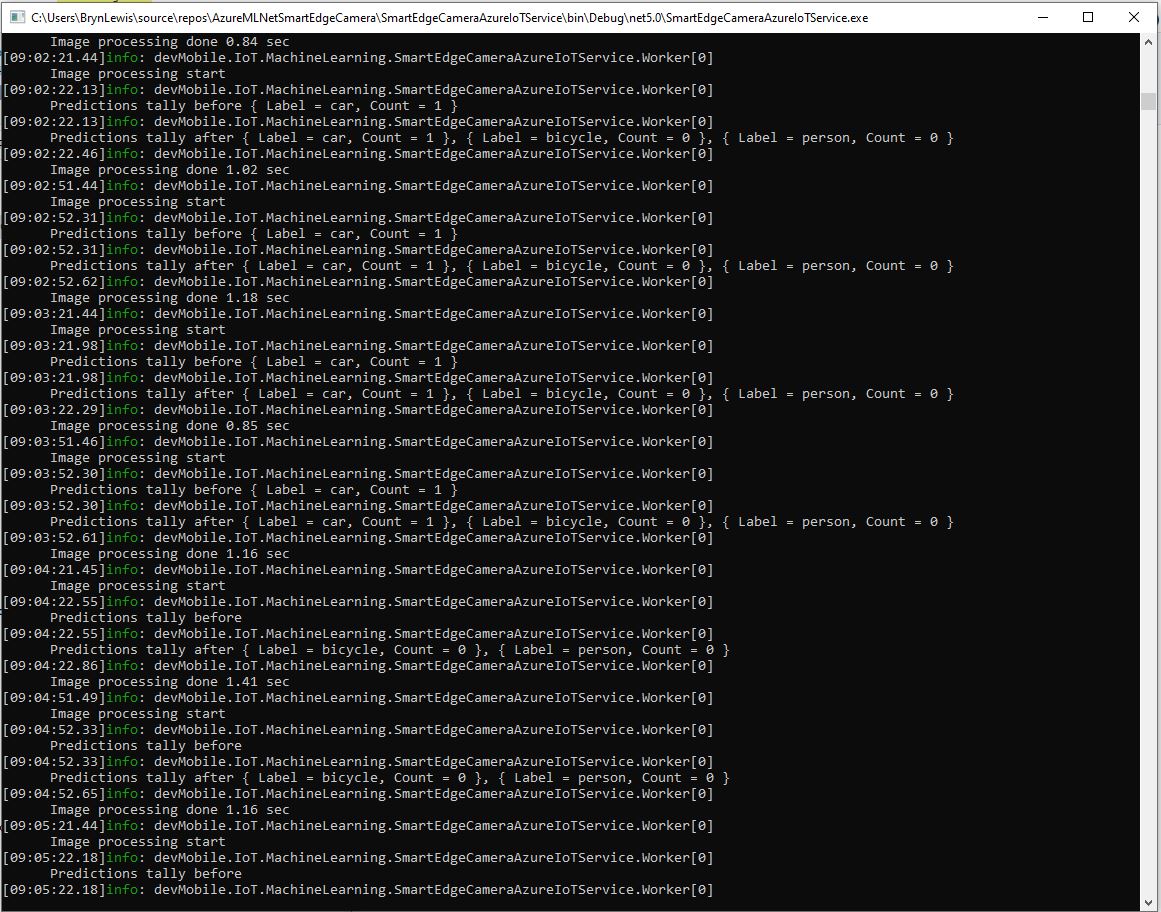
Using some Language Integrated Query (LINQ) code any predictions with a score < PredictionScoreThreshold are discarded. A count of the instances of each class is generated with some more LINQ code.

The PredictionLabelsMinimum(optional) is then used to add additional labels with a count of 0 to PredictionsTally so there are no missing datapoints. This is specifically for Azure IoT Central Dashboard so the graph lines are continuous.

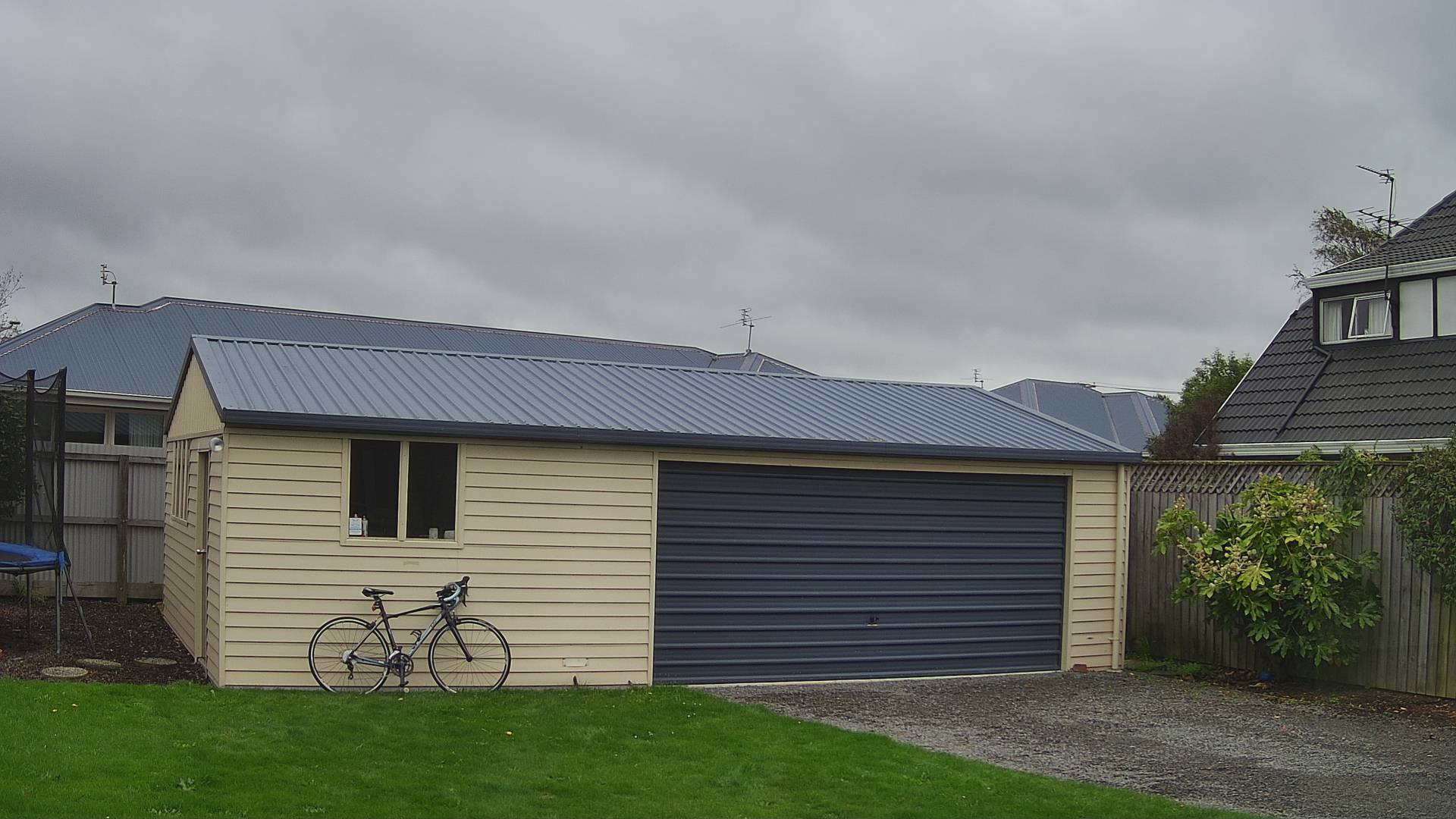
Smartish Edge Camera Service console just after put bike in-front of the garage

If any of the list of valid predictions labels is in the PredictionLabelsOfInterest list (if the PredictionLabelsOfInterest is empty any label is a label of interest) the list of prediction class counts is used to populate a Newtonsoft JObject which is serialised to generate a Java Script Object Notation(JSON) Azure IoT Hub message payload.

The “automagic” graph scaling can be sub-optimal

The mentalstack/yolov5-net and NuGet have been incredibly useful and MentalStack team have done a marvelous job building and supporting this project.

The test-rig consisted of a Unv ADZK-10 Security Camera, Power over Ethernet(PoE) and my HP Prodesk 400G4 DM (i7-8700T).

Smartish Edge Camera – Azure IoT Hub

The SmartEdgeCameraAzureIoTService application uses the same You Only Look Once(YOLOV5) + ML.Net + Open Neural Network Exchange(ONNX) plumbing as the SmartEdgeCameraAzureStorageService.

If there is an object with a label in the PredictionLabelsOfInterest list, a tally of each of the different object classes is sent to an Azure IoT Hub.

"Application": {
  "DeviceID": "",
  "ImageTimerDue": "0.00:00:15",
  "ImageTimerPeriod": "0.00:00:30",

  "ImageCameraFilepath": "ImageCamera.jpg",

  "YoloV5ModelPath": "YoloV5/yolov5s.onnx",

  "PredicitionScoreThreshold": 0.7,
  "PredictionLabelsOfInterest": [
    "person"
  ],
}

The Azure IoT hub can configured via a Shared Access Signature(SAS) device policy connection string or the Azure IoT Hub Device Provisioning Service(DPS)

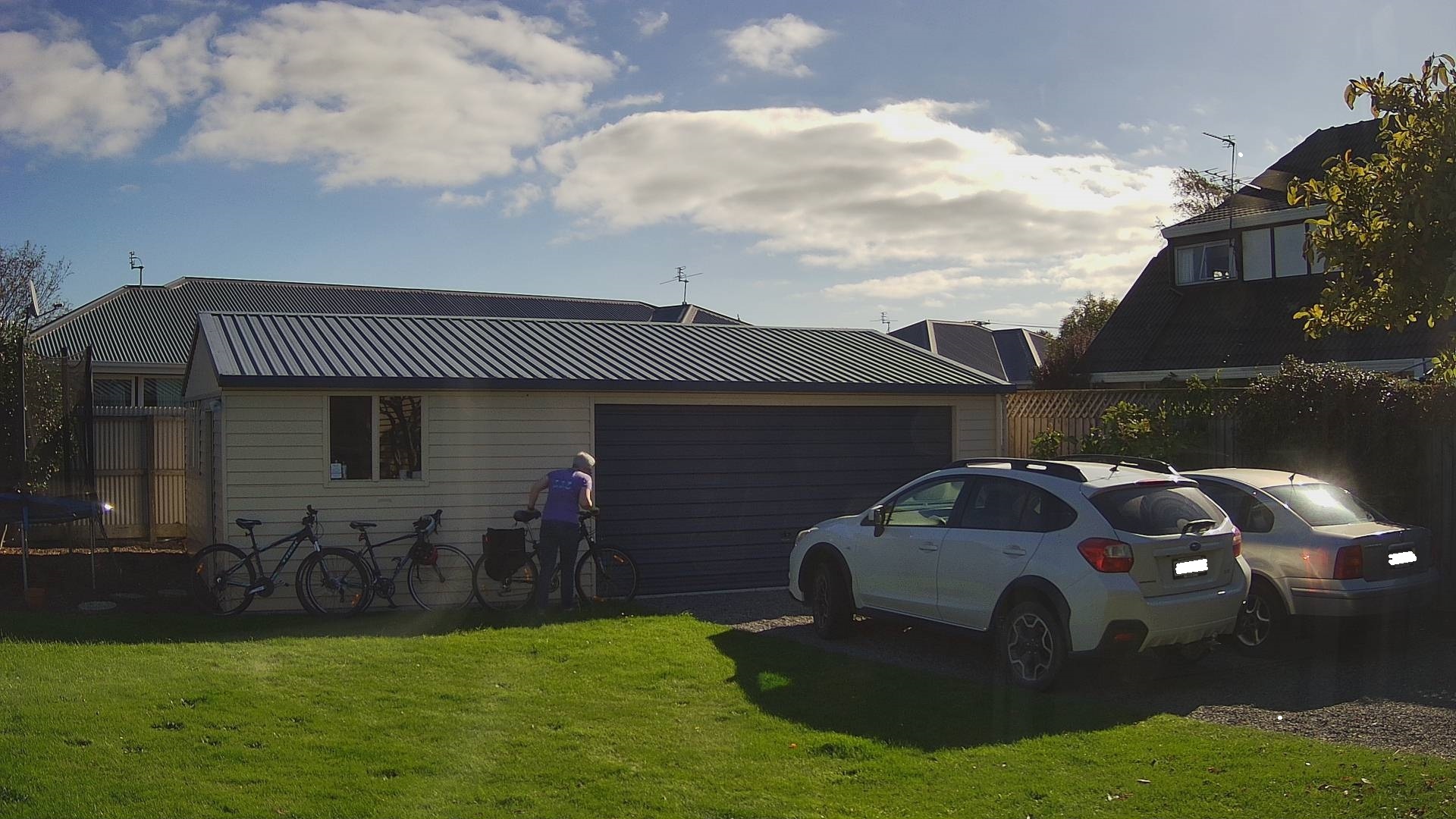
Cars and bicycles in my backyard with no object(s) of interest
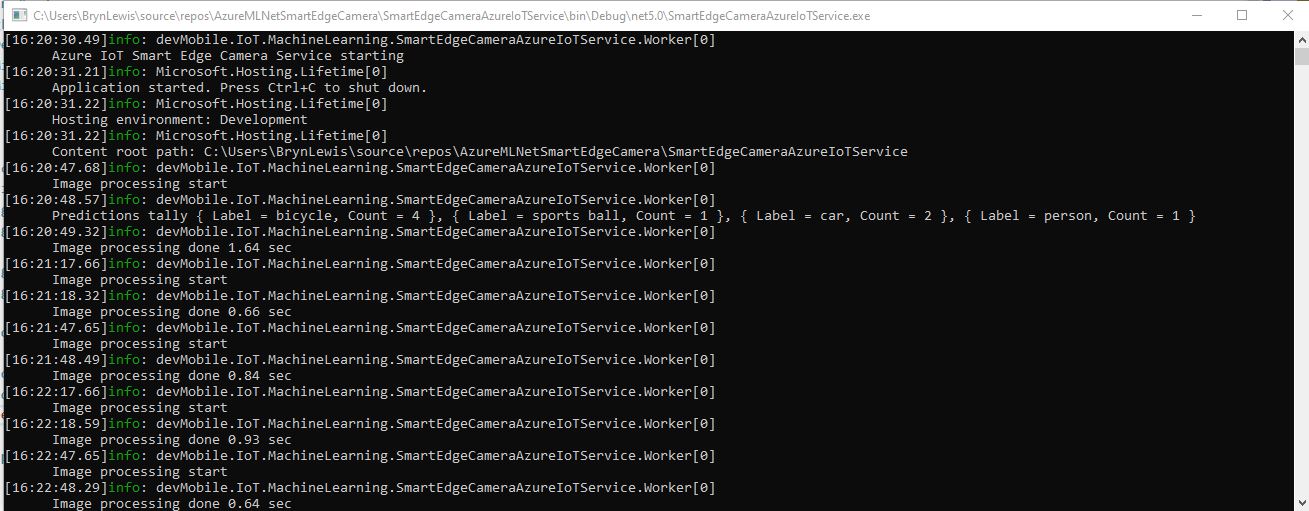
SmartEdgeCameraAzureIoTService no object(s) of interest
Cars and bicycles in my backyard with one object of interest
SmartEdgeCameraAzureIoTService one object of interest
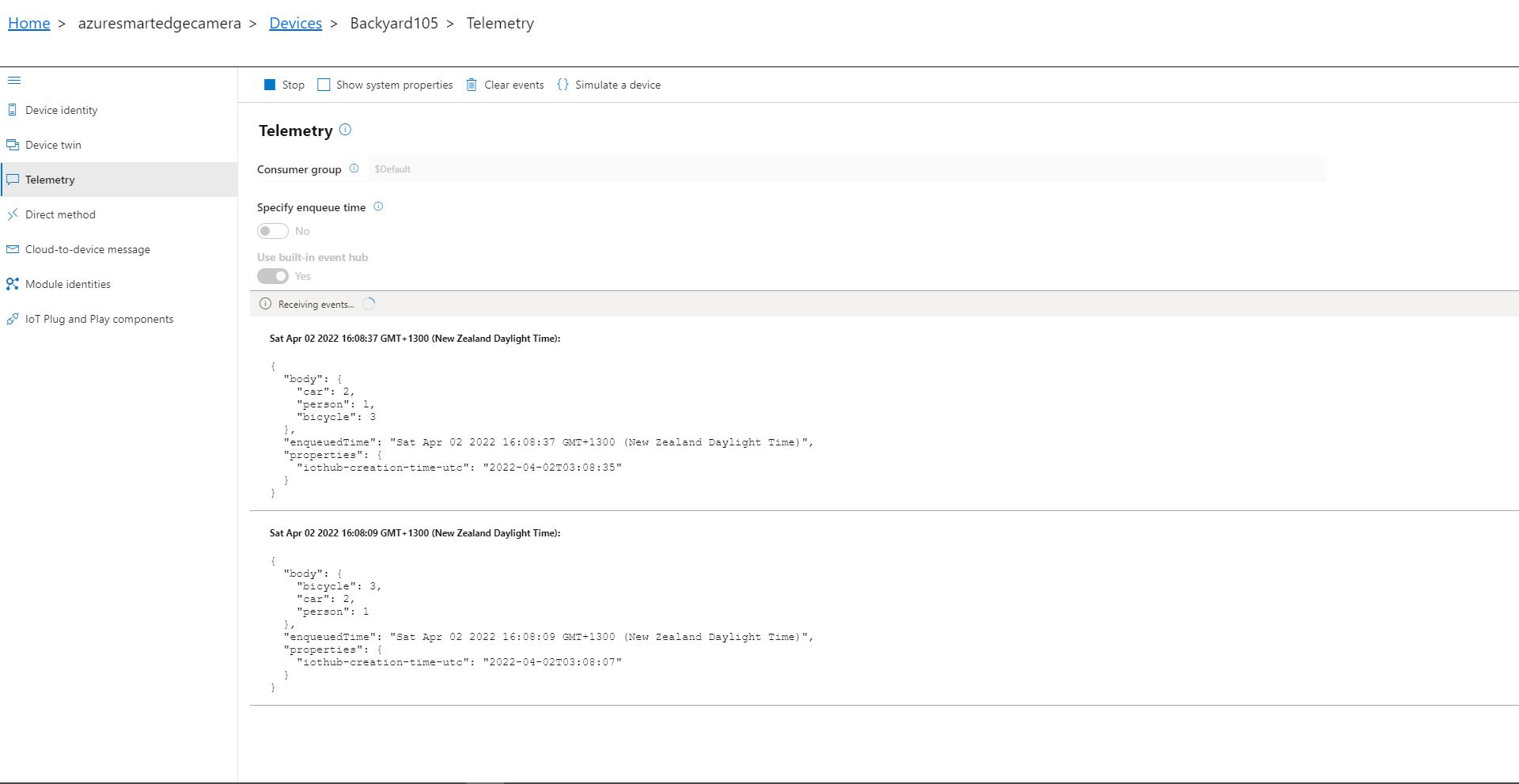
Azure IoT Explorer Telemetry with one object of interest

After the You Only Look Once(YOLOV5)+ML.Net+Open Neural Network Exchange(ONNX) plumbing has loaded a timer with a configurable due time and period is started. Using some Language Integrated Query (LINQ) code any predictions with a score < PredictionScoreThreshold are discarded, then the list of predictions is checked to see if there are any in the PredictionLabelsOfInterest. If there are any matching predictions a count of the instances of each class is generated with more LINQ code.

private async void ImageUpdateTimerCallback(object state)
{
	DateTime requestAtUtc = DateTime.UtcNow;

	// Just incase - stop code being called while photo already in progress
	if (_cameraBusy)
	{
		return;
	}
	_cameraBusy = true;

	_logger.LogInformation("Image processing start");

	try
	{
#if CAMERA_RASPBERRY_PI
		RaspberryPIImageCapture();
#endif
#if CAMERA_SECURITY
		SecurityCameraImageCapture();
#endif
		List<YoloPrediction> predictions;

		using (Image image = Image.FromFile(_applicationSettings.ImageCameraFilepath))
		{
			_logger.LogTrace("Prediction start");
			predictions = _scorer.Predict(image);
			_logger.LogTrace("Prediction done");
		}

		if (_logger.IsEnabled(LogLevel.Trace))
		{
			_logger.LogTrace("Predictions {0}", predictions.Select(p => new { p.Label.Name, p.Score }));
		}

		var predictionsOfInterest = predictions.Where(p => p.Score > _applicationSettings.PredicitionScoreThreshold)
										.Select(c => c.Label.Name)
										.Intersect(_applicationSettings.PredictionLabelsOfInterest, StringComparer.OrdinalIgnoreCase);

		if (predictionsOfInterest.Any())
		{
			if (_logger.IsEnabled(LogLevel.Trace))
			{
				_logger.LogTrace("Predictions of interest {0}", predictionsOfInterest.ToList());
			}

			var predictionsTally = predictions.GroupBy(p => p.Label.Name)
									.Select(p => new
									{
										Label = p.Key,
										Count = p.Count()
									});

			if (_logger.IsEnabled(LogLevel.Information))
			{
				_logger.LogInformation("Predictions tally {0}", predictionsTally.ToList());
			}

			JObject telemetryDataPoint = new JObject();

			foreach (var predictionTally in predictionsTally)
			{
				telemetryDataPoint.Add(predictionTally.Label, predictionTally.Count);
			}

			using (Message message = new Message(Encoding.ASCII.GetBytes(JsonConvert.SerializeObject(telemetryDataPoint))))
			{
				message.Properties.Add("iothub-creation-time-utc", requestAtUtc.ToString("s", CultureInfo.InvariantCulture));

				await _deviceClient.SendEventAsync(message);
			}
		}
	}
	catch (Exception ex)
	{
		_logger.LogError(ex, "Camera image download, post processing, telemetry failed");
	}
	finally
	{
		_cameraBusy = false;
	}

	TimeSpan duration = DateTime.UtcNow - requestAtUtc;

	_logger.LogInformation("Image processing done {0:f2} sec", duration.TotalSeconds);
}

The list of prediction class counts is used to populate a Newtonsoft JObject which serialised to generate a Java Script Object Notation(JSON) payload for an Azure IoT Hub message.

The test-rig consisted of a Unv ADZK-10 Security Camera, Power over Ethernet(PoE) and my HP Prodesk 400G4 DM (i7-8700T)