Azure Event Grid Arduino Client – The joy of certs

“Lets start at the very beginning, A very good place to start”

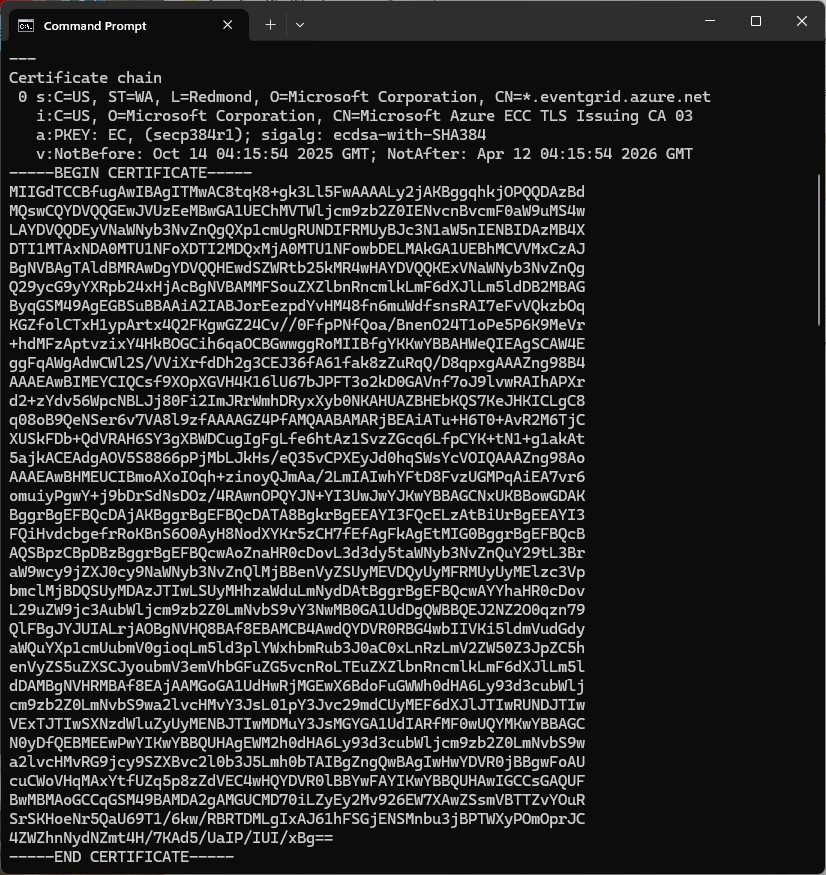
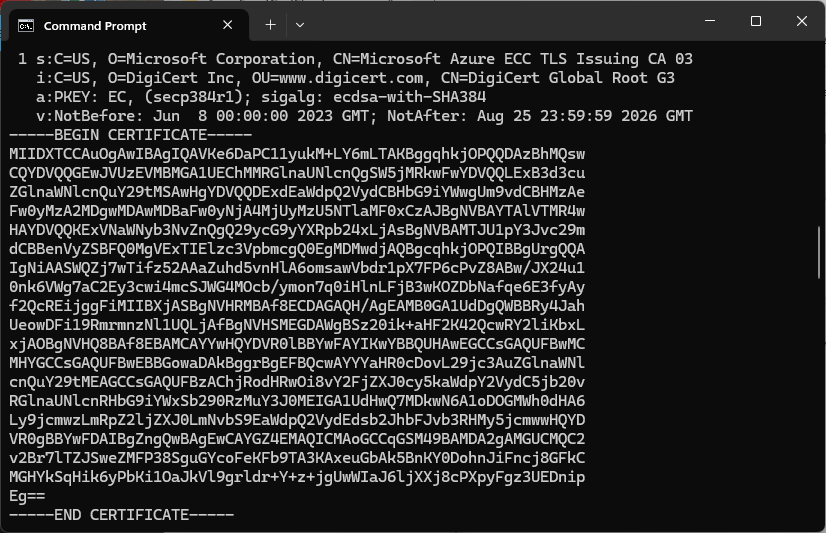
The Azure Event Grid MQTT Broker server X509 certificate chain can be copy ‘n’ paste from the output of the openssl command

openssl s_client -connect YourNamespace.newzealandnorth-1.ts.eventgrid.azure.net:8883 -showcerts

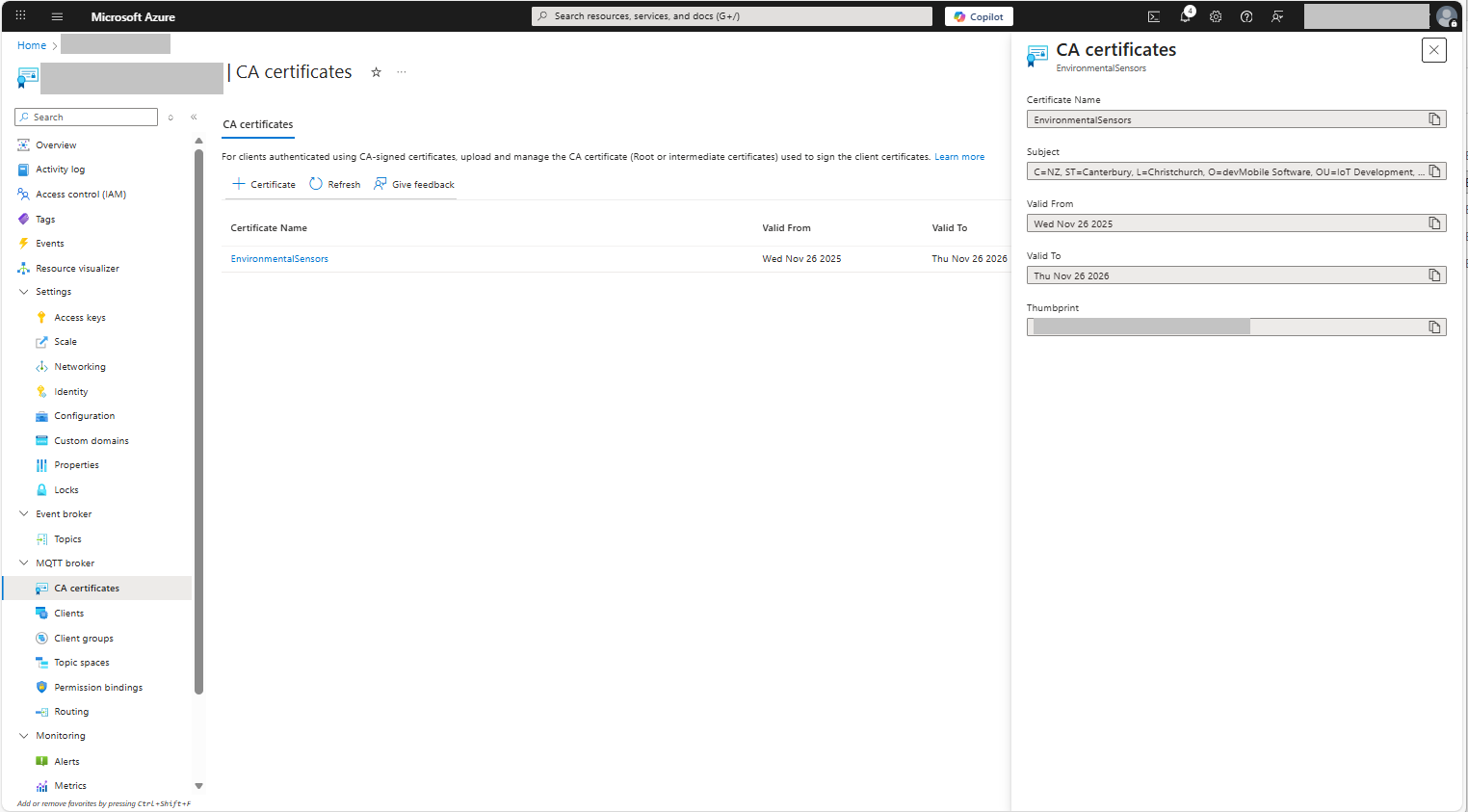
A self-signed X509 root certificate which can sign intermediate X509 certificates and key file can be generated with a single openssl command.

openssl req -x509 -newkey rsa:4096 -keyout rootCA.key -out rootCA.crt -days 3650 -nodes -subj "/CN=devMobile  /O=devMobile.co.nz /C=NZ" -addext "basicConstraints=critical,CA:TRUE" -addext "keyUsage=critical,keyCertSign"

For a non-trivial system there should be a number of intermediate certificates. I have tried creating intermediate certificates for a device type, geography, application, customer and combinations of these. The first couple of times got it wrong so start with a field trial so that it isn’t so painful to go back and fix. (beware the sunk cost fallacy)

openssl genrsa -out intermediate.key 4096

openssl req -new -key intermediate.key -out intermediate.csr -subj "/CN=intermediate  /O=devMobile.co.nz /C=NZ"

I found creating an intermediate certificate that could sign device certificates required a conf file for the basicConstraints and keyUsage configuration.

[ v3_intermediate_ca ]
basicConstraints = critical, CA:TRUE, pathlen:0
keyUsage = critical, keyCertSign
  • critical-The extension must be understood and processed by any application validating the certificate. If the application does not understand it, the certificate must be rejected.
  • CA:TRUE-This certificate is allowed to act as a Certificate Authority (CA), meaning it can sign other certificates.
  • pathlen:0-This CA can only issue end-entity (leaf) certificates and cannot issue further intermediate CA certificates.
  • keyCertSig- The certificate can be used to sign other certificates (i.e., it’s a CA certificate).
openssl x509 -req -in intermediate.csr  -CA rootCA.crt -CAkey rootCA.key -CAcreateserial -out intermediate.crt -days 1825 -extfile intermediate_ext.cnf -extensions v3_intermediate_ca

Creating a device certificate is similar to the process for the intermediate certificate but doesn’t need to be able to sign certificates.

openssl genrsa -out EdgeBox100A.key 4096

openssl req -new -key EdgeBox100A.key -out EdgeBox100A.csr -subj "/CN=EdgeBox100A"

openssl x509 -req -in EdgeBox100A.csr -CA intermediate.crt -CAkey intermediate.key -CAcreateserial -out EdgeBox100A.crt -days 365 

For production systems putting some thought into the Common name(CN), Organizational unit name(OU), Organization name(O), locality name(L), state or province name(S) and Country name(C)

// Minimalist ESP32 + Event Grid MQTT (mTLS) with PubSubClient
// Copyright (c) November 2025, devMobile Software
#include <PubSubClient.h>
#include <WiFi.h>
#include <WiFiClientSecure.h>

#include "constants.h"
#include "secrets.h"

// --- Wi-Fi ---
//const char* WIFI_SSID     = "";
//const char* WIFI_PASSWORD = "";

// --- Event Grid MQTT ---
//const char* MQTT_SERVER = "";
const uint16_t MQTT_PORT = 8883;

//const char* MQTT_CLIENTID = "";
//const char* MQTT_USERNAME = "";
//const char* MQTT_PASSWORD = "";
//const char* MQTT_TOPIC_PUBLISH = "devices/";
//const char* MQTT_TOPIC_SUBSCRIBE = "devices/";

/*
// The certificate that is used to authenticate the MQTT Broker
const char CA_ROOT_PEM[] PROGMEM = R"PEM(
-----BEGIN CERTIFICATE-----
      Thumbprint: 56D955C849887874AA1767810366D90ADF6C8536
      CN: CN=Microsoft Azure ECC TLS Issuing CA 03
-----END CERTIFICATE-----
-----BEGIN CERTIFICATE-----
      Thumbprint: 7E04DE896A3E666D00E687D33FFAD93BE83D349E
      CN: CN=DigiCert Global Root G3
-----END CERTIFICATE-----
)PEM";

The certificate that is used to authenticate the device
static const char CLIENT_CERT_PEM[] PROGMEM = R"PEM(
-----BEGIN CERTIFICATE-----
 CN=Self signed device certificate
-----END CERTIFICATE-----
-----BEGIN CERTIFICATE-----
 CN=Self signed Intermediate certificate
-----END CERTIFICATE-----
)PEM";

 The PEM encoded private key of device
static const char CLIENT_KEY_PEM[] PROGMEM = R"PEM(
-----BEGIN PRIVATE KEY-----
-----END PRIVATE KEY-----
)PEM";
*/

WiFiClientSecure secureClient;
PubSubClient mqttClient(secureClient);

void setup() {
  Serial.begin(9600);
  delay(5000);
  Serial.println();

  // Connect to WiFi
  Serial.println("WiFi connecting");
  WiFi.begin(WIFI_SSID, WIFI_PASSWORD);
  Serial.print("*");
  while (WiFi.status() != WL_CONNECTED) {
    delay(500);
    Serial.print("*");
  }
  Serial.println("\nWiFi connected");

  // Sync time for TLS
  Serial.println("\nTime synchronising");
  configTime(0, 0, "pool.ntp.org", "time.nist.gov");
  Serial.print("*");
  while (time(nullptr) < 100000) {
    delay(500);
    Serial.print("*");
  }
  Serial.println("\nTime synchronised");

  Serial.println("\nValidating ServerFQDN-Certificate combination");
  secureClient.setCACert(CA_ROOT_PEM);

  Serial.println("TCP connecting");
  if (secureClient.connect(MQTT_SERVER, MQTT_PORT)) {
    Serial.println("\nTCP connected");
  } else {
    Serial.println("\nTCP connection failed");
    return;
  }

  secureClient.setCertificate(CLIENT_CERT_A_PEM);
  secureClient.setPrivateKey(CLIENT_KEY_A_PEM);

  mqttClient.setServer(MQTT_SERVER, MQTT_PORT);

  Serial.println("\nMQTT connecting");
  Serial.print("*");
  while (!mqttClient.connect(MQTT_CLIENTID, MQTT_USERNAME, MQTT_PASSWORD)) {
    Serial.println(mqttClient.state());
    delay(5000);
    Serial.print("*");
  }
  Serial.println("\nMQTT connected");
}

static uint32_t sequenceNumber = 0;

void loop() {
  mqttClient.loop();

  Serial.print("'.");
  delay(10000);
}

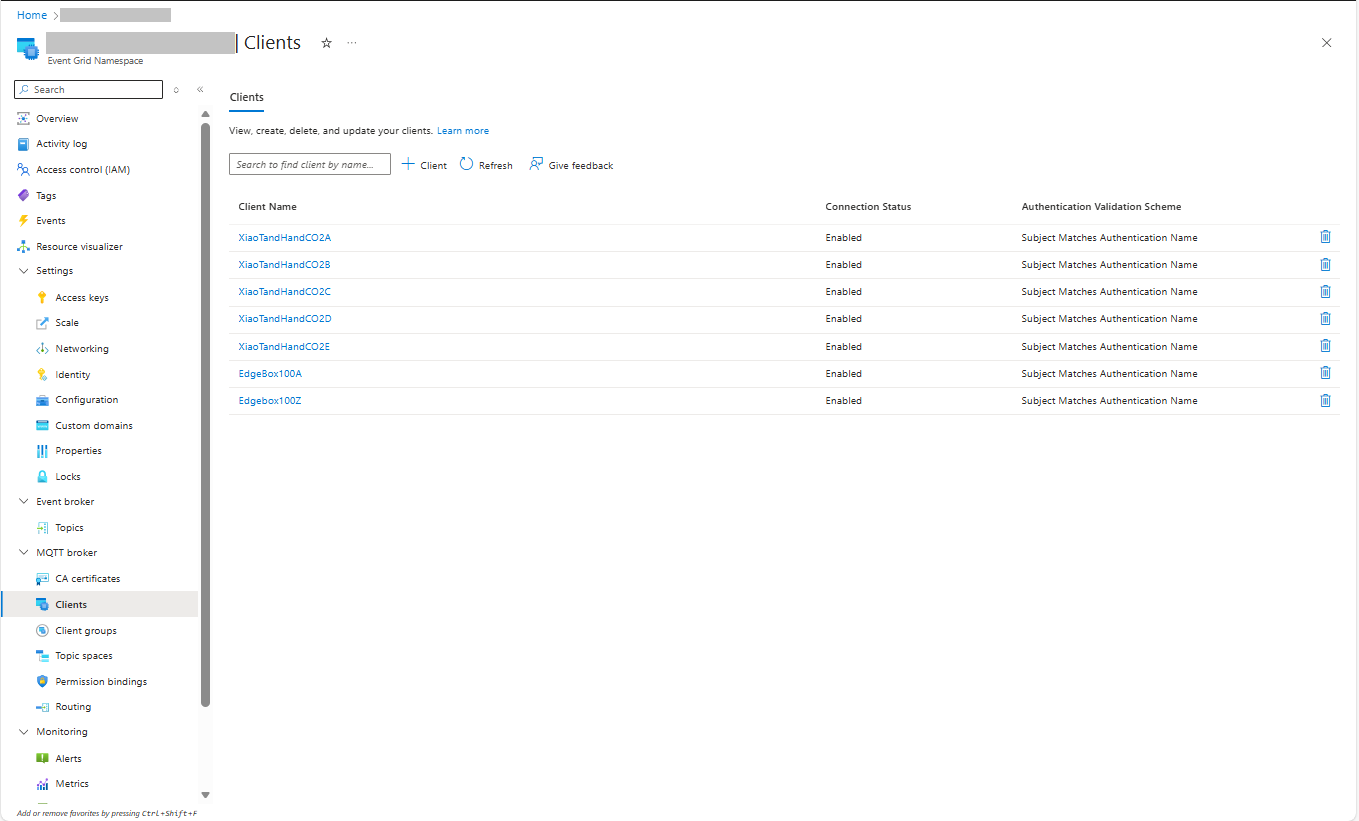
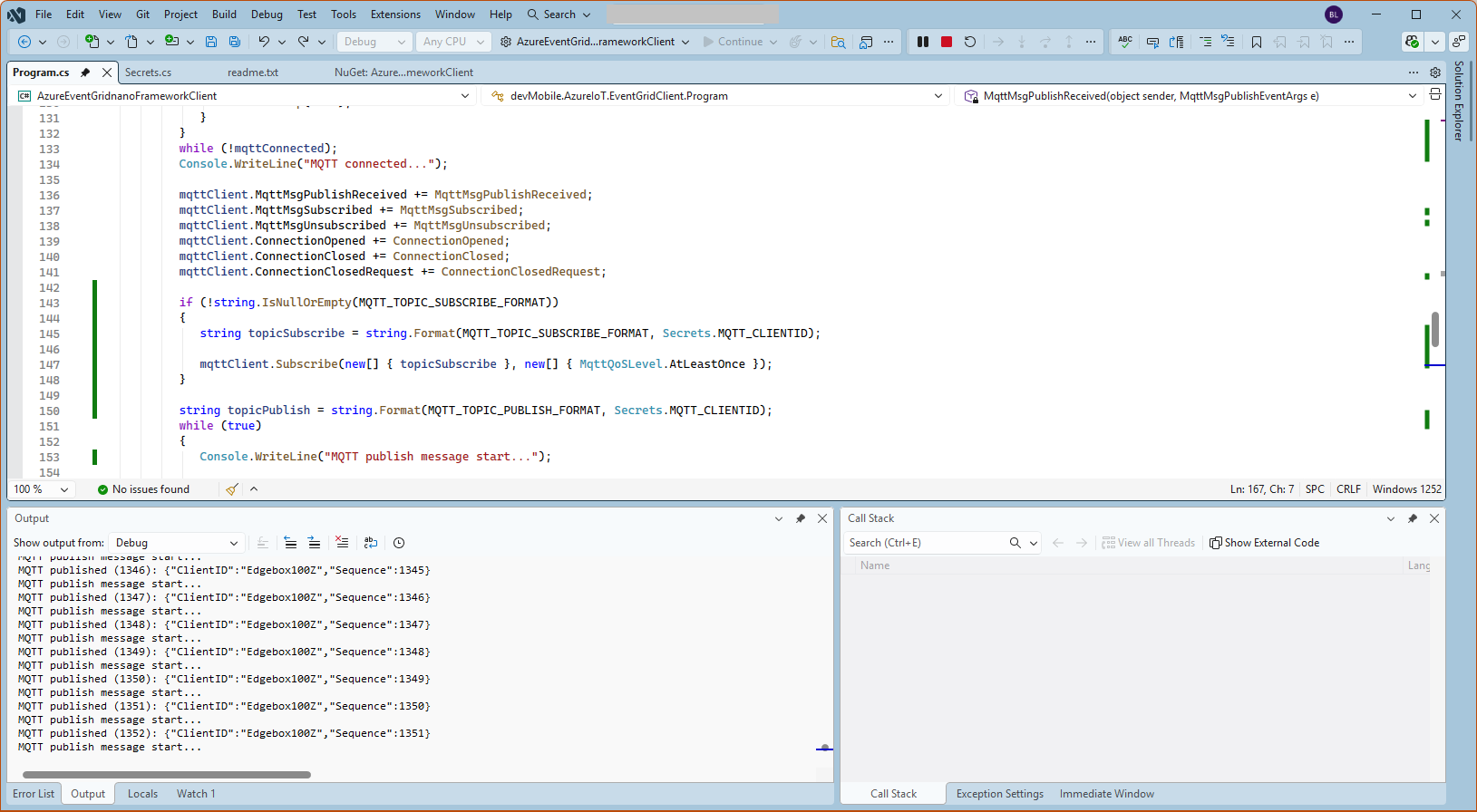
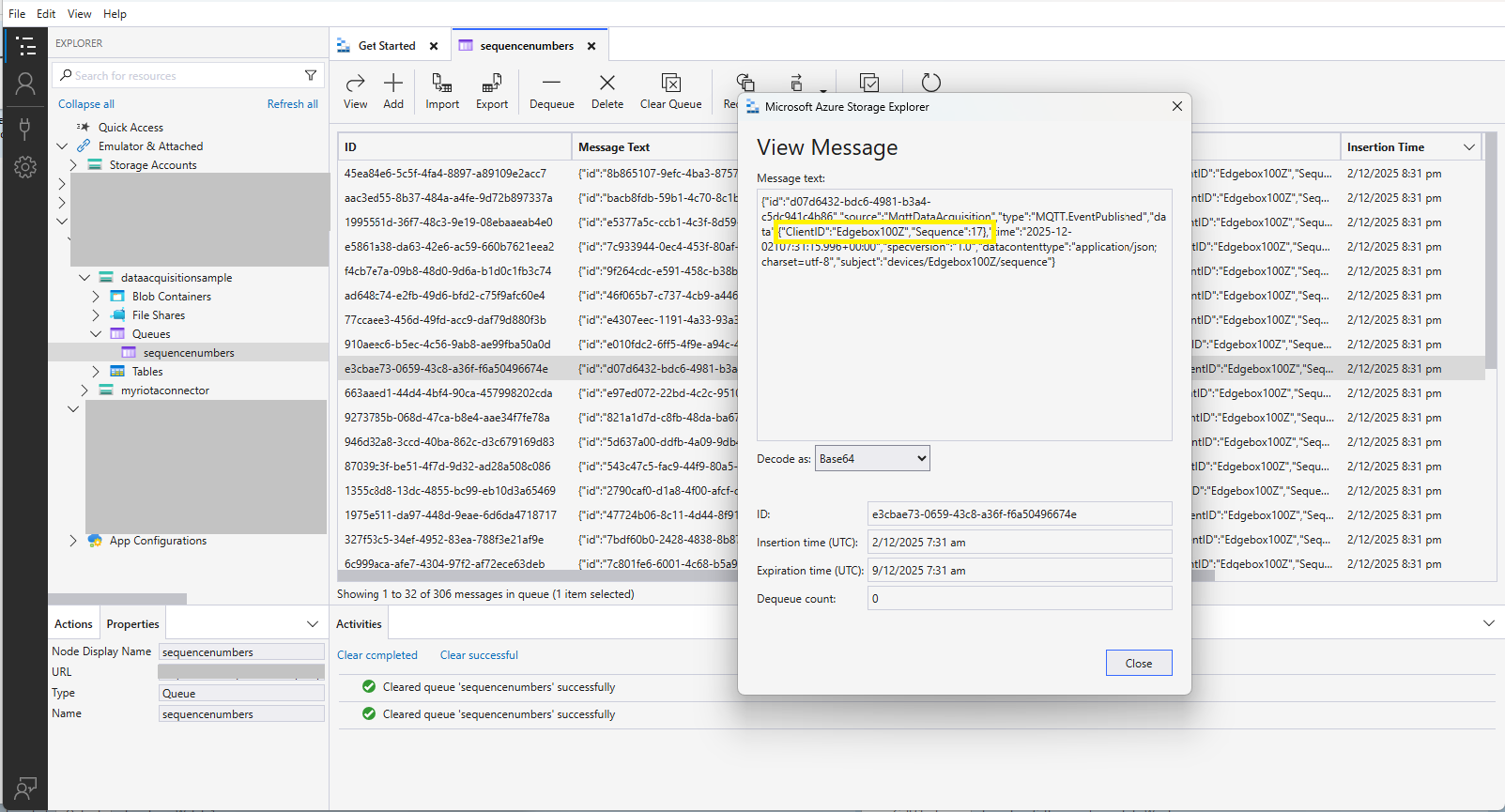
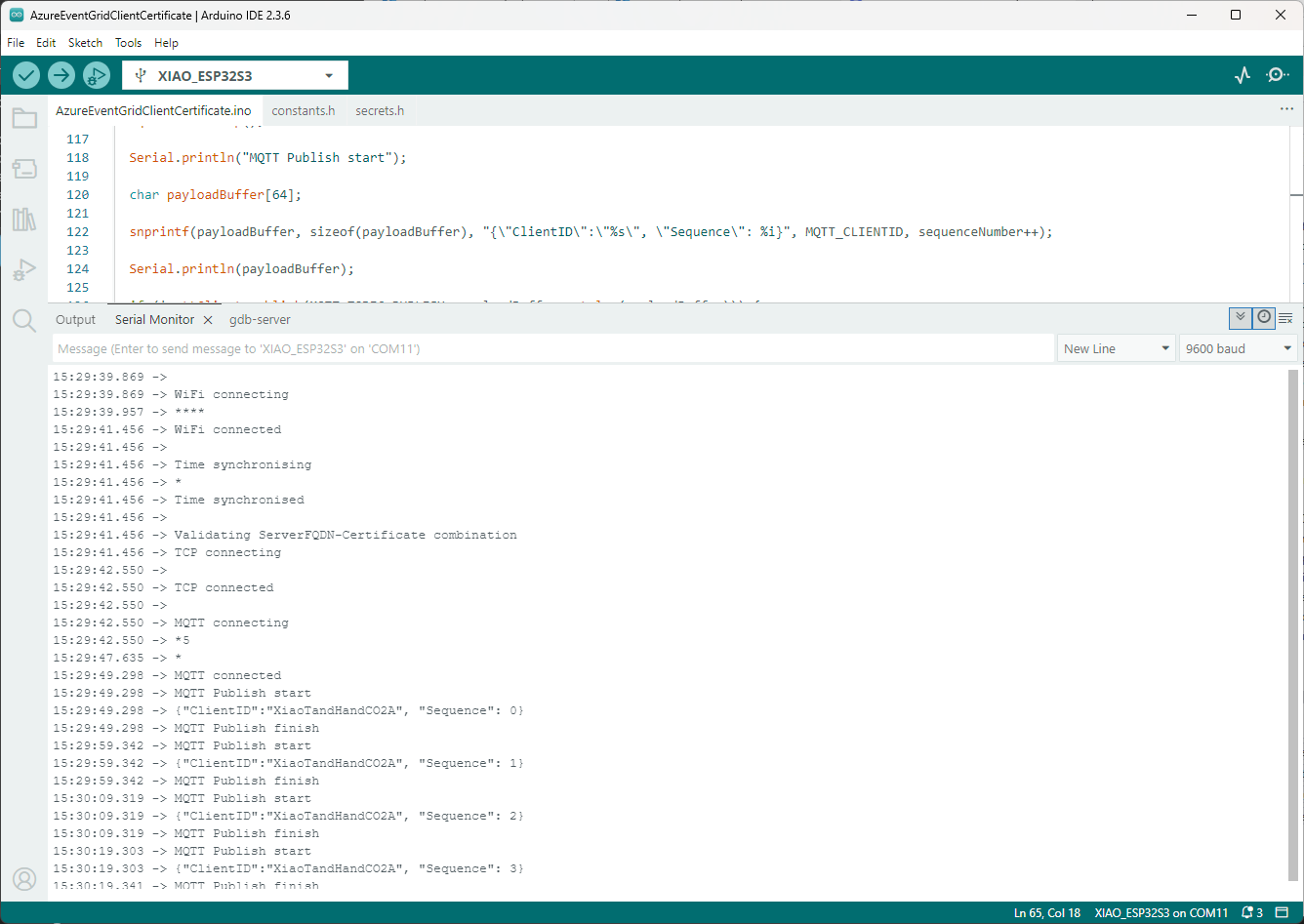
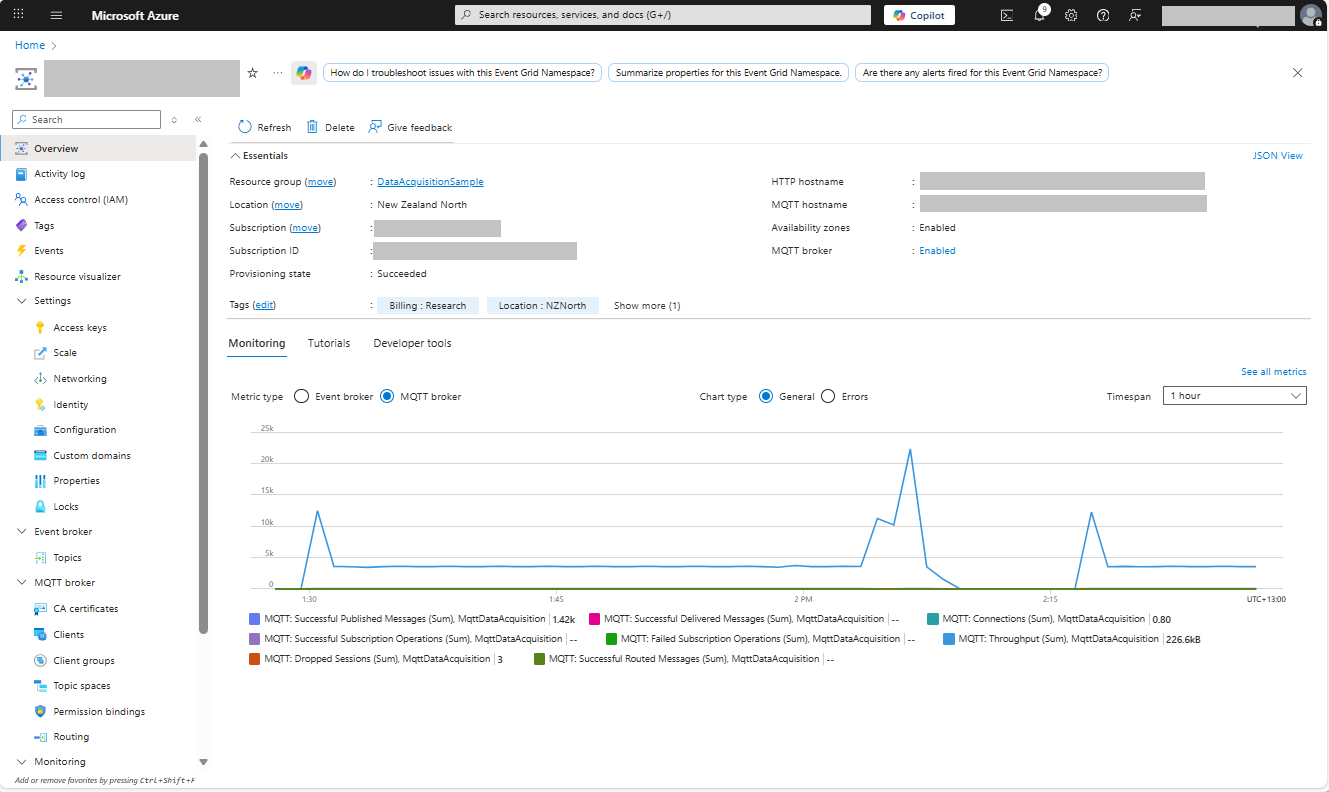
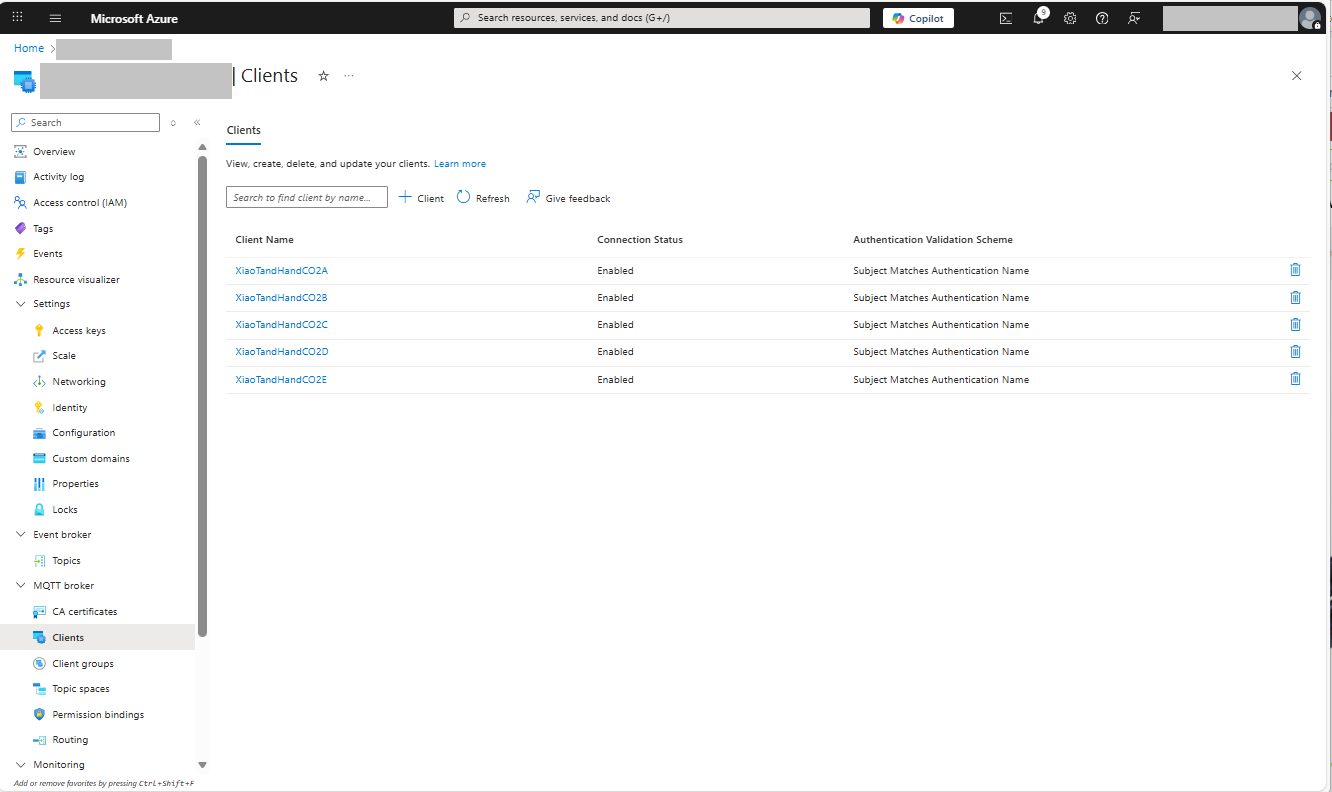
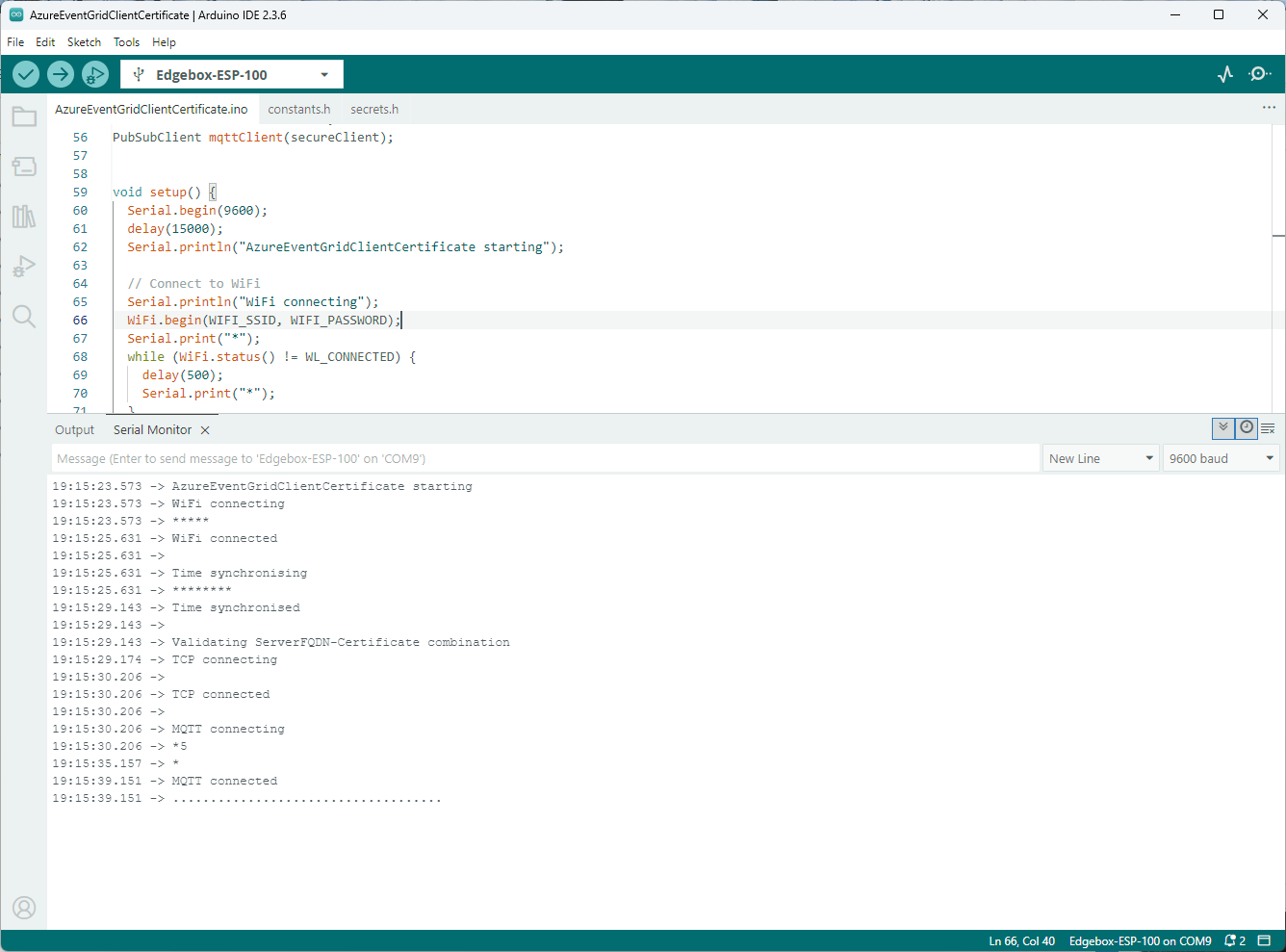
My Arduino Xiao ESP32S3 and EdgeBox-ESP-100-Industrial Edge Controller devices could connect to the local Wi-Fi, get the time and date using the network time protocol(NTP), and validate the Azure Event Grid MQTT broker certificate. Then connect to the Azure Event Grid MQTT broker with the client name specified in the subject name of its X509 certificate.

Establishing a connection to the Azure Event Grid MQTT broker often failed which surprised me. Initially I didn’t have any retry logic which meant I wasted quite a bit of time trying to debug failed connections

Azure Event Grid Server Certificate Validation

Over the last couple of weekends I had been trying to get a repeatable process for extracting the X509 certificate information in the correct structure so my Arduino application could connect to Azure Event Grid. The first step was to get the certificate chain for my Azure Event Grid MQTT Broker with openssl

openssl s_client -connect YourNameSpaceHere.newzealandnorth-1.ts.eventgrid.azure.net:8883 -showcerts

The CN: CN=DigiCert Global Root G3 and the wildcard CN=*.eventgrid.azure.net certificates were “concatenated” in the constants header file which is included in the main program file. The format of the certificate chain is described in the comments. Avoid blank lines, “rogue” spaces or other formatting as these may cause the WiFiClientSecure Mbed TLS implementation to fail.

/*
Minimalist ESP32 + Azure Event Grid MQTT Event Grid broker namespace certificate validation
copyright (c) November 2025, devMobile Software
*/
#include <WiFi.h>
#include <WiFiClientSecure.h>
#include "secrets.h"
#include "constants.h"

// --- Wi-Fi ---
//const char* WIFI_SSID     = "";
//const char* WIFI_PASSWORD = "";

//const char* MQTT_SERVER = "YourNamespace.newzealandnorth-1.ts.eventgrid.azure.net";
const uint16_t MQTT_PORT = 8883;

/*
// The certificate that is used to authenticate the MQTT Broker
const char CA_ROOT_PEM[] PROGMEM = R"PEM(
-----BEGIN CERTIFICATE-----
MIIGdTCCBfugAwIBAgITMwAC8tqK8+gk3Ll5FwAAAALy2jAKBggqhkjOPQQDAzBd
....
      Thumbprint: 56D955C849887874AA1767810366D90ADF6C8536
      CN: CN=Microsoft Azure ECC TLS Issuing CA 03
      CN=*.eventgrid.azure.net      
....
4ZWZhnNydNZmt4H/7KAd5/UaIP/IUI/xBg==
-----END CERTIFICATE-----
-----BEGIN CERTIFICATE-----
MIIDXTCCAuOgAwIBAgIQAVKe6DaPC11yukM+LY6mLTAKBggqhkjOPQQDAzBhMQsw
....
      Thumbprint: 7E04DE896A3E666D00E687D33FFAD93BE83D349E
      CN: CN=DigiCert Global Root G3
....
MGHYkSqHik6yPbKi1OaJkVl9grldr+Y+z+jgUwWIaJ6ljXXj8cPXpyFgz3UEDnip
Eg==
-----END CERTIFICATE-----
)PEM";
*/

WiFiClientSecure secureClient;

void setup() {
  Serial.begin(9600);
  delay(2000);
  Serial.println("\nServerCertificateValidationClient starting");

  struct tm timeinfo;
  if (getLocalTime(&timeinfo)) {
    Serial.printf("Startup DateTime: %04d-%02d-%02d %02d:%02d:%02d\n", timeinfo.tm_year + 1900, timeinfo.tm_mon + 1, timeinfo.tm_mday, timeinfo.tm_hour, timeinfo.tm_min, timeinfo.tm_sec);
  }

  // Connect to WiFi
  Serial.println("WiFi connecting");
  WiFi.begin(WIFI_SSID, WIFI_PASSWORD);
  Serial.print("*");
  while (WiFi.status() != WL_CONNECTED) {
    delay(500);
    Serial.print("*");
  }
  Serial.println("\nWiFi connected");

  if (getLocalTime(&timeinfo)) {
    Serial.printf("Wifi DateTime: %04d-%02d-%02d %02d:%02d:%02d\n", timeinfo.tm_year + 1900, timeinfo.tm_mon + 1, timeinfo.tm_mday, timeinfo.tm_hour, timeinfo.tm_min, timeinfo.tm_sec);
  }

  // Sync time for TLS
  Serial.println("\nTime synchronising");
  configTime(0, 0, "pool.ntp.org", "time.nist.gov");
  Serial.print("*");
  while (time(nullptr) < 100000) {
    delay(500);
    Serial.print("*");
  }
  Serial.println("\nTime synchronised");

  if (getLocalTime(&timeinfo)) {
    Serial.printf("NTP DateTime: %04d-%02d-%02d %02d:%02d:%02d\n", timeinfo.tm_year + 1900, timeinfo.tm_mon + 1, timeinfo.tm_mday, timeinfo.tm_hour, timeinfo.tm_min, timeinfo.tm_sec);
  }

  Serial.println("\nValidating ServerFQDN-Certificate combination");
  secureClient.setCACert(CA_ROOT_PEM);
  Serial.print("*");
  while (!secureClient.connect(MQTT_SERVER, MQTT_PORT)) {
    delay(500);
    Serial.print("*");
  }
  Serial.println("\nTLS Connected");
}

void loop() {
  Serial.print("x");
  delay(5000);
}

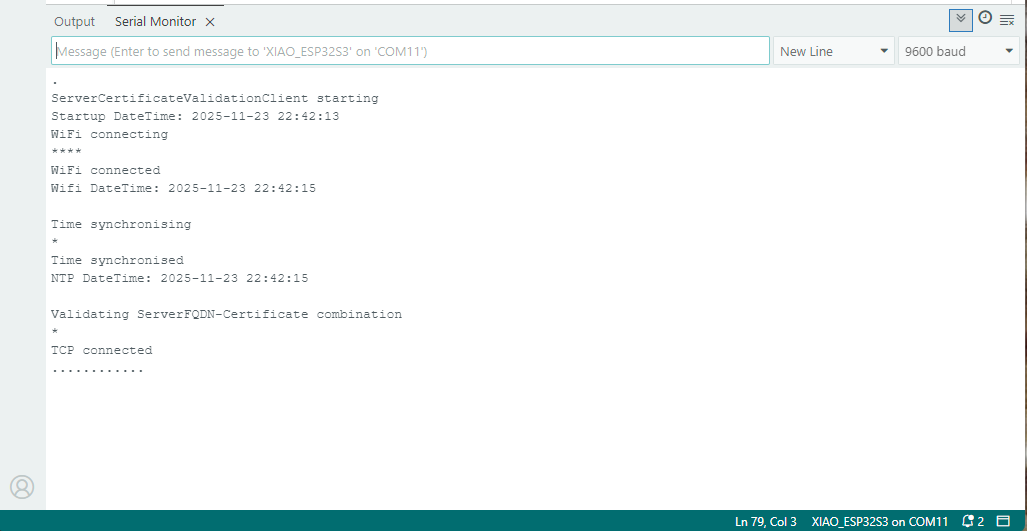
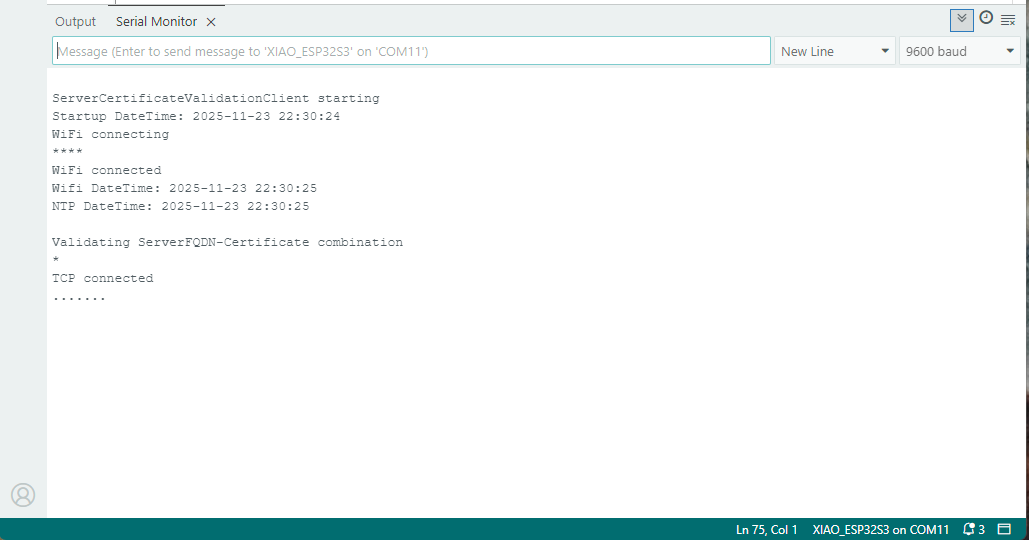
After a hard reset the WiFiClientSecure connect failed because the device time had not been initialised so the device/server time offset was too large (see rfc9325)

After a “hard” reset the Network Time Protocol(NTP) client was used to set the device time.

After a “soft” reset the Network Time Protocol(NTP) client did not have to be called.

Seeedstudio XIAO ESP32 S3 RS-485 test harness(Arduino)

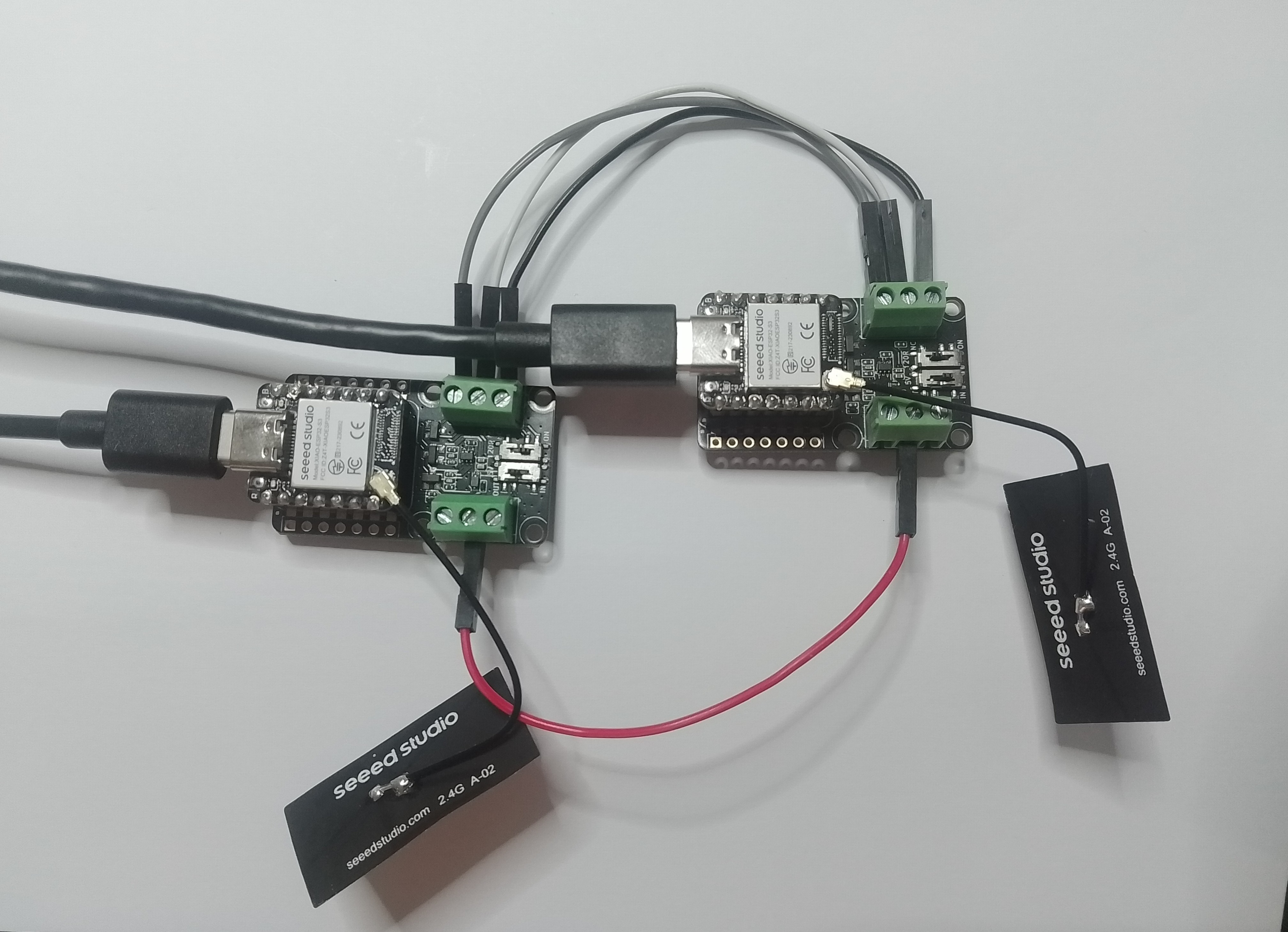
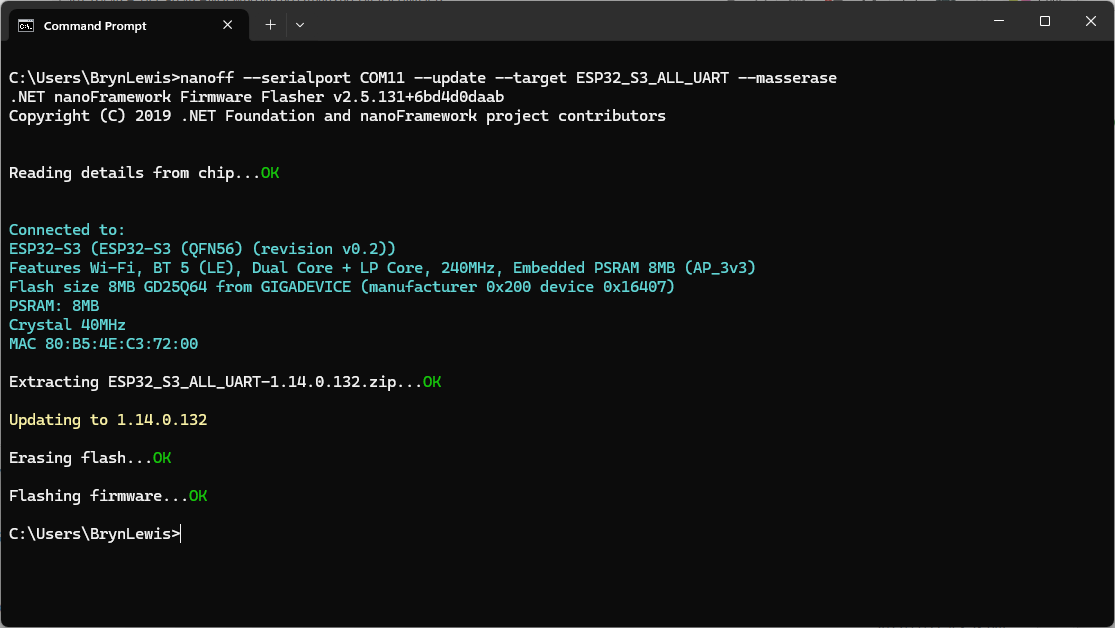
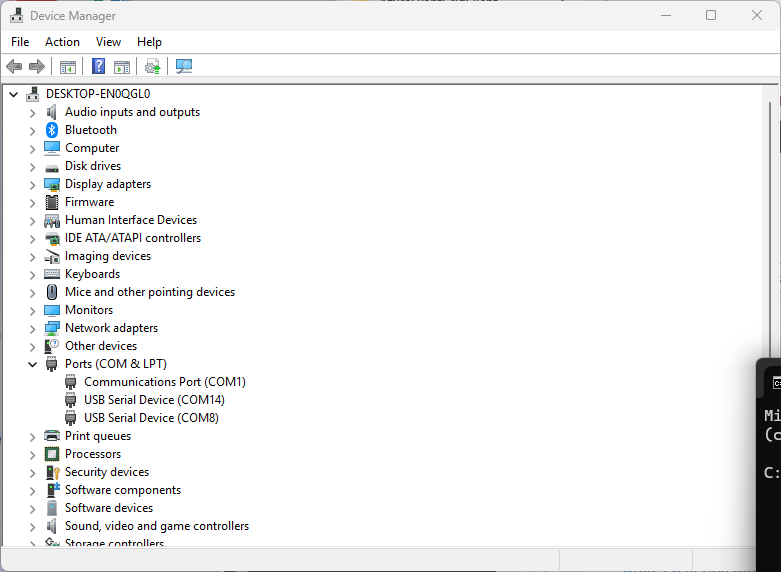
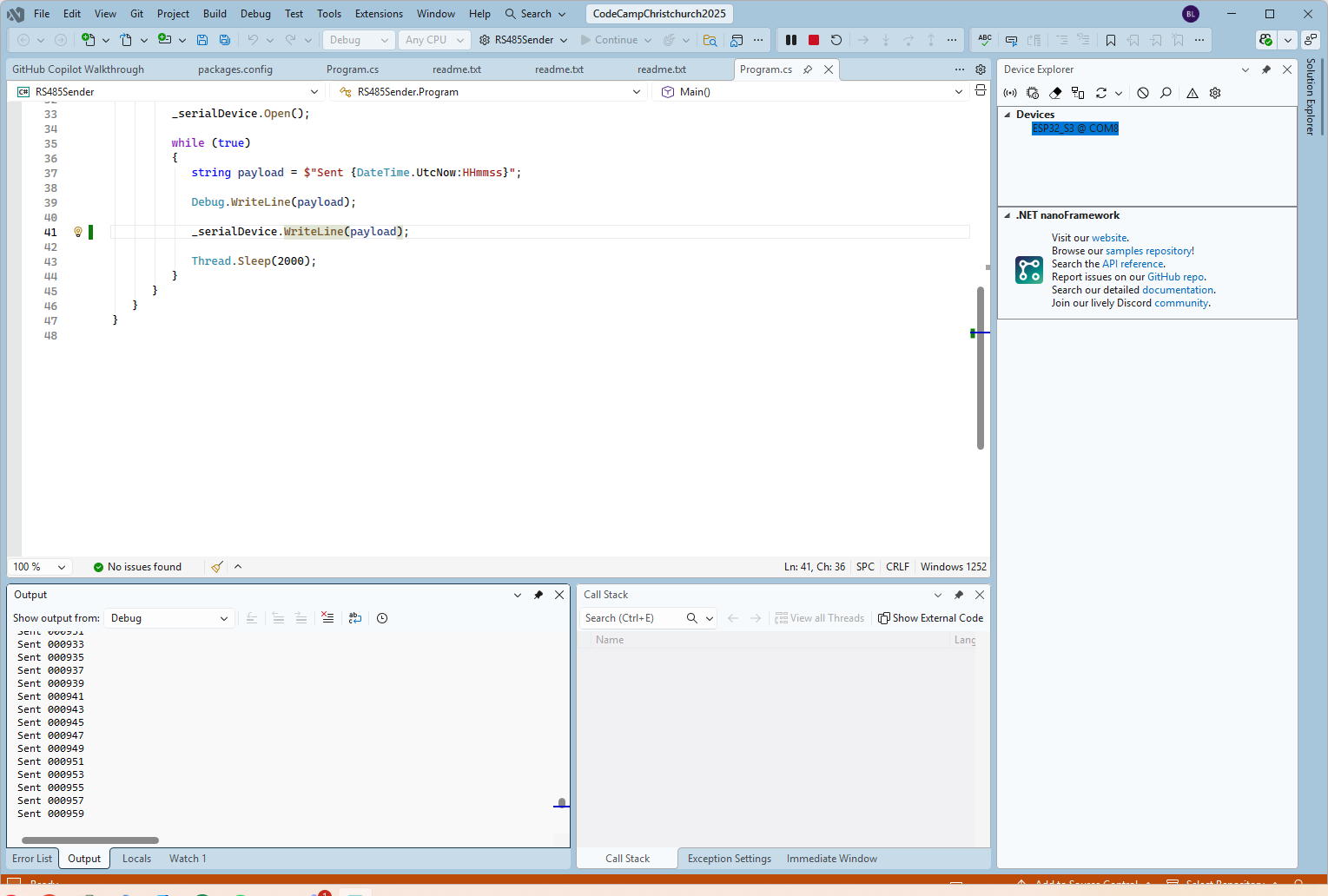
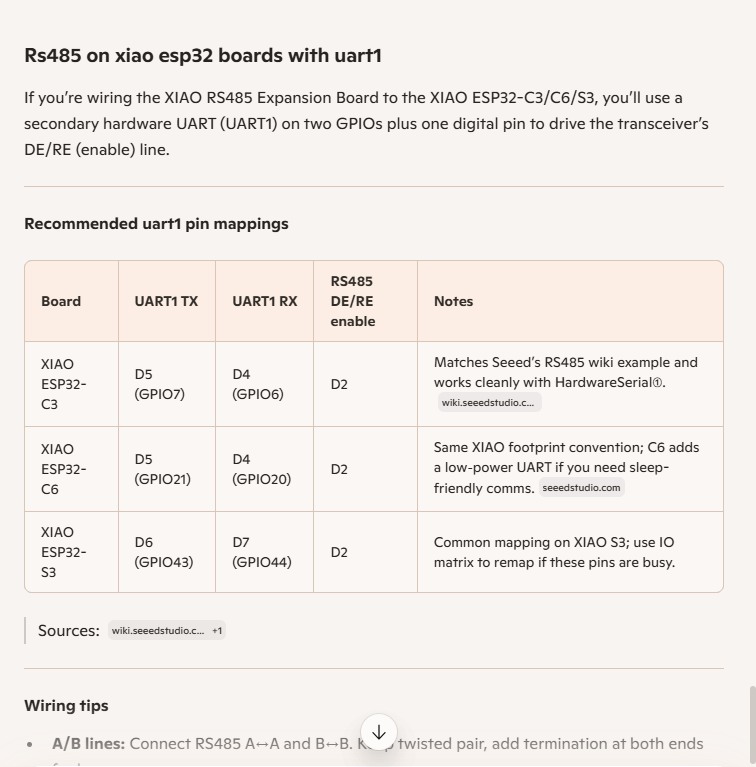
As part of a project to read values from a MODBUS RS-485 sensor using a RS-485 Breakout Board for Seeed Studio XIAO and a Seeed Studio XIAO ESP32-S3 I built the test harness described in the wiki post. The test harness setup for a Seeed Studio XIAO ESP32-C3/Seeed Studio XIAO ESP32-C6 didn’t work with my Seeed Studio XIAO ESP32-S3.

I then did some digging looked at schematics and figured out the port mappings were different. This took a while so I tried Microsoft Copilot

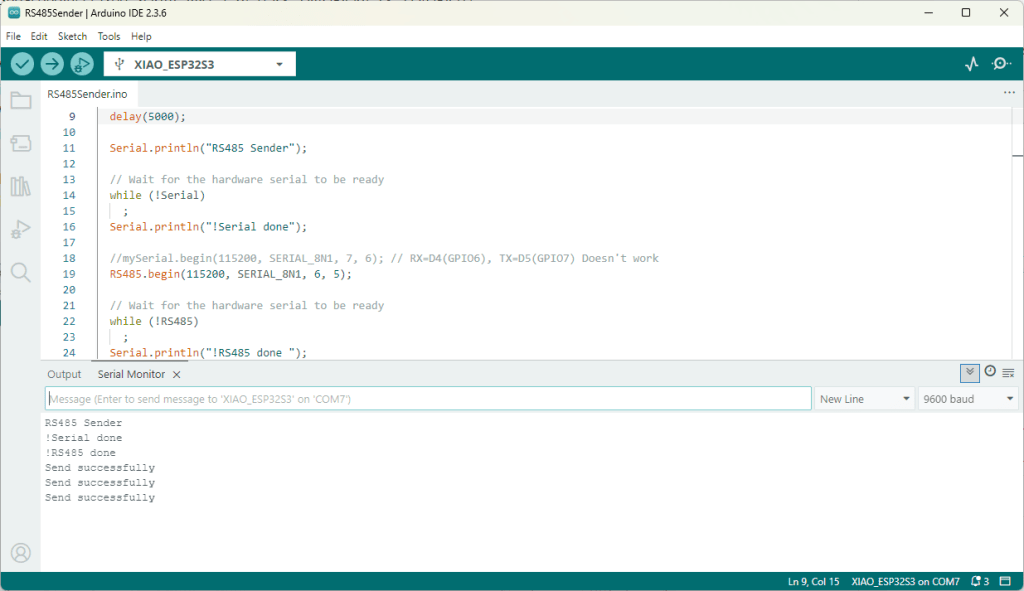
I then updated the port assigned for my RS485Sender application

#include <HardwareSerial.h>

HardwareSerial RS485(1);

#define enable_pin D2

void setup() {
  Serial.begin(9600);  // Initialize the hardware serial with a baud rate of 115200
  delay(5000);

  Serial.println("RS485 Sender");

  // Wait for the hardware serial to be ready
  while (!Serial)
    ;
  Serial.println("!Serial done");

  //mySerial.begin(115200, SERIAL_8N1, 7, 6); // RX=D4(GPIO6), TX=D5(GPIO7) Doesn't work
  RS485.begin(115200, SERIAL_8N1, 6, 5);

  // Wait for the hardware serial to be ready
  while (!RS485)
    ;
  Serial.println("!RS485 done ");

  pinMode(enable_pin, OUTPUT);     // Set the enable pin as an output
  digitalWrite(enable_pin, HIGH);  // Set the enable pin to high
}

void loop() {
  if (Serial.available()) {
    String inputData = Serial.readStringUntil('\n');  // Read the data from the hardware serial until a newline character

    // If the received data is not empty
    if (inputData.length() > 0) {
      Serial.println("Send successfully");  // Print a success message
      RS485.println(inputData);             // Send the received data to the hardware serial
    }
  }
}

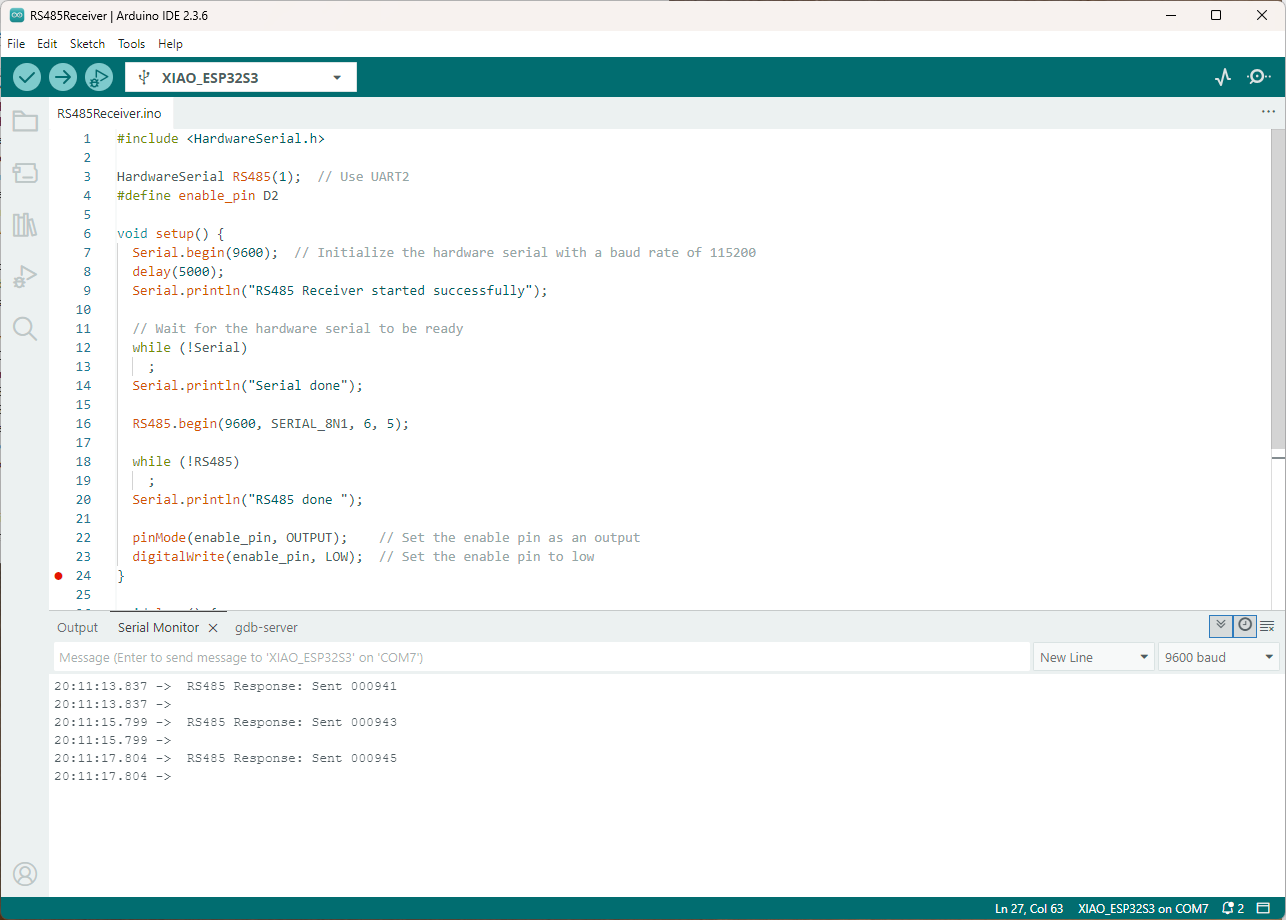
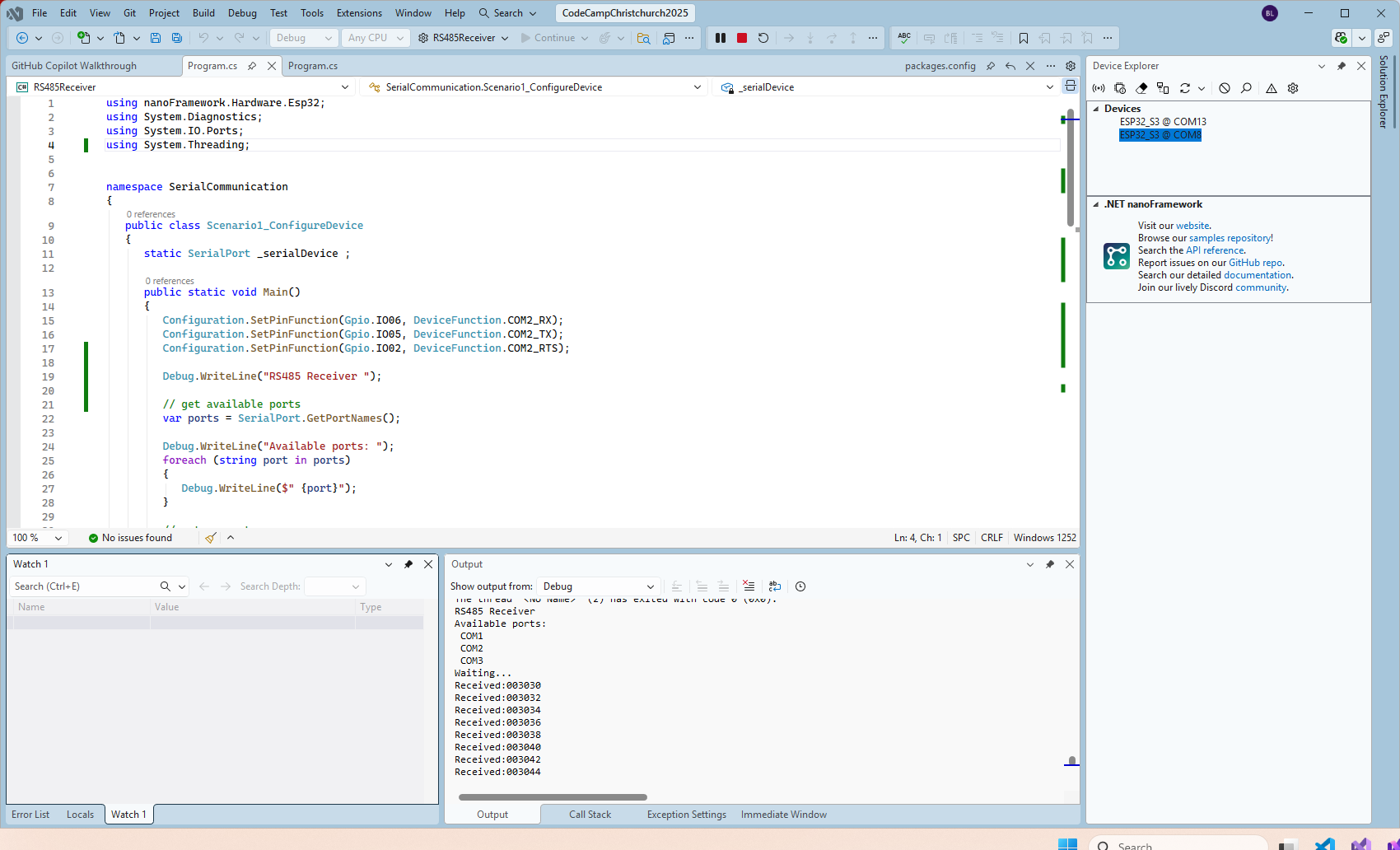
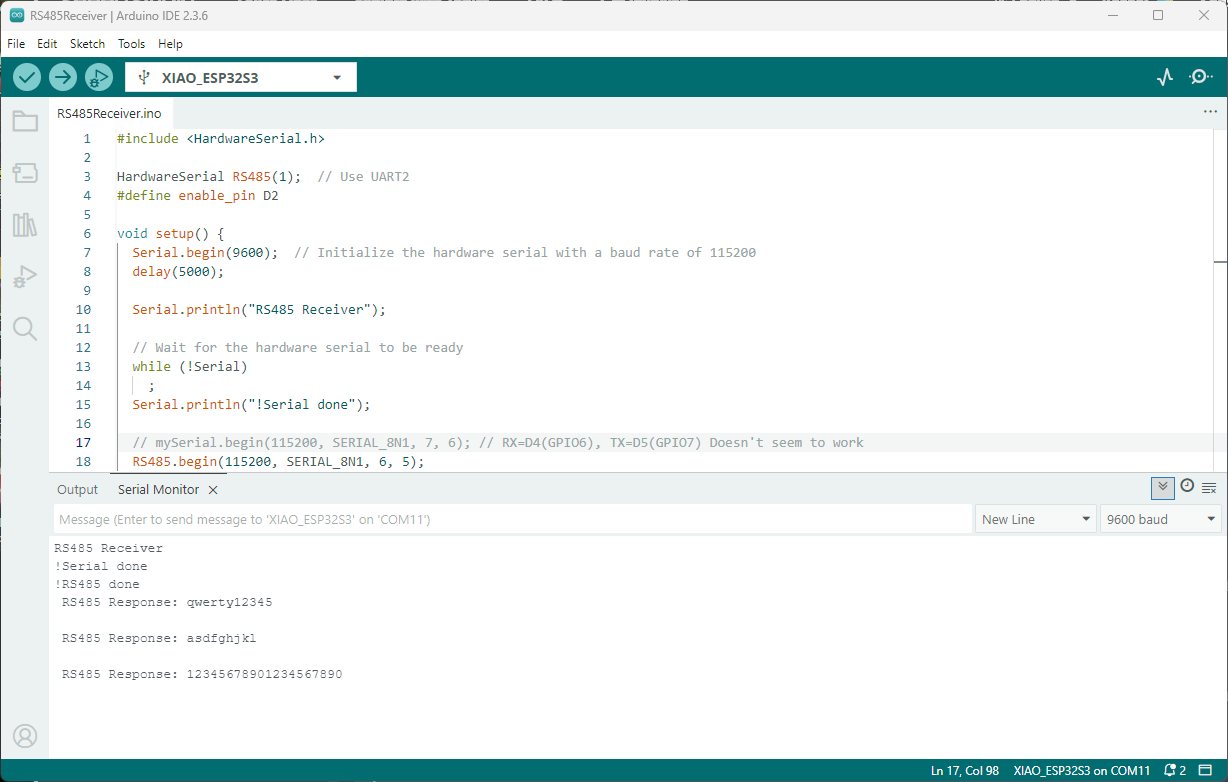
I then updated the port assigned for my RS485Receiver application

#include <HardwareSerial.h>

HardwareSerial RS485(1);  // Use UART2
#define enable_pin D2

void setup() {
  Serial.begin(9600);  // Initialize the hardware serial with a baud rate of 115200
  delay(5000);

  Serial.println("RS485 Receiver");

  // Wait for the hardware serial to be ready
  while (!Serial)
    ;
  Serial.println("!Serial done");

  // mySerial.begin(115200, SERIAL_8N1, 7, 6); // RX=D4(GPIO6), TX=D5(GPIO7) Doesn't seem to work
  RS485.begin(115200, SERIAL_8N1, 6, 5); 
  
    // Wait for the hardware serial to be ready
  while (!RS485)
    ;
  Serial.println("!RS485 done ");

  pinMode(enable_pin, OUTPUT);    // Set the enable pin as an output
  digitalWrite(enable_pin, LOW);  // Set the enable pin to low
}

void loop() {
  // Check if there is data available from the hardware serial
  int x = RS485.available();

  if (x) {
    String response = RS485.readString();

    Serial.println(" RS485 Response: " + response);
  }

  delay(1000);
}

Getting my test harness RS485Sender and RS485Receiver applications (inspired by Seeedstudio wiki) took quite a bit longer than expected. Using Copilot worked better than expected but I think that might be because after doing some research my prompts were better.

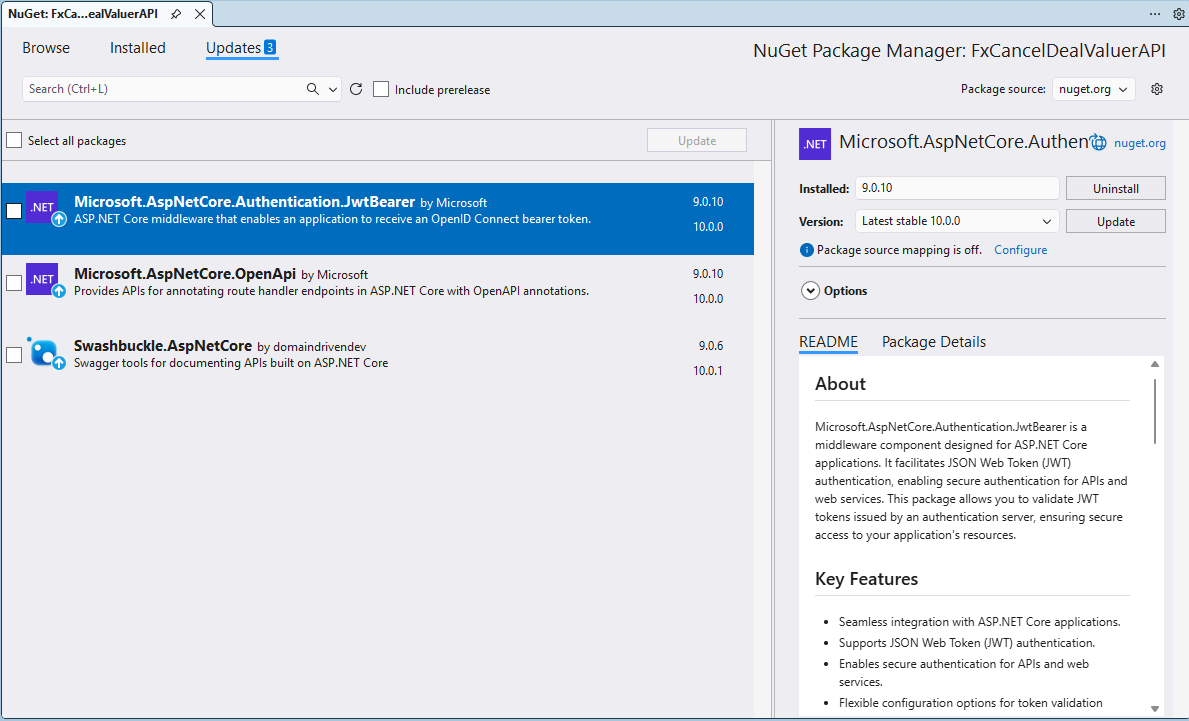
.NET 10 OpenAPI and SwashBuckle NuGets

Yesterday I downloaded Microsoft Visual Studio 2026 and started updating the projects I am working on to .NET 10 and updating any NuGets.

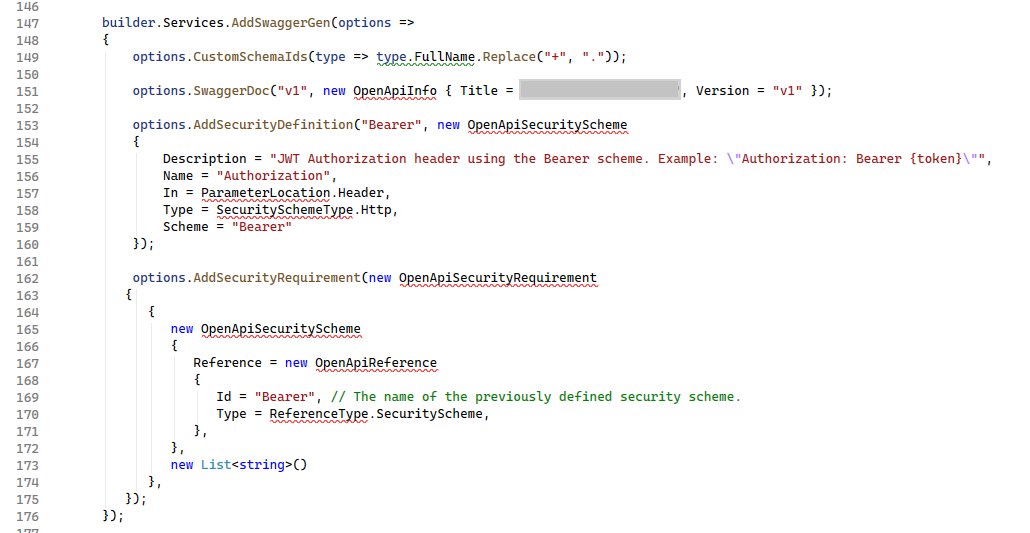
I left these three NuGets to the last as I have had problems updating them before, and this time was no different. The updated NuGets “broke” my code because the way that security definitions and security requirements were implemented had changed.

These articles were the inspiration for my approach

   options.AddSecurityDefinition("X-API-Key", new OpenApiSecurityScheme
   {
      Description = "JWT Authorization header using the Bearer scheme. Example: \"Authorization: Bearer {token}\"",
      Name = "Authorization",
      In = ParameterLocation.Header,
      Type = SecuritySchemeType.Http,
      Scheme = "Bearer"
   });

   options.AddSecurityRequirement(document => new OpenApiSecurityRequirement
   {
      [new OpenApiSecuritySchemeReference("Bearer", document)] = [],
      [new OpenApiSecuritySchemeReference("X-API-Key", document)] = []
   });
});

Warning: make sure the schema etc. have same case so you don’t lose an hour from your life that you will never get back.

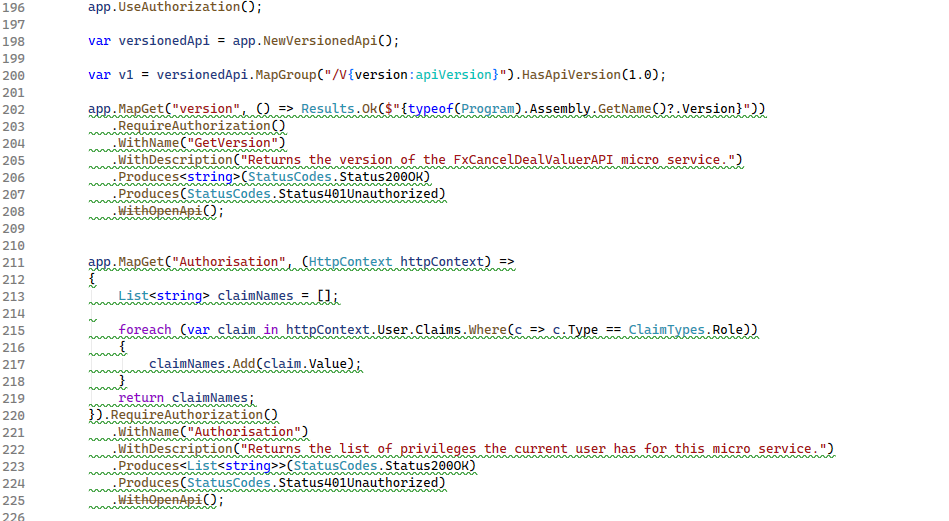
With the above updates the application would work but….

WithOpenApi was originally designed for minimal APIs to attach an OpenApiOperation to endpoint metadata so tools like Swashbuckle could consume it.

Deprecation of WithOpenApi extension method

However, starting with .NET 9, ASP.NET Core introduced native OpenAPI document generation via Microsoft.AspNetCore.OpenApi. This made WithOpenApi unnecessary because the new pipeline already supports operation customization through transformers.

app.MapGet("Version", () =>
{
   return Results.Ok(typeof(Program).Assembly.GetName().Version?.ToString());
}).RequireAuthorization()
         .WithName("Version")
         .Produces<string>(StatusCodes.Status200OK)
         .Produces(StatusCodes.Status401Unauthorized)
         .AddOpenApiOperationTransformer((operation, context, ct) =>
         {
            // Per-endpoint tweaks
            operation.Summary = "Returns version of the application";
            operation.Description = "Returns the version of the application from project metadata.";
            return Task.CompletedTask;
         });

The new transformer API (AddOpenApiOperationTransformer) works directly with the built-in OpenAPI pipeline. It allows per-operation or global modifications without relying on third-party libraries.

Cloud AI with Copilot – Faster R-CNN Azure HTTP Function Performance Setup

Introduction

The Faster R-CNN Azure HTTP Trigger function performed (not unexpectedly) differently when invoked with Fiddler Classic in the Azure Functions emulator vs. when deployed in an Azure App Plan.

The code used is a “tidied” up version of the version of the code from the Building Cloud AI with Copilot – Faster R-CNN Azure HTTP Function “Dog Food” post

public class Function1
{
   private readonly ILogger<Function1> _logger;
   private readonly List<string> _labels;
   private readonly InferenceSession _session;

   public Function1(ILogger<Function1> logger)
   {
      _logger = logger;
      _labels = File.ReadAllLines(Path.Combine(AppContext.BaseDirectory, "labels.txt")).ToList();
      _session = new InferenceSession(Path.Combine(AppContext.BaseDirectory, "FasterRCNN-10.onnx"));
   }

   [Function("ObjectDetectionFunction")]
   public async Task<IActionResult> Run([HttpTrigger(AuthorizationLevel.Function, "post", Route = null)] HttpRequest req, ExecutionContext context)
   {
      if (!req.ContentType.StartsWith("image/"))
         return new BadRequestObjectResult("Content-Type must be an image.");

      using var ms = new MemoryStream();
      await req.Body.CopyToAsync(ms);
      ms.Position = 0;

      using var image = Image.Load<Rgb24>(ms);
      var inputTensor = PreprocessImage(image);

      var inputs = new List<NamedOnnxValue>
                  {
                      NamedOnnxValue.CreateFromTensor("image", inputTensor)
                  };

      using IDisposableReadOnlyCollection<DisposableNamedOnnxValue> results = _session.Run(inputs);
      var output = results.ToDictionary(x => x.Name, x => x.Value);

      var boxes = (DenseTensor<float>)output["6379"];
      var labels = (DenseTensor<long>)output["6381"];
      var scores = (DenseTensor<float>)output["6383"];

      var detections = new List<object>();
      for (int i = 0; i < scores.Length; i++)
      {
         if (scores[i] > 0.5)
         {
            detections.Add(new
            {
               label = _labels[(int)labels[i]],
               score = scores[i],
               box = new
               {
                  x1 = boxes[i, 0],
                  y1 = boxes[i, 1],
                  x2 = boxes[i, 2],
                  y2 = boxes[i, 3]
               }
            });
         }
      }
      return new OkObjectResult(detections);
   }

   private static DenseTensor<float> PreprocessImage(Image<Rgb24> image)
   {
      // Step 1: Resize so that min(H, W) = 800, max(H, W) <= 1333, keeping aspect ratio
      int origWidth = image.Width;
      int origHeight = image.Height;
      int minSize = 800;
      int maxSize = 1333;

      float scale = Math.Min((float)minSize / Math.Min(origWidth, origHeight),
                             (float)maxSize / Math.Max(origWidth, origHeight));

      int resizedWidth = (int)Math.Round(origWidth * scale);
      int resizedHeight = (int)Math.Round(origHeight * scale);

      image.Mutate(x => x.Resize(resizedWidth, resizedHeight));

      // Step 2: Pad so that both dimensions are divisible by 32
      int padWidth = ((resizedWidth + 31) / 32) * 32;
      int padHeight = ((resizedHeight + 31) / 32) * 32;

      var paddedImage = new Image<Rgb24>(padWidth, padHeight);
      paddedImage.Mutate(ctx => ctx.DrawImage(image, new Point(0, 0), 1f));

      // Step 3: Convert to BGR and normalize
      float[] mean = { 102.9801f, 115.9465f, 122.7717f };
      var tensor = new DenseTensor<float>(new[] { 3, padHeight, padWidth });

      for (int y = 0; y < padHeight; y++)
      {
         for (int x = 0; x < padWidth; x++)
         {
            Rgb24 pixel = default;
            if (x < resizedWidth && y < resizedHeight)
               pixel = paddedImage[x, y];

            tensor[0, y, x] = pixel.B - mean[0];
            tensor[1, y, x] = pixel.G - mean[1];
            tensor[2, y, x] = pixel.R - mean[2];
         }
      }

      paddedImage.Dispose();

      return tensor;
   }
}

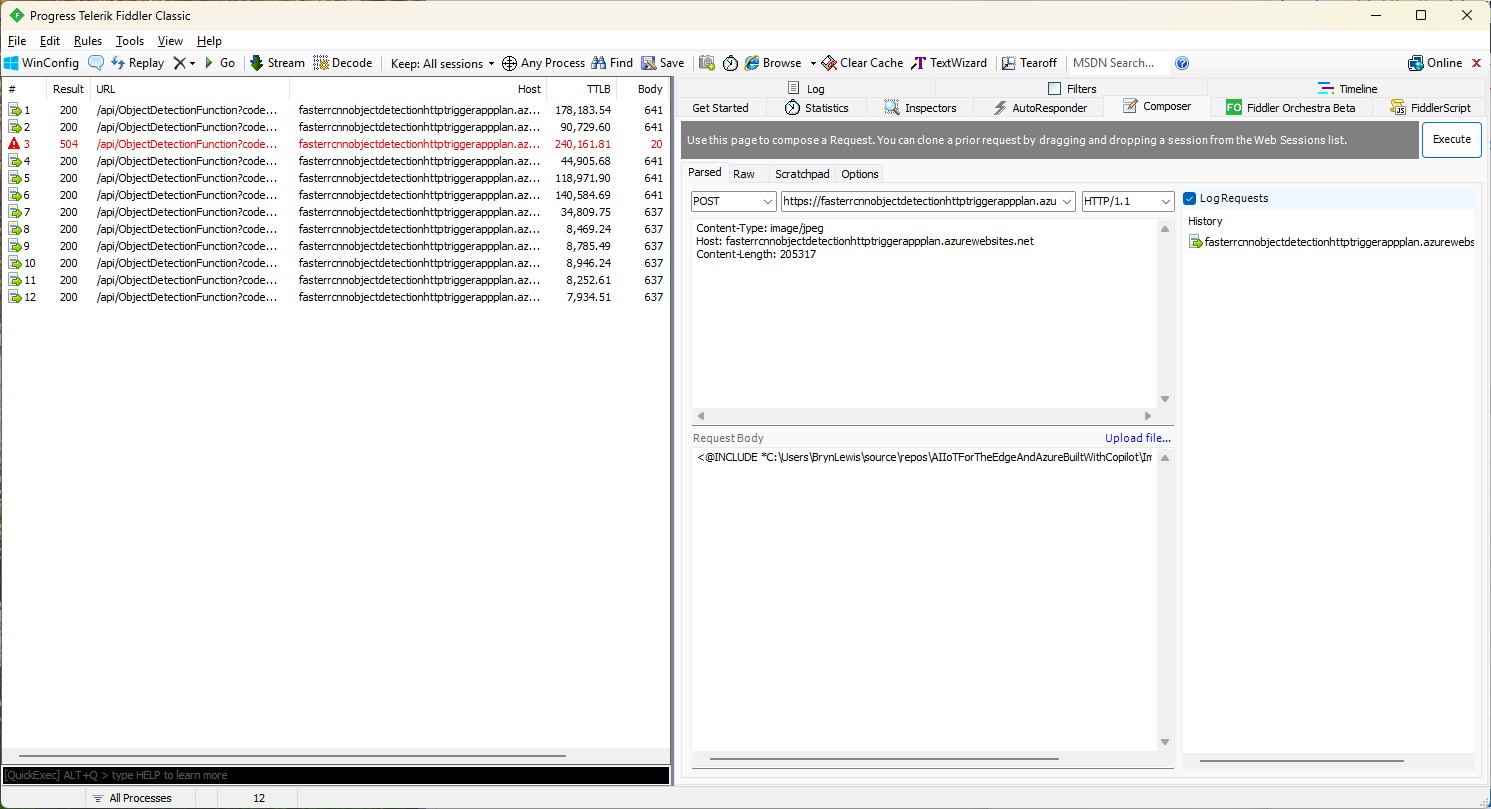
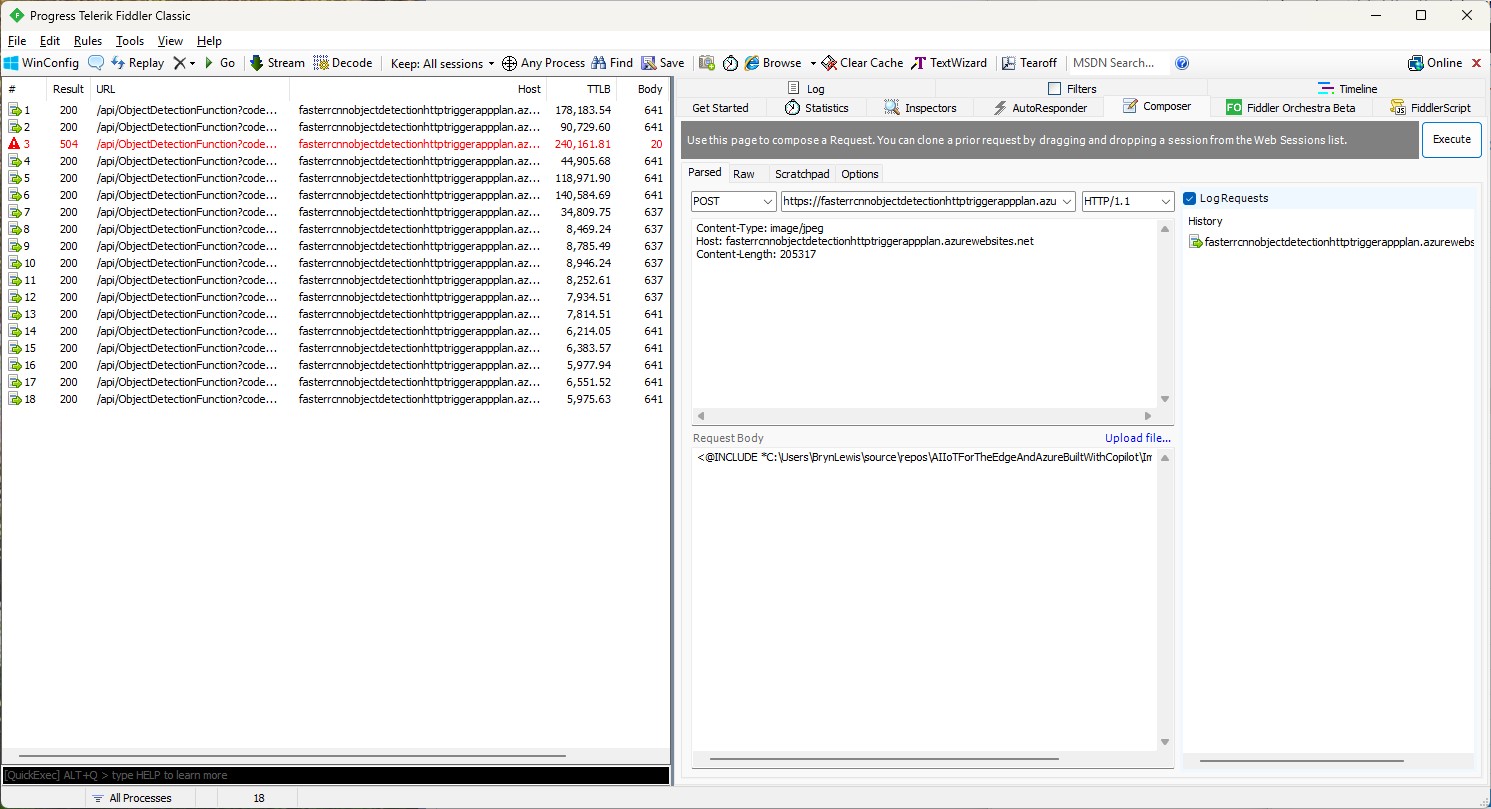
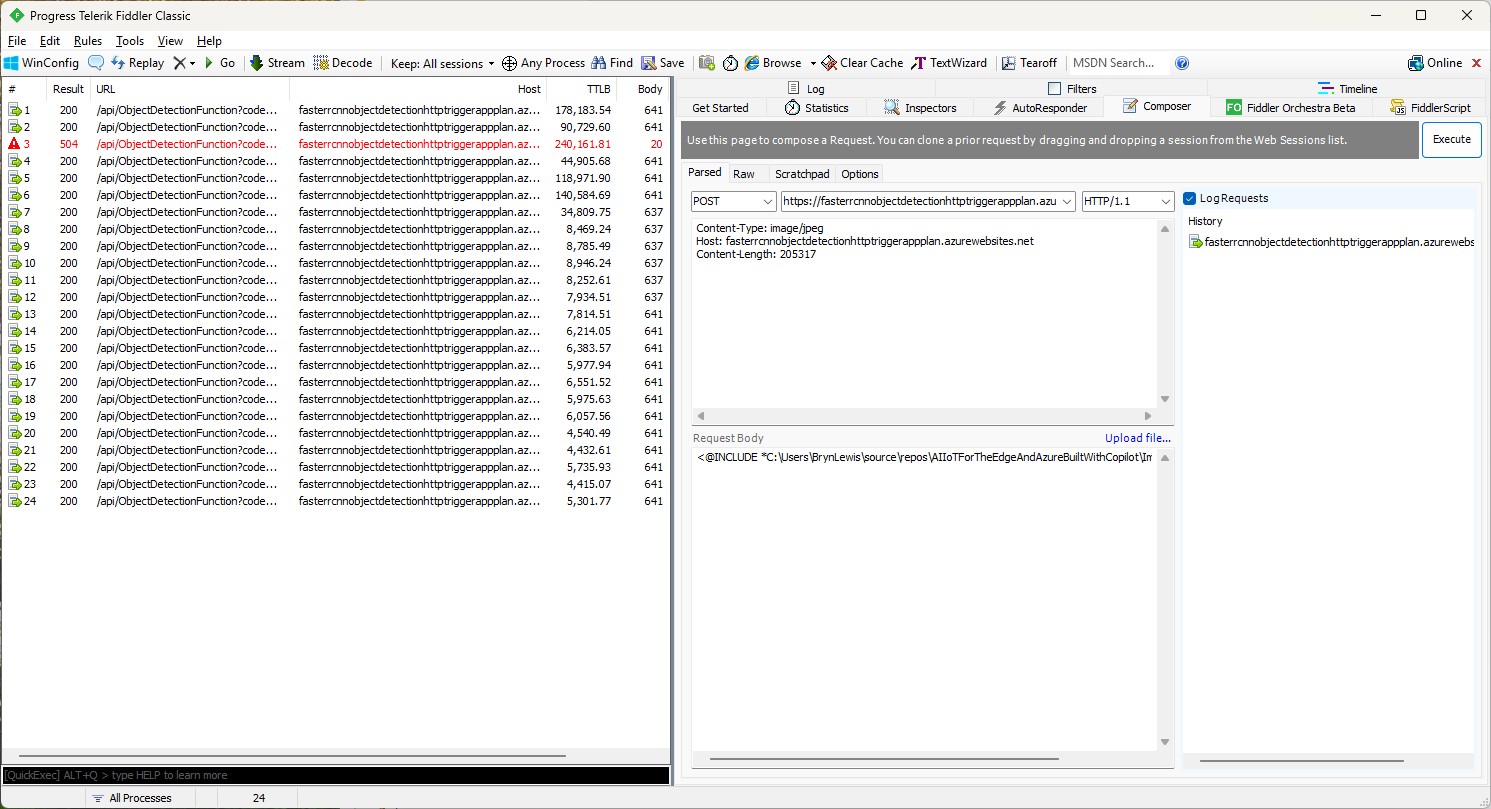
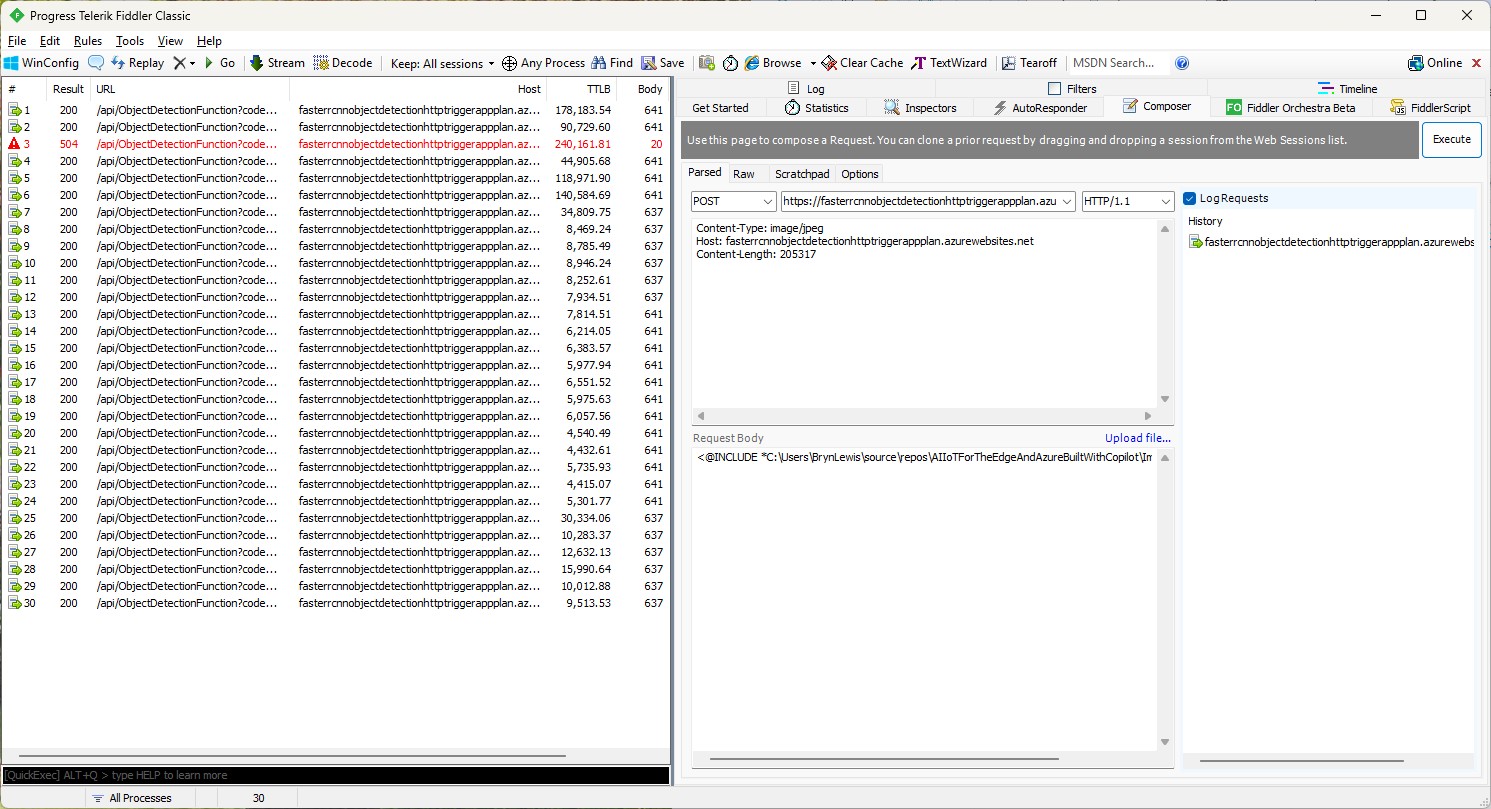
For my initial testing in the Azure Functions emulator using Fiddler Classic I manually generated 10 requests, then replayed them sequentially, and then finally concurrently.

The results for the manual, then sequential results were fairly consistent but the 10 concurrent requests each to took more than 10x longer. In addition, the CPU was at 100% usage while the concurrently executed functions were running.

Cloud Deployment

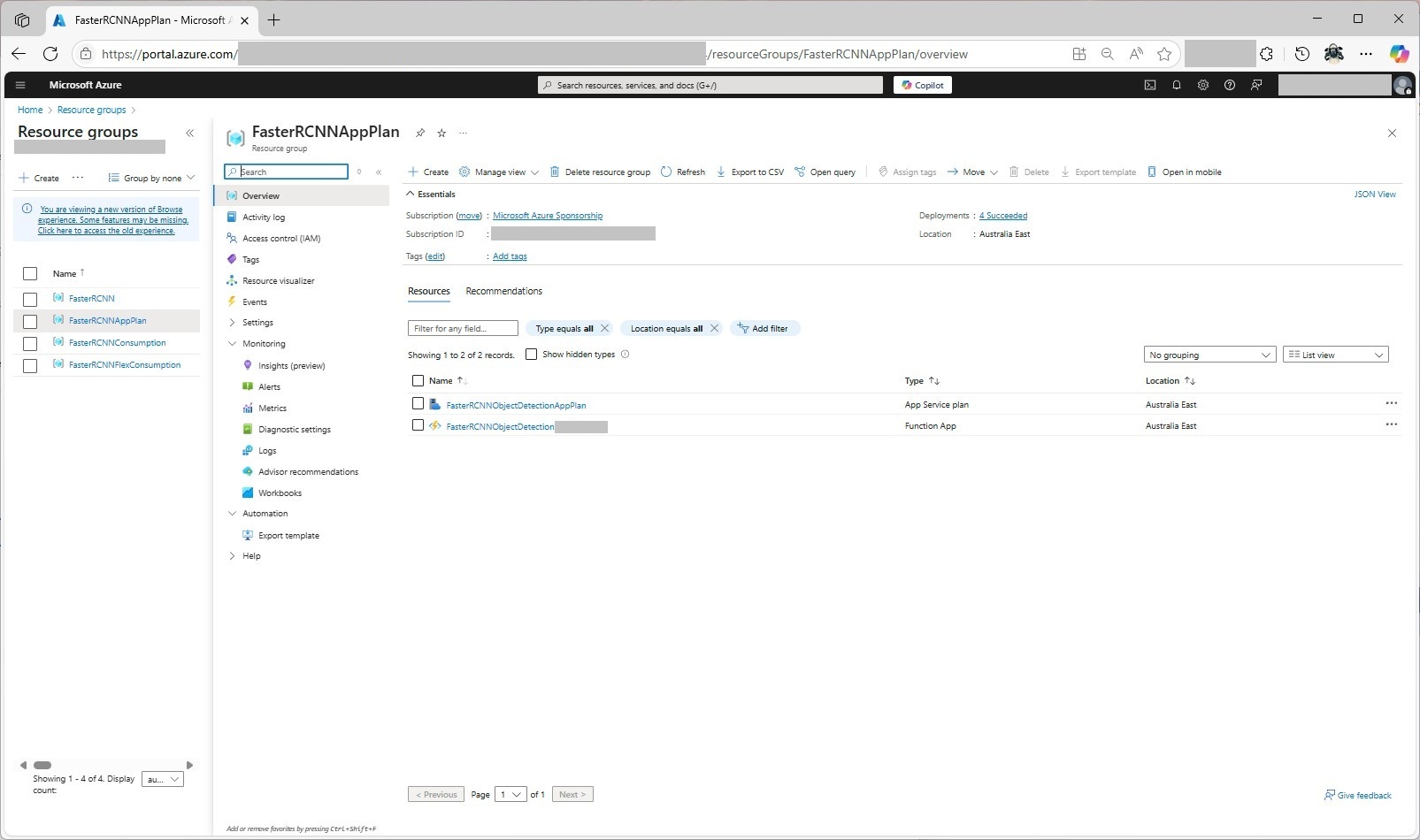
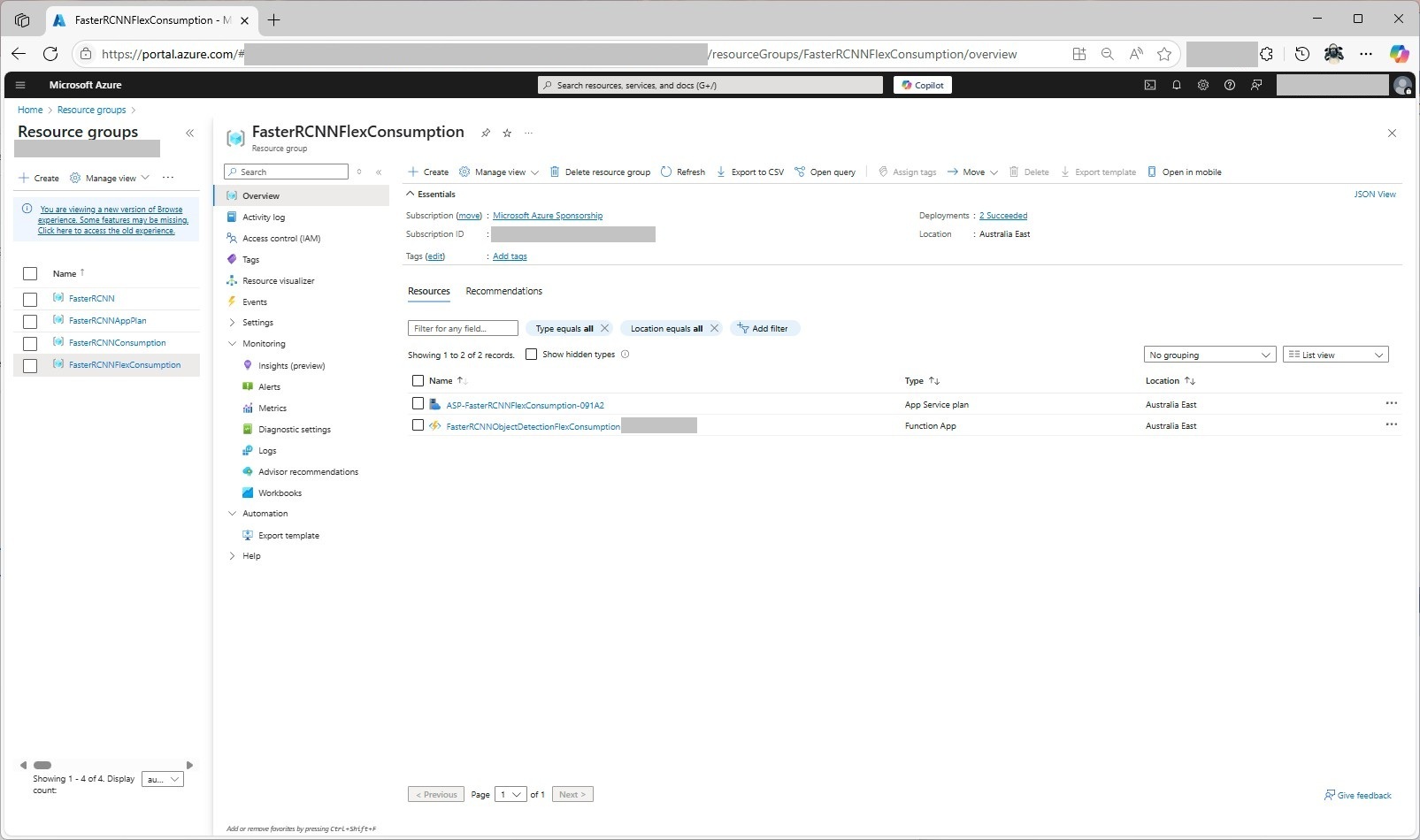
To see how the Faster R-CNN Azure HTTP Trigger function performed I created four resource groups.

The first contained resources used by the three different deployment models being tested

The second resource group was for testing a Dedicated hosting plan deployment.

The third resource group was for testing an Azure Functions Consumption plan hosting.

The fourth resource group was for testing Azure Functions Flex Consumption plan hosting.

Summary

The next couple of posts will compare and look at options for improving the “performance” (scalability, execution duration, latency, jitter, billing etc.) of the Github Copilot generated code.

Building Cloud AI with Copilot – Faster R-CNN Azure HTTP Function SKU Results

Introduction

While testing the FasterRCNNObjectDetectionHttpTrigger function with Telerik Fiddler Classic and my “standard” test image I noticed the response bodies were different sizes.

Initially the application plan was an S1 SKU (1 vCPU 1.75G RAM)

The output JSON was 641 bytes

[
  {
    "label": "person",
    "score": 0.9998331,
    "box": {
      "x1": 445.9223, "y1": 124.11987, "x2": 891.18915, "y2": 696.37164
    }
  },
  {
    "label": "person",
    "score": 0.9994991,
    "box": {
      "x1": 0, "y1": 330.16595, "x2": 471.0475, "y2": 761.35846
    }
  },
  {
    "label": "baseball bat",
    "score": 0.9952342,
    "box": { "x1": 869.8053, "y1": 336.96188, "x2": 1063.2261, "y2": 467.74136
    }
  },
  {
    "label": "sports ball",
    "score": 0.9945949,
    "box": { "x1": 1040.916, "y1": 372.41507, "x2": 1071.8958, "y2": 402.50424
    }
  },
  {
    "label": "baseball glove",
    "score": 0.9943546,
    "box": {
      "x1": 377.8922, "y1": 431.95053, "x2": 458.4937, "y2": 536.52124
    }
  },
  {
    "label": "person",
    "score": 0.51779467,
    "box": {
      "x1": 0, "y1": 239.91418, "x2": 60.342667, "y2": 397.17004
    }
  }
]

The application plan was scaled to a Premium v3 P0V3 (1 vCPU 4G RAM)

The output JSON was 637 bytes

[
  {
    "label": "person",
    "score": 0.9998332,
    "box": {
      "x1": 445.9223, "y1": 124.1199, "x2": 891.18915, "y2": 696.3716
    }
  },
  {
    "label": "person",
    "score": 0.9994991,
    "box": { "x1": 0, "y1": 330.16595, "x2": 471.0475, "y2": 761.35846
    }
  },
  {
    "label": "baseball bat",
    "score": 0.9952342,
    "box": {
      "x1": 869.8053, "y1": 336.9619, "x2": 1063.2261, "y2": 467.74133
    }
  },
  {
    "label": "sports ball",
    "score": 0.994595,
    "box": {
      "x1": 1040.916, "y1": 372.41507, "x2": 1071.8958, "y2": 402.50424
    }
  },
  {
    "label": "baseball glove",
    "score": 0.9943546,
    "box": {
      "x1": 377.8922, "y1": 431.95053, "x2": 458.4937, "y2": 536.52124
    }
  },
  {
    "label": "person",
    "score": 0.51779467,
    "box": {
      "x1": 0, "y1": 239.91418, "x2": 60.342667, "y2": 397.17004
    }
  }
]

The application plan was scaled to Premium v3 P1V3 (2 vCPU 8G RAM)

The output JSON was 641 bytes

[
  {
    "label": "person",
    "score": 0.9998331,
    "box": {
      "x1": 445.9223, "y1": 124.11987, "x2": 891.18915, "y2": 696.37164
    }
  },
  {
    "label": "person",
    "score": 0.9994991,
    "box": {
      "x1": 0, "y1": 330.16595, "x2": 471.0475, "y2": 761.35846
    }
  },
  {
    "label": "baseball bat",
    "score": 0.9952342,
    "box": {
      "x1": 869.8053, "y1": 336.96188, "x2": 1063.2261, "y2": 467.74136
    }
  },
  {
    "label": "sports ball",
    "score": 0.9945949,
    "box": {
      "x1": 1040.916, "y1": 372.41507, "x2": 1071.8958, "y2": 402.50424
    }
  },
  {
    "label": "baseball glove",
    "score": 0.9943546,
    "box": {
      "x1": 377.8922, "y1": 431.95053, "x2": 458.4937, "y2": 536.52124
    }
  },
  {
    "label": "person",
    "score": 0.51779467,
    "box": {
      "x1": 0, "y1": 239.91418, "x2": 60.342667, "y2": 397.17004
    }
  }
]

The application plan was scaled to a Premium v3 P2V3 (4 vCPU 16G RAM)

The output JSON was 641 bytes

[
  {
    "label": "person",
    "score": 0.9998331,
    "box": {
      "x1": 445.9223, "y1": 124.11987, "x2": 891.18915, "y2": 696.37164
    }
  },
  {
    "label": "person",
    "score": 0.9994991,
    "box": {
      "x1": 0, "y1": 330.16595, "x2": 471.0475, "y2": 761.35846
    }
  },
  {
    "label": "baseball bat",
    "score": 0.9952342,
    "box": {
      "x1": 869.8053, "y1": 336.96188, "x2": 1063.2261, "y2": 467.74136
    }
  },
  {
    "label": "sports ball",
    "score": 0.9945949,
    "box": {
      "x1": 1040.916, "y1": 372.41507, "x2": 1071.8958, "y2": 402.50424
    }
  },
  {
    "label": "baseball glove",
    "score": 0.9943546,
    "box": {
      "x1": 377.8922, "y1": 431.95053, "x2": 458.4937, "y2": 536.52124 }
  },
  {
    "label": "person",
    "score": 0.51779467,
    "box": {
      "x1": 0, "y1": 239.91418, "x2": 60.342667, "y2": 397.17004
    }
  }
]

The application plan was scaled to a Premium v2 P1V2 (1vCPU 3.5G)

The output JSON was 637 bytes

[
  {
    "label": "person",
    "score": 0.9998332,
    "box": {
      "x1": 445.9223, "y1": 124.1199, "x2": 891.18915, "y2": 696.3716
    }
  },
  {
    "label": "person",
    "score": 0.9994991,
    "box": {
      "x1": 0, "y1": 330.16595, "x2": 471.0475, "y2": 761.35846
    }
  },
  {
    "label": "baseball bat",
    "score": 0.9952342,
    "box": {
      "x1": 869.8053, "y1": 336.9619, "x2": 1063.2261, "y2": 467.74133
    }
  },
  {
    "label": "sports ball",
    "score": 0.994595,
    "box": {
      "x1": 1040.916, "y1": 372.41507, "x2": 1071.8958, "y2": 402.50424
    }
  },
  {
    "label": "baseball glove",
    "score": 0.9943546,
    "box": {
      "x1": 377.8922, "y1": 431.95053, "x2": 458.4937, "y2": 536.52124
    }
  },
  {
    "label": "person",
    "score": 0.51779467,
    "box": {
      "x1": 0, "y1": 239.91418, "x2": 60.342667, "y2": 397.17004
    }
  }
]

Summary

The differences between the 637 & 641were small

Not certain why this could happen currently best guess is memory pressure.

Building Cloud AI with Copilot – Faster R-CNN Azure HTTP Function “Dog Food”

Introduction

A couple of months ago a web crawler visited every page on my website (would be interesting to know if my Github repositories were crawled as well) and I wondered if this might impact my Copilot or Github Copilot experiments. My blogging about The Azure HTTP Trigger functions with Ultralytics Yolo, YoloSharp, Resnet, Faster R-CNN, with Open Neural Network Exchange(ONNX) etc. is fairly “niche” so any improvements in the understanding of the problems and generated code might be visible.

please write an httpTrigger azure function that uses Faster RCNN and ONNX to detect the object in an image uploaded in the body of an HTTP Post

Github Copilot had used Sixlabors ImageSharp, the ILogger was injected into the constructor, the code checked that the image was in the body of the HTTP POST and the object classes were loaded from a text file. I had to manually add some Nugets and using directives before the code compiled and ran in the emulator, but this was a definite improvement.

To test the implementation, I was using Telerik Fiddler Classic to HTTP POST my “standard” test image to function.

Github Copilot had generated code that checked that the image was in the body of the HTTP POST so I had to modify the Telerik Fiddler Classic request.

I also had to fix up the content-type header

The path to the onnx file was wrong and I had to create a labels.txt file from Python code.

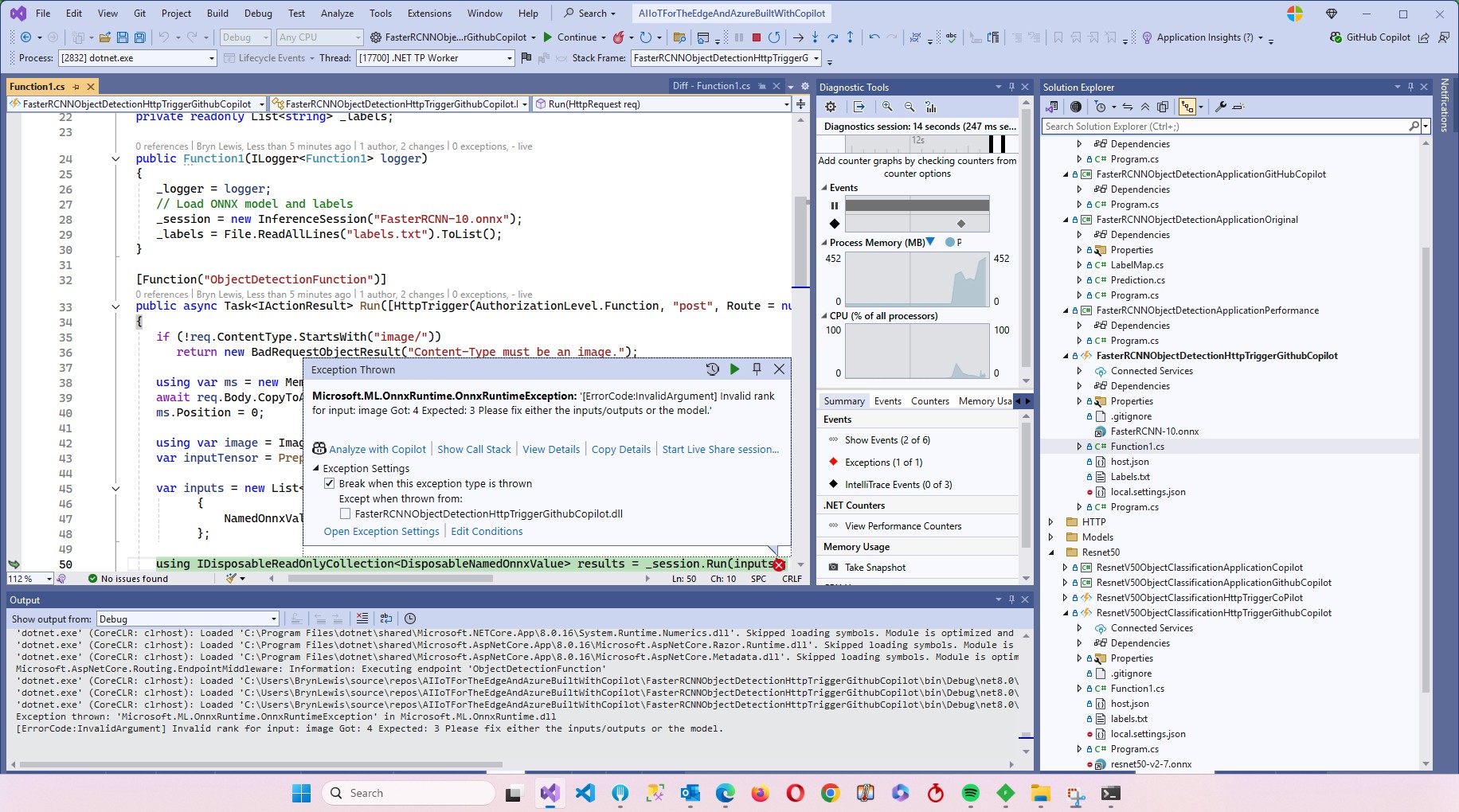
The Azure HTTP Trigger function ran but failed because the preprocessing of the image didn’t implement the specified preprocess steps.

Change DenseTensor to BGR (based on https://github.com/onnx/models/tree/main/validated/vision/object_detection_segmentation/faster-rcnn#preprocessing-steps)

Normalise colour values with mean = [102.9801, 115.9465, 122.7717]

The Azure HTTP Trigger function ran but failed because the output tensor names were incorrect

I used Netron to inspect the model properties to get the correct names for the output tensors

I had a couple of attempts at resizing the image to see what impact this had on the accuracy of the confidence and minimum bounding rectangles.

resize the image such that both height and width are within the range of [800, 1333], and then pad the image with zeros such that both height and width are divisible by 32.

modify the code to resize the image such that both height and width are within the range of [800, 1333], and then pad the image with zeros such that both height and width are divisible by 32 and the aspect ratio is not changed.

The final version of the image processing code scaled then right padded the image to keep the aspect ratio and MBR coordinates correct.

As a final test I deployed the code to Azure and the first time I ran the function it failed because the labels file couldn’t be found because Unix file paths are case sensitive (labels.txt vs. Labels.txt).

The inferencing time was a bit longer than I expected.

// please write an httpTrigger azure function that uses Faster RCNN and ONNX to detect the object in an image uploaded in the body of an HTTP Post
//    manually added the ML.Net ONNX NuGet + using directives
//    manually added the ImageSharp NuGet + using directives
//    Used Copilot to add Microsoft.ML.OnnxRuntime.Tensors using directive
//    Manually added ONNX FIle + labels file sorted out paths
//    Used Netron to fixup output tensor names
// Change DenseTensor to BGR (based on https://github.com/onnx/models/tree/main/validated/vision/object_detection_segmentation/faster-rcnn#preprocessing-steps)
// Normalise colour values with mean = [102.9801, 115.9465, 122.7717]
// resize the image such that both height and width are within the range of [800, 1333], and then pad the image with zeros such that both height and width are divisible by 32.
// modify the code to resize the image such that both height and width are within the range of [800, 1333], and then pad the image with zeros such that both height and width are divisible by 32 and the aspect ratio is not changed.
using Microsoft.AspNetCore.Http;
using Microsoft.AspNetCore.Mvc;
using Microsoft.Azure.Functions.Worker;
using Microsoft.Extensions.Logging;
using Microsoft.ML.OnnxRuntime;
using Microsoft.ML.OnnxRuntime.Tensors;
using SixLabors.ImageSharp; // Couldn't get inteliisense after adding NuGet package
using SixLabors.ImageSharp.PixelFormats; // Couldn't get inteliisense after adding NuGet package
using SixLabors.ImageSharp.Processing; // Couldn't get inteliisense after adding NuGet package


namespace FasterRCNNObjectDetectionHttpTriggerGithubCopilot
{
   public class Function1
   {
      private readonly ILogger<Function1> _logger;
      private readonly InferenceSession _session;
      private readonly List<string> _labels;

      public Function1(ILogger<Function1> logger)
      {
         _logger = logger;
         _session = new InferenceSession("FasterRCNN-10.onnx");
         _labels = File.ReadAllLines("labels.txt").ToList();
      }

      [Function("ObjectDetectionFunction")]
      public async Task<IActionResult> Run([HttpTrigger(AuthorizationLevel.Function, "post", Route = null)] HttpRequest req)
      {
         if (!req.ContentType.StartsWith("image/"))
            return new BadRequestObjectResult("Content-Type must be an image.");

         using var ms = new MemoryStream();
         await req.Body.CopyToAsync(ms);
         ms.Position = 0;

         using var image = Image.Load<Rgb24>(ms);
         var inputTensor = PreprocessImage(image);

         var inputs = new List<NamedOnnxValue>
                  {
                      NamedOnnxValue.CreateFromTensor("image", inputTensor)
                  };

         using IDisposableReadOnlyCollection<DisposableNamedOnnxValue> results = _session.Run(inputs);
         var output = results.ToDictionary(x => x.Name, x => x.Value);

         var boxes = (DenseTensor<float>)output["6379"];
         var labels = (DenseTensor<long>)output["6381"];
         var scores = (DenseTensor<float>)output["6383"];

         var detections = new List<object>();
         for (int i = 0; i < scores.Length; i++)
         {
            if (scores[i] > 0.5)
            {
               detections.Add(new
               {
                  label = _labels[(int)labels[i]],
                  score = scores[i],
                  box = new
                  {
                     x1 = boxes[i, 0],
                     y1 = boxes[i, 1],
                     x2 = boxes[i, 2],
                     y2 = boxes[i, 3]
                  }
               });
            }
         }

         return new OkObjectResult(detections);
      }

      private static DenseTensor<float> PreprocessImage( Image<Rgb24> image)
      {
         // Step 1: Resize so that min(H, W) = 800, max(H, W) <= 1333, keeping aspect ratio
         int origWidth = image.Width;
         int origHeight = image.Height;
         int minSize = 800;
         int maxSize = 1333;

         float scale = Math.Min((float)minSize / Math.Min(origWidth, origHeight),
                                (float)maxSize / Math.Max(origWidth, origHeight));
         /*
         float scale = 1.0f;

         // If either dimension is less than 800, scale up so the smaller is 800
         if (origWidth < minSize || origHeight < minSize)
         {
            scale = Math.Max((float)minSize / origWidth, (float)minSize / origHeight);
         }
         // If either dimension is greater than 1333, scale down so the larger is 1333
         if (origWidth * scale > maxSize || origHeight * scale > maxSize)
         {
            scale = Math.Min((float)maxSize / origWidth, (float)maxSize / origHeight);
         }
         */

         int resizedWidth = (int)Math.Round(origWidth * scale);
         int resizedHeight = (int)Math.Round(origHeight * scale);

         image.Mutate(x => x.Resize(resizedWidth, resizedHeight));

         // Step 2: Pad so that both dimensions are divisible by 32
         int padWidth = ((resizedWidth + 31) / 32) * 32;
         int padHeight = ((resizedHeight + 31) / 32) * 32;

         var paddedImage = new Image<Rgb24>(padWidth, padHeight);
         paddedImage.Mutate(ctx => ctx.DrawImage(image, new Point(0, 0), 1f));

         // Step 3: Convert to BGR and normalize
         float[] mean = { 102.9801f, 115.9465f, 122.7717f };
         var tensor = new DenseTensor<float>(new[] { 3, padHeight, padWidth });

         for (int y = 0; y < padHeight; y++)
         {
            for (int x = 0; x < padWidth; x++)
            {
               Rgb24 pixel = default;
               if (x < resizedWidth && y < resizedHeight)
                  pixel = paddedImage[x, y];

               tensor[0, y, x] = pixel.B - mean[0];
               tensor[1, y, x] = pixel.G - mean[1];
               tensor[2, y, x] = pixel.R - mean[2];
            }
         }

         paddedImage.Dispose();
         return tensor;
      }
   }
}

It took roughly an hour to “vibe code” the function, but it would have taken much longer for someone not familiar with the problem domain.

Summary

The Github Copilot generated code was okay but would be fragile, performance would suck and not scale terribly well.

The Copilot generated code in this post is not suitable for production

ONNXRuntime.AI-Faster R-CNN C# Sample differences

After building Faster R-CCN object detection applications with Copilot and Github Copilot the results when compared with the onnxruntime.ai Object detection with Faster RCNN Deep Learning in C# sample (which hasn’t been updated for years) were slightly different.

The sample image was 640×480 pixels

The FasterRCNNObjectDetectionApplicationGitHubCopilot application scaled image was initially 1056×800 then 1088×800 pixels.

The initial version the dimensions were “rounded down” to the next multiple of 32

// Calculate scale factor to fit within the range while maintaining aspect ratio
float scale = Math.Min((float)maxSize / Math.Max(originalWidth, originalHeight),
                                (float)minSize / Math.Min(originalWidth, originalHeight));

// Calculate new dimensions
int newWidth = (int)(originalWidth * scale);
int newHeight = (int)(originalHeight * scale);

// Ensure dimensions are divisible by 32
newWidth = (newWidth / divisor) * divisor;
newHeight = (newHeight / divisor) * divisor;
Scaled 1056×800

Then for the second version the dimensions were “rounded up” to the next multiple of 32

// Calculate scale factor to fit within the range while maintaining aspect ratio
float scale = Math.Min((float)maxSize / Math.Max(originalWidth, originalHeight),
                                (float)minSize / Math.Min(originalWidth, originalHeight));

// Calculate new dimensions
int newWidth = (int)(originalWidth * scale);
int newHeight = (int)(originalHeight * scale);

// Ensure dimensions are divisible by 32
newWidth = (int)(Math.Ceiling(newWidth / 32f) * 32f);
newHeight = (int)(Math.Ceiling(newHeight / 32f) * 32f);
Scaled 1088×800
Marked up 1088×800

The FasterRCNNObjectDetectionApplicationOriginal application scaled the input image to 1066×800

Scaled image 1066×800

The FasterRCNNObjectDetectionApplicationOriginal application pillar boxed/padded the image to 1088×800 as the DenseTensor was loaded.

using Image<Rgb24> image = Image.Load<Rgb24>(imageFilePath);

Console.WriteLine($"Before x:{image.Width} y:{image.Height}");

// Resize image
float ratio = 800f / Math.Min(image.Width, image.Height);
image.Mutate(x => x.Resize((int)(ratio * image.Width), (int)(ratio * image.Height)));

Console.WriteLine($"After x:{image.Width} y:{image.Height}");

// Preprocess image
var paddedHeight = (int)(Math.Ceiling(image.Height / 32f) * 32f);
var paddedWidth = (int)(Math.Ceiling(image.Width / 32f) * 32f);

Console.WriteLine($"Padded x:{paddedWidth} y:{paddedHeight}");

Tensor<float> input = new DenseTensor<float>(new[] { 3, paddedHeight, paddedWidth });
var mean = new[] { 102.9801f, 115.9465f, 122.7717f };
image.ProcessPixelRows(accessor =>
{
   for (int y = paddedHeight - accessor.Height; y < accessor.Height; y++)
   {
      Span<Rgb24> pixelSpan = accessor.GetRowSpan(y);
      for (int x = paddedWidth - accessor.Width; x < accessor.Width; x++)
      {
         input[0, y, x] = pixelSpan[x].B - mean[0];
         input[1, y, x] = pixelSpan[x].G - mean[1];
         input[2, y, x] = pixelSpan[x].R - mean[2];
      }
   }
});
Marked up image 1066×800

I think the three different implementations of the preprocessing steps and the graphics libraries used probably caused the differences in the results. The way an image is “resized” by System.Graphics.Common vs. ImageSharp(resampled, cropped and centered or padded and pillar boxed) could make a significant difference to the results.

ONNXRuntime.AI-Faster R-CNN C# Sample oddness

After building Faster R-CCN object detection applications with Copilot and Github Copilot the results when compared with Utralytics Yolo (with YoloSharp) didn’t look too bad.

The input image sports.jpg 1200×798 pixels

The GithubCopilot FasterRCNNObjectDetectionApplicationCopilot application only generated labels, confidences and minimum bounding box coordinates.

The FasterRCNNObjectDetectionApplicationGitHubCopilot application the marked-up image was 1200×798 pixels

The YoloSharpObjectDetectionApplication application marked-up image was 1200×798 pixels

I went back to the onnxruntime.ai Object detection with Faster RCNN Deep Learning in C# sample source code to check my implementations and the highlighted area on the left caught my attention.

The FasterRCNNObjectDetectionApplicationOriginal application marked up image was 1023×800

I downloaded the sample code which hadn’t been updated for years.

public static void Main(string[] args)
{
   Console.WriteLine("FasterRCNNObjectDetectionApplicationOriginal");

   // Read paths
   string modelFilePath = args[0];
   string imageFilePath = args[1];
   string outImageFilePath = args[2];

   // Read image
   using Image<Rgb24> image = Image.Load<Rgb24>(imageFilePath);

   // Resize image
   float ratio = 800f / Math.Min(image.Width, image.Height);
   image.Mutate(x => x.Resize((int)(ratio * image.Width), (int)(ratio * image.Height)));

   // Preprocess image
   var paddedHeight = (int)(Math.Ceiling(image.Height / 32f) * 32f);
   var paddedWidth = (int)(Math.Ceiling(image.Width / 32f) * 32f);
   Tensor<float> input = new DenseTensor<float>(new[] { 3, paddedHeight, paddedWidth });
   var mean = new[] { 102.9801f, 115.9465f, 122.7717f };
   image.ProcessPixelRows(accessor =>
   {
      for (int y = paddedHeight - accessor.Height; y < accessor.Height; y++)
      {
         Span<Rgb24> pixelSpan = accessor.GetRowSpan(y);
         for (int x = paddedWidth - accessor.Width; x < accessor.Width; x++)
         {
            input[0, y, x] = pixelSpan[x].B - mean[0];
            input[1, y, x] = pixelSpan[x].G - mean[1];
            input[2, y, x] = pixelSpan[x].R - mean[2];
         }
      }
   });

   // Setup inputs and outputs
   var inputs = new List<NamedOnnxValue>
      {
            NamedOnnxValue.CreateFromTensor("image", input)
      };

   // Run inference
   using var session = new InferenceSession(modelFilePath);
   using IDisposableReadOnlyCollection<DisposableNamedOnnxValue> results = session.Run(inputs);

   // Postprocess to get predictions
   var resultsArray = results.ToArray();
   float[] boxes = resultsArray[0].AsEnumerable<float>().ToArray();
   long[] labels = resultsArray[1].AsEnumerable<long>().ToArray();
   float[] confidences = resultsArray[2].AsEnumerable<float>().ToArray();
   var predictions = new List<Prediction>();
   var minConfidence = 0.7f;
   for (int i = 0; i < boxes.Length - 4; i += 4)
   {
      var index = i / 4;
      if (confidences[index] >= minConfidence)
      {
         predictions.Add(new Prediction
         {
            Box = new Box(boxes[i], boxes[i + 1], boxes[i + 2], boxes[i + 3]),
            Label = LabelMap.Labels[labels[index]],
            Confidence = confidences[index]
         });
      }
   }

   // Put boxes, labels and confidence on image and save for viewing
   using var outputImage = File.OpenWrite(outImageFilePath);
   Font font = SystemFonts.CreateFont("Arial", 16);
   foreach (var p in predictions)
   {
      Console.WriteLine($"Label: {p.Label}, Confidence: {p.Confidence}, Bounding Box:[{p.Box.Xmin}, {p.Box.Ymin}, {p.Box.Xmax}, {p.Box.Ymax}]");
      image.Mutate(x =>
      {
         x.DrawLine(Color.Red, 2f, new PointF[] {

                  new PointF(p.Box.Xmin, p.Box.Ymin),
                  new PointF(p.Box.Xmax, p.Box.Ymin),

                  new PointF(p.Box.Xmax, p.Box.Ymin),
                  new PointF(p.Box.Xmax, p.Box.Ymax),

                  new PointF(p.Box.Xmax, p.Box.Ymax),
                  new PointF(p.Box.Xmin, p.Box.Ymax),

                  new PointF(p.Box.Xmin, p.Box.Ymax),
                  new PointF(p.Box.Xmin, p.Box.Ymin)
               });
         x.DrawText($"{p.Label}, {p.Confidence:0.00}", font, Color.White, new PointF(p.Box.Xmin, p.Box.Ymin));
      });
   }
   image.SaveAsJpeg(outputImage);

   Console.WriteLine("Press Enter to exit");
   Console.ReadLine();
}

I then compared the output of the object detection applications and the onnxruntime.ai Object detection with Faster RCNN Deep Learning in C# sample was different.

After some investigation I think the scaling of the image used for inferencing (based on the requirements on the model), then the scaling of the minimum bounding rectangles isn’t quite right.

Building Cloud AI with Copilot – ResNet50 Azure HTTP Function

Introduction

This is another awfully long post about my experience using Copilot to write an Azure HTTP Trigger function that runs a resnet50 V2.7 Open Neural Network Exchange model(ONNX) on an image in the body of the HTTP POST.

For testing I was uploading the images with Telerik Fiddler Classic.

I forgot to specify language, so Copilot assumed (reasonably) that I wanted a Python Azure HTTP Trigger function.

The initial C# version wouldn’t compile because of the FunctionName attribute which is used for in-process Azure Functions. It did seem a bit odd that Copilot would generate code that support will end for November 10, 2026

public static class Function1
{
   private static readonly InferenceSession session = new InferenceSession("resnet50.onnx");

   [FunctionName("ImageClassification")]
   public static IActionResult Run(
       [HttpTrigger(AuthorizationLevel.Function, "post")] HttpRequest req,
       ILogger log)
   {
      log.LogInformation("Processing image classification request...");

      try
      {
         using var ms = new MemoryStream();
         req.Body.CopyTo(ms);
         using var image = Image.FromStream(ms);

         var inputTensor = PreprocessImage(image);

         var inputName = session.InputMetadata.Keys.First();
         var outputName = session.OutputMetadata.Keys.First();
         var result = session.Run(new Dictionary<string, NamedOnnxValue>
            {
                { inputName, NamedOnnxValue.CreateFromTensor(inputName, inputTensor) }
            });

         var predictions = result.First().AsTensor<float>().ToArray();

         return new JsonResult(new { predictions });
      }
      catch (Exception ex)
      {
         log.LogError($"Error: {ex.Message}");
         return new BadRequestObjectResult("Invalid image or request.");
      }
   }
...
}

It was just easier to change the FunctionName attribute manually.

public static class Function1
{
   private static readonly InferenceSession session = new InferenceSession("resnet50.onnx");

   [Function("ImageClassification")]
   public static IActionResult Run(
       [HttpTrigger(AuthorizationLevel.Function, "post")] HttpRequest req,
       ILogger log)
   {
      log.LogInformation("Processing image classification request...");

      try
      {
         using var ms = new MemoryStream();
         req.Body.CopyTo(ms);
         using var image = Image.FromStream(ms);

         var inputTensor = PreprocessImage(image);

         var inputName = session.InputMetadata.Keys.First();
         var outputName = session.OutputMetadata.Keys.First();
         var inputList = new List<NamedOnnxValue>
            {
                NamedOnnxValue.CreateFromTensor(inputName, inputTensor)
            };

         var result = session.Run(inputList);

         var predictions = result.First().AsTensor<float>().ToArray();

         return new JsonResult(new { predictions });
      }
      catch (Exception ex)
      {
         log.LogError($"Error: {ex.Message}");
         return new BadRequestObjectResult("Invalid image or request.");
      }
   }

The Azure HTTP Trigger function ran but failed when I tried to classify an image

The initialisation of the ILogger injected into the Run method was broken so I used Copilot to update the code to use constructor Dependency Injection (DI).

public static class Function1
{
   private static readonly ILogger logger;
   private static readonly InferenceSession session = new InferenceSession("resnet50-v2-7.onnx");

   // Static constructor to initialize logger
   static Function1()
   {
      var loggerFactory = LoggerFactory.Create(builder =>
      {
         builder.AddConsole();
      });
      logger = loggerFactory.CreateLogger("Function1Logger");
   }

   [Function("ImageClassification")]
   public static IActionResult Run([HttpTrigger(AuthorizationLevel.Function, "post")] HttpRequest req)
   {
      logger.LogInformation("Processing image classification request...");

      try
      {
         using var ms = new MemoryStream();
         req.Body.CopyTo(ms);
         using var image = Image.FromStream(ms);

         var inputTensor = PreprocessImage(image);

         var inputName = session.InputMetadata.Keys.First();
         var outputName = session.OutputMetadata.Keys.First();
         var inputList = new List<NamedOnnxValue>
            {
                NamedOnnxValue.CreateFromTensor(inputName, inputTensor)
            };

         var result = session.Run(inputList);

         var predictions = result.First().AsTensor<float>().ToArray();

         return new JsonResult(new { predictions });
      }
      catch (Exception ex)
      {
         logger.LogError($"Error: {ex.Message}");
         return new BadRequestObjectResult("Invalid image or request.");
      }
   }
...
}

It was a bit odd that Copilot generated a static function and constructor unlike the equivalent YoloSharp Azure HTTP Trigger.

The Azure HTTP Trigger function ran but failed when I tried to classify an image

The Azure HTTP Trigger function ran but failed with a 400 Bad Request when I tried to classify an image

After some debugging I realised that Telerik Fiddle Classic was sending the image as form data so I modified the “composer” payload configuration.

Then the Azure HTTP Trigger function ran but the confidence values were wrong.

The confidence values were incorrect, so I checked the ResNet50 pre-processing instructions

The image needs to be preprocessed before fed to the network. The first step is to extract a 224x224 crop from the center of the image. For this, the image is first scaled to a minimum size of 256x256, while keeping aspect ratio. That is, the shortest side of the image is resized to 256 and the other side is scaled accordingly to maintain the original aspect ratio. After that, the image is normalized with mean = 255*[0.485, 0.456, 0.406] and std = 255*[0.229, 0.224, 0.225]. Last step is to transpose it from HWC to CHW layout.
 private static Tensor<float> PreprocessImage(Image image)
 {
    var resized = new Bitmap(image, new Size(224, 224));
    var tensorData = new float[1 * 3 * 224 * 224];

    float[] mean = { 0.485f, 0.456f, 0.406f };
    float[] std = { 0.229f, 0.224f, 0.225f };

    for (int y = 0; y < 224; y++)
    {
       for (int x = 0; x < 224; x++)
       {
          var pixel = resized.GetPixel(x, y);

          tensorData[(0 * 3 * 224 * 224) + (0 * 224 * 224) + (y * 224) + x] = (pixel.R / 255.0f - mean[0]) / std[0];
          tensorData[(0 * 3 * 224 * 224) + (1 * 224 * 224) + (y * 224) + x] = (pixel.G / 255.0f - mean[1]) / std[1];
          tensorData[(0 * 3 * 224 * 224) + (2 * 224 * 224) + (y * 224) + x] = (pixel.B / 255.0f - mean[2]) / std[2];
       }
    }

    return new DenseTensor<float>(tensorData, new[] { 1, 3, 224, 224 });
 }

When the “normalisation” code was implemented and the Azure HTTP Trigger function run the confidence values were still incorrect.

The Azure HTTP Trigger function was working reliably but the number of results and size response payload was unnecessary.

The Azure HTTP Trigger function ran but the confidence values were still incorrect, so I again checked the ResNet50 post-processing instructions

Postprocessing
The post-processing involves calculating the softmax probability scores for each class. You can also sort them to report the most probable classes. Check imagenet_postprocess.py for code.
 // Compute exponentials for all scores
 var expScores = predictions.Select(MathF.Exp).ToArray();

 // Compute sum of exponentials
 float sumExpScores = expScores.Sum();

 // Normalize scores into probabilities
 var softmaxResults = expScores.Select(score => score / sumExpScores).ToArray();

 // Get top 10 predictions (label ID and confidence)
 var top10 = softmaxResults
     .Select((confidence, labelId) => new { labelId, confidence, label = labelId < labels.Count ? labels[labelId] : $"Unknown-{labelId}" })
     .OrderByDescending(p => p.confidence)
     .Take(10)
     .ToList();

The Azure HTTP Trigger function should run on multiple platforms so System.Drawing.Comon had to be replaced with Sixlabors ImageSharp

The Azure HTTP Trigger function ran but the Sixlabors ImageSharp based image classification failed.

After some debugging I realised that the MemoryStream used to copy the HTTPRequest body was not being reset.

[Function("ImageClassification")]
public static async Task<IActionResult> Run(
    [HttpTrigger(AuthorizationLevel.Function, "post")] HttpRequest req)
{
   logger.LogInformation("Processing image classification request...");

   try
   {
      using var ms = new MemoryStream();
      await req.Body.CopyToAsync(ms);

      ms.Seek(0, SeekOrigin.Begin);

      using var image = Image.Load<Rgb24>(ms);

      var inputTensor = PreprocessImage(image);
...   
   }
   catch (Exception ex)
   {
      logger.LogError($"Error: {ex.Message}");
      return new BadRequestObjectResult("Invalid image or request.");
   }
}

The odd thing was the confidence values changed slightly when the code was modified to use Sixlabors ImageSharp

The Azure HTTP Trigger function worked but the labelId wasn’t that “human readable”.

public static class Function1
{
   private static readonly ILogger logger;
   private static readonly InferenceSession session = new InferenceSession("resnet50-v2-7.onnx");
   private static readonly List<string> labels = LoadLabels("labels.txt");
...
   [Function("ImageClassification")]
   public static async Task<IActionResult> Run(
       [HttpTrigger(AuthorizationLevel.Function, "post")] HttpRequest req)
   {
      logger.LogInformation("Processing image classification request...");

      try
      {
...
         // Get top 10 predictions (label ID and confidence)
         var top10 = softmaxResults
             .Select((confidence, labelId) => new { labelId, confidence, label = labelId < labels.Count ? labels[labelId] : $"Unknown-{labelId}" })
             .OrderByDescending(p => p.confidence)
             .Take(10)
             .ToList();

         return new JsonResult(new { predictions = top10 });
      }
      catch (Exception ex)
      {
         logger.LogError($"Error: {ex.Message}");
         return new BadRequestObjectResult("Invalid image or request.");
      }
   }
...
   private static List<string> LoadLabels(string filePath)
   {
      try
      {
         return File.ReadAllLines(filePath).ToList();
      }
      catch (Exception ex)
      {
         logger.LogError($"Error loading labels file: {ex.Message}");
         return new List<string>(); // Return empty list if file fails to load
      }
   }
}

Summary

The Github Copilot generated code was okay but would be fragile and not scale terribly well. The confidence values changing very slightly when the code was updated for Sixlabors ImageSharp was disconcerting, but not surprising.

The Copilot generated code in this post is not suitable for production