Random wanderings through Microsoft Azure esp. PaaS plumbing, the IoT bits, AI on Micro controllers, AI on Edge Devices, .NET nanoFramework, .NET Core on *nix and ML.NET+ONNX
After trialing a couple of different approaches I have removed the AzureSettingsDefault. If an application has a connectionstring configured that is used, if there is not one then the DPS configuration is used, if there are neither currently the application logs an error. In the future I will look at adding a configuration option to make the application optionally shutdown
After configuring, deploying and then operating my The Things Network(TTN) V2 gateway I have made some changes to my The Things Industries(TTI) V3 gateway.
Using Azure KeyVault to store configuration was an interesting learning exercise but made configuration difficult for users, so for the initial V3 version(s) I have dropped support and reverted to an app.settings file.
The V2 gateway used an Azure HTTP Trigger function to process TTN uplink messages which were placed into an Azure Storage Queue for processing by an Azure Queue Trigger function. This was complex to deploy and caused message ordering problems when multiple instances of the storage queue trigger function where spun up to process a backlog of messages.
The V2 Gateway only provisioned devices with the Azure Device Provisioning Service on the first uplink message. This made it difficult to process Downlink messages as there was no Azure DeviceClient connection for devices which hadn’t sent a message. The V3 gateway uses the TTN API to enumerate the devices in each TTN Application configured in the app.settings.json file. For each application a Message Queue Telemetry Transport(MQTT) (using MQTTNet) connection is opened for receiving uplink messages, sending downlink messages and tracking the progress of downlink messages. Then for each TTN Device a connection is establish to the specified Azure IoT Hub to enable Cloud to Device(C2D) and Device to Cloud messaging.
With so many components the V2 gateway was difficult to debug, so the V3 version runs locally as a console application and in Azure as an Azure continuous Webjob
The amount of diagnostic logging sent to Azure Application Insights was making it difficult to identify and then diagnose issues so the way logging is implemented has been revisited.
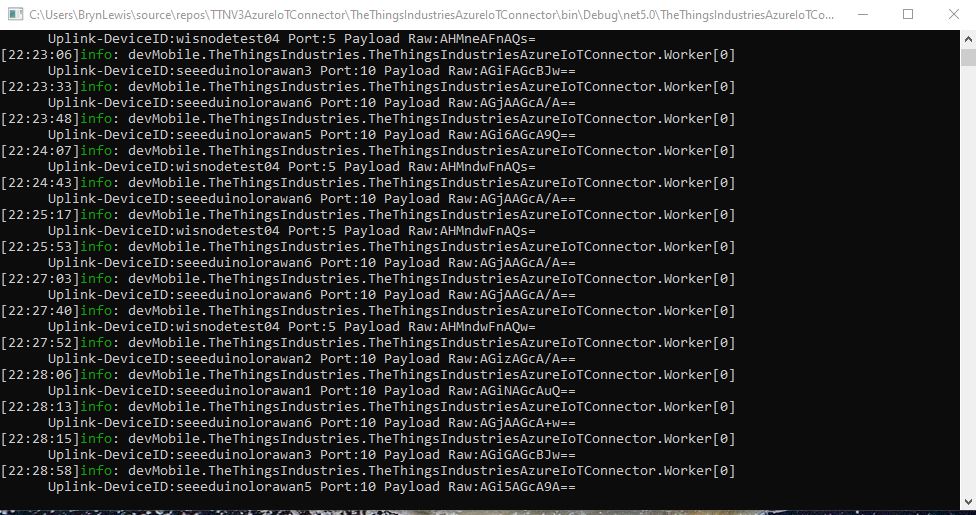
TTI V3 Gateway running as a console application on my desktop
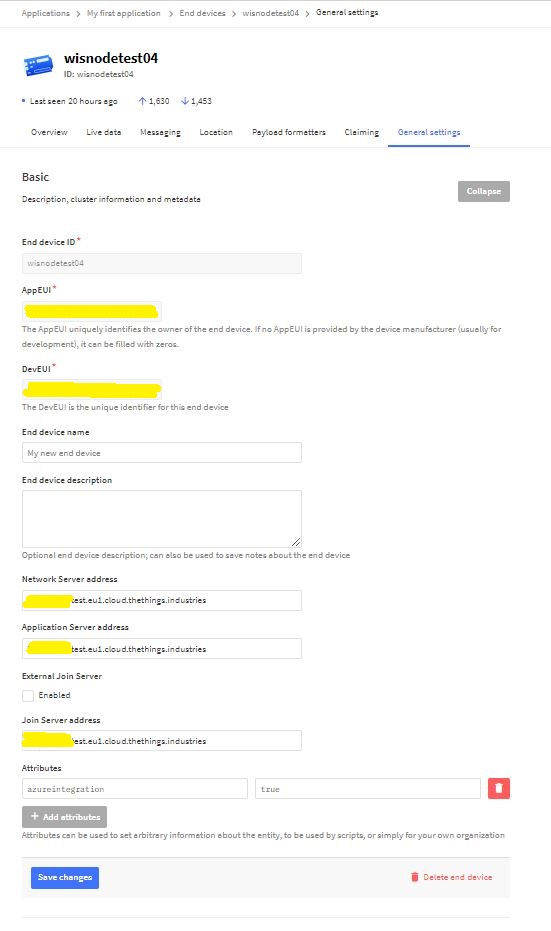
Azure IoT integration can be configured at the Device (TTN Device “azureintegration” attribute).
TTN Device AzureIntegration Attribute
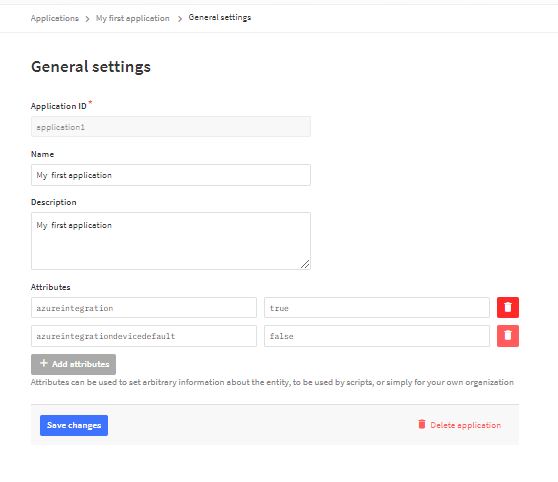
Then falls back to the Application default (TTN application “azureintegrationdevicedefault” attribute).
Then falls back to the “DeviceIntegrationDefault” setting for the Application then finally “DeviceIntegrationDefault” setting for the webjob the in the app.settings.json file
My Azure IoT Hub messages have properties for the LoRaWAN port (required), confirmed (which defaults to false), priority (which defaults to Normal) and queue(which defaults to Replace). The priority and queue enumerations are defined in TTNcommon.cs.
I used the enumeration for message priority in the JSON payload and MQTT downlink message topic.
Initially when I published a message it wasn’t sent and there was no error. It was a while before I noticed that the queue setting was being being converted to the text “Push” or “Replace” based on the enumeration value name (The priority value was in the JSON which is case insensitive). I did wonder if the tenantId and ApplicationId were also case sensitive so I ensured consistent capitalisation with ToLower();
My Azure IoT Central client application displays the generated message including the decoded payload field which is used by the built in Low Power Protocol(LPP) decoder/encoder and other custom encoders/decoders.
Azure IoT Central commands for TTN/TTI integration
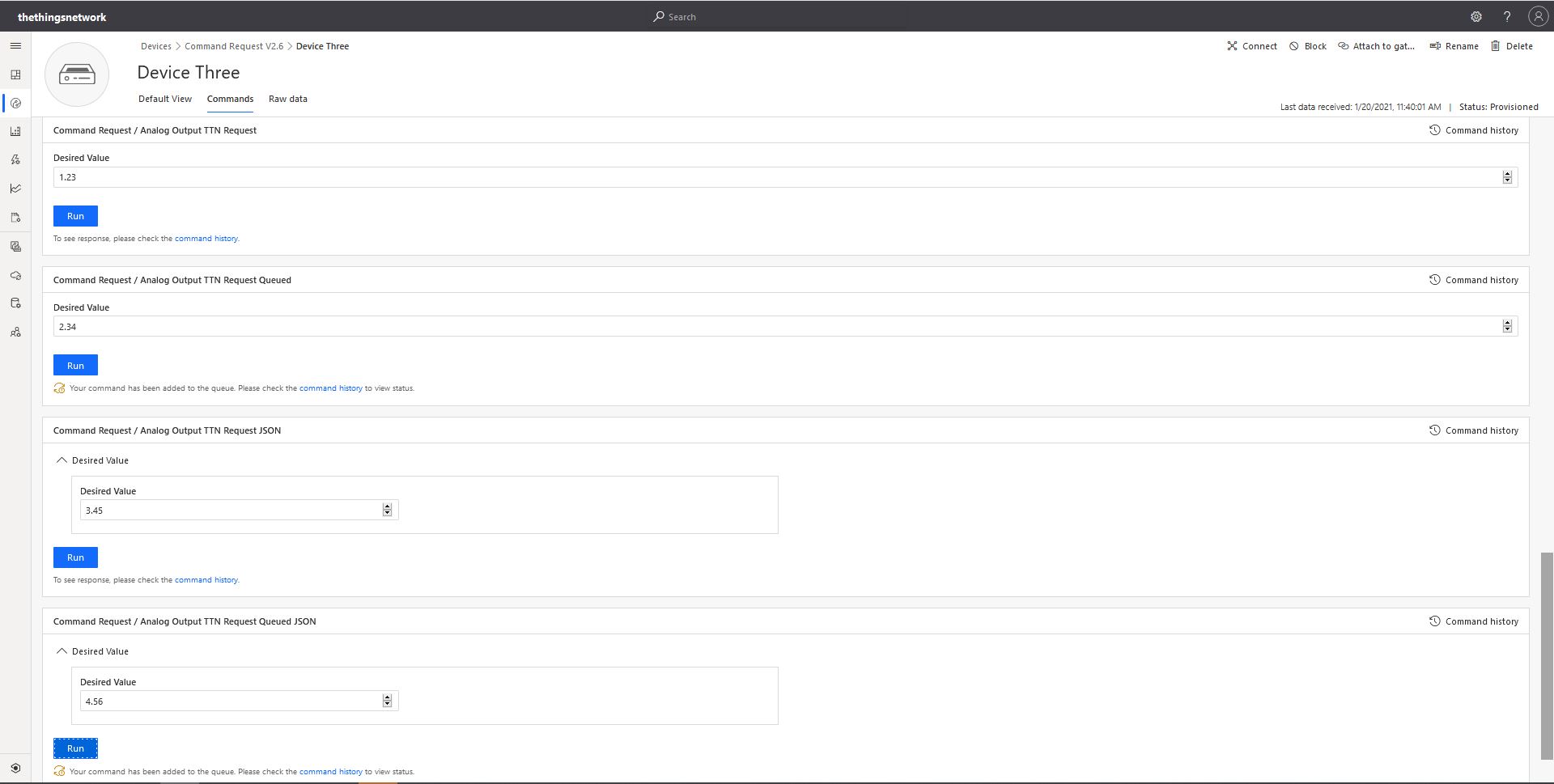
From the “Device Commands” form I can send commands and a queued commands which have float parameters or object parameters which contain one or more float values in a JSON payload.
For commands which call the methodHander which was been registered by calling SetMethodDefaultHandlerAsync the request payload can be JSON or plain text. If the payload is valid JSON it is “grafted”(couldn’t think of a better word) into the decoded_payload field. If the payload is not valid a JSON object with the method name as the “name” and the text payload as the value is added the decoded_payload.
private static async Task<MethodResponse> MethodCallbackDefaultHandler(MethodRequest methodRequest, object userContext)
{
   AzureIoTMethodHandlerContext receiveMessageHandlerConext = (AzureIoTMethodHandlerContext)userContext;

   Console.WriteLine($"Default handler method {methodRequest.Name} was called.");

   Console.WriteLine($"Payload:{methodRequest.DataAsJson}");
   Console.WriteLine();

   if (string.IsNullOrWhiteSpace(methodRequest.Name))
   {
      Console.WriteLine($"   Method Request Name null or white space");
      return new MethodResponse(400);
   }

   string payloadText = Encoding.UTF8.GetString(methodRequest.Data);
   if (string.IsNullOrWhiteSpace(payloadText))
   {
       Console.WriteLine($"   Payload null or white space");
       return new MethodResponse(400);
   }

   // At this point would check to see if Azure DeviceClient is in cache, this is so nasty
   if ( String.Compare( methodRequest.Name, "Analog_Output_1", true) ==0 )
   {
      Console.WriteLine($"   Device not found");
      return new MethodResponse(UTF8Encoding.UTF8.GetBytes("Device not found"), 404);
   }

   JObject payload;

   if (IsValidJSON(payloadText))
   {
      payload = JObject.Parse(payloadText);
   }
   else
   {
      payload = new JObject
      {
         { methodRequest.Name, payloadText }
      };
   }

   string downlinktopic = $"v3/{receiveMessageHandlerConext.ApplicationId}@{receiveMessageHandlerConext.TenantId}/devices/{receiveMessageHandlerConext.DeviceId}/down/push";

   DownlinkPayload downlinkPayload = new DownlinkPayload()
   {
      Downlinks = new List<Downlink>()
      {
         new Downlink()
         {
            Confirmed = false,
            //PayloadRaw = messageBody,
            PayloadDecoded = payload,
            Priority = DownlinkPriority.Normal,
            Port = 10,
            /*
            CorrelationIds = new List<string>()
            {
               methodRequest.LockToken
            }
            */
         }
      }
   };

   Console.WriteLine($"TTN Topic :{downlinktopic}");
   Console.WriteLine($"TTN downlink JSON :{JsonConvert.SerializeObject(downlinkPayload, Formatting.Indented)}");

   return new MethodResponse(200);
}
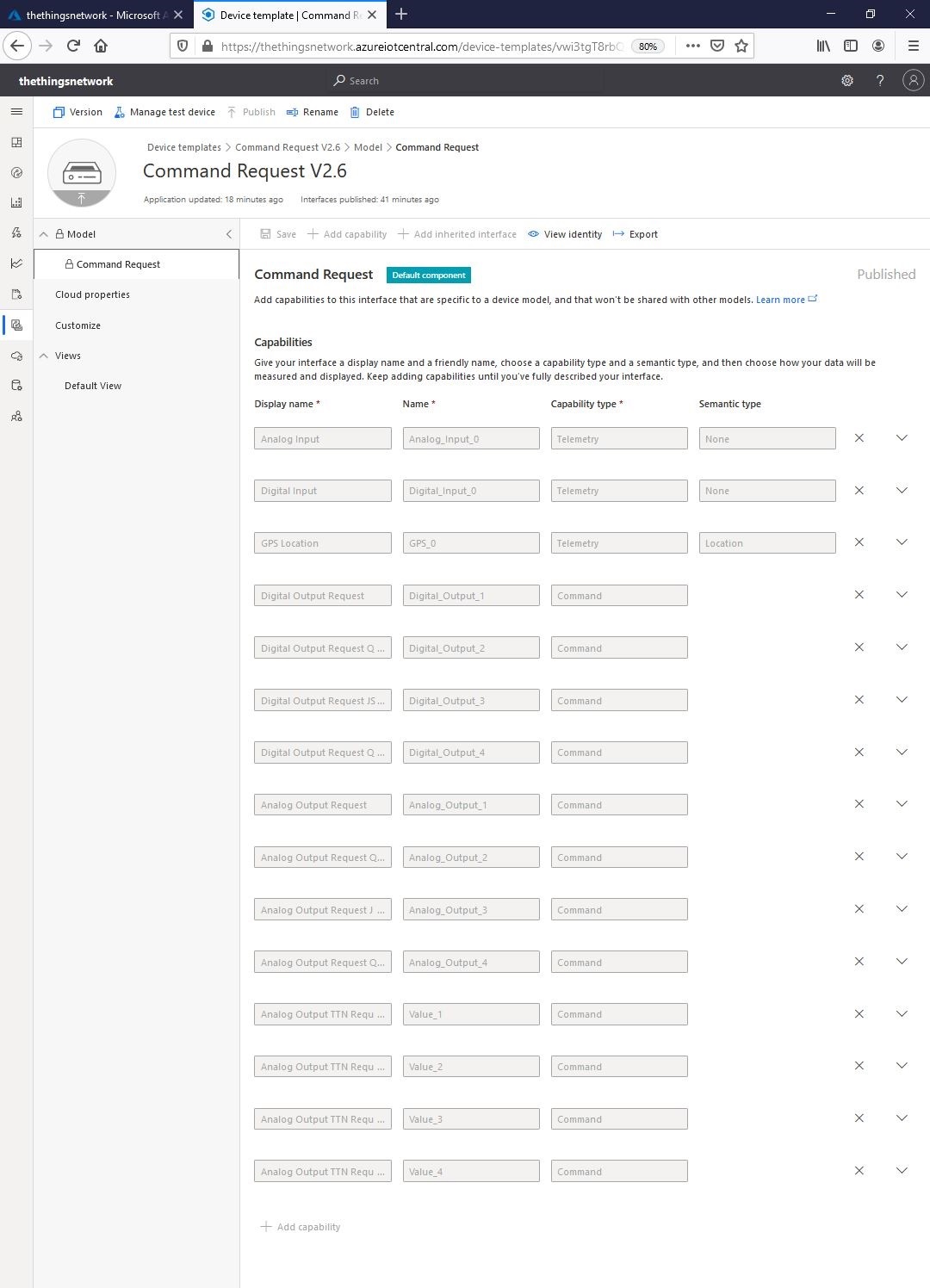
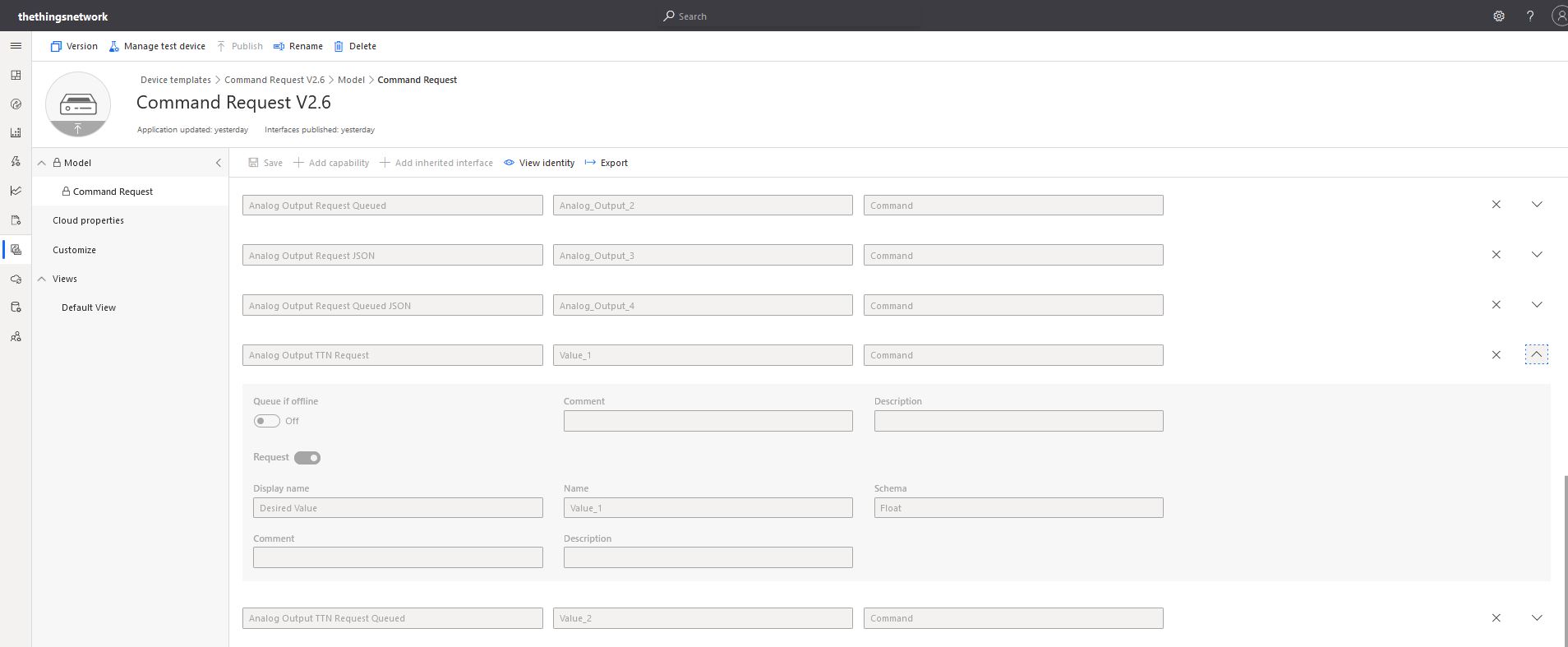
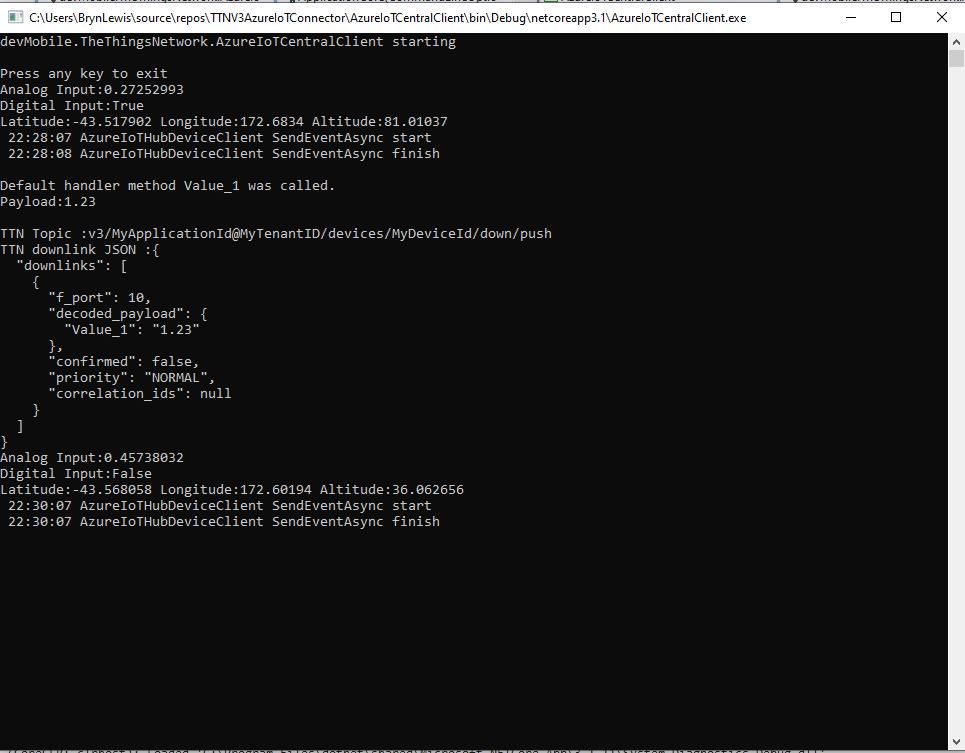
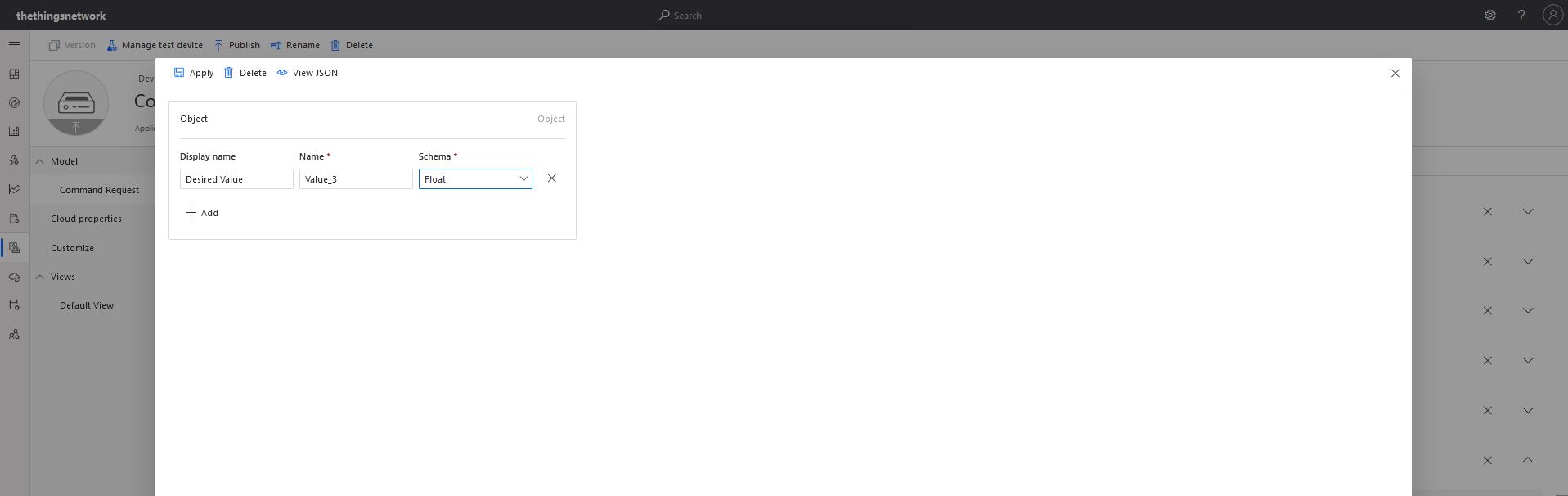
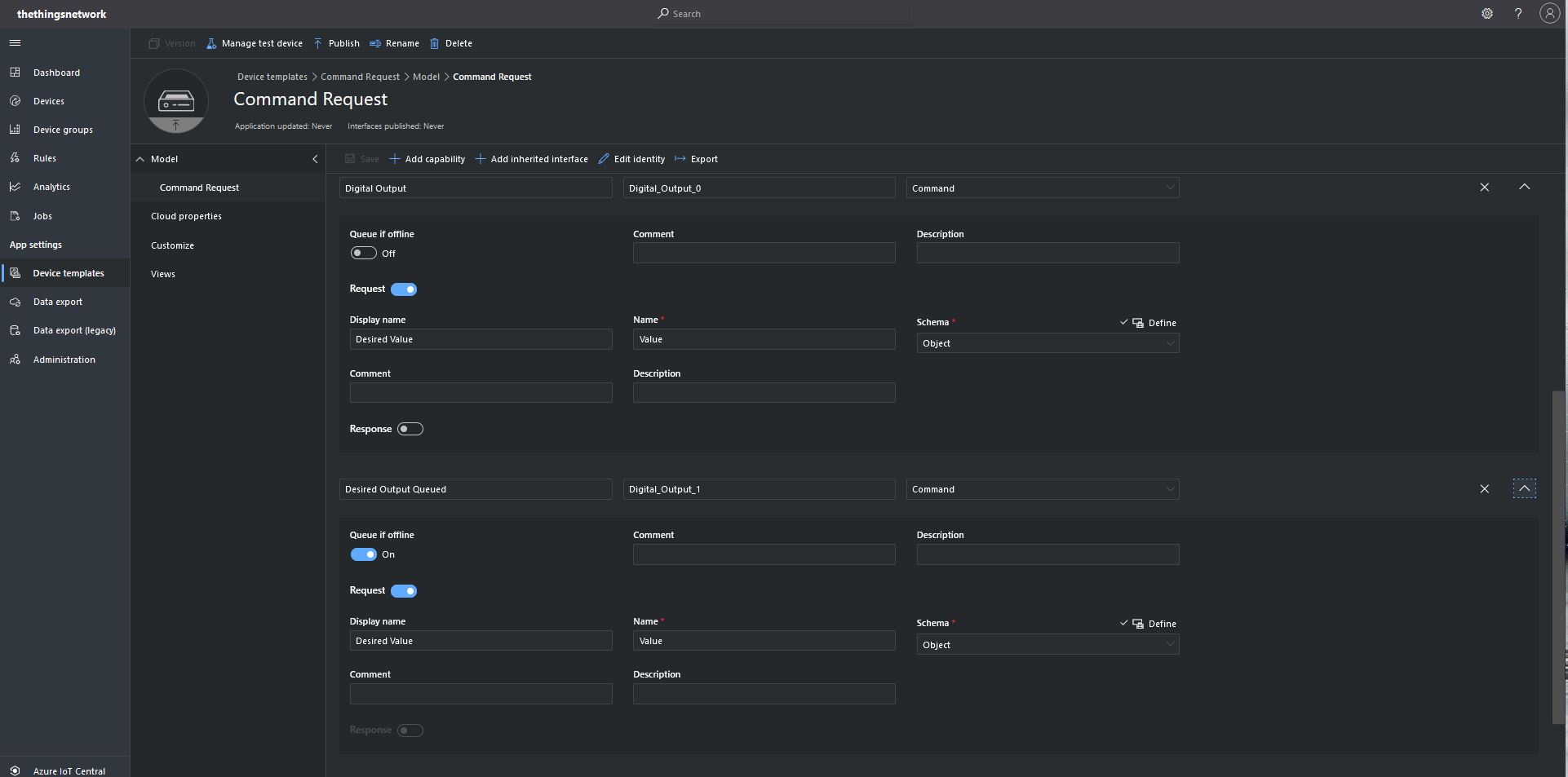
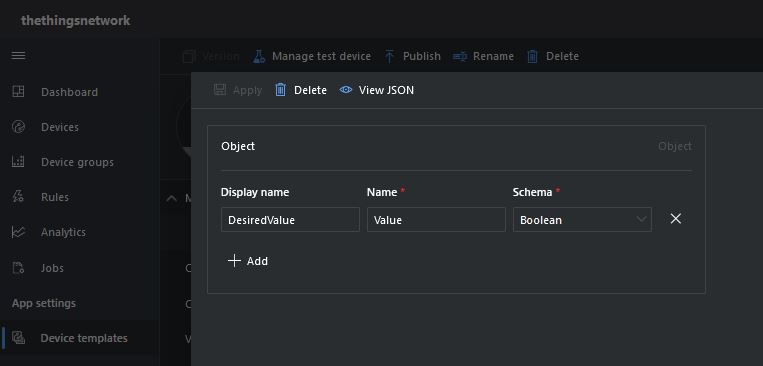
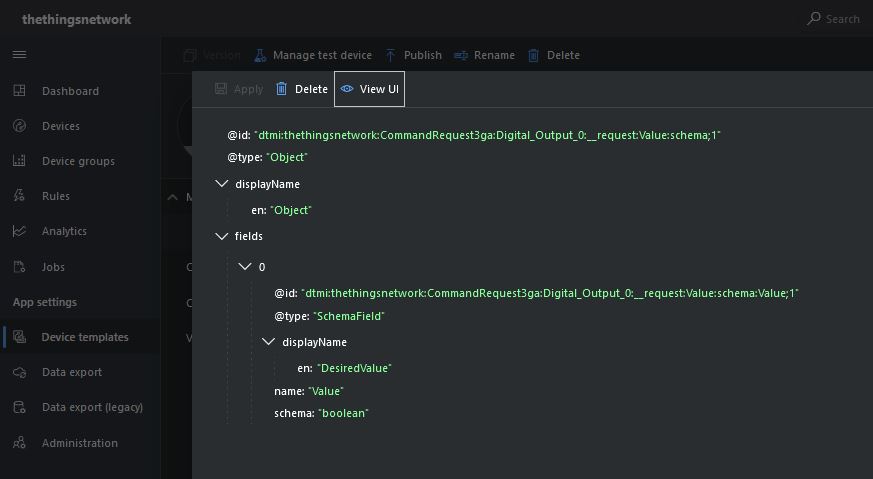
Configuration of unqueued Commands with a typed payloadThe output of my test harness for a Command for a typed payloadConfiguring fields of object payload(JSON)
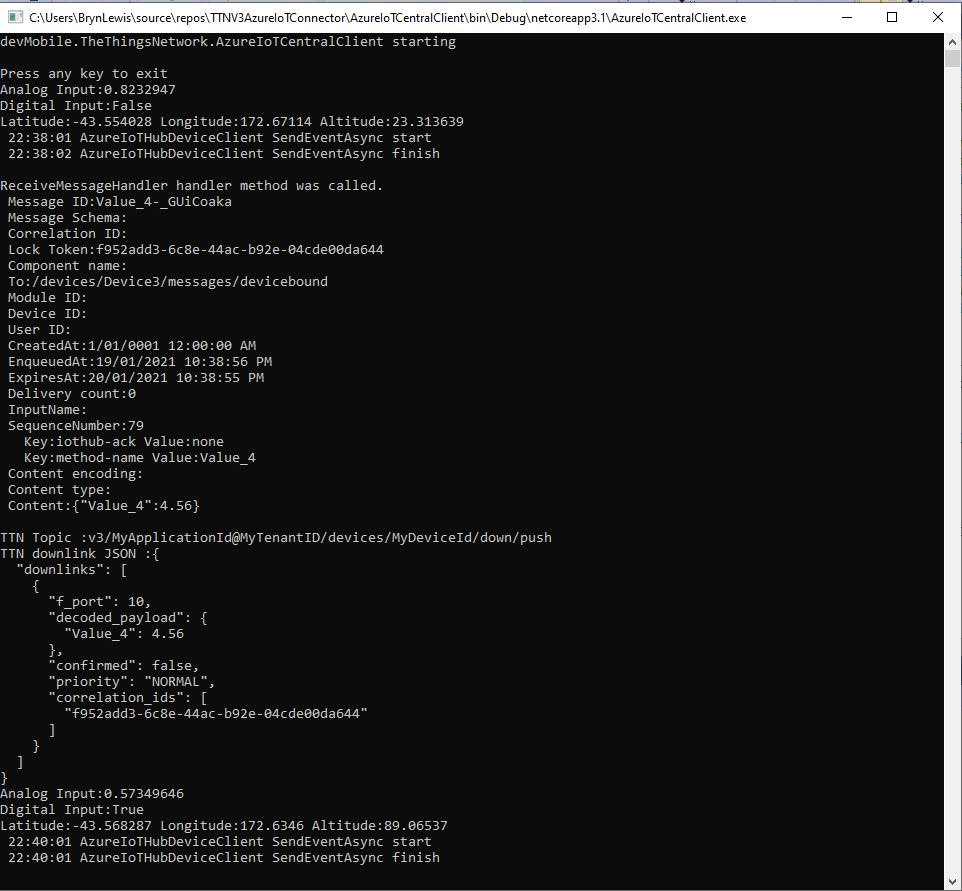
A JSON request payload also supports downlink messages with more that one value.
The output of my test harness for a Command with an object payload(JSON)
For queued commands which call the ReceiveMessageHandler which has was registered by calling SetReceiveMessageHandler the request payload is JSON or plain text.
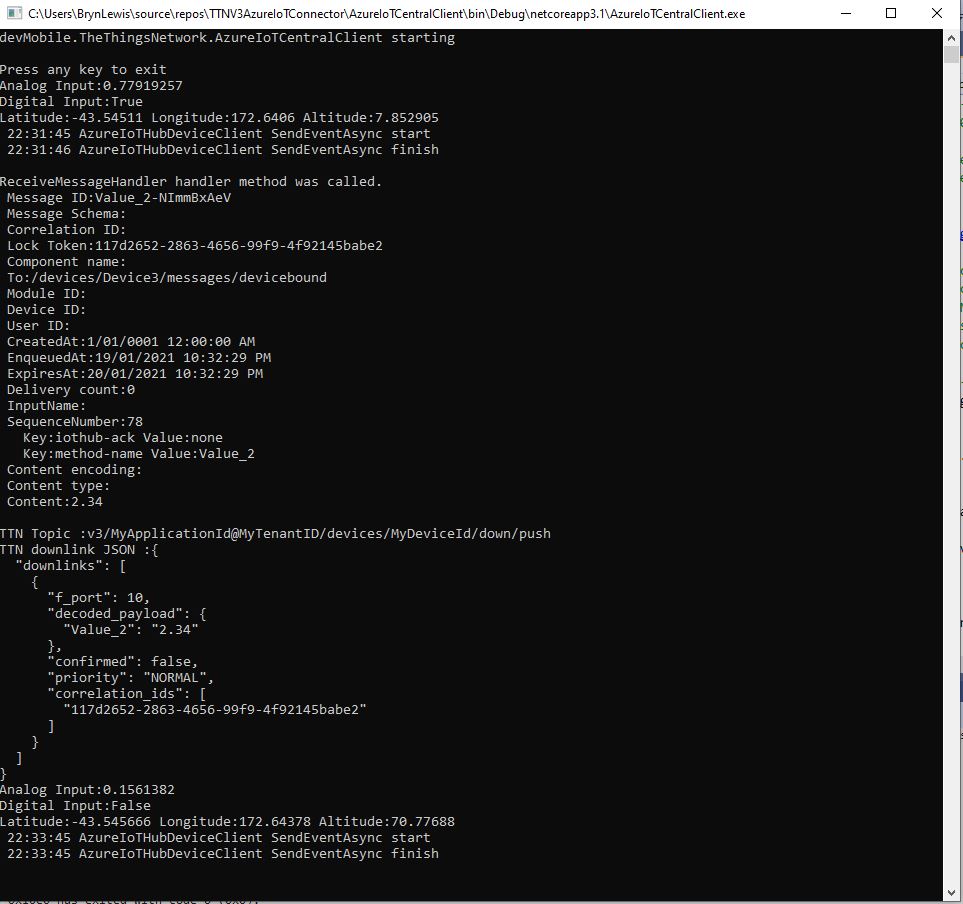
When I initiated an Analog queued command the message handler was invoked with the name of the command capability (Analog_Output_2) in a message property called “method-name”. For a typed parameter the message content was a string representation of the value. For an object parameter the payload contains a JSON representation of the request field(s)
The output of my test harness for a Queued Command with a typed payload
A JSON request payload supports downlink message with more that one value.
The output of my test harness for a Queued Command with an object payload(JSON)
The context information for both comments and queued commands provides additional information required to construct the MQTT topic for publishing the downlink messages.
If the device is not known the Abandon method will be called immediately. For command messages Completed will be called as soon as the message is “sent”
With object based parameters the request JSON could contain more than one value though the validation of user provided information didn’t appear to be as robust.
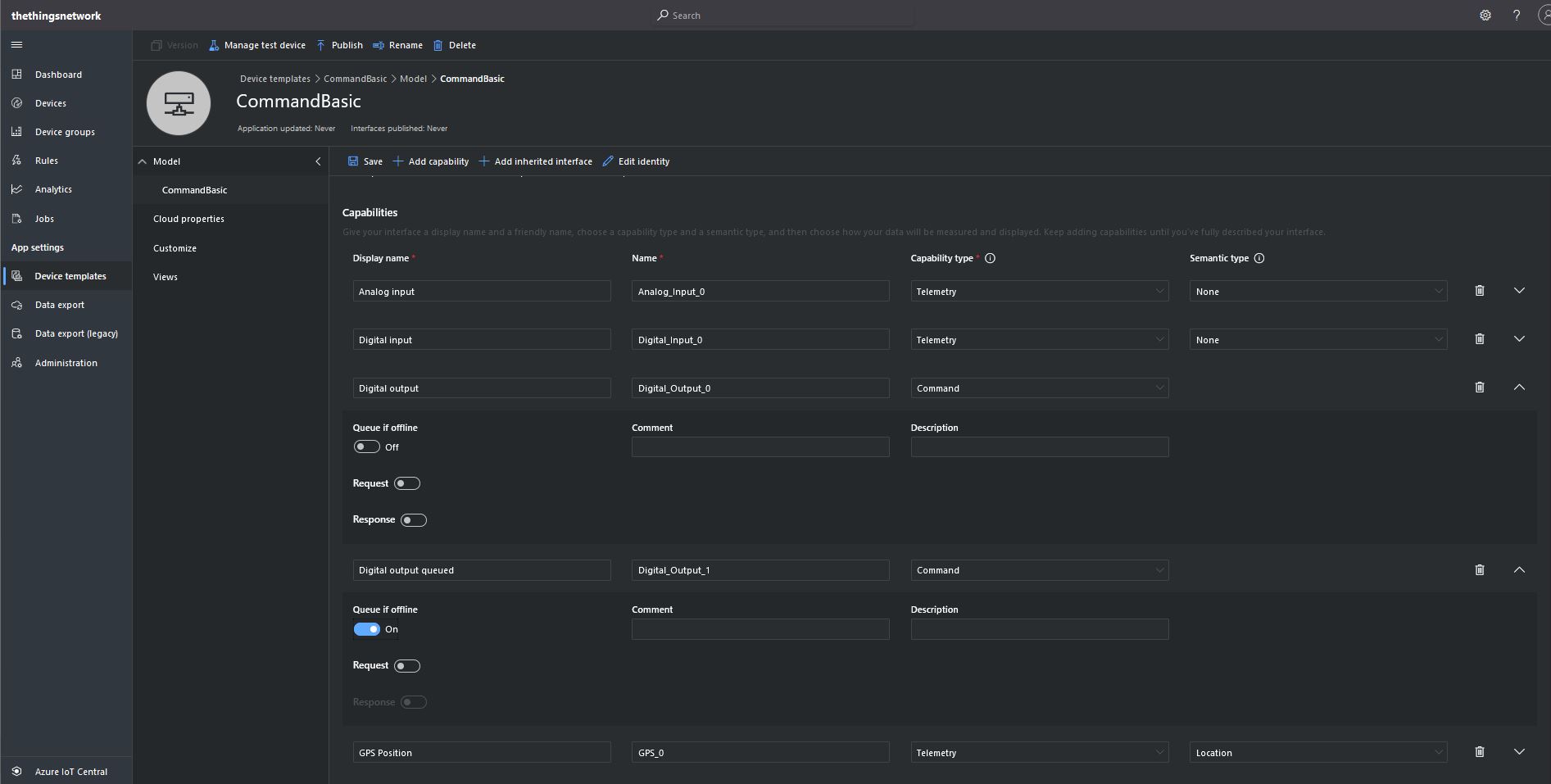
Object parameter schema definition
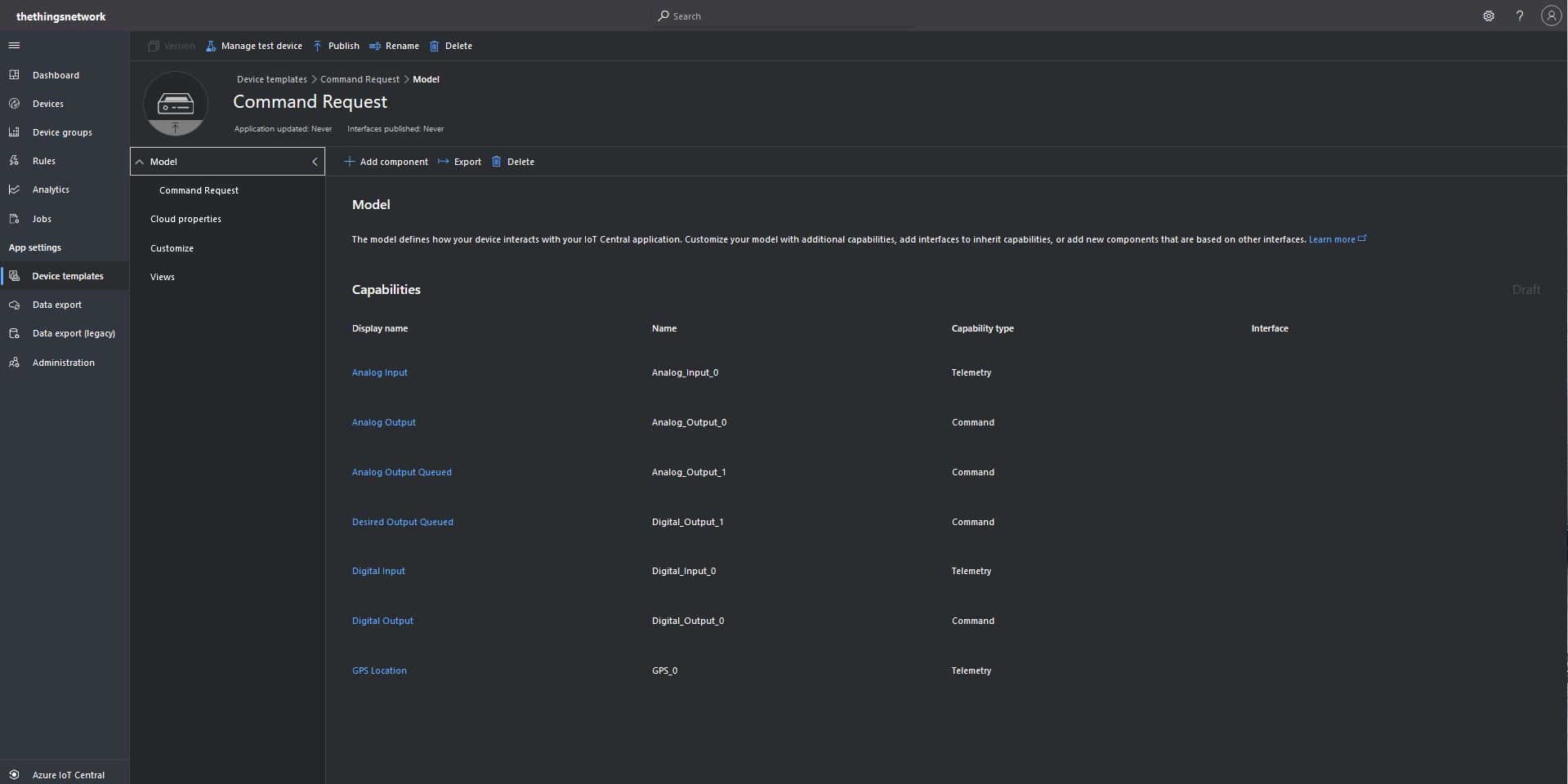
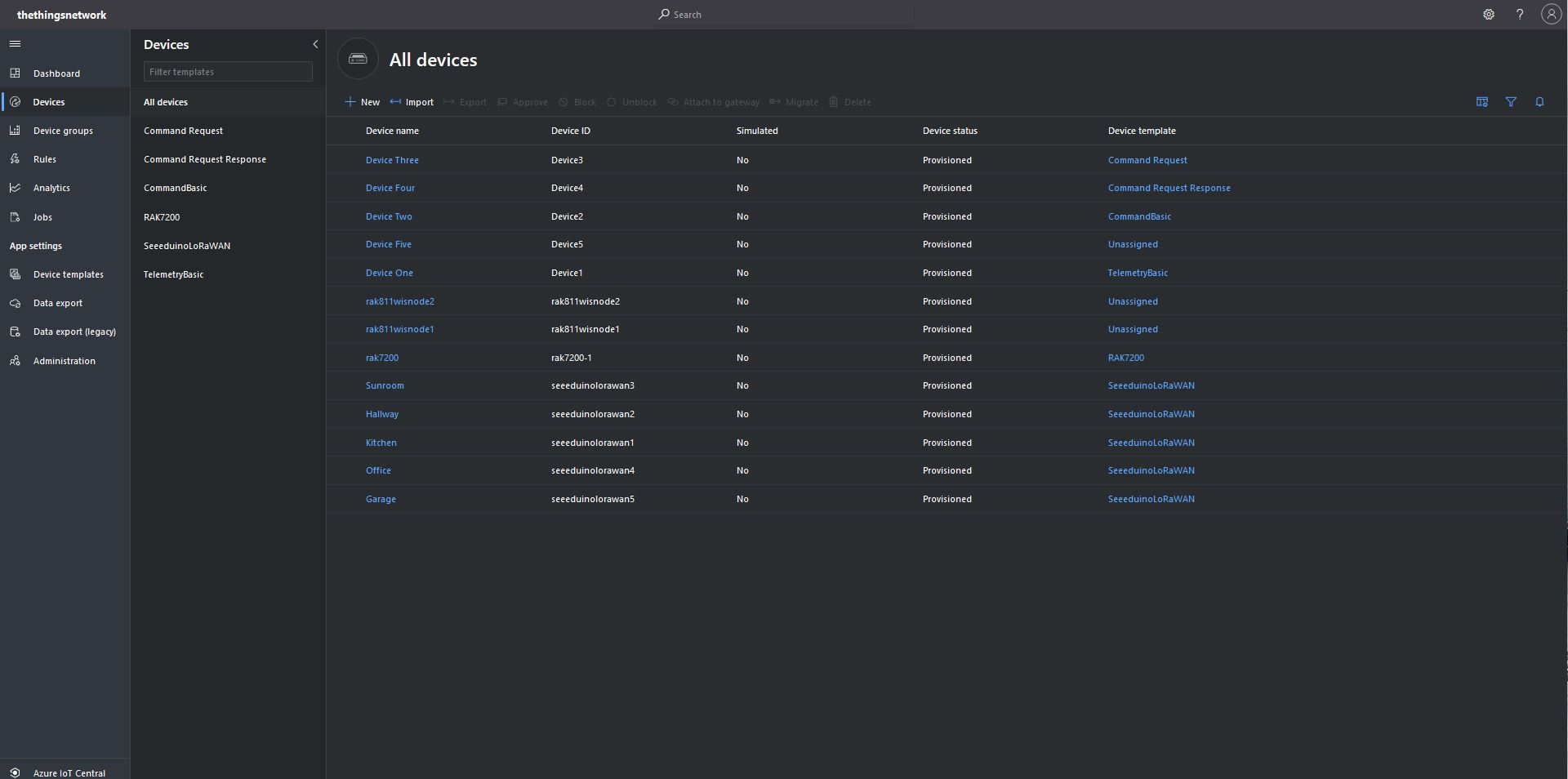
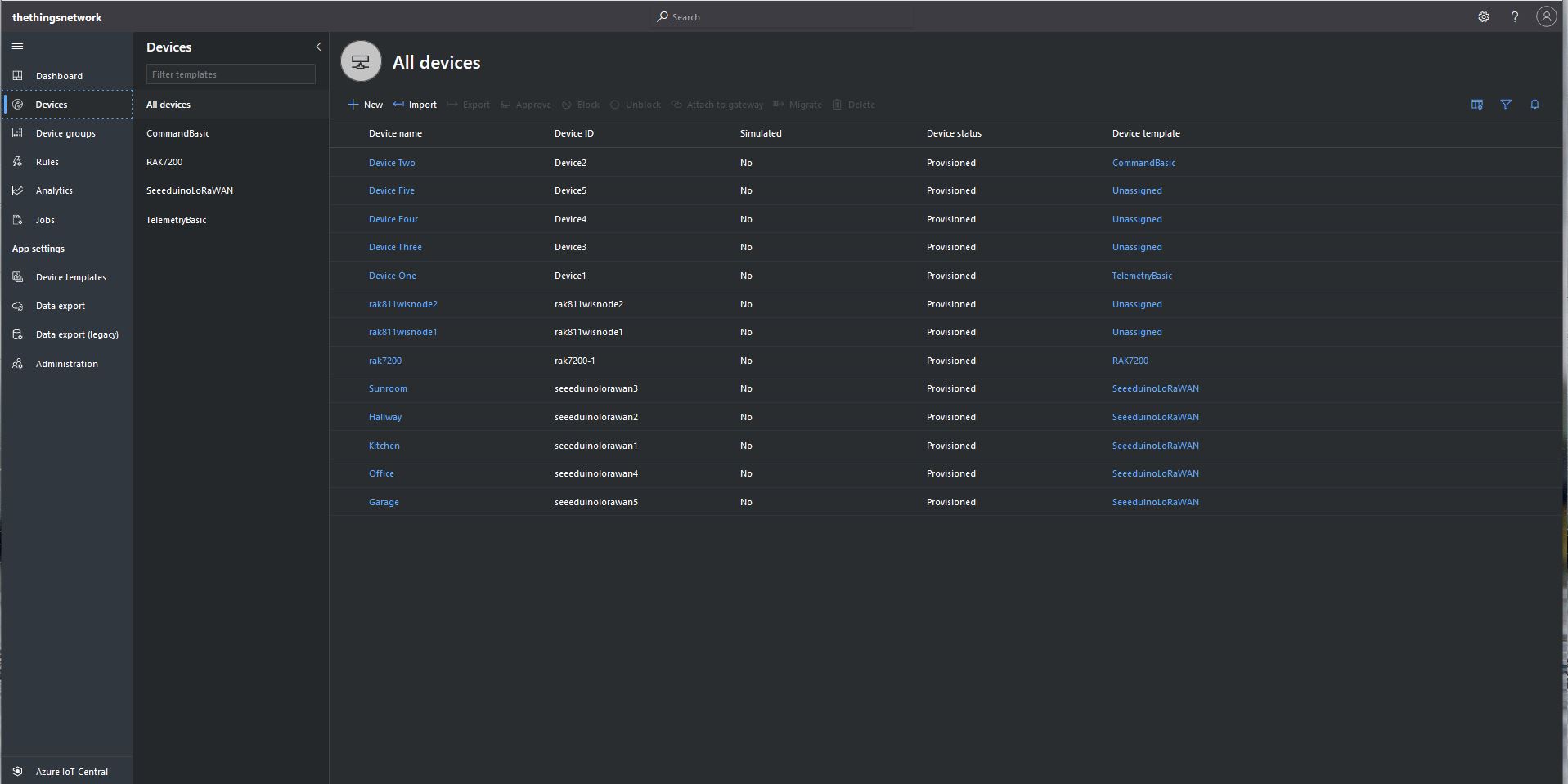
I “migrated” my third preconfigured device to the CommandRequest template to see how the commands with Request parameters interacted with my PoC application.
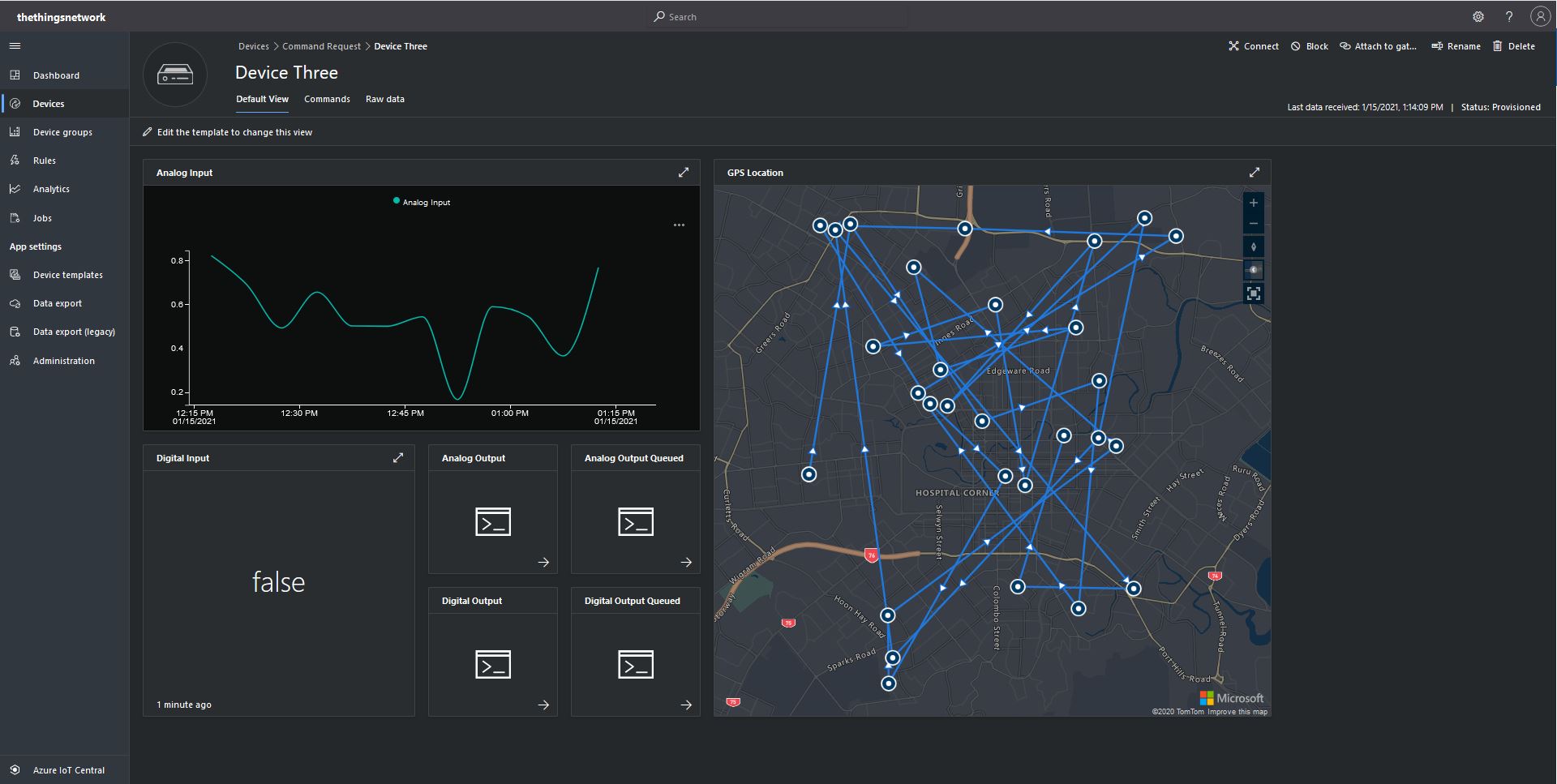
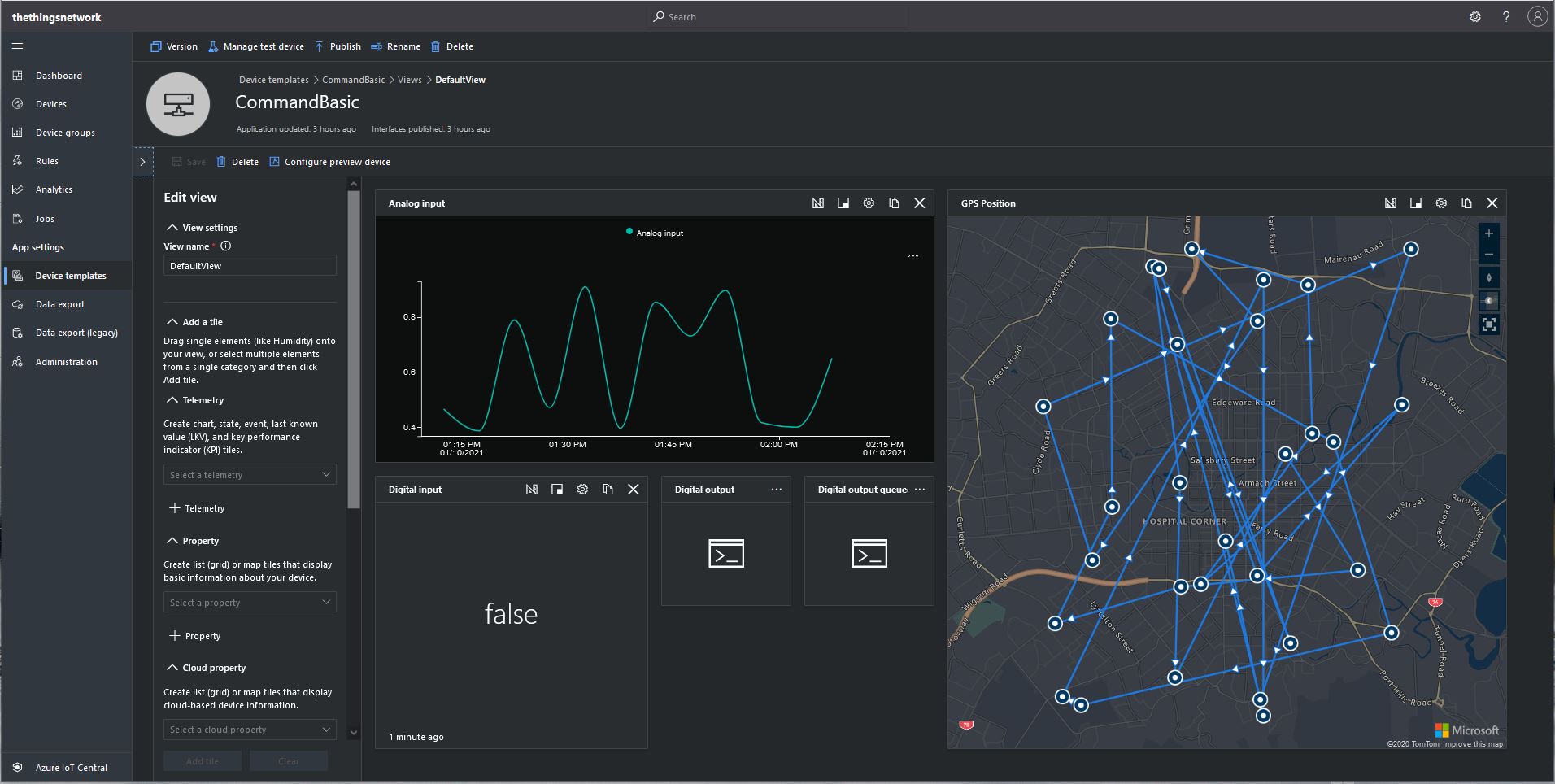
After “migrating” my device I went back and created a Template view so I could visualise the simulated telemetry from my PoC application and provide a way to initiate commands (Didn’t really need four command tiles as they all open the Device commands form).
CommandRequest device template default view
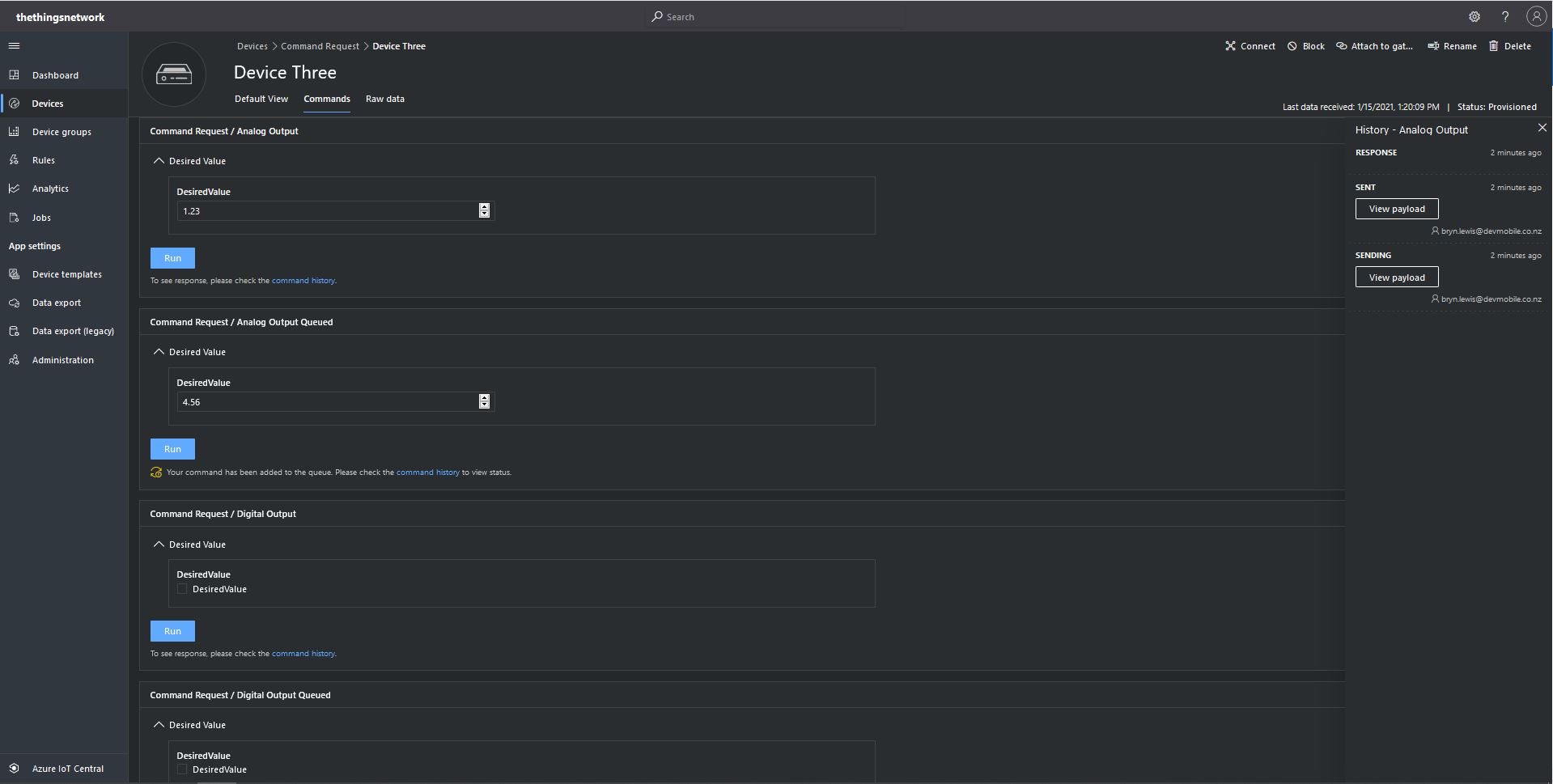
From the Device Commands form I could send commands and a queued commands which had analog or digital parameters.
Device Three Command Tab
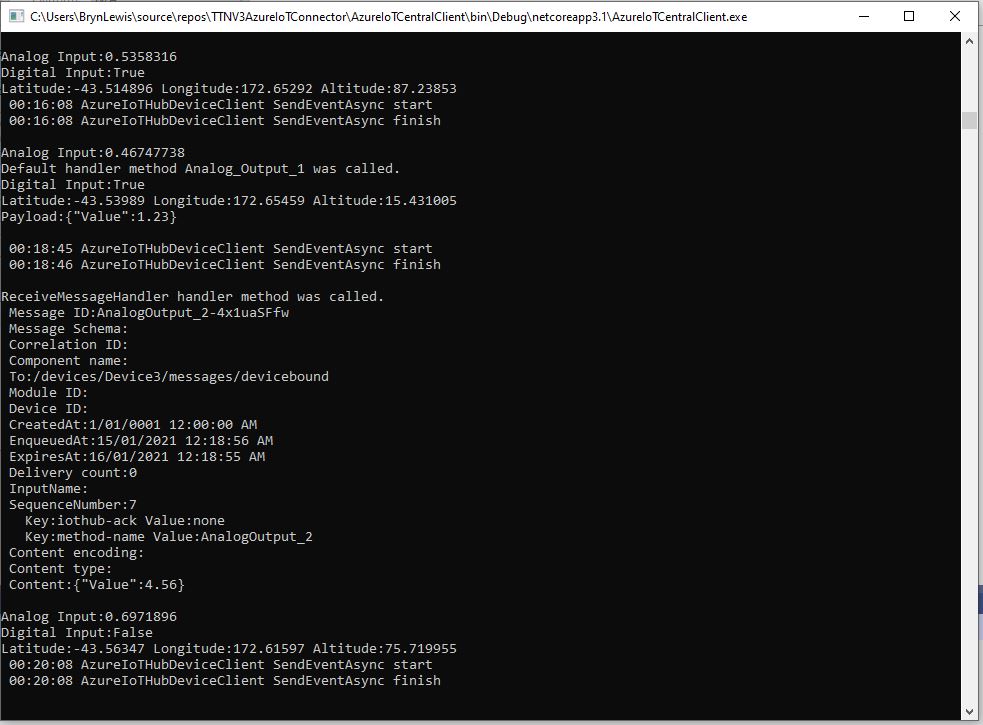
When I initiated an Analog non-queued command the default method handler was invoked with the name of the command capability (Analog_Output_1) as the method name and the payload contained a JSON representation of the request values(s). With a typed parameter a string representation of the value was in the message payload. With a typed parameter a string representation of the value was in the message payload rather than JSON.
Console application displaying Analog request and Analog Request queued commands
When I initiated an Analog queued command the message handler was invoked with the name of the command capability (Analog_Output_2) in a message property called “method-name” and the payload contained a JSON representation of the request value(s). With a typed parameter a string representation of the value was in the message payload rather than JSON.
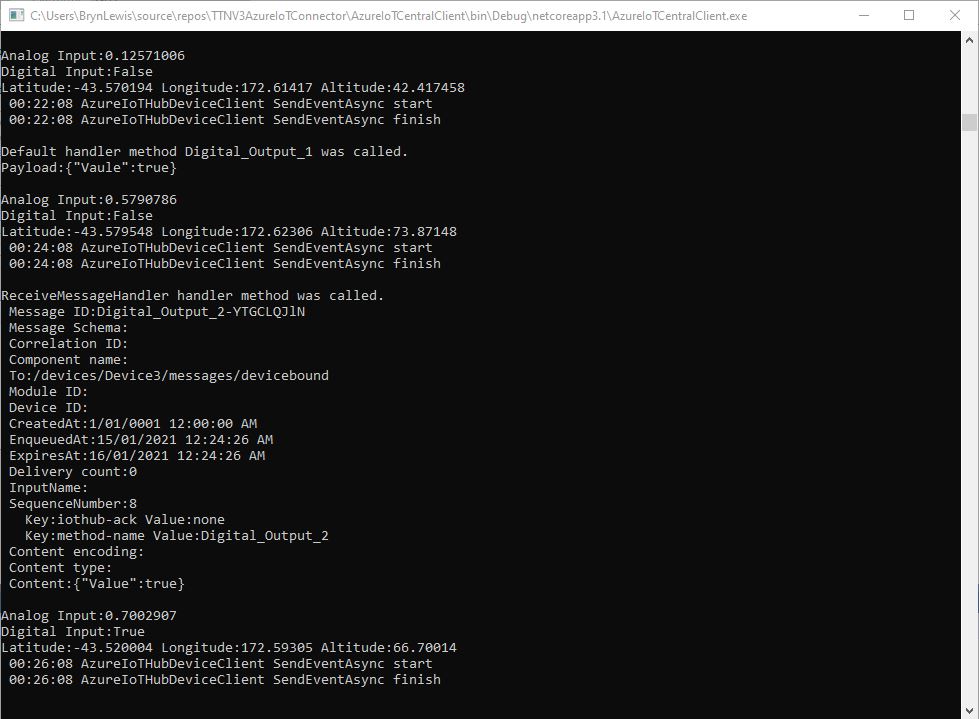
When I initiated a Digital non-queued command the default method handler was invoked with the name of the command capability (Digital_Output_1) as the method name and the payload contained a JSON representation of the request values(s). With a typed parameter a string representation of the value was in the message payload rather than JSON.
Console application displaying Digital request and Digital Request queued commands
When I initiated a Digital queued command the message handler was invoked with the name of the command capability(Digital_Output_2) in a message property called “method-name” and the payload contained a JSON representation of the request value(s). With a typed parameter a string representation of the value was in the message payload rather than JSON.
The validation of user input wasn’t as robust as I expected, with problems selecting checkboxes with a mouse when there were several Boolean fields. I often had to click on a nearby input field and use the TAB button to navigate to the desired checkbox. I also had problems with ISO 8601 format date validation as the built in Date Picker returned a month, day, year date which was not editable and wouldn’t pass validation.
The next logical step would be to look at commands with a Response parameter but as the MQTT interface is The Things Network(TTN) and The Things Industries(TTI) is asynchronous and devices reporting every 5 minutes to a couple of times a day there could be a significant delay between sending a message and receiving an optional delivery confirmation or response.
I have been struggling with making The Things Network(TTN) and The Things Industries(TTI) uplink/downlink messages work well Azure IoT Central. To explore different messaging approaches I have built a proof of Concept(PoC) application which simulates TTN/TTI connectivity to an Azure IoT Hub, or Azure IoT Central.
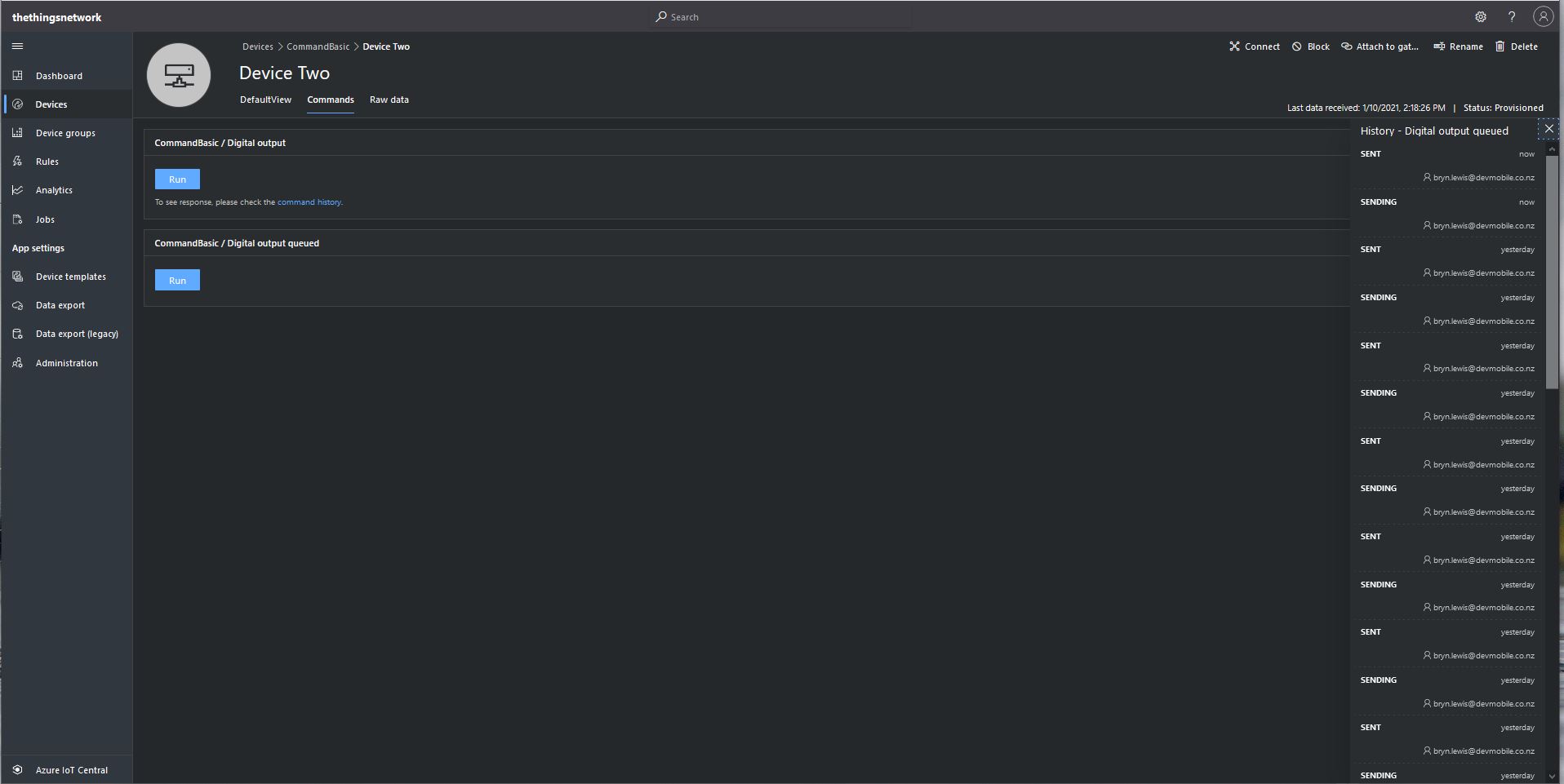
This blog post is about queued and non queued Cloud to Device(C2D) commands without request or response parameters. I have mostly used non queued commands in other projects (my Azure IoT HubLoRa and RF24L01 gateways) to “Restart” devices etc..
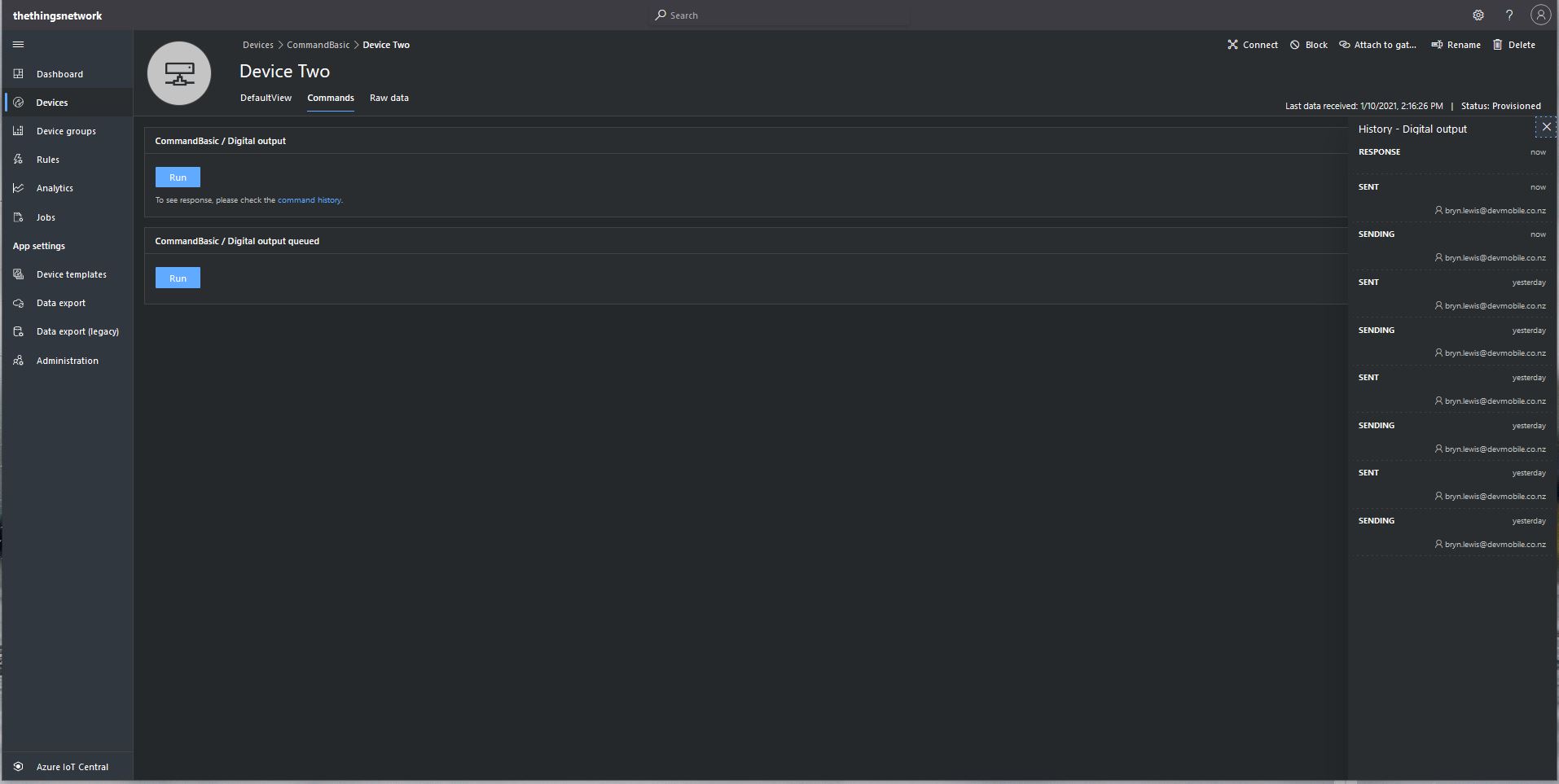
From the Device Commands tab I can could non queued and a queued commands
Device Two Commands tab
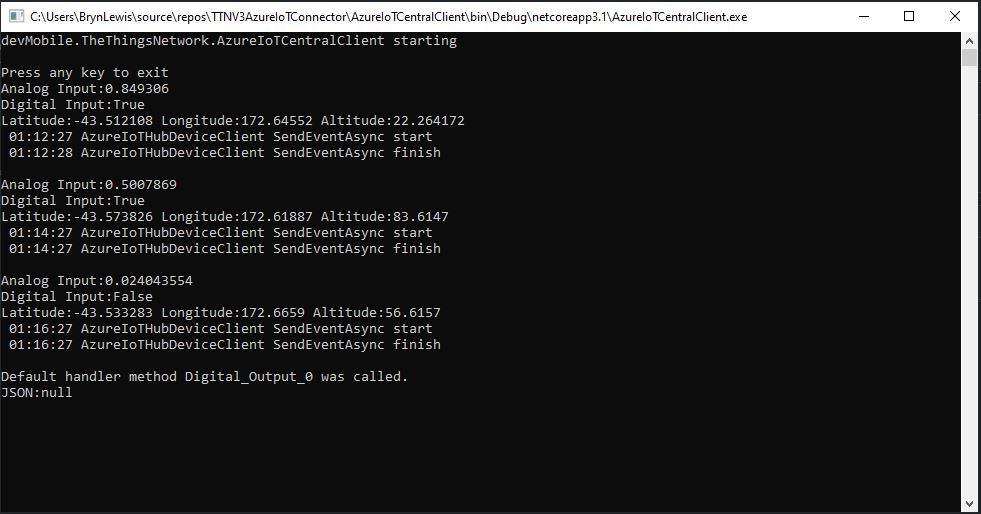
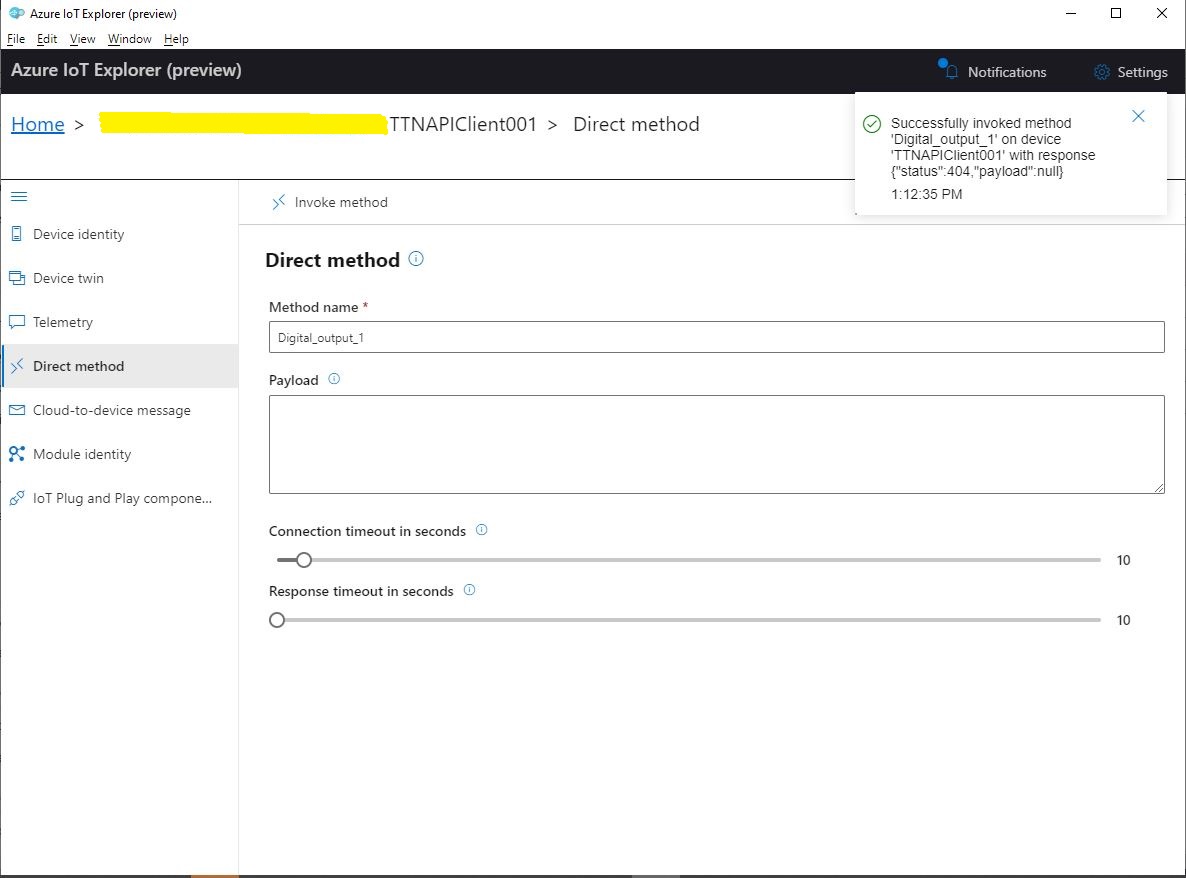
When I sent a non-queued command the default method handler was invoked with the name of the command capability (Digital_Output_0) as the method name and an empty payload. In the Azure IoT Central interface I couldn’t see any difference for successful (HTTP 200 OK) or failure (HTTP 400 Bad Request or HTTP 404 Not Found) responses. If the application was not running the command failed immediately.
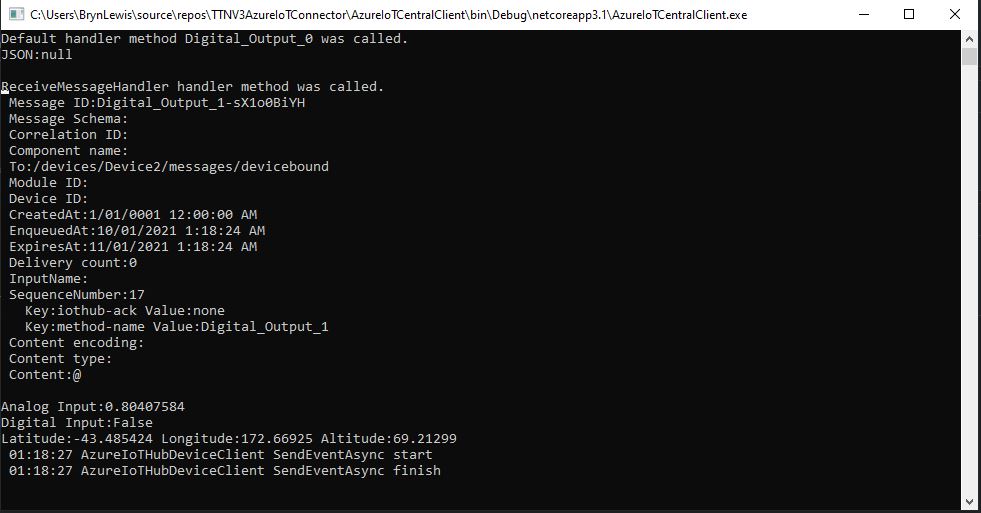
When I sent a queued command the message handler was invoked with the name of the command capability(Digital_Output_1) in a message property called “method-name” and the payload contained only an “@” character.
Console application displaying queued call
If the application was not running the command was queued until the Console application was started. When the console application was running and AbandonAsync was called rather than CompleteAsync the message was retried 10 times. If RejectAsync was called rather than CompleteAsync the message was deleted from the queue and not retried. There didn’t appear to be any difference for the displayed Azure IoT Central or Azure IoT Hub explorer results when AbandonAsync or RejectAsync were called.
I also created a personal dashboard to visualise the telemetry data and initiate commands. The way the two commands were presented on the dashboard was quite limited so I will go back to the documentation and see what I missed
I have been struggling with making The Things Network(TTN) and The Things Industries(TTI) uplink/downlink messages Azure IoT Central compatible. To explore the messaging approaches used I have built a proof of Concept(PoC) application which simulates TTN/TTI connectivity to an Azure IoT Hub, or Azure IoT Central.
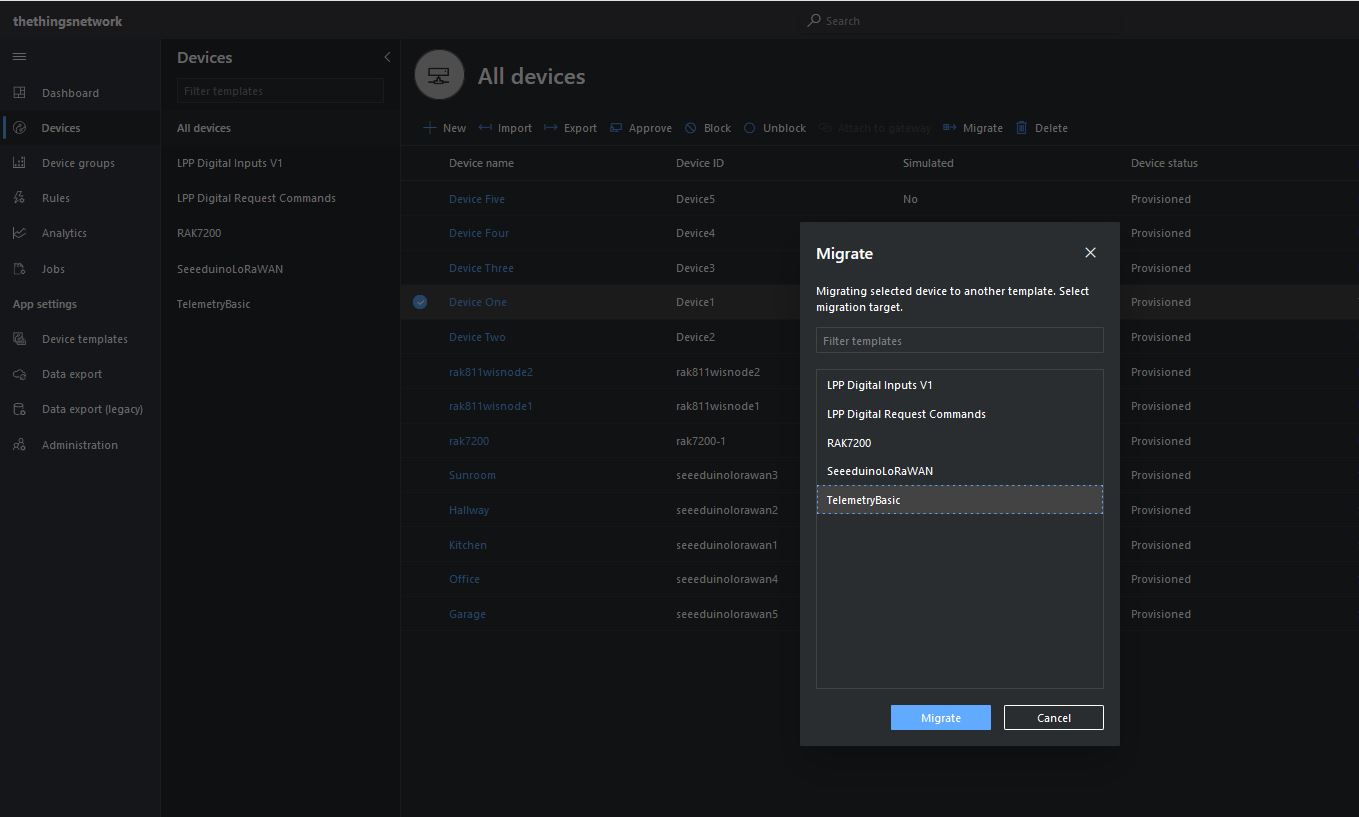
I then “migrated” the first device to my BasicTelemetry template
Migrating a device to TelemetryBasic template
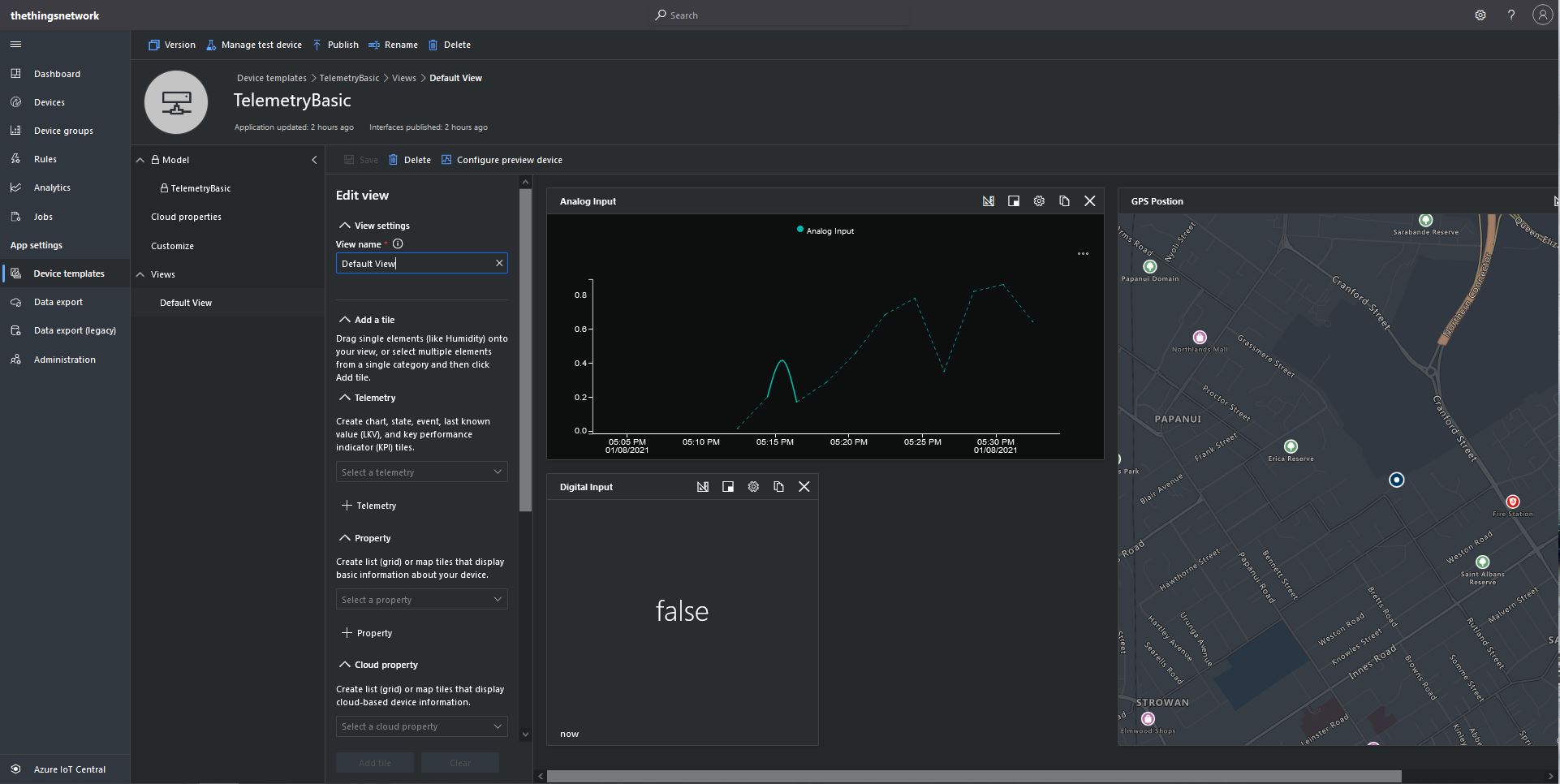
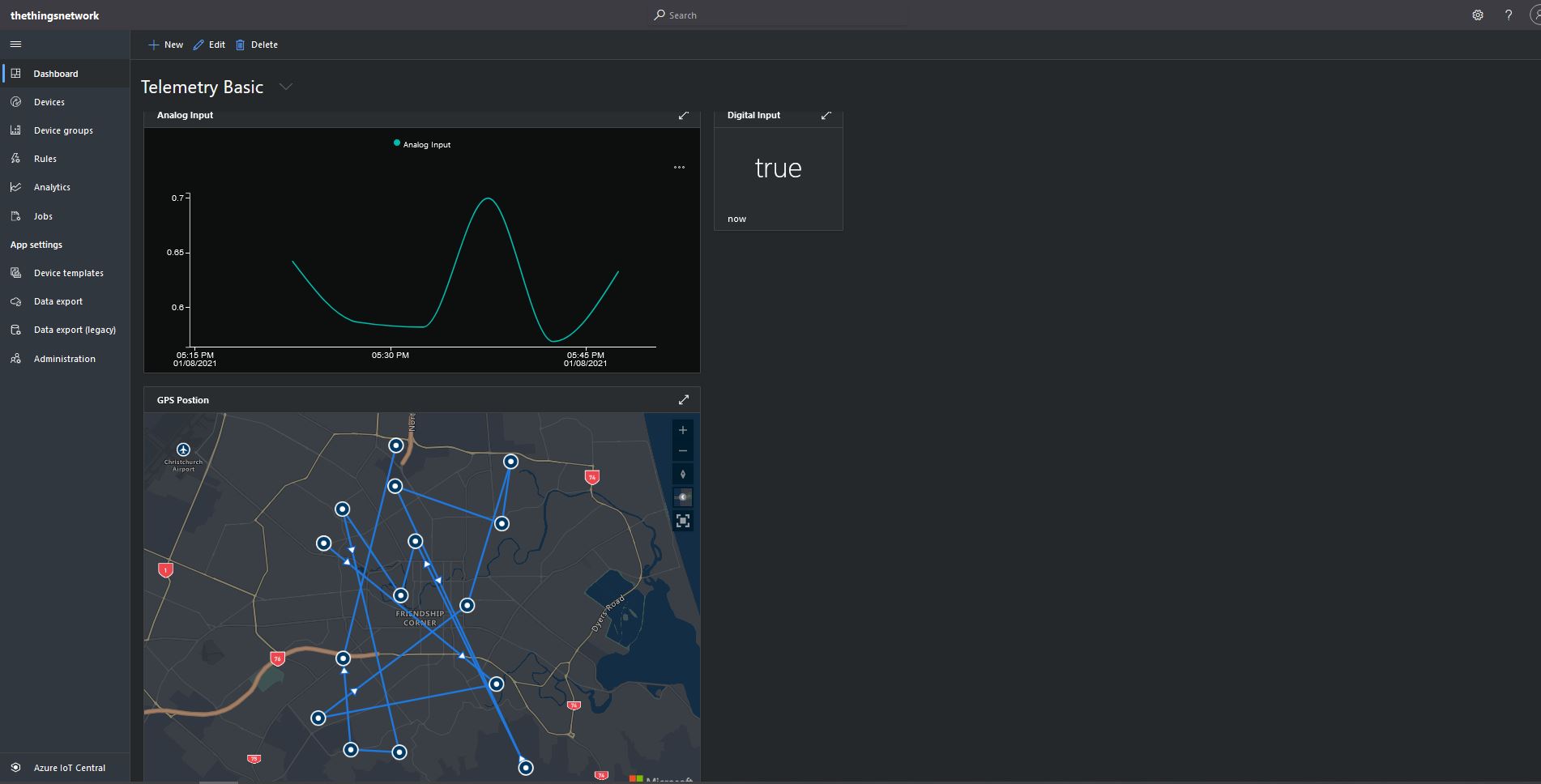
I then went back and created a Template view to visualise the telemetry from my console application.
TelemetryBasic device template default view
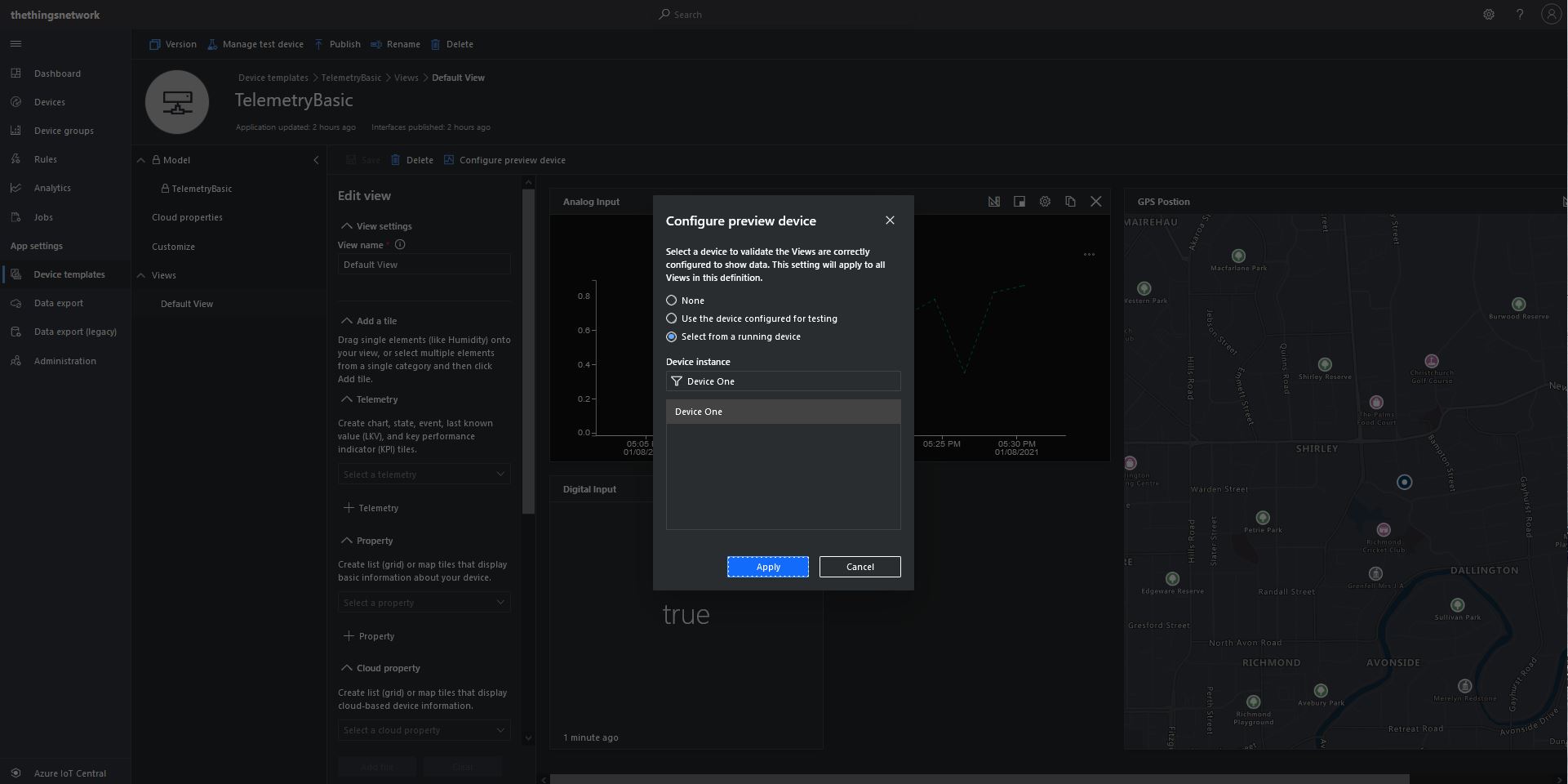
Then I configured a preview device so the template view was populated with “realistic” data.
TelemetryBasic device template default view configuring a device as data source
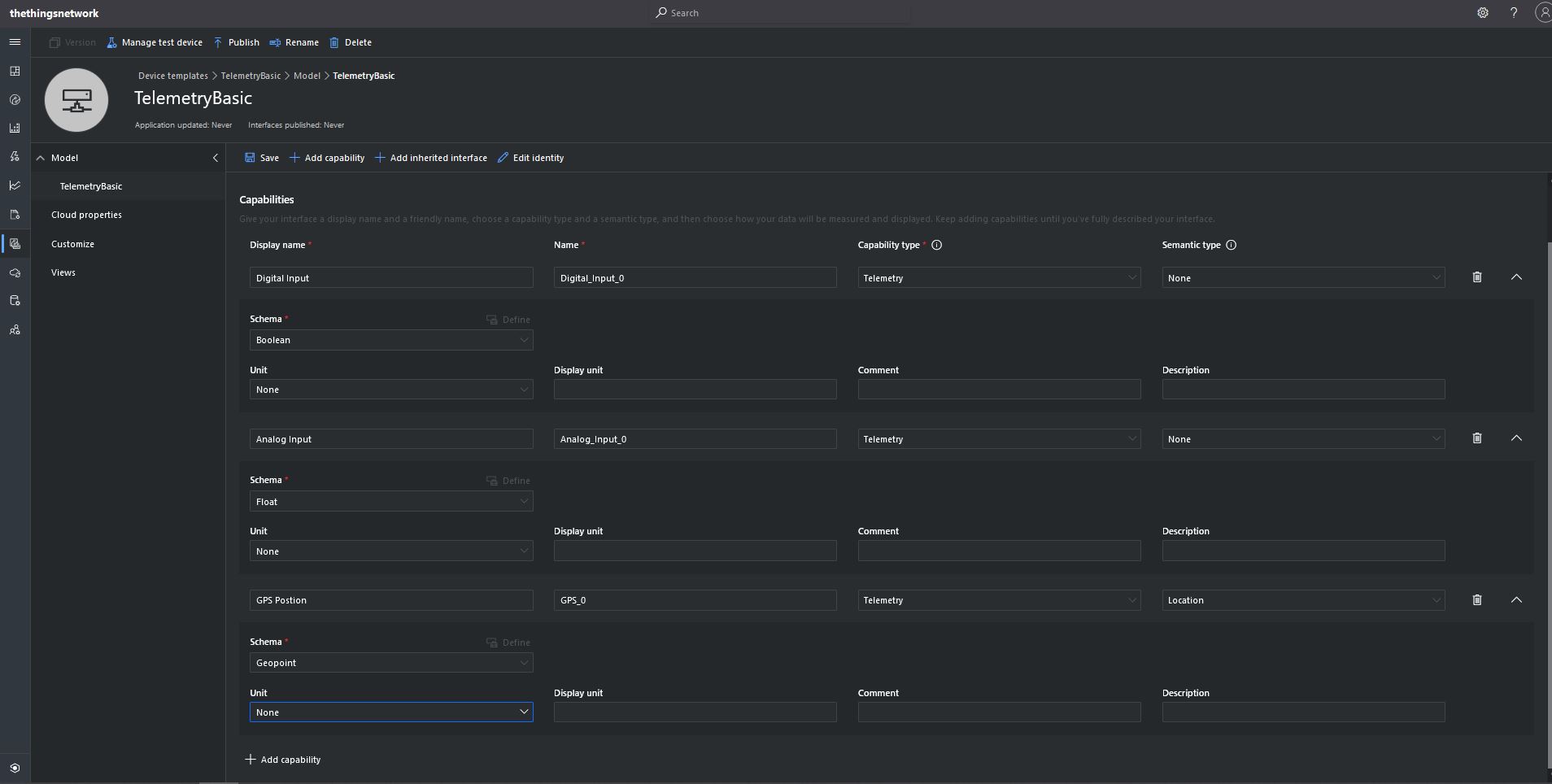
The console application simulates a digital input (random true/false), analog input (random value between 0.0 and 1.0) and a Global Positioning System(GPS) location (Christchurch Anglican Cathedral with a random latitude, longitude and altitude offset) .




 devMobile's blog