Netduino 3 Wifi Azure Event Hub Field Gateway V2.0

After some testing I have improved the error handling and robustness of my Netduino 3 wifi based Azure Eventhub field gateway.

private void OnReceive(byte[] data)
{
   activityLed.Write(!activityLed.Read());

   // Ensure that we have a payload
   if (data.Length < 1 ) { Debug.Print( "ERROR - Message has no payload" ) ; return ; } string message = new String(Encoding.UTF8.GetChars(data)); Debug.Print(DateTime.UtcNow.ToString("HH:mm:ss") + " L=" + data.Length + " M=" + message); Thread thread = new Thread(() => EventHubSendMessage( data));
   thread.Start();
}

private void EventHubSendMessage( byte[] messageBody)
{
   #region Diagnostic assertions
   Debug.Assert(eventHubName != null);
   Debug.Assert(deviceId != null);
   Debug.Assert(gatewayId != null);
   Debug.Assert(messageBody != null);
   Debug.Assert(messageBody.Length > 0);
   #endregion

   if ((connection == null) || (session == null ) || (senderLink == null ))
   {
      lock (lockThis)
      {
         if (connection == null)
         {
            Debug.Print("AMQP Establish connection");
            try
            {
               connection = new Connection(new Address(serviceBusHost, serviceBusPort, serviceBusSasKeyName, serviceBusSasKey));

               connection.Closed = ConnectionClosedCallback;

               Debug.Print("AMQP Establish connection done");
            }
            catch (Exception ex)
            {
               Debug.Print("ERROR: AMQP Establish connection: " + ex.Message);
            }
         }

         if (connection == null)
         {
            return;
         }

         if (session == null)
         {
            Debug.Print("AMQP Establish session");
            try
            {
               session = new Session(connection);

               session.Closed = SessionClosedCallback;

               Debug.Print("AMQP Establish session done");
            }
            catch (Exception ex)
            {
               Debug.Print("ERROR: AMQP Establish session: " + ex.Message);
            }
         }

         if (session == null)
         {
            return;
         }

         if (senderLink == null)
         {
            Debug.Print("AMQP Establish SenderLink");
            try
            {
               senderLink = new SenderLink(session, "send-link", eventHubName);

               senderLink.Closed = SenderLinkClosedCallback;

               Debug.Print("AMQP Establish SenderLink done");
            }
            catch (Exception ex)
            {
               Debug.Print("ERROR: AMQP Establish SenderLink: " + ex.Message);
            }
         }

         if (senderLink == null)
         {
            return;
         }
      }
   }

         
   try
   {
      Debug.Print("AMQP Send start");
      DateTime startAtUtc = DateTime.UtcNow;

      Message message = new Message()
      {
         BodySection = new Data()
         {
            Binary = messageBody
         },
         ApplicationProperties = new Amqp.Framing.ApplicationProperties(),
      };

      message.ApplicationProperties["UploadedAtUtc"] = DateTime.UtcNow;
      message.ApplicationProperties["GatewayId"] = gatewayId;
      message.ApplicationProperties["DeviceId"] = deviceId;
      message.ApplicationProperties["EventId"] = Guid.NewGuid();

      senderLink.Send(message);
      DateTime finishAtUtc = DateTime.UtcNow;
      TimeSpan duration = finishAtUtc - startAtUtc;
      Debug.Print("AMQP Send done duration " + duration.ToString());
   }
   catch (Exception ex)
   {
      Debug.Print("ERROR: Publish failed with error: " + ex.Message);
   }
}

The software is quite reliable, when my internet connection fails it recovers gracefully and resumes uploading events when connectivity is restored.

The only issue is when the wireless access point is restarted, when the device reconnects it locks up and doesn’t recover. I have posted in the Netduino forums and logged at issue at the Github Netduino wifi repository.

I have been exploring rebooting the device in the NetworkChange_NetworkAvailabilityChanged handler when connectivity is restored.

Based on my logging the sending of events is pretty quick and the threads are interleaved

03:20:59 L=25 M={“D”:2,”H”:63.0,”T”:18.8}
AMQP Send start
03:20:59 L=25 M={“D”:1,”H”:54.5,”T”:18.7}
AMQP Send start
03:20:59 L=17 M={“D”:10,”P”:27.9}
AMQP Send start
AMQP Send done duration 00:00:00.2738220
AMQP Send done duration 00:00:00.4709960
AMQP Send done duration 00:00:01.0813910
03:21:01 L=17 M={“D”:10,”P”:27.4}
AMQP Send start
AMQP Send done duration 00:00:00.2820090
03:21:03 L=17 M={“D”:10,”P”:26.9}

Here is the code with usual caveats.

Next steps queuing messages in memory and then on the MicroSD card.

Netduino 3 Wifi Azure Event Hub Field Gateway V1.0

The Netduino 3 Wifi device supports TLS connectivity and looked like it could provide a low power consumption field gateway to an Azure EventHub for my nRF24L01 equipped Netduino, Arduino & devDuino 1.3, 2.0 & 3.0 devices.

Netduino 3 Wifi Azure Event Hub Field Gateway

Netduino 3 Wifi Azure Field Gateway and a selection of arduino & devDuino devices

Bill of materials for field gateway prices as at (Sept 2015)

  • Netduino 3 Wifi USD69.95
  • SeeedStudio Solar Shield USD13.95
  • Lithium Ion 3000mAH battery USD15.00
  • Embedded coolness nRF24L01 shield with high power module USD17.85

The software uses AMQPNetLite which provides a lightweight implementation of the AMQP protocol (on the .Net framework, .Net Compact Framework, .Net Micro Framework, and WindowsPhone platforms) and the Nordic nRF24L01 Net Micro Framework Driver.The first version of the software is a proof of concept and over time I will add functionality and improve the reliability.

On application start up the nRF24L01, Azure Event Hub and network settings are loaded from the built in MicroSD card.

// Write empty template of the configuration settings to the SD card if pin D0 is high
if (!File.Exists(Path.Combine("\\sd", "app.config")))
{
   Debug.Print("Writing template configuration file then stopping");

   ConfigurationFileGenerate();

   Thread.Sleep(Timeout.Infinite);
}
appSettings.Load();

If there is no configuration file on the MicroSD card an empty template is created.

private void ConfigurationFileGenerate()
{
   // Write empty configuration file
   appSettings.SetString(nRF2L01AddressSetting, "Base1");
   appSettings.SetString(nRF2L01ChannelSetting, "10");
   appSettings.SetString(nRF2L01DataRateSetting, "0");

   appSettings.SetString(serviceBusHostSetting, "serviceBusHost");
   appSettings.SetString(serviceBusPortSetting, "5671");
   appSettings.SetString(serviceBusSasKeyNameSetting, "serviceBusSasKeyName");
   appSettings.SetString(serviceBusSasKeySetting, "serviceBusSasKey");
   appSettings.SetString(eventHubNameSetting, "eventHubName");

   appSettings.Save();
}

Once the Wifi connection has been established the device connects to a specified NTP server so any messages have an accurate timestamp and then initiates an AMQP connection.

Debug.Print("Network time");
try
{
   DateTime networkTime = NtpClient.GetNetworkTime(ntpServerHostname);
   Microsoft.SPOT.Hardware.Utility.SetLocalTime(networkTime);
   Debug.Print(networkTime.ToString(" dd-MM-yy HH:mm:ss"));
}
catch (Exception ex)
{
   Debug.Print("ERROR: NtpClient.GetNetworkTime: " + ex.Message);
   Thread.Sleep(Timeout.Infinite);
}
Debug.Print("Network time done");

// Connect to AMQP gateway
Debug.Print("AMQP Establish connection");
try
{
   Address address = new Address(serviceBusHost, serviceBusPort, serviceBusSasKeyName, serviceBusSasKey);
   connection = new Connection(address);
}
catch (Exception ex)
{
   Debug.Print("ERROR: AMQP Establish connection: " + ex.Message);
   Thread.Sleep(Timeout.Infinite);
}
Debug.Print("AMQP Establish connection done");

After the device has network connectivity, downloaded the correct time and connected to AMQP hub the nRF241L01 device is initialised.

The first version of the software starts a new thread to handle each message and handles connectivity failures badly. These issues and features like local queuing of messages will be added in future iterations.

private void OnReceive(byte[] data)
{
   activityLed.Write(!activityLed.Read());

   // Ensure that we have a payload
   if (data.Length < 1 ) { Debug.Print( "ERROR - Message has no payload" ) ; return ; } string message = new String(Encoding.UTF8.GetChars(data)); Debug.Print(DateTime.UtcNow.ToString("HH:mm:ss") + " " + gatewayId + " " + data.Length + " " + message); Thread thread = new Thread(() => EventHubSendMessage(connection, eventHubName, deviceId, gatewayId, data));
   thread.Start();
}


private void EventHubSendMessage(Connection connection, string eventHubName, string deviceId, string gatewayId, byte[] messageBody)
{
   try
   {
      Session session = new Session(connection);
      SenderLink sender = new SenderLink(session, "send-link", eventHubName);

      Message message = new Message()
      {
         BodySection = new Data()
         {
            Binary = messageBody
         },
         ApplicationProperties = new Amqp.Framing.ApplicationProperties(),
      };

      message.ApplicationProperties["UploadedAtUtc"] = DateTime.UtcNow;
      message.ApplicationProperties["GatewayId"] = gatewayId;
      message.ApplicationProperties["DeviceId"] = deviceId;
      message.ApplicationProperties["EventId"] = Guid.NewGuid().ToString();

      sender.Send(message);

      sender.Close();
      session.Close();
      }
   catch (Exception ex)
   {
      Debug.Print("ERROR: Publish failed with error: " + ex.Message);
   }
}

Initially the devices send events with a JSON payload.

ServiceBus Explorer

JSON Event messages displayed in ServiceBus Explorer

The code is available NetduinoNRF24L01AMQPNetLiteAzureEventHubGatewayV1.0 and when I have a spare afternoon I will upload to github.

MS Ignite Auckland NZ Presentation now available online

My presentation “All your device are belong to us” [M240] is now online at MSDN Channel 9

So much hype, so many different devices, so many protocols, so much data, so little security, welcome to the Internet of Things. Come and see how you can build an affordable, securable, scalable, interoperable, robust & reliable solution with embedded devices, Windows 10 IoT and Microsoft Azure. By 2020 there will be 26 Billion devices and 4.5 million developers building solutions so the scope is limitless.

I had 8 devices in my presentation so the scope for disaster was high.

The first demo was of how sensors could be connected across Arduino, Netduino and Raspberry PI platforms.

The Arduino demo used

The Netduino demo used

The Raspbery PI Windows 10 IoT Core demo used

The hobbyist data acquisition demo collected data from two devduino devices that were in passed around by the audience and were each equipped with a Temperature & Humidity sensor. They uploaded data to Xively over an NRF24L01 link to a gateway running on a Netduino 3 Ethernet and the data was displayed in real-time on my house information page

The professional data acquisition demo uploaded telemetry data to an Azure ServiceBus EventHub and retrieved commands from an Azure ServiceBus Queue. Both devices were running software based on Azure ServiceBus Lite by Paolo Paiterno

The telemetry stream was the temperature of some iced water.

The commands were processed by a Raspbery PI running Windows 10 IoT Core which turned a small fan on & off to illustrate how a FrostFan could be used in a vineyard to reduce frost damage to the vines.

Frost Fan demo

MS Ignite 2015 Frost Fan demo

My demos all worked on the day which was a major win as many other presenters struggled with connectivity. Thanks to the conference infrastructure support guys who helped me sort things out.

With the benefit of hindsight, I tried to fit too much in and the overnight partial rewrite post attending the presentation Mashup the Internet of Things, Azure App Service and Windows 10 to Deliver Business Value [M387] by Rob Tiffany was a bit rushed.

My first AzureSBLite program

Extending on the theme for my previous post I decided to take a look at Azure ServiceBus Lite by Paolo Patierno. Same objective as last time, a minimalist application running on my Netduino 3 Wifi which connects to my home wifi, waits for an IP address then uploads an event to an Azure EventHub.

public class Program
{
   private const string connectionString = "Endpoint=sb://[YourNamespace].servicebus.windows.net/;SharedAccessKeyName=[YourKeyName];SharedAccessKey=[YourSaSKey]";
   private const string eventHub = "[YourEventHub]";

...

// Wait for Network address if DHCP
NetworkInterface networkInterface = NetworkInterface.GetAllNetworkInterfaces()[0];
if (networkInterface.IsDhcpEnabled)
{
   Debug.Print(" Waiting for IP address ");

   while (NetworkInterface.GetAllNetworkInterfaces()[0].IPAddress == IPAddress.Any.ToString())
   {
      Debug.Print(".");
   }
}

// Display network config for debugging
Debug.Print("Network configuration");
Debug.Print(" Network interface type: " + networkInterface.NetworkInterfaceType.ToString());
Debug.Print(" MAC Address: " + BytesToHexString(networkInterface.PhysicalAddress));
Debug.Print(" DHCP enabled: " + networkInterface.IsDhcpEnabled.ToString());
Debug.Print(" Dynamic DNS enabled: " + networkInterface.IsDynamicDnsEnabled.ToString());
Debug.Print(" IP Address: " + networkInterface.IPAddress.ToString());
Debug.Print(" Subnet Mask: " + networkInterface.SubnetMask.ToString());
Debug.Print(" Gateway: " + networkInterface.GatewayAddress.ToString());

foreach (string dnsAddress in networkInterface.DnsAddresses)
{
   Debug.Print(" DNS Server: " + dnsAddress.ToString());
}

string deviceId = BytesToHexString(networkInterface.PhysicalAddress);
Debug.Print("DeviceId " + deviceId.ToString());

A bit less code is required to send an event using AzureSBLite

try
{
   MessagingFactory factory = MessagingFactory.CreateFromConnectionString(connectionString);

   EventHubClient client = factory.CreateEventHubClient(eventHub);

   string messageBody = @"{""DeviceId"":""" + deviceId + @""",""Time"":""" + DateTime.Now.ToString("yy-MM-dd hh:mm:ss") + @"""}";
   EventData data = new EventData(Encoding.UTF8.GetBytes(messageBody));

   //EventData data = new EventData();
   //data.Properties.Add("Time", DateTime.Now);
   //data.Properties.Add("DeviceId", deviceId);

   client.Send(data);
   client.Close();

   factory.Close();
}
catch (Exception ex)
{
   Debug.Print("ERROR: Send failed with error: " + ex.Message);
}

Over all, a very similar experience to “MyFirst AMQPNetLite” program, after a couple of typos, and fixing a copy ‘n’ paste issue with the connection string my application worked, with the bonus of less code. Both AMQPNetLite and AzureSBLite look suitable for my application so I’ll need to evaluate them in more detail.

My first AMQPNetLite program

After having some problems with my Netduino 3 wifi Azure Event Hub client code (which are most probably due to the issues discussed here) I decided to have a look at AMQPNetLite which had been suggested by Paolo Patierno in a response to one of my posts in the Netduino forums.

I usually create a “minimalist” project so I can figure out how a new library works without an domain specific code getting in the way. Overall, my first experience was pretty positive, the code compiled first time, ran second time and worked third time.

The objective for my first AMQPNetLite application running on my Netduino 3 Wifi was to connect to my home wifi, wait for an IP address then upload an event to an Azure EventHub

private const int amqpPortNumber = 5671;
private const string sbNamespace = "ServiceBus Namespace";
private const string keyName = "SaS Key name";
private const string keyValue = "SaS Key value";
private const string eventHub = "EventHub name";

...

// Wait for Network address if DHCP
NetworkInterface networkInterface = NetworkInterface.GetAllNetworkInterfaces()[0];
if (networkInterface.IsDhcpEnabled)
{
   Debug.Print(" Waiting for IP address ");

   while (NetworkInterface.GetAllNetworkInterfaces()[0].IPAddress == IPAddress.Any.ToString())
   {
      Debug.Print(".");
   }
}

// Display network config for debugging
Debug.Print("Network configuration");
Debug.Print(" Network interface type: " + networkInterface.NetworkInterfaceType.ToString());
Debug.Print(" MAC Address: " + BytesToHexString(networkInterface.PhysicalAddress));
Debug.Print(" DHCP enabled: " + networkInterface.IsDhcpEnabled.ToString());
Debug.Print(" Dynamic DNS enabled: " + networkInterface.IsDynamicDnsEnabled.ToString());
Debug.Print(" IP Address: " + networkInterface.IPAddress.ToString());
Debug.Print(" Subnet Mask: " + networkInterface.SubnetMask.ToString());
Debug.Print(" Gateway: " + networkInterface.GatewayAddress.ToString());

foreach (string dnsAddress in networkInterface.DnsAddresses)
{
   Debug.Print(" DNS Server: " + dnsAddress.ToString());
}

string deviceId = BytesToHexString(networkInterface.PhysicalAddress);
Debug.Print("DeviceId " + deviceId.ToString());

Then I constructed the AMQP address for the event hub, started an AMQP session and sent the message. I tried sending a message with a JSON payload and also using the “type safe” application properties.

try
{
   Address address = new Address(sbNamespace, amqpPortNumber, keyName, keyValue);
   Connection connection = new Connection(address);

   Session session = new Session(connection);

   SenderLink sender = new SenderLink(session, "send-link", eventHub);

   string messageBody = @"{""DeviceId"":""" + deviceId + @""",""Time"":""" + DateTime.Now.ToString("yy-MM-dd hh:mm:ss") + @"""}";

   Message message = new Message()
   {
      //BodySection = new Data() { Binary = Encoding.UTF8.GetBytes(messageBody)},
      ApplicationProperties = new Amqp.Framing.ApplicationProperties(),
   };

   message.ApplicationProperties["Time"] = DateTime.Now;
   message.ApplicationProperties["DeviceId"] = deviceId;

   sender.Send(message);

   sender.Close();
   session.Close();
   connection.Close();
}
catch (Exception ex)
{
   Debug.Print("ERROR: Publish failed with error: " + ex.Message);
}

For my scenario I was pleasantly surprised how easy it was to get working.

AMQP has a non TLS option (only for non sensitive data) and if this is supported I could use a device like a Netduino 3 Ethernet which don’t have baked in TLS support.

Netduino 3 Wifi Azure Service Bus client certificate issue

A few months ago I wrote a post about using a Netduino 3 wifi device to push data to an Azure Event Hub. Last week I wanted to reuse some of the code for another gateway I was building but it didn’t appear to work. When my application made an HTTPS request to the service bus endpoint of my Event Hub it failed with an exception. Initially I though it might be a problem with wildcard certificates so I build a small demo program which makes three HTTPS requests to endpoints with different certificate configurations (for more detail see the code below).

using System;
using System.Net;
using System.Threading;
using Microsoft.SPOT;
using Microsoft.SPOT.Net.NetworkInformation;

namespace devMobile.Netduino3WifiCertificateQuery
{
   public class Program
   {
      public static void Main()
      {
         // Wait for Network address if DHCP
         NetworkInterface networkInterface = NetworkInterface.GetAllNetworkInterfaces()[0];
         if (networkInterface.IsDhcpEnabled)
         {
            Debug.Print(" Waiting for IP address ");
            while (NetworkInterface.GetAllNetworkInterfaces()[0].IPAddress == IPAddress.Any.ToString())
            {
               Debug.Print(".");
               Thread.Sleep(250);
            }
         }

         // Baseline check with google
         Debug.Print("https://www.google.co.nz");
         try
         {
            using (HttpWebRequest request = (HttpWebRequest)WebRequest.Create(@"https://www.google.co.nz"))
            {
               request.Method = "GET";
               request.KeepAlive = false;
               request.Timeout = 5000;
               request.ReadWriteTimeout = 5000;
               request.KeepAlive = false;

               using (var response = (HttpWebResponse)request.GetResponse())
               {
                  Debug.Print("HTTP Status:" + response.StatusCode + " : " + response.StatusDescription);
               }
            }
         }
         catch (Exception ex)
         {
            Debug.Print(ex.Message);
         }

         /*
         DNS Name=*.wordpress.com
         DNS Name=wordpress.com
         */
         Debug.Print("https://wordpress.wordpress.com/");
         try
         {
            using (HttpWebRequest request = (HttpWebRequest)WebRequest.Create(@"https://wordpress.wordpress.com/"))
            {
               //request.Proxy = proxy; 
               request.Method = "GET";
               request.KeepAlive = false;
               request.Timeout = 5000;
               request.ReadWriteTimeout = 5000;
               request.KeepAlive = false;


               using (var response = (HttpWebResponse)request.GetResponse())
               {
                  Debug.Print("HTTP Status:" + response.StatusCode + " : " + response.StatusDescription);
               }
            }
         }
         catch (Exception ex)
         {
            Debug.Print(ex.Message);
         }


         /*
         DNS Name=*.servicebus.windows.net
         DNS Name=servicebus.windows.net
         */
         Debug.Print(@"https://myhomemonitor.servicebus.windows.net/");
         try
         {
            using (HttpWebRequest request = (HttpWebRequest)WebRequest.Create(@"https://myhomemonitor.servicebus.windows.net/"))
            {
               //request.Proxy = proxy; 
               request.Method = "GET";
               request.KeepAlive = false;
               request.Timeout = 5000;
               request.ReadWriteTimeout = 5000;
               request.KeepAlive = false;

               using (var response = (HttpWebResponse)request.GetResponse())
               {
                  Debug.Print("HTTP Status:" + response.StatusCode + " : " + response.StatusDescription);
               }
            }
         }
         catch (Exception ex)
         {
            Debug.Print(ex.Message);
         }
      }
   }
}

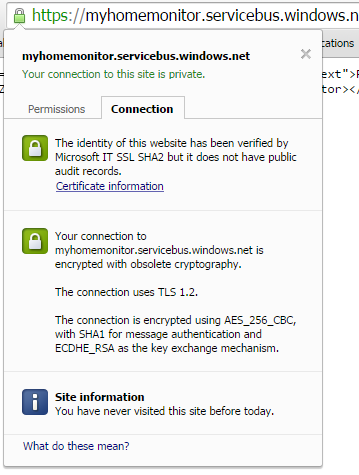
I then noticed that when I looked at the certificate details of the endpoint where the requests were failing in Google Chrome (only occurred in Chrome) there was a warming about “obsolete cryptography”.

Google Chrome info about ok certificate

Google Chrome info about ok certificate

Google Chrome info about error causing certificate

Google Chrome info about possibly error causing certificate

I have downloaded the Netduino 3 Wifi IP stack code from github and have traced down to the native interop call which appears to be failing at the very bottom of the stack. My post at Netduino.com has additional detail about my debugging efforts.

Now I’m wondering if the crypto required by newish certificate for the service bus endpoint is not supported/needs to be enabled for the TI CC3100 SimpleLink Wifi network processor.


Netduino 3 Wifi xively nRF24L01 Gateway

The first version of this code acquired data from a number of *duino devices and uploaded it to xively for a week without any problems(bar my ADSL modem dropping out every so often which it recovered from without human intervention). The data streams are the temperature and humidity for the three bedrooms in my house (the most reliable stream is Bedroom 1). Next version will use the new Netduino.IP stack and run on a Netduino 2 Plus

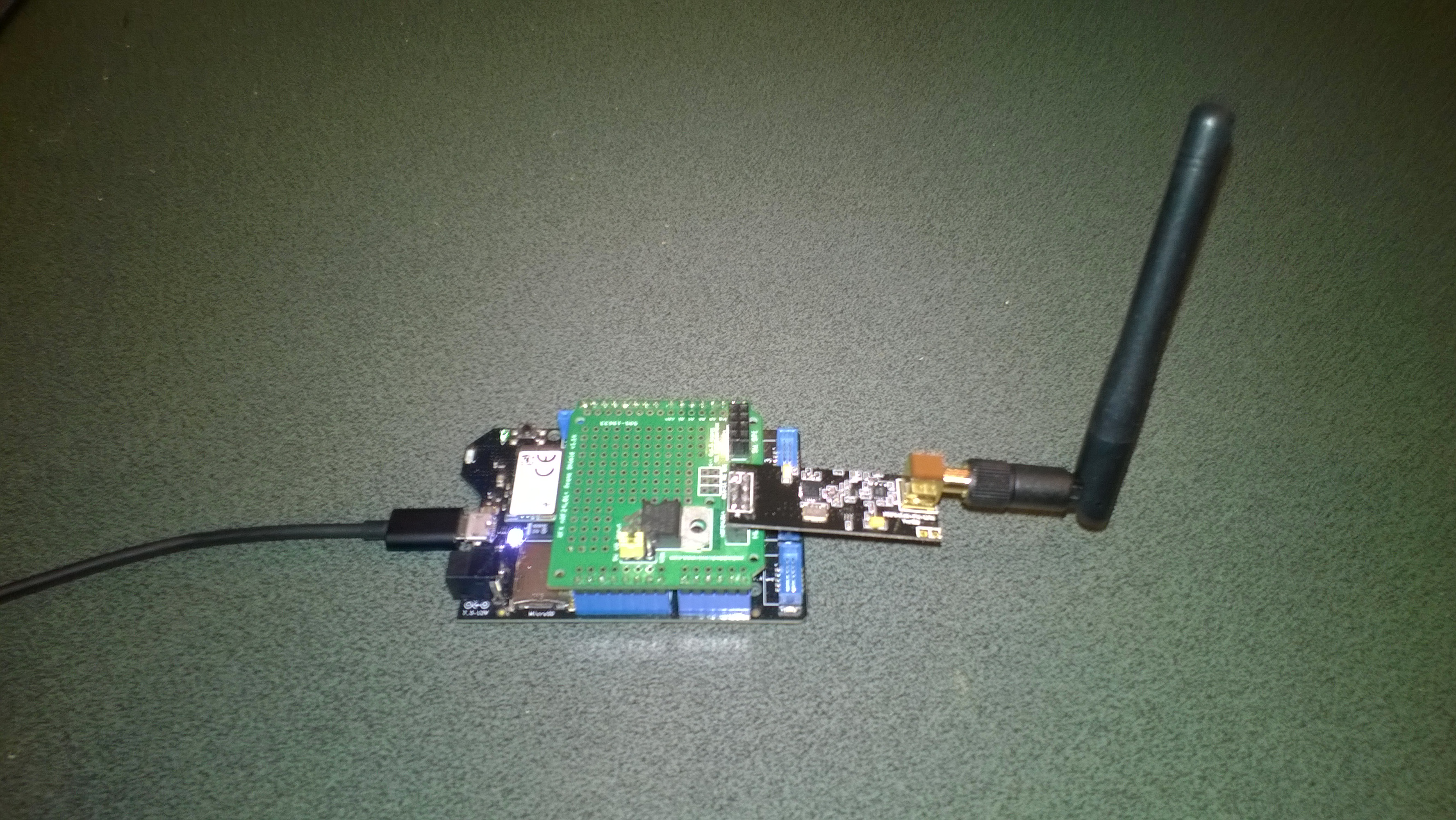
Netduino 3 Wifi with nRF24L01 shield

Netduino 3 Wifi + nRF24L01 shield

To make the software easy to setup all the gateway configuration is stored on a MicroSD and can be modified with a text editor. When the application starts it looks for a file in the root directory of the MicroSD card called app.config. If the file does not exist an empty template is created.

httprequestreadwritetimeoutmsec=2500
httprequesttimeoutmsec=2500
webproxyaddress=
webproxyport=
xivelyapibaseurl=http://api.xively.com/v2/feeds/
xivelyapikey=XivelyAPIKeyGoesHere
xivelyapifeedid=XivelyFeedIDGoesHere
xivelyapicontenttype=text/csv
xivelyapiendpoint=.csv
nrf2l01address=AddressGoesHere
nrf2l01channel=ChannelGoesHere
nrf2l01datarate=0
channel1=Sensor1
channel2=Sensor2
channel3=Sensor3
channel4=Sensor4
channel5=Sensor5
...
...

The first byte of each (upto 32 byte) nRF24L01 message is used to determine the Xively channel.

For testing I used a simple *duino program which uploads temperature and humidity readings every 5 seconds. It’s not terribly efficient or elegant and is just to illustrate how to package up the data.

#include <RF24_config>
#include <nRF24L01.h>
#include <SPI.h>
#include <RF24.h>
#include "Wire.h"
#include <TH02_dev.h>

//UNO R3 with embedded coolness board
//RF24 radio(3, 7);
//devDuino  with onboard
RF24 radio(8, 7);

char payload[32] = "";
const uint64_t pipe = 0x3165736142LL; // Base1 pay attention to byte ordering and address length

void setup()
{
  Serial.begin(9600);

  radio.begin();
  radio.setPALevel(RF24_PA_MAX);
  radio.setChannel(10);
  radio.enableDynamicPayloads();
  radio.openWritingPipe(pipe);

  radio.printDetails();

  /* Power up,delay 150ms,until voltage is stable */
  delay(150);

  TH02.begin();

  delay(1000);
}

void loop()
{
  float temperature = TH02.ReadTemperature();
  float humidity = TH02.ReadHumidity();

  radio.powerUp();

  payload[0] = 'A';
  dtostrf(temperature, 5, 1, &payload[1]);
  Serial.println(payload);
  boolean result = radio.write(payload, strlen(payload));
  if (result)
    Serial.println("T Ok...");
  else
    Serial.println("T failed.");

  payload[0] = 'B';
  dtostrf(humidity, 5, 1, &payload[1]);
  Serial.println(payload);
  result = radio.write(payload, strlen(payload));
  if (result)
    Serial.println("H Ok...");
  else
    Serial.println("H failed.");

  radio.powerDown();

  delay(5000);
}

The gateway code creates a thread for each call to the Xively REST API. (In future the code may need to limit the number of concurrent requests)

private void OnReceive(byte[] data)
{
   activityLed.Write(!activityLed.Read());

   // Ensure that we have a valid payload
   if ( data.Length == 0 )
   {
      Debug.Print( "ERROR - Message has no payload" ) ;
      return ;
   }

   // Extract the device id
   string deviceId = xivelyApiChannleIDPrefix + data[0].ToString();
   string message = new String(Encoding.UTF8.GetChars(data, 1, data.Length - 1));

   string xivelyApiChannel = appSettings.GetString( deviceId, string.Empty ) ;
   if ( xivelyApiChannel.Length == 0 )
   {
      Debug.Print("ERROR - Inbound message has unknown channel " + deviceId);
      return ;
   }
   Debug.Print(DateTime.Now.ToString("HH:mm:ss") + " " + xivelyApiChannel + " " + message); ;

   Thread thread = new Thread(() =&gt; xivelyFeedUpdate(xivelyApiChannel, message ));
   thread.Start();
   }

private void xivelyFeedUpdate( string channel, string value)
{
   #region Assertions
   Debug.Assert(channel != null);
   Debug.Assert(channel != string.Empty );
   Debug.Assert(value != null);
   #endregion

   try
   {
      WebProxy webProxy = null;

      if (webProxyAddress.Length &gt; 1)
      {
         webProxy = new WebProxy(webProxyAddress, webProxyPort);
      }

      using (HttpWebRequest request = (HttpWebRequest)WebRequest.Create(xivelyApiBaseUrl + xivelyApiFeedID + xivelyApiEndpoint))
      {
         byte[] buffer = Encoding.UTF8.GetBytes(channel + "," + value);

         DateTime httpRequestedStartedAtUtc = DateTime.UtcNow;

         if (webProxy != null)
         {
            request.Proxy = webProxy;
         }
         request.Method = "PUT";
         request.ContentLength = buffer.Length;
         request.ContentType = xivelyApiContentType;
         request.Headers.Add("X-ApiKey", xivelyApiKey);
         request.KeepAlive = false;
         request.Timeout = httpRequestTimeoutmSec;
         request.ReadWriteTimeout = httpRequestReadWriteTimeoutmSec;

         // request body
         Debug.Print("HTTP request");
         using (Stream stream = request.GetRequestStream())
         {
            stream.Write(buffer, 0, buffer.Length);
         }

         using (var response = (HttpWebResponse)request.GetResponse())
         {
            Debug.Print(" Status: " + response.StatusCode + " : " + response.StatusDescription);
         }

         TimeSpan duration = DateTime.UtcNow - httpRequestedStartedAtUtc;
         Debug.Print(" Duration: " + duration.ToString());
      }
   }
   catch (Exception ex)
   {
      Debug.Print(ex.Message);
   }
}

To use this code download the Nordic nRF24L01 library from Codeplex then include that plus my Netduino NRF24L01 Xively Gateway in a new solution and it should just work.

Deploy the application to a Netduino 2 Plus or Netduino 3 Wifi device and run it to create the app.config file, then use a text editor to update the file with your Xively & device settings.

I’ll upload this and a couple of other projects to GitHub shortly.

Bill of materials (prices as at July 2015)

Netduino 3 Wifi xively nRF24L01 Gateway data stream live

The gateway is now live, I’m regularly updating the Netduino 3 wifi code and the client arduino, devDuino + netduino devices so there maybe short periods of downtime and/or missing data points.

The stream is available here and is currently just temperature and humidity readings from two bedrooms updating roughly once a minute.

I live in New Zealand which is currently UTC + 12.

Netduino 3 Wifi xively nRF24L01 Gateway introduction

Around home I have a number of Arduino, devDuino and Netduino devices collecting power consumption, temperature & humidity measurements. Previously I had built an Azure event hub gateway which runs on Windows 7(or later) which acts as a gateway forwarding local http requests to an Microsoft Azure event hub.

Not all my embedded devices are capable of making an http request but an nRF24l01 based approach is supported.

For this application I wanted something a bit simpler than an Azure Event hub which could plot basic graphs and as I didn’t require massive scale Xively looked ideal.

Netduino 3 Wifi xively gateway + duino clients

Netduino 3 Wifi xively gateway and *duino clients

Over the next few blog postings I will show how I built the Netduino 3 wifi application and the Arduino based clients.

Bill of materials for the Xively gateway (prices at June 2015)

First step is to configure the network

NetworkInterface networkInterface = NetworkInterface.GetAllNetworkInterfaces()[0];

if (networkInterface.IsDhcpEnabled)
{
   Debug.Print(" Waiting for IP address ");

   while (NetworkInterface.GetAllNetworkInterfaces()[0].IPAddress == IPAddress.Any.ToString()) 
   {
      Thread.Sleep(100);
   }
}

// Display network config for debugging
Debug.Print("Network configuration");
Debug.Print(" Network interface type: " + networkInterface.NetworkInterfaceType.ToString());
Debug.Print(" MAC Address: " + BytesToHexString(networkInterface.PhysicalAddress));
Debug.Print(" DHCP enabled: " + networkInterface.IsDhcpEnabled.ToString());
Debug.Print(" Dynamic DNS enabled: " + networkInterface.IsDynamicDnsEnabled.ToString());
Debug.Print(" IP Address: " + networkInterface.IPAddress.ToString());
Debug.Print(" Subnet Mask: " + networkInterface.SubnetMask.ToString());
Debug.Print(" Gateway: " + networkInterface.GatewayAddress.ToString());

foreach (string dnsAddress in networkInterface.DnsAddresses)
{
   Debug.Print(" DNS Server: " + dnsAddress.ToString());
}

_module = new NRF24L01Plus();

Then setup the nRF24l01 driver

_module.OnDataReceived += OnReceive;
_module.OnTransmitFailed += OnSendFailure;
_module.OnTransmitSuccess += OnSendSuccess;

_module.Initialize(SPI.SPI_module.SPI1, Pins.GPIO_PIN_D7, Pins.GPIO_PIN_D3, Pins.GPIO_PIN_D2);
_module.Configure(myAddress, channel, NRFDataRate.DR1Mbps);
_module.Enable();

The setup required for the Xively API and mapping the devices highlighted the need for a means of storing configuration which could be modified using a simple text editor.

Netduino 3 Wifi with nRF24L01 shield

Netduino 3 Wifi + nRF24L01 shield

This software was built using tooling created and shared by others.

Big thanks to

Jakub Bartkowiak – Gralin.NETMF.Nordic.NRF24L01Plus

Netduino pollution Monitor V0.1

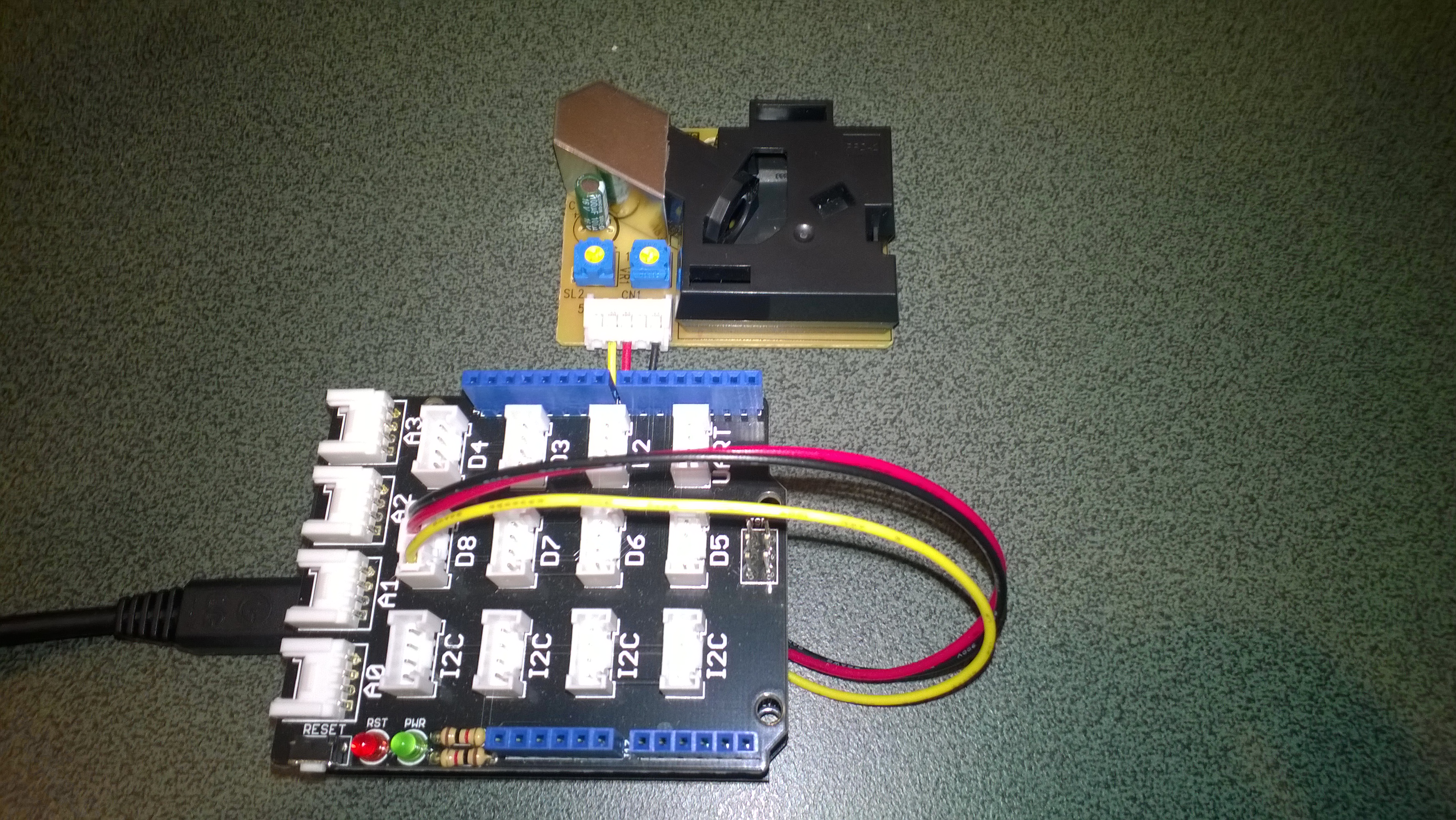
As part of a project for Sensing City I had been helping with the evaluation of  PM2.5/PM10 sensors for monitoring atmospheric pollution levels. For my DIY IoT projects I use the SeeedStudio Grove system which has a couple of dust sensors. The Grove Dust Sensor which is based on a Shinyei Model PPD42 Particle Sensor looked like a cost effective option.

Seeedstudio Grove Dust Sensor

Seeedstudio Grove Dust Sensor

Bill of Materials for my engineering proof of concept (Prices as at June 2015)

I initially got the sensor running with one of my Arduino Uno R3  devices using the software from the seeedstudio wiki and the ratio values returned by my Netduino Plus 2 code (see below) look comparable. I have purchased a couple of extra dust sensors so I can run the Arduino & Netduino devices side by side. I am also trying to source a professional air quality monitor so I can see how reliable my results are

The thread ” (0x2) has exited with code 0 (0x0).

Ratio 0.012

Ratio 0.012

Ratio 0.020

Ratio 0.008

Ratio 0.031

Ratio 0.014

Ratio 0.028

Ratio 0.012

Ratio 0.013

Ratio 0.018

public class Program
{
private static long pulseStartTicks = 0;
private static long durationPulseTicksTotal = 0;
readonly static TimeSpan durationSample = new TimeSpan(0, 0, 0, 30);
readonly static TimeSpan durationWaitForBeforeFirstSample = new TimeSpan(0, 0, 0, 30);

public static void Main()
{
InterruptPort sensor = new InterruptPort(Pins.GPIO_PIN_D8, false, Port.ResistorMode.Disabled, Port.InterruptMode.InterruptEdgeBoth);
sensor.OnInterrupt += sensor_OnInterrupt;

Timer sampleTimer = new Timer(SampleTimerProc, null, durationWaitForBeforeFirstSample, durationSample);

Thread.Sleep(Timeout.Infinite);
}

static void sensor_OnInterrupt(uint data1, uint data2, DateTime time)
{
if (data2 == 1)
{
long pulseDuration = time.Ticks - pulseStartTicks;

durationPulseTicksTotal += pulseDuration;
}
else
{
pulseStartTicks = time.Ticks;
}
}

static void SampleTimerProc(object status)
{
double ratio = durationPulseTicksTotal / (double)durationSample.Ticks ;
durationPulseTicksTotal = 0;

Debug.Print("Ratio " + ratio.ToString("F3"));
}
}

Next steps will be, adding handling for edges cases, converting the ratio into a particle concentration per litre or 0.1 cubic feet, selecting a weather proof enclosure, smoothing/filtering the raw measurements, and uploading the values to Xively for presentation and storage.