Azure Event Grid YoloV8- Basic MQTT Client Pose Estimation

The Azure.EventGrid.Image.YoloV8.Pose application downloads images from a security camera, processes them with the default YoloV8(by Ultralytics) Pose Estimation model then publishes the results to an Azure Event Grid MQTT broker topic.

private async void ImageUpdateTimerCallback(object? state)
{
   DateTime requestAtUtc = DateTime.UtcNow;

   // Just incase - stop code being called while photo or prediction already in progress
   if (_ImageProcessing)
   {
      return;
   }
   _ImageProcessing = true;

   try
   {
      _logger.LogDebug("Camera request start");

      PoseResult result;

      using (Stream cameraStream = await _httpClient.GetStreamAsync(_applicationSettings.CameraUrl))
      {
         result = await _predictor.PoseAsync(cameraStream);
      }

      _logger.LogInformation("Speed Preprocess:{Preprocess} Postprocess:{Postprocess}", result.Speed.Preprocess, result.Speed.Postprocess);


      if (_logger.IsEnabled(LogLevel.Debug))
      {
         _logger.LogDebug("Pose results");

         foreach (var box in result.Boxes)
         {
            _logger.LogDebug(" Class:{box.Class} Confidence:{Confidence:f1}% X:{X} Y:{Y} Width:{Width} Height:{Height}", box.Class.Name, box.Confidence * 100.0, box.Bounds.X, box.Bounds.Y, box.Bounds.Width, box.Bounds.Height);

            foreach (var keypoint in box.Keypoints)
            {
               Model.PoseMarker poseMarker = (Model.PoseMarker)keypoint.Index;

               _logger.LogDebug("  Class:{Class} Confidence:{Confidence:f1}% X:{X} Y:{Y}", Enum.GetName(poseMarker), keypoint.Confidence * 100.0, keypoint.Point.X, keypoint.Point.Y);
            }
         }
      }

      var message = new MQTT5PublishMessage
      {
         Topic = string.Format(_applicationSettings.PublishTopic, _applicationSettings.UserName),
         Payload = Encoding.ASCII.GetBytes(JsonSerializer.Serialize(new
         {
            result.Boxes
         })),
         QoS = _applicationSettings.PublishQualityOfService,
      };

      _logger.LogDebug("HiveMQ.Publish start");

      var resultPublish = await _mqttclient.PublishAsync(message);

      _logger.LogDebug("HiveMQ.Publish done");
   }
   catch (Exception ex)
   {
      _logger.LogError(ex, "Camera image download, processing, or telemetry failed");
   }
   finally
   {
      _ImageProcessing = false;
   }

   TimeSpan duration = DateTime.UtcNow - requestAtUtc;

   _logger.LogDebug("Camera Image download, processing and telemetry done {TotalSeconds:f2} sec", duration.TotalSeconds);
}

The application uses a Timer(with configurable Due and Period times) to poll the security camera, detect objects in the image then publish a JavaScript Object Notation(JSON) representation of the results to Azure Event Grid MQTT broker topic using a HiveMQ client.
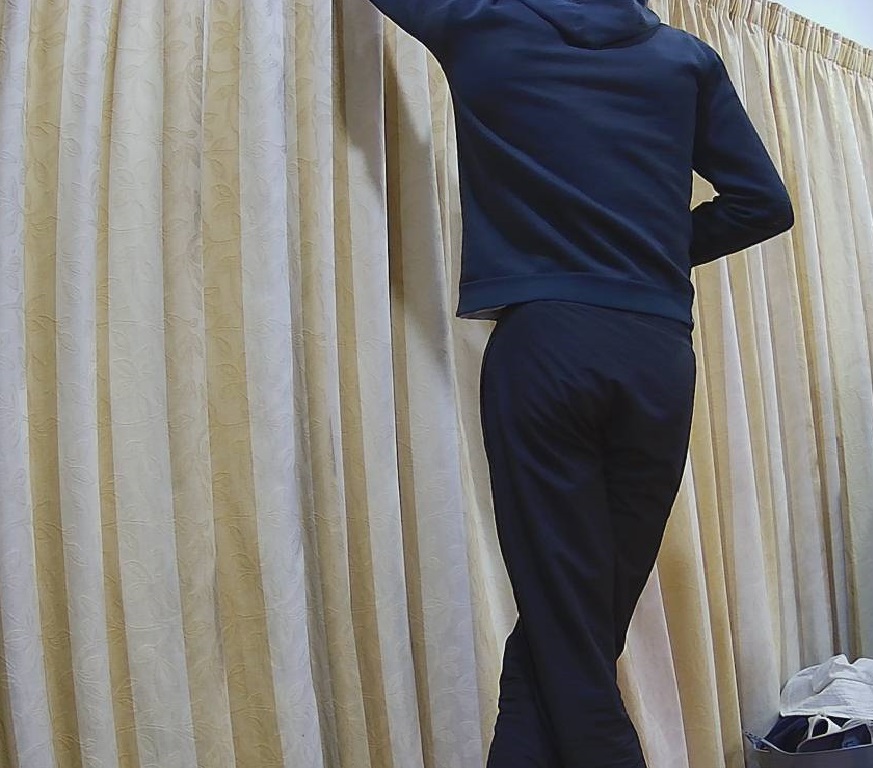
Utralytics Pose Model input image

The Unv ADZK-10 camera used in this sample has a Hypertext Transfer Protocol (HTTP) Uniform Resource Locator(URL) for downloading the current image. Like the YoloV8.Detect.SecurityCamera.Stream sample the image “streamed” using the HttpClient.GetStreamAsync to the YoloV8 PoseAsync method.

Azure.EventGrid.Image.YoloV8.Pose application console output

The same approach as the YoloV8.Detect.SecurityCamera.Stream sample is used because the image doesn’t have to be saved on the local filesystem.

Utralytics Pose Model marked-up image

To check the results, I put a breakpoint in the timer just after PoseAsync method is called and then used the Visual Studio 2022 Debugger QuickWatch functionality to inspect the contents of the PoseResult object.

Visual Studio 2022 Debugger PoseResult Quickwatch

For testing I configured a single Azure Event Grid custom topic subscription an Azure Storage Queue.

Azure Event Grid Topic Metrics

An Azure Storage Queue is an easy way to store messages while debugging/testing an application.

Azure Storage Explorer messages list

Azure Storage Explorer is a good tool for listing recent messages, then inspecting their payloads.

Azure Storage Explorer Message Details

The Azure Event Grid custom topic message text(in data_base64) contains the JavaScript Object Notation(JSON) of the pose detection result.

{"Boxes":[{"Keypoints":[{"Index":0,"Point":{"X":744,"Y":58,"IsEmpty":false},"Confidence":0.6334442},{"Index":1,"Point":{"X":746,"Y":33,"IsEmpty":false},"Confidence":0.759928},{"Index":2,"Point":{"X":739,"Y":46,"IsEmpty":false},"Confidence":0.19036674},{"Index":3,"Point":{"X":784,"Y":8,"IsEmpty":false},"Confidence":0.8745915},{"Index":4,"Point":{"X":766,"Y":45,"IsEmpty":false},"Confidence":0.086735755},{"Index":5,"Point":{"X":852,"Y":50,"IsEmpty":false},"Confidence":0.9166329},{"Index":6,"Point":{"X":837,"Y":121,"IsEmpty":false},"Confidence":0.85815763},{"Index":7,"Point":{"X":888,"Y":31,"IsEmpty":false},"Confidence":0.6234426},{"Index":8,"Point":{"X":871,"Y":205,"IsEmpty":false},"Confidence":0.37670398},{"Index":9,"Point":{"X":799,"Y":21,"IsEmpty":false},"Confidence":0.3686208},{"Index":10,"Point":{"X":768,"Y":205,"IsEmpty":false},"Confidence":0.21734264},{"Index":11,"Point":{"X":912,"Y":364,"IsEmpty":false},"Confidence":0.98523325},{"Index":12,"Point":{"X":896,"Y":382,"IsEmpty":false},"Confidence":0.98377174},{"Index":13,"Point":{"X":888,"Y":637,"IsEmpty":false},"Confidence":0.985927},{"Index":14,"Point":{"X":849,"Y":645,"IsEmpty":false},"Confidence":0.9834709},{"Index":15,"Point":{"X":951,"Y":909,"IsEmpty":false},"Confidence":0.96191007},{"Index":16,"Point":{"X":921,"Y":894,"IsEmpty":false},"Confidence":0.9618156}],"Class":{"Id":0,"Name":"person"},"Bounds":{"X":690,"Y":3,"Width":315,"Height":1001,"Location":{"X":690,"Y":3,"IsEmpty":false},"Size":{"Width":315,"Height":1001,"IsEmpty":false},"IsEmpty":false,"Top":3,"Right":1005,"Bottom":1004,"Left":690},"Confidence":0.8341071}]}

YoloV8 ONNX – Nvidia Jetson Orin Nano™ ARM64 CPU Inferencing

I configured the demonstration Ultralytics YoloV8 object detection(yolov8s.onnx) console application to process a 1920×1080 image from a security camera on my desktop development box (13th Gen Intel(R) Core(TM) i7-13700 2.10 GHz with 32.0 GB)

Object Detection sample application running on my development box

A Seeedstudio reComputer J3011 uses a Nividia Jetson Orin 8G and looked like a cost-effective platform to explore how a dedicated Artificial Intelligence (AI) co-processor could reduce inferencing times.

To establish a “baseline” I “published” the demonstration application on my development box which created a folder with all the files required to run the application on the Seeedstudio reComputer J3011 ARM64 CPU. I had to manually merge the “User Secrets” and appsettings.json files so the camera connection configuration was correct.

The runtimes folder contained a number of folders with the native runtime files for the supported Open Neural Network Exchange(ONNX) platforms

Object Detection application publish runtimes folder

This Nividia Jetson Orin ARM64 CPU requires the linux-arm64 ONNX runtime which was “automagically” detected. (in previous versions of ML.Net the native runtime had to be copied to the execution directory)

Linux ONNX ARM64 runtime

The final step was to use the demonstration Ultralytics YoloV8 object detection(yolov8s.onnx) console application to process a 1920×1080 image from a security camera on the reComputer J3011 (6-core Arm® Cortex®64-bit CPU 1.5Ghz processor)

Object Detection sample application running on my Seeedstudio reComputer J3011

When I averaged the pre-processing, inferencing and post-processing times for both devices over 20 executions my development box was much faster which was not a surprise. Though the reComputer J3011 post processing times were a bit faster than I was expecting

ARM64 CPU Preprocess 0.05s Inference 0.31s Postprocess 0.05

Training a model with Azure AI Machine Learning

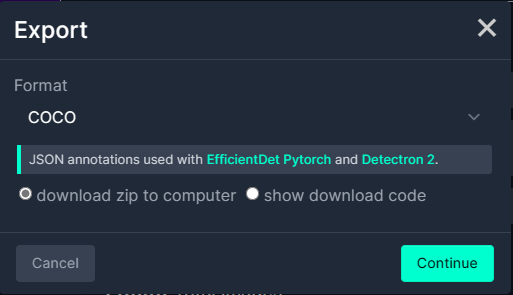
I exported the Tennis Ball by Ugur Ozdemir dataset in a suitable format I could use it to train a model using the Visual Studio 2022 ML.Net support. The first step was to export the Tennis Ball dataset in COCO (Common Objects in Context) format.

Exporting Tennis ball dataset in COCO format

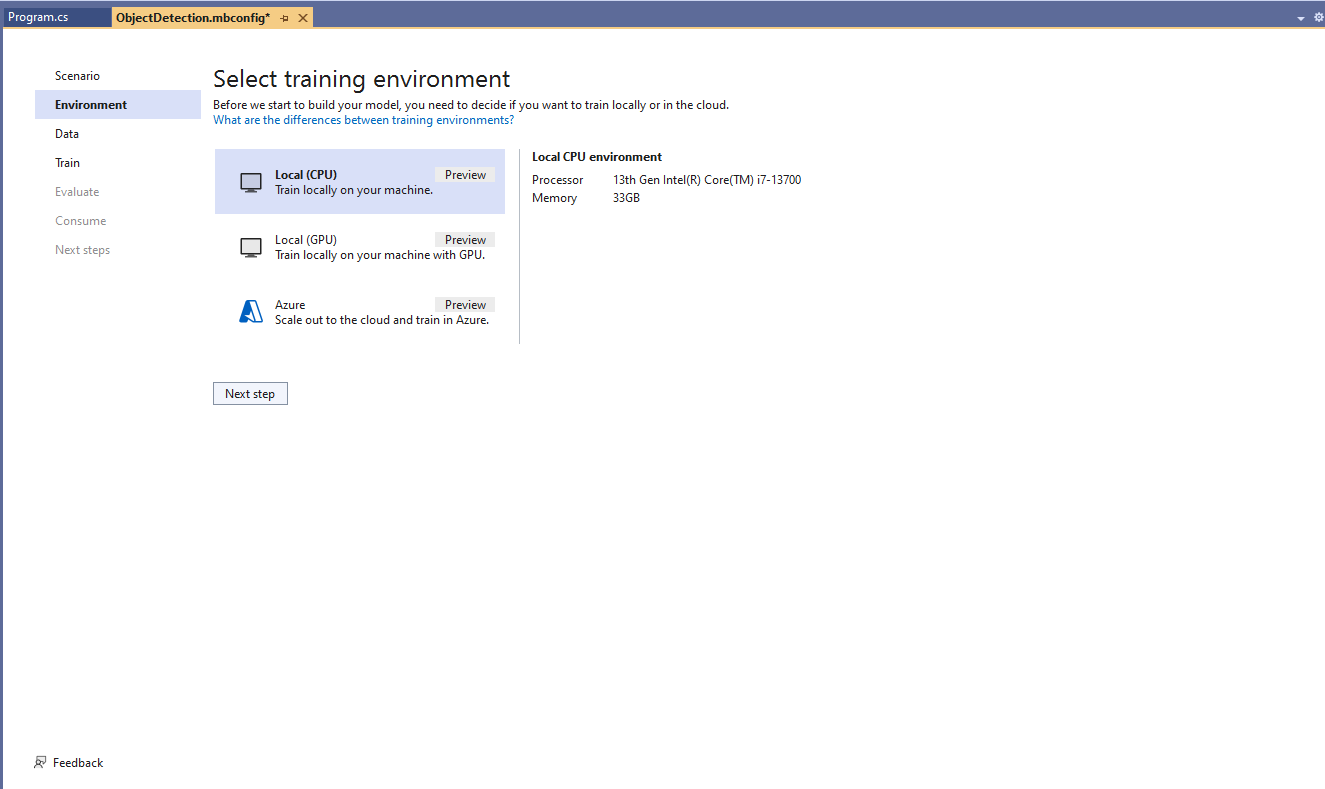
My development box doesn’t have a suitable Local(GPU) and Local(CPU) training failed

Local CPU selected for model training

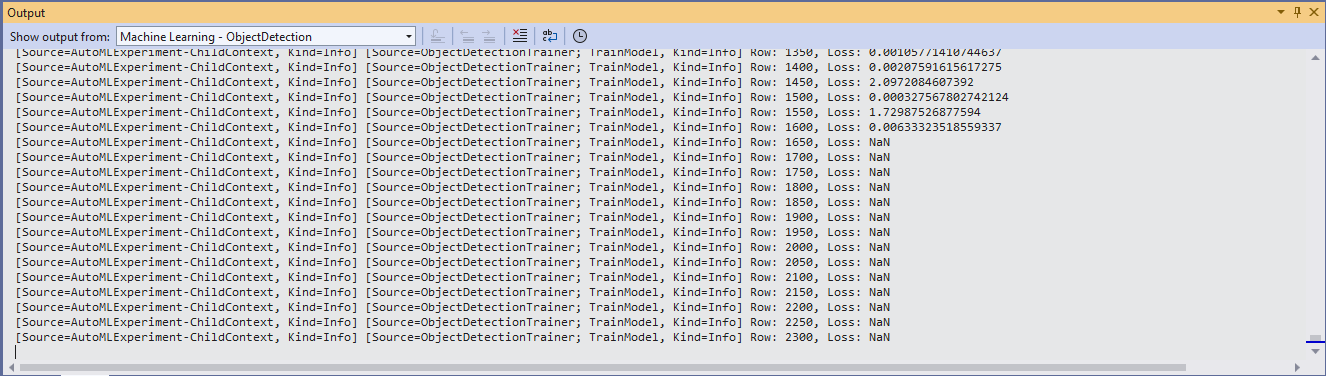
After a couple of hours training the in the Visual Studio 2022 the output “Loss” value was NaN and the training didn’t end successfully.

Local CPU model training failure

Training with Local(CPU) failed so I then tried again with ML.Net Azure Machine Learning option.

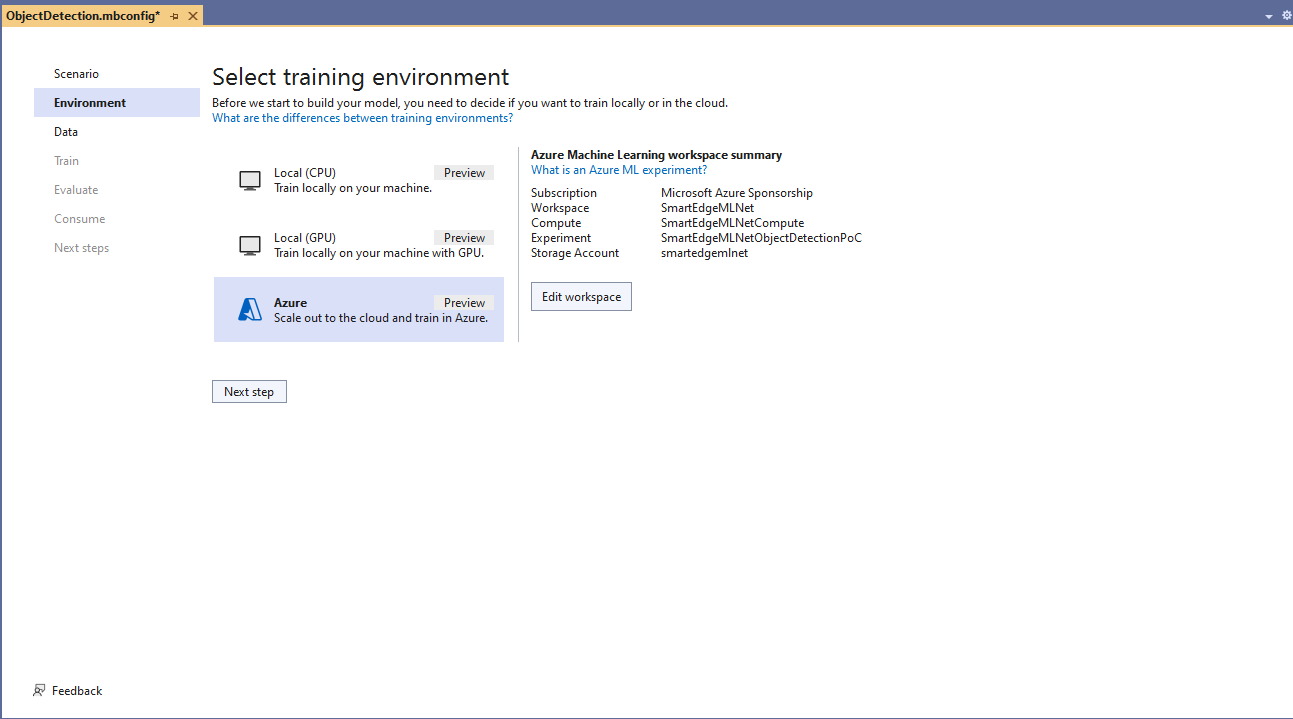
Azure Machine Learning selected for model training

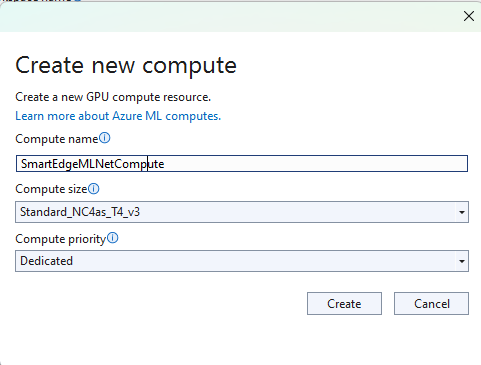
The configuration of my Azure Machine Learning experiment which represent the collection of trials used took much longer than expected.

Insufficient SKUs available in Australia East

Initially my subscription had Insufficient Standard NC4as_T4_v3 SKUs in Australia East so I had to request a quota increase which took a couple of support tickets.

Training Environment Provisioned
Uploading the model training dataset

I do wonder why they include Microsoft’s Visual Object Tagging Tool(VOTT) format as an option because there has been no work done on the project since late 2021.

Uploading the model validation dataset

I need to check how the Roboflow dataset was loaded (I think possibly only the training dataset was loaded, so that was split into training and test datasets) and trial different configurations.

I like the machine generated job names “frank machine”, “tough fowl” and “epic chicken”.

Azure Machine Learning Job list

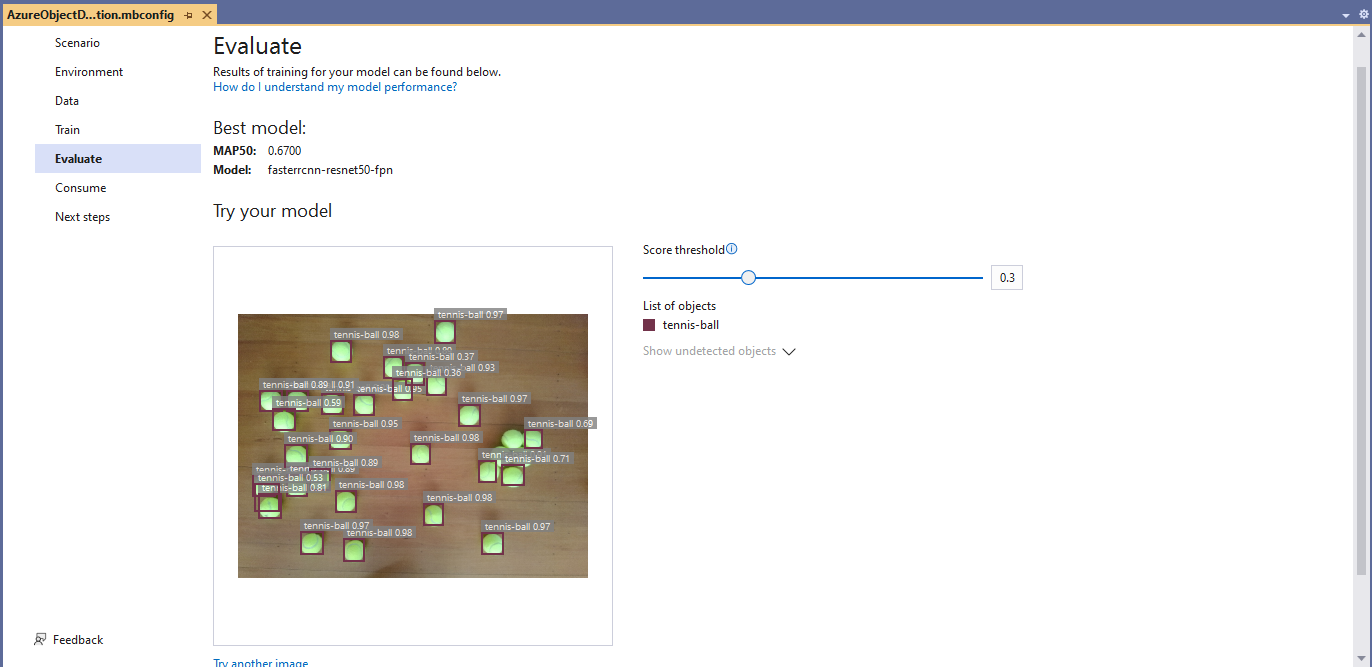
I found my Ultralytics YoloV8 model coped better with different backgrounds and tennis ball colours.

Evaluating model with tennis balls on my living room floor
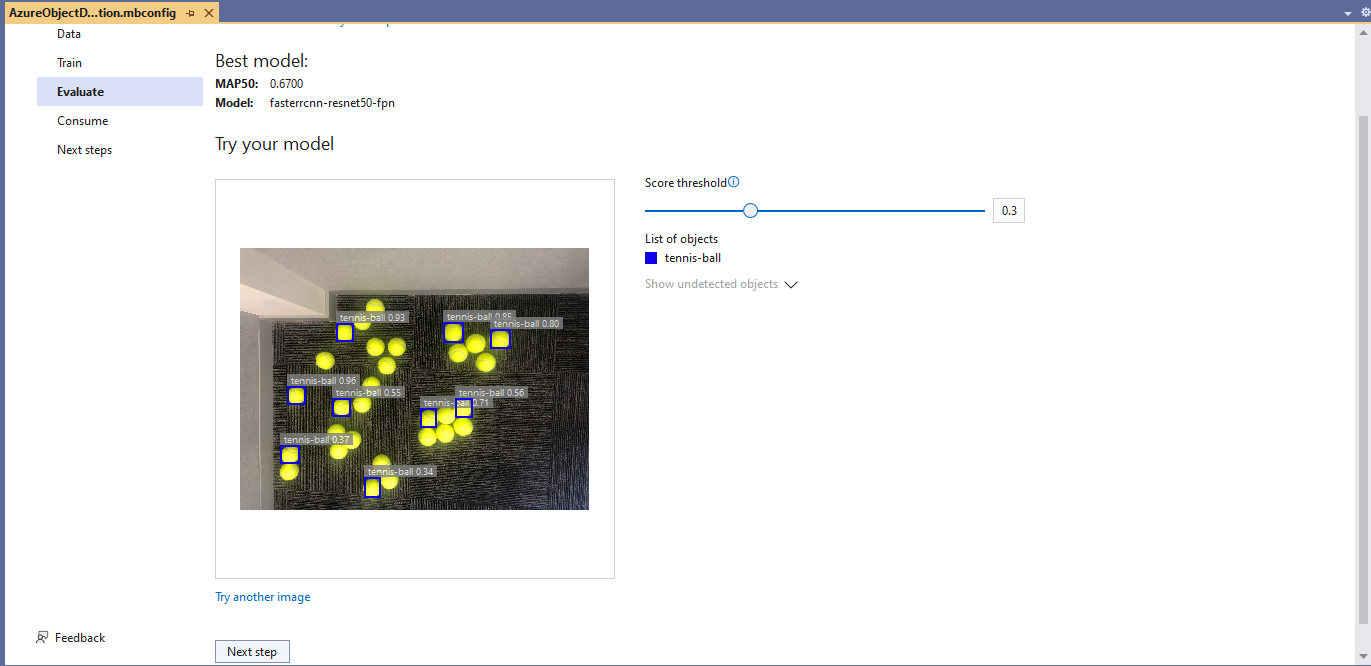
Evaluating model with tennis balls on the office floor

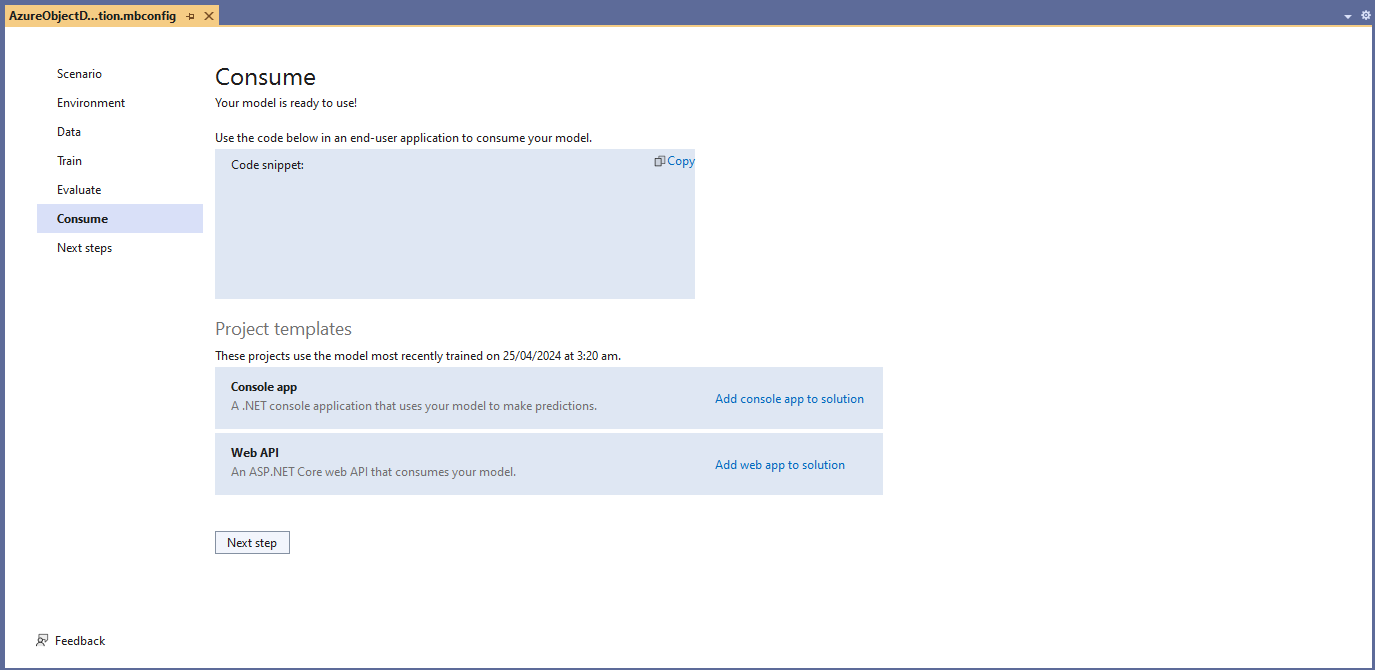
I used the “generated” code to consume the model with a simple console application.

Visual Studio 2022 ML.Net Integration client code generation
static async Task Main()
{
   Console.WriteLine($"{DateTime.UtcNow:yy-MM-dd HH:mm:ss} FasterrCNNResnet50 client starting");

   try
   {
      // load the app settings into configuration
      var configuration = new ConfigurationBuilder()
            .AddJsonFile("appsettings.json", false, true)
      .Build();

      Model.ApplicationSettings _applicationSettings = configuration.GetSection("ApplicationSettings").Get<Model.ApplicationSettings>();

      // Create single instance of sample data from first line of dataset for model input
      var image = MLImage.CreateFromFile(_applicationSettings.ImageInputPath);

      AzureObjectDetection.ModelInput sampleData = new AzureObjectDetection.ModelInput()
      {
         ImageSource = image,
      };

      // Make a single prediction on the sample data and print results.
      var predictionResult = AzureObjectDetection.Predict(sampleData);

      Console.WriteLine("Predicted Boxes:");
      Console.WriteLine(predictionResult);
   }
   catch (Exception ex)
   {
      Console.WriteLine($"{DateTime.UtcNow:yy-MM-dd HH:mm:ss} MQTTnet.Publish failed {ex.Message}");
   }

   Console.WriteLine("Press ENTER to exit");
   Console.ReadLine();
}

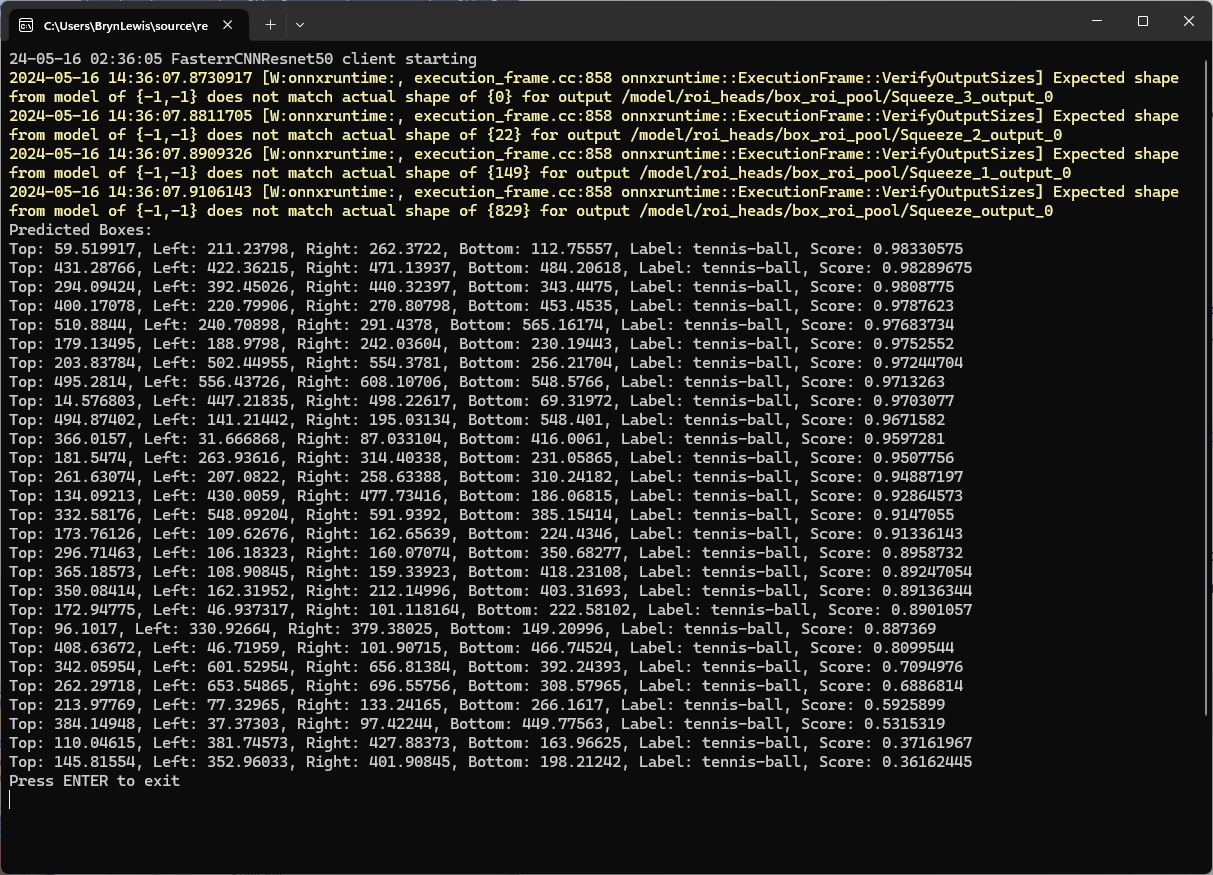
The initial model was detecting only 28 (with much lower confidences) of the 30 tennis balls in the sample images.

Output of console application with object detection information

I used the “default configuration” settings and ran the model training for 17.5 hours overnight which cost roughly USD24.

Azure Pricing Calculator estimate for my training setup

This post is not about how train a “good” model it is the approach I took to create a “proof of concept” model for a demonstration.