Azure Event Grid MQTT-With HiveMQ & MQTTnet Clients

Most of the examples of connecting to Azure Event Grid’s MQTT broker use MQTTnet so for a bit of variety I started with a hivemq-mqtt-client-dotnet based client. (A customer had been evaluating HiveMQ for a project which was later cancelled)

BEWARE – ClientID parameter is case sensitive.

The HiveMQ client was “inspired” by the How to Guides > Custom Client Certificates documentation.

class Program
{
   private static Model.ApplicationSettings _applicationSettings;
   private static HiveMQClient _client;
   private static bool _publisherBusy = false;

   static async Task Main()
   {
      Console.WriteLine($"{DateTime.UtcNow:yy-MM-dd HH:mm:ss} Hive MQ client starting");

      try
      {
         // load the app settings into configuration
         var configuration = new ConfigurationBuilder()
               .AddJsonFile("appsettings.json", false, true)
               .AddUserSecrets<Program>()
         .Build();

         _applicationSettings = configuration.GetSection("ApplicationSettings").Get<Model.ApplicationSettings>();

         var optionsBuilder = new HiveMQClientOptionsBuilder();

         optionsBuilder
            .WithClientId(_applicationSettings.ClientId)
            .WithBroker(_applicationSettings.Host)
            .WithPort(_applicationSettings.Port)
            .WithUserName(_applicationSettings.UserName)
            .WithCleanStart(_applicationSettings.CleanStart)
            .WithClientCertificate(_applicationSettings.ClientCertificateFileName, _applicationSettings.ClientCertificatePassword)
            .WithUseTls(true);

         using (_client = new HiveMQClient(optionsBuilder.Build()))
         {
            _client.OnMessageReceived += OnMessageReceived;

            var connectResult = await _client.ConnectAsync();
            if (connectResult.ReasonCode != ConnAckReasonCode.Success)
            {
               throw new Exception($"Failed to connect: {connectResult.ReasonString}");
            }

            Console.WriteLine($"Subscribed to Topic");
            foreach (string topic in _applicationSettings.SubscribeTopics.Split(',', StringSplitOptions.RemoveEmptyEntries | StringSplitOptions.TrimEntries))
            {
               var subscribeResult = await _client.SubscribeAsync(topic, _applicationSettings.SubscribeQualityOfService);

               Console.WriteLine($" Topic:{topic} Result:{subscribeResult.Subscriptions[0].SubscribeReasonCode}");
            }
   }
//...
}
HiveMQ Client console application output

The MQTTnet client was “inspired” by the Azure MQTT .NET Application sample

class Program
{
   private static Model.ApplicationSettings _applicationSettings;
   private static IMqttClient _client;
   private static bool _publisherBusy = false;

   static async Task Main()
   {
      Console.WriteLine($"{DateTime.UtcNow:yy-MM-dd HH:mm:ss} MQTTNet client starting");

      try
      {
         // load the app settings into configuration
         var configuration = new ConfigurationBuilder()
               .AddJsonFile("appsettings.json", false, true)
               .AddUserSecrets<Program>()
         .Build();

         _applicationSettings = configuration.GetSection("ApplicationSettings").Get<Model.ApplicationSettings>();

         var mqttFactory = new MqttFactory();

         using (_client = mqttFactory.CreateMqttClient())
         {
            // Certificate based authentication
            List<X509Certificate2> certificates = new List<X509Certificate2>
            {
               new X509Certificate2(_applicationSettings.ClientCertificateFileName, _applicationSettings.ClientCertificatePassword)
            };

            var tlsOptions = new MqttClientTlsOptionsBuilder()
                  .WithClientCertificates(certificates)
                  .WithSslProtocols(System.Security.Authentication.SslProtocols.Tls12)
                  .UseTls(true)
                  .Build();

            MqttClientOptions mqttClientOptions = new MqttClientOptionsBuilder()
                     .WithClientId(_applicationSettings.ClientId)
                     .WithTcpServer(_applicationSettings.Host, _applicationSettings.Port)
                     .WithCredentials(_applicationSettings.UserName, _applicationSettings.Password)
                     .WithCleanStart(_applicationSettings.CleanStart)
                     .WithTlsOptions(tlsOptions)
                     .Build();

            var connectResult = await _client.ConnectAsync(mqttClientOptions);
            if (connectResult.ResultCode != MqttClientConnectResultCode.Success)
            {
               throw new Exception($"Failed to connect: {connectResult.ReasonString}");
            }

            _client.ApplicationMessageReceivedAsync += OnApplicationMessageReceivedAsync;

            Console.WriteLine($"Subscribed to Topic");
            foreach (string topic in _applicationSettings.SubscribeTopics.Split(',', StringSplitOptions.RemoveEmptyEntries | StringSplitOptions.TrimEntries))
            {
               var subscribeResult = await _client.SubscribeAsync(topic, _applicationSettings.SubscribeQualityOfService);

               Console.WriteLine($" {topic} Result:{subscribeResult.Items.First().ResultCode}");
            }
      }
//...
}
MQTTnet client console application output

The design of the MQTT protocol means that the hivemq-mqtt-client-dotnet and MQTTnet implementations are similar. Having used both I personally prefer the HiveMQ client library.

Azure Event Grid MQTT-Certificates

When configuring Root, Intermediate and Device certificates for my Azure Event Grid Devices using the smallstep step-ca or OpenSSL I made mistakes/typos which broke my deployment and in the end I was copying and pasting commands from Windows Notepad.

For one test deployment it took me an hour to generate the Root, Intermediate and a number of Devices certificates which was a waste of time. At this point I decided investigate writing some applications to simplify the process.

After some searching I stumbled across CREATING CERTIFICATES FOR X.509 SECURITY IN AZURE IOT HUB USING .NET CORE by Damien Bod which showed how to generate certificates for Azure IoT Hub solutions using his NuGet package Certificate Manager.

The AzureIoTHubDps repository had a sample showing how to generate the certificate chain for Azure IoT Hub devices. It worked really well but I accidentally overwrote my Root and Intermediate certificates, there were some “magic numbers” and hard coded passwords (it was a sample) so I decided to “chop” the sample up into three command line applications.

static void Main(string[] args)
{
   var serviceProvider = new ServiceCollection()
         .AddCertificateManager()
         .BuildServiceProvider();

   // load the app settings into configuration
   var configuration = new ConfigurationBuilder()
         .AddJsonFile("appsettings.json", false, true)
         .AddUserSecrets<Program>()
   .Build();

   _applicationSettings = configuration.GetSection("ApplicationSettings").Get<Model.ApplicationSettings>();
//------
   Console.WriteLine($"validFrom:{validFrom} ValidTo:{validTo}");

   var serverRootCertificate = serviceProvider.GetService<CreateCertificatesClientServerAuth>();

   var root = serverRootCertificate.NewRootCertificate(
         new DistinguishedName { 
               CommonName = _applicationSettings.CommonName,
               Organisation = _applicationSettings.Organisation,
               OrganisationUnit = _applicationSettings.OrganisationUnit,
               Locality = _applicationSettings.Locality,
               StateProvince  = _applicationSettings.StateProvince,
               Country = _applicationSettings.Country
         },
         new ValidityPeriod { 
         ValidFrom = validFrom,
         ValidTo = validTo,
         },
         _applicationSettings.PathLengthConstraint,
         _applicationSettings.DnsName);
   root.FriendlyName = _applicationSettings.FriendlyName;

   Console.Write("PFX Password:");
   string password = Console.ReadLine();
   if ( String.IsNullOrEmpty(password))
   {
      Console.WriteLine("PFX Password invalid");
      return;
   }

   var exportCertificate = serviceProvider.GetService<ImportExportCertificate>();

   var rootCertificatePfxBytes = exportCertificate.ExportRootPfx(password, root);
   File.WriteAllBytes(_applicationSettings.RootCertificateFilePath, rootCertificatePfxBytes);

   Console.WriteLine($"Root certificate file:{_applicationSettings.RootCertificateFilePath}");
   Console.WriteLine("press enter to exit");
   Console.ReadLine();
}

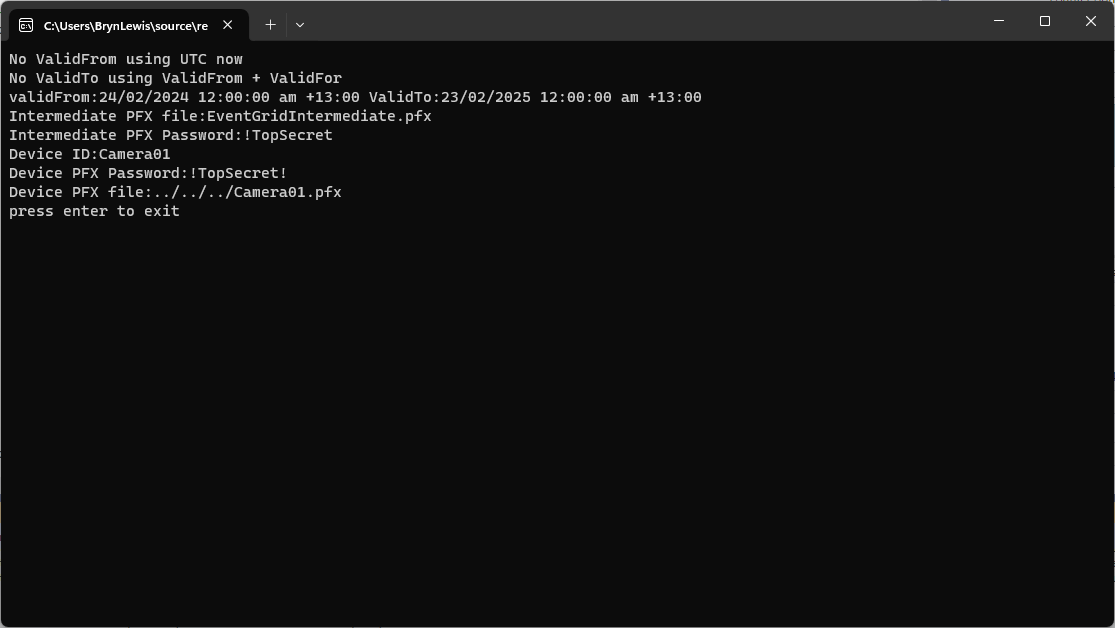
The application’s configuration was split between application settings file(certificate file paths, validity periods, Organisation etc.) or entered at runtime ( certificate filenames, passwords etc.) The first application generates a Root Certificate using the distinguished name information from the application settings, plus file names and passwords entered by the user.

Root Certificate generation application output

The second application generates an Intermediate Certificate using the Root Certificate, the distinguished name information from the application settings, plus file names and passwords entered by the user.

static void Main(string[] args)
{
   var serviceProvider = new ServiceCollection()
         .AddCertificateManager()
         .BuildServiceProvider();

   // load the app settings into configuration
   var configuration = new ConfigurationBuilder()
         .AddJsonFile("appsettings.json", false, true)
         .AddUserSecrets<Program>()
   .Build();

   _applicationSettings = configuration.GetSection("ApplicationSettings").Get<Model.ApplicationSettings>();
//------
   Console.WriteLine($"validFrom:{validFrom} be after ValidTo:{validTo}");

   Console.WriteLine($"Root Certificate file:{_applicationSettings.RootCertificateFilePath}");

   Console.Write("Root Certificate Password:");
   string rootPassword = Console.ReadLine();
   if (String.IsNullOrEmpty(rootPassword))
   {
      Console.WriteLine("Fail");
      return;
   }
   var rootCertificate = new X509Certificate2(_applicationSettings.RootCertificateFilePath, rootPassword);

   var intermediateCertificateCreate = serviceProvider.GetService<CreateCertificatesClientServerAuth>();

   var intermediateCertificate = intermediateCertificateCreate.NewIntermediateChainedCertificate(
         new DistinguishedName
         {
            CommonName = _applicationSettings.CommonName,
            Organisation = _applicationSettings.Organisation,
            OrganisationUnit = _applicationSettings.OrganisationUnit,
            Locality = _applicationSettings.Locality,
            StateProvince = _applicationSettings.StateProvince,
            Country = _applicationSettings.Country
         },
      new ValidityPeriod
      {
         ValidFrom = validFrom,
         ValidTo = validTo,
      },
            _applicationSettings.PathLengthConstraint,
            _applicationSettings.DnsName, rootCertificate);
      intermediateCertificate.FriendlyName = _applicationSettings.FriendlyName;

   Console.Write("Intermediate certificate Password:");
   string intermediatePassword = Console.ReadLine();
   if (String.IsNullOrEmpty(intermediatePassword))
   {
      Console.WriteLine("Fail");
      return;
   }

   var importExportCertificate = serviceProvider.GetService<ImportExportCertificate>();

   Console.WriteLine($"Intermediate PFX file:{_applicationSettings.IntermediateCertificatePfxFilePath}");
   var intermediateCertificatePfxBtyes = importExportCertificate.ExportChainedCertificatePfx(intermediatePassword, intermediateCertificate, rootCertificate);
   File.WriteAllBytes(_applicationSettings.IntermediateCertificatePfxFilePath, intermediateCertificatePfxBtyes);

   Console.WriteLine($"Intermediate CER file:{_applicationSettings.IntermediateCertificateCerFilePath}");
   var intermediateCertificatePemText = importExportCertificate.PemExportPublicKeyCertificate(intermediateCertificate);
   File.WriteAllText(_applicationSettings.IntermediateCertificateCerFilePath, intermediateCertificatePemText);

   Console.WriteLine("press enter to exit");
   Console.ReadLine();
}
Intermediate Certificate generation application output
Uploading the Intermediate certificate to Azure Event Grid

The third application generates Device Certificates using the Intermediate Certificate, distinguished name information from the application settings, plus device id, file names and passwords entered by the user.

static void Main(string[] args)
{
   var serviceProvider = new ServiceCollection()
         .AddCertificateManager()
         .BuildServiceProvider();

   // load the app settings into configuration
   var configuration = new ConfigurationBuilder()
         .AddJsonFile("appsettings.json", false, true)
         .AddUserSecrets<Program>()
   .Build();

   _applicationSettings = configuration.GetSection("ApplicationSettings").Get<Model.ApplicationSettings>();
//------
   Console.WriteLine($"validFrom:{validFrom} ValidTo:{validTo}");

   Console.WriteLine($"Intermediate PFX file:{_applicationSettings.IntermediateCertificateFilePath}");

   Console.Write("Intermediate PFX Password:");
   string intermediatePassword = Console.ReadLine();
   if (String.IsNullOrEmpty(intermediatePassword))
   {
      Console.WriteLine("Intermediate PFX Password invalid");
      return;
   }
   var intermediate = new X509Certificate2(_applicationSettings.IntermediateCertificateFilePath, intermediatePassword);

   Console.Write("Device ID:");
   string deviceId = Console.ReadLine();
   if (String.IsNullOrEmpty(deviceId))
   {
      Console.WriteLine("Device ID invalid");
      return;
   }

   var createClientServerAuthCerts = serviceProvider.GetService<CreateCertificatesClientServerAuth>();

   var device = createClientServerAuthCerts.NewDeviceChainedCertificate(
         new DistinguishedName
         {
            CommonName = deviceId,
            Organisation = _applicationSettings.Organisation,
            OrganisationUnit = _applicationSettings.OrganisationUnit,
            Locality = _applicationSettings.Locality,
            StateProvince = _applicationSettings.StateProvince,
            Country = _applicationSettings.Country
         },
      new ValidityPeriod
      {
         ValidFrom = validFrom,
         ValidTo = validTo,
      },
      deviceId, intermediate);
   device.FriendlyName = deviceId;

   Console.Write("Device PFX Password:");
   string devicePassword = Console.ReadLine();
   if (String.IsNullOrEmpty(devicePassword))
   {
      Console.WriteLine("Fail");
      return;
   }

   var importExportCertificate = serviceProvider.GetService<ImportExportCertificate>();

   string devicePfxPath = string.Format(_applicationSettings.DeviceCertificatePfxFilePath, deviceId);

   Console.WriteLine($"Device PFX file:{devicePfxPath}");
   var deviceCertificatePath = importExportCertificate.ExportChainedCertificatePfx(devicePassword, device, intermediate);
   File.WriteAllBytes(devicePfxPath,  deviceCertificatePath);

   Console.WriteLine("press enter to exit");
   Console.ReadLine();
}
Device Certificate generation application output
Uploading the Intermediate certificate to Azure Event Grid

These applications wouldn’t have been possible without Damien Bod’s CREATING CERTIFICATES FOR X.509 SECURITY IN AZURE IOT HUB USING .NET CORE blog post, and his Certificate Manager NuGet package.

Airbnb Dataset – NetTopologySuite spatial searching

I have used Entity Framework Core a “full fat” Object Relational Mapper (ORM) for a couple of projects, and it supports mapping to spatial data types using the NetTopologySuite library. On Stackoverflow there was some discussion about Dapper’s spatial support so I thought I would try it out.

The DapperSpatialNetTopologySuite project has Dapper SQLMapper TypeHandler, Microsoft SQL Server stored procedure name and ASP.NET Core Minimal API for each location column handler implementation.

app.MapGet("/Spatial/NearbyGeography", async (double latitude, double longitude, int distance, [FromServices] IDapperContext dapperContext) =>
{
   var origin = new Point(longitude, latitude) { SRID = 4326 };

   using (var connection = dapperContext.ConnectionCreate())
   {
      var results = await connection.QueryWithRetryAsync<Model.ListingNearbyListGeographyDto>("ListingsSpatialNearbyNTS_____", new { origin, distance }, commandType: CommandType.StoredProcedure);

      return results;
   }
})
.Produces<IList<Model.ListingNearbyListGeographyDto>>(StatusCodes.Status200OK)
.Produces<ProblemDetails>(StatusCodes.Status400BadRequest)
.WithOpenApi();

After adding the NetTopologySuite spatial library to the project the schemas list got a lot bigger.

NetTopology Suite additional schemas

My first attempt inspired by a really old Marc Gravell post and the NetTopologySuite.IO.SqlServerBytes documentation didn’t work.

CREATE PROCEDURE [dbo].[ListingsSpatialNearbyNTSLocation]
	@Origin AS GEOGRAPHY,
	@distance AS INTEGER
AS
BEGIN
DECLARE @Circle AS GEOGRAPHY = @Origin.STBuffer(@distance); 

SELECT TOP(50) UID AS ListingUID
	,[Name]
	,listing_url as ListingUrl
	,Listing.Location.STDistance(@Origin) as Distance
	,Listing.Location
FROM Listing
WHERE (Listing.Location.STWithin(@Circle) = 1) 
ORDER BY Distance
END
NetTopology Suite Microsoft.SqlServer.Types library load exception

I could see the Dapper SQLMapper TypeHandler for the @origin parameter getting called but the not locations

NetTopology Suite @Origin parameter typehandler in Visual Studio 2022 Debugger

Then found a Brice Lambson post about how to use the NetTopologySuite.IO.SqlServerBytes library to read and write geography and geometry columns.

CREATE PROCEDURE [dbo].[ListingsSpatialNearbyNTSSerialize]
	@Origin AS GEOGRAPHY,
	@distance AS INTEGER
AS
BEGIN
DECLARE @Circle AS GEOGRAPHY = @Origin.STBuffer(@distance); 

SELECT TOP(50) UID AS ListingUID
	,[Name]
	,listing_url as ListingUrl
	,Listing.Location.STDistance(@Origin) as Distance
	,Location.Serialize() as Location
FROM [listing] 
WHERE (Location.STWithin(@Circle) = 1) 
ORDER BY Distance
END
class PointHandlerSerialise : SqlMapper.TypeHandler<Point>
{
   public override Point Parse(object value)
   {
      var reader = new SqlServerBytesReader { IsGeography = true };

      return (Point)reader.Read((byte[])value);
   }

   public override void SetValue(IDbDataParameter parameter, Point? value)
   {
      ((SqlParameter)parameter).SqlDbType = SqlDbType.Udt;  // @Origin parameter?
      ((SqlParameter)parameter).UdtTypeName = "GEOGRAPHY";

      var writer = new SqlServerBytesWriter { IsGeography = true };

      parameter.Value = writer.Write(value);
   }
}

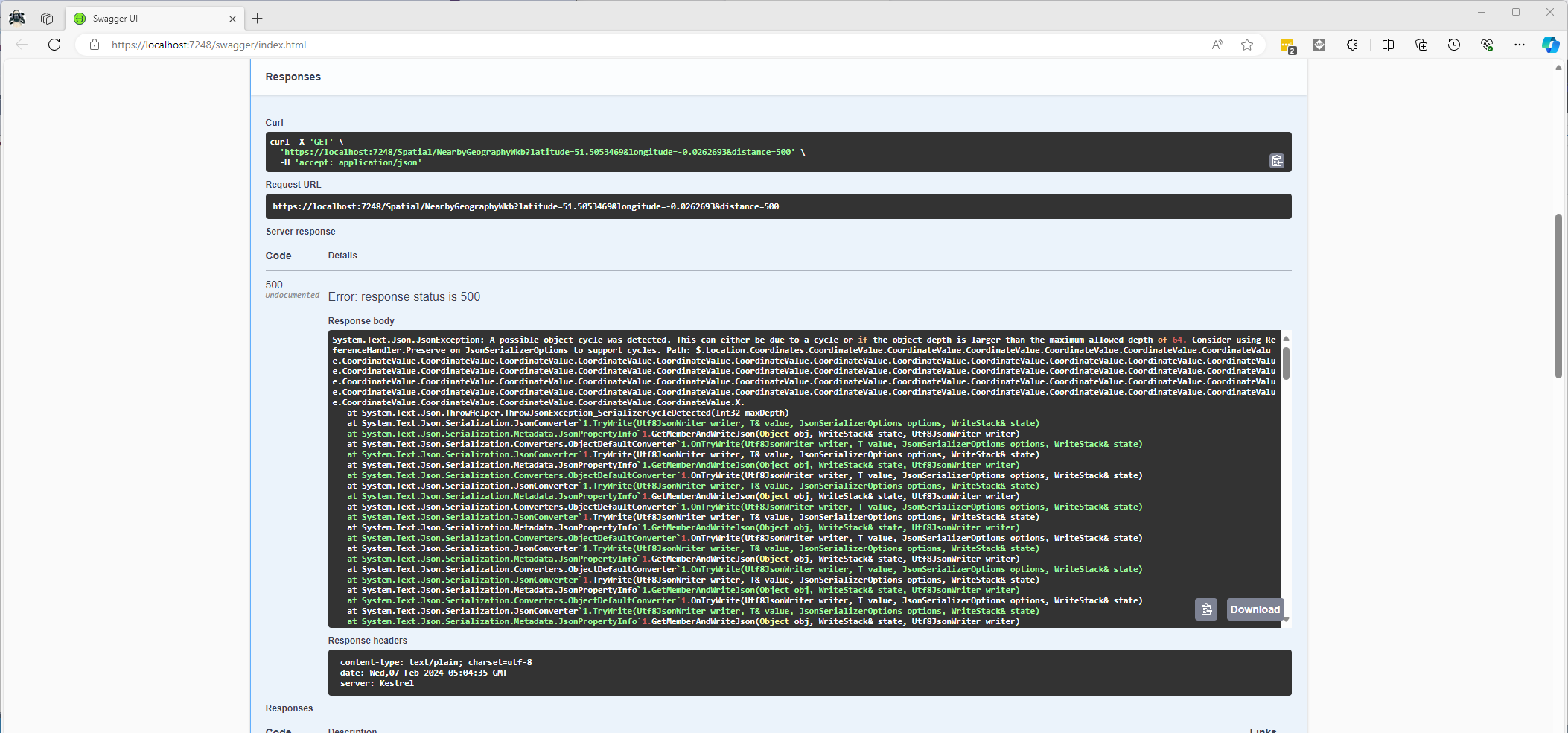
Once the location column serialisation was working (I could see a valid response in the debugger) the generation of the response was failing with a “System.Text.Json.JsonException: A possible object cycle was detected. This can either be due to a cycle or if the object depth is larger than the maximum allowed depth of 64″.

NetTopology Suite serialisation “possible object cycle detection” exception

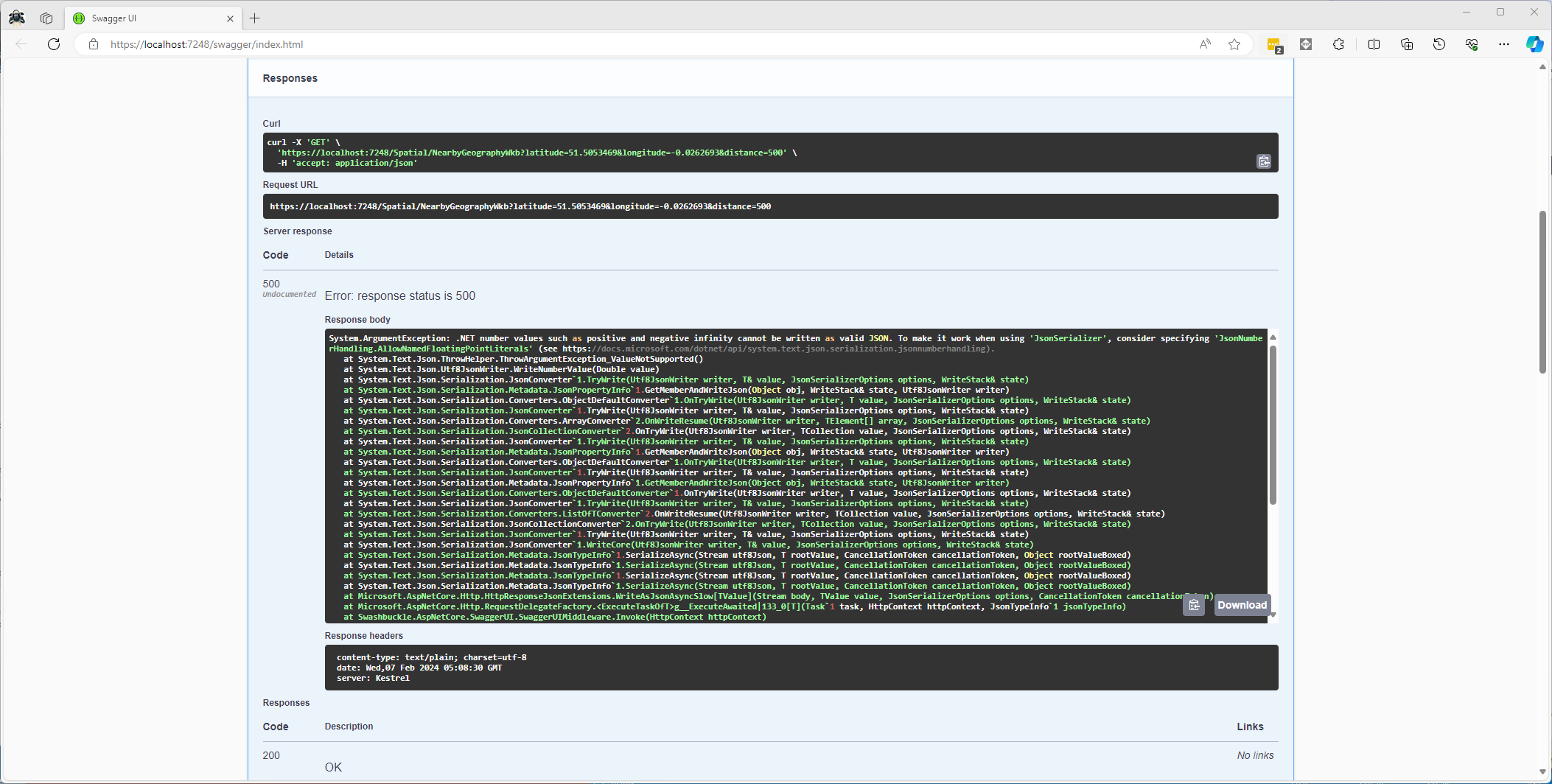
After fixing that issue the response generation failed with “System.ArgumentException: .NET number values such as positive and negative infinity cannot be written as valid JSON.”

NetTopology Suite serialisation “possible object cycle detection” exception

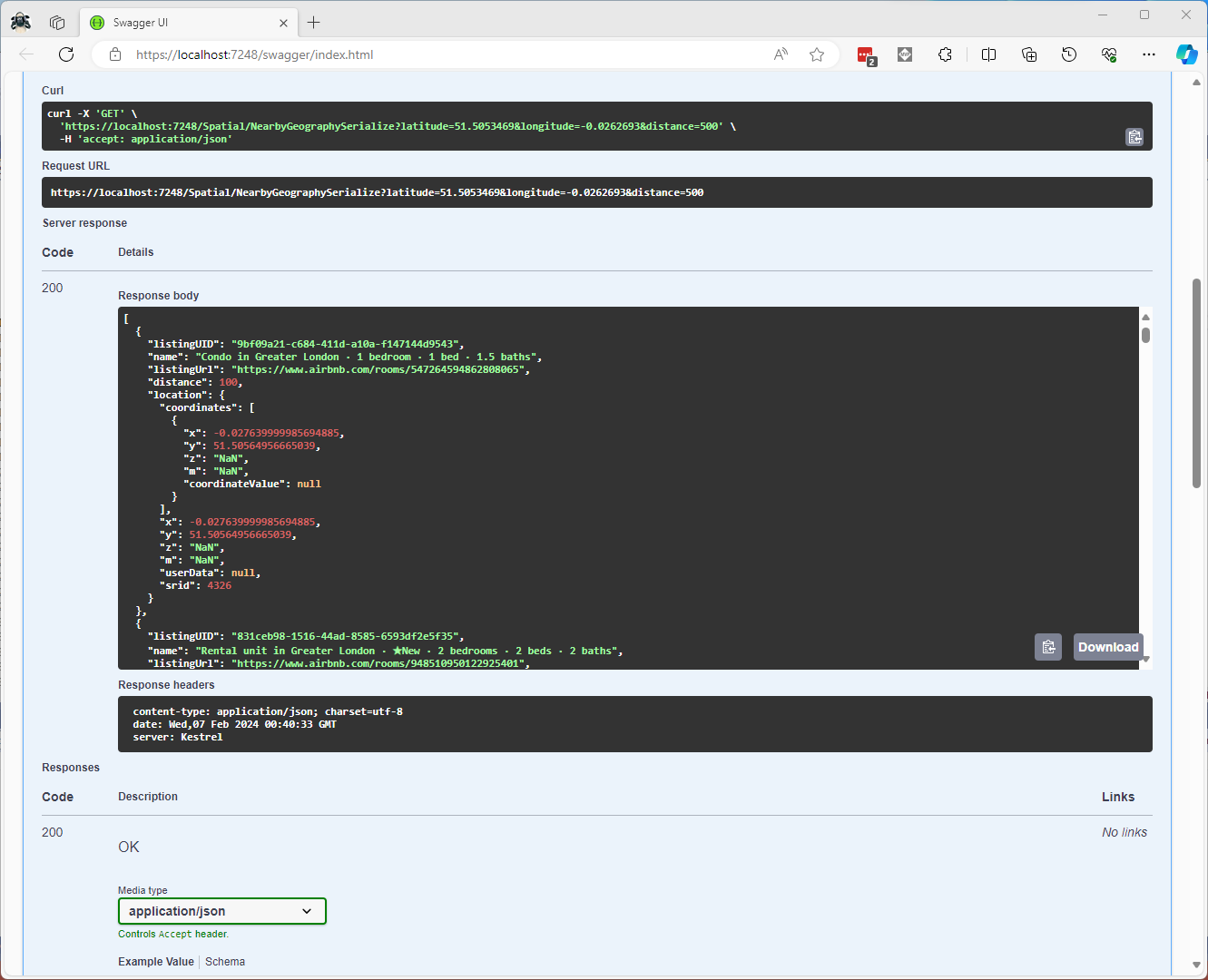
Fixing these two issues required adjustment of two HttpJsonOptions

//...
builder.Services.ConfigureHttpJsonOptions(options =>
{
   options.SerializerOptions.ReferenceHandler = ReferenceHandler.IgnoreCycles;
   options.SerializerOptions.NumberHandling = JsonNumberHandling.AllowNamedFloatingPointLiterals;
});

var app = builder.Build();
//...
Swagger NetTopology Suite location serialisation response

After digging into the Dapper source code I wondered how ADO.Net handled loading Microsoft.SQLServer.Types library

app.MapGet("/Listing/Search/Ado", async (double latitude, double longitude, int distance, [FromServices] IDapperContext dapperContext) =>
{
   var origin = new Point(longitude, latitude) { SRID = 4326 };

   using (SqlConnection connection = (SqlConnection)dapperContext.ConnectionCreate())
   {
      await connection.OpenAsync();

      var geographyWriter = new SqlServerBytesWriter { IsGeography = true };

      using (SqlCommand command = connection.CreateCommand())
      {
         command.CommandText = "ListingsSpatialNearbyNTSLocation";
         command.CommandType = CommandType.StoredProcedure;

         var originParameter = command.CreateParameter();
         originParameter.ParameterName = "Origin";
         originParameter.Value = new SqlBytes(geographyWriter.Write(origin));
         originParameter.SqlDbType = SqlDbType.Udt;
         originParameter.UdtTypeName = "GEOGRAPHY";
         command.Parameters.Add(originParameter);

         var distanceParameter = command.CreateParameter();
         distanceParameter.ParameterName = "Distance";
         distanceParameter.Value = distance;
         distanceParameter.DbType = DbType.Int32;
         command.Parameters.Add(distanceParameter);

         var geographyReader = new SqlServerBytesReader { IsGeography = true };

         using (var dbDataReader = await command.ExecuteReaderAsync())
         {
            List<Model.ListingNearbyListGeographyDto> listings = new List<Model.ListingNearbyListGeographyDto>();

            int listingUIDColumn = dbDataReader.GetOrdinal("ListingUID");
            int nameColumn = dbDataReader.GetOrdinal("Name");
            int listingUrlColumn = dbDataReader.GetOrdinal("ListingUrl");
            int distanceColumn = dbDataReader.GetOrdinal("Distance");
            int LocationColumn = dbDataReader.GetOrdinal("Location");

            while (await dbDataReader.ReadAsync())
            {
               listings.Add(new Model.ListingNearbyListGeographyDto
               {
                  ListingUID = dbDataReader.GetGuid(listingUIDColumn),
                  Name = dbDataReader.GetString(nameColumn),
                  ListingUrl = dbDataReader.GetString(listingUrlColumn),
                  Distance = (int)dbDataReader.GetDouble(distanceColumn),
                  Location = (Point)geographyReader.Read(dbDataReader.GetSqlBytes(LocationColumn).Value)
               });
            }

            return listings;
         }
      }
   }
})
.Produces<IList<Model.ListingNearbyListGeographyDto>>(StatusCodes.Status200OK)
.Produces<ProblemDetails>(StatusCodes.Status400BadRequest)
.WithOpenApi();

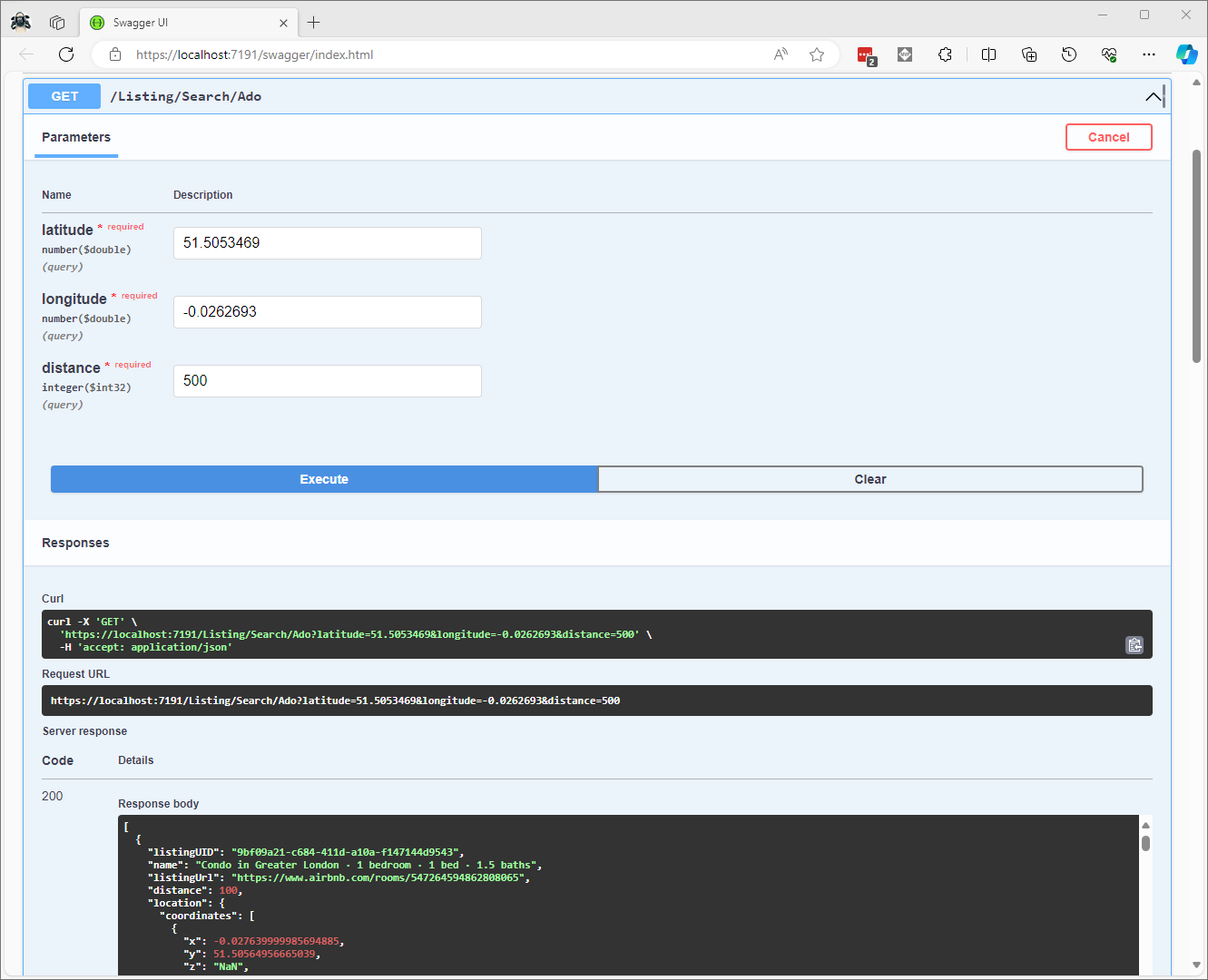
The ADO.Net implementation worked and didn’t produce any exceptions.

Swagger ADO.Net location serialisation response

In the Visual Studio 2022 debugger I could see the Microsoft.SQLServer.Types exception but this wasn’t “bubbling” up to the response generation code.

ADO.Net location serialisation Microsoft.SqlServer.Types load failure

The location columns could also be returned as Open Geospatial Consortium (OGC) Well-Known Binary (WKB) format using the STAsBinary method.

CREATE PROCEDURE [dbo].[ListingsSpatialNearbyNTSWkb]
	@Origin AS GEOGRAPHY,
	@distance AS INTEGER
AS
BEGIN
DECLARE @Circle AS GEOGRAPHY = @Origin.STBuffer(@distance); 

SELECT TOP(50) UID AS ListingUID
	,[Name]
	,listing_url as ListingUrl
	,Listing.Location.STDistance(@Origin) as Distance
	,Location.STAsBinary() as Location
FROM [listing] 
WHERE (Location.STWithin(@Circle) = 1) 
ORDER BY Distance
END

Then converted to and from NTS Point values using WKBReader and SqlServerBytesWriter

SqlMapper.AddTypeHandler(new PointHandlerWkb());
//...
class PointHandlerWkb : SqlMapper.TypeHandler<Point>
{
   public override Point Parse(object value)
   {
      var reader = new WKBReader();

      return (Point)reader.Read((byte[])value);
   }

   public override void SetValue(IDbDataParameter parameter, Point? value)
   {
      ((SqlParameter)parameter).SqlDbType = SqlDbType.Udt;  // @Origin parameter?
      ((SqlParameter)parameter).UdtTypeName = "GEOGRAPHY";

      var geometryWriter = new SqlServerBytesWriter { IsGeography = true };

      parameter.Value = geometryWriter.Write(value);
   }
}
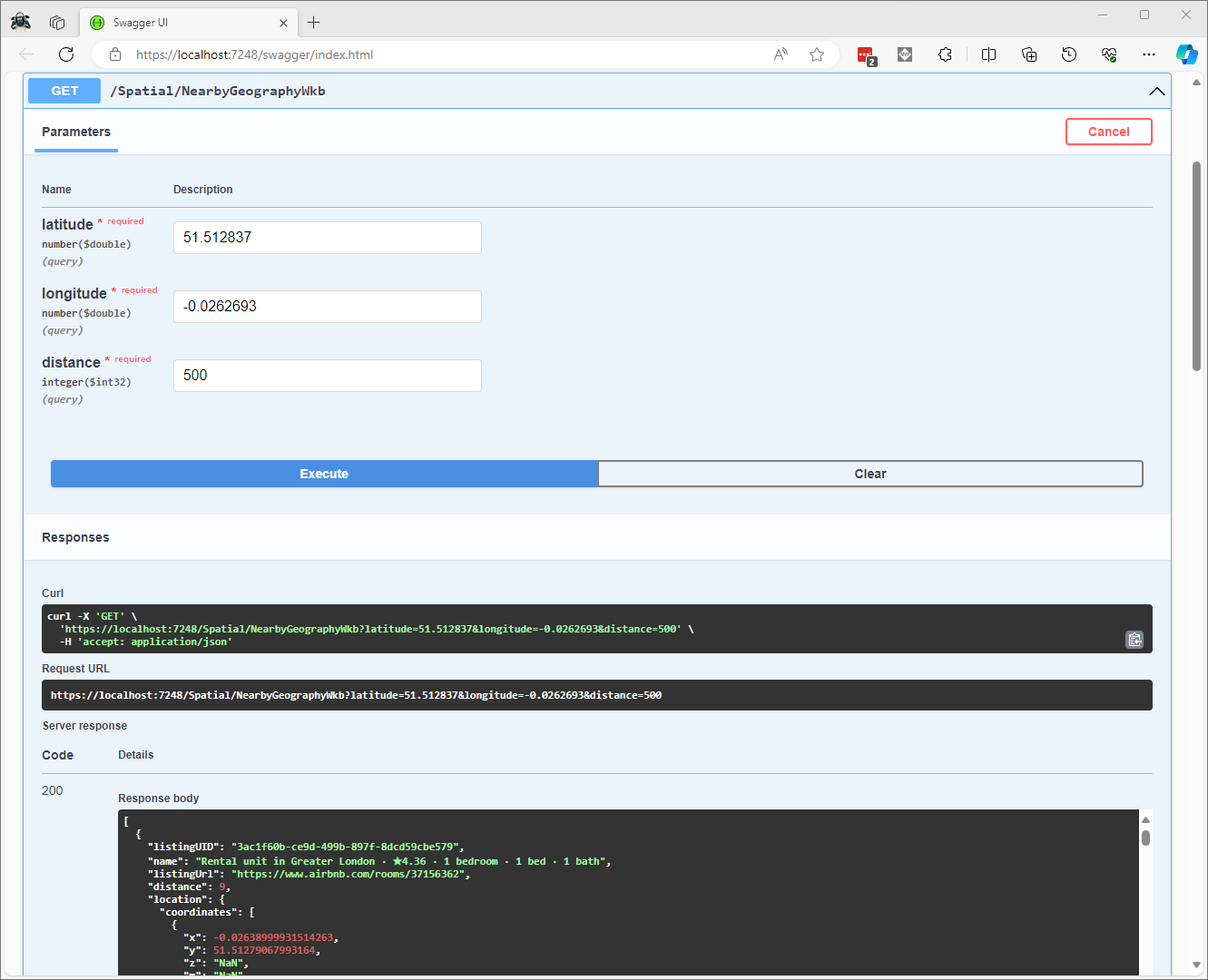
Successful Location processing with WKBReader

The location columns could also be returned as Open Geospatial Consortium (OGC) Well Known Text(WKT) format using the STAsText and SqlServerBytesWriter;

CREATE PROCEDURE [dbo].[ListingsSpatialNearbyNTSWkt]
	@Origin AS GEOGRAPHY,
	@distance AS INTEGER
AS
BEGIN
DECLARE @Circle AS GEOGRAPHY = @Origin.STBuffer(@distance); 

SELECT TOP(50) UID AS ListingUID
	,[Name]
	,listing_url as ListingUrl
	,Listing.Location.STDistance(@Origin) as Distance
	,Location.STAsText() as Location
FROM [listing] 
WHERE (Location.STWithin(@Circle) = 1) 
ORDER BY Distance
END

Then converted to and from NTS Point values using WKTReader and SqlServerBytesWriter

class PointHandlerWkt : SqlMapper.TypeHandler<Point>
{
   public override Point Parse(object value)
   {
      WKTReader wktReader = new WKTReader();

      return (Point)wktReader.Read(value.ToString());
   }

   public override void SetValue(IDbDataParameter parameter, Point? value)
   {
      ((SqlParameter)parameter).SqlDbType = SqlDbType.Udt;  // @Origin parameter?
      ((SqlParameter)parameter).UdtTypeName = "GEOGRAPHY";

      parameter.Value = new SqlServerBytesWriter() { IsGeography = true }.Write(value);
   }
}
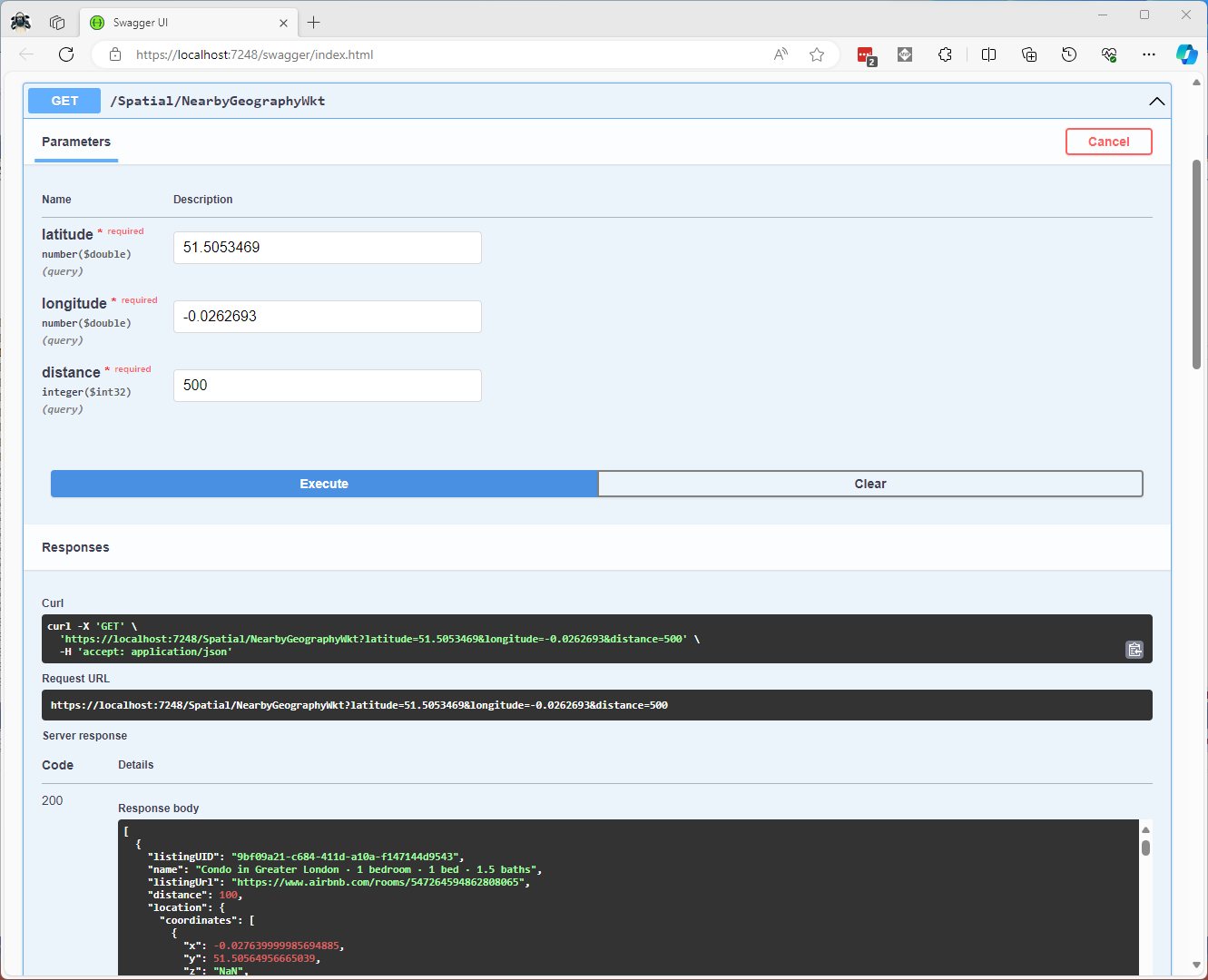
Successful Location processing with WKBReader

I have focused on getting the spatial queries to work and will stress/performance test my implementations in a future post. I will also revisit the /Spatial/NearbyGeography method to see if I can get it to work without “Location.Serialize() as Location”.

Downloaded Microsoft.Data.SqlClient source code and in SqlConnection.cs this doesn’t help….

  // UDT SUPPORT
  private Assembly ResolveTypeAssembly(AssemblyName asmRef, bool throwOnError)
  {
      Debug.Assert(TypeSystemAssemblyVersion != null, "TypeSystemAssembly should be set !");
      if (string.Equals(asmRef.Name, "Microsoft.SqlServer.Types", StringComparison.OrdinalIgnoreCase))
      {
          if (asmRef.Version != TypeSystemAssemblyVersion && SqlClientEventSource.Log.IsTraceEnabled())
          {
              SqlClientEventSource.Log.TryTraceEvent("SqlConnection.ResolveTypeAssembly | SQL CLR type version change: Server sent {0}, client will instantiate {1}", asmRef.Version, TypeSystemAssemblyVersion);
          }
          asmRef.Version = TypeSystemAssemblyVersion;
      }
      try
      {
          return Assembly.Load(asmRef);
      }
      catch (Exception e)
      {
          if (throwOnError || !ADP.IsCatchableExceptionType(e))
          {
              throw;
          }
          else
          {
              return null;
          }
      }
  }

Airbnb Dataset – Microsoft spatial searching

The Inside Airbnb London has the polygons of 33 neighbourhoods and each of the roughly 87900 listings has a latitude and longitude. The WebMinimalAPIDapper Spatial project uses only Microsoft SQL Server’s Spatial functionality for searching and distance calculations. 

Spatial Projections supported by SQL Server

The “magic number” 4326 indicates that the latitude and longitude values are expressed in the World Geodetic System 1984(WGS84) which is also used by the Global Positioning System (GPS) operated by the United States Space Force.

CREATE TABLE [dbo].[Neighbourhood](
	[id] [bigint] IDENTITY(1,1) NOT NULL,
	[NeighbourhoodUID] [uniqueidentifier] NOT NULL,
	[name] [nvarchar](50) NOT NULL,
	[neighbourhood_url] [nvarchar](100) NOT NULL,
	[boundary] [geography] NOT NULL,
 CONSTRAINT [PK_Neighbourhood] PRIMARY KEY CLUSTERED 
(
	[id] ASC
)
-- Then create a spatial index on GEOGRAPHY which contains the boundary polygon(s)
CREATE SPATIAL INDEX [ISX_NeighbourhoodBoundary] ON [dbo].[Neighbourhood]
(
	[boundary]
)

I added a GEOGRAPHY column to the Listing table, populated it using the Latitude and Longitudes of the Listings then added a spatial index.

-- Use latitude and longitude to populate Location GEOGRAPHY column
UPDATE listing
SET Listing.Location = geography::Point(latitude, longitude, 4326)

-- Then index Location column after changing to NOT NULL
CREATE SPATIAL INDEX [IXS_ListingByLocation] ON [dbo].[listing]
(
	[Location]
)

The first spatial search uses the latitude and longitude (most probably extracted from image metadata) to get a Listing’s neighbourhood.

Testing listing in Neighbourhood SQL

It uses the STContains method to find the neighbourhood polygon (if there is one) which the listing location is inside.

const string ListingInNeighbourhoodSQL = @"SELECT neighbourhoodUID, name, neighbourhood_url as neighbourhoodUrl FROM Neighbourhood WHERE Neighbourhood.Boundary.STContains(geography::Point(@Latitude, @Longitude, 4326)) = 1";
...

app.MapGet("/Spatial/Neighbourhood", async (double latitude, double longitude, [FromServices] IDapperContext dapperContext) =>
{
   Model.NeighbourhoodSearchDto neighbourhood;

   using (var connection = dapperContext.ConnectionCreate())
   {
      neighbourhood = await connection.QuerySingleOrDefaultWithRetryAsync<Model.NeighbourhoodSearchDto>(ListingInNeighbourhoodSQL, new { latitude, longitude });
   }

   if (neighbourhood is null)
   {
      return Results.Problem($"Neighbourhood for Latitude:{latitude} Longitude:{longitude} not found", statusCode: StatusCodes.Status404NotFound);
   }

   return Results.Ok(neighbourhood);
})
.Produces<IList<Model.NeighbourhoodSearchDto>>(StatusCodes.Status200OK)
.Produces(StatusCodes.Status404NotFound )
.WithOpenApi();

The case sensitivity of the OGC geography methods tripped me up a few times.

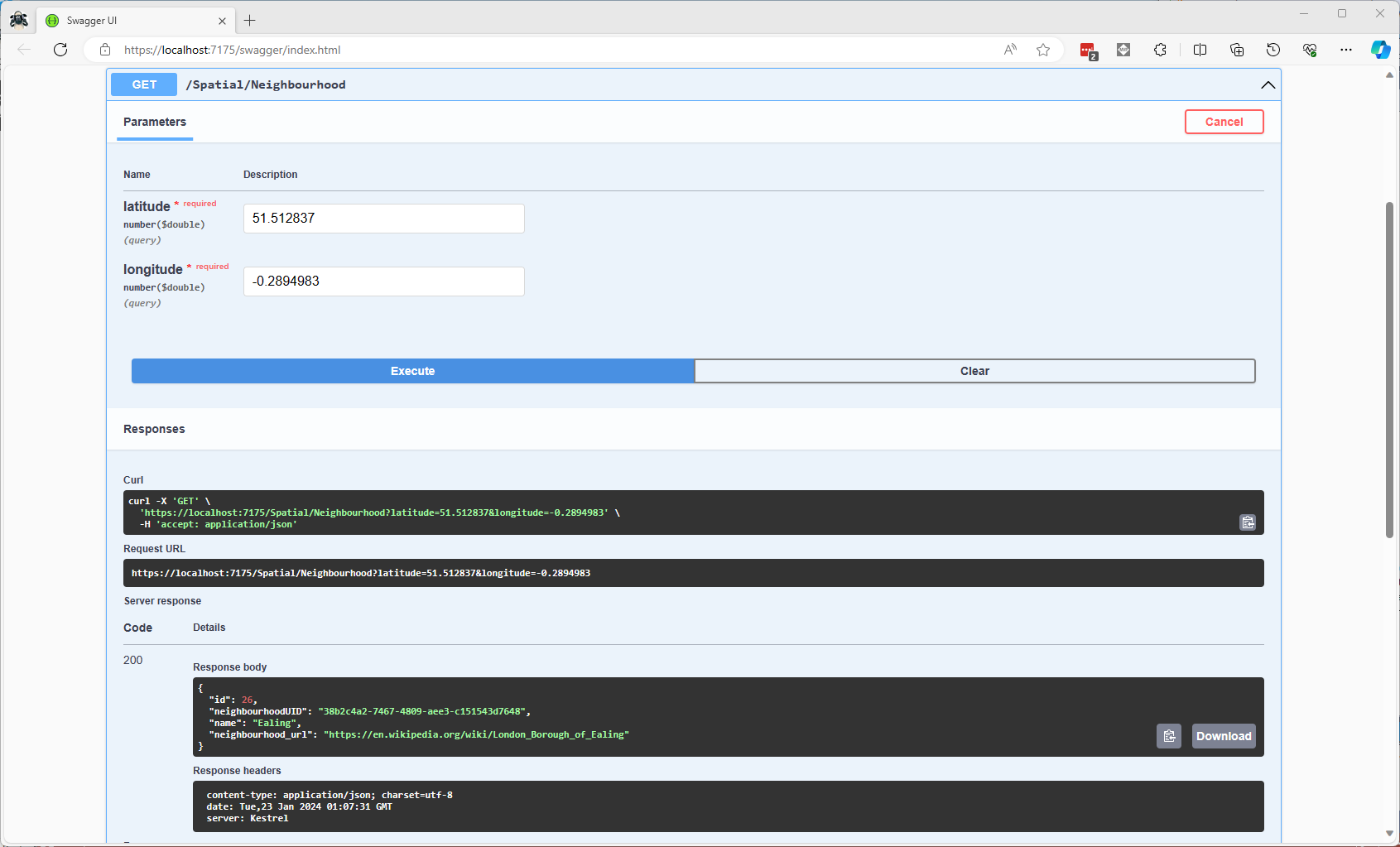
Testing listing Neighbourhood lookup with Swagger user interface

In a future blog post I will compare the performance of STContains vs. STWithin with a load testing application.

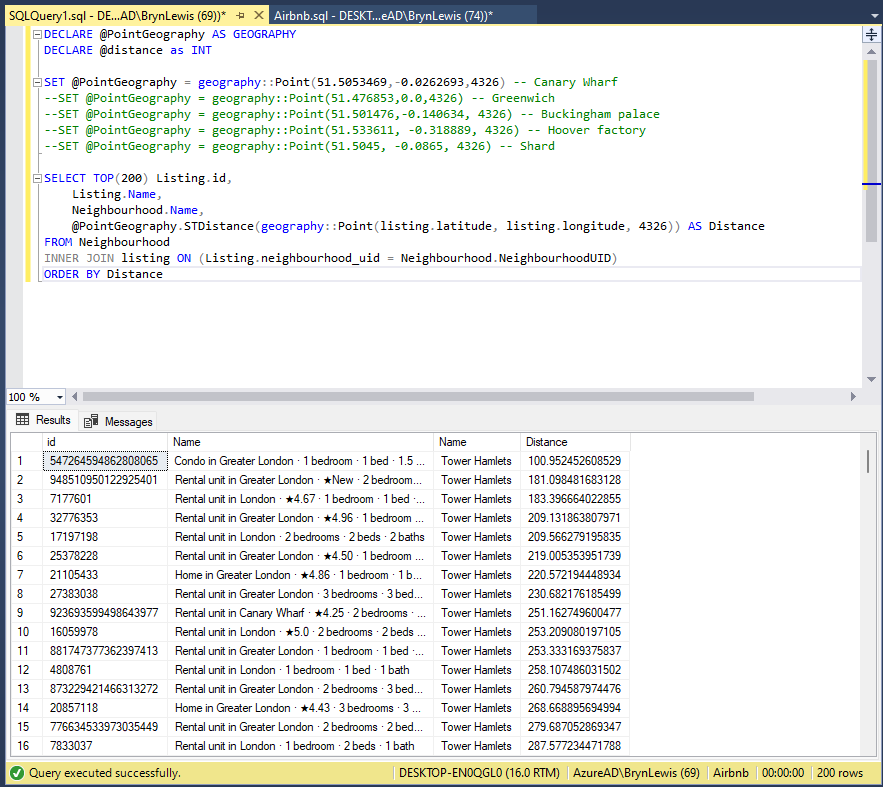
Testing listings near a location SQL

The second search simulates a customer looking for listing(s) within a specified distance of a point of interest.

const string ListingsNearbySQL = @"DECLARE @Origin AS GEOGRAPHY = geography::Point(@Latitude, @Longitude, 4326); 
                                  DECLARE @Circle AS GEOGRAPHY = @Origin.STBuffer(@distance); 
                                  --DECLARE @Circle AS GEOGRAPHY = @Origin.BufferWithTolerance(@distance, 0.09,true); 
                                  SELECT uid as ListingUID, Name, listing_url as ListingUrl, 
@Origin.STDistance(Listing.Location) as Distance 
                                  FROM [listing] 
                                  WHERE Listing.Location.STWithin(@Circle) = 1 ORDER BY Distance";
...
app.MapGet("/Spatial/NearbyText", async (double latitude, double longitude, double distance, [FromServices] IDapperContext dapperContext) =>
{
   using (var connection = dapperContext.ConnectionCreate())
   {
      return await connection.QueryWithRetryAsync<Model.ListingNearbyListDto>(ListingsNearbySQL, new { latitude, longitude, distance });
   }
})
.Produces<IList<Model.ListingNearbyListDto>>(StatusCodes.Status200OK)
.WithOpenApi();

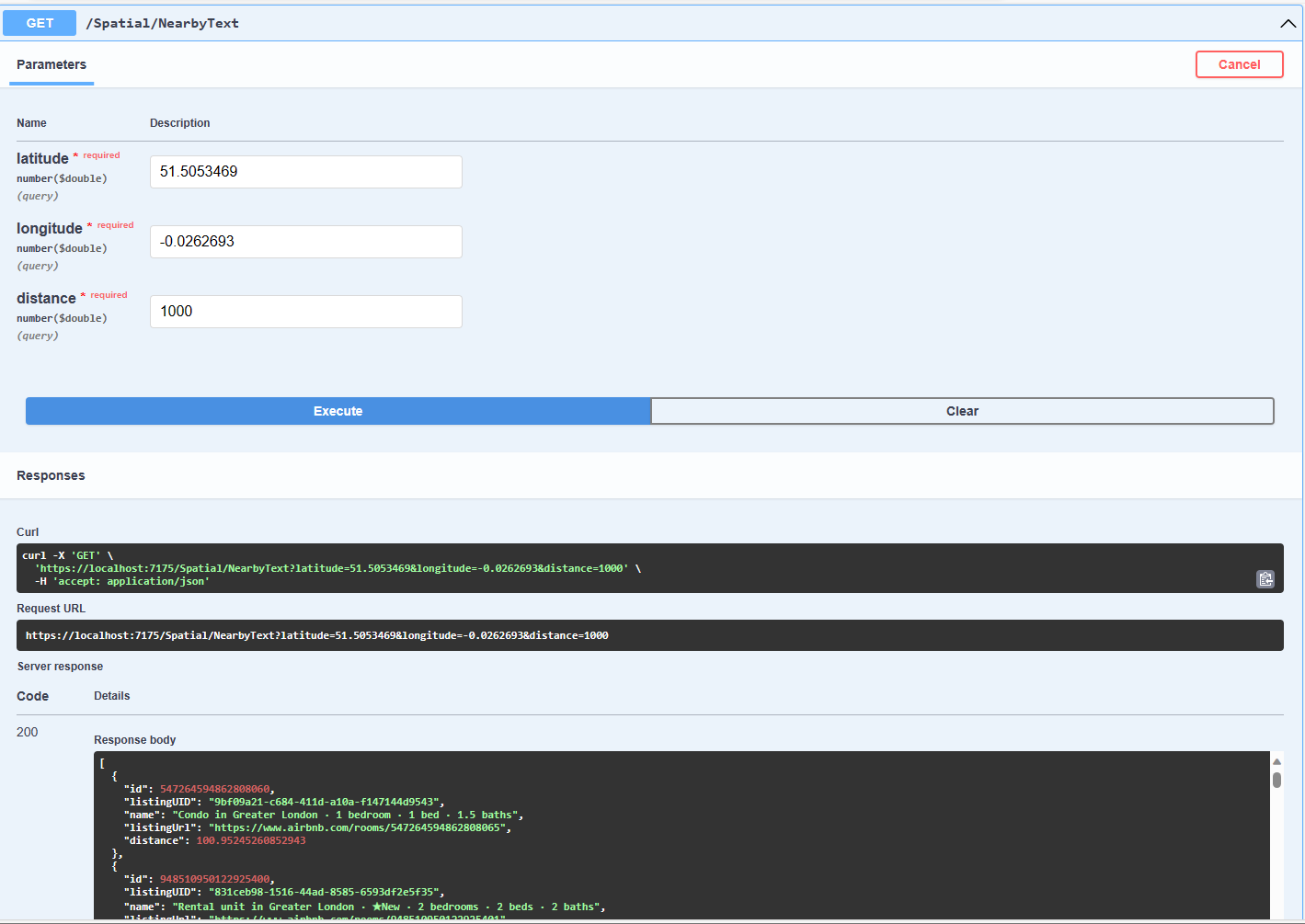
The STBuffer command returns a geography object that represents represent a circle centered on @Location with a radius of @distance.

Testing listings near a location with Swagger user interface

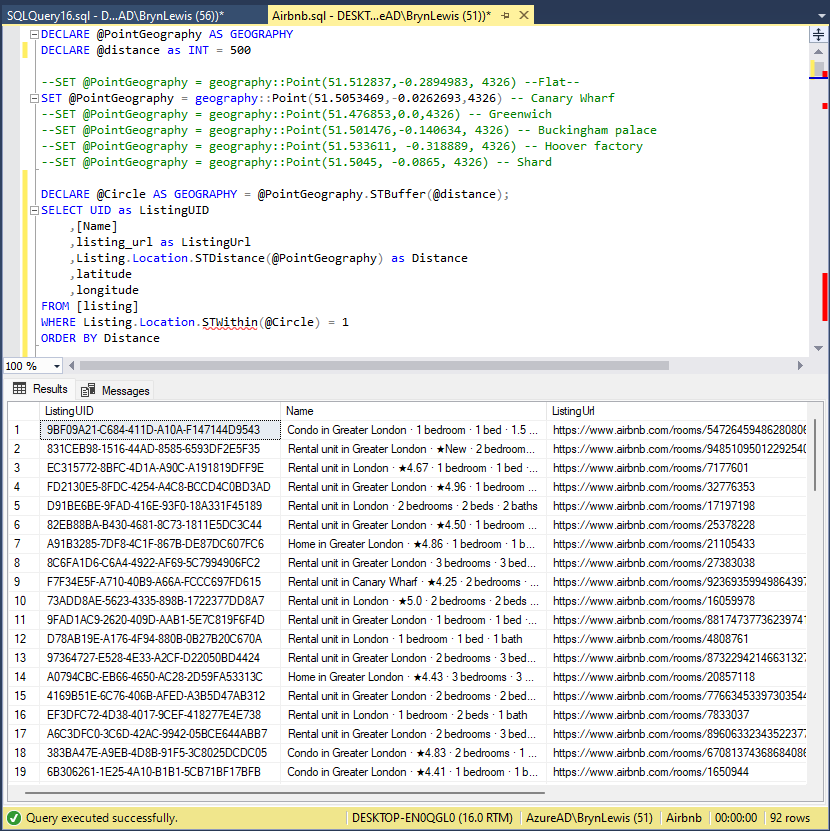
The third and final search simulates a customer looking for listing(s) within a specified distance of a point of interest with the latitude and longitude of the listing included in the results.

Testing listings near a location SQL with latitude & Longitude
const string ListingsNearbyLatitudeLongitudeSQL = @"DECLARE @Location AS GEOGRAPHY = geography::Point(@Latitude, @longitude,4326)
                                 DECLARE @Circle AS GEOGRAPHY = @Location.STBuffer(@distance);
                                 SELECT UID as ListingUID
	                              ,[Name]
	                              ,listing_url as ListingUrl
	                              ,Listing.Location.STDistance(@Location) as Distance
	                              ,latitude
                                 ,longitude
                                 FROM [listing]
                                 WHERE Listing.Location.STWithin(@Circle) = 1
                                 ORDER BY Distance";

app.MapGet("/Spatial/NearbyLatitudeLongitude", async (double latitude, double longitude, double distance, [FromServices] IDapperContext dapperContext) =>
{
   using (var connection = dapperContext.ConnectionCreate())
   {
      return await connection.QueryWithRetryAsync<Model.ListingNearbyListLatitudeLongitudeDto>(ListingsNearbyLatitudeLongitudeSQL, new { latitude, longitude, distance });
   }
})
.Produces<IList<Model.ListingNearbyListLatitudeLongitudeDto>>(StatusCodes.Status200OK)
.WithOpenApi();
Testing listings near a location with latitude & Longitude with Swagger user interface

The next couple of posts will use the third-party libraries Geo and NetTopolgySuite