RTSP Camera rosenbjerg.FFMpegCore GDI Error

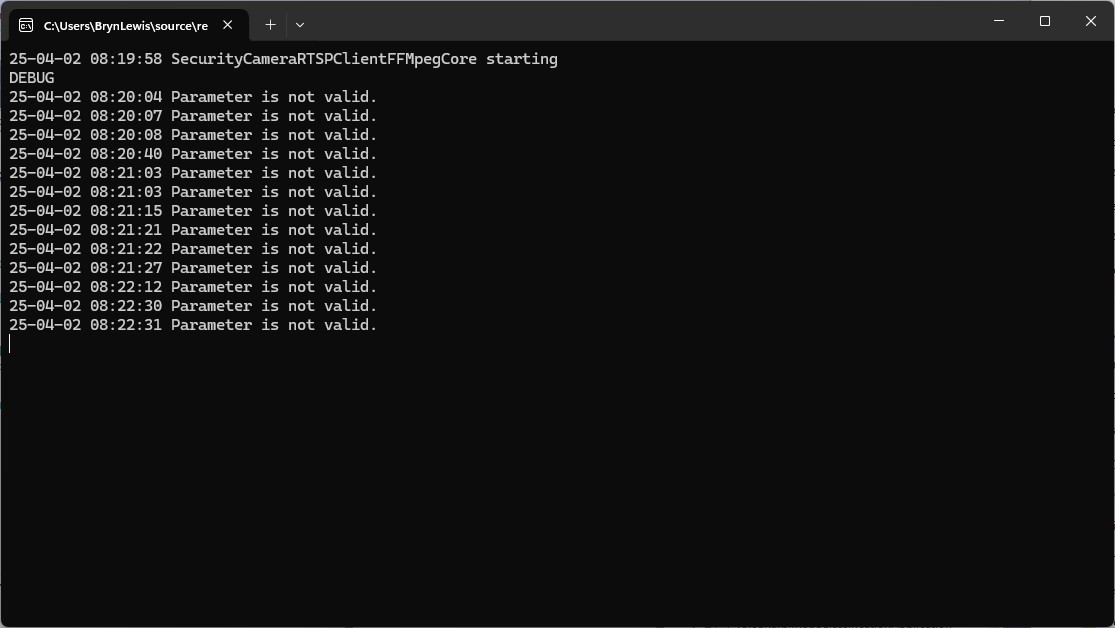
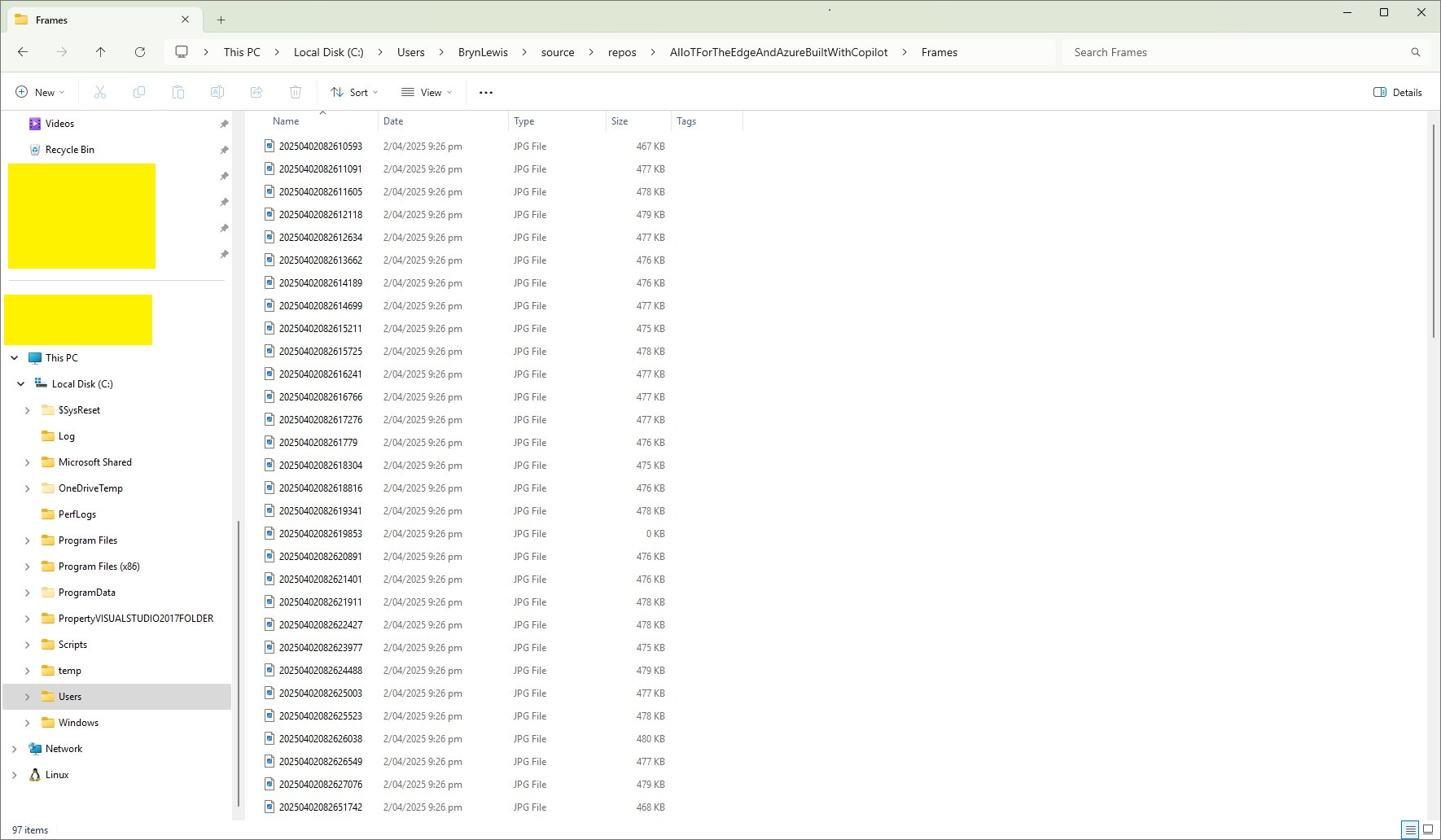
While working on my SecurityCameraRTSPClientFFMpegCore project I noticed that every so often after opening the Realtime Streaming Protocol(RTSP) connection with my HiLook IPCT250H Security Camera there was a “Paremeter is not valid” or “A generic error occurred in GDI+.” exception and sometimes the image was corrupted.
My test harness code was “inspired” by the Continuous Snapshots on Live Stream #280 sample

sing (var ms = new MemoryStream())
{
    await FFMpegArguments
        .FromUrlInput(new Uri("udp://192.168.2.12:9000"))
        .OutputToPipe(new StreamPipeSink(ms), options => options
            .ForceFormat("rawvideo")
            .WithVideoCodec(VideoCodec.Png)
            .Resize(new Size(Config.JpgWidthLarge, Config.JpgHeightLarge))
            .WithCustomArgument("-vf fps=1 -update 1")
        )
        .NotifyOnProgress(o => 
        {
            try
            {
                if (ms.Length > 0)
                {
                    ms.Position = 0;
                    using (var bitmap = new Bitmap(ms))
                    {
                        // Modify bitmap here

                        // Save the bitmap
                        bitmap.Save("test.png");
                    }

                    ms.SetLength(0);
                }
            }
            catch { }
        })
        .ProcessAsynchronously();
}

My implementation is slightly different because I caught then displayed any exceptions generated converting the image stream to a bitmap or saving it.

using (var ms = new MemoryStream())
{
   await FFMpegArguments
         .FromUrlInput(new Uri(_applicationSettings.CameraUrl))
         .OutputToPipe(new StreamPipeSink(ms), options => options
         .ForceFormat("mpeg1video")
         //.ForceFormat("rawvideo")
         .WithCustomArgument("-rtsp_transport tcp")
         .WithFramerate(10)
         .WithVideoCodec(VideoCodec.Png)
         //.Resize(1024, 1024)
         //.ForceFormat("image2pipe")
         //.Resize(new Size(Config.JpgWidthLarge, Config.JpgHeightLarge))
         //.Resize(new Size(Config.JpgWidthLarge, Config.JpgHeightLarge))
         //.WithCustomArgument("-vf fps=1 -update 1")
         //.WithCustomArgument("-vf fps=5 -update 1")
         //.WithSpeedPreset( Speed.)
         //.UsingMultithreading()
         //.UsingThreads()
         //.WithVideoFilters(filter => filter.Scale(640, 480))
         //.UsingShortest()
         //.WithFastStart()
         )
         .NotifyOnProgress(o =>
         {
            try
            {
               if (ms.Length > 0)
               {
                  ms.Position = 0;

                  string outputPath = Path.Combine(_applicationSettings.SavePath, string.Format(_applicationSettings.FrameFileNameFormat, DateTime.UtcNow ));

                  using (var bitmap = new Bitmap(ms))
                  {
                     // Save the bitmap
                     bitmap.Save(outputPath);
                  }

                  ms.SetLength(0);
               }
            }
            catch (Exception ex)
            {
               Console.WriteLine($"{DateTime.UtcNow:yy-MM-dd HH:mm:ss.fff} {ex.Message}");
            }
         })
         .ProcessAsynchronously();
}

I have created a Continuous Snapshots on Live Stream Memory stream contains invalid bitmap image #562 to track the issue.

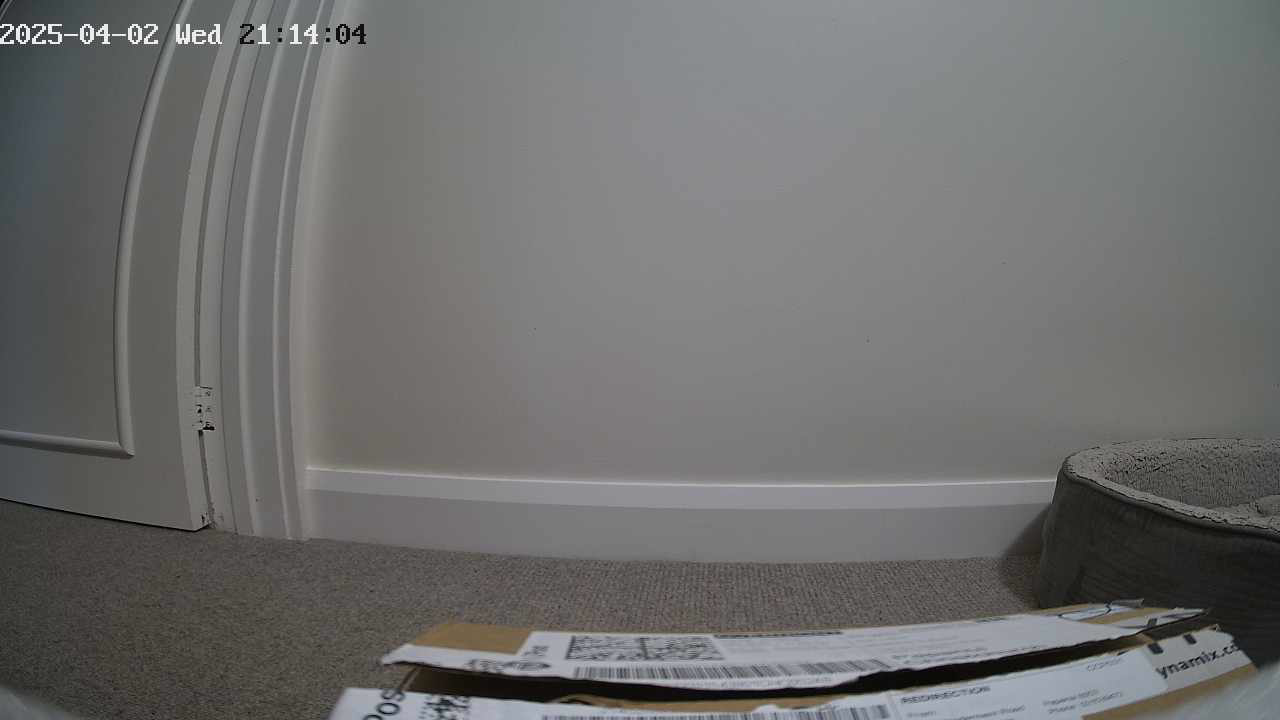
One odd thing that I noticed when scrolling “back and forth” through the images around when there was exception was that the date and time on the top left of the image was broken.
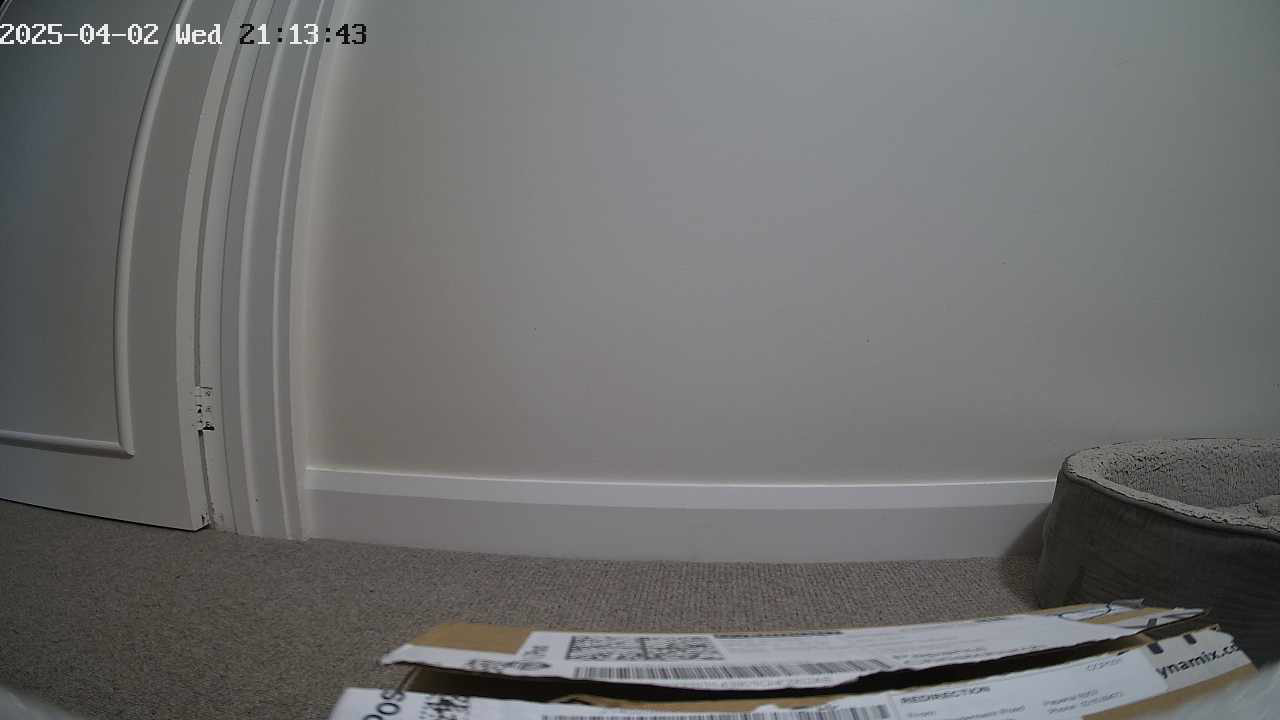
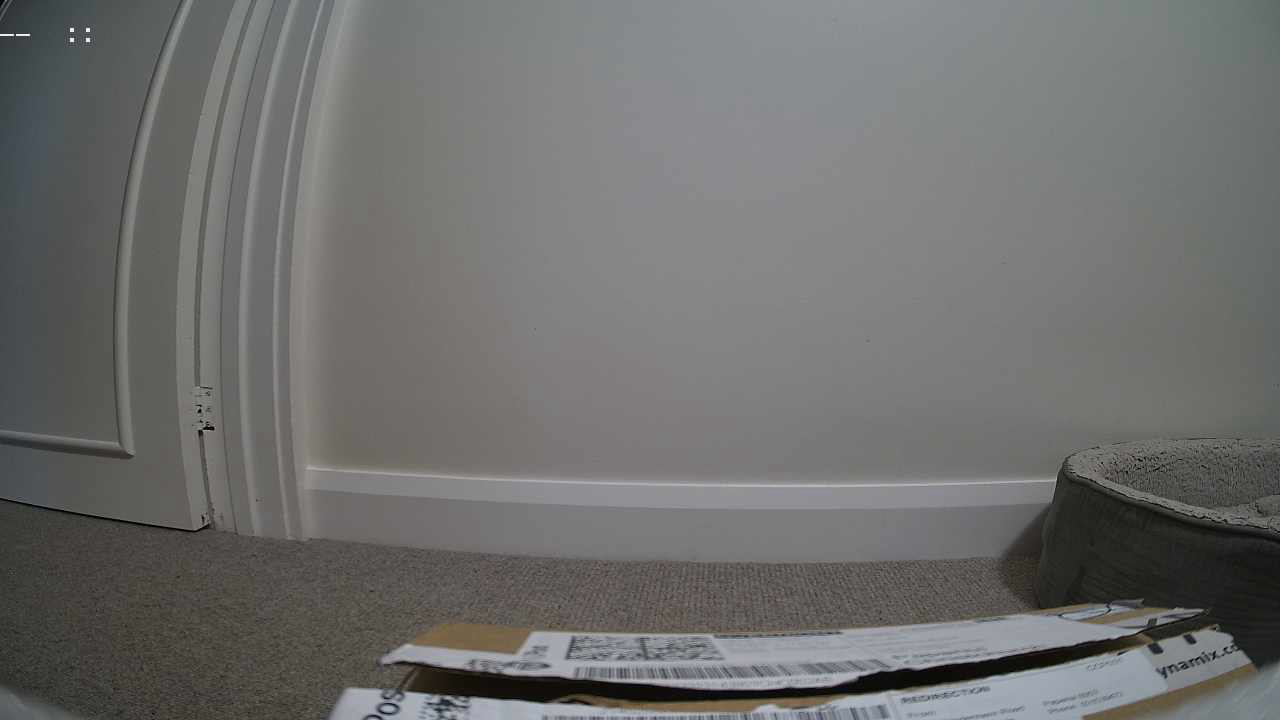
I wonder if the image was “broken” in some subtle way and FFMpegCore is handling this differently to the other libraries I’m trialing.
RTSP Camera RabbitOM.Streaming

The RTSPCameraNagerVideoStream library had significant latency which wasn’t good as I wanted to trigger the processing of images from the Real-time Streaming Protocol(RTSP) on my Seeedstudio J3011 Industrial device by strobing one of the digital inputs and combine streamed images with timestamped static ones.

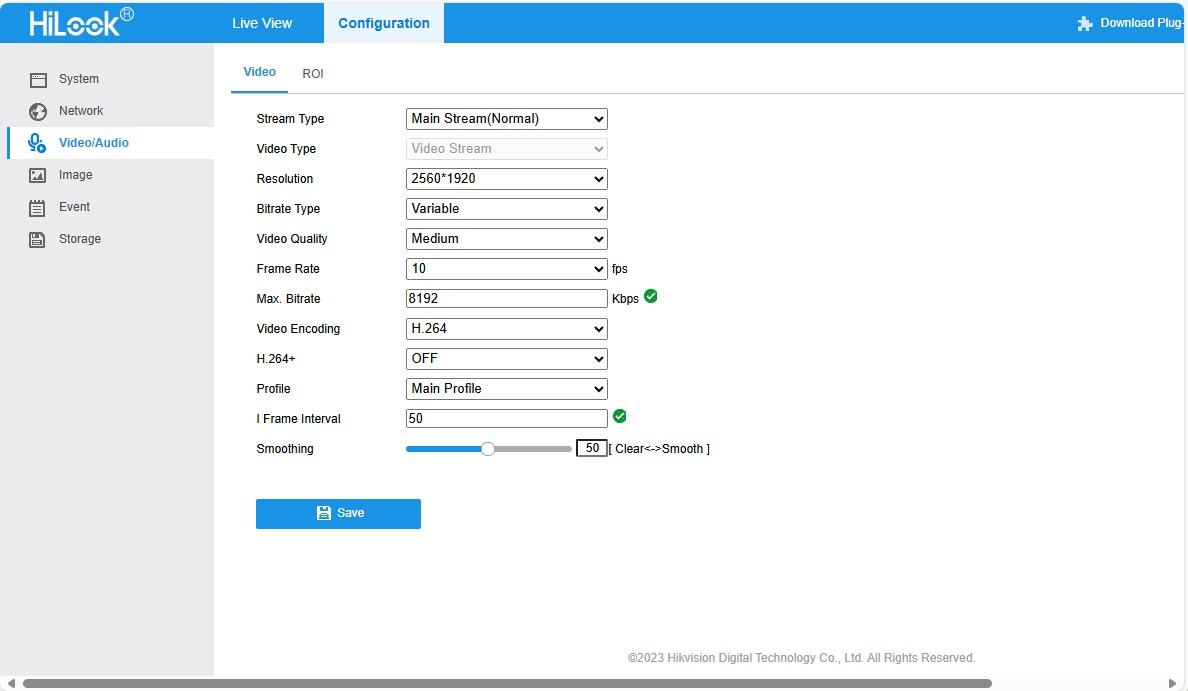
HiLook IPCT250H Camera configuration

To get a Moving Picture Experts Group(MPEG) stream I had to change the camera channel rather than use than H.264+ video Encoding

RtspCameraUrl”: “rtsp://10.0.0.19/ISAPI/Streaming/channels/102”

The KSAH-42.RabbitOM library looked worth testing so I built a test harness inspired by RabbitOM.Streaming.Tests.ConsoleApp.

client.PacketReceived += (sender, e) =>
{
   var interleavedPacket = e.Packet as RtspInterleavedPacket;

   if (interleavedPacket != null && interleavedPacket.Channel > 0)
   {
      // In most of case, avoid this packet
      Console.ForegroundColor = ConsoleColor.DarkCyan;
      Console.WriteLine("Skipping some data : size {0}", e.Packet.Data.Length);
      return;
   }

   Console.WriteLine($"{DateTime.UtcNow:yy-MM-dd HH:mm:ss.fff} New image received, bytes:{e.Packet.Data.Length}");

   File.WriteAllBytes(Path.Combine(_applicationSettings.SavePath, string.Format(_applicationSettings.FrameFileNameFormat, DateTime.UtcNow)), e.Packet.Data);
};

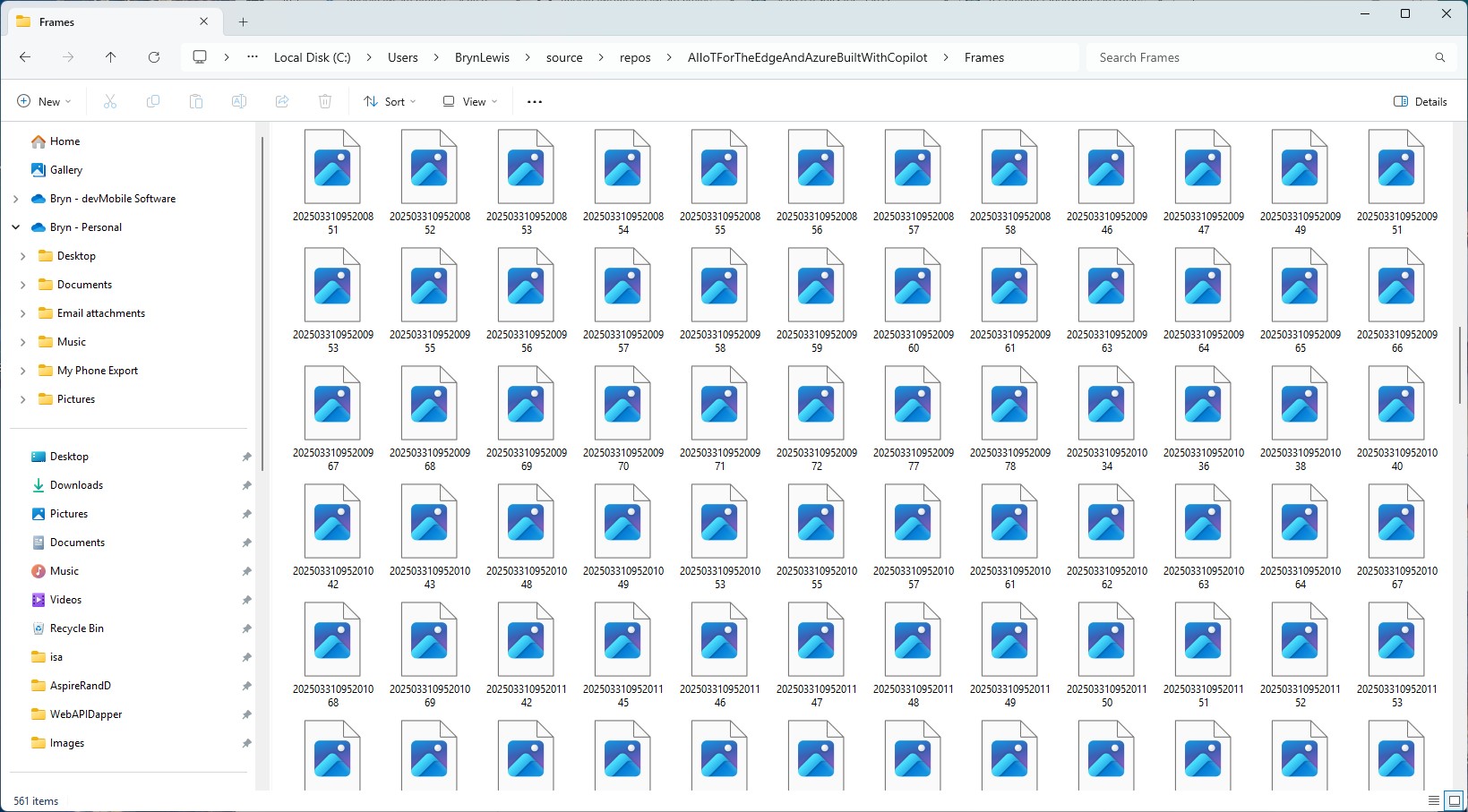
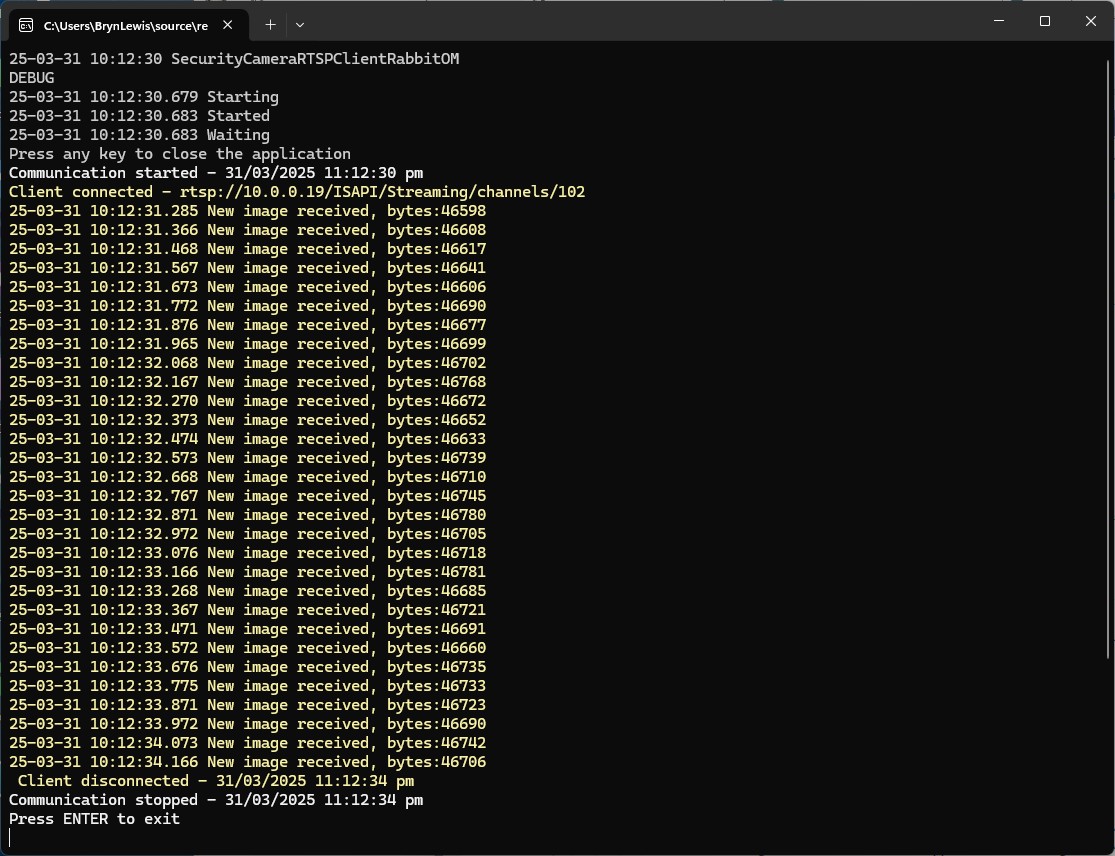
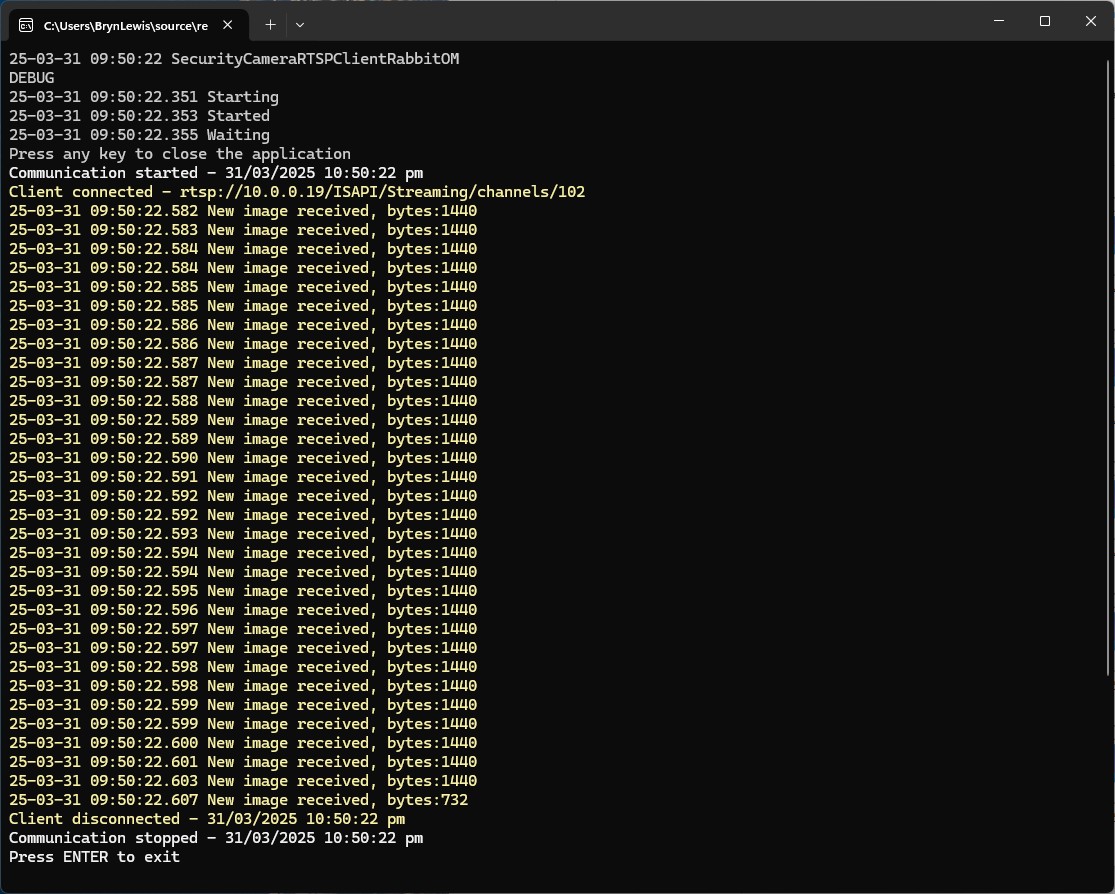
When I ran my test harness the number of images didn’t match the frame rate configured in the camera

The format of the images was corrupted, and I couldn’t open them

It looked like I was writing RTSP packets to the disk rather than Joint Photographic Experts Group(JPEG) images from the MPEG stream.

There was another sample application RabbitOM.Streaming.Tests.Mjpeg which displayed JPEG images. After looking at the code I figured out I need to use the RtpFrameBuilder class to assemble the RTSP packets into frames.

private static readonly RtpFrameBuilder _frameBuilder = new JpegFrameBuilder();
...
_frameBuilder.FrameReceived += OnFrameReceived;
...
client.PacketReceived += (sender, e) =>
{
   var interleavedPacket = e.Packet as RtspInterleavedPacket;

   if (interleavedPacket != null && interleavedPacket.Channel > 0)
   {
      // In most of case, avoid this packet
      Console.ForegroundColor = ConsoleColor.DarkCyan;
      Console.WriteLine("Skipping some data : size {0}", e.Packet.Data.Length);
      return;
   }

   _frameBuilder.Write(interleavedPacket.Data); 
};
private static void OnFrameReceived(object sender, RtpFrameReceivedEventArgs e)
{
   Console.WriteLine($"{DateTime.UtcNow:yy-MM-dd HH:mm:ss.fff} New image received, bytes:{e.Frame.Data.Length}");

   File.WriteAllBytes(Path.Combine(_applicationSettings.SavePath, string.Format(_applicationSettings.FrameFileNameFormat, DateTime.UtcNow)), e.Frame.Data);
}

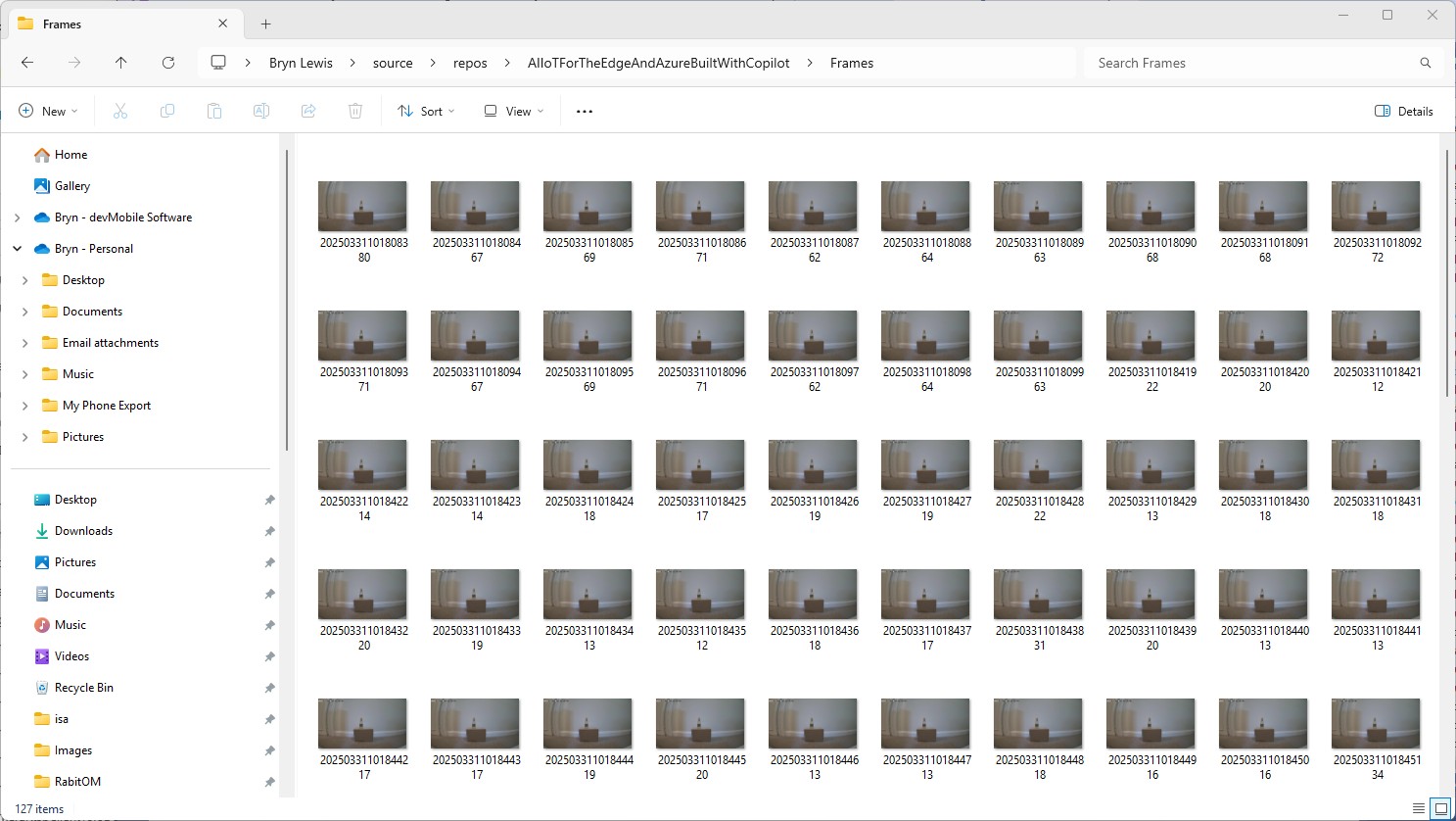
With the modified code the image size looked roughly the same as the SecurityCameraHttpClient images

The format of the images was good, and I could open them

Looks like KSAH-42.RabbitOM might be a good choice as it doesn’t have any external dependencies and the latency is minimal.

RTSP Camera Nager.VideoStream Startup Latency

While working on my RTSPCameraNagerVideoStream project I noticed that after opening the Realtime Streaming Protocol(RTSP) connection with my HiLook IPCT250H Security Camera it took a while for the application to start writing image files.

HiLook IPCT250H Camera configuration

My test harness code was “inspired” by the Nager.VideoStream.TestConsole application with a slightly different file format for the start-stop marker text and camera images files.

private static async Task StartStreamProcessingAsync(InputSource inputSource, CancellationToken cancellationToken = default)
{
   Console.WriteLine("Start Stream Processing");
   try
   {
      var client = new VideoStreamClient();

      client.NewImageReceived += NewImageReceived;
#if FFMPEG_INFO_DISPLAY
      client.FFmpegInfoReceived += FFmpegInfoReceived;
#endif
      File.WriteAllText(Path.Combine(_applicationSettings.ImageFilepathLocal, $"{DateTime.UtcNow:yyyyMMdd-HHmmss.fff}.txt"), "Start");

      await client.StartFrameReaderAsync(inputSource, OutputImageFormat.Png, cancellationToken: cancellationToken);

      File.WriteAllText(Path.Combine(_applicationSettings.ImageFilepathLocal, $"{DateTime.UtcNow:yyyyMMdd-HHmmss.fff}.txt"), "Finish");

      client.NewImageReceived -= NewImageReceived;
#if FFMPEG_INFO_DISPLAY
      client.FFmpegInfoReceived -= FFmpegInfoReceived;
#endif
      Console.WriteLine("End Stream Processing");
   }
   catch (Exception exception)
   {
      Console.WriteLine($"{exception}");
   }
}

private static void NewImageReceived(byte[] imageData)
{
   Debug.WriteLine($"{DateTime.UtcNow:yy-MM-dd HH:mm:ss.fff} NewImageReceived");

   File.WriteAllBytes( Path.Combine(_applicationSettings.ImageFilepathLocal, $"{DateTime.UtcNow:yyyyMMdd-HHmmss.fff}.png"), imageData);
}

I used Path.Combine so no code or configuration changes were required when the application was run on different operating systems (still need to ensure ImageFilepathLocal in the appsettings.json is the correct format).

Developer Desktop

I used my desktop computer a 13th Gen Intel(R) Core(TM) i7-13700 2.10 GHz with 32.0 GB running Windows 11 Pro 24H2.

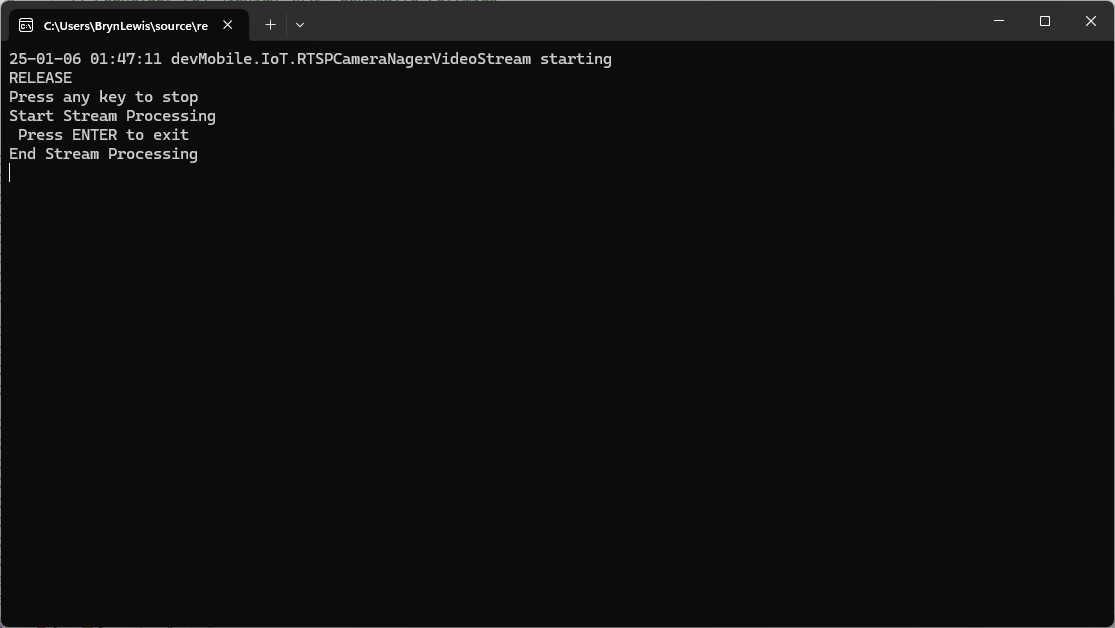
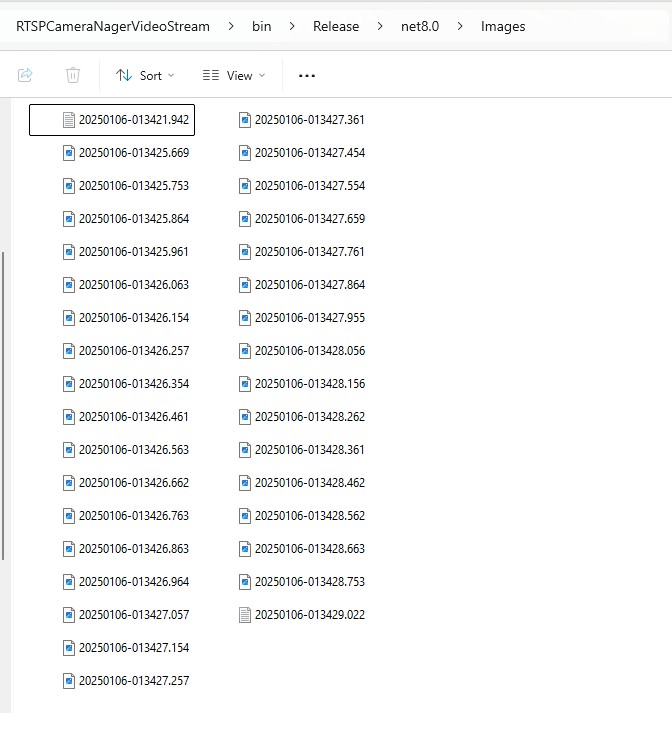
In the test results below (representative of multiple runs while testing) the delay between starting streaming and the first image file was on average 3.7 seconds with the gap between the images roughly 100mSec.

Files written by NagerVideoStream timestamps roughly 100mSec apart, but 3

Industrial Computer

I used a reComputer J3011 – Edge AI Computer with NVIDIA® Jetson™ Orin™ Nano 8GB running Ubuntu 22.04.5 LTS (Jammy Jellyfish)

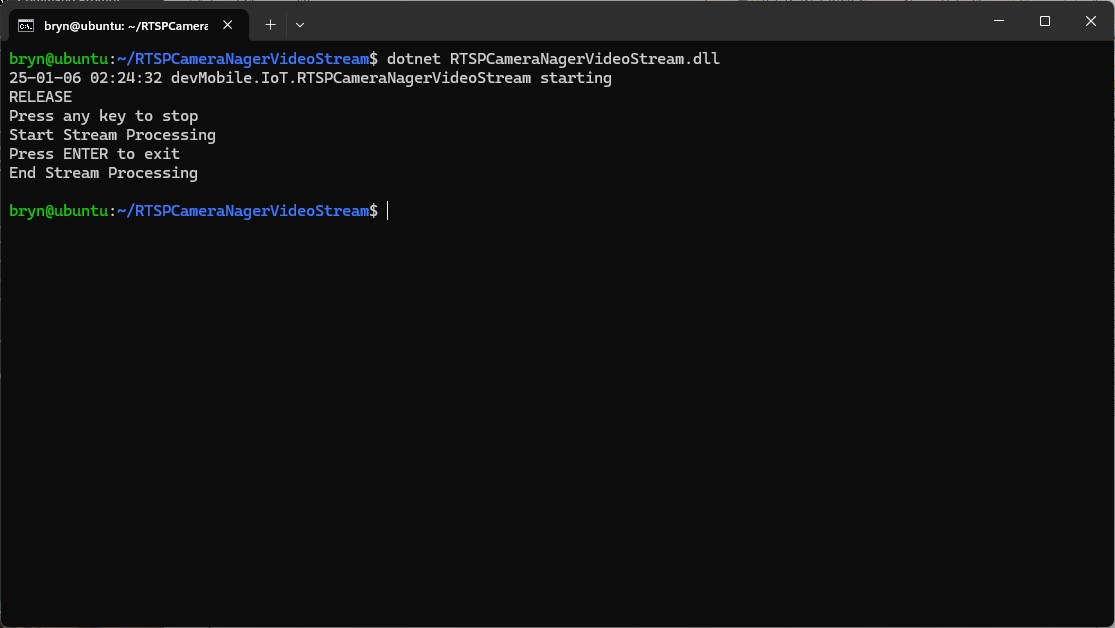
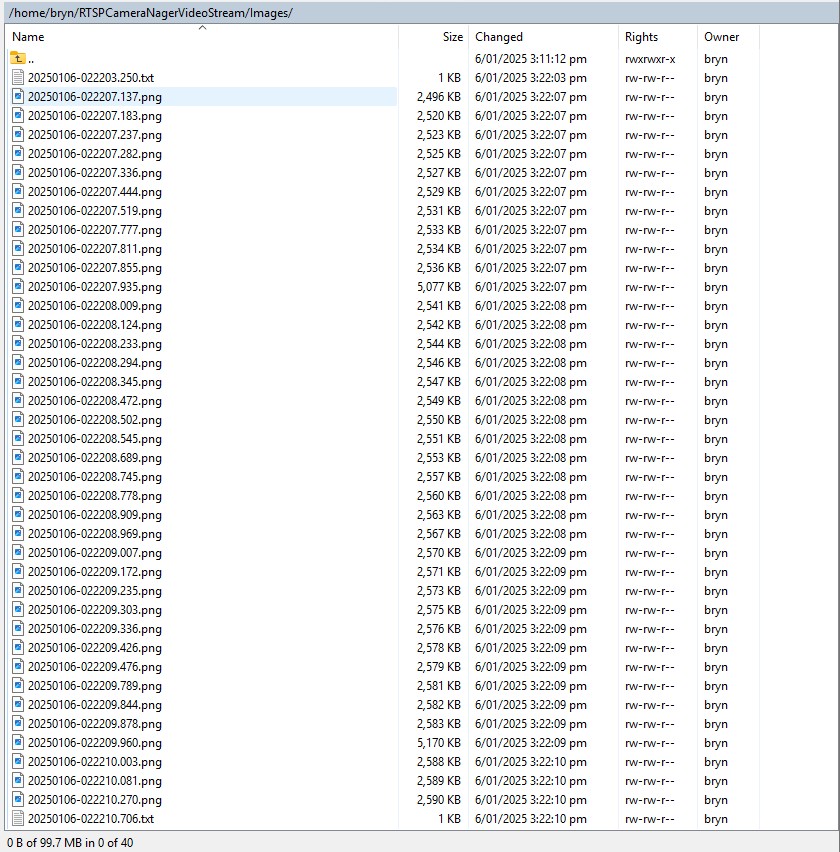
In the test results below (representative of multiple runs while testing) the delay between starting streaming and the first image file was on average roughly 3.7 seconds but the time between images varied a lot from 30mSec to >300mSec.

At 10FPS the results for my developer desktop were more consistent, and the reComputer J3011 had significantly more “jitter”. Both could cope with 1oFPS so the next step is to integrate YoloDotNet library to process the video frames.

Security Camera Azure IoT Hub Image upload

The final two projects of this series both upload images to the Azure Storage account associated with an Azure IoT Hub. One project uses a Timer to upload pictures with a configurable delay. The other uploads an image every time a General Purpose Input Output(GPIO) pin on the Raspberry PI3 is strobed.

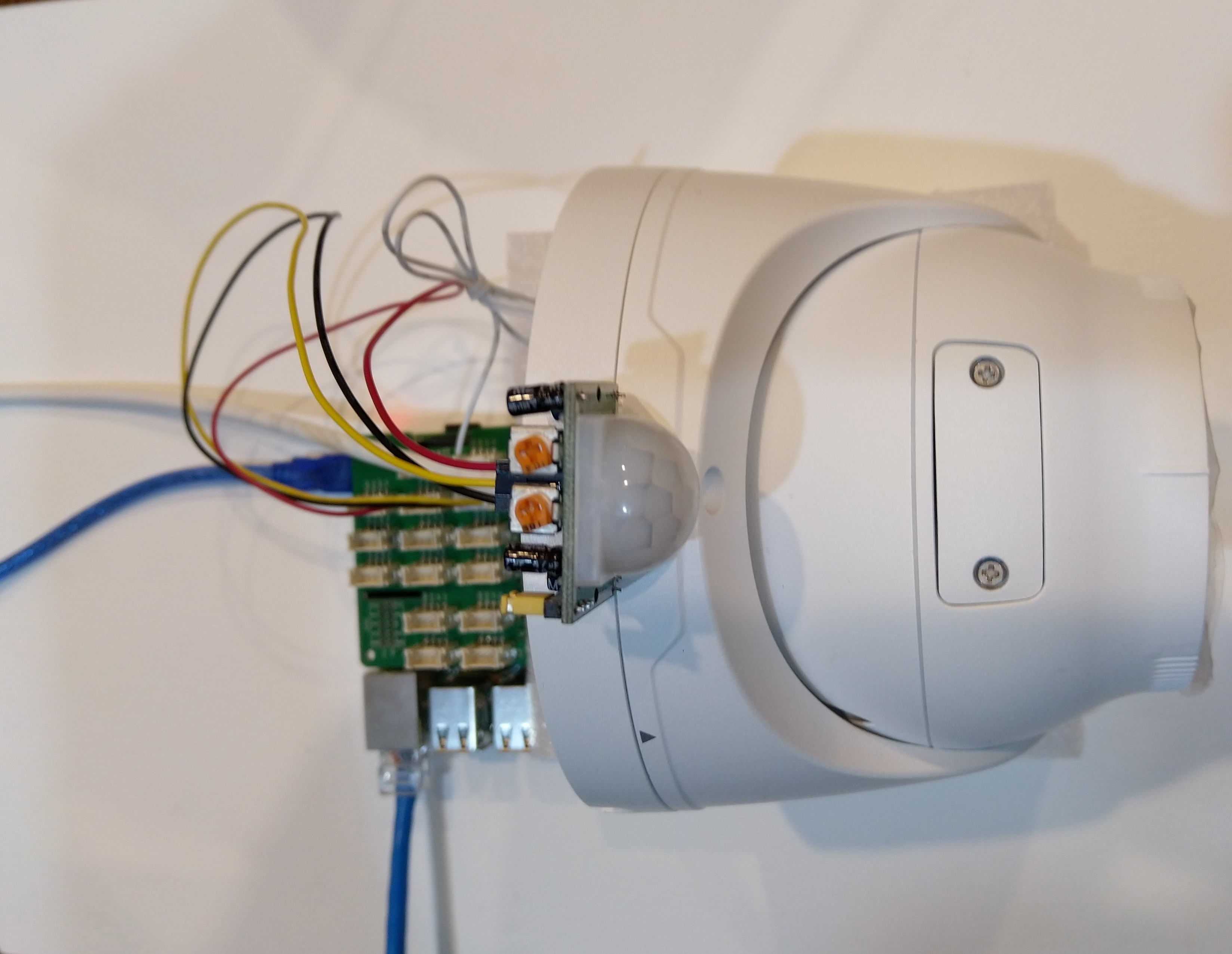
Uniview IPC3635SB-ADZK-I0 Security camera test rig with Raspberry PI and PIR motion detector

I tried to keep the .Net Core 5 console applications as simple as possible, they download an image from the camera “snapshot” endpoint (In this case http://10.0.0.47:85/images/snapshot.jpg), save it to the local filesystem and then upload it.

The core of the two applications is the “upload” image method, which is called by a timer or GPIO pin EventHandler

private static async void ImageUpdateTimerCallback(object state)
{
	CommandLineOptions options = (CommandLineOptions)state;
	DateTime requestAtUtc = DateTime.UtcNow;

	// Just incase - stop code being called while retrival of the photo already in progress
	if (cameraBusy)
	{
		return;
	}
	cameraBusy = true;

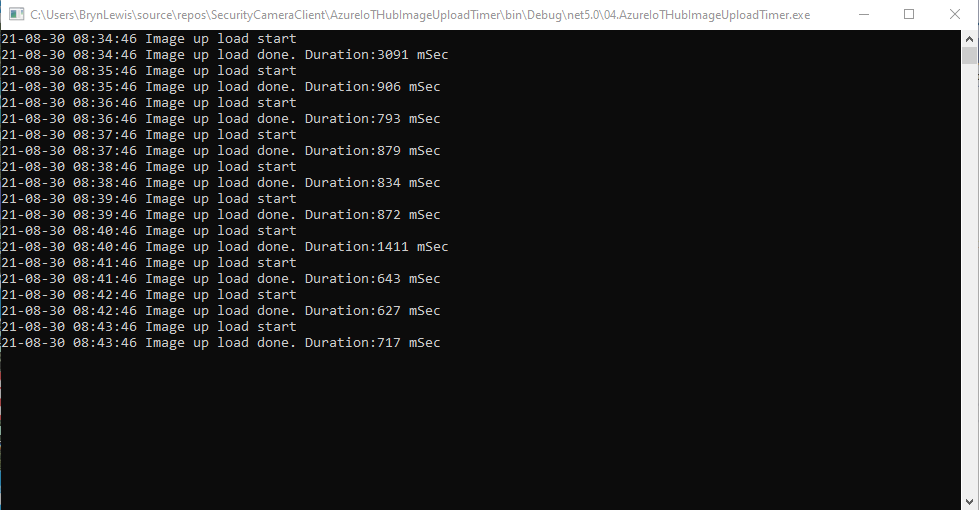
	Console.WriteLine($"{requestAtUtc:yy-MM-dd HH:mm:ss} Image up load start");

	try
	{
		// First go and get the image file from the camera onto local file system
		using (var client = new WebClient())
		{
			NetworkCredential networkCredential = new NetworkCredential()
			{
				UserName = options.UserName,
				Password = options.Password
			};

			client.Credentials = networkCredential;

			await client.DownloadFileTaskAsync(new Uri(options.CameraUrl), options.LocalFilename);
		}

		// Then open the file ready to stream ito upto storage account associated with Azuure IoT Hub
		using (FileStream fileStreamSource = new FileStream(options.LocalFilename, FileMode.Open))
		{
			var fileUploadSasUriRequest = new FileUploadSasUriRequest
			{
				BlobName = string.Format("{0:yyMMdd}/{0:yyMMddHHmmss}.jpg", requestAtUtc)
			};

			// Get the plumbing sorted for where the file is going in Azure Storage
			FileUploadSasUriResponse sasUri = await azureIoTCentralClient.GetFileUploadSasUriAsync(fileUploadSasUriRequest);
			Uri uploadUri = sasUri.GetBlobUri();

			try
			{
				var blockBlobClient = new BlockBlobClient(uploadUri);

				var response = await blockBlobClient.UploadAsync(fileStreamSource, new BlobUploadOptions());

				var successfulFileUploadCompletionNotification = new FileUploadCompletionNotification()
				{
					// Mandatory. Must be the same value as the correlation id returned in the sas uri response
					CorrelationId = sasUri.CorrelationId,

					// Mandatory. Will be present when service client receives this file upload notification
					IsSuccess = true,

					// Optional, user defined status code. Will be present when service client receives this file upload notification
					StatusCode = 200,

					// Optional, user-defined status description. Will be present when service client receives this file upload notification
					StatusDescription = "Success"
				};

				await azureIoTCentralClient.CompleteFileUploadAsync(successfulFileUploadCompletionNotification);
			}
			catch (Exception ex)
			{
				Console.WriteLine($"Failed to upload file to Azure Storage using the Azure Storage SDK due to {ex}");

				var failedFileUploadCompletionNotification = new FileUploadCompletionNotification
				{
					// Mandatory. Must be the same value as the correlation id returned in the sas uri response
					CorrelationId = sasUri.CorrelationId,

					// Mandatory. Will be present when service client receives this file upload notification
					IsSuccess = false,

					// Optional, user-defined status code. Will be present when service client receives this file upload notification
					StatusCode = 500,

					// Optional, user defined status description. Will be present when service client receives this file upload notification
					StatusDescription = ex.Message
				};

				await azureIoTCentralClient.CompleteFileUploadAsync(failedFileUploadCompletionNotification);
			}
		}

		TimeSpan uploadDuration = DateTime.UtcNow - requestAtUtc;

		Console.WriteLine($"{requestAtUtc:yy-MM-dd HH:mm:ss} Image up load done. Duration:{uploadDuration.TotalMilliseconds:0.} mSec");
	}
	catch (Exception ex)
	{
		Console.WriteLine($"Camera image upload process failed {ex.Message}");
	}
	finally
	{
		cameraBusy = false;
	}
}

I have used Azure DeviceClient UploadToBlobAsync in other projects and it was a surprise to see it deprecated and replaced with GetFileUploadSasUriAsync and GetBlobUri with sample code from the development team.

string blobName = string.Format("{0:yyMMdd}/{0:yyMMddHHmmss}.jpg", requestAtUtc);

azureIoTCentralClient.UploadToBlobAsync(blobName, fileStreamSource);

It did seem to take a lot of code to implement what was previously a single line (I’m going try and find out why this method has been deprecated)

TImer application image uploader

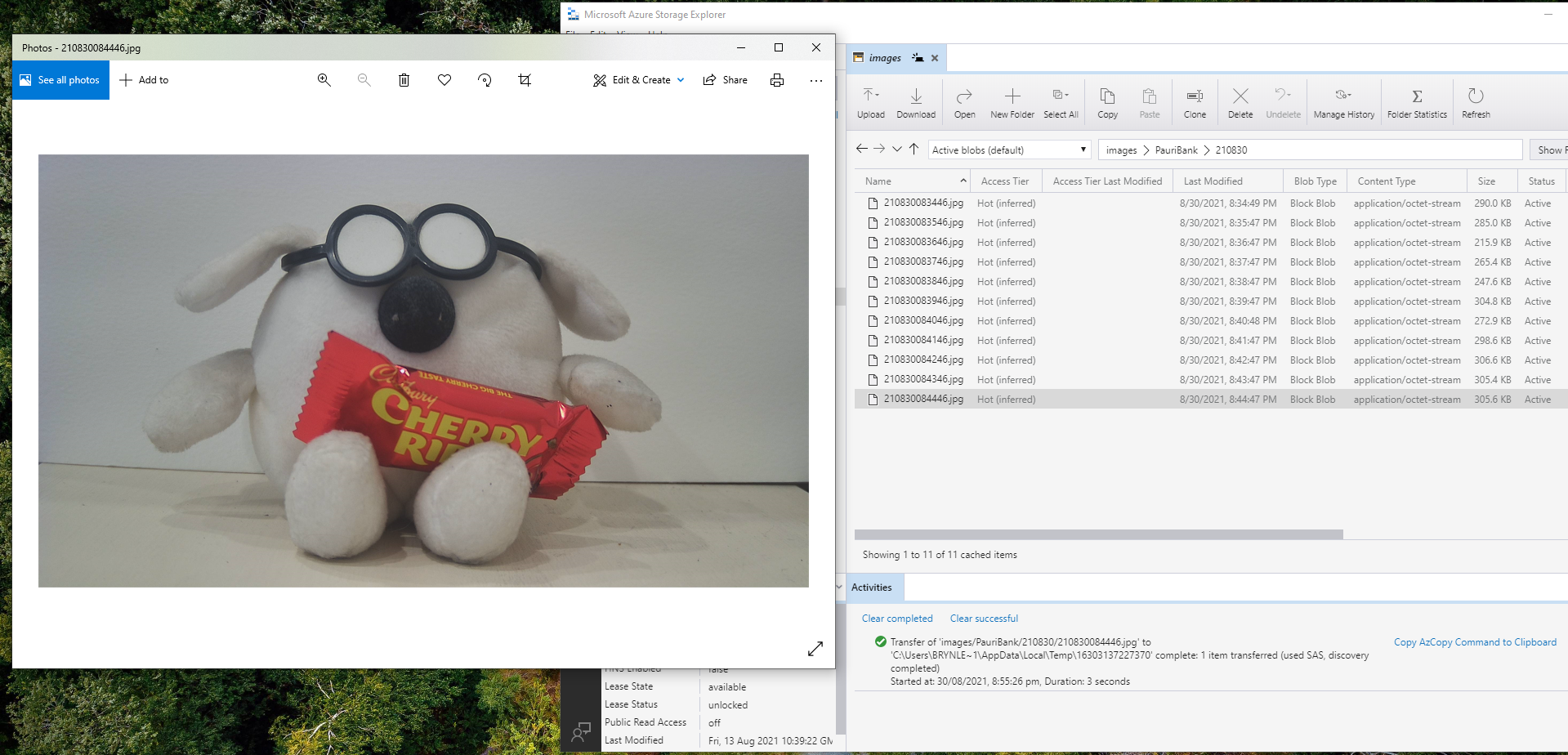
Using Azure Storage Explorer I could view and download the images uploaded by the application(s) running on my development machine and Raspberry PI

Azure Storage Displaying most recent image uploaded by a RaspberryPI device

After confirming the program was working I used the excellent RaspberryDebugger to download the application and debug it on my Raspberry PI 3 running the Raspberry PI OS.

Now that the basics are working my plan is to figure out how to control the camera using Azure IoT Hub method calls, display live Real Time Streaming Protocol(RTSP) using Azure IoT Hub Device Streams, upload images to Azure Cognitive Services for processing and use ML.Net to process them locally.