Cloud AI with Copilot – Faster R-CNN Azure HTTP Function Performance Setup

Introduction

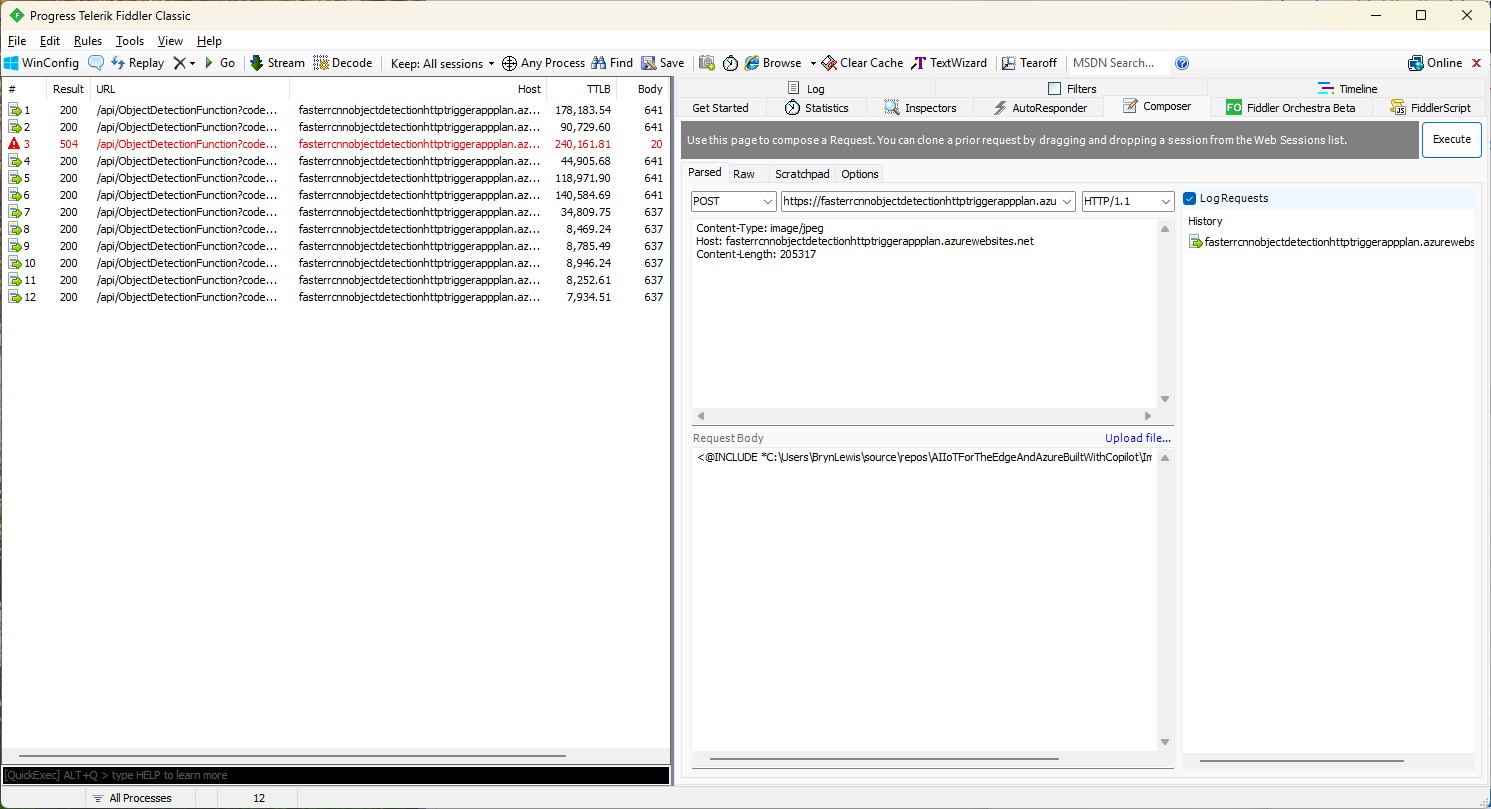
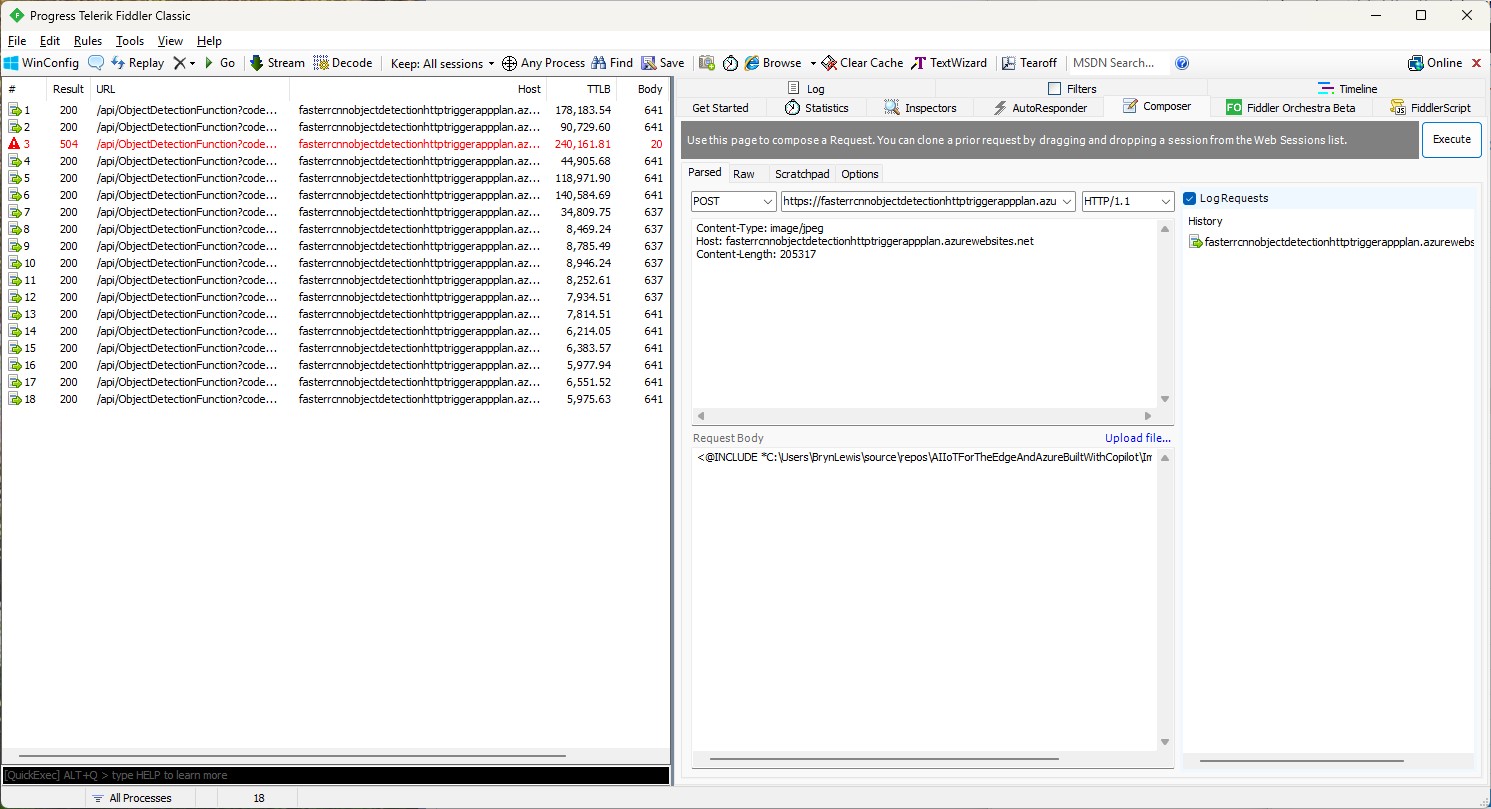
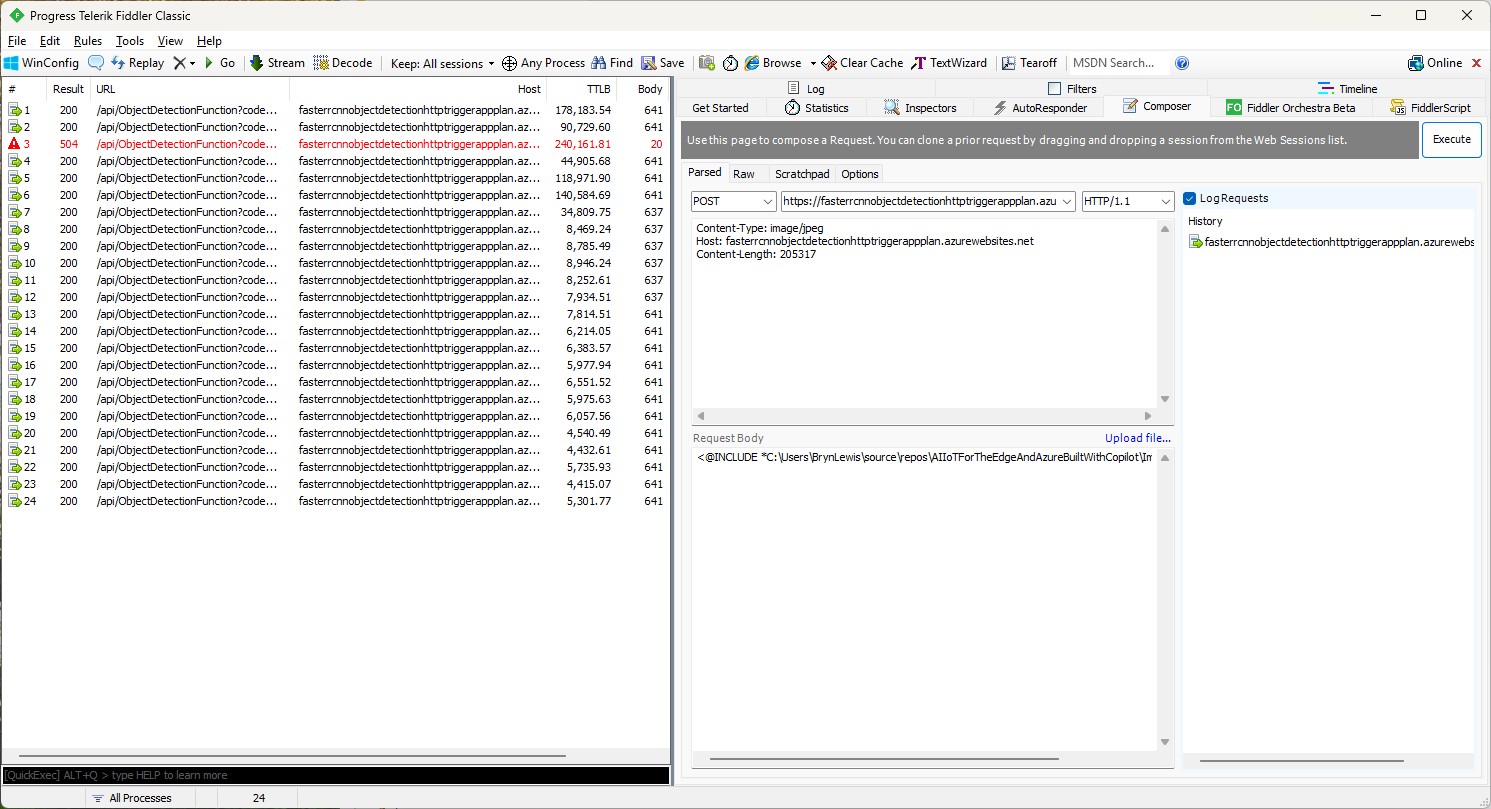
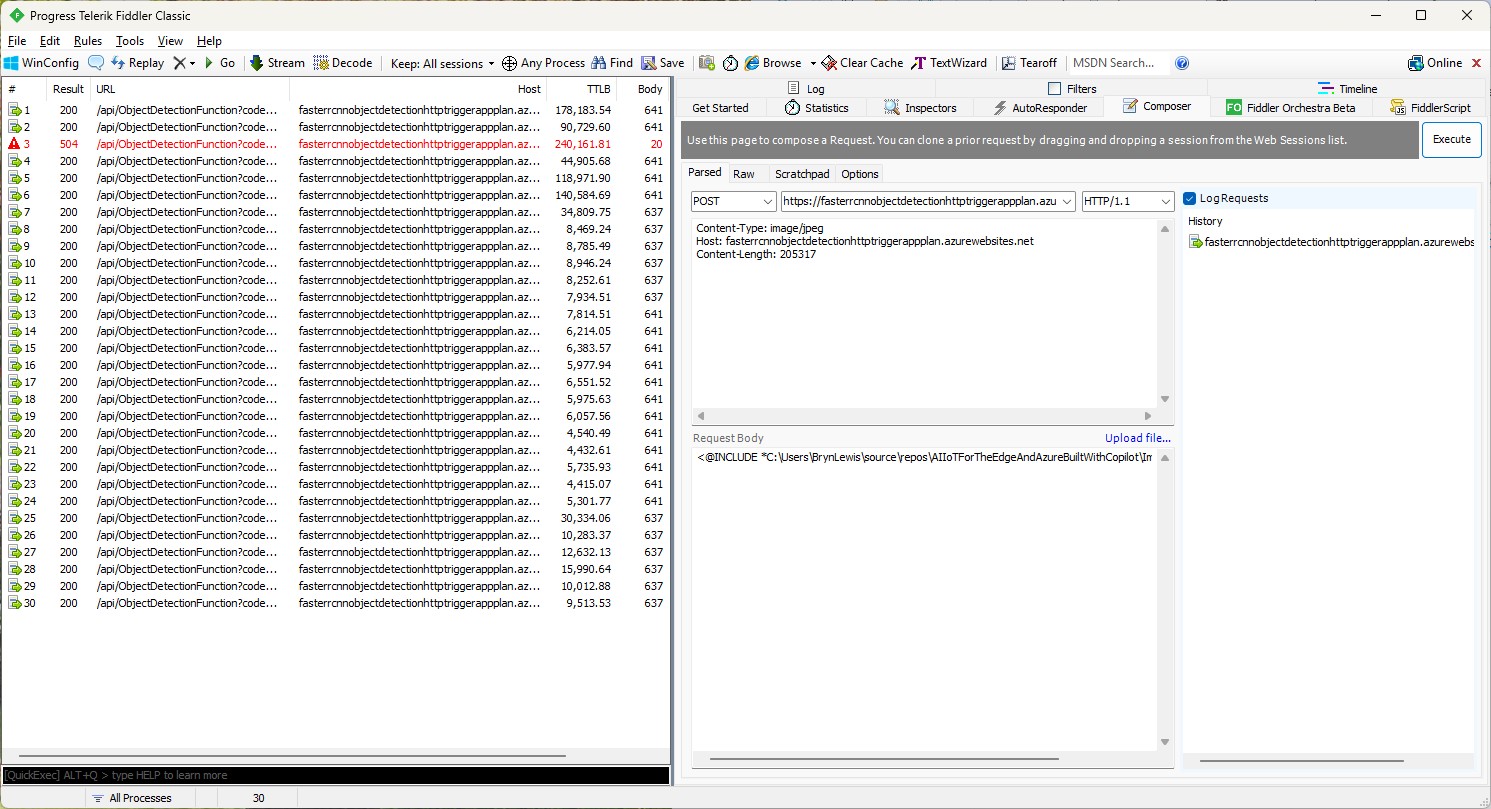
The Faster R-CNN Azure HTTP Trigger function performed (not unexpectedly) differently when invoked with Fiddler Classic in the Azure Functions emulator vs. when deployed in an Azure App Plan.

The code used is a “tidied” up version of the version of the code from the Building Cloud AI with Copilot – Faster R-CNN Azure HTTP Function “Dog Food” post

public class Function1
{
   private readonly ILogger<Function1> _logger;
   private readonly List<string> _labels;
   private readonly InferenceSession _session;

   public Function1(ILogger<Function1> logger)
   {
      _logger = logger;
      _labels = File.ReadAllLines(Path.Combine(AppContext.BaseDirectory, "labels.txt")).ToList();
      _session = new InferenceSession(Path.Combine(AppContext.BaseDirectory, "FasterRCNN-10.onnx"));
   }

   [Function("ObjectDetectionFunction")]
   public async Task<IActionResult> Run([HttpTrigger(AuthorizationLevel.Function, "post", Route = null)] HttpRequest req, ExecutionContext context)
   {
      if (!req.ContentType.StartsWith("image/"))
         return new BadRequestObjectResult("Content-Type must be an image.");

      using var ms = new MemoryStream();
      await req.Body.CopyToAsync(ms);
      ms.Position = 0;

      using var image = Image.Load<Rgb24>(ms);
      var inputTensor = PreprocessImage(image);

      var inputs = new List<NamedOnnxValue>
                  {
                      NamedOnnxValue.CreateFromTensor("image", inputTensor)
                  };

      using IDisposableReadOnlyCollection<DisposableNamedOnnxValue> results = _session.Run(inputs);
      var output = results.ToDictionary(x => x.Name, x => x.Value);

      var boxes = (DenseTensor<float>)output["6379"];
      var labels = (DenseTensor<long>)output["6381"];
      var scores = (DenseTensor<float>)output["6383"];

      var detections = new List<object>();
      for (int i = 0; i < scores.Length; i++)
      {
         if (scores[i] > 0.5)
         {
            detections.Add(new
            {
               label = _labels[(int)labels[i]],
               score = scores[i],
               box = new
               {
                  x1 = boxes[i, 0],
                  y1 = boxes[i, 1],
                  x2 = boxes[i, 2],
                  y2 = boxes[i, 3]
               }
            });
         }
      }
      return new OkObjectResult(detections);
   }

   private static DenseTensor<float> PreprocessImage(Image<Rgb24> image)
   {
      // Step 1: Resize so that min(H, W) = 800, max(H, W) <= 1333, keeping aspect ratio
      int origWidth = image.Width;
      int origHeight = image.Height;
      int minSize = 800;
      int maxSize = 1333;

      float scale = Math.Min((float)minSize / Math.Min(origWidth, origHeight),
                             (float)maxSize / Math.Max(origWidth, origHeight));

      int resizedWidth = (int)Math.Round(origWidth * scale);
      int resizedHeight = (int)Math.Round(origHeight * scale);

      image.Mutate(x => x.Resize(resizedWidth, resizedHeight));

      // Step 2: Pad so that both dimensions are divisible by 32
      int padWidth = ((resizedWidth + 31) / 32) * 32;
      int padHeight = ((resizedHeight + 31) / 32) * 32;

      var paddedImage = new Image<Rgb24>(padWidth, padHeight);
      paddedImage.Mutate(ctx => ctx.DrawImage(image, new Point(0, 0), 1f));

      // Step 3: Convert to BGR and normalize
      float[] mean = { 102.9801f, 115.9465f, 122.7717f };
      var tensor = new DenseTensor<float>(new[] { 3, padHeight, padWidth });

      for (int y = 0; y < padHeight; y++)
      {
         for (int x = 0; x < padWidth; x++)
         {
            Rgb24 pixel = default;
            if (x < resizedWidth && y < resizedHeight)
               pixel = paddedImage[x, y];

            tensor[0, y, x] = pixel.B - mean[0];
            tensor[1, y, x] = pixel.G - mean[1];
            tensor[2, y, x] = pixel.R - mean[2];
         }
      }

      paddedImage.Dispose();

      return tensor;
   }
}

For my initial testing in the Azure Functions emulator using Fiddler Classic I manually generated 10 requests, then replayed them sequentially, and then finally concurrently.

The results for the manual, then sequential results were fairly consistent but the 10 concurrent requests each to took more than 10x longer. In addition, the CPU was at 100% usage while the concurrently executed functions were running.

Cloud Deployment

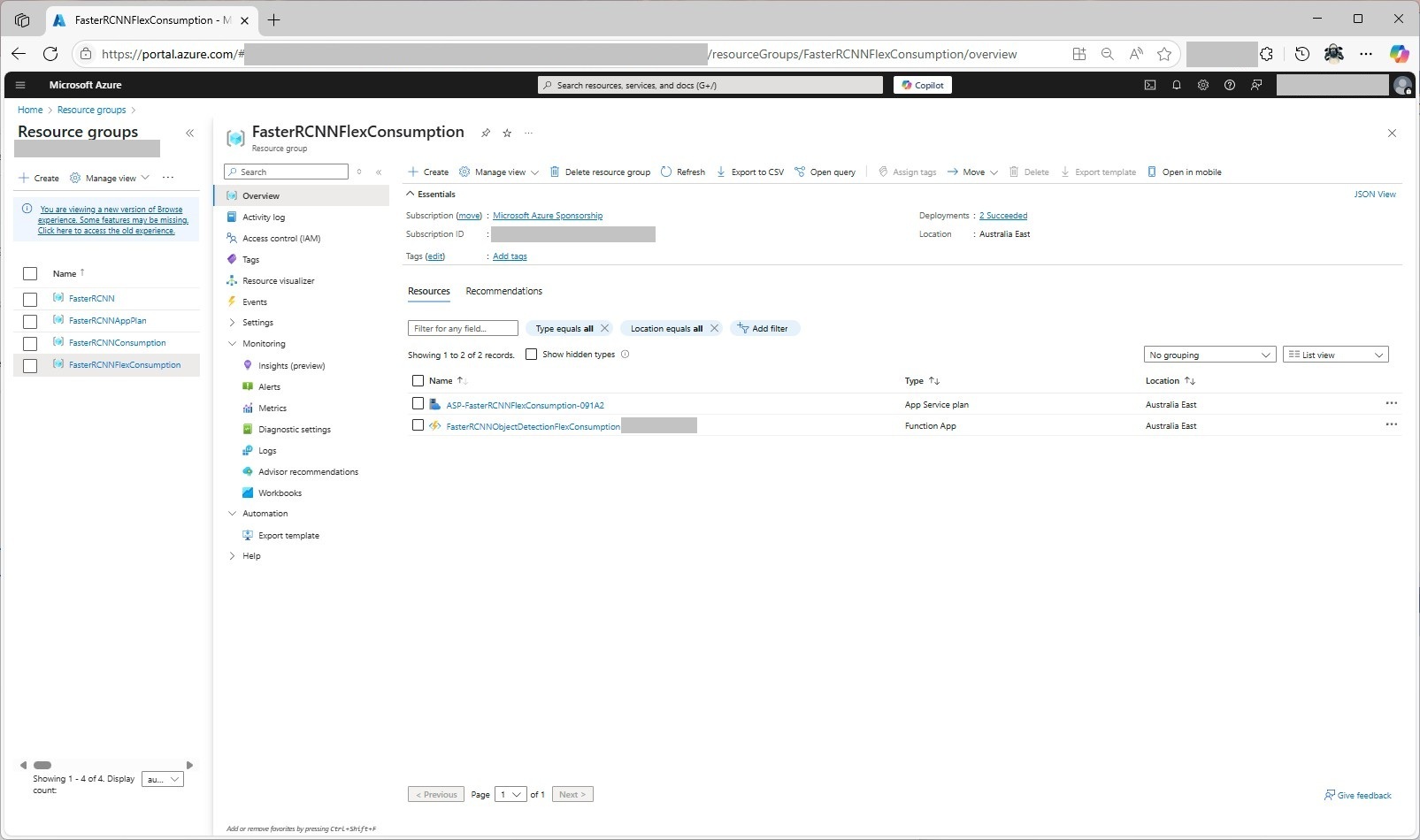
To see how the Faster R-CNN Azure HTTP Trigger function performed I created four resource groups.

The first contained resources used by the three different deployment models being tested

The second resource group was for testing a Dedicated hosting plan deployment.
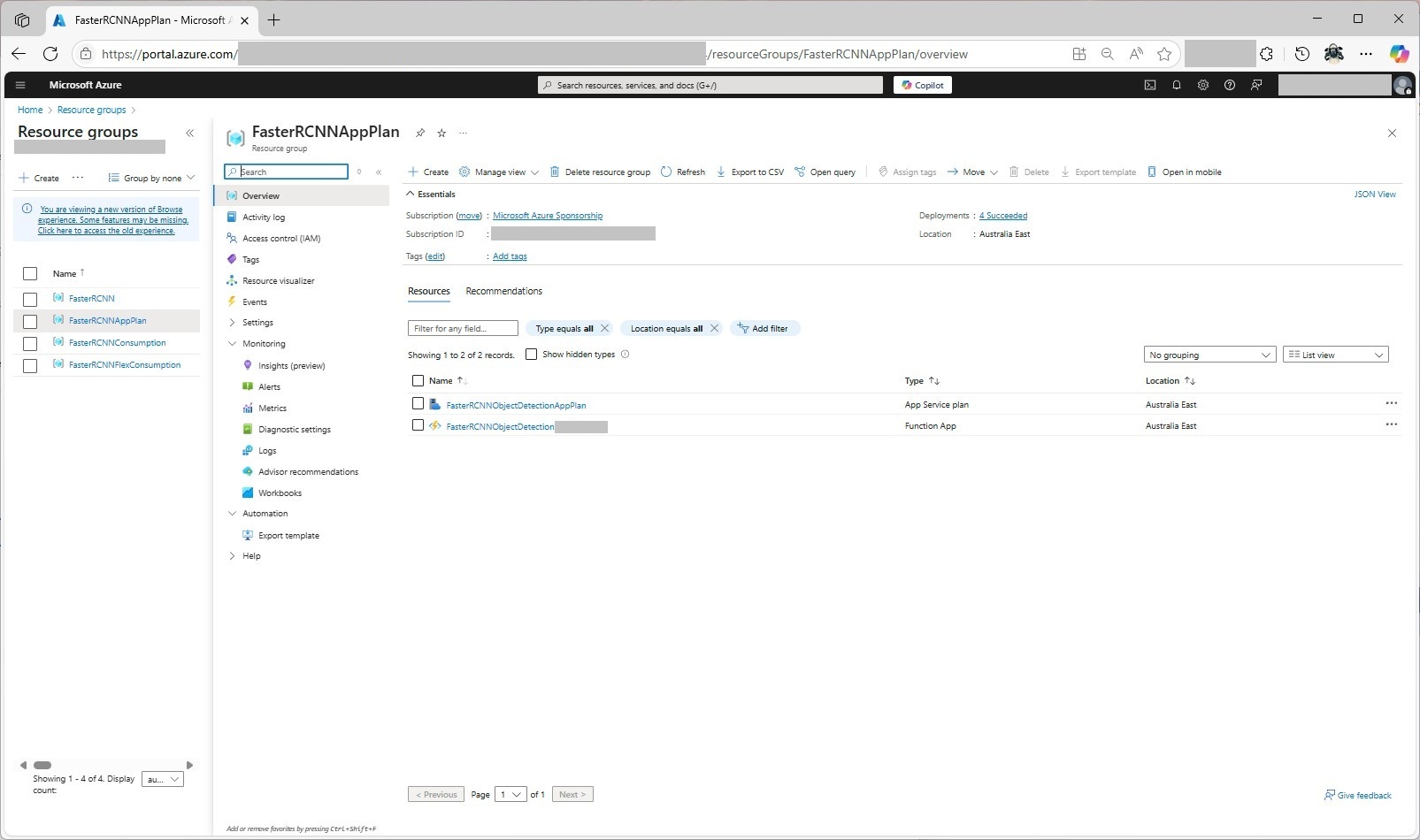
The third resource group was for testing an Azure Functions Consumption plan hosting.

The fourth resource group was for testing Azure Functions Flex Consumption plan hosting.
Summary

The next couple of posts will compare and look at options for improving the “performance” (scalability, execution duration, latency, jitter, billing etc.) of the Github Copilot generated code.

Building Cloud AI with Copilot – Faster R-CNN Azure HTTP Function SKU Results

Introduction

While testing the FasterRCNNObjectDetectionHttpTrigger function with Telerik Fiddler Classic and my “standard” test image I noticed the response bodies were different sizes.

Initially the application plan was an S1 SKU (1 vCPU 1.75G RAM)

The output JSON was 641 bytes

[
  {
    "label": "person",
    "score": 0.9998331,
    "box": {
      "x1": 445.9223, "y1": 124.11987, "x2": 891.18915, "y2": 696.37164
    }
  },
  {
    "label": "person",
    "score": 0.9994991,
    "box": {
      "x1": 0, "y1": 330.16595, "x2": 471.0475, "y2": 761.35846
    }
  },
  {
    "label": "baseball bat",
    "score": 0.9952342,
    "box": { "x1": 869.8053, "y1": 336.96188, "x2": 1063.2261, "y2": 467.74136
    }
  },
  {
    "label": "sports ball",
    "score": 0.9945949,
    "box": { "x1": 1040.916, "y1": 372.41507, "x2": 1071.8958, "y2": 402.50424
    }
  },
  {
    "label": "baseball glove",
    "score": 0.9943546,
    "box": {
      "x1": 377.8922, "y1": 431.95053, "x2": 458.4937, "y2": 536.52124
    }
  },
  {
    "label": "person",
    "score": 0.51779467,
    "box": {
      "x1": 0, "y1": 239.91418, "x2": 60.342667, "y2": 397.17004
    }
  }
]

The application plan was scaled to a Premium v3 P0V3 (1 vCPU 4G RAM)

The output JSON was 637 bytes

[
  {
    "label": "person",
    "score": 0.9998332,
    "box": {
      "x1": 445.9223, "y1": 124.1199, "x2": 891.18915, "y2": 696.3716
    }
  },
  {
    "label": "person",
    "score": 0.9994991,
    "box": { "x1": 0, "y1": 330.16595, "x2": 471.0475, "y2": 761.35846
    }
  },
  {
    "label": "baseball bat",
    "score": 0.9952342,
    "box": {
      "x1": 869.8053, "y1": 336.9619, "x2": 1063.2261, "y2": 467.74133
    }
  },
  {
    "label": "sports ball",
    "score": 0.994595,
    "box": {
      "x1": 1040.916, "y1": 372.41507, "x2": 1071.8958, "y2": 402.50424
    }
  },
  {
    "label": "baseball glove",
    "score": 0.9943546,
    "box": {
      "x1": 377.8922, "y1": 431.95053, "x2": 458.4937, "y2": 536.52124
    }
  },
  {
    "label": "person",
    "score": 0.51779467,
    "box": {
      "x1": 0, "y1": 239.91418, "x2": 60.342667, "y2": 397.17004
    }
  }
]

The application plan was scaled to Premium v3 P1V3 (2 vCPU 8G RAM)

The output JSON was 641 bytes

[
  {
    "label": "person",
    "score": 0.9998331,
    "box": {
      "x1": 445.9223, "y1": 124.11987, "x2": 891.18915, "y2": 696.37164
    }
  },
  {
    "label": "person",
    "score": 0.9994991,
    "box": {
      "x1": 0, "y1": 330.16595, "x2": 471.0475, "y2": 761.35846
    }
  },
  {
    "label": "baseball bat",
    "score": 0.9952342,
    "box": {
      "x1": 869.8053, "y1": 336.96188, "x2": 1063.2261, "y2": 467.74136
    }
  },
  {
    "label": "sports ball",
    "score": 0.9945949,
    "box": {
      "x1": 1040.916, "y1": 372.41507, "x2": 1071.8958, "y2": 402.50424
    }
  },
  {
    "label": "baseball glove",
    "score": 0.9943546,
    "box": {
      "x1": 377.8922, "y1": 431.95053, "x2": 458.4937, "y2": 536.52124
    }
  },
  {
    "label": "person",
    "score": 0.51779467,
    "box": {
      "x1": 0, "y1": 239.91418, "x2": 60.342667, "y2": 397.17004
    }
  }
]

The application plan was scaled to a Premium v3 P2V3 (4 vCPU 16G RAM)

The output JSON was 641 bytes

[
  {
    "label": "person",
    "score": 0.9998331,
    "box": {
      "x1": 445.9223, "y1": 124.11987, "x2": 891.18915, "y2": 696.37164
    }
  },
  {
    "label": "person",
    "score": 0.9994991,
    "box": {
      "x1": 0, "y1": 330.16595, "x2": 471.0475, "y2": 761.35846
    }
  },
  {
    "label": "baseball bat",
    "score": 0.9952342,
    "box": {
      "x1": 869.8053, "y1": 336.96188, "x2": 1063.2261, "y2": 467.74136
    }
  },
  {
    "label": "sports ball",
    "score": 0.9945949,
    "box": {
      "x1": 1040.916, "y1": 372.41507, "x2": 1071.8958, "y2": 402.50424
    }
  },
  {
    "label": "baseball glove",
    "score": 0.9943546,
    "box": {
      "x1": 377.8922, "y1": 431.95053, "x2": 458.4937, "y2": 536.52124 }
  },
  {
    "label": "person",
    "score": 0.51779467,
    "box": {
      "x1": 0, "y1": 239.91418, "x2": 60.342667, "y2": 397.17004
    }
  }
]

The application plan was scaled to a Premium v2 P1V2 (1vCPU 3.5G)

The output JSON was 637 bytes

[
  {
    "label": "person",
    "score": 0.9998332,
    "box": {
      "x1": 445.9223, "y1": 124.1199, "x2": 891.18915, "y2": 696.3716
    }
  },
  {
    "label": "person",
    "score": 0.9994991,
    "box": {
      "x1": 0, "y1": 330.16595, "x2": 471.0475, "y2": 761.35846
    }
  },
  {
    "label": "baseball bat",
    "score": 0.9952342,
    "box": {
      "x1": 869.8053, "y1": 336.9619, "x2": 1063.2261, "y2": 467.74133
    }
  },
  {
    "label": "sports ball",
    "score": 0.994595,
    "box": {
      "x1": 1040.916, "y1": 372.41507, "x2": 1071.8958, "y2": 402.50424
    }
  },
  {
    "label": "baseball glove",
    "score": 0.9943546,
    "box": {
      "x1": 377.8922, "y1": 431.95053, "x2": 458.4937, "y2": 536.52124
    }
  },
  {
    "label": "person",
    "score": 0.51779467,
    "box": {
      "x1": 0, "y1": 239.91418, "x2": 60.342667, "y2": 397.17004
    }
  }
]

Summary

The differences between the 637 & 641were small

Not certain why this could happen currently best guess is memory pressure.

Building Cloud AI with Copilot – Faster R-CNN Azure HTTP Function “Dog Food”

Introduction

A couple of months ago a web crawler visited every page on my website (would be interesting to know if my Github repositories were crawled as well) and I wondered if this might impact my Copilot or Github Copilot experiments. My blogging about The Azure HTTP Trigger functions with Ultralytics Yolo, YoloSharp, Resnet, Faster R-CNN, with Open Neural Network Exchange(ONNX) etc. is fairly “niche” so any improvements in the understanding of the problems and generated code might be visible.

please write an httpTrigger azure function that uses Faster RCNN and ONNX to detect the object in an image uploaded in the body of an HTTP Post

Github Copilot had used Sixlabors ImageSharp, the ILogger was injected into the constructor, the code checked that the image was in the body of the HTTP POST and the object classes were loaded from a text file. I had to manually add some Nugets and using directives before the code compiled and ran in the emulator, but this was a definite improvement.

To test the implementation, I was using Telerik Fiddler Classic to HTTP POST my “standard” test image to function.

Github Copilot had generated code that checked that the image was in the body of the HTTP POST so I had to modify the Telerik Fiddler Classic request.

I also had to fix up the content-type header

The path to the onnx file was wrong and I had to create a labels.txt file from Python code.
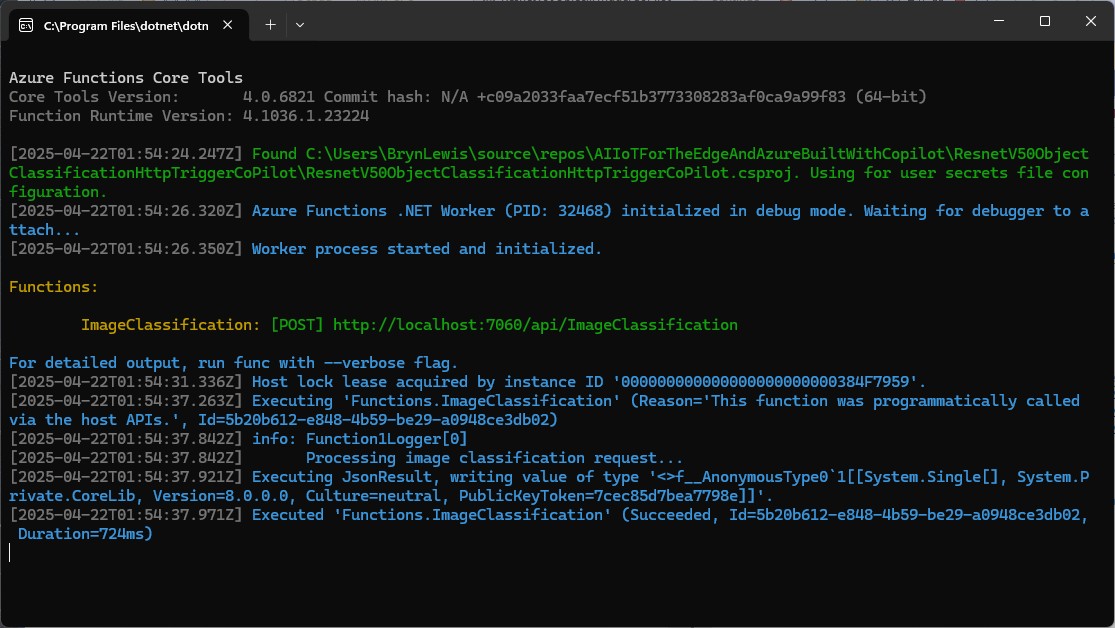
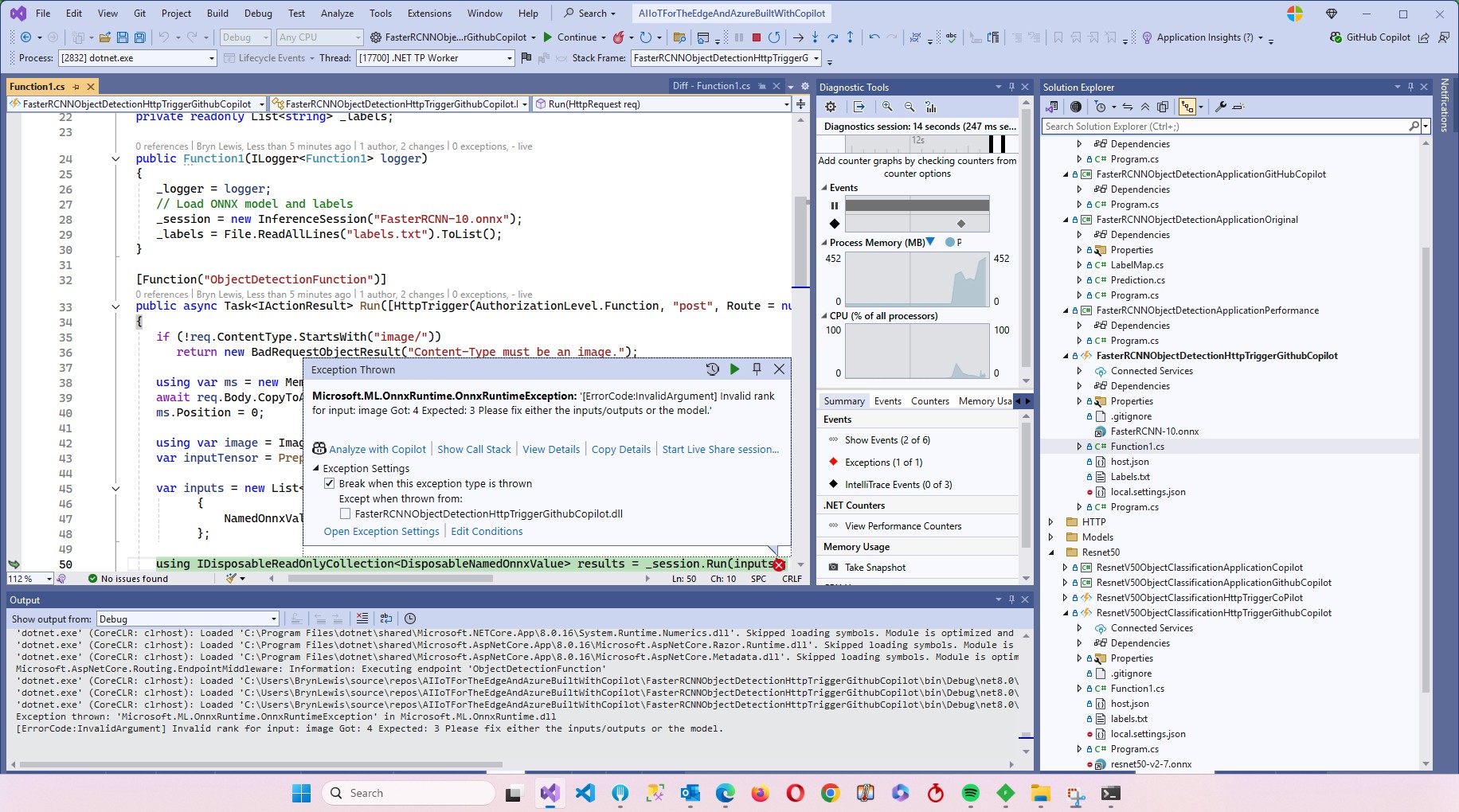
The Azure HTTP Trigger function ran but failed because the preprocessing of the image didn’t implement the specified preprocess steps.

Change DenseTensor to BGR (based on https://github.com/onnx/models/tree/main/validated/vision/object_detection_segmentation/faster-rcnn#preprocessing-steps)

Normalise colour values with mean = [102.9801, 115.9465, 122.7717]

The Azure HTTP Trigger function ran but failed because the output tensor names were incorrect

I used Netron to inspect the model properties to get the correct names for the output tensors

I had a couple of attempts at resizing the image to see what impact this had on the accuracy of the confidence and minimum bounding rectangles.

resize the image such that both height and width are within the range of [800, 1333], and then pad the image with zeros such that both height and width are divisible by 32.

modify the code to resize the image such that both height and width are within the range of [800, 1333], and then pad the image with zeros such that both height and width are divisible by 32 and the aspect ratio is not changed.

The final version of the image processing code scaled then right padded the image to keep the aspect ratio and MBR coordinates correct.

As a final test I deployed the code to Azure and the first time I ran the function it failed because the labels file couldn’t be found because Unix file paths are case sensitive (labels.txt vs. Labels.txt).

The inferencing time was a bit longer than I expected.

// please write an httpTrigger azure function that uses Faster RCNN and ONNX to detect the object in an image uploaded in the body of an HTTP Post
//    manually added the ML.Net ONNX NuGet + using directives
//    manually added the ImageSharp NuGet + using directives
//    Used Copilot to add Microsoft.ML.OnnxRuntime.Tensors using directive
//    Manually added ONNX FIle + labels file sorted out paths
//    Used Netron to fixup output tensor names
// Change DenseTensor to BGR (based on https://github.com/onnx/models/tree/main/validated/vision/object_detection_segmentation/faster-rcnn#preprocessing-steps)
// Normalise colour values with mean = [102.9801, 115.9465, 122.7717]
// resize the image such that both height and width are within the range of [800, 1333], and then pad the image with zeros such that both height and width are divisible by 32.
// modify the code to resize the image such that both height and width are within the range of [800, 1333], and then pad the image with zeros such that both height and width are divisible by 32 and the aspect ratio is not changed.
using Microsoft.AspNetCore.Http;
using Microsoft.AspNetCore.Mvc;
using Microsoft.Azure.Functions.Worker;
using Microsoft.Extensions.Logging;
using Microsoft.ML.OnnxRuntime;
using Microsoft.ML.OnnxRuntime.Tensors;
using SixLabors.ImageSharp; // Couldn't get inteliisense after adding NuGet package
using SixLabors.ImageSharp.PixelFormats; // Couldn't get inteliisense after adding NuGet package
using SixLabors.ImageSharp.Processing; // Couldn't get inteliisense after adding NuGet package


namespace FasterRCNNObjectDetectionHttpTriggerGithubCopilot
{
   public class Function1
   {
      private readonly ILogger<Function1> _logger;
      private readonly InferenceSession _session;
      private readonly List<string> _labels;

      public Function1(ILogger<Function1> logger)
      {
         _logger = logger;
         _session = new InferenceSession("FasterRCNN-10.onnx");
         _labels = File.ReadAllLines("labels.txt").ToList();
      }

      [Function("ObjectDetectionFunction")]
      public async Task<IActionResult> Run([HttpTrigger(AuthorizationLevel.Function, "post", Route = null)] HttpRequest req)
      {
         if (!req.ContentType.StartsWith("image/"))
            return new BadRequestObjectResult("Content-Type must be an image.");

         using var ms = new MemoryStream();
         await req.Body.CopyToAsync(ms);
         ms.Position = 0;

         using var image = Image.Load<Rgb24>(ms);
         var inputTensor = PreprocessImage(image);

         var inputs = new List<NamedOnnxValue>
                  {
                      NamedOnnxValue.CreateFromTensor("image", inputTensor)
                  };

         using IDisposableReadOnlyCollection<DisposableNamedOnnxValue> results = _session.Run(inputs);
         var output = results.ToDictionary(x => x.Name, x => x.Value);

         var boxes = (DenseTensor<float>)output["6379"];
         var labels = (DenseTensor<long>)output["6381"];
         var scores = (DenseTensor<float>)output["6383"];

         var detections = new List<object>();
         for (int i = 0; i < scores.Length; i++)
         {
            if (scores[i] > 0.5)
            {
               detections.Add(new
               {
                  label = _labels[(int)labels[i]],
                  score = scores[i],
                  box = new
                  {
                     x1 = boxes[i, 0],
                     y1 = boxes[i, 1],
                     x2 = boxes[i, 2],
                     y2 = boxes[i, 3]
                  }
               });
            }
         }

         return new OkObjectResult(detections);
      }

      private static DenseTensor<float> PreprocessImage( Image<Rgb24> image)
      {
         // Step 1: Resize so that min(H, W) = 800, max(H, W) <= 1333, keeping aspect ratio
         int origWidth = image.Width;
         int origHeight = image.Height;
         int minSize = 800;
         int maxSize = 1333;

         float scale = Math.Min((float)minSize / Math.Min(origWidth, origHeight),
                                (float)maxSize / Math.Max(origWidth, origHeight));
         /*
         float scale = 1.0f;

         // If either dimension is less than 800, scale up so the smaller is 800
         if (origWidth < minSize || origHeight < minSize)
         {
            scale = Math.Max((float)minSize / origWidth, (float)minSize / origHeight);
         }
         // If either dimension is greater than 1333, scale down so the larger is 1333
         if (origWidth * scale > maxSize || origHeight * scale > maxSize)
         {
            scale = Math.Min((float)maxSize / origWidth, (float)maxSize / origHeight);
         }
         */

         int resizedWidth = (int)Math.Round(origWidth * scale);
         int resizedHeight = (int)Math.Round(origHeight * scale);

         image.Mutate(x => x.Resize(resizedWidth, resizedHeight));

         // Step 2: Pad so that both dimensions are divisible by 32
         int padWidth = ((resizedWidth + 31) / 32) * 32;
         int padHeight = ((resizedHeight + 31) / 32) * 32;

         var paddedImage = new Image<Rgb24>(padWidth, padHeight);
         paddedImage.Mutate(ctx => ctx.DrawImage(image, new Point(0, 0), 1f));

         // Step 3: Convert to BGR and normalize
         float[] mean = { 102.9801f, 115.9465f, 122.7717f };
         var tensor = new DenseTensor<float>(new[] { 3, padHeight, padWidth });

         for (int y = 0; y < padHeight; y++)
         {
            for (int x = 0; x < padWidth; x++)
            {
               Rgb24 pixel = default;
               if (x < resizedWidth && y < resizedHeight)
                  pixel = paddedImage[x, y];

               tensor[0, y, x] = pixel.B - mean[0];
               tensor[1, y, x] = pixel.G - mean[1];
               tensor[2, y, x] = pixel.R - mean[2];
            }
         }

         paddedImage.Dispose();
         return tensor;
      }
   }
}

It took roughly an hour to “vibe code” the function, but it would have taken much longer for someone not familiar with the problem domain.

Summary

The Github Copilot generated code was okay but would be fragile, performance would suck and not scale terribly well.

The Copilot generated code in this post is not suitable for production

Building Cloud AI with Copilot – ResNet50 Azure HTTP Function

Introduction

This is another awfully long post about my experience using Copilot to write an Azure HTTP Trigger function that runs a resnet50 V2.7 Open Neural Network Exchange model(ONNX) on an image in the body of the HTTP POST.

For testing I was uploading the images with Telerik Fiddler Classic.

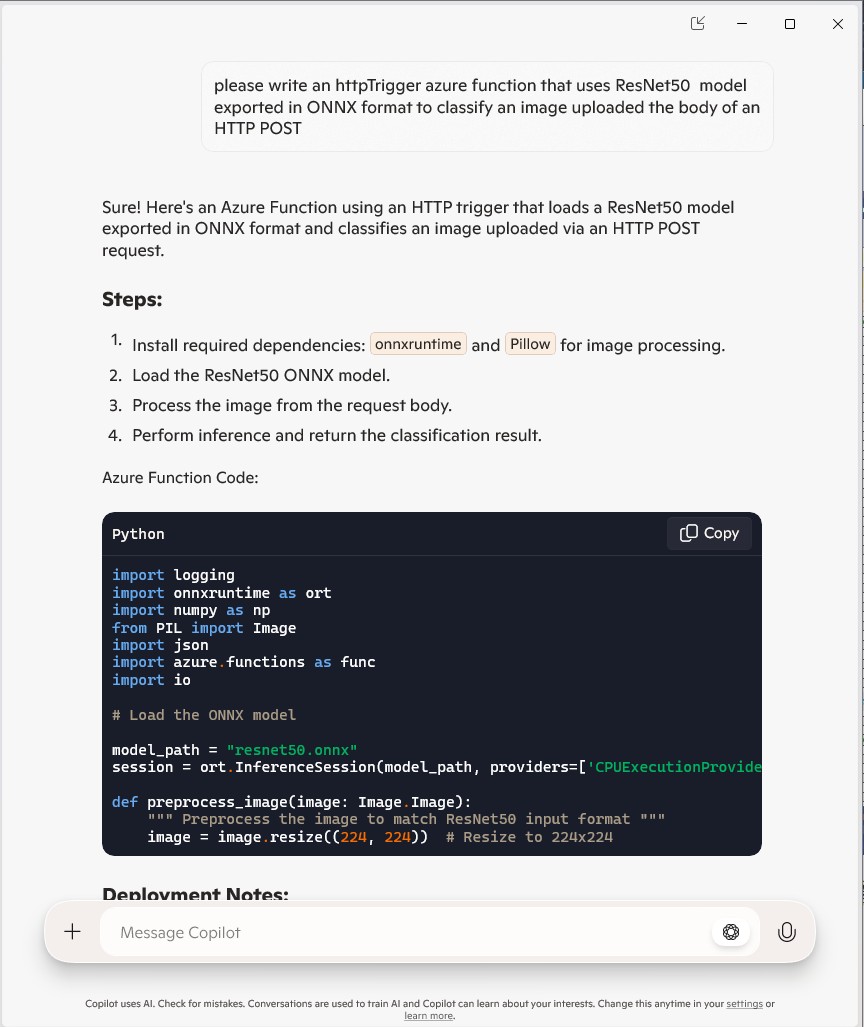
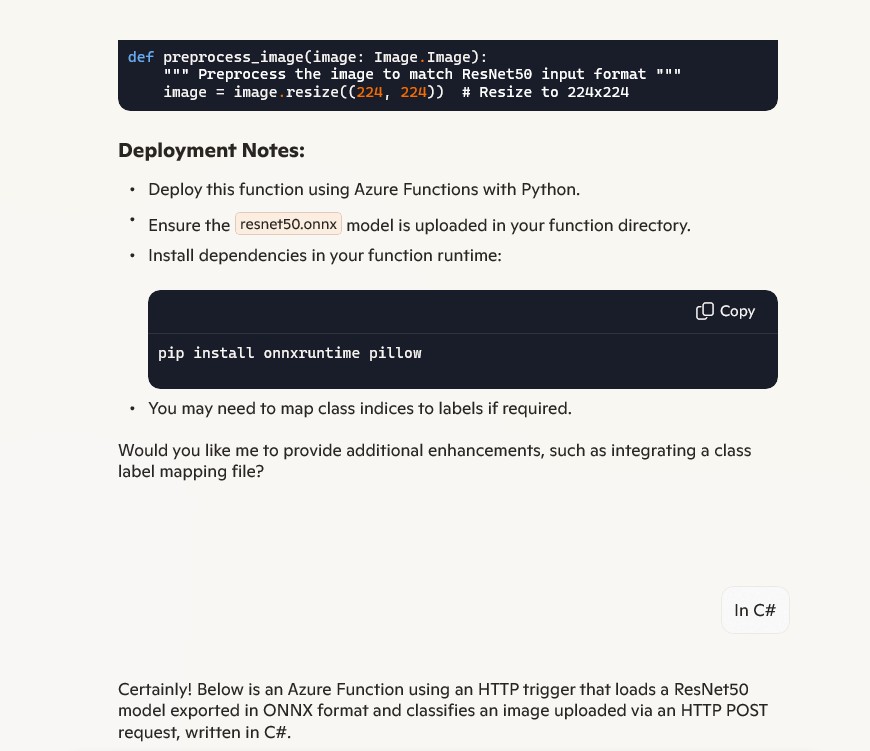
I forgot to specify language, so Copilot assumed (reasonably) that I wanted a Python Azure HTTP Trigger function.

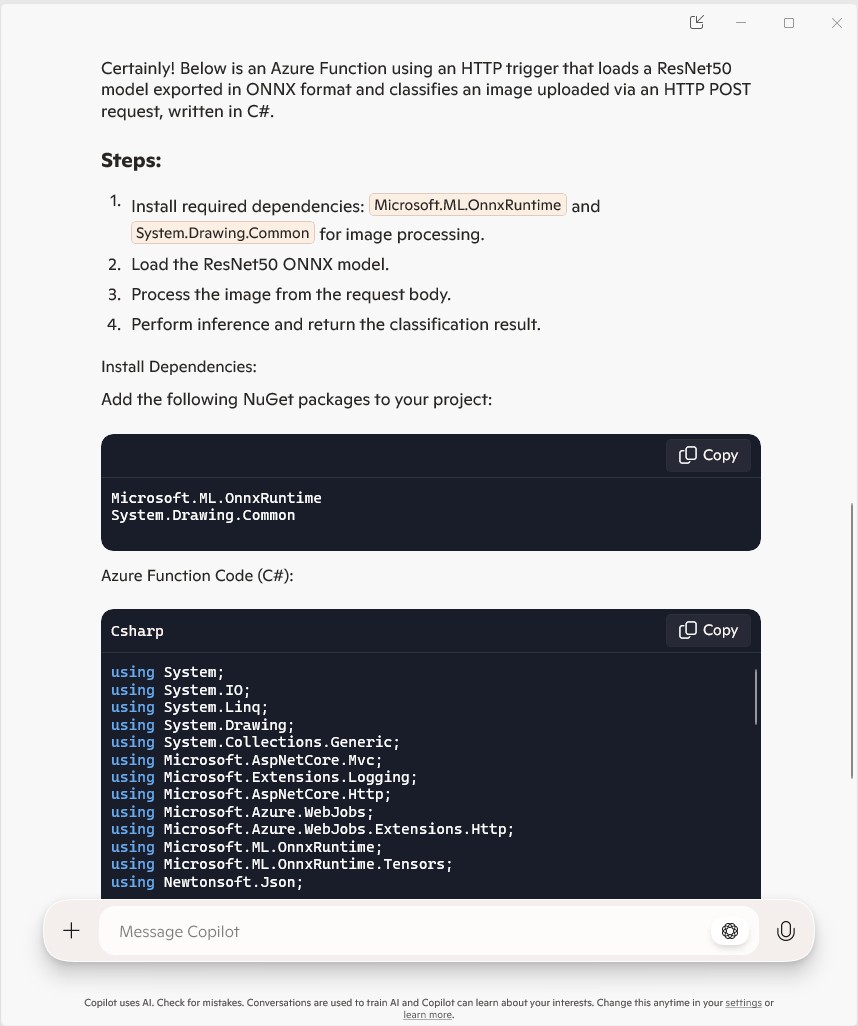
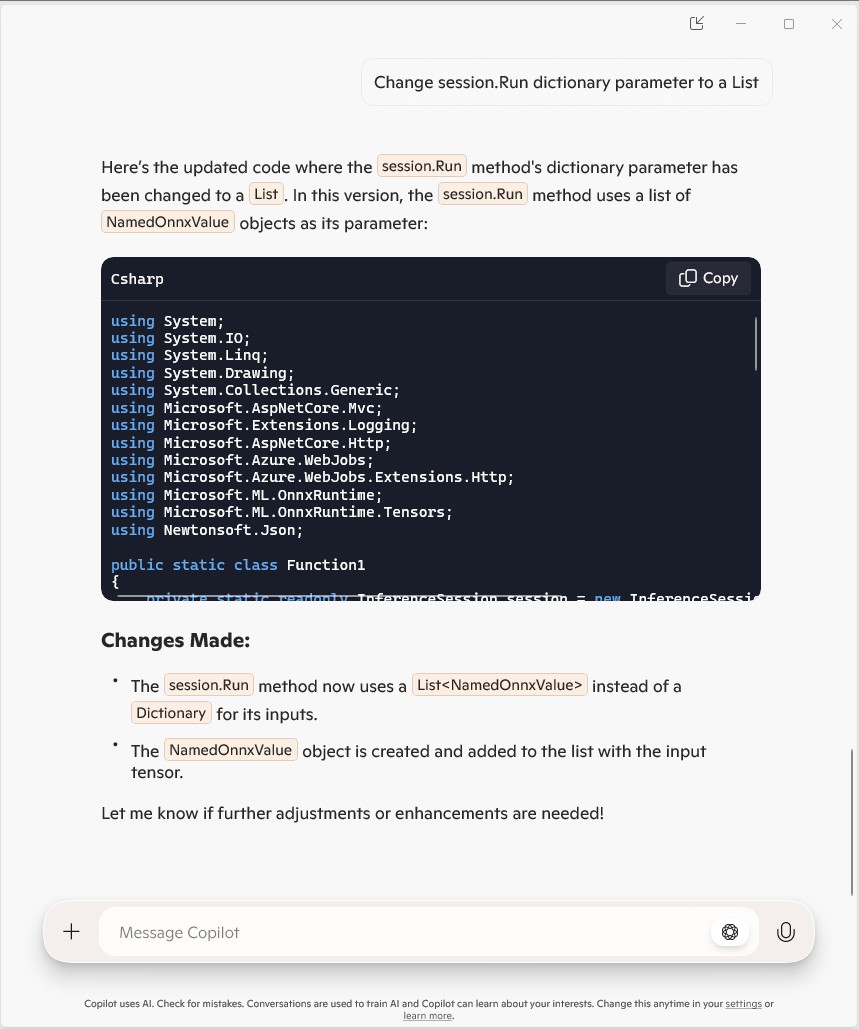
The initial C# version wouldn’t compile because of the FunctionName attribute which is used for in-process Azure Functions. It did seem a bit odd that Copilot would generate code that support will end for November 10, 2026

public static class Function1
{
   private static readonly InferenceSession session = new InferenceSession("resnet50.onnx");

   [FunctionName("ImageClassification")]
   public static IActionResult Run(
       [HttpTrigger(AuthorizationLevel.Function, "post")] HttpRequest req,
       ILogger log)
   {
      log.LogInformation("Processing image classification request...");

      try
      {
         using var ms = new MemoryStream();
         req.Body.CopyTo(ms);
         using var image = Image.FromStream(ms);

         var inputTensor = PreprocessImage(image);

         var inputName = session.InputMetadata.Keys.First();
         var outputName = session.OutputMetadata.Keys.First();
         var result = session.Run(new Dictionary<string, NamedOnnxValue>
            {
                { inputName, NamedOnnxValue.CreateFromTensor(inputName, inputTensor) }
            });

         var predictions = result.First().AsTensor<float>().ToArray();

         return new JsonResult(new { predictions });
      }
      catch (Exception ex)
      {
         log.LogError($"Error: {ex.Message}");
         return new BadRequestObjectResult("Invalid image or request.");
      }
   }
...
}

It was just easier to change the FunctionName attribute manually.

public static class Function1
{
   private static readonly InferenceSession session = new InferenceSession("resnet50.onnx");

   [Function("ImageClassification")]
   public static IActionResult Run(
       [HttpTrigger(AuthorizationLevel.Function, "post")] HttpRequest req,
       ILogger log)
   {
      log.LogInformation("Processing image classification request...");

      try
      {
         using var ms = new MemoryStream();
         req.Body.CopyTo(ms);
         using var image = Image.FromStream(ms);

         var inputTensor = PreprocessImage(image);

         var inputName = session.InputMetadata.Keys.First();
         var outputName = session.OutputMetadata.Keys.First();
         var inputList = new List<NamedOnnxValue>
            {
                NamedOnnxValue.CreateFromTensor(inputName, inputTensor)
            };

         var result = session.Run(inputList);

         var predictions = result.First().AsTensor<float>().ToArray();

         return new JsonResult(new { predictions });
      }
      catch (Exception ex)
      {
         log.LogError($"Error: {ex.Message}");
         return new BadRequestObjectResult("Invalid image or request.");
      }
   }

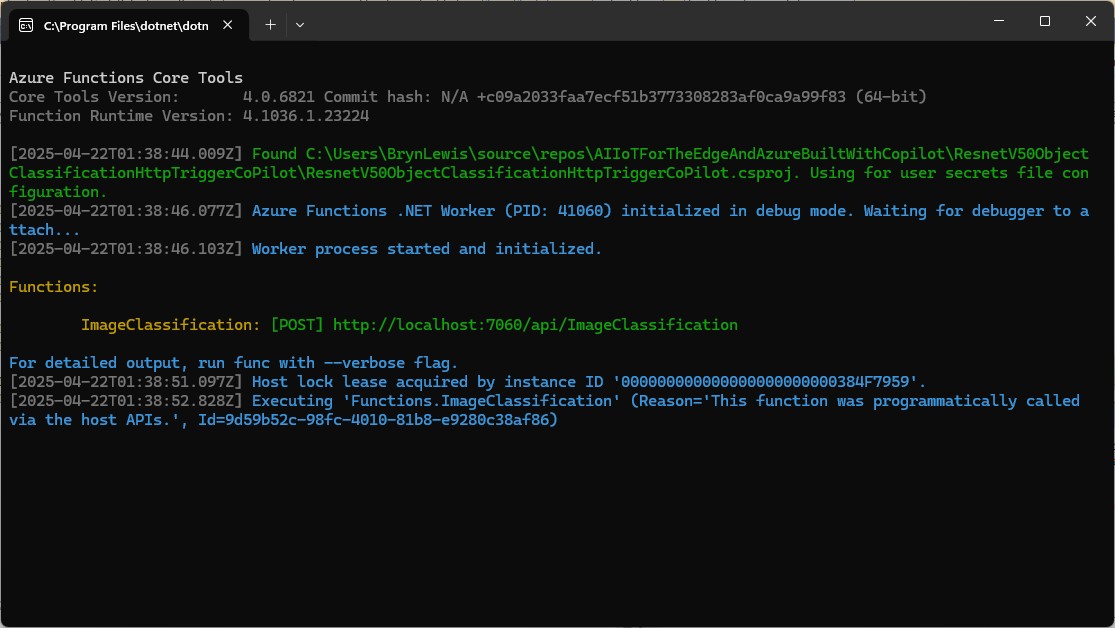
The Azure HTTP Trigger function ran but failed when I tried to classify an image

The initialisation of the ILogger injected into the Run method was broken so I used Copilot to update the code to use constructor Dependency Injection (DI).

public static class Function1
{
   private static readonly ILogger logger;
   private static readonly InferenceSession session = new InferenceSession("resnet50-v2-7.onnx");

   // Static constructor to initialize logger
   static Function1()
   {
      var loggerFactory = LoggerFactory.Create(builder =>
      {
         builder.AddConsole();
      });
      logger = loggerFactory.CreateLogger("Function1Logger");
   }

   [Function("ImageClassification")]
   public static IActionResult Run([HttpTrigger(AuthorizationLevel.Function, "post")] HttpRequest req)
   {
      logger.LogInformation("Processing image classification request...");

      try
      {
         using var ms = new MemoryStream();
         req.Body.CopyTo(ms);
         using var image = Image.FromStream(ms);

         var inputTensor = PreprocessImage(image);

         var inputName = session.InputMetadata.Keys.First();
         var outputName = session.OutputMetadata.Keys.First();
         var inputList = new List<NamedOnnxValue>
            {
                NamedOnnxValue.CreateFromTensor(inputName, inputTensor)
            };

         var result = session.Run(inputList);

         var predictions = result.First().AsTensor<float>().ToArray();

         return new JsonResult(new { predictions });
      }
      catch (Exception ex)
      {
         logger.LogError($"Error: {ex.Message}");
         return new BadRequestObjectResult("Invalid image or request.");
      }
   }
...
}

It was a bit odd that Copilot generated a static function and constructor unlike the equivalent YoloSharp Azure HTTP Trigger.

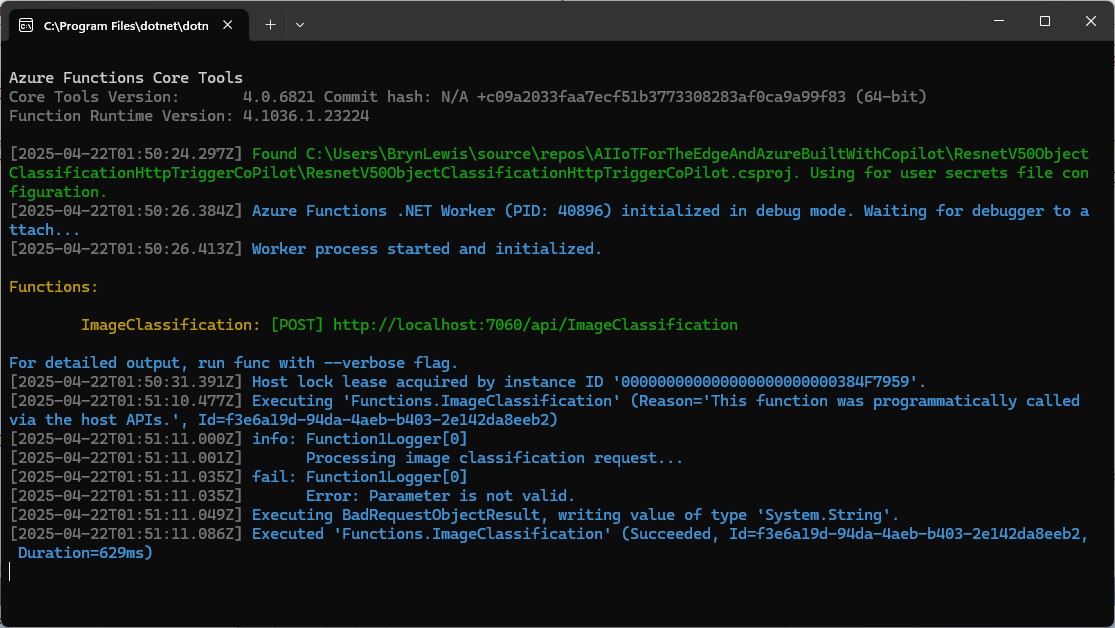
The Azure HTTP Trigger function ran but failed when I tried to classify an image

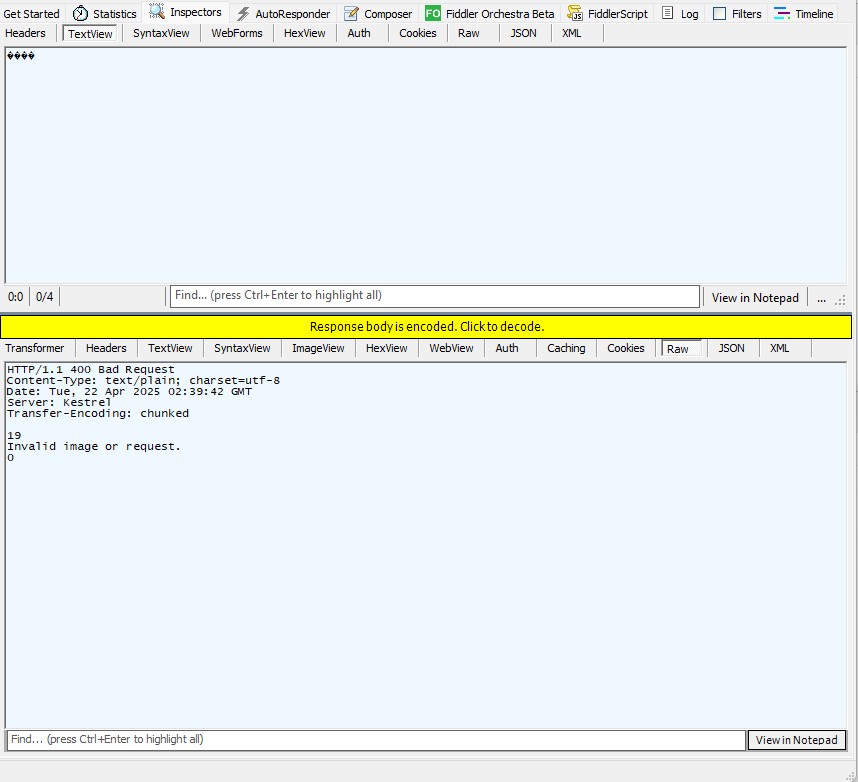
The Azure HTTP Trigger function ran but failed with a 400 Bad Request when I tried to classify an image

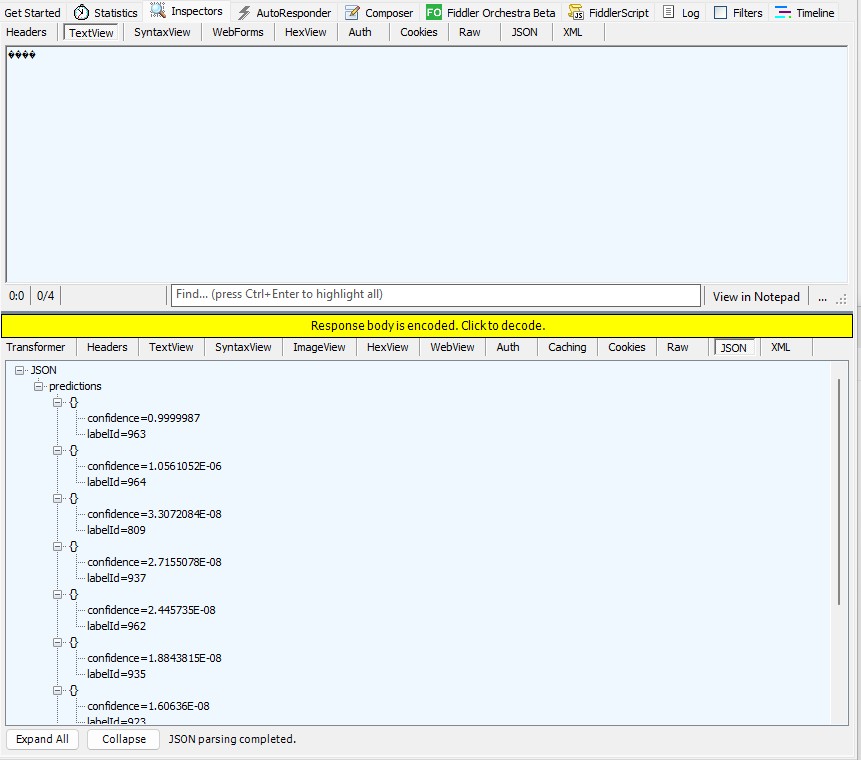
After some debugging I realised that Telerik Fiddle Classic was sending the image as form data so I modified the “composer” payload configuration.

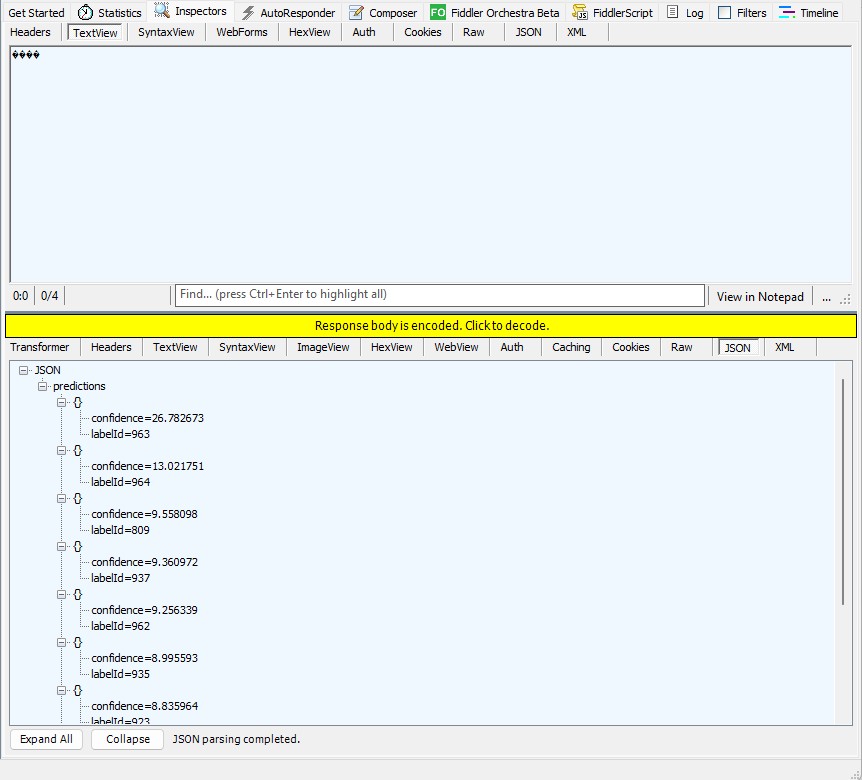
Then the Azure HTTP Trigger function ran but the confidence values were wrong.

The confidence values were incorrect, so I checked the ResNet50 pre-processing instructions

The image needs to be preprocessed before fed to the network. The first step is to extract a 224x224 crop from the center of the image. For this, the image is first scaled to a minimum size of 256x256, while keeping aspect ratio. That is, the shortest side of the image is resized to 256 and the other side is scaled accordingly to maintain the original aspect ratio. After that, the image is normalized with mean = 255*[0.485, 0.456, 0.406] and std = 255*[0.229, 0.224, 0.225]. Last step is to transpose it from HWC to CHW layout.
 private static Tensor<float> PreprocessImage(Image image)
 {
    var resized = new Bitmap(image, new Size(224, 224));
    var tensorData = new float[1 * 3 * 224 * 224];

    float[] mean = { 0.485f, 0.456f, 0.406f };
    float[] std = { 0.229f, 0.224f, 0.225f };

    for (int y = 0; y < 224; y++)
    {
       for (int x = 0; x < 224; x++)
       {
          var pixel = resized.GetPixel(x, y);

          tensorData[(0 * 3 * 224 * 224) + (0 * 224 * 224) + (y * 224) + x] = (pixel.R / 255.0f - mean[0]) / std[0];
          tensorData[(0 * 3 * 224 * 224) + (1 * 224 * 224) + (y * 224) + x] = (pixel.G / 255.0f - mean[1]) / std[1];
          tensorData[(0 * 3 * 224 * 224) + (2 * 224 * 224) + (y * 224) + x] = (pixel.B / 255.0f - mean[2]) / std[2];
       }
    }

    return new DenseTensor<float>(tensorData, new[] { 1, 3, 224, 224 });
 }

When the “normalisation” code was implemented and the Azure HTTP Trigger function run the confidence values were still incorrect.

The Azure HTTP Trigger function was working reliably but the number of results and size response payload was unnecessary.

The Azure HTTP Trigger function ran but the confidence values were still incorrect, so I again checked the ResNet50 post-processing instructions

Postprocessing
The post-processing involves calculating the softmax probability scores for each class. You can also sort them to report the most probable classes. Check imagenet_postprocess.py for code.
 // Compute exponentials for all scores
 var expScores = predictions.Select(MathF.Exp).ToArray();

 // Compute sum of exponentials
 float sumExpScores = expScores.Sum();

 // Normalize scores into probabilities
 var softmaxResults = expScores.Select(score => score / sumExpScores).ToArray();

 // Get top 10 predictions (label ID and confidence)
 var top10 = softmaxResults
     .Select((confidence, labelId) => new { labelId, confidence, label = labelId < labels.Count ? labels[labelId] : $"Unknown-{labelId}" })
     .OrderByDescending(p => p.confidence)
     .Take(10)
     .ToList();

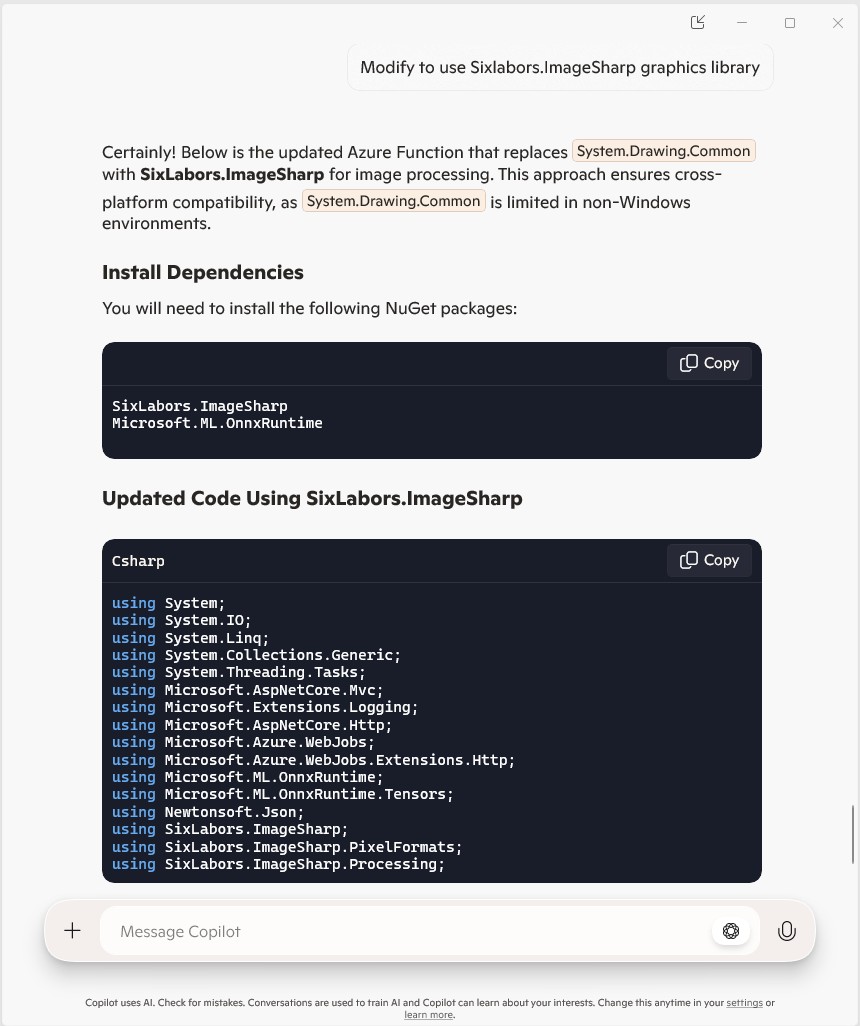
The Azure HTTP Trigger function should run on multiple platforms so System.Drawing.Comon had to be replaced with Sixlabors ImageSharp

The Azure HTTP Trigger function ran but the Sixlabors ImageSharp based image classification failed.

After some debugging I realised that the MemoryStream used to copy the HTTPRequest body was not being reset.

[Function("ImageClassification")]
public static async Task<IActionResult> Run(
    [HttpTrigger(AuthorizationLevel.Function, "post")] HttpRequest req)
{
   logger.LogInformation("Processing image classification request...");

   try
   {
      using var ms = new MemoryStream();
      await req.Body.CopyToAsync(ms);

      ms.Seek(0, SeekOrigin.Begin);

      using var image = Image.Load<Rgb24>(ms);

      var inputTensor = PreprocessImage(image);
...   
   }
   catch (Exception ex)
   {
      logger.LogError($"Error: {ex.Message}");
      return new BadRequestObjectResult("Invalid image or request.");
   }
}

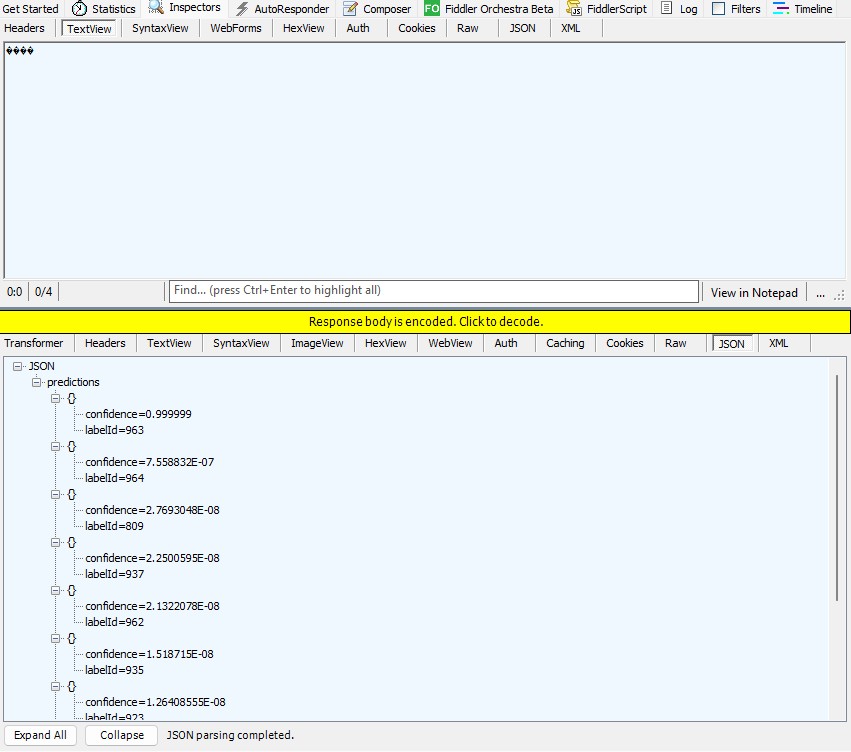
The odd thing was the confidence values changed slightly when the code was modified to use Sixlabors ImageSharp

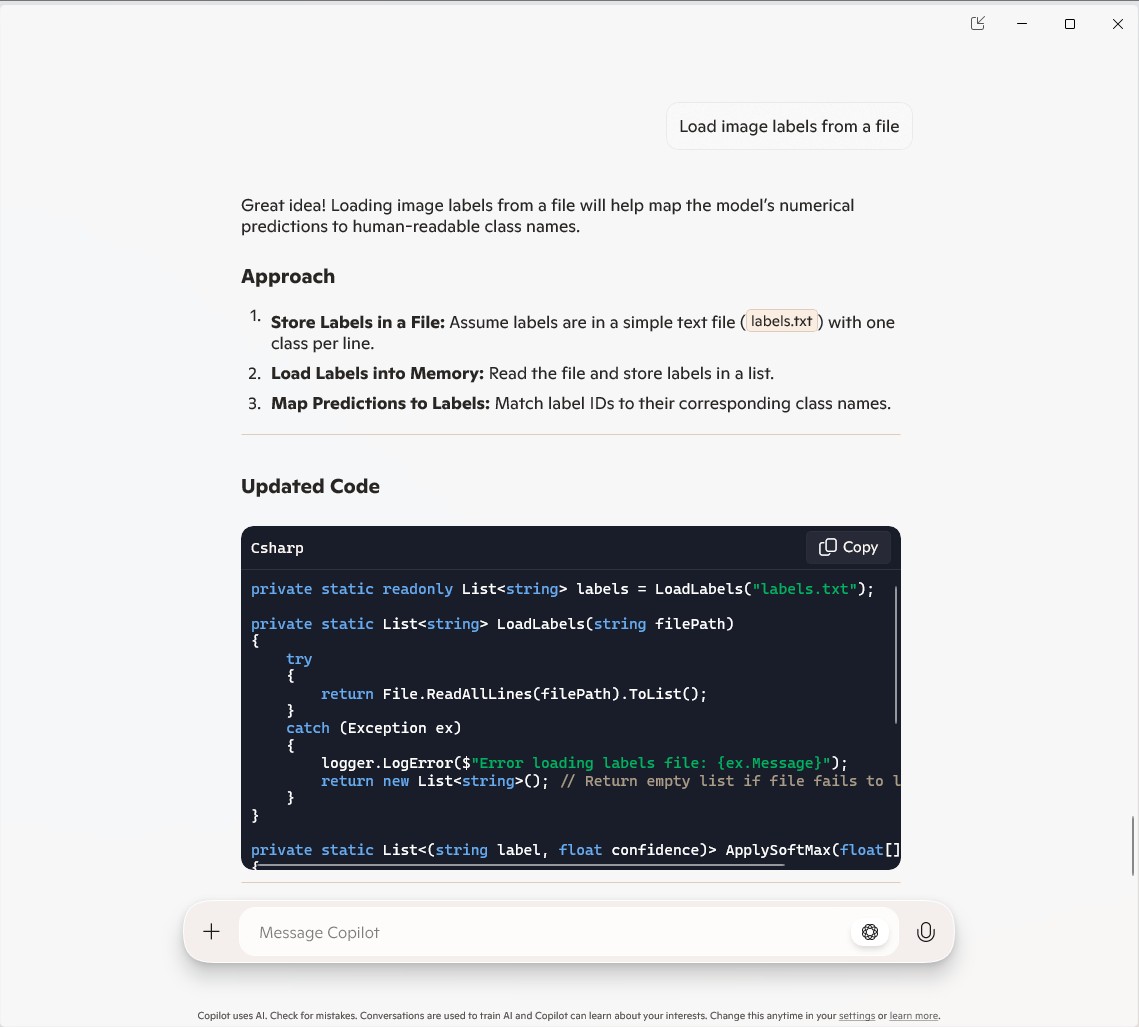
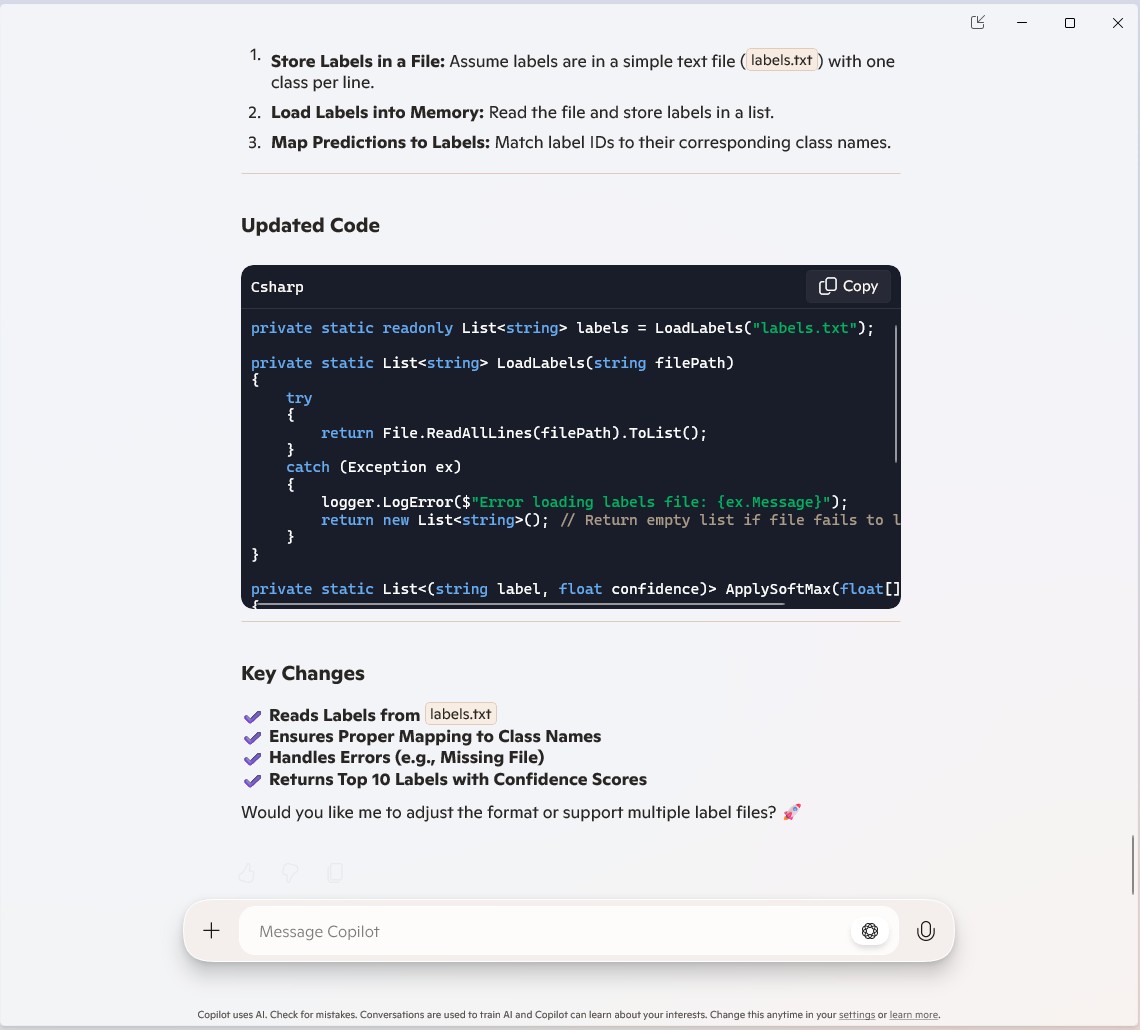
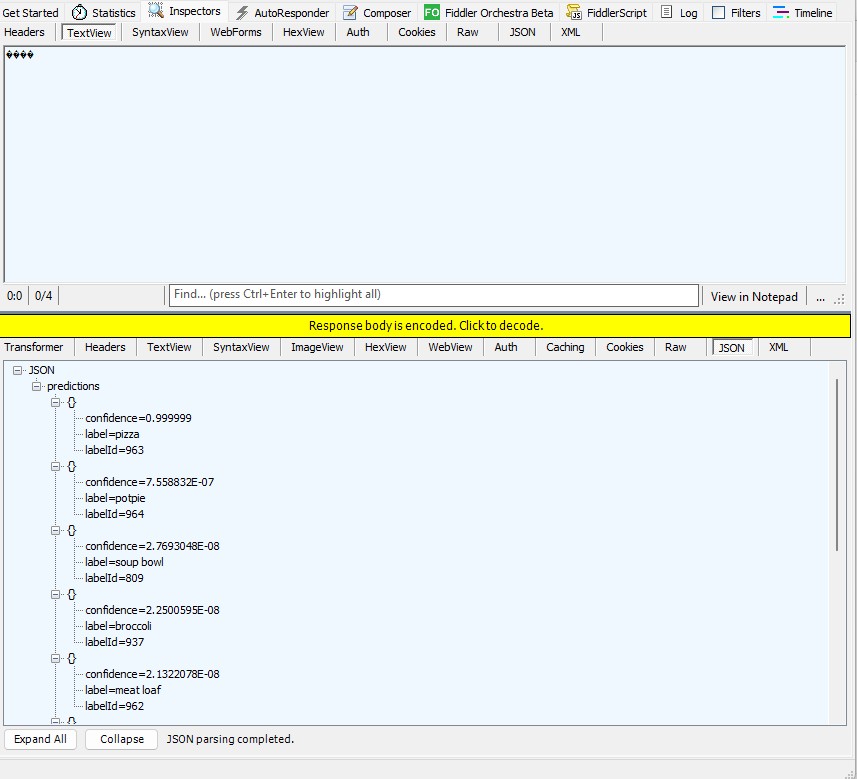
The Azure HTTP Trigger function worked but the labelId wasn’t that “human readable”.

public static class Function1
{
   private static readonly ILogger logger;
   private static readonly InferenceSession session = new InferenceSession("resnet50-v2-7.onnx");
   private static readonly List<string> labels = LoadLabels("labels.txt");
...
   [Function("ImageClassification")]
   public static async Task<IActionResult> Run(
       [HttpTrigger(AuthorizationLevel.Function, "post")] HttpRequest req)
   {
      logger.LogInformation("Processing image classification request...");

      try
      {
...
         // Get top 10 predictions (label ID and confidence)
         var top10 = softmaxResults
             .Select((confidence, labelId) => new { labelId, confidence, label = labelId < labels.Count ? labels[labelId] : $"Unknown-{labelId}" })
             .OrderByDescending(p => p.confidence)
             .Take(10)
             .ToList();

         return new JsonResult(new { predictions = top10 });
      }
      catch (Exception ex)
      {
         logger.LogError($"Error: {ex.Message}");
         return new BadRequestObjectResult("Invalid image or request.");
      }
   }
...
   private static List<string> LoadLabels(string filePath)
   {
      try
      {
         return File.ReadAllLines(filePath).ToList();
      }
      catch (Exception ex)
      {
         logger.LogError($"Error loading labels file: {ex.Message}");
         return new List<string>(); // Return empty list if file fails to load
      }
   }
}

Summary

The Github Copilot generated code was okay but would be fragile and not scale terribly well. The confidence values changing very slightly when the code was updated for Sixlabors ImageSharp was disconcerting, but not surprising.

The Copilot generated code in this post is not suitable for production

Azure Functions Isolated Worker support for VB.Net 4.8

As part of my “day job” I spend a bit of time working with VB.Net 4.X “legacy” projects doing upgrades, and bug fixes. Currently I am updating a number of Windows Service applications to run as Microsoft Azure Functions. With the release of the Azure functions runtime V4 Isolated Worker Processes with .NET Framework V4.8 support this is the last post in my Azure Functions with VB.Net 4.X and Azure Functions with VB.Net on .NET Core V6 series.

I have published source code for Azure Storage BlobTrigger, Azure Storage QueueTrigger, and TimerTriggers.

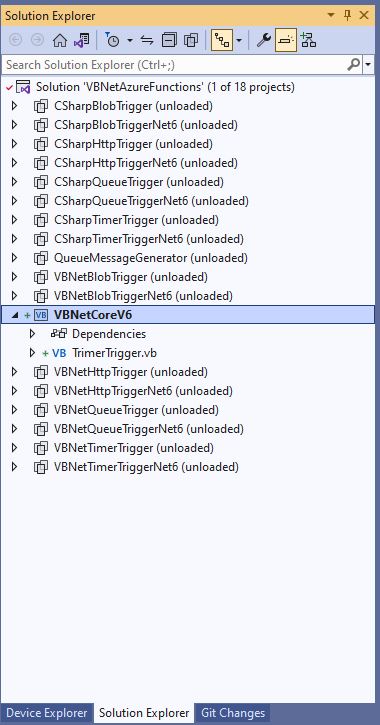
Visual Studio Solution explorer Azure Functions projects

All of the examples now have a program.vb which initialises the Trigger.

Namespace VBNet....TriggerIsolated
    Friend Class Program
        Public Shared Sub Main(ByVal args As String())
            Call FunctionsDebugger.Enable()

            Dim host = New HostBuilder().ConfigureFunctionsWorkerDefaults().Build()

            host.Run()
        End Sub
    End Class
End Namespace

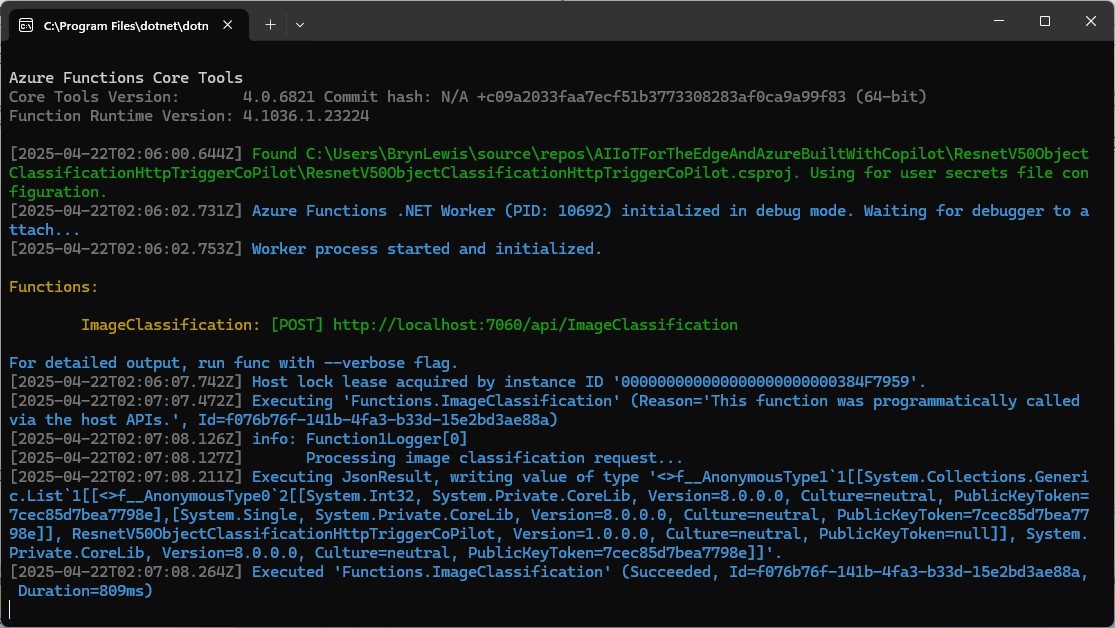
All of the Isolated worker process Triggers displayed this message which appeared to be benign.

Csproj not found in C:\Users\..\VBNetHttpTriggerIsolated\bin\Debug\net48 directory tree. Skipping user secrets file configuration.
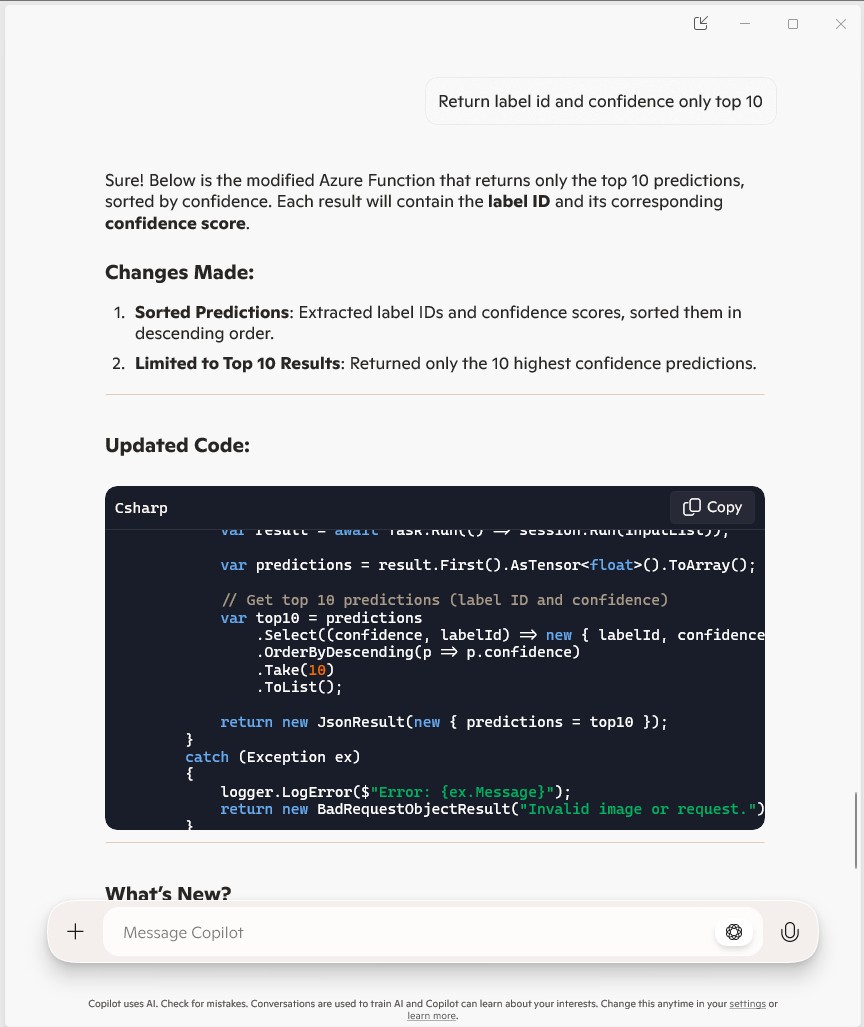
There were a lot of articles about problems building Docker images but the only relevant ones appeared to talk about getting F# and other .NET Core languages to work in Azure Functions.

Namespace devMobile.Azure.VBNetBlobTriggerIsolated
    Public Class BlobTrigger
        Private ReadOnly _logger As ILogger

        Public Sub New(ByVal loggerFactory As ILoggerFactory)
            _logger = loggerFactory.CreateLogger(Of BlobTrigger)()
        End Sub

        <[Function]("vbnetblobtriggerisolated")>
        Public Sub Run(
        <BlobTrigger("vbnetblobtriggerisolated/{name}", Connection:="blobendpoint")> ByVal myBlob As String, ByVal name As String)

            _logger.LogInformation($"VB.Net NET 4.8 Isolated Blob trigger function Processed blob Name: {name}  Data: {myBlob}")
        End Sub
    End Class
End Namespace

I used Azure Storage Explorer to upload files containing Lorem Ipsum for testing the BlobTrigger.

Azure BlobTrigger function running in the desktop emulator
Azure BlobTrigger Function logging in Application Insights

I used Telerik Fiddler to POST messages to the desktop emulator and Azure endpoints.

Namespace VBNetHttpTriggerIsolated
    Public Class HttpTrigger
        Private Shared executionCount As Int32
        Private ReadOnly _logger As ILogger

        Public Sub New(ByVal loggerFactory As ILoggerFactory)
            _logger = loggerFactory.CreateLogger(Of HttpTrigger)()
        End Sub

        <[Function]("Notifications")>
        Public Function Run(
        <HttpTrigger(AuthorizationLevel.Anonymous, "get", "post")> ByVal req As HttpRequestData) As HttpResponseData
            Interlocked.Increment(executionCount)

            _logger.LogInformation("VB.Net NET 4.8 Isolated HTTP trigger Execution count:{executionCount} Method:{req.Method}", executionCount, req.Method)

            Dim response = req.CreateResponse(HttpStatusCode.OK)
            response.Headers.Add("Content-Type", "text/plain; charset=utf-8")

            Return response
        End Function
    End Class
End Namespace
Azure HttpTrigger Function running in the desktop emulator
Azure HttpTrigger Function logging in Application Insights

I used Azure Storage Explorer to create messages for testing the QueueTrigger

Namespace devMobile.Azure.VBNetQueueTriggerIsolated

    Public Class QueueTrigger
        Private Shared _logger As ILogger
        Private Shared _concurrencyCount As Integer = 0
        Private Shared _executionCount As Integer = 0

        Public Sub New(ByVal loggerFactory As ILoggerFactory)
            _logger = loggerFactory.CreateLogger(Of QueueTrigger)()
        End Sub

        <[Function]("VBNetQueueTriggerIsolated")>
        Public Sub Run(
        <QueueTrigger("vbnetqueuetriggerisolated", Connection:="QueueEndpoint")> ByVal message As String)
            Interlocked.Increment(_concurrencyCount)
            Interlocked.Increment(_executionCount)

            _logger.LogInformation("VB.Net .NET 4.8 Isolated Queue Trigger Concurrency:{_concurrencyCount} ExecutionCount:{_executionCount} Message:{message}", _concurrencyCount, _executionCount, message)

            Interlocked.Decrement(_concurrencyCount)
        End Sub
    End Class
End Namespace
Azure QueueTrigger Function running in the desktop emulator
Azure QueueTrigger Function logging in Application Insights
Namespace devMobile.Azure.VBNetTimerTriggerIsolated
    Public Class TimerTrigger
        Private Shared _logger As ILogger
        Private Shared _executionCount As Integer = 0

        Public Sub New(ByVal loggerFactory As ILoggerFactory)
            _logger = loggerFactory.CreateLogger(Of TimerTrigger)()
        End Sub

        <[Function]("Timer")>
        Public Sub Run(
        <TimerTrigger("0 */1 * * * *")> ByVal myTimer As MyInfo)

            Interlocked.Increment(_executionCount)
            _logger.LogInformation("VB.Net Isolated TimerTrigger next trigger:{0} Execution count:{1}", myTimer.ScheduleStatus.Next, _executionCount)
        End Sub
    End Class
Azure TimerTrigger Function running in the desktop emulator
Azure TimerTrigger Function logging in Application Insights

The development, debugging and deployment of these functions took a lot of time. Initially Azure Application Insights didn’t work when the Azure Isolated Worker triggers were deployed to Azure. After some experimentation I found that Application Insights Connection Strings worked and Application Instrumentation Keys did not.
With the Microsoft: ‘We Do Not Plan to Evolve Visual Basic as a Language this should hopefully be my last post about VB.Net ever.

Swarm Space – Underlying Architecture sorted

After figuring out that calling an Azure Http Trigger function to load the cache wasn’t going to work reliably, I have revisited the architecture one last time and significantly refactored the SwarmSpaceAzuureIoTConnector project.

Visual Studio 2022 solution

The application now has a StartUpService which loads the Azure DeviceClient cache (Lazy Cache) in the background as the application starts up. If an uplink message is received from a SwarmDevice before, it has been loaded by the FunctionsStartup the DeviceClient information is cached and another connection to the Azure IoT Hub is not established.

...
using Microsoft.Azure.Functions.Extensions.DependencyInjection;

[assembly: FunctionsStartup(typeof(devMobile.IoT.SwarmSpaceAzureIoTConnector.Connector.StartUpService))]
namespace devMobile.IoT.SwarmSpaceAzureIoTConnector.Connector
{
...
    public class StartUpService : BackgroundService
    {
        private readonly ILogger<StartUpService> _logger;
        private readonly ISwarmSpaceBumblebeeHive _swarmSpaceBumblebeeHive;
        private readonly Models.ApplicationSettings _applicationSettings;
        private readonly IAzureDeviceClientCache _azureDeviceClientCache;

        public StartUpService(ILogger<StartUpService> logger, IAzureDeviceClientCache azureDeviceClientCache, ISwarmSpaceBumblebeeHive swarmSpaceBumblebeeHive, IOptions<Models.ApplicationSettings> applicationSettings)//, IOptions<Models.AzureIoTSettings> azureIoTSettings)
        {
            _logger = logger;
            _azureDeviceClientCache = azureDeviceClientCache;
            _swarmSpaceBumblebeeHive = swarmSpaceBumblebeeHive;
            _applicationSettings = applicationSettings.Value;
        }

        protected override async Task ExecuteAsync(CancellationToken cancellationToken)
        {
            await Task.Yield();

            _logger.LogInformation("StartUpService.ExecuteAsync start");

            try
            {
                _logger.LogInformation("BumblebeeHiveCacheRefresh start");

                foreach (SwarmSpace.BumblebeeHiveClient.Device device in await _swarmSpaceBumblebeeHive.DeviceListAsync(cancellationToken))
                {
                    _logger.LogInformation("BumblebeeHiveCacheRefresh DeviceId:{DeviceId} DeviceName:{DeviceName}", device.DeviceId, device.DeviceName);

                    Models.AzureIoTDeviceClientContext context = new Models.AzureIoTDeviceClientContext()
                    {
                        OrganisationId = _applicationSettings.OrganisationId,
                        DeviceType = (byte)device.DeviceType,
                        DeviceId = (uint)device.DeviceId,
                    };

                    await _azureDeviceClientCache.GetOrAddAsync(context.DeviceId, context);
                }

                _logger.LogInformation("BumblebeeHiveCacheRefresh finish");
            }
            catch (Exception ex)
            {
                _logger.LogError(ex, "StartUpService.ExecuteAsync error");

                throw;
            }

            _logger.LogInformation("StartUpService.ExecuteAsync finish");
        }
    }
}

The uplink and downlink payload formatters are stored in Azure Blob Storage are compiled (CS-Script) as they are loaded then cached (Lazy Cache)

Azure Storage explorer displaying list of uplink payload formatter blobs.
Azure Storage explorer displaying list of downlink payload formatter blobs.
private async Task<IFormatterDownlink> DownlinkLoadAsync(int userApplicationId)
{
    BlobClient blobClient = new BlobClient(_payloadFormatterConnectionString, _applicationSettings.PayloadFormattersDownlinkContainer, $"{userApplicationId}.cs");

    if (!await blobClient.ExistsAsync())
    {
        _logger.LogInformation("PayloadFormatterDownlink- UserApplicationId:{0} Container:{1} not found using default:{2}", userApplicationId, _applicationSettings.PayloadFormattersUplinkContainer, _applicationSettings.PayloadFormatterUplinkBlobDefault);

        blobClient = new BlobClient(_payloadFormatterConnectionString, _applicationSettings.PayloadFormatterDownlinkBlobDefault, _applicationSettings.PayloadFormatterDownlinkBlobDefault);
    }

    BlobDownloadResult downloadResult = await blobClient.DownloadContentAsync();

    return CSScript.Evaluator.LoadCode<PayloadFormatter.IFormatterDownlink>(downloadResult.Content.ToString());
}

The uplink and downlink formatters can be edited in Visual Studio 2022 with syntax highlighting (currently they have to be manually uploaded).

The SwarmSpaceBumbleebeehive module no longer has public login or logout methods.

    public interface ISwarmSpaceBumblebeeHive
    {
        public Task<ICollection<Device>> DeviceListAsync(CancellationToken cancellationToken);

        public Task SendAsync(uint organisationId, uint deviceId, byte deviceType, ushort userApplicationId, byte[] payload);
    }

The DeviceListAsync and SendAsync methods now call the BumblebeeHive login method after configurable period of inactivity.

public async Task<ICollection<Device>> DeviceListAsync(CancellationToken cancellationToken)
{
        if ((_TokenActivityAtUtC + _bumblebeeHiveSettings.TokenValidFor) < DateTime.UtcNow)
        {
            await Login();
        }

        using (HttpClient httpClient = _httpClientFactory.CreateClient())
       {
            Client client = new Client(httpClient);

            client.BaseUrl = _bumblebeeHiveSettings.BaseUrl;

            httpClient.DefaultRequestHeaders.Add("Authorization", $"bearer {_token}");

            return await client.GetDevicesAsync(null, null, null, null, null, null, null, null, null, cancellationToken);
        }
}

I’m looking at building a webby user interface where users an interactivity list, create, edit, delete formatters with syntax highlighter support, and the executing the formatter with sample payloads.

Swarm Space Azure IoT Connector Identity Translation Gateway Architecture

This approach uses most of the existing building blocks, and that’s it no more changes.

Swarm Space – Underlying Architecture Revisited

After figuring out that calling a CS-Script uplink payload formatter inside an Azure Http Trigger function wasn’t going to work I needed a new architecture.

Swarm Space Azure IoT Connector Identity Translation Gateway Architecture

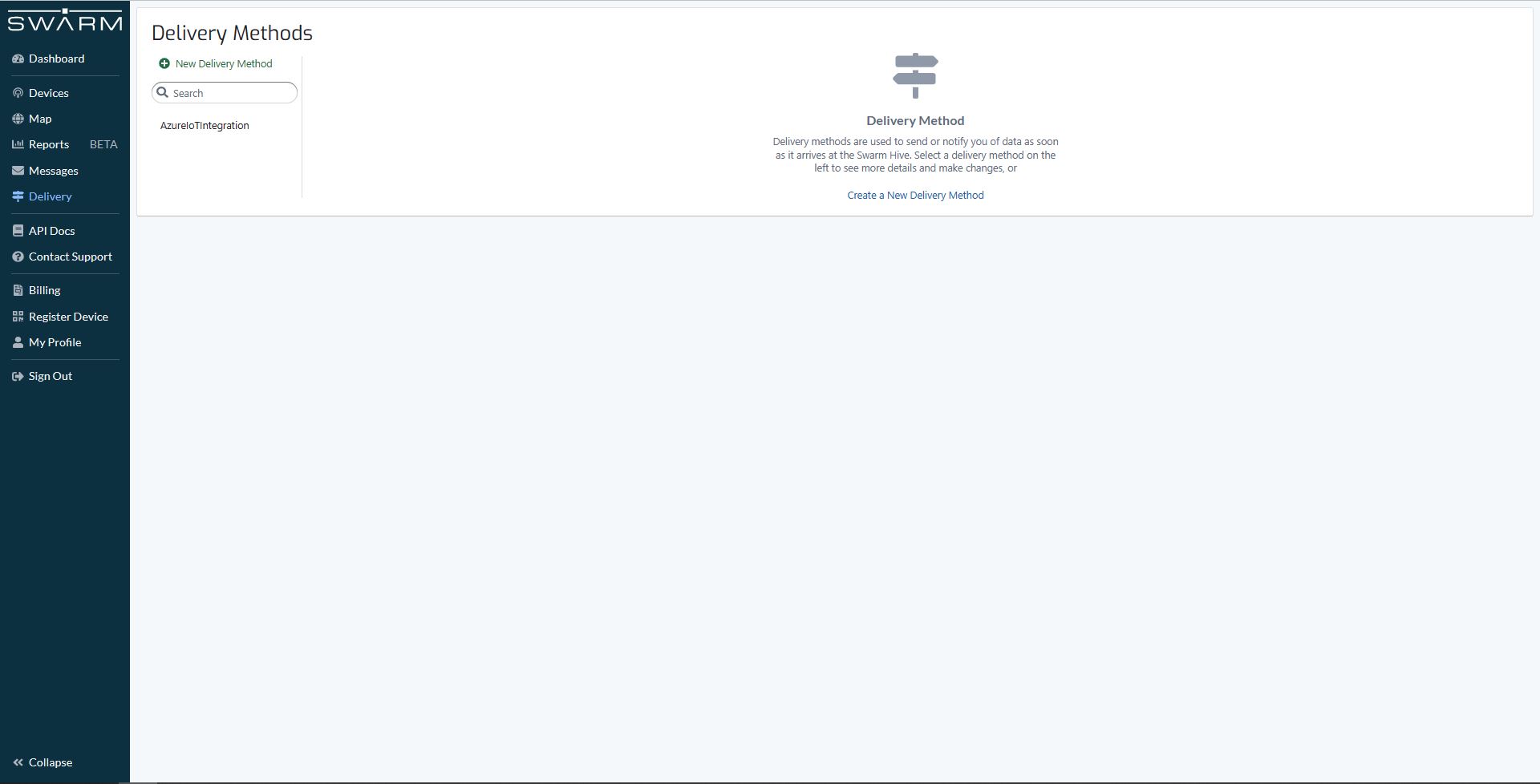
The new approach uses most of the existing building blocks but adds an Azure HTTP Trigger which receives the Swarm Space Bumble bee hive Webhook Delivery Method calls and writes them to an Azure Storage Queue.

Swarm Space Bumble bee hive Web Hook Delivery method

The uplink and downlink formatters are now called asynchronously so they have limited impact on the overall performance of the application.

Swarm Space – Azure IoT FromDevice with webhooks

The initial versions of the Swarm Space Azure Cloud Identity Gateway were based on my The Things Industries(TTI) Azure IoT Connector which used six HTTP Triggered Azure Functions. My Swarm Space Azure IoT connector only has one webhook endpoint so a .NET Core WebAPI with controllers based solution appeared to be more practical. The first step was to get some sample JavaScript Object Notation(JSON) uplink message payloads with the SwarmSpace-From Device with Webhooks project.

{
  "packetId": 0,
  "deviceType": 1,
  "deviceId": 0,
  "userApplicationId": 0,
  "organizationId": 65760,
  "data": "VGhpcyBpcyBhIHRlc3QgbWVzc2FnZS4gVGhlIHBhY2tldElkIGFuZCBkZXZpY2VJZCBhcmUgbm90IHBvcHVsYXRlZCwgYnV0IHdpbGwgYmUgZm9yIGEgcmVhbCBtZXNzYWdlLg==",
  "len": 100,
  "status": 0,
  "hiveRxTime": "2022-11-29T04:52:06"
}

I used JSON2CSharp to generate an initial version of a Plain Old CLR(ComonLanguage Runtime) Object(POCO) to deserialise the Delivery Webhook payload.

 https://json2csharp.com/
    
    // Root myDeserializedClass = JsonConvert.DeserializeObject<Root>(myJsonResponse);
    public class Root
    {
        public int packetId { get; set; }
        public int deviceType { get; set; }
        public int deviceId { get; set; }
        public int userApplicationId { get; set; }
        public int organizationId { get; set; }
        public string data { get; set; }
        public int len { get; set; }
        public int status { get; set; }
        public DateTime hiveRxTime { get; set; }
    }
*/

I then “tweaked” the JSON2CSharp class

 public class UplinkPayload
    {
        [JsonProperty("packetId")]
        public int PacketId { get; set; }

        [JsonProperty("deviceType")]
        public int DeviceType { get; set; }

        [JsonProperty("deviceId")]
        public int DeviceId { get; set; }

        [JsonProperty("userApplicationId")]
        public int UserApplicationId { get; set; }

        [JsonProperty("organizationId")]
        public int OrganizationId { get; set; }

        [JsonProperty("data")]
        [JsonRequired]
        public string Data { get; set; }

        [JsonProperty("len")]
        public int Len { get; set; }

        [JsonProperty("status")]
        public int Status { get; set; }

        [JsonProperty("hiveRxTime")]
        public DateTime HiveRxTime { get; set; }
    }

This class is used to “automagically” deserialise Delivery Webhook payloads. There is also some additional payload validation which discards test messages (not certain this is a good idea) etc.

//---------------------------------------------------------------------------------
// Copyright (c) December 2022, devMobile Software
//
// Licensed under the Apache License, Version 2.0 (the "License");
// you may not use this file except in compliance with the License.
// You may obtain a copy of the License at
//
//     http://www.apache.org/licenses/LICENSE-2.0
//
// Unless required by applicable law or agreed to in writing, software
// distributed under the License is distributed on an "AS IS" BASIS,
// WITHOUT WARRANTIES OR CONDITIONS OF ANY KIND, either express or implied.
// See the License for the specific language governing permissions and
// limitations under the License.
//
//---------------------------------------------------------------------------------
namespace devMobile.IoT.SwarmSpace.AzureIoT.Connector.Controllers
{
    using System.Globalization;
    using System.Text;
    using System.Threading.Tasks;

    using Microsoft.AspNetCore.Mvc;
    using Microsoft.Azure.Devices.Client;
    using Microsoft.Extensions.Logging;

    using Newtonsoft.Json;
    using Newtonsoft.Json.Linq;

    [ApiController]
    [Route("api/[controller]")]
    public class UplinkController : ControllerBase
    {
        private readonly ILogger<UplinkController> _logger;
        private readonly IAzureIoTDeviceClientCache _azureIoTDeviceClientCache;

        public UplinkController(ILogger<UplinkController> logger, IAzureIoTDeviceClientCache azureIoTDeviceClientCache)
        {
            _logger = logger;
            _azureIoTDeviceClientCache = azureIoTDeviceClientCache;
        }

        [HttpPost]
        public async Task<IActionResult> Uplink([FromBody] Models.UplinkPayload payload)
        {
            DeviceClient deviceClient;

            _logger.LogDebug("Payload {0}", JsonConvert.SerializeObject(payload, Formatting.Indented));

            if (payload.PacketId == 0)
            {
                _logger.LogWarning("Uplink-payload simulated DeviceId:{DeviceId}", payload.DeviceId);

                return this.Ok();
            }

            if ((payload.UserApplicationId < Constants.UserApplicationIdMinimum) || (payload.UserApplicationId > Constants.UserApplicationIdMaximum))
            {
                _logger.LogWarning("Uplink-payload invalid User Application Id:{UserApplicationId}", payload.UserApplicationId);

                return this.BadRequest($"Invalid User Application Id {payload.UserApplicationId}");
            }

            if ((payload.Len < Constants.PayloadLengthMinimum) || string.IsNullOrEmpty(payload.Data))
            {
                _logger.LogWarning("Uplink-payload.Data is empty PacketId:{PacketId}", payload.PacketId);

                return this.Ok("payload.Data is empty");
            }

            Models.AzureIoTDeviceClientContext context = new Models.AzureIoTDeviceClientContext()
            {
                OrganisationId = payload.OrganizationId,
                UserApplicationId = payload.UserApplicationId,
                DeviceType = payload.DeviceType,
                DeviceId = payload.DeviceId,
            };

            deviceClient = await _azureIoTDeviceClientCache.GetOrAddAsync(payload.DeviceId.ToString(), context);

            JObject telemetryEvent = new JObject
            {
                { "packetId", payload.PacketId},
                { "deviceType" , payload.DeviceType},
                { "DeviceID", payload.DeviceId },
                { "organizationId", payload.OrganizationId },
                { "ApplicationId", payload.UserApplicationId},
                { "ReceivedAtUtc", payload.HiveRxTime.ToString("s", CultureInfo.InvariantCulture) },
                { "DataLength", payload.Len },
                { "Data", payload.Data },
                { "Status", payload.Status },
            };

            // Send the message to Azure IoT Hub
            using (Message ioTHubmessage = new Message(Encoding.ASCII.GetBytes(JsonConvert.SerializeObject(telemetryEvent))))
            {
                // Ensure the displayed time is the acquired time rather than the uploaded time. 
                ioTHubmessage.Properties.Add("iothub-creation-time-utc", payload.HiveRxTime.ToString("s", CultureInfo.InvariantCulture));
                ioTHubmessage.Properties.Add("OrganizationId", payload.OrganizationId.ToString());
                ioTHubmessage.Properties.Add("ApplicationId", payload.UserApplicationId.ToString());
                ioTHubmessage.Properties.Add("DeviceId", payload.DeviceId.ToString());
                ioTHubmessage.Properties.Add("deviceType", payload.DeviceType.ToString());

                await deviceClient.SendEventAsync(ioTHubmessage);

                _logger.LogInformation("Uplink-DeviceID:{deviceId} SendEventAsync success", payload.DeviceId);
            }

            return this.Ok();
        }
    }
}

I initially debugged and tested the Uplink controller with Telerik Fiddler using sample payloads captured with the SwarmSpace-From Device with Webhooks project.

Using Telerik Fiddler to make test delivery webhook calls

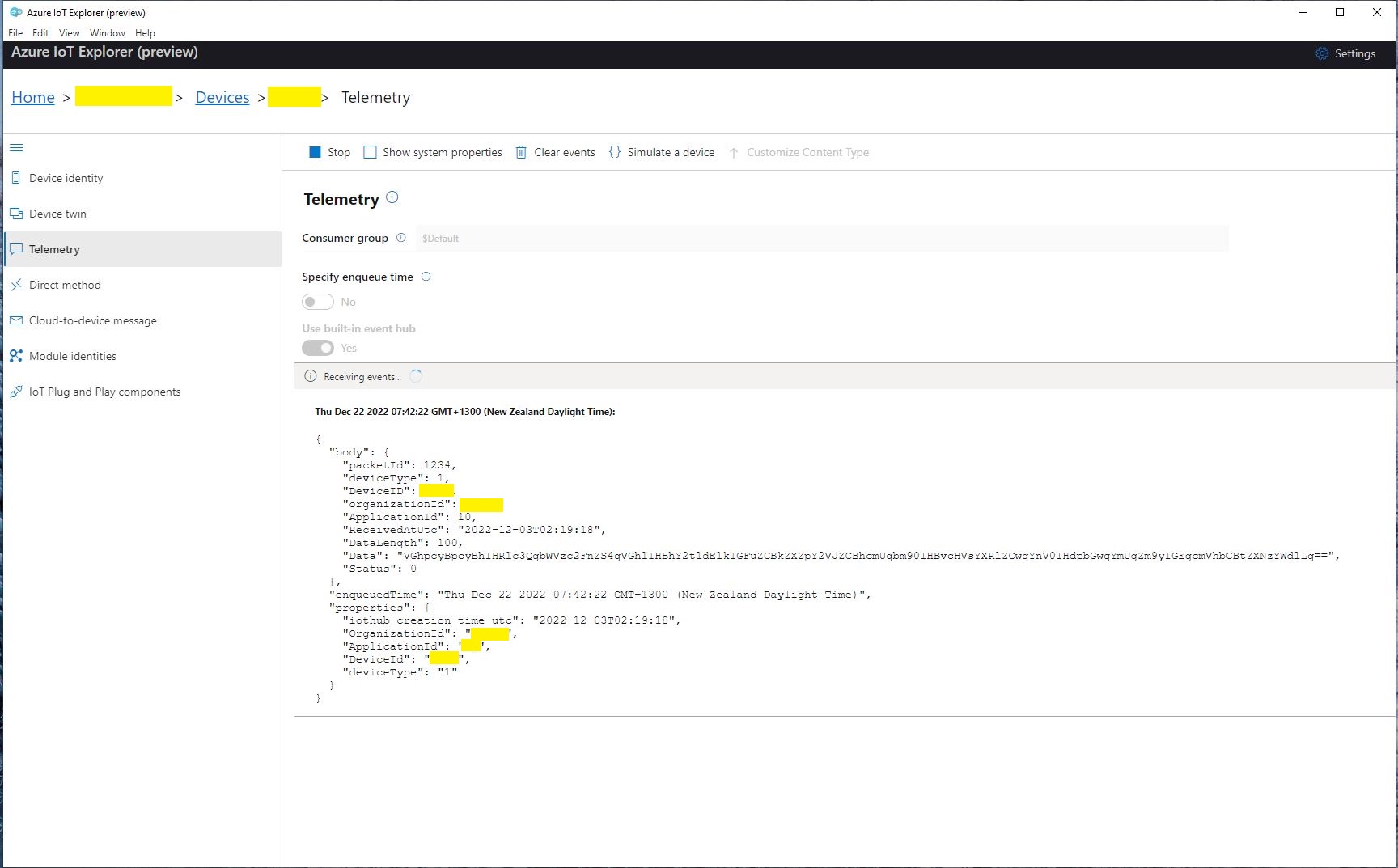
Which I could then inspect with Azure IoT Explorer as they arrived

Azure IoT Explorer displaying a test message

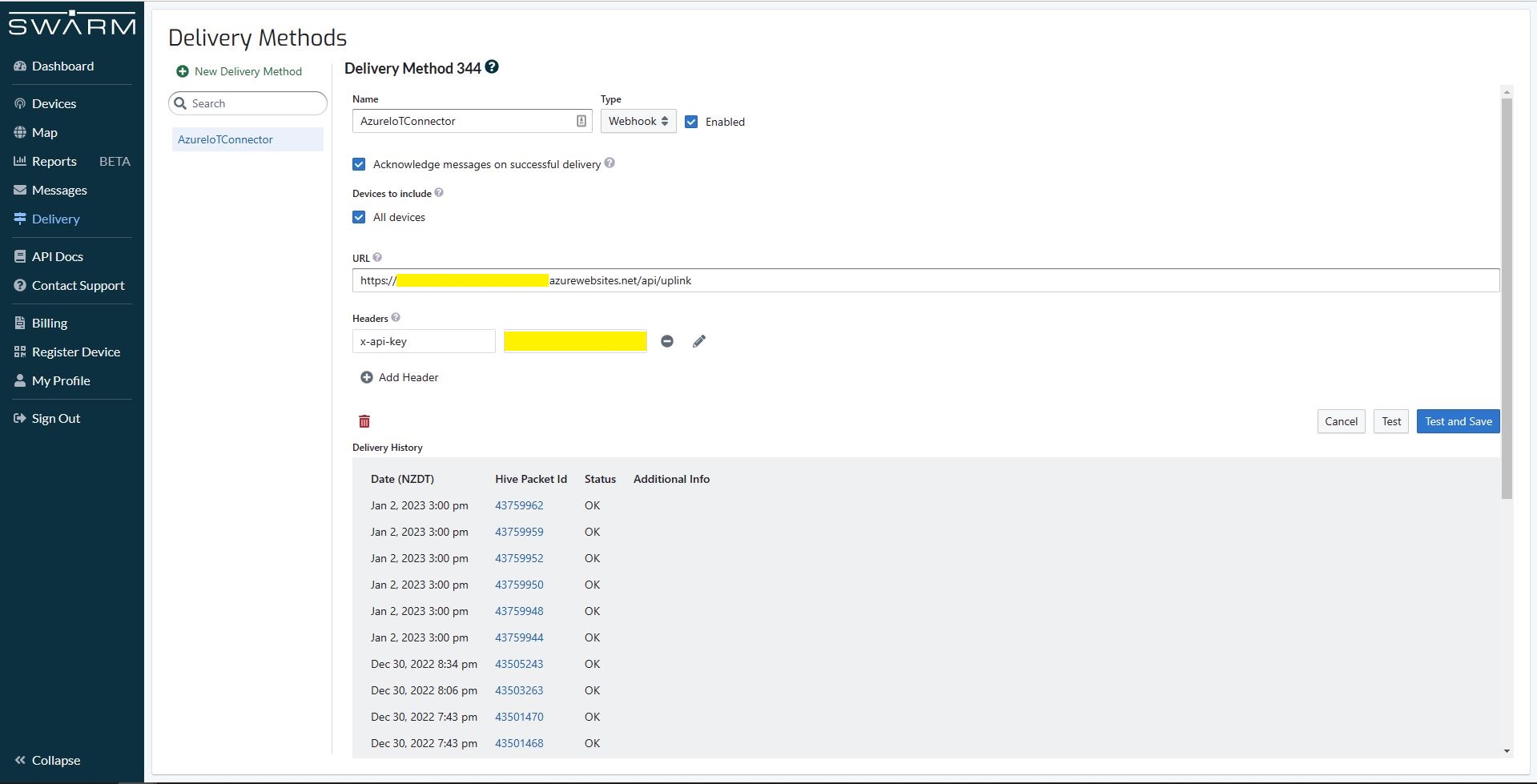
The next step was to create a new Delivery Method

Swarm delivery webhook creation

Configured to call my Uplink controller endpoint.

Swarm delivery webhook configuration

The webhook was configured to “acknowledge messages on successful delivery”. I then checked my Delivery Method configuration with a couple of “Test” messages.

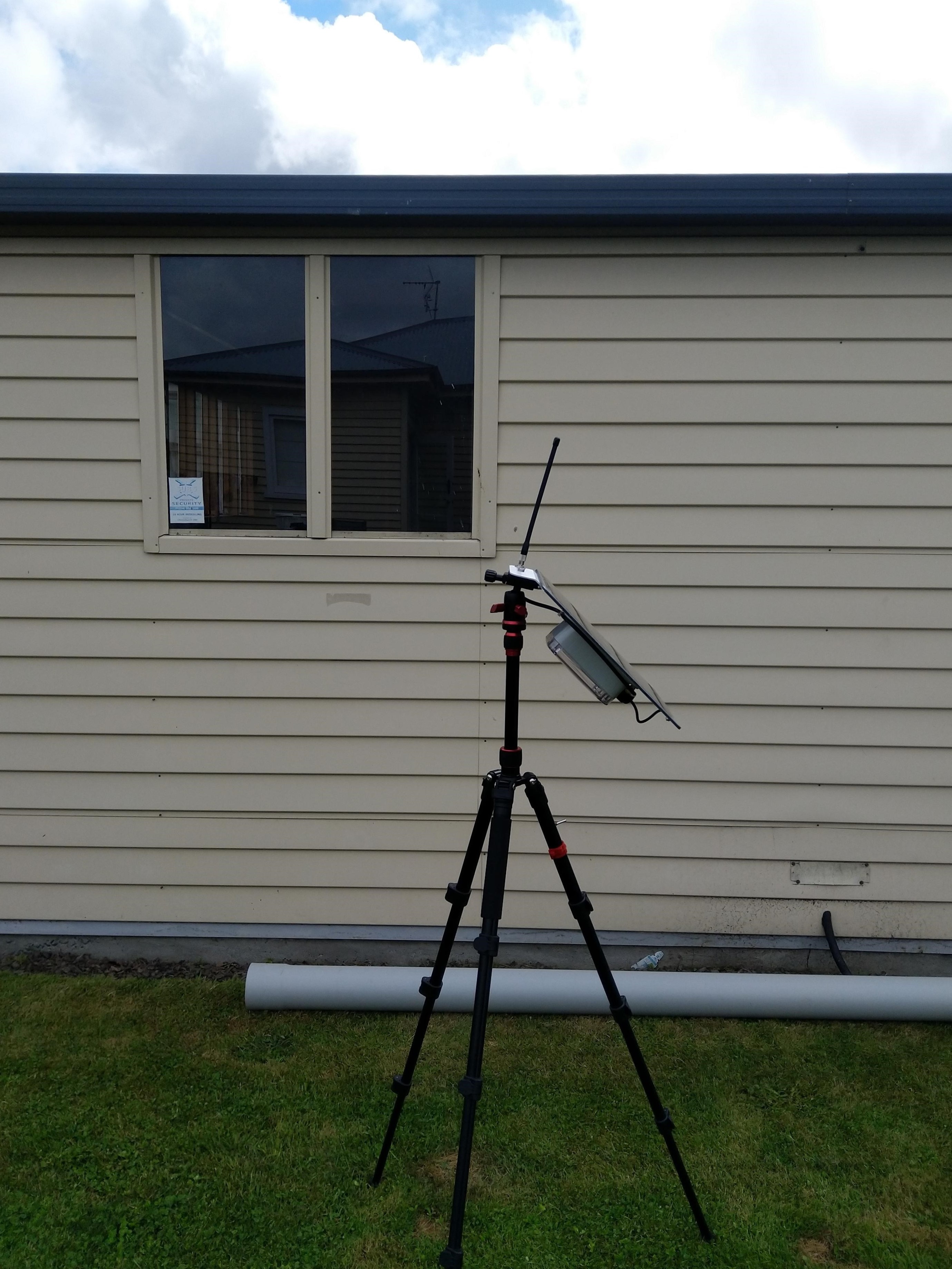
My Swarm Space Eval Kit arrived md-week and after some issues with jumper settings it started reporting position and status information.

Swarm Eval Kit in my backyard

The first position was just of the coast of West Africa(null island)

Swarm Map centered on Null Island

After the Global Positioning System(GPS) receiver got a good fix the location of the Eval Kit was in the middle of my backyard.

Azure IoT Explorer displaying payload with good latitude and longitude
Swarm Map displaying the location of my device (zoomed out)

Swarm Space – FromDevice with webhooks

I modified my TTI V3 Connector Azure Storage Queues project which uses Azure Functions HTTP Triggers to put messages into Azure Storage Queues to process Swarm FromDevice Webhook messages.

First step was to configure a webhook with the Swarm dashboard

Swarm dashboard webhooks configuration

I configured the webhook, and to “acknowledge messages on successful delivery”. Then checked my configuration with a couple of “Test” messages.

Swarm dashboard webhook configuration

The Swagger API documentation has methods for configuring endpoints which can be called by an application.

Swagger API Documentation for managing endpoints

I queued a couple of messages on my Satellite Transceiver Breakout and when the next satellite passed overhead, shortly after they were visible in the Swarm Dashboard Messages tab.

Swarm Dashboard with test and live fromdevice messages

The messages were also delivered to an Azure Storage Queue, and I could view them with Azure Storage Explorer.

Azure Storage Explorer displaying a webhook message payload

Azure Functions with VB.Net on .NET Core V6

A year and a half ago I wrote a post about how to build Azure functions with VB.Net and the .NET Framework 4.X. The Microsoft VB team posted about Visual Basic Support for .NET 5.0 in March 2020 then went quiet, so my customer put the project on hold. Since then, a lot has changed .NET Core 3.1 LTS ends December 12, 2022, and .NET Core 5.0 support (no LTS) ended May 10, 2022 so I have ported the samples to .NET Core V6.

The process is similar (but different) to the original approach

The VB.Net Solution from June 2021

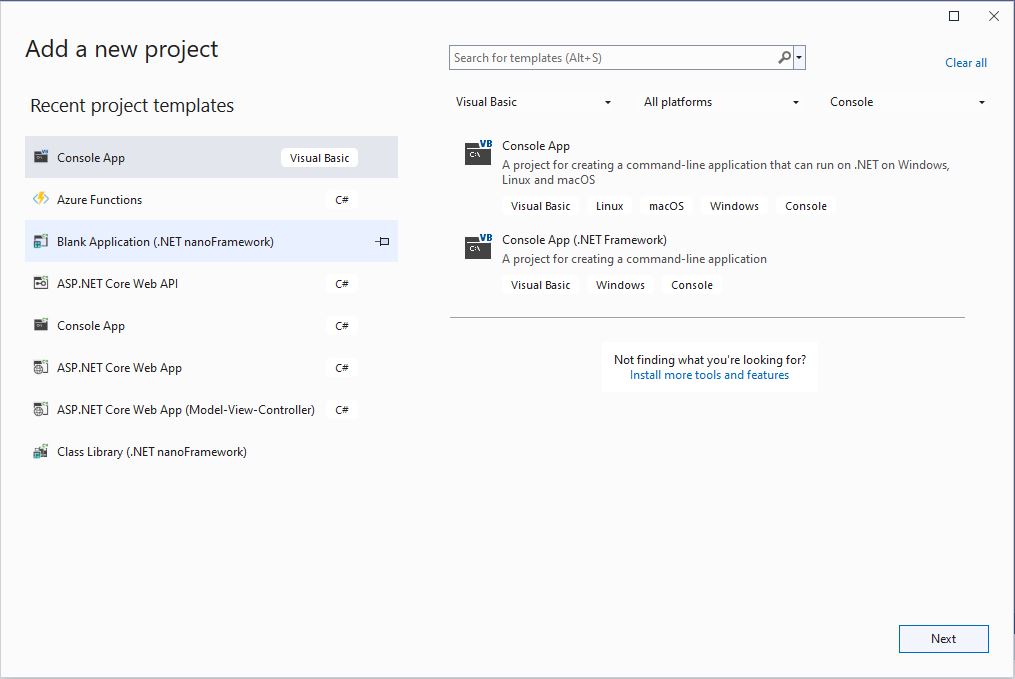
First step is to create a Visual Basic .NET Core V6 console application

Visual Studio 2022 “Add a new project”

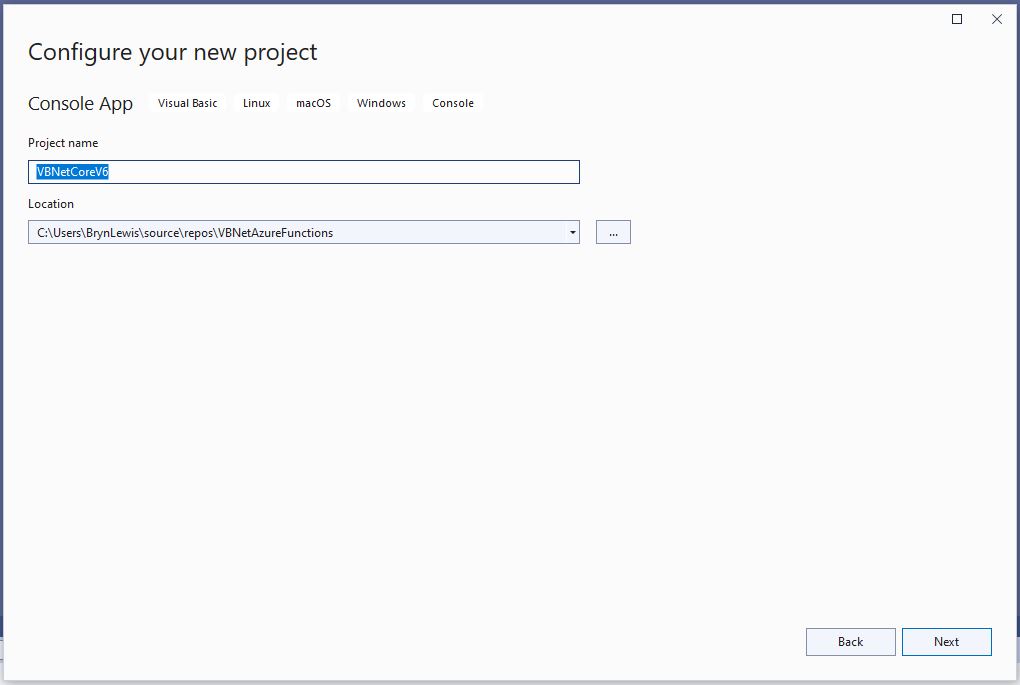
The specify a name for the new project.

Visual Studio 2022 Add Project “Configure your new project”

Then select the version of .NET Core used

Visual Studio 2022 Add Project “Additional information”

Then rename program.cs to a name which highlights that it is a trigger

Visual Studio 2022 rename program.vb to TimerTrigger.vb

The initial version of the TimerTrigger code was “inspired” by the VB.Net 4.8 version.

'---------------------------------------------------------------------------------
' Copyright (c) November 2022, devMobile Software
'
' Licensed under the Apache License, Version 2.0 (the "License");
' you may Not use this file except in compliance with the License.
' You may obtain a copy of the License at
'
'     http://www.apache.org/licenses/LICENSE-2.0
'
' Unless required by applicable law Or agreed to in writing, software
' distributed under the License Is distributed on an "AS IS" BASIS,
' WITHOUT WARRANTIES Or CONDITIONS OF ANY KIND, either express Or implied.
' See the License for the specific language governing permissions And
' limitations under the License.
'
'---------------------------------------------------------------------------------
Imports System.Threading

Imports Microsoft.Azure.WebJobs
Imports Microsoft.Extensions.Logging


Public Class TimerTrigger
    Shared executionCount As Int32

    <FunctionName("Timer")>
    Public Shared Sub Run(<TimerTrigger("0 */1 * * * *")> myTimer As TimerInfo, log As ILogger)
        Interlocked.Increment(executionCount)

        log.LogInformation("VB.Net .NET V6 TimerTrigger next trigger:{0} Execution count:{1}", myTimer.ScheduleStatus.Next, executionCount)

    End Sub
End Class

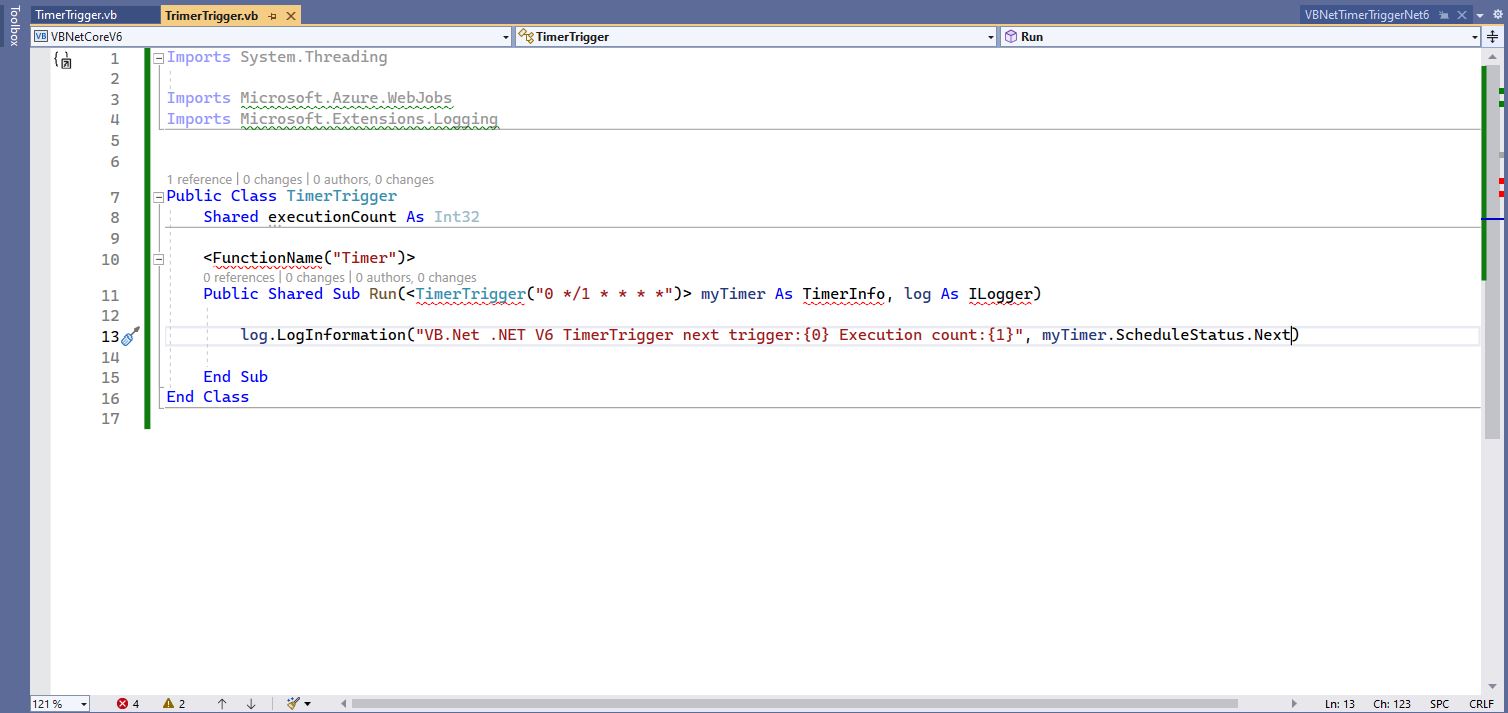
Visual Studio 2022 highlighting missing libraries
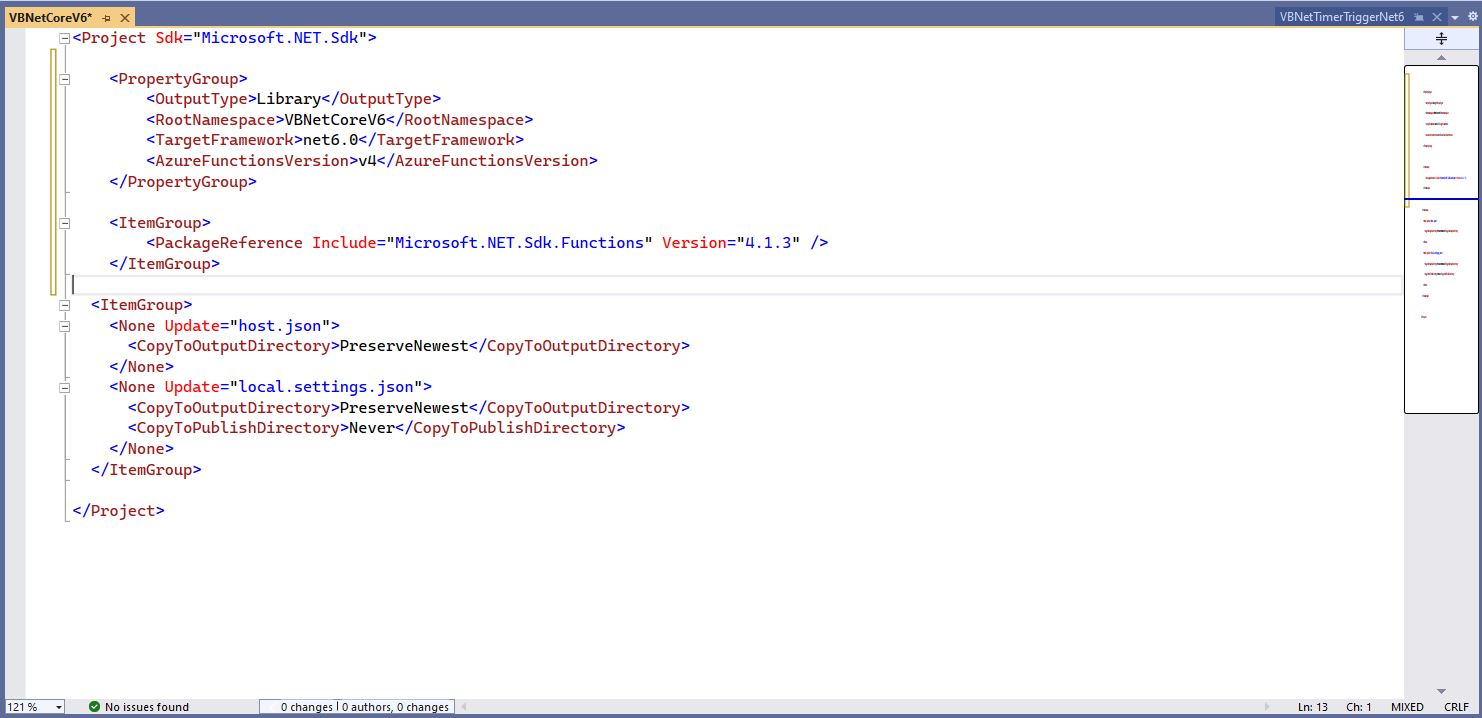
Visual Studio 2022 with additional function SDK references

The next step is to add the hosts.json(empty for timer tigger) and localsettings.json to configure the function

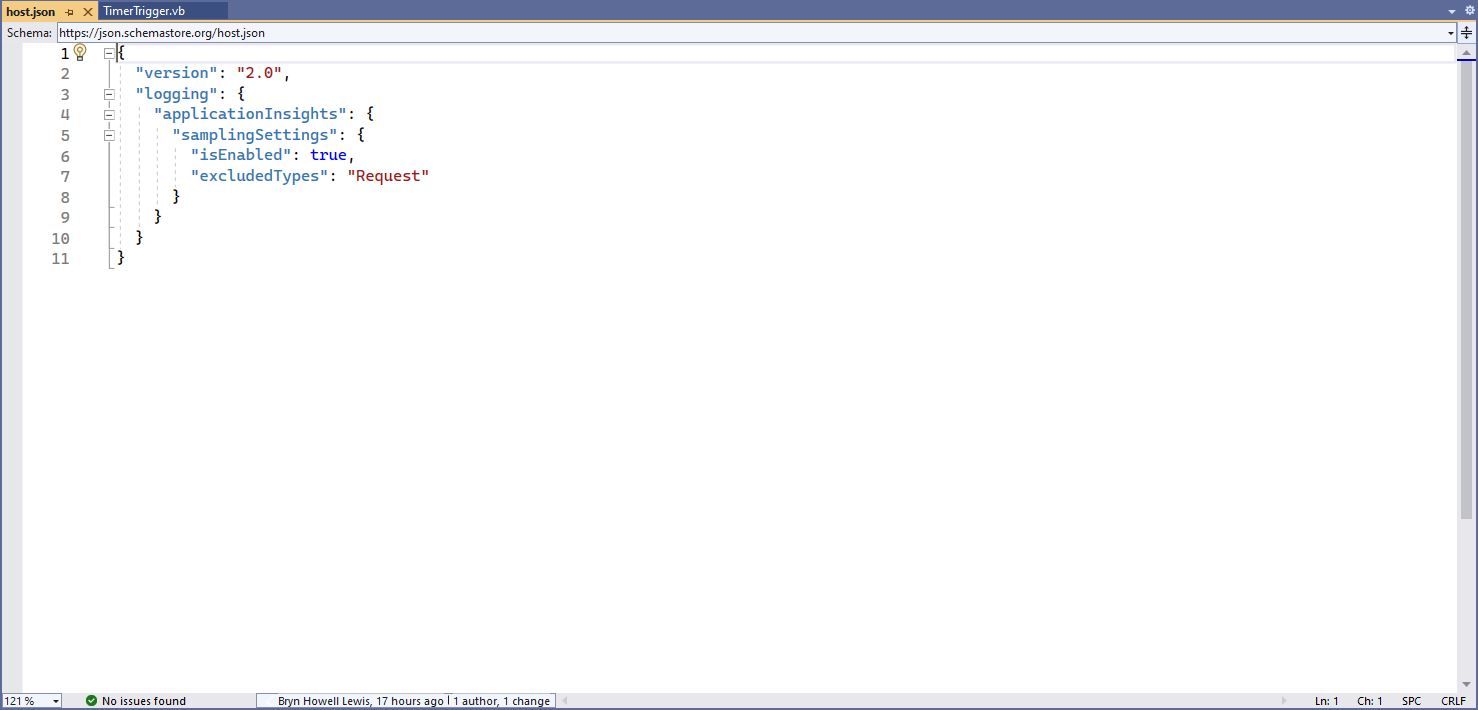
Visual 2022 Hosts.json file
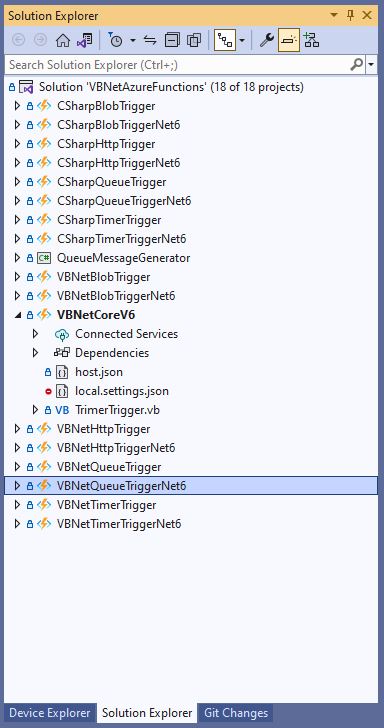
Visual Studio 2022 showing hosts.json & local.settings.json

Then I could run the function in the Azure Functions runtime emulator and “single step” in the Visual Studio 2022 Debugger.

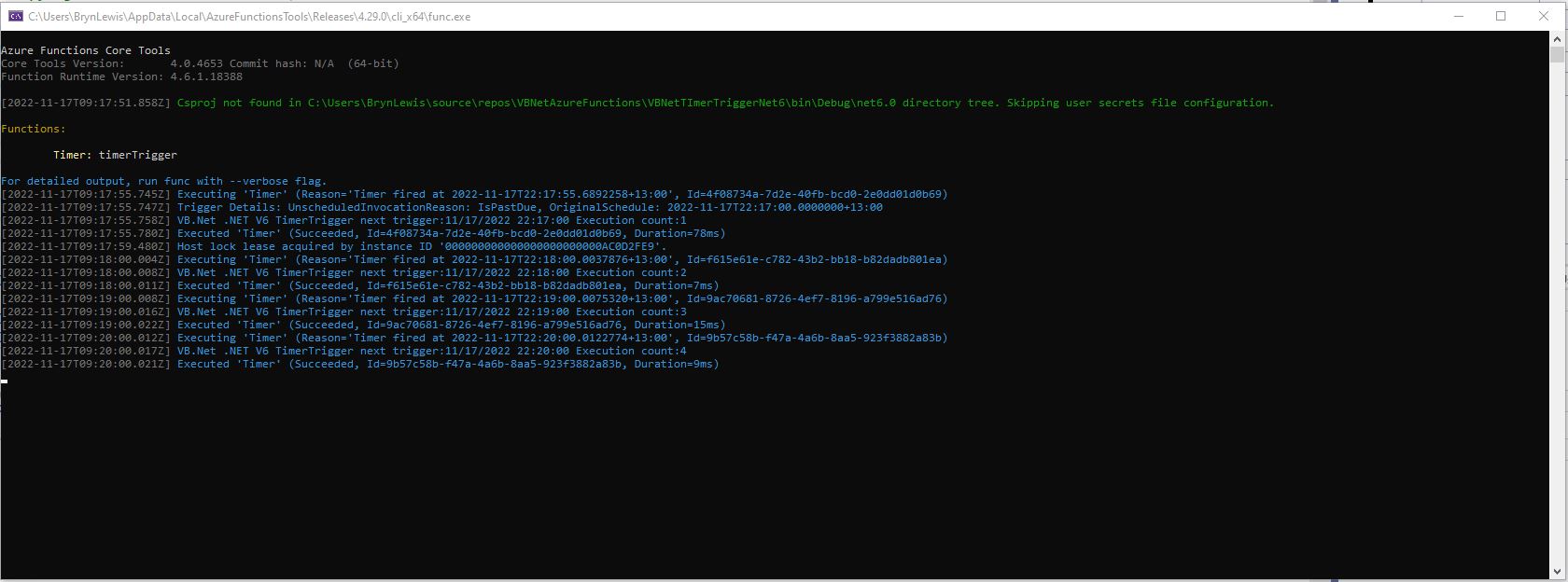
VB.Net .NET Core V6 Timer Trigger running in emulator

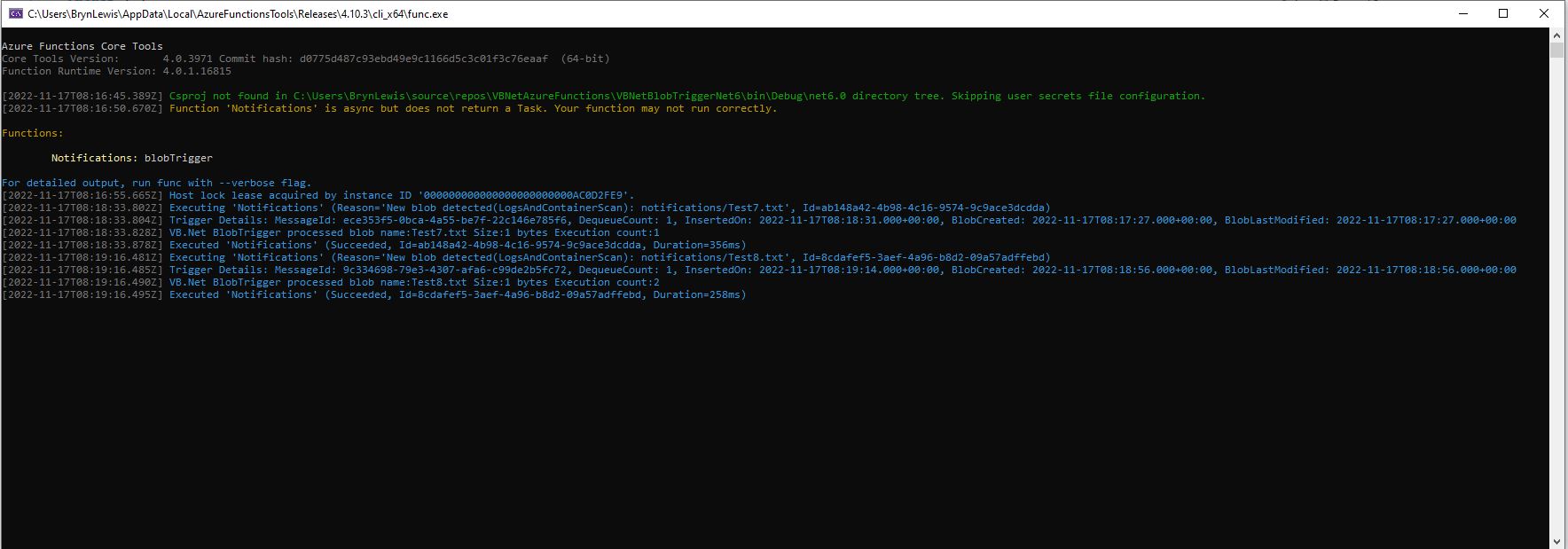
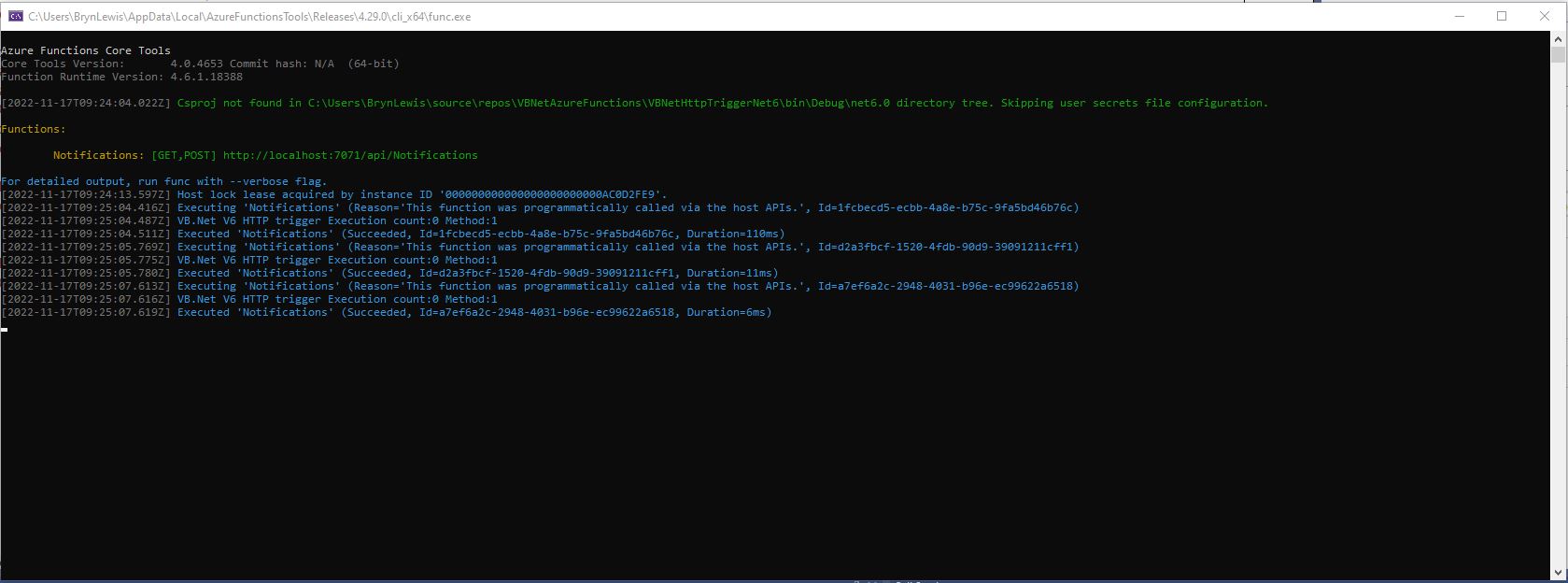
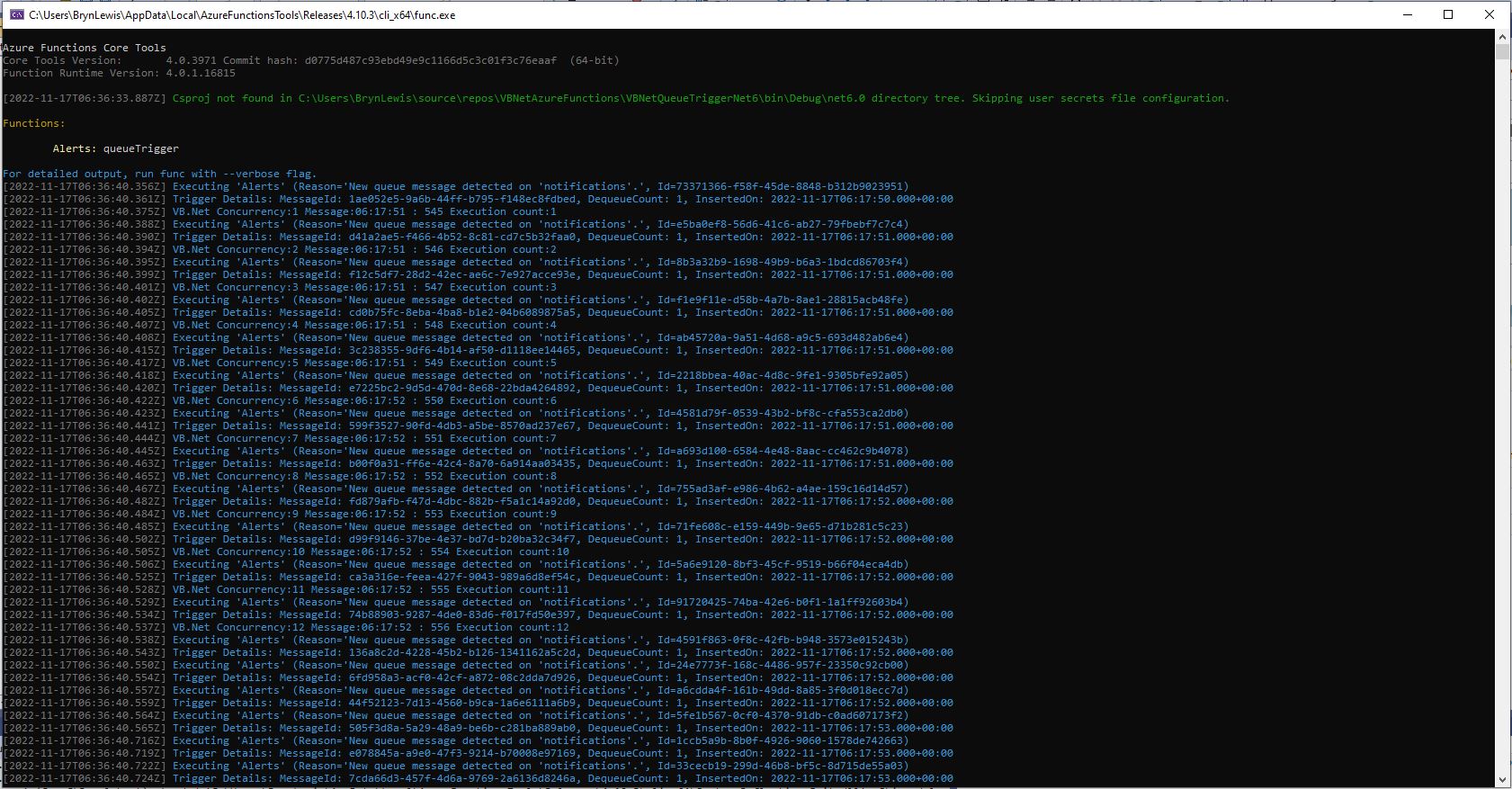
For completeness I also built sample BlobTrigger, HttpTrigger and QueueTrigger versions

VB.Net .NET Core V6 Blob Trigger running in emulator
VB.Net .NET Core V6 HTTP Trigger running in emulator
VB.Net .NET Core V6 Queue Trigger running in emulator

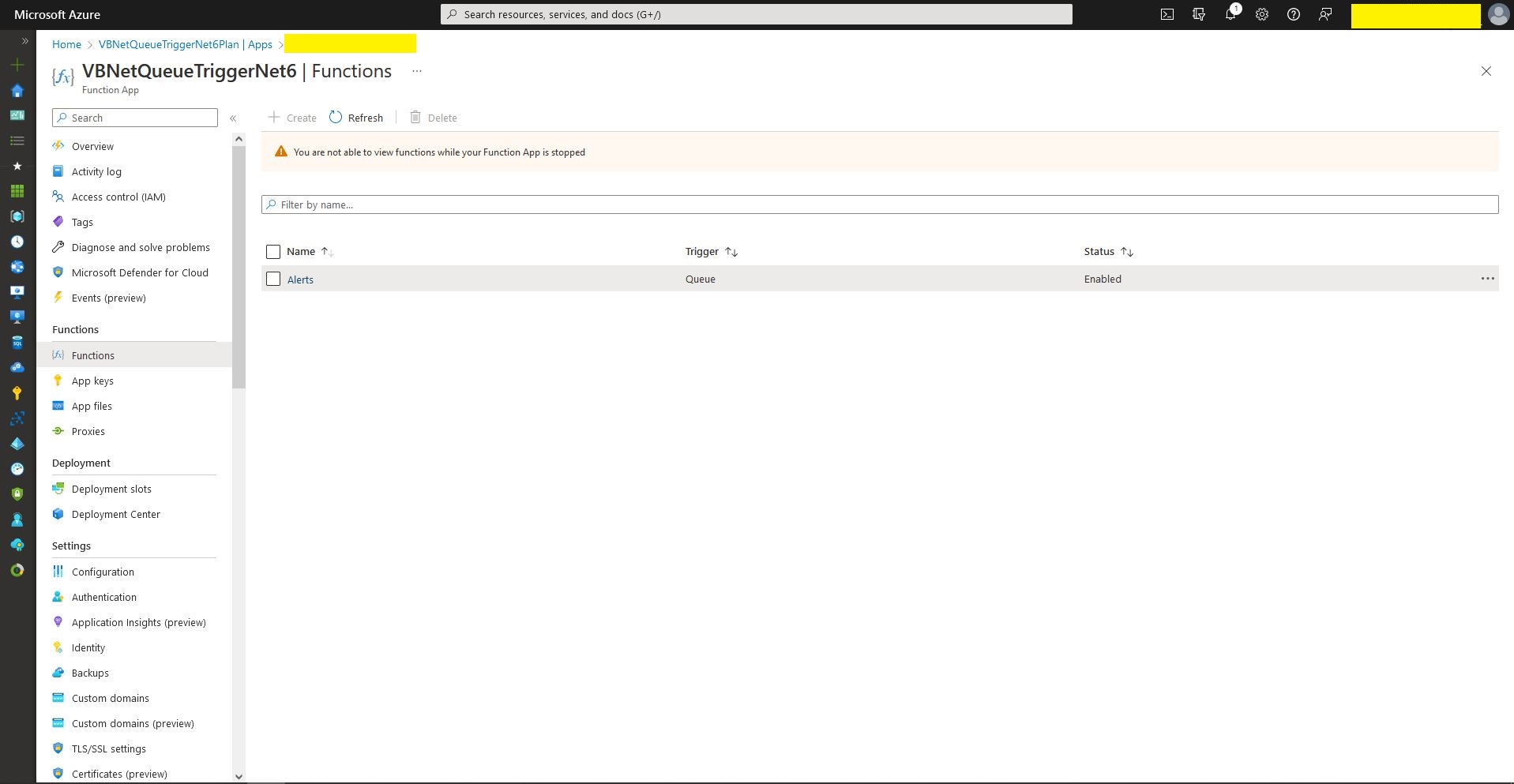
I also deployed the Azure Storage QueueTrigger to Microsoft Azure, configured it, and then stress tested it with multiple instances of my QueueMessageGenerator.

Queue Trigger Function deployment
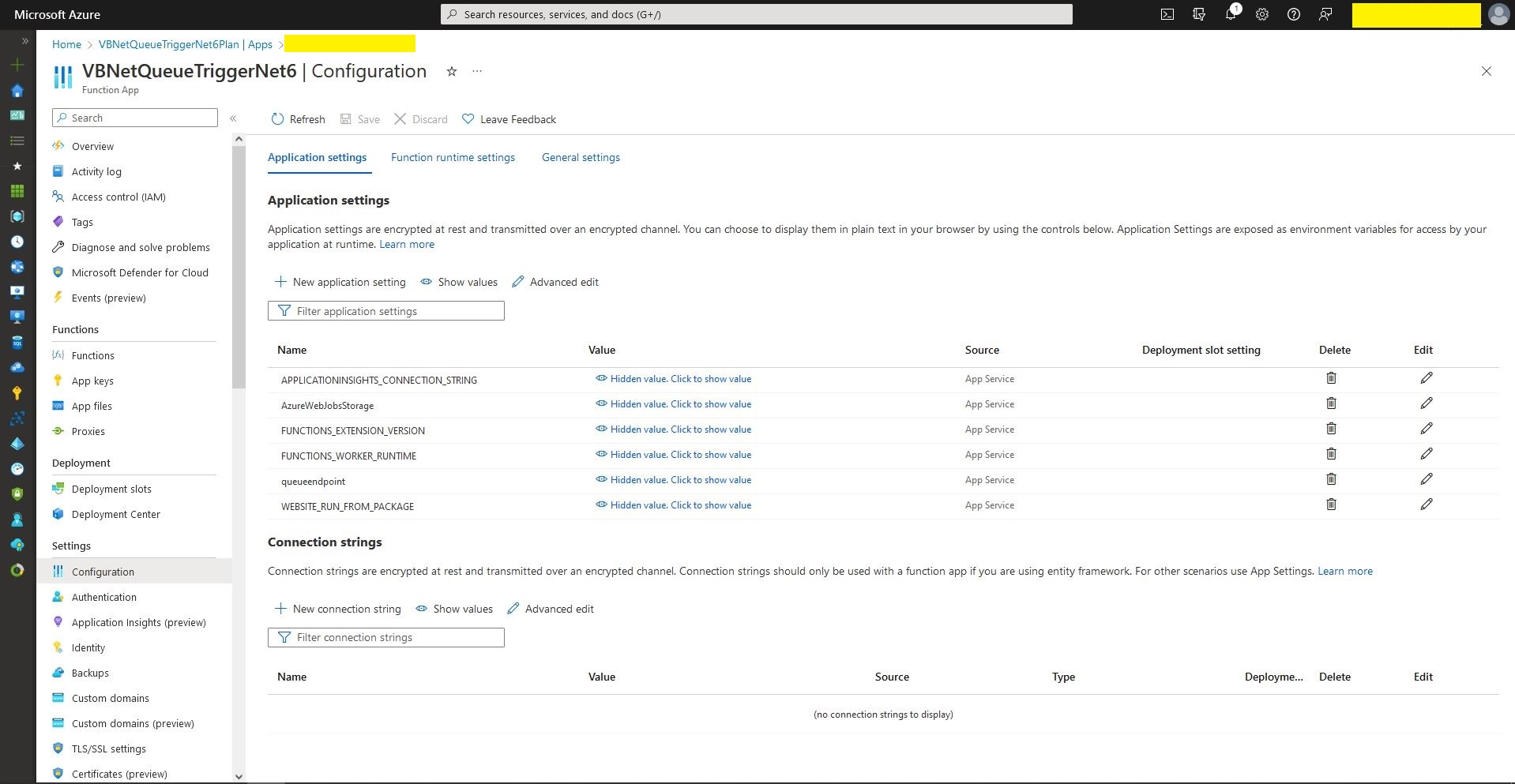
Queue Trigger configuration
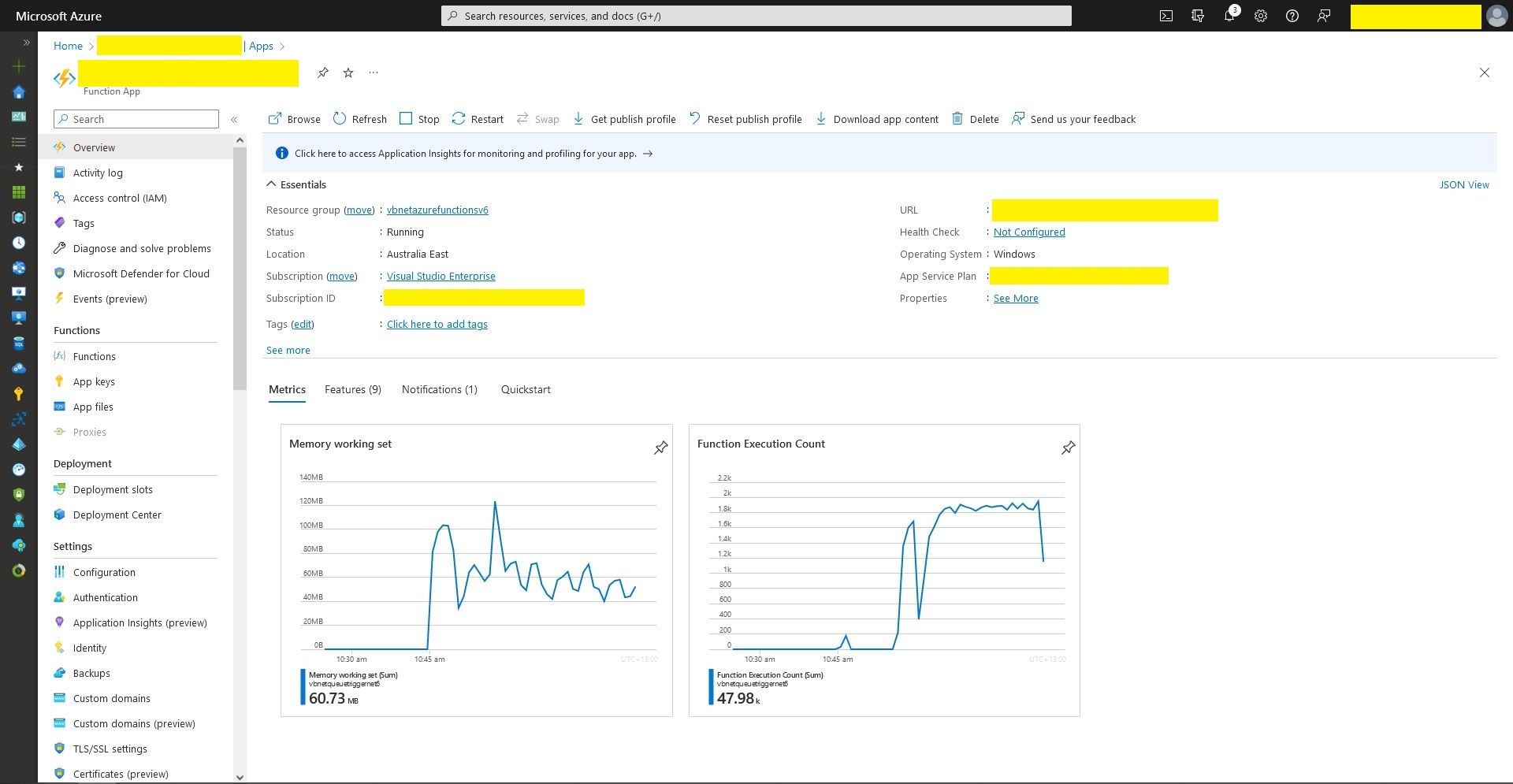
Queue Trigger Throughput 48K messages

What if it goes wrong…

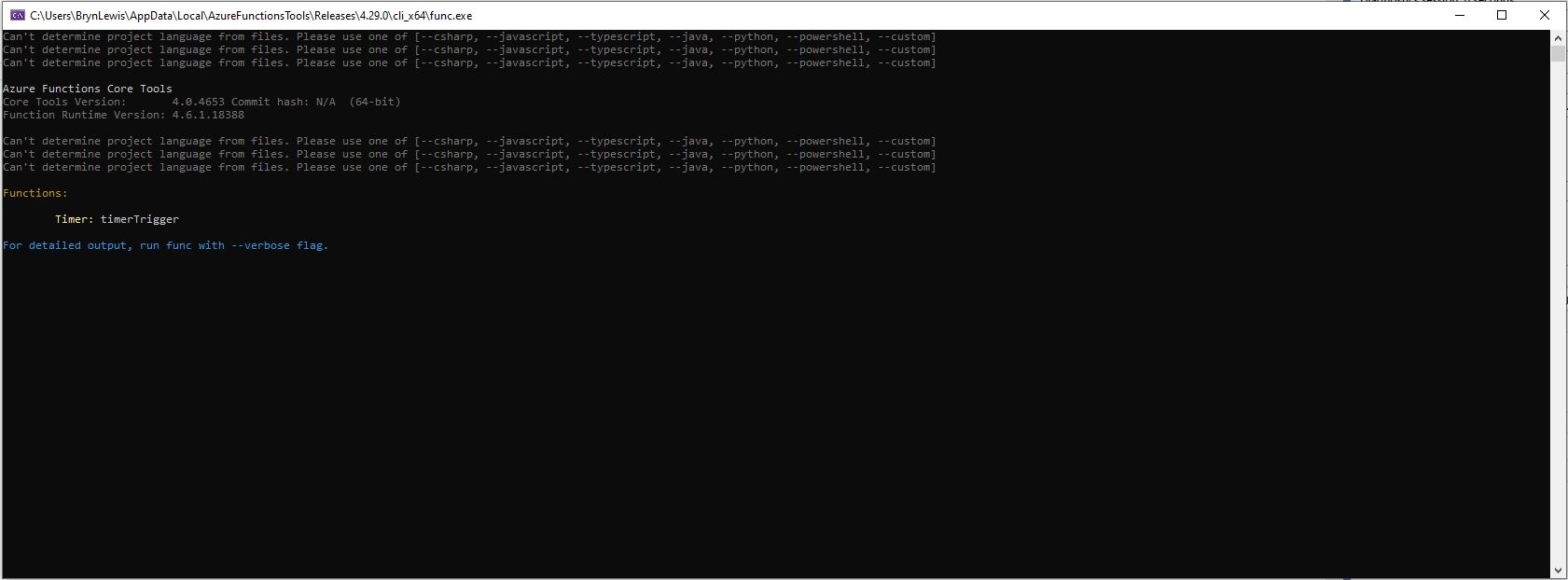
“Can’t determine project language from files. Please add one of [–csharp, –javascript, –typescript, –java, –powershell, –customer]

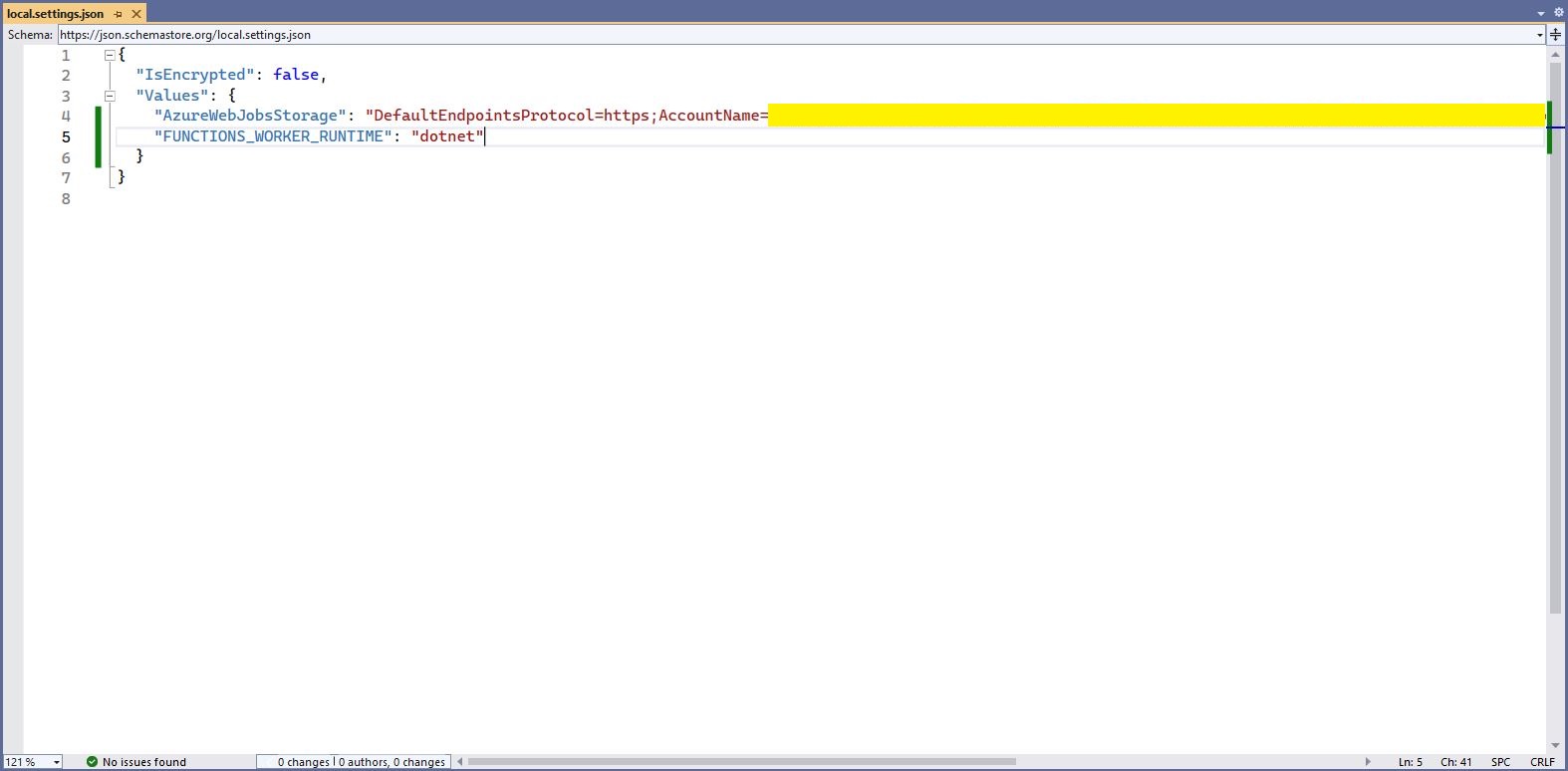
Check “FUNCTIONS_WORKER_RUNTIME” in the local.settings.json file.

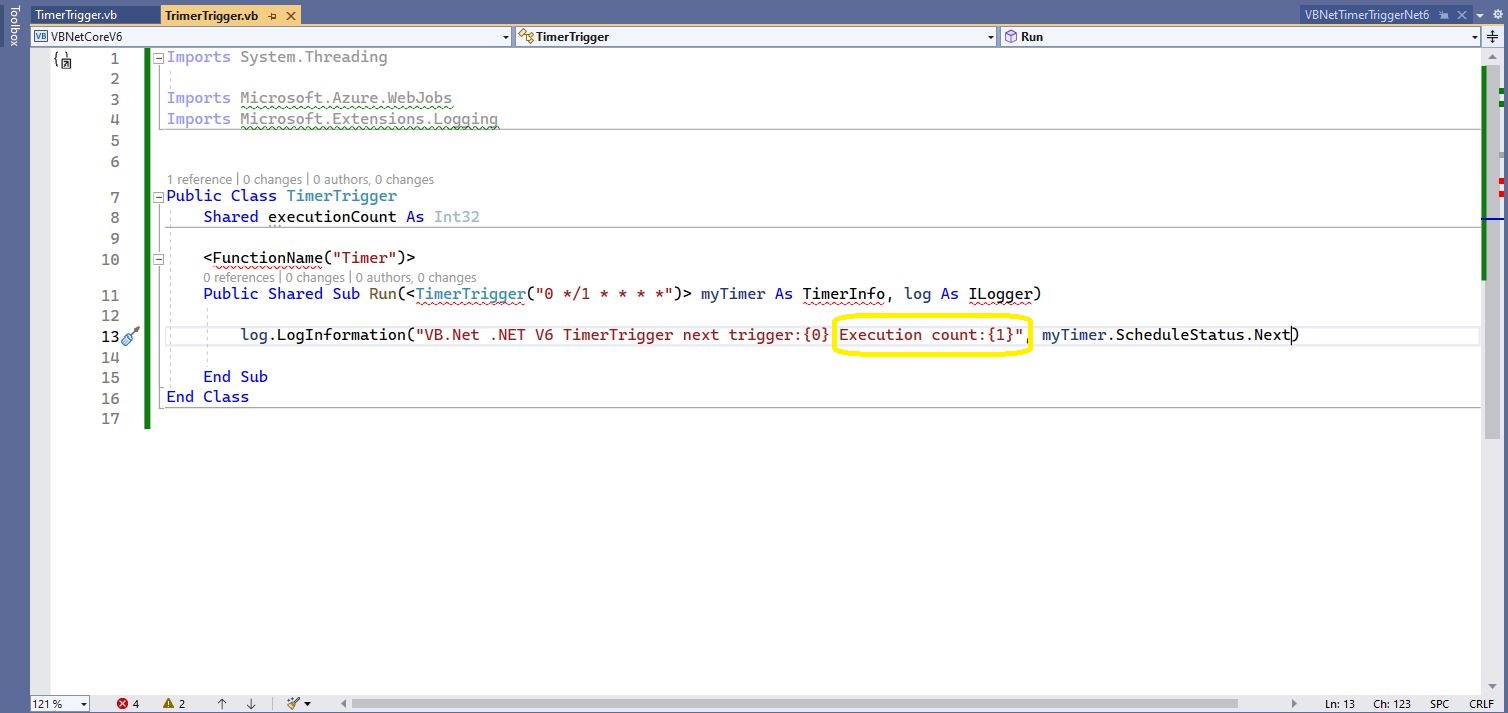
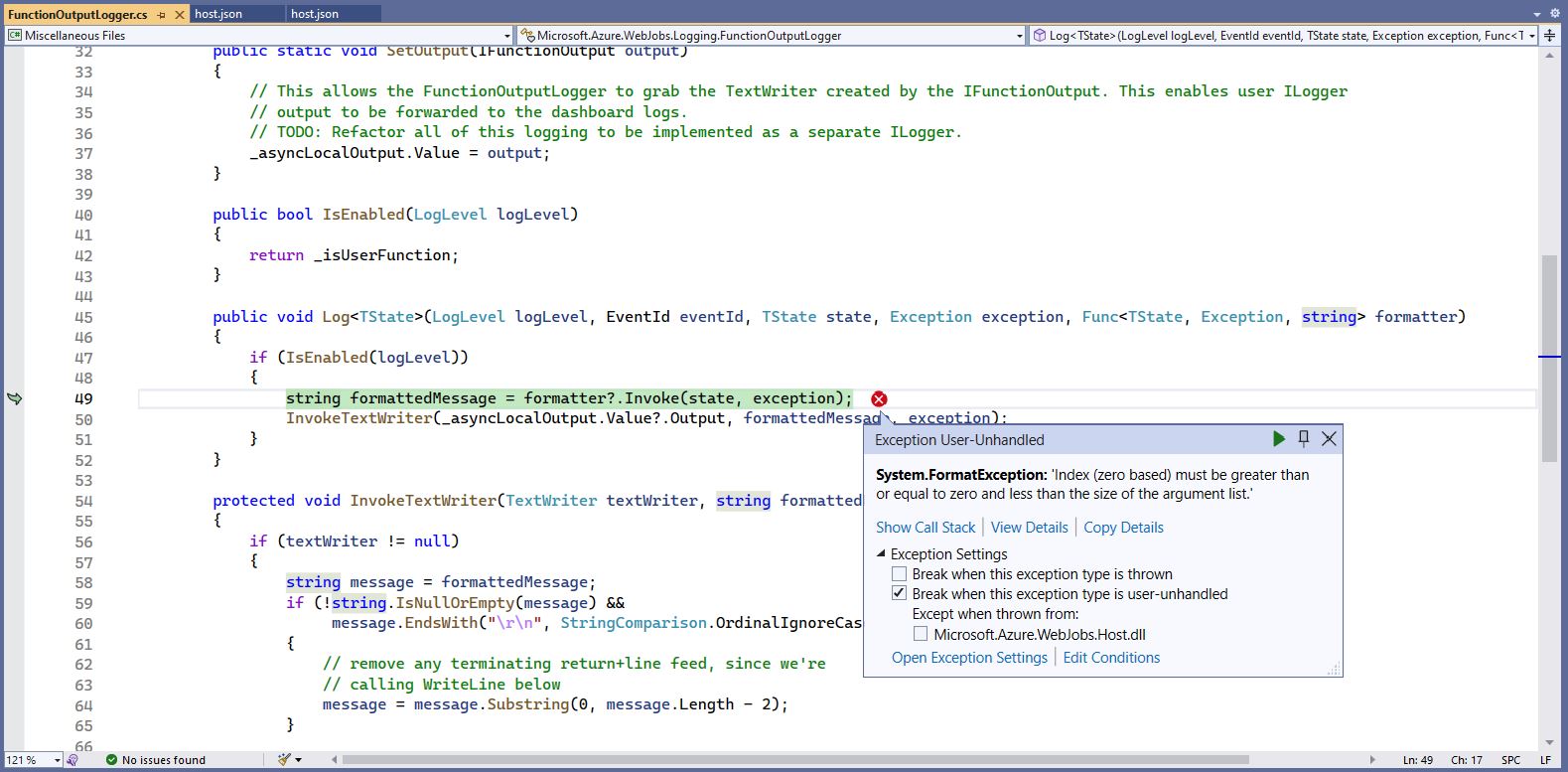
The baked in error logging doesn’t handle broken message formats very well. Look at the call stack or single step through the application to find the message format that is broken

Visual Studio 2022 editor with malformed message highlighted

WARNING

I assume this is not a supported approach so use

“at your own risk”